
User manual
CN

Disclaimer
For your safety, do not watch videos or operate the device while driving. Adjust the volume to an appropriate
level during driving.
Before operating the device, carefully read and fully understand all safety instructions and warning notices in
this manual. Keep this manual accessible for future reference.
1. Prioritize driving safety at all times.
2. If you encounter difficulties operating the device, pull over safely before making adjustments.
3. Store the device out of children’s reach to prevent accidental injury or equipment damage.
4. Comply with traffic regulations when using GPS navigation.
5. Do not operate the device in restricted areas such as gas stations, wine cellars, or locations with strong
electromagnetic shielding to avoid hazards.
6. Never install, maintain, or repair the device while powered on. Installation and servicing by personnel without
professional training in automotive electronics poses serious risks.
7. Do not mount or store the device—especially the LED display—under direct sunlight or corrosive substances.
Ensure no direct contact with air conditioning ducts during installation, as this may damage the device, vehicle
components, or cause bodily harm.
8. Do not scratch the display with sharp objects or apply excessive pressure to the screen surface.
9. Keep the device away from humid environments and direct liquid contact to prevent fire risks.

1. Product Hardware Specifications
3.1 Pair Device with Mobile Phone
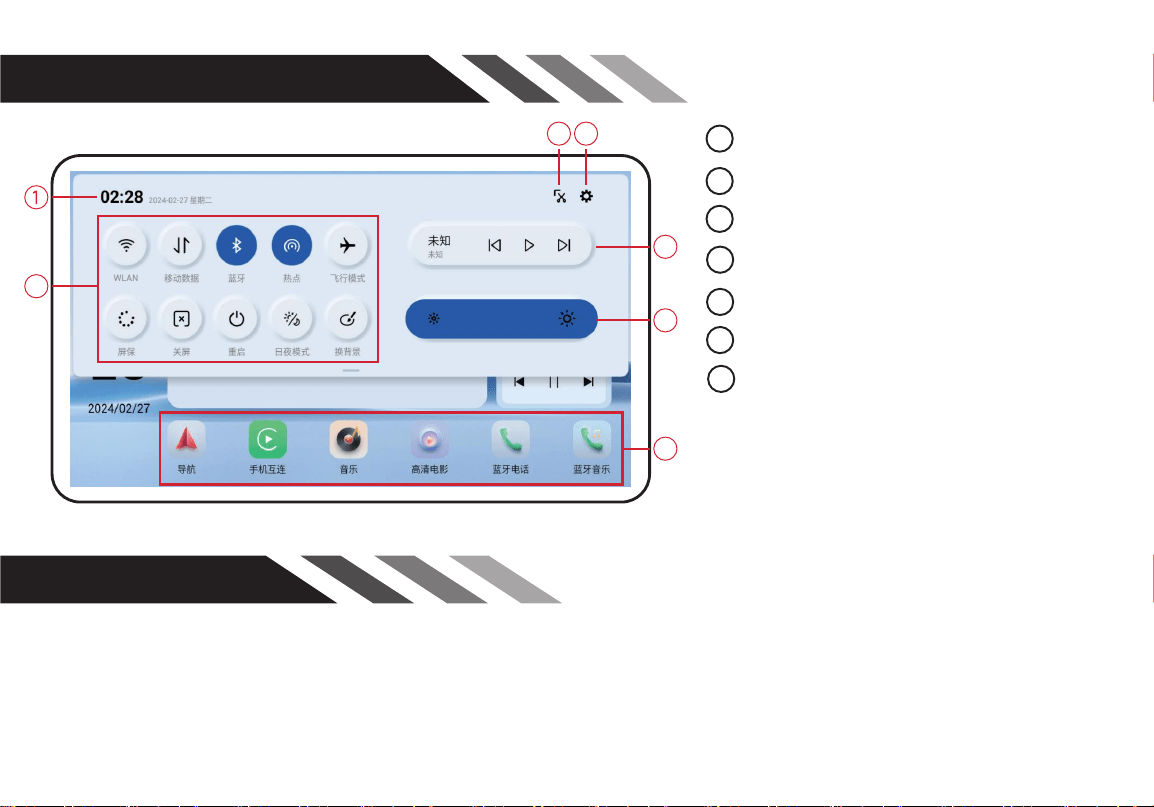
2. Interface Menu Overview
3. Bluetooth
· Path: Apps → Blueto
oth Phone → Enable Bluetooth on your phone → Search for device name →
Complete pairing Bluetooth Calling enables safe hands-free calls during driving. Call interface functions:
Dial, Favorites, Recent Calls, Contacts
7
Long press to replace shortcut apps
1
Time & Date
2 Connection Status
3
Brightness Adjustment
4 Settings Icon
5
Media Playback Bar
6 Screen Brightness Slider
3 4
5
6
7
2
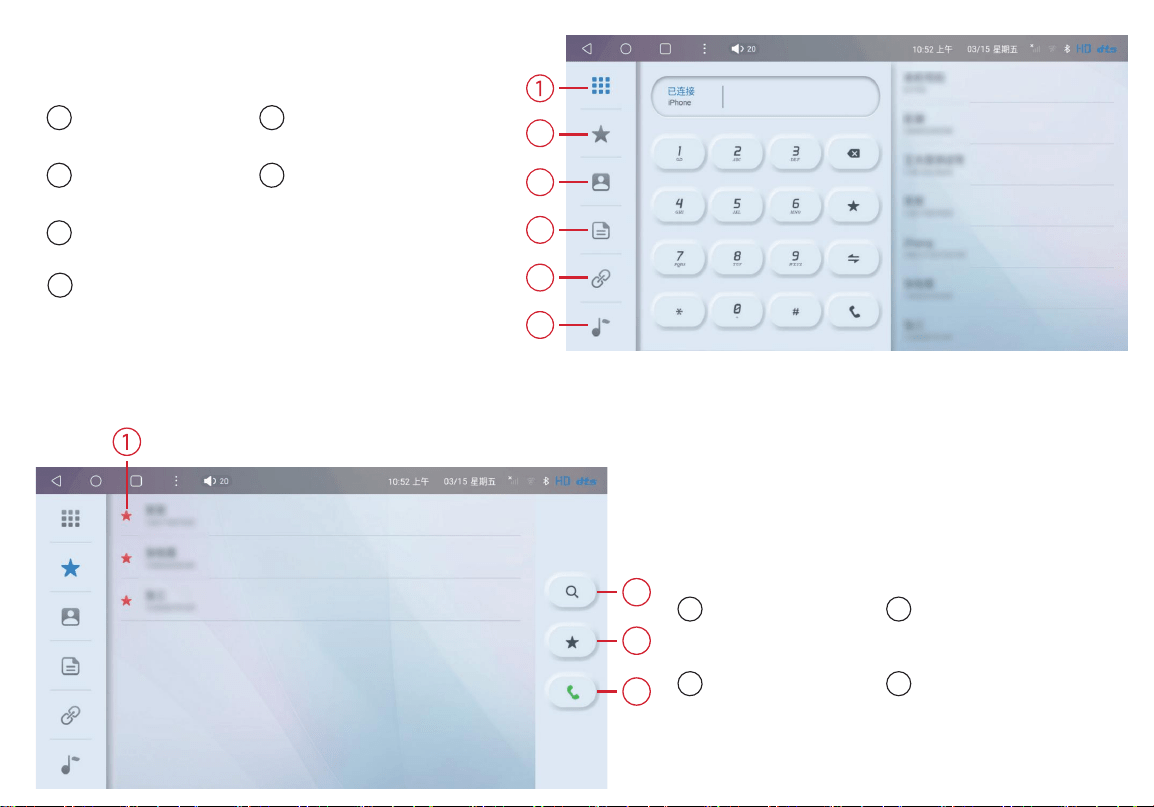
3.2 Phone Favorites
2
Collect phone number
1
Dial Pad
3
Contact List
4
Call Logs
6
Bluetooth Connection
7
Bluetooth Music
1
Collection status
3
Saved
2
Search for contacts
4
Make a phone call
2
2
3
4
3
4
5
6
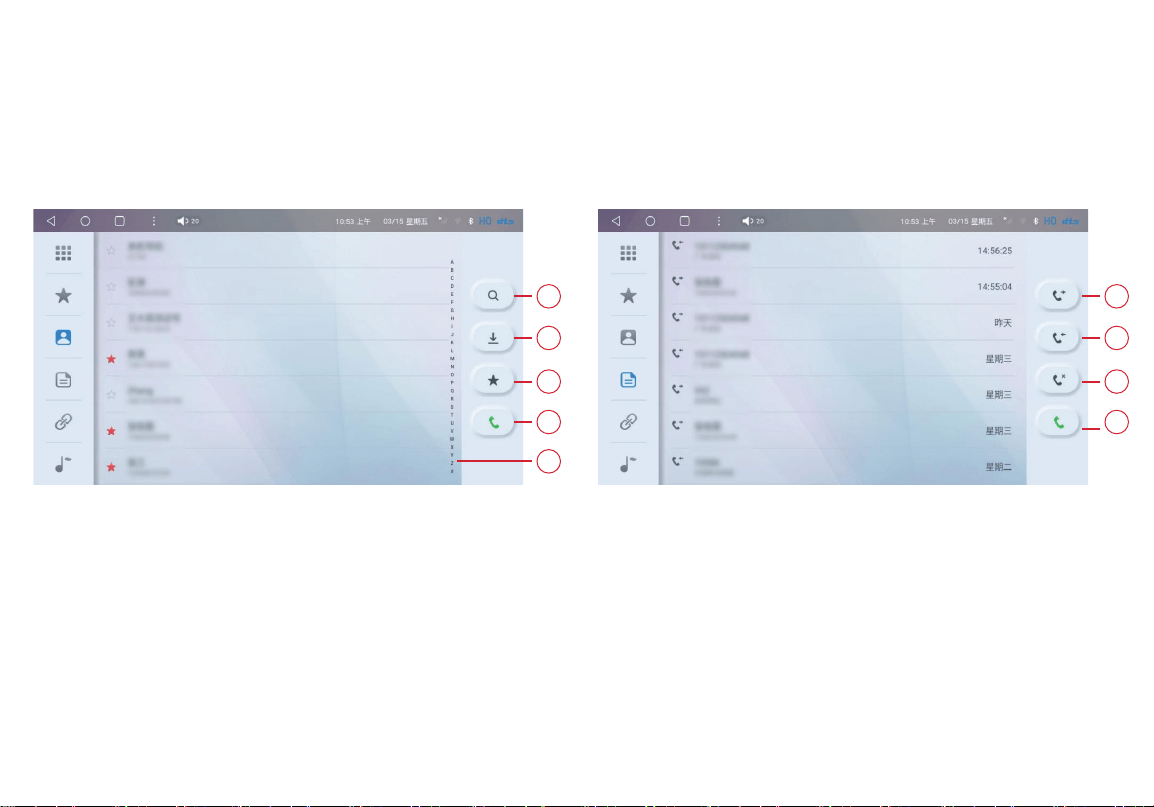
3.3 Phone Contacts Synchronization
This unit supports syncing contact data from your mobile
phone; contact names will
display on-screen during
incoming/outgoing calls.
3.4 Call Logs
Displays all o
utgoing, answered, and missed
calls. You c
an directly dial
numbers from the c
all
history list.
1.Search contacts
2.Download phone book
3.Add contact to favorites
4.Make a call
5.Alphabet index bar
1.Redial outgoing call
2.Return missed call
3.Missed call
4.Answer incoming cal
1
2
3
4
5
1
2
3
4
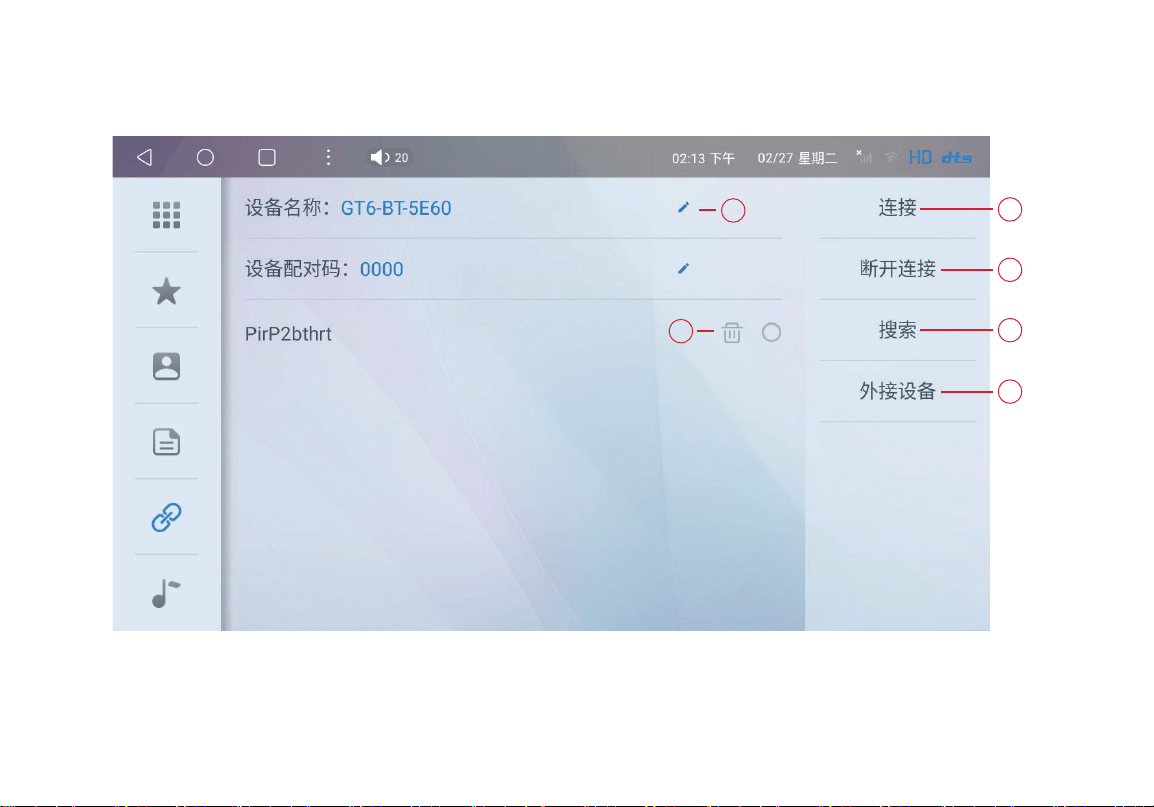
3.5 Bluetooth Device Management
1.Edit device name 2.Delete paired device 3.Connect device (for Bluetooth calls & audio)
4.Disconnect device 5.Active Bluetooth scan 6.External Bluetooth peripheral port (for
OBD, BLE mouse/keyboard, ambient lights, Bluetooth speakers, etc.)
1
5
6
4
3
2
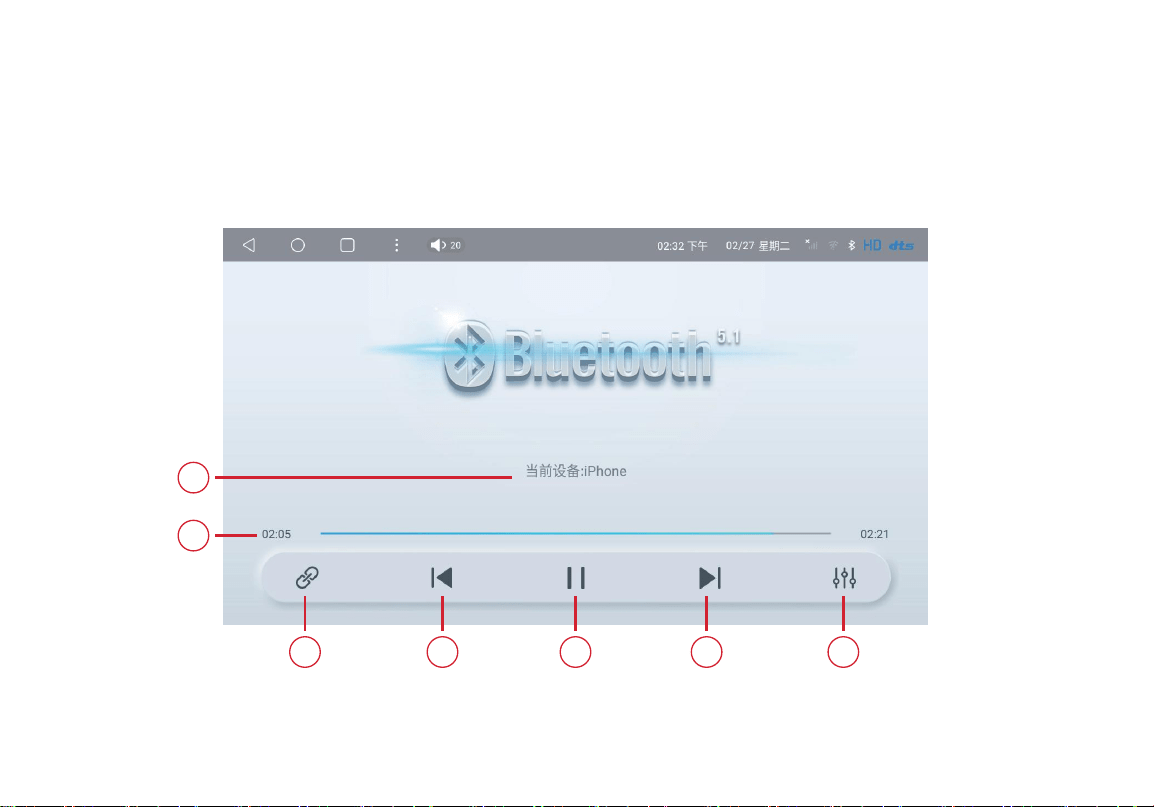
3.6 Bluetooth Music Playback
· Stream audio from your phone to the vehicle speakers via Bluetooth connection.
1.
Bluetooth pairing status 2.Previous track
3.Play / Pause 4.Next track
5.DSP audio tuning 6.Playback progress bar
7.Connected device name
1
6
7
2 3 4 5
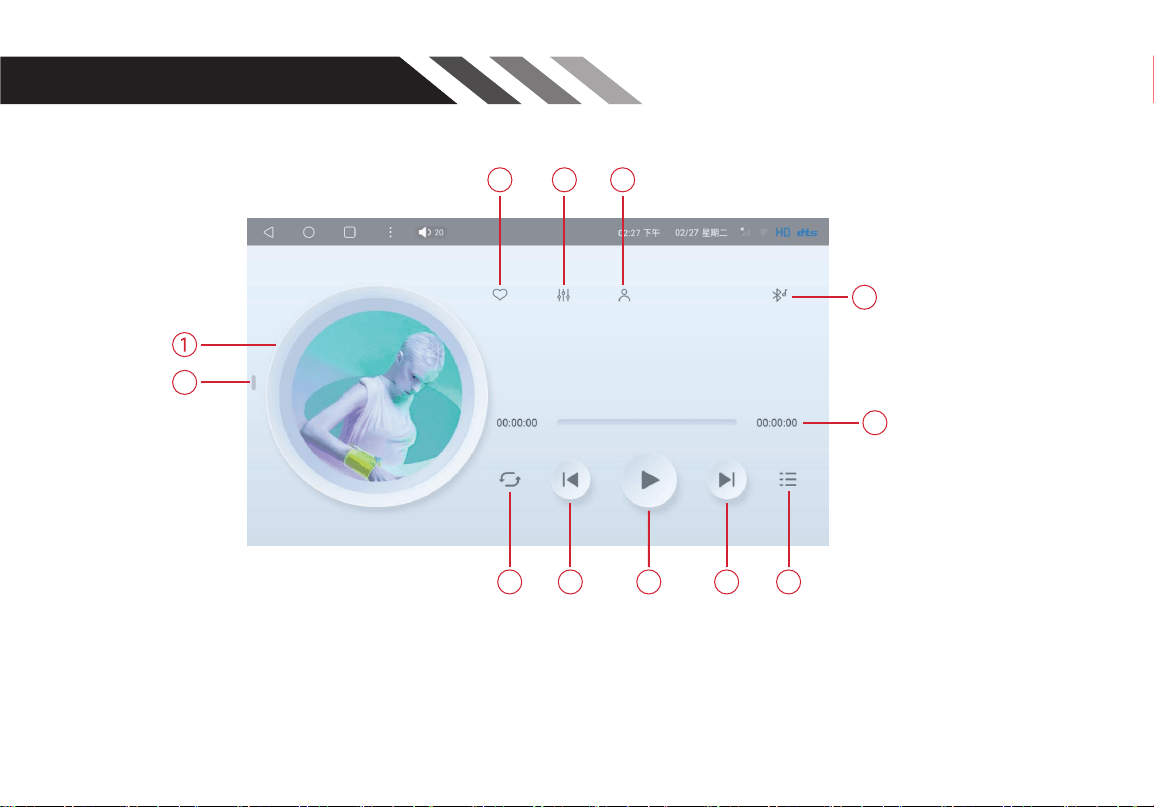
Supports LRC lyric file display
4. Local Music Interface
1.Album cover 2.Playlist panel 3.Add to favorites
4.DSP equalizer 5.Artist info 6.Bluetooth Music toggle
7.Playback timeline 8.Playback loop mode 9.Previous track
10.Play / Pause 11.Next track 12.Full playlist view
3 4 5
8 9
11
12
10
6
7
2
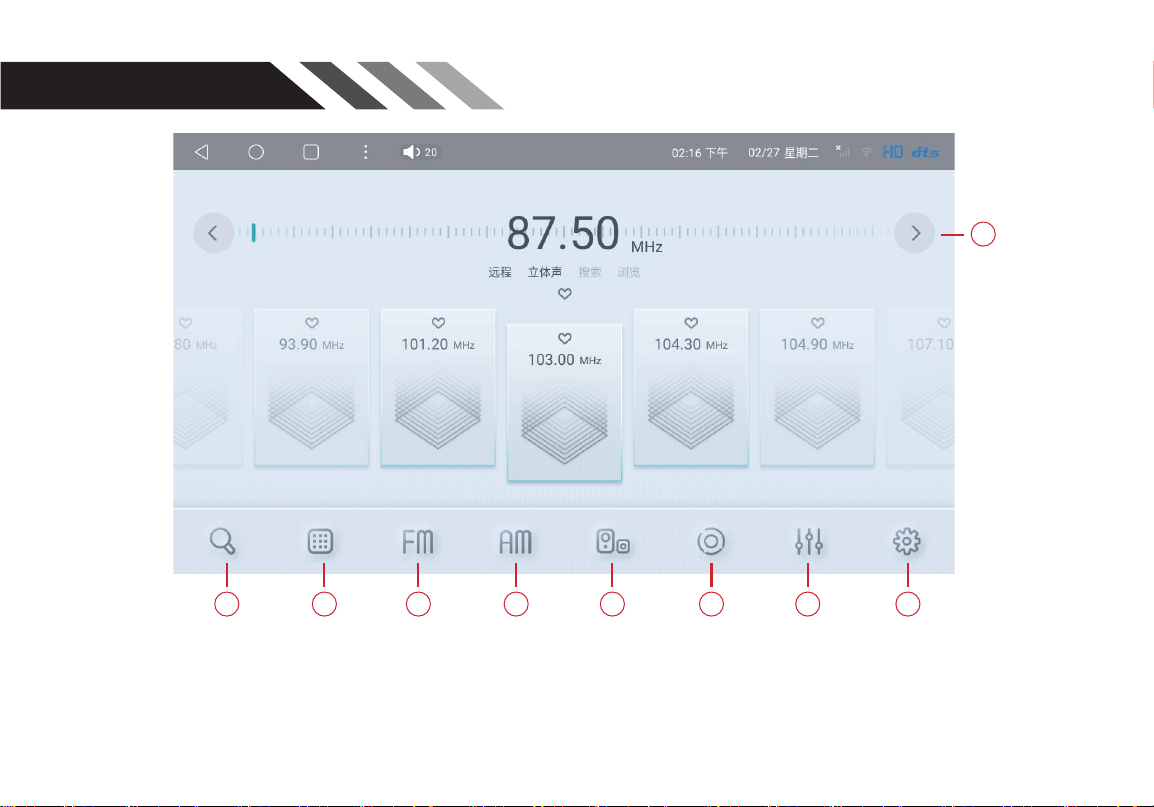
5. Radio
1.Search radio stations 2.Numeric keypad 3.FM band switch
4.AM band switch 5.Local / Distance signal toggle 6.Stereo / Mono audio switch
7.DSP tuning 8.Radio regional settings 9.Tune up / Tune down frequency
1 2 3 4 5 6 7
9
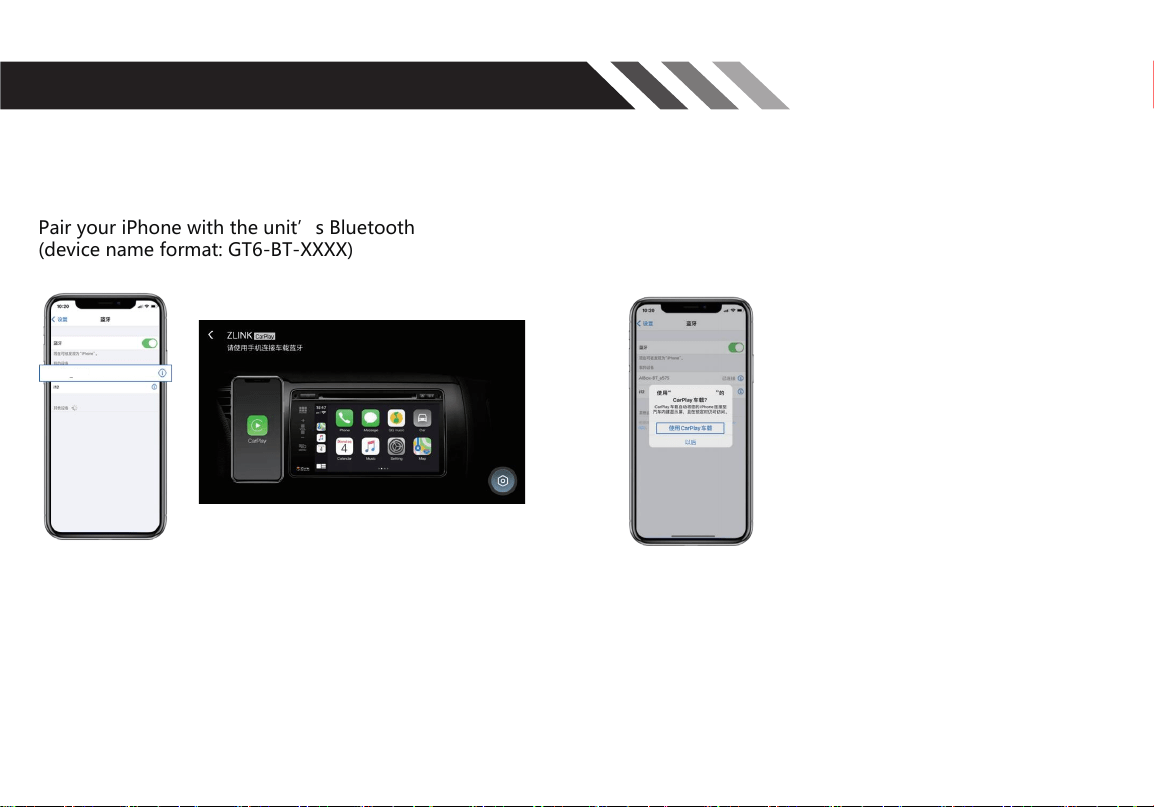
GT6-BT-XXXX
6. CarPlay/Android Auto Connection
Navigation path: Apps → CarAuto
Pair your iPhone with the unit’s Bluetooth
(device name format: GT6-BT-XXXX)
After successful pairing, a pop-up will appear on your
iPhone; tap Use CarPlay Vehicle to enter the CarPlay
interface.
Disconnect CarPlay:On iPhone: Settings → Wi-Fi → Turn off Wi-Fi
(Note: Connection steps for Android Auto and HUAWEI HiCar follow the identical process.)
GT6-BT-XXXX
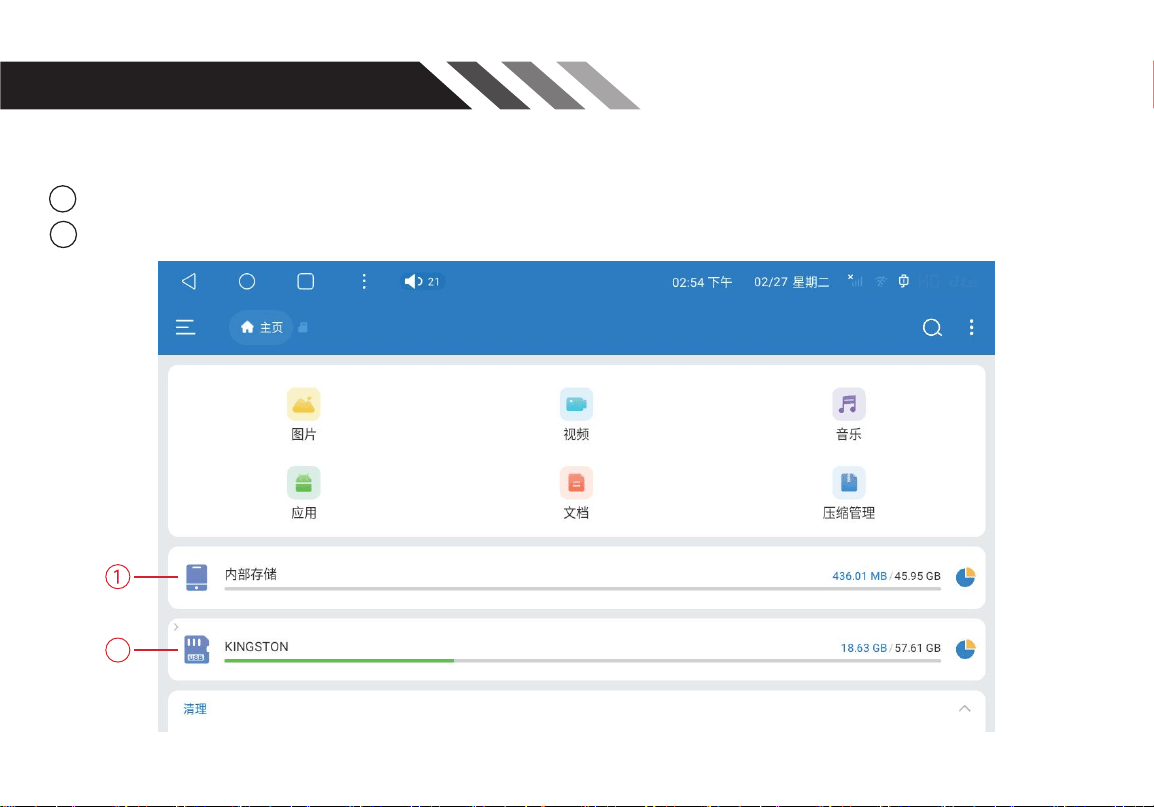
7.ESuper File Manager
Manage internal device storage, external USB storage, images, applications, videos, music, and
compressed files.
2
1
Equipment storage
2
External storage
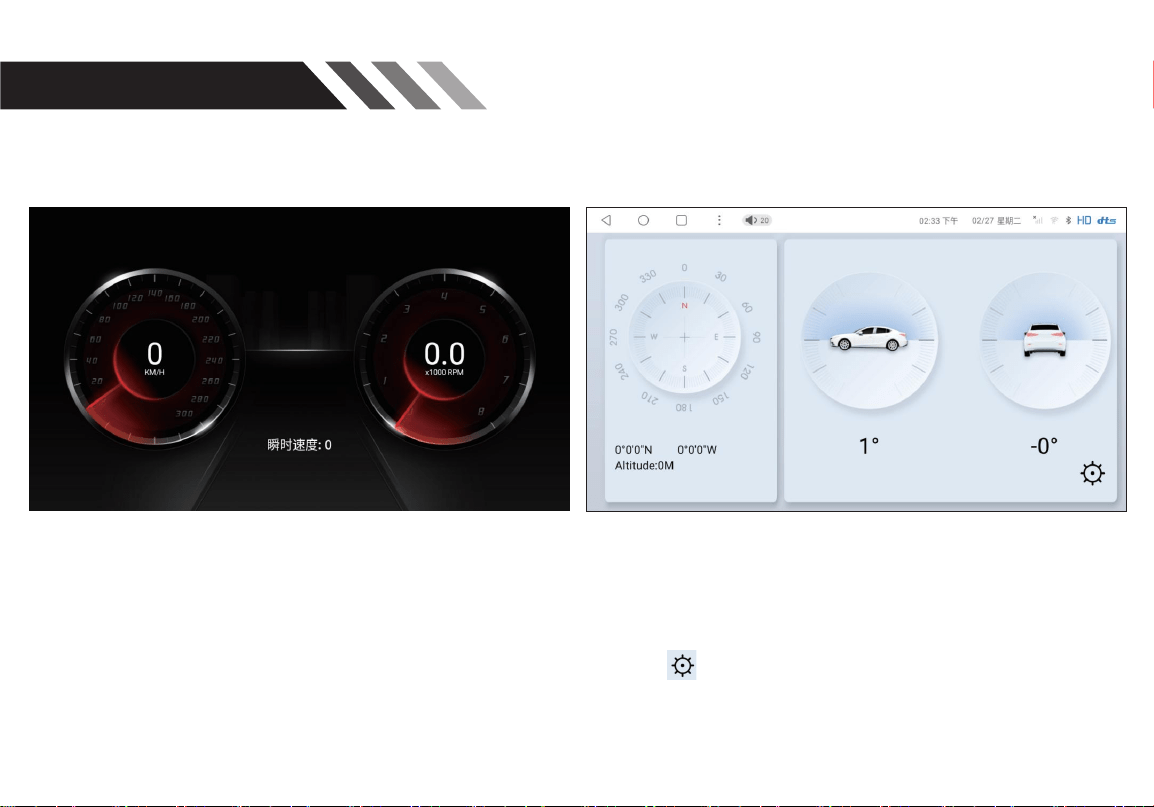
8.1 Digital Dashboard
First-time use: Tap the vehicle graphic to auto-
calibrate. After calibration, view vehicle tilt angles,
altitude, latitude & longitude coordinates.
Tap the gear icon to switch vehicle model
graphics.
On the left, the speed is displayed;
on the right, the rotation count is shown.
8.2 Axis Gyroscope
8. Special Features
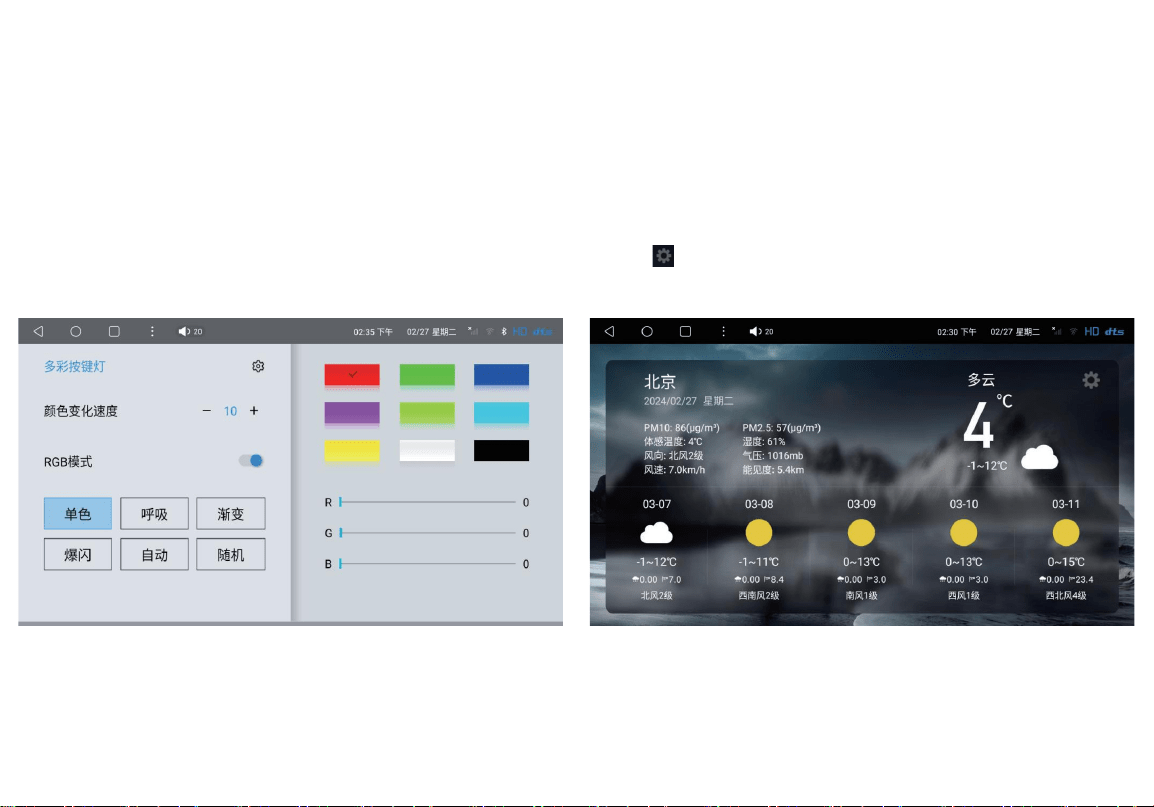
8.3 RGB Ambient Button Lights
Button backlights activate when vehicle headlights are turned on.
Six lighting modes available: Single Color, Breathing, Gradient,
Strobe, Auto Cycle, Random
(Note: This function requires compatible vehicle ambient light
hardware and protocol support.)
8.4 Weather Forecast
Covers over 10,000 cities globally. Automatically syncs temperature,
humidity, PM2.5 and meteorological data when connected to Wi-
Fi.
Tap the gear icon to switch temperature units.
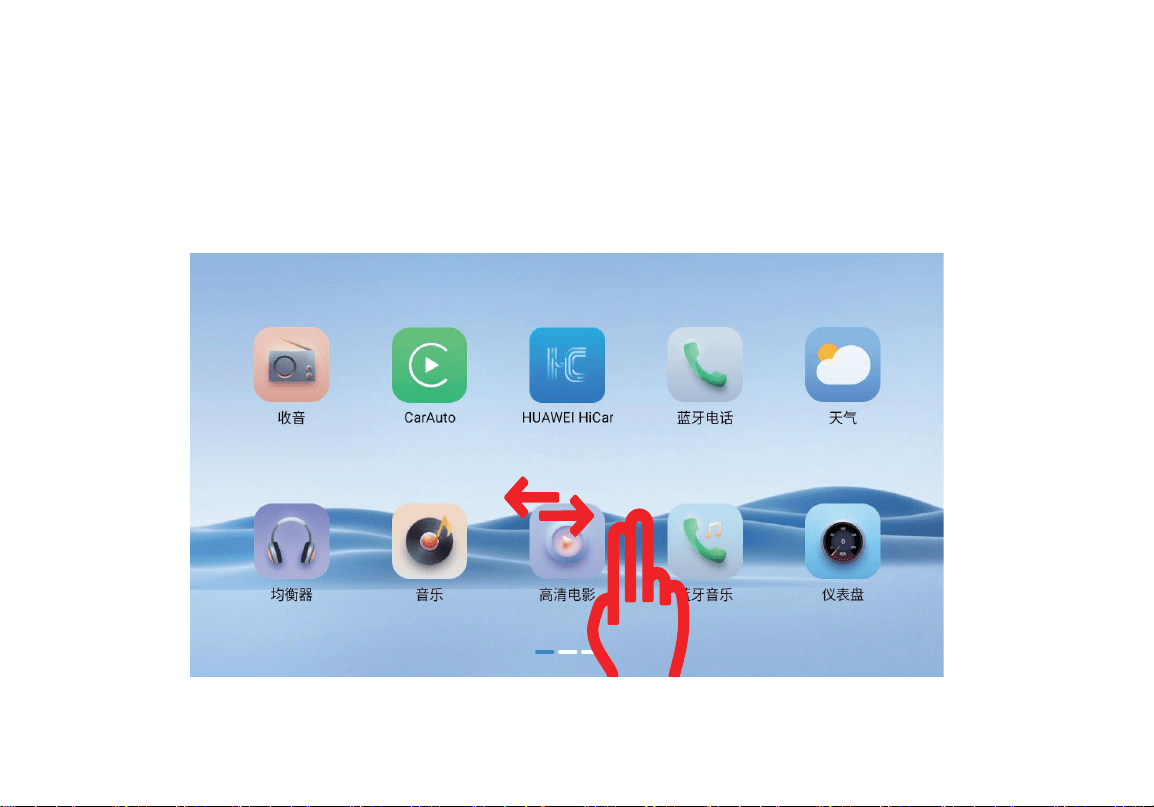
8.5 Gesture Controls
Quick operations via tap, swipe, two-finger touch, and long-press vibration feedback. View
full gesture tutorials in User Settings.
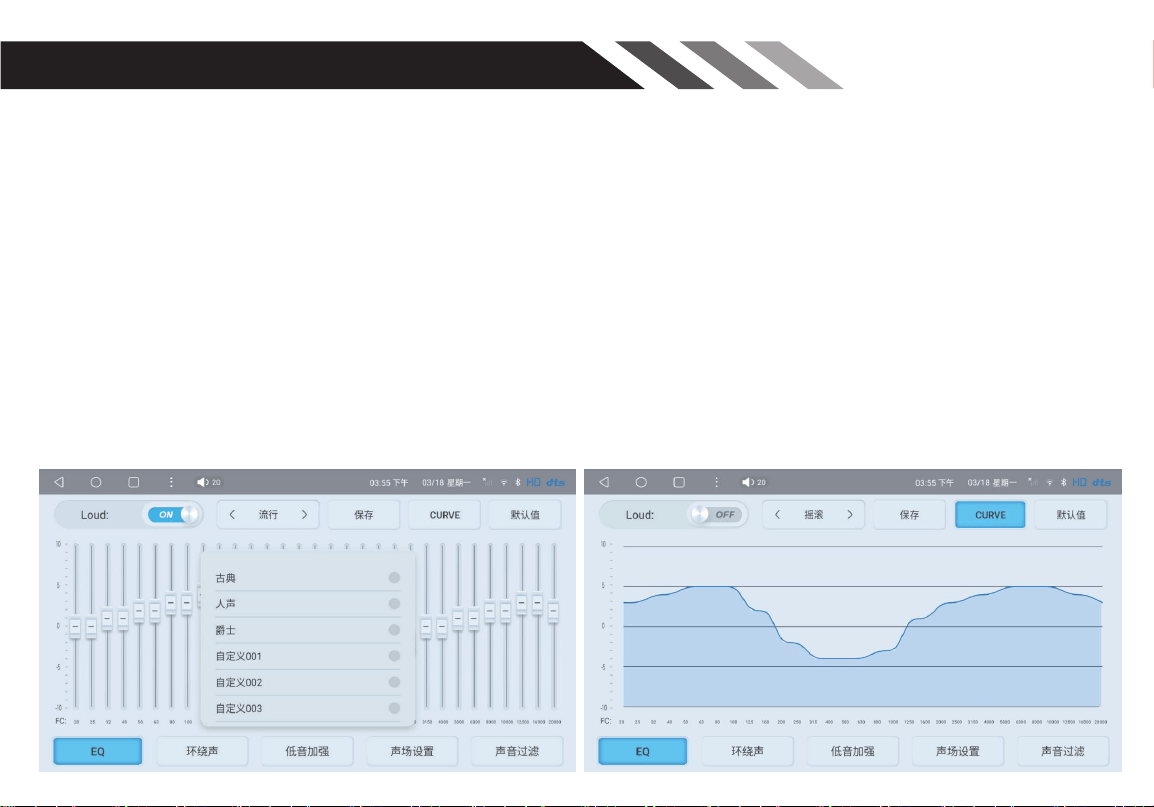
Tune individual audio frequency bands to compensate speaker and acoustic environment
flaws, and refine audio output characteristics.
9.1 Frequency Audio Characteristics
20Hz–150Hz (Bass): Rich, soft, elastic low-end response
150Hz–500Hz (Mid-Bass): Thick, powerful mid-low tones
500Hz–5kHz (Mid & Upper-Mid): Full vocals, crisp upper midrange
5kHz–20kHz (Treble): Delicate, non-harsh high frequencies
Flat frequency response delivers natural, layered, smooth audio. Peaks/troughs in frequency
response create harsh, thin treble and muddled soundstage.
9. 31-Band EQ Equalizer
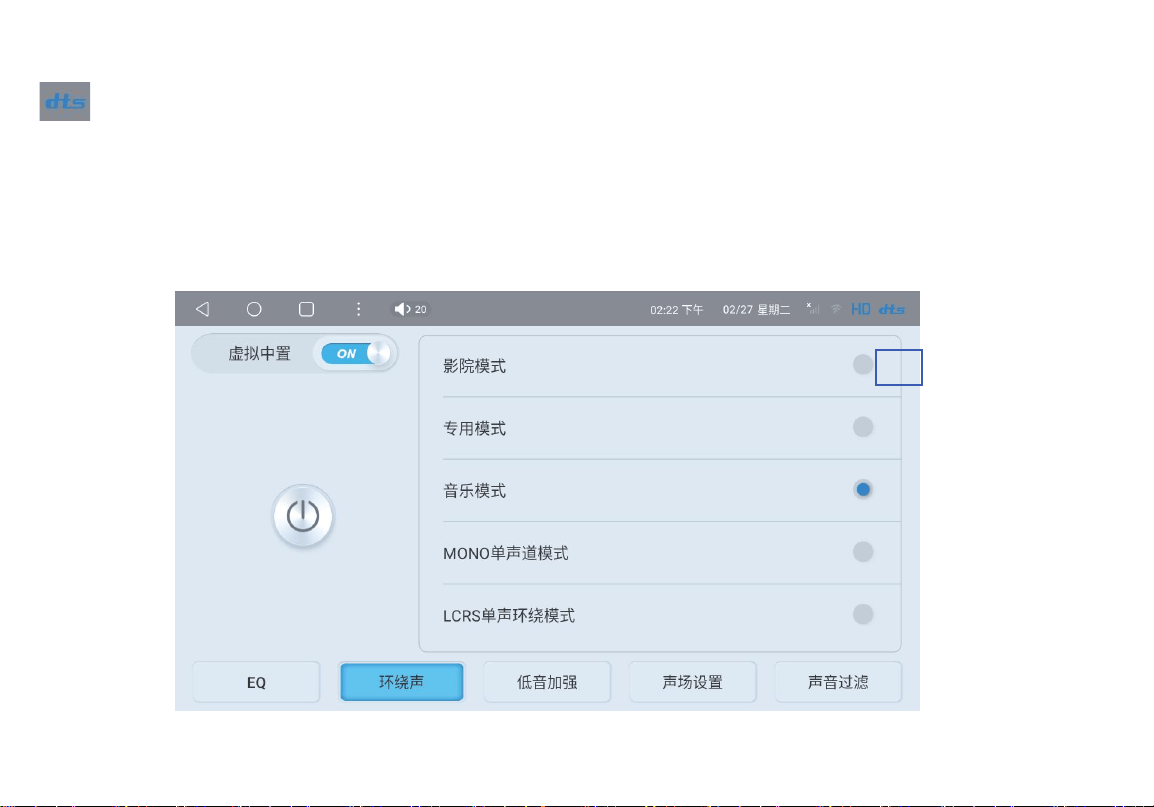
9.2 Surround Sound & DTS
DTS (Digital Theater System): Multi-channel audio format most commonly configured for
5.1 surround sound. Uses 24-bit encoding for immersive, high-fidelity audio playback.
Surround mode options: Virtual Center Channel (toggleable), Cinema Mode, Custom Mode,
Music Mode, Mono Mode, LCRS Surround Mode
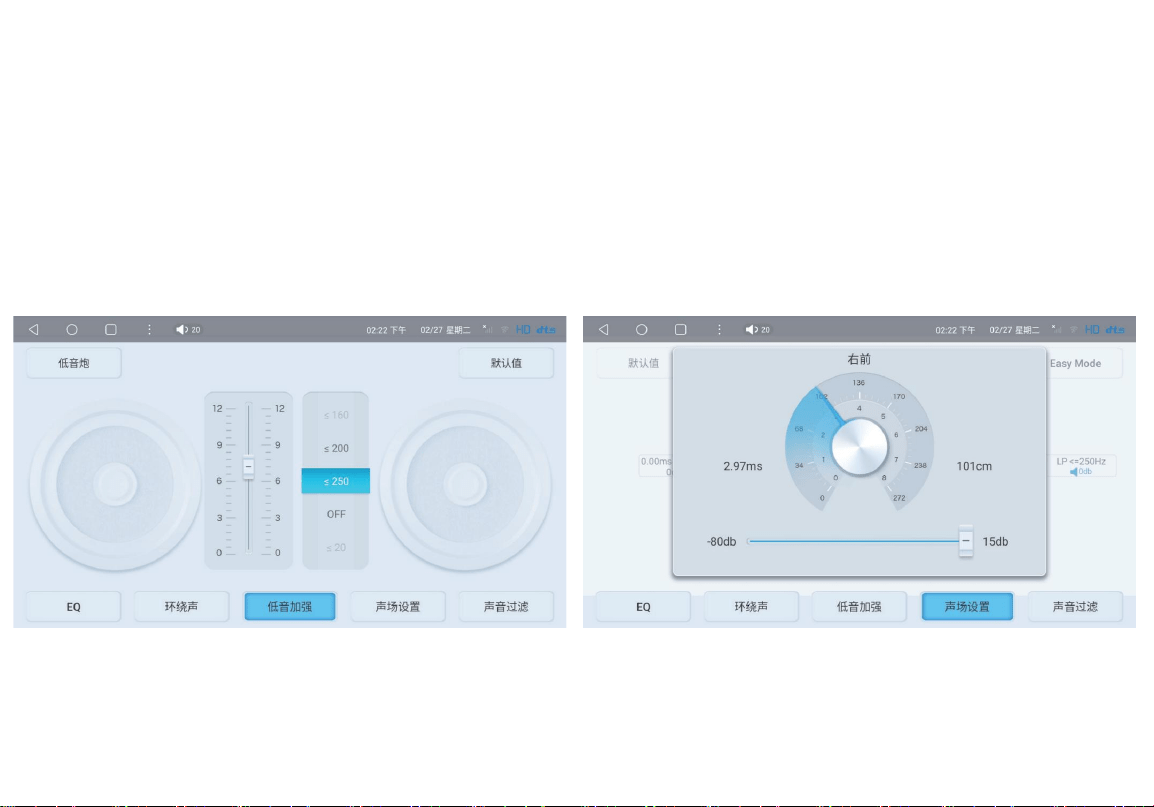
9.3 Bass Boost
Amplify low-frequency audio output
within the bass frequency band.
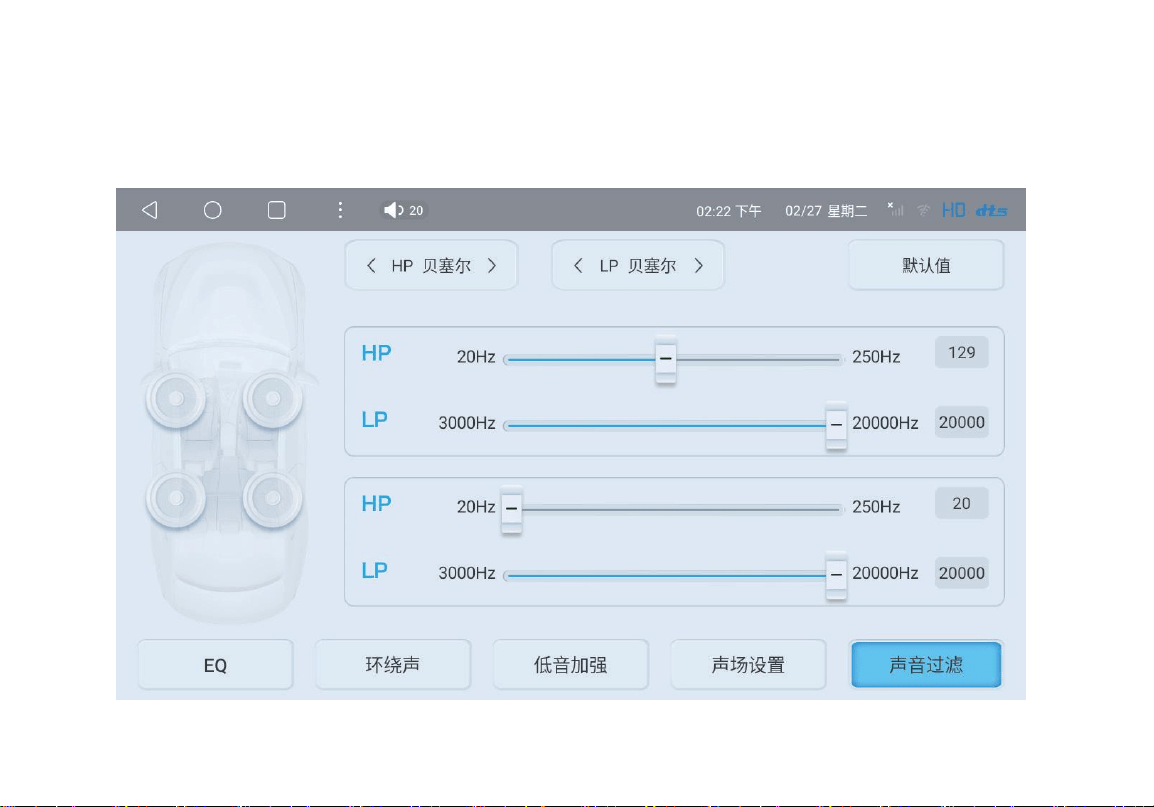
9.4 Soundstage Settings
Adjust individual speaker output levels to modify
audio balance and directional sound field.
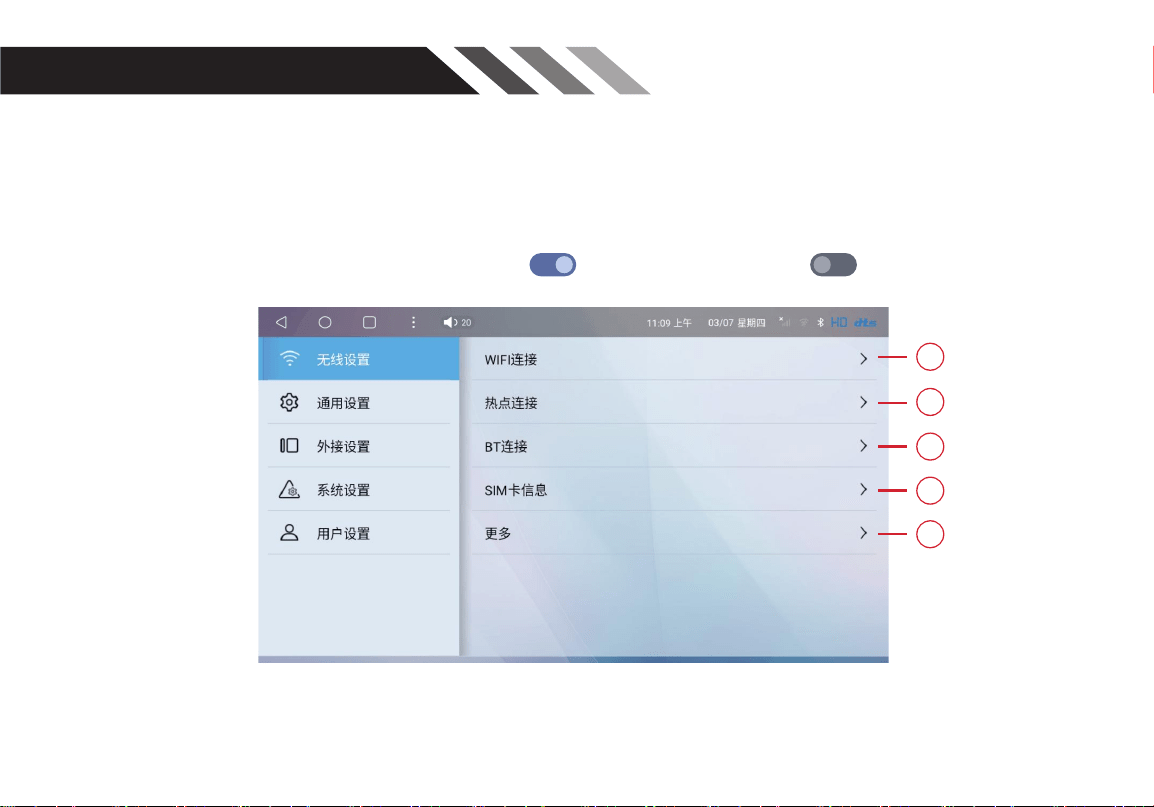
9.5 Audio Filter
Customize high-pass (HP) and low-pass (LP) frequency cutoffs to filter unwanted audio
frequencies based on speaker hardware.
10. System Settings
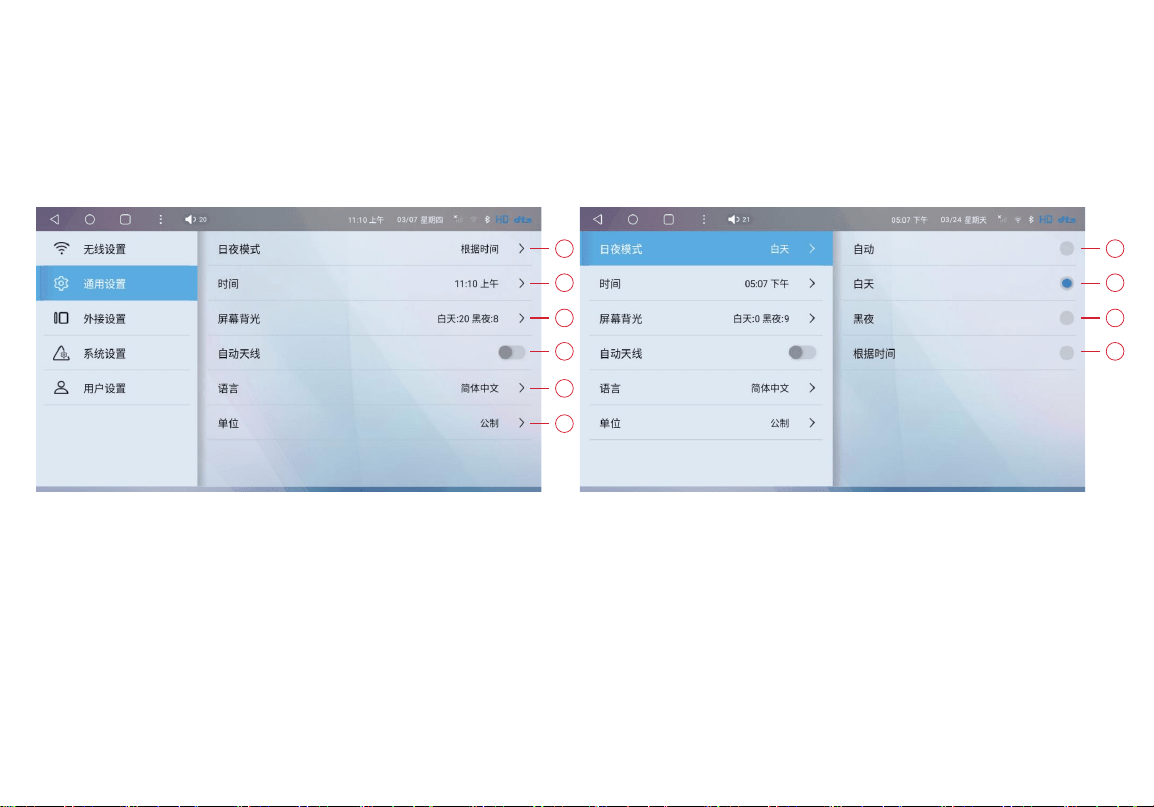
10.1 Wireless Network Settings
Navigate to Settings → Wi-Fi, enable Wi-Fi, search for your network, enter the password and
complete connection.
Note:The ON and OFF mode directions
under the settings interface
【 】Activate mode 【
】Shutdown mode
1.Wi-Fi Network Connection 2.Mobile Hotspot Creation
3.External Bluetooth Peripheral Connection 4.SIM Card Information
5.Native Android System Settings
1
2
3
4
5
10.2 General Settings
1.Day/Night Mode: Auto-switch (triggered by headlights), Permanent Day (light UI), Permanent
Night (dark UI), Time-Based Auto Switch
2.Time & Time Zone
3.Screen Backlight Brightness
4.Automatic Antenna Control
5.System Language
6.Unit of Measurement
1
2
3
4
5
6
1
2
3
4
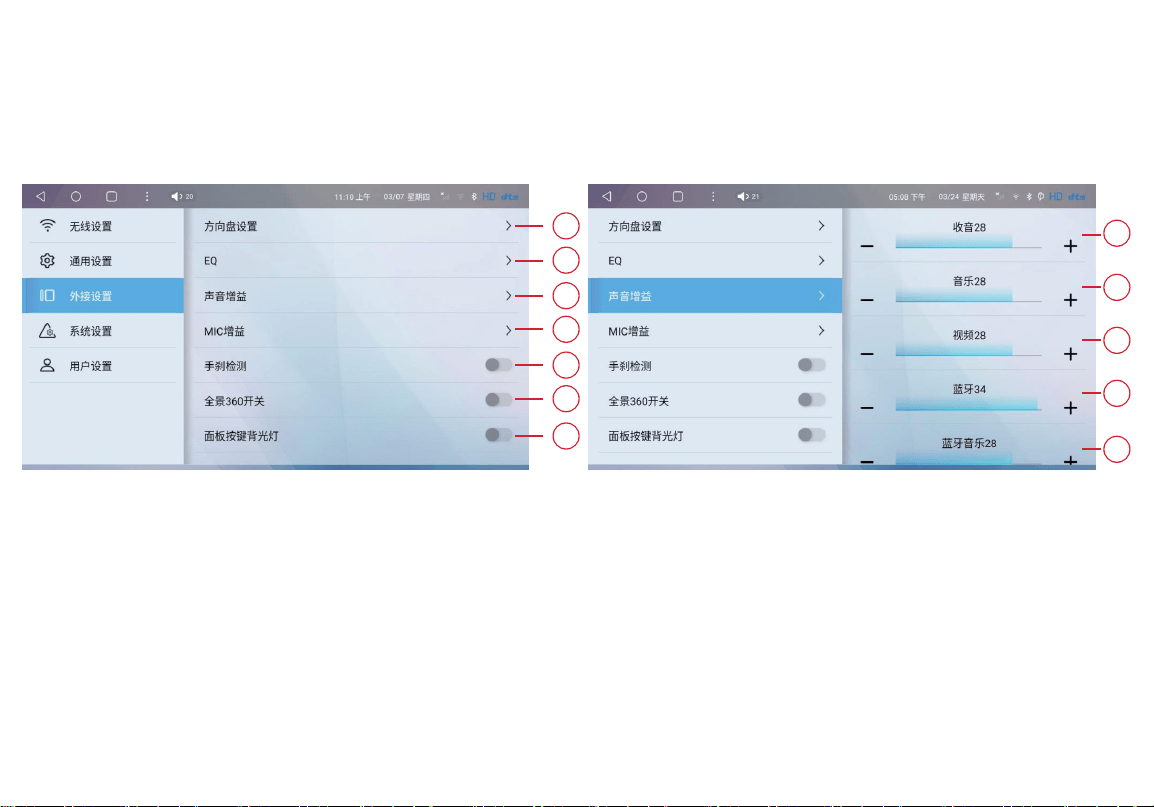
10.3.1 External Hardware Settings
1.Steering Wheel Button Learning
2.360° Panoramic Camera Toggle
3.Audio Gain Tuning (Radio, Video, DSP Channel, Bluetooth Call, Bluetooth Music)
4.Microphone Input Gain
5.Handbrake Detection
6.Panel Button Backlight Configuration
1
3.1
3.2
3.3
3.4
3.5
2
3
4
5
6
7
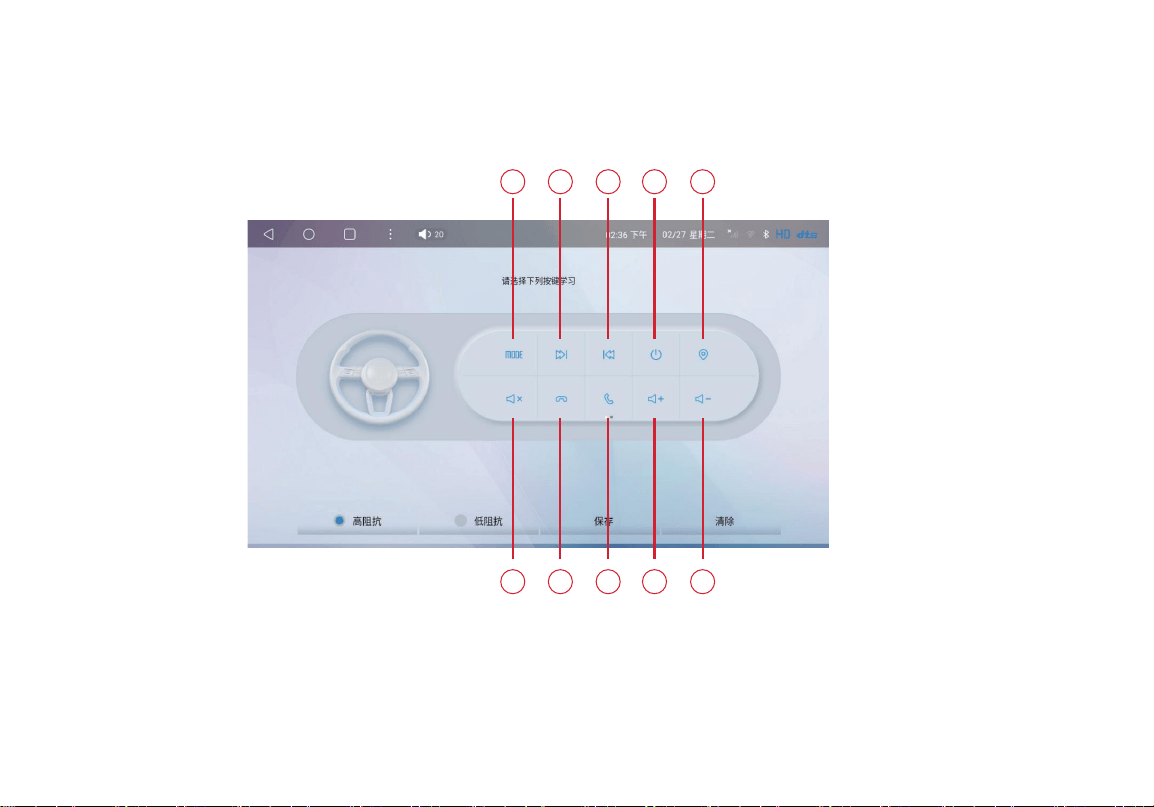
Step-by-step learning: Press the physical button on your steering wheel, then tap the
matching function icon on the touchscreen to assign controls.
10.3.2 Steering Wheel Key Mapping
1.Mode Switch 2.Next Track 3.Previous Track
4.Screen Off 5.Navigation Shortcut 6.Mute Audio
7.Answer Call 8.End Call 9.Volume Up
10.Volume Down
1 2 3 4 5
6 7 8 9 10
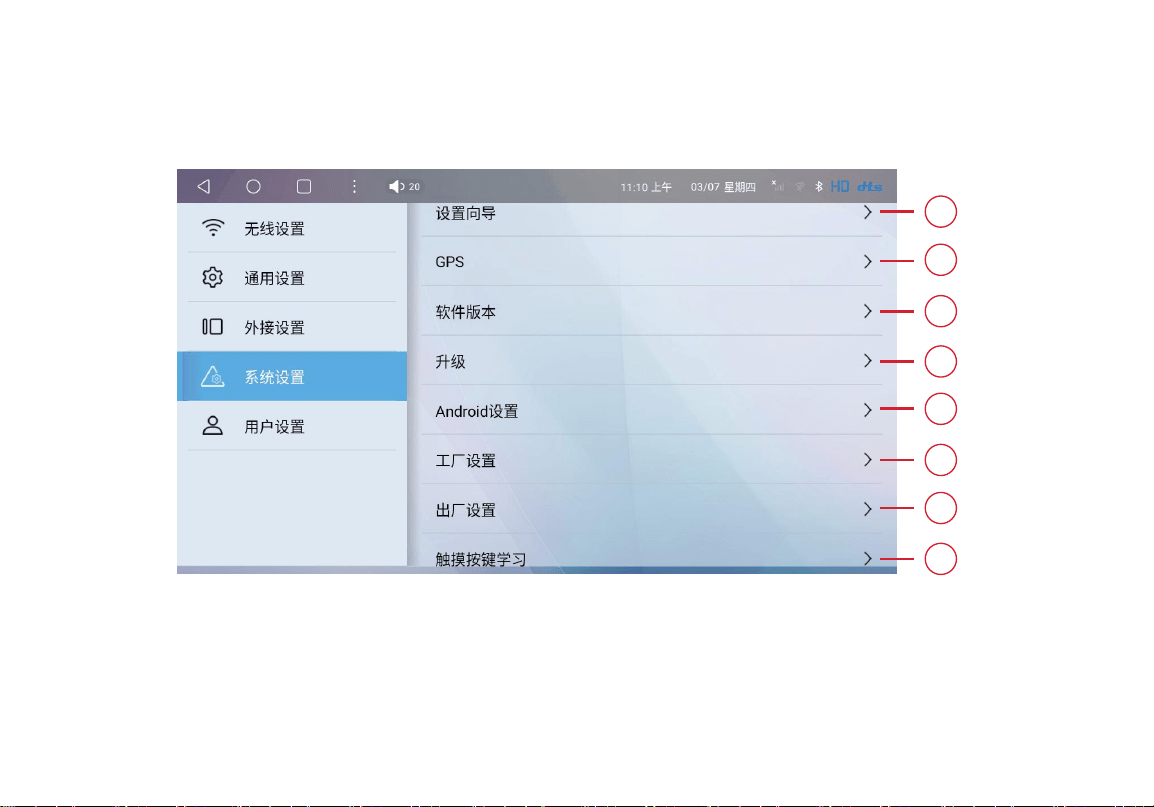
10.4.1 System Settings
1.Initial Setup Wizard 2.GPS Data Management 3.Firmware Version Info
4.Factory Firmware Upgrade 5.Native Android Settings 6.Factory Service Menu
7.Factory Reset (Restore Defaults) 8.Touch Button Calibration
1
2
3
4
5
6
7
8
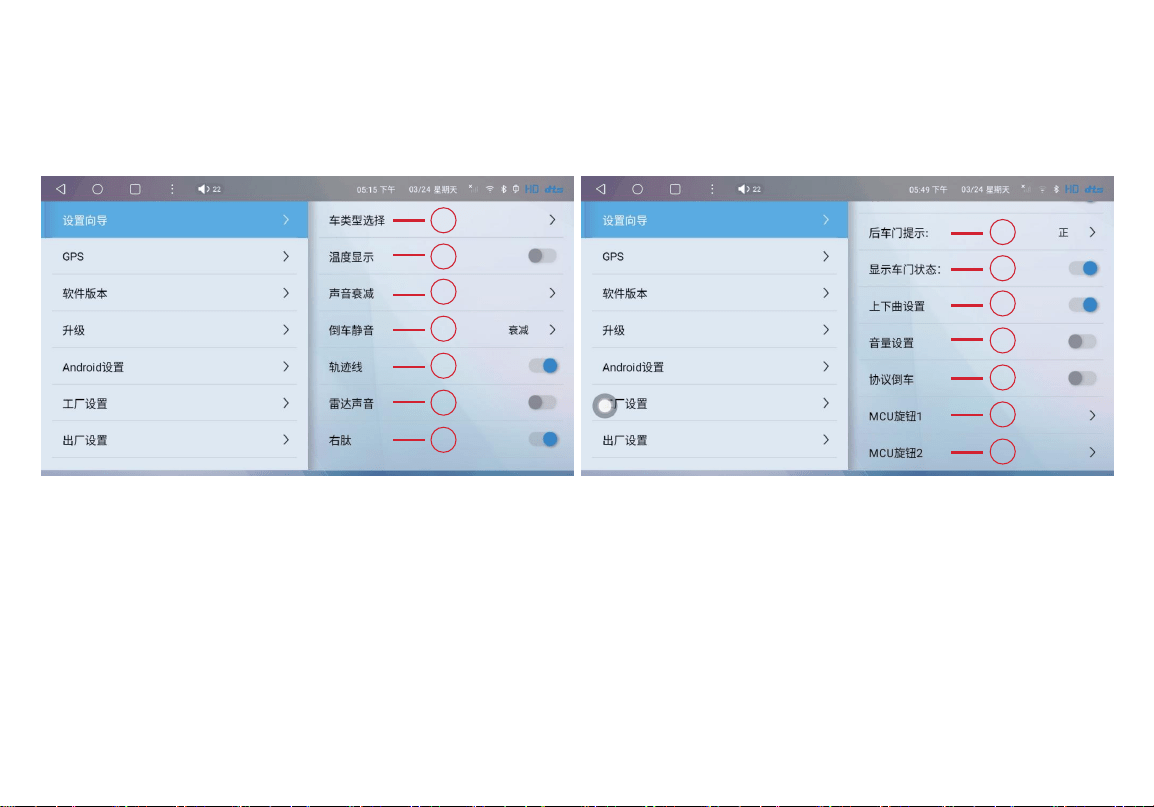
10.4.2 Setup Wizard Configuration Items
1. CANbus Protocol 2. Outside Temperature (for some vehicles)
3. Sound Attenuation (for vehicles with power amplifiers) 4. Rear-Entry Sound Control
5. Rear-Entry Trajectory Line Setting 6. Radar Sound Setting 7. Right Peptide Setting
8. Rear-Door Display Correction 9. Display of Door Status 10. Up-Down Curve Control Correction
11. Volume Control Correction 12. Activate CANbus Protocol for Rear-Entry (for some vehicles)
13. Device Panel Knob Mode 1 14. Device Panel Knob Mode 2
1
2
3
4
5
6
7
8
9
10
11
12
13
14
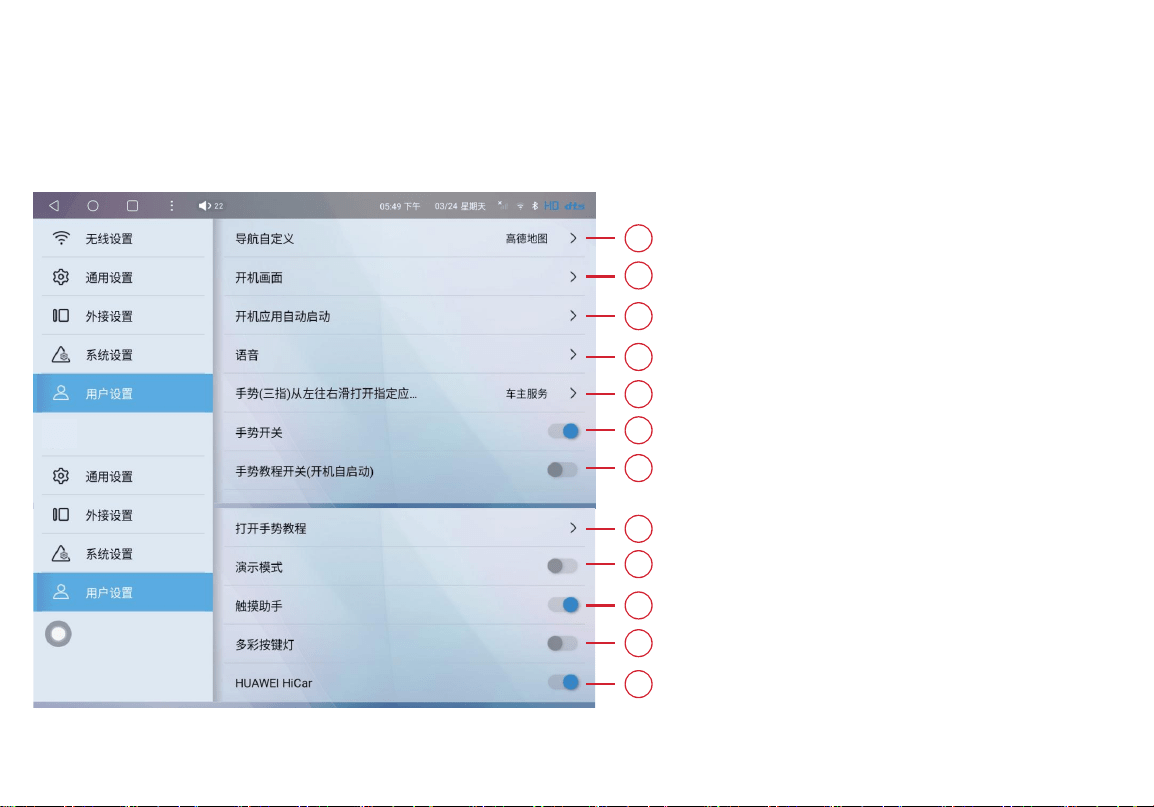
10.5 User Customization Settings
Customize Main Navigation App
Custom Startup Logo (Supports JPG/PNG/PNP formats)
Auto-launch selected apps on boot
Voice Assistant APK selection
Three-finger swipe gesture activation
Master gesture function toggle
Auto-launch gesture tutorial on startup
1
2
3
4
5
6
7
9
Manual gesture tutorial access
Demo Mode (for retail display)
Touch Assistant shortcut
RGB ambient button light master switch
HUAWEI HiCar toggle (for Huawei smartphones)
8
10
11
12

This device complies with part 15 of the FCC Rules. Operation is subject to the following two
conditions:(1) This device may not cause harmful interference, and (2) this device must accept any
interference received, including interference that may cause undesired operation.
Any Changes or modifications not expressly approved by the party responsible for compliance could
void the user's authority to operate the equipment.
This equipment has been tested and found to comply with the limits for a Class B digital device, pursuant
to part 15 of the FCC Rules. These limits are designed to provide reasonable protection against harmful
interference in a residential installation. This equipment generates uses and can radiate radio frequency
energy and, if not installed and used in accordance with the instructions, may cause harmful interference
to radio communications. However, there is no guarantee that interference will not occur in a particular
installation. If this equipment does cause harmful interference to radio or television reception, which can
be determined by turning the equipment off and on, the user is encouraged to try to correct the
interference by one or more of the following measures:
- Reorient or relocate the receiving antenna.
- Increase the separation between the equipment and receiver.
- Connect the equipment into an outlet on a circuit different from that to which the receiver is
connected.
- Consult the dealer or an experienced radio/TV technician for help.
FCC RF exposure statement:
The equipment complies with FCC radiation exposure limits set forth for an uncontrolled environment.
This equipment should be installed and operated with minimum distance between 20cm the radiator
your body.
11. FCC Warning