
UM Version 1.1.0 i SterlingKey™
SterlingKey™
Convert any wired keyboard
into multi-device wireless
User Manual
Version 1.1.0
August 3, 2026

Sterling Hawk
UM Version 1.1.0 ii SterlingKey™
Table of Contents
Contents
User Manual ........................................................................................................................... i
Table of Contents ................................................................................................................ ii
List of Figures ...................................................................................................................... ii
List of Tables ........................................................................................................................ ii
1.
1.1
2.
2.1
2.2
2.3
2.4
3.
4.
5.
Introduction .............................................................................................................3
Overview...........................................................................................................3
Getting Started........................................................................................................4
Cautions & Warnings.......................................................................................4
Device Compatibility ........................................................................................5
LED Indicators..................................................................................................6
Main Button ......................................................................................................6
2.4GHz mode..........................................................................................................7
Troubleshooting & Support ....................................................................................8
Firmware Updates & Forum...................................................................................9
List of Figures
Figure 1 - Overview of device ............................................................................................... 3
Figure 2 - Typical application ................................................................................................ 3
Figure 3 - 2.4GHz USB Receiver ......................................................................................... 7
List of Tables
Table 1 - Record of Changes ..............................................................................................10
Sterling Hawk
UM Version 1.1.0 3 SterlingKey™
1. Introduction
Are you tired of tangled cables on your desk? Do you wish for a seamless transition between your
desktop and mobile devices using the same keyboard? Look no further! SterlingKey™ is here to
transform your typing experience. With it you can convert any wired keyboard into multi-device
wireless!
1.1 Overview
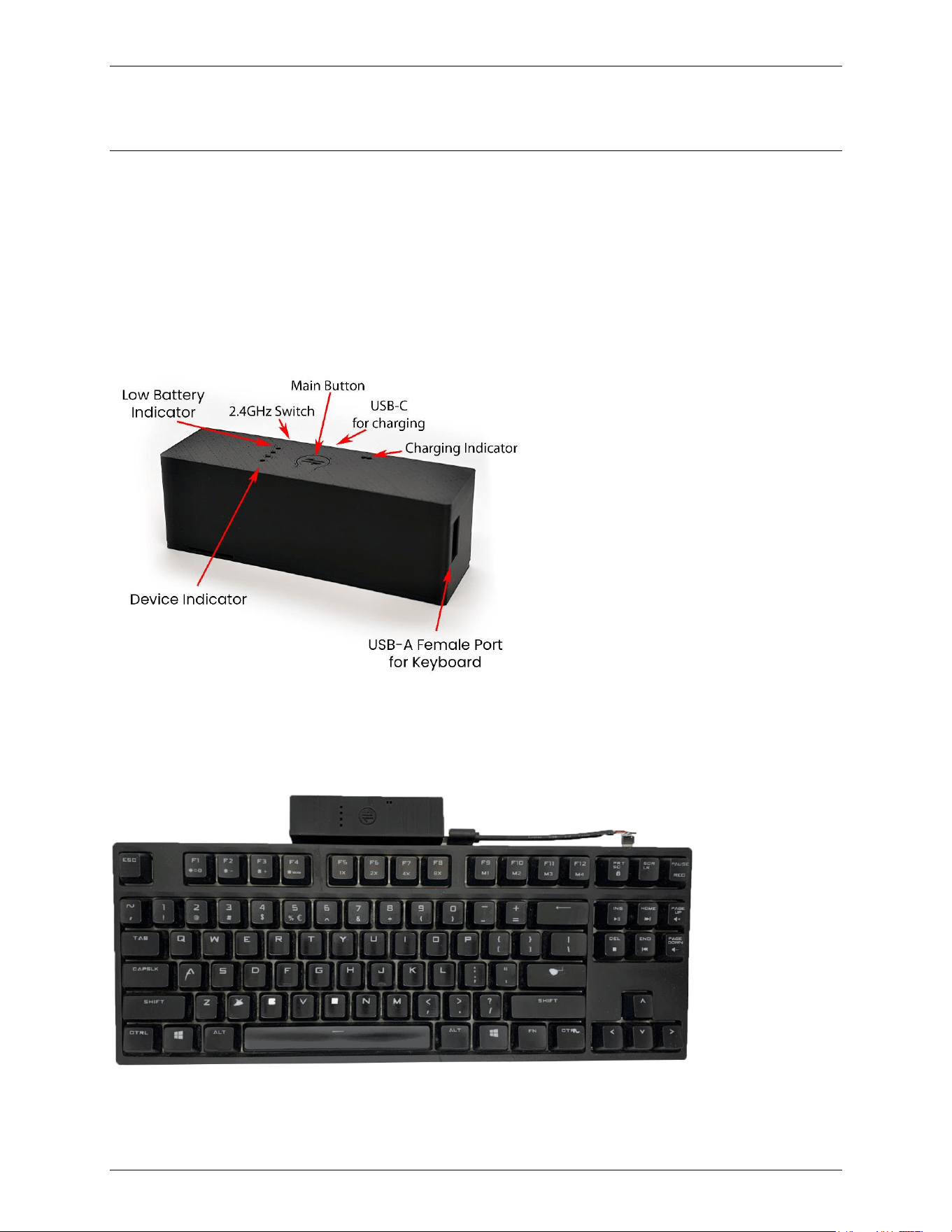
Figure 1 - Overview of device
Figure 2 - Typical application

Sterling Hawk
UM Version 1.1.0 4 SterlingKey™
2. Getting Started
Below you can find how to set up and use the device in less than 1 minute.
1. Remove the plastic battery pull tab
2. The device should automatically power on and the first Device Indicator LED will turn on
3. Plug in your keyboard to the USB-A Female Port
4. Press the switch on top of SterlingKey™ for 0.5 seconds, you should feel two short
vibrations. Then let go. The device has entered the pairing mode and the Device Indicator
will start blinking
5. Turn on Bluetooth on your host (i.e. laptop, mobile etc.) and search for Bluetooth devices.
The device will have the name “SterlingKey™” plus the name of your keyboard (i.e.
SterlingKey™ USB Keyboard) .
Note: The device stays into pairing mode for 60 seconds. After that, the Device Indicator
will stop blinking, and if you try to connect to it, the connection will be rejected. You have
to first enter pairing mode, and then search for devices
6. You don’t have to enter a PIN, just accept the pairing process on your host if asked
7. After a couple seconds the connection will be established, and you can enjoy your wireless
keyboard.
SterlingKey™ will remember all the paired devices, so the next time it is boot up, it will
automatically accept the connection from every paired device without needing to re-pair
them
8. To switch devices, simply press the button. You will see the Device Indicator will now go
to the second position. You can do the pairing process again for this slot, and as
previously, it will be stored into the memory
9. To power off SterlingKey™, press and hold the button for 1 second, you will feel 3 short
vibrations and then you let go
10. SterlingKey™ powers off automatically after 5 minutes of in activity
11. To wake it up, simply press the button, and the devices will automatically reconnect to it
after a few seconds
12. If you want to change keyboards, make sure to unpair and pair SterlingKey™ again with
the new keyboard
2.1 Cautions & Warnings
2.1.1 Battery Safety
SterlingKey™ uses a 21700 sized battery. While any 21700 battery can be used, it is highly
advisable to use the given battery, or one with a similar capacity (5330mAh). Overcharge and
undercharge protections are implemented into the board, so the battery will safely stop charging
once it reaches maximum capacity. Likewise, the system will turn off if the battery goes below a
set threshold. It is recommended to charge the device when the Low Battery Indicator red LED
turns on, which is around at 10% capacity.

Sterling Hawk
UM Version 1.1.0 5 SterlingKey™
IMPORTANT: Make sure the polarity of the battery is correct. The flat side of the battery must be
connected to BAT-, while the side with the white ring must be connected to BAT+.
NEVER install the battery backwards, or you might risk damaging SterlingKey™.
2.1.2 Charging Safety
When charging SterlingKey™, make sure you use a charger that can provide at least 500mA at
5V, otherwise the device might not work properly.
A charger that can provide 3A at 5V is recommended, for the fastest possible charging speed.
You can use any Type-C cable, but you must NOT provide higher voltage than 5V, because you
risk damaging the components and the battery.
2.1.3 Pairing Precautions
SterlingKey™ advertises all the time. This means that you will always be able to find it if you
search for Bluetooth devices. However, if you try to connect to it while not in pairing mode,
SterlingKey™ will reject the connection. This means that you must first enter pairing mode, and
then start searching for Bluetooth devices.
2.1.4 Storage Safety
Do not store the device in direct sunlight or extreme temperatures. The enclosure might deform,
and the battery might overheat.
Batteries are sensitive, avoid dropping the device.
2.2 Device Compatibility
SterlingKey™ emulates the USB Descriptors of the connected device as closely as possible on
boot. While the main use of SterlingKey™ is to convert keyboards into wireless, it can be used by
devices that act as keyboards, mice, multimedia controllers, or a combination of these three. If for
example your keyboard has a built-in touchpad, and multimedia controls (i.e. volume up/down) or
even email/browser shortcuts, they will all work as expected.
QMK/VIA keyboards store macros internally in the keyboard memory, and SterlingKey™ will
properly transmit these signals as well.
If you want you can also convert 2.4GHz WiFi keyboards to multi-device Bluetooth, by plugging
in the 2.4GHz WiFi receiver into SterlingKey™.
You can use SterlingKey™ with any operating system (Windows, MacOS, Linux, Android, iOS)
as long as it supports BLE.

Sterling Hawk
UM Version 1.1.0 6 SterlingKey™
2.2.1 Limitations
• While SterlingKey™ emulates the IDs of the connected devices, that is not always enough
for software to detect the keyboard through SterlingKey™. If you have, for example,
software to control the RGB of the keyboard, these are most probably not going to work
• SterlingKey™ uses BLE, your host must support it otherwise you will not be able to
connect to it
2.3 LED Indicators
SterlingKey™ has a few LED Indicators
• 3 white LED Device Indicators which show you which device is currently active
• 1 red LED Low Battery Indicator which turns on when the battery is at 10% or less
• 1 red LED Charging Indicator which turns on when the device is being charged
• 1 white LED Charging Indicator which turns on when the charging has finished
For the Device Indicators, there are two modes
• Static means the device is selected
• Blinking means the current slot is in pairing mode
2.4 Main Button
The button has multiple functions, and each function is accompanied by a short vibration
•
•
•
•
•
•
As soon as you press the button, you will feel a short vibration. If you let go, SterlingKey™
will change the output device
If you keep holding the button, after 0.5 seconds you will feel a second vibration. If you let
go, SterlingKey™ will enter pairing mode for the selected slot
At 1 second, you will feel a third vibration. If you let go, the device will go to sleep
At 2 seconds, you will feel a fourth vibration. If you let go, the device will switch from
Bluetooth to 2.4GHz WiFi mode and back
At 4 seconds, you will feel a fifth vibration. If you let go, the device will do a factory reset
and forget all paired devices
When in sleep mode, press the button to wake it up
Sterling Hawk
UM Version 1.1.0 7 SterlingKey™
3. 2.4GHz mode
SterlingKey™ supports two modes; Bluetooth and 2.4GHz WiFi mode, through a dedicated
USB Receiver. Utilizing the Receiver, you can experience ultra-low-latency wireless. This plu
g-and-play USB accessory keeps all your Sterling Hawk devices in perfect sync, delivering a
higher polling rate and seamless connectivity.
To pair your SterlingKey™ to the USB Receiver, you first have to switch it to 2.4GHz WiFi mode.
•
•
Plug your keyboard into SterlingKey™
To do this you can use the switch at the back of the device. There is a Wireless icon that
indicates the 2.4GHz WiFi
position. Alternatively, you can press and hold the butt
on on SterlingKey for 2 seconds (4 vibrations)
•
•
•
o In 2.4GHz WiFi mode, the white LED blinks once every 5 seconds
o In Bluetooth mode, it is static
Hold the SterlingKey™ button for 2 vibrations to enter pairing mode
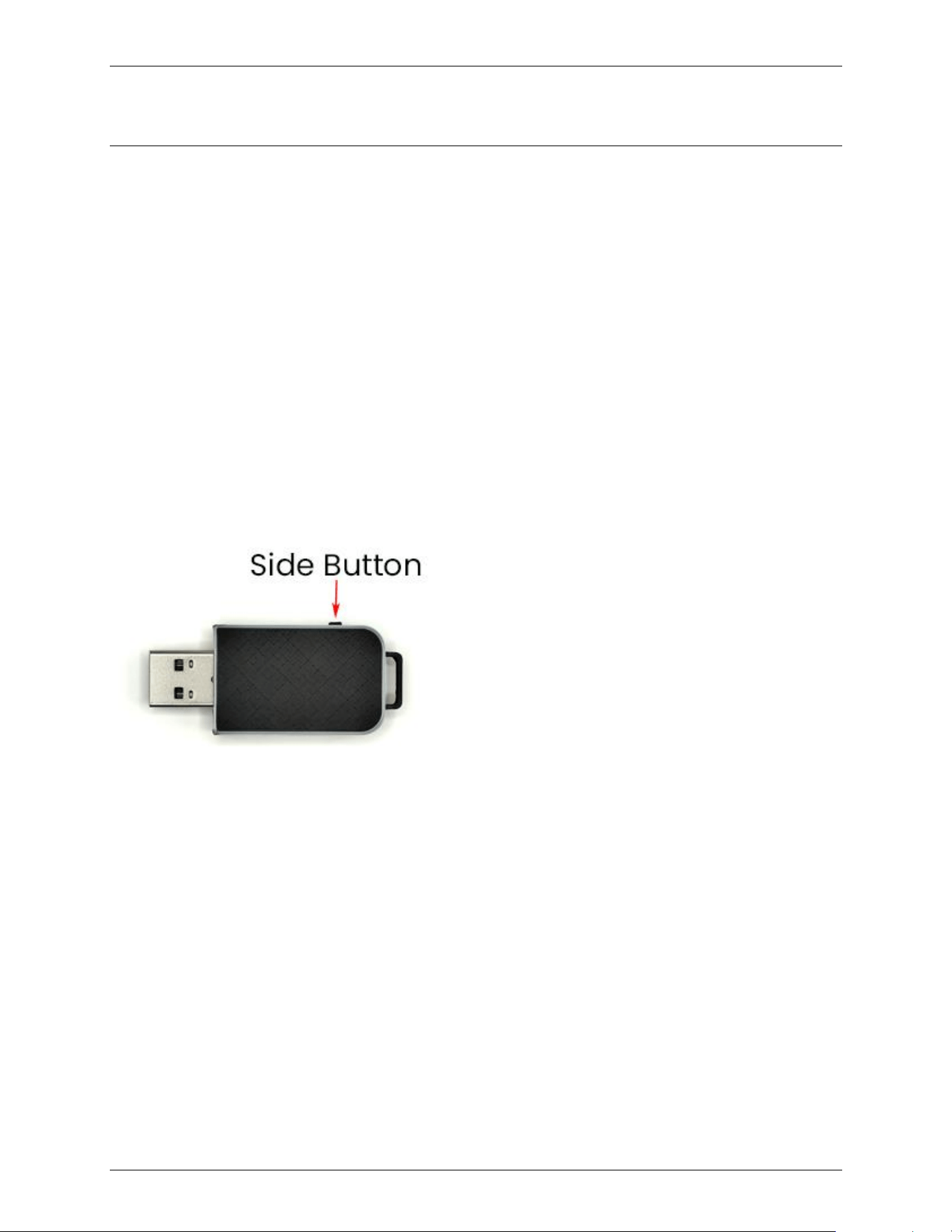
Plug the receiver to your computer and click its side button once to enter pairing mode
After a second, they should be paired
Figure 3 - 2.4GHz WiFi USB Receiver

Sterling Hawk
UM Version 1.1.0 8 SterlingKey™
4. Troubleshooting & Support
If SterlingKey™ does not appear to work, make sure you follow the below troubleshooting steps:
1. Do you see any LED indicators? If not, make sure the device is turned on. Simply press
the button
2. Does the device not turn on at all? Try charging the battery as it may be drained
3. Try replugging the battery
4. Can you see SterlingKey™ in the host but the connection fails? Make sure you start the
pairing process first, and then search for Bluetooth devices. Try starting the pairing
process and restarting the Bluetooth on your host before attempting to connect
5. Is the keyboard unresponsive? Try turning SterlingKey™ off and then back on, by holding
the button for 1 second (you will feel 3 short vibrations) and then pressing the button to
wake it up
6. Did you change keyboards but not re-pair? Unpair SterlingKey™ and pair it again. This is
required because some computers cache the old keyboard, and some keys might not work
properly without re-pairing
Have any other issue? You have the below options:
1. Try looking in the forum if anyone else has the same issue as you, and if there is a solution
https://sterling-key.com/forum
2. If no one has asked the same question, you can always create a free account and make
your own post. Please be as descriptive as possible, in order for me to be able to
reproduce the problem you are encountering
3. You can find me on social media, links are in the forum
4. Feel free to contact me at support@sterling-key.com

Sterling Hawk
UM Version 1.1.0 9 SterlingKey™
5. Firmware Updates & Forum
Want to share your experience, post photos or videos, send some feedback, write a review, talk
with the community, or ask any question? The forum is free to access and you can find all the info
of the product, and firmware updates there. You can create an account for free, activate it through
the link you will receive in your email (make sure to check the spam folder), and come join!
https://sterling-key.com/forum
For instructions on how to update the firmware, please check the forum
Sterling Hawk
UM Version 1.1.0 10 SterlingKey™
Record of Changes
Table 1 - Record of Changes
Version
Number
Date Author/Owner Description of Change
1.1.0 3 August, 2026 Sterling Hawk Replaced touch sensor with button + Added
section for 2.4GHz Receiver
1.0.3 4 April, 2024 Sterling Hawk Battery polarity warning
1.0.2 26 March, 2024 Sterling Hawk Added important note about changing keyboards
1.0.1 17 March, 2024 Sterling Hawk Reformatting and small changes
1.0 27 January,
2024
Sterling Hawk Initial version
FCC Caution.
This device complies with part 15 of the FCC Rules. Operation is subject to the following two conditions:
(1) This device may not cause harmful interference, and
(2) this device must accept any interference received, including interference that may cause undesired operation.
Any Changes or modifications not expressly approved by the party responsible for compliance could void the user's authority to
operate the equipment.
Note: This equipment has been tested and found to comply with the limits for a Class B digital device, pursuant to part 15 of the FCC
Rules. These limits are designed to provide reasonable protection against harmful interference in a residential installation. This
equipment generates uses and can radiate radio frequency energy and, if not installed and used in accordance with the instructions,
may cause harmful interference to radio communications. However, there is no guarantee that interference will not occur in a
particular installation. If this equipment does cause harmful interference to radio or television reception, which can be determined
by turning the equipment off and on, the user is encouraged to try to correct the interference by one or more of the following
measures:
-Reorient or relocate the receiving antenna.
-Increase the separation between the equipment and receiver.
-Connect the equipment into an outlet on a circuit different from that to which the receiver is connected.
-Consult the dealer or an experienced radio/TV technician for help.
The device has been evaluated to meet general RF exposure requirement. The device can be
used in portable exposure condition without restriction.