

1
18
20
21
Contents
1. Important Information
2. Assembly
3. Get to know your
lock
Exterior assembly
Interior assembly
Safety
Caution
Disposal of used products and
batteries
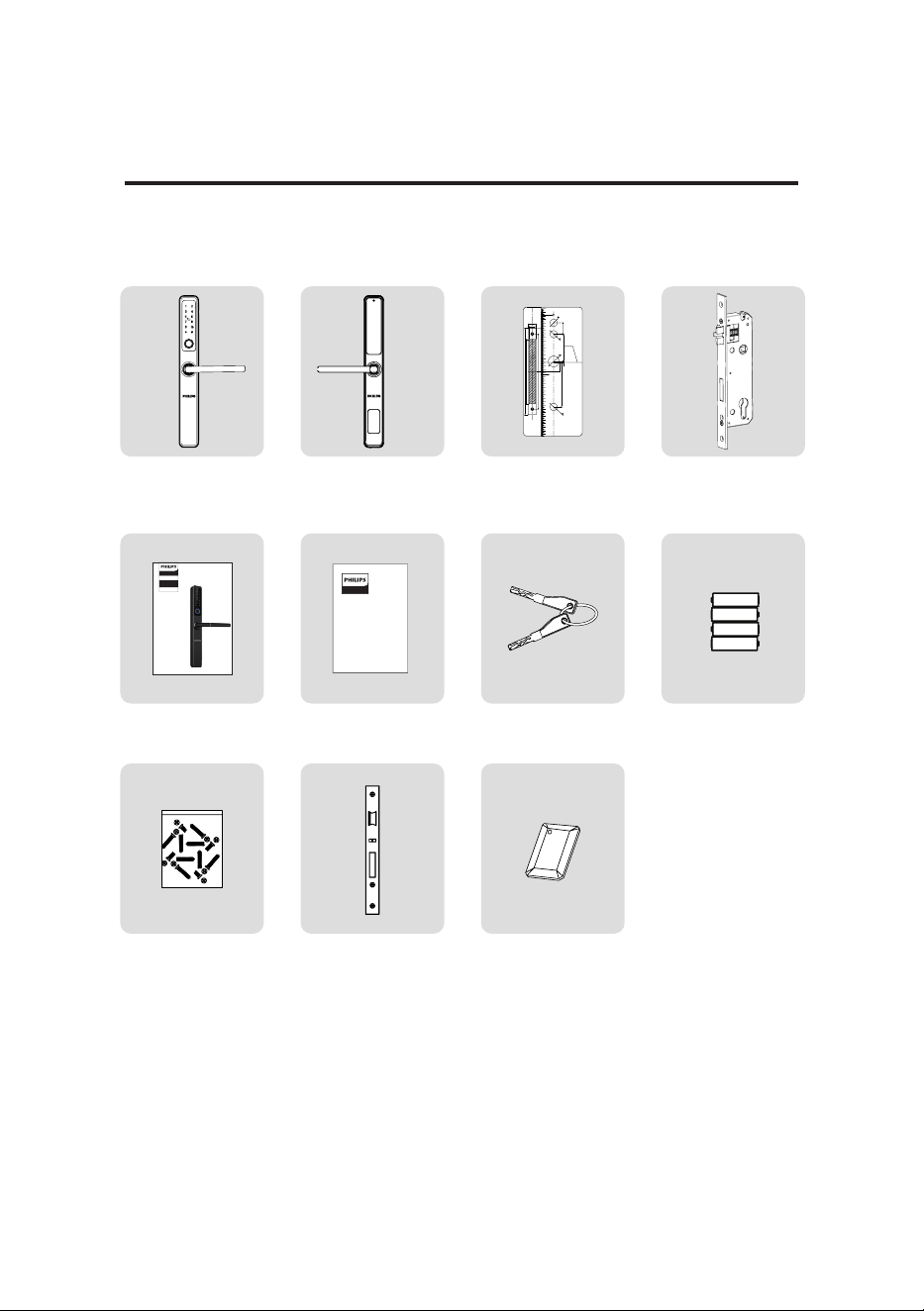
Packing list
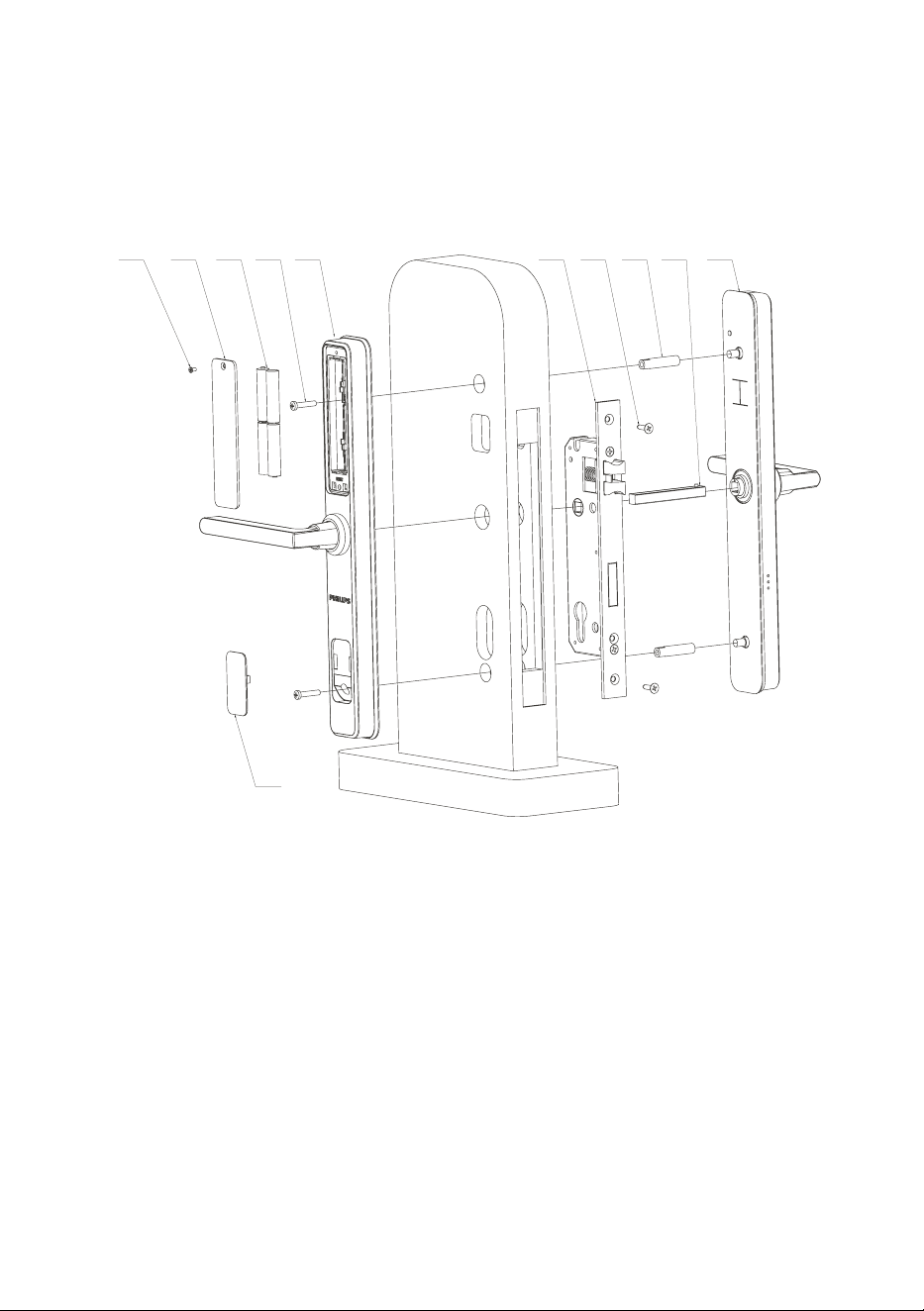
Exploded views
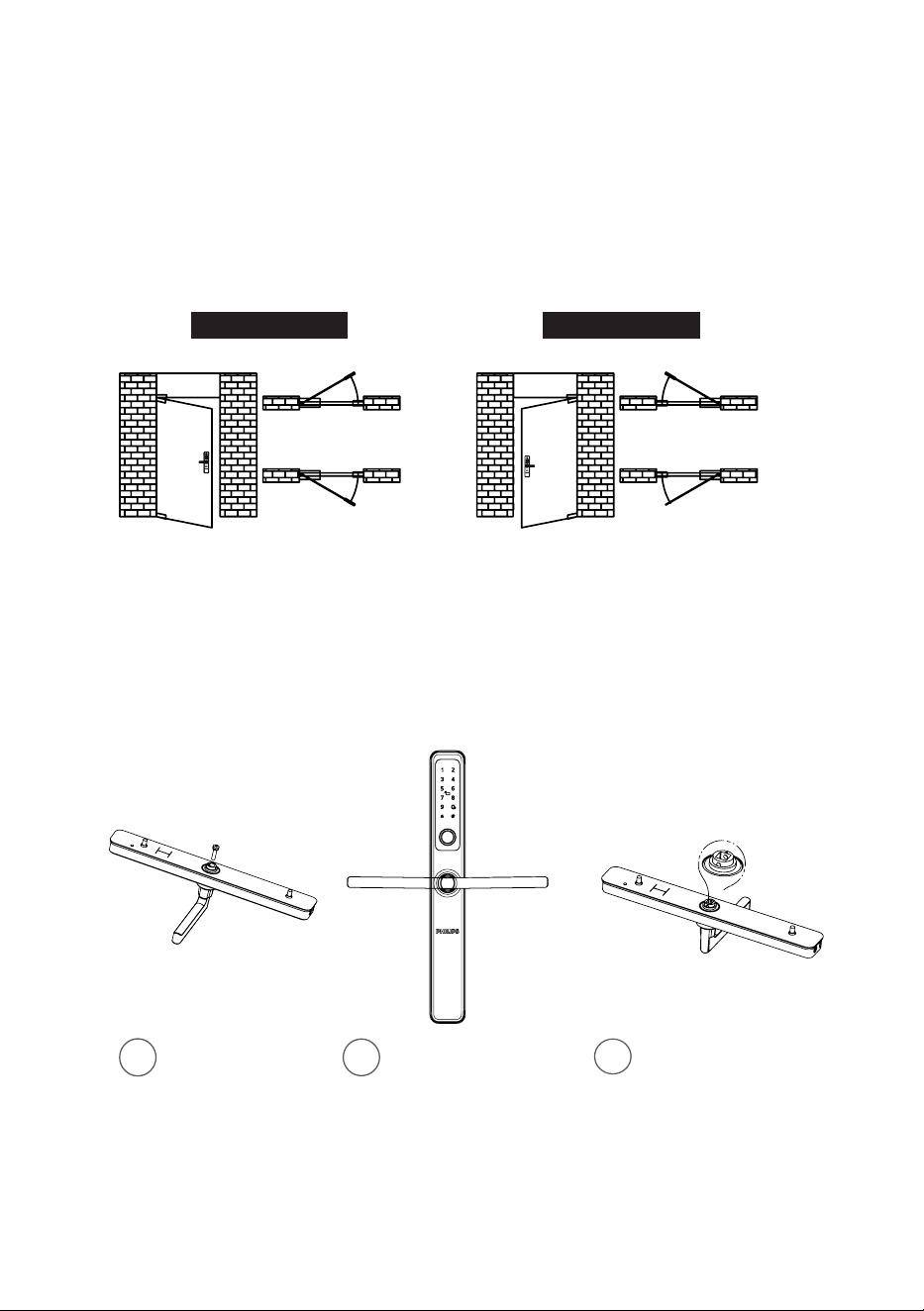
Notice before assembling
Assembly procedures
02
03
09
10
16
4. Settings
Instructions before setting
Master access method settings
User settings
System settings
Network settings
Application binding
5. Get to use your lock
Outdoor/ indoor unlock
Outdoor/ indoor lock
Mechanical key unlock
6. Other features
7. Indicators
Door lock status indicator
System locking indicator
8. Troubleshooting
Alert types
How to apply external power
supply
Battery replacement
Default settings
Mute button
Passage mode
Verication code & local data query

2
1. Important information
Safety
◆
Before using this product, please read and
understand all instructions. Damage caused by
failure to follow the instructions is not covered
by the warranty.
◆
Use only the accessories/components specied
by the manufacturer.
◆
Use only the alkaline batteries with which the
product is equipped or use alkaline batteries of
the same type.
◆
Do not forcibly disassemble the product to
trigger an alarm or damage the product.
◆
Do not scrape the ngerprint sensor with
sharp objects, as this may cause permanent
damage.
◆
Do not expose products to places that have
water leakage or splashing.
◆
Do not expose the product to corrosive
substances to prevent damaging the protective
cover.
◆
Do not hang objects on the handle in case it
might aect the use of the lock.
◆
Please use a soft cloth soaked in water to
remove ngerprints/dirt left on the surface of
the assembly.
◆
Do not remove the batteries during setting up
and operating.
◆
Please follow the assembly instructions to
install the product and keep the relevant sealed
stickers properly.
◆
Please change the default master PIN code
immediately after completing the installation and
troubleshooting, properly store the mechanical
keys, and do not disclose the PIN codes to others.
◆
Please replace all batteries immediately when
a low battery alarm appears.
Caution
◆
Do not place the batteries near ignition source
to avoid explosion.
◆
Do not use any power supply that does not
meet the safety requirements to power up the
product.
◆
Do not connect the 2 poles of the batteries to
metals to avoid a short circuit that may cause an
explosion.
◆
Please make sure installation or any
component replacement is performed by Philips,
a Philips authorized service center or professional
technicians.
◆
Do not use accessories or parts manufactured
by others or not expressly recommended by
Philips. The use of such accessories and parts may
void the warranty.
Disposal of used
products and batteries
◆
You can have your locks taken back at
authorized Philips service centers. You will receive
appropriate compensation if your products meet
our conditions.
◆
Please familiarize yourself with the local
collection system for electronic products.
◆
Please follow local regulations and do not
discard used products and batteries into ordinary
household waste.
◆
Please familiarize yourself with the local
regulations for recycling batteries. Proper
disposal of batteries can help prevent negative
eects on the environment and human health.
3
⑤
User
manual
⑨
Installation kit
②
Interior
assemblywith
silicon pad
⑥
Warranty
card
⑩
Strike plate
③
Drilling
template
⑪
Key tag
④
Mortise
⑦
Mechanical
key
⑧
Batteries
Warranty
Card
Easy
Key
120
110
100
90
80
70
60
50
4
0
30
20
10
0
10
20
30
40
50
60
70
80
90
100
110
12
0
130
140
15
0
160
1
7
0
180
190
200
�$�$� 边
1
3
0
1
4
0
150
门厚中心线
241
180
22,5
18
3
0
2
0
2
0
2
0
3276
2,6
124,4
25,5
距离地面约1米
基准线
单位:mm
比例:1:1
210
3585断桥铝锁开孔图
35
35锁体
①
Exterior
assemblywith
silicon pad
Packing list
This packing list is for reference only. Please refer to the actual packing items.
2 Assembly
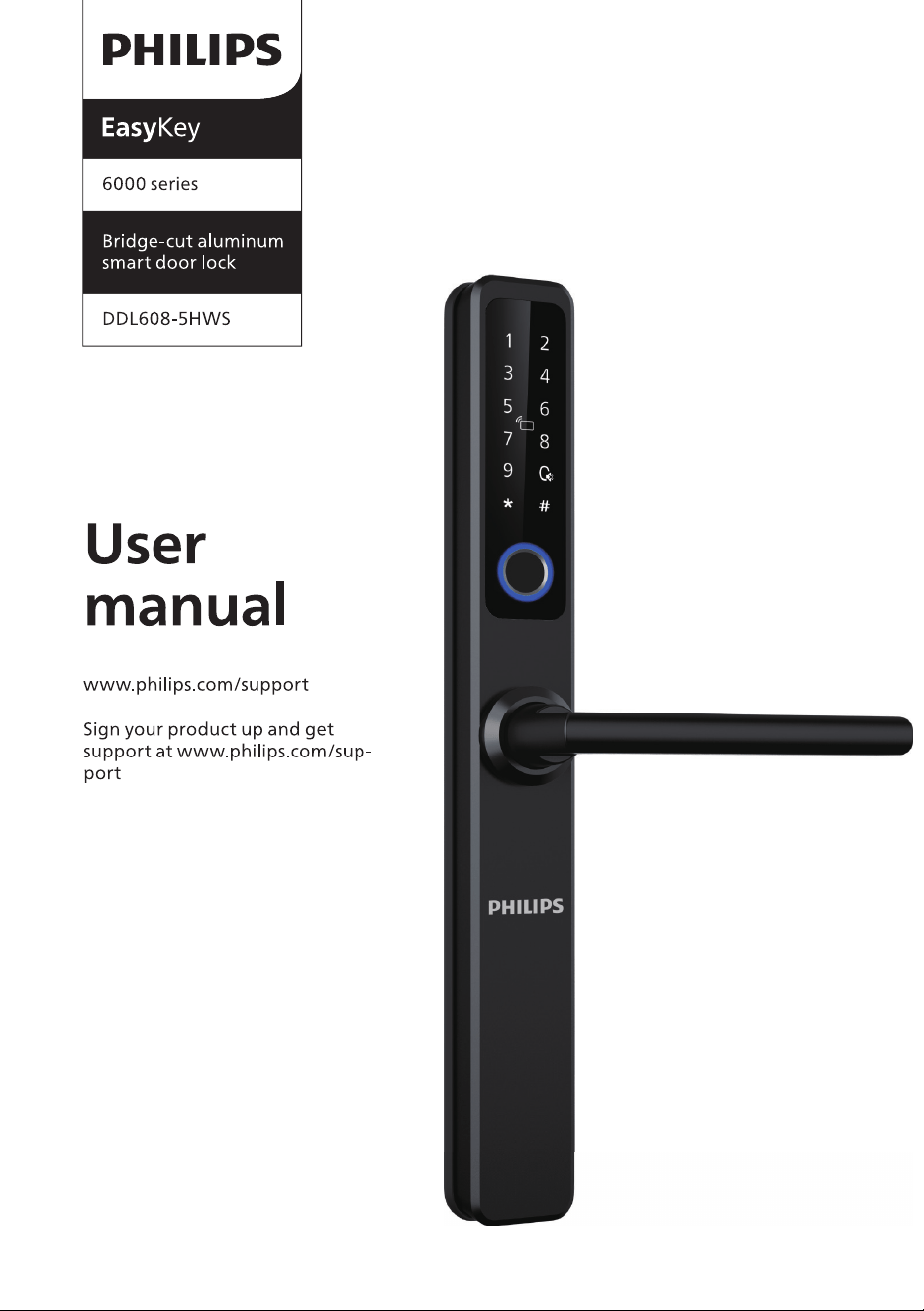
EasyKey
6000 series
DDL608-5HWS
Bridge-cut aluminum
smart door lock
User
manual
www.philips.com/support
Sign your product up and get
support at www.philips.com/sup -
port
4
11
7
4
10
9
8
6
5
3
1
2
Exploded views
1.Battery cover anchor
screw*1
2. Battery cover*1
3. AAA battery*4
4. Anchor screw*2
5. Interior assembly
component*1
6. Mortise*1
7. Mortise anchor
screw*2
8. M6 screw tube*2
9. Square shaft*1
10.Exterior assembly
component*1
11.Cover*1
5
1
2
3
Step 1 | Door swing direction
This product applies to doors with four opening directions: left-hand inswing, left-
hand outswing, right-hand inswing, and right-hand outswing.
Left-hand
inswing
Inside Inside
Inside Inside
Outside Outside
Outside Outside
Right-hand
inswing
Left-hand
outswing
Right-hand
outswing
Notice before assembling
Left-hand swing Right-hand swing
Step 2 | Adjustable exterior lever instructions
Loosen the screw. Rotate the lever 180
degrees to the right
position and secure
the screw.
Rotate the square
shaft hole to align
the triangular
mark on the square
shaft hole with the
direction of the
lever.
6
3
1
1
2
2
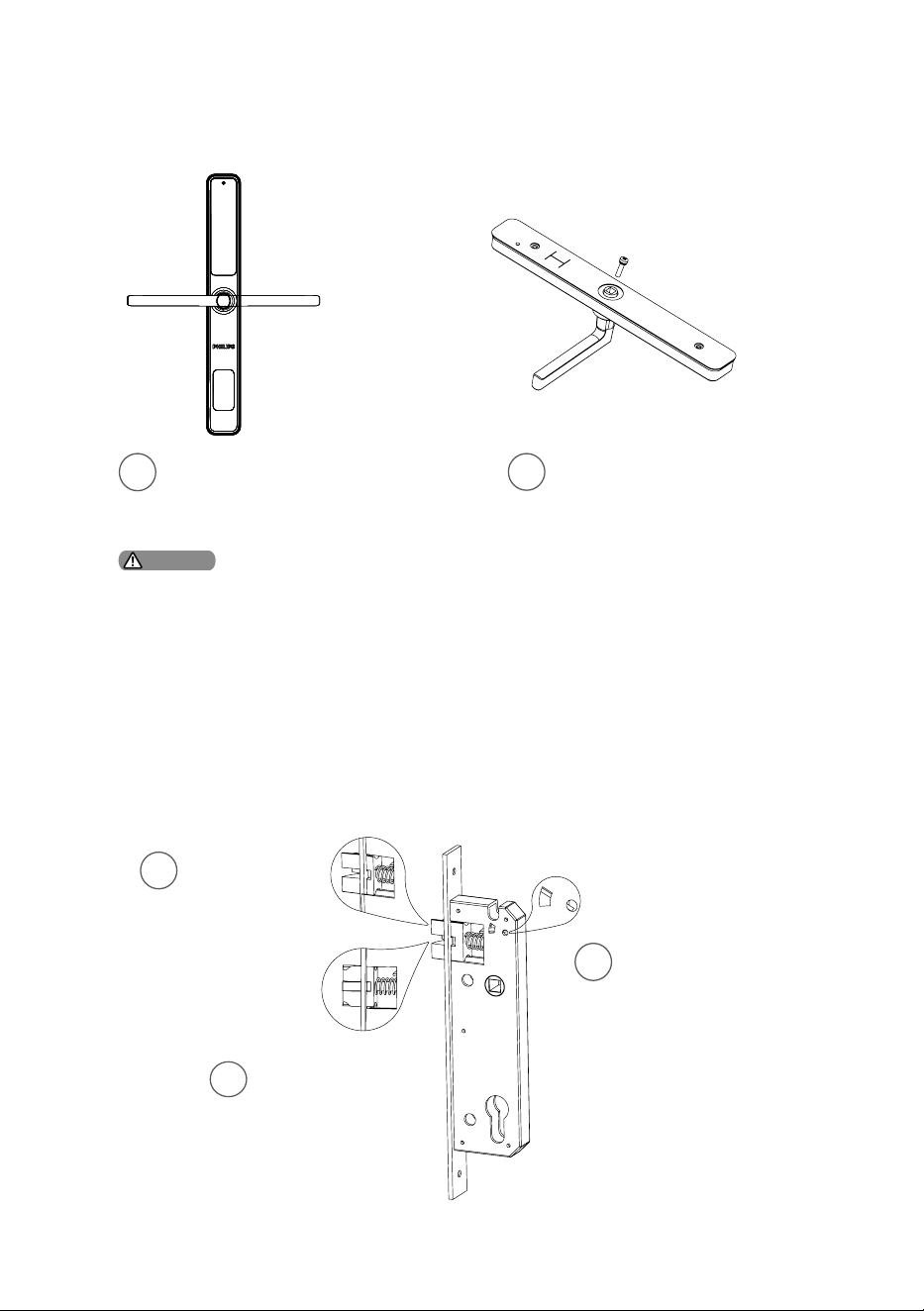
Adjustable rear lever instructions
Loosen the screw and rotate
the lever 180 degrees to the
right position.
Secure the screw.
1. Choose a proper installation kit based on the door thickness. The default tool kit
applies to a door thickness of 35-60mm. Please consult the local distributor for other
door thicknesses.
2. If the length of the square shaft is too long, please cut it to a proper length according
to the door thickness.
Attention
Step 3| Adjustable latch instructions
Adjust the latch direction to adapt to the door swing direction: if the slant of the
latch is towards the outside door, then the door is inswing; if the slant of the latch
is towards the inside door, then the door is outswing.
Push the latch in
and rotate it to
180 degrees
Release the latch
and let it rebound
Pull the lock-out
bolt bar upward
7
1
2
3
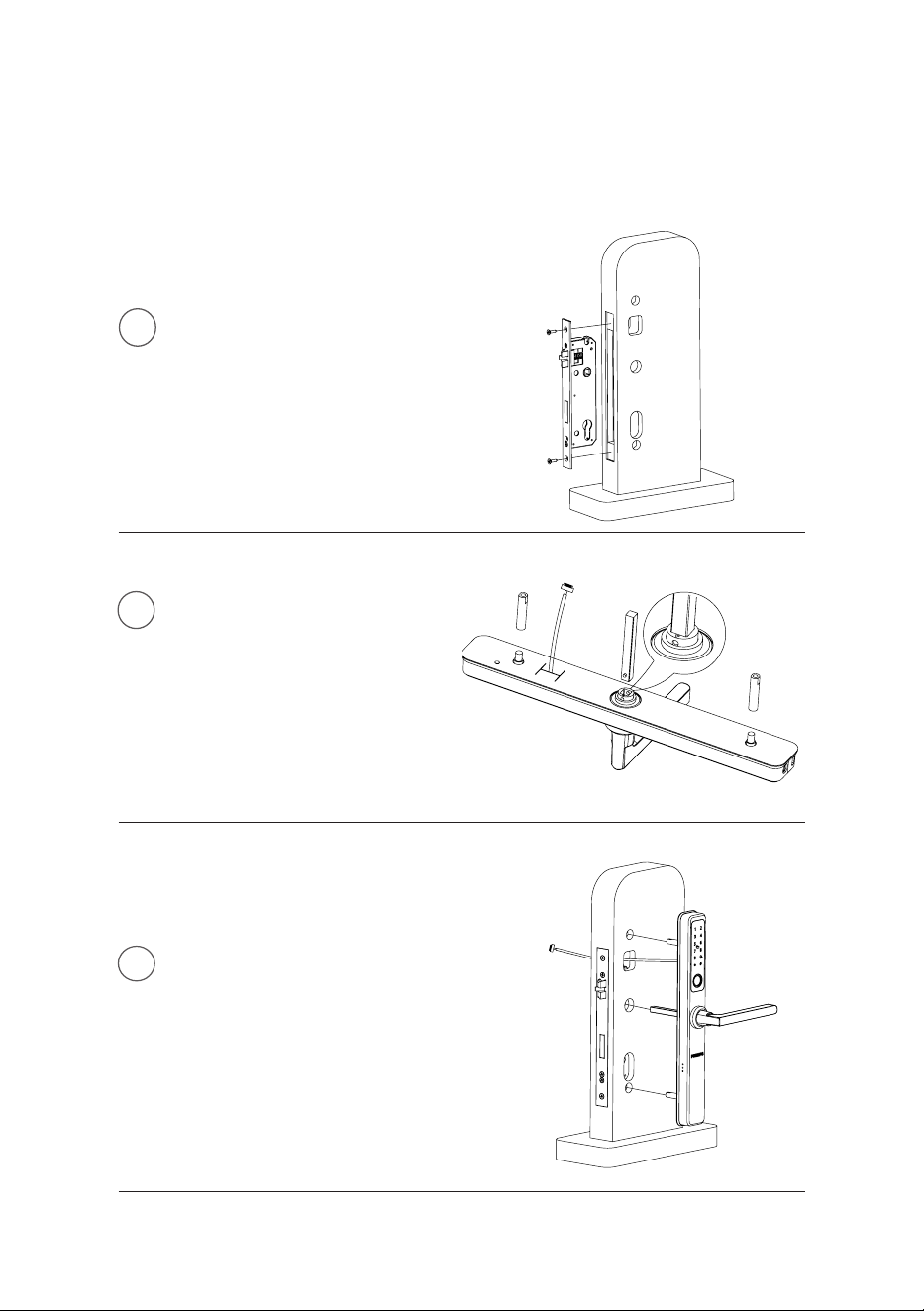
To drill holes in the door
according to the drilling template,
mount the mortise into the jamb,
and secure the anchor screws.
Attach the connecting screw
tubetothe exterior assembly
and insert the square shaft into
the hole accordingly. Please
ensurethattheprotrudingpart
on the square shaft is inserted
into the hole until it issecurely
seated.
Pass the connecting cable
through the hole, align and insert
the square shaft of the exterior
assembly into the rotary hole,
and ensure the exterior assembly
is rmly attached to the door
surface.
Assembly procedures
The following assembly procedures apply to the right-hand swing doors. For left-
hand swing doors, please read through the [Notice before assembling] and adjust
the lever/latch direction rst.
8
4
5
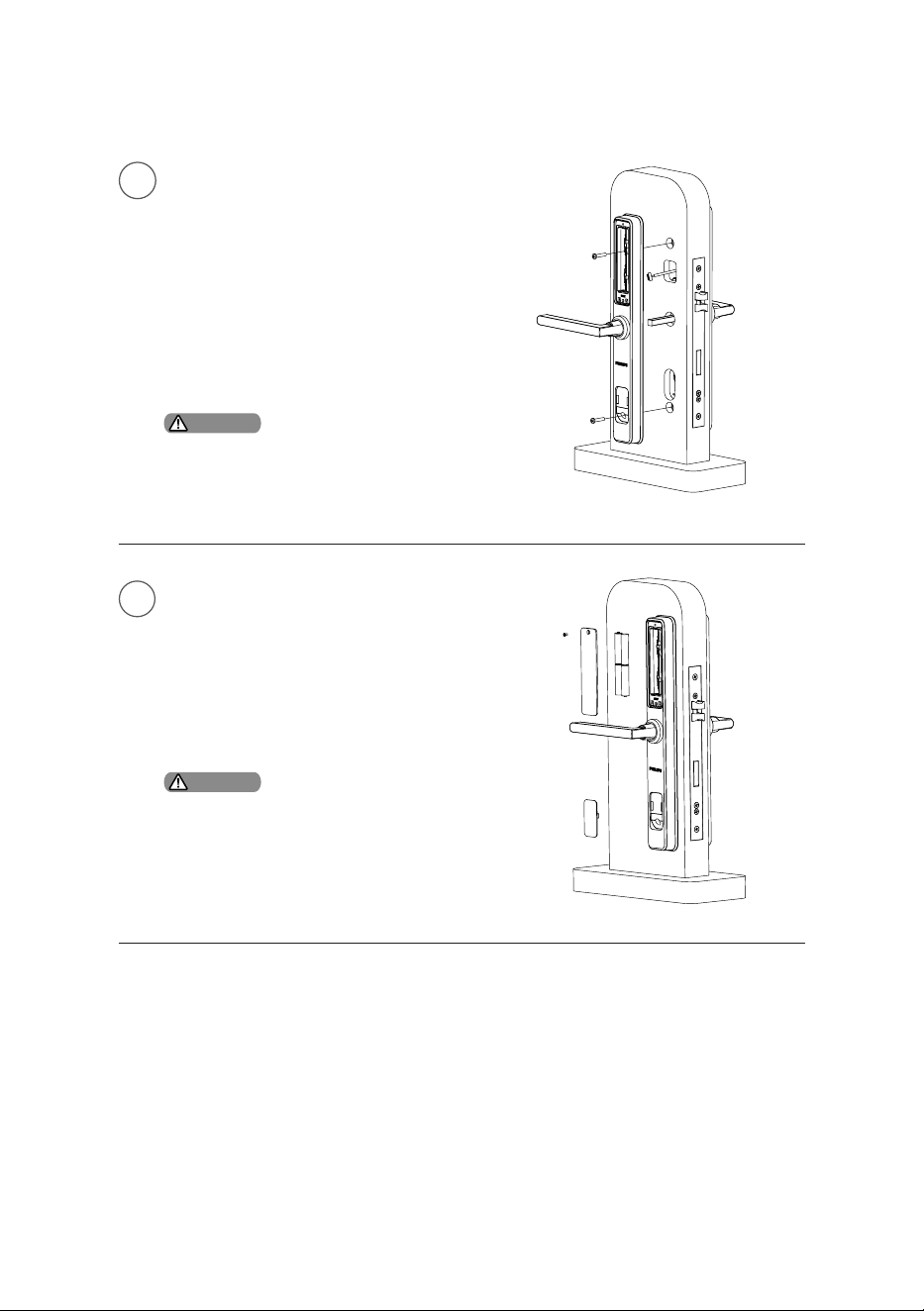
Insert the connecting cables
into the sockets of the interior
assembly accordingly, and align
the square shaft with the hole
to ensure the interior assembly
is rmly attached to the inner
surface of the door, then secure
the top and bottom of the interior
assembly with M6 anchor screws.
Install 4pcs AAA batteries and
secure the battery cover with
screws. Then put the the interior
assembly cover on. Finally, check
whether each part is connected
and assembled in good condition.
Please cut the square shaft to a
proper length according to the door
thickness.
Pleaseensurethattheinterior
assemblycoverissecurelyfastened
sothatitdoesnotfallowhenthe
doorisclosed.
Attention
Attention
9
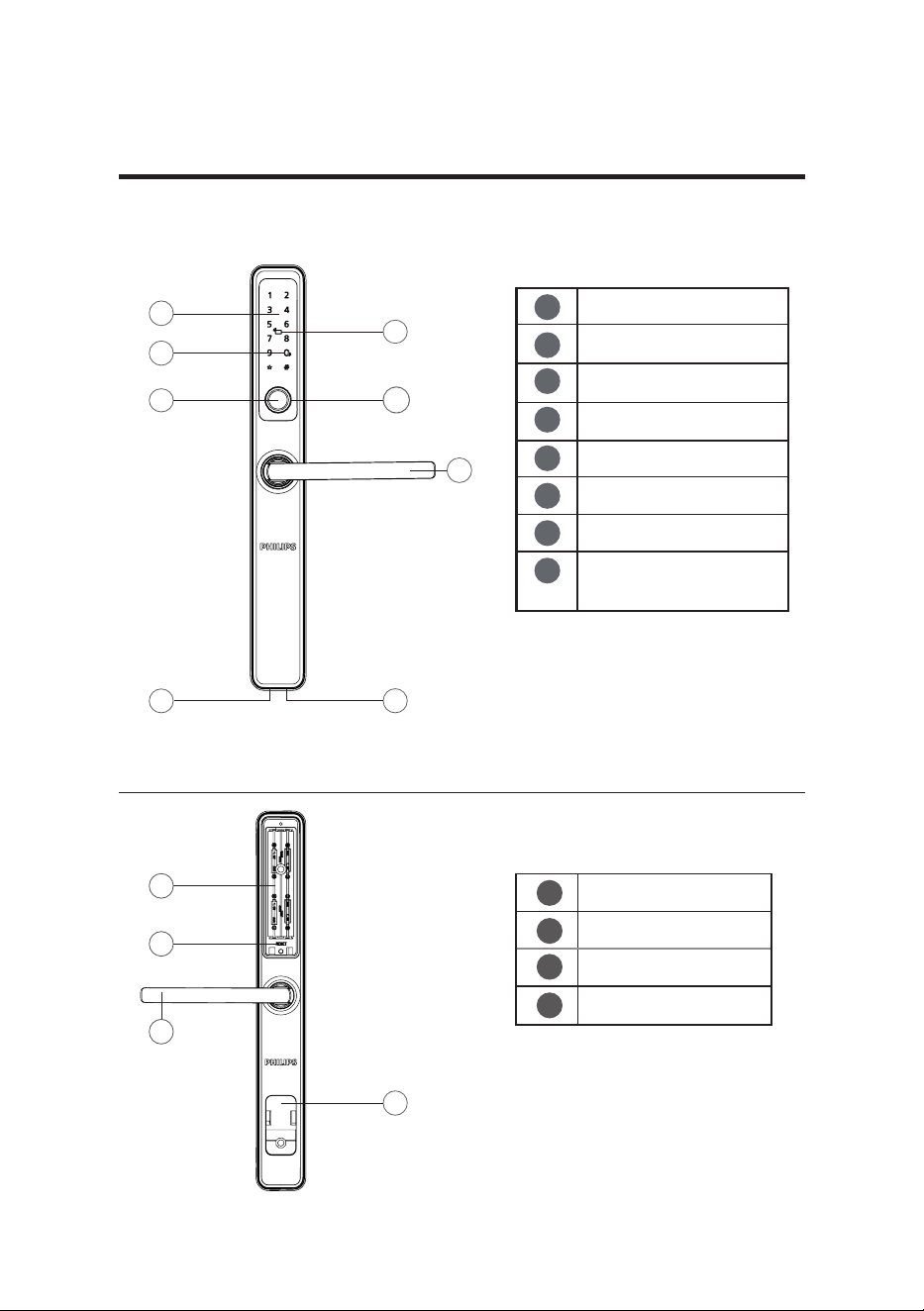
Battery compartment
Interior lever
Reset button
Cover
1
2
3
4
1
6
5
4
4
7
8
3
2
2
3
1
3 Get to know your lock
Exterior assembly
Interior assembly
1
2
3
4
5
6
7
8
Indicator
Keypad
Card reader
Mute button
Fingerprint sensor
Exterior lever
Key hole
Reset and power supply
interface
10
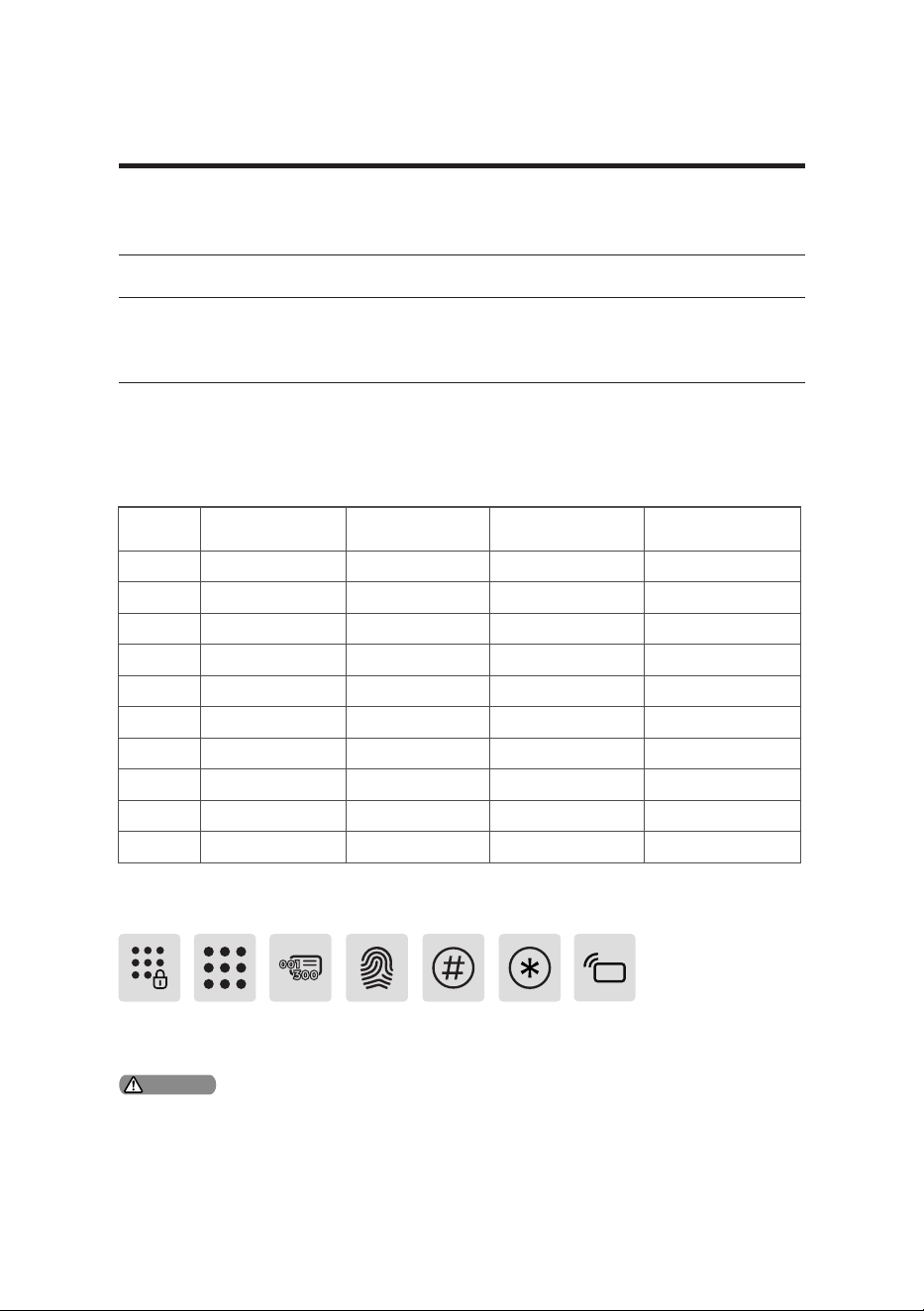
◆User number
You can delete a user's information by the user code without having to delete everything.
You can record the user information in the following table for future reference.
User
number
Name Fingerprint PIN code Key tag
000
001
002
003
004
005
006
007
008
009
◆Icon annotation
Master
PIN code
User PIN
code
User
number
Fingerprint [#]key Key tag[*]key
4 Settings
Instructions before setting
◆The system mode is divided into general mode and dual-verication mode.
Any enrolled access methods can
unlock the door
Any two enrolled access methods among
PIN code, key tag, and ngerprint can
unlock the door
General mode Dual-verication mode
1. Press [*] key to return to the previous menu.
2.The default initial PIN code is 12345678.
Attention
11
Master access
method settings
2
1
or
or
or
or
or or
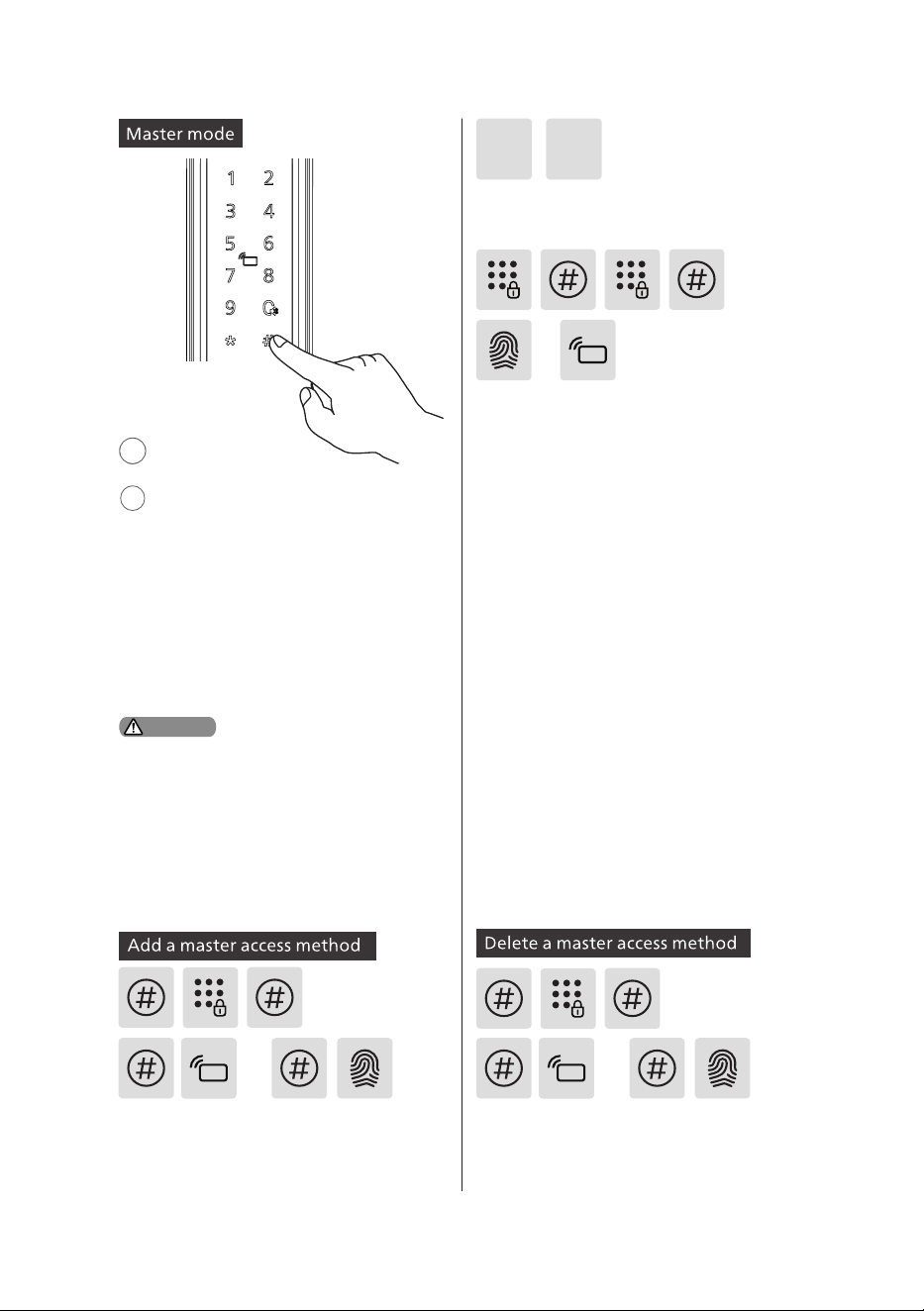
Press [#] and enter the master PIN code,
then conrm with [#]. Or press [#], swipe
the master key tag/scan the master
ngerprint to enter the master mode.
Press [#] and enter the master PIN code,
then conrm with [#]. Or press [#], swipe
the master key tag/scan the master
ngerprint to enter the master mode.
Press [1] to enter the master access
method settings, press [1] again to add a
master access method.
1 1
When setting the master access method for the rst
time, you can press [#] to enter the master mode.
Once you are in master mode, press [1] twice to add
the master access method and then complete the
remaining settings.
Attention
Master PIN code: Press [#] before
entering other numbers, then enter
the master PIN code and conrm
with [#], and you will be in master
mode.
Master ngerprint/ key tag:Press [#]
before entering other numbers, then
swipe the master key tag or scan the
master ngerprint, and conrm with
[#], and you will be in master mode.
Add a master PIN code: Enter a new
master PIN code and conrm with [#],
then enter the master PIN code again and
conrm with [#]. After hearing a voice
prompt indicating that the master PIN
code was added successfully, press [*] to
return to the previous menu until you exit
the master mode.
Add a master ngerprint: Enroll
your nger through the ngerprint
sensor. After you hear a voice prompt
“Please press again”, take your nger
o and put it back again, repeat the
action until you hear a voice prompt
indicating that the ngerprint was
added successfully. Press [*] to return
to the previous menu until you exit
the master mode.
Add a key tag: Place the key tag close
to the card reader until you hear a
voice prompt indicating that the key
tag was added successfully. Press [*]
to return to the previous menu until
you exit the master mode.
Light up the keypad
12
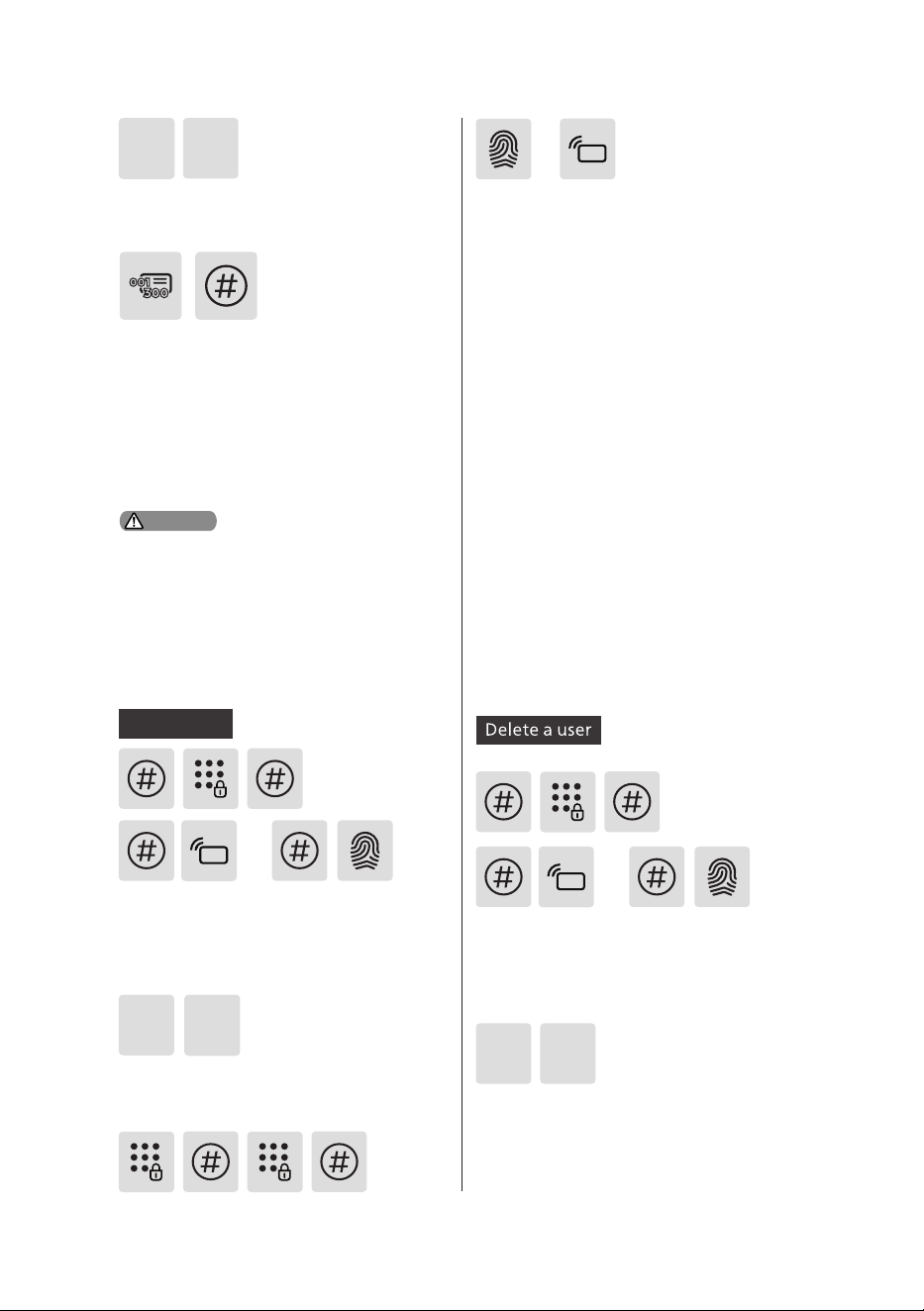
Enter the user number of the master
access method to be deleted and
conrm with [#]. After you hear a voice
prompt indicating that the deletion
was successful, press [*] to return to the
previous menu until you exit the master
mode.
Add a PIN code: Enter a new user PIN code
and press [#] to conrm, then enter the
PIN code again and conrm with [#]. After
you hear a voice prompt indicating that
the PIN code was added successfully, press
[*] to return to the previous menu until
you exit the master mode.
Add a ngerprint: Place your enrolled
nger on the sensor. After you hear a
voice prompt of “Please press again”,
take your nger o and put it back
again, repeat the action until you hear
a voice prompt indicating that the
ngerprint was added successfully.
Press [*] to return to the previous
menu until you exit the master mode.
Add a key tag: Place the key tag on
the card reader until you hear a voice
prompt indicating that the key tag
was added successfully. Press [*] to
return to the previous menu until you
exit the master mode.
User settings
or
or
Press [#] and enter the master PIN code,
then conrm with [#]. Or press [#], swipe
the master key tag/scan the master
ngerprint to enter the master mode.
Press [#] and enter the master PIN code,
then conrm with [#]. Or press [#], swipe
the master key tag/scan the master
ngerprint to enter the master mode.
Press [2] to enter user settings, then press
[1] to add a user. Press [2] to enter the user setting, then
press [2] again to delete a user.
1
2
2 2
or
or
1
2
Press [1] to enter the admin settings, then
press [2] to delete an admin.
Add a user
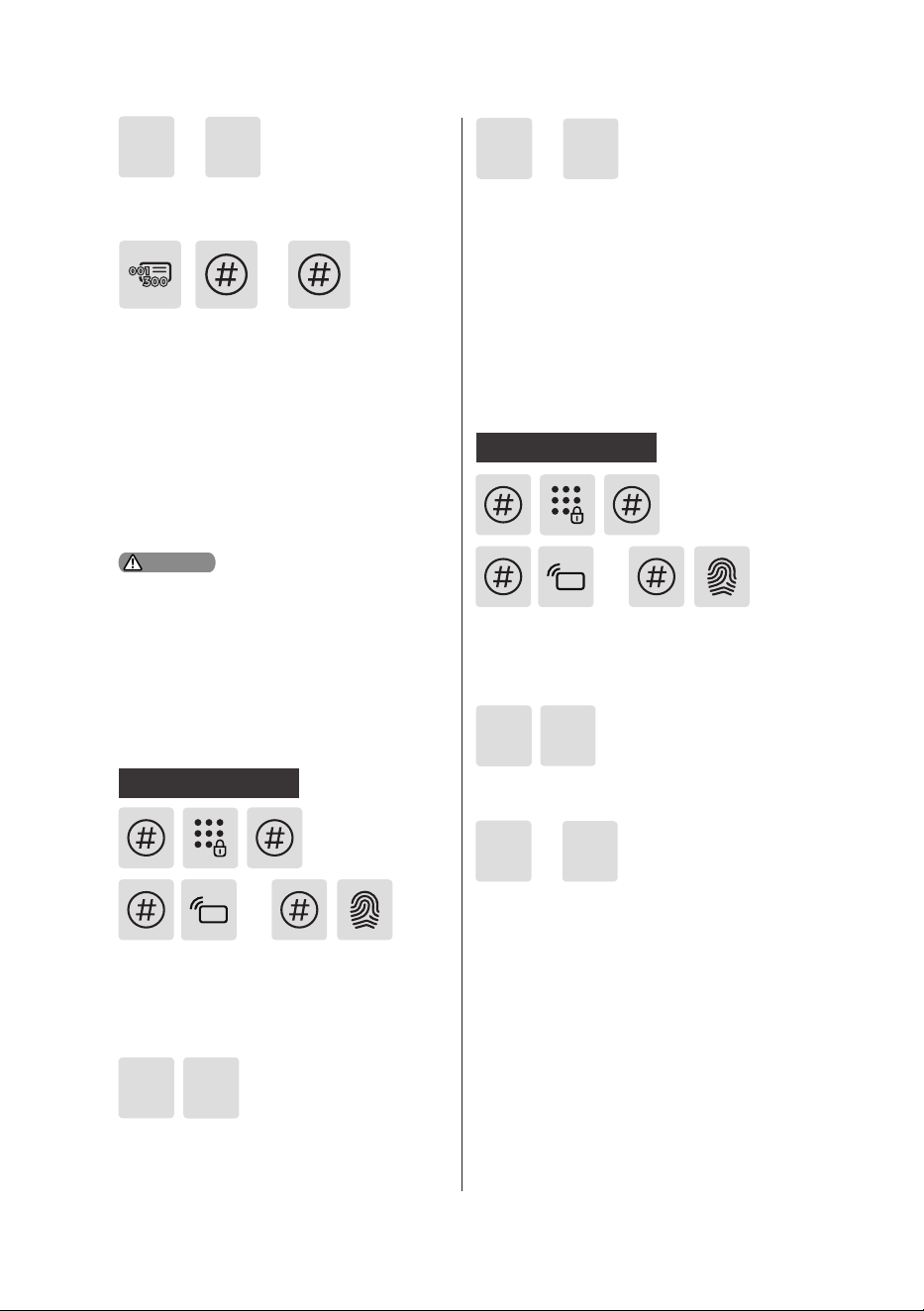
User number query: Once unlocking with
any enrolled access method, press [*], and
you will hear a voice prompt of the user
number of the access method.
Attention
or
or
13
Delete the user by user numbers: Enter
the numbers of access method to be
deleted, and press [#] to conrm. After
hearing a voice prompt indicating that
the deletion was successful, press [*] to
return to the previous menu until you exit
the master mode.
Delete all the users: Followed by the voice
prompt from the lock end, press [#] to
conrm to delete all the user information.
System settings
Press [#] and enter the master PIN code,
then conrm with [#]. Or press [#], swipe
the master key tag/scan the master
ngerprint to enter the master mode.
Press [#] and enter the master PIN code,
then conrm with [#]. Or press [#], swipe
the master key tag/scan the master
ngerprint to enter the master mode.
Press [3] to enter system settings, then press
[2] to enter the system mode settings.
Press [1] to select a user number to delete
the user; press [2] to delete all users.
Press [1] to enter general mode, then the
user can use any enrolled access method
to open the door. After hearing a voice
prompt indicating that the operation was
successful, press [*] to return to previous
menu until you exit the master mode.
Press [2] to enter dual-verication mode,
the user can use any two enrolled access
methods among PIN code, ngerprint,
and key tag to open the door. After
hearing a voice prompt indicating that
the operation was successful, press [*] to
return to previous menu until you exit the
master mode.
1
1
2
2
2
Press [3] to enter system settings, then
press [1] to enter the voice guide settings.
Press [1] to enable the voice guide. After
hearing a voice prompt indicating that
the operation was successful, press [*] to
return to previous menu until you exit the
master mode.
Press [2] to disable the voice guide, and
the system will be mute, press [*] to
return to previous menu until you exit the
master mode.
1
1
2
3
3
Voice guide settings
Voice guide settings
User number query: Once unlocking with
any enrolled access method, press [*], and
you will hear a voice prompt of the user
number of the access method.
Attention
or
or
or
or
or
or
or
or
14
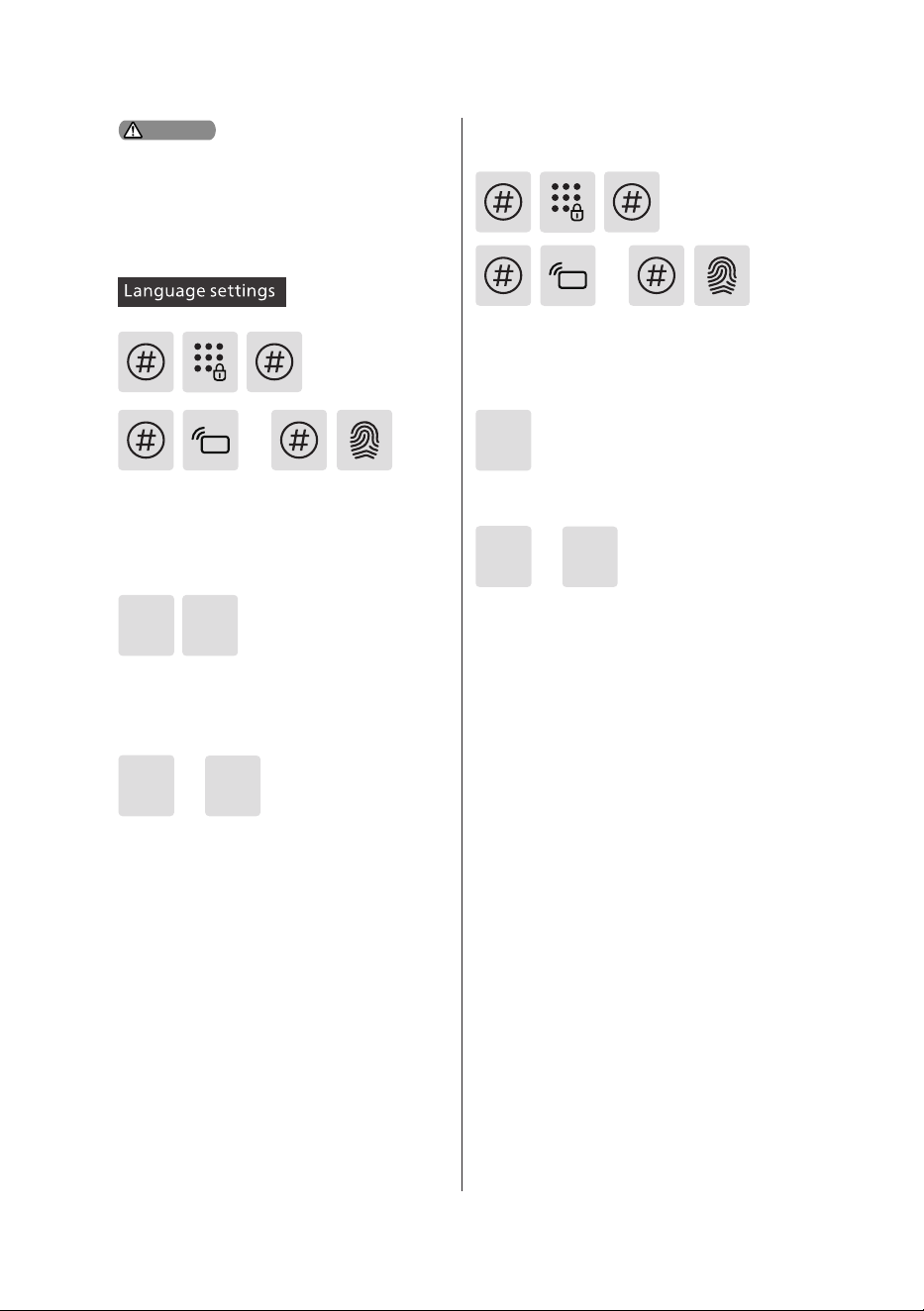
Press [3] to enter system settings, then
press [3] again to enter the language
settings.
3 3
To connect to a hotspot, please press [1];
After hearing a voice prompt indicating
that the operation was successful, the
system will exit the master mode.
For Auto Connect, please press [2]; After
hearing a voice prompt indicating that
the operation was successful, the system
will exit the master mode.
1
For Chinese, please press [1]. After hearing
a voice prompt indicating that the
operation was successful, press [*] to return
to previous menu until you exit the master
mode.
For English, please press [2]. After hearing a
voice prompt indicating that the operation
was successful, press [*] to return to
previous menu until you exit the master
mode.
1
2
2
Press [#] and enter the master PIN code,
then conrm with [#]. Or press [#], swipe
the master key tag/scan the master
ngerprint to enter the master mode.
Press [4] to enter network settings.
4
Network settings
Press [#] and enter the master PIN code,
then conrm with [#]. Or press [#], swipe
the master key tag/scan the master
ngerprint to enter the master mode.
Under the dual-verication mode, any
enrolled master access method can be
used to open the door.
Attention
or
or
or
or
or
or
15
Application binding
1.Connect to power supply;
2.When you are in master mode,
press [4] to enter network settings,
then press [1] to connect to a hotspot
or press [2] for Auto Connect, log in
the Tuya Smart App to complete the
application binding accordingly;
3.Click "+" from Tuya Smart App’s
upper right corner to add a device,
select [Door lock (Wi-Fi)] under the
category of [Camera/Lock] to enter
the binding page, and complete the
application binding accordingly.
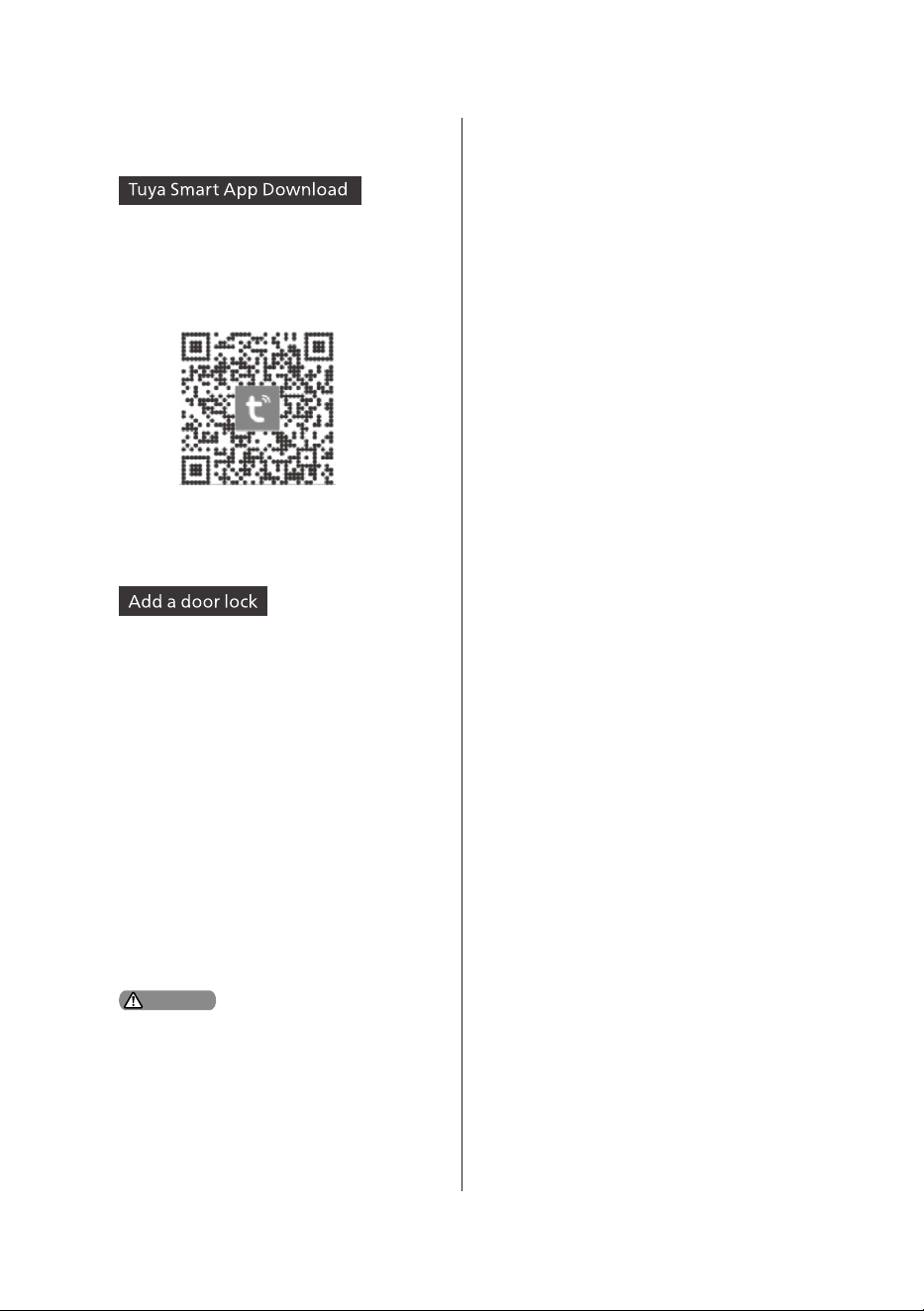
Please scan below QR code or go to App
Store to search “Tuya Smart App” and
download the app accordingly.
The door lock only supports 2.4GHz
band Wi-Fi routers (5GHz band is not
supported). Please ensure the visual
distance between the router and the door
lock is less than 10 meters, otherwise the
Wi-Fi signal might be weak.
Attention
16
下
压
执
手
3
1
1
1
2
2
2
Press down the handle to
unlock.
Lever
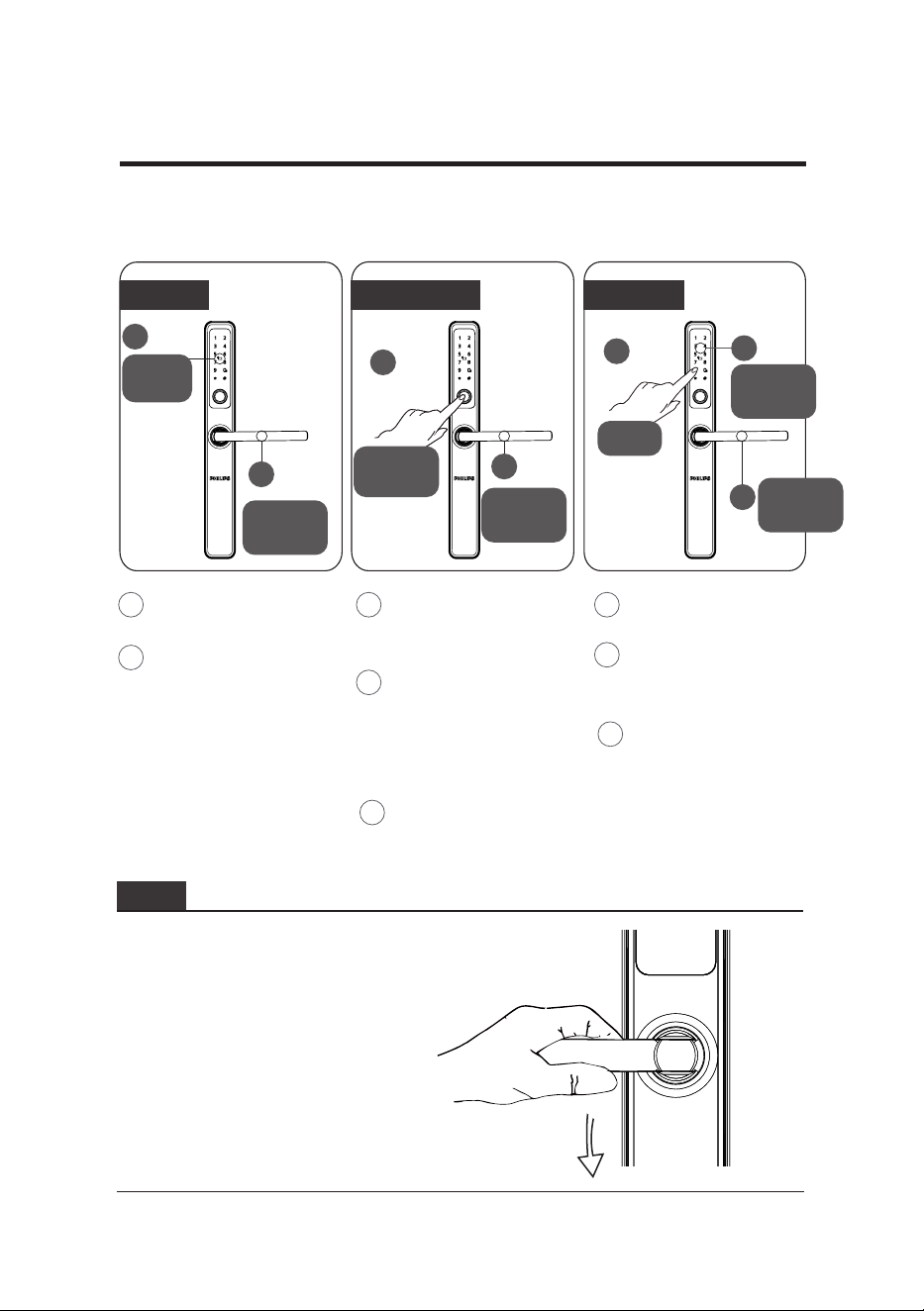
5 Get to use your lock
Outdoor unlock
Key tag
Card
reader
Press down
the lever
Press down
the lever
Enter PIN
code
Press down
the lever
Fingerprint PIN code
Place the enrolled key
tag on the card reader.
After a voice
prompt indicating
that unlocking was
successful, users can
press down the lever
to unlock the door.
Place the enrolled
nger on the
ngerprint sensor.
After a voice
prompt indicating
that unlocking was
successful, users can
press down the lever
to unlock the door.
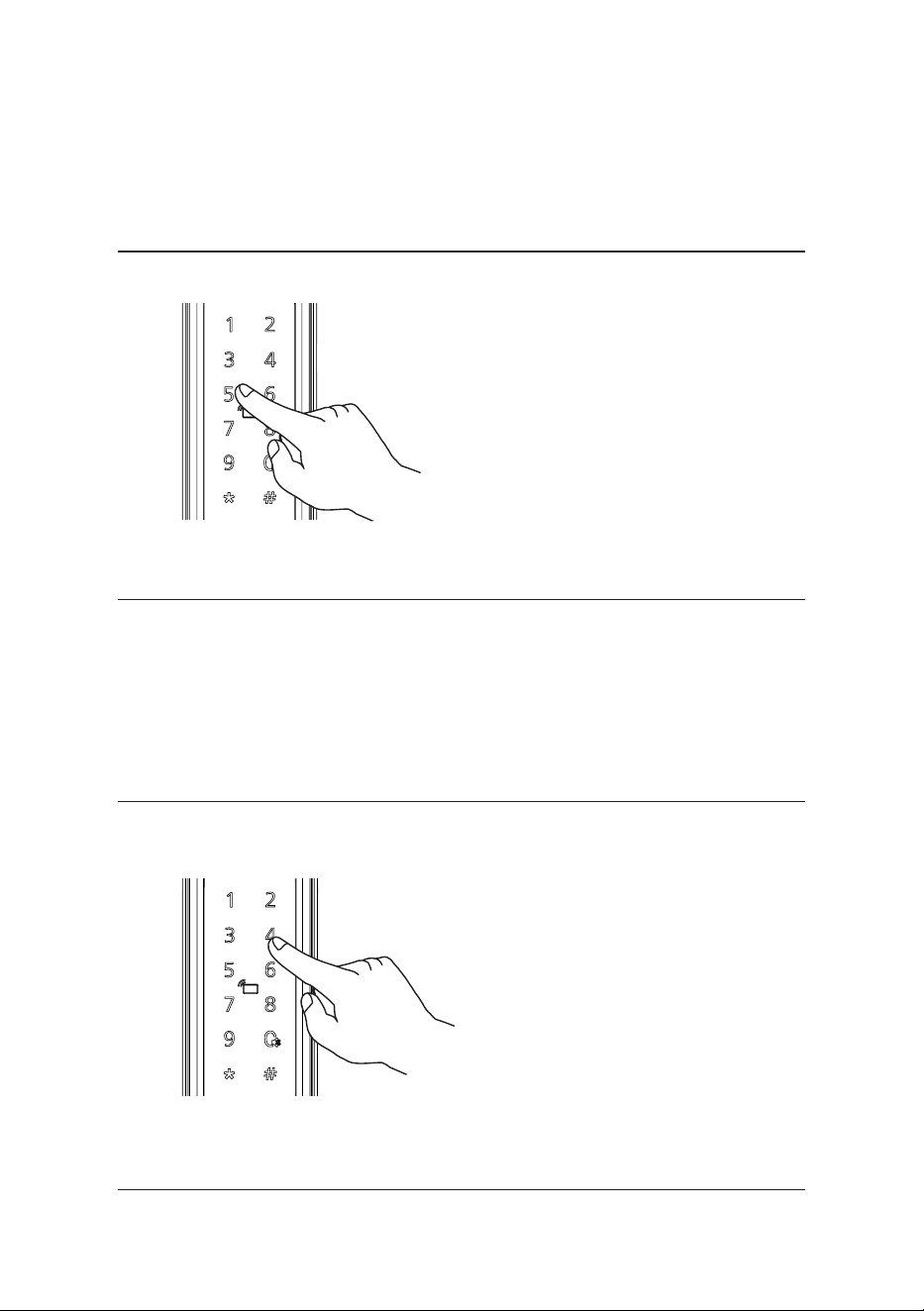
Touch to wake up the
keypad.
Enter the enrolled
PIN code and conrm
with [#].
After a voice
prompt indicating
that unlocking was
successful, users
can press down the
lever to unlock the
door.
1 1 1
2
2
2
3
3
Fingerprint
sensor
Keypad
Indoor unlock
17
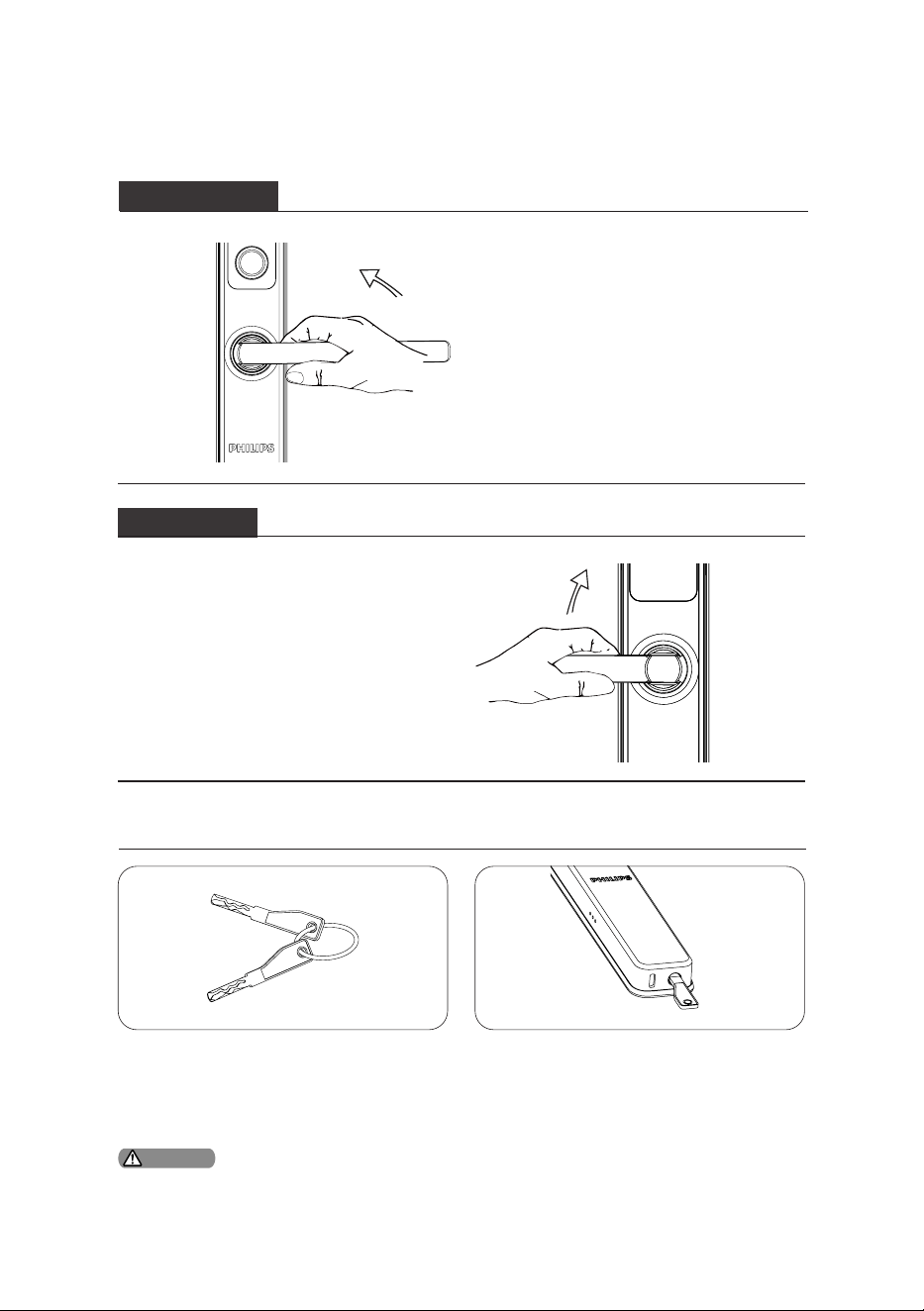
After closing the door, lift up the
handle, and the latch bolt will
automatically pop up to lock the door.
After closing the door, lift up the
handle, and the latch bolt will
automatically pop up to lock the door.
Outdoor locking
Indoor locking
Get the mechanical key from the
product package.
① ②
Insert the mechanical key into
the lock hole at the bottom of the
exterior assembly and turn it 180
degrees to the right to open it.
Outdoor/Indoor locking
Mechanical key unlock
Please use the mechanical key to unlock the door for emergencies only, e.g. when the
battery is dead, when you have forgotten the PIN code, or the lock fails to work.
Attention
18
Mute button
6 Other features
Default settings
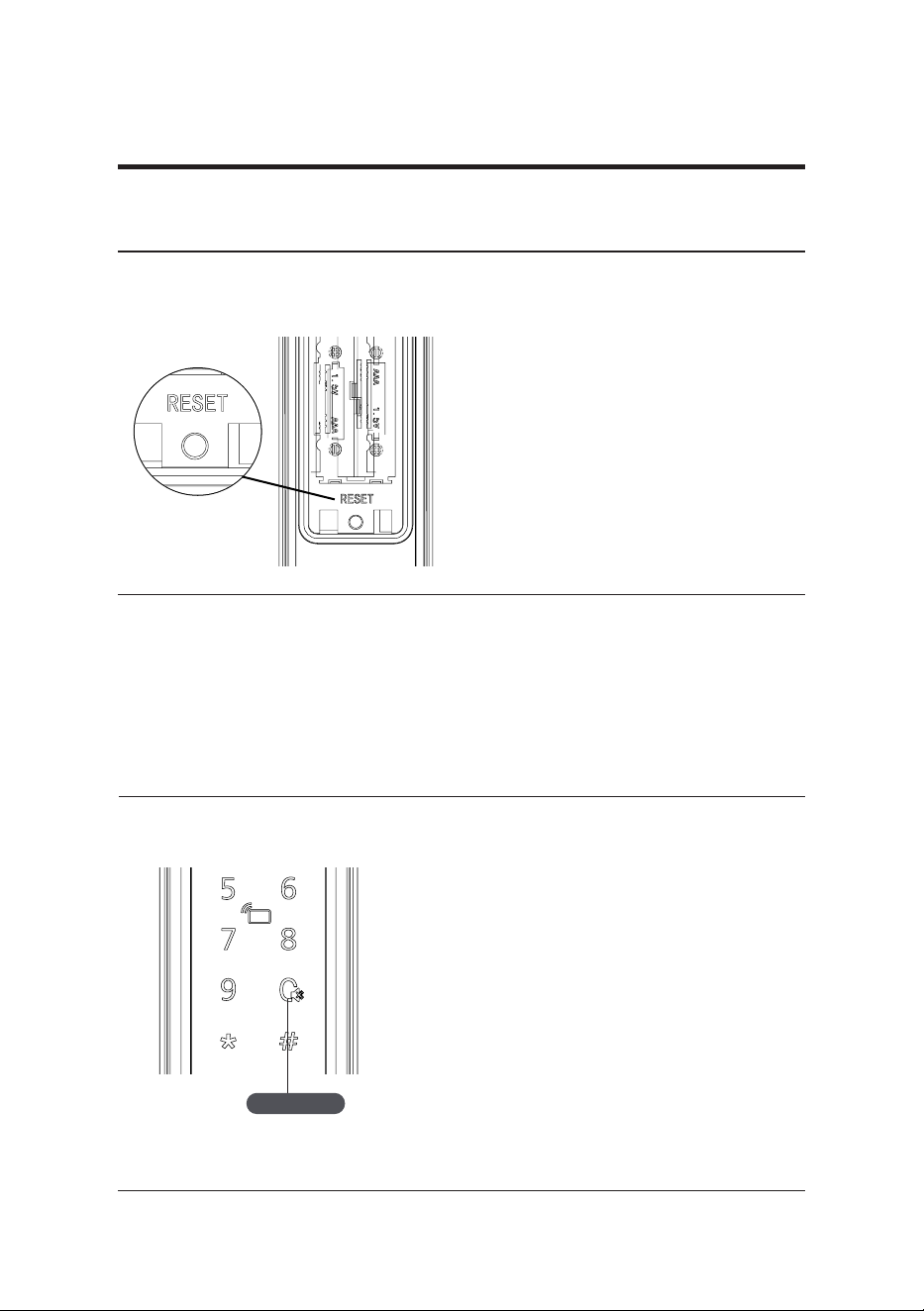
Function:
To empty all user information and restore to
default settings.
How to use:
Press the [RES] button for 6 seconds with
a sharp object, and you will hear a voice
prompt saying ”Press [#] for conrmation”,
once [#] is pressed, all user information
will be erasedand the lock willbe
restoredtoitsdefault settings.
Function:
Press the [Mute button] to enable mute
mode, this function applies to scenarios in
which you don’t want to disturb your family.
How to use:
(1)Mute: When the exterior assembly lights
up, press the [mute button] for 2 seconds to
enter mute mode.
(2)Unmute: When the exterior assembly
lights up, press the [mute button] for 2
seconds until you hear a voice prompt
indicating that the operation was successful,
and the voice guide will be restored.
Mute button
19
Passage mode
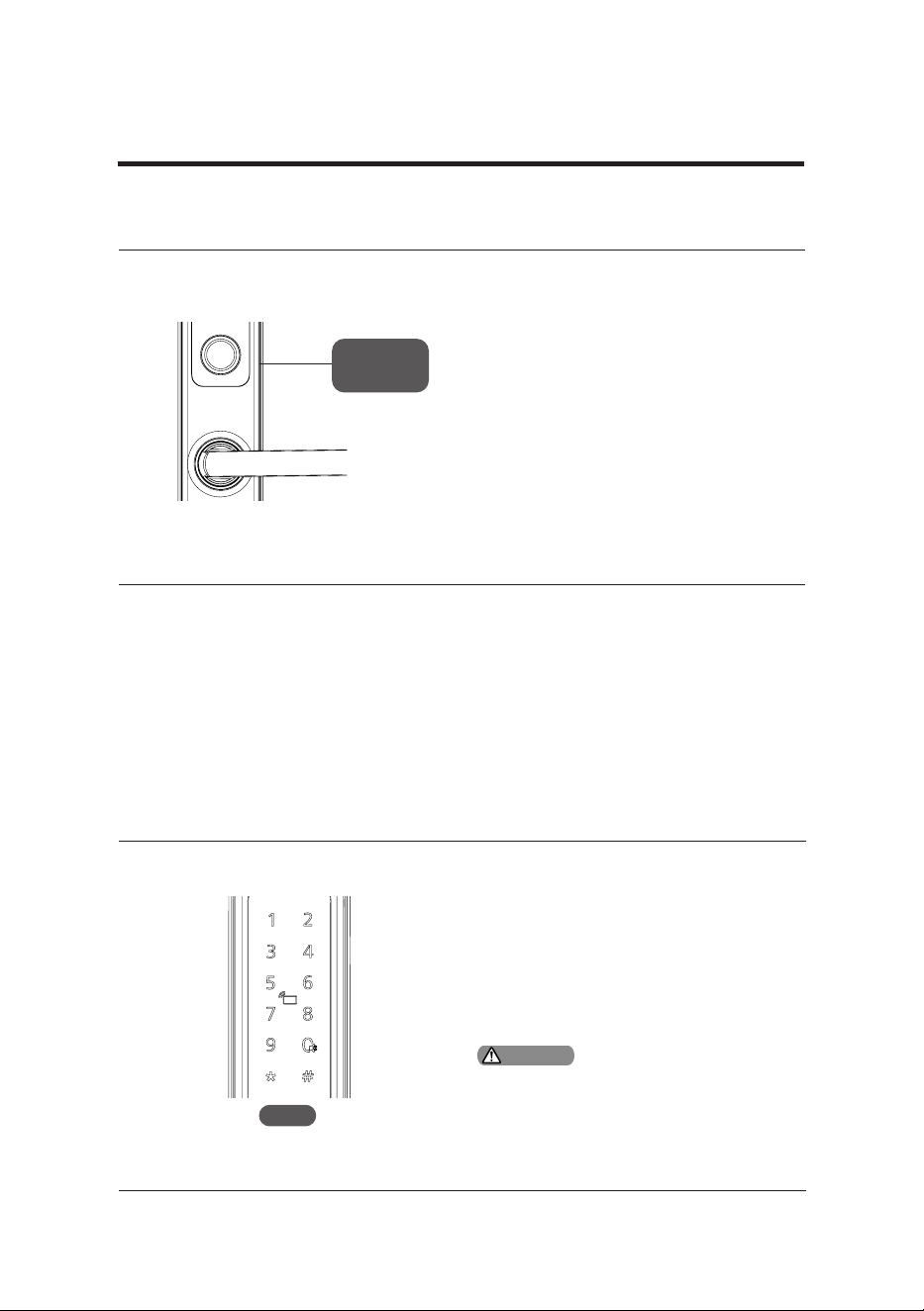
Verication code & local data query
Function:
After the passage mode is enabled, anyone can
open the lock by pressing down on the lever
without any enrolled access method.
How to use:
On: After veried by any enrolled master access
method, the [5] key and [*] key will light up, then
press [5] and conrm with [#] can turn on the
passage mode.
O: After enabling the passage mode, unlocked
with any enrolled access method can turn o the
passage mode.
Function:
To check the verication code and local
software version.
How to use:
After lighting up the touchscreen, enter
400# can check verication code, and the
lock will automatically broadcast the code.
Enter 114# for local data query, and the
system will automatically broadcast the
software version.
20
System-locking indicator
Indicator being on for 3s
The door lock will be locked for 100
seconds if there are 5 consecutive incorrect
verication of any enrolled access method
(i.e. ngerprint, PIN code, and key tag) in 5
minutes.
100s
Status indicator
7 Indicators
Status
indicator
Meanings of the indicator in dierent colors
Blue:When the system wakes up, the indicator
will turn blue, indicating that the door lock
can be processed and operated;
Green: When the door lock is unlocked, the
indicator will turn green, indicating that the
door has opened;
Red: When failing to verify the access
methods or there is an error in the settings,
the door lock status indicator will turn red.
Such a prompt will only appear when the
touchscreen is lighting up or any of the
access methods are being veried.
Attention
21
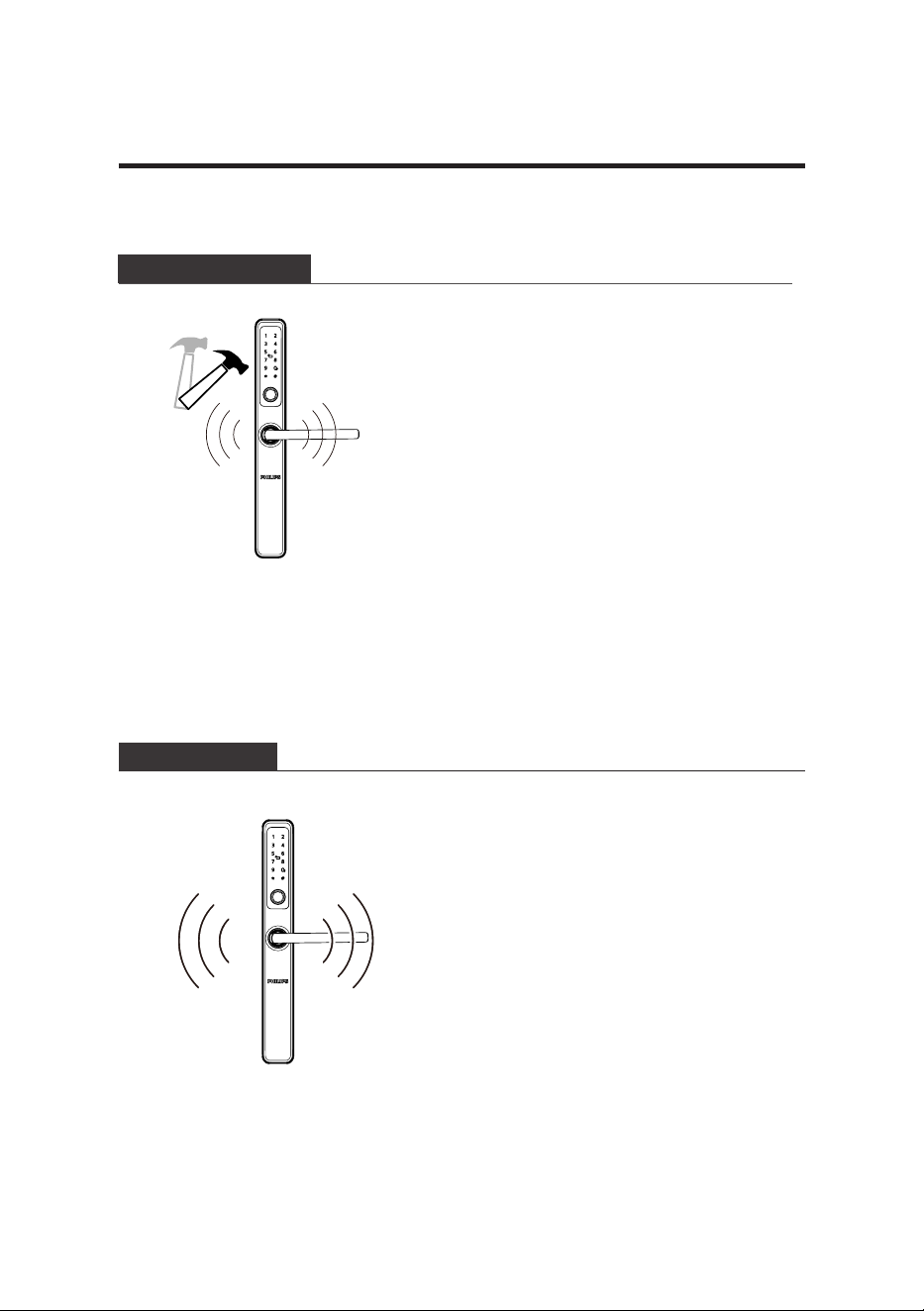
Alert types
8 Troubleshooting
Low battery alert
Anti-dismantling alert
Triggering: When the system wakes up, the
battery voltage will be automatically detected. If
the battery voltage is insucient, an alert will be
triggered to remind you to replace the battery.
Alert mode: Witha voice prompt when
unlocking.
O: Turn o automatically.
Way to trigger: The outside escutcheon is pried
open and there is a gap of space between the
door and the outside escutcheon.
Way to be alerted: Repeat alerts.
Way to turn o: Automatically turning o or
successful identity verication or a normal way to
unlock the door from inside.
22
How to apply an external power supply
When the battery voltage is insucient, and the
door cannot be opened from the outside, you
can power up the lock by connecting a 5V power
bank to the Type-C port. After opening the door
lock, please replace the batteries immediately.
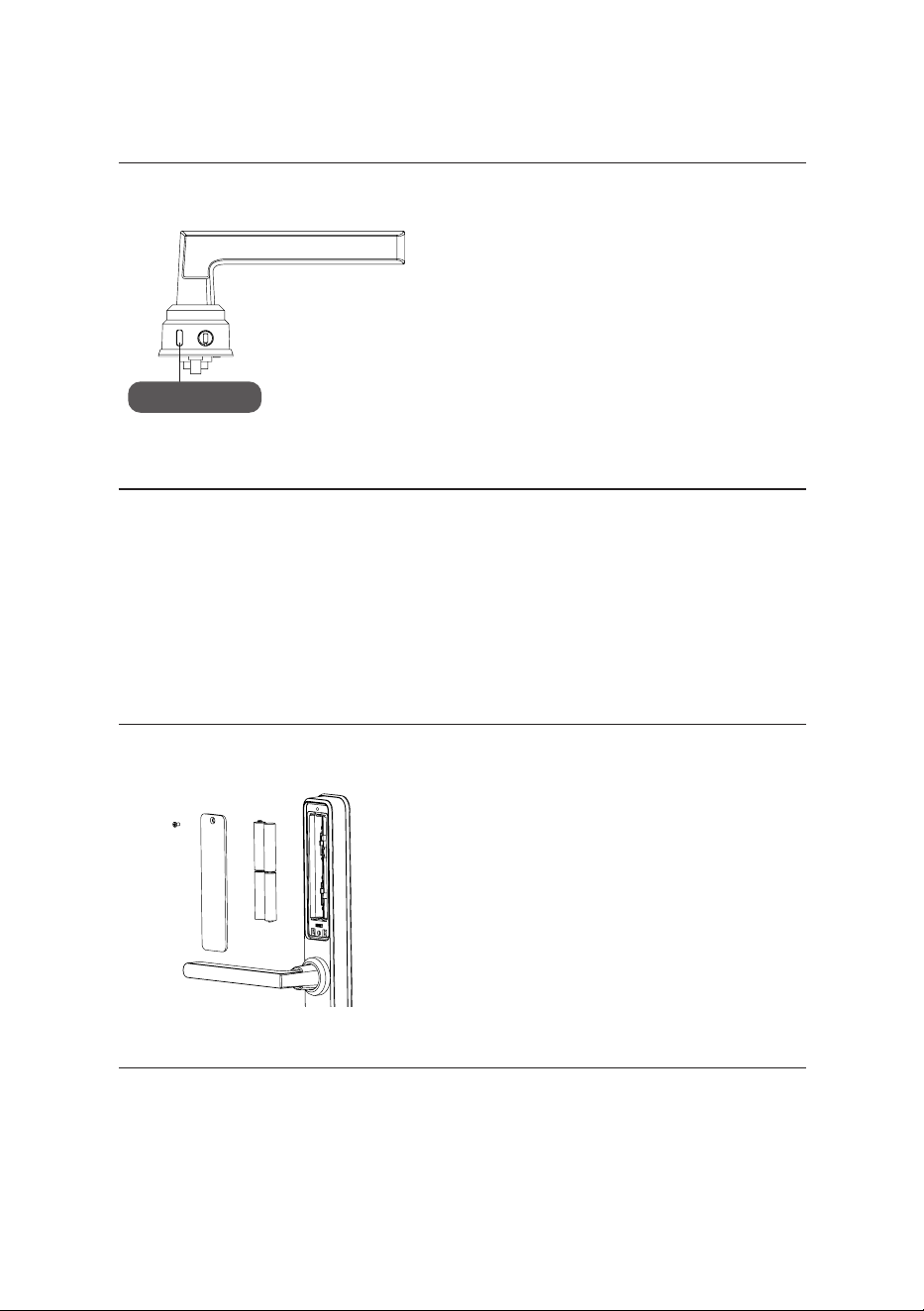
Battery replacement
The working power of the door lock is 4pcs AAA
alkaline batteries.
Unscrewing the screws on the interior assembly
to remove the cover and replace batteries.
Type-C port


Philips and the Philips Shield Emblem are registered trademarks of Koninklijke Philips
N.V. and are used under license. This product has been manufactured by and is sold
under the responsibility of Shenzhen Conex Intelligent Technology Co., Ltd., and
Shenzhen Conex Intelligent Technology Co., Ltd. is the warrantor concerning this
product.