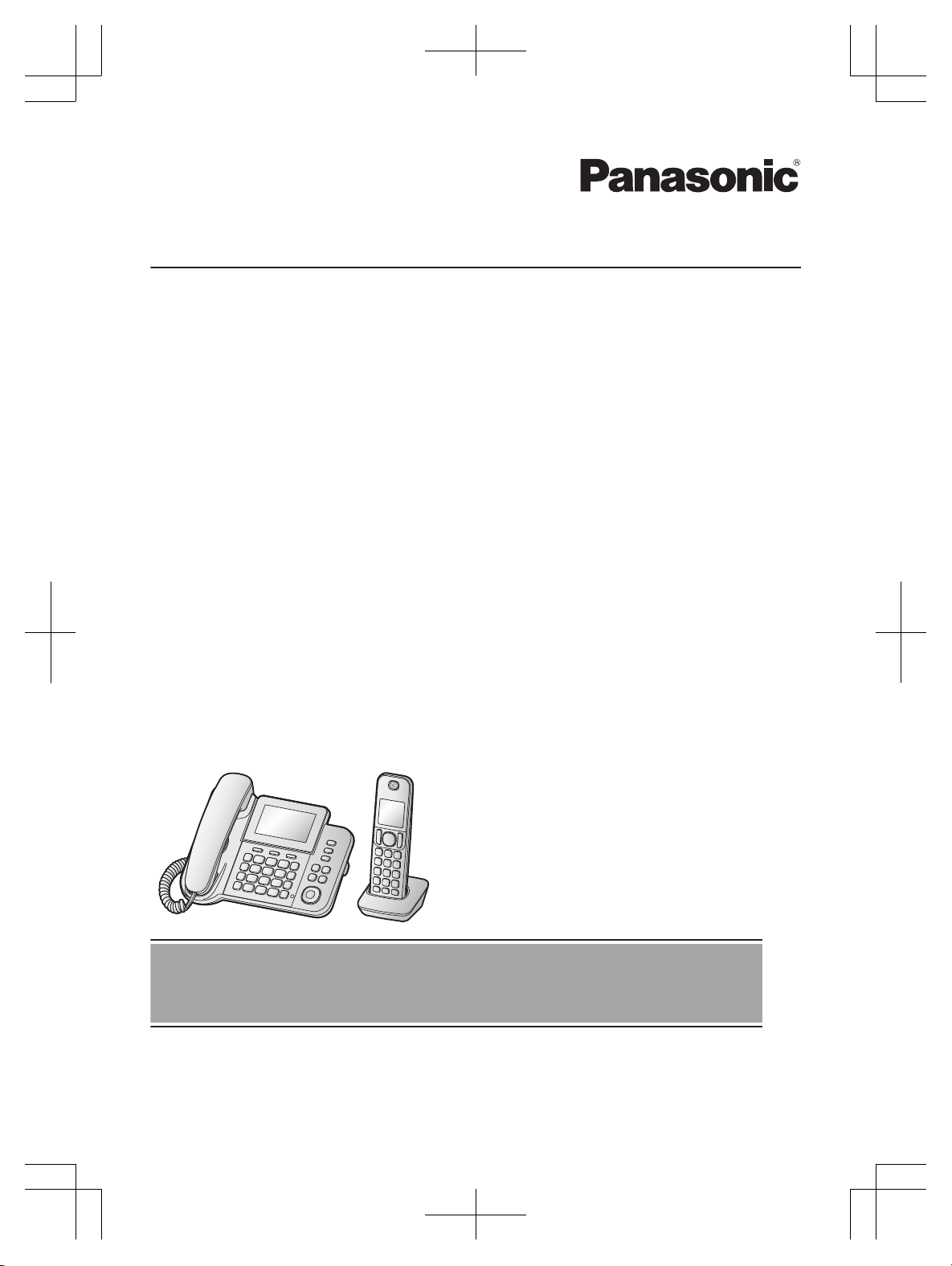
Operating Instructions
Digital Corded/Cordless Answering System
Model No. KX-TGF320E
Before initial use, see “Getting Started” on
page 10.
Thank you for purchasing a Panasonic product.
Please read these operating instructions before using the unit and save them for future
reference.
TGF320E(en)_0123_ver020.pdf 1 2015/01/23 18:26:28

Introduction
Accessory information ........................................3
General information ............................................4
Important Information
For your safety ....................................................6
Important safety instructions ...............................7
For best performance .........................................7
Other information ................................................8
Specifications ......................................................
8
Getting Started
Setting up ..........................................................10
Controls ............................................................13
Display icons .....................................................14
Turning the power on/off ...................................15
Language setting ..............................................15
Date and time ...................................................15
Recording your greeting message ....................15
Other settings ...................................................16
Making/Answering Calls
Making calls ......................................................17
Answering calls .................................................18
Useful features during a call .............................18
Intercom ............................................................20
Key lock ............................................................21
Nuisance Call Block
Using the call block button ................................22
Storing unwanted callers ..................................22
Phonebook
Phonebook ........................................................24
Speed dial .........................................................25
One-touch dial buttons ......................................27
Programming
Menu list ...........................................................28
Alarm ................................................................33
Do not disturb mode .........................................34
Baby monitor .....................................................34
Other programming ...........................................36
Registering a unit ..............................................37
Caller ID Service
Using Caller ID service .....................................39
Caller list ...........................................................39
Answering System
Answering system .............................................41
Turning the answering system on/off ................41
Greeting message ............................................41
Listening to messages ......................................42
Advanced new message alerting features ........43
Remote operation .............................................45
Answering system settings ...............................46
Useful Information
Voicemail service ..............................................48
Wall mounting ...................................................48
Character entry .................................................49
Error messages ................................................51
Troubleshooting ................................................51
Conditions of guarantee
....................................55
Index
Index..................................................................56
2
Table of Contents
TGF320E(en)_0123_ver020.pdf 2 2015/01/23 18:26:28
Accessory information
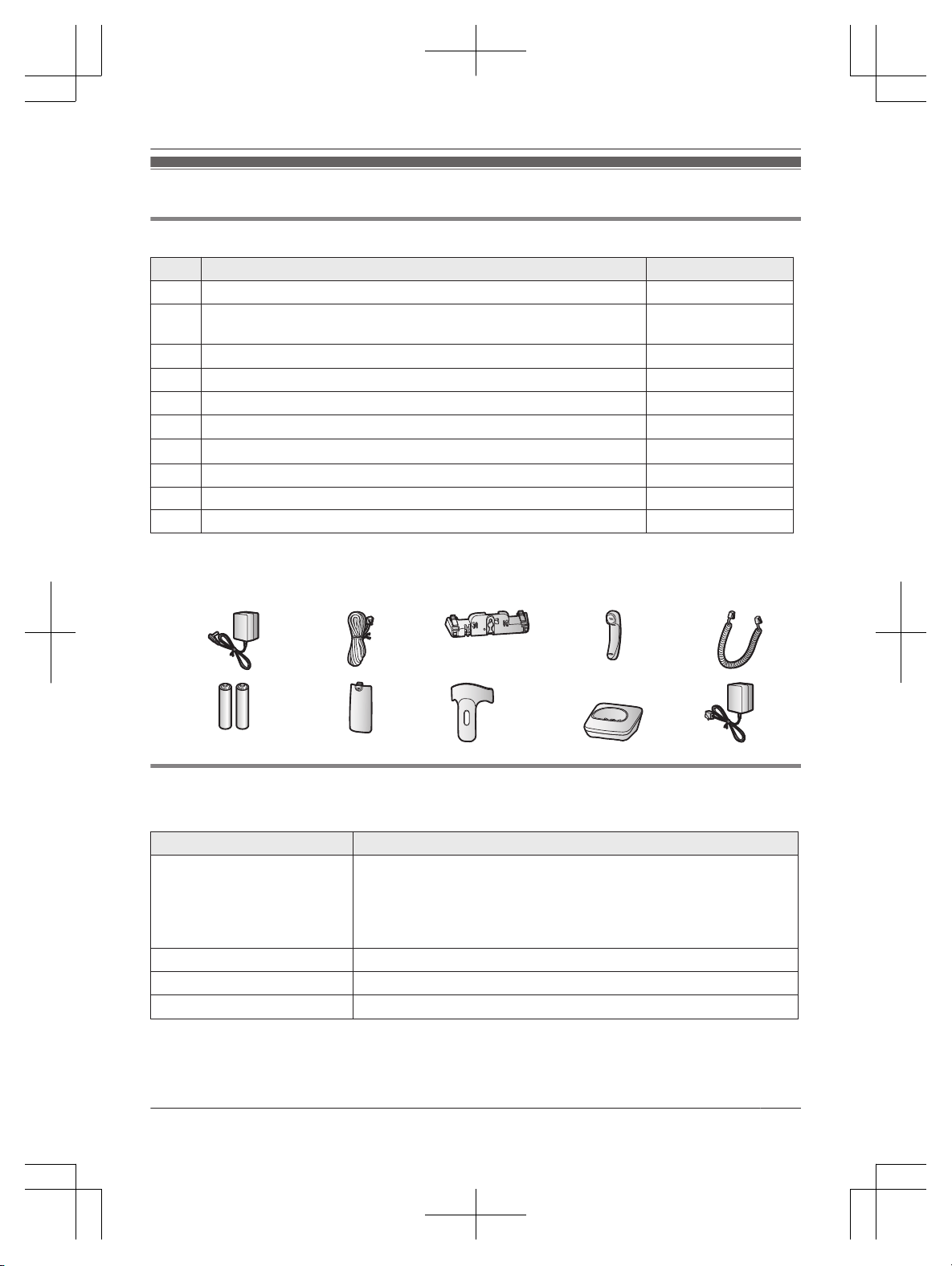
Supplied accessories
No. Accessory item/Part number Quantity
A AC adaptor for base unit/PNLV226E0X 1
B Telephone line cord/PNJA1113Y (Black/for U.K.) or PNJA1037Z
(
Transparence/for U.K.)
1
C
Desk stand/Wall mounting adaptor
*
1
/PNKL1051Z1
1
D Corded handset/PNLXP1005Y 1
E Corded handset cord/PQJA212V 1
F
Rechargeable batteries
*
2
2
G
Handset cover
*
3
1
H Belt clip/PNKE1268Z1 1
I Charger/PNLC1065ZB 1
J AC adaptor for charger/PNLV233EKX 1
*1 The desk stand/wall mounting adaptor comes attached to the base unit.
*
2 See page 3 for replacement battery information.
*3 The handset cover comes attached to the handset.
A
B C D E
F G H I J
Additional/replacement accessories
P
lease contact your nearest Panasonic dealer for sales information.
Accessory item Model number
Rechargeable batteries
*
1
Battery type:
–
Nickel metal hydride (Ni-MH)
– 2 x AAA (R03) size for each handset
– 1.2 V
– Minimum amperage of 550 mAh
Headset RP-TCA400
DECT repeater KX-A405, KX-A406
Key finder
KX-TGA20EX
*
2
*1 Replacement batteries may have a different capacity from that of the supplied batteries.
W
e recommend using Panasonic rechargeable batteries.
Helpline Tel. No.: U.K. 0844 844 3899 Ireland 01289 8333
3
Introduction
TGF320E(en)_1006_ver101.pdf 3 2016/10/06 15:40:12
*2 By registering the key finder (4 max.) to a Panasonic Digital Cordless Phone and attaching it to an
e
asy-to-lose item in advance, you can locate and find the mislaid item to which the key finder is
attached. Please visit our Web site:
www.panasonic.net/pcc/products/telephone/p/tga20/
Please contact Panasonic or authorised sales department for availability of key finder in your area.
Other information
R Design and specifications are subject to change without notice.
R The illustrations in these instructions may vary slightly from the actual product.
Expanding your phone system
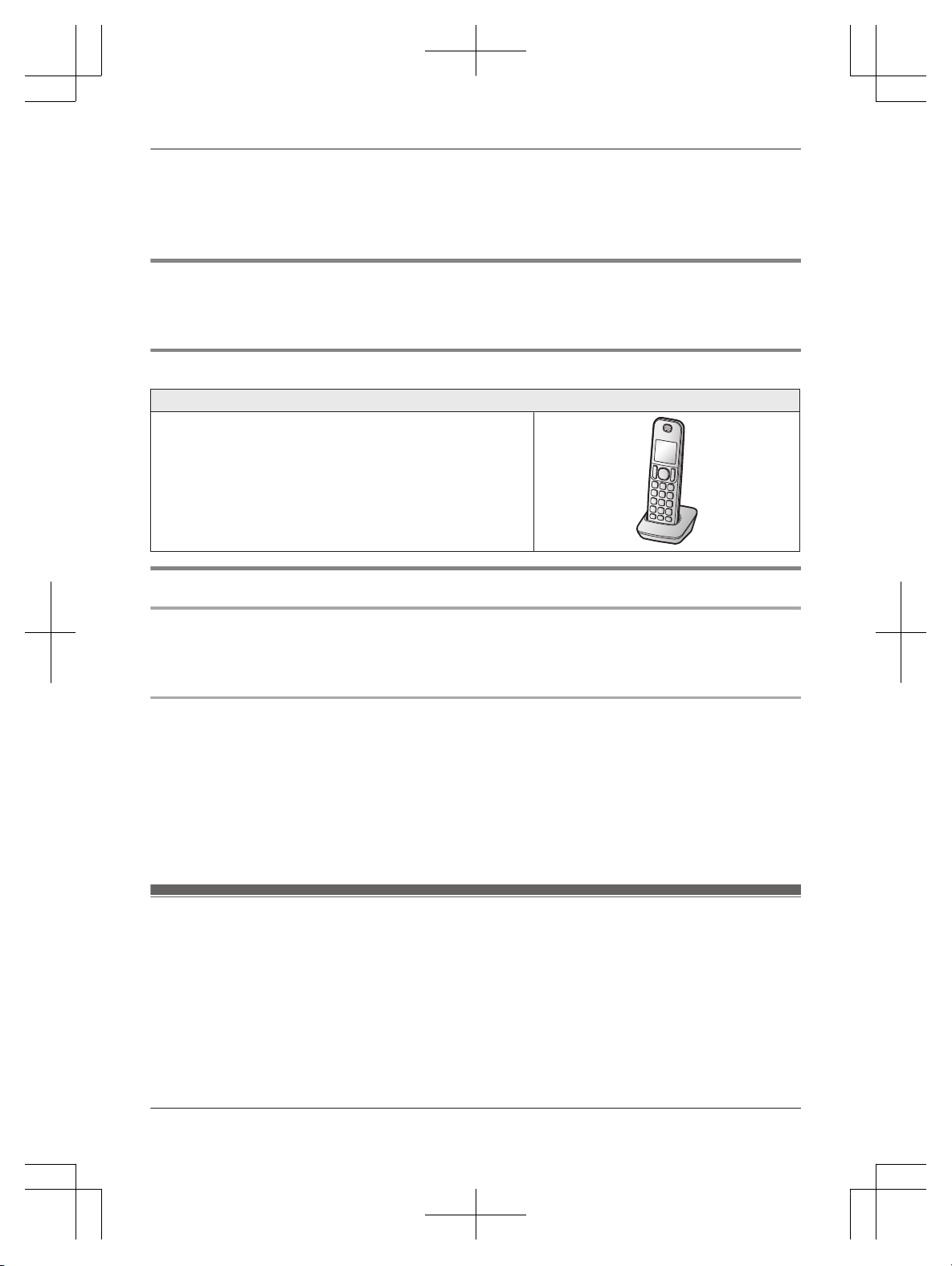
Handset (optional): KX-TGFA30E
You can expand your phone system by registering optional
h
andsets (6 max.) to a single base unit.
R Optional handsets may be a different colour from that of
the supplied handsets.
Sales and support information
Customer Communications Centre
R F
or customers within the U.K.: 0844 844 3899
R For customers within Ireland: 01289 8333
R For further support on your product, please visit our website: www.panasonic.co.uk
Direct Sales at Panasonic U.K.
R O
rder accessory and consumable items for your product with ease and confidence by phoning our
Customer Communications Centre Monday - Friday 9:00am - 5:00pm (Excluding public holidays).
R Go on line through our Internet Accessory ordering application at www.pas-europe.com
R Most major credit and debit cards accepted.
R All enquiries transactions and distribution facilities are provided directly by Panasonic U.K.
R Also available through our Internet is direct shopping for a wide range of finished products. Take a
browse on our website for further details.
shop.panasonic.co.uk/
General information
R T
his equipment is designed for use on the U.K. and Ireland analogue telephone network.
R In the event of problems, you should contact your equipment supplier in the first instance.
Declaration of Conformity:
R Panasonic Corporation declares that the radio equipment type (KX-TGF320) is in compliance with
Directive 2014/53/EU. The full text of the EU declaration of conformity is available at the following
internet address:
http://www.ptc.panasonic.eu/doc
Contact to Authorised Representative:
4
Helpline Tel. No.: U.K. 0844 844 3899 Ireland 01289 8333
Introduction
TGF320E(en)_1222_ver201.pdf 4 2016/12/22 10:29:34
Panasonic Testing Centre
P
anasonic Marketing Europe GmbH
Winsbergring 15, 22525 Hamburg, Germany
Ecodesign information
E
codesign information under EU Regulation (EC) No. 1275/2008 amended by (EU) Regulation No.
801/2013. From 1 January 2015.
Please visit here: http://www.ptc.panasonic.eu/erp
Click [Downloads]
a Energy related products information (Public)
Power consumption in networked standby and guidance are mentioned in the web site above.
For your future reference
W
e recommend keeping a record of the following information to assist with any repair under warranty.
Serial No. Date of purchase
(found on the bottom of the base unit)
Name and address of dealer
Attach your purchase receipt here.
Helpline Tel. No.: U.K. 0844 844 3899 Ireland 01289 8333
5
Introduction
TGF320E(en)_1006_ver101.pdf 5 2016/10/06 15:40:12
For your safety
T
o prevent severe injury and loss of life/property,
read this section carefully before using the product
to ensure proper and safe operation of your
product.
WARNING
Power connection
R U
se only the power source marked on the
product.
R Do not overload power outlets and extension
cords. This can result in the risk of fire or electric
shock.
R Completely insert the AC adaptor/power plug
into the power outlet. Failure to do so may
cause electric shock and/or excessive heat
resulting in a fire.
R Regularly remove any dust, etc. from the AC
adaptor/power plug by pulling it from the power
outlet, then wiping with a dry cloth. Accumulated
dust may cause an insulation defect from
moisture, etc. resulting in a fire.
R Unplug the product from power outlets if it emits
smoke, an abnormal smell, or makes an
unusual noise. These conditions can cause fire
or electric shock. Confirm that smoke has
stopped emitting and contact an authorised
service centre.
R Unplug from power outlets and never touch the
inside of the product if its casing has been
broken open.
R Never touch the plug with wet hands. Danger of
electric shock exists.
Installation
R To prevent the risk of fire or electrical shock, do
not expose the product to rain or any type of
moisture.
R Do not place or use this product near
automatically controlled devices such as
automatic doors and fire alarms. Radio waves
emitted from this product may cause such
devices to malfunction resulting in an accident.
R Do not allow the AC adaptor or telephone line
cord to be excessively pulled, bent or placed
under heavy objects.
Operating safeguards
R U
nplug the product from power outlets before
cleaning. Do not use liquid or aerosol cleaners.
R Do not disassemble the product.
R Do not spill liquids (detergents, cleansers, etc.)
onto the telephone line cord plug, or allow it to
become wet at all. This may cause a fire. If the
telephone line cord plug becomes wet,
immediately pull it from the telephone wall jack,
and do not use.
R Do not excessively pull the corded handset cord
from the base unit. This may cause the base
unit to fall, resulting in injury.
R The use of excessive sound volume through
earphones, headphones, or headsets may
cause hearing loss.
Medical
R C
onsult the manufacturer of any personal
medical devices, such as pacemakers or
hearing aids, to determine if they are adequately
shielded from external RF (radio frequency)
energy. (The product operates in the frequency
range of 1.88 GHz to 1.90 GHz, and the RF
transmission power is 250 mW (max.).)
R Do not use the product in health care facilities if
any regulations posted in the area instruct you
not to do so. Hospitals or health care facilities
may be using equipment that could be sensitive
to external RF energy.
CAUTION
Installation and location
R Never install telephone wiring during an
electrical storm.
R Never install telephone line jacks in wet
locations unless the jack is specifically designed
for wet locations.
R Never touch uninsulated telephone wires or
terminals unless the telephone line has been
disconnected at the network interface.
R Use caution when installing or modifying
telephone lines.
R The AC adaptor is used as the main disconnect
device. Ensure that the AC outlet is installed
near the product and is easily accessible.
R This cordless handset is unable to make calls
when:
– the handset batteries need recharging or
have failed.
– there is a power failure.
6
Helpline Tel. No.: U.K. 0844 844 3899 Ireland 01289 8333
Important Information
TGF320E(en)_0123_ver020.pdf 6 2015/01/23 18:26:28

– the key lock feature is turned on.
Ni-MH rechargeable batteries
R W
e recommend using the batteries noted on
page 3. USE ONLY rechargeable Ni-MH
batteries AAA (R03) size.
R Do not mix old and new batteries.
R Do not open or mutilate the batteries. Released
electrolyte from the batteries is corrosive and
may cause burns or injury to the eyes or skin.
The electrolyte is toxic and may be harmful if
swallowed.
R Exercise care when handling the batteries. Do
not allow conductive materials such as rings,
bracelets, or keys to touch the batteries,
otherwise a short circuit may cause the batteries
and/or the conductive material to overheat and
cause burns.
R Charge the batteries provided with or identified
for use with this product only, in accordance
with the instructions and limitations specified in
this manual.
R Only use a compatible base unit (or charger) to
charge the batteries. Do not tamper with the
base unit (or charger). Failure to follow these
instructions may cause the batteries to swell or
explode.
Note when using alkaline batteries for power
b
ackup
R The batteries should be used correctly,
otherwise the unit may be damaged due to
battery leakage.
R Do not charge, short-circuit, disassemble, or
heat the batteries.
R Do not dispose of batteries in a fire.
R Remove all the batteries when replacing.
R Do not mix old, new or different types of
batteries.
R It is recommended that batteries are replaced
annually.
R It is recommended that batteries are replaced
after a power outage.
Important safety instructions
W
hen using your product, basic safety precautions
should always be followed to reduce the risk of
fire, electric shock, and injury to persons, including
the following:
1. Do not use this product near water for
example, near a bathtub, washbowl, kitchen
sink, or laundry tub, in a wet basement or near
a
swimming pool.
2. Avoid using a telephone (other than a cordless
type) during an electrical storm. There may be
a remote risk of electric shock from lightning.
3. Do not use the telephone to report a gas leak in
the vicinity of the leak.
4. Use only the power cord and batteries
indicated in this manual. Do not dispose of
batteries in a fire. They may explode. Check
with local codes for possible special disposal
instructions.
SAVE THESE INSTRUCTIONS
For best performance
Base unit location/avoiding noise
T
he base unit and other compatible Panasonic
units use radio waves to communicate with each
other.
R For maximum coverage and noise-free
communications, place your base unit:
– at a convenient, high, and central location
with no obstructions between the cordless
handset and base unit in an indoor
environment.
– away from electronic appliances such as TVs,
radios, personal computers, wireless devices,
or other phones.
– facing away from radio frequency
transmitters, such as external antennas of
mobile phone cell stations. (Avoid putting the
base unit on a bay window or near a window.)
R Coverage and voice quality depends on the
local environmental conditions.
R If the reception for a base unit location is not
satisfactory, move the base unit to another
location for better reception.
Environment
R Keep the product away from electrical noise
generating devices, such as fluorescent lamps
and motors.
R The product should be kept free from excessive
smoke, dust, high temperature, and vibration.
R The product should not be exposed to direct
sunlight.
R Do not place heavy objects on top of the
product.
R When you leave the product unused for a long
period of time, unplug the product from the
power outlet.
Helpline Tel. No.: U.K. 0844 844 3899 Ireland 01289 8333
7
Important Information
TGF320E(en)_0123_ver020.pdf 7 2015/01/23 18:26:29
R T
he product should be kept away from heat
sources such as radiators, cookers, etc. It
should not be placed in rooms where the
temperature is less than 0 °C or greater than
40 °C. Damp basements should also be
avoided.
R The maximum calling distance may be
shortened when the product is used in the
following places: Near obstacles such as hills,
tunnels, underground, near metal objects such
as wire fences, etc.
R Operating the product near electrical appliances
may cause interference. Move away from the
electrical appliances.
Routine care
R W
ipe the outer surface of the product with a
soft moist cloth.
R Do not use benzine, thinner, or any abrasive
powder.
Other information
C
AUTION: Risk of explosion if battery is replaced
by an incorrect type. Dispose of used batteries
according to the instructions.
Notice for product disposal, transfer, or return
R T
his product can store your private/confidential
information. To protect your privacy/
confidentiality, we recommend that you erase
information such as phonebook or caller list
entries from the memory before you dispose of,
transfer, or return the product.
Information for Users on Collection and
D
isposal of Old Equipment and used Batteries
1
2
3
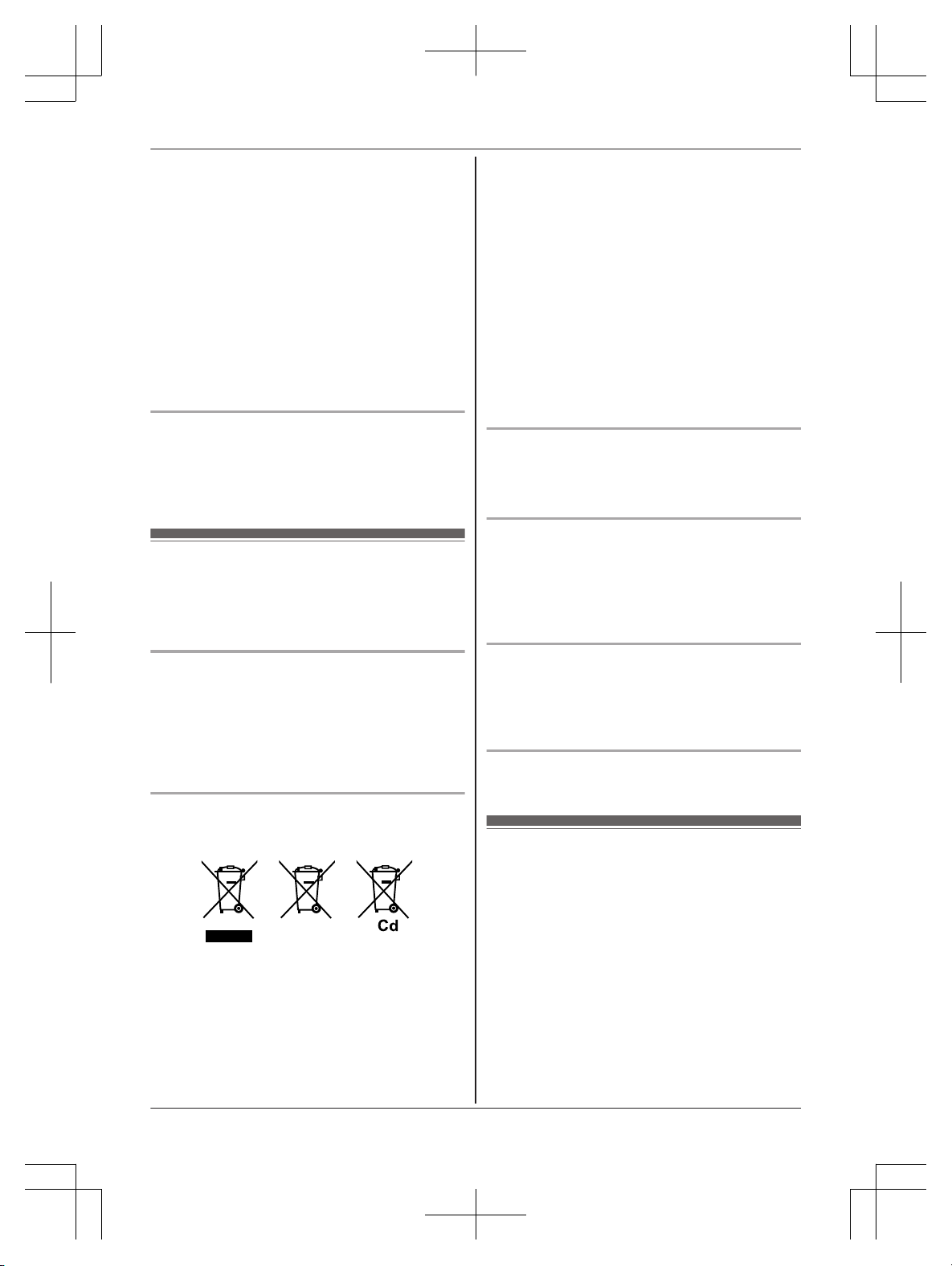
These symbols (A,
B, C) on the products,
packaging, and/or accompanying documents
mean that used electrical and electronic products
and batteries should not be mixed with general
household waste.
For proper treatment, recovery and recycling of old
products and used batteries, please take them to
applicable collection points, in accordance with
your national legislation and the Directives
2
002/96/EC and 2006/66/EC.
By disposing of these products and batteries
correctly, you will help to save valuable resources
and prevent any potential negative effects on
human health and the environment which could
otherwise arise from inappropriate waste handling.
For more information about collection and
recycling of old products and batteries, please
contact your local municipality, your waste
disposal service or the point of sale where you
purchased the items.
Penalties may be applicable for incorrect disposal
of this waste, in accordance with national
legislation.
For business users in the European Union
I
f you wish to discard electrical and electronic
equipment, please contact your dealer or supplier
for further information.
Information on Disposal in other Countries
o
utside the European Union
These symbols (A, B, C) are only valid in the
European Union. If you wish to discard these
items, please contact your local authorities or
dealer and ask for the correct method of disposal.
Note for the battery symbol
T
his symbol (B) might be used in combination
with a chemical symbol (C). In this case it
complies with the requirement set by the Directive
for the chemical involved.
Note for battery removal procedure
R
efer to “Handset battery charging” on page 11.
Specifications
R S
tandard:
DECT (Digital Enhanced Cordless
Telecommunications),
GAP (Generic Access Profile)
R Frequency range:
1.88 GHz to 1.90 GHz
R RF transmission power:
Approx. 10 mW (average power per channel)
250 mW (max.)
R Power source:
100–240 V AC, 50/60 Hz
R Power consumption:
Base unit:
8
Helpline Tel. No.: U.K. 0844 844 3899 Ireland 01289 8333
Important Information
TGF320E(en)_1006_ver101.pdf 8 2016/10/06 15:40:12

Standby: Approx. 0.6 W
M
aximum: Approx. 2.8 W
Charger:
Standby: Approx. 0.12 W
Maximum: Approx. 1.8 W
R Operating conditions:
0 °C–40 °C, 20 %–80 % relative air humidity
(dry)
Helpline Tel. No.: U.K. 0844 844 3899 Ireland 01289 8333
9
Important Information
TGF320E(en)_1006_ver101.pdf 9 2016/10/06 15:40:12
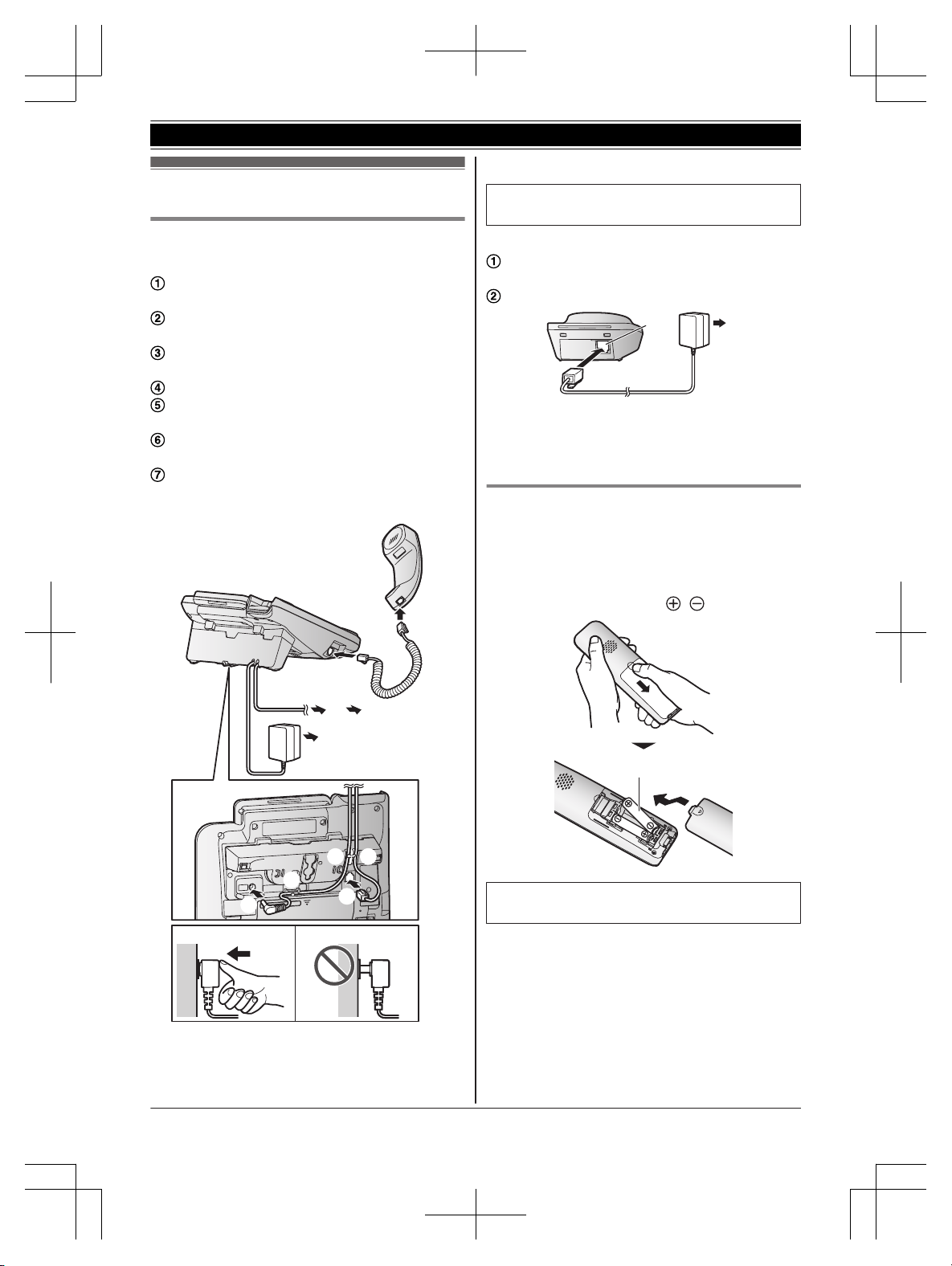
Setting up
Connections
n
Base unit
Connect the AC adaptor to the unit by
p
ressing the plug firmly.
Connect the telephone line cord to the unit
u
ntil you hear a click.
Fasten the AC adaptor cord and the telephone
l
ine cord by hooking it.
Connect the AC adaptor to the power outlet.
Connect the telephone line cord to the
t
elephone line jack until you hear a click.
A DSL/ADSL filter (not supplied) is required if
y
ou have a DSL/ADSL service.
Connect the corded handset cord to the
c
orded handset and the base unit until you
hear a click.
7
7
1
4
6 5
1
2
3 3
3
Note:
R U
se only the supplied Panasonic AC adaptor
PNLV226E.
R U
se only the supplied telephone line cord.
R F
ollow the directions on the display to set up
the unit.
n
Charger
Connect the AC adaptor plug to the unit until
y
ou hear a click.
Connect the AC adaptor to the power outlet.
1
2
Note:
R U
se only the supplied Panasonic AC adaptor
PNLV233E.
Handset battery installation
R U
SE ONLY rechargeable Ni-MH batteries AAA
(R03) size (
1
).
R D
o NOT use alkaline/manganese/Ni-Cd
batteries.
R Confirm correct polarities (
, ).
1
R F
ollow the directions on the display to set up
the unit.
10
Helpline Tel. No.: U.K. 0844 844 3899 Ireland 01289 8333
Getting Started
TGF320E(en)_0123_ver020.pdf 10 2015/01/23 18:26:29
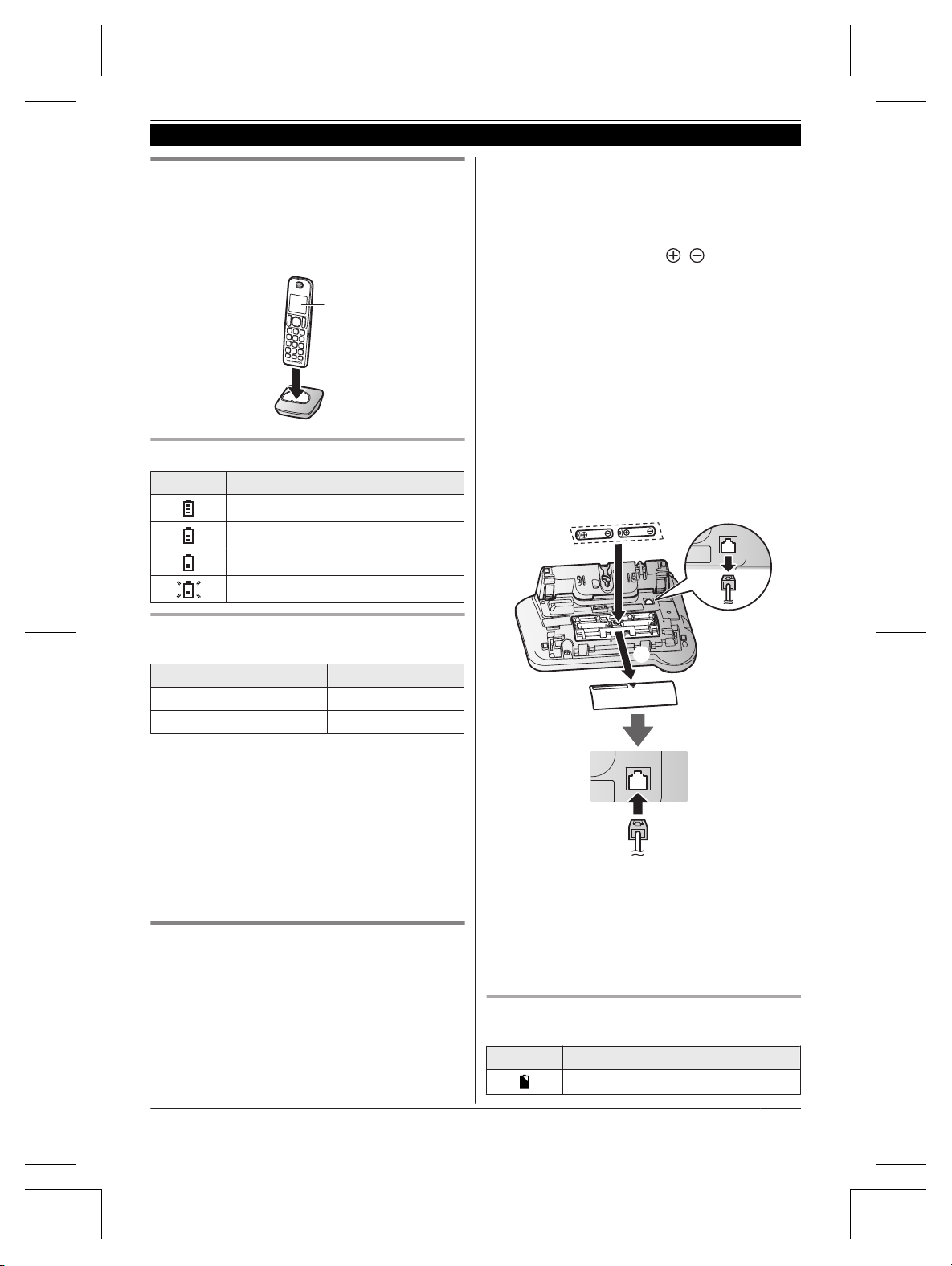
Handset battery charging
C
harge for about 7 hours.
R Confirm “Charging” is displayed (
1
).
R W
hen the batteries are fully charged, “Fully
Charged” is displayed.
1
Handset battery level
Icon Battery level
High
Medium
Low
Needs charging.
Panasonic Ni-MH battery performance
(
supplied batteries)
Operation Operating time
In continuous use 17 hours max.
Not in use (standby) 330 hours max.
Note:
R A
ctual battery performance depends on usage
and ambient environment.
R When eco mode is set to “Eco Plus”, the
base unit stops communicating with the handset
while it is in standby mode. As a result, the
handset uses more power than usual to search
for the base unit and therefore battery usage
time is shortened (page 16).
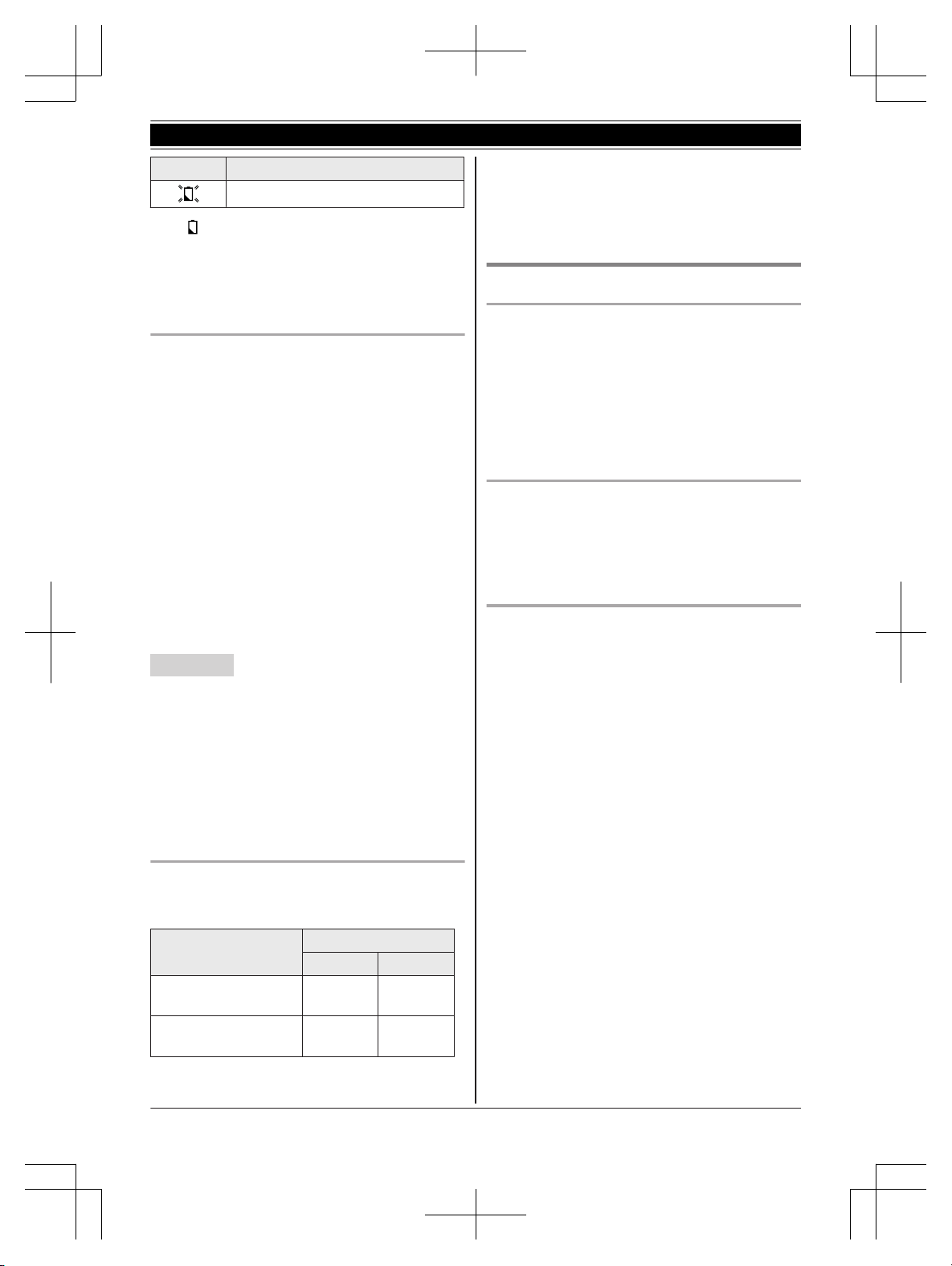
Base unit battery installation (for
p
ower backup)
You can insert 2 AAA (R03) batteries (not
supplied) into the base unit that will power the unit
temporarily in the event of a power failure.
Important:
R The following batteries can be used with the
base unit:
– Rechargeable Ni-MH batteries
*
1,
*2
(including
the batteries used in your handset(s))
– Standard (non-rechargeable) alkaline
batteries
*3
R Do NOT use manganese batteries.
R Confirm correct polarities (
, ).
*
1 The base unit can fully charge Ni-MH batteries
in about 15 hours.
*2 We recommend using Panasonic
rechargeable batteries (page 3).
*3 Only insert alkaline batteries once a power
failure occurs. Remove the alkaline batteries
when power is restored.
1 Disconnect the telephone line cord (A).
2 Open the battery cover (B).
3 Install the batteries in the battery compartment
(C).
4 Close the cover, then reconnect the telephone
line cord (D).
B
C
D
A
Note:
R If your phone service provider requires
additional devices in order to make and receive
calls, such as a modem, you may still not be
able to make and receive calls even if the base
unit’s backup power feature is functioning.
Base unit battery status when a power failure
o
ccurs
Icon Battery status
Power backup mode is on.
Helpline Tel. No.: U.K. 0844 844 3899 Ireland 01289 8333
11
Getting Started
TGF320E(en)_0123_ver020.pdf 11 2015/01/23 18:26:29
Icon Battery status
Battery power is low.
*1
*1
I
f
begins flashing on the base unit, replace
t
he batteries with new ones as soon as
possible. If you replace Ni-MH batteries with
alkaline batteries, insert the Ni-MH batteries
into the base unit again after the power is
restored so that they will be recharged.
Battery saving mode setting
This feature allows the base unit to reduce its
power consumption by limiting the available
functions and therefore extend battery life during a
power failure.
The following settings are available:
– “On” : The unit will work as a standard
telephone. Only the corded handset can be
used to make and receive calls. (You cannot
use the base unit display, phonebook,
one-touch dial, answering system,
speakerphone, etc.)
The base unit display is blank.
– “Off” (default): You can use the full functions
of the base unit, but battery life is not extended.
The brightness level for the base unit display is
lowered.
Base unit
1 MM
ENUN#150
2 MbN: Select the desired setting.
3 MOKN a MEXITN
Note:
R Once the battery saving mode is set to “On”,
the unit rings with the volume level 1 even if the
ringer volume for the base unit is set to “Off” to
let you know an incoming call is being received.
Panasonic Ni-MH battery performance
(
optional batteries) when operating on backup
battery power
Operation
Saving mode
Off On
In continuous use 3 hours
m
ax.
10 hours
max.
Not in use (standby) 4 hours
m
ax.
12 hours
max.
Note:
R B
attery performance depends on the type of
batteries.
R Actual battery performance depends on usage
and ambient environment.
Note when setting up
Note for connections
R T
he AC adaptor must remain connected at all
times. (It is normal for the adaptor to feel warm
during use.)
R The AC adaptor should be connected to a
vertically oriented or floor-mounted AC outlet.
Do not connect the AC adaptor to a
ceiling-mounted AC outlet, as the weight of the
adaptor may cause it to become disconnected.
Note for Ni-MH battery installation
R H
andset: Use the supplied rechargeable
batteries.
R Handset/Base unit: For replacement, we
recommend using the Panasonic rechargeable
batteries noted on page 3, 7.
Note for battery charging
R I
t is normal for the handset to feel warm during
charging.
R Clean the charge contacts of the handset and
charger with a soft and dry cloth once a month.
Before cleaning the unit, disconnect from power
outlets and any telephone line cords. Clean
more often if the unit is exposed to grease, dust,
or high humidity.
12
Helpline Tel. No.: U.K. 0844 844 3899 Ireland 01289 8333
Getting Started
TGF320E(en)_0123_ver020.pdf 12 2015/01/23 18:26:29
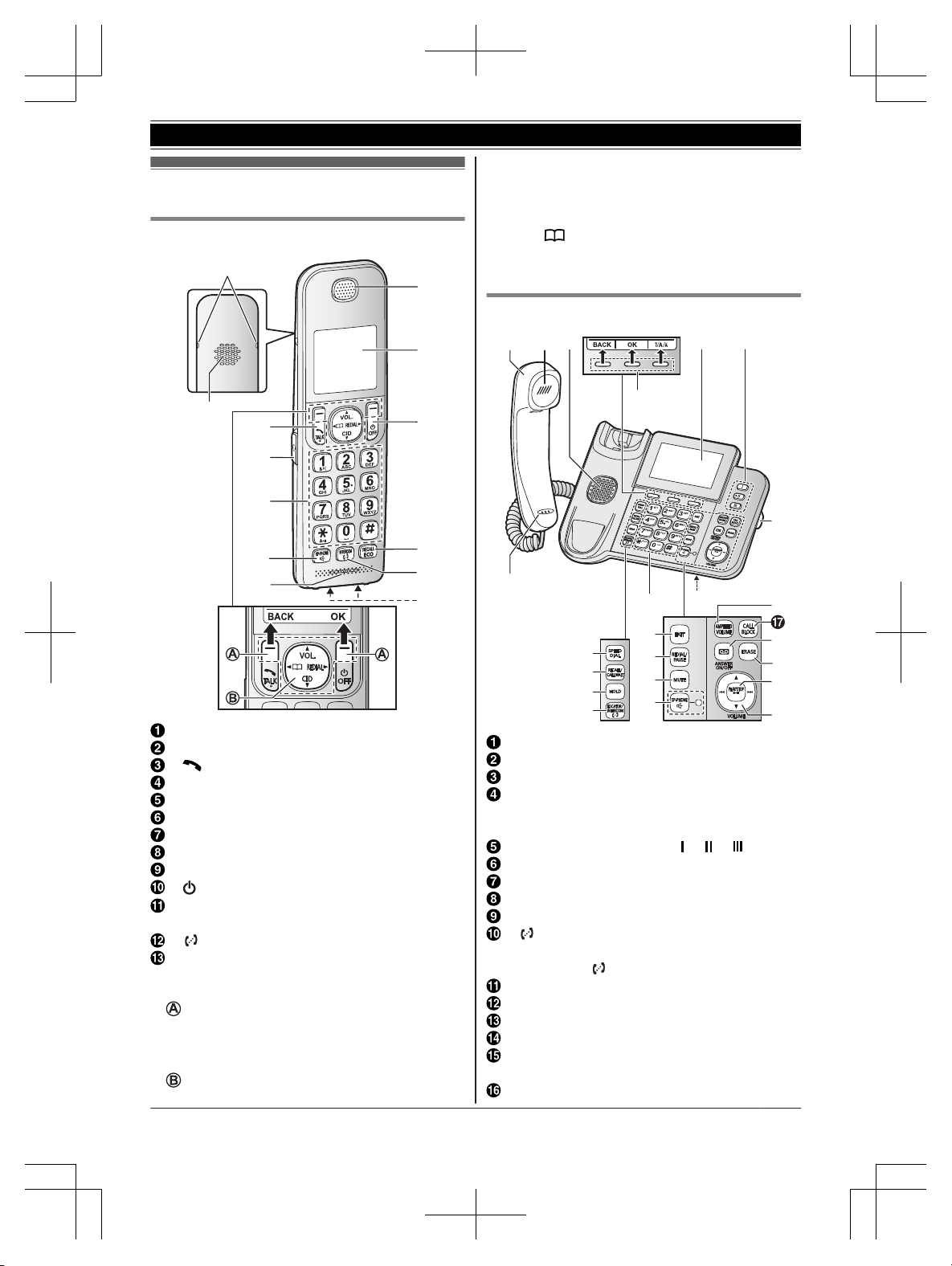
Controls
Handset
I
K
L
H
M
E
D
C
F
G
B
A
J
Belt clip holes
Speaker
M N
(TALK)
Headset jack
Dial keypad
MZN
(SP-PHONE: Speakerphone)
Microphone
Receiver
Display
M N
(Power) MOFFN
MR
ECALLN MECON
ECO: Eco mode shortcut key
M N
(INTERCOM)
Charge contacts
n C
ontrol type
S
oft keys
By pressing a soft key, you can select the
feature shown directly above it on the display.
(Example: MENU, OK, etc.)
N
avigator key
– MDN,
MCN, MFN, or MEN: Scroll through various
lists and items.
– VOL. (Volume: MDN or MCN): Adjust the
receiver or speaker volume while talking.
– MFN
: View the phonebook entry.
– MEN
REDIAL: View the redial list.
– MCN CID (Caller ID): View the caller list.
Base unit
A
G
H
I
J
EA B DC
F
F
U
M
N
L
B
P
R
S
T
K
O
Corded handset
Receiver
Speaker
Display
R T
he display can be moved back and forth to
select the desired angle.
One touch dial buttons (M N/M N/M N)
Microphone
MS
PEED DIALN
MRECALLN MCALL WAITN
MH
OLDN
M N (LOCATOR/INTERCOM)
R You can locate a misplaced handset by
pressing M N.
Dial keypad
ME
XITN
MR
EDIALN MPAUSEN
MM
UTEN
MZN
(SP-PHONE: Speakerphone)
SP-PHONE indicator
MA
MPLIFIED VOLUMEN
Helpline Tel. No.: U.K. 0844 844 3899 Ireland 01289 8333
13
Getting Started
TGF320E(en)_0123_ver020.pdf 13 2015/01/23 18:26:29
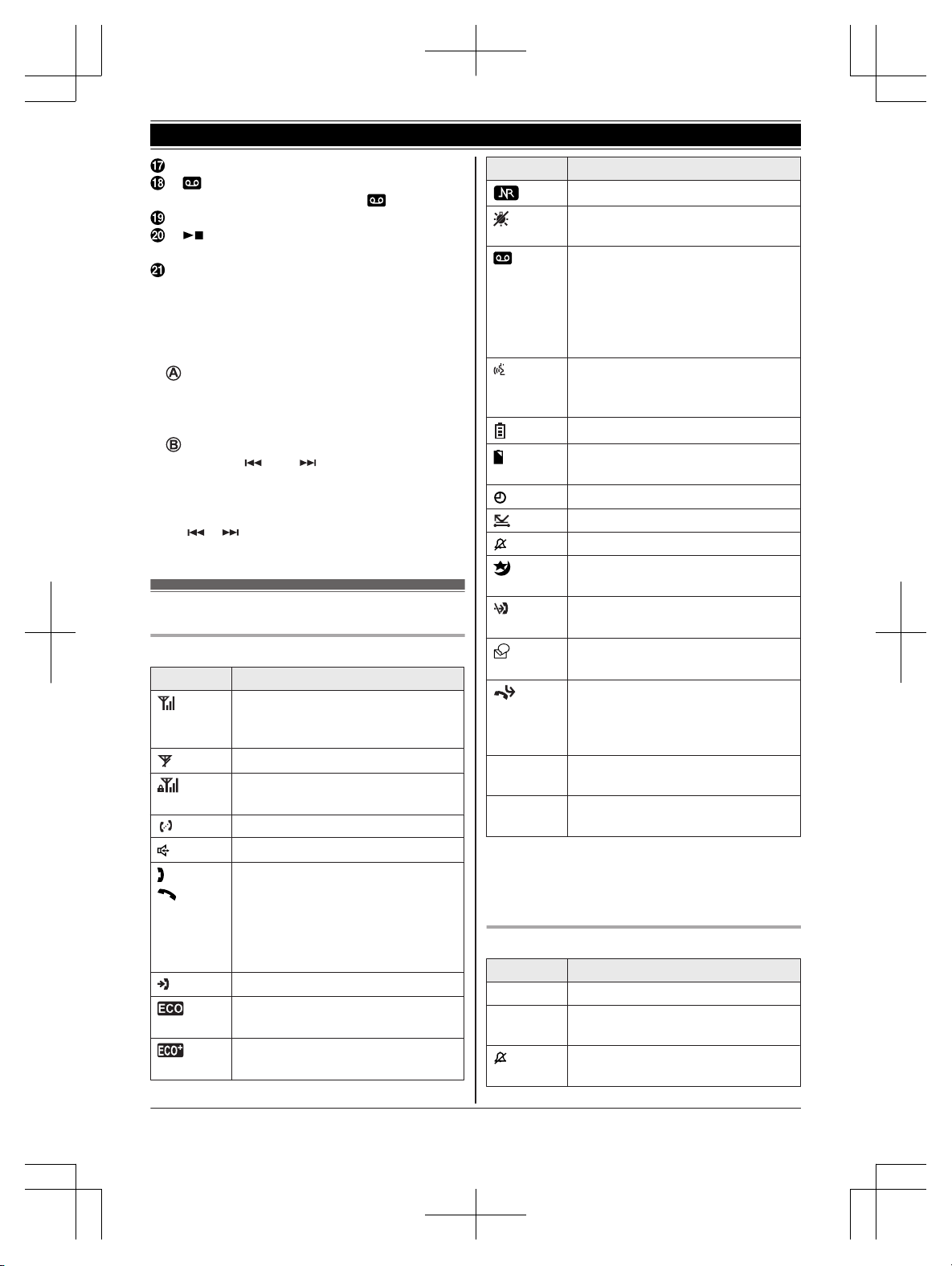
MC
ALL BLOCKN
M N
(ANSWER ON/OFF)
ANSWER ON/OFF indicator (
)
ME
RASEN
M N
(PLAY/STOP)
Message indicator
Desk stand/Wall mounting adaptor
R T
he adaptor is a removable attachment for
desk stand or wall mounting use
(page 48).
n Control type
Soft keys
B
y pressing a soft key, you can select the
feature shown directly above it on the display.
(Example: MENU, OK, etc.)
Navigator key
– MDN,
MCN, M
N,
or M
N:
Scroll through
various lists and items.
– VOLUME (MDN or MCN): Adjust the receiver or
speaker volume while talking.
– M
N/M N:
Repeat/skip messages during
playback.
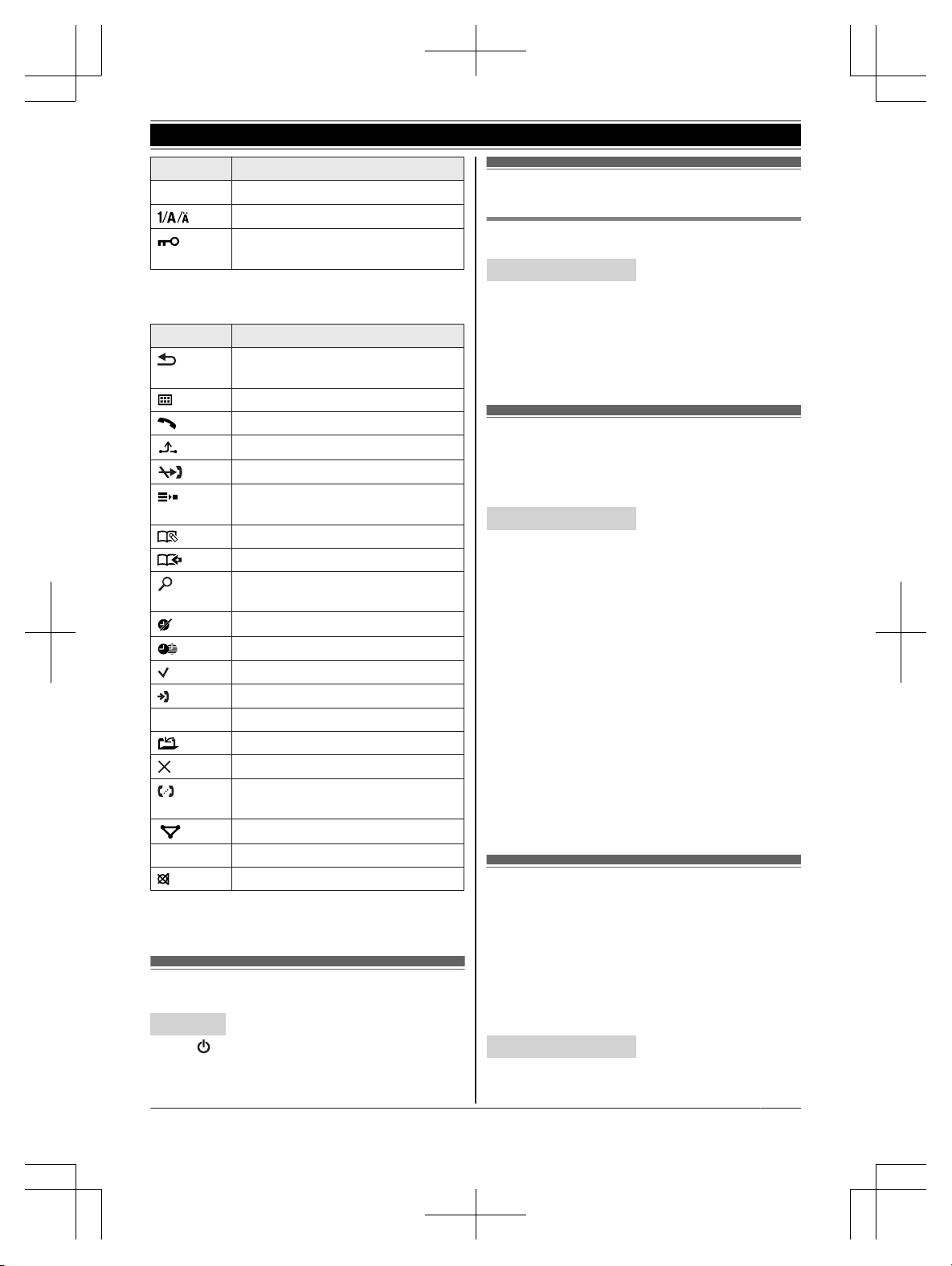
Display icons
Display items
Item Meaning
*1
Range status: The more bars
v
isible, the closer the handset is to
the base unit.
*1
Out of base unit range
Security for phone calls is set to
“E
nhanced”. (page 37)
Paging, intercom mode
*1
Speakerphone is on. (page 17)
*1
*2
The line is in use.
R W
hen flashing slowly: The call is
put on hold.
R When flashing rapidly: An
incoming call is now being
received.
Missed call
*
3
(page 39)
Eco mode is set to “E
co”.
(page 16)
Eco mode is set to “E
co Plus”.
(page 16)
Item Meaning
*1
Noise reduction is set. (page 19)
*1
The LCD and key backlight is off.
(
page 31)
R W
hen displayed next to the
battery icon: Answering system
is on.
*1
(page 41)
R When displayed with a number:
New messages have been
recorded. (page 42)
“G
reeting Only” is selected.
Caller messages are not recorded.
(page 47)
*1
Battery level
*2
Power backup mode is on.
(
page 11)
*1
Alarm is on. (page 33)
Privacy mode is on. (page 31)
Ringer volume is off. (page 30)
Do not disturb mode is on.
(page 34)
Nuisance call blocked.
*
3
(page 22)
New voicemail message
received.
*4
(page 48)
*1
Baby monitor is activated. The
n
ame/number displayed next to the
icon indicates the monitoring unit.
(page 34)
Line in
u
se
Someone is using the line.
IN USE
Answering system is being used by
a
nother handset or the base unit.
*1 Handset
*2 Base unit
*3 Caller ID subscribers only
*4 Voicemail subscribers only
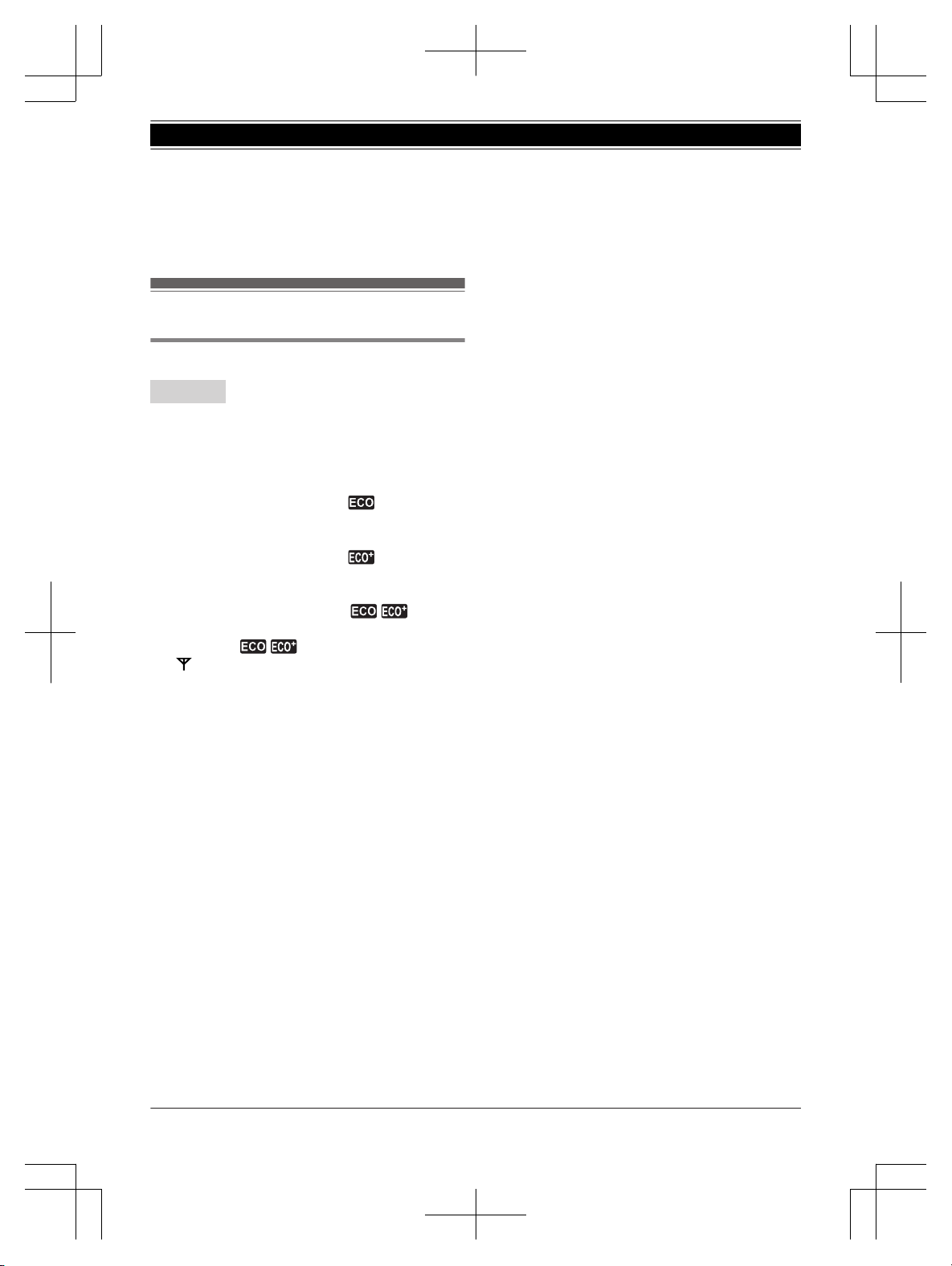
Soft key icons
Icon Action
OK Accepts the current selection.
12/24
*
1
Sets 24-hour or 12-hour clock
f
ormat. (page 15)
Temporarily turns off the ringer for
i
ncoming calls. (page 18)
14
Helpline Tel. No.: U.K. 0844 844 3899 Ireland 01289 8333
Getting Started
TGF320E(en)_0123_ver020.pdf 14 2015/01/23 18:26:29
Icon Action
W
*1
Opens the phonebook.
*1
Selects a character entry mode.
*2
Turns the key lock feature off.
(page 21)
n
When you select a language other than
English
Icon Action
Returns to the previous screen or
o
utside call.
Displays the menu.
Makes a call.
*2
Places a call on hold.
*2
Rejects c
alls from unwanted callers.
*1
Switches the screen to confirm the
d
etailed information.
Allows you to edit phone numbers.
Adds new entry.
Displays the phonebook search
menu.
*2
Stops alarm.
*2
Snooze button on the alarm.
Selects entries or handsets.
*1
Opens the caller list.
n
Stops recording or playback.
Stores phone numbers.
Erases the selected item.
*2
Allows you to make an intercom
c
all.
*1
Establishes a conference call.
C Erases a number/character.
Puts the call on mute.
*1 Base unit
*
2 Handset
Turning the power on/off
Handset
P
ress M
N
for about 2 seconds.
Language setting
Display language
Handset / Base unit
1 MM
ENUN#110
2 MbN: Select your desired language. a MOKN
3 Proceed with the operation for your unit.
Handset: MOFFN
Base unit: MEXITN
Date and time
Y
ou can configure this setting using either the
base unit or one of the handsets.
Handset / Base unit
1 MM
ENUN#101
2 Enter the current date, month, and year. a
MOKN
Example: 12 July, 2015
12 07 15
3 Enter the current hour and minute.
Example: 9:30
09 30
R You can select 24-hour or 12-hour clock
format (“AM” or “PM”) by:
– pressing * on the handset.
– pressing M12/24N on the base unit.
4 MOKN
5 Proceed with the operation for your unit.
Handset: MOFFN
Base unit: MEXITN
Recording your greeting
m
essage
You can record your own greeting message
instead of using a pre-recorded greeting message.
See page 41 for details.
You can configure this setting using either the
base unit or one of the handsets.
Handset / Base unit
1 MM
ENUN#302
Helpline Tel. No.: U.K. 0844 844 3899 Ireland 01289 8333
15
Getting Started
TGF320E(en)_0123_ver020.pdf 15 2015/01/23 18:26:29
2 MbN:
“Yes” a MOKN
3 Record a greeting message. a MSTOPN
4 Proceed with the operation for your unit.
Handset: MOFFN
Base unit: MEXITN
Other settings
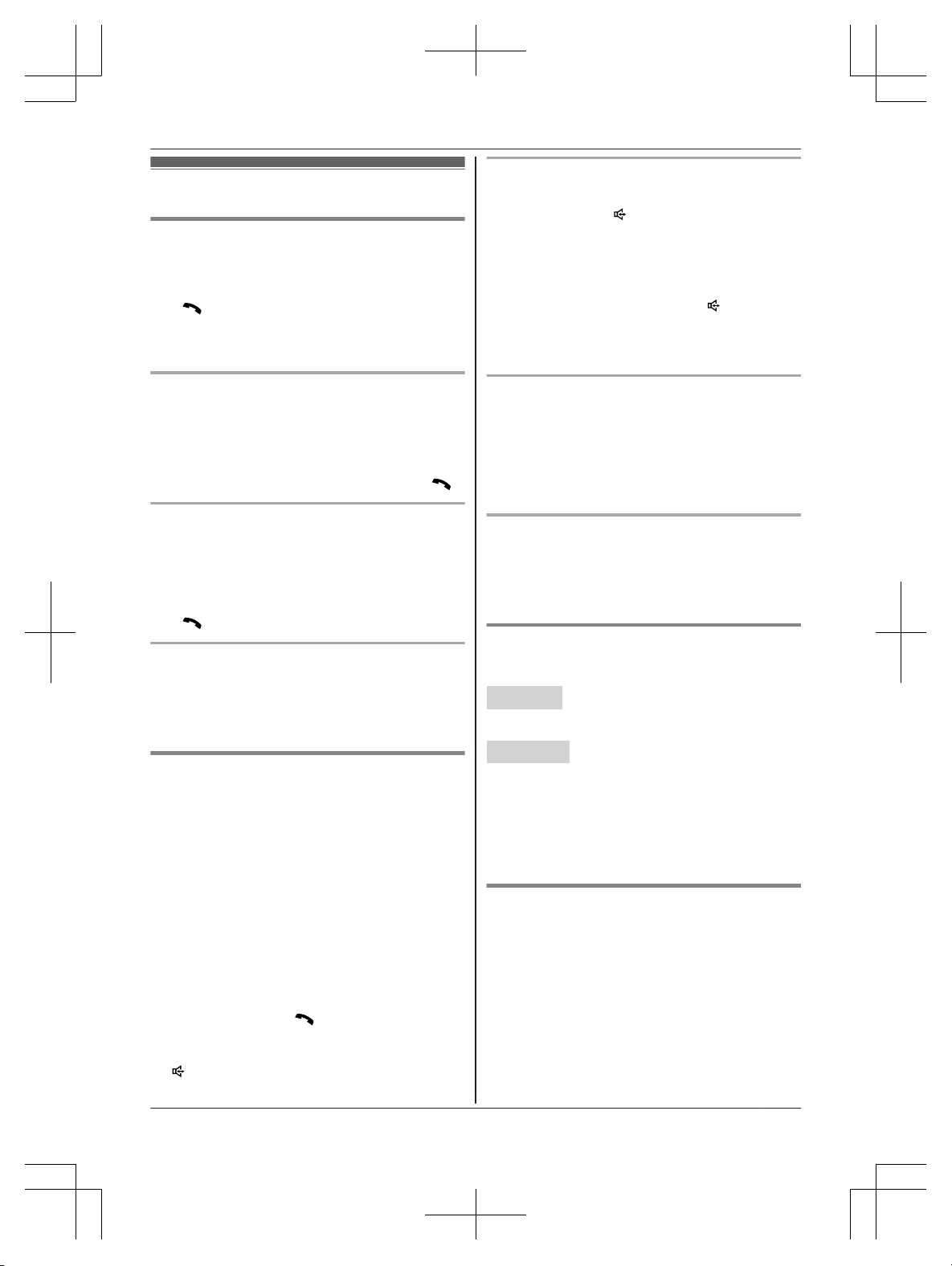
Eco mode setting
Handset
Y
ou can select the desired eco mode setting by
pressing MECON.
The following settings are available for eco mode.
– “Eco”: Reduces the base unit transmission
power by up to 90 % in standby mode.
When this setting is selected,
i
s displayed.
*1
– “Eco Plus”: Reduces the base unit
transmission power completely in standby mode.
When this setting is selected,
i
s displayed.
*1
– “Eco Off” (default setting): Turns off eco
mode.
When this setting is selected,
/ are not
d
isplayed.
*1
Handset:
/ are displayed instead of
.
N
ote:
R If there is a handset that is not compatible with
Eco Plus registered to the base unit, “Eco
Plus” is not available. If that handset is
registered while “Eco Plus” was already
selected, the setting changes to “Eco Off”.
R When there is another cordless phone in use
nearby, the base unit transmission power may
not be reduced.
R When eco mode is set to “Eco Plus”, there is
a delay between when calls are received and
when the handset starts ringing.
R When eco mode is active, the range of the base
unit is reduced in standby mode.
R If you set repeater mode to “On” (page 38):
– Eco mode is disabled.
– “Eco Mode” is not displayed in the display
menu (page 31).
R When eco mode is set to “Eco Plus”, battery
usage time is shortened (page 11).
16
Helpline Tel. No.: U.K. 0844 844 3899 Ireland 01289 8333
Getting Started
TGF320E(en)_0123_ver020.pdf 16 2015/01/23 18:26:29
Making calls
Using the handset
1 L
ift the handset and dial the phone number.
R To correct a digit, press MCLEARN.
2 M
N
3 W
hen you finish talking, press MOFFN or place
the handset on the charger.
Using the speakerphone
1 D
ial the phone number and press MZN.
2 When you finish talking, press MOFFN.
Note:
R To switch back to the receiver, press MZN/M
N.
Making a call using the redial list
T
he last 10 phone numbers dialled are stored in
the redial list (each 24 digits max.).
1 MEN REDIAL
2 MbN: Select the desired entry.
3 M
N
Erasing a number in the redial list
1 MEN
REDIAL
2 MbN: Select the desired entry. a MERASEN
3 MbN: “Yes” a MOKN a MOFFN
Using the base unit
1 D
ial the phone number.
R To correct a digit, press MCLEARN.
2 Lift the corded handset.
3 When you finish talking, place the corded
handset on the cradle.
Note:
R You can also dial the phone number after lifting
the corded handset.
R While on a call, you can switch from the base
unit to the cordless handset as follows.
The privacy mode must be off (page 31).
A Handset: Press M
N.
B
Base unit: Place the corded handset on the
cradle. When the speakerphone is used, press
M
N.
Using the speakerphone
1 D
uring a conversation with the corded
handset, press M
N
to turn on the
speakerphone.
R You can place the corded handset on the
cradle.
R Speak into the base unit microphone.
2 When you finish talking, press M
N.
N
ote:
R To switch to the receiver, lift the corded handset.
Making a call using the redial list
T
he last 10 phone numbers dialed are stored in
the redial list (each 24 digits max.).
1 MREDIALN
2 MbN: Select the desired entry.
3 Lift the corded handset.
Erasing a number in the redial list
1 MR
EDIALN
2 MbN: Select the desired entry. a MERASEN
3 MbN: “Yes” a MOKN a MEXITN
Adjusting the receiver or speaker
v
olume
Handset
P
ress MDN or MCN repeatedly while talking.
Base unit
P
ress MDN or MCN repeatedly while talking.
OR
Press MAMPLIFIED VOLUMEN repeatedly while
talking.
R Each press MAMPLIFIED VOLUMEN, receiver/
speaker volume is increased by several levels.
Pause (for PBX/long distance service
u
sers)
A pause is sometimes required when making calls
using a PBX or long distance service. When
storing a calling card access number and/or PIN in
the phonebook, a pause is also needed
(page 25).
Example: If you need to dial the line access
number “0” when making outside calls with a PBX:
Helpline Tel. No.: U.K. 0844 844 3899 Ireland 01289 8333
17
Making/Answering Calls
TGF320E(en)_0123_ver020.pdf 17 2015/01/23 18:26:29
Handset
1 0 a MDN
(Pause)
2 Dial the phone number. a M
N
Base unit
1 0 a MP
AUSEN
2 Dial the phone number.
3 Lift the corded handset.
Note for handset and base unit:
R A 3 second pause is inserted each time you
press MDN (Pause) on the handset or MPAUSEN
on the base unit.
Answering calls
Using the handset
1 L
ift the handset and press M
N
or MZN when
the unit rings.
2 When you finish talking, press MOFFN or place
the handset on the charger.
Any key answer: You can answer the call by
pressing any dial key.
Auto talk: You can answer calls simply by lifting
the handset (page 31).
Temporary ringer off: You can turn the ringer off
temporarily by pressing M
N.
Using the base unit
1 L
ift the corded handset or press MZN when the
unit rings.
2 When you finish talking, place the corded
handset on the cradle. When the
speakerphone is used, press MZN.
Temporary ringer off: You can turn the ringer off
temporarily by pressing M
N.
Adjusting the ringer volume
Handset
P
ress MDN or MCN repeatedly to select the desired
volume while ringing.
Base unit
P
ress MDN or MCN repeatedly to select the desired
volume while ringing.
OR
P
ress MAMPLIFIED VOLUMEN repeatedly to
select the desired volume while ringing.
R Each press MAMPLIFIED VOLUMEN, ringer
volume is increased by several levels.
Useful features during a call
Hold
Handset
1 P
ress MMENUN during an outside call.
2 MbN: “Hold” a MOKN
3 To release hold, press M
N.
R A
nother handset user can take the call by
pressing M
N.
R T
he base unit user can take the call by
lifting the corded handset.
Base unit
1 P
ress MHOLDN during an outside call.
R If you are using the corded handset, you
can place it on the cradle.
2 To release hold, lift the corded handset.
R A handset user can take the call by
pressing M
N.
N
ote for handset and base unit:
R While an outside call is on hold, the SP-PHONE
indicator flashes.
R After holding for 10 minutes, the call is
disconnected.
Mute
Handset / Base unit
1 P
ress MMUTEN during a call.
2 To return to the call, press MMUTEN.
Note:
R MMUTEN is a soft key visible on the display
during a call.
18
Helpline Tel. No.: U.K. 0844 844 3899 Ireland 01289 8333
Making/Answering Calls
TGF320E(en)_0123_ver020.pdf 18 2015/01/23 18:26:29
Recall/flash
Handset / Base unit
MR
ECALLN allows you to use the special features
of your host PBX such as transferring an extension
call, or accessing optional telephone services.
Note:
R To change the recall/flash time, see page 31.
For call waiting or Call Waiting Caller
I
D service users
To use call waiting or Call Waiting Caller ID, you
must first subscribe with your phone service
provider.
This feature allows you to receive calls while you
are already talking on the phone. If you receive a
call while on the phone, you will hear a call waiting
tone.
If you subscribe to both Caller ID and Call
Waiting with Caller ID services, the 2nd caller’s
information is displayed on the handset or base
unit that is in use after you hear the call waiting
tone.
Handset / Base unit
1 P
ress MRECALLN on the handset or MCALL
WAITN on the base unit to answer the 2nd call.
2 To switch between calls, press MRECALLN on
the handset or MCALL WAITN on the base unit.
Note:
R Please contact your phone service provider for
details and availability of this service in your
area.
Handset noise reduction
T
his feature allows you to hear the voice of the
person you are talking to more clearly, by reducing
the surrounding noise coming from the other
party’s telephone.
1 Press MMENUN while talking.
2 MbN: “Noise Reduction On” or “Noise
Reduction Off” a MOKN
Note:
R Depending on the environment where this
handset is being used, this feature may not be
effective.
R T
his feature is not available while using the
speakerphone.
Handset equalizer
This feature clarifies the voice of the person you
are talking to, producing a more natural-sounding
voice that is easier to hear and understand.
1 Press MMENUN while talking.
2 MbN: “Equalizer” a MOKN
3 MbN: Select the desired setting.
4 Press MOKN to exit.
Note:
R Depending on the condition and quality of your
telephone line, this feature may emphasise
existing line noise. If it becomes difficult to hear,
turn this feature off.
R This feature is not available while using the
speakerphone.
Call share
Y
ou can join an existing outside call.
Handset
To join the conversation, press M N when the
other unit is on an outside call.
Base unit
T
o join the conversation, lift the corded handset
when the handset is on an outside call.
Note for handset and base unit:
R To prevent other users from joining your
conversations with outside callers, turn the
privacy mode on (page 31).
Transferring calls, conference calls
O
utside calls can be transferred or a conference
call with an outside party can be made:
– between 2 handsets
– between a handset and the base unit
Handset
1 D
uring an outside call, press M
N.
W
hen 2 or more handsets are registered:
MbN: Select the desired unit. a MOKN
2 Wait for the paged party to answer.
R If the paged party does not answer, press
MBACKN to return to the outside call.
Helpline Tel. No.: U.K. 0844 844 3899 Ireland 01289 8333
19
Making/Answering Calls
TGF320E(en)_0123_ver020.pdf 19 2015/01/23 18:26:29
3 T
o complete the transfer:
Press MOFFN.
To establish a conference call:
MMENUN a MbN: “Conference” a MOKN
R To leave the conference, press MOFFN. The
other 2 parties can continue the
conversation.
R To put the outside call on hold: MMENUN a
MbN: “Hold” a MOKN
To resume the conference: MMENUN a
MbN: “Conference” a MOKN
R To cancel the conference: MMENUN a MbN:
“Stop Conference” a MOKN
You can continue the conversation with the
outside caller.
Base unit
1 D
uring an outside call, press M
N.
W
hen 2 or more handsets are registered:
MbN: Select the desired unit. a MOKN
R To page all handsets, press 0 or wait for a
few seconds.
2 Wait for the paged party to answer.
R If paged party does not answer, press M
N
t
o return to the outside call.
3 To complete the transfer:
Place the corded handset on the cradle.
R The outside call is being routed to the
handset.
To establish a conference call:
Press MCONFN.
R To leave the conference, place the corded
handset on the cradle. The other 2 parties
can continue the conversation.
R To put the outside call on hold, press
MHOLDN. To resume the conference, press
MCONFN.
Intercom
I
ntercom calls can be made:
– between handsets
– between a handset and the base unit
Note:
R When paging unit(s), the paged unit(s) beeps
for 1 minute.
R If you receive an outside call while talking on the
intercom, the interrupt tone sounds.
– Handset: To finish intercom, press MOFFN.
To answer the call, press M
N.
– B
ase unit: To finish intercom, place the
corded handset on the cradle. If the
speakerphone is used, press MZN. To answer
the call, lift the corded handset. If the
speakerphone is used, press MZN.
Making an intercom call
Handset
1 M N
W
hen 2 or more handsets are registered:
MbN: Select the desired unit. a MOKN
2 When you finish talking, press MOFFN.
Base unit
1 M N
W
hen 2 or more handsets are registered:
MbN: Select the desired unit. a MOKN
R To page all handsets, press 0 or wait for a
few seconds.
R Lift the corded handset if needed.
2 When you finish talking, press M
N
or place
the corded handset on the cradle.
Answering an intercom call
Handset
1 Press M N
to answer the page.
2 When you finish talking, press MOFFN.
Base unit
1 P
ress M
N
or lift the corded handset to answer
the page.
2 When you finish talking, press M
N or place
the corded handset on the cradle.
Turning auto intercom on/off
T
his feature allows the handset and base unit to
answer intercom calls automatically when it is
called. You do not need to press M
N,
lift the
corded handset, or press M
N.
When this feature
is set to “On”, the monitoring handset or base unit
for the baby monitor feature (page 36) will also
answer baby monitor calls automatically. The
default setting is “Off”.
Handset / Base unit
1 MM
ENUN#273
20
Helpline Tel. No.: U.K. 0844 844 3899 Ireland 01289 8333
Making/Answering Calls
TGF320E(en)_0123_ver020.pdf 20 2015/01/23 18:26:29
2 MbN:
Select the desired setting. a MOKN
3 Proceed with the operation for your unit.
Handset: MOFFN
Base unit: MEXITN
Key lock
Handset
T
he handset can be locked so that no calls or
settings can be made. Incoming calls can be
answered, but all other functions are disabled
while key lock is on.
To turn key lock on, press MMENUN for about 3
seconds.
R To turn key lock off, press M
N
for about 3
seconds.
Note:
R Calls to emergency numbers cannot be made
until key lock is turned off.
Helpline Tel. No.: U.K. 0844 844 3899 Ireland 01289 8333
21
Making/Answering Calls
TGF320E(en)_0123_ver020.pdf 21 2015/01/23 18:26:29
Using the call block button
Y
ou can press the MBLOCKN on the handset or
MCALL BLOCKN button on the base unit in the
following situation to disconnect the current call
and add a phone number to the call block list:
– when an incoming call is being received
– when an incoming call is being recorded by the
answering system
– when talking on an outside call on the base unit
Once a phone number has been added to the call
block list, the unit will block calls from that phone
number in the future.
Handset / Base unit
1 P
ress MBLOCKN on the handset or MCALL
BLOCKN on the base unit under the situations
shown above.
2 Confirm the call block number and press
MYESN.
R The call block number is stored in the call
block list, “Caller Blocked” is displayed,
and then the call is disconnected.
Note:
R If the call has no phone number, the call is
blocked but it is not stored in the call block list.
R The call block feature is not available for the
calls during call waiting or intercom call.
R Blocked calls are logged in the caller list.
Storing unwanted callers
T
he unit can block calls by storing the desired
items into the call block list beforehand (Caller ID
subscribers only).
– “Single Number”: The unit blocks calls from
specific phone numbers stored in the call block
list.
– “Range of Numbers”: The unit blocks calls
that begin with a number stored in the call block
list, such as a toll-free phone number prefix or
certain area codes.
– “Withheld”: The unit blocks calls that have no
phone number.
Single phone numbers and ranges of numbers can
be stored in the call block list up to 100 items in
total.
Blocking unwanted callers:
When a call is received, the unit does not ring
while the caller is being identified.
If the caller’s phone number matches an entry in
t
he call block list, the unit emits no sound to the
caller, and disconnects the call.
Storing a single phone number
Important:
R You must include the area code when storing
phone numbers in the call block list.
Adding call blocked numbers from the caller
l
ist
Handset
1 MCN
CID
2 MbN: Select the entry to be blocked. a
MMENUN
3 MbN: “Save Caller ID” a MOKN
4 MbN: “Nuisance Call Block” a MOKN
5 MbN: “Yes” a MOKN a MOFFN
Base unit
1 MC
IDN
2 MbN: Select the entry to be blocked.
3 MCALL BLOCKN
4 MbN: “Yes” a MOKN a MEXITN
Adding call blocked numbers manually
Handset
1 MM
ENUN#217
2 MbN: “Single Number” a MOKN
3 MMENUN a MbN: “Add” a MOKN
4 Enter the phone number (24 digits max.).
5 MOKN a MOFFN
Base unit
1 MC
ALL BLOCKN
2 MbN: “Single Number” a MOKN a MADDN
3 Enter the phone number (24 digits max.).
4 MOKN a MEXITN
Storing a range of number
Handset
1 MM
ENUN#217
2 MbN: “Range of Numbers” a MOKN
22
Helpline Tel. No.: U.K. 0844 844 3899 Ireland 01289 8333
Nuisance Call Block
TGF320E(en)_0123_ver020.pdf 22 2015/01/23 18:26:29
3 MM
ENUN a MbN: “Add” a MOKN
4 Enter the desired number (2-8 digits).
5 MOKN a MOFFN
Base unit
1 MC
ALL BLOCKN
2 MbN: “Range of Numbers” a MOKN
3 MADDN
4 Enter the desired number (2-8 digits).
5 MOKN a MEXITN
Blocking incoming calls that have no
phone number
You can reject calls when no phone number is
provided, such as private callers.
Handset
1 MM
ENUN#240
2 MbN: Select the desired setting. a MOKN a
MOFFN
Base unit
1 MC
ALL BLOCKN
2 MbN: “Withheld” a MOKN
3 MbN: Select the desired setting. a MOKN a
MEXITN
Viewing/editing/erasing call block
n
umbers
Handset
1 MM
ENUN#217
2 MbN: “Single Number” or “Range of
Numbers” a MOKN
3 MbN: Select the desired entry.
R After viewing, press MOFFN to exit.
4 To edit a number:
MEDITN a Edit the number. a MOKN a
MOFFN
To erase a number:
MERASEN a MbN: “Yes” a MOKN a MOFFN
Base unit
1 MC
ALL BLOCKN
2 MbN:
“Single Number” or “Range of
Numbers” a MOKN
3 MbN: Select the desired entry.
R After viewing, press MEXITN to exit.
4 To edit a number:
MEDITN a Edit the number. a MOKN a
MEXITN
To erase a number:
MERASEN a MbN: “Yes” a MOKN a MEXITN
Note:
R When editing, press the desired dial key to add
digits and press MCLEARN to erase digits.
Erasing all call block numbers
Handset
1 MM
ENUN#217
2 MbN: “Single Number” or “Range of
Numbers” a MOKN
3 MMENUN a MbN: “Erase All” a MOKN
4 MbN: “Yes” a MOKN
5 MbN: “Yes” a MOKN a MOFFN
Base unit
1 MC
ALL BLOCKN
2 MbN: “Single Number” or “Range of
Numbers” a MOKN
3 MERASEN
4 MbN: “Yes” a MOKN
5 MbN: “Yes” a MOKN a MEXITN
Helpline Tel. No.: U.K. 0844 844 3899 Ireland 01289 8333
23
Nuisance Call Block
TGF320E(en)_0123_ver020.pdf 23 2015/01/23 18:26:29
Phonebook
Y
ou can add 100 names (16 characters max.) and
phone numbers (24 digits max.) to the phonebook,
and assign each phonebook entry to the desired
category (page 24).
Important:
R All entries can be shared by the base unit and
any registered handset.
Adding phonebook entries
Handset / Base unit
1 P
roceed with the operation for your unit.
Handset: MFN
a MM
ENUN
Base unit: M
N a MM
ENUN
2 MbN: “New Entry” a MOKN
3 Enter the party’s name. a MOKN
R You can change the character entry mode
by pressing MECON on the handset or
M
N
on the base unit (page 49).
4 Enter the party’s phone number. a MOKN
5 MbN: Select the desired category. a MOKN 2
times
6 Proceed with the operation for your unit.
Handset: MOFFN
Base unit: MEXITN
Note for base unit:
R You can also add entries as follows:
Press M
N.
a MADDN a Go to step 3.
Storing a redial list number to the phonebook
Handset / Base unit
1 P
roceed with the operation for your unit.
Handset: MEN REDIAL
Base unit: MREDIALN
2 MbN: Select the desired entry. a MSAVEN
3 To store the name, continue from step 3,
“Editing entries”, page 25.
Storing caller information to the phonebook
Handset
1 MCN
CID
2 MbN: Select the desired entry. a MMENUN
3 MbN: “Save Caller ID” a MOKN
4 MbN:
“Phonebook” a MOKN
5 To store the name, continue from step 3,
“Editing entries”, page 25.
Base unit
1 MC
IDN
2 MbN: Select the desired entry. a MSAVEN
3 MbN: “Phonebook” a MOKN
4 To store the name, continue from step 3,
“Editing entries”, page 25.
Categories
C
ategories can help you find entries in the
phonebook quickly and easily. You can change
the names of categories (“Friends”, “Family”, etc.).
By assigning different ringer tones for different
categories of callers, you can identify who is
calling (category ringer tone), if you have
subscribed to Caller ID service.
Changing category names/setting category
r
inger tone
Handset / Base unit
1 P
roceed with the operation for your unit.
Handset: MFN
a MMENUN
Base unit: M N a MMENUN
2 MbN: “Category” a MOKN
3 MbN: Select the desired category. a MOKN
4 To change category names
MbN: “Category Name” a MOKN a Edit the
name (10 characters max.). a MOKN
To set category ringer tone (handset)
MbN: Select the current setting of the category
ringer tone. a MOKN a MbN: Select the
desired ringer tone. a MOKN
5 Proceed with the operation for your unit.
Handset: MOFFN
Base unit: MEXITN
Finding and calling from a
phonebook entry
Handset / Base unit
1 P
roceed with the operation for your unit.
Handset: MFN
Base unit: M N
24
Helpline Tel. No.: U.K. 0844 844 3899 Ireland 01289 8333
Phonebook
TGF320E(en)_0123_ver020.pdf 24 2015/01/23 18:26:29
2 T
o scroll through all entries
MbN: Select the desired entry.
To search by first character
Press the dial key (0 to 9, or #) which
contains the character you are searching
for (page 49).
MbN:
Scroll through the phonebook if
necessary.
To search by category
MS
EARCHN a MbN: “Category” a MOKN
MbN:
Select the desired category. a MOKN
MbN:
Scroll through the phonebook if
necessary.
3 Proceed with the operation for your unit.
Handset: M
N
B
ase unit: Lift the corded handset.
Editing entries
Handset
1 F
ind the desired entry (page 24). a MMENUN
2 MbN: “Edit” a MOKN
3 Edit the name if necessary. a MOKN
4 Edit the phone number if necessary. a MOKN
5 MbN: Select the desired category (page 24). a
MOKN 2 times a MOFFN
Base unit
1 F
ind the desired entry (page 24).
2 MEDITN
3 Edit the name if necessary. a MOKN
4 Edit the phone number if necessary. a MOKN
5 MbN: Select the desired category (page 24). a
MOKN 2 times a MEXITN
Erasing entries
Erasing an entry
Handset
1 F
ind the desired entry (page 24). a MMENUN
2 MbN: “Erase” a MOKN
3 MbN: “Yes” a MOKN a MOFFN
Base unit
1 F
ind the desired entry (page 24).
2 MERASEN a MbN: “Yes” a MOKN a MEXITN
Erasing all entries
Handset / Base unit
1 P
roceed with the operation for your unit.
Handset: MFN
a MM
ENUN
Base unit: M
N a MM
ENUN
2 MbN: “Erase All” a MOKN
3 MbN: “Yes” a MOKN
4 MbN: “Yes” a MOKN
5 Proceed with the operation for your unit.
Handset: MOFFN
Base unit: MEXITN
Chain dial
T
his feature allows you to dial phone numbers in
the phonebook while you are on a call. This
feature can be used, for example, to dial a calling
card access number or bank account PIN that you
have stored in the phonebook, without having to
dial manually.
Handset / Base unit
1 P
roceed with the operation for your unit.
Handset: During an outside call, press MFN
.
B
ase unit: During an outside call, press M
N.
2 MbN:
Select the desired entry.
3 Press MCALLN to dial the number.
Note:
R When storing a calling card access number and
your PIN in the phonebook as one phonebook
entry, press MDN (Pause) on the handset or
MPAUSEN on the base unit to add pauses after
the number and PIN as necessary (page 17).
Speed dial
Y
ou can store phone numbers to the base unit and
handset separately:
– Handset: up to 9 entries.
– Base unit: up to 9 entries.
Helpline Tel. No.: U.K. 0844 844 3899 Ireland 01289 8333
25
Phonebook
TGF320E(en)_0123_ver020.pdf 25 2015/01/23 18:26:29
Adding phone numbers to speed dial
k
eys
Handset
Y
ou can assign 1 phone number to each of the
dial keys (1 to 9).
n By entering phone numbers:
1 Press and hold the desired speed dial key
(1 to 9). a MADDN
2 MbN: “Manual” a MOKN
3 Enter the party’s name (16 characters
max.). a MOKN
4 Enter the party’s phone number (24 digits
max.). a MOKN 2 times aMOFFN
n From the phonebook:
1 Press and hold the desired speed dial key
(1 to 9). a MADDN
2 MbN: “Phonebook” a MOKN
3 MbN: Select the desired entry.
4 MOKN a MOFFN
Base unit
n By entering phone numbers:
1 MSPEED DIALN
2 MbN: Select the desired speed dial key. a
MEDITN
3 Enter the party’s name (16 characters
max.). a MOKN
4 Enter the party’s phone number (24 digits
max.). a MOKN 2 times a MEXITN
n From the phonebook:
1 MSPEED DIALN
2 MbN: Select the desired speed dial key. a
M N
3 MbN: Select the desired entry.
4 MOKN a MEXITN
Note for handset and base unit:
R If you edit a phonebook entry which is assigned
to a speed dial key, the edited entry does not
transfer to the speed dial key.
Note for base unit:
R You can also select the desired entry as follows:
– Press and hold the desired speed dial key (1
t
o 9).
– Press MSPEED DIALN and then enter the
desired speed dial key (1 to 9).
Editing an entry
Handset
1 P
ress and hold the desired speed dial key (1
to 9). a MMENUN
2 MbN: “Edit” a MOKN
3 Edit the name if necessary. a MOKN
4 Edit the phone number if necessary. a MOKN
2 times a MOFFN
Base unit
1 MS
PEED DIALN
2 MbN: Select the desired entry. a MDETAILN
3 MEDITN
4 Edit the name if necessary. a MOKN
5 Edit the phone number if necessary. a MOKN
2 times a MEXITN
Erasing an entry
Handset
1 P
ress and hold the desired speed dial key (1
to 9). a MMENUN
2 MbN: “Erase”a MOKN
3 MbN: “Yes” a MOKN a MOFFN
Base unit
1 MS
PEED DIALN
2 MbN: Select the desired entry. a MDETAILN
3 MERASEN
4 MbN: “Yes” a MOKN a MEXITN
Viewing an entry/Making a call
Handset
1 Press and hold the desired speed dial key (1
to 9).
2 To make a call, press M N.
Base unit
1 MS
PEED DIALN
26
Helpline Tel. No.: U.K. 0844 844 3899 Ireland 01289 8333
Phonebook
TGF320E(en)_0123_ver020.pdf 26 2015/01/23 18:26:29
2 MbN:
Select the desired entry.
3 Lift the corded handset.
Note for base unit:
R You can dial phone numbers in the speed dial
while you are on a call.
One-touch dial buttons
Y
ou can store phone numbers to the base unit’s
one-touch dial buttons (M
N
to M
N)
.
Adding phone numbers for outside
c
alls
Base unit
n B
y entering phone numbers:
1 Press and hold the desired one-touch dial
button (M
N
to M
N)
. a MEDITN
2 Enter the party’s name (16 characters
max.). a MOKN
3 Enter the party’s phone number (24 digits
max.). a MOKN 2 times a MEXITN
n From the phonebook:
1 Press and hold the desired one-touch dial
button (M
N
to M
N)
.
2 M
N
3 MbN:
Select the desired entry.
4 MOKN a MEXITN
Note:
R If you edit a phonebook entry which is assigned
to a one-touch dial button, the edited entry does
not transfer to the one-touch dial button.
Viewing/editing/erasing an entry
Base unit
1 P
ress and hold the desired one-touch dial
button (M
N
to M
N)
.
R After viewing, press MEXITN to exit.
2 To edit an entry
MEDITN a Edit the name if necessary. a
MOKN a Edit the phone number if necessary.
a MOKN 2 times a MEXITN
To erase an entry
MERASEN a MbN: “Yes” a MOKN a MEXITN
Making a call
Base unit
P
ress the desired one touch dial button (M
N
to
M
N)
, then lift the corded handset.
Note:
R You can dial phone numbers in the one-touch
dial while you are on a call.
Helpline Tel. No.: U.K. 0844 844 3899 Ireland 01289 8333
27
Phonebook
TGF320E(en)_0123_ver020.pdf 27 2015/01/23 18:26:29
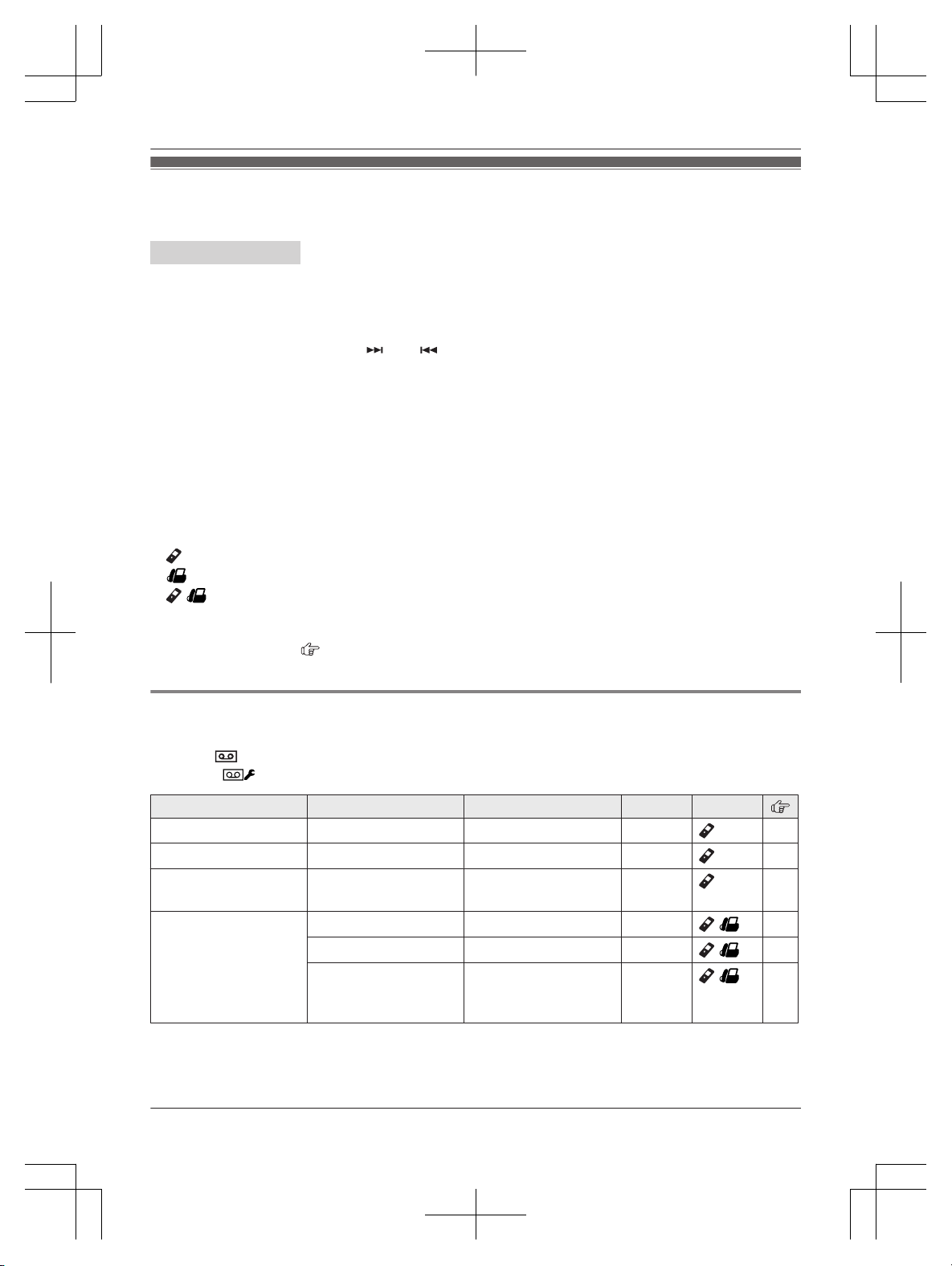
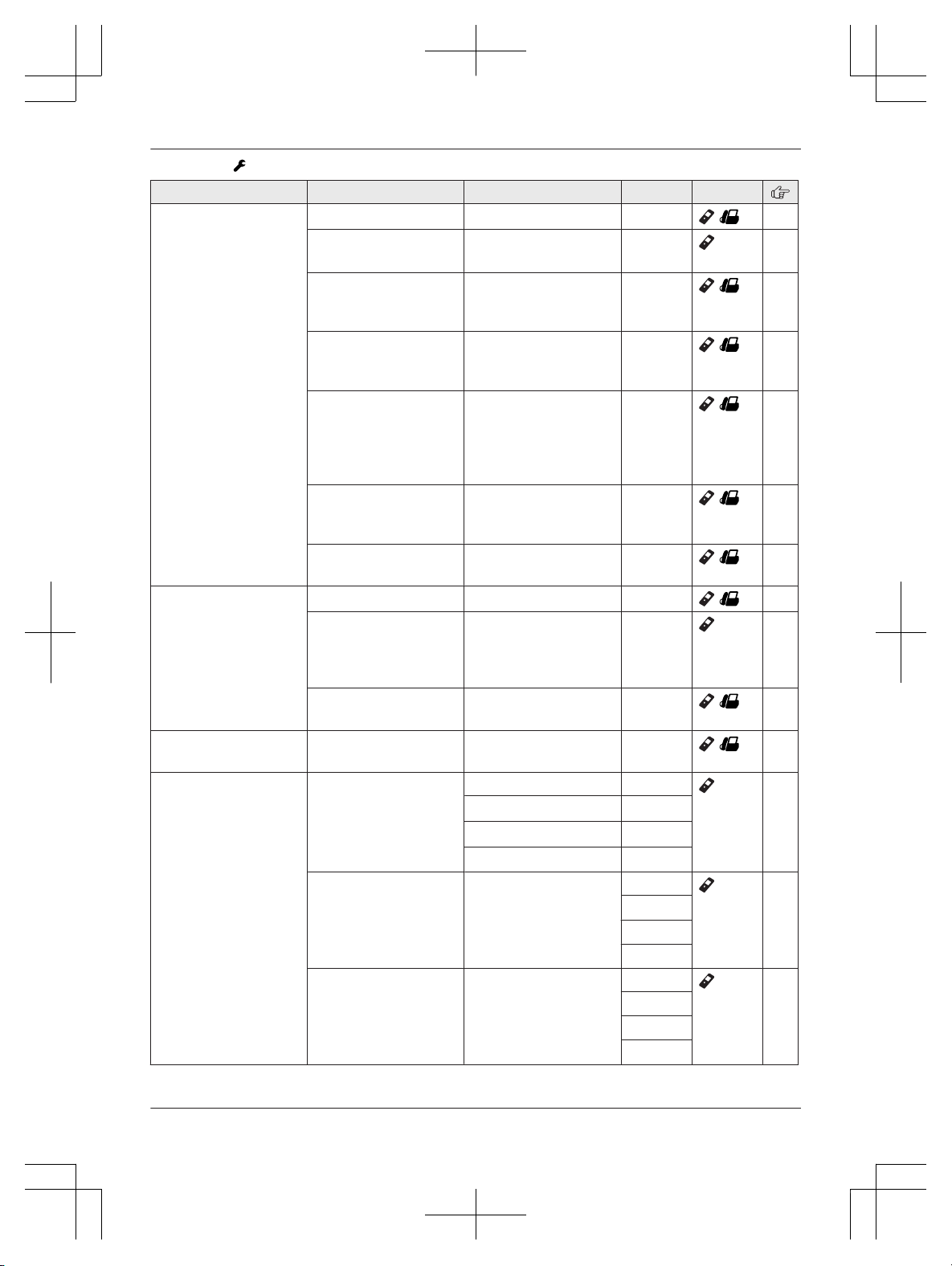
Menu list
T
o access the features, there are 2 methods.
Handset / Base unit
n S
crolling through the display menus
1 MMENUN
2 Handset: Press MCN, MDN, MEN, or MFN to select the desired main menu. a MOKN
Base unit: Press MCN, MDN, M
N,
or M
N
to select the desired main menu. a MOKN
3 Press MCN or MDN to select the desired item from the next sub-menus. a MOKN
4 Press MCN or MDN to select the desired setting. a MOKN
n Using the direct command code
1 MMENUNa Enter the desired code.
Example: Press MMENUN#101.
2 Select the desired setting. a MOKN
Note:
R The unit column shows the unit(s) that can be used to program the item.
: Only the handset can program the item.
: Only the base unit can program the item.
/ : Both the handset and base unit can program the item.
R T
o exit the operation, press MOFFN on the handset or MEXITN on the base unit.
R In the following table, < > indicates the default settings.
R In the following table,
indicates the reference page number.
R D
isplay menu order and sub-menu may vary depending on your model.
Display the menu tree and direct command code table
M
ain menu:
Handset:
“A
nswer System”
Base unit:
“A
nswer System”
Sub-menu 1 Sub-menu 2 Settings Code Unit
Play New Message
– – #323 43
Play All Message
– – #324
43
Erase All
M
essage
*1
– – #325
43
Greeting
Record Greeting
*
1
– #302
/
41
Play Greeting
– #303
/
42
Default
*
1
(Reset to pre-recorded
greeting)
– #304
/
41
28
Helpline Tel. No.: U.K. 0844 844 3899 Ireland 01289 8333
Programming
TGF320E(en)_0123_ver020.pdf 28 2015/01/23 18:26:29
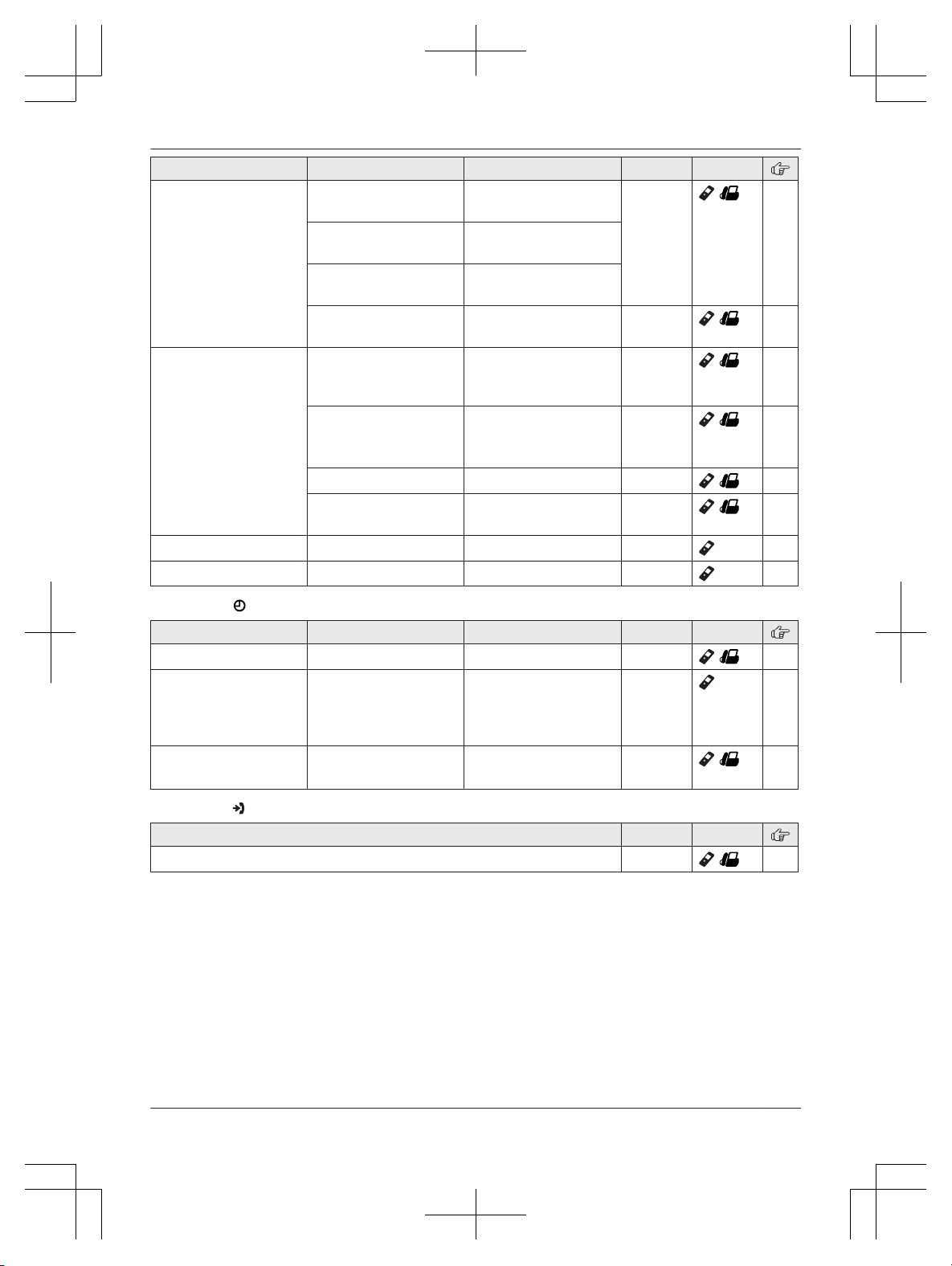
Sub-menu 1 Sub-menu 2 Settings Code Unit
New Message
A
lert
*1
Outgoing Call
– On/Off
On
<Off>
#338
/
43
Outgoing Call
– N
otification to
–
Outgoing Call
– R
emote Code
Activate
<Inactivate>
Base Unit Beep On
<O
ff>
#339
/
43
Settings
Number of Rings
*
1
2-9 Rings
<8
Rings>
Auto
#211
/
46
Recording Time
*
1
1 Minute
<3
Minutes>
Greeting Only
*2
#305
/
47
Remote Code
*
1
– #306
/
45
Call Screening
<O
n>
Off
#310
/
46
Answer On
*
1
– – #327
41
Answer Off
*
1
– – #328
41
Main menu: “Time Settings”
Sub-menu 1 Sub-menu 2 Settings Code Unit
Set Date/Time
*
1
– – #101
/
15
Memo Alarm Alarm1-3 Once
D
aily
Weekly
<Off>
#720
33
Time
A
djustment
*1,
*3
– <C
aller ID>
Manual
#226
/
–
Main menu: “C
aller List”
Operation Code Unit
Viewing the caller list. #213
/
39
Helpline Tel. No.: U.K. 0844 844 3899 Ireland 01289 8333
29
Programming
TGF320E(en)_0123_ver020.pdf 29 2015/01/23 18:26:29
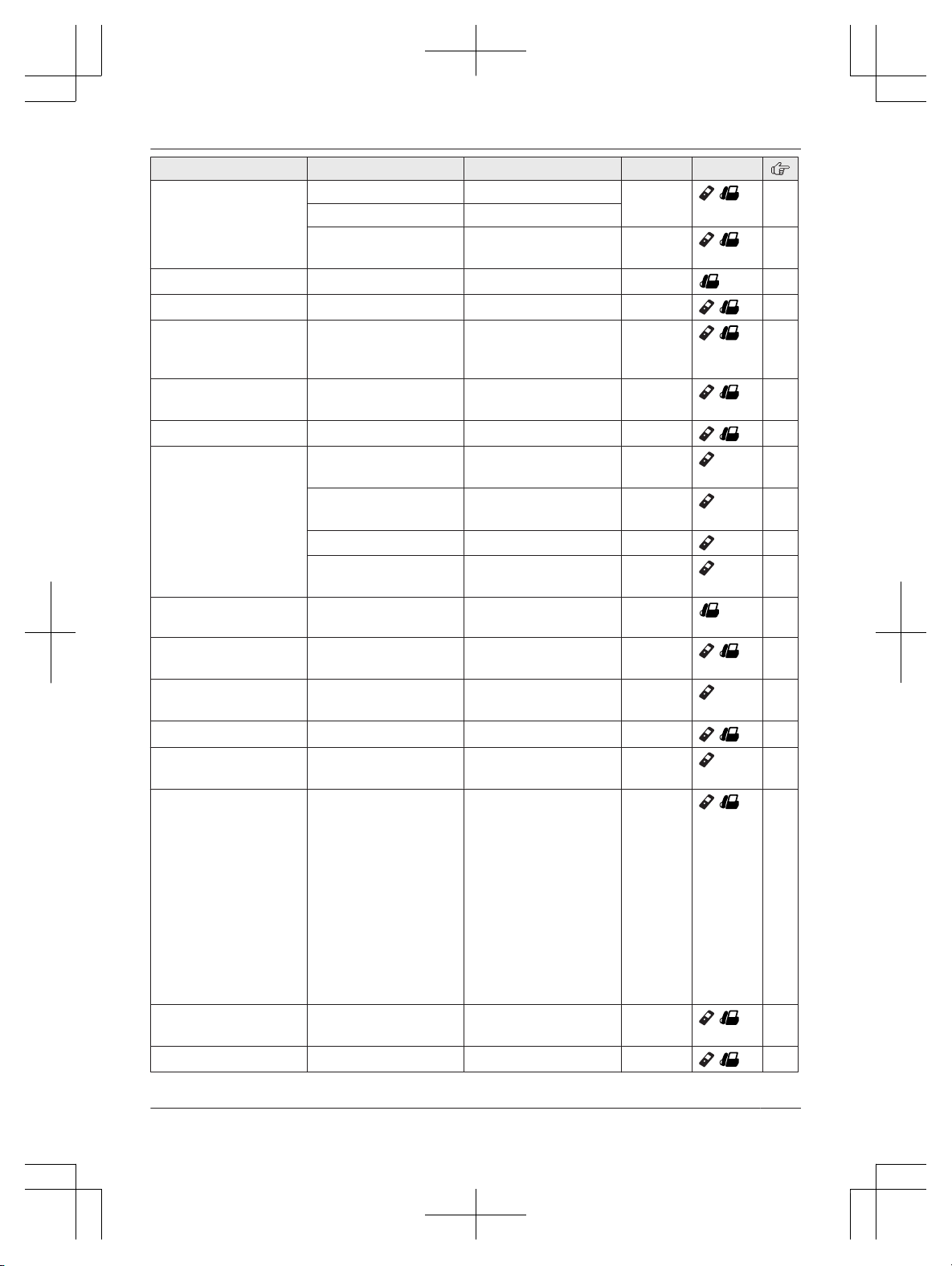
Main menu: “I
nitial Setup”
Sub-menu 1 Sub-menu 2 Settings Code Unit
Ringer Setup
Ringer Volume Off-
6 <6> #160
/
–
Ringtone
*
4
(Handset)
<R
ingtone 1> #161
–
Do Not Disturb
M
ode
– On/Off
On
<Off>
#238
/
34
Do Not Disturb
M
ode
– Start/End
<23:00/06:00> #237
/
34
Do Not Disturb
M
ode
– Ring Delay
30 sec.
<60 sec.>
90 sec.
120 sec.
No Ringing
#239
/
34
Do Not Disturb
M
ode
– Select Category
Category 1-9
#241
/
34
First Ring
*
1, *5
<O
n>
Off
#173
/
–
Time Settings
Set Date/Time
*
1
– #101
/
15
Memo Alarm
– A
larm 1-3
Once
Daily
Weekly
<Off>
#720
33
Time
A
djustment
*1,
*3
<C
aller ID>
Manual
#226
/
–
Talking Caller ID
– <O
n>
Off
#162
/
39
Key F
inder Setup
*6
– 1:Add New
Device (for
Finder1)
*7
– 2:Add New
Device (for
Finder2)
– 3:Add New
Device (for
Finder3)
– 4:Add New
Device (for
Finder4)
Change Name
*
1
Finder1
#6561
–
Finder2
*
8
#6562
*8
Finder3
*
8
#6563
*8
Finder4
*
8
#6564
*8
Register
– #6571
–
#6572
*
8
#6573
*
8
#6574
*
8
Cancel Register
– #6581
–
#6582
*
8
#6583
*
8
#6584
*
8
30
Helpline Tel. No.: U.K. 0844 844 3899 Ireland 01289 8333
Programming
TGF320E(en)_0123_ver020.pdf 30 2015/01/23 18:26:30
Sub-menu 1 Sub-menu 2 Settings Code Unit
Nuisance Call
B
lock
*1
Single Number
– #217
/
22
Range of Numbers
–
Withheld On
<O
ff>
#240
/
23
One Touch Dial
– – #247 27
Speed Dial
– – #261
/
25
Eco Mode
*
1,
*9
– <O
ff>
Eco
Eco Plus
#725
/
16
Security
*
1,
*9
– <N
ormal>
Enhanced
#729
/
37
Record Greeting
*
1
– – #302
/
41
Display Setup LCD & Key
B
acklight
<O
n>
Off
#276
–
Contrast
(Display contrast)
Level 1-4
<2>
#145 –
Handset Name
– #104
36
Display Name On
<O
ff>
#105
36
Contrast
(
Display contrast)
– Level 1-6
<
3>
#145
–
Auto Intercom
–
On
<O
ff>
#273
/
20
Keytones – <O
n>
Off
#165
–
Call Restrict
*1
– – #256
/
36
Auto Talk
*
10
–
On
<O
ff>
#200
18
Line Setup
Recall/Flash
*
1,
*11
900 msec.
7
00 msec.
600 msec.
400 msec.
300 msec.
250 msec.
200 msec.
160 msec.
110 msec.
<100 msec.>
90 msec.
80 msec.
#121
/
19
Privacy Mode
*
1,
*12
–
On
<O
ff>
#194
/
–
Base Unit PIN
*
1
– <0
000> #132
/
37
Helpline Tel. No.: U.K. 0844 844 3899 Ireland 01289 8333
31
Programming
TGF320E(en)_0123_ver020.pdf 31 2015/01/23 18:26:30
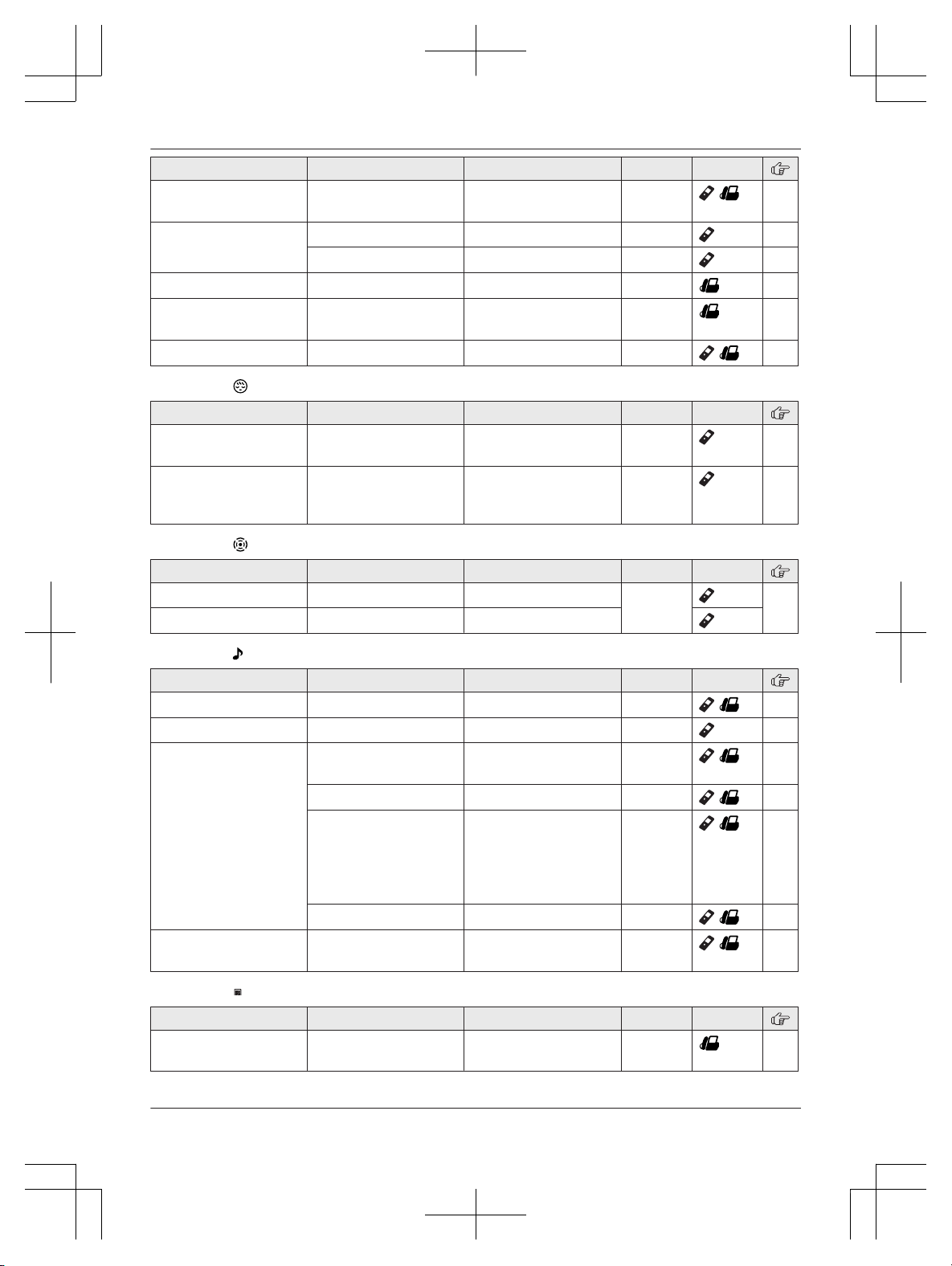
Sub-menu 1 Sub-menu 2 Settings Code Unit
Repeater Mode
*1
–
On
<O
ff>
#138
/
38
Register Register Handset
– #130
37
Cancel Register
*
2
– #131
38
Cancel Register
*
2
– – #131
38
Battery Saving
M
ode
–
On
<Off>
#150
12
Language Display
<E
nglish> #110
/
15
Main menu: “Baby Monitor”
*13
Sub-menu 1 Sub-menu 2 Settings Code Unit
On/Off
–
On
<O
ff>
#268
35
Sensitivity Level
– Low
<
Middle>
High
#269
36
Main menu: “K
ey Finder”
*6,
*13
Sub-menu 1 Sub-menu 2 Settings Code Unit
Search
– – #655
–
Battery Check
– –
Main menu: “Ringer Setup”
*14
Sub-menu 1 Sub-menu 2 Settings Code Unit
Ringer Volume
– Off-
6 <6> #160
/
–
Ringtone
– <R
ingtone 1> #161
–
Do Not Disturb
M
ode
On/Off On
<Off>
#238
/
34
Start/End
<23:00/06:00> #237
/
34
Ring Delay 30 sec.
<6
0 sec.>
90 sec.
120 sec.
No Ringing
#239
/
34
Select Category Category 1-9
#241
/
34
First Ring
– <O
n>
Off
#173
/
–
Main menu: “C
ontrast”
*15
Sub-menu 1 Sub-menu 2 Settings Code Unit
– – Level 1-6
<
3>
#145
–
32
Helpline Tel. No.: U.K. 0844 844 3899 Ireland 01289 8333
Programming
TGF320E(en)_0123_ver020.pdf 32 2015/01/23 18:26:30
*1 If you program these settings using one of the units, you do not need to program the same item using
a
nother unit.
*2 This menu is not displayed when scrolling through the display menus. It is only available in direct
command code.
*3 This feature allows the unit to automatically adjust the date and time each time caller information
including date and time is received.
To turn this feature on, select “Caller ID”. To turn this feature off, select “Manual”. (Caller ID
subscribers only)
To use this feature, set the date and time first (page 15).
*4 The preset melodies in this product (“Ringtone 3” - “Ringtone 40”) are used with permission of
© 2012 Copyrights Vision Inc.
*5 If you do not want the unit to ring before the caller information is received, set to “Off”. (Caller ID
subscribers only)
You can only remove the first ring if the unit rings 2 times or more by default, which depends on your
phone service provider.
*6 This setting is available when you have the key finder (KX-TGA20EX). Read the installation manual
for more information on the key finder.
*7 For models with supplied key finders, the display shows “1:Finder1”.
*8 If you register 2 or more key finders.
*9 This menu is not displayed when repeater mode is set to “On”.
*10 If you subscribe to a Caller ID service and want to view the caller’s information after lifting up the
handset to answer a call, turn off this feature.
*11 The recall/flash time depends on your telephone exchange or host PBX. Contact your PBX supplier if
necessary.
*12 To prevent other users from joining your conversations with outside callers, turn this feature on.
*13 Handset only
*14 This menu icon is displayed when the key finder is not registered.
*15 Base unit only
Alarm
A
n alarm sounds at the set time for 1 minute and
is repeated 5 times at 5 minute intervals (snooze
function). A text memo can also be displayed for
the alarm. A total of 3 separate alarm times can be
programmed for each handset. You can set one of
3 different alarm options (once, daily, or weekly)
for each alarm time.
Important:
R Make sure the unit’s date and time setting is
correct (page 15).
Handset
1 MMENUN#720
2 MbN: Select the desired alarm. a MOKN
3 MbN: Select the desired alarm option. a MOKN
Off
T
urns alarm off. Go to step 9.
Once
A
n alarm sounds once at the set
time.
Daily
A
n alarm sounds daily at the set
time. Go to step 5.
Weekly
A
larm sounds weekly at the set
time(s).
4 P
roceed with the operation according to your
selection in step 3.
n Once:
Enter the desired date and month. a MOKN
n Weekly:
MbN: Select the desired day of the week and
press MSELECTN. a MOKN
5 Set the desired time. a MOKN
6 Enter a text memo (10 characters max.). a
MOKN
Helpline Tel. No.: U.K. 0844 844 3899 Ireland 01289 8333
33
Programming
TGF320E(en)_0123_ver020.pdf 33 2015/01/23 18:26:30
7 MbN:
Select the desired alarm tone. a MOKN
R We recommend selecting a different ringer
tone from the one used for outside calls.
8 MbN: Select the desired snooze setting. a
MOKN
9 MOKN a MOFFN
Note:
R Press MSTOPN to stop the alarm completely.
R When the handset is in use, the alarm will not
sound until the handset is in standby mode.
R Press any dial key or MSNOOZEN to stop the
sound but keep the snooze function activated.
R If you want to make an outside call when the
snooze function is activated, please stop the
snooze function before making the call.
Do not disturb mode
D
o not disturb mode allows you to select a period
of time during which the handset will not ring for
outside calls. This feature is useful for time periods
when you do not want to be disturbed, for
example, while sleeping. Do not disturb mode can
be set for each handset. Using the phonebook’s
category feature (page 24), you can also select
categories of callers whose calls override do not
disturb mode and ring the handset (Caller ID
subscribers only).
Important:
R Make sure the unit’s date and time setting is
correct (page 15).
R If you have set the alarm, the alarm sounds
even if do not disturb mode is turned on.
Turning do not disturb mode on/off
Handset / Base unit
1 MM
ENUN#238
2 MbN: Select the desired setting. a MOKN
R If you select “Off”, press MOFFN on the
handset or MEXITN on the base unit to exit.
3 Enter the desired hour and minute you wish to
start this feature. a MOKN
4 Enter the desired hour and minute you wish to
end this feature. a MOKN
5 Proceed with the operation for your unit.
Handset: MOFFN
Base unit: MEXITN
Changing the start and end time
Handset / Base unit
1 MM
ENUN#237
2 Continue from step 3, “Turning do not disturb
mode on/off”, page 34.
Setting the ring delay
T
his setting allows the handset to ring during do
not disturb mode if the caller waits long enough.
After the selected amount of time passes, the
handset rings. If you select “No Ringing”, the
handset never rings during do not disturb mode.
Handset / Base unit
1 MM
ENUN#239
2 MbN: Select the desired setting. a MOKN
3 Proceed with the operation for your unit.
Handset: MOFFN
Base unit: MEXITN
Note:
R When the answering system answers the call,
this feature does not work.
Selecting categories to bypass do not disturb
m
ode
Handset / Base unit
1 MM
ENUN#241
2 MbN: Select the desired category. a
MSELECTN
R “
” is displayed next to the selected
c
ategory numbers.
R To cancel the selected category: MbN: Select
the category. a Press MSELECTN again.
“
” disappears.
3 MO
KN
4 Proceed with the operation for your unit.
Handset: MOFFN
Base unit: MEXITN
Baby monitor
T
his feature allows you to listen in on a room
where another handset is located, allowing you to
easily monitor from different areas of the house or
place. The monitored handset (placed in a baby’s
room, for example) will automatically call the
34
Helpline Tel. No.: U.K. 0844 844 3899 Ireland 01289 8333
Programming
TGF320E(en)_0123_ver020.pdf 34 2015/01/23 18:26:30

monitoring handset, base unit, or the phone
n
umber stored when it detects sound.
Important:
R You should perform a test run of the baby
monitor procedure to ensure that the baby
monitor feature is set correctly. For example,
test its sensitivity. Check the connection if you
are diverting the baby monitor to an outside line.
R This feature should not be used as a substitute
for a medical or caregiver’s supervision. It is the
caregiver’s responsibility to stay close enough
to handle any eventuality.
Note:
R If the unit is connected to a PBX system, you
cannot set the baby monitor.
R During the monitoring mode, battery
consumption is faster than usual. We
recommend leaving the monitored handset on
the charger.
R The monitored handset never rings while it is
being monitored.
If the base unit is placed near the monitored
handset, turn off the base unit ringer volume
(page 30).
Setting the baby monitor
Perform the setting operation with the handset to
be monitored (for example, the handset placed in
a baby’s room).
To monitor with a unit
T
he internal baby monitor feature is available:
– between handsets
– between a handset and the base unit
Handset
1 MM
ENUN#268
2 MbN: “On” a MOKN
3 MbN: Select the desired unit’s number to
monitor with. a MOKN
R “Baby Monitor” will be displayed.
R The registered unit’s name/number is
displayed.
Note:
R When this feature is on, another handset or
base unit can hear the monitored handset by
making an intercom call.
To monitor from an outside line
I
f you enable this feature, the unit will call a
pre-programmed phone number when the handset
detects sound. After you answer the call, you can
listen in on the room where the handset is located.
n From the phonebook:
1 MMENUN#268
2 MbN: “On” a MOKN
3 MbN: Select “External” to monitor from an
outside line. a MEDITN a MADDN
4 MbN: “Phonebook” a MOKN
5 MbN: Select the phonebook entry. a MOKN
R “Baby Monitor” will be displayed.
Note:
R If you edit a phonebook entry which is
assigned for monitoring, the edited entry does
not transfer to the monitor.
n By entering phone numbers:
1 MMENUN#268
2 MbN: “On” a MOKN
3 MbN: Select “External” to monitor from an
outside line. a MEDITN a MADDN
4 MbN: “Manual” a MOKN
5 Enter the desired name. a MOKN
6 Enter the desired number. a MOKN 2 times
R “Baby Monitor” will be displayed.
Note:
R The registered name/number is displayed.
Turning off the baby monitor
T
he monitored handset cannot be used while baby
monitor is set to “On”.
Handset
1 P
ress MMENUN on the handset being
monitored.
2 MbN: “On/Off” a MOKN
3 MbN: “Off” a MOKN a MOFFN
Editing an outside monitoring number
Handset
1 P
ress MMENUN on the handset being
monitored.
2 MbN: “On/Off” a MOKN
Helpline Tel. No.: U.K. 0844 844 3899 Ireland 01289 8333
35
Programming
TGF320E(en)_0123_ver020.pdf 35 2015/01/23 18:26:30
3 MbN:
“On” a MOKN
4 MbN: Select the outside line. a MEDITN
5 MMENUN a MbN: “Edit” a MOKN
6 Edit the name if necessary. a MOKN
7 Edit the phone number if necessary. a MOKN
2 times
Erasing an outside monitoring number
Handset
1 P
ress MMENUN on the handset being
monitored.
2 MbN: “On/Off” a MOKN
3 MbN: “On” a MOKN
4 MbN: Select the outside line. a MEDITN
5 MMENUN a MbN: “Erase” a MOKN
6 MbN: “Yes” a MOKN a MOFFN
Baby monitor sensitivity
Y
ou can adjust the sensitivity of the baby monitor.
Increase or decrease the sensitivity to adjust the
sound level needed to trigger the baby monitor
feature.
R This feature cannot be set during a monitoring
call.
Handset
1 P
ress MMENUN on the handset being
monitored.
2 MbN: “Sensitivity Level” a MOKN
3 MbN: Select the desired setting. a MOKN a
MOFFN
Answering the baby monitor
n W
hen monitoring with a unit:
Handset: Press M
N
to answer a call.
Base unit: Press MZN to answer a call.
If you want to respond from the monitoring unit,
press MMUTEN.
R The monitoring unit will answer calls
automatically when the auto intercom feature
is set to “On” (page 20).
Note:
R If you receive an outside call when
communicating with the monitored handset,
the interrupt tone sounds.
– To answer the call with the handset, press
MOFFN, then press M
N.
– To answer the call with the base unit, press
MZN
3 times.
*1
*1 If MMUTEN is pressed, press M
N
2 times.
n When monitoring from an outside line:
Answer the call.
If you want to respond from the monitoring
phone, press #1 using tone dialling.
You can turn off the baby monitor feature by
pressing #0.
Note:
R The unit disconnects the call automatically
after 2 minutes.
Other programming
Changing the handset name
T
he default handset name is “Handset 1” to
“Handset 6”. You can customise the name of
each handset (“Bob”, “Kitchen”, etc.). This is useful
when you make intercom calls between handsets.
To display the handset name in standby mode,
turn on the handset name display feature
(page 36).
Handset
1 MM
ENUN#104
2 Enter the desired name (10 characters max.).
3 MOKN a MOFFN
Displaying the handset name
Y
ou can select whether or not the handset name
is displayed in standby mode. The default setting
is “Off”.
Handset
1 MM
ENUN#105
2 MbN: Select the desired setting. a MOKN a
MOFFN
Call restriction
You can restrict selected units from dialling certain
numbers. You can assign up to 6 phone numbers
to be restricted, and select which units are to be
restricted. Storing area codes here prevents the
36
Helpline Tel. No.: U.K. 0844 844 3899 Ireland 01289 8333
Programming
TGF320E(en)_0123_ver020.pdf 36 2015/01/23 18:26:30
restricted units from dialling any phone number in
t
hat area code.
Handset / Base unit
1 MM
ENUN#256
2 Enter the base unit PIN (default: “0000”).
R If you forget your PIN, see page 52.
3 MbN: Selected the desired units to be
restricted. a MSELECTN
R “
” is displayed next to the selected
n
umbers.
R To cancel the selected unit: MbN: Select the
unit. a Press MSELECTN again. “
”
d
isappears.
4 MOKN
5 Select a memory location by pressing 1 to
6. a MOKN
6 Enter the phone number or area code to be
restricted (8 digits max.). a MOKN
7 Proceed with the operation for your unit.
Handset: MOFFN
Base unit: MEXITN
Enhancing security for phone calls
Y
ou can increase the security of phone
conversations by setting this feature to
“Enhanced”. When “Enhanced” is selected,
is displayed. The default setting is “N
ormal”.
Handset / Base unit
1 MM
ENUN#729
2 MbN: Selected the desired setting. a MOKN
3 Proceed with the operation for your unit.
Handset: MOFFN
Base unit: MEXITN
Note:
R If you set repeater mode to “On” (page 38):
– Security is set to “Normal” and
is
d
isplayed.
– “Security” is not displayed in the display
menu (page 31).
R When enhanced security is enabled, sound may
cut in and out during conversations.
Changing the base unit PIN
I
mportant:
R If you change the PIN (Personal Identification
Number), please make note of your new PIN.
The unit will not reveal the PIN to you. If you
forget your PIN, see page 52.
Handset / Base unit
1 MM
ENUN#132
2 Enter the current 4-digit base unit PIN (default:
“0000”).
3 Enter the new 4-digit base unit PIN. a MOKN
4 MbN: “Yes” a MOKN
5 Proceed with the operation for your unit.
Handset: MOFFN
Base unit: MEXITN
Registering a unit
Operating additional units
Additional handsets
U
p to 6 handsets can be registered to the base
unit.
Important:
R The additional handset model recommended for
use with this unit is noted on page 4. If another
handset model is used, certain operations may
not be available.
Registering a h
andset to the base unit
The supplied handset and base unit are
pre-registered. If for some reason the handset is
not registered to the base unit (for example,
is
d
isplayed even when the handset is near the base
unit), re-register the handset.
1 Handset:
MMENUN#130
2 Base unit:
Press and hold M
N
for about 5 seconds.
R If all registered handsets start ringing, press
M
N
again to stop, then repeat this step.
Helpline Tel. No.: U.K. 0844 844 3899 Ireland 01289 8333
37
Programming
TGF320E(en)_0123_ver020.pdf 37 2015/01/23 18:26:30
3 H
andset:
MOKN a Wait until “Base PIN” is displayed.
a Enter the base unit PIN (default: “0000”).
a MOKN
R If you forget your PIN, see page 52.
Deregistering a handset
A
handset can cancel its own registration to the
base unit, or other handsets registered to the
same base unit. This allows the handset to end its
wireless connection with the system.
Handset / Base unit
1 MM
ENUN#131
R All handsets registered to the base unit are
displayed.
2 MbN: Select the handset you want to cancel.
a MOKN
3 MbN: “Yes” a MOKN
4 Proceed with the operation for your unit.
Handset: MOFFN
Base unit: MEXITN
Increasing the range of the base unit
Y
ou can increase the signal range of the base unit
by using a DECT repeater. Please use only the
Panasonic DECT repeater noted on page 3.
Contact your Panasonic dealer for details.
Important:
R Before registering the repeater to this base unit,
you must turn the repeater mode on.
R Do not use more than one repeater at a time.
Setting the repeater mode
Handset / Base unit
1 MM
ENUN#138
2 MbN: Select the desired setting. a MOKN
3 Proceed with the operation for your unit.
Handset: MOFFN
Base unit: MEXITN
Registering the DECT repeater (KX-A405/
KX-A406) to the base unit
Note:
R Please use a repeater that has not yet been
registered to another unit. If the repeater is
registered to another unit, deregister it first,
referring to the Installation Guide for the DECT
r
epeater.
1 Base unit:
Press and hold M
N
for about 5 seconds.
2 DECT repeater:
Connect the AC adaptor, then wait until the
indicator and indicator light green.
3 B
ase unit:
To exit the registration mode, press M
N.
38
Helpline Tel. No.: U.K. 0844 844 3899 Ireland 01289 8333
Programming
TGF320E(en)_0123_ver020.pdf 38 2015/01/23 18:26:30
Using Caller ID service
I
mportant:
R This unit is Caller ID compatible. To use Caller
ID features, you must subscribe to a Caller ID
service. Contact your phone service provider for
details.
Caller ID features
Handset / Base unit
W
hen an outside call is being received, the caller
information is displayed.
Caller information for the last 50 callers is logged
in the caller list from the most recent call to the
oldest.
R If the unit cannot receive caller information, the
following is displayed:
– “Out of Area”: The caller dials from an
area which does not provide a Caller ID
service.
– “Private Caller”: The caller requests not
to send caller information.
R If the unit is connected to a PBX system, caller
information may not be properly received.
Contact your PBX supplier.
Missed calls
Handset / Base unit
I
f a call is not answered, the unit treats it as a
missed call and
is displayed. This lets you know
i
f you should view the caller list to see who called
while you were away.
Even if only one missed call in the caller list is
viewed (page 39),
disappears from the
d
isplay. When you receive another new call,
is
d
isplayed again.
Note:
R Even when there are unviewed missed calls,
disappears from the standby display if the
f
ollowing operation is performed by one of the
registered handsets:
– A handset is replaced on the charger.
– Pressing MOFFN on a handset.
– Pressing MEXITN on the base unit.
Phonebook name display
W
hen caller information is received and it matches
a phone number stored in the phonebook, the
stored name in the phonebook is displayed and
l
ogged in the caller list.
Talking Caller ID
Handset / Base unit
T
his feature let you know who is calling by
announcing the caller information.
To use this feature, you must:
– subscribe to a Caller ID service of your phone
service provider.
– turn this feature on (page 30).
– store the name and phone number in the
phonebook (page 24).
Phonebook name announcement
W
hen caller information is received from your
phone service provider and it matches a phone
number stored in the phonebook, the stored name
is announced following every ring.
If that phone number has not been stored in the
phonebook, the caller information is announced.
Note:
R Name pronunciation may vary. This feature may
not pronounce all names correctly.
Caller list
I
mportant:
R Make sure the unit’s date and time setting is
correct (page 15).
Viewing t
he caller list and calling back
Handset / Base unit
1 P
roceed with the operation for your unit.
Handset: MCN CID
Base unit: MCIDN
2 Press MCN to search from the most recent call,
or press MDN to search from the oldest call.
3 Proceed with the operation for your unit.
Handset:
– To call back, press M
N.
–
To exit, press MOFFN.
Base unit:
– To call back, lift the corded handset.
– To exit, press MEXITN.
Helpline Tel. No.: U.K. 0844 844 3899 Ireland 01289 8333
39
Caller ID Service
TGF320E(en)_0123_ver020.pdf 39 2015/01/23 18:26:30
Note:
R I
f the entry has already been viewed or
answered, “
” is displayed.
Editing a caller’s phone number
Handset
1 MCN
CID
2 MbN: Select the desired entry. a MMENUN
3 MbN: “Edit & Call” a MOKN
4 Edit the number.
5 M
N
Base Unit
1 MC
IDN
2 MbN: Select the desired entry. a MEDITN
3 Edit the number.
4 Lift the corded handset.
Erasing selected caller information
Handset / Base Unit
1 P
roceed with the operation for your unit.
Handset: MCN CID
Base unit: MCIDN
2 MbN: Select the desired entry.
3 MERASEN a MbN: “Yes” a MOKN
4 Proceed with the operation for your unit.
Handset: MOFFN
Base unit: MEXITN
Erasing all caller information
Handset / Base Unit
1 P
roceed with the operation for your unit.
Handset: MCN CID
Base unit: MCIDN
2 MERASEN a MbN: “Yes” a MOKN
3 Proceed with the operation for your unit.
Handset: MOFFN
Base unit: MEXITN
40
Helpline Tel. No.: U.K. 0844 844 3899 Ireland 01289 8333
Caller ID Service
TGF320E(en)_0123_ver020.pdf 40 2015/01/23 18:26:30
Answering system
T
he answering system can answer and record
calls for you when you are unavailable to answer
the phone.
You can also set the unit to play a greeting
message but not to record caller messages by
selecting “Greeting Only” as the recording
time setting (page 47).
Important:
R Make sure the unit’s date and time setting is
correct (page 15).
Memory capacity (including your
g
reeting message)
The total recording capacity is about 40 minutes. A
maximum of 64 messages can be recorded.
Note:
R When message memory becomes full:
– “Messages Full” is shown on the handset
and base unit display.
– The ANSWER ON/OFF indicator (
) on the
b
ase unit flashes rapidly if the answering
system is turned on.
–
and the total number of new messages
a
re not displayed even if the answering
system is turned on.
– If you use the pre-recorded greeting
message, the unit automatically switches to
another pre-recorded greeting message
asking callers to call again later.
– If you recorded your own greeting message,
the same message is still announced to
callers even though their messages are not
recorded.
Turning the answering
s
ystem on/off
The answering system is preset to on.
Base unit
P
ress M
N
to turn on/off the answering system.
Handset
1 T
o turn on:
MMENUN#327
To turn off:
MM
ENUN#328
2 MOFFN
Note for base unit and handset:
R When the answering system is turned on:
– the ANSWER ON/OFF indicator (
) on the
b
ase unit lights up.
–
is displayed on the handset.
Greeting message
W
hen the unit answers a call, a greeting message
is played to callers.
You can use either:
– your own greeting message
– a pre-recorded greeting message
Recording your greeting message
Y
ou can configure this setting using either the
base unit or one of the handsets.
Handset / Base Unit
1 MM
ENUN#302
2 MbN: “Yes” a MOKN
3 After a beep sounds, speak clearly about
20 cm away from the microphone (2 minutes
and 30 seconds max.).
4 Press MSTOPN to stop recording.
5 Proceed with the operation for your unit.
Handset: MOFFN
Base unit: MEXITN
Using a pre-recorded greeting
m
essage
The unit provides 2 pre-recorded greeting
messages:
– If you erase or do not record your own greeting
message, the unit plays a pre-recorded greeting
asking callers to leave a message.
– If the message recording time (page 47) is set
to “Greeting Only”, callers’ messages are
not recorded and the unit plays a different
pre-recorded greeting message asking callers to
call again.
Resetting to a pre-recorded greeting message
I
f you change into a pre-recorded greeting
message once you record your own greeting
Helpline Tel. No.: U.K. 0844 844 3899 Ireland 01289 8333
41
Answering System
TGF320E(en)_0123_ver020.pdf 41 2015/01/23 18:26:30
message, your own recorded greeting message is
e
rased.
You can configure this setting using either the
base unit or one of the handsets.
Handset / Base Unit
1 MM
ENUN#304
2 MOKN
3 Proceed with the operation for your unit.
Handset: MOFFN
Base unit: MEXITN
Playing back the greeting message
Handset / Base Unit
1 MMENUN#303
2 Proceed with the operation for your unit.
Handset: MOFFN
Base unit: MEXITN
Listening to messages
I
mportant:
R If your phone service provider offers voicemail
service, the voicemail service may answer calls
before the base unit’s built-in answering system
has a chance to answer calls and record
messages.
In this case, messages you expect to be
recorded by the answering system will be
recorded on the voicemail service. For more
information, see “For landline voicemail service
subscribers” (page 47).
R When using the base unit or handset to listen to
messages, the noise reduction feature
(page 19) is activated automatically in spite of
the setting (
is not displayed).
Using the base unit
W
hen new messages have been recorded:
– M
N
on the base unit flashes.
–
is displayed on the base unit with the total
n
umber of new messages.
Press M
N.
R D
uring playback, M
N
on the base unit lights.
R If new messages have been recorded, the base
unit plays back new messages.
R If there are no new messages, the base unit
plays back all messages.
Operating the answering system during
p
layback
Key Operation
MDN
or MCN
OR
MAMPLIFIED
VOLUMEN
*1
Adjust the speaker volume
M
N
Repeat message
*
2
M
N Skip message
MP
AUSEN Pause message
To resume playback, press
M
N.
M N Stop playback
ME
RASEN Erase currently playing message
*1 Each press MA
MPLIFIED VOLUMEN, speaker
volume is increased by several levels.
*2 If pressed within the first 5 seconds of a
message, the previous message is played.
Calling back (Caller ID subscribers only)
L
ift the corded handset.
n Editing the number before calling back
1 Press MEDITN during playback.
2 Edit the number.
3 Lift the corded handset.
Rewinding the message
P
ress and hold M
N
until the unit plays the
desired part of the message.
R During rewinding, the base unit makes a
continuous beeping sound. Rewinding speed
may vary depending on the recorded message.
R At the beginning of the message, the unit plays
the message at normal speed.
Fast-forwarding the message
P
ress and hold M
N
until the unit plays the
desired part of the message.
R During fast-forwarding, the base unit makes a
continuous beeping sound. Fast-forwarding
speed may vary depending on the recorded
message.
R Even if you press and hold M
N
when the end
of this message is played, the next message is
played at normal speed.
Erasing all messages
P
ress MERASEN 2 times while the unit is not in use.
42
Helpline Tel. No.: U.K. 0844 844 3899 Ireland 01289 8333
Answering System
TGF320E(en)_0123_ver020.pdf 42 2015/01/23 18:26:30
Using the handset
W
hen new messages have been recorded,
is
d
isplayed on the handset with the total number of
new messages.
1 To listen to new messages:
MMENUN#323
To listen to all messages:
MMENUN#324
2 When finished, press MOFFN.
Note:
R To switch to the receiver, press M
N.
Operating the answering system
MM
ENUNa
a MO
KN
Key Operation
MDN
or MCN Adjust the receiver or speaker
volume (during playback)
1
or MFN Repeat message
(during playback)
*1
2
or MEN Skip message
(during playback)
3 Enter the “S
ettings” menu
4 Play new messages
5 Play all messages
6 Play greeting message
76 Record greeting message
8 Turn answering system on
MM
ENUN
Pause message
*
2
9
or MSTOPN Stop recording
Stop playback
0 Turn answering system off
*4
*
3
Erase c
urrently playing message
*5 Erase all messages
*6 Reset to a pre-recorded
greeting message
*1 If pressed within the first 5 seconds of a
m
essage, the previous message is played.
*2 To resume playback:
MbN: “Play” a MOKN
*3 You can also erase as follows:
MMENUN a MbN: “Erase” a MOKN a MbN:
“Yes” a MOKN
Calling back (Caller ID subscribers only)
1 P
ress MMENUN during playback.
2 MbN: “Call Back” a MOKN
n Editing the number before calling back
1 Press MMENUN during playback.
2 MbN: “Edit & Call” a MOKN
3 Edit the number. a M
N
Erasing all messages
1 MM
ENUN#325
2 MbN: “Yes” a MOKN a MOFFN
Advanced new message
a
lerting features
Audible message alert
T
his feature allows the base unit to beep to inform
you of a new message arrival when new
messages are recorded. The base unit beeps 2
times every minute until you listen to the
messages, if the “Base Unit Beep” setting is
turned on. The default setting is “Off”.
You can configure this setting using either the
base unit or one of the handsets.
Handset / Base Unit
1 MM
ENUN#339
2 MbN: Select the desired setting. a MOKN
3 Proceed with the operation for your unit.
Handset: MOFFN
Base unit: MEXITN
New message alert by a call
This feature allows you to receive a notification by
phone when new messages are recorded. The
base unit calls a phone number you specify. You
can then operate the answering system remotely
to listen to the new message.
To use this feature, you must:
– store a phone number to which the unit makes
the call to.
– turn on the new message alert setting.
After you answer the new message alert call, you
can listen to messages from that call (page 45).
Helpline Tel. No.: U.K. 0844 844 3899 Ireland 01289 8333
43
Answering System
TGF320E(en)_0123_ver020.pdf 43 2015/01/23 18:26:30
You can configure this setting using either the
b
ase unit or one of the handsets.
Important:
R A new message alert is stopped 1 minute after
the unit starts to call. The unit will not retry the
call even if the call is not answered.
Storing a phone number to which the unit
makes an alert call
Handset
n F
rom the phonebook:
1 MMENUN#338
2 MbN: “Notification to” a MOKN a
MADDN
3 MbN: “Phonebook” a MOKN
4 MbN: Select the desired phonebook entry.
a MOKN a MOFFN
n By entering a phone number:
1 MMENUN#338
2 MbN: “Notification to” a MOKN a
MADDN
3 MbN: “Manual” a MOKN
4 Enter the desired name (16 characters
max.). a MOKN
5 Enter the desired number (24 digits max.).
a MOKN 2 times a MOFFN
Base unit
n F
rom the phonebook:
1 MMENUN#338
2 MbN: “Notification to” a MOKN a
M
N
3 MbN:
Select the desired phonebook entry.
a MOKN a MEXITN
n By entering a phone number:
1 MMENUN#338
2 MbN: “Notification to” a MOKN a
MEDITN
3 Enter the desired name (16 characters
max.). a MOKN
4 Enter the desired number (24 digits max.).
a MOKN 2 times a MEXITN
Turning on/off the new message alert setting
Handset / Base Unit
1 MM
ENUN#338
2 MbN: “On/Off” a MOKN
3 MbN: Select the desired setting. a MOKN
4 Proceed with the operation for your unit.
Handset: MOFFN
Base unit: MEXITN
Editing the set phone number
Handset
1 MM
ENUN#338
2 MbN: “Notification to” a MOKN
3 MMENUN a MbN: “Edit” a MOKN
4 Edit the name if necessary (16 characters
max.). a MOKN
5 Edit the phone number if necessary (24 digits
max.). a MOKN 2 times a MOFFN
Base Unit
1 MM
ENUN#338
2 MbN: “Notification to” a MOKN a
MEDITN
3 Edit the name if necessary (16 characters
max.). a MOKN
4 Edit the phone number if necessary (24 digits
max.). a MOKN 2 times a MEXITN
Erasing the set phone number
Handset
1 MM
ENUN#338
2 MbN: “Notification to” a MOKN
3 MMENUN a MbN: “Erase” a MOKN
4 MbN: “Yes” a MOKN a MOFFN
R The new message alert setting is turned off.
Base Unit
1 MM
ENUN#338
2 MbN: “Notification to” a MOKN a
MERASEN
3 MbN: “Yes” a MOKN a MEXITN
R The new message alert setting is turned off.
44
Helpline Tel. No.: U.K. 0844 844 3899 Ireland 01289 8333
Answering System
TGF320E(en)_0123_ver020.pdf 44 2015/01/23 18:26:30
Activating/inactivating the remote access code
t
o play messages
If you activate this feature, you must enter the
remote access code (page 45) to play the new
message from the new message alert call. This is
so that unauthorised parties cannot listen to your
messages. The default setting is “Inactivate”.
– “Inactivate”: You can listen to the message
by pressing 4 to play new messages (without
entering the remote access code).
– “Activate”: You must enter your remote
access code and then press 4 to play new
message.
Handset / Base Unit
1 MM
ENUN#338
2 MbN: “Remote Code” a MOKN
3 MbN: Select the desired setting. a MOKN
4 Proceed with the operation for your unit.
Handset: MOFFN
Base unit: MEXITN
Listening to messages
A
fter you answer the new message alert, you can
listen to the messages as follows.
n When the remote access code is set to
“Inactivate”:
Press 4 to play the new message during the
announcement.
n When the remote access code is set to
“Activate”:
1 Enter the remote access code (page 45)
during the announcement.
2 Press 4 to play the new message.
Note:
R Within 10 seconds after listening to new
messages, you can press #9 during the call
to turn off the new message alert by a call
feature.
R Even if the unit makes a new message alert call,
the handset redial list does not show the record.
However, on the base unit redial list it is shown
as “Message Alert”.
Remote operation
U
sing a touch-tone phone, you can call your
phone number from outside and access the unit to
listen to messages or change answering system
settings. The unit’s voice guidance prompts you to
press certain dial keys to perform different
operations.
Remote access code
A
3-digit remote access code must be entered
when operating the answering system remotely.
This code prevents unauthorised parties from
listening to your messages remotely.
You can configure this setting using either the
base unit or one of the handsets.
Important:
R In order to operate the answering system
remotely, you must first set a remote access
code.
Handset / Base Unit
1 MM
ENUN#306
2 To turn on remote operation, enter the desired
3-digit remote access code.
3 MOKN
4 Proceed with the operation for your unit.
Handset: MOFFN
Base unit: MEXITN
Deactivating remote operation
P
ress * in step 2 on “Remote access code”,
page 45.
R The entered remote access code is deleted.
Using the answering system remotely
1 D
ial your phone number from a touch-tone
phone.
2 After the greeting message starts, enter your
remote access code.
3 Follow the voice guidance prompts as
necessary or control the unit using remote
commands (page 46).
4 When finished, hang up.
Helpline Tel. No.: U.K. 0844 844 3899 Ireland 01289 8333
45
Answering System
TGF320E(en)_0123_ver020.pdf 45 2015/01/23 18:26:30
Voice guidance
D
uring remote operation, the unit’s voice guidance
starts and prompts you to press 1 to perform a
specific operation, or press 2 to listen to more
available operations.
Note:
R If you do not press any dial keys within 10
seconds after a voice guidance prompt, the unit
disconnects your call.
Remote commands
You can press dial keys to access certain
answering system functions without waiting for the
voice guidance to prompt you.
Key Operation
1 Repeat message
(
during playback)
*1
2 Skip message
(
during playback)
4 Play new messages
5 Play all messages
6 Play greeting message
7 Record greeting message
9 Stop recording
S
top playback
0 Turn answering system off
*4 Erase c
urrently playing message
*5 Erase all messages
*6 Reset to a pre-recorded
g
reeting message (during
greeting message playback)
*# End remote operation
(
or hang up)
*1 If pressed within the first 5 seconds of a
message, the previous message is played.
Turning on the answering system
r
emotely
1 Dial your phone number from a touch-tone
phone.
2 Let the phone ring 20 times.
R A long beep is heard.
3 E
nter your remote access code within 10
seconds after the long beep.
R The greeting message is played back.
R You can either hang up, or enter your
remote access code again and begin
remote operation (page 45).
Answering system settings
Call screening
Handset / Base Unit
W
hile a caller is leaving a message, you can listen
to the call through the unit’s speaker.
To adjust the speaker volume,
– press MDN or MCN repeatedly.
– press MAMPLIFIED VOLUMEN on the base unit
repeatedly.
R Each press MAMPLIFIED VOLUMEN, speaker
volume is increased by several levels.
You can answer the call by:
– lifting the corded handset from the base unit, or
– pressing M
N
on the handset.
Call screening can be set for each unit. The
default setting is “On”.
1 MMENUN#310
2 MbN: Select the desired setting. a MOKN
3 Proceed with the operation for your unit.
Handset: MOFFN
Base unit: MEXITN
Number of rings before the unit
a
nswers a call
You can change the number of times the phone
rings “Number of Rings” before the unit
answers a call. You can select 2 to 9 rings, or
“Auto”.
The default setting is “8 Rings”.
“Auto”: The unit’s answering system answers at
the end of the 5th ring when new messages have
been recorded, or at the end of the 8th ring when
there are no new messages. If you call your phone
from outside to listen to new messages (page 45),
you know that there are no new messages when
the phone rings for the 6th time. You can then
hang up without being charged for the call.
You can configure this setting using either the
base unit or one of the handsets.
46
Helpline Tel. No.: U.K. 0844 844 3899 Ireland 01289 8333
Answering System
TGF320E(en)_0123_ver020.pdf 46 2015/01/23 18:26:30

Handset / Base Unit
1 MM
ENUN#211
2 MbN: Select the desired setting. a MOKN
3 Proceed with the operation for your unit.
Handset: MOFFN
Base unit: MEXITN
For landline voicemail service subscribers
T
o receive voicemail and use answering system
properly, please note the following:
R To use the voicemail service (page 48)
provided by your phone service provider rather
than the unit’s answering system, turn off the
answering system (page 41).
R To use this unit’s answering system rather than
the voicemail service provided by your phone
service provider, please contact your phone
service provider to deactivate your voicemail
service.
If your phone service provider cannot do this:
– Set this unit’s “Number of Rings” setting
so that this unit’s answering system answers
calls before the voicemail service of your
phone service provider does. It is necessary
to check the number of rings required to
activate the voicemail service provided by
your phone service provider before changing
this setting.
– Change the number of rings of the voicemail
service so that the answering system can
answer the call first. To do so, contact your
phone service provider.
Caller’s recording time
Y
ou can change the maximum message recording
time allowed for each caller. The default setting is
“3 Minutes”.
You can configure this setting using either the
base unit or one of the handsets.
Handset / Base Unit
1 MM
ENUN#305
2 MbN: Select the desired setting. a MOKN
3 Proceed with the operation for your unit.
Handset: MOFFN
Base unit: MEXITN
Selecting “G
reeting Only”
You can select “Greeting Only” which sets the
unit to announce a greeting message to callers but
not record messages.
Select “Greeting Only” in step 2 on “Caller’s
recording time”, page 47.
Note:
R When you select “Greeting Only”:
– If you do not record your own message, the
unit will play the pre-recorded greeting-only
message asking callers to call again later.
– If you use your own message, record the
greeting-only message asking callers to call
again later (page 41).
Helpline Tel. No.: U.K. 0844 844 3899 Ireland 01289 8333
47
Answering System
TGF320E(en)_0123_ver020.pdf 47 2015/01/23 18:26:30
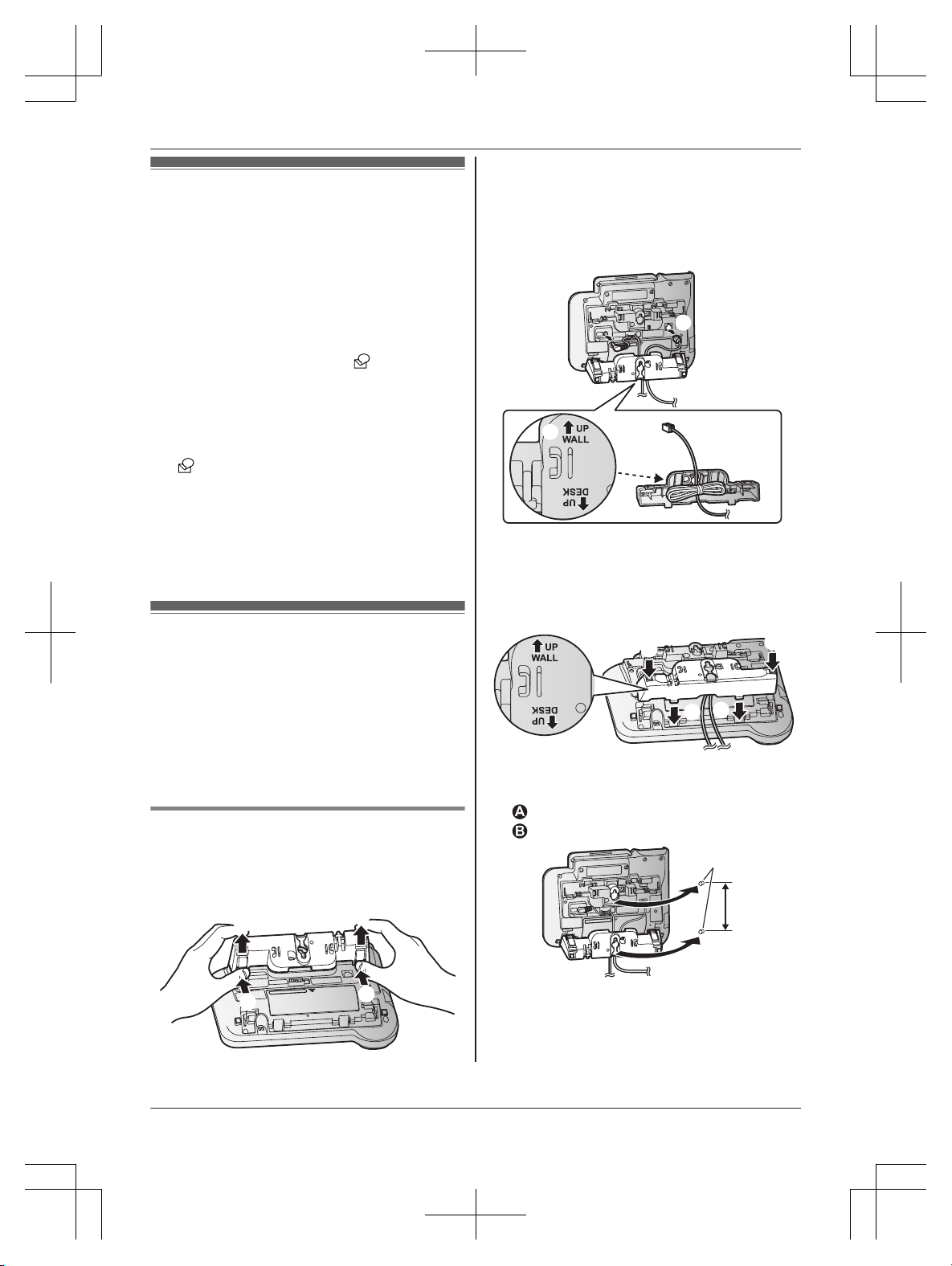
Voicemail service
V
oicemail is an automatic answering service
offered by your phone service provider. After you
subscribe to this service, your service provider/
telephone company’s voicemail system answers
calls for you when you are unavailable to answer
the phone or when your line is busy. Messages
are recorded by your phone service provider, not
your telephone.
When you have new messages,
is displayed
o
n the handset if message indication service is
available. Please contact your phone service
provider for details of this service.
Important:
R If
still remains on the display even after you
h
ave listened to new messages, turn it off by
pressing and holding # for 2 seconds.
R To use the voicemail service provided by your
phone service provider rather than the unit’s
answering system, turn off the answering
system (page 41). For details, see page 47.
Wall mounting
T
he base unit can be mounted on a wall by
changing the wall mounting adaptor’s position.
Note:
R Make sure that the wall and the fixing method
are strong enough to support the weight of the
unit.
R Drive the screws (not supplied) into the wall.
Base unit
1 T
o remove the wall mounting adaptor, push
down the release levers (A). Remove the
adaptor (B).
A
B
A
B
2 A
Turn the adaptor so that the words “UP
WALL” are facing up.
B Tuck the telephone line cord inside the wall
mounting adaptor.
C Connect the AC adaptor cord and
telephone line cord.
2
1
3
3 I
nsert the lower tabs of the adaptor into the
unit’s bottom slots (A), then insert by pushing
down the levers of the adaptor into the upper
slots (B).
R The words “UP WALL” should be facing up.
A
A
B
B
4 M
ount the unit on a wall then slide down to
secure in place.
Screws
83 mm
1
2
48
Helpline Tel. No.: U.K. 0844 844 3899 Ireland 01289 8333
Useful Information
TGF320E(en)_0123_ver020.pdf 48 2015/01/23 18:26:30
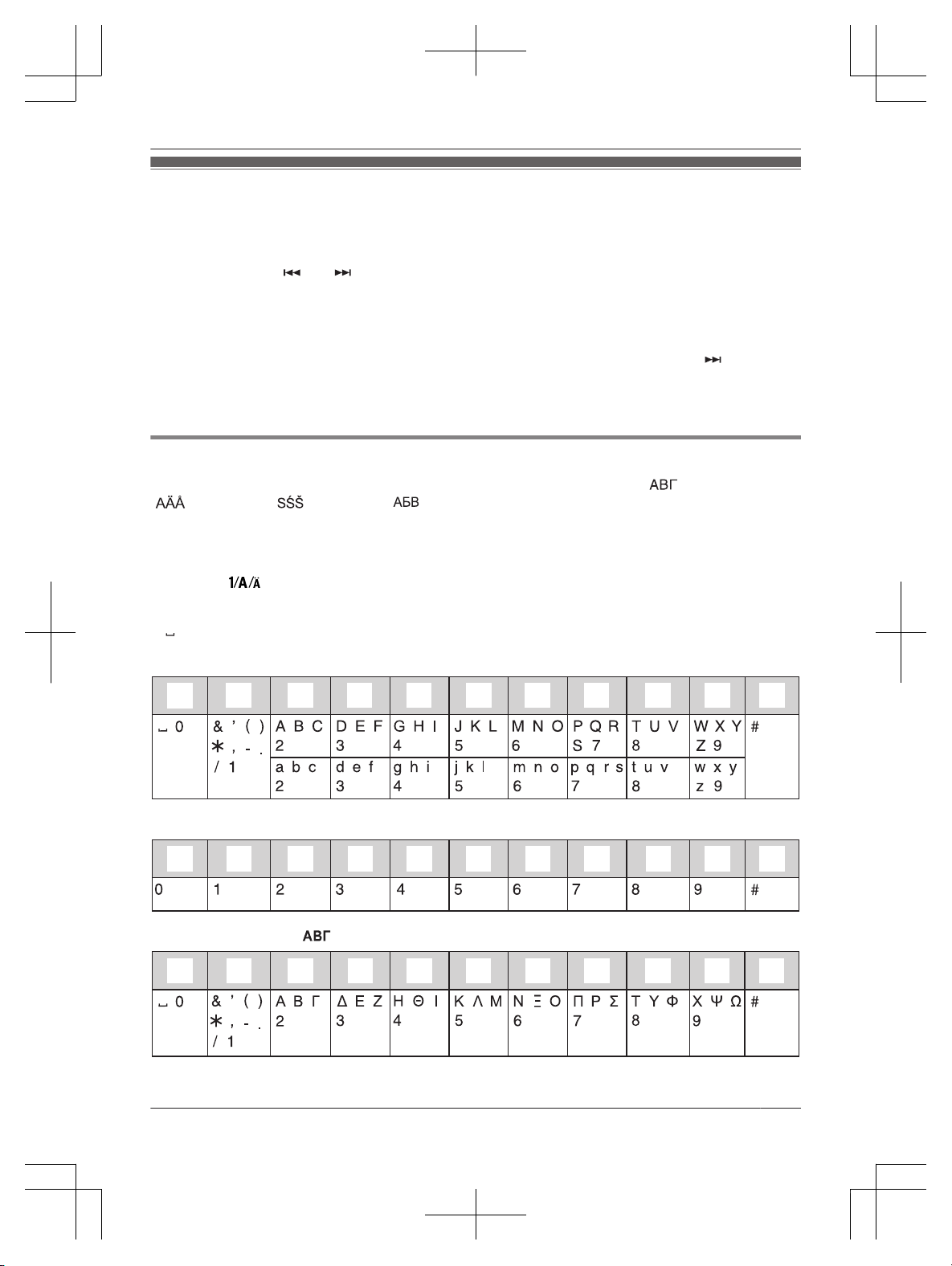
Character entry
T
he dial keys are used to enter characters and numbers. Each dial key has multiple characters assigned
to it. The characters that can be entered depend on the character entry mode (page 49).
– Handset: Press MFN or MEN to move the cursor left or right.
– Base unit: Press M
N
or M
N
to move the cursor left or right.
– Press dial keys to enter characters and numbers.
– Press MCLEARN to erase the character or number highlighted by the cursor. Press and hold MCLEARN
to erase all characters or numbers.
– Press * (Aaa) to switch between uppercase and lowercase.
– To enter another character located on the same dial key, press MEN on the handset or M
N
on the
base unit to move the cursor to the next space, then press the appropriate dial key.
– If you do not press any dial key within 2 seconds after entering a character, the character is fixed and
the cursor moves to the next space.
Character entry modes
T
he available character entry modes are Alphabet (ABC), Numeric (0-9), Greek (
), Extended 1
( ), Extended 2 ( ), and Cyrillic ( ). When in these entry modes except Numeric, you can select
w
hich character is entered by pressing a dial key repeatedly.
When the unit displays the character entry screen:
Handset: MECON a MbN: Select a character entry mode. a MOKN
Base unit: M
N a MbN:
Select a character entry mode. a MOKN
Note:
R
in the following tables represents a single space.
A
lphabet character table (ABC)
z
y
1
2 3 4 5 6 7 8 9
Numeric entry table (0-9)
z
y
1
2
3
4 5 6 7 8 9
Greek character table ( )
z y
1
2 3 4 5 6 7 8 9
Helpline Tel. No.: U.K. 0844 844 3899 Ireland 01289 8333
49
Useful Information
TGF320E(en)_0123_ver020.pdf 49 2015/01/23 18:26:30
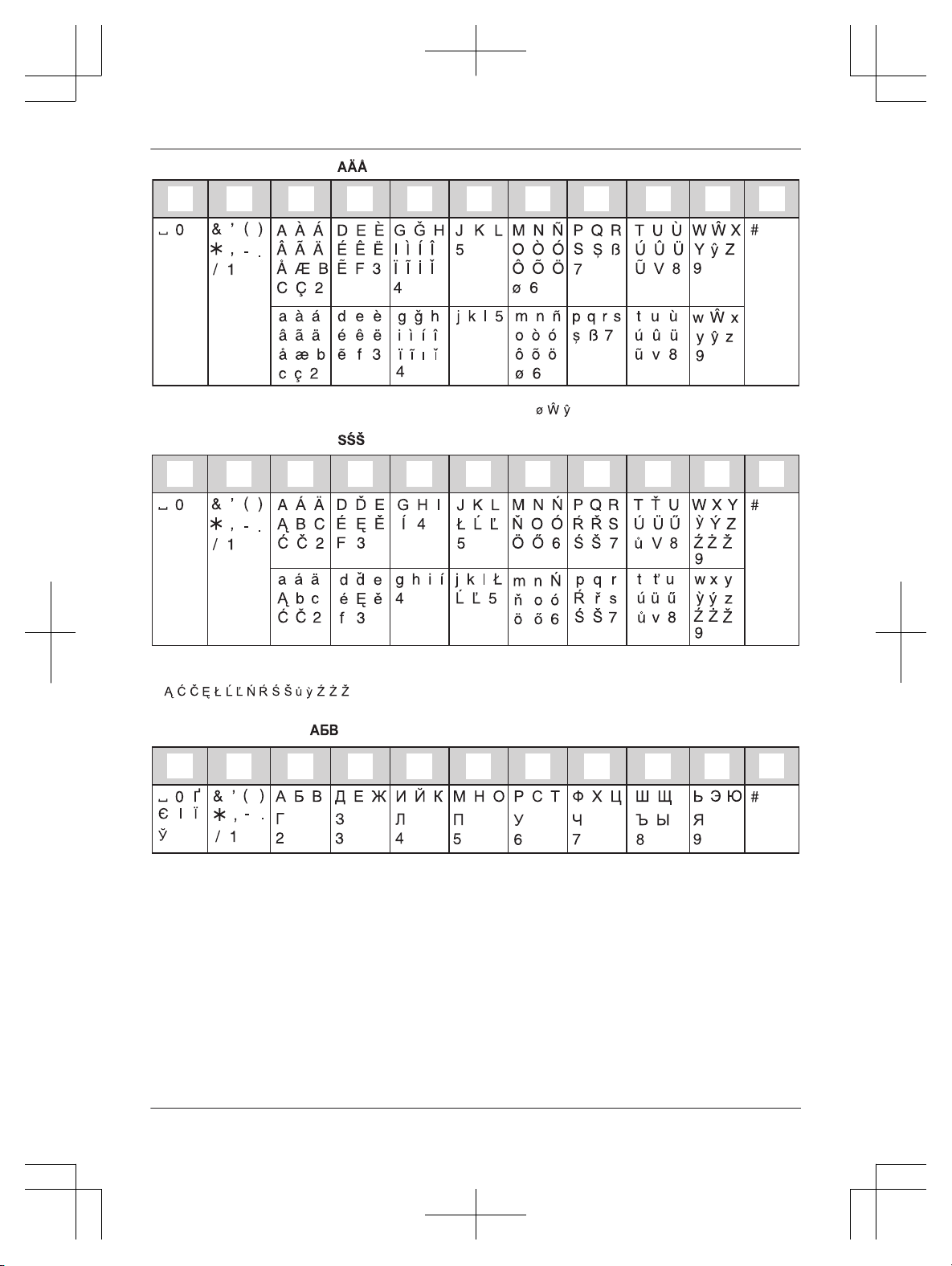
Extended 1 character table ( )
z
y
1
2 3 4 5 6 7 8
9
R T
he following are used for both uppercase and lowercase:
Extended 2 character table ( )
z
y
1
2 3 4 5 6 7 8 9
R T
he following are used for both uppercase and lowercase:
Cyrillic character table ( )
z
y
1
2 3 4 5 6 7 8 9
50
Helpline Tel. No.: U.K. 0844 844 3899 Ireland 01289 8333
Useful Information
TGF320E(en)_0123_ver020.pdf 50 2015/01/23 18:26:31
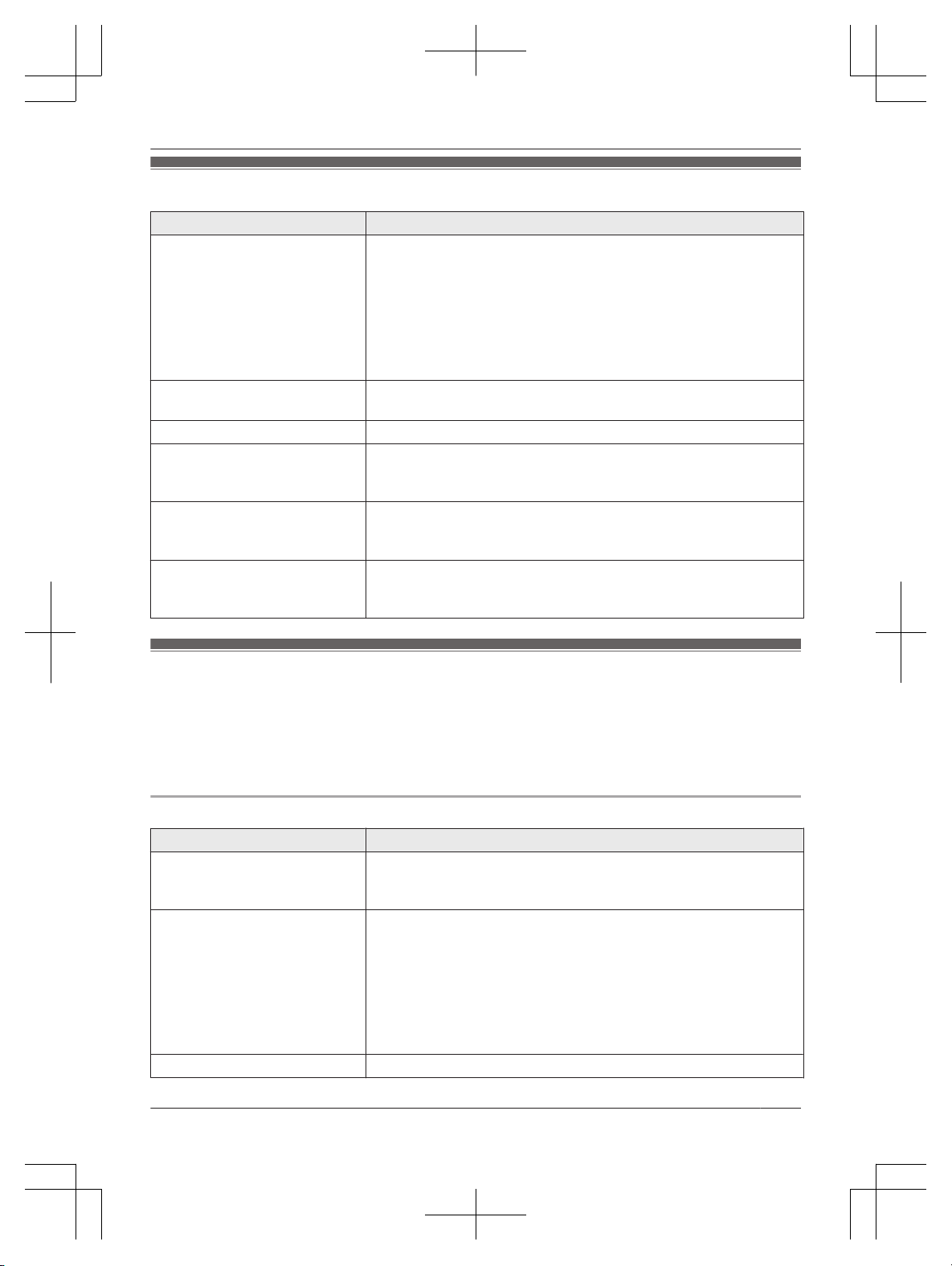
Error messages
Display message Cause/solution
Base no power
o
r
No link.
Reconnect
AC adaptor.
R C
onfirm the base unit’s AC adaptor is connected to the unit and
the power outlet correctly.
R The handset has lost communication with the base unit. Move
closer to the base unit and try again.
R Unplug the base unit’s AC adaptor to reset the unit. Reconnect
the adaptor and try again.
R The handset’s registration may have been cancelled. Re-register
the handset (page 37).
Check
P
hone Line
R T
he supplied telephone line cord has not been connected yet or
not connected properly. Check the connections (page 10).
Error
R R
ecording was too short. Try again.
Memory Full
R T
he phonebook memory is full. Erase unwanted entries (page 25).
R The call block list memory is full. Erase unwanted entries
(page 23).
Use
r
echargeable
battery.
R A
wrong type of battery such as alkaline or manganese was
inserted. Use only the rechargeable Ni-MH batteries noted on
page 3, 7.
You must first
s
ubscribe
to Caller ID.
R Y
ou must subscribe to a Caller ID service. Once you receive
caller information after subscribing to a Caller ID service, this
message will not be displayed.
Troubleshooting
I
f you still have difficulties after following the instructions in this section, disconnect the base unit’s AC
adaptor, then reconnect the base unit’s AC adaptor. Remove the batteries from the handset, and then
insert them into the handset again.
If the base unit batteries for power backup are installed, remove the batteries from the base unit, and
then insert them into the base unit again.
General use
Problem Cause/solution
The handset does not turn on
e
ven after installing charged
batteries.
R Place the handset on the charger to turn on the handset.
The unit does not work. R M
ake sure the batteries are installed correctly (page 10).
R Fully charge the batteries (page 11).
R Check the connections (page 10).
R Unplug the base unit’s AC adaptor and remove the batteries from
the handset to reset the unit. Reconnect the adaptor, insert the
batteries into the handset and try again.
R The handset has not been registered to the base unit. Register
the handset (page 37).
The handset display is blank. R T
he handset is not turned on. Turn the power on (page 15).
Helpline Tel. No.: U.K. 0844 844 3899 Ireland 01289 8333
51
Useful Information
TGF320E(en)_0123_ver020.pdf 51 2015/01/23 18:26:31
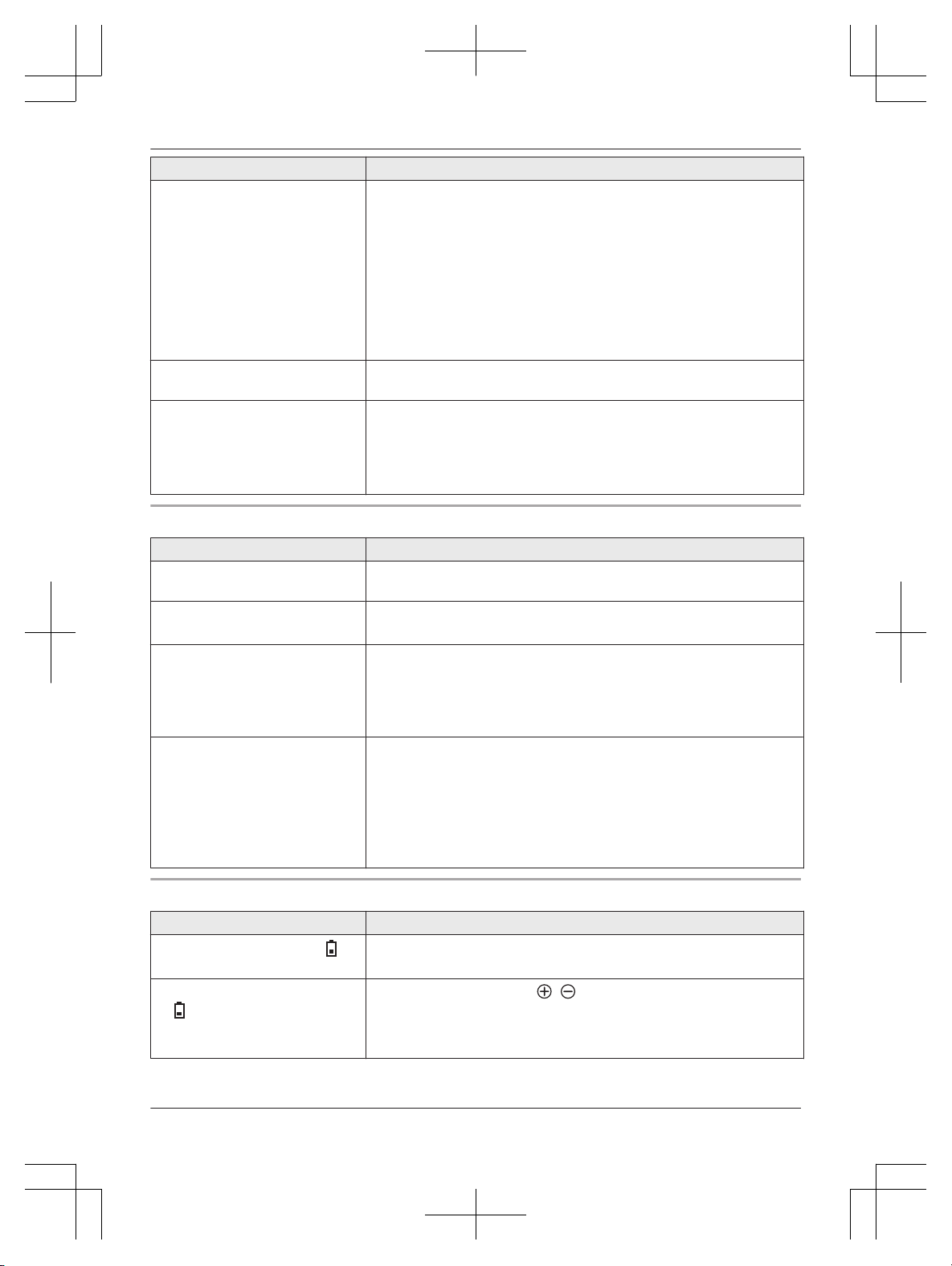
Problem Cause/solution
I cannot hear a dial tone. R M
ake sure that you are using the supplied telephone line cord.
Your old telephone line cord may have a different wiring
configuration.
R The base unit’s AC adaptor or telephone line cord is not
connected. Check the connections.
R Disconnect the base unit from the telephone line and connect the
line to a known working telephone. If the working telephone
operates properly, contact our service personnel to have the unit
repaired. If the working telephone does not operate properly,
contact your phone service provider.
The base unit beeps. R N
ew messages have been recorded. Listen to the new messages
(page 42).
The unit does not work during a
p
ower failure.
R You can insert 2 AAA (R03) batteries (not supplied) into the base
unit that will power the unit temporarily in the event of a power
failure (page 11).
R The base unit display is blank if the saving mode is “On”
(page 12).
Menu list
Problem Cause/solution
The display is in a language I
c
annot read.
R Change the display language (page 15).
I cannot activate the eco mode. R Y
ou cannot set eco mode when you set the repeater mode “On”.
If required, set the repeater mode to “Off” (page 38).
I cannot register a handset to a
base unit.
R The maximum number of handsets (6) is already registered to the
base unit. Cancel unused handset registrations from the base unit
(page 38).
R You entered the wrong PIN. If you forget your PIN, see “I cannot
remember the PIN.” (page 52).
I cannot remember the PIN. R C
hange the PIN using the following method.
Handset/Base unit:
1 MMENUN#132
2 *7000
3 Enter the new 4-digit base unit PIN. a MOKN
4 MbN: “Yes” a MOKN a MOFFN/MEXITN
Battery recharge
Problem Cause/solution
The handset beeps and/or
flashes.
R B
attery charge is low. Fully charge the batteries (page 11).
I fully charged the batteries, but
–
still flashes or
–
the operating time seems to
be shorter.
R C
lean the battery ends (
, ) and the charge contacts with a
d
ry cloth and charge again.
R It is time to replace the batteries (page 10).
52
Helpline Tel. No.: U.K. 0844 844 3899 Ireland 01289 8333
Useful Information
TGF320E(en)_0123_ver020.pdf 52 2015/01/23 18:26:31
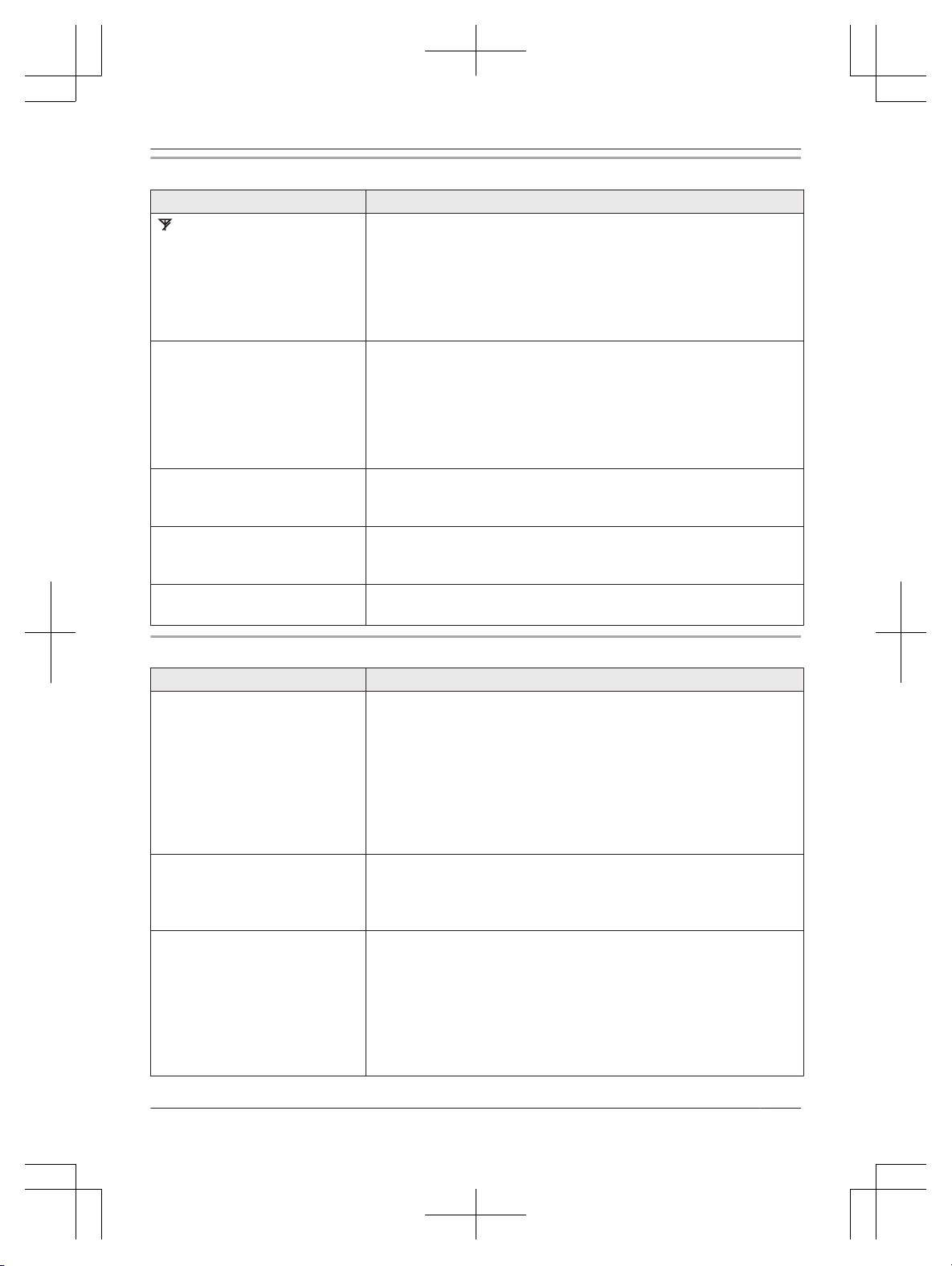
Making/answering calls, intercom
Problem Cause/solution
is displayed. R T
he handset is too far from the base unit. Move closer.
R The base unit’s AC adaptor is not properly connected. Reconnect
AC adaptor to the base unit.
R The handset is not registered to the base unit. Register it
(page 37).
R Activating eco mode reduces the range of the base unit in standby
mode. If required, turn eco mode off (page 16).
Noise is heard, sound cuts in
a
nd out.
R You are using the handset or base unit in an area with high
electrical interference. Re-position the base unit and use the
handset away from sources of interference.
R Move closer to the base unit.
R If you use a DSL/ADSL service, we recommend connecting a
DSL/ADSL filter between the base unit and the telephone line
jack. Contact your DSL/ADSL provider for details.
Sound quality seems to be
g
etting worse.
R You have registered a handset that is not recommended (page 4).
The clearest sound quality is only possible by registering the
recommended handset.
The unit does not ring. R T
he ringer volume is turned off. Adjust ringer volume (page 18,
30).
R Do not disturb mode is turned on. Turn it off (page 34).
I cannot make a call. R Y
ou dialled a call restricted number (page 36).
R The key lock feature is turned on. Turn it off (page 21).
Caller ID/Talking Caller ID
Problem Cause/solution
Caller information is not
d
isplayed.
R You must subscribe to a Caller ID service. Contact your phone
service provider for details.
R If your unit is connected to any additional telephone equipment,
remove and plug the unit directly into the wall jack.
R If you use a DSL/ADSL service, we recommend connecting a
DSL/ADSL filter between the base unit and the telephone line
jack. Contact your DSL/ADSL provider for details.
R Other telephone equipment may be interfering with this unit.
Disconnect the other equipment and try again.
Caller information is displayed
o
r announced late.
R Depending on your phone service provider, the unit may display
or announce the caller’s information at the 2nd ring or later. Set
the first ring to “Off” (page 30).
R Move closer to the base unit.
Caller information is not
a
nnounced.
R To use the Talking Caller ID feature, store the name and phone
number in the phonebook (page 24).
R The handset or base unit’s ringer volume is turned off. Adjust it
(page 18, 30).
R The Talking Caller ID feature is turned off. Turn it on (page 30).
R Depending on the number of rings setting, the answering system
may answer calls before announcing the caller information. Select
a different setting (page 46).
Helpline Tel. No.: U.K. 0844 844 3899 Ireland 01289 8333
53
Useful Information
TGF320E(en)_0123_ver020.pdf 53 2015/01/23 18:26:31
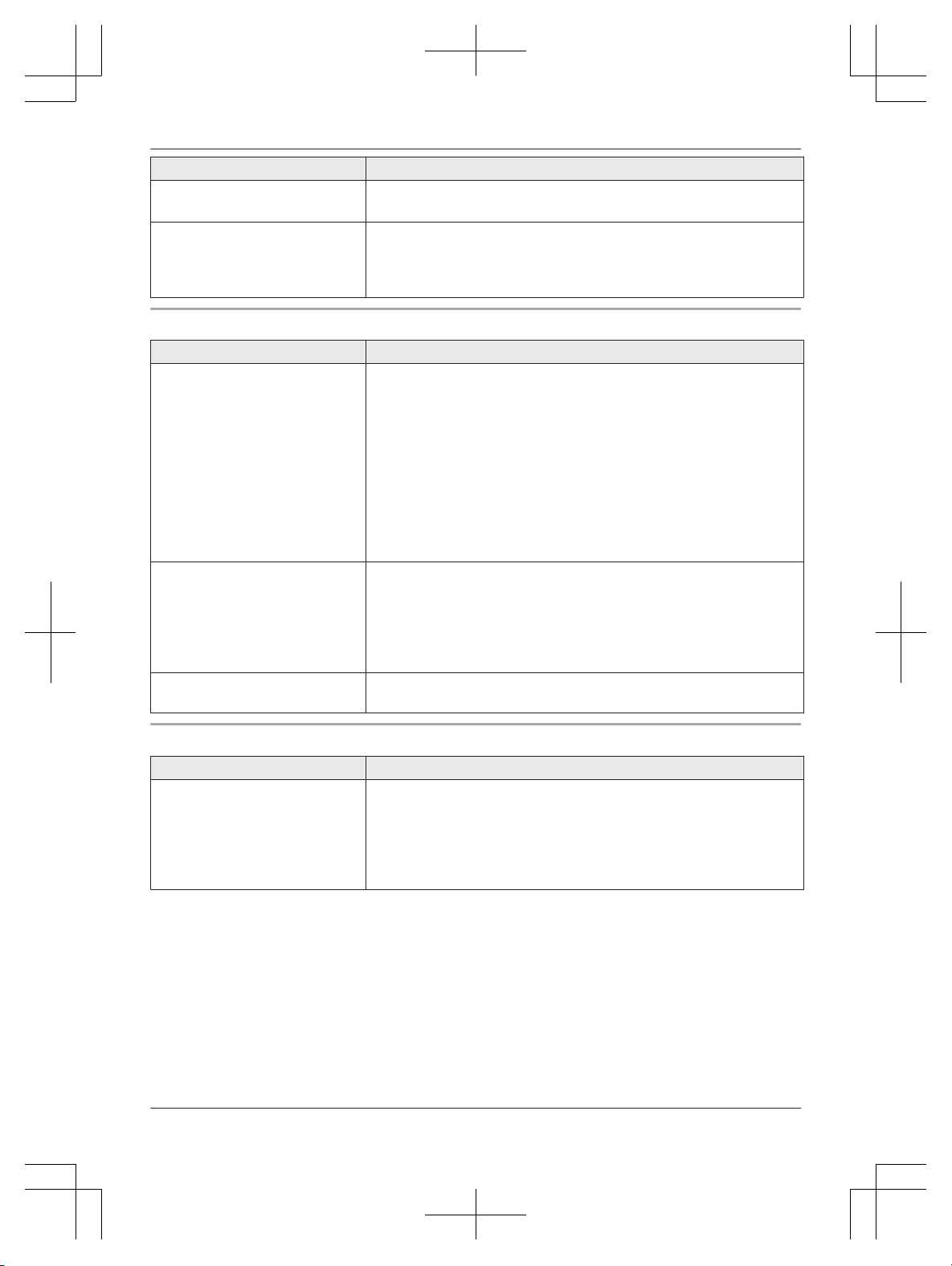
Problem Cause/solution
Time on the unit has shifted. R I
ncorrect time information from incoming Caller ID changes the
time. Set the time adjustment to “Manual” (off) (page 30).
The name stored in the
p
honebook is not fully displayed
while an outside call is being
received.
R Edit the phonebook entry name to fit in 1 line of text (page 25).
Answering system
Problem Cause/solution
The unit does not record new
m
essages.
R The answering system is turned off. Turn it on (page 41).
R The message memory is full. Erase unwanted messages
(page 42).
R The recording time is set to “Greeting Only”. Change the
setting (page 47).
R Your phone service provider’s voicemail service may be
answering your calls before the unit’s answering system can
answer your calls. Change the unit’s number of rings setting
(page 46) to a lower value, or contact your phone service provider.
R The answering system will not answer incoming calls while the
other devices such as handsets are engaged in a call.
I cannot operate the answering
s
ystem remotely.
R The remote access code is not set. Set the remote access code
(page 45).
R You are entering the wrong remote access code. If you have
forgotten your remote access code, enter the remote access code
setting to check your current code (page 45).
R The answering system is turned off. Turn it on (page 46).
The unit does not emit the
s
pecified number of rings.
R If the first ring is turned off (page 30), the number of rings
decreases by 1 from the specified number of rings.
Liquid damage
Problem Cause/solution
Liquid or other form of moisture
h
as entered the handset/base
unit.
R Disconnect the AC adaptor and telephone line cord from the base
unit. Remove the batteries from the handset and leave to dry for
at least 3 days. After the handset/base unit are completely dry,
reconnect the AC adaptor and telephone line cord. Insert the
batteries and charge fully before use. If the unit does not work
properly, contact an authorised service centre.
Caution:
R T
o avoid permanent damage, do not use a microwave oven to speed up the drying process.
54
Helpline Tel. No.: U.K. 0844 844 3899 Ireland 01289 8333
Useful Information
TGF320E(en)_0123_ver020.pdf 54 2015/01/23 18:26:31
Conditions of guarantee
Receipt No. Date of purchase
Model No. Serial No.
This guarantee is in addition to and does not in any way affect any statutory or other rights of
consumer purchasers. If within the applicable guarantee period, the product proves to be
defective by reason of faulty design, workmanship or materials, we undertake subject to the
following conditions to have the defective product (or any part or parts there of) repaired or
replaced free of charge.
1. The product shall have been purchased and used solely within either the U.K. or Ireland
and in accordance with standard operating instructions and the technical and/or Safety
Standards required in the U.K.
2. On being found defective, please consult with the retailer from where it was purchased for
assistance.
3. This guarantee shall not apply to damage caused through fire, accident, lightning, misuse,
wear and tear, neglect, incorrect adjustment or repair, to damage caused through
installation, adaption, modification or use in an improper manner or inconsistent with the
technical and/or safety standards required in the country where this product is used, or to
damage occurred during transit to or from the purchaser.
4. If at any time during the guarantee period any part or parts of the product are replaced
with a part or parts not supplied or approved by us or of an objective quality safe and
suitable for the product, or the product has been dismantled or repaired by any person not
authorised by us, we shall have the right to terminate this guarantee in whole or in part
immediately without further notice.
5. The purchaser’s sole and exclusive remedy under this guarantee against us is for the
repair or replacement of the product or any defective part or parts and no other remedy,
including, but not limited to, incidental or consequential damage or loss of whatsoever
nature shall be available to the purchaser.
6. This guarantee shall not apply to batteries and any other items of limited natural life.
7. Our decision on all matters relating to complaints shall be final. Any product or defective
part which has been replaced shall become our property.
8. The guarantee period applicable to this product shall be 12 months.
Panasonic U.K. a branch of Panasonic Marketing Europe GmbH
Please keep these operating instructions with your receipt.
Helpline Tel. No.: U.K. 0844 844 3899 Ireland 01289 8333
55
Useful Information
TGF320E(en)_0123_ver020.pdf 55 2015/01/23 18:26:31
Index
A A
dditional handsets: 37
Alarm: 33
Answering calls: 18
Answering system: 41
Call screening: 46
Erasing messages: 42, 43, 46
Greeting message: 41
Greeting only: 47
Listening to messages: 42, 43, 45
New message alerting: 43
Number of rings: 46
Recording time: 47
Remote access code: 45
Remote operation: 45
Turning on/off: 41
Auto intercom: 20
Auto talk: 18, 31
B Baby monitor: 34
Battery: 10, 12
Battery saving mode: 12
C Call restriction: 36
Call share: 19
Call waiting: 19
Call Waiting Caller ID: 19
Caller ID service: 39
Caller list: 39
Caller list edit: 40
Category: 24
Chain dial: 25
Character entry: 49
CID (Caller ID): 39
Conference calls: 19
Control type: 13, 14
D Date and time: 15
Direct command code: 28
Display
Contrast: 31
Language: 15
Do not disturb mode: 34
E Eco mode: 16
Equalizer: 19
Error messages: 51
F First ring: 30
H Handset
Deregistration: 38
Locator: 13
Name: 36
Registration: 37
Hold: 18
I Intercom: 20
K K
ey finder: 30, 32
Key lock: 21
Keytones: 31
M Making calls: 17
Missed calls: 39
Mute: 18
N Noise reduction: 19
Nuisance call block: 22
O OK Key: 13, 14
One-touch dial buttons: 27
P Pause: 17
Phonebook: 24
PIN: 37
Power failure (power backup operation): 11
Power on/off: 15
Privacy mode: 31
R Recall/flash: 19
Redialling: 17
Repeater: 38
Ringer tone: 30
S Security for phone calls: 37
Speakerphone: 17
Speed dial: 25
T Talking Caller ID: 39
Time adjustment: 30
Transferring calls: 19
Troubleshooting: 51
V Voicemail: 48
Volume
Receiver: 17
Ringer (Base unit): 18, 30
Ringer (Handset): 18, 30
Speaker: 17
W Wall mounting: 48
56
Index
TGF320E(en)_0123_ver020.pdf 56 2015/01/23 18:26:31

57
Notes
TGF320E(en)_0123_ver020.pdf 57 2015/01/23 18:26:31

58
Notes
TGF320E(en)_0123_ver020.pdf 58 2015/01/23 18:26:31

59
Notes
TGF320E(en)_0123_ver020.pdf 59 2015/01/23 18:26:31
1 Reconnect AC adaptor to the base unit.
2 Check if telephone line cord is connected.
3 Use rechargeable Ni-MH batteries.
(Alkaline/Manganese/Ni-Cd batteries CANNOT be used.)
4 Read troubleshooting page in the Operating Instructions.
If your product is not working properly. . .
IMPORTANT!
If you still have any problems, please call the Panasonic
DECT Helpline
0844 844 3899 (U.K.)
01289 8333 (Ireland)
or contact us through our website:
www.panasonic.co.uk
Buy online via our eShop: w
ww.shop.panasonic.eu
Sales Department:
Panasonic House, Willoughby Road, Bracknell, Berkshire, RG12 8FP
© Panasonic Corporation 2015
*PNQX6781XA*
*PNQX6781XA*
PNQX6781XA PT0115MU2027 (E)
TGF320E(en)_1222_ver201.pdf 60 2016/12/22 10:29:36