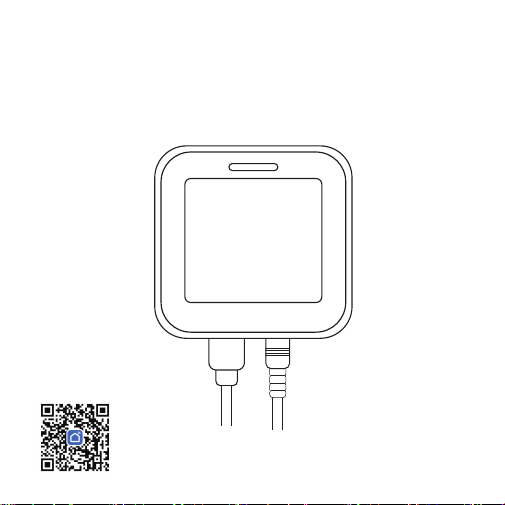
Smart Thermometer User Manual
Model: MC82

1. Before Use – Read First
• This device works with the Smart Life app for remote alerts, on/off
control, and custom sensor settings.
• Supports 2.4 GHz Wi-Fi only (not compatible with 5 GHz). Works
with iOS/Android.
• Place the sensor where the Wi-Fi signal is strong to avoid
disconnections or failed uploads.
• If your router uses a combined 2.4G/5G network, temporarily split
the bands to complete pairing.
• Strict router settings (firewall, AP isolation, etc.) may block
connection. Adjust if needed or consult your router provider.
• If your router has reached its device limit, disconnect another
device or use a different router.
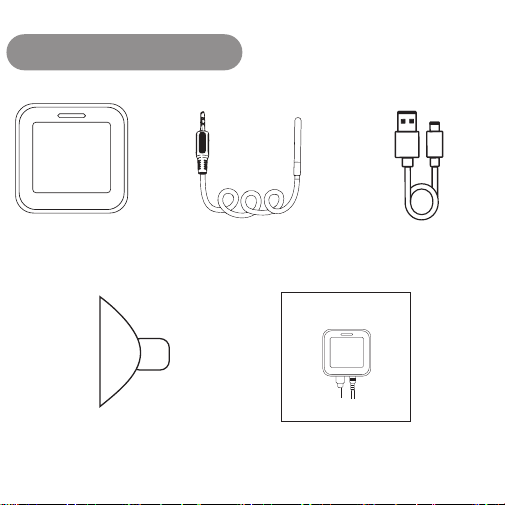
Suction Mount
×1
Type-C Power
Cable ×1
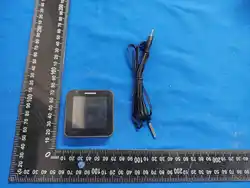
Thermometer
Unit ×1
User Manual
×1
2.What’s in the Box
1.5m Temperature
Sensor Cable ×1
Smart Thermometer User Manual
Model: MC82
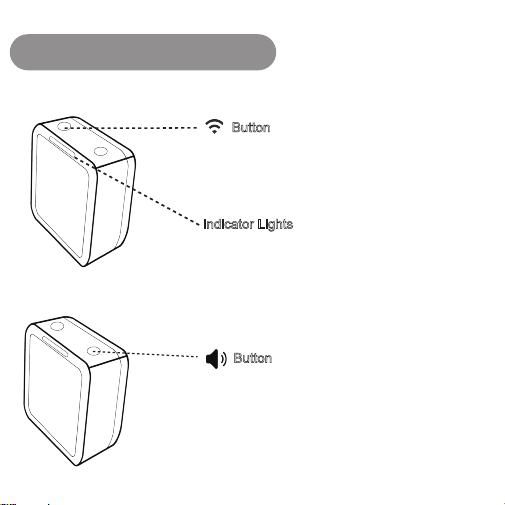
3. Hardware Overview
Button
Long press (2s): Enter pairing mode
Short press: Turn backlight ON/OFF
Button
Long press (2s): Switch temperature unit (℉/℃)
Short press: Turn sound ON/OFF
Indicator Lights
Blue Light (blinking):Device is in pairing mode
Red Light (blinking): Temperature abnormal / outside the
set range
Green Light (solid): Temperature is within the normal
range
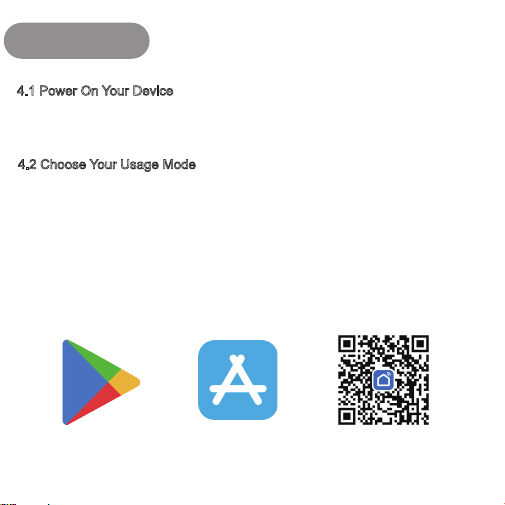
4. Set UP
4.1 Power On Your Device
4.2 Choose Your Usage Mode
Connect the sensor to a 5V/1A (or higher) USB power adapter.
Note:The power adapter is not included.
① Use Without Network (Offline Mode)
If you prefer not to connect the device to the internet or use the app, the thermometer can still
function normally in offline mode.
Note: In offline mode, the sensor cannot perform remote monitoring or send online alerts.
② Use With Network (Recommended)
Download the “Smart Life” app via Google Play, Apple App Store, or by scanning the QR
code below. and register a user on the application.
Google Play App Store Smart Life
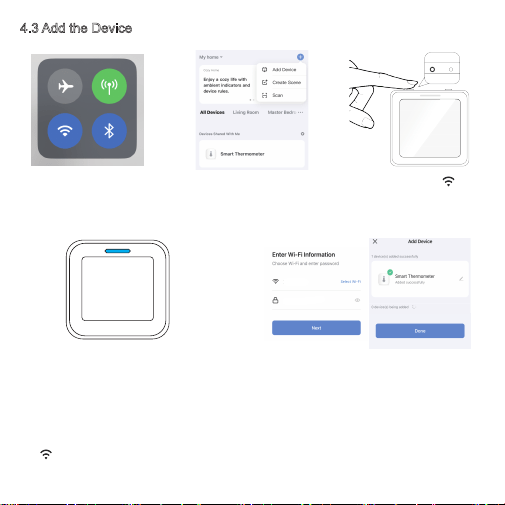
4.3 Add the Device
**********
**********
① Turn on your Wi-Fi (2.4
GHz) and Bluetooth on your
phone.
② In the Smart Life app, tap
“+”button → "Add Device”
on the upper right.
③ Long press the button
on the device for 2 seconds
to enter pairing mode.
④ The blue indicator light blinks,
indicating that the device is ready to pair.
Note:
• When powered on for the first time, the
device automatically enters pairing mode for
3 minutes.
• For manual pairing afterward, Long press
the button for 2 seconds. The device
will stay in pairing mode for 1 minute,
indicated by the blinking blue light.
⑤ After selecting your Wi-Fi network,
enter the password and tap "Next".
After the device connects, tap "Done".
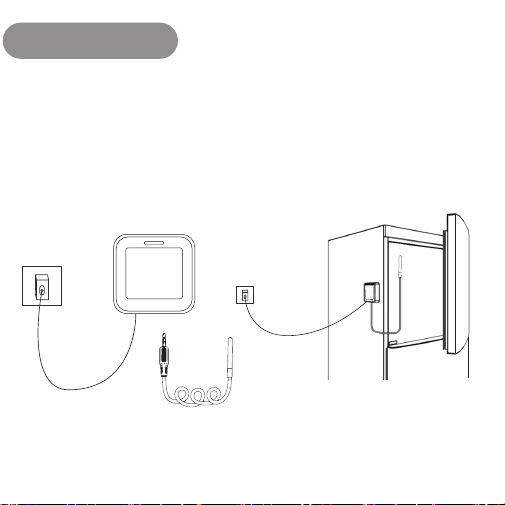
5. Installation
Position the device in close proximity to your Wi-Fi router and at an elevated location
within the same space, avoiding major physical barriers and electronic interference
sources for optimal performance.
Note: Clean & dry frost/moisture/debris from the specific suction cup mounting spot in the
fridge. Residue breaks the seal, causing unstable placement—ensure a tight fit for
accuracy.
6. Smart Life App Interface Overview
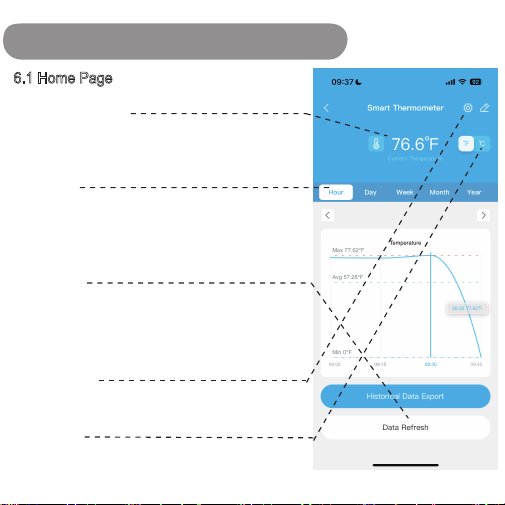
6.1 Home Page
Temperature Display
Use the Hour, Day, Week, Month, Year buttons to change
the time range displayed on the temperature graph. You
can also download up to one year of historical
temperature data.
Data Refresh
Temperature calibration is available under this section.
Under normal use, recalibration is not required throughout
the entire sensor lifecycle. Accuracy tolerance: ±0.9°F /
±0.5°C
Settings Button
Tap this icon to open the sensor settings page, where
you can adjust alarms, units, notifications, and more.
The sensor will automatically switch to the
temperature unit you set on your mobile phone.
°F /°C Swich
This section shows the current temperature reading.
You can switch between °F /°C using the toggle on the
right side.
Time Chart
6.2 Sensor Settings
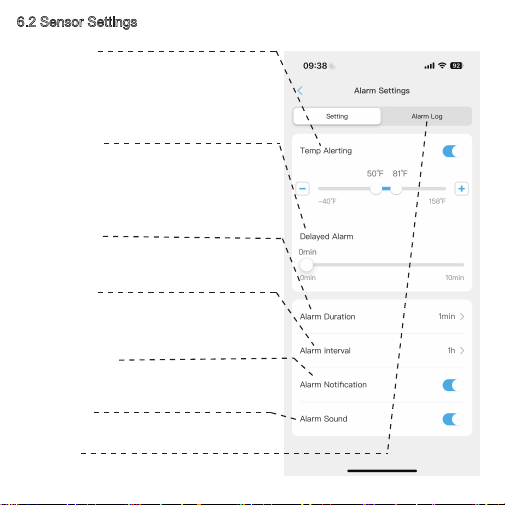
When this feature is enabled, you can set a
normal temperature range.
If the sensor’s temperature rises above the
maximum value or drops below the minimum
value, an alarm will be triggered.
This anti-false-alarm feature prevents
unnecessary freezer alerts by notifying you 1–10
minutes after the temperature exceeds the set
range—helping avoid false alarms when opening
the refrigerator door briefly.
Set how long the device will sound an alarm,
adjustable from 1-10 minutes.
If the temperature remains abnormal, you can
set a repeat interval of 1–12 hours to ensure you
don’t miss important alerts.
Enable or disable app notifications for
temperature alerts.
Turn the device’s audible alarm ON or OFF.
Tap Alarm Log to view the sensor’s history of
alert notifications.
Temp Alerting
Delayed Alarm
Alarm Duration
Alarm Interval
Alarm Notification
Alarm Sound
Alarm Log
6.3 Official Settings Page
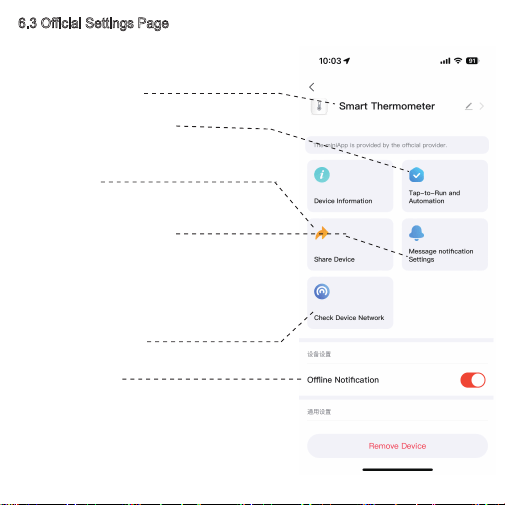
Here you can access additional features, including:
Link the sensor with other smart devices
Allow friends or family to monitor the sensor together.
Note: Phone call and SMS notifications are paid
premium services provided by the Smart Life app.
Please evaluate your needs carefully before
subscribing.
Custom Sensor Name
Tap-to-Run and Automation
Share Device
Message Notification Setting
Check Device Network
Offline Notification
7. Product Parameter
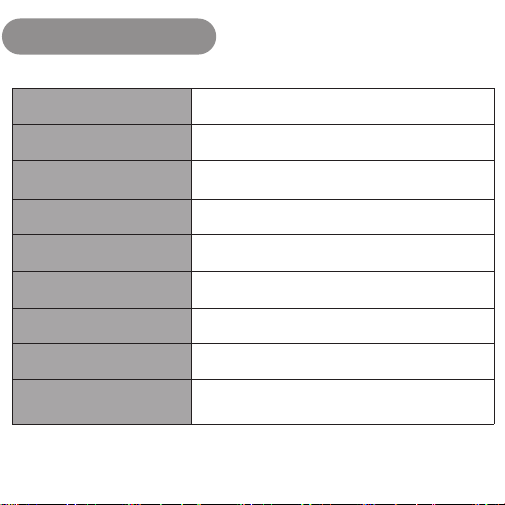
Model
Dimensions
Weight
Power Supply
Wireless Connectivity
Temperature Detection Range
Temperature Accuracy
Temperature Refresh Rate
Sensor Cable Length
MC82
2.28 × 2.28 × 0.71 inches (58 × 58 × 18 mm)
1.76 oz (50 g)
5V/1A USB power adapter (not included)
2.4 GHz Wi-Fi
-40°F to 158°F (-40℃ to 70℃)
±0.9°F / ±0.5°C
Every 2 seconds
1.5 m

8. Troubleshooting
Q:When does the temperature become accurate? What is the accuracy?
A: After the sensor is powered on, it may take 15–20 minutes for the temperature reading to
stabilize and reflect the actual environment.
The accuracy is ±0.9°F / ±0.5°C.
Q: What should I do if the device cannot connect to Wi-Fi?
A: ① This sensor supports 2.4 GHz Wi-Fi only.
② Ensure the sensor is within the Wi-Fi coverage area. The recommended distance is within
10–15 meters from the router.
③ Reduce potential signal obstacles such as metal doors, multiple walls, or thick walls, which
may weaken the connection.
Q: Sensor Installation Environment
A: The operating temperature range of this sensor is -40°F to 158°F (-40℃ to 70℃).
Using the device outside this range may cause permanent damage to the sensor.

This device complies with part 15 of the FCC Rules. Operation is subject to the
following two conditions: (1) This device may not cause harmful interference, and (2)
this device must accept any interference received, including interference that may cause
undesired operation.
Any Changes or modifications not expressly approved by the party responsible for
compliance could void the user's authority to operate the equipment.
Note: This equipment has been tested and found to comply with the limits for a Class B
digital device, pursuant to part 15 of the FCC Rules. These limits are designed to
provide reasonable protection against harmful interference in a residential installation.
This equipment generates uses and can radiate radio frequency energy and, if not
installed and used in accordance with the instructions, may cause harmful interference
to radio communications. However, there is no guarantee that interference will not
occur in a particular installation. If this equipment does cause harmful interference to
radio or television reception, which can be determined by turning the equipment off and
on, the user is encouraged to try to correct the interference by one or more of the
following measures:
-Reorient or relocate the receiving antenna.
-Increase the separation between the equipment and receiver.
-Connect the equipment into an outlet on a circuit different from that to which the
receiver is connected.
-Consult the dealer or an experienced radio/TV technician for help.
-This equipment complies with FCC radiation exposure limits set forth for an
uncontrolled environment. This equipment should be installed and operated with
minimum distance 20cm between the radiator & your body.