
HP company notices
Copyright and license
The information contained herein is subject to
change without notice.
All rights reserved. Reproduction, adaptation, or
translation of this material is prohibited without
prior written permission of HP, except as allowed
under the copyright laws. The only warranties
for HP products and services are set forth in
the express warranty statements accompanying
such products and services. Nothing herein
should be construed as constituting an
additional warranty. HP shall not be liable
for technical or editorial errors or omissions
contained herein.
© Copyright 2026 HP Development Company,
L.P.
Trademark credits
Microsoft
®
and Windows
®
are either registered
trademarks or trademarks of Microsoft
Corporation in the United States and/or other
countries.
Mac, macOS, iPadOS, and AirPrint are
trademarks of Apple Inc., registered in the U.S.
and other countries.
Google Play is a trademark of Google LLC.
ENERGY STAR
®
and the ENERGY STAR
®
mark
are registered trademarks owned by the U.S.
Environmental Protection Agency.
Safety information
Always follow basic safety precautions when
using this product to reduce risk of injury from
re or electric shock.
Read and understand all instructions in the
documentation that comes with the printer.
Observe all warnings and instructions marked on
the product.
Unplug this product from wall outlets before
cleaning.
Do not install or use this product near water, or
when you are wet.
Install the product securely on a stable surface.
Install the product in a protected location where
no one can step on or trip over the line cord, and
the line cord cannot be damaged.
If the product does not operate normally, see
Solve problems in this guide.
There are no user-serviceable parts inside. Refer
servicing to qualied service personnel.

Table of contents
1Get started...................................................................................................................................................................................................1
Set up your printer.................................................................................................................................................................................1
Printer views ...........................................................................................................................................................................................1
Control panel features...........................................................................................................................................................................3
Use the HP app (iOS, Android, Windows, and macOS)................................................................................................................... 11
2Connect your printer................................................................................................................................................................................ 13
Connect to a Wi-Fi network ............................................................................................................................................................... 13
Change Wi-Fi settings......................................................................................................................................................................... 14
Change the connection type.............................................................................................................................................................. 16
3Load media ............................................................................................................................................................................................... 18
Load paper ........................................................................................................................................................................................... 18
Load envelopes ................................................................................................................................................................................... 20
Load labels........................................................................................................................................................................................... 20
Load document on the scanner glass.............................................................................................................................................. 21
Load document in the document feeder (sdn/sdw models only) .............................................................................................. 23
4Print............................................................................................................................................................................................................ 24
Print from a Windows computer....................................................................................................................................................... 24
Print from a Mac computer................................................................................................................................................................ 24
Print from mobile devices.................................................................................................................................................................. 24
5Copy and scan........................................................................................................................................................................................... 26
Make a copy using the scanner glass (d/dw model)...................................................................................................................... 26
Make a copy using the document feeder (sdn/sdw model) ......................................................................................................... 26
Copy an identication (ID) card.......................................................................................................................................................... 27
Copy or scan from a mobile device .................................................................................................................................................. 29
Copy or scan from a Windows computer ........................................................................................................................................ 29
6Congure the printer using the EWS..................................................................................................................................................... 30
To access and use the EWS................................................................................................................................................................ 30
Use Web Services................................................................................................................................................................................ 32
Printer updates.................................................................................................................................................................................... 32
Congure IP network settings........................................................................................................................................................... 32
Assign or change the system password using the EWS............................................................................................................... 33
Change energy-conservation settings ............................................................................................................................................ 33
iii

7Supplies, accessories, and parts............................................................................................................................................................ 35
Order supplies, accessories, and parts............................................................................................................................................ 35
Enable or disable the Cartridge Policy feature............................................................................................................................... 36
Replace the toner cartridge............................................................................................................................................................... 36
8Solve problems......................................................................................................................................................................................... 39
Interpret control panel light patterns .............................................................................................................................................. 39
Interpreting error codes..................................................................................................................................................................... 40
Print reports......................................................................................................................................................................................... 44
Paper jams and feed issues............................................................................................................................................................... 45
Restore original factory defaults and settings............................................................................................................................... 56
Cartridge low........................................................................................................................................................................................ 56
Printer does not pick up paper or misfeeds.................................................................................................................................... 57
Improve print quality .......................................................................................................................................................................... 59
Resolve print quality problems......................................................................................................................................................... 62
Improve copy and scan image quality ............................................................................................................................................. 69
Solve Wi-Fi network problems.......................................................................................................................................................... 70
Solve Ethernet connection problems............................................................................................................................................... 73
HP support ........................................................................................................................................................................................... 73
Appendix APrinter specications ............................................................................................................................................................. 75
Technical specications...................................................................................................................................................................... 75
System requirements......................................................................................................................................................................... 75
Printer dimensions.............................................................................................................................................................................. 75
Power consumption, electrical specications, and acoustic emissions ..................................................................................... 76
Operating-environment range.......................................................................................................................................................... 77
Warning icons ...................................................................................................................................................................................... 77
Laser Warning...................................................................................................................................................................................... 78
Appendix BService and support............................................................................................................................................................... 79
Limited Warranty Statement for HP Print Cartridges, Imaging Drums, and Imaging Units for use with HP LaserJet
Printers, HP Laser Printers and Samsung Branded Laser Printers............................................................................................. 79
HP limited warranty statement ........................................................................................................................................................ 79
Reminder on the use of non-HP supplies....................................................................................................................................... 92
HPanti-counterfeit website .............................................................................................................................................................. 92
Data stored on the toner cartridge................................................................................................................................................... 92
End User License Agreement............................................................................................................................................................ 93
Customer self-repair warranty service............................................................................................................................................ 97
Customer support............................................................................................................................................................................... 98
Appendix CEnvironmental product stewardship program .................................................................................................................. 99
iv

Protecting the environment .............................................................................................................................................................. 99
Ozone production................................................................................................................................................................................ 99
Power consumption............................................................................................................................................................................ 99
Toner consumption............................................................................................................................................................................. 99
Paper use............................................................................................................................................................................................100
Plastics................................................................................................................................................................................................100
HPLaserJet print supplies...............................................................................................................................................................100
Paper...................................................................................................................................................................................................100
Material restrictions..........................................................................................................................................................................100
Disposal of waste equipment by users (EU and India)................................................................................................................100
Electronic hardware recycling .........................................................................................................................................................101
Hardware recycling information (Brazil)........................................................................................................................................101
Chemical substances........................................................................................................................................................................101
Product Power Data per European Union Commission Regulation 2023/826.......................................................................101
SEPA Ecolabel User Information (China)........................................................................................................................................102
The regulation of the implementation on China energy label for printer and copier ............................................................102
Restriction of Hazardous Substances statement (India) ............................................................................................................102
WEEE (Turkey)....................................................................................................................................................................................102
The Table of Hazardous Substances/Elements and their Content (China)..............................................................................103
Material Safety Data Sheet (MSDS) ................................................................................................................................................103
EPEAT ..................................................................................................................................................................................................103
Declaration of the Presence Condition of the Restricted Substances Marking (Taiwan).......................................................104
For more information .......................................................................................................................................................................105
Appendix DRegulatory information.......................................................................................................................................................106
Battery statements...........................................................................................................................................................................106
Regulatory statements ....................................................................................................................................................................107
Wireless statements.........................................................................................................................................................................111
v
Get started1
Learn about printer parts, control panel features, and other printer functionalities.
Set up your printer
Your printer's online setup guide provides step-by-step instructions and helpful animations tailored to your
printer model.
The guide can help you:
● Complete hardware setup tasks
● Load paper and install supplies
● Connect to a Wi‑Fi network
● Install the recommended printer software
● Troubleshoot common setup issues
Visit start.hp.com and enter your product model to get started.
You can also use the HP app to set up your printer.
Printer views
Printer parts and their descriptions.
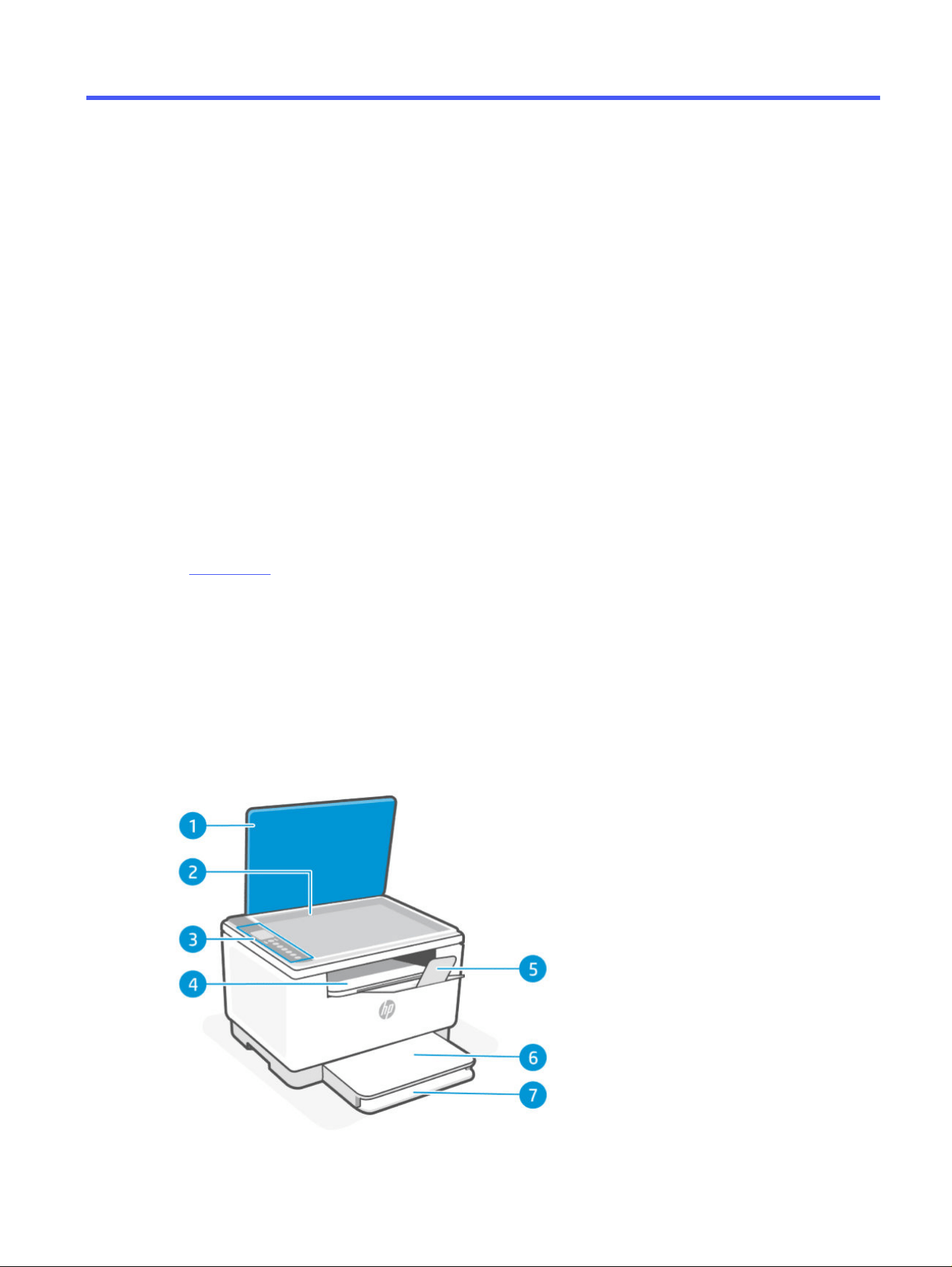
Front view (d/dw model)
Printer parts on the front.
Get started 1
Front view (d/dw model)
Feature Description
1 Scanner lid
2 Scanner glass
3 Control panel
4 Output tray / cartridge access door
5 Output tray extender
6 Tray cover
7 Paper tray
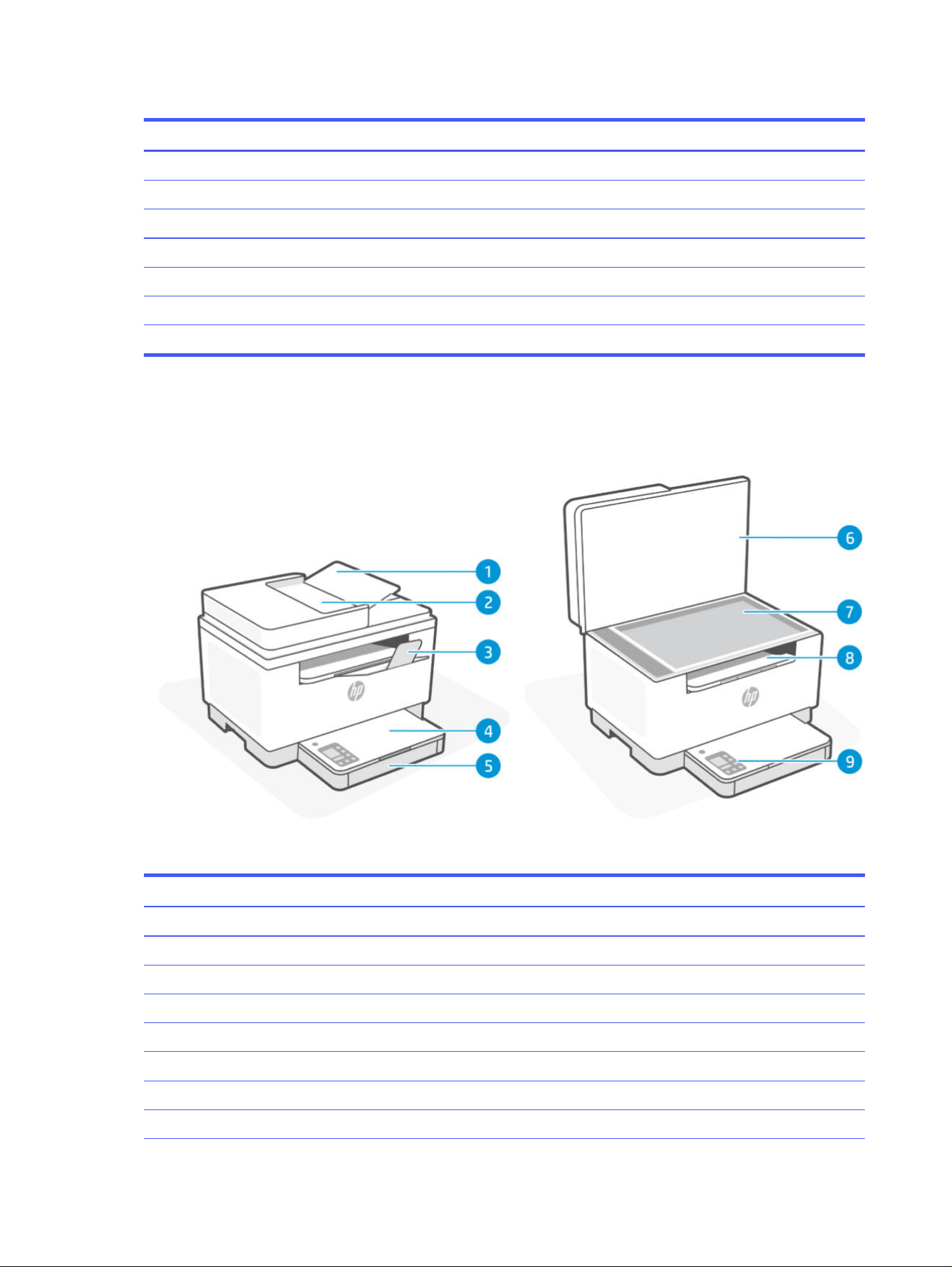
Front view (sdn/sdw model)
Printer parts on the front.
Front view (sdn/sdw model)
Feature Description
1 Document feeder cover
2 Document feeder
3 Output tray extender
4 Tray cover
5 Paper tray
6 Scanner lid
7 Scanner glass
8 Output tray / cartridge access door
2 Chapter 1Get started
Front view (sdn/sdw model) (continued)
Feature Description
9 Control panel
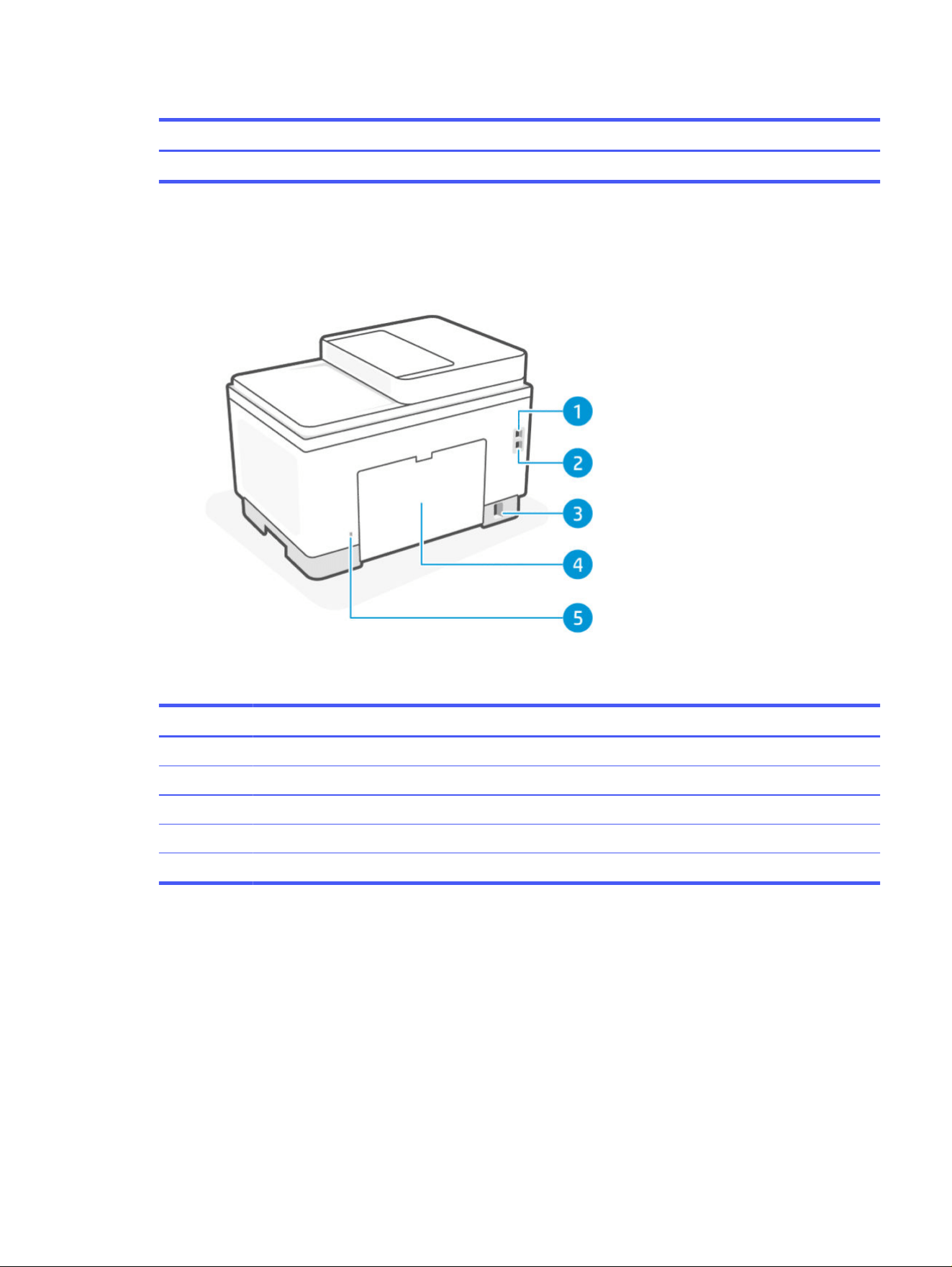
Rear view (d/dw/sdn/sdw models)
Printer parts on the rear.
Rear view (d/dw/sdn/sdw models)
Feature Description
1 USB port
2 Ethernet port (some models only)
3 Power connection
4 Rear access door
5 Security slot
Control panel features
The control panel provides direct interaction, including lights to indicate status, errors, and more.
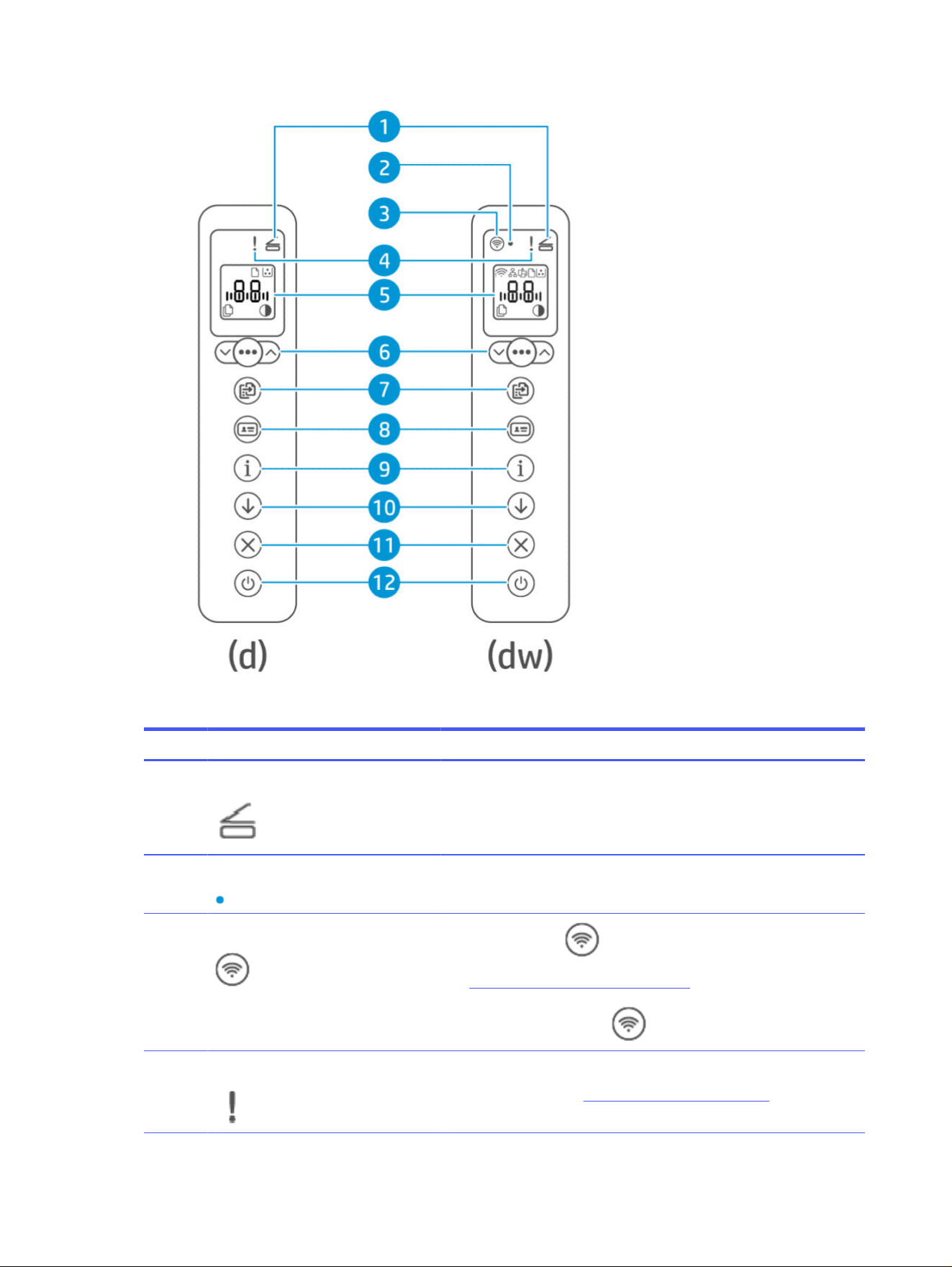
Control panel view (d/dw model)
Features and functions of the printer control panel.
Rear view (d/dw/sdn/sdw models)
3
Control panel view (d/dw model)
Feature Buttons/Lights Description
1 Open Lid light This light ashes during the ID Card Copy mode. Open the lid and turn the
original document over to copy the second side.
2 Wi-Fi light (Wi-Fi models only) A small LED light to indicate the status of the Wi-Fi connection. This light blinks
when connecting to Wi-Fi and is on when connected.
3 Wi-Fi button (Wi-Fi models only)
Press the Wi-Fi button to turn wireless capability on or o.
See Wi-Fi status of the printer (dw models only).
Press and hold the Wi-Fi button to set up wireless using WPS.
4 Attention light The Attention light is on or blinks when the printer requires user attention.
For more information, see Interpret control panel light patterns.
4 Chapter 1Get started
Control panel view (d/dw model) (continued)
Feature Buttons/Lights Description
5 Control panel display An LCD display that shows errors, number of copies, and the status of other
printer functions.
For a list of printer display codes, see Interpreting error codes.
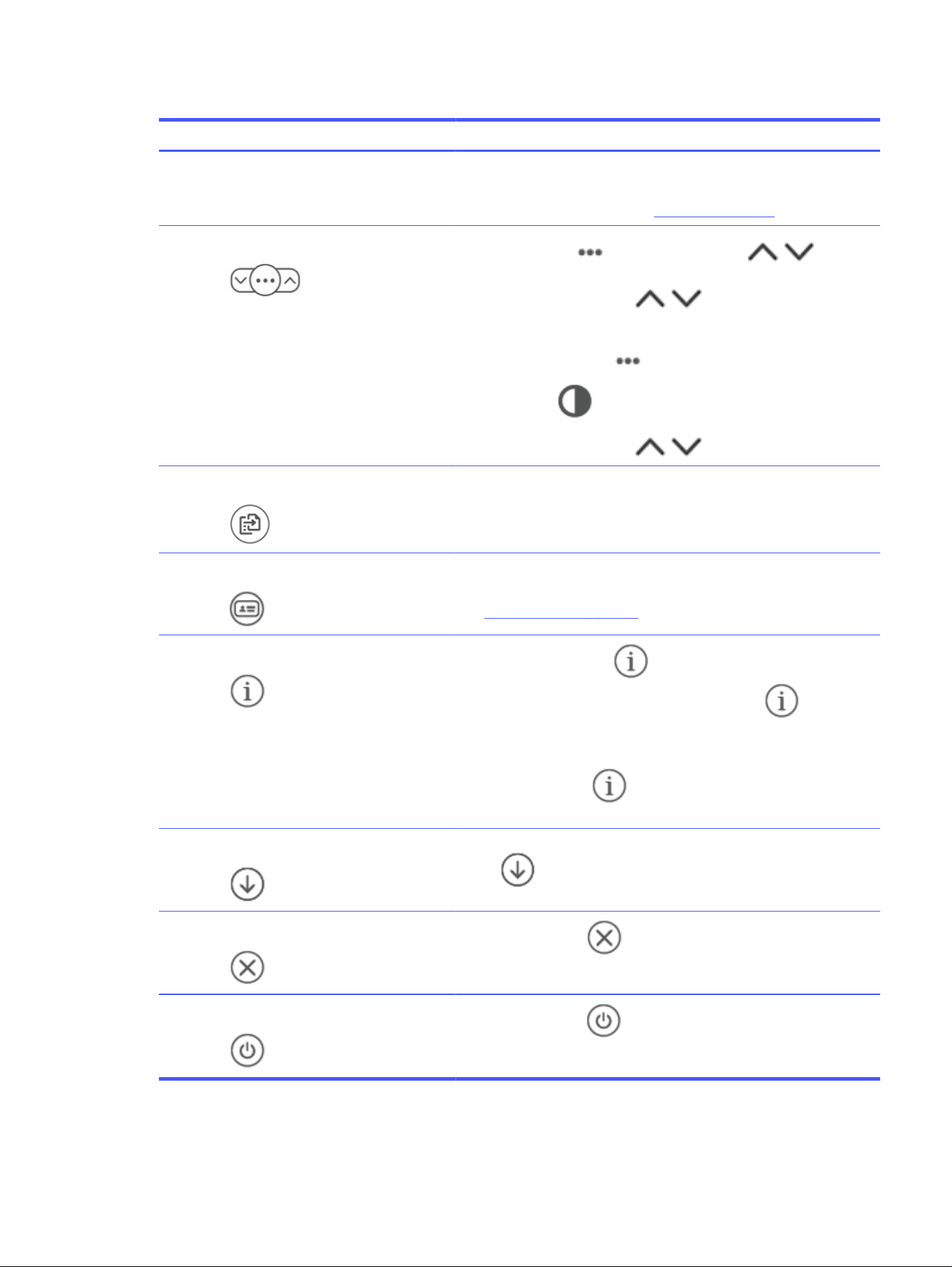
6 Copy options
Use the Menu button and the Up/Down buttons / as follows:
1. Press the Up/Down buttons / to adjust the number of copies
to print.
2. Press the Menu button to move to the next option (the Contrast
setting icon) .
3. Press the Up/Down buttons / to adjust the contrast.
7 Copy button/light Press this button to start a copy job.
8 ID Card Copy button/light Press this button to start the process of copying a two-sided identication card
or similar document.
See Copy an identication (ID) card.
9 Information button/light
Press the Information button to print a summary of printer settings
and status. If a printer error occurs, the
Information button lights up or
blinks. Press the button, check and follow the instructions on the printed page to
resolve the error.
If the Information button blinks while setting up wireless, press this
button to complete authorization.
10 Resume button/light If the Resume light is on, the printer needs attention. Press the Resume
button to acknowledge and resume printing.
11 Cancel button/light
Press the Cancel button to cancel a job.
12 Power button/light
Press the Power button to turn the printer on or o.
Control panel view (d/dw model) 5
Control panel view (sdn/sdw model)
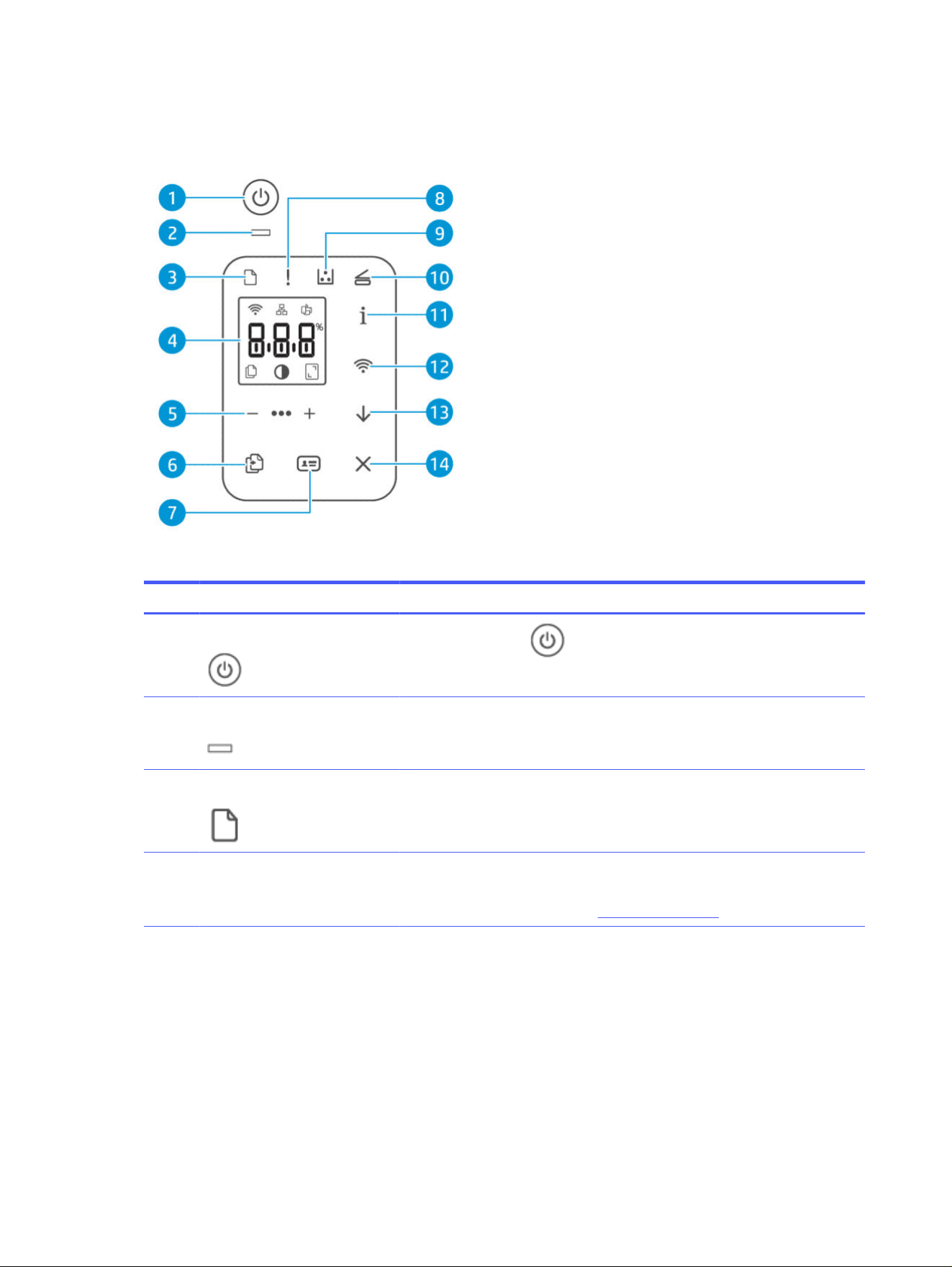
Features and functions of the printer control panel.
Control panel view (sdn/sdw model)
Feature Buttons/lights Description
1 Power button
Press the Power button to turn the printer on or o.
2 Status light When the Status light is on, the printer is ready to print. When the light is blinking, the
printer is starting up, receiving print data, or canceling a job. When the light dims, the
printer is in Sleep Mode (a low-power state).
3 Paper light The Paper light blinks when the paper tray is out of paper, or when there is a paper error.
4 Control panel display An LCD display that shows errors, number of copies, and the status of other printer
functions.
For a list of printer display codes, see Interpreting error codes.
6 Chapter 1Get started
Control panel view (sdn/sdw model) (continued)
Feature Buttons/lights Description
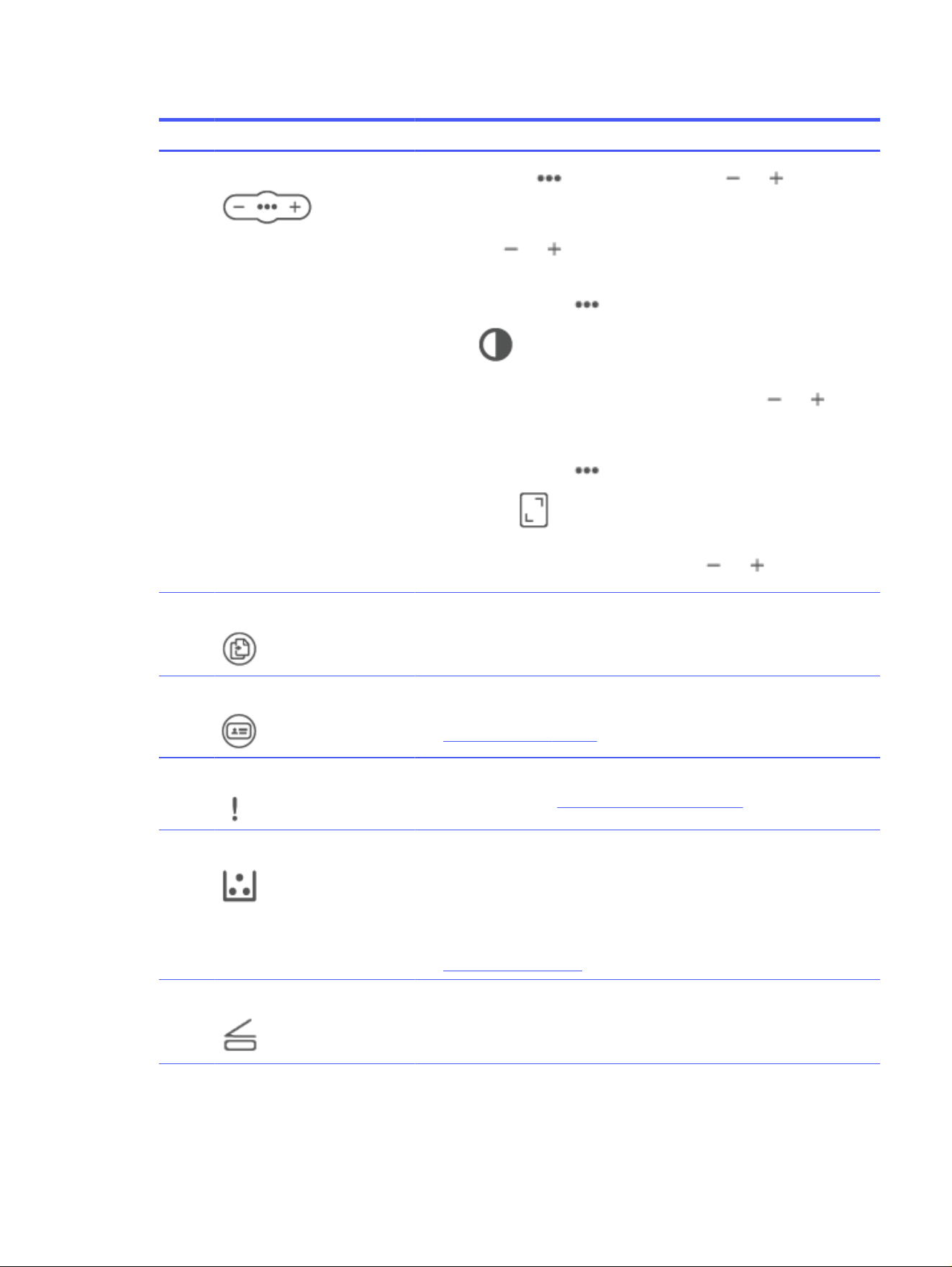
5 Copy Options
Use the Menu button and the Minus/Plus buttons / as follows:
● To adjust the number of copies to print, press the Minus/Plus
buttons / buttons.
● Press the Menu button to move to the next option, (the Contrast setting
icon) .
● To select the Contrast setting, press the Minus/Plus buttons /
buttons.
● Press the Menu button to move to the next option, (the Reduce/Enlarge
setting icon) .
● To adjust the size, press the Minus/Plus buttons / buttons.
6 Copy button/light Press this button to start a copy job.
7 ID Card copy button/light Press this button to start the process of copying a two-sided identication card or similar
document.
See Copy an identication (ID) card.
8 Attention light The Attention light is on or blinks when the printer requires user attention.
For more information, see Interpret control panel light patterns.
9 Cartridge light When the Cartridge light is on, it indicates that the cartridge is low on toner. If the
Cartridge light blinks, you can continue printing until the Attention light blinks or the
status light turns amber.
If the Cartridge light blinks and the Attention light is on or the status bar shows amber,
a problem with the cartridge has occurred. Reinstall or replace the cartridge to continue
printing.
See Replace the toner cartridge.
10 Open Lid light This light ashes during the ID Card copy mode. Open the lid and turn the original
document over to copy the second side.
Control panel view (sdn/sdw model) 7
Control panel view (sdn/sdw model) (continued)
Feature Buttons/lights Description
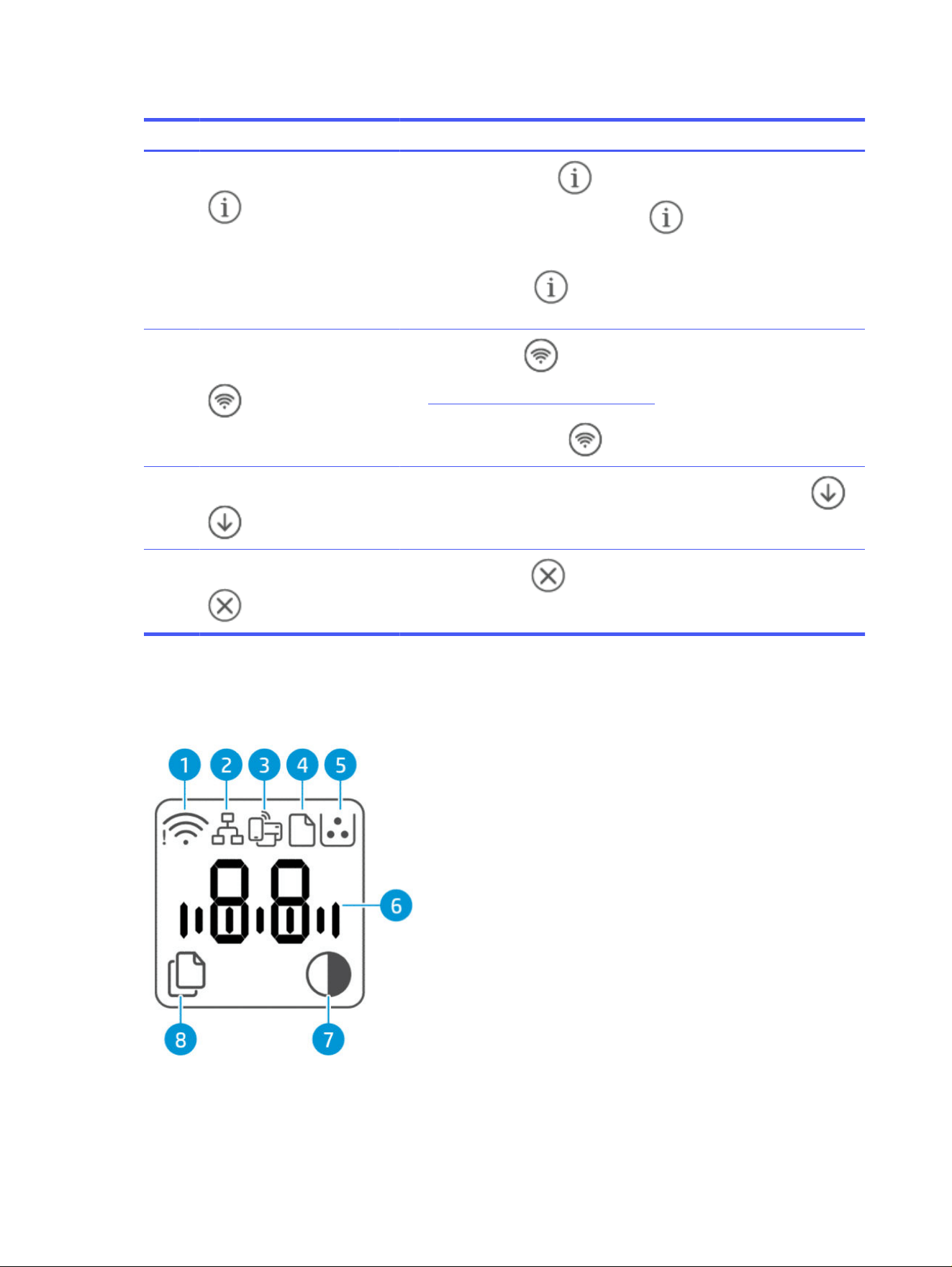
11 Information button/light
Press the Information button to print a summary of printer settings and status.
If a printer error occurs, the
Information button lights up or blinks. Press the
button, check and follow the instructions on the printed page to resolve the error.
If the Information button blinks while setting up wireless, press this button to
complete authorization.
12 Wi-Fi button/light (Wi-Fi models
only)
Press the Wi-Fi button to turn wireless capability on or o.
See Wi-Fi status of the printer (sdw models only).
Press and hold the Wi-Fi button to set up wireless using WPS.
13 Resume button/light
If the Resume light is on, the printer needs attention. Press the Resume button
to acknowledge and resume printing.
14 Cancel button/light
Press the Cancel button to cancel a job.
Control panel display features (d/dw model)
Features and functions of the control panel display.
8 Chapter 1Get started
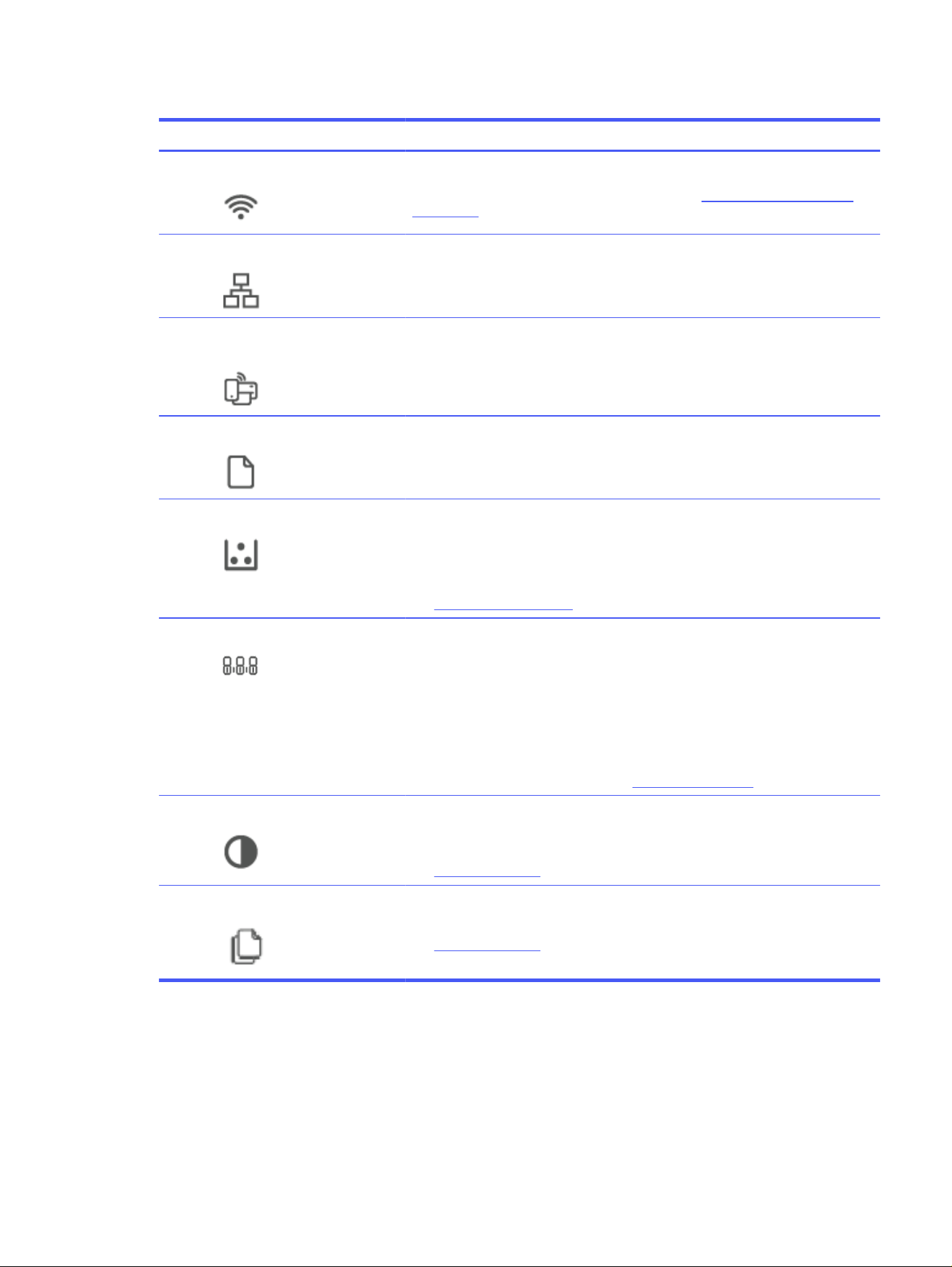
Control panel display features (d/dw models)
Feature Icon/Button Description
1 Wi-Fi icon (Wi-Fi models only) If the Wi-Fi icon is lit, then there is a stable Wi-Fi connection.
If an exclamation icon appears beside the Wi-Fi icon, see Wi-Fi status of the printer (dw
models only).
2 Ethernet icon This indicates the printer is connected through a wired (Ethernet) connection.
3 Wi-Fi Direct icon (Wi-Fi model
only)
The Wi-Fi Direct icon indicates that Wi-Fi Direct is on.
4 Paper icon Blinks when the paper tray is out of paper, or when there is a paper error.
5 Cartridge icon Indicates that the cartridge is low on toner. If the Cartridge icon blinks, you can continue
printing until the Attention light blinks.
If the Cartridge icon blinks and the Attention light is on, a problem with the cartridge has
occurred. Reinstall or replace the cartridge to continue printing.
See Replace the toner cartridge.
6 Character display Depending on the current mode, the characters display the following:
● Number of copies being printed
● Copy Settings (contrast or the reduce/enlarge setting)
● Animation to show that the device is busy
● Error and status codes
For a list of printer display codes, see Interpreting error codes.
7 Lighter/Darker (contrast) icon When the printer is in contrast mode, the control panel displays the Lighter/Darker icon
and a bar graphic representing the current level of contrast. Use the arrow keys to make
your copy lighter or darker.
See Control panel modes.
8 Number of Copies icon When the printer is in number of copies mode, the control panel displays the number of
copies currently selected for printing. Use the arrow keys adjust the copy count.
See Control panel modes.
Control panel display features (sdn/sdw model)
Features and functions of the control panel display.
Control panel display features (sdn/sdw model)
9
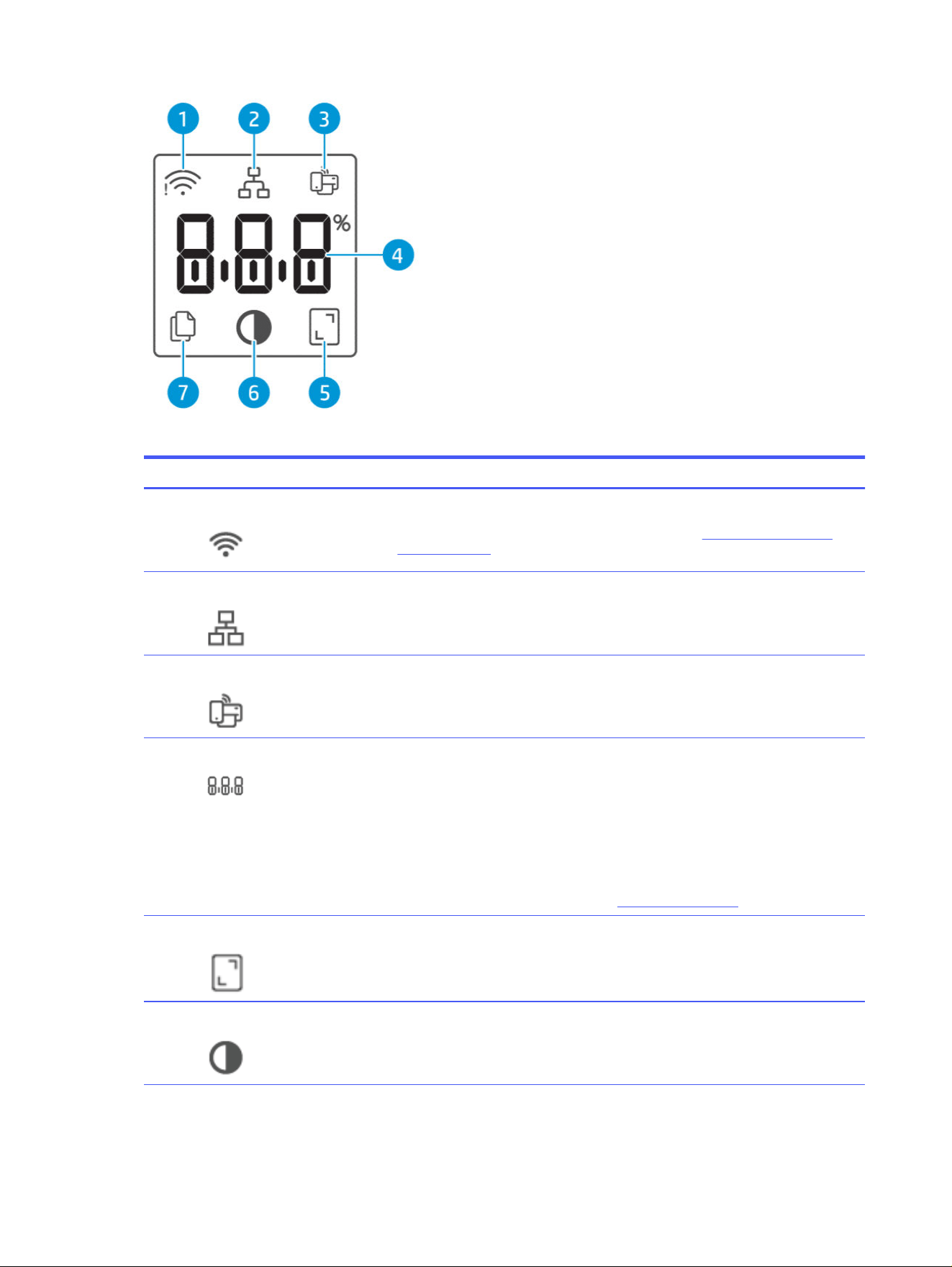
Control panel display features (sdn/sdw models)
Feature Icon/Button Description
1 Wi-Fi icon (Wi-Fi models only) If the Wi-Fi icon is lit, then there is a stable wireless connection.
If an exclamation icon appears beside the wireless icon, see Wi-Fi status of the printer
(sdw models only).
2 Ethernet icon This indicates the printer is connected through a wired (Ethernet) connection.
3 Wi-Fi Direct icon The Wi-Fi Direct icon indicates that Wi-Fi Direct is on.
4 Character display The characters display the following:
● Number of copies being printed
● Copy settings (contrast or the reduce/enlarge setting)
● Animation to show that the device is busy
● Error and status codes
For a list of printer display codes, see Interpreting error codes.
5 Reduce/Enlarge (scale) icon When displayed, the character display shows the current scaling factor (in percent).
6 Lighter/Darker (contrast) icon When displayed, the character display shows the contrast setting (as a bar graphic).
10 Chapter 1Get started
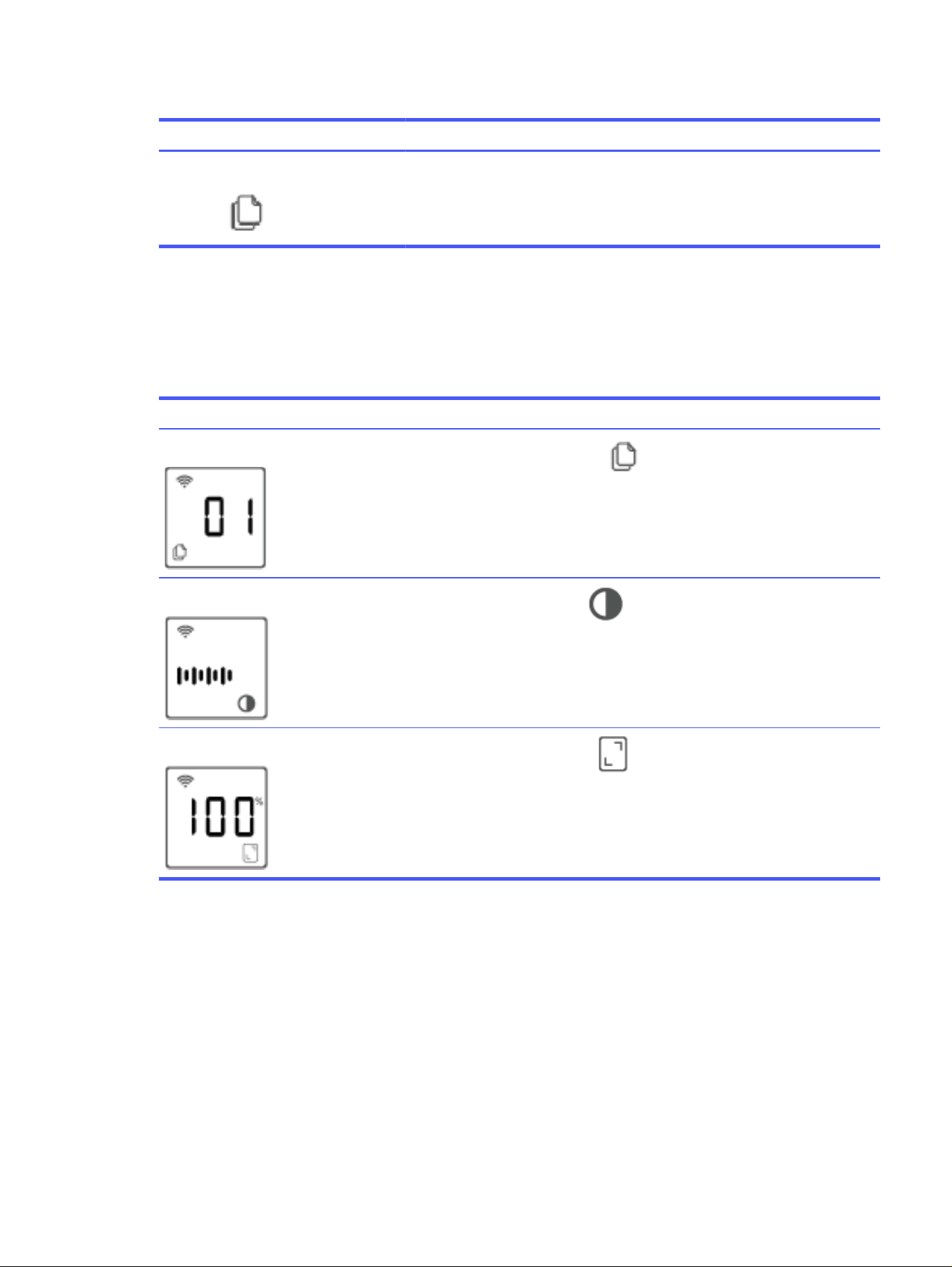
Control panel display features (sdn/sdw models) (continued)
Feature Icon/Button Description
7 Number of Copies icon When displayed, the character display shows the number of copies currently selected for
printing.
Control panel modes
The appearance of the control panel display changes depending on the mode that the printer is in. Three
common display modes are shown below.
Mode
Control panel modes Description
Copy mode
The display shows the Number of Copies icon and the number of copies currently selected.
Contrast mode
The display shows the Lighter/Darker icon and the current setting.
Scale mode (some models only)
The display shows the Reduce/Enlarge icon and the current scale (as a percentage of the
original size).
Use the HP app (iOS, Android, Windows, and macOS)
The HP app can help you perform these common printer tasks from a mobile device and computer:
● Set up and connect your printer.
● Print and scan documents and photos.
● Share documents through email and other applications.
● Manage printer settings, check printer status, print reports, and order supplies.
Follow these steps to install the HP app.
Control panel modes
11

1. Visit hp.com/start/install to download and install the HP app on your device.
2. Open the HP app.
3. If prompted, create or sign in to an HP account and register the printer.
4. Connect the printer.
See Connect your printer.
NOTE:
● The HP app is supported on mobile devices and computers running on some versions of iOS, Android,
Windows, and macOS.
● It is only available in some languages and only supports some le formats. Some features are only
available on certain printers or models.
● You can download the HP app from your device's app store.
● Visit the HP support website at support.hp.com for more information.
12 Chapter 1Get started

Connect your printer2
Learn about dierent ways to connect your printer.
Connect to a Wi-Fi network
Learn about dierent ways to connect to your Wi-Fi network.
Connect to a Wi-Fi network using the HP app
Install and use the HP app on your computer or mobile device to set up or connect the printer to your Wi-Fi
network.
See Use the HP app (iOS, Android, Windows, and macOS).
1. Make sure your computer or mobile device is connected to your Wi-Fi network. On your device, turn on
Bluetooth and location services.
NOTE: The HP app uses Bluetooth for printer setup. It does not support printing using Bluetooth.
2. If your printer Wi-Fi was previously turned o, press the Wi-Fi button to turn it on.
3. Make sure the printer is in Wi-Fi setup mode. The Wi-Fi light should blink blue.
If not, reset the printer network settings. See To restore network settings to default settings.
4. Open the software on your computer or mobile device.
If prompted, create or sign in to an HP account.
5. Select the option to add a printer, and then follow the on-screen instructions to add or connect the printer.
● If prompted for the printer password, enter the default PIN from the PIN label inside the printer. See
Things to note when accessing the EWS.
● When the printer is connected successfully, the Wi-Fi light stops blinking and remains lit.
Connect to a Wi-Fi network using Wi-Fi Protected Setup (WPS)
This Wi-Fi setup method can be used if your router has a WPS button.
1. Make sure your router and printer are near each other.
2. If your printer is in sleep mode, press the Cancel button to wake up the printer. Then press and hold
the Wi-Fi button for at least 3 seconds to start WPS. The Wi-Fi light blinks.
Connect your printer
13

3. Press the WPS button on your router within 2 minutes. When the printer is connected successfully, the Wi-Fi
light stops blinking and remains lit.
NOTE: After connecting the printer wirelessly, visit hp.com/start/install to download and install the HP app
on your device.
4. Open the HP app on your device.
If prompted, create or sign in to an HP account and register the printer.
5. In the HP app, add the printer, and then follow the on-screen instructions to add or connect the printer.
Connect to an Ethernet network
Connect your printer to a computer using an Ethernet network, and then use the HP app to set up the printer.
NOTE: The Wi-Fi connection is automatically disabled when you connect the Ethernet cable.
1. Connect your computer to the router.
2. Connect your printer to the router using an Ethernet cable.
3. Open the HP app on your computer.
If prompted, create or sign in to an HP account and register the printer.
4. In the HP app, add the printer, and then follow the on-screen instructions to add or connect the printer.
Connect using a USB cable
Connect your printer to a computer using a USB cable, and then use the HP app to set up the printer.
1. Connect the printer and computer using a USB cable.
2. Open the HP app on your computer.
If prompted, create or sign in to an HP account and register the printer.
3. In the HP app, add the printer, and then follow the on-screen instructions to add or connect the printer.
Change Wi-Fi settings
You can set up and manage the wireless connection for your printer. This includes printing information about
network settings, turning the wireless capability function on or o, and restoring wireless settings.
Wi-Fi status of the printer (dw models only)
View the status of the printer Wi-Fi connection from the printer control panel.
14
Chapter 2Connect your printer
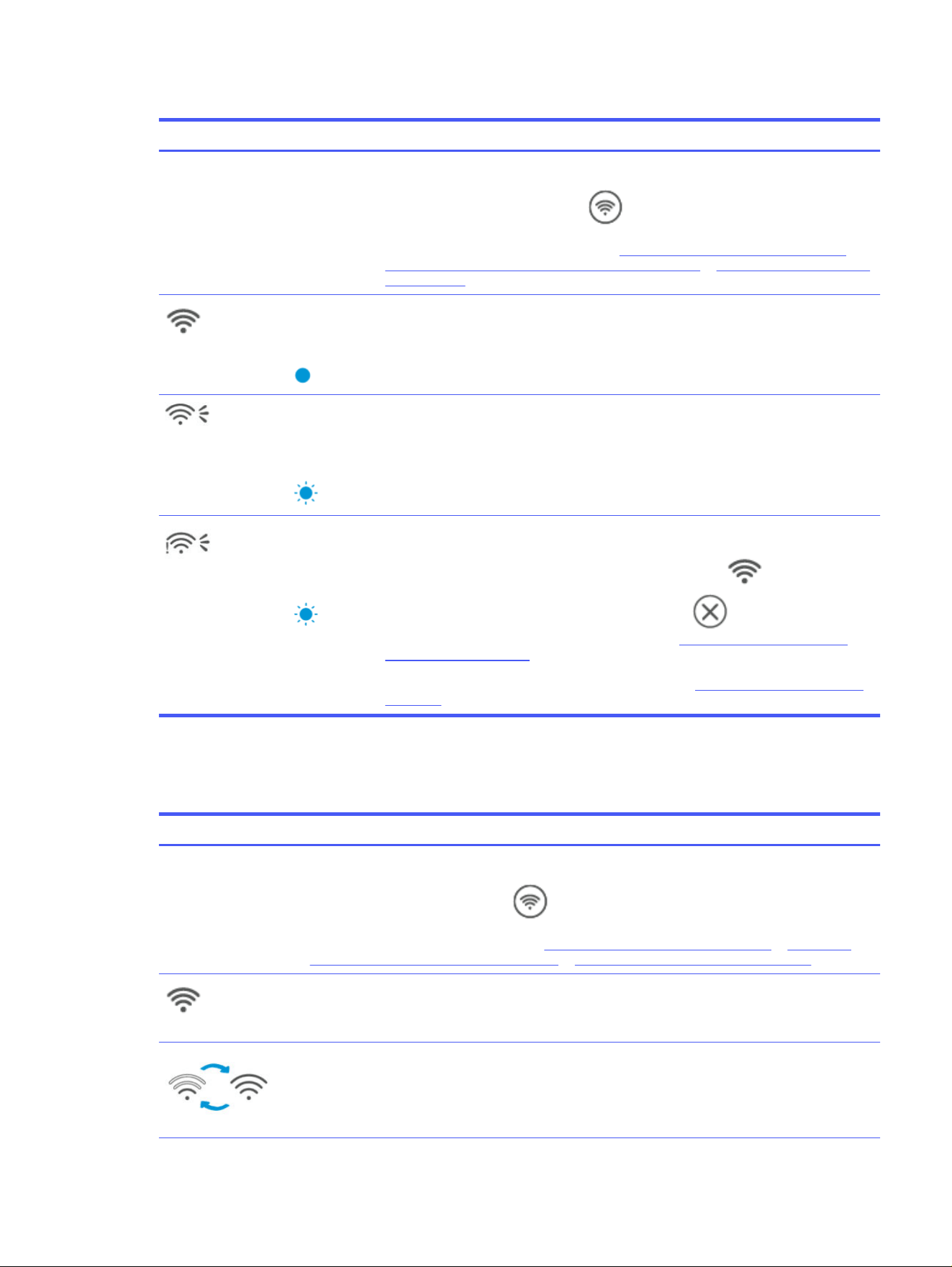
Wi-Fi status of the printer (dw models only)
Wi-Fi button Wi-Fi light Wi-Fi Status
O No light on the
control panel.
The printer is not connected to the network.
To turn on Wi-Fi, press the Wi-Fi button .
To connect the printer to a Wi-Fi network, see Connect to a Wi-Fi network using the HP app or
Connect to a Wi-Fi network using Wi-Fi Protected Setup (WPS) or To restore network settings to
default settings.
On
Solid blue light
is lit on the
control panel.
The printer is connected to the network.
On
The blue light
blinks in sync
with the Wi-Fi
icon.
The printer is trying to connect to a Wi-Fi network.
On
The blue light
blinks in sync
with the Wi-Fi
icon.
The printer is unable to connect to a Wi-Fi network.
If the printer is unable to connect to a Wi-Fi network, the Wi-Fi icon blinks and
Er/61 appears on the control panel. Press the Cancel button to continue and then
try connecting the printer to the Wi-Fi network again. See
Connect to a Wi-Fi network using
Wi-Fi Protected Setup (WPS).
If the problem persists, try connecting using the HP app. See Connect to a Wi-Fi network using
the HP app.
Wi-Fi status of the printer (sdw models only)
Wi-Fi status of the printer (sdw models only)
Wi-Fi icon Wi-Fi Status
O The printer is not connected to the network.
To turn on Wi-Fi, press the Wi-Fi button .
To connect the printer to a Wi-Fi network, see Connect to a Wi-Fi network using the HP app or Connect to a
Wi-Fi network using Wi-Fi Protected Setup (WPS) or To restore network settings to default settings.
On
The printer is connected to a Wi-Fi network.
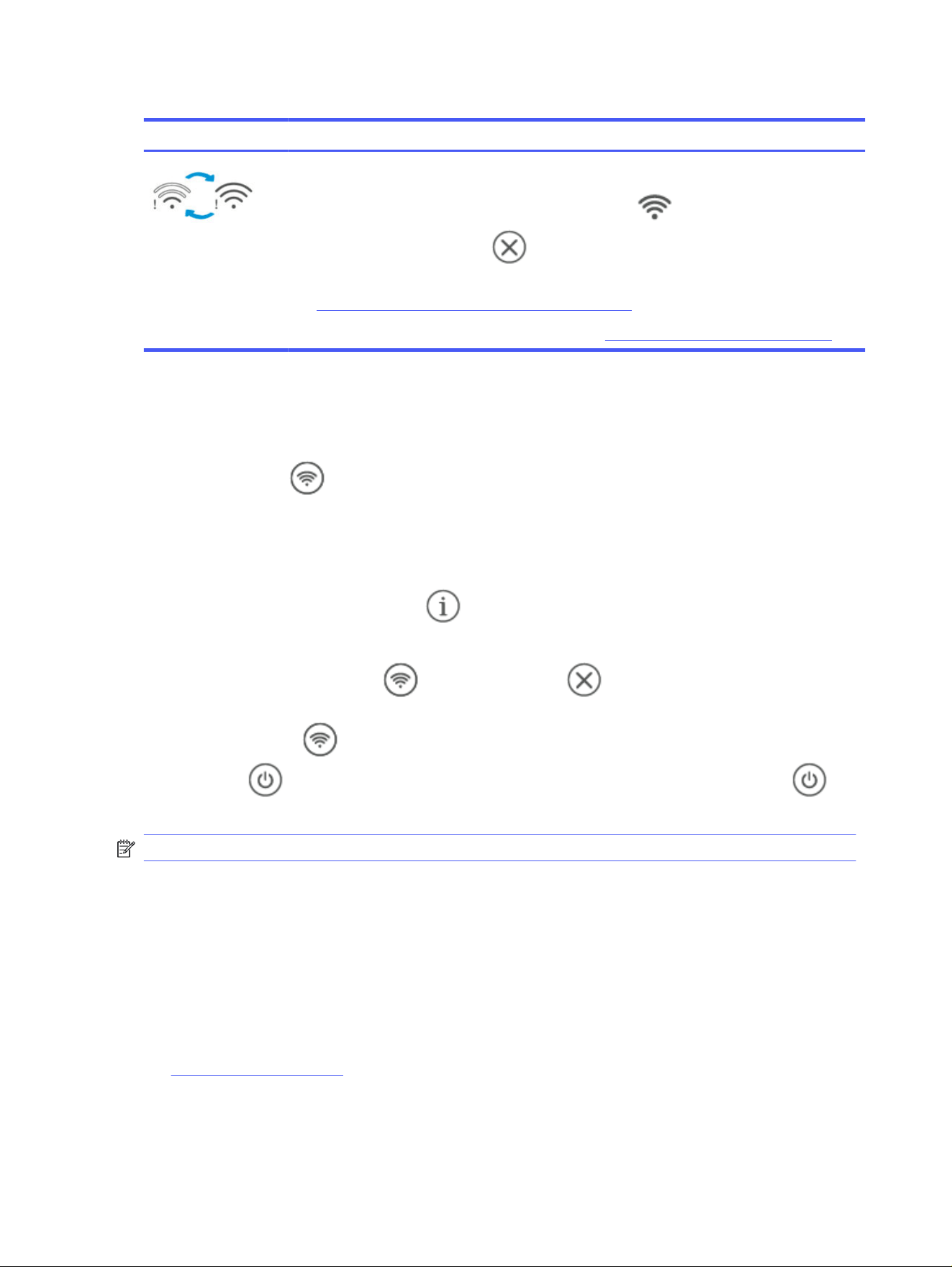
On (signal bar cycles)
The printer is trying to connect to a Wi-Fi network.
Wi-Fi status of the printer (sdw models only) 15
Wi-Fi status of the printer (sdw models only) (continued)
Wi-Fi icon Wi-Fi Status
On (signal bar cycles)
The printer is unable to connect to a Wi-Fi network.
If the printer is unable to connect to a Wi-Fi network, the Wi-Fi icon blinks and Er/61 appears on the
control panel. Press the Cancel button to continue and then try connecting the printer to the Wi-Fi
network again.
See Connect to a Wi-Fi network using Wi-Fi Protected Setup (WPS).
If the problem persists, try connecting using the HP app. See Connect to a Wi-Fi network using the HP app.
Turn on or o the Wi-Fi capabilities of the printer
The blue Wi-Fi light on the printer control panel is lit when the wireless capability of the printer is on.
Press the Wi-Fi button to turn on or o the printer wireless capabilities.
To restore network settings to default settings
Learn how to reset the printer's Wi-Fi settings and connect it to a Wi-Fi network.
1. Press and hold the Information button for 5 seconds, and then release the button. All control panel
buttons will light up.
2. Press and hold the Wi-Fi button and the Cancel button at the same time for 5 seconds and
release the button. The printer restarts and, depending on your printer model, the Status light pulses purple
or the Wi-Fi button starts blinking blue. This indicates that the printer is in Wi-Fi setup mode. Press
the Power button to turn o the printer, wait for 30 seconds, then press the Power button to
turn on the printer. You can now set up a Wi-Fi connection between the printer and your device.
NOTE: Use the HP app to connect the printer to Wi-Fi.
Change the connection type
If you have already connected your printer, you can change the connection from USB to Wi-Fi or from Wi-Fi to
USB.
USB or Ethernet to Wi-Fi
Disconnect the USB or Ethernet cable from the printer and connect the printer to your Wi-Fi network.
See Connect to a Wi-Fi network.
Wi-Fi to USB or Ethernet
Follow the steps to change the printer connection from Wi-Fi to USB / Ethernet.
16
Chapter 2Connect your printer

1. Connect the printer and computer using a USB or Ethernet cable.
2. Open the HP app on your computer.
If prompted, create or sign in to an HP account and register the printer.
3. In the HP app, add the printer, and then follow the on-screen instructions to add or connect the printer.
Wi-Fi to USB or Ethernet 17
Load media3
Learn how to load paper and change media settings.
Load paper
This topic describes how to load paper into the paper tray.
NOTE: To avoid paper jams:
● Never add or remove paper from the paper tray during printing.
● Before loading the paper tray, remove all of the paper from the paper tray and straighten the stack.
● Use paper that is not wrinkled, folded, or damaged.
● Do not mix paper sizes. For example, do not place A5 paper over A4 size paper.
● Ensure the paper guides are snug against the paper stack to prevent skewed paper feeding.
To load paper
1.
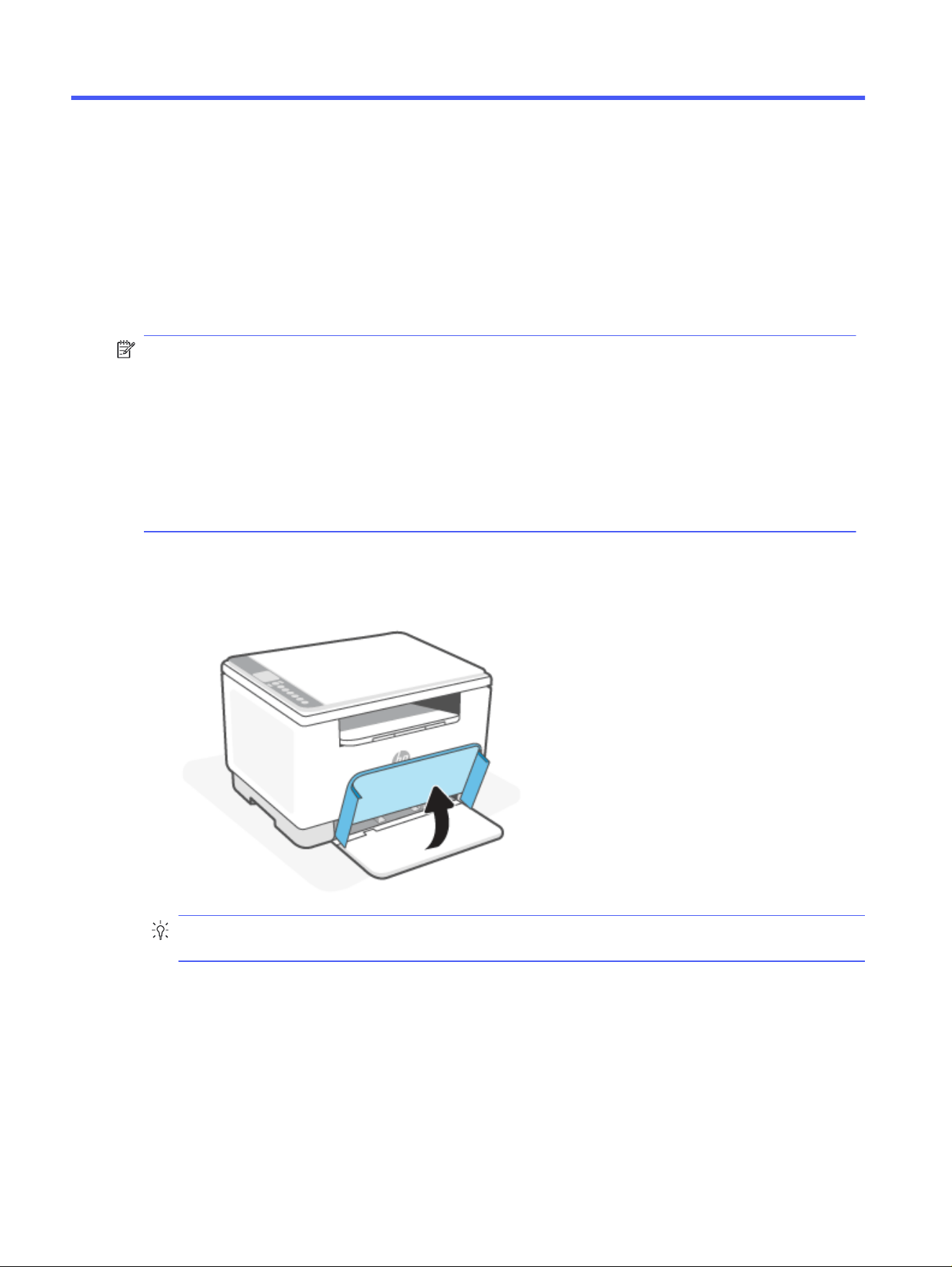
Lift the tray cover and remove paper from the paper tray, if any.
TIP: To load Legal-size paper, lift the printer cover and, if necessary, leave it open. Depending on your
printer model, you might also need to lower the tray door.
18
Chapter 3Load media
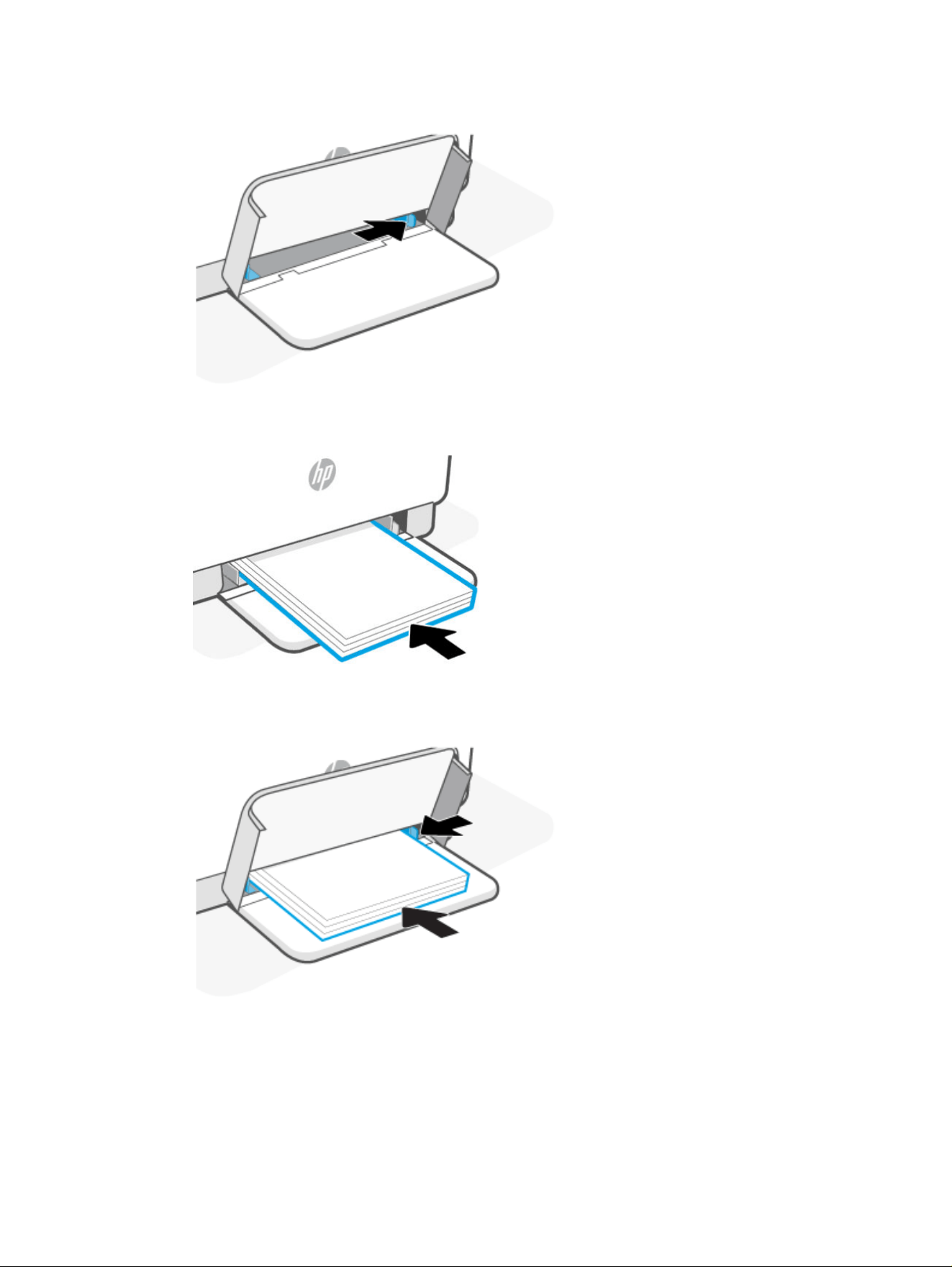
2. Slide the paper guides to the edges of the paper tray.
3. Insert the stack of paper so the top edge goes into the tray rst and the side to be printed on faces up.
4. Slide the paper guides until they touch the edges of the paper.
To load paper 19
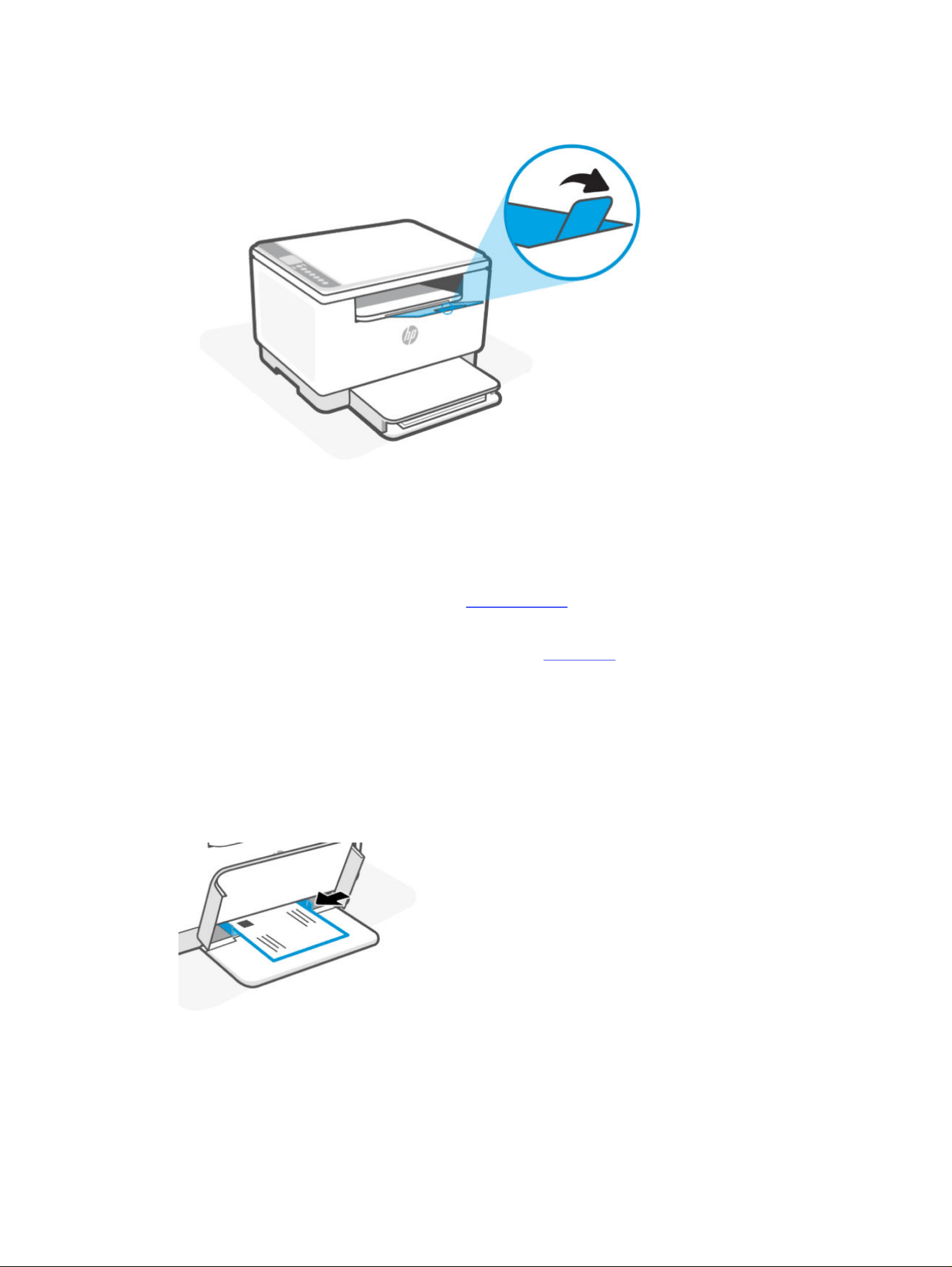
5. Lower the tray cover and extend the output tray.
Load envelopes
This topic describes how to load envelopes into the paper tray.
For a list of supported sizes and tray capacity, visit support.hp.com, select your location and language, nd your
printer, select Product Information, and then select Product specications.
For more information about product specic support links, see HP support.
To load envelopes
1. Remove all paper from the paper tray.
2. Insert the envelope into the middle of the paper tray. Place the top edge of the envelope toward the back of
the tray and the side to be printed on should face up.
3. Slide the paper guides until they touch the edges of the envelope.
4. Lower the tray cover and extend the output tray.
Load labels
This topic describes how to load labels into the paper tray.
20
Chapter 3Load media
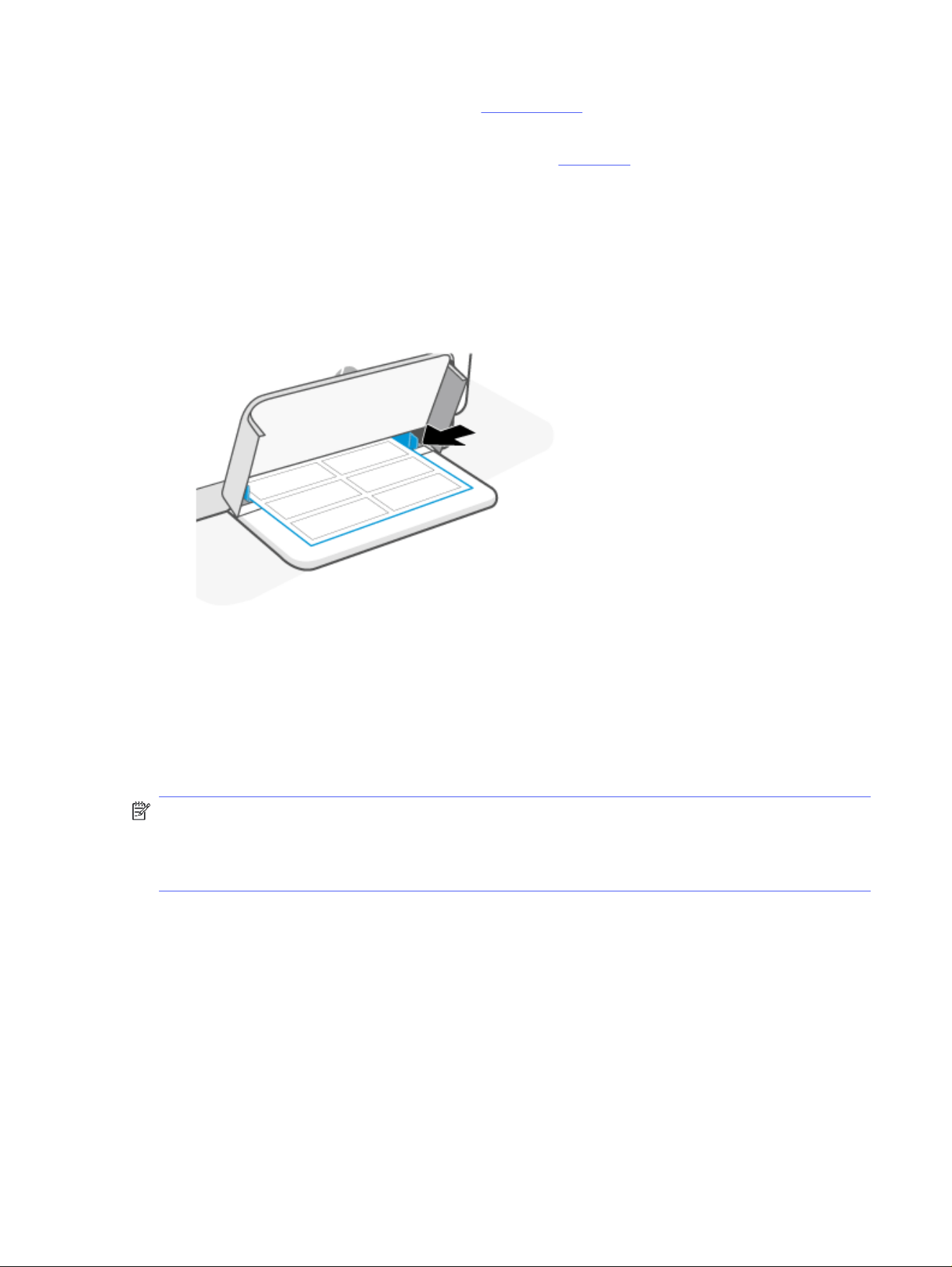
For a list of supported sizes and tray capacity, visit support.hp.com, select your location and language, nd your
printer, select Product Information, and then select Product specications.
For more information about product specic support links, see HP support.
To load labels
1. Remove all paper from the paper tray.
2. Insert the sheet of labels into the middle of the paper tray. Place the top edge of the sheet toward the back
of the tray and the side to be printed on should face up.
3. Slide the paper guides until they touch the edges of the media.
4. Lower the tray cover and extend the output tray.
Load document on the scanner glass
This topic describes how to load the document on the scanner glass.
You can copy or scan original documents by loading them on the scanner glass.
NOTE:
● The scanner might not work correctly if the scanner glass and lid backing are not clean.
● Remove all pages from the document feeder tray before lifting the lid on the printer.
To load labels 21
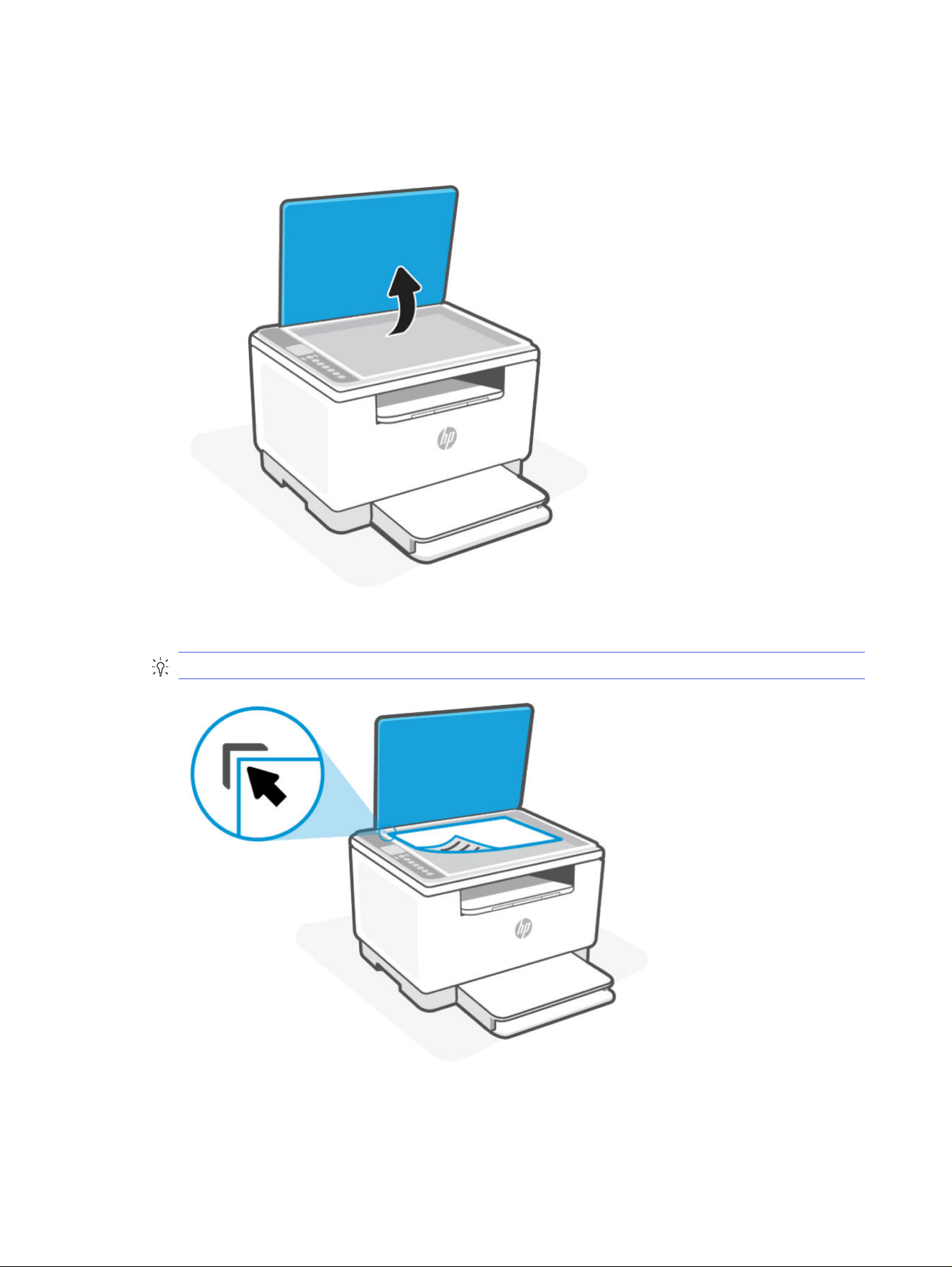
To load document on the scanner glass
1. Lift the scanner lid.
2. Load your document print-side down and align it with the marking on the rear left corner of the glass.
TIP: Use the engraved guides at the corner of the scanner glass to position the page.
3. Close the lid.
22
Chapter 3Load media
Load document in the document feeder (sdn/sdw models only)
This topic describes how to load the document in the document feeder.
You can copy or scan a document by placing it in the document feeder.
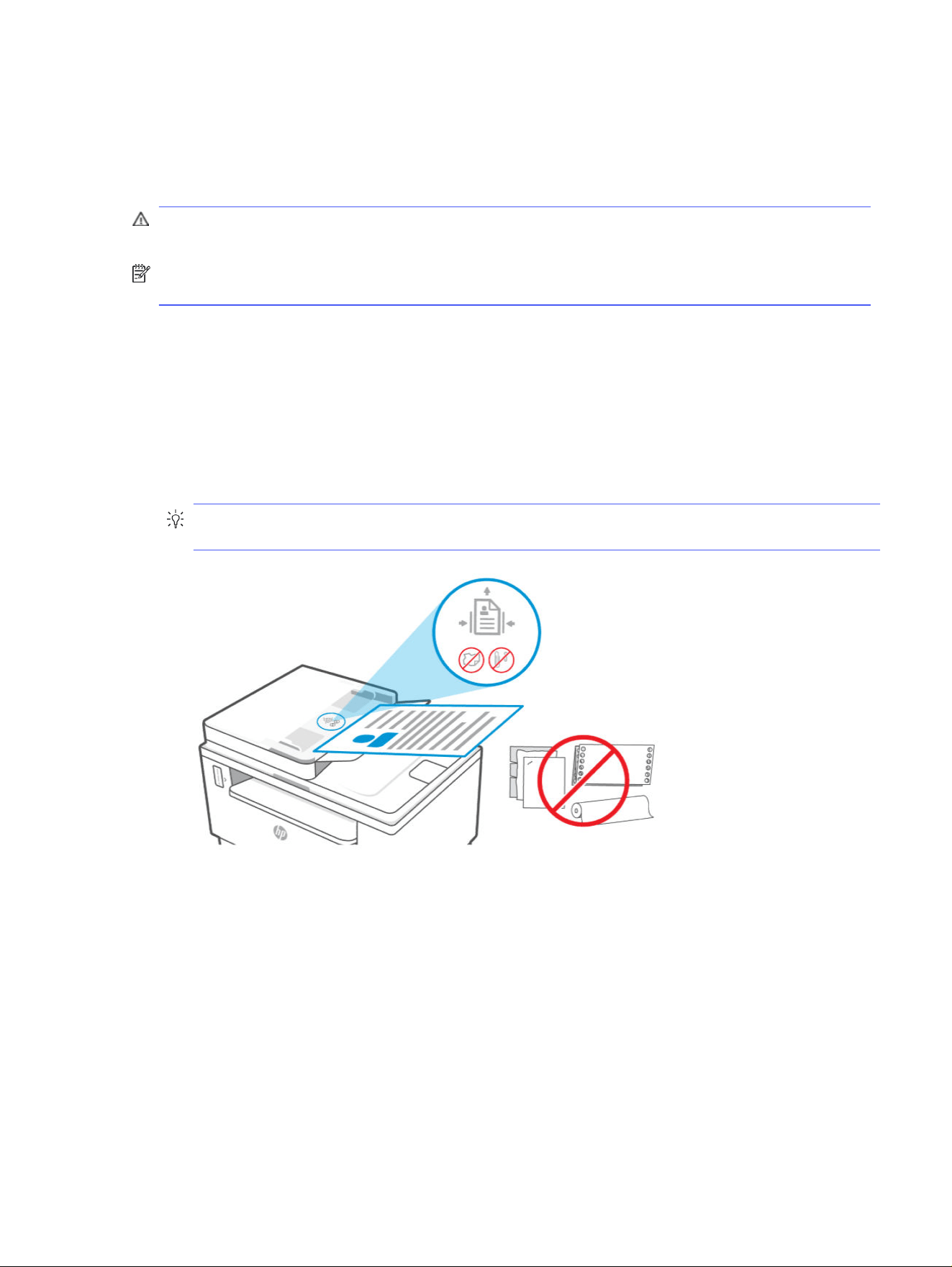
CAUTION: Do not load photos in the document feeder, this might cause damage to your photos. Use only
paper that is supported by the document feeder.
NOTE: Some features, such as the Fit to Page copy feature, do not work when you load your pages in the
document feeder. For those features to work, load your pages on the scanner glass.
To load a document in the document feeder
1. Load your pages print-side up into the document feeder.
a. If you are loading an original document printed in portrait orientation, place the pages so that the top
edge of the document goes in rst. If you are loading a document printed in landscape orientation,
place the pages so that the left edge of the document goes in rst.
b. Slide the paper into the document feeder until you hear a tone.
TIP: For more help on loading pages in the document feeder, refer to the diagram on the document feeder
tray.
2. Slide the paper-width guides inward until they stop at the left and right edges of the paper.
Load document in the document feeder (sdn/sdw models only) 23

Print4
Learn how to print from your computer or mobile device.
Install the HP app on your computer or mobile device to print, scan, and manage your printer
NOTE: If printing multiple copies fails, try printing just one copy instead.
Print from a Windows computer
You can print from the File menu of most apps.
Make sure you have installed the HP app. See Use the HP app (iOS, Android, Windows, and macOS).
1. Open the document you wish to print.
2. From the File menu in your software program, select the Print option.
NOTE: Make sure your printer is selected from the list of available printers.
3. Select the button that opens the Properties dialog box.
Depending on your software application, this button might be called Properties, Options, Setup, or
Preferences.
4. Change any print settings if needed, and select OK.
5. Select Print or OK to print.
Print from a Mac computer
Use the Print command from any open le.
1. If you are printing for the rst time, complete the following steps.
a. Open System Settings, and select Printers & Scanners.
b. Select the Add button/icon , select the printer from the printer list, and then select Add.
2. Open the document you want to print and use the Print command (Command + P).
Make sure your printer is selected from the list of available printers.
3. Change any print settings if needed.
4. Select Print to print.
Print from mobile devices
You can print documents and photos from your mobile devices using the HP app, AirPrint, or the HP Print Service
Plugin.
24
Chapter 4Print
● HP software: Visit hp.com/mobileprinting for more information on mobile printing.
● iOS: Devices running iOS 4.2 or later have AirPrint pre-installed.
● Android: Download the HP Print Service Plugin (supported by most Android devices) from the Google Play
Store and enable it on your device.
Print while connected to same Wi-Fi network
You can print documents and photos from your mobile device when the device is on the same Wi-Fi network as
the printer.
Visit www.hp.com/go/mobileprinting for more information on mobile printing.
NOTE: Make sure your mobile device and printer are connected to the same Wi-Fi network. See Connect to a
Wi-Fi network using Wi-Fi Protected Setup (WPS).
Print without connecting to same Wi-Fi network (Wi-Fi Direct)
With Wi-Fi Direct, you can directly connect your computer or mobile device to the printer and print wirelessly—
without connecting your computer or mobile device to an existing wireless network.
Visit www.hp.com/go/widirectprinting for more information on Wi-Fi Direct.
NOTE:
● Make sure Wi-Fi Direct on your printer is turned on. If Wi-Fi Direct is turned on, the Wi-Fi Direct icon
appears on the control panel display.
● Up to 5 computers and mobile devices can connect to the printer using the Wi-Fi Direct connection.
To turn Wi-Fi Direct on or o from the control panel:
1. Press and hold the Information button for 3 seconds and then release the button.
All control panel buttons will light up.
2. Press the Resume button and the Wi-Fi button at the same time.
TIP: Press the Information button to print a report to check the Wi-Fi Direct status and password.
Print while connected to same Wi-Fi network 25

Copy and scan5
This section describes how to use the copy and scan features.
Make a copy using the scanner glass (d/dw model)
Follow these steps to make a copy from the scanner glass:
1. Place the document on the scanner glass and align it using the indicators on the printer.
2.
Press the Menu button to choose any of the following copy settings.
● Use the Up button and the Down button to adjust the number of copies to print.
● Select the Lighter/Darker setting, and then use the Up button and the Down button to
adjust the darkness setting for the current copy job.
3. Press the Copy button to start copying.
TIP: If your device has a camera, you can use the HP app to scan a printed document or photo with the
device camera. You can then use the HP app to edit, save, print, or share the image.
Make a copy using the document feeder (sdn/sdw model)
Follow these steps to make a copy from the scanner glass:
1. Load the document on the scanner glass according to the indicators on the printer.
2. Press the Menu button to choose any of the following copy settings.
● Use the Minus button and the Plus button to adjust the number of copies to print.
● Select the Lighter/Darker setting, and then use the Minus button and the Plus
button to adjust the darkness setting for the current copy job.
3. Press the Copy button to start copying.
TIP: If your device has a camera, you can use the HP app to scan a printed document or photo with the
device camera. You can then use the HP app to edit, save, print, or share the image.
26
Chapter 5Copy and scan
Copy an identication (ID) card
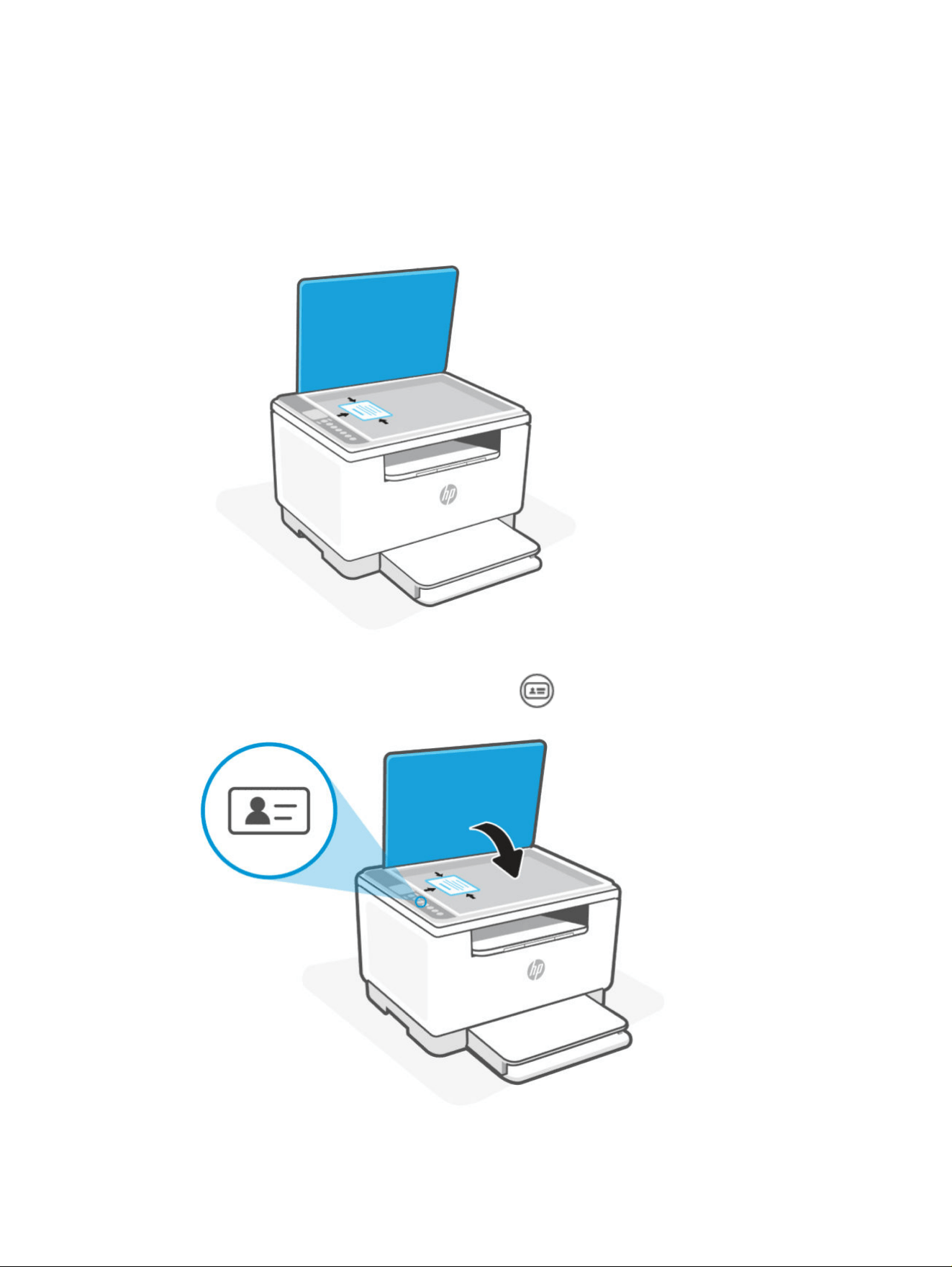
Use the ID Copy feature to copy both sides of the identication card, or other small-size documents, onto the
same side of one sheet of paper. The printer prints both images at the same time.
1. Open the scanner lid and place the ID card on the top half of the scanner glass as shown.
2. Close the scanner lid, and press the ID Copy button to start copying.
Copy an identication (ID) card 27
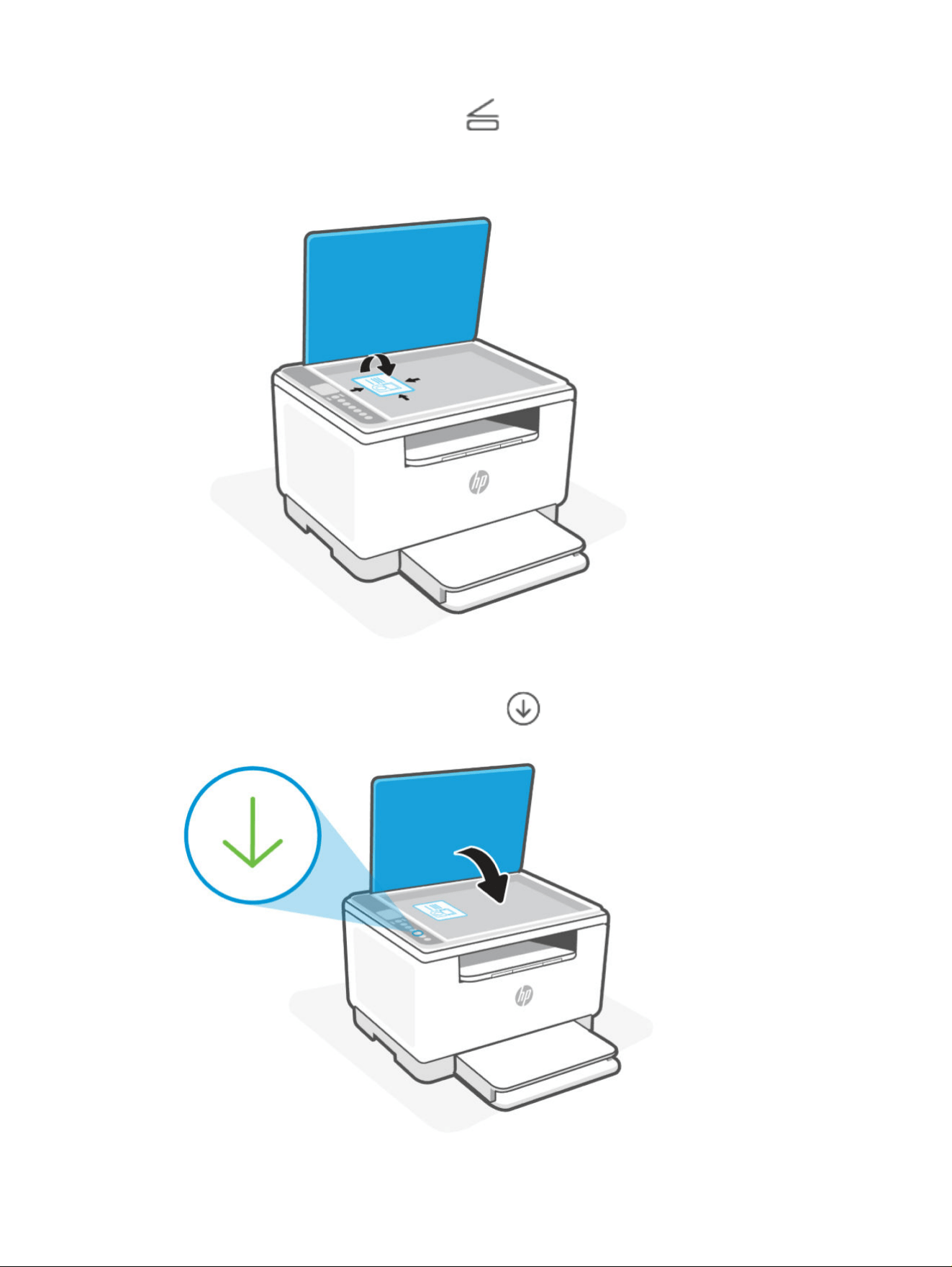
When the copying is done, the Open Lid light lights up and "P2" appears on the display.
3. Open the scanner lid, ip over the ID card and place on the same area of the scanner glass.
4.
Close the scanner lid and press the Resume button to start scanning the second side and print.
28 Chapter 5Copy and scan

Copy or scan from a mobile device
If your mobile device has a camera, you can use the HP app to copy or scan a printed document or photo.
TIP: You can also use the HP app to edit, save, print, or share the copied or scanned image.
1. Open the HP app on your mobile device.
2. Select the Plus icon or the Add Printer option.
3. Select Copy, Camera Scan, or Printer Scan.
4. Place a document or photo in front of the camera, select a size option to help identify the size of the
original, and then select the round button at the bottom of the screen to take a picture.
TIP: For best results, adjust the camera position to place the original within the provided frame on the
preview screen.
5. Specify other settings, and follow the on-screen instructions to complete the copy or scan.
Copy or scan from a Windows computer
Make sure you have the software installed HP app on your computer.
1. Place the original print-side down on the scanner glass or print-side up in the document feeder (some
printer models).
2. Open the HP app. See Use the HP app (iOS, Android, Windows, and macOS).
3. Select Scan, and then select Scan a Document or Photo.
4. Select the type of scan you want, and then select Scan.
If you are scanning to a le, choose a le format for your scan.
NOTE:
● Select the More link in the top-right corner of the Scan dialog to review and modify settings for a scan.
● If Show Viewer After Scan is selected, you can make adjustments to the scanned image in the preview
screen.
Copy or scan from a mobile device 29

Congure the printer using the EWS6
Use the EWS to manage printing functions from your computer.
● View printer status information
● Check the information and status of the printing supplies
● Receive notication of printer and supplies events
● View and change the network and the printer settings
To access and use the EWS
You can open the EWS using one of the following:
● HP app
● IP address
● Wi-Fi Direct connection
Things to note when accessing the EWS
If the web browser displays a message indicating that the website is unsafe, select the option to continue.
● Accessing the website will not harm your device.
● If prompted, enter the default user name and password of the printer.
– Username: admin
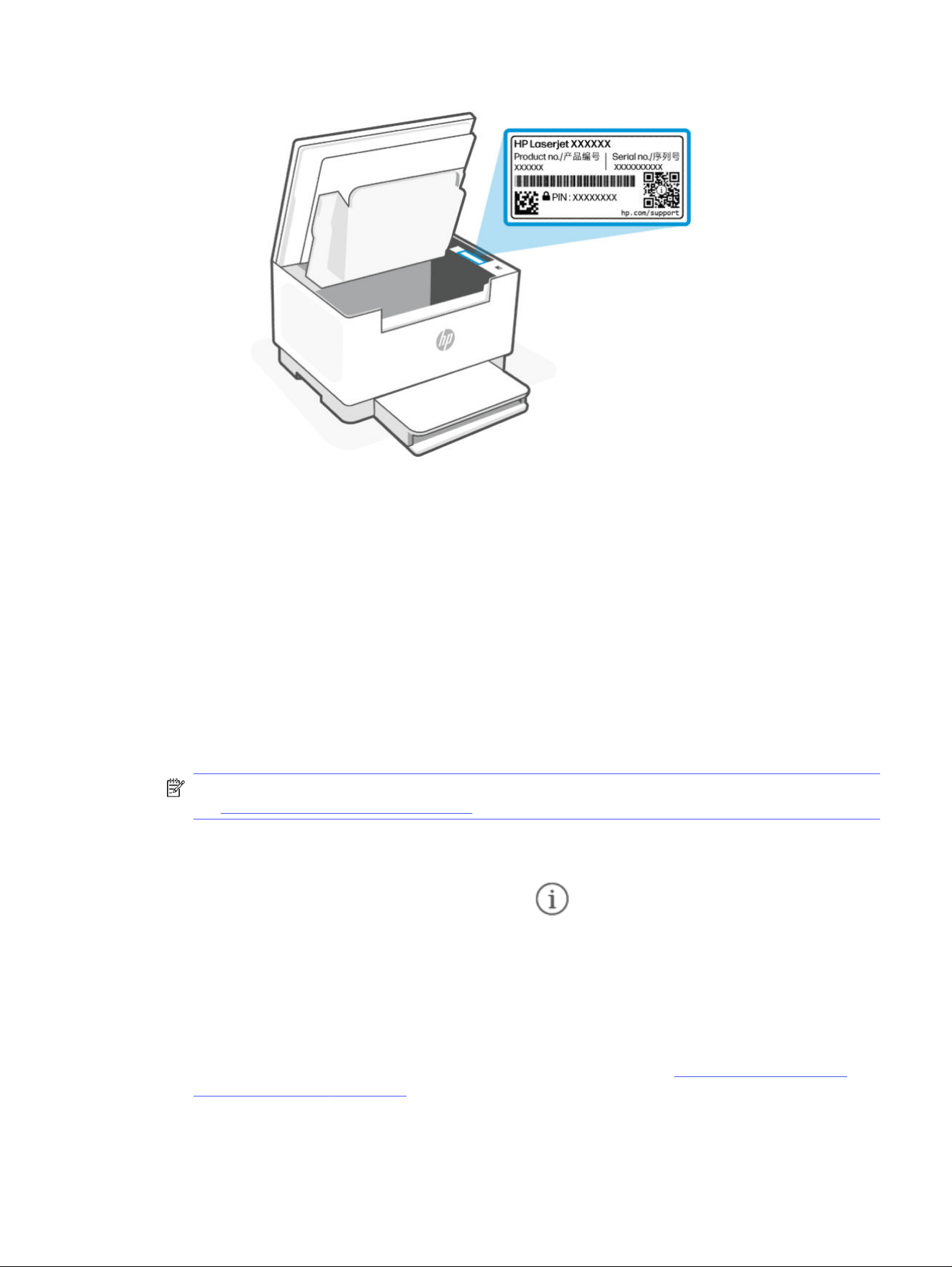
– Password: Open the cartridge access door, and look for the PIN number on the label inside the printer.
30 Chapter 6Congure the printer using the EWS
● Depending on how the printer is connected, some features in the EWS might not be available.
● The EWS is not accessible beyond the network rewall.
The HP app (iOS, Android, Windows, and macOS)
Follow these steps:
1. Open the HP app on your computer or mobile device. If prompted, create or sign in to an HP account.
2. Select the printer image to access the printer settings.
3. Select Advanced Settings.
This opens the printer home page or embedded web server (EWS).
NOTE: If prompted for the printer password, enter the default PIN from the PIN label inside the printer.
See Things to note when accessing the EWS.
IP address (Wi-Fi or Ethernet connection)
1. Find out the IP address. Press the Information button on the printer to print an information page with
the printer IP address.
2. Open a web browser and enter the IP address or hostname..
IP address (Wi-Fi Direct connection)
Perform the following steps:
1. Make sure your device and the printer are connected using Wi-Fi Direct. See Print without connecting to
same Wi-Fi network (Wi-Fi Direct).
The HP app (iOS, Android, Windows, and macOS)
31

2. Open a web browser, type the following IP address or hostname of the printer in the address bar, and then
select Enter.
IP Address: 192.168.223.1
Use Web Services
The printer oers innovative, cloud-based solutions, such as print anywhere.
For more information, visit the HP Smart website http://www.hpsmart.com.
NOTE: To use these cloud-based solutions, the printer must be connected to the internet. Unless otherwise
agreed, HP can modify or cancel these cloud-based solution oerings at its discretion.
Remove Web Services
Follow the steps to remove the Web Services.
1. Open the EWS. See To access and use the EWS.
2. Select the Web Services tab.
3. From the left menu, select Remove Web Services.
4. In the Web Services Settings area, select Remove Web Services to remove this feature.
Printer updates
HP oers periodic printer updates to improve printer performance, x issues, or protect your printer against
potential security threats.
When setting up the printer through the HP app, it prompts to update the printer to the latest rmware. Follow
the on-screen instructions and update the printer.
You can change the setting to manually check for updates from the embedded web server (EWS). In the EWS,
select the Tools tab, select Printer Updates and Firmware Updates from the left menu, and select the desired
options.
Congure
IP network settings
Use the following sections to congure the printer network settings.
View or change network settings
Use the EWS to view or change IP conguration settings.
1. Open the EWS. See To access and use the EWS.
2. Select the Network tab to obtain network information. Change settings as needed.
Manually
congure IPv4 TCP/IP parameters
Use the EWS to manually set an IPv4 address, subnet mask, and default gateway.
1. Open the EWS. See To access and use the EWS.
32
Chapter 6Congure the printer using the EWS

2. Select the Network tab.
3. From the left menu, select Wired (802.3), and then select IPv4 Conguration.
4. In the IPv4 Conguration area, select the Manual IP radio button.
5. Select Apply to save the changes.
Assign or change the system password using the EWS
Assign an administrator password for access to the printer and EWS so that unauthorized users cannot change
the printer settings.
1. Open the EWS. See To access and use the EWS.
2. Select the Settings tab.
3. From the left menu, select Security, and then select Password Settings.
4. In the Current Password eld, enter the existing password.
5. Enter the password in the Password eld.
6. Re-enter the password in the Conrm Password eld.
7. Select Apply to save the changes.
NOTE: Make note of the password and store it in a safe place.
Change energy-conservation settings
The printer includes several economy features to conserve energy and supplies.
Set the Sleep After Inactivity setting
Use the EWS to set the amount of idle time before the printer enters sleep mode.
Complete the following procedure to change the Sleep After Inactivity setting:
1. Open the EWS. See To access and use the EWS.
2. Select the Settings tab.
3. From the left menu, select Power Settings, and then select Sleep Mode.
4. In the Sleep Mode area, under Sleep After Inactivity, select the desired time radio button.
5. Select Apply to save the changes.
Set the Shutdown After setting and
congure the printer to use 1 watt or less of power
Use the EWS to set the amount of time before the printer shuts down.
NOTE: After the printer shuts down, the power consumption is 1 watt or less.
Complete the following procedure to change the Shut Down After setting:
1. Open the EWS. See To access and use the EWS.
Assign or change the system password using the EWS
33

2. Select the Settings tab.
3. From the left menu, select Power Settings, and then select Shutdown Mode.
4. In the Shutdown Mode area, under Shutdown After, select the desired time.
5. Select Apply to save the changes.
Set the Disable Shutdown setting
Use the EWS to delay the printer shutdown when the Power button is pressed.
1. Open the EWS. See To access and use the EWS.
2. Select the Settings tab.
3. From the left menu, select Power Settings, and then select Shutdown Mode.
4. In the Shutdown Mode area, under Shutdown After, select the Disable shutdown when ports are active
option.
5. Select Apply to save the changes.
NOTE: When this option is selected, the printer will not shut down unless all ports are inactive. An active
network link will prevent the printer from shutting down.
34 Chapter 6Congure the printer using the EWS

Supplies, accessories, and parts7
This section describes how to order supplies and manage accessories.
Order supplies, accessories, and parts
This section describes how to order supplies and manage accessories.
Order
Order
Order supplies Support sites
Order supplies and paper www.hp.com/go/suresupply
Order Original HPparts or accessories www.hp.com/buy/parts
Order through service or support providers Contact an HP-authorized service or support provider.
Supplies and accessories
● A: Standard-capacity black toner cartridge.
● X: High-capacity black toner cartridge.
List of supplies and accessories
Cartridge name/number Part number Countries in use
HP 184A Black Original LaserJet Toner Cartridge W1840A AMS/ RoAPJ
HP 184X Black Original LaserJet Toner Cartridge W1840X AMS/ RoAPJ
W1840XC High Yield Black Contract Original LaserJet Toner Cartridge W1840XC AMS/ RoAPJ
HP 185A Black Original LaserJet Toner Cartridge W1850A EMEA
HP 185X Black Original LaserJet Toner Cartridge W1850X EMEA
W1850XC High Yield Black Contract Original LaserJet Toner Cartridge W1850XC EMEA
HP 179A Black Original LaserJet Toner Cartridge W1790A AMS/ RoAPJ
HP 180A Black Original LaserJet Toner Cartridge W1800A EMEA
*The product is regionalized for the locations listed above. However, nothing herein must be deemed as an
authorization from HP to import products into the European Economic Area, Switzerland, and the UK from any
country outside that region.
Supplies, accessories, and parts
35

Enable or disable the Cartridge Policy feature
The Cartridge Policy feature can be enabled or disabled using the printer's embedded web server (EWS).
NOTE: Enabling or disabling this feature might require entering an administrator password.
1. Open the EWS. See To access and use the EWS.
2. Select the Settings tab.
3. From the left menu, select Supplies, and then select Supply Settings
4. From the Cartridge Policy drop-down list, select O to disable the feature or select Authorized HP to enable
the feature.
If the feature is enabled, only Original HP toner cartridges can be used with the printer.
5. Select Apply to save the changes.
Replace the toner cartridge
Learn how to replace the toner cartridge.
Cartridge information
Continue printing with the current cartridge until redistributing the toner no longer yields acceptable print quality.
To redistribute the toner, remove the toner cartridge from the printer and gently rock the cartridge back and forth
about its horizontal axis. For graphical representation, see cartridge replacement instructions. Reinsert the toner
cartridge into the printer and close the cover.
Remove and replace the toner cartridge
Replace the toner cartridge with a new, Original HP toner cartridge when toner levels become too low and the
cartridge no longer yields acceptable print quality.
NOTE: When a toner cartridge approaches the end of its useful life, redistributing the toner in the cartridge
might improve print quality and enable you to continue printing. To redistribute the toner in the cartridge,
remove the toner cartridge from the printer, gently rock the cartridge back and forth along its horizontal axis,
and then replace it in the printer.
1. Make sure the printer is o.
36 Chapter 7Supplies, accessories, and parts
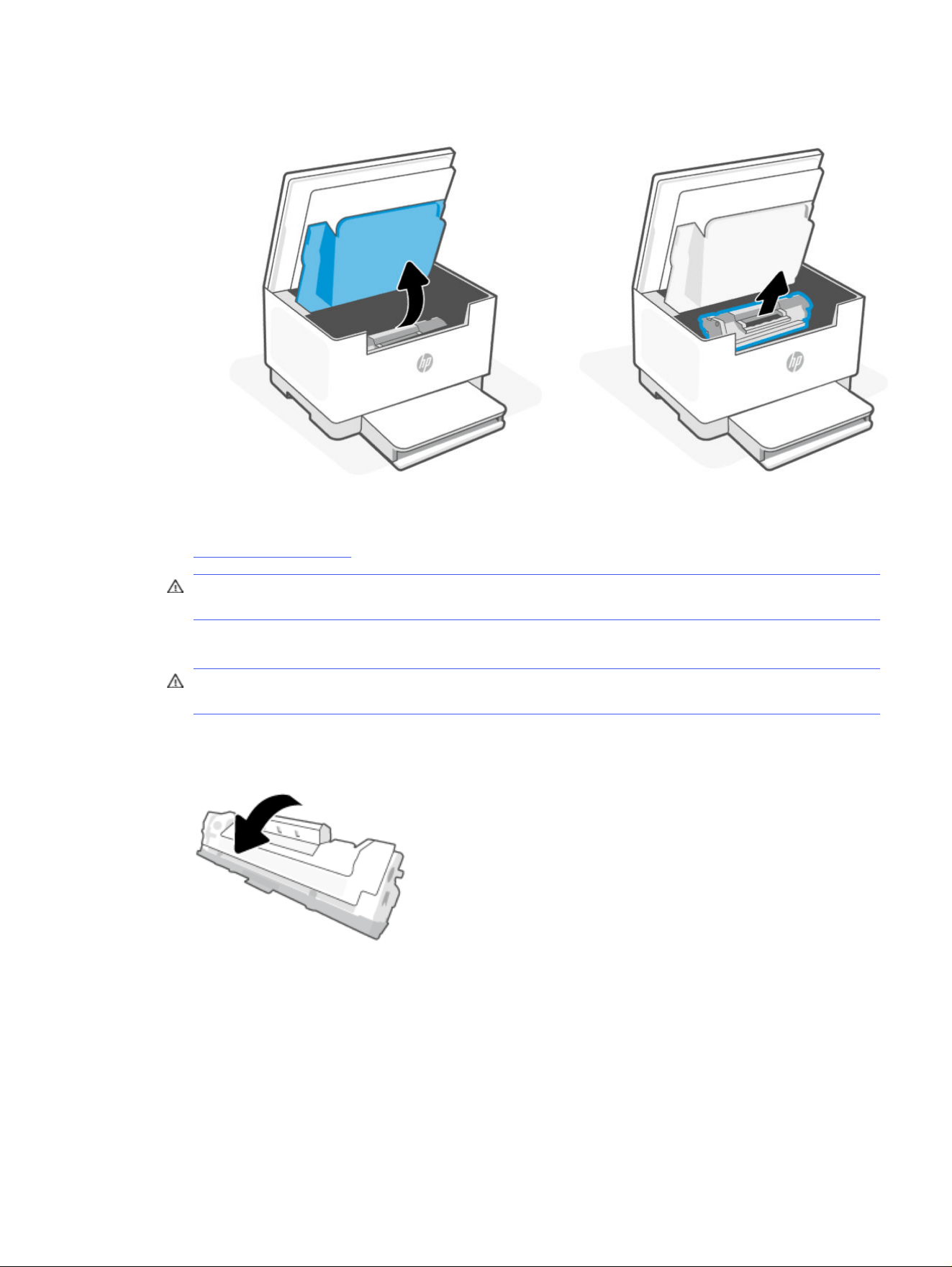
2. Open the cartridge access door, and then remove the used toner cartridge from the printer.
3. Place the used cartridge in the bag and box for recycling. To recycle the used cartridge, go to
www.hp.com/go/recycle .
CAUTION: If toner gets on your clothing, wipe it o with a dry cloth and wash the clothing in cold water.
Hot water sets toner into the fabric.
4. Remove the new cartridge from the packaging.
CAUTION: To prevent damage to the cartridge, hold the cartridge at each end. Do not touch the protective
cover or roller surface.
5. Grasp both sides of the cartridge and gently rock the cartridge to distribute the toner evenly inside the
cartridge.
Remove and replace the toner cartridge 37
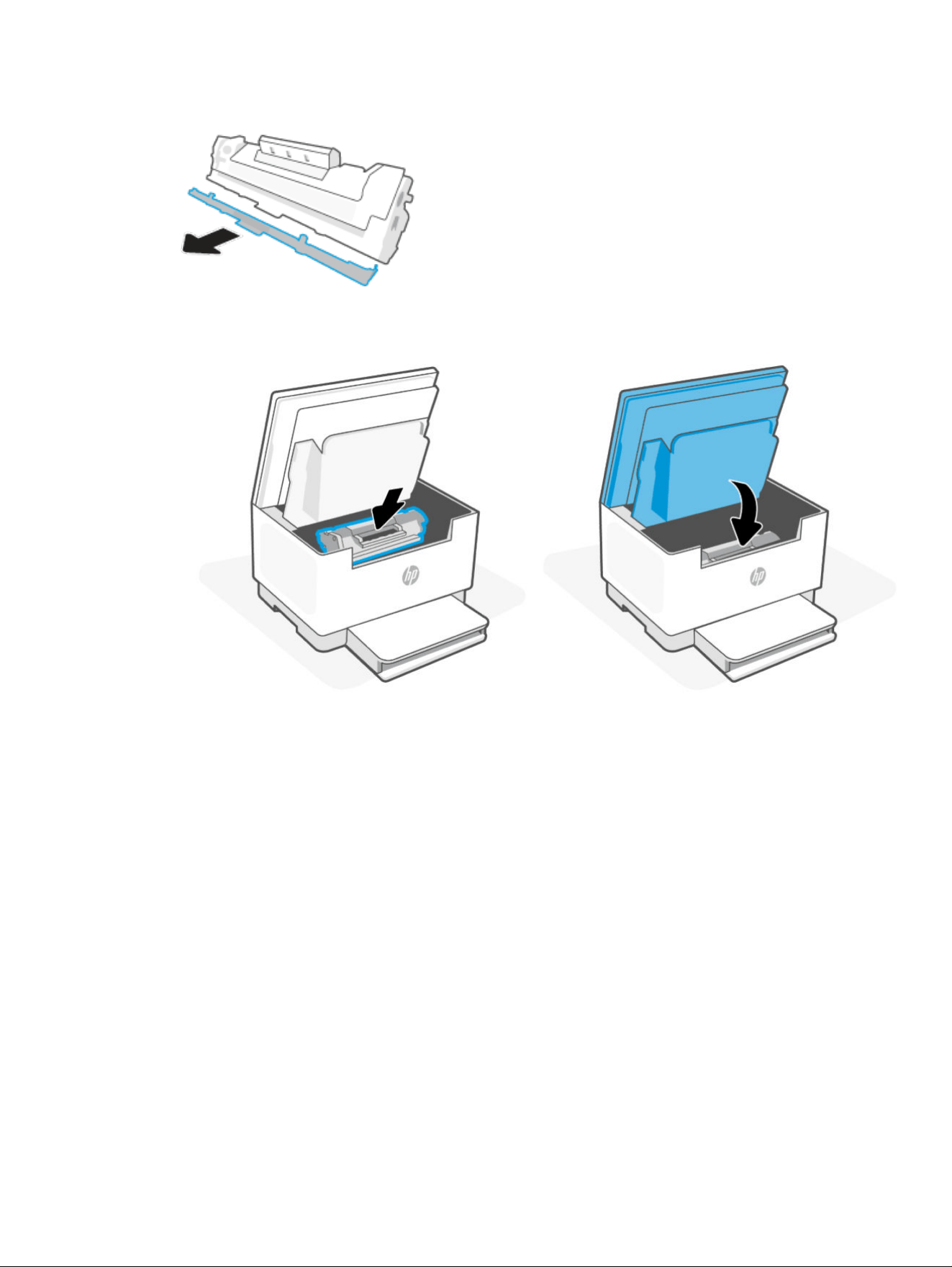
6. Remove the cover from the new cartridge.
7. Insert the cartridge in the printer, and then close the cartridge access door.
38 Chapter 7Supplies, accessories, and parts

Solve problems8
This section suggests solutions to common problems.
If the suggestions do not solve the problems, contact support.hp.com.
Interpret control panel light patterns
This topic describes the printer control panel light patterns.
Attention light blinks
The printer doors might not be closed properly.
Verify that the cartridge access door and rear access door are properly closed.
Attention light is on and paper icon/light blinks
The printer might be out of paper or paper is not loaded properly, or there is a paper jam.
Load paper, and then press the Resume button to continue or clear the paper jam.
See Load paper or Paper jams and feed issues.
Attention light is on and Cartridge icon/light blinks
The toner level is low.
Replace the toner cartridge.
See Replace the toner cartridge.
Attention light is on and paper icon/light blinks
The printer might be out of paper or paper is not loaded properly, or there is a paper jam.
Load paper, and then press the Resume button to continue or clear the paper jam.
See Load paper or Paper jams and feed issues.
Solve problems
39
Cartridge icon/light is on
The toner level is low.
Consider having a replacement cartridge available to install when the print quality is no longer acceptable.
Interpreting error codes
This topic describes error codes displayed on the control panel display.
Go/01
The printer is in manual-feed mode.
Load the correct paper type and size for the print job in the paper tray, and then press the Resume button
to continue or press the Cancel button to cancel the current job.
Go/02
The printer has completed the
rst sides of a manual, two-sided print job.
Reload the paper back into the paper tray (print-side down) to print their second sides, and then press the
Resume button to continue or press the Cancel button to cancel the current job.
Load your original print-side down Load the pages into the paper tray
Go/06 (Wi-Fi models only)
The printer has received a request to connect using Wi-Fi Direct.
Press the Information button to connect or press the Cancel button to stop.
P2
An ID Card Copy job has been started.
When the Open Lid light blinks, open the lid and turn over the identication card, close the lid, and then
press the Resume button to continue. Press the Cancel button to cancel the current job.
Er/01
The paper tray is empty.
Load paper in the paper tray or press the Cancel button to cancel the current job.
40
Chapter 8Solve problems
Er/02
The cartridge access door is open.
Make sure the top cover is completely closed.
Er/04
Paper is jammed in the paper tray or printer base.
1. Clear the jam from the paper tray area or the printer base.
2. After clearing the paper jam, press the Resume button to continue.
For more information, see Paper jams and feed issues.
Er/05
Paper jam in the toner cartridge area.
Er/02
41
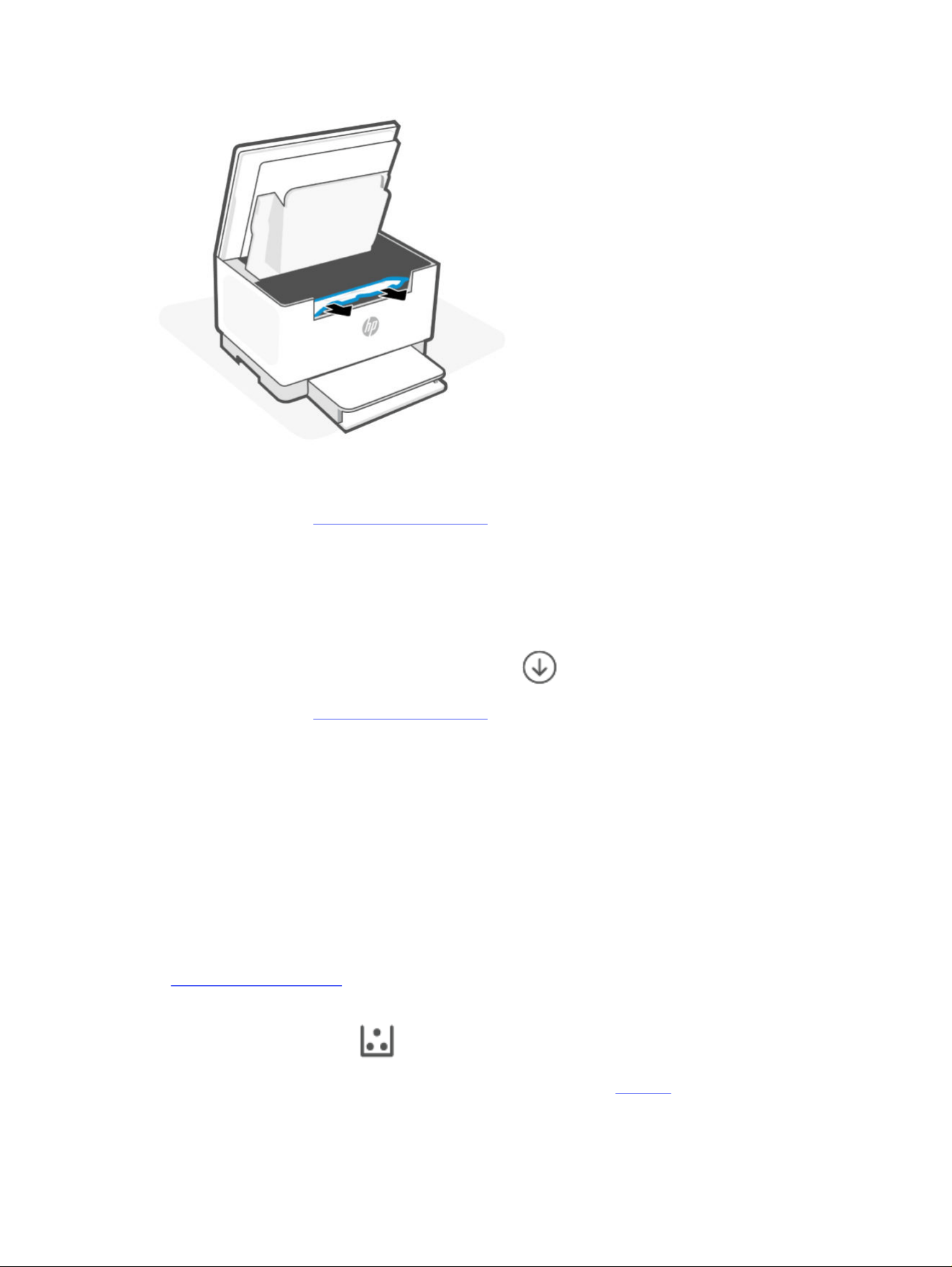
Clear jam in the toner cartridge area. Close the door and your print job should resume automatically.
For more information, see Paper jams and feed issues.
Er/06
Paper jam in the output tray area.
1. Clear the jam in the output tray area.
2. After clearing the paper jam, press the Resume button to continue.
For more information, see Paper jams and feed issues.
Er/07
There is a problem with the toner cartridge.
Make sure the shipping material has been removed from the cartridge and the cartridge is compatible and not
damaged.
Er/08
The toner level is too low for printing.
The cartridge needs to be replaced, or the cartridge setting needs to be changed to Continue in the EWS.
See To access and use the EWS.
Under the Settings tab, select Supplies and then select Supply Settings. If the Very Low Setting is congured to
Continue, then the Cartridge light will blink without an error code.
Purchase any of the following toner cartridge and other supplies from the HP Store or local retailers.
● HP 184A Black Original LaserJet Toner Cartridge
42
Chapter 8Solve problems

● HP 184X Black Original LaserJet Toner Cartridge
● HP 184A Black Contract LaserJet Toner Cartridge
● HP 185A Black Original LaserJet Toner Cartridge
● HP 185X Black Original LaserJet Toner Cartridge
● HP 185X Black Contract LaserJet Toner Cartridge
● HP 179A Black Original LaserJet Toner Cartridge
●
HP 180A Black Original LaserJet Toner Cartridge
For more information, see Order supplies, accessories, and parts.
Er/11
There is a problem with the toner cartridge.
Make sure the shipping material has been removed from the cartridge and that the cartridge is compatible and
not damaged.
Er/14
The toner cartridge has been protected and is not allowed to be used in this printer.
Replace with the correct toner cartidge.
Er/17
An unauthorized toner cartridge is installed.
Replace with the correct toner cartidge.
Er/25
The size of the paper in the tray does not match the print job settings.
Load the paper type and size that matches the print job settings into the paper tray, or press the Resume
button to continue with the currently loaded paper. Alternatively, you can press the Cancel button to
cancel the current job.
Er/26
The printer has experienced a general engine error.
Press the Resume button to continue. If the error repeats, turn o the printer. Wait for 30 seconds and turn
on the printer. If the problem persists, visit support.hp.com.
Er/30
There is an issue with the scanner.
Ensure that the protective sheet is removed from the scanner glass (if applicable). Turn o the device, wait 30
seconds, and then turn it on. If the problem persists, visit support.hp.com.
Er/11
43
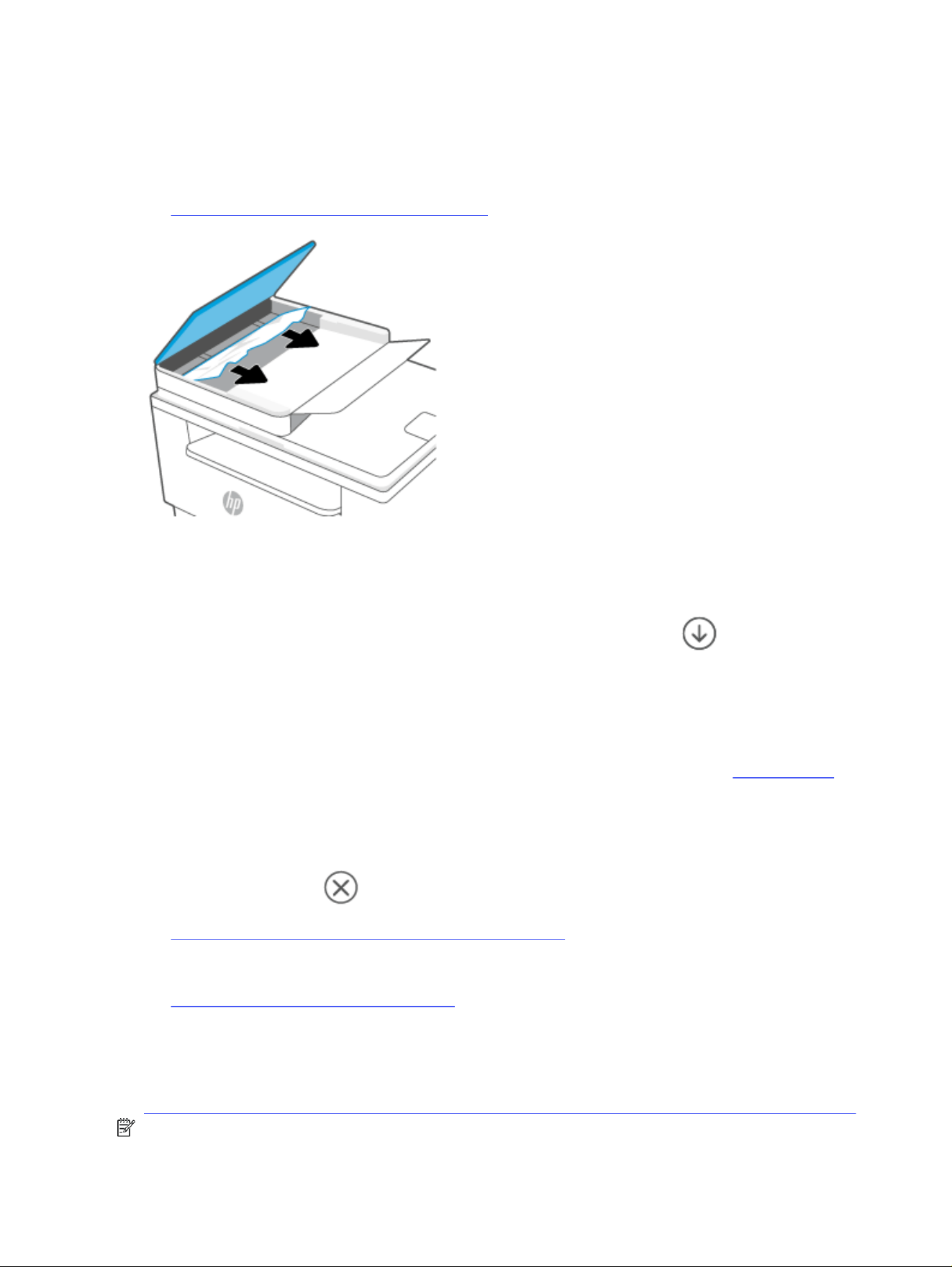
Er/41 (sdn/sdw models only)
There is a paper jam in the document feeder.
Clear the paper jam in the document feeder. After clearing the jam, retry your copy or scan job.
See Document feeder (Er/41) - (sdn/sdw models only).
Er/42
There is a paper jam in the rear duplexer.
Clear the jam in the rear duplexer. After clearing the paper, press the Resume button to continue the print
job.
Er/50, Er/51, Er/52, Er/54, Er/55, Er/58, Er/59
There is an issue with the print engine.
Turn o the printer. Wait for 30 seconds and turn on the printer. If the problem persists, visit support.hp.com.
Er/61
An error occurred during Wi-Fi Protected Setup (WPS) and the printer was not able to connect to the network.
Press the the Cancel button to continue and then try connecting the printer to the wireless network again.
See Connect to a Wi-Fi network using Wi-Fi Protected Setup (WPS).
If the problem persists, try connecting using the HP app.
See Connect to a Wi-Fi network using the HP app.
Print reports
Learn how to print the printer reports.
NOTE: This section is applicable to wireless printers only.
44
Chapter 8Solve problems
For USB models, press and hold the Resume button for 5 seconds to print a conguration report.
Print reports
Printer report How to print Description
Information
Report
Press the Information button .
Open the EWS, select the Tools tab, and select Reports,
and then select Printer Reports. Select the Printe the
Priuter Information Report button to print an Information
page.
Provides a summary of printer status and information,
including the IP address for Wi-Fi models.
Conguration
Report
Press and hold the Information button for 5
seconds until all the buttons are lit. Press the
Resume
button to print a conguration report.
Open the EWS, Select the Tools tab, and select Reports,
and then select Printer Reports. Select the Printer the
Conguration Report button to print an Information page.
Shows the printer usage log (pages printed), event logs,
energy settings, network status, and more.
Wireless Test
Report
Press and hold the Information button for 5
seconds until all the buttons are lit. Press the
Information
button and the Resume button at the
same time.
Open the EWS, select the Tools tab, and select Reports,
and then select Printer Reports. Select the Print Wireless
Test Report button to print a test page.
Shows the diagnostics results for the status of the
wireless network, wireless signal strength, detected
networks, and more.
Image
Registration
Open the EWS, select the Settings tab. From the
left menu, select Preferences, and then select Image
Registration. In the Image Registration area, select the
desired option. Select Apply or select Print Test Page.
Prints a test page.
Paper jams and feed issues
Learn how to troubleshoot jams and paper-feed issues.
Possible jam locations (d/dw and sdn/sdw models)
Jams can occur at the following locations in the printer.
Paper jams and feed issues 45
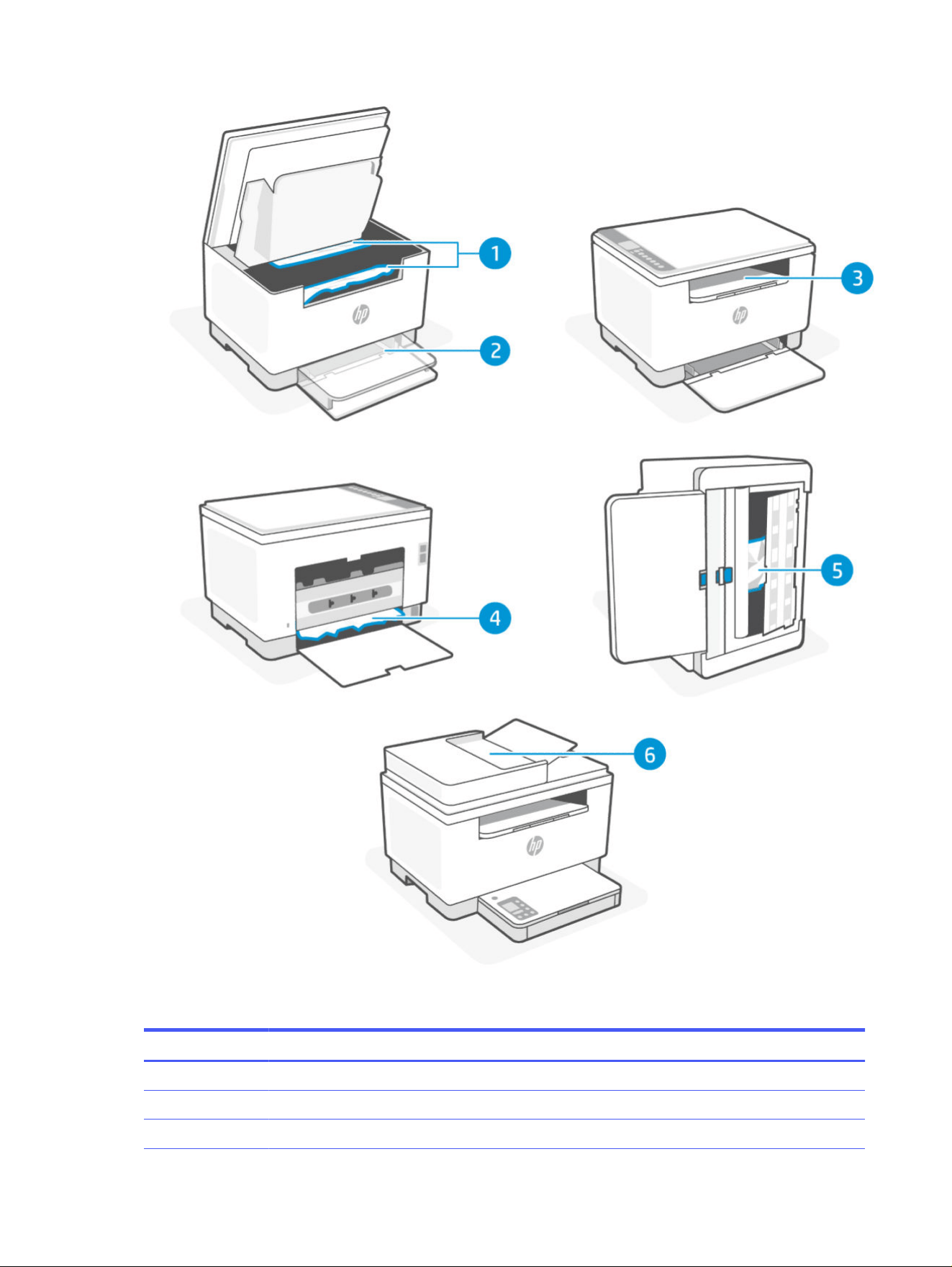
Jam locations (d/dw and sdn/sdw models)
Feature Location Error code
1 Toner cartridge area Er/05
2 Paper tray Er/04
3 Output tray Er/06
46 Chapter 8Solve problems

Jam locations (d/dw and sdn/sdw models) (continued)
Feature Location Error code
4 Rear duplexer Er/42
5 Printer base Er/04
6 Document feeder (some models only) Er/41
NOTE: Jams can occur in more than one location.
Remove jammed paper
Look in all areas where jams can occur and remove any jammed paper or foreign objects found.
CAUTION:
● Do not use sharp objects, such as tweezers or needle-nose pliers, to remove jams.
● When removing jammed paper, use both hands to pull the paper straight out from the printer.
● To help avoid additional paper jams, make sure to remove all small pieces of paper and foreign objects
found.
● To avoid the risk of electrical shock, make sure to unplug the power cord to move the carriage by hand.
● Use a ashlight to help nd any jammed paper or foreign objects inside the printer.
● If the paper tears when you are removing it from the rollers, check the rollers and wheels for torn pieces of
paper that might remain inside the printer.
● If you do not remove all the pieces of paper from the printer, more paper jams are likely to occur.
● Avoid pulling jammed paper from the front of the printer. Instead, follow the steps below to clear the jam.
Pulling out jammed paper from the front of the printer might cause the paper to tear and leave torn pieces
inside the printer; this could result in more jams later.
Paper tray (Er/04)
Remove any jammed paper that is accessible from the paper tray area.
1. Turn o the printer and disconnect the power cord.
Remove jammed paper 47
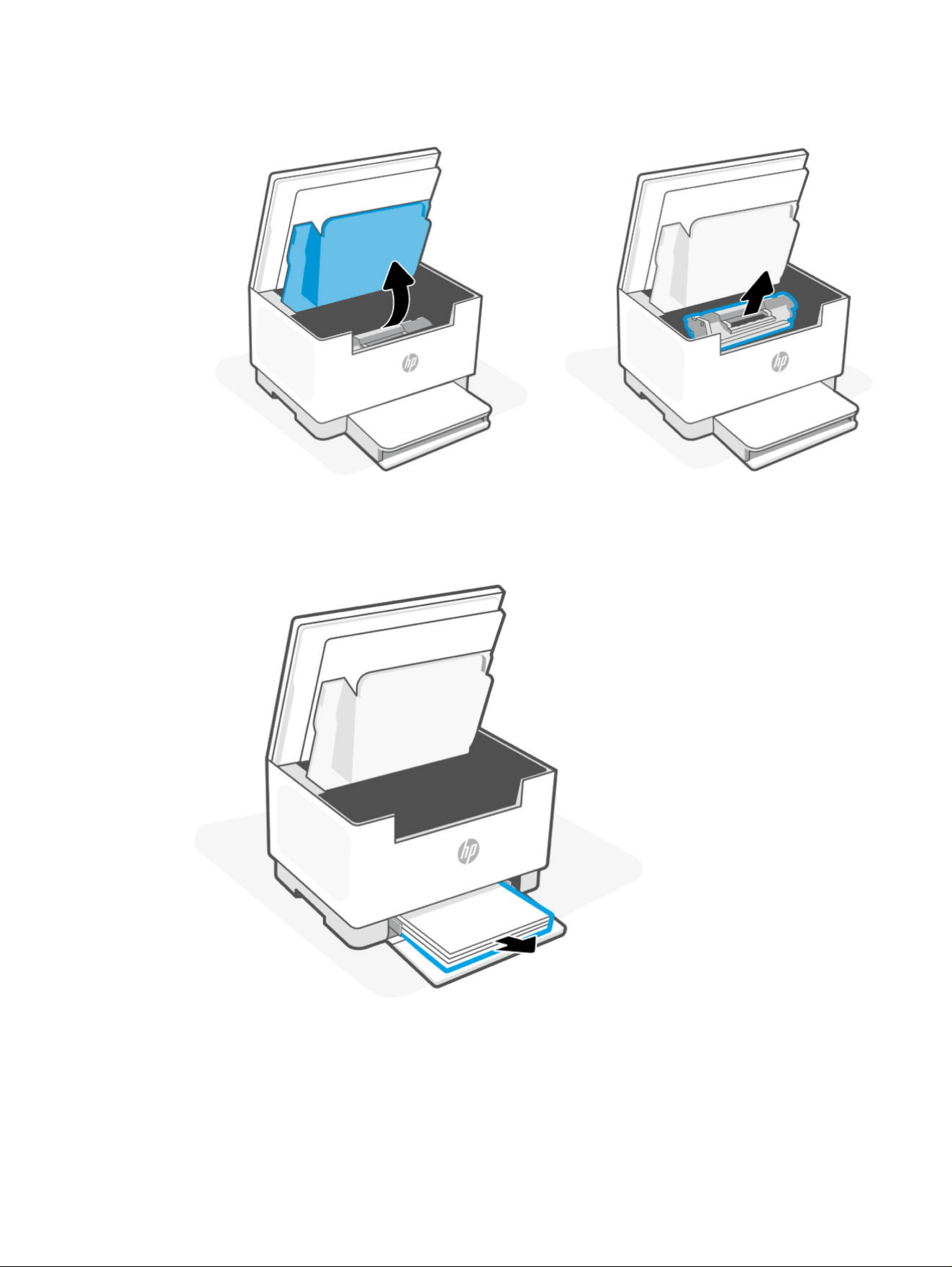
2. Open the cartridge access door, and then remove the print cartridge.
3. Remove the paper stack from the paper tray.
48 Chapter 8Solve problems
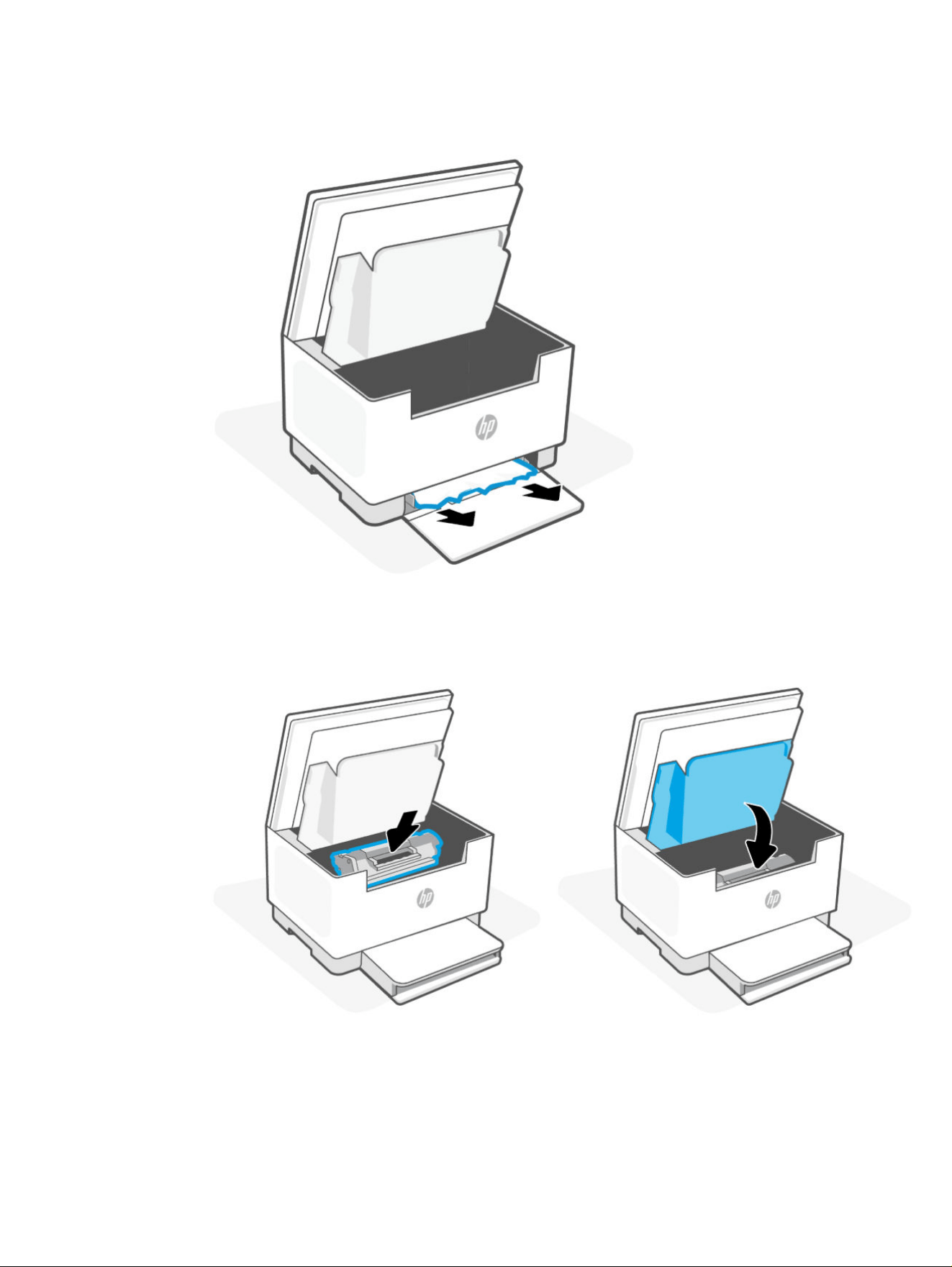
4. Use both hands to remove any jammed paper from the paper tray.
5. Reinstall the toner cartridge, and then close the cartridge access door.
6. Reconnect the power cord and turn on your printer.
Printer base (Er/04)
Remove any jammed paper that is accessible from the printer base.
Printer base (Er/04)
49
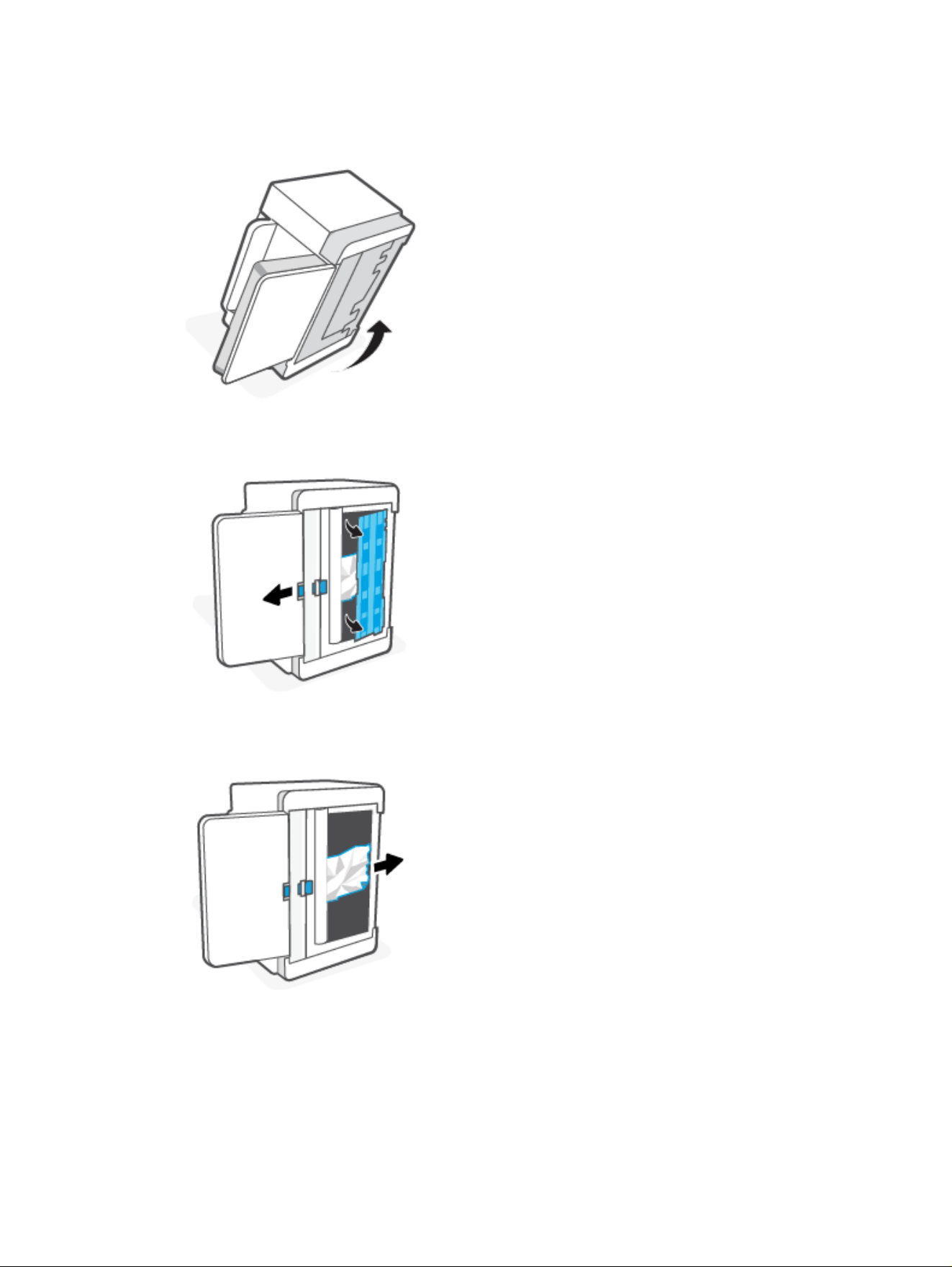
1. Turn o the printer and disconnect the power cord.
2. Flip the printer on its side, as shown.
3. Release and then hold on to the blue latch to remove the panel.
4. Remove any jammed paper.
50 Chapter 8Solve problems
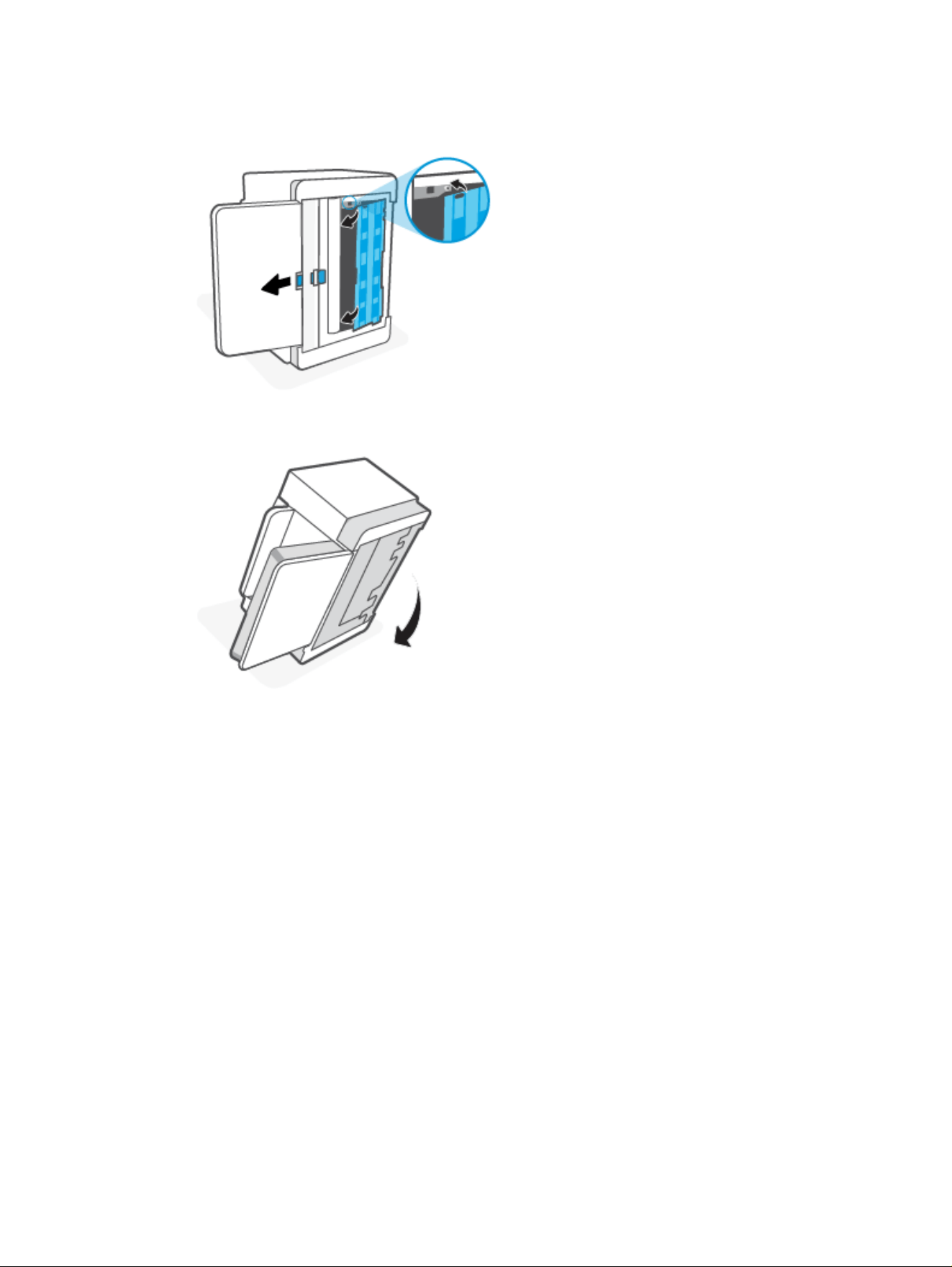
5. While holding the blue latch, align and insert the panel as shown. Release the blue latch to lock the panel in
place.
6. Flip the printer back to its original position.
7. Reconnect the power cord and turn on your printer.
Toner cartridge area (Er/05)
Remove any jammed paper that is accessible from the toner cartridge area.
1. Turn o the printer and disconnect the power cord.
Toner cartridge area (Er/05) 51
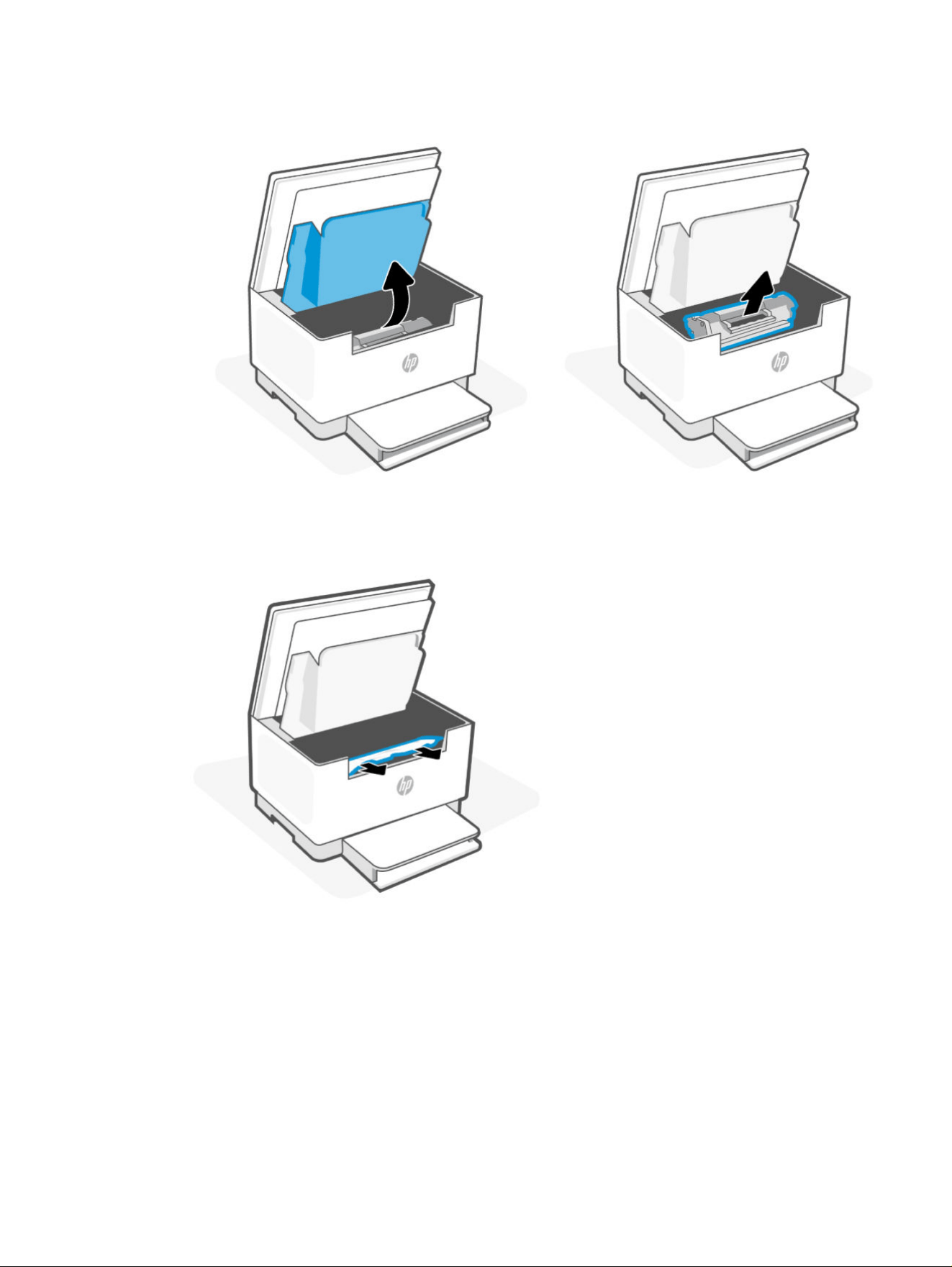
2. Open the cartridge access door, and then remove the print cartridge.
3. Carefully grasp any jammed paper, and then slowly pull it out of the printer.
52 Chapter 8Solve problems
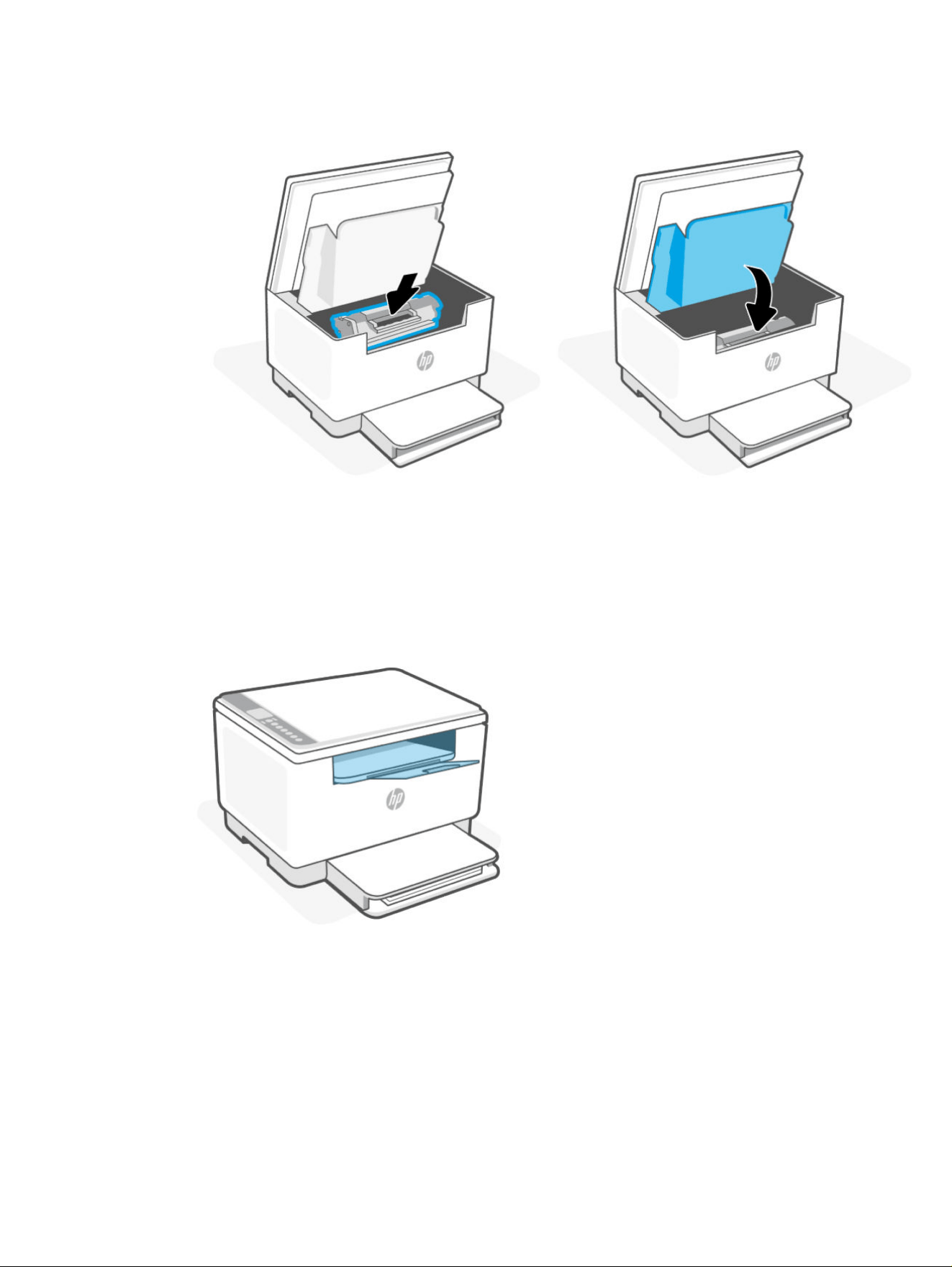
4. Reinstall the toner cartridge, and then close the cartridge access door.
5. Reconnect the power cord and turn on your printer.
Output tray area (Er/06)
Remove any jammed paper that is accessible from the output tray area.
1. Lower the tray cover and look inside the output tray.
Output tray area (Er/06) 53
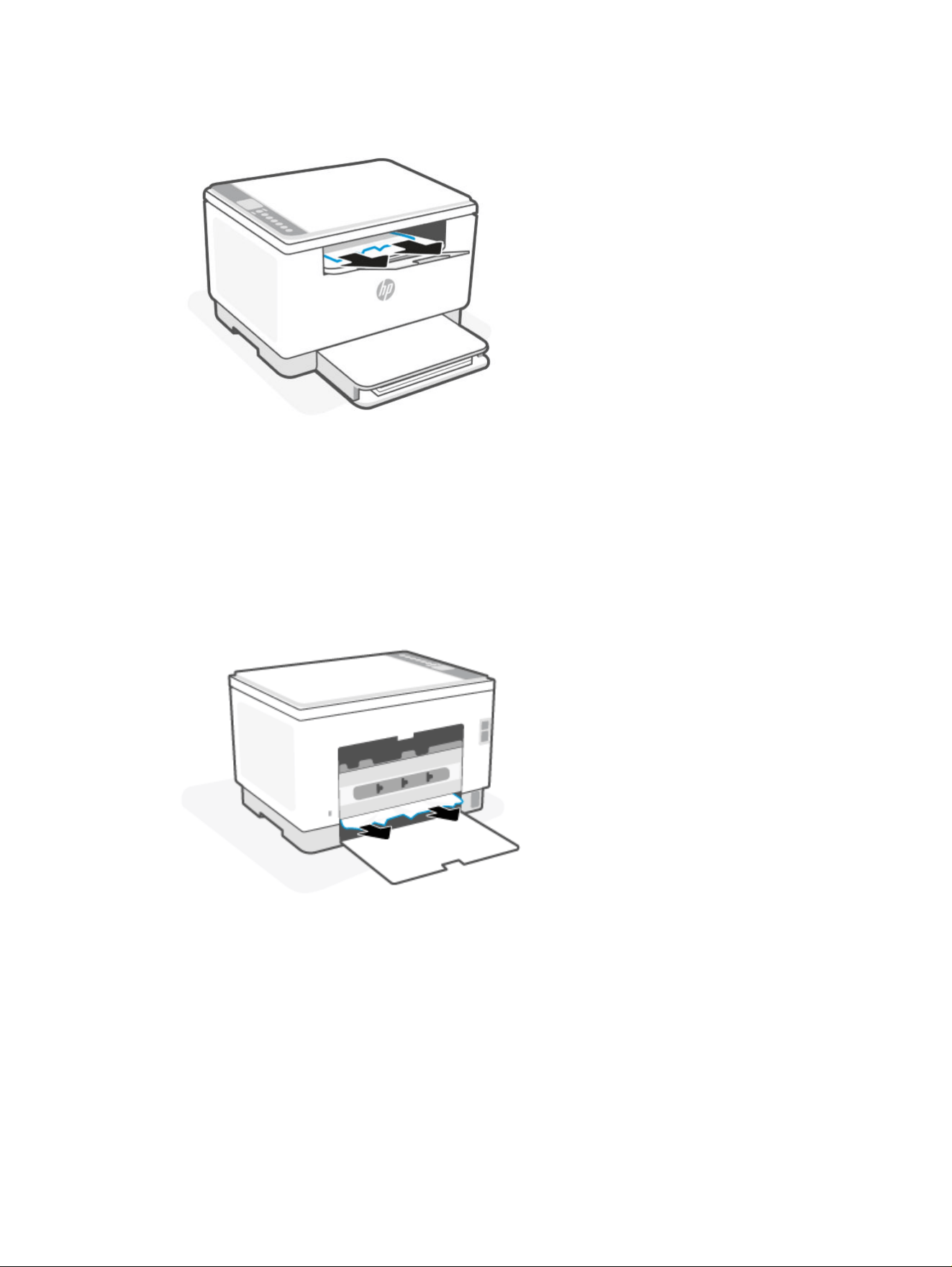
2. Remove any jammed paper from the output tray area. Use both hands to remove jammed paper to avoid
tearing the paper.
3. If printing does not start automatically, press the Resume button to continue the print job.
Rear duplexer (Er/42)
Remove any jammed paper that is accessible from the rear duplexer.
1. Turn o the printer and disconnect the power cord.
2. Open the rear access door.
3. Remove any jammed paper.
4. Close the rear access door.
5. Reconnect the power cord and turn on your printer.
Document feeder (Er/41) - (sdn/sdw models only)
Remove any jammed paper from the document feeder (for select printers).
1. Remove any loose paper from the paper tray of the document feeder.
54
Chapter 8Solve problems
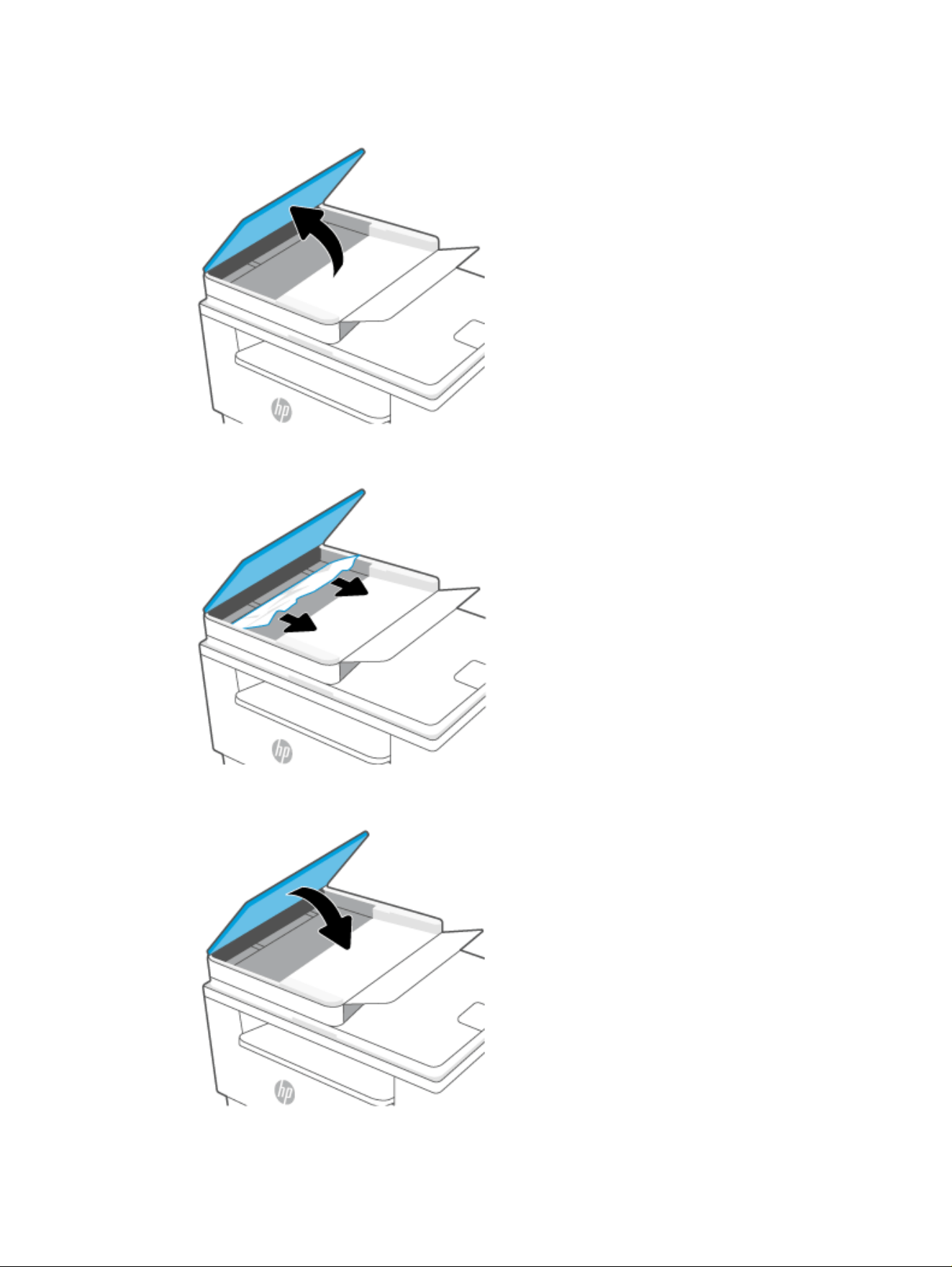
2. Lift the jam-access cover.
3. Remove any jammed paper from the paper tray area.
4. Close the jam-access cover.
Document feeder (Er/41) - (sdn/sdw models only) 55

Restore original factory defaults and settings
If you have changed settings on the printer and want to reset them, restore the printer to the original factory
settings and network settings.
1. Open the EWS. See To access and use the EWS.
2. Select the Settings tab.
3. From the left menu, select Restore Defaults, and then select Restore Factory Defaults.
4. In the Restore Defaults area, select the Restore Factory Defaults button.
The printer automatically restarts.
Cartridge low
This topic describes how to manage the cartridges at low and very low settings.
Cartridge is low
Actual remaining cartridge life may vary. Consider having a replacement available to install when print quality is
no longer acceptable. The cartridge does not need to be replaced now.
Continue printing with the current cartridge until redistributing the toner no longer yields acceptable print quality.
To redistribute the toner, remove the toner cartridge from the printer and gently rock the cartridge back and forth
on its horizontal axis. For graphical representation, see Remove and replace the toner cartridge instructions.
Reinsert the toner cartridge into the printer and close the cover.
Cartridge is very low
Actual cartridge life remaining may vary. Consider having a replacement available to install when print quality
is no longer acceptable. The cartridge does not need to be replaced now unless the print quality is no longer
acceptable.
Once an HP toner cartridge has reached Very Low, HP’s Premium Protection Warranty on that toner cartridge has
ended.
Change the “Very Low” settings
You can change the way the printer reacts when supplies reach the Very Low state. You do not have to
re-establish these settings when you install a new toner cartridge.
1. Open the EWS. See To access and use the EWS.
2. Select the Settings tab.
3. From the left menu, select Supplies, and then select Supply Settings.
4. Select one of the following options from the Cartridge Very Low Setting (Black Cartridge): drop-down list:
● Select the Stop option to set the printer to stop printing until you replace the cartridge.
● Select the Prompt option to set the printer to stop printing and prompt you to replace the toner
cartridge. You can acknowledge the prompt and continue printing.
● Select the Continue option to set the printer to alert you that the cartridge is very low, but to continue
printing.
56
Chapter 8Solve problems

5. Select Apply to save the changes.
Order supplies
Order supplies
Order HP Support
Order supplies and paper www.hp.com/go/suresupply
Order through service or support providers Contact an HP-authorized service or support provider.
Printer does not pick up paper or misfeeds
The following solutions can help solve problems if the printer is not picking up paper from the paper tray or is
picking up multiple sheets of paper at one time. Either of these situations can result in paper jams.
The printer does not pick up paper
If the printer does not pick up paper from the paper tray, try these solutions.
1. Open the product and remove any jammed sheets of paper.
2. Load the tray with the correct size of paper for your job.
3. Make sure the paper size and type are set correctly.
4. Make sure the paper guides in the tray are adjusted correctly for the size of paper. Adjust the guides to the
appropriate indentation in the tray.
5. Clean the pickup roller.
NOTE: If the problem persists, visit support.hp.com site for this printer to learn more about solving paper
problems.
The product picks up multiple sheets of paper
If the product picks up multiple sheets of paper from the paper tray, try these solutions.
1. Remove the stack of paper from the paper tray, rotate it 180 degrees, and ip it over. Return the stack of
paper to the paper tray.
2. Use only paper that meets HP specications for this product.
3. Use paper that is not wrinkled, folded, or damaged. If necessary, use paper from a dierent package.
4. Make sure the paper tray is not overlled. If it is, remove the entire stack of paper from the tray, straighten
the stack, and then return some of the paper to the paper tray.
5. Make sure the paper guides in the tray are adjusted correctly for the size of paper. Adjust the guides to the
appropriate indentation in the tray.
6. Make sure the printing environment is within recommended specications.
Clean the pickup roller
This topic describes how to clean the pickup roller to avoid paper jams.
Order supplies
57
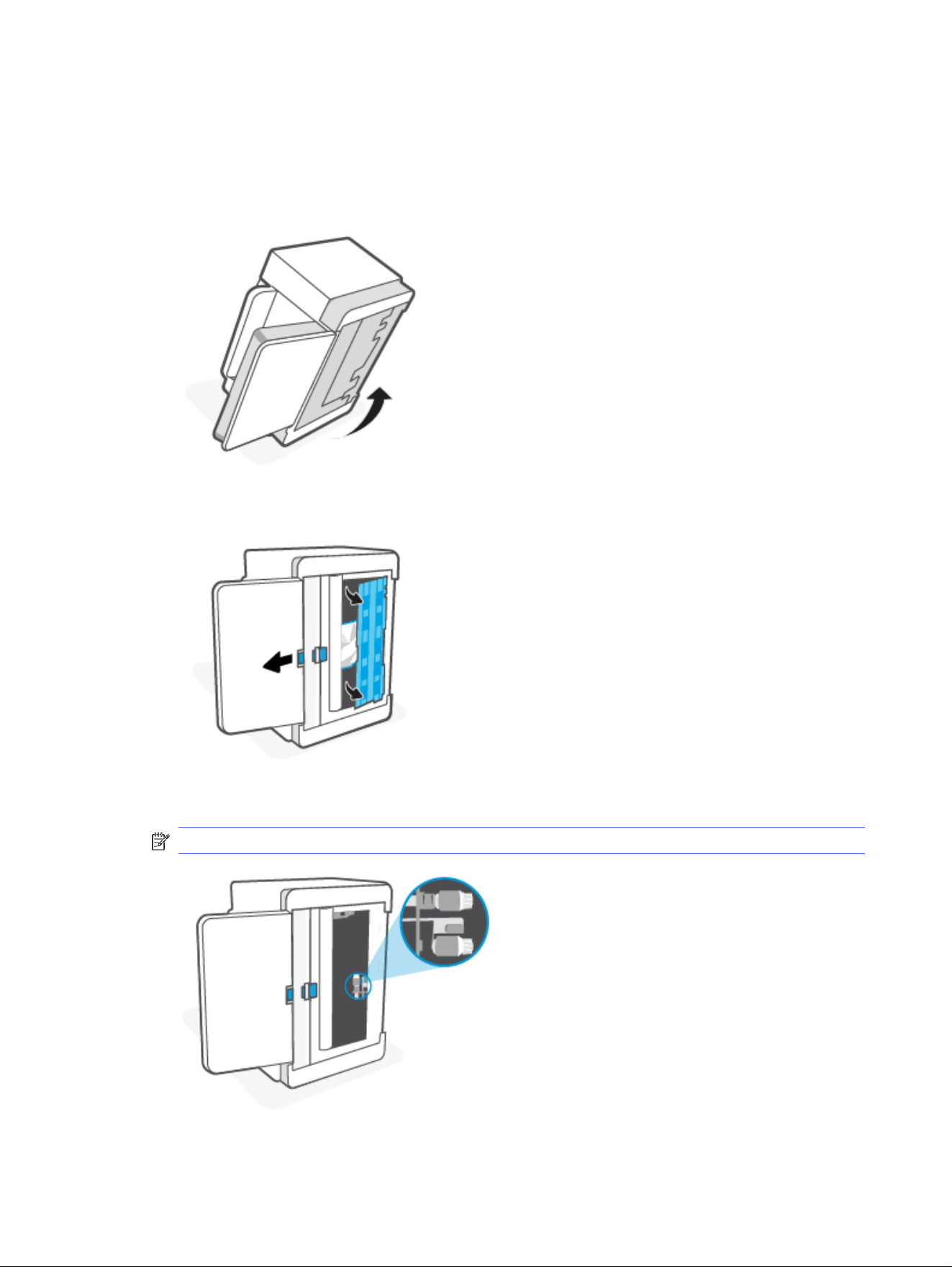
1. Turn o the printer.
2. Unplug the power cord from the back of the printer.
3. Remove the stack of paper from the paper tray.
4. Flip the printer on its side.
5. Release and hold on to the blue latch, and then remove the panel.
6. Dampen a soft, lint-free cloth with alcohol or water, and then wipe each roller.
NOTE: Apply a moderate amount of pressure to each roller to ensure that they are completely cleaned.
58 Chapter 8Solve problems
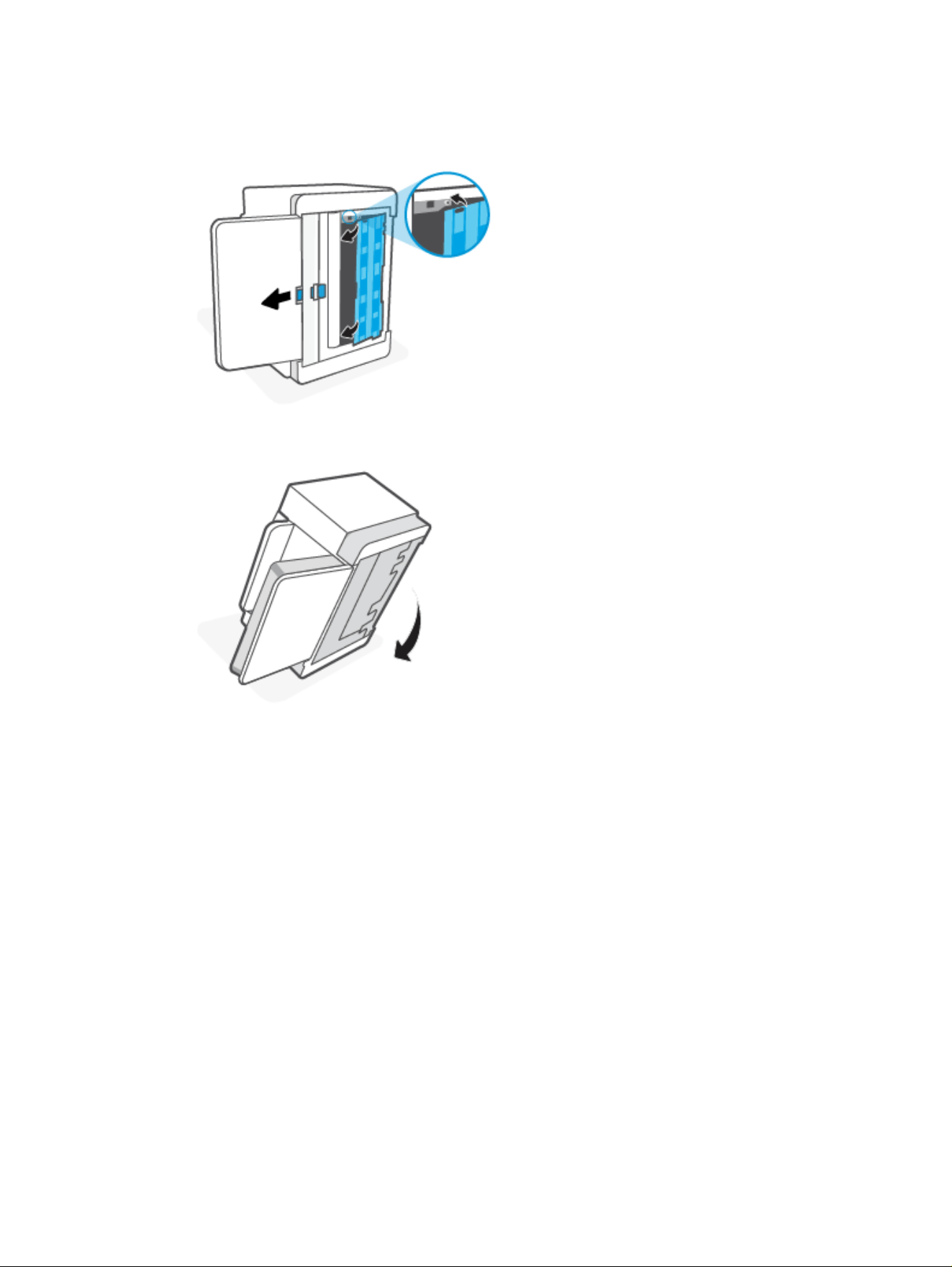
7. Wait approximately 10 minutes to allow the pickup roller to dry completely.
8. While holding the blue latch, align and insert the panel. Release the blue latch to lock the panel in place.
9. Flip the printer back to the original, upright position.
10. Reload the stack of paper into the paper tray.
11. Plug the power cord back into the printer, and then turn on the printer.
Improve print quality
The following information provides troubleshooting steps to resolve print-quality problems, including the
following problems:
●
Smears
● Fuzzy print
● Dark print
● Light print
● Streaks
● Missing toner
● Scattered dots of toner
Improve print quality
59

● Loose toner
● Skewed images
For information about resolving specic image defects, see Resolve print quality problems.
Print from a dierent software program
Try printing from a dierent software program. If the page prints correctly, the problem is with the software
program from which you were printing.
If the page does not print correctly, try updating the printer and print again. See Printer updates.
Check the paper type setting for the print job
Check the paper type setting when printing from a software program and the printed pages have smears, fuzzy
or dark print, curled paper, scattered dots of toner, loose toner, or small areas of missing toner.
Check the paper type setting on the printer
Verify that the tray is loaded with the correct type of paper.
Check the paper type setting (Windows)
1.
From the software program, select the Print option.
2. Select the printer, and then select the Properties or Preferences button.
3. Check the Paper Type setting.
Check the paper type setting (Mac OS)
1. Select the File menu, and then select the Print option.
2. In the Printer menu, select the printer.
3. By default, the print driver displays the Copies & Pages menu. Open the menu's drop-down list, and then
select the Finishing menu.
4. Select a type from the Media Type drop-down list.
Check toner cartridge status
Print quality problems can occur when using a toner cartridge that is at its estimated end of life. The
conguration report indicates when a supply level is very low.
Once an HP toner cartridge has reached Very Low, HP’s Premium Protection Warranty on that toner cartridge has
ended.
The toner cartridge does not need to be replaced now unless the print quality is no longer acceptable. Consider
having a replacement available to install when print quality is no longer acceptable.
The information page provides information about the printer, connectivity settings, and supplies status.
1. Open the EWS.
60
Chapter 8Solve problems

2. Check to see if you are using an Original HP toner cartridge.
An Original HP toner cartridge has “HP” on it or has the HP logo on it. For more information on identifying
HP cartridges go to www.hp.com/go/learnaboutsupplies
Clean the cartridge
During the printing process, cartridges might be contaminated by paper dust and cause print quality issues such
as background issues, vertical dark bands, or repetitive horizontal banding.
Follow these steps to improve the above mentioned print quality issues:
1. Open the EWS. See To access and use the EWS.
2. Select the Tools tab.
3. From the left menu, select Utilities, and then select Printer Quality Toolbox.
4. In the Print Quality Toolbox area, navigate to Clean the Cartridge, and then select Start to begin the cleaning
process.
NOTE: The cleaning process takes approximately 3 minutes to complete.
Print a cleaning page
During the printing process, paper, toner, and dust particles can accumulate inside the printer and can cause
print-quality issues such as toner specks or spatter, smears, streaks, lines, or repeating marks.
Use the following procedure to print a cleaning page.
1. Open the EWS. See To access and use the EWS.
2. Select the Tools tab.
3. From the left menu, select Utilities, and then select Print Quality Toolbox.
4. In the Print Quality Toolbox area, navigate to Clean the Fuser, and then select Start to begin the cleaning
process.
NOTE: The cleaning process takes approximately 3 minutes to complete.
Visually inspect the toner cartridge
Follow these steps to inspect the toner cartridge.
1. Remove the toner cartridge from the printer and verify that the sealing tape has been removed.
2. Check the memory chip for damage.
3. If you see any damage on the toner cartridge, replace the toner cartridge.
4. Reinstall the toner cartridge and print a few pages to see if the problem is resolved.
Check paper and the printing environment
Perform the following steps.
Clean the cartridge
61

Step 1: Use paper that meets HP specications
Some print-quality problems arise from using paper that does not meet HP specications.
● Always use a paper type and weight that this printer supports.
● Use paper that is of good quality and free of cuts, nicks, tears, spots, loose particles, dust, wrinkles, voids,
staples, and curled or bent edges.
● Use paper that has not been previously printed on.
● Use paper that does not contain metallic material, such as glitter.
● Use paper that is designed for use in laser printers. Do not use paper that is designed only for use in Inkjet
printers.
● Use paper that is not too rough. Using smoother paper generally results in better print quality.
Step 2: Check the environment
The environment can directly aect print quality and is a common cause for print-quality or paper-feeding issues.
Try the following solutions:
●
Move the printer away from drafty locations, such as open windows or doors, or air-conditioning vents.
● Make sure the printer is not exposed to temperatures or humidity outside of printer specications.
● Do not place the printer in a conned space, such as a cabinet.
● Place the printer on a sturdy, level surface.
● Remove anything that is blocking the vents on the printer. The printer requires good air ow on all sides,
including the top.
● Protect the printer from airborne debris, dust, steam, grease, or other elements that can leave residue inside
the printer.
Adjust print density
Complete the following steps to adjust the print density.
1. Open the EWS. See To access and use the EWS.
2. Select the Settings tab.
3. From the left menu, select Preferences, and then select General Printer Settings..
4. In the General Printer Settings area, change the correct print density settings.
5. Select Apply to save the changes.
Resolve print quality problems
The following information provides troubleshooting steps for solving image defect issues, including the following
defects:
● Light print
● Gray background or dark print
62
Chapter 8Solve problems
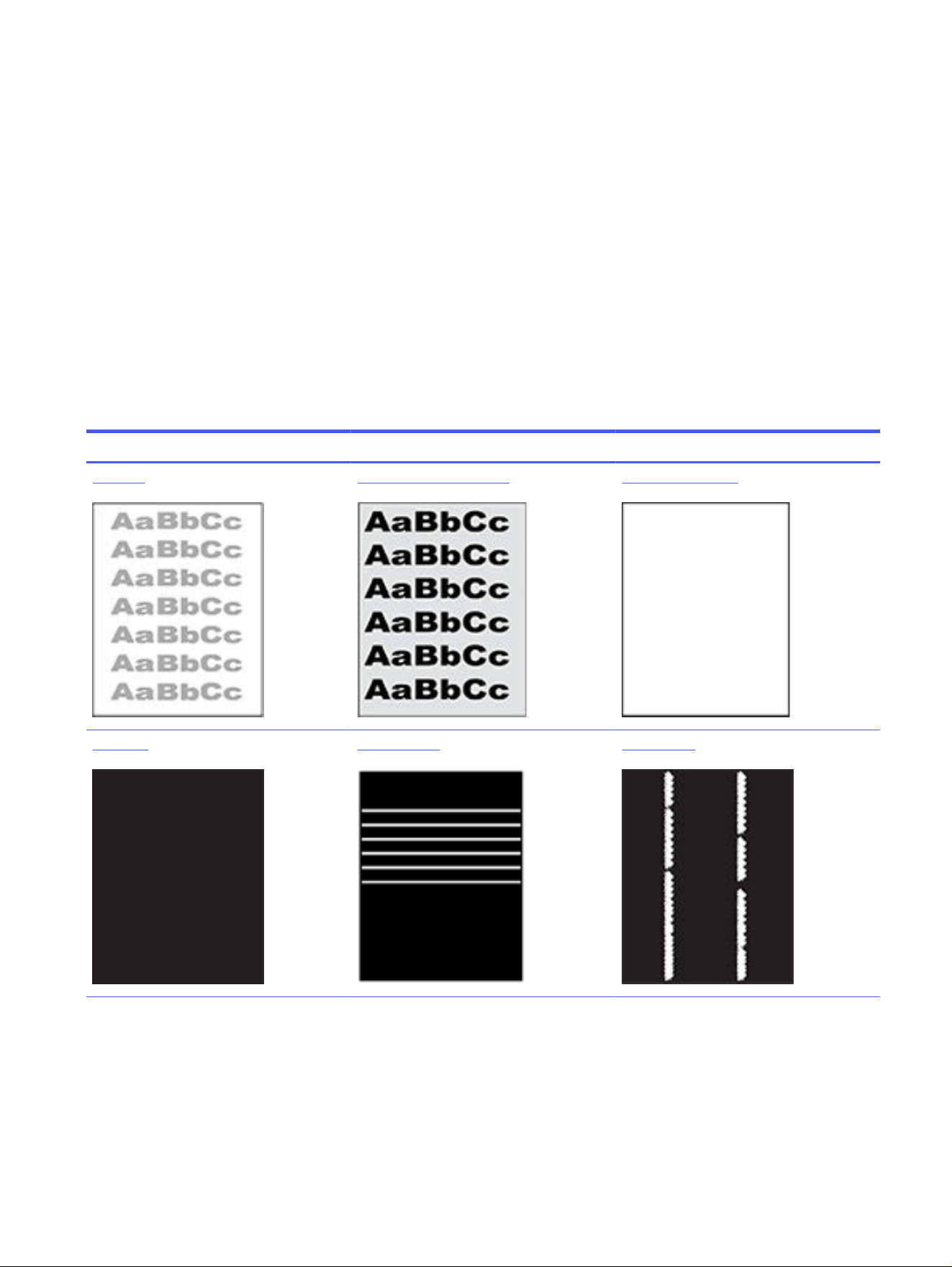
● Blank pages
● Black pages
● Dark or light bands
● Dark or light streaks
● Missing toner
● Skewed images
●
Colors that do not align
● Curled paper
Troubleshoot print quality problems
Image defects quick reference
Image defects Image defects Image defects
Light print Gray background or dark print Blank page — No print
Black page Banding defects Streak defects
Troubleshoot print quality problems 63
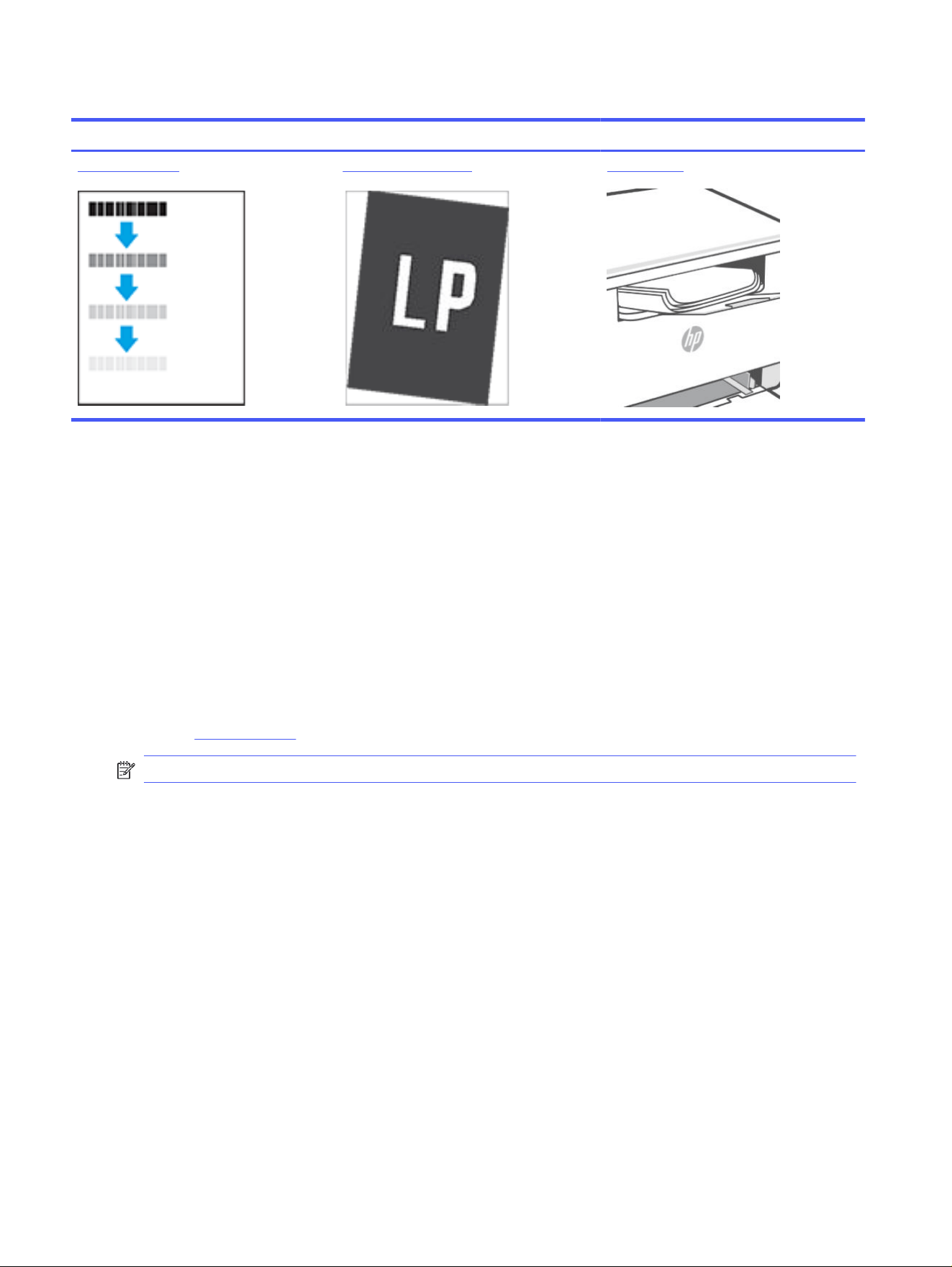
Image defects quick reference (continued)
Image defects Image defects Image defects
Fixing/fuser defects Image placement defects Output defects
Image defects, no matter the cause, can often be resolved using the same steps. Use the following steps as a
starting point for solving image defect issues.
1. Reprint the document. Print quality defects can be intermittent in nature or can go away completely with
continued printing.
2. Check the condition of the cartridge. If a cartridge is in a Very Low state (it has passed the rated life), replace
the cartridge.
3. Make sure that the driver and tray print mode settings match the media that is loaded in the tray. Try using
a dierent ream of media or a dierent tray. Try using a dierent print mode.
4. Make sure that the printer is within the supported operating temperature/humidity range.
5. Make sure that the paper type, size, and weight are supported by the printer. See the printer support page
at support.hp.com and nd your printer.
NOTE: The term “fusing” refers to the part of the printing process where toner is aixed to paper.
The following examples depict Letter-size paper that has passed through the printer short-edge rst.
64 Chapter 8Solve problems
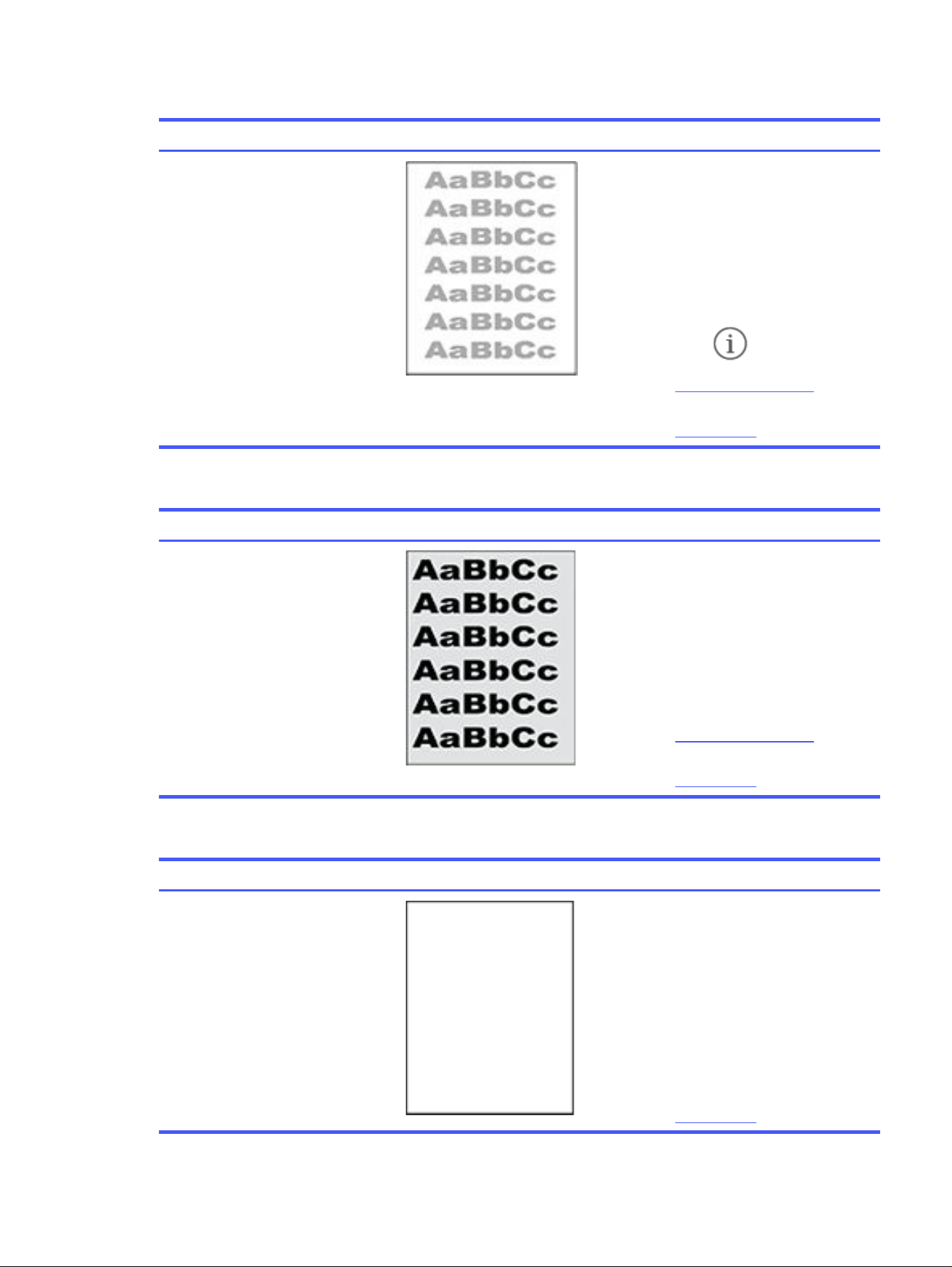
Light print
Description Sample Possible solutions
Light print:
The printed content on the entire page is
light or faded.
1. Reprint the document.
2. Remove the cartridge, and then shake
it to redistribute the toner.
3. Make sure that the cartridge is
installed correctly.
4. Check the printer supplies status
from the information page. To print
the report, press the Information
button .
5. Replace the toner cartridge.
6. If the problem persists, visit
support.hp.com.
Gray background or dark print
Description Sample Possible solutions
Gray background or dark print:
The image or text is darker than expected.
1. Make sure that the paper in the tray
has not already been run through the
printer.
2. Use a dierent paper type.
3. Reprint the document.
4. Make sure that the printer is within the
supported operating temperature and
humidity range.
5. Replace the toner cartridge.
6. If the problem persists, visit
support.hp.com.
Blank page — No print
Description Sample Possible solutions
Blank page — No print:
The page is completely blank and contains
no printed content.
1. Make sure that the cartridge is an
Original HP cartridge.
2. Make sure that the cartridge is
installed correctly.
3. Print with a dierent cartridge.
4. Check the paper type in the paper
tray and adjust the printer settings to
match. If necessary, select a lighter
paper type.
5. If the problem persists, visit
support.hp.com.
Troubleshoot print quality problems 65

Black page
Description Sample Possible solutions
Black page:
The entire printed page is black.
1. Visually inspect the toner cartridge to
check for damage.
2. Make sure that the cartridge is
installed correctly.
3. Replace the toner cartridge.
4. If the problem persists, visit
support.hp.com.
Banding defects
Description Sample Possible solutions
Repetitive wide-pitch banding and impulse
bands:
Dark or light lines which repeat down the
length of the page. They might be sharp or
soft in nature. The defect displays only in
areas of ll, not in text or sections with no
printed content.
1. Reprint the document.
2. Replace the toner cartridge.
3. Use a dierent paper type.
4. If the problem persists, visit
support.hp.com.
Streak defects
Description Sample Possible solutions
Light vertical streaks:
Light streaks that usually span the length of
the page. The defect displays only in areas
of ll, not in text or sections with no printed
content.
1. Reprint the document.
2. Remove the cartridge, and then shake
it to redistribute the toner.
3. If the problem persists, go to
support.hp.com if the problem
persists.
NOTE: Both light and dark vertical streaks
can occur when the printing environment is
outside the specied range for temperature
or humidity. Refer to your printer's
environmental specications for allowable
temperature and humidity levels.
66 Chapter 8Solve problems
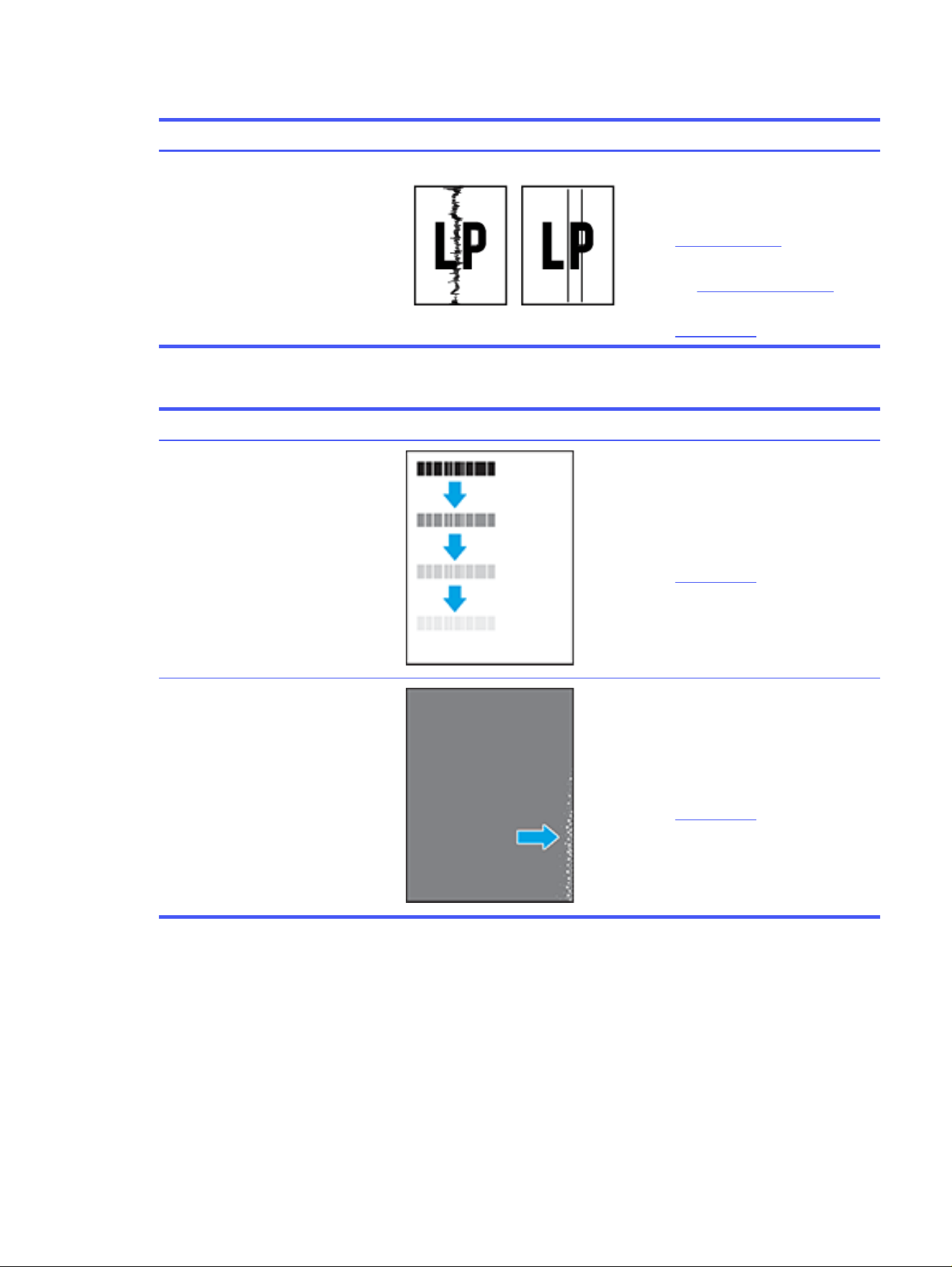
Streak defects (continued)
Description Sample Possible solutions
Dark vertical streaks and ITB cleaning
streaks:
Dark lines which occur down the length of
the page. The defect might occur anywhere
on the page, in areas of ll or in sections
with no printed content.
1. Reprint the document.
2. Remove the cartridge, and then shake
it to redistribute the toner.
3. Print a cleaning page.
4. Check the toner level in the cartridge.
See To access and use the EWS.
5. If the problem persists, visit
support.hp.com.
Fixing/fuser defects
Description Fixing/fuser Possible solutions
Hot fuser oset (shadow):
Slight shadows, or osets, of the image
repeated down the page. The repeated
image might fade with each recurrence.
1. Reprint the document.
2. Check the paper type in the paper
tray and adjust the printer settings to
match. If necessary, select a lighter
paper type.
3. If the problem persists, visit
support.hp.com.
Poor fusing:
Toner rubs o along either edge of page.
This defect is more common at the edges of
high-coverage jobs and on light media types
but can occur anywhere on the page.
1. Reprint the document.
2. Check the paper type in the paper
tray and adjust the printer settings to
match. If necessary, select a heavier
paper type.
3. If the problem persists, visit
support.hp.com.
Troubleshoot print quality problems 67
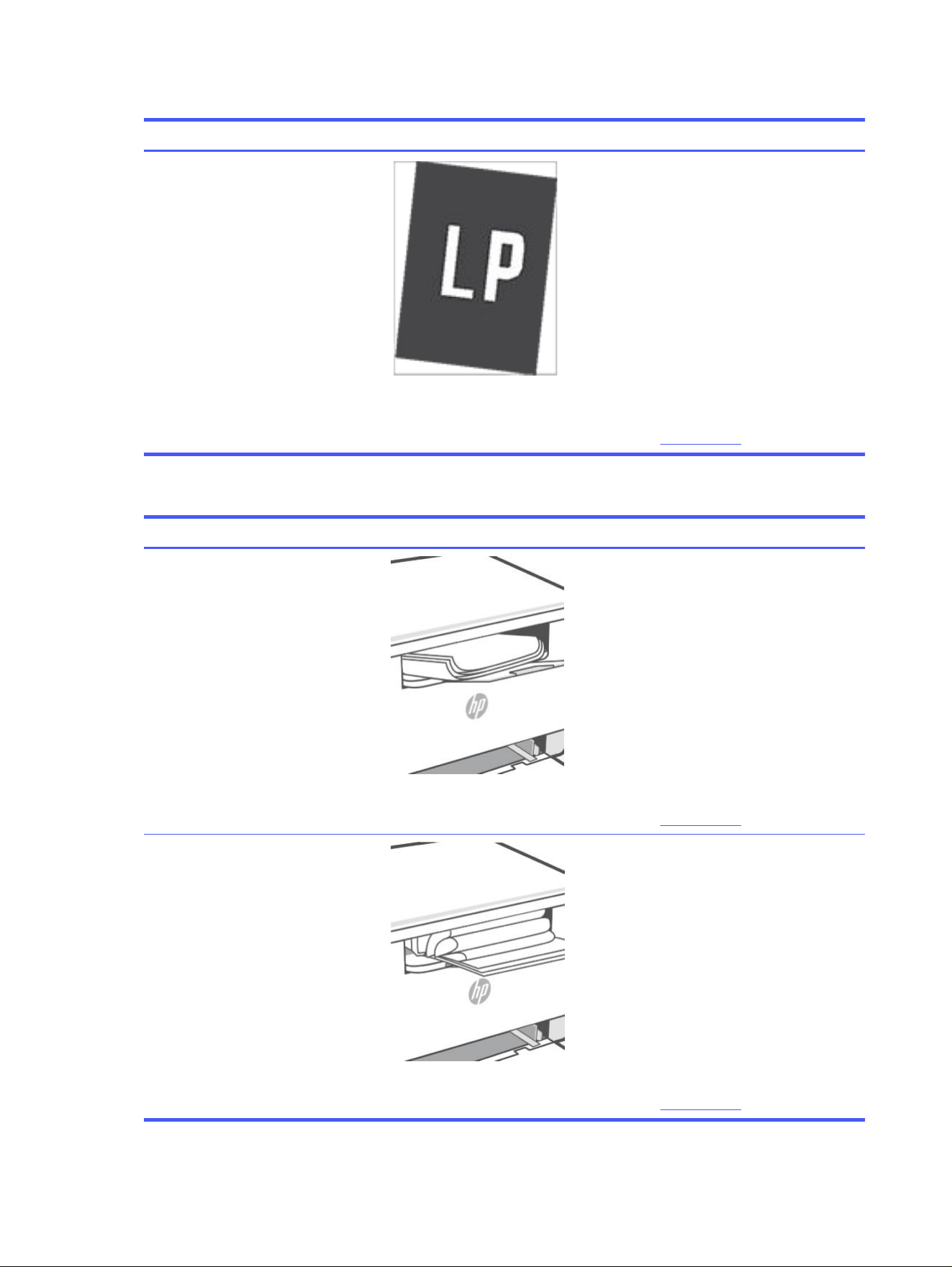
Image placement defects
Description Sample Possible solutions
Margins and skew:
The image is not centered or is skewed on
the page. The defect occurs when the paper
is not positioned properly as it is pulled from
the tray and moves through the paper path.
1. Reprint the document.
2. Remove the paper and then reload
the tray. Make sure that all the paper
edges are even on all sides.
3. Make sure that the top of the paper
stack is below the tray full indicator.
Do not overll the tray.
4. Make sure that the paper guides are
adjusted to the correct size for the
paper. Do not adjust the paper guides
tightly against the paper stack. Adjust
them to the indentations or markings
in the tray.
5. If the problem persists, visit
support.hp.com.
Output defects
Description Sample Possible solutions
Output curl:
Printed paper has curled edges. The curled
edge can be along the short or long side of
the paper. Two types of curl are possible:
● Positive curl: The paper curls toward
the printed side. The defect occurs
in dry environments or when printing
high-coverage pages.
● Negative curl: The paper curls away
from the printed side. The defect
occurs in high-humidity environments
or when printing low-coverage pages.
1. Reprint the document.
2. Positive curl: From the printer EWS,
select a heavier paper type. The
heavier paper type creates a higher
temperature for printing.
Negative curl: From the printer EWS,
select a lighter paper type. The
lighter paper type creates a lower
temperature for printing. Try storing
the paper in a dry environment or use
freshly opened paper.
3. Print in duplex mode.
4. If the problem persists, visit
support.hp.com.
Output stacking:
The paper does not stack well in the output
tray. The stack might be uneven, skewed,
or the pages might be pushed out of the
tray and onto the oor. Any of the following
conditions can cause this defect:
● Extreme paper curl
● The paper in the tray is wrinkled or
deformed
● The paper is a non-standard paper
type, such as envelopes
● The output tray is too full
1. Reprint the document.
2. Extend the output tray extender.
3. If the defect is caused by
extreme paper curl, complete the
troubleshooting steps for Output curl
(See the section in the table above).
4. Use a dierent paper type.
5. Use freshly opened paper.
6. Remove the paper from the output
tray before the tray gets too full.
7. If the problem persists, visit
support.hp.com.
68 Chapter 8Solve problems

Improve copy and scan image quality
This topic helps you troubleshoot copy and scan issues.
If the printer is having image quality problems, rst make sure you are using high-quality originals. If the problem
still exists, try the following solutions in the order presented to resolve the issue.
Check the scanner glass for dirt and smudges
Over time, specks of debris might collect on the scanner glass and white plastic backing, which can aect
performance. Use the following procedure to clean the scanner.
1.
Press the Power button to turn the printer o, and then disconnect the power cable from the
electrical outlet.
2. Open the scanner lid.
3. Clean the scanner glass and the white plastic backing underneath the scanner lid with a soft cloth or sponge
that has been moistened with nonabrasive glass cleaner.
CAUTION: Do not use abrasives, acetone, benzene, ammonia, ethyl alcohol, or carbon tetrachloride on any
part of the printer; these can damage the printer. Do not place liquids directly on the glass or platen. They
might seep and damage the printer.
4. Dry the glass and white plastic parts with a chamois or a cellulose sponge to prevent spotting.
5. Connect the power cable to an outlet, and then press the Power button to turn the printer on.
Check the paper settings
Learn how to change the paper settings.
1. Open the EWS. See To access and use the EWS.
2. Select the Settings tab.
3. From the left menu, select Preferences, and then select Tray and Paper Management.
4. In the Tray and Paper Management area, select the desired settings.
5. Select Apply to save the changes.
Optimize for text or pictures
Learn how to optimize for text or pictures.
1. Open the EWS. See To access and use the EWS.
2. Select the Copy/Print tab.
3. From the left menu, select Copy/Print, and then select Default Settings.
4. In the Default Settings area, under Copy Quality and Enhancements section, select the setting you want to
use.
● Mixed: Use this setting for documents that contain a mixture of text and graphics.
Improve copy and scan image quality
69

● Text: Use this setting for documents that contain mostly text.
● Photo: Use this setting for documents that contain mostly graphics.
5. Select Apply to save the changes.
Edge-to-edge copying
The printer cannot print fully edge-to-edge. There is a 4 mm (1/6 in) unprintable border around the page.
Considerations for printing or scanning documents with cropped edges:
● When the original is smaller than the output size, move the original 4 mm (1/6 in) away from the corner
indicated by the icon on the scanner. Recopy or scan in this position.
● When the original is the size of the printed output that you want, use the Reduce/Enlarge feature to reduce
the image so the copy is not cropped.
Solve Wi-Fi network problems
Use the troubleshooting information to help resolve issues.
NOTE: To determine if Wi-Fi Direct printing is enabled on your printer, print an Information report from the
printer control panel.
Wireless connectivity checklist
● Verify that the printer and the wireless router are turned on and have power. Make sure the printer Wi-Fi is
turned on.
● Verify that the service set identier (SSID) is correct. Print an information report to determine the SSID.
On the printer control panel, press the Information button .
If you are not sure the SSID is correct, run the Wi-Fi setup again.
● With secured networks, verify that the security information is correct. If the security information is incorrect,
run the Wi-Fi setup again.
● If the Wi-Fi network is working correctly, try accessing other computers on the wireless network. If the
network has internet access, try connecting to the internet over a Wi-Fi connection.
● Verify that the encryption method (AES or TKIP) is the same for the printer as it is for the Wi-Fi access point
(on networks using WPA security).
● Verify that the printer is within the range of the Wi-Fi network. For most networks, the printer must be within
30 m (100 ft) of the Wi-Fi access point (Wi-Fi router).
● Verify that obstacles do not block the Wi-Fi signal. Remove any large metal objects between the access point
and the printer. Make sure poles, walls, or support columns containing metal or concrete do not separate the
printer and Wi-Fi access point.
● Verify that the printer is located away from electronic devices that might interfere with the Wi-Fi signal. Many
devices can interfere with the Wi-Fi signal including motors, cordless phones, security system cameras, other
Wi-Fi networks, and some Bluetooth devices.
70
Chapter 8Solve problems

● Verify that the print driver is installed on the computer.
● Verify that you have selected the correct printer port.
● Verify that the computer and printer connect to the same Wi-Fi network.
● For Mac computers running OS X, verify that the Wi-Fi router supports Bonjour.
The printer does not print after the wireless conguration completes
1. Make sure that the printer is turned on and in the ready state.
2. Turn o any third-party rewalls on your computer.
3. Make sure that the wireless network is working correctly.
4. Make sure that your computer is working correctly. If necessary, restart the computer.
5. Verify that you can open the printer EWS from a computer on the network.
The printer does not print, and the computer has a third-party rewall installed
1. Update the rewall with the most recent update available from the manufacturer.
2. If programs request rewall access when you install the printer or try to print, make sure you allow the
programs to run.
3. Temporarily turn o the rewall, and then install the wireless printer on the computer. Enable the rewall
when you have completed the wireless installation.
The wireless connection does not work after moving the wireless router or printer
1. Make sure that the router or printer connects to the same network that your computer connects to.
2. Print an Information report.
3. Compare the service set identier (SSID) on the information report to the SSID in the printer conguration
for the computer.
4. If the numbers are not the same, the devices are not connecting to the same network. Recongure the
wireless setup for the printer.
Cannot connect more devices to the wireless printer (Wi-Fi Direct)
1. Make sure that the other computers are within the wireless range and that no obstacles block the signal.
For most networks, the wireless range is within 30 m (100 ft) of the wireless access point.
2. Make sure that the printer is turned on and in the ready state.
3. Make sure there are not more than 5 concurrent Wi-Fi Direct users.
4. Turn o any third-party rewalls on your computer.
5. Make sure that the wireless network is working correctly.
6. Make sure that your computer is working correctly. If necessary, restart the computer.
The printer does not print after the wireless
conguration completes 71

The wireless printer loses communication when connected to a VPN
Typically, you cannot connect to a VPN and other networks at the same time.
The network does not appear in the wireless networks list
●
Make sure the wireless router is turned on and has power.
● The network might be hidden.
● Make sure that the printer is within wireless range of the wireless router, and that there are no obstacles
blocking the signal.
● The printer operates on the 2.4 GHz and 5 GHz wireless bands.
● Refresh the wireless networks list.
● Try restarting the printer.
The wireless network is not functioning
1. To verify if the network has lost communication, try connecting other devices to the network.
2. Test network communication by pinging the network.
a. Open a command-line prompt on your computer.
● For Windows, Select Start, Select Run, type cmd, and then press Enter.
● For macOS, go to Applications, then Utilities, and open Terminal.
b. Type ping followed by the router IP address.
c. If the window displays round-trip times, the network is working.
3. Make sure that the router or printer connects to the same network that the computer connects to.
a. On the printer control panel, press the Information button to print an Information report.
b. Compare the service set identier (SSID) on the information report to the SSID in the printer
information for the computer.
c. If the numbers are not the same, the devices are not connecting to the same network. Recongure the
wireless setup for the printer.
Perform a wireless network diagnostic test
A wireless network diagnostic test can be performed using the printer control panel or the Embedded Web Server
(EWS). The wireless network diagnostic test provides information about the wireless network settings.
Method 1: Perform a wireless network diagnostic test using the printer control panel
From the printer control panel, press and hold the Information button for 5 seconds, and then press the
Information button and the Resume button at the same time.
72
Chapter 8Solve problems

Method 2: Print a wireless test report using the EWS
1. Open the EWS. See To access and use the EWS.
2. Select the Tools tab.
3. From the left menu, select Reports, and then select Printer Reports.
4. In the Print reports area, select the Wireless Test Report button to print the report.
Reduce interference on a wireless network
The following tips can reduce interference in a wireless network:
● Keep the wireless devices away from large metal objects, such as ling cabinets, and other electromagnetic
devices, such as microwaves and cordless telephones. These objects can disrupt radio signals.
● Keep the wireless devices away from large masonry structures and other building structures. These objects
can absorb radio waves and lower signal strength.
● Position the wireless router in a central location in line of sight with the wireless printers on the network.
Solve Ethernet connection problems
Check the following:
● The network is operational. The network hub, switch, or router is turned on.
● The Ethernet cable is properly connected between the printer and the router. The Ethernet cable is plugged
into the Ethernet port on the printer and the light near the connector lights up when connected.
● Antivirus programs, including spyware protection programs, are not impacting your network connection to
the printer. If you know that antivirus or rewall software is preventing your computer from connecting to
the printer, use the HP online rewall troubleshooter to help solve the problem.
HP support
For the latest product updates and support information, visit support.hp.com. The HP online support provides a
variety of options for help with your printer:
HP support
Icons Description
Get software and drivers: Download software, drivers, and rmware you need for the printer.
Ask the community: Join the community forums to nd solutions, ask questions, and share tips.
HP Diagnostic Tools: Use HP online tools to detect your printer and nd recommended solutions.
Method 2: Print a wireless test report using the EWS 73

Contact HP
If you need help from an HP technical support representative to solve a problem, visit support.hp.com. The
following contact options are available at no cost for in-warranty customers (HP agent-assisted support for
out-of-warranty customers may require a fee):
Icons Description
Chat with an HP support agent or the HP Virtual Agent online.
Call an HP support agent.
When contacting HP Support, be prepared to provide the following information:
● Product name (located on the printer)
● Product number (located on a label inside the printer)
● Serial number (located on a label inside the printer)
Register printer
By taking just a few minutes to register, you can enjoy quicker service, more eicient support, and product
support alerts.
If you did not register your printer while installing the software, you can register now at register.hp.com.
Additional warranty options
Extended service plans are available for the printer at additional cost. Go to support.hp.com, select your location
and language, then explore the service plan options available for your printer.
74 Chapter 8Solve problems
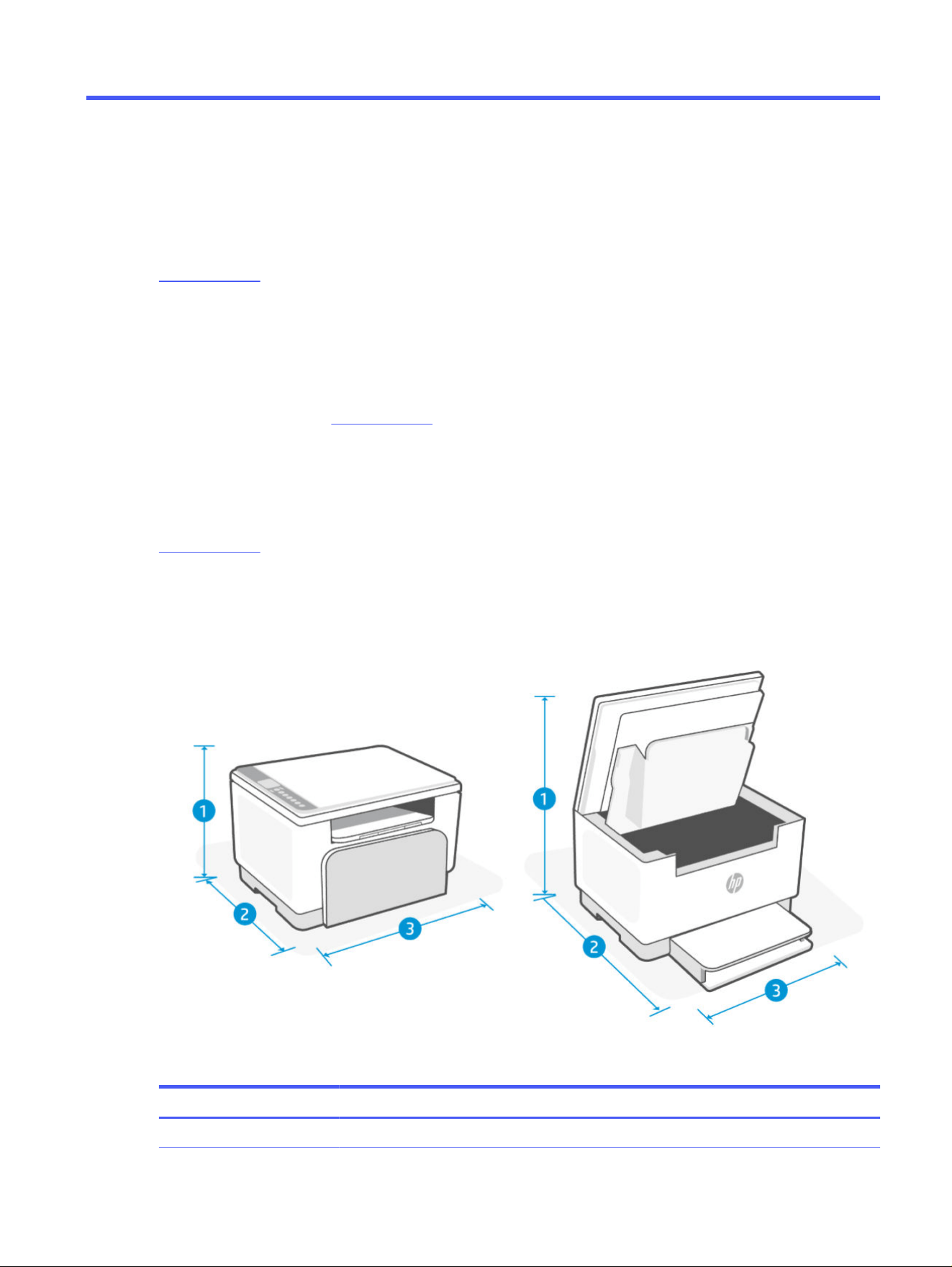
Printer specicationsA
The information contained herein is subject to change without notice.
Some statements might not be applicable for your printer or all locations. For current information, visit
support.hp.com. Select your location and language, nd your printer, select Product Information, and check
the product specications for your printer.
.
Technical
specications
For more information, visit support.hp.com, select your location and language, nd your printer, select Product
Information, and then select Product specications.
System requirements
For information about software and system requirements or future operating system releases and support, visit
support.hp.com and nd your printer.
Printer dimensions
Dimensions for the printer (d/dw model)
Dimensions for the printer (d/dw model)
Measurement Printer fully closed Printer fully open
1.Height 242mm (9.52in) 419mm (16.49in)
Printer specications 75
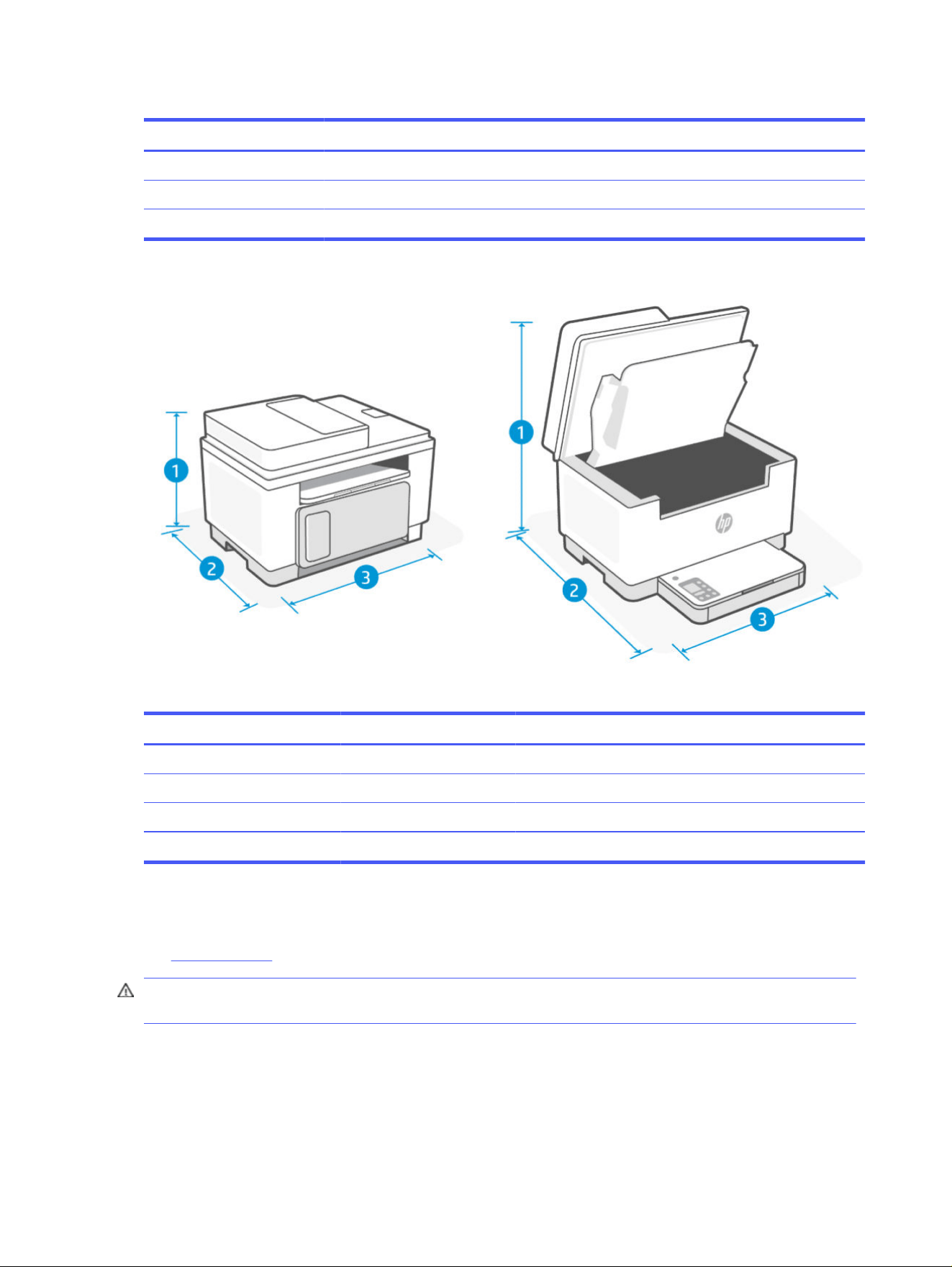
Dimensions for the printer (d/dw model) (continued)
Measurement Printer fully closed Printer fully open
2.Depth 299mm (11.77in) 420mm (16.53in)
3.Width 368mm (14.48in) 368mm (14.48in)
Weight (with cartridges) 7.7kg (17lb)
Dimensions for the printer (sdn/sdw model)
Dimensions for the printer (sdn/sdw model)
Measurement Printer fully closed Printer fully open
1.Height 295mm (11.62in) 453 mm (17.83in)
2.Depth 308mm (12.12in) 468mm (18.42in)
3.Width 418mm (16.45in) 418mm (16.45in)
Weight (with cartridges) 9.4kg (20.7lb)
Power consumption, electrical specications, and acoustic emissions
See support.hp.com for current information.
CAUTION: Power requirements are based on the location where the printer is sold. Do not convert operating
voltages. This will damage the printer and void the printer warranty.
76
Appendix APrinter specications

Operating-environment range
Operating-environment range
Environment Recommended Allowed
Temperature 17.5° to 25°C (63.5° to 77°F) 15° to 32.5°C (59° to 90.5°F)
Operating humidity 30% to 70% relative humidity (RH),
non-condensing
10% to 80% (RH), non-condensing
Relative humidity 20% to 70% relative humidity (RH),
non-condensing
10% to 80% (RH), non-condensing
Warning icons
Warning icon denitions: The following warning icons may appear on HP products. Apply appropriate caution
where applicable.
● Caution: Electric shock
● Caution: Hot surface
● Caution: Keep body parts away from moving parts
● Caution: Sharp edge in close proximity
● Warning
Operating-environment range 77
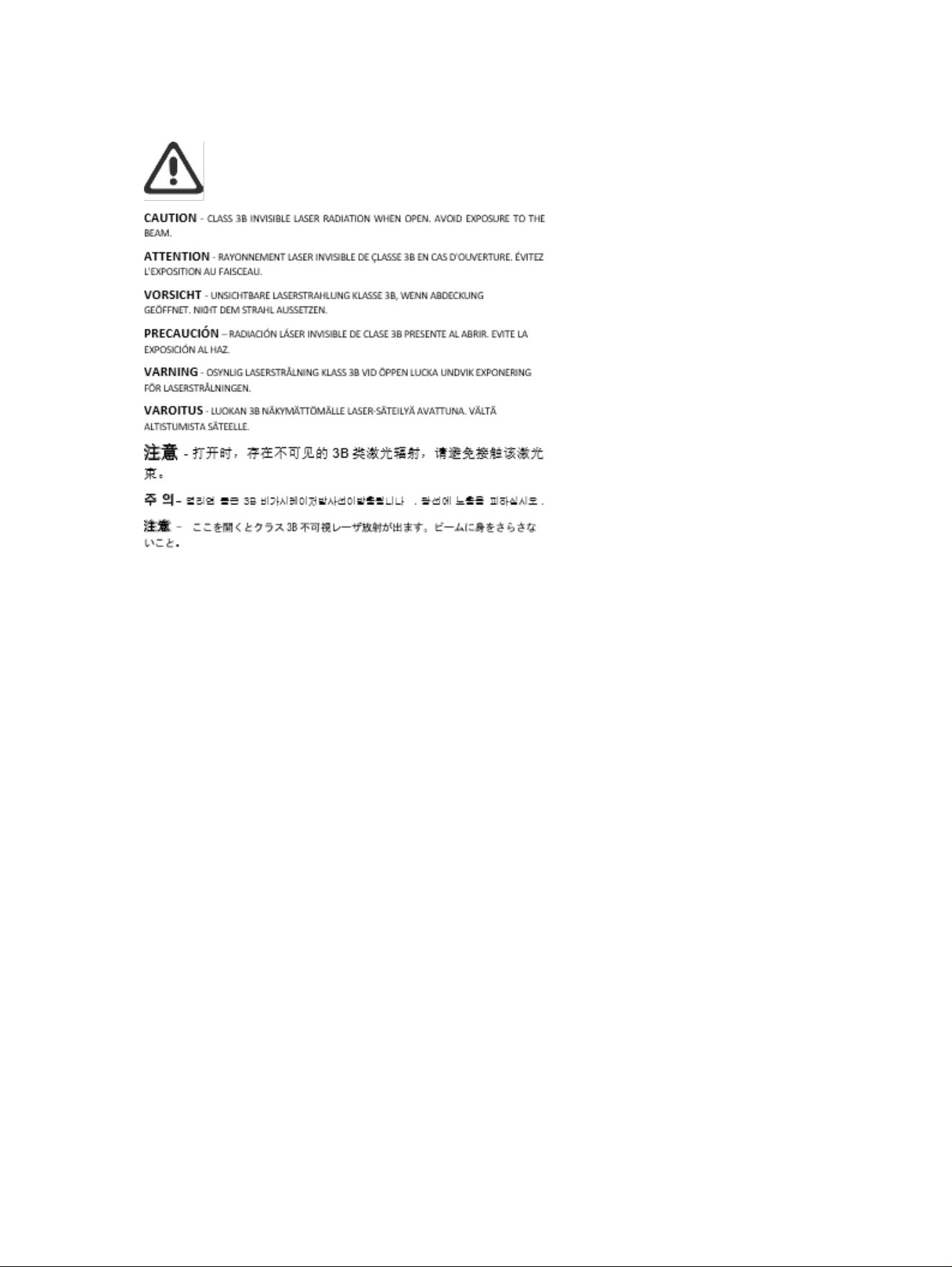
Laser Warning
78 Appendix APrinter specications

Service and supportB
This section describes the service and support information.
Limited Warranty Statement for HP Print Cartridges, Imaging Drums,
and Imaging Units for use with HP LaserJet Printers, HP Laser
Printers and Samsung Branded Laser Printers
The product is covered by the HP Commercial/Limited Warranty in locations authorized for use/distribution.
For complete warranty details, see: hp.com/toner/info
HP limited warranty statement
HP limited warranty statement
HP PRODUCT DURATION OF LIMITED WARRANTY*
HP LaserJet MFP M238-M249 Printer series One-year limited warranty
NOTE: *Warranty and support options vary by product, location, and local legal requirements. Go to
support.hp.com to learn about HP award-winning service and support options in your region. For details on the
HP limited warranty policy on supplies, go to http://www.hp.com/go/learnaboutsupplies.
HP warrants to you, the end-user customer, this HP Limited Warranty applies only to HP-branded products
sold or leased a) from HP Inc., its subsidiaries, ailiates, authorized resellers, authorized distributors, or country
distributors; and, b) with this HP Limited Warranty, that HPhardware and accessories will be free from defects
in materials and workmanship after the date of purchase, for the period specied above. If HP receives notice of
such defects during the warranty period, HP will, at its option, either repair or replace products which prove to be
defective. Replacement products may be either new or equivalent in performance to new. HP products presented
for repair may be replaced by refurbished goods of the same type rather than being repaired. Refurbished parts
may be used to repair the goods. Repair of goods may result in lost user-generated data.
HP warrants to you that HPsoftware will not fail to execute its programming instructions after the date of
purchase, for the period specied above, due to defects in material and workmanship when properly installed
and used. If HP receives notice of such defects during the warranty period, HP will replace software which does
not execute its programming instructions due to such defects.
HP does not warrant that the operation of HP products will be uninterrupted or error free. If HP is unable, within
a reasonable time, to repair or replace any product to a condition as warranted, you will be entitled to a refund of
the purchase price upon prompt return of the product.
HPproducts may contain remanufactured parts equivalent to new in performance or may have been subject to
incidental use.
Warranty does not apply to defects resulting from (a) improper or inadequate maintenance or calibration,
(b) software, interfacing, parts or supplies not supplied by HP, (c) unauthorized modication or misuse, (d)
Service and support
79

operation outside of the published environmental specications for the product, or (e) improper site preparation
or maintenance.
TO THE EXTENT ALLOWED BY LOCAL LAW, THE ABOVE WARRANTIES ARE EXCLUSIVE AND NO OTHER WARRANTY
OR CONDITION, WHETHER WRITTEN OR ORAL, IS EXPRESSED OR IMPLIED AND HPSPECIFICALLY DISCLAIMS
ANY IMPLIED WARRANTIES OR CONDITIONS OF MERCHANTABILITY, SATISFACTORY QUALITY, AND FITNESS FOR A
PARTICULAR PURPOSE. Some locations, states or provinces do not allow limitations on the duration of an implied
warranty, so the above limitation or exclusion might not apply to you. This warranty gives you specic legal rights
and you might also have other rights that vary from location to location, state to state, or province to province.
Please refer to the location specic statements at the end of this document.
HP's limited warranty is valid in any location or locality where HP has a support presence for this product and
where HP has marketed this product. The level of warranty service you receive may vary according to local
standards. HP will not alter form, t or function of the product to make it operate in a location for which it was
never intended to function for legal or regulatory reasons.
TO THE EXTENT ALLOWED BY LOCAL LAW, THE REMEDIES IN THIS WARRANTY STATEMENT ARE YOUR SOLE
AND EXCLUSIVE REMEDIES. EXCEPT AS INDICATED ABOVE, IN NO EVENT WILL HPOR ITS SUPPLIERS BE LIABLE
FOR LOSS OF DATA OR FOR DIRECT, SPECIAL, INCIDENTAL, CONSEQUENTIAL (INCLUDING LOST PROFIT OR DATA),
OR OTHER DAMAGE, WHETHER BASED IN CONTRACT, TORT, OR OTHERWISE. Some countries/regions, states or
provinces do not allow the exclusion or limitation of incidental or consequential damages, so the above limitation
or exclusion may not apply to you.
THE WARRANTY TERMS CONTAINED IN THIS STATEMENT, EXCEPT TO THE EXTENT LAWFULLY PERMITTED, DO NOT
EXCLUDE, RESTRICT OR MODIFY AND ARE IN ADDITION TO THE MANDATORY STATUTORY RIGHTS APPLICABLE TO
THE SALE OF THIS PRODUCT TO YOU. PLEASE REFER TO THE LOCATION SPECIFIC STATEMENTS AT THE END OF
THIS DOCUMENT (IF APPLICABLE) FOR FURTHER INFORMATION ON YOUR CONSUMER RIGHTS.
Location
specic terms
In some jurisdictions, you may have other statutory rights. Please see below.
Australia
Your rights as an Australian consumer are dierent to those stated in the document above.
You should disregard any limitations or exclusions in the above document and refer to the information below.
1. When you buy a good from HP as a consumer, the goods come with guarantees that cannot be excluded
under the Australian Consumer Law. You are entitled to a replacement or refund for a major failure and for
compensation for any other reasonably foreseeable loss or damage. You are also entitled to have the goods
repaired or replaced if the goods fail to be of acceptable quality and the failure does not amount to a major
failure.
2. This means that there is no dened warranty period for HP goods supplied to Australian consumers.
3. Instead, the goods should, for example, be t for the purposes for which they are commonly supplied for
such a period as a reasonable consumer fully acquainted with the state and condition of the goods would
expect. This period may vary depending on the product.
4. You should contact HP if you are concerned that one of HP's products fails to satisfy any of the guarantees
listed below. HP will discuss with you the specic nature and circumstances of that good and whether the
particular fault/issue falls within the scope of the statutory guarantees.
Nothing in HP’s Limited Warranty excludes, restricts, or modies any condition, warranty, guarantee, right or
remedy you may have at law (including a consumer guarantee under the Australian Consumer Law) which
cannot be lawfully excluded or limited.
80
Appendix BService and support

The relevant guarantees are as follows:
1. Quality — goods supplied by HP must be of acceptable quality. The test for acceptable quality is whether a
reasonable consumer, fully aware of the state and condition of the goods, would nd them:
● safe, durable, and free from defects;
● acceptable in appearance and nish; and
● t for all the purposes for which goods of that kind are commonly supplied.
This must take into account the nature and price of the goods, and any statements on packaging or
labeling.
2. Disclosed Purpose — goods or services supplied by HP that HP represents are reasonably t for a purpose
expressly disclosed by a consumer must be reasonably t for that purpose.
3. Description — goods supplied by HP must match the description provided by HP.
4. Sample — goods supplied by HP must match any sample shown to you by HP.
5. Title — a consumer who purchases a good from HP must receive clear title to the good.
6. Due care and skill — services provided to you by HP must be provided with due care and skill.
7. Express warranties — HP will be legally required to comply with the express warranty that is set out in its
terms and conditions.
8. Reasonable time — repair services provided by HP must be provided within a reasonable time.
If you think that you are entitled to any of the above remedies or any remedy under the HP Worldwide Limited
Warranty and Technical Support Document, please contact HP:
HP PPS Australia Pty Ltd
Rhodes Corporate Park, Building F, Level 5
1 Homebush Bay Drive
Rhodes, NSW 2138
Australia
To initiate a support request, please use the numbers below or visit www.hp.com.au and select the “Customer
Service” option for the most current list of phone support numbers.
Product
Phone
Support for all HP Products except those listed separately below 13 10 47
If dialing internationally: +61 2 8278-1039
DeskJet, Oice Jet, PSC, All-in-One, Photosmart & Personal LaserJet
Series 1000, P1000, M1000 and Colour LaserJet CP1000 Series and
model CM1415
1300 721 147
If dialing internationally: +61 2 8934 4380
For further information on consumer rights, visit www.consumerlaw.gov.au and www.accc.gov.au.
New Zealand
In New Zealand, the hardware and software comes with guarantees that cannot be excluded under the New
Zealand consumer law. In New Zealand, Consumer Transaction means a transaction involving a person who
New Zealand
81

is purchasing goods for personal, domestic or household use or consumption and not for the purpose of
a business. New Zealand consumers who are purchasing goods for personal, domestic or household use
or consumption and not for the purpose of a business ("New Zealand Consumers") are entitled to repair,
replacement or refund for a failure and compensation for other reasonably foreseeable loss or damage. A New
Zealand Consumer (as dened above) may recover the costs of returning the product to the place of purchase
if there is a breach of the New Zealand consumer law; furthermore, if it will be of signicant cost to the New
Zealand Consumer to return the goods to HP then HP will collect such goods at its own cost.
Product Phone
Support for all HP Products except those listed separately
below
0800 449 553
If dialing internationally: +61 2 8031-8317
DeskJet, Oice Jet, PSC, All-in-One, Photosmart & Personal
LaserJet Series 1000, P1000, M1000 and Colour LaserJet
CP1000 Series and model CM1415
0800 441 147
If dialing internationally: +61 2 8934 4380
UK, Ireland, and Malta
The HPLimited Warranty is a commercial guarantee voluntarily provided by HP. The name and address of the HP
entity responsible for the performance of the HPLimited Warranty in your country/region is as follows:
UK: HPInc UK Limited, Cain Road, Amen Corner, Bracknell, Berkshire, RG12 1HN
Ireland: Hewlett-Packard Ireland Limited, Liey Park Technology Campus, Barnhall Road, Leixlip, Co.Kildare
Malta: Hewlett-Packard Europe B.V., Amsterdam, Meyrin Branch, Route du Nant-d'Avril 150, 1217 Meyrin,
Switzerland
United Kingdom: The HPLimited Warranty benets apply in addition to any legal rights to a guarantee from
seller of nonconformity of goods with the contract of sale. These rights expire six years from delivery of goods
for products purchased in England or Wales and ve years from delivery of goods for products purchased in
Scotland. However various factors may impact your eligibility to receive these rights. For further information,
please consult the following link: Consumer Legal Guarantee (https://www.hp.com/go/eu-legal) or you may
visit the European Consumer Centers website (ec.europa.eu/info/live-work-travel-eu/consumers/resolve-your-
consumer-complaint/european-consumer-centres-network-ecc-net_en). Consumers have the right to choose
whether to claim service under the HPLimited Warranty or against the seller under the legal guarantee.
Ireland: The HPLimited Warranty benets apply in addition to any statutory rights from seller in relation to
nonconformity of goods with the contract of sale. However various factors may impact your eligibility to receive
these rights. Consumer statutory rights are not limited or aected in any manner by HPCare Pack. For further
information, please consult the following link: Consumer Legal Guarantee (https://www.hp.com/go/eu-legal)
or you may visit the European Consumer Centers website (ec.europa.eu/info/live-work-travel-eu/consumers/
resolve-your-consumer-complaint/european-consumer-centres-network-ecc-net_en). Consumers have the right
to choose whether to claim service under the HPLimited Warranty or against the seller under the legal
guarantee.
Malta: The HPLimited Warranty benets apply in addition to any legal rights to a two-year
guarantee from seller of nonconformity of goods with the contract of sale; however various
factors may impact your eligibility to receive these rights. Consumer statutory rights are not
limited or aected in any manner by the HPLimited Warranty. For further information, please
consult the following link: Consumer Legal Guarantee (https://www.hp.com/go/eu-legal) or you may
visit the European Consumer Centers website (ec.europa.eu/info/live-work-travel-eu/consumers/resolve-your-
consumer-complaint/european-consumer-centres-network-ecc-net_en). Consumers have the right to choose
whether to claim service under the HPLimited Warranty or against the seller under two-year legal guarantee.
82
Appendix BService and support

Austria, Belgium, Germany, and Luxemburg
Die beschränkte HPHerstellergarantie ist eine von HP auf freiwilliger Basis angebotene kommerzielle Garantie.
Der Name und die Adresse der HPGesellschaft, die in Ihrem Land für die Gewährung der beschränkten
HPHerstellergarantie verantwortlich ist, sind wie folgt:
Deutschland: HPDeutschland GmbH, Schickardstr. 32, D-71034 Böblingen
Österreich: HP Austria GmbH., Technologiestrasse 5, A-1120 Wien
Luxemburg: Hewlett-Packard Luxembourg S.C.A., 75, Parc d'Activités Capellen, Rue Pafebruc, L-8308 Capellen
Belgien: HPBelgium BVBA, Hermeslaan 1A, B-1831 Diegem
Die Rechte aus der beschränkten HPHerstellergarantie gelten zusätzlich zu den gesetzlichen Ansprüchen
wegen Sachmängeln auf eine zweijährige Gewährleistung ab dem Lieferdatum. Ob Sie Anspruch auf diese
Rechte haben, hängt von zahlreichen Faktoren ab. Die Rechte des Kunden sind in keiner Weise durch die
beschränkte HPHerstellergarantie eingeschränkt bzw. betroen. Weitere Hinweise nden Sie auf der folgenden
Website: Gewährleistungsansprüche für Verbraucher (https://www.hp.com/go/eu-legal) oder Sie können
die Website des Europäischen Verbraucherzentrums (ec.europa.eu/info/live-work-travel-eu/consumers/resolve-
your-consumer-complaint/european-consumer-centres-network-ecc-net_en) besuchen. Verbraucher haben das
Recht zu wählen, ob sie eine Leistung von HP gemäß der beschränkten HPHerstellergarantie in Anspruch
nehmen oder ob sie sich gemäß der gesetzlichen zweijährigen Haftung für Sachmängel (Gewährleistung) sich an
den jeweiligen Verkäufer wenden.
Belgium, France, and Luxemburg
La garantie limitée HP est une garantie commerciale fournie volontairement par HP. Voici les coordonnées de
l'entité HP responsable de l'exécution de la garantie limitée HP dans votre pays:
France: HPFrance SAS, société par actions simpliée identiée sous le numéro 448 694 133 RCS Evry, 1 Avenue
du Canada, 91947, Les Ulis
G.D. Luxembourg: Hewlett-Packard Luxembourg S.C.A., 75, Parc d'Activités Capellen, Rue Pafebruc, L-8308
Capellen
Belgique: HPBelgium BVBA, Hermeslaan 1A, B-1831 Diegem
France: Les avantages de la garantie limitée HP s'appliquent en complément des droits dont vous disposez
au titre des garanties légales applicables dont le bénéce est soumis à des conditions spéciques. Vos droits
en tant que consommateur au titre de la garantie légale de conformité mentionnée aux articles L. 211-4 à L.
211-13 du Code de la Consommation et de celle relatives aux défauts de la chose vendue, dans les conditions
prévues aux articles 1641 à 1648 et 2232 du Code de Commerce ne sont en aucune façon limités ou aectés
par la garantie limitée HP. Pour de plus amples informations, veuillez consulter le lien suivant : Garanties
légales accordées au consommateur (https://www.hp.com/go/eu-legal). Vous pouvez également consulter le
site Web des Centres européens des consommateurs (ec.europa.eu/info/live-work-travel-eu/consumers/resolve-
your-consumer-complaint/european-consumer-centres-network-ecc-net_en). Les consommateurs ont le droit
de choisir d’exercer leurs droits au titre de la garantie limitée HP, ou auprès du vendeur au titre des garanties
légales applicables mentionnées ci-dessus.
POUR RAPPEL:
Garantie Légale de Conformité:
« Le vendeur est tenu de livrer un bien conforme au contrat et répond des défauts de conformité existant lors de la
délivrance.
Austria, Belgium, Germany, and Luxemburg
83

Il répond également des défauts de conformité résultant de l'emballage, des instructions de montage ou de
l'installation lorsque celle-ci a été mise à sa charge par le contrat ou a été réalisée sous sa responsabilité ».
Article L211-5 du Code de la Consommation:
« Pour être conforme au contrat, le bien doit:
1° Etre propre à l'usage habituellement attendu d'un bien semblable et, le cas échéant:
- correspondre à la description donnée par le vendeur et posséder les qualités que celui-ci a présentées à l'acheteur
sous forme d'échantillon ou de modèle;
- présenter les qualités qu'un acheteur peut légitimement attendre eu égard aux déclarations publiques faites par
le vendeur, par le producteur ou par son représentant, notamment dans la publicité ou l'étiquetage;
2° Ou présenter les caractéristiques dénies d'un commun accord par les parties ou être propre à tout usage
spécial recherché par l'acheteur, porté à la connaissance du vendeur et que ce dernier a accepté».
Article L211-12 du Code de la Consommation:
« L'action résultant du défaut de conformité se prescrit par deux ans à compter de la délivrance du bien».
Garantie des vices cachés
Article 1641 du Code Civil: « Le vendeur est tenu de la garantie à raison des défauts cachés de la chose vendue qui
la rendent impropre à l'usage auquel on la destine, ou qui diminuent tellement cet usage que l'acheteur ne l'aurait
pas acquise, ou n'en aurait donné qu'un moindre prix, s'il les avait connus. »
Article 1648 alinéa 1 du Code Civil:
« L'action résultant des vices rédhibitoires doit être intentée par l'acquéreur dans un délai de deux ans à compter de
la découverte du vice. »
G.D. Luxembourg et Belgique: Les avantages de la garantie limitée HP s'appliquent en complément des
droits dont vous disposez au titre de la garantie de non-conformité des biens avec le contrat de vente.
Cependant, de nombreux facteurs peuvent avoir un impact sur le bénéce de ces droits. Vos droits en
tant que consommateur au titre de ces garanties ne sont en aucune façon limités ou aectés par la
garantie limitée HP. Pour de plus amples informations, veuillez consulter le lien suivant : Garanties légales
accordées au consommateur (https://www.hp.com/go/eu-legal) ou vous pouvez également consulter le site
Web des Centres européens des consommateurs (ec.europa.eu/info/live-work-travel-eu/consumers/resolve-
your-consumer-complaint/european-consumer-centres-network-ecc-net_en). Les consommateurs ont le droit
de choisir de réclamer un service sous la garantie limitée HP ou auprès du vendeur au cours d'une garantie légale
de deux ans.
Italy
La Garanzia limitata HP è una garanzia commerciale fornita volontariamente da HP. Di seguito sono indicati nome
e indirizzo della società HP responsabile della fornitura dei servizi coperti dalla Garanzia limitata HP nel vostro
Paese:
Italia: HPItaly S.r.l., Via G. Di Vittorio 9, 20063 Cernusco S/Naviglio
I vantaggi della Garanzia limitata HP vengono concessi ai consumatori in aggiunta ai diritti derivanti dalla
garanzia di due anni fornita dal venditore in caso di non conformità dei beni rispetto al contratto di
vendita. Tuttavia, diversi fattori possono avere un impatto sulla possibilita’ di beneciare di tali diritti. I
diritti spettanti ai consumatori in forza della garanzia legale non sono in alcun modo limitati, né modicati
dalla Garanzia limitata HP. Per ulteriori informazioni, si prega di consultare il seguente link: Garanzia
legale per i clienti (https://www.hp.com/go/eu-legal), oppure visitare il sito Web dei Centri europei per
84
Appendix BService and support

i consumatori (ec.europa.eu/info/live-work-travel-eu/consumers/resolve-your-consumer-complaint/european-
consumer-centres-network-ecc-net_en). I consumatori hanno il diritto di scegliere se richiedere un servizio
usufruendo della Garanzia limitata HP oppure rivolgendosi al venditore per far valere la garanzia legale di due
anni.
Spain
Su Garantía limitada de HP es una garantía comercial voluntariamente proporcionada por HP. El nombre y
dirección de las entidades HP que proporcionan la Garantía limitada de HP (garantía comercial adicional del
fabricante) en su país es:
España: Hewlett-Packard Española S.L. Calle Vicente Aleixandre, 1 Parque Empresarial Madrid - Las Rozas,
E-28232 Madrid
Los benecios de la Garantía limitada de HP son adicionales a la garantía legal de 2 años a la
que los consumidores tienen derecho a recibir del vendedor en virtud del contrato de compraventa;
sin embargo, varios factores pueden afectar su derecho a recibir los benecios bajo dicha garantía
legal. A este respecto, la Garantía limitada de HP no limita o afecta en modo alguno los derechos
legales del consumidor (https://www.hp.com/go/eu-legal). Para más información, consulte el siguiente
enlace: Garantía legal del consumidor o puede visitar el sitio web de los Centros europeos de los
consumidores (ec.europa.eu/info/live-work-travel-eu/consumers/resolve-your-consumer-complaint/european-
consumer-centres-network-ecc-net_en). Los clientes tienen derecho a elegir si reclaman un servicio acogiéndose
a la Garantía limitada de HP o al vendedor de conformidad con la garantía legal de dos años.
Denmark
Den begrænsede HP-garanti er en garanti, der ydes frivilligt af HP. Navn og adresse på det HP-selskab, der er
ansvarligt for HP's begrænsede garanti i dit land, er som følger:
Danmark: HPInc Danmark ApS, Engholm Parkvej 8, 3450, Allerød
Den begrænsede HP-garanti gælder i tillæg til eventuelle juridiske rettigheder, for en toårig garanti
fra sælgeren af varer, der ikke er i overensstemmelse med salgsaftalen, men forskellige faktorer kan
dog påvirke din ret til at opnå disse rettigheder. Forbrugerens lovbestemte rettigheder begrænses
eller påvirkes ikke på nogen måde af den begrænsede HP-garanti. Se nedenstående link for at
få yderligere oplysninger: Forbrugerens juridiske garanti (https://www.hp.com/go/eu-legal) eller du kan
besøge De Europæiske Forbrugercentres websted (ec.europa.eu/info/live-work-travel-eu/consumers/resolve-
your-consumer-complaint/european-consumer-centres-network-ecc-net_en). Forbrugere har ret til at vælge,
om de vil gøre krav på service i henhold til HP's begrænsede garanti eller hos sælger i henhold til en toårig juridisk
garanti.
Norway
HPs garanti er en begrenset og kommersiell garanti som HP selv har valgt å tilby. Følgende lokale selskap
innestår for garantien:
Norge: HPNorge AS, Rolfbuktveien 4b, 1364 Fornebu
HPs garanti kommer i tillegg til det mangelsansvar HP har i henhold til norsk forbrukerkjøpslovgivning, hvor
reklamasjonsperioden kan være to eller fem år, avhengig av hvor lenge salgsgjenstanden var ment å vare.
Ulike faktorer kan imidlertid ha betydning for om du kvaliserer til å kreve avhjelp iht slikt mangelsansvar.
Forbrukerens lovmessige rettigheter begrenses ikke av HPs garanti. Hvis du vil ha mer informasjon, kan du
klikke på følgende kobling: Juridisk garanti for forbruker (https://www.hp.com/go/eu-legal) eller du kan besøke
nettstedet til de europeiske forbrukersentrene (ec.europa.eu/info/live-work-travel-eu/consumers/resolve-your-
consumer-complaint/european-consumer-centres-network-ecc-net_en). Forbrukere har retten til å velge å kreve
service under HPs garanti eller iht selgerens lovpålagte mangelsansvar.
Spain
85

Sweden
HP:s begränsade garanti är en kommersiell garanti som tillhandahålls frivilligt av HP. Namn och adress till det
HP-företag som ansvarar för HP:s begränsade garanti i ditt land är som följer:
Sverige: HPPPS Sverige AB, SE-169 73 Stockholm
Fördelarna som ingår i HP:s begränsade garanti gäller utöver de lagstadgade rättigheterna till tre års
garanti från säljaren angående varans bristande överensstämmelse gentemot köpeavtalet, men olika
faktorer kan påverka din rätt att utnyttja dessa rättigheter. Konsumentens lagstadgade rättigheter varken
begränsas eller påverkas på något sätt av HP:s begränsade garanti. Mer information får du om du
följer denna länk: Lagstadgad garanti för konsumenter (https://www.hp.com/go/eu-legal) eller så kan du
gå till European Consumer Centers webbplats (ec.europa.eu/info/live-work-travel-eu/consumers/resolve-your-
consumer-complaint/european-consumer-centres-network-ecc-net_en). Konsumenter har rätt att välja om de
vill ställa krav enligt HP:s begränsade garanti eller på säljaren enligt den lagstadgade treåriga garantin.
Portugal
A Garantia Limitada HP é uma garantia comercial fornecida voluntariamente pela HP. O nome e a morada da
entidade HP responsável pela prestação da Garantia Limitada HP no seu país são os seguintes:
Portugal: HPCP – Computing and Printing Portugal, Unipessoal, Lda., Edicio D. Sancho I, Quinta da Fonte, Porto
Salvo, Lisboa, Oeiras, 2740 244
As vantagens da Garantia Limitada HP aplicam-se cumulativamente com quaisquer direitos decorrentes da
legislação aplicável à garantia de dois anos do vendedor, relativa a defeitos do produto e constante do
contrato de venda. Existem, contudo, vários fatores que poderão afetar a sua elegibilidade para beneciar
de tais direitos. Os direitos legalmente atribuídos aos consumidores não são limitados ou afetados de
forma alguma pela Garantia Limitada HP. Para mais informações, consulte a ligação seguinte: Garantia
legal do consumidor (https://www.hp.com/go/eu-legal) ou visite o Web site da Rede dos Centros Europeus
do Consumidor (ec.europa.eu/info/live-work-travel-eu/consumers/resolve-your-consumer-complaint/european-
consumer-centres-network-ecc-net_en). Os consumidores têm o direito de escolher se pretendem reclamar
assistência ao abrigo da Garantia Limitada HP ou contra o vendedor ao abrigo de uma garantia jurídica de dois
anos.
Greece and Cyprus
Η Περιορισμένη εγγύηση HP είναι μια εμπορική εγγύηση η οποία παρέχεται εθελοντικά από την HP. Η επωνυμία
και η διεύθυνση του νομικού προσώπου ΗΡ που παρέχει την Περιορισμένη εγγύηση ΗΡ στη χώρα σας είναι η
εξής:
Ελλάδα /Κύπρoς: HPPrinting and Personal Systems Hellas EPE, Tzavella 1-3, 15232 Chalandri, Attiki
Ελλάδα /Κύπρoς: HP Συστήματα Εκτύπωσης και Προσωπικών Υπολογιστών Ελλάς Εταιρεία Περιορισμένης
Ευθύνης, Tzavella 1-3, 15232 Chalandri, Attiki
Τα προνόμια της Περιορισμένης εγγύησης HP ισχύουν επιπλέον των νόμιμων δικαιωμάτων για διετή εγγύηση
έναντι του Πωλητή για τη μη συμμόρφωση των προϊόντων με τις συνομολογημένες συμβατικά ιδιότητες,
ωστόσο η άσκηση των δικαιωμάτων σας αυτών μπορεί να εξαρτάται από διάφορους παράγοντες. Τα
νόμιμα δικαιώματα των καταναλωτών δεν περιορίζονται ούτε επηρεάζονται καθ’ οιονδήποτε τρόπο από την
Περιορισμένη εγγύηση HP. Για περισσότερες πληροφορίες, συμβουλευτείτε την ακόλουθη τοποθεσία web:
Νόμιμη εγγύηση καταναλωτή (https://www.hp.com/go/eu-legal) ή μπορείτε να επισκεφτείτε την τοποθεσία
web των Ευρωπαϊκών Κέντρων Καταναλωτή (ec.europa.eu/info/live-work-travel-eu/consumers/resolve-your-
consumer-complaint/european-consumer-centres-network-ecc-net_en). Οι καταναλωτές έχουν το δικαίωμα να
επιλέξουν αν θα αξιώσουν την υπηρεσία στα πλαίσια της Περιορισμένης εγγύησης ΗΡ ή από τον πωλητή στα
πλαίσια της νόμιμης εγγύησης δύο ετών.
86
Appendix BService and support

Hungary
A HP korlátozott jótállás egy olyan kereskedelmi jótállás, amelyet a HP a saját elhatározásából biztosít. Az egyes
országokban a HP mint gyártó által vállalt korlátozott jótállást biztosító HP vállalatok neve és címe:
Magyarország: HPInc Magyarország Kft., H-1117 Budapest, Alíz utca 1.
A HP korlátozott jótállásban biztosított jogok azokon a jogokon felül illetik meg Önt, amelyek a
termékeknek az adásvételi szerződés szerinti minőségére vonatkozó kétéves, jogszabályban foglalt
eladói szavatosságból, továbbá ha az Ön által vásárolt termékre alkalmazandó, a jogszabályban
foglalt kötelező eladói jótállásból erednek, azonban számos körülmény hatással lehet arra, hogy
ezek a jogok Önt megilletik-e. További információért kérjük, keresse fel a következő webhelyet:
Jogi Tájékoztató Fogyasztóknak (
https://www.hp.com/go/eu-legal) vagy látogassa meg az Európai
Fogyasztói Központok webhelyét (ec.europa.eu/info/live-work-travel-eu/consumers/resolve-your-consumer-
complaint/european-consumer-centres-network-ecc-net_en). A fogyasztóknak jogában áll, hogy megválasszák,
hogy a jótállással kapcsolatos igényüket a HP korlátozott jótállás alapján vagy a kétéves, jogszabályban
foglalt eladói szavatosság, illetve, ha alkalmazandó, a jogszabályban foglalt kötelező eladói jótállás alapján
érvényesítik.
Czech Republic
Omezená záruka HP je obchodní zárukou dobrovolně poskytovanou společností HP. Názvy a adresy společností
skupiny HP, které odpovídají za plnění omezené záruky HP ve vaší zemi, jsou následující:
Česká republika: HPInc Czech Republic s. r. o., Za Brumlovkou 5/1559, 140 00 Praha 4
Výhody, poskytované omezenou zárukou HP, se uplatňuji jako doplňek k jakýmkoli právním nárokům na
dvouletou záruku poskytnutou prodejcem v případě nesouladu zboží s kupní smlouvou. Váš nárok na
uznání těchto práv však může záviset na mnohých faktorech. Omezená záruka HP žádným způsobem
neomezuje ani neovlivňuje zákonná práva zákazníka. Další informace získáte kliknutím na následující odkaz:
Zákonná záruka spotřebitele (https://www.hp.com/go/eu-legal) případně můžete navštívit webové stránky
Evropského spotřebitelského centra (ec.europa.eu/info/live-work-travel-eu/consumers/resolve-your-consumer-
complaint/european-consumer-centres-network-ecc-net_en). Spotřebitelé mají právo se rozhodnout, zda chtějí
službu reklamovat v rámci omezené záruky HP nebo v rámci zákonem stanovené dvouleté záruky u prodejce.
Slovakia
Obmedzená záruka HP je obchodná záruka, ktorú spoločnosť HP poskytuje dobrovoľne. Meno a adresa subjektu
HP, ktorý zabezpečuje plnenie vyplývajúce z Obmedzenej záruky HP vo vašej krajine:
Slovenská republika: HPInc Slovakia, s.r.o., Galvaniho 7, 821 04 Bratislava
Výhody Obmedzenej záruky HP sa uplatnia vedľa prípadných zákazníkových zákonných nárokov
voči predávajúcemu z vád, ktoré spočívajú v nesúlade vlastností tovaru s jeho popisom podľa
predmetnej zmluvy. Možnosť uplatnenia takých prípadných nárokov však môže závisieť od rôznych
faktorov. Služby Obmedzenej záruky HP žiadnym spôsobom neobmedzujú ani neovplyvňujú zákonné
práva zákazníka, ktorý je spotrebiteľom. Ďalšie informácie nájdete na nasledujúcom prepojení:
Zákonná záruka spotrebiteľa (https://www.hp.com/go/eu-legal), prípadne môžete navštíviť webovú lokalitu
európskych zákazníckych stredísk (ec.europa.eu/info/live-work-travel-eu/consumers/resolve-your-consumer-
complaint/european-consumer-centres-network-ecc-net_en). Spotrebitelia majú právo zvoliť si, či chcú uplatniť
servis v rámci Obmedzenej záruky HP alebo počas zákonnej dvojročnej záručnej lehoty u predajcu.
Poland
Ograniczona gwarancja HP to komercyjna gwarancja udzielona dobrowolnie przez HP. Nazwa i adres podmiotu
HP odpowiedzialnego za realizację Ograniczonej gwarancji HP w Polsce:
Hungary
87

Polska: HPInc Polska sp. z o.o., Szturmowa 2a, 02-678 Warszawa, wpisana do rejestru przedsiębiorców
prowadzonego przez Sąd Rejonowy dla m.st. Warszawy w Warszawie, XIII Wydział Gospodarczy Krajowego
Rejestru Sądowego, pod numerem KRS 0000546115, NIP 5213690563, REGON 360916326, GIOŚ
E0020757WZBW, kapitał zakładowy 480.000 PLN.
Świadczenia wynikające z Ograniczonej gwarancji HP stanowią dodatek do praw przysługujących nabywcy
w związku z dwuletnią odpowiedzialnością sprzedawcy z tytułu niezgodności towaru z umową (rękojmia).
Niemniej, na możliwość korzystania z tych praw mają wpływ różne czynniki. Ograniczona gwarancja HP
w żaden sposób nie ogranicza praw konsumenta ani na nie nie wpływa. Więcej informacji można znaleźć
pod następującym łączem: Gwarancja prawna konsumenta (https://www.hp.com/go/eu-legal), można także
odwiedzić stronę internetową Europejskiego Centrum Konsumenckiego (ec.europa.eu/info/live-work-travel-eu/
consumers/resolve-your-consumer-complaint/european-consumer-centres-network-ecc-net_en). Konsumenci
mają prawo wyboru co do możliwosci skorzystania albo z usług gwarancyjnych przysługujących w ramach
Ograniczonej gwarancji HP albo z uprawnień wynikających z dwuletniej rękojmi w stosunku do sprzedawcy.
Bulgaria
Ограничената гаранция на HP представлява търговска гаранция, доброволно предоставяна от HP. Името
и адресът на дружеството на HP за вашата страна, отговорно за предоставянето на гаранционната
поддръжка в рамките на Ограничената гаранция на HP, са както следва:
HPInc Bulgaria EOOD (Ейч Пи Инк България ЕООД), гр. София 1766, район р-н Младост, бул. Околовръстен
Път No 258, Бизнес Център Камбаните
Предимствата на Ограничената гаранция на HP се прилагат в допълнение към всички законови
права за двугодишна гаранция от продавача при несъответствие на стоката с договора за продажба.
Въпреки това, различни фактори могат да окажат влияние върху условията за получаване на
тези права. Законовите права на потребителите не са ограничени или засегнати по никакъв
начин от Ограничената гаранция на HP. За допълнителна информация, моля вижте Правната
гаранция на потребителя (https://www.hp.com/go/eu-legal) или посетете уебсайта на Европейския
потребителски център (ec.europa.eu/info/live-work-travel-eu/consumers/resolve-your-consumer-complaint/
european-consumer-centres-network-ecc-net_en). Потребителите имат правото да избират дали да
претендират за извършване на услуга в рамките на Ограничената гаранция на HP или да потърсят такава
от търговеца в рамките на двугодишната правна гаранция.
Romania
Garanția limitată HP este o garanție comercială furnizată în mod voluntar de către HP. Numele și adresa entității
HP răspunzătoare de punerea în aplicare a Garanției limitate HP în țara dumneavoastră sunt următoarele:
Romănia: HP Inc Romania SRL, 5 Fabrica de Glucoza Str., Building F, Ground Floor and Floor 8, 2nd District,
Bucureşti
Beneciile Garanției limitate HP se aplică suplimentar faţă de orice drepturi privind garanţia de doi ani oferită
de vânzător pentru neconformitatea bunurilor cu contractul de vânzare; cu toate acestea, diverşi factori pot
avea impact asupra eligibilităţii dvs. de a benecia de aceste drepturi. Drepturile legale ale consumatorului
nu sunt limitate sau afectate în vreun fel de Garanția limitată HP. Pentru informaţii suplimentare consultaţi
următorul link: garanția acordată consumatorului prin lege (https://www.hp.com/go/eu-legal) sau puteți
accesa site-ul Centrul European al Consumatorilor (ec.europa.eu/info/live-work-travel-eu/consumers/resolve-
your-consumer-complaint/european-consumer-centres-network-ecc-net_en). Consumatorii au dreptul să aleagă
dacă să pretindă despăgubiri în cadrul Garanței limitate HP sau de la vânzător, în cadrul garanției legale de doi ani.
Belgium and the Netherlands
De Beperkte Garantie van HP is een commerciële garantie vrijwillig verstrekt door HP. De naam en het adres van
de HP-entiteit die verantwoordelijk is voor het uitvoeren van de Beperkte Garantie van HP in uw land is als volgt:
88
Appendix BService and support

Nederland: HPNederland B.V., Startbaan 16, 1187 XR Amstelveen
België: HPBelgium BVBA, Hermeslaan 1A, B-1831 Diegem
De voordelen van de Beperkte Garantie van HP vormen een aanvulling op de wettelijke garantie voor
consumenten gedurende twee jaren na de levering te verlenen door de verkoper bij een gebrek aan conformiteit
van de goederen met de relevante verkoopsovereenkomst. Niettemin kunnen diverse factoren een impact
hebben op uw eventuele aanspraak op deze wettelijke rechten. De wettelijke rechten van de consument worden
op geen enkele wijze beperkt of beïnvloed door de Beperkte Garantie van HP. Raadpleeg voor meer informatie
de volgende webpagina: Wettelijke garantie van de consument (https://www.hp.com/go/eu-legal) of u kan de
website van het Europees Consumenten Centrum bezoeken (ec.europa.eu/info/live-work-travel-eu/consumers/
resolve-your-consumer-complaint/european-consumer-centres-network-ecc-net_en). Consumenten hebben het
recht om te kiezen tussen enerzijds de Beperkte Garantie van HP of anderzijds het aanspreken van de verkoper in
toepassing van de wettelijke garantie.
Finland
HP:n rajoitettu takuu on HP:n vapaaehtoisesti antama kaupallinen takuu. HP:n myöntämästä takuusta
maassanne vastaavan HP:n edustajan yhteystiedot ovat:
Suomi: HPFinland Oy, Piispankalliontie, FIN - 02200 Espoo
HP:n takuun edut ovat voimassa mahdollisten kuluttajansuojalakiin perustuvien oikeuksien
lisäksi sen varalta, että tuote ei vastaa myyntisopimusta. Saat lisätietoja
seuraavasta linkistä: Kuluttajansuoja (https://www.hp.com/go/eu-legal) tai voit käydä Euroopan
kuluttajakeskuksen sivustolla (ec.europa.eu/info/live-work-travel-eu/consumers/resolve-your-consumer-
complaint/european-consumer-centres-network-ecc-net_en). Kuluttajilla on oikeus vaatia virheen korjausta HP:n
takuun ja kuluttajansuojan perusteella HP:lta tai myyjältä.
Slovenia
Omejena garancija HP je prostovoljna trgovska garancija, ki jo zagotavlja podjetje HP. Ime in naslov poslovne
enote HP, ki je odgovorna za omejeno garancijo HP v vaši državi, sta naslednja:
Slovenija: Hewlett-Packard Europe B.V., Amsterdam, Meyrin Branch, Route du Nant-d'Avril 150, 1217 Meyrin,
Switzerland
Ugodnosti omejene garancije HP veljajo poleg zakonskih pravic, ki ob sklenitvi kupoprodajne pogodbe
izhajajo iz dveletne garancije prodajalca v primeru neskladnosti blaga, vendar lahko na izpolnjevanje
pogojev za uveljavitev pravic vplivajo različni dejavniki. Omejena garancija HP nikakor ne omejuje strankinih
z zakonom predpisanih pravic in ne vpliva nanje. Za dodatne informacije glejte naslednjo povezavo:
Strankino pravno jamstvo (https://www.hp.com/go/eu-legal); ali pa obiščite spletno mesto evropskih središč
za potrošnike (ec.europa.eu/info/live-work-travel-eu/consumers/resolve-your-consumer-complaint/european-
consumer-centres-network-ecc-net_en). Potrošniki imajo pravico izbrati, ali bodo uveljavljali pravice do storitev v
skladu z omejeno garancijo HP ali proti prodajalcu v skladu z dvoletno zakonsko garancijo.
Croatia
HP ograničeno jamstvo komercijalno je dobrovoljno jamstvo koje pruža HP. Ime i adresa HP subjekta odgovornog
za HP ograničeno jamstvo u vašoj državi:
Hrvatska: HPComputing and Printing d.o.o. za računalne i srodne aktivnosti, Radnička cesta 41, 10000 Zagreb
Pogodnosti HP ograničenog jamstva vrijede zajedno uz sva zakonska prava na dvogodišnje jamstvo
kod bilo kojeg prodavača s obzirom na nepodudaranje robe s ugovorom o kupnji. Međutim, razni
faktori mogu utjecati na vašu mogućnost ostvarivanja tih prava. HP ograničeno jamstvo ni na
koji način ne utječe niti ne ograničava zakonska prava potrošača. Dodatne informacije potražite
Finland
89

na ovoj adresi: Zakonsko jamstvo za potrošače (https://www.hp.com/go/eu-legal) ili možete posjetiti
web-mjesto Europskih potrošačkih centara (ec.europa.eu/info/live-work-travel-eu/consumers/resolve-your-
consumer-complaint/european-consumer-centres-network-ecc-net_en). Potrošači imaju pravo odabrati žele li
ostvariti svoja potraživanja u sklopu HP ograničenog jamstva ili pravnog jamstva prodavača u trajanju ispod dvije
godine.
Latvia
HP ierobežotā garantija ir komercgarantija, kuru brīvprātīgi nodrošina HP. HP uzņēmums, kas sniedz HP
ierobežotās garantijas servisa nodrošinājumu jūsu valstī:
Latvija: HPFinland Oy, PO Box 515, 02201 Espoo, Finland
HP ierobežotās garantijas priekšrocības tiek piedāvātas papildus jebkurām likumīgajām tiesībām uz pārdevēja
un/vai rażotāju nodrošinātu divu gadu garantiju gadījumā, ja preces neatbilst pirkuma līgumam, tomēr
šo tiesību saņemšanu var ietekmēt vairāki faktori. HP ierobežotā garantija nekādā veidā neierobežo un
neietekmē patērētāju likumīgās tiesības. Lai iegūtu plašāku informāciju, izmantojiet šo saiti: Patērētāju
likumīgā garantija (https://www.hp.com/go/eu-legal) vai arī Eiropas Patērētāju tiesību aizsardzības centra
tīmekļa vietni (ec.europa.eu/info/live-work-travel-eu/consumers/resolve-your-consumer-complaint/european-
consumer-centres-network-ecc-net_en). Patērētājiem ir tiesības izvēlēties, vai pieprasīt servisa nodrošinājumu
saskaņā ar HP ierobežoto garantiju, vai arī pārdevēja sniegto divu gadu garantiju.
Lithuania
HP ribotoji garantija yra HP savanoriškai teikiama komercinė garantija. Toliau pateikiami HP bendrovių, teikiančių
HP garantiją (gamintojo garantiją) jūsų šalyje, pavadinimai ir adresai:
Lietuva: HPFinland Oy, PO Box 515, 02201 Espoo, Finland
HP ribotoji garantija papildomai taikoma kartu su bet kokiomis kitomis įstatymais nustatytomis teisėmis
į pardavėjo suteikiamą dviejų metų laikotarpio garantiją dėl prekių atitikties pardavimo sutarčiai, tačiau
tai, ar jums ši teisė bus suteikiama, gali priklausyti nuo įvairių aplinkybių. HP ribotoji garantija niekaip
neapriboja ir neįtakoja įstatymais nustatytų vartotojo teisių. Daugiau informacijos rasite paspaudę šią
nuorodą: Teisinė vartotojo garantija (www.hp.com/go/eu-legal) arba apsilankę Europos vartotojų centro
internetinėje svetainėje (ec.europa.eu/info/live-work-travel-eu/consumers/resolve-your-consumer-complaint/
european-consumer-centres-network-ecc-net_en). Vartotojai turi teisę prašyti atlikti techninį aptarnavimą pagal
HP ribotąją garantiją arba pardavėjo teikiamą dviejų metų įstatymais nustatytą garantiją.
Estonia
HP piiratud garantii on HP poolt vabatahtlikult pakutav kaubanduslik garantii. HP piiratud garantii eest vastutab
HP üksus aadressil:
Eesti: HPFinland Oy, PO Box 515, 02201 Espoo, Finland
HP piiratud garantii rakendub lisaks seaduses ettenähtud müüjapoolsele kaheaastasele garantiile, juhul kui
toode ei vasta müügilepingu tingimustele. Siiski võib esineda asjaolusid, mille puhul teie jaoks need õigused
ei pruugi kehtida. HP piiratud garantii ei piira ega mõjuta mingil moel tarbija seadusjärgseid õigusi. Lisateavet
leiate järgmiselt lingilt: tarbija õiguslik garantii (https://www.hp.com/go/eu-legal) või võite külastada Euroopa
tarbijakeskuste veebisaiti (ec.europa.eu/info/live-work-travel-eu/consumers/resolve-your-consumer-complaint/
european-consumer-centres-network-ecc-net_en). Tarbijal on õigus valida, kas ta soovib kasutada HP piiratud
garantiid või seadusega ette nähtud müüjapoolset kaheaastast garantiid.
Russia
Срок службы принтера для России
90
Appendix BService and support

Срок службы данного принтера HP составляет пять лет в нормальных условиях эксплуатации.
Срок службы отсчитывается с момента ввода принтера в эксплуатацию. В конце срока службы HP
рекомендует посетить веб-сайт нашей службы поддержки по адресу www.hp.com/support и/или связаться
с авторизованным поставщиком услуг HP для получения рекомендаций в отношении дальнейшего
безопасного использования принтера.
Georgia
HP-ის შეზღუდული გარანტია
ერთწლიანი შეზღუდული გარანტია აპარატურულ უზრუნველყოფაზე. გარანტიის და
მხარდაჭერის ვარიანტების ხელმისაწვდომობა დამოკიდებულია პროდუქტზე, ქვეყანასა და
ადგილობრივ სამართლებრივ მოთხოვნებზე. წესების და პირობების სრული ტექსტი იხილეთ
ვებგვერდზე hp.com/go/orderdocuments.
კომპანია HP-ის შეტყობინებები
აქ წარმოდგენილი ინფორმაცია შეიძლება შეიცვალოს შეტყობინების გარეშე. ზოგიერთი განაცხადი
შეიძლება არ ეხებოდეს თქვენს პრინტერს ან ყველა ქვეყანას/რეგიონს.
ინფორმაცია Windows®-ის მომხმარებლებისთვის: თქვენ ასევე შეგიძლიათ შეუკვეთოთ პრინტერის
პროგრამული უზრუნველყოფის CD ვებსაიტზე www.support.hp.com პრინტერის რეგისტრაცია:
register.hp.com
პრინტერის პრობლემების აღმოფხვრისთვის გამოიყენეთ HP-ის სადიაგნოსტიკო ინსტრუმენტები:
www.hp.com/go/tools
დამატებითი დახმარების მისაღებად და შეტყობინებების მოსაძებნად, ასევე გარემოს
დაცვასთან და რეგულაციებთან დაკავშირებული ინფორმაციის, მათ შორის ევროკავშირის
რეგულაციებთან შესაბამისობის ინფორმაციის, ჩრდილოეთ ამერიკის ელექტრომაგნიტური
თავსებადობის ეგულაციების, უსადენო და სატელეკომუნიკაციო კავშირის რეგულაციების და სხვა
შესაბამისობის დოკუმენტების სანახავად, გაეცანით მომხმარებლის ონლაინ სახელმძღვანელოს:
http://www.support.hp.com
შესაბამისობის დეკლარაცია: www.hp.eu/certicates ინფორმაცია პრინტერში გამოყენებული, ღია
კოდზე დაფუძნებული პროგრამული უზრუნველყოფის შესახებ: www.hp.com/software/opensource
მელნის გამოყენება: www.hp.com/go/inkusage
გამოიყენეთ მხოლოდ HP-ის მიერ მოწოდებული დენის კაბელი და ადაპტერი (თუ შედის
კომპლექტში).
მოდელის რეგულაციის ნომერი
შესაბამისი რეგულაციის იდენტიფიკაციის მიზნით, თქვენს პროდუქტს მინიჭებული აქვს
მოდელის რეგულაციის ნომერი. აღნიშნული მოდელის რეგულაციის ნომერი არ უნდა აგერიოთ
მარკეტინგულ დასახელებაში ან პროდუქტის ნომერში.
ქიმიური ნივთიერებები
HP ვალდებულებას იღებს საკუთარ მომხმარებლებს მიაწოდოს ინფორმაცია მის პროდუქტებში
შემავალი ქიმიური ნივთიერებების შესახებ, რაც საჭიროა სამართლებრივი მოთხოვნების,
მაგალითად REACH-ის (
ევროპარლამენტის
და
ევროსაბჭოს
რეგულაცია
EC No 1907/2006) პირობების
შესრულებისთვის. ამ პროდუქტში შემავალი ქიმიური ნივთიერებების შესახებ ინფორმაციის
ანგარიში მოცემულია აქ: www.hp.com/go/reach
Georgia
91

ექსპლუატაციიდან ამოღებული აღჭურვილობის უტილიზაცია მომხმარებლების მიერ
ეს სიმბოლო აღნიშნავს, რომ არ შეიძლება ამ პროდუქტის უტილიზაცია საყოფაცხოვრებო
ნარჩენებთან ერთად. თქვენ ვალდებული ხართ გაუფრთხილდეთ ადამიანის ჯანმრთელობას
და გარემოს, ამიტომ აღჭურვილობის ნარჩენები უნდა მიიტანოთ ელექტრო და ელექტრონული
აღჭურვილობის ნარჩენების გადამუშავების სპეციალურ პუნქტში. დამატებითი ინფორმაციისთვის
დაუკავშირდით საყოფაცხოვრებო ნარჩენების უტილიზაციის ადგილობრივ ცენტრს ან გადადით
ვებგვერდზე www.hp.com/recycle
Reminder on the use of non-HP supplies
The printer will not work as expected when non-HP supplies or HP supplies that have been relled, refurbished,
re-manufactured, or tampered with in any way are detected.
HPanti-counterfeit website
Go to www.hp.com/go/anticounterfeit when you install an HPtoner cartridge and the control-panel message
indicates the cartridge is a non-HP supply. HPwill help determine if the cartridge is an original and take steps to
resolve the problem.
Your toner cartridge might not be an Original HP toner cartridge if you notice the following:
● The supplies status page indicates that a non-HPsupply is installed.
● You are experiencing a high number of problems with the cartridge.
● The cartridge does not look like it usually does (for example, the packaging diers from HPpackaging).
Data stored on the toner cartridge
The HPtoner cartridges used with this product contain a memory chip that assists in the operation of the
product.
In addition, this memory chip collects a limited set of information about the usage of the product, which might
include the following: the date when the toner cartridge was rst installed, the date when the toner cartridge was
last used, the number of pages printed using the toner cartridge, the page coverage, the printing modes used,
any printing errors that might have occurred, and the product model. This information helps HPdesign future
products to meet our customers' printing needs.
The data collected from the toner cartridge memory chip does not contain information that can be used to
identify a customer or user of the toner cartridge or their product.
HPcollects a sampling of the memory chips from toner cartridges returned to HP's free return and recycling
program (HPPlanet Partners: www.hp.com/recycle). The memory chips from this sampling are read and studied
in order to improve future HPproducts. HPpartners who assist in recycling this toner cartridge might have access
to this data, as well.
92
Appendix BService and support

Any third party possessing the toner cartridge might have access to the anonymous information on the memory
chip.
End User License Agreement
READ CAREFULLY BEFORE USING THIS SOFTWARE EQUIPMENT:
This End-User License Agreement ("EULA") is a legal agreement between (a) you (either an individual or a single
entity) and (b) HPInc. ("HP") that governs your use of any Software Product, installed on or made available by
HP for use with your HP product ("HPProduct"), that is not otherwise subject to a separate license agreement
between you and HP or its suppliers. Other software may contain a EULA in its online documentation. The term
"Software Product" means computer software and may include associated media, printed materials and "online"
or electronic documentation.
An amendment or addendum to this EULA may accompany the HPProduct.
RIGHTS IN THE SOFTWARE PRODUCT ARE OFFERED ONLY ON THE CONDITION THAT YOU AGREE TO ALL TERMS
AND CONDITIONS OF THIS EULA. BY INSTALLING, COPYING, DOWNLOADING, OR OTHERWISE USING THE SOFTWARE
PRODUCT, YOU AGREE TO BE BOUND BY THE TERMS OF THIS EULA. IF YOU DO NOT ACCEPT THESE LICENSE
TERMS, YOUR SOLE REMEDY IS TO RETURN THE ENTIRE UNUSED PRODUCT (HARDWARE AND SOFTWARE) WITHIN
14 DAYS FOR A REFUND SUBJECT TO THE REFUND POLICY OF YOUR PLACE OF PURCHASE.
THIS EULA IS A GLOBAL AGREEMENT AND IS NOT SPECIFIC TO ANY PARTICULAR COUNTRY/REGION, STATE OR
TERRITORY. IF YOU ACQUIRED THE SOFTWARE AS A CONSUMER WITHIN THE MEANING OF RELEVANT CONSUMER
LEGISLATION IN YOUR COUNTRY/REGION, STATE OR TERRITORY, THEN DESPITE ANYTHING TO THE CONTRARY IN
THIS EULA, NOTHING IN THIS EULA AFFECTS ANY NON EXCLUDABLE STATUTORY RIGHTS OR REMEDIES THAT YOU
MAY HAVE UNDER SUCH CONSUMER LEGISLATION AND THIS EULA IS SUBJECT TO THOSE RIGHTS AND REMEDIES.
REFER TO SECTION 16 FOR FURTHER INFORMATION ON YOUR CONSUMER RIGHTS.
1. GRANT OF LICENSE. HP grants you the following rights provided you comply with all terms and conditions of
this EULA:
a. Use. You may use the Software Product on a single computer ("Your Computer"). If the Software Product
is provided to you via the internet and was originally licensed for use on more than one computer, you
may install and use the Software Product only on those computers. You may not separate component
parts of the Software Product for use on more than one computer. You do not have the right to
distribute the Software Product, nor do you have the right to modify the Software Product or disable
any licensing or control feature of the Software Product. You may load the Software Product into Your
Computer's temporary memory (RAM) for purposes of using the Software Product.
b. Storage. You may copy the Software Product into the local memory or storage device of the HPProduct.
c. Copying. You may make archival or back-up copies of the Software Product, provided the copy contains
all of the original Software Product's proprietary notices and that it is used only for back-up purposes.
d. Reservation of Rights. HP and its suppliers reserve all rights not expressly granted to you in this EULA.
e. Freeware. Notwithstanding the terms and conditions of this EULA, all or any portion of the Software
Product which constitutes non-proprietary HP software or software provided under public license by
third parties ("Freeware"), is licensed to you subject to the terms and conditions of the software license
agreement accompanying such Freeware whether in the form of a discrete agreement, shrink wrap
license or electronic license terms accepted at time of download. Use of the Freeware by you shall be
governed entirely by the terms and conditions of such license.
End User License Agreement
93

f. Recovery Solution. Any software recovery solution provided with/for your HPProduct, whether in the
form of a hard disk drive-based solution, an external media-based recovery solution (e.g. oppy disk,
CD or DVD) or an equivalent solution delivered in any other form, may only be used for restoring the
hard disk of the HPProduct with/for which the recovery solution was originally purchased. The use of
any Microsoft operating system software contained in such recovery solution shall be governed by the
Microsoft License Agreement.
2. UPGRADES. To use a Software Product identied as an upgrade, you must rst be licensed for the original
Software Product identied by HP as eligible for the upgrade. After upgrading, you may no longer use the
original Software Product that formed the basis for your upgrade eligibility. By using the Software Product,
you also agree that HP may automatically access your HPProduct when connected to the internet to check
the version or status of certain Software Products and may automatically download and install upgrades
or updates to such Software Products on to your HPProduct to provide new versions or updates required
to maintain the functionality, performance, or security of the Software Product and your HPProduct and
facilitate the provision of support or other services provided to you. In certain cases, and depending on the
type of upgrade or update, notications will be provided to you (via pop-up or other means), which may
require you to initiate the upgrade or update.
3. ADDITIONAL SOFTWARE. This EULA applies to updates or supplements to the original Software Product
provided by HP unless HP provides other terms along with the update or supplement. In case of a conict
between such terms, the other terms will prevail.
4. TRANSFER.
a. Third Party. The initial user of the Software Product may make a one-time transfer of the Software
Product to another end user. Any transfer must include all component parts, media, printed materials,
this EULA, and if applicable, the Certicate of Authenticity. The transfer may not be an indirect transfer,
such as a consignment. Prior to the transfer, the end user receiving the transferred product must agree
to all the EULA terms. Upon transfer of the Software Product, your license is automatically terminated.
b. Restrictions. You may not rent, lease or lend the Software Product or use the Software Product for
commercial timesharing or bureau use. You may not sublicense, assign or transfer the license or
Software Product except as expressly provided in this EULA.
5. PROPRIETARY RIGHTS. All intellectual property rights in the Software Product and user documentation are
owned by HP or its suppliers and are protected by law, including but not limited to United States copyright,
trade secret, and trademark law, as well as other applicable laws and international treaty provisions. You
shall not remove any product identication, copyright notices or proprietary restrictions from the Software
Product.
6. LIMITATION ON REVERSE ENGINEERING. You may not reverse engineer, decompile, or disassemble the
Software Product, except and only to the extent that the right to do so is mandated under applicable law
notwithstanding this limitation or it is expressly provided for in this EULA.
7. TERM. This EULA is eective unless terminated or rejected. This EULA will also terminate upon conditions set
forth elsewhere in this EULA or if you fail to comply with any term or condition of this EULA.
8. NOTICE OF DATA COLLECTION.
CONSENT TO COLLECTION/USE OF DATA.
a. You agree that HP and its ailiates may collect, combine, and use device and individual user information
you provide in relation to support services related to the Software Product. HP agrees not to use this
information to market to you without your consent. Learn More about HP data collection practices at
www.hp.com/go/privacy
94
Appendix BService and support

b. HP will use cookies and other web technology tools to collect anonymous technical information related
to HPSoftware and your HPProduct. This data will be used to provide the upgrades and related
support or other services described in Section 2. HP will also collect personal information including your
Internet Protocol address or other unique identier information associated with your HPProduct and
data provided by you on registration of your HPProduct. As well as providing the upgrades and related
support or other services, this data will be used for sending marketing communications to you (in each
case with your express consent where required by applicable law).
To the extent permitted by applicable law, by accepting these terms and conditions you consent to the
collection and use of anonymous and personal data by HP, its subsidiaries, and ailiates as described in
this EULA and as further described in HP’s privacy policy: www.hp.com/go/privacy
c. Collection/Use by Third Parties. Certain software programs included in your HPProduct are provided and
separately licensed to you by third party providers (“Third Party Software”). Third Party Software may be
installed and operational on your HPProduct even if you choose not to activate/purchase such software.
Third Party Software may collect and transmit technical information about your system (i.e., IP address,
unique device identier, software version installed, etc.) and other system data. This information is used
by the third party to identify technical system attributes and ensure that the most current version of the
software has been installed on your system. If you do not want the Third Party Software to collect this
technical information or automatically send you version updates, you should uninstall the software prior
to connecting to the Internet.
9. DISCLAIMER OF WARRANTIES. TO THE MAXIMUM EXTENT PERMITTED BY APPLICABLE LAW, HPAND ITS
SUPPLIERS PROVIDE THE SOFTWARE PRODUCT “AS IS” AND WITH ALL FAULTS, AND HEREBY DISCLAIM ALL
OTHER WARRANTIES, DUTIES, AND CONDITIONS, EITHER EXPRESS, IMPLIED, OR STATUTORY, INCLUDING, BUT
NOT LIMITED TO, WARRANTIES: (i) OF TITLE AND NON-INFRINGEMENT; (ii) OF MERCHANTABILITY; (iii) OF
FITNESS FOR A PARTICULAR PURPOSE; (iv) THAT THE SOFTWARE PRODUCT WILL FUNCTION WITH NON-HP
SUPPLIES OR ACCESSORIES; AND (v), OF LACK OF VIRUSES ALL WITH REGARD TO THE SOFTWARE PRODUCT.
Some states/jurisdictions do not allow exclusion of implied warranties or limitations on the duration of
implied warranties, so the above disclaimer may not apply to you in its entirety.
10. LIMITATION OF LIABILITY. Subject to the laws of the People's Republic of China, notwithstanding any
damages that you might incur, the entire liability of HP and any of its suppliers under any provision
of this EULA and your exclusive remedy for all of the foregoing shall be limited to the greater of the
amount actually paid by you separately for the Software Product or U.S. $5.00. TO THE MAXIMUM EXTENT
PERMITTED BY APPLICABLE LAW, IN NO EVENT SHALL HPOR ITS SUPPLIERS BE LIABLE FOR ANY SPECIAL,
INCIDENTAL, INDIRECT, OR CONSEQUENTIAL DAMAGES WHATSOEVER (INCLUDING, BUT NOT LIMITED TO,
DAMAGES FOR LOSS OF PROFITS OR CONFIDENTIAL OR OTHER INFORMATION, FOR BUSINESS INTERRUPTION,
FOR PERSONAL INJURY, OR FOR LOSS OF PRIVACY) ARISING OUT OF OR IN ANY WAY RELATED TO THE USE
OF OR INABILITY TO USE THE SOFTWARE PRODUCT, OR OTHERWISE IN CONNECTION WITH ANY PROVISION OF
THIS EULA, EVEN IF HPOR ANY SUPPLIER HAS BEEN ADVISED OF THE POSSIBILITY OF SUCH DAMAGES AND
EVEN IF THE REMEDY FAILS OF ITS ESSENTIAL PURPOSE. Some states/jurisdictions do not allow the exclusion
or limitation of incidental or consequential damages, so the above limitation or exclusion may not apply to
you.
11. U.S. GOVERNMENT CUSTOMERS. Consistent with FAR 12.211 and 12.212, Commercial Computer Software,
Computer Software Documentation, and Technical Data for Commercial Items are licensed to the U.S.
Government under HP's standard commercial license.
12. COMPLIANCE WITH EXPORT LAWS. You shall comply with all laws and regulations of the United States and
other countries/regions ("Export Laws") to assure that the Software Product is not (1) exported, directly
or indirectly, in violation of Export Laws, or (2) used for any purpose prohibited by Export Laws, including,
without limitation, nuclear, chemical, or biological weapons proliferation.
13. CAPACITY AND AUTHORITY TO CONTRACT. You represent that you are of the legal age of majority in your
state of residence and, if applicable, you are duly authorized by your employer to enter into this contract.
End User License Agreement
95

14. APPLICABLE LAW. This EULA is governed by the laws of the country/region in which the equipment was
purchased.
15. ENTIRE AGREEMENT. This EULA (including any addendum or amendment to this EULA which is included
with the HPProduct) is the entire agreement between you and HP relating to the Software Product and it
supersedes all prior or contemporaneous oral or written communications, proposals and representations
with respect to the Software Product or any other subject matter covered by this EULA. To the extent the
terms of any HP policies or programs for support services conict with the terms of this EULA, the terms of
this EULA shall control.
16. CONSUMER RIGHTS. Consumers in some countries/regions, states or territories may have the benet of
certain statutory rights and remedies under consumer legislation in respect of which HP’s liability cannot
lawfully be excluded or limited. If you acquired the Software as a consumer within the meaning of relevant
consumer legislation in your country/region, state or territory, the provisions of this EULA (including the
disclaimers of warranties, limitations and exclusions of liability) must be read subject to applicable law and
apply only to the maximum extent permitted by that applicable law.
Australian Consumers: If you acquired the Software as a consumer within the meaning of the ‘Australian
Consumer Law’ under the Australian Competition and Consumer Act 2010 (Cth) then despite any other
provision of this EULA:
a. the Software comes with guarantees that cannot be excluded under the Australian Consumer Law,
including that goods will be of acceptable quality and services will be supplied with due care and
skill. You are entitled to a replacement or refund for a major failure and compensation for any other
reasonably foreseeable loss or damage. You are also entitled to have the Software repaired or replaced
if it is not of acceptable quality and the failure does not amount to a major failure.
b. nothing in this EULA excludes, restricts or modies any right or remedy, or any guarantee, warranty or
other term or condition implied or imposed by the Australian Consumer Law which cannot be lawfully
excluded or limited; and
c. the benets provided to you by the express warranties in this EULA are in addition to other rights
and remedies available to you under the Australian Consumer Law. Your rights under the Australian
Consumer Law prevail to the extent that they are inconsistent with any limitations contained in the
express warranty.
d. The Software may be capable of retaining user-generated data. HP hereby provides you with notice that
if HP repairs your Software, that repair may result in the loss of that data. To the full extent permitted by
law, the limitations and exclusions of HP’s liability in this EULA apply in respect of any such loss of data.
If you think that you are entitled to any warranty under this agreement or any of the above remedies,
please contact HP:
HP PPS Australia Pty Ltd
Rhodes Corporate Park, Building F, Level 5
1 Homebush Bay Drive
Rhodes, NSW 2138
Australia
To initiate a support request or warranty claim, please call 13 10 47 (within Australia) or +61 2 8278 1039 (if
dialing internationally) or visit www8.hp.com/au/en/contact-hp/phone-assist.html for the most current list
of phone support numbers.
96
Appendix BService and support

If you are a consumer within the meaning of the Australia Consumer Law and you are purchasing the
Software or warranty and support services for the Software which are not of a kind ordinarily acquired for
personal, domestic or household use or consumption, then despite any other provision of this EULA, HP
limits its liability for failure to comply with a consumer guarantee as follows:
a. provision of warranty or support services for the Software: to any one or more of the following:
re-supply of the services or payment of the costs of having the services re-supplied;
b. provision of the Software: to any one or more of the following: replacement of the Software or the
supply of equivalent software; repair of the Software; payment of the costs of replacing the Software or
of acquiring equivalent software; or payment of the costs of having the Software repaired; and
c. otherwise, to the maximum extent permitted by law.
New Zealand Consumers: In New Zealand, the Software comes with guarantees that cannot be excluded
under the Consumer Guarantees Act 1993. In New Zealand, Consumer Transaction means a transaction
involving a person who is purchasing goods for personal, domestic or household use or consumption
and not for the purpose of a business. New Zealand consumers who are purchasing goods for personal,
domestic or household use or consumption and not for the purpose of a business ("New Zealand
Consumers") are entitled to repair, replacement or refund for a failure and compensation for other
reasonably foreseeable loss or damage. A New Zealand Consumer (as dened above) may recover the
costs of returning the product to the place of purchase if there is a breach of the New Zealand consumer law;
furthermore, if it will be of signicant cost to the New Zealand Consumer to return the goods to HP then HP
will collect such goods at its own cost. Where any supply of products or services is for business purposes,
you agree that the Consumer Guarantees Act 1993 does not apply and that given the nature and value of the
transaction, this is fair and reasonable.
The information contained herein is subject to change without notice. All other product names mentioned herein
may be trademarks of their respective companies. To the extent permitted by applicable law, the only warranties
for HP products and services are set forth in the express warranty statements accompanying such products and
services. Nothing herein should be construed as constituting an additional warranty. To the extent permitted by
applicable law, HP shall not be liable for technical or editorial errors or omissions contained herein.
Customer self-repair warranty service
HP products are designed with many Customer Self Repair (CSR) parts to minimize repair time and allow for
greater exibility in performing defective parts replacement. If during the diagnosis period, HP identies that the
repair can be accomplished by the use of a CSR part, HP will ship that part directly to you for replacement. There
are two categories of CSR parts: 1)Parts for which customer self repair is mandatory. If you request HP to replace
these parts, you will be charged for the travel and labor costs of this service. 2)Parts for which customer self
repair is optional. These parts are also designed for Customer Self Repair. If, however, you require that HP replace
them for you, this may be done at no additional charge under the type of warranty service designated for your
product.
Based on availability and where geography permits, CSR parts will be shipped for next business day delivery.
Same-day or four-hour delivery may be oered at an additional charge where geography permits. If assistance is
required, you can call the HPTechnical Support Center and a technician will help you over the phone. HP species
in the materials shipped with a replacement CSR part whether a defective part must be returned to HP. In cases
where it is required to return the defective part to HP, you must ship the defective part back to HP within a
dened period of time, normally ve(5) business days. The defective part must be returned with the associated
documentation in the provided shipping material. Failure to return the defective part may result in HP billing you
for the replacement. With a customer self repair, HP will pay all shipping and part return costs and determine the
courier/carrier to be used.
Customer self-repair warranty service
97

Customer support
Customer Support
Support Website
Get telephone support for your location
Have the product name, serial number, date of purchase, and
problem description ready.
Location phone numbers are on the yer that was in the box with
your product or at http://www.hp.com/support
Get 24-hour Internet support, and download software utilities and
drivers
http://www.hp.com/support
Order additional HPservice or maintenance agreements www.hp.com/go/carepack
Register your product www.register.hp.com
98 Appendix BService and support

Environmental product stewardship programC
This section describes the environmental-friendly product stewardship program at HP.
Protecting the environment
HP is committed to providing quality products in an environmentally sound manner. This product has been
designed with several attributes to minimize impacts on our environment.
Ozone production
The airborne emissions of ozone for this product have been measured according to a standardized protocol
and when these emissions data are applied to an anticipated high-use scenario in an oice workspace, HP has
determined there is no appreciable amount of ozone generated during printing and the levels are well within
current indoor air quality standards and guidelines.
References:
Test method for the determination of emissions from hardcopy devices with respect to awarding the
environmental label for oice devices with printing function; DE-UZ 205 – BAM; January 2018.
Based on ozone concentration when printing 2 hours per day in 30.6 cubic meter room with a ventilation rate of
0.68 air changes per hour with HP printing supplies.
Power consumption
Power usage drops signicantly while in Ready, Sleep, or O mode, which saves natural resources and saves
money without aecting the high performance of this product. HP printing and imaging equipment marked with
the ENERGY STAR
®
logo is qualied to the U.S. Environmental Protection Agency's ENERGY STAR specications for
imaging equipment. The following mark will appear on ENERGY STAR qualied imaging products:
Additional ENERGY STAR qualied imaging product model information is listed at:
www.hp.com/go/energystar
Toner consumption
EconoMode uses less toner, which might extend the life of the print cartridge. HPdoes not recommend the
full-time use of EconoMode. If EconoMode is used full-time, the toner supply might outlast the mechanical parts
in the print cartridge. If print quality begins to degrade and is no longer acceptable, consider replacing the print
cartridge.
Environmental product stewardship program
99

Paper use
This product’s duplex feature (manual or automatic) and N-up printing (multiple pages printed on one page)
capability can reduce paper usage and the resulting demands on natural resources.
Plastics
Plastic parts over 25 grams are marked according to international standards that enhance the ability to identify
plastics for recycling purposes at the end of the product’s life.
HPLaserJet print supplies
Original HPsupplies were designed with the environment in mind. HP makes it easy to conserve resources and
paper when printing. And when you are done, we make it easy and free to recycle.
1
All HP cartridges returned to HPPlanet Partners go through a multiphase recycling process where materials are
separated and rened for use as raw material in new Original HP cartridges and everyday products. No Original
HP cartridges returned through HPPlanet Partners are ever sent to a landll, and HP never rells or resells
Original HP cartridges.
To participate in HPPlanet Partners return and recycling program, visit www.hp.com/recycle. Select your location
for information on how to return HP printing supplies. Multi-lingual program information and instructions are
also included in every new HPLaserJet print cartridge package.
1
Program availability varies. For more information, visit www.hp.com/recycle
Paper
This product is capable of using recycled paper and lightweight paper (EcoFFICIENT™) when the paper meets
the guidelines outlined in the HPLaser Printer Family Print Media Guide. This product is suitable for the use of
recycled paper and lightweight paper (EcoFFICIENT™) according to EN12281:2002.
Material restrictions
This HP product does not contain added mercury.
Disposal of waste equipment by users (EU and India)
This symbol means do not dispose of your product with your other household waste. Instead, you should protect
human health and the environment by handing over your waste equipment to a designated collection point for
the recycling of waste electrical and electronic equipment. For more information, please contact your household
waste disposal service, or go to: www.hp.com/recycle
100
Appendix CEnvironmental product stewardship program

Electronic hardware recycling
HPencourages customers to recycle used electronic hardware. For more information about recycling programs
go to: www.hp.com/recycle
Hardware recycling information (Brazil)
Este produto eletrônico e seus componentes não devem ser descartados no lixo comum, pois embora estejam
em conformidade com padrões mundiais de restrição a substâncias nocivas, podem conter, ainda que em
quantidades mínimas, substâncias impactantes ao meio ambiente. Ao nal da vida útil deste produto, o usuário
deverá entregá-lo à HP. A não observância dessa orientação sujeitará o infrator às sanções previstas em lei.
Após o uso, as pilhas e/ou baterias dos produtos HP deverão ser entregues ao estabelecimento comercial ou
rede de assistência técnica autorizada pela HP.
Para maiores informações, inclusive sobre os pontos de recebimento, acesse:
https://www.hp.com/br-pt/sustainable-impact/planet-product-recycling.html
Chemical substances
HP is committed to providing our customers with information about the chemical substances in our products
as needed to comply with legal requirements such as REACH (Regulation EC No 1907/2006 of the European
Parliament and the Council). A chemical information report for this product can be found at: www.hp.com/go/
reach
Product Power Data per European Union Commission Regulation
2023/826
For product power data, including the power consumption of the product in networked standby
if all wired network ports are connected and all wireless network ports are activated,
please refer to section P14 ‘Additional Information’ of the product IT ECO Declaration at
https://www.hp.com/us-en/sustainable-impact/document-reports.html
Electronic hardware recycling
101

SEPA Ecolabel User Information (China)
中国环境标识认证产品用户说明
噪声大于 63.0 dB(A)的办公设备不宜放置于办公室内,请在独立的隔离区域使用。
如需长时间使用本产品或打印大量文件,请确保在通风良好的房间内使用。
如您需要确认本产品处于零能耗状态,请按下电源关闭按钮,并将插头从电源插座断开。
您可以使用再生纸,以减少资源耗费。
The regulation of the implementation on China energy label for
printer and copier
依据
“复印机、打印机和传真机能源效率标识实施规则”,本打印机具有中国能效标签。根据“复印机、打印
机和传真机能效限定值及能效等级” (“GB21521”) 决定并计算得出该标签上所示的能效等级和 TEC (典型
能耗) 值。
1. 能效等级
能效等级分为三个等级,等级 1 级能效最高。根据产品类型和打印速度标准决定能效限定值。
2. 能效信息
2.1 激光打印机及一体机和高性能喷墨打印机及一体机
● 典型能耗
典型能耗是正常运行 GB21521 测试方法中指定的时间后的耗电量。此数据表示为每周千瓦时 (kWh) 。
标签上所示的能效数字按涵盖根据“复印机、打印机和传真机能源效率标识实施规则”选择的登记装置中
所有配置的代表性配置测定而得。因此,本特定产品型号的实际能耗可能与标签上所示的数据不同。
有关规范的详情信息,请参阅 GB21521 标准的当前版本。
Restriction of Hazardous Substances statement (India)
This product, as well as its related consumables and spares, complies with the reduction in hazardous
substances provisions of the "India E-waste Rule 2016." It does not contain lead, mercury, hexavalent chromium,
polybrominated biphenyls or polybrominated diphenyl ethers in concentrations exceeding 0.1 weight % and 0.01
weight % for cadmium, except where allowed pursuant to the exemptions set in Schedule 2 of the Rule.
WEEE (Turkey)
Türkiye Cumhuriyeti: AEEE Yönetmeliğine Uygundurp
102
Appendix CEnvironmental product stewardship program
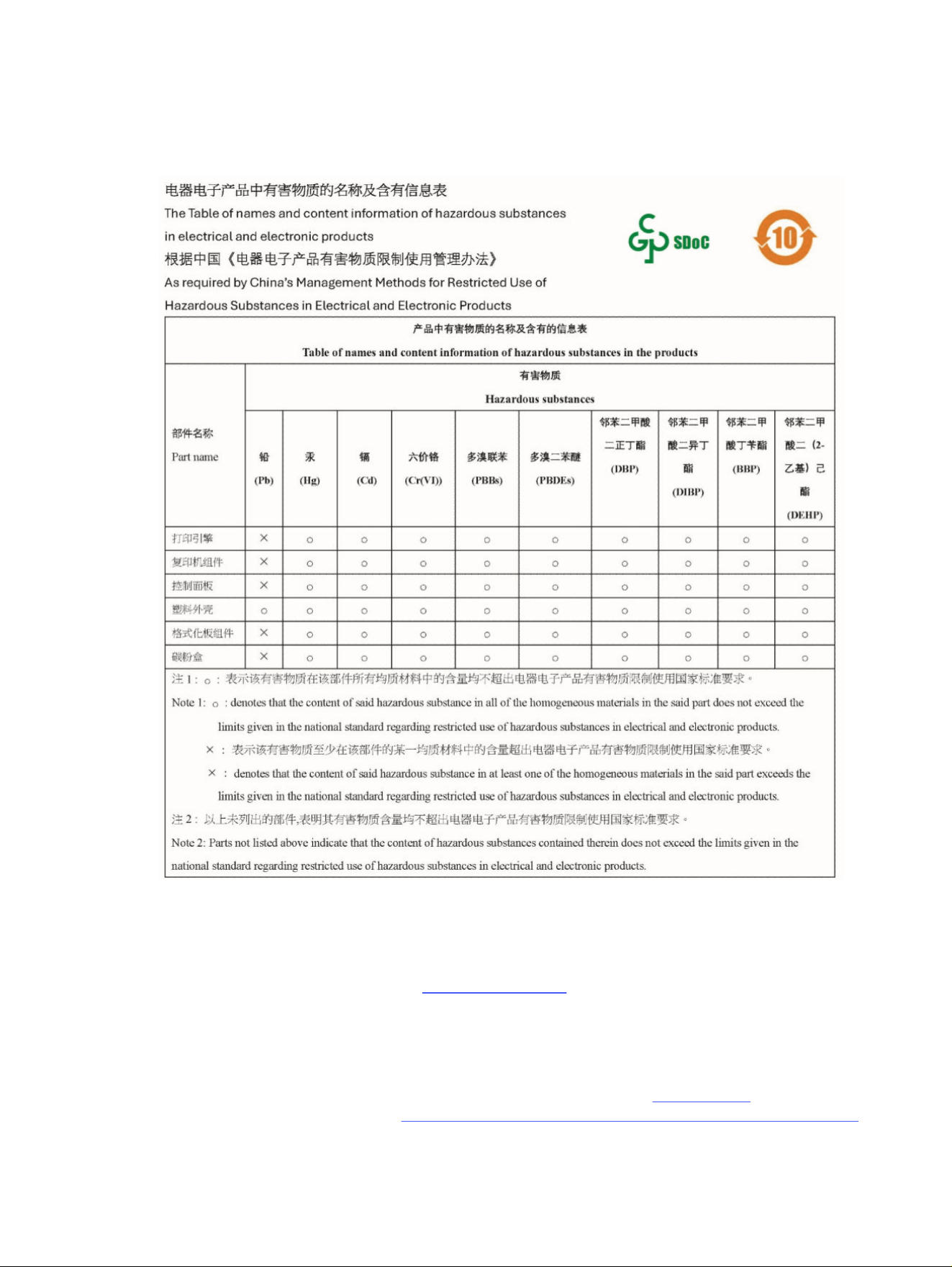
The Table of Hazardous Substances/Elements and their Content
(China)
Material Safety Data Sheet (MSDS)
Material Safety Data Sheets (MSDS) for supplies containing chemical substances (for example, toner) can be
obtained by accessing the HPWeb site at www.hp.com/go/msds
EPEAT
Many HP products are designed to meet EPEAT. EPEAT is a comprehensive environmental rating that helps
identify greener electronics equipment. For more information on EPEAT go to www.epeat.net. For information on
HP's EPEAT registered products, go to https://www.hp.com/us-en/sustainable-impact/document-reports.html
The Table of Hazardous Substances/Elements and their Content (China)
103
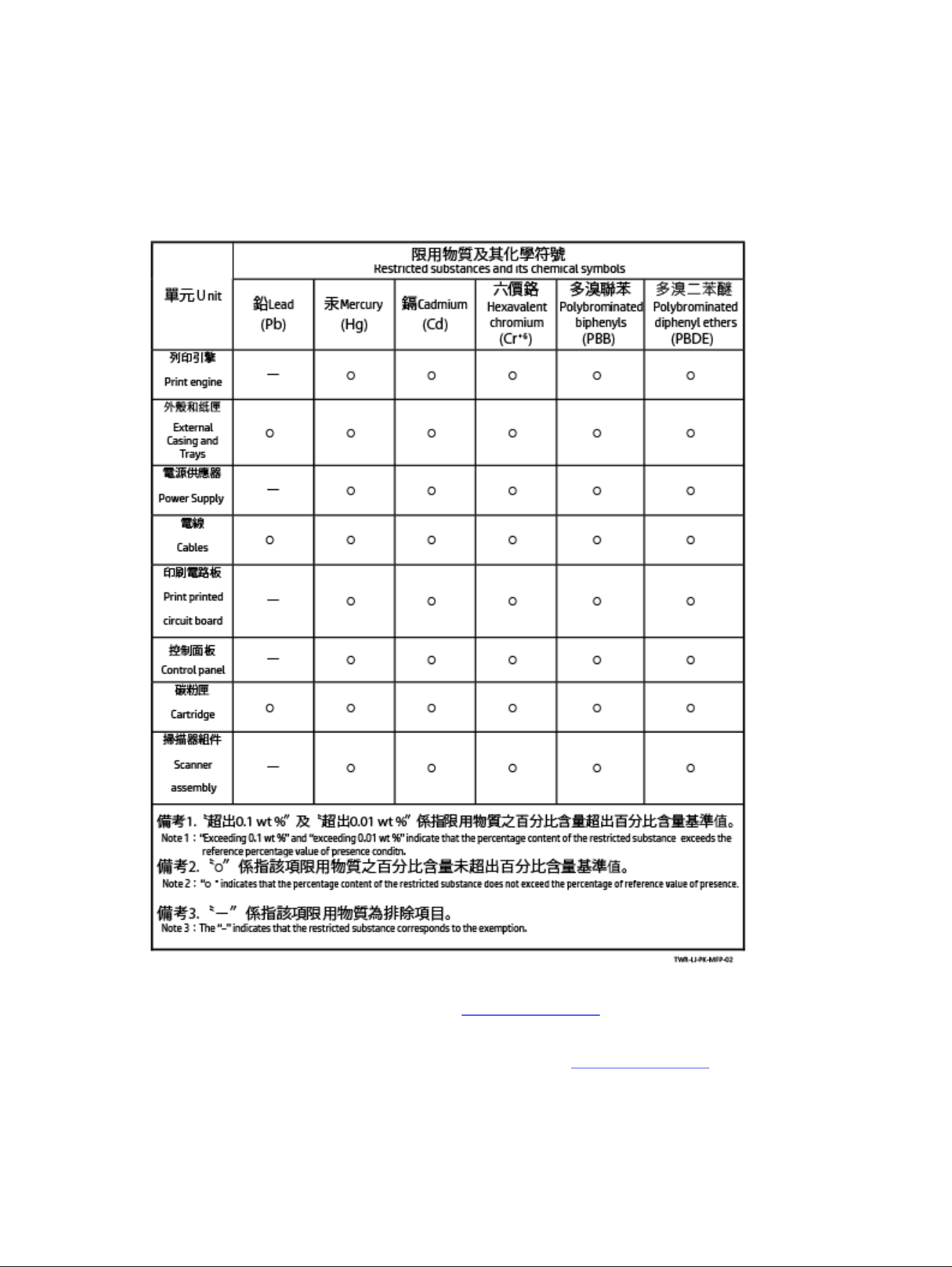
Declaration of the Presence Condition of the Restricted Substances
Marking (Taiwan)
台灣限用物質含有情況標示聲明書
Taiwan Declaration of the Presence Condition of the Restricted Substances Marking
若要存取產品的最新使用指南或手冊,請前往 www.support.hp.com。選取搜尋您的產品,然後依照 畫面上
的指示繼續執行。
To access the latest user guides or manuals for your product, go to www.support.hp.com. Select Find your
product, and then follow the on-screen instructions.
104
Appendix CEnvironmental product stewardship program

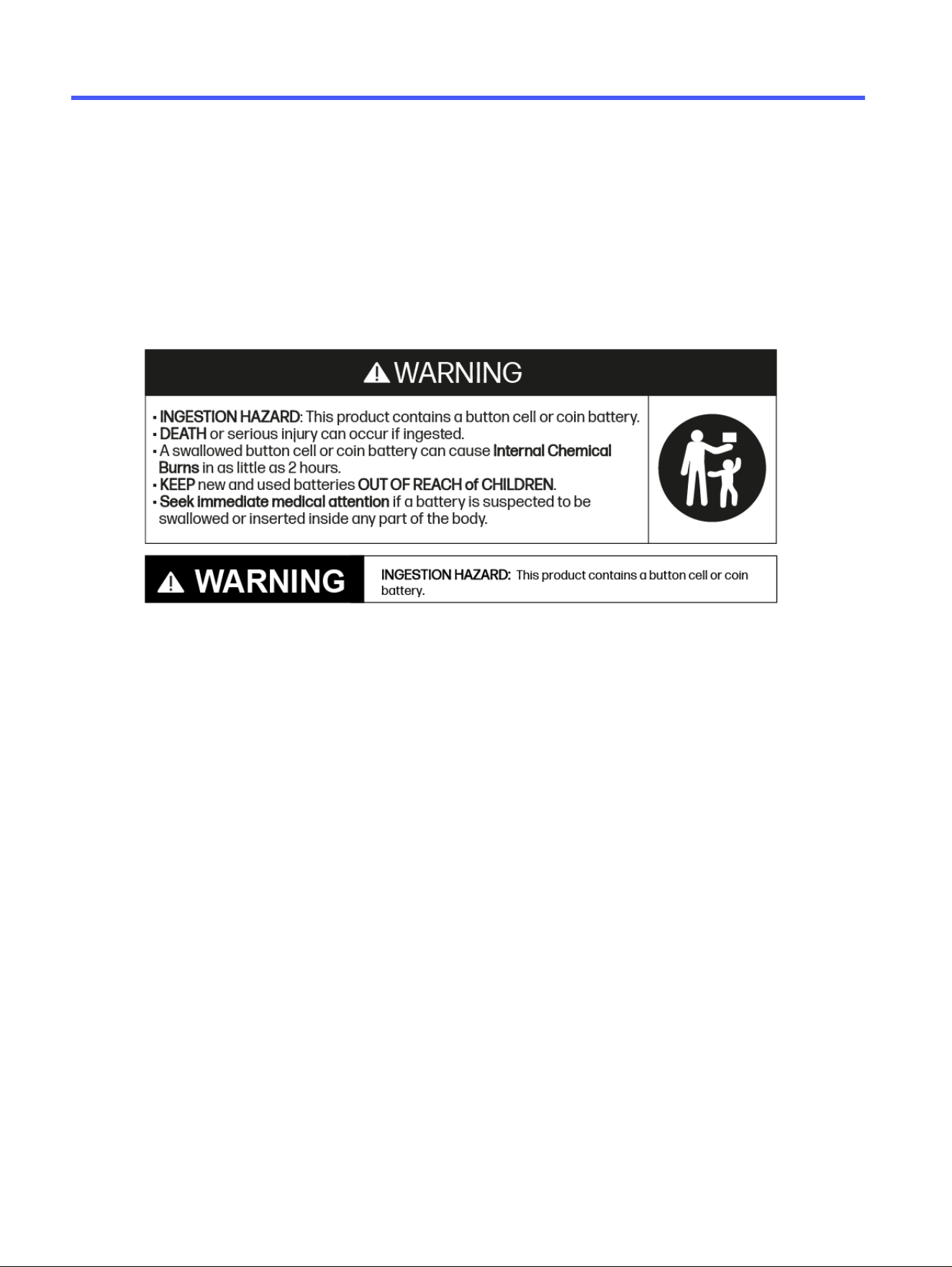
Regulatory informationD
This section describes the regulatory statements.
Battery statements
Reese's Law
● Remove and immediately recycle or dispose of used batteries according to local regulations and keep away
from children. Do NOT dispose of batteries in household trash or incinerate.
● Even used batteries may cause severe injury or death.
● Call a local poison control center for treatment information.
● Non-rechargeable batteries are not to be recharged.
● Do not force discharge, recharge, disassemble, heat above (manufacturer's specied temperature rating) or
incinerate. Doing so may result in injury due to venting, leakage or explosion resulting in chemical burns.
● This product contains a non-replaceable battery. It is NOT intended to be replaced.
● This product uses a NON replaceable battery. The coin/button cell battery type/model could be either:
CR1632, CR1225 or CR2032.
● The nominal battery voltage of this battery is 3v DC.
UK battery warning
Unfortunately, it is not obvious when a button or coin battery is stuck in a child’s oesophagus (food pipe). There
are no specic symptoms associated with this. The child might:
● Cough, gag or drool a lot
● Appear to have a stomach upset or a virus
● Be sick
106
Appendix DRegulatory information

● Point to their throat or stomach
● Have a pain in their abdomen, chest or throat
● Be tired or lethargic
● Be quieter or more clingy than usual or otherwise “not themselves”
● Lose their appetite or have a reduced appetite
● Not want to eat solid food/be unable to eat solid food
These sorts of symptoms vary or uctuate, with the pain increasing and then subsiding.
A specic symptom to button and coin battery ingestion is vomiting fresh (bright red) blood. If the child does this,
seek immediate medical help.
The lack of clear symptoms is why it is important to be vigilant with “at” or spare button or coin batteries in the
home and the products that contain them.
India battery waste statement
Regulatory statements
The printer meets product requirements from regulatory agencies in your country/region.
European Union and United Kingdom Regulatory Notice
Products bearing the CE marking and UKCA marking comply with one or more of the following EU Directives
and/or equivalent UK Statutory Instruments as may be applicable: Low Voltage Directive 2014/35/EU, EMC
Directive 2014/30/EU, Eco Design Directive 2009/125/EC, RED 2014/53/EU, RoHS Directive 2011/65/EU.
Compliance with these directives is assessed using applicable European Harmonized Standards. The full EU
and UK Declaration of Conformity can be found at the following website: www.hp.com/go/certicates (Search
with the product model name or its Regulatory Model Number (RMN), which may be found on the regulatory
label.)
The point of contact for regulatory matters is: Email techr[email protected]om
The EU point of contact for regulatory matters is:
HP Deutschland GmbH, HP HQ-TRE, 71025 Boeblingen, Germany
The UK point of contact for regulatory matters is:
India battery waste statement
107

HP Inc UK Ltd, Regulatory Enquiries, Earley West, 300 Thames Valley Park Drive, Reading, RG6 1PT
Regulatory model identication numbers
For regulatory identication purposes, your product is assigned a regulatory model number. Regulatory model
numbers should not be confused with marketing names or product numbers.
Regulatory model identication numbers
Product model number Regulatory model number
HP LaserJet MFP M248d SHNGC-2501-00
HP LaserJet MFP M246dw
HP LaserJet MFP M248dw
HP LaserJet MFP M248sdn
HP LaserJet MFP M248sdng
HP LaserJet MFP M239sdw
HP LaserJet MFP M246sdw
HP LaserJet MFP M241sdw
HP LaserJet MFP M248sdw
HP LaserJet MFP M248sdwg
SHNGC-2501-01
FCC regulations
This equipment has been tested and found to comply with the limits for a Class B digital device, pursuant to
Part 15 of the FCC rules. These limits are designed to provide reasonable protection against harmful interference
in a residential installation. This equipment generates, uses, and can radiate radio frequency energy. If this
equipment is not installed and used in accordance with the instructions, it may cause harmful interference to
radio communications. However, there is no guarantee that interference will not occur in a particular installation.
If this equipment does cause harmful interference to radio or television reception, which can be determined by
turning the equipment o and on, the user is encouraged to try to correct the interference by one or more of the
following measures:
● Reorient or relocate the receiving antenna.
● Increase separation between equipment and receiver.
● Connect equipment to an outlet on a circuit dierent from that to which the receiver is located.
● Consult your dealer or an experienced radio/TV technician.
NOTE: Any changes or modications to the printer that are not expressly approved by HP could void the user’s
authority to operate this equipment.
Use of a shielded interface cable is required to comply with the Class B limits of Part 15 of FCC rules.
Canada - Industry Canada ICES-003 Compliance Statement
CAN ICES-3(B)/NMB-3(B)
108
Appendix DRegulatory information

Power cord instructions
Make sure your power source is adequate for the product voltage rating. The voltage rating is on the product
label. The product uses either 110-127 Vac or 220-240Vac and 50/60Hz.
Connect the power cord between the product and a grounded AC outlet.
CAUTION: To prevent damage to the product, use only the power cord that is provided with the product.
Laser safety
The Center for Devices and Radiological Health (CDRH) of the U.S. Food and Drug Administration has
implemented regulations for laser products manufactured since August1,1976. Compliance is mandatory
for products marketed in the United States. The device is certied as a “Class 1” laser product under the U.S.
Department of Health and Human Services (DHHS) Radiation Performance Standard according to the Radiation
Control for Health and Safety Act of 1968. Since radiation emitted inside the device is completely conned
within protective housings and external covers, the laser beam cannot escape during any phase of normal user
operation.
WARNING! Using controls, making adjustments, or performing procedures other than those specied in this
user guide may result in exposure to hazardous radiation.
For other US/Canada regulatory matters, please contact:
HP Inc.
1501 Page Mill Rd, Palo Alto, CA 94304, USA
Email contact: (techr[email protected]) or telephone contact: +1 (650) 857-1501
Laser statement for Finland
Luokan 1 laserlaite
HP LaserJet MFP M238–M249, laserkirjoitin on käyttäjän kannalta turvallinen luokan 1 laserlaite. Normaalissa
käytössä kirjoittimen suojakotelointi estää lasersäteen pääsyn laitteen ulkopuolelle. Laitteen turvallisuusluokka
on määritetty standardin EN 60825-1 (2014) mukaisesti.
VAROITUS !
Laitteen käyttäminen muulla kuin käyttöohjeessa mainitulla tavalla saattaa altistaa käyttäjän turvallisuusluokan
1 ylittävälle näkymättömälle lasersäteilylle.
VARNING !
Om apparaten används på annat sätt än i bruksanvisning specicerats, kan användaren utsättas för osynlig
laserstrålning, som överskrider gränsen för laserklass 1.
HUOLTO
HP LaserJet MFP M238–M249 - kirjoittimen sisällä ei ole käyttäjän huollettavissa olevia kohteita. Laitteen
saa avata ja huoltaa ainoastaan sen huoltamiseen koulutettu henkilö. Tällaiseksi huoltotoimenpiteeksi ei
katsota väriainekasetin vaihtamista, paperiradan puhdistusta tai muita käyttäjän käsikirjassa lueteltuja, käyttäjän
tehtäväksi tarkoitettuja ylläpitotoimia, jotka voidaan suorittaa ilman erikoistyökaluja.
VARO !
Power cord instructions
109

Mikäli kirjoittimen suojakotelo avataan, olet alttiina näkymättömällelasersäteilylle laitteen ollessa toiminnassa.
Älä katso säteeseen.
VARNING !
Om laserprinterns skyddshölje öppnas då apparaten är i funktion, utsättas användaren för osynlig laserstrålning.
Betrakta ej strålen.
Tiedot laitteessa käytettävän laserdiodin säteilyominaisuuksista: Aallonpituus 775-795 nm Teho 5 m W Luokan
3B laser.
GS statement (Germany)
Das Gerät ist nicht für die Benutzung im unmittelbaren Gesichtsfeld am Bildschirmarbeitsplatz vorgesehen.
Um störende Reexionen am Bildschirmarbeitsplatz zu vermeiden, darf dieses Produkt nicht im unmittelbaren
Gesichtsfeld platziert werden.
Das Gerät ist kein Bildschirmarbeitsplatz gemäß BildscharbV. Bei ungünstigen Lichtverhältnissen (z. B. direkte
Sonneneinstrahlung) kann es zu Reexionen auf dem Display und damit zu Einschränkungen der Lesbarkeit der
dargestellten Zeichen kommen.
Die Bilddarstellung dieses Gerätes ist nicht für verlängerte Bildschirmtätigkeiten geeignet.
Nordic Statements (Denmark, Finland, Norway, Sweden)
Denmark:
Apparatets stikprop skal tilsuttes en stikkontakt med jord, som giver forbindelse til stikproppens jord.
Finland:
Laite on liitettävä suojakoskettimilla varustettuun pistorasiaan.
Norway:
Apparatet må tilkoples jordet stikkontakt.
Sweden:
Apparaten skall anslutas till jordat uttag.
Eurasian Conformity (Armenia, Belarus, Kazakhstan, Kirgizstan, Russia)
Производитель и дата производства
HP Inc.
Адрес: 1501 Page Mill Road, Palo Alto, California 94304, U.S.
Дата производства зашифрована в 10-значном серийном номере, расположенном на наклейке со
служебной информацией изделия. 4-я, 5-я и 6-я цифры обозначают год и неделю производства. 4-я
цифра обозначает год, например, «3» обозначает, что изделие произведено в «2013» году. 5-я и 6-я цифры
обозначают номер недели в году производства, например, «12» обозначает «12-ю» неделю.
110
Appendix DRegulatory information

Өндіруші жəне өндіру мерзімі
HP Inc.
Мекенжайы: 1501 Page Mill Road, Palo Alto, California 94304, U.S.
Өнімнің жасалу мерзімін табу үшін өнімнің қызмет көрсету жапсырмасындағы 10 таңбадан тұратын
сериялық нөмірін қараңыз. 4-ші, 5-ші жəне 6-шы сандар өнімнің жасалған жылы мен аптасын көрсетеді.
4-ші сан жылын көрсетеді, мысалы «3» саны «2013» дегенді білдіреді. 5-ші жəне 6-шы сандары берілген
жылдың қай аптасында жасалғанын көрсетеді, мысалы, «12» саны «12-ші» апта дегенді білдіреді.
Местные представители
Россия: ООО "Эйч Пи Инк",
Российская Федерация, 125171, г . Москва, Ленингра дское шоссе, 1 6А, стр.3,
Телефон/факс: +7 495 797 35 00 / +7 499 92132 50
Казахстан: Филиал компании "ЭйчПи Глобал Трэйдинг Би.Ви.", Республика Казахстан, 050040, г. Алматы,
Бостандыкский район, проспект Аль-Фараби, 77/7,
Телефон/факс: + 7 7 27 355 35 52
Жергілікті өкілдіктері
Ресей: ООО "Эйч Пи Инк",
Ресей Федерациясы, 125171, Мәскеу, Ленинград шоссесі, 16A блок 3,
Телефон/факс: +7 495 797 35 00 / +7 499 92132 50
Қазақстан: "ЭйчПи Глобал Трэйдинг Би.Ви." компаниясынын Қазақстандағы филиалы, Қазақстан
Республикасы, 050040, Алматы к., Бостандык ауданы, Əл- Фараби даңғылы, 77/7,
Телефон/факс: +7 727 355 35 52
Wireless statements
The statements in this section apply to wireless-capable printers only.
FCC compliance statement—United States
Exposure to radio frequency radiation
CAUTION: The radiated output power of this device is far below the FCC radio frequency exposure limits.
Nevertheless, the device shall be used in such a manner that the potential for human contact during normal
operation is minimized.
In order to avoid the possibility of exceeding the FCC radio frequency exposure limits, human proximity to the
antenna shall not be less than 20cm (8in) during normal operation.
This device complies with Part 15 of FCC Rules. Operation is subject to the following two conditions: (1) this
device may not cause interference, and (2) this device must accept any interference, including interference that
may cause undesired operation of the device.
CAUTION: Based on Section 15.21 of the FCC rules, changes of modications to the operation of this product
without the express approval by HP may invalidate its authorized use.
Өндіруші жəне өндіру мерзімі
111

Australia statement
This device incorporates a radio-transmitting (wireless) device. For protection against radio transmission
exposure, it is recommended that this device be operated no less than 20cm from the head, neck, or body.
Belarus statement
В соответствии с Постановлением Совета Министров Республики Беларусь от 24 мая 2017 года № 383 (об
описании и порядке применения знака соответствия к техническому регламенту Республики Беларусь)
продукция, требующая подтверждения соответствия техническому регламенту Республики Беларусь,
размещенная на рынке Республики Беларусь, должна быть маркирована знаком соответствия ТР BY.
Brazil ANATEL statement
Este equipamento não tem direito à proteção contra interferência prejudicial e não pode causar interferência em
sistemas devidamente autorizados.
Para maiores informações consulte o site da ANATEL – www.anatel.gov.br
Canadian statements
For Indoor Use. This digital apparatus does not exceed the Class B limits for radio noise emissions from digital
apparatus as set out in the radio interference regulations of the Canadian Department of Communications. The
internal wireless radio complies with RSS 210 of Industry Canada.
Pour ĺusage d´intérieur. Le présent appareil numérique ńémet pas de bruits radioélectriques dépassant les
limites applicables aux appareils numériques de Classe B prescribes dans le règlement sur le brouillage
radioélectrique édicté par le Ministère des Communications du Canada. Le composant RF interne est conforme à
la norme CNR-210 d´Industrie Canada.
China CMIIT Wireless statements
中国无线电发射设备通告
型号核准代码显示在产品本体的铭牌上。
Korean statement
무선 전용제품:
해당 무선설비는 전파혼신 가능성이 있음으로 인명안전과 관련된 서비스는 할 수 없음. (무선모듈제품이
설치되어있는경무)
112
Appendix DRegulatory information
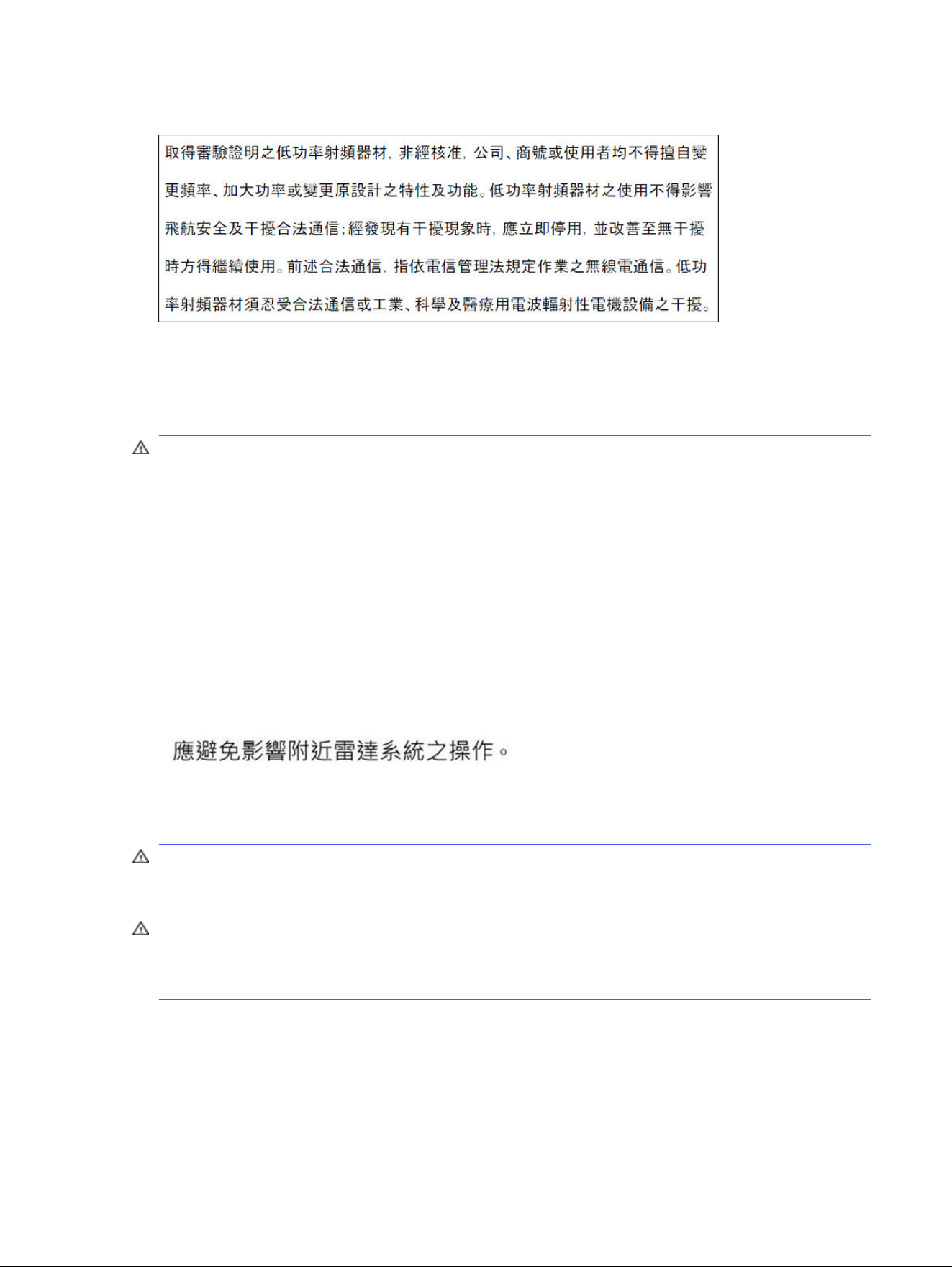
Taiwan region statement (Traditional Chinese)
應避免影響附近雷達系統之操作。
高增益指向性天線只得應用於固定式點對點系統。
Products with 5 GHz Operation Industry of Canada
CAUTION: When using IEEE 802.11a wireless LAN, this product is restricted to indoor use, due to its operation
in the 5.15- to 5.25-GHz frequency range. Industry Canada requires this product to be used indoors for the
frequency range of 5.15 GHz to 5.25 GHz to reduce the potential for harmful interference to co-channel mobile
satellite systems. High-power radar is allocated as the primary user of the 5.25- to 5.35-GHz and 5.65- to
5.85-GHz bands. These radar stations can cause interference with and/or damage to this device.
Lors de l'utilisation d'un réseau local sans l IEEE 802.11a, ce produit est réservé à une utilisation en intérieur en
raison de sa plage de fréquences, comprise entre 5,15 et 5,25GHz. Industrie Canada recommande l'utilisation
en intérieur de ce produit pour la plage de fréquences comprise entre 5,15 et 5,25GHz an de réduire les
interférences nuisibles potentielles avec les systèmes de satellite portables utilisant le même canal. Le radar à
haute puissance est déni comme étant le principal utilisateur des bandes 5,25 à 5,35GHz et 5,65 à 5,85GHz.
Ces stations radar peuvent provoquer des interférences sur ce périphérique et/ou l'endommager.
Taiwan region NCC Statement:(Only for 5GHz)
Exposure to Radio Frequency Radiation (Canada)
WARNING! Exposure to Radio Frequency Radiation. The radiated output power of this device is below the
Industry Canada radio frequency exposure limits. Nevertheless, the device should be used in such a manner
that the potential for human contact is minimized during normal operation.
WARNING! Exposition aux émissions de fréquences radio. La puissance de sortie émise par ce périphérique est
inférieure aux limites xées par Industrie Canada en matière d’exposition aux fréquences radio. Néanmoins, les
précautions d'utilisation du périphérique doivent être respectées an de limiter tout risque de contact avec une
personne.
To avoid the possibility of exceeding the Industry Canada radio frequency exposure limits, human proximity to
the antennas should not be less than 20 cm (8 inches).
Pour éviter tout dépassement des limites xées par Industrie Canada en matière d’exposition aux fréquences
radio, la distance entre les utilisateurs et les antennes ne doit pas être inférieure à 20 cm (8 pouces).
Taiwan region statement (Traditional Chinese)
113

European regulatory notice
The telecommunications functionality of this product may be used in the following European countries/regions:
Austria, Belgium, Bulgaria, Cyprus, Czech Republic, Denmark, Estonia, Finland, France, Germany, Greece, Hungary,
Iceland, Ireland, Italy, Latvia, Liechtenstein, Lithuania, Luxembourg, Malta, Netherlands, Norway, Poland, Portugal,
Romania, Slovak Republic, Slovenia, Spain, Sweden, Switzerland, and United Kingdom.
Notice for use in Russia
Существуют определенные ограничения по использованию беспроводных сетей (стандарта 802.11b/g)
с рабочей частотой 2,4 ГГц: Данное оборудование может использоваться внутри помещений с
использованием диапазона частот 2400-2483,5МГц (каналы 1-13). При использовании внутри помещений
максимальная эффективная изотропно–излучаемая мощность (ЭИИМ) должна составлять не более 100мВт.
Mexico statement
Aviso para los usuarios de México
“La operación de este equipo está sujeta a las siguientes dos condiciones: (1) es posible que este equipo o
dispositivo no cause interferencia perjudicial y (2) este equipo o dispositivo debe aceptar cualquier interferencia,
incluyendo la que pueda causar su operación no deseada."
Para saber el modelo de la tarjeta inalámbrica utilizada, revise la etiqueta regulatoria de la impresora.
Thailand statement
เครื่องวิทยุคมนาคมนี้มีระดับการแผ่คลื่นแม่เหล็กไฟฟ้ าสอดคล้องตามมาตรฐานความปลอดภัยต่อสุขภาพของมนุษย์จากการ
ใช้เครื่องวิทยุคมนาคมที่คณะกรรมการก ิจการโทรคมนาคมแห่งชาติประกาศกําหนด
This radio communication equipment has the electromagnetic eld strength in compliance with the Safety
Standard for the Use of Radio Communication Equipment on Human Health announced by the National
Telecommunications Commission.
Vietnam Telecom
NOTE: Telecom wireless marking for ICTQC Type approved products.
114 Appendix DRegulatory information