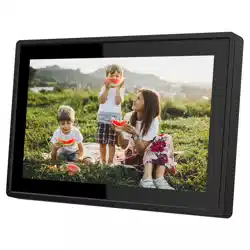

User Manual
2025

Contents
Contents 1
Getting started 4
Frameo app 4
Video tutorials 4
Frameo quick setup 5
Start using Frameo 6
Connecting a new friend 6
Navigating your Frameo 7
Wi-Fi 7
Album Selector 7
Add friend 7
My Photos 7
Settings 7
Power menu 7
Add to album 7
React 8
Hide photo 8
Adjust photo 8
Interacting with videos 8
Power menu 9
React menu 9
External storage menu 10
Clock and Weather widgets 10
Weather menu 10
Settings 11
My frame 11
Frame name 11
Frame location 11
Set language 11
Weather location 11
Temperature unit 11
Date 11
Time 11
Time zone 11
Set first day of week 12
Enable/Disable 24-hour format 12
Manage photos 12
My photos 12
1

Transfer from computer 13
Import photos 13
Export photos 13
Play from external storage 14
My Friends 14
Change options for a friend 14
Add person 14
Display 14
Brightness level 14
Sleep mode 14
Slideshow 15
Timer 15
Fill frame 15
Frame background 15
Photo display order 15
Reverse photo display order 15
Show caption 15
Show clock 15
Show weather 16
Enable Collage Mode 16
Maximum photos in Collage 16
Autoplay 16
Video playback 16
Auto mute 16
Video volume 16
Wi-Fi 17
Wi-Fi details 17
Reset Wi-Fi 17
Notifications 17
Show notifications 17
Notification volume 17
Storage space 17
Backup 17
Network connection 17
New photos 17
New friends 18
Software update 18
Feature news 18
Date and time 18
Backup and Restore 18
2

Set up a cloud backup (Frameo+) 18
External storage backup 19
Backup frame to external storage (e.g. microSD card) 19
Automatic backup 19
Restore from backup 19
Reset frame 19
Help 20
Guide 20
Support 20
About 20
Peer ID 20
Frameo version 20
Check for update 20
Beta program 20
Third party attributions 20
Share anonymous analytics data 21
Additional Features 21
Display 21
Adaptive Brightness 21
Motion Sensor 21
Lights Mode 21
Lights brightness 21
Lights color 21
Privacy 21
Support 22
Warranty, Compliance, Support and Safety information 22
3
Getting started
Congratulations on your brand new Frameo photo frame!
If you are new to using Frameo then start by following the Frameo quick setup or follow the
on-screen guide when powering it on for the first time.
Once you have set up your Frameo frame, you can start connecting it to your friends and family.
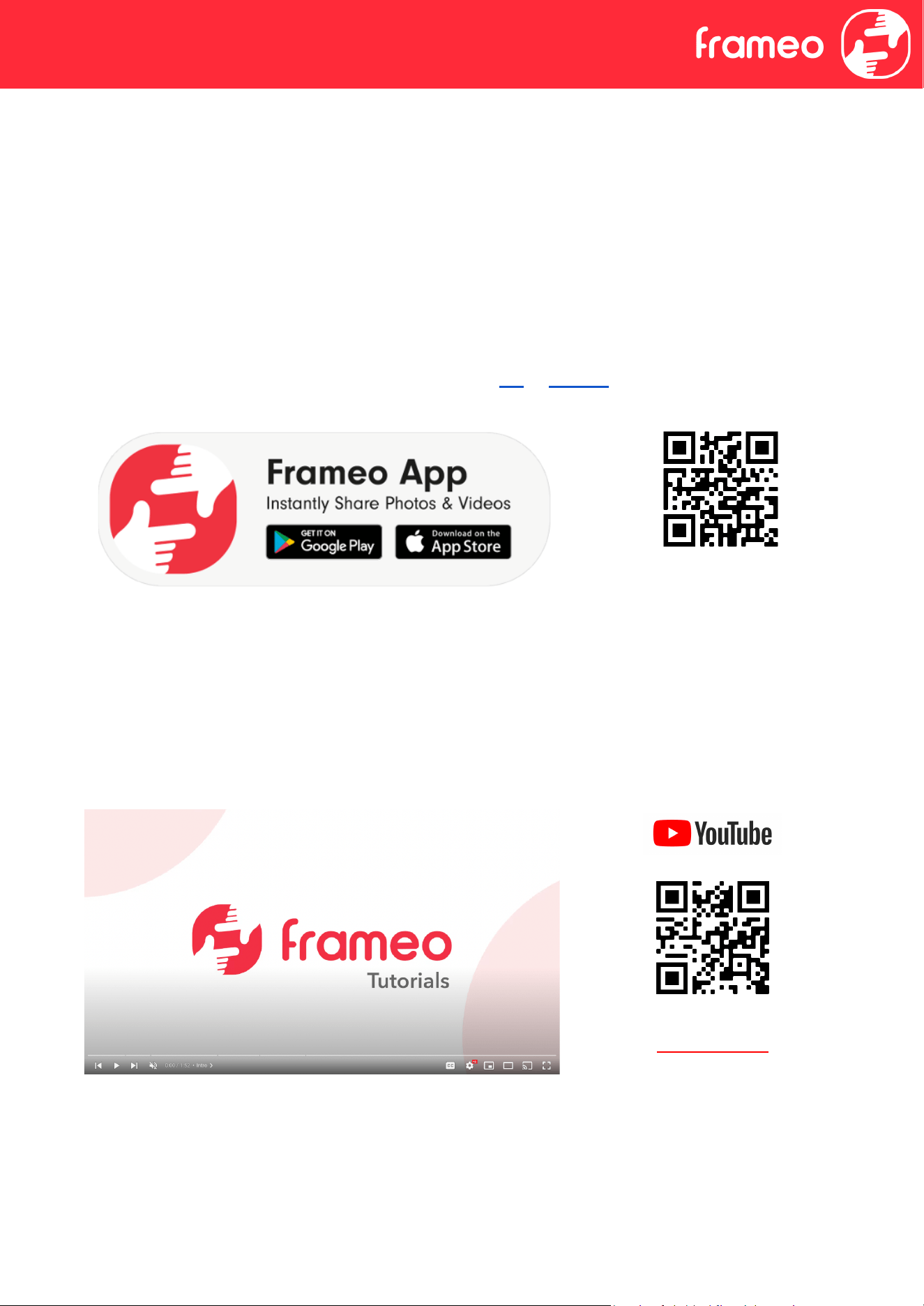
Frameo app
To send photos to your frame, use the Frameo app for iOS or Android.
Scan code to find the app
Video tutorials
Check out our “Frameo Tutorials” playlist on YouTube with
informative videos where we guide you on how to get started using
Frameo. Scan the code to the right or use the link to find the playlist.
bit.ly/3zKtxWX
4

Frameo quick setup
When starting your frame for the first time, you will need to set up the frame.
● Select a language. This will be the language used on the Frameo.
● Connect your frame to the internet by connecting it to Wi-Fi.
● Verify or correct the date and time.
● Frameo may ask you to update to the latest version. It is recommended to update your
frame before continuing if asked to.
● Enter your name, and the location where you have placed your frame, e.g. “John Doe” and
“Living room”, “Kitchen” or “Office”. Finally, set the timezone if not already correct.
5
Start using Frameo
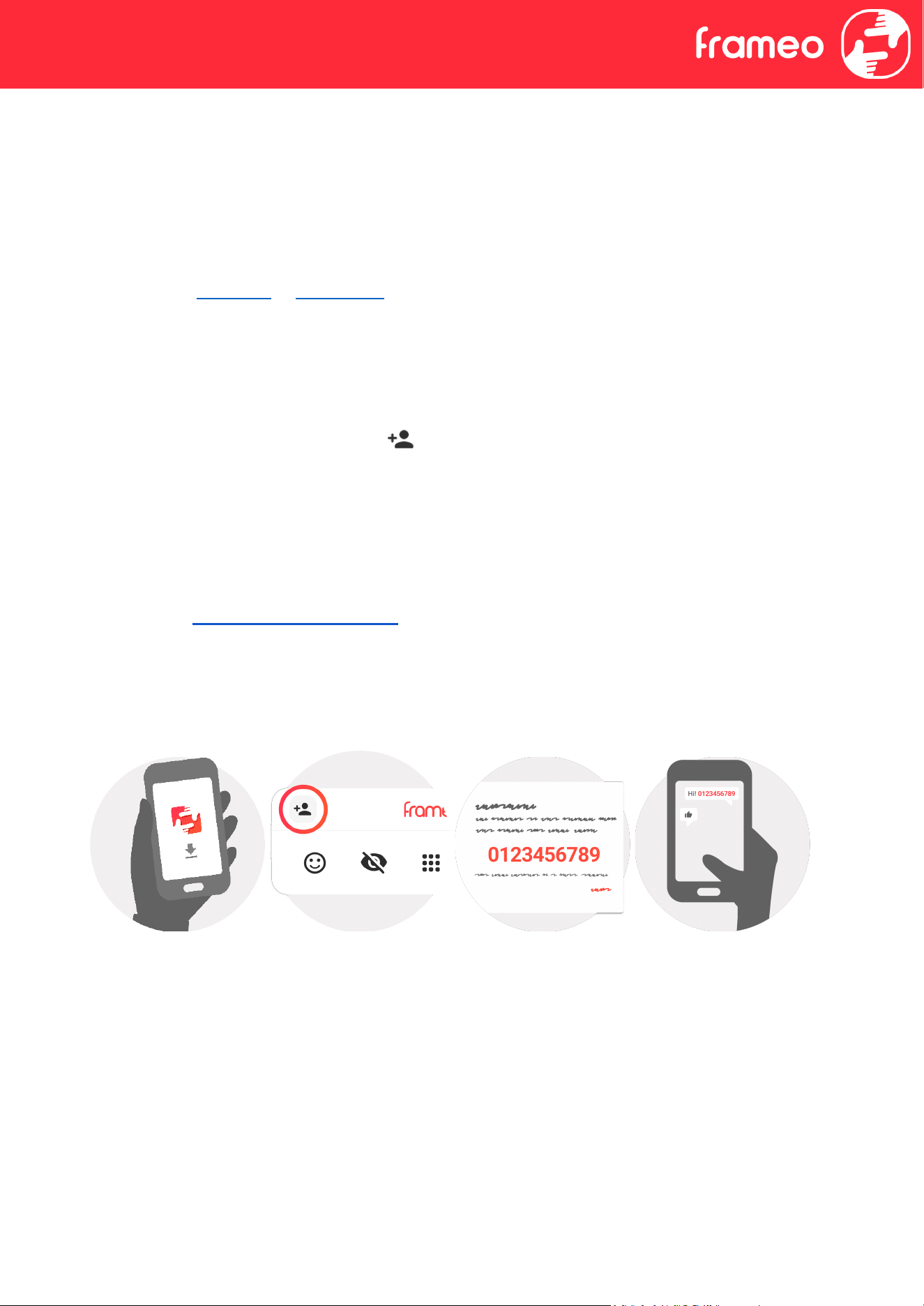
The next step is to connect Frameo with your friends and family by providing them with a code
from your frame.
If you want to be able to send photos to the frame yourself, start by downloading the app for iOS
or Android on App Store or Google Play. Then use the code to connect your frame and app as
described below.
Connecting a new friend
Make sure that your friend has downloaded and installed the Frameo app.
Click the add friend icon on your frame . A dialog will appear showing a connection code,
which is valid for 12 hours.
Now share this code in whatever fashion you prefer e.g. SMS, E-Mail, IM, phone call, to your
friend.
Once your friends have added the code in their Frameo app, they will automatically appear on
your frame and be able to send you photos.
Read chapter Change options for a friend to allow connected friends to retrieve and share the
connection code via the smartphone app. If a connected friend is subscribed to Frameo+ you can
also allow them to view/and or manage the contents of the frame, or perform a safety backup of
your media and settings, from this menu.
6
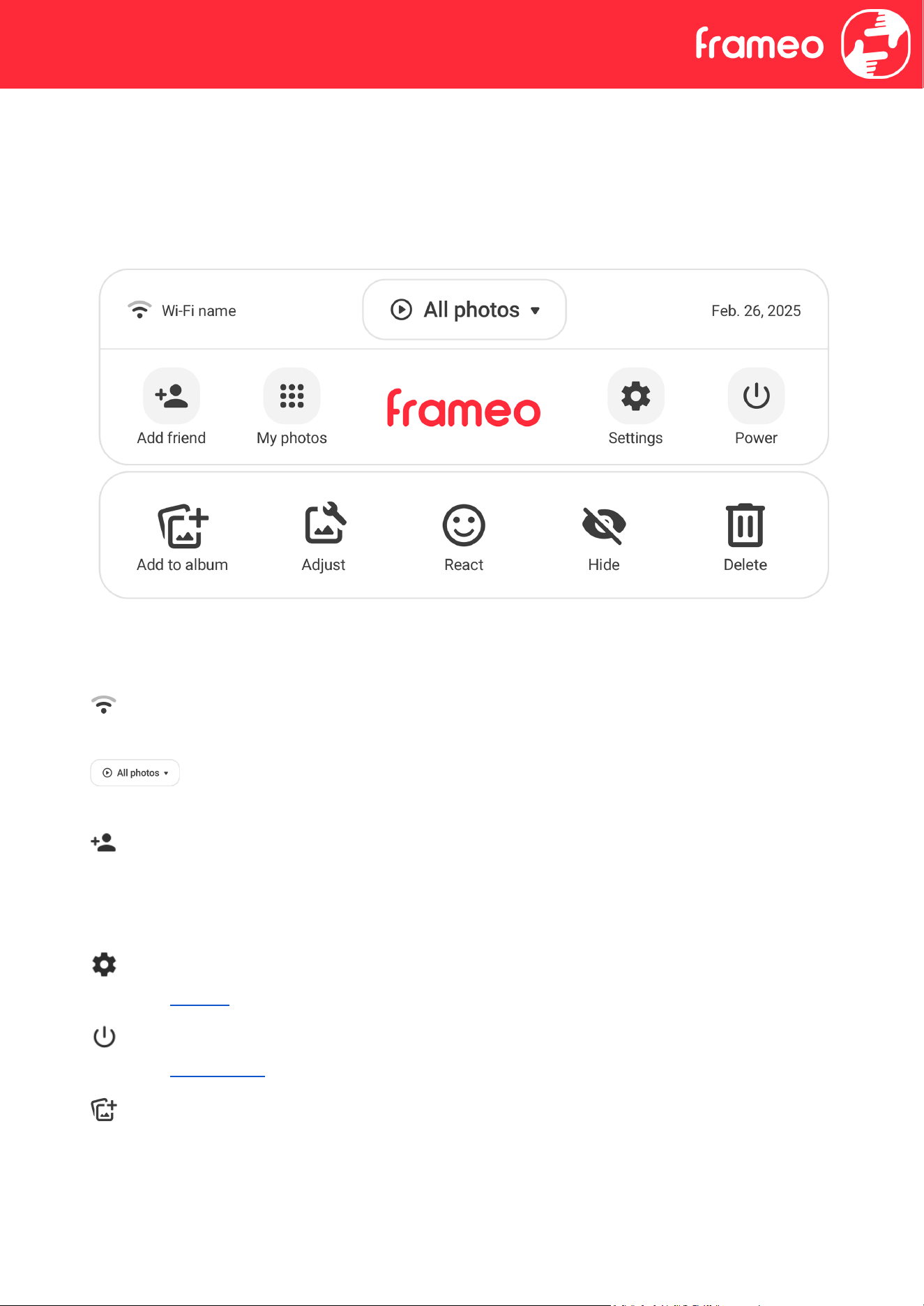
Navigating your Frameo
Swipe left or right to go through your photos.
To access the menu, simply tap once on the screen.
In the menu you will find the most used features.
Wi-Fi
Opens Wi-Fi menu. Also displays the name of the current Wi-Fi you are connected to, if any.
Album Selector
A quick menu to select what album to play or manage your albums.
Add friend
This will generate a code that you can share with your friends and family so they can connect and
send photos to your frame.
My Photos
Settings
Opens the Settings.
Power menu
Opens the Power menu.
Add to album
Adds the photo currently being displayed to an album of choice.
7
React
Opens the React menu.
NB: The React menu can also be accessed by double-tapping on the screen.
Hide photo
Hides the current photo. This means that the photo will no longer be shown in the slideshow. If
needed, the photo can be shown again through the My photos menu.
Adjust photo
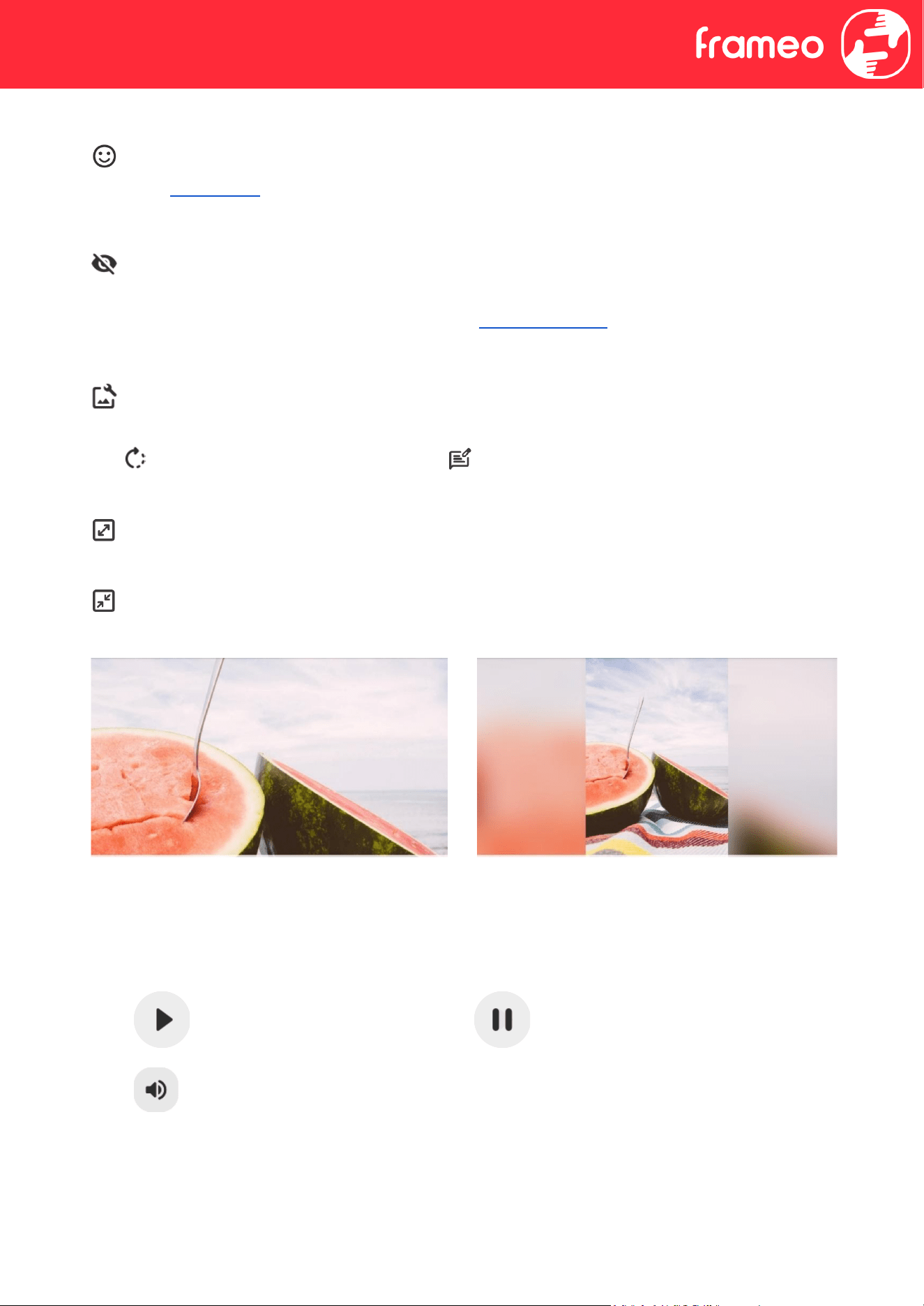
Allows you to adjust the position of the photo in the frame for an even better fit. Here you can also
use to rotate your photo, and you can use to edit the caption on imported photos. For
received photos, please ask the sender to edit the caption in the Frameo app.
Fill frame option is the default. The photo is scaled so that it fills the whole screen. It will be
centered around what is selected as the most important part. See the first picture below.
Fit to frame will make sure that the entire photo is shown on the screen. See the second
picture below.
Interacting with videos
When a video is shown, two additional controls are shown. One for play/pause of the video and
one to control the volume level for video sounds.
Press to start the video playback. Pressing will pause the video playback.
Press to open the volume slider. Use the slider to adjust the volume level for video sounds.
8
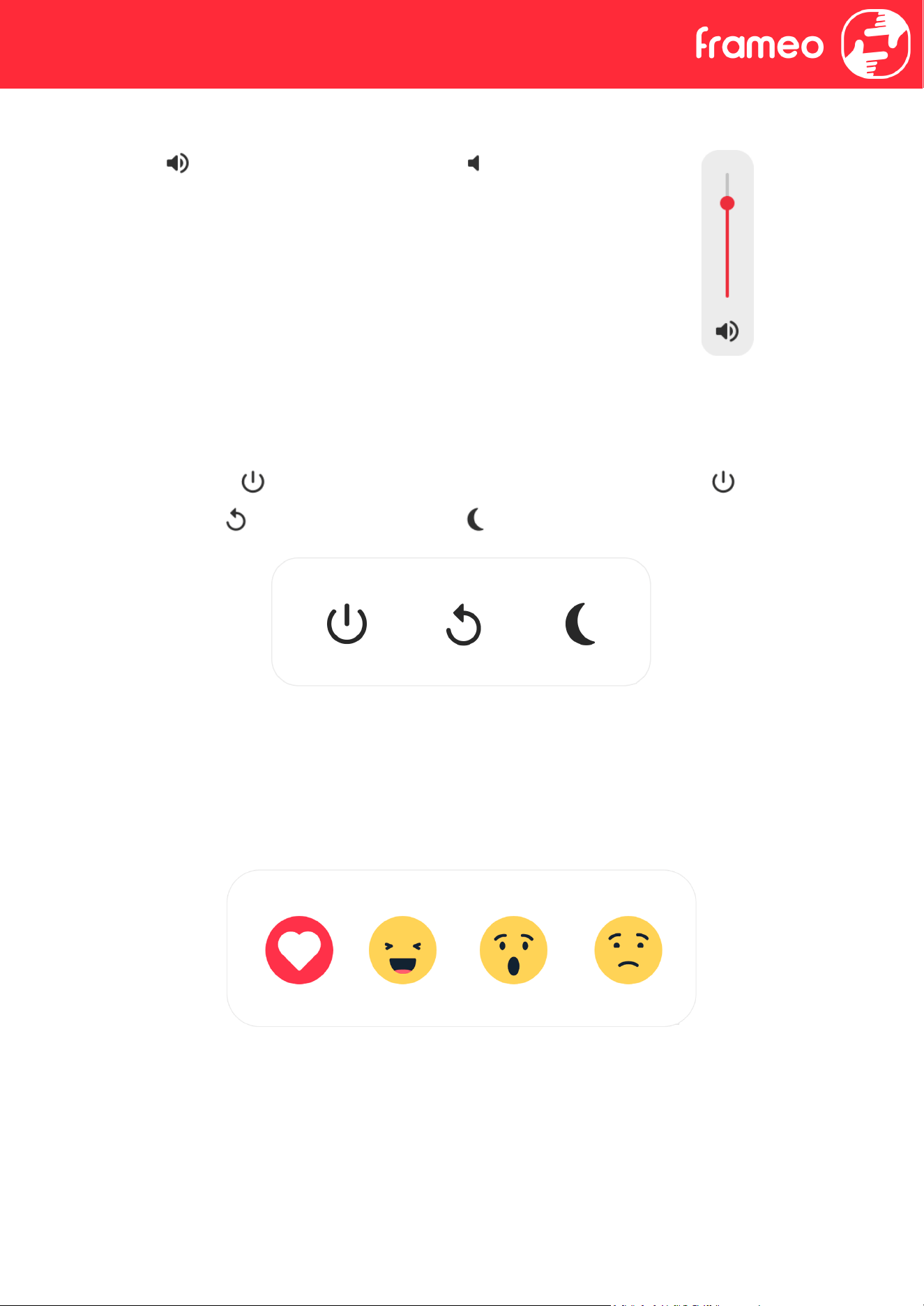
Pressing will mute the video while pressing will unmute the video.
Power menu
Tap the power icon to access the power menu. Here you can power off using , restart
your frame using or enter sleep mode using .
NB: Make sure to always use the power off button on the device or in the power menu to turn
Frameo off. Never disconnect power when Frameo is running.
React menu
Tap one of the reactions to let the sender know how it made you feel.
9
External storage menu
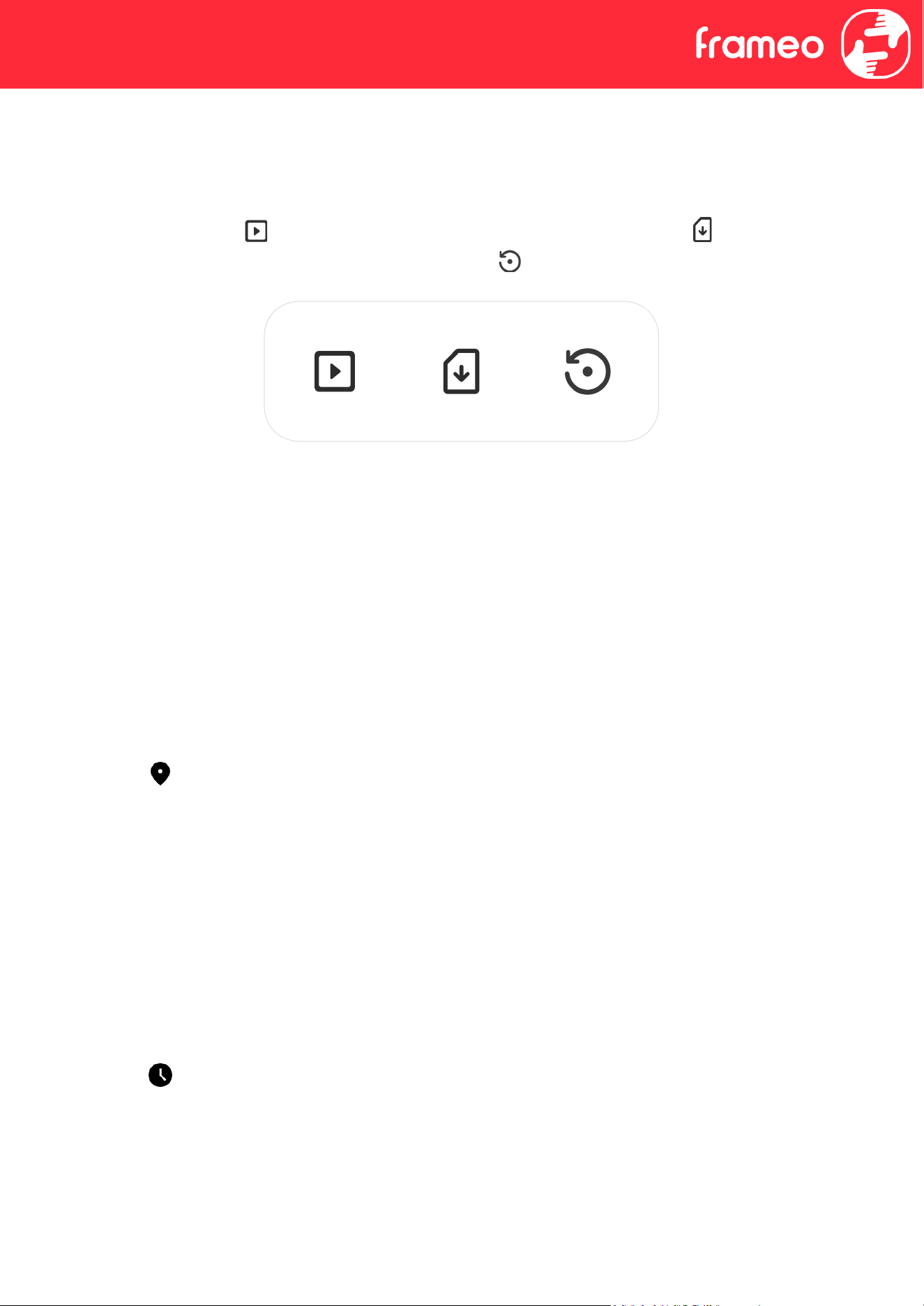
When inserting an external storage (e.g. a microSD card) a menu will automatically appear with
three options: Press to play photos directly from the external storage, press to import
photos to the internal memory of your frame or press to make a backup of your frame.
Clock and Weather widgets
The current time and weather will appear in the upper-right corner of the frame when the frame
has received at least one photo. Tapping either of these will open the weather menu.
Weather menu
The weather menu contains more detailed weather forecasts and has shortcuts to weather-related
settings.
Shows the weather location of your frame. Tap to access the weather location settings.
1 DAY
1-day forecast, which includes weather conditions for time periods of the day.
4 DAY
4-day forecast. Tap to see the weather forecast for the next four days.
Displays the frame’s current time. Tap to access the time settings.
10

Settings
Through the settings, you can personalize your frame to your needs.
My frame
Frame name
Changes the name of your frame. This is also the name that connected friends and family will see
in their list of connected frames in the smartphone app.
Frame location
Changes the location of your frame. This is the location displayed on your friends' and family's list
of connected frames, which can help to distinguish frames from each other.
Set language
Sets the language used on the frame.
Weather location
Sets the location for the frame's weather feature, ensuring that your frame displays the
appropriate weather forecast for you.
Temperature unit
Toggles between the Fahrenheit and Celsius temperature scales.
Date
Sets the date used on the frame.
Time
Sets the time used on the frame.
Frameo will automatically try to set the correct date and time when connected to the internet.
Time zone
Sets the time zone used on the frame.
11

Set first day of week
Sets which day of the week is considered the first.
Enable/Disable 24-hour format
Enables, and disables, 24-hour time format.
Manage photos
In the manage photos menu, you can see how many photos are on your frame and the storage
they use. You can also see the amount of storage left available on your device for storing new
photos.
My photos
Manage your photos and albums.
To select multiple photos, tap the Multi Select button or tap-and-hold on a single photo to
automatically enable this mode.
Filter what photos to see and sort in what order you want to see them.
NB: The sorting selected here will not affect the order of which the photos are displayed in the
slideshow. To change this, see:
To manage your albums, tap My Albums. A list of all your albums will be displayed. When
tapping the three dots for more options, you can:
Play in slideshow, which will start the selected album as a slideshow immediately.
Change name to change the name of an album
Delete album to remove it entirely.
NB: The photos in an album you delete will not be deleted from the local storage and will still be
available to use in other albums or viewable from All Photos.
To make a new album, simply tap Create new album, at the bottom of the list.
12

Detail View
Tap a photo once to enter detail view.
Presented to you, are options to Display, Add to album, Adjust, Hide or Delete the photo.
Additionally, you can see information on where the photo is stored (upper right corner), how it was
transferred, when it was taken, when it was received and the size of the file.
Local storage
External storage
Transfer from computer
Allows you to transfer photos from a computer using a USB cable. Enable the feature and then
follow the on-screen guide for step-by-step instructions on how to transfer photos to your frame.
For more information, please visit our help center: https://frameo.com/usb_faq
Import photos
Allows you to import photos from an external storage (e.g. microSD card).
Before you try to import photos, make sure you have an external storage (e.g. microSD card)
inserted into your frame with the photos you wish to import.
Start by selecting the photos that you want to import onto your frame. Once selected, tap the
import button to start the import process.
Use to select or deselect all photos on the external storage (e.g. microSD card).
Use to set the sort order of photos before import and to order by ascending/descending.
NB: Please note, many frames will need a FAT32 formatted microSD card with a maximum of 32GB
of storage. Please check with the brand of your frame for more information regarding compatibility
for your specific device.
Export photos
Allows you to export photos from the frame to external storage (e.g. microSD card).
The export function will export all photos on the frame as well as profile pictures.
13

Play from external storage
Enables / disables playback of photos and videos directly from an external storage (e.g. microSD
card) without taking up space on the frame.
My Friends
This list contains all the connected friends that are allowed to send photos to your frame.
Change options for a friend
Click the options icon to open the friend options menu.
From here, you can change the following permissions for a friend:
Share code: Allow / disallow if a friend may share the code to the frame. If this is enabled, the
friend can retrieve and share the code to the frame from his/her app.
See frame photos: Allow / disallow a friend to see the photos that are currently on your frame.
The friend will need to have Frameo
+
features enabled to make use of this.
Manage frame photos: Allow / disallow a friend to manage the photos that are currently on your
frame. This includes being able to display, hide or delete photos.
The friend will need to have the Frameo
+
features enabled to make use of this.
From the options menu, you can also delete a friend, by pressing the DELETE FRIEND button. This
will remove the friend from the list and thereby remove their permission to send photos to the
frame. You will then be asked to confirm the removal and if you would like to remove all photos
previously received from this friend.
Add person
To allow a new person to send you photos, simply tap the add friend button and share the
presented code in whatever way you prefer.
Display
Brightness level
Adjust the brightness level of the screen.
Sleep mode
Frameo offers a sleep mode which turns off the screen to reduce power consumption. The default
setting is to turn off the screen at 23:00 and turn on the screen again at 07:00 every day.
This can be altered by changing your sleep schedule(s). It is possible to have multiple schedules
14

active at once to e.g. have different settings for weekdays and the weekend or a separate schedule
to turn off the frame while at work.
Your frame is not powered down or in standby, so you will still be able to receive photos during
sleep mode.
Slideshow
Timer
Set the duration that a photo should be displayed before showing the next photo.
Fill frame
Set the default frame photo setting. Check to set default to fill which makes the photos fit the
device screen according to the most important part of the photo. Uncheck to make the photo fit
inside the screen of the device, adding background bars on the sides or top/bottom.
Frame background
Choose between several different frame background options to be shown as bars if the photo does
not fill the screen.
Photo display order
Sets the order in which your photos are displayed on the frame.
● By date taken: Photos are shown in order of when it was taken.
● By date received: Photos are shown in order of when it was received.
● Shuffle: Photos are shuffled and shown in a random order.
Reverse photo display order
Sets whether photos are displayed newest to oldest or oldest to newest.
Show caption
Set whether or not to display the captions that your friends have sent with the photo. Check to
display captions. Uncheck to hide captions.
Show clock
Set whether or not to display the clock widget in the upper-right corner of the slideshow.
15

Show weather
Set whether or not to display the weather widget in the upper-right corner of the slideshow.
Enable Collage Mode
Enables/disables the collage mode. The slideshow will automatically group photos together and
show them in a collage.
Maximum photos in Collage
Set the maximum of photos to bundle in Collage mode. Display from two up to six pictures side by
side on your frame.
Autoplay
Enables/disables autoplay of videos in the slideshow. Videos can always be manually started
regardless of this setting.
Video playback
Determines how videos should be played when autoplay is enabled.
● Loop videos: The video will loop until the slideshow timer is up.
● Play once: The video will play once and show its thumbnail until the timer is up.
● Play once and continue: The video will play once and continue to the next photo, or video,
once it completes.
Auto mute
Enable to automatically mute the video volume after a short period of time of not interacting with
the frame.
Video volume
Adjust the volume level for video sounds on the frames.
16

Wi-Fi
Set which Wi-Fi the frame connects to. If you are connecting to a network with a captive portal,
Connection status will say that Wi-Fi login is required and show . Tap this to open a login screen
where you can enter credentials to access the network.
Wi-Fi details
Use to show details about the current connected Wi-Fi.
Reset Wi-Fi
Use to delete all Wi-Fi information and restart your frame.
Notifications
Show notifications
Enables/disables whether notifications are shown in the slideshow (e.g. when a new photo is
received).
Notification volume
Adjust the volume level for notification sounds.
Storage space
Enables/disables notifications shown when frame storage is low.
Backup
Enables/disables notifications shown if automatic backup has failed.
Network connection
Enables/disables notifications showing network connection status.
New photos
Enables/disables notifications shown when receiving new photos.
17
New friends
Enables/disables notifications shown when new friends are added.
Software update
Enables/disables notifications shown when a software update has been installed.
Feature news
Enables/disables notifications shown when new exciting features are added.
Date and time
Enables/disables notifications shown if time or date is not set correctly.
Backup and Restore
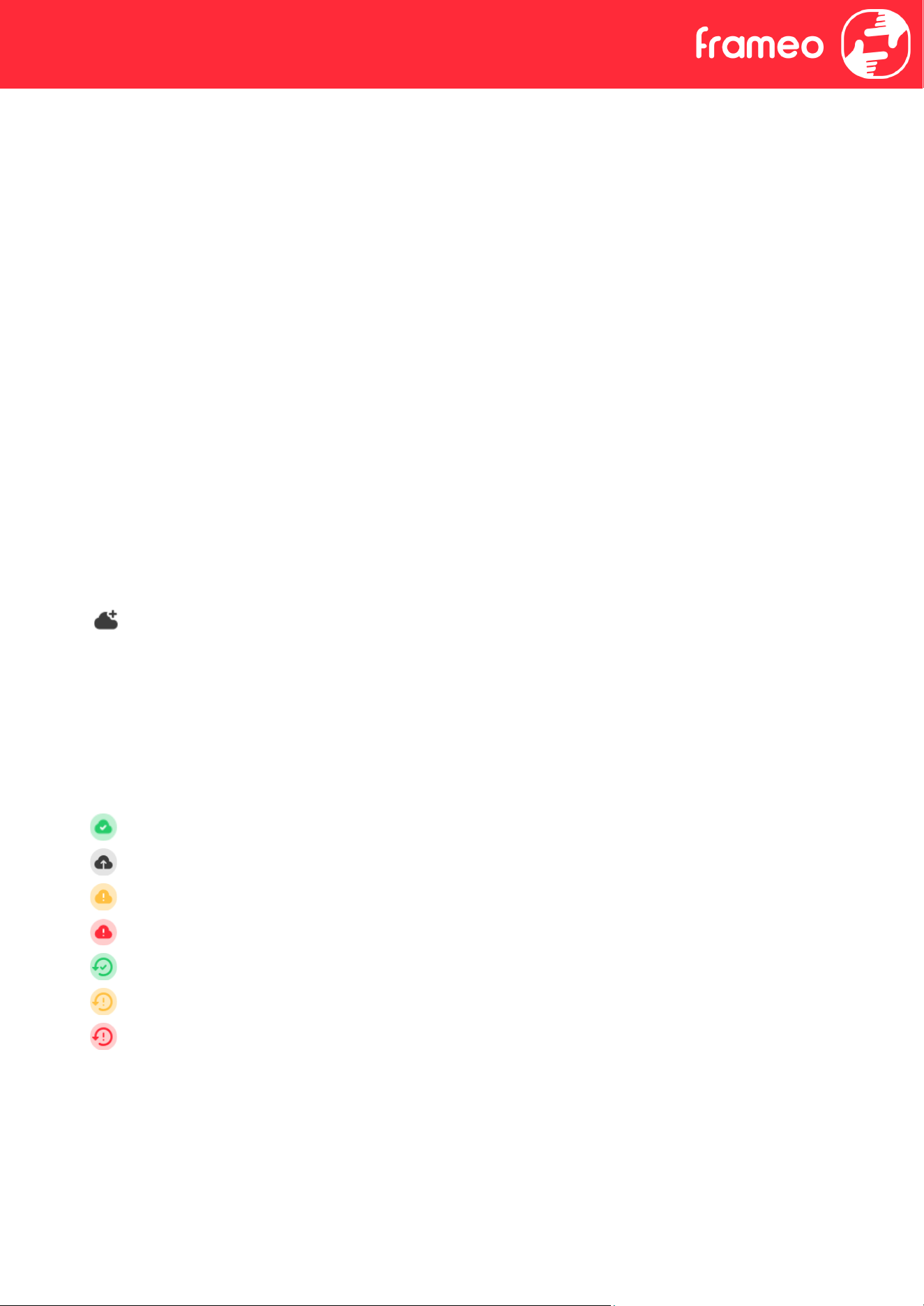
Set up a cloud backup (Frameo
+
)
Tap Set up cloud backup and select a friend that has an active Frameo
+
subscription, to initiate
a cloud backup of your frame. The friend (or yourself) will have to accept the request on the phone
tied to the Frameo
+
account.
If you already have a backup set up, tap it to see more details.
Backup status will indicate what state your backup is in, with a symbol.
Cloud symbols and their meaning:
Backup complete and secured in the cloud
Cloud backup in progress
Warning. Indicating the need for other device to act (check the Frameo app on your phone)
Cloud backup failed
Restore complete
Restore warning
Restore error
18

External storage backup
Backup frame to external storage (e.g. microSD card)
Tap to make a backup of your photos, friends and settings. The time of the latest successful backup
is also displayed here.
Any existing backup on the external storage will be overridden!
NB: Please note, many frames will need a FAT32 formatted microSD card with a maximum of 32GB
of storage. Please check with the brand of your frame for more information regarding compatibility
for your specific device.
Automatic backup
If checked, your frame will automatically take a backup within 30 hours of receiving new photos or
making changes to your frame.
Restore from backup
Before you attempt to restore your frame, start by confirming that your backup is up-to-date. This
is done by confirming the date under “Backup frame to external storage (e.g. microSD card)”. If
e.g. the last backup is too old or if no backup is made, then press the “Backup frame to external
storage (e.g. microSD card)” button to make a new backup.
NB: To keep both the old and the new frame operational at the same time after restoring from
backup, please make sure that both frames are updated to the latest version beforehand.
If you wish to restore a backup on a frame that has already been set up, then you must first reset
the frame. This is done by pressing the “Reset frame” button. This will delete all data on the
Frameo and reset the Frameo to its setup screen.
On the setup screen you can select the “Restore from backup” button which will restore your
frame according to the backup.
If the “Restore from backup” button isn’t visible, then confirm that the external storage (e.g.
microSD card) is correctly mounted.
Reset frame
Removes all data from your frame.
This will permanently remove all your photos, friends/connections and settings.
19

Help
Guide
Shows the quick start guide, which was shown when you first started the frame.
Support
Find contact information for Frameo’s support team, and find technical device information.
The menu features a special QR code that is there for our support staff to scan. It contains
additional device details and information, enabling our support team to efficiently address your
specific concerns and provide accurate assistance. Simply take a photo of the QR code and share it
with our support staff.
About
Peer ID
This is a unique ID for your photo frame. When contacting our support, please provide this ID with
your message.
Frameo version
Shows what version of the Frameo software is currently installed on your frame.
Check for update
Check if an update is available for your frame.
Beta program
If checked, the device will join the Beta program, where it will receive updates more frequently
and before normal release devices.
Third party attributions
Open source libraries
Opens a list of open source libraries used in the app and their licenses
20

Share anonymous analytics data
Sharing anonymous analytics data helps us tremendously to improve the Frameo software. We
understand if you do not wish to share this data with us. Keep it checked if you wish to help us
improve Frameo. Set unchecked to deny the sharing of anonymous analytics data.
Additional Features
The features described in this section may not be available on all frames.
To determine whether a specific feature is supported by your device, look for the corresponding
item in the Settings Menu.
Display
Adaptive Brightness
Enable use of light sensor to determine the screen brightness automatically
Motion Sensor
Select the period of inactivity before the screen turns off
Lights Mode
Adaptive: the color of the image in the slideshow will determine the ambient light
Fixed: Select fixed color of the ambient light, that does not change
Off: Turns off the ambient light
Lights brightness
Move the slider to adjust the brightness of the ambient light
Lights color
If the selected Lights Mode is set to Fixed, choose the color of the lights
Privacy
For more information regarding privacy, please visit http://privacy.frameo.net
21

Support
Please visit https://support.frameo.net/hc for FAQ, support and to provide feedback.
Warranty, Compliance, Support and Safety information
For more information regarding warranty, hardware compliance, support and safety, please refer
to the material included in the package.
22
FCC Caution:
This device complies with part 15 of the FCC Rules. Operation is subject to the following two
conditions: (1) this device may not cause harmful interference, and (2) this device must accept any
interference received, including interference that may cause undesired operation.
Any changes or modifications not expressly approved by the party responsible for compliance could void
the user's authority to operate the equipment.
NOTE: This equipment has been tested and found to comply with the limits for a Class B digital device,
pursuant to Part 15 of the FCC Rules. These limits are designed to provide reasonable protection against
harmful interference in a residential installation. This equipment generates, uses and can radiate radio
frequency energy and, if not installed and used in accordance with the instructions, may cause harmful
interference to radio communications. However, there is no guarantee that interference will not occur in
a particular installation.
If this equipment does cause harmful interference to radio or television reception,which can be
determined by turning the equipment off and on, the user is encouraged to try to correct the
interference by one or more of the following measures:
-- Reorient or relocate the receiving antenna.
-- Increase the separation between the equipment and receiver.
-- Connect the equipment into an outlet on a circuit different
from that to which the receiver is connected.
-- Consult the dealer or an experienced radio/TV technician for help.
To maintain compliance with FCC’s RF Exposure guidelines, This equipment should be installed and
operated with minimum distance between 20cm the radiator your body: Use only the supplied antenna.