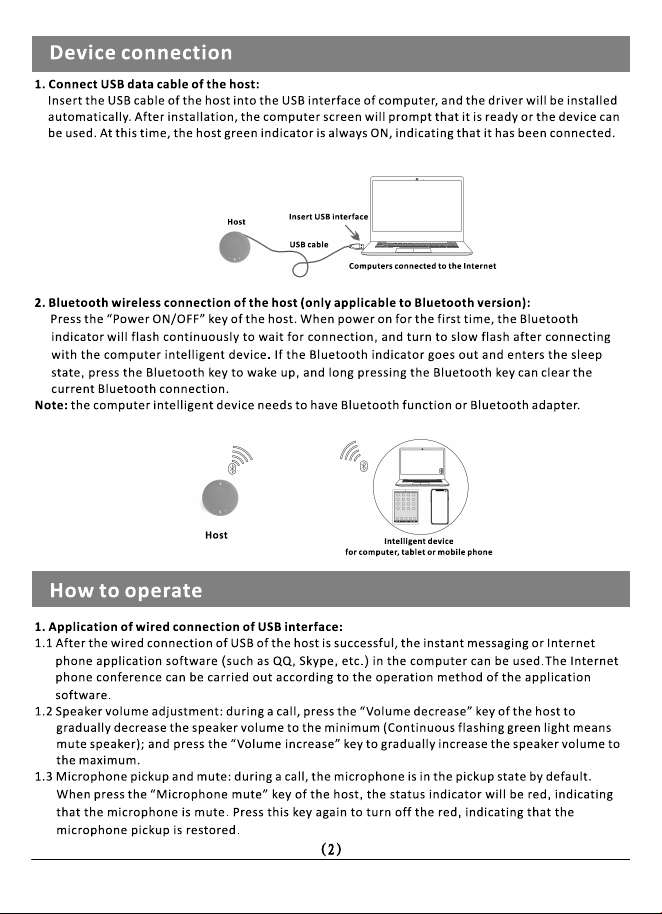
I Howtoo阳
2. Appl lcatlon of Blu•tooth wl l••• co四”•ctlon (。”ly appl lcabl• to Bluetooth
vel。n):
2.1 Aer the Bluetooth wireless connection of the host ia aucceaaful, the instant messaging
or Internet phone applicali。nsofare (剧。has QQ, Skype, etc.) in the computer can be
used. The Internet ph。ne conference can be carried out ace。rdlng to tha。paratlon
meth。d of the application soware.
2.2 Whan the host la nnected with Iha mobile phone through Bluatooth, In add阳on t。Iha
normal calling, answering or ending of call with the m。bile ph。ne, it can also sho叫press
the
”
Power ON /OFF" kay ortha host lo answer tha Incoming国ll o『long praaa tha "Power
ON /OFF" key of the host end a call.
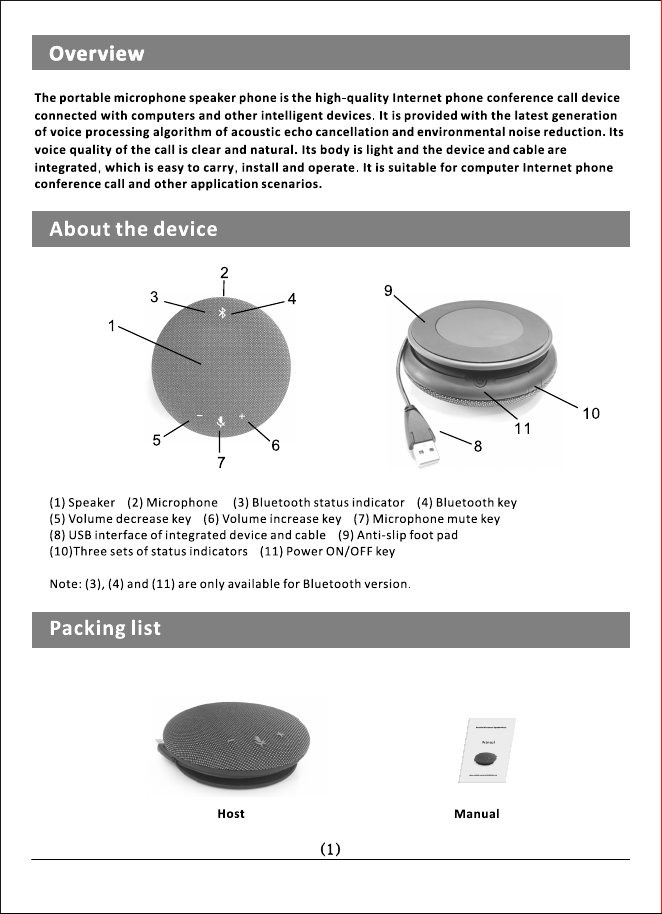
2.3 Speaker volume adjustment: during a call, press the -Volume decrease
’
key of the host
to gradually decrease the speaker v。lume to themlnlmum (C。ntlnuousashing green
light means mute speaker); and press the Volume increase key to gradu副ly increase the
speaker volume t。the maximum.
2.4 Microphone pickup and mute: during a call, tha microphone ls In Iha pickup state by
defau It. When p昭ssthe ”Microphone mute
“
key of the host, the status indic时or will be
red, indicating that the microphone is mute. Pre回this key again to turn o肝the red,
indicating that the microphone pickup is restored.
2.5 When the status Indicator flashes In 。range, II will keep reminding you that the bulll-ln
bsery is low. Please plug it into the use per port for cha咆ing.
2.6 Whan charging, Iha Indicator will be rad, and when the bullt-ln batte叩Is fully charged
,
the red wil I go out.
2. 7 Bluetooth con naction is p陪他厅ad when both。f use wired connecti。n and Bluet。oth
wlreless c。nnectlon are available.
I Points伽atten
1. You四n
’
I connect multiple microphone speakers to the c。mputar intelligent device at the
same IIe, lncludlng the native device
,
。r else, e squeak may appaa『during the call.
2. II is requi『ed to nnect the USB ble di『ectly to the USB inte『face of the mputer
device. It may cause 。peratlon problems If It la c。nnectad through the USB hub.
3. Check whether the device driver is installed and nnected successfully: check whether
the default device dlaplays "native device m。del" In the 。ptlons of playback (output) and
record Ing (In put)。fthe sound and audio device prope同lea of the computer c。ntrol panel
option, if not, re-select "Native devi饵model'and c。nrm.
4. When u”’It can adjust the volume through the speaker。ptlon。n the computer If
necessary. When using instant messaging or Internet ph。neapplicati。n so仕ware, please
set the device oflhe model as the pre俑,red audio device.
5.D。not re pal r the曲”四by y。urself
,
。『else, It may cause electrlc shock. Please contact
y。ur seller if there is any problem needing repair.
(3)

FCC Statement
This device complies with part 15 of the FCC rules. Operation is subject to the following
two conditions: (1) this device may not cause harmful interference, and (2) this device
must accept any interference received, including interference that may cause undesired
operation.
Changes or modifications not expressly approved by the party responsible for compliance
could void the user's authority to operate the equipment.
NOT
E
: This equipment has been tested and found to comply with the limits for a Class B
digital device, pursuant to part 15 of the FCC
R
ules. These limits are designed to provide
reasonable protection against harmful interference in a residential installation. This
equipment generates uses and can radiate radio
frequency energy and, if not installed and
used in accordance with the instructions, may cause harmful interference to radio
communications.
H
owever, there is no guarantee that interference will not occur in a
particular installation. If this equipment does cause harmful interference to radio or
television reception, which can be determined by turning the equipment off and on, the
user is encouraged to try to correct the interference by one or more
of the following
measures:
•R
eorient or relocate the receiving antenna.
•
Increase the separation between the equipment and receiver.
•
Connect the equipment into an outlet on a circuit different from that to which the
receiver is connected.
•
Consult the dealer or an experienced radio/TV technician for help.
The device has been evaluated to meet general
R
F exposure requirement. The
device can be used in portable exposure condition without restriction.