1

2
Content
About This Guide ...........................................................................................................................................................................................3
Introduction ....................................................................................................................................................................................................4
Appearance ................................................................................................................................................................................................... 6
Set Up Your Device via Matter ...................................................................................................................................................................... 7
1. Add to Alexa via Matter ............................................................................................................................................................................. 8
2. Add to Google Home via Matter .............................................................................................................................................................. 15
3. Add to Apple Home via Matter .................................................................................................................................................................22
4. Add to SmartThings via Matter ................................................................................................................................................................ 27
5.Add to AiDot APP(compatible with Alexa,Apple home &SmartThings).....................................................................................................32
Frequently Asked Question ......................................................................................................................................................................... 33
3
About This Guide
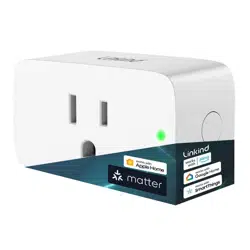
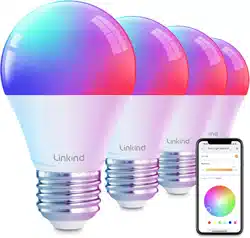
This guide provides a brief introduction to the Wi-Fi smart light bulbs, Matter and regulatory information.
Please note that features available in Linkind may vary by model and software version. Linkind availability may also vary by region.
All images, steps, and descriptions in this guide are only examples and may not reflect your actual Linkind experience.
More Info
Specifications can be found on the product page at https://www.linkind.com/matter
Our Technical Support can be found at https://www.linkind.com/contact-us
Feel free to request extra 6- months warranty below:

4
Introduction
First, please let me introduce you to the point of the smart light bulbs with Matter protocol:
Seamless Interoperability: By supporting the Matter protocol (formerly known as Project CHIP), the intelligent lightbulb ensures
seamless interoperability with various smart home devices and platforms. It can effortlessly communicate and collaborate with other
Matter-enabled devices, making it a valuable addition to any smart home ecosystem.
Universal Compatibility & Enhanced User Experience: With Matter, the intelligent lightbulb becomes compatible with a wide range of
smart home ecosystems and platforms, such as Apple's HomeKit, Google Home, Samsung, and Amazon's Alexa. This ensures users
have more choices and flexibility when integrating the bulb into their existing smart home setup, and the intelligent lightbulb offers a
consistent and user-friendly experience across different devices and platforms.
Enhanced Security: Matter is built with a strong focus on security and privacy. By adopting this protocol, the intelligent lightbulb can
provide users with peace of mind, knowing their data and smart home network are better protected against potential cyber threats.
Easy Setup and Configuration: Matter's standardized approach simplifies the setup and configuration process for the intelligent
lightbulb. Users can easily add the bulb to their smart home network, reducing the complexity and technical barriers often associated with
smart home devices.
Energy Efficiency: The intelligent lightbulb, supporting Matter, can take advantage of the protocol's energy-efficient features. Users can
benefit from lower energy consumption and reduced electricity bills without compromising on brightness or functionality.
Future-Proof Technology: Matter is backed by prominent industry players through the Connectivity Standards Alliance (CSA), ensuring
ongoing development, updates, and improvements. By choosing a Matter-enabled intelligent lightbulb, users are investing in a future-
proof technology that will continue to evolve and stay relevant over time.
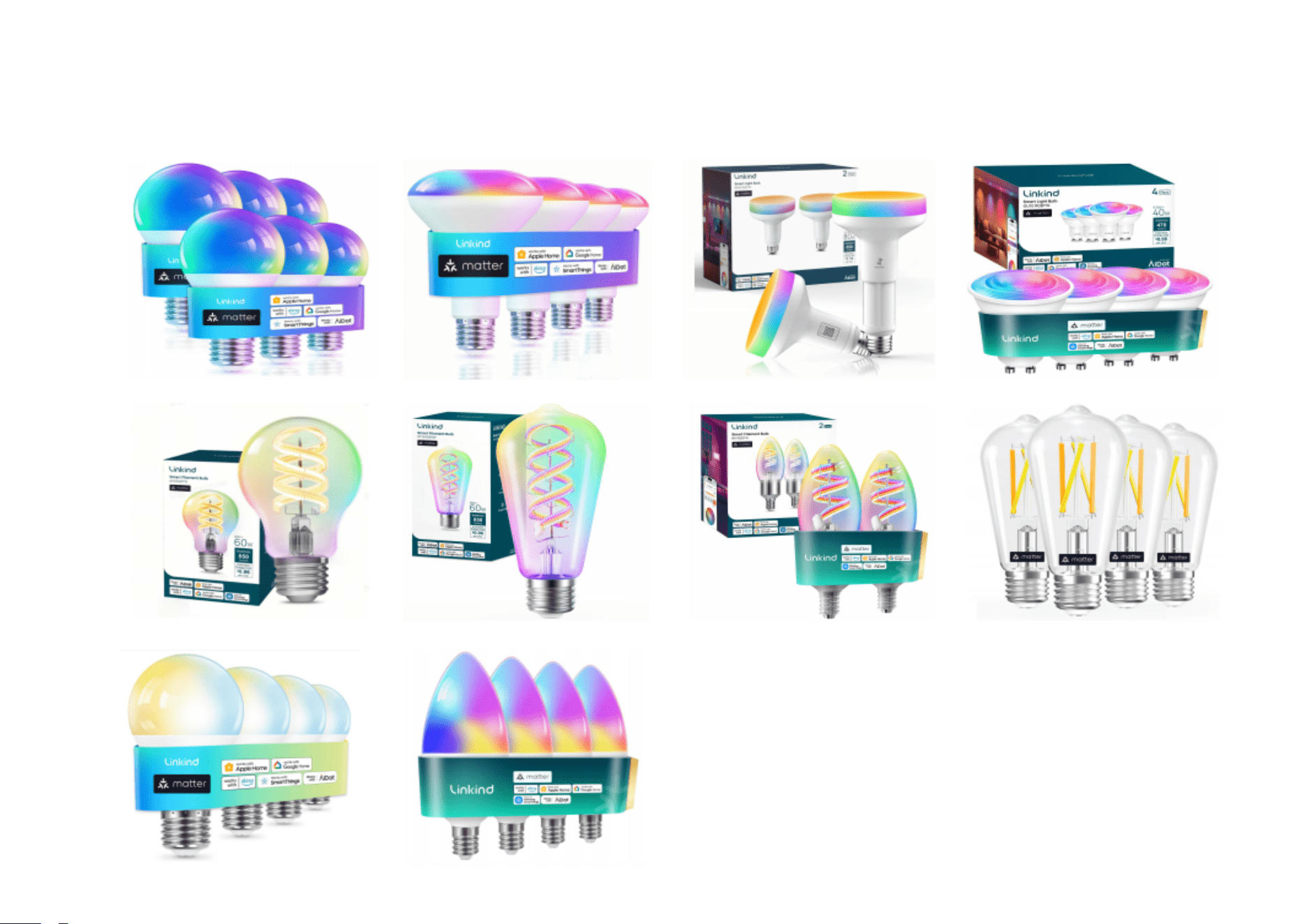
And With Linkind smart light bulbs, you can experience the following features:
【MUSIC SYNC LIGHTS】Linkind Matter WiFi light bulbs will change colors with the music rhythm, allowing you to enjoy every beat.
Choose Party, Dynamic, Calm, or Auto Rhythm via the Aidot app depending on your preferences. Make your LED bulbs dance with the
music to create the ideal atmosphere for various occasions.
【RGBTW SMART LIGHT BULB】Linkind Matter Smart LED bulbs provide over 16 million vivid colors and dimmable warm to cool
whites (1800K-6500K). 8W equivalent to 60W brightness, saving consumption up to 85% without losing brightness or color quality with
high CRI 90+. The lifespan of our smart bulbs can approximately last 25,000 hours.

5
【GROUP CONTROL & SCHEDULE】Create a schedule for Linkind LED light bulbs in your daily routine. Group control multiple smart
light bulbs with AiDot APP wherever you are, no need to worry about forgetting to turn off the light bulbs. You can also share devices or
set a countdown to turn on lights at a specific time to prepare for the surprise.
【VOICE & REMOTE CONTROL】Color changing smart bulbs that work with Alexa/Google Home... you could also use Siri after setting
up Siri Shortcuts in AIDOT App. Control your WiFi light bulbs to turn on/off, dim, or adjust colors via simple voice commands. Really
convenient to create ideal mood scenes!
【CUSTOMIZED & ROUTINE】DIY your own scene modes with vibrant colors and animated lighting effects via AiDot APP. Or you can
set My Circadian with our Alexa light bulbs, which will simulate sunlight to enhance your life by helping to boost mood, improve sleep and
enhance focus.
【NOTE】It is important to note that smart bulbs are generally not compatible with traditional dimmer switches. ONLY supports
2.4GHz.You could search for the using problem in "Feedback" of the AiDot APP.
6
Appearance

7
Set Up Your Device via Matter
This is a Matter-certified device. You can integrate it into any Matter ecosystem you prefer for easy control. As IoT manufacturers
are working to optimize the user experience of Matter setup, the setup process and user experience should improve over time.
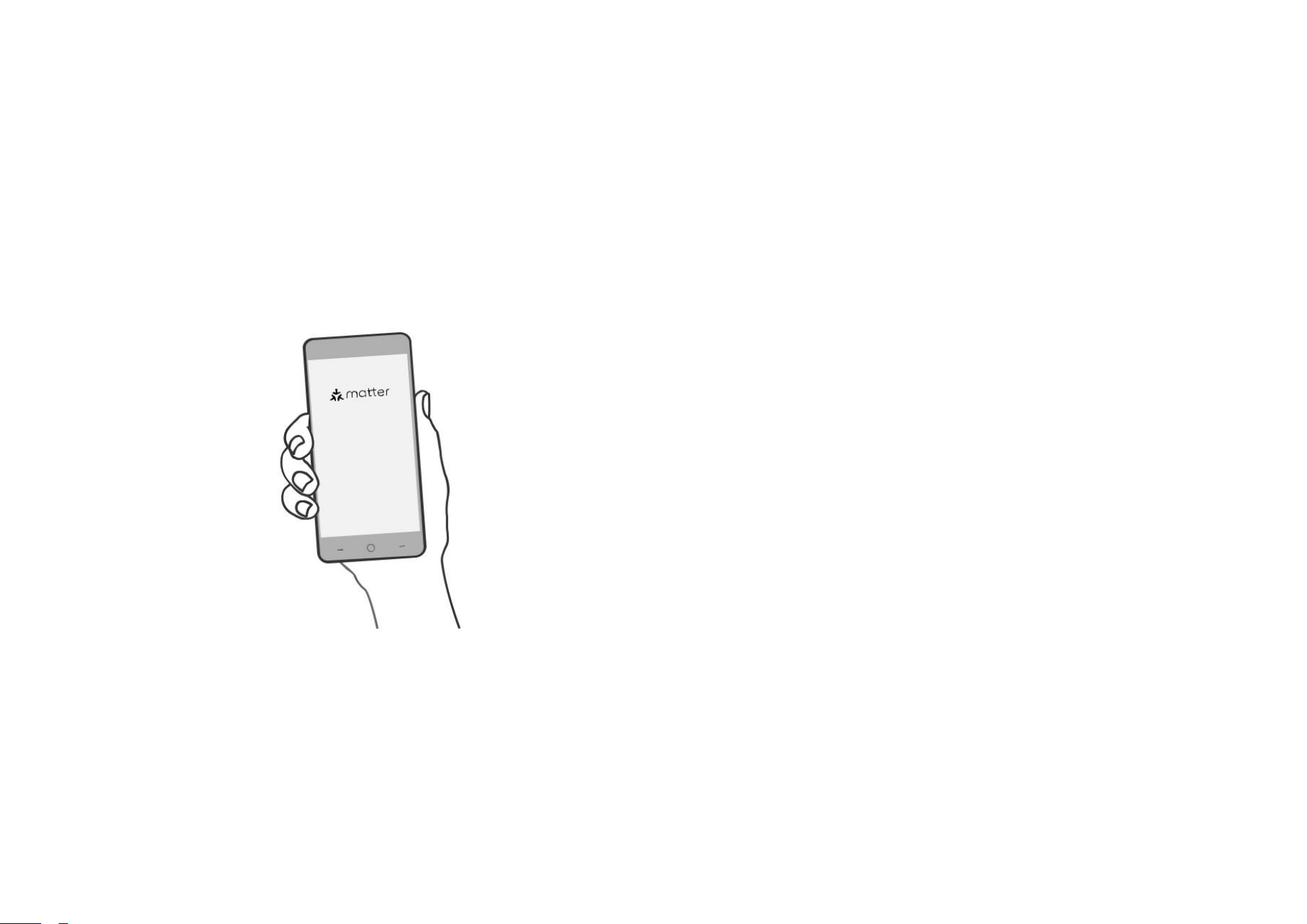
Take Alexa, Google, and Apple ecosystems for example and the following shows you how to set up via Matter:
1. Add to Alexa via Matter
2. Add to Google Home via Matter
3. Add to Apple Home via Matter
4. Add to SmartThings via Matter
5. Add to AiDot APP(compatible with Alexa,apple home &SmartThings)
Note:
The Matter setup code can only be used to add the device to the first ecosystem. For the second commissioning, you will need to open the app
of the first ecosystem to generate a new setup code.
A Matter hub (i.e., controller) and smart home app of the same ecosystem are required.
Please enable IPv6 Internet connection, you may refer to the instruction here
Ensure your phone and Matter hub are both connected to a stable 2.4 GHz Wi-Fi network, and that it has internet access during the setup
process.
For matter setup guides for Alexa, Google and Apple, please refer to https://www.youtube.com/watch?v=ijGHZnMqzlw
8
1. Add to Alexa via Matter
Before you start:
Since Alexa's setup is temporarily limited, make sure Alexa is the first matter ecosystem when adding your matter-certified devices to
Alexa. If you are unsure, please factory reset your device before setup.
1.Check Compatibility (Click here for more information)
Alexa app version:
Android: 2.2.521848.0 or later for build version, and 2023.15 for APP version
IOS: 2.2.548660 or later for build version, and 2023.15 for APP version
• Matter-supported Echo devices:
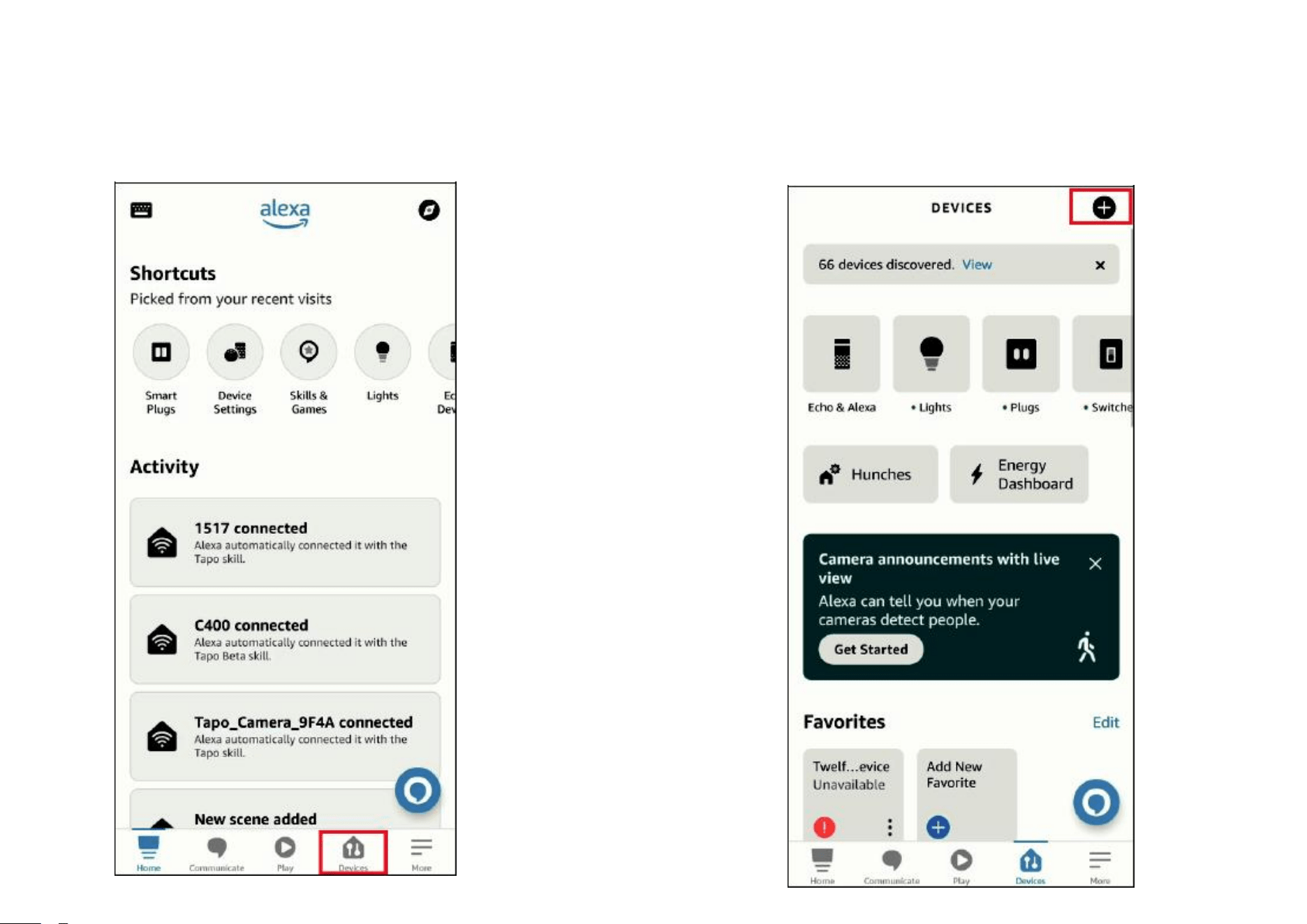
Device
Version
Echo/Echo Dot
5th Gen: Echo Dot, Echo Dot (Gen 5 with Clock)
4th Gen: Echo, Echo Dot, Echo Dot (Gen 4 with Clock)
3rd Gen: Echo, Echo Dot, Echo Dot (Gen 3 with Clock)
Echo Show
3rd Gen: Echo Show 10, Echo Show 15
2nd Gen: Echo Show 8, Echo Show 5
1st Gen: Echo Show, Echo Show 8
Note: Please update the software of your Echo devices to a compatible version, such as v8289070468.
9
2. How to Set Up Your Matter Device
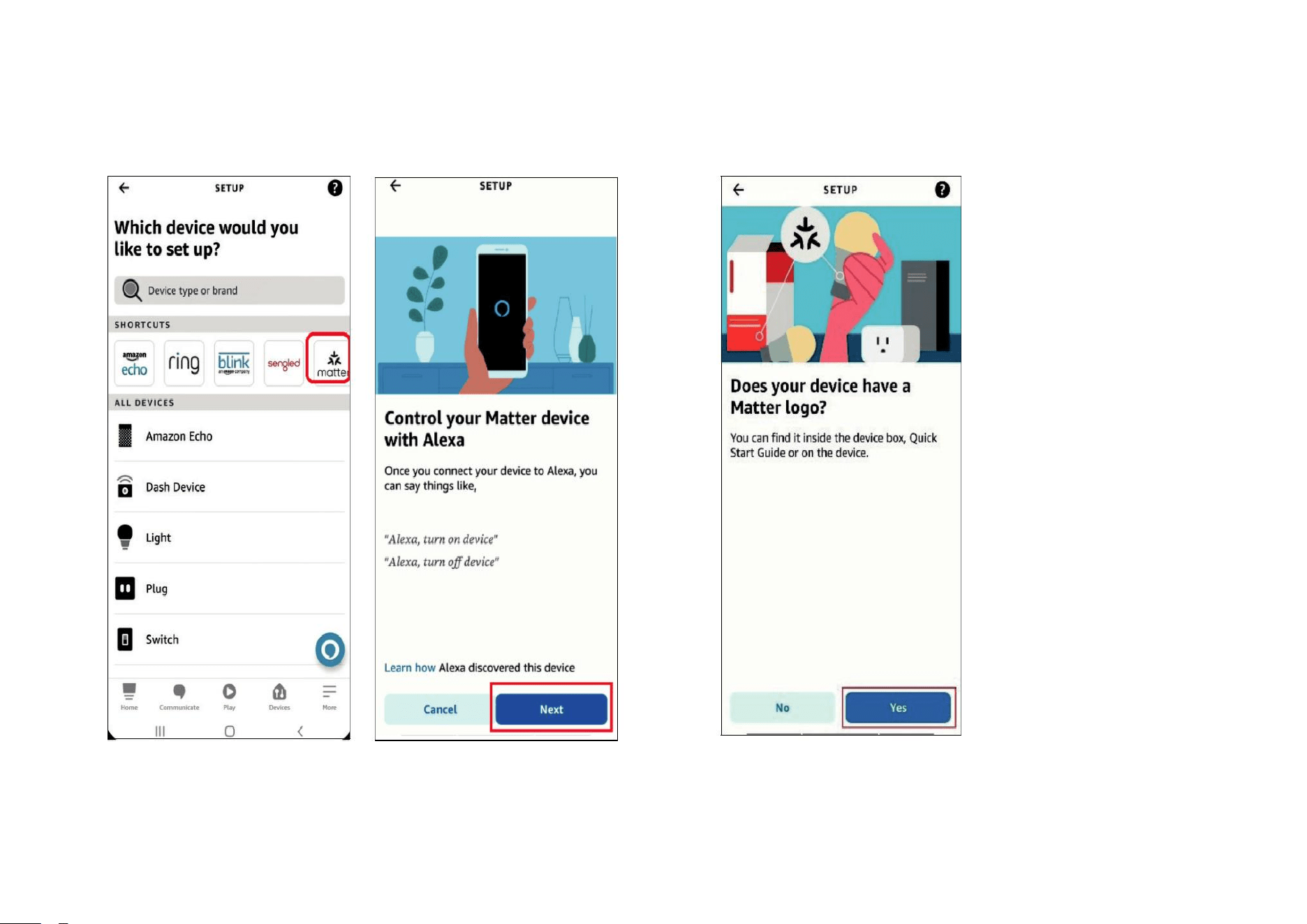
a. Launch the Alexa app and go to the Devices page.
b. Tap + and then tap Add Device to add a new device.
10
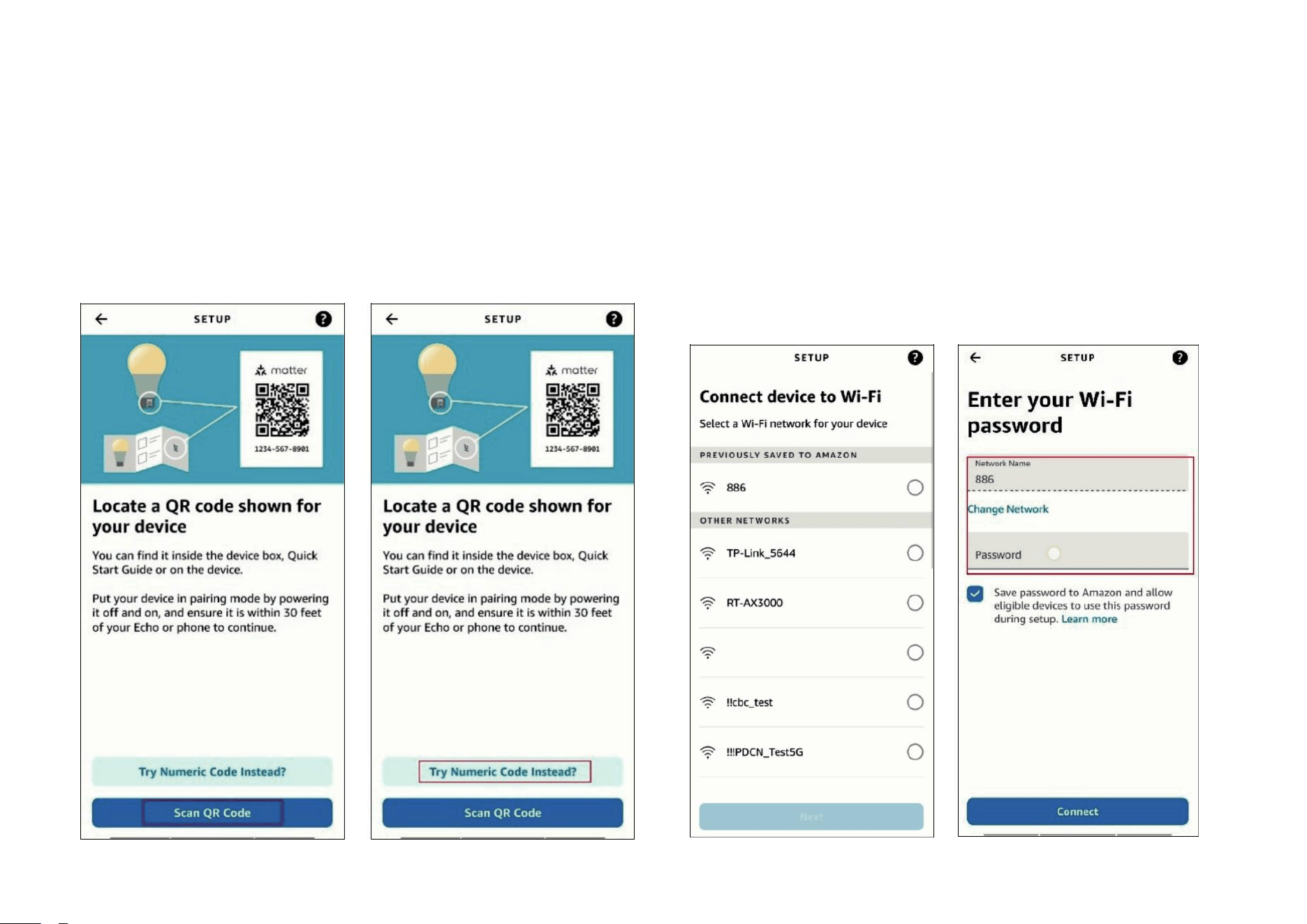
c. Choose Matter and then tap Next on the following pages. d. Tap Yes on the confirming page.
11
e. Tap Scan QR Code and scan the QR Code.
Alternatively, you can tap Try Numeric Code Instead? to enter the
numeric setup code that comes along with your device(you may
find the 11-digit code in manual as well).
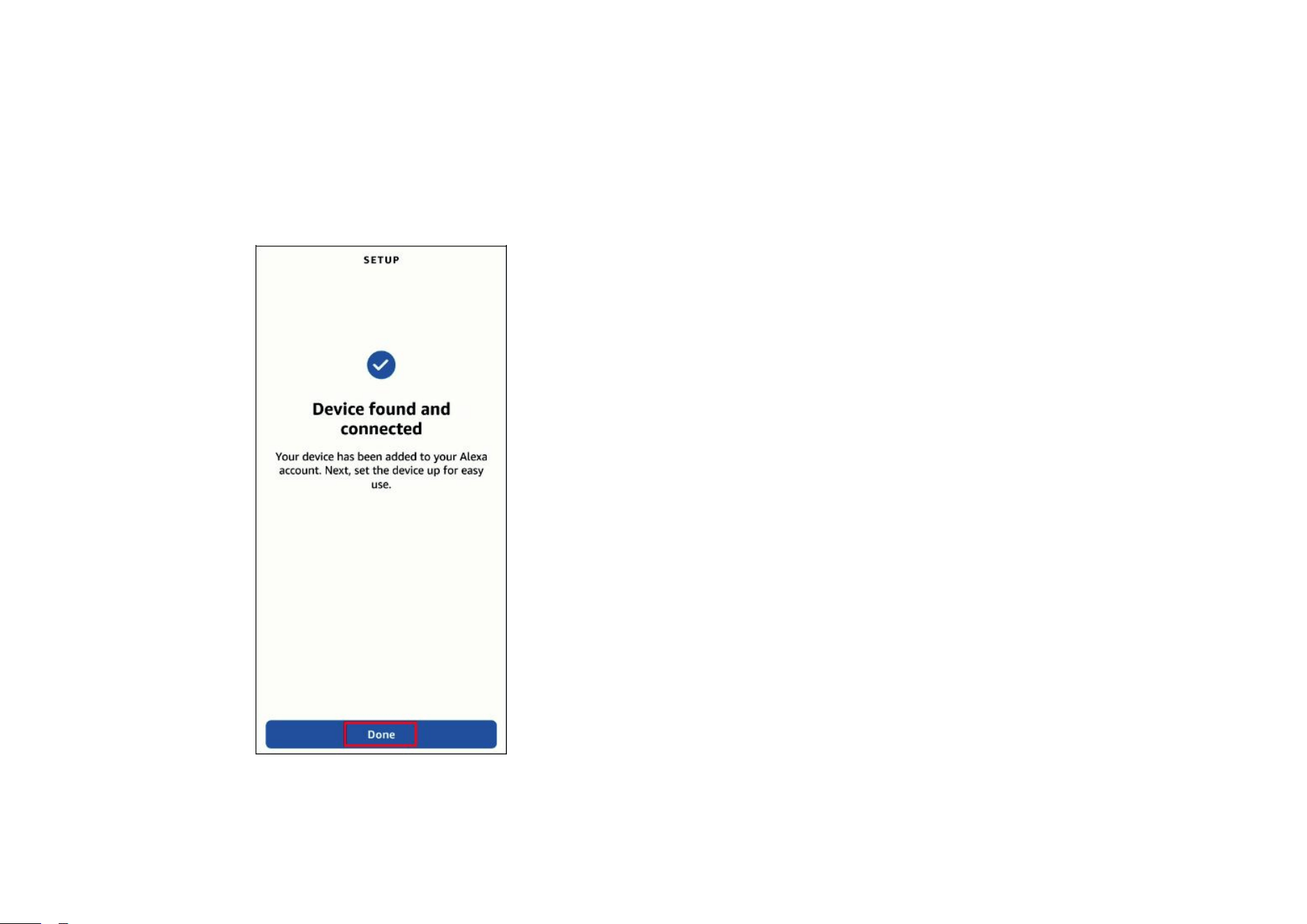
f. Wait for your device to set up, then choose the Wi-Fi you
want your device to connect to and enter the corresponding
Wi-Fi password.
(Note:Please ensure you are using the 2.4GHz SSID of the
same router as the Echo speaker)
12
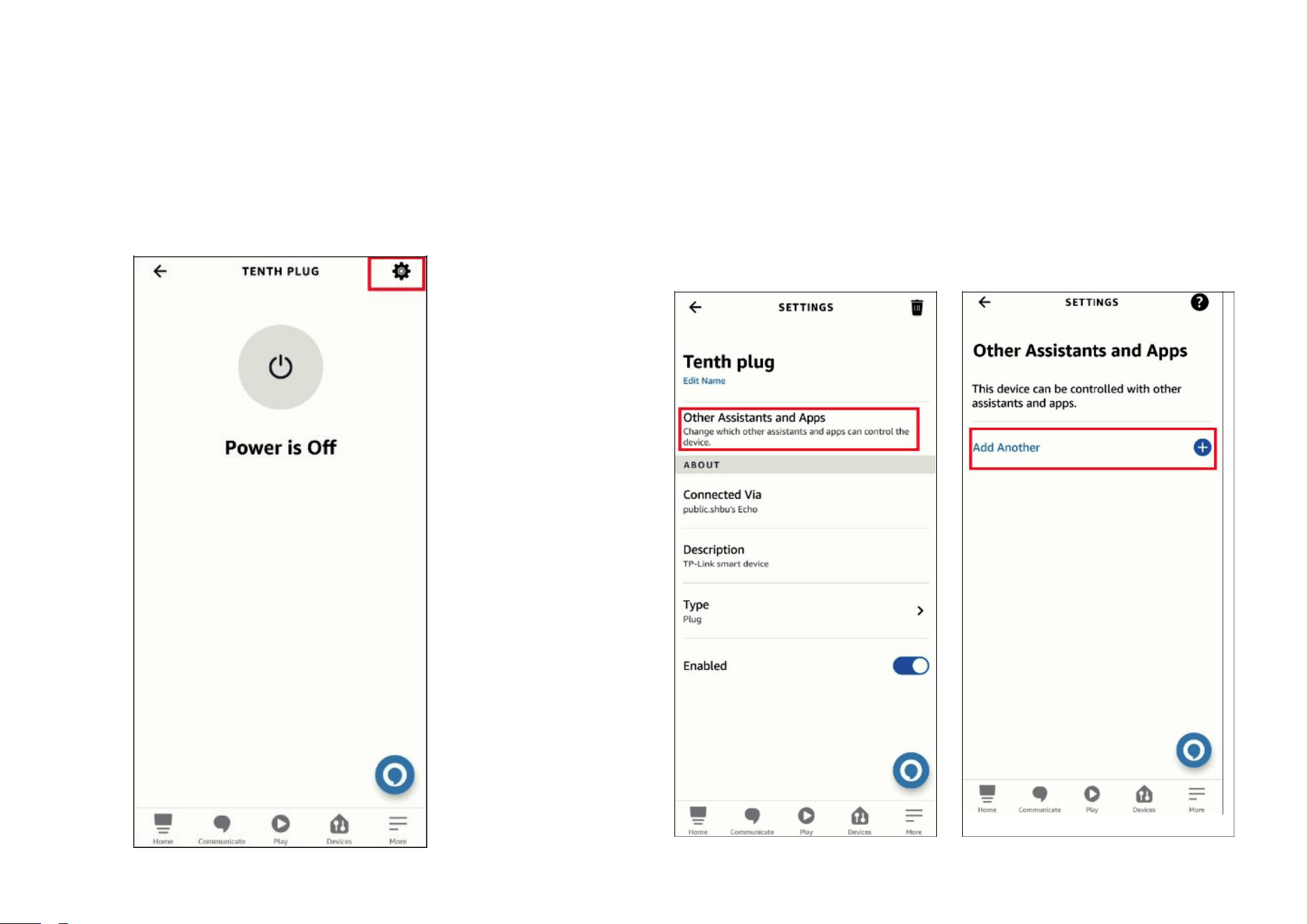
g. Tap Done. Now you can find your device on the Device list and use your
voice to control your device.
13
3. How to Integrate Your Device into Another Ecosystem
As the setup code can only be used to add the device to the first ecosystem, for the second commissioning, you need to open the app of
the first ecosystem to generate a new setup code.
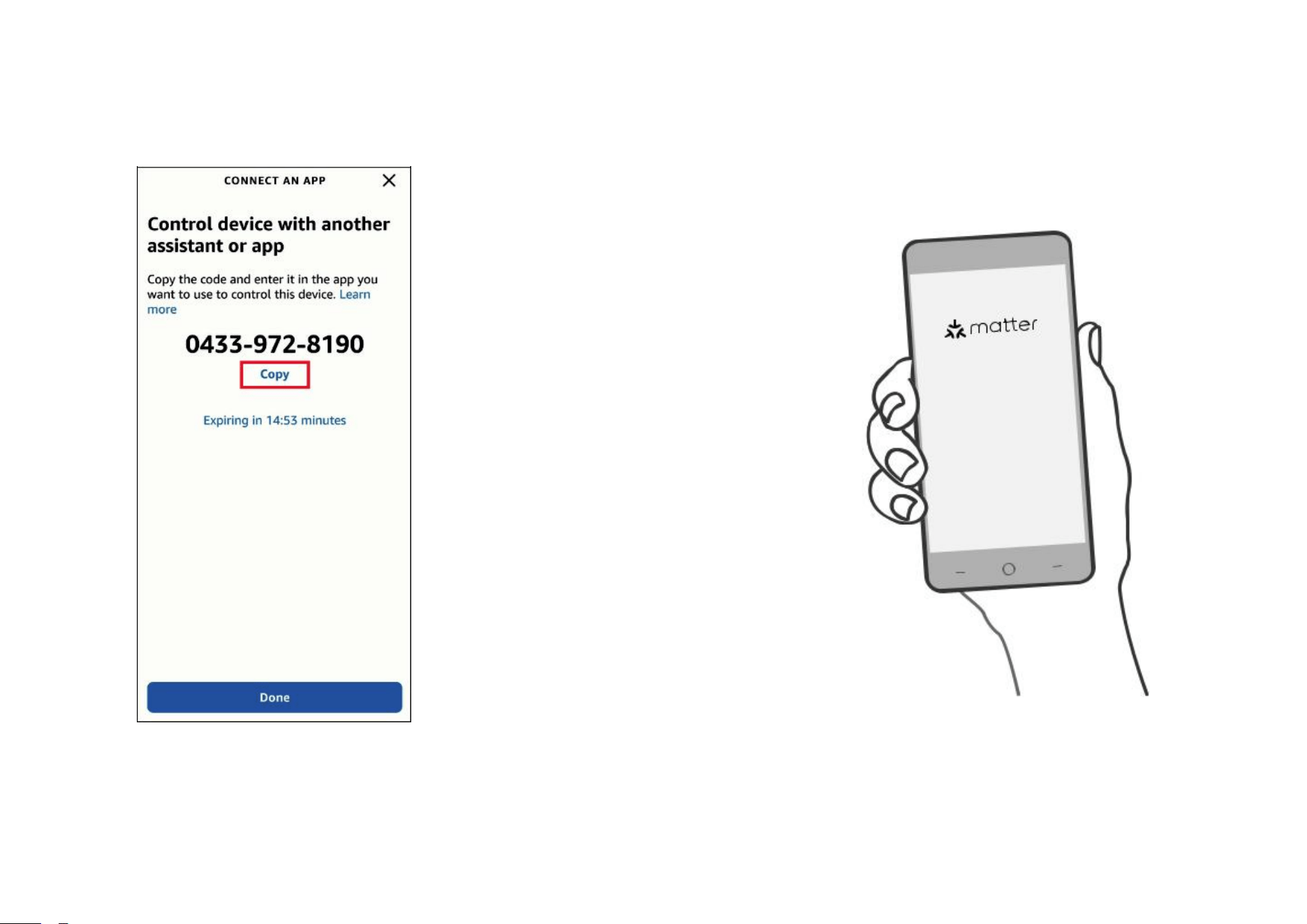
a. Launch your Alexa and go to the device Settings page.
b. Tap Other Assistants and Apps and then tap Add Another to
create an 11-digit setup code.
14
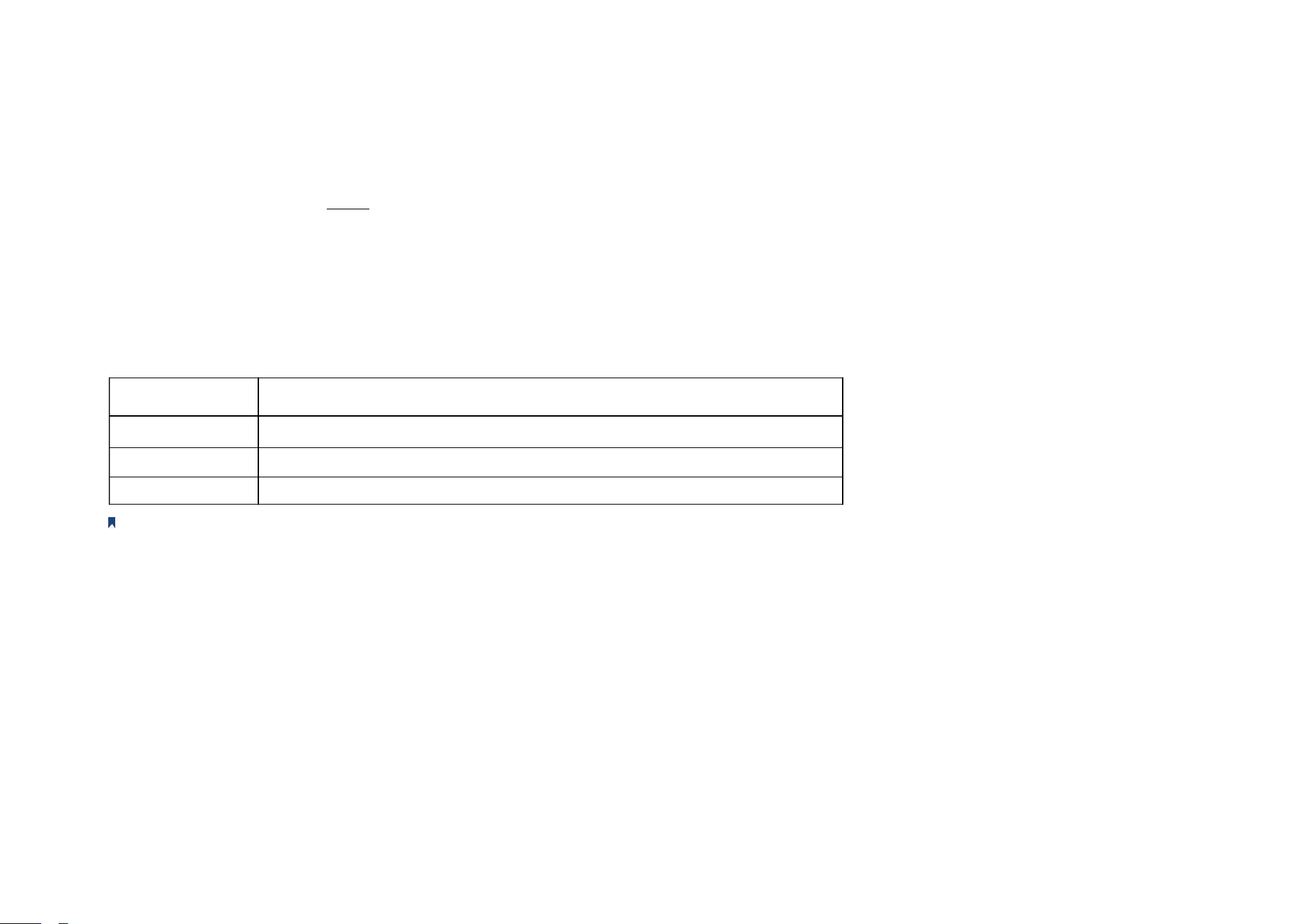
c. Copy the setup code.
d. Launch the app of the second ecosystem. Follow the setup
instruction to enter the setup code and follow the app instructions
to complete the setup.
15
2. Add to Google Home via Matter
1.Check Compatibility (Click here for more information)
Google Home App:
Android: 3.3.1.4 or later
IOS: 3.3.104 or later
• Matter-supported Controller:
Device
Version
Wi-Fi Routers
Nest Wi-Fi Pro (Wi-Fi 6E)
Speakers
Google Home, Google Home Mini, Nest Mini, Nest Audio
Displays
Nest Hub (1st gen), Nest Hub (2nd gen), Nest Hub Max
Note: Please update the software/firmware of your controller devices to a compatible version, such as v1.56.324896 for Google Nest Hub (2nd gen)
16
2. How to Set Up Your Matter Device
Note: The pairing mode of your Matter-certified device will automatically turn off in 15 minutes. You can turn the pairing mode back on by restarting your
device, such as unplugging your plug.
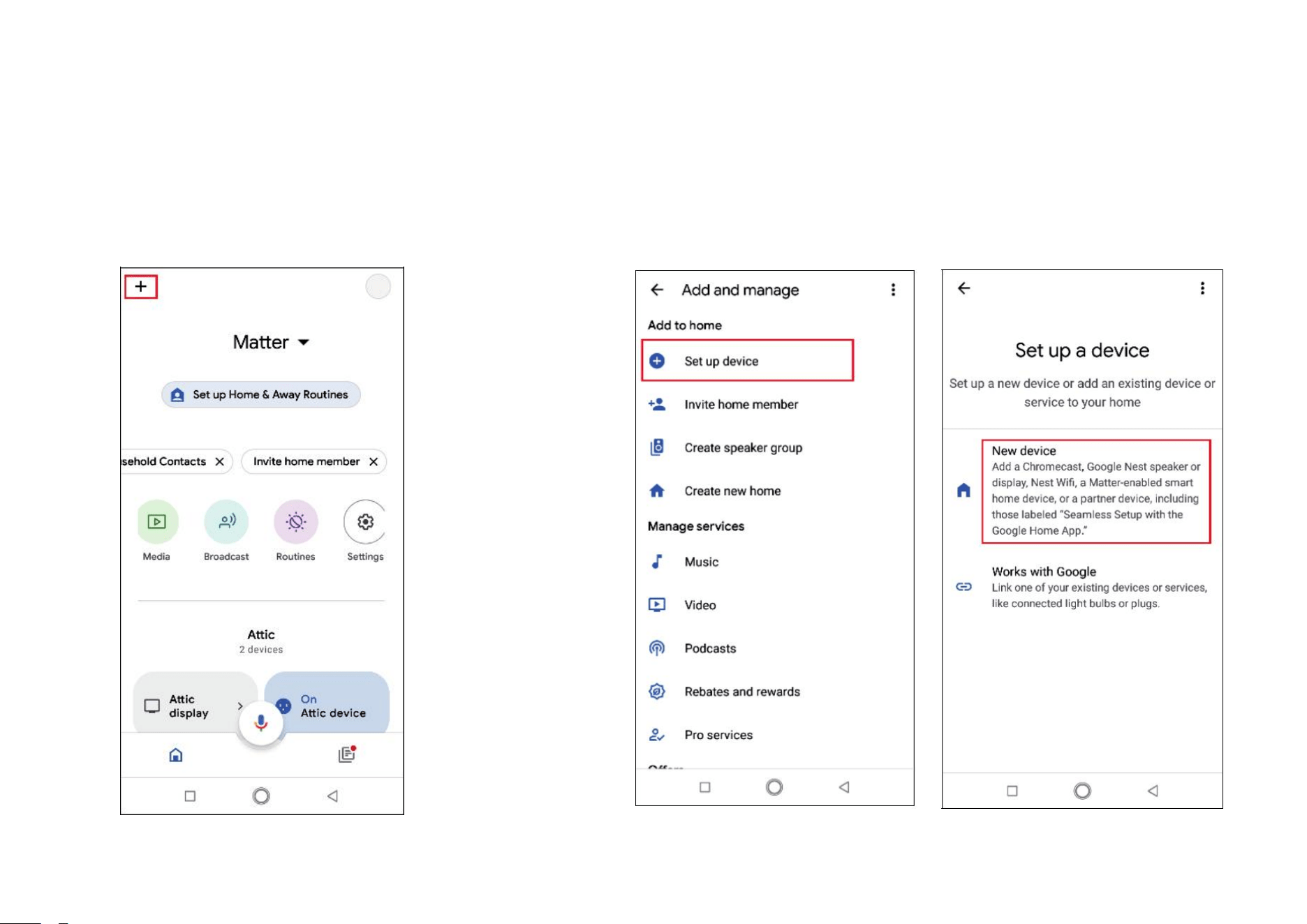
a. Launch your Google Home App and tap +. b. Choose Set up device and tap New Device to add a new device.
17
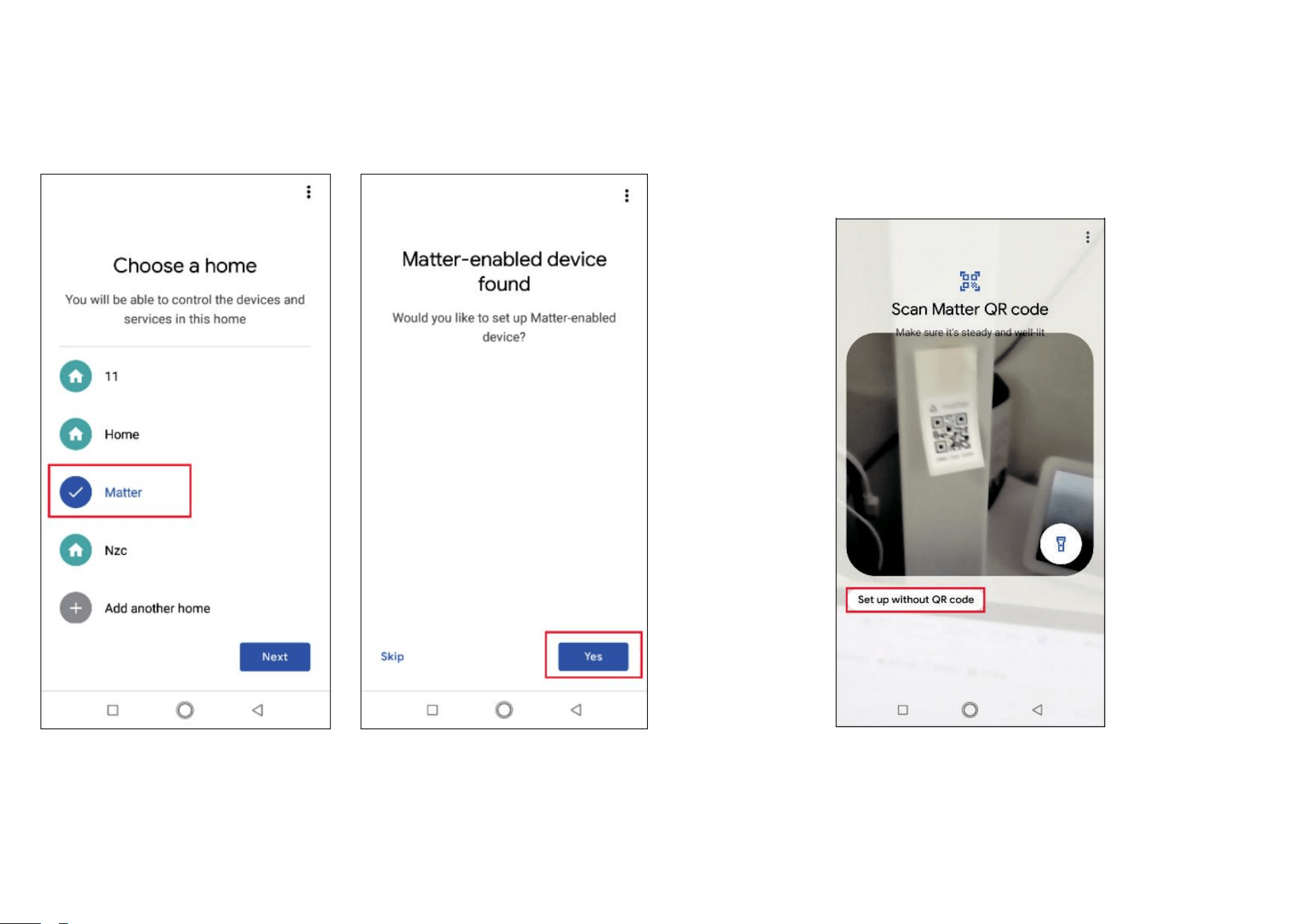
c. Choose Matter and tap Yes on the conforming page.
d. Scan the setup QR code on your device. If your device comes
without a QR code but a numeric code, you can tap Set up without
QR code and enter the numeric code.
18
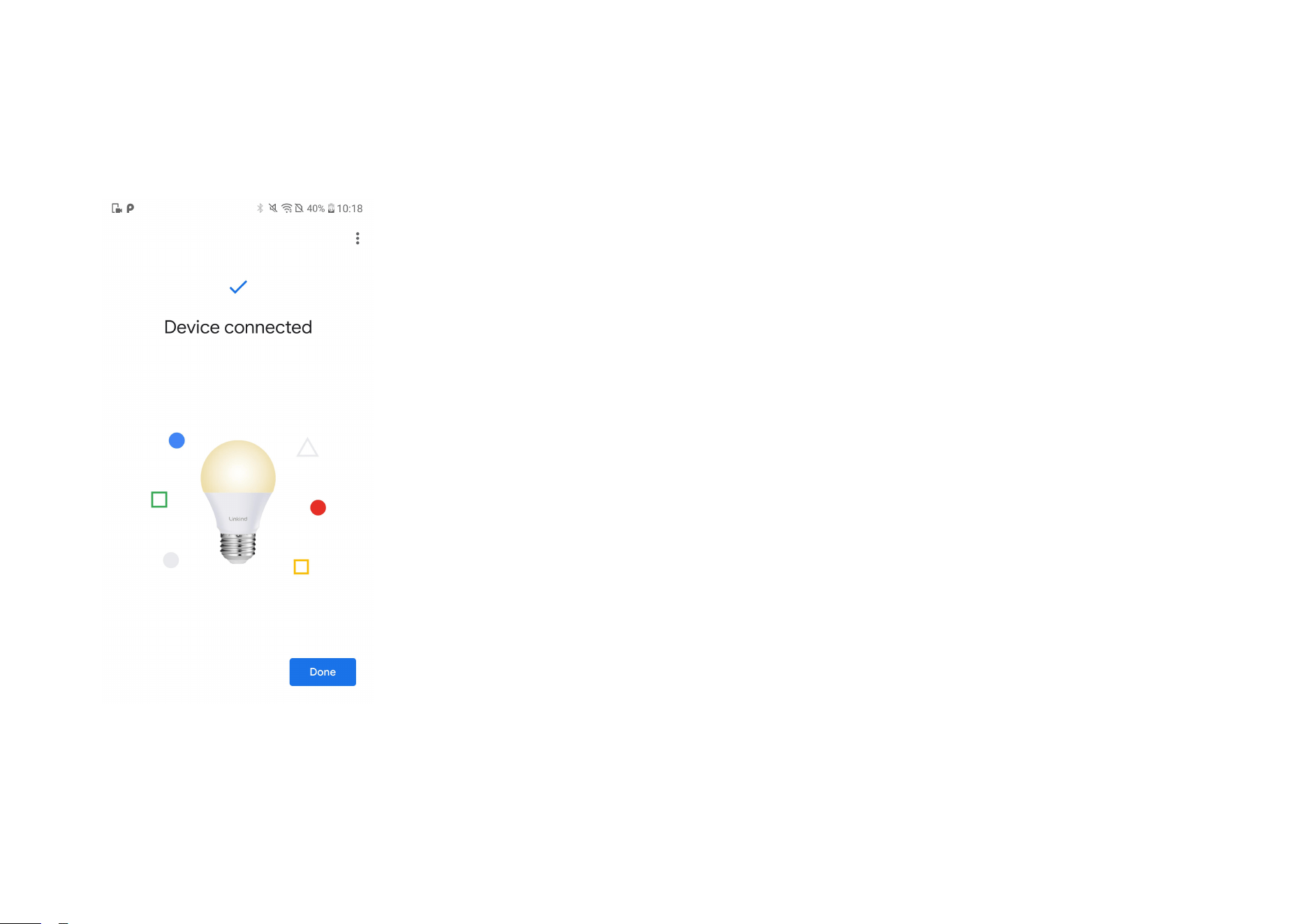
e. Tap Done when the device is connected.
19
3. How to Integrate Your Device into Another Ecosystem
As the setup code can only be used to add the device to the first ecosystem, for the second commissioning, you need to go to the app of
the first ecosystem to generate a new setup code.
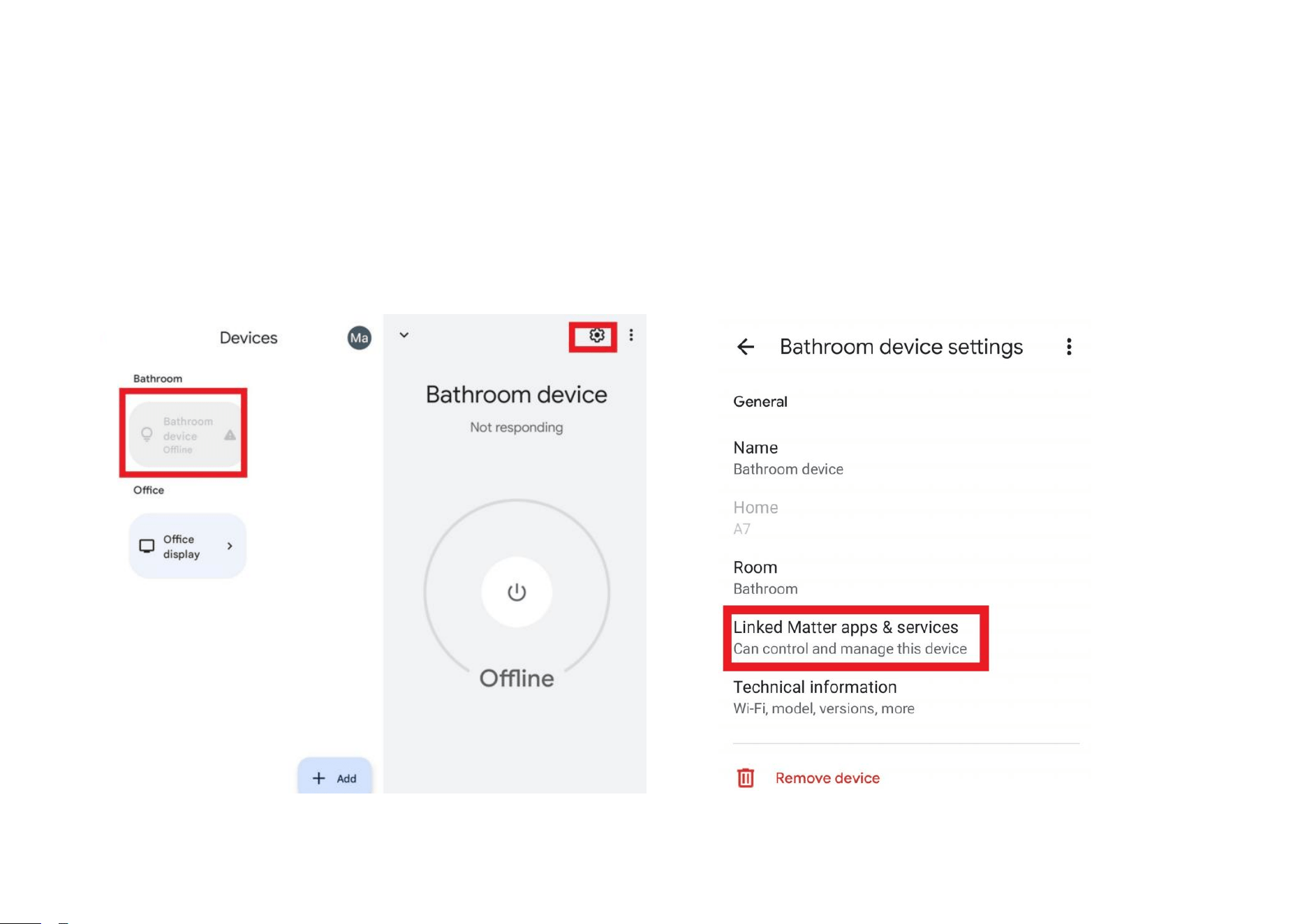
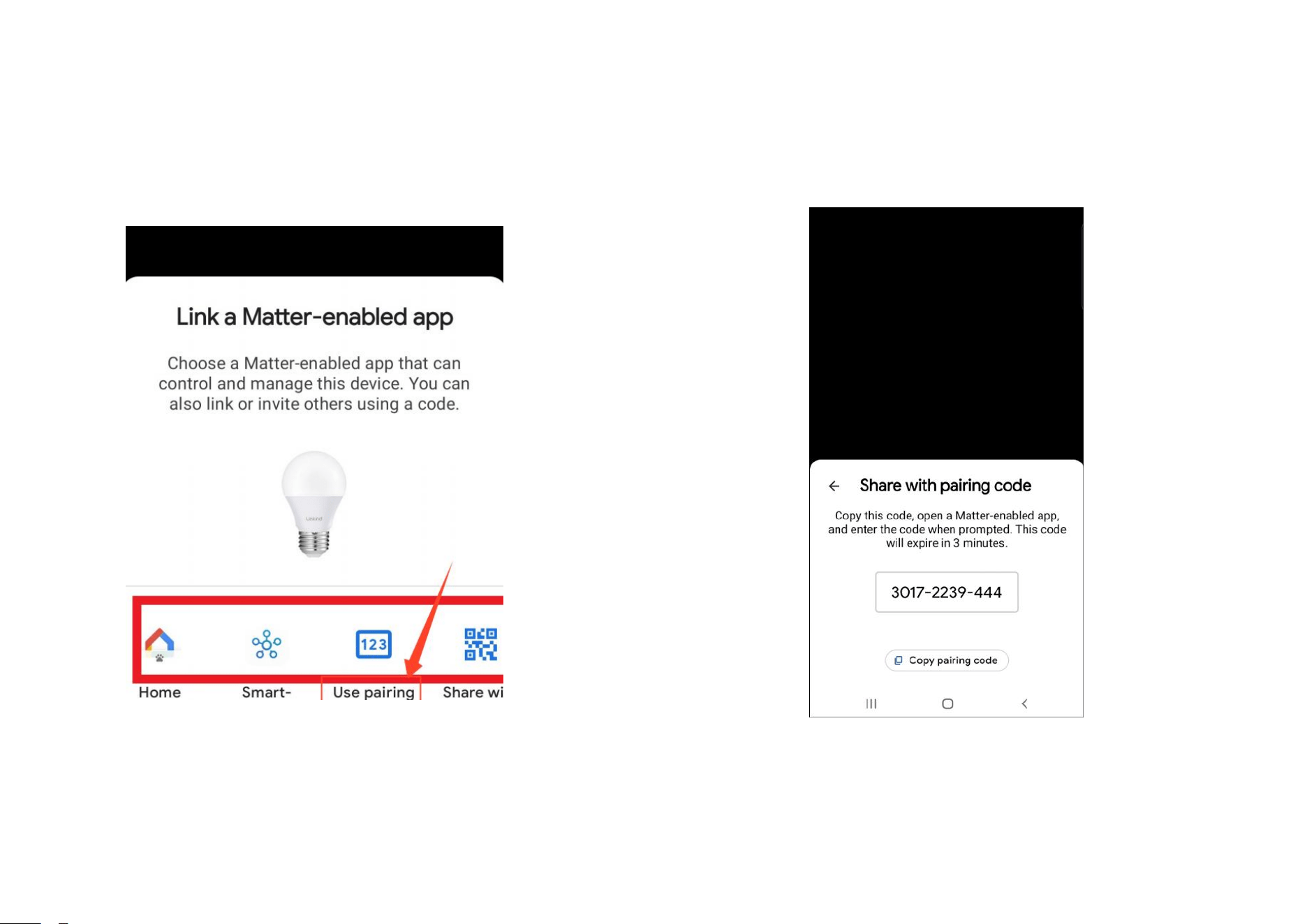
a. Launch your Google Home app. Tap the gear button to go to the
device settings page.
b. Tap Linked Matter apps & services and then tap Link apps &
services to create an 11-digit setup code.
20
c. Tap Use pairing code. d. Tap Copy pairing code to copy the new code. If conditions permit, you can
alternatively tap Share with QR code and you should use the other mobile device to scan the newly-created
pairing QR code.
21
d. Launch the app of the second ecosystem. Follow the setup instruction
to enter the setup code and follow the app instructions to complete the
setup.

22
3. Add to Apple Home via Matter
1.Check Compatibility
• iOS system: Version 16.6 or later.
• Matter-supported Controller: Home Pod, Home Pod mini, or Apple TV.
Note: Please update your iOS devices to iOS 16.6 or a later version. It is recommended to update your iOS to the latest version for better experience。
23
2. How to Set Up Your Matter Device
Note: The pairing mode of your Matter-certified device will automatically turn off in 15 minutes. You can turn the pairing mode back on by restarting your
device, such as unplugging your plug.
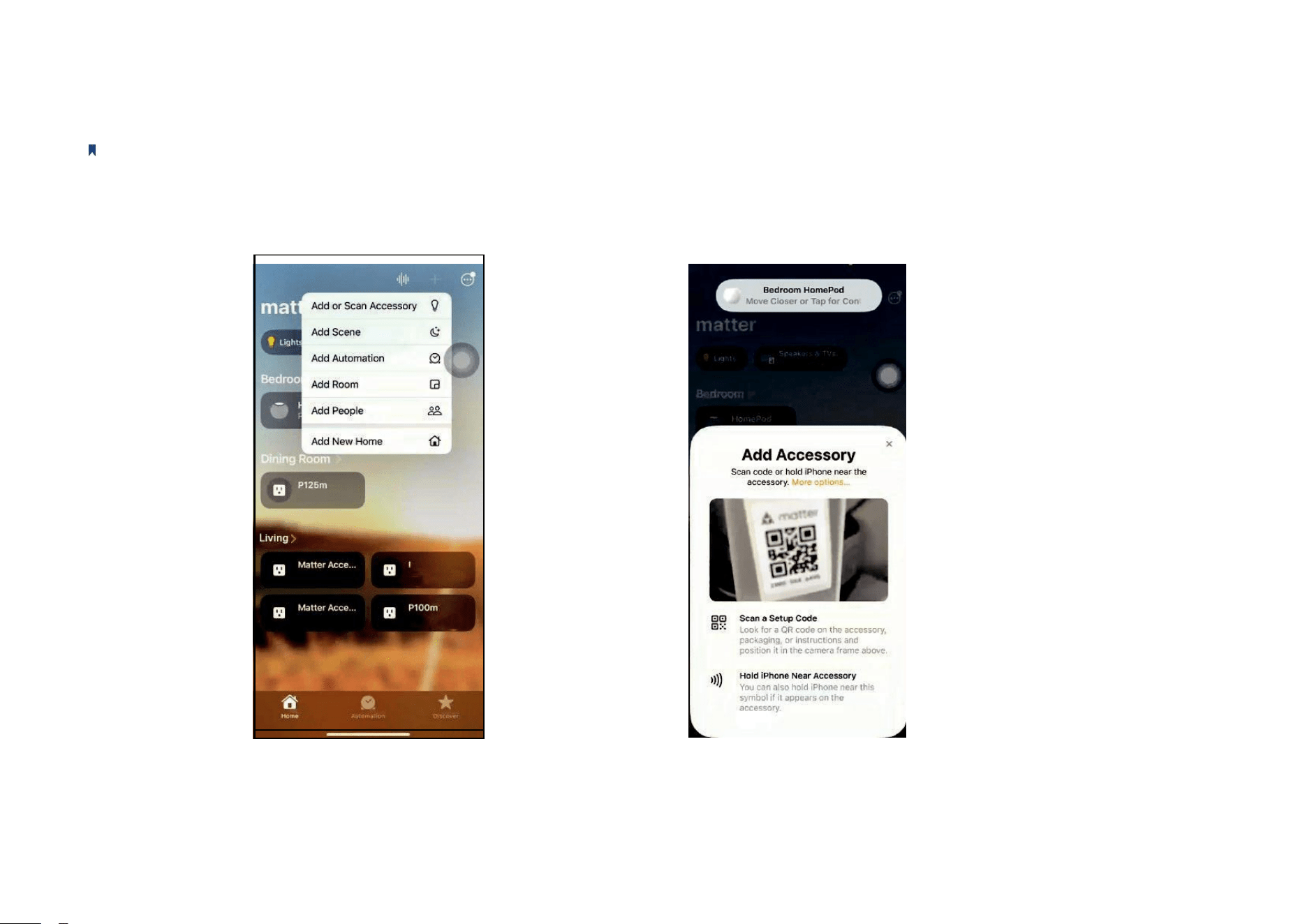
a. Launch your Home App. Tap + and then tap Add or Scan
Accessory to add a new device.
b.Scan the setup QR code on your device
24
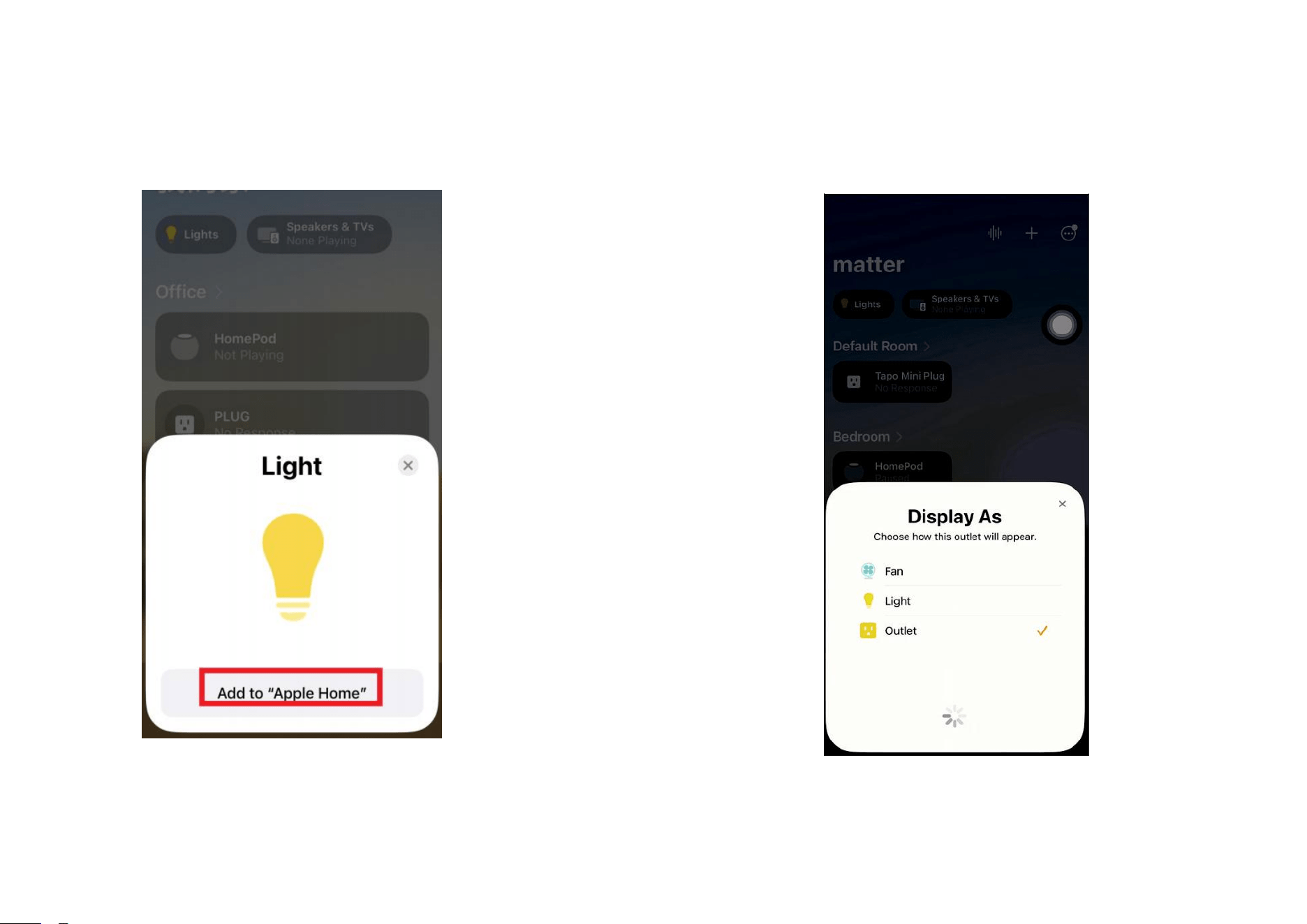
c. Choose a location for your device and give it a name.
d. Choose how your device will appear. Now you can check your
device on the Device list and turn on/off your device on the Home
app.
25
3. How to Integrate Your Device into Another Ecosystem
As the setup code can only be used to add the device to the first ecosystem, for the second commissioning, you need to go to the app of
the first ecosystem to generate a new setup code.
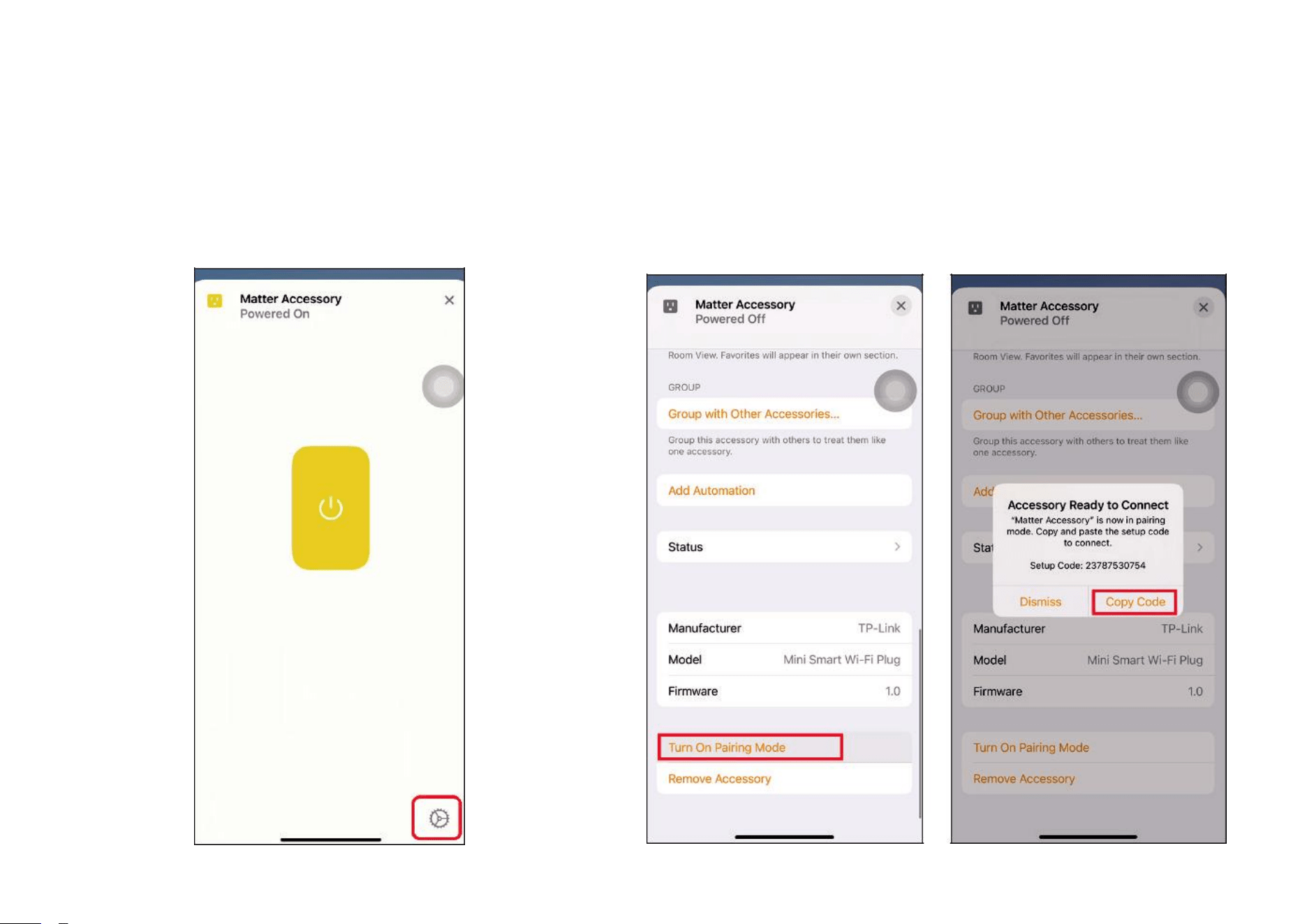
a. Launch your Home app and go to the Device Settings page. b. Scroll down, tap Turn On Pairing Mode and then Copy Code.
26
c. Launch the app of the second ecosystem. Follow the setup instruction
to enter the setup code and follow the app instructions to complete the
setup.

27
4.
Add to SmartThings via Matter
1. Check Compatibility
• Android device running SmartThings App version 1.8.01.22 or higher. iOS device running SmartThings App version 1.7.02.16
• Matter-supported Controller: SmartThings Hub v3, SmartThings Hub v2
Note:
Please update your iOS devices to iOS 16.2 or a later version. It is recommended to update your iOS to the latest version for better experience.
Need to confirm whether it is added to "iCloud Account" first, and then added to SmartThings App.
2. How to Set Up Your Matter Device
Note: The pairing mode of your Matter-certified device will automatically turn off in 15 minutes. You can turn the pairing mode back on by restarting your
device, such as unplugging your plug.
28
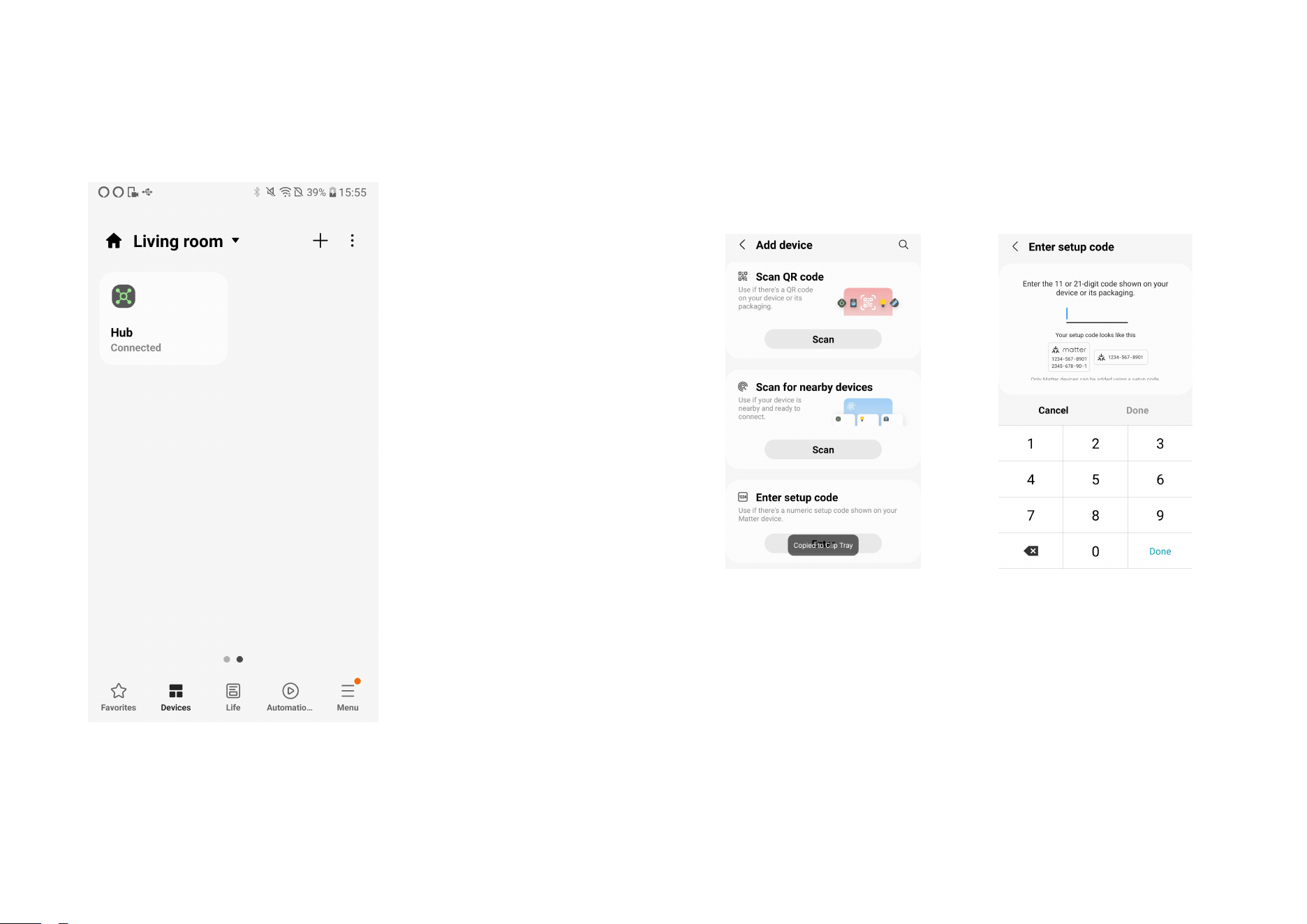
a. Launch your SmartThings APP. Click the device in the
bottom then Tap + and then tap Add device to add a new
b. Scan the setup QR code on your device,Or you may choose
“Enter” to input the 11 digit code as well
29
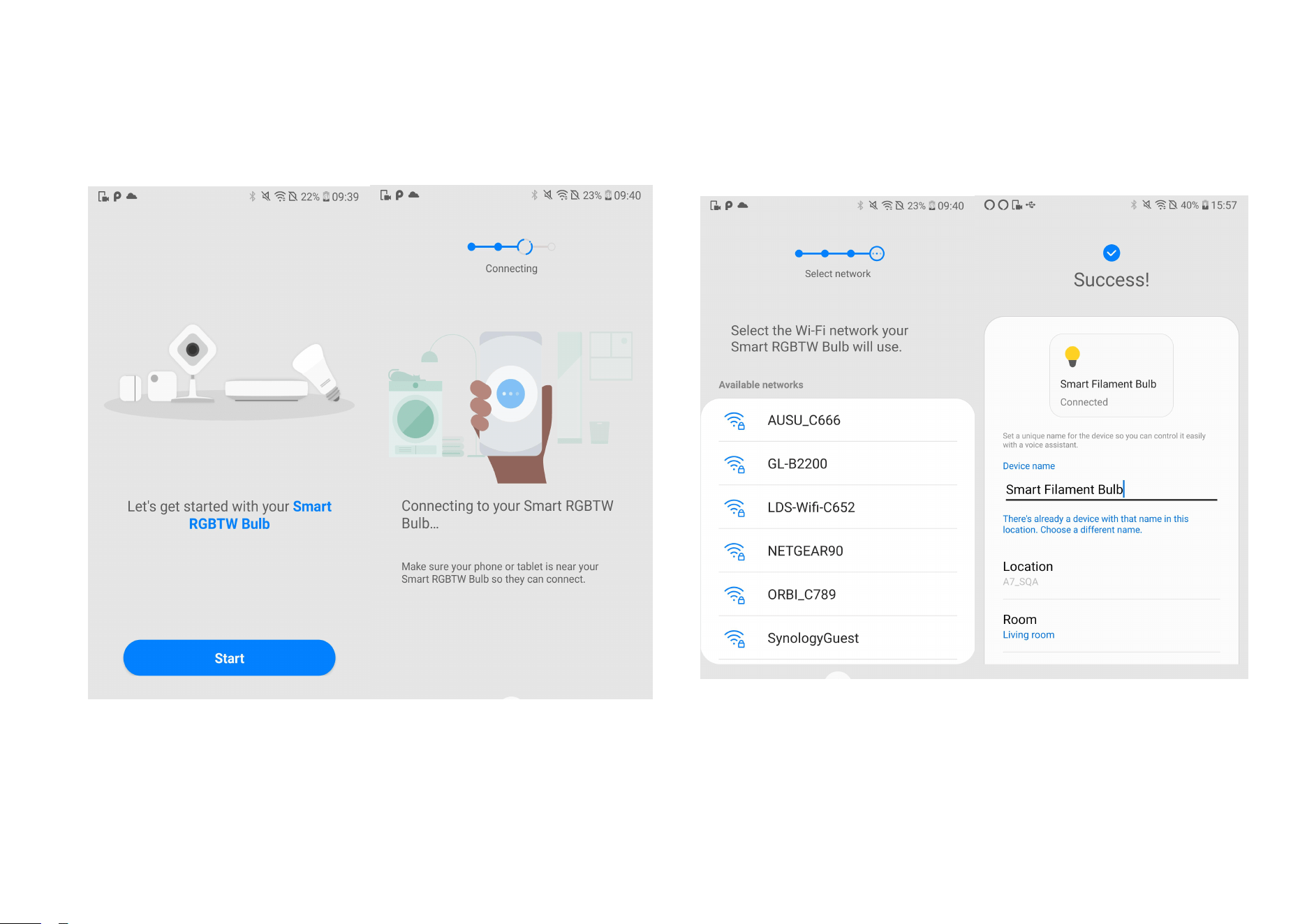
c. Click “start” to add a device.
d. Choose the network and input the correct Wi-Fi password, then
name the device
30
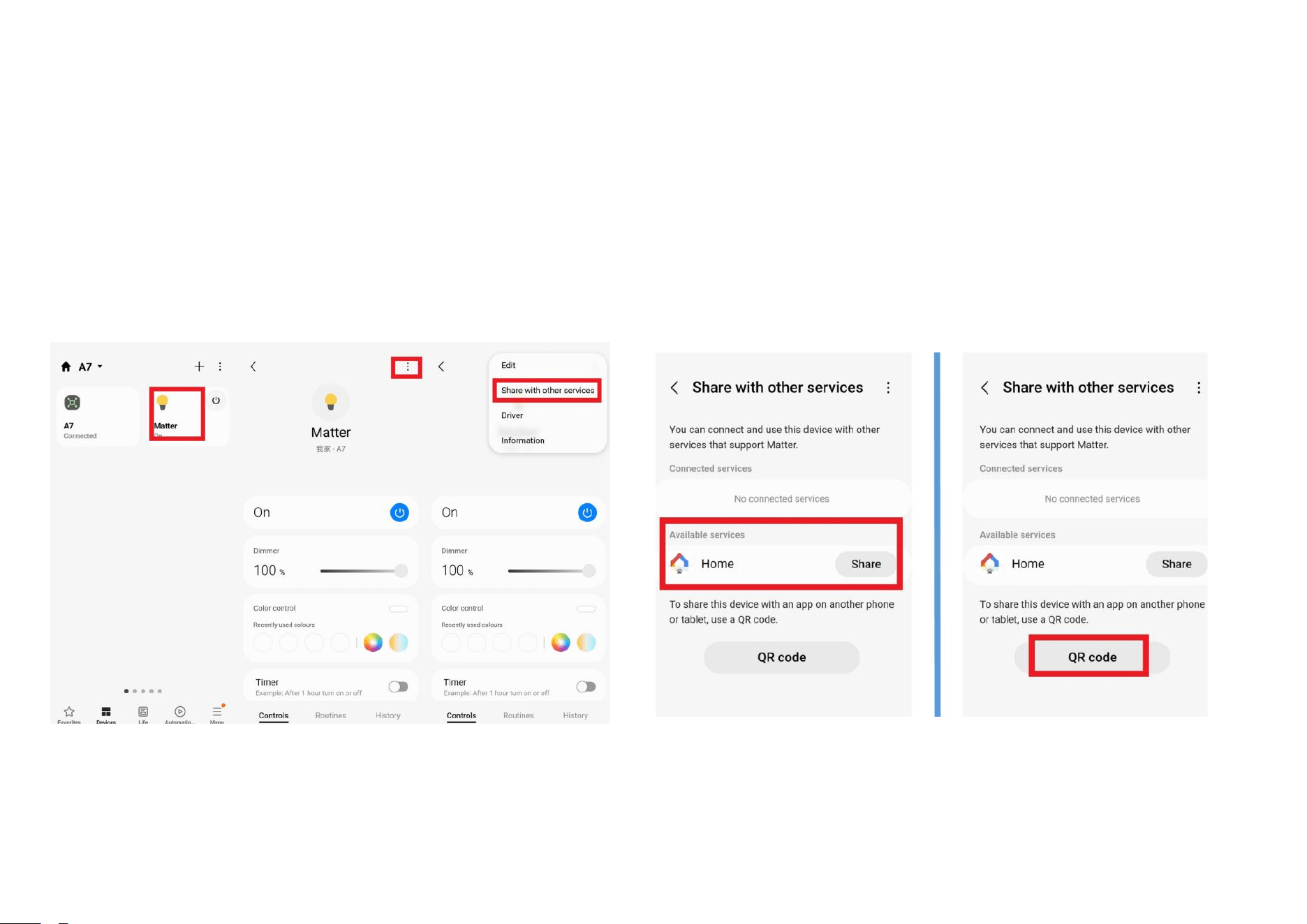
3. How to Integrate Your Device into Another Ecosystem
As the setup code can only be used to add the device to the first ecosystem, for the second commissioning, you need to go to the app of
the first ecosystem to generate a new setup code.
a. Launch your SmartThings app,
and click the device to enter the Device Settings page.
then click:Share with other services
b. Click on the another app that needs to be
shared to add automatically or get the QR Code
to add manually
31
c. Launch the app of the second ecosystem. Follow the setup instruction
to enter the setup code and follow the app instructions to complete the
setup.
32
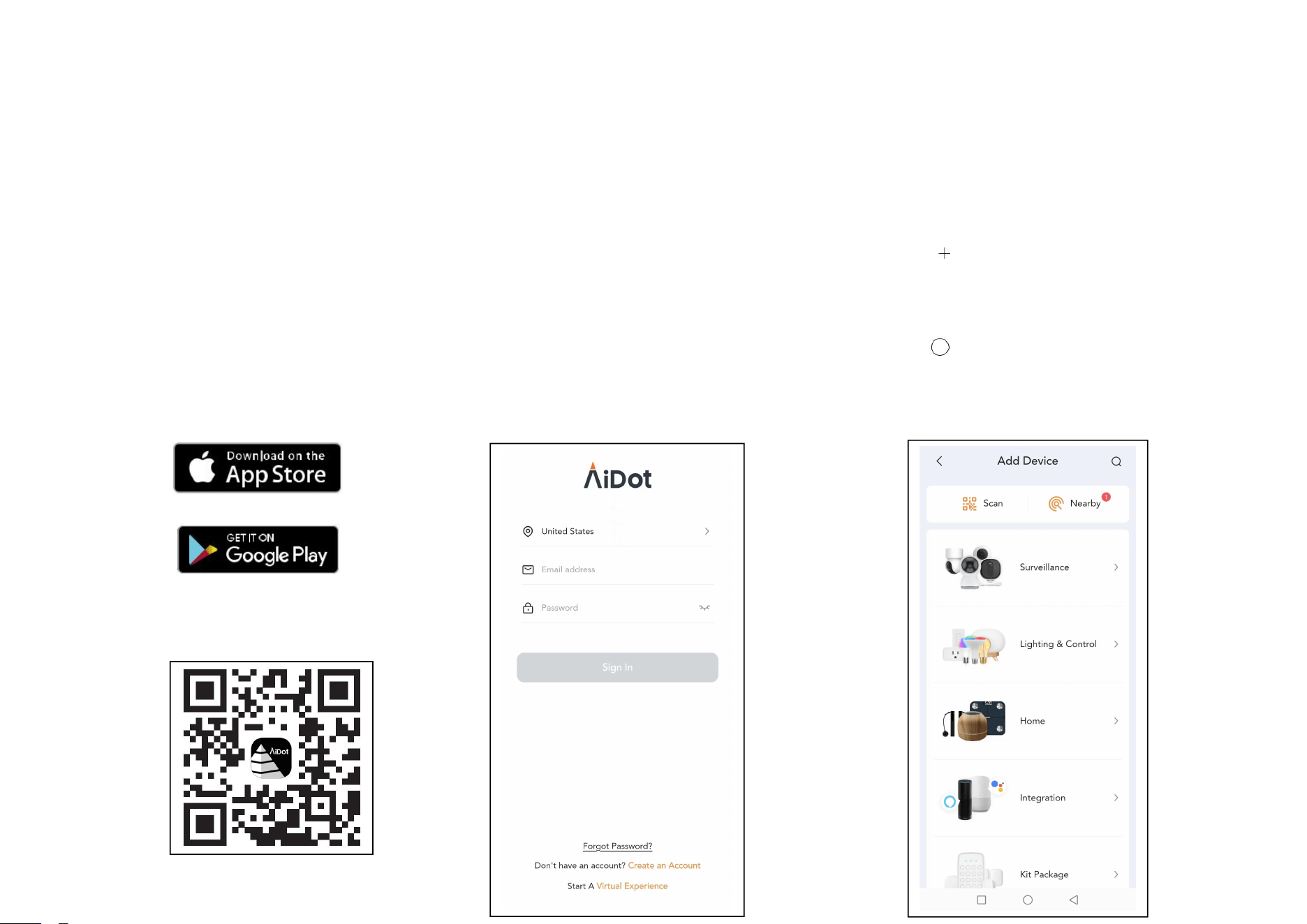
5. Add to AiDot APP(compatible with Alexa, apple home & SmartThings)
Follow the steps below to get started with your Matter bulbs
Step 1. Download AiDot App Step 2. Log In Step 3. Add Your Bulbs
Get the AiDot app from the App
Store or Google Play, or by scanning
the QR code below.
Open the app, and log in with your AiDot
account.If you don't have an account,
create one first.
Tap the button in the AiDot app,
choose Lighting & Control, and select
your model such as Matter light Bulbsl.
Follow the instructions in the AiDot app
to complete the setup. Then
Click”Aidotor” to go into Integration
Page.
OR

33
Frequently Asked Question
1.
Q:Scan code prompt error / no response
A:Please confirm whether the App software version meets the minimum version requirements.
2.
Q:Can't scan the QR code on the light
A:The QR code may not be scanned when the device is turned on, you can try to scan the QR code on the instruction manual.
3.
Q:Prompt that the device cannot be found
A:
a.Network distribution for the first time (the device is in the factory state): please power on the device again, and confirm that the device is in the factory state.
Confirm that the power-on time does not exceed 15 minutes.
b.Multi-ecological distribution network (the device has been configured and shared with other hub/apps): please confirm that all devices are in the same
office
In the local area network (connected to the same router), and the device pairing mode has been turned on (see the above Share to other ecology
step).
4.
Q:Failed to add device
A:
a.Please confirm that the mobile phone using the App is connected to 2.4GHz WiFi and the hubs (controllers) is also connected to the same router
Down.
b. You can try to restart the hubs, App or mobile phone.
5.

34
Q:Device shows offline
A:
a.Please try controlling the device to see if it responds normally
b.If the device does not respond, please try to power on the device again, and wait for 2 minutes to check whether the device is back online.
6.
Q:How to reset the device
A:
a.Continuously switch equipment 6 times, each power-on time does not exceed 2 seconds. After the reset is successful, the device will display the light
effect R-G-B-W-W.
b.After resetting the device, the device will still be displayed on the App.
7.
Q:The device name is inconsistent with what I set
A:
a. Do not restart the device while adding the device.
b. After adding, please wait for data synchronization or manually refresh to view.
8.
Q:Appears offline after adding a device
A:The network may be unstable, you can try to manually refresh.
9.
Q:The state of the app in the device control process jumps
A:We are currently working with Apple to resolve this issue.
10.
Q: How to get support?
A: Email: service@linkind.com Support Phone: 1-877-770-5727(Mon-Fri PST 9:00am-5:00pm)