This easy-to-use guide provides essential information for quickly setting up ClassCast and offers practical
tips on how to optimise it, helping you to get the most out of ClassCast to enhance teaching and learning.
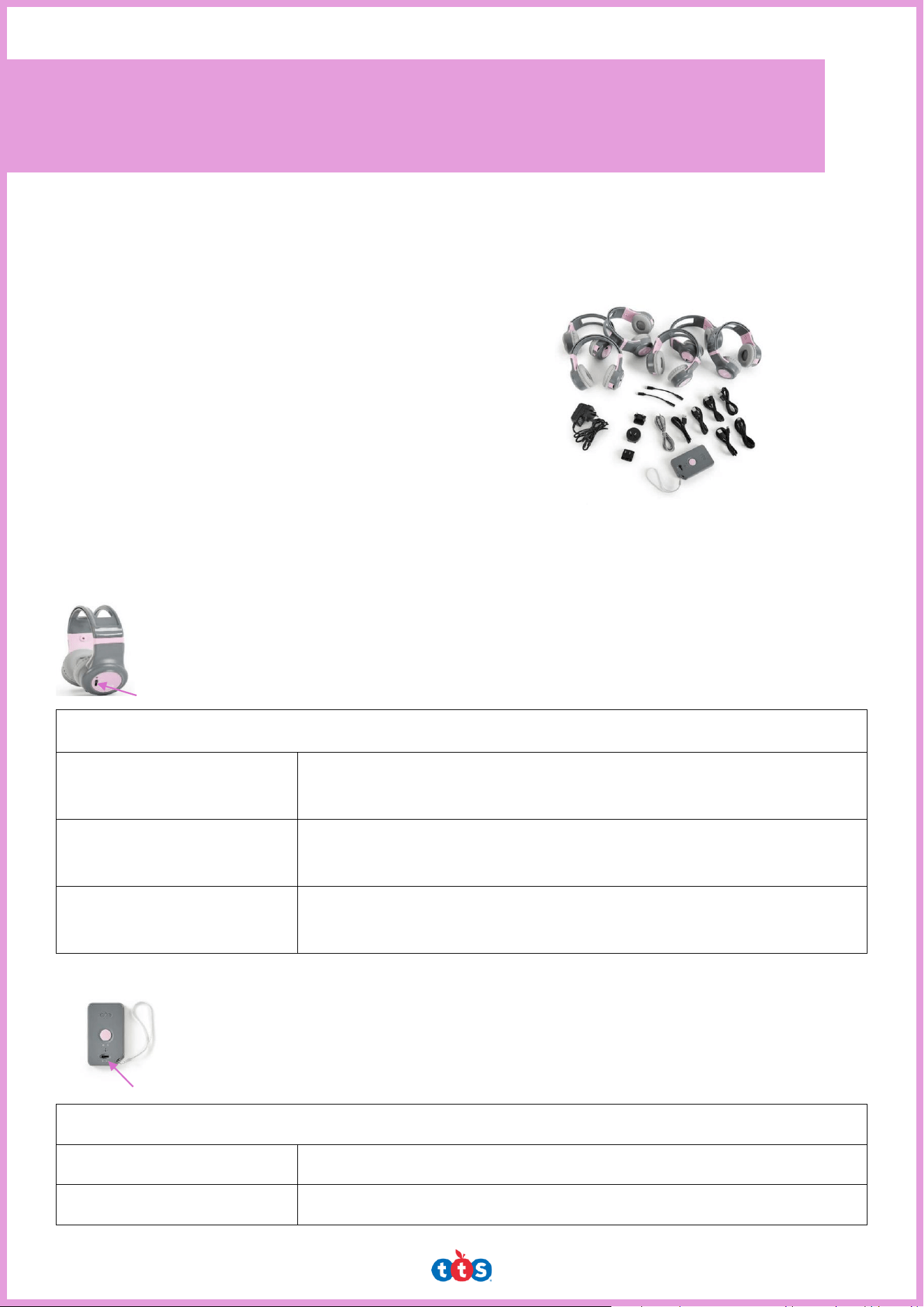
In Your Pack:
• 6 x headphones
• 6 x charging cables for each headset
• 1 x charging adapter plug
• 1 x docking station for the charging cables
• 1 x audio lead
• 1 x lightning adapter cable
• 3 x universal plug adapters
Getting Started with ClassCast – Basic Set-Up
Switching on the Headphones
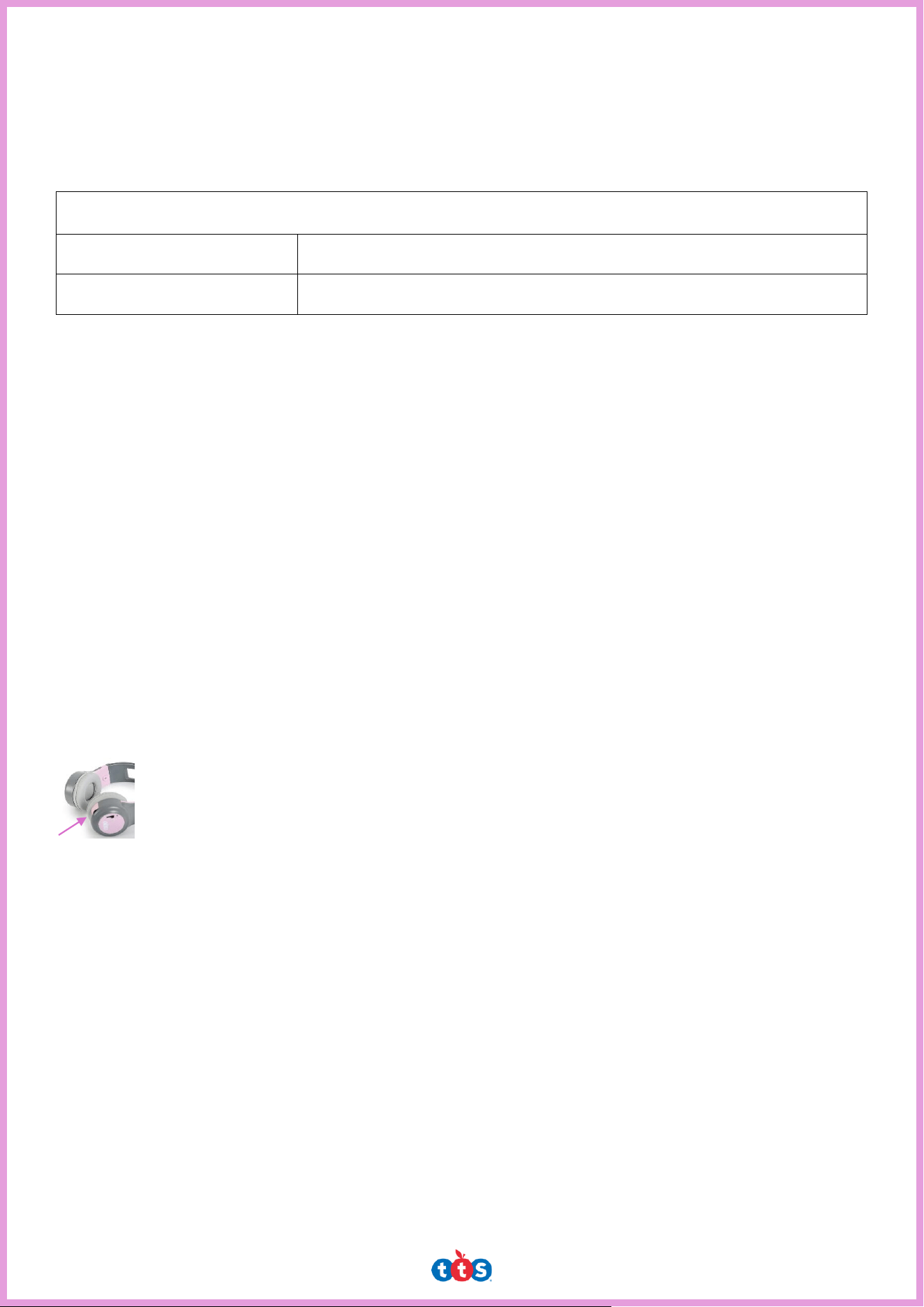
The headphones are simple to use. Sliding the switch on the side of the headphones from the
‘off’ position to either Channel A, B or C will turn the headphones on.
Headphone Status LEDs
Flashing Green Light
The headphones will ash green when they are turned on, have charge
and are not connected to the transmitter.
Flashing Red Light
If the battery is low, the headphones will ash red (see charging options
below).
Solid Green Light
The headphones will glow solid green if they have charge and are
connected to the transmitter.
Switching on the Transmitter
Sliding the switch on the transmitter from the ‘off’ position to either Channel A, B or C will
turn the transmitter on.
Transmitter Status LEDs
Solid Green Light
The transmitter is on and has enough charge.
Flashing Red Light
The transmitter battery is low (see charging options below).
ClassCast Teacher User Guide
Charging the Headphones and the Transmitter
To charge the transmitter (six-hour battery life) and up to six headphones (eight-hour battery life each),
use the charging cables to connect the devices to the docking station, then use the power adapter to
connect the docking station to a compliant mains electricity source.
Charging Status Indicators
Solid Red Light
The headphones and/or transmitter are charging.
Solid Green Light
The headphones and/or transmitter are fully charged.
Charging could take up to 8 hours, depending on how low the battery charge is.
For convenience and for best performance, it is good practice to charge the headphones either after each
use or at the end of each school day.
Using ClassCast
The Headphones
• One transmitter will work with up to 30 headphones and the range is up to 30 metres so children
can walk around with the headphones on.
• The number of children in a single group can vary from one up to 30, depending on the number of
headphones available.
• Children can simply slide the switch on their headphones to the channel that the teacher wishes
them to use. Or the teacher can select the desired channel for children on each set of headphones
prior to the lesson starting.
Headphones Volume Control
Each set of headphones has a volume control on the side which the children can adjust for
their individual needs.
The Transmitter
The function of the transmitter is to enable you to speak ‘live’ to headphone wearers via the button on the
transmitter.
Using the Transmitter to Talk to Children
• On your transmitter, simply slide the switch on the transmitter to the desired channel (A, B or C)
that a child or group of children are on. Then, hold down the button on the transmitter and speak
through the microphone (positioned below the two LEDs). Both a solid green and solid blue LED
light will glow while you are using the transmitter to talk to children using the headphones.
• You can use the switch on the transmitter to move between channels and talk to specic groups
with ease. Only the children on the selected channel will clearly hear what you say.

Using External Audio Sources
You can play audio from other devices by plugging in the transmitter and streaming it to the children’s
headphones.
• The audio lead can be used to connect the transmitter to any audio device (mobile phone,
computer, CD player etc) that has a 3.5mm headphone socket.
• The lightning adapter lead can be added to the audio lead for any audio devices that require a
lightning connector.
• Audio playing on the audio device will then transmit to the headphones, so long as the channel
selected on the transmitter is the same as the one selected on the headphones. The audio will only
be heard in the headphones with the channel set to the same channel as the transmitter.
Using the Transmitter to Talk to Children While Audio is Playing
• When audio is playing, press and hold the button on the transmitter to speak.
• This action will automatically pause the audio playback.
• Your voice will then be heard by the children wearing the receivers.
Important Notes:
• Pressing the transmitter button will pause any audio playing on a channel, even if you’re speaking
to a group on another channel who are not listening to audio.
• If you need to speak to one group without pausing the audio for another, see the ‘Using more than
one transmitter’ section below.
Using More Than One Transmitter
Transmitters will work with any of the ClassCast headphones, regardless of the set of headphones it came
with.
Having more than one transmitter offers more exibility in their usage and offers the following
advantages:
1. Listening to More Than One Audio File
Using more than one transmitter allows more than one group of children to listen to different audio –
up to three groups with three transmitters.
For example:
• Set a transmitter to Channel A and then connect it to an audio device.
• Set another transmitter to Channel B and then connect it to another audio device.
• Set the nal (third) transmitter to Channel C and then connect to a different/third audio device.
• Each transmitter will then stream the audio selected on the different devices to the selected
channels, enabling three groups of children to listen to different audio through their headphones.
2. Talking to Children on Other Channels Without Interrupting Audio on Another Channel
• The advantage of having more than one transmitter is if you wish to speak to children listening to
audio on one channel, it will not interrupt the audio of children listening on a different channel.
• Alternatively, if you just wish for one group or child to listen to audio, connect one transmitter to an
audio device and select a channel. Then use a second transmitter to talk to children on the other
two channels who are not listening to audio.
Basic Care and Maintenance
• Store ClassCast away from direct sunlight and heat when not in use.
• Keep away from water and other liquids.
• To clean, wipe the ClassCast with a damp cloth.
For further information and technical assistance, please visit our website.
For ideas for how to use Class Cast in the classroom, see our ‘15 Ways to Use Class Cast to
Enhance Learning and Development’.
We hope you enjoy using ClassCast!

FCC Statement:
This device complies with part 15 of the FCC Rules. Operation is subject to the following two conditions: (1) This device may
not cause harmful interference, and (2) this device must accept any interference received, including interference that may cause
undesired operation.
This equipment has been tested and found to comply with the limits for a Class B digital device, pursuant to part 15 of the FCC
Rules. These limits are designed to provide reasonable protection against harmful interference in a residential installation. This
Equipment generates,uses and can radiate radio frequency energy and,if not installed and used in accordance with the
instructions,may cause harmful interference to radio
communications.However,there is no guarantee that interference will not occur in a Particular installation.If thise quipment does
cause harmful interference to radio or television reception, which can be determined by turning the equipment off and on, the
user is encouraged to try to correct the interference by one or more of the following measures:
—Reorient or relocate the receiving antenna.
—Increase the separation between the equipment and receiver.
—Connect the equipment into an outlet on a circuit different from that to which the receiver is connected.
—Consult the dealer or an experienced radio/TV technician for help.
Caution: Any changes or modifications not expressly approved by the party responsible for compliance could void the user's
authority to operate the equipment.
This equipment complies with FCC radiation exposure limits set forth for an uncontrolled environment. This transmitter must
not be co-located or operating in conjunction with any other antenna or transmitter.

