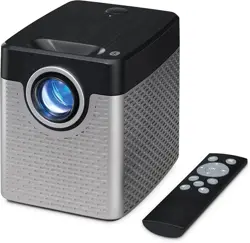
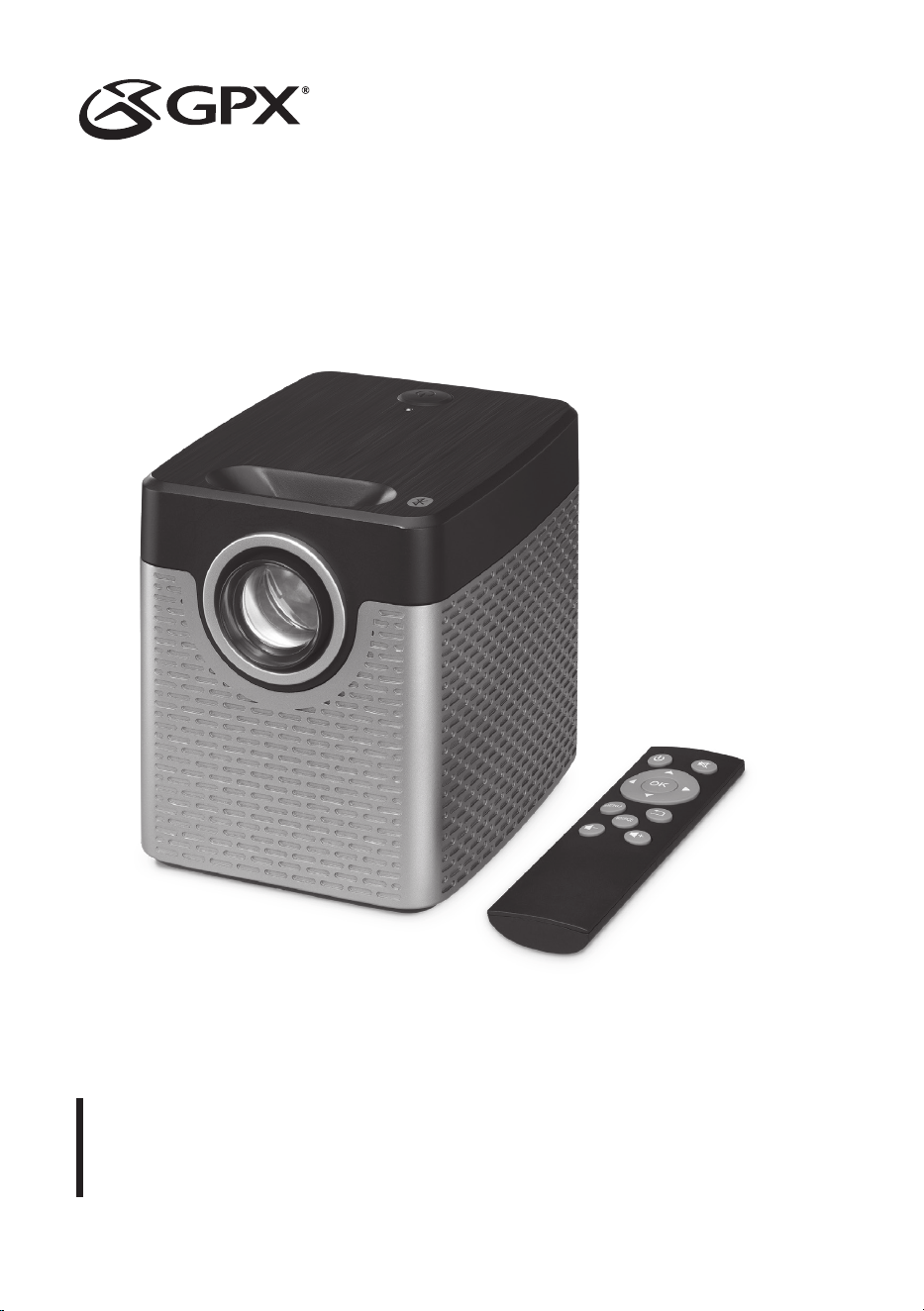
Movie+ Projector with Bluetooth
User’s Guide for Model PJ504 v3351-01
For the most up-to-date version of this User’s Guide, go to www.gpx.com

2
Important Safety Instructions
• Read these Instructions.
• Keep these Instructions.
• Heed all Warnings.
• Follow all instructions.
• Do not use this apparatus near water.
• Clean only with a dry cloth.
• Do not block any ventilation openings. Install in accordance
with the manufacturer’s instructions.
• Do not install near any heat sources such as radiators, heat
registers, stoves, or other apparatus (including ampliers)
that produce heat.
• Do not defeat the safety purpose of the polarized or
grounding - type plug. A polarized plug has two blades with
one wider than the other. A grounding type plug has two
blades and a third grounding prong. The wide blade or the
third prong are provided for your safety. When the provided
plug does not t into your outlet, consult an electrician for
replacement of the obsolete outlet.
• Protect the power cord from being walked on or pinched
particularly at plugs, convenience receptacles, and the point
where they exit from the apparatus.
• Only use attachments/accessories specied by the
manufacturer.
• Unplug this apparatus during lightning storms or when
unused for long periods of time.
• Refer all servicing to qualied service personnel. Servicing
is required when the apparatus has been damaged in any
way, such as power-supply cord or plug is damaged, liquid
has been spilled or objects have fallen into the apparatus,
the apparatus has been exposed to rain or moisture, does not
operate normally, or has been dropped.
• Use only with a cart, stand, tripod, bracket,
or table specied by the manufacturer, or
sold with the apparatus. When a cart is
used, use caution when moving the cart/
apparatus combination to avoid injury
from tip-over.
FCC Warnings
Warning: Changes or modications to this unit not expressly
approved by the party responsible for compliance could void the
user’s authority to operate the equipment.
NOTE: This equipment has been tested and found to comply
with the limits for a Class B digital device, pursuant to Part
15 of the FCC Rules. These limits are designed to provide
reasonable protection against harmful interference in a
residential installation. This equipment generates, uses, and can
radiate radio frequency energy and, if not installed and used in
accordance with the instructions, may cause harmful interference
to radio communications. However, there is no guarantee that
interference will not occur in a particular installation. If this
equipment does cause harmful interference to radio or television
reception, which can be determined by turning the equipment off
and on, the user is encouraged to try to correct the interference
by one or more of the following measures:
• Reorient or relocate the receiving antenna.
• Increase the separation between the equipment and receiver.
• Connect the equipment into an outlet on a circuit different
from that to which the receiver is connected.
• Consult the dealer or an experienced radio/TV technician
for help.
This equipment complies with FCC radiation exposure limits set
forth for an uncontrolled environment. This equipment should be
installed and operated with a minimum 20cm distance between
the unit and your body.
Safety Instructions & Warnings
Additional Warnings and Precautions
• Do not look directly into the projector light.
• Use in well-ventilated area with ambient temperature
between 41°F–104°C (5°C–40°C).
• Do not block any ventilation openings.
• To prevent risk of overheating, place the projector in an
area that does not block ventilation, such as an enclosure or
cabinet that might restrict airow.
• Do not place the projector on an unstable surface, such as a
loose stack of books, bed, or cushion.
• Do not cover the projector with a blanket, curtain, or similar
items.
• If setting up near a wall, leave at least 10 in. (25cm) between
the wall and the projector's ventilation ports.
• Use a power outlet that can be easily accessed and
unplugged.
• Do not block the light coming out of the lens. The light will
heat the object and may cause burns, cause it to melt or
catch re.
• When powering off the projector, allow the cooling cycle to
nish before handling or disconnecting the power supply.
• Do not use the projector if it has been damaged. Damage
could be (but not limited to):
– Unit has been dropped or something has been dropped
on it or into it.
– Something is loose or rattling inside the unit.
– Projector has been exposed to rain or liquid.
– Power supply or power cord is damaged.
• Do not use the projector in places where ammable gases or
explosives may be present.
• Do not use the projector in the following conditions:
– Extremely hot, cold, or humid environments
– Environments with excessive amounts of dust and dirt in
the atmosphere.
– Near appliances generating a strong electromagnetic
eld or heat.
– In direct sunlight.
• If the air vents become clogged or dirty, use a vacuum or air
compressor and nozzle to clean. Do not use canned air, as the
gas may leave a residue inside the enclosure.
• CAUTION: TO PREVENT ELECTRIC SHOCK, MATCH
WIDE BLADE OF PLUG TO WIDE SLOT, FULLY
INSERT.
• Mains plug is used as disconnect device and it should remain
readily operable during intended use. In order to disconnect
the apparatus from the mains completely, the mains plug
should be disconnected from the mains socket outlet
completely.
• CAUTION: Use of controls or adjustments or performance
of procedures other than those specied may result in
hazardous radiation exposure.
• WARNING: Changes or modications to this unit not
expressly approved by the party responsible for compliance
could void the user’s authority to operate the equipment.
• WARNING: Use of this unit near uorescent lighting may
cause interference regarding use of the remote. If the unit is
displaying erratic behavior move away from any uorescent
lighting, as it may be the cause.
• WARNING: Shock hazard - Do Not Open.
• Caution and marking information is located at the rear or
bottom of the apparatus.
• WARNING: To reduce the risk of re or electric shock,
do not expose this apparatus to rain, moisture, dripping, or
splashing.
3
• Objects lled with liquids, such as vases, shall not be placed
on the apparatus.
• Do not place any objects, heavy or otherwise, on the
projector.
• This product meets and complies with all Federal regulations.
• See projector enclosure for related safety markings.
• No user serviceable parts inside, do not attempt to open the
unit or perform any repair. Doing so may cause damage or
injury and will void your warranty.
• Refer all repairs or replacement to qualied service
personnel.
• Stop using the projector and unplug the power source
immediately if you notice the following:
– Smoke coming from the unit or power supply.
– Strange odors or noises coming from the unit.
– Liquid or foreign objects have gotten inside the unit.
– Unit has been dropped and enclosure has been damaged.
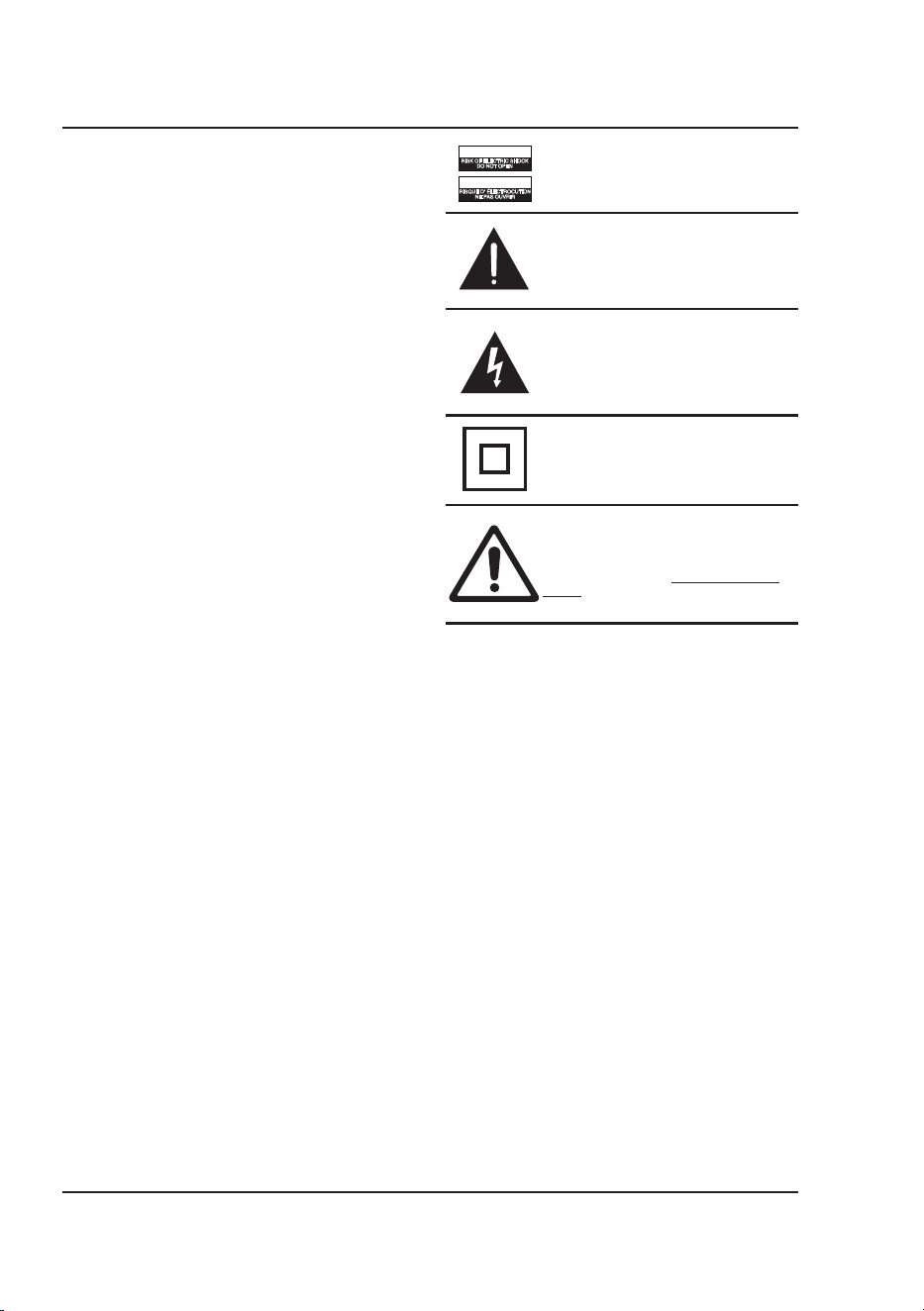
WARNING: To reduce the risk of electric
shock, do not remove cover (or back). No
user-serviceable parts inside. Refer servicing
to qualied service personnel.
ATTENTION
RISQUE D' ÉLECTROCUTION
NE PAS OUVRIR
CAUTION
RISK OF ELECTRIC SHOCK
DO NOT OPEN
The exclamation point within an equilateral
triangle is intended to alert the user to
the presence of important operating and
maintenance (servicing) instructions in the
literature accompanying the appliance.
This symbol indicates that this product
incorporates double insulation between
hazardous mains voltage and user accessible
parts.
The lightning ash with arrowhead symbol,
within an equilateral triangle, is intended to
alert the user to the presence of un-insulated
“dangerous voltage” within the product’s
enclosure that may be of sufcient magnitude
to constitute a risk of electric shock to persons.
WARNING : This product can expose you
to chemicals including lead, which is known
to the State of California to cause cancer and
birth defects or other reproductive harm. For
more information go to www.P65Warnings.
ca.gov. This product meets and complies
with required Federal product guidelines.

4
Table of Contents
Overview
Features - 5
Includes - 5
Projector
Features & Inputs - 6–7
Remote
Functions - 8
Batteries - 8
Projector Setup
Power - 9
Projector Placement - 9
Angle Adjustment - 9
Viewing Options - 10
Image Adjustment - 10
Ceiling Mount - 11
Menu Options
Home Screen - 12
Picture Menu - 13
Sound Menu - 14
Options Menu - 15
BT Device Menu - 16
Keystone Menu - 17
Connecting to Other Devices
HDMI - 18
USB Screen Mirroring - 19
Audio/Video Input - 20
Pairing to Bluetooth Wireless Speakers or Sound Bar - 21
External Audio - 21
USB Storage Devices - 22
Customer Support
Contact Information - 23
Warranty - 23
International Support - 23

5
Overview
Features
• Native Resolution: 1280 x 720 (720p)
• Supports 480p, 720p, 1080i, 1080p
• Aspect Ratio: 16:9, 4:3, Full, Auto
• Brightness: 120 ANSI lumens
• Bluetooth transmitter
• I/O: HDMI, USB, Audio out (3.5mm), AV In
• Supports USB Cast
• 30˝ to 140˝ viewable screen size
• Display distance: 2.6–12.4 ft. (0.8–3.8m)
• Supports mpeg1, mpeg2, mpeg4, mp3, rm, rmvb,
avi, mov, divx, mkv, bmp, png, and jpeg
• Built-in speaker
• Keystone angle correction and focus adjust
Includes
• Remote control: requires 2 AAA batteries
(not included)
• AC/DC power adapter
• User's Guide
6
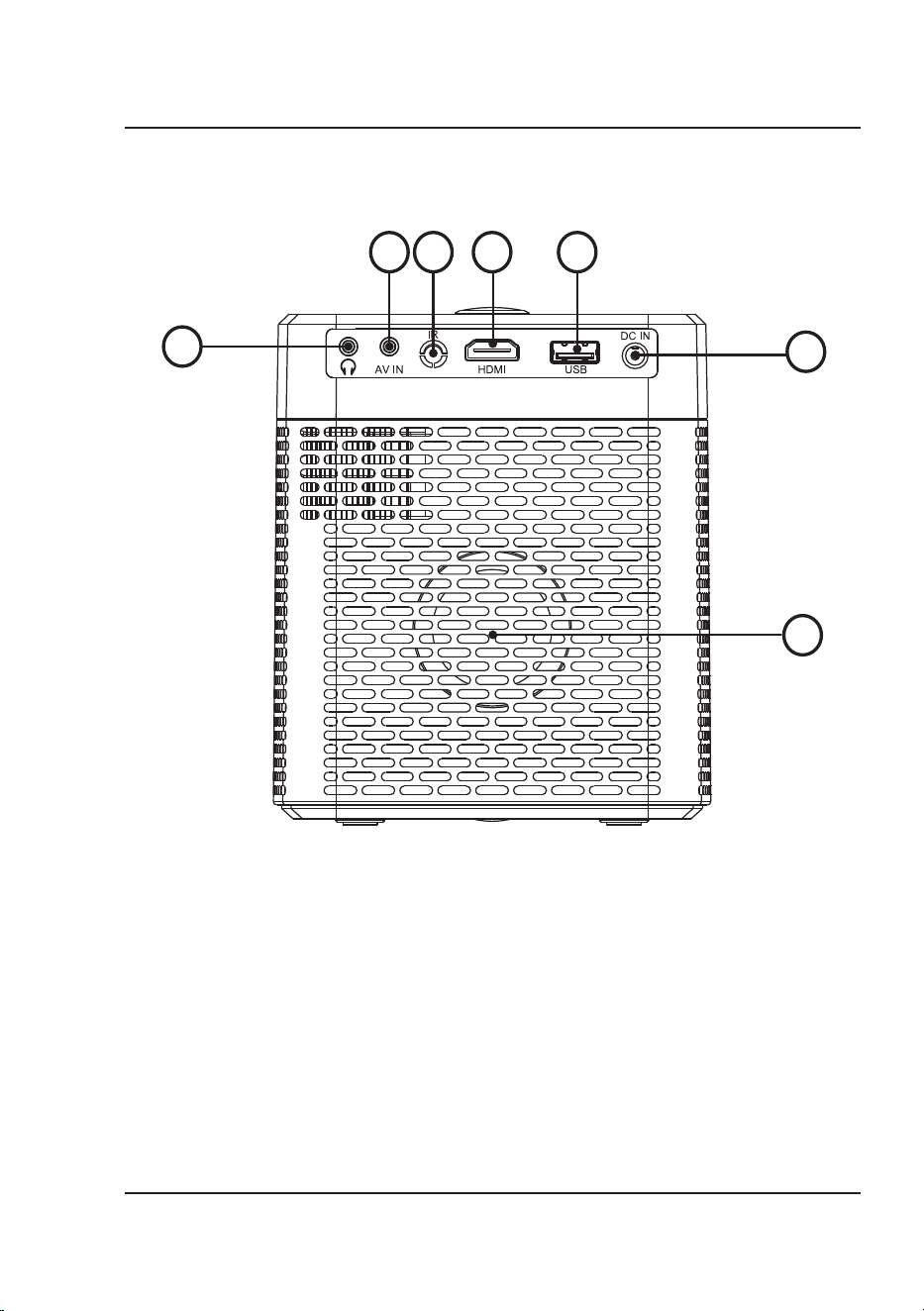
Features & Inputs
Projector
2
6
4
5
1
7
3
1. Audio Out Port
2. AV In Port
3. IR Sensor - Sensor for receiving
remote commands.
4. HDMI Port
5. USB Port
6. DC In Port
7. Speaker
7
10
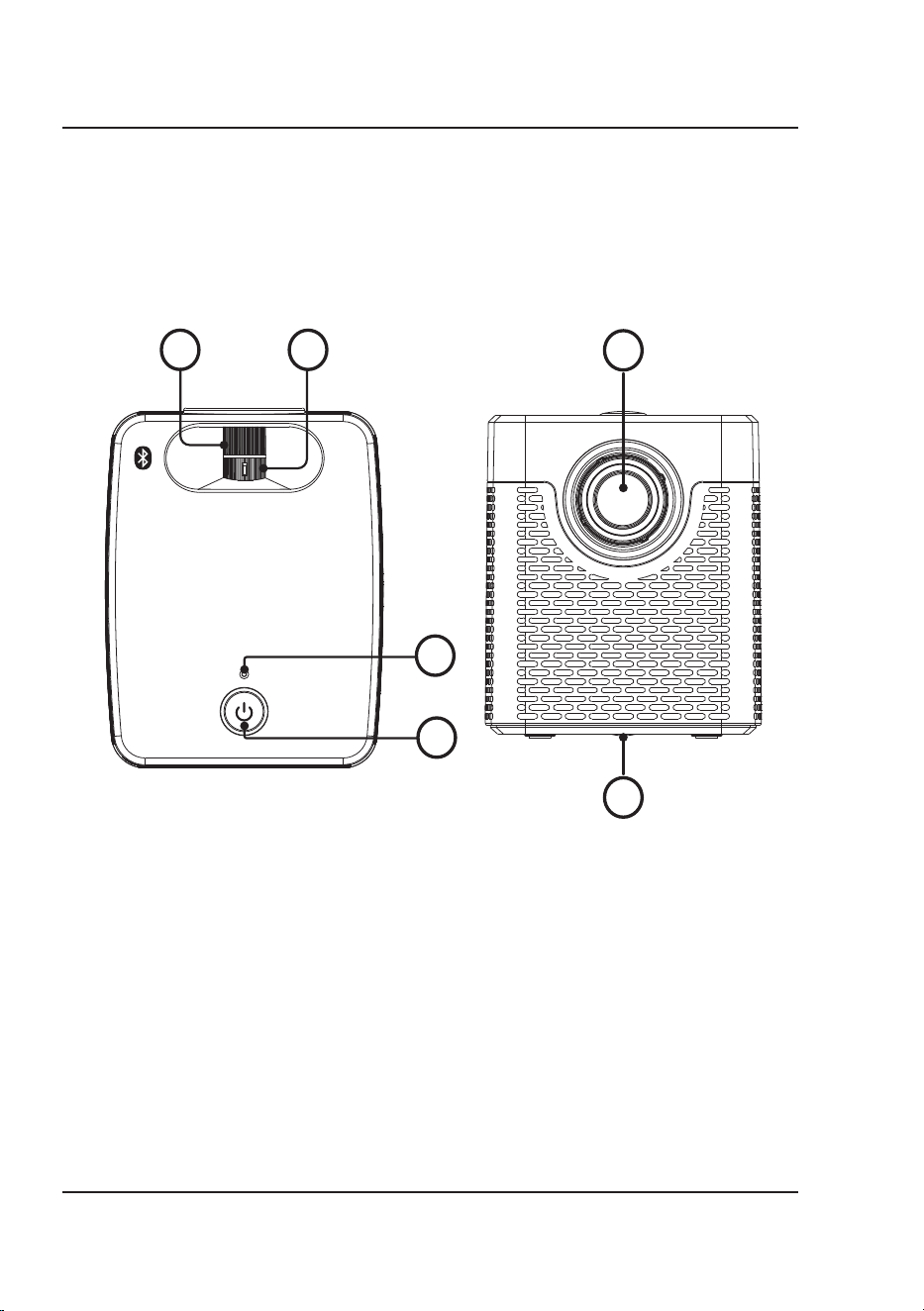
8. Focus Adjust Knob - Turn to
adjust screen focus by changing
the image size.
9. Keystone Adjust Knob - Turn to
adjust image distortion.
10. Power Indicator
11. Power Button - Press once to turn
the projector on. Press and hold to
enter standby mode.
12. Lens
13. Angle Adjustment Knob - Turn to
raise or lower the projector height
and angle.
8 9
11
12
Projector
13
8
Remote
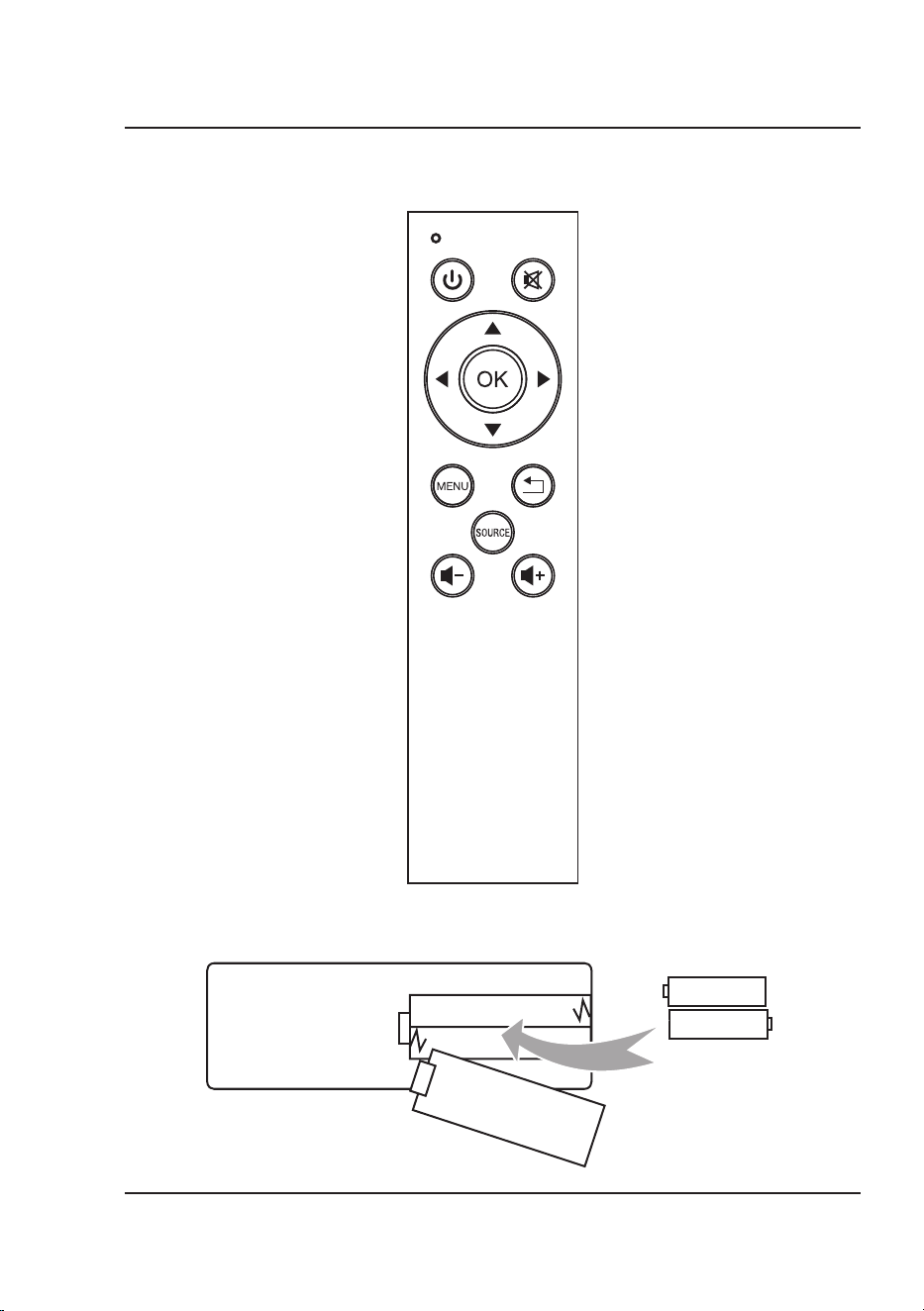
Operation Indicator
Power
Press to power ON.
Press to power OFF.
Mute
Press to mute volume.
Arrows/OK
Press to navigate and confirm selections in
Settings and other menu(s).
AAA / UM4
AAA / UM4
BATTERY DOOR
Batteries
Requires 2 AAA batteries (not included).
Menu
Press to access projector Settings.
Source
Press to select media source
(AV, HDMI, USB).
Volume -
Press to decrease audio level.
Exit
Press to exit menu(s).
Volume +
Press to increase audio level.
Functions
Note: This projector does not have any operation buttons on the unit itself other than the power button. It can only
operate using the remote.
9
Projector Setup
Power
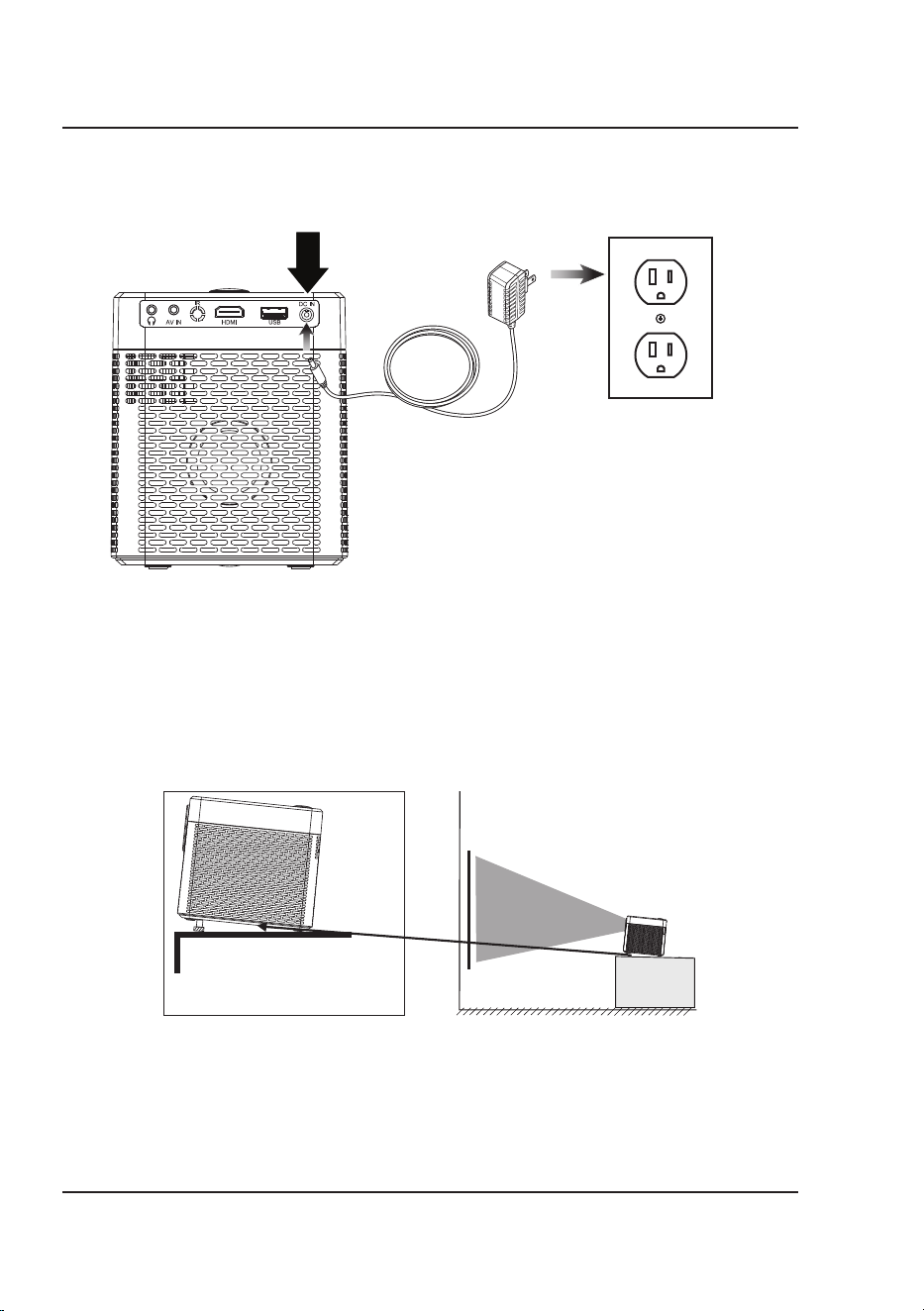
Plug the AC/DC power adapter (included) into a standard wall outlet and the DC power input on the rear of the unit.
After connecting power, please allow approximately 5 seconds to pass before powering the unit ON.
Use the Angle Adjustment Knob
to fine tune the projector's height.
Angle Adjustment
Projector Placement
For best results, place the projector in a dark room or other dimly lit area. The projector will display a screen size from
30˝ to 140˝. Adjust the projector angle and distance to best suit your needs.
Use the unit with a dedicated projector screen for best picture resolution. If placing the projector behind the viewing
screen (unit in front of/projecting toward viewers), a special screen will be required. Projector screens are not included.
If you are not using the unit with a screen, a smooth, white, or lightly colored surface will provide the best results.
10
Viewing Options
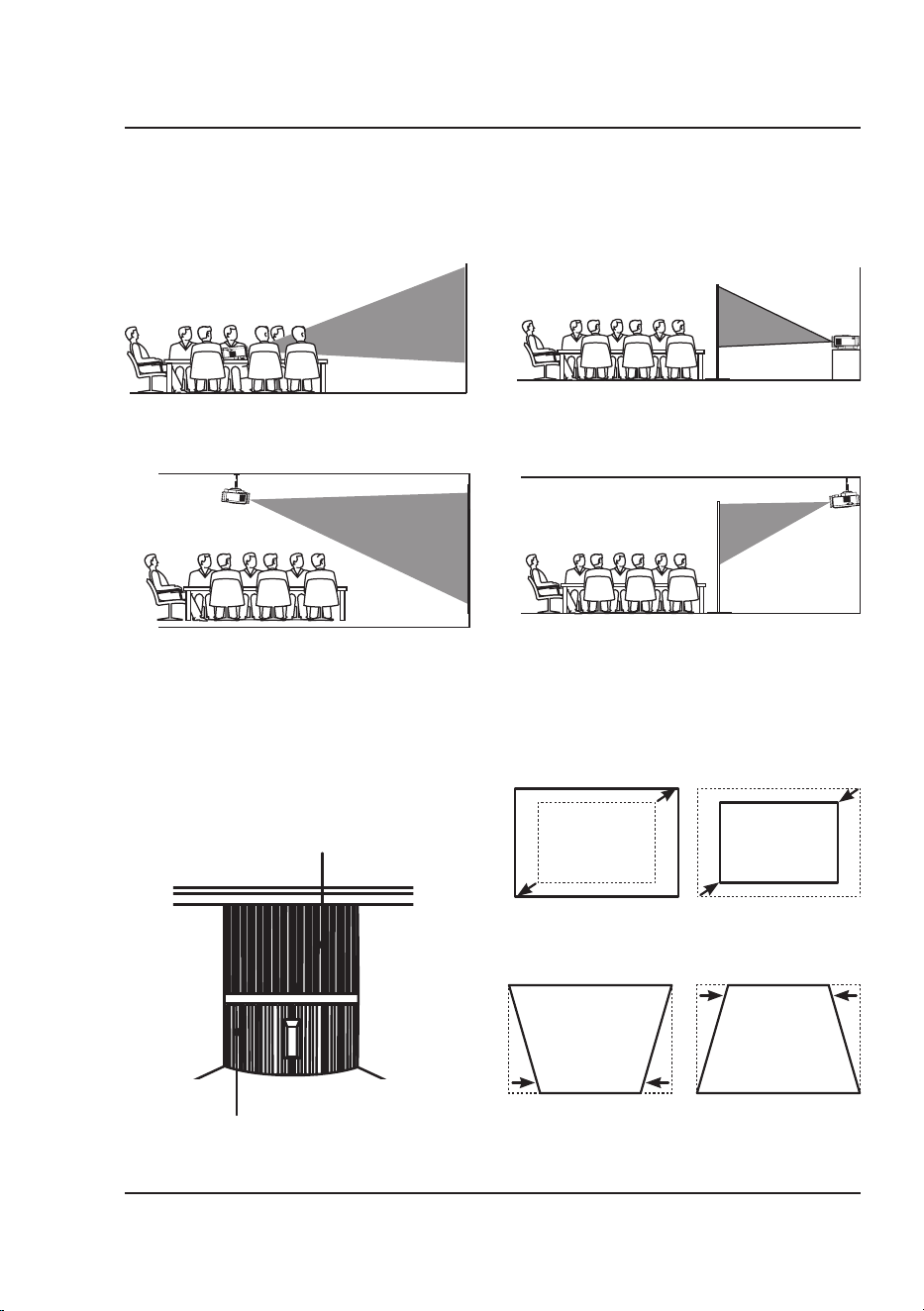
The projector can be used to project onto a wall or screen. It can be mounted from a ceiling or placed on a table.
Be sure to aim the remote at the sensor on the front or rear of the projector. See page 6 for sensor locations on the
projector. When projecting from the rear position, a special screen will be needed (not included) to display the image.
FRONT TABLE
REAR TABLE
FRONT CEILING
REAR CEILING
FRONT TABLE
REAR TABLE
FRONT CEILING
REAR CEILING
Image Adjustment
Keystone Adjustment
Adjust image corners to reduce image distortion.
Focus Adjustment
Increase or reduce image size to sharpen image.
Focus Adjust Knob
Keystone Adjust Knob
Projector Setup
11
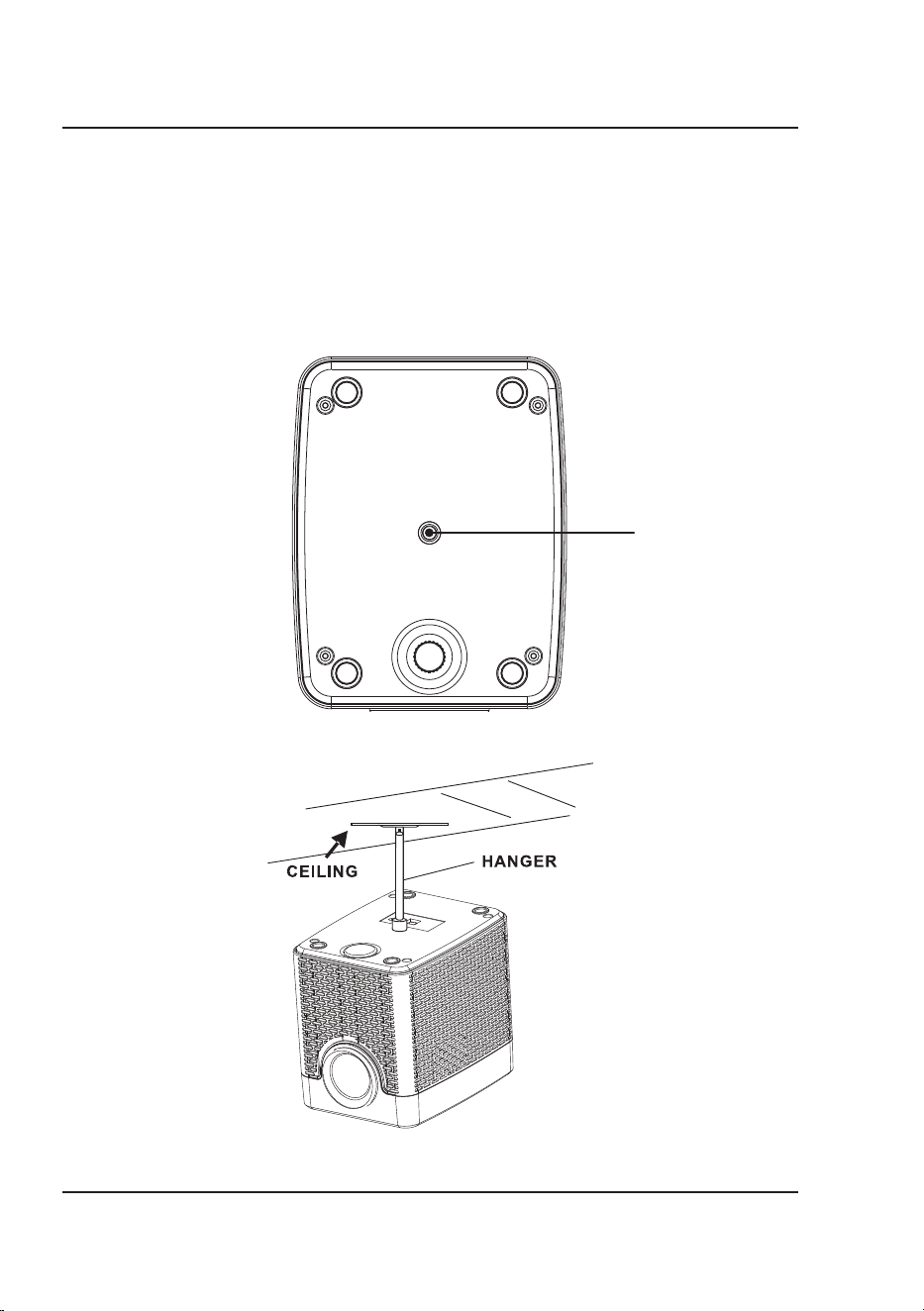
Ceiling Mount
To mount the projector from the ceiling, you will need mounting hardware as recommended by a professional.
Mounting hardware and instructions are not included.
Before mounting, be sure the ceiling structure can support the weight of the projector and the mount itself. It is
recommended to have this unit mounted by a professional.
Projector Setup
Projector Bottom View
Hanger Hole
(6mm Diameter)
12
Menu Options
Home Screen
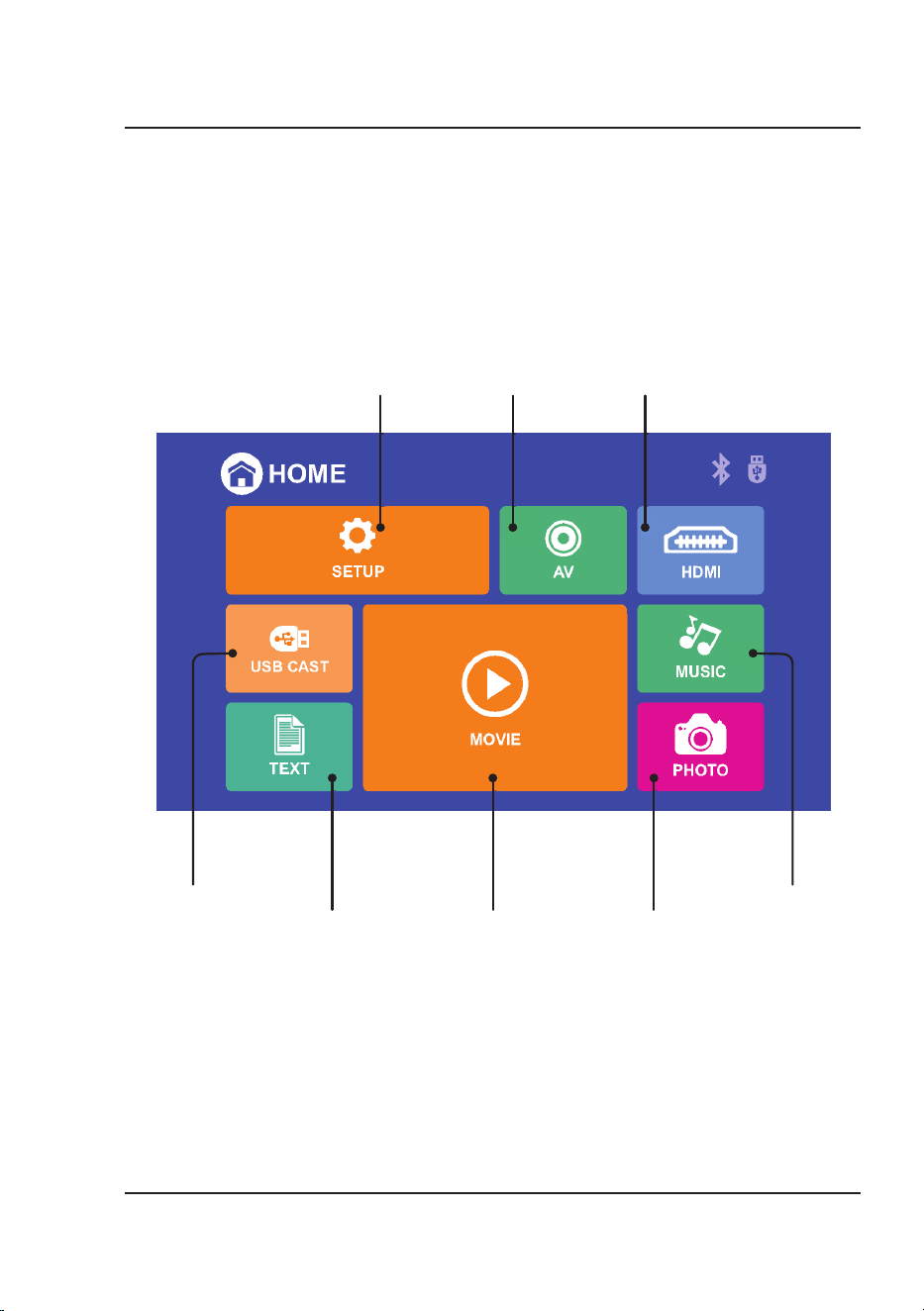
This is the default screen that will appear after powering on the projector. The icons that appear will either access
different sources to play from or take you to additional menus.
Projector
Settings Menu
AV In Icon HDMI Icon
USB Cast
Icon
Photo Icon
(For USB Source)
Music Icon
(For USB Source)
Text Icon
(For USB Source)
Movie Icon
(For USB Source)
13
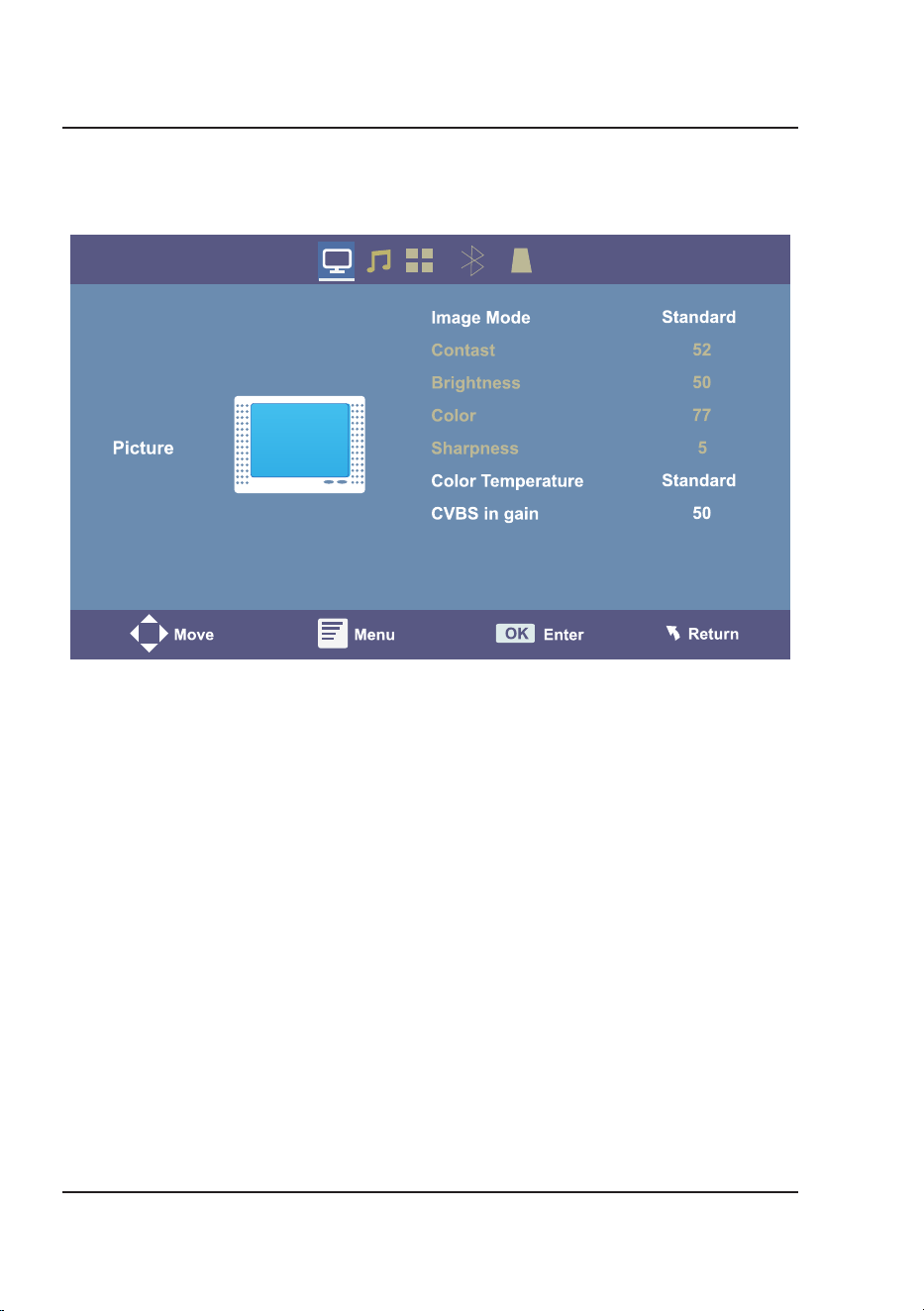
1. Image Mode
Use the Arrow Buttons on the remote to select Standard, Dynamic, Mild, or User (custom). The
User setting allows you to adjust Contrast, Brightness, Color, and Sharpness.
2. Contrast
Set the contrast level between 0 and 100 using the Arrow buttons on the remote.
3. Brightness
Set the brightness level between 0 and 100 using the Arrow buttons on the remote.
4. Color
Set the color level between 0 and 100 using the Arrow buttons on the remote.
5. Sharpness
Set the sharpness level between 0 and 100 using the Arrow buttons on the remote.
6. Color Temperature
Select Cool, Medium, or Warm using the Arrow buttons on the remote.
7. CVBS in Gain
Set the CVBS gain level between 0 and 100 using the Arrow buttons on the remote.
Access the projector settings menu by pressing the Menu button on the remote.
Note: Not all settings are user adjustable.
Picture Menu
Menu Options
14
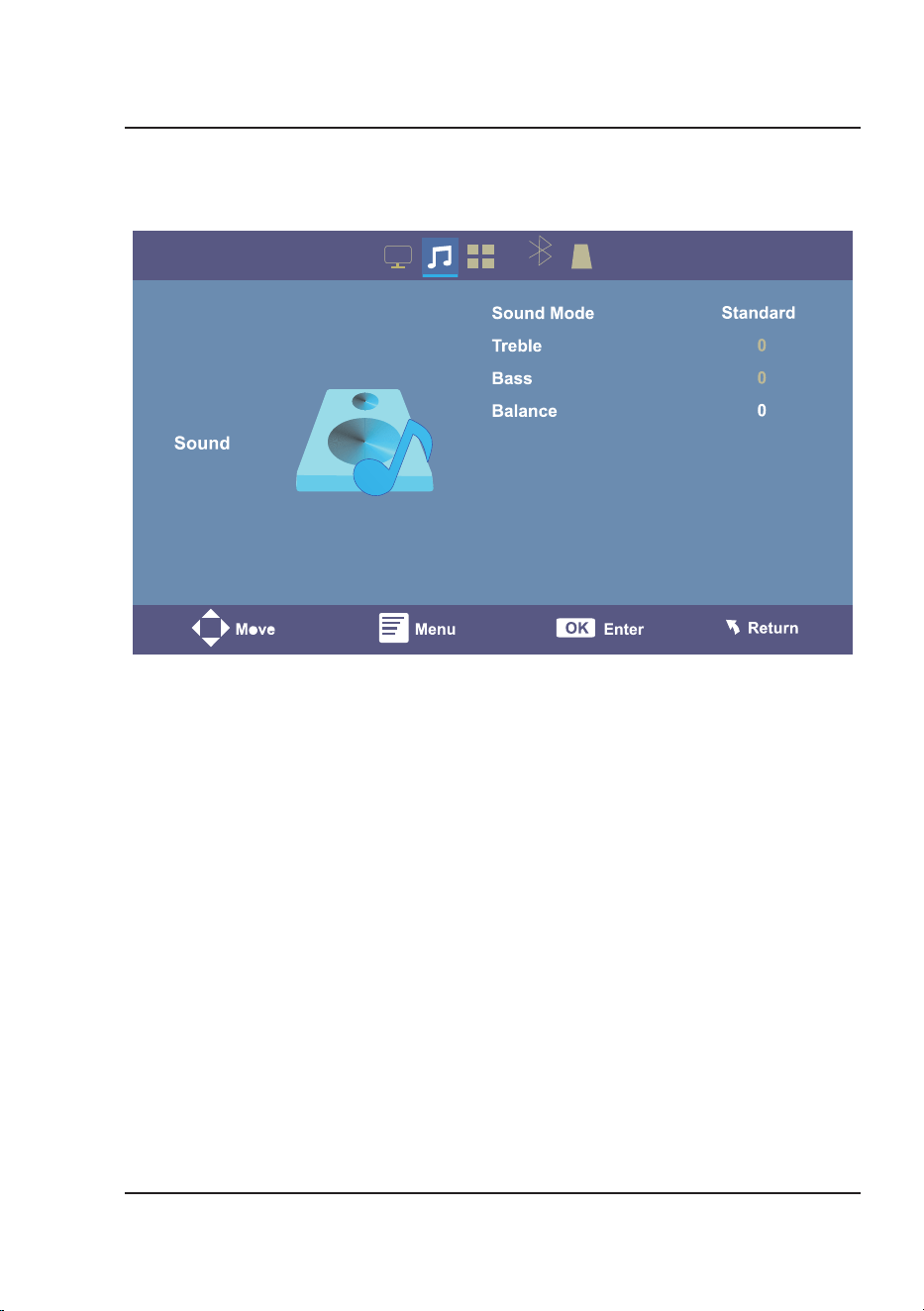
1. Sound Mode
Select Standard, Movie, Music, Sports, and User (custom). The User setting allows you to adjust
the Treble and Bass levels.
2. Treble
Set the treble level between -10 and +10 using the Arrow buttons on the remote.
3. Bass
Set the bass level between -10 and +10 using the Arrow buttons on the remote.
4. Balance
Set the balance level between -24 and +24 using the Arrow buttons on the remote.
Sound Menu
Menu Options
15
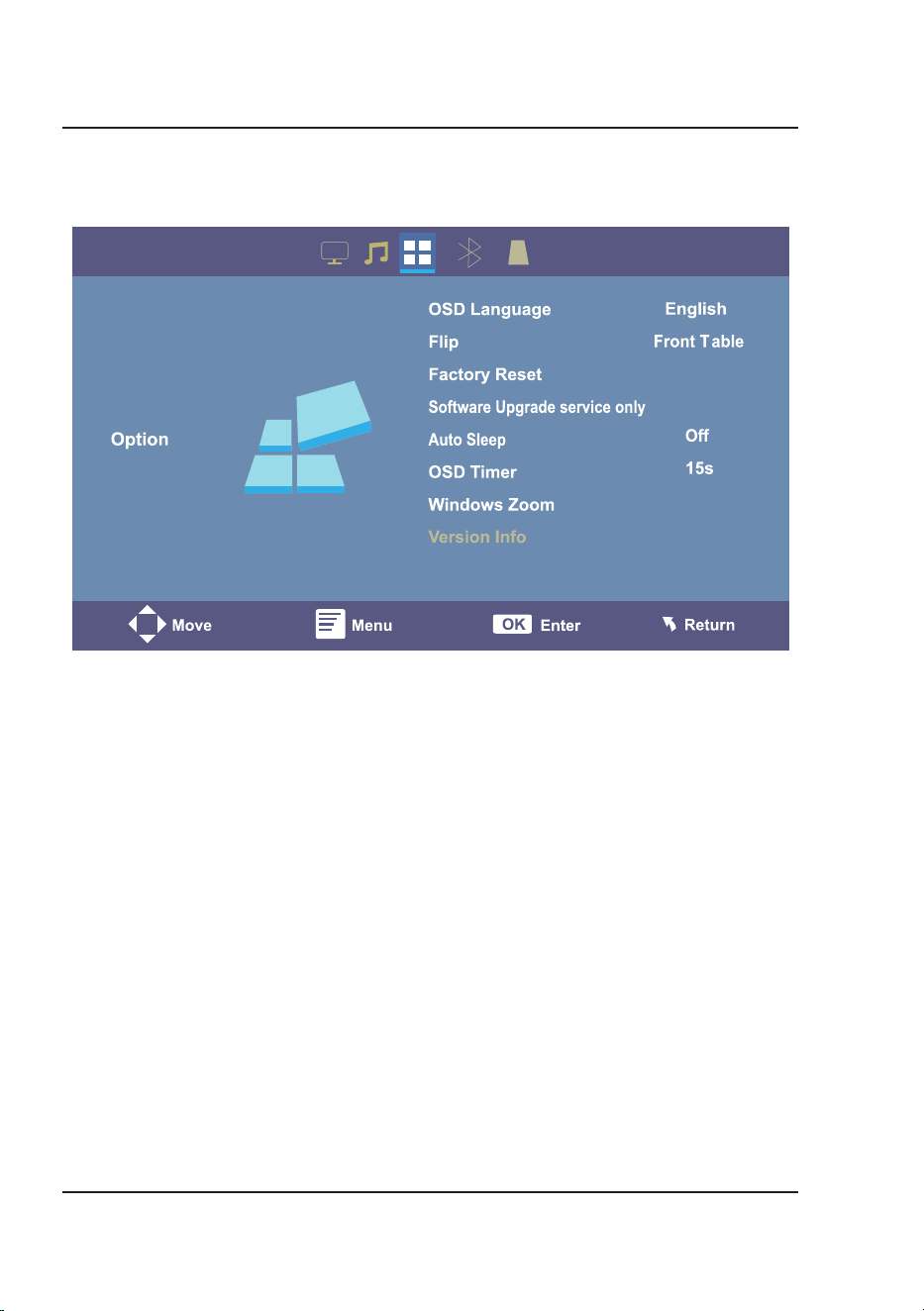
1. OSD Language
Select English, French, or Spanish for the On Screen Display.
2. Flip
Use the Arrow buttons on the remote to select Front Table, Front Ceiling, Rear Table, or Rear
Ceiling.
3. Factory Reset
Reset the projector and restore all default settings by selecting OK or Close. OK will return the
projector to factory default settings.
4. Software Update service only
For service center use only.
5. Auto Sleep
Select the Auto Sleep Timer. Using the Arrow buttons on the remote, to select Off, 10m
(minutes), 20m, 30m, 60m, 120m, or 180m.
6. OSD Timer
Select the length of time the OSD will appear on the screen. Using the Arrow buttons on the
remote, select Off, 5s (seconds), 10s, 15s, 20s, 25s, or 30s.
7. Windows Zoom
Use the Arrow buttons on the remote to select 4:3 (aspect ratio), 16:9 (aspect ratio), Zoom -,
Zoom +, or Reset.
8. Version Info
Displays the current version of the projector.
Options Menu
PJ580-2409021604
16
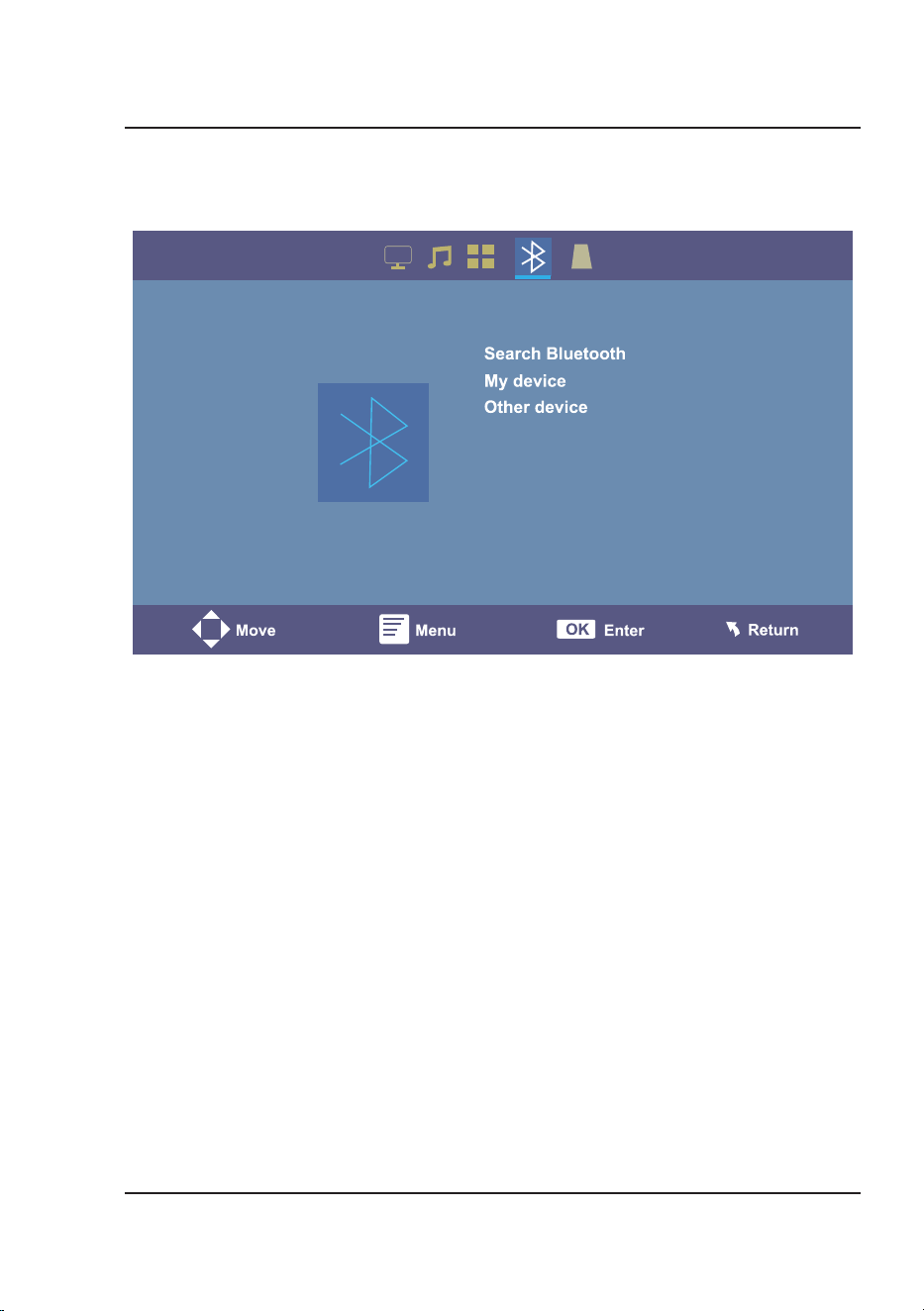
1. Bluetooth
Turn the projector Bluetooth On or Off. Note: Bluetooth is off by default. Turning Bluetooth on
allows you to search for Bluetooth devices.
2. Search Bluetooth
After turning Bluetooth on, press the OK button on the remote to search for nearby Bluetooth
receiving devices (speakers, soundbars, etc.) Found devices will appear under either My Device
or Other Device.
3. My Device
Bluetooth receiving devices that the projector has connected to before will appear under this
heading after searching for Bluetooth devices.
4. Other Device
Bluetooth receiving devices that the projector has not connected to before will appear under
this heading after searching for Bluetooth devices. When searching for Bluetooth devices for the
first time, all devices will appear under this heading.
Bluetooth Device Menu
Menu Options
Bluetooth Device
Bluetooth On
17
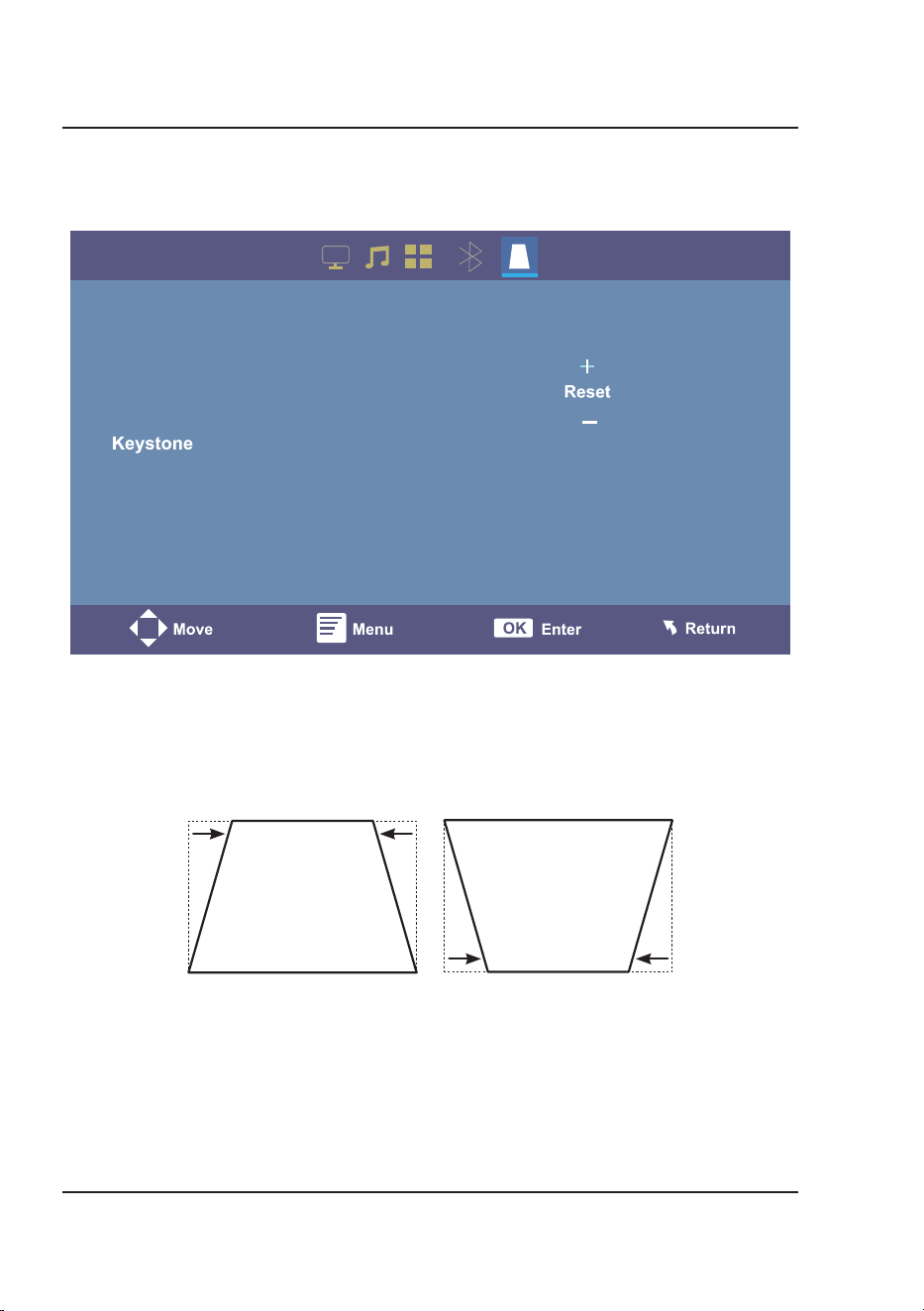
1. Keystone Mode
Using the Arrow and OK buttons on the remote, select the + or - settings to adjust the keystone
angle. Select Reset to return to the default keystone angle.
Keystone Menu
Angle Adjust + Angle Adjust –
18
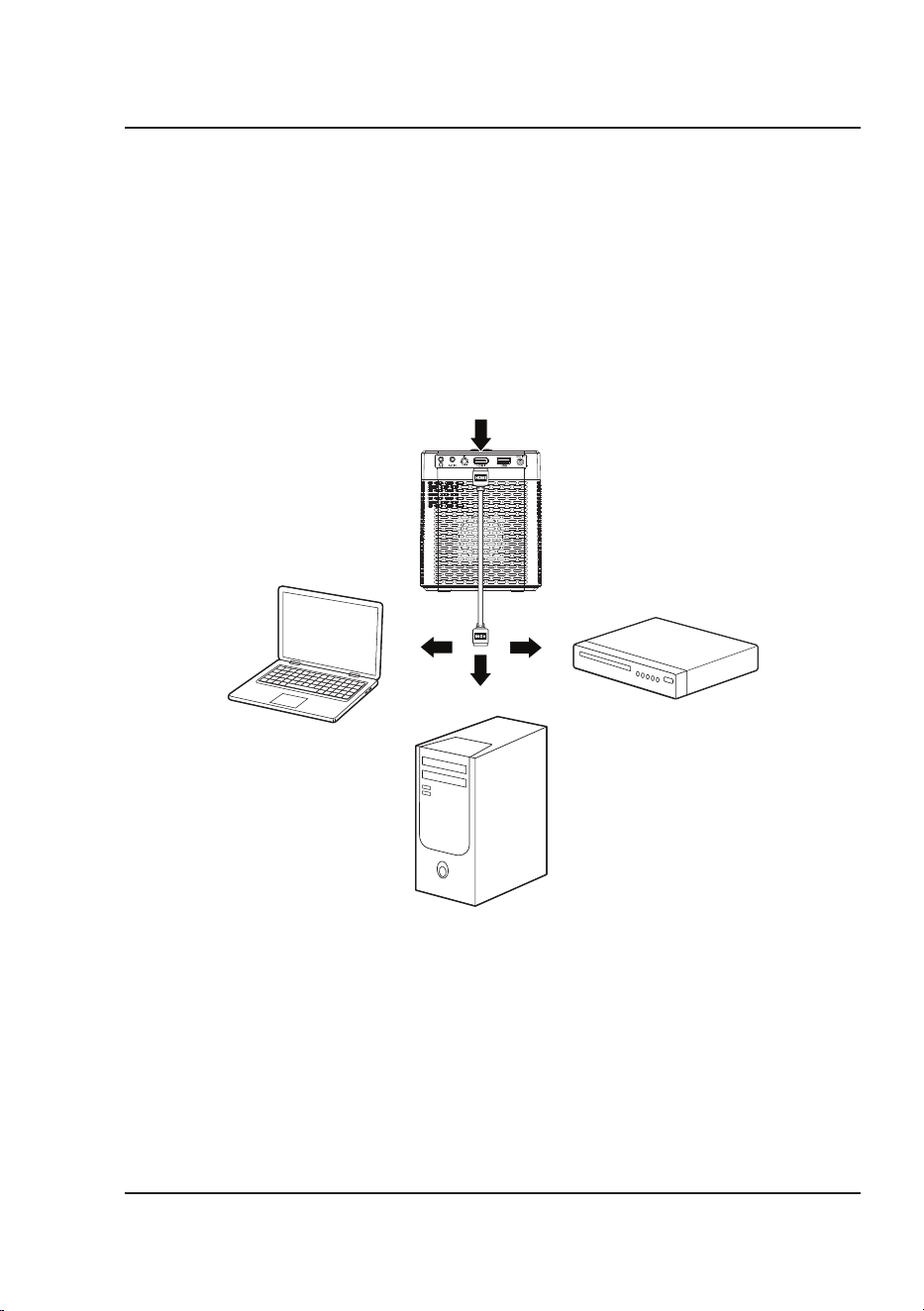
Connect to HDMI on
laptop or PC.
Connect to HDMI on DVD,
Blu-Ray, or other source.
HDMI
HDMI offers superior sound and picture quality and is the easiest way to play media from a computer, Blu-Ray player,
or other device with an HDMI output.
Requires an HDMI cable (not included) and a device with an HDMI output.
1. Press the Power button on the projector to enter Standby mode.
2. Using an HDMI cable, connect the HDMI input on the projector to the HDMI output on your media player or
computer.
3. Press the Power button on the projector to turn the unit on.
4. On the home screen, use the Arrows and OK buttons on the remote to highlight and select the HDMI icon. Use
the controls on the connected device to select and play media.
HDMI Inputs
Connecting to Other Devices
Note: Due to copyright issues, this projector does not support direct playback of Netflix, Amazon, or Disney streaming
properties through a TV or laptop HDMI connection. However, you can stream these services using a streaming stick
inserted into the HDMI port of the projector. When using a streaming stick, follow the use instructions included with
the device.
Note: If no sound plays from the internal speaker on the projector while playing from an HDMI input source, please
check the external player's digital audio settings and make sure the setting is on "PCM Stereo" mode.
19
Connecting to Other Devices
USB Screen Mirroring
USB Screen Mirroring allows you to project images from your phone using a wired USB connection.
Follow the directions for your device's operating system.
iOS Wired Connection (iPhone)
1. Press the Power button on the projector to enter the Home Screen menu. Use the Arrows and OK buttons on
the remote to highlight and select the USB Cast icon.
Note: If the projector is already on and you want to switch to USB Screen Mirroring from another source, press
the Source button on the remote and select MEDIA to return to the Home Screen.
2. Using a USB-C to USB cable or USB to lightning cable (both not included), connect the USB port on the
projector to your phone. The images on your phone screen will appear through the projector.
3. Press the OK button on the remote to rotate the projected screen image, if needed.
Android Wired Connection
1. Press the Power button on the projector to enter the Home Screen menu. Use the Arrows and OK buttons on
the remote to highlight and select the USB Cast icon.
Note: If the projector is already on and you want to switch to USB Screen Mirroring from another source, press
the Source button on the remote and select MEDIA to return to the Home Screen.
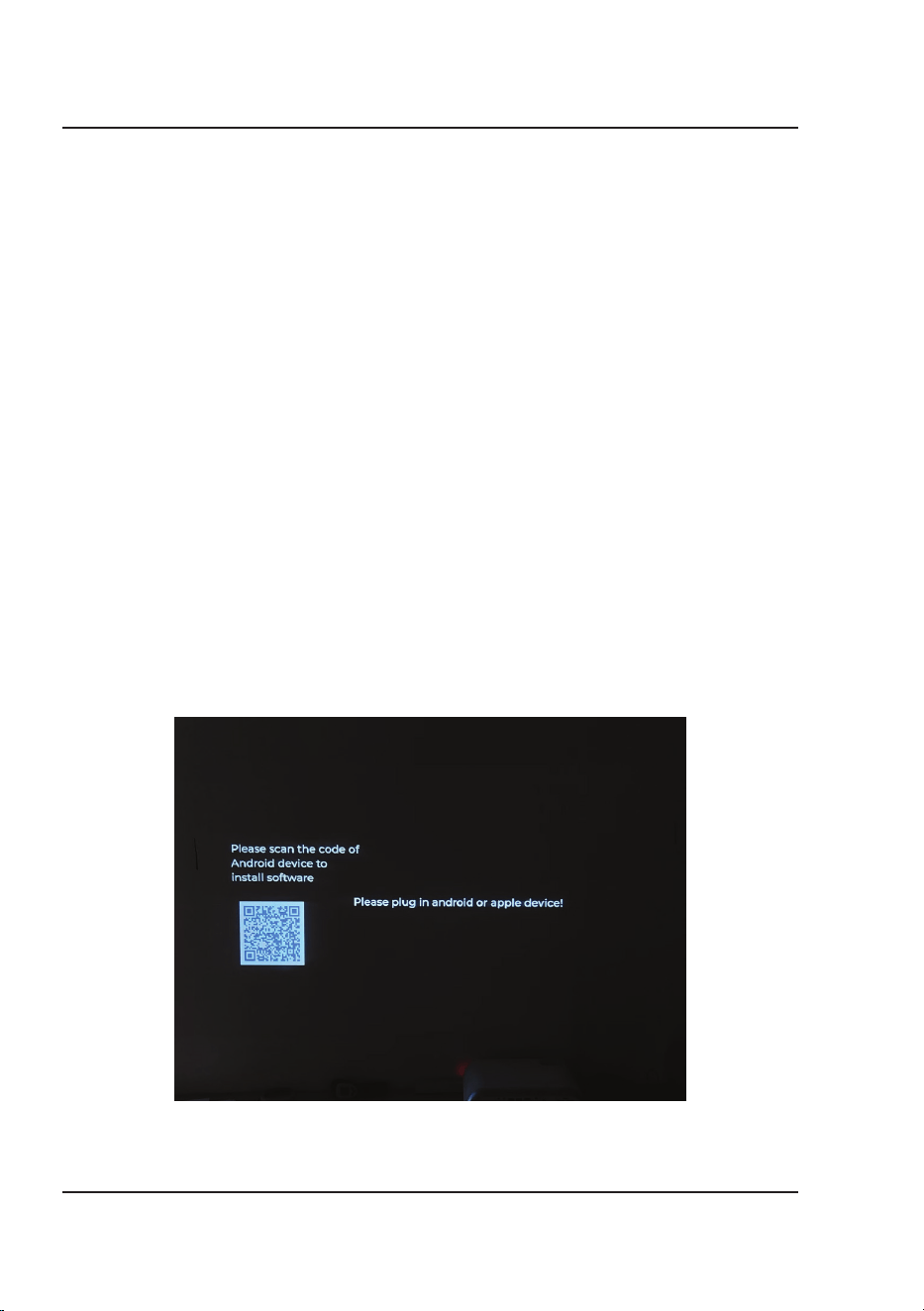
2. When connecting an Android phone for the first time, scan the QR code from the projector screen to access the
HCCast app. Download and install the app on your phone.
Note: Please scan the QR code that appears on the projection. The QR code from the projection will be updated
with software changes.
3. Using a USB-C to USB cable or Micro-USB to USB cable (both not included), connect the USB port on the
projector to your phone. The images on your phone screen will appear through the projector.
20
Audio/Video Input
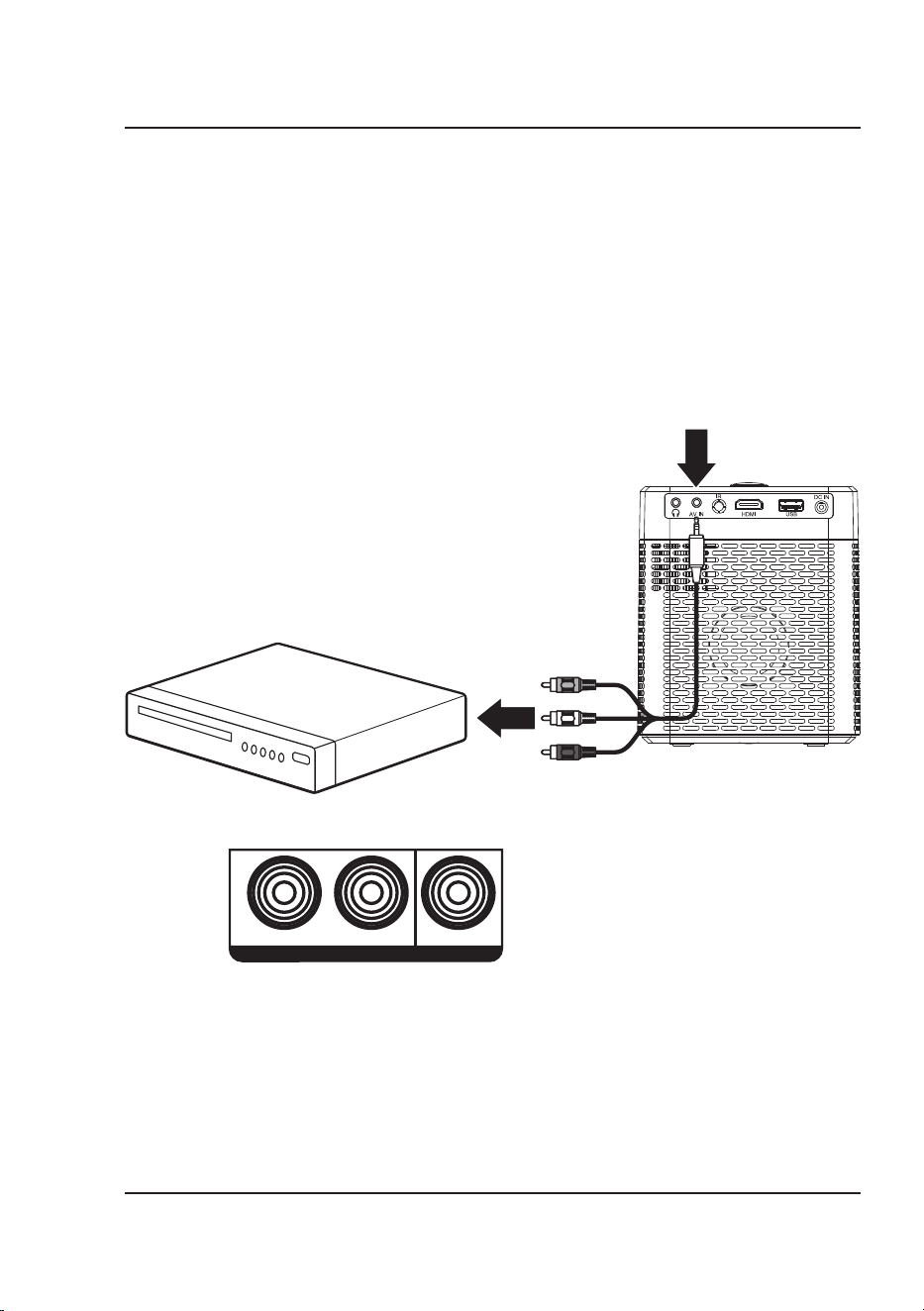
Requires a 3.5mm to RCA audio/video cable (not included).
1. Press the Power button on the projector to enter Standby mode.
2. Connect the 3.5mm to RCA audio/video cable to the AV input on the unit.
3. Connect the 3.5mm to RCA audio/video cable to the RCA stereo audio outputs and composite video output on
the media player.
4. Press the Power button to turn the Projector on.
5. On the home screen, use the Arrows and OK buttons on the remote to highlight and select the AV icon. Use the
controls on the connected device to select and play media.
Connect AV cable (included) to
media player's AV outputs.
Audio Left Channel - White
Audio Right Channel - Red
Video - Yellow
AV IN
R
AUDIO OUT
L VIDEO
VIDEO OUT
Connecting to Other Devices
21
Pairing to Bluetooth Wireless Speakers or Sound Bar
NOTE: Bluetooth is OFF by default when the projector first powers ON. Bluetooth can be turned ON or OFF from
the Bluetooth Device Menu.
1. Enable Bluetooth on the receiver (external speakers, sound bar, etc.) to which you wish to connect. Devices such
as smartphones, tablets, or computers are not Bluetooth receivers and will not connect to the projector. To eliminate
confusion, you should disable Bluetooth on all receivers to which you do not wish to connect.
2. Power on the projector. Press the Menu button on the remote. Use the Arrows and OK buttons on the remote to
highlight and select the Bluetooth Device menu.
3. In the Bluetooth Device menu, use the Arrows and OK buttons on the remote to change the Bluetooth setting
to ON.
4. Use the Arrow buttons to select Search Bluetooth and press OK to start searching for available devices.
5. Use the Arrow buttons to highlight your desired Bluetooth speaker or soundbar and press OK to select.
6. When successfully paired, the Bluetooth receiver should indicate it is connected, usually with a chime or other
audible noise. Check the user manual on your Bluetooth receiver for more information.
7. When successfully connected, the projector will display the Bluetooth receiver's name on the Home Screen, and
sound played from the projector will be heard through the Bluetooth receiver.
After initial pairing, the projector and the Bluetooth speakers will stay paired unless unpaired manually by the user or
erased due to a reset of either device. If this occurs or you find either unit is unable to connect, repeat the above steps.
To disconnect Bluetooth, enter the Bluetooth Device menu and change the Bluetooth setting to OFF.
External Audio
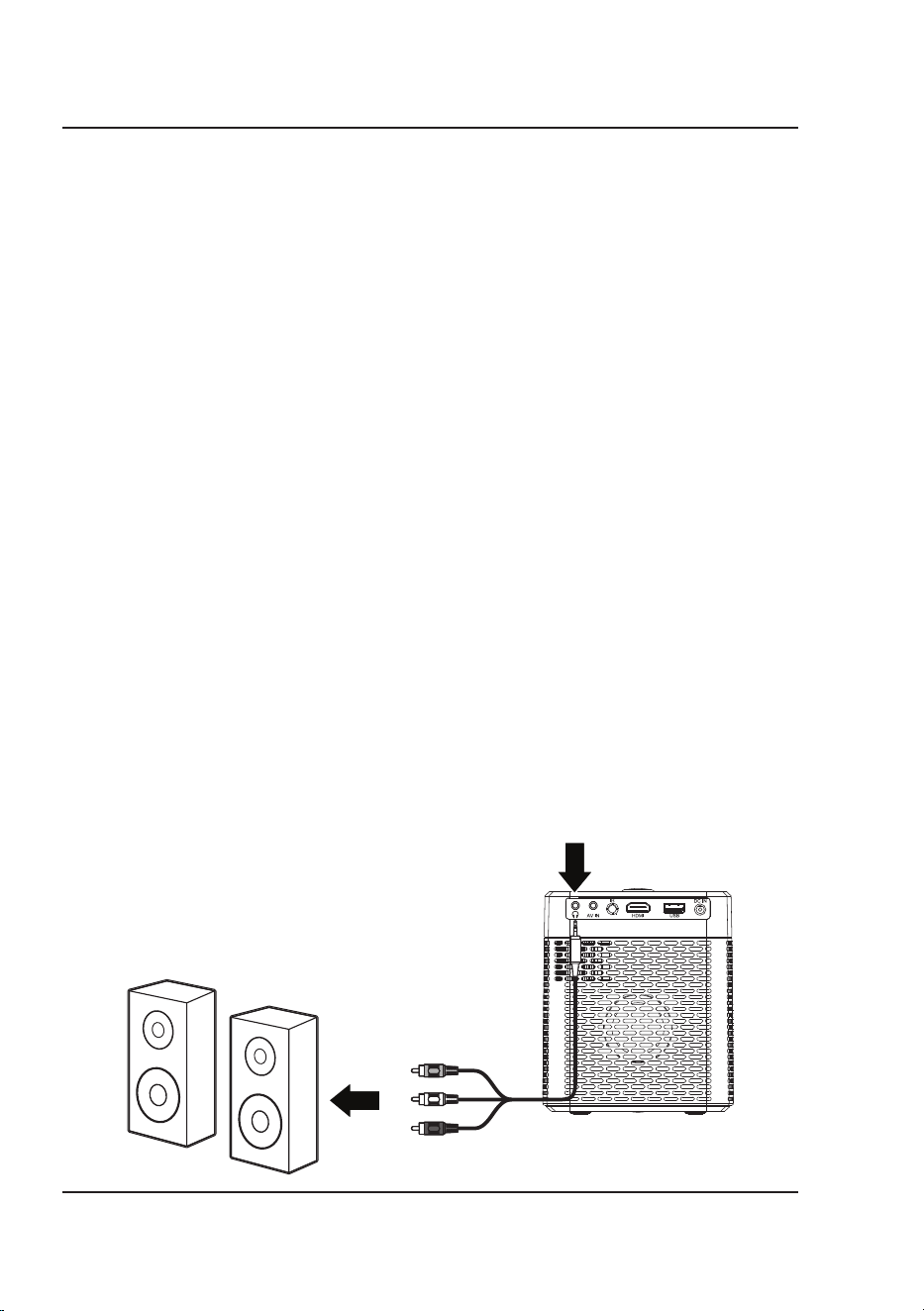
Requires a 3.5mm to RCA audio/video cable (not included).
Note: Speakers must have their own power supply.
1. Press and hold the Power button on the projector to enter Standby mode.
2. Using a 3.5mm to RCA stereo cable, connect the external powered speakers to the Headphone Jack on the
projector. Note: The yellow video plug will not be needed in this setup and will not need to be connected.
3. Press the Power button to turn on the projector. The projector will automatically detect the connection and
send audio signal to the speakers.
Headphone Jack
Connect AV cable to speaker:
Audio Left Channel - White
Audio Right Channel - Red
Video (Yellow) plug will
NOT be needed in this instance.
Connecting to Other Devices
22
USB Storage Devices
Supports USB drives up to 256GB NTFS format. Supports mpeg1, mpeg2, mpeg4, mp3, rm, rmvb, avi, mov, divx, mkv,
bmp, png, and jpeg
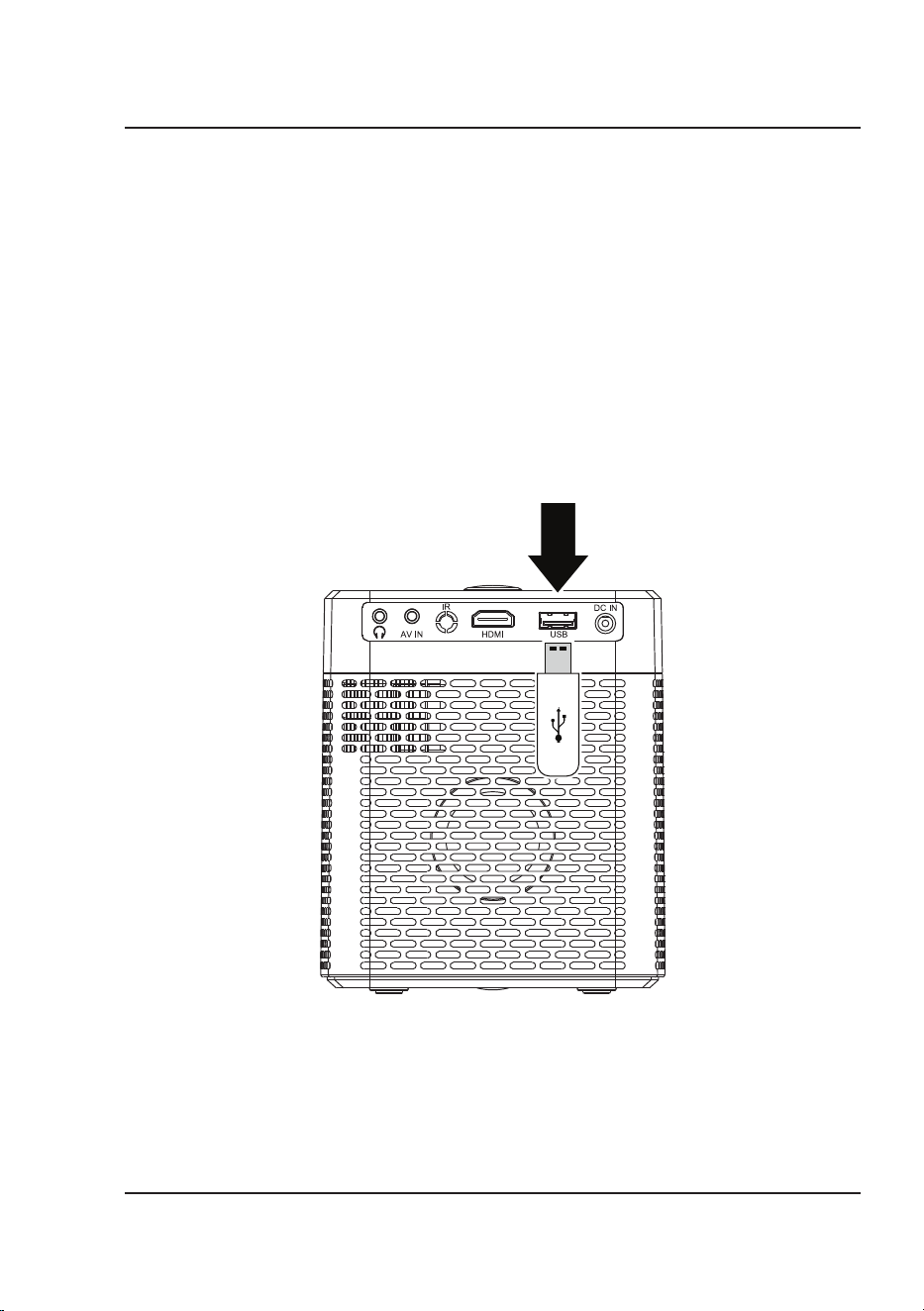
1. Press the Power button on the projector to enter Standby mode before inserting a USB drive. Then, insert into
the USB port and turn the unit on.
2. On the home screen, use the Arrow buttons to select Movie/Photo/Music/Text, then press the OK button to
enter the menu.
3. Select "C" or the device name as the source to begin playing content from the connected storage device.
4. Use the Arrow buttons to search for the file you wish to playback and press the OK button to select.
Note: Before removing an inserted USB drive, first press the Power button to enter standby mode.
USB Port
Connecting to Other Devices

23
Contact Information
Website: www.gpx.com
Email Support: [email protected]
Email Parts: [email protected]
Phone Support: 1-888-999-4215
Warranty
For Warranty Information and the most up-to-date version of this User’s
Guide, go to:
www.gpx.com
International Support
To download this User’s Guide in English, Spanish, and French, or to get answers
to frequently asked questions, visit the support section at: www.gpx.com
Para descargar este Manual del Usuario en inglés, español y francés, o para obtener respuestas a preguntas frecuentes,
visite la sección de apoyo en: www.gpx.com
Pour télécharger ce guide de l’utilisateur en anglais, espagnol ou français, ou pour obtenir des réponses à des
questions fréquemment posées, consultez la rubrique d’assistance sur: www.gpx.com
Copyright © 2024 Digital Products International (DPI, Inc.) All other trademarks appearing herein are the property of
their respective owners. Specifications are subject to change without notice.
Customer Support
Protect for Today
Sustain for Tomorrow
Made
Green