Quick Installation
Guide
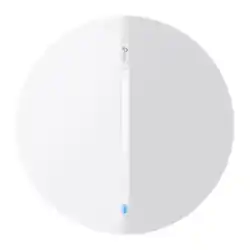
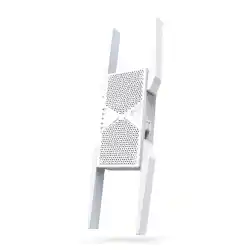
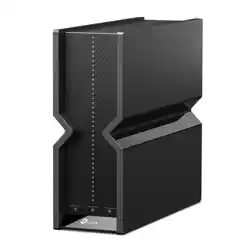
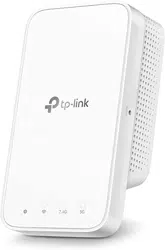
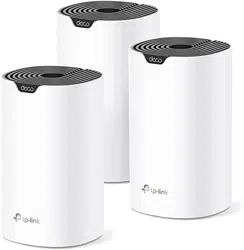
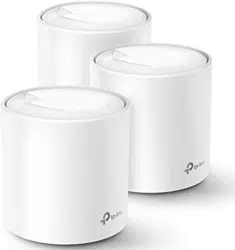
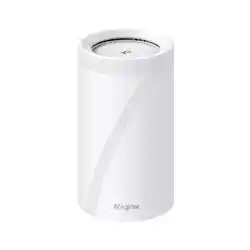
Whole Home Mesh Wi-Fi 7 AP
1. Connect your Laptop/PC/Mobile phone to the mesh device
wirelessly or with an Ethernet cable.
2. Launch a web browser, and enter http://tplinkwi.net or
http://192.168.88.1 in the address bar. Create your own login
password and log in to the device.
3. Follow the Quick Setup instructions to set up your network.
Note:
1. If the login window does not appear, please refer to Q1 of Need Help? in this guide.
2. For ISP customized mesh devices, the login account name and password may be printed on the
product label.
The default wireless network
name (SSID) and password are
printed on the product label at the
bottom of the mesh device.
Method 2: Via a Web Browser
Set Up the Network
http://tplinkwi.net
High
Middle
Low
Save
Conrm Password
New Password
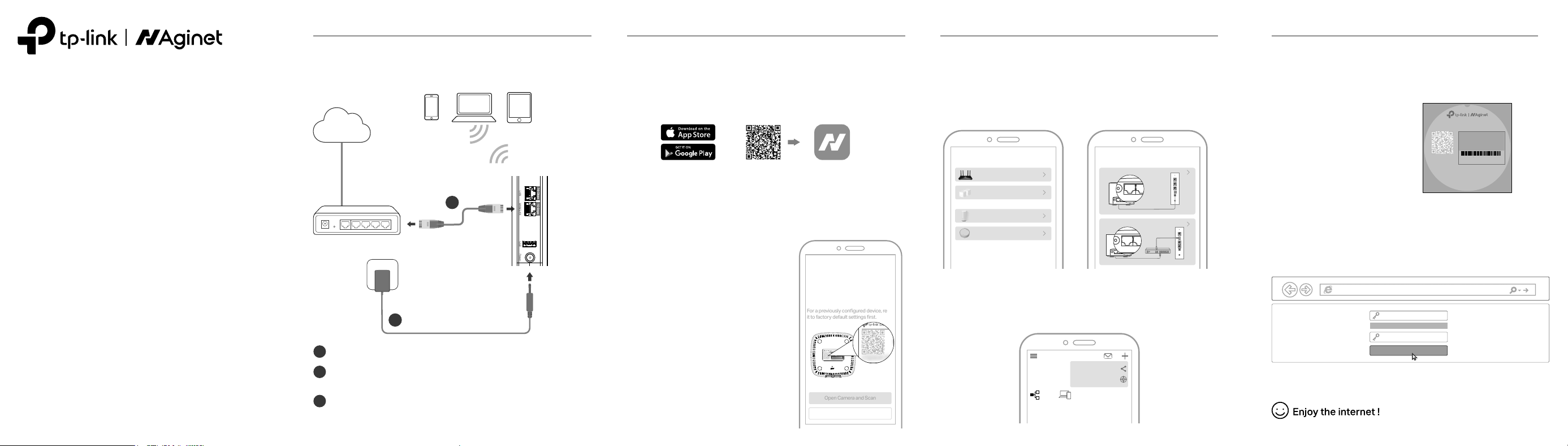
Connect the Hardware
1
1
3
Connect the power adapter to the mesh device.
2
2
Connect the WAN/LAN port of the mesh device to your
modem/router’s Ethernet port via an Ethernet cable.
Modem/Router
Mesh Device Ports
Verify the status LED is ashing blue before continuing
with the conguration.
The Whole Home Mesh Wi-Fi 7 AP is designed to create a mesh
wireless network throughout your home.
Internet
Power Adapter
Set Up the Network
You can easily set up and manage your network through the Aginet app.
Search for Aginet on the Apple app Store or Google Play, or simply scan
the QR code below. Download and install the Aginet app.
Set Up the Network
Scan for Aginet Aginet
or
Note: This step is optional. If you don’t have an account, you may choose to create a TP-Link ID, or
simply manage your device without it. To enjoy a more complete service from TP-Link, bind your
TP-Link ID to the mesh device.
Method 1: Via TP-Link Aginet App
1. Download the Aginet app.
2. Open the Aginet app and log in with your TP-Link ID.
Note: For dierent mesh
devices, the ports may
dier from actual products.
3. Set up your network
For product labels without a QR code, you can tap Set Up Manually in
the Aginet app. Then select your device type and choose to connect
your device to a modem or a router. Follow the steps to complete the
setup and connect to the internet.
Select your device type
Wireless Router
Whole Home Mesh Wi-Fi
Outdoor Mesh Wi-Fi
PoE Mesh Wi-Fi
Scan your Aginet device’s
product label
Find the product label on the bottom of
your Aginet device. Scan the QR Code to
set up faster.
If you can't nd the QR Code, please set
up your device manually.
For a previously congured device, reset
it to factory default settings rst.
Open Camera and Scan
Set Up Manually
Wireless Password:XXXXXXXXXX
SSID:TP-Link_XXXX
QR
Code
Wireless Password:XXXXXXXXXX
SSID:TP-Link_XXXX
QR
Code
How will you connect your device to
the internet?
Connect to a Modem
Connect to a Router
Connect via Phone Cable
POWER WAN/LAN LAN1 LAN2 RESET
POWER WAN/LAN LAN1 LAN2 RESET
POWER WAN/LAN LAN1 LAN2 RESET
POWER WAN/LAN LAN1 LAN2 RESET
Aginet Device Modem
Aginet Device ModemRouter
Tap Create a Network and nd the
product label on the bottom of your
Aginet device.
For product labels that have a QR code,
tap Open Camera and Scan and scan it
to set up faster.
After completing the conguration of the rst device, you can scan the
QR code or choose to add more mesh devices in the Aginet App to
extend Wi-Fi coverage.
Suite 901, New East Ocean Centre, Tsim Sha Tsui, Hong Kong
TP-Link Corporation Limited
AX3000 Whole Home Mesh Wi-Fi 6 AP with PoE
Model: HX510-PoE Power: 12V 1.5A
Default Access: http://tplinkwi.net 802.3at PoE: 42.5-57V 0.6A
MADE IN CHINA
FCC ID: 2AXJ4X50POE
Model:HX510-PoE(US2) Ver:1.0
S/N:XXXXXXXXXXXXX
MAC:XX-XX-XX-XX-XX-XX
Wireless Password:XXXXXXXX
SSID:TP-Link_XXXX
SSID:TP-Link_XXXX_6G
Scan for Wi-Fi
QR
Code
Network
2
Nodes Clients
6
Find the product label on the bottom of
your Aginet device. Scan the QR Code to
set up faster.
If you can't nd the QR Code, please set
up your device manually.
For a previously congured device, reset
it to factory default settings rst.
Open Camera and Scan
Add Agent
Create a Network
LED Status
LED Device Status
Flashing yellow
Yellow
Flashing blue
Fast ashing blue
Blue
Flashing green
Green
Flashing red
Red
The device is starting up or resetting.
The connection quality of the device is normal.
The device is ready for setup.
The device is establishing a WPS or mesh connection.
The device has been set up, but the internet is unavailable.
The device is upgrading rmware.
The device is all set up and connected to internet.
The device has lost connection.
The device has an issue.
Status LED
©2024 TP-Link 7109505813 REV1.0.0
Q1. What should I do if I cannot access the web management page?
• If the computer is set to a static IP address, change its settings to obtain an IP
address automatically.
• Make sure http://tplinkwi.net is correctly entered in the web browser.
• Use another web browser and try again.
• Reboot your device and try again.
• Disable then enable the network adapter being used.
Q2. What should I do if the mesh device’s status LED remains ashing
red?
• Place the mesh device close to another congured mesh device until the
status LED turns solid blue or green, then relocate the mesh device.
• Refer to Q4 to reset your mesh device, and then re-add the mesh device to the
network using the Aginet app or via a web browser.
Q3. What should I do if I cannot access the internet?
• Check if the internet is working normally by connecting a computer directly to
the modem or the router via an Ethernet cable. If it is not, contact your internet
service provider.
• For router mode, log in to the management page of the mesh device, and go to
the Status page to check whether the IP address is valid or not. If it is, please
run the Quick Setup again, otherwise, recheck the hardware connection.
• Reboot your device and try again.
Q4. How do I restore the device to its factory default settings?
• While the device is powered on, press and hold the RESET button for at least
ve seconds, and then release the button.
• Log in to the web management page of the device, go to System Tools >
Backup & Restore and click Factory Restore. The device will restore and
reboot automatically.
Q5. What should I do if I forget my web management page password?
• Refer to Q4 to reset your device, and then you can set a new password.
Q6. What should I do if I forget my wireless network password?
• If you haven’t changed the default wireless password, it can be found on the
product label at the bottom of the mesh device.
• Connect a computer to the mesh device via an Ethernet cable. Log in to the
web management page, and go to Basic > Wireless to retrieve or reset your
wireless password.
2400MHz~2483.5MHz/ 20dBm
5150MHz~5250MHz (Indoor use only) / 23dBm
5250MHz~5350MHz (Indoor use only) / 23dBm
5470MHz~5725MHz / 30dBm
6105MHz~6425MHz (Indoor use only) / 23dBm
Operating
Frequency / max
output power
Safety Information
� Keep the device away from water, re, humidity or hot environments.
• Do not attempt to disassemble, repair, or modify the device. If you need service,
please contact us.
• Do not use the device where wireless devices are not allowed.
• Do not use damaged charger or USB cable to charge the device.
• Do not use any other chargers than those recommended.
• Adapter shall be installed near the equipment and shall be easily accessible.
Please read and follow the above safety information when operating the device. We
cannot guarantee that no accidents or damage will occur due to improper use of
device. Please use this product with care and operate at your own risk.
EU Declaration of Conformity
TP-Link hereby declares that the device is in compliance with the essential
requirements and other relevant provisions of directives 2014/53/EU, 2009/125/EC,
2011 /65/EU and (EU) 2015/863.
The original EU declaration of conformity may be found at
https://www.tp-link.com/en/support/ce/
UK Declaration of Conformity
TP-Link hereby declares that the device is in compliance with the essential requirements
and other relevant provisions of the Radio Equipment Regulations 2017.
The original UK declaration of conformity may be found at
https://www.tp-link.com/support/ukca/
Attention: In Great Britain, the operation in the frequency range 5150MHz - 5350MHz,
6105MHz - 6425MHz is only permitted indoors.
Attention: In EU member states, EFTA countries and Northern Ireland, the operation in the
frequency range 5150MHz - 5350MHz, 6105MHz - 6425MHz is only permitted indoors.
GNU General Public License Notice
This product may include software code developed by third parties, including software
code subject to the GNU General Public License (“GPL”). As applicable, TP-Link (“TP-Link” in
this context referring to the TP-Link entity offering respective software for download or
being responsible for distribution of products that contain respective code) provides, by
itself or with the support of third parties (e.g. the TP-Link Corporation Limited), mail service
of a machine readable copy of the corresponding GPL source code on CD-ROM upon
request via email or traditional paper mail. TP-Link will charge for a nominal cost to cover
shipping and media charges as allowed under the GPL. This offer will be valid for at least 3
years.
For GPL inquiries and the GPL CD-ROM information, please contact [email protected] or
write to Suite 901, New East Ocean Centre, Tsim Sha Tsui, Hong Kong. Additionally, TP-Link
provides for a GPL-Code-Centre under https://www.tp-link.com/support/gpl/ where
machine readable copies of the GPL source codes used in TP-Link products are available
for free download.
The GPL Code used in this product is distributed WITHOUT ANY WARRANTY and is subject
to the copyrights of one or more authors. For further information about GNU General Public
License please refer to the following website:
https://static.tp-link.com/resources/document/GPL%20License%20Terms.pdf
Need Help?
UK
AT BE BG CH CY CZ DE DK
EE EL ES FI FR HR HU IE
IS IT LI LT LU LV MT NL
NO PL PT RO SE SI SK UK(NI)
For technical support, user guides, and other information, please visit
https://www.tp-link.com/en/support/download/, or scan the QR code.
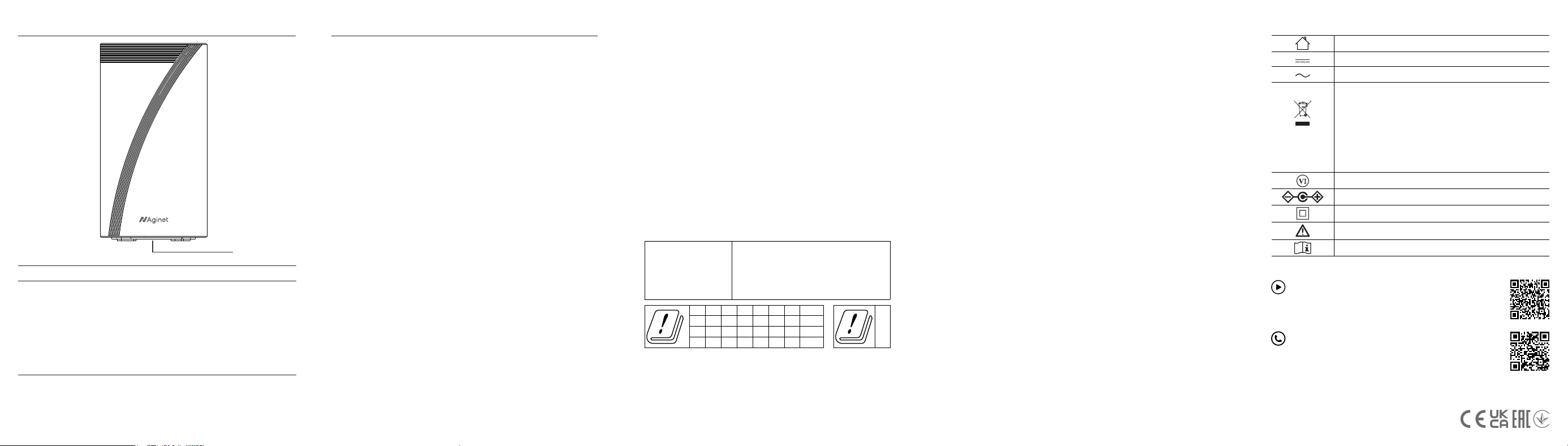
Explanation of the symbols on the product label
AC voltage
Indoor use only
RECYCLING
This product bears the selective sorting symbol for Waste
electrical and electronic equipment (WEEE). This means
that this product must be handled pursuant to European
directive 2012/19/EU in order to be recycled or dismantled
to minimize its impact on the environment.
User has the choice to give his product to a competent
recycling organization or to the retailer when he buys a new
electrical or electronic equipment.
Polarity of output terminals
Energy eciency marking (level VI)
Class II equipment
Caution
Operator’s manual
DC voltage
Setup with videos
Visit https://service-provider.tp-link.com/home-wifi-system/, or scan
the QR code, then click on the hyperlinks on the page to learn how to
set up your mesh system.