USER MANUAL
Version 2.0.4 — October 2017

CONTENTS
GETTING STARTED
SETTING UP CIRCLE HOME
CIRCLE FEATURES
PAUSE THE INTERNET
USAGE
FILTER SETTINGS
TIME LIMITS
BEDTIME
OFFTIME
REWARDS!
DEVICES
MENU
6
9
24
27
31
39
52
55
59
62
66
71

CONTENTS (cont.)
CIRCLE CONNECTIONS
CHORES!
ASSISTANT!
AUTOMATION
MYCIRCLE APP
CIRCLE GO
INSTALL CIRCLE GO
CONFIRM & MANAGE
HELP & LEGAL
80
84
92
98
106
113
116
126
132

4
Circle User Manual
Welcome to the Circle Family
What Is Circle Home?
Circle Home allows your family to manage all of your home’s connected devices
with ease. Circle Home pairs wirelessly with your home network and allows you
to manage every device on the network—tablet, smartphone, game console,
laptop, and more. This manual is designed to help your family get the most out
of your Circle experience.
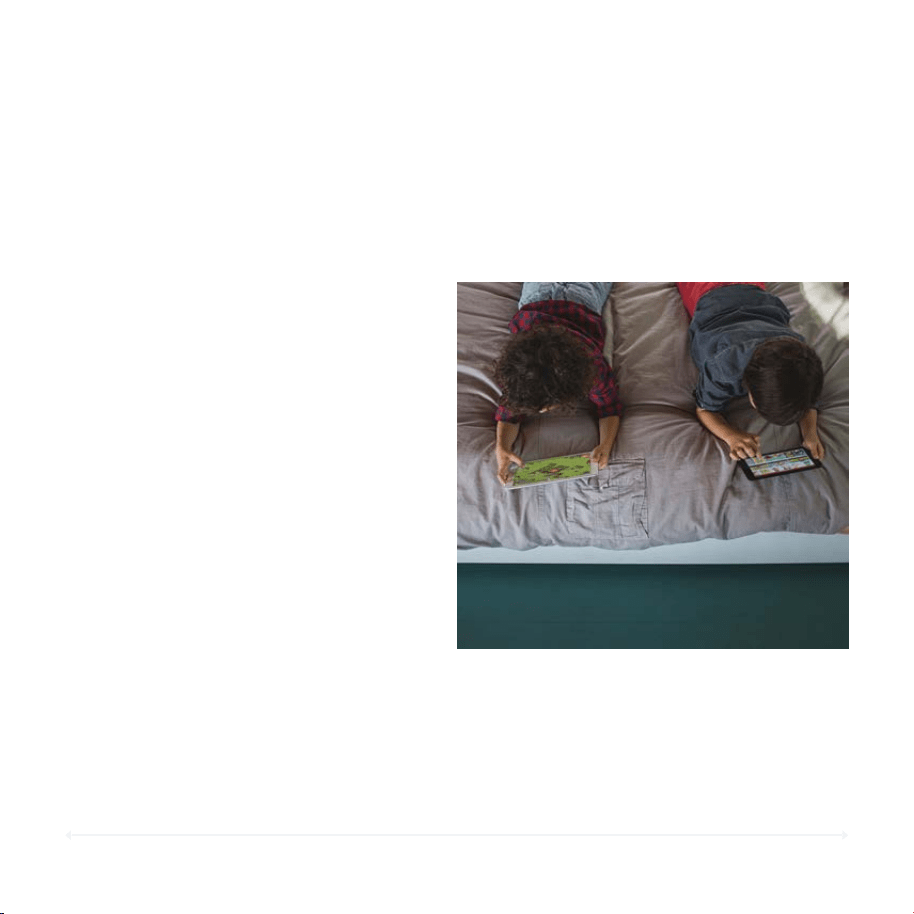
Through a licensing partnership with the Walt Disney Company, Circle provides
families with Disney entertainment that parents trust and children love. You will
have access to Disney videos, blogs, GIFs, memes, emojis, music, games,
characters and lots more all through MyCircle.
What Is Circle With Disney?
5
Circle User Manual — Setting Up Circle
Setting up Circle Home
Circle Home Manages All Devices
Since Circle Home is paired with
your home Wi-Fi network, it can
only manage devices that are
connected to your home network. If
the device connects to a network
outside of the home or a cellular
connection, Circle’s management
settings will no longer apply to the
device until it connects back with
the home network.
Circle Go
Circle Go extends the reach of your
Circle Home experience to other
Wi-Fi networks and even cellular
3G / 4G / LTE connections. You
can read more about Circle Go and
the MyCircle companion app on
page 97 and following.

SETTING UP CIRCLE HOME:
GETTING STARTED
7
Circle User Manual — Getting Started
Meet Circle Home
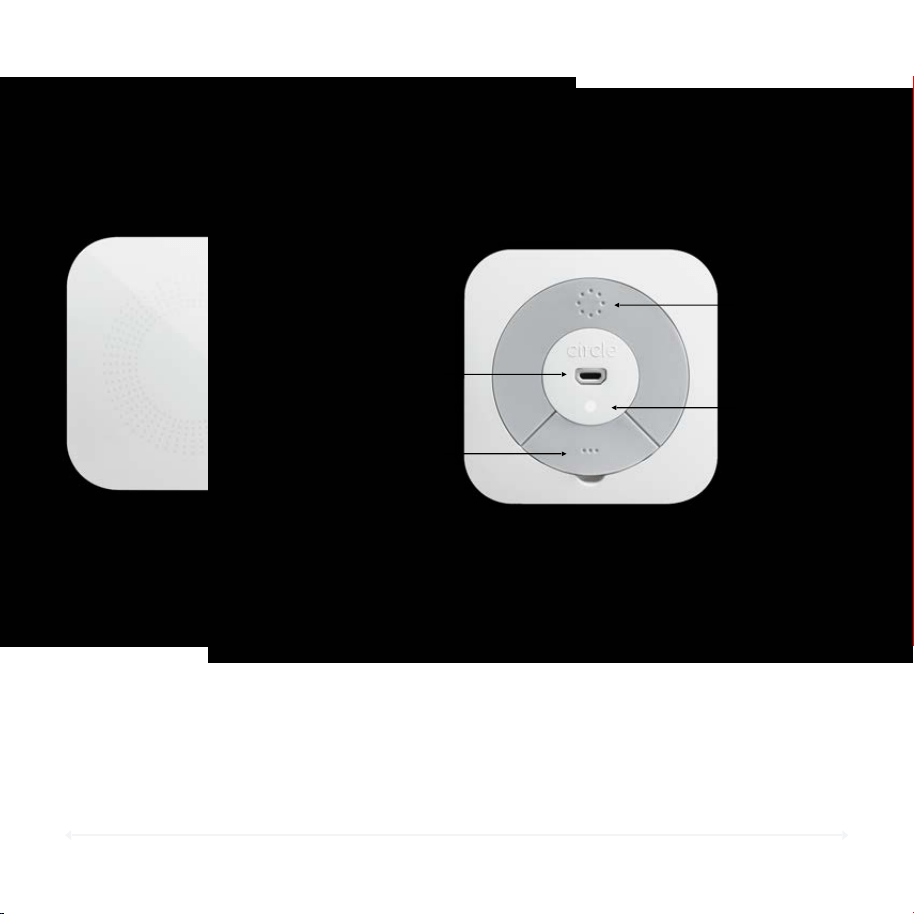
Circle Home Front
Power
Button
USB
Power
LED Power
Indicator
Ethernet
(Lift Tab)
Circle Home Back
•
Solid light: Circle is on and paired.
•
Slow blinking light: Circle is on but not paired.
• Fast blinking light: Circle is resetting or there is an internal issue
(low battery, internal failure).
LED Power Indicator Behavior
Circle Home Hardware
8
•
Circle (included)
•
USB cable (included)
•
USB power adapter (included)
•
Ethernet Cable (included, though wait until after setup to use)
•
A Wi-Fi network with name & password
Circle User Manual — Getting Started
Before You Begin
What You Need
The Circle app requires an iOS device running iOS 9 or later, or an Android
device running Android 4.2 or above.
System Requirements
To setup Circle, please have the following ready:
Ensure that your router and extenders (if applicable) are
compatible with Circle. You can see the current list here:
https://support.meetcircle.com/is-my-router-compatible-with-
circle
9
Circle User Manual — Getting Started
Setting up Circle
To Power Circl e H ome On
1. Plug the USB cable to the power adapter and connect to a power outlet.
2. Circle Home should power up by itself and the LED will turn on, indicating
that Circle Home has power.
3. If Circle Home does not power on immediately, press and hold the power
button for a few seconds to turn on.
Download the Circle App
•
Visit meetcircle.com/app and download the appropriate
app for your device.
Circle Home is setup and managed through the Circle app.
To Power Circl e H ome Off
1. Hold the power button for 10-15 seconds.
2. Circle is powered off when the LED is no longer on.
Circle Home was designed with enterprising kids in mind and has an internal
battery that will keep it working even if it’s unplugged. There may be times when
you will need to power Circle Home off, however, and it’s a simple process:!
Circle User Manual — Getting Started
Circle Home Placement
How to Position Circle Home
1. Place your Circle Home within 5 feet
of your router.
2. Try to avoid having anything
between Circle Home and your
router that may block the
communication between the two,
such as metal shelving or a wall.
3. Do not attempt to connect Circle
Home to your router using the
Ethernet cable until after your Circle
Home is paired and account has
been setup.
4. Do not place Circle Home directly
on top of your router.
Circle Home Is Not a Router
Unlike routers and extenders in the
home, Circle Home does not
communicate directly with the devices
on your network.
Rather, Circle Home talks directly to
your router, so that connection is the
most critical for setting up your Circle.
10
11
Circle User Manual — Getting Started
Get Ready for Setup
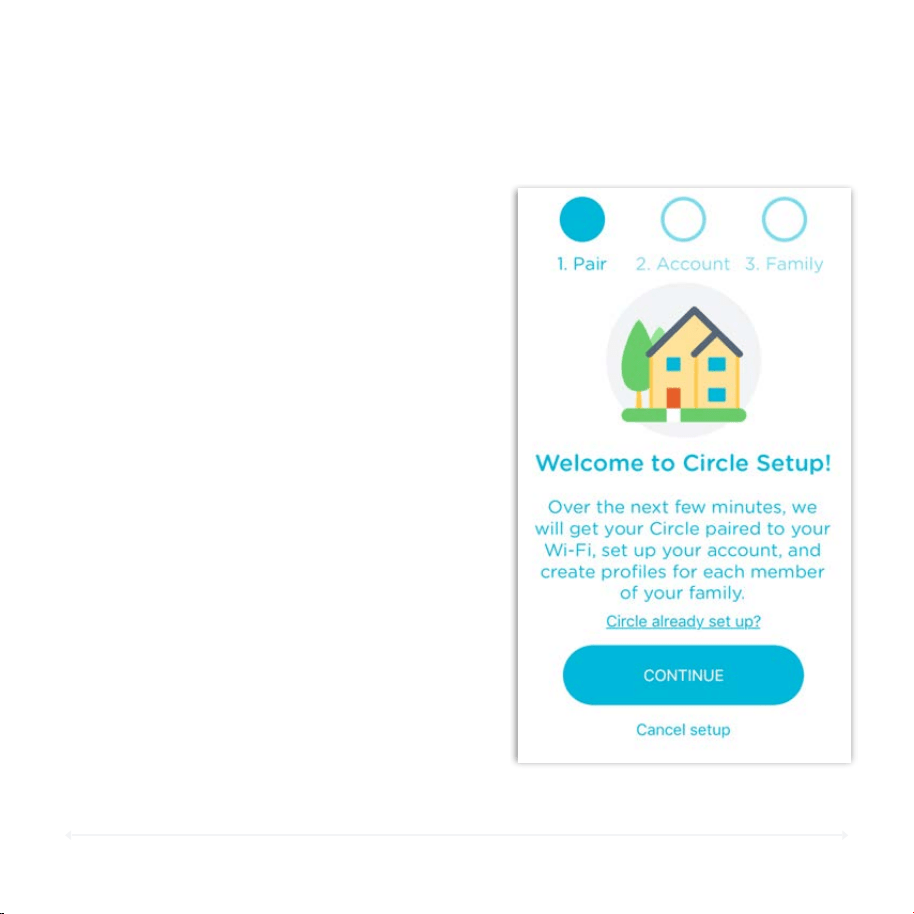
To Begi n C ircle Hom e Setup
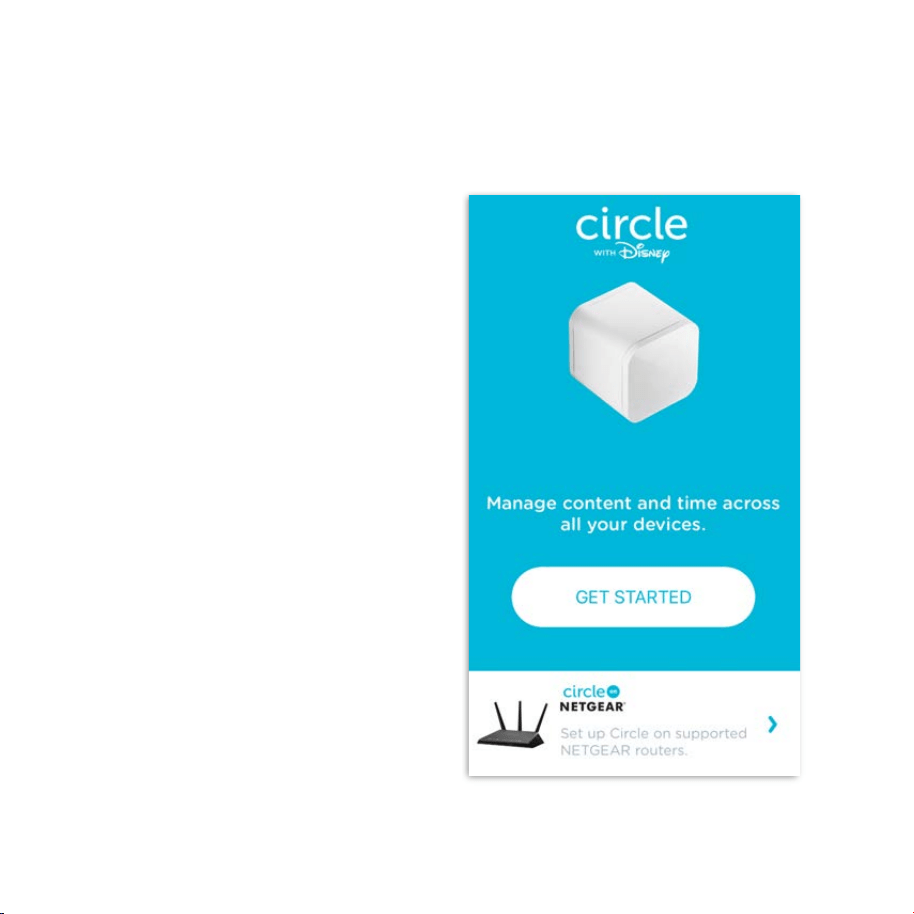
1. Launch the Circle app from your
device.
2. Tap Get Started.
3. Follow the in-app instructions to
work through the setup steps (see
below). Use this manual for further
reference and explanation of what
you’ll need to do.
What to Expect
The Circle Home setup process has three
main steps:
•
Pair Circle Home to your Wi-Fi (page 13)
•
Setup your Account (page 17)
• Create Family Profiles (page 20)
You can find a walkthrough for each of
these steps below.
12
Circle User Manual — Getting Started
Updating Circle Firmware
Prepare to Pair
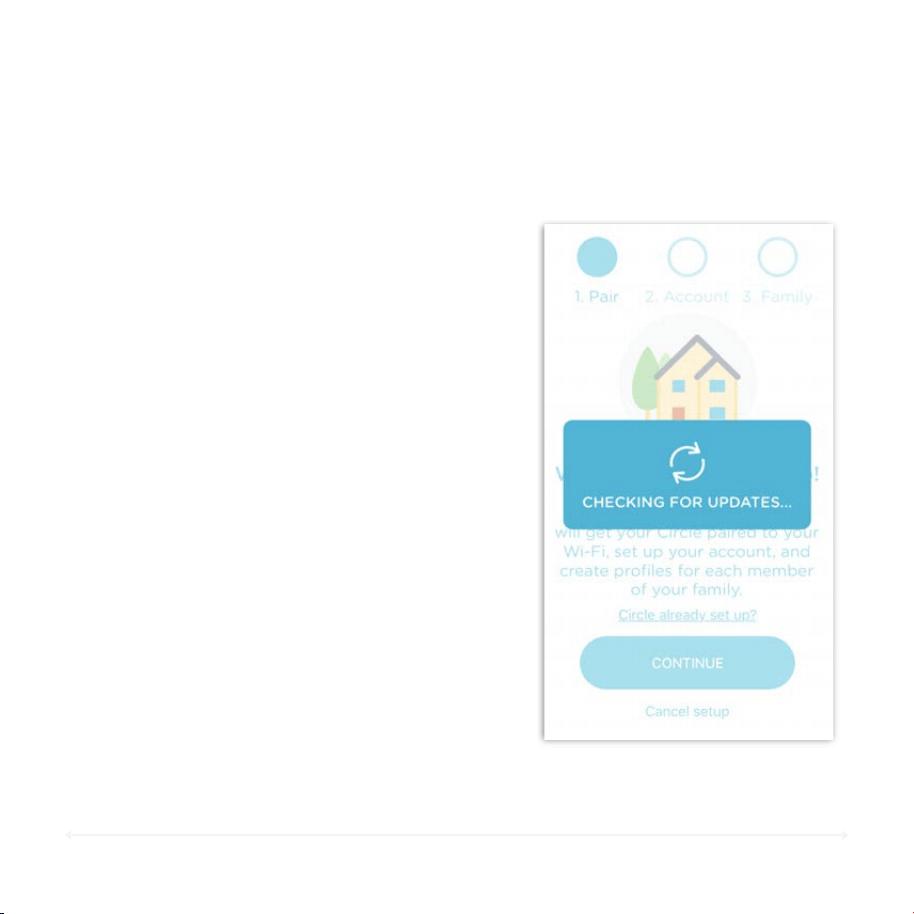
When you first begin the setup process,
ensure that your phone or tablet has
Internet access. It's not required, but it'll
allow the Circle app to check if there are
any firmware updates available for the
Circle Home device. If so, it will prompt
you to install them (and will reboot
shortly afterwards).
Check for Updates
You will know that your Circle Home is
ready to pair with your home Wi-Fi
when the light on the back of your
Circle Home is on and blinking slowly
and steadily.
Ensure that your Circle Home has power
and the light is blinking slowly for about
30 seconds before you proceed.
For more information on the LED
behavior, see page 5.
13
Circle User Manual — Getting Started
Pairing Circle Home to Your Wi-Fi
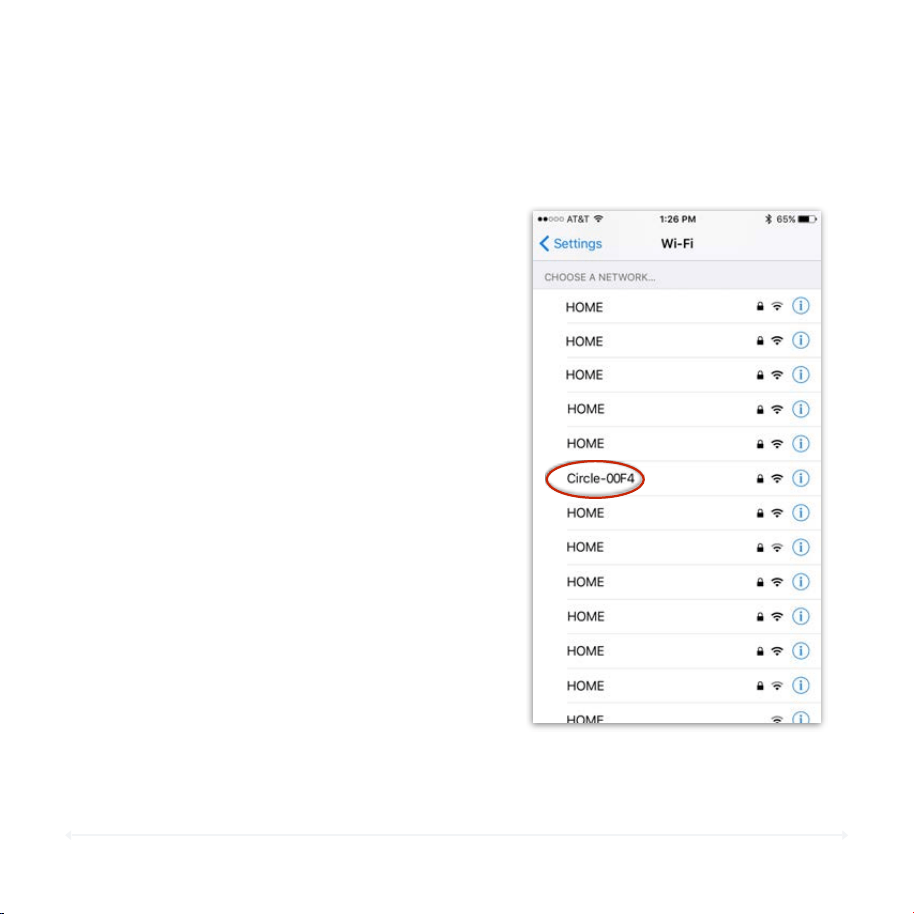
1. Head to the Wi-Fi settings on the
device you are using to setup your
Circle Home.
2. From the list of available networks,
select the “Circle-XXXX” (i.e.
Circle-00F4) network.
3. Enter the password “mycircle” to join.
4. After you have connected to the
Circle Home hotspot, return to the
Circle app. !
!
Note: Do not disconnect from the
Circle Home hotspot until prompted
in the Circle app. If your system
warns you that this network has no
internet access, make sure it stays
connected.
Connect to the Circle Home Hotspot
14
Circle User Manual — Getting Started
Pairing Circle Home to Your Wi-Fi (cont.)
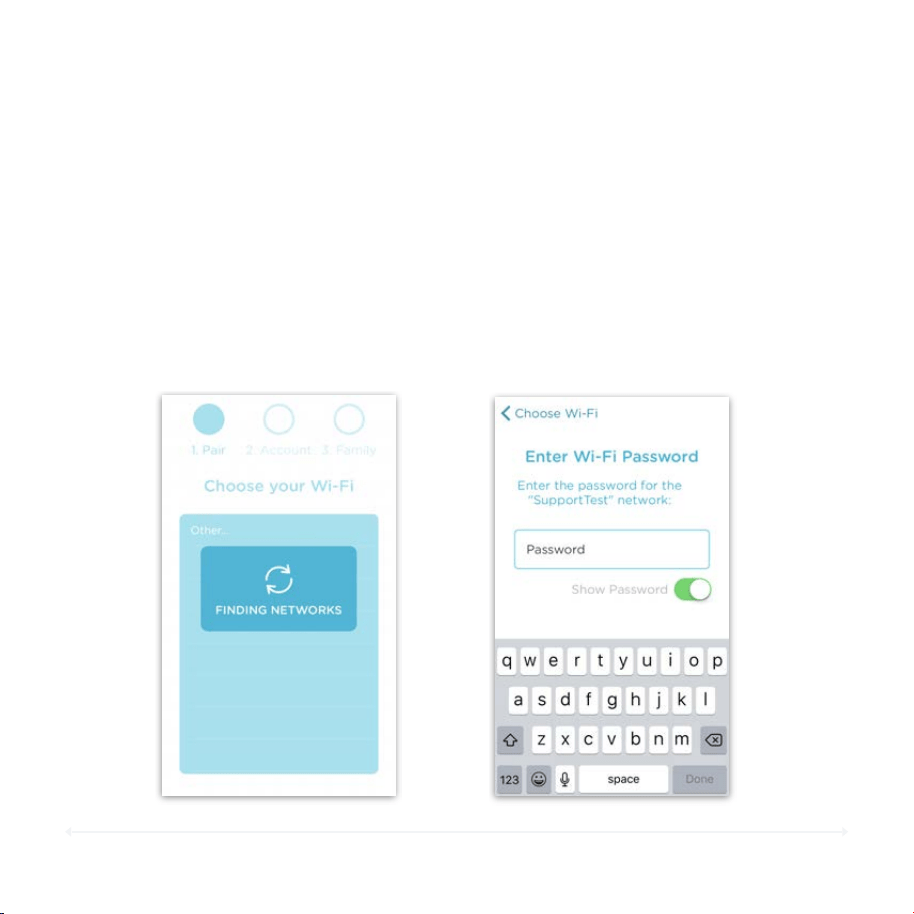
Find Your Home Wi-Fi
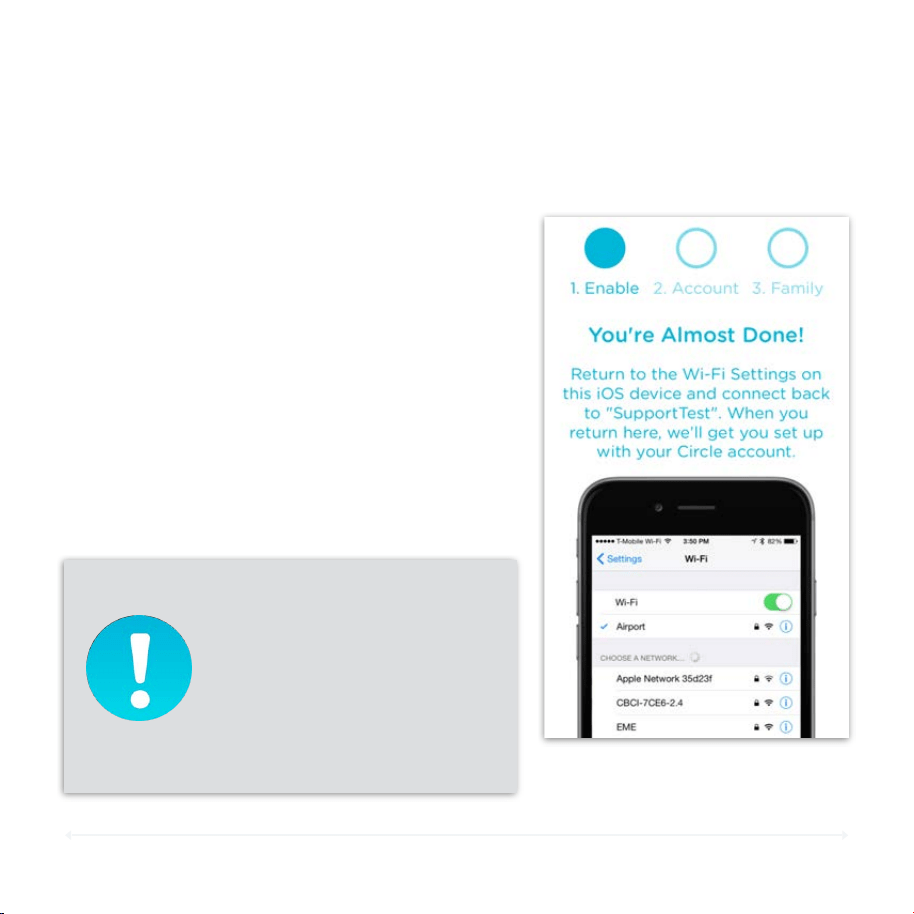
1. After connecting to the
Circle Home hotspot,
return to the Circle app.
2. Select your home Wi-Fi
network from the list.
1. Enter in the password for
your network and tap Done
on the keyboard.
2. Return to Settings > Wi-Fi
on your device and
reconnect to your home
Wi-Fi network.
Enter Your Wi-Fi Password
15
Circle User Manual — Getting Started
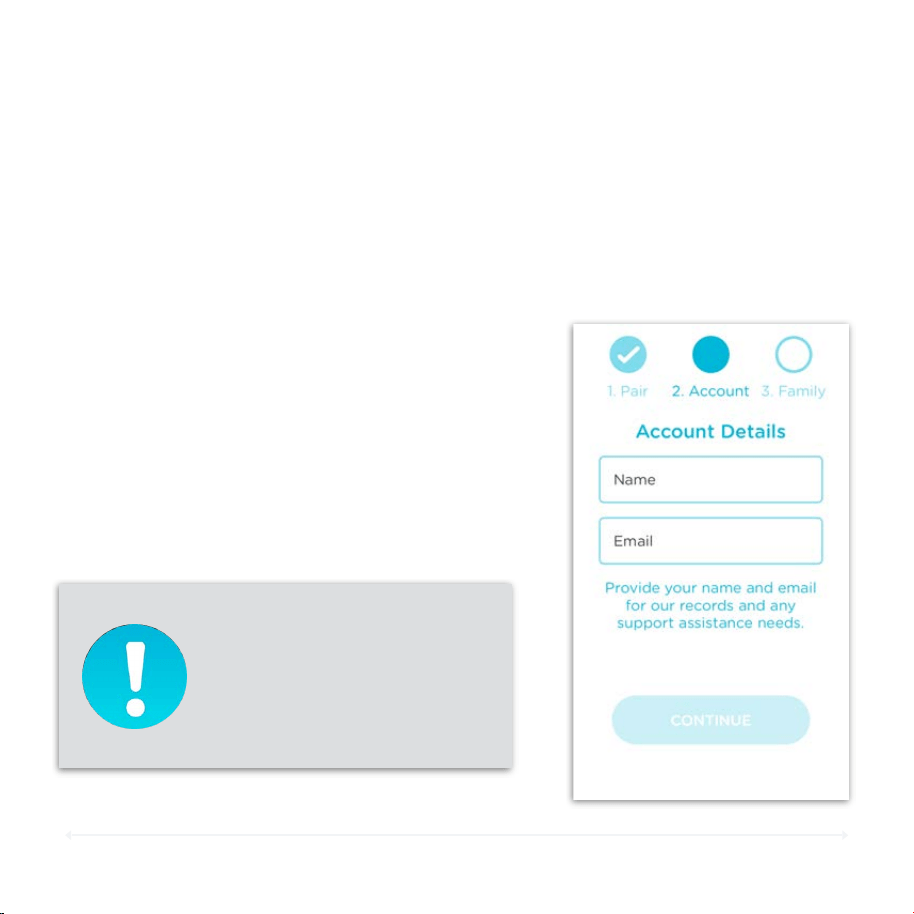
1. When you see the screen shown here,
pairing is complete. If you are unsure
whether it’s paired, check whether
the light on the back of your Circle
Home is now solid.
2. Go back to the Wi-Fi settings for the
device you are using to setup Circle
Home, and rejoin your home Wi-Fi.
3. Now, return to the Circle app. It will
automatically bring you to the next
step in the setup process.
Connect Back to Your Wi-Fi
Pairing Circle Home to Your Wi-Fi (cont.)
Note: Once paired, the Circle
Home hotspot will disappear
in order to prevent
accidental connection.
If Circle Home becomes
unpaired, the hotspot will
return.

16
Circle User Manual — Getting Started
Pairing Issues
Having Trouble?
If you are running into issues getting your Circle Home paired to your
home Wi-Fi, here are a few resources to help you address these
difficulties:
• Alert Shows You Are Not Connected To The Circle Home Hotspot
Anymore!
• "Something went wrong, We couldn't talk to your Circle" alert
message""!
• How to turn Circle Home ON or OFF (page 9)
17
Circle User Manual — Getting Started
Setting up Your Circle Account
Account Setup
Once Circle Home is enabled, you will need a Circle account so that you can start
managing all of Circle’s features. To create an account, you will need an email
address and a phone number that can receive SMS text messages.
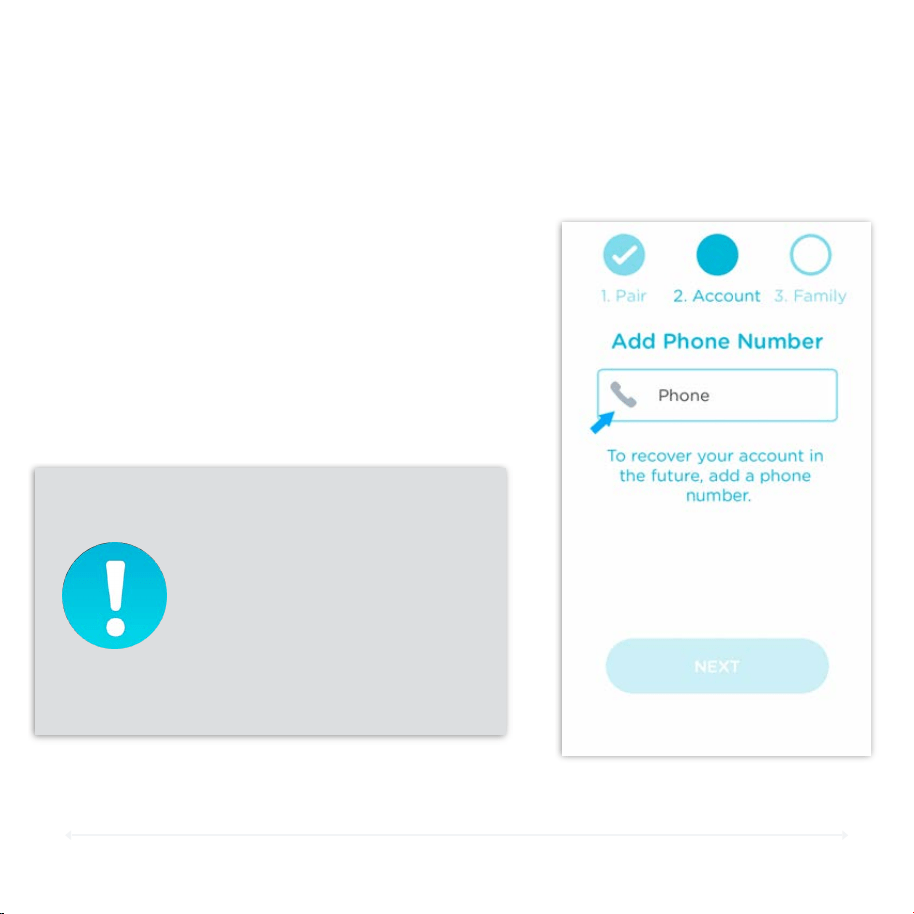
To Cre ate a Circl e Accou nt
1. Enter in your name and email address in
the appropriate fields (see image on the
right for reference).
2. Hit Continue.
Accidentally putting your name
and email in the incorrect fields
will result in an error. If you
receive an alert, check the
placement of your name and email
before trying again.
18
Circle User Manual — Getting Started
Setting up Your Circle Account (cont.)
Add a Phone Number
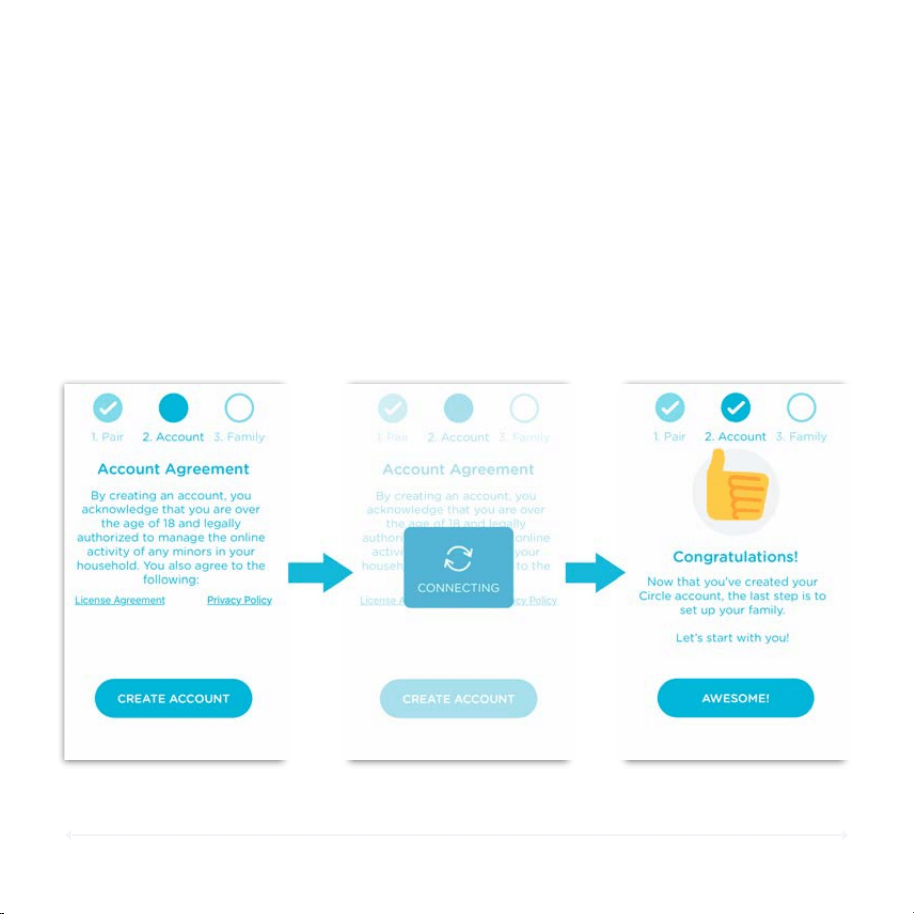
In case you need to manage Circle from an
additional device, or you reinstall the Circle
app, we ask for a phone number. We utilize a
passcode system to send a code via text/SMS
in this event, so Circle can verify access. Enter
a phone number here that can receive texts,
and hit Next.
Attention Non-US customers!
The Circle app will automatically
detect the region that is set on the
device you are using to setup
Circle and insert the country code
for you. If the country code that is
automatically selected does not
match your phone number, tap on
the flag or phone icon (as shown
in the screenshot) to select the
proper country.
19
Circle User Manual — Getting Started
Setting up Your Circle Account (cont.)
Create Your Account
On this next screen, you'll see links to our License Agreement and Privacy Policy. Go
ahead and give them each a read; to continue onward, you agree to abide by these
terms. Hit Create Account when you're ready, and we'll be on our way to setting up
your family!
20
Circle User Manual — Getting Started
Setting up Your Family
Circle Profiles
Circle lets you create a profile for each member of your family, so you can start
crafting an online experience tailored to each individual.
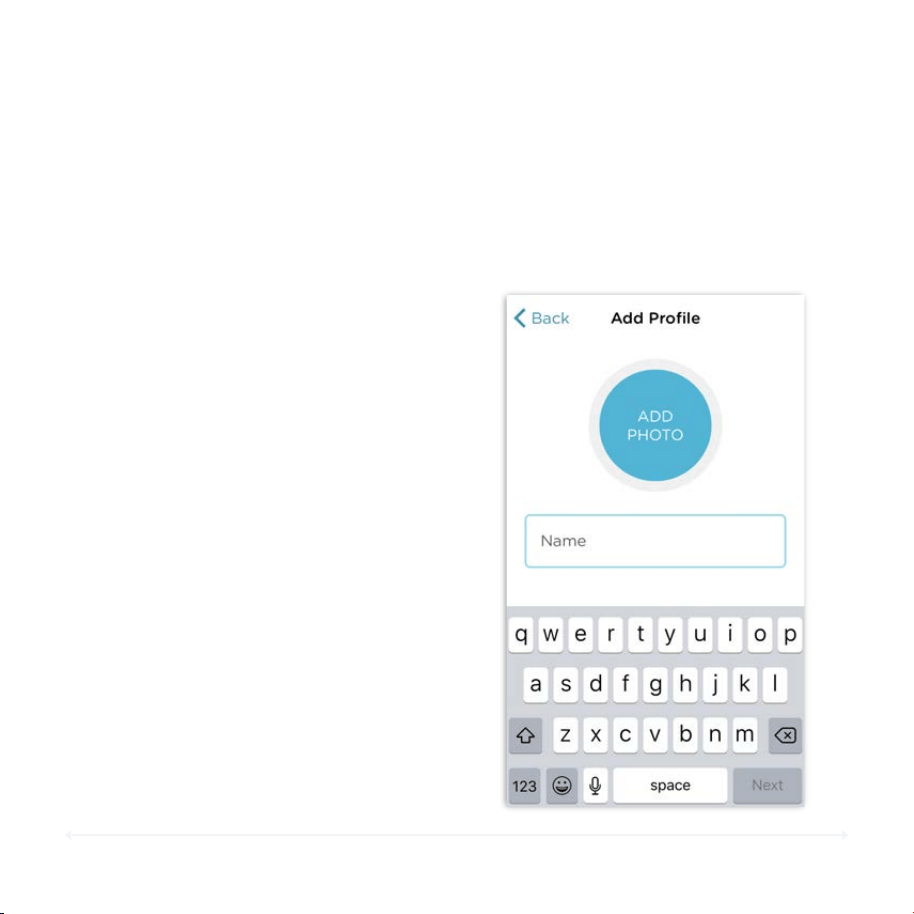
To Setu p a New P ro file
1. Enter in the user's name.
2. Add a photo (optional). Profiles without
photos will display with their first initial,
and the filter level color as the
background.
3. Set the Filter Level.
4. Set Time Limits.
5. Set BedTime.
6. Set OffTime.
Assigning Devices
Assigning devices to Family Member
profiles lets Circle know where to apply
the settings. Select the devices from the
list that you’d like to assign to your
profile. For additional help, see Assigning
Devices (page 69).
21
Circle User Manual — Getting Started
Setting up Your Family (cont.)
Additional Family Member Profiles
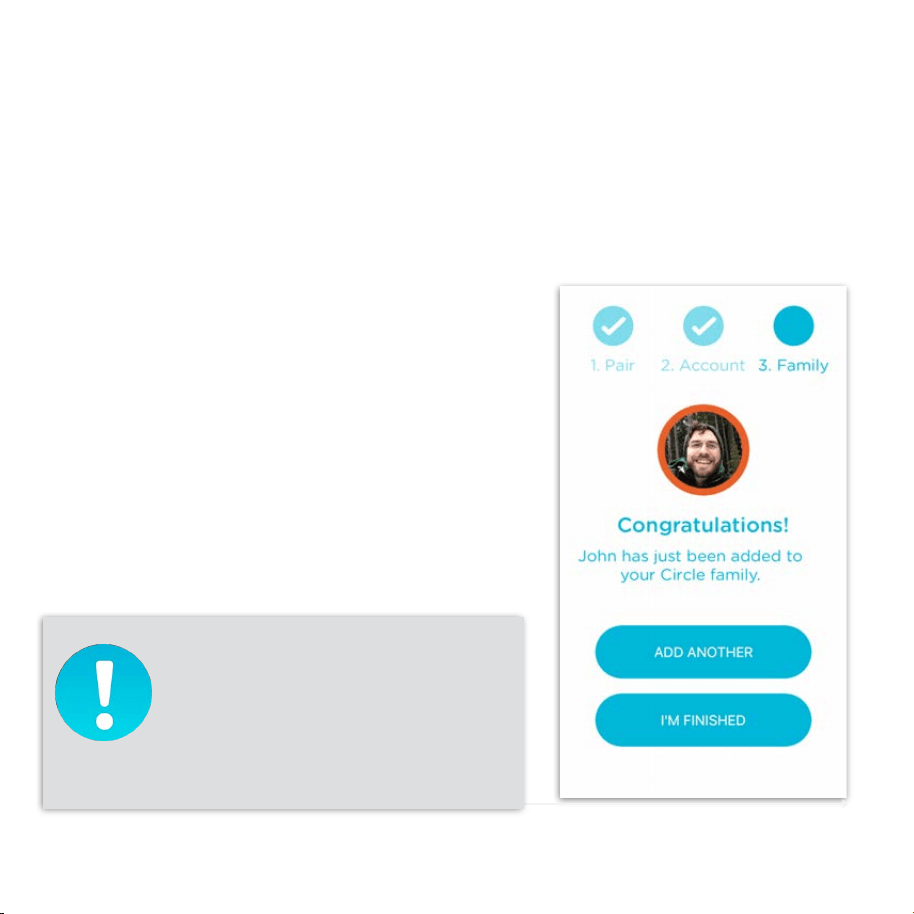
After the first profile is setup, you can add as many additional profiles as you'd like.
To Add Another Family Member
1. Tap Add Another.
2. Enter in their name.
3. Add a photo (optional). Profiles without
photos will display with their first initial,
and the filter level color as the
background.
4. Set the Filter Level, Time Limits,
BedTime, and OffTime.
5. Assign associated devices.
6. Tap Add Another to add yet another
family member, or I’m Finished to
continue with setup.
Give Circle time on your network to
discover all your devices and name
them as best it can before completing
setup. You might need to remove and
re-add Apple devices to have them
show up correctly.
22
Circle User Manual — Getting Started
Setting up Your Family (cont.)
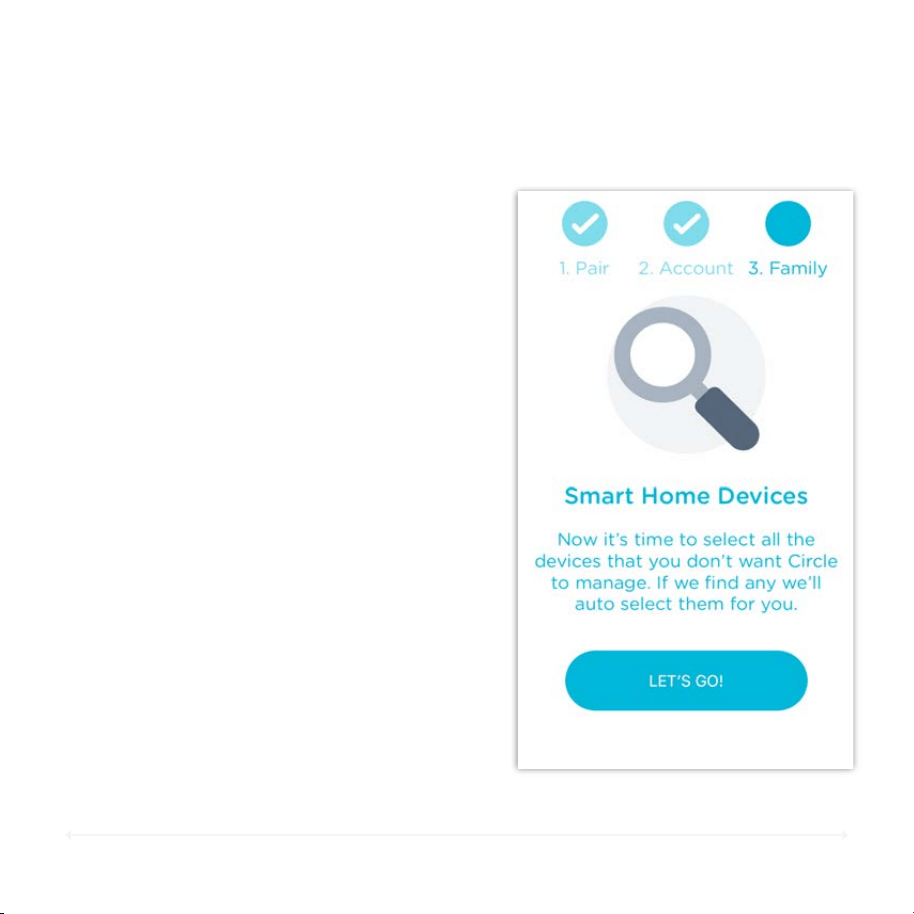
Unmanaged Devices
During setup, Circle will look for devices
that should be Unmanaged, and pre-select
them to avoid issues on your network.
Unmanaged Devices are ignored by Circle
to ensure that none of your sensitive or
smart home devices accidentally get
paused or filtered. Circle should ignore the
following:
•
Smart thermostats or smoke detectors
•
Wi-Fi enabled outlets or light switches
•
Sensitive Wi-Fi controlled equipment
•
Other smart home devices
See page 69 to Assign or Reassign a
device as Unmanaged.
We recommend that you assign network
devices like switches, extenders, access
points, gateways, etc. to the "Unmanaged"
category if they appear under your device list.
This will ensure that they can communicate as
intended with your main router.
Network Devices
23
Circle User Manual — Getting Started
Setting up Your Family (cont.)
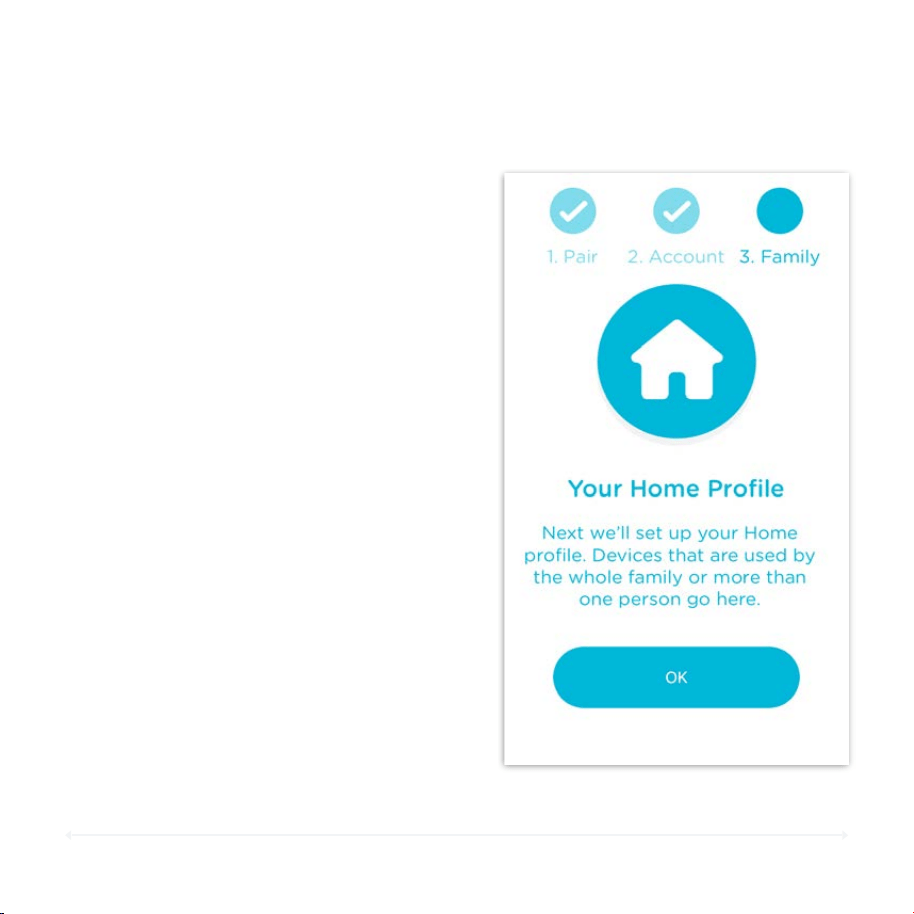
The Home Profile
All devices that are not assigned to a
Family Member or set to Unmanaged
will automatically be assigned to the
Home user. Any new device that
joins the network will also belong to
the Home profile.
Just like with any family member, the
Home profile can be setup to use all
of Circle’s features, such as Filters,
Time Limits, BedTimes, OffTimes,
History, and Usage.

CIRCLE FEATURES
25
Pause the Internet (page 27)
Circle User Manual — Features
Circle Features
Pause
View statistics for all online activity (page 31)
Usage
Control what is (and isn't) allowed (page 39)
Filters
Set Time Limits for online activity (page 52)
Time Limits
Disable the Internet at night (page 55)
BedTime
Disable the Internet at certain times (page 59)
OffTime
Change BedTime, Time Limits, or OffTime for
the day (page 62)
Rewards
26
Circle User Manual — Features
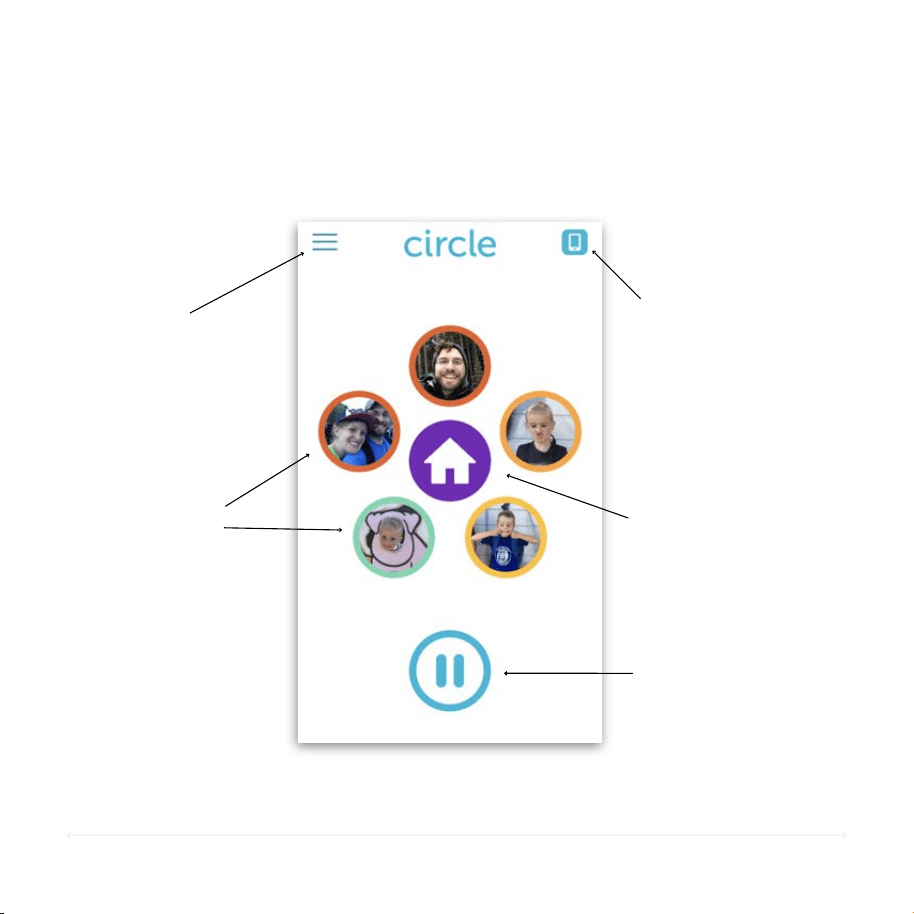
The Home Screen
The Home Screen is where you can access all of Circle’s features.
Menu
Family Member
Profiles
Pause
Devices
Home Profile
Access additional
options to manage
Circle (page 71)
Tap the images to
view each profile. The
color of the circle
indicates their Filter
level (page 30)
Manage and view a
list of all the
devices on your
home network
(page 66)
View and change
settings for the
Home Profile
(page 23)
Pauses Internet
for the entire
home network
(page 27)
27
Circle User Manual — Features
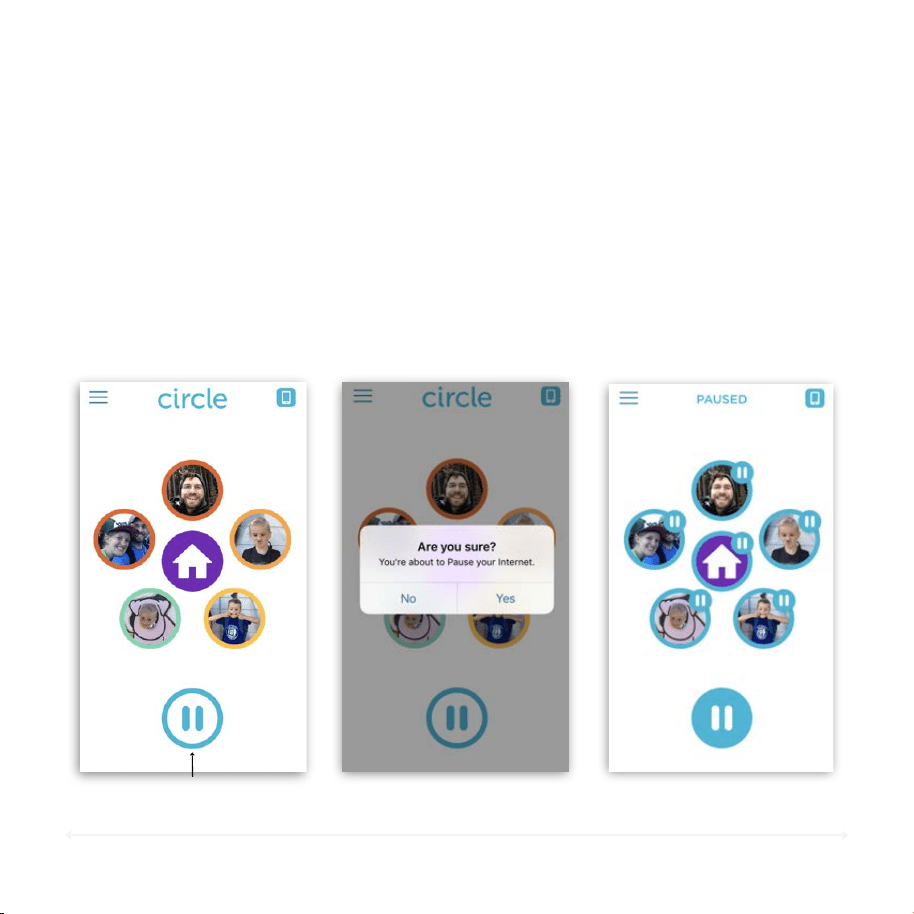
Pause the Internet
To Pau se Yo ur Home Ne twork' s I nterne t
Dinner time. Homework time. Or just no-Internet-time. Circle gives you the
power to Pause the whole network, individual family members, or even specific
devices.
1. On the Home Screen, tap Pause.
2. Confirm your Pause.
3. To Un-Pause, tap Pause again.
PAUSE Button
Un-Paused Confirm
Paused
Use the visual cues shown above to determine when the Internet is Paused.
28
Circle User Manual — Features
Pause the Internet (cont.)
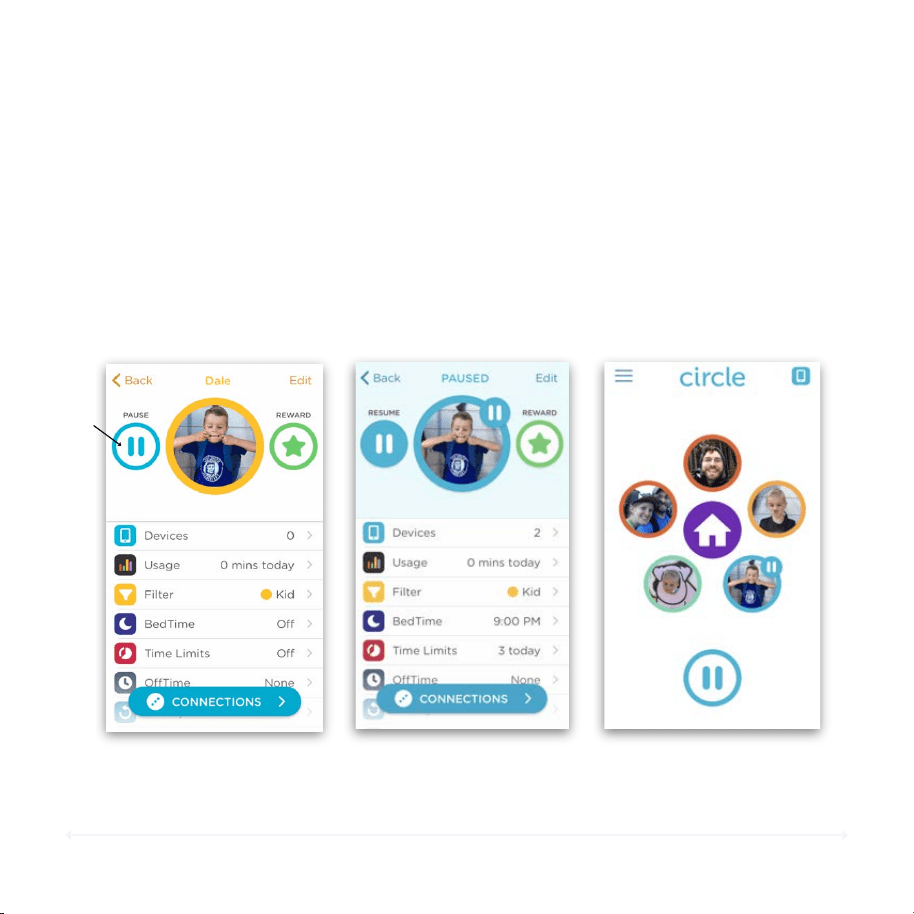
To Pau se a Family Member
1. On the home screen, tap the family member you want to pause.
2. On their profile screen, tap the Pause button.
3. To un-pause the family member, tap Pause on their screen again.
Use the visual cues shown above to determine when a family member is Paused.
PAUSE
Button
Un-Paused
Paused
Pause Badge
29
Circle User Manual — Features
Pause the Internet (cont.)
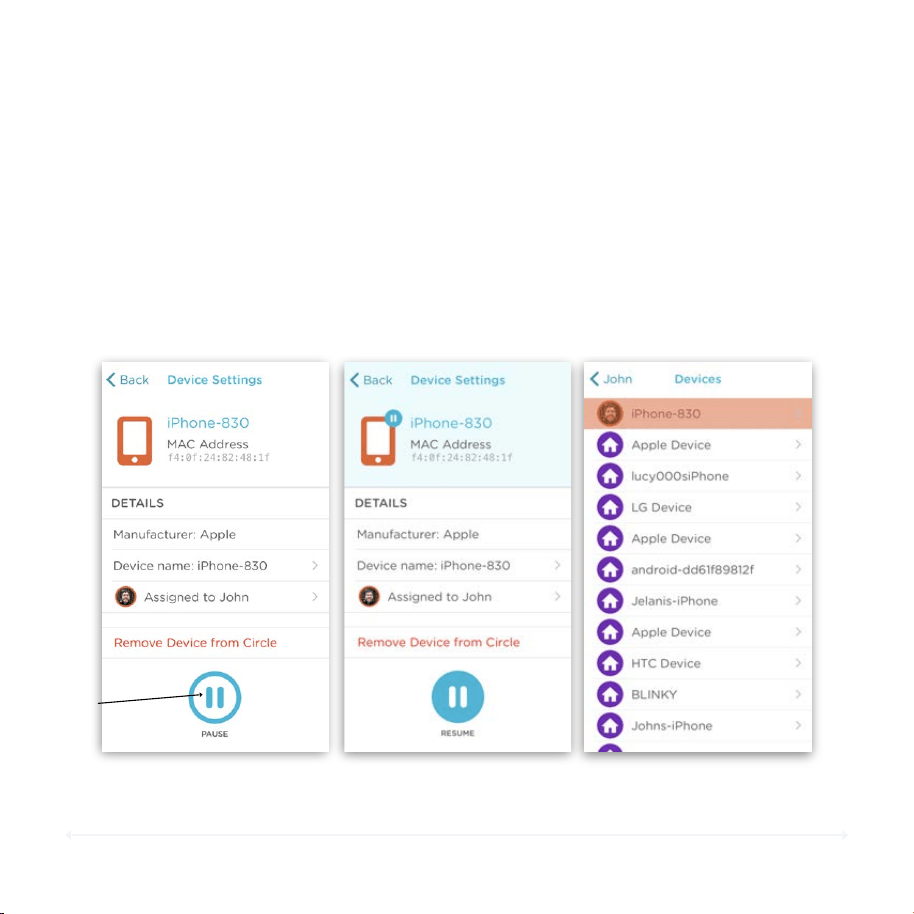
To Pau se a Si ngl e Device
1. On the home screen, tap the Devices icon in the top-right
corner.
2. Select the device you want to pause from the list by tapping it.
3. Tap the Pause button on the Device Settings screen.
4. To un-pause, tap the Pause button on the same screen.
Use the visual cues shown above to determine when a device is Paused.
PAUSE
Button
Un-Paused Paused
Color Changes in !
Device List While Paused
30
Circle User Manual — Features
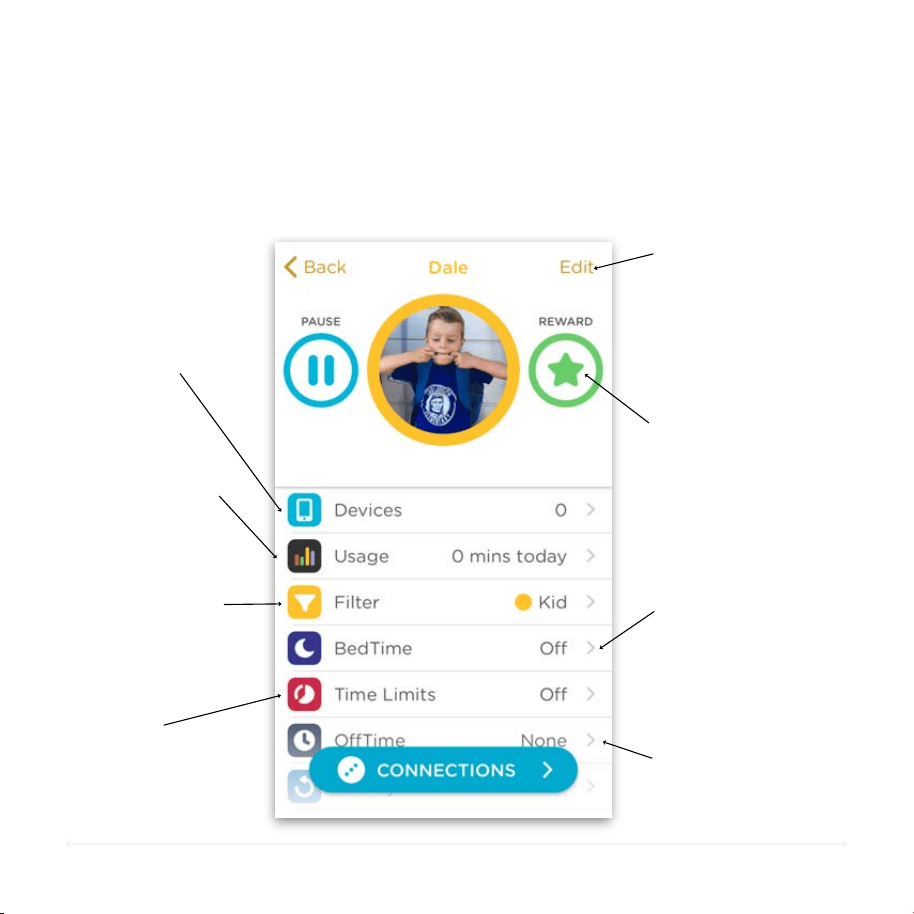
Family Member Profile Screen
The profile screen offers the most comprehensive view of your family and their
online usage. Here you can view details on your family member’s Internet activity,
fine-tune what they can and can’t see, and set time limits on when the Internet is
available to use.
Devices
See which devices are
assigned to this profile
(page 66)
Usage
Detailed view of
time spent on
various Internet
activities (page 31)
Filter Level
Adjust Filter Level and
settings by category
and Custom Filters
(page 39)
Edit
Edit Profile Name
and Photo or
Delete Profile
(page 37)
Time Limits
Set limits on
Internet use by
day or specific
platforms
(page 52)
BedTime
Choose a
timeframe to
prevent Internet
use (page 55)
OffTime
Set times when the
Internet will be
paused (page 59)
Reward
Temporarily extend
a Time Limit or
BedTime, or
remove an OffTime
for the day
(page 62)
31
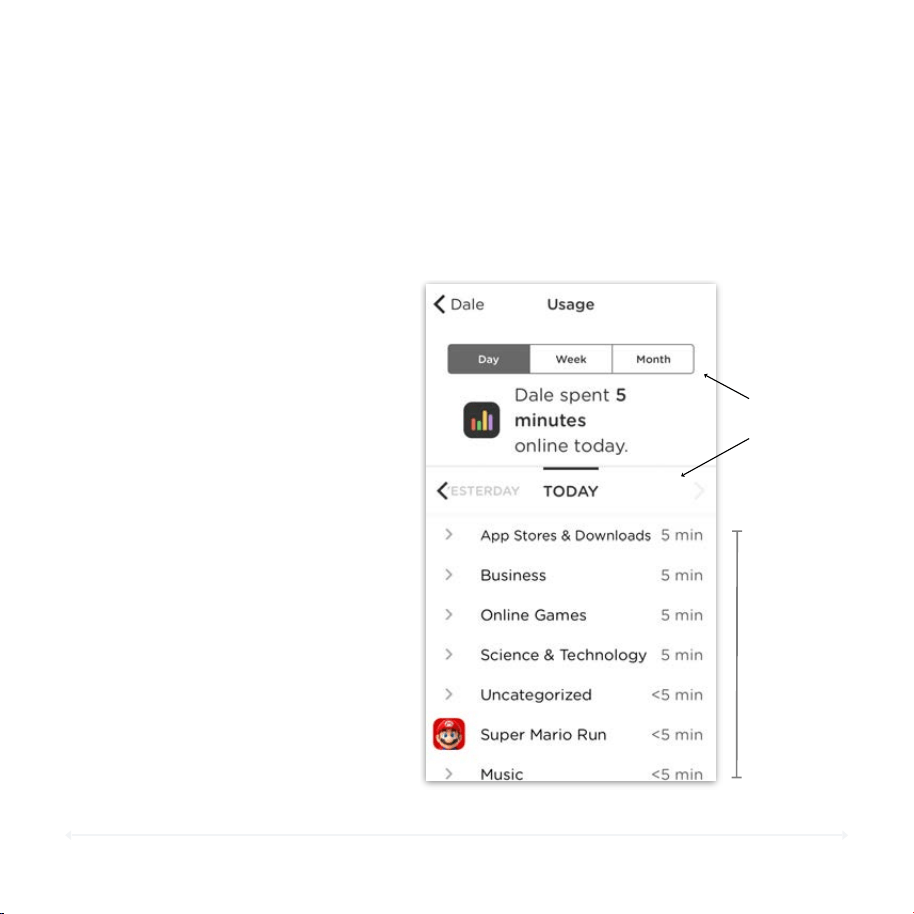
Circle adds up time spent on websites and different platforms, such as Facebook
or Netflix. Usage displays the information you are looking for clearly and neatly.
Circle User Manual — Features
Usage
View the duration of all Internet
activity by day, week, or month.
Easily compare with previous time
frames as well.
Total Time Sp ent
Activity is organized by category
and platform and ordered by
longest duration spent at the top so
you can easily see where the most
time is spent online.
Top Sites
Timeframe
Selections
Categories
& Platforms
32
Circle User Manual — Features
Usage (cont.)
1. Tap the corresponding duration you’d
like to view (day, week, month).
2. The total time online is shown.
3. Compare with previous time frame by
selecting the relevant option
(yesterday, last week, last month).
To View by Day, Week, or Month
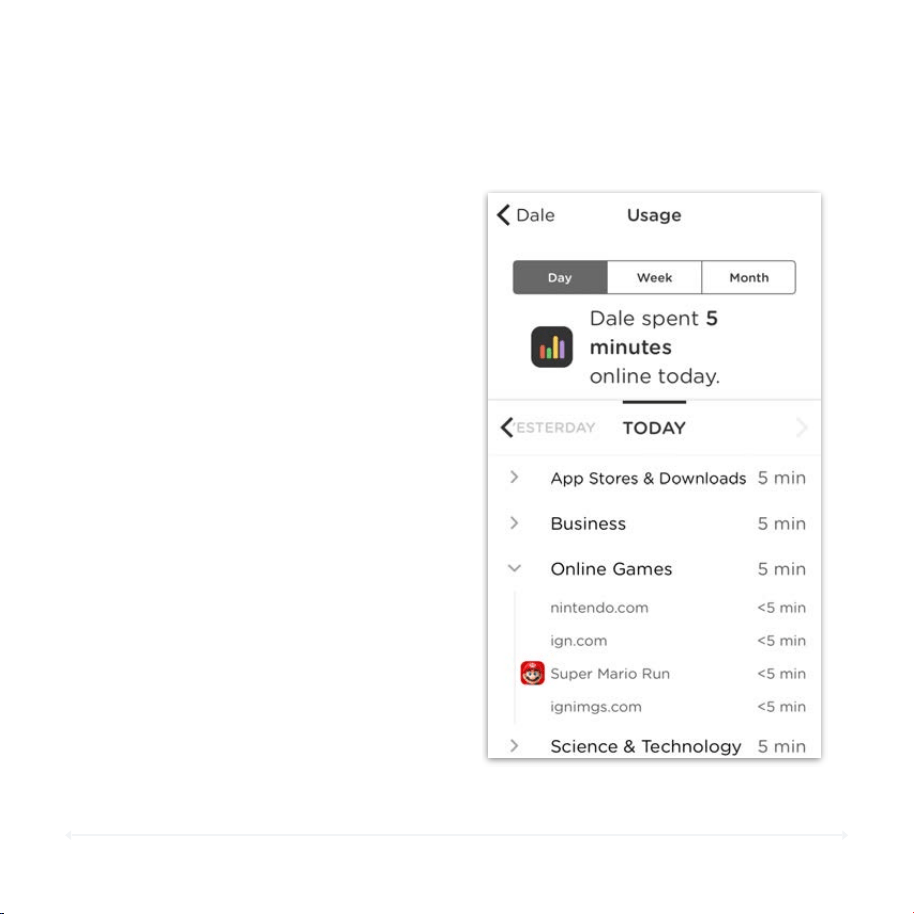
1. Tap the category name.
2. A detailed list of sites visited will be
shown along with the time spent on
that site.
3. Tap the category name again to close
the list.
To View More Details in a Category
33
Circle User Manual — Features
Usage (cont.)
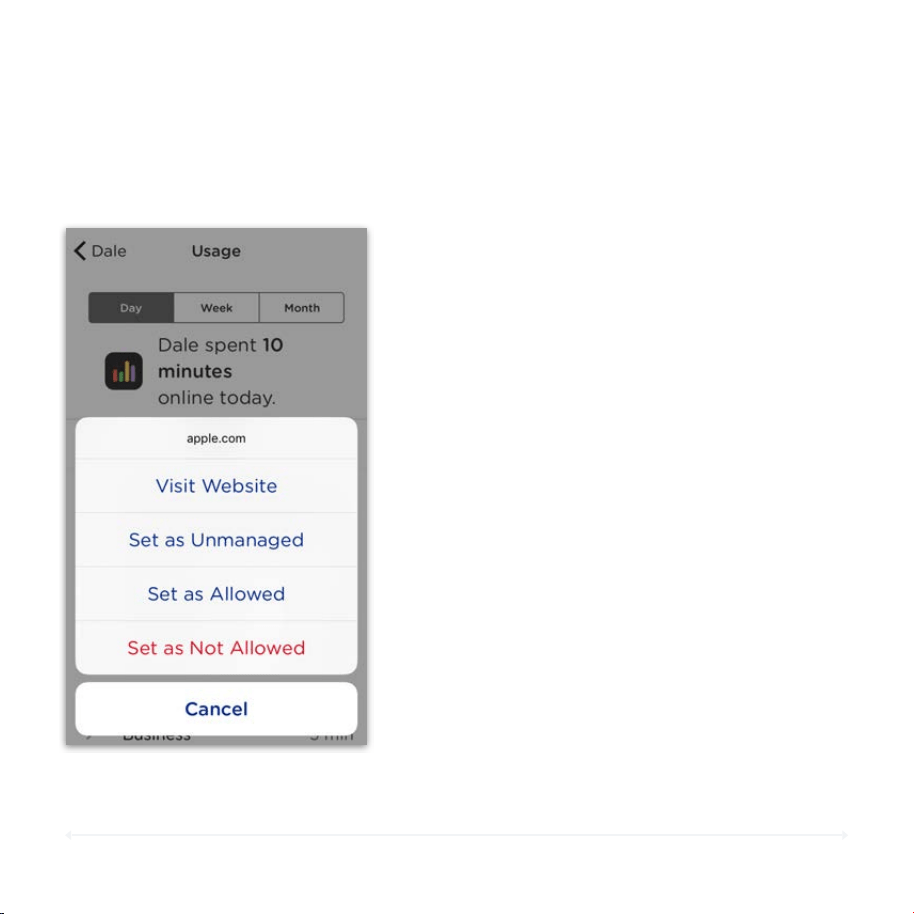
1. In the category list view, tap the
website.
2. Tap "Visit Website" to view the URL
in your device’s default web browser.
1. In the category list view, tap the
website.
2. Tap "Set as Not Allowed".
3. The site will now be filtered for the
family member and they will no
longer be able to access that site.
If You Are Unsure of the Website Listed
To Filter a Site for This Family Member
See Custom Filters (page 42) if you’d like
to allow a site again, and Filter Settings
(page 39) for more on what Allowed/
Unmanaged filters mean.
To view the website:
Set the site as Not Allowed:
34
Circle User Manual — Features
History
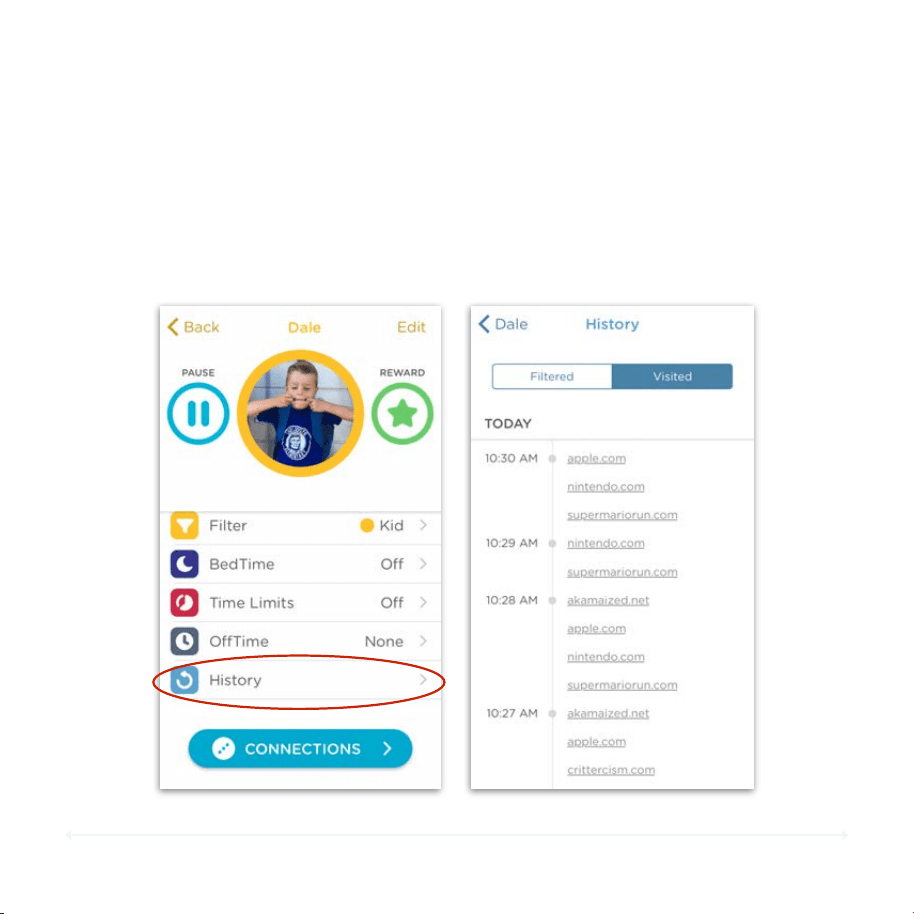
Viewing User Histories
For each profile that has a filter level other than None, Circle tracks usage and
compiles a timeline of websites that have been either visited or filtered out. Tap
the History section on the family member's profile screen to view their timeline.
35
Circle User Manual — Features
History (cont.)
Filtered History
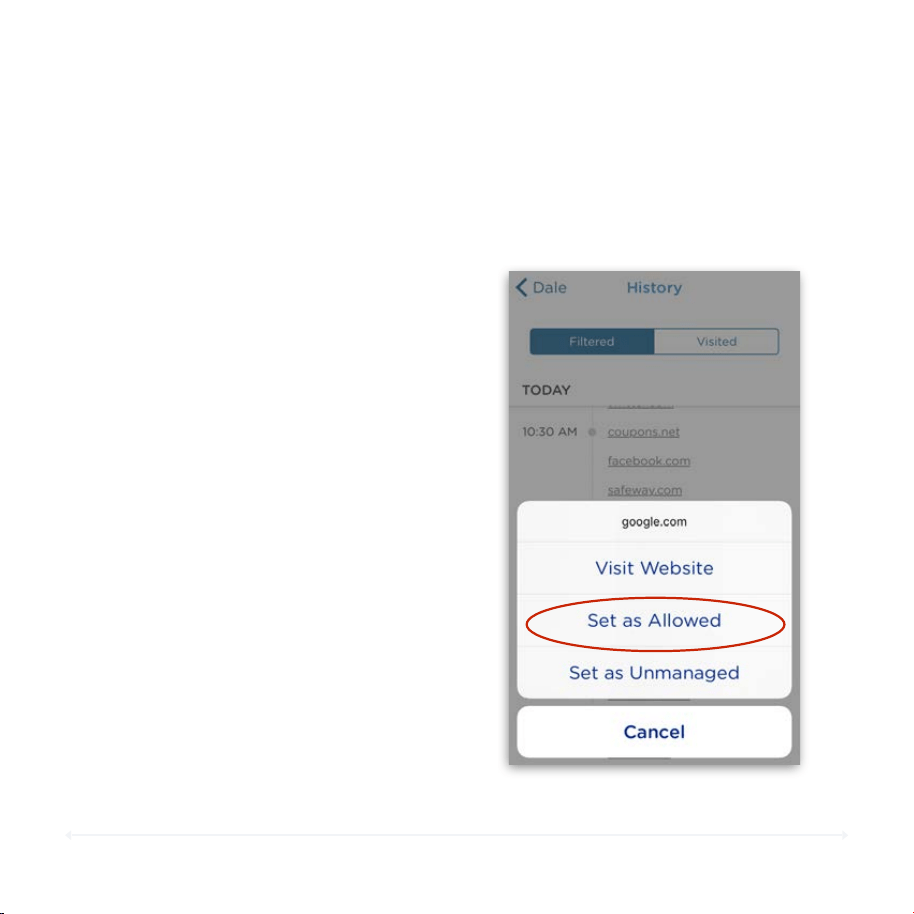
1. Click on the website you want to allow.
2. Tap "Set as Allowed".
3. The site will no longer be filtered and can
now be accessed.
Always Allow Filtered site
If the website is not supposed to be
filtered:
On the History page, the Filtered tab will
show the date and time of attempts to access
a Filtered site.
See Custom Filters (page 42) if you’d like
to allow a site again, and Filter Settings
(page 39) for more on what Allowed/
Unmanaged filters mean.
36
Circle User Manual — Features
History (cont.)
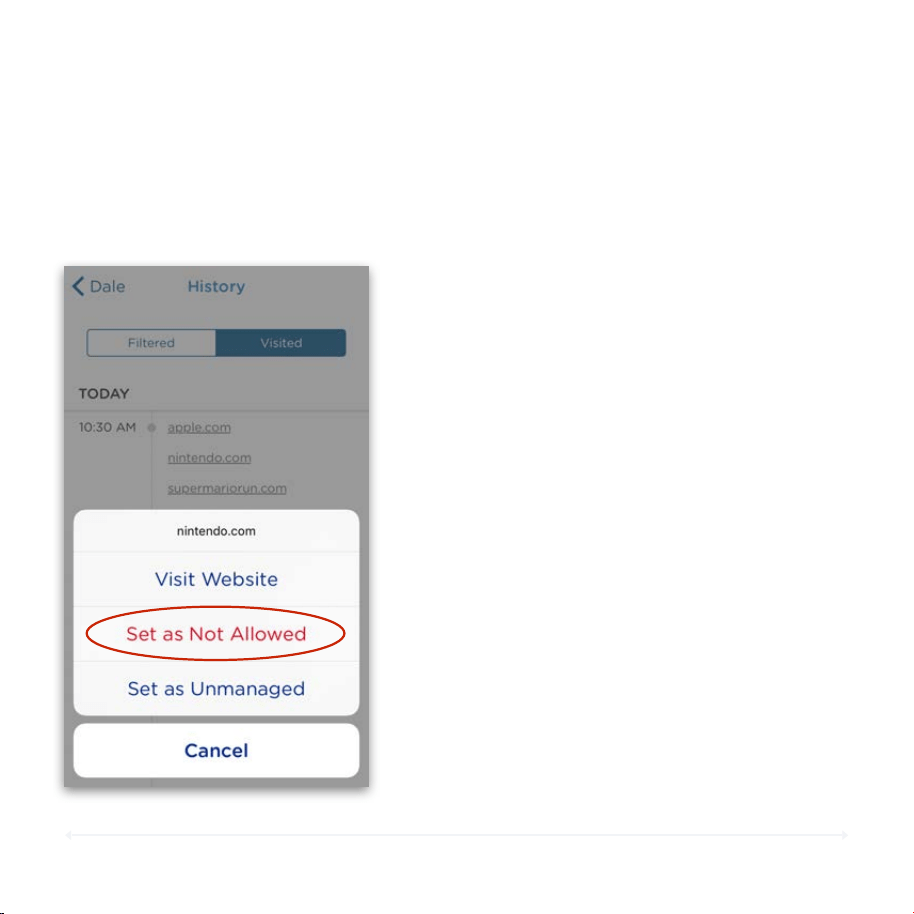
Visited History
1. Tap on the website you want to filter.
2. Tap "Set as Not Allowed".
3. The site will now be filtered and can
no longer be accessed.
Filter Visited Website
If you’d like the family member to not be
able to view a site anymore:
The Visited tab displays websites that were opened by date and time.
See Custom Filters (page 42) if you’d
like to allow a site again, and Filter
Settings (page 39) for more on what
Allowed/Unmanaged filters mean.
37
Circle User Manual — Features
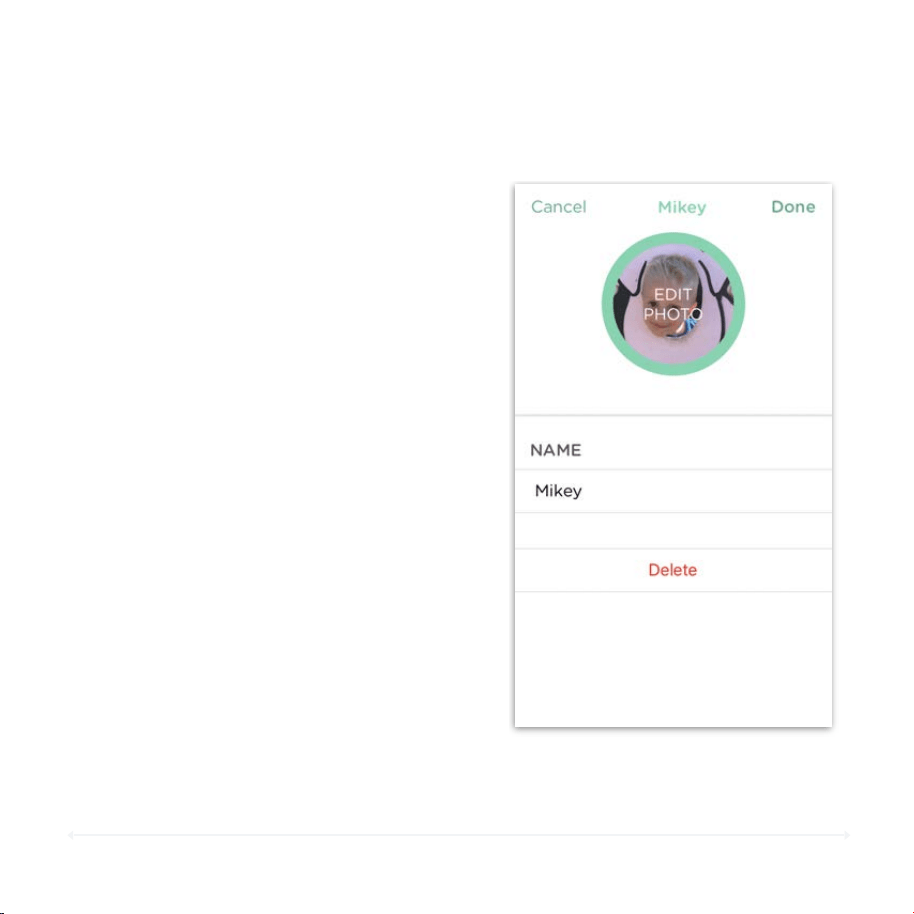
Edit or Delete Profile
To Edi t Prof ile Photo
To Dele te a Profile
1. Tap the profile photo.
2. You can either take a new photo, choose an
existing photo from your library, or clear the
photo. The default profile photo is the first
letter of the name.
3. Tap Done in the top-right corner to save.
To Edi t Prof ile Name
1. Tap the name.
2. Enter in your new desired name.
3. Tap Done in the top-right corner to save.
1. Tap Delete.
2. Tap Delete again to confirm.
3. All devices assigned to that profile will
default back to the Home profile.
Deleting a profile is permanent and will
remove all settings and data.
After opening the appropriate family
member’s profile, you can tap Edit in the
upper right-hand corner to edit or
delete their profile.
38
Circle User Manual — Features
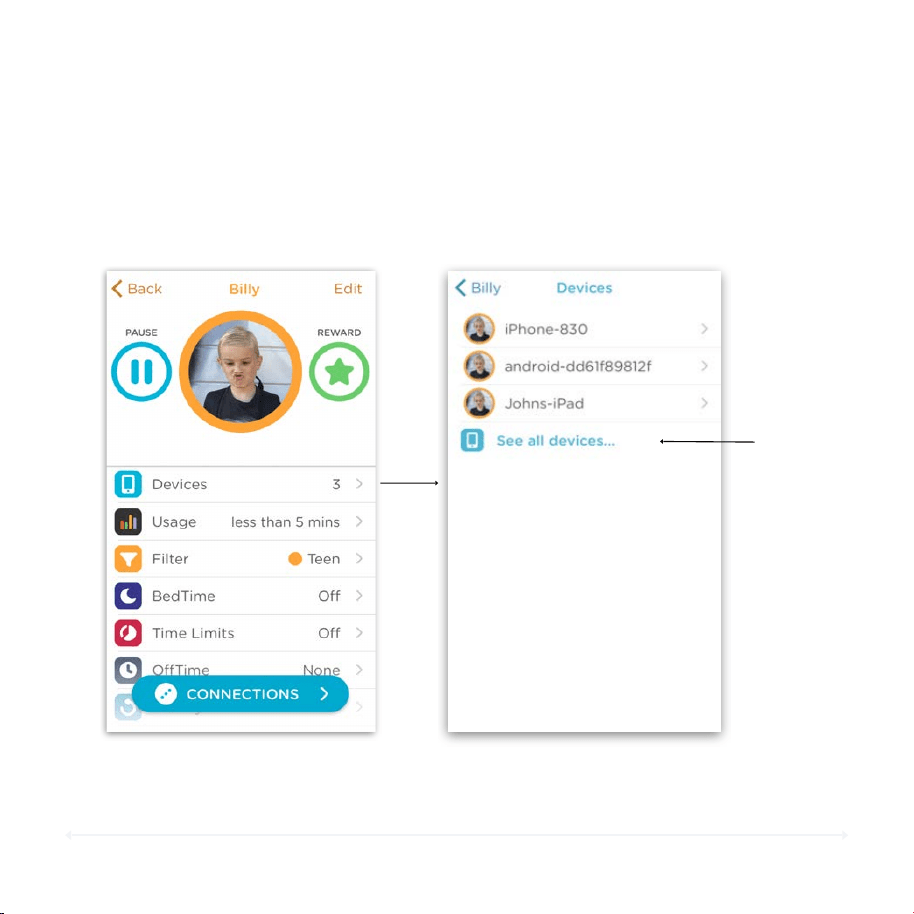
Family Member Devices
1. Tap Devices in the profile settings.
2. Select the device from the list to view its settings.
To View the Settin gs for a Fa mil y Membe r ’s Device
Tap to see all
devices on
your network
Go to page 67 for more on how to use the devices settings screen.
39
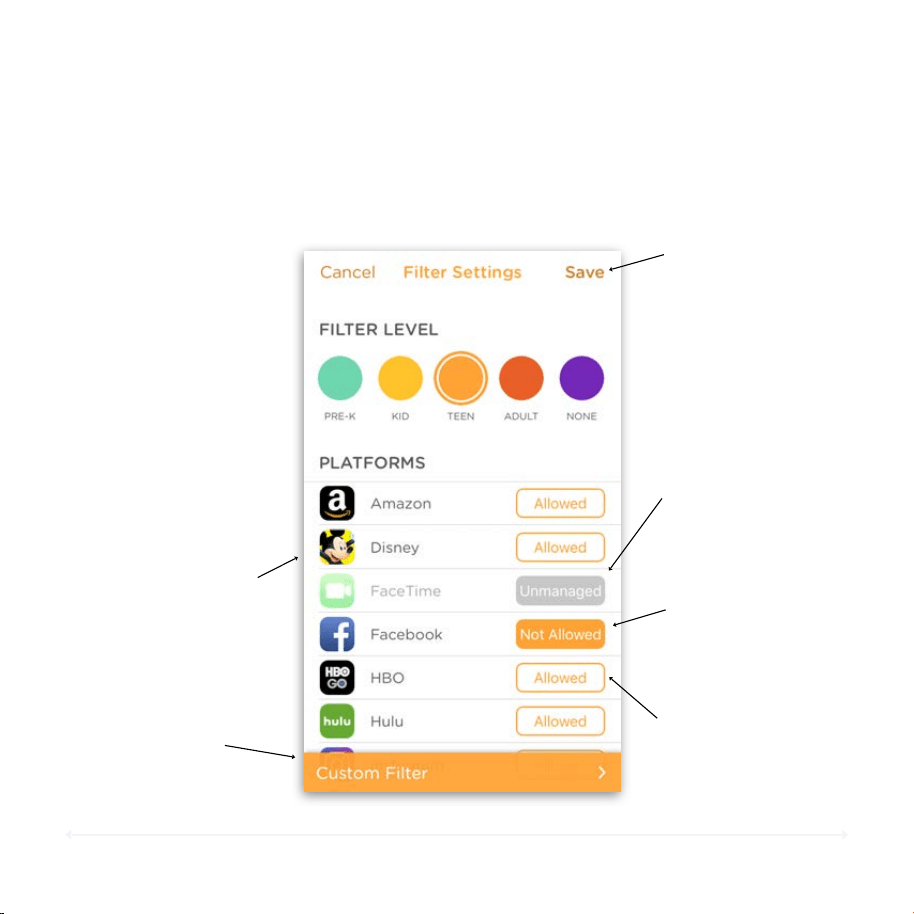
The Filter Settings set what each family member can and cannot view. Use one of
our preset Filter Levels, then customize the content experience to your liking.
Circle User Manual — Features
Filter Settings
Filter Levels
Each setting comes with
default recommendations
based on general age
descriptions and average
guidelines (page 39).
1. Select the desired
setting for your family
member.
2. Tap Save to set.
Not Allowed
Custom Filter
Manage individual sites
directly (page 42).
This profile will never
be able to access
this category,
platform, or website.
Save Button
Tap Save before
exiting to make sure
your changes take
effect.
Unmanaged
Allowed
This profile will be
able to access this
category, platform,
or website except
during Pauses,
BedTimes, etc.
This profile will
always be able to
access this category,
platform, or website,
regardless of
BedTimes or Pauses.
Icons
Tap the icon for more
information about that
platform.

40
Circle User Manual — Features
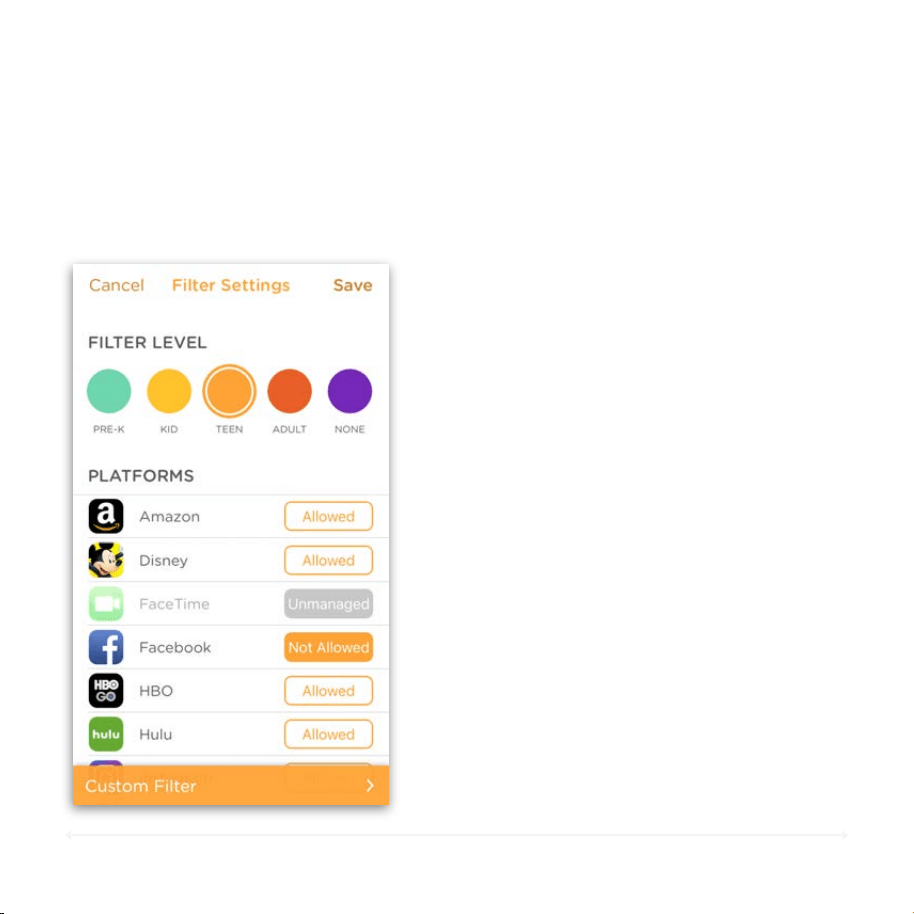
Filter Levels
TEEN
The Teen filter is crafted for teens 13-17 years old. Most platforms, categories, and
apps are available while providing filters for popular apps not approved for this age
group. Mature categories are filtered and invisible by default.
ADULT
The Adult filter is appropriate for ages 18 years old and up.Access to nearly all
platforms, categories, and apps are available, though explicit content is filtered out
by default.
NONE
None is designed for family members who you would like Circle to ignore. Features
such as Filtering, Time Limits, and Usage are not available for profiles set to None.
In addition, you will not be able to setup Circle Go on a profile set to None.
PRE-K
The Pre-K filter is designed for kids 5 years old and under. This provides an
incredibly safe browsing experience with only sites and apps that are appropriate
for this age group.
KID
The Kid filter works for kids 6-12 years old. General platforms like education and kid
safe experiences are available by default while filtering out sites designed for older
age groups, like social media.
41
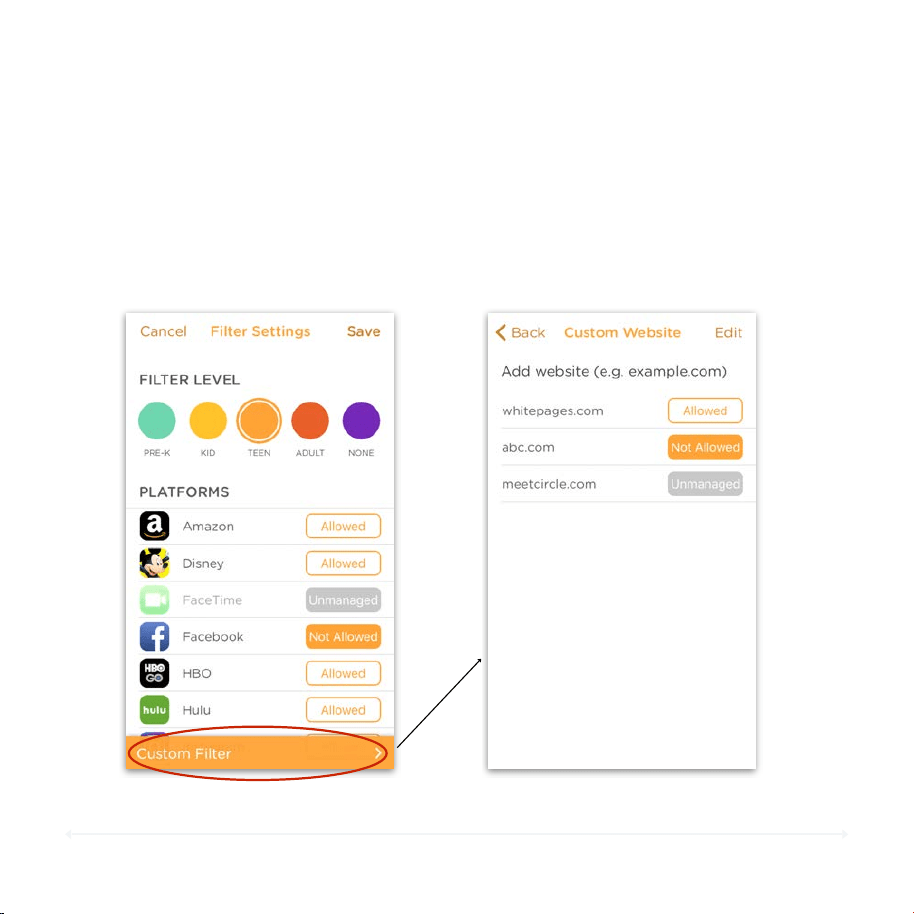
Circle lets you cater the Filter Settings just the way you want for each family
member, whether by specific online platforms or by categories of content. The
default supported platforms and category descriptions are available in the app
and on pages 47 onward.
Circle User Manual — Features
Filter Categories and Platforms
To Set the Filte r o f a Platform or
Category
1. Tap the button next to a category to
toggle between Allowed, Not Allowed,
and Unmanaged.
2. Tap Save in the top-right when finished.
Allowed, Not Allowed, and Unmanaged
•
Allowed means the profile will be able to
access this category, platform, or
website except during Pauses, BedTimes,
etc.
•
Not Allowed means the profile will never
be able to access this category, platform,
or website.
•
Unmanaged means the profile will
always be able to access this category,
platform, or website, regardless of
BedTimes or Pauses. Usage will also not
be tracked.
42
Circle User Manual — Features
Custom Filter
Custom Filter Settings
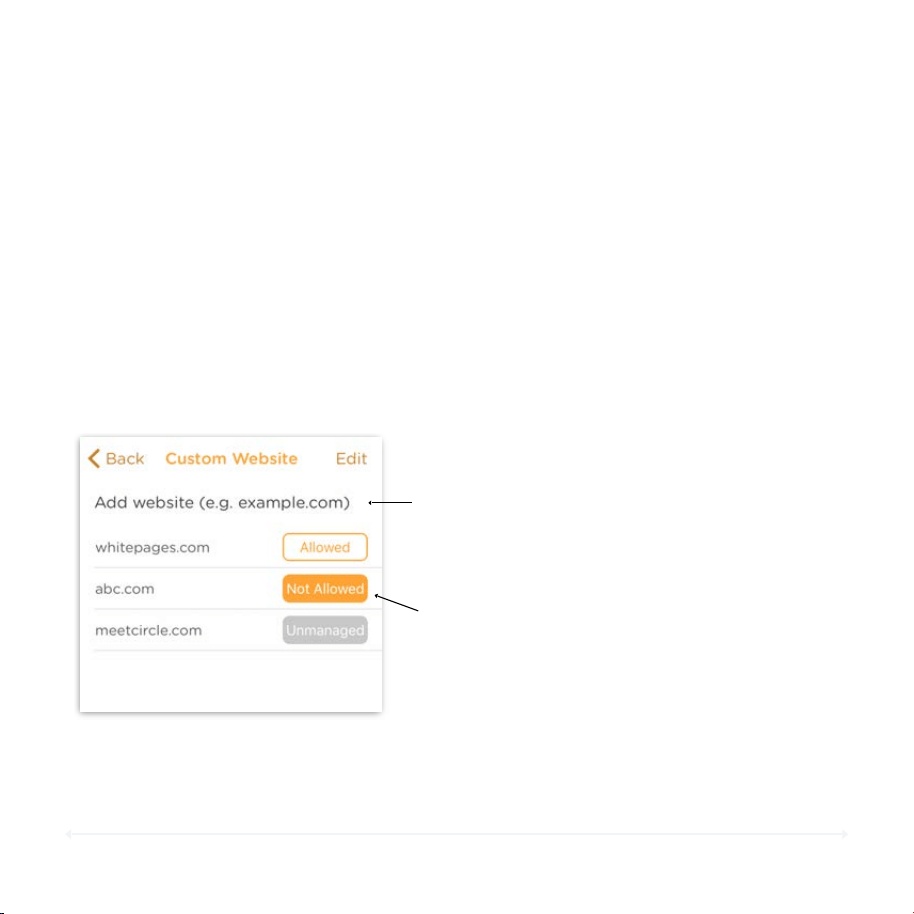
Sometimes a Filter setting is still allowing a site that you would like to block, or
sometimes you’d like to allow a specific site that is being filtered. Custom Filters
will let you control Filter settings on a site-by-site basis.
43
Circle User Manual — Features
Custom Filter (cont.)
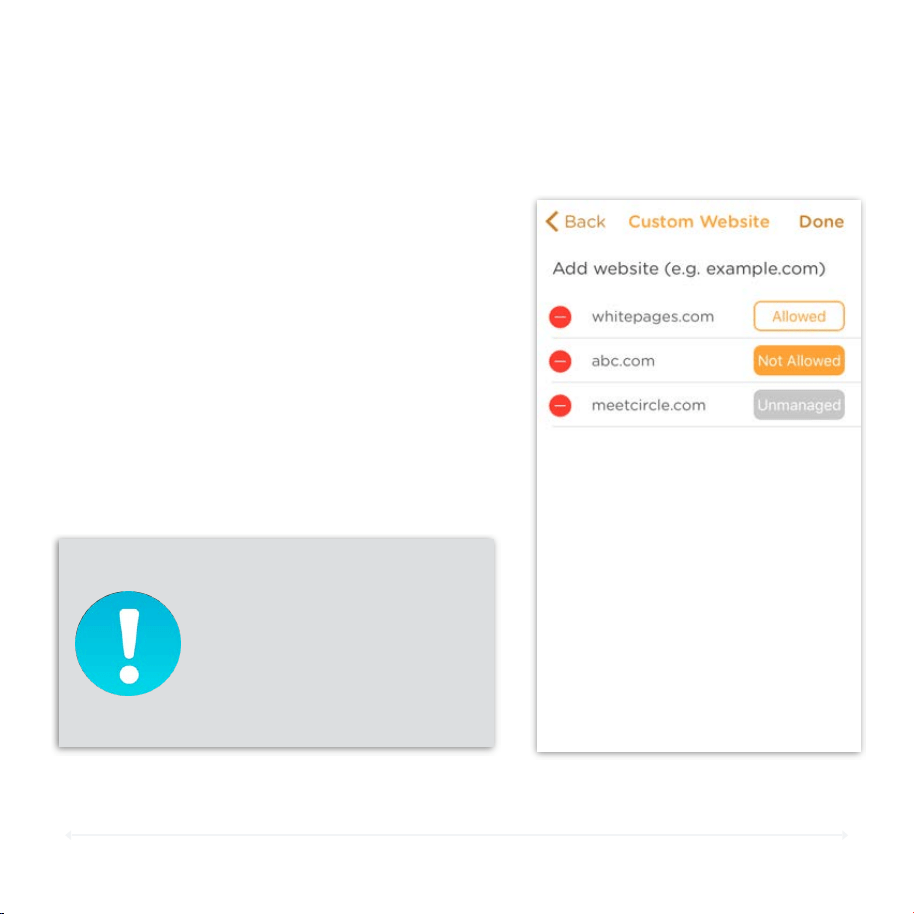
Adding a Website to Custom Filter
1. Open the family member's profile you wish to add a custom filter to, and choose Filter.
2. Tap Custom Filter located at the bottom of the Filter Settings screen.
3. Enter the URL of the website you’d like to manage at the top, and tap Done/Enter on
your keyboard.
4. Tap the button next to the URL to the setting you desire.
5. Tapping Back in the top-left will save your changes.
Ta p h e re to a d d a U R L .
Add a URL
Toggle the Filte r Level
Ta p t h e b u t ton n ex t t o a c a t e g o r y t o
toggle between Allowed, Not Allowed,
and Unmanaged.
44
Circle User Manual — Features
Custom Filter (cont.)
Remove a Website from Custom Filter
1. Tap Edit in the top-right corner.
2. Tap the minus button, and then
Delete.
3. The website will now be removed
from the Custom Filter list.
4. Tap Done in the top-right to save.
NOTE: Custom Filters will override
other filter settings. If a custom
site is set to be “Allowed”, filtering
it as a platform or category will not
be effective.

45
Circle User Manual — Features
Filter Platforms
Default Platforms
Circle by default has included popular online platforms that help make filtering
the right content easy. Platforms are available to toggle based on your Filter
Level setting.
Amazon
HBO
Nickelodeon
Tumblr
Cartoon
Network
Hulu
PBS
Twitter
Club Penguin
Island
Instagram
Periscope
YouTube
Disney
Minecraft PE
Pinterest
Facebook
musical.ly
Reddit
FaceTime
Netflix
Snapchat
46
Circle User Manual — Features
Filter Platforms (cont.)
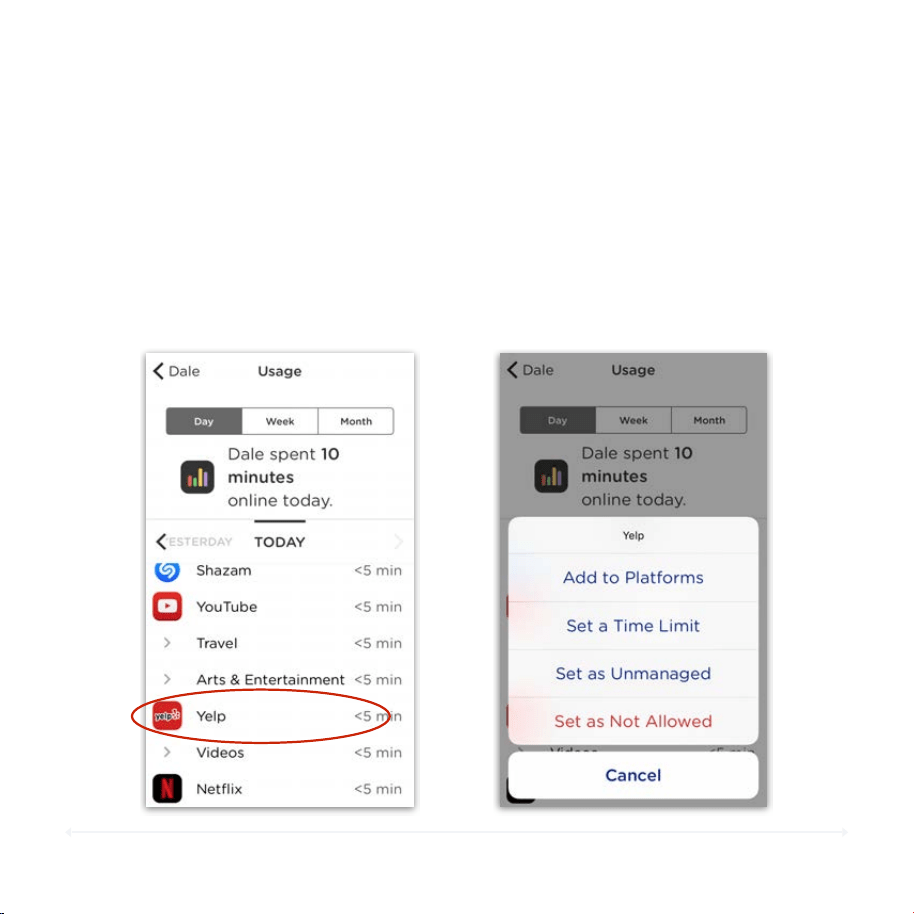
Other Platforms
Circle can also manage a number of other platforms besides the default ones.
After using one of these platforms, it will appear under the Usage section for
the profile that visited the site. From there, you can add it to your platform list,
and then change how Circle manages it by setting it as Allowed, Not Allowed,
or Unmanaged.

47
Circle User Manual — Features
Filter Categories
With a flick of a switch, categories give you a simple way to adjust what your
family member sees online. Like Platforms or Custom Filters, you can set entire
categories to be Allowed, Not Allowed, or Unmanaged under the Filter settings.
APP STORES + DOWNLOADS
Sites that are dedicated to the purchase of apps, such as the Apple App Store
and Google Play Store, or sites dedicated to downloading other software.
ARTS & ENTERTAINMENT
Sites related to artistic expression, in particular visual arts and movies, as well
as dedicated venues like museums. Joke and humor sites are also included.
BUSINESS
Business-related sites across a variety of industries, including goods & services,
finance, as well as sites related to employment, job postings, online meetings,
etc.
CHAT + FORUMS
Sites dedicated to multimedia messaging services (MMS), online chat, bulletin
boards, and forums. Circle does not manage SMS messaging.
BLOGS & PERSONAL SITES
Blogs that are hosted by major blog platforms, like Tumblr, Typepad, Blogger,
and Wordpress, as well as personal sites with content curated primarily by the
individual managing the site.
DATING
Platforms dedicated to personal ads and dating, such as Match.com, OKCupid, or Tinder.

48
Circle User Manual — Features
Filter Categories (cont.)
EDUCATION
Sites and apps related to learning, teaching, educational institutions,
and career preparation.
EMAIL
Web-based email providers.
EXPLICIT CONTENT
Sites that host adult content of an extreme or sexually-explicit nature.
GAMBLING
Sites related to online gambling, lotteries, casinos, and other gambling
establishments.
GOVERNMENT + POLITICS
Governmental sites, as well as those connected generally to politics, lobbying,
activism, and military.
HEALTH
Health-related sites, including personal health, medicine, and fitness, as well as
sites related to sex education. This category also includes sites related to
abortion.
HOME + FAMILY
Sites related to family, home care, DIY, and food or drink (other than alcohol).
ISSUES + LIFESTYLES
Sites related to specific social issues, lifestyles, philosophies, and religion.

49
Circle User Manual — Features
Filter Categories (cont.)
MATURE
Sites that host content that is not sexually explicit but is still generally
considered inappropriate for children or requires greater discretion. This
includes content such as alcohol and tobacco consumption, as well as sites with
an elevated level of violence or profanity, peer-to-peer services, or sites that
may distribute content without the permission of the creators.
MUSIC
Sites related both to musicians, as well as audio downloading or streaming.
NEWS
News and news-related sites.
ONLINE GAMES
Sites dedicated to online game play. Note: Some sites that include games
within a larger product (i.e., Facebook) will be categorized by that larger
product's features.
ONLINE SHOPPING
Online storefronts and auction sites. This category also includes sites that sell
intimate apparel and swimwear.
KIDS
Sites with content specifically geared toward a younger audience and may be
considered appropriate for kids under 10.
PHOTO
Sites for photography related activities, as well as many sites displaying photos.

50
Circle User Manual — Features
Filter Categories (cont.)
SCIENCE + TECHNOLOGY
Sites related to physical and social sciences, as well as technologies, like
computers, AI, and so on.
SEARCH + REFERENCE
All search engines and reference sites, including sites dedicated to translation
services.
SOCIAL MEDIA
Sites that host personal and professional social networking, such as Facebook, Pinterest, or
Twitter.
SPORTS + REC
Sports-related sites, including professional teams, clubs, and sports media providers, as
well as sites related to hobbies and recreation, such as automobiles or model-building.
TRAVEL
Sites related to travel and tourism.
VPNS & PROXIES
Major known proxy and VPN providers, which are very similar. VPNs and
proxies are technologies that provide security for online activity, protect user
identity, and guard sensitive information related to their time online using the
Internet. Because these technologies are employed to hide online activity,
Circle will be unable to filter content while a user employs a VPN or proxy. This
category is filtered by default for Pre-K, Kid, and Teen filter levels.
VIDEO
Sites that host and stream video on demand. Note: Circle does not filter
specific content on these sites.

51
Circle User Manual — Features
Filter Privacy and Safety Settings
Ad Blocking
Filters out many sources of online advertising. This may eliminate many (not
all) ads from websites that you visit.
Safe Search
Safe Search eliminates sexually-explicit content from search results in Google
and Bing. Currently, Circle only supports Google and Bing Safe Search, and
when it is enabled, searching on Yahoo will be unavailable.
Circle also comes equipped with several Privacy and Safety settings that allow
you to have additional control over the content that a family member
experiences.
YouTube Restricted
YouTube Restricted mode activates the restricted content mode provided by
YouTube. This mode is more restrictive than the one you might be familiar with.
If you believe it to be too restrictive, we suggest turning it off.
52
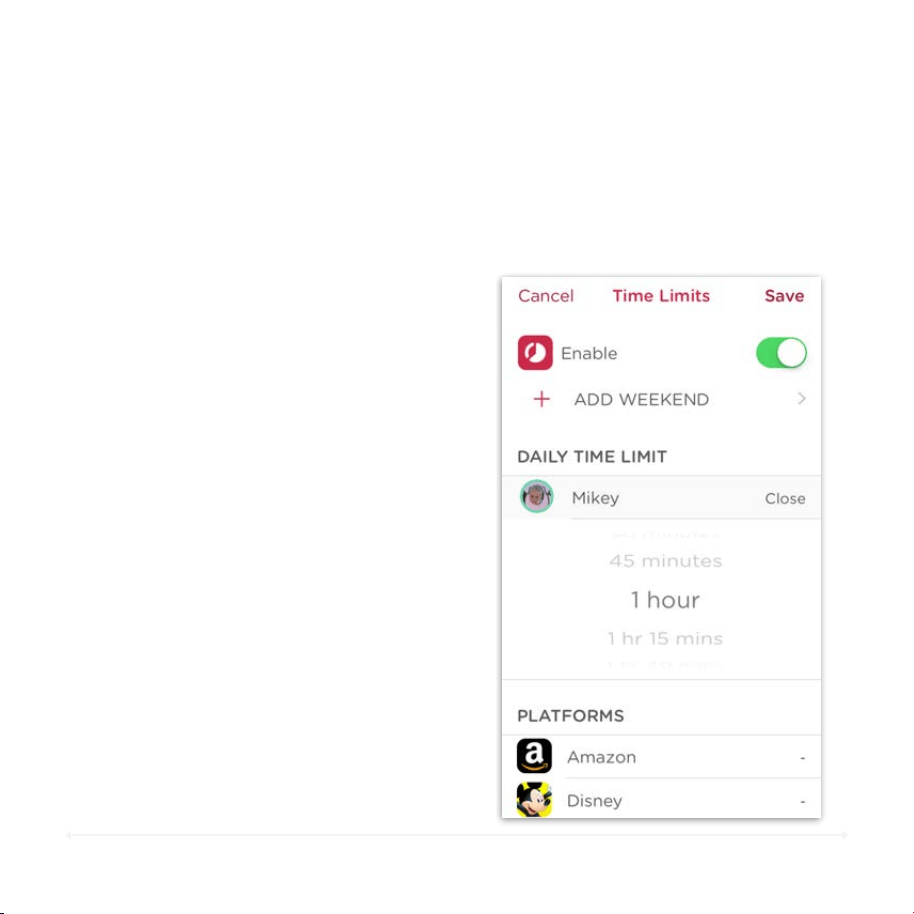
Time Limits is a powerful feature that allows you to control how much time is
spent online by day, on each platform, or by a particular category. The Daily
Time Limit will always be the maximum time allotted online, regardless of
Platforms and Category time limits.
Circle User Manual — Features
Time Limits
The Daily Time Limit is the total amount of
time that a family member can spend
online each day across all their devices.
Daily Time Limit
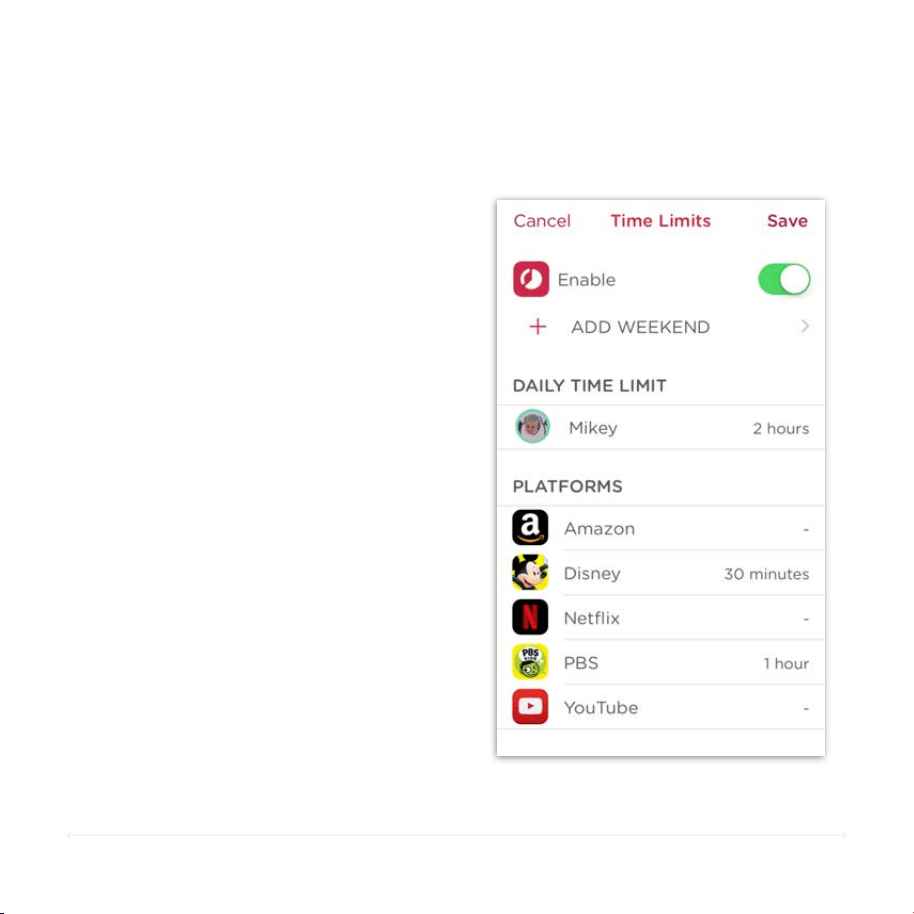
Note: Each platform is also part of a
category (i.e., Facebook is part of Social
Media). If the category has a time limit,
the platform will also be limited to that
amount (or less).
You can also set individual time limits for
any category or platform.
Category and Platform Time Limits
53
Circle User Manual — Features
Time Limits (cont.)
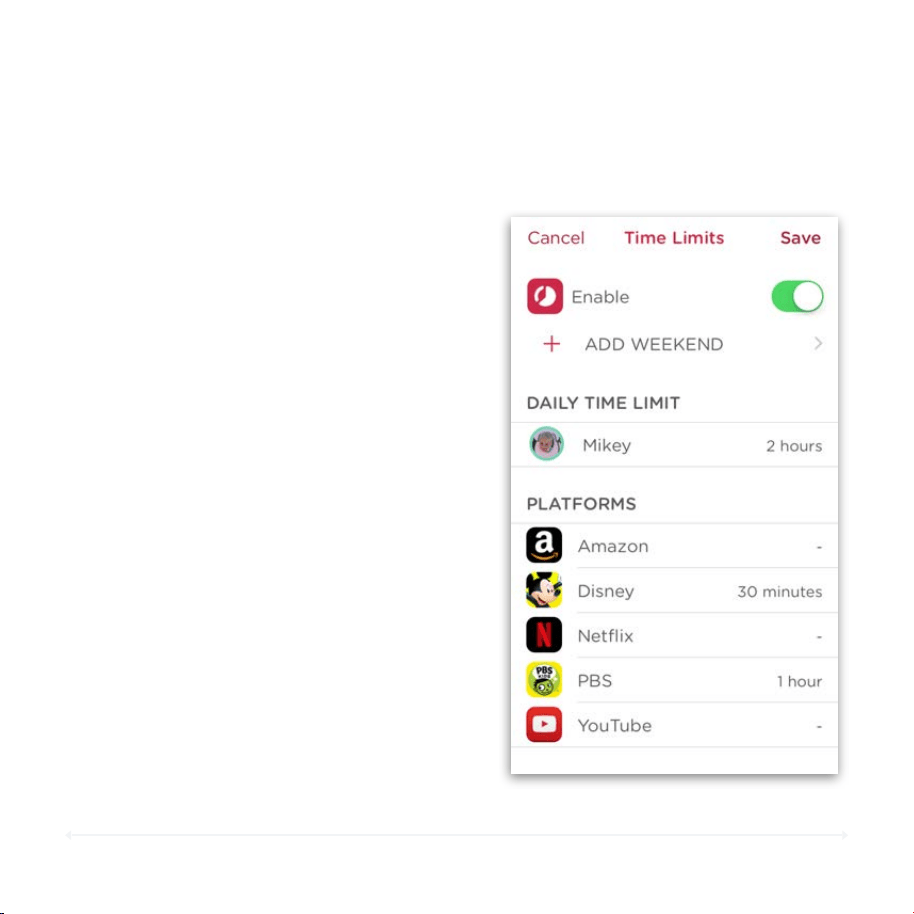
1. Open the profile of the family member
you’d like to set a time limit for.
2. Tap the Time Limit section.
3. Tap the toggle to enable time limits.
4. Tap the Platform or Category you’d like
to set.
5. Scroll to the amount of time you want
the time limit set to.
6. Tap Save.
1. Tap the enable toggle to turn off time
limits.
2. Tap Save.
To Set a Time Li mit
To Turn Of f a Ti me Limi t
54
Circle User Manual — Features
Weekend Time Limits
1. Open the profile of the family member
you’d like to set a time limit for.
2. Tap the Time Limit section.
3. Tap the toggle to enable time limits.
4. Tap Add Weekend.
5. Choose which days you’d like.
6. Scroll to the amount of time you want
the time limit set to.
7. Tap Save.
1. Open the time limits you’d like to edit.
2. Tap Edit Weekend Days.
3. Tap to remove highlighted days.
4. Tap Done.
Circle also lets you setup time limits for the weekend, and determine which day these
time limits apply.
To Set a Weekend Ti me Limi t
To Turn Of f Weekend Li mits
55
With Circle, you can set a stop and start time for when you want your family
member’s devices to be offline to avoid late night browsing.
Circle User Manual — Features
BedTime
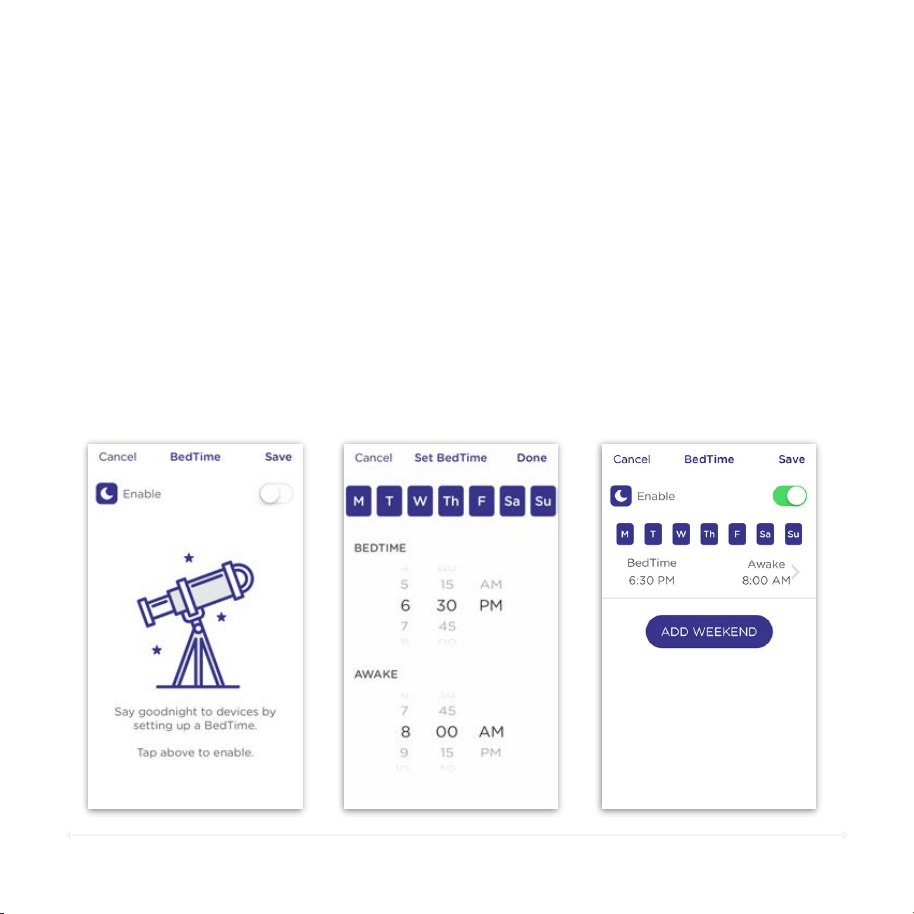
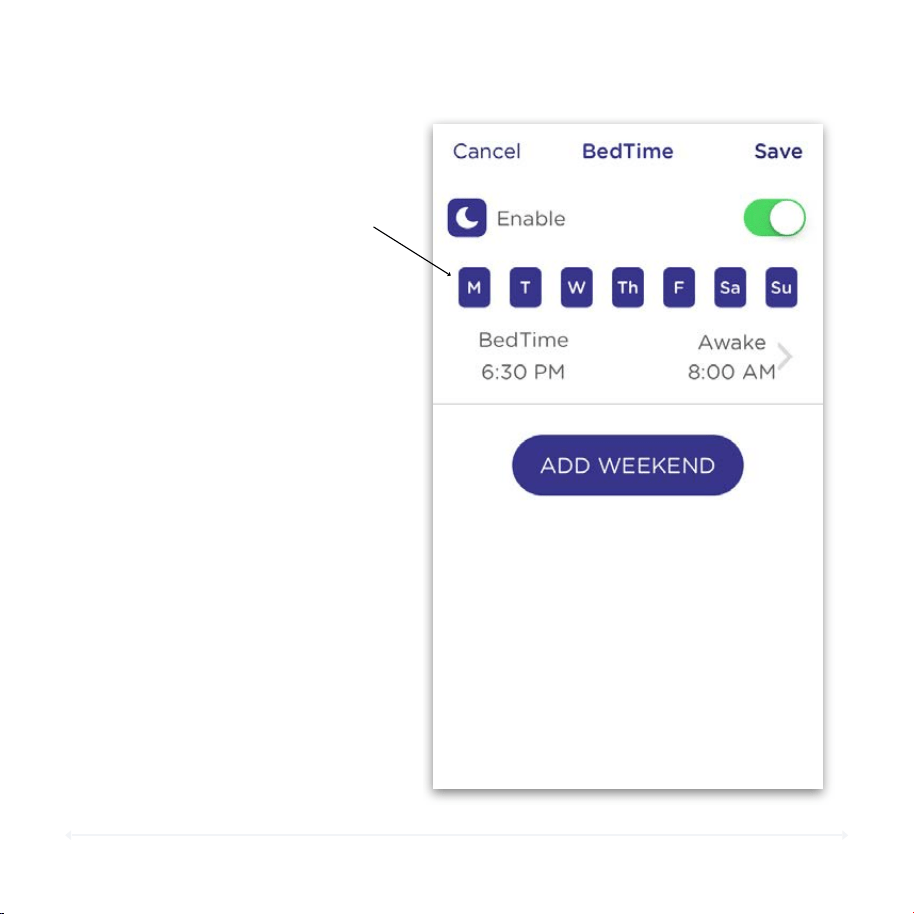
1. Open the appropriate family member’s profile, and tap the BedTime option.
2. Turn on BedTime by toggling the Enable switch.
3. Set a BedTime for when you want your family member’s devices to stop Internet
activity.
4. Set an awake time for when you want to resume Internet activity.
5. Make sure to hit Save at the top right when you are finished.
To Set a B edTime
56
Optional: The initial BedTime you
set applies across the whole week.
To make this BedTime only apply to
certain days, tap any of the days at
the top to remove them from this
BedTime setting.
In the example to the right, the
BedTime would apply to every day
of the week. Tapping any of the
days would remove the BedTime
from that day.
Circle User Manual — Features
BedTime (cont.)
Example: Tap here
to remove the
BedTime from
applying !
Monday night.
57
Circle User Manual — Features
BedTime (cont.)
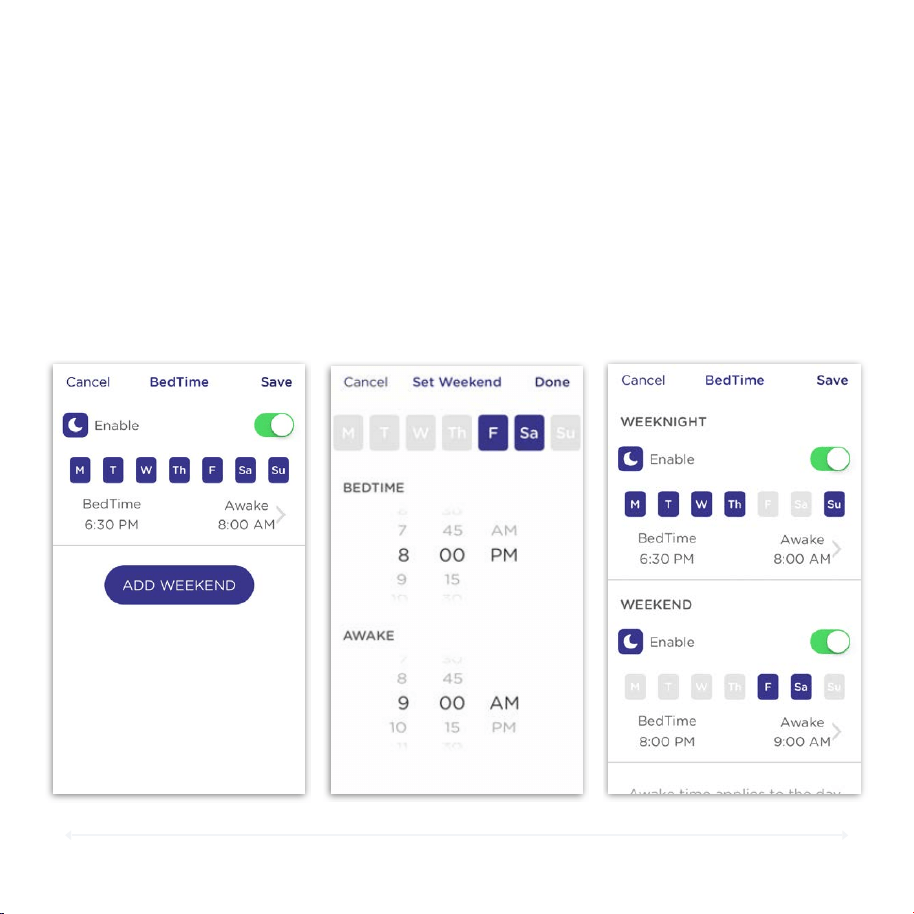
1. Tap Add Weekend and select your BedTime and
Awake time for the weekend.
2. Select which days count for this family member as
“weekend” nights.
3. Press Save.
To Add We ekend Bed Tim es (Opti ona l)
58
Circle User Manual — Features
BedTime (cont.)
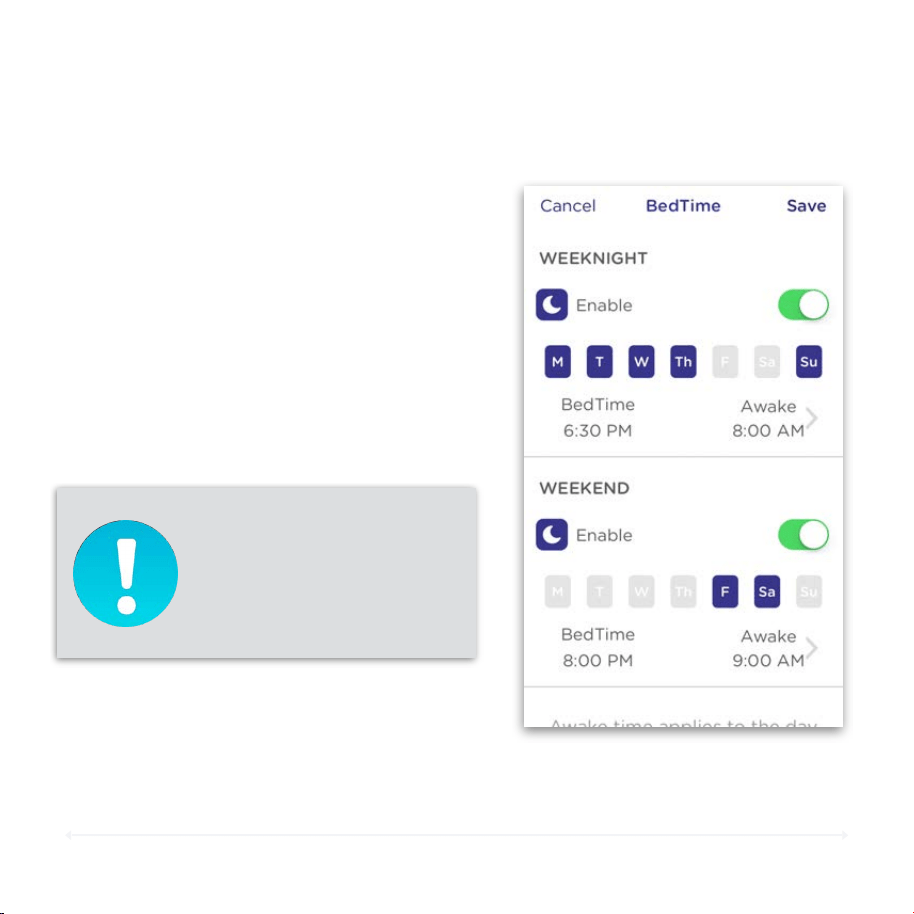
•
Once BedTimes have been saved, the
settings will look like the example on the
right.
•
Use the toggles to Disable/Enable the
BedTimes you have already set.
• Tap anywhere on the Weeknight or
Weekend settings to edit their times.
Managing BedTimes
NOTE: When BedTimes are
set, the “Awake” time refers
to the morning following the
days selected.
59
OffTime makes it easy to schedule times throughout the week when the Internet
is unavailable so that kids can play, do homework, or just get some plain old
family time in. Think of it like scheduling Pauses all throughout the day! Circle
lets you create multiple OffTimes, name them what you’d like, and then manage
when they are working.
Circle User Manual — Features
OffTime
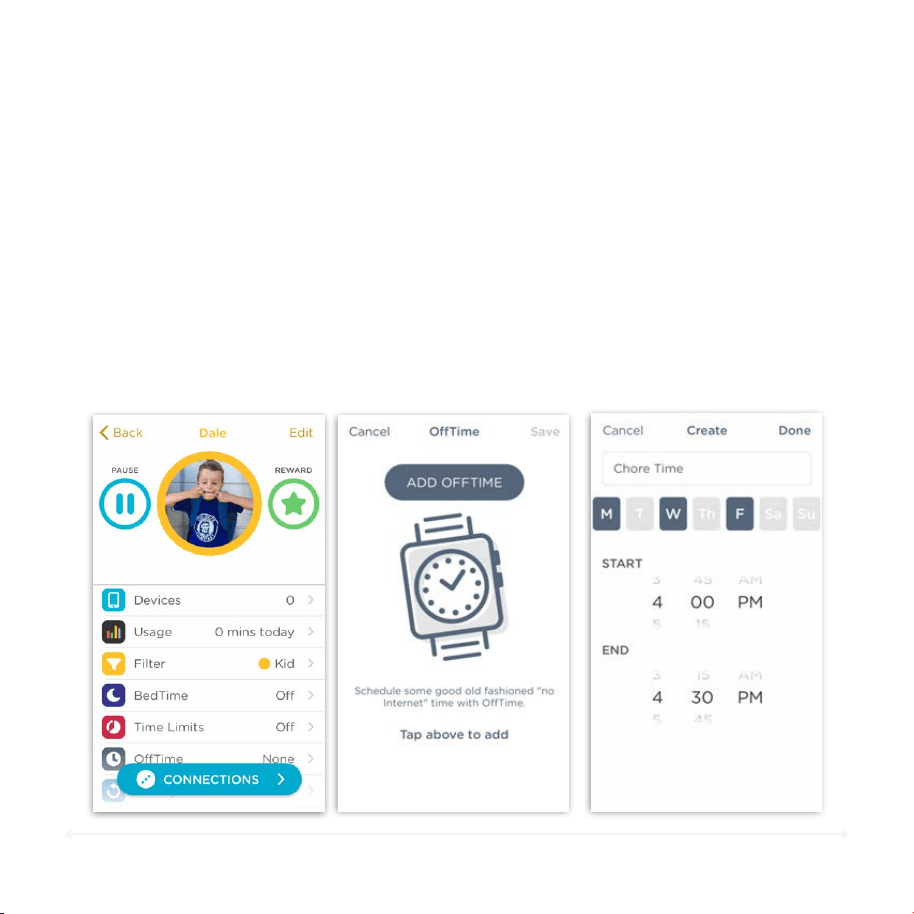
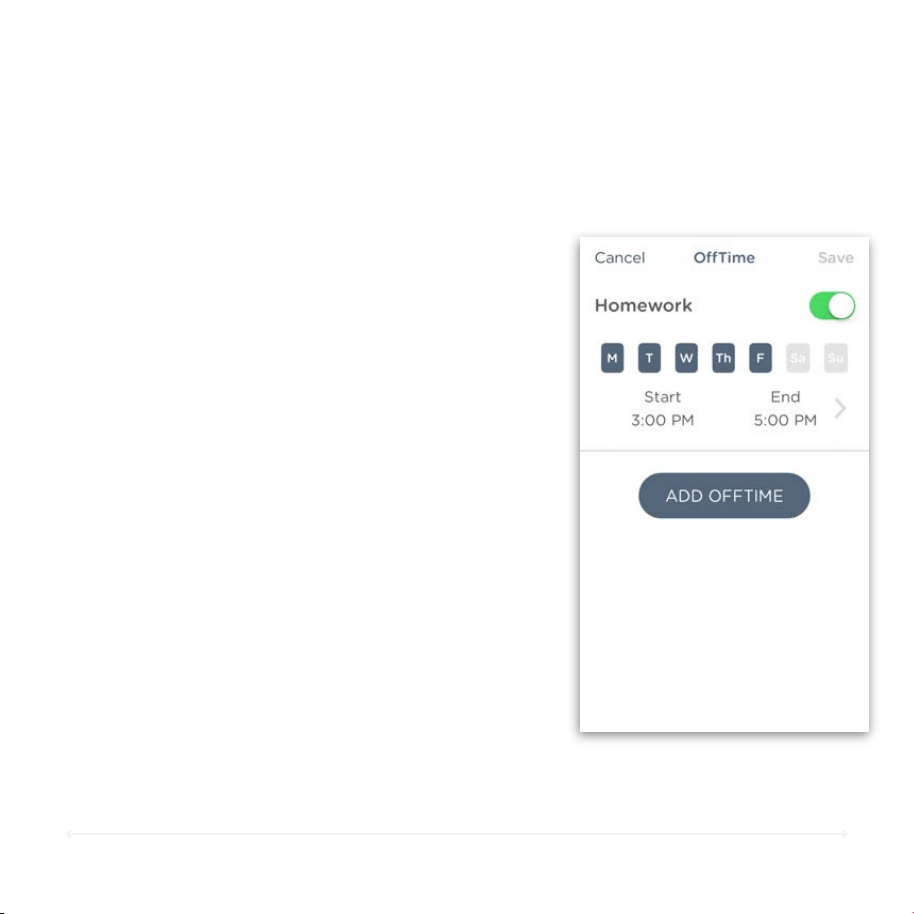
To Set an OffTim e
1. Open the appropriate family member’s profile, and then tap OffTime.
2. Tap Add OffTime to start creating an OffTime.
3. Set what days and times you would like the OffTime, then tap Save.
60
Circle User Manual — Features
OffTime (cont.)
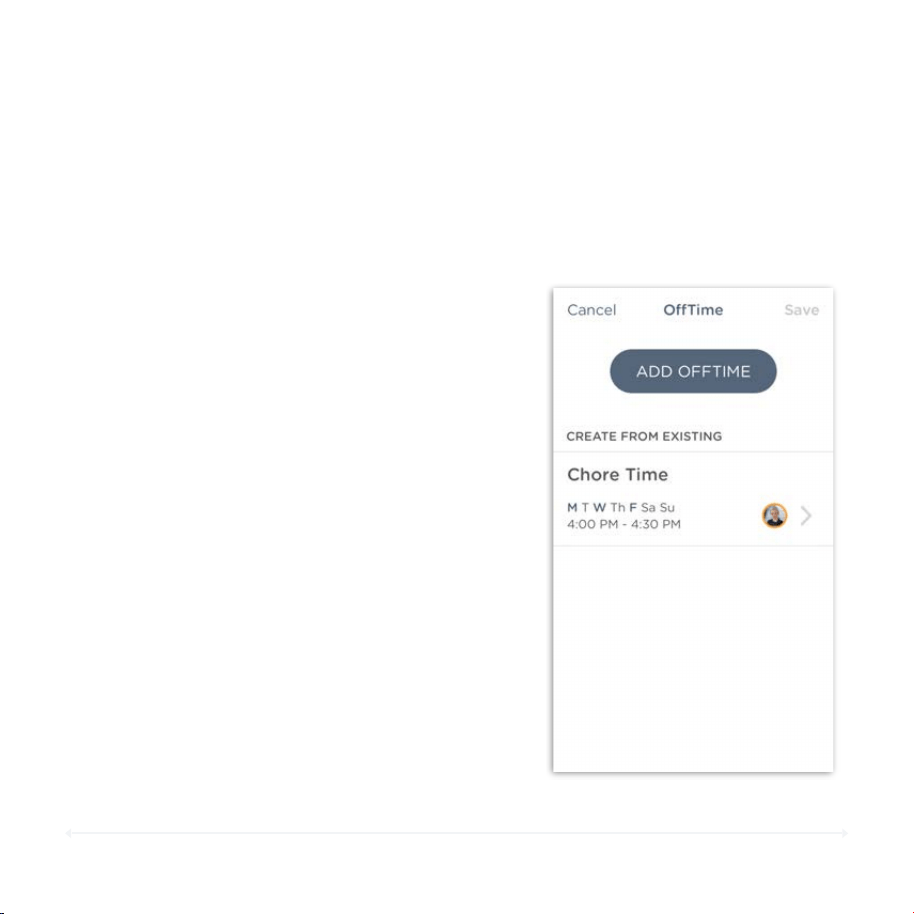
Customize an OffTime
From the OffTimes list, you can continue to
customize how those OffTimes work throughout the
week.
•
Use the toggle to enable or disable that OffTime.
(See an example of an enabled OffTime to the
right.)
•
Tap anywhere on the OffTime schedule to change
either the days of the week, time of day, or both.!
•
Tap the Add OffTime button to create another
OffTime for your family member.
Once you are done, tap Save at the top to keep your
OffTimes in place.!
!
Note: If you change your mind or accidentally
forgot to save any changes you make to OffTimes,
Circle will remind you that you have unsaved
changes and let you decide what should be done.
61
Families often have similar schedules. They get home from school at the same
time, eat at the same time, and do many other things together. With OffTimes,
it’s easy to grab an OffTime that you’ve already created and apply it to another
family member. Here’s how:
Circle User Manual — Features
OffTime (cont.)
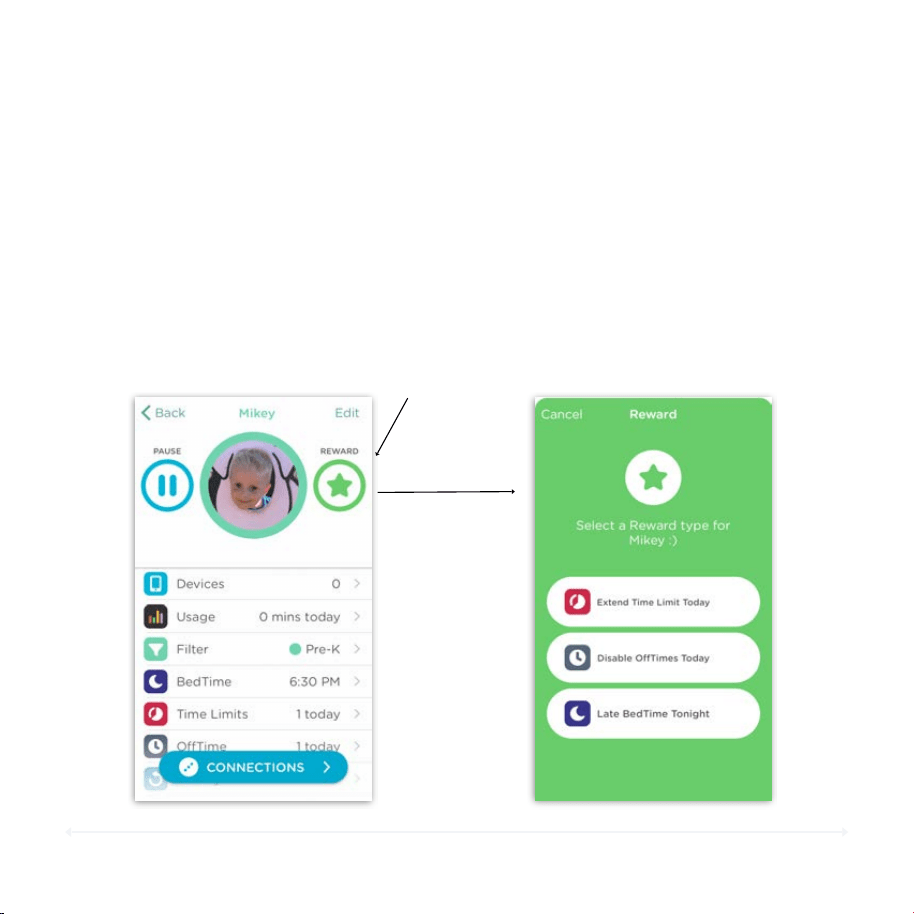
Create From an Existing OffTime
1. Open the OffTime settings for a the
appropriate family member.
2. Tap on an existing OffTime under Create
From Existing.
3. Edit the settings how you like, then tap
Done.
4. Once that OffTime has been created,
you can either create another from the
existing OffTimes from other family
members, create a new OffTime by
tapping the plus sign, or tap Save to put
these new OffTimes in place.
62
Circle User Manual — Features
Rewards
Circle Rewards are a simple way for parents to give extra time online to kids on the
fly without having to change their existing Time Limits, BedTime, or OffTime settings.
Rewards can be sent to individual profiles to grant extra time to their Time Limits,
extend BedTime, or eliminate an OffTime just for the day, and normal settings will
resume the next day.
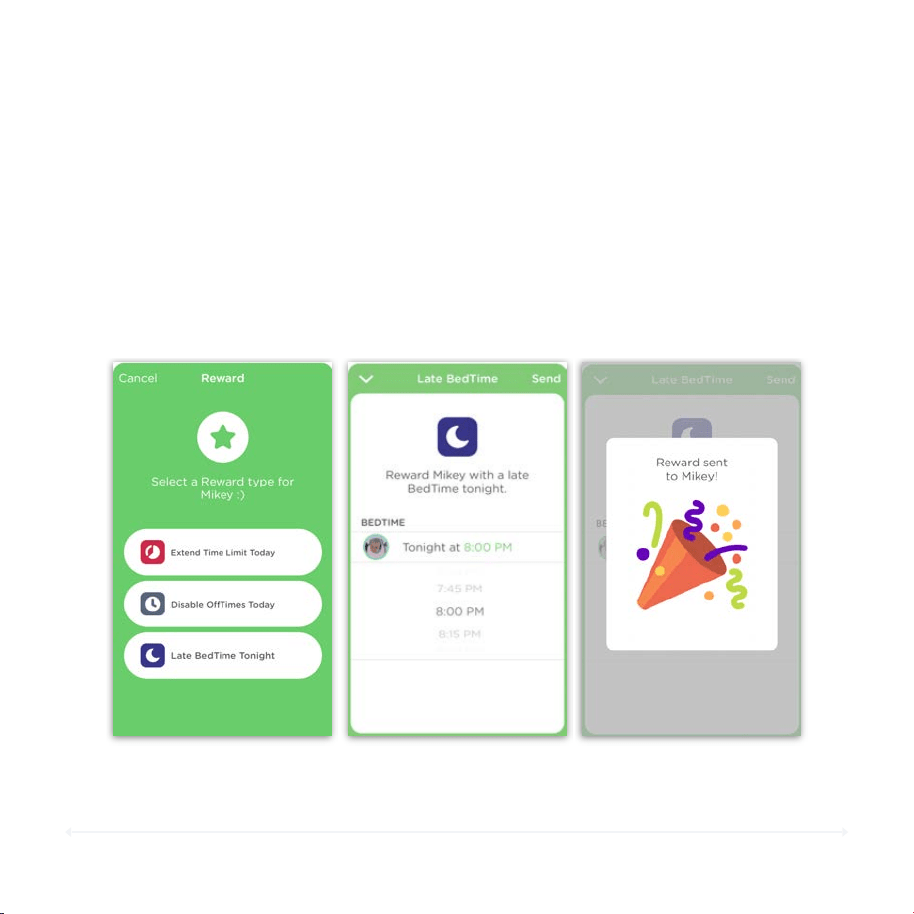
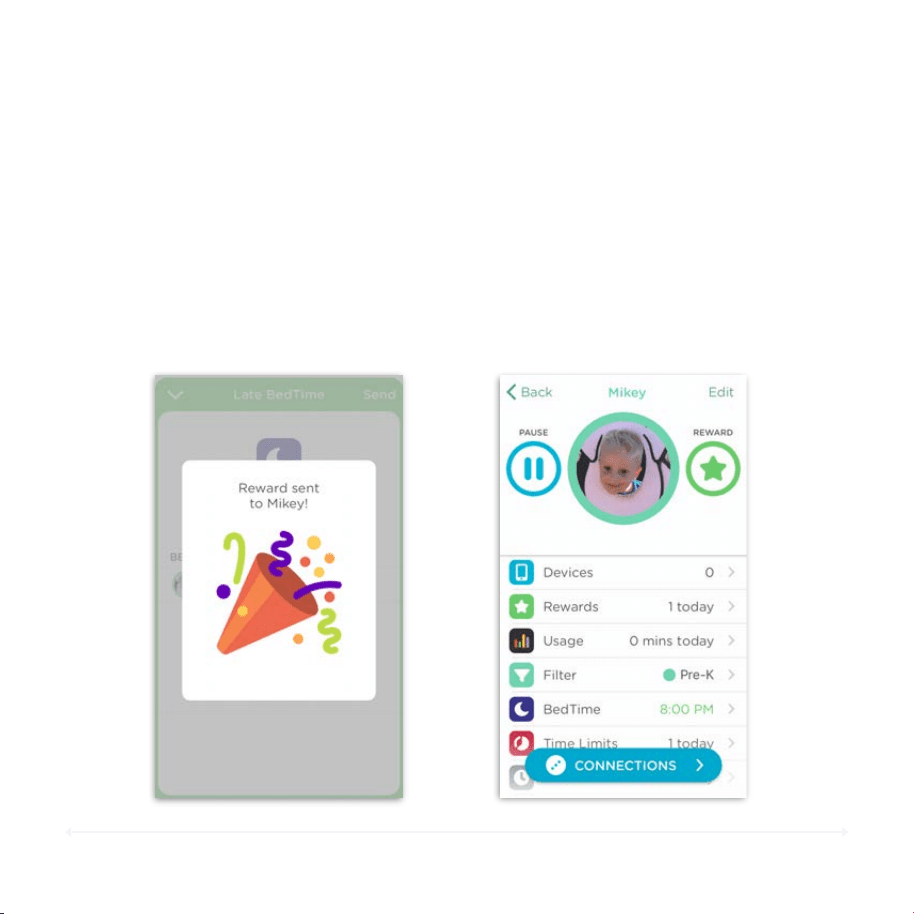
1. Open the appropriate family member’s profile.
2. Tap the Reward icon.
To Open th e Rew ard Se cti on
Tap to I nitia te a Rewa rd
63
Circle User Manual — Features
Rewards (cont.)
1. Open the appropriate family member’s profile.
2. Tap the Reward icon.
3. Tap on the reward you would like to send.
4. Tap on the selected Time Limit, BedTime, or OffTime to set up your
reward.
5. Tap Send in the top right of the screen when you're done. The
reward will now be successfully set for the day!
To Send a Reward
Note: A given reward will only work if the profile has the corresponding
feature enabled. For example, extending BedTime via reward will be
unavailable if there is no BedTime enabled for that user.
64
Circle User Manual — Features
Rewards (cont.)
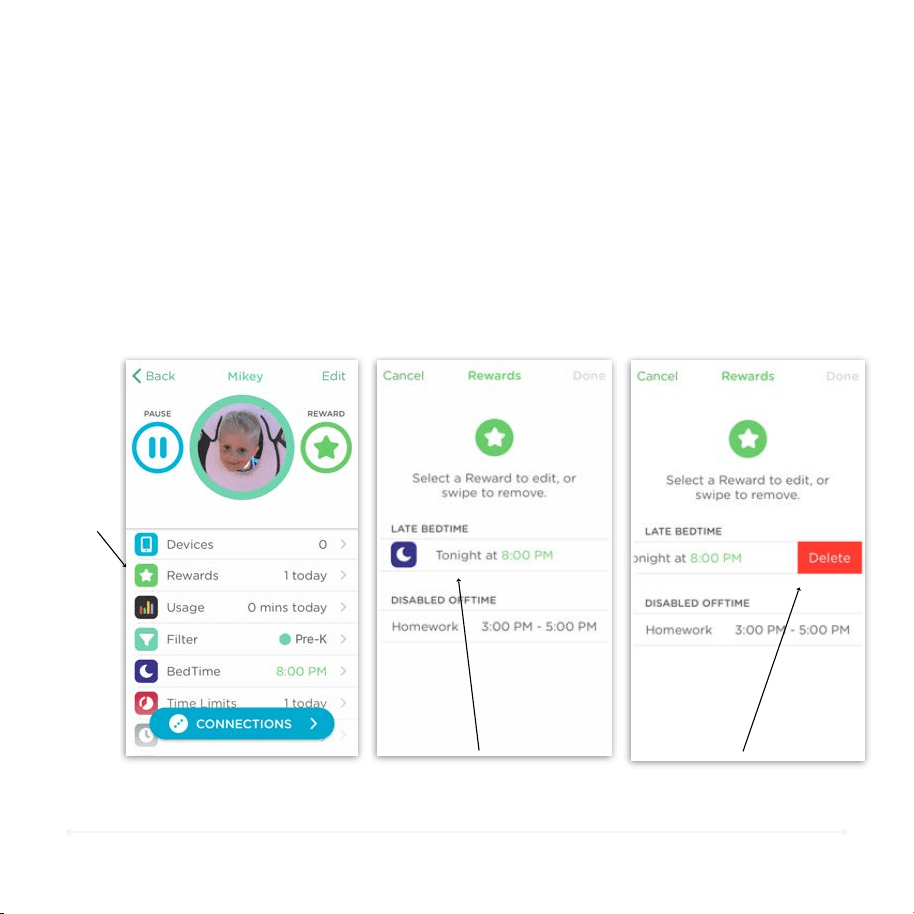
1. Open the appropriate family member’s profile.
2. If a reward is active, the affected Time Limit, OffTime, or BedTime will be
highlighted in green. A Rewards section will also be added to the top of
the profile.
3. You can edit or delete the reward by tapping the Rewards section at the
top of the profile.
To See If a Rew ard Is Active
65
Circle User Manual — Features
Rewards (cont.)
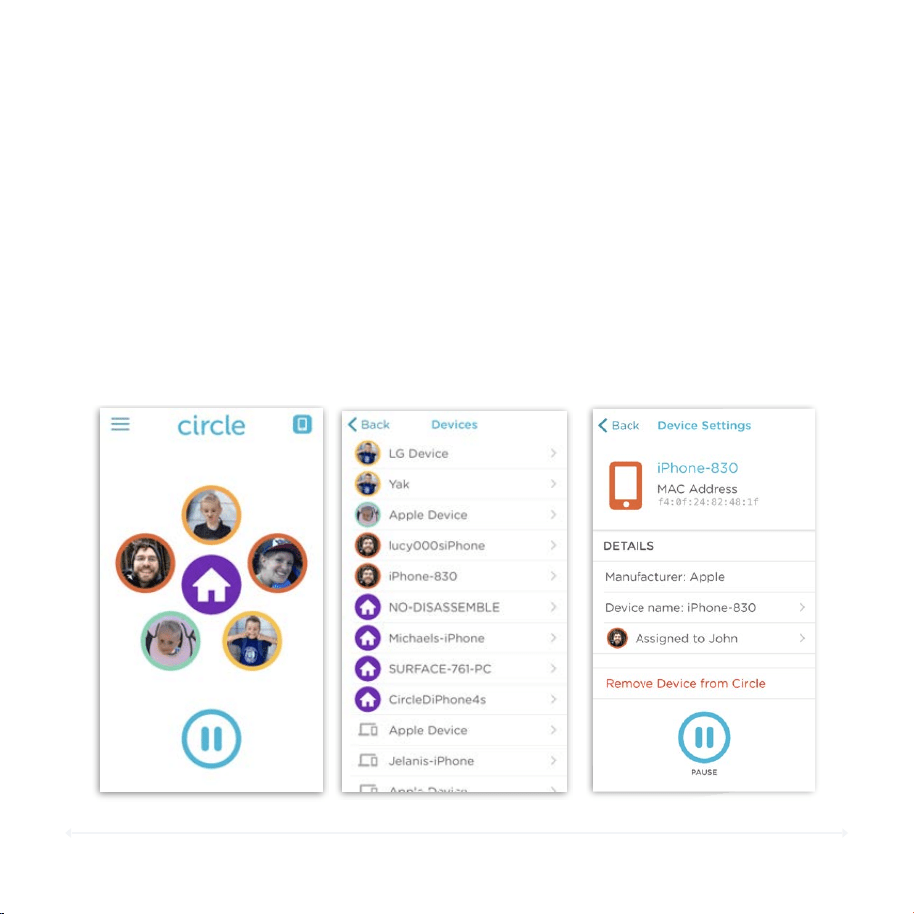
1. Open the appropriate family member’s profile.
2. If a Reward is in effect, you will see it added to the bottom of the
profile. Tap that Rewards section.
3. Select the reward to edit it, or swipe and then tap Delete to
remove it.
4. Remember to tap Save to enable this change.
To Edi t or De lete a Reward
Ta p t o Edit
or Remove
Swipe left, then tap
Delete to remove
Ta p t o Edit
66
Circle User Manual — Features
Devices
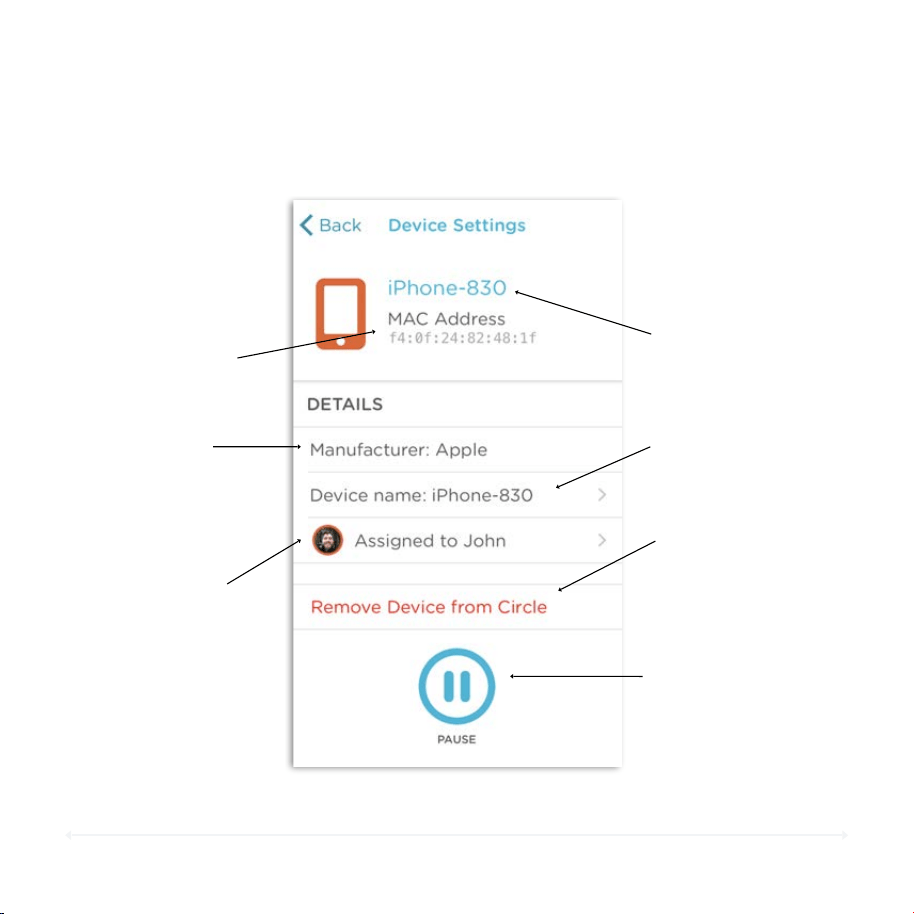
The Devices screen lists all the devices on your home network, and gives you a
quick glimpse of who each device belongs to. Selecting a device from the list
allows you to customize its settings.
List of Devices
Device Settings
Home Screen
1. Open the Circle app.
2. Tap the Devices icon in the upper right-hand corner.
3. Tap a device to see its settings.
To Open th e Device s L ist an d a Device
67
Circle User Manual — Features
Device Settings
Rename Device
MAC Address
Manufacturer
Profile Assigned
Device Name
Pause Button
A unique string of
numbers and letters
that identifies this
device on your
network.
The device maker
based on the MAC
Address above.
This is the device's
display name in Circle;
by default, it is the
"hostname" that Circle
finds for the device.
Tap to rename the
device (page 68)
Tap to assign this
device to a different
profile (page 69)
Tap to remove the
device from Circle
(page 70)
Tap to pause
individual device
(page 29)
Remove Device
68
Circle User Manual — Features
Device Settings (cont.)
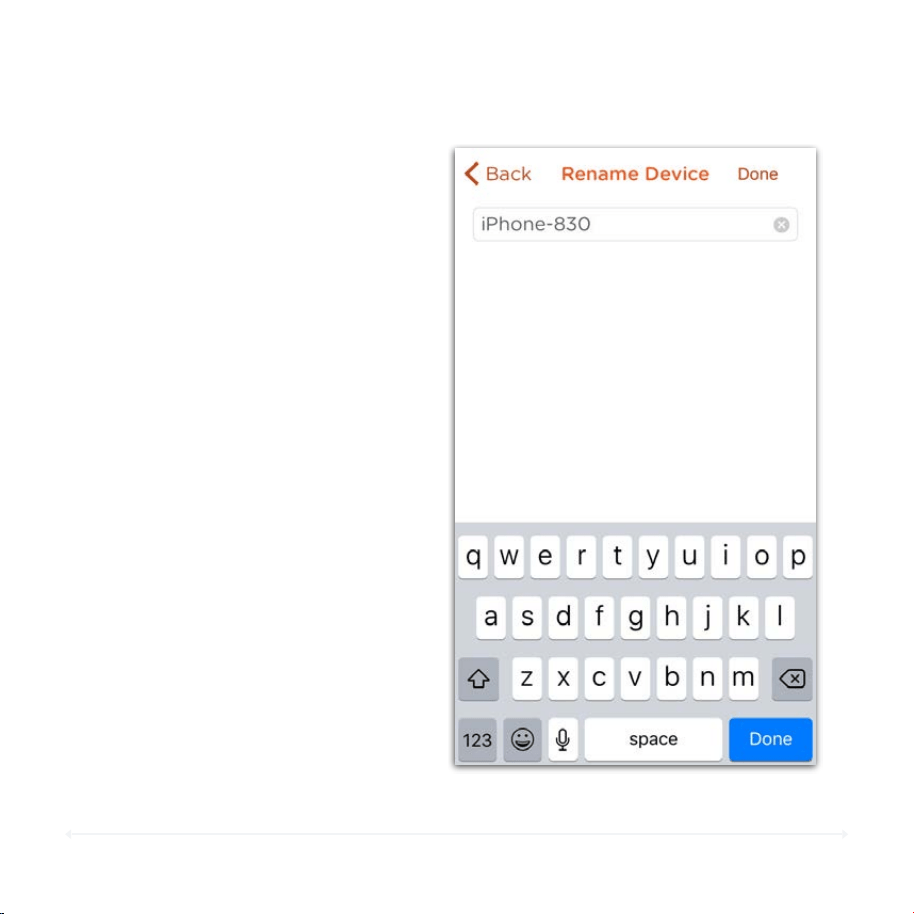
To Ren ame a D ev ice
1. On the Device Settings Screen, tap
Device Name.
2. Enter in a new name for the device.
3. Tap Done when finished.
Renaming a device will make it easier
to identify and assign.
69
Circle User Manual — Features
Device Settings (cont.)
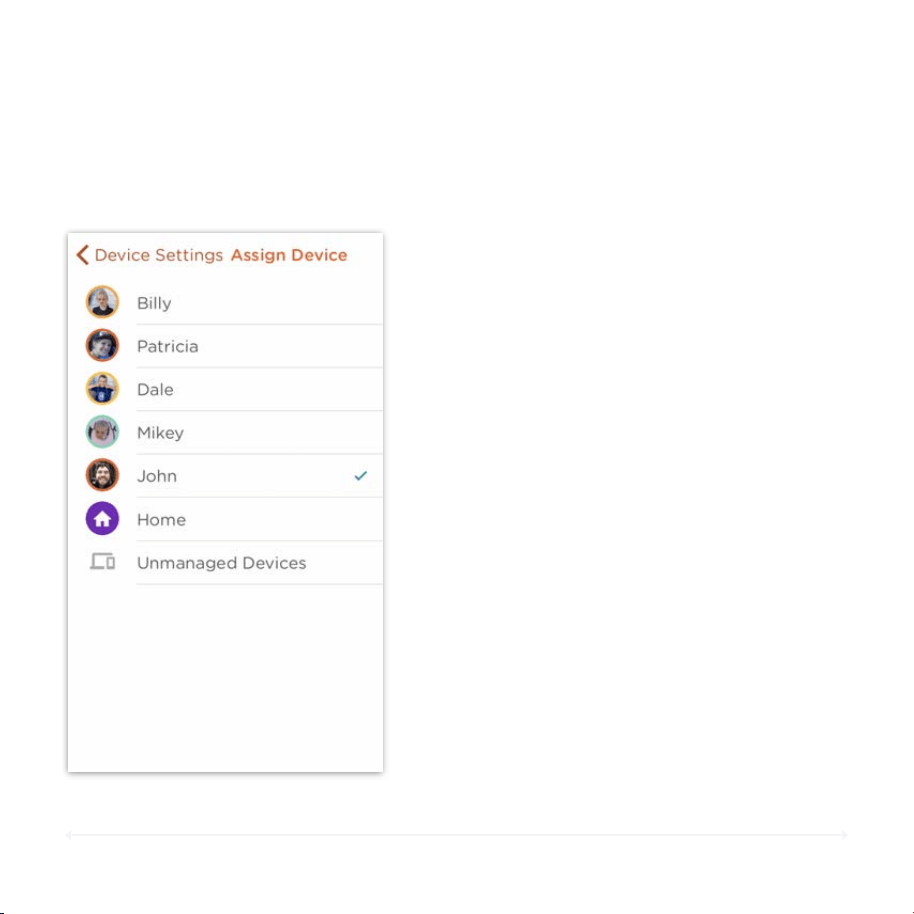
To Ass ign or Reass ign a D ev ice
1. On the Device Settings screen, tap
the image of the family member the
device is assigned to.
2. Select the Family Member you’d like
to assign the device to. You can also
assign a device to the Home user or
Unmanaged.
70
Circle User Manual — Features
Device Settings (cont.)
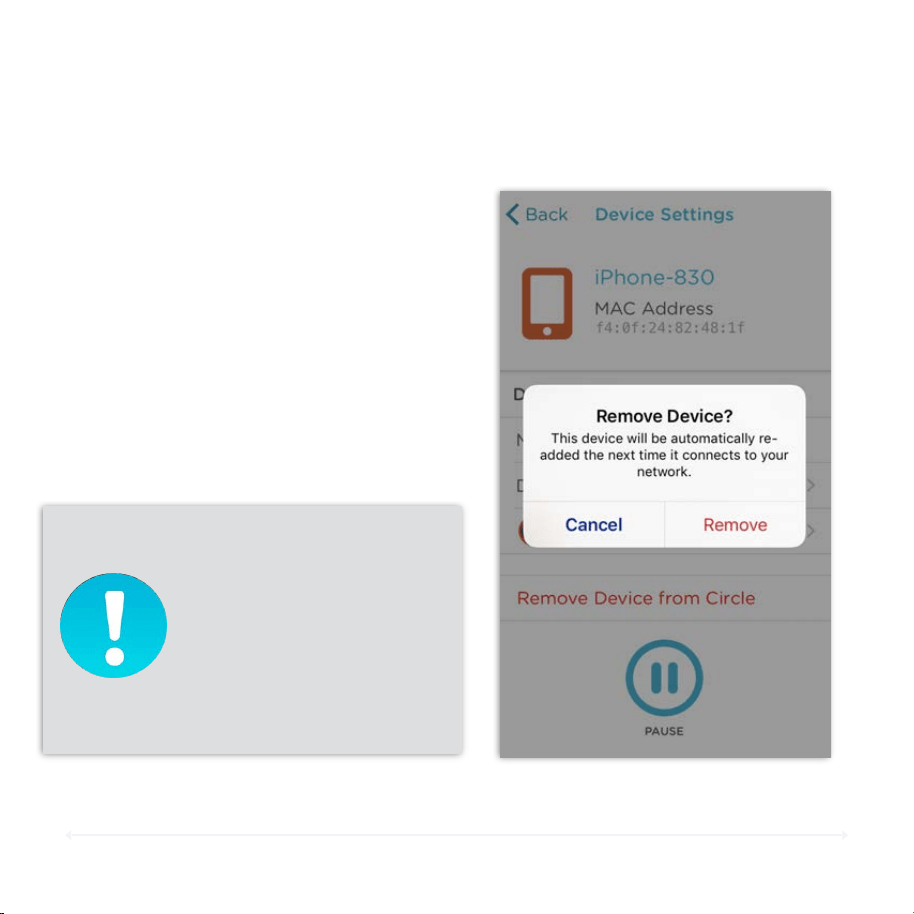
To Rem ove a Device
1. On the Device Settings Screen, tap
Remove Device from Circle.
2. Tap Remove to confirm.
If the device you are trying
to remove has valid Wi-Fi
credentials for your
network, the device will
automatically be added
back to your device list if it
connects to your network
again.
71
Circle User Manual — Menu Features
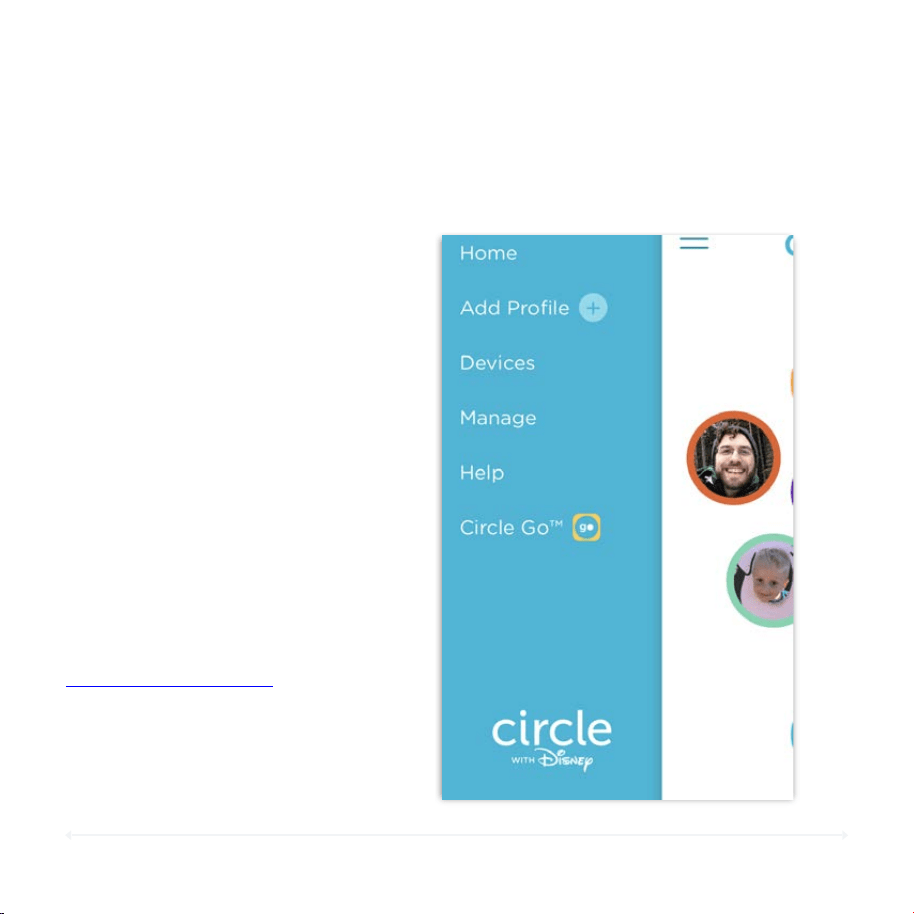
Menu
HOME
The Circle app menu gives you access to additional features. Tap the three lined
icon in the top left-hand corner of your screen for this left-pane sidebar to
appear.
Head back to the Home Screen.
Add a new family member.
ADD PROFILE
Circle version details, various
settings, and hardware switches.
MANAGE
Get access to Circle’s online
support resources at
support.meetcircle.com
HELP
Subscribe to Circle Go, or if
already subscribed, manage
your devices that have Circle
Go installed.
CIRCLE GO
DEVICES
Brings up the list of all devices
that Circle has seen connected
to the paired network.
72
Circle User Manual — Menu Features
Manage
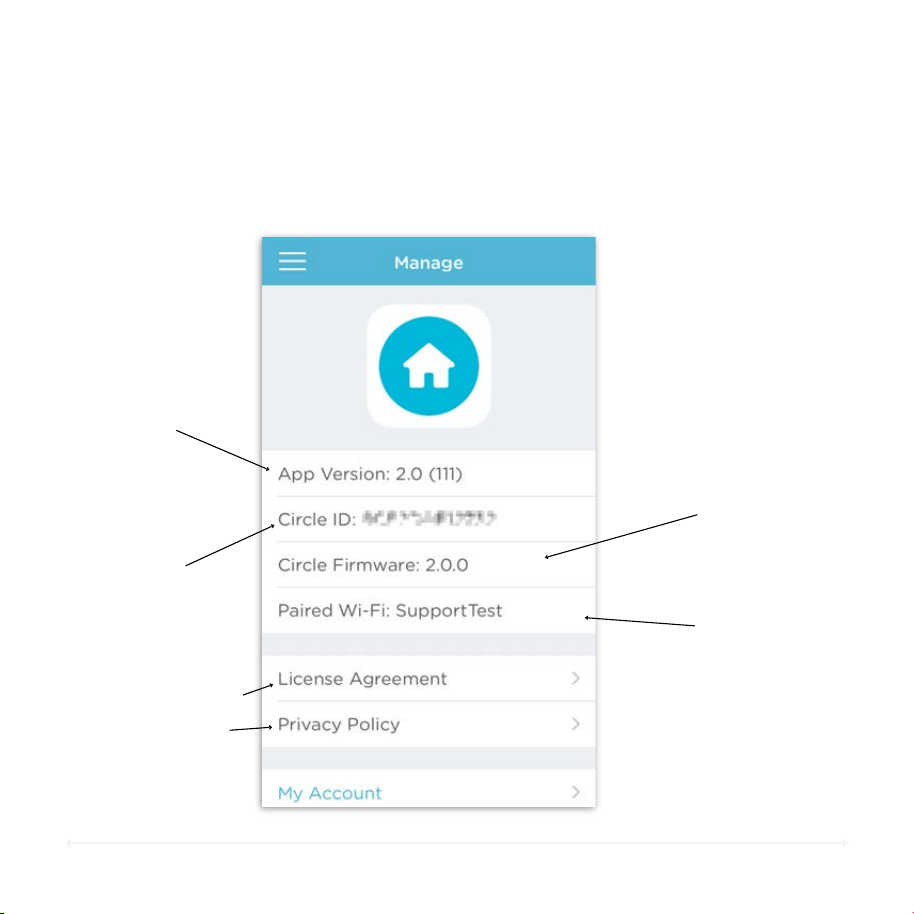
App Version
The current app
version.
Legal Links
These link to Circle’s
License Agreement
and Privacy Policy
Circle ID
The unique ID for
your Circle device
(also its MAC
address)
The Manage section allows you to view and control various aspects of Circle’s
configuration on your network.
Paired Wi-Fi
The name of the
network your
Circle paired with.
Circle Firmware
The current version
of the Circle
software.
73
Circle User Manual — Menu Features
Manage (cont.)
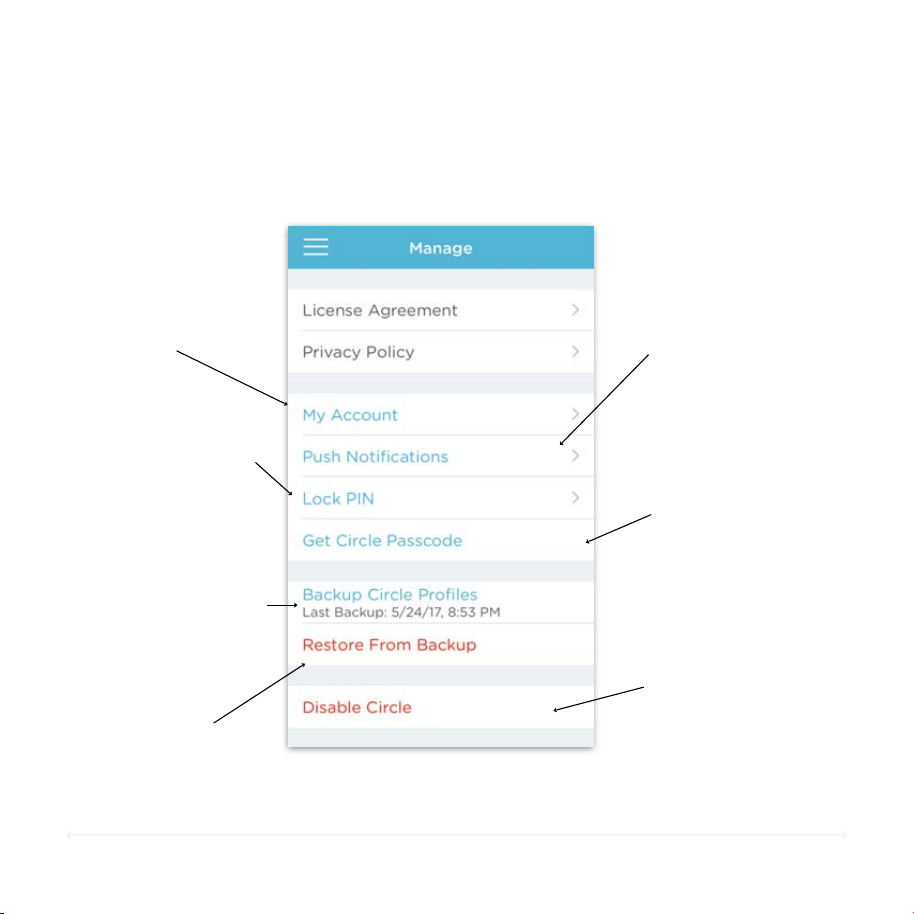
Get Circle Passcode
Tap to view your
current Circle
Passcode.
Disable Circle
Temporarily disable
Circle’s management
of your network.
The Manage section allows you to view and control various aspects of Circle’s
configuration on your network.
Backup
Backup your profiles
to make sure you have
them in case you
need to reset Circle,
or get a new device.
Restore
Tap here to restore
your profiles from a
previous backup.
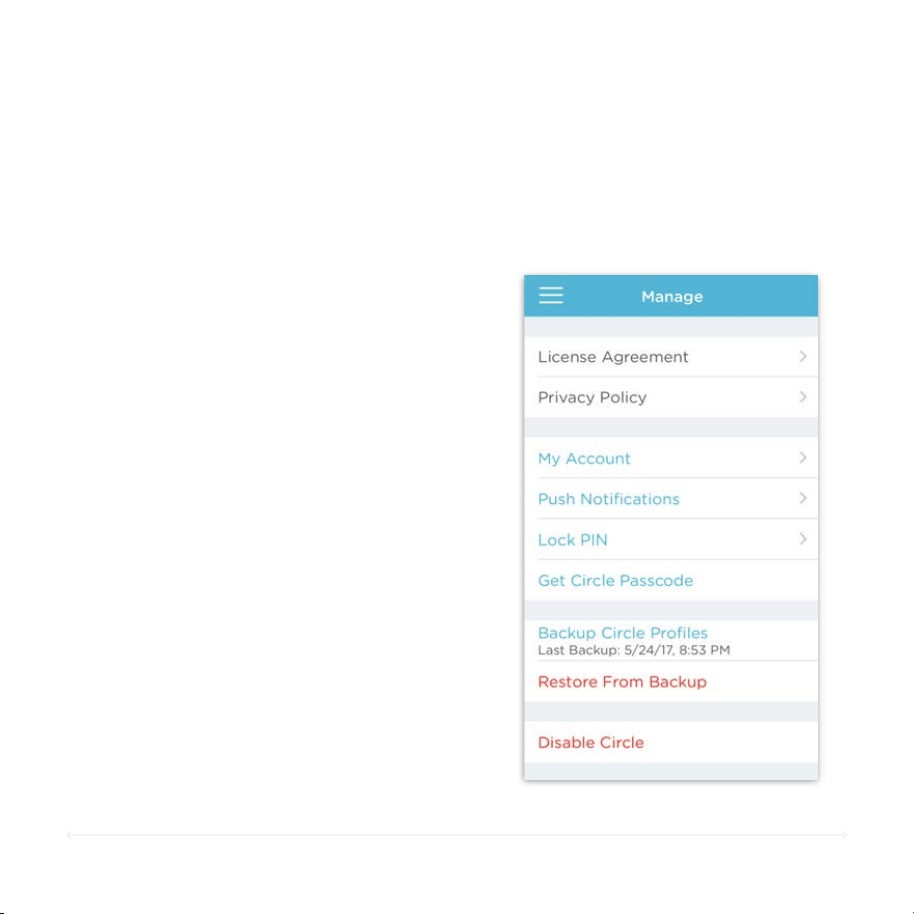
Push Notifications
Tap to change your
push notification
settings (page 76)
Lock PIN
Enable or change
your lock pin for the
Circle app. (Page 77)
My Account
Tap to view or
change your
account information!
(Page 74)
Circle User Manual — Menu Features
Manage My Account
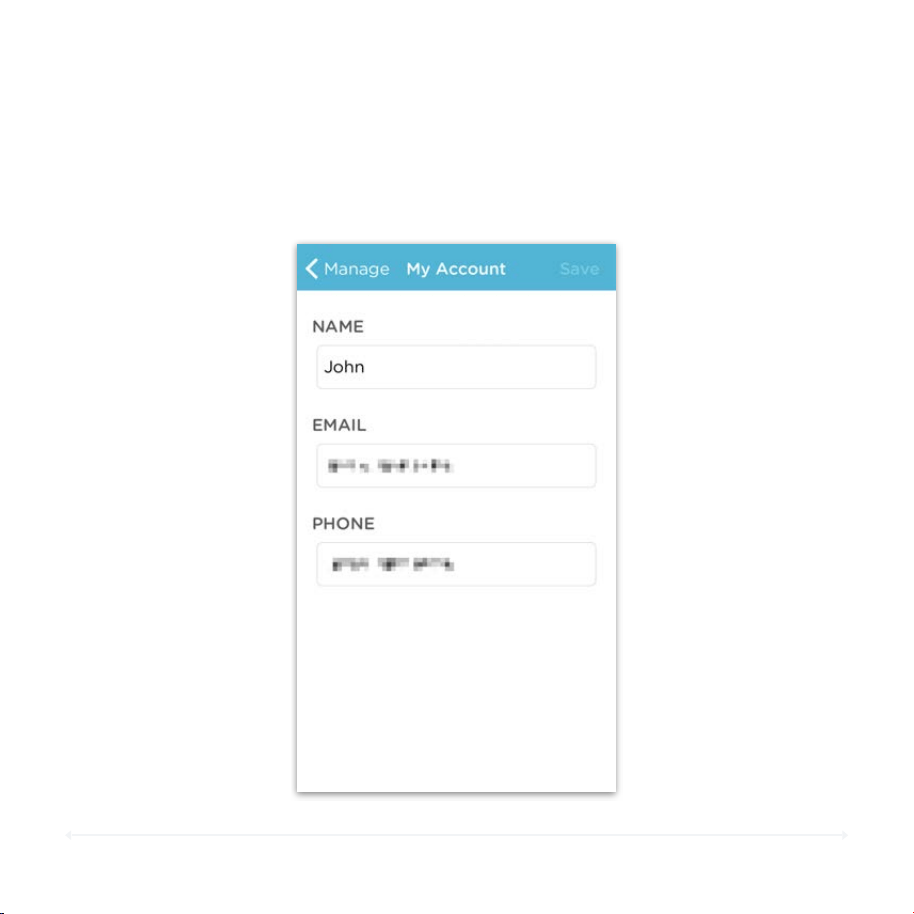
You can change your account information by opening the Circle app Menu,
tapping Manage, and then tapping My Account. Here, you’ll be able to change
your account name, email address, and phone number (used for receiving
passcode requests).
74

75
Circle User Manual — Menu Features
Push Notifications
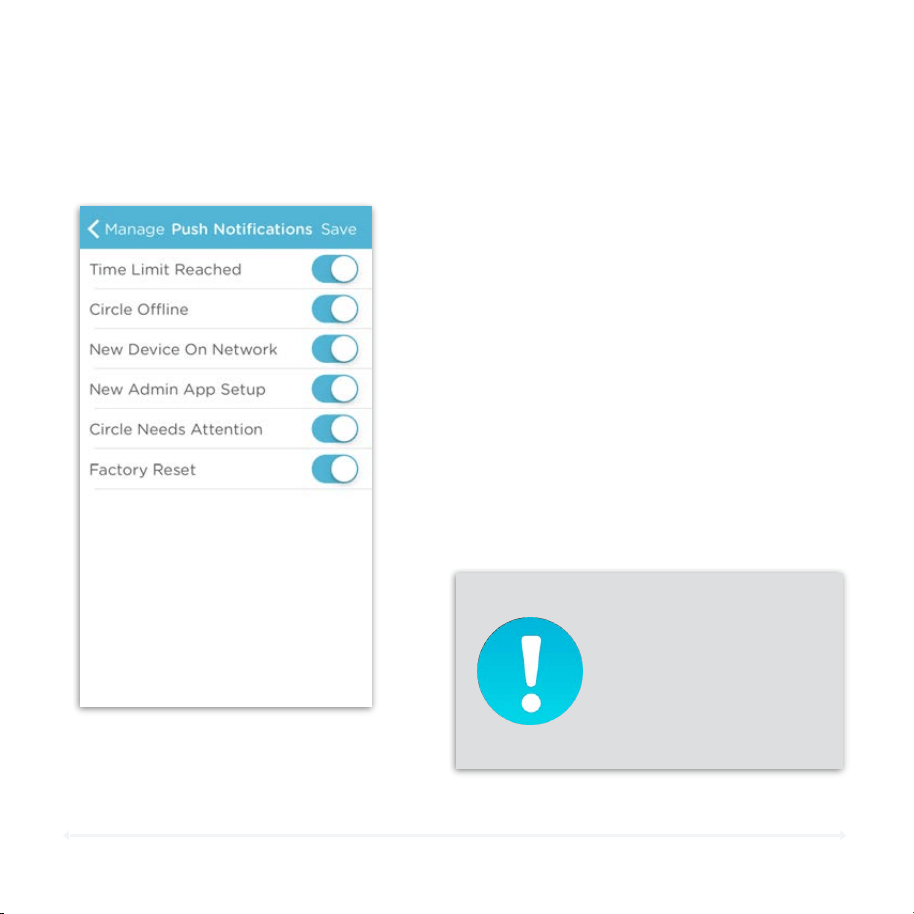
The Circle app can notify you of several important events so you can stay on top
of everything that’s happening with Circle. Here they are:
•
Time Limit Reached
Alerts you when a Family Member has reached one of their Time Limits.
•
Circle Offline
Notification for when Circle is turned off or disconnected from your network.
•
New Device on Network
Alert for when a new device joins your home network.
• New Admin App Setup
Notification for when someone has setup the Circle App to manage your Circle.
• Circle Needs Attention
Alerts for when Circle is running low on battery or has been turned off.
• Factory Reset
Notification that Circle has been reset to factory defaults.
76
Circle User Manual — Menu Features
Push Notifications (cont.)
To Mana ge Push Notifications
1. Go to the Menu, and then tap Manage.
2. Select Push Notifications.
3. Turn On/Off the notifications you’d like
to receive from Circle by tapping the
toggle.
4. Press Save to make your changes
permanent.!
!
Note: Toggles set to the right will allow
those notifications. Toggles to the left
will disable them.
You will not receive
notifications for Circle if
you’ve disabled them
under your phone’s
settings.
77
Circle User Manual — Menu Features
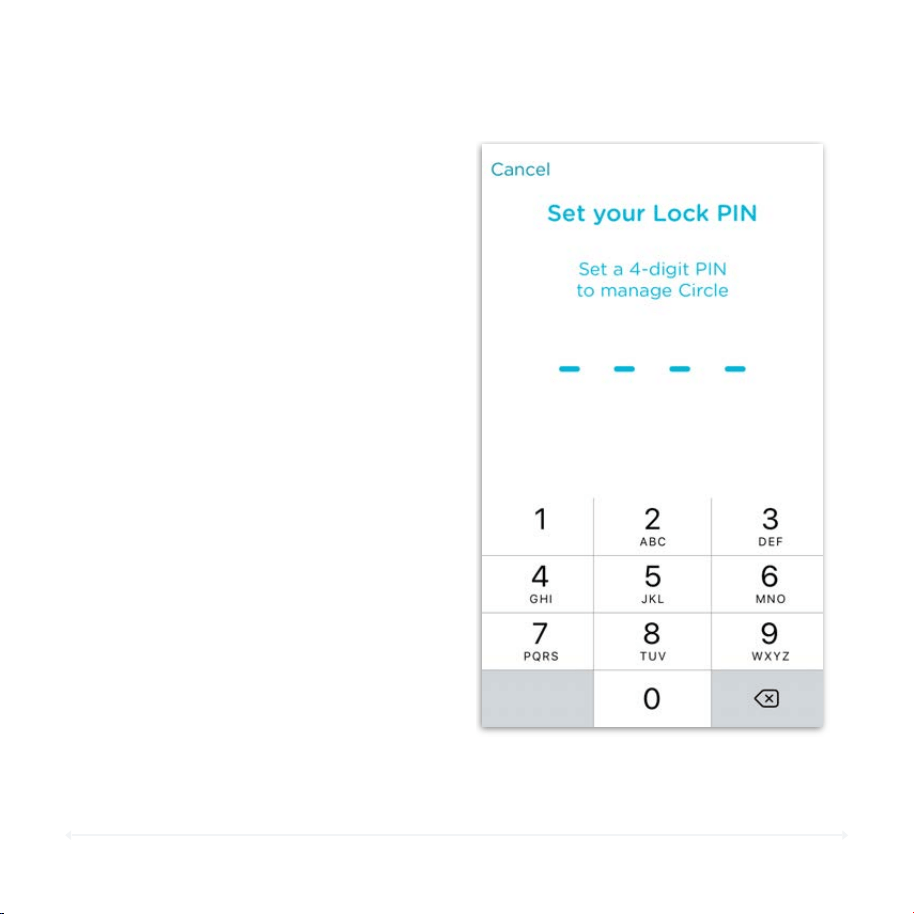
App Lock PIN
1. From the Home screen, navigate to
Menu, then Manage, and finally Lock
PIN.
2. Switch the Enable Lock Code toggle to
ON (right).
3. Enter a 4-digit code as the code you
would like to use, and then re-enter it to
verify that you have the right code in
place.
4. Once you’ve enabled the app Lock PIN,
you will be asked to enter it upon
opening the Circle app.
To Enab le the Circl e Lock PIN
78
Circle User Manual — Menu Features
App Lock PIN (cont.)
1. From the Home screen, go to Menu, then Manage, and then Lock PIN.
2. Switch the Enable Lock Code toggle to OFF (left).!
Note: This will delete the previous lock code that was set.
3. Switch the Enable Lock Code toggle back to ON (right) to set a new lock
code using the steps on the previous page.
Forgot your lock code?
Once the app lock code has been set for the Circle app, you will
need that code to access the profiles and settings in the Circle
app. If you have forgotten, the only way to remove it is to uninstall
the app from your device, reinstall the app, and reauthorize that
app through the text message passcode sent to the phone number
you used when you initially setup your Circle.
To Disa ble or Cha nge the Lock PIN
79
Circle User Manual — Menu Features
Backup and Restore
•
From the Home screen, go to Menu, then
Manage, and then tap Backup Circle Profiles.
iOS Users and Backup
Want to make sure you have your profiles set up immediately after a reset? Make
sure to backup your Circle profiles. Later during set up, or after you’ve got Circle
back up, you can use that to restore your family's profiles and settings.
1. Make sure you’ve previously made a backup.
2. During setup, the app will automatically
detect that you have a backup. Tap Restore
Backups when prompted to use the backup
stored by the app.
Backups created on an iOS device will be
deleted when the Circle app is uninstalled.
Don’t uninstall unless you’re sure you don’t
need your Backup any longer.
Usage and History
Backups do not include Usage or History
information for your Circle profiles. This
information will be erased after any reset,
regardless of having a backup.
To Backup Your Circl e Profiles
To Resto re Your Ci rcle P ro files D uri ng
Setup

CIRCLE CONNECTIONS
81
•
Your Circle-managed network.
•
The latest version of the Circle app.
•
Any necessary apps or services related to the Connection you’d
like to start.
Circle User Manual — Circle Connections
Circle Connections
To use Circle Connections, you will need:
With Circle Connections, you can connect
your favorite apps and services to bring
new features to your Circle! Right now, you
can connect FamilyTech's suite of chore
management applications, along with
Amazon's Alexa personal assistant. Soon,
you’ll be able to connect your activity
trackers and other apps and services to
Circle.
Get Started
82
Circle User Manual — Circle Connections
Circle Connections (cont.)
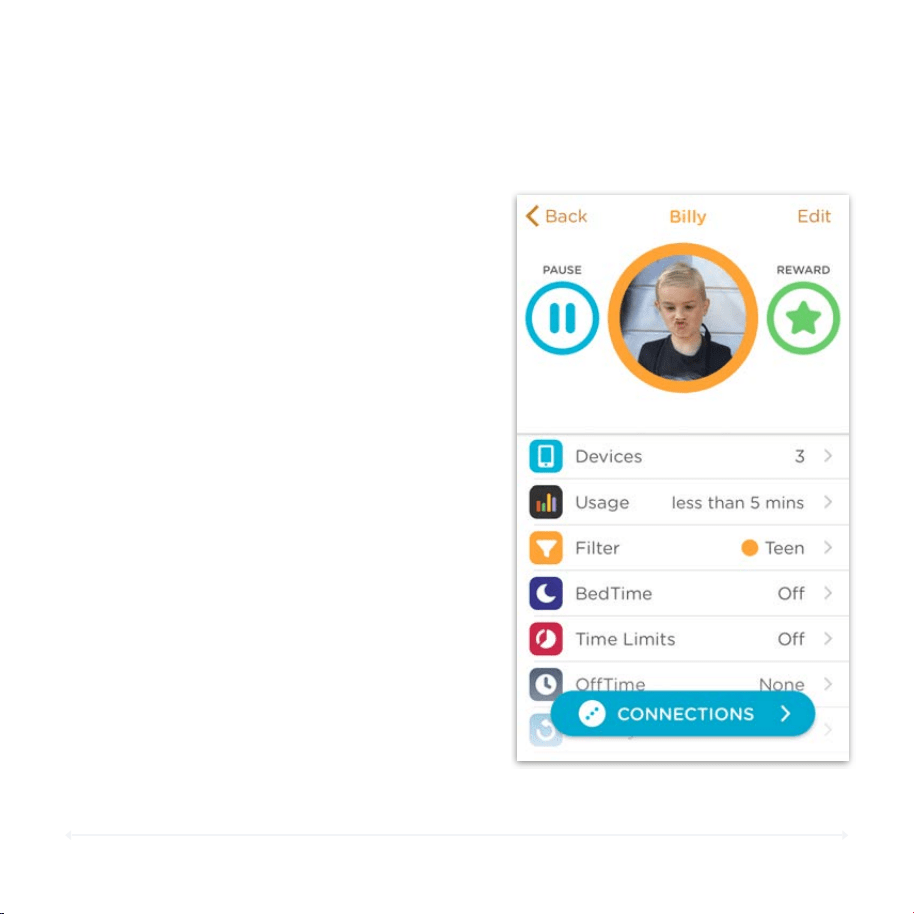
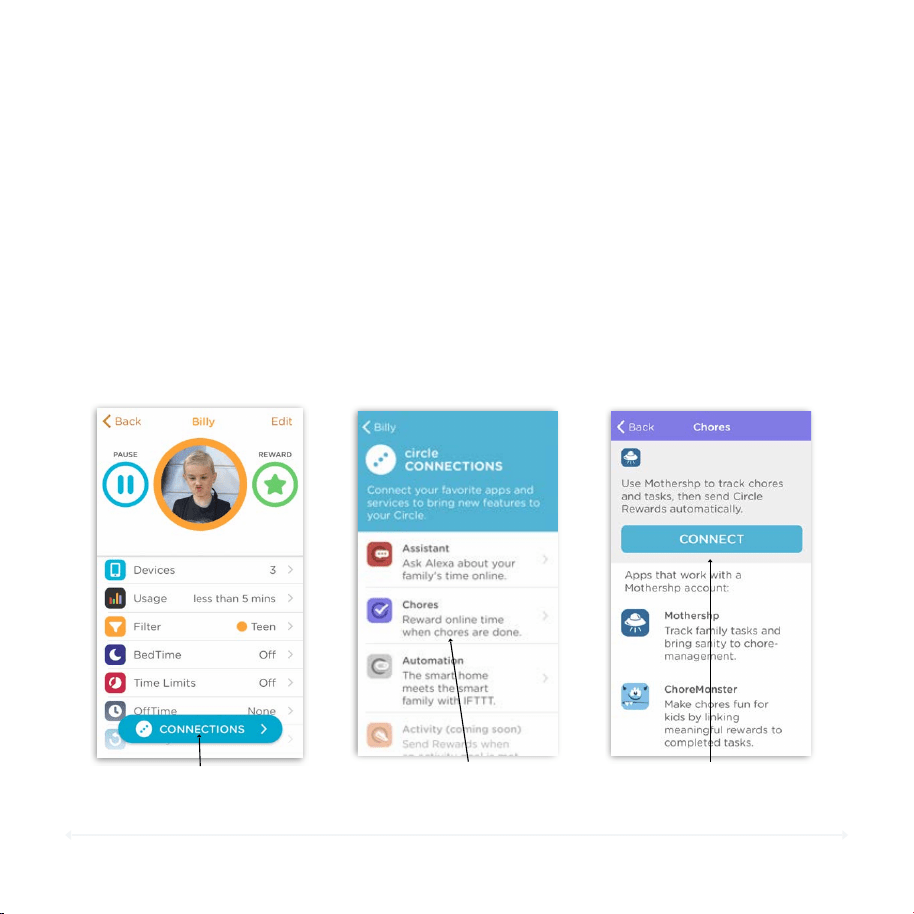
Check Out Circle Connections
Once you’ve updated Circle to the latest
version, you can check out Circle
Connections by opening the Circle app, and
then a family member’s profile. At the
bottom of the profile you will see a blue bar
for Circle Connections; tap on this button to
see what Circle Connections has to offer.
83
Circle User Manual — Circle Connections
Circle Connections (cont.)
Chores: Reward your kids for a job well done. Make managing your family’s
chores fun. Give screen time rewards when chores are completed with the
Chores Connection. Supported apps: Mothershp, Landra, Choremonster.
Activity: “Move more” meets “surf more.” Connect how physically active your
kids are with how much screen time they get using Circle’s Activity
Connection. Supported Apps/Devices: Mistfit, Apple Health. Coming soon.
Social: Be “in the know” - when it matters. Extend your ability to manage
how your teens engage with popular social media apps. Coming soon.
Automation: Unlock the possibilities. Tap into the world of connected apps on
IFTTT to enable your Circle to do things we’ve never thought of. Supported
Apps: IFTTT.
Assistant: Alexa, meet Circle. The most powerful voice assistant in the world
will now answer your questions about how much time your kids spend online
… and lots more! Supported apps: Alexa.
84
Circle User Manual — Circle Connections
Circle Connections: Chores
Circle Connection for Chores
With the addition of Circle Connections,
we’re excited to announce a new partnership
with the folks at FamilyTech and their family
chore management apps Mothershp, Landra,
and Choremonster. !
!
These are a set of web and mobile apps that
make chores fun for kids and easy for
parents. Your kids can now earn rewards in
Circle by doing their chores. Best of all, it’s all
automatic once you’ve set up the
connection. !
!
Johnny wants to stay up a little longer?
Great! He just needs to make sure his room is
clean and let you know through the
Choremonster app! Jill wants some more
screen-time? Alright, but she needs to brush
her teeth and get ready for bed first!
85
Circle User Manual — Circle Connections
Circle Connections: Chores (cont.)
Setting up the Circle Connection for Chores
Once you’ve downloaded the right apps and
are on the latest version of Circle, setting up
a Connection between Choremonster and
Circle is a three step process. (If you’ve
already been using FamilyTech’s apps and
services, you can move to page 89 to
connect Circle with their apps and start your
Chores connection.)
1. Get Your Family’s Profiles Created in
Mothershp and setup ChoreMonster.!
2. Log into Mothershp and connect your
family’s profiles with Circle.!
3. Create a BedTime or Time Limit reward in
Mothershp.

86
Circle User Manual — Circle Connections
Set Up Mothershp and Choremonster
Before you start the Circle Connection for chores you’ll want to make sure you’ve set
up the Mothershp app and made a profile for yourself and your family members.
Setting up Mothershp
The Mothershp app is where you'll create chores, set up rewards, and approve
requests from family members. You'll need it and a FamilyTech profile to set up the
Circle Connection for Chores.
1. Download the Mothershp app from your app store.
2. Sign up within the app or online.
3. Create profiles for the family members you'd like to be able to do chores and
redeem rewards.
4. Create the appropriate chores and some rewards if you'd like.
Setting up Choremonster
Now that you’ve set up the Mothershp app and created profiles for you and your
family, you’ll want to make sure your kids can log their chores and make requests for
rewards. They do so through the Choremonster (for kids) or Landra (for teens) apps.
1. Download the appropriate app to any devices you’d like them to use to log chores
or make requests.
2. Log into the profile you created earlier for them. They’ll then use these app to log
chores you made for them, or request the rewards you’ve set up.
87
Circle User Manual — Circle Connections
Connect Your Profiles with Circle
Now that you’ve set up the Mothershp and Choremonster/Landra apps for your
family. created their profiles, and made some chores, you’re ready to set up your
Circle Connection for chores.
You'll need to connect your Mothershp and Circle profiles:
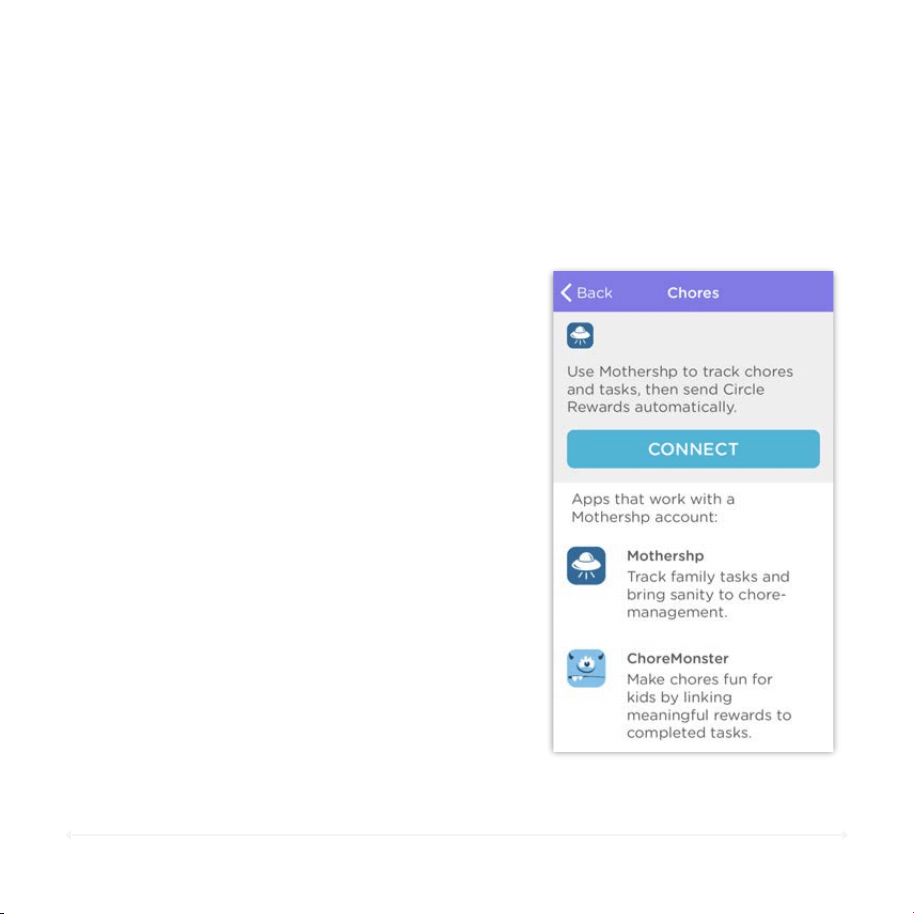
1. Open up the Circle app.
2. Load any family member’s profile by tapping on it. (Continued below)
3. Tap Connections. 4. Tap Chores. 5. Tap Connect.
88
Circle User Manual — Circle Connections
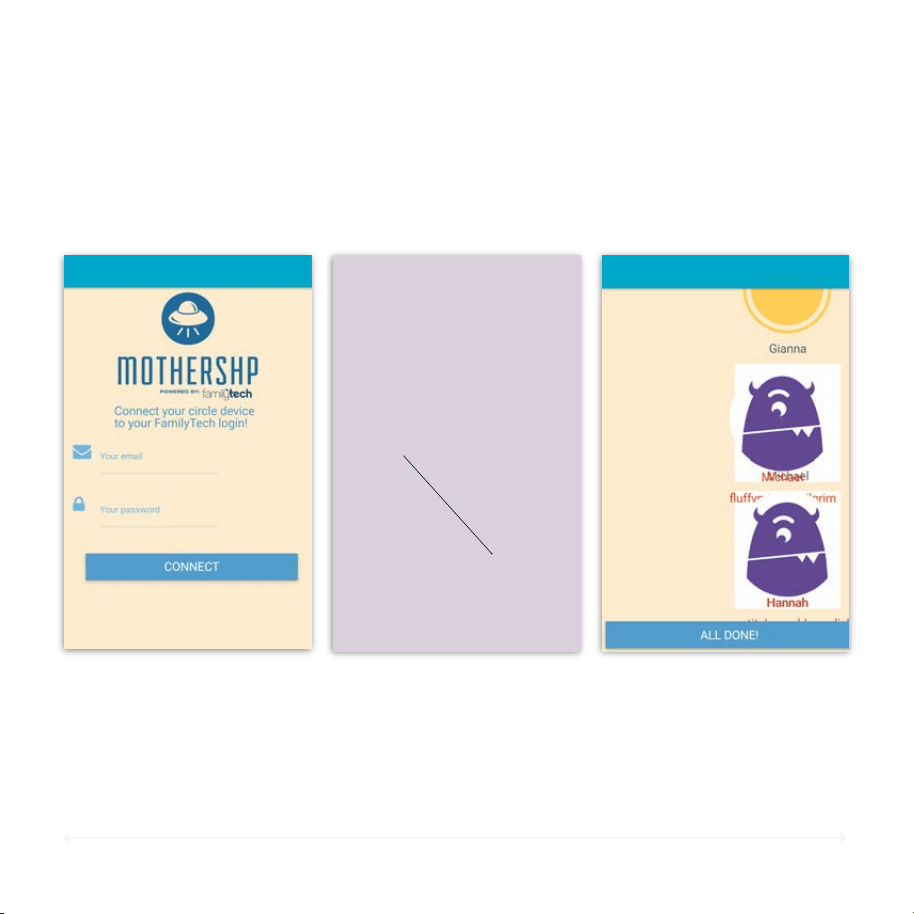
Connect Your Profiles with Circle (cont.)
6. Login using your
FamilyTech account
you set up for the
Mothershp app.
7. Drag your family
member’s profile to
the associated
Circle profile.
8. Scroll down, and tap
“ALL DONE!” to finish.
(Continued from the previous page.)
89
Circle User Manual — Circle Connections
(Continued from the previous page.)
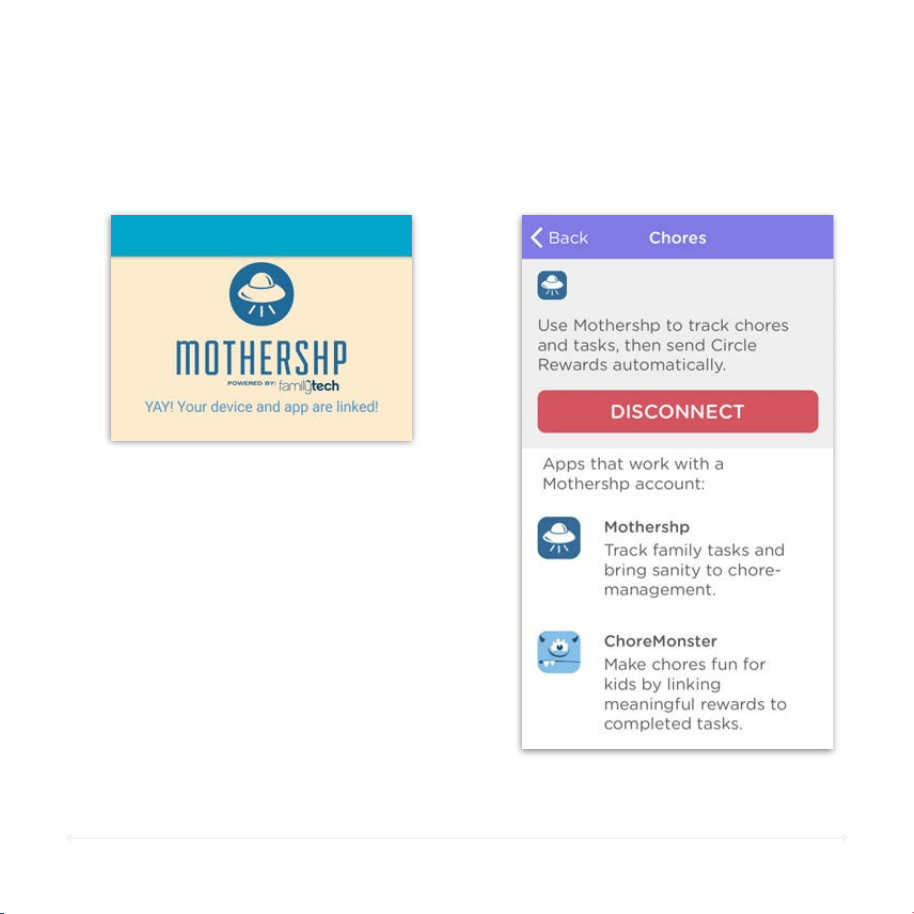
After tapping “ALL DONE!” You’ll be notified
that Mothershp and Circle are now linked
and returned to the Circle app. The Circle
app will now show a red “DISCONNECT”
button. (This button can take a couple of
minutes to change its status.)
Once you’ve started your Circle Connection
for Chores your kids will be ready to redeem
their completed chores for Rewards in the
Circle app. Once everything is set up
properly, these will automatically apply to
the correct profile.
Connect Your Profiles with Circle (cont.)
90
Circle User Manual — Circle Connections
Create a Reward in Mothershp
Currently, kids can redeem rewards for an extra hour on their daily Time Limit, or an
hour later BedTime. Before setting up rewards in Mothershp, make sure you've
downloaded the app, created an account, setup your family and started the Circle
Connection for Chores by following the previous tutorials.
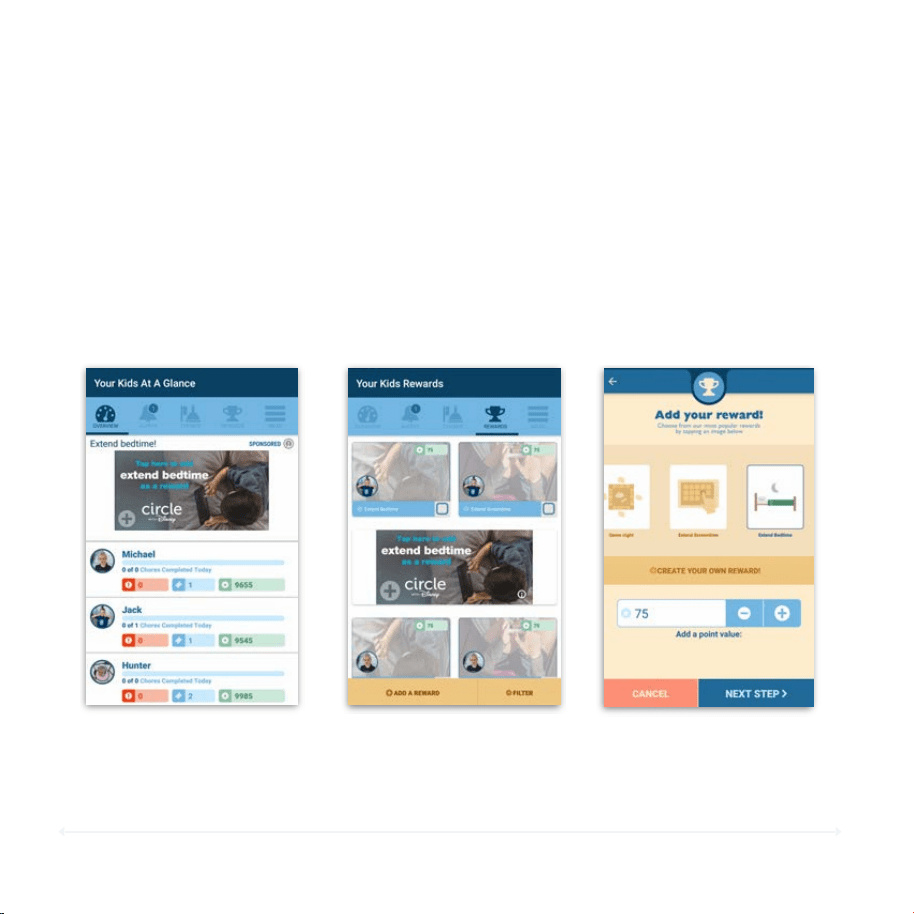
To Create a BedTime or Time Limit Reward in Mothershp
1. Open up the Mothershp app. Login if necessary. (Continued below.)
2. Tap the REWARD section. 3. Tap ADD A REWARD.
4. Scroll to the end and
choose either "Extend
Screen Time" or "Extend
Bedtime".
91
Circle User Manual — Circle Connections
Create a Reward in Mothershp (cont.)
(Continued from the previous page.)
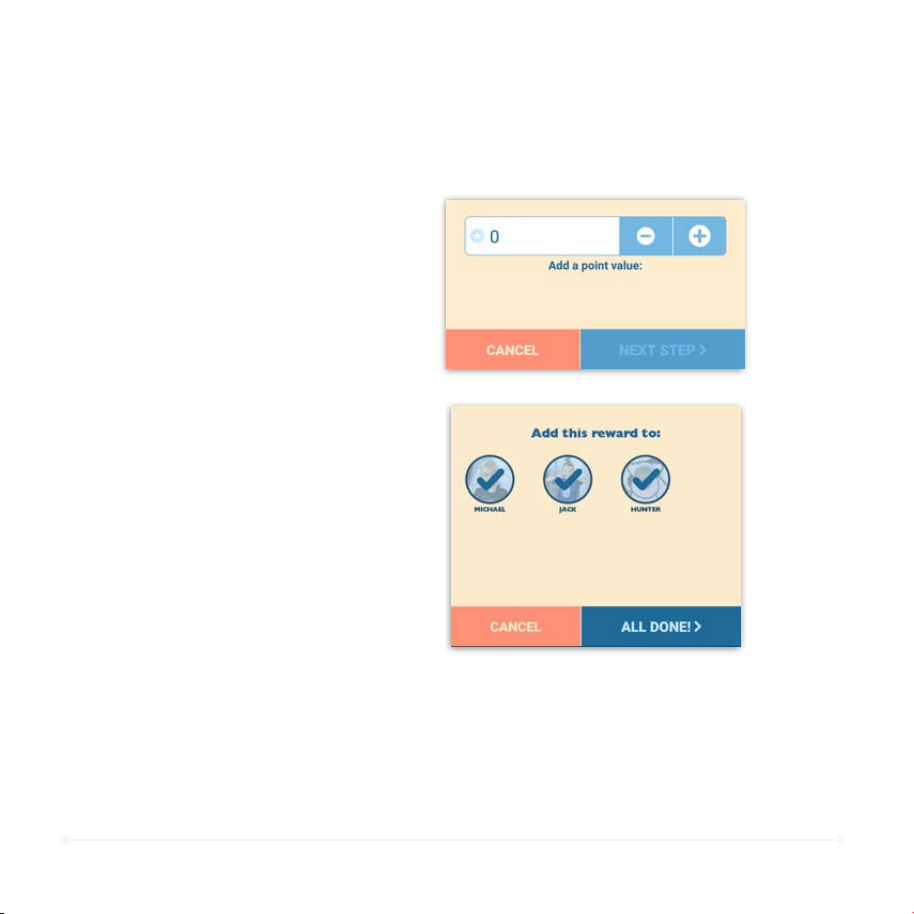
5. Add a point value to this
reward then tap "Next Step".
6. Add this reward to the
appropriate family
members’ profiles and then
tap "ALL DONE!".
Congratulations, you’ve setup your reward! Once your kids earn enough
points, they can redeem those points for a reward through the Choremonster
or Landra app. After you’ve approved this reward via the Mothershp app, it
will automatically apply to their Circle profile.
92
Circle User Manual — Circle Connections
Circle Connections: Assistant
Circle and Alexa
Alexa, meet Circle.
The most powerful voice assistant in the
world will now answer your questions about
how much time your kids spend online … and
lots more! To get this going, you’ll need to
enable the Circle Skill for Alexa.
Before you go to enable the Circle Skill with
your Alexa device you'll need to have the
following setup:
•
Your Circle device paired to your network.
•
An Alexa device and Amazon account.
•
The latest version of the Circle app.
•
Access to a computer, or the Alexa app for
iOS/Android.
Requirements
93
Circle User Manual — Circle Connections
Enabling the Assistant Connection
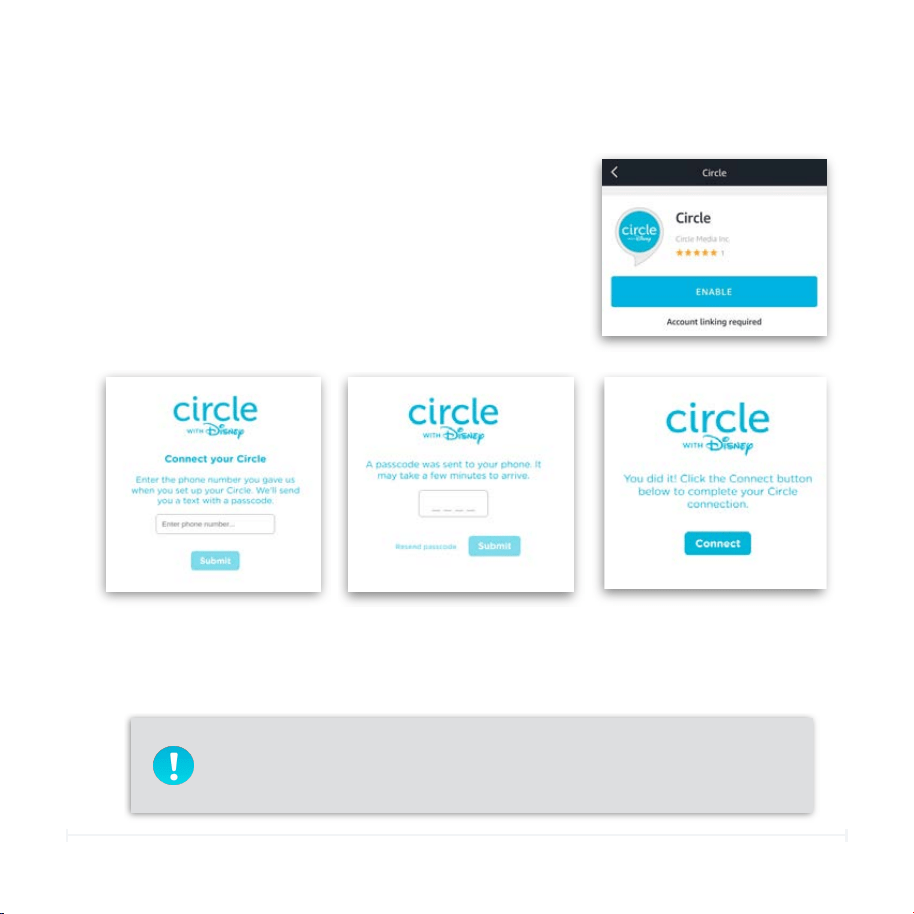
Enable the Circle Skill with the Alexa App
1. Open your Alexa app. (Login if necessary.)
2. Search for “Circle”.
3. Tap the Circle icon.
4. Tap “Enable”.
Link Alexa and Circle
1. Enter the phone number
associated with your Circle
device into the field, and then
tap "Submit".
2. Enter the passcode
that is sent to you in the
passcode field, and then
tap “Submit".
3. Tap “Connect” to finish.
Make sure you also enable the Circle skill within Alexa! You can do
so by saying "Alexa, start Circle.", and Alexa should respond with
some examples for how to use the Circle skill.
94
Circle User Manual — Circle Connections
Circle Connections for Assistant
So you've enabled the Circle skill for your Alexa
voice assistant, but now you're wondering what kind
of magical things it can do? You're in the right spot!
To invoke the Circle skill for Alexa, you'll need to
make sure you start your command with "Circle..."
This clues Alexa in that you're about to ask or tell it
something about your Circle device.
Alexa Voice Commands for Circle
What Can Alexa Do For Your Family?
With the connection between Alexa and Circle established you’re opening a whole
new world of voice commands related to Circle. Want to know what your BedTimes
are tonight in Circle? Say, “Alexa, ask Circle what time BedTimes are tonight.”
Wondering if Johnny has any OffTimes today? Say, “Alexa, ask Circle what time
Johnny’s OffTimes are today.” You’ll also be able to ask Alexa about how much your
family members have been on Facebook or how long they have left on Snapchat.
We think this new connection is pretty magical!
95
Circle User Manual — Circle Connections
Alexa Commands For Circle
We’ve listed below exactly what the Alexa and Circle connection can do. Don’t worry if
your wording is a little off. Alexa will account for that. Just make sure you've started the
connection and told Alexa to “Start the Circle skill.” Then begin your command with
“Alexa, ask Circle…”
BedTimes and Alexa
Command
Description
Example
Get all BedTimes
Lists all BedTimes for each
family member at the time
given.
"Alexa, ask Circle to get all
the BedTimes today."
Get a single BedTime
Returns the BedTime for
the specified family
member at the time given.
"Alexa, ask Circle what is
the BedTime for Bobby
tomorrow."
OffTimes and Alexa
Command
Description
Example
Get all OTimes
Lists all OTimes for the
specified family member at
the time given.
"Alexa, ask Circle what
Bobby’s OTimes are
today."
96
Circle User Manual — Circle Connections
Alexa Commands For Circle
Time Limits and Alexa
Command
Description
Example
Get the daily Time Limit
Returns the Total Time
Limit for the specified
family member.
"Alexa, ask Circle what is
Bobby's daily Time Limit."
Get a category's Time Limit
Returns the given category
or platform's Time Limit,
for the specified family
member.
"Alexa, ask Circle what is
Bobby's Time Limit for
Facebook."
Get time remaining
Returns the remaining time
for the given category or
platform, for the specified
family member.
"Alexa, ask Circle how long
Joey has left on YouTube."
97
Circle User Manual — Circle Connections
Alexa Commands For Circle
Usage and Alexa
Command
Description
Example
Get the total Usage
Returns the specified
family member's total time
spent at the time given.
"Alexa, ask Circle how long
has Bobby been online this
week."
Get a category's Usage
Returns the specified
family member's Usage for
a category or platform at
the time given.
"Alexa, ask Circle how
much time Joey spent on
YouTube today."
98
Circle User Manual — Circle Connections
Circle Connections: Automation
Circle and IFTT
You ever wish you could automate Circle?
Now you can with the connection between
Circle and IFTTT, the free web-based
automation service. !
!
IFTTT (IF This Then That) allows services like
Circle to connect with a wide range of other
services and applications, by meeting
custom-defined conditions. With IFTTT you
define triggers and actions. If this then that!
Before you go to enable the Circle Skill for
IFTTT you'll need to have the following
setup:
•
Your Circle device paired to your network.
•
An IFTTT account and the IFTTT app.
•
The latest version of the Circle app.
Requirements
99
Circle User Manual — Circle Connections
Enabling the Automation Connection
Setting Up the Automation Connection: IFTTT App
1. Download the "IFTTT" app from the App Store or Google Play Store.
2. Create an IFTTT account if you don't already have one, or sign in.
3. Tap the search icon in the bottom toolbar, and search for “Circle”.
4. Tap the "Connect" button to begin the connection process, and follow along with
the next set of instructions below.
Connect IFTTT and Circle
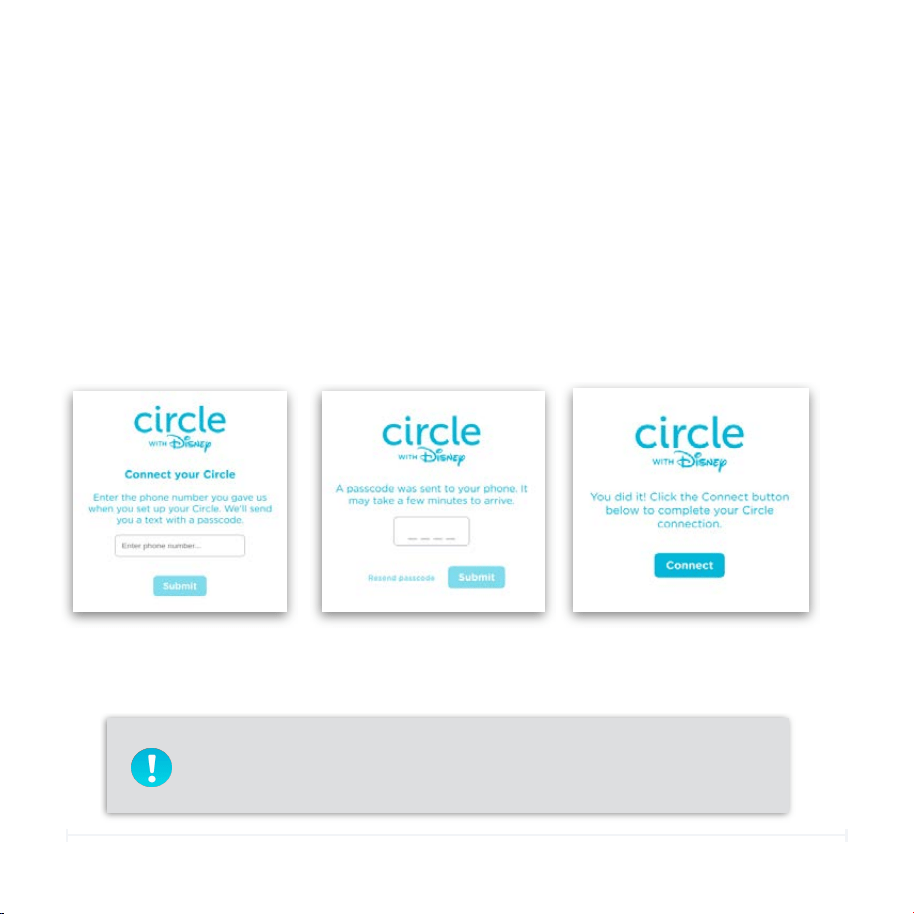
1. Enter the phone number
associated with your Circle
device into the field, and then
tap "Submit".
2. Enter the passcode
that is sent to you in the
passcode field, and then
tap “Submit".
3. Tap “Connect” to finish.
Want to make sure Circle and IFTTT connected correctly? Tap “My
Applets” and then “My Services”. Circle should be listed there.
100
Circle User Manual — Circle Connections
Circle Connections: Automation
Connected Circle and IFTTT and want to get started
creating your first automation? Once you see Circle
listed as a “Service” under “My Applets” in IFTTT
you’re ready to start.
IFTTT works by creating custom “Applets”. Think of
those like an event and an automated response.
You’ll do this by creating custom applets. When an
applet's trigger is set off, then the specified action
happens. Filters and parameters can further
customize this behavior. See IFTTT's about page for
further details.
IFTTT Applets
What can IFTTT do for your family?
The connection between Circle and IFTTT opens up a world of opportunities. Your
imagination and the services you use are the only limits. We’ve listed a number of
examples later of what you can do with IFTTT and Circle. Right now there are seven
“actions” that IFTTT can do:
• Pause the Internet
•
Unpause the Internet
•
Pause a Profile
•
Unpause a Profile
•
Extend a Time Limit
•
Extend a BedTime to later
•
Disable an OffTime
101
Circle User Manual — Circle Connections
IFTTT Actions
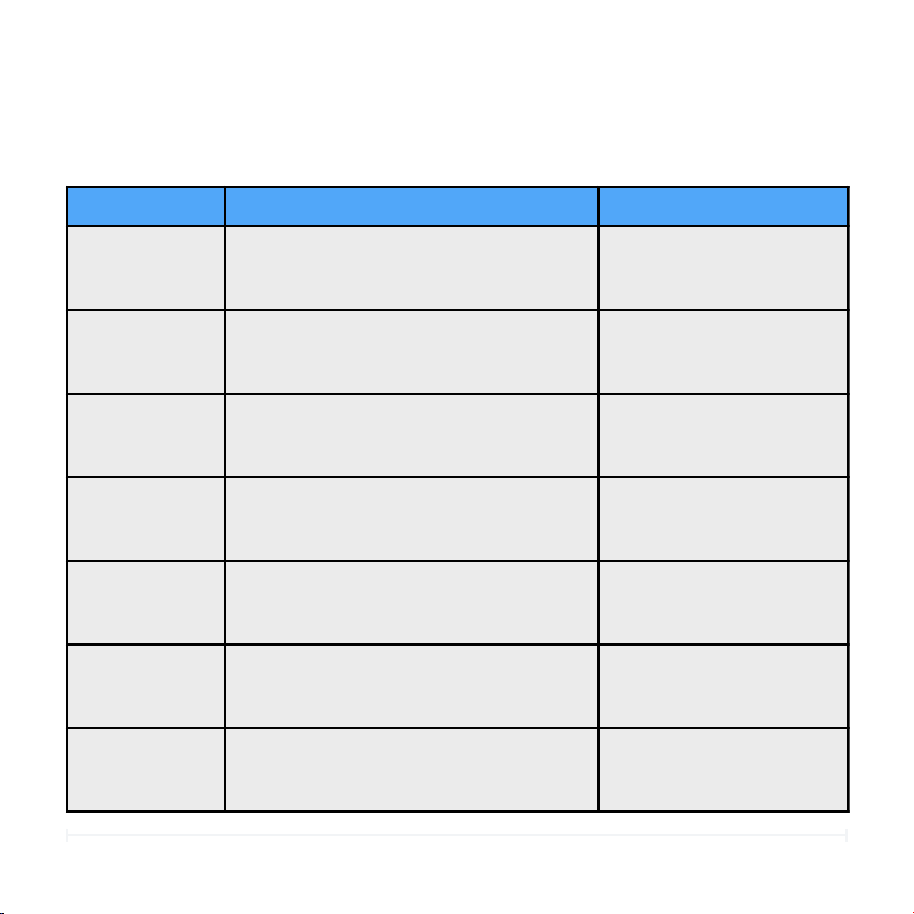
What can actions can IFTTT make?
Action
Description
Action Field
Pause the
Internet
This action will Pause the internet for all
managed devices.
Not applicable.
Unpause the
Internet
This action will Unpause the internet for
all managed devices.
Not applicable.
Pause a Profile
This action will Pause a specified Profile.
Which Profile?
Unpause a
Profile
This action will Unpause a specified
Profile.
Which Profile?
Extend a Time
Limit
This action will extend any Time Limit
by a specified amount for the day the
action is run.
Which Time Limit?!
How much time?!
Allow multiple Rewards per day?
Set a BedTime
to later
This action will make a specified
BedTime later on the day the action is
run.
Which profile?
How much later?
Disable an
OTime
This action will disable the specified
OTime, on the day the action is run.
Which OTime?

102
Circle User Manual — Circle Connections
Creating Your First Applet
Now that you know what IFTTT can do when connected to your Circle, you’re ready
to create your first applet!
An Overview
Let’s Pause the Internet!
An example of creating an applet for Circle will help here. Let's create a button to
Pause the Internet using IFTTT. You’ll need to make sure you’ve got an IFTTT
account and connected it to Circle at this point. Once you’ve done so, open the
IFTTT app or use IFTTT’s website. This example will use the IFTTT app.
Creating a new applet is real easy. It's basically a four step process.
1. Choose a service that you’d like to trigger IFTTT.
2. Choose a Triggerfor that service and complete the trigger fields.
3. Choose an Action service.
4. Choose an Action and complete the Action fields.
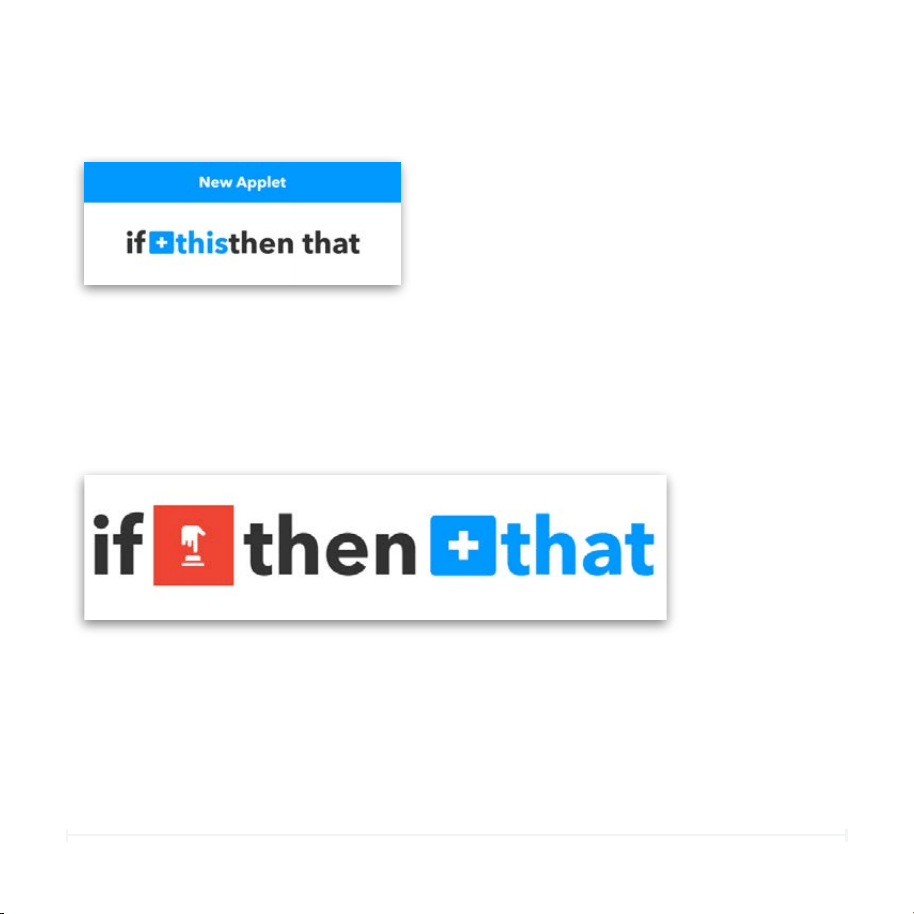
1. Open the IFTTT app on your device.
2. Tap My Applets in the bottom menu bar.
3. Tap the + icon in the top right corner of the screen.
Create a New Applet
103
Circle User Manual — Circle Connections
Creating Your First Applet (cont.)
1. Choose a service you’d like to trigger your IFTTT action. To do so, tap “+this”.!
2. Search for the service you’d like to trigger your applet. In this case, we’ll pick
the “button” widget, which is easy to use.
3. Choose your trigger and complete the trigger fields. For this example, we
choose “Button press”. If you were successful, the "this" text should now be
replaced with the service you chose, and the "that" text will turn blue.
4. Now you can choose an action service. Tap on “+that”.
5. Search for “Circle”, which is the action service.
6. Choose an action and complete the action fields. For our example, let’s tap
“Pause the Internet”, and then tap “Create Action”.!
7. Name your applet anything you’d like, and then tap “Finish”!

104
Circle User Manual — Circle Connections
Try Out Your Applet!
You've made the applet, so now it's time to put it to the test! This will vary
depending on which service you chose, but if you followed along with the button
example, here's how to find the Pause button you just made. Make sure the IFTTT
app is installed, or else you won't see the buttons!
iOS
1. Swipe leftuntil you reach your "Widgets" page.
2. Scroll to the bottomof the screen until you see the "Edit" button.
3. The "Add Widgets" screen will appear; look for "IFTTT" in the list, and add it.
Then tap "Done" in the top right corner of the screen.
4. Now, you'll see theIFTTT widget, and the button that you just made should be
visible.Simply tap it, and watch Circle Pause the Internet via IFTTT automation!
1. On the Home screen,tap and hold on an empty space. Three buttons should
appear near the bottom of the screen.
2. Tap the "Widgets" button, and look for IFTTT in the list of applications.
3. You'll have the option to use either a 3x1 button selector, or a single button that
will let you choose which IFTTT applet you'd like to use (in this case, the one we
just made for Circle). Pick either option bylong-pressing on the button, and then
drag it onto where you'd like it on your home screen.
4. Now you'll see the button on your home screen alongside your
applications.Simply tap it, and watch your Circle Pause the Internet via IFTTT
automation!
Android

105
Circle User Manual — Circle Connections
IFTTT and Circle Applet Examples
Ready to try some more complex triggers and actions out? Here are some
interesting ideas we've thought of.
Some Example Applets!
Good Weather?
Pause the Internetwhen it’s sunny outside.
IF:Weather Undergroundtemperature rises above 65°F
THEN:CirclePause the Internet
You did it!
Reward extra time when your kidbeats their weekly running goal.
IF:Nike +beat weekly distance goal
THEN:CircleTotal Time Limit reward for 1 extra hour
Time for school!
Pause the Internetduring school events on your calendar.
IF:iOS calendarevent in category “School”
THEN:CirclePause the Internet
Tweet Tweet.
Pause the Internetby tweeting #ByeByeScreens!
IF:Twitternew Tweet by you with hashtag #ByeByeScreens
THEN:CirclePause the Internet
Looking for more example applets? Check out this link. Email us at
suggestions@meetcircle.com with other applet ideas!
Want more?

THE MYCIRCLE APP
107
•
Your Circle-managed network
•
The MyCircle app downloaded and installed
Circle User Manual — MyCircle
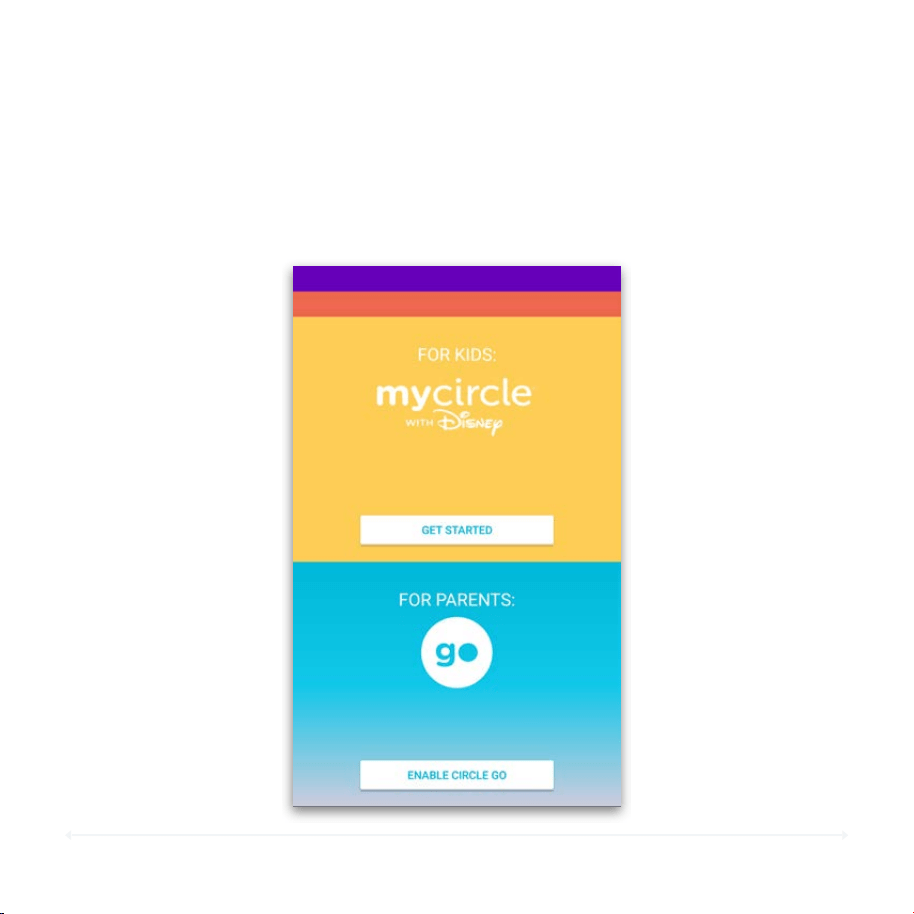
Before You Begin
What You’ll Need
The MyCircle app requires an iOS device running iOS 9 or later, or an Android
device running Android 4.1 or later.
Requirements
To use the MyCircle app, please have the following ready:
In order to ensure that MyCircle will start up properly:
•
Confirm that your Circle with Disney device is powered on and setup on
your network.
•
Assign your device to a filter level other than None. Any device that is
set to a filter level of None or is an "Unmanaged Device" will not be able
to use MyCircle or Circle Go.
•
Ensure that your device is connected to your home Wi-Fi the first time
you attempt to launch MyCircle. Until it makes that initial connection
over your home Wi-Fi, it will not be able to load properly.
Getting Started with MyCircle
108
Circle User Manual — MyCircle
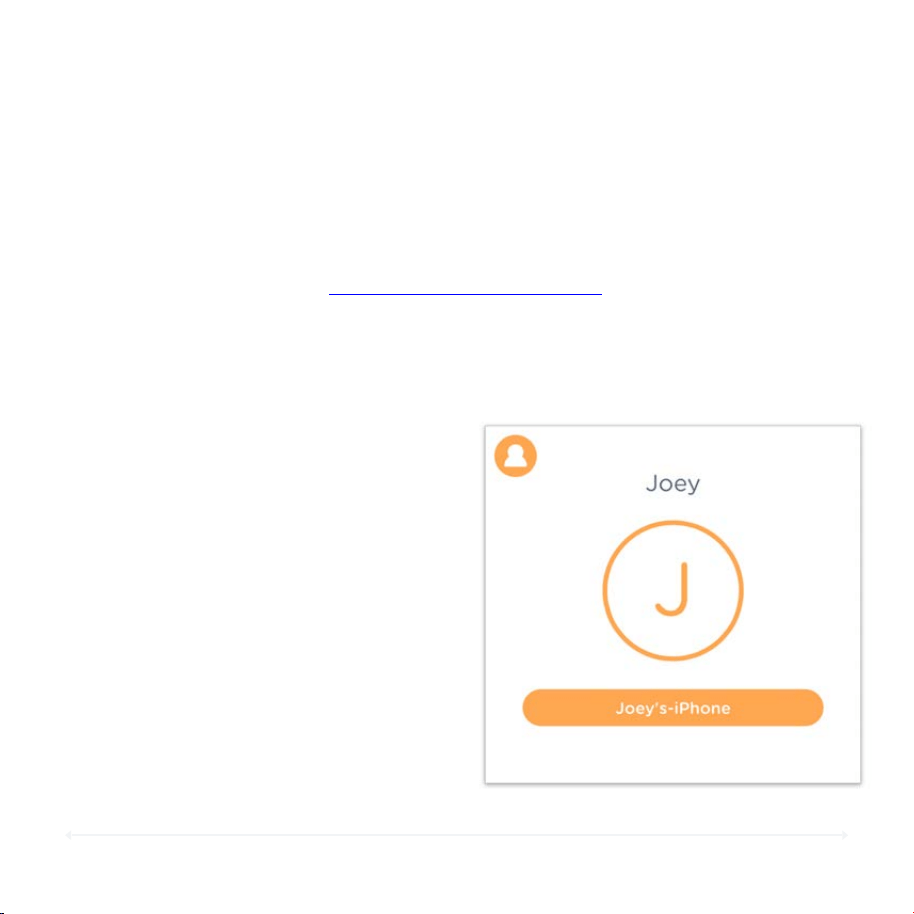
MyCircle Overview
MyCircle gives you a unique view of your online experience set alongside a great
collection of Disney content. When the app launches, this is what you will see first:
109
Circle User Manual — MyCircle
MyCircle Profile Dashboard
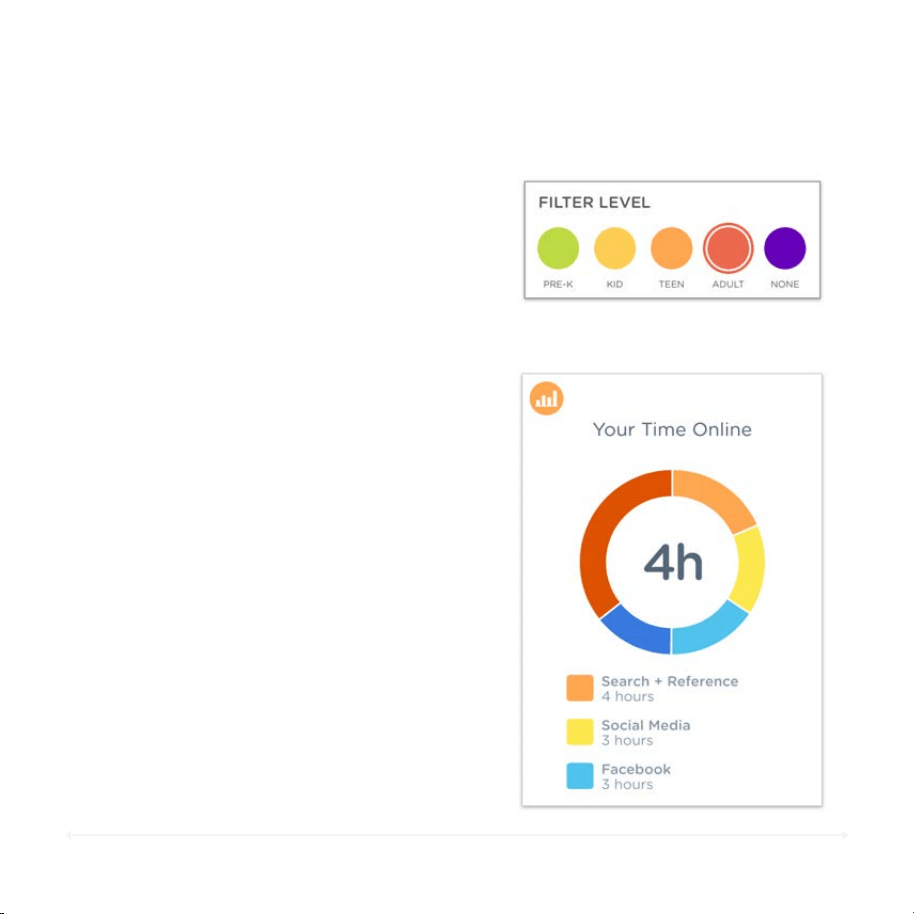
Name and Device Name
Each time the MyCircle dashboard is
launched, you will be able to see the
name of the device that they are using
to access MyCircle, as well as the family
member that device is assigned to.
In the example on the right, this device
is named “Joey’s-iPhone” and belongs
to Joey.
Each family member has their own Circle settings, and with MyCircle, they have their
own dashboard, too! There are two ways to view the MyCircle dashboard for an
individual in your home:
1. Through a web browser at https://mycircle.meetcircle.com
2. Through the MyCircle app.
Here are the things that each family member can find in their MyCircle dashboard:
110
Circle User Manual — MyCircle
MyCircle Profile Dashboard (cont.)
Filter level
The whole MyCircle experience will take
on the color scheme of the filter level
that is set for the owner of that device.
Time Spent online
With MyCircle, each family member can
find an overview of where they have
spent time online today.
This will provide a high-level summary
of the total online time, as well as
specific categories or platforms that
lead time usage for the day.
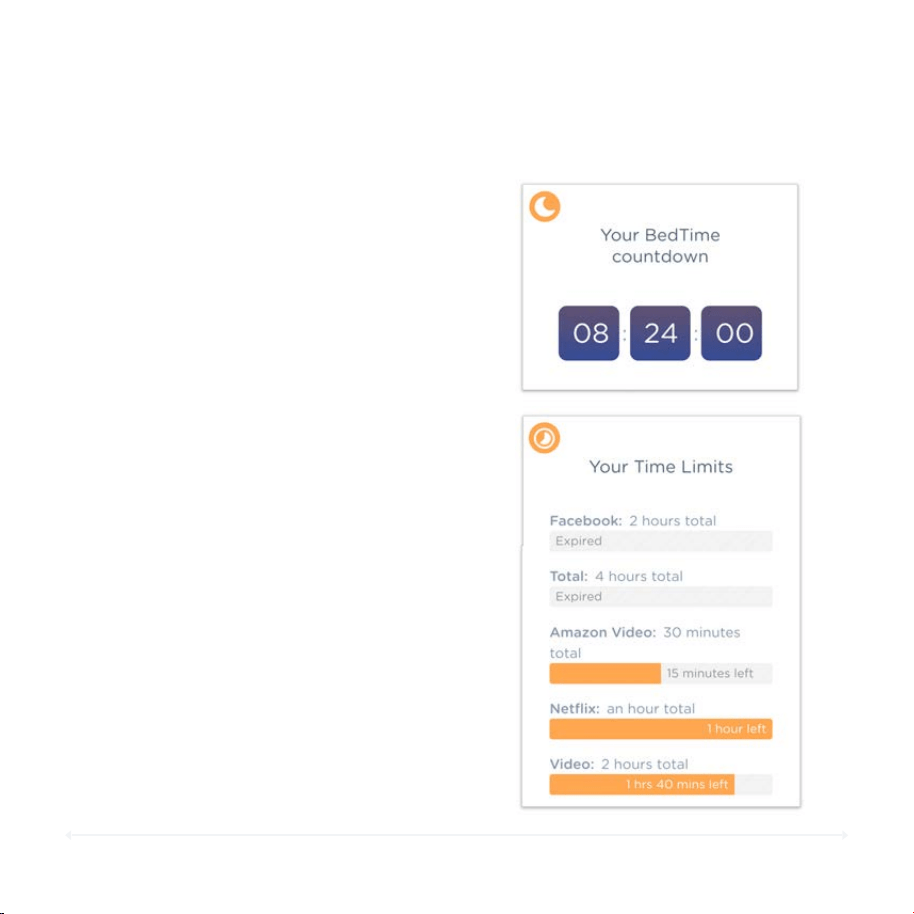
111
Circle User Manual — MyCircle
MyCircle Profile Dashboard (cont.)
BedTime Countdown
If that family member has a BedTime
assigned, the MyCircle dashboard will
show them a countdown to when it’s
time for their devices to disconnect
from the internet.
Time Limits
Finally, the MyCircle dashboard will
display a report of that family member’s
time limits for the day, along with a
visual representation of how much time
they have left for each category.
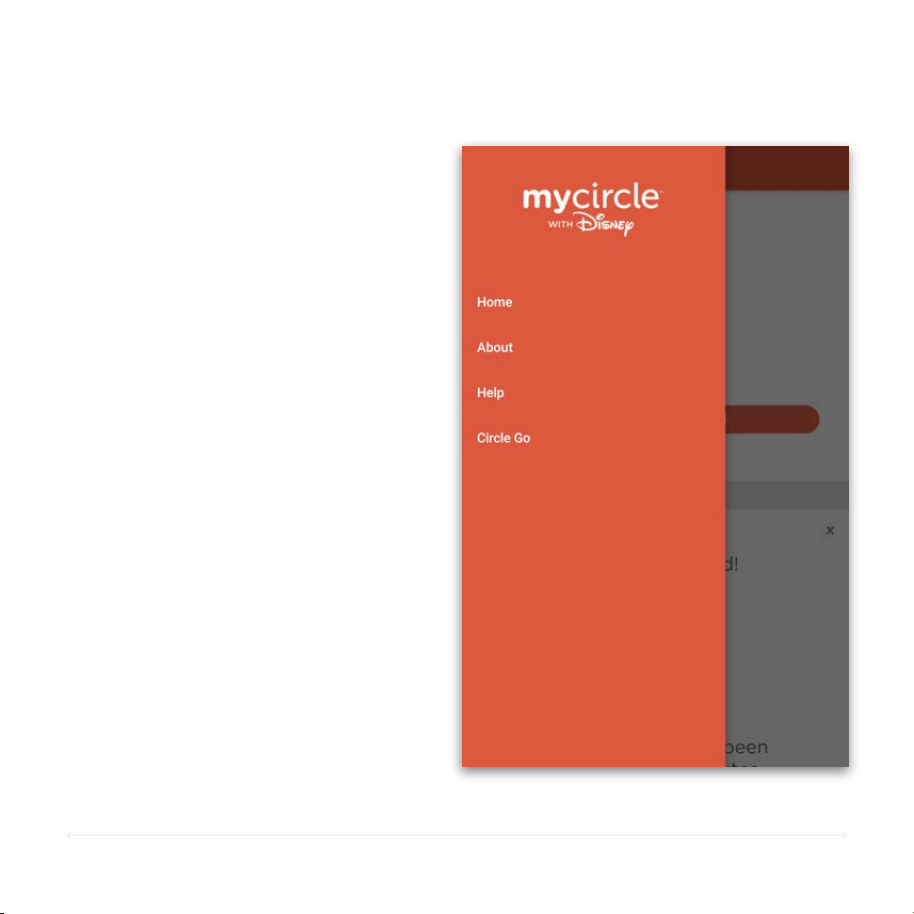
112
Circle User Manual — MyCircle
MyCircle Menu
Setup Circle Go
Menu Options
The MyCircle menu isn’t flashy, but it
does have everything you need to
understand the terms of using MyCircle
and allow you to get help if you need it!
Use the setup Circle Go button at the
bottom of the MyCircle menu to get
started with Circle Go.
Important: A Circle Go subscription
must be in place in order to install
Circle Go on your device. Read more
about Circle Go below.

SETTING UP CIRCLE GO

114
Circle User Manual — Circle Go
Welcome to Circle Go
What Is Circle Go?
Circle Go is an exciting addition to
the Circle family that extends the
power of Circle beyond the home for
mobile devices.
Whether on 4G LTE or on other Wi-
Fi networks, Circle Go will manage
mobile devices in the same way as it
will when they are on the home Wi-
Fi.
After installing Circle Go, all of your Go-enabled device’s Internet activity will
be handled by Circle. However, while all Internet traffic on your device will go
through Circle’s systems, all your history continues to reside on your home
Circle and is not stored anywhere else.
You can read more about the magic behind Circle Go and how Circle is
handling your privacy and security with Circle Go here.
How Does Circle Go Work?

115
Circle User Manual — Circle Go
Welcome to Circle Go (cont.)
Circle Go impacts the way that your devices connect to the Internet, so you may be
wondering if there will be a significant impact on your device's performance. There are
a couple of things that are worth keeping in mind with Circle Go:
Connection Strength
Once the Circle Go VPN establishes a connection, the strength is comparable to normal
Wi-Fi or 4G LTE connection strength. There should be no difference in connection
strength with or without the Circle Go VPN enabled, and service should not drop in and
out with the VPN enabled.
Connection Speed
With typical use, Circle Go will not noticeably impact connection speeds for your
device. Some users report that Circle Go actually improves their mobile performance
and others report no difference in their experience. The only time you should notice a
significant impact is when your device is coming back up from being "asleep" for a
while and attempting to make its initial connect to the Circle Go VPN service. That
initial connection between the device and the Circle VPN may take an extra moment to
establish Internet connection.
Battery
Our tests suggest that running the Circle Go VPN with constant connection may drain
battery life more rapidly than without Circle Go enabled. The impact is not dramatic.

116
Circle User Manual — Circle Go
Getting Started with Circle Go
Before You Begin
Because Circle Go is installed in a unique way on your phone or tablet, the system
requirements are slightly dierent than the MyCircle app.
Installing Circle Go requires:
• An iOS device running iOS 9 or later, or an Android device running Android 4.1
or later.
•
An existing Circle installed on the home network.
• No device management profiles already installed on that device.
•
For iOS: Safari is enabled in Restrictions (it may be disabled after setup)
System Requirements
Getting Circle Go installed is simple and requires the following steps, all of which are
outlined below:
1. Download the Circle and MyCircle apps.
2. Subscribe to Circle Go.
3. Install the Circle Go profile in your iOS devices.!
It's really that easy!
117
Circle User Manual — Circle Go
Install the Apps
MyCircle
App
Circle App
You will need to setup and manage two apps to
use Circle Go:
For Your Child's Device: MyCircle
Install this app on any device that you want
to manage using Circle Go. That device
must be running iOS 9.0 or later, or
Android 4.1 or later.
For iOS users: After installing Circle Go,
you may remove the MyCircle app. It is not
required for ongoing use of Circle Go on
the iOS device. Android users will need to
keep MyCircle installed for Circle Go to
work properly.
For Administration: Circle
Install this app on the device that you want to
use to manage your Circle device and your
Circle Go subscription.
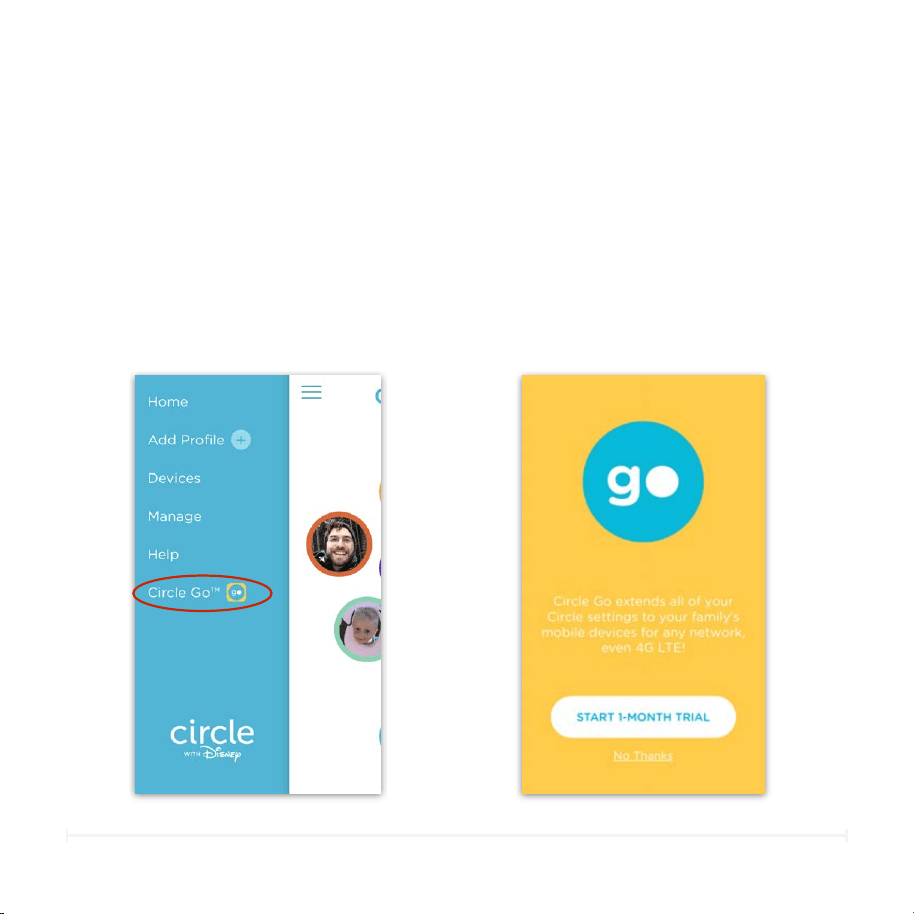
118
Circle User Manual — Circle Go
Subscribe to Circle Go
How to Start Your Subscription
Circle Go is a monthly subscription that extends the Circle features that
work in the home to mobile devices, no matter which network they join.
1. Open the Circle app.
2. Tap the Menu icon in the top-left corner of the screen.
3. Choose the Circle Go option.
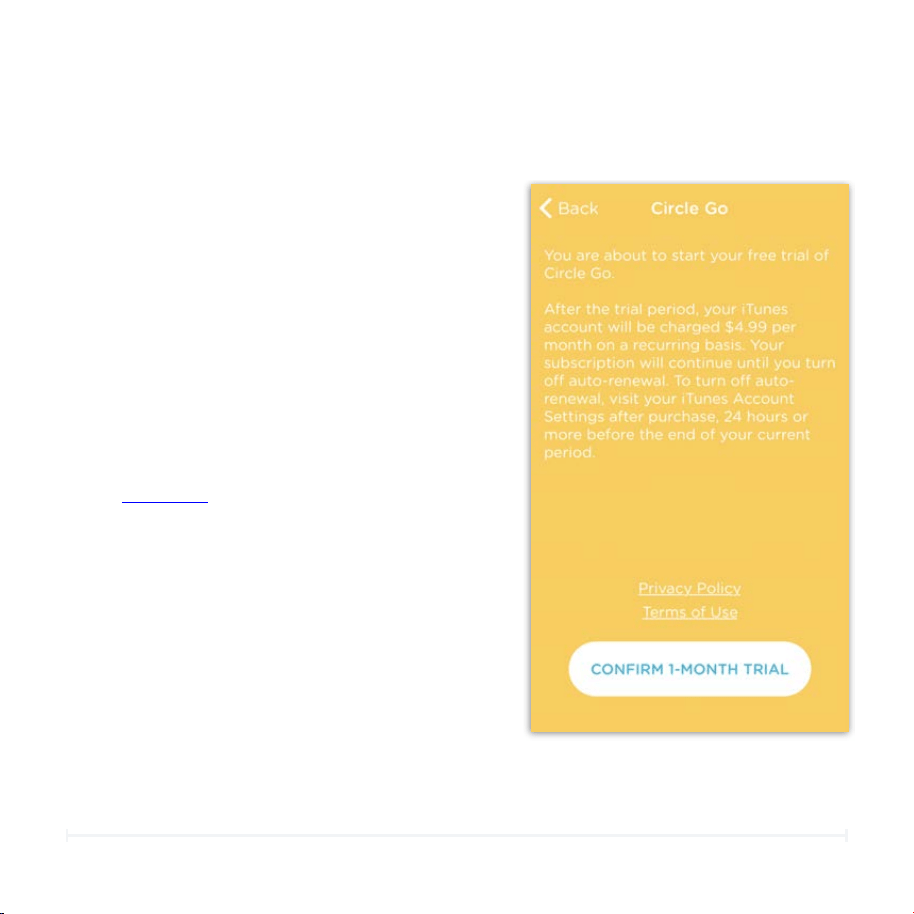
119
Circle User Manual — Circle Go
Subscribe to Circle Go
(cont.)
Read the Terms and Conditions and
Confirm
After tapping the "Start 1-Month Trial"
button for the first time, you'll see details
about how the subscription will work. Your
subscription will be created under your
Apple or Google ID, and you'll manage it
there. Click here for more about managing
your Circle Go subscription. Tap "Confirm 1-
Month Trial", and login to your Apple or
Google account to confirm the subscription.
120
Circle User Manual — Circle Go
Install Circle Go
Get Your Device Ready
Circle Go must be installed on any compatible iOS or Android that you want to
manage outside your home Wi-Fi. Installing Circle Go on each of your devices is very
simple, but involves using the MyCircle app rather than the Circle app.
Here's what setting up Circle Go will look like:
On the device that you want to manage with
Circle Go:!
1. Ensure that your device is assigned to a
Circle profile with a filter level other than
None.
2. Connect to your home Wi-Fi managed
by Circle.
3. For iOS devices, you'll need Safari
enabled temporarily during setup; you
can restrict Safari after Circle Go is
installed.
4.Launch the MyCircle app.
If your device is connected to
a profile with a filter level of
None or if it is currently
“Unmanaged,” you will not be
able to use MyCircle or Circle
Go with that device.
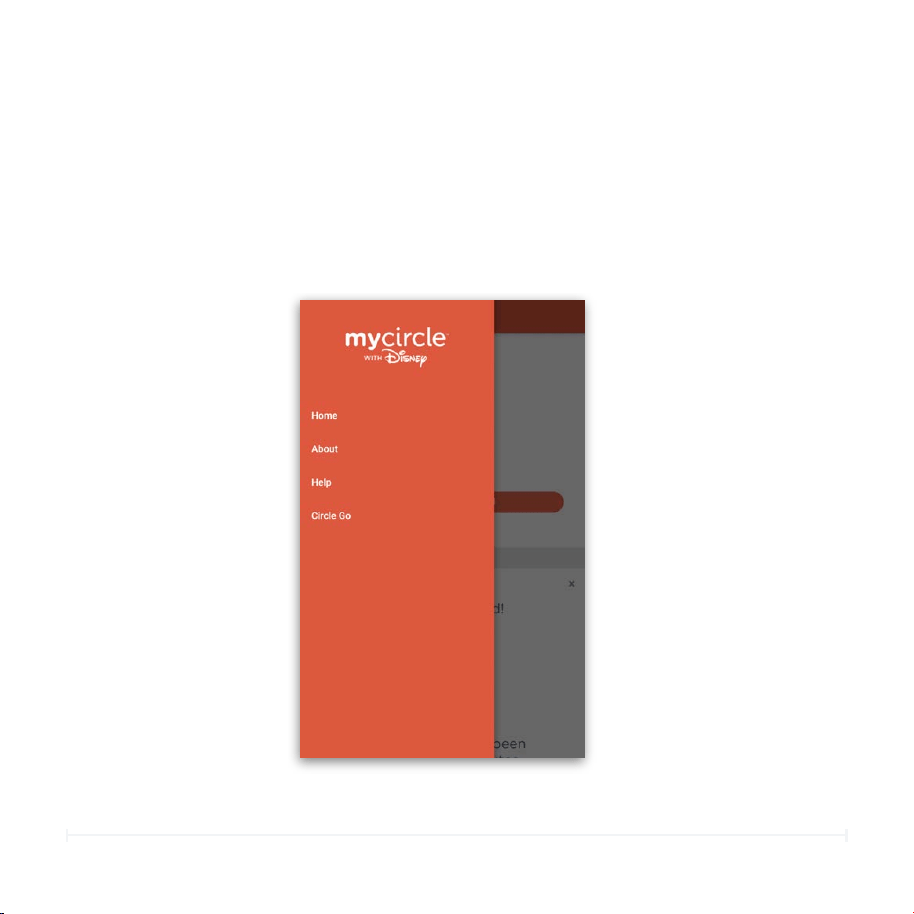
121
Circle User Manual — Circle Go
Install Circle Go (cont.)
From the MyCircle content feed, go to the Menu and tap the Circle Go button.
Begin Circle Go Installation
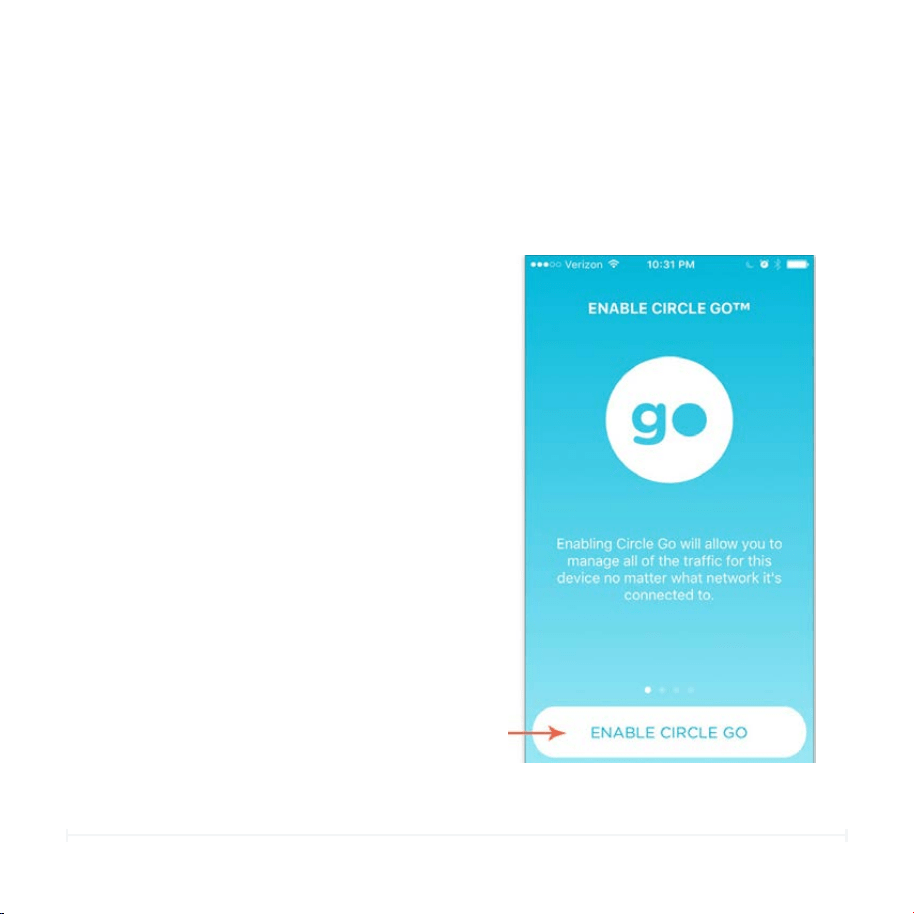
122
Circle User Manual — Circle Go
Install Circle Go (cont.)
Read Introduction
Swipe through the introduction screens to get
acquainted with the Circle Go installation
process, then tap Enable Circle Go.
Once the process begins, your iOS or Android
settings will take over the main portion of the
process because Circle Go involves directly
managing your device.
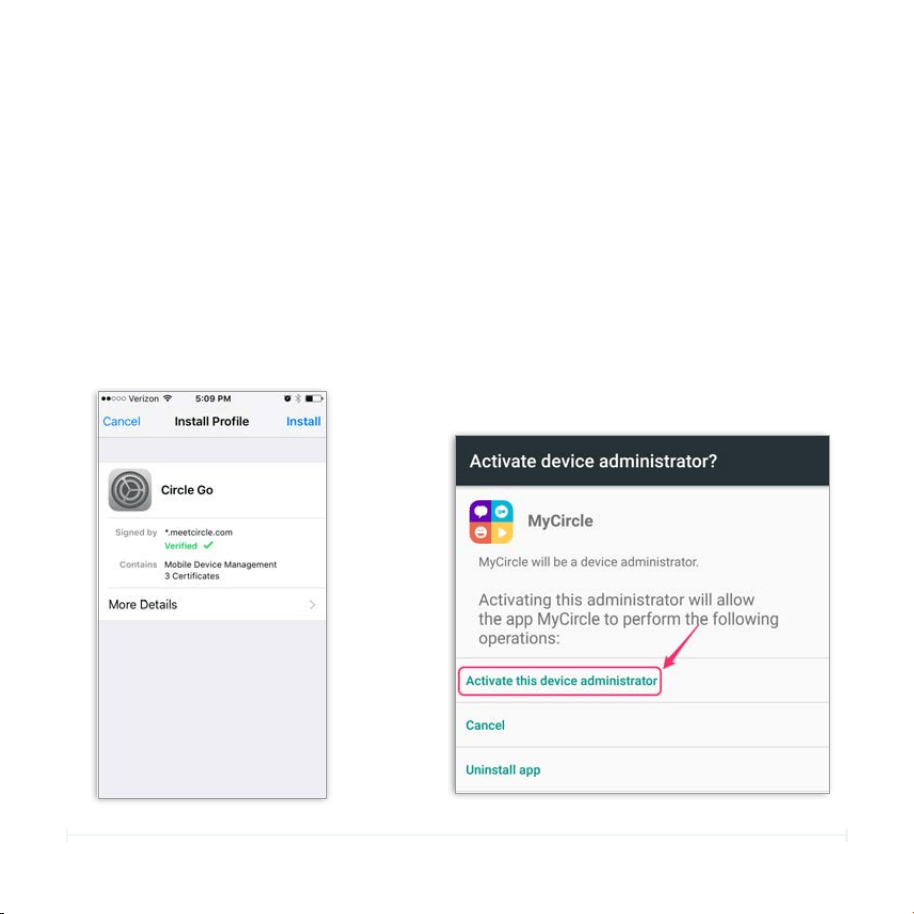
123
Circle User Manual — Circle Go
Install Circle Go (cont.)
Install Profile in iOS Settings
The Circle Go profiles are installed in
the iOS Settings. Tap More Details to
view more information about the
Mobile Device Management bundle,
then press Install. Then, enter your
passcode to continue.
Add Device Administrator in Android
Tap OK to allow the MyCircle app to initiate a
change to your device's administrators. In
order to work, Circle Go requires that the
MyCircle app is given permission to act as a
device administrator. This allows Circle Go to
manage your Internet activity according to
the settings you've put in place for the
person that this device belongs to.
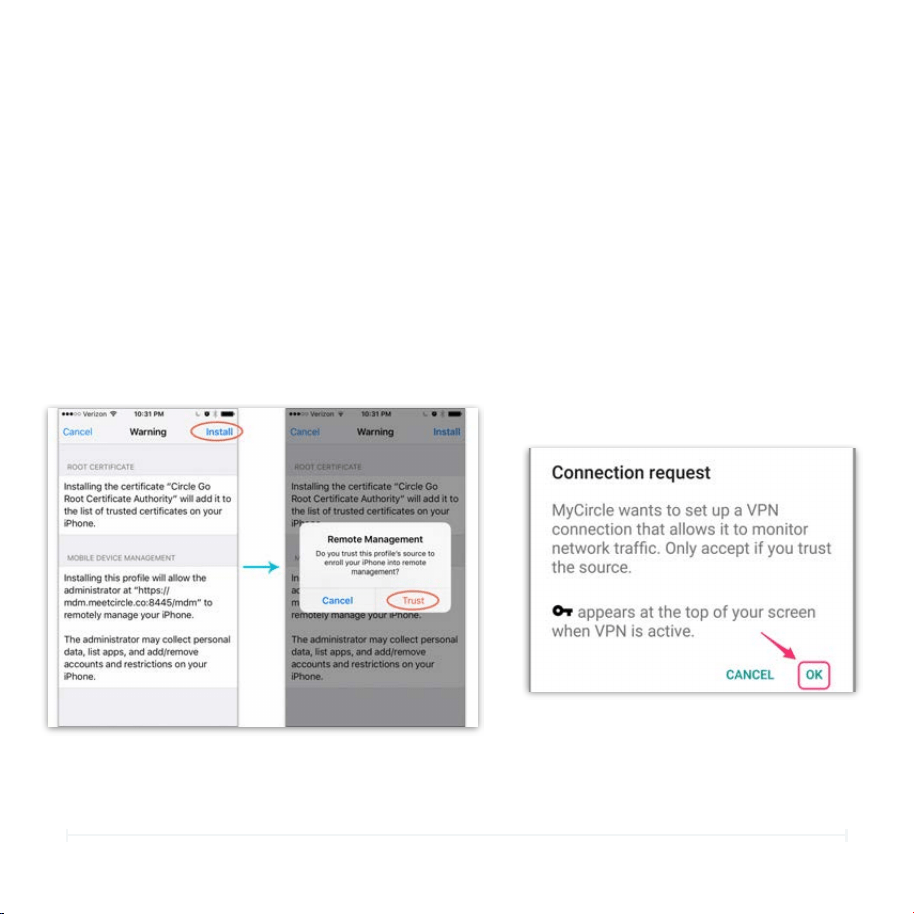
124
Circle User Manual — Circle Go
Install Circle Go (cont.)
Trust the Circle Go Installation
(iOS)
Your iOS settings will need for you to
confirm that you trust the source of the
Mobile Device Management (MDM)
profile you are attempting to install. Tap
Install again and confirm that you trust
Circle to manage this device.
Allow the VPN connection
(Android)
After the previous confirmation screen,
your Android device will let you know
that "MyCircle wants to set up a VPN
connection that allows it to monitor
network traffic.” This is how MyCircle
will enforce the Circle settings on this
device when it’s off the home Wi-Fi.
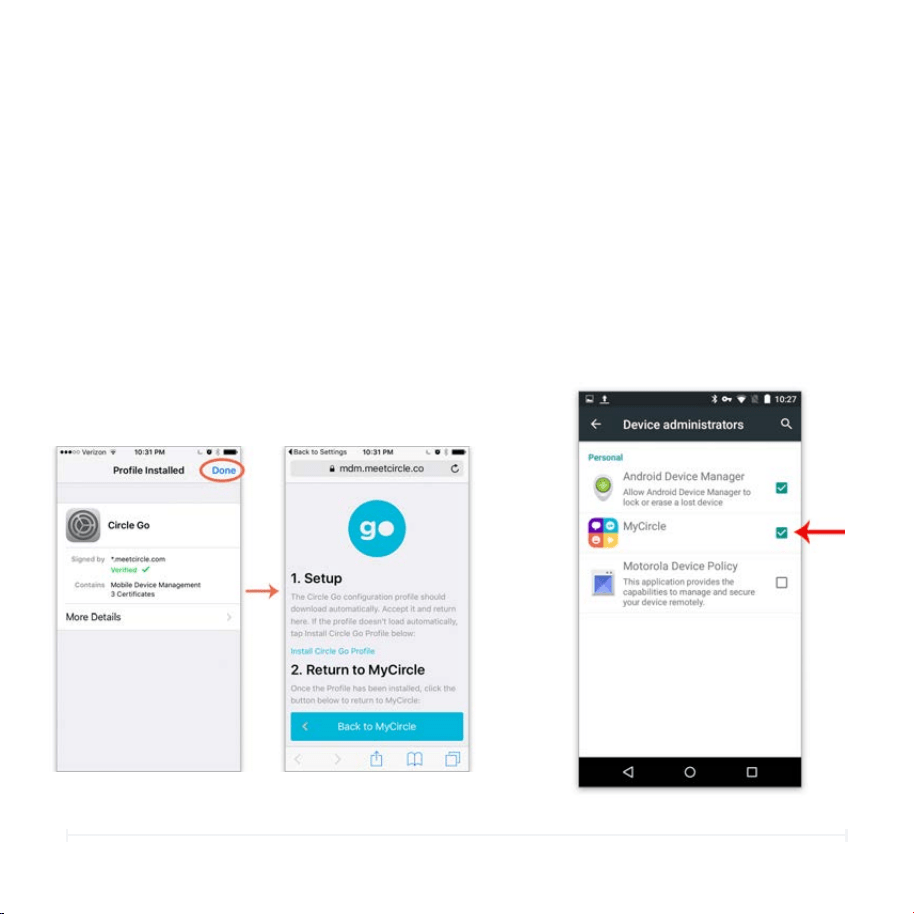
125
Circle User Manual — Circle Go
Install Circle Go (cont.)
Complete installation (iOS)
The actual installation of the Circle Go
profiles only takes a moment. Tap Done to
complete setup. This will return you to
Safari where you can read a description of
the process again if you like. We
recommend that you close this page in
your Safari browser once you are done with
Circle Go installation.
A key icon will now appear at the top of
your device, letting you know Circle Go has
been enabled and is working. You will also
be returned to your MyCircle app. Hurray,
Circle Go is enabled!
Complete Installation (Android)
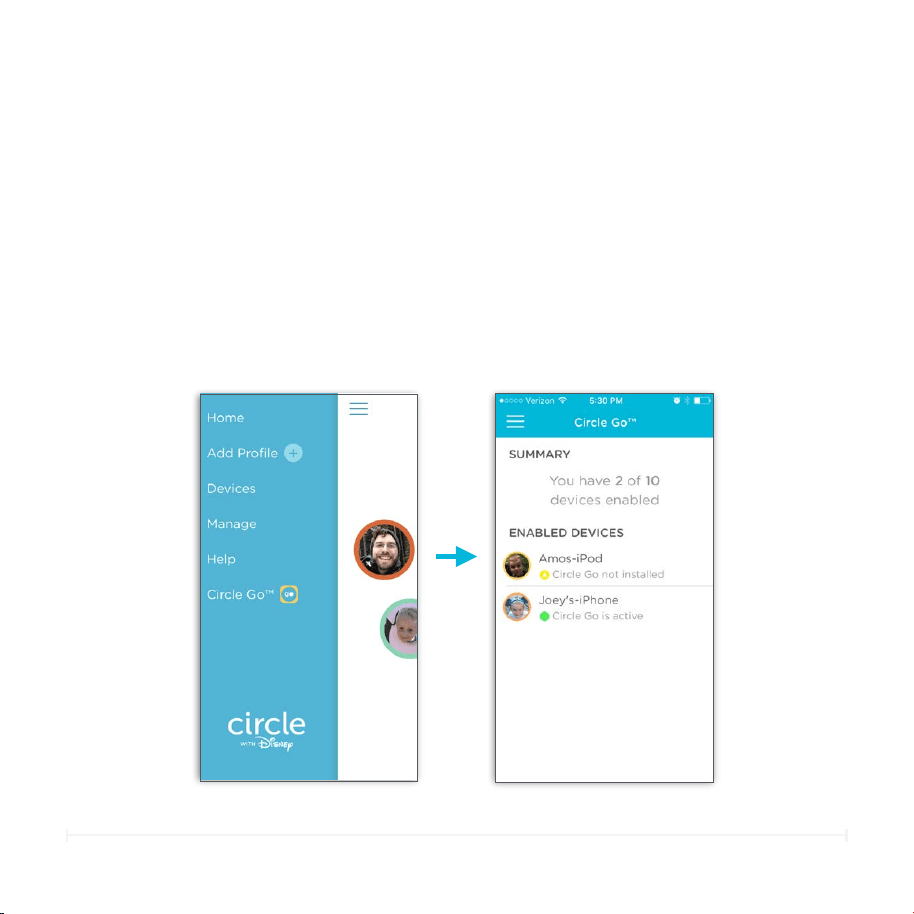
126
Circle User Manual — Circle Go
Confirm Circle Go Installation
You can confirm that you were successful in installing the Circle Go profile in the
Circle app in this way:
1. Open the Circle app.
2. Tap the Menu icon in the top left, and then tap Circle Go.
3. Confirm that the device(s) you have installed the Go profiles on are listed there.
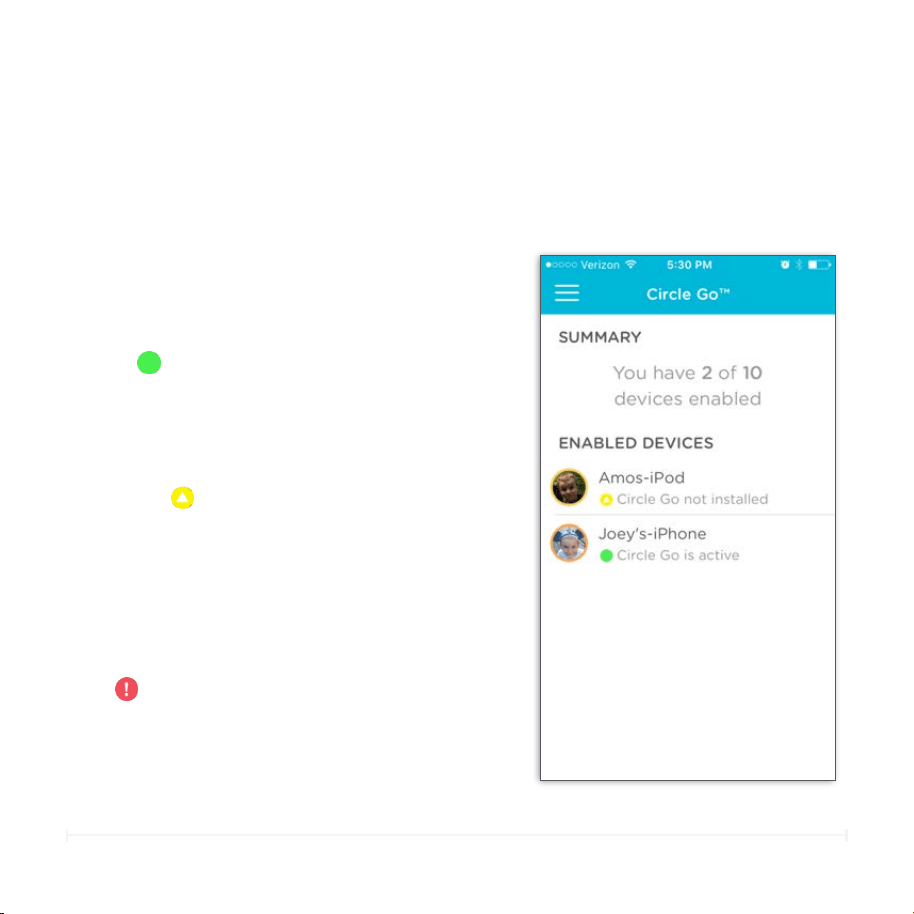
127
Circle User Manual — Circle Go
Circle Go Device Statuses
Good
In addition to confirming whether your device
was successfully added to your Circle Go
subscription, Circle will now display the current
Circle Go status for those devices. Here is what
those statuses mean:
This status indicates that Circle Go is able to
see that device, and the Circle Go system is in
good working order.
Warning
This status indicates that Circle Go is not
working for some reason. Here are the possible
scenarios:
• Check Circle Go Installation
•
Device is using personal hotspot
•
Circle Go not installed (installation failed)
Bad
This status indicates that Circle Go has been
removed from the device completely and is no
longer being managed.
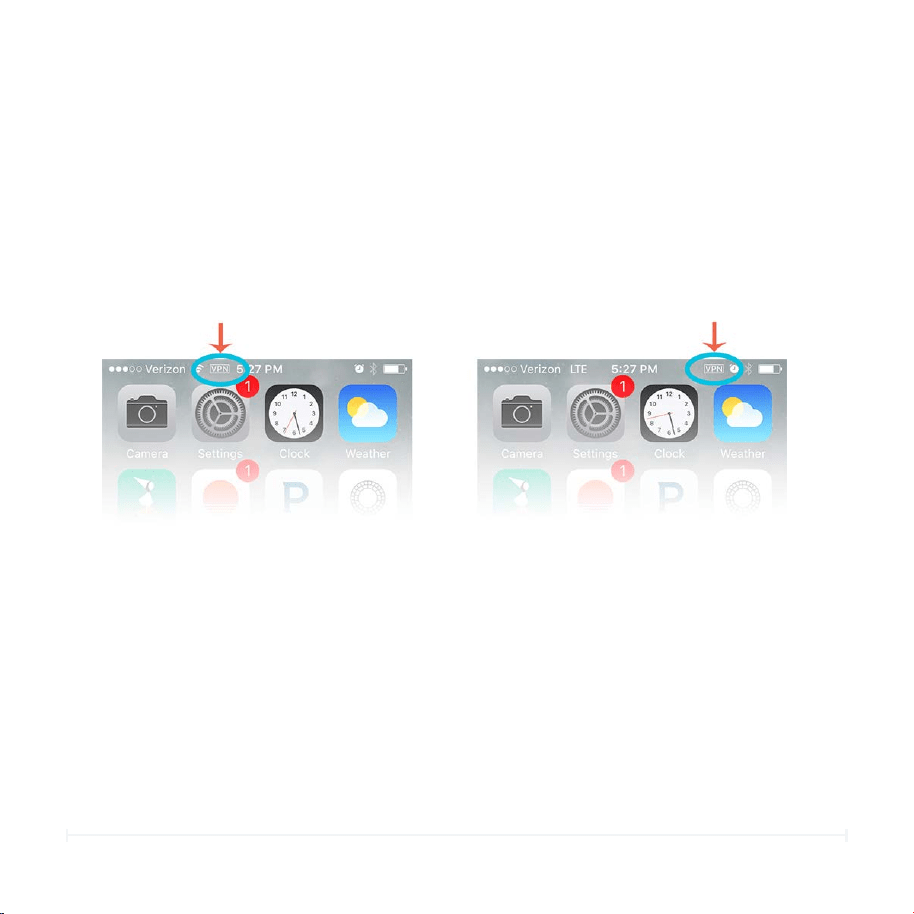
128
Circle User Manual — Circle Go
Confirm Circle Go Installation (cont.)
On the Go-Enabled device (iOS)
On every device that Circle Go is enabled on, you will be able to see an item in the
status bar on your iOS device that indicates that Circle Go has been enabled on that
device. It is a small box with the letters "VPN" inside, and it looks like this:
This VPN badge will appear anytime Circle Go is in effect to manage the Internet
activities for that device. For more information on when the VPN will be enabled, you
can read more on our support website.
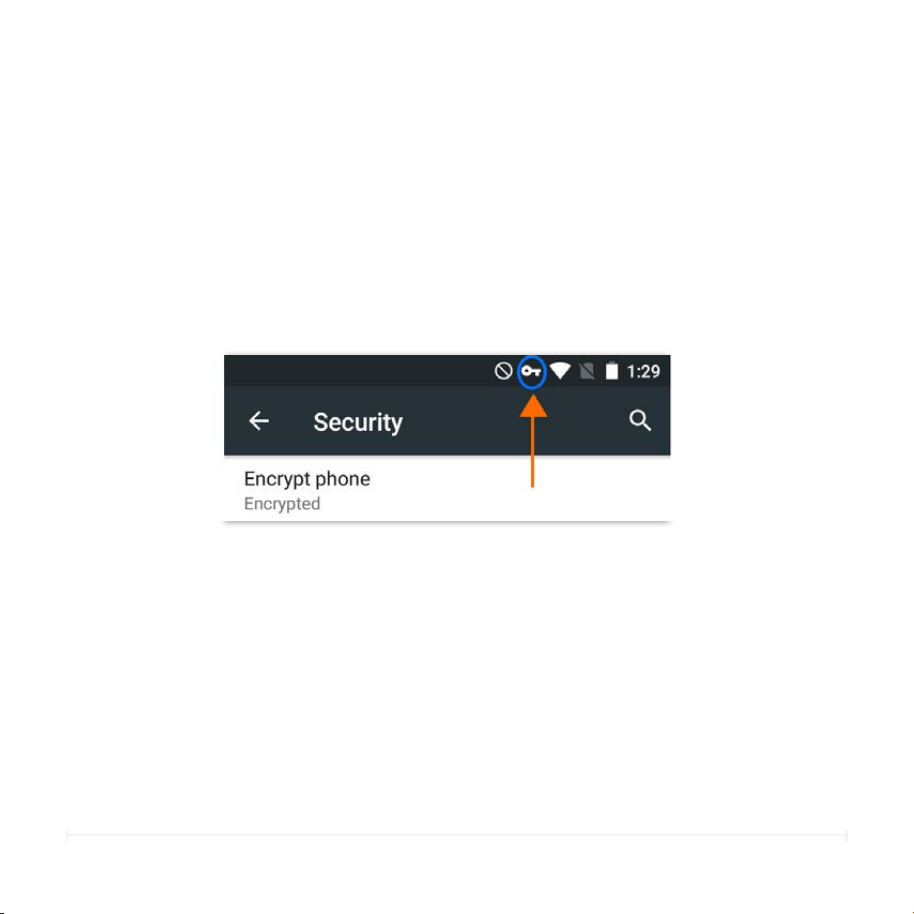
129
Circle User Manual — Circle Go
Confirm Circle Go Installation (cont.)
On every device that Circle Go is enabled on, you will be able to see an item in the
status bar on your Android device that indicates that Circle Go has been enabled on
that device. It is a small key-shaped icon, and it looks like this:
This key icon should remain on while Circle Go is installed, regardless of the wireless
network the device is connected to. If the icon disappears, the Circle Go device
administrator has probably been unchecked in Settings, or the Circle Go application
was uninstalled.
On the Go-Enabled device (Android)

130
Circle User Manual — Circle Go
The Circle Go VPN
Circle Go is built to be smart about where and how you connect to the Internet, so the
Circle Go VPN automatically turns on and off depending on the circumstances
surrounding your Internet connection. Here is what you can expect:
At Home
Circle Go recognizes that you are on your own Circle-managed network when it
connects to the 2.4ghz band of your home Wi-Fi. Because Circle's settings are already
in place there, the VPN stays OFF. It will not recognize the 5ghz band, however, and
remain ON when connected in that way to your home Wi-Fi.
On 4G LTE Data
The Circle Go VPN be ON when a mobile device is using their cellular connection to
access the Internet.
On Other Networks
If your mobile device is able to get online using a Wi-Fi network outside your home,
the Circle Go VPN will turn ON to manage that activity.

131
Circle User Manual — Circle Go
The Circle Go VPN (cont.)
At Schools or Other Public Networks
Some places — like schools, libraries, or other locations — provide Wi-Fi networks but
also actively block VPN connections. If your school IT department has that policy,
Circle Go will not work with that Wi-Fi and you will have to use cellular data to get
online. Our support team can work with your school’s IT administration to make sure
Circle Go works on their network. Please send an email to hello@meetcircle.com for
more information.
With Captive Portal
Because captive portals and access logins (such as Xfinity hotspots) require a
preliminary authorization before the device may fully access the Internet, the Circle Go
VPN will remain off until the device is able to reach the Internet. Once the device has
gained access through the captive portal or access login, the Circle Go VPN will
enable and manage all further activity.

NEED HELP?

133
Circle User Manual
Circle is Here to Help!
Circle Support Center
In the Circle Support Center, you can find a large collection of
instructional and troubleshooting resources to help you make the
most of having Circle in your home.
Come visit us at https://support.meetcircle.com
Talk to t he Circle Suppor t Te am
If you are running into issues or have questions that you can’t
seem to find an answer to, we’d love to help!
!
Write us at help@meetcircle.com or call us at 1-855-498-7879
Hours: M-F 7:00A - 8:00P, Sat-Sun 8:00A - 4:00P (Pacific Time)
!
Enjoy your Circle!

LEGAL

135
This equipment has been tested and found to comply with the limits for a Class B Digital Device,
pursuant to part 15 of the FCC Rules. These limits are designed to provide reasonable protection
against harmful interference in a residential installation.
This equipment generates, uses and can radiate radio frequency energy and, if not installed and
used in accordance with the instruction, may cause harmful interference to radio communication.
However, there is no guarantee that interference will not occur in a particular installation. If this
equipment does cause harmful interference to radio or television reception, which can be
determined by turning the equipment off and on, the user is encouraged to try to correct the
interference by one or more of the following measures:
•
Reorient or relocate the receiving antenna.
•
Increase the separation between the equipment and receiver.
• Connect the equipment into an outlet on a circuit different from that to which the receiver is
connected.
•
Consult the dealer or an experienced radio/TV technician for help.
Circle User Manual
FCC Compliance Statement
This device complies with part 15 of the FCC Rules. Operation is subject to the following two
conditions:
1. This device may not cause harmful interference and
2. This device must accept any interference received, including interference that may cause
undesired operation
FCC INFORMATION
The user should not modify or change this equipment without written approval from Circle Media
Inc. Modification could void authority to use this equipment.

136
To read Circle’s End User License Agreement (EULA), visit: meetcircle.com/legal/
license
Circle User Manual
Circle Legal Documents
Circle End User License Agreement
To read Circle’s Privacy Policy, visit: meetcircle.com/legal/privacy
Circle Privacy Policy
To read Circle’s Terms and Conditions, visit: meetcircle.com/legal/terms
Circle Terms and Conditions
137
Circle User Manual
Circle Media Inc. (Circle) was founded in January 2014 with
offices located in Portland, Ore. and Cypress, CA. Circle exists to
develop family-centric products that redefine how we connect.
MEET CIRCLE.
Internet. Reimagined.
© 2017. CIRCLE MEDIA INC. ALL RIGHTS RESERVED.