
FCC Statement
This device complies with part 15 of the FCC rules. Operation is subject to the
following two conditions: (1) this device may not cause harmful interference,
and (2) this device must accept any interference received, including
interference that may cause undesired operation.
Changes or modifications not expressly approved by the party responsible for
compliance could void the user's authority to operate the equipment.
NOTE: This equipment has been tested and found to comply with the limits for
a Class B digital device, pursuant to part 15 of the FCC Rules. These limits are
designed to provide reasonable protection against harmful interference in a
residential installation. This equipment generates uses and can radiate radio
frequency energy and, if not installed and used in accordance with the
instructions, may cause harmful interference to radio communications.
However, there is no guarantee that interference will not occur in a particular
installation. If this equipment does cause harmful interference to radio or
television reception, which can be determined by turning the equipment off
and on, the user is encouraged to try to correct the interference by one or
more of the following measures:
• Reorient or relocate the receiving antenna.
• Increase the separation between the equipment and receiver.
• Connect the equipment into an outlet on a circuit different from that to
which the receiver is connected.
• Consult the dealer or an experienced radio/TV technician for help. The device
has been evaluated to meet general RF exposure requirement.
The device can be used in portable exposure condition without restricti

3
Charging and Activation
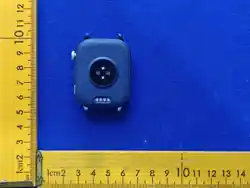
a.Connect the watch charging cable to a 5V-1Aadapter and plug it
in.Ensure proper alignmentofthe cable with the metal contact pins
on theback cover of the watch.The built-in magnetswill
automatically attach to the correct poles forcharging.
b.lfthe watch is newly received or has not beenused for a long
time, the battery may be in a 0voltage protection state. Charge the
watch for atleast 15 minutes to accumulate enough power
toactivate it.The built-in magnets will automaticallyattach to the
correct poles for charging.
c.lt is recommended to charge the device once amonth.Keep the
device fully charged and powe!itoffwhen not in use to ensure
longevity andoptimal performance.
4
App Download
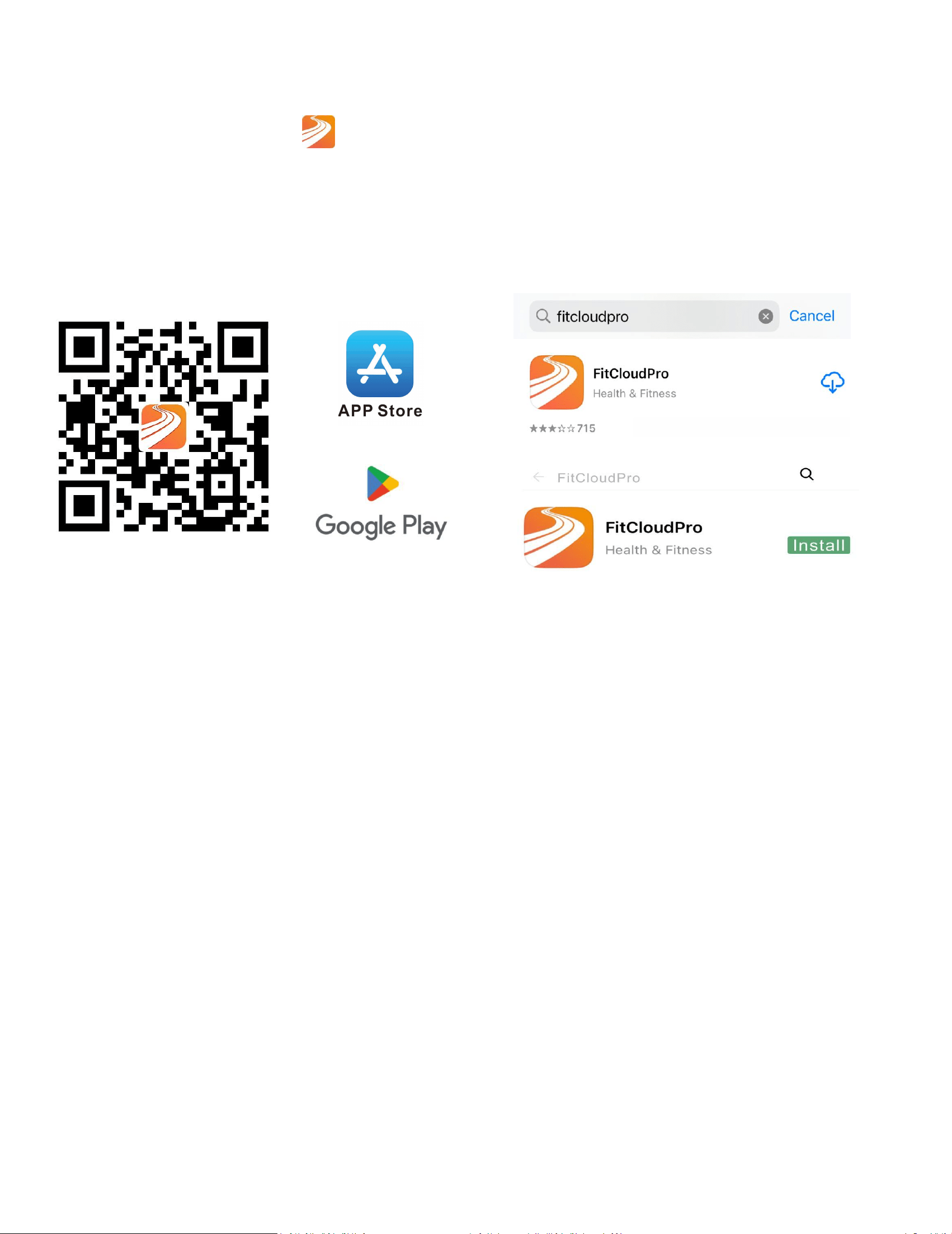
①Download the"
FitCloudPro" appfromthe App Store or
Google Play.
②Scan QR code to download.
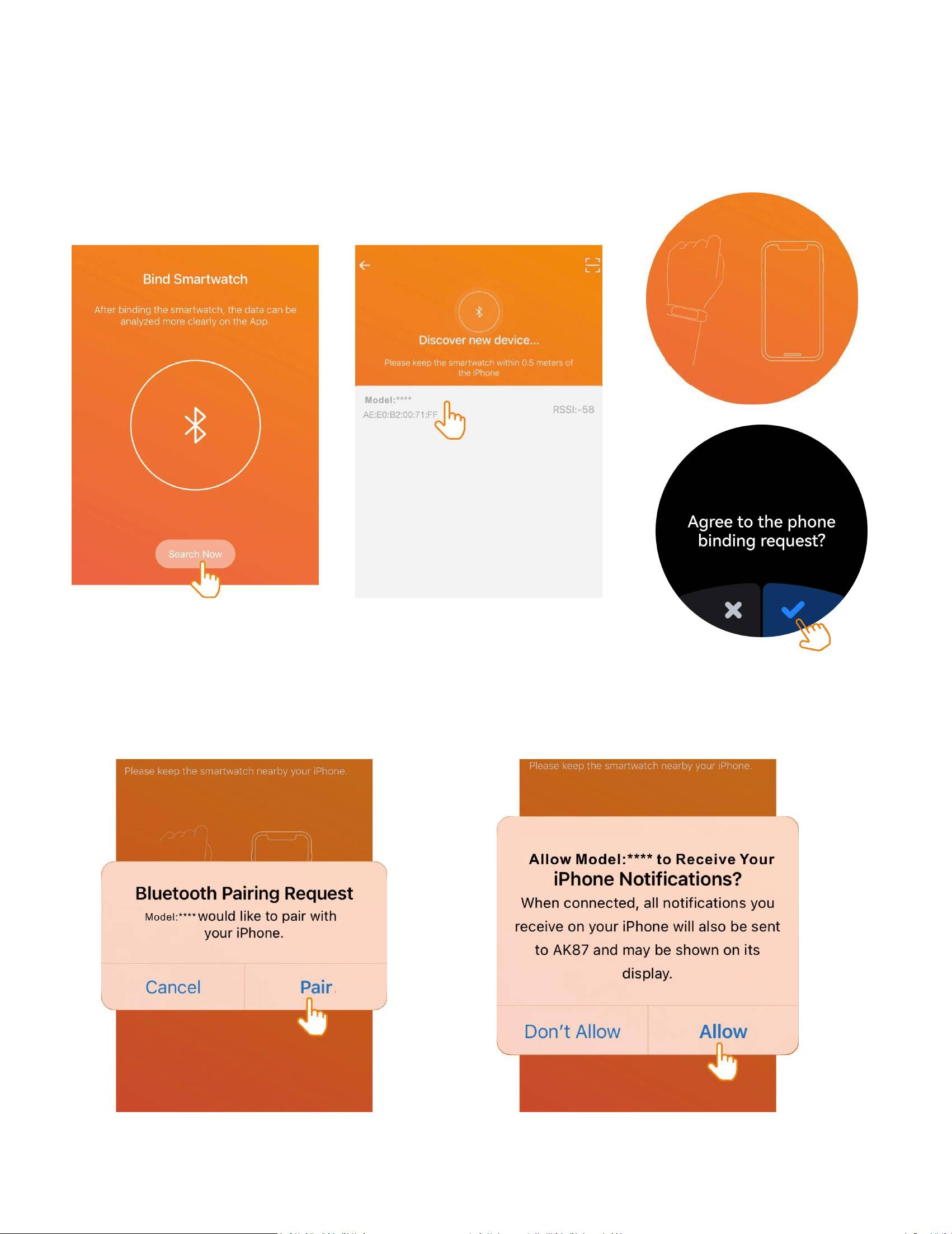
Pair as Follows-l0S
a.Upon first use ofthe FitCloudPro app, enableit to access
Bluetooth, wireless data, andnotifications on your compatible
smartphone bygranting all necessary permissions throughyour
phone's settings.

5
b.Use the app with "VisitAs Guest" or"Sign ln"
6
Connecting Bluetooth-l0S
a.Select'Search Now' to discover andconnect to the watch
Bluetooth device. and tarthe watch to 'agree' grant access and
completthe pairing process.
b."Allow Bluetooth Pairing" and "Allow Notifications”
7
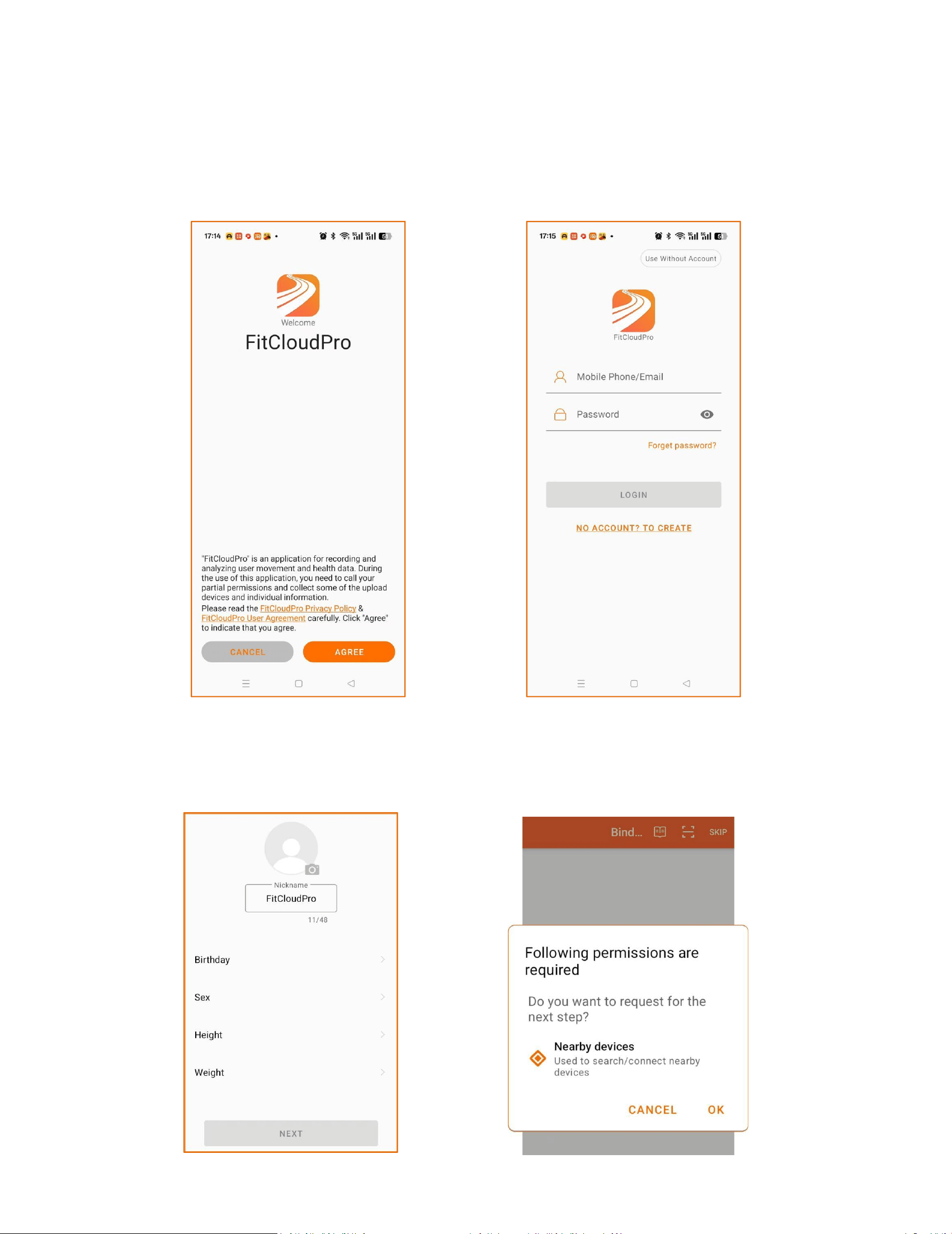
Setting Up FitCloudPro App on
Android: Permissions and Agreement
a."Agree"FitCloudPro Privacy Policy & UserAareement ,Login or
Use WithoutAccount:
b.Fill in your personal information and Search/connect nearby
permissions Bluetooth request
8
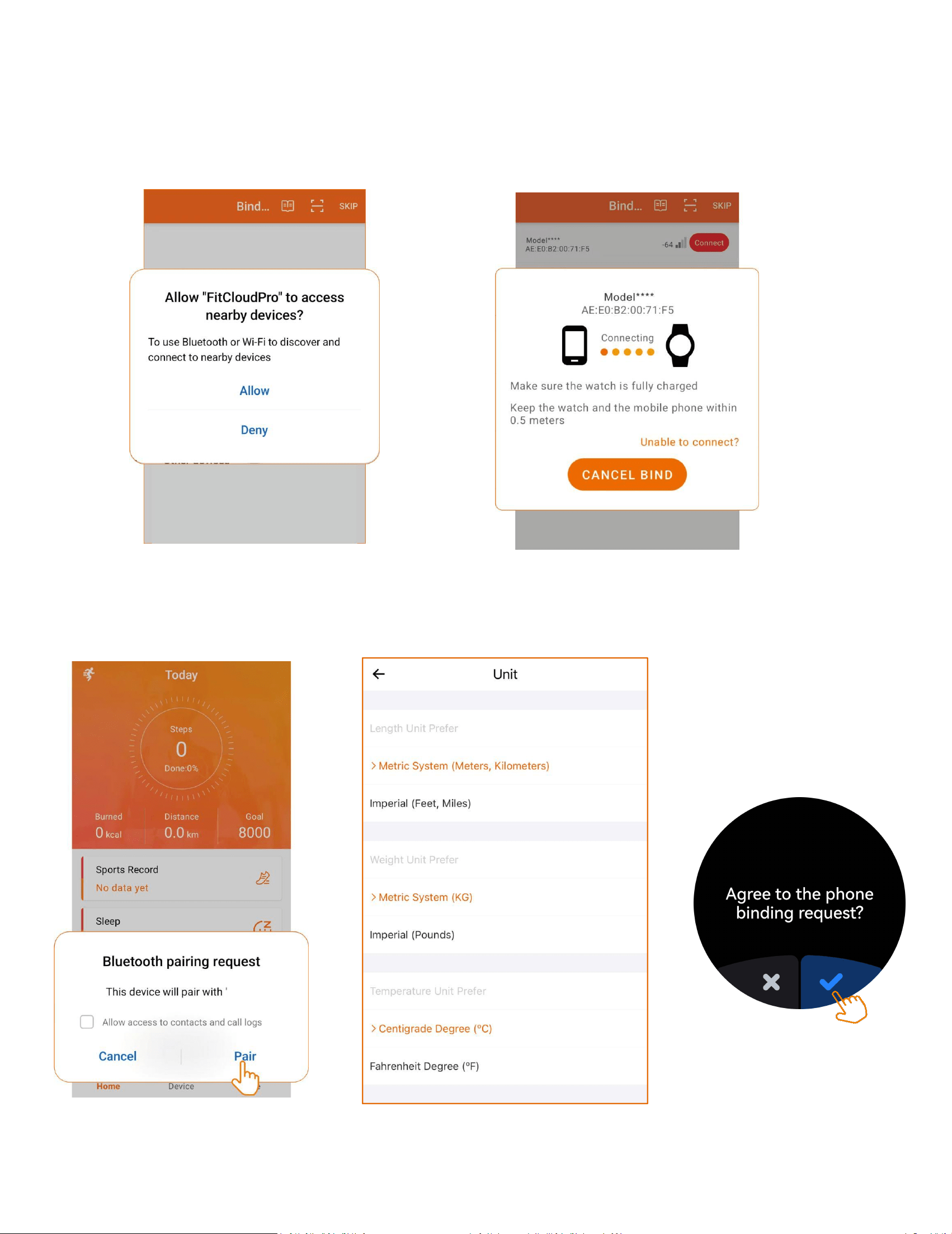
C.Allow FitCloudPro to discover and connecttathe watch
devices.Tap the watch and selectagree to grant access and
complete thepairing process.
d.Allow Bluetooth pairing requests and Accessto Contacts:
****
9
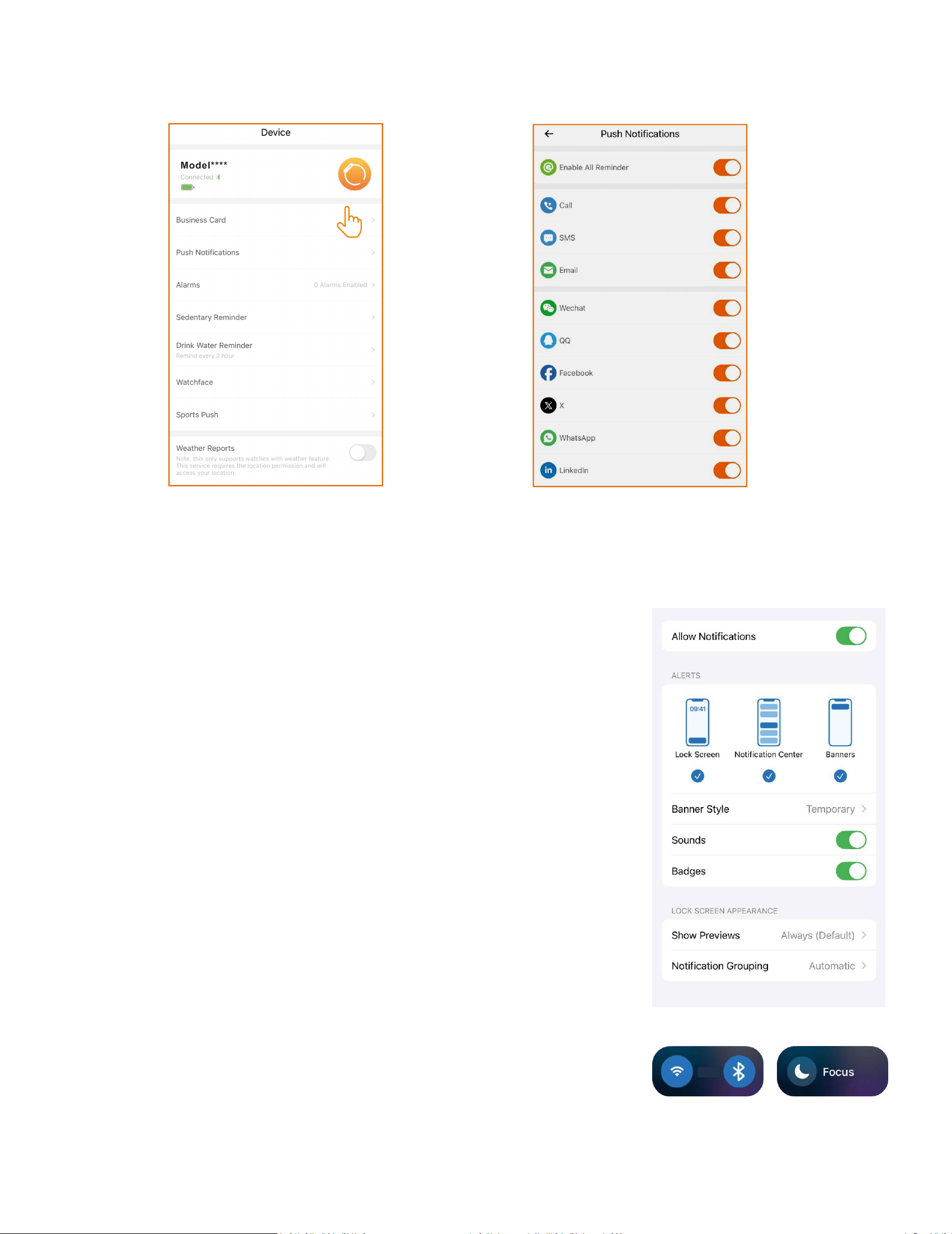
Turning on Push Notifications
a.Note that the watch cannot receivenotifications when the phone
is in Do Not Disturbmode.
b.Ensure the mobile phone's Bluetooth is
active, the FitCloudPro app is running,and the
watch is connected tothe phone's Bluetooth.
c.Make sure that notificationsare visible on
the notificationbar of your phone,
10
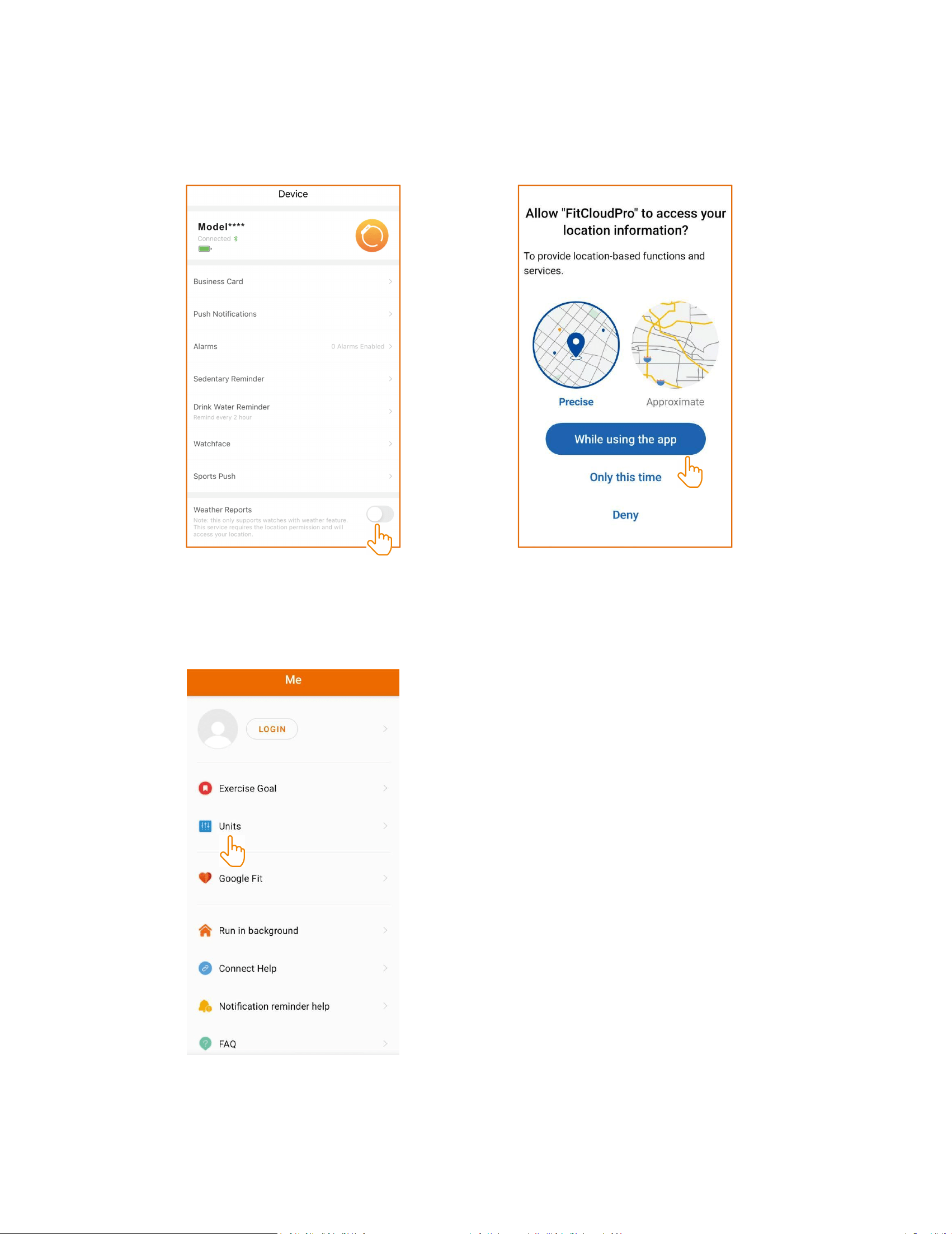
Turning on weather locator
Turn on the weather reports feature in theFitCloudPro app to get weather
forecasts.
Setting the Display Unit of the Watch
11
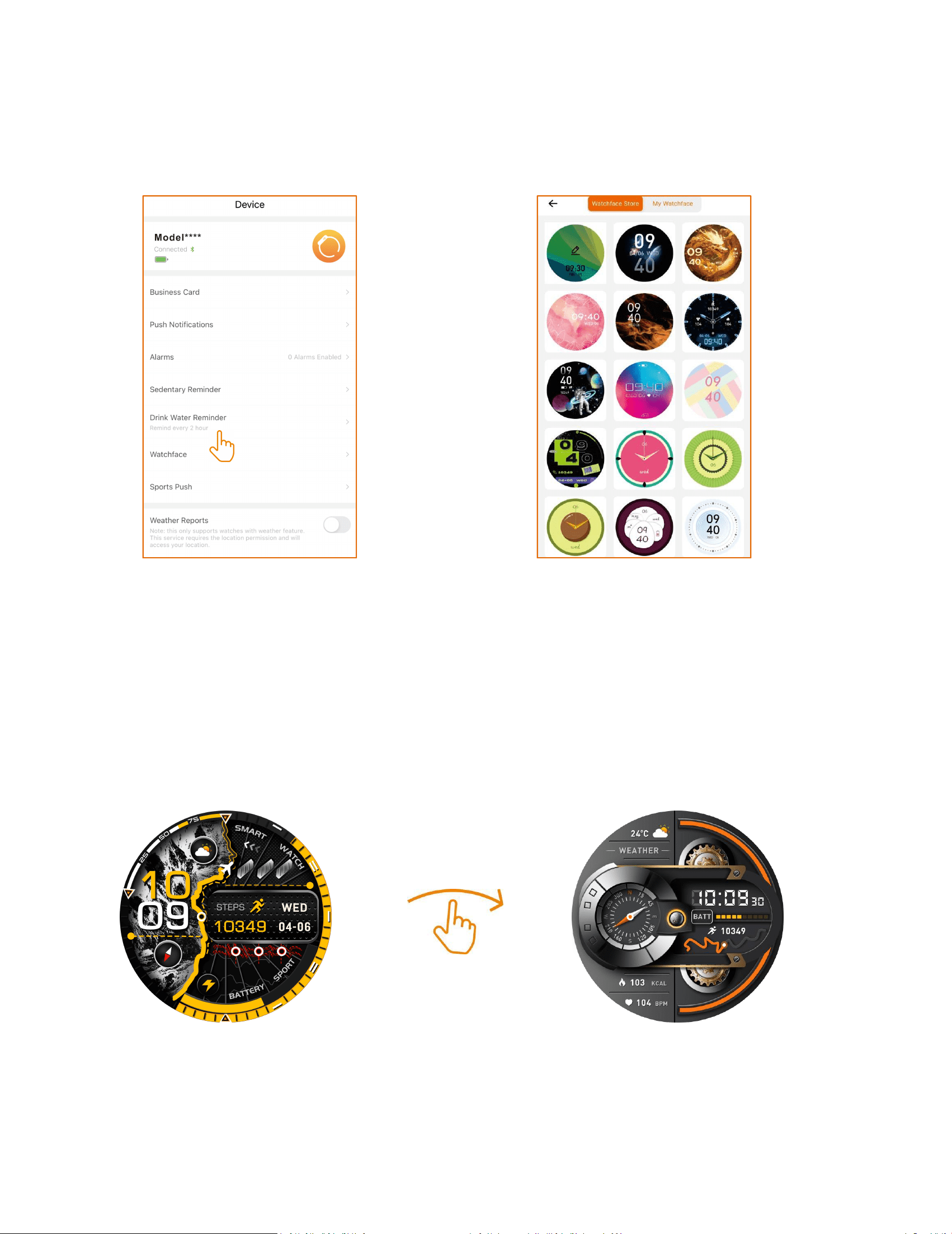
Setting/Download Watch Faces
a.Press and hold the watch face for 2 secondsthen quickly swipe to
switch between watchfaces
b.Download watch faces through FitCloudPro's watch face Ul
market. Note that onlyone watch face Ul can be saved at a
timeAnew download will replace the previouslysaved watch face
Ul.
12
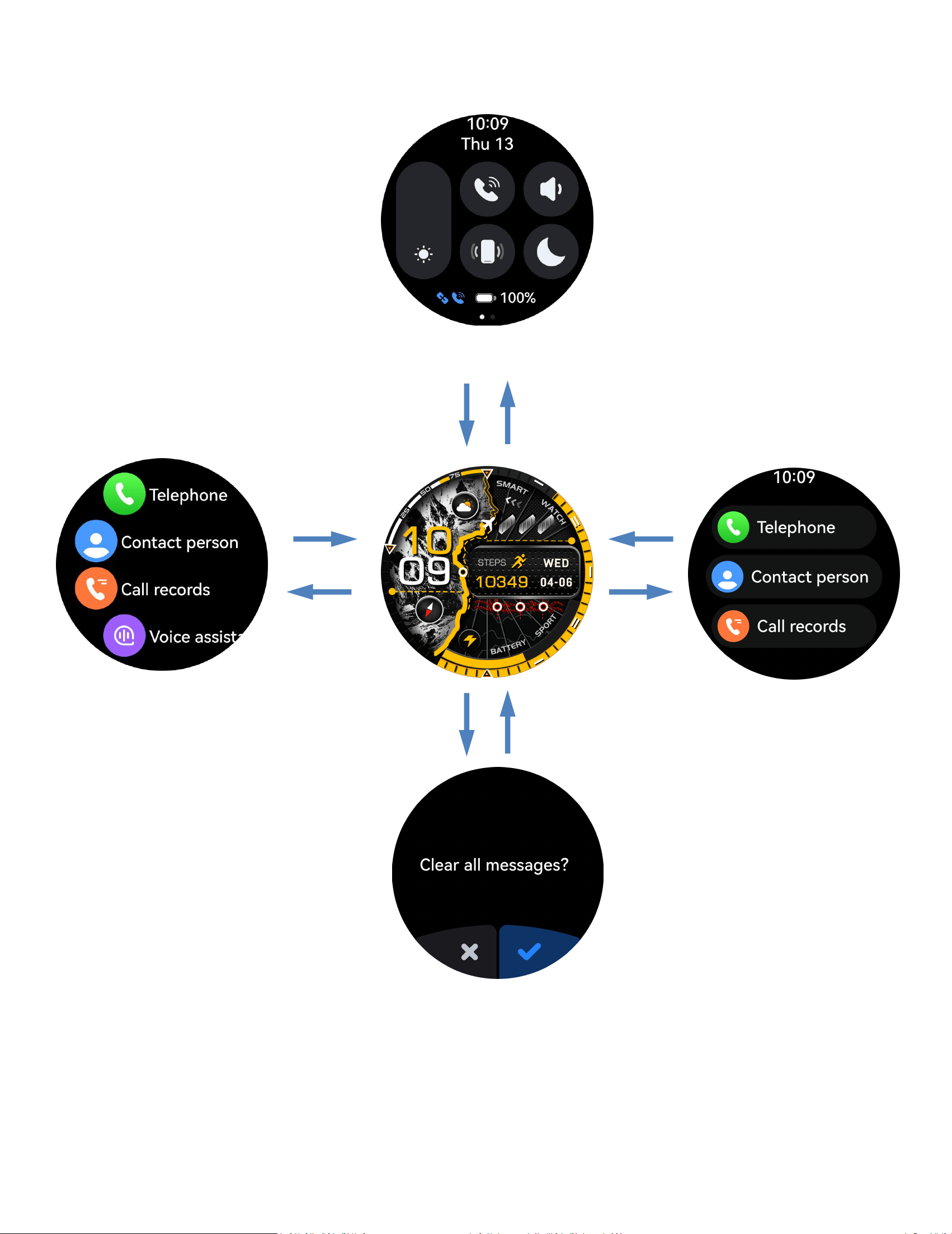
c.Displaying touchscreen functionality
Messages
Dial
Menu
Control Center
13
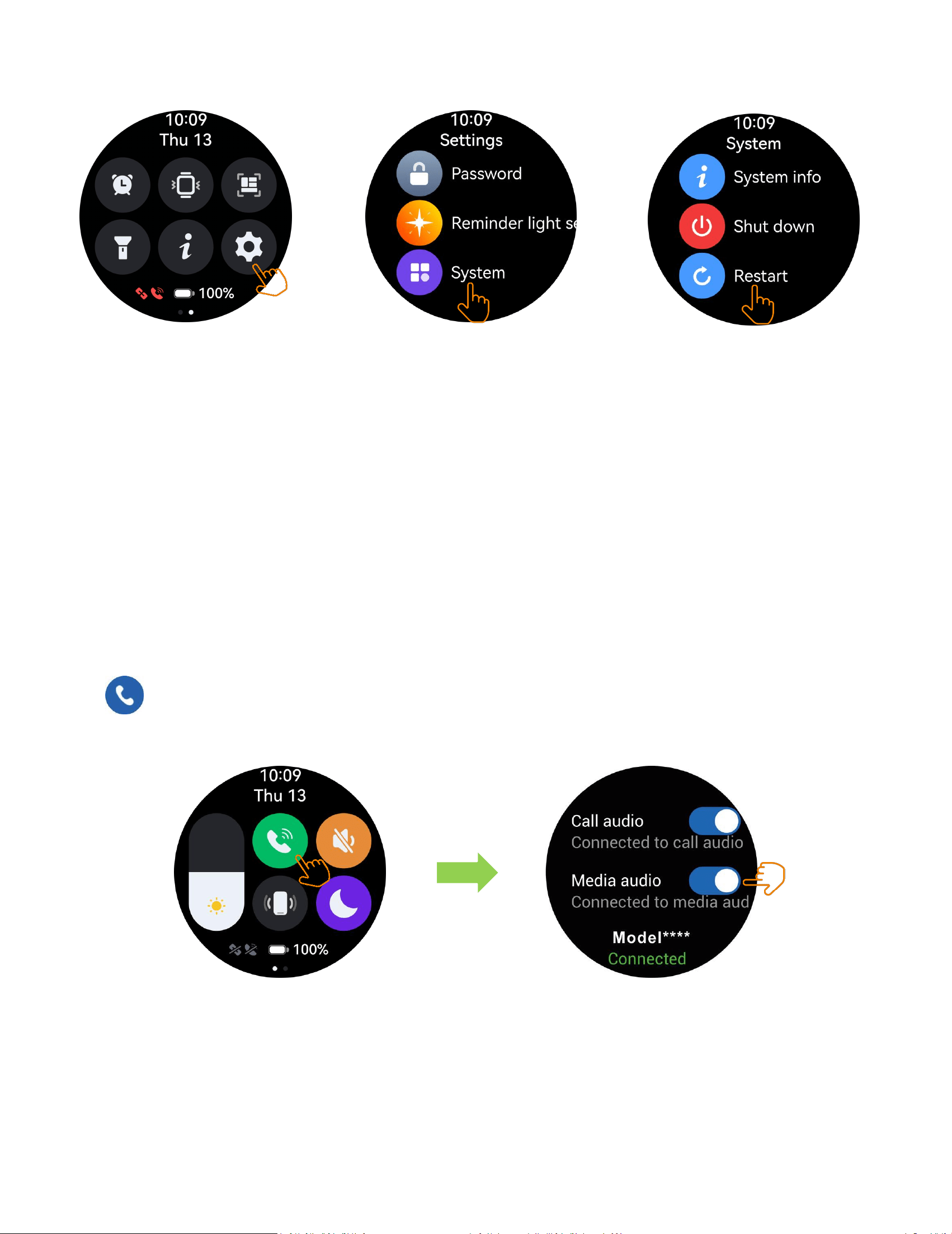
Resetting the Watch
fthe exercise,sleep, and heart rate data areinaccurate,orifthe Bluetooth
connection orcall functionality fails, try resetting the watch asshown below and
rebind.Alternatively, you canreset or update the firmware through the app!
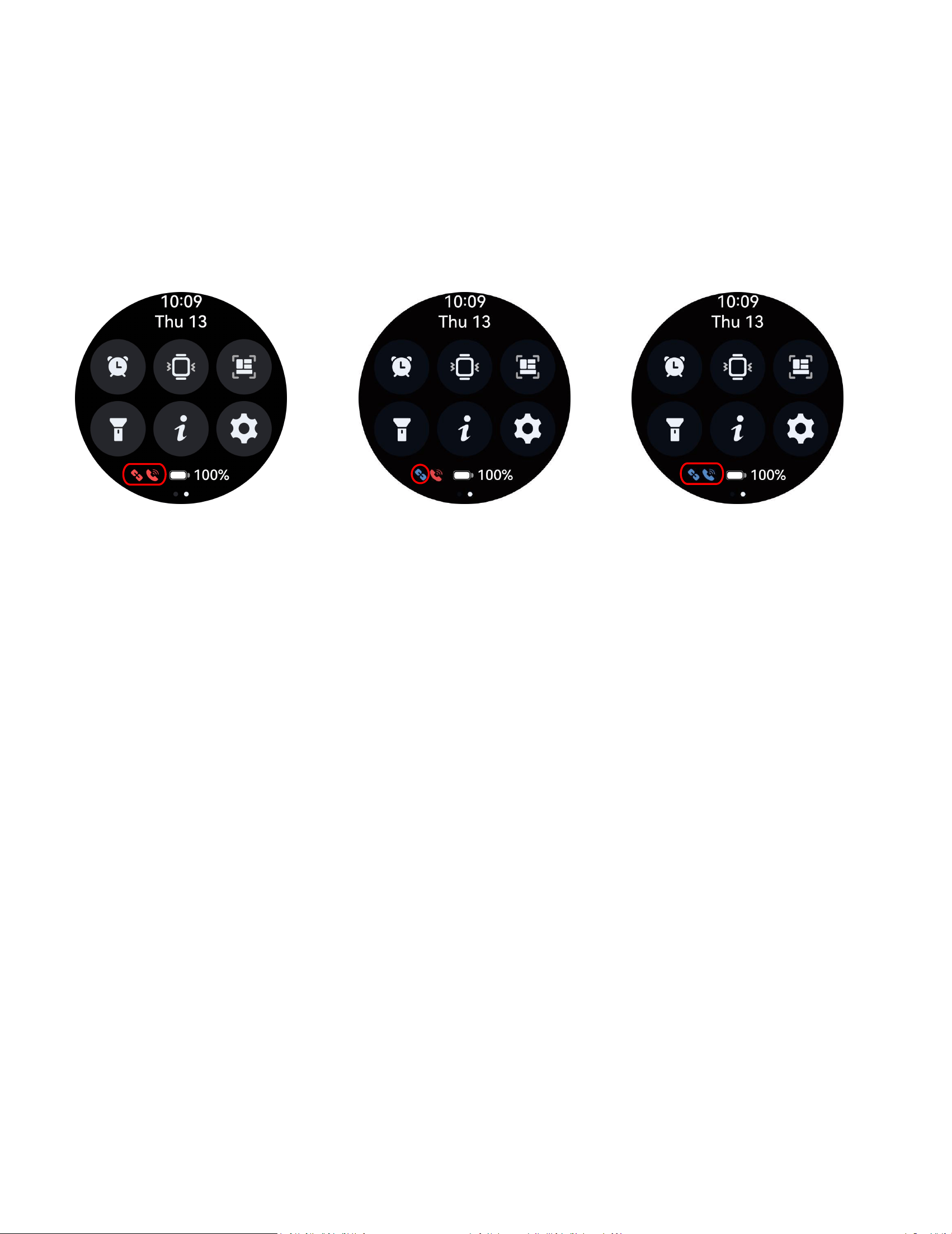
Turning on/off Call Audio and
Media Audio
a.Tap
to enable or disable BluetoothCalling.
Settings
System
Reset
14
b. To prevent the watch from playing media sounds or
making/answering calls, simply turnoff the media audio and call
audio settings.
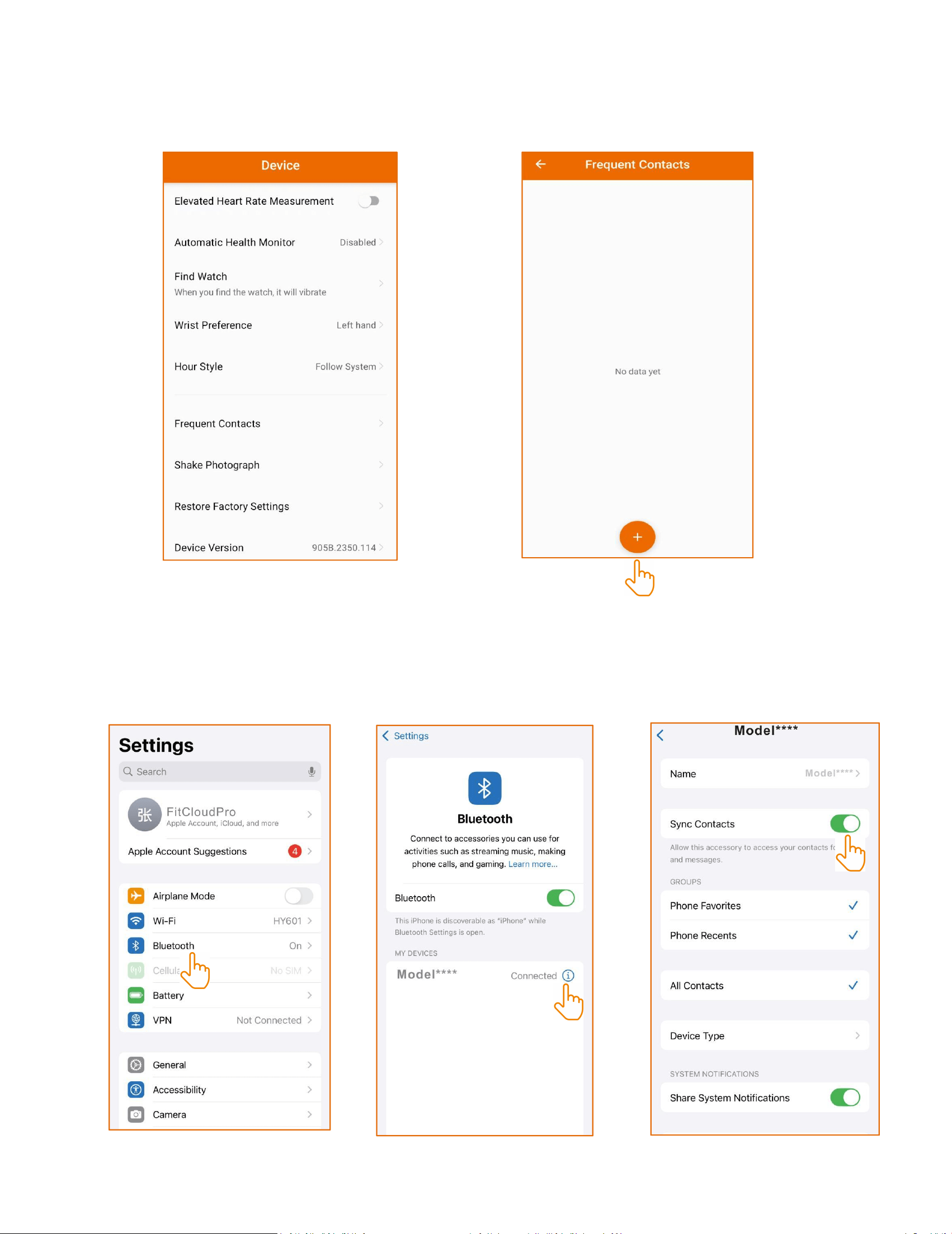
Watch Connection Status
Note:The watch is paired with the iOS systemapp,allowing
message reminders even if theappis closed.However, forAndroid
phonesthe app must be open to receive messagereminders.
BT Call and APP
Disconnected
APP Connected
BT Call Connected
APP Connected
BTCall Disconnected
15
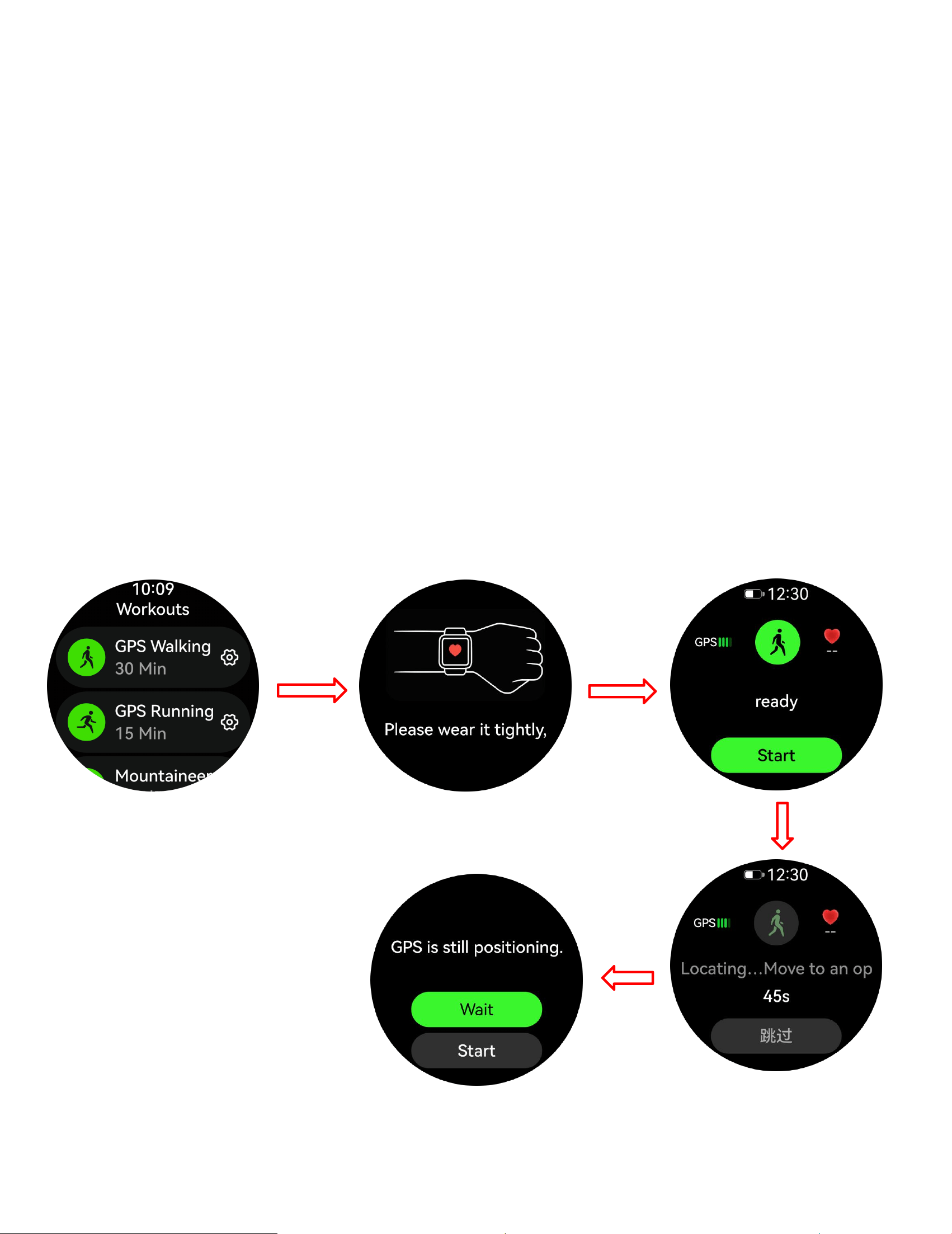
Adding and Syncing Favotite Contacts
a.Add contacts to the watch via FitCloudPro
b.Note some phones require manual activationof Bluetooth
contact syncing due to privacyconsiderations

16
GPS Watch Connect to APP to Improve Positioning Accuracy
Instruction Manual
a. APP Pairing and Synchronization (Key: Update A-GPS)
1)Watch: Restore factory settings (optional, to resolve interference
from old data) → Enter pairing mode.
Phone: Open the corresponding app (FitCloudPro) → Add device →
Follow the prompts to complete Bluetooth pairing.
2).Must do before each exercise (30 seconds – 2 minutes)
Open the APP → Connect the watch → Sync immediately (update
today's A-GPS)
The watch enters sports mode (running/cycling/hiking) → wait for
location to be determined
b.Preparation Before Connecting the App (Mandatory)
1).Environmental requirements
Go to an open, unobstructed area (such as a playground, park, or
rooftop), away from tall buildings, trees, metal, tunnels, and under
bridges.
The watch dial should face up and be worn on the outside of the
wrist to avoid the arm or sleeve blocking the GPS antenna
2).Phone Settings
Turn on Bluetooth, Wi-Fi, location (high-accuracy mode), and
mobile network
Ensure the APP: Location permission always allowed, runs in the
background, auto-start, unlimited power-saving policy
17
3).Basic watch inspection
Battery ≥50% (Low battery may cause throttling and inaccurate
positioning)
Restart the watch (clear temporary location cache)
c.Aprecise guide for use in different scenarios
1).Before starting: Stand still on open ground for 30–60 seconds,
wait until your position is stable before beginning
Route: Avoid high-rise canyons, dense tree shade, and under
overpasses
Wearing: With the dial facing up, on the outside of the wrist,
slightly lift your hand when turning to maintain a view of the sky
18
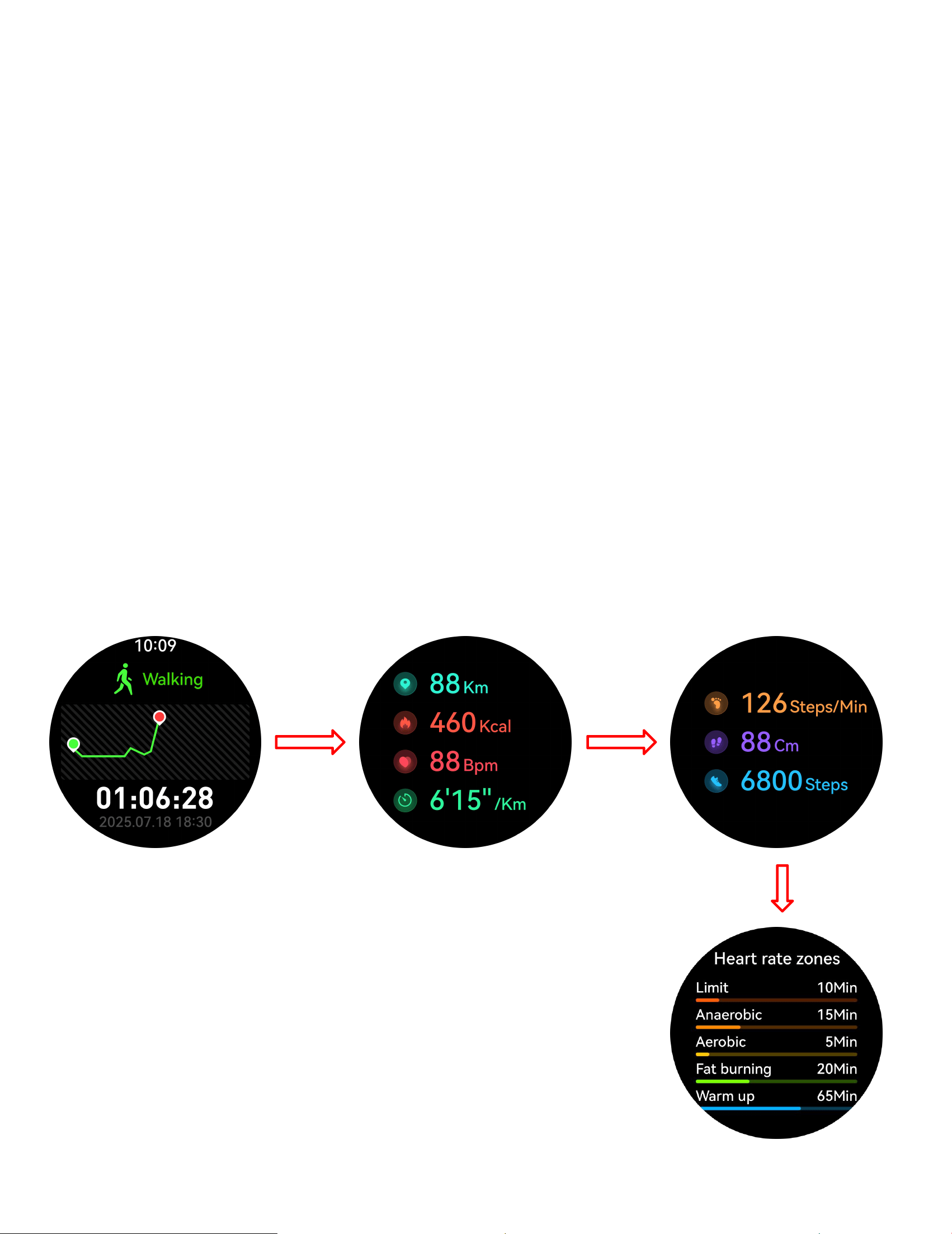
2).At the end of the exercise, you need to ensure that the exercise
data meets the conditions for saving in order for the exercise
history to be recorded. The end interface will have an exercise
summary, displaying the current exercise data status and trajectory
chart on the watch.
Data retention conditions:
Condition 1: Exercise duration is greater than 5 minutes
Condition 2: If the exercise page displays distance, judge based on
distance, and the distance is greater than 0.1 km; if the exercise
page does not display distance, judge based on calories, and the
calories are greater than 5 kcal (kilocalories); (if both distance and
calories are displayed, use distance as the criterion)
Conclusion: Data will only be saved if both Condition 1 and
Condition 2 are met
19
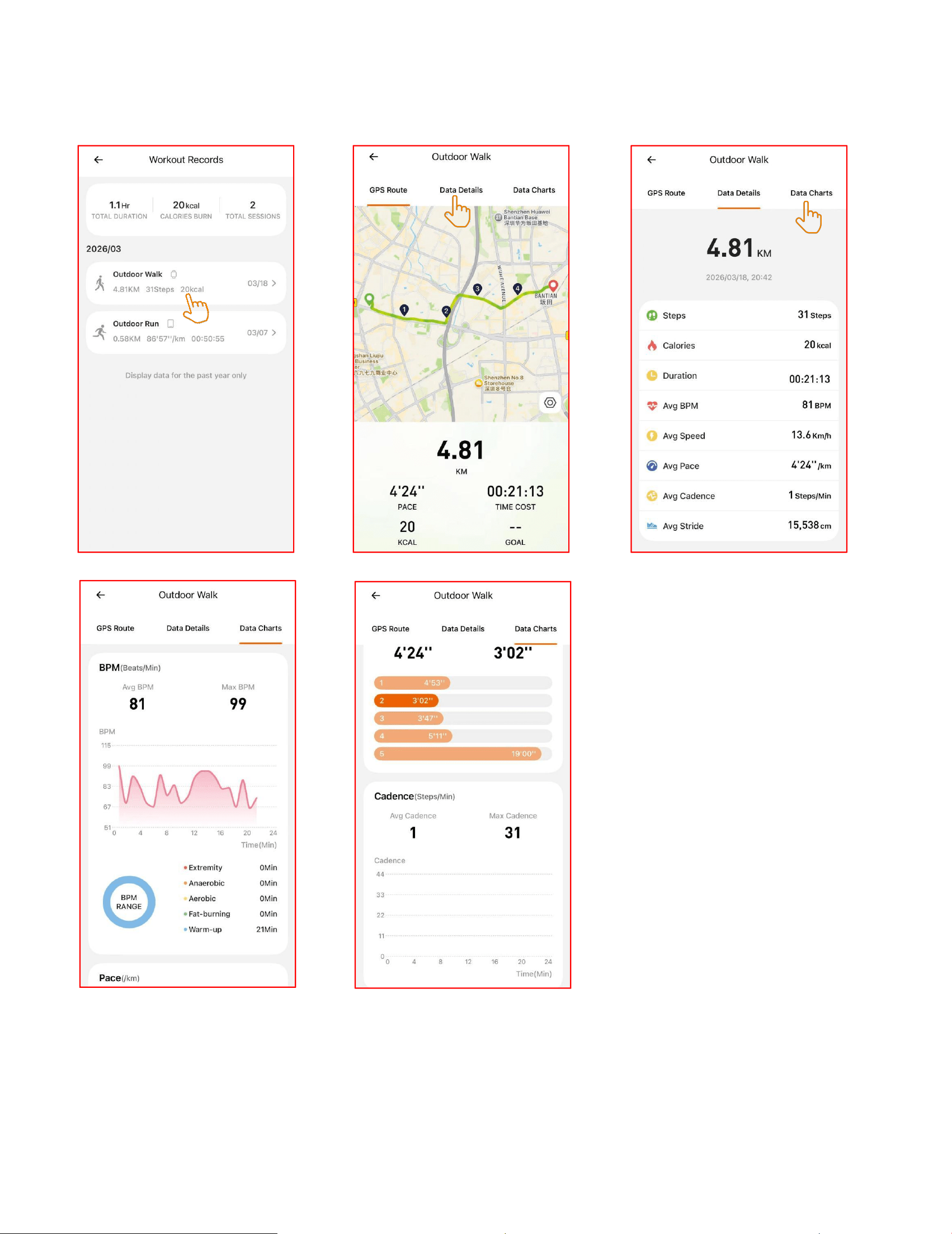
D.Sync your exercise data to the app to view detailed exercise
data trajectory charts.

20
5.Frequently Asked Questions and Troubleshooting
1). Slow positioning, few satellites found
Reason: A-GPS expired, blockage
Solution: APP synchronizes and updates A-GPS → restart in an
open area
2).Trajectory drifts, distance is inaccurate
Solution: Multi-star mode → Wait 60 seconds before starting →
Calibrate stride
3).APP cannot connect / not syncing
Solution: Restart Bluetooth / phone → Clear the app cache →
Re-pair → Allow background permissions
6.Summary of Accuracy Improvement
Before each workout: Sync with the app and wait 60 seconds in an
open area for positioning
Wearing: Dial facing up, outer side of the wrist
Environment: avoid obstructions, choose open areas
Regular: Firmware update A-GPS daily sync

21
Key Safety Tips
a.Do not expose the watch to extremelyhigh-temperature
environments ike scorchingsun rays or around high-temperature
deviceslike heaters,ovens,microwave ovens,
orwaterheaters.High-temperatureenvironments may cause battery
explosionsor other safety accidents.
b.The productincludes an irremovable purecobalt
battery.Non-profes-sionals are notallowed to disassemble it in case
of a safetyaccident.
c.This product has passed multiplewaterprooftests before
launch.Consideringdifferent using habits,its internal parts
mayexperience wear and tear, which affects itssealing
performance.Therefore please wearand use the smartwatch
carefullyduringswimming and diving, but avoid wearing it in
asauna room or for a hot shower.
d.Our products do not belong to medicalapparatus.The heart rate,
blood oxygen,sleep, calories, and steps.and other healthdata
collected by it are only for referenceratherthan clinical basis.
22
Watch function mode
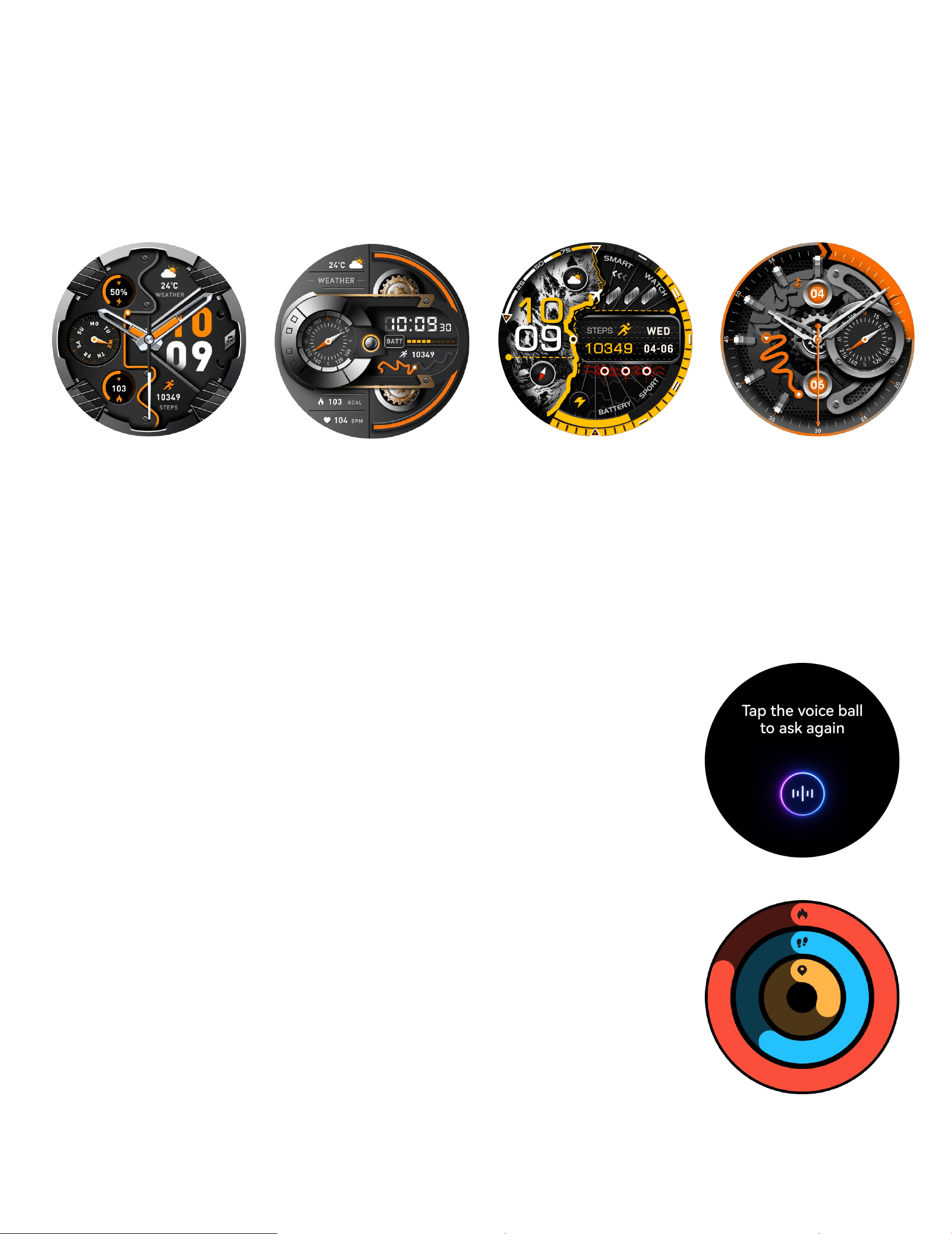
a. Main interface switching: long press the main interface for 3
seconds to enter the selection dial interface, slide left and right to
select the main interface, Click to confirm
Custom dial: enter the "FitCloudPro" app and click - > dial library -
> Edit to select the dial you want.
Find more dials: enter the "FitCloudPro" app and click "dial
library" - > more dial settings.
b.Voice assistant:The voice assistant is a smart
mobile phone application, open it and you can
command your mobile phone through smart
dialogue, such as sending a message to make a
call.
c. Step counting: wear the watch normally, and
the watch displays the current exercise steps,
distance and calories (the data of the day before
0:00 a.m. every day)
23
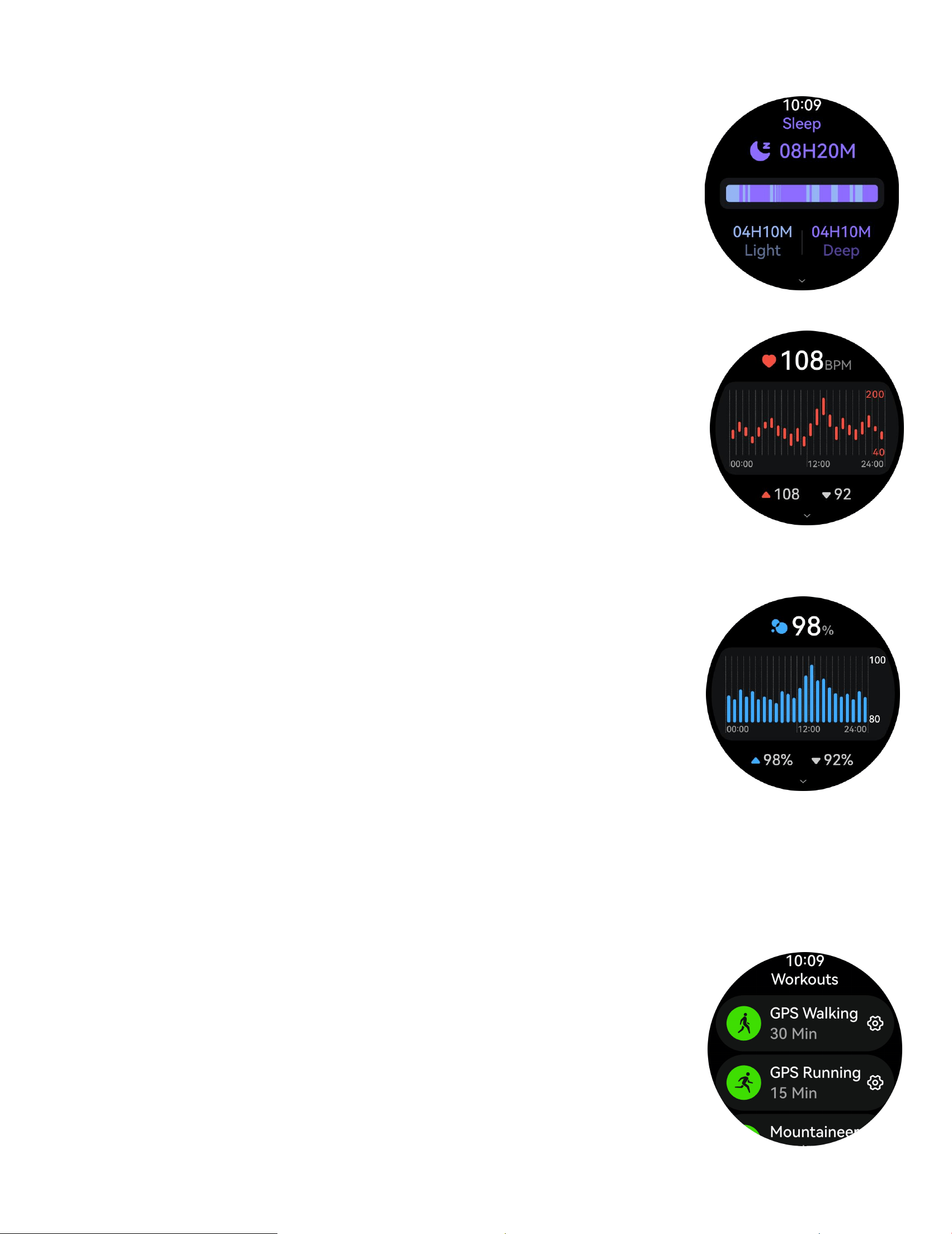
d. Sleep monitoring: wear a watch to sleep. The watch will
automatically monitor the length of deep sleep,
light sleep and total time yesterday. The detailed
data is displayed on the app side, and the user
can view the sleep quality and sleep duration
distribution map in the app.
e.Heart rate measurement: click the screen in the
heart rate interface to measure the current heart
rate value. It can also be measured manually on
the heart rate interface of APP end (the data is
only for reference and not for medical use)
f.Blood oxygen: click the screen in the blood
oxygen interface to measure the current blood
oxygen value. The flashing icon indicates that the
test is in progress, or it can be measured manually
on the app end blood oxygen interface (the data
is for reference only, not for medical use)
g.Breathing exercise:Exercise mode: Built in 8+1, with 112 sports
modes to choose from: walking, running, cycling, basketball,
football, badminton, jump rope, After activating
the sports mode, slide left to select pause/end
sports. If you want to add a sports mode, slide
down to the bottom and click add to select the
desired sports mode.
24
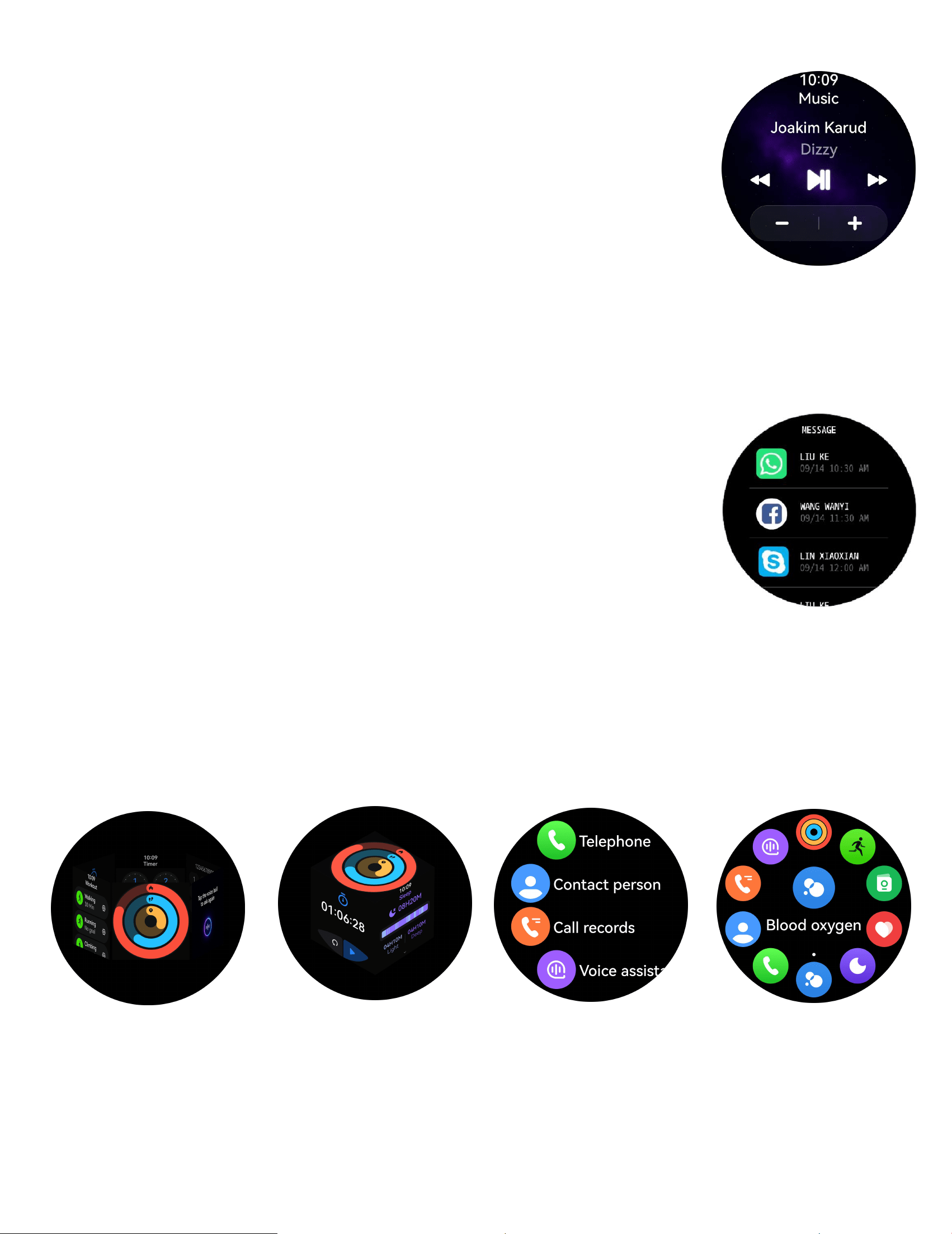
h. Music control: after connecting the mobile
phone, the watch can control the pause / play of
mobile phone music, the previous song and the
next song.
i.Information push: this watch supports phone / SMS / wechat /
Facebook /Twitter/WhatsApp/Skype /other application
information push. This page only saves the last 5 information
records, and you can turn on the corresponding
switch according to your needs. (note that when
the Android mobile phone opens the information
reminder, it must set the notification right of the
app to the mobile phone, otherwise the watch will
not receive the reminder)
Menu view: There are four modes/ Semi-Circle Menu/ List
Menu/Nine-Grid Menu Style/Ring Menu/Six-Sided Column Menu/
Cube Menu
Note: more detailed analysis and data records can be viewed in the app
Cube menu
List menu
Six-sided menu
Rotate the menu