Alpha Note User Manual
(software part)
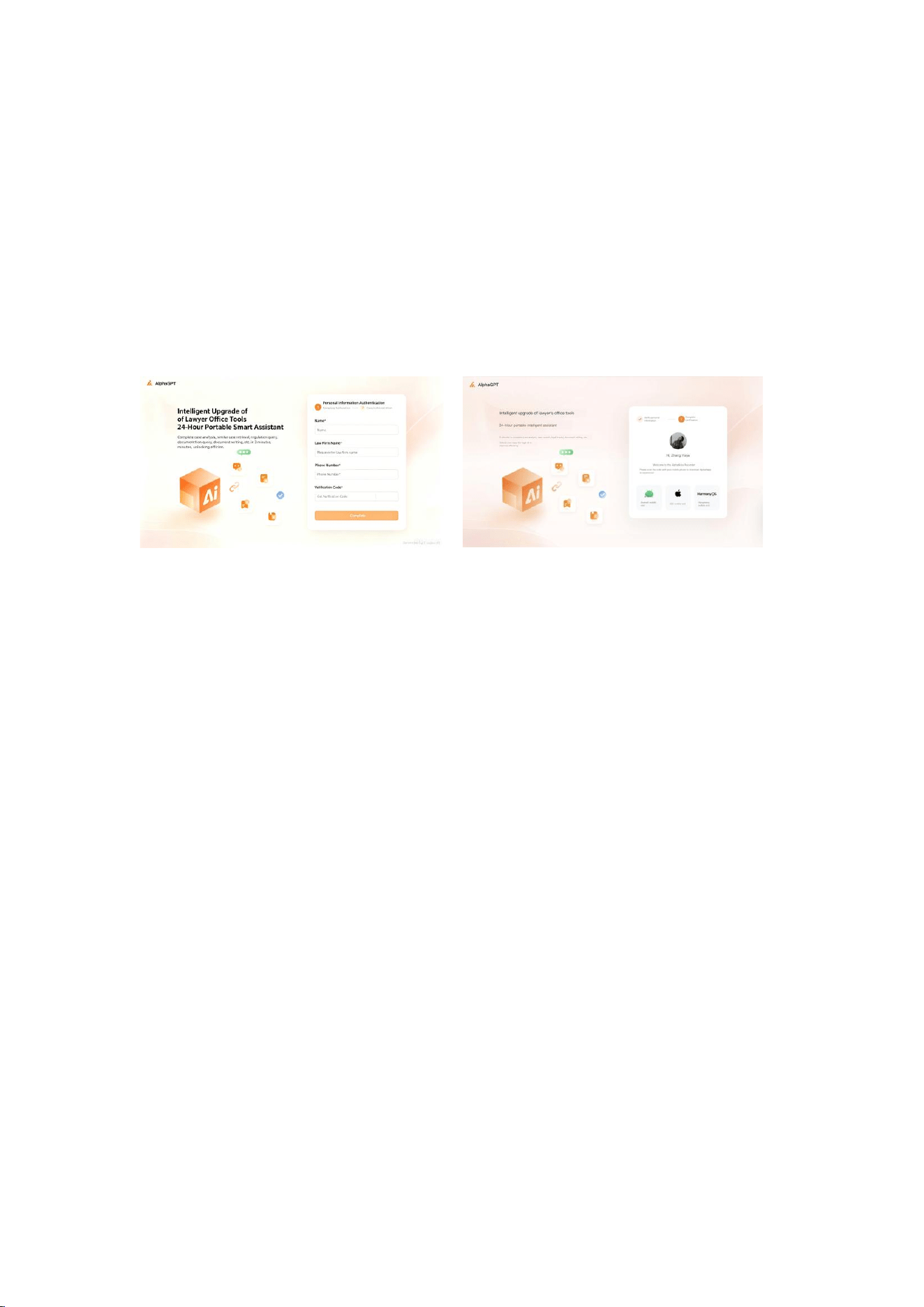
1. Activation of rights and registration/login
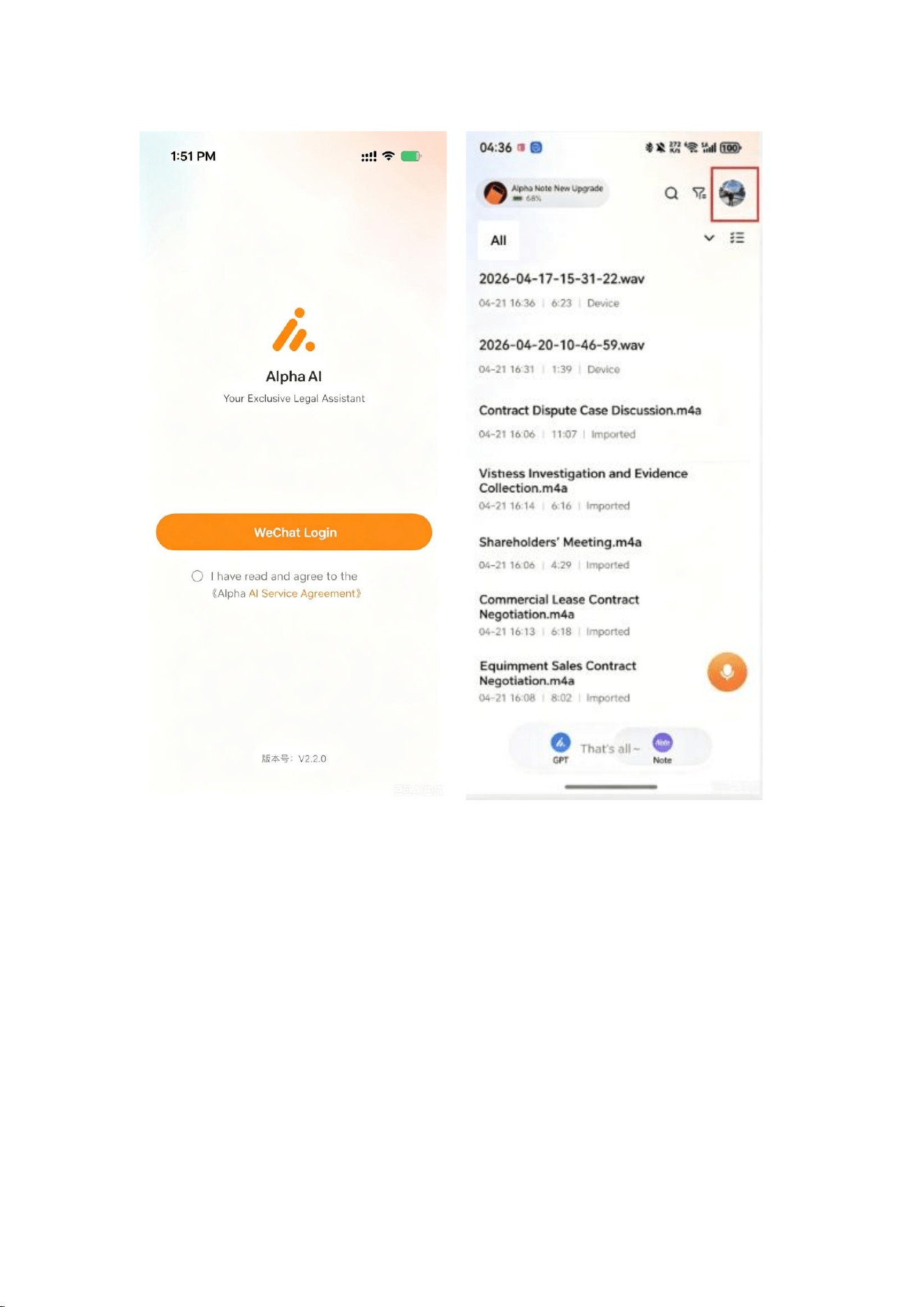
1. After purchasing the alpha note hardware product, the sales team will send the
activation link to the user. After the user scans the QR code on WeChat, they can
open and activate the note rights on the PC.
2. Users who have never registered for Alpha GPT will first register and fill in
information after scanning the QR code, and then activate it.
3. Download the alpha ai mobile app, scan the QR code with WeChat to log in, and
view note benefits
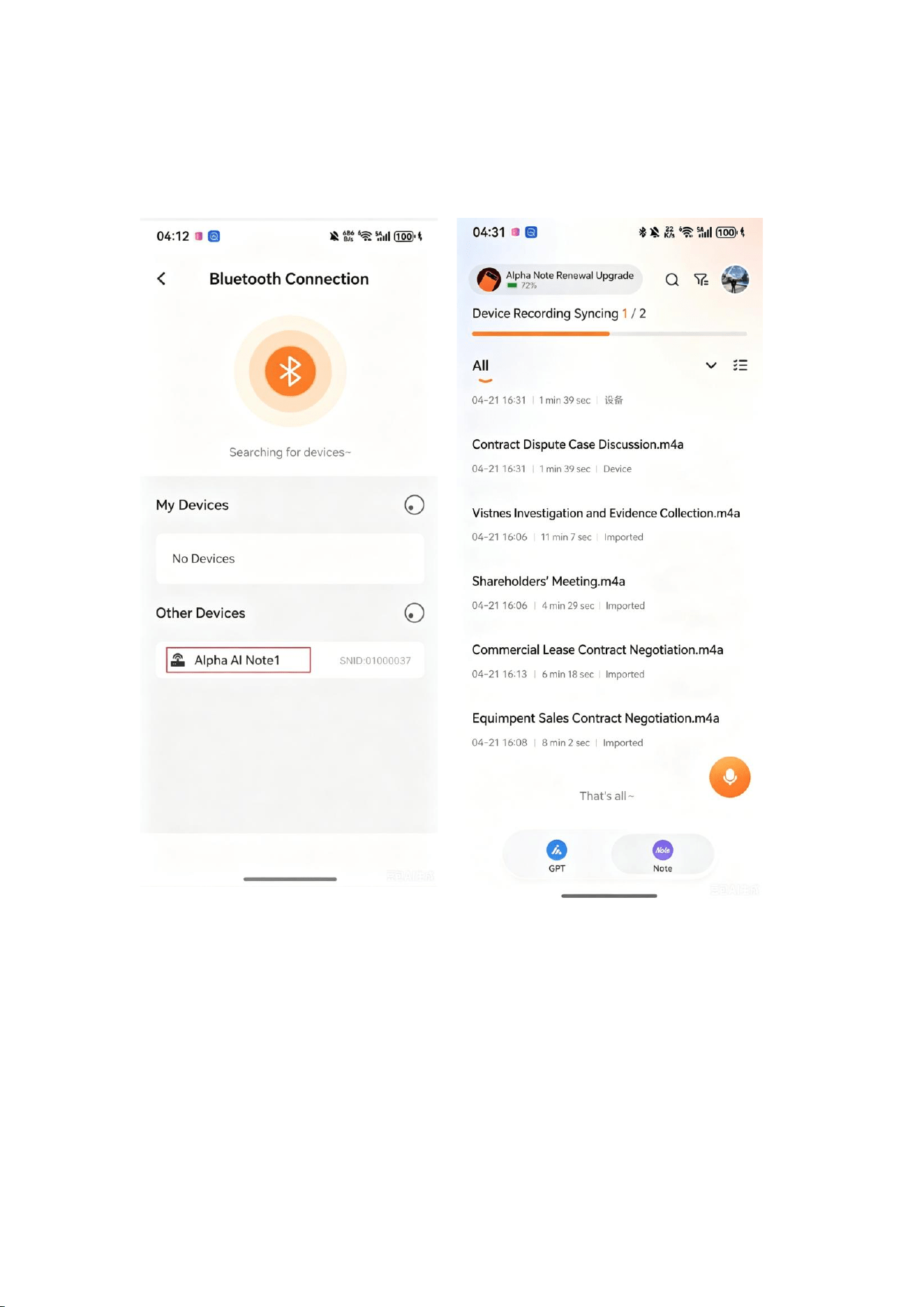
2. Connect the device
Click the plus sign in the top-left corner
to perform a Bluetooth connection
Complete connection
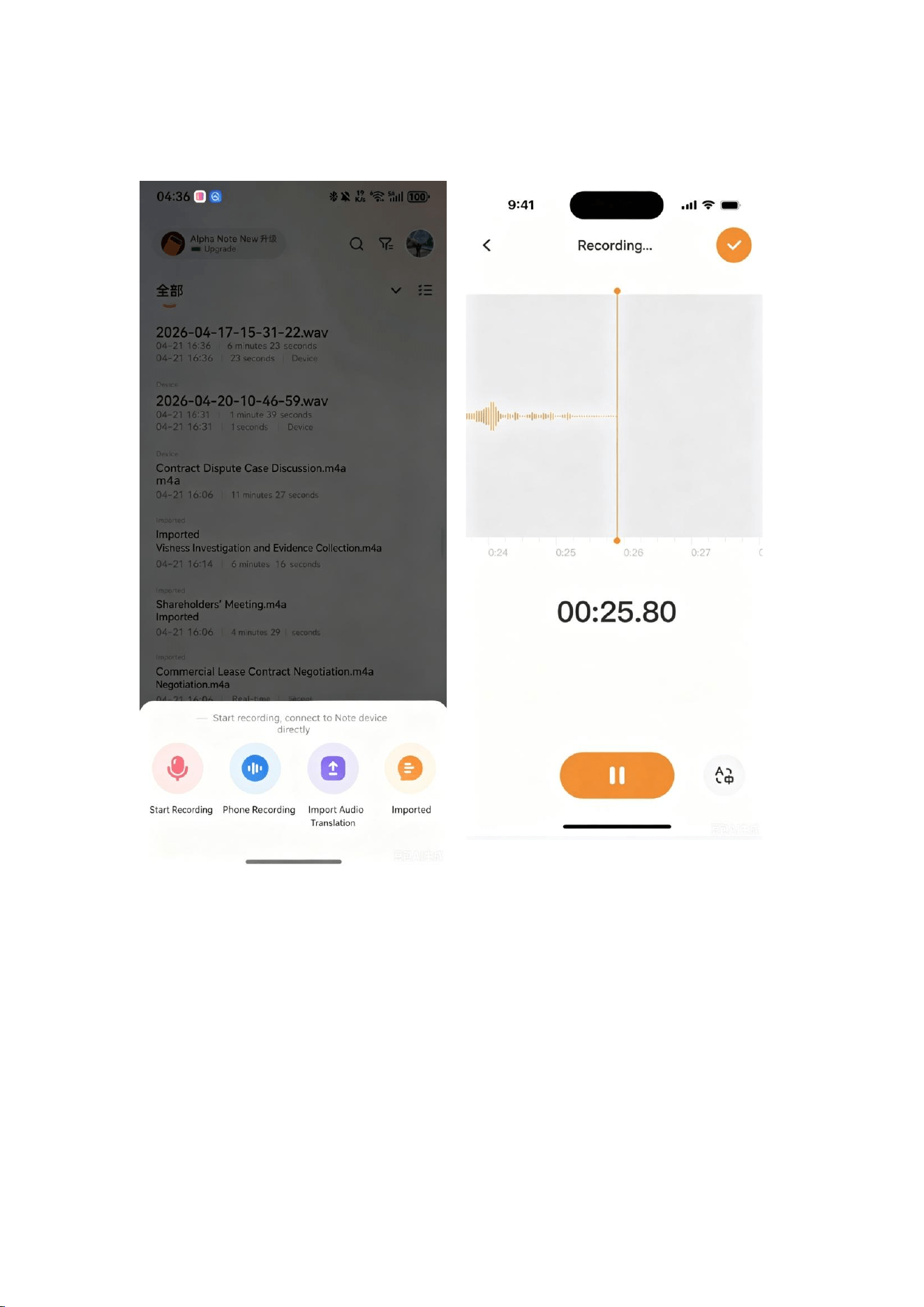
3. Recording
【Start Recording】: Record using a
recording card. 【Mobile Recording】:
Record using a mobile phone.
[Import Audio]: Import voice memos
from the local device or pre-recorded
audio from other local apps.
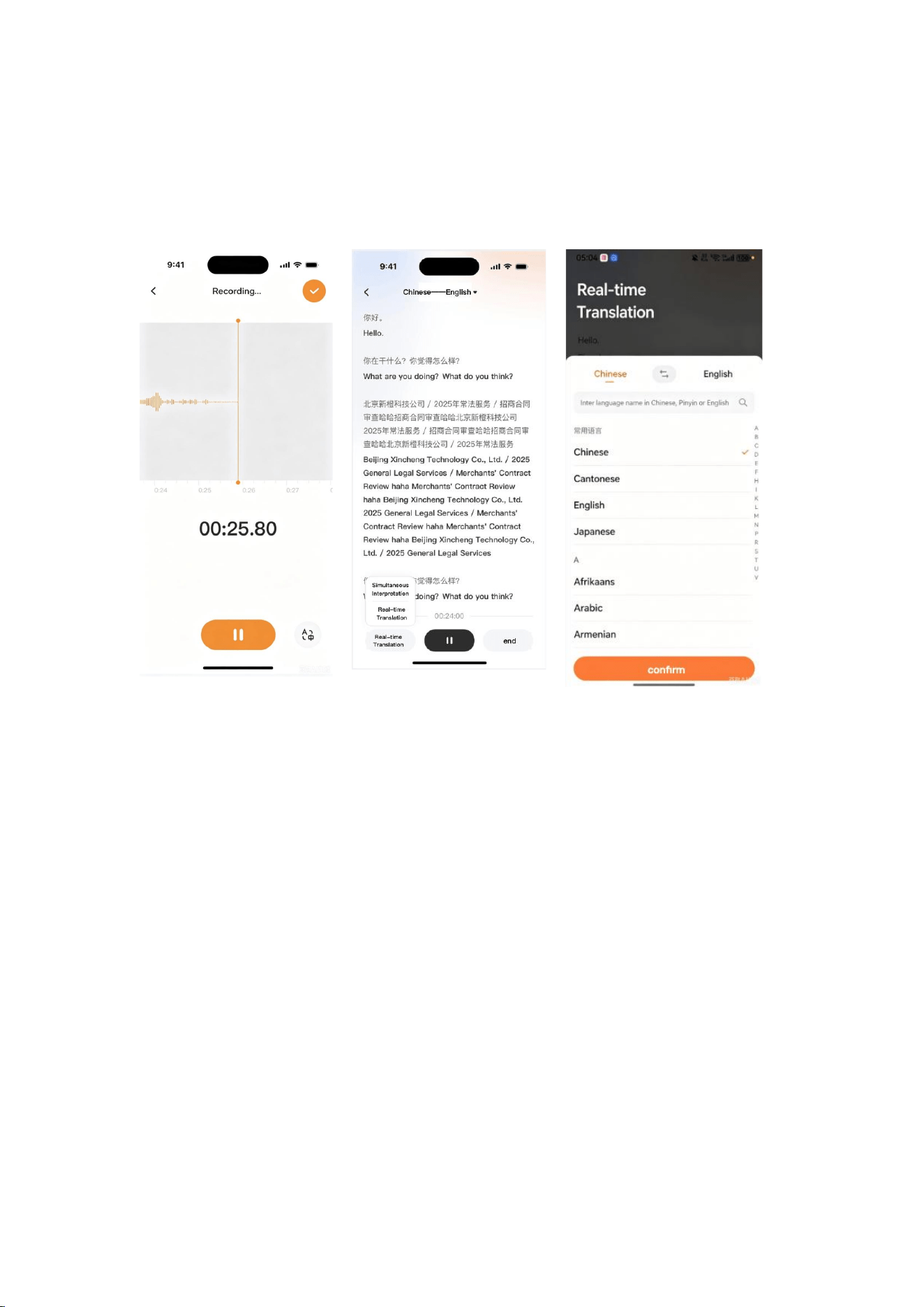
[Real-time Translation]: Enter the
translation interface
After entering the recording page, start
recording. Once recording starts, the
timer begins counting. It supports
pausing and resuming recording at any
time. After recording is completed, click
the icon button in the top right
corner.
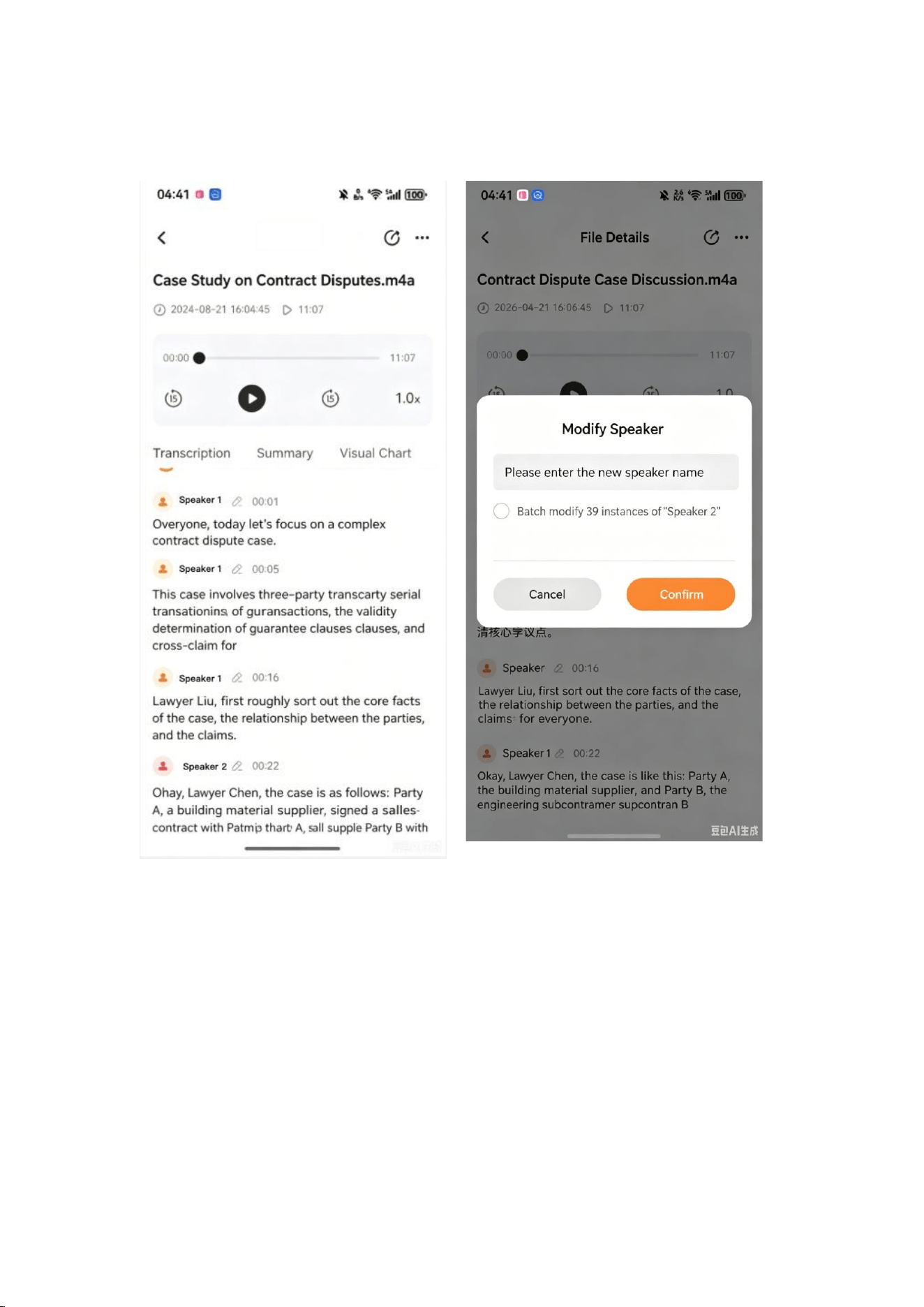
4. Transcription
5. Real-time translation / simultaneous
interpretation
Click the translation
button in the bottom right
corner to enter the
translation interface
Select [Simultaneous
Interpretation] at the
bottom left
Click the top left corner to
switch languages
6. Use templates to generate summaries
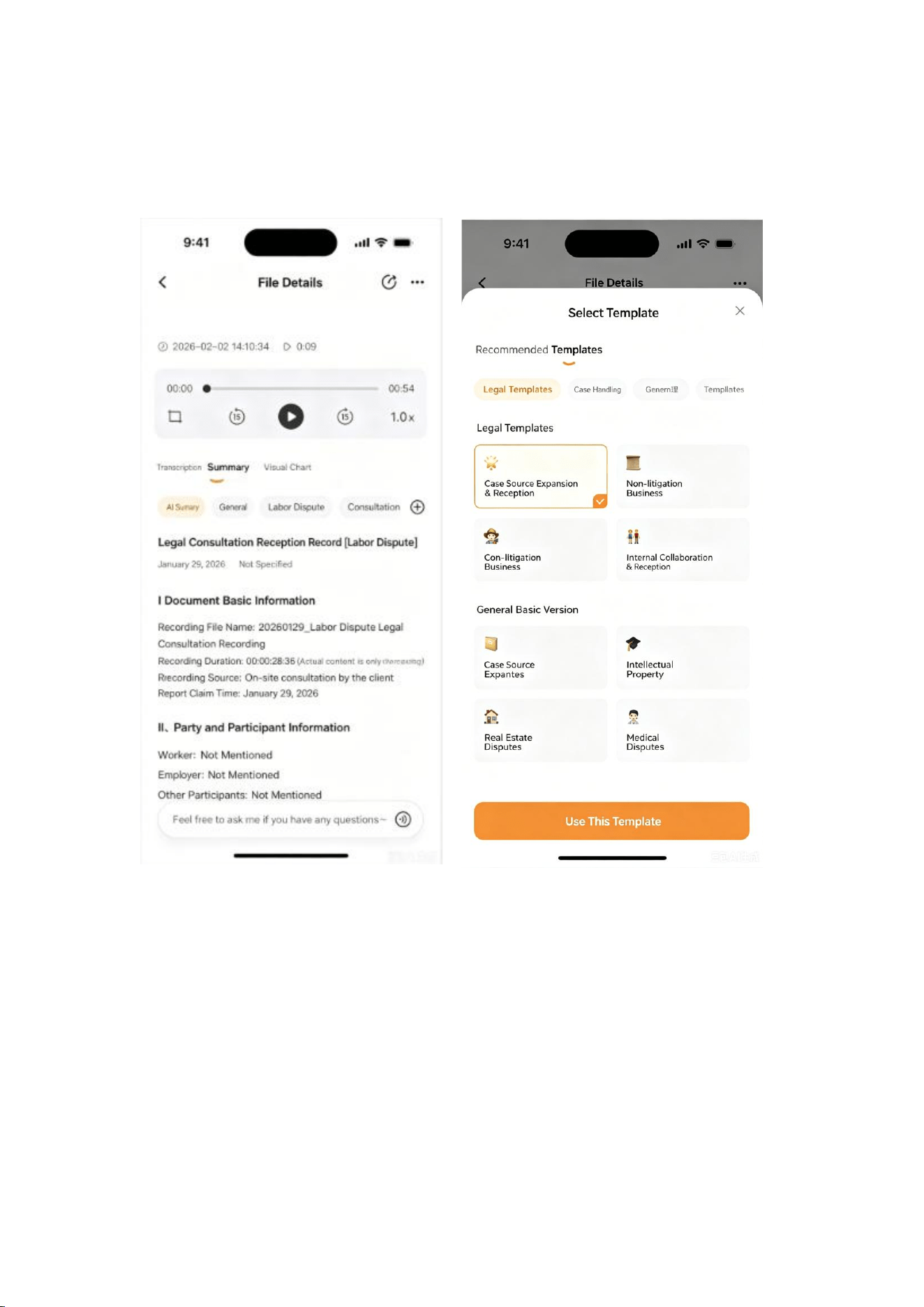
Currently, legal templates and general
templates have been built-in. Legal
professional templates cover the entire
legal process, with an estimated 100
templates; general templates cover
interviews, phone calls, project
management, government affairs,
finance, functionality, consulting,
interviews, calls, speeches, education,
medical, construction, sales, meetings,
and general fields, totaling over 150
templates.

1. Click the " " button on the <Summary> interface, a template page will pop up,
select templates to generate (multiple selection available)
2. After the template is generated, the content is displayed in [Summary] or
[Visualization Chart]
3. Click the " " button again to support generating with a new template, and the
display effect is as shown in the prototype diagram on the right
4. When entering the recording interface for the first time, 【Summary】 displays
【Ai Minutes】 (automatically generated Ai minutes)
5. [Summary] Average number of template generation times consumed
6. If the recording is too short and no summary is generated, display [No summary
generated for the current recording] on the interface
7. The upper limit for individual recording summaries is 10
8. Each summary can only be generated once, and summaries that have already
been generated will be grayed out on the template page
7. To-Do Items
1. Click "Record" on the Alpha note homepage to enter the [Recording Details
Page]
2. After clicking the [Summary] tab, scroll down to the bottom of the default-
generated [AI Minutes] and enter the To-Do Information area
3. Click the checkbox on the left side of each to-do item to mark completed to-do
items (after checking, the checkbox turns into , and the to-do text becomes “xxxx”,
clicking the checkbox again will restore it)
4. Click on the [Add To-Do] above to evoke the [Add To-Do] pop-up window
5. Tap each to-do item to evoke the [Edit/Delete] floating layer, and click to evoke
[Edit To-Do]
6. In <Edit To-Do>, <Modify> and <Delete> are supported
7. The maximum number of characters that can be entered for a to-do item is 200
8. The maximum number of to-dos that can be added is 10 (excluding automatically
generated ones)
8. Visualization Chart
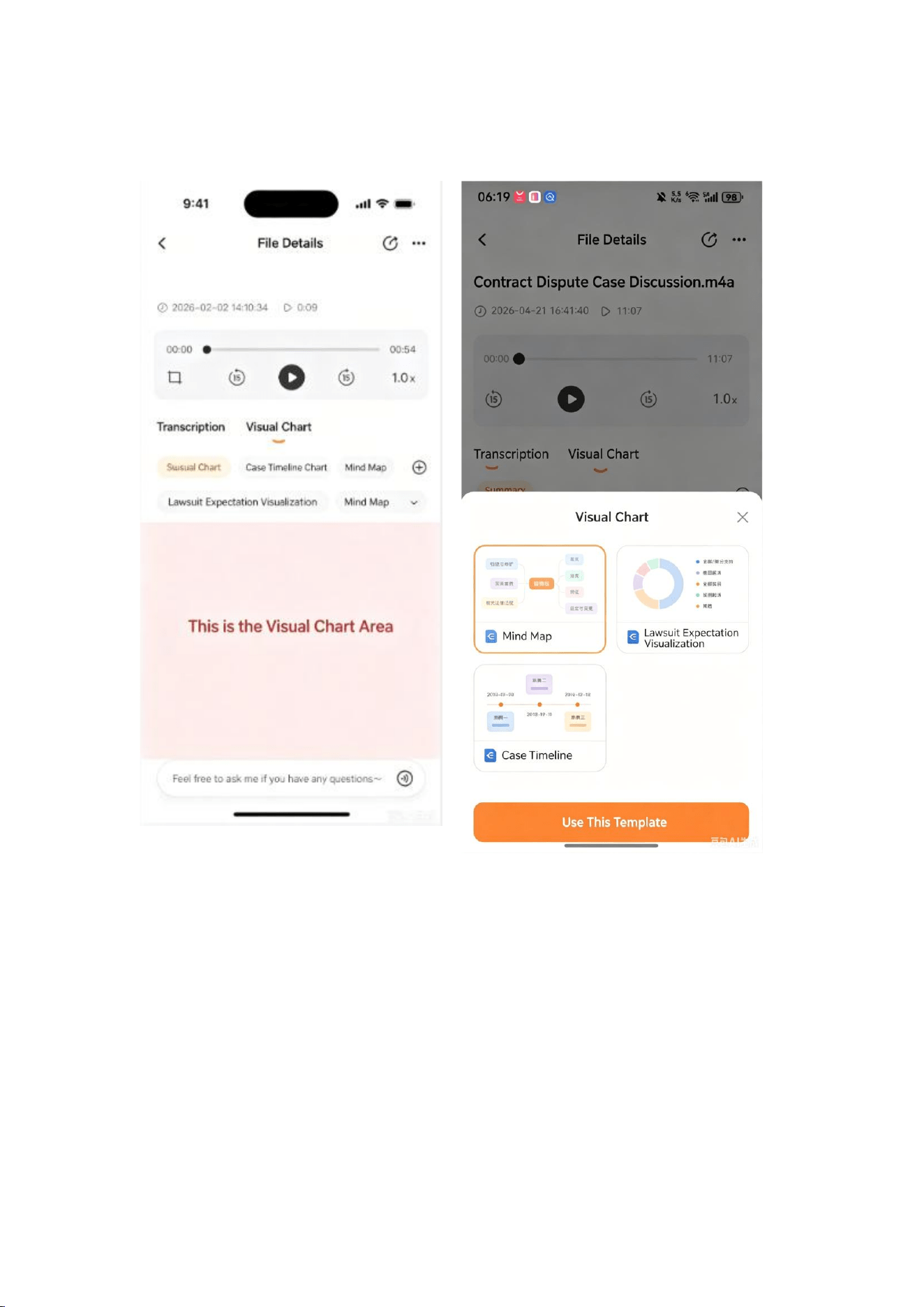
Click the plus sign to enter the template
selection page of the visualization chart
1. Click the " " button on the <Summary> or <Visualization Chart> interface, and
a template page will pop up. Select a template to generate.
2. After the template is generated, the content is displayed in [Summary] or
[Visualization Chart]
3. Click the " " button again to support generating with a new template
4. 【Visualization Chart】and【Summary】interact consistently
5. When entering the recording interface for the first time, the 【Visualization Chart】
automatically generates and displays the 【Mind Map】. (Automatically generated
and the mind map are free)
6. Subsequent user-initiated selections of generated [Visualization Charts] will all
consume the template generation quota. Each summary/chart can only be generated
once, and generated summaries/charts will be grayed out on the template page.
9. Recommended Templates
After the speech transcription is completed, automatically generate an AI summary,
automatically recommend 2 templates for the user to choose from, and display the
inference process.
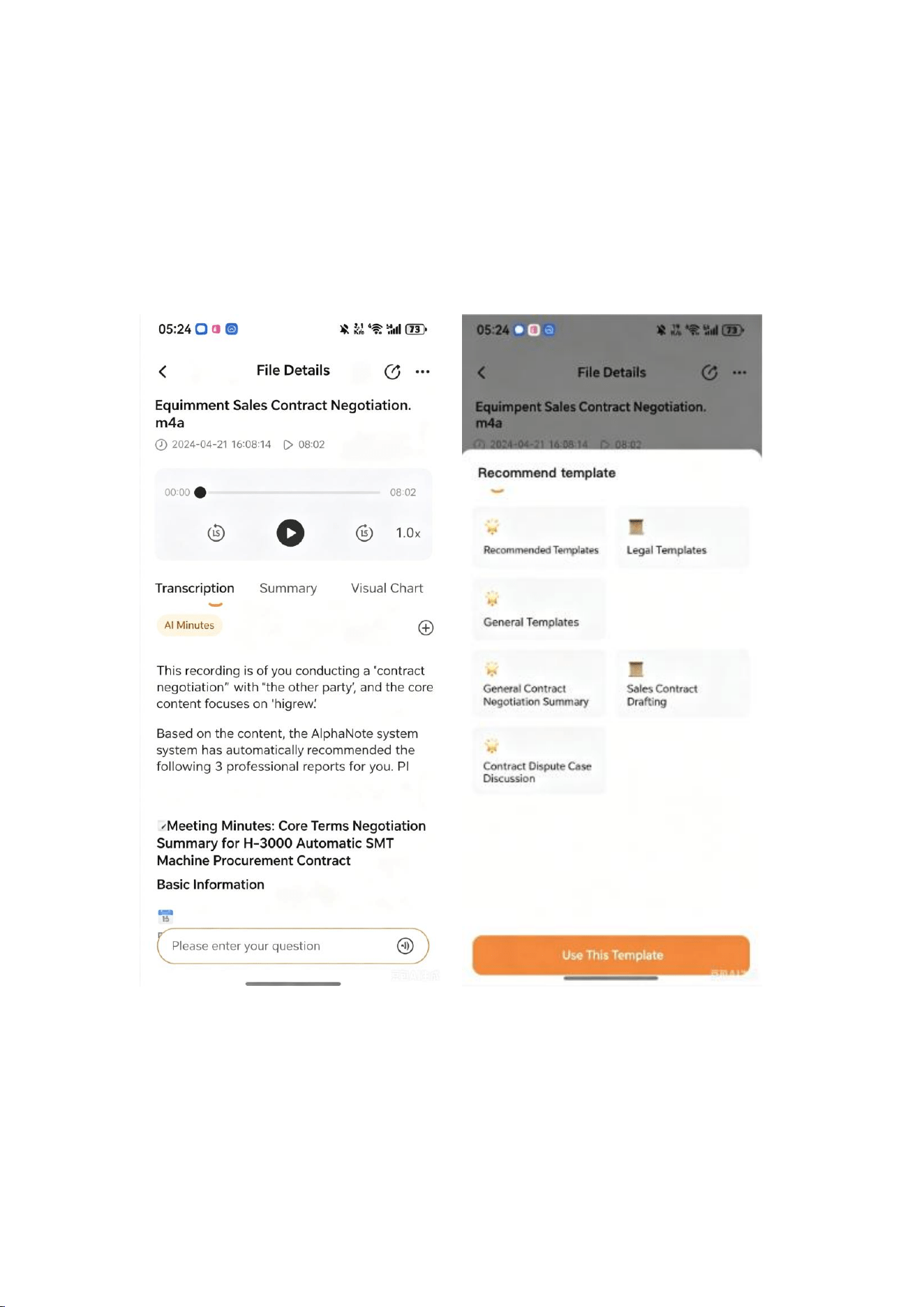
1. After speech transcription, under [Summary], [AI Minutes] are automatically
generated, and the thinking process is displayed under [AI Minutes]. The text of the
thinking process is as follows.

This recording is for you while you are in the <xxx scenario> with <recording object>
and the core content focuses on "Summary of Recording Content"
Based on the content, the AlphaNote system has automatically recommended the
following 3 professional reports for you. Please click to view [Recommended
Templates]
2. Click the plus sign in the summary to evoke the template selection page
3. Click [Recommended Templates] on the selection page to view the two
intelligently matched templates
4. The thinking and reasoning process is only displayed under [AI Minutes]
5. The template makes intelligent recommendations based on the content of
speech transcription
6. Recommended templates are only used for recommending to users, not for
generation, and do not consume the number of template uses
7. Automatically generated AI minutes are free (do not consume template
generation times)
10. Export recordings/summaries/charts
kep (Usage Path):
1. Click the share button in the upper right corner to support copying
transcription/summary (plain text), exporting transcription/summary/chart/audio
2. When copying/exporting summaries, you need to specify the summary to be
copied/exported, and only one summary can be exported at a time.
3. Supports export to WeChat chat/local storage
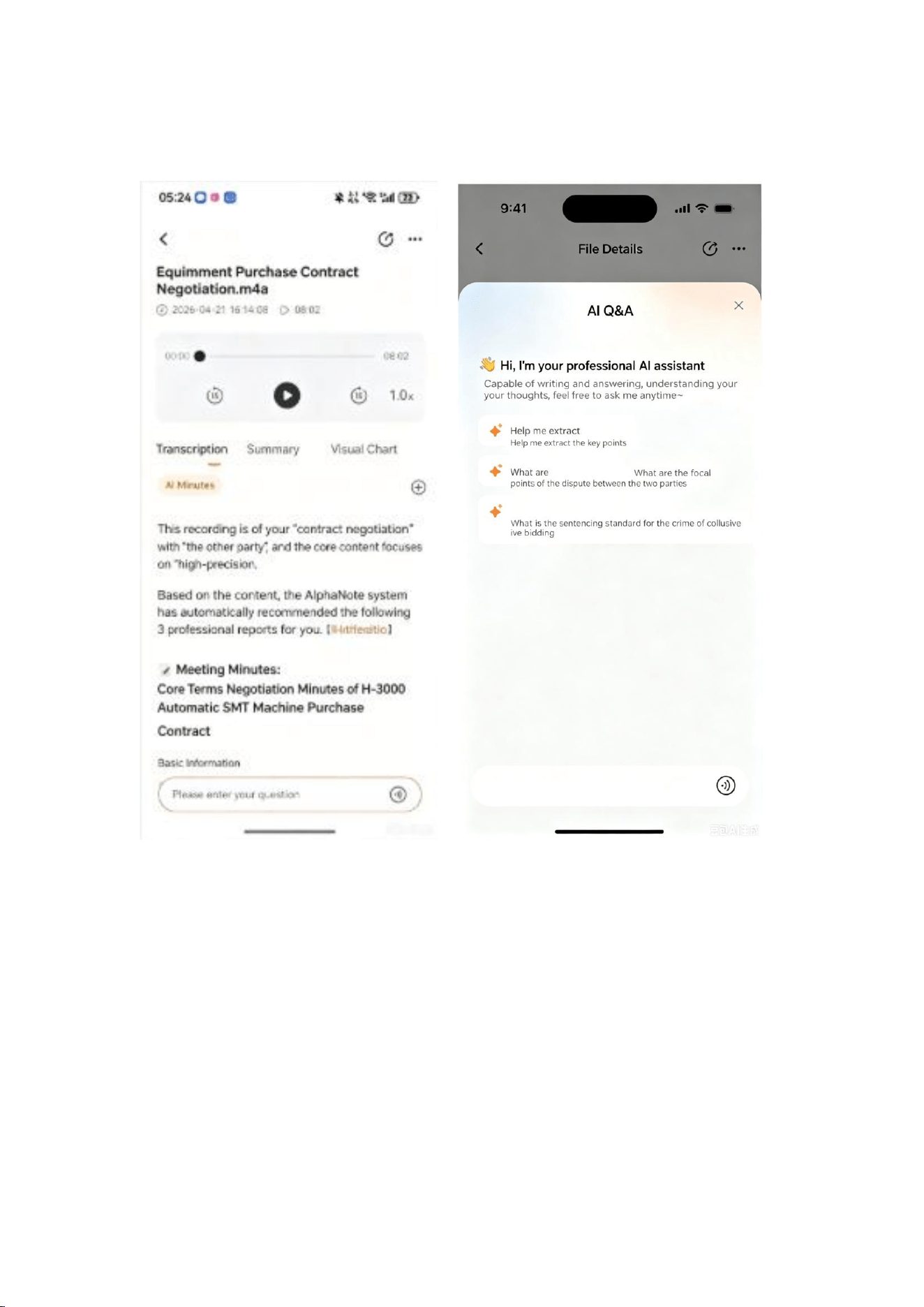
11. AI Q&A
Click the dialog box at the bottom of the page to evoke the Q&A interface, enter your
question, and get an answer.
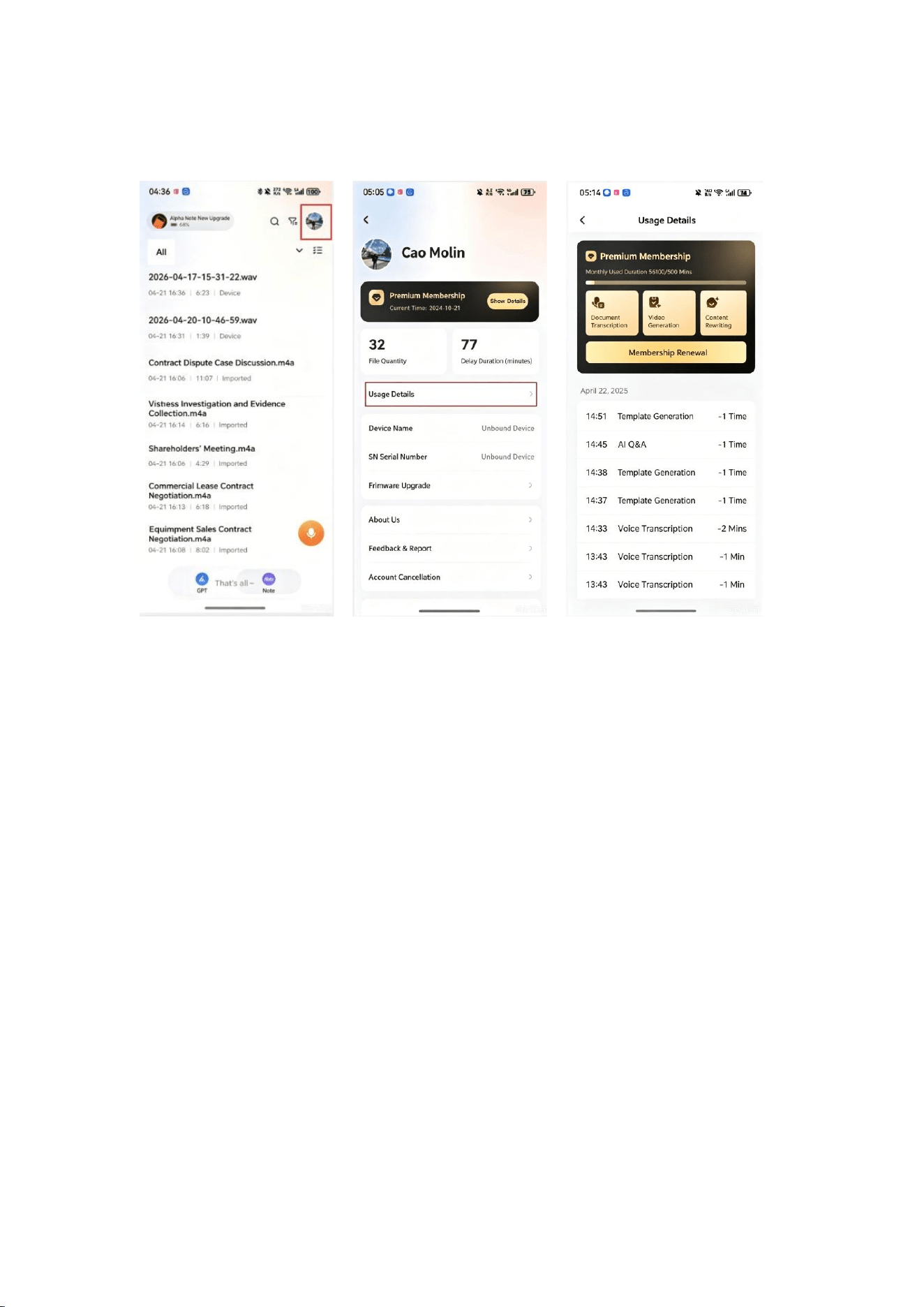
12. Premium Member Recharge
1. Click the top right corner on the homepage to enter [Personal Center]
2. Click [Usage Details] to enter the [Usage Details] interface and view the rights
3. Click on 【Upgrade Membership】 and 【Renew Membership】, then select a
package to purchase membership benefits or fuel packs

FCC Warning Statement
Changes or modifications not expressly approved by the party responsible for
compliance could void the user’s authority to operate the equipment. This equipment
has been tested and found to comply with the limits for a Class B digital device,
pursuant to Part 15 of the FCC Rules. These limits are designed to provide
reasonable protection against harmful interference in a residential installation. This
equipment generates uses and can radiate radio frequency energy and, if not
installed and used in accordance with the instructions, may cause harmful
interference to radio communications. However, there is no guarantee that
interference will not occur in a particular installation. If this equipment does cause
harmful interference to radio or television reception, which can be determined by
turning the equipment off and on, the user is encouraged to try to correct the
interference by one or more of the following measures:
‐‐ Reorient or relocate the receiving antenna.
‐‐ Increase the separation between the equipment and receiver.
‐‐ Connect the equipment into an outlet on a circuit different from that to which the
receiver is connected.
‐‐ Consult the dealer or an experienced radio/TV technician for help.
FCC Radiation Exposure Statement
The device has been evaluated to meet general RF exposure requirement. The
device can be used in portable exposure condition without restriction.
This device complies with Part 15 of the FCC Rules. Operation is subject to the
following two conditions:
(1)This device may not cause harmful interference, and
(2)This device must accept any interference received, including interference that may
cause undesired operation.