
1
HHOLOVE × TALIX
DonutAI Camera User Guide
What’s in the Box
Check that all items listed below are included. If anything is missing or damaged, contact your retailer
or HHOLOVE Customer Support.
Item
Quantity
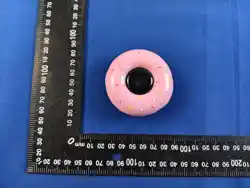
DonutAI Camera
1
USB power cable, 1 m (3.3 ft)
1
Mounting base / bracket
1
Spare adhesive pad
1
Quick Start Guide
1
Product Overview
Camera Components
Illustration note: Label the following components in front, rear, and bottom views.
1. Camera
2. Microphone
3. Silicone component
4. Status light
5. Reset button (RESET)
6. Power port
7. Mounting hardware
A power adapter is not included. Use a USB power adapter rated at 5 V / 1 A. The included power
cable is 1 m (3.3 ft) long.

2
Before You Begin
Network and Phone Requirements
• Wi-Fi: Supports 2.4 GHz and 5 GHz networks. A 5 GHz connection is recommended.
• Wi-Fi security: WPA, WPA2, or WPA3.
• Phone compatibility: Android 10 or later, or iOS 18 or later.
• Setup permissions: Turn on Bluetooth on your phone and allow location access and any other
permissions requested by the app during setup.
Locations to Avoid
• Bathrooms, outdoor areas, or anywhere exposed to moisture or splashing water.
• Direct sunlight for extended periods or locations near heat sources.
• Anywhere your pet could knock the camera over, chew the cable, or reach the power connection.
• Locations where the camera faces bright lights, mirrors, or flickering light sources.
• Locations that require moving the camera to monitor a large area instead of keeping it focused on one
fixed area.
Placement and Mounting
Position the camera so your pet’s head and relevant parts of their body are clearly visible. Make sure
food bowls, water bowls, litter boxes, and other objects do not block the view.
Food Bowl Area
Water Bowl Area
Litter Box Area
Resting Area
Before attaching the camera, place it in your preferred location, connect it to power, and complete setup
in the app. Check the live view and adjust the camera angle. Once you are happy with the view, peel off
the adhesive backing on the base and secure the camera in place.
Choose a location within reach of a power outlet using the included cable. Leave some slack so the
cable is not stretched tight or easily pulled by your pet.
To reuse the adhesive pad, wipe it with a damp cloth and let it air-dry completely before reattaching it.

3
Power On
1. Connect the included power cable to DonutAI’s power port.
2. Connect the other end to a USB power adapter, then plug the adapter into a power outlet.
3. When the status light slowly flashes blue, the camera is ready for Wi-Fi setup.
Get the App and Create an Account
1. Scan the QR code, or search for “HHOLOVE” in the App Store or Google Play, then download the
app.
2. Open the app and create an account. Follow the on-screen instructions to enter your email address
or phone number and complete verification.
3. Sign in after creating your account. If you already have an account, sign in to continue.
Add Your DonutAI
1. Make sure the status light is slowly flashing blue.
2. Keep your phone near the camera, turn on Bluetooth, and allow the permissions requested by the
app.
3. Add DonutAI in the app and follow the on-screen instructions.
4. Select the Wi-Fi network you want the camera to use and enter its password.
5. Keep the camera connected to power and your router connected to the internet throughout setup.
6. Once the app confirms that the camera is connected, follow the prompts to add your pet’s details.
Finish Setup
Choose an Activity
In the app, select the activity that matches the camera’s location: eating, drinking, litter box use, or
everyday activity. Keep each DonutAI focused on one main activity in a fixed area.
Check the Camera View
Open the live view in the app and adjust the camera’s position and angle. Make sure your pet and the
relevant area are fully in view. Avoid strong backlighting, low light, and obstructions.
Start Watching
Select DonutAI on the app’s home screen to watch live video. Open the pet activity section to view
video clips the camera has captured.

4
Cleaning and Care
• Unplug the camera before cleaning.
• Wipe the camera with a soft, dry or slightly damp cloth. Keep moisture out of the ports.
• Gently clean the lens with a lens cloth to avoid scratches.
• Do not immerse the camera, power adapter, or connectors in water. Do not rinse the camera under
running water.
• Do not use alcohol, corrosive cleaners, or high-pressure water jets.
• Make sure the camera and all connectors are completely dry before reconnecting power.
Status Light and Reset Button
Status Light
Light Pattern
Camera Status
Slowly flashing blue
Powering on or factory reset complete
Rapidly flashing blue
Connecting to Wi-Fi
Rapidly flashing red
Wi-Fi setup failed
Rapidly flashing magenta
Reset in progress
Three quick blue flashes
Wi-Fi setup successful
Solid magenta
Online
Solid red
Device error
Off
Status light disabled or no power
Reset Button
Press and hold the reset button for 10 seconds to restore factory settings. This clears the camera’s Wi-
Fi settings, account pairing, and device settings. You will need to add the camera again in the app.
Keep the camera connected to power during the reset and do not press the button again while the reset
is in progress.

5
Troubleshooting
Problem
What to Try
The camera will not turn on
Check the outlet, power cable, and power adapter rating. If the camera
still does not respond, contact Customer Support.
I cannot add the camera
Make sure the camera is ready for Wi-Fi setup. Move your phone,
camera, and router closer together, then try again.
The camera keeps going
offline
Move the camera or router to improve the connection, and check the
power supply.
Live view will not load
Check that the camera is online, check your network connection, and
make sure the app is up to date.
The image is blurry or too dark
Clean the lens and adjust the lighting, camera distance, and angle.
An activity was not recorded
Check the camera view, network connection, and selected activity. A
missing recording does not mean the activity did not happen.
The wrong pet is identified
Add more details to your pet’s profile, then confirm or correct the
identification in the app.
I am not receiving notifications
Check notification permissions on your phone, notification settings in the
app, and the camera’s network connection.
A firmware update failed
Keep the camera powered on and connected to the internet, then follow
the app’s instructions to try again. Do not repeatedly reset the camera.

6
About AI Detection and Privacy
Pet identification and activity recording may be affected by the camera angle, lighting, obstructions, fast
movement, similar-looking pets, multiple pets in view, incomplete pet profiles, or network conditions. If a
result is incorrect, use the available options in the app to correct it or send feedback.
DonutAI records visible behavior and alerts you to changes. It is not intended to diagnose illness,
recommend treatment, or assess medical emergencies. If your pet appears unwell or shows persistent
changes in behavior, contact your veterinarian.
Use a strong password. Do not share verification codes or account details. Regularly review who has
shared access to your camera and which devices are signed in to your account.
How images, audio, pet profiles, and AI-related data are processed depends on the features you use,
your privacy settings, and the app’s Privacy Policy.
Important Safety Information
Use a power adapter and cable that meet the product’s power requirements.
Do not connect or disconnect power with wet hands.
If water enters the camera, or you notice smoke, an unusual smell, excessive heat, or a damaged cable,
disconnect power immediately and stop using the camera.
Do not disconnect power or reset the camera during a firmware update.
Keep the camera and cable where pets cannot easily chew them, pull on them, or knock the camera
over.
Keep small parts and packaging out of reach of children and pets.
This product is not a toy. Children should use it only under adult supervision.
For indoor use only. Keep away from open flames, high temperatures, moisture, strong magnetic fields,
and corrosive environments.
Do not disassemble, modify, or attempt to repair the camera yourself.

7
FCC Statement
This device complies with part 15 of the FCC Rules. Operation is subject to the following two
conditions: (1) This device may not cause harmful interference, and (2) this device must accept any
interference received, including interference that may cause undesired operation.
Note: This equipment has been tested and found to comply with the limits for a Class B digital device,
pursuant to part 15 of the FCC Rules. These limits are designed to provide reasonable protection
against harmful interference in a residential installation. This equipment generates, uses and can
radiate radio frequency energy and, if not installed and used in accordance with the instructions, may
cause harmful interference to radio communications. However,there is no guarantee that interference
will not occur in a particular installation. If this equipment does cause harmful interference to radio or
television reception, which can be determined by turning the equipment off and on, the user
is encouraged to try to correct the interference by one or more of the following measures:
●Reorient or relocate the receiving antenna.
●Increase the separation between the equipment and receiver.
●Connect the equipment into an outlet on a circuit different from that to which the receiver is connected.
●Consult the dealer or an experienced radio/TV technician for help.
Warning: Changes or modifications made to this device not expressly approved by
may void the FCC authorization to operate this device.
Note: The manufacturer is not responsible for any radio or TV interference caused by unauthorized
modifications to this equipment. Such modifications could void the user’s authority to operate the
equipment.
RF exposure statement:
The transmitter must not be colocated or operated in conjunction with any other antenna or
transmitter. This equipment complies with the FCC RF radiation exposure limits set forth for
an uncontrolled environment. This equipment should be installed and operated with a Minimum
distance of 20cm between the radiator and any part of your body.
NCC Notice
For low-power radio-frequency equipment that has received approval, no company, business, or user
may change the frequency, increase the power, or alter the original design characteristics or functions
without authorization.
Low-power radio-frequency equipment must not affect flight safety or interfere with lawful
communications. If interference is detected, stop using the equipment immediately. Use may resume
only after the interference has been eliminated.
Lawful communications refers to wireless communications operated in accordance with the
Telecommunications Management Act.
Low-power radio-frequency equipment must accept interference from lawful communications and from
equipment that radiates radio-frequency energy for industrial, scientific, or medical purposes.
Security Notice
To help prevent unauthorized access to camera footage, change the default password when you first
use the camera and update it regularly. Do not share your password.

8
NCC 警語
取得審驗證明之低功率射頻器材,非經核准,公司、商號或使用者均不得擅自變更頻率、加大功率或變
更原設計之特性及功能。
低功率射頻器材之使用不得影響飛航安全及干擾合法通信;經發現有干擾現象時,應立即停用,並改善
至無干擾時方得繼續使用。
前述合法通信,指依電信管理法規定作業之無線電通信。
低功率射頻器材須忍受合法通信或工業、科學及醫療用電波輻射性電機設備之干擾。
資訊安全提醒
為避免本器材之影像遭未經授權之存取,使用者應於首次使用時修改預設密碼,並定期更新密碼。請勿
與他人共用密碼。

9
Specifications
Item
Specification
Product name
DonutAI Camera
Brands
HHOLOVE × TALIX
Model
DCC1080001
Dimensions
62 × 60 × 103 mm (2.44 × 2.36 × 4.06 in)
Rated input
5 V DC / 0.9 A
Rated power
4.5 W
Video resolution
1080p Full HD
Field of view
114.4° diagonal
Night vision
940 nm infrared; up to 5 m (16.4 ft)
Microphone
1
Speaker
None
Wi-Fi
2.4 GHz / 5 GHz dual-band
Bluetooth
Bluetooth Low Energy (BLE)
Local storage
None
Operating temperature
−10°C to 45°C (14°F to 113°F)
Operating humidity
20–95% RH
Ingress protection rating
IP5X
Warranty and Customer Support
• Online support: https://www.hholove.com/support
• Email: [email protected]
• Website: www.hholove.com