User Manual
VE07
Model No.
Scan the QR code and search VE07
to get the video.
Tutorial Video
Need Help? Contact Us!
Call us at +1(855)400-3853 ( Monday-Friday 9:00am-5:00pm PST ),
if you have any questions.
iveise.com
01
At a Glance
13
How to Lock / Unlock
02
App Pairing
03
Step 1: Register Your Account
04
Step 2: Pair Your Lock
24
FAQ
19
How to Remotely Control the Lock
16
Definitions
Content
06
App Guide
01
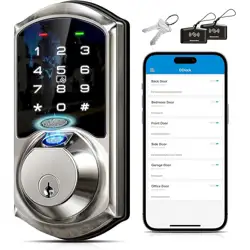
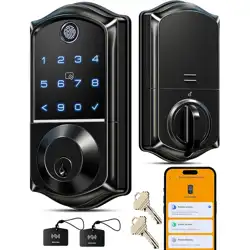
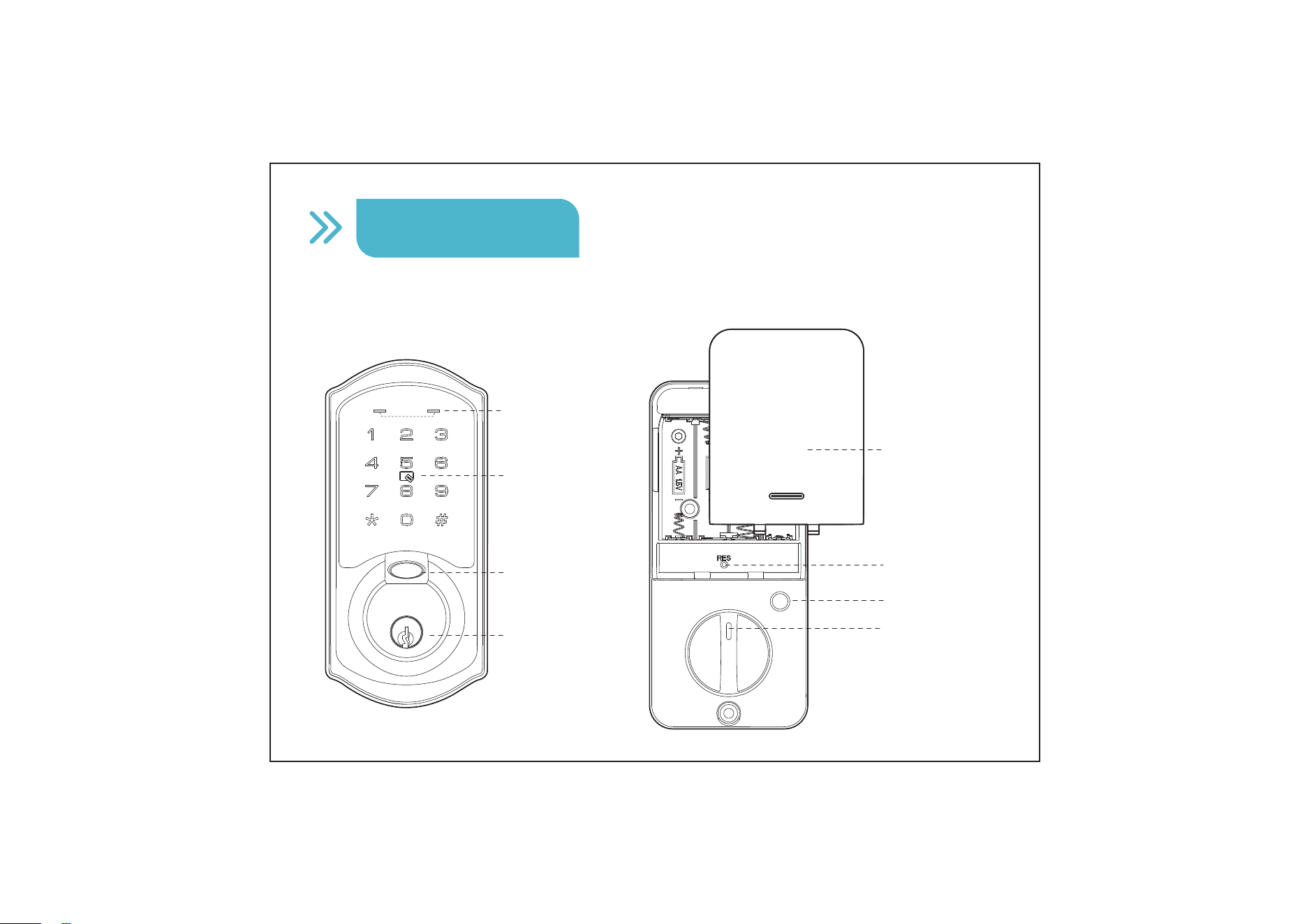
Exterior Assembly
IC Card
Swipe Area
Keyhole
Fingerprint
Indicator Lights
Interior Assembly
Reset Button
Privacy Button
Thumb Turn
Battery Cover
At a Glance
02
Before Pairing
App Pairing
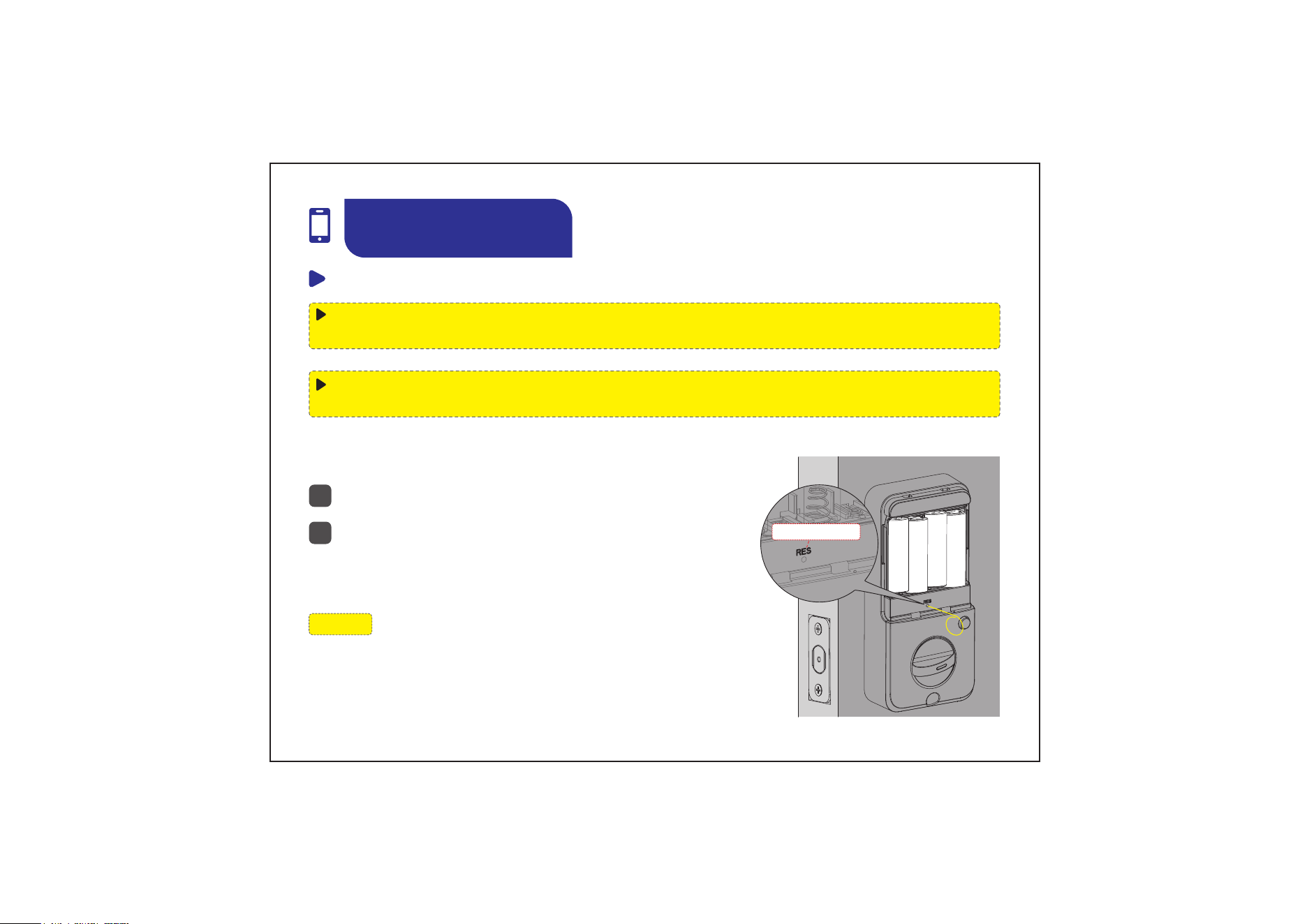
Before pairing, reset the lock using the steps below. Then check whether the
default Admin Passcode (123456) can successfully unlock the door.
If the default Admin Passcode (123456) has been changed, the lock cannot be
paired with DDLock App.
NOTE:
If the lock has already been paired in DDLock App, go
to “Settings” in the App and ensure “Reset Button” is
enabled before performing the reset.
Keep the door open and unlocked.
Press and hold the Reset Button for 5 seconds by
using the Reset Tool until you hear a short beep
and the green indicator light flashes once.
1
2
Reset Your Lock
Reset Button
03
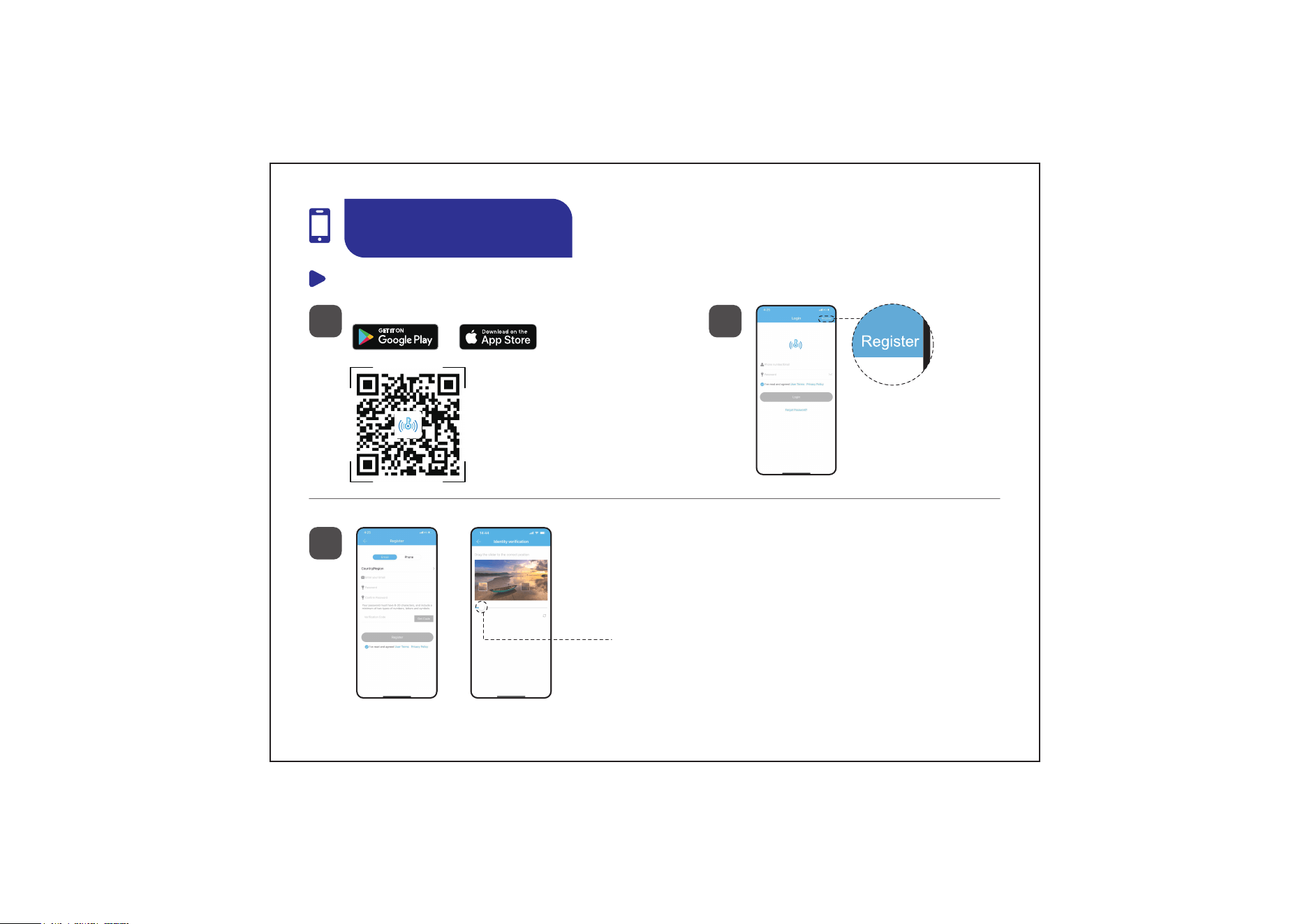
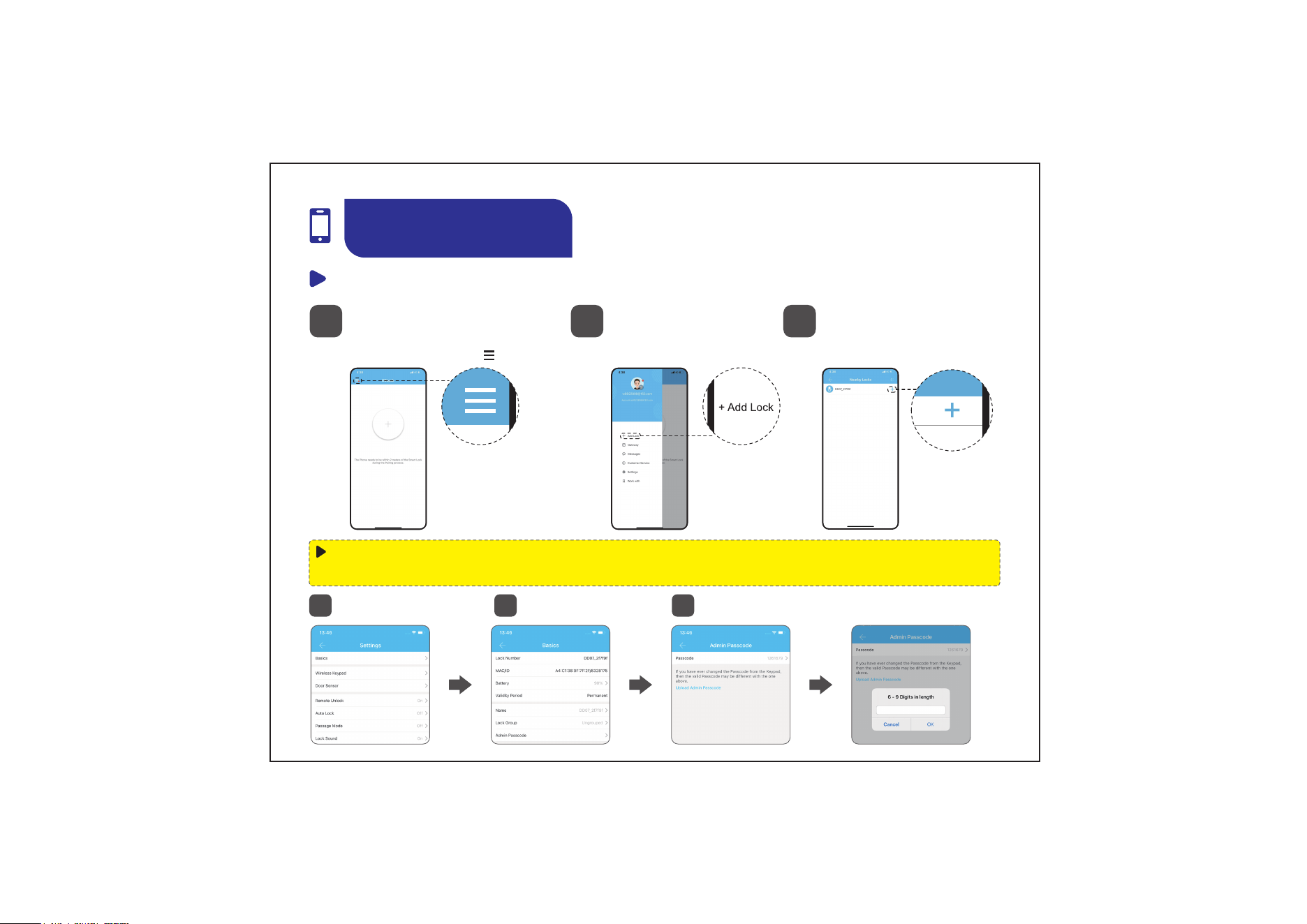
Step 1: Register Your Account
2
Tap on “Register”
3
Scan the QR code to
download “DDLock” App
1
Search and download “DDLock” in
or
App Pairing
Fill in the registration info and tap "Get Code"
A verification code will be sent to your email
Hold and slide to complete the puzzle
04
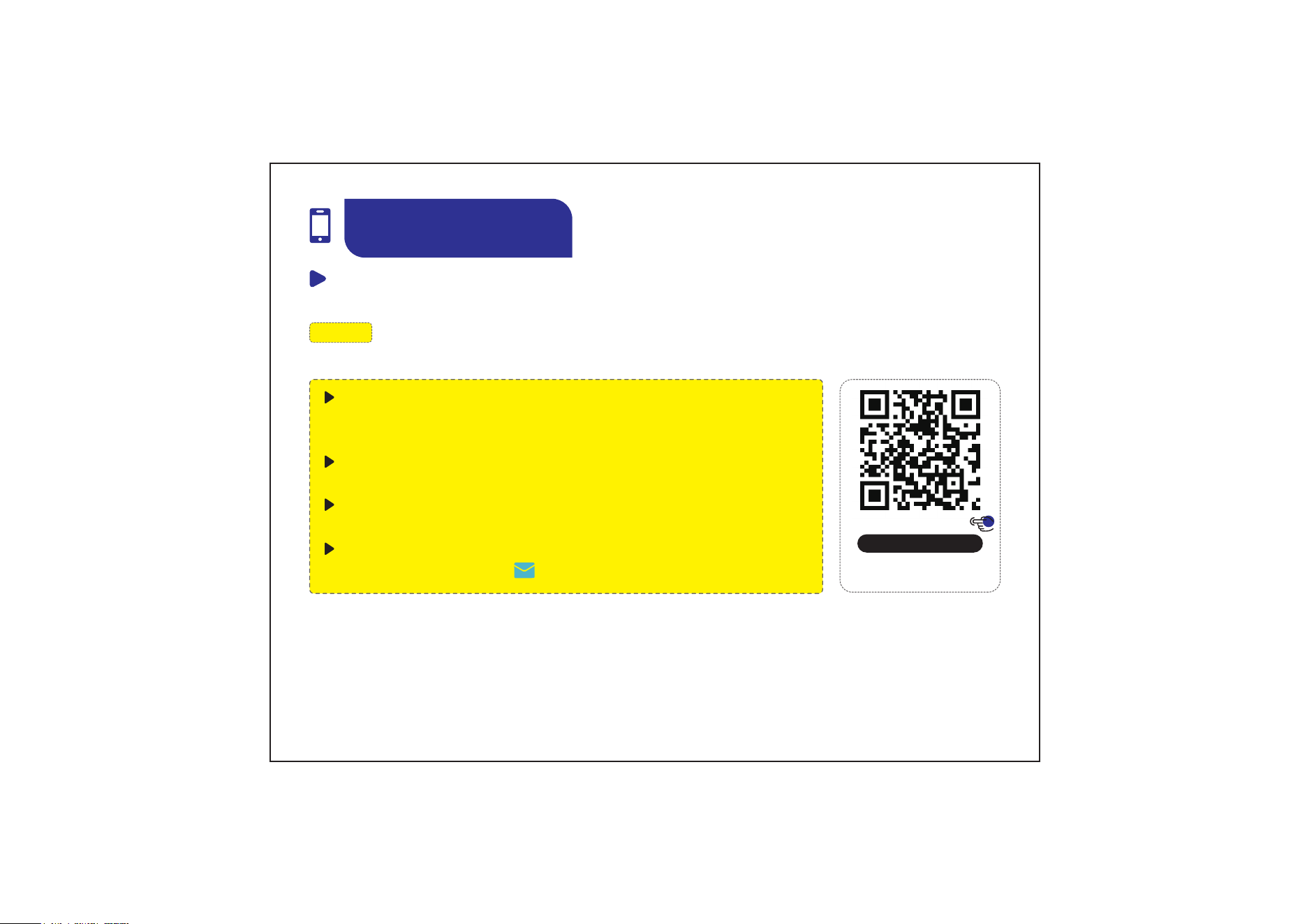
Step 2: Pair Your Lock
Close to your lock, turn
on your phone’s Blue-
tooth, then tap “ ”
1 32
Tap “+ Add Lock”
Select your lock and
tap “+”
App Pairing
After pairing, the default Admin Passcode (123456) will be changed to a random 7-digit
number. You can change it in DDLock App by following the image guide.
Settings
1
Basics
2
Admin Passcode
3
05
Step 2: Pair Your Lock
App Pairing
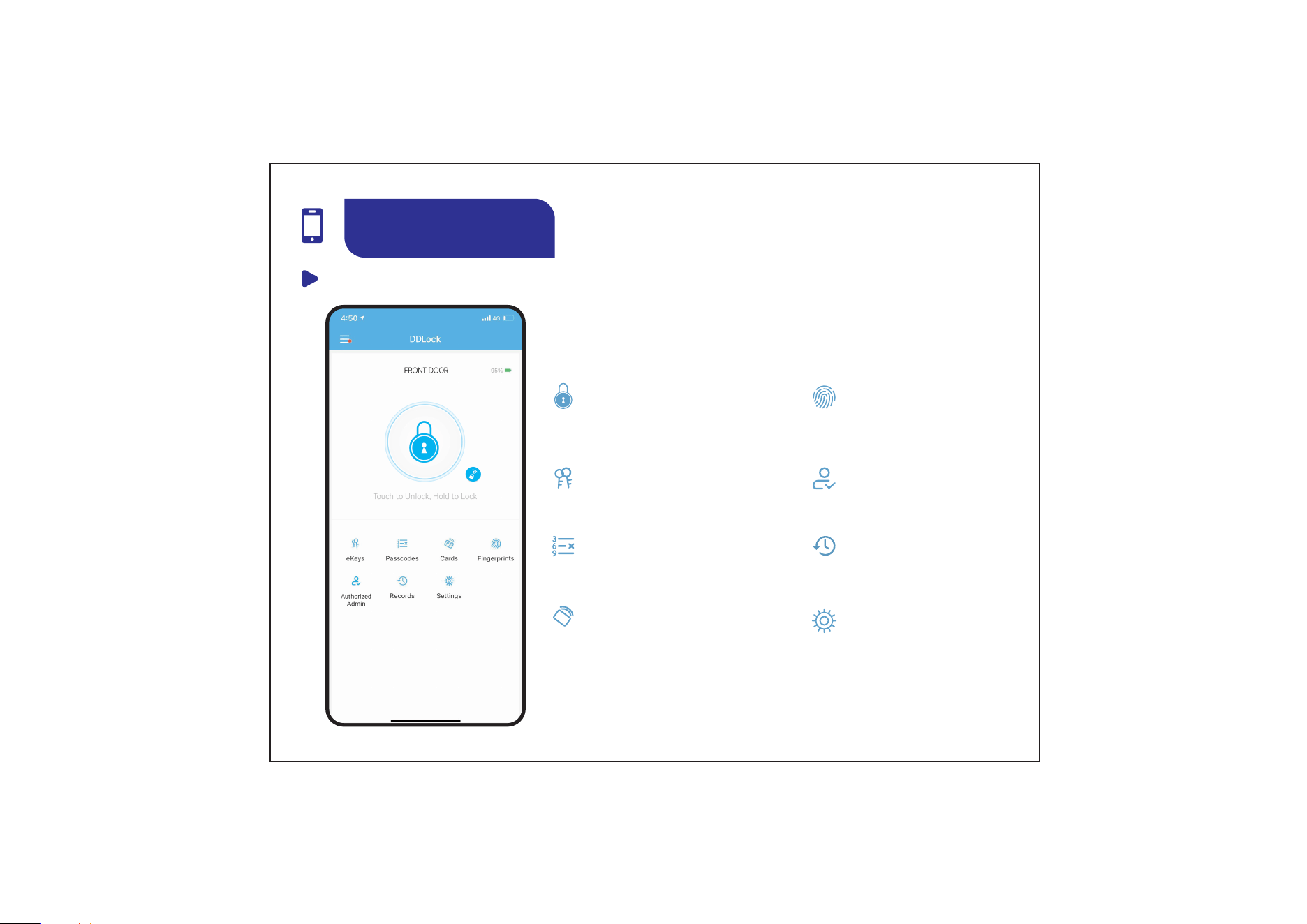
Reset the lock and test if the default Admin Passcode (123456) works to
unlock.
Make sure App permissions for Bluetooth is enabled for pairing.
Wake up the Keypad screen with your palm and keep it on during pairing.
Call us at
+1(855)400-3853
( Monday-Friday 9:00am-5:00pm PST )
,
if you have any questions.
NOTE: If the lock is not listed, please check the following:
Scan the QR code
Search
VE07
06
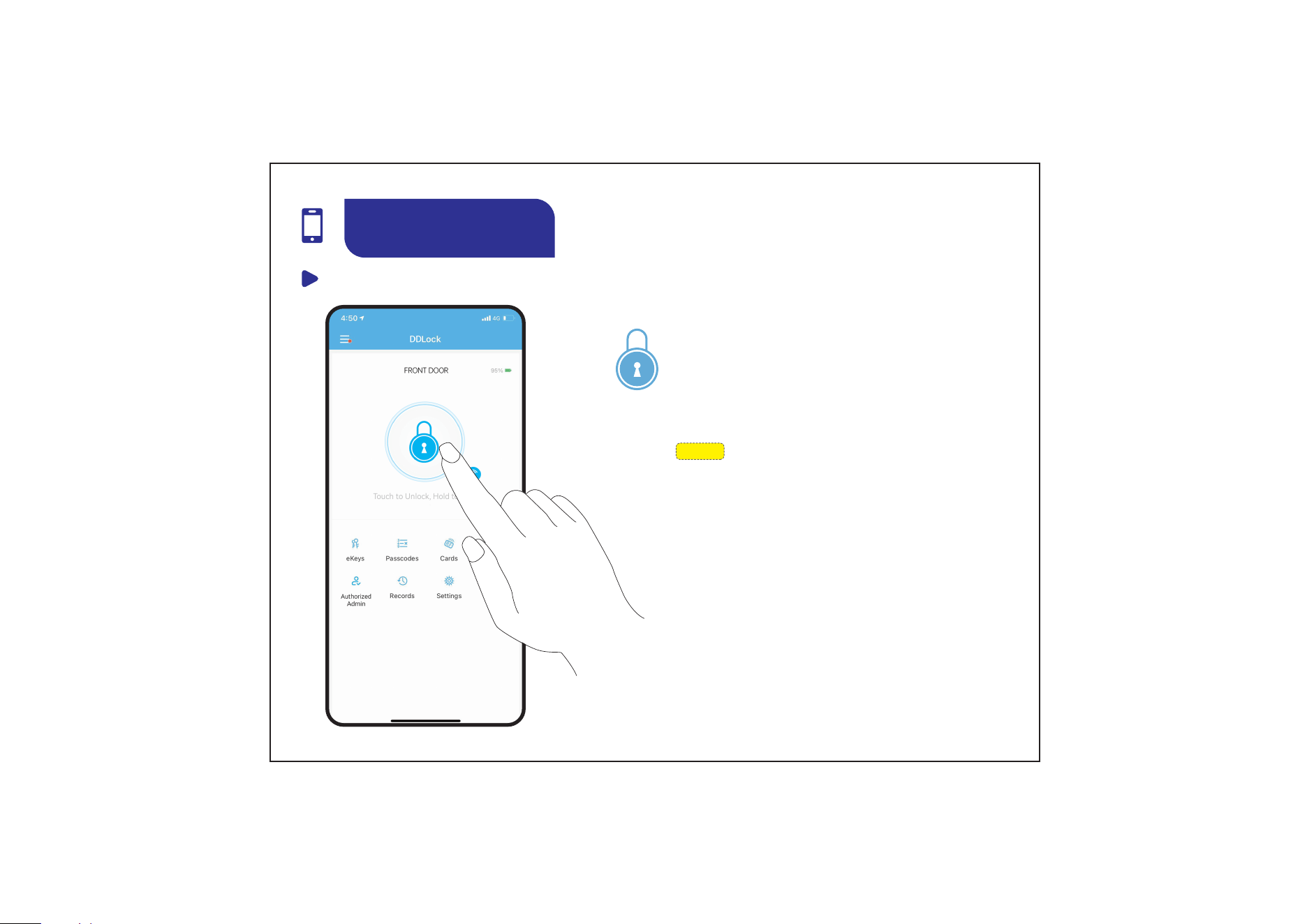
Lock Page Overview
3
1
App Guide
Cards
Add and manage cards
RF
Settings
View or change lock settings
Authorized Admin
Add and manage admin users
Fingerprints
Add and manage fingerprints
Unlock/Lock
Unlock or lock using your
phone’s Bluetooth
Passcodes
Generate six types of passcodes
eKeys
View, edit, and send eKeys
Records
View unlock/lock history
07
App Unlock / Lock
3
1
NOTE:
1. If the latch bolt extends when tapping the unlock
icon, the door opening direction may be set
incorrectly. Adjust it in DDLock App (Settings >
Door Opening Direction).
2. App lock/unlock works only within Bluetooth
range. For remote control, connect the lock to the
G2 Gateway (sold separately).
Tap the icon once to unlock
Tap and hold the icon to lock
App Guide
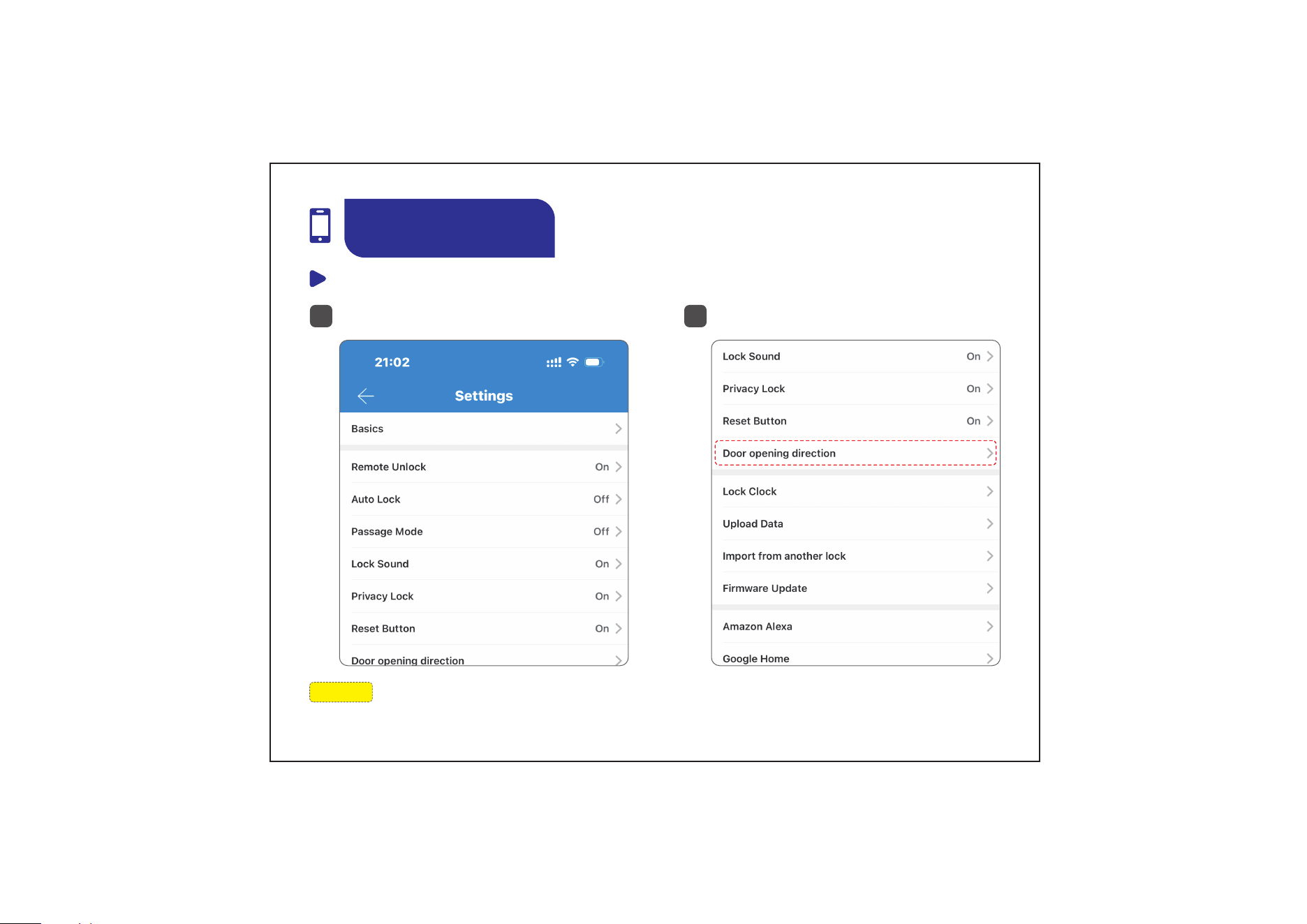
Set the Door Opening Direction (Optional)
3
1
Tap “Settings”
1
1
Select “Door opening direction”
2
NOTE: If the latch bolt extends when unlocking, reselect the door opening direction
using the steps above.
08
App Guide
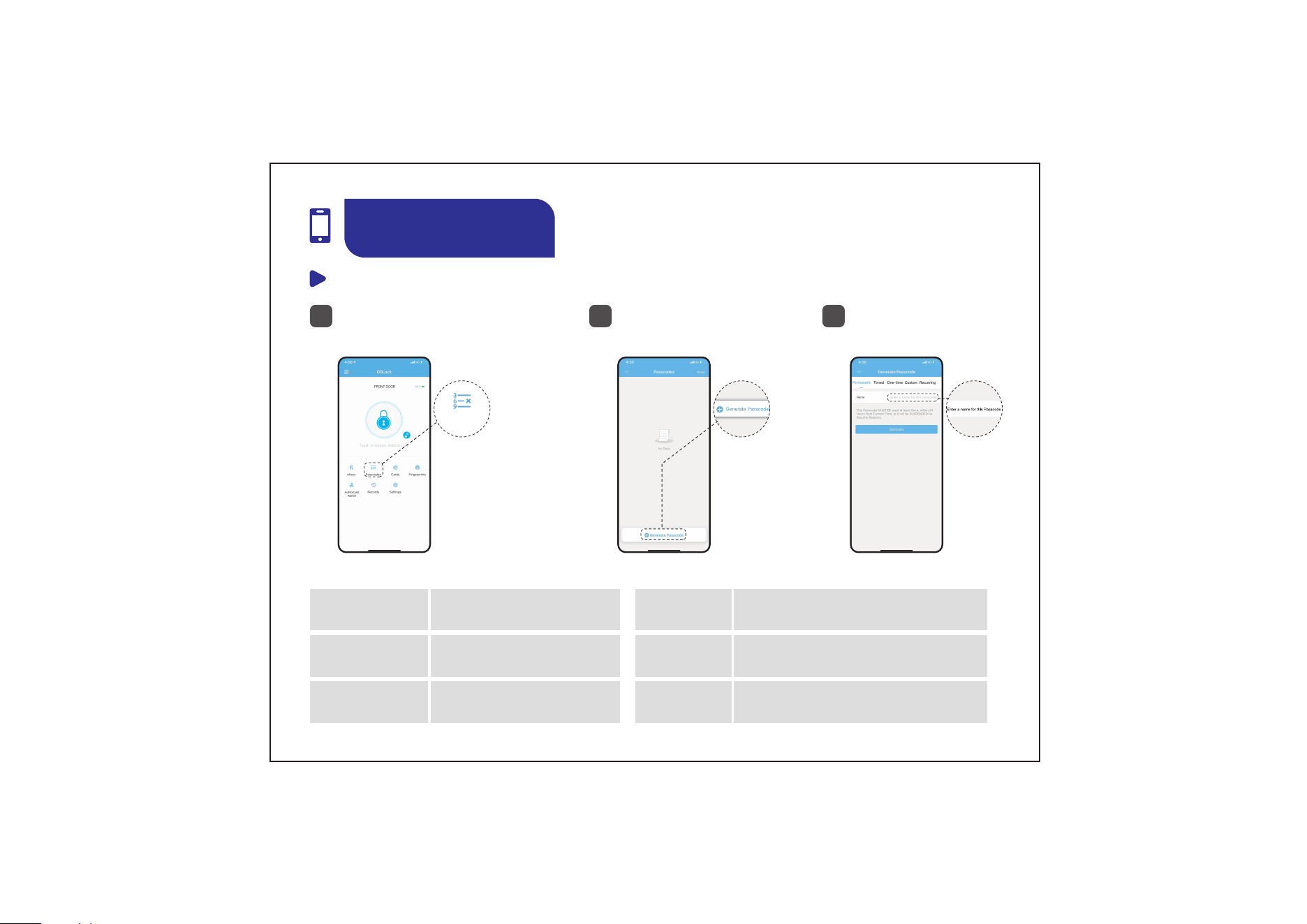
Passcodes
1
Tap "Passcodes"
1
1
Tap "Generate
Passcode"
2
1
Enter a name for the
passcode
3
App Guide
Passcodes
Passcode Types and Definitions:
Permanent
Timed
One-time
Always active
Active only within set
time range
Valid for a single use
Erase
Custom
Recurring
Delete all codes from the
lock
Create a code with custom
schedule
Active weekly on selected
days
09
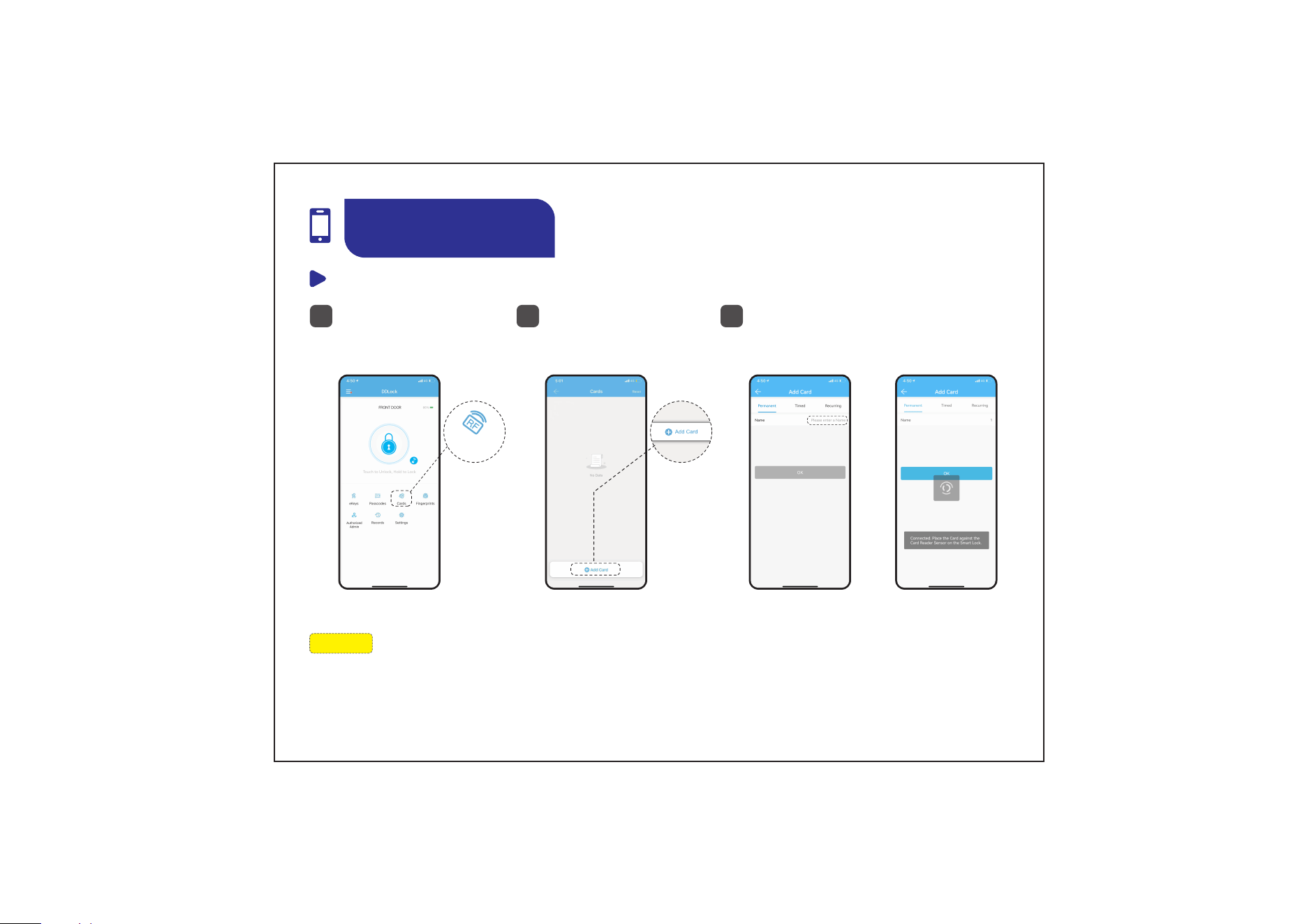
NOTE: Only 13.56MHz cards are supported, such as Mifare cards, NFC cards,
DESFire cards, and EV1 cards.
Cards
1
Tap "Cards"
1
1
Tap "Add Card"
2
1
Enter a name for the card, then
place it against the IC Card
Swipe Area on the lock
3
App Guide
Cards
10
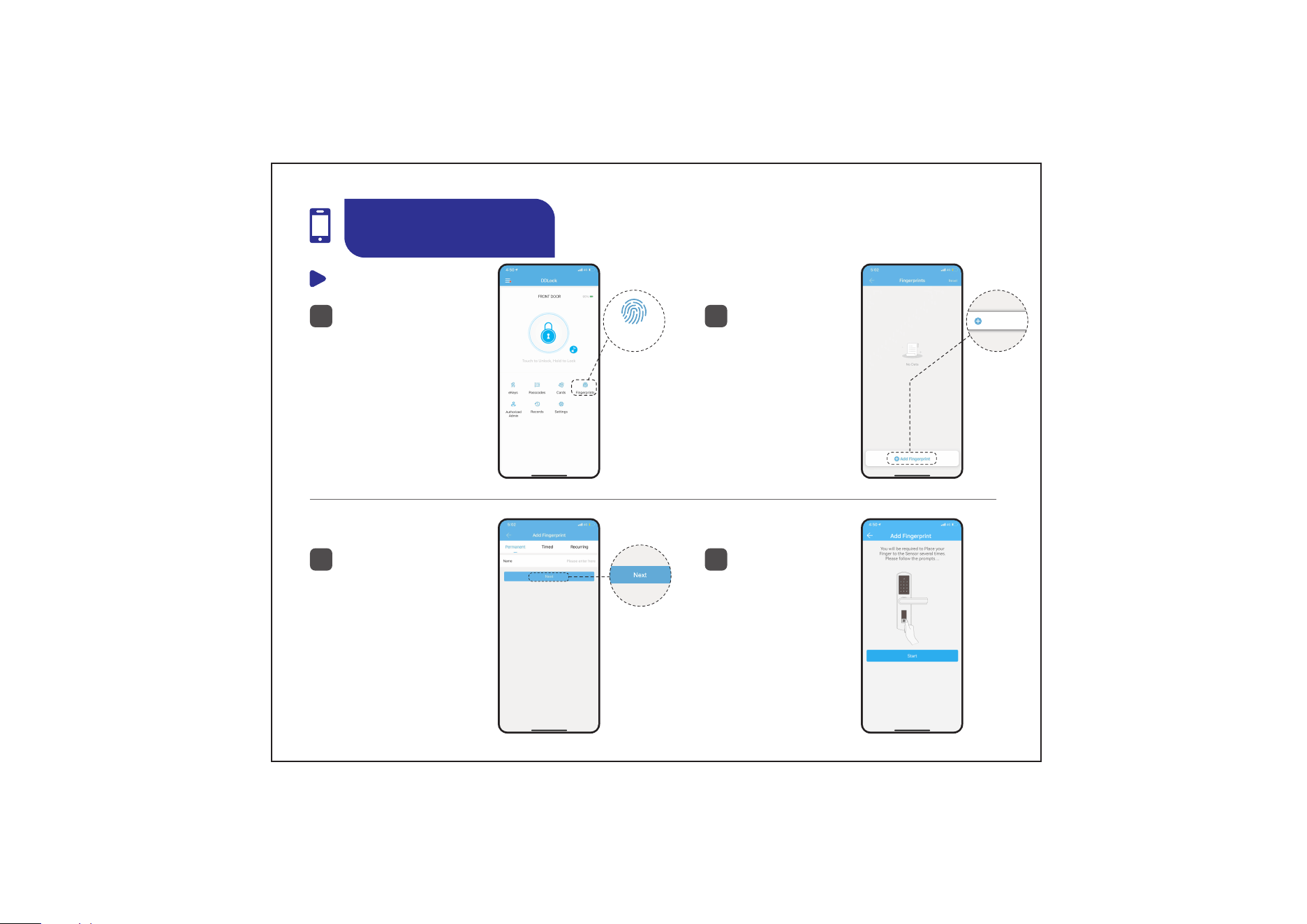
Fingerprints
1
Tap "Fingerprints"
1
1
Tap "Add
Fingerprint"
2
App Guide
Add Fingerprint
Fingerprints
11
1
Enter a name for
the fingerprint
and tap “Next”
3
1
4
Scan your
fingerprint four
times with
different
angles and
slightly more
pressure each
time
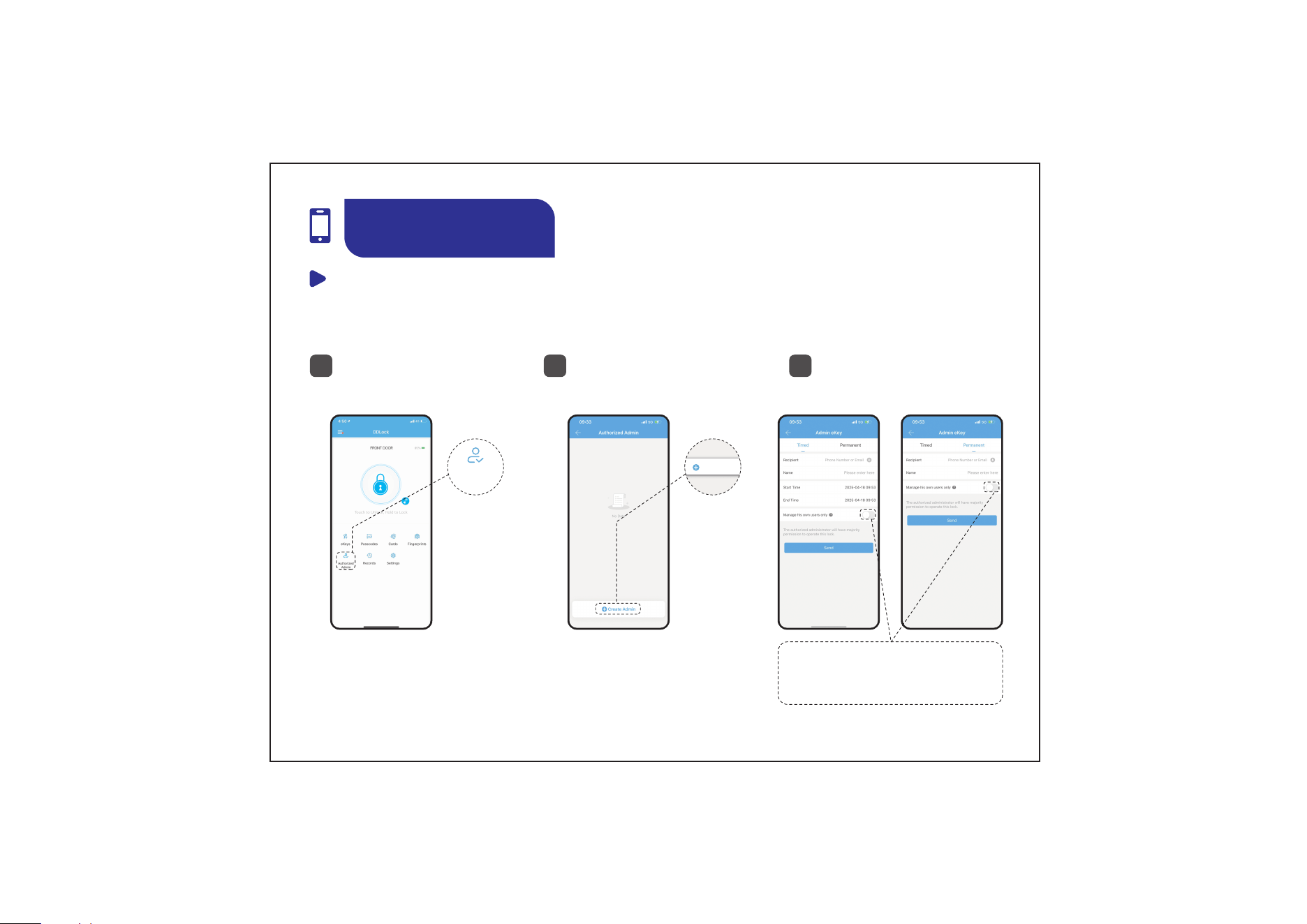
Authorized Admin
1
Tap "Authorized
Admin"
1
1
Tap "Create
Admin"
2
1
Choose Timed Admin
or Permanent Admin
Tap the icon to allow the
admin to manage only the
access methods they create
3
App Guide
Authorized
Admin
Share account permissions with other users to manage your lock.
Create Admin
12
13
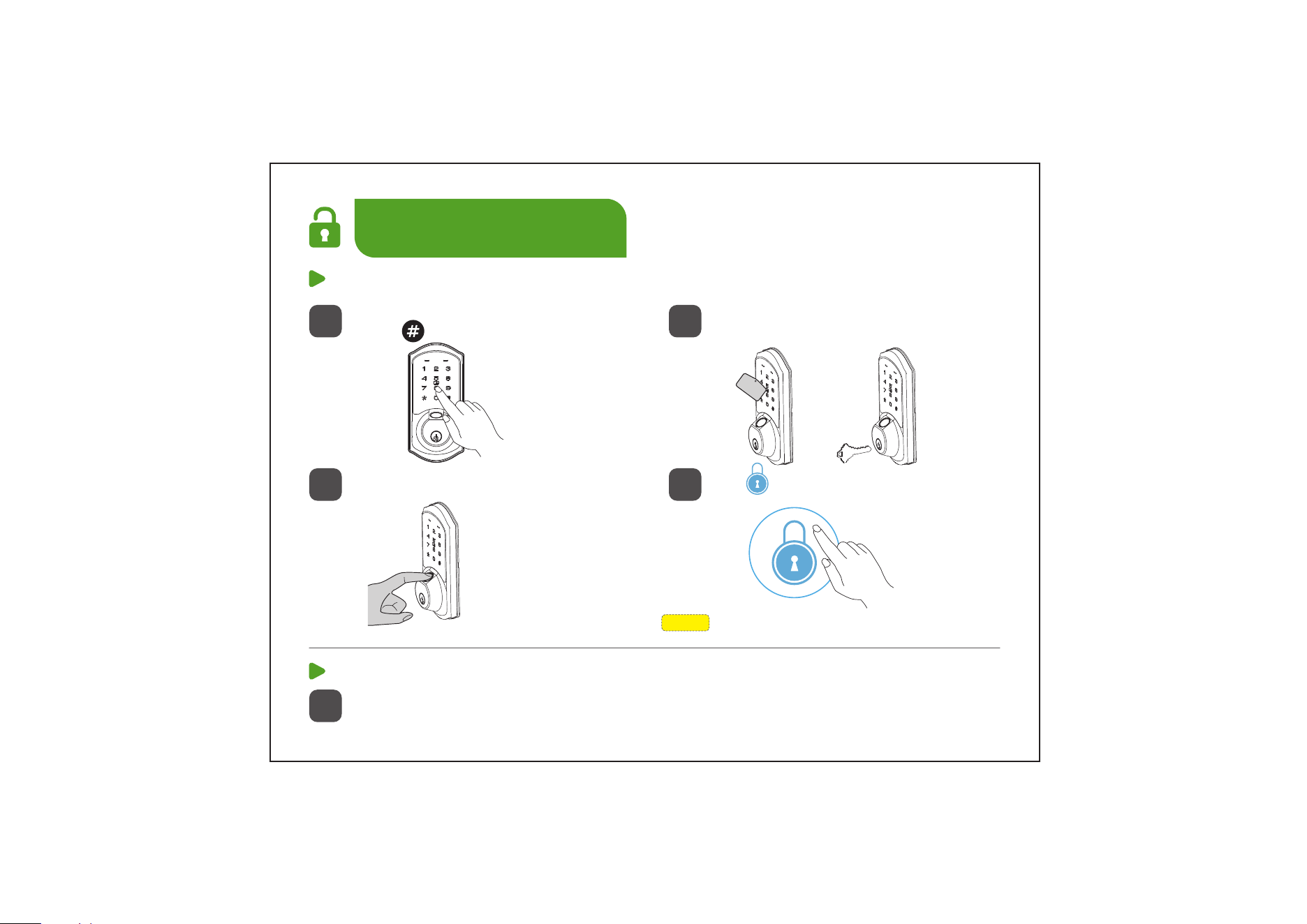
1. Unlock from outside.
NOTE: It requires to pair the lock with DDLock App first.
1
Enter Admin / User Passcode,
press
Use the Fingerprint
1
Rotate the thumb turn
2
Swipe the IC Card or Use the
Mechanical Key
3
4
Tap once in DDLock App
How to Unlock
2. Unlock from inside.
or
14
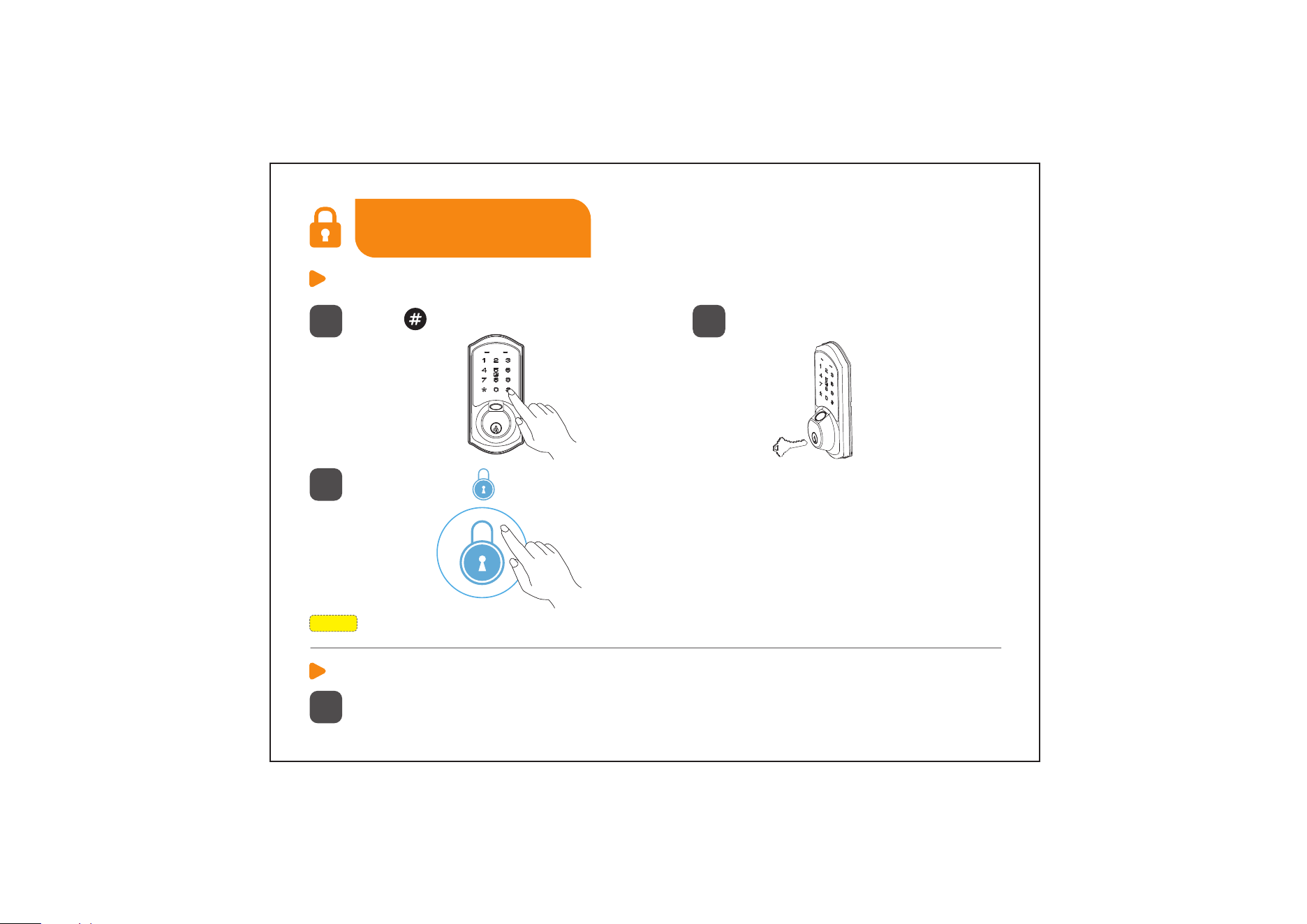
1. Lock from outside.
NOTE: It requires to pair the lock with DDLock App first.
1
Press on the Keypad for 2 seconds
2
Use the Mechanical Key
3
Tap and hold in DDLock App
How to Lock
2. Lock from inside.
Rotate the thumb turn
1
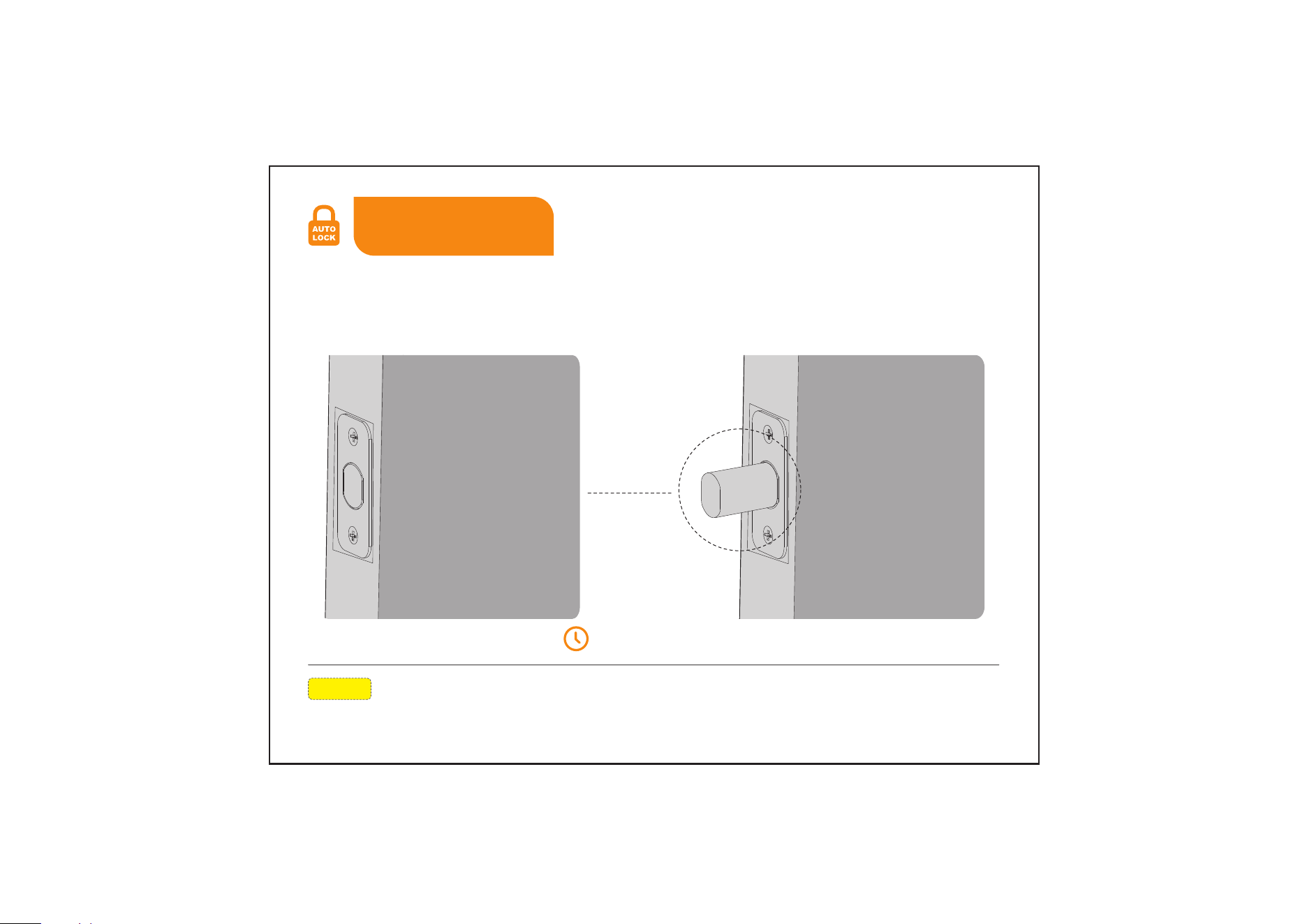
Enable Auto Lock in DDLock App, and the latch bolt will auto-
matically extend to lock after 5 seconds. (Go to Settings > Auto
Lock to adjust the delay time.)
Auto Lock
NOTE: The lock doesn’t have a built-in door sensor, if the Auto Lock is enabled,
it will lock automatically whether your door is closed or open.
5 seconds later
Auto Lock
15
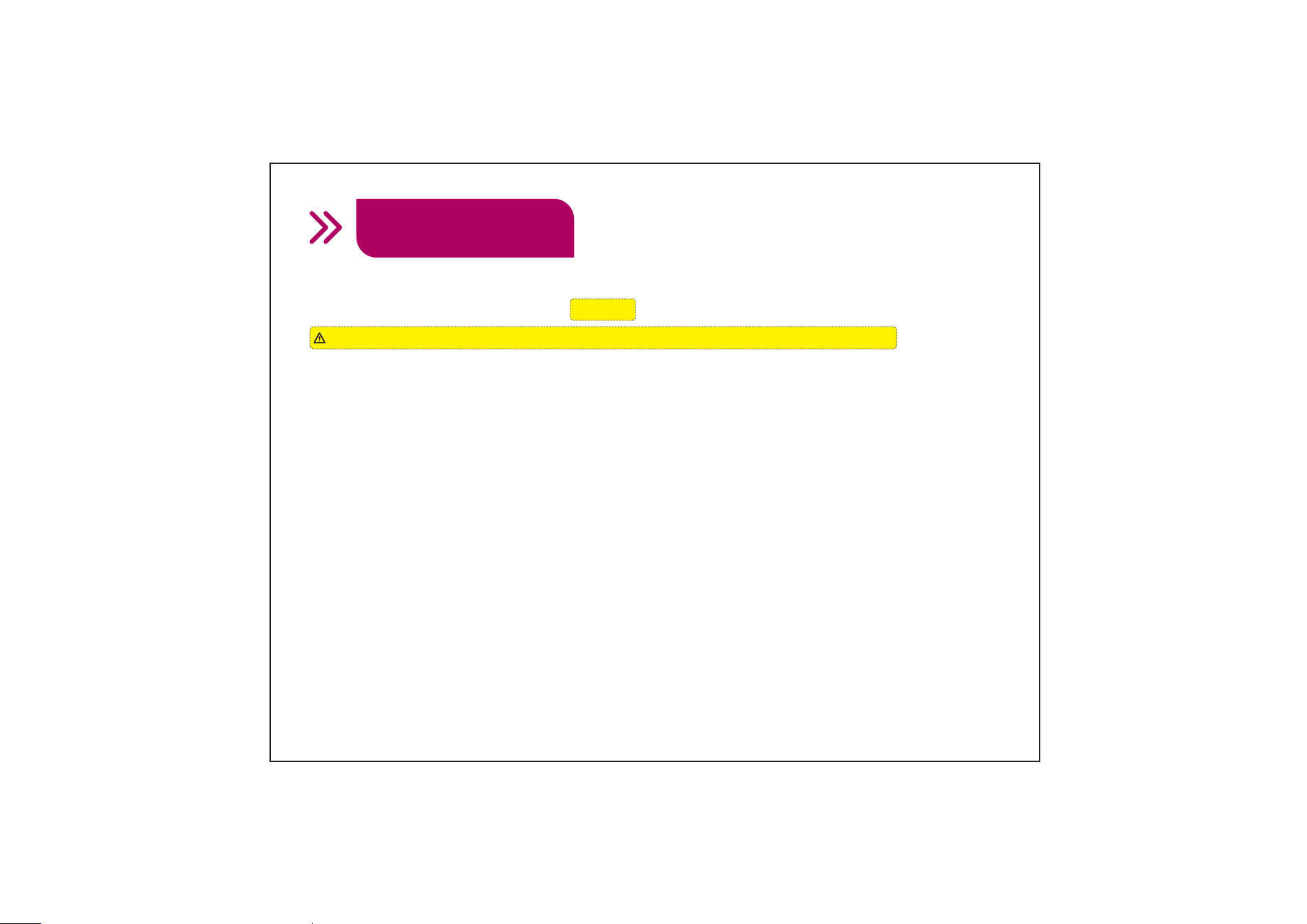
• Admin Passcode
The default Admin Passcode is 123456
Please do not change the default Admin Passcode before pairing your lock in DDLock App.
Once paired successfully, the Admin Passcode will be changed to a random 7-digit
number, and you can change it to your own Admin Passcode in DDLock App.
(Settings>Basics>Admin Passcode)
• Auto Lock
In Auto Lock mode, the latch bolt will extend out automatically to lock the door in 5
seconds. Auto Lock is disabled by default. The Auto Lock time can be customized
between 5 and 900 seconds in DDLock App.
• One-Touch Lock
One-touch Lock is pressing and holding “ # ” on the keypad for 2 seconds to lock
from outside.
Definitions
16
• Anti-Peeping Passcode
Entering random numbers before or after the correct passcode will also unlock the
door, which can prevent the passcode being exposed. The length of anti-peeping
passcode should be within 16 digits.
• eKey
eKey works by sharing App access of your lock with another DDLock account.
eKey recipients will be able to use their phone to unlock / lock.
• IC Card
The lock supports adding 13.56MHz cards, such as Mifare card, NFC card, DESFire
card and EV1 card. The IC card can be used to unlock your lock.
• Wrong Entry Limit
After 5 times unsuccessful attempts at entering an invalid passcode, the device will
shut down for 2 minutes.
PASSCODE
RANDOM DIGITS
Definitions
17
• Passage Mode
Enable Passage Mode, the lock will stay unlocked until it's locked manually.
In Passage Mode, Auto Lock will be disabled.
• Privacy Mode
In Privacy Mode, it's unable to unlock by User Passcode, Fingerprint or IC Card.
Enable Privacy Mode: Press and hold "Privacy Button" on the Interior Assembly for
more than 2 seconds.
Disable Privacy Mode and Unlock: It's able to unlock by DDLock App, Mechanical
Key and Admin Passcode. After successfully unlocking, the Privacy Mode will be
disabled. Manually rotating the thumb turn on the Interior Assembly once will also
disable it.
Additionally, short press on the "Privacy Button" on the Interior Assembly can lock
the door.
Definitions
18
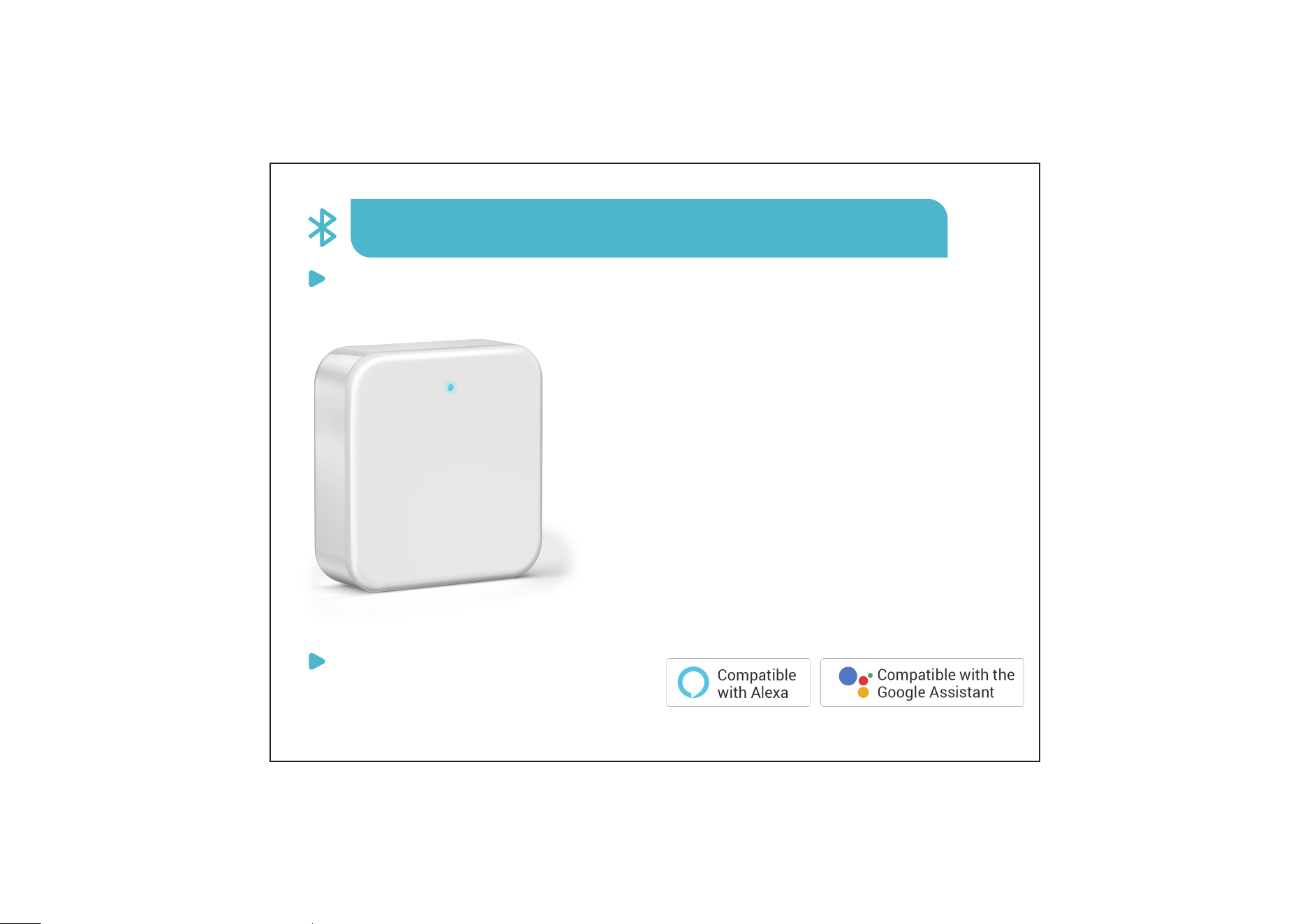
How to Remotely Control the Lock
For remote control beyond Bluetooth range, connect to
Veise Gateway G2 (sold separately) to enable:
Integration
Our lock works with the following software:
• Unlock / Lock remotely in DDLock App
• Work with Google Assistant, Alexa
• Generate, modify and delete all the passcodes remotely
• Support Web portal management (remote functions)
• Push real-time messages and view real-time records
• View smart lock status
• Check battery remotely
19
Pairing steps with DDLock App (Support 2.4G network only)
1.Go to DDLock App.
2.Tap on “ ”.
3.Select “Gateway”.
4.Select “G2”.
5.Plug in the G2 and power it on.
6.While the light is flashing in Red and Blue alternately,
tap on “Next” to add the gateway.
7.Select the network (2.4G only) and enter your Wi-Fi password.
NOTE: If the above process times out, please power off and try again.
Scan the QR code and search VE07
Need Help? Contact Us!
Call us at +1(855)400-3853 ( Monday-Friday 9:00am-5:00pm PST ),
if you have any questions.
[email protected] iveise.com
How to Remotely Control the Lock
20
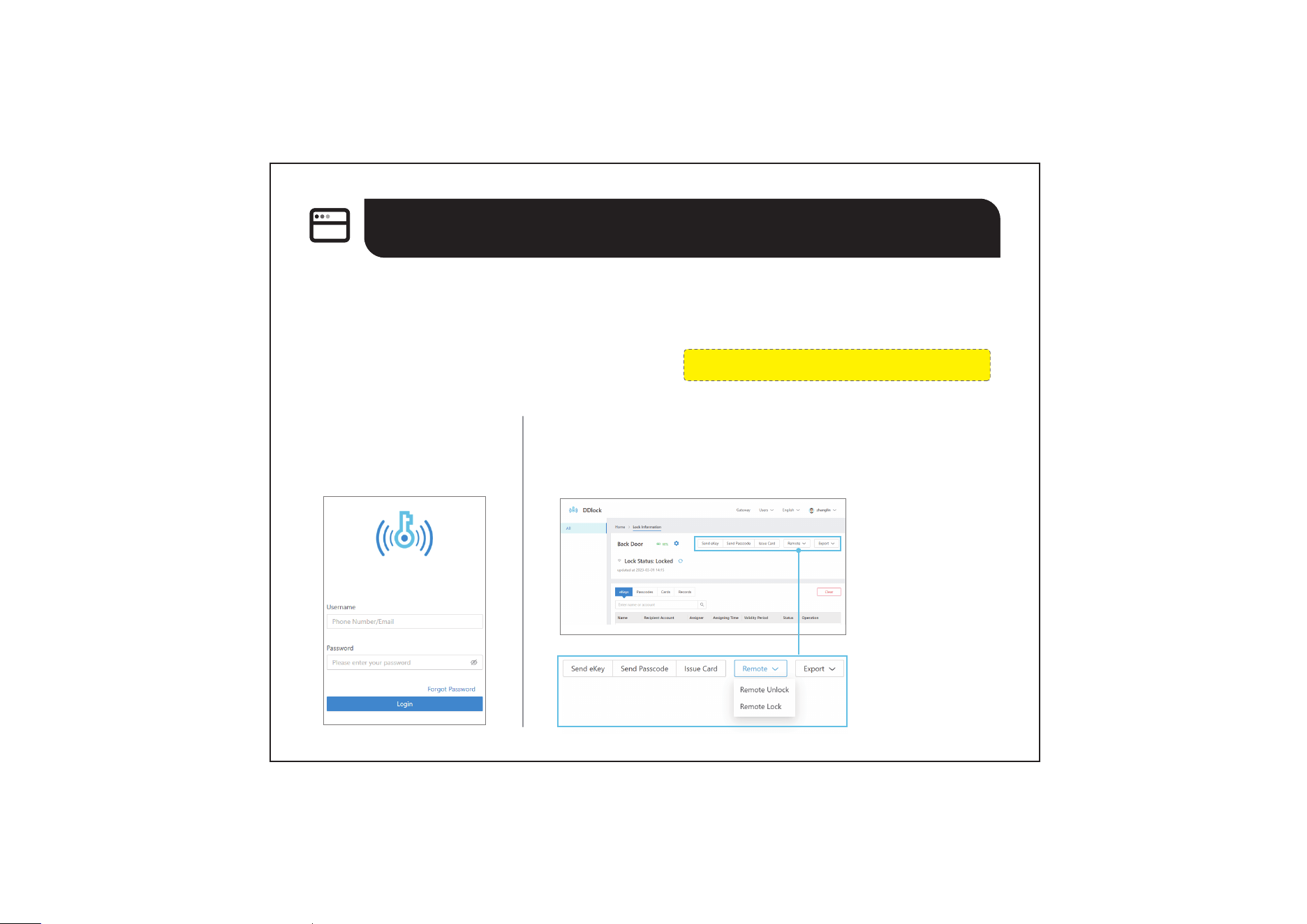
Door Lock Web Management System
The web management system sets up for managing your door lock, such as
sending the eKey of your door lock, generating user passcodes, issuing cards,
unlocking / locking remotely (with Wi-Fi gateway), exporting logs.
Web management system address: https://ddlocksecurity.com
• Log In
Register in DDLock App.
Enter the registered username
and password to log in.
• Unlock / Lock Remotely (with G2 gateway)
Wi-Fi gateway is required to unlock / lock remotely.
Door Lock Web Management System
21
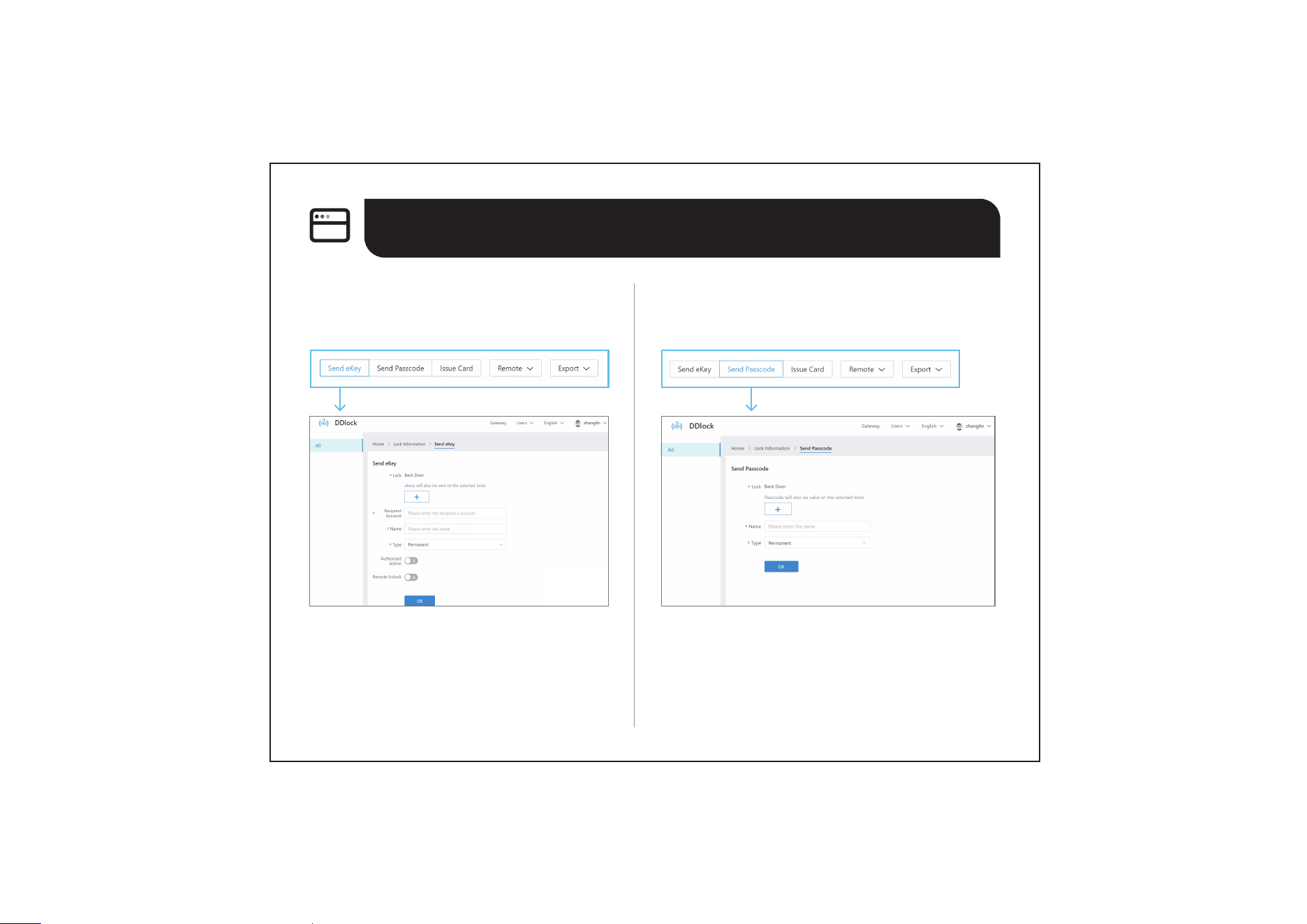
• Send eKey
Generate a eKey and send it to your family or
friends.
• Send Passcode
Generate multiple scheduled passcodes and send
them to other users.
Door Lock Web Management System
22
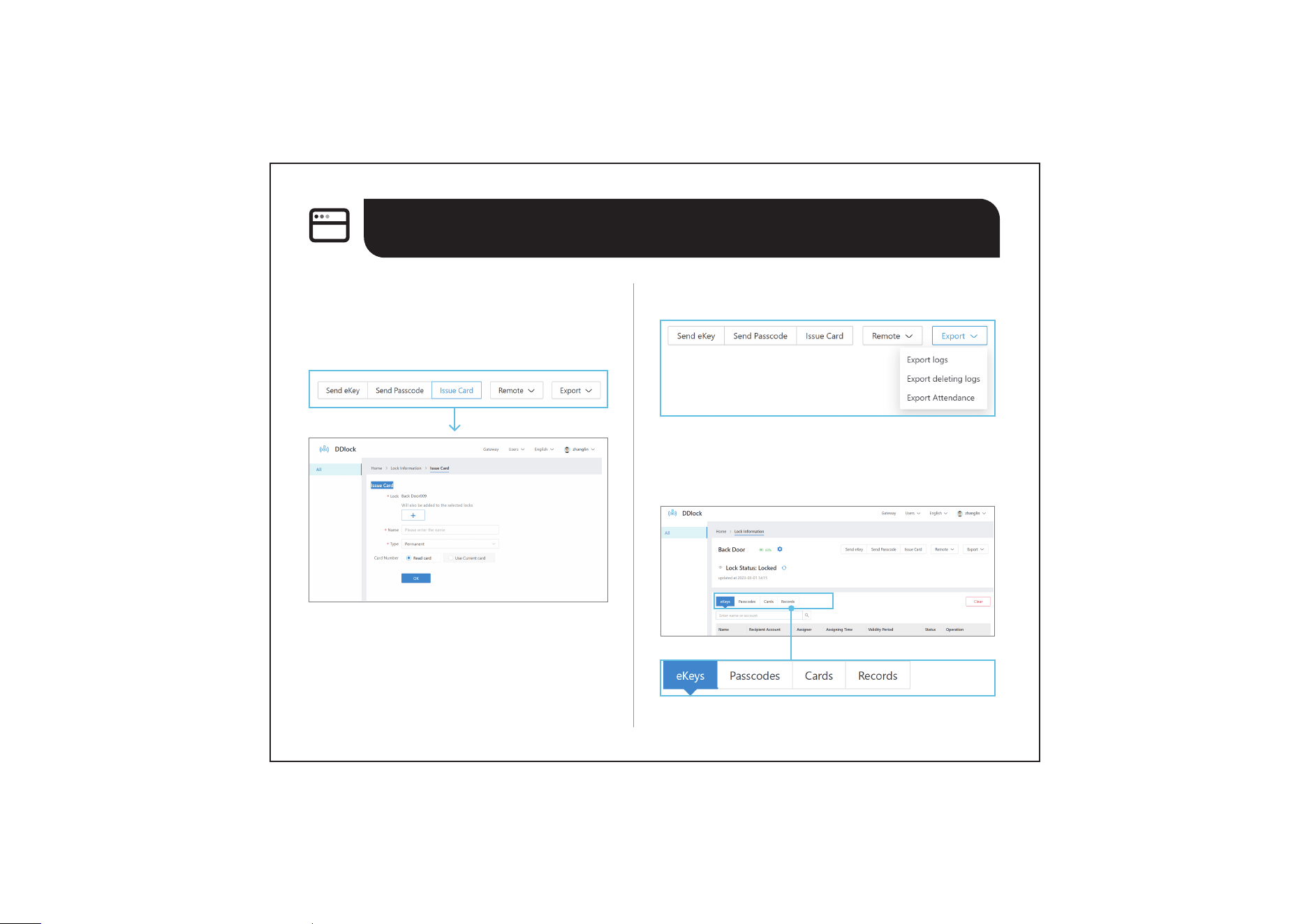
• Issue IC Card (with G2 gateway)
Issue an existing card, add a new card via card
reader (sold separately), share cards and delete
cards.
• Export Logs
• Check Unlocking / Locking
Recordings
Door Lock Web Management System
23
FAQ
24
Why can't I use the Admin Passcode
123456 to unlock after pairing with the
App?
After pairing successfully, the Admin Passcode will be
changed to a random 7-digit number, and you can change
it to your own Admin Passcode in the App
(Settings>Basics>Admin Passcode).
Why am I unable to check the latest
records in the App?
When you are beyond the Bluetooth range of the lock or
the Veise gateway G2 is not connected, the records of
Passcode, fingerprint and IC card unlocking are not in the
list timely. Only eKey unlocking has real-time records.
When you are within the Bluetooth range of the lock or the
Veise gateway G2 is connected, tap on “Records”>tap on
“ ” on the up right corner>Select “Refresh Records”.
How to edit, delete, or create custom
passcodes remotely?
All passcodes can be generated remotely without a
gateway. However, editing, deleting, or creating custom
passcodes requires the Veise gateway G2 (sold separately)
or you are within the Bluetooth range of the lock.
Why the deleted passcode works?
There may be a display error in DDLock App. Please
follow these steps to fix it: Go to “Settings”>“Upload
Data”>Tap on “Start” to upload the lock's data.
How to control the lock remotely?
It is able to remotely control the lock via DDLock App
after being connected to G2 Gateway
(sold separately).
Can I add multiple locks to one
account?
Yes, it is able to add multiple locks in DDLock App.
How to change the email address in
DDLock App?
Please go to DDLock App, tap on “ ”, then tap the
figure at the top to get your Account Info, then tap
Account to change the email address.
FAQ
25
How to calibrate the battery capacity?
Press “*59 # Admin Passcode # 1 #” on the keypad to
calibrate the battery capacity.
How to add Alexa to DDLock App?
To enable your Alexa features, please follow the steps below:
1. Make sure you have installed Amazon Alexa App and G2
gateway (sold separately).
2. Go to Alexa App. Click “More” at the lower right corner.
3. Click “Skills and Games” and search “Sciener Smart”.
4. Tap “Sciener Smart Alexa, unlock the door lock” and then
click “Enable to Use”.
5. Log into your Account. Click “Next” and wait for pairing.
6. Once the device is found and connected, click “Set Up
Device”, select the appropriate room and click “Add to
Group”.
7. Click “Locks” and tap on the recently added lock, then click
the “Settings” in the upper right corner.
8. Enable “Unlock by Voice”.
9. Set the voice code for locking / unlocking. You will be
asked for this code when unlocking with Alexa.
How to add Google Home to
DDLock App?
To enable your Google Home features, please
follow the steps below:
1. Make sure you have installed Google Home
App and Veise Gateway G2 (Sold separately).
2. Go to Google Home App.
3. Enter the “Devices” page through the option
below, and click “Add device”, and select “Works
with Google Home”.
4. Search for “Sciener Smart” and click on it.
Enter your DDLock Account to authorize when
the authentication page pops up.
5. After successful authorization, choose the
device and a home as well as the device location.
This will help you to organize your device.
6. Go to DDLock App, click “ ” in the upper left
corner.
7. Click “Work with”, then click “Google Home”.
Click “Turn On” and set a Security Code. You will
be asked for this code when unlocking with
Google Home.
FAQ
26
Why can't I reset my lock?
Please turn on the “Reset Button” in DDLock App.
How to remove the malfunctioning
lock?
Please follow the steps below:
1. Go to DDLock App first and tap on “ ”.
2. Select “Settings” and then select “Transfer Lock(s)”.
3. Choose the corresponding malfunctioning lock and click
to remove.
Can I add the secure passcode to
access DDLock App?
Yes. You can do as follows:
1. Go to DDLock App.
2. Tap on “ ” and then select “Settings”.
3. Select “Screen Lock” and tap on “Turn On”.
Then choose your preferred security method to access the
App. This option is available with fingerprint, facial
recognition and passcode.
Can I add a lock to two accounts?
No, the same lock cannot be added to two different
accounts. After adding the lock to your account, you
can share access by adding others as Authorized
Admins. Please follow the steps:
1. Ask the other user to register an account in the
DDLock App.
2. Go to Authorized Admin > tap Create Admin.
3. Enter their registered email or phone number.
4. Select Timed Admin or Permanent Admin, and
toggle Manage own users only if needed.
5. Tap Send.
FAQ
27
What should I do if my fingerprint
doesn’t work?
1. Please make sure you have added your fingerprint in
DDLock App correctly. Place your finger on the fingerprint
scanner for 4 times. Make sure to place different angles of
your finger and press a little bit harder on the scanner
each time.
2. Make sure the scanner surface is clean and dry.
3. Make sure your finger is clean and dry.
4. When adding fingerprints, try to add fingerprints of
multiple fingers, or add the same fingerprint multiple times
to improve the fingerprint recognition rate.
5. Take out batteries, wait a minute and place them back,
then try your fingerprint again.
6. The battery is low if the battery indicator light keeps
flashing. Please replace with 4 new batteries (Alkaline
batteries only) and try your fingerprint again.
7. It is recommended that locks be installed on doors with
eaves. The lock is waterproof, but prolonged exposure to
rain may cause fingerprint malfunction.
Scan the QR code
to get the FAQ
If you have your order ID, videos or images of your problem
(if necessary) ready before contacting Customer Support,
we will solve your problem faster and better.
Need Help? Contact Us!
If you have any questions, please contact us at
iveise.com
(Monday-Friday 9:00am-5:00pm PST)
+1(855)400-3853
V4.0