FUKIN TUNED
Table of Contents
- Installation 2
- Registration 3
- Activation 4
- Bluetooth Connection 5
- Login To The App 6
- Modes 7
- Anti-Theft Mode 8
- Installing Remotely Submitted Software 9
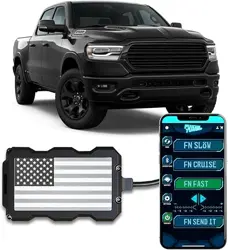
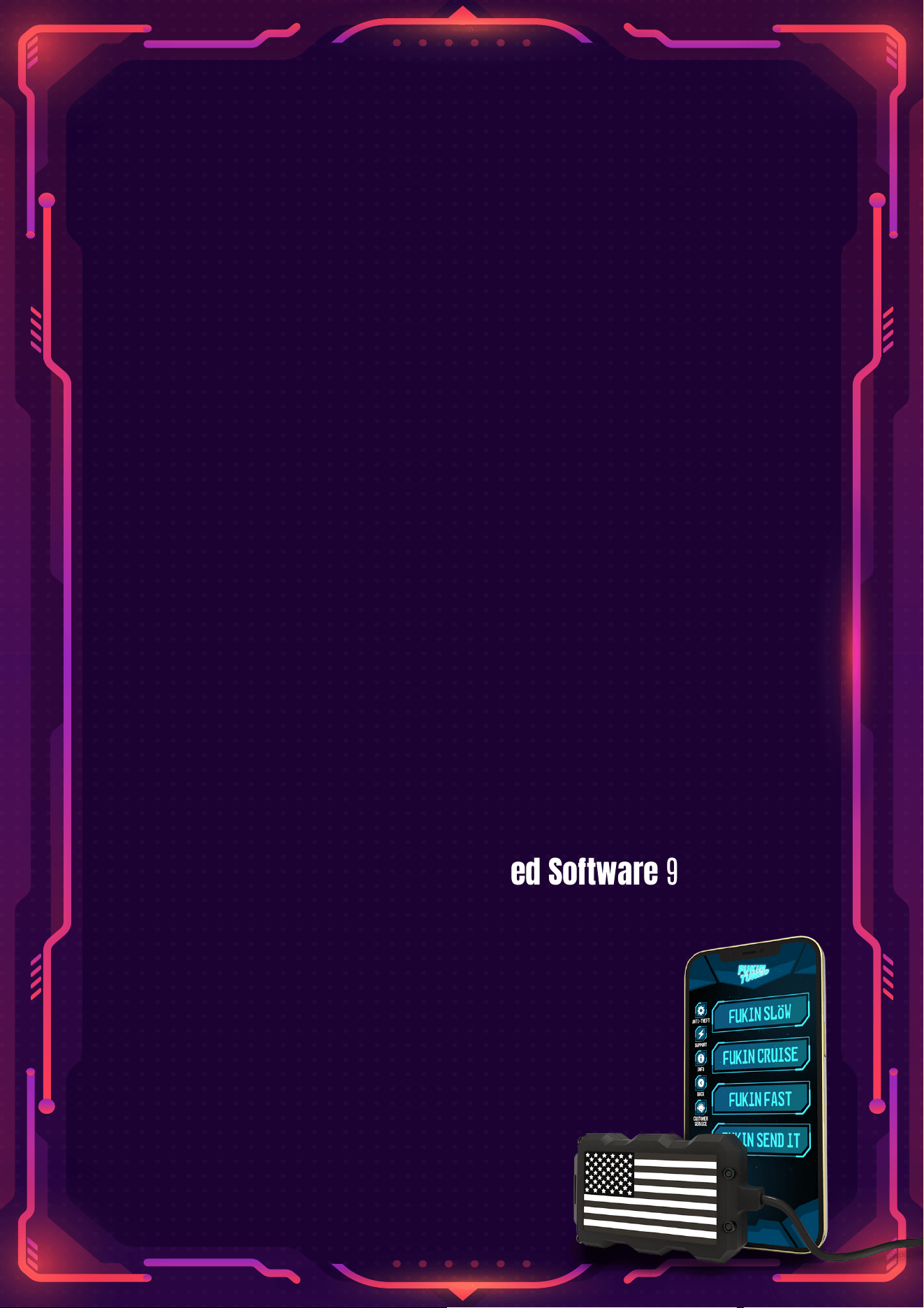
FUKIN SLOW
FUKIN CRUISE
FUKIN FAST
FUKIN SEND IT
Installation
Download Play Store or App Store to connect to
Fukin Tuned.
1.Turn off over the ignition of your car, then open the
Fukin Tuned application.
2.Make sure your mobile device has Bluetooth
and GPS turned on.
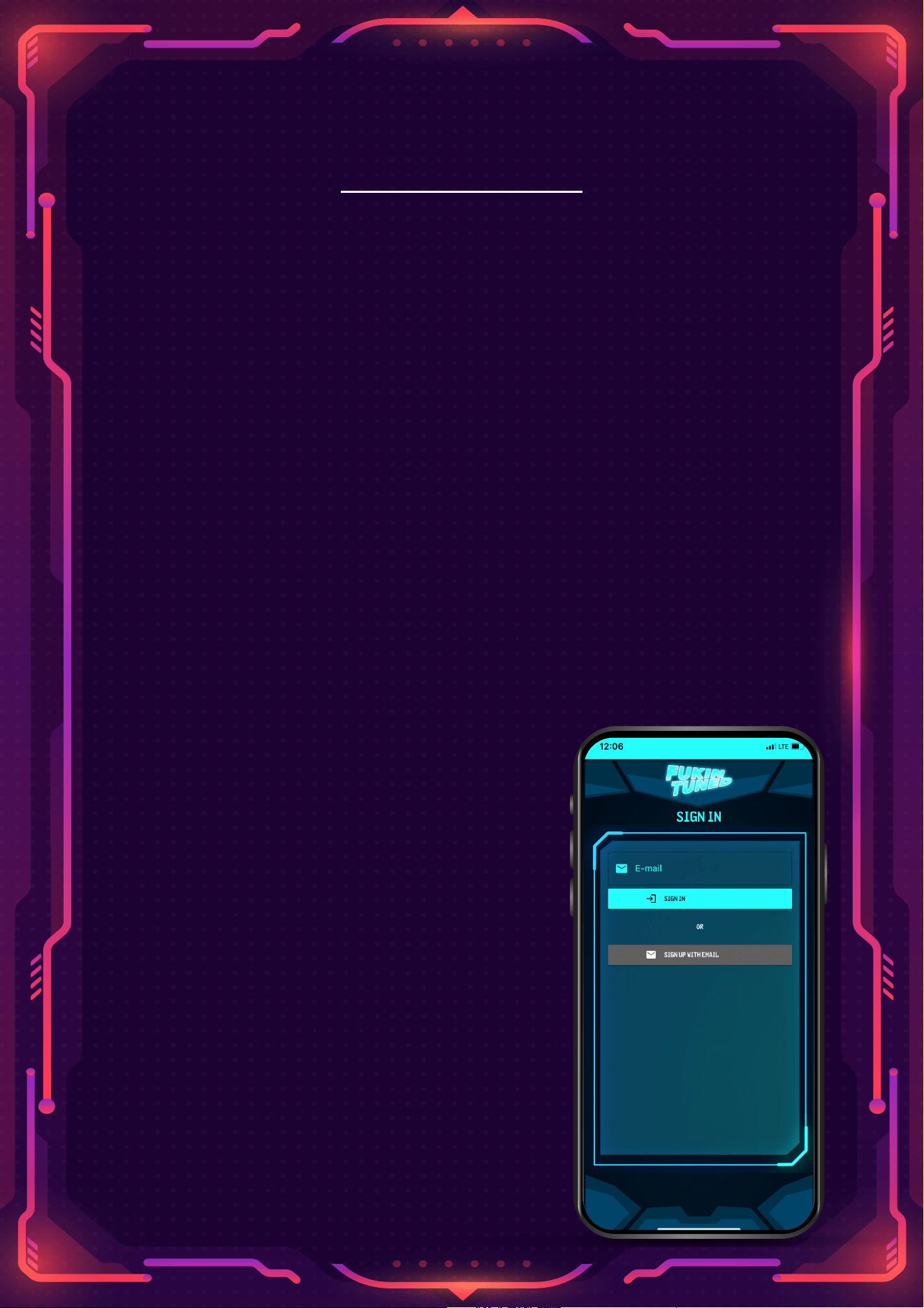
3.When you open the application, you will see the
following screen: If your email has been activated
before, just continue to Sign-in with your email.
However, if you haven't signed up before please click
on the button 'Sign-up with email'.
4.Activate Your Unit Using The
Fukin Tuned App
-Unplug Stock Harness
-Connect Unit In-Line to Harness
-Apply Zip-Ties For Mounting
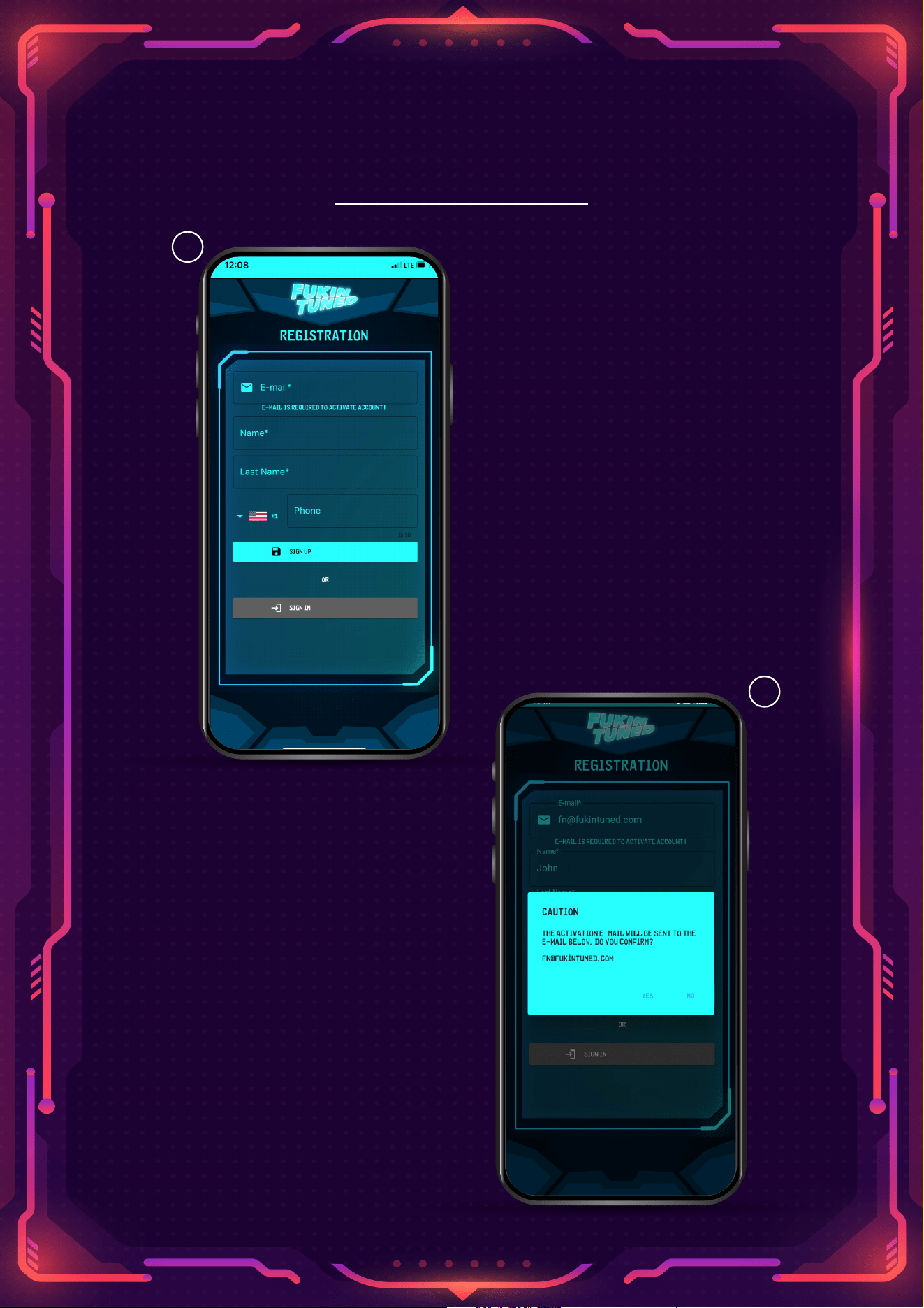
Registration
5. Enter the requested
information and
simply press the
"Registration" button:
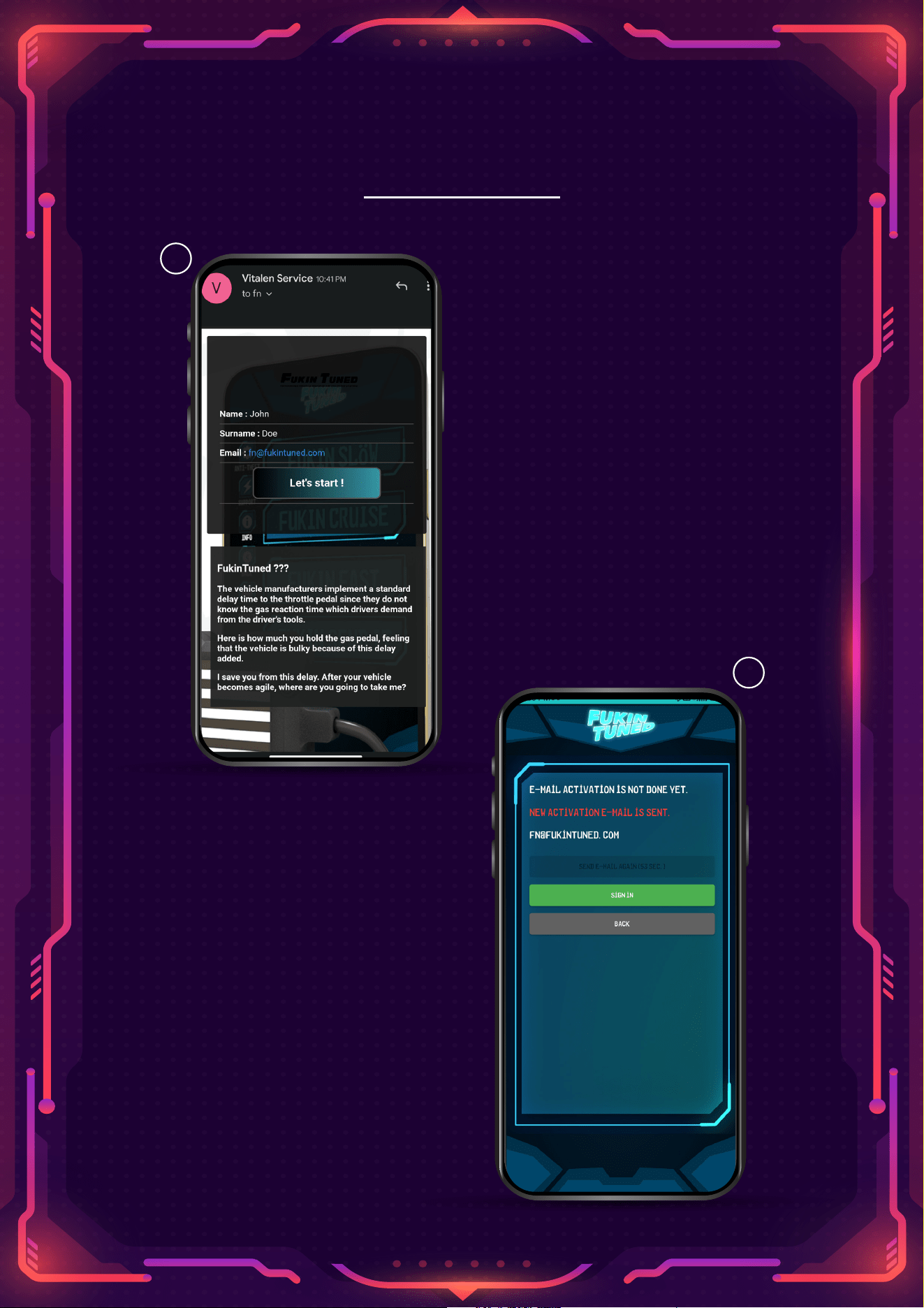
6. An activation
email will be sent to
the e-mail address
you registered:
5
6
Activation
7. Press the "Start
Using" button on the
activation which was
sent to your email
address and open
the app.
8. In case the
activation is not
successful, you can
get support from
customerservice@
fukintuned.com
7
8
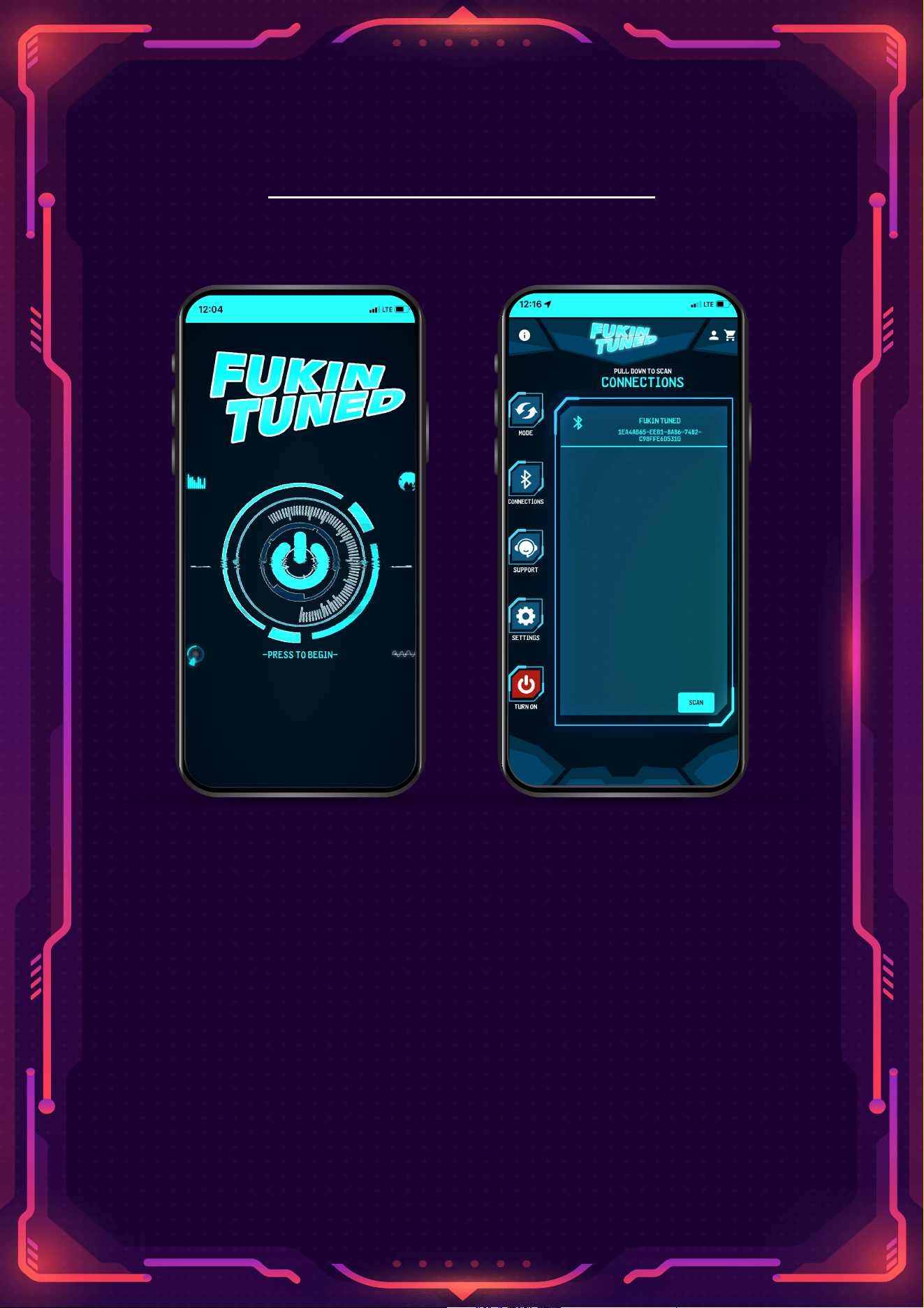
Bluetooth Connection
10. Find and select
Fukin Tuned that
comes up in the
Bluetooth scan.
9. Touch to Start
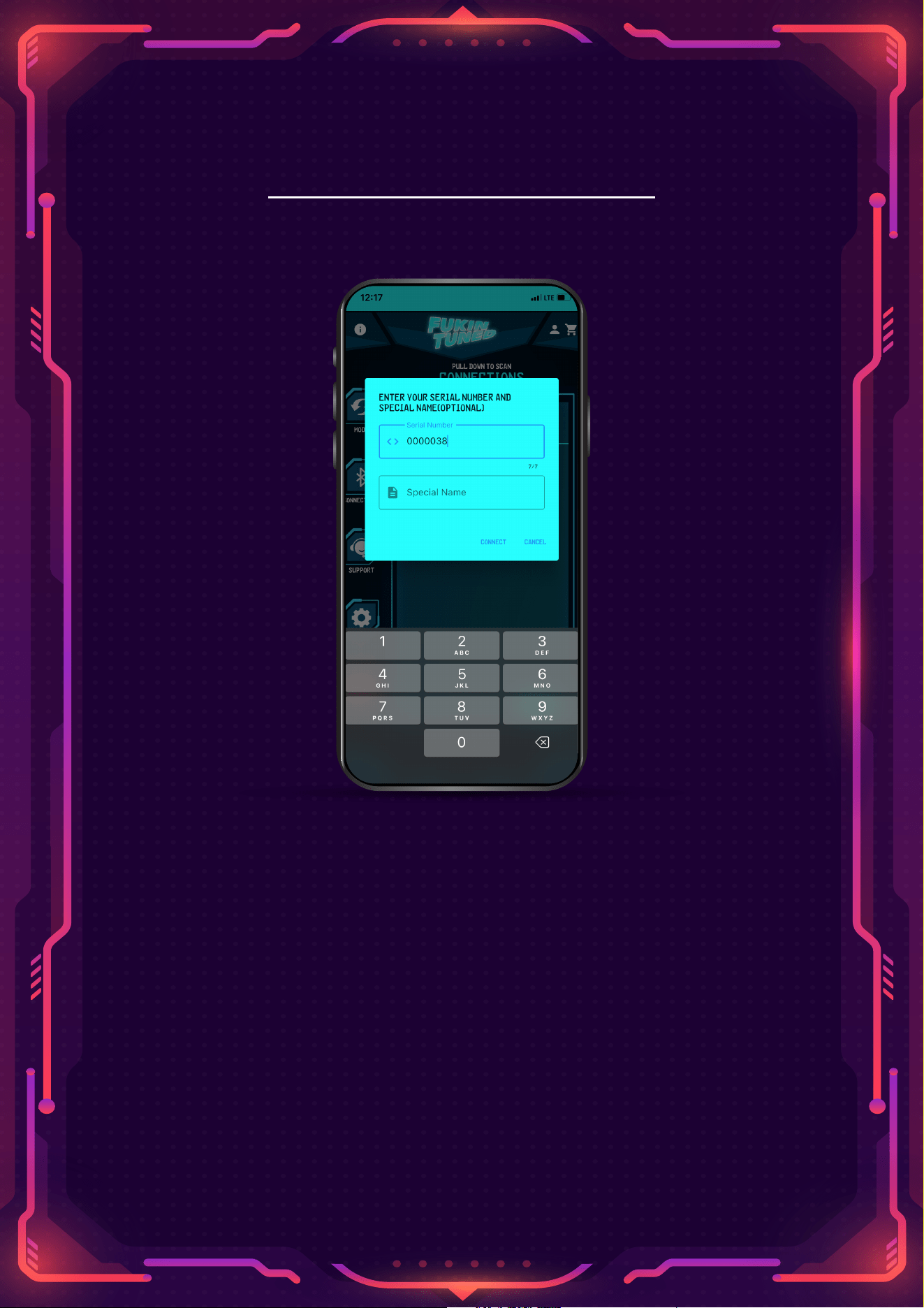
Login To The App
11. Enter the 7-digit serial number located on the side
of the device or on the side of the box.
12. Name your device and simply press the 'Connect'
button.
Modes
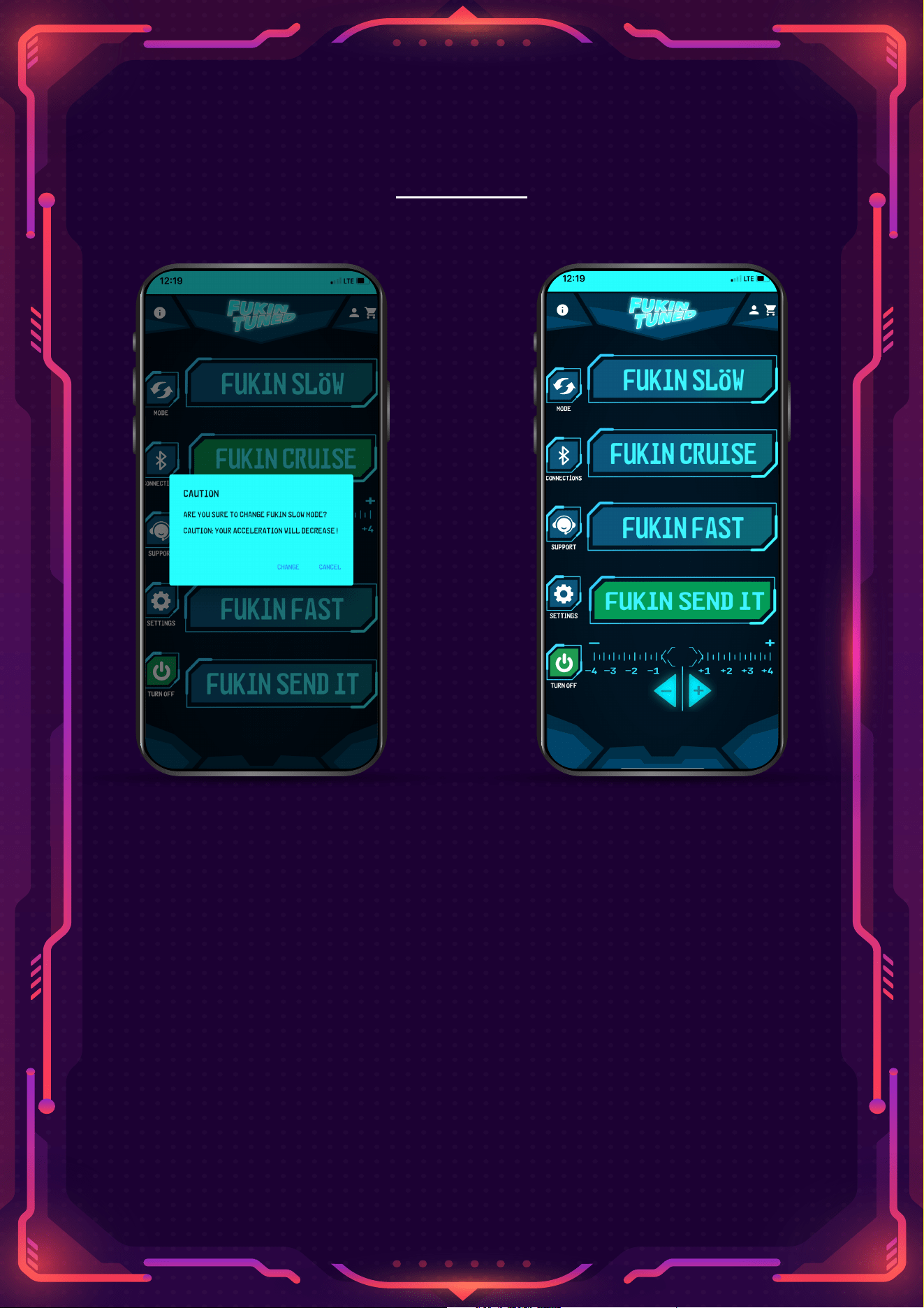
Fukin Slöw: Select the
Fukin Slöw Mode and
choose 'Change'. This
mode deliberately reduces
the throttle response to
enhance control in
challenging weather and
land conditions.
Fukin Cruise: It provides
faster throttle responses
in the urban area.
Fukin Fast: It offers even
stronger responses than
Fukin Cruise, while
remaining suitable for
urban use.
Fukin Send It: It is the
quickest mode which is
good for racing or track
days.
Each mode can be
adjusted to 9 different
levels.
Anti-Theft Mode
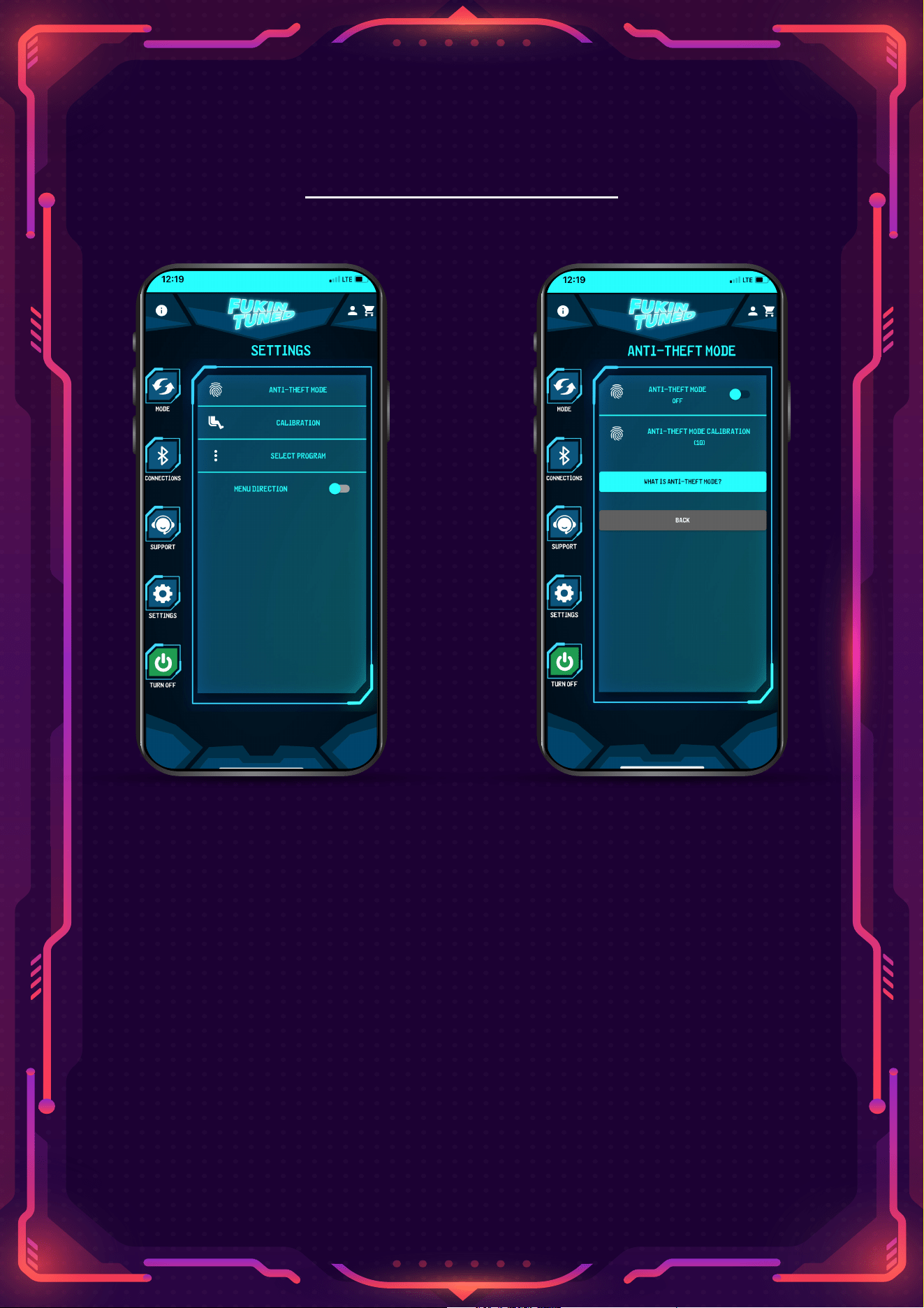
13. Go to settings and simply press the Anti-Theft Mode.
14. Do the calibration.
-Calibration mode is only done once when you enable
Anti-Theft Mode, and you won't need to do it again.
Remote Software Uptade
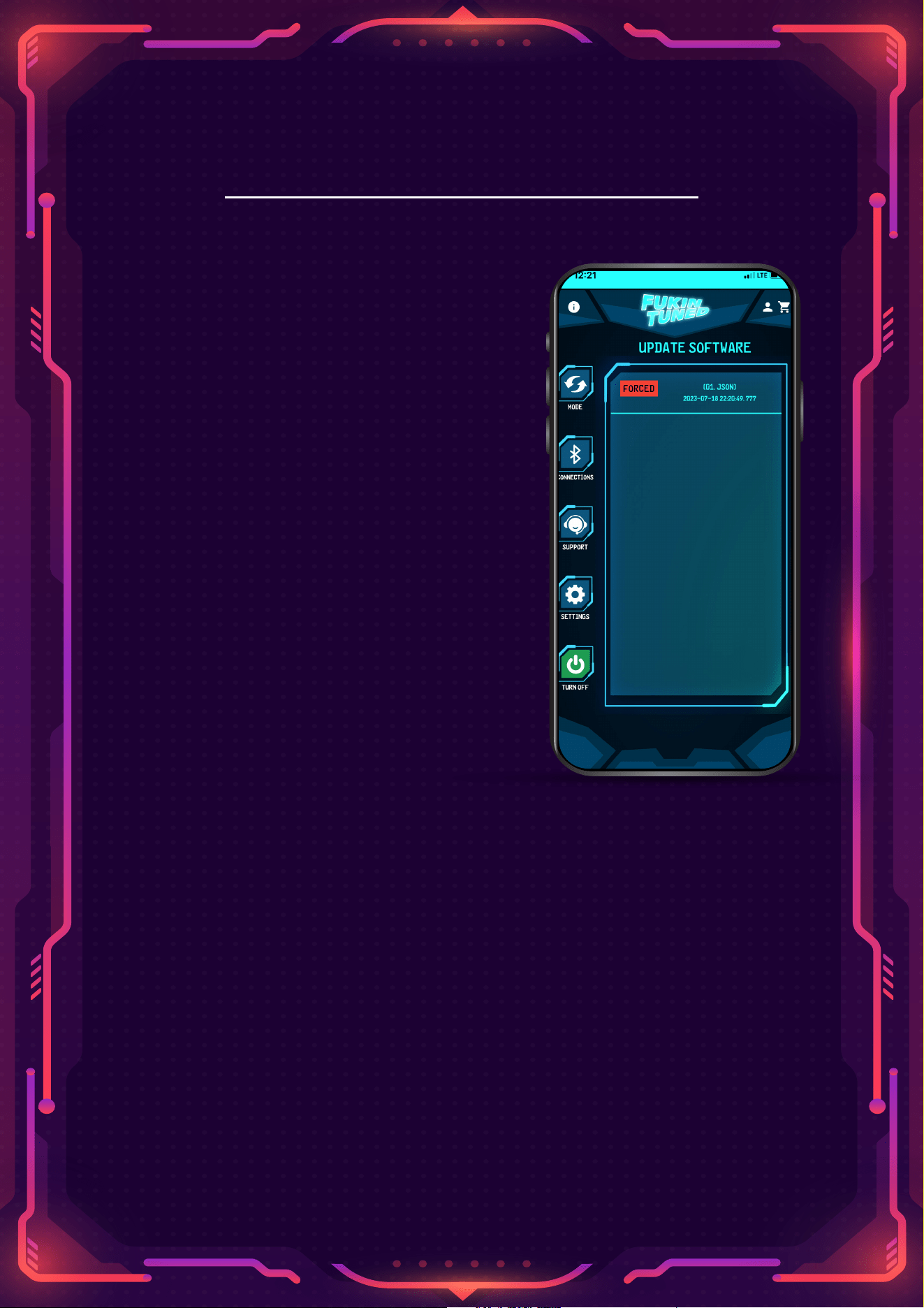
Essential: It is the program
defined by a Fukin Tuned
personnel according to your
request. You cannot change the
mode without this update.
Standard: It is the program
defined by a Fukin Tuned
personnel according to your
request. You can install this
update at any time.
If you want your Fukin Tuned to change throttle responses,
(The process of accelerating or reducing the response), You
can request remote software by contacting our technical
department.
When you connect to the device from the application, you
will receive an "Essential Update Available" warning
Press the "Update" button to install the software.