rd
Address: 23 Floor, Block B4, Building NO.9, Shenzhen Bay
Eco-Technology Park, Nanshan District, Shenzhen, Guangdong
Province, P.R.China
Tel: +86-755-36995888 Fax: +86-755-33104777
Web site: http://en.tvt.net.cn E-mail: overseas@tvt.net.cn
TVT DIGITAL TECHNOLOGY CO., LTD.
en.tvt.net.cn
For more information, please visit our website.
SecureTheWorldWithYou
rd
Address: 23 Floor, Block B4, Building NO.9, Shenzhen Bay
Eco-Technology Park, Nanshan District, Shenzhen, Guangdong
Province, P.R.China
Shenzhen TVT DIGITAL TECHNOLOGY CO., LTD.
Tel: +86-755-36995888 Fax: +86-755-33104777
Web site: http://en.tvt.net.cn E-mail: overseas@tvt.net.cn
CAMERA
en.tvt.net.cn
For more information, please visit our website
H.265+ /H.265 /H.264+ /H.264/MJPEG coding
Max. resolution: MP ( 2880 1620) 5 ×
Auto day/night switch
3D DNR, HWDR, HLC, BLC, etc.
ROI coding
10~20m IR view distance
DC12V power supply
Support three streams
Support remote monitoring by smart phones& tablet PCs
with iOS and Android OS
Support P2P function
Support Wi-Fi
Support SMD
Intelligent analytics
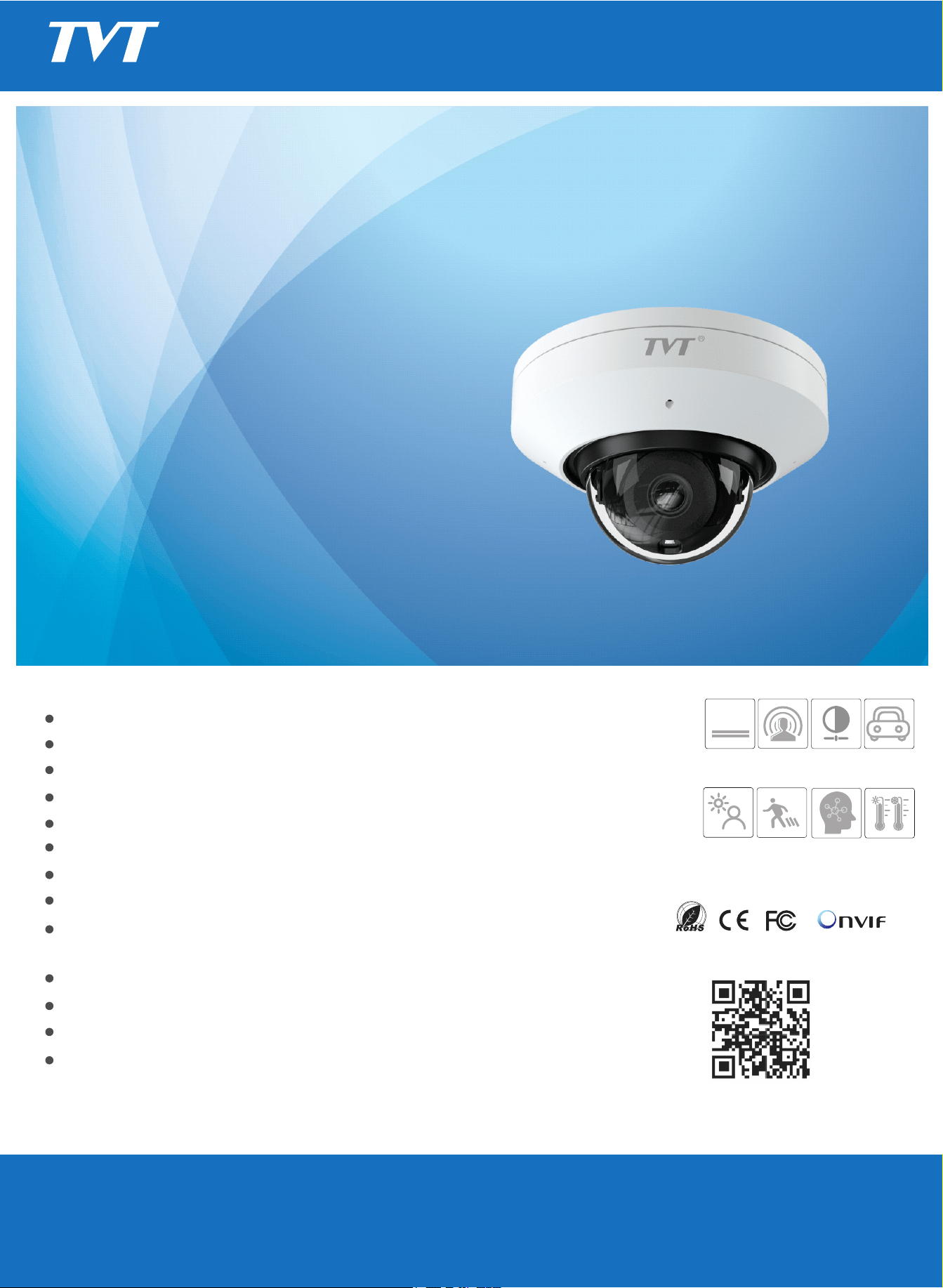
TD-9557S4-C
5MPIRWi-FiNetworkCamera
WDR
AWB
Motion
Detection
VCA
H.265
-30°~60°
BLC
HLC
H.265
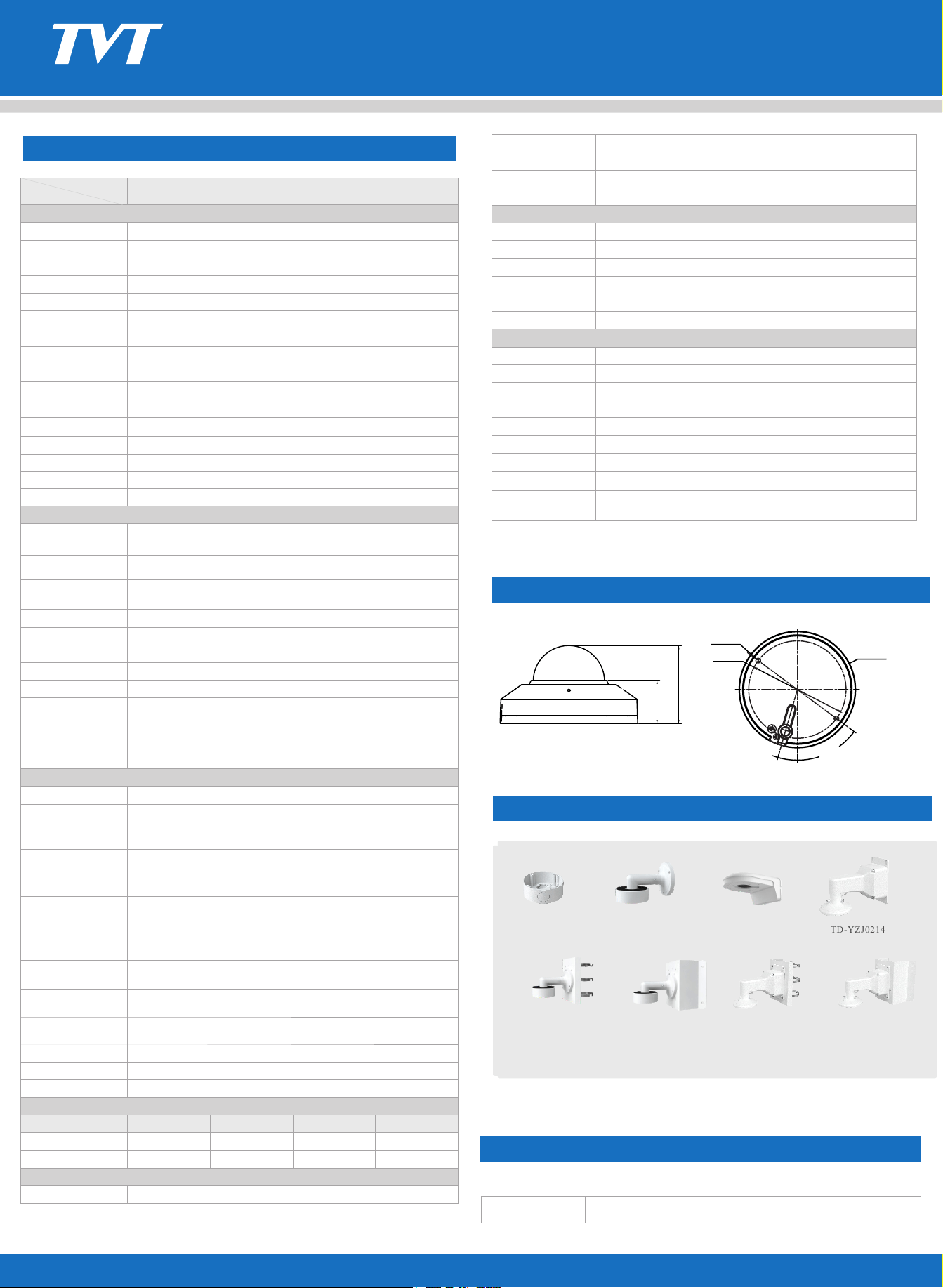
Ø109.4 ×62
Approx. 0.27KG
Available Model
TD-9557S4-C(D/WF/AR1)
TD-9557S4-C
5MPIRWi-FiNetwork
Camera
SPECIFICATIONS
AVAILABLE MODEL
en.tvt.net.cn
*All pictures and specifications are for reference only and are subject to change without prior notice.
Main stream: H.265+ / H.265 / H.264+ / H.264
Sub/Third stream: H.265+ / H.265 / H.264+ / H.264 / MJPEG
Main Profile@Leve4.1 High Tier
64 Kbps ~ 8 Mbps
VBR / CBR
No
TD-9557S4-C
< 4.5W
DC12V
Specifications
Model
Camera
Image Size
Image Sensor
Electronic Shutter
Iris Type
Min. Illumination
Lens Mount
Day&Night
Focus
Wide Dynamic Range
BLC
HLC
Angle Adjustment
Lens
Digital NR
Image
Video Compression
H.265 Compression
Standard
Resolution
Main Stream
Sub Stream
Third Stream
Bit Rate
Bit Rate Type
Image Settings
ROI
Audio
Indicator
Storage
Reset
Functions
Remote Monitoring
Online Connection
Network Protocol
Interface Protocol
Storage
Smart Alarm
PoE
Water-proof Grade
Others
Power Supply
Operating Environment
Dimensions ( mm )
Weight ( net )
Installation
Power Consumption
1 / 2.7 "CMOS
2880×1620
1 / 3s ~ 1 / 100000s
Fixed Iris
M12
120dB
Yes
ROI, Saturation, Brightness, Hue, Contrast, Wide Dynamic, Sharpness, Image
Mirror, Image Flip, NR, etc. adjustable through client software or web browser
Each ROI to be configured separately
1CH audio input; 1CH built-in MIC
Built-in micro SD card slot, up to 256GB
Yes
Web browser /TVT NVR/NVMS2.X/Mobile APP
Support simultaneous monitoring for up to 6 users;
Support multi-stream real time transmission
Network remote storage; micro SD card storage
No
- 30 °C ~ 60 °C (-22°F~140°F);Humidity: less than 95 % (non-condensing)
General Function
Yes
Yes
Ceiling mounting; Wall mounting
0.007 lux @F1.6, AGC ON; 0 lux with IR
2.8mm@F1.6, Horizontal FoV:110°;Vertical FoV:61°; Diagonal FoV:131°
3.6mm@F1.6, Horizontal FoV:89°;Vertical FoV: 48°; Diagonal FoV:103°
Yes
Fixed
ICR
Certificate
Environmental
Protection
CE, FCC
Complies with Directive EU RoHS, WEEE(2012/19/EU) , directive
94/62/EC and REACH(EC1907/2006)
Web Browser
Smart Event
DORI Distance
Lens
Detect
Observe
Recognize
Identify
2.8mm
3.6mm
55m(180ft)
73m(239ft)
22m(72ft)
29m(95ft)
11m(39ft)
14.5m(48ft)
5.5m(18ft)
7m(24ft)
- 30 °C ~ 65°C (-22°F~149°F), Humidity: less than 95 % (non-condensing)
Storage Environment
Interfaces
Network
≥50dB
S/N Ratio
5MP(2880×1620), 4MP(2688×1520),2K(2560×1440), 3MP(2304×1296), 1080P
(1920×1080), 720P(1280×720), D1, VGA(640×480), 640×360, 480×240, CIF
D1/VGA/640×360/480× 240/CIF (60Hz:1~30fps; 50Hz:1~25fps)
5MP(1~20fps)/4MP/2K/3MP/1080P(60Hz:1~30fps; 50Hz:1~25fps)
720P/D1/VGA/640×360/CIF (60Hz:1~30fps; 50Hz:1~25fps)
Audio Compression
G711A/U
Chrome 89.0+/Edge 89.0+/Firefox 87.0+/Safari 14.0+
UDP, IPv4, IPv6, DHCP, NTP, RTSP, RTP, RTCP, PPPoE, DDNS, SMTP, FTP,
SNMP, RTMP, HTTP, 802.1x, UPnP, HTTPS, HTTP POST, P2P, QoS
Line crossing, region intrusion/entrance/exiting (human/vehicle classification),
abandoned/missing object detection
Security
RJ 45 10M/100M self-adaptive Ethernet port
Video encryption, firmware encryption, HTTPS encryption, configuration
encryption, illegalloginlock,IP address filtering, 802.1x authentication,
basic and digest authentication for HTTP/RTSP/API service
Motion detection, SMD, SD card error, SD card full, IP address conflict,
network disconnection
Watermark, video mask, heartbeat, corridor pattern, ANR, cloud upgrade,
disarming, dual system backup, Wi-Fi configuration by scanning QR code
ONVIF Profile S/G/M/T
10 ~ 20 m
IR View Distance
Wi-Fi
Wireless Standards
IEEE802.11a/b/g/n, IEEE802.11ac, IEEE802.11ax,
2.4GHz & 5GHz
20MHz
WEP, WPA-PSK/WPA2-PSK, WPA3
Frequency Range
Channel Bandwidth
Security
Wireless Range
120m (no obstacles)
Transfer Rates
11b: 11Mbps; 11g:54Mbps; 11n: up to 150Mbps
DIMENSIONS
AVAILABLEACCESSORIES
34.3
62
2-Ø4.5
Ø91.36
Ø109.4
53.5°
16°
TD-YXH0101+YZJ0405
TD-YXH0101
TD-YXH0101+
TD-YZJ0405+
TD-YZJ0501
TD-YXH0101+
TD-YZJ0405+
TD-YZJ0601
TD-YZJ0203 TD-YZJ0214
TD-YZJ0214+
TD-YZJ0501
TD-YZJ0214+
TD-YZJ0601
Pan: 0 ~360 ; Tilt:° ° 0°~70°;Rotation: 0°~350°
Package
Overview
1
2
3
Warning and Caution
■ If the product does not work properly, please contact your dealer or the
nearest service center. Never attempt to disassemble the camera yourself.
(We shall not be responsible for any problems caused by unauthorized
repair or maintenance.)
■ Do not allow water or liquid intrusion into the camera.
■ In the use of the product, you must be strict compliance with the
electrical safety regulations of the nation and region. When the product is
mounted on wall or ceiling, the device shall be firmly fixed.
■ Do not use camera beyond specified voltage range.
■ Do not drop the camera or subject it to physical shock.
■ Do not directly touch the camera when installing.
■ The product must be grounded to reduce the risk of electric shock.
■ You must wear anti-static gloves or discharge static electricity before
removing the lower dome (bubble).
■ Avoid touching the camera lens.
■ If cleaning is necessary, please use clean cloth to wipe it gently.
■ Avoid aiming the camera directly towards the sun or other bright objects.
■ Do not place the camera in extremely hot, cold (the operating
temperature shall be -30˚C~60˚C), dusty or damp locations, and do
not expose it to high electromagnetic radiation.
■ To avoid heat accumulation, good ventilation is required for
operating environment.
Quick Start Guide
Network Camera
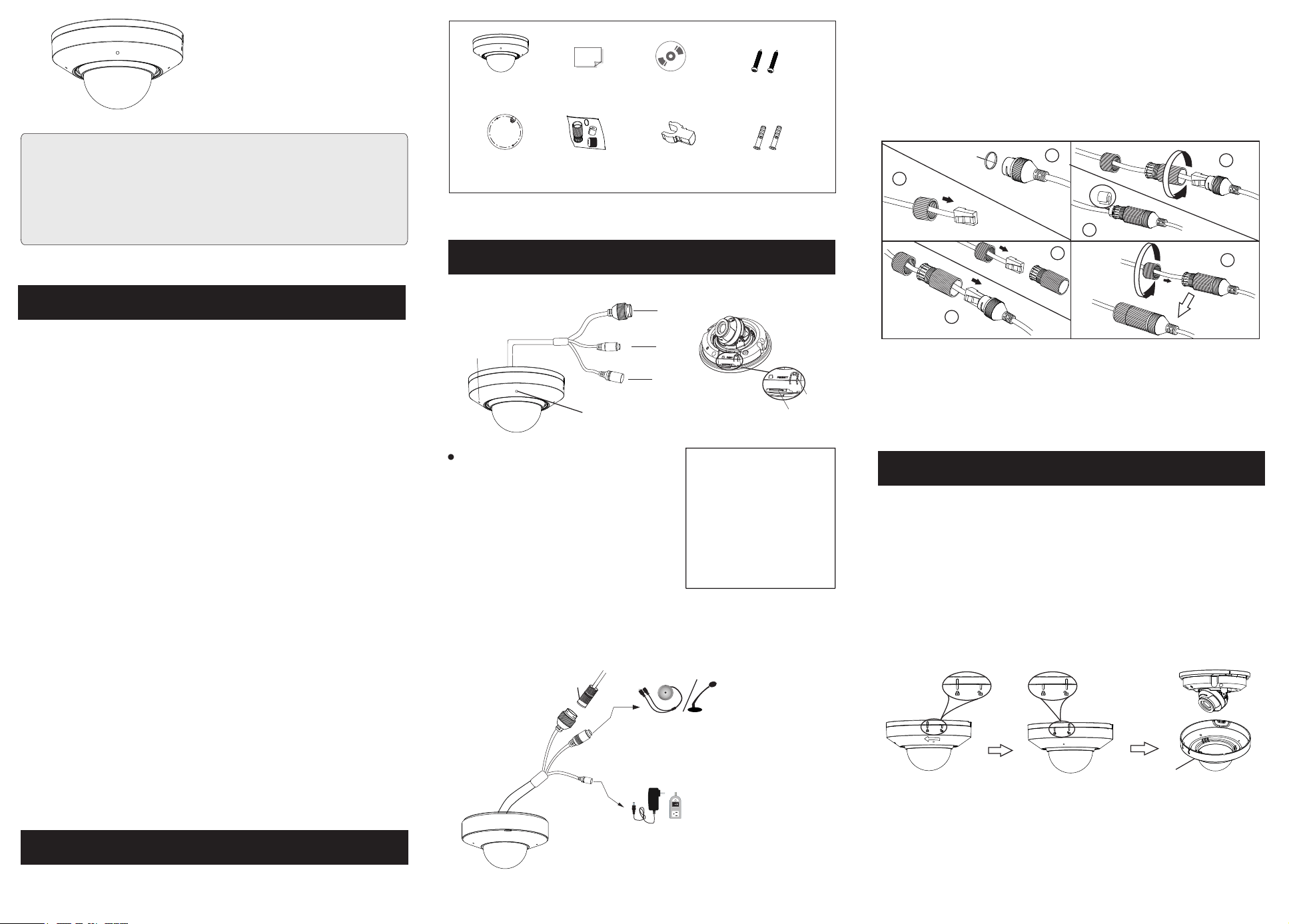
Camera
Quick start guide
CD
(optional)
Plastic screw
anchor × 2
Drill template
Tapping screws × 2
Ethernet connector*
Audio input connector
Power connector
Microphone
Reset*
Micro SD Card Slot
■ Please read this instruction carefully before operating the unit
and keep it for further reference.
■ All the examples and pictures used here are for reference only.
■ The contents of this manual are subject to change without
notice.
1
2
3
4
5
6
W
a
t
e
r
-
pr
oo
f c
o
nn
e
c
to
r
DC12V
Installation
4
* Please make sure that the wall or ceiling is strong enough to withstand 3
times the weight of the camera.
* Please install the camera in a dry environment. You'd better install back the
lower dome less than 4 hours after removing it.
* Do not remove the protection film until finishing the installation.
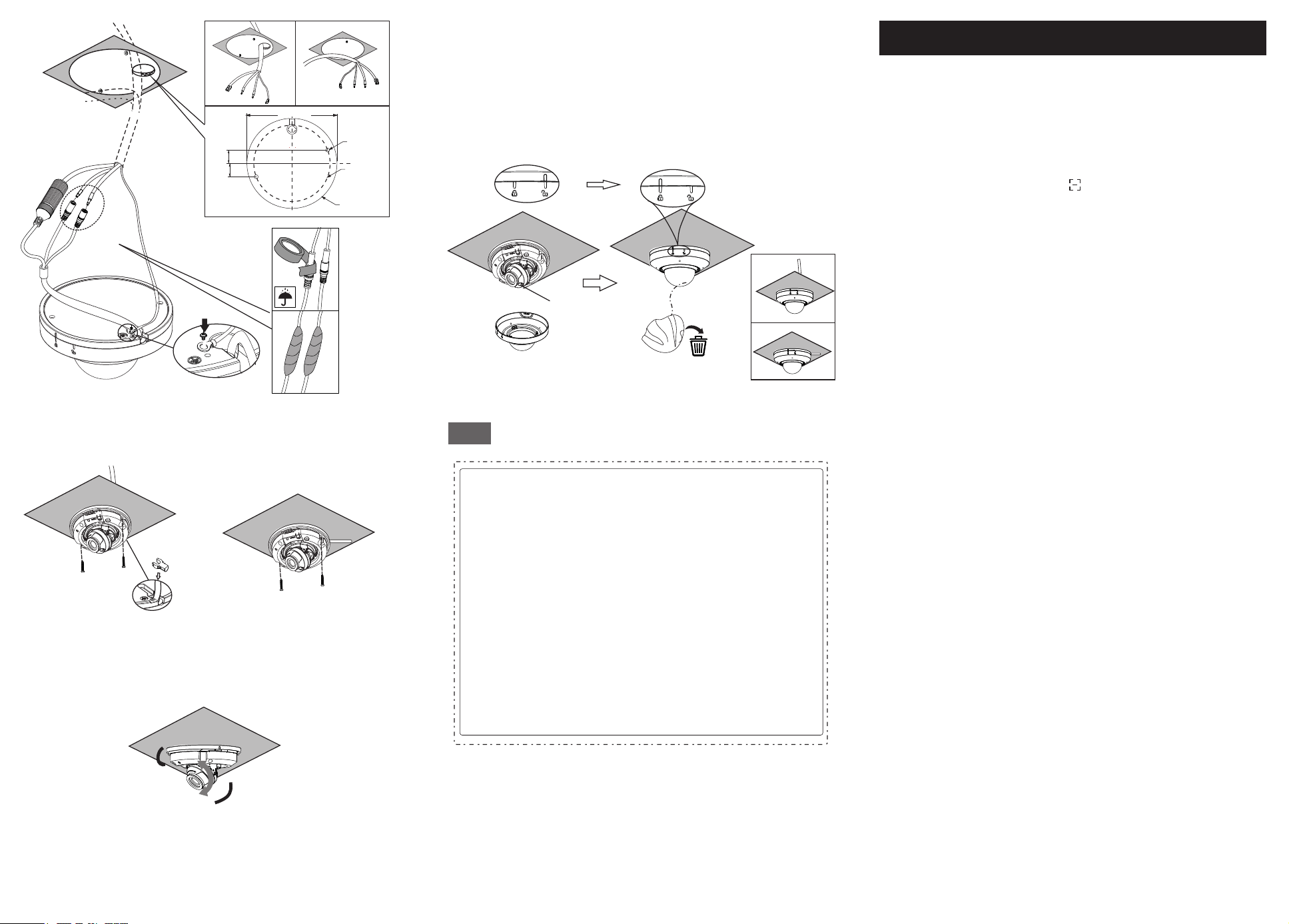
① Use your fingers to move the lower dome anticlockwise and make the
mark of the mounting base align with the unlocking icon. Then open the
lower dome.
* 1 It is recommended to install the water-proof connector for outdoor installation.
* 2 Press and hold the reset button for more than 10 seconds to restore to the factory
default setting.
② Attach the drill template to the place where you want to fix the camera
and then drill 2 screw holes and 1 cable hole (if you want to route the cables
through the ceiling) according to the drill template.
Install an SD card
Trim ring
Lower dome
Marks
Water-proof
connector kit
Rubber plug
③ Route and connect these cables.
► Connecting Network Cable
1
2
4
3
5
7
6
* If the RJ 45 connector of the network cable has a jacket and cannot be
threaded through the kit, remove the jacket. If the jacket cannot be removed,
cut off the connector and install an RJ 45 connector without the jacket.
1
4
6
2
5
3
⽹线
电源
Micro SD 卡插卡⼝
⻨克⻛
复位孔
⾳频输⼊
1
2
3
4
5
6
Indicator
Lower dome
Indicator
Solid red light: starting
Flashing red light: network disconnected
Flashing green light: upgrading
Flashing blue light: alarm triggered
Solid blue light: Wi-Fi setting mode
Solid green light: work normally
Transparent Dome Maintenance
Transparent dome is an optical element which is made of plastics. As dirt,
dust or fingerprints on the dome will reduce the clarity of the image, please
keep it clean in the course of installing or using but do not directly touch or
wipe it. If there is any dirt or dust, please follow these cleaning tips to clean
your dome camera.
* If there is dust on the dome, please use a dry soft brush to gently brush it .
* If there is water or grease on the dome, please gently wipe off the water or
grease with a soft cloth. Then use another clean cloth with a little neutral
detergent to wipe it several times until it is clean. Finally, dry it with a soft
cloth.
* If there are fingerprints on the dome, please use a clean cotton cloth or lens
cleaning wipe with a little neutral detergent to wipe it several times and
then dry it with a soft cloth.
Tips
④ Secure the camera to the ceiling or wall with the screws provided.
⑤ Three-axis adjustment. Before adjustment, preview the image of the
camera on a monitor and then adjust the camera according to the figure
below to get an optimum angle.
⑥ Replace the lower dome to the camera and ensure that there is no gap between
the lower dome and the mounting base. Then turn the lower dome clockwise
to lock it. Make sure the light sensor can be seen from the outside. If the light
sensor is hidden, please re-adjust the lens. Finally, remove the protection film
softly.
Network Connection
5
Pan:0°~360°
Rotate: 0°~350°
Tilt :0°~70°
Earth wire connection
Insert the
rubber plug
Ø4.5
16.0
16.0
(mm)
Ø91.4
Ø107.8
107.8mm
Lightsensor
● Wireless Network Connection
① Enable Wi-Fi network of your phone. Then scan the QR Code of the
APP on the gift box to download and install the APP in your phone.
② Run the APP and then login in your account of the APP (if you don’t
register, please register and log in first).
③ Power on your camera. Then tap “ ” in the live interface of the APP.
Scan the QR code on the camera and tap “Add”. Then follow directions to
configure the Wi-Fi network. After you activate the camera, the device will
be automatically added to the server list of the APP. You can view the video
and receive the relevant information of the camera.
① Make sure that the device and the PC are connected via LAN.
② Get the IP-Tool from the supplier and then install it in the computer.
After that, run the IP-Tool.
● Wired Network Connection
③ Double-click the device information listed in the IP-Tool to connect
the device. If there are many devices, please find your device via its MAC
address.
Note: Please make sure the device and the computer are in the same local
network.
④ Read the privacy statement and then activate the device. The default
username is admin. You need to self-define the password.
Then set the security questions and answers. It is important for you to
remember these answers, or you will not be able to reset your password.
⑤ Follow directions to download and install the plugin if prompted.
After that, you can log in and configure the relevant parameters via web
as needed.

FCC Warnning:
This equipment has been tested and found to comply with the limits for a Class B digital device,
pursuant to part 15 of the FCC Rules. These limits are designed to provide
reasonable
protection againstharmful interference in a residential installation. This equipment generates,
uses and can radiateradio
frequency
energy
and,
if
not
installed
and
used
in
accordance
with
the
instructions,
maycause
harmful
interference
to
radio
communications.
However,
there
is
no
guarantee
thatinterference
will
not
occur
in
a
particular
installation.
If
this
equipment
does
cause
harmfulinterference to radio or television reception, which can be
determined by turning the equipmentoff
and
on,
the
user
is
encouraged
to
try
to
correct
the
interference
by
one
or
more
of
thefollowing measures:
•
Reorient or relocate the receiving antenna.
•
Increase the separation between the equipment and receiver.
•
Connect the equipment into an outlet on a circuit different from that to which the receiver is
connected.
• Consult the dealer or an experienced radio/TV technician for help.
Caution:
Any
changes
or
modifications
to
this
device
not
explicitly
approved
by
manufacturer
could void your authority to operate this equipment.
This
device
complies
with
part
15
of
the
FCC
Rules.
Operation
is
subject
to
the
following
two
conditions:
(1)This
device
may
not
cause
harmful
interference,
and
(2)
this
device
must
accept
any
interference received, including interference that may cause undesired operation.
This
equipment
complies
with
FCC
radiation
exposure
limits
set
forth
for
an
uncontrolled
environment.
This
equipment
should
be
installed
and
operated
with
minimum
distance
20cm
between the radiator and your body.