
The Professional Presenter
- 1 -
Wireless Presenter User Manual
N29
Be sure to read this user manual
carefully before using the wireless
presenter and keep it for future
reference.
The Professional Presenter
- 2 -
WARNING
This product can generate laser
beam. DO NOT STARE INTO
BEAM OR EXPOSE USERS OF
TELESCOPIC OPTICS. Do not
shine the laser beam on people's or
animal’s eyes to avoid eye damage!
Do not give this product to children
as a toy!
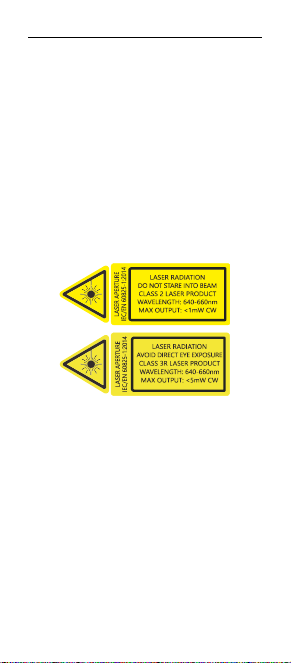
Warning label for red laser product:
This product contains AAA batteries.
Do not throw this product into the
fire as the battery may explode;
Also, do not immerse this product in
water or any other liquid, as it may
explode if the battery is short
circuited or damaged.

The Professional Presenter
- 3 -
I. Features
1. Support previous page, next
page. Click the page up key to go
backward to previous page, long
press to play slides from the current
page. Click the down page key to go
forward to the next page, long press
to go into the black screen.
2. Full support for PowerPoint,
Keynote, and Prezi. The function of
the wireless Presenter can be freely
switched between the up and down
arrows, left and right arrows, and
Page Down/Up on the computer
keyboard.
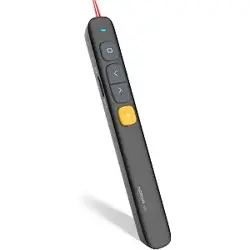
3. Integrated design, the USB
receiver can be easily stored at the
rear of the wireless presenter,
making it easy to carry and plug and
play.
4. Support hyperlink function.
5. Supports USB 2.0 version, use
operation system universal USB
driver, plug and play.
6. The page up/down keys can be
customized by Norwii Presenter

The Professional Presenter
- 4 -
software. The firmware of the USB
receiver is updatable.
II. Operation system
Support Windows 7/8/10/11 and
macOS 10.15 or later, only support
laser and page up/down on Android
& Linux.
III. Package contents
1. Wireless presenter * 1 (USB
receiver stored inside the wireless
presenter)
2. User Manual * 1
3. AAA battery * 1

The Professional Presenter
- 5 -
IV. Specifications
Transmitter
Technology: Radio frequency
Frequency: 2.4GHz
Control Distance: 100m
Laser Power: <1mW (Class 2) or
<5mW (Class 3R), see the laser
label on the back of the presenter.
Laser Distance: >200m
Wavelength: Red 640-660nm
Battery: AAA
Working Voltage: 1.5V
Dimension: 139.2*19.2*15.4mm
Weight: 20.2g
USB receiver
Working Voltage: 4.5-5.5V
Dimension: 23.5*13*5.4mm
Weight: 2g
The Professional Presenter
- 6 -
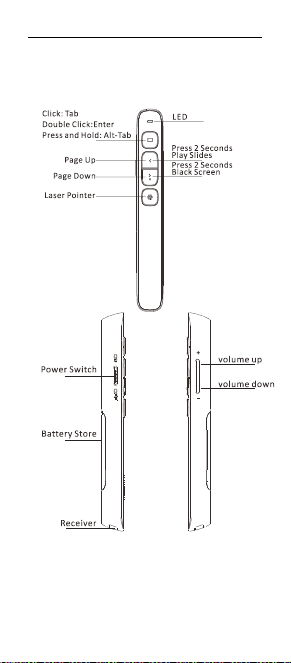
V. Function map
N29
Attention: When using this product,
please change your Input Method
Editors (IME) to English input mode.

The Professional Presenter
- 7 -
VI. Function Description
1. Power switch: push up to “ON” to
turn on the wireless presenter, push
down to “OFF” to turn off the
presenter.
2. Page up key :click to page up,
long press to play slides from the
current page. Long press again to
end slide show.
3. Page down key :click to page
down, long press to enter black
screen, long press again to exit
black screen.
4. Physical laser key : Press
and hold to turn on the physical
laser beam, and release to turn off
the physical laser beam.
5. Volume key: Press "+" to
increase the volume, and "-" to
decrease the volume. Long press
will continuously increase or
decrease the volume.
6. Hyperlink key : Pressing
is equivalent to the Tab key, which
allows you to jump between
hyperlinks in PowerPoint

The Professional Presenter
- 8 -
presentations in full screen
presentation mode. After jumping to
a hyperlink, double clicking is
equivalent to the Enter key on the
keyboard, which will execute the
Enter function to open the hyperlink.
Long press and hold the key,
which is equivalent to the Alt Tab
key, to execute the Alt Tab function
and switch between open
application windows, allowing you
to switch back to the PowerPoint full
screen presentation window. The
hyperlink function can be used in
PowerPoint, but Kingsoft WPS does
not support Tab key to switch
hyperlinks, so hyperlinks cannot be
opened.
7. The wireless presenter fully
supports PowerPoint, Keynote,
Prezi and other commonly used
software. It supports page up and
page down keys’ function switching.
The page up and page down keys
correspond to the function of the up
and down arrows on the computer

The Professional Presenter
- 9 -
keyboard by default and it supports
page up and page down for
PowerPoint and Keynote. For the
first time when you press the page
up and page down keys
simultaneously, the function will be
switched to the left and right arrows
on the computer keyboard,
supports page up and page down
for Prezi. For the second time when
you press the page up and page
down keys simultaneously, the
function will be switched to the
Page Up and Page Down on the
computer keyboard, supports page
up and page down for internet
browser and Microsoft Photo
software. For the third time when
you press the page up and page
down keys simultaneously, the
function will be switches to the
default up and down arrows on the
computer keyboard.
8. The page up/down keys can be
customized by Norwii Presenter
software.
The Professional Presenter
- 10 -
VII. Installation
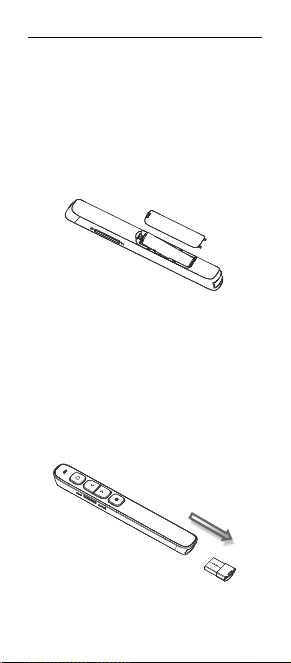
1. Install the battery
The product is powered by a No. 7
AAA battery. After opening the
battery cover, place a No. 7 AAA
battery and then close the battery
cover (as shown in the picture) :
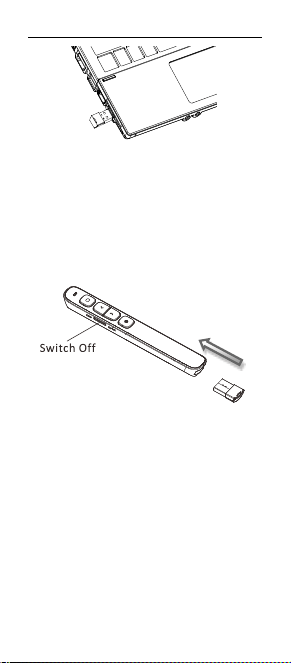
2. Take out the USB receiver and
install.
Plug the receiver into the computer
USB port. The operation systems
including Windows, Android and
Linux will install the driver for the
USB receiver automatically.
(Take out the USB receiver)
The Professional Presenter
- 11 -
(The USB receiver into the
computer USB port)
3. Control the computer by
operating the wireless presenter's
keys.
4. Turn off the wireless presenter.
VIII. Frequently Asked Questions
1. How to download Norwii
Presenter software and how to
pair the presenter and the USB
receiver?
For products that support key
function customization or highlight
serial products that support digital
laser, highlight, magnifier, you need

The Professional Presenter
- 12 -
to download Norwii Presenter
software. Please download it from
the "Downloads" under the
"Support" menu of Norwii official
website www.norwii.com in English
version.
2. How to know if the battery is
out of power?
When the power is turned on, if the
wireless presenter key is pressed
and the LED indicator light does not
indicate, it indicates that the battery
is low. Please replace the AAA
battery.
3. What if the laser doesn't light
up or becomes dim?
After turned on the power, press the
laser key, the LED will light up, but
the laser does not light up, it means
that the laser module is damaged. If
the laser spot becomes dim, it may
be due to low battery power. If the
wireless presenter still be dim after
replacing a new AAA battery, the
laser module is damaged. Please
contact us for after-sales repair.

The Professional Presenter
- 13 -
4. What if the USB receiver is
plugged into the computer's USB
port and the computer does not
respond or cannot recognize it?
Please check whether the USB port
of the computer is working properly
and try another USB port. If
necessary, please try another
computer to check that the problem
is with the computer or USB
receiver.
5. The laser is normal, and the
USB receiver can be recognized
by the computer, but all functions
of the wireless presenter cannot
be used properly?
Usually Pairing can solve this
problem. Please download the
Norwii Presenter software and
follow the Pairing instructions in the
software, or you can contact our
after-sales service.
6. How to adjust the settings for
Norwii Presenter on macOS?
On Apple's macOS, the Norwii
Presenter software requires three

The Professional Presenter
- 14 -
permissions: Accessibility, input
monitoring, Screen & System Audio
Recording. If it has not been set
before, please click "Grant
Permissions" in the "About" tab of
the Norwii Presenter software, and
then open the corresponding
permission settings in the window
that opens. You can also check the
box in front of the Norwii Presenter
software in the above three
permission settings in the
"Launchpad - System settings –
Privacy & Security – Accessibility,
input monitoring, Screen & System
Audio Recording" of macOS.

The Professional Presenter
- 15 -
IX. Certifications
CE, ROHS, FDA
FCCID: 2AXGRN95
Declaration of conformity
This laser product complies with
IEC/EN60825-1:2014. Complies
with 21 CFR 1040.10 and 1040.11,
except for deviations pursuant to
Laser Notice No.50, dated June 24,
2007.
X. Product Support
Shanghai Norwii Technology Co.,
Ltd
Address: No.277 Jinfeng Road,
Pudong New Area, Shanghai,
201201, China
Tel: 86-21-51872080
Email: support@norwii.com