
1
1. Safety
Read these guidelines carefully. Not following them may be dangerous or illegal.
—WI-FI (WLAN)—
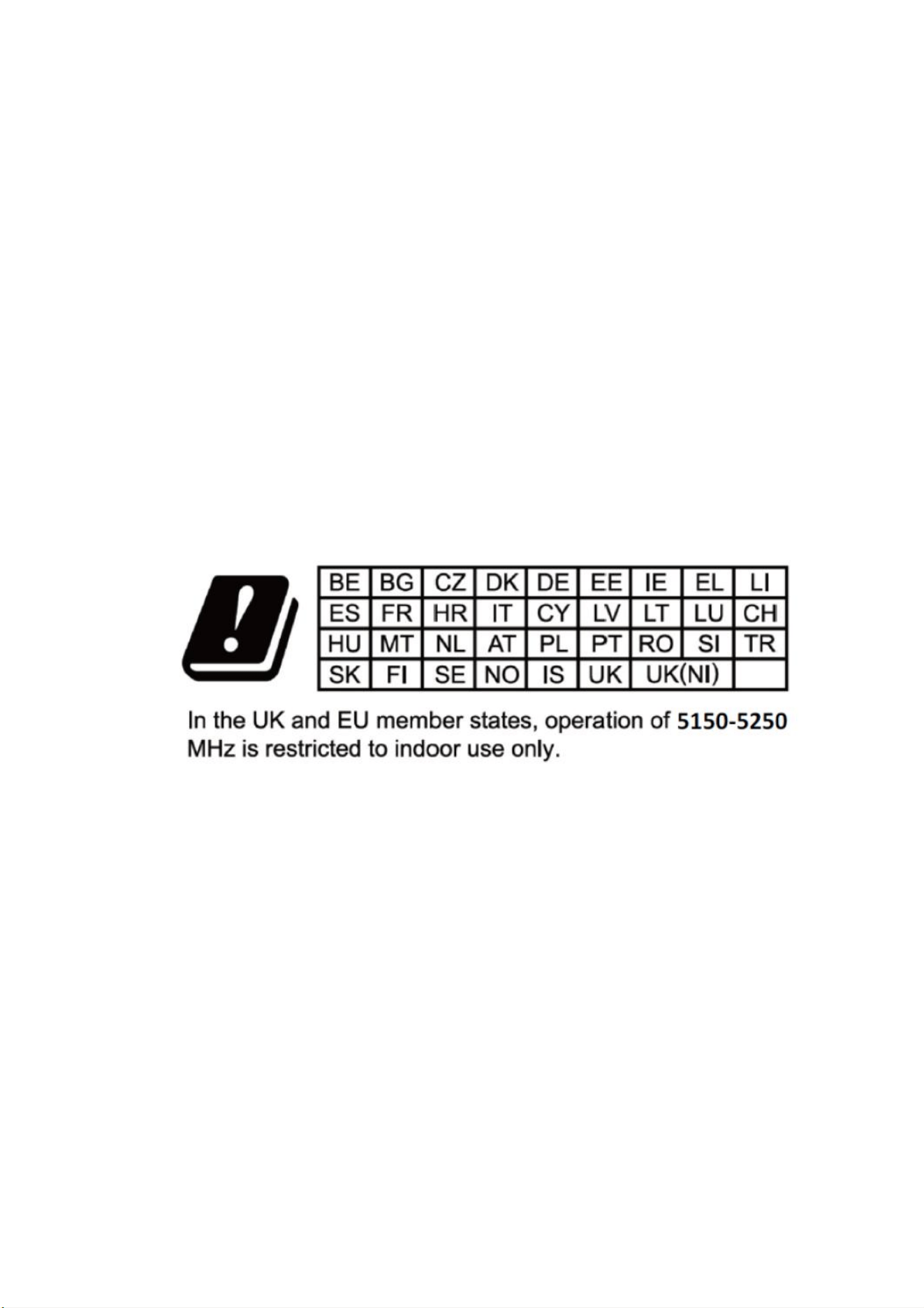
A WLAN network may be used indoors without any restrictions.
—QUALIFIED SERVICE—
Only qualified personnel or an authorized service centre may install or repair this
product. Repairing by an unauthorized or unqualified service provider may cause
device damage and warranty loss.
—USE BY CHILDREN—
This device should not be operated by people (including children) with limited
physical or mental abilities, as well as by people with no earlier experience in
operation of electronic equipment. They may use the device only under supervision of
people responsible for their safety. This device is not a toy. Keep the device and its
accessories out of reach of children.
—WATER AND OTHER LIQUIDS—
Protect the device from water and other liquids. It can influence the life span of the
electronic components. Avoid using the device in environments with high humidity
like kitchens, bathrooms or during rainy weather. Presence of moisture in the device
may have a negative impact on the workings of the electronic components.
—BATTERY AND ACCESSORIES—
Avoid exposing the battery to very high/low temperatures (below 0°C and over 40°C).
Extreme temperatures may influence capacity and battery life. Avoid contact with
liquids and metal objects as it may cause partial or complete battery damage. The
battery should be used according to its purpose. Do not destroy, impair or throw the
battery into flames - it is dangerous and may cause a fire. Worn-out or impaired
batteries should be placed in a dedicated container. Excessive charging of the battery
can cause damage. Installing an incorrect battery type can cause an explosion. Never
open the battery. Please dispose of the battery according to the instructions.
Disconnect an unused charger from the power grid. In case of charger wire damage, it
should not be repaired but replaced with a new one. Use the original manufacturer’s
accessories only.
2
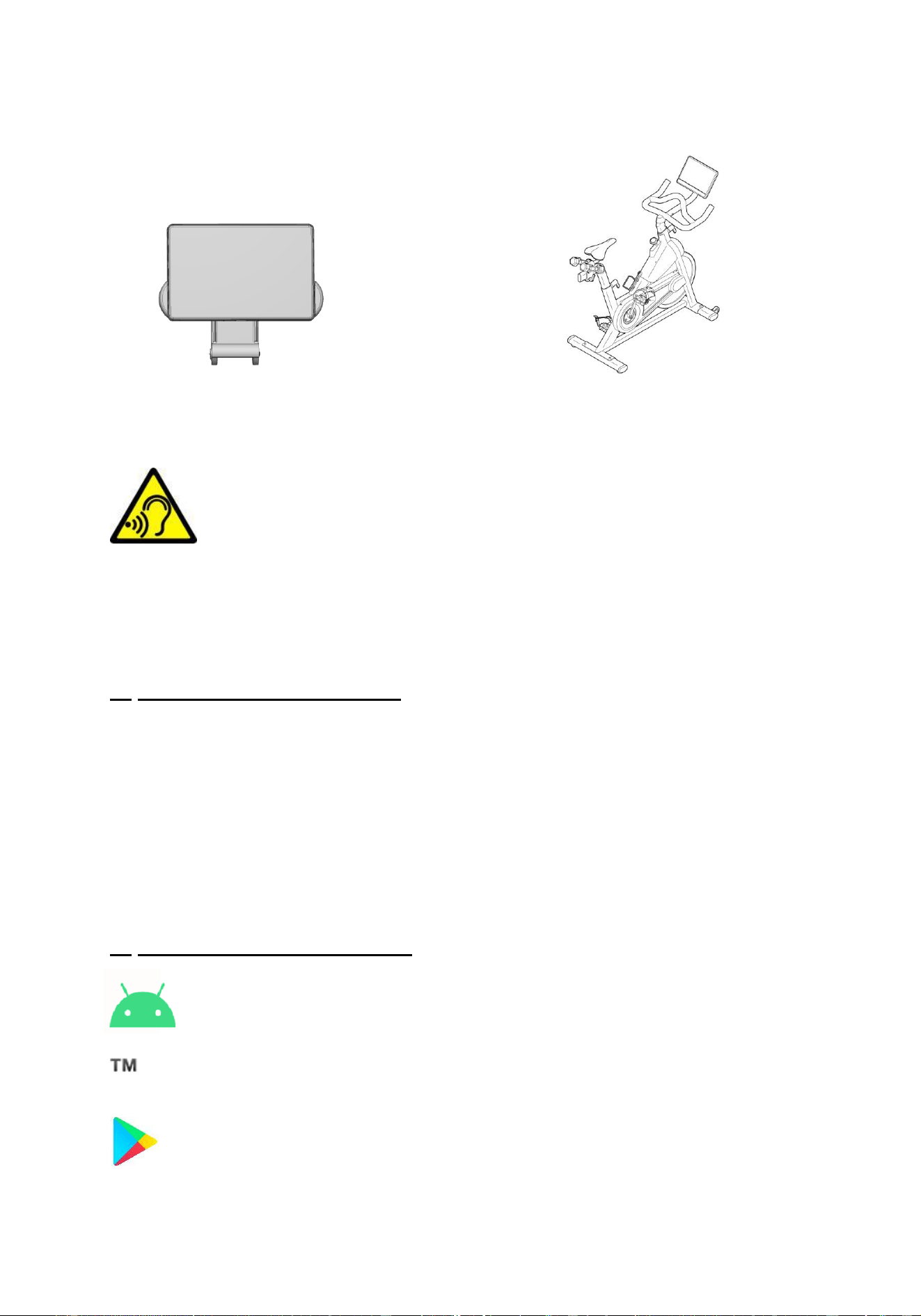
—Installation Guide—
Step1: Tablet mounted on the holder Step2: Tablet with holder installed on the bike
—HEARING—
To avoid hearing damage, do not use the device at high volume levels for
a long period of time. Do not put the operating device directly to your
ear.
—OPERATING ENVIRONMENT—
Do not use or store the unit in very high temperatures or in direct sunlight. Do not use
or store near heaters, stovetops or similar devices that produce heat.
2. Important Information
The majority of applications which can be installed on the device are mobile apps. The
operation of these apps may be different from their counterparts installed on a
personal computer. Apps installed on the device may vary depending on country,
region, and hardware specifications. The manufacturer is not liable for problems
caused by third party software. The manufacturer is not responsible for anomalies
that may occur when editing the registry settings and modifying the operating system
software. Attempts to modify the operating system can cause malfunctions and
problems with applications. It may cause a loss of warranty.
3. Technical Specifications
Android System
This tablet uses Android
12 Operating System and comes with Google apps. You can also download thous
ands of apps on Google Play.
Google Play
No matter what you’re looking for, Google Play has it all. Get your music, movies,
TV, books, magazines, apps and games all in one place. Log in to your Google
Account for access.

3
3.1 Package Content
• Tablet
• charging cable
4. Before Use
4.1 Charging the Battery
Charge the battery before first use. The battery should be charged using the charger
included with the device or another charger intended for this type of equipment (if in
doubt contact the seller or authorized service agent). Use only chargers and wires
recommended by the manufacturer. Using incompatible chargers or cables can cause
explosion of the battery or damage to your device. When the battery is near a
complete discharge, the notification will be displayed on a low battery charge. To
continue use of the device, charge the battery.
If the battery is completely discharged the device cannot be switched on even when
the loading process is ongoing. Before the device can be turned on again, the battery
has to be charged for at least a few minutes. In case of any problems with the battery
contact Customer Service. To charge the battery, connect the micro USB plug to the
socket in the device and the USB plug to the charger.
Incorrect charger connection (USB cable) can cause damage to the AC adapter or
the device. The damages resulting from improper handling are not covered by the
warranty.
Plug the charger into the wall socket. Once charging begins, the battery icon situated
in the upper right hand corner will change to an animated symbol of lightning. If the
device is turned off an animation depicting the level of the battery charge should
appear.
The device can heat up during charging. This is normal and should not affect the
stability or performance of the device.
When the charge reaches 100% it means that the battery is fully charged. Unplug the
charger from the wall socket and from the device.
If the device does not charge properly take it with the charger to the authorised
service agent.
5. Buttons
Multifunction On/Off button
• One quick press locks/unlocks the screen.
• If the device is off and you press the button for about 2 seconds, the device will
switch on.
If the device is on and you press the button for about 2 seconds a menu will be
displayed allowing you to shut down, restart, take screenshots, or make
emergency phone calls.
4
• You can also reset by pressing and holding the button until the device resets.
Volume Increase and Decrease buttons
• If you press these buttons during a voice call, you will increase or decrease the
audio connection volume.
• If you press these buttons during an incoming call, you will mute the ringtone.
• If you press these buttons when no calls are active, you will decrease or increase
the volume of the ringtone or change the sound profile to "vibration only" or
"alarms only".
• If you press these buttons in any other app, you will control the volume level of
the music, spoken instructions or other sounds.
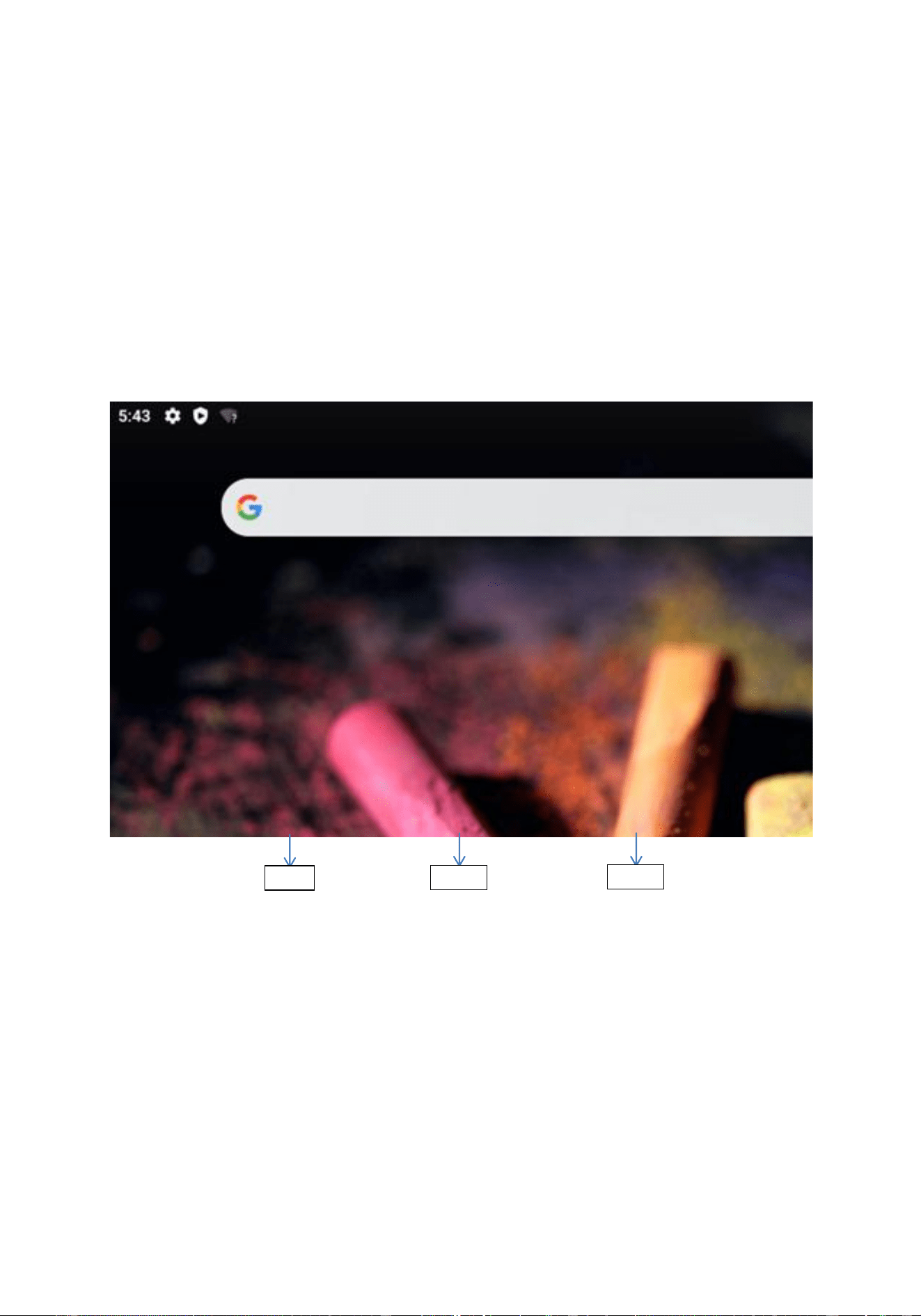
Menu
• Pressing the Menu button will cause the list of open apps to appear, where you
can switch in-between or turn them off.
• If you press the Menu button twice, you will open the previously used
application.
Home
• One quick press takes you to the device desktop.
• Press and hold to turn on the Google Search Bar and access Google Now
function.
Back
• Press <Back> to exit from the application / return to the previous screen.
Menu
Home
Back
5
Change the View of the Tablet
The Auto-rotate feature allows you to change the view of the device. For landscape
view, hold the tablet horizontally. For portrait view, hold the tablet vertically.
To change the Auto-rotate setting, swipe down from the top of the screen to display
notifications, and then touch the screen rotation icon to lock or unlock
the screen rotation.
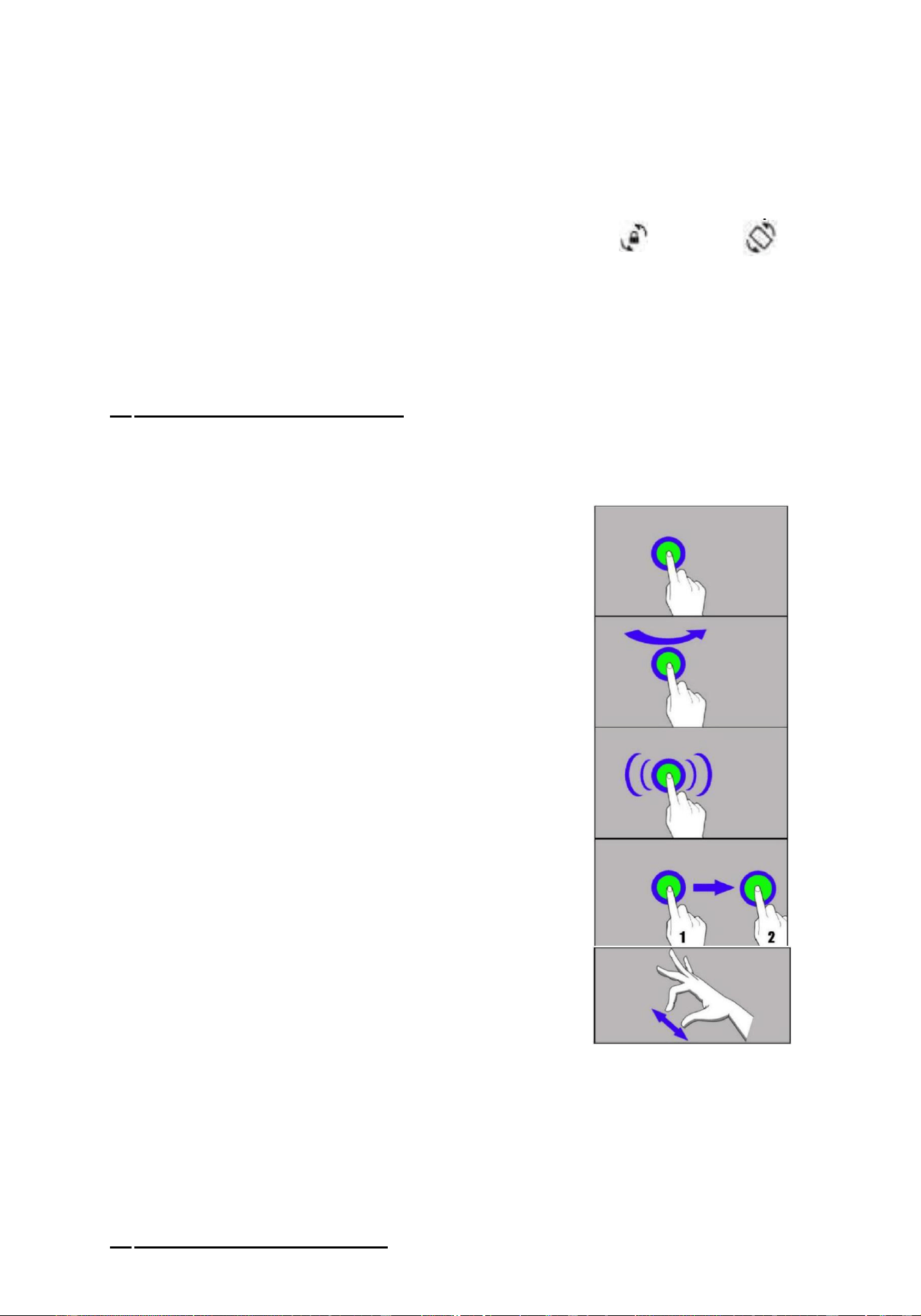
6. Using the Touch Screen
The touch screen of the device lets you easily select items or perform operations.
The touch screen can be controlled by the following actions:
6.1. Touch
Touch to start options, apps, menu, etc.
6.2 Swipe
Quickly swipe up, down, to the left or to the
right to scroll through the lists or the screen.
6.3 Triple click
Quickly tap the screen three times to start
zooming (only if this option is enabled in your
device settings).
6.4 Hold and swipe
Touch an element (an icon perhaps) and hold it
for about 1 second then swipe it to delete or
uninstall.
6.5 Slide in and out
Touch the screen with two fingers and slide
them together or apart to zoom in or out of a
photo or a map.
The touch screen will be turned off after some time of inactivity. To turn off the
screen press the Multifunction On/Off button.
To set how long to wait before turning off the screen, select [Settings] > [Display] >
[Sleep].
7. Computer Connection
6
To connect to a PC computer with Microsoft Windows XP/Vista/7/8/10 using the USB
cable, plug the micro USB end of the USB cable into the socket in the device. Plug the
other end of the cable into the socket of your computer. When the device is plugged
in, a screen will appear on your tablet with the fingerprint of the computer, here you
will choose “Always allow from this computer” “OK”.
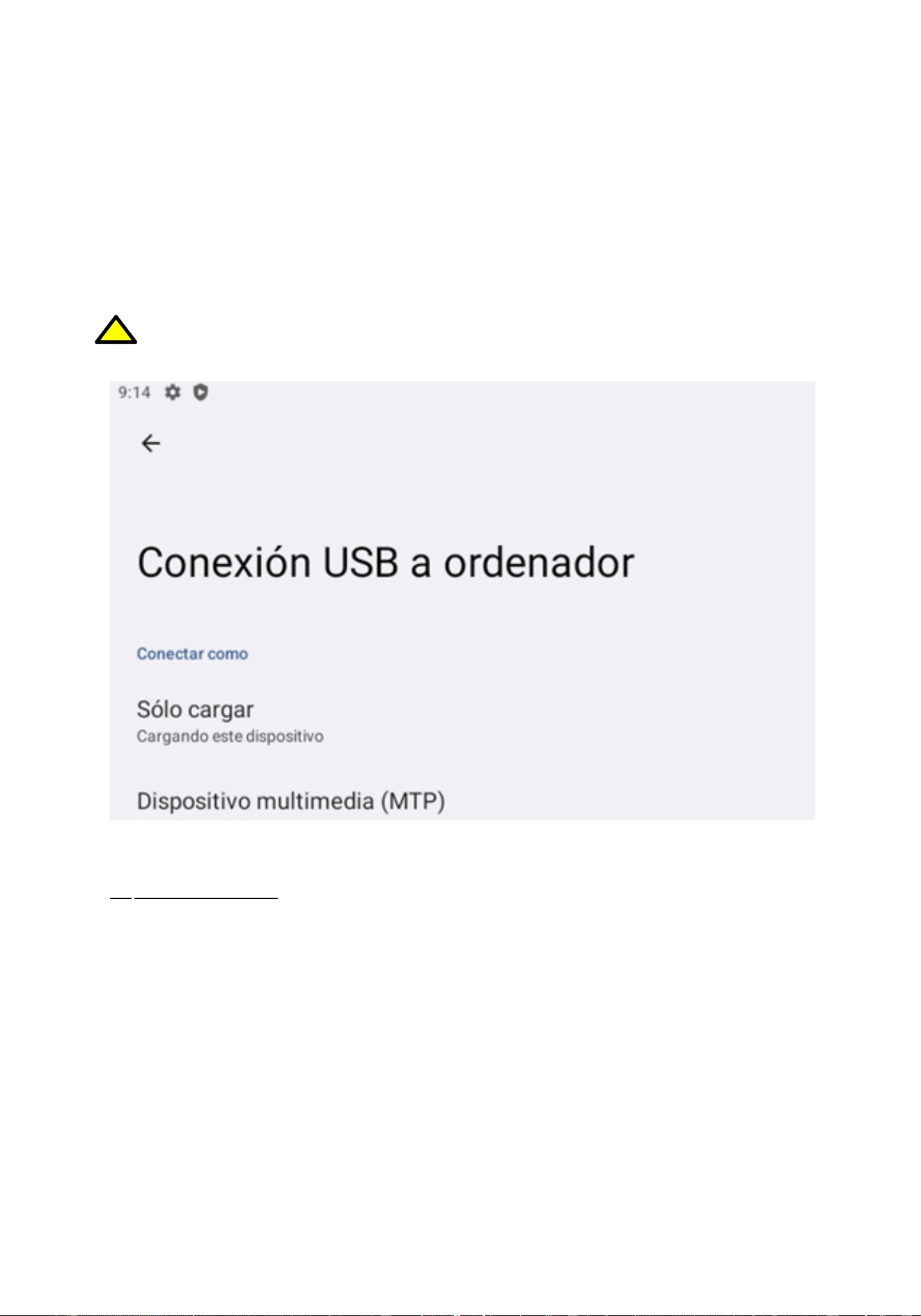
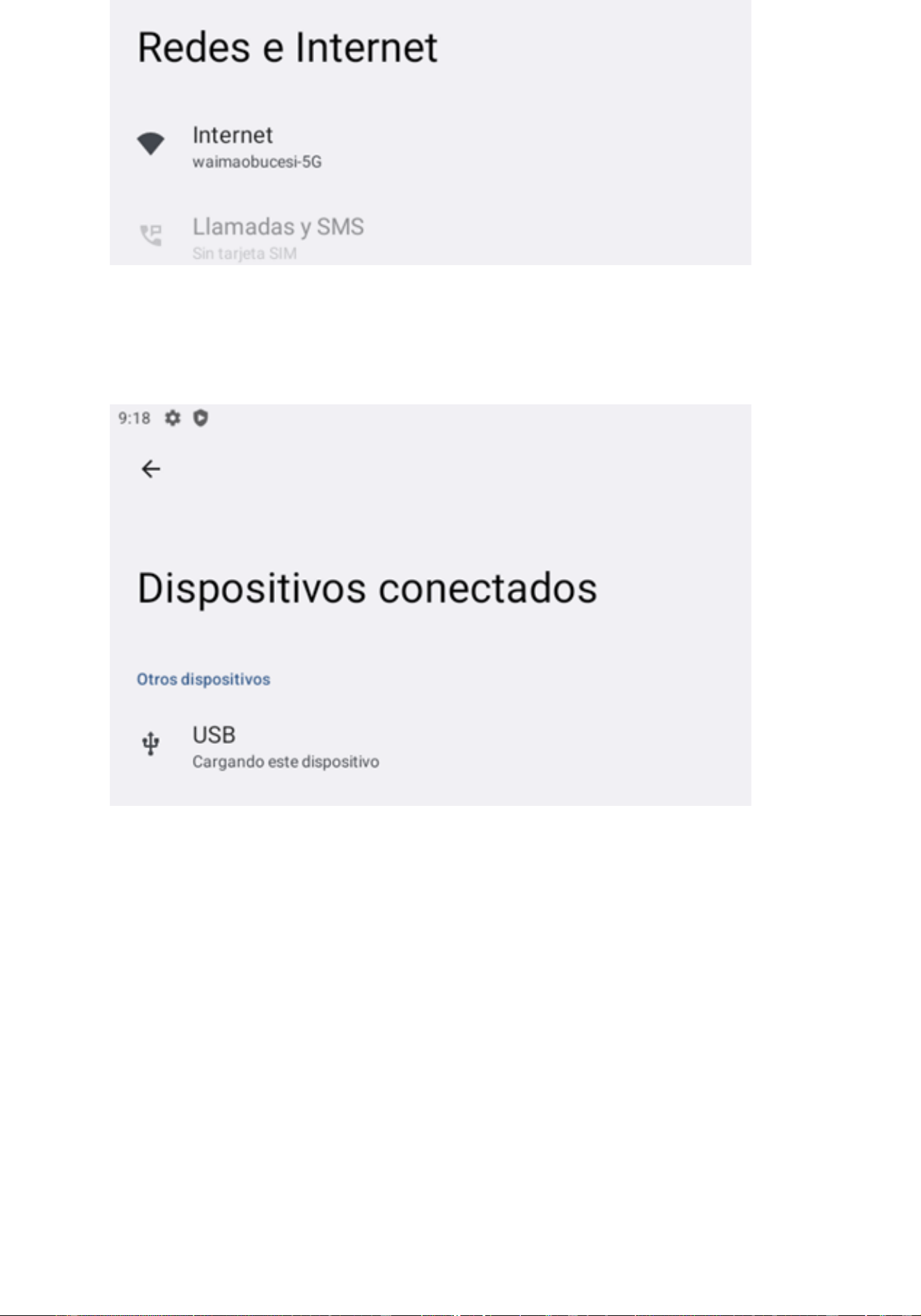
Next you need to connect the tablet to computer in Setting-Connected devices-USB.
The default option is “charging the device via USB”, choose “File Transfer ” if you
wish to do so.
The Steps are shown below.
! If the OS does not see device memory, check if the installed driver operating the
device is correct. Search the driver list manually and choose "FileTransfer ”.
8. Applications
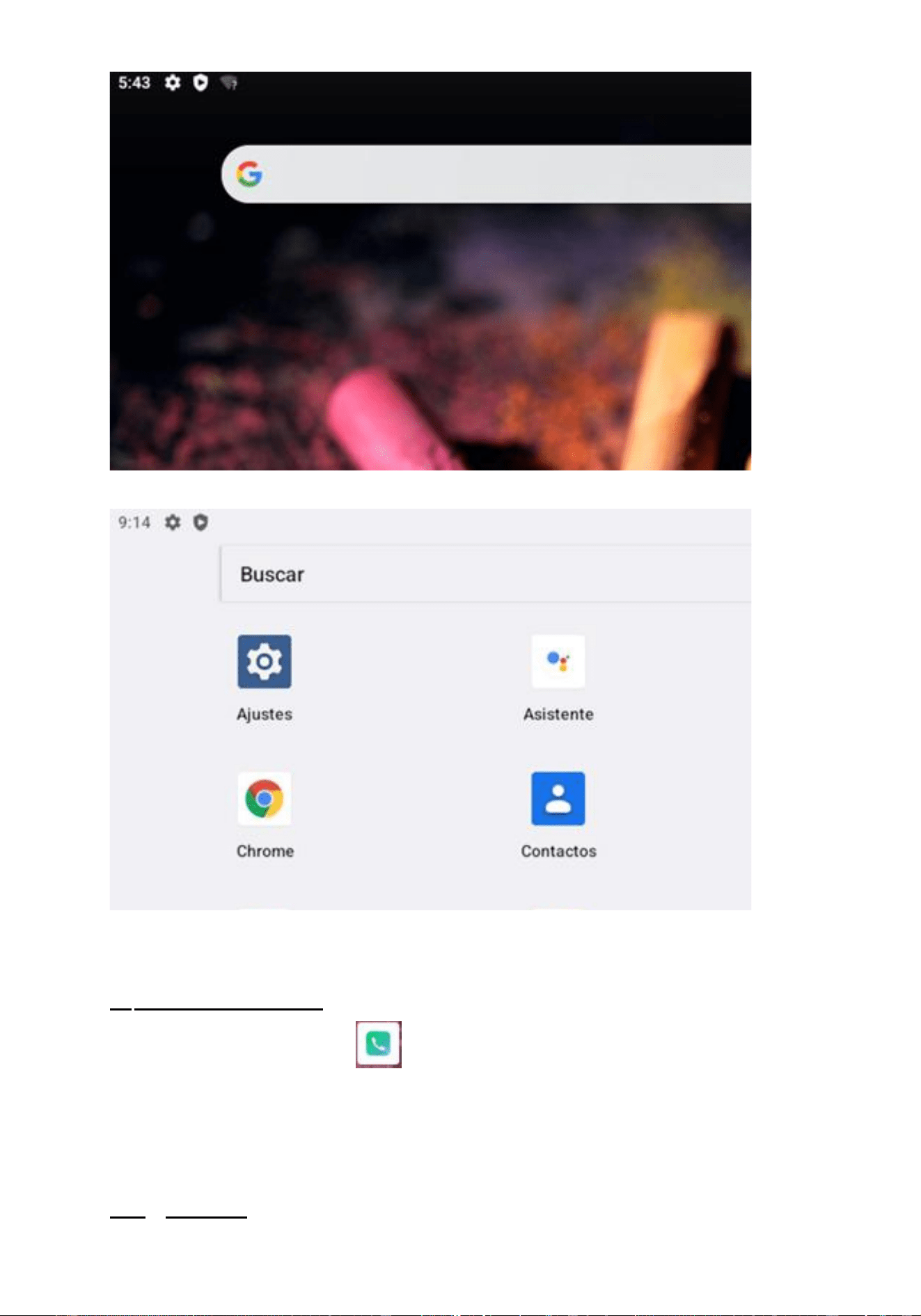
On the desktop screen, tap the icon [Application menu] to gain access to installed
applications. To add a shortcut to an application on the desktop screen, press the
application icon in the application menu and hold it, then when you change the view
to the desktop view, select the place where you wish to create a shortcut and "drop"
it in there.
7
9. Adding Contacts
Enter the [Phone] application and type the number you wish to
add then press "Contact”. A menu will appear containing, among others: Name and
surname, Phone number, Second phone number, E-mail.
Fill-in fields as required and press √ to save changes.
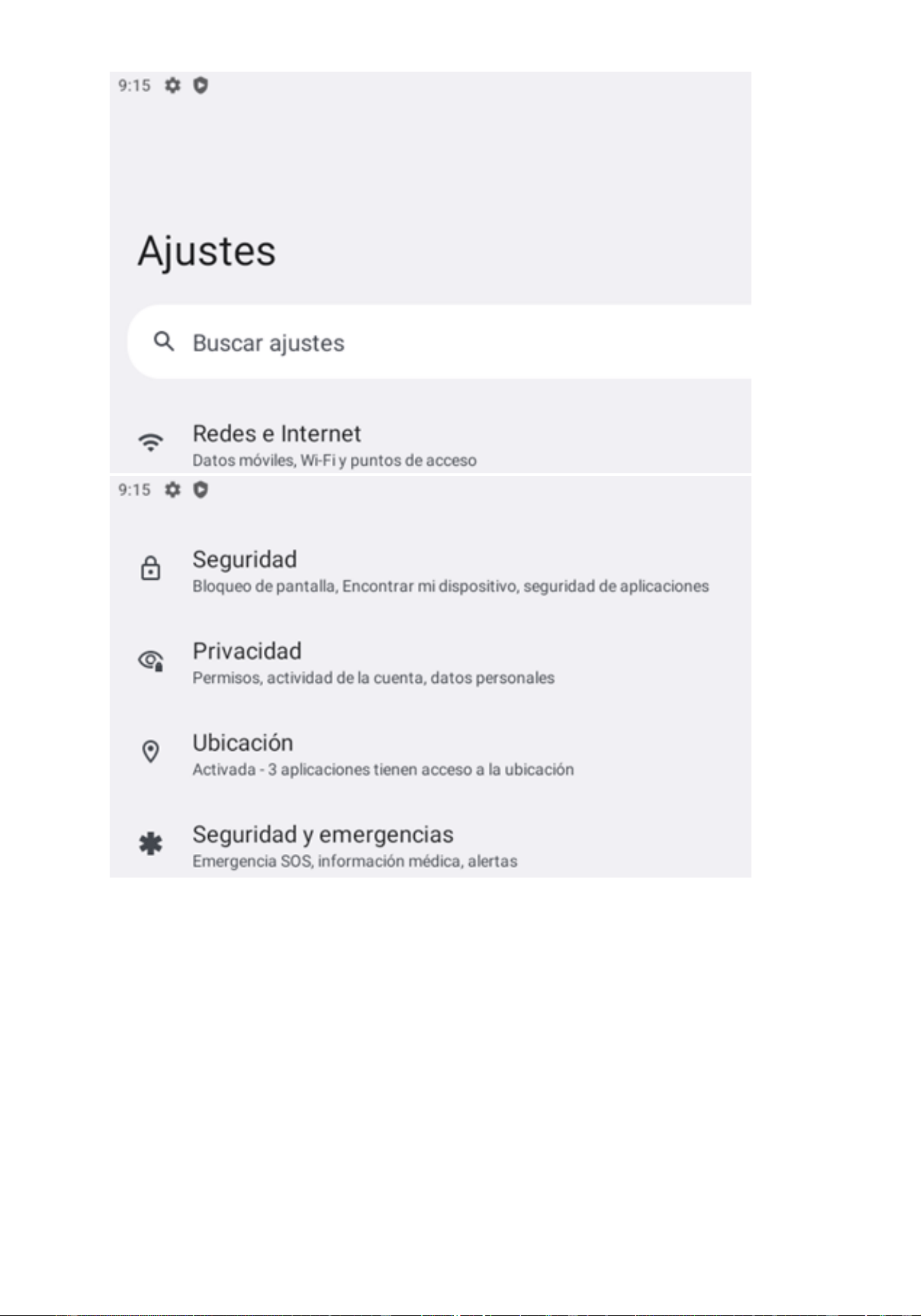
10. Setting
8
10.1 Network & Internet
Set up WIFI connection, Mobile network, Data usage, Hotspot & Tethering, VPN and
Airplane mode.
9
10.2 Connected Devices
Set up Bluetooth, Printing and connect the tablet to a computer using a USB cable.
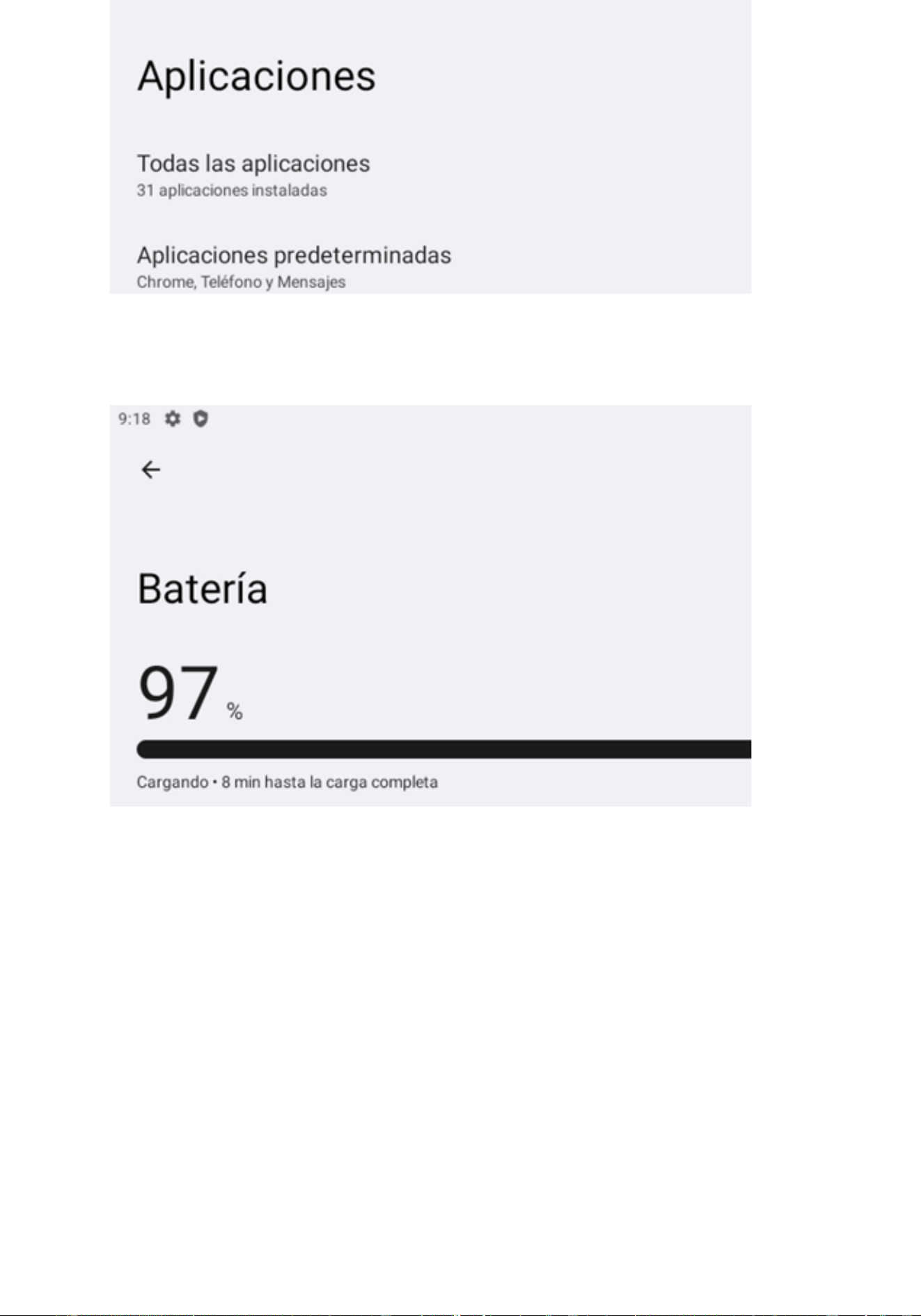
10.3 Apps & Notifications
Check All APP information, Notifications, APP permissions and Advanced for default
and some special app access.
10
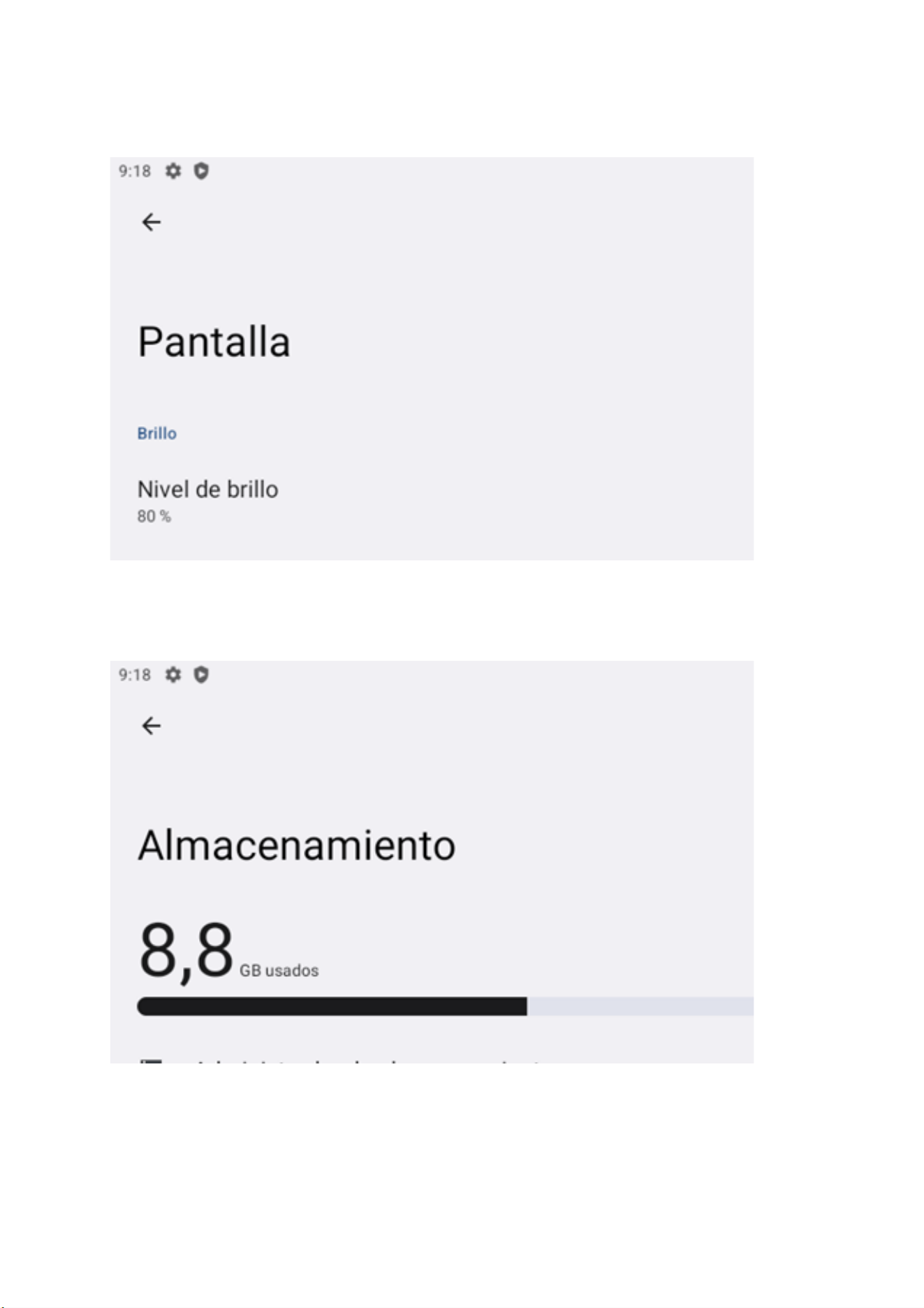
10.4 Battery
Provides battery usage data.
11
10.5 Display
Adjust brightness, change your wallpaper, turn on/off screen rotation, sleep settings
and font size.
10.6 Storage
Check all storage details.
12
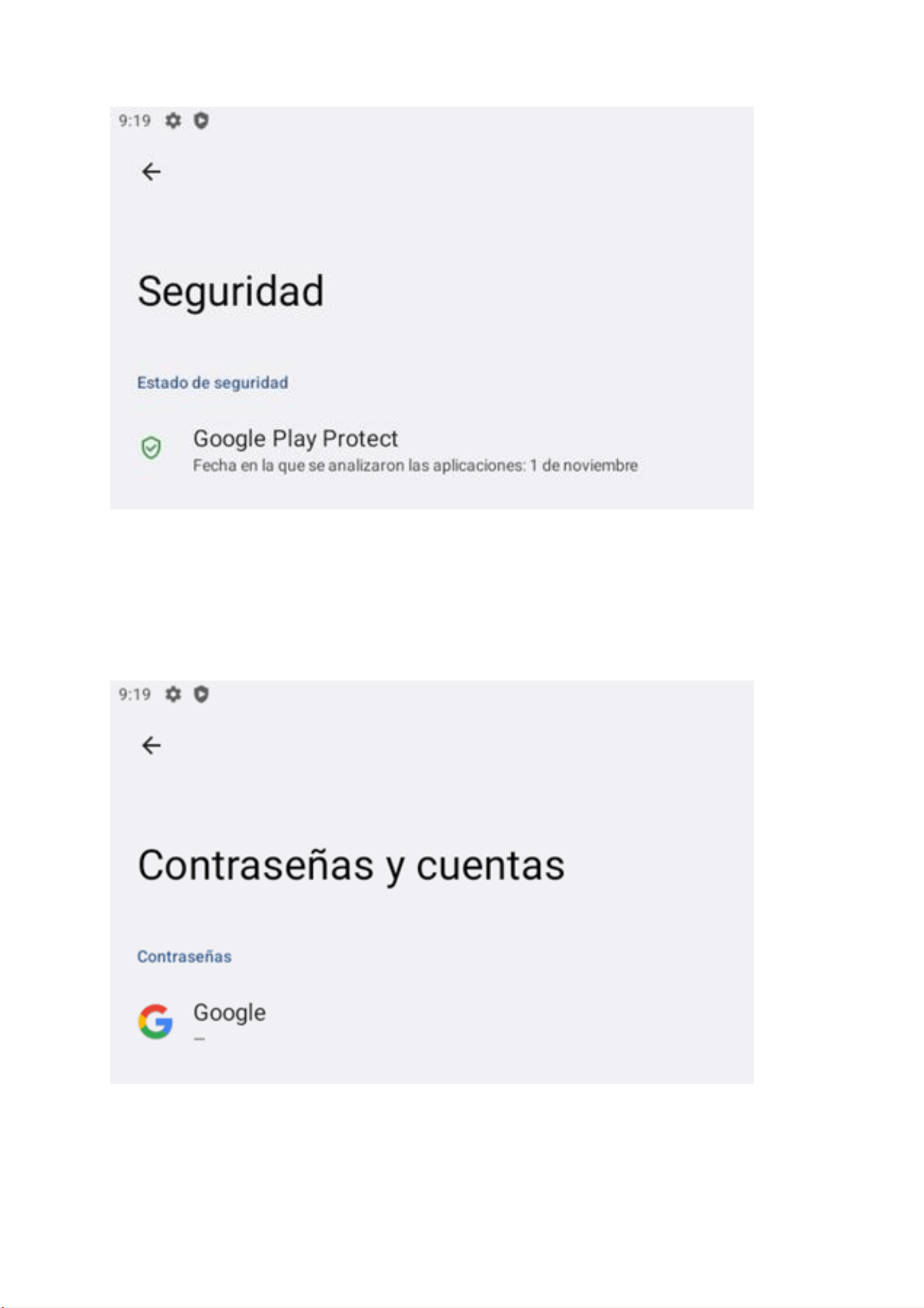
10.7 Security
Set the security of the device and privacy.
10.8 Users
Tap to add or remove accounts such as Google, Outlook, Hotmail , Yahoo , etc. can be
added to the device.
13
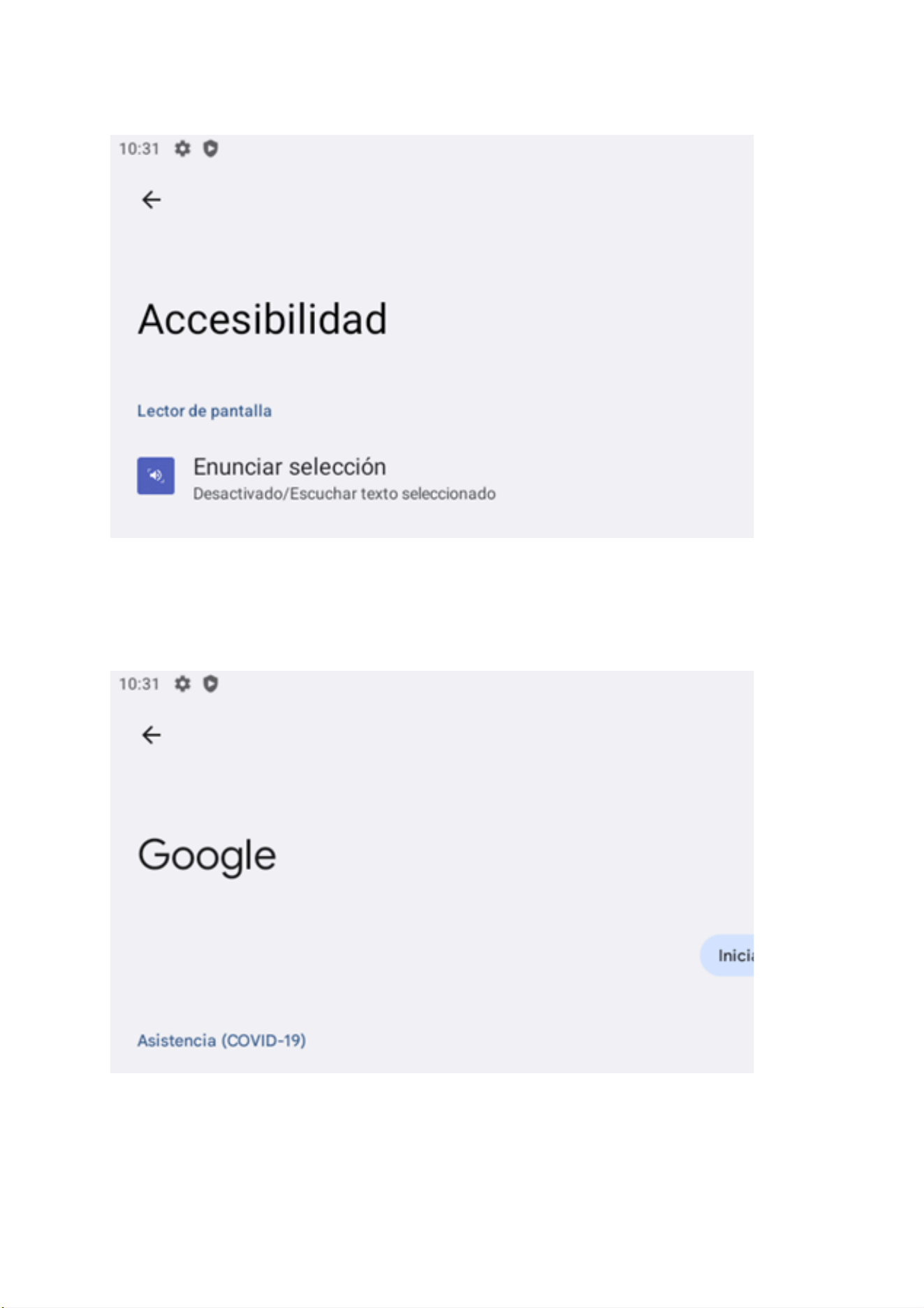
10.9 Accessibility
Adjust settings for users with poor vision.
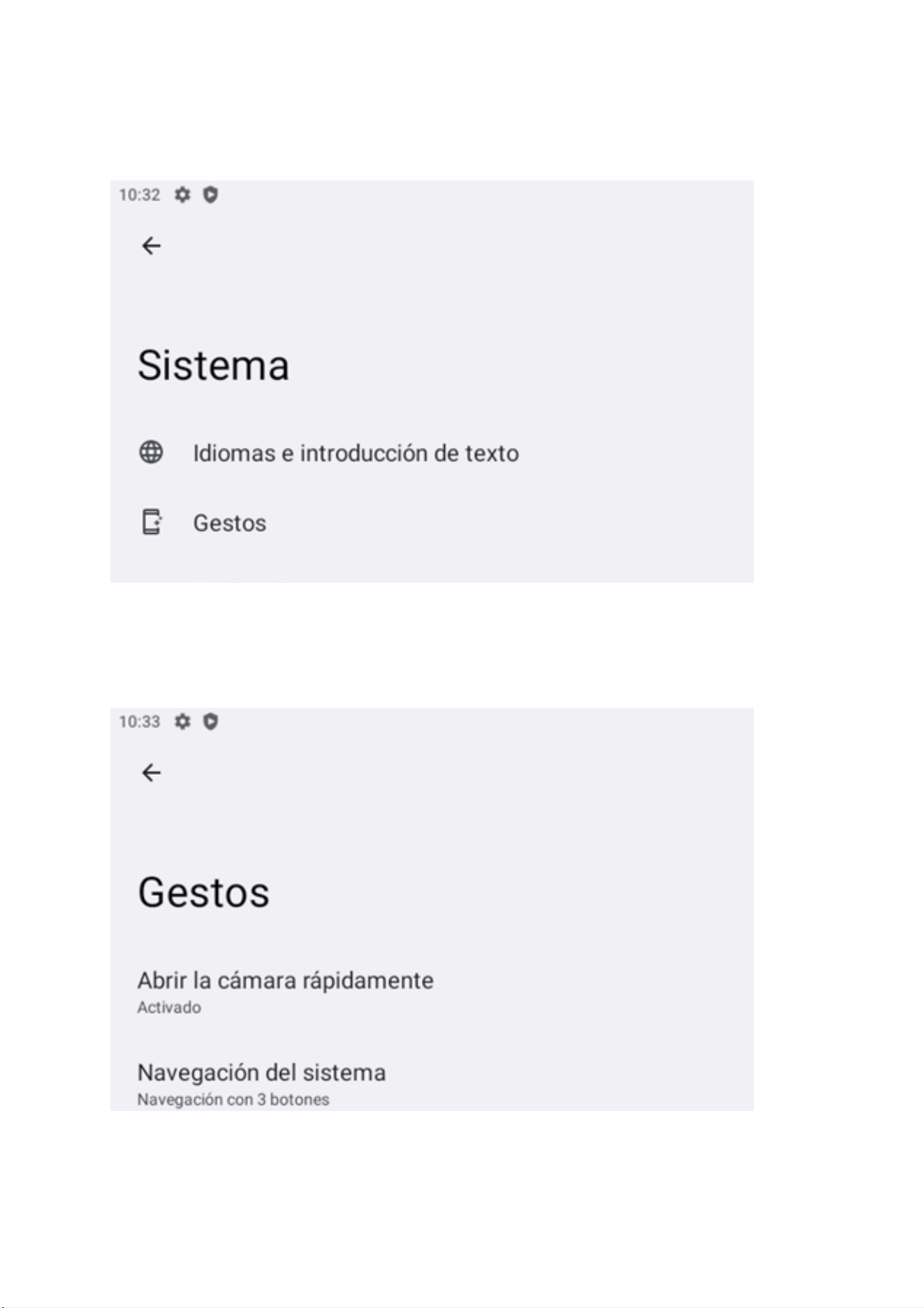
10.10 Google
Set Android Auto App, Cast Media Controls, Nearby Location, Restore Contacts,
Security, Or set up Nearby Device. You can also set up work profile under this setting.
14
10.11 System
10.11.1 Languages & Input
Set language, spelling correction, keyboard and voice settings.
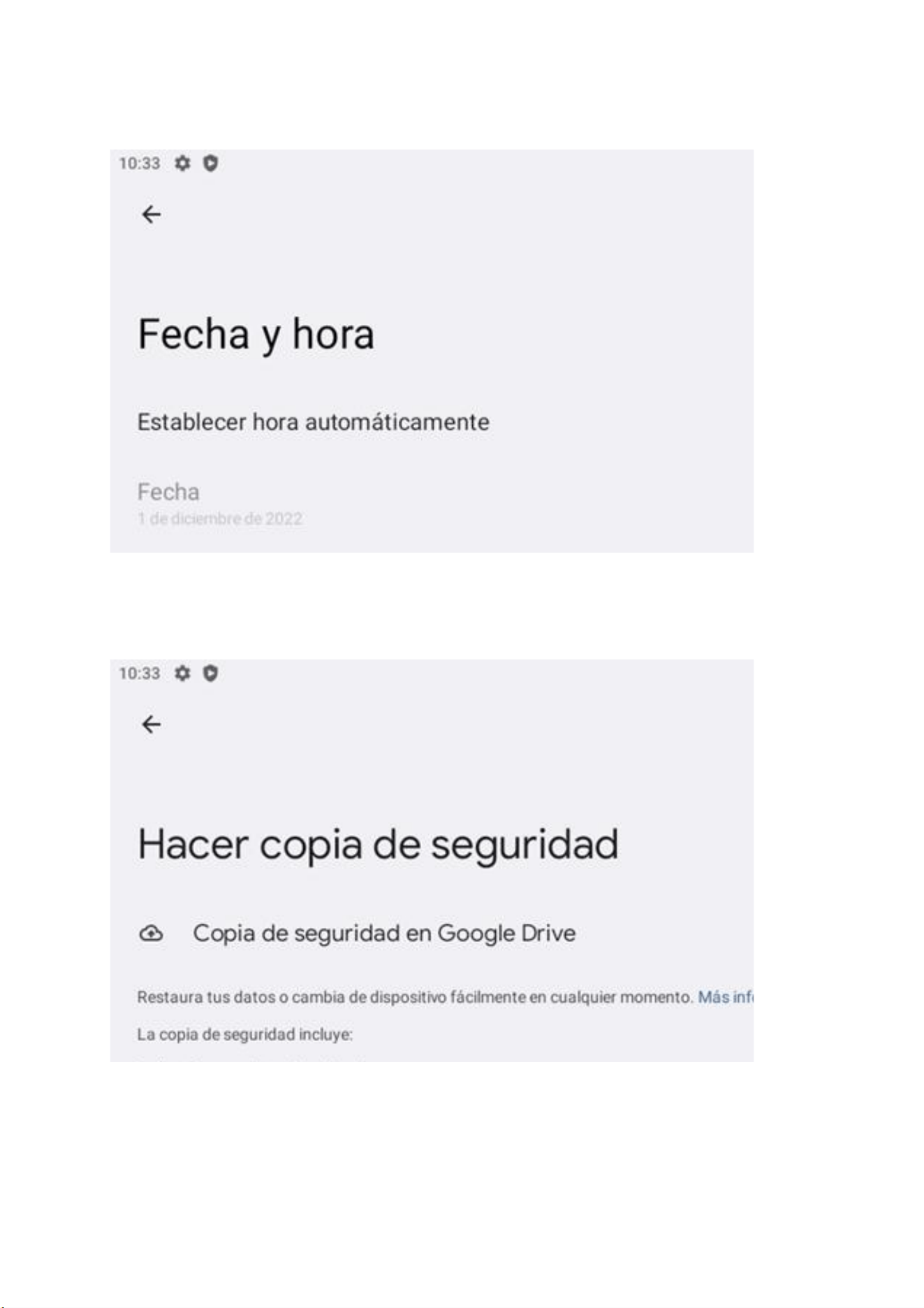
10.12 Gesture
Set Jump to camera.
15
10.13 Date & Time
Set the date, time and time zone.
10.14 Backup
Backup data.
16
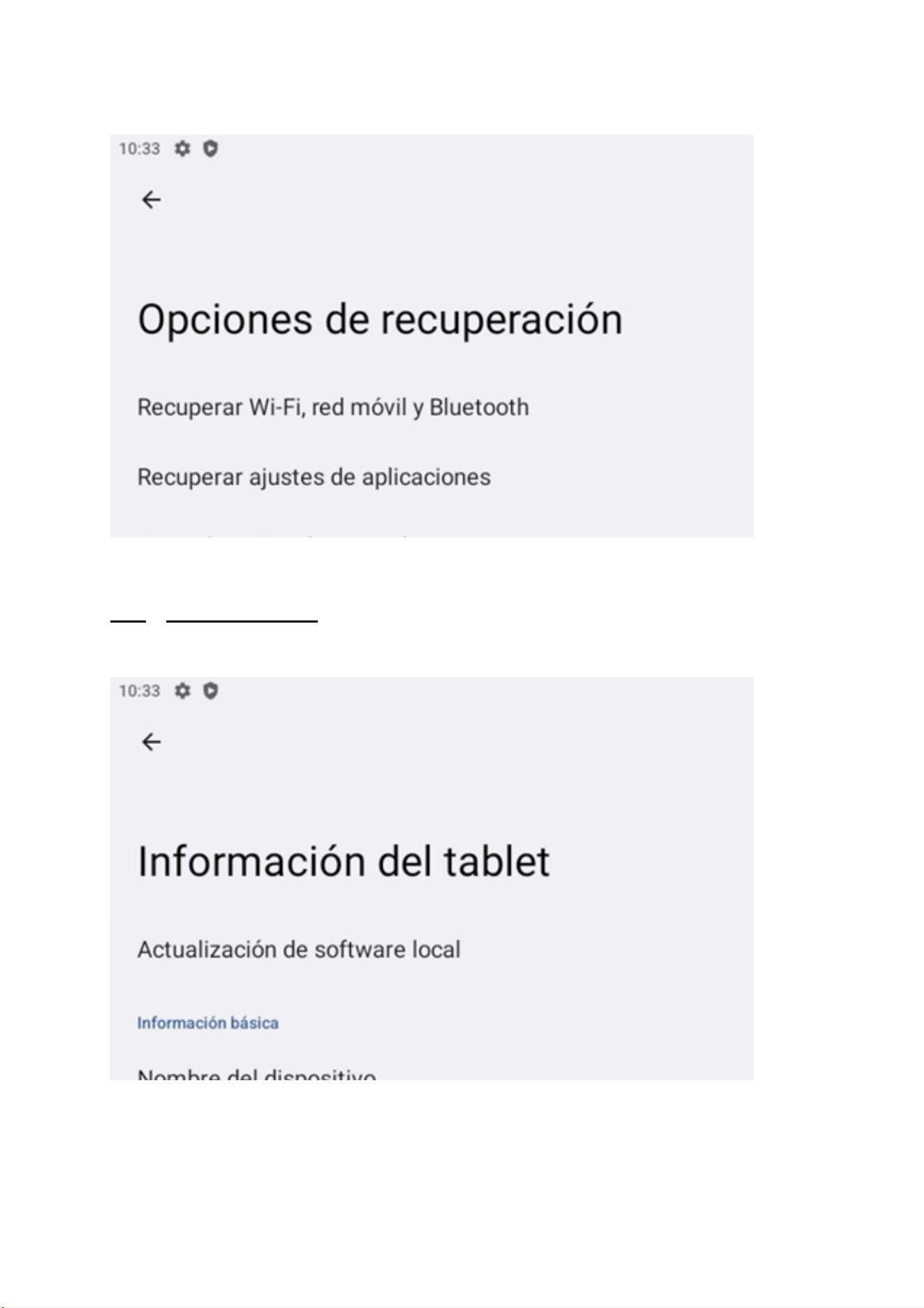
10.15 Reset options
Reset your tablet.
Important: Please note that doing a factory reset will delete all your apps and data.
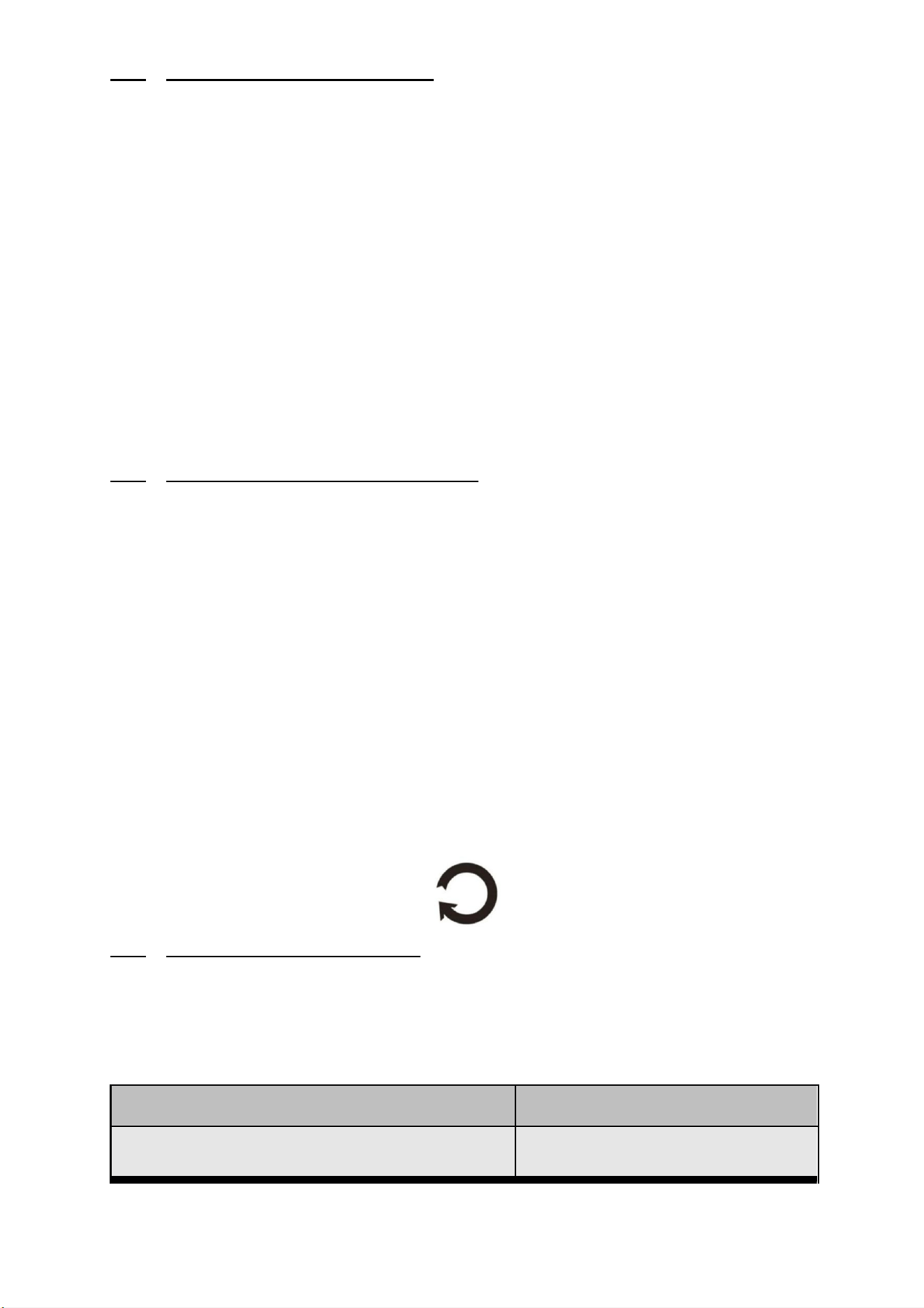
11. About Tablet
Model number and general tablet information.
17
12. Safe Use of the Battery
The battery may be charged using the USB port of a computer or laptop. Nevertheless,
it is not a recommended form of charging an operating device due to the low
charging current offered by the USB. Even though the device is connected to a power
source, the battery can still get discharged. If you wish to charge your device this way,
turn off the device. If the battery level is low, recharge it to continue the use of the
device. If you wish to prolong the battery life span, discharge the battery beneath
20% of the battery capacity and charge it back to 100%. If not used, unplug the
charger from the device. Excessive charging might cause shortened battery life. The
temperature of the battery has an impact on its charging cycle. Prior to the charging
process, cool the battery or raise its temperature so that it is similar to the room
temperature. If the battery temperature exceeds 40°C the battery must not be
charged! Do not use a damaged battery! The battery life span can be shortened, if it
has been exposed to very low or very high temperatures - this causes interference to
the device, even when the battery has been properly charged.
13. Maintenance of the Device
When using any electrical appliance, basic precautions should always be followed,
including the following:
• Keep the device and its accessories out of reach of children.
• Avoid contact with liquids; it can cause damage to electronic components of the
device.
• Avoid very high temperatures for it can shorten the life of the tablet, electronic
components, melt the plastic parts and destroy the battery.
• Do not try to disassemble the device. Tampering with the device in an
unprofessional manner may cause serious damage to the device or destroy it
completely.
• For cleaning use only a dry cloth. Never use any cleaning agent with a high
concentration of acids or alkalis.
• Use the original accessories only. Violation of this rule may result in an
invalidation of the warranty.
The packaging of the device can be recycled in accordance with local regulations.
14. Surroundings Security
Turn off the device in areas where its use is forbidden or when it may cause
interference or danger. The use of any devices that radiates radio waves may cause
interference with medical devices (i.e. cardiac pacemaker), if they are not properly
secured (if in doubt, consult your doctor or medical device manufacturer).
Attention
Statement
The manufacturer is not responsible for any damages or
consequences caused by improper use of the tablet.
The software version can be upgraded without
earlier notice

18
15. The Use of the Manual
15.1 Consents
Without prior written consent of the manufacturer, no part of this manual may be
photocopied, reproduced, translated or transmitted in any form or by any means,
electronic or mechanical, including photocopying, recording or storing in any
systems of storing and sharing information.
15.2 Appearance
The device and screen shots contained in this manual may differ from the actual
product. Accessories attached to the set may differ from the illustrations included
in the manual.Options described in the manual are found in the Android system.
Those descriptions may differ, depending on the version of the operating system
and applications installed on the device.
15.3 Trademarks
• Google, Android, Google Play and other marks are trademarks of Google LLC.
• Oracle and Java are registered trademarks of Oracle and / or its affiliates.
• Wi-Fi® Wi-Fi logo are registered trademarks Wi-Fi Alliance association.
• All other trademarks and copyrights belong to their respective owners.
The Android robot is reproduced or modified from work created and shared
by Google and used according to the terms described in the Creative
Commons 3.0 Attribution License
19
Manufacturer
Strong Pilates US, Inc.
9901 Brodie Lane, Suite 160 PMB1564, Austin, TX
Frequency and power:
BT: 2402-2480MHz(7.5 dBm)
BLE: 2402-2480MHz(6.39 dBm)
2.4G Wi-Fi: 2412-2472MHz(12.98 dBm)
5G WiFi:
Band1: 5180-5240MHz(11.09 dBm)
Band 4: 5745-5825MHz(10.77 dBm)
FCC Caution:
Any Changes or modifications not expressly approved by the party
responsible for compliance could void the user's authority to operate the
equipment.
This device complies with part 15 of the FCC Rules. Operation is subject to the
following two conditions: (1) This device may not cause harmful interference,
and (2) this device must accept any interference received, including
interference that may cause undesired operation.
IMPORTANT NOTE:
Note: This equipment has been tested and found to comply with the limits for
a Class B digital device, pursuant to part 15 of the FCC Rules. These limits are
designed to provide reasonable protection against harmful interference in a
residential installation. This equipment generates, uses and can radiate radio

20
frequency energy and, if not installed and used in accordance with the
instructions, may cause harmful interference to radio communications.
However, there is no guarantee that interference will not occur in a particular
installation. If this equipment does cause harmful interference to radio or
television reception, which can be determined by turning the equipment off
and on, the user is encouraged to try to correct the interference by one or
more of the following measures:
—Reorient or relocate the receiving antenna.
—Increase the separation between the equipment and receiver.
—Connect the equipment into an outlet on a circuit different from that to
which the receiver is connected.
—Consult the dealer or an experienced radio/TV technician for help.
IC Caution::
This device complies with Innovation, Science, and Economic Development
Canad licence-exempt RSS standard(s). Operation is subject to the following
two conditions:
(1) this device may not cause interference, and
(2) this device must accept any interference, including interference that may
cause undesired operation of the device.
Le présent appareil est conforme aux CNR d' Innovation, Sciences et
Développement économique Canada applicables aux appareils radio exempts
de licence. L'exploitation est autorisée aux deux conditions suivantes:
(1) l'appareil nedoit pas produire de brouillage, et
(2) l'utilisateur de l'appareil doit accepter tout brouillage radioélectrique subi,
même si le brouillage est susceptible d'en compromettre le fonctionnement.
FCC/IC Radiation Exposure Statement:
This equipment complies with FCC/ISED radiation exposure limits set forth for
an uncontrolled environment.

21
This equipment should be installed and operated with minimum distance
20cm between the radiator& your body.
L'appareil est conforme aux limites d'exposition aux rayonnements spécifiées
par la FCC/ISED pour les environnements non contrôlés.
La distance entre le radiateur et le corps doit être d'au moins 20 cm lors de
l'installation et du fonctionnement de l'appareil.