KLIM BLAZE
USER MANUAL
2
INDEX
INTRODUCTION
Features
PRODUCT DIAGRAM
INSTALLATION
Mouse installation
Driver Installation
USING THE DRIVER
Main Screen
Button Settings
Advanced Screen
Mouse Settings
Macros
Creating and editing a macro
Inserting an event
Delete/Modify an event
Using a macro
Lighting
OTHER OPTIONS
Exporting and importing profiles
Saving a profile
Loading a profile
TROUBLESHOOTING
3
3
3
4
4
4
4
4
5
5
6
6
7
7
7
8
8
9
9
9
9
10
KLIM Blaze Wireless Gaming Mouse User Manual
www.klimtechs.com
3
INTRODUCTION
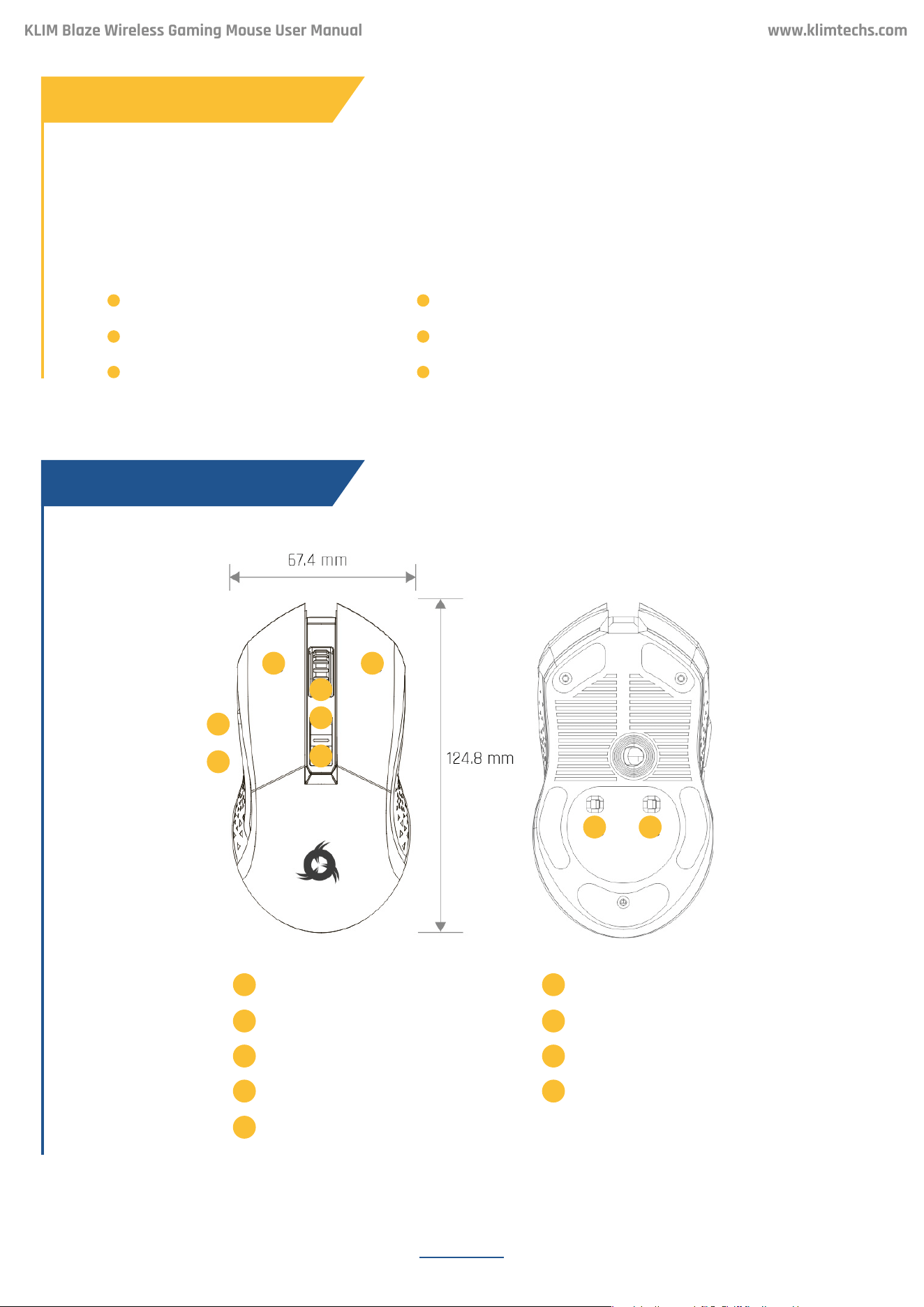
PRODUCT DIAGRAM
Features
KLIM Blaze Wireless Gaming Mouse User Manual
www.klimtechs.com
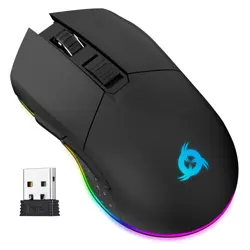
On behalf of the entire KLIM Team, thank you for purchasing our KLIM Blaze wireless gaming
mouse. We hope it meets your expectations and that you enjoy using this device.
Rechargeable baery
Le click1
1 2
RGB rim
Backward5
5
Wired & Wireless mode
Right click2
Omron Gaming Switches
DPI +
7
7
Up to 6000 DPI
Mid click and scroll wheel3
3
Forward4
4
Lights switch
6
6
Wireless range up to 10 meters
DPI -
8
8
On/Off Switch9
9
4
INSTALLATION
USING THE DRIVER
Wireless mode: connect the USB receiver to your PC and move the switch located under the
mouse to the ON position.
Wired mode: connect the mouse to your PC via the USB cable.
In the event it does not light up or is not recognized by the system, please refer to the
Troubleshooting section at the end of this manual.
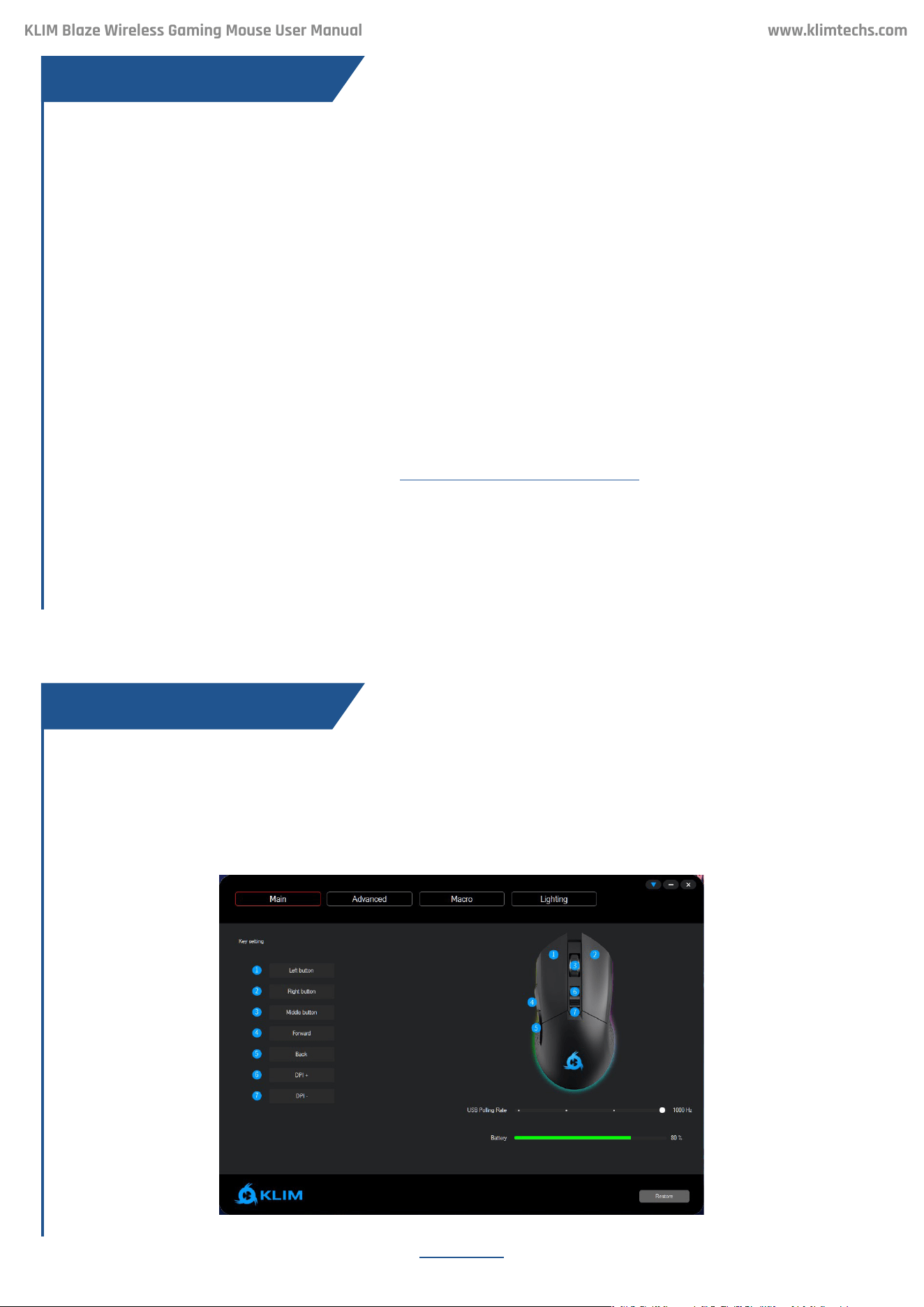
Once you open the driver, it will show its main screen, which allows you to adjust Report Rate,
check the baery level, and change what each buon does.
Our dedicated soware for Windows lets you customize several aspects such as lighting,
buon mapping, macros and more.
You can download it from our website: www.klimtechs.com/manual
NOTE: if you receive a warning indicating that the program is potentially harmful, this is due
to Windows certications. We are in the process of obtaining these certications. However,
the driver remains perfectly safe to use.
Once the driver has been downloaded you can use a decompressing tool such as WinRar to
extract the le. Once in your hard drive, double click on the KLIM_Blaze_Setup.exe to start
the installation process
Mouse installation
MAIN SCREEN
Driver Installation
KLIM Blaze Wireless Gaming Mouse User Manual
www.klimtechs.com
5
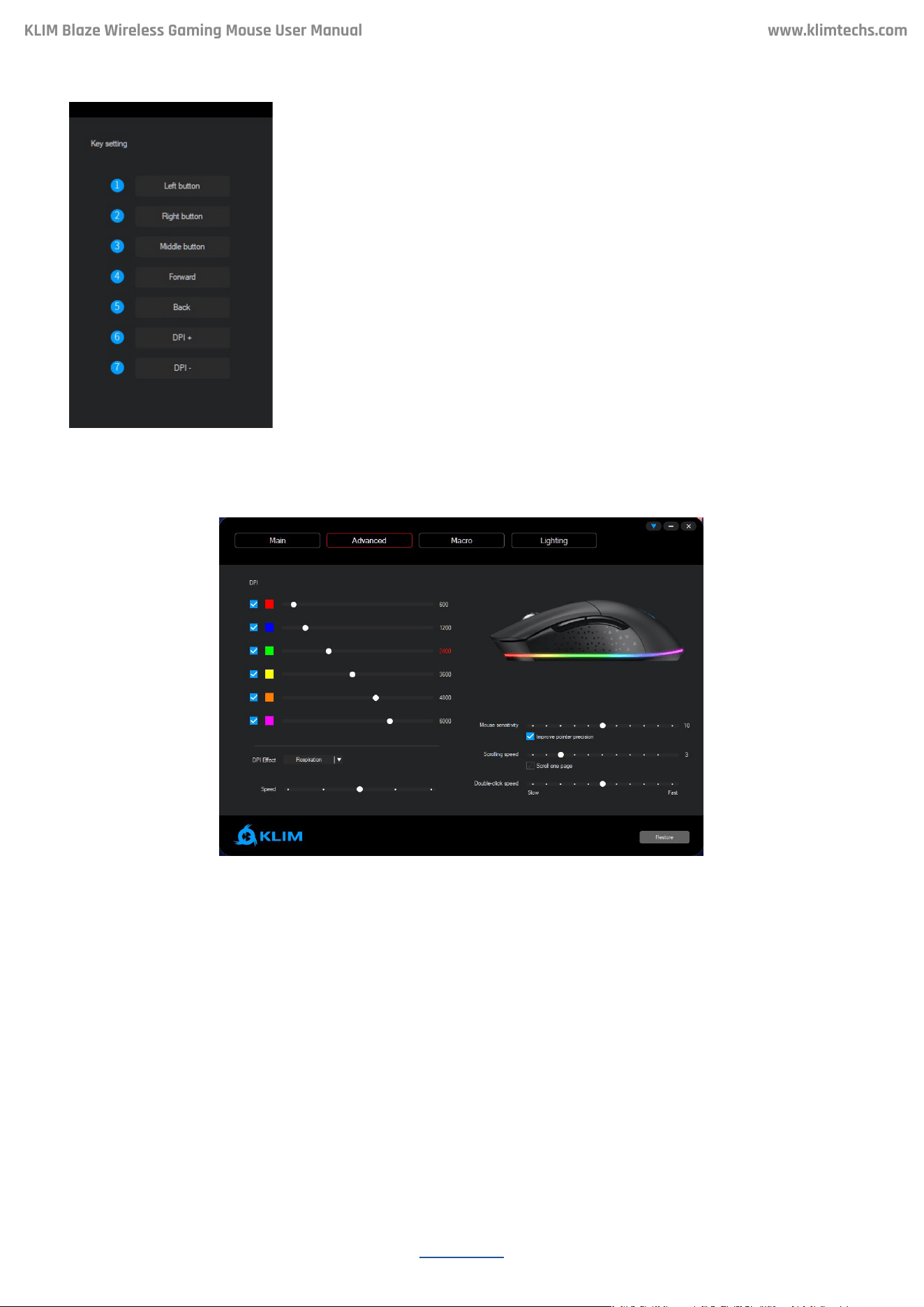
Click on the desired buon to customize and select a new function
for that buon. You may also assign macros aer they are created
(refer to section Macros below).
To revert back to the original values, click Restore.
IMPORTANT: the Restore buon resets ALL seings to their
default values, including buons, DPI and Lighting. Macros are still
preserved but become unassigned from any buons.
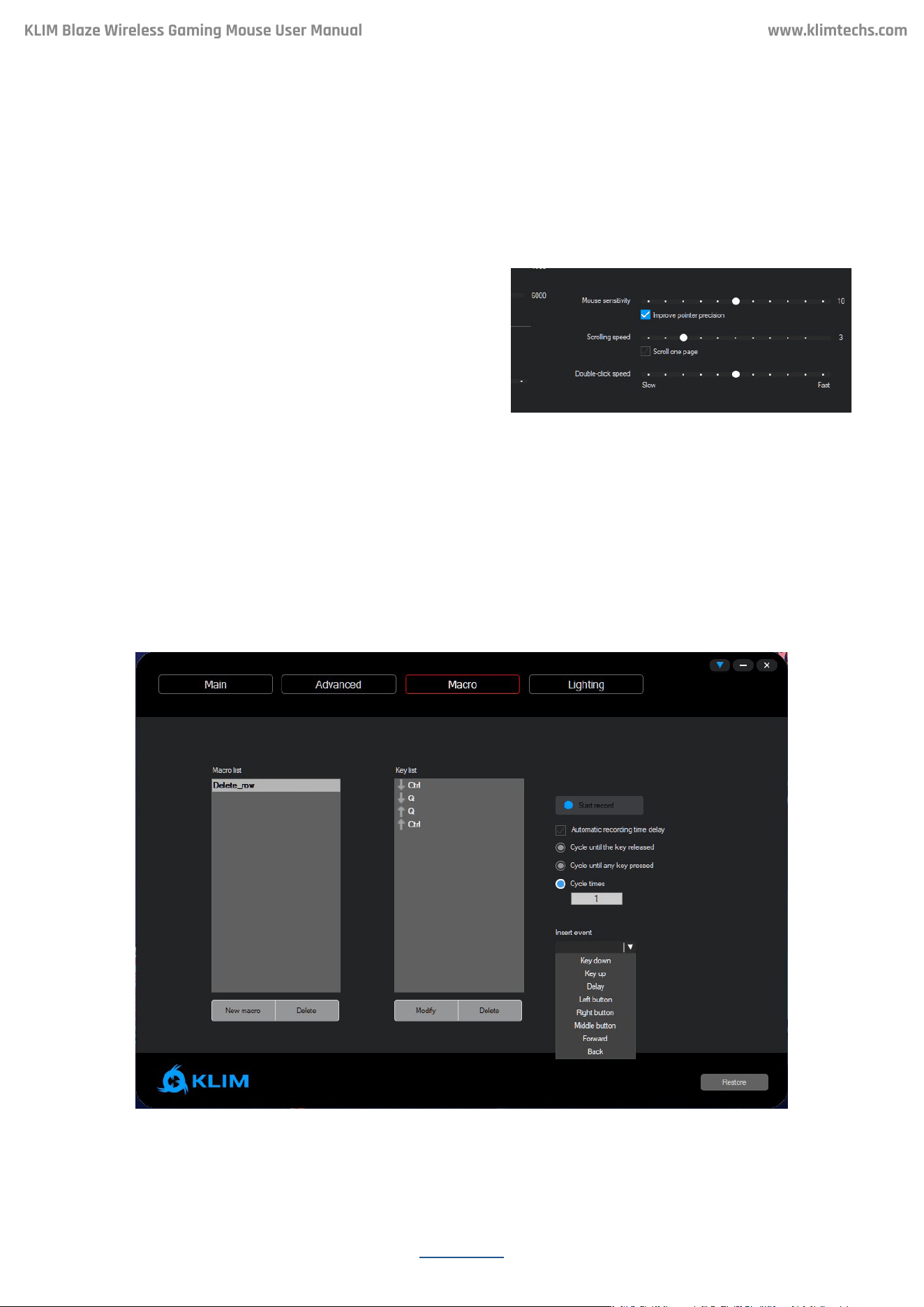
The KLIM Blaze has 6 different DPI levels, which you can change using the DPI + and DPI -
buons (6 & 7). Use this screen to specify the DPI for each one of the 6 levels. If you prefer
to have less DPI levels, tick the checkbox on the le so that the mouse loops only between
the selected levels.
Use the sliders to select what DPI to set for each level.
Logo color:
The logo on the mouse changes colors depending on the DPI levels. Use the DPI effect menu
to change between Steady, Respiration or Off modes.
Steady mode: the logo is always lit. Use the Brightness slider to select the brightness level
Respiration: the logo turns on and off. Use the Speed slider to control the speed of the effect.
Click on the colored square to change the color that corresponds to each DPI level. If you
prefer to always see the same color regardless of the current DPI, select the same color for
all levels.
Button Settings
ADVANCED SCREEN
KLIM Blaze Wireless Gaming Mouse User Manual
www.klimtechs.com
6
Note: baery charging status is also indicated by the logo light. This indication overrides
any custom DPI lighting. Once the mouse is done charging, you can unplug it to display your
selected colors.
On the boom-right corner of the Advanced
screen, you may adjust the Mouse sensitivity,
Scrolling speed and Double click speed.
Note: you may also change these seings directly
on Windows.
For maximum accuracy we suggest disabling
Enhance Pointer Precision.
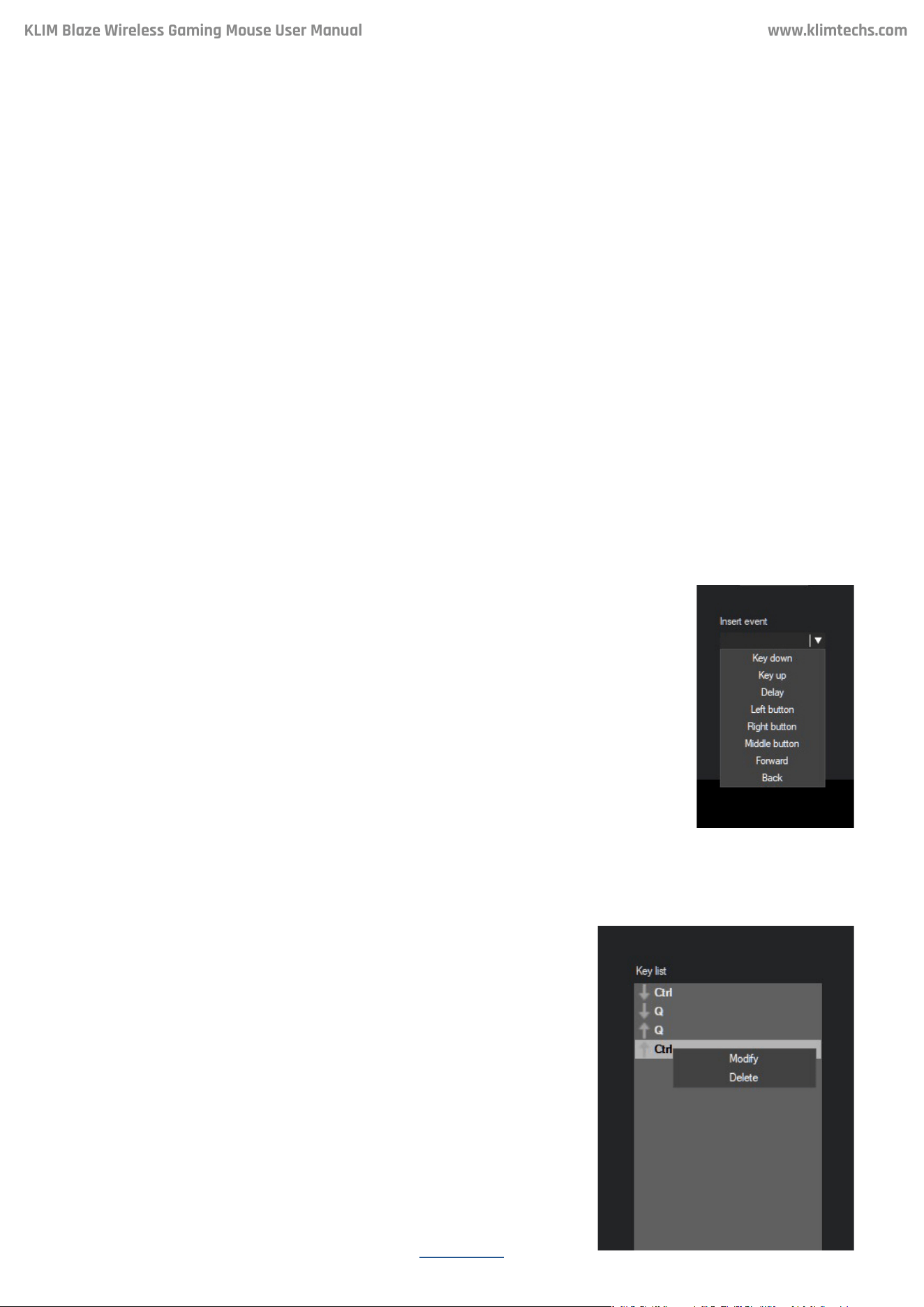
Macros allow you to perform a number of predened actions with a single mouse buon
press. The Macro window lets you create, save and edit macros.
Mouse Settings
MACROS
KLIM Blaze Wireless Gaming Mouse User Manual
www.klimtechs.com
7
1. Click on New Macro and write a Macro Name.
2. Check or uncheck the “Automatic recording time delay” depending on your needs:
When checked, it will record the key presses in real time
When unchecked, it will only record the key presses one right aer the other
3. Click Start Record and use the keyboard to record a sequence of key presses for this macro.
4. When done, click Stop Record.
5. Review your macro. If you need to add mouse clicks, or modify any events, refer to the next
section: “Deleting/Modifying events” and “Inserting events”.
6. Select the cycle type based on your needs:
Cycle until the key released: the macro plays as long as you press down the mouse buon.
Cycle until any key pressed: the macro plays innitely until you press another mouse buon.
Cycle times: the macro plays a xed number of times with each press of the mouse buon.
7. Click the Save buon.
Use the Insert Event dropdown to include mouse actions, keyboard
actions, or add delay if needed. The event is added at the end of the
sequence if no event is selected, or above the selected event.
You may delete key presses by right clicking on them, or adjust the delay
between key presses by double clicking on the delay event. The default
delay is 50 ms.
Right click on an event and select Delete or Modify.
Creating and editing a macro
Inserting an event
Delete/Modify an event
KLIM Blaze Wireless Gaming Mouse User Manual
www.klimtechs.com
8
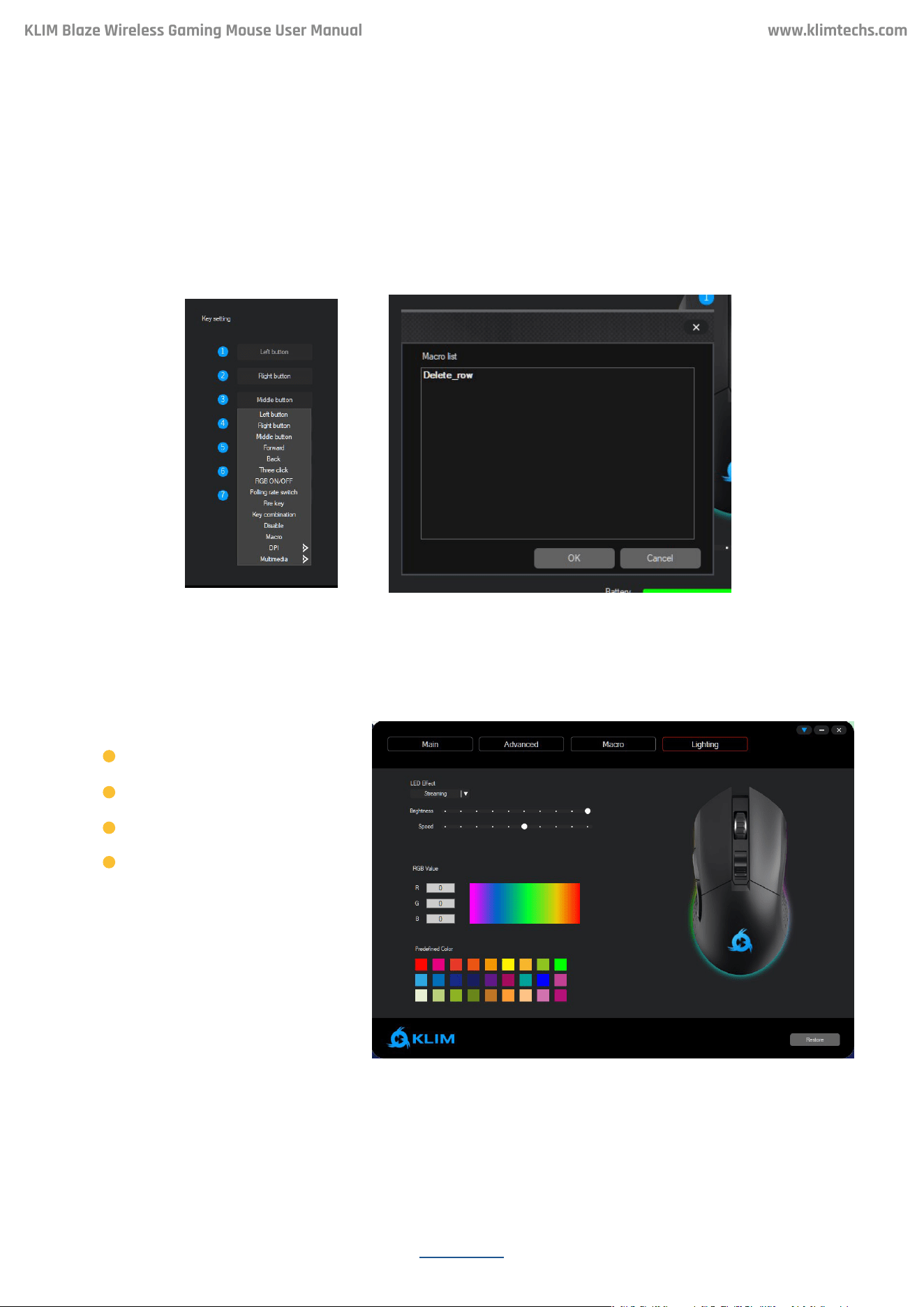
1. Access the Main menu on the top-le side of the screen.
2. Click on the buon (1-7) you would like to assign the macro to, then select Macro and
choose a macro you have previously created.
Note: if you can’t nd your macro listed in the dialog box, check that it was properly saved in
the Macro menu.
Using a macro
LIGHTING
KLIM Blaze Wireless Gaming Mouse User Manual
www.klimtechs.com
Click on Lighting to access color and effect customization. You may select different modes
and change their brightness, speed and/or color (for selected modes only).
Available effects:
Select a predened color or
enter a custom RGB value to
update the rim’s lighting.
Note: selecting a lower
brightness or disabling the
RGB rim signicantly increases
baery duration.
Steady
Respiration
Streaming
Off
9
Exporting and importing profiles
Saving a profile
Loading a profile
OTHER OPTIONS
KLIM Blaze Wireless Gaming Mouse User Manual
www.klimtechs.com
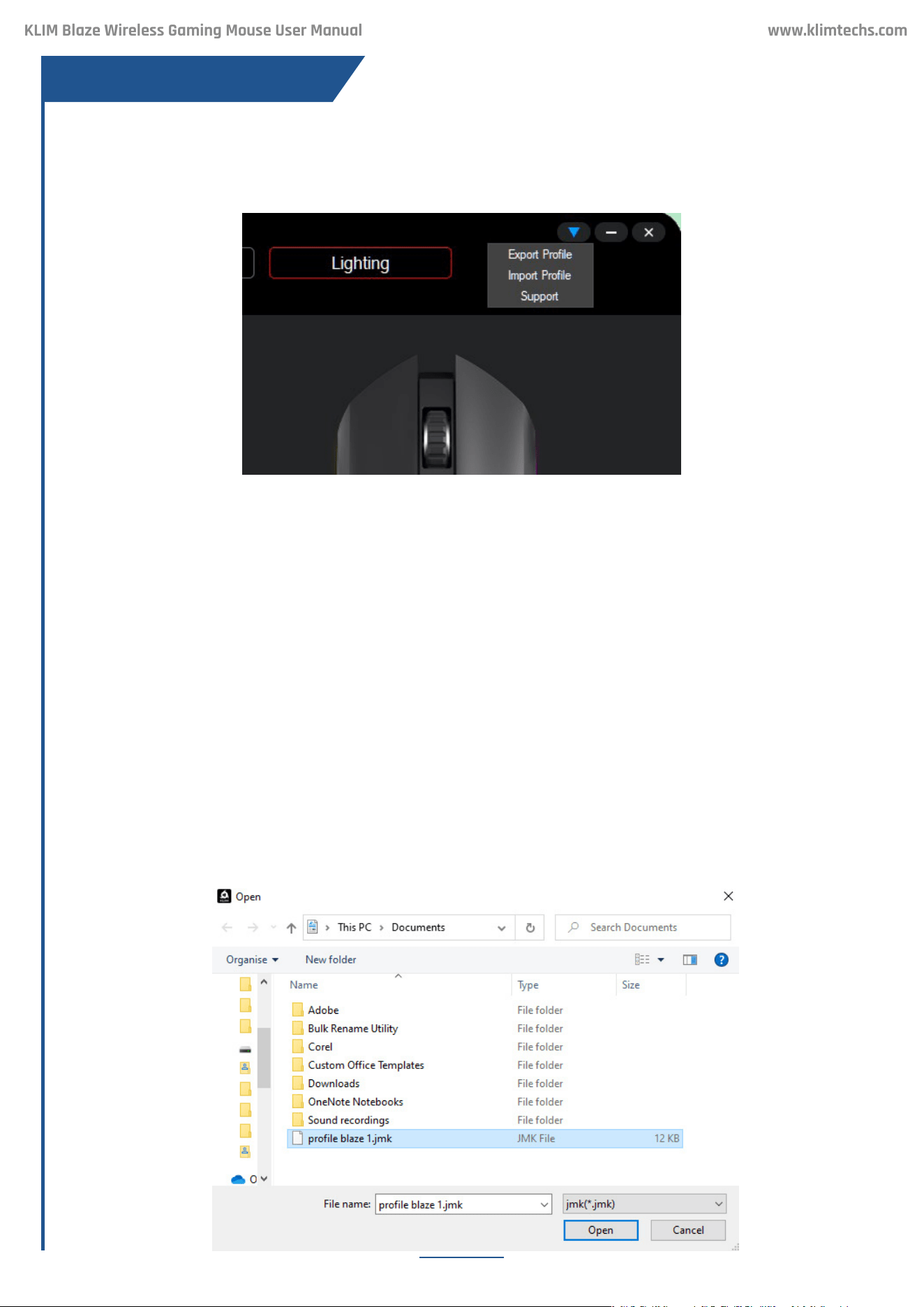
Click on the blue arrow on the top-right corner of any screen to export or import proles.
Select Export Prole. On the new dialog window, rename the le and save it.
Select Import Prole. On the new dialog window, nd the previously saved .jmk le and open
it.
This can be useful to transfer seings to another computer, or to keep multiple macro, lighting
or DPI proles for easy switching.
For example, you could have an “ofce” prole with productivity macros & seings, a “gaming”
prole with optimized DPI seings and macros for videogames, and an “energy-saving” mode
with low brightness for increased baery duration.

10
TROUBLESHOOTING
KLIM Blaze Wireless Gaming Mouse User Manual
www.klimtechs.com
If you ever encounter any problems, remember that we remain at your disposal to help you
with any issues. Do not hesitate to contact us at support@klimtechnologies.com for additio-
nal support.
I have installed the soware but it does not open.
The soware is executed automatically once installed. In order to display it, look for the
KLIM Blaze icon on your Windows task tray and click on it.
The mouse only works when the cable is connected.
Verify that the ON/OFF switch under the mouse is in the ON position. Make sure that the
wireless receiver is connected to your computer. Lastly, check the baery level to ensure
it’s not depleted.
The lights stay on even aer I switch off my computer.
Some computers provide energy to the USB ports even if the computer is off. You can
usually solve this by accessing your BIOS energy options and activating ErP. If you are not
sure about this procedure, please contact us.
The mouse pointer behaves erratically while in wireless mode.
Check the baery levels and fully charge the mouse baery, then try again. Also, ensure
you are within the maximum wireless range of 10 m/30 . Make sure there are no obstacles
between the mouse and the USB receiver: if so, try plugging the receiver to a more exposed
port (such as a frontal port on your computer). If the problem persists, please contact us
directly.
We thank you again for your purchase and hope that you enjoy using our KLIM Blaze Wireless
Gaming mouse.
The KLIM Team