上滑:
进入相机,计算器
手机打开APP,保持与设备连接状态,设备点击拍照图标进入拍照页面,
点击设备屏幕拍照按钮即可拍照。
拍照同屏
切换自动休眠模式(10分钟内未使用自动息屏或长亮)
删除当前图片(左右滑动可选择需要删除的图片)
一键分享:
设备间互传图片,A设备点击“分享图片”进入发送模式;B设备点击“接收图片”
进入接收模式
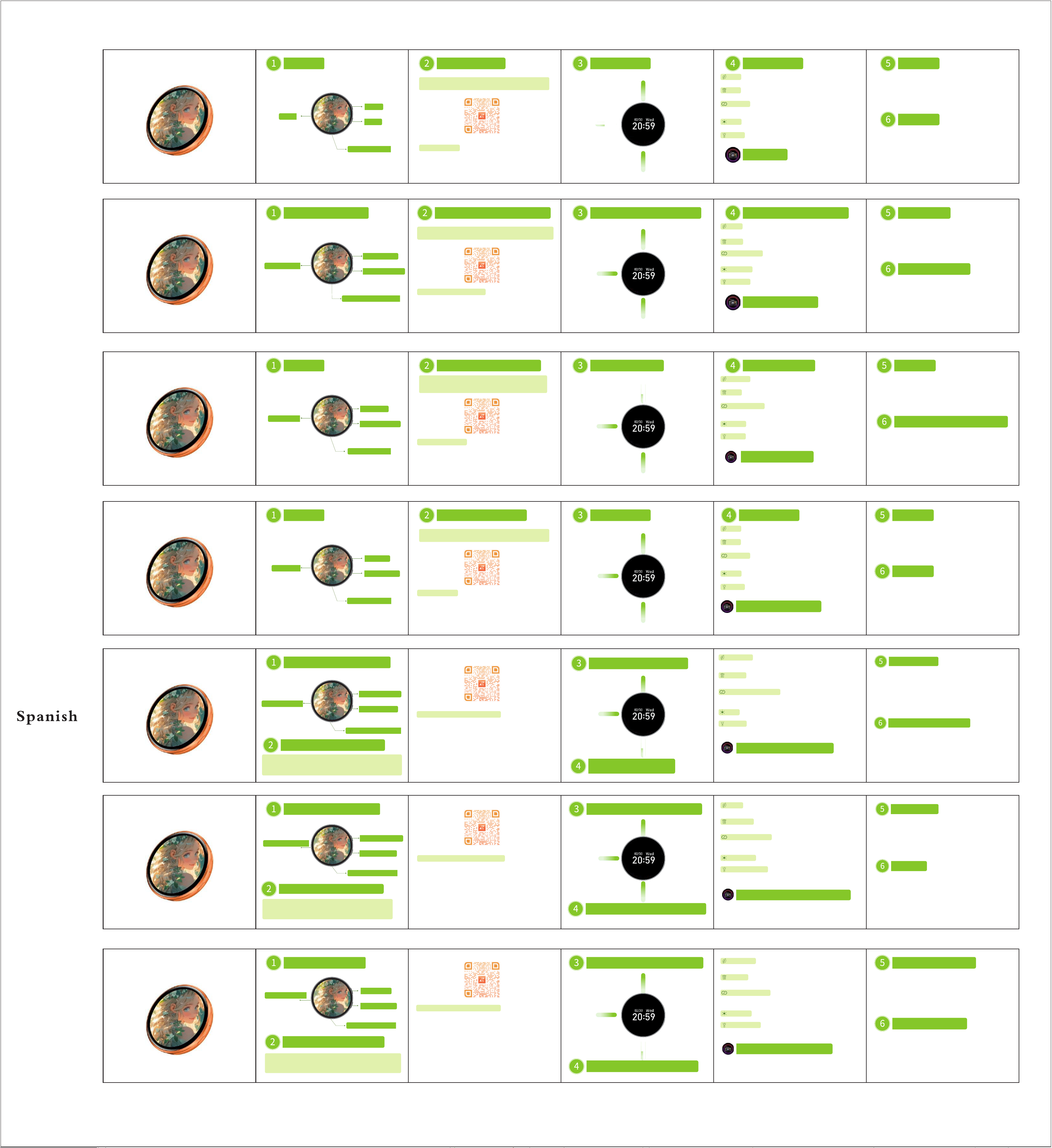
使用说明书
产品介绍
type-c充电接口
喇叭孔
电源键
蓝牙键
APP下载与连接
1.扫描二维码下载并安装“ZRun”APP(浏览器、微信等
都可扫码)
2.APP连接方式
设备开机后,短按蓝牙键进入蓝牙匹配模式,查看蓝牙地址。
打开手机蓝牙,进入APP点击添加设备,选择H01,扫描到对应
设备直接点击即可连接,出线蓝牙图标变绿表示连接成功。
吧唧操作说明
下滑:
进入菜单
左滑/右滑:
切换图片、视频
吧唧功能介绍
休眠:
删除:
亮度:
手电筒:
点击切换亮度
进入应援灯,点击闪烁,上下滑切换颜色,右滑或任意键退回图片
注意事项
续航时间与亮度设置有关,请合理调整保持电量充足,
低电量会影响传输速度。
视频文件较大,传输时长会相应变长。
蓝牙有效距离有效,请勿远距离使用。
故障处理
蓝牙连接失败:重启设备和APP,重新刷新配对并检查手机蓝牙
是否已经开启。
内容不显示:重新上传文件或者内存已满。
按键无响应:长按电源键10秒强制重启。
Swipe up:
Access camera and
calculator
Open the APP on your phone and keep it connected to the device.
Tap the camera icon on the device to enter the photo page, then tap
the photo button on the device screen to take a picture.
Photo Mirroring:
Switch auto-sleep mode (auto screen-off after 10 minutes of inactivity
or always-on)
Delete the current picture (swipe left or right to select the picture to delete)
One-Key Share:
Transfer pictures between devices. Device A taps "Share Picture" to enter send mode;
Device B taps "Receive Picture" to enter receive mode.
Instruction Manual
Product Introduction
Type-C Charging Port
Speaker Hole
Power Button
Bluetooth Button
APP Download & Connection
1.Scan the QR code to download and install the "ZRun"
APP (can be scanned via browsers, WeChat, etc.).
2.APP Connection Method
After turning on the device, short-press the Bluetooth button to enter
BT pairing mode and check the BT address.Turn on BT on your phone,
open the APP and tap Add Device, select H01, find the corresponding
device and tap it directly to connect. The Bluetooth icon turning
green indicates a successful connection.
Badge Operation Instructions
Swipe down:
Enter menu
Swipe left / right:
Switch between
pictures and videos
Badge Function Introduction
Sleep:
Delete:
Brightness:
Flashlight:
Tap to adjust brightness
Enter support light mode. Tap to flash, swipe up/down to switch colors, swipe
right or press any key to return to pictures.
Precautions
Battery life is related to brightness settings. Please adjust it properly
to keep sufficient power, as low battery will affect transmission speed.
Video files are large, so the transmission time will be longer accordingly.
The Bluetooth has an effective working distance, please do not use it
remotely.
Troubleshooting
Bluetooth connection failed: Restart the device and the APP, refresh
the pairing again, and check if the phone's Bluetooth is turned on.
Content not displayed: Re-upload the file or the memory may be full.
Button unresponsive: Long press the power button for 10 seconds to
force a restart.
中
English
上にスワイプ :
カメラ、電卓を開く
スマホでAPPを開き、デバイスと接続した状態を保ちます。デバイス側
のカメラアイコンをタップして撮影ページに入り、デバイスの画面
にあるシャッターボタンを押せば撮影可能です。
スマホ連動撮影 :
自動スリープモードを切り替えます(10分間未使用で画面オフ、または常時点灯)。
現在の画像を削除します(左右にスワイプして削除したい画像を選択できます)。
ワンタッチ共有 :
デバイス間で画像を送受信します。Aデバイスの「画像をシェア」をタップして送信
モードに、Bデバイスの「画像を受信」をタップして受信モードにします。
取扱説明書
製品紹介
Type-C充電ポート
スピーカー穴
電源ボタン
Bluetoothボタン
APPのダウンロードと接続方法
1.QRコードを読み取って「ZRun」APPをダウンロードし、
インストールしてください(ブラウザやWeChatなどのスキャン
機能をご利用いただけます)。
2.APPとの接続手順
デバイスの電源を入れた後、Bluetoothボタンを短く押してペアリング
モードに入り、Bluetoothアドレスを確認します。スマートフォンの
Bluetoothをオンにし、APP内に入って「デバイスを追加」をクリックします。
「H01」を選択し、スキャンされた該当デバイスを直接クリックすると接続
できます。Bluetoothアイコンが緑色に変われば、接続成功です。
バッジの操作方法
下にスワイプ :
メニューを開く
左/右にスワイプ :
画像や動画を切り替える
バッジの機能紹介
スリープ :
削除 :
明るさ :
ライト :
タップして明るさを切り替えます。
応援ライト(ペンライト)モードに入ります。タップで点滅し、上下スワイプで色を変
更、右スワイプまたは任意のボタンで画像画面に戻ります。
注意事項
稼働時間は明るさの設定によって異なります。バッテリー残量を十分
に保つよう、設定を調整してください。充電が少ないと転送速度に影
響が出ます。
動画ファイルは容量が大きいため、転送に時間がかかります。
Bluetoothの有効距離には限りがあります。遠く離れての使用
はお控えください。
トラブルシューティング(故障の対処法)
Bluetooth接続ができない場合: デバイスとAPPを再起動し、
ペアリングリストを再更新して、スマホのBluetoothがオン
になっているか確認してください。
コンテンツが表示されない場合: ファイルを再アップロード
してください。または、メモリがいっぱいの可能性があります。
ボタンが反応しない場合: 電源ボタンを10秒間長押しして、強制的
に再起動してください。
Japanese
위로 스와이프 :
카메라, 계산기로 이동
스마트폰에서 APP을 실행하고 기기와 연결 상태를 유지한 뒤, 기기에서
카메라 아이콘을 클릭해 촬영 페이지로 이동합니다. 기기 화면의 촬영
버튼을 누르면 바로 촬영됩니다.
스마트폰 연동 촬영 :
자동 대기 모드를 전환합니다 (10분간 미사용 시 화면 자동 소등 또는 상시 켜짐).
현재 이미지를 삭제합니다 (좌우로 스와이프하여 삭제할 이미지를 선택할 수 있음).
원터치 공유 :
기기 간 이미지 상호 전송. A 기기에서 ‘이미지 공유’를 클릭해 전송 모드로 진입;
B 기기에서 ‘이미지 수신’을 클릭해 수신 모드로 진입.
사용 설명서
제품 소개
Type-C 충전 단자
스피커 구멍
전원 버튼
블루투스 버튼
APP 다운로드 및 연결
1.QR 코드를 스캔하여 ‘ZRun’ APP을 다운로드하고 설치
하세요 (브라우저, 위챗 등으로 스캔 가능).
2.APP 연결 방법
기기 전원을 켠 후 블루투스 버튼을 짧게 눌러 페어링 모드로 진
입한 뒤 블루투스 주소를 확인합니다.
스마트폰의 블루투스를 켜고 APP에 들어가 ‘기기 추가’를 클릭한
후 H01을 선택하세요. 검색된 해당 기기를 클릭하면 바로 연결되며,
블루투스 아이콘이 초록색으로 변하면 연결 성공입니다.
배지 조작 방법
아래로 스와이프 :
메뉴로 이동
왼쪽/
오른쪽으로 스와이프 :
이미지, 동영상 전환
배지 기능 소개
대기 모드 :
삭제 :
밝기 :
손전등 :
클릭하여 밝기를 전환합니다.
응원등 모드로 진입, 클릭 시 점멸, 상하 스와이프로 색상 전환, 우측 스와이프 또는 임의의
버튼으로 이미지 화면으로 복귀.
주의 사항
배터리 지속 시간은 밝기 설정에 따라 달라집니다. 배터리 잔량을 충분히
유지할 수 있도록 설정을 조정해 주세요. 저전력 상태에서는 전송 속도에
영향을 줄 수 있습니다.
동영상 파일은 용량이 크기 때문에 전송 시간이 길어질 수 있습니다.
블루투스 유효 거리는 제한이 있습니다. 멀리 떨어뜨려 사용하지 마세요.
고장 처리 (문제 해결)
블루투스 연결 실패: 기기와 APP 을 재시작하고, 페어링 목록을 새로고
침한 후 스마트폰 블루투스가 켜져 있는지 확인해 주세요.
콘텐츠가 표시되지 않음: 파일을 다시 업로드하거나, 메모리가 꽉 찼는지
확인하세요.
버튼이 반응하지 않음: 전원 버튼을 10 초간 길게 눌러 강제로 재시동하세요.
Korean
Deslizar hacia arriba:
Entrar en la cámara, calculadora
Abre la APP en el móvil y mantén la conexión con el dispositivo. En
el dispositivo, haz clic en el icono de la cámara para ir a la página de
fotografía y pulsa el botón de disparo en la pantalla del dispositivo
para tomar la foto.
Fotografía sincronizada:
Cambiar el modo de suspensión automática (apagado automático de la
pantalla tras 10 minutos de inactividad o encendido permanente).
Eliminar la imagen actual (desliza a izquierda o derecha para seleccionar la
imagen que deseas eliminar).
Compartir con un toque:
Transmisión mutua de imágenes entre dispositivos. El dispositivo A hace clic en
“Compartir imagen” para entrar en modo de envío; el dispositivo B hace clic en
“Recibir imagen” para entrar en modo de recepción.
Manual de usuario
Presentación del producto
Puerto de carga Type-C
Orificio del altavoz
Botón de encendido
Botón Bluetooth
Descarga y conexión de la APP
1.Escanea el código QR para descargar e instalar la APP
“ZRun” (puedes usar el navegador, WeChat, etc.
para escanear).
2.Método de conexión de la APP
Después de encender el dispositivo, pulsa brevemente el
botón Bluetooth para entrar en el modo de emparejamiento
y ver la dirección Bluetooth.Activa el Bluetooth de tu móvil,
entra en la APP, haz clic en “Añadir dispositivo”, selecciona
H01 y pulsa directamente sobre el dispositivo
correspondiente que aparezca en el escaneo para
conectarte. Cuando el icono de Bluetooth se ponga verde,
significa que la conexión ha sido exitosa.
Instrucciones de manejo del badge
Deslizar hacia abajo:
Entrar en el menú
Deslizar a la izquierda/
derecha:
Cambiar imágenes, videos
Introducción de las funciones
del badge
Suspensión:
Eliminar:
Brillo:
Linterna:
Haz clic para cambiar el brillo.
Entra en la luz de apoyo (light stick); haz clic para parpadear, desliza arriba/
abajo para cambiar de color, desliza a la derecha o pulsa cualquier tecla para
volver a la imagen.
Precauciones
El tiempo de autonomía depende de la configuración del brillo.
Por favor, ajústalo razonablemente para mantener la batería
cargada. Un nivel bajo de batería afectará a la velocidad de
transmisión.
Los archivos de video son grandes, por lo que el tiempo de
transferencia será correspondientemente más largo.
La distancia efectiva del Bluetooth es limitada. Por favor, no lo
uses a larga distancia.
Solución de problemas
Fallo en la conexión Bluetooth: Reinicia el dispositivo y la APP,
actualiza el emparejamiento y comprueba si el Bluetooth del
teléfono está activado.
El contenido no se muestra: Vuelve a subir el archivo o verifica si
la memoria está llena.
Los botones no responden: Mantén pulsado el botón de encendido
durante 10 segundos para forzar el reinicio.
Glisser vers le haut :
Entrer dans l'appareil
photo, la calculatrice
Ouvrez l'APP sur le téléphone et maintenez la connexion avec
l'appareil. Sur l'appareil, cliquez sur l'icône de l'appareil photo
pour accéder à la page de prise de vue, puis appuyez sur le bouton
de déclenchement à l'écran de l'appareil pour prendre la photo.
Photographie synchronisée :
Basculer en mode veille automatique (extinction automatique de l'écran
après 10 minutes d'inactivité ou affichage permanent).
Supprimer l'image actuelle (glissez vers la gauche ou la droite pour sélectionner
l'image à supprimer).
Partage en un clic :
Transmission mutuelle d'images entre appareils. L'appareil A clique sur
“Partager l'image” pour passer en mode envoi ; l'appareil B clique sur
“Recevoir l'image” pour passer en mode réception.
Manuel d'utilisation
Présentation du produit
Port de charge Type-C
Orifice du haut-parleur
Bouton d'alimentation
Bouton Bluetooth
Téléchargement et connexion de l'APP
1.Scannez le code QR pour télécharger et installer
l'application “ZRun” (le navigateur, WeChat, etc.
peuvent tous être utilisés pour scanner).
2.Méthode de connexion de l'APP
Après avoir allumé l'appareil, appuyez brièvement sur le
bouton Bluetooth pour entrer en mode d'appairage et
afficher l'adresse Bluetooth.Activez le Bluetooth de votre
téléphone, entrez dans l'APP, cliquez sur “Ajouter un
appareil”, sélectionnez H01, puis cliquez directement sur
l'appareil correspondant qui apparaît lors du scan pour vous
connecter. Le fait que l'icône Bluetooth devienne verte
indique que la connexion a réussi.
Instructions d'utilisation du badge
Glisser vers le bas :
Entrer dans le menu
Glisser vers la gauche/
droite :
Changer d'image, de vidéo
Présentation des fonctions du badge
Veille :
Supprimer :
Luminosité :
Lampe de poche :
Cliquez pour changer la luminosité.
Entrer dans le mode lumière de soutien (light stick) ; cliquez pour clignoter,
glissez vers le haut/bas pour changer de couleur, glissez vers la droite ou
appuyez sur n'importe quelle touche pour revenir à l'image.
Précautions
L'autonomie dépend du réglage de la luminosité. Veuillez l'ajuster
raisonnablement pour maintenir une charge suffisante. Un niveau
de batterie faible affectera la vitesse de transmission.
Les fichiers vidéo étant volumineux, la durée de transfert sera par
conséquent plus longue.
La distance effective du Bluetooth est limitée. Veuillez ne pas
l'utiliser à grande distance.
Dépannage
Échec de la connexion Bluetooth : Redémarrez l'appareil et
l'application, actualisez l'appairage et vérifiez si le Bluetooth du
téléphone est activé.
Le contenu ne s'affiche pas : Téléchargez à nouveau le fichier ou
vérifiez si la mémoire est pleine.
Les touches ne répondent pas : Maintenez le bouton d'alimentation
enfoncé pendant 10 secondes pour forcer le redémarrage.
French
Nach oben wischen:
Kamera, Rechner aufrufen
Öffnen Sie die APP auf dem Telefon und halten Sie die Verbindung mit dem
Gerät aufrecht. Klicken Sie auf dem Gerät auf das Kamerasymbol, um zur
Aufnahmeseite zu gelangen, und drücken Sie dann die Auslösetaste auf dem
Gerätebildschirm, um ein Foto zu machen.
Synchrones Fotografieren:
Wechselt in den automatischen Ruhemodus (Bildschirm schaltet sich
nach 10 Minuten Inaktivität automatisch aus oder bleibt dauerhaft an).
Aktuelles Bild löschen (nach links oder rechts wischen, um das zu löschende
Bild auszuwählen).
One-Click-Sharing:
Gegenseitige Bildübertragung zwischen Geräten. Gerät A klickt auf „Bild teilen“,
um in den Sendemodus zu gelangen; Gerät B klickt auf „Bild empfangen“,
um in den Empfangsmodus zu gelangen.
Gebrauchsanleitung
Produktvorstellung
Typ-C-Ladeanschluss
Lautsprecheröffnung
Ein-/Aus-Taste
Bluetooth-Taste
APP-Download und Verbindung
1.Scannen Sie den QR-Code, um die „ZRun“-APP
herunterzuladen und zu installieren (Browser, WeChat
usw. können alle zum Scannen verwendet werden).
2.Verbindungsmethode der APP
Schalten Sie das Gerät ein und drücken Sie kurz die
Bluetooth-Taste, um in den Bluetooth-Kopplungsmodus zu
gelangen und die Bluetooth-Adresse anzuzeigen.
Aktivieren Sie das Bluetooth Ihres Telefons, gehen Sie in die
APP, klicken Sie auf „Gerät hinzufügen“, wählen Sie H01 aus
und klicken Sie direkt auf das entsprechende Gerät, das beim
Suchen gefunden wurde, um die Verbindung herzustellen.
Ein grün leuchtendes Bluetooth-Symbol zeigt eine
erfolgreiche Verbindung an.
Bedienungsanleitung für das Badge
Nach unten wischen:
Menü aufrufen
Nach links/
rechts wischen:
Bilder, Videos wechseln
Funktionsbeschreibung des Badges
Ruhemodus:
Löschen:
Helligkeit:
Taschenlampe:
Klicken, um die Helligkeit zu wechseln.
Betritt den Lichtstab-Modus; klicken zum Blinken, nach oben/unten wischen,
um die Farbe zu wechseln, nach rechts wischen oder eine beliebige Taste
drücken, um zum Bild zurückzukehren.
Wichtige Hinweise
Die Akkulaufzeit hängt von der Helligkeitseinstellung ab. Bitte
passen Sie diese vernünftig an, um eine ausreichende Ladung zu
gewährleisten. Ein niedriger Akkustand beeinflusst die
Übertragungsgeschwindigkeit.
Videodateien sind groß, daher verlängert sich die
Übertragungsdauer entsprechend.
Die effektive Reichweite von Bluetooth ist begrenzt. Bitte
verwenden Sie das Gerät nicht aus großer Entfernung.
Fehlerbehebung
Bluetooth-Verbindung fehlgeschlagen: Starten Sie das Gerät
und die APP neu, aktualisieren Sie die Kopplung und prüfen Sie,
ob das Bluetooth des Telefons aktiviert ist.
Inhalt wird nicht angezeigt: Laden Sie die Datei erneut hoch
oder prüfen Sie, ob der Speicher voll ist.
Tasten reagieren nicht: Halten Sie die Ein-/Aus-Taste 10 Sekunden
lang gedrückt, um einen erzwungenen Neustart durchzuführen.
German

FCC Warning
This device complies with Part 15 of the FCC Rules. Operation is subject to the following two conditions:
(1) This device may not cause harmful interference, and (2) this device must accept any interference received, including
interference that may cause undesired operation.
NOTE 1: This equipment has been tested and found to comply with the limits for a Class B digital device, pursuant to part 15 of
the FCC Rules. These limits are designed to provide reasonable protection against harmful interference in a residential
installation. This equipment generates, uses and can radiate radio frequency energy and, if not installed and used in accordance
with the instructions, may cause harmful interference to radio communications. However, there is no guarantee that
interference will not occur in a particular installation. If this equipment does cause harmful interference to radio or television
reception, which can be determined by turning the equipment off and on, the user is encouraged to try to correct the
interference by one or more of the following measures:
- Reorient or relocate the receiving antenna.
- Increase the separation between the equipment and receiver.
-Connect the equipment into an outlet on a circuit different from that to which the receiver is connected.
-Consult the dealer or an experienced radio/TV technician for help.
NOTE 2: Any changes or modifications to this unit not expressly approved by the party responsible for compliance could void the
user's authority to operate the equipment.
The device has been evaluated to meet general RF exposure requirement. The device can be used in portable exposure
condition without restriction.