Quick using guide
Ple
ase read the instruction manual carefully before use,
so that it can be installed correctly and used quickly.
The c
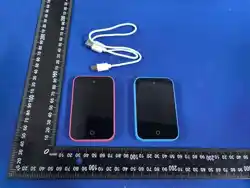
olour of the product should be based on the actual product!
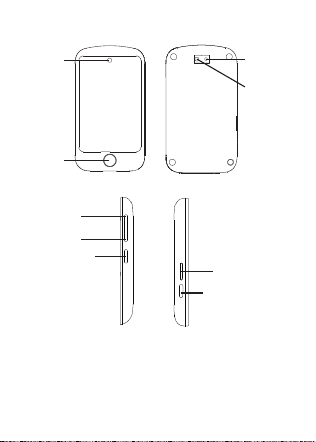
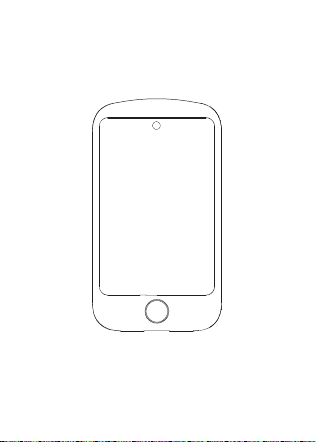
Device introduction:
But
ton operation instructions:
1.when the devic
e is off, Hold press the power button to turn on
2.Home button:short press to return to the previous interface
Camer
a Flashlight
Camera
Home
V+
V-
Power button
Sim Card Tray
Type C charging port
2
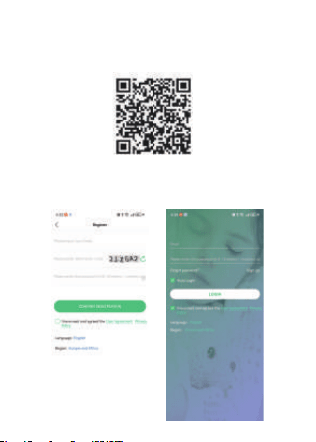
1 Scan the QR code to download the app.
2 Registration and login
Download APP
The APP QR code can also be found in the app download interface in
the device.
Follow the instructions of the APP to properly register an account and
log in
3
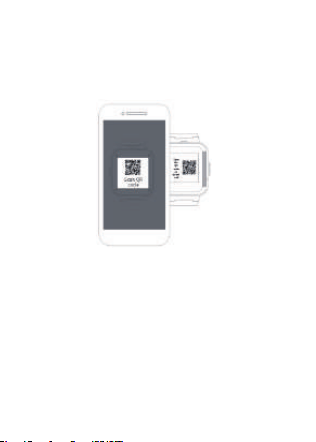
3 Bind the device with the App account
Part of the device function introduction
A
fter the account is successfully registered, the device is bound, scan
the registered QR code attached to the device or manually input the
15-digit registration code. if the registration bar code of the device
sticker is lost, the registration code can be found in the device app
download interface. Then enter the binding settings.
Base station, GPS, WIFI positioning: from the map in APP to view
real-time location
Footprint: you can view the historical track
Safety area: 3 safety fences can be set, the device will have alarm
notification when leaving the fence range.
Alarm: 3 alarms can be set.
Voice chat: click in to send voice message with APP, you can send
voice and pictures to your APP in mobile phone.
4

Camer
a: click in to take photos
Video call: Click to go to select single chat or group chat of video chat
with APP.Group chat can be up to 8 people together
Gallery:Click inside to see the photo taken by the device. Photos can
be shared,deleted,and modified
Settings :volume settings (media volume,alarm volume,ringtone
volume,call volume),Brightness setting, lock screen setting,
reboot,shutdown, device information,model number, version
number,IMEI)
QR code:
1.Scan the code to download: tap to display the QR code, scan the
code to download the Setracker2 APP.
2.Registration code: Tap to show the device registration code.
Early education:
1.Crazy Maths: Click on the interface and click "Start" to start the
game. The difficulty of the game is divided into "simple, normal,
difficult" three levels. You can set it by clicking the settings button in
the interface.
2.Children's Early Learning: It is divided into four categories:
Characters, Fruits, Animals and Vehicles.
3.Course Schedule:Click to see the courses from Monday to Friday
set by APP.
Touch make friends: click into the interface, two devices touch to
make friends, after successful friend added, the picture will light up.
This device can make up to four friends. Tap your friend's avatar to
take voice chat with your friend, and you can send voice and pictures
5

t
o your friend. Long press on a message sent by a friend to "Delete"
and "Delete All". Long press on a friend's picture to delete the friend.
6

This device complies with part 15 of the FCC Rules. Operation is subject to the
following two conditions: (1) This device may not cause harmful interference, and (2)
this device must accept any interference received, including interference that may cause
undesired operation.
Any Changes or modifications not expressly approved by the party responsible for
compliance could void the user's authority to operate the equipment.
Note: This equipment has been tested and found to comply with the limits for a Class B
digital device, pursuant to part 15 of the FCC Rules. These limits are designed to
provide reasonable protection against harmful interference in a residential installation.
This equipment generates uses and can radiate radio frequency energy and, if not
installed and used in accordance with the instructions, may cause harmful interference
to radio communications. However, there is no guarantee that interference will not
occur in a particular installation. If this equipment does cause harmful interference to
radio or television reception, which can be determined by turning the equipment off and
on, the user is encouraged to try to correct the interference by one or more of the
following measures:
-Reorient or relocate the receiving antenna.
-Increase the separation between the equipment and receiver.
-Connect the equipment into an outlet on a circuit different from that to which the
receiver is connected.
-Consult the dealer or an experienced radio/TV technician for help.
FCC Radiation Exposure statement
The device has been evaluatec to meel general RF exposure requirement. The device
can be used in portable exposure condition without restriction.