M54
Business Bluetooth Headset
User Manual
①
3 - 20
21 - 36
37 - 52
53 - 68
69 - 84
- 2 -
+3 Years Warranty
Within 10 Days
>>>>
Thank you for choosing our product. Please read this user manual carefully and follow relevant
rules before using the product to ensure correct and safe use.
Ⅰ. Product Overview
This is a stylish business Bluetooth headset with a built-in Qualcomm Bluetooth chip, which
provides stable connection, HD voice calls and clear music listening. Besides, it features up to 15
hours battery life and 6 months standby time, brings more convenience to your life.
It should be noted that the Bluetooth connection may be blocked by walls, affected by electronic
interference, or interrupted due to over-distance.
Ⅱ. Product Description
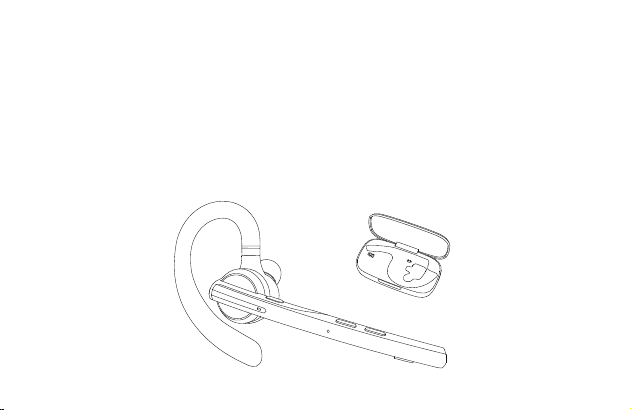
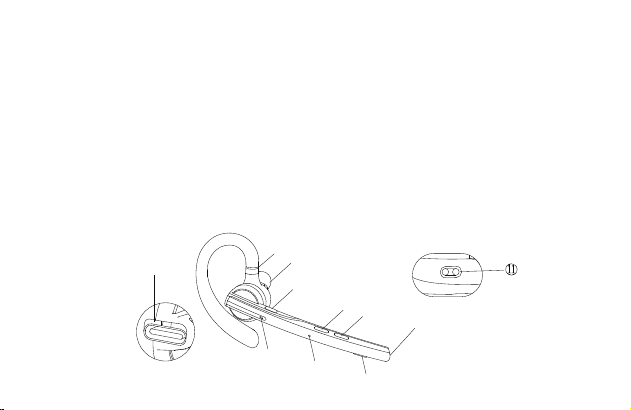
1.Headset
① Retractable Ear Hook
② Type-C Charging Port
③ Multifunctional Button
④ Headset Indicator
⑤ Secondary Microphone
⑥ Main Microphone
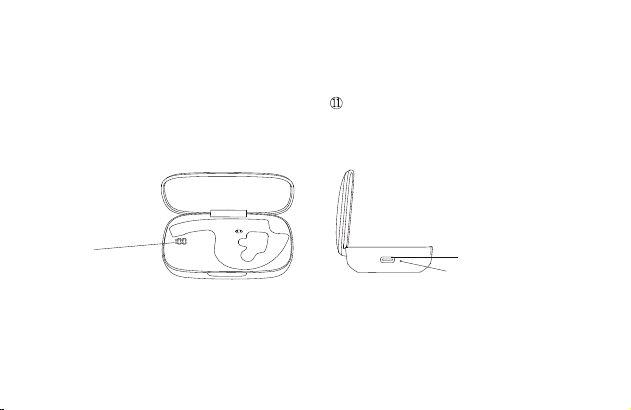
2.Charging Case
① Digital Display Screen
② Type-C Charging Port
③ Charging Case Indicator
Ⅲ. Packing List
Headset * 1
Charging case * 1
Charging cable * 1
User manual * 1
Ⅳ. Wearing Instruction
1. Wearing on the Right Ear
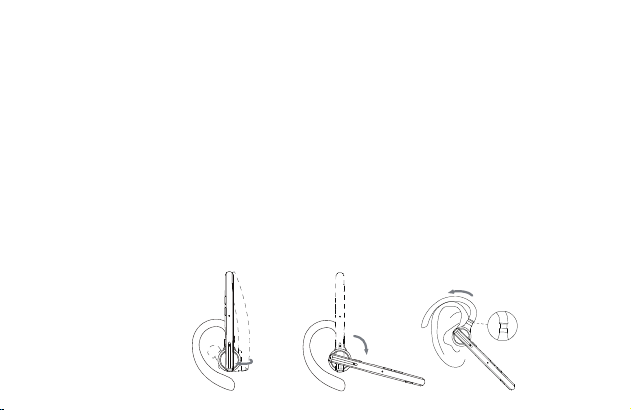
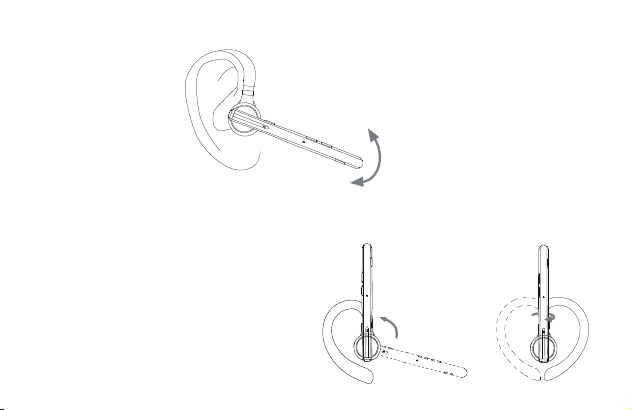
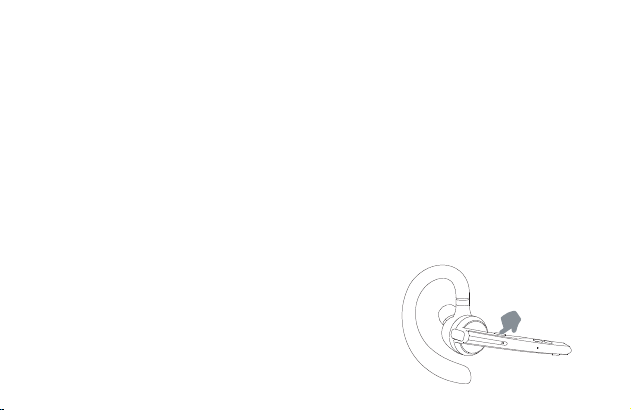
① Take out the headset from the charging case. As the picture shows, adjust the length of the ear
hook according to your needs, slide the headset from above the ear to behind the ear, then gently
press it toward the ear.
NOTE:
• In order to achieve the most comfortable wearing condition, please take off your glasses before
wearing the headset. After we
• The adjustment range of ear hook length is 0-3.2mm. Do not use excessive force when adjusting
the length of the ear hook.
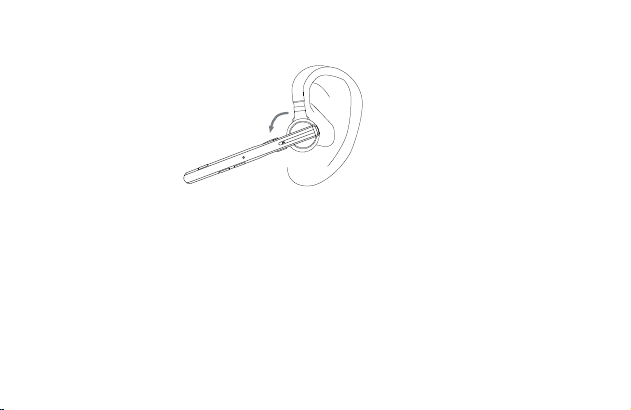
② Rotate the microphone boom to ensure the microphone is towards your mouth.
2. Adjustment of Wearing Style ( Wearing on the Left Ear )
① Rotate the microphone boom upwards and twist, make the earbud turn to another side, and
then rotate the ear hook clockwise.
NOTE:
• The maximum rotation Angle of the microphone
boom is 270°.
• The maximum rotation Angle of the ear hook
is 180°.
② Slide the headset from above the ear to behind the ear, then gently press it toward the ear.
Rotate the microphone boom downwards to ensure the microphone is towards your mouth.
Ⅴ. Usage and Operation
1. Bluetooth Connection
① Take out the headset from the charging case or press and hold the multifunctional button for 3
seconds to turn on the headset. The headset emits the voice prompt of “power on”. After 3
seconds, it emits the voice prompt of “pairing”, indicating that the headset automatically enters the
pairing mode. The headset indicator keeps flashing in red and blue alternately.
② Turn on Bluetooth function of cellphone (or other devices) , and then search for new devices.
For iPhone, “Settings” > “Bluetooth” > “Open”
For Android phones, “Setting” > “Bluetooth” > “Searc new device”
Note: The menu contents may vary from different devices.
③ Find "M54" in the list of Bluetooth devices and click to connect. If the connection is successful,
the headset will emit the voice prompt of “connected” and the headset indicator will go out.
NOTE: When using the headset again, it will automatically connect to the last two devices within
Bluetooth effective range. If there is no paired device within 5 minutes, the headset will
automatically turn off.
④ Two Devices Connection
This headset can connect to two devices at the same time.
After successfully connecting to phone A, press and hold the mute button for 5 seconds to enter
pairing mode, the headset indicator keeps flashing in red and blue alternately, then open the
Bluetooth function of phone B to search and connect.
( NOTE: Although the headset can connect to two phones at the same time, only one of the
phones can play music through M54, the headset cannot play music from two phones at the same
time. )
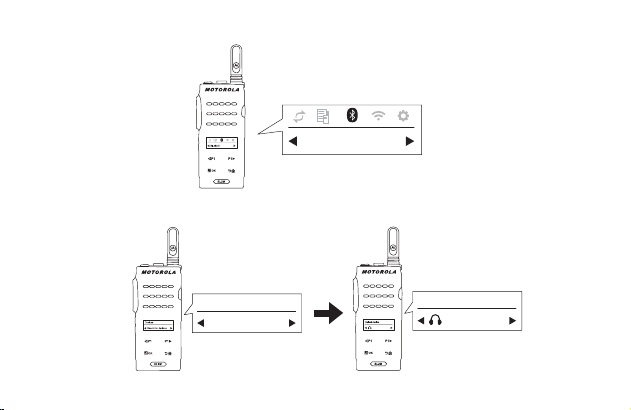
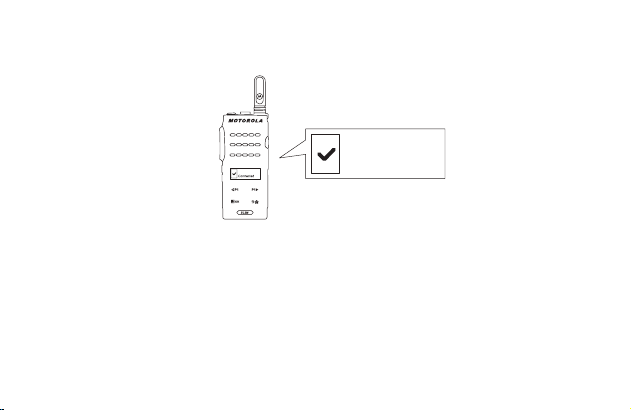
⑤ Motorola Series Walkie Talkie Connection Instruction
Step 1: Turn on the headset and make it enter pairing mode,
the headset indicator keeps flashing in red and blue
alternately.
Step 2: Turn on the walkie-talkie, click on the menu and find Bluetooth Settings.
Step 3: Search for the device "M54" in Bluetooth settings, then click and connect.
Step 4: If the walkie-talkie displays that the connection is successful, the headset emits the voice
prompt of "connected". Click the multifunctional button of the headset, the headset indicator goes
out, and then start to use.
NOTE:
(1)When using two walkie-talkies, they must be set to the same communication channel,
otherwise it is not possible to communicate via the headset.
(2)It is required to press and hold the dialogue button on the walkie-talkie to communicate.
(3)When using the headset again, it automatically connects to the last device.
(4)Only walkie-talkies with Bluetooth function are supported.
(5)Other types of walkie-talkies with Bluetooth function can be operated and used according to the
user manual of the walkie-talkie.
2. Button Function Description
① Multifunctional Button
• Power On: In the power off state, press and hold the multifunctional button for 3 seconds, or
take out the headset from the charging case.
• Power off: In the power on state, press and hold the multifunctional button for 5 seconds, or
place the headset in the charging case.
• Play/Pause: In the music playing state, click the multifunctional button once.
• Answer A Call: Click the multifunctional button once when there is an incoming call.
• Hang Up: Click the multifunctional button once during a call.
• Reject A Call: Press and hold the multifunctional button for 2 seconds when there is an
incoming call.
• Redial Last Phone Number: Double click the multifunctional button.
② Volume Up Button
• Volume Up : Click the volume up button to increase the volume.
• Next Song : Press and hold the volume up button for 3 seconds to skip to next song.
③ Volume Down Button
• Volume Down: Click the volume down button to decrease the volume.
• Previous Song : Press and hold the volume down button for 3 seconds to skip to previous song.
④ Microphone Mute Button
• Mute On/Mute Off: Click the button to turn on the mute function during a call, click the button
again to turn off the mute function.
• Voice Assistant: Double click the button to activate voice assistant.
3. Headset Indicator / Voice Prompt
- 3 -
4. Restore Factory Settings
In power-on state, press the multifunctional button and volume up button at the same time for 6
seconds, when hearing the voice prompt of “power on, pairing”, the headset has been restored to
factory settings.
5. Charge the Headset
(1) Low Battery Reminder
When the headset emits the voice prompt of “battery low”, it indicates that the headset is in low
battery state. Please charge the headset immediately.
(2) Charging Instructions
① Charge the headset with charging case
Place the headset into the charging case for charging. The digital display screen of the charging
case is on for 10 seconds and then goes out.
When charging, the headset indicator is red. When fully
charged, the headset indicator stays on in blue for
10 seconds and then goes out.
NOTE: Please place the headset flat and
keep the charging contact point clean,
otherwise the headset will not be charged.
② Charge the headset with Type-C charging cable
When charging, the headset indicator is red. When fully charged, the headset indicator stays on in
blue for 10 seconds and then goes out.
6. Charge the Charging Case
(1) Low Battery Reminder
The digital display screen of the charging case flashes for about 10 seconds, indicating that the
charging case is in low battery state. Please charge the charging case immediately.
(2) Charging Instruction
Please charge the charging case with Type-C charging cable.
When charging, the charging case indicator is red. When fully charged, the charging case
indicator turns blue.
Ⅵ. Product Specifications
1. Bluetooth version: V5.1
2. Bluetooth chip: QCC3020
3. Supported protocols: Headset, HFP, A2DP, AVRCP HSP
4. Speaker unit: Φ13mm 32Ω
5. Transmission distance: 15m
6. Headset battery capacity: 85mAh
7. Charging case battery capacity: 500mAh
8. Standby time: 6 months
9. Music playback time: 15 hours
10. Headset charging time: 1.5 hours
11. Charging time of charging case: 1.5 hours
12. Charging port: Type-C
13. Working temperature: -5 ° C-50 ° C
14. Headset weight: 15g
15. Charging case weight: 57g
Ⅶ. Common Problems
1. Low battery may cause disconnection, in order not to affect normal use, please charge the
headset in time.
2. If the headset fails to turn on, please try to charge it up first, and turn it on when the battery is
sufficient.
3. No sound can be heard from the headset when in a call.
—— Make sure you choose the M54 for audio input/output when in a call, but not the speaker on
your cellphone.
—— Check whether your cellphone has been connected to other Bluetooth devices.
—— Make sure the distance between the headset and the cellphone does not exceed the
effective distance of 15 meters.
4. The other end cannot hear your voice when in a call.
——Please keep the microphone hole of headset clean, so as not to affect the call and noise
reduction effect, resulting in the other end can not hear your voice.
5. The headset cannot be charged.
——Please wipe the charging contact point of the headset and the charging case with alcohol.
Ⅷ. Safety Notes
1. Disassembling personally may damage the headset and this is not covered by warranty.
2. Please clean the headset with a clean, soft and dry cloth.
3. Please do not use the headset in a dusty and humid environment.
4. Do not let your children play with the headset. They may be injured or damage the headset.
5. Do not place the headset in an extreme environment, otherwise, it may be temporarily
unavailable for use. The normal use temperature is -5°C to 50°C.
6. This product is not compatible with fixed-line telephone.
7. When connected to a computer, this product does not support answering and hanging up calls.
⑥
②
①
③
④
⑤
⑦
⑧
⑨
⑩
Thank you for choosing our product. Please read this user manual carefully and follow relevant
rules before using the product to ensure correct and safe use.
Ⅰ. Product Overview
This is a stylish business Bluetooth headset with a built-in Qualcomm Bluetooth chip, which
provides stable connection, HD voice calls and clear music listening. Besides, it features up to 15
hours battery life and 6 months standby time, brings more convenience to your life.
It should be noted that the Bluetooth connection may be blocked by walls, affected by electronic
interference, or interrupted due to over-distance.
Ⅱ. Product Description
1.Headset
① Retractable Ear Hook
② Type-C Charging Port
③ Multifunctional Button
④ Headset Indicator
⑤ Secondary Microphone
⑥ Main Microphone
2.Charging Case
① Digital Display Screen
② Type-C Charging Port
③ Charging Case Indicator
Ⅲ. Packing List
Headset * 1
Charging case * 1
Charging cable * 1
User manual * 1
Ⅳ. Wearing Instruction
1. Wearing on the Right Ear
① Take out the headset from the charging case. As the picture shows, adjust the length of the ear
hook according to your needs, slide the headset from above the ear to behind the ear, then gently
press it toward the ear.
NOTE:
• In order to achieve the most comfortable wearing condition, please take off your glasses before
wearing the headset. After we
• The adjustment range of ear hook length is 0-3.2mm. Do not use excessive force when adjusting
the length of the ear hook.
② Rotate the microphone boom to ensure the microphone is towards your mouth.
2. Adjustment of Wearing Style ( Wearing on the Left Ear )
① Rotate the microphone boom upwards and twist, make the earbud turn to another side, and
then rotate the ear hook clockwise.
NOTE:
• The maximum rotation Angle of the microphone
boom is 270°.
• The maximum rotation Angle of the ear hook
is 180°.
② Slide the headset from above the ear to behind the ear, then gently press it toward the ear.
Rotate the microphone boom downwards to ensure the microphone is towards your mouth.
Ⅴ. Usage and Operation
1. Bluetooth Connection
① Take out the headset from the charging case or press and hold the multifunctional button for 3
seconds to turn on the headset. The headset emits the voice prompt of “power on”. After 3
seconds, it emits the voice prompt of “pairing”, indicating that the headset automatically enters the
pairing mode. The headset indicator keeps flashing in red and blue alternately.
② Turn on Bluetooth function of cellphone (or other devices) , and then search for new devices.
For iPhone, “Settings” > “Bluetooth” > “Open”
For Android phones, “Setting” > “Bluetooth” > “Searc new device”
Note: The menu contents may vary from different devices.
③ Find "M54" in the list of Bluetooth devices and click to connect. If the connection is successful,
the headset will emit the voice prompt of “connected” and the headset indicator will go out.
NOTE: When using the headset again, it will automatically connect to the last two devices within
Bluetooth effective range. If there is no paired device within 5 minutes, the headset will
automatically turn off.
④ Two Devices Connection
This headset can connect to two devices at the same time.
After successfully connecting to phone A, press and hold the mute button for 5 seconds to enter
pairing mode, the headset indicator keeps flashing in red and blue alternately, then open the
Bluetooth function of phone B to search and connect.
( NOTE: Although the headset can connect to two phones at the same time, only one of the
phones can play music through M54, the headset cannot play music from two phones at the same
time. )
⑤ Motorola Series Walkie Talkie Connection Instruction
Step 1: Turn on the headset and make it enter pairing mode,
the headset indicator keeps flashing in red and blue
alternately.
Step 2: Turn on the walkie-talkie, click on the menu and find Bluetooth Settings.
Step 3: Search for the device "M54" in Bluetooth settings, then click and connect.
Step 4: If the walkie-talkie displays that the connection is successful, the headset emits the voice
prompt of "connected". Click the multifunctional button of the headset, the headset indicator goes
out, and then start to use.
NOTE:
(1)When using two walkie-talkies, they must be set to the same communication channel,
otherwise it is not possible to communicate via the headset.
(2)It is required to press and hold the dialogue button on the walkie-talkie to communicate.
(3)When using the headset again, it automatically connects to the last device.
(4)Only walkie-talkies with Bluetooth function are supported.
(5)Other types of walkie-talkies with Bluetooth function can be operated and used according to the
user manual of the walkie-talkie.
2. Button Function Description
① Multifunctional Button
• Power On: In the power off state, press and hold the multifunctional button for 3 seconds, or
take out the headset from the charging case.
• Power off: In the power on state, press and hold the multifunctional button for 5 seconds, or
place the headset in the charging case.
• Play/Pause: In the music playing state, click the multifunctional button once.
• Answer A Call: Click the multifunctional button once when there is an incoming call.
• Hang Up: Click the multifunctional button once during a call.
• Reject A Call: Press and hold the multifunctional button for 2 seconds when there is an
incoming call.
• Redial Last Phone Number: Double click the multifunctional button.
② Volume Up Button
• Volume Up : Click the volume up button to increase the volume.
• Next Song : Press and hold the volume up button for 3 seconds to skip to next song.
③ Volume Down Button
• Volume Down: Click the volume down button to decrease the volume.
• Previous Song : Press and hold the volume down button for 3 seconds to skip to previous song.
④ Microphone Mute Button
• Mute On/Mute Off: Click the button to turn on the mute function during a call, click the button
again to turn off the mute function.
• Voice Assistant: Double click the button to activate voice assistant.
3. Headset Indicator / Voice Prompt
- 4 -
⑦ Volume Down Button
⑧ Volume Up Button
⑨ Speaker
⑩ Microphone Mute Button
Headset Charging Contact Point
4. Restore Factory Settings
In power-on state, press the multifunctional button and volume up button at the same time for 6
seconds, when hearing the voice prompt of “power on, pairing”, the headset has been restored to
factory settings.
5. Charge the Headset
(1) Low Battery Reminder
When the headset emits the voice prompt of “battery low”, it indicates that the headset is in low
battery state. Please charge the headset immediately.
(2) Charging Instructions
① Charge the headset with charging case
Place the headset into the charging case for charging. The digital display screen of the charging
case is on for 10 seconds and then goes out.
When charging, the headset indicator is red. When fully
charged, the headset indicator stays on in blue for
10 seconds and then goes out.
NOTE: Please place the headset flat and
keep the charging contact point clean,
otherwise the headset will not be charged.
② Charge the headset with Type-C charging cable
When charging, the headset indicator is red. When fully charged, the headset indicator stays on in
blue for 10 seconds and then goes out.
6. Charge the Charging Case
(1) Low Battery Reminder
The digital display screen of the charging case flashes for about 10 seconds, indicating that the
charging case is in low battery state. Please charge the charging case immediately.
(2) Charging Instruction
Please charge the charging case with Type-C charging cable.
When charging, the charging case indicator is red. When fully charged, the charging case
indicator turns blue.
Ⅵ. Product Specifications
1. Bluetooth version: V5.1
2. Bluetooth chip: QCC3020
3. Supported protocols: Headset, HFP, A2DP, AVRCP HSP
4. Speaker unit: Φ13mm 32Ω
5. Transmission distance: 15m
6. Headset battery capacity: 85mAh
7. Charging case battery capacity: 500mAh
8. Standby time: 6 months
9. Music playback time: 15 hours
10. Headset charging time: 1.5 hours
11. Charging time of charging case: 1.5 hours
12. Charging port: Type-C
13. Working temperature: -5 ° C-50 ° C
14. Headset weight: 15g
15. Charging case weight: 57g
Ⅶ. Common Problems
1. Low battery may cause disconnection, in order not to affect normal use, please charge the
headset in time.
2. If the headset fails to turn on, please try to charge it up first, and turn it on when the battery is
sufficient.
3. No sound can be heard from the headset when in a call.
—— Make sure you choose the M54 for audio input/output when in a call, but not the speaker on
your cellphone.
—— Check whether your cellphone has been connected to other Bluetooth devices.
—— Make sure the distance between the headset and the cellphone does not exceed the
effective distance of 15 meters.
4. The other end cannot hear your voice when in a call.
——Please keep the microphone hole of headset clean, so as not to affect the call and noise
reduction effect, resulting in the other end can not hear your voice.
5. The headset cannot be charged.
——Please wipe the charging contact point of the headset and the charging case with alcohol.
Ⅷ. Safety Notes
1. Disassembling personally may damage the headset and this is not covered by warranty.
2. Please clean the headset with a clean, soft and dry cloth.
3. Please do not use the headset in a dusty and humid environment.
4. Do not let your children play with the headset. They may be injured or damage the headset.
5. Do not place the headset in an extreme environment, otherwise, it may be temporarily
unavailable for use. The normal use temperature is -5°C to 50°C.
6. This product is not compatible with fixed-line telephone.
7. When connected to a computer, this product does not support answering and hanging up calls.
③
②
①
Thank you for choosing our product. Please read this user manual carefully and follow relevant
rules before using the product to ensure correct and safe use.
Ⅰ. Product Overview
This is a stylish business Bluetooth headset with a built-in Qualcomm Bluetooth chip, which
provides stable connection, HD voice calls and clear music listening. Besides, it features up to 15
hours battery life and 6 months standby time, brings more convenience to your life.
It should be noted that the Bluetooth connection may be blocked by walls, affected by electronic
interference, or interrupted due to over-distance.
Ⅱ. Product Description
1.Headset
① Retractable Ear Hook
② Type-C Charging Port
③ Multifunctional Button
④ Headset Indicator
⑤ Secondary Microphone
⑥ Main Microphone
2.Charging Case
① Digital Display Screen
② Type-C Charging Port
③ Charging Case Indicator
Ⅲ. Packing List
Headset * 1
Charging case * 1
Charging cable * 1
User manual * 1
Ⅳ. Wearing Instruction
1. Wearing on the Right Ear
① Take out the headset from the charging case. As the picture shows, adjust the length of the ear
hook according to your needs, slide the headset from above the ear to behind the ear, then gently
press it toward the ear.
NOTE:
• In order to achieve the most comfortable wearing condition, please take off your glasses before
wearing the headset. After we
• The adjustment range of ear hook length is 0-3.2mm. Do not use excessive force when adjusting
the length of the ear hook.
② Rotate the microphone boom to ensure the microphone is towards your mouth.
2. Adjustment of Wearing Style ( Wearing on the Left Ear )
① Rotate the microphone boom upwards and twist, make the earbud turn to another side, and
then rotate the ear hook clockwise.
NOTE:
• The maximum rotation Angle of the microphone
boom is 270°.
• The maximum rotation Angle of the ear hook
is 180°.
② Slide the headset from above the ear to behind the ear, then gently press it toward the ear.
Rotate the microphone boom downwards to ensure the microphone is towards your mouth.
Ⅴ. Usage and Operation
1. Bluetooth Connection
① Take out the headset from the charging case or press and hold the multifunctional button for 3
seconds to turn on the headset. The headset emits the voice prompt of “power on”. After 3
seconds, it emits the voice prompt of “pairing”, indicating that the headset automatically enters the
pairing mode. The headset indicator keeps flashing in red and blue alternately.
② Turn on Bluetooth function of cellphone (or other devices) , and then search for new devices.
For iPhone, “Settings” > “Bluetooth” > “Open”
For Android phones, “Setting” > “Bluetooth” > “Searc new device”
Note: The menu contents may vary from different devices.
③ Find "M54" in the list of Bluetooth devices and click to connect. If the connection is successful,
the headset will emit the voice prompt of “connected” and the headset indicator will go out.
NOTE: When using the headset again, it will automatically connect to the last two devices within
Bluetooth effective range. If there is no paired device within 5 minutes, the headset will
automatically turn off.
④ Two Devices Connection
This headset can connect to two devices at the same time.
After successfully connecting to phone A, press and hold the mute button for 5 seconds to enter
pairing mode, the headset indicator keeps flashing in red and blue alternately, then open the
Bluetooth function of phone B to search and connect.
( NOTE: Although the headset can connect to two phones at the same time, only one of the
phones can play music through M54, the headset cannot play music from two phones at the same
time. )
⑤ Motorola Series Walkie Talkie Connection Instruction
Step 1: Turn on the headset and make it enter pairing mode,
the headset indicator keeps flashing in red and blue
alternately.
Step 2: Turn on the walkie-talkie, click on the menu and find Bluetooth Settings.
Step 3: Search for the device "M54" in Bluetooth settings, then click and connect.
Step 4: If the walkie-talkie displays that the connection is successful, the headset emits the voice
prompt of "connected". Click the multifunctional button of the headset, the headset indicator goes
out, and then start to use.
NOTE:
(1)When using two walkie-talkies, they must be set to the same communication channel,
otherwise it is not possible to communicate via the headset.
(2)It is required to press and hold the dialogue button on the walkie-talkie to communicate.
(3)When using the headset again, it automatically connects to the last device.
(4)Only walkie-talkies with Bluetooth function are supported.
(5)Other types of walkie-talkies with Bluetooth function can be operated and used according to the
user manual of the walkie-talkie.
2. Button Function Description
① Multifunctional Button
• Power On: In the power off state, press and hold the multifunctional button for 3 seconds, or
take out the headset from the charging case.
• Power off: In the power on state, press and hold the multifunctional button for 5 seconds, or
place the headset in the charging case.
• Play/Pause: In the music playing state, click the multifunctional button once.
• Answer A Call: Click the multifunctional button once when there is an incoming call.
• Hang Up: Click the multifunctional button once during a call.
• Reject A Call: Press and hold the multifunctional button for 2 seconds when there is an
incoming call.
• Redial Last Phone Number: Double click the multifunctional button.
② Volume Up Button
• Volume Up : Click the volume up button to increase the volume.
• Next Song : Press and hold the volume up button for 3 seconds to skip to next song.
③ Volume Down Button
• Volume Down: Click the volume down button to decrease the volume.
• Previous Song : Press and hold the volume down button for 3 seconds to skip to previous song.
④ Microphone Mute Button
• Mute On/Mute Off: Click the button to turn on the mute function during a call, click the button
again to turn off the mute function.
• Voice Assistant: Double click the button to activate voice assistant.
3. Headset Indicator / Voice Prompt
- 5 -
Guidance card * 1
Ear cap (S) * 1
Ear cap (M) * 1
Ear cap (L) * 1
4. Restore Factory Settings
In power-on state, press the multifunctional button and volume up button at the same time for 6
seconds, when hearing the voice prompt of “power on, pairing”, the headset has been restored to
factory settings.
5. Charge the Headset
(1) Low Battery Reminder
When the headset emits the voice prompt of “battery low”, it indicates that the headset is in low
battery state. Please charge the headset immediately.
(2) Charging Instructions
① Charge the headset with charging case
Place the headset into the charging case for charging. The digital display screen of the charging
case is on for 10 seconds and then goes out.
When charging, the headset indicator is red. When fully
charged, the headset indicator stays on in blue for
10 seconds and then goes out.
NOTE: Please place the headset flat and
keep the charging contact point clean,
otherwise the headset will not be charged.
② Charge the headset with Type-C charging cable
When charging, the headset indicator is red. When fully charged, the headset indicator stays on in
blue for 10 seconds and then goes out.
6. Charge the Charging Case
(1) Low Battery Reminder
The digital display screen of the charging case flashes for about 10 seconds, indicating that the
charging case is in low battery state. Please charge the charging case immediately.
(2) Charging Instruction
Please charge the charging case with Type-C charging cable.
When charging, the charging case indicator is red. When fully charged, the charging case
indicator turns blue.
Ⅵ. Product Specifications
1. Bluetooth version: V5.1
2. Bluetooth chip: QCC3020
3. Supported protocols: Headset, HFP, A2DP, AVRCP HSP
4. Speaker unit: Φ13mm 32Ω
5. Transmission distance: 15m
6. Headset battery capacity: 85mAh
7. Charging case battery capacity: 500mAh
8. Standby time: 6 months
9. Music playback time: 15 hours
10. Headset charging time: 1.5 hours
11. Charging time of charging case: 1.5 hours
12. Charging port: Type-C
13. Working temperature: -5 ° C-50 ° C
14. Headset weight: 15g
15. Charging case weight: 57g
Ⅶ. Common Problems
1. Low battery may cause disconnection, in order not to affect normal use, please charge the
headset in time.
2. If the headset fails to turn on, please try to charge it up first, and turn it on when the battery is
sufficient.
3. No sound can be heard from the headset when in a call.
—— Make sure you choose the M54 for audio input/output when in a call, but not the speaker on
your cellphone.
—— Check whether your cellphone has been connected to other Bluetooth devices.
—— Make sure the distance between the headset and the cellphone does not exceed the
effective distance of 15 meters.
4. The other end cannot hear your voice when in a call.
——Please keep the microphone hole of headset clean, so as not to affect the call and noise
reduction effect, resulting in the other end can not hear your voice.
5. The headset cannot be charged.
——Please wipe the charging contact point of the headset and the charging case with alcohol.
Ⅷ. Safety Notes
1. Disassembling personally may damage the headset and this is not covered by warranty.
2. Please clean the headset with a clean, soft and dry cloth.
3. Please do not use the headset in a dusty and humid environment.
4. Do not let your children play with the headset. They may be injured or damage the headset.
5. Do not place the headset in an extreme environment, otherwise, it may be temporarily
unavailable for use. The normal use temperature is -5°C to 50°C.
6. This product is not compatible with fixed-line telephone.
7. When connected to a computer, this product does not support answering and hanging up calls.
Thank you for choosing our product. Please read this user manual carefully and follow relevant
rules before using the product to ensure correct and safe use.
Ⅰ. Product Overview
This is a stylish business Bluetooth headset with a built-in Qualcomm Bluetooth chip, which
provides stable connection, HD voice calls and clear music listening. Besides, it features up to 15
hours battery life and 6 months standby time, brings more convenience to your life.
It should be noted that the Bluetooth connection may be blocked by walls, affected by electronic
interference, or interrupted due to over-distance.
Ⅱ. Product Description
1.Headset
① Retractable Ear Hook
② Type-C Charging Port
③ Multifunctional Button
④ Headset Indicator
⑤ Secondary Microphone
⑥ Main Microphone
2.Charging Case
① Digital Display Screen
② Type-C Charging Port
③ Charging Case Indicator
Ⅲ. Packing List
Headset * 1
Charging case * 1
Charging cable * 1
User manual * 1
Ⅳ. Wearing Instruction
1. Wearing on the Right Ear
① Take out the headset from the charging case. As the picture shows, adjust the length of the ear
hook according to your needs, slide the headset from above the ear to behind the ear, then gently
press it toward the ear.
NOTE:
• In order to achieve the most comfortable wearing condition, please take off your glasses before
wearing the headset. After we
• The adjustment range of ear hook length is 0-3.2mm. Do not use excessive force when adjusting
the length of the ear hook.
② Rotate the microphone boom to ensure the microphone is towards your mouth.
2. Adjustment of Wearing Style ( Wearing on the Left Ear )
① Rotate the microphone boom upwards and twist, make the earbud turn to another side, and
then rotate the ear hook clockwise.
NOTE:
• The maximum rotation Angle of the microphone
boom is 270°.
• The maximum rotation Angle of the ear hook
is 180°.
② Slide the headset from above the ear to behind the ear, then gently press it toward the ear.
Rotate the microphone boom downwards to ensure the microphone is towards your mouth.
Ⅴ. Usage and Operation
1. Bluetooth Connection
① Take out the headset from the charging case or press and hold the multifunctional button for 3
seconds to turn on the headset. The headset emits the voice prompt of “power on”. After 3
seconds, it emits the voice prompt of “pairing”, indicating that the headset automatically enters the
pairing mode. The headset indicator keeps flashing in red and blue alternately.
② Turn on Bluetooth function of cellphone (or other devices) , and then search for new devices.
For iPhone, “Settings” > “Bluetooth” > “Open”
For Android phones, “Setting” > “Bluetooth” > “Searc new device”
Note: The menu contents may vary from different devices.
③ Find "M54" in the list of Bluetooth devices and click to connect. If the connection is successful,
the headset will emit the voice prompt of “connected” and the headset indicator will go out.
NOTE: When using the headset again, it will automatically connect to the last two devices within
Bluetooth effective range. If there is no paired device within 5 minutes, the headset will
automatically turn off.
④ Two Devices Connection
This headset can connect to two devices at the same time.
After successfully connecting to phone A, press and hold the mute button for 5 seconds to enter
pairing mode, the headset indicator keeps flashing in red and blue alternately, then open the
Bluetooth function of phone B to search and connect.
( NOTE: Although the headset can connect to two phones at the same time, only one of the
phones can play music through M54, the headset cannot play music from two phones at the same
time. )
⑤ Motorola Series Walkie Talkie Connection Instruction
Step 1: Turn on the headset and make it enter pairing mode,
the headset indicator keeps flashing in red and blue
alternately.
Step 2: Turn on the walkie-talkie, click on the menu and find Bluetooth Settings.
Step 3: Search for the device "M54" in Bluetooth settings, then click and connect.
Step 4: If the walkie-talkie displays that the connection is successful, the headset emits the voice
prompt of "connected". Click the multifunctional button of the headset, the headset indicator goes
out, and then start to use.
NOTE:
(1)When using two walkie-talkies, they must be set to the same communication channel,
otherwise it is not possible to communicate via the headset.
(2)It is required to press and hold the dialogue button on the walkie-talkie to communicate.
(3)When using the headset again, it automatically connects to the last device.
(4)Only walkie-talkies with Bluetooth function are supported.
(5)Other types of walkie-talkies with Bluetooth function can be operated and used according to the
user manual of the walkie-talkie.
2. Button Function Description
① Multifunctional Button
• Power On: In the power off state, press and hold the multifunctional button for 3 seconds, or
take out the headset from the charging case.
• Power off: In the power on state, press and hold the multifunctional button for 5 seconds, or
place the headset in the charging case.
• Play/Pause: In the music playing state, click the multifunctional button once.
• Answer A Call: Click the multifunctional button once when there is an incoming call.
• Hang Up: Click the multifunctional button once during a call.
• Reject A Call: Press and hold the multifunctional button for 2 seconds when there is an
incoming call.
• Redial Last Phone Number: Double click the multifunctional button.
② Volume Up Button
• Volume Up : Click the volume up button to increase the volume.
• Next Song : Press and hold the volume up button for 3 seconds to skip to next song.
③ Volume Down Button
• Volume Down: Click the volume down button to decrease the volume.
• Previous Song : Press and hold the volume down button for 3 seconds to skip to previous song.
④ Microphone Mute Button
• Mute On/Mute Off: Click the button to turn on the mute function during a call, click the button
again to turn off the mute function.
• Voice Assistant: Double click the button to activate voice assistant.
3. Headset Indicator / Voice Prompt
- 6 -
4. Restore Factory Settings
In power-on state, press the multifunctional button and volume up button at the same time for 6
seconds, when hearing the voice prompt of “power on, pairing”, the headset has been restored to
factory settings.
5. Charge the Headset
(1) Low Battery Reminder
When the headset emits the voice prompt of “battery low”, it indicates that the headset is in low
battery state. Please charge the headset immediately.
(2) Charging Instructions
① Charge the headset with charging case
Place the headset into the charging case for charging. The digital display screen of the charging
case is on for 10 seconds and then goes out.
When charging, the headset indicator is red. When fully
charged, the headset indicator stays on in blue for
10 seconds and then goes out.
NOTE: Please place the headset flat and
keep the charging contact point clean,
otherwise the headset will not be charged.
② Charge the headset with Type-C charging cable
When charging, the headset indicator is red. When fully charged, the headset indicator stays on in
blue for 10 seconds and then goes out.
6. Charge the Charging Case
(1) Low Battery Reminder
The digital display screen of the charging case flashes for about 10 seconds, indicating that the
charging case is in low battery state. Please charge the charging case immediately.
(2) Charging Instruction
Please charge the charging case with Type-C charging cable.
When charging, the charging case indicator is red. When fully charged, the charging case
indicator turns blue.
Ⅵ. Product Specifications
1. Bluetooth version: V5.1
2. Bluetooth chip: QCC3020
3. Supported protocols: Headset, HFP, A2DP, AVRCP HSP
4. Speaker unit: Φ13mm 32Ω
5. Transmission distance: 15m
6. Headset battery capacity: 85mAh
7. Charging case battery capacity: 500mAh
8. Standby time: 6 months
9. Music playback time: 15 hours
10. Headset charging time: 1.5 hours
11. Charging time of charging case: 1.5 hours
12. Charging port: Type-C
13. Working temperature: -5 ° C-50 ° C
14. Headset weight: 15g
15. Charging case weight: 57g
Ⅶ. Common Problems
1. Low battery may cause disconnection, in order not to affect normal use, please charge the
headset in time.
2. If the headset fails to turn on, please try to charge it up first, and turn it on when the battery is
sufficient.
3. No sound can be heard from the headset when in a call.
—— Make sure you choose the M54 for audio input/output when in a call, but not the speaker on
your cellphone.
—— Check whether your cellphone has been connected to other Bluetooth devices.
—— Make sure the distance between the headset and the cellphone does not exceed the
effective distance of 15 meters.
4. The other end cannot hear your voice when in a call.
——Please keep the microphone hole of headset clean, so as not to affect the call and noise
reduction effect, resulting in the other end can not hear your voice.
5. The headset cannot be charged.
——Please wipe the charging contact point of the headset and the charging case with alcohol.
Ⅷ. Safety Notes
1. Disassembling personally may damage the headset and this is not covered by warranty.
2. Please clean the headset with a clean, soft and dry cloth.
3. Please do not use the headset in a dusty and humid environment.
4. Do not let your children play with the headset. They may be injured or damage the headset.
5. Do not place the headset in an extreme environment, otherwise, it may be temporarily
unavailable for use. The normal use temperature is -5°C to 50°C.
6. This product is not compatible with fixed-line telephone.
7. When connected to a computer, this product does not support answering and hanging up calls.
Thank you for choosing our product. Please read this user manual carefully and follow relevant
rules before using the product to ensure correct and safe use.
Ⅰ. Product Overview
This is a stylish business Bluetooth headset with a built-in Qualcomm Bluetooth chip, which
provides stable connection, HD voice calls and clear music listening. Besides, it features up to 15
hours battery life and 6 months standby time, brings more convenience to your life.
It should be noted that the Bluetooth connection may be blocked by walls, affected by electronic
interference, or interrupted due to over-distance.
Ⅱ. Product Description
1.Headset
① Retractable Ear Hook
② Type-C Charging Port
③ Multifunctional Button
④ Headset Indicator
⑤ Secondary Microphone
⑥ Main Microphone
2.Charging Case
① Digital Display Screen
② Type-C Charging Port
③ Charging Case Indicator
Ⅲ. Packing List
Headset * 1
Charging case * 1
Charging cable * 1
User manual * 1
Ⅳ. Wearing Instruction
1. Wearing on the Right Ear
① Take out the headset from the charging case. As the picture shows, adjust the length of the ear
hook according to your needs, slide the headset from above the ear to behind the ear, then gently
press it toward the ear.
NOTE:
• In order to achieve the most comfortable wearing condition, please take off your glasses before
wearing the headset. After we
• The adjustment range of ear hook length is 0-3.2mm. Do not use excessive force when adjusting
the length of the ear hook.
② Rotate the microphone boom to ensure the microphone is towards your mouth.
2. Adjustment of Wearing Style ( Wearing on the Left Ear )
① Rotate the microphone boom upwards and twist, make the earbud turn to another side, and
then rotate the ear hook clockwise.
NOTE:
• The maximum rotation Angle of the microphone
boom is 270°.
• The maximum rotation Angle of the ear hook
is 180°.
② Slide the headset from above the ear to behind the ear, then gently press it toward the ear.
Rotate the microphone boom downwards to ensure the microphone is towards your mouth.
Ⅴ. Usage and Operation
1. Bluetooth Connection
① Take out the headset from the charging case or press and hold the multifunctional button for 3
seconds to turn on the headset. The headset emits the voice prompt of “power on”. After 3
seconds, it emits the voice prompt of “pairing”, indicating that the headset automatically enters the
pairing mode. The headset indicator keeps flashing in red and blue alternately.
② Turn on Bluetooth function of cellphone (or other devices) , and then search for new devices.
For iPhone, “Settings” > “Bluetooth” > “Open”
For Android phones, “Setting” > “Bluetooth” > “Searc new device”
Note: The menu contents may vary from different devices.
③ Find "M54" in the list of Bluetooth devices and click to connect. If the connection is successful,
the headset will emit the voice prompt of “connected” and the headset indicator will go out.
NOTE: When using the headset again, it will automatically connect to the last two devices within
Bluetooth effective range. If there is no paired device within 5 minutes, the headset will
automatically turn off.
④ Two Devices Connection
This headset can connect to two devices at the same time.
After successfully connecting to phone A, press and hold the mute button for 5 seconds to enter
pairing mode, the headset indicator keeps flashing in red and blue alternately, then open the
Bluetooth function of phone B to search and connect.
( NOTE: Although the headset can connect to two phones at the same time, only one of the
phones can play music through M54, the headset cannot play music from two phones at the same
time. )
⑤ Motorola Series Walkie Talkie Connection Instruction
Step 1: Turn on the headset and make it enter pairing mode,
the headset indicator keeps flashing in red and blue
alternately.
Step 2: Turn on the walkie-talkie, click on the menu and find Bluetooth Settings.
Step 3: Search for the device "M54" in Bluetooth settings, then click and connect.
Step 4: If the walkie-talkie displays that the connection is successful, the headset emits the voice
prompt of "connected". Click the multifunctional button of the headset, the headset indicator goes
out, and then start to use.
NOTE:
(1)When using two walkie-talkies, they must be set to the same communication channel,
otherwise it is not possible to communicate via the headset.
(2)It is required to press and hold the dialogue button on the walkie-talkie to communicate.
(3)When using the headset again, it automatically connects to the last device.
(4)Only walkie-talkies with Bluetooth function are supported.
(5)Other types of walkie-talkies with Bluetooth function can be operated and used according to the
user manual of the walkie-talkie.
2. Button Function Description
① Multifunctional Button
• Power On: In the power off state, press and hold the multifunctional button for 3 seconds, or
take out the headset from the charging case.
• Power off: In the power on state, press and hold the multifunctional button for 5 seconds, or
place the headset in the charging case.
• Play/Pause: In the music playing state, click the multifunctional button once.
• Answer A Call: Click the multifunctional button once when there is an incoming call.
• Hang Up: Click the multifunctional button once during a call.
• Reject A Call: Press and hold the multifunctional button for 2 seconds when there is an
incoming call.
• Redial Last Phone Number: Double click the multifunctional button.
② Volume Up Button
• Volume Up : Click the volume up button to increase the volume.
• Next Song : Press and hold the volume up button for 3 seconds to skip to next song.
③ Volume Down Button
• Volume Down: Click the volume down button to decrease the volume.
• Previous Song : Press and hold the volume down button for 3 seconds to skip to previous song.
④ Microphone Mute Button
• Mute On/Mute Off: Click the button to turn on the mute function during a call, click the button
again to turn off the mute function.
• Voice Assistant: Double click the button to activate voice assistant.
3. Headset Indicator / Voice Prompt
- 7 -
4. Restore Factory Settings
In power-on state, press the multifunctional button and volume up button at the same time for 6
seconds, when hearing the voice prompt of “power on, pairing”, the headset has been restored to
factory settings.
5. Charge the Headset
(1) Low Battery Reminder
When the headset emits the voice prompt of “battery low”, it indicates that the headset is in low
battery state. Please charge the headset immediately.
(2) Charging Instructions
① Charge the headset with charging case
Place the headset into the charging case for charging. The digital display screen of the charging
case is on for 10 seconds and then goes out.
When charging, the headset indicator is red. When fully
charged, the headset indicator stays on in blue for
10 seconds and then goes out.
NOTE: Please place the headset flat and
keep the charging contact point clean,
otherwise the headset will not be charged.
② Charge the headset with Type-C charging cable
When charging, the headset indicator is red. When fully charged, the headset indicator stays on in
blue for 10 seconds and then goes out.
6. Charge the Charging Case
(1) Low Battery Reminder
The digital display screen of the charging case flashes for about 10 seconds, indicating that the
charging case is in low battery state. Please charge the charging case immediately.
(2) Charging Instruction
Please charge the charging case with Type-C charging cable.
When charging, the charging case indicator is red. When fully charged, the charging case
indicator turns blue.
Ⅵ. Product Specifications
1. Bluetooth version: V5.1
2. Bluetooth chip: QCC3020
3. Supported protocols: Headset, HFP, A2DP, AVRCP HSP
4. Speaker unit: Φ13mm 32Ω
5. Transmission distance: 15m
6. Headset battery capacity: 85mAh
7. Charging case battery capacity: 500mAh
8. Standby time: 6 months
9. Music playback time: 15 hours
10. Headset charging time: 1.5 hours
11. Charging time of charging case: 1.5 hours
12. Charging port: Type-C
13. Working temperature: -5 ° C-50 ° C
14. Headset weight: 15g
15. Charging case weight: 57g
Ⅶ. Common Problems
1. Low battery may cause disconnection, in order not to affect normal use, please charge the
headset in time.
2. If the headset fails to turn on, please try to charge it up first, and turn it on when the battery is
sufficient.
3. No sound can be heard from the headset when in a call.
—— Make sure you choose the M54 for audio input/output when in a call, but not the speaker on
your cellphone.
—— Check whether your cellphone has been connected to other Bluetooth devices.
—— Make sure the distance between the headset and the cellphone does not exceed the
effective distance of 15 meters.
4. The other end cannot hear your voice when in a call.
——Please keep the microphone hole of headset clean, so as not to affect the call and noise
reduction effect, resulting in the other end can not hear your voice.
5. The headset cannot be charged.
——Please wipe the charging contact point of the headset and the charging case with alcohol.
Ⅷ. Safety Notes
1. Disassembling personally may damage the headset and this is not covered by warranty.
2. Please clean the headset with a clean, soft and dry cloth.
3. Please do not use the headset in a dusty and humid environment.
4. Do not let your children play with the headset. They may be injured or damage the headset.
5. Do not place the headset in an extreme environment, otherwise, it may be temporarily
unavailable for use. The normal use temperature is -5°C to 50°C.
6. This product is not compatible with fixed-line telephone.
7. When connected to a computer, this product does not support answering and hanging up calls.
Thank you for choosing our product. Please read this user manual carefully and follow relevant
rules before using the product to ensure correct and safe use.
Ⅰ. Product Overview
This is a stylish business Bluetooth headset with a built-in Qualcomm Bluetooth chip, which
provides stable connection, HD voice calls and clear music listening. Besides, it features up to 15
hours battery life and 6 months standby time, brings more convenience to your life.
It should be noted that the Bluetooth connection may be blocked by walls, affected by electronic
interference, or interrupted due to over-distance.
Ⅱ. Product Description
1.Headset
① Retractable Ear Hook
② Type-C Charging Port
③ Multifunctional Button
④ Headset Indicator
⑤ Secondary Microphone
⑥ Main Microphone
2.Charging Case
① Digital Display Screen
② Type-C Charging Port
③ Charging Case Indicator
Ⅲ. Packing List
Headset * 1
Charging case * 1
Charging cable * 1
User manual * 1
Ⅳ. Wearing Instruction
1. Wearing on the Right Ear
① Take out the headset from the charging case. As the picture shows, adjust the length of the ear
hook according to your needs, slide the headset from above the ear to behind the ear, then gently
press it toward the ear.
NOTE:
• In order to achieve the most comfortable wearing condition, please take off your glasses before
wearing the headset. After we
• The adjustment range of ear hook length is 0-3.2mm. Do not use excessive force when adjusting
the length of the ear hook.
② Rotate the microphone boom to ensure the microphone is towards your mouth.
2. Adjustment of Wearing Style ( Wearing on the Left Ear )
① Rotate the microphone boom upwards and twist, make the earbud turn to another side, and
then rotate the ear hook clockwise.
NOTE:
• The maximum rotation Angle of the microphone
boom is 270°.
• The maximum rotation Angle of the ear hook
is 180°.
② Slide the headset from above the ear to behind the ear, then gently press it toward the ear.
Rotate the microphone boom downwards to ensure the microphone is towards your mouth.
Ⅴ. Usage and Operation
1. Bluetooth Connection
① Take out the headset from the charging case or press and hold the multifunctional button for 3
seconds to turn on the headset. The headset emits the voice prompt of “power on”. After 3
seconds, it emits the voice prompt of “pairing”, indicating that the headset automatically enters the
pairing mode. The headset indicator keeps flashing in red and blue alternately.
② Turn on Bluetooth function of cellphone (or other devices) , and then search for new devices.
For iPhone, “Settings” > “Bluetooth” > “Open”
For Android phones, “Setting” > “Bluetooth” > “Searc new device”
Note: The menu contents may vary from different devices.
③ Find "M54" in the list of Bluetooth devices and click to connect. If the connection is successful,
the headset will emit the voice prompt of “connected” and the headset indicator will go out.
NOTE: When using the headset again, it will automatically connect to the last two devices within
Bluetooth effective range. If there is no paired device within 5 minutes, the headset will
automatically turn off.
④ Two Devices Connection
This headset can connect to two devices at the same time.
After successfully connecting to phone A, press and hold the mute button for 5 seconds to enter
pairing mode, the headset indicator keeps flashing in red and blue alternately, then open the
Bluetooth function of phone B to search and connect.
( NOTE: Although the headset can connect to two phones at the same time, only one of the
phones can play music through M54, the headset cannot play music from two phones at the same
time. )
⑤ Motorola Series Walkie Talkie Connection Instruction
Step 1: Turn on the headset and make it enter pairing mode,
the headset indicator keeps flashing in red and blue
alternately.
Step 2: Turn on the walkie-talkie, click on the menu and find Bluetooth Settings.
Step 3: Search for the device "M54" in Bluetooth settings, then click and connect.
Step 4: If the walkie-talkie displays that the connection is successful, the headset emits the voice
prompt of "connected". Click the multifunctional button of the headset, the headset indicator goes
out, and then start to use.
NOTE:
(1)When using two walkie-talkies, they must be set to the same communication channel,
otherwise it is not possible to communicate via the headset.
(2)It is required to press and hold the dialogue button on the walkie-talkie to communicate.
(3)When using the headset again, it automatically connects to the last device.
(4)Only walkie-talkies with Bluetooth function are supported.
(5)Other types of walkie-talkies with Bluetooth function can be operated and used according to the
user manual of the walkie-talkie.
2. Button Function Description
① Multifunctional Button
• Power On: In the power off state, press and hold the multifunctional button for 3 seconds, or
take out the headset from the charging case.
• Power off: In the power on state, press and hold the multifunctional button for 5 seconds, or
place the headset in the charging case.
• Play/Pause: In the music playing state, click the multifunctional button once.
• Answer A Call: Click the multifunctional button once when there is an incoming call.
• Hang Up: Click the multifunctional button once during a call.
• Reject A Call: Press and hold the multifunctional button for 2 seconds when there is an
incoming call.
• Redial Last Phone Number: Double click the multifunctional button.
② Volume Up Button
• Volume Up : Click the volume up button to increase the volume.
• Next Song : Press and hold the volume up button for 3 seconds to skip to next song.
③ Volume Down Button
• Volume Down: Click the volume down button to decrease the volume.
• Previous Song : Press and hold the volume down button for 3 seconds to skip to previous song.
④ Microphone Mute Button
• Mute On/Mute Off: Click the button to turn on the mute function during a call, click the button
again to turn off the mute function.
• Voice Assistant: Double click the button to activate voice assistant.
3. Headset Indicator / Voice Prompt
- 8 -
4. Restore Factory Settings
In power-on state, press the multifunctional button and volume up button at the same time for 6
seconds, when hearing the voice prompt of “power on, pairing”, the headset has been restored to
factory settings.
5. Charge the Headset
(1) Low Battery Reminder
When the headset emits the voice prompt of “battery low”, it indicates that the headset is in low
battery state. Please charge the headset immediately.
(2) Charging Instructions
① Charge the headset with charging case
Place the headset into the charging case for charging. The digital display screen of the charging
case is on for 10 seconds and then goes out.
When charging, the headset indicator is red. When fully
charged, the headset indicator stays on in blue for
10 seconds and then goes out.
NOTE: Please place the headset flat and
keep the charging contact point clean,
otherwise the headset will not be charged.
② Charge the headset with Type-C charging cable
When charging, the headset indicator is red. When fully charged, the headset indicator stays on in
blue for 10 seconds and then goes out.
6. Charge the Charging Case
(1) Low Battery Reminder
The digital display screen of the charging case flashes for about 10 seconds, indicating that the
charging case is in low battery state. Please charge the charging case immediately.
(2) Charging Instruction
Please charge the charging case with Type-C charging cable.
When charging, the charging case indicator is red. When fully charged, the charging case
indicator turns blue.
Ⅵ. Product Specifications
1. Bluetooth version: V5.1
2. Bluetooth chip: QCC3020
3. Supported protocols: Headset, HFP, A2DP, AVRCP HSP
4. Speaker unit: Φ13mm 32Ω
5. Transmission distance: 15m
6. Headset battery capacity: 85mAh
7. Charging case battery capacity: 500mAh
8. Standby time: 6 months
9. Music playback time: 15 hours
10. Headset charging time: 1.5 hours
11. Charging time of charging case: 1.5 hours
12. Charging port: Type-C
13. Working temperature: -5 ° C-50 ° C
14. Headset weight: 15g
15. Charging case weight: 57g
Ⅶ. Common Problems
1. Low battery may cause disconnection, in order not to affect normal use, please charge the
headset in time.
2. If the headset fails to turn on, please try to charge it up first, and turn it on when the battery is
sufficient.
3. No sound can be heard from the headset when in a call.
—— Make sure you choose the M54 for audio input/output when in a call, but not the speaker on
your cellphone.
—— Check whether your cellphone has been connected to other Bluetooth devices.
—— Make sure the distance between the headset and the cellphone does not exceed the
effective distance of 15 meters.
4. The other end cannot hear your voice when in a call.
——Please keep the microphone hole of headset clean, so as not to affect the call and noise
reduction effect, resulting in the other end can not hear your voice.
5. The headset cannot be charged.
——Please wipe the charging contact point of the headset and the charging case with alcohol.
Ⅷ. Safety Notes
1. Disassembling personally may damage the headset and this is not covered by warranty.
2. Please clean the headset with a clean, soft and dry cloth.
3. Please do not use the headset in a dusty and humid environment.
4. Do not let your children play with the headset. They may be injured or damage the headset.
5. Do not place the headset in an extreme environment, otherwise, it may be temporarily
unavailable for use. The normal use temperature is -5°C to 50°C.
6. This product is not compatible with fixed-line telephone.
7. When connected to a computer, this product does not support answering and hanging up calls.
Thank you for choosing our product. Please read this user manual carefully and follow relevant
rules before using the product to ensure correct and safe use.
Ⅰ. Product Overview
This is a stylish business Bluetooth headset with a built-in Qualcomm Bluetooth chip, which
provides stable connection, HD voice calls and clear music listening. Besides, it features up to 15
hours battery life and 6 months standby time, brings more convenience to your life.
It should be noted that the Bluetooth connection may be blocked by walls, affected by electronic
interference, or interrupted due to over-distance.
Ⅱ. Product Description
1.Headset
① Retractable Ear Hook
② Type-C Charging Port
③ Multifunctional Button
④ Headset Indicator
⑤ Secondary Microphone
⑥ Main Microphone
2.Charging Case
① Digital Display Screen
② Type-C Charging Port
③ Charging Case Indicator
Ⅲ. Packing List
Headset * 1
Charging case * 1
Charging cable * 1
User manual * 1
Ⅳ. Wearing Instruction
1. Wearing on the Right Ear
① Take out the headset from the charging case. As the picture shows, adjust the length of the ear
hook according to your needs, slide the headset from above the ear to behind the ear, then gently
press it toward the ear.
NOTE:
• In order to achieve the most comfortable wearing condition, please take off your glasses before
wearing the headset. After we
• The adjustment range of ear hook length is 0-3.2mm. Do not use excessive force when adjusting
the length of the ear hook.
② Rotate the microphone boom to ensure the microphone is towards your mouth.
2. Adjustment of Wearing Style ( Wearing on the Left Ear )
① Rotate the microphone boom upwards and twist, make the earbud turn to another side, and
then rotate the ear hook clockwise.
NOTE:
• The maximum rotation Angle of the microphone
boom is 270°.
• The maximum rotation Angle of the ear hook
is 180°.
② Slide the headset from above the ear to behind the ear, then gently press it toward the ear.
Rotate the microphone boom downwards to ensure the microphone is towards your mouth.
Ⅴ. Usage and Operation
1. Bluetooth Connection
① Take out the headset from the charging case or press and hold the multifunctional button for 3
seconds to turn on the headset. The headset emits the voice prompt of “power on”. After 3
seconds, it emits the voice prompt of “pairing”, indicating that the headset automatically enters the
pairing mode. The headset indicator keeps flashing in red and blue alternately.
② Turn on Bluetooth function of cellphone (or other devices) , and then search for new devices.
For iPhone, “Settings” > “Bluetooth” > “Open”
For Android phones, “Setting” > “Bluetooth” > “Searc new device”
Note: The menu contents may vary from different devices.
③ Find "M54" in the list of Bluetooth devices and click to connect. If the connection is successful,
the headset will emit the voice prompt of “connected” and the headset indicator will go out.
NOTE: When using the headset again, it will automatically connect to the last two devices within
Bluetooth effective range. If there is no paired device within 5 minutes, the headset will
automatically turn off.
④ Two Devices Connection
This headset can connect to two devices at the same time.
After successfully connecting to phone A, press and hold the mute button for 5 seconds to enter
pairing mode, the headset indicator keeps flashing in red and blue alternately, then open the
Bluetooth function of phone B to search and connect.
( NOTE: Although the headset can connect to two phones at the same time, only one of the
phones can play music through M54, the headset cannot play music from two phones at the same
time. )
⑤ Motorola Series Walkie Talkie Connection Instruction
Step 1: Turn on the headset and make it enter pairing mode,
the headset indicator keeps flashing in red and blue
alternately.
Step 2: Turn on the walkie-talkie, click on the menu and find Bluetooth Settings.
Step 3: Search for the device "M54" in Bluetooth settings, then click and connect.
Step 4: If the walkie-talkie displays that the connection is successful, the headset emits the voice
prompt of "connected". Click the multifunctional button of the headset, the headset indicator goes
out, and then start to use.
NOTE:
(1)When using two walkie-talkies, they must be set to the same communication channel,
otherwise it is not possible to communicate via the headset.
(2)It is required to press and hold the dialogue button on the walkie-talkie to communicate.
(3)When using the headset again, it automatically connects to the last device.
(4)Only walkie-talkies with Bluetooth function are supported.
(5)Other types of walkie-talkies with Bluetooth function can be operated and used according to the
user manual of the walkie-talkie.
2. Button Function Description
① Multifunctional Button
• Power On: In the power off state, press and hold the multifunctional button for 3 seconds, or
take out the headset from the charging case.
• Power off: In the power on state, press and hold the multifunctional button for 5 seconds, or
place the headset in the charging case.
• Play/Pause: In the music playing state, click the multifunctional button once.
• Answer A Call: Click the multifunctional button once when there is an incoming call.
• Hang Up: Click the multifunctional button once during a call.
• Reject A Call: Press and hold the multifunctional button for 2 seconds when there is an
incoming call.
• Redial Last Phone Number: Double click the multifunctional button.
② Volume Up Button
• Volume Up : Click the volume up button to increase the volume.
• Next Song : Press and hold the volume up button for 3 seconds to skip to next song.
③ Volume Down Button
• Volume Down: Click the volume down button to decrease the volume.
• Previous Song : Press and hold the volume down button for 3 seconds to skip to previous song.
④ Microphone Mute Button
• Mute On/Mute Off: Click the button to turn on the mute function during a call, click the button
again to turn off the mute function.
• Voice Assistant: Double click the button to activate voice assistant.
3. Headset Indicator / Voice Prompt
- 9 -
4. Restore Factory Settings
In power-on state, press the multifunctional button and volume up button at the same time for 6
seconds, when hearing the voice prompt of “power on, pairing”, the headset has been restored to
factory settings.
5. Charge the Headset
(1) Low Battery Reminder
When the headset emits the voice prompt of “battery low”, it indicates that the headset is in low
battery state. Please charge the headset immediately.
(2) Charging Instructions
① Charge the headset with charging case
Place the headset into the charging case for charging. The digital display screen of the charging
case is on for 10 seconds and then goes out.
When charging, the headset indicator is red. When fully
charged, the headset indicator stays on in blue for
10 seconds and then goes out.
NOTE: Please place the headset flat and
keep the charging contact point clean,
otherwise the headset will not be charged.
② Charge the headset with Type-C charging cable
When charging, the headset indicator is red. When fully charged, the headset indicator stays on in
blue for 10 seconds and then goes out.
6. Charge the Charging Case
(1) Low Battery Reminder
The digital display screen of the charging case flashes for about 10 seconds, indicating that the
charging case is in low battery state. Please charge the charging case immediately.
(2) Charging Instruction
Please charge the charging case with Type-C charging cable.
When charging, the charging case indicator is red. When fully charged, the charging case
indicator turns blue.
Ⅵ. Product Specifications
1. Bluetooth version: V5.1
2. Bluetooth chip: QCC3020
3. Supported protocols: Headset, HFP, A2DP, AVRCP HSP
4. Speaker unit: Φ13mm 32Ω
5. Transmission distance: 15m
6. Headset battery capacity: 85mAh
7. Charging case battery capacity: 500mAh
8. Standby time: 6 months
9. Music playback time: 15 hours
10. Headset charging time: 1.5 hours
11. Charging time of charging case: 1.5 hours
12. Charging port: Type-C
13. Working temperature: -5 ° C-50 ° C
14. Headset weight: 15g
15. Charging case weight: 57g
Ⅶ. Common Problems
1. Low battery may cause disconnection, in order not to affect normal use, please charge the
headset in time.
2. If the headset fails to turn on, please try to charge it up first, and turn it on when the battery is
sufficient.
3. No sound can be heard from the headset when in a call.
—— Make sure you choose the M54 for audio input/output when in a call, but not the speaker on
your cellphone.
—— Check whether your cellphone has been connected to other Bluetooth devices.
—— Make sure the distance between the headset and the cellphone does not exceed the
effective distance of 15 meters.
4. The other end cannot hear your voice when in a call.
——Please keep the microphone hole of headset clean, so as not to affect the call and noise
reduction effect, resulting in the other end can not hear your voice.
5. The headset cannot be charged.
——Please wipe the charging contact point of the headset and the charging case with alcohol.
Ⅷ. Safety Notes
1. Disassembling personally may damage the headset and this is not covered by warranty.
2. Please clean the headset with a clean, soft and dry cloth.
3. Please do not use the headset in a dusty and humid environment.
4. Do not let your children play with the headset. They may be injured or damage the headset.
5. Do not place the headset in an extreme environment, otherwise, it may be temporarily
unavailable for use. The normal use temperature is -5°C to 50°C.
6. This product is not compatible with fixed-line telephone.
7. When connected to a computer, this product does not support answering and hanging up calls.
Bluetooth
Search for devices
Devices
Select device
M54
M54
Thank you for choosing our product. Please read this user manual carefully and follow relevant
rules before using the product to ensure correct and safe use.
Ⅰ. Product Overview
This is a stylish business Bluetooth headset with a built-in Qualcomm Bluetooth chip, which
provides stable connection, HD voice calls and clear music listening. Besides, it features up to 15
hours battery life and 6 months standby time, brings more convenience to your life.
It should be noted that the Bluetooth connection may be blocked by walls, affected by electronic
interference, or interrupted due to over-distance.
Ⅱ. Product Description
1.Headset
① Retractable Ear Hook
② Type-C Charging Port
③ Multifunctional Button
④ Headset Indicator
⑤ Secondary Microphone
⑥ Main Microphone
2.Charging Case
① Digital Display Screen
② Type-C Charging Port
③ Charging Case Indicator
Ⅲ. Packing List
Headset * 1
Charging case * 1
Charging cable * 1
User manual * 1
Ⅳ. Wearing Instruction
1. Wearing on the Right Ear
① Take out the headset from the charging case. As the picture shows, adjust the length of the ear
hook according to your needs, slide the headset from above the ear to behind the ear, then gently
press it toward the ear.
NOTE:
• In order to achieve the most comfortable wearing condition, please take off your glasses before
wearing the headset. After we
• The adjustment range of ear hook length is 0-3.2mm. Do not use excessive force when adjusting
the length of the ear hook.
② Rotate the microphone boom to ensure the microphone is towards your mouth.
2. Adjustment of Wearing Style ( Wearing on the Left Ear )
① Rotate the microphone boom upwards and twist, make the earbud turn to another side, and
then rotate the ear hook clockwise.
NOTE:
• The maximum rotation Angle of the microphone
boom is 270°.
• The maximum rotation Angle of the ear hook
is 180°.
② Slide the headset from above the ear to behind the ear, then gently press it toward the ear.
Rotate the microphone boom downwards to ensure the microphone is towards your mouth.
Ⅴ. Usage and Operation
1. Bluetooth Connection
① Take out the headset from the charging case or press and hold the multifunctional button for 3
seconds to turn on the headset. The headset emits the voice prompt of “power on”. After 3
seconds, it emits the voice prompt of “pairing”, indicating that the headset automatically enters the
pairing mode. The headset indicator keeps flashing in red and blue alternately.
② Turn on Bluetooth function of cellphone (or other devices) , and then search for new devices.
For iPhone, “Settings” > “Bluetooth” > “Open”
For Android phones, “Setting” > “Bluetooth” > “Searc new device”
Note: The menu contents may vary from different devices.
③ Find "M54" in the list of Bluetooth devices and click to connect. If the connection is successful,
the headset will emit the voice prompt of “connected” and the headset indicator will go out.
NOTE: When using the headset again, it will automatically connect to the last two devices within
Bluetooth effective range. If there is no paired device within 5 minutes, the headset will
automatically turn off.
④ Two Devices Connection
This headset can connect to two devices at the same time.
After successfully connecting to phone A, press and hold the mute button for 5 seconds to enter
pairing mode, the headset indicator keeps flashing in red and blue alternately, then open the
Bluetooth function of phone B to search and connect.
( NOTE: Although the headset can connect to two phones at the same time, only one of the
phones can play music through M54, the headset cannot play music from two phones at the same
time. )
⑤ Motorola Series Walkie Talkie Connection Instruction
Step 1: Turn on the headset and make it enter pairing mode,
the headset indicator keeps flashing in red and blue
alternately.
Step 2: Turn on the walkie-talkie, click on the menu and find Bluetooth Settings.
Step 3: Search for the device "M54" in Bluetooth settings, then click and connect.
Step 4: If the walkie-talkie displays that the connection is successful, the headset emits the voice
prompt of "connected". Click the multifunctional button of the headset, the headset indicator goes
out, and then start to use.
NOTE:
(1)When using two walkie-talkies, they must be set to the same communication channel,
otherwise it is not possible to communicate via the headset.
(2)It is required to press and hold the dialogue button on the walkie-talkie to communicate.
(3)When using the headset again, it automatically connects to the last device.
(4)Only walkie-talkies with Bluetooth function are supported.
(5)Other types of walkie-talkies with Bluetooth function can be operated and used according to the
user manual of the walkie-talkie.
2. Button Function Description
① Multifunctional Button
• Power On: In the power off state, press and hold the multifunctional button for 3 seconds, or
take out the headset from the charging case.
• Power off: In the power on state, press and hold the multifunctional button for 5 seconds, or
place the headset in the charging case.
• Play/Pause: In the music playing state, click the multifunctional button once.
• Answer A Call: Click the multifunctional button once when there is an incoming call.
• Hang Up: Click the multifunctional button once during a call.
• Reject A Call: Press and hold the multifunctional button for 2 seconds when there is an
incoming call.
• Redial Last Phone Number: Double click the multifunctional button.
② Volume Up Button
• Volume Up : Click the volume up button to increase the volume.
• Next Song : Press and hold the volume up button for 3 seconds to skip to next song.
③ Volume Down Button
• Volume Down: Click the volume down button to decrease the volume.
• Previous Song : Press and hold the volume down button for 3 seconds to skip to previous song.
④ Microphone Mute Button
• Mute On/Mute Off: Click the button to turn on the mute function during a call, click the button
again to turn off the mute function.
• Voice Assistant: Double click the button to activate voice assistant.
3. Headset Indicator / Voice Prompt
- 10 -
4. Restore Factory Settings
In power-on state, press the multifunctional button and volume up button at the same time for 6
seconds, when hearing the voice prompt of “power on, pairing”, the headset has been restored to
factory settings.
5. Charge the Headset
(1) Low Battery Reminder
When the headset emits the voice prompt of “battery low”, it indicates that the headset is in low
battery state. Please charge the headset immediately.
(2) Charging Instructions
① Charge the headset with charging case
Place the headset into the charging case for charging. The digital display screen of the charging
case is on for 10 seconds and then goes out.
When charging, the headset indicator is red. When fully
charged, the headset indicator stays on in blue for
10 seconds and then goes out.
NOTE: Please place the headset flat and
keep the charging contact point clean,
otherwise the headset will not be charged.
② Charge the headset with Type-C charging cable
When charging, the headset indicator is red. When fully charged, the headset indicator stays on in
blue for 10 seconds and then goes out.
6. Charge the Charging Case
(1) Low Battery Reminder
The digital display screen of the charging case flashes for about 10 seconds, indicating that the
charging case is in low battery state. Please charge the charging case immediately.
(2) Charging Instruction
Please charge the charging case with Type-C charging cable.
When charging, the charging case indicator is red. When fully charged, the charging case
indicator turns blue.
Ⅵ. Product Specifications
1. Bluetooth version: V5.1
2. Bluetooth chip: QCC3020
3. Supported protocols: Headset, HFP, A2DP, AVRCP HSP
4. Speaker unit: Φ13mm 32Ω
5. Transmission distance: 15m
6. Headset battery capacity: 85mAh
7. Charging case battery capacity: 500mAh
8. Standby time: 6 months
9. Music playback time: 15 hours
10. Headset charging time: 1.5 hours
11. Charging time of charging case: 1.5 hours
12. Charging port: Type-C
13. Working temperature: -5 ° C-50 ° C
14. Headset weight: 15g
15. Charging case weight: 57g
Ⅶ. Common Problems
1. Low battery may cause disconnection, in order not to affect normal use, please charge the
headset in time.
2. If the headset fails to turn on, please try to charge it up first, and turn it on when the battery is
sufficient.
3. No sound can be heard from the headset when in a call.
—— Make sure you choose the M54 for audio input/output when in a call, but not the speaker on
your cellphone.
—— Check whether your cellphone has been connected to other Bluetooth devices.
—— Make sure the distance between the headset and the cellphone does not exceed the
effective distance of 15 meters.
4. The other end cannot hear your voice when in a call.
——Please keep the microphone hole of headset clean, so as not to affect the call and noise
reduction effect, resulting in the other end can not hear your voice.
5. The headset cannot be charged.
——Please wipe the charging contact point of the headset and the charging case with alcohol.
Ⅷ. Safety Notes
1. Disassembling personally may damage the headset and this is not covered by warranty.
2. Please clean the headset with a clean, soft and dry cloth.
3. Please do not use the headset in a dusty and humid environment.
4. Do not let your children play with the headset. They may be injured or damage the headset.
5. Do not place the headset in an extreme environment, otherwise, it may be temporarily
unavailable for use. The normal use temperature is -5°C to 50°C.
6. This product is not compatible with fixed-line telephone.
7. When connected to a computer, this product does not support answering and hanging up calls.
M54
Connected
M54

Thank you for choosing our product. Please read this user manual carefully and follow relevant
rules before using the product to ensure correct and safe use.
Ⅰ. Product Overview
This is a stylish business Bluetooth headset with a built-in Qualcomm Bluetooth chip, which
provides stable connection, HD voice calls and clear music listening. Besides, it features up to 15
hours battery life and 6 months standby time, brings more convenience to your life.
It should be noted that the Bluetooth connection may be blocked by walls, affected by electronic
interference, or interrupted due to over-distance.
Ⅱ. Product Description
1.Headset
① Retractable Ear Hook
② Type-C Charging Port
③ Multifunctional Button
④ Headset Indicator
⑤ Secondary Microphone
⑥ Main Microphone
2.Charging Case
① Digital Display Screen
② Type-C Charging Port
③ Charging Case Indicator
Ⅲ. Packing List
Headset * 1
Charging case * 1
Charging cable * 1
User manual * 1
Ⅳ. Wearing Instruction
1. Wearing on the Right Ear
① Take out the headset from the charging case. As the picture shows, adjust the length of the ear
hook according to your needs, slide the headset from above the ear to behind the ear, then gently
press it toward the ear.
NOTE:
• In order to achieve the most comfortable wearing condition, please take off your glasses before
wearing the headset. After we
• The adjustment range of ear hook length is 0-3.2mm. Do not use excessive force when adjusting
the length of the ear hook.
② Rotate the microphone boom to ensure the microphone is towards your mouth.
2. Adjustment of Wearing Style ( Wearing on the Left Ear )
① Rotate the microphone boom upwards and twist, make the earbud turn to another side, and
then rotate the ear hook clockwise.
NOTE:
• The maximum rotation Angle of the microphone
boom is 270°.
• The maximum rotation Angle of the ear hook
is 180°.
② Slide the headset from above the ear to behind the ear, then gently press it toward the ear.
Rotate the microphone boom downwards to ensure the microphone is towards your mouth.
Ⅴ. Usage and Operation
1. Bluetooth Connection
① Take out the headset from the charging case or press and hold the multifunctional button for 3
seconds to turn on the headset. The headset emits the voice prompt of “power on”. After 3
seconds, it emits the voice prompt of “pairing”, indicating that the headset automatically enters the
pairing mode. The headset indicator keeps flashing in red and blue alternately.
② Turn on Bluetooth function of cellphone (or other devices) , and then search for new devices.
For iPhone, “Settings” > “Bluetooth” > “Open”
For Android phones, “Setting” > “Bluetooth” > “Searc new device”
Note: The menu contents may vary from different devices.
③ Find "M54" in the list of Bluetooth devices and click to connect. If the connection is successful,
the headset will emit the voice prompt of “connected” and the headset indicator will go out.
NOTE: When using the headset again, it will automatically connect to the last two devices within
Bluetooth effective range. If there is no paired device within 5 minutes, the headset will
automatically turn off.
④ Two Devices Connection
This headset can connect to two devices at the same time.
After successfully connecting to phone A, press and hold the mute button for 5 seconds to enter
pairing mode, the headset indicator keeps flashing in red and blue alternately, then open the
Bluetooth function of phone B to search and connect.
( NOTE: Although the headset can connect to two phones at the same time, only one of the
phones can play music through M54, the headset cannot play music from two phones at the same
time. )
⑤ Motorola Series Walkie Talkie Connection Instruction
Step 1: Turn on the headset and make it enter pairing mode,
the headset indicator keeps flashing in red and blue
alternately.
Step 2: Turn on the walkie-talkie, click on the menu and find Bluetooth Settings.
Step 3: Search for the device "M54" in Bluetooth settings, then click and connect.
Step 4: If the walkie-talkie displays that the connection is successful, the headset emits the voice
prompt of "connected". Click the multifunctional button of the headset, the headset indicator goes
out, and then start to use.
NOTE:
(1)When using two walkie-talkies, they must be set to the same communication channel,
otherwise it is not possible to communicate via the headset.
(2)It is required to press and hold the dialogue button on the walkie-talkie to communicate.
(3)When using the headset again, it automatically connects to the last device.
(4)Only walkie-talkies with Bluetooth function are supported.
(5)Other types of walkie-talkies with Bluetooth function can be operated and used according to the
user manual of the walkie-talkie.
2. Button Function Description
① Multifunctional Button
• Power On: In the power off state, press and hold the multifunctional button for 3 seconds, or
take out the headset from the charging case.
• Power off: In the power on state, press and hold the multifunctional button for 5 seconds, or
place the headset in the charging case.
• Play/Pause: In the music playing state, click the multifunctional button once.
• Answer A Call: Click the multifunctional button once when there is an incoming call.
• Hang Up: Click the multifunctional button once during a call.
• Reject A Call: Press and hold the multifunctional button for 2 seconds when there is an
incoming call.
• Redial Last Phone Number: Double click the multifunctional button.
② Volume Up Button
• Volume Up : Click the volume up button to increase the volume.
• Next Song : Press and hold the volume up button for 3 seconds to skip to next song.
③ Volume Down Button
• Volume Down: Click the volume down button to decrease the volume.
• Previous Song : Press and hold the volume down button for 3 seconds to skip to previous song.
④ Microphone Mute Button
• Mute On/Mute Off: Click the button to turn on the mute function during a call, click the button
again to turn off the mute function.
• Voice Assistant: Double click the button to activate voice assistant.
3. Headset Indicator / Voice Prompt
- 11 -
4. Restore Factory Settings
In power-on state, press the multifunctional button and volume up button at the same time for 6
seconds, when hearing the voice prompt of “power on, pairing”, the headset has been restored to
factory settings.
5. Charge the Headset
(1) Low Battery Reminder
When the headset emits the voice prompt of “battery low”, it indicates that the headset is in low
battery state. Please charge the headset immediately.
(2) Charging Instructions
① Charge the headset with charging case
Place the headset into the charging case for charging. The digital display screen of the charging
case is on for 10 seconds and then goes out.
When charging, the headset indicator is red. When fully
charged, the headset indicator stays on in blue for
10 seconds and then goes out.
NOTE: Please place the headset flat and
keep the charging contact point clean,
otherwise the headset will not be charged.
② Charge the headset with Type-C charging cable
When charging, the headset indicator is red. When fully charged, the headset indicator stays on in
blue for 10 seconds and then goes out.
6. Charge the Charging Case
(1) Low Battery Reminder
The digital display screen of the charging case flashes for about 10 seconds, indicating that the
charging case is in low battery state. Please charge the charging case immediately.
(2) Charging Instruction
Please charge the charging case with Type-C charging cable.
When charging, the charging case indicator is red. When fully charged, the charging case
indicator turns blue.
Ⅵ. Product Specifications
1. Bluetooth version: V5.1
2. Bluetooth chip: QCC3020
3. Supported protocols: Headset, HFP, A2DP, AVRCP HSP
4. Speaker unit: Φ13mm 32Ω
5. Transmission distance: 15m
6. Headset battery capacity: 85mAh
7. Charging case battery capacity: 500mAh
8. Standby time: 6 months
9. Music playback time: 15 hours
10. Headset charging time: 1.5 hours
11. Charging time of charging case: 1.5 hours
12. Charging port: Type-C
13. Working temperature: -5 ° C-50 ° C
14. Headset weight: 15g
15. Charging case weight: 57g
Ⅶ. Common Problems
1. Low battery may cause disconnection, in order not to affect normal use, please charge the
headset in time.
2. If the headset fails to turn on, please try to charge it up first, and turn it on when the battery is
sufficient.
3. No sound can be heard from the headset when in a call.
—— Make sure you choose the M54 for audio input/output when in a call, but not the speaker on
your cellphone.
—— Check whether your cellphone has been connected to other Bluetooth devices.
—— Make sure the distance between the headset and the cellphone does not exceed the
effective distance of 15 meters.
4. The other end cannot hear your voice when in a call.
——Please keep the microphone hole of headset clean, so as not to affect the call and noise
reduction effect, resulting in the other end can not hear your voice.
5. The headset cannot be charged.
——Please wipe the charging contact point of the headset and the charging case with alcohol.
Ⅷ. Safety Notes
1. Disassembling personally may damage the headset and this is not covered by warranty.
2. Please clean the headset with a clean, soft and dry cloth.
3. Please do not use the headset in a dusty and humid environment.
4. Do not let your children play with the headset. They may be injured or damage the headset.
5. Do not place the headset in an extreme environment, otherwise, it may be temporarily
unavailable for use. The normal use temperature is -5°C to 50°C.
6. This product is not compatible with fixed-line telephone.
7. When connected to a computer, this product does not support answering and hanging up calls.

Thank you for choosing our product. Please read this user manual carefully and follow relevant
rules before using the product to ensure correct and safe use.
Ⅰ. Product Overview
This is a stylish business Bluetooth headset with a built-in Qualcomm Bluetooth chip, which
provides stable connection, HD voice calls and clear music listening. Besides, it features up to 15
hours battery life and 6 months standby time, brings more convenience to your life.
It should be noted that the Bluetooth connection may be blocked by walls, affected by electronic
interference, or interrupted due to over-distance.
Ⅱ. Product Description
1.Headset
① Retractable Ear Hook
② Type-C Charging Port
③ Multifunctional Button
④ Headset Indicator
⑤ Secondary Microphone
⑥ Main Microphone
2.Charging Case
① Digital Display Screen
② Type-C Charging Port
③ Charging Case Indicator
Ⅲ. Packing List
Headset * 1
Charging case * 1
Charging cable * 1
User manual * 1
Ⅳ. Wearing Instruction
1. Wearing on the Right Ear
① Take out the headset from the charging case. As the picture shows, adjust the length of the ear
hook according to your needs, slide the headset from above the ear to behind the ear, then gently
press it toward the ear.
NOTE:
• In order to achieve the most comfortable wearing condition, please take off your glasses before
wearing the headset. After we
• The adjustment range of ear hook length is 0-3.2mm. Do not use excessive force when adjusting
the length of the ear hook.
② Rotate the microphone boom to ensure the microphone is towards your mouth.
2. Adjustment of Wearing Style ( Wearing on the Left Ear )
① Rotate the microphone boom upwards and twist, make the earbud turn to another side, and
then rotate the ear hook clockwise.
NOTE:
• The maximum rotation Angle of the microphone
boom is 270°.
• The maximum rotation Angle of the ear hook
is 180°.
② Slide the headset from above the ear to behind the ear, then gently press it toward the ear.
Rotate the microphone boom downwards to ensure the microphone is towards your mouth.
Ⅴ. Usage and Operation
1. Bluetooth Connection
① Take out the headset from the charging case or press and hold the multifunctional button for 3
seconds to turn on the headset. The headset emits the voice prompt of “power on”. After 3
seconds, it emits the voice prompt of “pairing”, indicating that the headset automatically enters the
pairing mode. The headset indicator keeps flashing in red and blue alternately.
② Turn on Bluetooth function of cellphone (or other devices) , and then search for new devices.
For iPhone, “Settings” > “Bluetooth” > “Open”
For Android phones, “Setting” > “Bluetooth” > “Searc new device”
Note: The menu contents may vary from different devices.
③ Find "M54" in the list of Bluetooth devices and click to connect. If the connection is successful,
the headset will emit the voice prompt of “connected” and the headset indicator will go out.
NOTE: When using the headset again, it will automatically connect to the last two devices within
Bluetooth effective range. If there is no paired device within 5 minutes, the headset will
automatically turn off.
④ Two Devices Connection
This headset can connect to two devices at the same time.
After successfully connecting to phone A, press and hold the mute button for 5 seconds to enter
pairing mode, the headset indicator keeps flashing in red and blue alternately, then open the
Bluetooth function of phone B to search and connect.
( NOTE: Although the headset can connect to two phones at the same time, only one of the
phones can play music through M54, the headset cannot play music from two phones at the same
time. )
⑤ Motorola Series Walkie Talkie Connection Instruction
Step 1: Turn on the headset and make it enter pairing mode,
the headset indicator keeps flashing in red and blue
alternately.
Step 2: Turn on the walkie-talkie, click on the menu and find Bluetooth Settings.
Step 3: Search for the device "M54" in Bluetooth settings, then click and connect.
Step 4: If the walkie-talkie displays that the connection is successful, the headset emits the voice
prompt of "connected". Click the multifunctional button of the headset, the headset indicator goes
out, and then start to use.
NOTE:
(1)When using two walkie-talkies, they must be set to the same communication channel,
otherwise it is not possible to communicate via the headset.
(2)It is required to press and hold the dialogue button on the walkie-talkie to communicate.
(3)When using the headset again, it automatically connects to the last device.
(4)Only walkie-talkies with Bluetooth function are supported.
(5)Other types of walkie-talkies with Bluetooth function can be operated and used according to the
user manual of the walkie-talkie.
2. Button Function Description
① Multifunctional Button
• Power On: In the power off state, press and hold the multifunctional button for 3 seconds, or
take out the headset from the charging case.
• Power off: In the power on state, press and hold the multifunctional button for 5 seconds, or
place the headset in the charging case.
• Play/Pause: In the music playing state, click the multifunctional button once.
• Answer A Call: Click the multifunctional button once when there is an incoming call.
• Hang Up: Click the multifunctional button once during a call.
• Reject A Call: Press and hold the multifunctional button for 2 seconds when there is an
incoming call.
• Redial Last Phone Number: Double click the multifunctional button.
② Volume Up Button
• Volume Up : Click the volume up button to increase the volume.
• Next Song : Press and hold the volume up button for 3 seconds to skip to next song.
③ Volume Down Button
• Volume Down: Click the volume down button to decrease the volume.
• Previous Song : Press and hold the volume down button for 3 seconds to skip to previous song.
④ Microphone Mute Button
• Mute On/Mute Off: Click the button to turn on the mute function during a call, click the button
again to turn off the mute function.
• Voice Assistant: Double click the button to activate voice assistant.
3. Headset Indicator / Voice Prompt
- 12 -
4. Restore Factory Settings
In power-on state, press the multifunctional button and volume up button at the same time for 6
seconds, when hearing the voice prompt of “power on, pairing”, the headset has been restored to
factory settings.
5. Charge the Headset
(1) Low Battery Reminder
When the headset emits the voice prompt of “battery low”, it indicates that the headset is in low
battery state. Please charge the headset immediately.
(2) Charging Instructions
① Charge the headset with charging case
Place the headset into the charging case for charging. The digital display screen of the charging
case is on for 10 seconds and then goes out.
When charging, the headset indicator is red. When fully
charged, the headset indicator stays on in blue for
10 seconds and then goes out.
NOTE: Please place the headset flat and
keep the charging contact point clean,
otherwise the headset will not be charged.
② Charge the headset with Type-C charging cable
When charging, the headset indicator is red. When fully charged, the headset indicator stays on in
blue for 10 seconds and then goes out.
6. Charge the Charging Case
(1) Low Battery Reminder
The digital display screen of the charging case flashes for about 10 seconds, indicating that the
charging case is in low battery state. Please charge the charging case immediately.
(2) Charging Instruction
Please charge the charging case with Type-C charging cable.
When charging, the charging case indicator is red. When fully charged, the charging case
indicator turns blue.
Ⅵ. Product Specifications
1. Bluetooth version: V5.1
2. Bluetooth chip: QCC3020
3. Supported protocols: Headset, HFP, A2DP, AVRCP HSP
4. Speaker unit: Φ13mm 32Ω
5. Transmission distance: 15m
6. Headset battery capacity: 85mAh
7. Charging case battery capacity: 500mAh
8. Standby time: 6 months
9. Music playback time: 15 hours
10. Headset charging time: 1.5 hours
11. Charging time of charging case: 1.5 hours
12. Charging port: Type-C
13. Working temperature: -5 ° C-50 ° C
14. Headset weight: 15g
15. Charging case weight: 57g
Ⅶ. Common Problems
1. Low battery may cause disconnection, in order not to affect normal use, please charge the
headset in time.
2. If the headset fails to turn on, please try to charge it up first, and turn it on when the battery is
sufficient.
3. No sound can be heard from the headset when in a call.
—— Make sure you choose the M54 for audio input/output when in a call, but not the speaker on
your cellphone.
—— Check whether your cellphone has been connected to other Bluetooth devices.
—— Make sure the distance between the headset and the cellphone does not exceed the
effective distance of 15 meters.
4. The other end cannot hear your voice when in a call.
——Please keep the microphone hole of headset clean, so as not to affect the call and noise
reduction effect, resulting in the other end can not hear your voice.
5. The headset cannot be charged.
——Please wipe the charging contact point of the headset and the charging case with alcohol.
Ⅷ. Safety Notes
1. Disassembling personally may damage the headset and this is not covered by warranty.
2. Please clean the headset with a clean, soft and dry cloth.
3. Please do not use the headset in a dusty and humid environment.
4. Do not let your children play with the headset. They may be injured or damage the headset.
5. Do not place the headset in an extreme environment, otherwise, it may be temporarily
unavailable for use. The normal use temperature is -5°C to 50°C.
6. This product is not compatible with fixed-line telephone.
7. When connected to a computer, this product does not support answering and hanging up calls.
Definition Headset Indicator Status Voice Prompt
Power on Blue light is on for 1 second Power on
Power off Red light is on for 1 second Power off
Enter pairing
mode
Flashing red and
blue alternately
Pairing
/
Disconnect
Flashing red and
blue alternately
Disconnected
Connected
successfully
Connected
/Keep flashing in blueIncoming call

Thank you for choosing our product. Please read this user manual carefully and follow relevant
rules before using the product to ensure correct and safe use.
Ⅰ. Product Overview
This is a stylish business Bluetooth headset with a built-in Qualcomm Bluetooth chip, which
provides stable connection, HD voice calls and clear music listening. Besides, it features up to 15
hours battery life and 6 months standby time, brings more convenience to your life.
It should be noted that the Bluetooth connection may be blocked by walls, affected by electronic
interference, or interrupted due to over-distance.
Ⅱ. Product Description
1.Headset
① Retractable Ear Hook
② Type-C Charging Port
③ Multifunctional Button
④ Headset Indicator
⑤ Secondary Microphone
⑥ Main Microphone
2.Charging Case
① Digital Display Screen
② Type-C Charging Port
③ Charging Case Indicator
Ⅲ. Packing List
Headset * 1
Charging case * 1
Charging cable * 1
User manual * 1
Ⅳ. Wearing Instruction
1. Wearing on the Right Ear
① Take out the headset from the charging case. As the picture shows, adjust the length of the ear
hook according to your needs, slide the headset from above the ear to behind the ear, then gently
press it toward the ear.
NOTE:
• In order to achieve the most comfortable wearing condition, please take off your glasses before
wearing the headset. After we
• The adjustment range of ear hook length is 0-3.2mm. Do not use excessive force when adjusting
the length of the ear hook.
② Rotate the microphone boom to ensure the microphone is towards your mouth.
2. Adjustment of Wearing Style ( Wearing on the Left Ear )
① Rotate the microphone boom upwards and twist, make the earbud turn to another side, and
then rotate the ear hook clockwise.
NOTE:
• The maximum rotation Angle of the microphone
boom is 270°.
• The maximum rotation Angle of the ear hook
is 180°.
② Slide the headset from above the ear to behind the ear, then gently press it toward the ear.
Rotate the microphone boom downwards to ensure the microphone is towards your mouth.
Ⅴ. Usage and Operation
1. Bluetooth Connection
① Take out the headset from the charging case or press and hold the multifunctional button for 3
seconds to turn on the headset. The headset emits the voice prompt of “power on”. After 3
seconds, it emits the voice prompt of “pairing”, indicating that the headset automatically enters the
pairing mode. The headset indicator keeps flashing in red and blue alternately.
② Turn on Bluetooth function of cellphone (or other devices) , and then search for new devices.
For iPhone, “Settings” > “Bluetooth” > “Open”
For Android phones, “Setting” > “Bluetooth” > “Searc new device”
Note: The menu contents may vary from different devices.
③ Find "M54" in the list of Bluetooth devices and click to connect. If the connection is successful,
the headset will emit the voice prompt of “connected” and the headset indicator will go out.
NOTE: When using the headset again, it will automatically connect to the last two devices within
Bluetooth effective range. If there is no paired device within 5 minutes, the headset will
automatically turn off.
④ Two Devices Connection
This headset can connect to two devices at the same time.
After successfully connecting to phone A, press and hold the mute button for 5 seconds to enter
pairing mode, the headset indicator keeps flashing in red and blue alternately, then open the
Bluetooth function of phone B to search and connect.
( NOTE: Although the headset can connect to two phones at the same time, only one of the
phones can play music through M54, the headset cannot play music from two phones at the same
time. )
⑤ Motorola Series Walkie Talkie Connection Instruction
Step 1: Turn on the headset and make it enter pairing mode,
the headset indicator keeps flashing in red and blue
alternately.
Step 2: Turn on the walkie-talkie, click on the menu and find Bluetooth Settings.
Step 3: Search for the device "M54" in Bluetooth settings, then click and connect.
Step 4: If the walkie-talkie displays that the connection is successful, the headset emits the voice
prompt of "connected". Click the multifunctional button of the headset, the headset indicator goes
out, and then start to use.
NOTE:
(1)When using two walkie-talkies, they must be set to the same communication channel,
otherwise it is not possible to communicate via the headset.
(2)It is required to press and hold the dialogue button on the walkie-talkie to communicate.
(3)When using the headset again, it automatically connects to the last device.
(4)Only walkie-talkies with Bluetooth function are supported.
(5)Other types of walkie-talkies with Bluetooth function can be operated and used according to the
user manual of the walkie-talkie.
2. Button Function Description
① Multifunctional Button
• Power On: In the power off state, press and hold the multifunctional button for 3 seconds, or
take out the headset from the charging case.
• Power off: In the power on state, press and hold the multifunctional button for 5 seconds, or
place the headset in the charging case.
• Play/Pause: In the music playing state, click the multifunctional button once.
• Answer A Call: Click the multifunctional button once when there is an incoming call.
• Hang Up: Click the multifunctional button once during a call.
• Reject A Call: Press and hold the multifunctional button for 2 seconds when there is an
incoming call.
• Redial Last Phone Number: Double click the multifunctional button.
② Volume Up Button
• Volume Up : Click the volume up button to increase the volume.
• Next Song : Press and hold the volume up button for 3 seconds to skip to next song.
③ Volume Down Button
• Volume Down: Click the volume down button to decrease the volume.
• Previous Song : Press and hold the volume down button for 3 seconds to skip to previous song.
④ Microphone Mute Button
• Mute On/Mute Off: Click the button to turn on the mute function during a call, click the button
again to turn off the mute function.
• Voice Assistant: Double click the button to activate voice assistant.
3. Headset Indicator / Voice Prompt
- 13 -
4. Restore Factory Settings
In power-on state, press the multifunctional button and volume up button at the same time for 6
seconds, when hearing the voice prompt of “power on, pairing”, the headset has been restored to
factory settings.
5. Charge the Headset
(1) Low Battery Reminder
When the headset emits the voice prompt of “battery low”, it indicates that the headset is in low
battery state. Please charge the headset immediately.
(2) Charging Instructions
① Charge the headset with charging case
Place the headset into the charging case for charging. The digital display screen of the charging
case is on for 10 seconds and then goes out.
When charging, the headset indicator is red. When fully
charged, the headset indicator stays on in blue for
10 seconds and then goes out.
NOTE: Please place the headset flat and
keep the charging contact point clean,
otherwise the headset will not be charged.
② Charge the headset with Type-C charging cable
When charging, the headset indicator is red. When fully charged, the headset indicator stays on in
blue for 10 seconds and then goes out.
6. Charge the Charging Case
(1) Low Battery Reminder
The digital display screen of the charging case flashes for about 10 seconds, indicating that the
charging case is in low battery state. Please charge the charging case immediately.
(2) Charging Instruction
Please charge the charging case with Type-C charging cable.
When charging, the charging case indicator is red. When fully charged, the charging case
indicator turns blue.
Ⅵ. Product Specifications
1. Bluetooth version: V5.1
2. Bluetooth chip: QCC3020
3. Supported protocols: Headset, HFP, A2DP, AVRCP HSP
4. Speaker unit: Φ13mm 32Ω
5. Transmission distance: 15m
6. Headset battery capacity: 85mAh
7. Charging case battery capacity: 500mAh
8. Standby time: 6 months
9. Music playback time: 15 hours
10. Headset charging time: 1.5 hours
11. Charging time of charging case: 1.5 hours
12. Charging port: Type-C
13. Working temperature: -5 ° C-50 ° C
14. Headset weight: 15g
15. Charging case weight: 57g
Ⅶ. Common Problems
1. Low battery may cause disconnection, in order not to affect normal use, please charge the
headset in time.
2. If the headset fails to turn on, please try to charge it up first, and turn it on when the battery is
sufficient.
3. No sound can be heard from the headset when in a call.
—— Make sure you choose the M54 for audio input/output when in a call, but not the speaker on
your cellphone.
—— Check whether your cellphone has been connected to other Bluetooth devices.
—— Make sure the distance between the headset and the cellphone does not exceed the
effective distance of 15 meters.
4. The other end cannot hear your voice when in a call.
——Please keep the microphone hole of headset clean, so as not to affect the call and noise
reduction effect, resulting in the other end can not hear your voice.
5. The headset cannot be charged.
——Please wipe the charging contact point of the headset and the charging case with alcohol.
Ⅷ. Safety Notes
1. Disassembling personally may damage the headset and this is not covered by warranty.
2. Please clean the headset with a clean, soft and dry cloth.
3. Please do not use the headset in a dusty and humid environment.
4. Do not let your children play with the headset. They may be injured or damage the headset.
5. Do not place the headset in an extreme environment, otherwise, it may be temporarily
unavailable for use. The normal use temperature is -5°C to 50°C.
6. This product is not compatible with fixed-line telephone.
7. When connected to a computer, this product does not support answering and hanging up calls.
Mute on/
Keep flashing in red
Mute on
Mute off / Mute off
Low battery
reminder
Battery low
Power on, Pairing
Flashing red and
blue alternately
Restore factory
settings
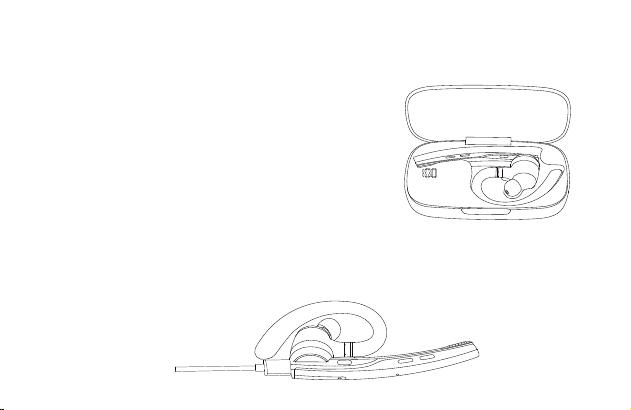
Thank you for choosing our product. Please read this user manual carefully and follow relevant
rules before using the product to ensure correct and safe use.
Ⅰ. Product Overview
This is a stylish business Bluetooth headset with a built-in Qualcomm Bluetooth chip, which
provides stable connection, HD voice calls and clear music listening. Besides, it features up to 15
hours battery life and 6 months standby time, brings more convenience to your life.
It should be noted that the Bluetooth connection may be blocked by walls, affected by electronic
interference, or interrupted due to over-distance.
Ⅱ. Product Description
1.Headset
① Retractable Ear Hook
② Type-C Charging Port
③ Multifunctional Button
④ Headset Indicator
⑤ Secondary Microphone
⑥ Main Microphone
2.Charging Case
① Digital Display Screen
② Type-C Charging Port
③ Charging Case Indicator
Ⅲ. Packing List
Headset * 1
Charging case * 1
Charging cable * 1
User manual * 1
Ⅳ. Wearing Instruction
1. Wearing on the Right Ear
① Take out the headset from the charging case. As the picture shows, adjust the length of the ear
hook according to your needs, slide the headset from above the ear to behind the ear, then gently
press it toward the ear.
NOTE:
• In order to achieve the most comfortable wearing condition, please take off your glasses before
wearing the headset. After we
• The adjustment range of ear hook length is 0-3.2mm. Do not use excessive force when adjusting
the length of the ear hook.
② Rotate the microphone boom to ensure the microphone is towards your mouth.
2. Adjustment of Wearing Style ( Wearing on the Left Ear )
① Rotate the microphone boom upwards and twist, make the earbud turn to another side, and
then rotate the ear hook clockwise.
NOTE:
• The maximum rotation Angle of the microphone
boom is 270°.
• The maximum rotation Angle of the ear hook
is 180°.
② Slide the headset from above the ear to behind the ear, then gently press it toward the ear.
Rotate the microphone boom downwards to ensure the microphone is towards your mouth.
Ⅴ. Usage and Operation
1. Bluetooth Connection
① Take out the headset from the charging case or press and hold the multifunctional button for 3
seconds to turn on the headset. The headset emits the voice prompt of “power on”. After 3
seconds, it emits the voice prompt of “pairing”, indicating that the headset automatically enters the
pairing mode. The headset indicator keeps flashing in red and blue alternately.
② Turn on Bluetooth function of cellphone (or other devices) , and then search for new devices.
For iPhone, “Settings” > “Bluetooth” > “Open”
For Android phones, “Setting” > “Bluetooth” > “Searc new device”
Note: The menu contents may vary from different devices.
③ Find "M54" in the list of Bluetooth devices and click to connect. If the connection is successful,
the headset will emit the voice prompt of “connected” and the headset indicator will go out.
NOTE: When using the headset again, it will automatically connect to the last two devices within
Bluetooth effective range. If there is no paired device within 5 minutes, the headset will
automatically turn off.
④ Two Devices Connection
This headset can connect to two devices at the same time.
After successfully connecting to phone A, press and hold the mute button for 5 seconds to enter
pairing mode, the headset indicator keeps flashing in red and blue alternately, then open the
Bluetooth function of phone B to search and connect.
( NOTE: Although the headset can connect to two phones at the same time, only one of the
phones can play music through M54, the headset cannot play music from two phones at the same
time. )
⑤ Motorola Series Walkie Talkie Connection Instruction
Step 1: Turn on the headset and make it enter pairing mode,
the headset indicator keeps flashing in red and blue
alternately.
Step 2: Turn on the walkie-talkie, click on the menu and find Bluetooth Settings.
Step 3: Search for the device "M54" in Bluetooth settings, then click and connect.
Step 4: If the walkie-talkie displays that the connection is successful, the headset emits the voice
prompt of "connected". Click the multifunctional button of the headset, the headset indicator goes
out, and then start to use.
NOTE:
(1)When using two walkie-talkies, they must be set to the same communication channel,
otherwise it is not possible to communicate via the headset.
(2)It is required to press and hold the dialogue button on the walkie-talkie to communicate.
(3)When using the headset again, it automatically connects to the last device.
(4)Only walkie-talkies with Bluetooth function are supported.
(5)Other types of walkie-talkies with Bluetooth function can be operated and used according to the
user manual of the walkie-talkie.
2. Button Function Description
① Multifunctional Button
• Power On: In the power off state, press and hold the multifunctional button for 3 seconds, or
take out the headset from the charging case.
• Power off: In the power on state, press and hold the multifunctional button for 5 seconds, or
place the headset in the charging case.
• Play/Pause: In the music playing state, click the multifunctional button once.
• Answer A Call: Click the multifunctional button once when there is an incoming call.
• Hang Up: Click the multifunctional button once during a call.
• Reject A Call: Press and hold the multifunctional button for 2 seconds when there is an
incoming call.
• Redial Last Phone Number: Double click the multifunctional button.
② Volume Up Button
• Volume Up : Click the volume up button to increase the volume.
• Next Song : Press and hold the volume up button for 3 seconds to skip to next song.
③ Volume Down Button
• Volume Down: Click the volume down button to decrease the volume.
• Previous Song : Press and hold the volume down button for 3 seconds to skip to previous song.
④ Microphone Mute Button
• Mute On/Mute Off: Click the button to turn on the mute function during a call, click the button
again to turn off the mute function.
• Voice Assistant: Double click the button to activate voice assistant.
3. Headset Indicator / Voice Prompt
- 14 -
4. Restore Factory Settings
In power-on state, press the multifunctional button and volume up button at the same time for 6
seconds, when hearing the voice prompt of “power on, pairing”, the headset has been restored to
factory settings.
5. Charge the Headset
(1) Low Battery Reminder
When the headset emits the voice prompt of “battery low”, it indicates that the headset is in low
battery state. Please charge the headset immediately.
(2) Charging Instructions
① Charge the headset with charging case
Place the headset into the charging case for charging. The digital display screen of the charging
case is on for 10 seconds and then goes out.
When charging, the headset indicator is red. When fully
charged, the headset indicator stays on in blue for
10 seconds and then goes out.
NOTE: Please place the headset flat and
keep the charging contact point clean,
otherwise the headset will not be charged.
② Charge the headset with Type-C charging cable
When charging, the headset indicator is red. When fully charged, the headset indicator stays on in
blue for 10 seconds and then goes out.
6. Charge the Charging Case
(1) Low Battery Reminder
The digital display screen of the charging case flashes for about 10 seconds, indicating that the
charging case is in low battery state. Please charge the charging case immediately.
(2) Charging Instruction
Please charge the charging case with Type-C charging cable.
When charging, the charging case indicator is red. When fully charged, the charging case
indicator turns blue.
Ⅵ. Product Specifications
1. Bluetooth version: V5.1
2. Bluetooth chip: QCC3020
3. Supported protocols: Headset, HFP, A2DP, AVRCP HSP
4. Speaker unit: Φ13mm 32Ω
5. Transmission distance: 15m
6. Headset battery capacity: 85mAh
7. Charging case battery capacity: 500mAh
8. Standby time: 6 months
9. Music playback time: 15 hours
10. Headset charging time: 1.5 hours
11. Charging time of charging case: 1.5 hours
12. Charging port: Type-C
13. Working temperature: -5 ° C-50 ° C
14. Headset weight: 15g
15. Charging case weight: 57g
Ⅶ. Common Problems
1. Low battery may cause disconnection, in order not to affect normal use, please charge the
headset in time.
2. If the headset fails to turn on, please try to charge it up first, and turn it on when the battery is
sufficient.
3. No sound can be heard from the headset when in a call.
—— Make sure you choose the M54 for audio input/output when in a call, but not the speaker on
your cellphone.
—— Check whether your cellphone has been connected to other Bluetooth devices.
—— Make sure the distance between the headset and the cellphone does not exceed the
effective distance of 15 meters.
4. The other end cannot hear your voice when in a call.
——Please keep the microphone hole of headset clean, so as not to affect the call and noise
reduction effect, resulting in the other end can not hear your voice.
5. The headset cannot be charged.
——Please wipe the charging contact point of the headset and the charging case with alcohol.
Ⅷ. Safety Notes
1. Disassembling personally may damage the headset and this is not covered by warranty.
2. Please clean the headset with a clean, soft and dry cloth.
3. Please do not use the headset in a dusty and humid environment.
4. Do not let your children play with the headset. They may be injured or damage the headset.
5. Do not place the headset in an extreme environment, otherwise, it may be temporarily
unavailable for use. The normal use temperature is -5°C to 50°C.
6. This product is not compatible with fixed-line telephone.
7. When connected to a computer, this product does not support answering and hanging up calls.
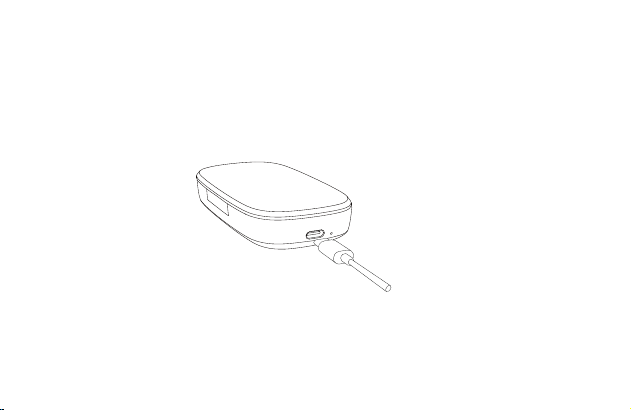
Thank you for choosing our product. Please read this user manual carefully and follow relevant
rules before using the product to ensure correct and safe use.
Ⅰ. Product Overview
This is a stylish business Bluetooth headset with a built-in Qualcomm Bluetooth chip, which
provides stable connection, HD voice calls and clear music listening. Besides, it features up to 15
hours battery life and 6 months standby time, brings more convenience to your life.
It should be noted that the Bluetooth connection may be blocked by walls, affected by electronic
interference, or interrupted due to over-distance.
Ⅱ. Product Description
1.Headset
① Retractable Ear Hook
② Type-C Charging Port
③ Multifunctional Button
④ Headset Indicator
⑤ Secondary Microphone
⑥ Main Microphone
2.Charging Case
① Digital Display Screen
② Type-C Charging Port
③ Charging Case Indicator
Ⅲ. Packing List
Headset * 1
Charging case * 1
Charging cable * 1
User manual * 1
Ⅳ. Wearing Instruction
1. Wearing on the Right Ear
① Take out the headset from the charging case. As the picture shows, adjust the length of the ear
hook according to your needs, slide the headset from above the ear to behind the ear, then gently
press it toward the ear.
NOTE:
• In order to achieve the most comfortable wearing condition, please take off your glasses before
wearing the headset. After we
• The adjustment range of ear hook length is 0-3.2mm. Do not use excessive force when adjusting
the length of the ear hook.
② Rotate the microphone boom to ensure the microphone is towards your mouth.
2. Adjustment of Wearing Style ( Wearing on the Left Ear )
① Rotate the microphone boom upwards and twist, make the earbud turn to another side, and
then rotate the ear hook clockwise.
NOTE:
• The maximum rotation Angle of the microphone
boom is 270°.
• The maximum rotation Angle of the ear hook
is 180°.
② Slide the headset from above the ear to behind the ear, then gently press it toward the ear.
Rotate the microphone boom downwards to ensure the microphone is towards your mouth.
Ⅴ. Usage and Operation
1. Bluetooth Connection
① Take out the headset from the charging case or press and hold the multifunctional button for 3
seconds to turn on the headset. The headset emits the voice prompt of “power on”. After 3
seconds, it emits the voice prompt of “pairing”, indicating that the headset automatically enters the
pairing mode. The headset indicator keeps flashing in red and blue alternately.
② Turn on Bluetooth function of cellphone (or other devices) , and then search for new devices.
For iPhone, “Settings” > “Bluetooth” > “Open”
For Android phones, “Setting” > “Bluetooth” > “Searc new device”
Note: The menu contents may vary from different devices.
③ Find "M54" in the list of Bluetooth devices and click to connect. If the connection is successful,
the headset will emit the voice prompt of “connected” and the headset indicator will go out.
NOTE: When using the headset again, it will automatically connect to the last two devices within
Bluetooth effective range. If there is no paired device within 5 minutes, the headset will
automatically turn off.
④ Two Devices Connection
This headset can connect to two devices at the same time.
After successfully connecting to phone A, press and hold the mute button for 5 seconds to enter
pairing mode, the headset indicator keeps flashing in red and blue alternately, then open the
Bluetooth function of phone B to search and connect.
( NOTE: Although the headset can connect to two phones at the same time, only one of the
phones can play music through M54, the headset cannot play music from two phones at the same
time. )
⑤ Motorola Series Walkie Talkie Connection Instruction
Step 1: Turn on the headset and make it enter pairing mode,
the headset indicator keeps flashing in red and blue
alternately.
Step 2: Turn on the walkie-talkie, click on the menu and find Bluetooth Settings.
Step 3: Search for the device "M54" in Bluetooth settings, then click and connect.
Step 4: If the walkie-talkie displays that the connection is successful, the headset emits the voice
prompt of "connected". Click the multifunctional button of the headset, the headset indicator goes
out, and then start to use.
NOTE:
(1)When using two walkie-talkies, they must be set to the same communication channel,
otherwise it is not possible to communicate via the headset.
(2)It is required to press and hold the dialogue button on the walkie-talkie to communicate.
(3)When using the headset again, it automatically connects to the last device.
(4)Only walkie-talkies with Bluetooth function are supported.
(5)Other types of walkie-talkies with Bluetooth function can be operated and used according to the
user manual of the walkie-talkie.
2. Button Function Description
① Multifunctional Button
• Power On: In the power off state, press and hold the multifunctional button for 3 seconds, or
take out the headset from the charging case.
• Power off: In the power on state, press and hold the multifunctional button for 5 seconds, or
place the headset in the charging case.
• Play/Pause: In the music playing state, click the multifunctional button once.
• Answer A Call: Click the multifunctional button once when there is an incoming call.
• Hang Up: Click the multifunctional button once during a call.
• Reject A Call: Press and hold the multifunctional button for 2 seconds when there is an
incoming call.
• Redial Last Phone Number: Double click the multifunctional button.
② Volume Up Button
• Volume Up : Click the volume up button to increase the volume.
• Next Song : Press and hold the volume up button for 3 seconds to skip to next song.
③ Volume Down Button
• Volume Down: Click the volume down button to decrease the volume.
• Previous Song : Press and hold the volume down button for 3 seconds to skip to previous song.
④ Microphone Mute Button
• Mute On/Mute Off: Click the button to turn on the mute function during a call, click the button
again to turn off the mute function.
• Voice Assistant: Double click the button to activate voice assistant.
3. Headset Indicator / Voice Prompt
- 15 -
4. Restore Factory Settings
In power-on state, press the multifunctional button and volume up button at the same time for 6
seconds, when hearing the voice prompt of “power on, pairing”, the headset has been restored to
factory settings.
5. Charge the Headset
(1) Low Battery Reminder
When the headset emits the voice prompt of “battery low”, it indicates that the headset is in low
battery state. Please charge the headset immediately.
(2) Charging Instructions
① Charge the headset with charging case
Place the headset into the charging case for charging. The digital display screen of the charging
case is on for 10 seconds and then goes out.
When charging, the headset indicator is red. When fully
charged, the headset indicator stays on in blue for
10 seconds and then goes out.
NOTE: Please place the headset flat and
keep the charging contact point clean,
otherwise the headset will not be charged.
② Charge the headset with Type-C charging cable
When charging, the headset indicator is red. When fully charged, the headset indicator stays on in
blue for 10 seconds and then goes out.
6. Charge the Charging Case
(1) Low Battery Reminder
The digital display screen of the charging case flashes for about 10 seconds, indicating that the
charging case is in low battery state. Please charge the charging case immediately.
(2) Charging Instruction
Please charge the charging case with Type-C charging cable.
When charging, the charging case indicator is red. When fully charged, the charging case
indicator turns blue.
Ⅵ. Product Specifications
1. Bluetooth version: V5.1
2. Bluetooth chip: QCC3020
3. Supported protocols: Headset, HFP, A2DP, AVRCP HSP
4. Speaker unit: Φ13mm 32Ω
5. Transmission distance: 15m
6. Headset battery capacity: 85mAh
7. Charging case battery capacity: 500mAh
8. Standby time: 6 months
9. Music playback time: 15 hours
10. Headset charging time: 1.5 hours
11. Charging time of charging case: 1.5 hours
12. Charging port: Type-C
13. Working temperature: -5 ° C-50 ° C
14. Headset weight: 15g
15. Charging case weight: 57g
Ⅶ. Common Problems
1. Low battery may cause disconnection, in order not to affect normal use, please charge the
headset in time.
2. If the headset fails to turn on, please try to charge it up first, and turn it on when the battery is
sufficient.
3. No sound can be heard from the headset when in a call.
—— Make sure you choose the M54 for audio input/output when in a call, but not the speaker on
your cellphone.
—— Check whether your cellphone has been connected to other Bluetooth devices.
—— Make sure the distance between the headset and the cellphone does not exceed the
effective distance of 15 meters.
4. The other end cannot hear your voice when in a call.
——Please keep the microphone hole of headset clean, so as not to affect the call and noise
reduction effect, resulting in the other end can not hear your voice.
5. The headset cannot be charged.
——Please wipe the charging contact point of the headset and the charging case with alcohol.
Ⅷ. Safety Notes
1. Disassembling personally may damage the headset and this is not covered by warranty.
2. Please clean the headset with a clean, soft and dry cloth.
3. Please do not use the headset in a dusty and humid environment.
4. Do not let your children play with the headset. They may be injured or damage the headset.
5. Do not place the headset in an extreme environment, otherwise, it may be temporarily
unavailable for use. The normal use temperature is -5°C to 50°C.
6. This product is not compatible with fixed-line telephone.
7. When connected to a computer, this product does not support answering and hanging up calls.

Thank you for choosing our product. Please read this user manual carefully and follow relevant
rules before using the product to ensure correct and safe use.
Ⅰ. Product Overview
This is a stylish business Bluetooth headset with a built-in Qualcomm Bluetooth chip, which
provides stable connection, HD voice calls and clear music listening. Besides, it features up to 15
hours battery life and 6 months standby time, brings more convenience to your life.
It should be noted that the Bluetooth connection may be blocked by walls, affected by electronic
interference, or interrupted due to over-distance.
Ⅱ. Product Description
1.Headset
① Retractable Ear Hook
② Type-C Charging Port
③ Multifunctional Button
④ Headset Indicator
⑤ Secondary Microphone
⑥ Main Microphone
2.Charging Case
① Digital Display Screen
② Type-C Charging Port
③ Charging Case Indicator
Ⅲ. Packing List
Headset * 1
Charging case * 1
Charging cable * 1
User manual * 1
Ⅳ. Wearing Instruction
1. Wearing on the Right Ear
① Take out the headset from the charging case. As the picture shows, adjust the length of the ear
hook according to your needs, slide the headset from above the ear to behind the ear, then gently
press it toward the ear.
NOTE:
• In order to achieve the most comfortable wearing condition, please take off your glasses before
wearing the headset. After we
• The adjustment range of ear hook length is 0-3.2mm. Do not use excessive force when adjusting
the length of the ear hook.
② Rotate the microphone boom to ensure the microphone is towards your mouth.
2. Adjustment of Wearing Style ( Wearing on the Left Ear )
① Rotate the microphone boom upwards and twist, make the earbud turn to another side, and
then rotate the ear hook clockwise.
NOTE:
• The maximum rotation Angle of the microphone
boom is 270°.
• The maximum rotation Angle of the ear hook
is 180°.
② Slide the headset from above the ear to behind the ear, then gently press it toward the ear.
Rotate the microphone boom downwards to ensure the microphone is towards your mouth.
Ⅴ. Usage and Operation
1. Bluetooth Connection
① Take out the headset from the charging case or press and hold the multifunctional button for 3
seconds to turn on the headset. The headset emits the voice prompt of “power on”. After 3
seconds, it emits the voice prompt of “pairing”, indicating that the headset automatically enters the
pairing mode. The headset indicator keeps flashing in red and blue alternately.
② Turn on Bluetooth function of cellphone (or other devices) , and then search for new devices.
For iPhone, “Settings” > “Bluetooth” > “Open”
For Android phones, “Setting” > “Bluetooth” > “Searc new device”
Note: The menu contents may vary from different devices.
③ Find "M54" in the list of Bluetooth devices and click to connect. If the connection is successful,
the headset will emit the voice prompt of “connected” and the headset indicator will go out.
NOTE: When using the headset again, it will automatically connect to the last two devices within
Bluetooth effective range. If there is no paired device within 5 minutes, the headset will
automatically turn off.
④ Two Devices Connection
This headset can connect to two devices at the same time.
After successfully connecting to phone A, press and hold the mute button for 5 seconds to enter
pairing mode, the headset indicator keeps flashing in red and blue alternately, then open the
Bluetooth function of phone B to search and connect.
( NOTE: Although the headset can connect to two phones at the same time, only one of the
phones can play music through M54, the headset cannot play music from two phones at the same
time. )
⑤ Motorola Series Walkie Talkie Connection Instruction
Step 1: Turn on the headset and make it enter pairing mode,
the headset indicator keeps flashing in red and blue
alternately.
Step 2: Turn on the walkie-talkie, click on the menu and find Bluetooth Settings.
Step 3: Search for the device "M54" in Bluetooth settings, then click and connect.
Step 4: If the walkie-talkie displays that the connection is successful, the headset emits the voice
prompt of "connected". Click the multifunctional button of the headset, the headset indicator goes
out, and then start to use.
NOTE:
(1)When using two walkie-talkies, they must be set to the same communication channel,
otherwise it is not possible to communicate via the headset.
(2)It is required to press and hold the dialogue button on the walkie-talkie to communicate.
(3)When using the headset again, it automatically connects to the last device.
(4)Only walkie-talkies with Bluetooth function are supported.
(5)Other types of walkie-talkies with Bluetooth function can be operated and used according to the
user manual of the walkie-talkie.
2. Button Function Description
① Multifunctional Button
• Power On: In the power off state, press and hold the multifunctional button for 3 seconds, or
take out the headset from the charging case.
• Power off: In the power on state, press and hold the multifunctional button for 5 seconds, or
place the headset in the charging case.
• Play/Pause: In the music playing state, click the multifunctional button once.
• Answer A Call: Click the multifunctional button once when there is an incoming call.
• Hang Up: Click the multifunctional button once during a call.
• Reject A Call: Press and hold the multifunctional button for 2 seconds when there is an
incoming call.
• Redial Last Phone Number: Double click the multifunctional button.
② Volume Up Button
• Volume Up : Click the volume up button to increase the volume.
• Next Song : Press and hold the volume up button for 3 seconds to skip to next song.
③ Volume Down Button
• Volume Down: Click the volume down button to decrease the volume.
• Previous Song : Press and hold the volume down button for 3 seconds to skip to previous song.
④ Microphone Mute Button
• Mute On/Mute Off: Click the button to turn on the mute function during a call, click the button
again to turn off the mute function.
• Voice Assistant: Double click the button to activate voice assistant.
3. Headset Indicator / Voice Prompt
- 16 -
4. Restore Factory Settings
In power-on state, press the multifunctional button and volume up button at the same time for 6
seconds, when hearing the voice prompt of “power on, pairing”, the headset has been restored to
factory settings.
5. Charge the Headset
(1) Low Battery Reminder
When the headset emits the voice prompt of “battery low”, it indicates that the headset is in low
battery state. Please charge the headset immediately.
(2) Charging Instructions
① Charge the headset with charging case
Place the headset into the charging case for charging. The digital display screen of the charging
case is on for 10 seconds and then goes out.
When charging, the headset indicator is red. When fully
charged, the headset indicator stays on in blue for
10 seconds and then goes out.
NOTE: Please place the headset flat and
keep the charging contact point clean,
otherwise the headset will not be charged.
② Charge the headset with Type-C charging cable
When charging, the headset indicator is red. When fully charged, the headset indicator stays on in
blue for 10 seconds and then goes out.
6. Charge the Charging Case
(1) Low Battery Reminder
The digital display screen of the charging case flashes for about 10 seconds, indicating that the
charging case is in low battery state. Please charge the charging case immediately.
(2) Charging Instruction
Please charge the charging case with Type-C charging cable.
When charging, the charging case indicator is red. When fully charged, the charging case
indicator turns blue.
Ⅵ. Product Specifications
1. Bluetooth version: V5.1
2. Bluetooth chip: QCC3020
3. Supported protocols: Headset, HFP, A2DP, AVRCP HSP
4. Speaker unit: Φ13mm 32Ω
5. Transmission distance: 15m
6. Headset battery capacity: 85mAh
7. Charging case battery capacity: 500mAh
8. Standby time: 6 months
9. Music playback time: 15 hours
10. Headset charging time: 1.5 hours
11. Charging time of charging case: 1.5 hours
12. Charging port: Type-C
13. Working temperature: -5 ° C-50 ° C
14. Headset weight: 15g
15. Charging case weight: 57g
Ⅶ. Common Problems
1. Low battery may cause disconnection, in order not to affect normal use, please charge the
headset in time.
2. If the headset fails to turn on, please try to charge it up first, and turn it on when the battery is
sufficient.
3. No sound can be heard from the headset when in a call.
—— Make sure you choose the M54 for audio input/output when in a call, but not the speaker on
your cellphone.
—— Check whether your cellphone has been connected to other Bluetooth devices.
—— Make sure the distance between the headset and the cellphone does not exceed the
effective distance of 15 meters.
4. The other end cannot hear your voice when in a call.
——Please keep the microphone hole of headset clean, so as not to affect the call and noise
reduction effect, resulting in the other end can not hear your voice.
5. The headset cannot be charged.
——Please wipe the charging contact point of the headset and the charging case with alcohol.
Ⅷ. Safety Notes
1. Disassembling personally may damage the headset and this is not covered by warranty.
2. Please clean the headset with a clean, soft and dry cloth.
3. Please do not use the headset in a dusty and humid environment.
4. Do not let your children play with the headset. They may be injured or damage the headset.
5. Do not place the headset in an extreme environment, otherwise, it may be temporarily
unavailable for use. The normal use temperature is -5°C to 50°C.
6. This product is not compatible with fixed-line telephone.
7. When connected to a computer, this product does not support answering and hanging up calls.
( Scan to ask more )

Thank you for choosing our product. Please read this user manual carefully and follow relevant
rules before using the product to ensure correct and safe use.
Ⅰ. Product Overview
This is a stylish business Bluetooth headset with a built-in Qualcomm Bluetooth chip, which
provides stable connection, HD voice calls and clear music listening. Besides, it features up to 15
hours battery life and 6 months standby time, brings more convenience to your life.
It should be noted that the Bluetooth connection may be blocked by walls, affected by electronic
interference, or interrupted due to over-distance.
Ⅱ. Product Description
1.Headset
① Retractable Ear Hook
② Type-C Charging Port
③ Multifunctional Button
④ Headset Indicator
⑤ Secondary Microphone
⑥ Main Microphone
2.Charging Case
① Digital Display Screen
② Type-C Charging Port
③ Charging Case Indicator
Ⅲ. Packing List
Headset * 1
Charging case * 1
Charging cable * 1
User manual * 1
Ⅳ. Wearing Instruction
1. Wearing on the Right Ear
① Take out the headset from the charging case. As the picture shows, adjust the length of the ear
hook according to your needs, slide the headset from above the ear to behind the ear, then gently
press it toward the ear.
NOTE:
• In order to achieve the most comfortable wearing condition, please take off your glasses before
wearing the headset. After we
• The adjustment range of ear hook length is 0-3.2mm. Do not use excessive force when adjusting
the length of the ear hook.
② Rotate the microphone boom to ensure the microphone is towards your mouth.
2. Adjustment of Wearing Style ( Wearing on the Left Ear )
① Rotate the microphone boom upwards and twist, make the earbud turn to another side, and
then rotate the ear hook clockwise.
NOTE:
• The maximum rotation Angle of the microphone
boom is 270°.
• The maximum rotation Angle of the ear hook
is 180°.
② Slide the headset from above the ear to behind the ear, then gently press it toward the ear.
Rotate the microphone boom downwards to ensure the microphone is towards your mouth.
Ⅴ. Usage and Operation
1. Bluetooth Connection
① Take out the headset from the charging case or press and hold the multifunctional button for 3
seconds to turn on the headset. The headset emits the voice prompt of “power on”. After 3
seconds, it emits the voice prompt of “pairing”, indicating that the headset automatically enters the
pairing mode. The headset indicator keeps flashing in red and blue alternately.
② Turn on Bluetooth function of cellphone (or other devices) , and then search for new devices.
For iPhone, “Settings” > “Bluetooth” > “Open”
For Android phones, “Setting” > “Bluetooth” > “Searc new device”
Note: The menu contents may vary from different devices.
③ Find "M54" in the list of Bluetooth devices and click to connect. If the connection is successful,
the headset will emit the voice prompt of “connected” and the headset indicator will go out.
NOTE: When using the headset again, it will automatically connect to the last two devices within
Bluetooth effective range. If there is no paired device within 5 minutes, the headset will
automatically turn off.
④ Two Devices Connection
This headset can connect to two devices at the same time.
After successfully connecting to phone A, press and hold the mute button for 5 seconds to enter
pairing mode, the headset indicator keeps flashing in red and blue alternately, then open the
Bluetooth function of phone B to search and connect.
( NOTE: Although the headset can connect to two phones at the same time, only one of the
phones can play music through M54, the headset cannot play music from two phones at the same
time. )
⑤ Motorola Series Walkie Talkie Connection Instruction
Step 1: Turn on the headset and make it enter pairing mode,
the headset indicator keeps flashing in red and blue
alternately.
Step 2: Turn on the walkie-talkie, click on the menu and find Bluetooth Settings.
Step 3: Search for the device "M54" in Bluetooth settings, then click and connect.
Step 4: If the walkie-talkie displays that the connection is successful, the headset emits the voice
prompt of "connected". Click the multifunctional button of the headset, the headset indicator goes
out, and then start to use.
NOTE:
(1)When using two walkie-talkies, they must be set to the same communication channel,
otherwise it is not possible to communicate via the headset.
(2)It is required to press and hold the dialogue button on the walkie-talkie to communicate.
(3)When using the headset again, it automatically connects to the last device.
(4)Only walkie-talkies with Bluetooth function are supported.
(5)Other types of walkie-talkies with Bluetooth function can be operated and used according to the
user manual of the walkie-talkie.
2. Button Function Description
① Multifunctional Button
• Power On: In the power off state, press and hold the multifunctional button for 3 seconds, or
take out the headset from the charging case.
• Power off: In the power on state, press and hold the multifunctional button for 5 seconds, or
place the headset in the charging case.
• Play/Pause: In the music playing state, click the multifunctional button once.
• Answer A Call: Click the multifunctional button once when there is an incoming call.
• Hang Up: Click the multifunctional button once during a call.
• Reject A Call: Press and hold the multifunctional button for 2 seconds when there is an
incoming call.
• Redial Last Phone Number: Double click the multifunctional button.
② Volume Up Button
• Volume Up : Click the volume up button to increase the volume.
• Next Song : Press and hold the volume up button for 3 seconds to skip to next song.
③ Volume Down Button
• Volume Down: Click the volume down button to decrease the volume.
• Previous Song : Press and hold the volume down button for 3 seconds to skip to previous song.
④ Microphone Mute Button
• Mute On/Mute Off: Click the button to turn on the mute function during a call, click the button
again to turn off the mute function.
• Voice Assistant: Double click the button to activate voice assistant.
3. Headset Indicator / Voice Prompt
- 17 -
4. Restore Factory Settings
In power-on state, press the multifunctional button and volume up button at the same time for 6
seconds, when hearing the voice prompt of “power on, pairing”, the headset has been restored to
factory settings.
5. Charge the Headset
(1) Low Battery Reminder
When the headset emits the voice prompt of “battery low”, it indicates that the headset is in low
battery state. Please charge the headset immediately.
(2) Charging Instructions
① Charge the headset with charging case
Place the headset into the charging case for charging. The digital display screen of the charging
case is on for 10 seconds and then goes out.
When charging, the headset indicator is red. When fully
charged, the headset indicator stays on in blue for
10 seconds and then goes out.
NOTE: Please place the headset flat and
keep the charging contact point clean,
otherwise the headset will not be charged.
② Charge the headset with Type-C charging cable
When charging, the headset indicator is red. When fully charged, the headset indicator stays on in
blue for 10 seconds and then goes out.
6. Charge the Charging Case
(1) Low Battery Reminder
The digital display screen of the charging case flashes for about 10 seconds, indicating that the
charging case is in low battery state. Please charge the charging case immediately.
(2) Charging Instruction
Please charge the charging case with Type-C charging cable.
When charging, the charging case indicator is red. When fully charged, the charging case
indicator turns blue.
Ⅵ. Product Specifications
1. Bluetooth version: V5.1
2. Bluetooth chip: QCC3020
3. Supported protocols: Headset, HFP, A2DP, AVRCP HSP
4. Speaker unit: Φ13mm 32Ω
5. Transmission distance: 15m
6. Headset battery capacity: 85mAh
7. Charging case battery capacity: 500mAh
8. Standby time: 6 months
9. Music playback time: 15 hours
10. Headset charging time: 1.5 hours
11. Charging time of charging case: 1.5 hours
12. Charging port: Type-C
13. Working temperature: -5 ° C-50 ° C
14. Headset weight: 15g
15. Charging case weight: 57g
Ⅶ. Common Problems
1. Low battery may cause disconnection, in order not to affect normal use, please charge the
headset in time.
2. If the headset fails to turn on, please try to charge it up first, and turn it on when the battery is
sufficient.
3. No sound can be heard from the headset when in a call.
—— Make sure you choose the M54 for audio input/output when in a call, but not the speaker on
your cellphone.
—— Check whether your cellphone has been connected to other Bluetooth devices.
—— Make sure the distance between the headset and the cellphone does not exceed the
effective distance of 15 meters.
4. The other end cannot hear your voice when in a call.
——Please keep the microphone hole of headset clean, so as not to affect the call and noise
reduction effect, resulting in the other end can not hear your voice.
5. The headset cannot be charged.
——Please wipe the charging contact point of the headset and the charging case with alcohol.
Ⅷ. Safety Notes
1. Disassembling personally may damage the headset and this is not covered by warranty.
2. Please clean the headset with a clean, soft and dry cloth.
3. Please do not use the headset in a dusty and humid environment.
4. Do not let your children play with the headset. They may be injured or damage the headset.
5. Do not place the headset in an extreme environment, otherwise, it may be temporarily
unavailable for use. The normal use temperature is -5°C to 50°C.
6. This product is not compatible with fixed-line telephone.
7. When connected to a computer, this product does not support answering and hanging up calls.

- 18 -
FCC Caution:
This device complies with part 15 of the FCC Rules. Operation is subject to the
following two conditions: (1) This device may not cause harmful interference, and (2)
this device must accept any interference received, including interference that may
cause undesired operation.
Any Changes or modifications not expressly approved by the party responsible for
compliance could void the user's authority to operate the equipment.
Note: This equipment has been tested and found to comply with the limits for a Class B digital
device, pursuant to part 15 of the FCC Rules. These limits are designed to provide reasonable
protection against harmful interference in a residential installation. This equipment generates uses
and can radiate radio frequency energy and, if not installed and used in accordance with the
instructions, may cause harmful interference to radio communications. However, there is no
guarantee that interference will not occur in a particular installation. If this equipment does cause
harmful interference to radio or television reception, which can be determined by turning the
equipment off and on, the user is encouraged to try to correct the interference by one or more of
the following measures:
-Reorient or relocate the receiving antenna.
-Increase the separation between the equipment and receiver.

- 19 -
-Connect the equipment into an outlet on a circuit different from that to which the
receiver is connected.
-Consult the dealer or an experienced radio/TV technician for help.
The device has been evaluated to meet general RF exposure requirement. The device can be
used in portable exposure condition without restriction.
- 20 -
We also engage with our fans to learn how we can do better by offering free pre-release products.
If you are interested, do not hesitate to follow us on
Thank you for choosing our products! We sincerely hope it will be your new-found happiness.
If you are fully satisfied with your using experience, could you please kindly share to your friends?
Happy?
Not Happy?
E-mail: [email protected]
Tel: (USA)1-626-701-7623 (UK)07845854035
Address: 3rd Fl, Bldg E, Guanghao Ind., No. 23, Dalang St.,
Longhua Dist., Shenzhen City,
Guangdong Prov., China
If you have any questions, concerns, or just not satisfied with our products, please feel free to
contact us through e-mail at:

Vielen Dank dafür, dass Sie sich für unser Produkt entschieden haben. Bitte lesen Sie dieses
Benutzerhandbuch sorgfältig durch und befolgen Sie die entsprechenden Regeln, bevor Sie das
Produkt verwenden, um eine korrekte und sichere Nutzung sicherzustellen.
Ⅰ. Produktübersicht
Es handelt sich hierbei um ein stilvolles Business-Bluetooth-Headset mit einem integrierten
Qualcomm Bluetooth-Chip, der eine stabile Verbindung, HD-Sprachanrufe und klaren
Musikgenuss bietet. Ausserdem verfügt es über eine Akkulaufzeit von bis zu 15 Stunden sowie
eine Standby-Zeit von 6 Monaten, für Ihren Komfort.
- 21 -
Deutsch
M54
Business-Bluetooth-Headset
Benutzerhandbuch
Bitte beachten Sie, dass die Bluetooth-Verbindung durch Wände behindert, durch elektronische
Störungen beeinträchtigt oder aufgrund zu großer Entfernungen unterbrochen werden kann.
Ⅱ. Produktbeschreibung
1. Headset
① Einziehbarer Ohrbügel
② Typ-C-Ladeanschluss
③ Multifunktionstaste
④ Headset-Anzeige
⑤ Zweites Mikrofon
⑥ Hauptmikrofon
2. Ladebox
① Digitalanzeige
② Typ-C Ladeanschluss
③ Ladebox-Anzeige
Ⅲ. Verpackungsliste
Headset * 1
Ladehülle * 1
Ladekabel * 1
Benutzerhandbuch * 1
Ⅳ. Anleitung zum Tragen
1. Tragen am rechten Ohr
① Nehmen Sie das Headset aus der Ladebox. Passen Sie die Länge des Ohrbügels nach Bedarf
an, schieben Sie das Headset von oberhalb des Ohrs bis hinter dem Ohr und drücken Sie es
dann sanft in Richtung des Ohrs.
HINWEIS:
• Um einen optimalen Tragekomfort zu gewährleisten, nehmen Sie bitte Ihre Brille ab, bevor Sie
die Kopfhörer aufsetzen. Setzen Sie Ihre Kopfhörer auf und dann Ihre Brille.
• Der Verstellbereich der Ohrbügellänge beträgt 0-3,2 mm. Wenden Sie keine übermäßige Kraft
beim Einstellen der Ohrbügellänge an.
② Drehen Sie am Mikrofonbügel, um sicherzustellen, dass das Mikrofon auf Ihren Mund
ausgerichtet ist.
2. Anpassen des Tragestils (Tragen am linken Ohr)
① Drehen Sie den Mikrofonbügel nach oben und verdrehen Sie ihn, sodass der Ohrhörer zur
anderen Seite gerichtet ist, und drehen Sie dann den Ohrbügel im Uhrzeigersinn.
HINWEIS:
• Der maximale Drehwinkel des Mikrofonbügels
beträgt 270°.
• Der maximale Drehwinkel des Ohrbügels
beträgt 180°.
② schieben Sie das Headset von oberhalb des Ohrs bis hinter dem Ohr und drücken Sie ihn dann
sanft in Richtung des Ohrs. Drehen Sie den Mikrofonbügel nach unten, um sicherzustellen, dass
das Mikrofon auf Ihren Mund ausgerichtet ist.
Ⅴ. Verwendung und Betrieb
1. Bluetooth-Verbindung
① Nehmen Sie das Headset aus der Ladebox oder drücken und halten Sie die Multifunktionstaste
3 Sekunden lang gedrückt, um das Headset einzuschalten. Das Headset gibt die Sprachauf-
forderung „power on“ aus. Nach 3 Sekunden gibt es die Sprachaufforderung „pairing“aus, was
anzeigt, dass das Headset automatisch in den Paarungsmodus wechselt. Das Headset-Anzei-
gelicht blinkt abwechselnd rot und blau.
② Schalten Sie die Bluetooth-Funktion Ihres Mobiltelefons (oder anderer Geräte) ein und suchen
Sie nach neuen Geräten.
Bei iPhone gehen Sie zu „Einstellungen“ > „Bluetooth“ > „Öffnen“
Bei Android-Handys gehen Sie zu „Einstellungen“ > „Bluetooth“ > „Nach neuen
Geräten suchen“
Hinweis: Die Menüinhalte können je nach Gerät variieren.
③ Suchen Sie nach „M54“ in der Liste der Bluetooth-Geräte und klicken Sie, um eine Verbindung
herzustellen. Bei erfolgreicher Verbindung erfolgreich, gibt das Headset die Sprachbenachrichti-
gung „connected“ aus und die Headset-Anzeige erlischt.
HINWEIS: Wenn Sie das Headset erneut verwenden, stellt es automatisch eine Verbindung zu
den letzten beiden Geräten in der wirksamen Bluetooth-Reichweite her. Wenn innerhalb von 5
Minuten kein gepaartes Gerät vorhanden ist, schaltet sich das Headset automatisch aus.
④ Die Verbindung von zwei Geräten
Dieses Headset kann sich gleichzeitig mit 2 Geräten verbinden.
Halten Sie nach erfolgreicher Verbindung mit Telefon A die Stummschalttaste 5 Sekunden lang
gedrückt, um in den Kopplungsmodus zu gelangen. Die Headset-Anzeige blinkt abwechselnd rot
und blau. Öffnen Sie dann die Bluetooth-Funktion von Telefon B, um zu suchen und eine
Verbindung herzustellen.
(HINWEIS: Obwohl das Headset sich gleichzeitig mit zwei Telefonen verbinden kann, kann nur
eines der Telefone über M54 Musik wiedergeben. Das Headset kann nicht gleichzeitig Musik von
zwei Telefonen wiedergeben.)
2. Beschreibung der Tastenfunktion
① Multifunktionstaste
• Einschalten: Im ausgeschalteten Zustand halten Sie die Multifunktionstaste 3 Sekunden lang
gedrückt oder nehmen Sie das Headset aus der Ladebox.
• Ausschalten: Im eingeschalteten Zustand halten Sie die Multifunktionstaste 5 Sekunden lang
gedrückt oder legen Sie das Headset in den Ladebox.
• Wiedergabe/Pause: Im Musikwiedergabemodus klicken Sie einmal auf die Multifunktionstaste.
• Anruf annehmen: Klicken Sie einmal auf die Multifunktionstaste, wenn ein Anruf eingeht.
• Auflegen: Klicken während eines Anrufs einmal auf die Multifunktionstaste.
• Ablehnen eines Anrufs: Halten Sie die Multifunktionstaste 2 Sekunden lang gedrückt, wenn ein
Anruf eingeht.
• Wählen Sie die zuletzt gewählte Telefonnummer erneut: Führen Sie einen Doppelklick auf
die Multifunktionstaste aus.
② Lautstärke erhöhen-Taste
• Lautstärke erhöhen: Klicken Sie auf die Lautstärke erhöhen-Taste, um die Lautstärke zu
erhöhen.
• Nächster Song: Halten Sie die Lautstärke erhöhen-Taste 3 Sekunden lang gedrückt, um zum
nächsten Song zu springen.
③ Lautstärke verringern-Taste
• Lautstärke verringern: Klicken Sie auf die Lautstärke verringern-Taste, um die Lautstärke zu
verringern.
• Vorheriger Song: Halten Sie die Lautstärke verringern-Taste 3 Sekunden lang gedrückt, um
zum vorherigen Song zu springen.
④ Mikrofon-Stummschaltungstaste
• Stummschalten/Einschalten der Stummschaltung: Klicken Sie auf die Taste, um die
Stummschaltungsfunktion während eines Anrufs zu aktivieren. Klicken Sie erneut auf die Taste,
um die Stummschaltungsfunktion auszuschalten.
• Sprachassistent: Doppelklicken Sie auf die Schaltfläche,, um den Sprachassistenten zu
aktivieren.
3. Headset-Anzeige / Sprachansage
4. Werkseinstellungen wiederherstellen
Im eingeschalteten Zustand drücken Sie gleichzeitig die Multifunktionstaste und die Lautstärke
erhöhen-Taste für 6 Sekunden. Wenn Sie die Sprachaufforderung „power on, pairing“ hören,
wurde das Headset auf die Werkseinstellungen zurückgesetzt.
5. Aufladen des Headsets
(1) Niedriger Akku-Hinweis
Wenn das Headset die Sprachansage „battery low“ abgibt, bedeutet dies, dass sich das Headset
im niedrigen Akku-Zustand befindet. Bitte laden Sie das Headset sofort auf.
(2) Anweisungen zum Aufladen
① Laden Sie das Headset mit der Ladebox auf
Legen Sie das Headset zum Laden in die Ladebox. Die digitale Anzeige der Ladebox leuchtet 10
Sekunden lang und erlischt anschliessend.
Beim Laden leuchtet die Headset-Anzeige rot. Wenn
vollständig aufgeladen, leuchtet die Headset-Anzeige
10 Sekunden lang blau und erlischt anschliessend.
HINWEIS: Bitte legen Sie das Headset flach
und halten Sie den Ladeanschluss sauber,
andernfalls wird das Headset nicht aufgeladen.
② Laden Sie das Headset mit dem Typ-C-Ladekabel auf
Beim Laden leuchtet die Headset-Anzeige rot. Wenn vollständig aufgeladen, leuchtet die
Headset-Anzeige 10 Sekunden lang blau und erlischt anschliessend.
6. Laden der Ladebox
(1) Niedriger Akku-Hinweis
Die digitale Anzeige der Ladebox blinkt ca. 10 Sekunden lang und zeigt an, dass sich die Ladebox
im niedrigen Akku-Zustand befindet. Bitte laden Sie die Ladebox sofort auf.
(2) Ladeanleitung
Bitte laden Sie die Ladebox mit dem Typ-C-Ladekabel auf.
Beim Laden leuchtet die Ladebox-Anzeige rot. Sobald vollständig aufgeladen, leuchtet die
Ladebox-Anzeige rot.
Ⅵ. Produktspezifikationen
1. Bluetooth-Version: V5.1
2. Bluetooth-Chip: QCC3020
3. Unterstützte Protokolle: Headset, HFP, A2DP, AVRCP, HSP
4. Lautsprechereinheit: Φ13 mm 32Ω
5. Übertragungsentfernung: 15 m
6. Akkukapazität des Headsets: 85 mAh
7. Akkukapazität der Ladebox: 500 mAh
8. Standby-Zeit: 6 Monate
9. Wiedergabezeit für Musik: 15 Stunden
10. Ladezeit des Headsets: 1,5 Stunden
11. Ladezeit der Ladebox: 1,5 Stunden
12. Ladeanschluss: Typ-C
13. Betriebstemperatur: -5 °C - 50 °C
14. Gewicht des Headsets: 15 g
15. Gewicht der Ladebox: 57 g
Ⅶ. Häufig auftretende Probleme
1. Ein niedriger Akkustand kann zu Verbindungsproblemen führen. Um eine störungsfreie Nutzung
sicherzustellen, laden Sie das Headset rechtzeitig auf.
2. Wenn das Headset nicht eingeschaltet werden kann, versuchen Sie bitte, es zunächst
aufzuladen und schalten Sie es ein, sobald der Akku ausreichend geladen ist.
3. Während eines Anrufs ist kein Ton über das Headset zu hören.
—— Stellen Sie sicher, dass Sie M54 für die Audioeingabe/-Ausgabe auswählen, wenn Sie einen
Anruf tätigen, und nicht den Lautsprecher Ihres Mobiltelefons.
—— Überprüfen Sie, ob Ihr Mobiltelefon mit anderen Bluetooth-Geräten verbunden ist.
—— Stellen Sie sicher, dass der Abstand zwischen dem Headset und dem Mobiltelefon nicht die
effektive Reichweite von 15 Metern überschreitet.
4. Die andere Seite kann Ihre Stimme nicht hören, wenn Sie einen Anruf tätigen.
—— Bitte halten Sie die Mikrofonöffnung des Headsets sauber, um den Anruf und die
Geräuschunterdrückung nicht zu beeinträchtigen und sicherzustellen, dass die andere Seite Ihre
Stimme hören kann.
5. Das Headset kann nicht aufgeladen werden.
—— Bitte reinigen Sie die Ladeanschlusspunkte des Headsets und der Ladebox mit Alkohol.
Ⅷ. Sicherheitshinweise
1. Die eigenmächtige Demontage kann das Headset beschädigen und ist nicht durch die Garantie
abgedeckt.
2. Reinigen Sie das Headset mit einem sauberen, weichen und trockenen Tuch.
3. Verwenden Sie das Headset bitte nicht in einer staubigen und feuchten Umgebung.
4. Lassen Sie Ihre Kinder nicht mit dem Headset spielen. Sie könnten sich verletzen oder das
Headset beschädigen.
5. Stellen Sie das Headset nicht in extremen Umgebungen ab, da es sonst vorübergehend nicht
verwendet werden kann. Die normale Betriebstemperatur beträgt -5 °C bis 50 °C.
6. Dieses Produkt ist nicht mit Festnetztelefonen kompatibel.
7. Bei Anschluss an einen Computer unterstützt dieses Produkt das Annehmen und Auflegen von
Anrufen nicht.
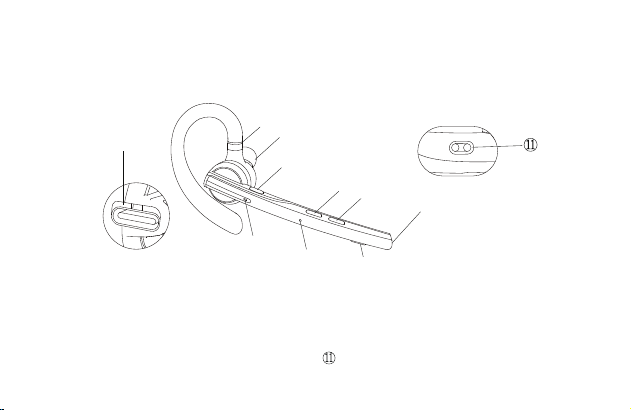
- 22 -
Vielen Dank dafür, dass Sie sich für unser Produkt entschieden haben. Bitte lesen Sie dieses
Benutzerhandbuch sorgfältig durch und befolgen Sie die entsprechenden Regeln, bevor Sie das
Produkt verwenden, um eine korrekte und sichere Nutzung sicherzustellen.
Ⅰ. Produktübersicht
Es handelt sich hierbei um ein stilvolles Business-Bluetooth-Headset mit einem integrierten
Qualcomm Bluetooth-Chip, der eine stabile Verbindung, HD-Sprachanrufe und klaren
Musikgenuss bietet. Ausserdem verfügt es über eine Akkulaufzeit von bis zu 15 Stunden sowie
eine Standby-Zeit von 6 Monaten, für Ihren Komfort.
Bitte beachten Sie, dass die Bluetooth-Verbindung durch Wände behindert, durch elektronische
Störungen beeinträchtigt oder aufgrund zu großer Entfernungen unterbrochen werden kann.
Ⅱ. Produktbeschreibung
1. Headset
① Einziehbarer Ohrbügel
② Typ-C-Ladeanschluss
③ Multifunktionstaste
④ Headset-Anzeige
⑤ Zweites Mikrofon
⑥ Hauptmikrofon
2. Ladebox
① Digitalanzeige
② Typ-C Ladeanschluss
③ Ladebox-Anzeige
Ⅲ. Verpackungsliste
Headset * 1
Ladehülle * 1
Ladekabel * 1
Benutzerhandbuch * 1
Ⅳ. Anleitung zum Tragen
1. Tragen am rechten Ohr
① Nehmen Sie das Headset aus der Ladebox. Passen Sie die Länge des Ohrbügels nach Bedarf
an, schieben Sie das Headset von oberhalb des Ohrs bis hinter dem Ohr und drücken Sie es
dann sanft in Richtung des Ohrs.
HINWEIS:
• Um einen optimalen Tragekomfort zu gewährleisten, nehmen Sie bitte Ihre Brille ab, bevor Sie
die Kopfhörer aufsetzen. Setzen Sie Ihre Kopfhörer auf und dann Ihre Brille.
• Der Verstellbereich der Ohrbügellänge beträgt 0-3,2 mm. Wenden Sie keine übermäßige Kraft
beim Einstellen der Ohrbügellänge an.
② Drehen Sie am Mikrofonbügel, um sicherzustellen, dass das Mikrofon auf Ihren Mund
ausgerichtet ist.
2. Anpassen des Tragestils (Tragen am linken Ohr)
① Drehen Sie den Mikrofonbügel nach oben und verdrehen Sie ihn, sodass der Ohrhörer zur
anderen Seite gerichtet ist, und drehen Sie dann den Ohrbügel im Uhrzeigersinn.
HINWEIS:
• Der maximale Drehwinkel des Mikrofonbügels
beträgt 270°.
• Der maximale Drehwinkel des Ohrbügels
beträgt 180°.
② schieben Sie das Headset von oberhalb des Ohrs bis hinter dem Ohr und drücken Sie ihn dann
sanft in Richtung des Ohrs. Drehen Sie den Mikrofonbügel nach unten, um sicherzustellen, dass
das Mikrofon auf Ihren Mund ausgerichtet ist.
Ⅴ. Verwendung und Betrieb
1. Bluetooth-Verbindung
① Nehmen Sie das Headset aus der Ladebox oder drücken und halten Sie die Multifunktionstaste
3 Sekunden lang gedrückt, um das Headset einzuschalten. Das Headset gibt die Sprachauf-
forderung „power on“ aus. Nach 3 Sekunden gibt es die Sprachaufforderung „pairing“aus, was
anzeigt, dass das Headset automatisch in den Paarungsmodus wechselt. Das Headset-Anzei-
gelicht blinkt abwechselnd rot und blau.
② Schalten Sie die Bluetooth-Funktion Ihres Mobiltelefons (oder anderer Geräte) ein und suchen
Sie nach neuen Geräten.
Bei iPhone gehen Sie zu „Einstellungen“ > „Bluetooth“ > „Öffnen“
Bei Android-Handys gehen Sie zu „Einstellungen“ > „Bluetooth“ > „Nach neuen
Geräten suchen“
Hinweis: Die Menüinhalte können je nach Gerät variieren.
③ Suchen Sie nach „M54“ in der Liste der Bluetooth-Geräte und klicken Sie, um eine Verbindung
herzustellen. Bei erfolgreicher Verbindung erfolgreich, gibt das Headset die Sprachbenachrichti-
gung „connected“ aus und die Headset-Anzeige erlischt.
HINWEIS: Wenn Sie das Headset erneut verwenden, stellt es automatisch eine Verbindung zu
den letzten beiden Geräten in der wirksamen Bluetooth-Reichweite her. Wenn innerhalb von 5
Minuten kein gepaartes Gerät vorhanden ist, schaltet sich das Headset automatisch aus.
④ Die Verbindung von zwei Geräten
Dieses Headset kann sich gleichzeitig mit 2 Geräten verbinden.
Halten Sie nach erfolgreicher Verbindung mit Telefon A die Stummschalttaste 5 Sekunden lang
gedrückt, um in den Kopplungsmodus zu gelangen. Die Headset-Anzeige blinkt abwechselnd rot
und blau. Öffnen Sie dann die Bluetooth-Funktion von Telefon B, um zu suchen und eine
Verbindung herzustellen.
(HINWEIS: Obwohl das Headset sich gleichzeitig mit zwei Telefonen verbinden kann, kann nur
eines der Telefone über M54 Musik wiedergeben. Das Headset kann nicht gleichzeitig Musik von
zwei Telefonen wiedergeben.)
2. Beschreibung der Tastenfunktion
① Multifunktionstaste
• Einschalten: Im ausgeschalteten Zustand halten Sie die Multifunktionstaste 3 Sekunden lang
gedrückt oder nehmen Sie das Headset aus der Ladebox.
• Ausschalten: Im eingeschalteten Zustand halten Sie die Multifunktionstaste 5 Sekunden lang
gedrückt oder legen Sie das Headset in den Ladebox.
• Wiedergabe/Pause: Im Musikwiedergabemodus klicken Sie einmal auf die Multifunktionstaste.
• Anruf annehmen: Klicken Sie einmal auf die Multifunktionstaste, wenn ein Anruf eingeht.
• Auflegen: Klicken während eines Anrufs einmal auf die Multifunktionstaste.
• Ablehnen eines Anrufs: Halten Sie die Multifunktionstaste 2 Sekunden lang gedrückt, wenn ein
Anruf eingeht.
• Wählen Sie die zuletzt gewählte Telefonnummer erneut: Führen Sie einen Doppelklick auf
die Multifunktionstaste aus.
② Lautstärke erhöhen-Taste
• Lautstärke erhöhen: Klicken Sie auf die Lautstärke erhöhen-Taste, um die Lautstärke zu
erhöhen.
• Nächster Song: Halten Sie die Lautstärke erhöhen-Taste 3 Sekunden lang gedrückt, um zum
nächsten Song zu springen.
③ Lautstärke verringern-Taste
• Lautstärke verringern: Klicken Sie auf die Lautstärke verringern-Taste, um die Lautstärke zu
verringern.
• Vorheriger Song: Halten Sie die Lautstärke verringern-Taste 3 Sekunden lang gedrückt, um
zum vorherigen Song zu springen.
④ Mikrofon-Stummschaltungstaste
• Stummschalten/Einschalten der Stummschaltung: Klicken Sie auf die Taste, um die
Stummschaltungsfunktion während eines Anrufs zu aktivieren. Klicken Sie erneut auf die Taste,
um die Stummschaltungsfunktion auszuschalten.
• Sprachassistent: Doppelklicken Sie auf die Schaltfläche,, um den Sprachassistenten zu
aktivieren.
3. Headset-Anzeige / Sprachansage
4. Werkseinstellungen wiederherstellen
Im eingeschalteten Zustand drücken Sie gleichzeitig die Multifunktionstaste und die Lautstärke
erhöhen-Taste für 6 Sekunden. Wenn Sie die Sprachaufforderung „power on, pairing“ hören,
wurde das Headset auf die Werkseinstellungen zurückgesetzt.
5. Aufladen des Headsets
(1) Niedriger Akku-Hinweis
Wenn das Headset die Sprachansage „battery low“ abgibt, bedeutet dies, dass sich das Headset
im niedrigen Akku-Zustand befindet. Bitte laden Sie das Headset sofort auf.
(2) Anweisungen zum Aufladen
① Laden Sie das Headset mit der Ladebox auf
Legen Sie das Headset zum Laden in die Ladebox. Die digitale Anzeige der Ladebox leuchtet 10
Sekunden lang und erlischt anschliessend.
Beim Laden leuchtet die Headset-Anzeige rot. Wenn
vollständig aufgeladen, leuchtet die Headset-Anzeige
10 Sekunden lang blau und erlischt anschliessend.
HINWEIS: Bitte legen Sie das Headset flach
und halten Sie den Ladeanschluss sauber,
andernfalls wird das Headset nicht aufgeladen.
② Laden Sie das Headset mit dem Typ-C-Ladekabel auf
Beim Laden leuchtet die Headset-Anzeige rot. Wenn vollständig aufgeladen, leuchtet die
Headset-Anzeige 10 Sekunden lang blau und erlischt anschliessend.
6. Laden der Ladebox
(1) Niedriger Akku-Hinweis
Die digitale Anzeige der Ladebox blinkt ca. 10 Sekunden lang und zeigt an, dass sich die Ladebox
im niedrigen Akku-Zustand befindet. Bitte laden Sie die Ladebox sofort auf.
(2) Ladeanleitung
Bitte laden Sie die Ladebox mit dem Typ-C-Ladekabel auf.
Beim Laden leuchtet die Ladebox-Anzeige rot. Sobald vollständig aufgeladen, leuchtet die
Ladebox-Anzeige rot.
Ⅵ. Produktspezifikationen
1. Bluetooth-Version: V5.1
2. Bluetooth-Chip: QCC3020
3. Unterstützte Protokolle: Headset, HFP, A2DP, AVRCP, HSP
4. Lautsprechereinheit: Φ13 mm 32Ω
5. Übertragungsentfernung: 15 m
6. Akkukapazität des Headsets: 85 mAh
7. Akkukapazität der Ladebox: 500 mAh
8. Standby-Zeit: 6 Monate
9. Wiedergabezeit für Musik: 15 Stunden
10. Ladezeit des Headsets: 1,5 Stunden
11. Ladezeit der Ladebox: 1,5 Stunden
12. Ladeanschluss: Typ-C
13. Betriebstemperatur: -5 °C - 50 °C
14. Gewicht des Headsets: 15 g
15. Gewicht der Ladebox: 57 g
Ⅶ. Häufig auftretende Probleme
1. Ein niedriger Akkustand kann zu Verbindungsproblemen führen. Um eine störungsfreie Nutzung
sicherzustellen, laden Sie das Headset rechtzeitig auf.
2. Wenn das Headset nicht eingeschaltet werden kann, versuchen Sie bitte, es zunächst
aufzuladen und schalten Sie es ein, sobald der Akku ausreichend geladen ist.
3. Während eines Anrufs ist kein Ton über das Headset zu hören.
—— Stellen Sie sicher, dass Sie M54 für die Audioeingabe/-Ausgabe auswählen, wenn Sie einen
Anruf tätigen, und nicht den Lautsprecher Ihres Mobiltelefons.
—— Überprüfen Sie, ob Ihr Mobiltelefon mit anderen Bluetooth-Geräten verbunden ist.
—— Stellen Sie sicher, dass der Abstand zwischen dem Headset und dem Mobiltelefon nicht die
effektive Reichweite von 15 Metern überschreitet.
4. Die andere Seite kann Ihre Stimme nicht hören, wenn Sie einen Anruf tätigen.
—— Bitte halten Sie die Mikrofonöffnung des Headsets sauber, um den Anruf und die
Geräuschunterdrückung nicht zu beeinträchtigen und sicherzustellen, dass die andere Seite Ihre
Stimme hören kann.
5. Das Headset kann nicht aufgeladen werden.
—— Bitte reinigen Sie die Ladeanschlusspunkte des Headsets und der Ladebox mit Alkohol.
Ⅷ. Sicherheitshinweise
1. Die eigenmächtige Demontage kann das Headset beschädigen und ist nicht durch die Garantie
abgedeckt.
2. Reinigen Sie das Headset mit einem sauberen, weichen und trockenen Tuch.
3. Verwenden Sie das Headset bitte nicht in einer staubigen und feuchten Umgebung.
4. Lassen Sie Ihre Kinder nicht mit dem Headset spielen. Sie könnten sich verletzen oder das
Headset beschädigen.
5. Stellen Sie das Headset nicht in extremen Umgebungen ab, da es sonst vorübergehend nicht
verwendet werden kann. Die normale Betriebstemperatur beträgt -5 °C bis 50 °C.
6. Dieses Produkt ist nicht mit Festnetztelefonen kompatibel.
7. Bei Anschluss an einen Computer unterstützt dieses Produkt das Annehmen und Auflegen von
Anrufen nicht.
⑥
②
①
③
④
⑤
⑦
⑧
⑨
⑩
⑦ Lautstärke verringern-Taste
⑧ Lautstärke erhöhen-Taste
⑨ Lautsprecher
⑩ Mikrofon-Stummschaltungstaste
Anschluss zum Laden des Headsets
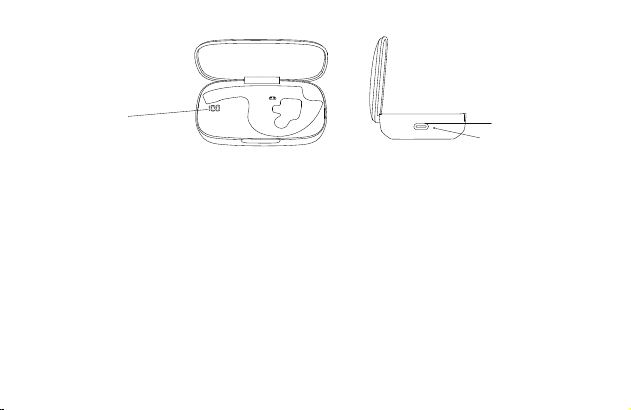
- 23 -
Vielen Dank dafür, dass Sie sich für unser Produkt entschieden haben. Bitte lesen Sie dieses
Benutzerhandbuch sorgfältig durch und befolgen Sie die entsprechenden Regeln, bevor Sie das
Produkt verwenden, um eine korrekte und sichere Nutzung sicherzustellen.
Ⅰ. Produktübersicht
Es handelt sich hierbei um ein stilvolles Business-Bluetooth-Headset mit einem integrierten
Qualcomm Bluetooth-Chip, der eine stabile Verbindung, HD-Sprachanrufe und klaren
Musikgenuss bietet. Ausserdem verfügt es über eine Akkulaufzeit von bis zu 15 Stunden sowie
eine Standby-Zeit von 6 Monaten, für Ihren Komfort.
Bitte beachten Sie, dass die Bluetooth-Verbindung durch Wände behindert, durch elektronische
Störungen beeinträchtigt oder aufgrund zu großer Entfernungen unterbrochen werden kann.
Ⅱ. Produktbeschreibung
1. Headset
① Einziehbarer Ohrbügel
② Typ-C-Ladeanschluss
③ Multifunktionstaste
④ Headset-Anzeige
⑤ Zweites Mikrofon
⑥ Hauptmikrofon
2. Ladebox
① Digitalanzeige
② Typ-C Ladeanschluss
③ Ladebox-Anzeige
Ⅲ. Verpackungsliste
Headset * 1
Ladehülle * 1
Ladekabel * 1
Benutzerhandbuch * 1
Ⅳ. Anleitung zum Tragen
1. Tragen am rechten Ohr
① Nehmen Sie das Headset aus der Ladebox. Passen Sie die Länge des Ohrbügels nach Bedarf
an, schieben Sie das Headset von oberhalb des Ohrs bis hinter dem Ohr und drücken Sie es
dann sanft in Richtung des Ohrs.
HINWEIS:
• Um einen optimalen Tragekomfort zu gewährleisten, nehmen Sie bitte Ihre Brille ab, bevor Sie
die Kopfhörer aufsetzen. Setzen Sie Ihre Kopfhörer auf und dann Ihre Brille.
• Der Verstellbereich der Ohrbügellänge beträgt 0-3,2 mm. Wenden Sie keine übermäßige Kraft
beim Einstellen der Ohrbügellänge an.
② Drehen Sie am Mikrofonbügel, um sicherzustellen, dass das Mikrofon auf Ihren Mund
ausgerichtet ist.
2. Anpassen des Tragestils (Tragen am linken Ohr)
① Drehen Sie den Mikrofonbügel nach oben und verdrehen Sie ihn, sodass der Ohrhörer zur
anderen Seite gerichtet ist, und drehen Sie dann den Ohrbügel im Uhrzeigersinn.
HINWEIS:
• Der maximale Drehwinkel des Mikrofonbügels
beträgt 270°.
• Der maximale Drehwinkel des Ohrbügels
beträgt 180°.
② schieben Sie das Headset von oberhalb des Ohrs bis hinter dem Ohr und drücken Sie ihn dann
sanft in Richtung des Ohrs. Drehen Sie den Mikrofonbügel nach unten, um sicherzustellen, dass
das Mikrofon auf Ihren Mund ausgerichtet ist.
Ⅴ. Verwendung und Betrieb
1. Bluetooth-Verbindung
① Nehmen Sie das Headset aus der Ladebox oder drücken und halten Sie die Multifunktionstaste
3 Sekunden lang gedrückt, um das Headset einzuschalten. Das Headset gibt die Sprachauf-
forderung „power on“ aus. Nach 3 Sekunden gibt es die Sprachaufforderung „pairing“aus, was
anzeigt, dass das Headset automatisch in den Paarungsmodus wechselt. Das Headset-Anzei-
gelicht blinkt abwechselnd rot und blau.
② Schalten Sie die Bluetooth-Funktion Ihres Mobiltelefons (oder anderer Geräte) ein und suchen
Sie nach neuen Geräten.
Bei iPhone gehen Sie zu „Einstellungen“ > „Bluetooth“ > „Öffnen“
Bei Android-Handys gehen Sie zu „Einstellungen“ > „Bluetooth“ > „Nach neuen
Geräten suchen“
Hinweis: Die Menüinhalte können je nach Gerät variieren.
③ Suchen Sie nach „M54“ in der Liste der Bluetooth-Geräte und klicken Sie, um eine Verbindung
herzustellen. Bei erfolgreicher Verbindung erfolgreich, gibt das Headset die Sprachbenachrichti-
gung „connected“ aus und die Headset-Anzeige erlischt.
HINWEIS: Wenn Sie das Headset erneut verwenden, stellt es automatisch eine Verbindung zu
den letzten beiden Geräten in der wirksamen Bluetooth-Reichweite her. Wenn innerhalb von 5
Minuten kein gepaartes Gerät vorhanden ist, schaltet sich das Headset automatisch aus.
④ Die Verbindung von zwei Geräten
Dieses Headset kann sich gleichzeitig mit 2 Geräten verbinden.
Halten Sie nach erfolgreicher Verbindung mit Telefon A die Stummschalttaste 5 Sekunden lang
gedrückt, um in den Kopplungsmodus zu gelangen. Die Headset-Anzeige blinkt abwechselnd rot
und blau. Öffnen Sie dann die Bluetooth-Funktion von Telefon B, um zu suchen und eine
Verbindung herzustellen.
(HINWEIS: Obwohl das Headset sich gleichzeitig mit zwei Telefonen verbinden kann, kann nur
eines der Telefone über M54 Musik wiedergeben. Das Headset kann nicht gleichzeitig Musik von
zwei Telefonen wiedergeben.)
2. Beschreibung der Tastenfunktion
① Multifunktionstaste
• Einschalten: Im ausgeschalteten Zustand halten Sie die Multifunktionstaste 3 Sekunden lang
gedrückt oder nehmen Sie das Headset aus der Ladebox.
• Ausschalten: Im eingeschalteten Zustand halten Sie die Multifunktionstaste 5 Sekunden lang
gedrückt oder legen Sie das Headset in den Ladebox.
• Wiedergabe/Pause: Im Musikwiedergabemodus klicken Sie einmal auf die Multifunktionstaste.
• Anruf annehmen: Klicken Sie einmal auf die Multifunktionstaste, wenn ein Anruf eingeht.
• Auflegen: Klicken während eines Anrufs einmal auf die Multifunktionstaste.
• Ablehnen eines Anrufs: Halten Sie die Multifunktionstaste 2 Sekunden lang gedrückt, wenn ein
Anruf eingeht.
• Wählen Sie die zuletzt gewählte Telefonnummer erneut: Führen Sie einen Doppelklick auf
die Multifunktionstaste aus.
② Lautstärke erhöhen-Taste
• Lautstärke erhöhen: Klicken Sie auf die Lautstärke erhöhen-Taste, um die Lautstärke zu
erhöhen.
• Nächster Song: Halten Sie die Lautstärke erhöhen-Taste 3 Sekunden lang gedrückt, um zum
nächsten Song zu springen.
③ Lautstärke verringern-Taste
• Lautstärke verringern: Klicken Sie auf die Lautstärke verringern-Taste, um die Lautstärke zu
verringern.
• Vorheriger Song: Halten Sie die Lautstärke verringern-Taste 3 Sekunden lang gedrückt, um
zum vorherigen Song zu springen.
④ Mikrofon-Stummschaltungstaste
• Stummschalten/Einschalten der Stummschaltung: Klicken Sie auf die Taste, um die
Stummschaltungsfunktion während eines Anrufs zu aktivieren. Klicken Sie erneut auf die Taste,
um die Stummschaltungsfunktion auszuschalten.
• Sprachassistent: Doppelklicken Sie auf die Schaltfläche,, um den Sprachassistenten zu
aktivieren.
3. Headset-Anzeige / Sprachansage
4. Werkseinstellungen wiederherstellen
Im eingeschalteten Zustand drücken Sie gleichzeitig die Multifunktionstaste und die Lautstärke
erhöhen-Taste für 6 Sekunden. Wenn Sie die Sprachaufforderung „power on, pairing“ hören,
wurde das Headset auf die Werkseinstellungen zurückgesetzt.
5. Aufladen des Headsets
(1) Niedriger Akku-Hinweis
Wenn das Headset die Sprachansage „battery low“ abgibt, bedeutet dies, dass sich das Headset
im niedrigen Akku-Zustand befindet. Bitte laden Sie das Headset sofort auf.
(2) Anweisungen zum Aufladen
① Laden Sie das Headset mit der Ladebox auf
Legen Sie das Headset zum Laden in die Ladebox. Die digitale Anzeige der Ladebox leuchtet 10
Sekunden lang und erlischt anschliessend.
Beim Laden leuchtet die Headset-Anzeige rot. Wenn
vollständig aufgeladen, leuchtet die Headset-Anzeige
10 Sekunden lang blau und erlischt anschliessend.
HINWEIS: Bitte legen Sie das Headset flach
und halten Sie den Ladeanschluss sauber,
andernfalls wird das Headset nicht aufgeladen.
② Laden Sie das Headset mit dem Typ-C-Ladekabel auf
Beim Laden leuchtet die Headset-Anzeige rot. Wenn vollständig aufgeladen, leuchtet die
Headset-Anzeige 10 Sekunden lang blau und erlischt anschliessend.
6. Laden der Ladebox
(1) Niedriger Akku-Hinweis
Die digitale Anzeige der Ladebox blinkt ca. 10 Sekunden lang und zeigt an, dass sich die Ladebox
im niedrigen Akku-Zustand befindet. Bitte laden Sie die Ladebox sofort auf.
(2) Ladeanleitung
Bitte laden Sie die Ladebox mit dem Typ-C-Ladekabel auf.
Beim Laden leuchtet die Ladebox-Anzeige rot. Sobald vollständig aufgeladen, leuchtet die
Ladebox-Anzeige rot.
Ⅵ. Produktspezifikationen
1. Bluetooth-Version: V5.1
2. Bluetooth-Chip: QCC3020
3. Unterstützte Protokolle: Headset, HFP, A2DP, AVRCP, HSP
4. Lautsprechereinheit: Φ13 mm 32Ω
5. Übertragungsentfernung: 15 m
6. Akkukapazität des Headsets: 85 mAh
7. Akkukapazität der Ladebox: 500 mAh
8. Standby-Zeit: 6 Monate
9. Wiedergabezeit für Musik: 15 Stunden
10. Ladezeit des Headsets: 1,5 Stunden
11. Ladezeit der Ladebox: 1,5 Stunden
12. Ladeanschluss: Typ-C
13. Betriebstemperatur: -5 °C - 50 °C
14. Gewicht des Headsets: 15 g
15. Gewicht der Ladebox: 57 g
Ⅶ. Häufig auftretende Probleme
1. Ein niedriger Akkustand kann zu Verbindungsproblemen führen. Um eine störungsfreie Nutzung
sicherzustellen, laden Sie das Headset rechtzeitig auf.
2. Wenn das Headset nicht eingeschaltet werden kann, versuchen Sie bitte, es zunächst
aufzuladen und schalten Sie es ein, sobald der Akku ausreichend geladen ist.
3. Während eines Anrufs ist kein Ton über das Headset zu hören.
—— Stellen Sie sicher, dass Sie M54 für die Audioeingabe/-Ausgabe auswählen, wenn Sie einen
Anruf tätigen, und nicht den Lautsprecher Ihres Mobiltelefons.
—— Überprüfen Sie, ob Ihr Mobiltelefon mit anderen Bluetooth-Geräten verbunden ist.
—— Stellen Sie sicher, dass der Abstand zwischen dem Headset und dem Mobiltelefon nicht die
effektive Reichweite von 15 Metern überschreitet.
4. Die andere Seite kann Ihre Stimme nicht hören, wenn Sie einen Anruf tätigen.
—— Bitte halten Sie die Mikrofonöffnung des Headsets sauber, um den Anruf und die
Geräuschunterdrückung nicht zu beeinträchtigen und sicherzustellen, dass die andere Seite Ihre
Stimme hören kann.
5. Das Headset kann nicht aufgeladen werden.
—— Bitte reinigen Sie die Ladeanschlusspunkte des Headsets und der Ladebox mit Alkohol.
Ⅷ. Sicherheitshinweise
1. Die eigenmächtige Demontage kann das Headset beschädigen und ist nicht durch die Garantie
abgedeckt.
2. Reinigen Sie das Headset mit einem sauberen, weichen und trockenen Tuch.
3. Verwenden Sie das Headset bitte nicht in einer staubigen und feuchten Umgebung.
4. Lassen Sie Ihre Kinder nicht mit dem Headset spielen. Sie könnten sich verletzen oder das
Headset beschädigen.
5. Stellen Sie das Headset nicht in extremen Umgebungen ab, da es sonst vorübergehend nicht
verwendet werden kann. Die normale Betriebstemperatur beträgt -5 °C bis 50 °C.
6. Dieses Produkt ist nicht mit Festnetztelefonen kompatibel.
7. Bei Anschluss an einen Computer unterstützt dieses Produkt das Annehmen und Auflegen von
Anrufen nicht.
③
②
①
Anleitungskarte * 1
Ohrstöpsel (S) * 1
Ohrstöpsel (M) * 1
Ohrstöpsel (L) * 1
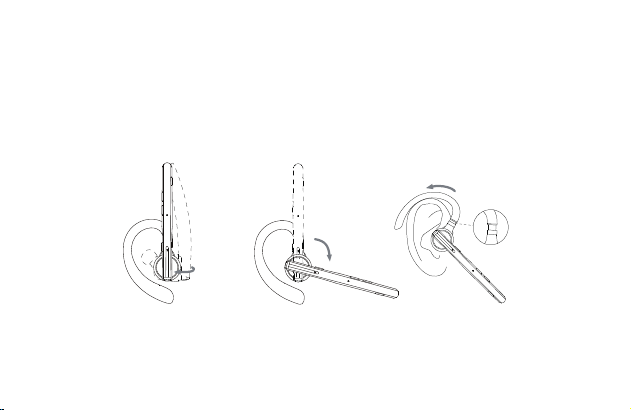
- 24 -
Vielen Dank dafür, dass Sie sich für unser Produkt entschieden haben. Bitte lesen Sie dieses
Benutzerhandbuch sorgfältig durch und befolgen Sie die entsprechenden Regeln, bevor Sie das
Produkt verwenden, um eine korrekte und sichere Nutzung sicherzustellen.
Ⅰ. Produktübersicht
Es handelt sich hierbei um ein stilvolles Business-Bluetooth-Headset mit einem integrierten
Qualcomm Bluetooth-Chip, der eine stabile Verbindung, HD-Sprachanrufe und klaren
Musikgenuss bietet. Ausserdem verfügt es über eine Akkulaufzeit von bis zu 15 Stunden sowie
eine Standby-Zeit von 6 Monaten, für Ihren Komfort.
Bitte beachten Sie, dass die Bluetooth-Verbindung durch Wände behindert, durch elektronische
Störungen beeinträchtigt oder aufgrund zu großer Entfernungen unterbrochen werden kann.
Ⅱ. Produktbeschreibung
1. Headset
① Einziehbarer Ohrbügel
② Typ-C-Ladeanschluss
③ Multifunktionstaste
④ Headset-Anzeige
⑤ Zweites Mikrofon
⑥ Hauptmikrofon
2. Ladebox
① Digitalanzeige
② Typ-C Ladeanschluss
③ Ladebox-Anzeige
Ⅲ. Verpackungsliste
Headset * 1
Ladehülle * 1
Ladekabel * 1
Benutzerhandbuch * 1
Ⅳ. Anleitung zum Tragen
1. Tragen am rechten Ohr
① Nehmen Sie das Headset aus der Ladebox. Passen Sie die Länge des Ohrbügels nach Bedarf
an, schieben Sie das Headset von oberhalb des Ohrs bis hinter dem Ohr und drücken Sie es
dann sanft in Richtung des Ohrs.
HINWEIS:
• Um einen optimalen Tragekomfort zu gewährleisten, nehmen Sie bitte Ihre Brille ab, bevor Sie
die Kopfhörer aufsetzen. Setzen Sie Ihre Kopfhörer auf und dann Ihre Brille.
• Der Verstellbereich der Ohrbügellänge beträgt 0-3,2 mm. Wenden Sie keine übermäßige Kraft
beim Einstellen der Ohrbügellänge an.
② Drehen Sie am Mikrofonbügel, um sicherzustellen, dass das Mikrofon auf Ihren Mund
ausgerichtet ist.
2. Anpassen des Tragestils (Tragen am linken Ohr)
① Drehen Sie den Mikrofonbügel nach oben und verdrehen Sie ihn, sodass der Ohrhörer zur
anderen Seite gerichtet ist, und drehen Sie dann den Ohrbügel im Uhrzeigersinn.
HINWEIS:
• Der maximale Drehwinkel des Mikrofonbügels
beträgt 270°.
• Der maximale Drehwinkel des Ohrbügels
beträgt 180°.
② schieben Sie das Headset von oberhalb des Ohrs bis hinter dem Ohr und drücken Sie ihn dann
sanft in Richtung des Ohrs. Drehen Sie den Mikrofonbügel nach unten, um sicherzustellen, dass
das Mikrofon auf Ihren Mund ausgerichtet ist.
Ⅴ. Verwendung und Betrieb
1. Bluetooth-Verbindung
① Nehmen Sie das Headset aus der Ladebox oder drücken und halten Sie die Multifunktionstaste
3 Sekunden lang gedrückt, um das Headset einzuschalten. Das Headset gibt die Sprachauf-
forderung „power on“ aus. Nach 3 Sekunden gibt es die Sprachaufforderung „pairing“aus, was
anzeigt, dass das Headset automatisch in den Paarungsmodus wechselt. Das Headset-Anzei-
gelicht blinkt abwechselnd rot und blau.
② Schalten Sie die Bluetooth-Funktion Ihres Mobiltelefons (oder anderer Geräte) ein und suchen
Sie nach neuen Geräten.
Bei iPhone gehen Sie zu „Einstellungen“ > „Bluetooth“ > „Öffnen“
Bei Android-Handys gehen Sie zu „Einstellungen“ > „Bluetooth“ > „Nach neuen
Geräten suchen“
Hinweis: Die Menüinhalte können je nach Gerät variieren.
③ Suchen Sie nach „M54“ in der Liste der Bluetooth-Geräte und klicken Sie, um eine Verbindung
herzustellen. Bei erfolgreicher Verbindung erfolgreich, gibt das Headset die Sprachbenachrichti-
gung „connected“ aus und die Headset-Anzeige erlischt.
HINWEIS: Wenn Sie das Headset erneut verwenden, stellt es automatisch eine Verbindung zu
den letzten beiden Geräten in der wirksamen Bluetooth-Reichweite her. Wenn innerhalb von 5
Minuten kein gepaartes Gerät vorhanden ist, schaltet sich das Headset automatisch aus.
④ Die Verbindung von zwei Geräten
Dieses Headset kann sich gleichzeitig mit 2 Geräten verbinden.
Halten Sie nach erfolgreicher Verbindung mit Telefon A die Stummschalttaste 5 Sekunden lang
gedrückt, um in den Kopplungsmodus zu gelangen. Die Headset-Anzeige blinkt abwechselnd rot
und blau. Öffnen Sie dann die Bluetooth-Funktion von Telefon B, um zu suchen und eine
Verbindung herzustellen.
(HINWEIS: Obwohl das Headset sich gleichzeitig mit zwei Telefonen verbinden kann, kann nur
eines der Telefone über M54 Musik wiedergeben. Das Headset kann nicht gleichzeitig Musik von
zwei Telefonen wiedergeben.)
2. Beschreibung der Tastenfunktion
① Multifunktionstaste
• Einschalten: Im ausgeschalteten Zustand halten Sie die Multifunktionstaste 3 Sekunden lang
gedrückt oder nehmen Sie das Headset aus der Ladebox.
• Ausschalten: Im eingeschalteten Zustand halten Sie die Multifunktionstaste 5 Sekunden lang
gedrückt oder legen Sie das Headset in den Ladebox.
• Wiedergabe/Pause: Im Musikwiedergabemodus klicken Sie einmal auf die Multifunktionstaste.
• Anruf annehmen: Klicken Sie einmal auf die Multifunktionstaste, wenn ein Anruf eingeht.
• Auflegen: Klicken während eines Anrufs einmal auf die Multifunktionstaste.
• Ablehnen eines Anrufs: Halten Sie die Multifunktionstaste 2 Sekunden lang gedrückt, wenn ein
Anruf eingeht.
• Wählen Sie die zuletzt gewählte Telefonnummer erneut: Führen Sie einen Doppelklick auf
die Multifunktionstaste aus.
② Lautstärke erhöhen-Taste
• Lautstärke erhöhen: Klicken Sie auf die Lautstärke erhöhen-Taste, um die Lautstärke zu
erhöhen.
• Nächster Song: Halten Sie die Lautstärke erhöhen-Taste 3 Sekunden lang gedrückt, um zum
nächsten Song zu springen.
③ Lautstärke verringern-Taste
• Lautstärke verringern: Klicken Sie auf die Lautstärke verringern-Taste, um die Lautstärke zu
verringern.
• Vorheriger Song: Halten Sie die Lautstärke verringern-Taste 3 Sekunden lang gedrückt, um
zum vorherigen Song zu springen.
④ Mikrofon-Stummschaltungstaste
• Stummschalten/Einschalten der Stummschaltung: Klicken Sie auf die Taste, um die
Stummschaltungsfunktion während eines Anrufs zu aktivieren. Klicken Sie erneut auf die Taste,
um die Stummschaltungsfunktion auszuschalten.
• Sprachassistent: Doppelklicken Sie auf die Schaltfläche,, um den Sprachassistenten zu
aktivieren.
3. Headset-Anzeige / Sprachansage
4. Werkseinstellungen wiederherstellen
Im eingeschalteten Zustand drücken Sie gleichzeitig die Multifunktionstaste und die Lautstärke
erhöhen-Taste für 6 Sekunden. Wenn Sie die Sprachaufforderung „power on, pairing“ hören,
wurde das Headset auf die Werkseinstellungen zurückgesetzt.
5. Aufladen des Headsets
(1) Niedriger Akku-Hinweis
Wenn das Headset die Sprachansage „battery low“ abgibt, bedeutet dies, dass sich das Headset
im niedrigen Akku-Zustand befindet. Bitte laden Sie das Headset sofort auf.
(2) Anweisungen zum Aufladen
① Laden Sie das Headset mit der Ladebox auf
Legen Sie das Headset zum Laden in die Ladebox. Die digitale Anzeige der Ladebox leuchtet 10
Sekunden lang und erlischt anschliessend.
Beim Laden leuchtet die Headset-Anzeige rot. Wenn
vollständig aufgeladen, leuchtet die Headset-Anzeige
10 Sekunden lang blau und erlischt anschliessend.
HINWEIS: Bitte legen Sie das Headset flach
und halten Sie den Ladeanschluss sauber,
andernfalls wird das Headset nicht aufgeladen.
② Laden Sie das Headset mit dem Typ-C-Ladekabel auf
Beim Laden leuchtet die Headset-Anzeige rot. Wenn vollständig aufgeladen, leuchtet die
Headset-Anzeige 10 Sekunden lang blau und erlischt anschliessend.
6. Laden der Ladebox
(1) Niedriger Akku-Hinweis
Die digitale Anzeige der Ladebox blinkt ca. 10 Sekunden lang und zeigt an, dass sich die Ladebox
im niedrigen Akku-Zustand befindet. Bitte laden Sie die Ladebox sofort auf.
(2) Ladeanleitung
Bitte laden Sie die Ladebox mit dem Typ-C-Ladekabel auf.
Beim Laden leuchtet die Ladebox-Anzeige rot. Sobald vollständig aufgeladen, leuchtet die
Ladebox-Anzeige rot.
Ⅵ. Produktspezifikationen
1. Bluetooth-Version: V5.1
2. Bluetooth-Chip: QCC3020
3. Unterstützte Protokolle: Headset, HFP, A2DP, AVRCP, HSP
4. Lautsprechereinheit: Φ13 mm 32Ω
5. Übertragungsentfernung: 15 m
6. Akkukapazität des Headsets: 85 mAh
7. Akkukapazität der Ladebox: 500 mAh
8. Standby-Zeit: 6 Monate
9. Wiedergabezeit für Musik: 15 Stunden
10. Ladezeit des Headsets: 1,5 Stunden
11. Ladezeit der Ladebox: 1,5 Stunden
12. Ladeanschluss: Typ-C
13. Betriebstemperatur: -5 °C - 50 °C
14. Gewicht des Headsets: 15 g
15. Gewicht der Ladebox: 57 g
Ⅶ. Häufig auftretende Probleme
1. Ein niedriger Akkustand kann zu Verbindungsproblemen führen. Um eine störungsfreie Nutzung
sicherzustellen, laden Sie das Headset rechtzeitig auf.
2. Wenn das Headset nicht eingeschaltet werden kann, versuchen Sie bitte, es zunächst
aufzuladen und schalten Sie es ein, sobald der Akku ausreichend geladen ist.
3. Während eines Anrufs ist kein Ton über das Headset zu hören.
—— Stellen Sie sicher, dass Sie M54 für die Audioeingabe/-Ausgabe auswählen, wenn Sie einen
Anruf tätigen, und nicht den Lautsprecher Ihres Mobiltelefons.
—— Überprüfen Sie, ob Ihr Mobiltelefon mit anderen Bluetooth-Geräten verbunden ist.
—— Stellen Sie sicher, dass der Abstand zwischen dem Headset und dem Mobiltelefon nicht die
effektive Reichweite von 15 Metern überschreitet.
4. Die andere Seite kann Ihre Stimme nicht hören, wenn Sie einen Anruf tätigen.
—— Bitte halten Sie die Mikrofonöffnung des Headsets sauber, um den Anruf und die
Geräuschunterdrückung nicht zu beeinträchtigen und sicherzustellen, dass die andere Seite Ihre
Stimme hören kann.
5. Das Headset kann nicht aufgeladen werden.
—— Bitte reinigen Sie die Ladeanschlusspunkte des Headsets und der Ladebox mit Alkohol.
Ⅷ. Sicherheitshinweise
1. Die eigenmächtige Demontage kann das Headset beschädigen und ist nicht durch die Garantie
abgedeckt.
2. Reinigen Sie das Headset mit einem sauberen, weichen und trockenen Tuch.
3. Verwenden Sie das Headset bitte nicht in einer staubigen und feuchten Umgebung.
4. Lassen Sie Ihre Kinder nicht mit dem Headset spielen. Sie könnten sich verletzen oder das
Headset beschädigen.
5. Stellen Sie das Headset nicht in extremen Umgebungen ab, da es sonst vorübergehend nicht
verwendet werden kann. Die normale Betriebstemperatur beträgt -5 °C bis 50 °C.
6. Dieses Produkt ist nicht mit Festnetztelefonen kompatibel.
7. Bei Anschluss an einen Computer unterstützt dieses Produkt das Annehmen und Auflegen von
Anrufen nicht.
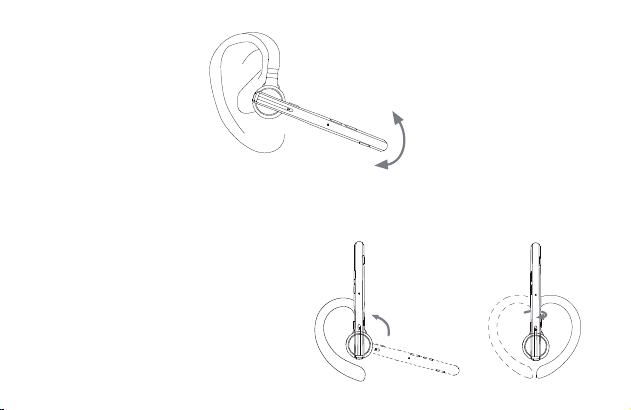
- 25 -
Vielen Dank dafür, dass Sie sich für unser Produkt entschieden haben. Bitte lesen Sie dieses
Benutzerhandbuch sorgfältig durch und befolgen Sie die entsprechenden Regeln, bevor Sie das
Produkt verwenden, um eine korrekte und sichere Nutzung sicherzustellen.
Ⅰ. Produktübersicht
Es handelt sich hierbei um ein stilvolles Business-Bluetooth-Headset mit einem integrierten
Qualcomm Bluetooth-Chip, der eine stabile Verbindung, HD-Sprachanrufe und klaren
Musikgenuss bietet. Ausserdem verfügt es über eine Akkulaufzeit von bis zu 15 Stunden sowie
eine Standby-Zeit von 6 Monaten, für Ihren Komfort.
Bitte beachten Sie, dass die Bluetooth-Verbindung durch Wände behindert, durch elektronische
Störungen beeinträchtigt oder aufgrund zu großer Entfernungen unterbrochen werden kann.
Ⅱ. Produktbeschreibung
1. Headset
① Einziehbarer Ohrbügel
② Typ-C-Ladeanschluss
③ Multifunktionstaste
④ Headset-Anzeige
⑤ Zweites Mikrofon
⑥ Hauptmikrofon
2. Ladebox
① Digitalanzeige
② Typ-C Ladeanschluss
③ Ladebox-Anzeige
Ⅲ. Verpackungsliste
Headset * 1
Ladehülle * 1
Ladekabel * 1
Benutzerhandbuch * 1
Ⅳ. Anleitung zum Tragen
1. Tragen am rechten Ohr
① Nehmen Sie das Headset aus der Ladebox. Passen Sie die Länge des Ohrbügels nach Bedarf
an, schieben Sie das Headset von oberhalb des Ohrs bis hinter dem Ohr und drücken Sie es
dann sanft in Richtung des Ohrs.
HINWEIS:
• Um einen optimalen Tragekomfort zu gewährleisten, nehmen Sie bitte Ihre Brille ab, bevor Sie
die Kopfhörer aufsetzen. Setzen Sie Ihre Kopfhörer auf und dann Ihre Brille.
• Der Verstellbereich der Ohrbügellänge beträgt 0-3,2 mm. Wenden Sie keine übermäßige Kraft
beim Einstellen der Ohrbügellänge an.
② Drehen Sie am Mikrofonbügel, um sicherzustellen, dass das Mikrofon auf Ihren Mund
ausgerichtet ist.
2. Anpassen des Tragestils (Tragen am linken Ohr)
① Drehen Sie den Mikrofonbügel nach oben und verdrehen Sie ihn, sodass der Ohrhörer zur
anderen Seite gerichtet ist, und drehen Sie dann den Ohrbügel im Uhrzeigersinn.
HINWEIS:
• Der maximale Drehwinkel des Mikrofonbügels
beträgt 270°.
• Der maximale Drehwinkel des Ohrbügels
beträgt 180°.
② schieben Sie das Headset von oberhalb des Ohrs bis hinter dem Ohr und drücken Sie ihn dann
sanft in Richtung des Ohrs. Drehen Sie den Mikrofonbügel nach unten, um sicherzustellen, dass
das Mikrofon auf Ihren Mund ausgerichtet ist.
Ⅴ. Verwendung und Betrieb
1. Bluetooth-Verbindung
① Nehmen Sie das Headset aus der Ladebox oder drücken und halten Sie die Multifunktionstaste
3 Sekunden lang gedrückt, um das Headset einzuschalten. Das Headset gibt die Sprachauf-
forderung „power on“ aus. Nach 3 Sekunden gibt es die Sprachaufforderung „pairing“aus, was
anzeigt, dass das Headset automatisch in den Paarungsmodus wechselt. Das Headset-Anzei-
gelicht blinkt abwechselnd rot und blau.
② Schalten Sie die Bluetooth-Funktion Ihres Mobiltelefons (oder anderer Geräte) ein und suchen
Sie nach neuen Geräten.
Bei iPhone gehen Sie zu „Einstellungen“ > „Bluetooth“ > „Öffnen“
Bei Android-Handys gehen Sie zu „Einstellungen“ > „Bluetooth“ > „Nach neuen
Geräten suchen“
Hinweis: Die Menüinhalte können je nach Gerät variieren.
③ Suchen Sie nach „M54“ in der Liste der Bluetooth-Geräte und klicken Sie, um eine Verbindung
herzustellen. Bei erfolgreicher Verbindung erfolgreich, gibt das Headset die Sprachbenachrichti-
gung „connected“ aus und die Headset-Anzeige erlischt.
HINWEIS: Wenn Sie das Headset erneut verwenden, stellt es automatisch eine Verbindung zu
den letzten beiden Geräten in der wirksamen Bluetooth-Reichweite her. Wenn innerhalb von 5
Minuten kein gepaartes Gerät vorhanden ist, schaltet sich das Headset automatisch aus.
④ Die Verbindung von zwei Geräten
Dieses Headset kann sich gleichzeitig mit 2 Geräten verbinden.
Halten Sie nach erfolgreicher Verbindung mit Telefon A die Stummschalttaste 5 Sekunden lang
gedrückt, um in den Kopplungsmodus zu gelangen. Die Headset-Anzeige blinkt abwechselnd rot
und blau. Öffnen Sie dann die Bluetooth-Funktion von Telefon B, um zu suchen und eine
Verbindung herzustellen.
(HINWEIS: Obwohl das Headset sich gleichzeitig mit zwei Telefonen verbinden kann, kann nur
eines der Telefone über M54 Musik wiedergeben. Das Headset kann nicht gleichzeitig Musik von
zwei Telefonen wiedergeben.)
2. Beschreibung der Tastenfunktion
① Multifunktionstaste
• Einschalten: Im ausgeschalteten Zustand halten Sie die Multifunktionstaste 3 Sekunden lang
gedrückt oder nehmen Sie das Headset aus der Ladebox.
• Ausschalten: Im eingeschalteten Zustand halten Sie die Multifunktionstaste 5 Sekunden lang
gedrückt oder legen Sie das Headset in den Ladebox.
• Wiedergabe/Pause: Im Musikwiedergabemodus klicken Sie einmal auf die Multifunktionstaste.
• Anruf annehmen: Klicken Sie einmal auf die Multifunktionstaste, wenn ein Anruf eingeht.
• Auflegen: Klicken während eines Anrufs einmal auf die Multifunktionstaste.
• Ablehnen eines Anrufs: Halten Sie die Multifunktionstaste 2 Sekunden lang gedrückt, wenn ein
Anruf eingeht.
• Wählen Sie die zuletzt gewählte Telefonnummer erneut: Führen Sie einen Doppelklick auf
die Multifunktionstaste aus.
② Lautstärke erhöhen-Taste
• Lautstärke erhöhen: Klicken Sie auf die Lautstärke erhöhen-Taste, um die Lautstärke zu
erhöhen.
• Nächster Song: Halten Sie die Lautstärke erhöhen-Taste 3 Sekunden lang gedrückt, um zum
nächsten Song zu springen.
③ Lautstärke verringern-Taste
• Lautstärke verringern: Klicken Sie auf die Lautstärke verringern-Taste, um die Lautstärke zu
verringern.
• Vorheriger Song: Halten Sie die Lautstärke verringern-Taste 3 Sekunden lang gedrückt, um
zum vorherigen Song zu springen.
④ Mikrofon-Stummschaltungstaste
• Stummschalten/Einschalten der Stummschaltung: Klicken Sie auf die Taste, um die
Stummschaltungsfunktion während eines Anrufs zu aktivieren. Klicken Sie erneut auf die Taste,
um die Stummschaltungsfunktion auszuschalten.
• Sprachassistent: Doppelklicken Sie auf die Schaltfläche,, um den Sprachassistenten zu
aktivieren.
3. Headset-Anzeige / Sprachansage
4. Werkseinstellungen wiederherstellen
Im eingeschalteten Zustand drücken Sie gleichzeitig die Multifunktionstaste und die Lautstärke
erhöhen-Taste für 6 Sekunden. Wenn Sie die Sprachaufforderung „power on, pairing“ hören,
wurde das Headset auf die Werkseinstellungen zurückgesetzt.
5. Aufladen des Headsets
(1) Niedriger Akku-Hinweis
Wenn das Headset die Sprachansage „battery low“ abgibt, bedeutet dies, dass sich das Headset
im niedrigen Akku-Zustand befindet. Bitte laden Sie das Headset sofort auf.
(2) Anweisungen zum Aufladen
① Laden Sie das Headset mit der Ladebox auf
Legen Sie das Headset zum Laden in die Ladebox. Die digitale Anzeige der Ladebox leuchtet 10
Sekunden lang und erlischt anschliessend.
Beim Laden leuchtet die Headset-Anzeige rot. Wenn
vollständig aufgeladen, leuchtet die Headset-Anzeige
10 Sekunden lang blau und erlischt anschliessend.
HINWEIS: Bitte legen Sie das Headset flach
und halten Sie den Ladeanschluss sauber,
andernfalls wird das Headset nicht aufgeladen.
② Laden Sie das Headset mit dem Typ-C-Ladekabel auf
Beim Laden leuchtet die Headset-Anzeige rot. Wenn vollständig aufgeladen, leuchtet die
Headset-Anzeige 10 Sekunden lang blau und erlischt anschliessend.
6. Laden der Ladebox
(1) Niedriger Akku-Hinweis
Die digitale Anzeige der Ladebox blinkt ca. 10 Sekunden lang und zeigt an, dass sich die Ladebox
im niedrigen Akku-Zustand befindet. Bitte laden Sie die Ladebox sofort auf.
(2) Ladeanleitung
Bitte laden Sie die Ladebox mit dem Typ-C-Ladekabel auf.
Beim Laden leuchtet die Ladebox-Anzeige rot. Sobald vollständig aufgeladen, leuchtet die
Ladebox-Anzeige rot.
Ⅵ. Produktspezifikationen
1. Bluetooth-Version: V5.1
2. Bluetooth-Chip: QCC3020
3. Unterstützte Protokolle: Headset, HFP, A2DP, AVRCP, HSP
4. Lautsprechereinheit: Φ13 mm 32Ω
5. Übertragungsentfernung: 15 m
6. Akkukapazität des Headsets: 85 mAh
7. Akkukapazität der Ladebox: 500 mAh
8. Standby-Zeit: 6 Monate
9. Wiedergabezeit für Musik: 15 Stunden
10. Ladezeit des Headsets: 1,5 Stunden
11. Ladezeit der Ladebox: 1,5 Stunden
12. Ladeanschluss: Typ-C
13. Betriebstemperatur: -5 °C - 50 °C
14. Gewicht des Headsets: 15 g
15. Gewicht der Ladebox: 57 g
Ⅶ. Häufig auftretende Probleme
1. Ein niedriger Akkustand kann zu Verbindungsproblemen führen. Um eine störungsfreie Nutzung
sicherzustellen, laden Sie das Headset rechtzeitig auf.
2. Wenn das Headset nicht eingeschaltet werden kann, versuchen Sie bitte, es zunächst
aufzuladen und schalten Sie es ein, sobald der Akku ausreichend geladen ist.
3. Während eines Anrufs ist kein Ton über das Headset zu hören.
—— Stellen Sie sicher, dass Sie M54 für die Audioeingabe/-Ausgabe auswählen, wenn Sie einen
Anruf tätigen, und nicht den Lautsprecher Ihres Mobiltelefons.
—— Überprüfen Sie, ob Ihr Mobiltelefon mit anderen Bluetooth-Geräten verbunden ist.
—— Stellen Sie sicher, dass der Abstand zwischen dem Headset und dem Mobiltelefon nicht die
effektive Reichweite von 15 Metern überschreitet.
4. Die andere Seite kann Ihre Stimme nicht hören, wenn Sie einen Anruf tätigen.
—— Bitte halten Sie die Mikrofonöffnung des Headsets sauber, um den Anruf und die
Geräuschunterdrückung nicht zu beeinträchtigen und sicherzustellen, dass die andere Seite Ihre
Stimme hören kann.
5. Das Headset kann nicht aufgeladen werden.
—— Bitte reinigen Sie die Ladeanschlusspunkte des Headsets und der Ladebox mit Alkohol.
Ⅷ. Sicherheitshinweise
1. Die eigenmächtige Demontage kann das Headset beschädigen und ist nicht durch die Garantie
abgedeckt.
2. Reinigen Sie das Headset mit einem sauberen, weichen und trockenen Tuch.
3. Verwenden Sie das Headset bitte nicht in einer staubigen und feuchten Umgebung.
4. Lassen Sie Ihre Kinder nicht mit dem Headset spielen. Sie könnten sich verletzen oder das
Headset beschädigen.
5. Stellen Sie das Headset nicht in extremen Umgebungen ab, da es sonst vorübergehend nicht
verwendet werden kann. Die normale Betriebstemperatur beträgt -5 °C bis 50 °C.
6. Dieses Produkt ist nicht mit Festnetztelefonen kompatibel.
7. Bei Anschluss an einen Computer unterstützt dieses Produkt das Annehmen und Auflegen von
Anrufen nicht.
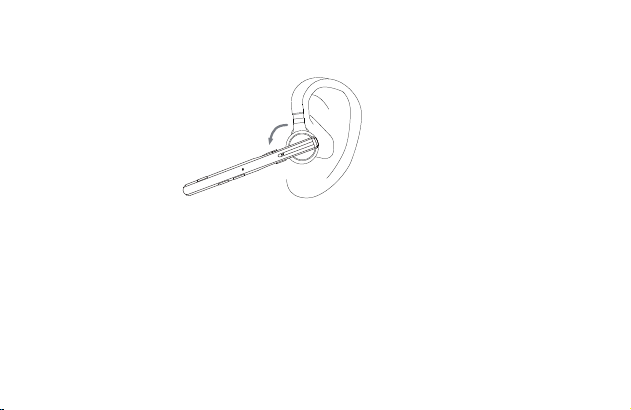
- 26 -
Vielen Dank dafür, dass Sie sich für unser Produkt entschieden haben. Bitte lesen Sie dieses
Benutzerhandbuch sorgfältig durch und befolgen Sie die entsprechenden Regeln, bevor Sie das
Produkt verwenden, um eine korrekte und sichere Nutzung sicherzustellen.
Ⅰ. Produktübersicht
Es handelt sich hierbei um ein stilvolles Business-Bluetooth-Headset mit einem integrierten
Qualcomm Bluetooth-Chip, der eine stabile Verbindung, HD-Sprachanrufe und klaren
Musikgenuss bietet. Ausserdem verfügt es über eine Akkulaufzeit von bis zu 15 Stunden sowie
eine Standby-Zeit von 6 Monaten, für Ihren Komfort.
Bitte beachten Sie, dass die Bluetooth-Verbindung durch Wände behindert, durch elektronische
Störungen beeinträchtigt oder aufgrund zu großer Entfernungen unterbrochen werden kann.
Ⅱ. Produktbeschreibung
1. Headset
① Einziehbarer Ohrbügel
② Typ-C-Ladeanschluss
③ Multifunktionstaste
④ Headset-Anzeige
⑤ Zweites Mikrofon
⑥ Hauptmikrofon
2. Ladebox
① Digitalanzeige
② Typ-C Ladeanschluss
③ Ladebox-Anzeige
Ⅲ. Verpackungsliste
Headset * 1
Ladehülle * 1
Ladekabel * 1
Benutzerhandbuch * 1
Ⅳ. Anleitung zum Tragen
1. Tragen am rechten Ohr
① Nehmen Sie das Headset aus der Ladebox. Passen Sie die Länge des Ohrbügels nach Bedarf
an, schieben Sie das Headset von oberhalb des Ohrs bis hinter dem Ohr und drücken Sie es
dann sanft in Richtung des Ohrs.
HINWEIS:
• Um einen optimalen Tragekomfort zu gewährleisten, nehmen Sie bitte Ihre Brille ab, bevor Sie
die Kopfhörer aufsetzen. Setzen Sie Ihre Kopfhörer auf und dann Ihre Brille.
• Der Verstellbereich der Ohrbügellänge beträgt 0-3,2 mm. Wenden Sie keine übermäßige Kraft
beim Einstellen der Ohrbügellänge an.
② Drehen Sie am Mikrofonbügel, um sicherzustellen, dass das Mikrofon auf Ihren Mund
ausgerichtet ist.
2. Anpassen des Tragestils (Tragen am linken Ohr)
① Drehen Sie den Mikrofonbügel nach oben und verdrehen Sie ihn, sodass der Ohrhörer zur
anderen Seite gerichtet ist, und drehen Sie dann den Ohrbügel im Uhrzeigersinn.
HINWEIS:
• Der maximale Drehwinkel des Mikrofonbügels
beträgt 270°.
• Der maximale Drehwinkel des Ohrbügels
beträgt 180°.
② schieben Sie das Headset von oberhalb des Ohrs bis hinter dem Ohr und drücken Sie ihn dann
sanft in Richtung des Ohrs. Drehen Sie den Mikrofonbügel nach unten, um sicherzustellen, dass
das Mikrofon auf Ihren Mund ausgerichtet ist.
Ⅴ. Verwendung und Betrieb
1. Bluetooth-Verbindung
① Nehmen Sie das Headset aus der Ladebox oder drücken und halten Sie die Multifunktionstaste
3 Sekunden lang gedrückt, um das Headset einzuschalten. Das Headset gibt die Sprachauf-
forderung „power on“ aus. Nach 3 Sekunden gibt es die Sprachaufforderung „pairing“aus, was
anzeigt, dass das Headset automatisch in den Paarungsmodus wechselt. Das Headset-Anzei-
gelicht blinkt abwechselnd rot und blau.
② Schalten Sie die Bluetooth-Funktion Ihres Mobiltelefons (oder anderer Geräte) ein und suchen
Sie nach neuen Geräten.
Bei iPhone gehen Sie zu „Einstellungen“ > „Bluetooth“ > „Öffnen“
Bei Android-Handys gehen Sie zu „Einstellungen“ > „Bluetooth“ > „Nach neuen
Geräten suchen“
Hinweis: Die Menüinhalte können je nach Gerät variieren.
③ Suchen Sie nach „M54“ in der Liste der Bluetooth-Geräte und klicken Sie, um eine Verbindung
herzustellen. Bei erfolgreicher Verbindung erfolgreich, gibt das Headset die Sprachbenachrichti-
gung „connected“ aus und die Headset-Anzeige erlischt.
HINWEIS: Wenn Sie das Headset erneut verwenden, stellt es automatisch eine Verbindung zu
den letzten beiden Geräten in der wirksamen Bluetooth-Reichweite her. Wenn innerhalb von 5
Minuten kein gepaartes Gerät vorhanden ist, schaltet sich das Headset automatisch aus.
④ Die Verbindung von zwei Geräten
Dieses Headset kann sich gleichzeitig mit 2 Geräten verbinden.
Halten Sie nach erfolgreicher Verbindung mit Telefon A die Stummschalttaste 5 Sekunden lang
gedrückt, um in den Kopplungsmodus zu gelangen. Die Headset-Anzeige blinkt abwechselnd rot
und blau. Öffnen Sie dann die Bluetooth-Funktion von Telefon B, um zu suchen und eine
Verbindung herzustellen.
(HINWEIS: Obwohl das Headset sich gleichzeitig mit zwei Telefonen verbinden kann, kann nur
eines der Telefone über M54 Musik wiedergeben. Das Headset kann nicht gleichzeitig Musik von
zwei Telefonen wiedergeben.)
2. Beschreibung der Tastenfunktion
① Multifunktionstaste
• Einschalten: Im ausgeschalteten Zustand halten Sie die Multifunktionstaste 3 Sekunden lang
gedrückt oder nehmen Sie das Headset aus der Ladebox.
• Ausschalten: Im eingeschalteten Zustand halten Sie die Multifunktionstaste 5 Sekunden lang
gedrückt oder legen Sie das Headset in den Ladebox.
• Wiedergabe/Pause: Im Musikwiedergabemodus klicken Sie einmal auf die Multifunktionstaste.
• Anruf annehmen: Klicken Sie einmal auf die Multifunktionstaste, wenn ein Anruf eingeht.
• Auflegen: Klicken während eines Anrufs einmal auf die Multifunktionstaste.
• Ablehnen eines Anrufs: Halten Sie die Multifunktionstaste 2 Sekunden lang gedrückt, wenn ein
Anruf eingeht.
• Wählen Sie die zuletzt gewählte Telefonnummer erneut: Führen Sie einen Doppelklick auf
die Multifunktionstaste aus.
② Lautstärke erhöhen-Taste
• Lautstärke erhöhen: Klicken Sie auf die Lautstärke erhöhen-Taste, um die Lautstärke zu
erhöhen.
• Nächster Song: Halten Sie die Lautstärke erhöhen-Taste 3 Sekunden lang gedrückt, um zum
nächsten Song zu springen.
③ Lautstärke verringern-Taste
• Lautstärke verringern: Klicken Sie auf die Lautstärke verringern-Taste, um die Lautstärke zu
verringern.
• Vorheriger Song: Halten Sie die Lautstärke verringern-Taste 3 Sekunden lang gedrückt, um
zum vorherigen Song zu springen.
④ Mikrofon-Stummschaltungstaste
• Stummschalten/Einschalten der Stummschaltung: Klicken Sie auf die Taste, um die
Stummschaltungsfunktion während eines Anrufs zu aktivieren. Klicken Sie erneut auf die Taste,
um die Stummschaltungsfunktion auszuschalten.
• Sprachassistent: Doppelklicken Sie auf die Schaltfläche,, um den Sprachassistenten zu
aktivieren.
3. Headset-Anzeige / Sprachansage
4. Werkseinstellungen wiederherstellen
Im eingeschalteten Zustand drücken Sie gleichzeitig die Multifunktionstaste und die Lautstärke
erhöhen-Taste für 6 Sekunden. Wenn Sie die Sprachaufforderung „power on, pairing“ hören,
wurde das Headset auf die Werkseinstellungen zurückgesetzt.
5. Aufladen des Headsets
(1) Niedriger Akku-Hinweis
Wenn das Headset die Sprachansage „battery low“ abgibt, bedeutet dies, dass sich das Headset
im niedrigen Akku-Zustand befindet. Bitte laden Sie das Headset sofort auf.
(2) Anweisungen zum Aufladen
① Laden Sie das Headset mit der Ladebox auf
Legen Sie das Headset zum Laden in die Ladebox. Die digitale Anzeige der Ladebox leuchtet 10
Sekunden lang und erlischt anschliessend.
Beim Laden leuchtet die Headset-Anzeige rot. Wenn
vollständig aufgeladen, leuchtet die Headset-Anzeige
10 Sekunden lang blau und erlischt anschliessend.
HINWEIS: Bitte legen Sie das Headset flach
und halten Sie den Ladeanschluss sauber,
andernfalls wird das Headset nicht aufgeladen.
② Laden Sie das Headset mit dem Typ-C-Ladekabel auf
Beim Laden leuchtet die Headset-Anzeige rot. Wenn vollständig aufgeladen, leuchtet die
Headset-Anzeige 10 Sekunden lang blau und erlischt anschliessend.
6. Laden der Ladebox
(1) Niedriger Akku-Hinweis
Die digitale Anzeige der Ladebox blinkt ca. 10 Sekunden lang und zeigt an, dass sich die Ladebox
im niedrigen Akku-Zustand befindet. Bitte laden Sie die Ladebox sofort auf.
(2) Ladeanleitung
Bitte laden Sie die Ladebox mit dem Typ-C-Ladekabel auf.
Beim Laden leuchtet die Ladebox-Anzeige rot. Sobald vollständig aufgeladen, leuchtet die
Ladebox-Anzeige rot.
Ⅵ. Produktspezifikationen
1. Bluetooth-Version: V5.1
2. Bluetooth-Chip: QCC3020
3. Unterstützte Protokolle: Headset, HFP, A2DP, AVRCP, HSP
4. Lautsprechereinheit: Φ13 mm 32Ω
5. Übertragungsentfernung: 15 m
6. Akkukapazität des Headsets: 85 mAh
7. Akkukapazität der Ladebox: 500 mAh
8. Standby-Zeit: 6 Monate
9. Wiedergabezeit für Musik: 15 Stunden
10. Ladezeit des Headsets: 1,5 Stunden
11. Ladezeit der Ladebox: 1,5 Stunden
12. Ladeanschluss: Typ-C
13. Betriebstemperatur: -5 °C - 50 °C
14. Gewicht des Headsets: 15 g
15. Gewicht der Ladebox: 57 g
Ⅶ. Häufig auftretende Probleme
1. Ein niedriger Akkustand kann zu Verbindungsproblemen führen. Um eine störungsfreie Nutzung
sicherzustellen, laden Sie das Headset rechtzeitig auf.
2. Wenn das Headset nicht eingeschaltet werden kann, versuchen Sie bitte, es zunächst
aufzuladen und schalten Sie es ein, sobald der Akku ausreichend geladen ist.
3. Während eines Anrufs ist kein Ton über das Headset zu hören.
—— Stellen Sie sicher, dass Sie M54 für die Audioeingabe/-Ausgabe auswählen, wenn Sie einen
Anruf tätigen, und nicht den Lautsprecher Ihres Mobiltelefons.
—— Überprüfen Sie, ob Ihr Mobiltelefon mit anderen Bluetooth-Geräten verbunden ist.
—— Stellen Sie sicher, dass der Abstand zwischen dem Headset und dem Mobiltelefon nicht die
effektive Reichweite von 15 Metern überschreitet.
4. Die andere Seite kann Ihre Stimme nicht hören, wenn Sie einen Anruf tätigen.
—— Bitte halten Sie die Mikrofonöffnung des Headsets sauber, um den Anruf und die
Geräuschunterdrückung nicht zu beeinträchtigen und sicherzustellen, dass die andere Seite Ihre
Stimme hören kann.
5. Das Headset kann nicht aufgeladen werden.
—— Bitte reinigen Sie die Ladeanschlusspunkte des Headsets und der Ladebox mit Alkohol.
Ⅷ. Sicherheitshinweise
1. Die eigenmächtige Demontage kann das Headset beschädigen und ist nicht durch die Garantie
abgedeckt.
2. Reinigen Sie das Headset mit einem sauberen, weichen und trockenen Tuch.
3. Verwenden Sie das Headset bitte nicht in einer staubigen und feuchten Umgebung.
4. Lassen Sie Ihre Kinder nicht mit dem Headset spielen. Sie könnten sich verletzen oder das
Headset beschädigen.
5. Stellen Sie das Headset nicht in extremen Umgebungen ab, da es sonst vorübergehend nicht
verwendet werden kann. Die normale Betriebstemperatur beträgt -5 °C bis 50 °C.
6. Dieses Produkt ist nicht mit Festnetztelefonen kompatibel.
7. Bei Anschluss an einen Computer unterstützt dieses Produkt das Annehmen und Auflegen von
Anrufen nicht.

- 27 -
Vielen Dank dafür, dass Sie sich für unser Produkt entschieden haben. Bitte lesen Sie dieses
Benutzerhandbuch sorgfältig durch und befolgen Sie die entsprechenden Regeln, bevor Sie das
Produkt verwenden, um eine korrekte und sichere Nutzung sicherzustellen.
Ⅰ. Produktübersicht
Es handelt sich hierbei um ein stilvolles Business-Bluetooth-Headset mit einem integrierten
Qualcomm Bluetooth-Chip, der eine stabile Verbindung, HD-Sprachanrufe und klaren
Musikgenuss bietet. Ausserdem verfügt es über eine Akkulaufzeit von bis zu 15 Stunden sowie
eine Standby-Zeit von 6 Monaten, für Ihren Komfort.
Bitte beachten Sie, dass die Bluetooth-Verbindung durch Wände behindert, durch elektronische
Störungen beeinträchtigt oder aufgrund zu großer Entfernungen unterbrochen werden kann.
Ⅱ. Produktbeschreibung
1. Headset
① Einziehbarer Ohrbügel
② Typ-C-Ladeanschluss
③ Multifunktionstaste
④ Headset-Anzeige
⑤ Zweites Mikrofon
⑥ Hauptmikrofon
2. Ladebox
① Digitalanzeige
② Typ-C Ladeanschluss
③ Ladebox-Anzeige
Ⅲ. Verpackungsliste
Headset * 1
Ladehülle * 1
Ladekabel * 1
Benutzerhandbuch * 1
Ⅳ. Anleitung zum Tragen
1. Tragen am rechten Ohr
① Nehmen Sie das Headset aus der Ladebox. Passen Sie die Länge des Ohrbügels nach Bedarf
an, schieben Sie das Headset von oberhalb des Ohrs bis hinter dem Ohr und drücken Sie es
dann sanft in Richtung des Ohrs.
HINWEIS:
• Um einen optimalen Tragekomfort zu gewährleisten, nehmen Sie bitte Ihre Brille ab, bevor Sie
die Kopfhörer aufsetzen. Setzen Sie Ihre Kopfhörer auf und dann Ihre Brille.
• Der Verstellbereich der Ohrbügellänge beträgt 0-3,2 mm. Wenden Sie keine übermäßige Kraft
beim Einstellen der Ohrbügellänge an.
② Drehen Sie am Mikrofonbügel, um sicherzustellen, dass das Mikrofon auf Ihren Mund
ausgerichtet ist.
2. Anpassen des Tragestils (Tragen am linken Ohr)
① Drehen Sie den Mikrofonbügel nach oben und verdrehen Sie ihn, sodass der Ohrhörer zur
anderen Seite gerichtet ist, und drehen Sie dann den Ohrbügel im Uhrzeigersinn.
HINWEIS:
• Der maximale Drehwinkel des Mikrofonbügels
beträgt 270°.
• Der maximale Drehwinkel des Ohrbügels
beträgt 180°.
② schieben Sie das Headset von oberhalb des Ohrs bis hinter dem Ohr und drücken Sie ihn dann
sanft in Richtung des Ohrs. Drehen Sie den Mikrofonbügel nach unten, um sicherzustellen, dass
das Mikrofon auf Ihren Mund ausgerichtet ist.
Ⅴ. Verwendung und Betrieb
1. Bluetooth-Verbindung
① Nehmen Sie das Headset aus der Ladebox oder drücken und halten Sie die Multifunktionstaste
3 Sekunden lang gedrückt, um das Headset einzuschalten. Das Headset gibt die Sprachauf-
forderung „power on“ aus. Nach 3 Sekunden gibt es die Sprachaufforderung „pairing“aus, was
anzeigt, dass das Headset automatisch in den Paarungsmodus wechselt. Das Headset-Anzei-
gelicht blinkt abwechselnd rot und blau.
② Schalten Sie die Bluetooth-Funktion Ihres Mobiltelefons (oder anderer Geräte) ein und suchen
Sie nach neuen Geräten.
Bei iPhone gehen Sie zu „Einstellungen“ > „Bluetooth“ > „Öffnen“
Bei Android-Handys gehen Sie zu „Einstellungen“ > „Bluetooth“ > „Nach neuen
Geräten suchen“
Hinweis: Die Menüinhalte können je nach Gerät variieren.
③ Suchen Sie nach „M54“ in der Liste der Bluetooth-Geräte und klicken Sie, um eine Verbindung
herzustellen. Bei erfolgreicher Verbindung erfolgreich, gibt das Headset die Sprachbenachrichti-
gung „connected“ aus und die Headset-Anzeige erlischt.
HINWEIS: Wenn Sie das Headset erneut verwenden, stellt es automatisch eine Verbindung zu
den letzten beiden Geräten in der wirksamen Bluetooth-Reichweite her. Wenn innerhalb von 5
Minuten kein gepaartes Gerät vorhanden ist, schaltet sich das Headset automatisch aus.
④ Die Verbindung von zwei Geräten
Dieses Headset kann sich gleichzeitig mit 2 Geräten verbinden.
Halten Sie nach erfolgreicher Verbindung mit Telefon A die Stummschalttaste 5 Sekunden lang
gedrückt, um in den Kopplungsmodus zu gelangen. Die Headset-Anzeige blinkt abwechselnd rot
und blau. Öffnen Sie dann die Bluetooth-Funktion von Telefon B, um zu suchen und eine
Verbindung herzustellen.
(HINWEIS: Obwohl das Headset sich gleichzeitig mit zwei Telefonen verbinden kann, kann nur
eines der Telefone über M54 Musik wiedergeben. Das Headset kann nicht gleichzeitig Musik von
zwei Telefonen wiedergeben.)
2. Beschreibung der Tastenfunktion
① Multifunktionstaste
• Einschalten: Im ausgeschalteten Zustand halten Sie die Multifunktionstaste 3 Sekunden lang
gedrückt oder nehmen Sie das Headset aus der Ladebox.
• Ausschalten: Im eingeschalteten Zustand halten Sie die Multifunktionstaste 5 Sekunden lang
gedrückt oder legen Sie das Headset in den Ladebox.
• Wiedergabe/Pause: Im Musikwiedergabemodus klicken Sie einmal auf die Multifunktionstaste.
• Anruf annehmen: Klicken Sie einmal auf die Multifunktionstaste, wenn ein Anruf eingeht.
• Auflegen: Klicken während eines Anrufs einmal auf die Multifunktionstaste.
• Ablehnen eines Anrufs: Halten Sie die Multifunktionstaste 2 Sekunden lang gedrückt, wenn ein
Anruf eingeht.
• Wählen Sie die zuletzt gewählte Telefonnummer erneut: Führen Sie einen Doppelklick auf
die Multifunktionstaste aus.
② Lautstärke erhöhen-Taste
• Lautstärke erhöhen: Klicken Sie auf die Lautstärke erhöhen-Taste, um die Lautstärke zu
erhöhen.
• Nächster Song: Halten Sie die Lautstärke erhöhen-Taste 3 Sekunden lang gedrückt, um zum
nächsten Song zu springen.
③ Lautstärke verringern-Taste
• Lautstärke verringern: Klicken Sie auf die Lautstärke verringern-Taste, um die Lautstärke zu
verringern.
• Vorheriger Song: Halten Sie die Lautstärke verringern-Taste 3 Sekunden lang gedrückt, um
zum vorherigen Song zu springen.
④ Mikrofon-Stummschaltungstaste
• Stummschalten/Einschalten der Stummschaltung: Klicken Sie auf die Taste, um die
Stummschaltungsfunktion während eines Anrufs zu aktivieren. Klicken Sie erneut auf die Taste,
um die Stummschaltungsfunktion auszuschalten.
• Sprachassistent: Doppelklicken Sie auf die Schaltfläche,, um den Sprachassistenten zu
aktivieren.
3. Headset-Anzeige / Sprachansage
4. Werkseinstellungen wiederherstellen
Im eingeschalteten Zustand drücken Sie gleichzeitig die Multifunktionstaste und die Lautstärke
erhöhen-Taste für 6 Sekunden. Wenn Sie die Sprachaufforderung „power on, pairing“ hören,
wurde das Headset auf die Werkseinstellungen zurückgesetzt.
5. Aufladen des Headsets
(1) Niedriger Akku-Hinweis
Wenn das Headset die Sprachansage „battery low“ abgibt, bedeutet dies, dass sich das Headset
im niedrigen Akku-Zustand befindet. Bitte laden Sie das Headset sofort auf.
(2) Anweisungen zum Aufladen
① Laden Sie das Headset mit der Ladebox auf
Legen Sie das Headset zum Laden in die Ladebox. Die digitale Anzeige der Ladebox leuchtet 10
Sekunden lang und erlischt anschliessend.
Beim Laden leuchtet die Headset-Anzeige rot. Wenn
vollständig aufgeladen, leuchtet die Headset-Anzeige
10 Sekunden lang blau und erlischt anschliessend.
HINWEIS: Bitte legen Sie das Headset flach
und halten Sie den Ladeanschluss sauber,
andernfalls wird das Headset nicht aufgeladen.
② Laden Sie das Headset mit dem Typ-C-Ladekabel auf
Beim Laden leuchtet die Headset-Anzeige rot. Wenn vollständig aufgeladen, leuchtet die
Headset-Anzeige 10 Sekunden lang blau und erlischt anschliessend.
6. Laden der Ladebox
(1) Niedriger Akku-Hinweis
Die digitale Anzeige der Ladebox blinkt ca. 10 Sekunden lang und zeigt an, dass sich die Ladebox
im niedrigen Akku-Zustand befindet. Bitte laden Sie die Ladebox sofort auf.
(2) Ladeanleitung
Bitte laden Sie die Ladebox mit dem Typ-C-Ladekabel auf.
Beim Laden leuchtet die Ladebox-Anzeige rot. Sobald vollständig aufgeladen, leuchtet die
Ladebox-Anzeige rot.
Ⅵ. Produktspezifikationen
1. Bluetooth-Version: V5.1
2. Bluetooth-Chip: QCC3020
3. Unterstützte Protokolle: Headset, HFP, A2DP, AVRCP, HSP
4. Lautsprechereinheit: Φ13 mm 32Ω
5. Übertragungsentfernung: 15 m
6. Akkukapazität des Headsets: 85 mAh
7. Akkukapazität der Ladebox: 500 mAh
8. Standby-Zeit: 6 Monate
9. Wiedergabezeit für Musik: 15 Stunden
10. Ladezeit des Headsets: 1,5 Stunden
11. Ladezeit der Ladebox: 1,5 Stunden
12. Ladeanschluss: Typ-C
13. Betriebstemperatur: -5 °C - 50 °C
14. Gewicht des Headsets: 15 g
15. Gewicht der Ladebox: 57 g
Ⅶ. Häufig auftretende Probleme
1. Ein niedriger Akkustand kann zu Verbindungsproblemen führen. Um eine störungsfreie Nutzung
sicherzustellen, laden Sie das Headset rechtzeitig auf.
2. Wenn das Headset nicht eingeschaltet werden kann, versuchen Sie bitte, es zunächst
aufzuladen und schalten Sie es ein, sobald der Akku ausreichend geladen ist.
3. Während eines Anrufs ist kein Ton über das Headset zu hören.
—— Stellen Sie sicher, dass Sie M54 für die Audioeingabe/-Ausgabe auswählen, wenn Sie einen
Anruf tätigen, und nicht den Lautsprecher Ihres Mobiltelefons.
—— Überprüfen Sie, ob Ihr Mobiltelefon mit anderen Bluetooth-Geräten verbunden ist.
—— Stellen Sie sicher, dass der Abstand zwischen dem Headset und dem Mobiltelefon nicht die
effektive Reichweite von 15 Metern überschreitet.
4. Die andere Seite kann Ihre Stimme nicht hören, wenn Sie einen Anruf tätigen.
—— Bitte halten Sie die Mikrofonöffnung des Headsets sauber, um den Anruf und die
Geräuschunterdrückung nicht zu beeinträchtigen und sicherzustellen, dass die andere Seite Ihre
Stimme hören kann.
5. Das Headset kann nicht aufgeladen werden.
—— Bitte reinigen Sie die Ladeanschlusspunkte des Headsets und der Ladebox mit Alkohol.
Ⅷ. Sicherheitshinweise
1. Die eigenmächtige Demontage kann das Headset beschädigen und ist nicht durch die Garantie
abgedeckt.
2. Reinigen Sie das Headset mit einem sauberen, weichen und trockenen Tuch.
3. Verwenden Sie das Headset bitte nicht in einer staubigen und feuchten Umgebung.
4. Lassen Sie Ihre Kinder nicht mit dem Headset spielen. Sie könnten sich verletzen oder das
Headset beschädigen.
5. Stellen Sie das Headset nicht in extremen Umgebungen ab, da es sonst vorübergehend nicht
verwendet werden kann. Die normale Betriebstemperatur beträgt -5 °C bis 50 °C.
6. Dieses Produkt ist nicht mit Festnetztelefonen kompatibel.
7. Bei Anschluss an einen Computer unterstützt dieses Produkt das Annehmen und Auflegen von
Anrufen nicht.

- 28 -
Vielen Dank dafür, dass Sie sich für unser Produkt entschieden haben. Bitte lesen Sie dieses
Benutzerhandbuch sorgfältig durch und befolgen Sie die entsprechenden Regeln, bevor Sie das
Produkt verwenden, um eine korrekte und sichere Nutzung sicherzustellen.
Ⅰ. Produktübersicht
Es handelt sich hierbei um ein stilvolles Business-Bluetooth-Headset mit einem integrierten
Qualcomm Bluetooth-Chip, der eine stabile Verbindung, HD-Sprachanrufe und klaren
Musikgenuss bietet. Ausserdem verfügt es über eine Akkulaufzeit von bis zu 15 Stunden sowie
eine Standby-Zeit von 6 Monaten, für Ihren Komfort.
Bitte beachten Sie, dass die Bluetooth-Verbindung durch Wände behindert, durch elektronische
Störungen beeinträchtigt oder aufgrund zu großer Entfernungen unterbrochen werden kann.
Ⅱ. Produktbeschreibung
1. Headset
① Einziehbarer Ohrbügel
② Typ-C-Ladeanschluss
③ Multifunktionstaste
④ Headset-Anzeige
⑤ Zweites Mikrofon
⑥ Hauptmikrofon
2. Ladebox
① Digitalanzeige
② Typ-C Ladeanschluss
③ Ladebox-Anzeige
Ⅲ. Verpackungsliste
Headset * 1
Ladehülle * 1
Ladekabel * 1
Benutzerhandbuch * 1
Ⅳ. Anleitung zum Tragen
1. Tragen am rechten Ohr
① Nehmen Sie das Headset aus der Ladebox. Passen Sie die Länge des Ohrbügels nach Bedarf
an, schieben Sie das Headset von oberhalb des Ohrs bis hinter dem Ohr und drücken Sie es
dann sanft in Richtung des Ohrs.
HINWEIS:
• Um einen optimalen Tragekomfort zu gewährleisten, nehmen Sie bitte Ihre Brille ab, bevor Sie
die Kopfhörer aufsetzen. Setzen Sie Ihre Kopfhörer auf und dann Ihre Brille.
• Der Verstellbereich der Ohrbügellänge beträgt 0-3,2 mm. Wenden Sie keine übermäßige Kraft
beim Einstellen der Ohrbügellänge an.
② Drehen Sie am Mikrofonbügel, um sicherzustellen, dass das Mikrofon auf Ihren Mund
ausgerichtet ist.
2. Anpassen des Tragestils (Tragen am linken Ohr)
① Drehen Sie den Mikrofonbügel nach oben und verdrehen Sie ihn, sodass der Ohrhörer zur
anderen Seite gerichtet ist, und drehen Sie dann den Ohrbügel im Uhrzeigersinn.
HINWEIS:
• Der maximale Drehwinkel des Mikrofonbügels
beträgt 270°.
• Der maximale Drehwinkel des Ohrbügels
beträgt 180°.
② schieben Sie das Headset von oberhalb des Ohrs bis hinter dem Ohr und drücken Sie ihn dann
sanft in Richtung des Ohrs. Drehen Sie den Mikrofonbügel nach unten, um sicherzustellen, dass
das Mikrofon auf Ihren Mund ausgerichtet ist.
Ⅴ. Verwendung und Betrieb
1. Bluetooth-Verbindung
① Nehmen Sie das Headset aus der Ladebox oder drücken und halten Sie die Multifunktionstaste
3 Sekunden lang gedrückt, um das Headset einzuschalten. Das Headset gibt die Sprachauf-
forderung „power on“ aus. Nach 3 Sekunden gibt es die Sprachaufforderung „pairing“aus, was
anzeigt, dass das Headset automatisch in den Paarungsmodus wechselt. Das Headset-Anzei-
gelicht blinkt abwechselnd rot und blau.
② Schalten Sie die Bluetooth-Funktion Ihres Mobiltelefons (oder anderer Geräte) ein und suchen
Sie nach neuen Geräten.
Bei iPhone gehen Sie zu „Einstellungen“ > „Bluetooth“ > „Öffnen“
Bei Android-Handys gehen Sie zu „Einstellungen“ > „Bluetooth“ > „Nach neuen
Geräten suchen“
Hinweis: Die Menüinhalte können je nach Gerät variieren.
③ Suchen Sie nach „M54“ in der Liste der Bluetooth-Geräte und klicken Sie, um eine Verbindung
herzustellen. Bei erfolgreicher Verbindung erfolgreich, gibt das Headset die Sprachbenachrichti-
gung „connected“ aus und die Headset-Anzeige erlischt.
HINWEIS: Wenn Sie das Headset erneut verwenden, stellt es automatisch eine Verbindung zu
den letzten beiden Geräten in der wirksamen Bluetooth-Reichweite her. Wenn innerhalb von 5
Minuten kein gepaartes Gerät vorhanden ist, schaltet sich das Headset automatisch aus.
④ Die Verbindung von zwei Geräten
Dieses Headset kann sich gleichzeitig mit 2 Geräten verbinden.
Halten Sie nach erfolgreicher Verbindung mit Telefon A die Stummschalttaste 5 Sekunden lang
gedrückt, um in den Kopplungsmodus zu gelangen. Die Headset-Anzeige blinkt abwechselnd rot
und blau. Öffnen Sie dann die Bluetooth-Funktion von Telefon B, um zu suchen und eine
Verbindung herzustellen.
(HINWEIS: Obwohl das Headset sich gleichzeitig mit zwei Telefonen verbinden kann, kann nur
eines der Telefone über M54 Musik wiedergeben. Das Headset kann nicht gleichzeitig Musik von
zwei Telefonen wiedergeben.)
2. Beschreibung der Tastenfunktion
① Multifunktionstaste
• Einschalten: Im ausgeschalteten Zustand halten Sie die Multifunktionstaste 3 Sekunden lang
gedrückt oder nehmen Sie das Headset aus der Ladebox.
• Ausschalten: Im eingeschalteten Zustand halten Sie die Multifunktionstaste 5 Sekunden lang
gedrückt oder legen Sie das Headset in den Ladebox.
• Wiedergabe/Pause: Im Musikwiedergabemodus klicken Sie einmal auf die Multifunktionstaste.
• Anruf annehmen: Klicken Sie einmal auf die Multifunktionstaste, wenn ein Anruf eingeht.
• Auflegen: Klicken während eines Anrufs einmal auf die Multifunktionstaste.
• Ablehnen eines Anrufs: Halten Sie die Multifunktionstaste 2 Sekunden lang gedrückt, wenn ein
Anruf eingeht.
• Wählen Sie die zuletzt gewählte Telefonnummer erneut: Führen Sie einen Doppelklick auf
die Multifunktionstaste aus.
② Lautstärke erhöhen-Taste
• Lautstärke erhöhen: Klicken Sie auf die Lautstärke erhöhen-Taste, um die Lautstärke zu
erhöhen.
• Nächster Song: Halten Sie die Lautstärke erhöhen-Taste 3 Sekunden lang gedrückt, um zum
nächsten Song zu springen.
③ Lautstärke verringern-Taste
• Lautstärke verringern: Klicken Sie auf die Lautstärke verringern-Taste, um die Lautstärke zu
verringern.
• Vorheriger Song: Halten Sie die Lautstärke verringern-Taste 3 Sekunden lang gedrückt, um
zum vorherigen Song zu springen.
④ Mikrofon-Stummschaltungstaste
• Stummschalten/Einschalten der Stummschaltung: Klicken Sie auf die Taste, um die
Stummschaltungsfunktion während eines Anrufs zu aktivieren. Klicken Sie erneut auf die Taste,
um die Stummschaltungsfunktion auszuschalten.
• Sprachassistent: Doppelklicken Sie auf die Schaltfläche,, um den Sprachassistenten zu
aktivieren.
3. Headset-Anzeige / Sprachansage
4. Werkseinstellungen wiederherstellen
Im eingeschalteten Zustand drücken Sie gleichzeitig die Multifunktionstaste und die Lautstärke
erhöhen-Taste für 6 Sekunden. Wenn Sie die Sprachaufforderung „power on, pairing“ hören,
wurde das Headset auf die Werkseinstellungen zurückgesetzt.
5. Aufladen des Headsets
(1) Niedriger Akku-Hinweis
Wenn das Headset die Sprachansage „battery low“ abgibt, bedeutet dies, dass sich das Headset
im niedrigen Akku-Zustand befindet. Bitte laden Sie das Headset sofort auf.
(2) Anweisungen zum Aufladen
① Laden Sie das Headset mit der Ladebox auf
Legen Sie das Headset zum Laden in die Ladebox. Die digitale Anzeige der Ladebox leuchtet 10
Sekunden lang und erlischt anschliessend.
Beim Laden leuchtet die Headset-Anzeige rot. Wenn
vollständig aufgeladen, leuchtet die Headset-Anzeige
10 Sekunden lang blau und erlischt anschliessend.
HINWEIS: Bitte legen Sie das Headset flach
und halten Sie den Ladeanschluss sauber,
andernfalls wird das Headset nicht aufgeladen.
② Laden Sie das Headset mit dem Typ-C-Ladekabel auf
Beim Laden leuchtet die Headset-Anzeige rot. Wenn vollständig aufgeladen, leuchtet die
Headset-Anzeige 10 Sekunden lang blau und erlischt anschliessend.
6. Laden der Ladebox
(1) Niedriger Akku-Hinweis
Die digitale Anzeige der Ladebox blinkt ca. 10 Sekunden lang und zeigt an, dass sich die Ladebox
im niedrigen Akku-Zustand befindet. Bitte laden Sie die Ladebox sofort auf.
(2) Ladeanleitung
Bitte laden Sie die Ladebox mit dem Typ-C-Ladekabel auf.
Beim Laden leuchtet die Ladebox-Anzeige rot. Sobald vollständig aufgeladen, leuchtet die
Ladebox-Anzeige rot.
Ⅵ. Produktspezifikationen
1. Bluetooth-Version: V5.1
2. Bluetooth-Chip: QCC3020
3. Unterstützte Protokolle: Headset, HFP, A2DP, AVRCP, HSP
4. Lautsprechereinheit: Φ13 mm 32Ω
5. Übertragungsentfernung: 15 m
6. Akkukapazität des Headsets: 85 mAh
7. Akkukapazität der Ladebox: 500 mAh
8. Standby-Zeit: 6 Monate
9. Wiedergabezeit für Musik: 15 Stunden
10. Ladezeit des Headsets: 1,5 Stunden
11. Ladezeit der Ladebox: 1,5 Stunden
12. Ladeanschluss: Typ-C
13. Betriebstemperatur: -5 °C - 50 °C
14. Gewicht des Headsets: 15 g
15. Gewicht der Ladebox: 57 g
Ⅶ. Häufig auftretende Probleme
1. Ein niedriger Akkustand kann zu Verbindungsproblemen führen. Um eine störungsfreie Nutzung
sicherzustellen, laden Sie das Headset rechtzeitig auf.
2. Wenn das Headset nicht eingeschaltet werden kann, versuchen Sie bitte, es zunächst
aufzuladen und schalten Sie es ein, sobald der Akku ausreichend geladen ist.
3. Während eines Anrufs ist kein Ton über das Headset zu hören.
—— Stellen Sie sicher, dass Sie M54 für die Audioeingabe/-Ausgabe auswählen, wenn Sie einen
Anruf tätigen, und nicht den Lautsprecher Ihres Mobiltelefons.
—— Überprüfen Sie, ob Ihr Mobiltelefon mit anderen Bluetooth-Geräten verbunden ist.
—— Stellen Sie sicher, dass der Abstand zwischen dem Headset und dem Mobiltelefon nicht die
effektive Reichweite von 15 Metern überschreitet.
4. Die andere Seite kann Ihre Stimme nicht hören, wenn Sie einen Anruf tätigen.
—— Bitte halten Sie die Mikrofonöffnung des Headsets sauber, um den Anruf und die
Geräuschunterdrückung nicht zu beeinträchtigen und sicherzustellen, dass die andere Seite Ihre
Stimme hören kann.
5. Das Headset kann nicht aufgeladen werden.
—— Bitte reinigen Sie die Ladeanschlusspunkte des Headsets und der Ladebox mit Alkohol.
Ⅷ. Sicherheitshinweise
1. Die eigenmächtige Demontage kann das Headset beschädigen und ist nicht durch die Garantie
abgedeckt.
2. Reinigen Sie das Headset mit einem sauberen, weichen und trockenen Tuch.
3. Verwenden Sie das Headset bitte nicht in einer staubigen und feuchten Umgebung.
4. Lassen Sie Ihre Kinder nicht mit dem Headset spielen. Sie könnten sich verletzen oder das
Headset beschädigen.
5. Stellen Sie das Headset nicht in extremen Umgebungen ab, da es sonst vorübergehend nicht
verwendet werden kann. Die normale Betriebstemperatur beträgt -5 °C bis 50 °C.
6. Dieses Produkt ist nicht mit Festnetztelefonen kompatibel.
7. Bei Anschluss an einen Computer unterstützt dieses Produkt das Annehmen und Auflegen von
Anrufen nicht.

- 29 -
Vielen Dank dafür, dass Sie sich für unser Produkt entschieden haben. Bitte lesen Sie dieses
Benutzerhandbuch sorgfältig durch und befolgen Sie die entsprechenden Regeln, bevor Sie das
Produkt verwenden, um eine korrekte und sichere Nutzung sicherzustellen.
Ⅰ. Produktübersicht
Es handelt sich hierbei um ein stilvolles Business-Bluetooth-Headset mit einem integrierten
Qualcomm Bluetooth-Chip, der eine stabile Verbindung, HD-Sprachanrufe und klaren
Musikgenuss bietet. Ausserdem verfügt es über eine Akkulaufzeit von bis zu 15 Stunden sowie
eine Standby-Zeit von 6 Monaten, für Ihren Komfort.
Bitte beachten Sie, dass die Bluetooth-Verbindung durch Wände behindert, durch elektronische
Störungen beeinträchtigt oder aufgrund zu großer Entfernungen unterbrochen werden kann.
Ⅱ. Produktbeschreibung
1. Headset
① Einziehbarer Ohrbügel
② Typ-C-Ladeanschluss
③ Multifunktionstaste
④ Headset-Anzeige
⑤ Zweites Mikrofon
⑥ Hauptmikrofon
2. Ladebox
① Digitalanzeige
② Typ-C Ladeanschluss
③ Ladebox-Anzeige
Ⅲ. Verpackungsliste
Headset * 1
Ladehülle * 1
Ladekabel * 1
Benutzerhandbuch * 1
Ⅳ. Anleitung zum Tragen
1. Tragen am rechten Ohr
① Nehmen Sie das Headset aus der Ladebox. Passen Sie die Länge des Ohrbügels nach Bedarf
an, schieben Sie das Headset von oberhalb des Ohrs bis hinter dem Ohr und drücken Sie es
dann sanft in Richtung des Ohrs.
HINWEIS:
• Um einen optimalen Tragekomfort zu gewährleisten, nehmen Sie bitte Ihre Brille ab, bevor Sie
die Kopfhörer aufsetzen. Setzen Sie Ihre Kopfhörer auf und dann Ihre Brille.
• Der Verstellbereich der Ohrbügellänge beträgt 0-3,2 mm. Wenden Sie keine übermäßige Kraft
beim Einstellen der Ohrbügellänge an.
② Drehen Sie am Mikrofonbügel, um sicherzustellen, dass das Mikrofon auf Ihren Mund
ausgerichtet ist.
2. Anpassen des Tragestils (Tragen am linken Ohr)
① Drehen Sie den Mikrofonbügel nach oben und verdrehen Sie ihn, sodass der Ohrhörer zur
anderen Seite gerichtet ist, und drehen Sie dann den Ohrbügel im Uhrzeigersinn.
HINWEIS:
• Der maximale Drehwinkel des Mikrofonbügels
beträgt 270°.
• Der maximale Drehwinkel des Ohrbügels
beträgt 180°.
② schieben Sie das Headset von oberhalb des Ohrs bis hinter dem Ohr und drücken Sie ihn dann
sanft in Richtung des Ohrs. Drehen Sie den Mikrofonbügel nach unten, um sicherzustellen, dass
das Mikrofon auf Ihren Mund ausgerichtet ist.
Ⅴ. Verwendung und Betrieb
1. Bluetooth-Verbindung
① Nehmen Sie das Headset aus der Ladebox oder drücken und halten Sie die Multifunktionstaste
3 Sekunden lang gedrückt, um das Headset einzuschalten. Das Headset gibt die Sprachauf-
forderung „power on“ aus. Nach 3 Sekunden gibt es die Sprachaufforderung „pairing“aus, was
anzeigt, dass das Headset automatisch in den Paarungsmodus wechselt. Das Headset-Anzei-
gelicht blinkt abwechselnd rot und blau.
② Schalten Sie die Bluetooth-Funktion Ihres Mobiltelefons (oder anderer Geräte) ein und suchen
Sie nach neuen Geräten.
Bei iPhone gehen Sie zu „Einstellungen“ > „Bluetooth“ > „Öffnen“
Bei Android-Handys gehen Sie zu „Einstellungen“ > „Bluetooth“ > „Nach neuen
Geräten suchen“
Hinweis: Die Menüinhalte können je nach Gerät variieren.
③ Suchen Sie nach „M54“ in der Liste der Bluetooth-Geräte und klicken Sie, um eine Verbindung
herzustellen. Bei erfolgreicher Verbindung erfolgreich, gibt das Headset die Sprachbenachrichti-
gung „connected“ aus und die Headset-Anzeige erlischt.
HINWEIS: Wenn Sie das Headset erneut verwenden, stellt es automatisch eine Verbindung zu
den letzten beiden Geräten in der wirksamen Bluetooth-Reichweite her. Wenn innerhalb von 5
Minuten kein gepaartes Gerät vorhanden ist, schaltet sich das Headset automatisch aus.
④ Die Verbindung von zwei Geräten
Dieses Headset kann sich gleichzeitig mit 2 Geräten verbinden.
Halten Sie nach erfolgreicher Verbindung mit Telefon A die Stummschalttaste 5 Sekunden lang
gedrückt, um in den Kopplungsmodus zu gelangen. Die Headset-Anzeige blinkt abwechselnd rot
und blau. Öffnen Sie dann die Bluetooth-Funktion von Telefon B, um zu suchen und eine
Verbindung herzustellen.
(HINWEIS: Obwohl das Headset sich gleichzeitig mit zwei Telefonen verbinden kann, kann nur
eines der Telefone über M54 Musik wiedergeben. Das Headset kann nicht gleichzeitig Musik von
zwei Telefonen wiedergeben.)
2. Beschreibung der Tastenfunktion
① Multifunktionstaste
• Einschalten: Im ausgeschalteten Zustand halten Sie die Multifunktionstaste 3 Sekunden lang
gedrückt oder nehmen Sie das Headset aus der Ladebox.
• Ausschalten: Im eingeschalteten Zustand halten Sie die Multifunktionstaste 5 Sekunden lang
gedrückt oder legen Sie das Headset in den Ladebox.
• Wiedergabe/Pause: Im Musikwiedergabemodus klicken Sie einmal auf die Multifunktionstaste.
• Anruf annehmen: Klicken Sie einmal auf die Multifunktionstaste, wenn ein Anruf eingeht.
• Auflegen: Klicken während eines Anrufs einmal auf die Multifunktionstaste.
• Ablehnen eines Anrufs: Halten Sie die Multifunktionstaste 2 Sekunden lang gedrückt, wenn ein
Anruf eingeht.
• Wählen Sie die zuletzt gewählte Telefonnummer erneut: Führen Sie einen Doppelklick auf
die Multifunktionstaste aus.
② Lautstärke erhöhen-Taste
• Lautstärke erhöhen: Klicken Sie auf die Lautstärke erhöhen-Taste, um die Lautstärke zu
erhöhen.
• Nächster Song: Halten Sie die Lautstärke erhöhen-Taste 3 Sekunden lang gedrückt, um zum
nächsten Song zu springen.
③ Lautstärke verringern-Taste
• Lautstärke verringern: Klicken Sie auf die Lautstärke verringern-Taste, um die Lautstärke zu
verringern.
• Vorheriger Song: Halten Sie die Lautstärke verringern-Taste 3 Sekunden lang gedrückt, um
zum vorherigen Song zu springen.
④ Mikrofon-Stummschaltungstaste
• Stummschalten/Einschalten der Stummschaltung: Klicken Sie auf die Taste, um die
Stummschaltungsfunktion während eines Anrufs zu aktivieren. Klicken Sie erneut auf die Taste,
um die Stummschaltungsfunktion auszuschalten.
• Sprachassistent: Doppelklicken Sie auf die Schaltfläche,, um den Sprachassistenten zu
aktivieren.
3. Headset-Anzeige / Sprachansage
4. Werkseinstellungen wiederherstellen
Im eingeschalteten Zustand drücken Sie gleichzeitig die Multifunktionstaste und die Lautstärke
erhöhen-Taste für 6 Sekunden. Wenn Sie die Sprachaufforderung „power on, pairing“ hören,
wurde das Headset auf die Werkseinstellungen zurückgesetzt.
5. Aufladen des Headsets
(1) Niedriger Akku-Hinweis
Wenn das Headset die Sprachansage „battery low“ abgibt, bedeutet dies, dass sich das Headset
im niedrigen Akku-Zustand befindet. Bitte laden Sie das Headset sofort auf.
(2) Anweisungen zum Aufladen
① Laden Sie das Headset mit der Ladebox auf
Legen Sie das Headset zum Laden in die Ladebox. Die digitale Anzeige der Ladebox leuchtet 10
Sekunden lang und erlischt anschliessend.
Beim Laden leuchtet die Headset-Anzeige rot. Wenn
vollständig aufgeladen, leuchtet die Headset-Anzeige
10 Sekunden lang blau und erlischt anschliessend.
HINWEIS: Bitte legen Sie das Headset flach
und halten Sie den Ladeanschluss sauber,
andernfalls wird das Headset nicht aufgeladen.
Definition
Status der
Headset-Anzeige
Sprachansage
Einschalten
Das blaue Licht leuchtet
1 Sekunde lang
Power on
Ausschalten
Das rotes Licht leuchtet
1 Sekunde lang
Power off
② Laden Sie das Headset mit dem Typ-C-Ladekabel auf
Beim Laden leuchtet die Headset-Anzeige rot. Wenn vollständig aufgeladen, leuchtet die
Headset-Anzeige 10 Sekunden lang blau und erlischt anschliessend.
6. Laden der Ladebox
(1) Niedriger Akku-Hinweis
Die digitale Anzeige der Ladebox blinkt ca. 10 Sekunden lang und zeigt an, dass sich die Ladebox
im niedrigen Akku-Zustand befindet. Bitte laden Sie die Ladebox sofort auf.
(2) Ladeanleitung
Bitte laden Sie die Ladebox mit dem Typ-C-Ladekabel auf.
Beim Laden leuchtet die Ladebox-Anzeige rot. Sobald vollständig aufgeladen, leuchtet die
Ladebox-Anzeige rot.
Ⅵ. Produktspezifikationen
1. Bluetooth-Version: V5.1
2. Bluetooth-Chip: QCC3020
3. Unterstützte Protokolle: Headset, HFP, A2DP, AVRCP, HSP
4. Lautsprechereinheit: Φ13 mm 32Ω
5. Übertragungsentfernung: 15 m
6. Akkukapazität des Headsets: 85 mAh
7. Akkukapazität der Ladebox: 500 mAh
8. Standby-Zeit: 6 Monate
9. Wiedergabezeit für Musik: 15 Stunden
10. Ladezeit des Headsets: 1,5 Stunden
11. Ladezeit der Ladebox: 1,5 Stunden
12. Ladeanschluss: Typ-C
13. Betriebstemperatur: -5 °C - 50 °C
14. Gewicht des Headsets: 15 g
15. Gewicht der Ladebox: 57 g
Ⅶ. Häufig auftretende Probleme
1. Ein niedriger Akkustand kann zu Verbindungsproblemen führen. Um eine störungsfreie Nutzung
sicherzustellen, laden Sie das Headset rechtzeitig auf.
2. Wenn das Headset nicht eingeschaltet werden kann, versuchen Sie bitte, es zunächst
aufzuladen und schalten Sie es ein, sobald der Akku ausreichend geladen ist.
3. Während eines Anrufs ist kein Ton über das Headset zu hören.
—— Stellen Sie sicher, dass Sie M54 für die Audioeingabe/-Ausgabe auswählen, wenn Sie einen
Anruf tätigen, und nicht den Lautsprecher Ihres Mobiltelefons.
—— Überprüfen Sie, ob Ihr Mobiltelefon mit anderen Bluetooth-Geräten verbunden ist.
—— Stellen Sie sicher, dass der Abstand zwischen dem Headset und dem Mobiltelefon nicht die
effektive Reichweite von 15 Metern überschreitet.
4. Die andere Seite kann Ihre Stimme nicht hören, wenn Sie einen Anruf tätigen.
—— Bitte halten Sie die Mikrofonöffnung des Headsets sauber, um den Anruf und die
Geräuschunterdrückung nicht zu beeinträchtigen und sicherzustellen, dass die andere Seite Ihre
Stimme hören kann.
5. Das Headset kann nicht aufgeladen werden.
—— Bitte reinigen Sie die Ladeanschlusspunkte des Headsets und der Ladebox mit Alkohol.
Ⅷ. Sicherheitshinweise
1. Die eigenmächtige Demontage kann das Headset beschädigen und ist nicht durch die Garantie
abgedeckt.
2. Reinigen Sie das Headset mit einem sauberen, weichen und trockenen Tuch.
3. Verwenden Sie das Headset bitte nicht in einer staubigen und feuchten Umgebung.
4. Lassen Sie Ihre Kinder nicht mit dem Headset spielen. Sie könnten sich verletzen oder das
Headset beschädigen.
5. Stellen Sie das Headset nicht in extremen Umgebungen ab, da es sonst vorübergehend nicht
verwendet werden kann. Die normale Betriebstemperatur beträgt -5 °C bis 50 °C.
6. Dieses Produkt ist nicht mit Festnetztelefonen kompatibel.
7. Bei Anschluss an einen Computer unterstützt dieses Produkt das Annehmen und Auflegen von
Anrufen nicht.

- 30 -
Vielen Dank dafür, dass Sie sich für unser Produkt entschieden haben. Bitte lesen Sie dieses
Benutzerhandbuch sorgfältig durch und befolgen Sie die entsprechenden Regeln, bevor Sie das
Produkt verwenden, um eine korrekte und sichere Nutzung sicherzustellen.
Ⅰ. Produktübersicht
Es handelt sich hierbei um ein stilvolles Business-Bluetooth-Headset mit einem integrierten
Qualcomm Bluetooth-Chip, der eine stabile Verbindung, HD-Sprachanrufe und klaren
Musikgenuss bietet. Ausserdem verfügt es über eine Akkulaufzeit von bis zu 15 Stunden sowie
eine Standby-Zeit von 6 Monaten, für Ihren Komfort.
Bitte beachten Sie, dass die Bluetooth-Verbindung durch Wände behindert, durch elektronische
Störungen beeinträchtigt oder aufgrund zu großer Entfernungen unterbrochen werden kann.
Ⅱ. Produktbeschreibung
1. Headset
① Einziehbarer Ohrbügel
② Typ-C-Ladeanschluss
③ Multifunktionstaste
④ Headset-Anzeige
⑤ Zweites Mikrofon
⑥ Hauptmikrofon
2. Ladebox
① Digitalanzeige
② Typ-C Ladeanschluss
③ Ladebox-Anzeige
Ⅲ. Verpackungsliste
Headset * 1
Ladehülle * 1
Ladekabel * 1
Benutzerhandbuch * 1
Ⅳ. Anleitung zum Tragen
1. Tragen am rechten Ohr
① Nehmen Sie das Headset aus der Ladebox. Passen Sie die Länge des Ohrbügels nach Bedarf
an, schieben Sie das Headset von oberhalb des Ohrs bis hinter dem Ohr und drücken Sie es
dann sanft in Richtung des Ohrs.
HINWEIS:
• Um einen optimalen Tragekomfort zu gewährleisten, nehmen Sie bitte Ihre Brille ab, bevor Sie
die Kopfhörer aufsetzen. Setzen Sie Ihre Kopfhörer auf und dann Ihre Brille.
• Der Verstellbereich der Ohrbügellänge beträgt 0-3,2 mm. Wenden Sie keine übermäßige Kraft
beim Einstellen der Ohrbügellänge an.
② Drehen Sie am Mikrofonbügel, um sicherzustellen, dass das Mikrofon auf Ihren Mund
ausgerichtet ist.
2. Anpassen des Tragestils (Tragen am linken Ohr)
① Drehen Sie den Mikrofonbügel nach oben und verdrehen Sie ihn, sodass der Ohrhörer zur
anderen Seite gerichtet ist, und drehen Sie dann den Ohrbügel im Uhrzeigersinn.
HINWEIS:
• Der maximale Drehwinkel des Mikrofonbügels
beträgt 270°.
• Der maximale Drehwinkel des Ohrbügels
beträgt 180°.
② schieben Sie das Headset von oberhalb des Ohrs bis hinter dem Ohr und drücken Sie ihn dann
sanft in Richtung des Ohrs. Drehen Sie den Mikrofonbügel nach unten, um sicherzustellen, dass
das Mikrofon auf Ihren Mund ausgerichtet ist.
Ⅴ. Verwendung und Betrieb
1. Bluetooth-Verbindung
① Nehmen Sie das Headset aus der Ladebox oder drücken und halten Sie die Multifunktionstaste
3 Sekunden lang gedrückt, um das Headset einzuschalten. Das Headset gibt die Sprachauf-
forderung „power on“ aus. Nach 3 Sekunden gibt es die Sprachaufforderung „pairing“aus, was
anzeigt, dass das Headset automatisch in den Paarungsmodus wechselt. Das Headset-Anzei-
gelicht blinkt abwechselnd rot und blau.
② Schalten Sie die Bluetooth-Funktion Ihres Mobiltelefons (oder anderer Geräte) ein und suchen
Sie nach neuen Geräten.
Bei iPhone gehen Sie zu „Einstellungen“ > „Bluetooth“ > „Öffnen“
Bei Android-Handys gehen Sie zu „Einstellungen“ > „Bluetooth“ > „Nach neuen
Geräten suchen“
Hinweis: Die Menüinhalte können je nach Gerät variieren.
③ Suchen Sie nach „M54“ in der Liste der Bluetooth-Geräte und klicken Sie, um eine Verbindung
herzustellen. Bei erfolgreicher Verbindung erfolgreich, gibt das Headset die Sprachbenachrichti-
gung „connected“ aus und die Headset-Anzeige erlischt.
HINWEIS: Wenn Sie das Headset erneut verwenden, stellt es automatisch eine Verbindung zu
den letzten beiden Geräten in der wirksamen Bluetooth-Reichweite her. Wenn innerhalb von 5
Minuten kein gepaartes Gerät vorhanden ist, schaltet sich das Headset automatisch aus.
④ Die Verbindung von zwei Geräten
Dieses Headset kann sich gleichzeitig mit 2 Geräten verbinden.
Halten Sie nach erfolgreicher Verbindung mit Telefon A die Stummschalttaste 5 Sekunden lang
gedrückt, um in den Kopplungsmodus zu gelangen. Die Headset-Anzeige blinkt abwechselnd rot
und blau. Öffnen Sie dann die Bluetooth-Funktion von Telefon B, um zu suchen und eine
Verbindung herzustellen.
(HINWEIS: Obwohl das Headset sich gleichzeitig mit zwei Telefonen verbinden kann, kann nur
eines der Telefone über M54 Musik wiedergeben. Das Headset kann nicht gleichzeitig Musik von
zwei Telefonen wiedergeben.)
2. Beschreibung der Tastenfunktion
① Multifunktionstaste
• Einschalten: Im ausgeschalteten Zustand halten Sie die Multifunktionstaste 3 Sekunden lang
gedrückt oder nehmen Sie das Headset aus der Ladebox.
• Ausschalten: Im eingeschalteten Zustand halten Sie die Multifunktionstaste 5 Sekunden lang
gedrückt oder legen Sie das Headset in den Ladebox.
• Wiedergabe/Pause: Im Musikwiedergabemodus klicken Sie einmal auf die Multifunktionstaste.
• Anruf annehmen: Klicken Sie einmal auf die Multifunktionstaste, wenn ein Anruf eingeht.
• Auflegen: Klicken während eines Anrufs einmal auf die Multifunktionstaste.
• Ablehnen eines Anrufs: Halten Sie die Multifunktionstaste 2 Sekunden lang gedrückt, wenn ein
Anruf eingeht.
• Wählen Sie die zuletzt gewählte Telefonnummer erneut: Führen Sie einen Doppelklick auf
die Multifunktionstaste aus.
② Lautstärke erhöhen-Taste
• Lautstärke erhöhen: Klicken Sie auf die Lautstärke erhöhen-Taste, um die Lautstärke zu
erhöhen.
• Nächster Song: Halten Sie die Lautstärke erhöhen-Taste 3 Sekunden lang gedrückt, um zum
nächsten Song zu springen.
③ Lautstärke verringern-Taste
• Lautstärke verringern: Klicken Sie auf die Lautstärke verringern-Taste, um die Lautstärke zu
verringern.
• Vorheriger Song: Halten Sie die Lautstärke verringern-Taste 3 Sekunden lang gedrückt, um
zum vorherigen Song zu springen.
④ Mikrofon-Stummschaltungstaste
• Stummschalten/Einschalten der Stummschaltung: Klicken Sie auf die Taste, um die
Stummschaltungsfunktion während eines Anrufs zu aktivieren. Klicken Sie erneut auf die Taste,
um die Stummschaltungsfunktion auszuschalten.
• Sprachassistent: Doppelklicken Sie auf die Schaltfläche,, um den Sprachassistenten zu
aktivieren.
3. Headset-Anzeige / Sprachansage
4. Werkseinstellungen wiederherstellen
Im eingeschalteten Zustand drücken Sie gleichzeitig die Multifunktionstaste und die Lautstärke
erhöhen-Taste für 6 Sekunden. Wenn Sie die Sprachaufforderung „power on, pairing“ hören,
wurde das Headset auf die Werkseinstellungen zurückgesetzt.
5. Aufladen des Headsets
(1) Niedriger Akku-Hinweis
Wenn das Headset die Sprachansage „battery low“ abgibt, bedeutet dies, dass sich das Headset
im niedrigen Akku-Zustand befindet. Bitte laden Sie das Headset sofort auf.
(2) Anweisungen zum Aufladen
① Laden Sie das Headset mit der Ladebox auf
Legen Sie das Headset zum Laden in die Ladebox. Die digitale Anzeige der Ladebox leuchtet 10
Sekunden lang und erlischt anschliessend.
Beim Laden leuchtet die Headset-Anzeige rot. Wenn
vollständig aufgeladen, leuchtet die Headset-Anzeige
10 Sekunden lang blau und erlischt anschliessend.
HINWEIS: Bitte legen Sie das Headset flach
und halten Sie den Ladeanschluss sauber,
andernfalls wird das Headset nicht aufgeladen.
Power on, Pairing
Abwechselnd rot
und blau blinken
/
/
Aktivieren des
Paarungsmodus
Abwechselnd rot
und blau blinken
Pairing
Trennen
Abwechselnd rot
und blau blinken
Eingehender
Anruf
Werkseinstellungen
wiederherstellen
Blinkt kontinuierlich in Blau
Disconnected
Erfolgreich
verbunden
Connected
Mute on/
Blinkt kontinuierlich in Rot
Stummschaltung
aktiviert
Stummschaltung
deaktiviert
/ Mute off
Niedrige
Akkuwarnung
Battery low
② Laden Sie das Headset mit dem Typ-C-Ladekabel auf
Beim Laden leuchtet die Headset-Anzeige rot. Wenn vollständig aufgeladen, leuchtet die
Headset-Anzeige 10 Sekunden lang blau und erlischt anschliessend.
6. Laden der Ladebox
(1) Niedriger Akku-Hinweis
Die digitale Anzeige der Ladebox blinkt ca. 10 Sekunden lang und zeigt an, dass sich die Ladebox
im niedrigen Akku-Zustand befindet. Bitte laden Sie die Ladebox sofort auf.
(2) Ladeanleitung
Bitte laden Sie die Ladebox mit dem Typ-C-Ladekabel auf.
Beim Laden leuchtet die Ladebox-Anzeige rot. Sobald vollständig aufgeladen, leuchtet die
Ladebox-Anzeige rot.
Ⅵ. Produktspezifikationen
1. Bluetooth-Version: V5.1
2. Bluetooth-Chip: QCC3020
3. Unterstützte Protokolle: Headset, HFP, A2DP, AVRCP, HSP
4. Lautsprechereinheit: Φ13 mm 32Ω
5. Übertragungsentfernung: 15 m
6. Akkukapazität des Headsets: 85 mAh
7. Akkukapazität der Ladebox: 500 mAh
8. Standby-Zeit: 6 Monate
9. Wiedergabezeit für Musik: 15 Stunden
10. Ladezeit des Headsets: 1,5 Stunden
11. Ladezeit der Ladebox: 1,5 Stunden
12. Ladeanschluss: Typ-C
13. Betriebstemperatur: -5 °C - 50 °C
14. Gewicht des Headsets: 15 g
15. Gewicht der Ladebox: 57 g
Ⅶ. Häufig auftretende Probleme
1. Ein niedriger Akkustand kann zu Verbindungsproblemen führen. Um eine störungsfreie Nutzung
sicherzustellen, laden Sie das Headset rechtzeitig auf.
2. Wenn das Headset nicht eingeschaltet werden kann, versuchen Sie bitte, es zunächst
aufzuladen und schalten Sie es ein, sobald der Akku ausreichend geladen ist.
3. Während eines Anrufs ist kein Ton über das Headset zu hören.
—— Stellen Sie sicher, dass Sie M54 für die Audioeingabe/-Ausgabe auswählen, wenn Sie einen
Anruf tätigen, und nicht den Lautsprecher Ihres Mobiltelefons.
—— Überprüfen Sie, ob Ihr Mobiltelefon mit anderen Bluetooth-Geräten verbunden ist.
—— Stellen Sie sicher, dass der Abstand zwischen dem Headset und dem Mobiltelefon nicht die
effektive Reichweite von 15 Metern überschreitet.
4. Die andere Seite kann Ihre Stimme nicht hören, wenn Sie einen Anruf tätigen.
—— Bitte halten Sie die Mikrofonöffnung des Headsets sauber, um den Anruf und die
Geräuschunterdrückung nicht zu beeinträchtigen und sicherzustellen, dass die andere Seite Ihre
Stimme hören kann.
5. Das Headset kann nicht aufgeladen werden.
—— Bitte reinigen Sie die Ladeanschlusspunkte des Headsets und der Ladebox mit Alkohol.
Ⅷ. Sicherheitshinweise
1. Die eigenmächtige Demontage kann das Headset beschädigen und ist nicht durch die Garantie
abgedeckt.
2. Reinigen Sie das Headset mit einem sauberen, weichen und trockenen Tuch.
3. Verwenden Sie das Headset bitte nicht in einer staubigen und feuchten Umgebung.
4. Lassen Sie Ihre Kinder nicht mit dem Headset spielen. Sie könnten sich verletzen oder das
Headset beschädigen.
5. Stellen Sie das Headset nicht in extremen Umgebungen ab, da es sonst vorübergehend nicht
verwendet werden kann. Die normale Betriebstemperatur beträgt -5 °C bis 50 °C.
6. Dieses Produkt ist nicht mit Festnetztelefonen kompatibel.
7. Bei Anschluss an einen Computer unterstützt dieses Produkt das Annehmen und Auflegen von
Anrufen nicht.
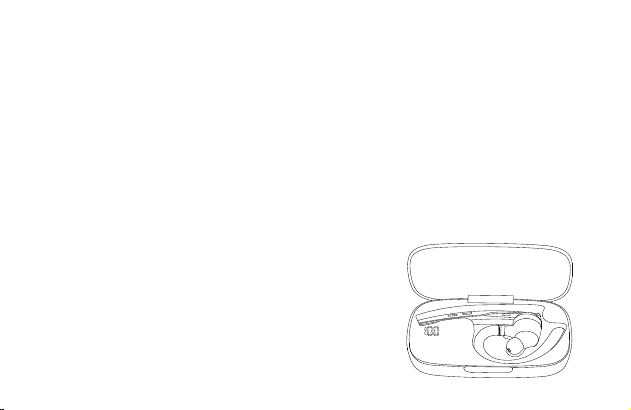
- 31 -
Vielen Dank dafür, dass Sie sich für unser Produkt entschieden haben. Bitte lesen Sie dieses
Benutzerhandbuch sorgfältig durch und befolgen Sie die entsprechenden Regeln, bevor Sie das
Produkt verwenden, um eine korrekte und sichere Nutzung sicherzustellen.
Ⅰ. Produktübersicht
Es handelt sich hierbei um ein stilvolles Business-Bluetooth-Headset mit einem integrierten
Qualcomm Bluetooth-Chip, der eine stabile Verbindung, HD-Sprachanrufe und klaren
Musikgenuss bietet. Ausserdem verfügt es über eine Akkulaufzeit von bis zu 15 Stunden sowie
eine Standby-Zeit von 6 Monaten, für Ihren Komfort.
Bitte beachten Sie, dass die Bluetooth-Verbindung durch Wände behindert, durch elektronische
Störungen beeinträchtigt oder aufgrund zu großer Entfernungen unterbrochen werden kann.
Ⅱ. Produktbeschreibung
1. Headset
① Einziehbarer Ohrbügel
② Typ-C-Ladeanschluss
③ Multifunktionstaste
④ Headset-Anzeige
⑤ Zweites Mikrofon
⑥ Hauptmikrofon
2. Ladebox
① Digitalanzeige
② Typ-C Ladeanschluss
③ Ladebox-Anzeige
Ⅲ. Verpackungsliste
Headset * 1
Ladehülle * 1
Ladekabel * 1
Benutzerhandbuch * 1
Ⅳ. Anleitung zum Tragen
1. Tragen am rechten Ohr
① Nehmen Sie das Headset aus der Ladebox. Passen Sie die Länge des Ohrbügels nach Bedarf
an, schieben Sie das Headset von oberhalb des Ohrs bis hinter dem Ohr und drücken Sie es
dann sanft in Richtung des Ohrs.
HINWEIS:
• Um einen optimalen Tragekomfort zu gewährleisten, nehmen Sie bitte Ihre Brille ab, bevor Sie
die Kopfhörer aufsetzen. Setzen Sie Ihre Kopfhörer auf und dann Ihre Brille.
• Der Verstellbereich der Ohrbügellänge beträgt 0-3,2 mm. Wenden Sie keine übermäßige Kraft
beim Einstellen der Ohrbügellänge an.
② Drehen Sie am Mikrofonbügel, um sicherzustellen, dass das Mikrofon auf Ihren Mund
ausgerichtet ist.
2. Anpassen des Tragestils (Tragen am linken Ohr)
① Drehen Sie den Mikrofonbügel nach oben und verdrehen Sie ihn, sodass der Ohrhörer zur
anderen Seite gerichtet ist, und drehen Sie dann den Ohrbügel im Uhrzeigersinn.
HINWEIS:
• Der maximale Drehwinkel des Mikrofonbügels
beträgt 270°.
• Der maximale Drehwinkel des Ohrbügels
beträgt 180°.
② schieben Sie das Headset von oberhalb des Ohrs bis hinter dem Ohr und drücken Sie ihn dann
sanft in Richtung des Ohrs. Drehen Sie den Mikrofonbügel nach unten, um sicherzustellen, dass
das Mikrofon auf Ihren Mund ausgerichtet ist.
Ⅴ. Verwendung und Betrieb
1. Bluetooth-Verbindung
① Nehmen Sie das Headset aus der Ladebox oder drücken und halten Sie die Multifunktionstaste
3 Sekunden lang gedrückt, um das Headset einzuschalten. Das Headset gibt die Sprachauf-
forderung „power on“ aus. Nach 3 Sekunden gibt es die Sprachaufforderung „pairing“aus, was
anzeigt, dass das Headset automatisch in den Paarungsmodus wechselt. Das Headset-Anzei-
gelicht blinkt abwechselnd rot und blau.
② Schalten Sie die Bluetooth-Funktion Ihres Mobiltelefons (oder anderer Geräte) ein und suchen
Sie nach neuen Geräten.
Bei iPhone gehen Sie zu „Einstellungen“ > „Bluetooth“ > „Öffnen“
Bei Android-Handys gehen Sie zu „Einstellungen“ > „Bluetooth“ > „Nach neuen
Geräten suchen“
Hinweis: Die Menüinhalte können je nach Gerät variieren.
③ Suchen Sie nach „M54“ in der Liste der Bluetooth-Geräte und klicken Sie, um eine Verbindung
herzustellen. Bei erfolgreicher Verbindung erfolgreich, gibt das Headset die Sprachbenachrichti-
gung „connected“ aus und die Headset-Anzeige erlischt.
HINWEIS: Wenn Sie das Headset erneut verwenden, stellt es automatisch eine Verbindung zu
den letzten beiden Geräten in der wirksamen Bluetooth-Reichweite her. Wenn innerhalb von 5
Minuten kein gepaartes Gerät vorhanden ist, schaltet sich das Headset automatisch aus.
④ Die Verbindung von zwei Geräten
Dieses Headset kann sich gleichzeitig mit 2 Geräten verbinden.
Halten Sie nach erfolgreicher Verbindung mit Telefon A die Stummschalttaste 5 Sekunden lang
gedrückt, um in den Kopplungsmodus zu gelangen. Die Headset-Anzeige blinkt abwechselnd rot
und blau. Öffnen Sie dann die Bluetooth-Funktion von Telefon B, um zu suchen und eine
Verbindung herzustellen.
(HINWEIS: Obwohl das Headset sich gleichzeitig mit zwei Telefonen verbinden kann, kann nur
eines der Telefone über M54 Musik wiedergeben. Das Headset kann nicht gleichzeitig Musik von
zwei Telefonen wiedergeben.)
2. Beschreibung der Tastenfunktion
① Multifunktionstaste
• Einschalten: Im ausgeschalteten Zustand halten Sie die Multifunktionstaste 3 Sekunden lang
gedrückt oder nehmen Sie das Headset aus der Ladebox.
• Ausschalten: Im eingeschalteten Zustand halten Sie die Multifunktionstaste 5 Sekunden lang
gedrückt oder legen Sie das Headset in den Ladebox.
• Wiedergabe/Pause: Im Musikwiedergabemodus klicken Sie einmal auf die Multifunktionstaste.
• Anruf annehmen: Klicken Sie einmal auf die Multifunktionstaste, wenn ein Anruf eingeht.
• Auflegen: Klicken während eines Anrufs einmal auf die Multifunktionstaste.
• Ablehnen eines Anrufs: Halten Sie die Multifunktionstaste 2 Sekunden lang gedrückt, wenn ein
Anruf eingeht.
• Wählen Sie die zuletzt gewählte Telefonnummer erneut: Führen Sie einen Doppelklick auf
die Multifunktionstaste aus.
② Lautstärke erhöhen-Taste
• Lautstärke erhöhen: Klicken Sie auf die Lautstärke erhöhen-Taste, um die Lautstärke zu
erhöhen.
• Nächster Song: Halten Sie die Lautstärke erhöhen-Taste 3 Sekunden lang gedrückt, um zum
nächsten Song zu springen.
③ Lautstärke verringern-Taste
• Lautstärke verringern: Klicken Sie auf die Lautstärke verringern-Taste, um die Lautstärke zu
verringern.
• Vorheriger Song: Halten Sie die Lautstärke verringern-Taste 3 Sekunden lang gedrückt, um
zum vorherigen Song zu springen.
④ Mikrofon-Stummschaltungstaste
• Stummschalten/Einschalten der Stummschaltung: Klicken Sie auf die Taste, um die
Stummschaltungsfunktion während eines Anrufs zu aktivieren. Klicken Sie erneut auf die Taste,
um die Stummschaltungsfunktion auszuschalten.
• Sprachassistent: Doppelklicken Sie auf die Schaltfläche,, um den Sprachassistenten zu
aktivieren.
3. Headset-Anzeige / Sprachansage
4. Werkseinstellungen wiederherstellen
Im eingeschalteten Zustand drücken Sie gleichzeitig die Multifunktionstaste und die Lautstärke
erhöhen-Taste für 6 Sekunden. Wenn Sie die Sprachaufforderung „power on, pairing“ hören,
wurde das Headset auf die Werkseinstellungen zurückgesetzt.
5. Aufladen des Headsets
(1) Niedriger Akku-Hinweis
Wenn das Headset die Sprachansage „battery low“ abgibt, bedeutet dies, dass sich das Headset
im niedrigen Akku-Zustand befindet. Bitte laden Sie das Headset sofort auf.
(2) Anweisungen zum Aufladen
① Laden Sie das Headset mit der Ladebox auf
Legen Sie das Headset zum Laden in die Ladebox. Die digitale Anzeige der Ladebox leuchtet 10
Sekunden lang und erlischt anschliessend.
Beim Laden leuchtet die Headset-Anzeige rot. Wenn
vollständig aufgeladen, leuchtet die Headset-Anzeige
10 Sekunden lang blau und erlischt anschliessend.
HINWEIS: Bitte legen Sie das Headset flach
und halten Sie den Ladeanschluss sauber,
andernfalls wird das Headset nicht aufgeladen.
② Laden Sie das Headset mit dem Typ-C-Ladekabel auf
Beim Laden leuchtet die Headset-Anzeige rot. Wenn vollständig aufgeladen, leuchtet die
Headset-Anzeige 10 Sekunden lang blau und erlischt anschliessend.
6. Laden der Ladebox
(1) Niedriger Akku-Hinweis
Die digitale Anzeige der Ladebox blinkt ca. 10 Sekunden lang und zeigt an, dass sich die Ladebox
im niedrigen Akku-Zustand befindet. Bitte laden Sie die Ladebox sofort auf.
(2) Ladeanleitung
Bitte laden Sie die Ladebox mit dem Typ-C-Ladekabel auf.
Beim Laden leuchtet die Ladebox-Anzeige rot. Sobald vollständig aufgeladen, leuchtet die
Ladebox-Anzeige rot.
Ⅵ. Produktspezifikationen
1. Bluetooth-Version: V5.1
2. Bluetooth-Chip: QCC3020
3. Unterstützte Protokolle: Headset, HFP, A2DP, AVRCP, HSP
4. Lautsprechereinheit: Φ13 mm 32Ω
5. Übertragungsentfernung: 15 m
6. Akkukapazität des Headsets: 85 mAh
7. Akkukapazität der Ladebox: 500 mAh
8. Standby-Zeit: 6 Monate
9. Wiedergabezeit für Musik: 15 Stunden
10. Ladezeit des Headsets: 1,5 Stunden
11. Ladezeit der Ladebox: 1,5 Stunden
12. Ladeanschluss: Typ-C
13. Betriebstemperatur: -5 °C - 50 °C
14. Gewicht des Headsets: 15 g
15. Gewicht der Ladebox: 57 g
Ⅶ. Häufig auftretende Probleme
1. Ein niedriger Akkustand kann zu Verbindungsproblemen führen. Um eine störungsfreie Nutzung
sicherzustellen, laden Sie das Headset rechtzeitig auf.
2. Wenn das Headset nicht eingeschaltet werden kann, versuchen Sie bitte, es zunächst
aufzuladen und schalten Sie es ein, sobald der Akku ausreichend geladen ist.
3. Während eines Anrufs ist kein Ton über das Headset zu hören.
—— Stellen Sie sicher, dass Sie M54 für die Audioeingabe/-Ausgabe auswählen, wenn Sie einen
Anruf tätigen, und nicht den Lautsprecher Ihres Mobiltelefons.
—— Überprüfen Sie, ob Ihr Mobiltelefon mit anderen Bluetooth-Geräten verbunden ist.
—— Stellen Sie sicher, dass der Abstand zwischen dem Headset und dem Mobiltelefon nicht die
effektive Reichweite von 15 Metern überschreitet.
4. Die andere Seite kann Ihre Stimme nicht hören, wenn Sie einen Anruf tätigen.
—— Bitte halten Sie die Mikrofonöffnung des Headsets sauber, um den Anruf und die
Geräuschunterdrückung nicht zu beeinträchtigen und sicherzustellen, dass die andere Seite Ihre
Stimme hören kann.
5. Das Headset kann nicht aufgeladen werden.
—— Bitte reinigen Sie die Ladeanschlusspunkte des Headsets und der Ladebox mit Alkohol.
Ⅷ. Sicherheitshinweise
1. Die eigenmächtige Demontage kann das Headset beschädigen und ist nicht durch die Garantie
abgedeckt.
2. Reinigen Sie das Headset mit einem sauberen, weichen und trockenen Tuch.
3. Verwenden Sie das Headset bitte nicht in einer staubigen und feuchten Umgebung.
4. Lassen Sie Ihre Kinder nicht mit dem Headset spielen. Sie könnten sich verletzen oder das
Headset beschädigen.
5. Stellen Sie das Headset nicht in extremen Umgebungen ab, da es sonst vorübergehend nicht
verwendet werden kann. Die normale Betriebstemperatur beträgt -5 °C bis 50 °C.
6. Dieses Produkt ist nicht mit Festnetztelefonen kompatibel.
7. Bei Anschluss an einen Computer unterstützt dieses Produkt das Annehmen und Auflegen von
Anrufen nicht.
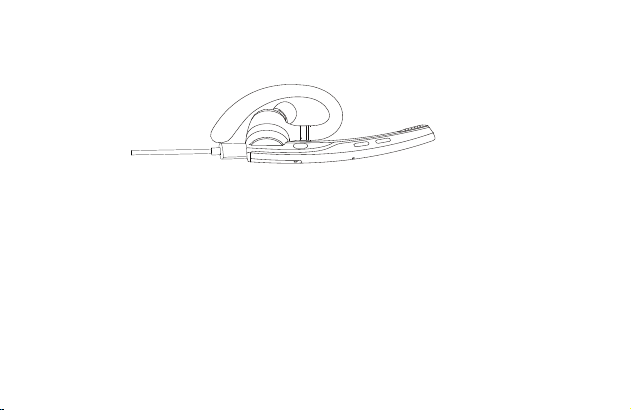
- 32 -
Vielen Dank dafür, dass Sie sich für unser Produkt entschieden haben. Bitte lesen Sie dieses
Benutzerhandbuch sorgfältig durch und befolgen Sie die entsprechenden Regeln, bevor Sie das
Produkt verwenden, um eine korrekte und sichere Nutzung sicherzustellen.
Ⅰ. Produktübersicht
Es handelt sich hierbei um ein stilvolles Business-Bluetooth-Headset mit einem integrierten
Qualcomm Bluetooth-Chip, der eine stabile Verbindung, HD-Sprachanrufe und klaren
Musikgenuss bietet. Ausserdem verfügt es über eine Akkulaufzeit von bis zu 15 Stunden sowie
eine Standby-Zeit von 6 Monaten, für Ihren Komfort.
Bitte beachten Sie, dass die Bluetooth-Verbindung durch Wände behindert, durch elektronische
Störungen beeinträchtigt oder aufgrund zu großer Entfernungen unterbrochen werden kann.
Ⅱ. Produktbeschreibung
1. Headset
① Einziehbarer Ohrbügel
② Typ-C-Ladeanschluss
③ Multifunktionstaste
④ Headset-Anzeige
⑤ Zweites Mikrofon
⑥ Hauptmikrofon
2. Ladebox
① Digitalanzeige
② Typ-C Ladeanschluss
③ Ladebox-Anzeige
Ⅲ. Verpackungsliste
Headset * 1
Ladehülle * 1
Ladekabel * 1
Benutzerhandbuch * 1
Ⅳ. Anleitung zum Tragen
1. Tragen am rechten Ohr
① Nehmen Sie das Headset aus der Ladebox. Passen Sie die Länge des Ohrbügels nach Bedarf
an, schieben Sie das Headset von oberhalb des Ohrs bis hinter dem Ohr und drücken Sie es
dann sanft in Richtung des Ohrs.
HINWEIS:
• Um einen optimalen Tragekomfort zu gewährleisten, nehmen Sie bitte Ihre Brille ab, bevor Sie
die Kopfhörer aufsetzen. Setzen Sie Ihre Kopfhörer auf und dann Ihre Brille.
• Der Verstellbereich der Ohrbügellänge beträgt 0-3,2 mm. Wenden Sie keine übermäßige Kraft
beim Einstellen der Ohrbügellänge an.
② Drehen Sie am Mikrofonbügel, um sicherzustellen, dass das Mikrofon auf Ihren Mund
ausgerichtet ist.
2. Anpassen des Tragestils (Tragen am linken Ohr)
① Drehen Sie den Mikrofonbügel nach oben und verdrehen Sie ihn, sodass der Ohrhörer zur
anderen Seite gerichtet ist, und drehen Sie dann den Ohrbügel im Uhrzeigersinn.
HINWEIS:
• Der maximale Drehwinkel des Mikrofonbügels
beträgt 270°.
• Der maximale Drehwinkel des Ohrbügels
beträgt 180°.
② schieben Sie das Headset von oberhalb des Ohrs bis hinter dem Ohr und drücken Sie ihn dann
sanft in Richtung des Ohrs. Drehen Sie den Mikrofonbügel nach unten, um sicherzustellen, dass
das Mikrofon auf Ihren Mund ausgerichtet ist.
Ⅴ. Verwendung und Betrieb
1. Bluetooth-Verbindung
① Nehmen Sie das Headset aus der Ladebox oder drücken und halten Sie die Multifunktionstaste
3 Sekunden lang gedrückt, um das Headset einzuschalten. Das Headset gibt die Sprachauf-
forderung „power on“ aus. Nach 3 Sekunden gibt es die Sprachaufforderung „pairing“aus, was
anzeigt, dass das Headset automatisch in den Paarungsmodus wechselt. Das Headset-Anzei-
gelicht blinkt abwechselnd rot und blau.
② Schalten Sie die Bluetooth-Funktion Ihres Mobiltelefons (oder anderer Geräte) ein und suchen
Sie nach neuen Geräten.
Bei iPhone gehen Sie zu „Einstellungen“ > „Bluetooth“ > „Öffnen“
Bei Android-Handys gehen Sie zu „Einstellungen“ > „Bluetooth“ > „Nach neuen
Geräten suchen“
Hinweis: Die Menüinhalte können je nach Gerät variieren.
③ Suchen Sie nach „M54“ in der Liste der Bluetooth-Geräte und klicken Sie, um eine Verbindung
herzustellen. Bei erfolgreicher Verbindung erfolgreich, gibt das Headset die Sprachbenachrichti-
gung „connected“ aus und die Headset-Anzeige erlischt.
HINWEIS: Wenn Sie das Headset erneut verwenden, stellt es automatisch eine Verbindung zu
den letzten beiden Geräten in der wirksamen Bluetooth-Reichweite her. Wenn innerhalb von 5
Minuten kein gepaartes Gerät vorhanden ist, schaltet sich das Headset automatisch aus.
④ Die Verbindung von zwei Geräten
Dieses Headset kann sich gleichzeitig mit 2 Geräten verbinden.
Halten Sie nach erfolgreicher Verbindung mit Telefon A die Stummschalttaste 5 Sekunden lang
gedrückt, um in den Kopplungsmodus zu gelangen. Die Headset-Anzeige blinkt abwechselnd rot
und blau. Öffnen Sie dann die Bluetooth-Funktion von Telefon B, um zu suchen und eine
Verbindung herzustellen.
(HINWEIS: Obwohl das Headset sich gleichzeitig mit zwei Telefonen verbinden kann, kann nur
eines der Telefone über M54 Musik wiedergeben. Das Headset kann nicht gleichzeitig Musik von
zwei Telefonen wiedergeben.)
2. Beschreibung der Tastenfunktion
① Multifunktionstaste
• Einschalten: Im ausgeschalteten Zustand halten Sie die Multifunktionstaste 3 Sekunden lang
gedrückt oder nehmen Sie das Headset aus der Ladebox.
• Ausschalten: Im eingeschalteten Zustand halten Sie die Multifunktionstaste 5 Sekunden lang
gedrückt oder legen Sie das Headset in den Ladebox.
• Wiedergabe/Pause: Im Musikwiedergabemodus klicken Sie einmal auf die Multifunktionstaste.
• Anruf annehmen: Klicken Sie einmal auf die Multifunktionstaste, wenn ein Anruf eingeht.
• Auflegen: Klicken während eines Anrufs einmal auf die Multifunktionstaste.
• Ablehnen eines Anrufs: Halten Sie die Multifunktionstaste 2 Sekunden lang gedrückt, wenn ein
Anruf eingeht.
• Wählen Sie die zuletzt gewählte Telefonnummer erneut: Führen Sie einen Doppelklick auf
die Multifunktionstaste aus.
② Lautstärke erhöhen-Taste
• Lautstärke erhöhen: Klicken Sie auf die Lautstärke erhöhen-Taste, um die Lautstärke zu
erhöhen.
• Nächster Song: Halten Sie die Lautstärke erhöhen-Taste 3 Sekunden lang gedrückt, um zum
nächsten Song zu springen.
③ Lautstärke verringern-Taste
• Lautstärke verringern: Klicken Sie auf die Lautstärke verringern-Taste, um die Lautstärke zu
verringern.
• Vorheriger Song: Halten Sie die Lautstärke verringern-Taste 3 Sekunden lang gedrückt, um
zum vorherigen Song zu springen.
④ Mikrofon-Stummschaltungstaste
• Stummschalten/Einschalten der Stummschaltung: Klicken Sie auf die Taste, um die
Stummschaltungsfunktion während eines Anrufs zu aktivieren. Klicken Sie erneut auf die Taste,
um die Stummschaltungsfunktion auszuschalten.
• Sprachassistent: Doppelklicken Sie auf die Schaltfläche,, um den Sprachassistenten zu
aktivieren.
3. Headset-Anzeige / Sprachansage
4. Werkseinstellungen wiederherstellen
Im eingeschalteten Zustand drücken Sie gleichzeitig die Multifunktionstaste und die Lautstärke
erhöhen-Taste für 6 Sekunden. Wenn Sie die Sprachaufforderung „power on, pairing“ hören,
wurde das Headset auf die Werkseinstellungen zurückgesetzt.
5. Aufladen des Headsets
(1) Niedriger Akku-Hinweis
Wenn das Headset die Sprachansage „battery low“ abgibt, bedeutet dies, dass sich das Headset
im niedrigen Akku-Zustand befindet. Bitte laden Sie das Headset sofort auf.
(2) Anweisungen zum Aufladen
① Laden Sie das Headset mit der Ladebox auf
Legen Sie das Headset zum Laden in die Ladebox. Die digitale Anzeige der Ladebox leuchtet 10
Sekunden lang und erlischt anschliessend.
Beim Laden leuchtet die Headset-Anzeige rot. Wenn
vollständig aufgeladen, leuchtet die Headset-Anzeige
10 Sekunden lang blau und erlischt anschliessend.
HINWEIS: Bitte legen Sie das Headset flach
und halten Sie den Ladeanschluss sauber,
andernfalls wird das Headset nicht aufgeladen.
② Laden Sie das Headset mit dem Typ-C-Ladekabel auf
Beim Laden leuchtet die Headset-Anzeige rot. Wenn vollständig aufgeladen, leuchtet die
Headset-Anzeige 10 Sekunden lang blau und erlischt anschliessend.
6. Laden der Ladebox
(1) Niedriger Akku-Hinweis
Die digitale Anzeige der Ladebox blinkt ca. 10 Sekunden lang und zeigt an, dass sich die Ladebox
im niedrigen Akku-Zustand befindet. Bitte laden Sie die Ladebox sofort auf.
(2) Ladeanleitung
Bitte laden Sie die Ladebox mit dem Typ-C-Ladekabel auf.
Beim Laden leuchtet die Ladebox-Anzeige rot. Sobald vollständig aufgeladen, leuchtet die
Ladebox-Anzeige rot.
Ⅵ. Produktspezifikationen
1. Bluetooth-Version: V5.1
2. Bluetooth-Chip: QCC3020
3. Unterstützte Protokolle: Headset, HFP, A2DP, AVRCP, HSP
4. Lautsprechereinheit: Φ13 mm 32Ω
5. Übertragungsentfernung: 15 m
6. Akkukapazität des Headsets: 85 mAh
7. Akkukapazität der Ladebox: 500 mAh
8. Standby-Zeit: 6 Monate
9. Wiedergabezeit für Musik: 15 Stunden
10. Ladezeit des Headsets: 1,5 Stunden
11. Ladezeit der Ladebox: 1,5 Stunden
12. Ladeanschluss: Typ-C
13. Betriebstemperatur: -5 °C - 50 °C
14. Gewicht des Headsets: 15 g
15. Gewicht der Ladebox: 57 g
Ⅶ. Häufig auftretende Probleme
1. Ein niedriger Akkustand kann zu Verbindungsproblemen führen. Um eine störungsfreie Nutzung
sicherzustellen, laden Sie das Headset rechtzeitig auf.
2. Wenn das Headset nicht eingeschaltet werden kann, versuchen Sie bitte, es zunächst
aufzuladen und schalten Sie es ein, sobald der Akku ausreichend geladen ist.
3. Während eines Anrufs ist kein Ton über das Headset zu hören.
—— Stellen Sie sicher, dass Sie M54 für die Audioeingabe/-Ausgabe auswählen, wenn Sie einen
Anruf tätigen, und nicht den Lautsprecher Ihres Mobiltelefons.
—— Überprüfen Sie, ob Ihr Mobiltelefon mit anderen Bluetooth-Geräten verbunden ist.
—— Stellen Sie sicher, dass der Abstand zwischen dem Headset und dem Mobiltelefon nicht die
effektive Reichweite von 15 Metern überschreitet.
4. Die andere Seite kann Ihre Stimme nicht hören, wenn Sie einen Anruf tätigen.
—— Bitte halten Sie die Mikrofonöffnung des Headsets sauber, um den Anruf und die
Geräuschunterdrückung nicht zu beeinträchtigen und sicherzustellen, dass die andere Seite Ihre
Stimme hören kann.
5. Das Headset kann nicht aufgeladen werden.
—— Bitte reinigen Sie die Ladeanschlusspunkte des Headsets und der Ladebox mit Alkohol.
Ⅷ. Sicherheitshinweise
1. Die eigenmächtige Demontage kann das Headset beschädigen und ist nicht durch die Garantie
abgedeckt.
2. Reinigen Sie das Headset mit einem sauberen, weichen und trockenen Tuch.
3. Verwenden Sie das Headset bitte nicht in einer staubigen und feuchten Umgebung.
4. Lassen Sie Ihre Kinder nicht mit dem Headset spielen. Sie könnten sich verletzen oder das
Headset beschädigen.
5. Stellen Sie das Headset nicht in extremen Umgebungen ab, da es sonst vorübergehend nicht
verwendet werden kann. Die normale Betriebstemperatur beträgt -5 °C bis 50 °C.
6. Dieses Produkt ist nicht mit Festnetztelefonen kompatibel.
7. Bei Anschluss an einen Computer unterstützt dieses Produkt das Annehmen und Auflegen von
Anrufen nicht.
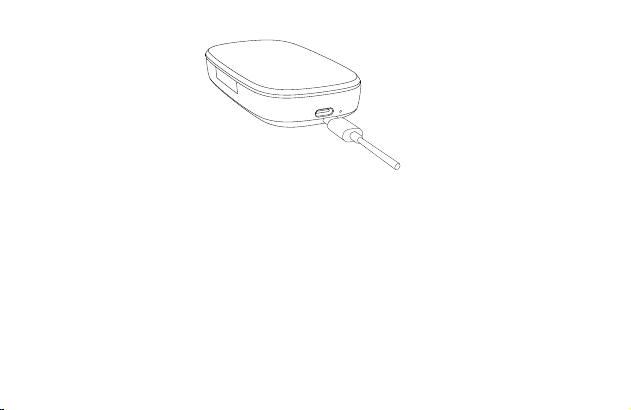
- 33 -
Vielen Dank dafür, dass Sie sich für unser Produkt entschieden haben. Bitte lesen Sie dieses
Benutzerhandbuch sorgfältig durch und befolgen Sie die entsprechenden Regeln, bevor Sie das
Produkt verwenden, um eine korrekte und sichere Nutzung sicherzustellen.
Ⅰ. Produktübersicht
Es handelt sich hierbei um ein stilvolles Business-Bluetooth-Headset mit einem integrierten
Qualcomm Bluetooth-Chip, der eine stabile Verbindung, HD-Sprachanrufe und klaren
Musikgenuss bietet. Ausserdem verfügt es über eine Akkulaufzeit von bis zu 15 Stunden sowie
eine Standby-Zeit von 6 Monaten, für Ihren Komfort.
Bitte beachten Sie, dass die Bluetooth-Verbindung durch Wände behindert, durch elektronische
Störungen beeinträchtigt oder aufgrund zu großer Entfernungen unterbrochen werden kann.
Ⅱ. Produktbeschreibung
1. Headset
① Einziehbarer Ohrbügel
② Typ-C-Ladeanschluss
③ Multifunktionstaste
④ Headset-Anzeige
⑤ Zweites Mikrofon
⑥ Hauptmikrofon
2. Ladebox
① Digitalanzeige
② Typ-C Ladeanschluss
③ Ladebox-Anzeige
Ⅲ. Verpackungsliste
Headset * 1
Ladehülle * 1
Ladekabel * 1
Benutzerhandbuch * 1
Ⅳ. Anleitung zum Tragen
1. Tragen am rechten Ohr
① Nehmen Sie das Headset aus der Ladebox. Passen Sie die Länge des Ohrbügels nach Bedarf
an, schieben Sie das Headset von oberhalb des Ohrs bis hinter dem Ohr und drücken Sie es
dann sanft in Richtung des Ohrs.
HINWEIS:
• Um einen optimalen Tragekomfort zu gewährleisten, nehmen Sie bitte Ihre Brille ab, bevor Sie
die Kopfhörer aufsetzen. Setzen Sie Ihre Kopfhörer auf und dann Ihre Brille.
• Der Verstellbereich der Ohrbügellänge beträgt 0-3,2 mm. Wenden Sie keine übermäßige Kraft
beim Einstellen der Ohrbügellänge an.
② Drehen Sie am Mikrofonbügel, um sicherzustellen, dass das Mikrofon auf Ihren Mund
ausgerichtet ist.
2. Anpassen des Tragestils (Tragen am linken Ohr)
① Drehen Sie den Mikrofonbügel nach oben und verdrehen Sie ihn, sodass der Ohrhörer zur
anderen Seite gerichtet ist, und drehen Sie dann den Ohrbügel im Uhrzeigersinn.
HINWEIS:
• Der maximale Drehwinkel des Mikrofonbügels
beträgt 270°.
• Der maximale Drehwinkel des Ohrbügels
beträgt 180°.
② schieben Sie das Headset von oberhalb des Ohrs bis hinter dem Ohr und drücken Sie ihn dann
sanft in Richtung des Ohrs. Drehen Sie den Mikrofonbügel nach unten, um sicherzustellen, dass
das Mikrofon auf Ihren Mund ausgerichtet ist.
Ⅴ. Verwendung und Betrieb
1. Bluetooth-Verbindung
① Nehmen Sie das Headset aus der Ladebox oder drücken und halten Sie die Multifunktionstaste
3 Sekunden lang gedrückt, um das Headset einzuschalten. Das Headset gibt die Sprachauf-
forderung „power on“ aus. Nach 3 Sekunden gibt es die Sprachaufforderung „pairing“aus, was
anzeigt, dass das Headset automatisch in den Paarungsmodus wechselt. Das Headset-Anzei-
gelicht blinkt abwechselnd rot und blau.
② Schalten Sie die Bluetooth-Funktion Ihres Mobiltelefons (oder anderer Geräte) ein und suchen
Sie nach neuen Geräten.
Bei iPhone gehen Sie zu „Einstellungen“ > „Bluetooth“ > „Öffnen“
Bei Android-Handys gehen Sie zu „Einstellungen“ > „Bluetooth“ > „Nach neuen
Geräten suchen“
Hinweis: Die Menüinhalte können je nach Gerät variieren.
③ Suchen Sie nach „M54“ in der Liste der Bluetooth-Geräte und klicken Sie, um eine Verbindung
herzustellen. Bei erfolgreicher Verbindung erfolgreich, gibt das Headset die Sprachbenachrichti-
gung „connected“ aus und die Headset-Anzeige erlischt.
HINWEIS: Wenn Sie das Headset erneut verwenden, stellt es automatisch eine Verbindung zu
den letzten beiden Geräten in der wirksamen Bluetooth-Reichweite her. Wenn innerhalb von 5
Minuten kein gepaartes Gerät vorhanden ist, schaltet sich das Headset automatisch aus.
④ Die Verbindung von zwei Geräten
Dieses Headset kann sich gleichzeitig mit 2 Geräten verbinden.
Halten Sie nach erfolgreicher Verbindung mit Telefon A die Stummschalttaste 5 Sekunden lang
gedrückt, um in den Kopplungsmodus zu gelangen. Die Headset-Anzeige blinkt abwechselnd rot
und blau. Öffnen Sie dann die Bluetooth-Funktion von Telefon B, um zu suchen und eine
Verbindung herzustellen.
(HINWEIS: Obwohl das Headset sich gleichzeitig mit zwei Telefonen verbinden kann, kann nur
eines der Telefone über M54 Musik wiedergeben. Das Headset kann nicht gleichzeitig Musik von
zwei Telefonen wiedergeben.)
2. Beschreibung der Tastenfunktion
① Multifunktionstaste
• Einschalten: Im ausgeschalteten Zustand halten Sie die Multifunktionstaste 3 Sekunden lang
gedrückt oder nehmen Sie das Headset aus der Ladebox.
• Ausschalten: Im eingeschalteten Zustand halten Sie die Multifunktionstaste 5 Sekunden lang
gedrückt oder legen Sie das Headset in den Ladebox.
• Wiedergabe/Pause: Im Musikwiedergabemodus klicken Sie einmal auf die Multifunktionstaste.
• Anruf annehmen: Klicken Sie einmal auf die Multifunktionstaste, wenn ein Anruf eingeht.
• Auflegen: Klicken während eines Anrufs einmal auf die Multifunktionstaste.
• Ablehnen eines Anrufs: Halten Sie die Multifunktionstaste 2 Sekunden lang gedrückt, wenn ein
Anruf eingeht.
• Wählen Sie die zuletzt gewählte Telefonnummer erneut: Führen Sie einen Doppelklick auf
die Multifunktionstaste aus.
② Lautstärke erhöhen-Taste
• Lautstärke erhöhen: Klicken Sie auf die Lautstärke erhöhen-Taste, um die Lautstärke zu
erhöhen.
• Nächster Song: Halten Sie die Lautstärke erhöhen-Taste 3 Sekunden lang gedrückt, um zum
nächsten Song zu springen.
③ Lautstärke verringern-Taste
• Lautstärke verringern: Klicken Sie auf die Lautstärke verringern-Taste, um die Lautstärke zu
verringern.
• Vorheriger Song: Halten Sie die Lautstärke verringern-Taste 3 Sekunden lang gedrückt, um
zum vorherigen Song zu springen.
④ Mikrofon-Stummschaltungstaste
• Stummschalten/Einschalten der Stummschaltung: Klicken Sie auf die Taste, um die
Stummschaltungsfunktion während eines Anrufs zu aktivieren. Klicken Sie erneut auf die Taste,
um die Stummschaltungsfunktion auszuschalten.
• Sprachassistent: Doppelklicken Sie auf die Schaltfläche,, um den Sprachassistenten zu
aktivieren.
3. Headset-Anzeige / Sprachansage
4. Werkseinstellungen wiederherstellen
Im eingeschalteten Zustand drücken Sie gleichzeitig die Multifunktionstaste und die Lautstärke
erhöhen-Taste für 6 Sekunden. Wenn Sie die Sprachaufforderung „power on, pairing“ hören,
wurde das Headset auf die Werkseinstellungen zurückgesetzt.
5. Aufladen des Headsets
(1) Niedriger Akku-Hinweis
Wenn das Headset die Sprachansage „battery low“ abgibt, bedeutet dies, dass sich das Headset
im niedrigen Akku-Zustand befindet. Bitte laden Sie das Headset sofort auf.
(2) Anweisungen zum Aufladen
① Laden Sie das Headset mit der Ladebox auf
Legen Sie das Headset zum Laden in die Ladebox. Die digitale Anzeige der Ladebox leuchtet 10
Sekunden lang und erlischt anschliessend.
Beim Laden leuchtet die Headset-Anzeige rot. Wenn
vollständig aufgeladen, leuchtet die Headset-Anzeige
10 Sekunden lang blau und erlischt anschliessend.
HINWEIS: Bitte legen Sie das Headset flach
und halten Sie den Ladeanschluss sauber,
andernfalls wird das Headset nicht aufgeladen.
② Laden Sie das Headset mit dem Typ-C-Ladekabel auf
Beim Laden leuchtet die Headset-Anzeige rot. Wenn vollständig aufgeladen, leuchtet die
Headset-Anzeige 10 Sekunden lang blau und erlischt anschliessend.
6. Laden der Ladebox
(1) Niedriger Akku-Hinweis
Die digitale Anzeige der Ladebox blinkt ca. 10 Sekunden lang und zeigt an, dass sich die Ladebox
im niedrigen Akku-Zustand befindet. Bitte laden Sie die Ladebox sofort auf.
(2) Ladeanleitung
Bitte laden Sie die Ladebox mit dem Typ-C-Ladekabel auf.
Beim Laden leuchtet die Ladebox-Anzeige rot. Sobald vollständig aufgeladen, leuchtet die
Ladebox-Anzeige rot.
Ⅵ. Produktspezifikationen
1. Bluetooth-Version: V5.1
2. Bluetooth-Chip: QCC3020
3. Unterstützte Protokolle: Headset, HFP, A2DP, AVRCP, HSP
4. Lautsprechereinheit: Φ13 mm 32Ω
5. Übertragungsentfernung: 15 m
6. Akkukapazität des Headsets: 85 mAh
7. Akkukapazität der Ladebox: 500 mAh
8. Standby-Zeit: 6 Monate
9. Wiedergabezeit für Musik: 15 Stunden
10. Ladezeit des Headsets: 1,5 Stunden
11. Ladezeit der Ladebox: 1,5 Stunden
12. Ladeanschluss: Typ-C
13. Betriebstemperatur: -5 °C - 50 °C
14. Gewicht des Headsets: 15 g
15. Gewicht der Ladebox: 57 g
Ⅶ. Häufig auftretende Probleme
1. Ein niedriger Akkustand kann zu Verbindungsproblemen führen. Um eine störungsfreie Nutzung
sicherzustellen, laden Sie das Headset rechtzeitig auf.
2. Wenn das Headset nicht eingeschaltet werden kann, versuchen Sie bitte, es zunächst
aufzuladen und schalten Sie es ein, sobald der Akku ausreichend geladen ist.
3. Während eines Anrufs ist kein Ton über das Headset zu hören.
—— Stellen Sie sicher, dass Sie M54 für die Audioeingabe/-Ausgabe auswählen, wenn Sie einen
Anruf tätigen, und nicht den Lautsprecher Ihres Mobiltelefons.
—— Überprüfen Sie, ob Ihr Mobiltelefon mit anderen Bluetooth-Geräten verbunden ist.
—— Stellen Sie sicher, dass der Abstand zwischen dem Headset und dem Mobiltelefon nicht die
effektive Reichweite von 15 Metern überschreitet.
4. Die andere Seite kann Ihre Stimme nicht hören, wenn Sie einen Anruf tätigen.
—— Bitte halten Sie die Mikrofonöffnung des Headsets sauber, um den Anruf und die
Geräuschunterdrückung nicht zu beeinträchtigen und sicherzustellen, dass die andere Seite Ihre
Stimme hören kann.
5. Das Headset kann nicht aufgeladen werden.
—— Bitte reinigen Sie die Ladeanschlusspunkte des Headsets und der Ladebox mit Alkohol.
Ⅷ. Sicherheitshinweise
1. Die eigenmächtige Demontage kann das Headset beschädigen und ist nicht durch die Garantie
abgedeckt.
2. Reinigen Sie das Headset mit einem sauberen, weichen und trockenen Tuch.
3. Verwenden Sie das Headset bitte nicht in einer staubigen und feuchten Umgebung.
4. Lassen Sie Ihre Kinder nicht mit dem Headset spielen. Sie könnten sich verletzen oder das
Headset beschädigen.
5. Stellen Sie das Headset nicht in extremen Umgebungen ab, da es sonst vorübergehend nicht
verwendet werden kann. Die normale Betriebstemperatur beträgt -5 °C bis 50 °C.
6. Dieses Produkt ist nicht mit Festnetztelefonen kompatibel.
7. Bei Anschluss an einen Computer unterstützt dieses Produkt das Annehmen und Auflegen von
Anrufen nicht.

- 34 -
Vielen Dank dafür, dass Sie sich für unser Produkt entschieden haben. Bitte lesen Sie dieses
Benutzerhandbuch sorgfältig durch und befolgen Sie die entsprechenden Regeln, bevor Sie das
Produkt verwenden, um eine korrekte und sichere Nutzung sicherzustellen.
Ⅰ. Produktübersicht
Es handelt sich hierbei um ein stilvolles Business-Bluetooth-Headset mit einem integrierten
Qualcomm Bluetooth-Chip, der eine stabile Verbindung, HD-Sprachanrufe und klaren
Musikgenuss bietet. Ausserdem verfügt es über eine Akkulaufzeit von bis zu 15 Stunden sowie
eine Standby-Zeit von 6 Monaten, für Ihren Komfort.
Bitte beachten Sie, dass die Bluetooth-Verbindung durch Wände behindert, durch elektronische
Störungen beeinträchtigt oder aufgrund zu großer Entfernungen unterbrochen werden kann.
Ⅱ. Produktbeschreibung
1. Headset
① Einziehbarer Ohrbügel
② Typ-C-Ladeanschluss
③ Multifunktionstaste
④ Headset-Anzeige
⑤ Zweites Mikrofon
⑥ Hauptmikrofon
2. Ladebox
① Digitalanzeige
② Typ-C Ladeanschluss
③ Ladebox-Anzeige
Ⅲ. Verpackungsliste
Headset * 1
Ladehülle * 1
Ladekabel * 1
Benutzerhandbuch * 1
Ⅳ. Anleitung zum Tragen
1. Tragen am rechten Ohr
① Nehmen Sie das Headset aus der Ladebox. Passen Sie die Länge des Ohrbügels nach Bedarf
an, schieben Sie das Headset von oberhalb des Ohrs bis hinter dem Ohr und drücken Sie es
dann sanft in Richtung des Ohrs.
HINWEIS:
• Um einen optimalen Tragekomfort zu gewährleisten, nehmen Sie bitte Ihre Brille ab, bevor Sie
die Kopfhörer aufsetzen. Setzen Sie Ihre Kopfhörer auf und dann Ihre Brille.
• Der Verstellbereich der Ohrbügellänge beträgt 0-3,2 mm. Wenden Sie keine übermäßige Kraft
beim Einstellen der Ohrbügellänge an.
② Drehen Sie am Mikrofonbügel, um sicherzustellen, dass das Mikrofon auf Ihren Mund
ausgerichtet ist.
2. Anpassen des Tragestils (Tragen am linken Ohr)
① Drehen Sie den Mikrofonbügel nach oben und verdrehen Sie ihn, sodass der Ohrhörer zur
anderen Seite gerichtet ist, und drehen Sie dann den Ohrbügel im Uhrzeigersinn.
HINWEIS:
• Der maximale Drehwinkel des Mikrofonbügels
beträgt 270°.
• Der maximale Drehwinkel des Ohrbügels
beträgt 180°.
② schieben Sie das Headset von oberhalb des Ohrs bis hinter dem Ohr und drücken Sie ihn dann
sanft in Richtung des Ohrs. Drehen Sie den Mikrofonbügel nach unten, um sicherzustellen, dass
das Mikrofon auf Ihren Mund ausgerichtet ist.
Ⅴ. Verwendung und Betrieb
1. Bluetooth-Verbindung
① Nehmen Sie das Headset aus der Ladebox oder drücken und halten Sie die Multifunktionstaste
3 Sekunden lang gedrückt, um das Headset einzuschalten. Das Headset gibt die Sprachauf-
forderung „power on“ aus. Nach 3 Sekunden gibt es die Sprachaufforderung „pairing“aus, was
anzeigt, dass das Headset automatisch in den Paarungsmodus wechselt. Das Headset-Anzei-
gelicht blinkt abwechselnd rot und blau.
② Schalten Sie die Bluetooth-Funktion Ihres Mobiltelefons (oder anderer Geräte) ein und suchen
Sie nach neuen Geräten.
Bei iPhone gehen Sie zu „Einstellungen“ > „Bluetooth“ > „Öffnen“
Bei Android-Handys gehen Sie zu „Einstellungen“ > „Bluetooth“ > „Nach neuen
Geräten suchen“
Hinweis: Die Menüinhalte können je nach Gerät variieren.
③ Suchen Sie nach „M54“ in der Liste der Bluetooth-Geräte und klicken Sie, um eine Verbindung
herzustellen. Bei erfolgreicher Verbindung erfolgreich, gibt das Headset die Sprachbenachrichti-
gung „connected“ aus und die Headset-Anzeige erlischt.
HINWEIS: Wenn Sie das Headset erneut verwenden, stellt es automatisch eine Verbindung zu
den letzten beiden Geräten in der wirksamen Bluetooth-Reichweite her. Wenn innerhalb von 5
Minuten kein gepaartes Gerät vorhanden ist, schaltet sich das Headset automatisch aus.
④ Die Verbindung von zwei Geräten
Dieses Headset kann sich gleichzeitig mit 2 Geräten verbinden.
Halten Sie nach erfolgreicher Verbindung mit Telefon A die Stummschalttaste 5 Sekunden lang
gedrückt, um in den Kopplungsmodus zu gelangen. Die Headset-Anzeige blinkt abwechselnd rot
und blau. Öffnen Sie dann die Bluetooth-Funktion von Telefon B, um zu suchen und eine
Verbindung herzustellen.
(HINWEIS: Obwohl das Headset sich gleichzeitig mit zwei Telefonen verbinden kann, kann nur
eines der Telefone über M54 Musik wiedergeben. Das Headset kann nicht gleichzeitig Musik von
zwei Telefonen wiedergeben.)
2. Beschreibung der Tastenfunktion
① Multifunktionstaste
• Einschalten: Im ausgeschalteten Zustand halten Sie die Multifunktionstaste 3 Sekunden lang
gedrückt oder nehmen Sie das Headset aus der Ladebox.
• Ausschalten: Im eingeschalteten Zustand halten Sie die Multifunktionstaste 5 Sekunden lang
gedrückt oder legen Sie das Headset in den Ladebox.
• Wiedergabe/Pause: Im Musikwiedergabemodus klicken Sie einmal auf die Multifunktionstaste.
• Anruf annehmen: Klicken Sie einmal auf die Multifunktionstaste, wenn ein Anruf eingeht.
• Auflegen: Klicken während eines Anrufs einmal auf die Multifunktionstaste.
• Ablehnen eines Anrufs: Halten Sie die Multifunktionstaste 2 Sekunden lang gedrückt, wenn ein
Anruf eingeht.
• Wählen Sie die zuletzt gewählte Telefonnummer erneut: Führen Sie einen Doppelklick auf
die Multifunktionstaste aus.
② Lautstärke erhöhen-Taste
• Lautstärke erhöhen: Klicken Sie auf die Lautstärke erhöhen-Taste, um die Lautstärke zu
erhöhen.
• Nächster Song: Halten Sie die Lautstärke erhöhen-Taste 3 Sekunden lang gedrückt, um zum
nächsten Song zu springen.
③ Lautstärke verringern-Taste
• Lautstärke verringern: Klicken Sie auf die Lautstärke verringern-Taste, um die Lautstärke zu
verringern.
• Vorheriger Song: Halten Sie die Lautstärke verringern-Taste 3 Sekunden lang gedrückt, um
zum vorherigen Song zu springen.
④ Mikrofon-Stummschaltungstaste
• Stummschalten/Einschalten der Stummschaltung: Klicken Sie auf die Taste, um die
Stummschaltungsfunktion während eines Anrufs zu aktivieren. Klicken Sie erneut auf die Taste,
um die Stummschaltungsfunktion auszuschalten.
• Sprachassistent: Doppelklicken Sie auf die Schaltfläche,, um den Sprachassistenten zu
aktivieren.
3. Headset-Anzeige / Sprachansage
4. Werkseinstellungen wiederherstellen
Im eingeschalteten Zustand drücken Sie gleichzeitig die Multifunktionstaste und die Lautstärke
erhöhen-Taste für 6 Sekunden. Wenn Sie die Sprachaufforderung „power on, pairing“ hören,
wurde das Headset auf die Werkseinstellungen zurückgesetzt.
5. Aufladen des Headsets
(1) Niedriger Akku-Hinweis
Wenn das Headset die Sprachansage „battery low“ abgibt, bedeutet dies, dass sich das Headset
im niedrigen Akku-Zustand befindet. Bitte laden Sie das Headset sofort auf.
(2) Anweisungen zum Aufladen
① Laden Sie das Headset mit der Ladebox auf
Legen Sie das Headset zum Laden in die Ladebox. Die digitale Anzeige der Ladebox leuchtet 10
Sekunden lang und erlischt anschliessend.
Beim Laden leuchtet die Headset-Anzeige rot. Wenn
vollständig aufgeladen, leuchtet die Headset-Anzeige
10 Sekunden lang blau und erlischt anschliessend.
HINWEIS: Bitte legen Sie das Headset flach
und halten Sie den Ladeanschluss sauber,
andernfalls wird das Headset nicht aufgeladen.
② Laden Sie das Headset mit dem Typ-C-Ladekabel auf
Beim Laden leuchtet die Headset-Anzeige rot. Wenn vollständig aufgeladen, leuchtet die
Headset-Anzeige 10 Sekunden lang blau und erlischt anschliessend.
6. Laden der Ladebox
(1) Niedriger Akku-Hinweis
Die digitale Anzeige der Ladebox blinkt ca. 10 Sekunden lang und zeigt an, dass sich die Ladebox
im niedrigen Akku-Zustand befindet. Bitte laden Sie die Ladebox sofort auf.
(2) Ladeanleitung
Bitte laden Sie die Ladebox mit dem Typ-C-Ladekabel auf.
Beim Laden leuchtet die Ladebox-Anzeige rot. Sobald vollständig aufgeladen, leuchtet die
Ladebox-Anzeige rot.
Ⅵ. Produktspezifikationen
1. Bluetooth-Version: V5.1
2. Bluetooth-Chip: QCC3020
3. Unterstützte Protokolle: Headset, HFP, A2DP, AVRCP, HSP
4. Lautsprechereinheit: Φ13 mm 32Ω
5. Übertragungsentfernung: 15 m
6. Akkukapazität des Headsets: 85 mAh
7. Akkukapazität der Ladebox: 500 mAh
8. Standby-Zeit: 6 Monate
9. Wiedergabezeit für Musik: 15 Stunden
10. Ladezeit des Headsets: 1,5 Stunden
11. Ladezeit der Ladebox: 1,5 Stunden
12. Ladeanschluss: Typ-C
13. Betriebstemperatur: -5 °C - 50 °C
14. Gewicht des Headsets: 15 g
15. Gewicht der Ladebox: 57 g
Ⅶ. Häufig auftretende Probleme
1. Ein niedriger Akkustand kann zu Verbindungsproblemen führen. Um eine störungsfreie Nutzung
sicherzustellen, laden Sie das Headset rechtzeitig auf.
2. Wenn das Headset nicht eingeschaltet werden kann, versuchen Sie bitte, es zunächst
aufzuladen und schalten Sie es ein, sobald der Akku ausreichend geladen ist.
3. Während eines Anrufs ist kein Ton über das Headset zu hören.
—— Stellen Sie sicher, dass Sie M54 für die Audioeingabe/-Ausgabe auswählen, wenn Sie einen
Anruf tätigen, und nicht den Lautsprecher Ihres Mobiltelefons.
—— Überprüfen Sie, ob Ihr Mobiltelefon mit anderen Bluetooth-Geräten verbunden ist.
—— Stellen Sie sicher, dass der Abstand zwischen dem Headset und dem Mobiltelefon nicht die
effektive Reichweite von 15 Metern überschreitet.
4. Die andere Seite kann Ihre Stimme nicht hören, wenn Sie einen Anruf tätigen.
—— Bitte halten Sie die Mikrofonöffnung des Headsets sauber, um den Anruf und die
Geräuschunterdrückung nicht zu beeinträchtigen und sicherzustellen, dass die andere Seite Ihre
Stimme hören kann.
5. Das Headset kann nicht aufgeladen werden.
—— Bitte reinigen Sie die Ladeanschlusspunkte des Headsets und der Ladebox mit Alkohol.
Ⅷ. Sicherheitshinweise
1. Die eigenmächtige Demontage kann das Headset beschädigen und ist nicht durch die Garantie
abgedeckt.
2. Reinigen Sie das Headset mit einem sauberen, weichen und trockenen Tuch.
3. Verwenden Sie das Headset bitte nicht in einer staubigen und feuchten Umgebung.
4. Lassen Sie Ihre Kinder nicht mit dem Headset spielen. Sie könnten sich verletzen oder das
Headset beschädigen.
5. Stellen Sie das Headset nicht in extremen Umgebungen ab, da es sonst vorübergehend nicht
verwendet werden kann. Die normale Betriebstemperatur beträgt -5 °C bis 50 °C.
6. Dieses Produkt ist nicht mit Festnetztelefonen kompatibel.
7. Bei Anschluss an einen Computer unterstützt dieses Produkt das Annehmen und Auflegen von
Anrufen nicht.
( Scannen, um merh zu fragen )

- 35 -
Vielen Dank dafür, dass Sie sich für unser Produkt entschieden haben. Bitte lesen Sie dieses
Benutzerhandbuch sorgfältig durch und befolgen Sie die entsprechenden Regeln, bevor Sie das
Produkt verwenden, um eine korrekte und sichere Nutzung sicherzustellen.
Ⅰ. Produktübersicht
Es handelt sich hierbei um ein stilvolles Business-Bluetooth-Headset mit einem integrierten
Qualcomm Bluetooth-Chip, der eine stabile Verbindung, HD-Sprachanrufe und klaren
Musikgenuss bietet. Ausserdem verfügt es über eine Akkulaufzeit von bis zu 15 Stunden sowie
eine Standby-Zeit von 6 Monaten, für Ihren Komfort.
Bitte beachten Sie, dass die Bluetooth-Verbindung durch Wände behindert, durch elektronische
Störungen beeinträchtigt oder aufgrund zu großer Entfernungen unterbrochen werden kann.
Ⅱ. Produktbeschreibung
1. Headset
① Einziehbarer Ohrbügel
② Typ-C-Ladeanschluss
③ Multifunktionstaste
④ Headset-Anzeige
⑤ Zweites Mikrofon
⑥ Hauptmikrofon
2. Ladebox
① Digitalanzeige
② Typ-C Ladeanschluss
③ Ladebox-Anzeige
Ⅲ. Verpackungsliste
Headset * 1
Ladehülle * 1
Ladekabel * 1
Benutzerhandbuch * 1
Ⅳ. Anleitung zum Tragen
1. Tragen am rechten Ohr
① Nehmen Sie das Headset aus der Ladebox. Passen Sie die Länge des Ohrbügels nach Bedarf
an, schieben Sie das Headset von oberhalb des Ohrs bis hinter dem Ohr und drücken Sie es
dann sanft in Richtung des Ohrs.
HINWEIS:
• Um einen optimalen Tragekomfort zu gewährleisten, nehmen Sie bitte Ihre Brille ab, bevor Sie
die Kopfhörer aufsetzen. Setzen Sie Ihre Kopfhörer auf und dann Ihre Brille.
• Der Verstellbereich der Ohrbügellänge beträgt 0-3,2 mm. Wenden Sie keine übermäßige Kraft
beim Einstellen der Ohrbügellänge an.
② Drehen Sie am Mikrofonbügel, um sicherzustellen, dass das Mikrofon auf Ihren Mund
ausgerichtet ist.
2. Anpassen des Tragestils (Tragen am linken Ohr)
① Drehen Sie den Mikrofonbügel nach oben und verdrehen Sie ihn, sodass der Ohrhörer zur
anderen Seite gerichtet ist, und drehen Sie dann den Ohrbügel im Uhrzeigersinn.
HINWEIS:
• Der maximale Drehwinkel des Mikrofonbügels
beträgt 270°.
• Der maximale Drehwinkel des Ohrbügels
beträgt 180°.
② schieben Sie das Headset von oberhalb des Ohrs bis hinter dem Ohr und drücken Sie ihn dann
sanft in Richtung des Ohrs. Drehen Sie den Mikrofonbügel nach unten, um sicherzustellen, dass
das Mikrofon auf Ihren Mund ausgerichtet ist.
Ⅴ. Verwendung und Betrieb
1. Bluetooth-Verbindung
① Nehmen Sie das Headset aus der Ladebox oder drücken und halten Sie die Multifunktionstaste
3 Sekunden lang gedrückt, um das Headset einzuschalten. Das Headset gibt die Sprachauf-
forderung „power on“ aus. Nach 3 Sekunden gibt es die Sprachaufforderung „pairing“aus, was
anzeigt, dass das Headset automatisch in den Paarungsmodus wechselt. Das Headset-Anzei-
gelicht blinkt abwechselnd rot und blau.
② Schalten Sie die Bluetooth-Funktion Ihres Mobiltelefons (oder anderer Geräte) ein und suchen
Sie nach neuen Geräten.
Bei iPhone gehen Sie zu „Einstellungen“ > „Bluetooth“ > „Öffnen“
Bei Android-Handys gehen Sie zu „Einstellungen“ > „Bluetooth“ > „Nach neuen
Geräten suchen“
Hinweis: Die Menüinhalte können je nach Gerät variieren.
③ Suchen Sie nach „M54“ in der Liste der Bluetooth-Geräte und klicken Sie, um eine Verbindung
herzustellen. Bei erfolgreicher Verbindung erfolgreich, gibt das Headset die Sprachbenachrichti-
gung „connected“ aus und die Headset-Anzeige erlischt.
HINWEIS: Wenn Sie das Headset erneut verwenden, stellt es automatisch eine Verbindung zu
den letzten beiden Geräten in der wirksamen Bluetooth-Reichweite her. Wenn innerhalb von 5
Minuten kein gepaartes Gerät vorhanden ist, schaltet sich das Headset automatisch aus.
④ Die Verbindung von zwei Geräten
Dieses Headset kann sich gleichzeitig mit 2 Geräten verbinden.
Halten Sie nach erfolgreicher Verbindung mit Telefon A die Stummschalttaste 5 Sekunden lang
gedrückt, um in den Kopplungsmodus zu gelangen. Die Headset-Anzeige blinkt abwechselnd rot
und blau. Öffnen Sie dann die Bluetooth-Funktion von Telefon B, um zu suchen und eine
Verbindung herzustellen.
(HINWEIS: Obwohl das Headset sich gleichzeitig mit zwei Telefonen verbinden kann, kann nur
eines der Telefone über M54 Musik wiedergeben. Das Headset kann nicht gleichzeitig Musik von
zwei Telefonen wiedergeben.)
2. Beschreibung der Tastenfunktion
① Multifunktionstaste
• Einschalten: Im ausgeschalteten Zustand halten Sie die Multifunktionstaste 3 Sekunden lang
gedrückt oder nehmen Sie das Headset aus der Ladebox.
• Ausschalten: Im eingeschalteten Zustand halten Sie die Multifunktionstaste 5 Sekunden lang
gedrückt oder legen Sie das Headset in den Ladebox.
• Wiedergabe/Pause: Im Musikwiedergabemodus klicken Sie einmal auf die Multifunktionstaste.
• Anruf annehmen: Klicken Sie einmal auf die Multifunktionstaste, wenn ein Anruf eingeht.
• Auflegen: Klicken während eines Anrufs einmal auf die Multifunktionstaste.
• Ablehnen eines Anrufs: Halten Sie die Multifunktionstaste 2 Sekunden lang gedrückt, wenn ein
Anruf eingeht.
• Wählen Sie die zuletzt gewählte Telefonnummer erneut: Führen Sie einen Doppelklick auf
die Multifunktionstaste aus.
② Lautstärke erhöhen-Taste
• Lautstärke erhöhen: Klicken Sie auf die Lautstärke erhöhen-Taste, um die Lautstärke zu
erhöhen.
• Nächster Song: Halten Sie die Lautstärke erhöhen-Taste 3 Sekunden lang gedrückt, um zum
nächsten Song zu springen.
③ Lautstärke verringern-Taste
• Lautstärke verringern: Klicken Sie auf die Lautstärke verringern-Taste, um die Lautstärke zu
verringern.
• Vorheriger Song: Halten Sie die Lautstärke verringern-Taste 3 Sekunden lang gedrückt, um
zum vorherigen Song zu springen.
④ Mikrofon-Stummschaltungstaste
• Stummschalten/Einschalten der Stummschaltung: Klicken Sie auf die Taste, um die
Stummschaltungsfunktion während eines Anrufs zu aktivieren. Klicken Sie erneut auf die Taste,
um die Stummschaltungsfunktion auszuschalten.
• Sprachassistent: Doppelklicken Sie auf die Schaltfläche,, um den Sprachassistenten zu
aktivieren.
3. Headset-Anzeige / Sprachansage
4. Werkseinstellungen wiederherstellen
Im eingeschalteten Zustand drücken Sie gleichzeitig die Multifunktionstaste und die Lautstärke
erhöhen-Taste für 6 Sekunden. Wenn Sie die Sprachaufforderung „power on, pairing“ hören,
wurde das Headset auf die Werkseinstellungen zurückgesetzt.
5. Aufladen des Headsets
(1) Niedriger Akku-Hinweis
Wenn das Headset die Sprachansage „battery low“ abgibt, bedeutet dies, dass sich das Headset
im niedrigen Akku-Zustand befindet. Bitte laden Sie das Headset sofort auf.
(2) Anweisungen zum Aufladen
① Laden Sie das Headset mit der Ladebox auf
Legen Sie das Headset zum Laden in die Ladebox. Die digitale Anzeige der Ladebox leuchtet 10
Sekunden lang und erlischt anschliessend.
Beim Laden leuchtet die Headset-Anzeige rot. Wenn
vollständig aufgeladen, leuchtet die Headset-Anzeige
10 Sekunden lang blau und erlischt anschliessend.
HINWEIS: Bitte legen Sie das Headset flach
und halten Sie den Ladeanschluss sauber,
andernfalls wird das Headset nicht aufgeladen.
② Laden Sie das Headset mit dem Typ-C-Ladekabel auf
Beim Laden leuchtet die Headset-Anzeige rot. Wenn vollständig aufgeladen, leuchtet die
Headset-Anzeige 10 Sekunden lang blau und erlischt anschliessend.
6. Laden der Ladebox
(1) Niedriger Akku-Hinweis
Die digitale Anzeige der Ladebox blinkt ca. 10 Sekunden lang und zeigt an, dass sich die Ladebox
im niedrigen Akku-Zustand befindet. Bitte laden Sie die Ladebox sofort auf.
(2) Ladeanleitung
Bitte laden Sie die Ladebox mit dem Typ-C-Ladekabel auf.
Beim Laden leuchtet die Ladebox-Anzeige rot. Sobald vollständig aufgeladen, leuchtet die
Ladebox-Anzeige rot.
Ⅵ. Produktspezifikationen
1. Bluetooth-Version: V5.1
2. Bluetooth-Chip: QCC3020
3. Unterstützte Protokolle: Headset, HFP, A2DP, AVRCP, HSP
4. Lautsprechereinheit: Φ13 mm 32Ω
5. Übertragungsentfernung: 15 m
6. Akkukapazität des Headsets: 85 mAh
7. Akkukapazität der Ladebox: 500 mAh
8. Standby-Zeit: 6 Monate
9. Wiedergabezeit für Musik: 15 Stunden
10. Ladezeit des Headsets: 1,5 Stunden
11. Ladezeit der Ladebox: 1,5 Stunden
12. Ladeanschluss: Typ-C
13. Betriebstemperatur: -5 °C - 50 °C
14. Gewicht des Headsets: 15 g
15. Gewicht der Ladebox: 57 g
Ⅶ. Häufig auftretende Probleme
1. Ein niedriger Akkustand kann zu Verbindungsproblemen führen. Um eine störungsfreie Nutzung
sicherzustellen, laden Sie das Headset rechtzeitig auf.
2. Wenn das Headset nicht eingeschaltet werden kann, versuchen Sie bitte, es zunächst
aufzuladen und schalten Sie es ein, sobald der Akku ausreichend geladen ist.
3. Während eines Anrufs ist kein Ton über das Headset zu hören.
—— Stellen Sie sicher, dass Sie M54 für die Audioeingabe/-Ausgabe auswählen, wenn Sie einen
Anruf tätigen, und nicht den Lautsprecher Ihres Mobiltelefons.
—— Überprüfen Sie, ob Ihr Mobiltelefon mit anderen Bluetooth-Geräten verbunden ist.
—— Stellen Sie sicher, dass der Abstand zwischen dem Headset und dem Mobiltelefon nicht die
effektive Reichweite von 15 Metern überschreitet.
4. Die andere Seite kann Ihre Stimme nicht hören, wenn Sie einen Anruf tätigen.
—— Bitte halten Sie die Mikrofonöffnung des Headsets sauber, um den Anruf und die
Geräuschunterdrückung nicht zu beeinträchtigen und sicherzustellen, dass die andere Seite Ihre
Stimme hören kann.
5. Das Headset kann nicht aufgeladen werden.
—— Bitte reinigen Sie die Ladeanschlusspunkte des Headsets und der Ladebox mit Alkohol.
Ⅷ. Sicherheitshinweise
1. Die eigenmächtige Demontage kann das Headset beschädigen und ist nicht durch die Garantie
abgedeckt.
2. Reinigen Sie das Headset mit einem sauberen, weichen und trockenen Tuch.
3. Verwenden Sie das Headset bitte nicht in einer staubigen und feuchten Umgebung.
4. Lassen Sie Ihre Kinder nicht mit dem Headset spielen. Sie könnten sich verletzen oder das
Headset beschädigen.
5. Stellen Sie das Headset nicht in extremen Umgebungen ab, da es sonst vorübergehend nicht
verwendet werden kann. Die normale Betriebstemperatur beträgt -5 °C bis 50 °C.
6. Dieses Produkt ist nicht mit Festnetztelefonen kompatibel.
7. Bei Anschluss an einen Computer unterstützt dieses Produkt das Annehmen und Auflegen von
Anrufen nicht.

- 36 -
Wir danken Ihnen, dass Sie unser Produkt gewählt haben. Wir hoffen sehr, dass das Produkt Ihr
Interesse findet.
Zufrieden?
Wenn Sie mit den erfahrungen sehr zufrieden sind, bitten wir Sie, diese mit Ihren Freunden und
in der Familie zu teilen.
Wir tauschen uns auch mit unseren Interessenten, um zu erfahren, wie wir mit kostenlosen
Vorabversionen der Produkte besser werden können. Wenn Sie interessiert sind, zögern Sie
nicht, uns hier zu besuchen:
Wenn Sie Fragen oder Bedenken haben, können Sie uns jederzeit erreichen Unter:
Nicht zufrieden?
E-mail: [email protected]
Tel: 0049-17619256911
Address: Etage, Gebäude E, Guanghao-Industriepark,
Yunfeng-Str. 23, Dalangjiedao, Stadtteil Longhua,
Stadt Shenzhen, Provinz Guangdong

Merci d'avoir choisi notre produit. Veuillez lire attentivement ce manuel d'utilisation et suivre les
règles applicables avant d'utiliser le produit afin de garantir une utilisation correcte et sûre.
Ⅰ. Aperçu du produit
Il s'agit d'une élégante écouteurs Bluetooth professionnelle dotée d'une puce Bluetooth
Qualcomm intégrée, qui assure une connexion stable, des appels vocaux HD et une écoute
musicale claire. En outre, il dispose d'une autonomie de 15 heures et d'une durée de veille de 6
mois, ce qui rend votre vie plus pratique.
Il faut noter que la connexion Bluetooth peut être bloquée par des murs, affectée par des
- 37 -
M54
Écouteurs Bluetooth professionnels
Manuel d'utilisation
Français
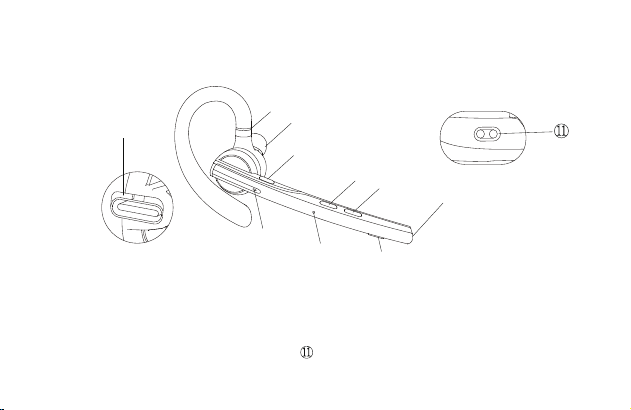
- 38 -
interférences électroniques ou interrompue en raison d'une trop grande distance.
Ⅱ. Description du produit
1. Écouteurs
① Crochet d'oreille rétractable
② Port de charge de type C
③ Bouton multifonctionnel
④ Indicateur d'écouteurs
⑤ Microphone secondaire
⑥ Microphone principal
⑦ Bouton de réduction du volume
⑧ Bouton d'augmentation du volume
⑨ Haut - parleur
⑩ Bouton de coupure du microphone
Point de contact pour le chargement
des écouteurs
⑥
②
①
③
④
⑤
⑦
⑧
⑨
⑩
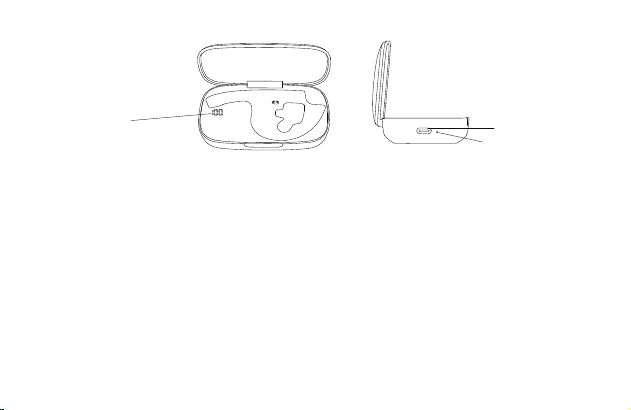
- 39 -
2. Boîtier de chargement
① Écran d'affichage numérique
② Port de charge de type C
③ Indicateur de chargement de l'étui
Ⅲ. Liste d'emballage
Écouteurs * 1
Étui de chargement * 1
Câble de chargement * 1
Manuel d'utilisation * 1
Ⅳ. Instructions de port
1. Port sur l'oreille droite
Carte d’instruction * 1
Bouchon d'oreille (S) * 1
Bouchon d'oreille (M) * 1
Bouchon d'oreille (L) * 1
③
②
①
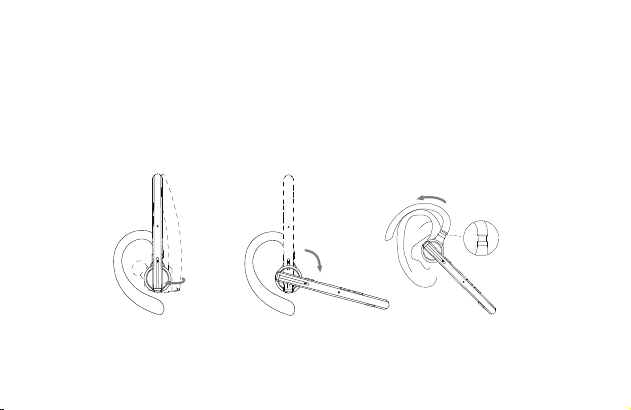
- 40 -
① Sortir les écouteurs de l'étui de chargement. Réglez la longueur du crochet d'oreille en fonction
de vos besoins, faites glisser l'écouteurs du dessus de l'oreille vers l'arrière de l'oreille, puis
appuyez doucement vers l'oreille.
REMARQUE :
• Pour un port plus confortable des écouteurs, veuillez retirer vos lunettes avant de porter les
écouteurs. Mettez vos écouteurs, puis vos lunettes.
• La plage de réglage de la longueur du crochet d'oreille est de 0 à 3,2 mm. N'utilisez pas une
force excessive lors du réglage de la longueur du crochet d'oreille.
② Tournez la perche du microphone pour vous assurer que le microphone est orienté vers votre
bouche.
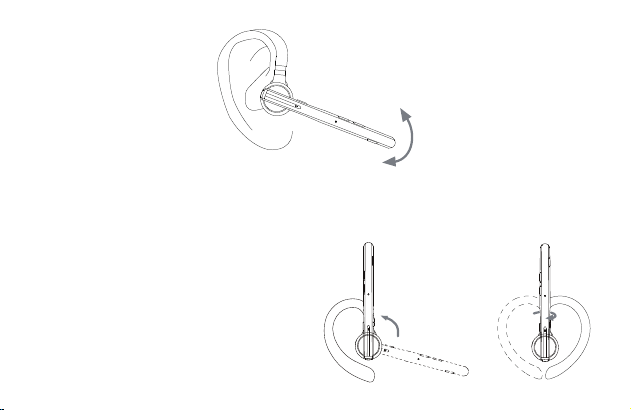
- 41 -
2. Réglage du style de port (Port sur l'oreille gauche)
① Tournez la perche du microphone vers le haut et tordez-la, faites tourner l'écouteur d'un autre
côté, puis tournez le crochet d'oreille dans le sens des aiguilles d'une montre.
REMARQUE :
• L'angle de rotation maximal de la perche du
microphone est de 270°.
• L'angle de rotation maximum du crochet
d'oreille est de 180°.
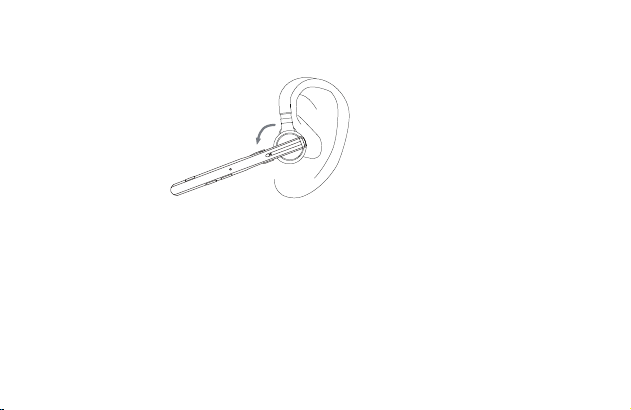
- 42 -
② faites glisser les écouteurs du dessus de l'oreille vers l'arrière de l'oreille, puis pressez-les
doucement vers l'oreille. Tournez la perche du microphone vers le bas pour vous assurer que le
microphone est orienté vers votre bouche.
Ⅴ. Utilisation et fonctionnement
1. Connexion Bluetooth
① Sortez les écouteurs de l'étui de charge ou appuyez sur le bouton multifonction pendant 3
secondes pour allumer les écouteurs.
Le casque émet le message vocal « power on ». Après 3 secondes, il émet l’invite vocale de «
pairing », ce qui indique que les écouteurs entrent automatiquement en mode d'appairage. Le
indicateur d'écouteurs clignote alternativement en rouge et en bleu.
② Activez la fonction Bluetooth du téléphone portable (ou d'autres appareils), puis recherchez de
nouveaux appareils.

- 43 -
Pour l'iPhone, « Réglages » > « Bluetooth » > « Ouvrir »
Pour les téléphones Android, « Réglages » > « Bluetooth » > « Rechercher un
nouvel appareil ».
Remarque : Le contenu du menu peut varier d'un appareil à l'autre.
③ Trouvez le « M54 » dans la liste des appareils Bluetooth et cliquez pour vous connecter. Si la
connexion est réussie, les écouteurs émettront le message vocal « connected » et le indicateur
d'écouteurs s'éteindra.
REMARQUE : Lorsque vous utiliserez à nouveau le casque, il se connectera automatiquement
aux deux derniers appareils à portée effective Bluetooth. Si aucun appareil n'est apparié dans les
5 minutes, l'écouteurs s'éteint automatiquement.
④ Connexion à deux appareils
Ce kit écouteurs peut se connecter à deux appareils en même temps.
Après vous être connecté avec succès au téléphone A, maintenez enfoncé le bouton muet
pendant 5 secondes pour passer en mode d'appairage, l'indicateur du casque continue de
clignoter alternativement en rouge et en bleu, puis ouvrez la fonction Bluetooth du téléphone B
pour rechercher et vous connecter.
(REMARQUE : Bien que les écouteurs puissent se connecter à deux téléphones en même
temps, un seul des téléphones peut jouer de la musique par l'intermédiaire du M54, les écouteurs
ne peuvent pas jouer de la musique à partir de deux téléphones en même temps.)

- 44 -
2. Bouton Fonction Description
① Bouton multifonctionnel
• Démarrage : En état d'arrêt, appuyez sur le bouton multifonctionnel et gardez-le enfoncé
pendant 3 secondes ou sortez les écouteurs de l'étui de charge.
• Éteindre : En état de marche, appuyez sur le bouton multifonction et gardez-le enfoncé pendant
5 secondes ou placez les écouteurs dans le compartiment de charge.
• Lecture/Pause : En mode de lecture de musique, cliquez une fois sur le bouton multifonction.
• Répondre à un appel : cliquez une fois sur le bouton multifonction lorsqu'il y a un appel entrant.
• Raccrocher : Cliquez une fois sur le bouton multifonction pendant un appel.
• Rejeter un appel : Appuyez et maintenez le bouton multifonction pendant 2 secondes lors d'un
appel entrant.
• Recomposer le dernier numéro de téléphone : Double-cliquer sur le bouton multifonction.
② Bouton d'augmentation du volume
• Augmentation du volume : Cliquez sur le bouton d'augmentation du volume pour augmenter le
volume.
• Prochaine chanson : Appuyez sur le bouton d'augmentation du volume pendant 3 secondes
pour passer à la chanson suivante.
③ Bouton de réduction du volume
• Réduction du volume : Cliquez sur le bouton de réduction du volume pour diminuer le volume.
• Chanson précédente : Appuyez sur la touche de réduction du volume pendant 3 secondes

- 45 -
pour passer à la chanson précédente.
④ Bouton de coupure du microphone
• Mise en sourdine activée/désactivée : Cliquez sur le bouton pour activer la fonction de mise
en sourdine pendant un appel, cliquez à nouveau sur le bouton pour désactiver la fonction de
mise en sourdine.
• Assistant vocal : Double-cliquez sur le bouton pour activer l'assistant vocal.
3. Indicateur d'écouteurs / Invite vocale
Définition
/
Statut de l'indicateur
d'écouteurs
Invite vocale
Allumage
La lumière bleue s'allume
pendant 1 seconde
Power on
Eteindre
Le voyant rouge s'allume
pendant 1 seconde
Power off
Entrer dans le
mode d'appairage
Clignotement alternatif
du rouge et du bleu
Pairing
Connexion
réussie
Connected

- 46 -
4. Rétablir les paramètres d'usine
Lors de la mise sous tension, appuyez simultanément sur le bouton multifonction et sur le bouton
d'augmentation du volume pendant 6 secondes. Lorsque vous entendez le message vocal «
power on, pairing », les paramètres d'usine des écouteurs ont été rétablis.
5. Charger les écouteurs
Power on, Pairing
Mute on
Clignotement alternatif
du rouge et du bleu
/
/
Déconnexion
Clignotement alternatif
du rouge et du bleu
Appel entrant
Rétablir les
paramètres d'usine
Sourdine activée
Continue à clignoter en bleu
Disconnected
Continue à clignoter
en rouge
Sourdine
désactivée
/ Mute off
Rappel de
batterie faible
Battery low
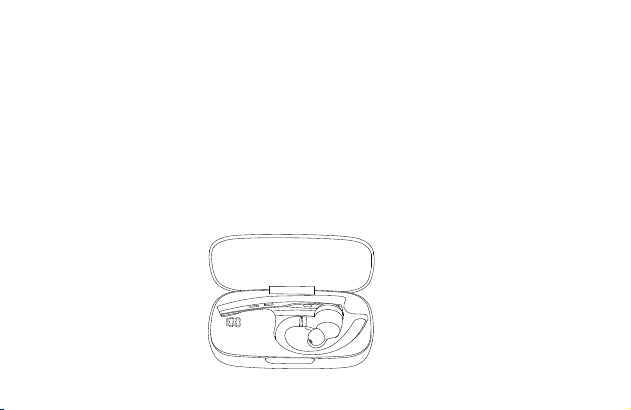
- 47 -
(1) Mémoire de batterie faible
Lorsque les écouteurs émettent le message vocal « battery low », cela indique que la batterie de
l'écouteur est faible. Veuillez recharger les écouteurs immédiatement.
(2) Instructions de chargement
① Charger les écouteurs avec l'étui de charge
Placez les écouteurs dans l'étui de charge pour les charger. L'écran d'affichage numérique de
l'étui de chargement s'allume pendant 10 secondes, puis s'éteint.
Pendant la charge, le indicateur d'écouteurs est rouge. Lorsqu'il est complètement chargé, le
indicateur d'écouteurs reste allumé en bleu pendant 10 secondes, puis
s'éteint.
REMARQUE : Placez les écouteurs à plat et veillez à ce que le point de
contact de charge soit propre, sinon les écouteurs ne seront pas rechargés.
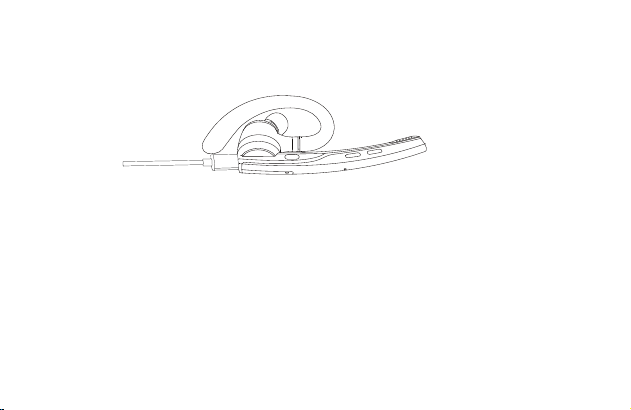
- 48 -
② Chargez les écouteurs à l'aide du câble de charge de type C.
Pendant la charge, le indicateur d'écouteurs est rouge. Lorsqu'il est complètement
chargé, le indicateur d'écouteurs reste allumé en bleu pendant 10 secondes, puis
s'éteint.
6. Charger l'étui de chargement
(1) Mémoire de batterie faible
L'écran d'affichage numérique de l'étui de chargement clignote pendant environ 10 secondes,
indiquant que l'étui de chargement est en état de batterie faible. Veuillez charger l'étui de
chargement immédiatement.
(2) Instruction de chargement
Veuillez charger l'étui de chargement à l'aide du câble de chargement de type C.
Lors du chargement, le indicateur de l'étui de chargement est rouge. Lorsqu'il est complètement
chargé, le indicateur de l'étui de chargement devient bleu.
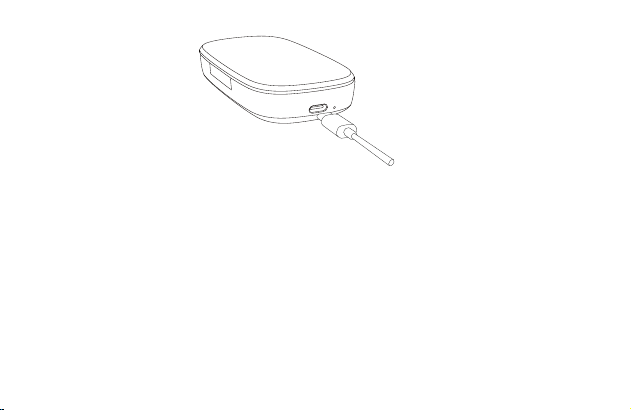
- 49 -
Ⅵ. Spécifications du produit
1. Version Bluetooth : V5.1
2. Puce Bluetooth : QCC3020
3. Protocoles pris en charge : Écouteurs, HFP, A2DP, AVRCP HSP
4. Unité de haut-parleur : Φ13 mm 32Ω
5. Distance de transmission : 15 m
6. Capacité de la batterie des écouteurs : 85 mAh
7. Capacité de la batterie de l'étui de chargement : 500 mAh
8. Autonomie en veille : 6 mois
9. Durée de lecture de musique : 15 heures
10. Temps de charge des écouteurs : 1,5 heure

- 50 -
11. Temps de charge de l'étui : 1,5 heure
12. Port de charge : Type-C
13. Température de fonctionnement : -5 °C et 50 °C
14. Poids des écouteurs : 15 g
15. Poids de l'étui de chargement : 57 g
Ⅶ. Problèmes courants
1. Une batterie faible peut entraîner une déconnexion, afin de ne pas affecter l'utilisation normale,
veuillez charger les écouteurs à temps.
2. Si les écouteurs ne s'allument pas, essayez d'abord de les charger, puis allumez-les lorsque la
batterie est suffisante.
3. Aucun son n'est émis par les écouteurs lors d'un appel.
—— Assurez-vous de choisir le M54 pour l'entrée/sortie audio lors d'un appel, et non le
haut-parleur de votre téléphone portable.
—— Vérifiez si votre téléphone portable a été connecté à d'autres appareils Bluetooth.
—— Assurez-vous que la distance entre les écouteurs et le téléphone portable ne dépasse pas la
distance effective de 15 mètres.
4. L'autre extrémité ne peut pas entendre votre voix lors d'un appel.
—— Veillez à ce que le trou du microphone des écouteurs soit propre, afin de ne pas affecter
l'appel et l'effet de réduction du bruit, ce qui fait que l'interlocuteur n'entend pas votre voix.
( Scanner pour en savoir plus )

- 51 -
5. Les écouteurs ne peuvent pas être rechargés.
—— Essuyez le point de contact de charge de l'écouteurs et l'étui de charge avec de l'alcool.
Ⅷ. Consignes de sécurité
1. Le démontage personnel peut endommager les écouteurs, ce qui n'est pas couvert par la
garantie.
2. Nettoyez les écouteurs avec un chiffon propre, doux et sec.
3. N'utilisez pas les écouteurs dans un environnement poussiéreux et humide.
4. Ne laissez pas vos enfants jouer avec les écouteurs. Ils pourraient se blesser ou endommager
les écouteurs.
5. Ne placez pas les écouteurs dans un environnement extrême, sinon ils risquent d'être
temporairement inutilisables. La température normale d'utilisation est comprise entre -5 °C et 50
°C.
6.Ce produit n'est pas compatible avec les téléphones fixes.
7. Lorsqu'il est utilisé avec un ordinateur, ce produit ne prend pas en charge la réponse ou la
coupure des appels.

- 52 -
Merci d'avoir choisi nos produits ! Nous espérons sincèrement que le produit vous offre un
nouveau bonheur.
Content ?
Si vous êtes complètement satisfait de votre expérience d'utilisation, pourriez-vous le partager
avec vos amis ?
Nous nous engageons également avec nos fans à nous améliorer et faire le mieux en offrant
des produits en version préliminaire gratuits. Si vous êtes intéressé, n'hésitez pas à nous
suivre sur
Si vous avez des questions, préoccupations ou simplement pas satisfait de nos produits,
n'hésitez pas à nous contacter par e-mail à l’adresse suivante :
Pas content ?
E-mail: [email protected]
Tel: 86-755-83219167
Adresse: 3e étage, bâtiment E, parc industriel de Guanghao,
n ° 23, route de Yunfeng, rue de Dalang, district de Longhua,
Shenzhen, Guangdong, Chine

Grazie per aver scelto il nostro prodotto. Leggere attentamente il presente manuale dell'utente e
seguire le regole pertinenti prima di utilizzare il prodotto per garantire un uso corretto e sicuro.
Ⅰ. Panoramica del prodotto
Si tratta di un'elegante cuffia Bluetooth dotata di un chip Qualcomm Bluetooth integrato, che offre
una connessione stabile, chiamate vocali HD e un ascolto di musica nitido. Inoltre, offre fino a 15
ore di durata della batteria e 6 mesi di autonomia in standby, per renderti la vita più semplice.
Si noti che la connessione Bluetooth potrebbe essere bloccata da pareti, influenzata da
interferenze elettroniche o interrotta a causa di una distanza eccessiva.
- 53 -
M54
Cuffie Bluetooth Aziendali
Manuale d'uso
Italiano
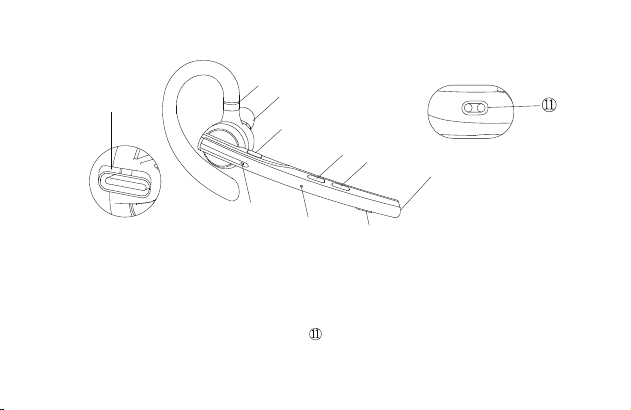
- 54 -
Ⅱ. Descrizione del prodotto
1. Cuffie
① Gancio retrattile per le orecchie
② Porta di ricarica di tipo C
③ Pulsante multifunzione
④ Indicatore cuffie
⑤ Microfono secondario
⑥ Microfono principale
⑦ Pulsante di riduzione del volume
⑧ Pulsante di aumento del volume
⑨ Altoparlante
⑩ Pulsante di disattivazione microfono
Punto di contatto per la ricarica
delle cuffie
⑥
②
①
③
④
⑤
⑦
⑧
⑨
⑩
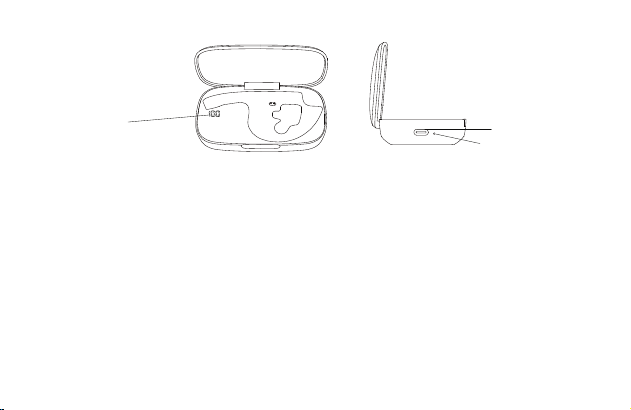
- 55 -
2. Custodia di ricarica
① Schermo digitale
② Porta di ricarica di tipo C
③ Indicatore della custodia di ricarica
Ⅲ. Elenco di imballaggio
Cuffie * 1
Custodia di ricarica * 1
Cavo di ricarica * 1
Manuale d'uso * 1
Ⅳ. Istruzioni per il posizionamento
1. Indossare la cuffia destra
① Estrarre la cuffia dalla custodia di ricarica. Regolare la lunghezza del gancio auricolare in base
Carta di istruzioni *1
Cuscinetti auricolari (S) * 1
Cuscinetti auricolari (M) * 1
Cuscinetti auricolari (L) * 1
③
②
①
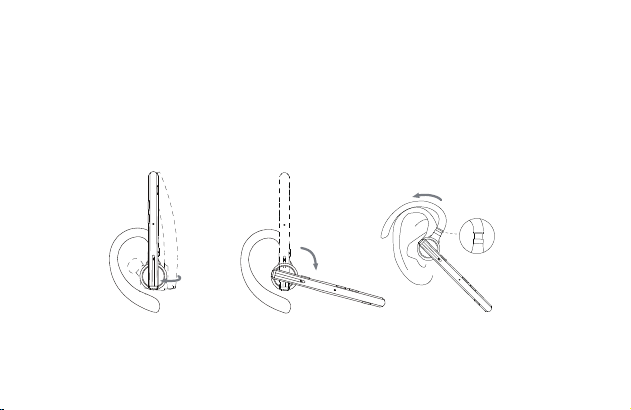
- 56 -
alle proprie esigenze, far scorrere l'cuffie da sopra l'orecchio a dietro l'orecchio, quindi premerlo
delicatamente verso l'orecchio.
NOTA:
• Per ottenere le condizioni di utilizzo più confortevoli, togliersi gli occhiali prima di indossare la
cuffia. Indossate le cuffie e poi gli occhiali.
• L'intervallo di regolazione della lunghezza del gancio auricolare è di 0-3,2 mm.
Non esercitare una forza eccessiva quando si regola la lunghezza del gancio
auricolare.
② Ruotare l'asta portamicrofono per assicurarsi che il microfono sia rivolto verso la
bocca.
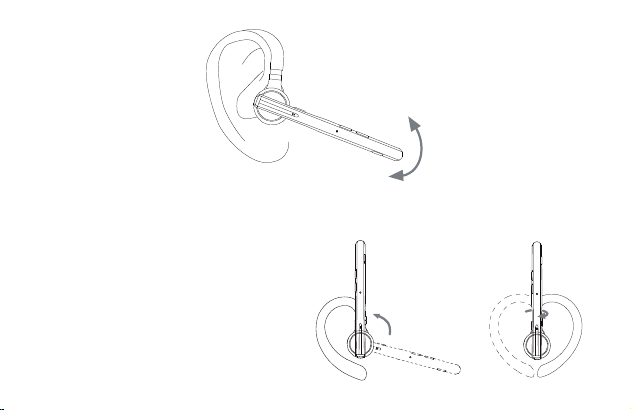
- 57 -
2. Regolazione dello stile di vestibilità (orecchio sinistro)
① Ruota l'asta del microfono verso l'alto e girarla, far girare l'auricolare dalla parte opposta e poi
ruotare il gancio in senso orario.
NOTA:
• L'angolo di rotazione massimo dell'asta
portamicrofono è di 270°.
• L'angolo massimo di rotazione del gancio
auricolare è di 180°.
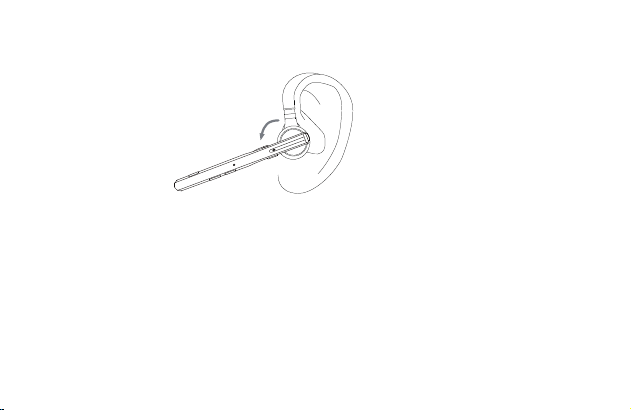
- 58 -
② Far scorrere l'cuffie da sopra l'orecchio a dietro l'orecchio, quindi premerlo delicatamente verso
l'orecchio. Ruotare l'asta portamicrofono verso il basso per assicurarsi che il microfono sia rivolto
verso la bocca.
Ⅴ. Utilizzo e funzionamento
1. Connessione Bluetooth
① Estrarre l'cuffie dalla custodia di ricarica o tenere premuto il pulsante multifunzione per 3
secondi per accendere l'cuffie.
L'auricolare emette il messaggio vocale di "power on". Dopo 3 secondi, emette il messaggio
vocale di "pairing", per indicare che l'cuffie entra automaticamente in modalità di associazione.
L'indicatore dell'cuffie lampeggerà in rosso e in blu alternativamente.
② Attivare la funzione Bluetooth del cellulare (o di altri dispositivi), quindi cercare nuovi dispositivi.
Per iPhone, "Impostazioni" > "Bluetooth" > "Apri"

- 59 -
Per i telefoni Android, "Impostazioni" > "Bluetooth" > "Cerca nuovo dispositivo"
Nota: Il contenuto del menu può variare a seconda dei dispositivi.
③ Trovare "M54" nell'elenco dei dispositivi Bluetooth e fare clic per connettersi. Se la
connessione viene stabilita correttamente, l'cuffie emetterà il messaggio vocale "connected" e
l'indicatore dell'cuffie si spegnerà.
NOTA: Quando si utilizza nuovamente l'cuffie, questo si collega automaticamente agli ultimi due
dispositivi nel raggio d'azione effettivo del Bluetooth. Se non è presente alcun dispositivo
associato entro 5 minuti, l'cuffie si spegne automaticamente.
④ Connessione a due dispositivi
Questa cuffia può essere collegata a due dispositivi contemporaneamente.
Dopo aver effettuato correttamente la connessione al telefono A, tenere premuto il pulsante di
disattivazione audio per 5 secondi per accedere alla modalità di accoppiamento, l'indicatore
dell'auricolare continua a lampeggiare in rosso e blu alternativamente, quindi aprire la funzione
Bluetooth del telefono B per cercare e connettersi.
(NOTA: Anche se l'cuffie può essere collegato a due telefoni contemporaneamente, solo uno dei
telefoni può riprodurre musica tramite il dispositivo M54; l'cuffie non è possibile riprodurre musica
da due telefoni contemporaneamente).
2. Descrizione della funzione del pulsante
① Pulsante multifunzione

- 60 -
• Accensione: Nello stato di spegnimento, tenere premuto il pulsante multifunzione per 3 secondi
o estrarre l'cuffie dalla custodia di ricarica.
• Spegnimento: Nello stato di accensione, tenere premuto il pulsante multifunzione per 5 secondi
o riporre le cuffie nella custodia di ricarica.
• Riproduzione/pausa: Nello stato di riproduzione musicale, premere una volta sul pulsante
multifunzione.
• Rispondere a una chiamata: premere il pulsante multifunzione una volta per rispondere a una
chiamata in arrivo.
• Riagganciare: Premere il pulsante multifunzione una volta durante una chiamata.
• Rifiutare la chiamata: Tenere premuto il pulsante multifunzione per 2 secondi quando è in
arrivo una chiamata.
• Ricomposizione dell'ultimo numero di telefono: Premere due volte il pulsante multifunzione.
② Pulsante di aumento del volume
• Aumento del volume: Fare clic sul pulsante di aumento del volume per aumentare il volume.
• Brano successivo: Tenere premuto il pulsante di aumento del volume per 3 secondi per
passare al brano successivo.
③ Pulsante di riduzione del volume
• Riduzione del volume: Premere il pulsante di riduzione del volume per diminuire il volume.
• Brano precedente: Tenere premuto il pulsante di riduzione del volume per 3 secondi per
passare al brano precedente.

- 61 -
④ Pulsante di disattivazione del microfono
• Esclusione microfono attivata/esclusione microfono disattivata: Premere il pulsante per
attivare la funzione di esclusione microfono durante una chiamata, premere nuovamente il
pulsante per disattivare la funzione di esclusione microfono.
• Assistente vocale: Fare doppio clic sul pulsante per attivare l'assistente vocale.
3. Indicatore cuffia/messaggio vocale
Definizioni Stato indicatore cuffie Messaggio vocale
Accensione
La luce blu rimane accesa
per 1 secondo
Power on
Spegnimento
La luce rossa rimane accesa
per 1 secondo
Power off
Accedere alla
modalità di
associazione
Luce rossa e blu
lampeggianti
alternativamente
Pairing

- 62 -
/
/
Disconnetti
Luce rossa e blu
lampeggianti
alternativamente
Chiamata in arrivo
Luce blu lampeggia
continuamente
Disconnected
Connessione
riuscita
Connected
Power on, Pairing
Mute on
Luce rossa e blu
lampeggianti
alternativamente
/
Luce rossa lampeggia
continuamente
Ripristina
impostazioni
di fabbrica
Esclusione
microfono attivata
Esclusione
microfono
disattivata
/ Mute off
Promemoria
batteria scarica
Battery low
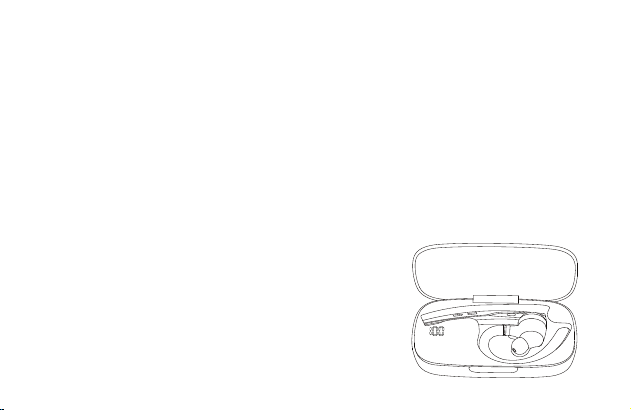
- 63 -
4. Ripristina impostazioni di fabbrica
Nello stato di accensione, premere contemporaneamente il pulsante multifunzione e il pulsante di
aumento del volume per 6 secondi. Quando viene emesso il messaggio vocale "power on,
pairing", l'cuffie è stato ripristinato alle impostazioni di fabbrica.
5. Caricare l'cuffie
(1) Promemoria batteria scarica
Quando l'cuffie emette il messaggio vocale "battery low", significa che la batteria dell'cuffie è
scarica. Caricare immediatamente l'cuffie.
(2) Istruzioni per la ricarica
① Caricare l'cuffie nella custodia di ricarica
Posizionare l'cuffie nella custodia di ricarica per la ricarica. Lo schermo del display digitale della
custodia di ricarica rimane acceso per 10 secondi e poi si spegne.
Durante la ricarica, l'indicatore dell'cuffie è rosso. Quando la
batteria è completamente carica, l'indicatore dell'cuffie rimane
acceso in blu per 10 secondi e poi si spegne.
NOTA: Posizionare l'cuffie in posizione orizzontale e
mantenere pulito il punto di contatto per la ricarica,
altrimenti l'cuffie non verrà ricaricato.
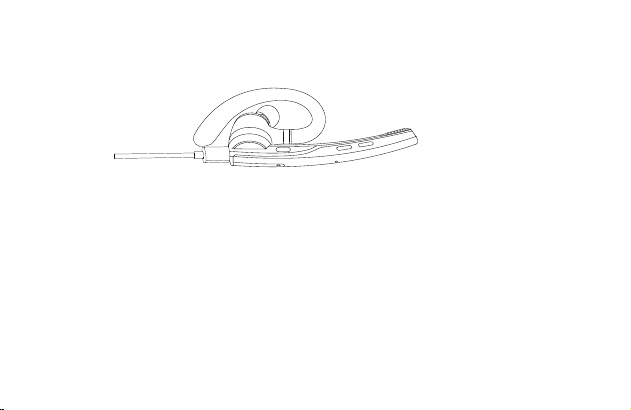
- 64 -
② Caricare l'cuffie con il cavo di ricarica di tipo C
Durante la ricarica, l'indicatore dell'cuffie è rosso. Quando la batteria è completamente carica,
l'indicatore dell'cuffie rimane acceso in blu per 10 secondi e poi si spegne.
6. Caricare la custodia di ricarica
(1) Promemoria batteria scarica
Lo schermo del display digitale della custodia di ricarica lampeggia per circa 10 secondi,
indicando che la custodia di ricarica è in stato di batteria scarica. Caricare immediatamente la
custodia di ricarica.
(2) Istruzione per la ricarica
Caricare la custodia di ricarica con il cavo di ricarica di tipo C.
Durante la ricarica, l'indicatore della custodia di ricarica è rosso. Quando la batteria è
completamente carica, l'indicatore della custodia di ricarica diventa blu.
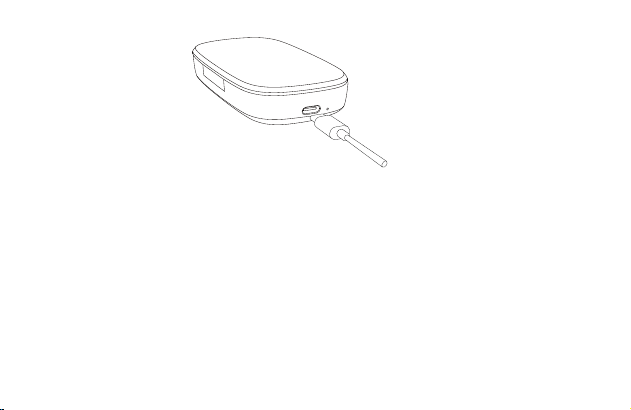
- 65 -
Ⅵ. Specifiche del prodotto
1. Versione Bluetooth: V5.1
2. Chip Bluetooth: QCC3020
3. Protocolli supportati: Cuffie, HFP, A2DP, AVRCP HSP
4. Unità altoparlante: Φ13 mm 32Ω
5. Distanza di trasmissione: 15 m
6. Capacità della batteria dell'cuffie: 85 mAh
7. Capacità della batteria della custodia di ricarica: 500 mAh
8. Tempo di standby: 6 mesi
9. Tempo di riproduzione musicale: 15 ore
10. Tempo di ricarica dell'cuffie: 1,5 ore

- 66 -
11. Tempo di ricarica della custodia di ricarica: 1,5 ore
12. Porta di ricarica: Tipo C
13. Temperatura di lavoro: -5 °C-50 °C
14. Peso cuffie: 15 g
15. Peso della custodia di ricarica: 57 g
Ⅶ. Problemi comuni
1. La batteria scarica può causare lo scollegamento; per non compromettere il normale utilizzo,
ricaricare l'cuffie in tempo.
2. Se l'cuffie non si accende, provare prima a ricaricarlo e accenderlo quando la batteria è
sufficientemente carica.
3. Durante una chiamata, l'cuffie non emette alcun suono.
—— Assicurarsi di scegliere l'M54 per l'ingresso/uscita audio durante una chiamata, e non
l'altoparlante sul cellulare.
—— Verificare che il telefono cellulare non sia stato collegato ad altri dispositivi Bluetooth.
—— Assicurarsi che la distanza tra l'cuffie e il cellulare non superi i 15 metri.
4. L'altra estremità non riesce a sentire la tua voce durante una chiamata.
—— Tenere pulito il foro del microfono dell'cuffie, in modo da non influire sulla chiamata e
sull'effetto di riduzione del rumore, con conseguente impossibilità di sentire la voce dell’interlocu-
tore.
( Scansiona per sapere di più )

- 67 -
5. L'cuffie non può essere ricaricato.
—— Pulire il punto di contatto di ricarica dell'cuffie e la custodia di ricarica con alcol.
Ⅷ. Note sulla sicurezza
1. Lo smontaggio può danneggiare l'cuffie e questo non è coperto dalla garanzia.
2. Pulire l'cuffie con un panno pulito, morbido e asciutto.
3. Non utilizzare l'cuffie in ambienti polverosi e umidi.
4. Non consentire ai bambini di giocare con le cuffie. Potrebbero rimanere lesi o danneggiare
l'cuffie.
5. Non posizionare l'cuffie in un ambiente estremo, altrimenti potrebbe essere temporaneamente
non disponibile per l'uso. La temperatura d'uso normale è compresa tra -5 C e 50 °C.
6. Questo prodotto non è compatibile con i telefoni fissi.
7. Quando è collegato a un computer, questo prodotto non supporta la rispondere o terminare le
chiamate.

- 68 -
Sinceramente che questo diventerà la tua nuova felicità.
Se sei completamente soddisfatto della tua esperienza di utilizzo, potresti gentilmente
condividerlo con i tuoi amici?
Contento?
Ci impegniamo inoltre con i nostri appassionati a imparare come possiamo fare meglio offrendo
I prodotti non definitivi gratuiti. Se sei interessato, non esitare a seguirci su
Se avete delle domande, dubbi o insoddisfazione di qualsiasi aspetto, non esitare a contattarci
via e-mail :
Non contento?
E-mail: [email protected]
Tel: 86-755-83219167
Indirizzo: Parco industriale Guanghao, padiglione E,
terzo piano, Via Yunfeng N.23, Viale Dalang, Distretto
di Longhua, città di Shenzhen,
provincia del Guangdong, Cina

- 69 -
M54
Auriculares inalámbricos profesionales
Manual del usuario
Español
Gracias por elegir nuestro producto. Antes de utilizar el producto, lee con atención este manual
de usuario y sigue las normas pertinentes para garantizar un uso correcto y seguro.
Ⅰ. Descripción general del producto
Estos modernos auriculares inalámbricos profesionales cuentan con un chip Bluetooth Qualcomm
integrado que proporciona una conexión estable, llamadas de voz en alta definición y una calidad
de escucha de música nítida. Además, su batería tiene una duración de hasta 15 horas y 6
meses en modo de espera, lo que aporta más comodidad a tu vida.
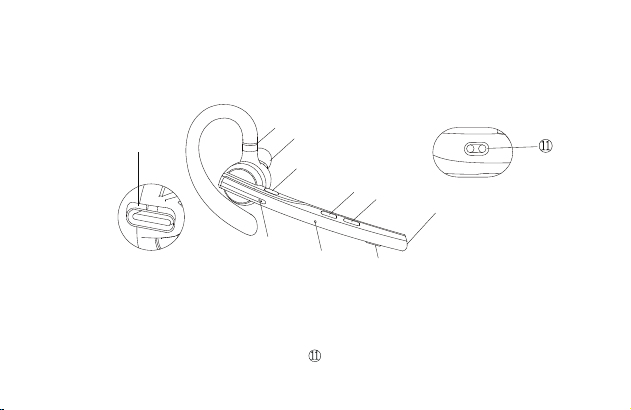
- 70 -
Hay que tener en cuenta que la conexión Bluetooth puede verse afectada por paredes,
interferencias electrónicas o interrupciones por exceso de distancia.
Ⅱ. Descripción del producto
1. Auriculares
① Gancho retráctil para la oreja
② Puerto de carga de Tipo-C
③ Botón multifunción
④ Indicador de los auriculares
⑤ Micrófono secundario
⑥ Micrófono principal
⑦ Botón para bajar volumen
⑧ Botón para subir volumen
⑨ Altavoz
⑩ Botón de silencio del micrófono
Punto de contacto de carga de
los auriculares
⑥
②
①
③
④
⑤
⑦
⑧
⑨
⑩
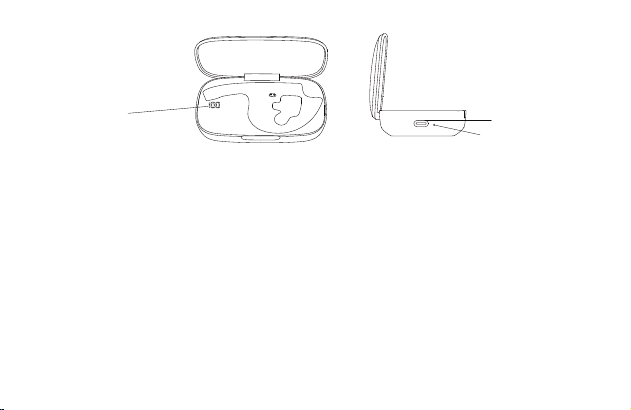
- 71 -
2. Estuche de carga
① Pantalla de visualización digital
② Puerto de carga de Tipo-C
③ Indicador del estuche de carga
Ⅲ. Lista de contenido
Auriculares * 1
Estuche de carga* 1
Cable de carga * 1
Manual del usuario * 1
Ⅳ. Instrucciones de uso
1. Colocar en la oreja derecha
① Retira los auriculares del estuche de carga. Ajusta la longitud del gancho para la oreja según
Tarjeta de instrucciones *1
Tapón auricular (S) * 1
Tapón auricular (M) * 1
Tapón auricular (L) * 1
③
②
①
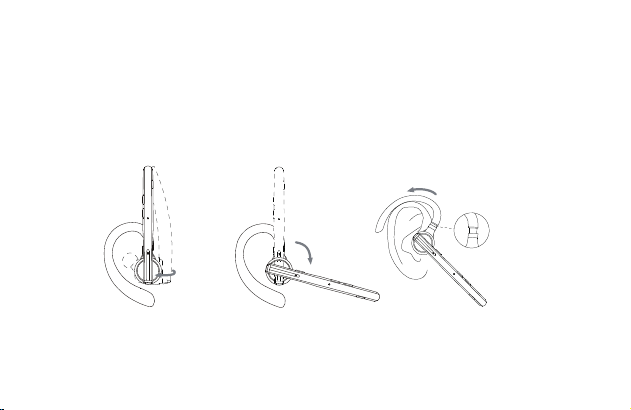
- 72 -
tus necesidades, desliza el auriculares desde encima de la oreja hasta atrás y, a continuación,
presiónalo con cuidado hacia la oreja.
NOTA:
• Para lograr el estado de uso más cómodo de los auriculares, quítese las gafas antes de usar los
auriculares. Ponte los auriculares y luego las gafas.
• El rango de ajuste del largo del gancho para la oreja es de 0-3,2 mm. No utilices demasiada
fuerza al ajustar la longitud del gancho para la oreja.
② Gira el brazo del micrófono para asegurarte de que esté orientado hacia la boca.
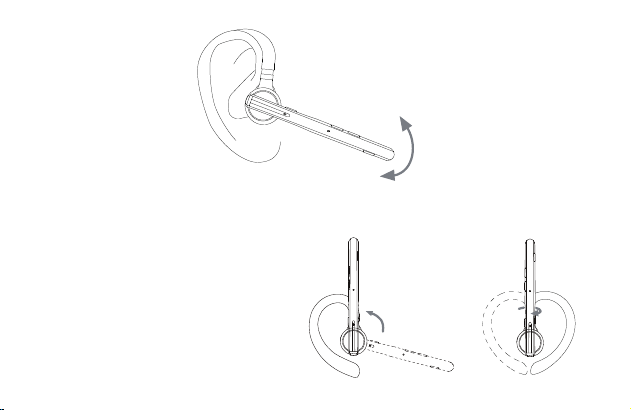
- 73 -
2. Regulación de la posición de uso (uso en la oreja izquierda)
① Levanta el brazo del micrófono y gíralo, haz que el auricular gire hacia otro lado y, a
continuación, coloca el gancho en el sentido
de las agujas del reloj.
NOTA:
• El ángulo de rotación máximo del brazo del
micrófono es de 270°.
• El ángulo de rotación máximo del gancho
para la oreja es de 180°.
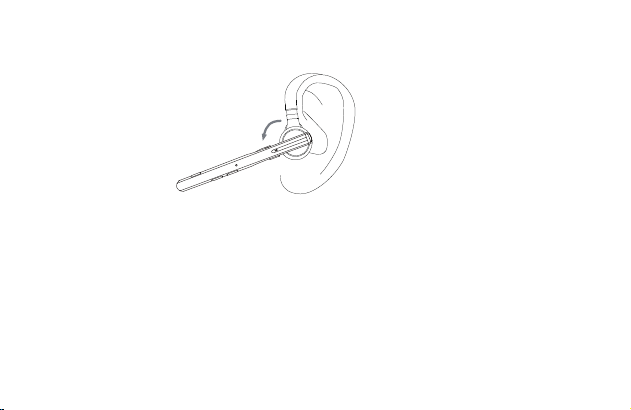
- 74 -
② desliza el auriculares desde encima de la oreja hasta atrás de ésta y, a continuación,
presiónalo con suavidad hacia la oreja. Gira el brazo del micrófono hacia abajo para asegurarte
de que esté orientado hacia la boca.
Ⅴ. Uso y funcionamiento
1. Conexión Bluetooth
① Retira los auriculares del estuche de carga o mantén pulsado el botón multifunción durante 3
segundos para encender los auriculares. El auricular emite el mensaje de voz de "power on".
Después de 3 segundos, emite el mensaje de voz de "pairing", lo que indica que los auriculares
entran en modo de emparejamiento de forma automática. El indicador del auricular sigue
parpadeando en rojo y azul sucesivamente.
② Activa la función Bluetooth del teléfono móvil (u otros dispositivos) y, a continuación, busca
nuevos dispositivos.

- 75 -
Para iPhone, "Ajustes" > "Bluetooth" > "Abrir".
Para teléfonos Android, "Ajustes" > "Bluetooth" > "Buscar nuevo dispositivo"
Nota: El contenido del menú puede variar según el dispositivo.
③ Busca "M54" en la lista de dispositivos Bluetooth y haz clic para conectarte. Si la conexión se
realiza con éxito, los auriculares emitirán el mensaje de voz de "connected" y el indicador del
auricular se apagará.
NOTA: Cuando vuelvas a utilizar los auriculares, se conectarán de forma automática a los dos
últimos dispositivos dentro del alcance efectivo de Bluetooth. Si no se empareja ningún
dispositivo en 5 minutos, los auriculares se apagarán de forma automática.
④ Conexión de dos dispositivos
Estos auriculares pueden conectarse a dos dispositivos al mismo tiempo.
Después de conectarse con éxito al teléfono A, presione y mantenga presionado el botón de
silencio durante 5 segundos para ingresar al modo de emparejamiento, el indicador del auricular
sigue parpadeando en rojo y azul alternativamente, luego abra la función Bluetooth del teléfono B
para buscar y conectarse.
(NOTA: Aunque los auriculares se pueden conectarse a dos teléfonos al mismo tiempo, solo uno
puede reproducir música a través del M54, los auriculares no pueden reproducir música de dos
teléfonos al mismo tiempo).
2. Descripción de los botones

- 76 -
① Botón multifunción
• Encendido: En estado apagado, mantén pulsado el botón multifunción durante 3 segundos. O
retira los auriculares del estuche de carga.
• Apagado: En el estado de encendido, mantén pulsado el botón multifunción durante 5
segundos. O coloca el auricular en el estuche de carga.
• Reproducir/Pausar: Durante la reproducción de música, pulsa el botón multifunción una vez.
• Contestar una llamada: pulsa el botón multifunción una vez cuando haya una llamada
entrante.
• Colgar: Pulsa el botón multifunción una vez durante una llamada.
• Rechazar una llamada: Mantén pulsado el botón multifunción durante 2 segundos cuando haya
una llamada entrante.
• Volver a marcar el último número de teléfono: Haz doble clic en el botón multifunción.
② Botón de subir volumen
• Subir volumen: Pulsa el botón de subir volumen para aumentarlo.
• Siguiente canción: Mantén pulsado el botón de subir volumen durante 3 segundos para saltar
a la siguiente canción.
③ Botón para bajar volumen
• Bajar volumen: Haz clic en el botón de bajar volumen para bajarlo.
• Canción anterior: Mantén pulsado el botón de bajar volumen durante 3 segundos para saltar a
la canción anterior.

- 77 -
④ Botón de silencio del micrófono
• Activar/desactivar silencio: Pulsa el botón para activar la función de silencio durante una
llamada, vuelve a pulsarlo para desactivarla.
• Asistente de voz: Haga doble clic en el botón para activar la asistente de voz.
3. Indicador de los auriculares / mensaje de voz
Definición
Indicador de estado
de los auriculares
Mensaje de voz
Encendido
Luz azul encendida durante
1 segundo
Power on
Apagado
Luz roja encendida durante
1 segundo
Power off
/
Emparejándose
mode
Parpadea en rojo y
azul alternativamente
Pairing
Desconectar
Parpadea en rojo y
azul alternativamente
Disconnected
Conectado
con éxito
Connected

- 78 -
4. Restaurar ajustes de fábrica
Cuando esté encendido, pulsa el botón multifunción y el botón para subir volumen al mismo
tiempo durante 6 segundos. Cuando escuches el mensaje de voz "power on, pairing", los
auriculares se habrán restaurado a los ajustes de fábrica.
5. Carga de los auriculares
Power on, Pairing
Mute on
Parpadea en rojo y
azul alternativamente
/
/
Permanece parpadeando
en rojo
Llamada entrante
Restaurar ajustes
de fábrica
Silencio activado
Sigue parpadeando en azul
Silencio
desactivado
/ Mute off
Recordatorio de
batería baja
Battery low
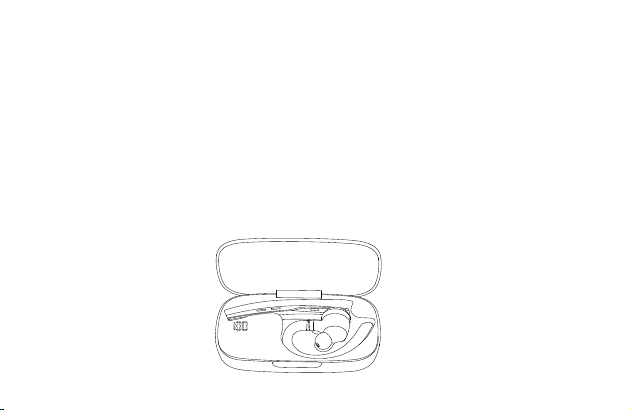
- 79 -
(1) Recordatorio de batería baja
Cuando los auriculares emiten el mensaje de voz de "battery low", significa que los auriculares la
batería está baja. Carga los auriculares de inmediato.
(2) Instrucciones de carga
① Carga los auriculares con el estuche de carga.
Coloca los auriculares en el estuche de carga para cargarlo. La pantalla digital del estuche de
carga se enciende durante 10 segundos y luego se apaga.
Durante la carga, el indicador del auricular está rojo. Cuando se haya cargado por completo, el
indicador del auricular permanecerá en azul durante 10 segundos y, a continuación, se apagará.
NOTA: Coloque los auriculares en una posición plana y mantenga limpio el punto de
contacto de carga; de lo contrario, los auriculares no se cargarán.
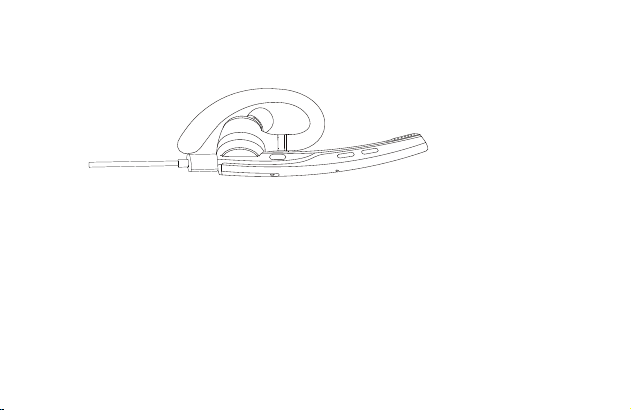
- 80 -
② Carga los auriculares con el cable de carga Tipo-C
Durante la carga, el indicador del auricular está rojo. Cuando se haya cargado por completo, el
indicador del auricular permanecerá en azul durante 10 segundos y, a continuación, se apagará.
6. Carga del estuche de carga
(1) Recordatorio de batería baja
La pantalla digital del estuche de carga parpadea durante unos 10 segundos, lo que
indica que se encuentra con poca batería. Carga el estuche de carga de inmediato.
(2) Instruccion de carga
Carga el estuche de carga con el cable de carga Tipo-C.
Durante la carga, el indicador del estuche está en rojo. Cuando se haya cargado
por completo, el indicador permanecerá en azul.
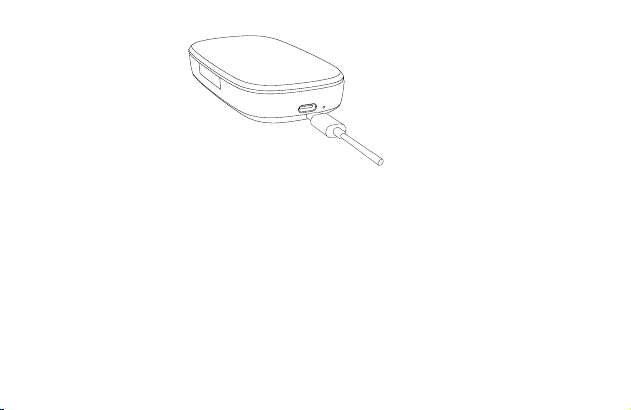
- 81 -
Ⅵ. Especificaciones del producto
1. Versión de Bluetooth: V5.1
2. Chip Bluetooth: QCC3020
3. Protocolos compatibles: Auriculares, HFP, A2DP, AVRCP HSP
4. Unidad de altavoz: Φ13 mm 32Ω
5. Distancia de transmisión: 15 m
6. Capacidad de la batería de los auriculares: 85 mAh
7. Capacidad de la batería del estuche de carga: 500 mAh
8. Tiempo en espera: 6 meses
9. Tiempo de reproducción de música: 15 horas
10. Tiempo de carga de los auriculares: 1,5 horas

- 82 -
11. Tiempo de carga del estuche de carga: 1,5 horas
12. Puerto de carga: Tipo-C
13. Temperatura de trabajo: -5 °C-50 °C
14. Peso de los auriculares: 15 g
15. Peso del estuche de carga: 57 g
Ⅶ. Problemas frecuentes
1. La batería baja puede causar la desconexión; para no afectar al uso normal, carga los
auriculares a tiempo.
2. Si los auriculares no se encienden, intenta cargarlos primero y enciéndelos cuando la batería
esté cargada.
3. Los auriculares no emiten ningún sonido durante una llamada.
—— Asegúrate de elegir el M54 para la entrada/salida de audio cuando esté en una llamada,
pero no el altavoz de tu teléfono móvil.
—— Comprueba si su teléfono móvil se ha conectado a otros dispositivos Bluetooth.
—— Asegúrate de que la distancia entre los auriculares y el teléfono móvil no supere los 15
metros de distancia efectiva.
4. La otra parte no puede oír tu voz durante una llamada.
—— Mantén limpio el orificio del micrófono de los auriculares para que no afecte a la llamada ni
al efecto de reducción de ruido, ya que la otra parte no podrá escuchar tu voz.
( Escanear para saber más )

- 83 -
5. No es posible cargar los auriculares.
—— Limpia con alcohol el punto de contacto de carga de los auriculares y el estuche de carga.
Ⅷ. Notas de seguridad
1. Si desmontas los auriculares por tu cuenta, puedes dañarlos y no están cubiertos por la
garantía.
2. Limpia los auriculares con un paño limpio, suave y seco.
3. No utilices los auriculares en ambientes húmedos y polvorientos.
4. No dejes que tus hijos jueguen con los auriculares. Podrían lesionarse o dañar los auriculares.
5. No coloques los auriculares en un ambiente muy agresivo; de lo contrario, podrían no funcionar
durante un tiempo. La temperatura normal de uso es de -5 °C a 50 °C.
6. Este producto no es compatible con teléfonos fijos.
7. Cuando está conectado a una computadora, este producto no admite contestar ni colgar
llamadas.

- 84 -
¡Gracias por elegir nuestro producto! Esperamos sinceramente que será su nueva felicidad
encontrada.
¿Feliz?
Si está completamente satisfecho con su experiencia de compra, ¿podría compartir a sus amigos?
Si tiene cualquier problema, preocupación o solo no está satisfecho, no dude en contactar con
nosotros en cualquier momento por e-mail:
¿No feliz?
También estudiamos con nuestros seguidores para aprender cómo podemos hacer mejor
ofreciendo los productos gratuitos de lanzamiento previo. No dude en seguirnos si le interese
E-mail: [email protected]
Tel: 86-755-83219167
Address: 3er piso, Edificio E, Industrial Guanghao,
No. 23, Camino Yunfeng, Calle Dalang, Distrito Longhua,
Shenzhen, Guangdong, China