Medusa Series
1
2
3
4
5
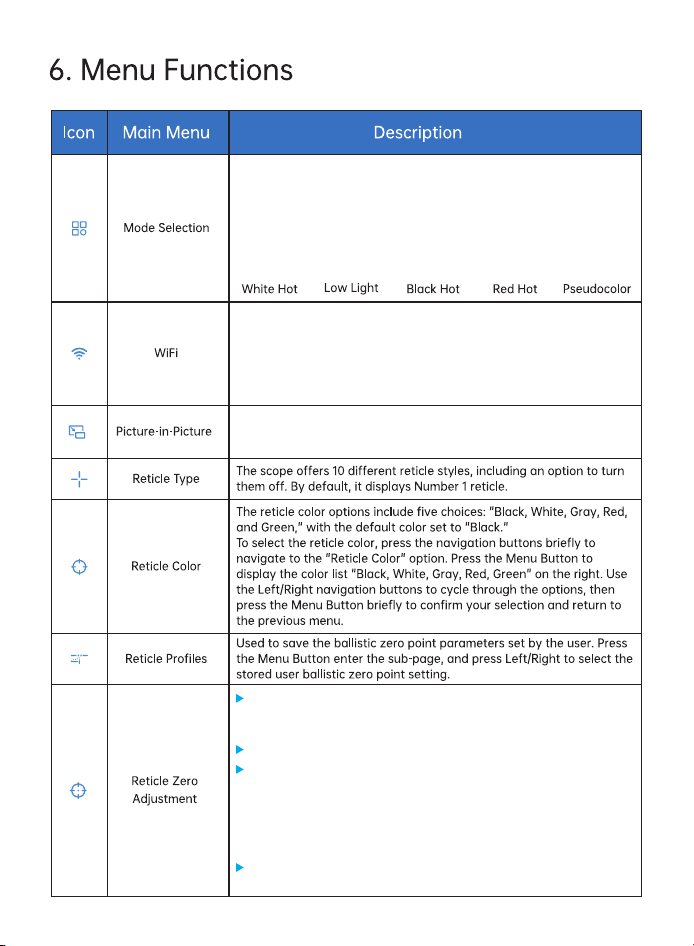
Press theMenu Button to enter the subpage, then, press Left/Right to
select on or off and press the Menu Button briefly to confirm
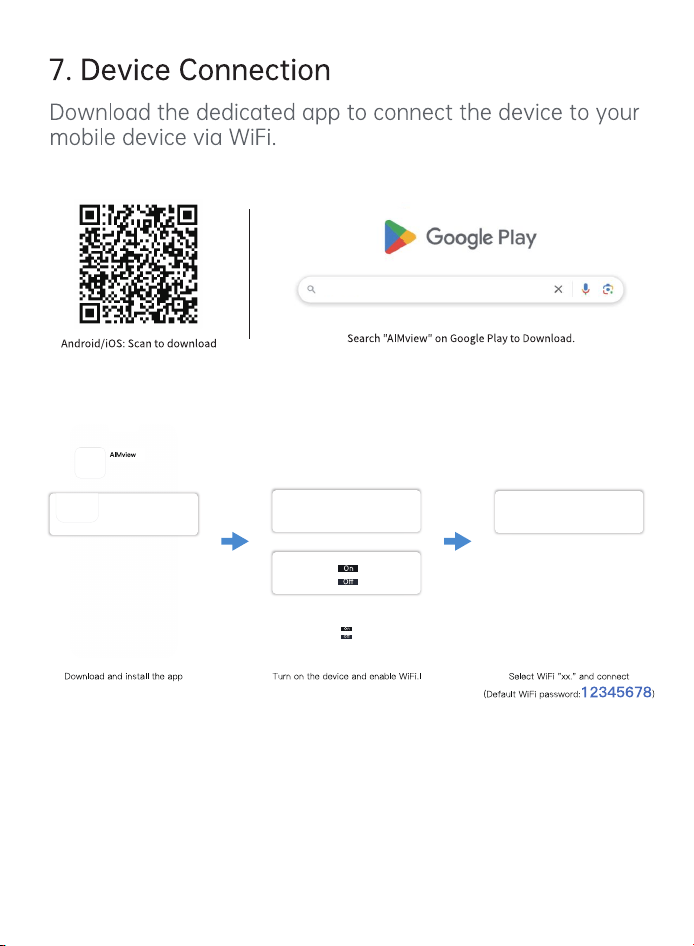
To connect via WiFi, first enable the WiFi function in the device's Menu
Button, then turn on your mobile phone's WiFi and open the required
software app. Locate the WiFi network with the MAC address
V3XXXXXXXX and enter the password 12345678 to connect to the
device. Once connected, real-time video will be displayed on your
mobile phone screen.
The device offers 5 color palettes: White Hot, Low Light, Black Hot, Red
Hot, and Pseudocolor. The default is "White Hot". When in the menu
interface, press the Left/Right Navigation Button briefly to switch
palettes, then press the Menu Button briefly to confirm and exit.
After entering the crosshair zeroing calibration interface, briefly
press the record button to cycle through different function options.
Use the Left/Right navigation buttons to adjust the function values.
Image Freeze: Briefly press the menu button to toggle image freeze.
Briefly press the record button to move to the X and Y axis values.
Use the Left and Right navigation buttons to adjust the crosshair
position until it aligns with the point of impact. Briefly press the
record button to move to other options. After completing settings,
move to the save option. Briefly press the menu button to save and
exit; press and hold the menu button to cancel saving.
The set distance is used as the zeroing point distance in Smart
Ballistics and saved to the zeroing memory.
6
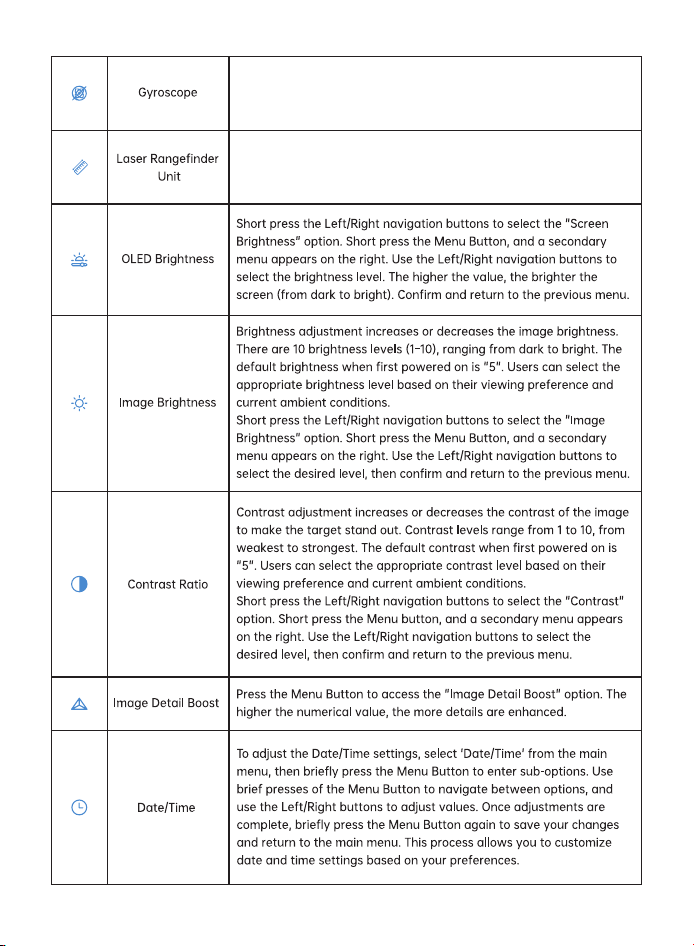
Press the Menu Button to enter the sub menu. Use the Left/Right
buttons to select either "On" or "Off," and press the Menu Button
briefly to confirm.
Short- press the Menu Button, and a secondary menu appears on the
right. Use the Left/Right navigation buttons to select the unit. Two
options are available: Meters / Yards.
7
8
9
WLAN
XX-XX-XXX
XX-XX-XXX
AIMview
10
11
12