Safety
Safety Instructions
Please store this instruction manual for future reference.
WARNING: To reduce the risk of fire or electric shock, do not expose this
apparatus to rain or moisture. The apparatus shall not be exposed to dripping
or splashing and that objects filled with liquids, such as vases, shall not be
placed on apparatus.
WARNING: The direct plug-in adapter is used as disconnect device, the
disconnect device shall remain readily operable.
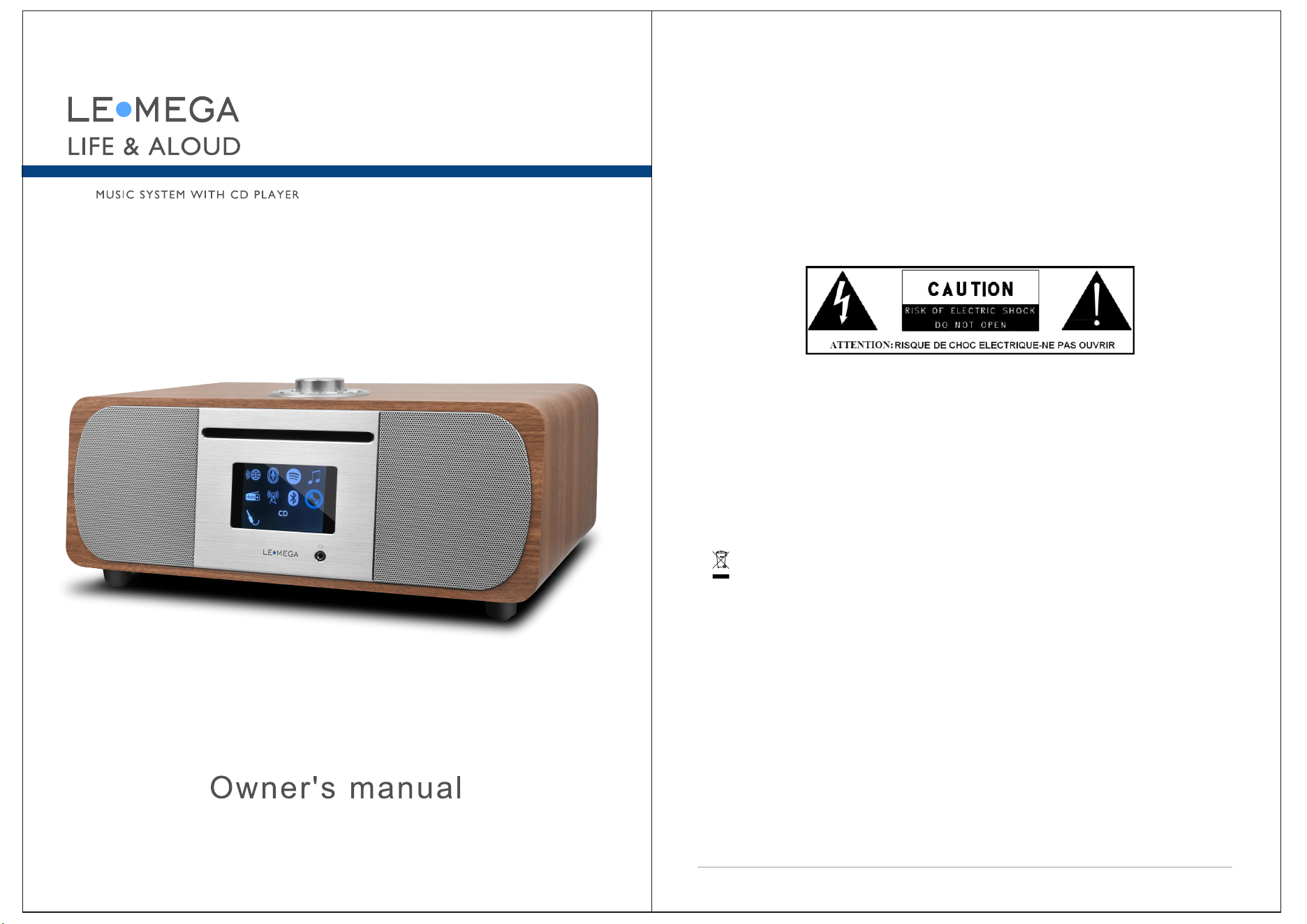
This lightning flash with arrowhead symbol within an equilateral triangle is
intended to alert the user to the presence of non-insulated “dangerous
voltage” within the product's enclosure that may be of sufficient magnitude to
constitute a risk of electric shock.
Warning: To reduce the risk of electric shock, do not remove cover(or
back) as there are no user-serviceable parts inside. Refer servicing to
qualified personnel.
The exclamation point within an equilateral triangle is intended to alert
the user to the presence of important operating and maintenance
instructions in the literature accompanying the appliance.
Correct Disposal of this product. This marking indicates that this
product should not be disposed with other household wastes throughout the
EU. To prevent possible harm to the environment or human health from
uncontrolled waste disposal, recycle it responsibly to promote the
sustainable reuse of material resources. To return your used devic
e, please
use the return and collection systems or contact the retailer where the
product was purchased. They can take this product for environmental safe
recycling.
No naked flame sources, such as lighted candles, should not be placed
on the apparatus.
Do not use this product near water or moisture.
Clean only with a dry cloth.
U
nplug this product from the wall outlet before cleaning.
Place th unit on a solid surface.
1
M5P

3
Do not put it in a closed bookcase or a cabinet that may keep air from
flowing through its ventilation openings.
Do not install near any heat sources, such as radiators, heat registers,
stoves or other appliances that produce heat.
Protect the power cord from being walked on or pinched, particularly at
plugs and the point where they exit from the product.
Servicing is required when the product has been damaged. Do not attempt
to service this product yourself. Opening or removing covers may expose you
to dangerous voltages or other hazards. Please contact the manufacturer to
be referred to an authorized service center near you.
To prevent risk of fire or electric shock, avoid over loading wall outlets,
extension cords, or integral convenience receptacles.
Do not let objects or liquids enter the product.
Use proper power sources. Plug the product into a proper power source,
As described in the operating instructions or as marked on the product.
Changing sources while a CD is playing causes the CD to stop playback.
Playback will resume when the source is set to CD again.
The sound quality of MP3, CD-R/CD-RW, and even commercially recorded
discs can vary greatly. The same holds true for the sound quality of portable
MP3 players.
Do NOT use any CD lens cleaning discs since these are not designed for
slot-load machines.
Avoid bending the disc when loading or ejecting.
Do not move the unit while a disc is playing and do not ship the unit with a
CD inside.
Do not try to insert a disc in the slot if one is already inside the unit.
Do not insert specially shaped discs or 3" CD “single” discs.
You may experience a delay in playback when inserting MP3 or WMA discs
while the player reads the directory.Paper labels stuck to CD-R/CD-RWs may
become loose and possibly damage the player.
CDs with severe scratches may not play properly.
Do not insert anything except a CD inside the loading slot in the rare event
you experience an error, unplug the power cord for 60 seconds and then
plug it back in firmly.
2
Carton contents
After you unpack the box, you will find the following items:
1 M5P unit
1 power cord
1 owner's manual
1 Remote Control
Main controls
7
3
8
4
9
5
10
6
1
11
12
13
14
15
2
1. KNOB: SELECT/ VOLUME/MUTE/SNOOZE:
a. SELECT: Turn to scroll through a menu or station list. The chosen option is
highlighted, Press to the button to select.
b. VOLUME: Turn to the button to adjust the volume up or down when
playback.
c. MUTE: Press to the button to mute the music when playing.
d. SNOOZE: Press the button to snooze a set time when alarm sounding.
e. POWER ON | OFF the unit: Long press this button to power on/off the unit.
2. INFO: View more information about the station or track playing. Press
again to cycle through further information screens then return to the normal
Now playing screen.
3. / [TUNE+] : Next: Press to select the next track under FM/DAB/
Bluetooth / CD mode; Press and hold the Tune+ button 2 seconds to auto
scan the stations under the FM mode.
4. BACK/MENU:
a. BACK: press the BACK to return to the previous screen.
b. MENU: press the MENU to show the MENU for the current mode. Press
again to show now playing screen.
5. :In CD mode, Press to stop CD track. Press again for CD ejection.
6. : Press to select Play/Pause under internet radio, Spotify, My music ,
Bluetooth and CD mode. In FM mode, press to do auto scan the stations.
7. SOURCE: Press to Source to select different modes internet radio, Spotify,
Music Player, DAB, FM, Bluetooth, CD and AUX.
8. SLEEP: When playing, press Sleep, M5P will back to set sleep time. When
playing, opens the sleep menu to set the time interval before the unit is set to
Standby mode. When alarm is sounding, allows you to set the snooze interval.
9. ALARM: Press to Alarm, the screen will display Alarm 1 and Alarm 2; then
Rotate and press the SELECT button to select alarm 1 or alarm 2 to set up.
10. / [TUNE-] : Previous: Press to select the previous track under
FM/DAB / Bluetooth/CD mode; Press and hold the Tune- button 2 seconds to
auto-scan the stations under the FM mode.
4
5
11. PRESET
Saving Presets--Internet Radio & Podcast, FM, DAB[optional]
To save preset, press and hold the Preset button for 2 seconds, use the
navigation control / or rotate the knob to select and push Select
knob to save.
Recall Presets--Internet Radio & Podcast, FM, DAB[optional]
Press the Preset button and use the navigation control / or rotate
the knob to tune into the station.
12. BT PAIR: In BT mode, Press this button for pairing and unpaired.
13. DIM: Press Dim to adjust the brightness to High/Mid/Low in turn.
14. SUB: Press to turn on Subwoofer on or Off.
15. EQ: Press this button to access Flat/Rock ……directly.
Connectors
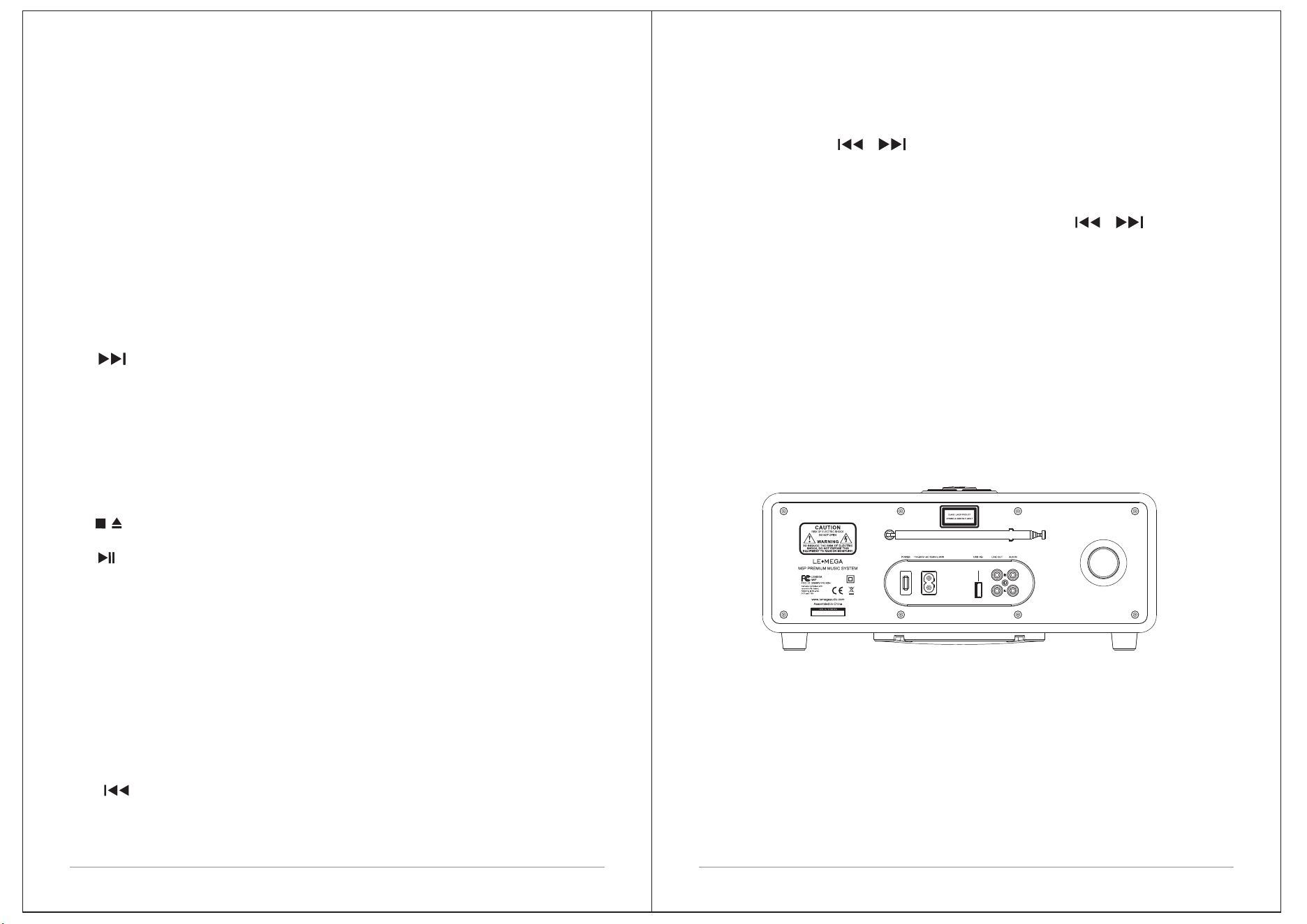
As shown below has connectors from left to right)for the followings:
Power switch
Power input (100-240V)
USB socket for USB stick with MP3 music playback (not for charging).
Line out (to connect to an external amplifier or active speaker)
Aux in (to connect external MP3 music source from the iPod, or Pad other
devices
Headphones out on front panel for the headphone playback.
Remote control
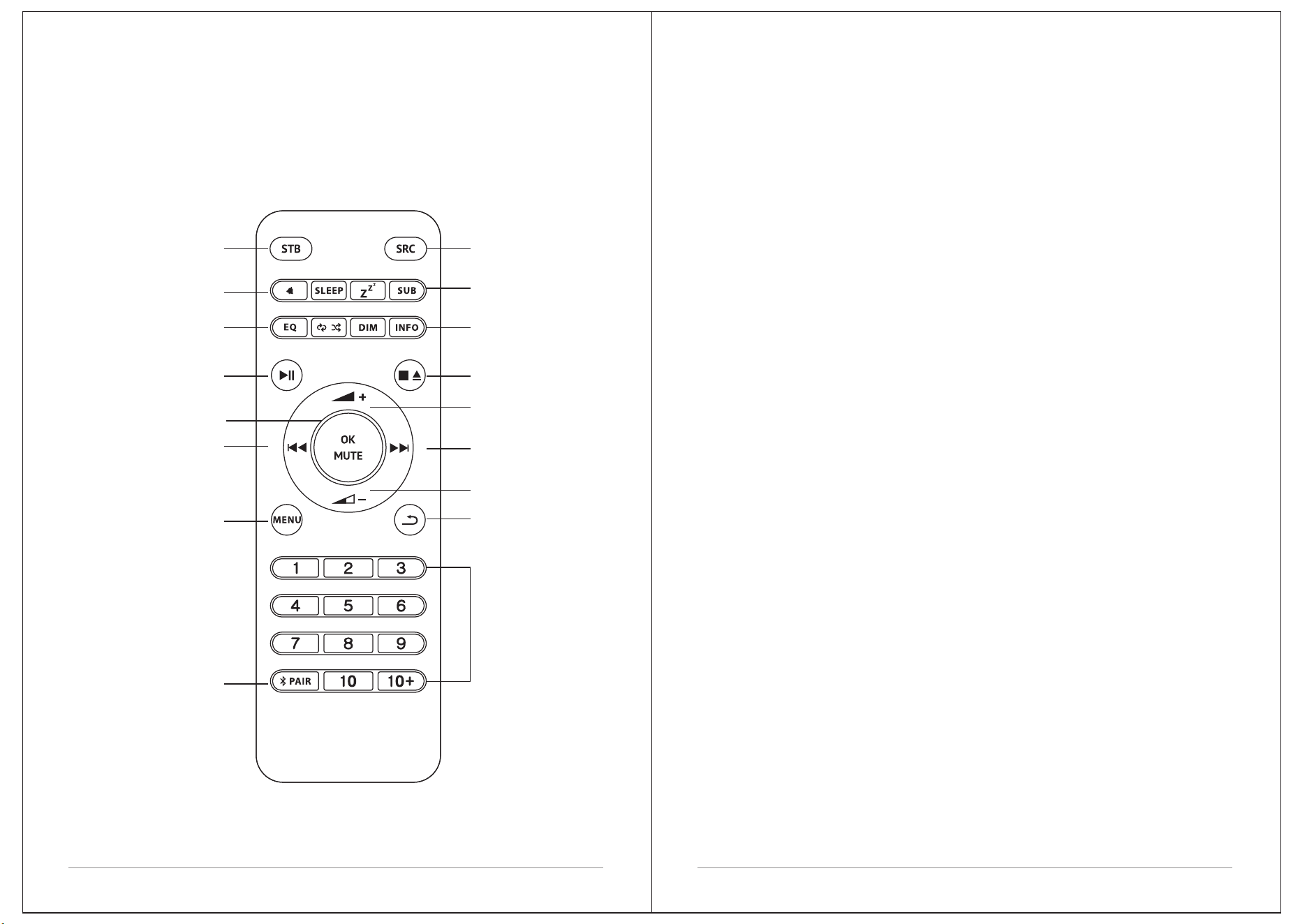
Most of the functions of the LEMEGA M5P can be controlled using either the
product or the remote control.
7
6
ON/ STANDBY
ALARM/SLEEP
EQ/
REPEAT&SHUFFLE
[CD]
PLAY/PAUSE
OK/MUTE
PREVIOUS/
TUNE-
MENU
BLUETOOTH PAIR
SOURCE/MODE
SNOOZE/
SUBWOOFER
DIM / INFO
STOP (CD)/
EJECT (CD)
NEXT/
TUNE+
BACK
VOLUME -
VOLUME +
PRESET
Insert the power cord on the backside.
Extend the telescopic antenna in its full length for better FM/DAB reception.
Press the Power Knob once to begin start-up process
MENU /BACK BUTTON
Pressing the button will take you to the Source Menu for the particular mode of
operation you are in. For example, pressing MENU button when in
DAB Mode will take you to the DAB MODE MENU. Pressing the button for a
second time will return you to the 'playing screen' that you just left.
NAVIGATING THE MENU
Most of the functions of M5P can be accessed in 2 ways:
- via MENU button
- using the optional remote control (shortcuts)
MENU button displays different contents, depending on the current
selected mode.
Follow instructions on the display, and
- Use Knob to select and confirm
- Back to step back in the menu tree
- Press MENU to exit menu
- Press SRC [Source] to select MODE
During playback, press INFO button to display current mode additional
information.
PRESETS
PRESETS button is used to conveniently store and recall your favorites. It
works
- in FM mode
- in DAB mode
- In INTERNET RADIO mode
- in SPOTIFY mode
NOTE: Podcasts can be stored when in INTERNET RADIO presets list.
In order to save a preset:
- keep PRESETS button pressed
- select preset position on the list with the knob
- press knob to confirm
To recall presets:
- Press PRESETS button
- select preset with the knob
- press knob to confirm
First steps with M5P
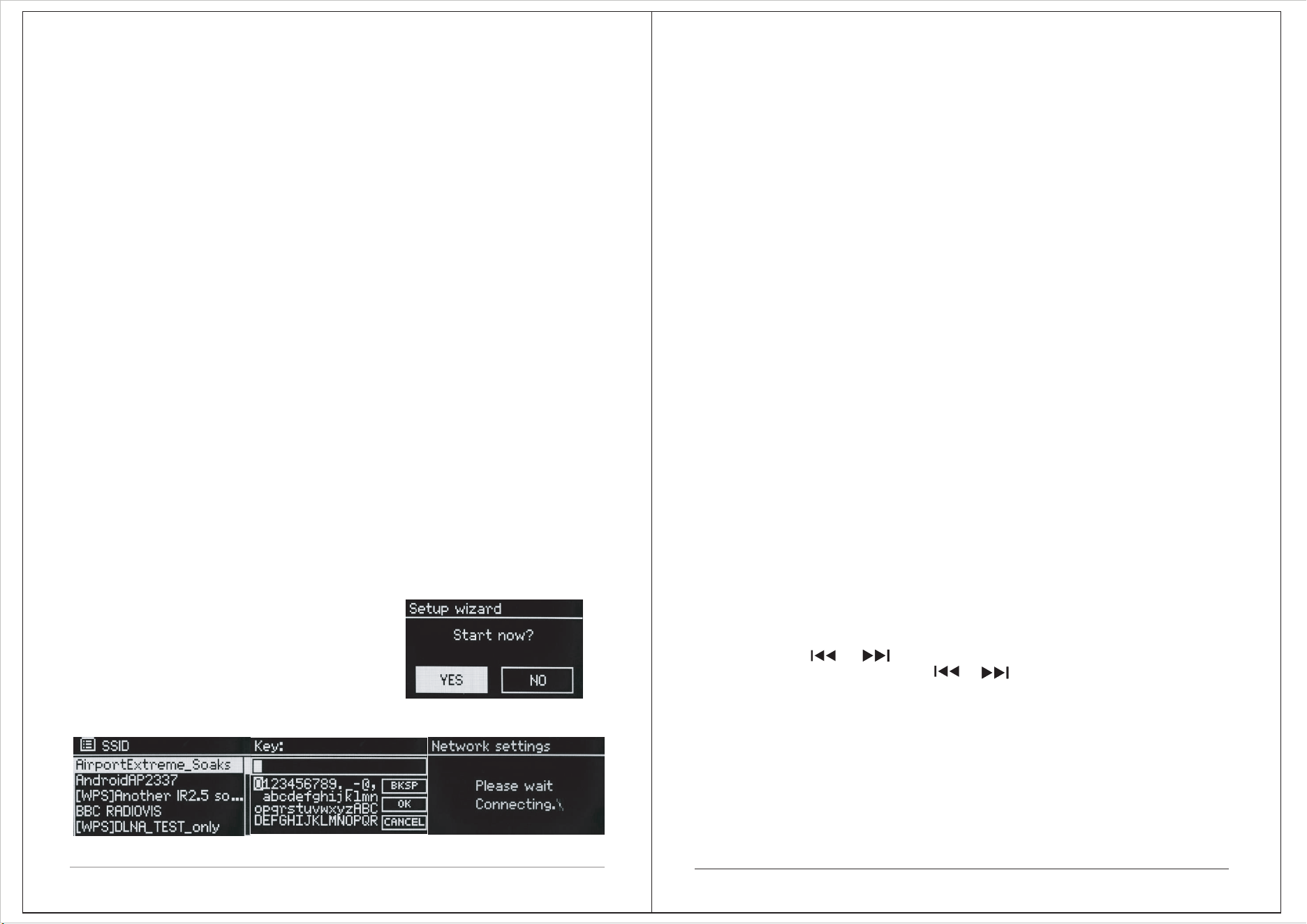
Press the SELECT knob, and start the SETUP WIZARD procedure.
1 Choose and select your preferred hour format (12 or 24 hour).
2 Choose and select UPDATE FROM NETWORK.
3 Scroll and select your local time zone from the menu.
4 Choose and select your preferred daylight savings status.
5 Scroll and select your Wlan region.
6 Scroll and select your NETWORK. In some
cases your radio may find more than one.
Simply choose the one you want to use.
7 If your wireless network is not password protected, M5P will automatically
connect, and the following screen will be displayed:
Internet Setup
The first time you use M5P, you will be asked whether you would like to run the
SETUP WIZARD.
The 'WIZARD* will run through a series of questions, and is the simplest way
to get internet radio up and running on your device.
You can run the SETUP WIZARD again at any time, it can be found under the
NETWORK heading in the SYSTEM SETTINGS MENU.
To set up your radio for online operation using the INTERNET WIZARD,
follow these steps:
Press the Knob, and start the SETUP WIZARD procedure.
USING THE INTERNET RADIO SETUP WIZARD
Available networks list Password Connection attempt
OKTIV
You can control M5P with your smartphone using OKTIV, available for Apple
and Google devices.
NOTE: your smart phone and M5P must run under the same Wi-Fi network to
work correctly.
8
9
Sources [mode]
M5P can play different sources:
FM, DAB, CD, AUX, BLUETOOTH, INTERNET RADIO, SPOTIFY, PODCASTS
Press SRC [SOURCE] to display sources list and press KNOB to select.
FM
When listening to FM radio, M5P displays the station name and other
RDS/BDS informations when available.
CHANGE STATION
Press and hold or to automatically tune to the previous or next
available FM station. Short Press or to select the Previous or next
stations.
SCAN SETTING
You can change the scan settings to only stop at stations with a strong signal
by selecting Menu/Scan setting/Strong stations only.
8 If you do use password protection, enter your network password using the
knob to scroll through the alphanumeric characters, pressing SELECT KNOB
to enter each number or letter. When you have correctly entered your entire
password, select OK.
Select BKSP (back space) if you have entered an incorrect character.
M5P will save the password into its memory. There will be no need to re-enter
the password again.
Additional Functions
EQUALIZER
Press MENU > System Setting > Equalizer and pick your favourite EQ setting.
M5P can also store Bass/Treble combination. Select "MY EQ Settings" and
adjust settings at your preference.
ALARM
M5P can store 2 independent alarms. Press MENU Button > Main Menu >
Alarms and follow
(Repeat & Shuffle):
1. With a CD playing, press once to repeat the track being played; Press twice
to repeat the entire disc; Press again to play tracks in random order.
2. Repeat play under USB Playback and Spotify mode.
11
10
Example
MAC filtering enabled on
Received.wma,but found
Data obtained from server
Router switched off
Streaming IR station and
suddenly station becomes
unavailable
that the stream wasn't WMA
is unreadable.
when trying to decode
when trying to decode
Description
Correct key entered,
But router rejects request
Cannot recognise file format
Problem past router -
Problem with connection to
Problem past router – no
No UPnP servers found
No DAB reception
Trying to access USB menu,
UPnP server settings
Allow access for M5+ in
UPnP server
but no USB plugged in
Access not granted by
Software upgrade failed
plugged in.
Unsupported USB device
General USB problems
USB
USB device
device
Bad memory sector found on
-independent of network
incorrect data being
router
response being received
received from network
from network
from network
Messege
Failed to connect
Format error
Network error
Network not ready
Network timeout
No UPnP media
Service not
No USB device
Unauthorised
Update failed
unsupported
USB device
data from memory
user have to remove the
Unable to read particular
Power failure to USB device-
USB read error
underpowered
USB error
available (DAB)
found
found
router
Waiting for Users
Spotify mode - No Spotify
account credentials
available on the M5+
audio system. Connect to
the audio system using a
Spotify Connect account.
Insufficient Wi-Fi
signal strength
Unusual network
configuration
Unknown
encryption method
Firewall
preventing
access
Check distance to router ;see if a
computer can connect to the
network in this location
Setup network manually through
Menu> System settings > Network
>Manual settings
Change encryption method on router.
M5+ supports WEP, WPA and WPA2
Check the following ports are open on
the router: UDP and TCP ports 80 and
123; DNS port 53.
Windows shares:ports 135–139 and
445.
Windows Media Player: varies –non-
Microsoft firewalls may require
configuration for UPnP .
'Cannot connect
to network
Solutions
Cause
Problem
Internet connection
down
Firewall preventing
access
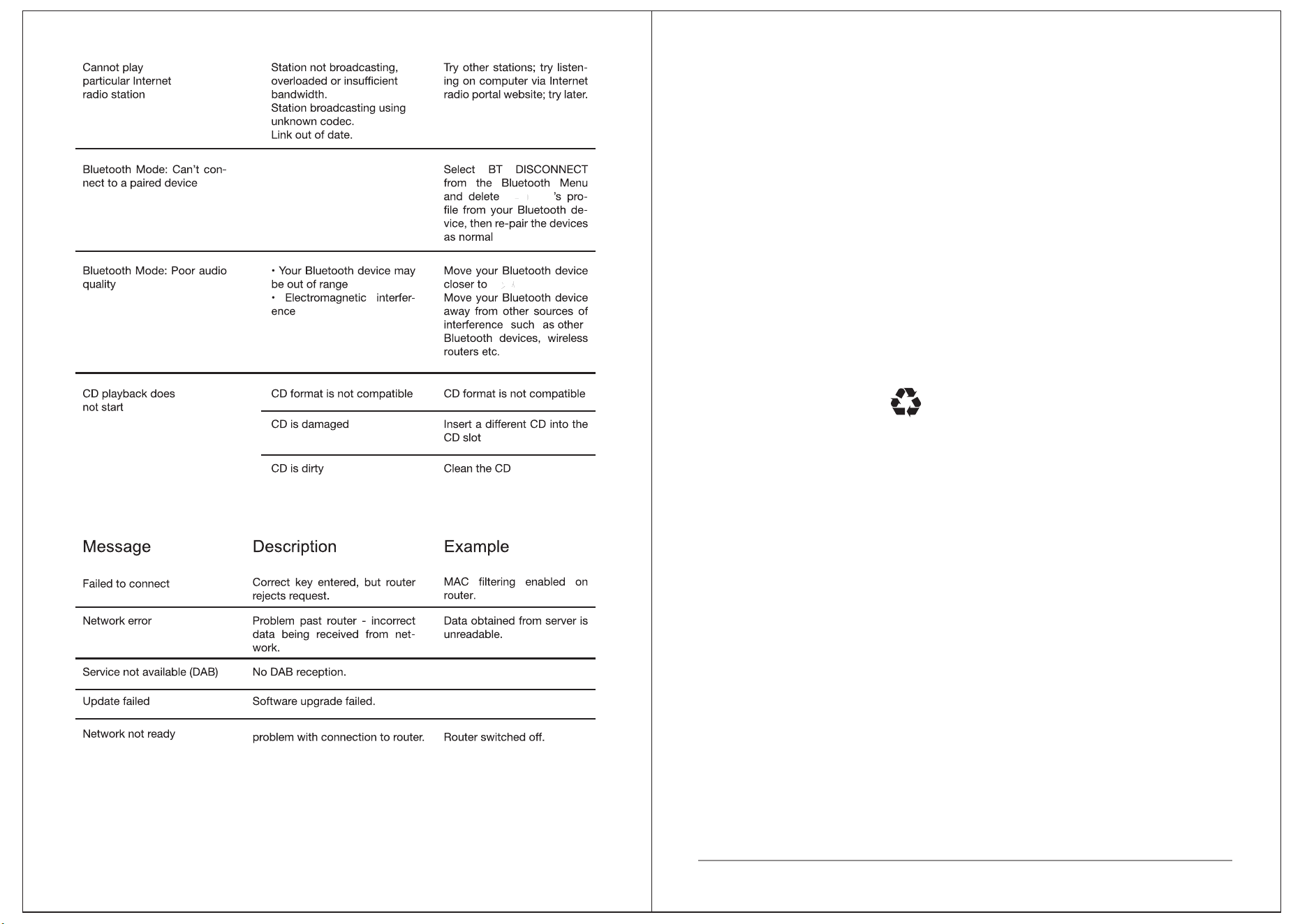
Station not
broadcasting,
overloaded or
insufficient
bandwidth.
Station broadcasting
using unknown
codec.
Link out of date.
Check that Internet is working for
a computer connected to the
same network
Check the following ports are open:
UDP and TCP ports 80 and 123;
DNS port 53.
Some Internet radio stations may
require additional ports to be opened.
Try other stations ;try listening on
computer via Internet radio portal
website ;try later.
'Cannot connect
to Internet
'Cannot play
particular
Internet radio
station
'Press Play'…
Spotify mode –Waiting for
playback information;
for example ,when the
audio playback is moved by
the Spotify app to a
different audio speaker
or the smart device itself.
Example
Description
Messege
'DAB: 'No stations
available'
message'
'Cannot connect
to network
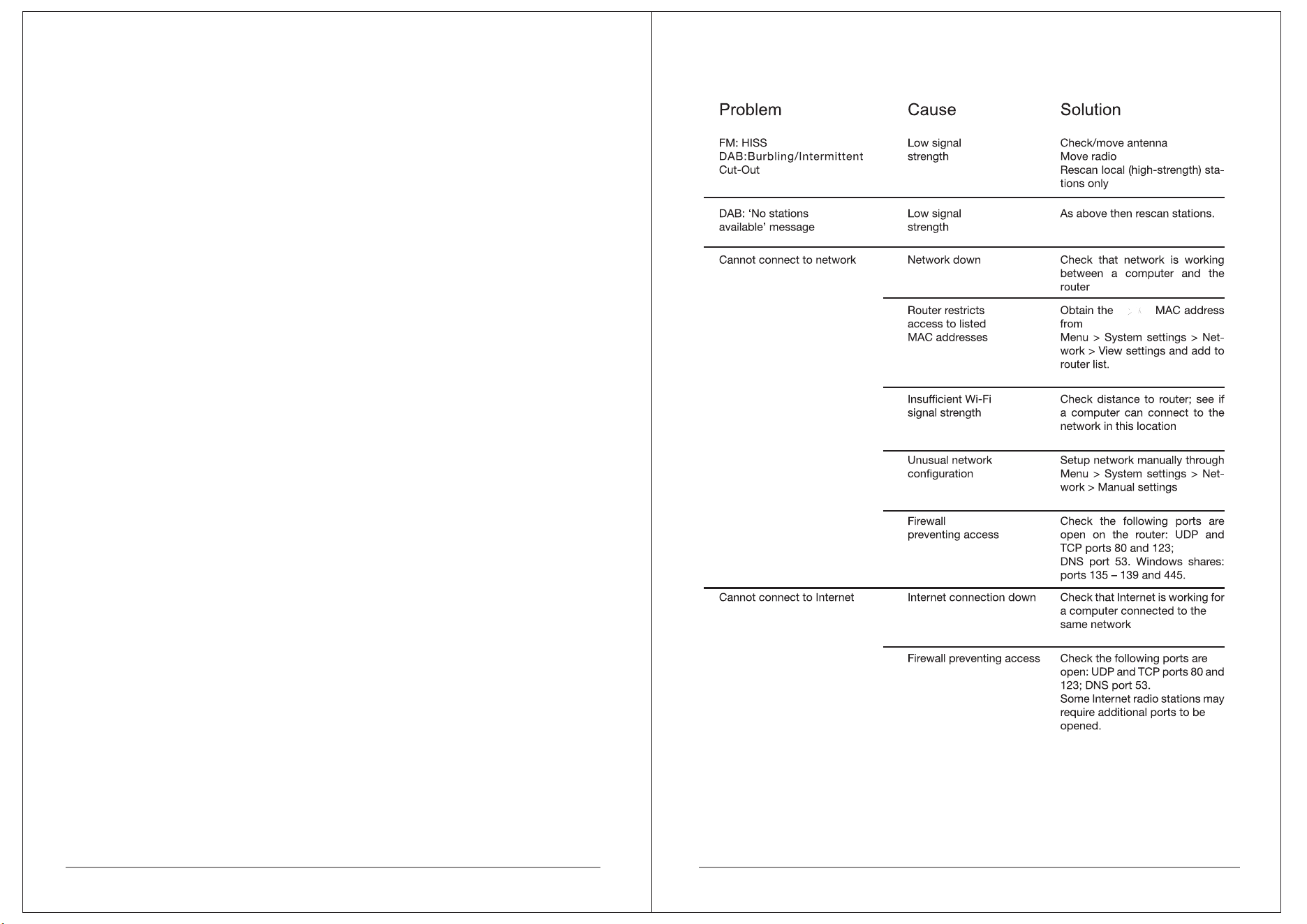
Low signal strength
Low signal strength
Network down
Solutions
Cause
Problem
FM: Hiss
DAB: burbling/
intermittent
cut-out
Check/move antenna
Move radio
Rescan local (high-strength)
stations only
For DAB, check local coverage at
www.ukdigitalradio.com/coverage
As above then rescan
stations.
Check that network is working
between a computer and
the router
Obtain the M5+ MAC address
from Menu < System settings >
Network > View settings and
add to router list.
Router restricts
access to listed
MAC addresses
Note: M5+ has separateMAC
addresses for wired and wireless
networks only the current network
adaptor method address is
displayed ,but the other address
can be obtained by changing the
first pair of digits between' 00 '(
wireless) and' 02 '(wired)
CD format is not
compatible
CD is dirty
CD is damaged
CD is upside down
in the CD slot
Insert a different CD into the CD slot
Clean the CD
Insert a different CD into the CD slot
Eject the CD and insert it in the CD
slot the right way up
'CD playback
does
not start
Solutions
Cause
Problem

11
10
STATION SCAN
We recommend to perform a full scan from time to time to discover new
stations. Press the MENU button and select Scan to perform the scan
Internet Radio
M5P can play thousands of Internet Radio stations and Podcasts
[Internet connection is required]
Press MENU button and select Station List to view all stations
divided by location, Genre, etc
Presets can be saved same as for FM and DAB stations.
PRESETS
Keep pressed PRESETS button to access presets list and save your favourite
stations.
To recall a preset, press PRESETS button and select your favourite station.
MONO
As an FM signal becomes weaker, the level of hiss can increase.
To reduce it, select Menu/Mono
DAB [Optional]
When listening to DAB radio, M5P displays the station name and other DLS
informations. The first time you select DAB Radio, M5P performs an auto-scan
of available stations.
CHANGE STATION
Press or to automatically tune to the next available DAB station.
Scroll dial can be used to list all available stations. Highlight the station you
wish to listen and press the Scroll dial to confirm.
PRESETS
Keep pressed PRESETS button to access presets list and save your favourite
stations.
To recall a preset, press PRESETS button and select your favourite station
STATION ORDER
The DAB station list can be ordered by Alphanumeric, Ensemble or Valid.
To change station order, select Menu/Station order and make your selection.
CD
M5P can play CDs. To insert a CD, gently push it into the CD slot. Once loaded,
it will play automatically. Track number and time is shown on the display,
together with CD text, if available. Use buttons on M5P or on the optional
remote to perform basic functions like pause, next track, stop, etc.
Press eject button to unload the CD. Keep pressed eject button to force eject
process.
Bluetooth
M5P can connect to Bluetooth devices and stream in CD quality.
As soon as you switch to Bluetooth, M5P attempts to connect to the last device
it was paired with. If it is the first time, M5P displays "Bluetooth discoverable":
check your Bluetooth device setting page and select "M5P" in the available
devices list.
To connect a new device, press MENU button > Connect Device.
Use buttons on M5P or on the optional remote to perform basic functions like
pause, next track, stop, etc.
Please refer to your Bluetooth device to start playing music on M5P.
Connect your Bluetooth headset to the M5P
With the M5P you have the possibility to connect a Bluetooth headset via
Bluetooth. Please switch your headphones to the pairing mode.
1. Press the menu button in any mode, except Bluetooth mode and go to
Bluetooth headphone.
2. Choose “Bluetooth On“
3. The Bluetooth symbol is flashing and waiting for pairing
4. After successful pairing, the symbol is not flashing and you can enjoy
your music.
Tips: The headphone must have the function “simple pairing“
or automatic “handshake“
Line-In / Aux
M5P accepts analogue audio sources, using a mini jack connector. For best
performance, we recommend to balance the volume level on your device.
Spotify
Use your phone, tablet or computer as a remote control for Spotify.
Go to spotify.com/connect to learn how.
The Spotify software is subject to third party license found here:
http://www.spotify.com/connect/third-party-license
12 13
SLEEP
M5P can set a 15-30-45-60 minutes sleep timer. Press SLEEP Button
and scroll the SELECT knob to choose the time you want.
USB Playback
Connect a USB memory stick*, select ‘Music Player’ mode and listen to
stored MP3 music files.
FIRMWARE UPDATE
Press MENU > System Settings > Software upgrade and confirm with the
SELECT knob.
FACTORY RESET
Press MENU > System Settings > Factory reset and confirm with the SELECT
knob.
TROUBLESHOOTING AND ERRORS MESSAGES
M5P
14
15
M5P
M5P
TECHNICAL SPECIFICATION:
Model: M5P Music System with CD player
Type: CD/ WiFi / Spotify HIFI / Internet radio /DAB/DAB+/FM/AUX/
Bluetooth Music System
Speaker: 2 x 2.5" (full range), 1 x 5.25" woofer
Power: RMS 35W
Power Supply: 100-240V mains supply
Dimension (mm): 350W x 124H x 215D
Weight: 4.8 KG
Specifications are subject to change without notice.
If you have any questions or suggestions, Please share with us.
www.lemegaaudio.com
info@lemegaaudio.com
This device complies with Part 15 of the FCC rules. Operation is subject to the
following two conditions: 1) this device may not cause harmful interference,
and 2) this device must accept any interference received, including
interference that may cause undesired operation.
Changes or modifications not expressly approved by the party responsible for
compliance could void the user's authority to operate the equipment.
M5P