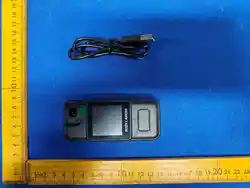
Law enforcement instrument
Operating instruction
Please read the instructions carefully before using th is product
The instruction manual is for reference only, and the specific operation is
subject to the physical object
1.Product mix
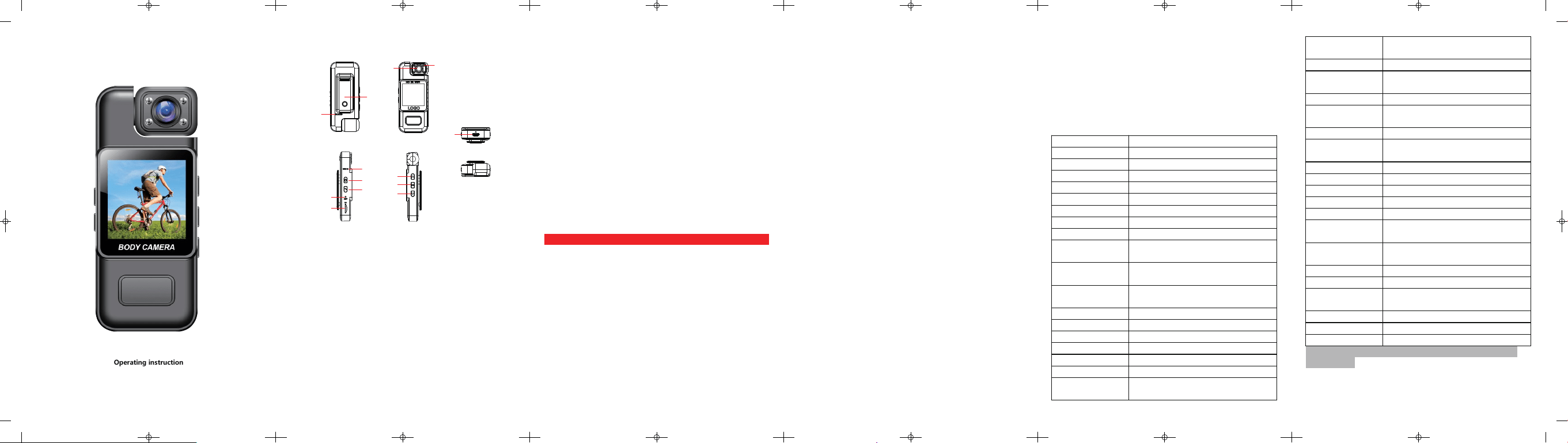
Product description
1) Bugle 2)Back shoulder clip 3)Spinning lens
4)Infrared lamp 5)Marker hole 6)Power button
7)Return key 8)Reset the hole 9)TF card slot
10)On the key 11)OK key 12)Under the key
13)USB joggle
2.Introduction of key button and interface functio
ns
1. Power switch
1)Long press to open / close;
2)Click on the breath screen.
2. Return key
1)Click and press to switch to the function interface;
2)Long press the open / exit menu.
3. On the key
1)Select the key up;
2)When taking photos and recording video mode, click press to e nlarge
the focal length;
3)Photo / video / recording mode point long press to open the WiFi mode,
long press off again;
4)Replay mode point press to switch to the previous file.
4.Under the key
1)Select key d
own;
2)When taking photos and recording video mode, click press to reduce
the focal length;
3)In video / photo mode, press on infrared (display icon), and press off
again;
4)Replay mode point press to switch to the next file.
5.OK key
1)Click to record the video / photo / recording;
2)Confirmation key;
3)Press the photo and video mode to flip the lens direction 180, and press
again to restore the lens direction.
6. Reset key
When the machine appears flower screen, abnormal cras
h and other on,
with pinhole like things short poke can b e forced to shut down.
Note: In video / photo / recording / playback mode, no card plugging!
7.USB joggle
1)Interface type: Type-C;
2)To connect the external power supply to charge the battery or to
provide the working power supply;
3)Use to connect the PC terminal for 'memory / PC camera / video mode'
operation.
3.Basic operation instructions
1.Mobile detection
1)When moving or when some objects move, it will automatically detect
and start video recording;
2) From dynamic to static state, auto
matically stop recording after 30
seconds;
3)St ill, recording is not start.
2.Hidden mode
With the hidden mode on, the d evice will turn off all sounds and
indicators.
3.USB pattern
The device uses USB data to connect to the computer. After the device is
automatically turned on, the screen displays three options of 'memory /
PC camera / video mode':
Memorizer : In this mode, video, photo and recording files can be
accessed and viewed;
PC camera shooting : In this mode, it can be u
sed for the computer
camera;
Video mode :Only used for computers to power the equipment.
4.Playback mode
Long press "Return key" to call out the delete menu, long press again to
exit;
5.WiFi pattern
1)Open WiFi:In the photo / recording / recording interface, long press
the 'up button' to turn on WiFi;
2)Installation and use WiFi:
Before turning on WiFi, download and install the Wind recorder app on
your smartp hone. Note: Android, please scan the QR code prompted in
the device
, or scan the QR code below; iso: search 'wind recorder' in Apple
Store to download.
Connection step:
1)After the device is turned on, long press "Up" to open wifi, the screen
will show the device wifi name and password indicating that wifi is on;
2)Click on the downloaded APP and find the "Add device" -enter the wifi
setting to find the wifi name displayed by the device and enter the
password, then the con nection is successful.
3)Close WiFi:After opening the WiFi function, long press 'Up button' and
click 'OK' to turn off the WiFi.
4.Product parameters and specifications
Mode
l ZC-M11
Master control AX3292
Image sensor GC1084
Camera lens
Rotatable lens, 180 degrees
TFT display screen Color display screen (240 * 240)
Video resolution 4K、2K、1920x1080P、1280x720P
Video file format AVI
Picture quality 1M、2M、3M
Photo format JPG
Circulating video Off, 1 minute, 2 minutes, 3 minutes, 5
minutes, 10 minutes, 15 minutes
Colour balance Automatic, daylight, cloudy day, tungsten
wire lamp, fluorescent lamp
Exposure
compensation
6、5、4、3、2、1、0、-1、-2、-3、-4、-5、
-6
Mobile d etection Close, open
Recording function Close, open
Camera time m
ark Close, open
Keypad tone Close, open
Time set User-defined
Auto shut off Off, 1 min, 3 min, and 5 min
Language Britain, simplified Chinese, Traditional
Chinese, South Korea, Russia, France,
Germany, the Czech Republic, Portugal,
Poland, the Netherlands, Turkey, Thailand
A-c cycle 50Hz、60Hz
Automatic turn off
the screen
Off, 1 min, 3 min, and 5 min
Sound volume Pass, 1-7
Switch machine
volume
Close, open
Hidden mode Close, open
Recording file
format
WAV
Delete Delete, delete all
Format Confirmation, cancellation
Reset the system Confirmation, cancellation
Software version ZC-M11 V1.1 20240518 V1.0
Working humidity 85%
Working
temperature
-20°/+60°
Ba
ttery voltage /
current / power
3.7V/≤302mA /≤1.117W
Standby current 36.5uA
Low electric prompt 3.67V
DC input / current /
power
5V/≤633mA/≤3.165W
Storage card TF card, with a maximum support of 128G
keying 6 Keys
Joggle USB, TF card slot
Note: This product is subject to design and specification changes
without notice.
4
3
2
5
6
7
8
9
1
13
10
11
12

FCC Warming:
This device complies with part 15 of the FCC Rules. Operation is
subject to the following two conditions:
(1)This device may not cause harmful interference, and
(2)this device must accept any interference received, including interference that may
cause undesired operation.
Any Changes or modifications not expressly approved by the party responsible for
compliance could void the user's authority to operate the equipment.
Note: This equipment has been tested and found to comply with
the limits for a Class B digital device, pursuant to part 15 of the FCC
Rules. These limits are designed to provide reasonable protection against harmful
interference in a residential installation. This equipment generates uses and can radiate
radio frequency energy and, if not installed and used in accordance with the instructions,
may cause harmful interference to radio communications. However, there is no
guarantee that interference will not occur in a particular installation. lf this equipment
does cause harmful interference to radio or television reception, which can be
determined by turning the equipment off and on, the user is encouraged to try to correct
the interference by one or more of the following measures:
-Reorient or relocate the receiving antenna.
-Increase the separation between the equipment and receiver.
-Connect the equipment into an outlet on a circuit different from that to which the
receiver is connected.
-Consult the dealer or an experienced radio/TV technician for help.
RF warning for Portable device:
The device has been evaluated to meet general RF exposure requirement.
The device can be used in portable exposure condition without restriction.