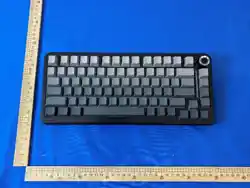

ZaryMax CORE Mechanical
Keyboard User Manual

I. Product Overview
II. Quick Start: Connection and Pairing Guide
(I) Device Naming Specifications
(I) Bluetooth 5.0 Connection (Supports 3 Independent Channels)
(II) 2.4G Wireless Connection
1. First-time Pairing Operation
2. Secondary Reconnection Operation
1. First-time Code-matching Operation
1. Ensure the keyboard is powered on and toggle the switch to wireless mode;
2. Press and hold the combination key Fn + corresponding Bluetooth key (Q/B1,
W/B2, E/B3) for 3 seconds. The indicator light of the corresponding key flashes rapidly, and the keyboard
enters pairing mode (all other lights turn off, only the pairing channel indicator flashes);
3. Turn on the Bluetooth function of the device to be connected (mobile phone, tablet, computer, etc.), search
f or "ZaryMax CORE1.0 5.0" in the device list, and select the corresponding channel for pairing;
4. After successful pairing, the indicator light of the corresponding channel switches to "display with light effect", 4. After successful pairing, the indicator light of the corresponding channel switches to "display with light effect",
and the keyboard light effect returns to normal;
5. Pairing Timeout Description: If pairing is not completed within 1 minute, the channel indicator light turns off,
and the keyboard automatically enters sleep mode. The pairing process needs to be triggered again.
1. Briefly press Fn + corresponding Bluetooth key (Q/W/E), the indicator light of the corresponding channel
flashes slowly, and the keyboard starts automatic reconnection;
2. After successful reconnection, the indicator light displays with the light effect;
3. Reconnection Timeout Description: The reconnection time is 20 seconds. If the connection is not
successful within 20 seconds, the indicator light turns off, and the keyboard enters sleep mode;
4. Channel Memory Function: When Bluetooth mode is turned on, the keyboard automatically
remembers the last used Bluetooth channel and prioritizes attempting to reconnect to that channel's device. remembers the last used Bluetooth channel and prioritizes attempting to reconnect to that channel's device.
1. Insert the 2.4G wireless receiver into the device's USB port;
2. Press and hold the combination key Fn+R for 3 seconds. The R key indicator flashes rapidly, and the
keyboard enters code-matching mode (all other lights turn off);
3. The receiver and keyboard automatically complete code-matching. After successful code-matching, the R
key indicator displays with the light effect;
4. Code-matching Timeout Description: The code-matching time is 20 seconds. If code-matching is not completed
within 20 seconds, the R key indicator turns off, and the keyboard enters sleep mode. The code-matching within 20 seconds, the R key indicator turns off, and the keyboard enters sleep mode. The code-matching
process needs to be triggered again.
Wired mode device name: CORE
Bluetooth 5.0 mode device name: ZaryMax CORE 1.0 5.0
2.4G wireless mode: Default is based on hardware identification
(Ⅱ)CORE Configuration Identification
Connection Mode
Bluetooth 1 (BT1)
Q key
W key
E key
R key
Bluetooth 2 (BT2)
Bluetooth 3 (BT3)
2.4G Wireless
Corresponding Key Identification Function
Bluetooth Channel 1 connection and pairing indicator
Bluetooth Channel 2 connection and pairing indicator
Bluetooth Channel 3 connection and pairing indicator
2.4G channel connection and code-matching indicator

III. Lighting System: Detailed Explanation of Light Effects and
Illumination Control
(II) Wired Connection
(I) Main Keyboard Area RGB Backlight System
1. Secondary Reconnection Operation
1. Light Effect Control Operations
2. Light Effect Rules for Power-on and Wireless Modes
1. Briefly press Fn+R key, the R key indicator flashes slowly, and the keyboard starts automatic reconnection;
2. After successful reconnection, the R key indicator displays with the light effect;
3. Reconnection Timeout Description: The reconnection time is 20 seconds. If the connection
times out, it enters sleep mode.
1. Use a USB data cable to connect the keyboard to the device (computer, power bank, etc.);
2. The keyboard automatically switches to wired mode, no additional pairing is required, and the device name
is displayed as "Core";
3. Wired Mode Features: When inserted into a PC USB port, the keyboard lights turn off synchronously with
the computer's sleep state; when inserted into a power bank, the backlight remains on.
Control Function
Switch Light Effects
Press Fn+
Cycle through 16
light effects and
remember the last
used light effect
\| key
Fn + Left Arrow Key
(Decelerate) Fn + Right
Arrow Key (Accelerate)
speed levels in total, f
actory default is level 3;
when adjusted to the
highest/lowest level, the
backlight flashes 3
times to confirm
5 brightness levels in total,
factory default is maximum
brightness; supports
remembering
user settings, and the
backlight flashes 3 times to
confirm when adjusted to
confirm when adjusted to
the extreme value
Toggle lights on/off
(power-saving mode);
only the indicator
function is retained
after turning off
Fn + Up Arrow Key
(Increase Brightness)
Fn + Down
Arrow Key (Decrease
Brightness)
Adjust Speed
Adjust Brightness
Turn Lights On/Off
Press Fn+X key
Operation Method Special Instructions

IV. Function Keys and Comprehensive Analysis of
Shortcut Operations
(III) Custom Light Effect Recording Function
(I) System and Connection Control Shortcut Keys
3. Light Bar Control Operations
1. Recording Process
2. Notes
Wired connection to PC: After inserting into the USB port, the lights turn off synchronously with the
computer's sleep state and automatically recover when the computer wakes up;
Wired connection to power bank: The backlight remains on continuously after insertion, not affected by sleep;
Wireless mode (Bluetooth/2.4G): After turning on the switch, the light effect is on for 2 minutes during
reconnection and code-matching. If there is no operation within 2 minutes, the lights automatically turn off
and enter sleep mode.
1. Press Fn+1 key to enter the custom light effect mode. At this time, the AWSD keys and 4 direction keys light
up in blue, indicating entry into the recording preparation state;
2. Press Fn+~ key to enter the recording state. The ~ key light flashes continuously (other light effects are paused
during recording);
3. Set the color for the target key: Press the same key continuously to cycle through RGB colors
(supports full-spectrum color selection) until the desired color is selected;
4. Complete the color configuration of all keys that need to be set in sequence;
4. Complete the color configuration of all keys that need to be set in sequence;
5. Press Fn+~ key again to complete recording and storage. The ~ key light turns off, and the custom light effect
takes effect automatically;
6. Exit Custom Mode: No additional operation is required. Switching to other light effect modes or turning off the
lights will exit, and the custom light effect will be saved automatically.
Custom light effects only support backlight settings for the main keyboard area, not including the light bar;
Custom light effects support the memory function and will be retained after restarting the keyboard;
After restoring factory settings, the custom light effect will be cleared and restored to the default light effect
"Wave Flow".
Control Function
Switch Modes Press Fn+CAPS key Cycle through 5 modes and remember the last used mode
Press Fn+A key
Only effective in "Streamer", "Neon", and "Seven-Color
Breathing" modes; cycle through color schemes
Switch Colors
Operation Method
Special Instructions

(II) Encoder Function (Side/Top Encoder of the Keyboard)
(III) Cross-system Multimedia Shortcut Keys (Supports Windows/Mac)
Combination Key
Fn+Q
Fn+W
Short press: Switch to Blue-
tooth Channel 1 Long press
for 3 seconds: Bluetooth
Channel 1 pairing
Short press: Switch to Blue-
tooth Channel 2 Long press
for 3 seconds: Bluetooth
Channel 2 pairing
Short press: Q key blue light flashes slowly (recon-
nection) Long press: Q key blue light flashes rapidly
(pairing)
Short press: W key yellow light flashes slowly (recon-
nection) Long press: W key yellow light flashes
rapidly (pairing)
Fn+E
Short press: Switch to Blue-
tooth Channel 3 Long press
for 3 seconds: Bluetooth
Channel 3 pairing
Short press: E key white light flashes slowly (recon-
nection) Long press: E key white light flashes rapidly
(pairing)
Fn+R
Fn+L_Win
Short press: Switch to 2.4G
channel Long press for 3
seconds: 2.4G channel
code-matching
Short press: R key green light flashes slowly (recon-
nection) Long press: R key green light flashes rapidly
(code-matching)
Lock/unlock WIN key (only
valid for Windows systems)
Lock: WIN key light stays white Unlock: WIN key light
displays with light effect
Fn + Space Bar
Press and hold for 3 seconds
to restore factory settings
Clear all Bluetooth pairing IDs (retain 2.4G
code-matching ID), restore light effects to default, and
the backlight flashes 3 times to confirm
Function Description
Operation Feedback
Operation Method
Rotate Left
Rotate Right
Decrease volume
Increase volume
Universal for all systems
Universal for all systems
Press
Mute switch
Universal for all systems
Switch Control Modes
Long press the encoder (or
cooperate with combination
keys)
Switch to system switching mode (subject to actual
hardware design)
Function Description Applicable Scenarios

V. Indicator System: Detailed Explanation of Status Identification
(IV) Battery Level Query Function
(I) Connection Status Indicators
1. Operation Method
2. Display Rules
Combination Key
Fn+F1
Fn+F2
Fn+F3
Fn+F4
Fn+F5
Fn+F6
Fn+F7
Fn+F8
Fn+F9
Fn+F10
App switching
(Alt+Tab, Alt delay 300ms)
Search
Input method switching
(Win + Space)
Previous track
Play/Pause
Next track
Mute Mute
Next track
Play/Pause
Control multimedia playback and pause
Play the next multimedia track
Turn off system sound output
Fn+F11 Decrease volume
Decrease volume
Reduce system volume
Fn+F12
Fn+HOME
Increase volume Increase volume
INS (Insert mode
switching)
Increase system volume
Mac system-specific insert
mode switching function
Previous track
Play the previous multimedia trac
Press the combination key Fn+BackSpace (this function is invalid in wired mode, only supported in wireless mode).
After triggering the query, the backlight of the main keyboard area turns off temporarily. The number keys
1-0 correspond to 10 battery levels (each level represents 10% battery capacity);
Battery level display color distinction: 1-2 levels light up in red (low battery warning), 3-5 levels light up in
yellow (medium battery), 6-10 levels light up in green (high battery);
Display Duration: The battery level display automatically restores the previous light effect state after 5 seconds.
Input method switching
(Ctrl + Space)
Quickly switch the system
default input method
Decrease brightness
Multi-screen display
(Win+Tab)
Increase brightness
Decrease bright-
ness
Reduce device display bright-
ness, supports multi-level
adjustment
Windows: Switch multi-screen
display mode; Mac: Increase
display brightness
Task View (Ctrl+Up)
Windows: Open Task View;
Mac: No corresponding function
App switching
(Win+Tab, Win delay
300ms)
Search (Win+Space)
Windows: Open system search;
Mac: Open Spotlight search
Cycle through open apps,
delay design to avoid
misoperation
Windows System Function Mac System Function
Function Description

Indicator Position
Q key (BT1)
Q key (BT1)
Q key (BT1)
W key (BT2)
W key (BT2)
W key (BT2)
E key (BT3)
E key (BT3)
E key (BT3)
R key (2.4G)
Bluetooth 2
Bluetooth 2
Bluetooth 2
Bluetooth 3
Bluetooth 3
Bluetooth 3
2.4G Wireless
White light flashes
rapidly (0.5 times
/second)
White light flashes
slowly (1 time
/second)
Display with
light effect
R key (2.4G)
2.4G Wireless
Display with
light effect
Green light flashes
slowly (1 time
/second)
Green light flashes
rapidly (0.5 times
/second)
Display with
light effect
R key (2.4G)
2.4G Wireless
Connection
Successful
Yellow light flashes
rapidly (0.5 times
/second)
Bluetooth Channel 2 has successfully
connected to the device
Trying to reconnect to the paired
device of Bluetooth Channel 3
Bluetooth Channel 3 enters pairing
state, waiting for connection
Bluetooth Channel 3 has successfully
connected to the device
Trying to reconnect to the
code-matched device of 2.4G channel
2.4G channel enters code-matching
state, waiting for connection
2.4G channel has successfully
connected to the device
Bluetooth 1
Reconnection
Pairing
Connection
Successful
Reconnection
Pairing
Connection
Successful
Reconnection
Pairing
Connection
Successful
Reconnection
Code-matching
Bluetooth 1
Blue light flashes
rapidly (0.5
times/second)
Blue light flashes
slowly (1 time
/second)
Trying to reconnect to the
paired device of Bluetooth
Channel 1
Bluetooth Channel 1 enters
pairing state, waiting for con-
nection
Bluetooth 1
Bluetooth Channel 1 has successfully
connected to the device
Display with light
effect
Yellow light
flashes slowly (1
time/second
Bluetooth Channel 2 enters pairing
state, waiting for connection
Trying to reconnect to the paired
device of Bluetooth Channel 2
Corresponding
Mode
Status Type Indication Method
Meaning Explanation

VI. Power Management and Battery Life
(II) Function Status Indicators
(I) Battery Parameters and Low Battery Protection
Indicator Position
Space Bar Light
Space Bar Light
Space Bar Light
CAPS Key Light
CAPS Key Light
WIN Key Light
WIN Key Light
Caps Lock
Caps Lock
WIN Key Lock
WIN Key Lock
Display with
light effect
White light
stays on
Display with
light effect
WIN key is locked to prevent
misoperation (only for Windows
systems)
WIN key is available normally
Battery Status
Low Battery
Warning
Charging
Fully Charged
Locked
Unlocked
Locked
Unlocked
Charging Status
Red light stays on
Red light flashes
slowly (1 time/sec-
ond)
In wireless mode, the battery
voltage ≤3.3V, need to charge
The keyboard is charging,
charging current ≤1A
Charging Status
The battery is fully charged, can discon-
nect the charging cable
Display with light
effect
White light stays
on
Caps lock function is disabled
Caps lock function is enabled
Corresponding
Function
Status Type
Indication Method
Meaning Explanation
Battery Status
Normal Battery
Low Battery
Warning
Automatic
Shutdown
>3.3V
≤3.3V and
>3.0V
Forcibly turn off the backlight (key
functions are normal), space bar
light flashes red slowly
All functions are normal, no
restrictions on lights
Use normally
Charge as soon as possible
≤3.0V
Must connect wired
charging to recover
Automatically shut down in wireless
mode, cannot be turned on
Voltage Range
Device Performance
Operation Suggestion

VII. Test Mode and Troubleshooting
(II) Charging Instructions
Charging Method: Charge by connecting the keyboard to a computer, charger, or power bank via a
USB cable;
Charging Current: Maximum support ≤1A, it is recommended to use a compliant charger of 5V/1A or
higher;
Charging Time: Depending on the battery capacity (subject to actual test data);
Charging Status: The space bar light stays red when charging, and switches to display with light
effect after being fully charged.
Press and hold the L_Ctrl key, and at the same time connect the keyboard to power (wired mode) or
turn on the switch (wireless mode). The keyboard automatically enters the light inspection mode. All
LED lights (including the main keyboard area, light bar, and indicators) are turned on, and automati-
cally return to normal mode after 30 seconds.
Through the supporting PC driver software, find the "LED Test" function, click to start the full inspec-
tion mode, and the operation logic is consistent with the manual trigger.
Quickly troubleshoot hardware problems such as damaged or non-illuminated LED lights. If the lights
in a certain area are not turned on, it may be a lamp bead failure or a line problem.
(III) Intelligent Sleep Settings
(III) Intelligent Sleep Settings
1. Manual Trigger Method
2. Software Trigger Method
3. Test Purpose
Sleep Type
Light Sleep
(Lights Off)
Deep Sleep (Low
Power Sleep)
Pairing/
Code-matching
Timeout Sleep
No operation for 2 minutes
No operation for 30 minutes
Enter low power state,
turn off all non-essential
functions
All backlights and light bars
of the main keyboard area
are turned off, and the indi-
cator function is retained
Any key operation or
encoder operation
Any key operation or toggle
switch to restart
Pairing/code-matching timeout
(Bluetooth: 1 minute, 2.4G: 20
seconds)
Trigger the pairing/
code-matching process
again
Indicator light turns off,
enters low power sleep
Trigger Condition
Indication Method
Meaning Explanation

VIII. Driver and Advanced Configuration
(II) Common Troubleshooting
The supporting PC driver software supports the following advanced configurations (subject to the
actual driver version):
Main Backlight Settings: Custom light effect editing, refined adjustment of light effect speed/brightness, sched-
uled light off;
Light Bar Settings: Custom light color, flow direction, speed adjustment;
Key Sensitivity: Adjust key trigger force and response speed (suitable for gaming scenarios);
Sleep Settings: Customize light sleep/deep sleep duration, independent sleep settings for Bluetooth/2.4G;
Configuration Layer Management: Supports 3 independent configuration layers and 1 FN custom layer, which
can save configurations for different usage scenarios (such as gaming, office, entertainment);
Macro Definition: Supports on-board macro recording and editing, assigned to any key (requires driver support);
Firmware Upgrade: Obtain the latest function updates and bug fixes.
(I) Driver-supported Functions
Fault Phenomenon
Unable to Pair/
Code-match
Reconnection
Failure
Lights Not Working
Keys Unresponsive
Abnormal Battery
Level Display
1. Not entering pair
ing/code-matching state;
2. Bluetooth/wireless function
of the device not turned on;
3. Too far distance
1. Bluetooth/wireless of the
paired device is turned off;
2. The device has deleted
the pairing record;
3. Exceeding the connection
range
1. Press and hold the corresponding combination key for 3
seconds to confirm the indicator light flashes rapidly;
2. Turn on the Bluetooth/wireless function of the device;
3. Shorten the distance between the keyboard and the
device (recommended ≤1 meter)
1. Turn on the Bluetooth/wireless function of the device;
2. Re-pair the device;
3. Move the keyboard to the vicinity of the device
1. Press Fn+X key to turn on the lights;
2. Check the battery level or charge;
3. Wake up by key operation;
4. Start the LED full inspection mode for troubleshooting
1. Confirm the connection status indicator;
2. Wake up or restart by key operation;
3. Test by changing the connection mode. If it is still unre-
sponsive, contact after-sales service
1. Lights have been turned off;
2. In low battery state;
3. Entered sleep mode;
4. Hardware failure
1. Connection not successful;
2. In deep sleep state;
3. Keyboard failure
1. Not calibrated just after
turning on the machine;
2. Battery aging;
3. Incorrect function
triggering
1. Query the battery level multiple times for cali-
bration;
2. Contact after-sales service to test the battery;
3. Ensure to trigger Fn+BackSpace to query in
wireless mode
Possible Causes Troubleshooting Methods

IX. Notes and After-sales Instructions
(II) Configuration Layer Switching
Switch 3 configuration layers through the driver software or use combination keys (the specific com-
bination keys are subject to the driver instructions). Different configuration layers can independently
set light effects, shortcut keys, macro definitions, etc., to meet diverse usage needs.
1. When using Bluetooth and 2.4G modes for the first time, code-matching/pairing is not performed by default.
You need to trigger the code-matching/pairing mode by pressing the corresponding combination keys;
2. After restoring factory settings, the Bluetooth pairing IDs will be cleared, the 2.4G code-matching ID will be
retained, and the light effects and custom settings will be restored to default;
3. In wireless mode, avoid using it in environments with strong interference (such as near routers and microwave
ovens) to avoid affecting connection stability;
4. Use a compliant charger when charging, and avoid using high-voltage and high-current chargers to cause
4. Use a compliant charger when charging, and avoid using high-voltage and high-current chargers to cause
device damage;
5. Avoid liquid spills and heavy object impacts on the keyboard. Store it in a dry and ventilated place to prevent
electrostatic damage (on-board electrostatic points have been protected by design);
6. The driver software only supports PC use. For Mac systems, function settings need to be performed
through keyboard combination keys.
1. One Type-1.5m charging data cable
2. One 2.4G receiver
3. One switch puller
4. Three spare switches
5. User manual
(I) Usage Notes
Package List