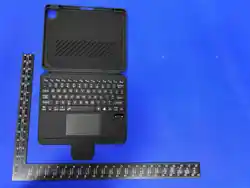
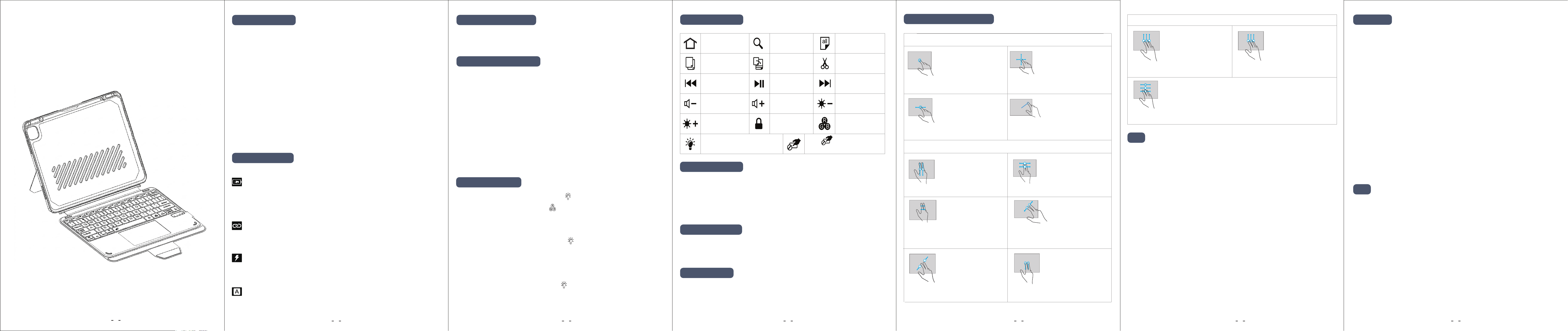
Wireless Keyboard User Manual US
Thank you for choosing our product, please kindly read this
manual carefully before use.
1. Bluetooth Version: BT5.0
2. Bluetooth Distance: 32.8ft / 10m
3. Modulation System: GFSK
4. Operating Voltage: 3.0–4.2V5
5. Working Current: (No Backlight)
<50mA
6. Standby Current: <5mA
7. Working Current: (Backlight)
<120mA
8. Sleeping Current: <0.1mA
9. Charging Current: ≈250mA
10. Standby Time: >90 days
11. Charging Time: ≈2.5 hours
12. Battery Capacity: 500mAh
13. Lithium Battery Life: >1 years
14. Working Time: (Backlight)
<4 hours
15. Touch Strength: 120±30g
16. Key Strength: 80±10g
17. Key Life: ≥3 Million times
18. Operating Temperature: -10℃
~+55℃
IOS: Control+Space
Fn+Control: Show/Hide Virtual Keyboard(IOS system only)
Note: Before using the keyboard, please switch input method and
select the corresponding language.
The keyboard will automatically sleep if there is no operation within
10 minutes. When you type any key, it will be activated.
Power indicator will flash blue when the keyboard needs to be charged,
please charge it in time.
Fn+Space: Turn on or turn off Trackpad.
Operating System: IOS15.0 and above (the device must support
touch)
Touch Setting (after wireless BT pairing is successful): Settings
→ General → Trackpad → tap to click / two-finger auxiliary tap
(open)
Sensitivity Settings: Settings → General → Trackpad → Tracking
Speed (adjust to the appropriate speed manually)
Manual change backlit color: Press the "Bulb" key to turn on the
keyboard backlit. Then press the "RGB" key next to it to switch the
color you like between 7 colors and click at a time to switch a color.
Seven-color light cycle mode: Press the "Bulb" key once to turn on the
keyboard backlit, press twice to turn on the seven-color light cycle mode,
press three times to turn off the backlit.
Adjust the brightness: Press the Fn + "Bulb" key to decrease or increase
the brightness. 3 levels brightness: low, medium, high.
Back to Home
page
Copy
Search
Select all
Cut
Switch color
Next track
Brightness-
Paste
Pause/Play
Previous track
Volume-
Brightness-
On/light cycle mode/Off
Volume+
Lock screen
Fn+ Touchpad
on/off
Single Finger Operation
Three Fingers Operation
Two Fingers Operation
Single Finger Click
Two Fingers Up/Down
Swipe
Two Fingers and Swipe
Right
Pinch Two Fingers
Inwards
Double Pointing
Down Swipe
Fingers Spread Out
Two Fingers Swipe
Left/Right
Drag
Open Control Center
Single Finger Movement
Swipe Up with Three
Fingers
Swipe up three points,
pause and lift your
finger
Three fingers swipe left firstly, then swipe left and right to
switch
Open App
Tap and hold the item, then
slide your finger on the trackpad
to move it.
Scroll up or down
Open Today view: When the
home screen or lock screen is
visible
Enlarge
Shrink Open Search from the main
screen
Scroll left or right
Move the pointer with single
finger to select the status icon
in the upper right, then tap.
Cursor sliding
Back to home screen
Switch between opening apps
Open the APP switcher
When you enter special keys, please press the Shift key +
special key together. Such as @, please press Shift+@ at the
same time.
When the special character and symbol keys do not match
what is coming up on the screen. Please Open Settings >
General > Keyboard > Hardware Keyboard > Keyboard Type
> ANSI (US), then restart and reconnect the keyboard to try it.
When the letter and number keys do not match what is coming
up on the screen. Please Open Settings > General > Keyboard
> Keyboards > English (US) > QWERTY, then restart and
reconnect the keyboard to try it.
When double tap the space bar shows the period".", please
Open Settings > General > Keyboard > "." Shortcut (turn it off)
The first time using the keyboard, please charge the keyboard
for at least 6 hours. Please charge it for at least 2 hours when
the battery is run out of power.
When the keyboard is not used for a long time, we suggest you
turn off the keyboard to save battery.
In order to extend battery life, we suggest you charge the
keyboard when the power indicator is flashing.
The connection distance between keyboard and iPad is within
32.8ft /10m.
Open Tablet Settings > General > Keyboard > Hardware Keyboard > Caps
Lock Language Switch keyboard (turn it off)
OFF/ON Power Switch: Slide switch ON/OFF to turn on or off the keyboard.
Power Indicator: When you slide the OFF/ON to On position, power
indicator will light blue, then it goes off automatically after 5 seconds.
Tips: Power indicator will flash blue when the battery needs to be
charged.
Pairing Indicator: Pairing indicator will flash blue when you press
"Fn+C" button, ready for pairing with your tablet, it will go off
automatically after connect successfully.
Charge Indicator: The Charge indicator will always light red while the
keyboard is charging, and it will go out when the keyboard is fully
charged.
Caps Lock Indicator: When caps lock indicator light blue, which means
the keyboard is locked in capital letter.
Product Specification
Indicator Instruction
Bluetooth Pairing Instruction
Backlight Adjustment
IOS System Touchpad Gestures
Hot Keys description
Please Note
Tips
Tips
Slide power switch ON/OFF to on position, power indicator light blue 5s
then goes off.
Press "Fn+C" button, pairing indicator flashes.
Turn on the Bluetooth at your tablet Settings. Find the “Bluetooth
Keyboard”and select it.
Tap pair when it shows Bluetooth Pairing Request. It will
automatically connect the next time you use it.
Note: If there is no response, please forget the previous Bluetooth
Keyboard device and restart the keyboard.
1.
2.
3.
4.
4.
1.
2.
3.
1.
2.
3.
4.
1.
2.
3.
4.
If the Caps Lock isn't work?
3 4
5 6 7
2
1
Switch Input Method
Energy Saving Mode
Low Battery Alert

8
FCC WARNING
This device complies with part 15 of the FCC Rules.
Operation is subject to the following twoconditions:
(1) This device may not cause harmful interference;
(2) This device must accept any interference received,
including interference that may cause undesired
operation.
Changes or modifications not expressly approved by
theparty responsible for compliance could void the user
's authority to operate the equipment.
This equipment has been tested and found to comply with
the limits for a Class B digital device,pursuant to
part 15 of the FCC Rules.These limits are designed to
provide reasonable protection against harmful
interference in a residential installation.This
equipment generates,uses and can radiate radio
frequency energy and,if not installed and used in
accordance with the instructions,may cause harmful
interference to radio communications. However,there is
no guarantee that interference will not occur in a
particlar installation.If this equipment does cause
harmful interference to radio or television reception,
which can be determined by turning the equipment off
and on,the user is encouraged to try to correct the
interference by one or more of the following measures:
-Reorient or relocate the receiving antenna.
-Increase the separation between the equipment and
receiver.
-Connect the equipment into an outlet on a circuit
different from that to which the receiver is connected.
-Consult the dealer or an experienced radio/TV
technician for help.