iBasso Audio
USER GUIDE
MK2

Android Basic Features Introduction
WiFi Connection/Bluetooth Connection
Contents
Package Components
Main Features
Specifications
Names of Parts & Functions
7-8
5-6
2-4
9-13
14-26
15-16
Application (APP) Installation/App, to Uninstall/USB Connections
17-20
Power Off/Reboot/System Switching
26
System Settings
21-25
iBasso Mango Music Player Application
27-62
Playback Screen (home screen)
27-29
Music Screen
30-42
Settings Screen
43-62
System Switching
63
Mango OS
63-66
Mango OS User Interface
64
To Return to The Android System
65
MTP
66
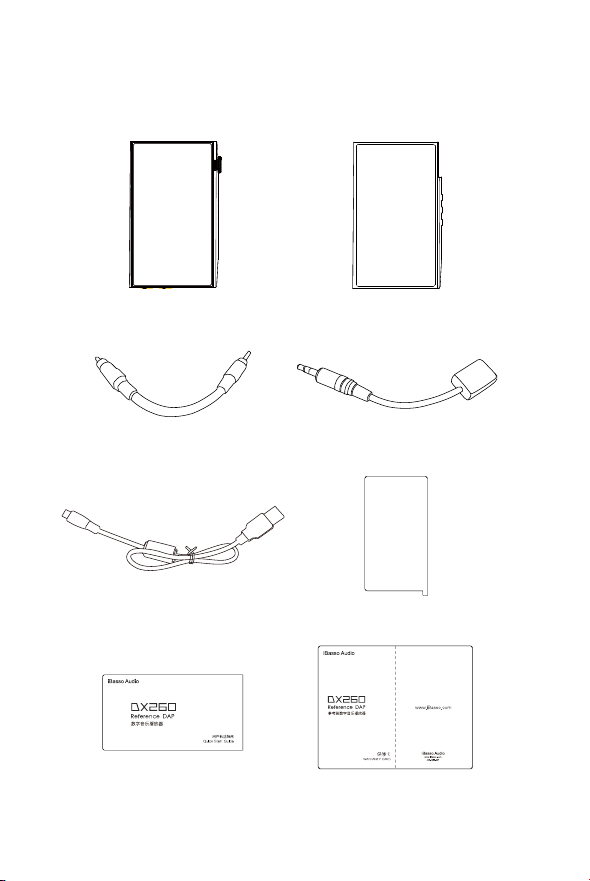
USB-C cable Screen Protector
Quick Start Guide Warranty Card
2
Package Components
Coaxial Cable Balanced Burn-in Cable
Clear TPU
protection case
DX260MK2 Player
MK2
MK2

3
USB-C Cable:
Coaxial Cable:
Connect the coaxial cable to an external DAC, to allow
the DX260MK2 to work as a digital transport.
Connect the USB-C cable to a computer for charging,
data transfer, and USB-DAC function.The USB-C cable
can also be used with a USB charger to charge the
battery.
Clear TPU protection case:
Use the TPU protection case to protect the DX260MK2
chassis from scratches.
Screen Protector:
Use the screen protector to protect the DX260MK2
screen from scratches.
Warranty Card:
The warranty card will be requested at the time of
warranty repair. Please retain the warranty card.
Quick Start Guide:
This reviews the basic functions of the DX260MK2.
Balanced Burn-in Cable:
Plug the burn-in cable into the output socket and keep
playing music to burn-in the DX260MK2. The burn-in
process helps the DX260MK2 sound reach its full potential
by forming the capacitors and stabilizing the electronic
components used.

4
Tips for burn-in
The use of the cable is very straightforward. The burn-in
cable is used to form the capacitors and to condition the rest
of the circuitry. The method for burn-in is to use normal
resolution music, as higher resolution causes more heat due
to the higher demand on the system. Also, use a normal
listening volume, as the higher volume will have a higher
power consumption therefore more heat will be generated.
While burning in the DX260MK2, both the balanced and the
single ended components are being affected and burned in.
The burn-in time can be from 100 to 200 hours and the
burn-in doesn't have to be continual. You can power off the
player and continue the burn-in process after a few days. It
is also not mandatory to use the burn-in cable, we supply it
as a convenience for when you are not listening to the DX260
MK2 and you would like to get your dap conditioned as soon
as possible. You can also just listen to the player and enjoy
the music as your player goes through this process while
playing through IEMs or headphones.

5
Main Features
- Octa CS43198 DAC Chipset matrix.
- In-house developed FPGA-Master2.0 as the audio system
controller, synchronizing and generating the signal to all
audio clocks.
- 2 NDK ultra-low phase noise Femtosecond oscillators.
- Hardware FIR output mode.
- Bit for Bit playback with support up to 32bit/768kHz.
- Support of Native DSD up to 512x.
- 11nm Octa-Core Qualcomm Snapdragon 665 SoC.
- Sharp 5.0″ IPS full screen (1080*1920), with On-Cell
capacitive touch panel.
- 4GB LPDDR4X + 128GB UFS.
- Support of QC3.0 and PD3.0 quick charge.
- USB digital output up to PCM 32bit/384kHz, Native
DSD256, and DoP DSD128.
- Mini coaxial output that supports up to 24bit/384kHz and
DoP DSD128.
- USB DAC function that supports up to 32bit/384kHz and
native DSD256 input.
- Support of 2.4GHz and 5GHz WiFi and Bluetooth 5.0.

6
- Support of SDHC and SDXC Micro SD cards up to 2TB.
- Support of USB 3.1 Super speed transfer.
- 3 gain settings for hardware control.
- 100 step volume control.
- Removable back cover design.
- Audio Formats Supported: APE, FLAC, WAV, WMA, AAC,
ALAC, AIFF, OGG, MP3, DFF, DSF, and DXD.
- Support for M3U playlists.
- 3.8V 4400mAh Li-Polymer battery.

7
Specifications
Maximum Output Level:
Output Power:
Frequency Response:
S/N:
Dynamic Range:
THD+N:
Noise Floor:
Crosstalk:
Output Impedance:
Maximum Output Level:
Output Power:
Frequency Response:
S/N:
Dynamic Range:
THD+N:
Noise Floor:
Crosstalk:
Output Impedance:
1Vrms(Low Gain)
2Vrms(Mid Gain)
3Vrms(High Gain)
525mW@16ohm, THD+N<0.1%
10Hz~75kHz -1dB
128dB
128dB
-115dB (0.00017%)@1kHz(600ohm Load)
1μV
118dB
0.6ohm
2Vrms(Low Gain)
4Vrms(Mid Gain)
6Vrms(High Gain)
1015mW@32ohm, THD+N<0.5%
10Hz~75kHz -1dB
133dB
133dB
-121dB (0.000089%)@1kHz(600ohm Load)
1μV
-145dB
1.1ohm
3.5mm PO:
4.4mm PO:

8
Maximum Output Level:
Frequency Response:
S/N:
Dynamic Range:
THD+N:
Noise Floor:
Crosstalk:
Maximum Output Level:
Frequency Response:
S/N:
Dynamic Range:
THD+N:
Noise Floor:
Crosstalk:
Average Play Time:
Charging Time:
PO low gain for 14 hours,
PO high gain 11.5 hours,
Line Out 26 hours.
(The play time varies with different resolutions,
volume used and headphone/IEMloads.)
About 2.5 hours.
2Vrms
10Hz~75kHz -1dB
128dB
128dB
-112dB (0.00025%)@1kHz
760nV(0.76μV)
115dB
4Vrms
10Hz~75kHz -1dB
133dB
134dB
-123dB (0.00006%)@1kHz
760nV(0.76μV)
-145dB
3.5mm LO:
4.4mm Line LO:
9
Names of Parts & Functions
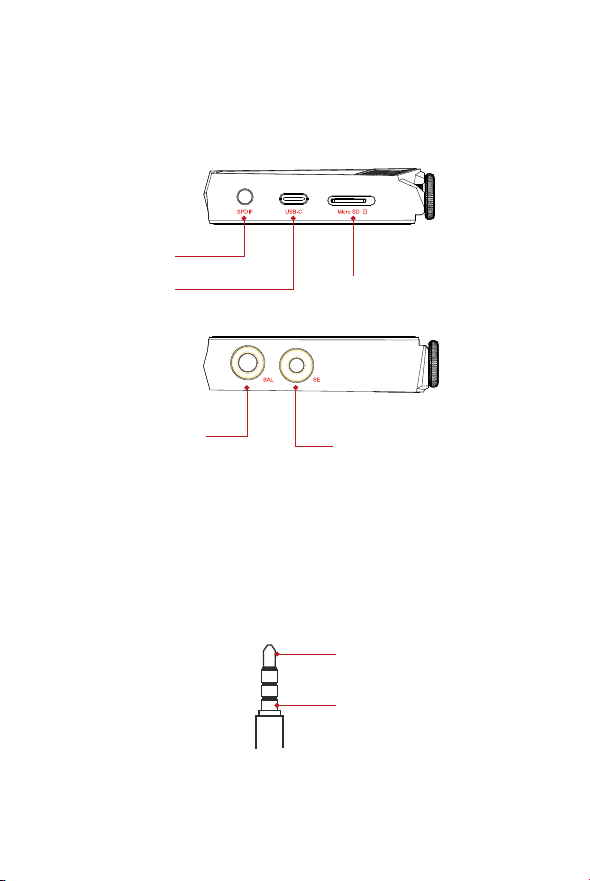
Coaxial Output Port:
Use the furnished coaxial cable to play music stored in the DX260
MK2 on an external device with a coaxial input port. Mini coaxial
output has the highest output priority which would close the phone
out or line out when coaxial cable plugged in. The output of this
port is up to 24bit/384kHz or DoP DSD128.
4.4mm Balanced Output
Coaxial Output Port
USB-C
Micro SD
3.5mm Single-ended Output
As shown in the picture above, users can choose TS, TRS,
TRRS standard 3.5 sockets.
The first section "T" is the coaxial signal, and the last section "S" is ground.
Coaxial signal
Ground
10
3.5mm Single-ended Output
When PO is selected on the output interface, plug in a 3.5mm
Single-ended earphone and output sound through the 3.5mm
SE port.
When LO is selected on the output interface, plug in a 3.5mm
interconnect and output LO to an external amplifier.
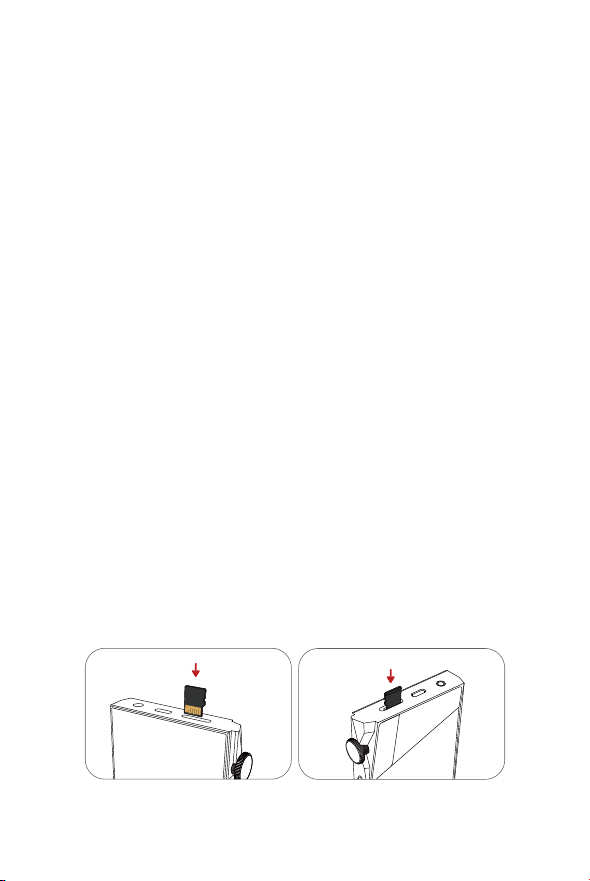
Micro SD Card Slot
Insert a Micro SD card into the DX260MK2 to access its stored files.
4.4mm Balanced output
When PO is selected on the output interface, plug in a 4.4mm
balanced earphone and output sound through the 4.4mm BAL
port.
When LO is selected on the output interface, plug in a 4.4mm
balanced interconnect and output LO to an external amplifier.
USB-C Port
Connect the DX260MK2 to a computer or a USB charger to
charge the DX260MK2.
Connect the DX260MK2 to a computer to allow the DX260MK2 to
work as a card reader or an external storage.
Connect the DX260MK2 to an OTG storage device to play music
files stored in this OTG storage device.
Connect the DX260MK2 to a Windows PC or a Mac computer to
work as a USB DAC.
11
USB-C
Coaxial Output
Port
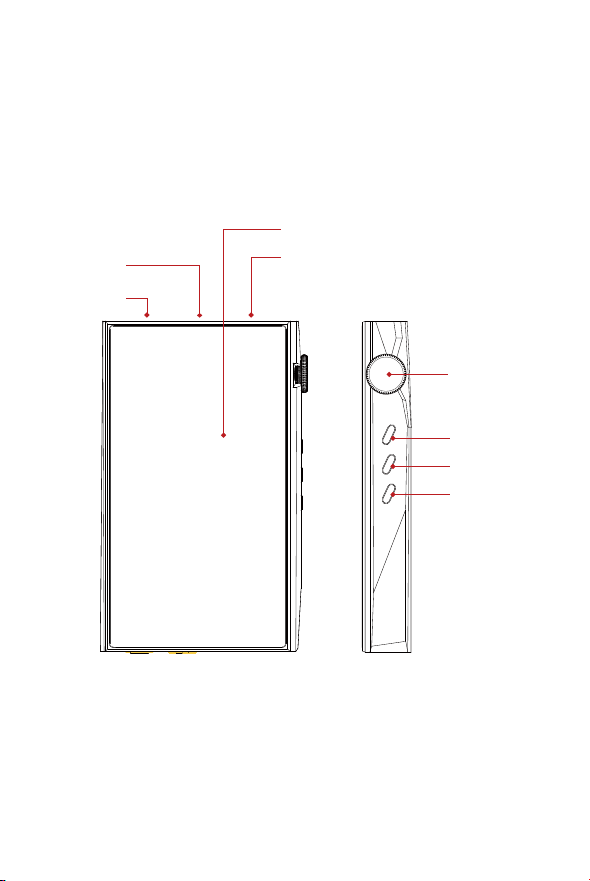
Power/Volume
Previous/Rewind
Play/Pause
Next/Fast Forward
Micro SD
5.0 Inch LED

12
Power:
Volume:
Previous/Rewind:
Next/Fast Forward:
Play/Pause:
Rotate the wheel clockwise to increase the volume.
Rotate the wheel counter clockwise to decrease the volume.
Short Press - Play the next track.
Long Press - Fast forward.
Short Press - Play/Pause.
On the Mango OS, long press the play button to lock the screen.
Short Press - Replay previous track.
Long Press - Rewind.
Short Press - Power the LCD screen on and off.
Long Press - To display the pop up window with three
options that are Power off, Reboot, and To Mango.

The DX260MK2 can work as a USB DAC for Windows PC, Mac
computer, and Linux computer. It is driver free on Mac computer
and Linux computer. With Mac computers, the DX260MK2
Supports PCM up to 32bit/384kHz and DoP DSD up to 128x. For
Windows PC, one can download the driver from iBasso.com and
install it following the steps, before using the USB DAC function.
The DX260MK2 supports up to 32bit/384kHz PCM, and native
DSD up to 256x when be used as a USB-DAC on Windows OS.
Power on/off:
1. Press and hold the power button to power on.
2. After the DX260MK2 is powered on, a long press of the Power
button to display the pop up window, press Power Off button
to power off the DX260MK2.
Power on/off the screen:
Single press the power button to power on/off the screen after
the DX260MK2 has been powered on.
Reset:
When the DX260MK2 stops unexpectedly during operation and the
keys are no longer responsive, press and hold the power button
for 10 seconds to reset the DX260MK2.
Charging:
DX260MK2 supports two quick charge protocols, QC3.0 and
PD3.0. Charging can be done with a standard 5V USB charger
or with quick charger that is compliant the stated 2 protocols.
A full charge takes about 2.5 hours with the afore mentioned
quick charge types.
Connecting to a computer to work as a USB DAC:
Basic Operation:
13
14
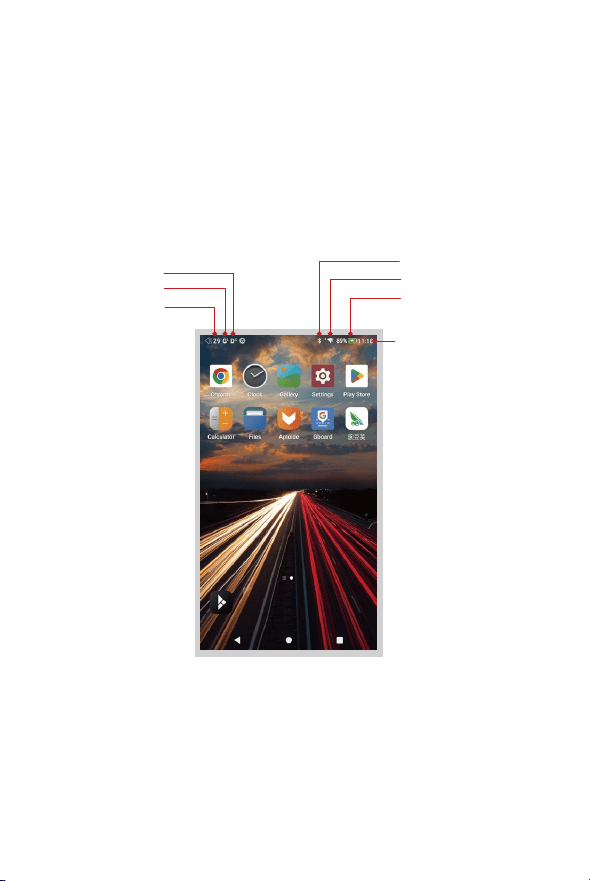
Battery indicator
WiFi
Bluetooth
Time
Volume
Gain
Digital Filter
Android Basic Features
Introduction
15
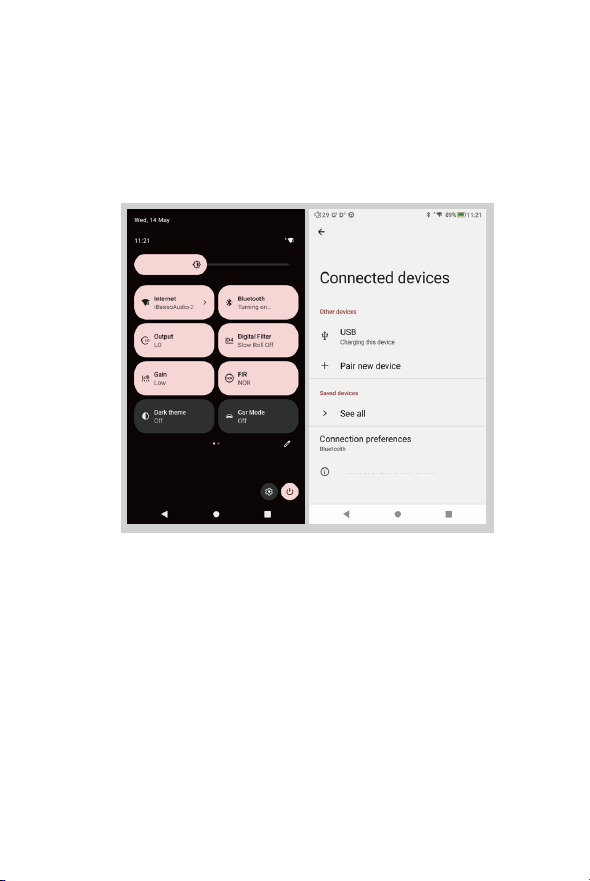
WiFi Connection:
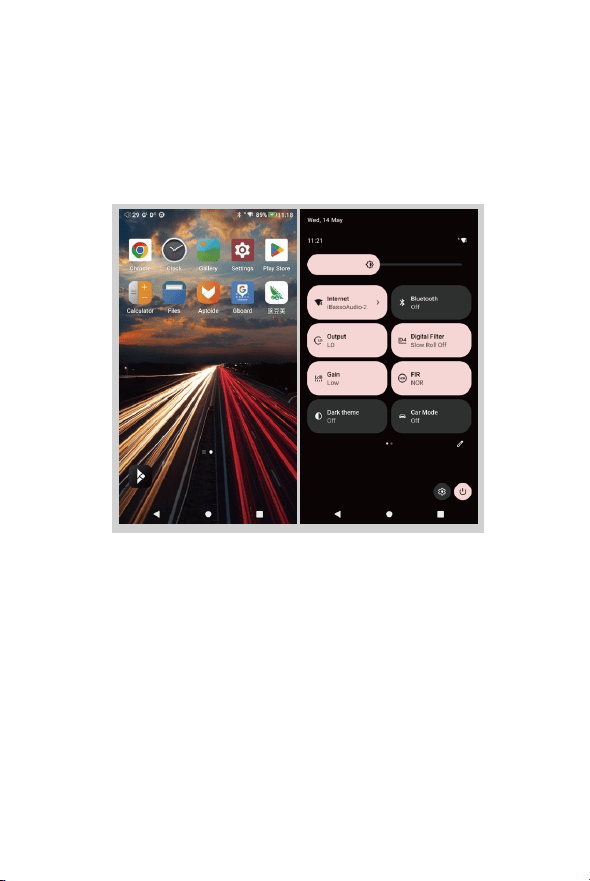
① On the Android desktop, from the top, swipe down
the screen to display the notification bar.
② Press the Wireless local area network(WLAN) to turn
on the WiFi function. The first time you enter the
WLAN, you need to choose the hot spot you will be
using and enter the password. From this point
forward your password for this hotspot will be
remembered and you simply press the WLAN icon
to connect to the WiFi internet.
16
Bluetooth Connection:
① On the Android desktop, swipe down from the top
of the screen to display the notification bar.
② Press the Bluetooth icon to turn on the Bluetooth
function. The DX260MK2 will automatically search
for the nearby Bluetooth device. At the same time,
the DX260MK2 will be visible to the nearby devices.
Choose the device that you would like to pair with.
After the device has been paired, you can use the
DX260MK2 in the Bluetooth mode.
Visble as‘DX260MK2’to other devices
APP Installation:
17
Method 1:
① APKPure and CoolAPK are pre-installed on the
DX260MK2. They are similar to Play Store.
② Launch one of them.
③ Search for the APP that you would like to install.
④ Download the APP and install it.
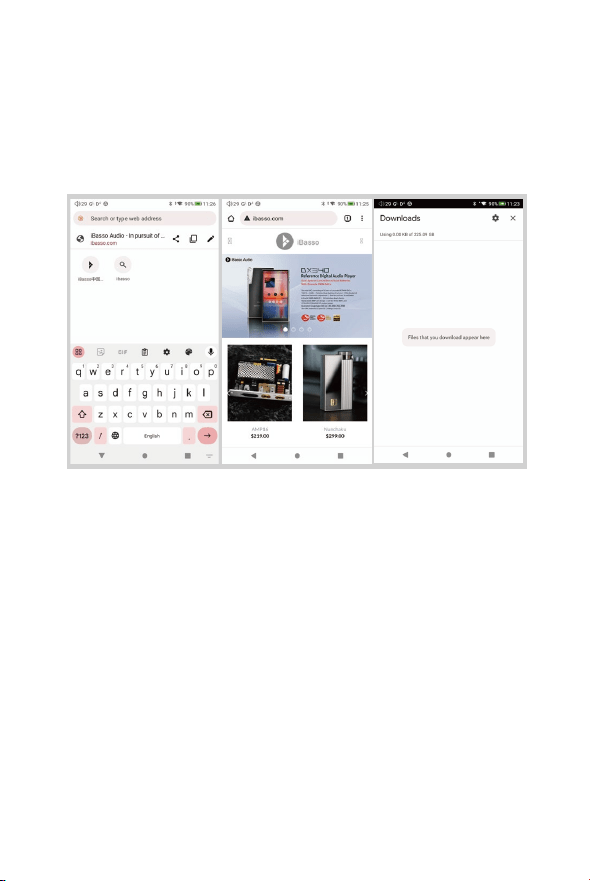
Method 2:
① Press the internet browser on the desktop.
② Enter the website address of the APP.
③ Find the download icon on the website and start
the download.
④ Return to the desktop and open download
manager.
⑤ Press the on downloaded app and install it.
App, to Uninstall:
18
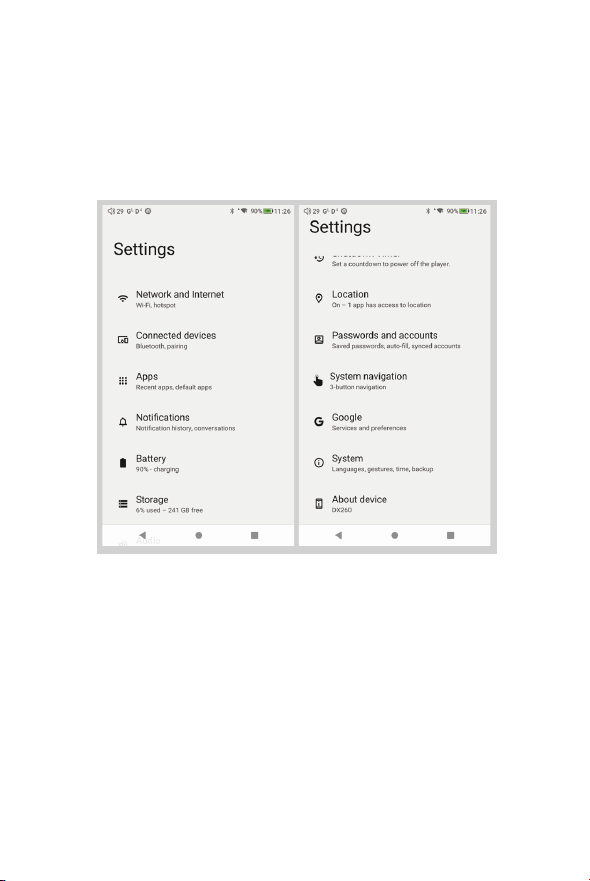
① Press the Settings icon on the desktop and scroll
down and press APPs.
② Press the APP that you would like to uninstall.
③ Press uninstall to delete the APP.
19
USB Connections:
Connect the DX260MK2 to the computer using the
furnished USB-C cable. The DX260MK2 will show
on the computer as an external storage. Users can
transfer files by copying and pasting.
* If you are using a Mac computer, please make sure the MTP
software Android File Transfer is installed.

20
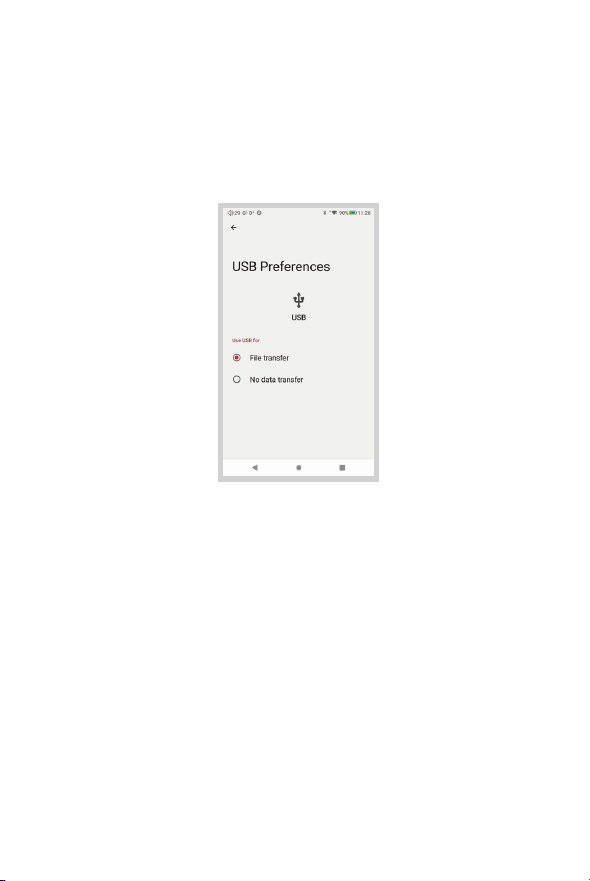
Charge The Connected Device:
① Connect the DX260MK2 to a device.
② The USB option appears at the bottom of the notification
bar drop down window
③ After pressing it, you can select the USB connection
purpose.
After turning on the function of charging connected
devices, you can charge the devices connected to the
DX260MK2.
USB DAC:
Please refer to page13.
21
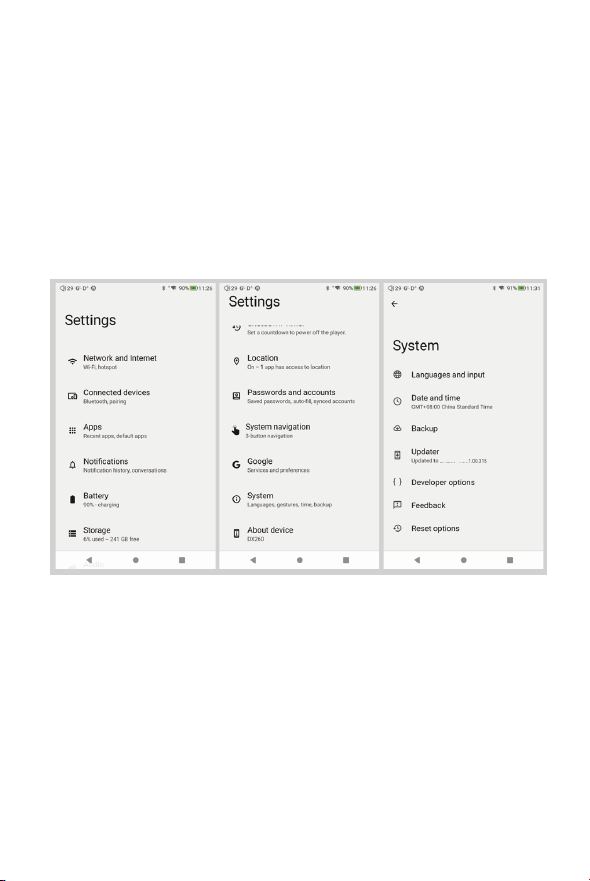
System Settings:
Press Settings icon on the DX260MK2 desktop to go into
system settings.
DX260MK2
22
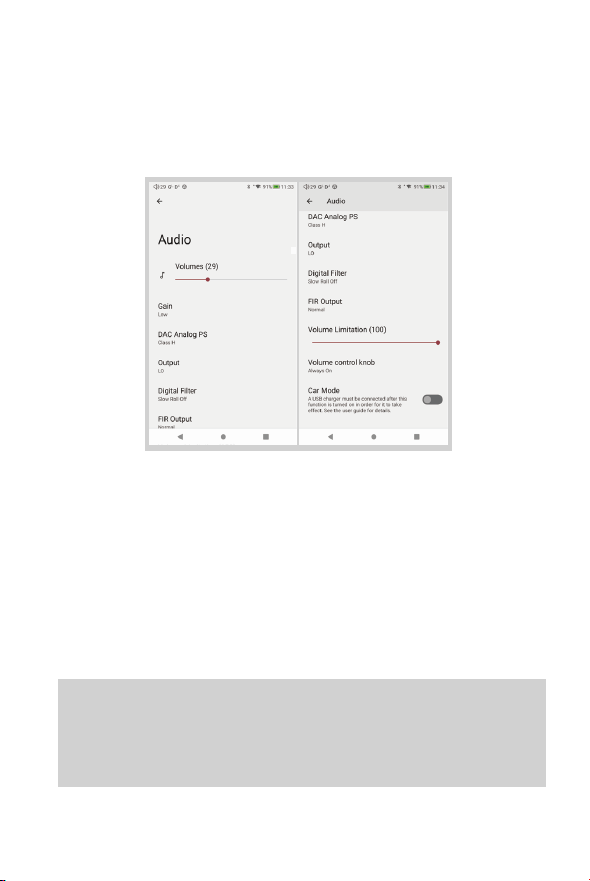
Audio Settings:
① Gain:
One of the three gains can be selected.
②
Digital Filter:
A total of five filters are available for user setting.
③ FIR Output:
One of the three Outputs can be selected.
④
Volume Limitation:
This sets the volume to a maximumpresetpoint.
⑤
Volume Control knob:
The volume knob can be set according to needs.
NOS Filter:
When using NOS filter, the pop sound when switching sample
rates will be at a higher volume than the other four filters. This
is part of the DAC chipset design andnormal.
Press Settings Icon, then press Audio Settings.
Firmware Update:
23
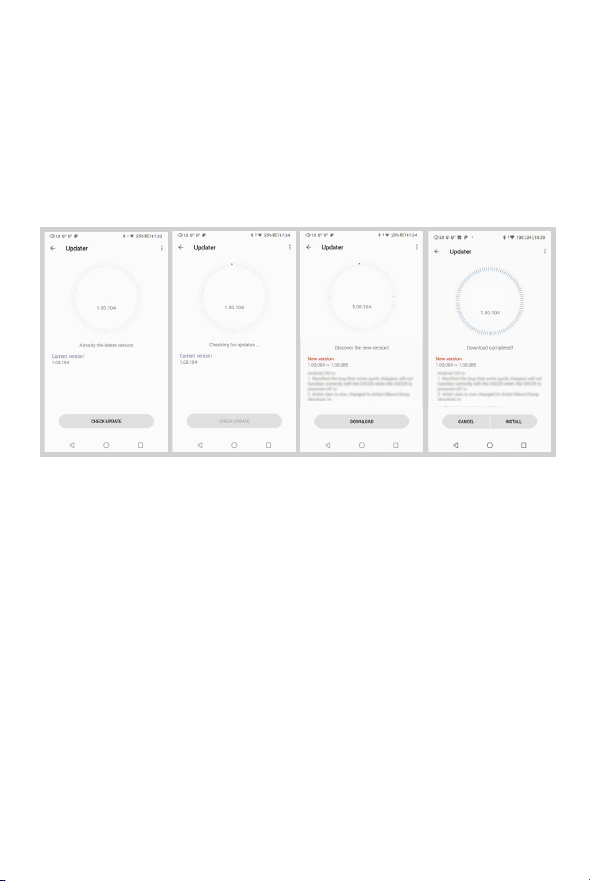
Online Update:
① Make sure the DX260MK2 is connected to WiFi.
② After online update is selected, press Check Update.
③ Press Download, the DX260MK2 will start downloading
the available update package.
④ After the download complete, press Update Now to
start the firmware update.
DX260MK2
DX260MK2
DX260MK2
DX260MK2
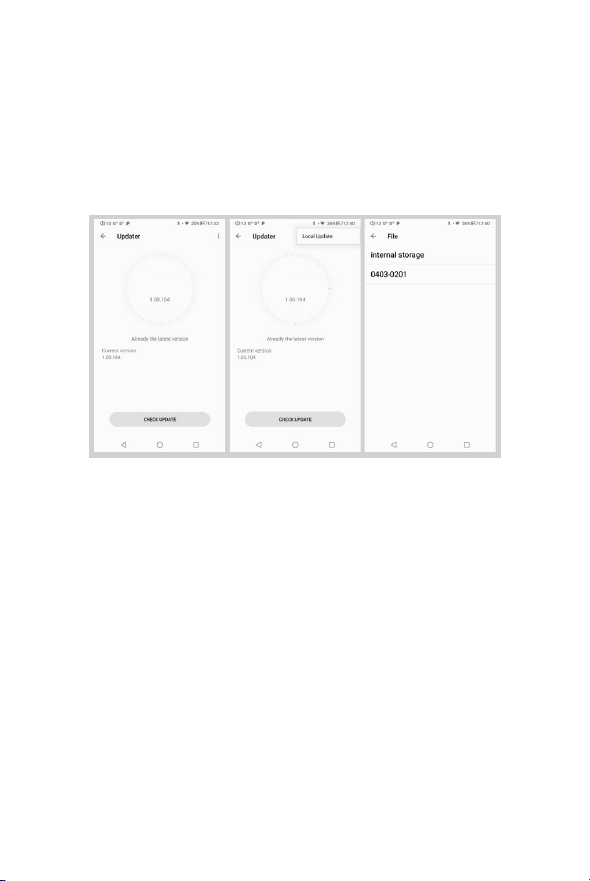
Local Update:
① Download the firmware file from our website.
If it is a rar file, extract it.
② Press the icon located on the top right corner,
then press Local Update.
③ Browse the folder where the firmware file is saved,
and select the firmware file.
④ Press Update Now to start the firmware update.
24
DX260MK2
DX260MK2
25
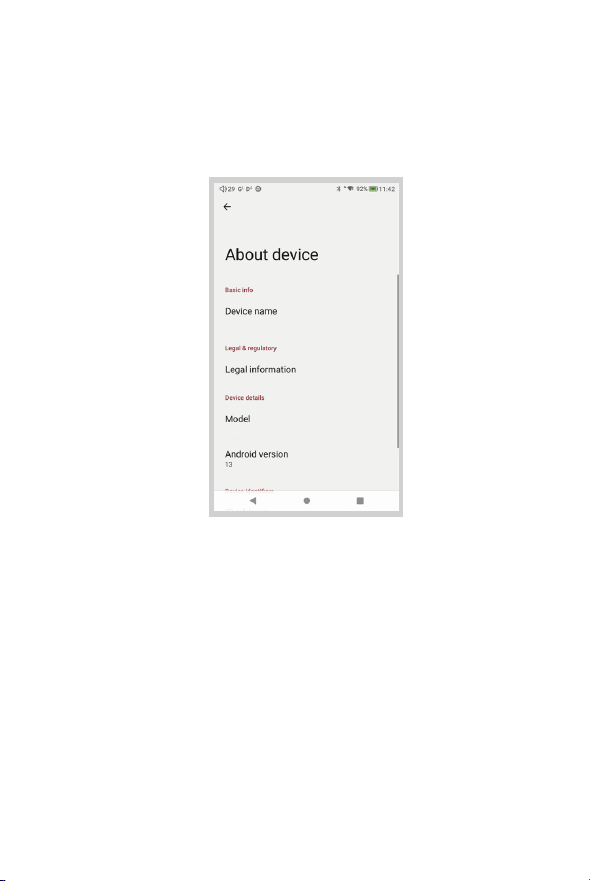
Firmware Version:
① Press Settings icon, System, About DX260MK2.
② Scroll down the page, the Build number is the
firmware version.
DX260MK2
DX260MK2
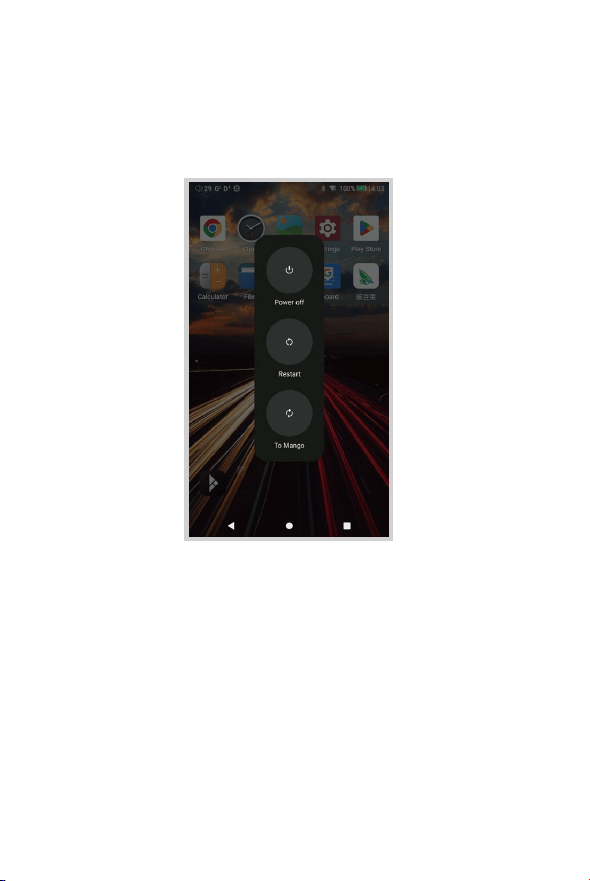
Power Off, Reboot, And
System Switching:
① Long press the power button for 3 seconds.
② There is a pop up window with three options.
③ When To Mango is selected, system will be
switched to Mango OS.
26
iBasso Mango Music Player
Application
27
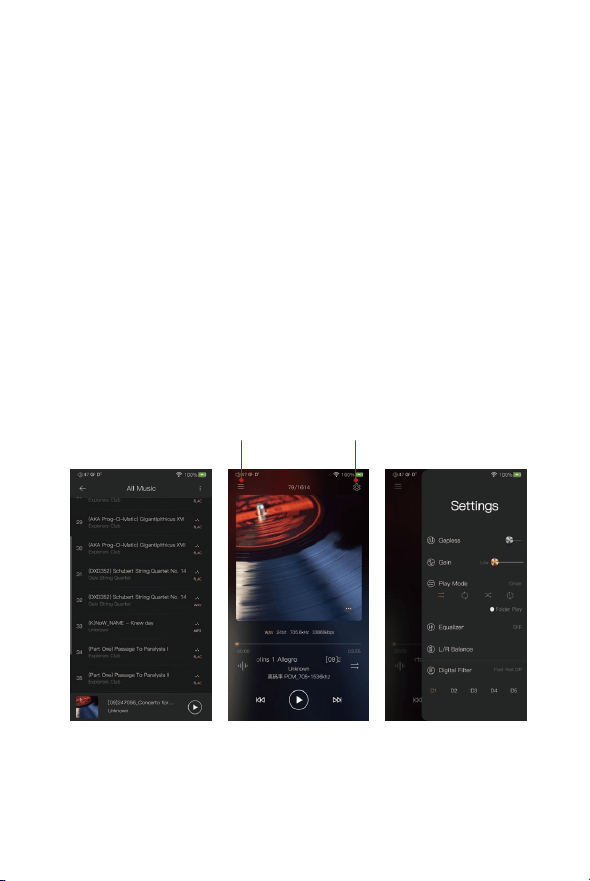
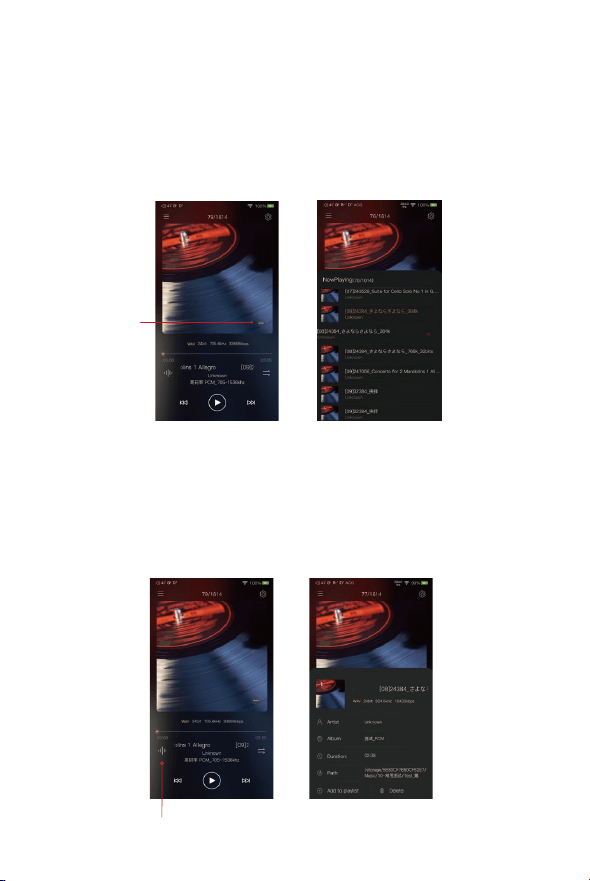
iBasso Audio Mango music player is composed of the Playback
screen (home screen), Music screen and Settings.
When on the playback screen, one can swipe left and right on
the Album artwork area to switch a song: Press the icon on the
top left corner ① to go into Music Screen.
Press the icon on the top right corner ② to go into Settings.
No matter which sub screens of the Music Screen you are
browsing, press the thumbnail icon on the bottom left to return
to the playback screen.
① ②
28
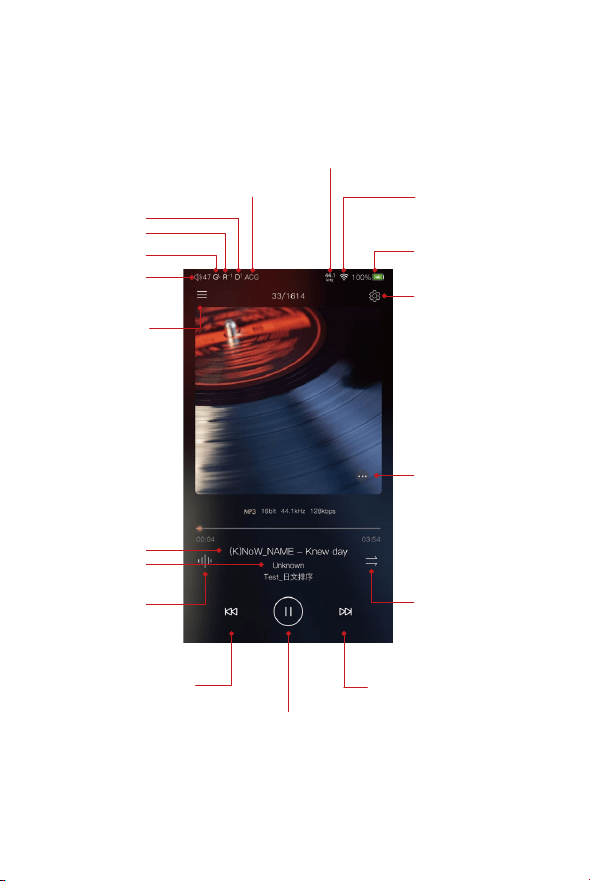
Playback Screen (home screen):
Music screen
Settings
Battery indicator for
digital section
WiFi
Sample Rate
Gain
Volume
L/R Balance
Digital Filter
Equalizer
Track title
Artist name
Music info
Previous/Rewind
Play Mode
Next/Fast Forward
Play/Pause
Now Playing
29
Now Playing Screen:
Music Info Screen:
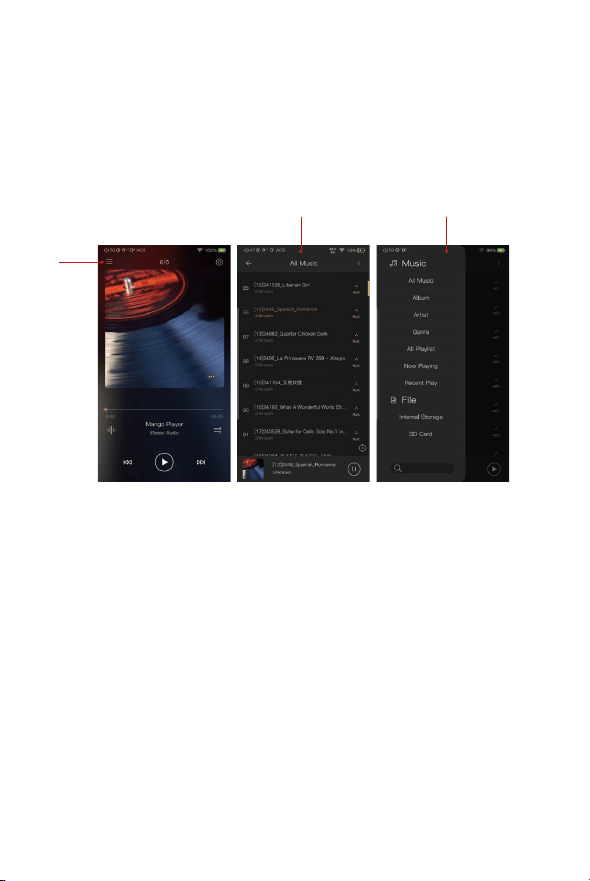
Press the icon located on the bottom right to display the
now playing screen. One can swipe a song to the left to display
the Delete button. Press the delete button to remove it from this
now playing list.
Press the Music info icon ②, the bottom of the home screen will
show the music info. Adding the current playing music into the
playlist or deleting the current playing music also can be achieved
in the music info screen. Press any areas of the upper part will
return to the home screen.
①
②
30
Music screen:
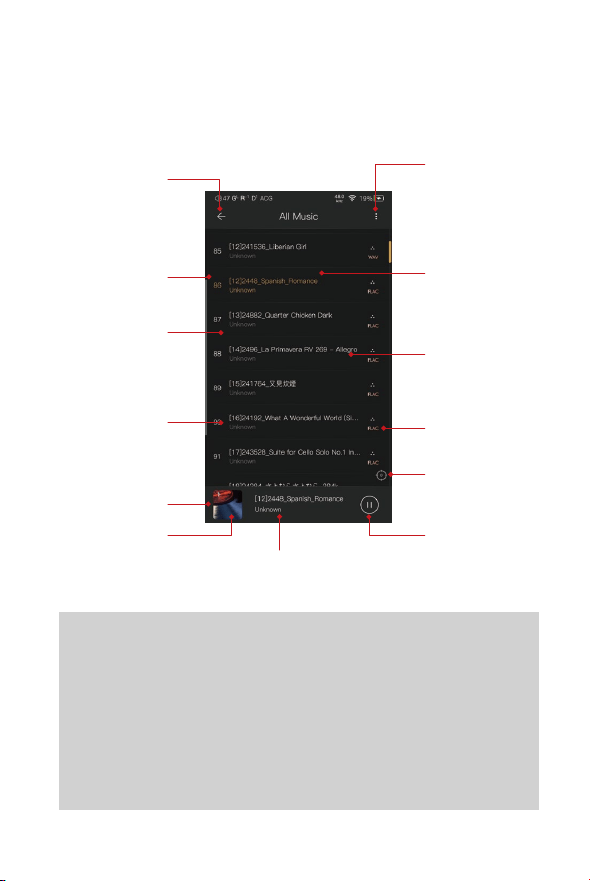
Press the Music Screen icon ① will go into the Music Screen②.
Swipe from left to right on the Music Screen will bring up the
Navigation Menu③.
①
② ③
Return:
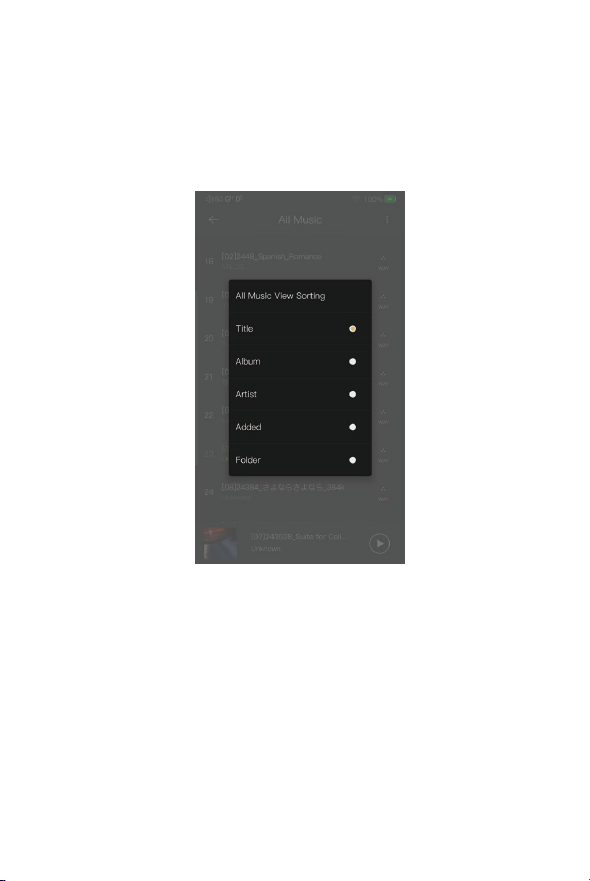
Press the Return button will move back one page at a time,
until return to the home screen.
Sorting:
Click the Sorting icon to pop-up the sorting options. You
can select "Title/Album/Artist/Time/Folder" to sort the All
Music.
31
Song sorting②
Return to
home screen①
Playback bar
Thumbnail artwork
⑥
Play/Pause
Track title and artist name
of the song that is playing
Now playing
Music format
Long press
④
Quickly position
the current playing
music file⑤
Music order
Track title
/Artist name
Swipe to trigger
the Navigation
Menu③

32
Swipe to trigger the Navigation Menu:
Swipe from left to right to bring up the navigation menu.
Long Press:
Long pressing a song will pop up a window with more
options.
Quickly position the current playing music file:
On the All Music screen, press the Position icon to quickly
position the current playing music file.
Thumbnail artwork:
Press to return to the playback screen.
33
Click the Sorting icon to pop-up the sorting options. You
can select "Title/Album/Artist/Time/Folder" to sort the All
Music.
Sorting:
34
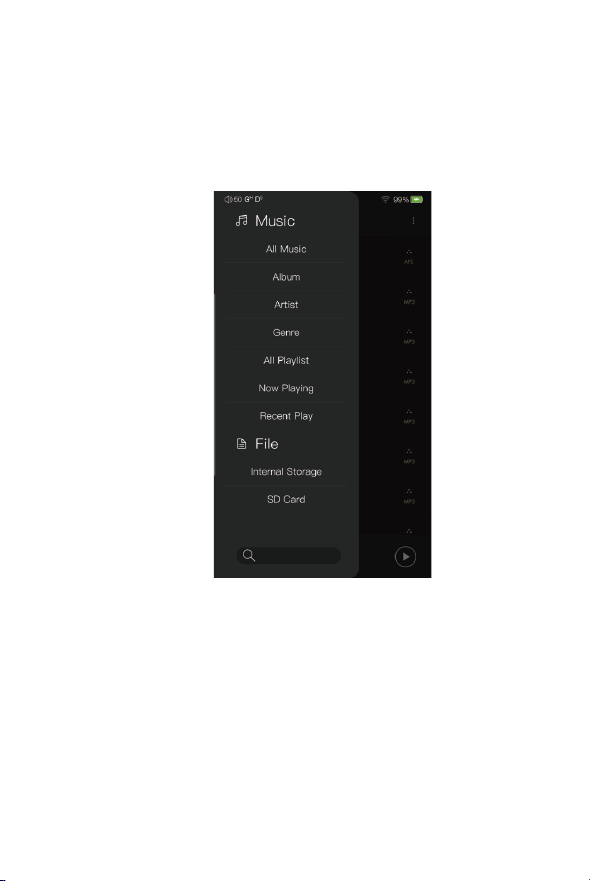
Swipe from left to right to bring up the Navigation Menu.
One can choose among All Music, Album, Artist, Genre,
Now Playing, Playlist, Internal Storage, and SD card. Also,
the search bar is located at the bottom of the Navigation
Menu.
Navigation Menu:
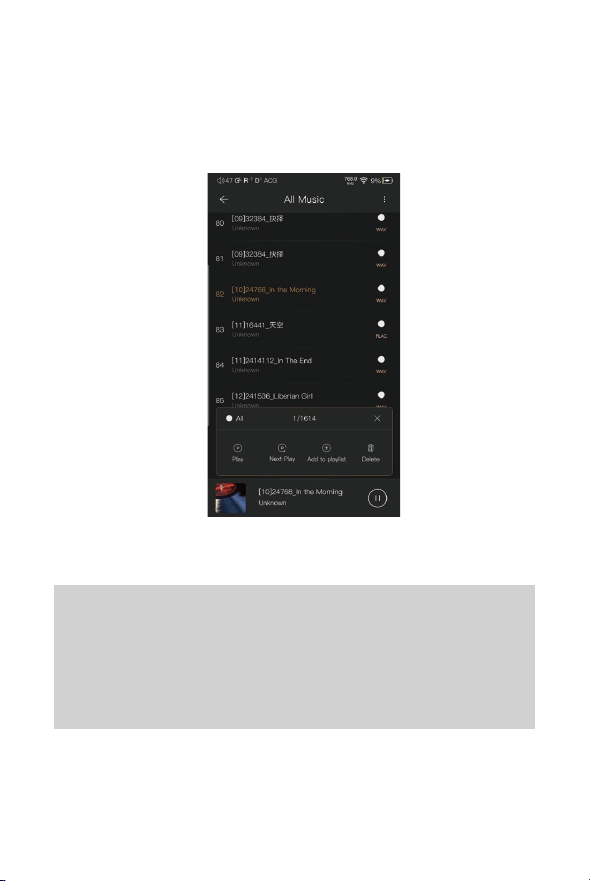
Further Options:
Long Press of a song will pop up a window with further
options that allows to play this song, add this song to a
playlist, or delete this song.
Long Press Pop-up:
35
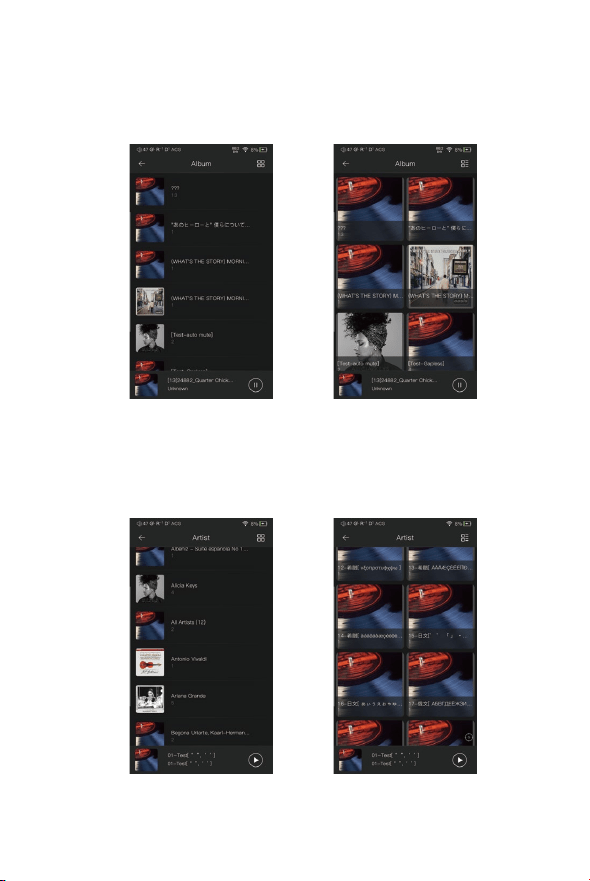
Artist View:
Thumbnail view Artwork view
Thumbnail view Artwork view
36
Album View:
37
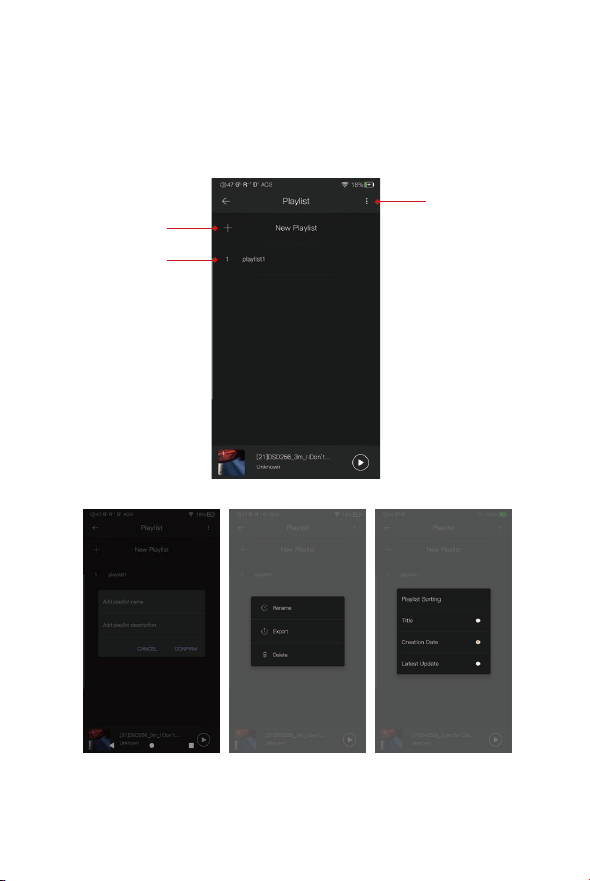
Playlist View:
①
②
③

38
Further Options:
A Long press of the playlist will popup a window with further
options, which allows renaming the playlist, exporting the
playlist, or deletion of the playlist.
The playlist can be found on the internal storage of the iBasso
/mango player folder, after the playlist has been exported.
New Playlist:
Press the New Playlist to create a playlist. On the pop-up
window, one can name the playlist and add playlist description.
Playlist View:
Sorting:
Click the Sorting icon to pop-up the sorting options. One can
select “Title/Creation Time/ Latest Update" to sort the playlists.
39
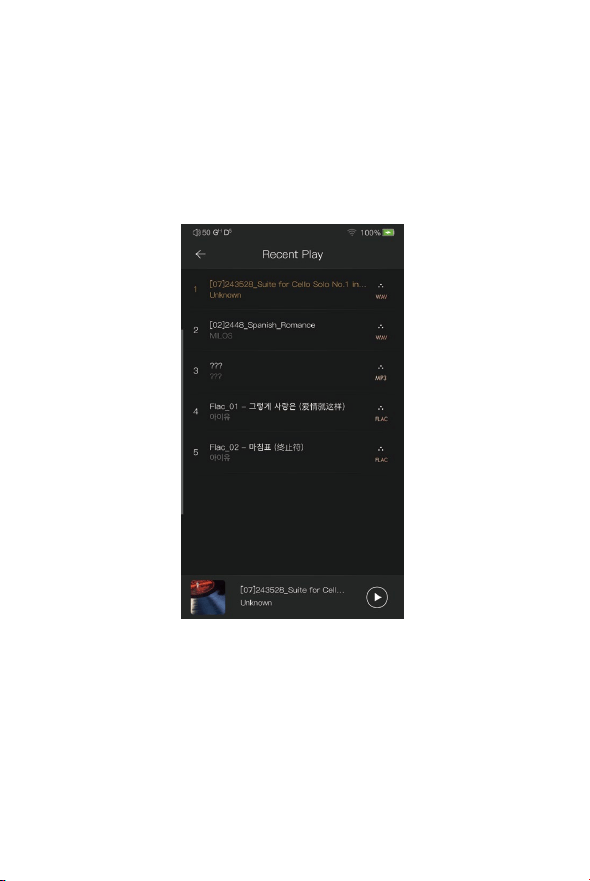
Recent Play:
50 recently played tracks are listed.
40
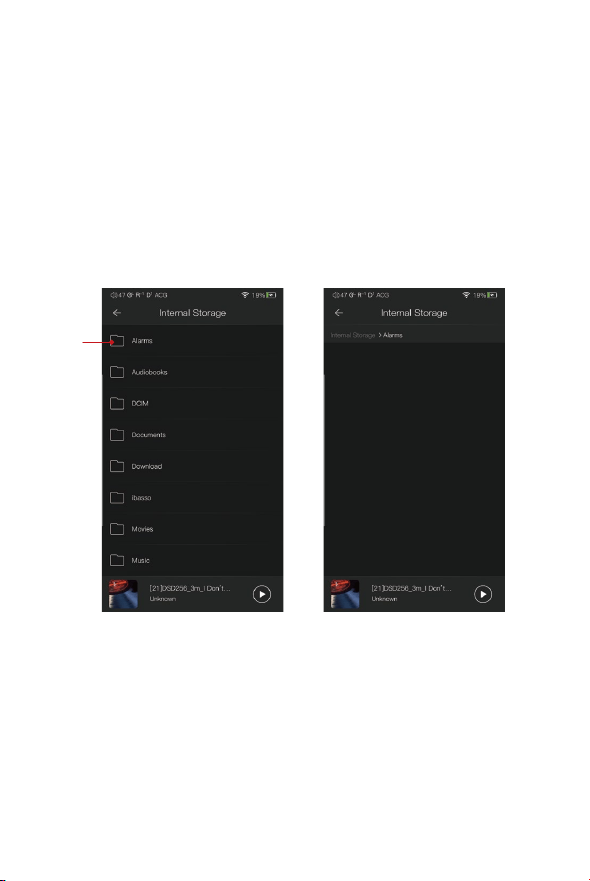
File:
①
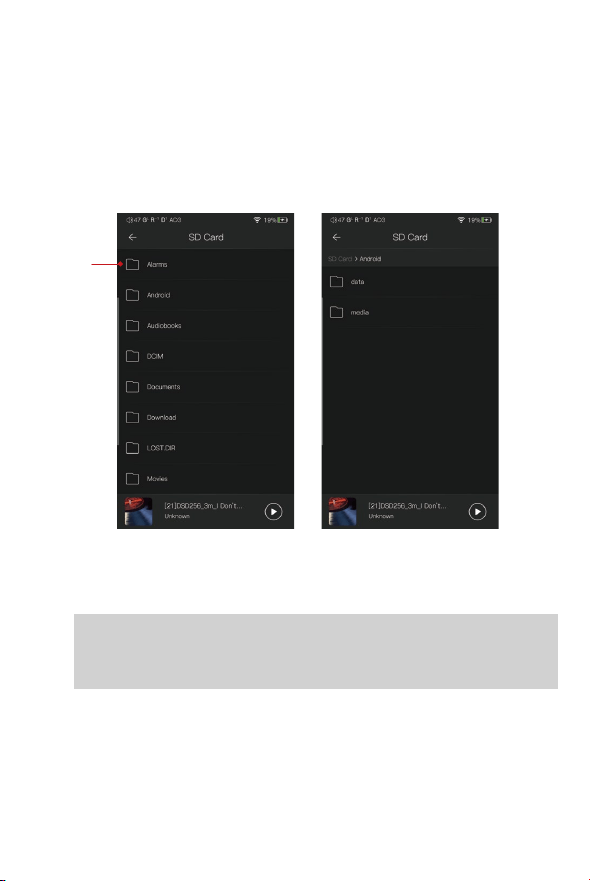
Press Internal Storage or SD Card on the Navigation Menu to go
into Directory view. One can browse the music files under internal
storage and SD card via folder structure.
41
①
Press the return button① will move back one page at a time.
42
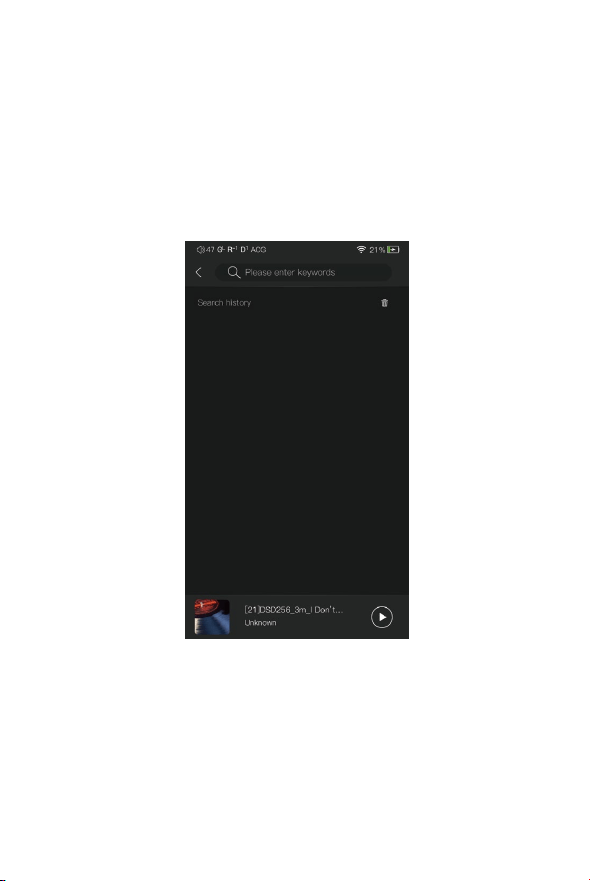
Input the keywords to search a track, an album, or an artist.
Search Screen:
43
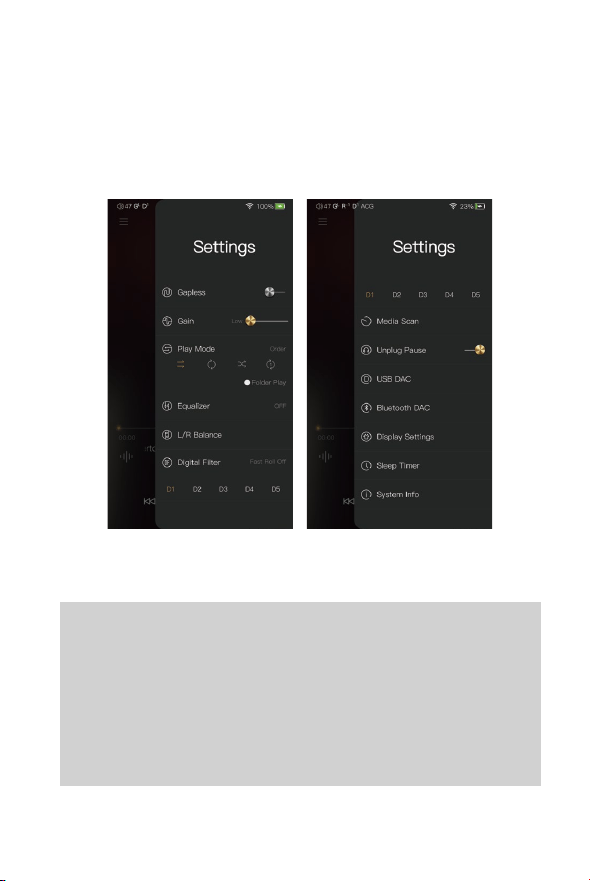
Gapless:
One can enable the gapless to eliminate the gap between
two tracks.
Gain:
There are three gain settings. The low gain has the lowest
noise floor and is good for ultra sensitive IEMs.
Settings Screen:
Press the Settings icon to go into settings screen.

44
Play Mode:
Folder Play:
L/R Balance:
Press to go into the L/R balance setting page.
Digital Filter:
There are five filters, press the number to quickly choose
a filter.
One can choose the desired play mode here.
To enable the folder play function, tick the Folder Play,
then select either the order play mode or loop play mode.
After a full media scan, or rescan the library, you can go
to Directory and select a song under a folder. After this
folder is played, the DX260MK2 will play the next folder.
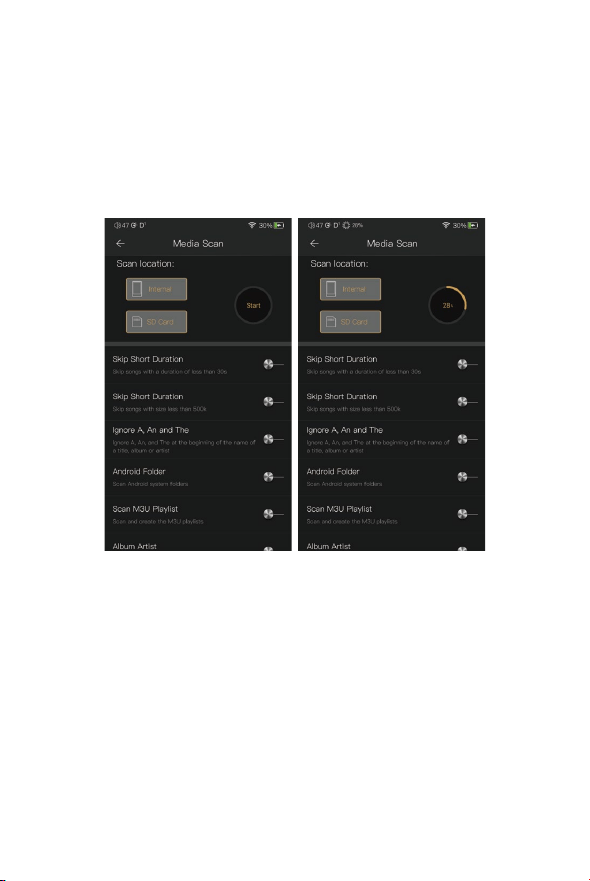
Media Scan:
Press to go into the Media Scan settings page.
Unplug Pause:
When Unplug Pause is enable, the music playback will be
paused when unplugging the earphone from the player.
45
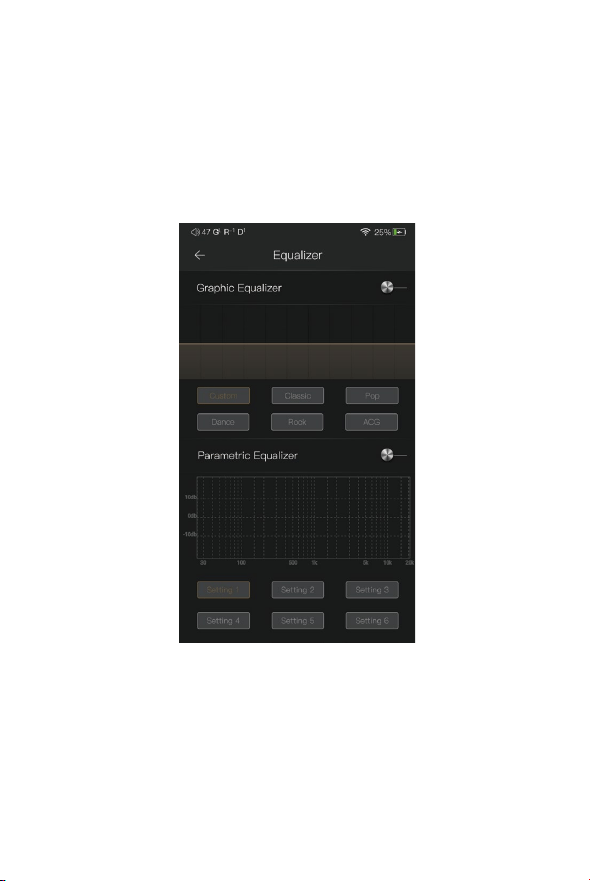
The DX260MK2 has two types of Equalizers, Graphic EQ and
Parametric EQ.
Equalizer:
46
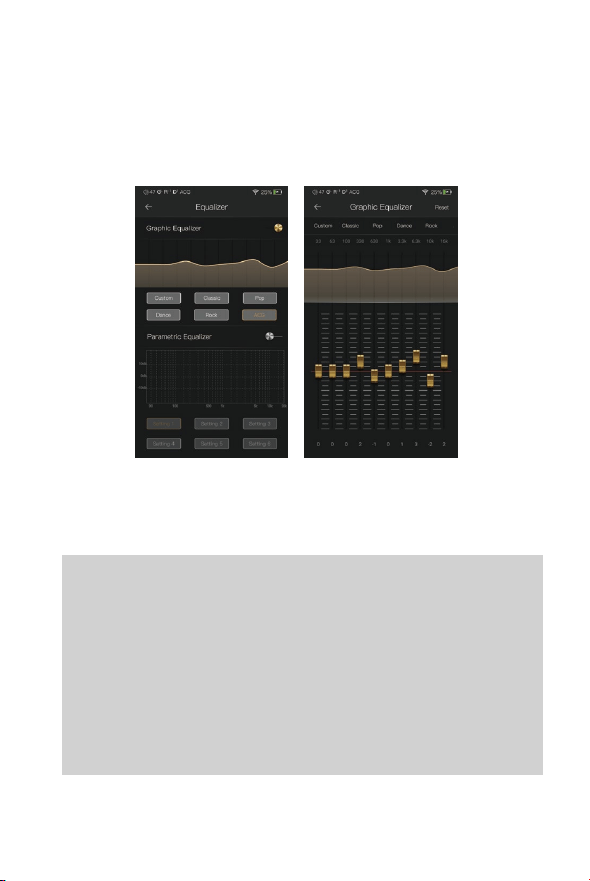
Pre-set EQ:
There are 5 kinds of pre-set EQ and a custom option.
One can quickly set the equalizer as desired by selecting
them.
How to Adjust The EQ Settings:
Press on the response curve, the 10 band slide bars will
show up. One can adjust the EQ settings by positioning
the bars up or down.
Press the button of the Graphic Equalizer to enable the Graphic
Equalizer.
Graphic Equalizer:
47
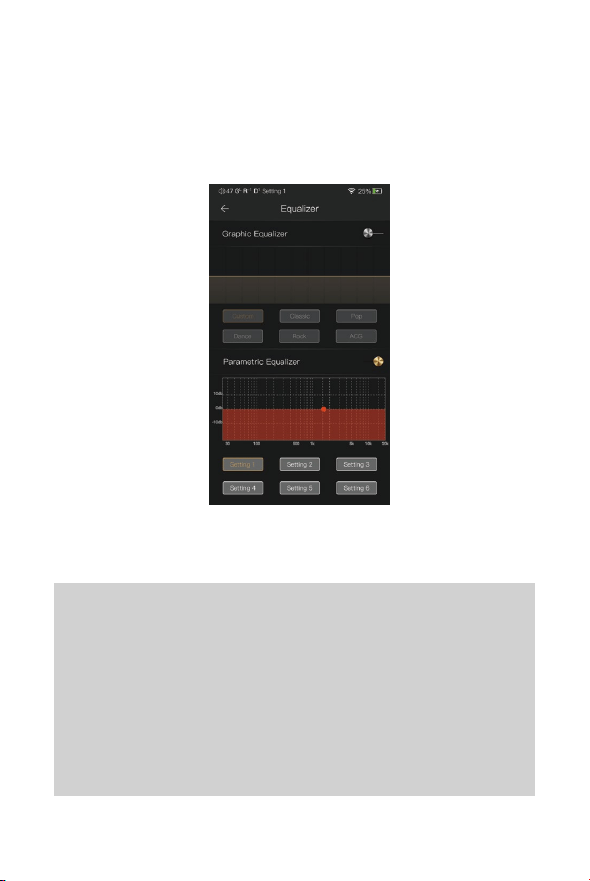
Parametric Equalizer:
Press the button of the Parametric Equalizer to
enable the it.
Parametric Equalizer:
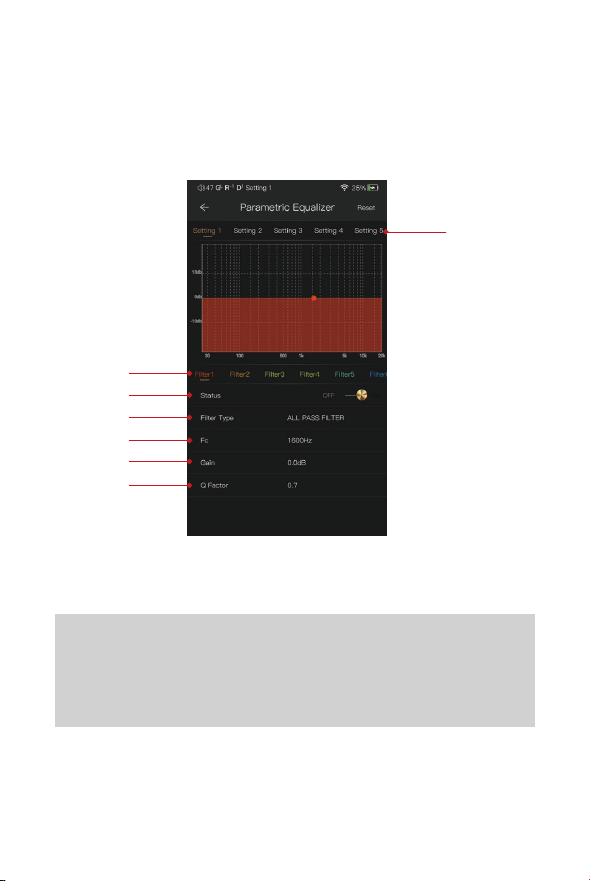
How to Go Into The Parametric EQ Setting Screen:
Press the response curve to go into the parametric
EQ setting screen.
Press the button of the Parametric Equalizer to enable the it.
48
① Settings on the Selection Bar:
One can swipe left and right to select a setting.
Parametric Equalizer Setting Screen:
③
④
⑤
⑥
⑦
②
①

49
③ Status:
Status of each filter. One can turn on or turn off
the selected filter.
④ Filter Type:
There are eight kinds of filters. Select one of the
filters.
⑤ Central Frequency (Fc):
This is the central frequency. Input a value between
33Hz to 16,000Hz.
This is the gain for each central frequency. Input a
value between -20dB to 20dB.
⑥ Gain:
This is the quality factor. Input a value between 0.3
to 20.
⑦ Q Factor:
② Filter Navigation Bar:
There are maximum of 6 filters allowed for each
setting. One can swipe left and right to select a
filter, then customize it.
50
Central Frequency (Fc):
The central frequency of each filter setting.
Gain:
The gain for the central frequency.
Quality Factor:
The range of effect of the filter.
As shown on the pictures below, the larger value of the
Q factor, the smaller the effect compared the central
frequency. The smaller value of the Q factor, the larger
the effect in relation to the central frequency.
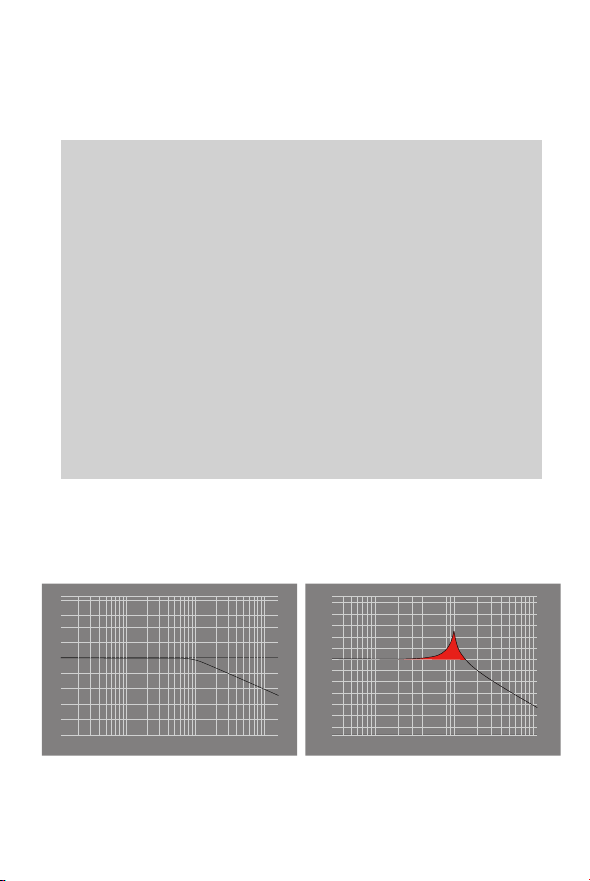
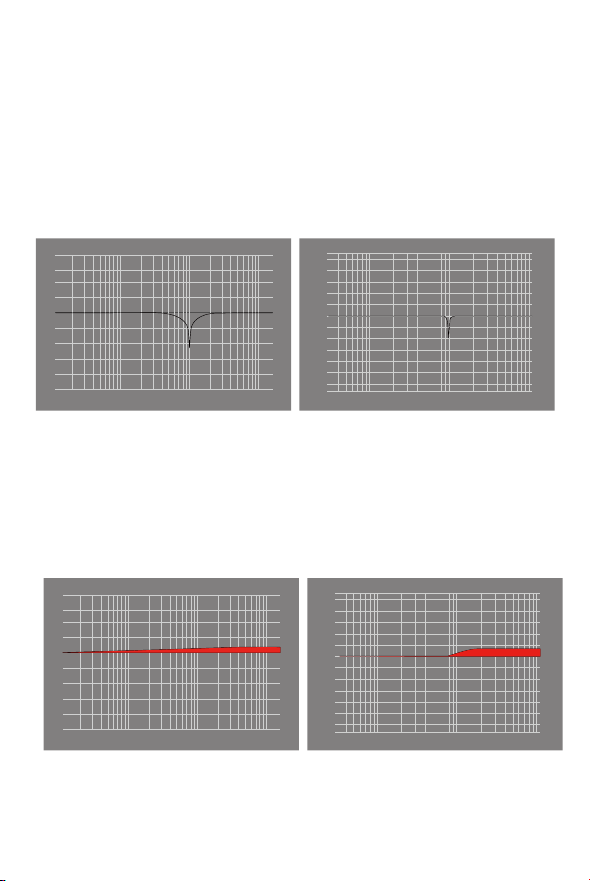
The following are the curves of the filters
(Fc=100Hz, gain=4dB)
Parametric Equalizer Setting Instruction:
1. Low Pass Filter
The frequency higher than the central frequency will be affected.
Gain setting is ineffective with low pass filter.
2 3 4 56 10 20 30 100 200 1k
①. Q=0.7071 ②. Q=20
4 5 6 78 9 10 20 30 40 50 100 200 300 1k
51
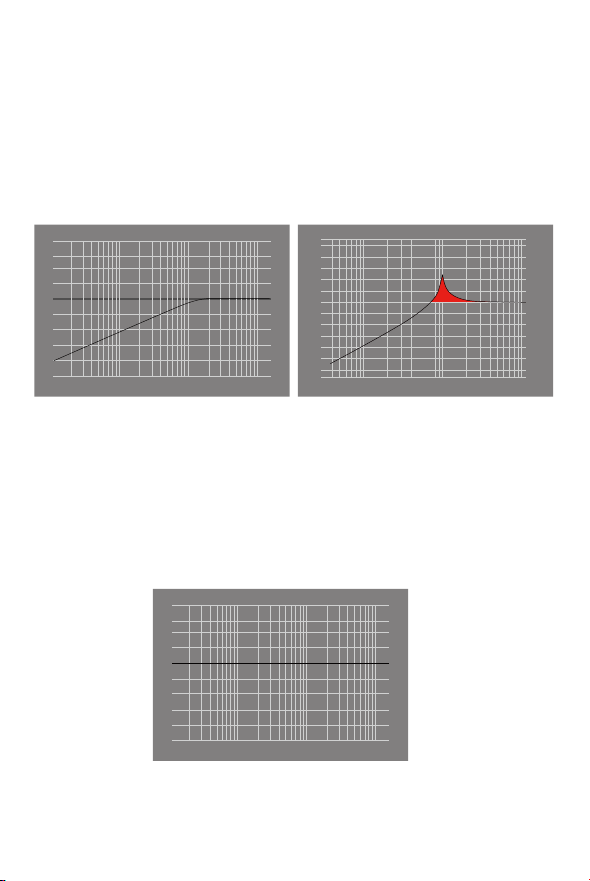
2. High Pass Filter
The frequency smaller than the central frequency will be affected.
Gain setting is ineffective with high pass filter.
3. All Pass Filter
There is no effect besides the central frequency. Gain setting is
ineffective with all pass filter.
③. Q=0.7071 ④. Q=20
2 3 4 56 10 20 30 100 200 1k
4 5 6 78 9 10 20 30 40 50 100 200 300 1k
⑤.
2 3 4 56 10 20 30 100 200 1k
52
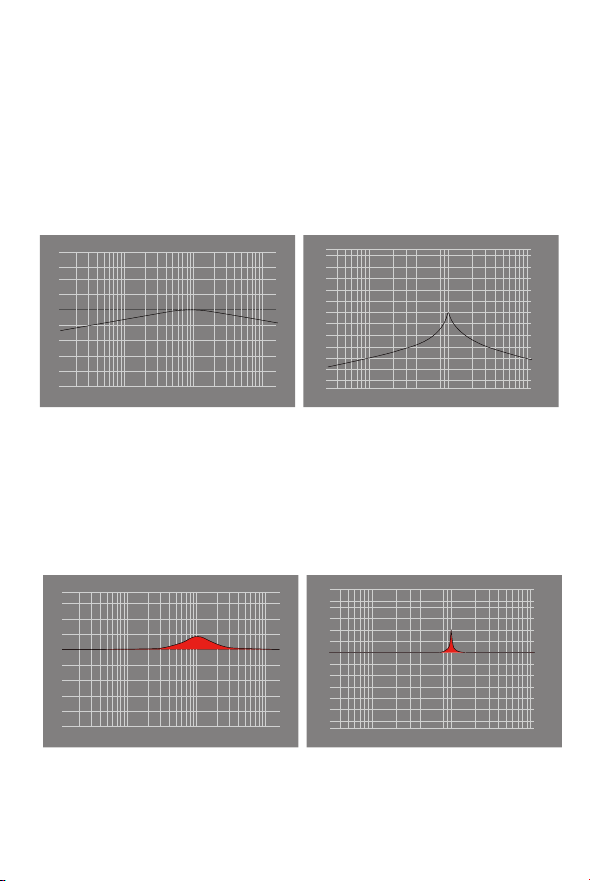
4. Band Filter
The effect on the central frequency is not large.The frequency
beside the central frequency has similar effect. Gain setting is
ineffective with band filter.
5. Peak Filter
There is a large effect on the central frequency. The frequency beside
the central frequency has similar effect.
⑥. Q=0.7071 ⑦. Q=20
2 3 4 56 10 20 30 100 200 1k
4 5 6 78 9 10 20 30 40 50 100 200 300 1k
⑧. Q=0.7071 ⑨. Q=20
4 5 6 78 9 10 20 30 40 50 100 200 300 1k
2 3 4 56 10 20 30 100 200 1k
53
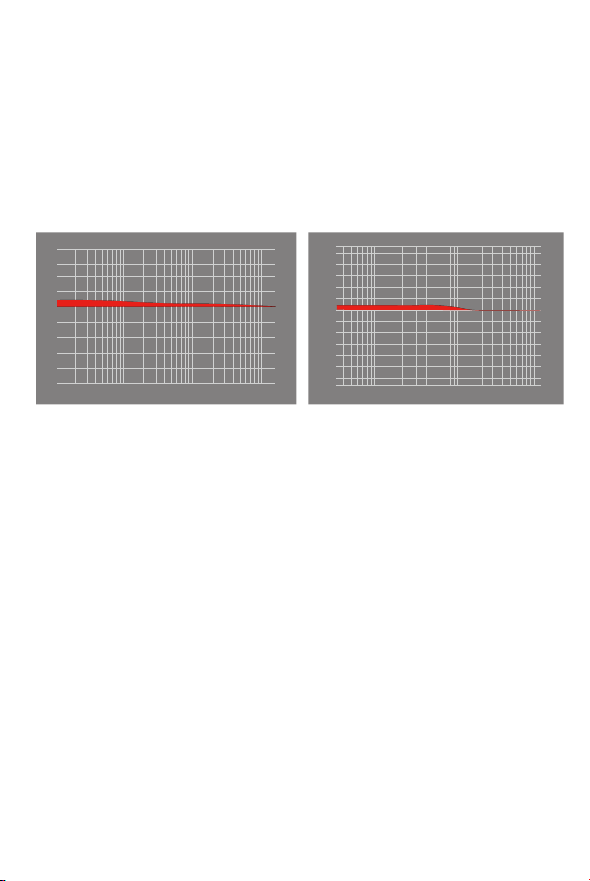
6. Notch Filter
The central frequency has obvious reduction. The frequency beside
the central frequency has similar effect. Gain setting is ineffective
with notch filter.
7. High Shelf Filter
There is a wide effect on the frequency that is higher than the
central frequency.
2 3 4 56 10 20 30 100 200 1k
⑩. Q=0.7071 ⑪. Q=20
4 5 6 78 9 10 20 30 40 50 100 200
300 1k
⑫. Q=0.7071 ⑬. Q=20
4 5 6 78 9 10 20 30 40 50 100 200
300 1k
2 3 4 56 10 20 30 100 200 1k
54
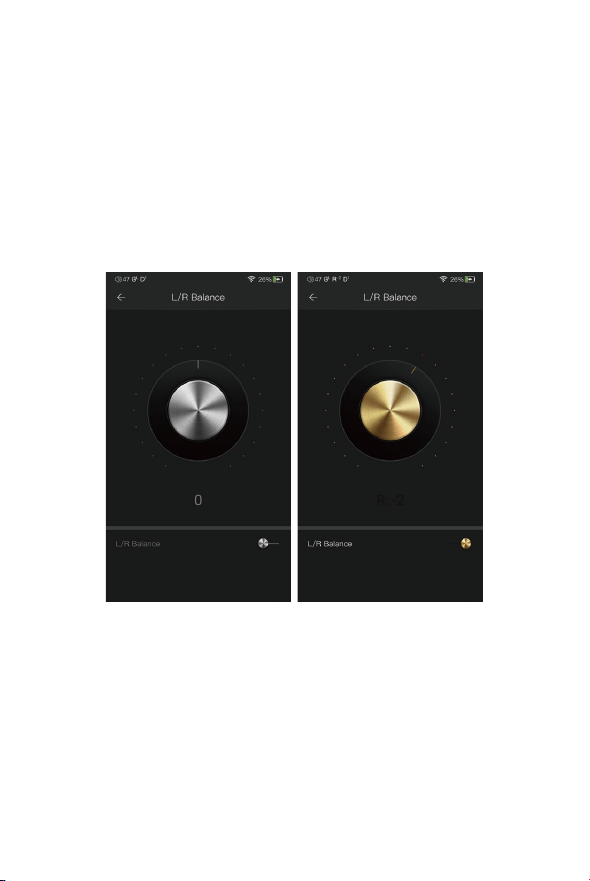
8. Low Shelf Filter
There is a wide effect on the frequency that is lower than the central
frequency.
⑭. Q=0.7071 ⑮. Q=20
4 5 6 78 9 10 20 30 40 50 100 200
300 1k
2 3 4 56 10 20 30 100 200 1k
55
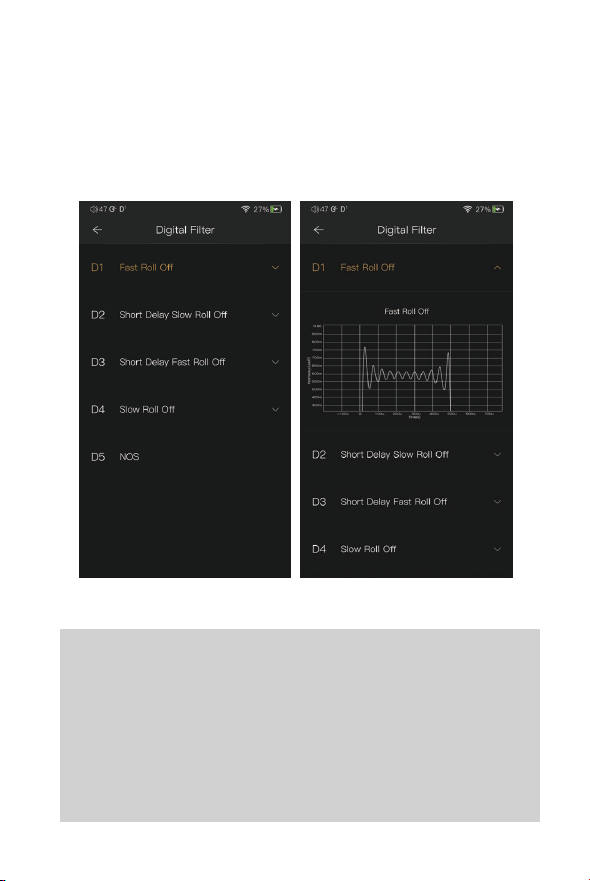
L/R Balance:
Turn in the clockwise direction to decrease to volume in right
channel.
Turn in the counterclockwise direction to decrease the volume
in left channel.
56
Digital Filter:
There are five digital filters available. Press a digital
filter to view the figure.
When using NOS filter, the pop sound when switching
sample rates will be at a higher volume than the other
four filters. This is part of the DAC chipset design and
normal.
Digital Filter:
57
Media Scan:
58
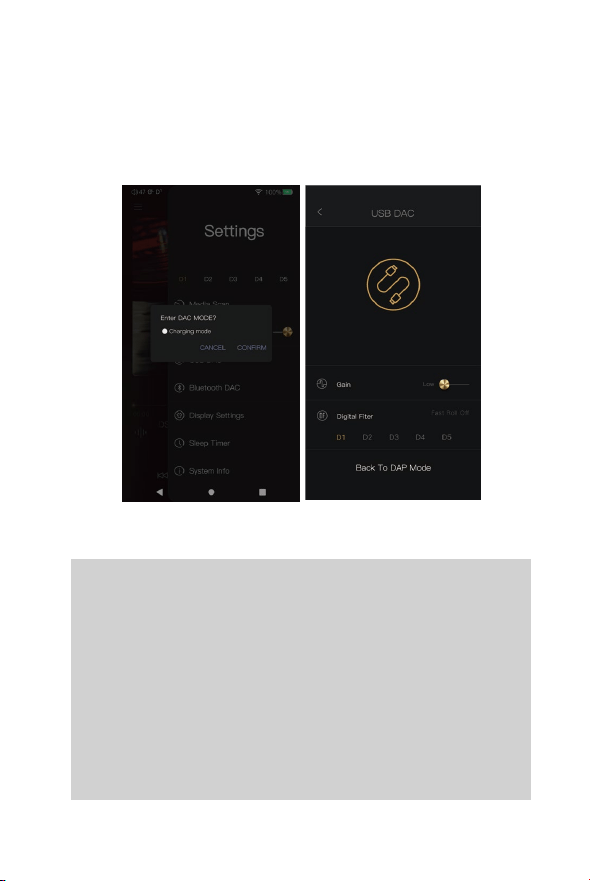
The DX260MK2 can work as a USB DAC for Windows
PC, Mac computer, and Linux computer. It is driver free on
Mac computer and Linux computer. With Mac computers,
the DX260MK2 supports PCM up to 32bit/384kHz and
DoP DSD up to 128x. For Windows PC, one can download
the driver from iBasso.com and install it following the
steps, before using the USB DAC function. The DX260
MK2 supports up to 32bit/384kHz PCM, and native DSD
up to 256x when be used as a USB-DAC on Windows OS.
USB DAC:
59
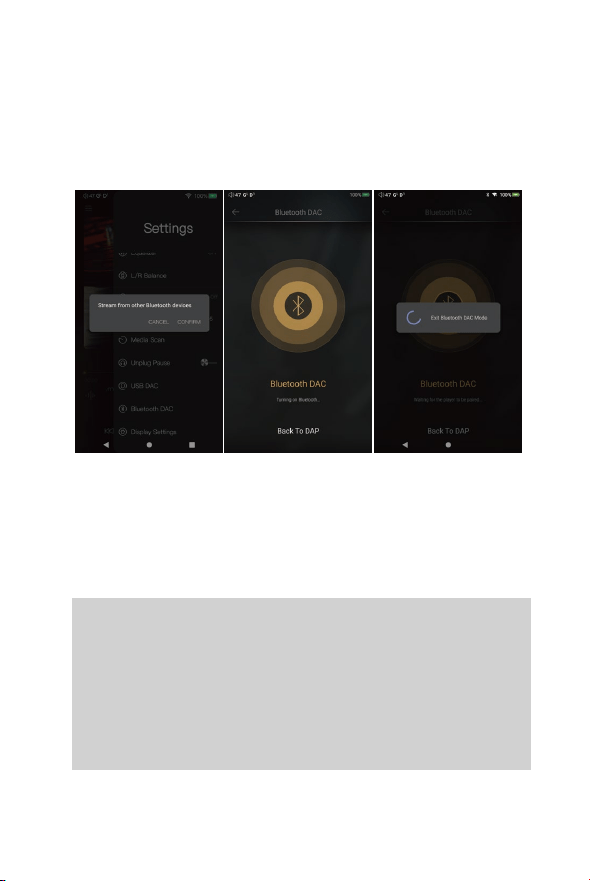
Bluetooth DAC:
DX260MK2 Bluetooth DAC.
After turning on the Bluetooth DAC, Bluetooth devices such
as a mobile phone can be paired with the DX260MK2. The
DX260MK2 can now stream from the connected Bluetooth
device.
Note: When in Bluetooth DAC mode, the DX260MK2
supports AAC and SBC.
60
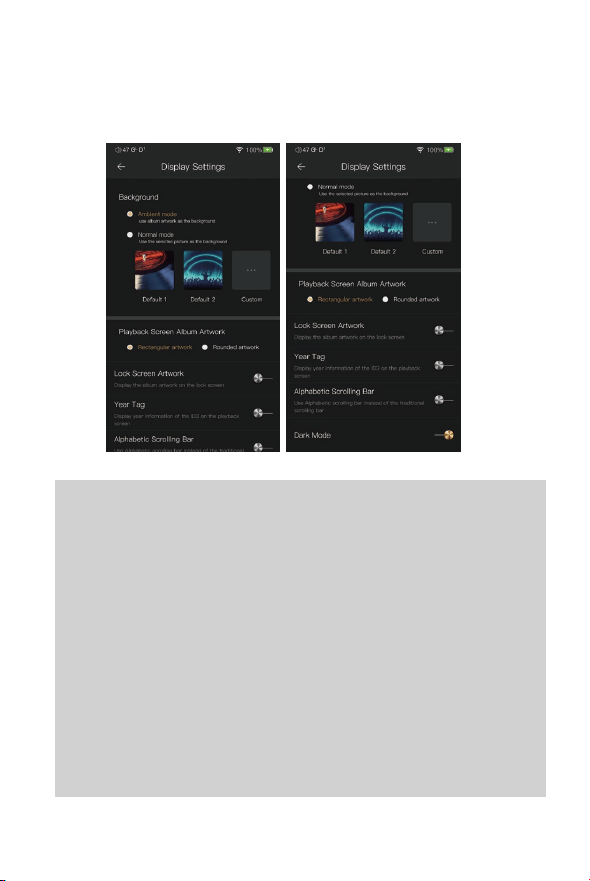
Display Settings:
Ambient mode:
Use album artwork as the background picture.
Normal mode:
Use the selected picture as the background picture.
Playback screen album artwork:
Choose to display rectangular artwork or rounded artwork.
Lock screen artwork:
Display the album artwork on the lock screen.
Year tag:
Display year information of the ID3 on the playback screen.
Alphabetic scrolling bar:
Use alphabetic scrolling bar instead of the traditional
scrolling bar.
Dark Mode:
After turning it on, the player is in a dark color theme.
61
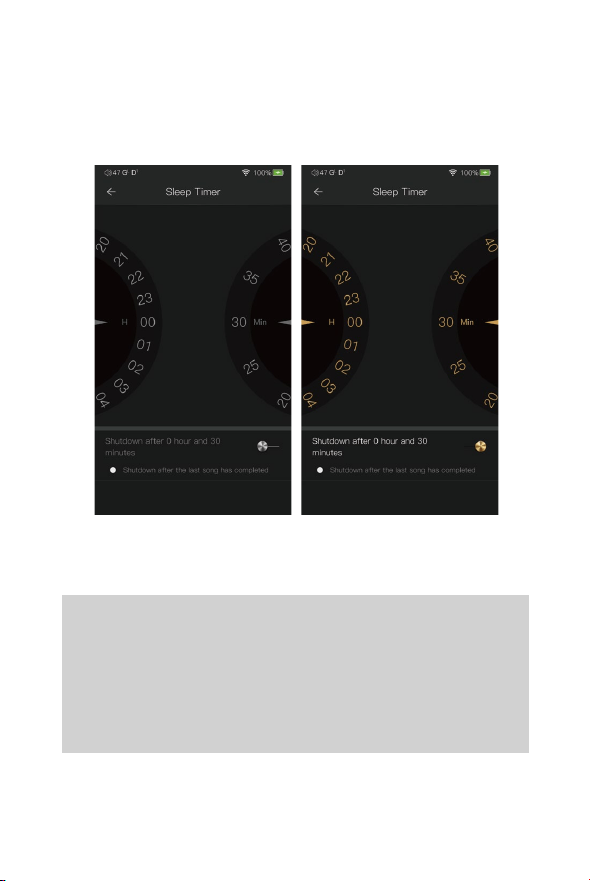
Set the count down sleep timer to power off the DX260
MK2. The left hand side is the value of hours. The right
hand is the value of minutes. The DX260MK2 will be
powered off after the counter has completed. If there are
any operations in the meanwhile, the DX260MK2 will start
the counter again after the last operation.
Sleep Timer:
62
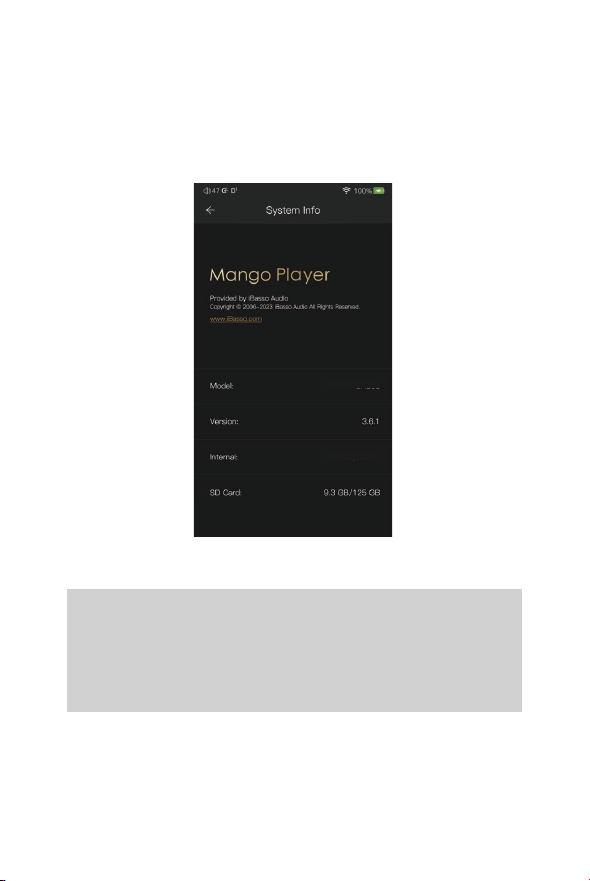
One can see the Mango music player APP version on
this screen. Also, one can see the space available of
the internal memory and micro SD card.
System Info:
49 GB/128 GB
DX260MK2
63
Mango OS
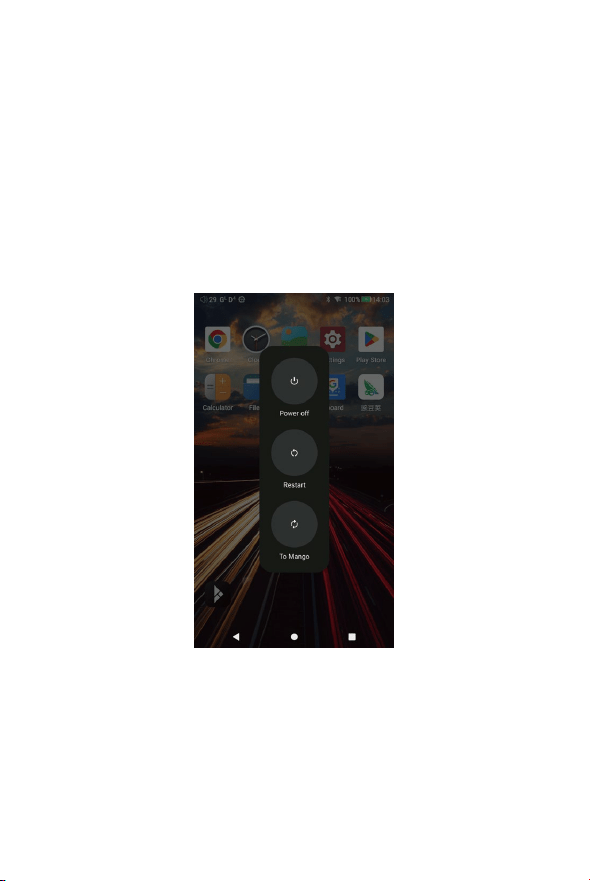
To reboot to Mango OS from Android, first of all, long press
the power button for 3 seconds to pop up a window with three
options. When “To Mango” is selected, the system will switch
to the Mango OS.
64
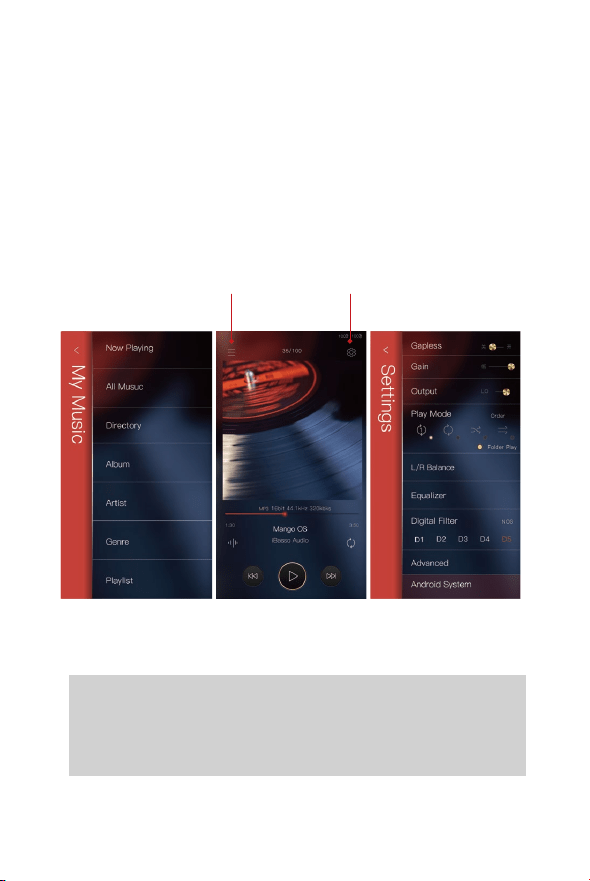
The Mango OS User interface is composed of three parts:
Music playback screen (homepage), my music, and settings.
On the Music playback screen, press the icon① to go to My
Music, press the icon② to go to Settings.
① ②
* The Mango OS operation is similar to the iBasso
Mango APP, please refer to the iBasso Mango APP
instruction for any questions.
65
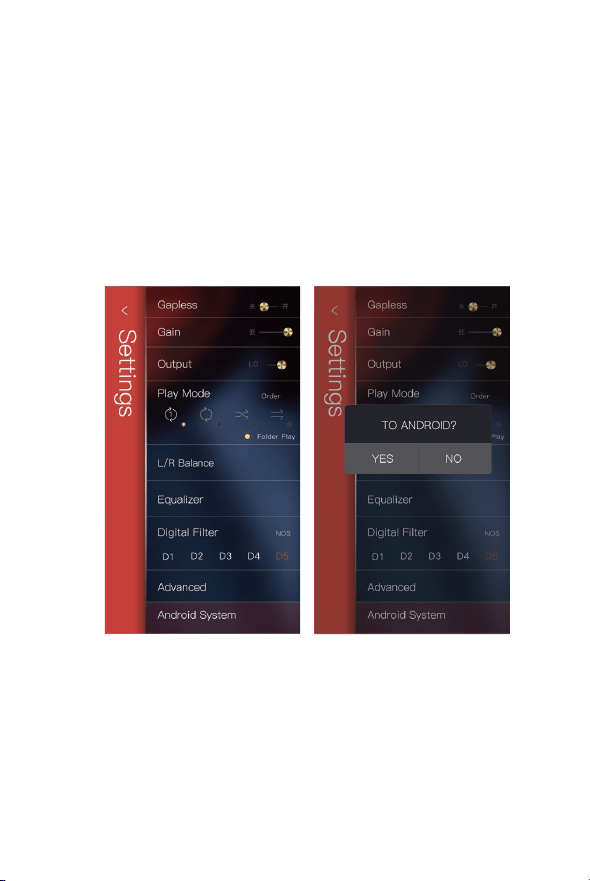
To return to the Android System, go into the settings menu,
press “Android System”, then press “Yes”.
66
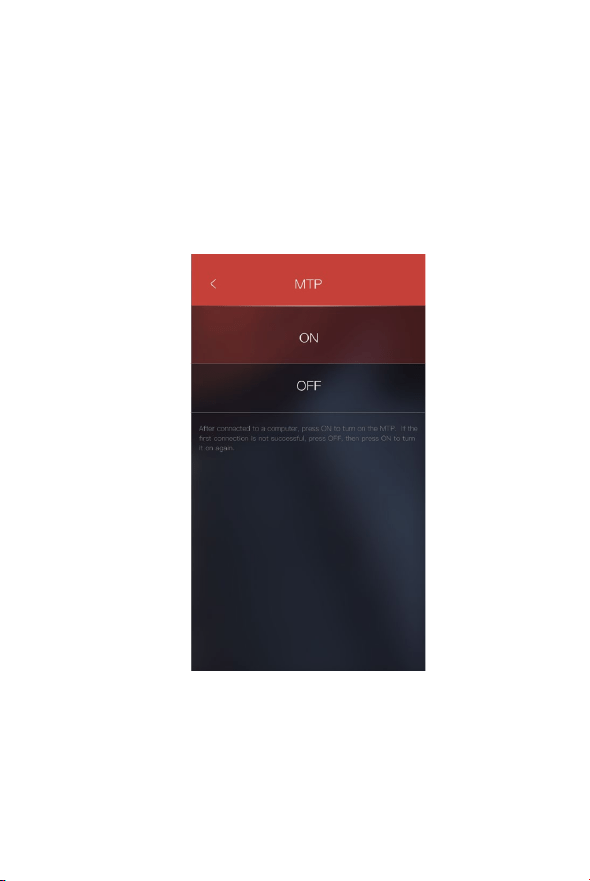
MTP (File Transfer)
After MTP is turned on, the DX260MK2 can be connected
to a computer for file transfer.