
USER GUIDE
http://www.iBasso.com
iBasso Audio
Android Basic Features Introduction
WiFi Connection/Bluetooth Connection
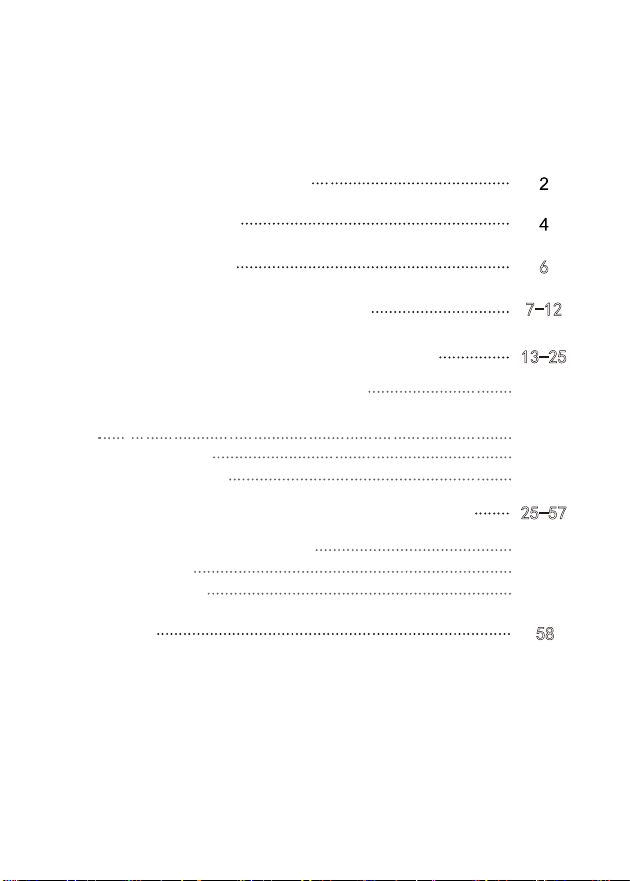
Contents
Package Components
Main Features
Specifications
Names of Parts & Functions
6
7-12
13-25
13-14
Application (APP) Installation/App, to Uninstall/USB Connections
15-17
Power Off/Reboot
25
System Settings
18-24
iBasso Mango Music Player Application
25-57
Playback Screen (home screen)
25
Music Screen
26-36
Settings Screen
37-57
MQA
58
2
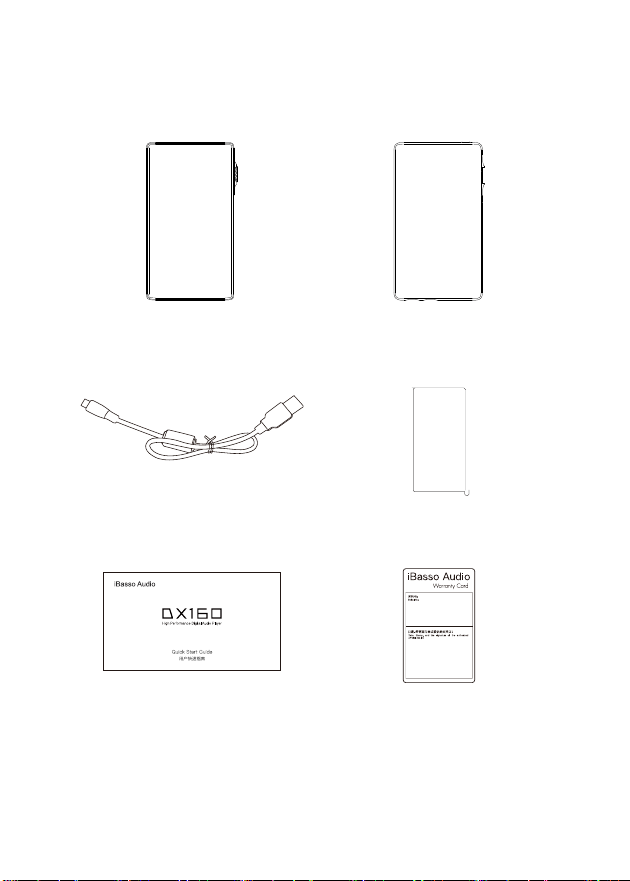
Package Components
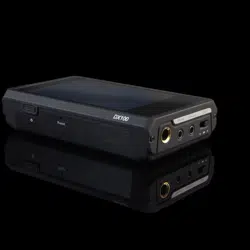
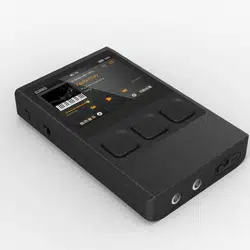
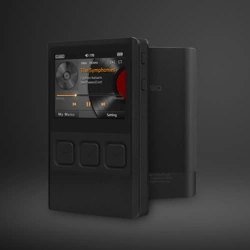
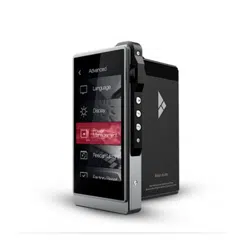
DX160 Player
Type-C Cable
Clear TPU
protection case
Screen Protector
Quick Start Guide Warranty Card
数字音乐播放器

3
Type-C Cable:
Clear TPU protection case:
Screen Protector:
Warranty Card:
Quick Start Guide:
Connect the Type-C cable to a computer for charging,
data transfer, and USB-DAC function.
Use the Clear TPU protection case to protect the DX160’s
chassis from scratches.
Use the screen protector to protect the DX160’s screen
from scratches.
The warranty card will be requested at the time of
warranty repair. Please retain the warranty card.
This reviews the basic functions of the DX160.

4
Main Features
- Dual Cirrus CS43198 DAC Chips.
- Bit for Bit Playback With Support up to 32bit/384kHz.
- Support of Native DSD up to 256x.
- 5.0" IPS Full Screen with On Cell Capacitive Touch Panel.
- CNC Aluminum Frame (1080*1920), With Curved Glass
Rear Panel.
- Support of QC3.0, PD2.0, & MTK PE Plus Quick Charge.
- Allows for USB-DAC Mode.
- 8-core CPU.
- 4.4mm Balanced OutPut, 3.5mm Single Ended Output That
Functions as Single Ended Phone Out, Line Out, and Coaxial
Out.
- 2GB LPDDR3.
- 32G of Internal Memory.
- 5G WiFi and Bluetooth 5.0.
- Support SDXC and SDHC Micro SD Cards.
- Audio Formats Supported: MQA, APE, FLAC,WAV, WMA,
AAC, ALAC, AIFF, OGG, MP3, DFF, DSF and DXD.

5
- 3200mAh 3.8V Li-Polymer Battery.
- 13 Hours Play Time.
- Support for M3U Playlists.

6
Specifications
Output Level :
Frequency Response :
S/N :
THD+N :
Crosstalk :
Output Level :
Frequency Response :
S/N :
THD+N :
Crosstalk :
Output Level :
Frequency Response :
S/N :
THD+N :
Crosstalk :
6.4Vrms
10Hz~40kHz+/-0.15 dB
130 dB
0.00022% (no load)
0.00022% (32Ωload,3Vrms)
-125dB
3.2Vrms
10Hz~40kHz+/-0.15 dB
125dB
0.0004% (no load)
0.0007% (32Ωload,3Vrms)
-115dB
3.2Vrms
10Hz~40kHz+/-0.15dB
125dB
0.00035% (no load)
-113dB
13 hours.
(The play time varies with different
resolutions and headphone/IEM loads.)
4.4mm Balanced Output :
3.5mm Headphone Out :
Line Out :
Average Play Time:
7
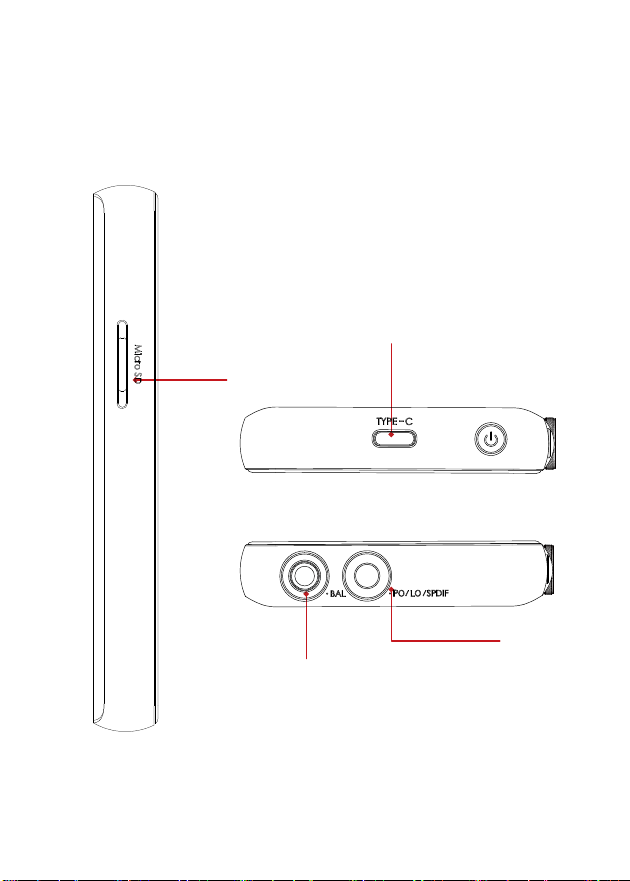
Names of Parts & Functions
Micro SD Card Slot
Type-C Port
Phone Port/Line Out Port/
Coaxial Output Port
Balanced Phone Port

8
Coaxial Output Port:
Use a mini optical cable to play music stored in the DX160 on an
external device with a coaxial input port. Before using the coaxial
output, make sure SPDIF is selected on the 3.5 interface of the
drop-down notification bar.
Type-C Port:
Connect the DX160 to a computer or a USB charger to charge
the DX160. Connect the DX160 to a computer to allow the DX160
to work as a card reader as a card reader or an external storage.
Connect the DX160 to an OTG storage device to play music files.
Connect the DX160 to a PC or a Mac computer to work as a USB
DAC.
Line Out Port:
Use a 3.5 to 3.5 interconnect cable to play music stored in the
DX160 on an external amplifier with a line in port.
Phone Port:
Plug in the single-ended earphone and output sound through the
phone port.
Balanced Phone Port:
Plug in the 4.4mm balanced earphone and output sound through
the Balanced phone port.
Micro SD Card Slot:
Insert a Micro SD card into the DX160 to access its stored files.
9
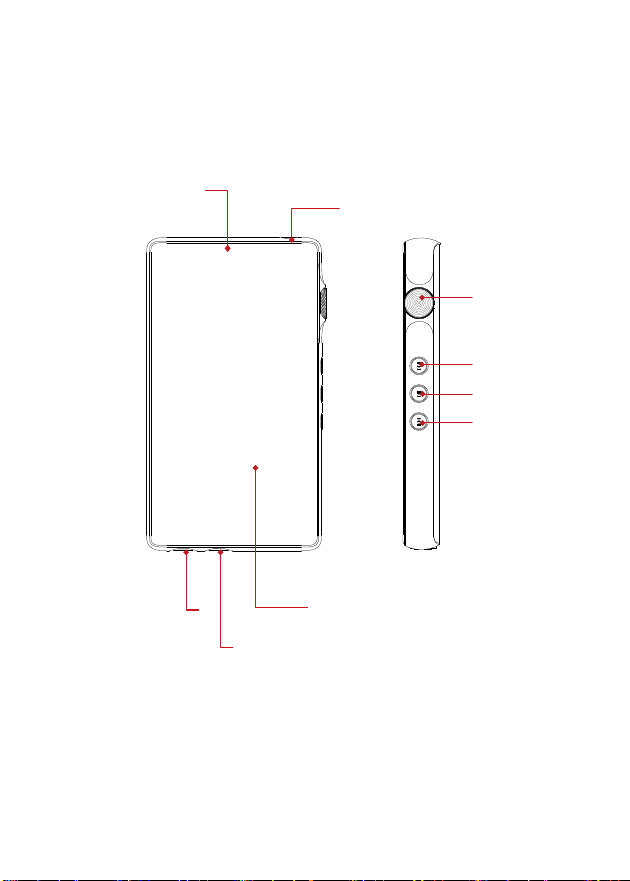
Volume Control
Wheel
Next/Fast Forward
Play/Pause
Previous/Rewind
Type-C
5.0inch LCD
Power
Line Out Port/
Phone Port
Balanced Phone Port

10
Power/System Switching:
Volume Control Wheel:
Previous/Rewind:
Next/Fast Forward:
Play/Pause:
Rotate the wheel upward to increase the volume.
Rotate the wheel downward to decrease the volume.
Short Press - Play the next track.
Long Press - Fast forward.
Short Press - Play/Pause.
Short Press - Replay previous track.
Long Press - Rewind.
Short Press - Power the LCD screen on and off.
Long Press - To display the pop up window with two options that
are Power off and Reboot.

Power on/off:
1. Press and hold the power button to power on.
2. After the DX160 is powered on, a long press of the
Power button to display the pop up window, press
Power Off button to power off the DX160.
Power on/off the screen:
Single press the power button to power on/off the screen after
the DX160 was powered on.
Reset:
When the DX160 stop unexpectedly during operation and the
keys are no longer responsive, press and hold the power button
for 10 seconds to reset the DX160.
Charging:
DX160 supports three quick charge protocols, QC3.0, PD2.0,
and MTK PE Plus. Charging can be done with a standard 5V
USB charger or with quick charger that is compliant the stated
3 protocols. A full charge takes about 1.5 hours with the afore
mentioned quick charge types.
Basic Operation:
11

The DX160 can work as a USB DAC for Windows PC, Mac
computer, and Linux computer.
It is driver free on Mac computer and Linux computer. For
Windows PC, one can download the driver from iBasso. com
and install it following the steps, before using the USB DAC
function.
Connecting to a computer to work as a
USB DAC:
The following is the instruction:
12
The DX160 supports up to 32bit/384kHz PCM, and
native DSD up to 256x when be used as a USB-DAC.
1. Power on the DX160.
2. Press the DAC on button on Settings/DAC.
3. The“USB DAC”screen will be shown on the DX160.
4. Connect the DX160 to a computer via the furnished
type-C Cable.
5. Select “Bravo HD”as the audio output device. Then
one can play music on the computer and listen it via
the DX160.
13
Android Basic Features
Introduction
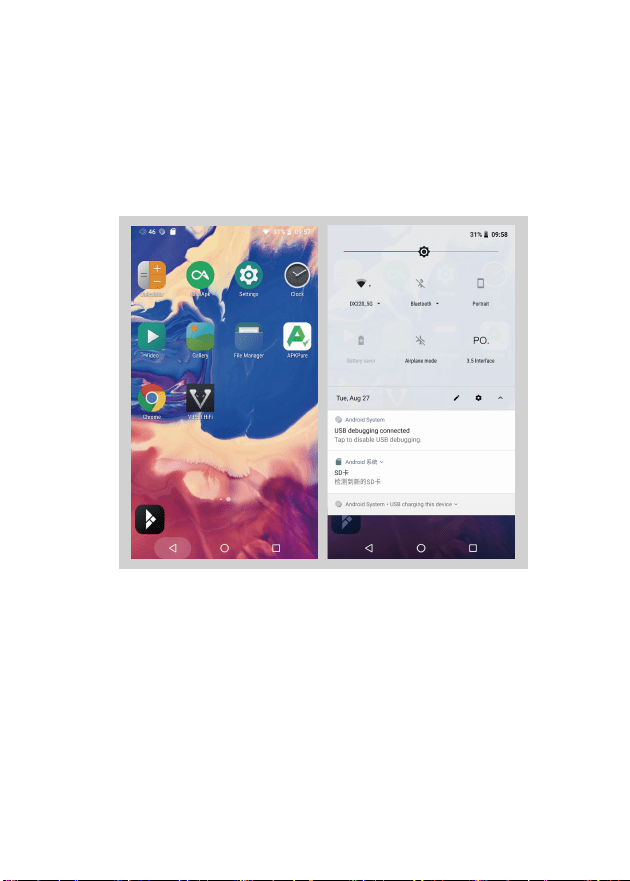
WiFi Connection:
① On the Android desktop, from the top, swipe down
the screen to display the notification bar.
② Press the Wireless local area network(WLAN) to turn
on the WiFi function. The first time you enter the WLAN,
you need to choose the hot spot you will be using and
enter the password. From this point forward your
password for this hotspot will be remembered and you
simply press the WLAN icon to connect to the WiFi
internet.
14
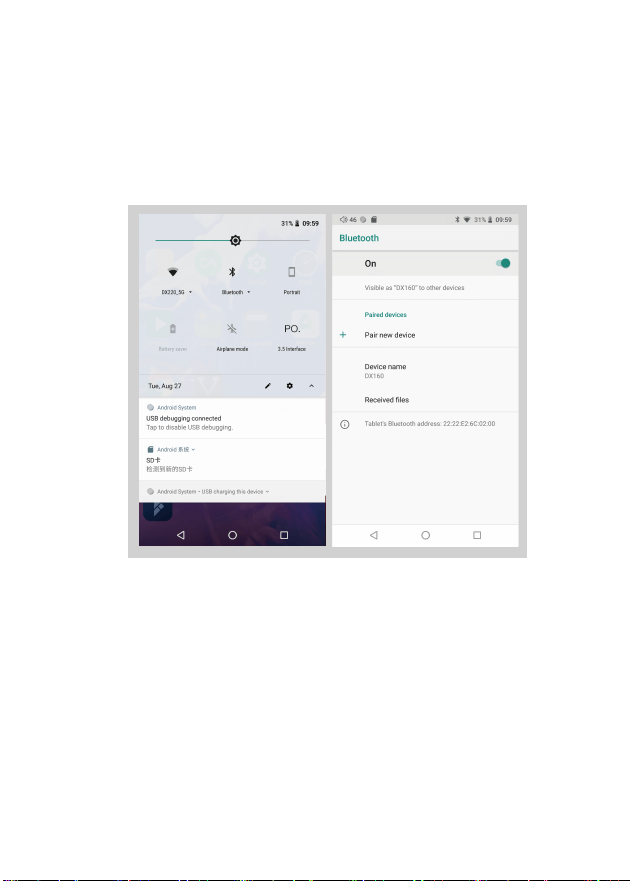
Bluetooth Connection:
① On the Android desktop, swipe down from the top
of the screen to display the notification bar.
② Press the Bluetooth icon to turn on the Bluetooth
function. The DX160 will automatically search for
the nearby Bluetooth device. At the same time, the
DX160 will be visible to the nearby devices. Choose
the device that you would like to pair with. After
the device has been paired, you can use the DX160
in the Bluetooth mode.
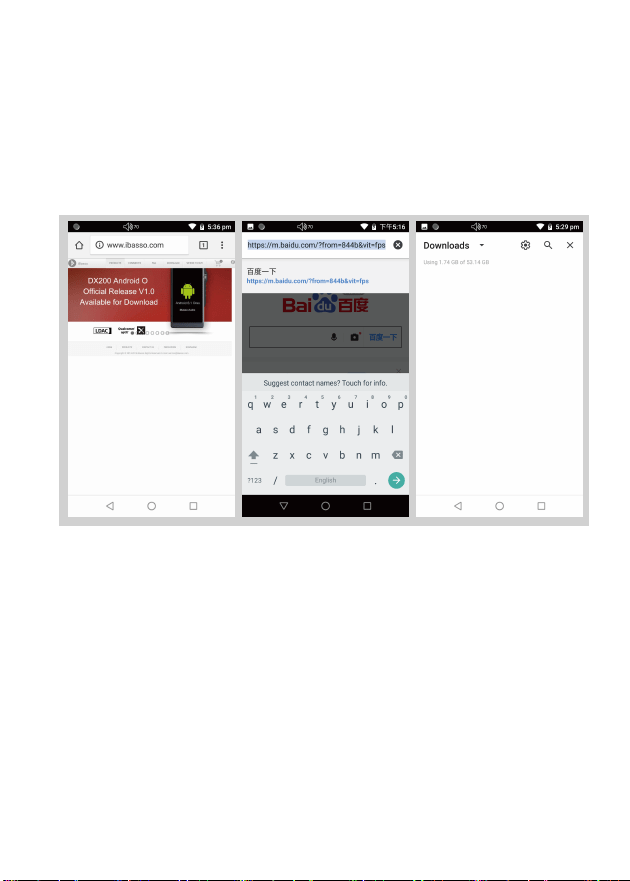
APP Installation:
15
① APKPure and CoolAPK are pre-installed on the
DX160. They are similar to Play Store.
② Launch one of them.
③ Search for the APP that you would like to install.
④ Download the APP and install it.
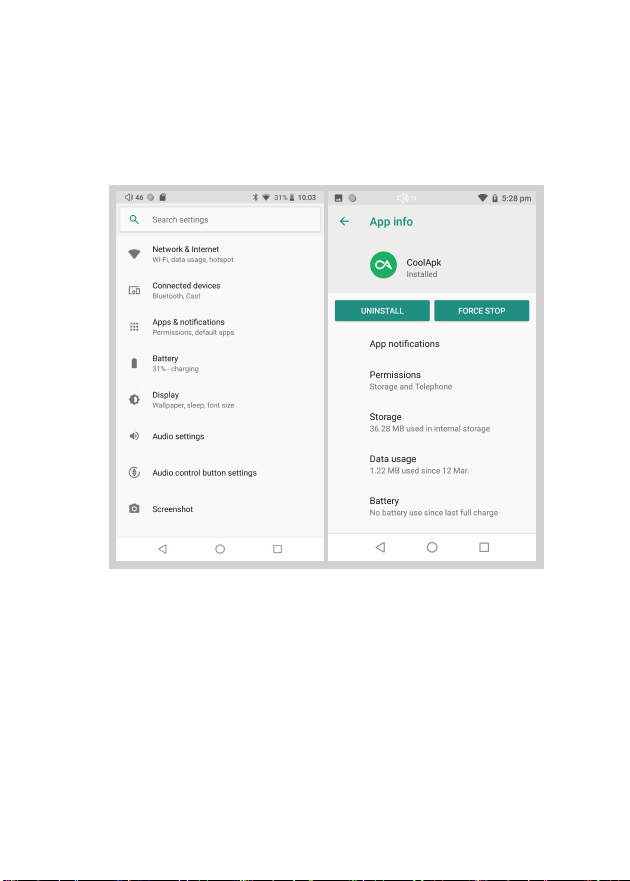
App, to Uninstall:
16
① Press the internet browser on the desktop.
② Enter the website address of the APP.
③ Find the download icon on the website and start
the download.
④ Return to the desktop and open the download
manager.
⑤ Press the downloaded app and install it.
17
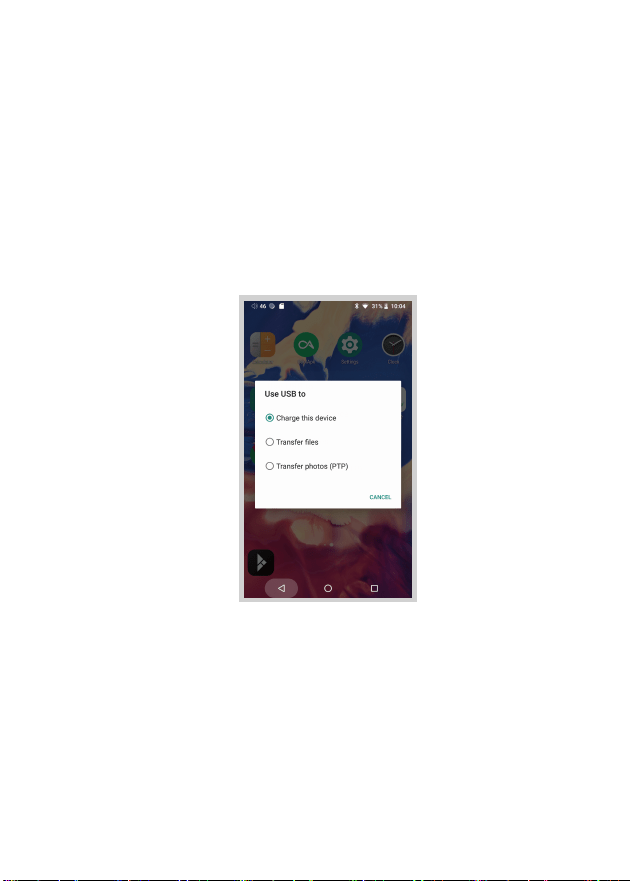
USB Connections:
① Connect the DX160 to a computer using the furnished
type-C cable.
② Swipe down the screen from the topto display the
notification bar.
③ Press the USB connection icon to choose the type
of USB use.
Charging:
This only charges the DX160.
File Transfers:
Transfer files to Windows or Mac (MTP).
Photo Transfer (PTP):
Transfer photos or files if MTP is not supported.
18
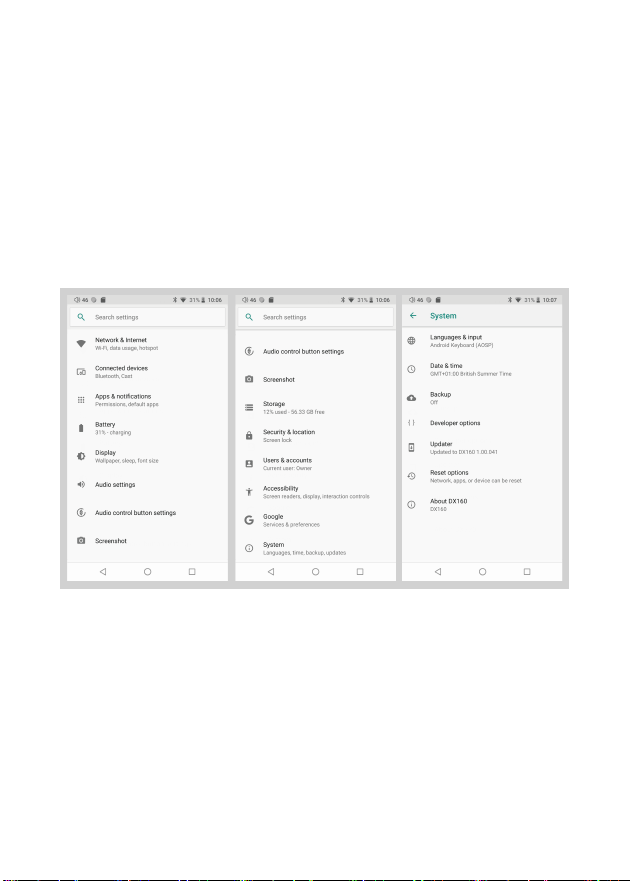
System Settings:
Press Settings icon on the DX160 desktop to go into system
settings.
19
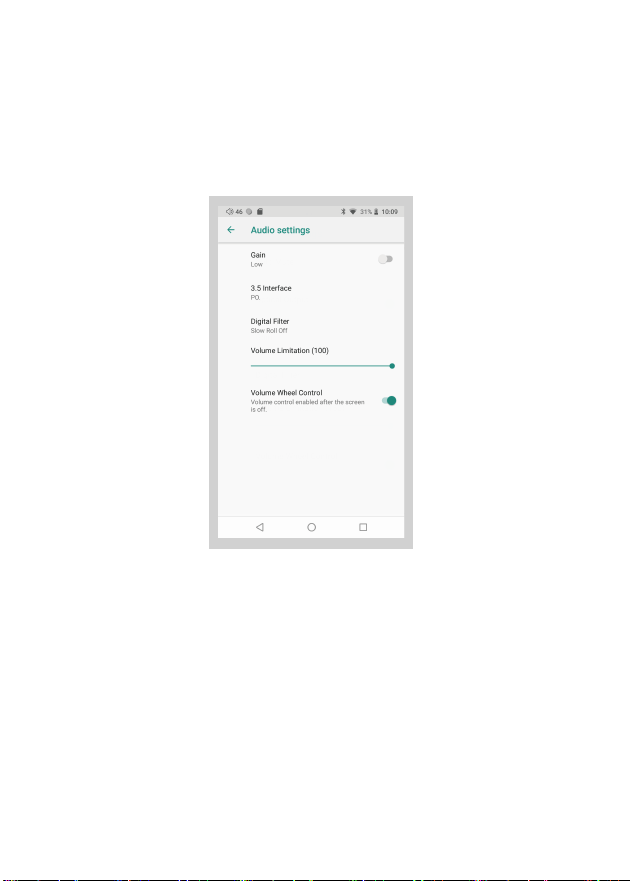
Audio Settings:
① Gain:
One of the two gains can be selected.
② Digital Filter:
A total of four filters are available for user setting.
These are designed by the chip manufacturer and
are included as an option.
③Volume Limitation:
This sets the volume to a maximumpresetpoint.
④ Volume Control Wheel:
Volume control wheel enabled after the screen is off.
Press Settings Icon, then press Audio Settings.
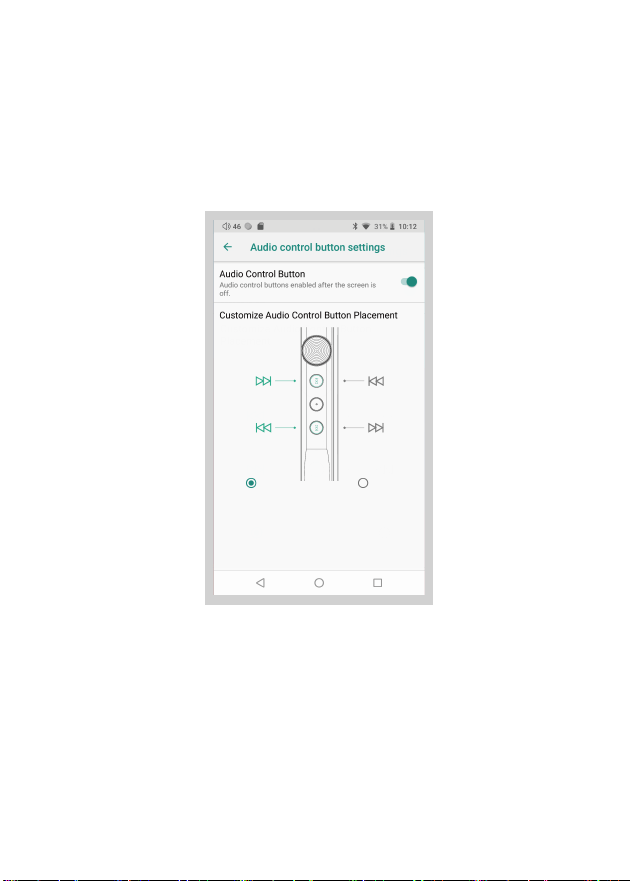
Audio Control Button Settings:
① Audio Control Button:
When turned on, audio control buttons enabled
after the screen is off.
② Customize Audio Control Button Placement:
customize the placement of previous button and
next button.
20
Press Settings Icon, then press Audio Control Button Settings.
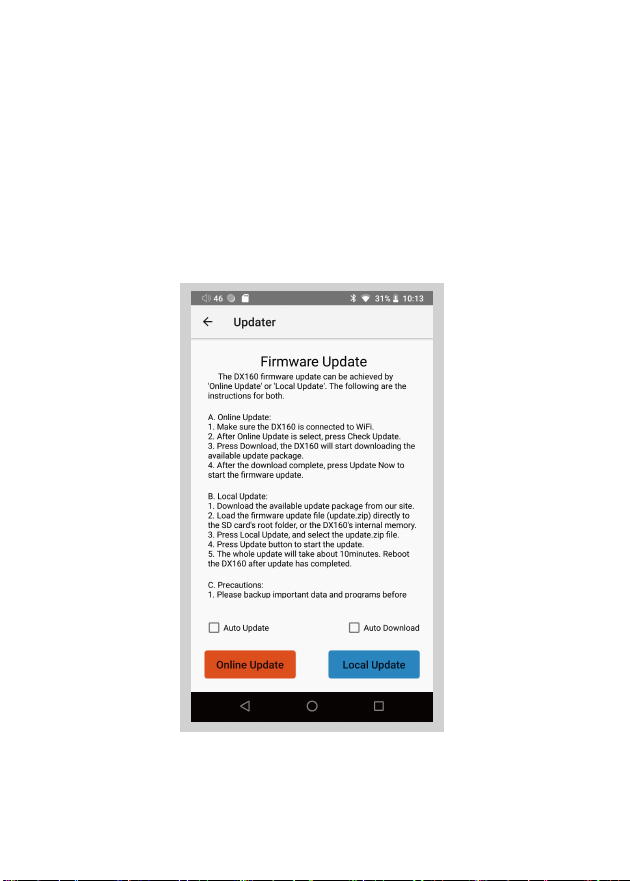
Firmware Update:
21
1: Press Settings Icon, System, Updater.
2: Select Online Update or Local Update.
22
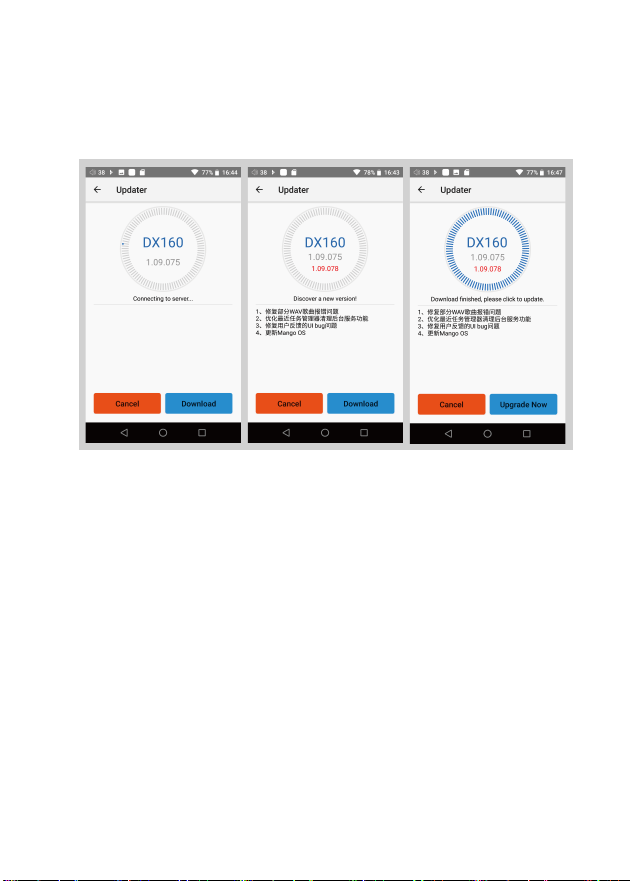
Online Update:
① Make sure the DX160 is connected to WiFi.
② After online update is select, press Check Update.
③ Press Download, the DX160 will start downloading
the available update package.
④ After the download complete, press Update Now to
start the firmware update.
23
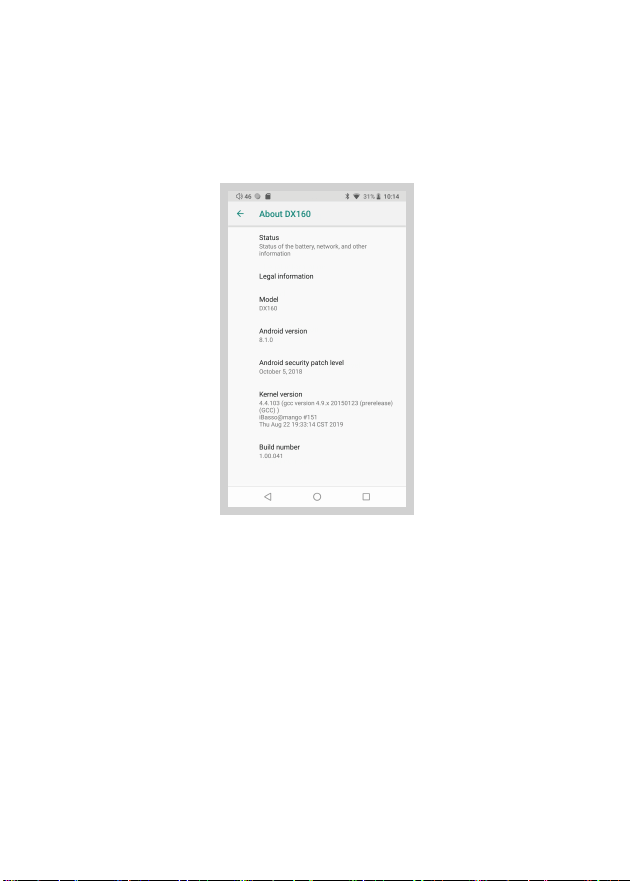
Firmware Version:
① Press Settings icon, System, About DX160.
② Scroll down the page, the Build number is the
firmware version.
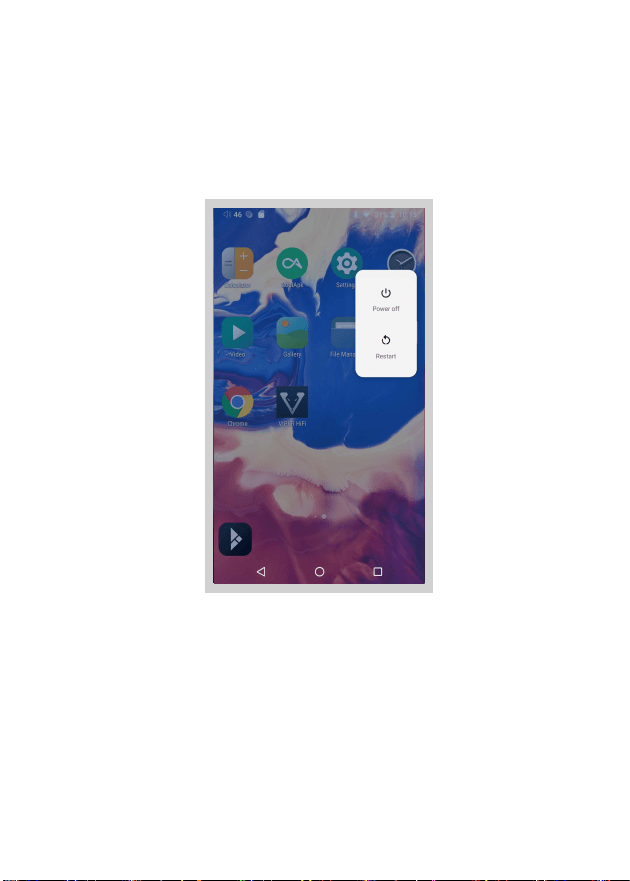
Power Off, Reboot:
① Long press the power button for 3 seconds.
② There is a pop up window with two options.
24
iBasso Mango Music Player
Application
25
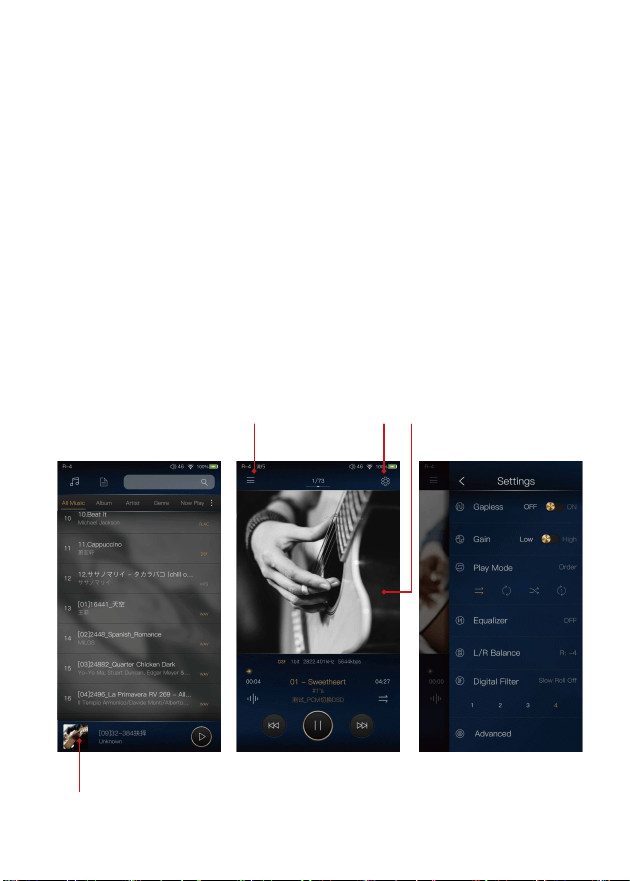
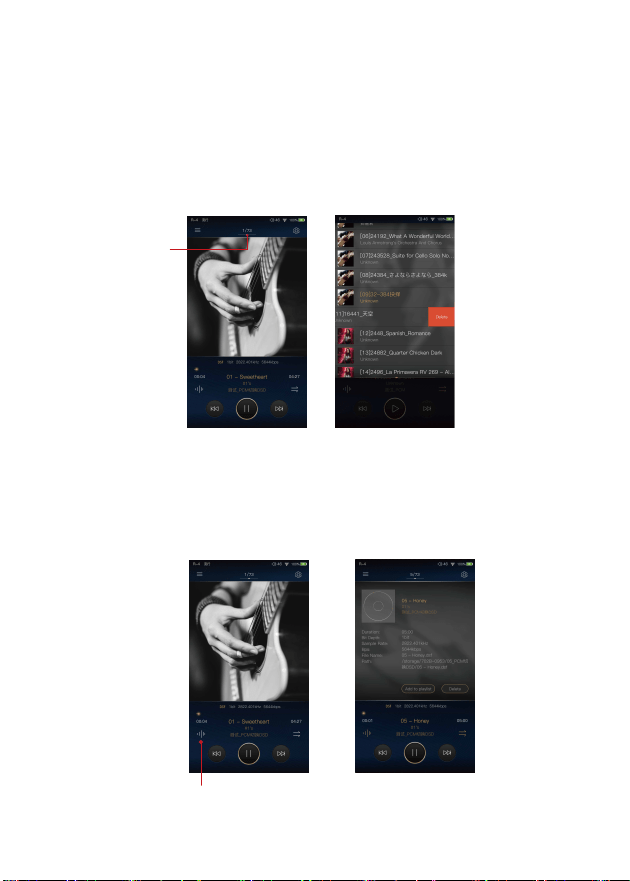
iBasso Audio Mango music player is composed of the Playback
screen (home screen), Music screen and Settings.
When on the playback screen, one can swipe left and right on
the Album artwork area ③ to switch a song: Press the icon on
the top left corner ① to go into Music Screen.
Press the icon on the top right corner ② to go into Settings.
No matter which sub screens of the Music Screen you are
browsing, press the thumbnail icon on the bottom left to return
to the playback screen.
① ② ③
④
26
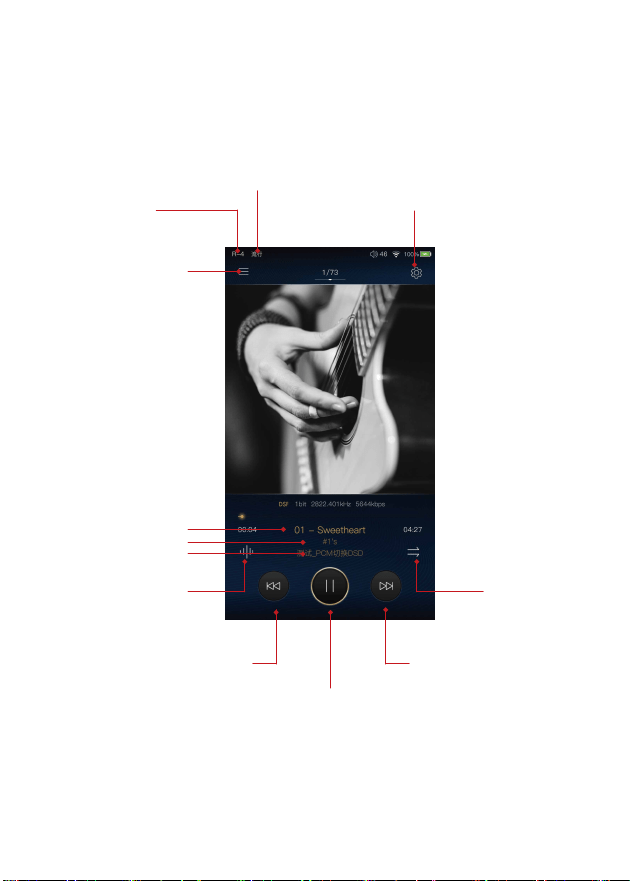
Playback Screen (home screen):
Music screen
Settings
L/R Balance
Equalizer
Track title
Artist name
Album name
Music info
Previous/Rewind
Play Mode:
Next/Fast Forward
Play/Pause
Delete
27
Now Playing Screen:
Music Info Screen:
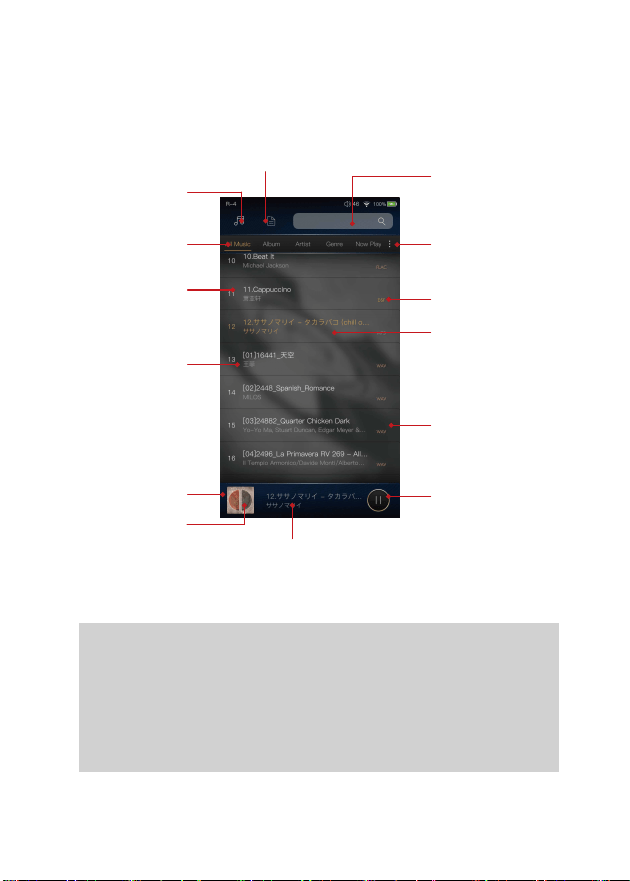
Swipe down from the track number icon ① to display the now
playing screen. One can swipe a song to the left to display the
Delete button. Press Delete to delete it from this playlist.
Press the Music info icon ②, the album artwork will show the
music info. Press the music info icon again, it will return to
album artwork.
①
②
Detail View:
Press the detail view icon to browse the scanned library.
Directory View:
Press the directory view icon to browse in file structure.
28
Music Screen:
Search bar ③
Directory view ②
Detail view ①
Navigation bar ④
Playback bar
Thumbnail artwork
⑦
Play/Pause
Track title and artist name
of the song that is playing.
Now playing
Music format
Long press
⑤
Music order
Tracktitle
/Artist name
Navigation bar
management
⑥

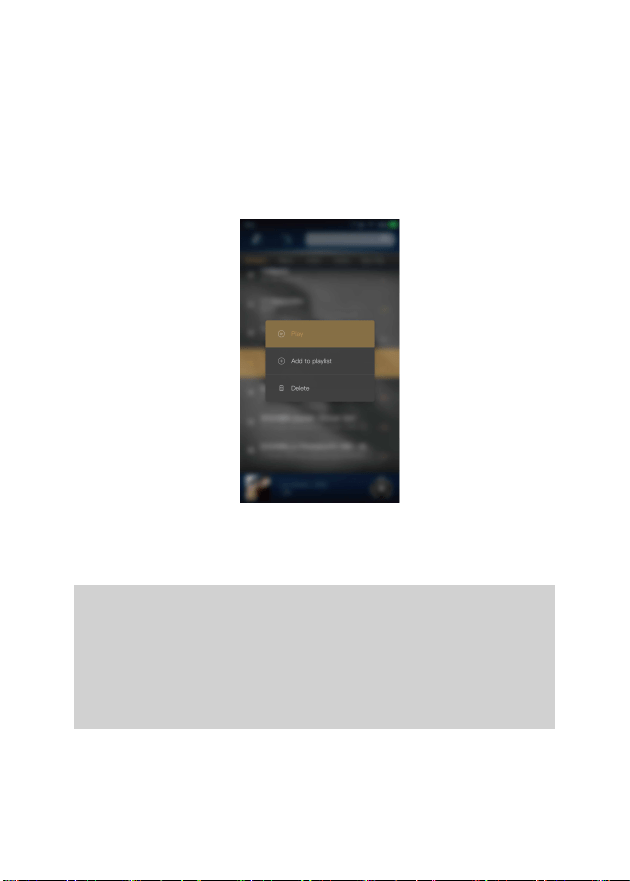
Search Bar:
Press the search bar to go into the search page to search
the desired music or album.
Navigation Bar:
One can swipe it left or right to choose: All Music view,
Album view, Artist view, Genre view, Now Playing view,
or Playlist view.
Long Press:
Long pressing a song will pop up a window with more
options.
Navigation Bar Management:
To customize the navigation bar and music screen.
Thumbnail Artwork:
Press to return to the playback screen.
29
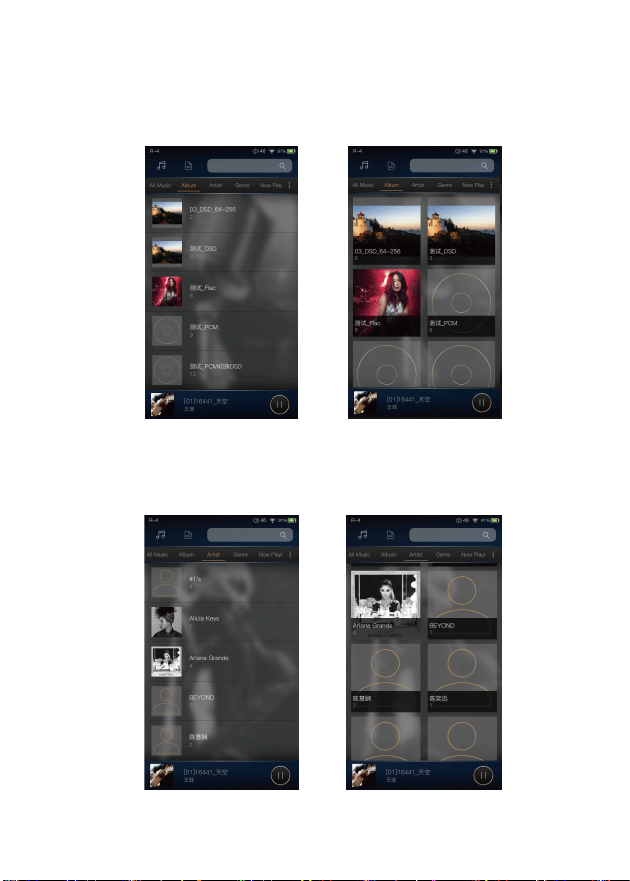
Further Options:
Long Press of a song will pop up a window with further
options that allows to play this song, add this song to a
playlist, or delete this song.
Long Press Pop-up:
30
Artist View:
Thumbnail view Artwork view
Thumbnail view Artwork view
31
Album View:
32
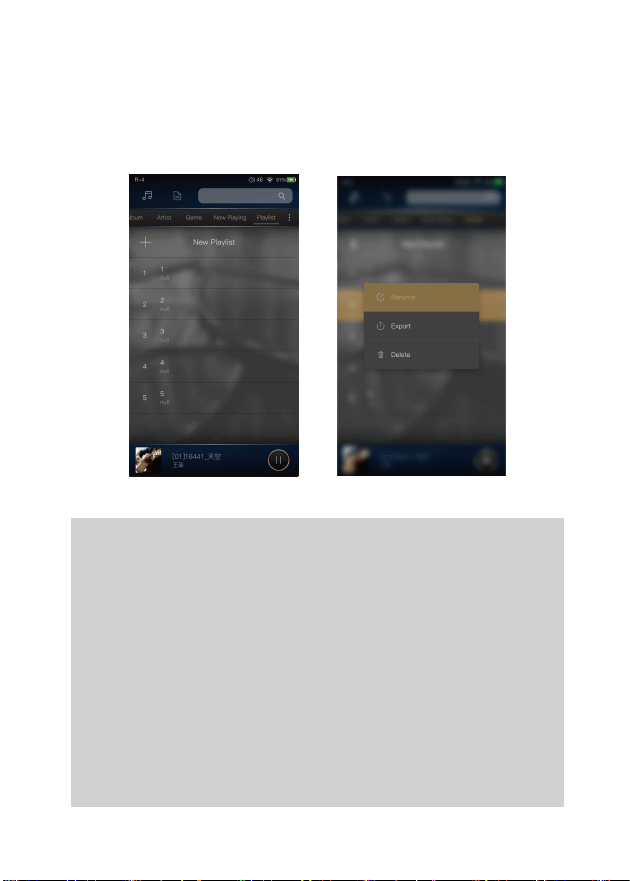
Further Options:
A long press of the playlist will pop up a window with further
options, which allows renaming the playlist, exporting the
playlist, or deletion of the playlist.
The playlist can be found on the internal storage of the iBasso
/mango player folder, after the playlist has been exported.
New Playlist:
Press the New Playlist to create a playlist. On the pop-up
window, one can name the playlist and add playlist description.
Playlist View:
33
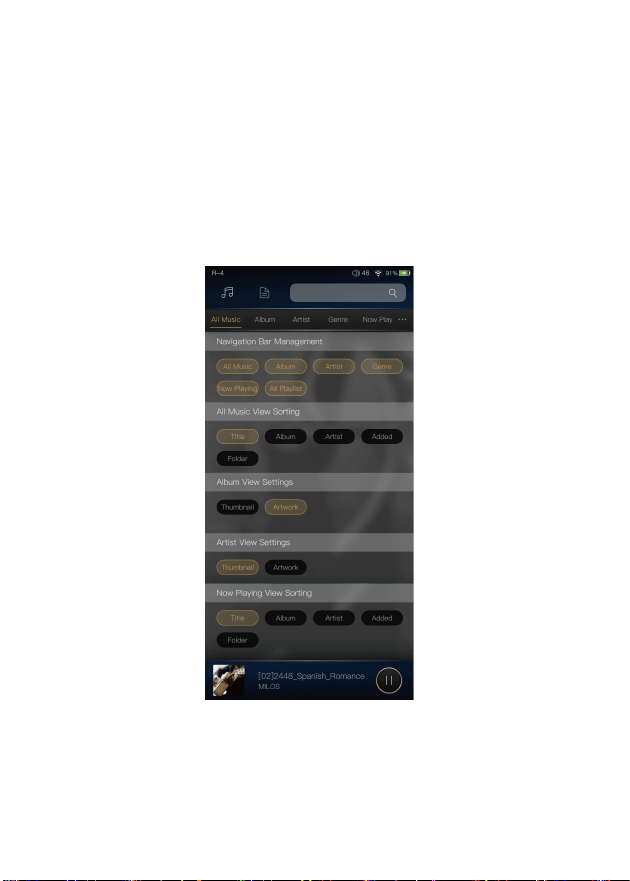
Press the icon located on the right side of the navigation bar to
go into the navigation bar management and music sorting screen.
Navigation Bar Management Screen:

34
Navigation Bar Management:
One can customize the navigation bar. When selected,
the icon is highlighted. Press the icon again to unselect.
The selected icon will be shown on the navigation bar.
Otherwise, it will not be shown.
All Music View Sorting:
One can sort the all music view by title, album, artist,
added time, or folder.
Now Playing View Sorting:
One can sort the Now Playing by title, album, artist,
added time, or folder.
Album View Settings:
One can choose between the thumbnail view and
artwork view.
Artist View Settings:
One can choose between the thumbnail view and
artwork view.
35
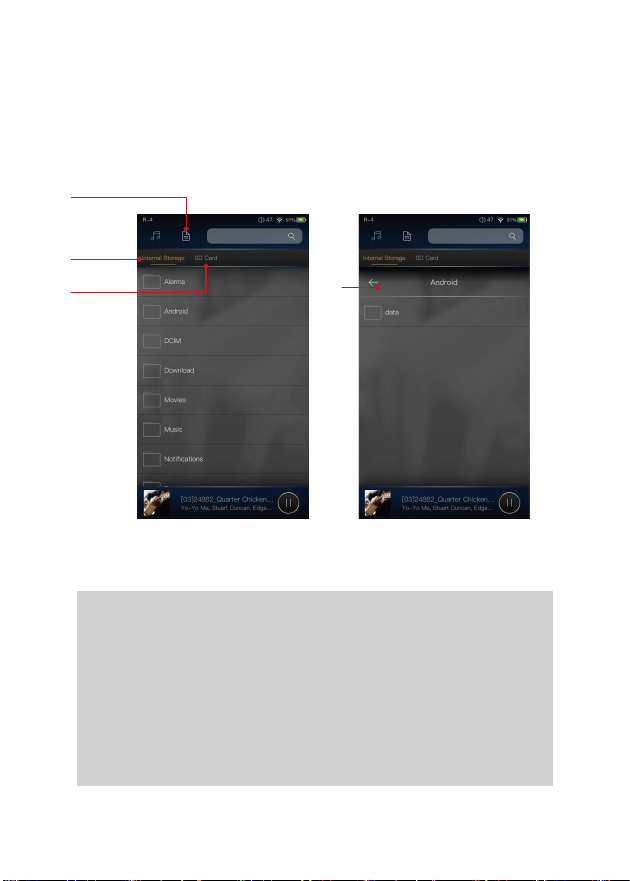
Press the Directory View icon① to go into directory view.
Press the Directory View icon① to go into directory view.
One can browse the music files under internal storage and
SD card via folder structure.
Press Internal Storage② to see music files under internal
storage. Press SD Card③ to see music files under SD card.
Press the return button④ will move back one page at a time.
Directory View:
①
②
③
④
36
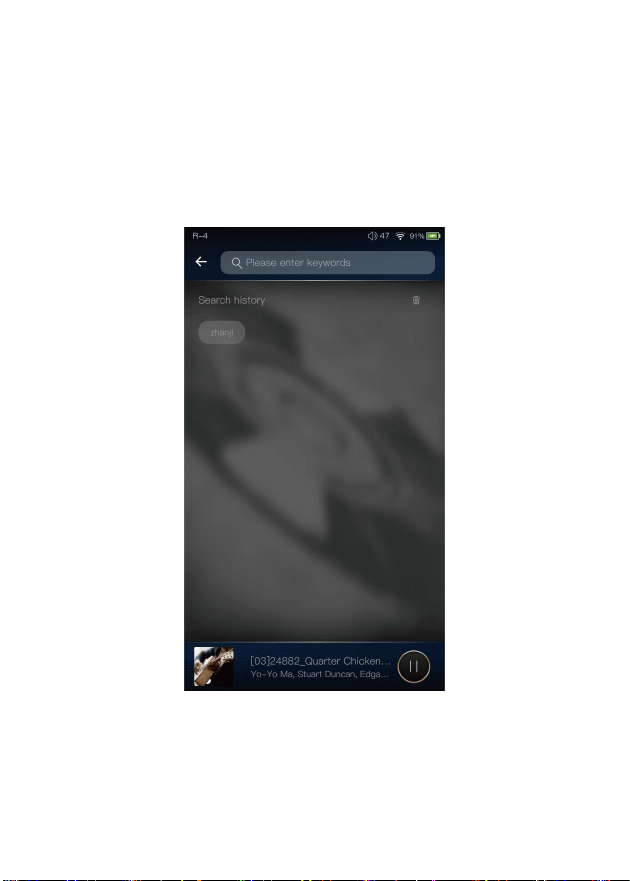
Input the keywords to search a track, an album, or an artist.
Search Screen:
37
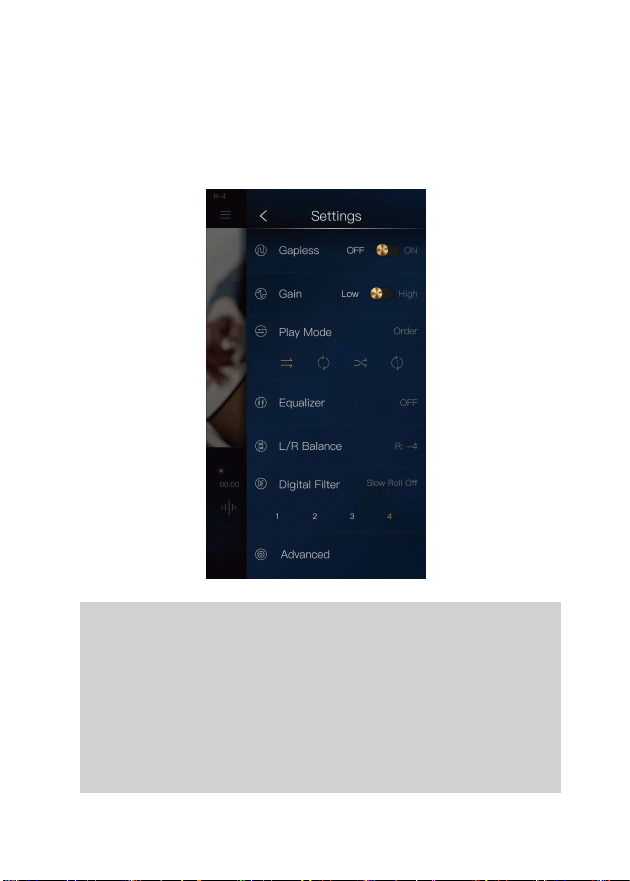
Gapless:
One can enable the gapless to eliminate the gap between
two tracks.
Gain:
There are two gain settings. The low gain has the lowest
noise floor, it is good for ultra sensitive IEMs.
Settings Screen:
Press the Settings icon to go into settings screen.

38
Play Mode:
One can choose the desired play mode here.
L/R Balance:
Press to go into the L/R balance setting page.
Digital Filter:
There are four filters, press the number to quickly
choose a filter.
Advanced:
To access to more system settings.
39
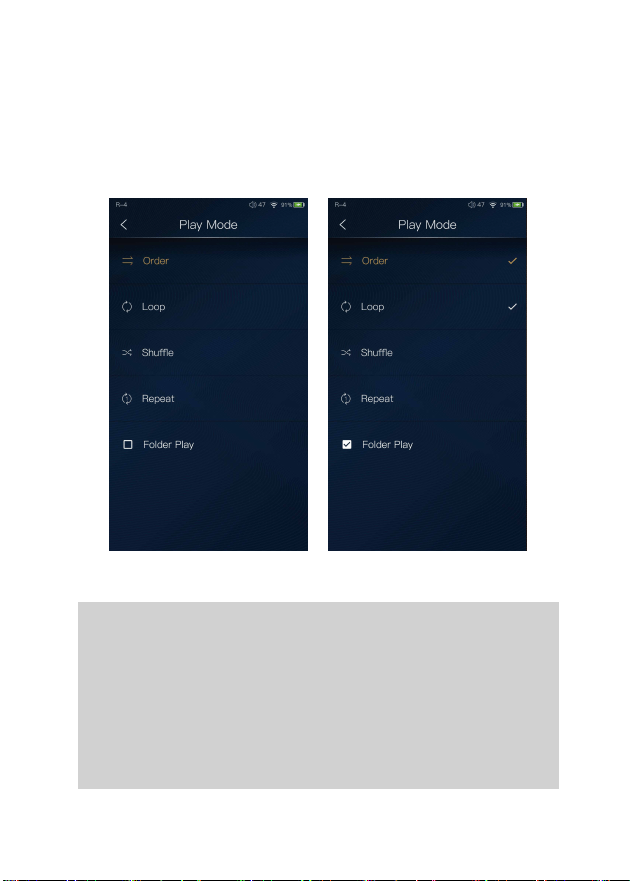
Folder Play:
One can choose the desired play mode among Order, Loop,
Shuffle, and Repeat.
To enable the folder play function, tick the box on the
left, then select either the order play mode or loop play
mode. After a full media scan, or rescan the library, you
can go to Directory and select a song under a folder.
After this folder is played, the DX160 will play the next
folder.
Play Mode:
40
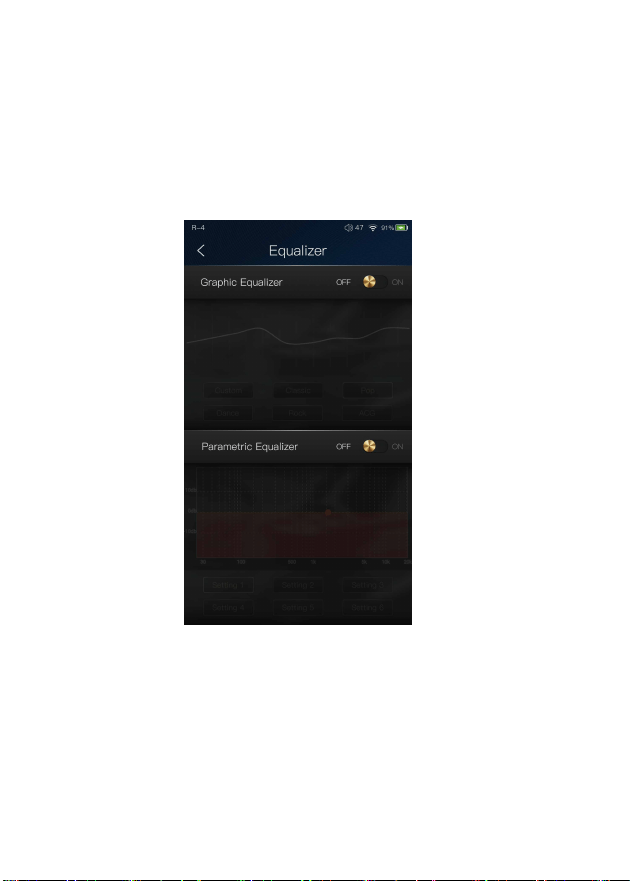
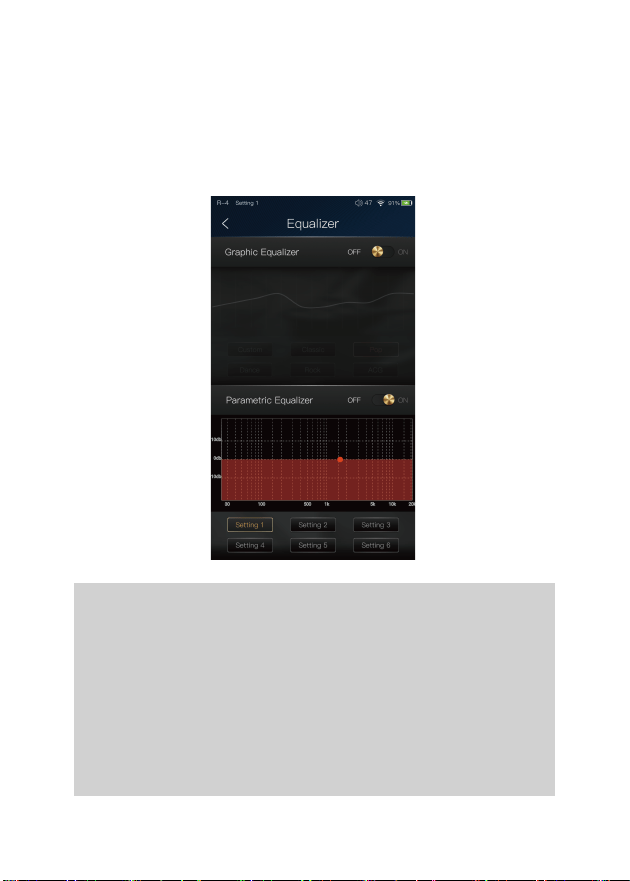
The DX160 has two types of Equalizer, Graphic EQ and
Parametric EQ.
Equalizer:
41
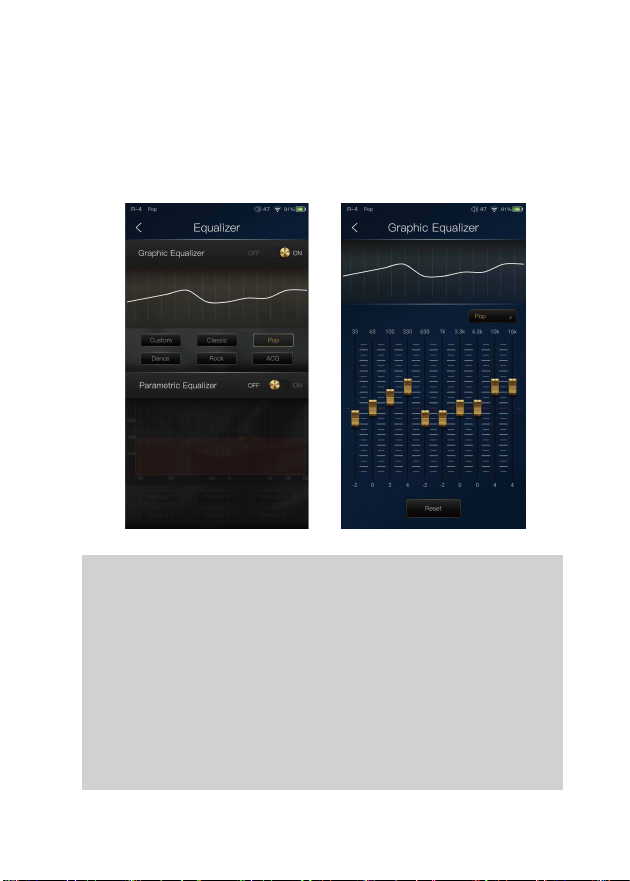
Pre-set EQ:
There are 5 kinds of pre-set EQ and a custom option.
One can quickly set the equalizer as desired by selecting
them.
How to Adjust The EQ Settings:
Press on the response curve, the 10 band slide bars will
show up. One can adjust the EQ settings by positioning
the bars up or down.
Press the button of the Graphic Equalizer to enable the
Graphic Equalizer.
Graphic Equalizer:
42
Parametric Equalizer:
Press the button of the Parametric Equalizer to
enable the it.
Parametric Equalizer:
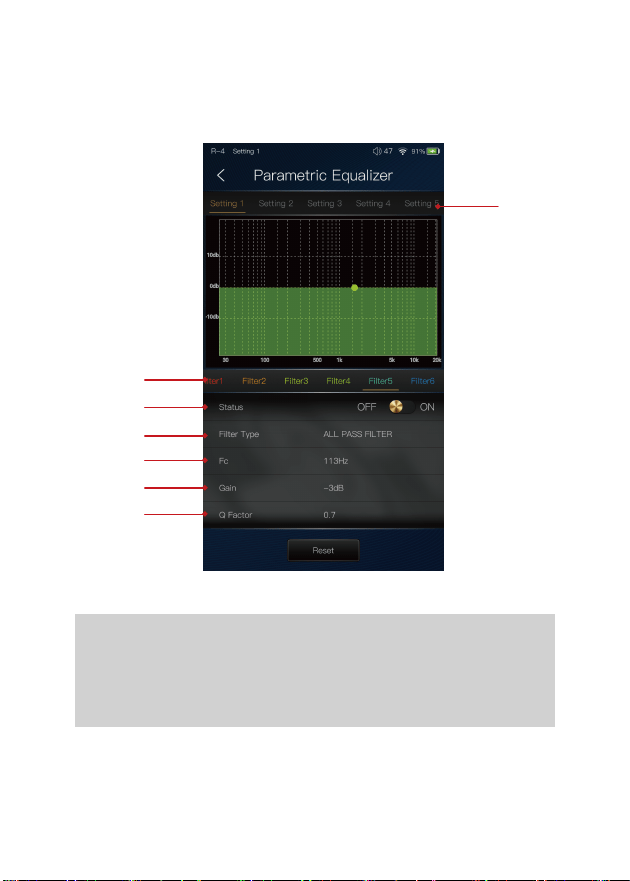
How to Go Into The Parametric EQ Setting Screen:
Press the response curve to go into the parametric
EQ setting screen.
Press the button of the Parametric Equalizer to enable the it.
43
① Settings on the Selection Bar:
One can swipe left and right to select a setting.
Parametric Equalizer Setting Screen:
③
④
⑤
⑥
⑦
②
①

44
③ Status:
Status of each filter. One can turn on or turn off
the selected filter.
④ Filter Type:
There are eight kinds of filters. Select one of the
filters.
⑤ Frequency:
This is the central frequency. Input a value between
33Hz to 16,000Hz.
This is the gain for each central frequency. Input a
value between -20dB to 20dB.
⑥ Gain:
This is the quality factor. Input a value between 0.3
to 20.
⑦ Q Factor:
② Filter Navigation Bar:
There are maximum of 6 filters allowed for each
setting. One can swipe left and right to select a
filter, then customize it.
45
Central Frequency (Fc):
The central frequency of each filter setting.
Gain:
The gain for the central frequency.
Quality Factor:
The range of effect of the filter.
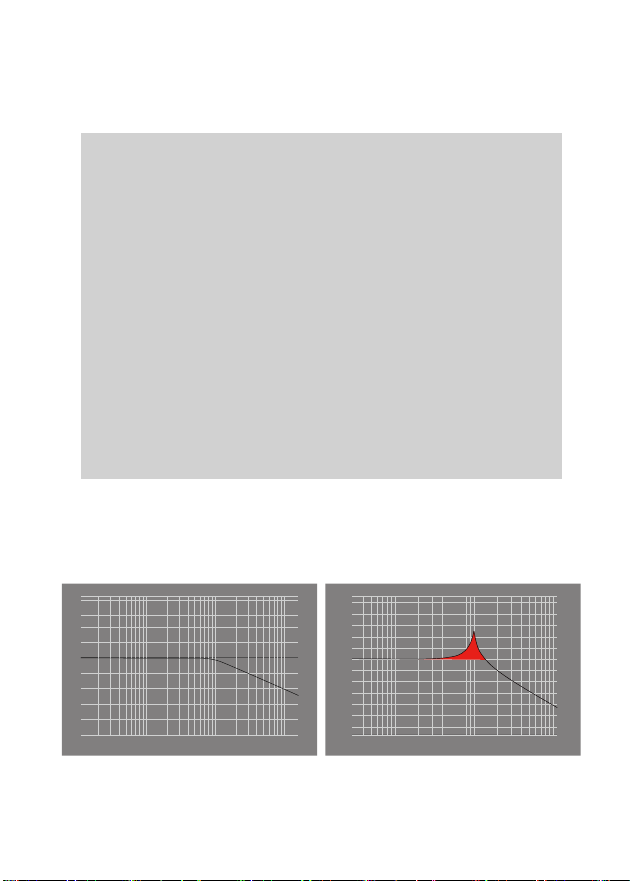
As shown on the pictures below, the larger value of the
Q factor, the smaller the effect compared the central
frequency. The smaller value of the Q factor, the larger
the effect in relation to the central frequency.
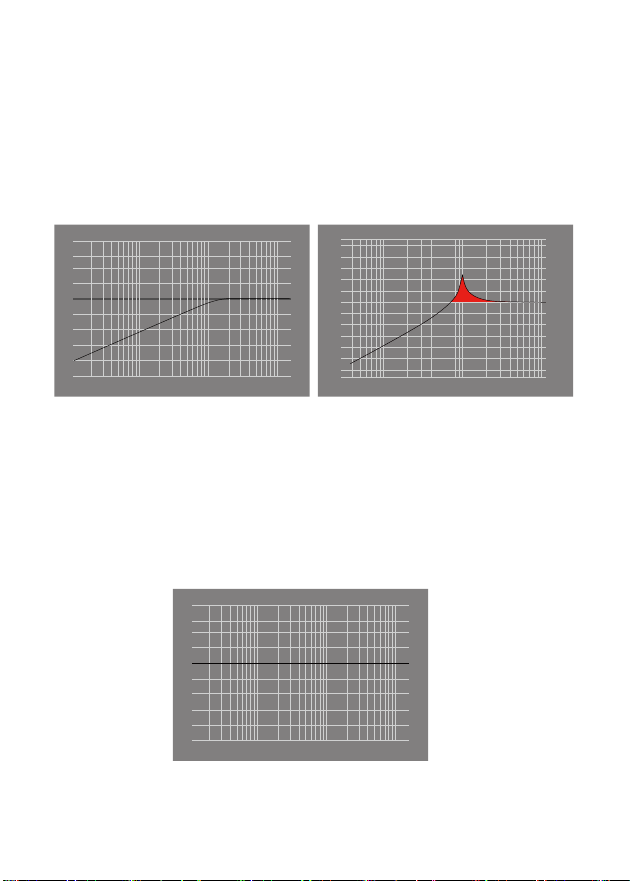
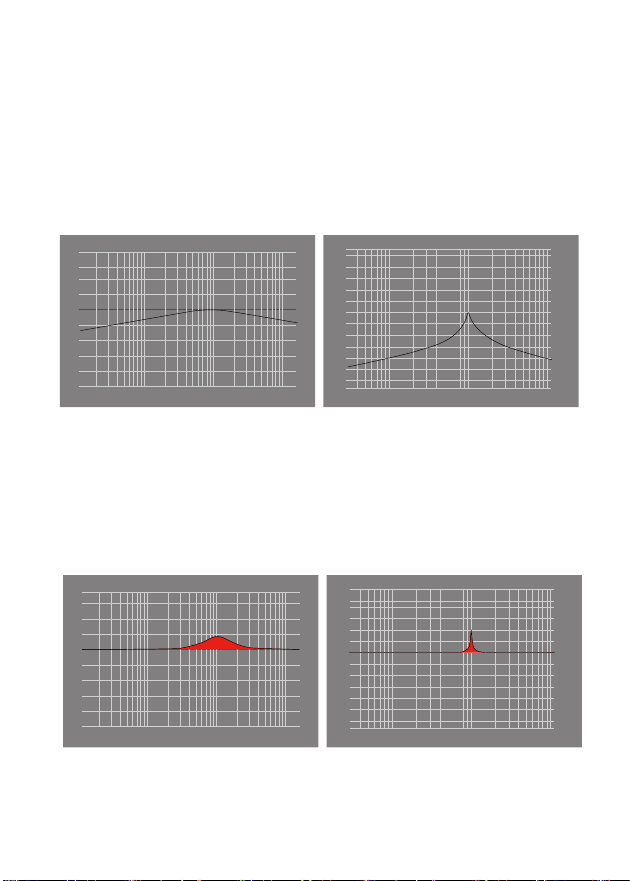
The following are the curves of the filters
(Fc=100Hz, gain=4dB)
Parametric Equalizer Setting Instruction:
1. Low Pass Filter
The frequency higher than the central frequency will be affected.
Gain setting is ineffective with low pass filter.
2 3 4 56 10 20 30 100 200 1k
①. Q=0.7071 ②. Q=20
4 5 6 78 9 10 20 30 40 50 100 200 300 1k
46
2. High Pass Filter
The frequency smaller than the central frequency will be affected.
Gain setting is ineffective with high pass filter.
3. All Pass Filter
There is no effect, beside the central frequency. Gain setting is
ineffective with all pass filter.
③. Q=0.7071 ④. Q=20
2 3 4 56 10 20 30 100 200 1k
4 5 6 78 9 10 20 30 40 50 100 200 300 1k
⑤.
2 3 4 56 10 20 30 100 200 1k
47
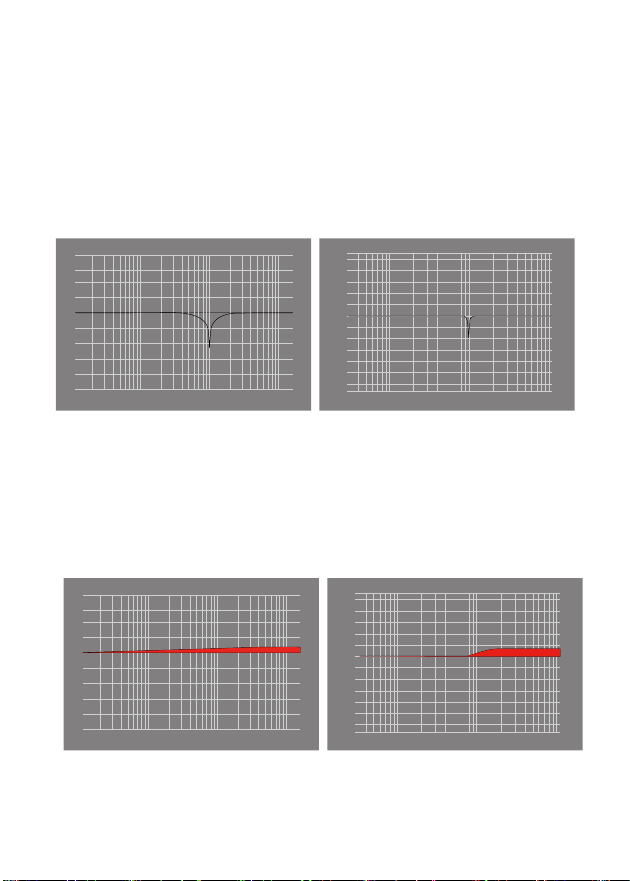
4. Band Filter
There is not a large effect on the central frequency. The frequency
beside the central frequency has similar effect. Gain setting is
ineffective with band filter.
5. Peak Filter
There is a large effect on the central frequency. The frequency
beside the central frequency has similar effect.
⑥. Q=0.7071 ⑦. Q=20
2 3 4 56 10 20 30 100 200 1k
4 5 6 78 9 10 20 30 40 50 100 200 300 1k
⑧. Q=0.7071 ⑨. Q=20
4 5 6 78 9 10 20 30 40 50 100 200 300 1k
2 3 4 56 10 20 30 100 200 1k
48
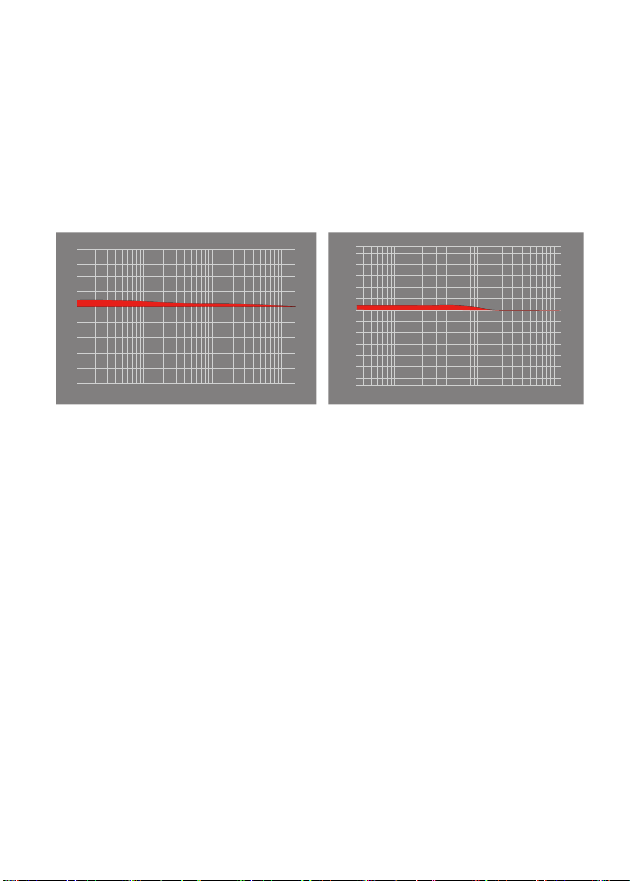
6. Notch Filter
The central frequency has obvious reduction. The frequency beside
the central frequency has similar effect. Gain setting is ineffective
with notch filter.
7. High Shelf Filter
There is a wide effect on the frequency that is higher than the
central frequency.
2 3 4 56 10 20 30 100 200 1k
⑩. Q=0.7071 ⑪. Q=20
4 5 6 78 9 10 20 30 40 50 100 200
300 1k
⑫. Q=0.7071 ⑬. Q=20
4 5 6 78 9 10 20 30 40 50 100 200
300 1k
2 3 4 56 10 20 30 100 200 1k
49
8. Low Shelf Filter
There is a wide effect on the frequency that is lower than the central
frequency.
⑭. Q=0.7071 ⑮. Q=20
4 5 6 78 9 10 20 30 40 50 100 200
300 1k
2 3 4 56 10 20 30 100 200 1k
50
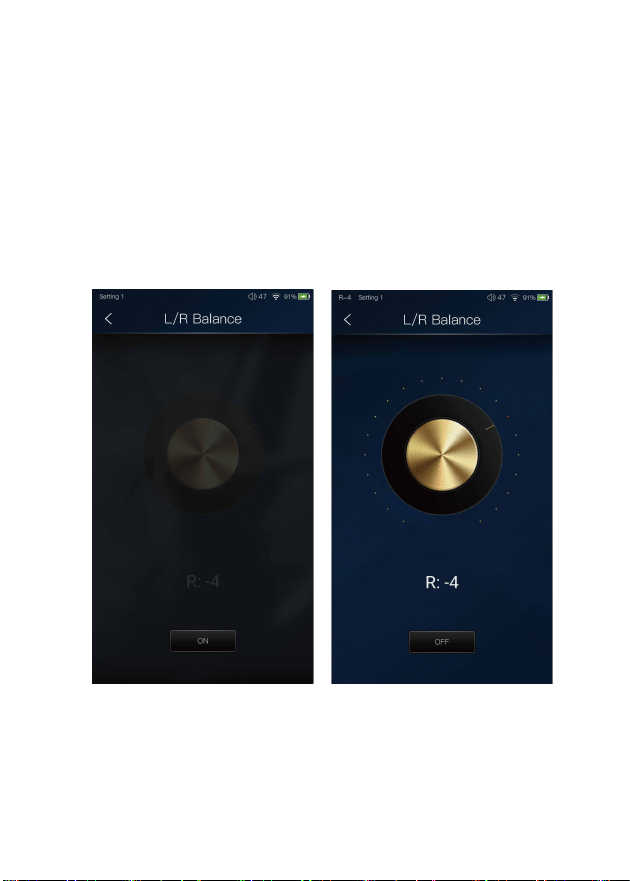
L/R Balance:
Slide clockwise to decrease the volume in right channel. Slide in
counterclockwise to decrease the volume in left channel.
51
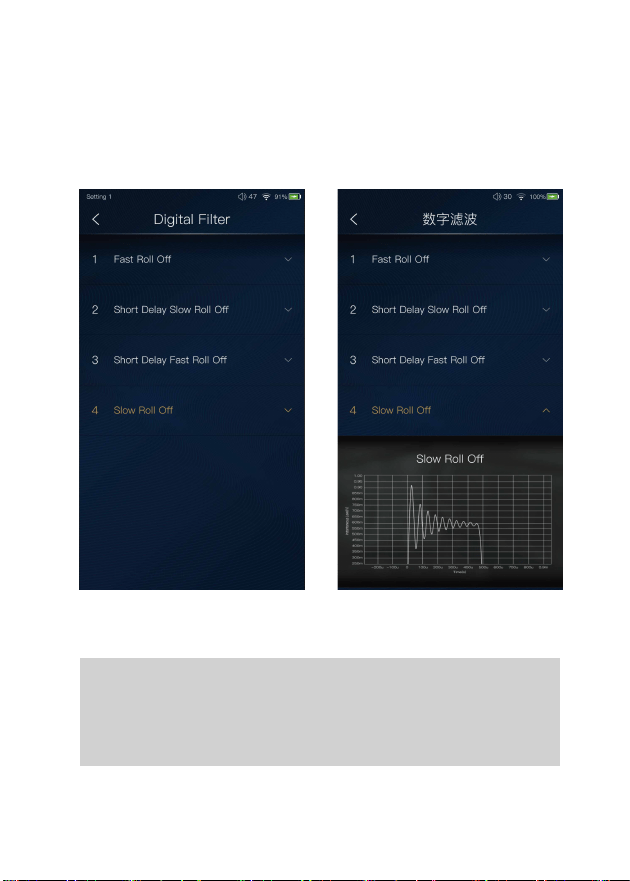
Digital Filter:
There are four digital filters available. Press a digital
filter to unfold the figure.
Digital Filter:
52
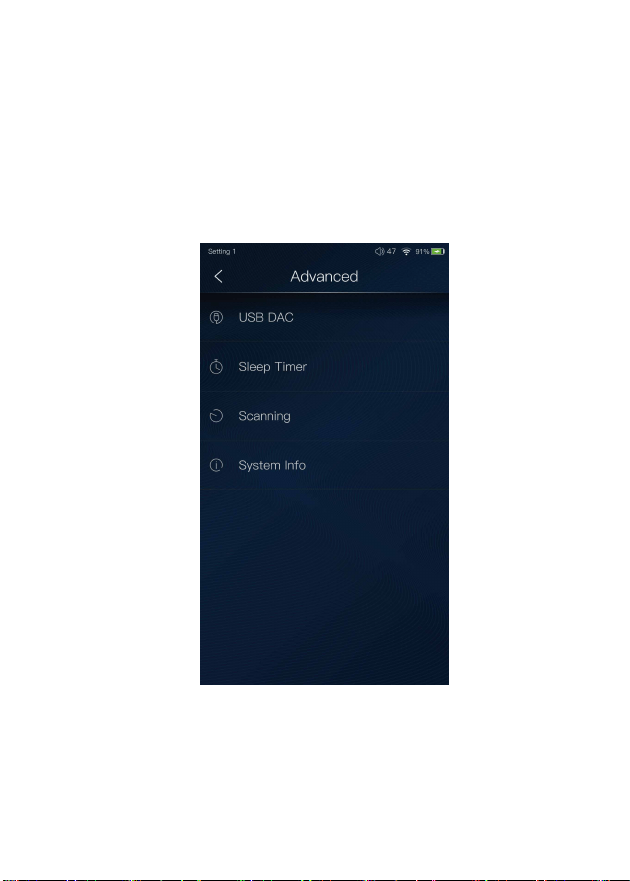
To access more system settings.
Advanced
53
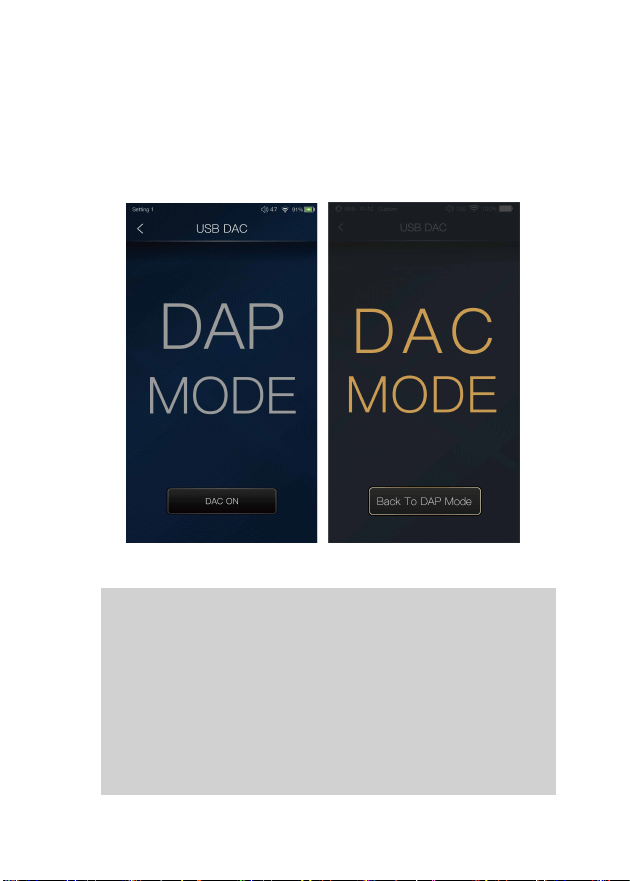
The DX160 can work as a USB DAC for Windows PC,
Mac computer, and Linux computer. It is driver free on
a Mac computer and Linux computer. For Windows PC,
one can download the driver from iBasso.com and install
it following the steps included with the download, before
using the USB DAC function. The DX160 supports up to
32bit/384kHz PCM, and native DSD up to 256x when be
used as a USB-DAC.
USB DAC:

The following are the instructions for USB DAC use:
① Power on the DX160.
② Press the DAC On button on Settings/USB DAC.
③ The“USB DAC”screen will be shown on the DX160.
④ Connect the DX160 to a computer via the furnished
type-C Cable.
⑤ Select “
Bravo HD” as the audio output device. Then
one can play music on the computer and listen it via
the DX160, which will use the DX160's DAC and amplifier.
Or you can use the line out of the DX160 into any amp
of choice.
54
55
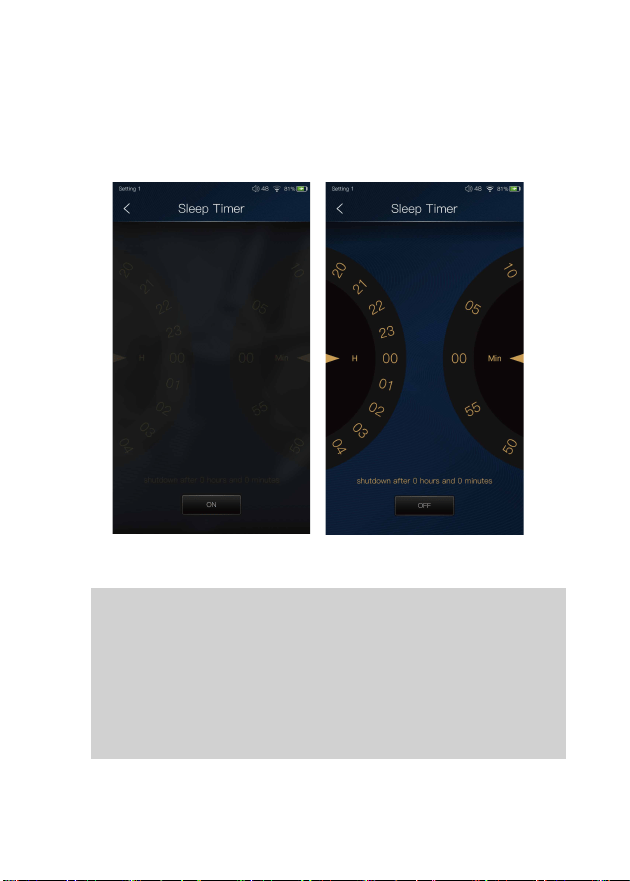
Set the count down sleep timer to power off the DX160.
The left hand side is the value of hours. The right hand
is the value of minutes. The DX160 will be powered off
after the counter has completed. If there are any operations
in the meanwhile, the DX160 will start the counter again
after the last operation.
Sleep Timer:
56
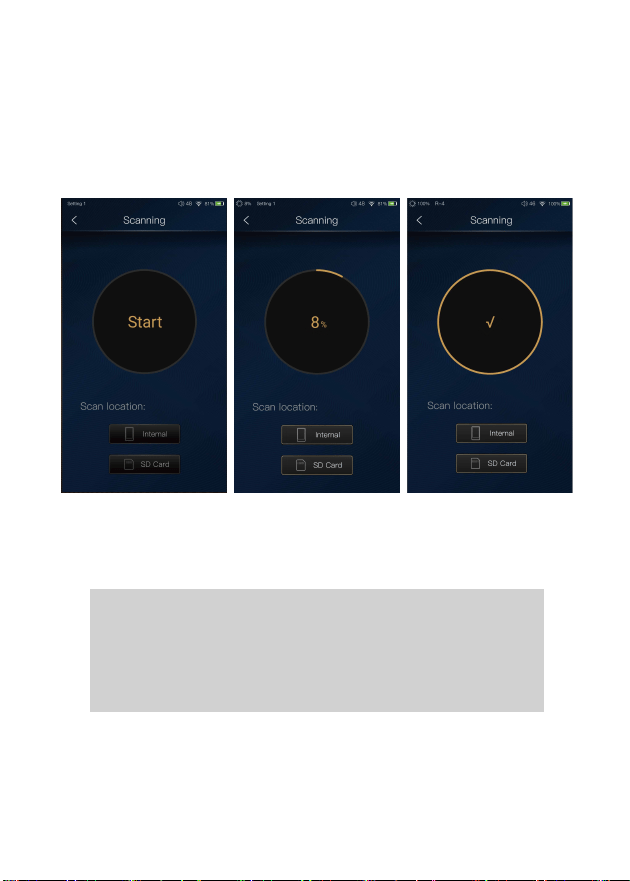
Select the scan locations and the press start to perform
a complete media scanning. One can use this feature to
rebuild the music library.
Scanning:
57
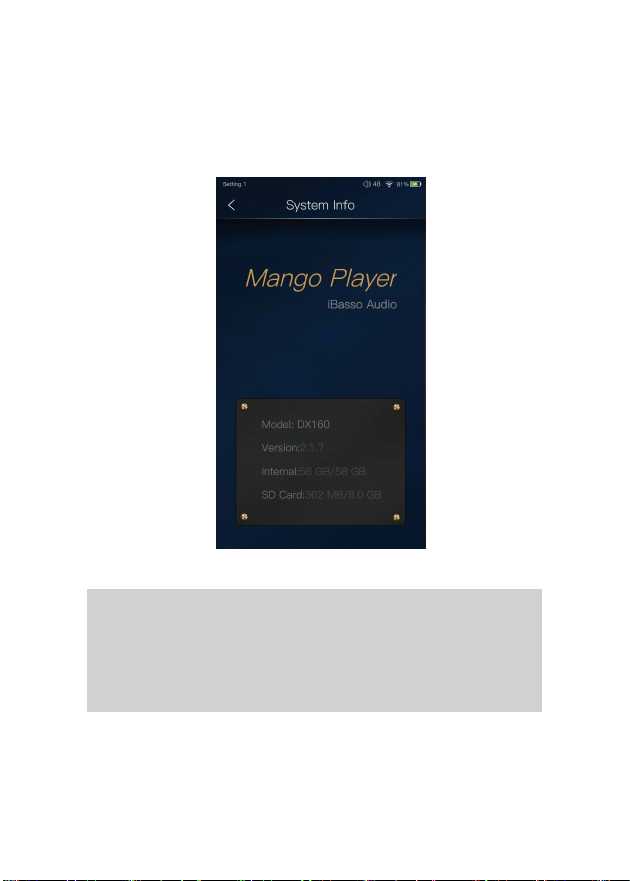
One can see the firmware version on this screen. Also,
one can see the space available of the internal memory
and SD card.
System Info:

58
MQA
MQA (Master Quality Authenticated)
DX160 includes MQA technology, which enables you to play back
MQA audio files and streams, delivering the sound of the original
master recording.
‘MQA’ or ‘MQA.’ indicates that the product is decoding and playing
an MQA stream or file, and denotes provenance to ensure that the
sound is identical to that of the source material. ‘MQA.’ indicates it
is playing an MQA Studio file, which has either been approved in the
studio by the artist/producer or has been verified by the copyright
owner.
MQA and the Sound Wave Device are registered trade marks of
MQA Limited.© 2016