高清智能网络摄像机
使用产品前请仔细阅读快速操作指南并妥善保管
快速操作指南 V1.0
(操作视频)
(APP下载)
操作视频
查看方式:
手机扫描下方二维码,可了解产品的详细使用操作
APP安装与账号注册登录 产品介绍 常见问题
APP添加设备
下载方式:
1.手机扫描下方二维码,下载安装“超维物联App”
2.手机应用市场或APP store搜索“超维物联”进行下载安装
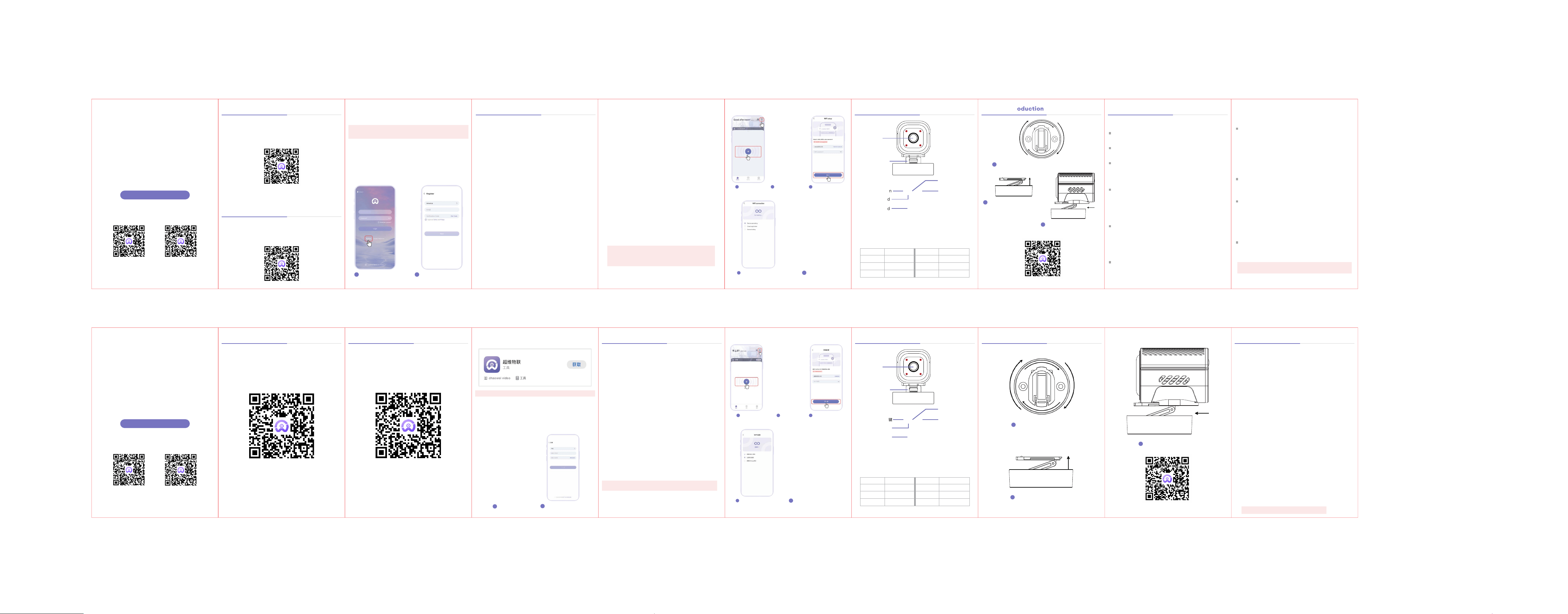
1、长按摄像头背后的开机按钮1~2秒,蓝色状态
指示灯亮,设备启动并发出声音提示。
2、首次使用请充电达到5小时以上,以激活
电池最佳性能,充电完成后请及时断开电源,
避免长时间过充。
3、打开APP,登录后选择界面 “+” 或右上角
“+”。如添加WiFi设备,请确保手机蓝牙打开
后,可以自动搜索到设备完成配对。配网过程
中,蓝色指示灯会慢闪烁,配网成功后蓝色指
示灯常亮配网注册约持续30秒左右,请耐心
等待。
3.账号注册
(确认您的所在地区,根据APP提示方式或第三方账号进行注册,也可点击下方一键登录
完成注册和登录)
注: 苹果手机系统要求i0S9.0以上,安卓手机系统要求Android5.1以上
注: 当前手机必须接入2.4GHz频段WiFi,不要选择带有5G名称的WiFi联网。
除非指定设备明确同时支持2.4G / 5.8G。
1、设备连接不上?
绑定设备前先长按复位键进行复位。
WiFi名称与密码尽量不要带特殊符号(最好是字母加数字)
尽量离路由器近一点、少隔墙。
2、设备续航不足?
首次使用,需充电达到5小时以上,以激活电池最佳性能。
3、设备复位、升级后均无法自动重启?
设备复位和升级,如果没有自动重启,需要按开机键手动
重启。
4、设备固件升级
为了确保升级过程中的电量稳定,请尽可能在连接充电线
的时候升级。
5、设备充电时无法关机
设备充电时,既给电池充电、也会给系统供电,此时设备
无法关机。
6、设备出现杂音
监控对讲、视频时,手机与监控最少距离5米监控安装
位置尽量远离大功率电器。
7、如何分享给家人观看
打开APP点击分享按钮,输入家人的手机号码即可。
注:分享的手机号码也要下载APP注册
点击注册
确认地区,注册账号
2
1
蓝牙配网中,请耐心等待 配网成功,请保存此二维码
4
5
添加设备 发现设备
2
3
1
连接2.4GHz频段网络
镜头
开关键
Type-c
插电口
复位键
TF卡
喇叭
伸缩架台
产品介绍
圆台底座可以进行365°旋转
1
将底座中伸缩支架向上拉伸
2
将相机与伸缩支架滑动安装
3
设备状态 指示灯状态 设备状态 指示灯状态
设备上电开机
设备系统启动
设备等待配网
蓝灯常亮、黄灯常亮
蓝灯快闪
蓝灯慢闪
设备配网成功
设备复位成功
设备充电
蓝灯常亮
红蓝灯交替
黄灯常亮
电池型卡片机操作视频
SMART IP CAMERA
Please read carefully before using
Quick Start Guide V1.0
Operation
Video
APP
Download
Operation Video
Viewing Method:
Scan the QR code below with your phone to
learn about the detailed usage and operation
of the product.
APP Download, Register and Login
Product Introduction
Download method:
1.Scan the QR code below to download
and install the 'Sulink' app.
Lens
Power button
Type-c
plug-in port
Reset button
TF Card
Sound
Adjustable stand
Product Introduction
The truncated cone base can rotate 365°.
1
Extend the telescopic
bracket in the base upwards.
2
Slide the camera and
telescopic bracket together.
3
Equipment status Indicator light status Equipment status Indicator light status
Equipment startup
Device system startup
Equipment waiting for
distribution network
Blue light always on,
Yellow light always on
The blue indicator
light flashes rapidly.
The blue indicator
light flashes slowly.
Device network
configuration successful
Device restoration
successful
Device charging
The blue indicator light
remains constantly on.
Red and blue lights alternate
The yellow indicator light
remains constantly on.
Card camera series operation video
2. Search for 'Sulink' app on the App Store
or Google Play to download and install it.
Note: iOS 9.0 or later is required for iPhone devices;
Android 5.1 or later is required for Android devices
3. Account registration
(Confirm your region, then complete the
registration following the app prompts or
via a third-party account.)
Click Register Confirm region and
register an account
21
Email
Add Device to the APP
1.Press and hold the power button on the
back of the camera for 1 to 2 seconds
until the blue status indicator light
turns on. The device will then power on
with an audio prompt..
2.For optimal performance activation,
charge it for 5 hours or more before
first use. Disconnect the power supply
promptly once charging is complete to
avoid prolonged overcharging.
3. Open the app, log in,and then tap the
"+" icon on the interface or the one in
the top-right corner. For WiFi devices:
Ensure your phone's Bluetooth is
enabled, and the app will automatically
detect the device to complete pairing.
During the network configuration, the
blue indicator light blinks slowly.upon
successful configuration, the blue
indicator light remains steadily on
Network configuration and registration
take approximately 30 seconds.
Attention: Currently,mobile phones must be connected to
WiFi in the 2.4GHz frequency band, and do not choose WiFi
with 5G names for networking.Unless the specified device
explicitly supports both 2.4G and 5.8G.
Network configuration Successful
4
5
Add Device Device detected
2
3
1
Connect to 2.4GHz
WiFi network
Common lssues
1.Why can't the device connect?
4.Device Firmware Update
5.The device cannot be powered off
while charging
When the device is charging, it supplies power to
both the battery and the system, and the device
cannot be powered off at this time
6.Is there static/noise during two-way
audio?
Keep a minimum distance of 5 meters between
your phone and the camera during two-way audio
or video monitoring.
Install the camera as far away as possible from
high-power electrical appliances.
7.How to share the camera view with
family members?
Open the app,find and click the"share" button,
andenter your family's account.
2.Low device battery life?
3.The device fails to restart automatically
after reset or firmware update
Note: The shared user must also download and register an
account on the APP.
Press and hold the reset button to reset the device
before pairing.
Avoid special characters in your WiFi name and
password (letters and numbers are preferred).
Move closer to the router, and avoid obstructions
like walls.
Charge for 5+ hours before first use to activate the
battery for optimal performance.
If the device does not restart automatically
following a reset or firmware update, press the
power button to restart it manually.
To ensure a stable power supply during the
update process, perform the update while the
charging cable is connected whenever possible.

FCC Warning
This device complies with part 15 of the FCC rules. Operation is subject to the following two
conditions: (1) this device may not cause harmful interference, and (2) this device must accept
any inte rference received, including interference that may cause undesired operation.
Changes or modifications not expressly approved by the party responsible for compliance could
void the user's authority to operate the equipment.
NOTE: This equipment has been tested and found to comply with the limits for a Class B digital
device, pursuant to part 15 of the FCC Rules. These limits are designed to provide reasonable
protection against harmful interference in a residential installation. This equipment generates
uses and can radiate radio frequency energy and, if not installed and used in accordance with the
instructions, may cause harmful interference to radio communications. However, there is no
guarantee that interference will not occur in a particular installation. If this equipment does
cause harmful interferenceto radio or television reception, which can be determined by turning
the equipment off and on, the user is encouraged to try to correct the interference by one or
more of the following measures:
-Reorient or relocate the receiving antenna.
•Increase the separation between the equipment and receiver.
•Connect the equipment into an outlet on a circuit different from that to which the receiver is
connected.
•Consult the dealer or an experienced radio/TV technician for help.
Radiation Exposure Statement
This equipment complies with FCC radiation exposure limits set forth for an uncontrolled
environment. This equipment should be installed and operated with minimum distance 20cm
between the radiator and your body.