Read this manual carefully and save it for future reference.
Record Full-Length Videos
Get unlimited full-length video recordings.
Smart AI Detection
Detect people, packages, vehicles, and more.
Back-to-Back Event Recording
Capture everything without 5-minute gaps.
Exclusive Discounts
Get exclusive discounts on Wyze products.
Subscribe or learn more at my.wyze.com.
GET BETTER SECURITY WITH
1
DOWNLOAD
DOORBELL SETUP
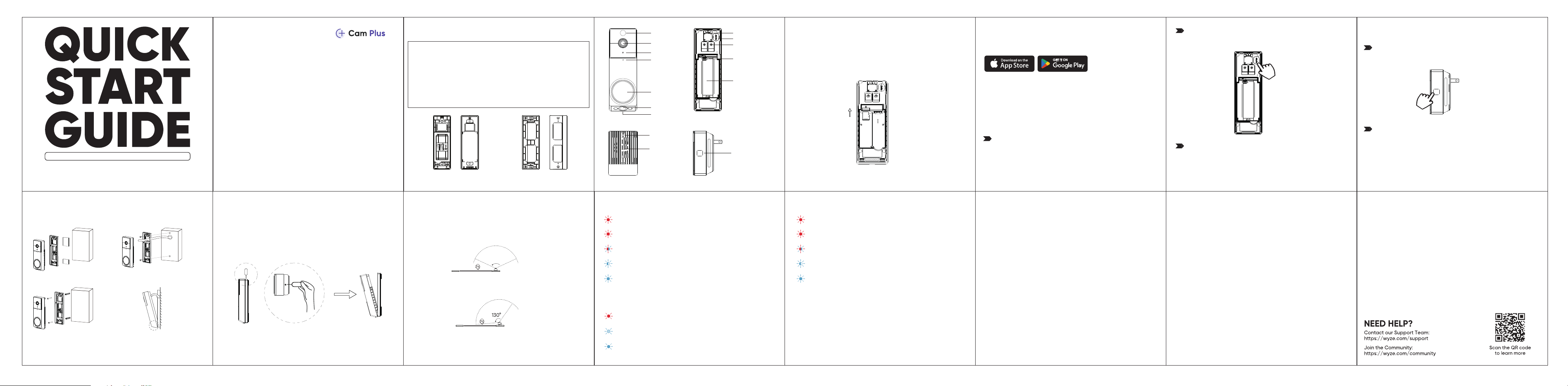
Download the Wyze app and sign in or create an account.
Insert the battery pack and wait for 5 seconds until
the status light flashes red.
In the Wyze app, tap the + plus sign. On the Add menu,
tap Device > Cameras > Wyze Duo Cam Doorbell.
Follow the in-app instructions to finish setup.
3
2
Press and hold the RESET button on the back of the
doorbell for 10 seconds, or until the voice prompt sounds.
INSTALLATION METHODS
Installation with screws:
Installation with adhesive tape:
Installation with screws and
powered by AC wire:
Attach your doorbell to
the Back Plate:
Please Note:
• Install the Back Plate to the wall, then attach the doorbell.
• Install the doorbell less than 6.6 feet above the ground.
• The adhesive tape only works with the Back Plate, not the Corner Kit.
MICROSD CARD INSTALLATION
If you want to use a MicroSD card in your doorbell, install it
before setting up the doorbell. Then insert the battery pack.
(MicroSD card sold separately.)
To remove the camera from the Back Plate:
Top View
Insert the Detaching Pin into the small pinhole at the top
of the doorbell and push in.
Pinhole
Charging Port
Screw Terminals
Type-C
PIR Sensor
Lens
Microphone
Doorbell
Button
Speaker
Doorbell Front
Chime Front Chime Side
Doorbell Back
Reset Button
Reset Button
Lens
Light Sensor
Battery Pack
Removable
Speaker
Indicator
IN THE BOX
Back Plate Corner Kit
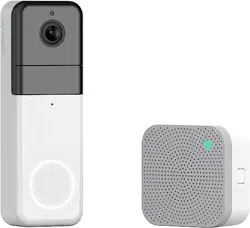
Wyze Duo Cam Doorbell × 1
Back Plate × 1
Corner Kit × 1
USB-C Charging Cable × 1
Wire Nuts × 3
Extension Wire × 1
Long Screws × 3
Short Screws × 4
Wyze Wi-Fi Chime × 1
Expansion Tubes × 3
Adhesive Tape × 1
Quick Start Guide × 1
Doorbell Detaching Pin × 1
Removable Battery Pack × 1
OPTIONAL CORNER KIT
Use the included Corner Kit to add 30º to the horizontal
viewing angle. First, install the Corner Kit to the wall, then
attach the Back Plate.
Angle (with Corner Kit)
Angle (without Corner Kit)
130°
door
130°
door
Disclaimer: The products, accessories, user interfaces, etc. illustrated in
this guide are intended for reference only. Due to product updates, the
actual product and the illustrations in this guide may vary.
Any changes or modifications not expressly approved by the party responsible for
compliance could void the user's authority to operate this equipment. This device complies
with part 15 of the FCC Rules. Operation is subject to the following two conditions: (1) This
device may not cause harmful interference, and (2) This device must accept any
interference received, including interference that may cause undesired operation.
This equipment has been tested and found to comply with the limits for a Class B digital
device, pursuant to Part 15 of the FCC Rules. These limits are designed to provide
reasonable protection against harmful interference in a residential installation. This
equipment generates, uses, and can radiate radio frequency energy and, if not installed
and used in accordance with the instructions, may cause harmful interference to radio
communications. However, there is no guarantee that interference will not occur in a
particular installation. If this equipment does cause harmful interference to radio or
television reception, which can be determined by turning the equipment o and on, the
user is encouraged to try to correct the interference by one or more of the following
measures:
– Reorient or relocate the receiving antenna.
– Increase the separation between the equipment and receiver.
– Connect the equipment into an outlet on a circuit dierent from that to which the
receiver is connected.
– Consult the dealer or an experienced radio/TV technician for help.
FCC WARNING FCC RADIATION EXPOSURE STATEMENT
ISED RSS WARNING
This device contains licence-exempt transmitter(s)/receiver(s) that comply with
Innovation, Science and Economic Development Canada’s licence-exempt RSS(s).
Operation is subject to the following two conditions: (1) This device may not cause
interference. (2) This device must accept any interference, including interference
that may cause undesired operation of the device.
ISED RADIATION EXPOSURE STATEMENT
This equipment complies with ISED RF radiation exposure limits set forth for an
uncontrolled environment. This transmitter must not be co-located or operating in
conjunction with any other antenna or transmitter. This equipment should be installed and
operated with a minimum distance of 20 cm between the radiator and your body.
Any changes or modifications not expressly approved by the party responsible for
compliance could void the user's authority to operate the equipment.
The device is working properly
Solid blue light
Flashing blue light
The device is connected and finishing setup
Flashing red light
The device is ready to connect
Flashing red and blue lights
Connection is in progress
Solid red light
The device is powered
WYZE CHIME LIGHT INDICATORSLIGHT INDICATORS DURING INSTALLATION
Solid red light
The device is powered and initializing
The device is working properly
Solid blue light
Flashing red light
The device is ready to connect
Flashing red and blue lights
Connection is in progress
Flashing blue light
The device is connected and finishing setup
CHIME SETUP
In the Wyze app, tap the + plus sign. On the Add menu,
tap Device > Cameras > Wyze Wi-Fi Chime.
Follow the in-app instructions to finish setup.
2
Press the RESET button on the side of the chime
for 5 seconds, until the red light starts flashing.
1
LIGHT INDICATORS AFTER SETUP
Solid red light for 6s (Battery Power)
Live stream is being viewed or a recording is in progress
Doorbell button pressed or motion detected
Pulsing blue light (Battery Power)
The device is working properly and no operations are running
Solid blue light (AC Power)
Apple logo and App Store are trademarks of Apple Inc., registered in the
U.S. and other countries and regions. Google Assistant, Google Home,
Google Play, and the Google Play logo are trademarks of Google LLC.
This equipment complies with FCC radiation exposure limits set forth for an uncontrolled
environment. This equipment should be installed and operated with minimum distance
20 cm between the radiator & your body. This transmitter must not be co-located or
operating in conjunction with any other antenna or transmitter.
WARRANTY INFORMATION
Your Wyze product is covered by a one-year limited warranty. You can view the
limited warranty terms at https://www.wyze.com/policies/refund-policy.
Risk of fire or explosion if the battery is replaced by an incorrect type.
• Replacement of a battery with an incorrect type that can defeat a safeguard (for
example, in the case of some lithium battery types);
• Disposal of a battery into fire or a hot oven, or mechanically crushing or cutting of a
battery, that can result in an explosion;
• Leaving a battery in an extremely high temperature surrounding environment that can
result in an explosion or the leakage of flammable liquid or gas; and
• A battery subjected to extremely low air pressure that may result in an explosion or the
leakage of flammable liquid or gas.
CAUTION
Wyze and Wyze Duo Cam Doorbell are trademarks of Wyze Labs, Inc.
Supplier’s Declaration of Conformity Unique Identifier
Trade Name: WYZE
Product Name: Wyze Duo Cam Doorbell Model No.: GW_DBD
Product Name: Wyze Wi-Fi Chime Model No.: GW_WFCHM
Responsible Party – U.S. Contact Information
U.S. Company Name: Wyze Labs, Inc.
Address: 8815 122nd Ave NE, Suite #201, Kirkland WA 98033
www.wyze.com/pages/contact-us