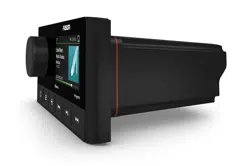
APOLLO
™
RV-RA770
INSTALLATION INSTRUCTIONS
Important Safety Information
WARNING
Failure to follow these warnings and cautions could result in personal injury, damage to the vehicle, or poor
product performance.
See the Important Safety and Product Information guide in the product box for product warnings and other
important information.
This device must be installed according to these instructions.
Disconnect the vehicle's power supply before beginning to install this product.
Before applying power to this product, make sure it has been correctly grounded according to these
instructions.
CAUTION
To avoid possible personal injury, always wear safety goggles, ear protection, and a dust mask when drilling,
cutting, or sanding.
NOTICE
When drilling or cutting, always check what is on the opposite side of the surface to avoid damaging the vehicle.
Do not use the stereo as a template when drilling the mounting holes because this may damage the glass
display and void the warranty. You must only use the included template to correctly drill the mounting holes.
You must read all installation instructions before beginning the installation. If you experience difficulty during
the installation, contact Fusion
®
Product Support.
What's In the Box
• Mounting gasket
• Four 8-gauge, self-tapping screws
• Two screw covers
• Power and speaker wiring harness
• Dust cover
GUID-FDC43C80-4CBF-46A7-B175-3FE7F61C33CB v2August 2022

Tools Needed
• Phillips screwdriver
• Electric drill
• Drill bit (size varies based on surface material and screws used)
• Rotary cutting tool or jigsaw
• Silicone-based marine sealant (optional)
Mounting Considerations
• You must mount the stereo on a flat surface that provides open airflow around the rear of the stereo for heat
ventilation.
• If you are installing the stereo in a location that may be exposed to water, you must mount it within 45
degrees below or 15degrees above the horizontal plane.
• If you are installing the stereo in a location that may be exposed to water, you must add a drip loop to the
cable to allow water to drip off of the cable and avoid damage to the stereo.
Mounting the Stereo
NOTICE
Do not use the stereo as a template when drilling the mounting holes because this may damage the display and
void the warranty. You must only use the included template to correctly drill the mounting holes.
Be careful when cutting the hole to mount the stereo. There is only a small amount of clearance between the
case and the mounting holes, and cutting the hole too large could compromise the stability of the stereo after it
is mounted.
Do not apply grease or lubricant to the screws when fastening the stereo to the mounting surface. Grease or
other lubricants can cause damage to the stereo housing.
Before you can mount the stereo in a new location on the mounting surface, you must select a location in
accordance with the mounting considerations.
1 Adhere the template to the mounting surface.
2 Drill a hole inside the corner of the dashed line on the template.
2
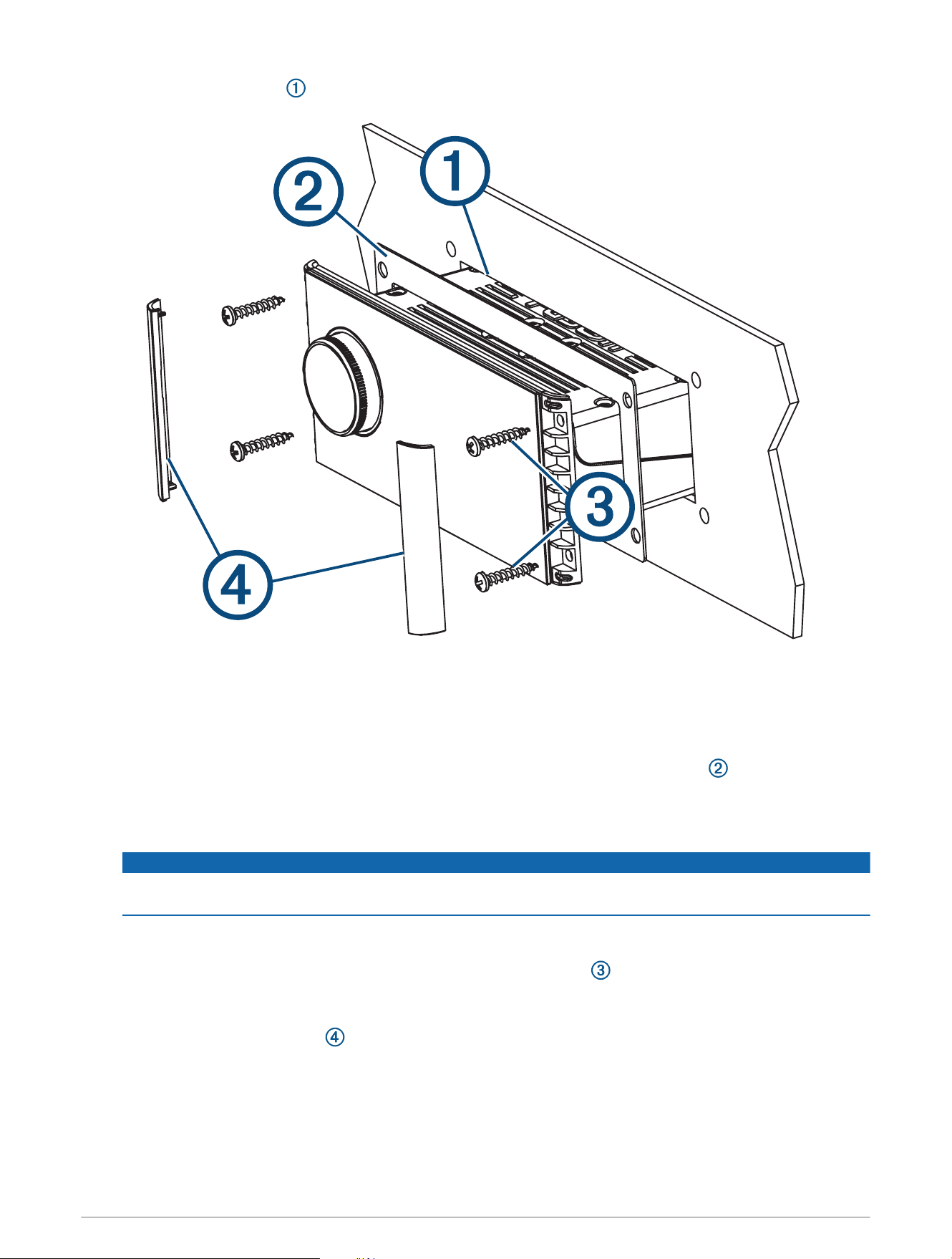
3 Cut the mounting surface along the inside of the dashed line on the template.
4 Ensure the mounting holes on the stereo line up with the pilot holes on the template.
5 Using an appropriately sized drill bit for the mounting surface and screw type, drill the pilot holes.
6 Remove the template from the mounting surface.
7 Complete an action:
• If you are installing the stereo in a dry location, place the included mounting gasket on the back of the
stereo.
• If you are installing the stereo in a location that is exposed to water, apply silicone-based marine sealant
on the mounting surface around the cutout.
NOTICE
Do not install the included mounting gasket if you applied sealant to the mounting surface. Using sealant
and the mounting gasket may reduce water resistance.
8 If you will not have access to the back of the stereo after installation, make the necessary wiring
connections.
9 Secure the stereo to the mounting surface using the included screws .
You should hand-tighten the screws when securing the stereo to the mounting surface to avoid over
tightening them.
10 Snap the screw covers in place .
Connection Considerations
You must connect the stereo to power, to speakers, and to media input sources. You should carefully plan
the layout of the stereo, speakers, input sources, and optional Fusion PartyBus
™
devices and Fusion PartyBus
network before making any connections.
3
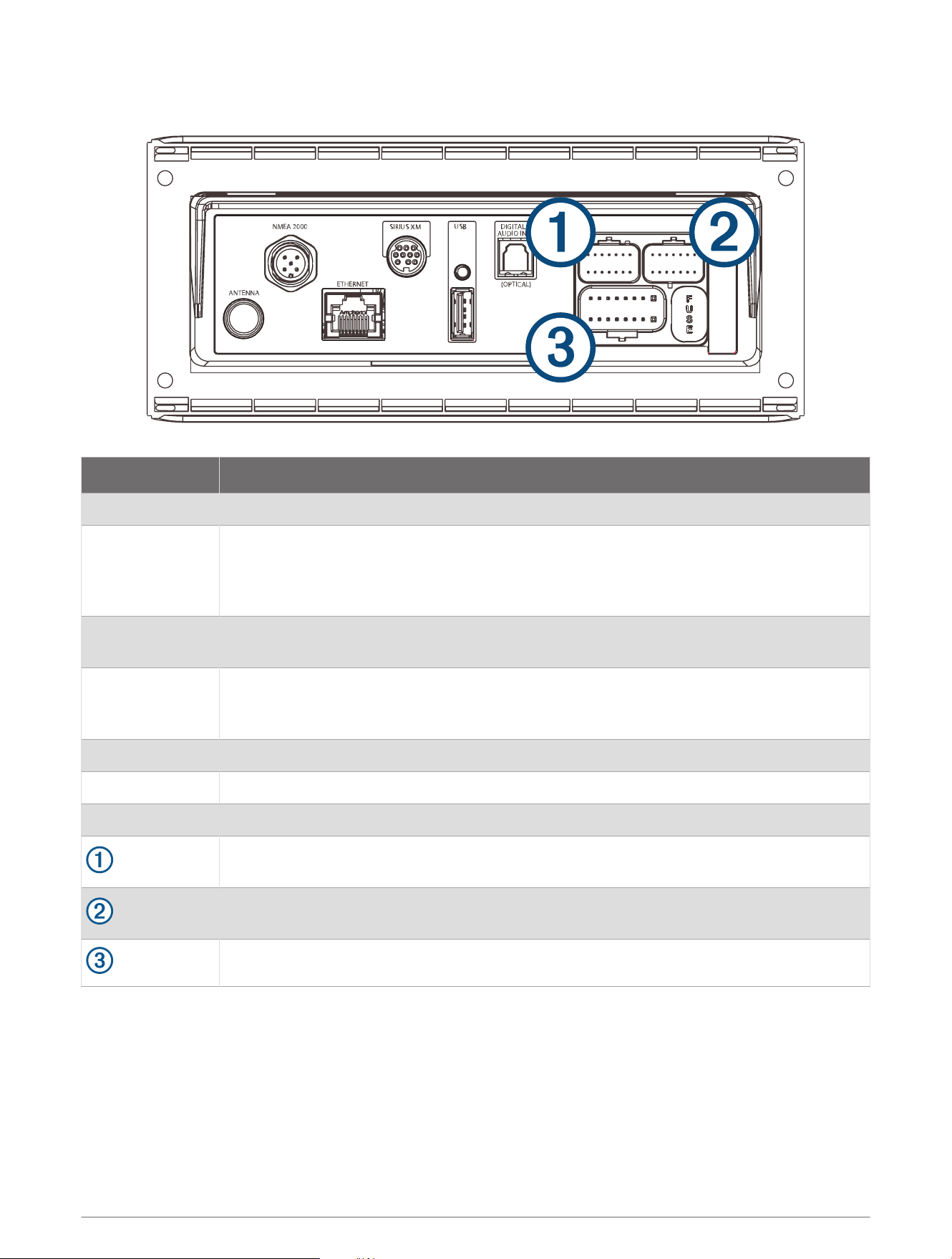
Port Identification
Item Description
ANTENNA Connects the stereo to a typical AM/FM antenna.
NMEA 2000
Connects the stereo to a Garmin
®
Controller Area Network (Garmin CAN) (System Wiring
Diagram, page14).
Connects to an NRX series remote control directly (Configuring an Optional Wired NRX
Remote Control, page15).
ETHERNET
Connects the stereo to another Fusion PartyBus stereo, zone stereo, or network (Fusion
PartyBus Networking, page16).
SIRIUS XM
Connects the stereo to a SiriusXM
®
Connect Tuner to receive SiriusXM stations where
available (not included).
Connects to a Fusion DAB module to receive DAB stations where available (not included).
USB Connects the stereo to a USB source.
DIGITAL AUDIO IN Connects the stereo to an optical digital audio source, such as TV or DVD player.
FUSE Contains the 15A fuse for the device.
Connects the stereo to the wiring harness for auxiliary input 2, and for the line and
subwoofer outputs for zones 3 and 4.
Connects the stereo to the wiring harness for auxiliary input 1, and for the line and
subwoofer outputs for zones 1 and 2.
Connects the stereo to the power and speaker wiring harness.
4
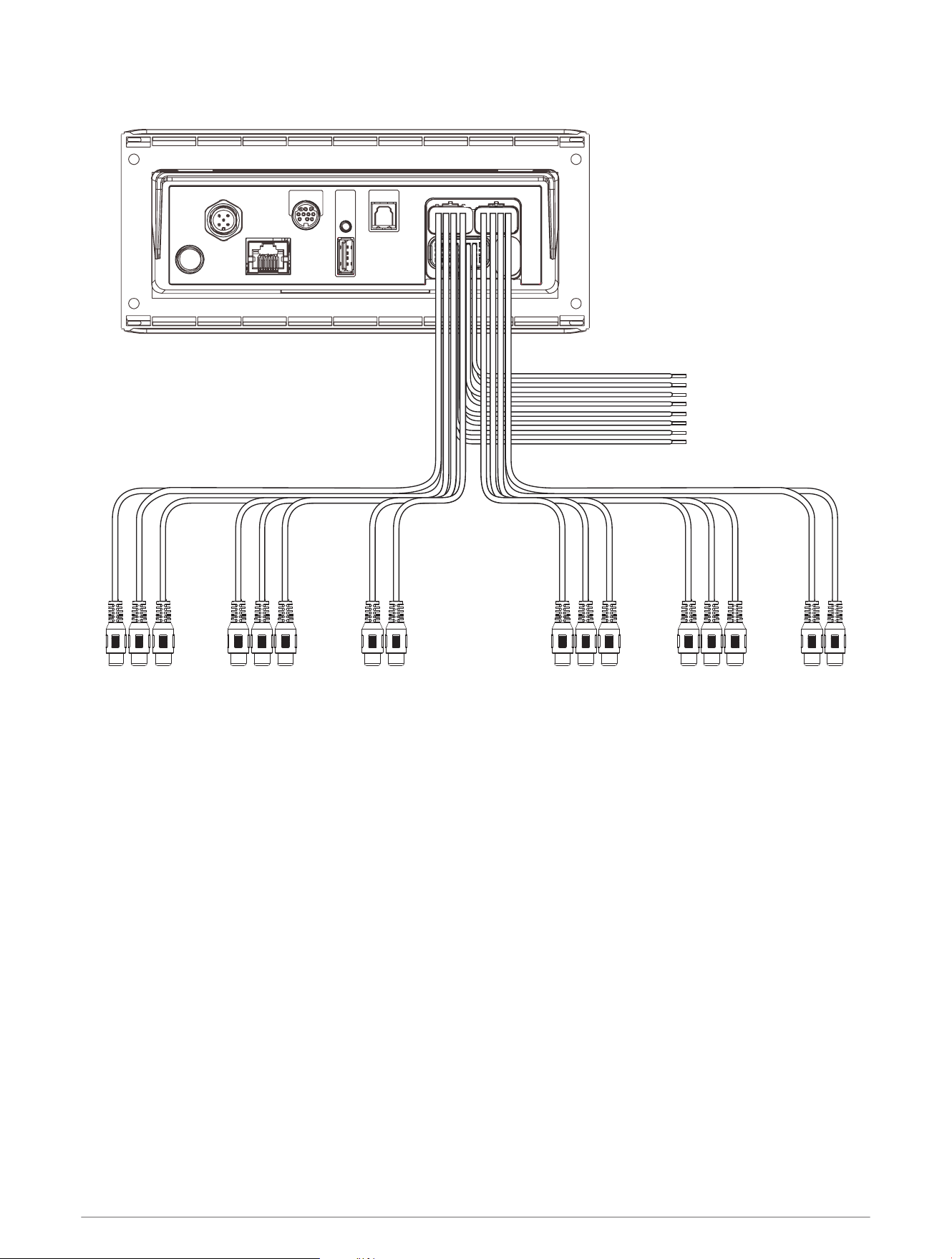
Wiring Harness Wire and Connector Identification
5

Wire or RCA Connector
Function
Bare Wire Color
or RCA Label
Name
Notes
Ground (-) Black Connects to the power source (Power Connection, page7).
Power (+) Yellow Connects to the power source (Power Connection, page7).
Ignition Red Connects to the power source (Power Connection, page7).
Amplifier on Blue
Connects to optional external amplifiers, enabling them to
turn on when the stereo turns on.
A connected amplifier must use the same ground (-) as the
stereo for this signal wire to function correctly.
Telemute Brown
Activates when connected to ground.
For example, when you connect this wire to a compatible,
hands-free mobile kit, the audio mutes or the input switches
to Aux1 when a call is received and the kit connects this wire
to ground. You can enable this functionality from the settings
menu.
Dim Orange
Connects to the vehicle's illumination wire to dim the stereo
screen when the lights are on.
The gauge of the illumination wire must be suitable for the
fuse supplying the circuit it is connected to.
Speaker zone 1 left(+) White
Speaker zone 1 left(-) White/black
Speaker zone 1 right(+) Gray
Speaker zone 1 right(-) Gray/black
Speaker zone 2 left(+) Green
Speaker zone 2 left(-) Green/black
Speaker zone 2 right(+) Purple
Speaker zone 2 right(-) Purple/black
Zone 1 line out (left)
Zone 1 line out (right)
Zone 1 subwoofer out
ZONE 1
ZONE 1 SUB
OUT
Provides output to an external amplifier, and is associated
with the volume control for zone 1.
Each subwoofer cable provides a single mono output to a
powered subwoofer or subwoofer amplifier.
Zone 2 line out (left)
Zone 2 line out (right)
Zone 2 subwoofer out
ZONE 2
ZONE 2 SUB
OUT
Provides output to an external amplifier, and is associated
with the volume control for zone 2.
Each subwoofer cable provides a single mono output to a
powered subwoofer or subwoofer amplifier.
Auxiliary in 1 left
Auxiliary in 1 right
AUX IN 1
Provides an RCA stereo line input for audio sources, such as
a CD or MP3 player.
Zone 3 line out (left )
Zone 3 line out (right)
Zone 3 subwoofer out
ZONE 3
ZONE 3 SUB
OUT
Provides output to an external amplifier, and is associated
with the volume control for zone 3.
Each subwoofer cable provides a single mono output to a
powered subwoofer or subwoofer amplifier.
6

Wire or RCA Connector
Function
Bare Wire Color
or RCA Label
Name
Notes
Zone 4 line out (left)
Zone 4 line out (right)
Zone 4 subwoofer out
ZONE 4
ZONE 4 SUB
OUT
Provides output to an external amplifier, and is associated
with the volume control for zone 4.
Each subwoofer cable provides a single mono output to a
powered subwoofer or subwoofer amplifier.
Auxiliary in 2 left
Auxiliary in 2 right
AUX IN 2
Provides and RCA stereo line input for audio sources, such
as a CD or MP3 player.
Power Connection
When connecting the stereo to power, you must connect the yellow, red, and black wires to the power source.
The yellow and red wires have different functions, and the method you use to connect them to power depends
on how you plan to use the stereo in your vehicle.
Yellow wire
• This wire provides power to the stereo.
• This wire should be connected through a 15A circuit breaker, if one is available in the vehicle.
NOTICE
If a 15A circuit breaker is not available in the vehicle, you must connect this wire to power through a 15A
fuse (not included).
• This wire provides power to the stereo at all times. If standby mode is enabled, or if the device is
configured to operate as a Web Display Unit (WDU), the wire will drain the battery even when the stereo is
not in use. You should install a manual switch on this wire if a 15A circuit breaker is not available in the
vehicle, or if you cannot toggle the breaker to remove power to the stereo when storing the vehicle.
• If it is necessary to extend this wire, use 14AWG (2.08mm
2
) wire. For extensions longer than 1m (3ft.),
use 12AWG (3.31mm
²
) wire.
Red wire
• This wire can be connected to the same power source as the yellow wire through the ignition or through a
manual switch. This enables you to turn the stereo on and off automatically when you turn the vehicle on
and off, or when you activate the switch.
• Use this wire to turn the stereo on and off. It is not necessary to connect this wire to a switch if you plan to
toggle the power using the power button on the stereo or using a connected device or remote control. This
wire must be connected to turn the stereo on.
• If standby mode is enabled, when you turn off the stereo using this switch or the power button, the stereo
enters a standby mode that allows it to start up again faster than if you switch the power off using the
yellow wire (Enabling Standby Mode, page11). When it is in standby mode, the stereo uses up to 200mA,
and you must turn off power to the stereo on the yellow wire through the circuit breaker or manual switch
when you are not using the vehicle to avoid draining the battery.
•
NOTICE
You must connect this wire to power through a 1A fuse (not included), whether or not you connect it to the
ignition or manual switch.
• If it is necessary to extend this wire, use 22AWG (0.33mm
2
) wire.
Black wire
• This is the ground wire, and you must connect it to the negative terminal of the power source or to a
common ground.
• If it is necessary to extend this wire, use 14AWG (2.08mm
2
) wire. For extensions longer than 1m (3ft.),
use 12AWG (3.31mm
²
) wire.
7
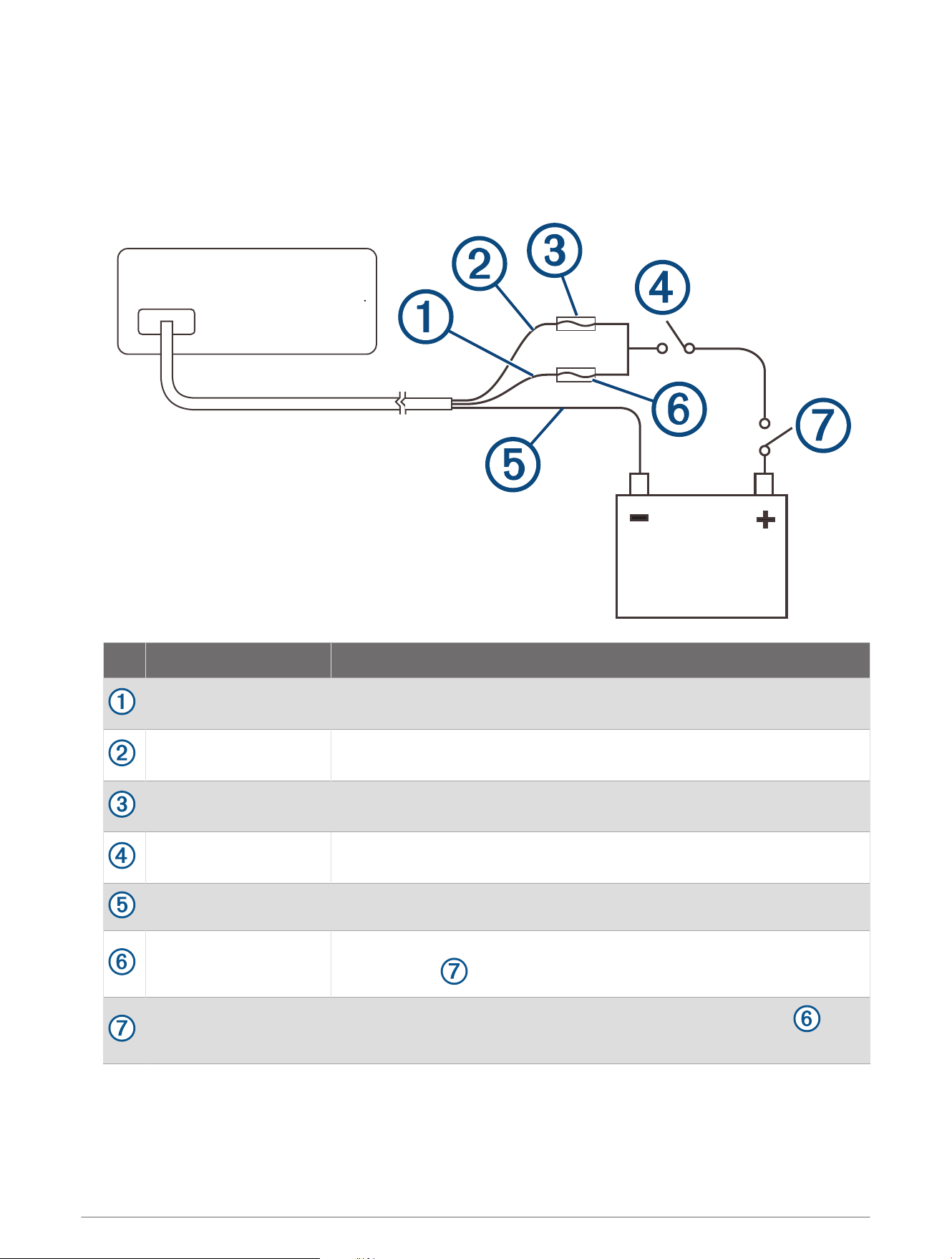
Connecting to Power Without Using an Ignition Switch
This method of connection is used most often on larger vehicles and on vehicles with multiple networked
stereos and other devices. For these installations, a faster startup time is typically less critical, and it is more
effective to use the breaker or a dedicated switch on the electrical panel to turn off the stereo and ensure that
no unexpected power drain occurs.
1 Consult this diagram to plan the wire connections.
Item Description Notes
Yellow wire
You should connect this wire to the red wire before you connect both wires
to the manual switch or circuit breaker.
Red wire
You should connect this wire to the yellow wire so that it does not act as a
physical standby switch.
1 A fuse (not included)
You must install this fuse on the red wire before you connect the red wire
to the yellow wire.
Manual switch (optional)
This switch is needed only if a circuit breaker is not available or if it
provides a more convenient method of cutting power to the stereo.
Black wire Ground (-)
15 A fuse (not included)
This fuse is required if you are not able to connect to power through a 15A
circuit breaker .
15 A circuit breaker
If a circuit breaker is not available, you must connect a 15A fuse on
the yellow wire
2 Route all wires to the stereo wiring harness, the circuit breaker or switch, and the power source as
necessary.
Do not connect the wiring harness to the stereo until after you have made all of the bare wire connections.
8

3 Install all of the necessary fuses on the red and yellow wires.
4 Connect the wiring harness to the stereo.
When the circuit breaker or manual switch is closed, the stereo is always on. You can use the power button on
the stereo or a connected device or remote control to place the stereo in a low-power standby mode if needed.
NOTE: When you are not using the vehicle, you should remove power to the stereo using the circuit breaker or
manual switch to avoid draining the battery.
9
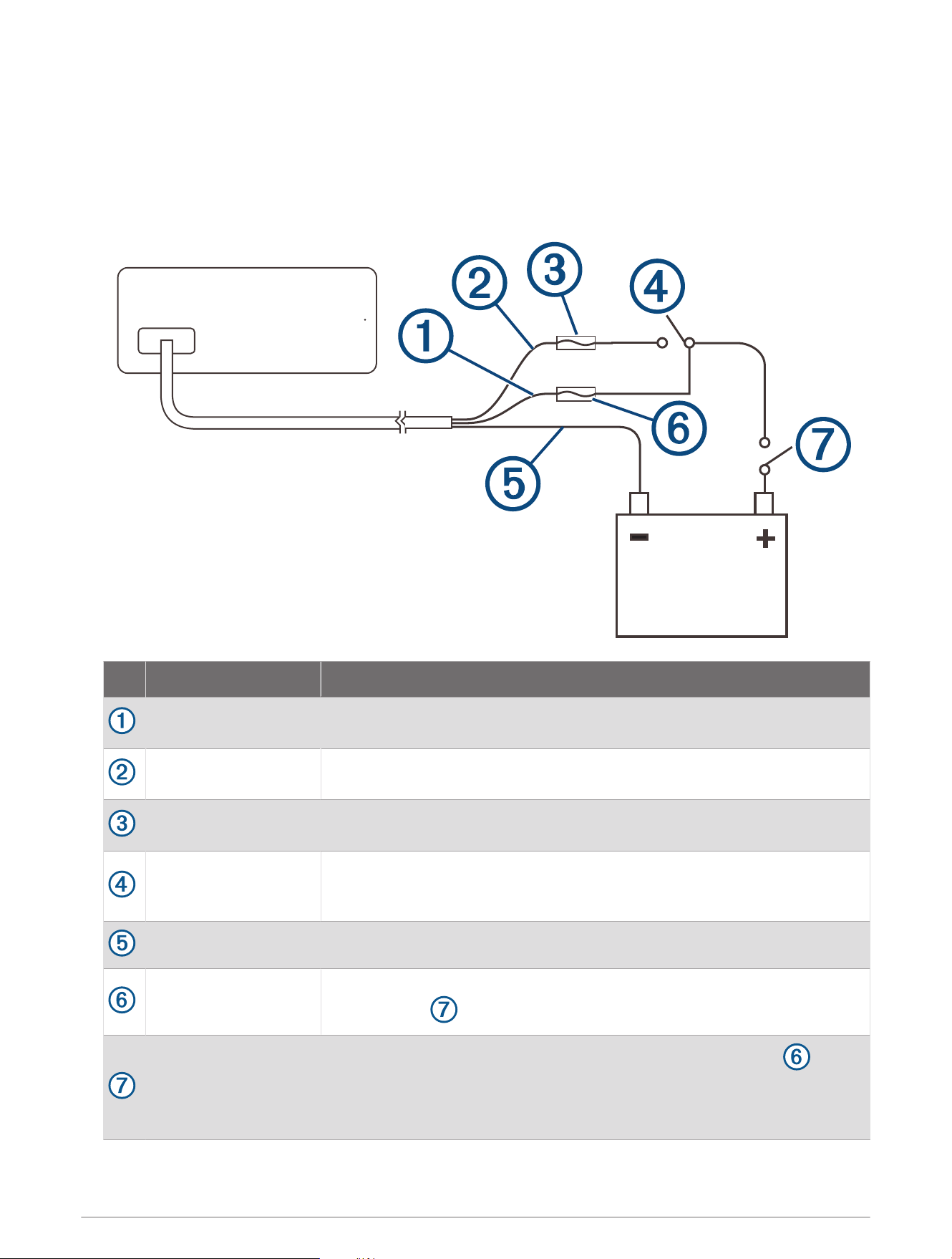
Connecting to Power Through an Ignition Switch
This method of connection is used most often in vehicles where power to the engines is toggled often. For
these installations, a quick standby and faster startup time is desired so that music can be stopped and begin
playing again as quickly as possible after restarting the engine. When standby mode is enabled, the stereo uses
up to 200mA, and you should connect the power wires through a circuit breaker or manual switch to avoid
draining the battery when you are not using the vehicle.
1 Consult this diagram to plan the wire connections.
Item Description Notes
Yellow wire
You must connect this wire to the same power source as the ignition or ACC
switch.
Red wire
You must connect this wire to the ignition or ACC switch before you connect
it to the same power source as the yellow wire.
1 A fuse (not included)
You must install this fuse on the red wire before you connect the red wire to
the ignition or ACC switch.
Ignition or ACC switch
Connecting the red wire to this switch allows the stereo to enter a low-power
standby mode when you turn off the engines, so it can start up faster when
you turn on the engines again.
Black wire Ground (-)
15 A fuse (not
included)
This fuse is required if you are not able to connect to power through a 15A
circuit breaker .
15 A circuit breaker or
manual switch
If a circuit breaker is not available, you must connect a 15A fuse on
the yellow wire. You should also connect the yellow wire to power using a
manual switch, so you can remove power to the stereo when you are not
using the vehicle.
10

2 Route all wires to the stereo wiring harness, the ignition or ACC switch, the circuit breaker, and the power
source as necessary.
Do not connect the wiring harness to the stereo until after you have made all of the bare wire connections.
3 Install all of the necessary fuses on the red and yellow wires.
4 Connect the wiring harness to the stereo.
When you turn on the ignition switch, the stereo turns on along with other accessory electronics. When you turn
off the ignition switch, the stereo enters a low-power standby mode.
NOTE: When you are not using the vehicle for an extended period of time, you should remove power to the
stereo using the circuit breaker or other manual switch on the yellow wire to avoid draining the battery.
Enabling Standby Mode
By default, when you turn off the ignition (when connected) or hold , the device turns off, and you must press
to turn it on again.
You can set the stereo to enter a standby mode when you turn off the ignition (when connected) or hold .
When you turn on the ignition, it takes less time to turn on than with standby mode disabled.
You can enable standby mode on the device so you can turn it on using another device on the network instead
of pressing .
NOTE: When the device is off, it continues to draw approximately 80mA from the battery. When you enable
standby mode, the device draws more current because it is listening for a power-on signal over the network.
When the device is off with standby mode enabled, it continues to draw approximately 110mA. Standby mode
does not apply when the device is configured to run as an EmpirBus
™
Web Display Unit (WDU). Networking
remains active for switching functionality even when the display is turned off using the power button.
Select > SETTINGS > POWER OPTIONS > STANDBY MODE.
The stereo now enters standby mode when you hold or turn off the ignition.
Speaker Zones
You can group speakers in one area into a speaker zone. This enables you to control the audio level of the
zones individually. For example, you could make the audio quieter in the cabin and louder on deck.
Up to two speakers can be connected per channel (left and right) of each zone, in parallel. A zone can support
no more than four speakers using the on-board amplifier.
Zones 1 and 2 are powered by the on-board amplifier. To use the RCA line outputs and the RCA subwoofer
outputs for zones 1 and 2, you must connect external amplifiers.
Zones 3 and 4 are available as line-level outputs only. To use the RCA line outputs and the RCA subwoofer
outputs for zones 3 and 4, you must connect external amplifiers.
You can set the balance, volume limit, tone, subwoofer frequency, and name for each zone, and configure other
zone-specific settings.
11
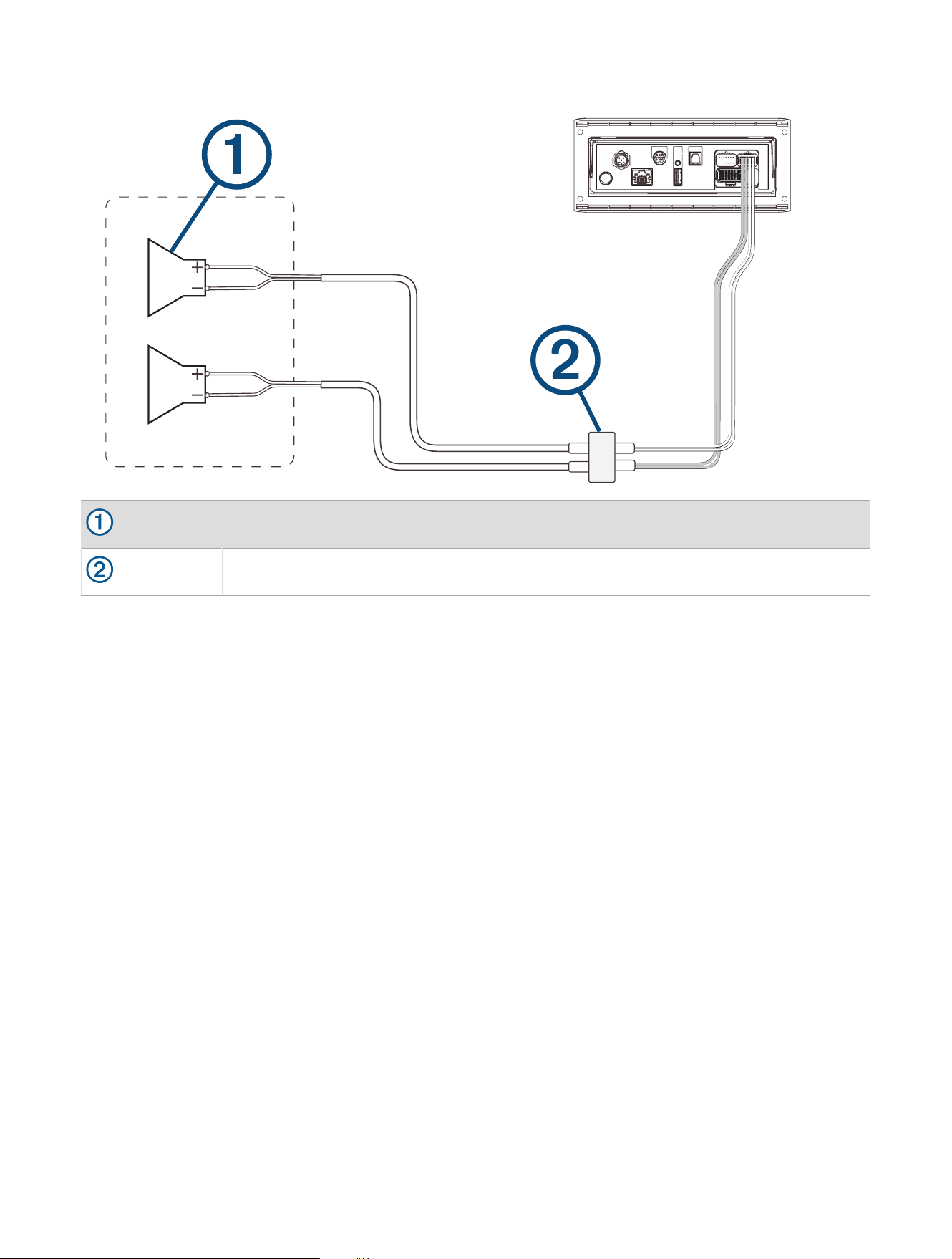
Single-Zone System Wiring Example
Speakers
Water-tight connection
Speaker System Wiring Using a Line Out
This diagram illustrates a system installation with an external amplifier and subwoofer connected to zone 2 on
the stereo using a line out. You can connect an amplifier and subwoofer to any or all of the available zones on
the stereo.
NOTE: You can connect speakers to the speaker wires for the internal stereo amplifier while using the line out
on zones 1 and 2, although adjusting the volume affects both the speakers connected to the internal amplifier
and the line out. This may result in uneven volume levels.
12
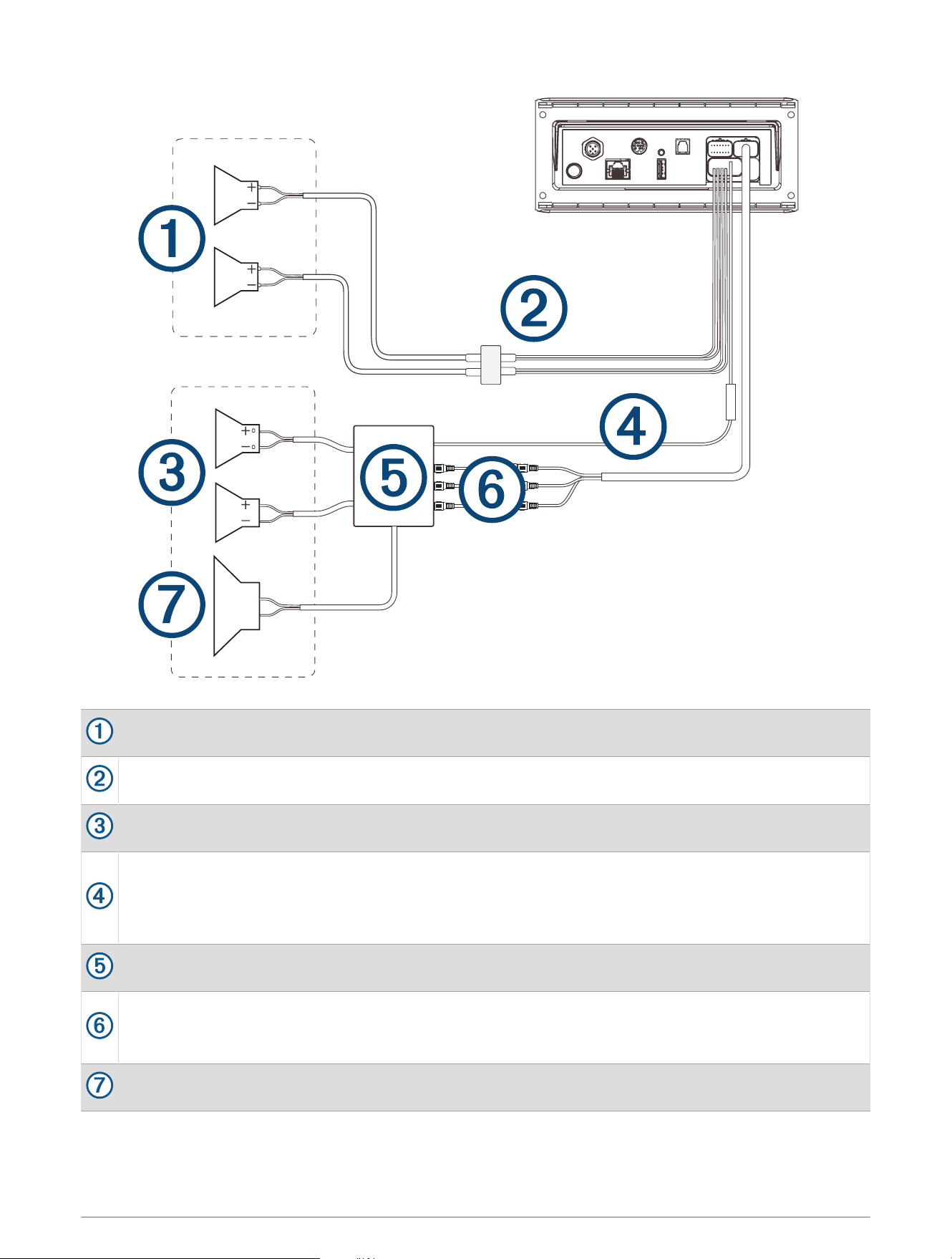
Zone 1 speakers
Water-tight connection
Zone 2 speakers
Amplifier-on signal wire
You must connect this wire to each amplifier connected to a zone line out.
A connected amplifier must use the same ground (-) as the stereo for this signal wire to function
correctly.
Powered amplifier connected to the zone 2 line out
Zone 2 line out and subwoofer out
Each subwoofer cable provides a single mono output to a powered subwoofer or subwoofer amplifier.
You may need to use an RCA splitter to connect this to an amplifier.
Subwoofer
13
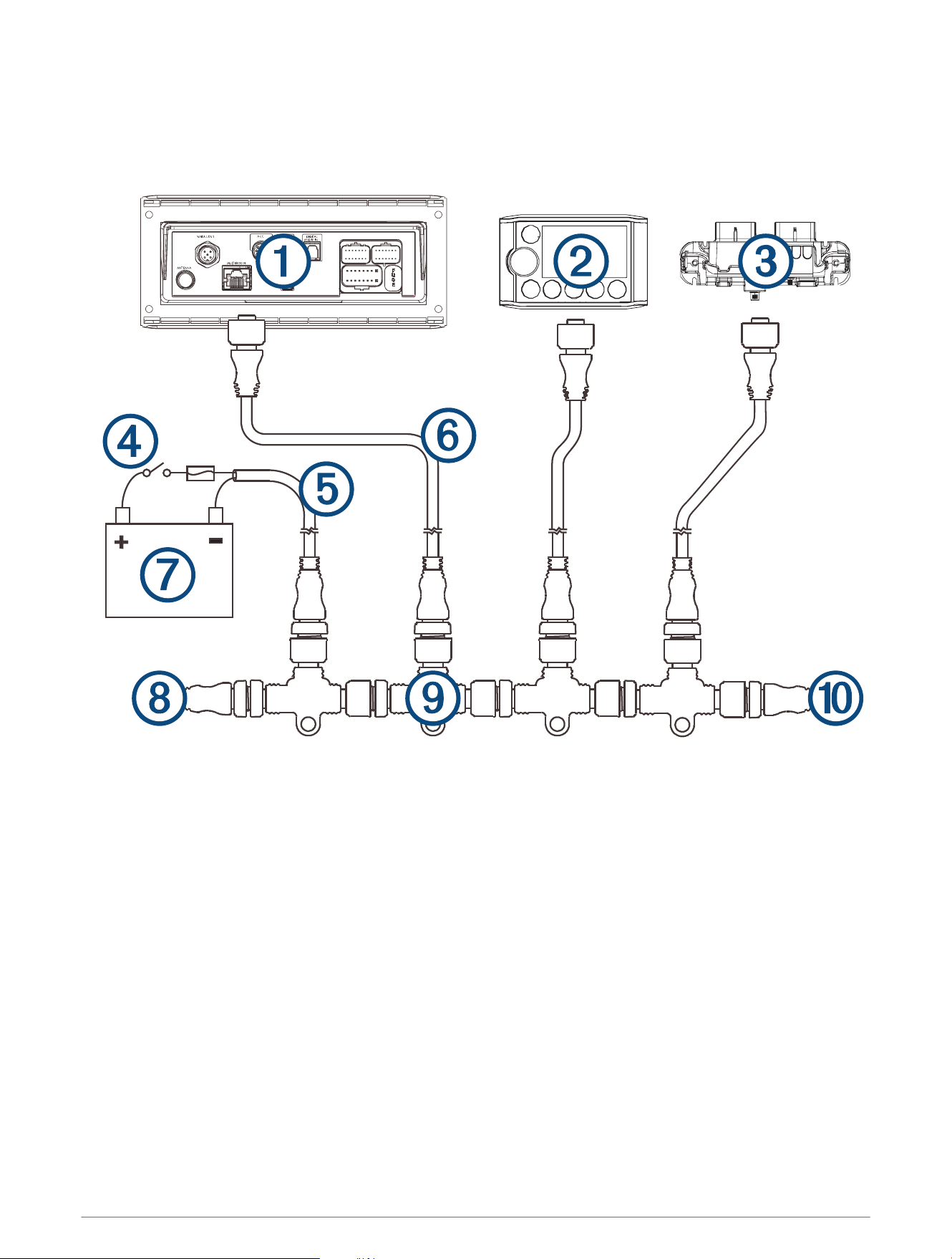
System Wiring Diagram
The Apollo RV-RA770 device uses NMEA 2000
®
cables and hardware to connect with other devices using a
Garmin Controller Area Network (Garmin CAN).
14
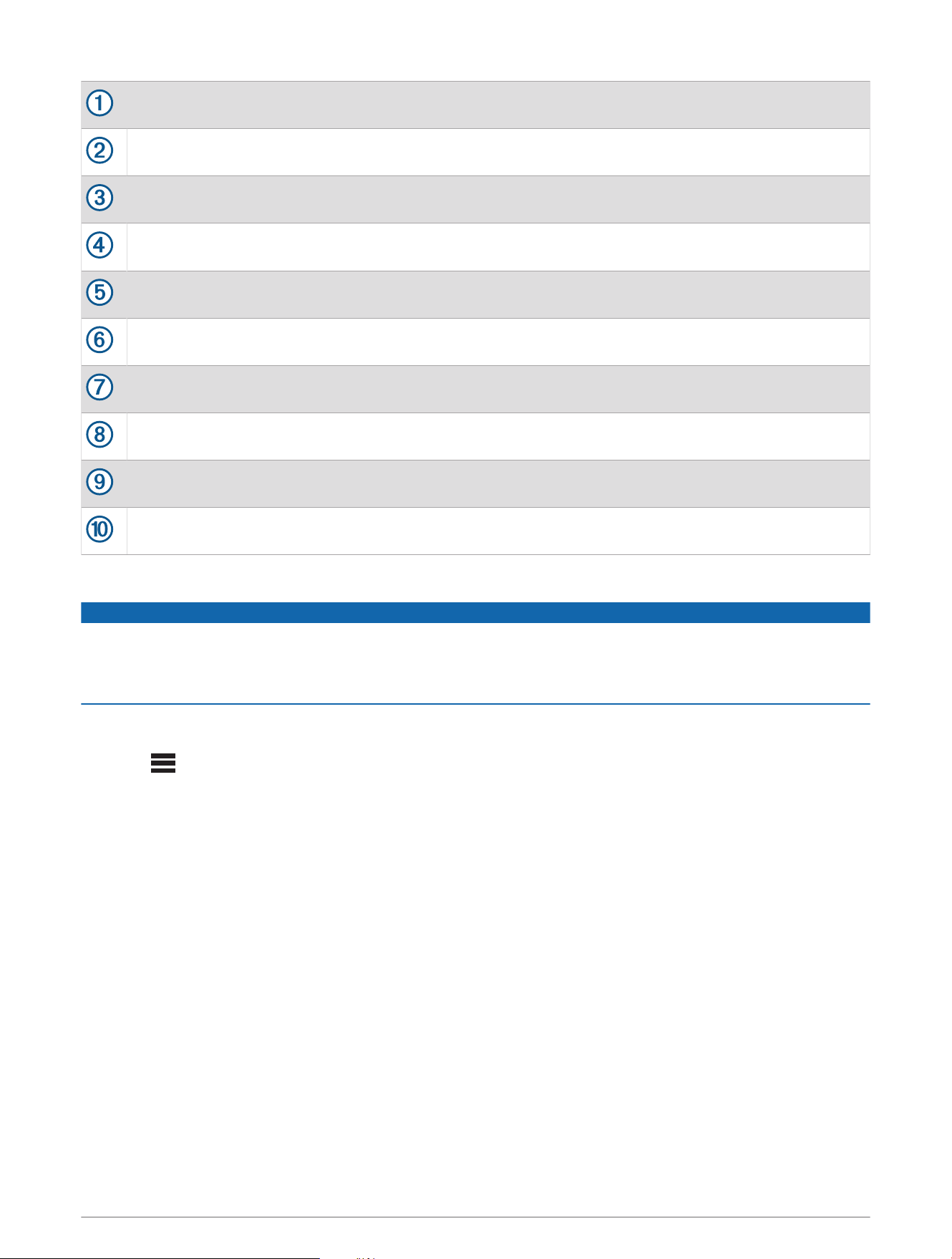
Stereo
Supported compatible Fusion display, sensors, switching modules, or remote control
Compatible EmpirBus module
In-line switch
NMEA 2000 power cable
NMEA 2000 drop cable, up to 6m (20ft.)
9to16Vdc power supply
NMEA 2000 terminator or backbone cable
NMEA 2000 T-connector
NMEA 2000 terminator or backbone cable
Configuring an Optional Wired NRX Remote Control
NOTICE
The stereo is configured by default to work with a Garmin Controller Area Network (Garmin CAN), and the NRX
POWER option should be enabled only when an optional wired NRX remote control is connected directly to the
stereo. Enabling this option when the stereo is connected to a CAN bus may damage other devices on the
network.
If you connect an optional wired NRX remote control directly to the stereo, and not through Garmin CAN,
additional configuration is needed.
1 Select > SETTINGS > POWER OPTIONS.
2 Select an option:
• If you connected both your stereo and your optional wired remote to a Garmin CAN bus, make sure the
NRX POWER option is not selected. This enables the optional remote to receive power from the Garmin
CAN bus.
• If you connected the optional wired remote directly to the stereo through the NMEA 2000 connector,
select the NRX POWER option. This enables the stereo to supply power to the optional remote.
EmpirBus Web Display Unit
This device is capable of acting as an EmpirBus Web Display Unit (WDU). A complete EmpirBus system
requires one or more display products and one or more digital switching modules (sold separately). Refer to the
installation documents for those products to plan and install your system. Connect all displays to the Apollo
RV-RA770 device using a wireless network or a wired network. Connect all modules to the Apollo RV-RA770
device using a Garmin Controller Area Network (System Wiring Diagram, page14).
15
Fusion PartyBus Networking
The Fusion PartyBus networking feature allows you to connect multiple compatible stereos together on a
network, using a combination of wired or wireless connections.
You can group a compatible stereo, such as the Apollo RV-RA770 stereo, with other compatible stereos
connected to the network. Grouped stereos can share available sources and control media playback on all of
the stereos in the group, which allows for a synchronized audio experience across the vehicle. You can quickly
create, edit, and break up groups as needed from any compatible stereo or remote control on the network.
NOTE: A zone stereo, such as the Apollo SRX400, can create or join a group to control and play sources from
other stereos, but it cannot share its sources with the group.
For additional considerations when sharing sources, see the owner's manual.
You can use compatible stereos and remote controls, whether they are grouped or not, to adjust the volume of
the available speaker zones for any stereo on the network.
You can connect up to eight Fusion PartyBus stereos on a network wirelessly.
Wired Networking Considerations
When you are planning your network installation, observe the following considerations for all wired connections.
• You must connect devices using standard Cat5e or Cat6 network cables with RJ45 connectors.
• You can use one network cable to directly connect two compatible devices.
• You must use wired network switches and wired or wireless network routers when you connect more than
two compatible devices to a network.
• If you install a router on the network, it should be configured to be a DHCP server by default. See your router
instructions for more information.
• If you do not install a router, and there are no other DHCP servers on the network, you should configure
one Fusion PartyBus stereo to be a DHCP server (Setting the Fusion PartyBus Device as the DHCP Server,
page20).
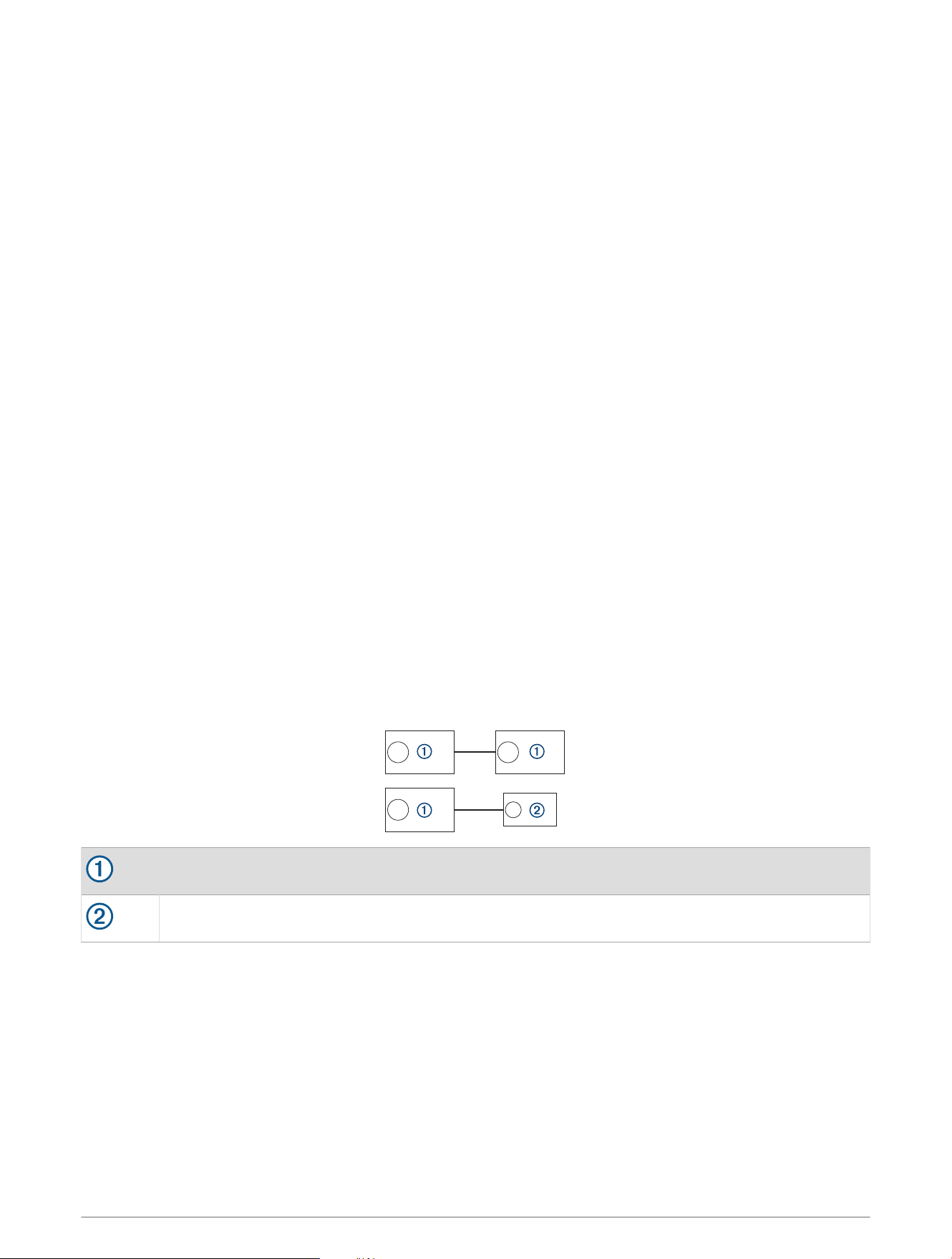
Wired Network Example for Direct Connections
No network setting changes are needed when connecting two devices together directly, but for the best results,
you should configure one device to be a DHCP server (Setting the Fusion PartyBus Device as the DHCP Server,
page20).
Fusion PartyBus stereo
Fusion PartyBus zone stereo or remote control
Wired Network Example with a Switch or Router
You must use wired network switches, a wired network router, or both to connect more than two devices.
If you did not install a router, and there are no other DHCP servers on the network, you should configure one
Fusion PartyBus stereo to be a DHCP server (Setting the Fusion PartyBus Device as the DHCP Server, page20).
If you installed a router, you may need to configure it to be a DHCP server. See your router instructions for more
information.
16
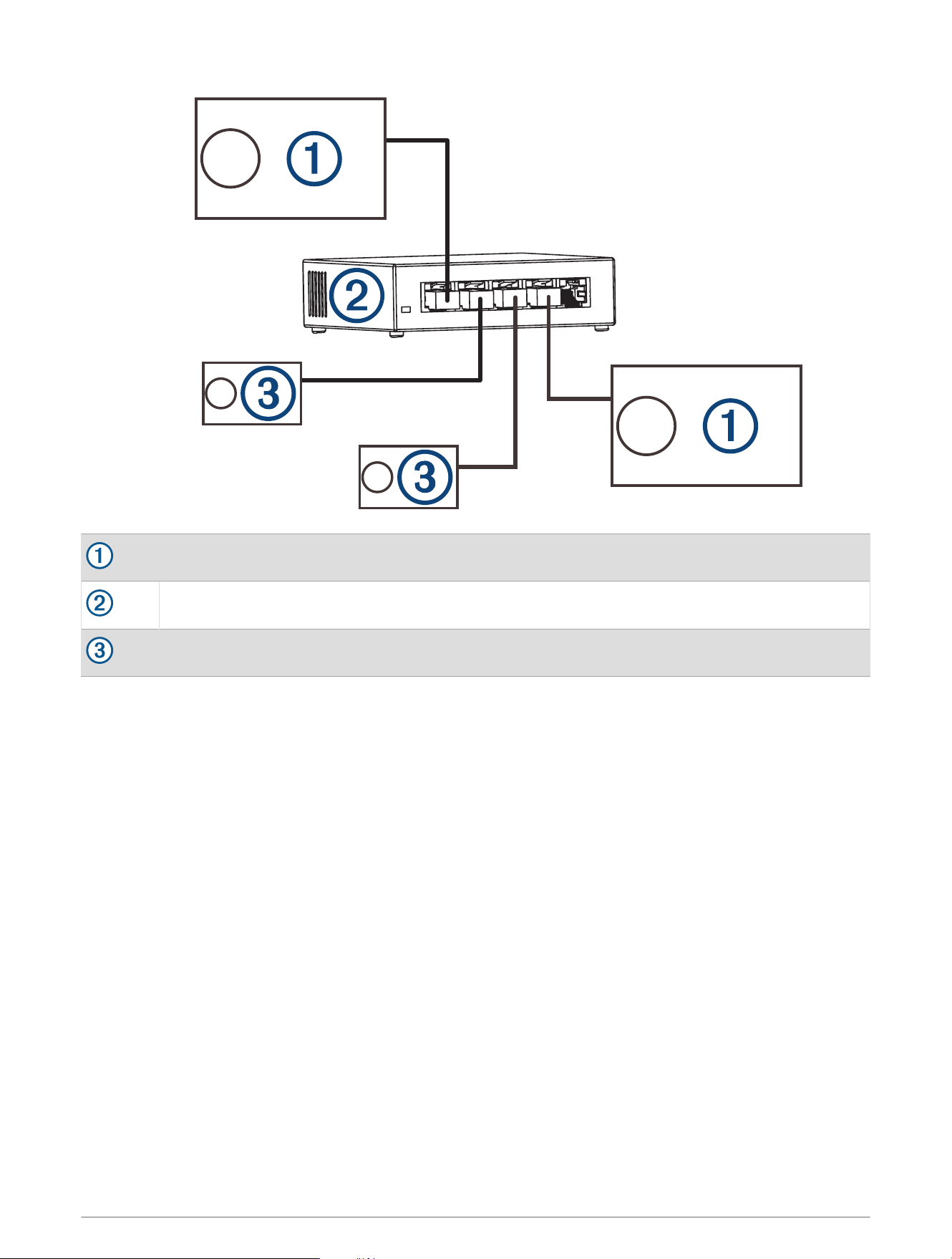
Fusion PartyBus stereo
Wired network switch or wired network router
Fusion PartyBus zone stereo or remote control
Wireless Networking Considerations
When you are planning your network, observe the following considerations for all wireless connections.
• Wired connections are more reliable than wireless connections. You should plan your network to use network
cables, but if it is not possible, many Fusion PartyBus devices are Wi‑Fi
®
compatible. You can connect them to
wireless routers or access points.
• If you install a wireless router on the network, it should be configured to be the DHCP server by default. See
your wireless router instructions for more information.
• If you are not using a wireless router, you can configure this device as a wireless access point, so you can
connect other devices within wireless range.
NOTE: You should not configure this device as a wireless access point if you have a router installed on the
network, because it may introduce DHCP conflicts and result in poor network performance.
• If you connect a Fusion PartyBus device to the network as a WI-FI CLIENT, you cannot connect any additional
wired Fusion PartyBus devices to that device.
• You can connect a smartphone to the wireless network to control any stereo on the network using the
Fusion-Link
™
app.
• You can connect an Apple
®
device to the wireless network to stream media to multiple stereos on the
network using Apple AirPlay
®
2.
• Connecting a Bluetooth
®
device to the stereo may interfere with some Wi‑Fi connections.
• Wi‑Fi signals may interfere with Bluetooth device connections. You should turn off the Wi‑Fi setting on your
stereo if you are not using it to connect to a wireless network or to provide a wireless access point.
17
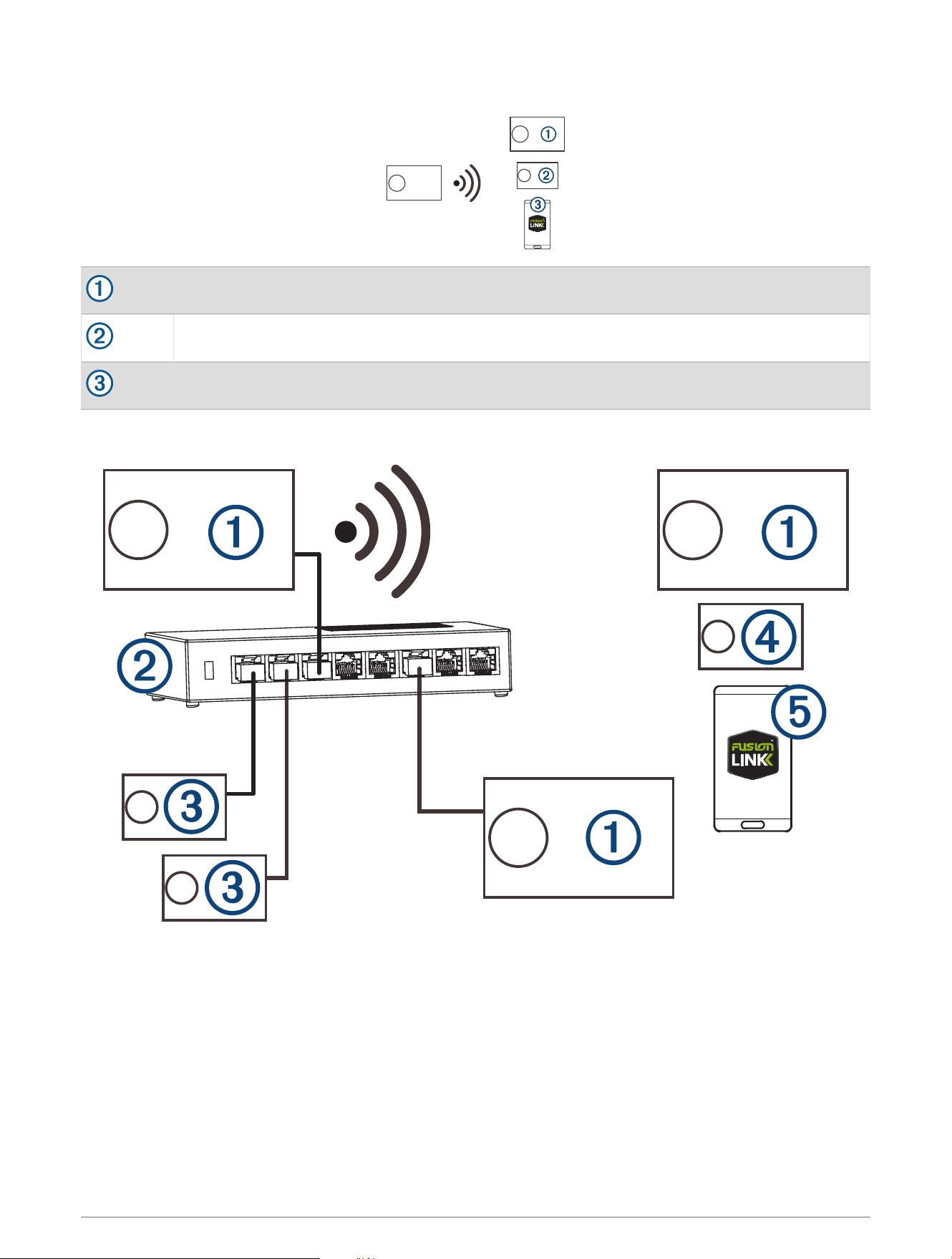
Wireless Access Point Example
Fusion PartyBus stereo
Fusion PartyBus zone stereo
Smartphone using the Fusion-Link app
Wireless Network Example with a Wired Switch or Router
18
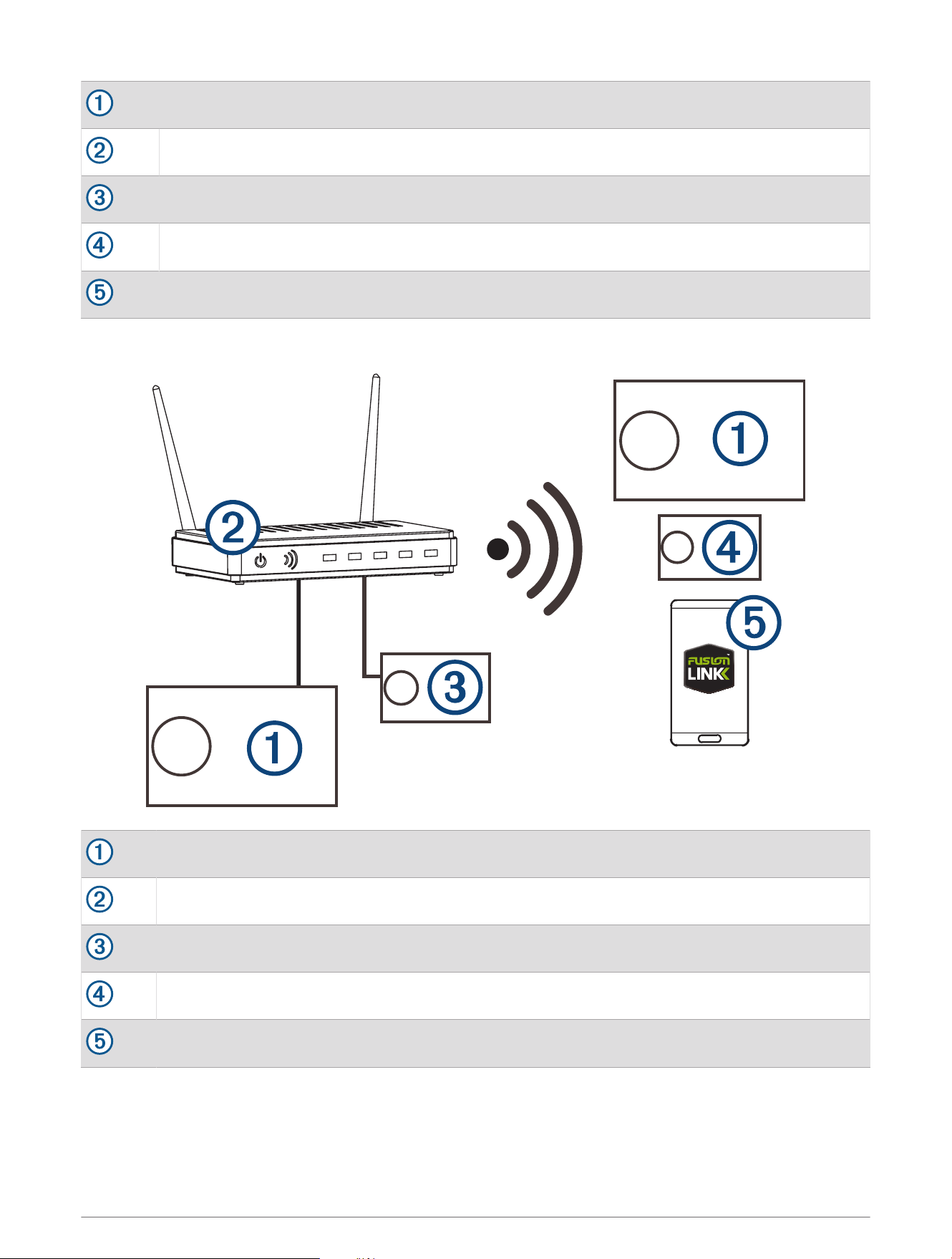
Fusion PartyBus stereo
Wired network switch or wired network router
Fusion PartyBus zone stereo or remote control
Fusion PartyBus zone stereo
Smartphone using the Fusion-Link app.
Wireless Network Example with a Wireless Router or Access Point
Fusion PartyBus stereo
Wireless network router or wireless access point
Fusion PartyBus zone stereo or remote control
Fusion PartyBus zone stereo
Smartphone using the Fusion-Link app
19
Constructing a Network
You should have a basic understanding of networking when building a network for Fusion PartyBus devices.
These instructions guide you through the basics of building and configuring a network, and should apply to
most situations. If you need to perform advanced networking tasks, such as assigning static IP addresses to
devices on the network or configuring advanced settings on a connected router, you may need to consult a
networking professional.
1 Determine the installation location of the Fusion PartyBus devices you want to connect to the network.
NOTE: Wired connections are more reliable than wireless connections. When planning your network, you
should run network cables instead of using wireless connections when possible.
2 Determine the installation location of any needed network routers or switches.
3 Route Cat5e or Cat6 network cable to the installation locations of the stereos, switches, and router.
4 Connect the network cables to the stereos, switches, and router.
NOTICE
Do not completely install the stereos yet. You should test the network before you install the stereos.
5 Turn on all devices connected to the network, including wireless devices.
6 Select an option:
• If you are using a network router (wired or wireless), consult the documentation provided with your router
to configure the router as the DHCP server, if necessary. When using a router as the DHCP server, all
stereos on the network should use their default configuration (DHCP client).
• If you are not using a wireless router, you should configure a stereo as a wireless access point, if
necessary (Setting the Fusion PartyBus Device as a Wireless Access Point, page21). Configuring a stereo
as a wireless access point makes that stereo the DHCP server, and all of the other stereos on the network
should use their default configuration (DHCP client).
• If you are not using a network router, not using a stereo as a wireless access point, and there are no other
DHCP servers on the network, you should configure one of the stereos as the DHCP server (Setting the
Fusion PartyBus Device as the DHCP Server, page20).
7 Test the network by selecting > GROUPS to view a list of devices connected to the on the network, and
select an option:
• If any Fusion PartyBus devices are not available to the network, troubleshoot the network (Network
Troubleshooting, page22).
• If all Fusion PartyBus devices are available on the network, complete the installation for each stereo, if
necessary.
Network Configuration
TIP: You can select the network status icon from any screen to open the network configuration menu.
Setting the Fusion PartyBus Device as the DHCP Server
If you connected more than two network devices together using a network switch or wireless access point but
you did not install a router, you should configure only one Fusion PartyBus stereo to be a DHCP server.
NOTICE
Having more than one DHCP server on the network causes instability and poor performance for all devices on
the network.
NOTE: If you have set up this stereo as a WI-FI ACCESS POINT, it is configured as a DHCP server by default,
and no further settings changes are needed (Setting the Fusion PartyBus Device as a Wireless Access Point,
page21).
1 If the device is connected to the network using an Ethernet cable, select > SETTINGS > NETWORK >
WI-FI OFF.
2 If the device is connected to the network using an Ethernet cable, select STATIC IP > SAVE.
3 Select ADVANCED > DHCP SERVER > DHCP ENABLED > SAVE.
20

Configuring the Stereo for use with a Garmin Marine Network
You can connect this stereo to a Garmin Marine Network in order to view and control the stereo using a
compatible Garmin chartplotter.
NOTE: When you configure the stereo for use with a Garmin Marine Network, you are limited to using only
Garmin and Fusion devices. You may not be able to use third-party routers, storage devices, or other network
products with this stereo directly.
When the stereo is connected to a Garmin Marine Network, you can connect a smartphone to a wireless access
point on a connected Garmin multi-function display and use the Fusion-Link app to control the stereo.
You cannot use Wi‑Fi networking on a stereo configured for use with a Garmin Marine Network. This
functionality is compatible with wired network connections only.
Select > SETTINGS > NETWORK > WI-FI OFF > GARMIN MARINE NETWORK.
Setting the Fusion PartyBus Device as a Wireless Access Point
Before you can connect additional Fusion PartyBus devices or smartphones to a Fusion PartyBus device
wirelessly, you must configure one device as a wireless access point. This is not necessary if you installed a
wireless router or other wireless access point on the network.
NOTE: You should not configure this device as a wireless access point if you have a router installed on the
network. Doing so may introduce DHCP conflicts and result in poor network performance.
For more detailed configuration instructions, see the owner's manual.
1 Select > SETTINGS > NETWORK > WI-FI ACCESS POINT.
2 Select USE DEFAULTS and wait for the device to save the network settings.
NOTE: After the default settings are saved, you can scroll down to the bottom of the NETWORK menu to view
and change the SSID and password assigned to the access point.
NOTE: When you configure the stereo as a wireless access point, you can also use the wired network
connection without changing any additional settings. The wired and wireless networks are bridged.
Connecting the Fusion PartyBus Device to a Wireless Access Point
You can connect this device to a wireless access point on a router or compatible Fusion PartyBus device on
the network. This device can connect using Wi‑Fi Protected Setup (WPS), if it is supported by your access point.
This device can connect using Apple Accessory Configuration (WAC) using a supported Apple device.
1 Select > SETTINGS > NETWORK > WI-FI CLIENT > SSID.
A list of wireless access points within range appears.
2 Select the Fusion PartyBus wireless access point.
3 If necessary, select PASSWORD, enter the password, and select .
4 Select SAVE.
NOTE: After you connect the stereo to a wireless access point, you cannot use the wired network connection.
Resetting Network Settings
You can reset all network settings for this stereo to the factory default values.
1 Select > SETTINGS.
2 Select NETWORK > ADVANCED > RESET > YES.
Advanced Network Configuration
You can perform advanced networking tasks on a Fusion PartyBus device, such as defining DHCP ranges and
setting static IP addresses. See the owner's manual for more information.
21

Network Troubleshooting
If you cannot see or connect to Fusion PartyBus devices on the network, perform these steps.
• Verify that all Fusion PartyBus devices, network switches, routers, and wireless access points are connected
to the network and turned on.
• Verify that wireless Fusion PartyBus devices are connected to a wireless router or wireless access point on
the network.
NOTE: Wired connections are more reliable than wireless connections. If possible, you should connect
devices to the network using an Ethernet cable.
• Verify that only one device, either a stereo or a router, is configured as a DHCP server.
• Change the channel on your router or wireless access point to test for and correct interference.
You may experience wireless interference if there are many nearby wireless access points.
• Disconnect Bluetooth devices to test for and correct interference.
Connecting a Bluetooth device to a stereo configured as a wireless access point or client may reduce
wireless performance.
• If you are experiencing trouble connecting, make sure your router supports 2.4GHz band connections.
When connecting to a wireless router, this device is compatible with only 2.4GHz band connections, and
cannot connect to a 5GHz band.
• If you configured static IP addresses, verify that every device has a unique IP address, that the first three sets
of numbers in the IP addresses match, and that the subnet masks on every device are identical.
• If you have made configuration changes that might be causing networking issues, reset all network settings
to the factory default values.
22

Stereo Information
Specifications
General
Weight 750g (26.5oz.)
Water resistance
IEC 60529 IPX7 (front of stereo only, when properly
installed)
Operating temperature range From 0 to 50°C (from 32 to 122°F)
Storage temperature range From -20 to 70°C (from -4 to 158°F)
Input voltage From 10.8 to 16Vdc
Current (max.) 15A
Current (muted) Less than 900mA
Current (stereo off, WDU enabled) 250 mA
Current (stereo off, standby mode enabled) 110mA
Current (stereo off, standby mode disabled) 80mA
Current (vehicle ignition off, standby mode
disabled, WDU disabled)
< 10 mA
Fuse 15A mini blade-type
NMEA 2000 LEN @ 9Vdc 1 (50mA)
Bluetooth wireless range Up to 10m (30ft.)
ANT
®
wireless range Up to 3m (10ft.)
Wireless frequencies/protocols
Wi‑Fi 2.4GHz @ +15dBm nominal
Bluetooth 2.4GHz @ +10dBm nominal
ANT 2.4GHz @ +4dBm nominal
Compass-safe distance 15 cm (5.9 in.)
On-board, Class D Amplifier
Output music power per channel 4 x 70W max. 2ohm
Total output peak power 280W max.
Output power per channel
1
4 x 43WRMS at 14.4Vdc input, 2ohm, 10%THD
4 x 26W RMS at 14.4Vdc input, 4ohm, 10%THD
Line output level (max.) 5.5V (peak to peak)
Aux input level (typical) 1 VRMS
1
The stereo may limit the output power to prevent the amplifier from overheating, and to maintain the audio dynamics.
23
Tuner frequencies
Tuner Europe and Australasia USA Japan
FM radio frequency range 87.5 to 108MHz 87.5 to 107.9MHz 76 to 95MHz
FM frequency step 50kHz 200kHz 50kHz
AM radio frequency range 522 to 1620kHz 530 to 1710kHz 522 to 1620kHz
AM frequency step 9kHz 10kHz 9kHz
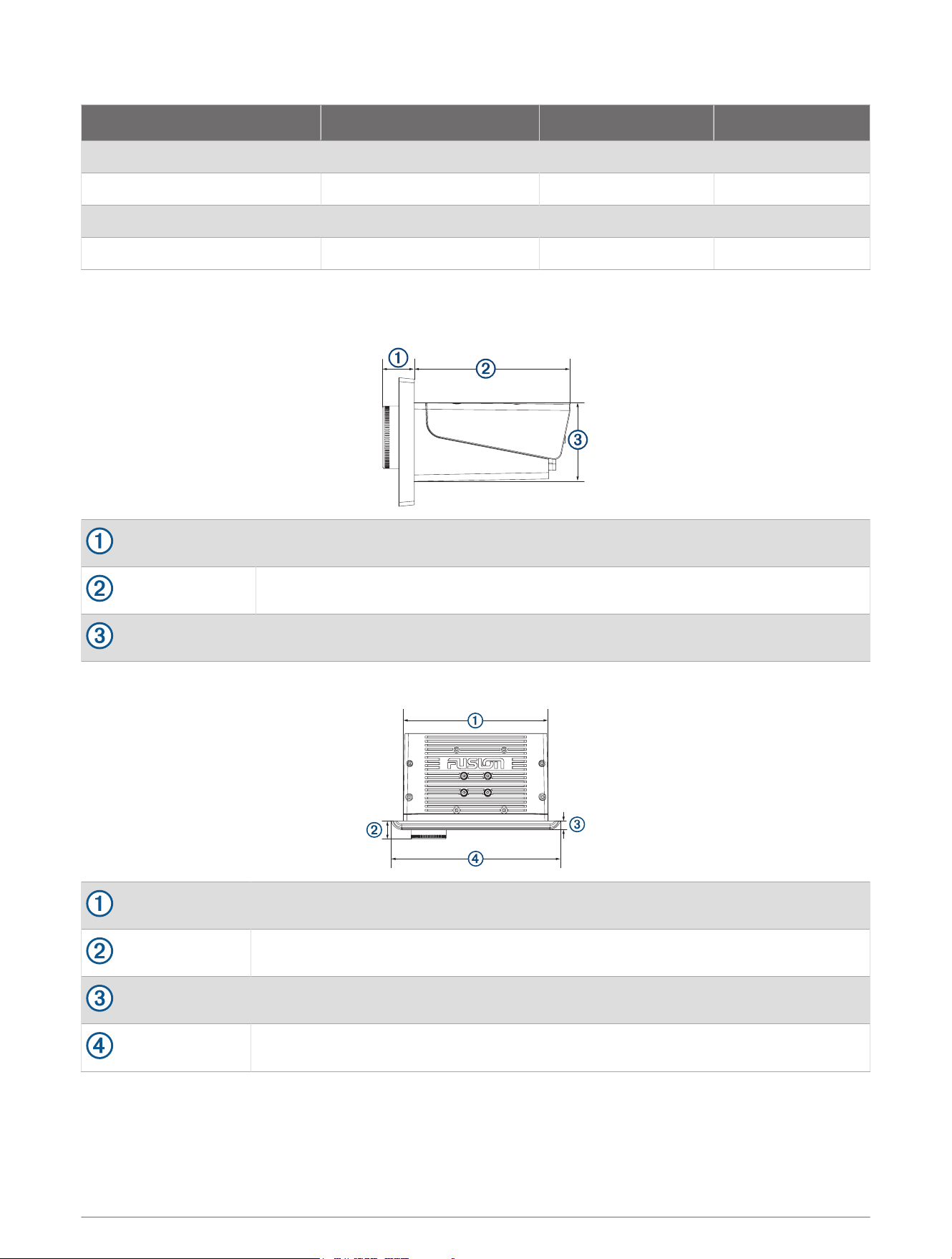
Stereo Dimension Drawings
Side Dimensions
20.4mm (0.8in.)
99mm (3.9in.)
50mm (1.97in.)
Top Dimensions
164mm (6.5in.)
20.4mm (0.8in.)
10mm (0.39in.)
192mm (7.56in.)
Software Updates
Go to support.garmin.com to find software updates and information for your device.
© 2021 Garmin Ltd. or its subsidiaries
24

Garmin
®
, ANT
®
, Fusion
®
, and the Fusion logo are trademarks of Garmin Ltd. or its subsidiaries, registered in the USA and other countries. Apollo
™
, Fusion-Link
™
, and
Fusion PartyBus
™
are trademarks of Garmin Ltd. or its subsidiaries. These trademarks may not be used without the express permission of Garmin.
Apple
®
,AirPlay
®
, iPhone
®
, and iPod touch
®
are trademarks of Apple Inc., registered in the USA and other countries. App Store
SM
is a service mark of Apple Inc., registered in
the USA and other countries.
Android
™
and Google Play
™
are a trademarks of Google Inc. BLUETOOTH
®
word mark and logos are owned by the Bluetooth SIG, Inc. and
any use of such marks by Garmin is under license. NMEA 2000
®
and the NMEA 2000 logo are registered trademarks of the National Marine Electronics Association. Wi‑Fi
®
is a registered mark of Wi-Fi Alliance Corporation. SiriusXM
®
and all related marks and logos are trademarks of Sirius XM Radio Inc. All rights reserved. Other trademarks
and trade names are those of their respective owners.
M/N: RV-RA770
25

© 2021 Garmin Ltd. or its subsidiaries
support.garmin.com