TS431U
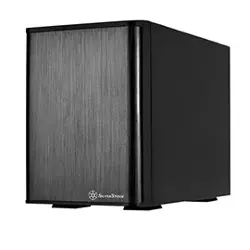
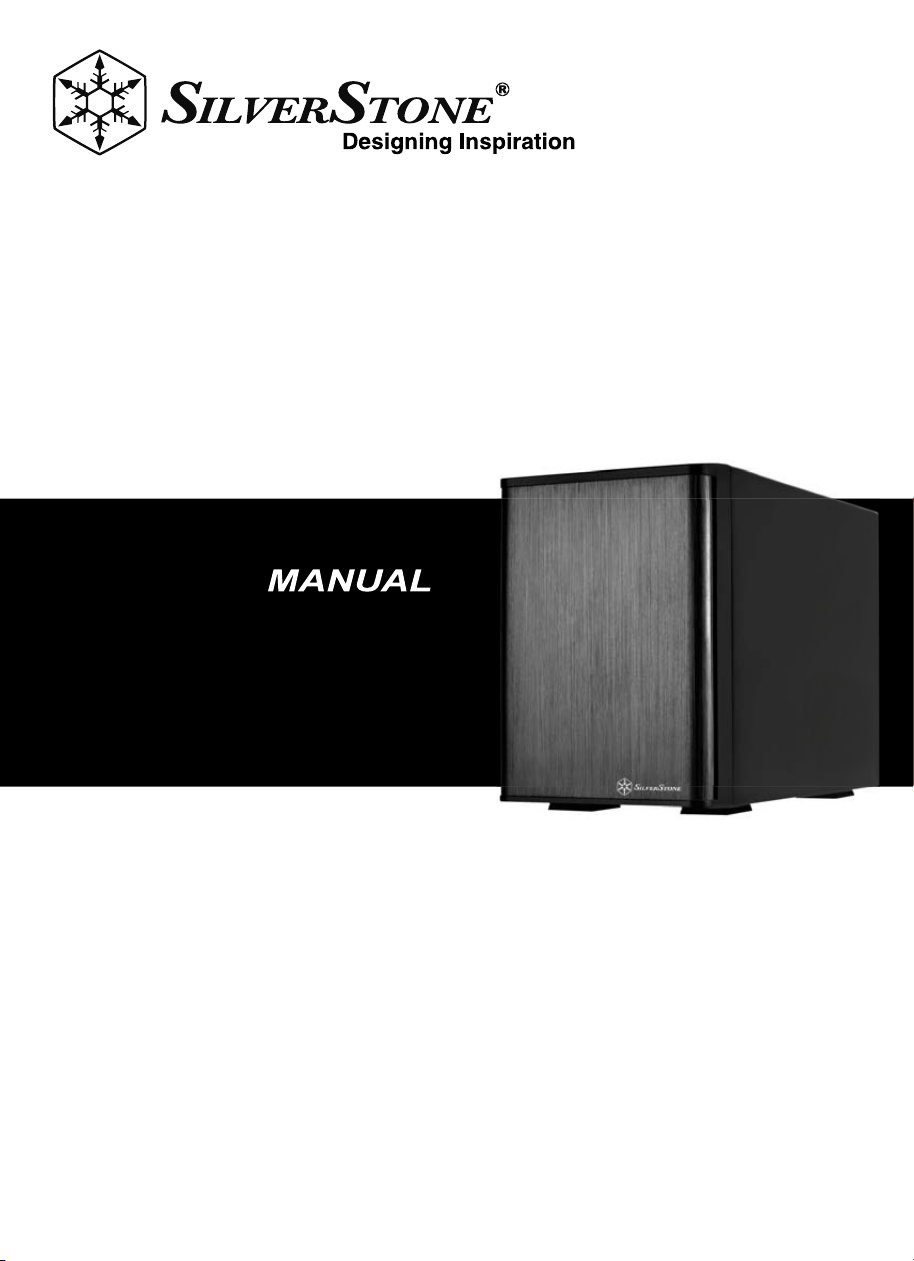
Four bay 3.5" HDD tower
with USB 3.1 Gen 1 and
eSATA interface
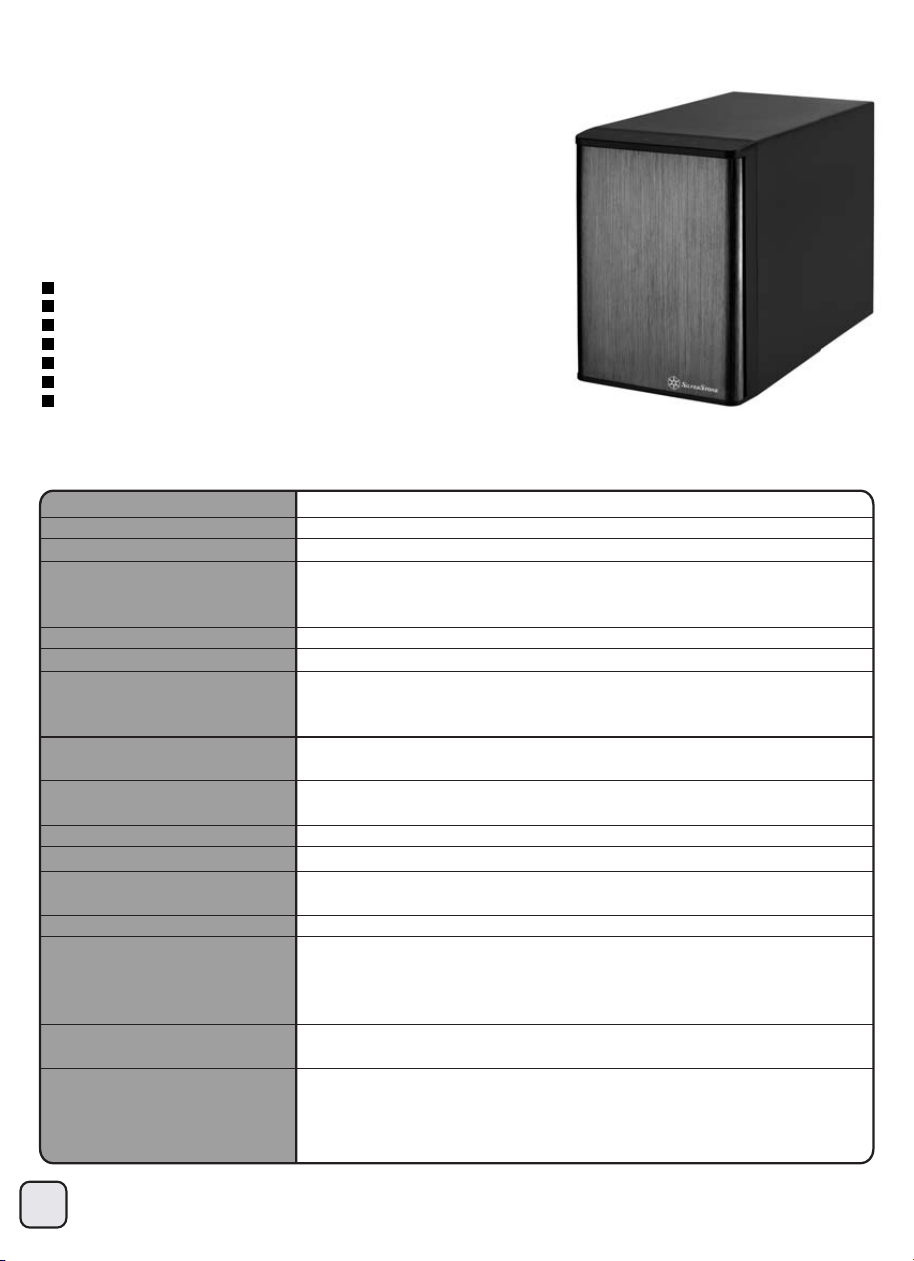
TS431U
Features
Specifications
Four bay 3.5" HDD tower
with USB 3.1 Gen 1 and
eSATA interface
Support four 3.5" SATA HDD
Built-in power supply and dual 60mm fans
Compact and screw-less design for easy HDD installation
Plug and Play
Support USB 3.1 Gen 1 maximum 5Gbps transfer speed
Support eSATA maximum 3Gbps transfer speed(V1)
Support eSATA maximum 6Gbps transfer speed(V2)
1
n
Model No.
Enclosure Material
Color
Power Supply
Drive Size Support
Drive Interface Support
LED Indicator
Controller
Enclosure Interface
Cooling FAN
Net Weight
Dimension
Certifications
Environment
Accessories
Computer System
Requirements
SST-TS431U
Aluminum + SECC
Black
Internal universal power supply switch (115V/230V)
Input: AC 100-130V/200-260V, 50Hz/60Hz
Output: DC +5V/6A +12V/11A
3.5" HDD/SSD
SATA III/SATA II/SATA I
Power LED - Blue for power on
HDD status LED - Blue for HDD detected
Red flashing for HDD access
JMB321, JMS539, ASM1453 (V1)
JMB575, JMS567, ASM1456 (V2)
USB 3.1 (Max. 5Gbps) compatible with USB 2.0, eSATA(Max. 3Gbps) (V1)
USB 3.1 (Max. 5Gbps) compatible with USB 2.0, eSATA(Max. 6Gbps) (V2)
60mm fan x 2
3300±20g
130mm (W) x 187mm (H) x 266mm (D)
5.12" (W) x 7.36" (H) x 10.47" (D)
CE、FCC、RoHS compliance
Operating Temperature: 5°C ~ 35°C
Operating Humidity: 20%RH ~ 80%RH
Storage Temperature: -20°C ~ 50°C
Storage Humidity: 20%RH ~ 80%RH
TS431U (hard drives not included), USB 3.1 Gen 1 cable x 1
e-SATA cable x 1, Power cord x 1, User manual x 1
Windows 10/8.1/8/7 or future release version
Mac OS 10.x or future release version
Linux Kernel 2.6.31 or above
Computer with SuperSpeed USB 3.0 or USB 2.0 interface
2
TS431U
PRODUCT INTRODUCTION
PACKAGE CONTENT
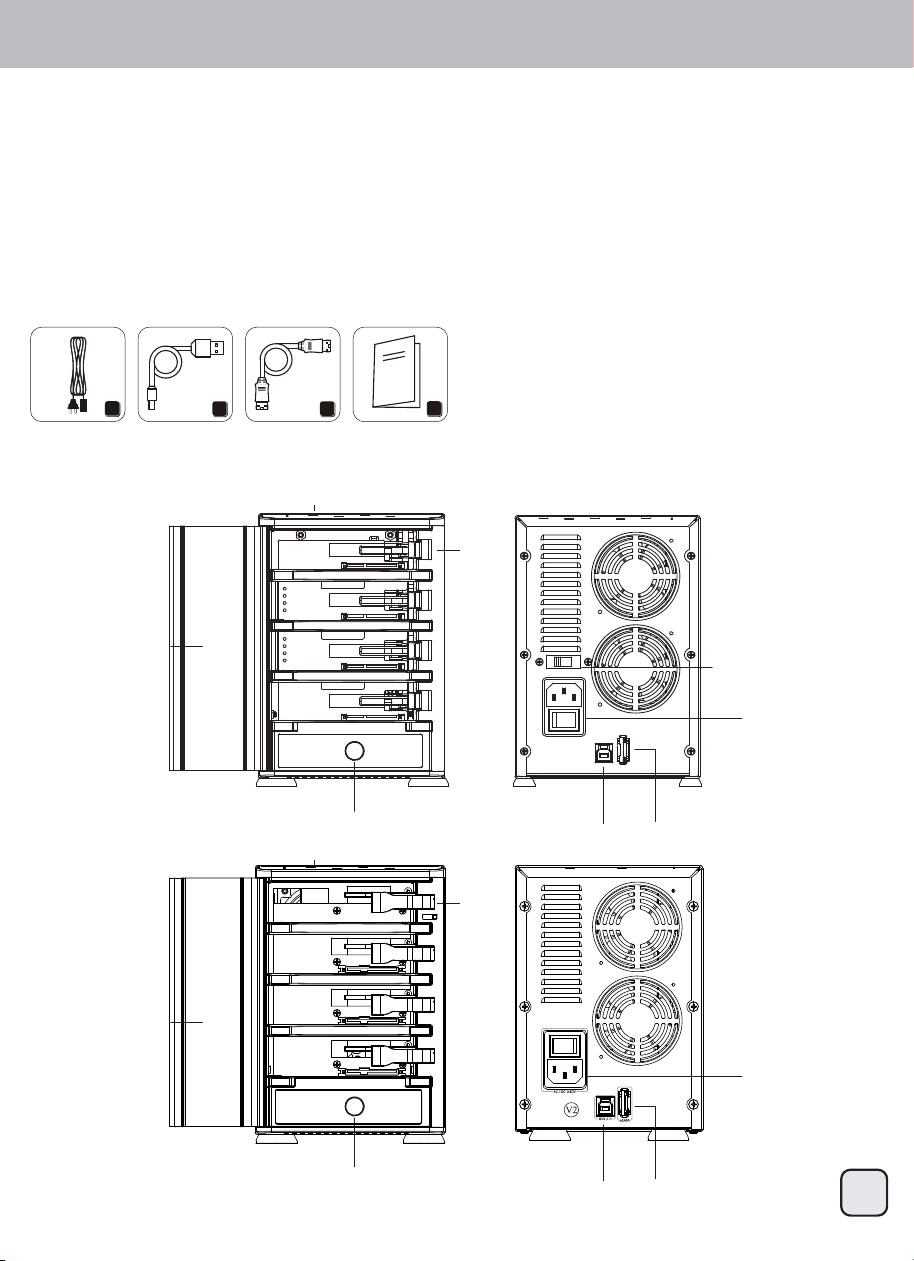
1. Power Cord
2. USB 3.0 Cable
3. eSATA Cable
4. User Manual
1 2
3
4
HARDWARE GUIDE
USB 3.0 Port
eSATA Port
Power Voltage Switch
(V1 Only)
Power Cord Plug
Front Door
Front Door
Power Button
Power Button
Buckle
Buckle
LED Indicator
LED Indicator
SilverStone created an incredible base storage product in the TS431U. It connects to the PC via 5Gbps
SuperSpeed USB 3.1 Gen 1 interface or 3Gbps eSATA interface which enables data transfer with maximum
compatibility and stability, making TS431U the best choice for storing and backing up large quantity of data.
V1
V2
USB 3.0 Port
eSATA Port
Power Cord Plug
TS431U
OPERATION
3
1
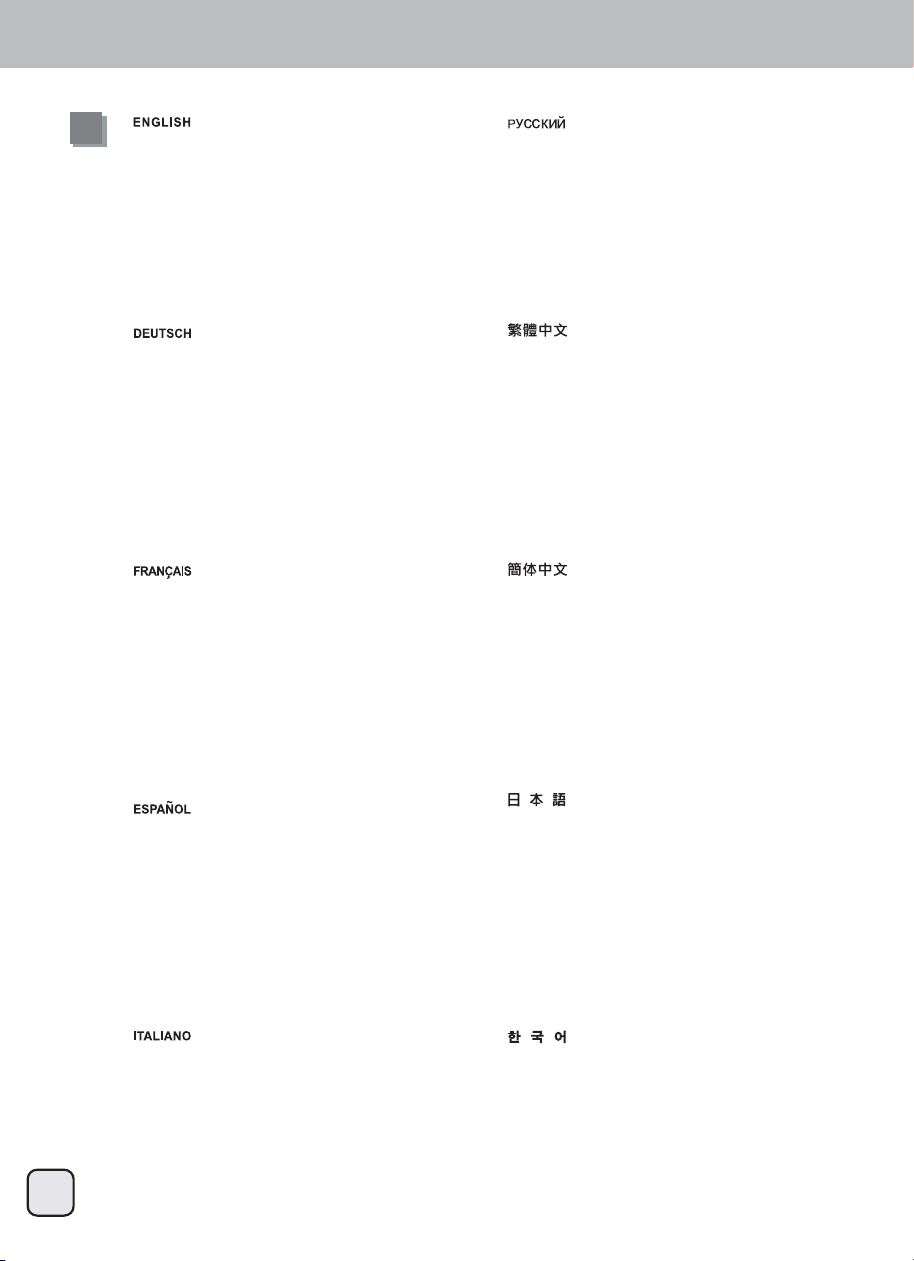
Connect power cord and TS431U to your system
with USB 3.0 cable or eSATA* cable.
*If your computer’s eSATA port does not support
SATA Port multiplier please utilize USB 3.0 port or
else install a eSATA card that supports SATA Port
multiplier.
If your computer supports SATA Port multiplier,
update the chipset driver.
Подключите кабель питания и устройство TS431U к
вашей системе с помощью кабеля USB 3.0 или
кабеля eSATA*.
*Если порт eSATA вашего компьютера не
поддерживает использование разветвителя портов
SATA, используйте порт USB 3.0 или установите
карту eSATA с поддержкой разветвителя портов
SATA.
Если ваш компьютер поддерживает разветвитель
портов SATA, обновите драйвер данного чипсета.
ご使用のシステムからはUSB 3.0ケーブルまたは
eSATA*ケーブルのいずれか、および電源コードを
TS431Uに接続します。
*お持ちのコンピュータのeSATAポートがSATAポートマ
ルチプライヤに未対応の場合、USB 3.0ポートを使用
するか、またはSATAポートマルチプライヤ対応の
eSATAカードをインストールしてください。
コンピュータがすでにSATAポートマルチプライヤ対応
の場合は、チップセットドライバをアップデートして
ください。
USB 3.0 케이블 또는 eSATA* 케이블을 사용하여
전원 코드와 TS431U를 시스템에 연결합니다.
*사용자 컴퓨터의 eSATA 포트가 SATA 포트
멀티플라이어를 지원하지 않을 경우 USB 3.0
포트를 사용하거나 SATA 포트 멀티플라이어를
지원하는 eSATA 카드를 설치하십시오.
사용자 컴퓨터가 SATA 포트 멀티플라이어를 지원할
경우 칩셋 드라이브를 업데이트하십시오.
使用USB 3.0或eSATA*傳輸線連接TS431U至您的系統並接
上電源線
*如果您電腦的eSATA連接埠,不支援SATA Port
multiplier(SATA埠倍增器)功能,請改用USB 3.0連接
埠或重新安裝一片支援SATA Port multiplier
(SATA埠倍增器)功能的eSATA介面卡。
如果您電腦硬體確認有支援SATA Port multiplier
(SATA埠倍增器)功能,卻無法使用。請試試看將您介
面卡或主機板晶片組的驅動程式更新至最新版本。
使用USB 3.0或eSATA*传输线连接TS431U至您的系统并接
上电源线。
*如果您计算机的eSATA连接端口,不支持SATA Port
multiplier(SATA端口倍增器)功能,请改用USB 3.0连
接埠或重新安装一片支持SATA Port multiplier
(SATA端口倍增器)功能的eSATA适配卡。
如果您计算机硬件确认有支持SATA Port multiplier
(SATA端口倍增器)功能,却无法使用。请试试看将您
适配卡或主机板芯片组的驱动程序更新至最新版本。
Branchez le cordon d'alimentation et le TS431U sur
votre système avec un câble USB 3.0 ou un câble
eSATA*.
*Si le port SATA de votre ordinateur ne prend pas
en charge le multiplicateur de ports SATA veuillez
utiliser le port USB 3.0 ou installez la carte eSATA
qui prend en charge le multipicateur de ports SATA.
Si votre ordinateur prend en charge le multiplicateur
de ports SATA, mettez à jour le jeu de puces.
Conecte el cable de potencia y el TS431U a su
sistema con el cable USB 3.0 ó el cable eSATA*.
*Si el puerto eSATA de su ordenador no acepta un
puerto SATA, por favor use un puerto USB 3.0 ó
instale una tarjeta eSATA que acepte un
multiplicador de puerto SATA. Si su ordenador
acepta un multiplicador de puerto SATA, actualice el
controlador del chipset.
Collegare il cavo di alimentazione e TS431U al
sistema con il cavo USB 3.0 o il cavo eSATA*.
*Se la porta eSATA del computer non supporta il
moltiplicatore di porte SATA, usare la porta USB
3.0, oppure installare una scheda eSATA che
supporti il moltiplicatore di porte SATA.
Se il computer supporta il moltiplicatore di porte
SATA, aggiornare il driver del chipset.
Schließen Sie Netzkabel und TS431U per USB 3.0-
oder eSATA-Kabel* an Ihr System an.
*Falls der eSATA-Port Ihres Computers keinen
SATA-Portmultiplikator unterstützt, verwenden Sie
bitte in den USB 3.0-Port oder installieren Sie eine
eSATA-Karte, die mit SATA-Portmultiplikatoren
kompatibel ist.
Wenn Ihr Computer SATA-Portmultiplikatoren
unterstützt, aktualisieren Sie bitte den Chipsatz-
treiber.
TS431U
OPERATION
3
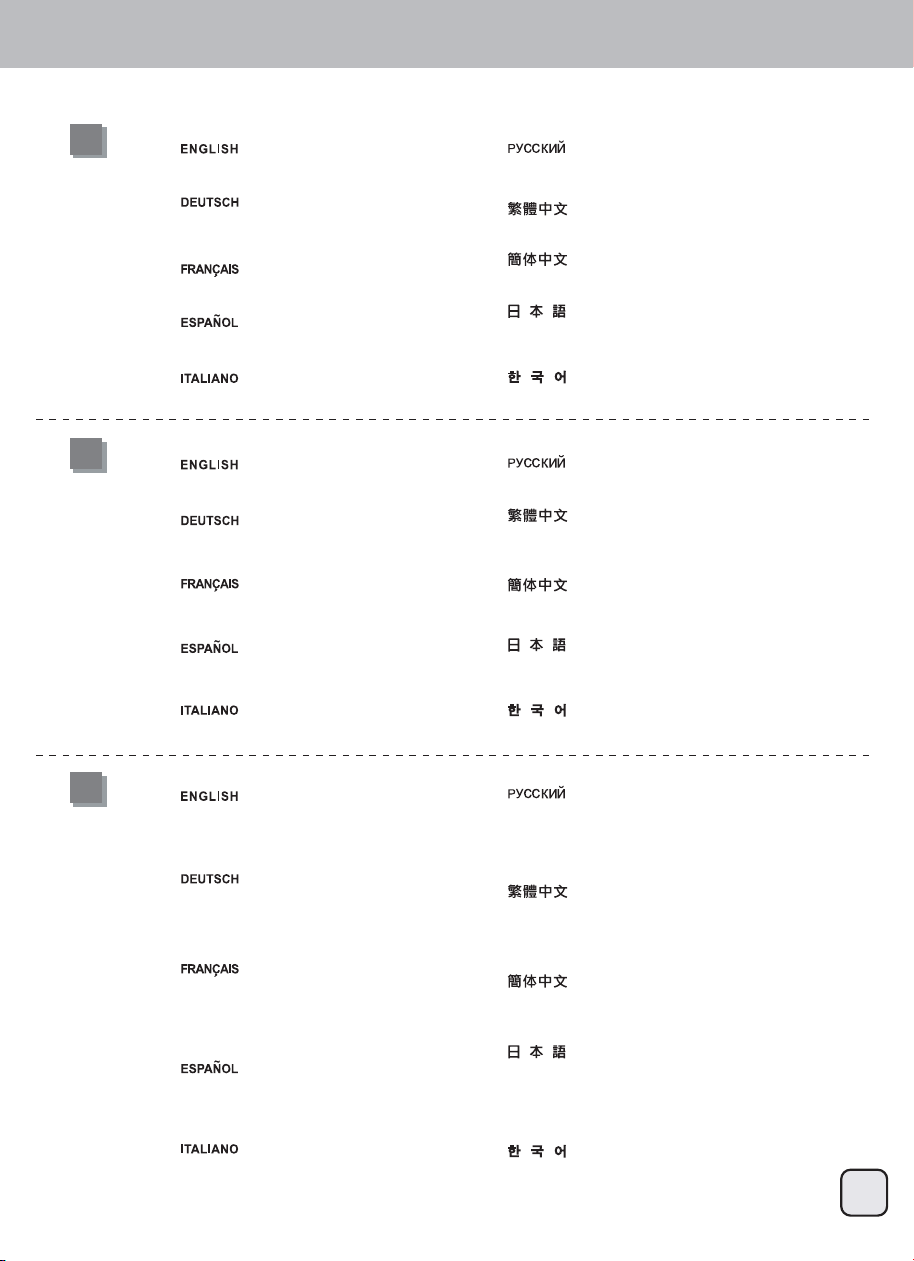
Turn on the power
Включите питание
電源をオンにします
전원을 켭니다.
開啟電源
开启电源
Allumez l’appareil
Conecte la potencia
Accendere l'apparecchio
Schalten Sie das Gerät ein
4
Use Disk Manager (Windows) or Disk Utility
(OS X) to create and format disk
Для создания и форматирования диска
используйте программу Disk Manager
(Windows) или Disk Utility (OS X)
ディスクマネージャ(Windows)または
ディスクユーティリティ(OS X)を使用
して、ディスクを作製、フォーマットし
ます。
디스크 관리자 (Windows) 또는 디스크
유틸리티 (OS X)를 사용하여 디스크를
만들어 포맷합니다.
使用磁碟管理(Windows)或磁碟工具程式
(OS X)來創建及格式化磁碟
使用磁盘管理(Windows)或磁盘工具程序
(OS X)来创建及格式化磁盘
Utilisez Gestionnaire de disque (Windows)
ou Utilitaire de disque (OS X) pour créer et
formater les disques
Use el Explorador (Windows) ó Disk Utility
(OS X) para crear y formatear el disco
Utilizzare Gestione disco (Windows) o
Utility Disco (OS X) per creare e formattare
il disco
Erstellen und formatieren Sie das Laufwerk
mit Disk Manager (Windows) oder Disk
Utility (OS X)
4
2
Open the front door and insert HDD Откройте переднюю дверцу и
установите жесткий диск
フロントドアを開けて、HDDを装着しま
す。
전면 도어를 열고 HDD를 삽입합니다.
打開前門並插入硬碟
打开前门并插入硬盘
Ouvrez la porte frontale et insérez les DD
Abra la puerta frontal e inserte el disco duro
Aprire lo sportello anteriore e inserire HDD
Öffnen Sie die Fronttür, setzen Sie die
Festplatte(n) ein
TS431U
SLEEP MODE (V1 only)
If there is no HDD access operation for 5mins or disconnect with PC (including PC is shut down), it will enter Sleep Mode automatically.
HDD and the cooling fan will stop operation. It will wake up when accessing data or connect to PC.
При отсутствии обращений к диску в течение 5 минут или в случае его отключении от ПК (после выключения ПК) он автоматически
переходит в режим ожидания. В этом режиме работа жесткого диска и соответствующего вентилятора охлаждения
приостанавливается.
Пробуждение из режима ожидания происходит в результате обращения к данным на диске или после подключения к
ПК.
電源HDDアクセス動作が5分間ないか、PCから切り離される(PCシャットダウンを含む)ならば、自動的にスリープ・モードに入ります。
HDDと冷却ファンは、動作を止めます。データへのアクセスまたはPCへの接続により、それはウェイクアップします。オンにします
5분 동안 HDD 액세스 활동이 없거나 PC에서 분리되면(PC 끄기 포함), 대기 모드가 자동으로시작됩니다. HDD 및 냉각 팬이 작동을
정지합니다. 데이터에 액세스하거나 PC에 연결되면 다시 작동합니다.
如果硬碟超過5分鐘沒有運轉或是與PC的連結中斷(包括PC關機),TS431U將自動進入睡眠模式,硬碟跟風扇將自動停止。
當裝置重新接上電腦時,它會再度啟動。
如果硬盘超过5分钟没有运转或是与PC的连结中断(包括PC关机),TS431U将自动进入睡眠模式,硬盘跟风扇将自动停止。
当装置重新接上计算机时,它会再度启动。
S’il n’y a pas d’opération d’accès au disque dur pendant 5 mins ou que vous êtes déconnecté du PC (incluant l’arrêt du PC), il passera en
mode veille automatiquement. Le disque dur et le ventilateur de refroidissement s’arrêteront de fonctionner. Il se réactivera quand vous
accéderez aux données ou que vous vous connecterez à votre PC.
Si no existe acceso al disco duro durante 5 minutos ó se desconecta del PC (también si el PC se apaga), entrará en Modo Suspensión
automáticamente. El disco duro y el ventilador de refrigeración dejarán de funcionar. Volverá a conectarse cuando se acceda a los
datos ó se conecte al PC.
Se non vi è alcuna operazione di accesso all'HDD per 5 minuti o ci si è disconnessi dal PC (incluso lo spegnimento del PC), si accede
automaticamente alla modalità di sospensione. L'HDD e la ventola di raffreddamento cessano di funzionare. Si riattivano quando si accede
ai dati o ci si connette al PC.
Wenn 5 Minuten lang nicht auf die Festplatten zugegriffen oder der PC getrennt wird (einschließlich PC-Herunterfahren), tritt automatisch
der Ruhezustand ein. Festplatte und Kühlungslüfter stoppen. Bei Datenzugriff oder PC-Verbindung wird der Betrieb fortgesetzt.
5
CAUTION
Do not plug or unplug power cord with wet hand.
Do not disassemble TS431U by yourself.
Do not use in high-temperature environment.
Не подключайте и не отключайте кабель питания влажными руками.
Не разбирайте устройство TS431U самостоятельно.
Не используйте в условиях повышенной температуры.
濡れた手で電源コードを抜き差ししないでください。
ご自身でTS431Uを分解しないでください。
高温環境で使わないでください。
젖은 손으로 전원 코드를 꽂거나 빼지 마십시오.
TS431U를 직접 분해하지 마십시오.
고온 환경에서 사용하지 마십시오.
請勿用沾濕的手插拔電源
請勿自行拆解TS431U
請勿在高溫環境下使用
请勿用沾湿的手插拔电源
请勿自行拆解TS431U
请勿在高温环境下使用
Ne branchez ou débranchez pas le cordon
d'alimentation avec des mains mouillées.
Ne démontez pas le TS431U.
Evitez d'utiliser dans des endroits à haute
température.
No conecte ó desconecte el cable de potencia con
las manos húmedas
No desmonte el TS431U usted mismo
No lo use en un lugar con temperatura elevada
Berühren Sie das Netzkabel nebst Netzstecker
niemals mit feuchten oder gar nassen Händen.
Versuchen Sie nicht, das TS431U selbst zu
zerlegen.
Nicht bei hohen Umgebungstemperaturen nutzen.
Non collegare o scollegare il cavo di alimentazione con
le mani bagnate.
Non smontare TS431U da soli.
Non utilizzare in un ambiente a temperatura elevata.
TS431U
6
Warranty Information
This product has a limited 2 year warranty in North America, Europe, and Australia.
For information on warranty periods in other regions, please contact your reseller or SilverStone authorized distributor.
1. Product component defects or damages resulted from defective production is covered under warranty.
Defects or damages with the following conditions will be fixed or replaced under SilverStone Technology’s jurisdiction.
a) Usage in accordance with instructions provided in this manual, with no misuse, overuse, or other inappropriate actions.
b) Damage not caused by natural disaster (thunder, fire, earthquake, flood, salt, wind, insect, animals, etc…)
c) Product is not disassembled, modified, or fixed. Components not disassembled or replaced.
d) Warranty mark/stickers are not removed or broken.
Loss or damages resulted from conditions other than ones listed above are not covered under warranty.
2. Under warranty, SilverStone Technology’s maximum liability is limited to the current market value for the product (depreciated value, excluding
shipping, handling, and other fees). SilverStone Technology is not responsible for other damages or loss associated with the use of product.
3. Under warranty, SilverStone Technology is obligated to repair or replace its defective products. Under no circumstances will SilverStone
Technology be liable for damages in connection with the sale, purchase, or use including but not limited to loss of data, loss of business, loss of
profits, loss of use of the product or incidental or consequential damage whether or not foreseeable and whether or not based on breach of warranty,
contract or negligence, even if SilverStone Technology has been advised of the possibility of such damages.
4. Warranty covers only the original purchaser through authorized SilverStone distributors and resellers and is not transferable to a second hand
purchaser.
5. You must provide sales receipt or invoice with clear indication of purchase date to determine warranty eligibility.
6. If a problem develops during the warranty period, please contact your retailer/reseller/SilverStone authorized distributors or SilverStone
http://www.silverstonetek.com.
Please note that: (i) You must provide proof of original purchase of the product by a dated itemized receipt; (ii) You shall bear the cost of shipping
(or otherwise transporting) the product to SilverStone authorized distributors. SilverStone authorized distributors will bear the cost of shipping
(or otherwise transporting) the product back to you after completing the warranty service; (iii) Before you send the product, you must be issued a
Return Merchandise Authorization (“RMA”) number from SilverStone. Updated warranty information will be posted on SilverStone’s official website.
Please visit http://www.silverstonetek.com for the latest updates.
Warranty terms & conditions
Additional info & contacts
For North America ([email protected])
SilverStone Technology in North America may repair or replace defective product with refurbished product that is not new but has been functionally tested.
Replacement product will be warranted for remainder of the warranty period or thirty days, whichever is longer. All products should be sent
back to the place of purchase if it is within 30 days of purchase, after 30 days, customers need to initiate RMA procedure with SilverStone Technology
in USA by first downloading the “USA RMA form for end-users” form from the below link and follow its instructions.
http://silverstonetek.com/contactus.php
For Australia only ([email protected])
Our goods come with guarantees that cannot be excluded under the Australian Consumer Law.
You are entitled to a replacement or refund for a major failure and for compensation for any other reasonably foreseeable loss or damage.
You are also entitled to have the goods repaired or replaced if the goods fail to be of acceptable quality and the failure does not amount to a major failure.
Please refer to above “Warranty terms & conditions” for further warranty details.
SilverStone Technology Co., Ltd. 12F No. 168 Jiankang Rd., Zhonghe Dist., New Taipei City 235 Taiwan R.O.C. + 886-2-8228-1238
(standard international call charges apply)
For Europe ([email protected])
For all other regions ([email protected])
NO:G11217051