16:23
2019-08-16
Friday
16:23:52
SOS
RFID
1
2
3
5
6
8
7
9
0
4
ARM/
DISARM/#
Smart Security System
User Manual Book
version 2.0

CONTENTS
1 DO THIS FIRST
1 Things to be Noted Before Getting Started
1 What You Need
2 MEET YOUR ALARM SYSTEM
2 How the Alarm System Works
3 Getting to Know Your System
3 Smart Hub
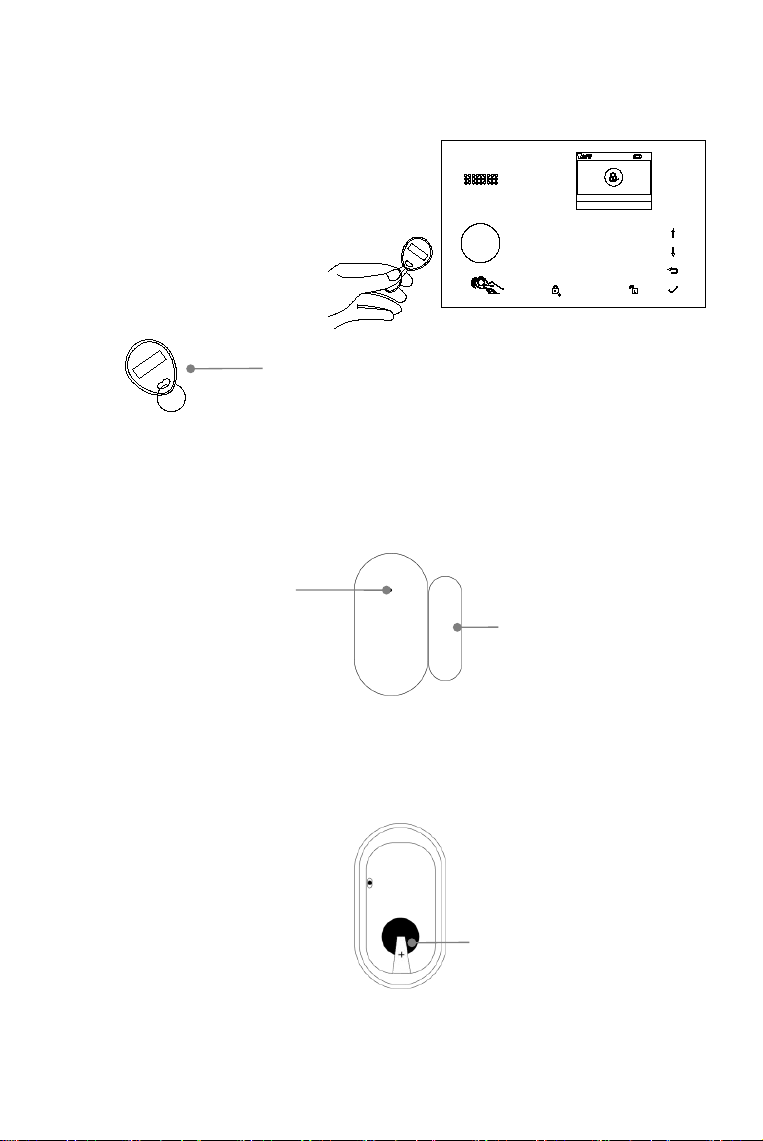
9 Remote Tag
10 RFID Tag
10 Door/Window Sensor
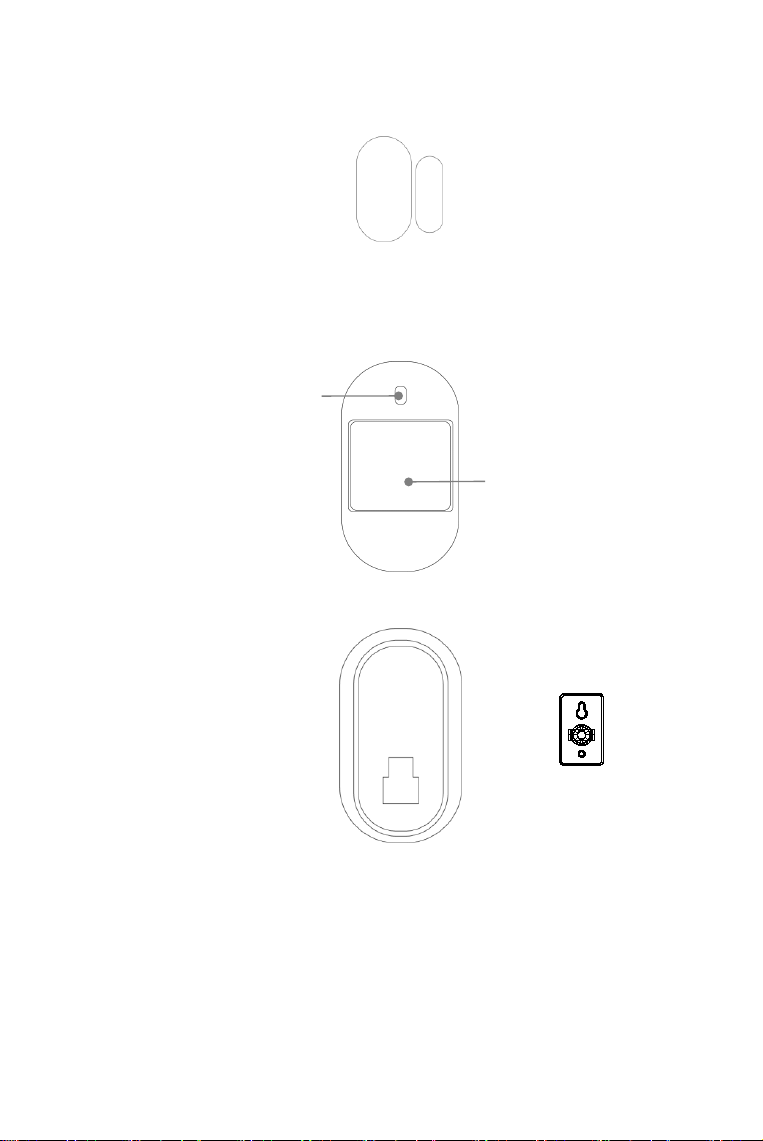
11 PIR Motion Detector
13 PLACEMENT/INSTALLATION
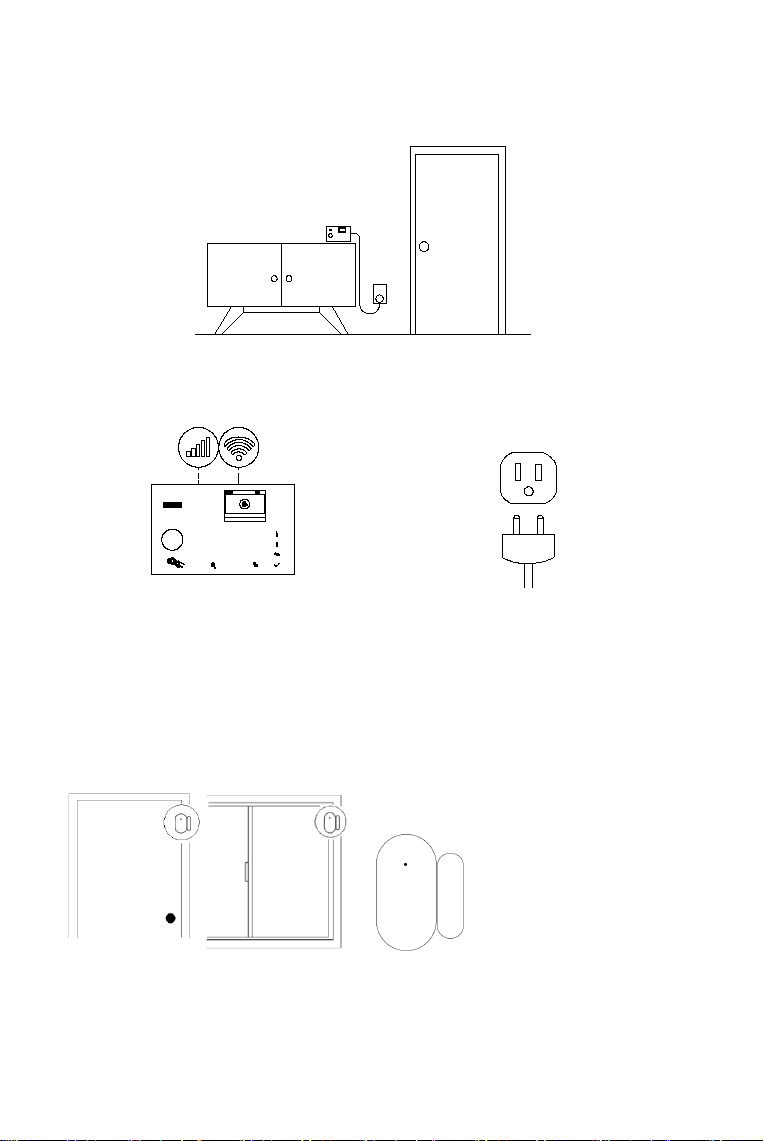
13 Where to Place/Install Smart Hub
13 Where to Place Door/Window Sensor
14 How to Install PIR Motion Detector
15 GETTING STARTED
15 Install the SIM Card
15 Cellular Network Connection
15 How to Set Phone Numbers for SMS and Phone Calls by Panel
16 Exit/Entry Delay
16 How to Record a Voice Message by Panel
17 How to Pair a Remote Tag by Panel
17 How to Pair a Wireless Sensor by Panel
18 How to Pair a RFID Tag by Panel
18 How to Pair a Wireless Siren by Panel
18 How to Pair a Alarm Wireless Switch by Panel
19 APP
19 Download App
20 USING SMART SECURITY SYSTEM
20 The Security Levels
21 How to Arm or Disarm
22 Make a Call on Panel
22 Smart Hub Features
22 RESET TO FACTORY SETTINGS
23 SPECIFICATIONS

1
DO THIS FIRST.
Things to be Noted Before Getting Started
This guide is for:
Hub cellular model ( Hub 2G model, Hub 4G model )
Hub cellular + Wi-Fi model ( Hub 2G+Wi-Fi model, Hub 4G+Wi-Fi model )
Please check the following conditions for a successful set-up:
If using 4G SIM card, make sure the 2G network of your wireless service provider is still available
in your country. You should purchase the hub with 4G cellular communicator if the 2G network is
unavailable.
The followings are for hub cellular + Wi-Fi model only.
You should select a 2.4GHz Wi-Fi network. The hub does not support the 5GHz Wi-Fi. Select the
5GHz band instead of the 2.4GHz band is the most common mistake when setting up the hub for
the first time.
Your Wi-Fi password must not contain space or other special characters.
Place your hub as close as possible to your router when setting up.
A slow network speed will also affect the performance of your hub. It is recommended to have an
upload speed of at least 2Mbps or faster.
Make sure that the AP isolation setting in your router is disabled.
What You Need
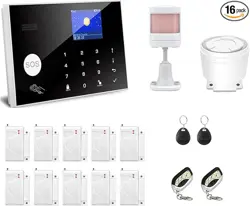
To set up and use Alarm System, you’ll need an iPhone or Android phone, the Smart Security System
app, an unused indoor power outlet, a regular SIM card supporting 2G/GSM(for 2G version) or 4G
network (for 4G version), and a Wi-Fi 802.11 b/g/n(2.4GHz) network connection (Hub cellular + Wi-Fi
only).
2
MEET YOUR ALARM SYSTEM.
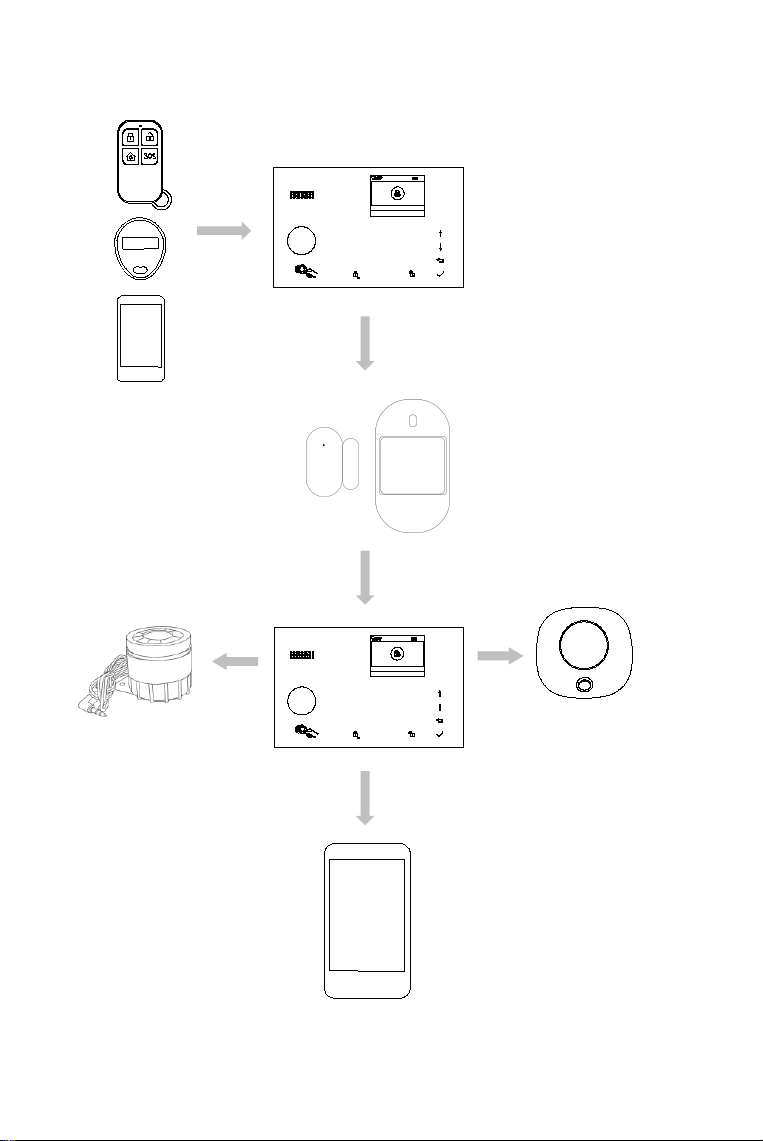
How the Alarm System Works
16:23
2019-08-16
Friday
16:23:52
SOS
RFID
1
2
3
5
6
8
7
9
0
4
ARM/
DISARM/#
The hub internal siren
sounds at 85dB on-site,
and an optional external
siren sounds at 100dB.
The hub sends a push
notification and text message
to your phone when a sensor
is triggered if you enable the
notification function located
in your app settings. After
that the hub will also make
phone calls to each preset
phone numbers.
The hub receives the
command and enters
“Armed” mode.
Arm the system by the
remote, RFID tag, the
ARM button of hub or the
APP.
When an optional
external wireless siren
has been placed there
will be a signal to be sent
to the siren.
When a Door/Window
Sensor detects a
door/window is being
opened, the sensor sends
a signal to the panel letting
the hub know that there
has been an intrusion.
The APP lets you know
what’s happening at home,
anywhere, any time.
16:23
2019-08-16
Friday
16:23:52
SOS
RFID
1
2
3
5
6
8
7
9
0
4
ARM/
DISARM/#
3
Tamper switch
The tamper switch (lever
underneath the bracket)
will trigger an alarm
notification if an attempt
is made to remove the
hub from its installed
location. And the alarm
sounds.
Getting to Know Your System
The hub cellular+Wi-Fi model is a dual network system that utilizes both Wi-Fi and
cellular(GSM/4G).
All sensors are wirelessly connected to the hub. In the event of alarm activation, for
example, when a sensor is triggered, a push notification will be sent and an alarm call
will be made automatically to all registered users.
The system can be controlled on-site by the remote tag supplied, or remotely from
anywhere with our free dedicated mobile application.
The system can connect with up to 100 wireless sensors, 10 remote tags and 10 RFID
tags.
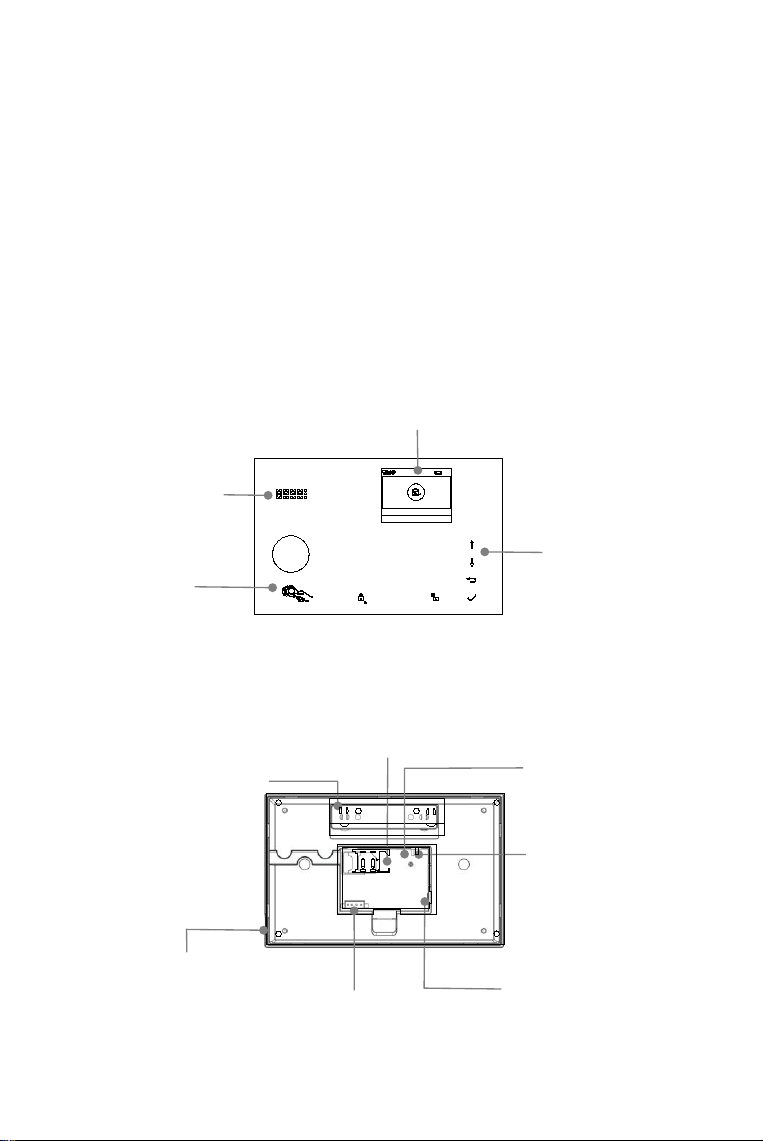
Smart Hub
Alarm, display, keypad and the brains of the system
Overview
16:23
2019-08-16
Friday
16:23:52
SOS
RFID
1
2
3
5
6
8
7
9
0
4
ARM/
DISARM/#
RFID tag
reader zone
Tap RFID tag here
to arm and disarm.
EOLR Hardwired
Zones Connections
Power port (Micro USB)
Plug in the power cable
here.
Speaker
For voice prompt
and the alarm.
Backup battery
ON/OFF
Push to ON to turn on
the built-in backup
battery.
Keypad
ARM, ARM STAY,
DISARM and DIAL
buttons. Keypad for
entering passcode,
setting, and more.
Display Window
Display system status, time, the alarm’s
information, menus, and more.
Microphone
For monitoring
and two-way
talking.
OPEN
LOCK
Siren port
Plug in the siren
cable here.
Regular SIM card slot
Plug in the SIM card here.
4
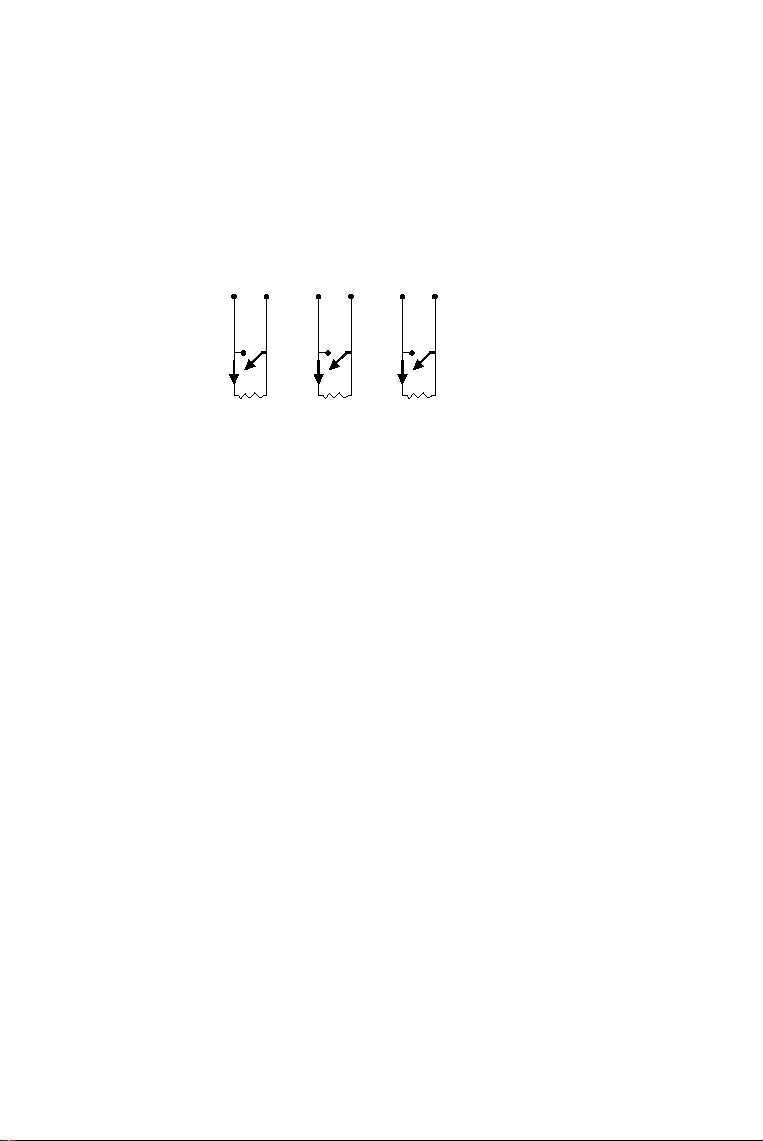
Hardwired zone connections
Zone 1, Zone 2 and Zone 3 are the EOLR supervised zones that supports both open circuit
and closed circuit devices and has a response time of 300msec . Maximum zone resistance:
11000 ohms,plus EOLR
Connect closed circuit devices in series in the high (+) side of the loop. The EOL resistor
must be connected in series with the devices, following the last device.
Connect open circuit devices in parallel across the loop. The 10000-ohm EOLR must be
connected across the loop at the last device.
Refer to the Hardwired Zones Connections diagram.
Important:
EOLR(End of Line Resistor): If the EOLR is not at the end of the loop, the zone will not be properly
supervised, and the system may not respond to an open circuit on the zone.
Go to Main Menu>Parts>EOL Zone on your hub to set the type and mode of three wired zones.
The number of three zones are set as 100, 101 and 102 in default.
NO
NC
Z2 GND
10K
EOLR
NO
NC
Z3 GND
10K
EOLR
NO
NC
Z1 GND
10K
EOLR
the Hardwired Zones Connections Diagram
5
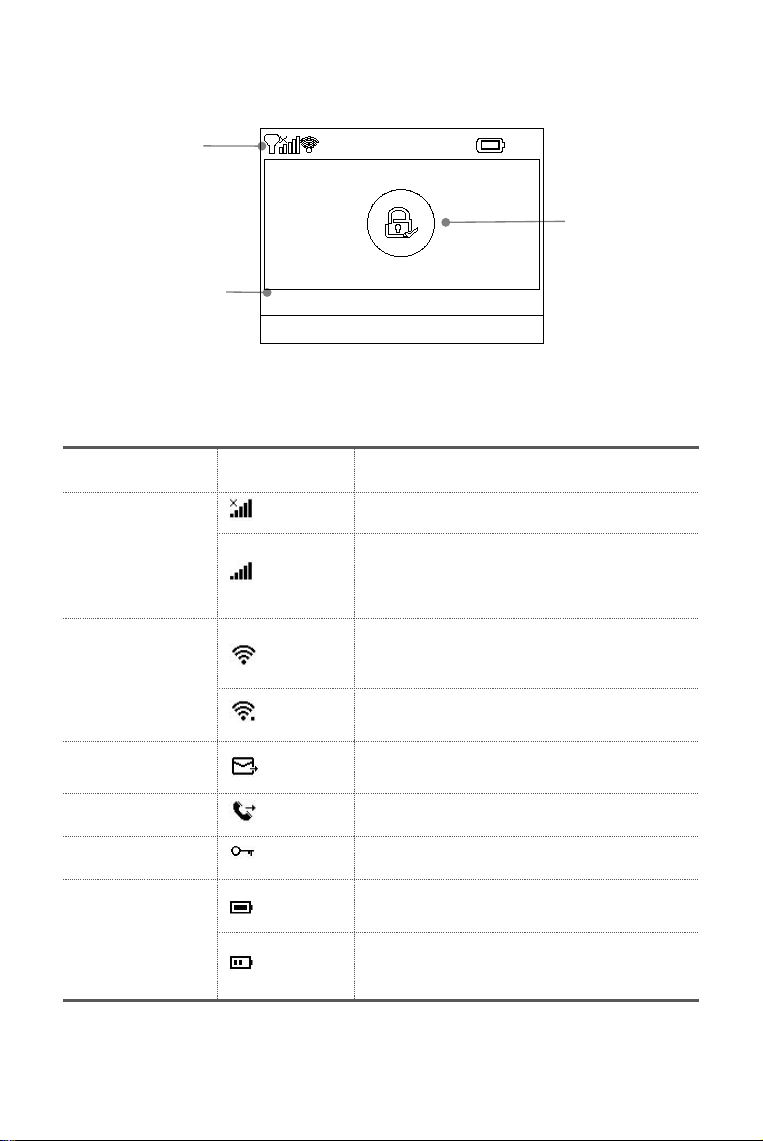
Home screen
Your home screen may look different if you use another version of hub.
Status bar
The icons in the status bar at the top of the screen shows information about the hub.
What you see
What it means
Cellular network
No SIM card inserted or SIM card faulty
Shows that your carrier’s cellular network is
available in case of white bars. More bars means
stronger signal. The bars are gray if not registered
with cellular network.
Wi-Fi network
(Cellular+Wi-Fi model)
Shows that the system is connected to a Wi-Fi
source and the signal strength when it is shown in
white. More bars means stronger connection.
Shows that the hub has a Wi-Fi Internet
connection when dot is shown.
SMS
Text message sending
Call
Calling
Lock keypad
The keypad is locked
Power
AC powered, and the progress bars shows in case
of charging.
Shows the battery level when the system has lost
AC power. The icon is red when the backup
battery power is low.
Top status bar
Arm/Disarm
status
Bottom status area
for countdown bar,
alarm information
and clock.
16:23
2019-08-16
Friday
16:23:52
6
Arm/Disarm status
Here’s the Arm/Home Arm/Disarm status of system.
Alarm information
Display what happened in case of alarm.
Countdown bar
Clock is shown without countdown process.
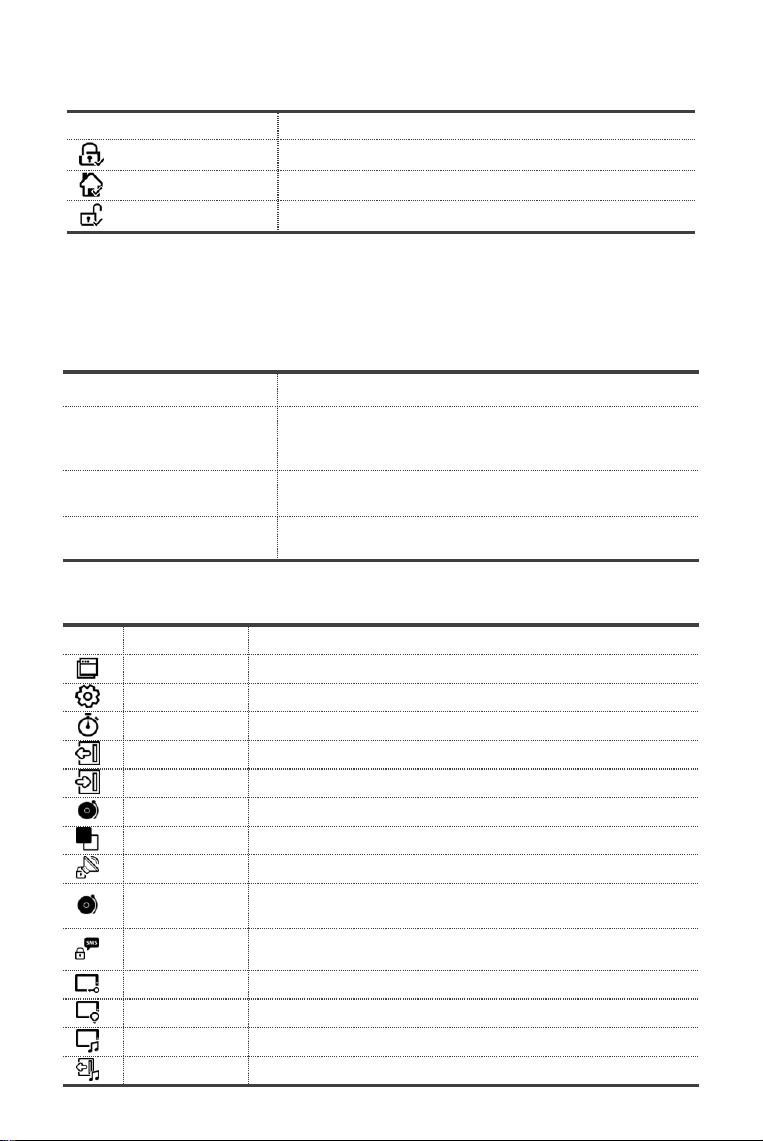
Quick view of menu features
Your icons may look different if you use another version of hub.
What you see
What it means
System is AWAY ARMED.
System is HOME ARMED.
System is DISARMED.
What you see
What happens and what you should do
Please exit
You now have xx seconds to leave home before the Exit
Delay expires. When Exit Delay is completed, the alarm
system is armed.
Please disarm
You must disarm the system before Entry Delay expires, or an
alarm will go off.
Synchronizing
You must active the wireless transmitter to be paired before
the paring delay expires.
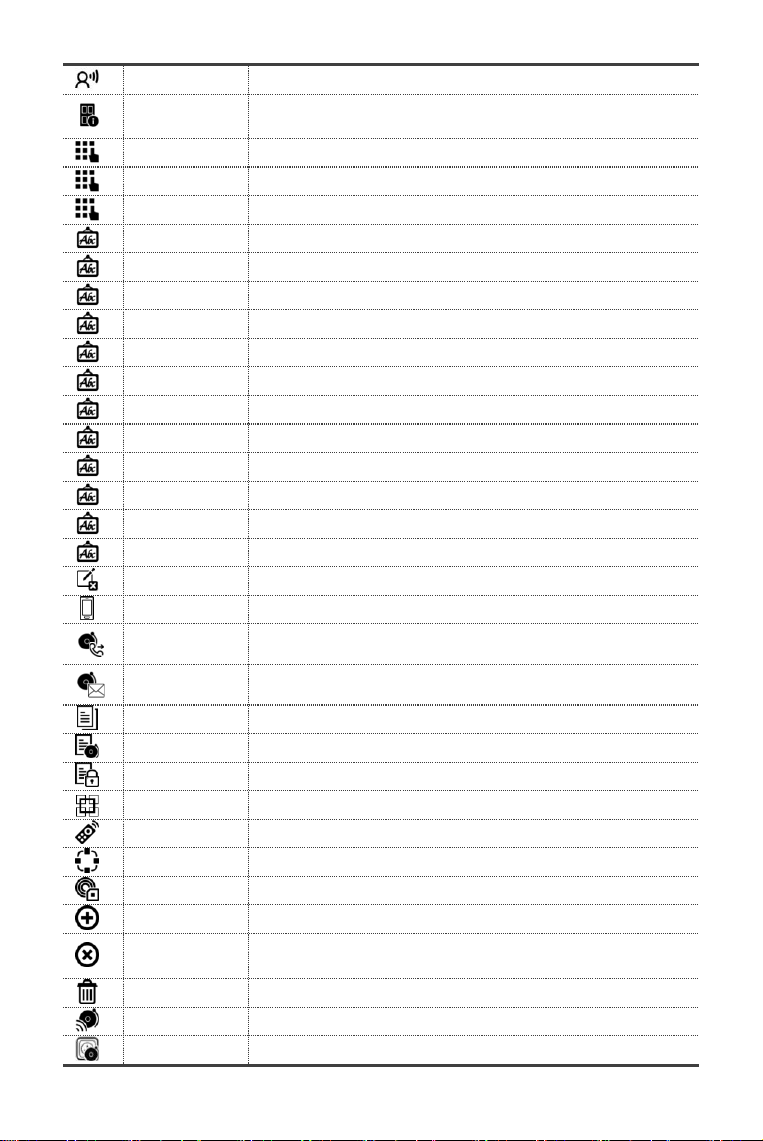
Icon
Item
What you can do with it
Menu
Settings
Delay
Exit Delay
Adjusting Exit Delay
(1)
(0~65535 seconds, default: 40)
Entry Delay
Adjusting Entry Delay
(1)
(0~65535 seconds, default: 30)
Siren Duration
Adjusting Siren Duration(0~65535 minutes, default: 3)
Switch
Turn on/off features
Arm Beep
Turning arm and disarm beep
(2)
on or off(default:on)
Siren
Turning alarm continuous siren on or off when an alarm occurs.
(default:on)
Arm SMS
Turning SMS notification on or off when the system is armed or
disarmed (default:off).
Keypad Lock
Turning touchscreen lock
(3)
on or off(default:off)
Backlight
Turning touchscreen backlight
(4)
on or off(default:on)
Keypad Tone
Turning operation chime on or off(default:on)
Delay Tick
Turning exit and entry chime on or off(default:on)
7
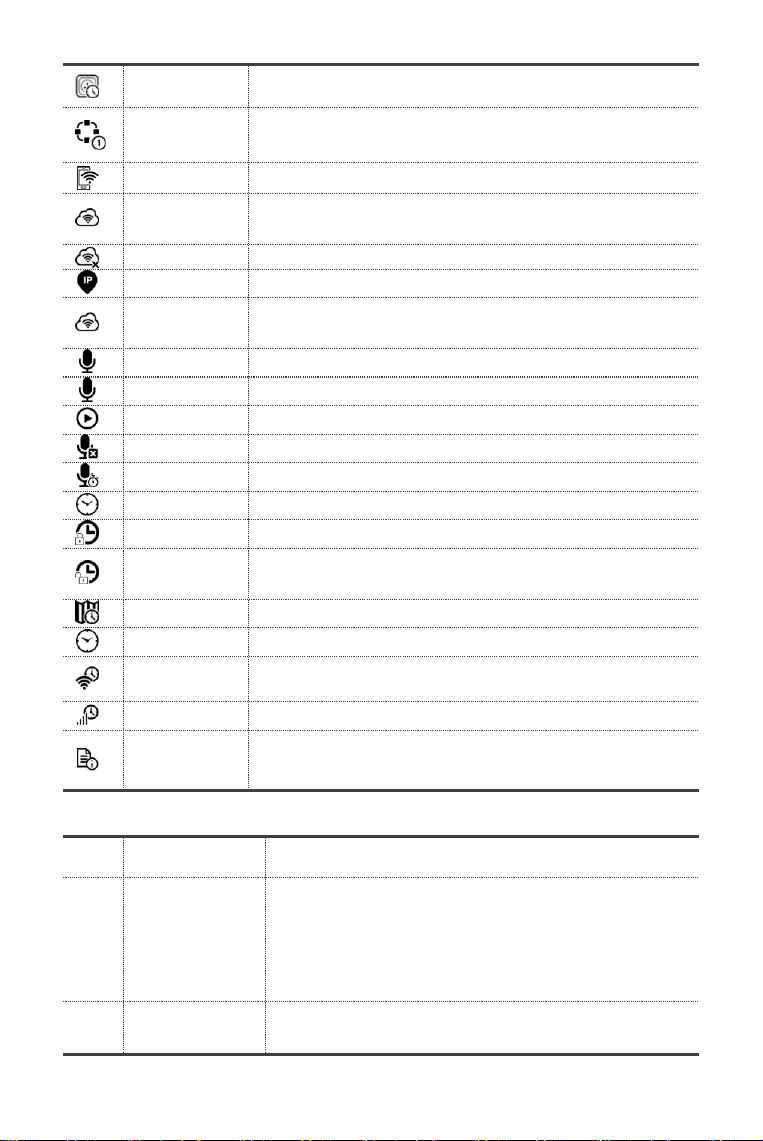
Human Voice
Turning Human Voice
(5)
on or off(default:on)
Door/Window
Open Warning
Turning warning notification on or off if you leave a window or door
open and arm (default: on).
Password
System
Changing System Code
(6)
(4 digits, default: 8888)
User
Changing User Code
(7)
(4 digits, default: 1234)
Language
Language Selection
(8)
(default: English)
简体中文
English
Deutsch
РУССКИЙ
Español
Polski
Italiano
Français
Português
Ελληνικά
Românâ
Initialization
Resetting to factory defaults
(9)
Phone
Call-Phone
Number
Setting the Phone Number for call in case of alarm
SMS-Phone
Number
Setting the Phone Number for text message in case of alarm
Log
Alarm Log
Viewing system alarm events
Arm Log
Viewing system arm/disarm events
Parts
Paring, deleting/editing, deleting all accessories
Remote
Pairing, deleting or deleting all the remote tags
Detector
Pairing, editing, deleting or deleting all the wireless sensors
RFID
Pairing, deleting or deleting all the RFID tags
Add
Pairing a new remote tag, sensor or RFID tag
Delete/Edit
Deleting a remote tag or RFID tag from the list
Editing/Deleting a wireless sensor from the list
Delete All
Deleting all remote tags, sensors or RFID tags
Siren Learn
Sending a transmission signal to the wireless siren to be paired
Alarm Socket
Pairing a wireless switch that syncing on/off with the siren
8
Here’re some of menus how to use.
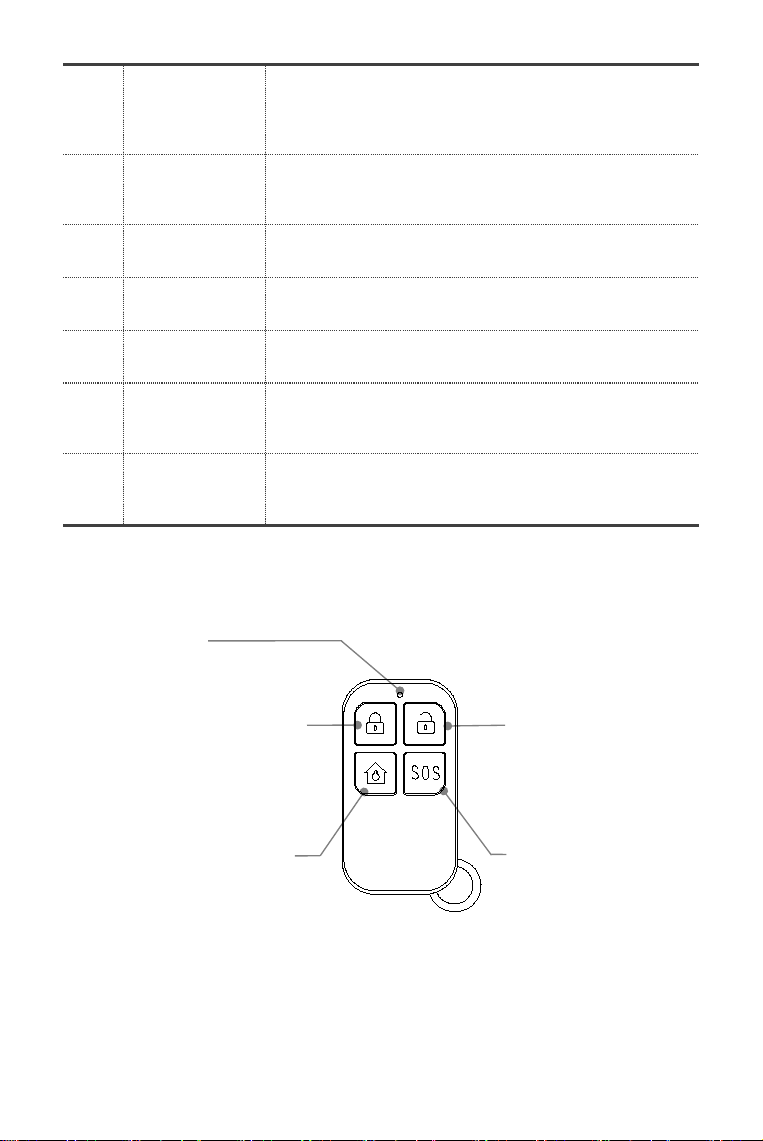
Socket Timer
Setting a schedule(in 24-hour) for opening/closing wireless switch
automatically
Decoder
Read the serial number of detector from its transmitting signal.
You can know which wireless accessory were paired in your hub by
this tool.
Wi-Fi
(Available on hub cellular+Wi-Fi model only)
Smartlink
Configure
Connecting your bub to the Wi-Fi network and internet by Smart
Configuration(Requires the mobile APP)
Unbind
Unbinding the hub link from the server
MAC/IP
Getting the MAC and IP addresses of the Wi-Fi module
SoftAP
Configure
Connecting your bub to the Wi-Fi network and internet by Soft AP
Configuration(Requires the mobile APP)
Record
Record
Recording voice message and playback
Play
Listening to the recorded message
Delete
Deleting the recorded message
Duration
Adjusting Record Duration (1-20 seconds is available)
Timer
Arm Schedule
Setting a schedule(in 24-hour) for arming automatically
Disarm
Schedule
Setting a schedule(in 24-hour) for disarming automatically
Zone&Sync
Reserved
Date&Time
Setting the date and time(in 24-hour)
Wi-Fi Sync
Turning using the Wi-Fi network-provided time on or off
(hub cellular+Wi-Fi model only)
2G/4G Sync
Turning using the cellular network-provided time on or off
Version
Getting the firmware and Serial Number of hub, the firmware and
IMEI of the cellular module, and MAC address of t he Wi-Fi module
(hub cellular+Wi-Fi model only)
Item
Caption
Description
1
Exit/Entry Delay
Your security system has been programmed with delay times
that allow you to exit the premises after arming, and to disarm
the system upon entry before an alarm occurs. If you leave
home too late when exiting, or disarm too late when arriving
home, it will cause a false alarm. If an false alarm occurs, you
should disarm the system immediately.
2
Arm Beep
When it is turned on, the external siren will beep when armed or
disarmed.
9
Remote Tag (Wireless Key)
Remote tag to quickly away-arm, stay-arm and disarm your home, and to trigger an
emergency alarm.
3
Keypad Lock
For additional security, you can require a passcode to unlock the
panel. When it is turned on, if you don’t operate the keypad on
the panel for 30 seconds or so, the home screen locks
automatically.
4
Backlight
When it is turned off, if you don’t operate the keypad on the
panel for 30 seconds or so, the home screen backlight turns off
automatically.
5
Human Voice
When it is turned on, you’ll hear a human voice that tell you what
is done.
6
System
Password
Used for keypad unlocking and SMS remote settings.
7
User Password
Used for keypad unlocking, SMS remote tag and alarm text
notification prefixed setting.
8
Language
Human Voice, Displaying, SMS and push notification will be in
the selected language. After selecting the desired language, the
panel will reset accordingly.
9
Initialization
If the factory default configuration is loaded, any data that has
been already programmed into the system will be changed into
the factory default configuration!
Arm button
Use when no one is at home.
The alarm will sound in armed
mode, when a door or window
is opened, or when motion is
detected.
SOS button
Use in case of
emergency. The alarm
sounds and sends an
alert notification to
registered users.
Disarm button
Use when you don’t
want the security from
the system. The alarm
won’t sound in disarmed
model.
LED indicator
Stay arm button
Use when you’re at home and
want security. The alarm
sounds when a door or
window is opened.
10
RFID Tag
RFID tag lets you arm or disarm without entering a password.
Door/Window Sensor
Door/window sensors are set to Delay mode in default and are ideal for protecting entry/exit locations,
such as front/back doors and all windows. When the system is armed or home armed and a sensor is
triggered (magnet is separated from the sensor), a push notification including the sensor name will be
sent automatically to the registered users, and the alarm will sound.
LED Indicator
Lights up when door/window is
opened. And blinks in case of
low battery, please replace the
battery soon.
Top view
Inside view
Open magnet
Works with sensor to sense
when a door or window is
opened
Disarm with a tap
Tap and hold RFID tag on the RFID zone of your
panel to arm or disarm when you’re leaving and
coming home.
Battery receptacle
Install 3V CR2032
battery 1 pcs
Key loop
Attach to your key ring.
16:23
2019-08-16
Friday
16:23:52
SOS
RFID
1
2
3
5
6
8
7
9
0
4
ARM/ DISARM/#
11
PIR Motion Detector
The motion detector is designed for the usage on interior walls and is set to Home Mode in default.
Whenever the sensor detects movement (only while the alarm is armed), a push notification including
the sensor name will be automatically sent to the registered users, and the alarm will sound.
Top view
Bottom view
Mounting strips
Attaches sensor and
magnet to a flat surface.
LED Indicator
Lights up when there’s motion
in the room. And blinks in case
of low battery, please replace
the battery soon.
Bracket
Detection window
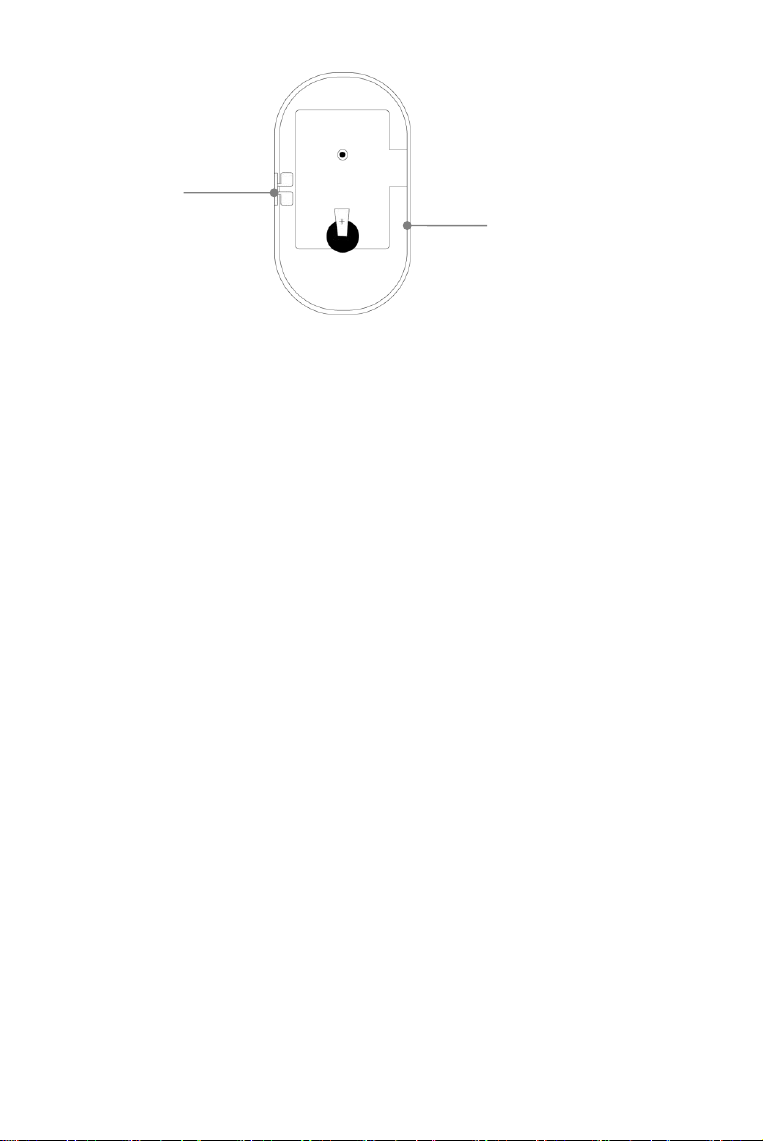
12
Battery receptacle
Install 3V CR2032 battery 1pcs.
Also you can connect to USB
power adapter .
Inside view
Power on / off
Switch to ON to power
on the detector
13
PLACEMENT/INSTALLATION TIPS
Where to Place/Install Smart Hub
Where to Place Door/Window Sensor
On a door
On a window
0.6 inches(1.5cm) max
Find a spot with a good Wi-Fi and
cellular signal.
The hub needs a Wi-Fi Internet connection
(hub cellular+Wi-Fi only) and cellular
network so it can send notifications and
text message to your phone.
The magnet should be
aligned with the middle of
sensor and placed within
0.6 inches (1.5cm) of
sensor when the door or
window is closed, as shown
in the image on the left.
It should be close to where you come and go.
So it’s easy to access on your way in and out.
Use an unswitched wall outlet.
Choose an outlet that’s not controlled by
a switch, so you don’t accidentally turn
off the hub. The included bracket helps
keep the hub is plugged in.
On a door
16:23
2019-08-16
Friday
16:23:52
SOS
RFID
1
2
3
5
6
8
7
9
0
4
ARM/ DISARM/#
14
How to Install PIR Motion Detector
Special considerations
Don’t install PIR Motion Detector outdoors, in a garage and on the glass.
PIR Motion Detector can’t detect motion through glass, like if someone’s moving outside a
window.
Don’t install in places where PIR Motion Detector could get wet, like swing-out windows that could
be rained on.
Don’t install PIR Motion Detector within 3 feet (1 meter) of a heat source like an electric heater,
heat vent or fireplace or another source that may produce turbulent air.
Don’t install PIR Motion Detector behind large appliances or furniture that may obstruct its motion
sensors.
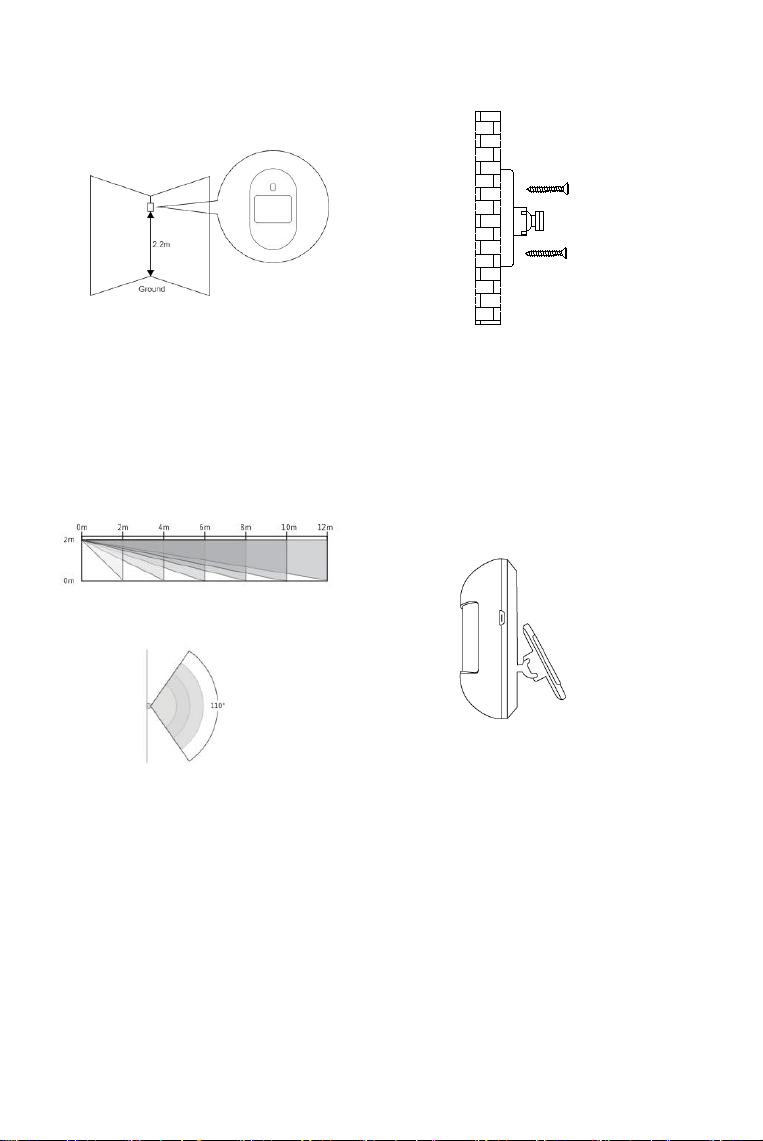
Detection Area
Top view
Mount the bracket with the included
screws as shown above. Then place the
motion detector in the bracket. Specify
the right direction of the detection range
of the motion sensor. Test the operation
of the motion detector by putting it into
testing mode which has been described
at the former page.
Side view
Mounting height
Motion Detector must be
mounted 79 to 87 inches(2 to
2.2m) above the floor.
Side view
15
GETTING STARTED
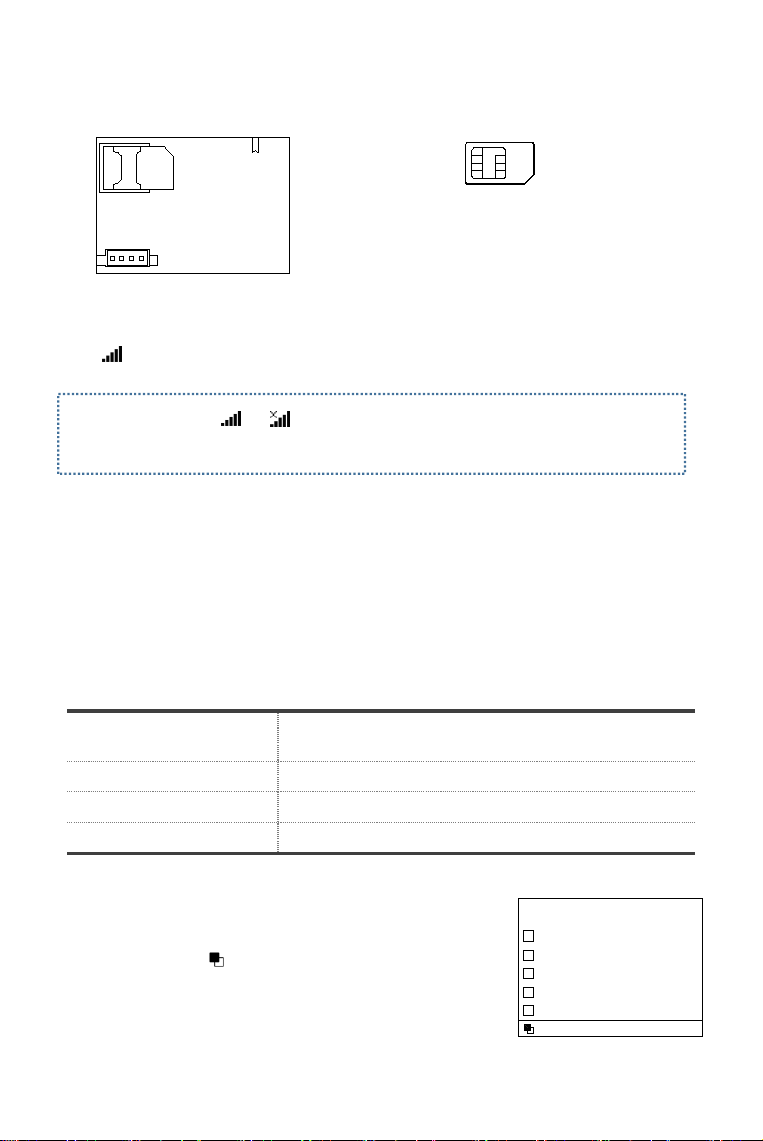
Install the SIM Card
Cellular Network Connection
If the cellular icon at the top of home screen turns white, your hub is connected to a cellular
network.
How to Set Phone Numbers for SMS and Phone Calls by Panel
Up to 5 stored Phone Numbers will receive text messages (SMS) and phone calls in case of triggered
alarms.
The hub will make phone calls to the stored phone numbers successively (up to 2 rounds in turn). If
the phone call is answered and any Keypad Command has been operated by one of these users, it
will stop calling the next phone number; otherwise it will continue to remind users until it is up to 2
rounds.
When the stored phone calls the hub, two-way talk is connected automatically.
Keypad Commands
Go to Menu>Call-Phone Number to set five phone number for alarm call.
Use ▼ to scroll to number index to be set, then use digits keypad
to enter the Phone Number (up to 18 digits), tap ▲ to backspace.
The first number will be called at first in case of alarm.
Use ▼ to scroll to , then tap ▲ to toggle between ‘off’ and
‘on’. When ‘on’ is selected, the alarm call will be actived.
Press √ to save your new settings.
WHICH BUTTON YOU
PRESS ON PHONE
WHAT HAPPENS
1
Arm
2
Disarm or silence when the alarming is sounding
3 or 4
Two-way talk
Important: If the gray or is always shown, the hub has not connected to a network.
Make sure the SIM card has been put in the hub when it was off and the security code of the
SIM card is permanently deactivated
Important: A regular SIM card is required
in order to use cellular services when
connecting to cellular networks. The
availability of cellular capabilities
depends on the wireless network.
13688888888
Call-Phone Number
on

16
Go to Menu>SMS-Phone Number to set five phone number for alarm text message.
Use ▼ to scroll to number index to be set, then use digits keypad
to enter the Phone Number (up to 18 digits), tap ▲ to backspace.
The first number will be received alarm text message at first in
case of alarm.
Use ▼ to scroll to , then tap ▲ to toggle between ‘off’ and
‘on’. When ‘on’ is selected, the Alarm Text Message will be
enabled.
Press √ to save your new settings.
Exit / Entry Delay
Entry Delay and Exit Delay are countdowns that allow you to enter and leave your home easily without
causing the alarm to sound.
Exit Delay
Exit Delay allows you to leave your home once you’ve armed the security system. When you place the
system into Away Arm Mode, it makes a countdown tick to let you know that it is preparing to arm.
Once the Exit Delay period ends, the system is armed. To give yourself enough time to exit your home
before the countdown ends, you can adjust the countdown timing from 0(No Exit Delay) to 255
seconds. The default Exit Delay is 40 seconds.
How to change the Exit Delay
Go to Menu>Settings>Delay>Exit Delay and enter to edit the delay value.
Entry Delay
Entry Delay allows you to enter your home and disarm your system while the system is in Away Arm
Mode. When you enter your home while the system is in Away Arm Mode, your hub makes a
countdown tick to let you know that you have a short time until your alarm goes off. When you hear this,
you should disarm your system as soon as possible. You can adjust the countdown timing from 0(No
Entry Delay) to 255 seconds. The default Entry Delay is 30 seconds.
How to change the Entry Delay
Go to Menu>Settings>Delay>Entry Delay and enter to edit the delay value.
How to Record a Voice Message by Panel
Your system can Record/Play/Delete a brief voice message (up to 20 seconds) that can be played
back later. The voice message will be played to the remote when a alarm call is connected.
Go to Menu>Record> and enter.
Select Record.
Ready to record when Recording is shown and the system display will count down the recording
time remaining.
Speak into the panel and the recording automatically stops after the time expires.
The panel plays back the message automatically.
Press √ to save the message.
Go to Menu>Record>Duration to adjust the record time.
Go to Menu>Record>Play to playback the voice message recorded.
Go to Menu>Record>Delete to delete the voice message recorded.
13688888888
SMS-Phone Number
on
17
How to Pair a Remote Tag by Panel
Go to Menu>Parts>Remote>Add and enter.
You need to enter a digit from 0 to 9 to designate a unique number
for the remote tag to be paired.
Synchronizing is shown, the hub goes into the paring mode and
count down the pairing time remaining.
Press any button of remote tag to send a transmission signal to the
hub.
As the serial number of remote tag is added to the hub, Leaning OK
will be shown.
Go to Menu>Parts>Remote>Delete to delete the remote tag specified by serial number .
Go to Menu>Parts>Remote>Delete All to delete all the remote tags. Total number of paired remote
tags is shown before deleting.
How to Pair a Wireless Sensor by Panel
(Door/Window Sensor or PIR Motion Detector)
Go to Menu>Parts>Detector>Add and enter.
Scroll to and tap ▲ to select the desired Zone Name.
To be used as doorbell, select Doorbell.
Scroll to and tap ▲ to select the desired Zone Mode(Type).
You must assign a Zone Mode to each zone(sensor), which defines
the way in which the system responds to faults in that zone.
Normal: Sensors set to Normal Zone are activated in Arm (full arm)
or HOME Mode (stay/partial arm). We recommend setting
door/window sensor to Normal Zone.
24 Hours: Sensors set to 24H Zone will activate the alarm and
sounding when triggered, regardless of the alarm status (Armed or
Disarmed).
Delay: If sensors set to Delay Zone are triggered, the Hub will sound
the alarm after the delay time passed. We recommend setting door
sensors with a delay if they are used as primary entryways.
Home: Sensors set to Home Zone are only activated in Arm (full
arm). If Stay Arm Mode (partial/home arm) is used, these sensors are
not armed and will not activate the alarm if triggered. We recommend
setting PIR Motion Detectors to Home Zone.
24 Hours Silent: The mode is same as 24H but sound.
To disable the zone, select Close.
Scroll to use the digits keypad to enter Zone Number (0-89
are available), tap ▲ to backspace. Zone Number which should
be unique if more than one sensors need to be paired.
Select √ , Synchronizing is shown, the panel goes into the
paring mode and count down the pairing time remaining.
Trigger wireless sensor to send a transmission signal to the
panel as shown on the right.
As the serial number of wireless sensor is added to the panel,
Leaning OK will be shown.
Go to Menu>Parts>Detector>Edit to edit Zone Name/Zone Mode of selected zone specified by the
zone number, or delete the selected zone.
Go to Menu>Parts>Detector>Delete All to delete all the wireless sensors. Total number of paired
sensors is shown before deleting.
Separate the sensor
from the magnet by at
least 1.0 inches(2.5 cm)
Restart the detector or place
the PIR motion detector in a
high position and then walk
within the detection area to
trigger the PIR alarm once
(the indicator light flashes
once)
Set Name/Mode/Number
PIR
Normal(without delay)
1
24h
18
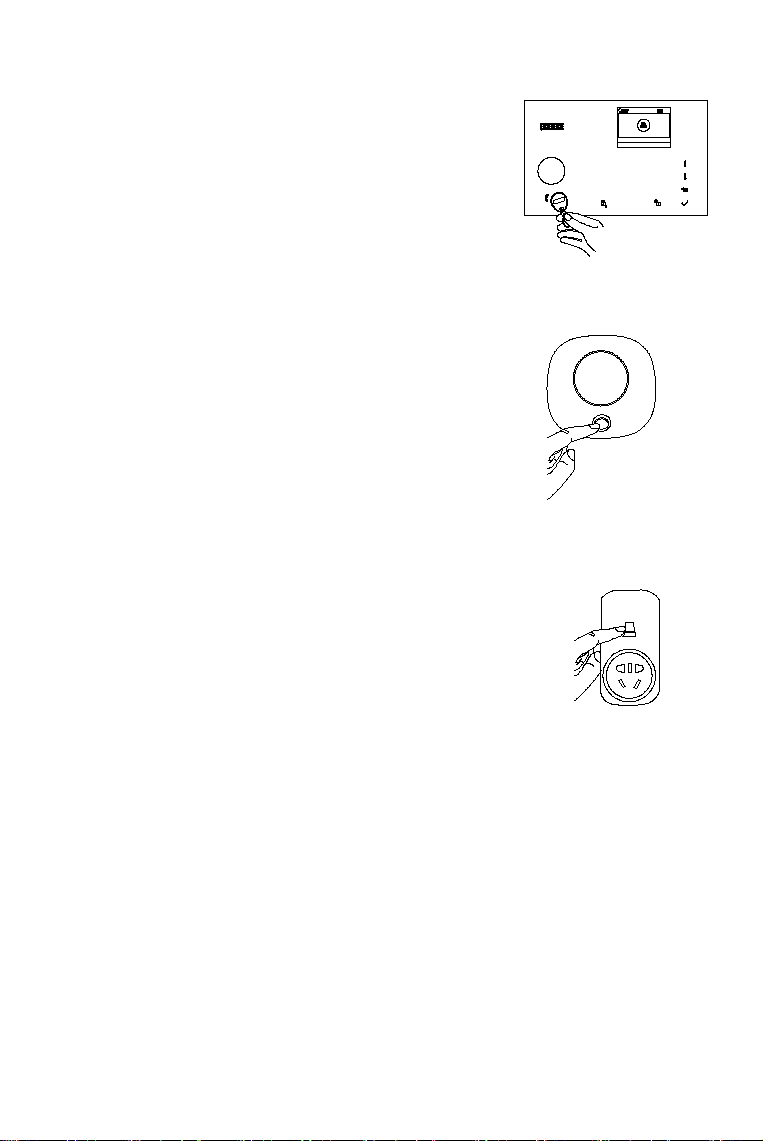
Press and hold the SET button of the siren until you hear two
beeps, then the siren goes into the sniffer mode and the light
ring blinks quickly.
Press √ button on the panel within 6 seconds. The panel
shows Learn Signal Sent and sends a transmission signal
to the siren.
The siren gives four beeps of successful indication.
How to Pair a RFID Tag by Panel
Go to Menu>Parts>RFID>Add and enter
Go to Menu>Parts>RFID>Delete to delete the RFID Tag specified by serial number.
Go to Menu>Parts>RFID>Delete All to delete all the RFID Tags. Total number of paired tags is shown
before deleting.
How to Pair a Wireless Siren by Panel
Go to Menu>Parts>Siren Learn
If you want to unbind the wireless siren with the hub, press and hold the SET button of the siren until
you hear three beeps.
How to Pair a Alarm Wireless Switch by Panel
Go to Menu>Parts>Alarm Socket
Press and hold the button of the switch until it lights up, then the switch
goes into the sniffer mode.
Tap ▲ to send ON transmission signal to the switch.
Tap ▼ to send OFF transmission signal to the switch.
The siren gives three flashes of successful indication.
When a sound alarm occurs, the alarm wireless switch opens until the
system is disarmed or alarm sounder timeout occurs.
If you want to unbind the alarm wireless switch with the hub, press and hold the button of the switch for
about 10 seconds until light is off.
You need to enter a digit from 0 to 9 to designate a unique number
for the RFID tag to be paired.
Synchronizing is shown, the panel goes into the paring mode
and count down the pairing time remaining.
Tap the RFID Tag on the RFID read zone of your panel.
As the serial number of RFID Tag is added to the hub, Leaning
OK will be shown.
16:23
2019-08-16
Friday
16:23:52
SOS
1
2
3
5
6
8
7
9
0
4
ARM/ DISARM/#

19
-
APP
Download App
Scan the QR codes via a smart phone to download and install the application.
Your App may look different if you purchased the different hub model.
APP for Hub Cellular Model
For hub cellular model, you can arm, stay arm, disarm your system by sending text messages using
the APP. You can also name your accessories, set Phone Number, Change Exit/Entry Delay or
Enable/Disable some features, and more by APP.
APP for Hub Cellular + Wi-Fi Model
Special Tips
After installing the app, the phone will request permission to receive notifications from APP. Forbidden
to receive notifications may result in an application running failure.
CHECKING MORE DETAILS ON APP INSTRUCTION, PLEASE REFER TO APP QUICK START
GUIDE.
20
USING SMART SECURITY SYSTEM.
The Security Levels
Smart Hub has three different security levels you’ll use when you’re home or away. You can easily
switch between them on Smart Hub or with RFID tag, remote tag, or the app.
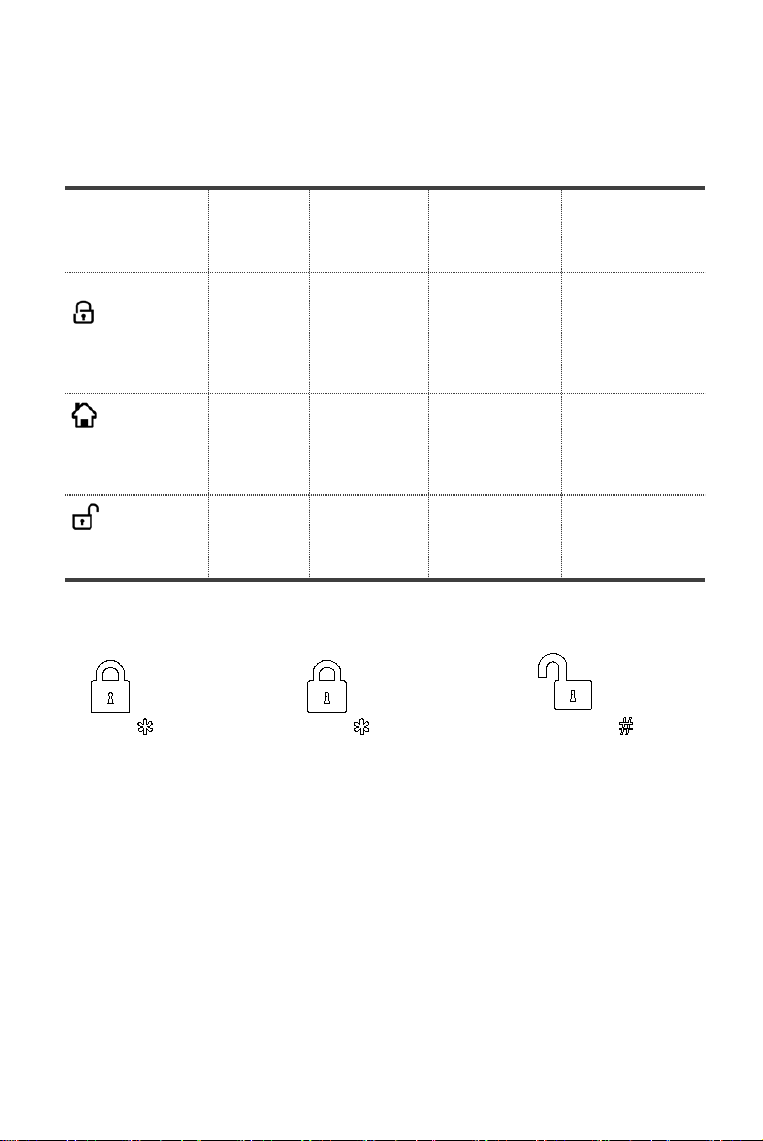
WHAT
YOU HEAR
WHAT
HAPPENS
WHAT’S
DETECTED
Motion Open
NOTIFICATIONS
and CALLS
Away Arm
Use when no one
is home.
“Please input
password”
“System
Armed”
The alarm
sounds when a
door or window
opens, or when
there’s motion in
a room.
√ √
√
Home Arm
Use when you’re
home and want
security.
“Please input
password”
“System
Armed”
The alarm
sounds when a
door or window
opens.
- √
√
Disarm
Use when you don’t
want security.
“System
Disarmed”
The alarm won’t
sound.
- -
-
Away Mode
All sensors in your home
are monitored. This is
useful when you’re going
out and want to be notified
if anything happens
to your home.
Home Mode
All NORMAL and DELAY
(exterior and perimeter )
sensors are monitored, but
interior sensors are not
monitored. This is useful if
you’re at home but want to be
alerted if anyone tries to break
in through a door or window.
Disarmed Mode
No sensors but 24 HOUR
sensors in your home are
monitored. This is useful
when you
’
re at home and
want the freedom to go in
and out easily.
(Tap twice)
ARM/
ARM/
DISARM/
21
How to Arm and Disarm
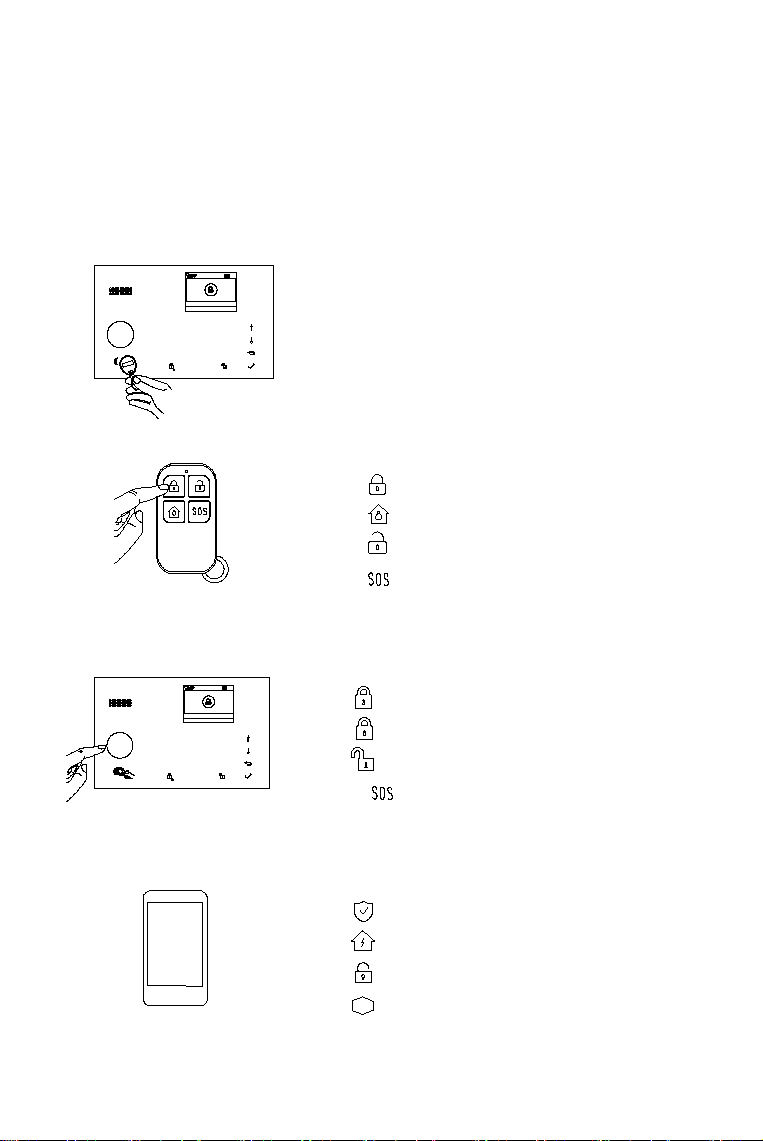
You can arm and disarm your home in three ways: entering your passcode on the panel if it is locked
and press Arm/Stay Arm/Disarm icons, tapping RFID Tag on the panel, or using the remote tag, or
app. When you hear the panel’s chime alert, the screen will also show you a countdown so you know
how much time you have before the alarm sounds.
No Rush
With No Rush, you can take the time you leave home or disarm before the alarm sounds. By default,
you have 40 seconds.
To adjust the countdown timing by the panel, go to Menu>Settings>Delay>Exit Delay/Entry Delay.
(see Exit/Entry Delay description on page 16)
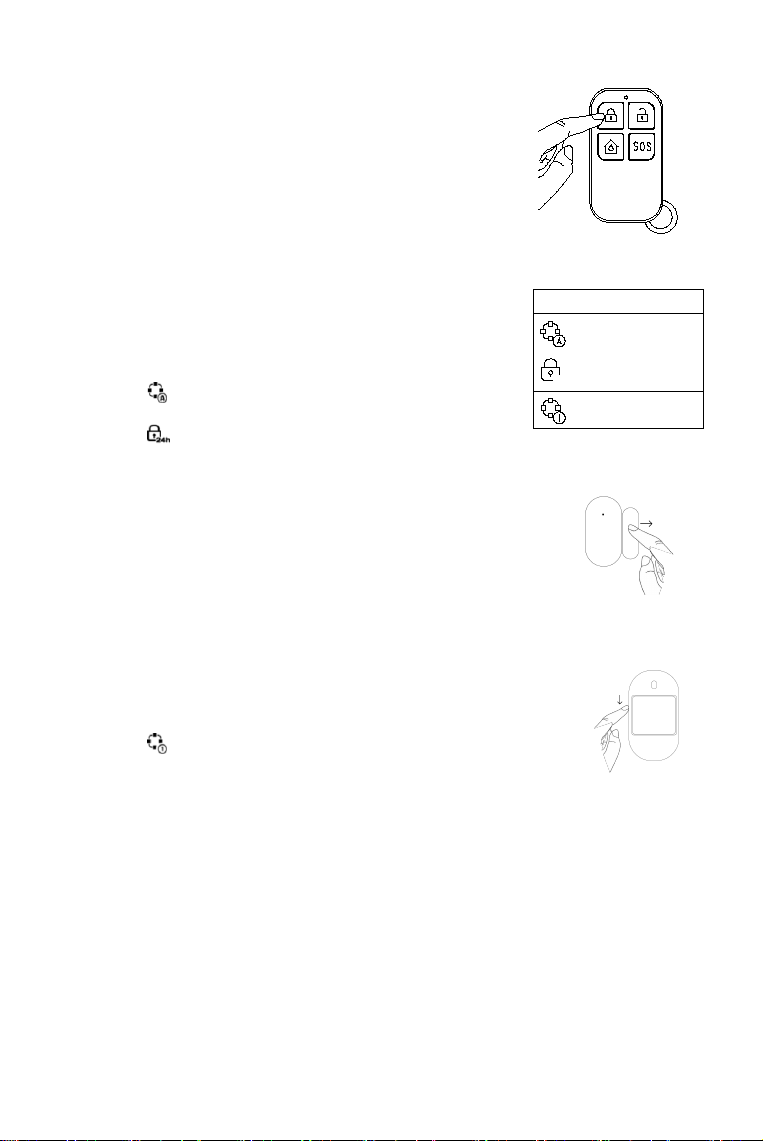
RFID tag
Tap the tag on the panel to
Disarm in case of arm mode.
Arm in case of disarm mode.
Remote tag
Press to away arm.
Press to home arm.
Press to disarm.
Press to trigger an emergency alarm.
APP
Tap to away arm.
Tap to home arm.
Tap to disarm
Tap to trigger an emergency alarm.
Panel
Tap to away arm.
Tap twice to home arm.
Tap to disarm.
Press button to trigger an emergency
alarm.
16:23
2019-08-16
Friday
16:23:52
SOS
1
2
3
5
6
8
7
9
0
4
ARM/ DISARM/#
16:23
2019-08-16
Friday
16:23:52
SOS
RFID
1
2
3
5
6
8
7
9
0
4
ARM/ DISARM/#
SOS
22
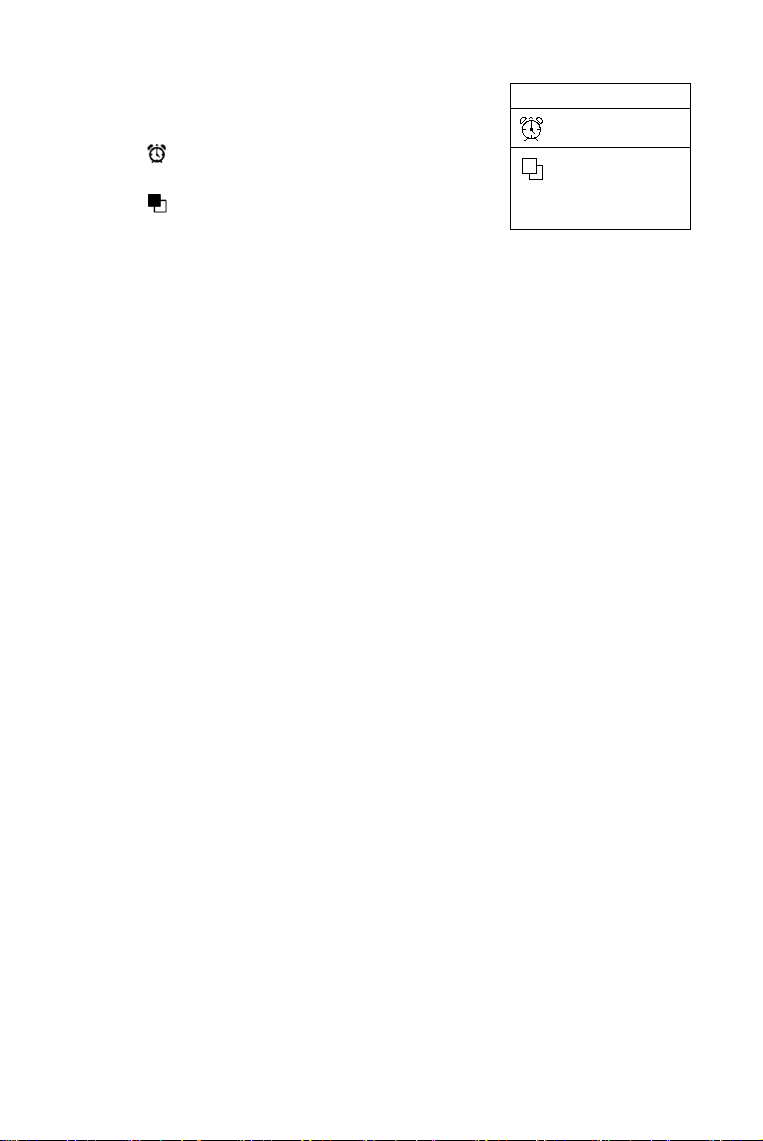
Auto Schedule
You can set an arm schedule and a disarm schedule to
arm or disarm the system automatically at a daily time.
Go to Menu>Timer>Arm Schedule/Disarm Schedule and enter
Scroll to and enter the Daily Arm/Disarm time (in 24-hr),
tap ▲ to backspace.
Scroll to and tap ▲ toggle to ‘on’ to enable the schedule.
Press √ to save your schedule.
Make a Call on Panel
On the home screen, tap one of digits to enter dialing screen , enter the number, then tap √ to dial.
Important: The call will be canceled if cellular network is not registered, the system is armed or in
voice alarming.
Smart Hub Features
Battery backup
If the building has lost electrical power, Smart Hub includes a backup battery that will last for more
than 6 hours. So even if the power is out, Smart Hub can still detect when an intruder is in your home
and sound the alarm.
The battery icon in the upper-right corner shows the battery level or charging status, this level is just
for reference.
If the backup battery is very low, the battery icon turns red, and for up to 15 minutes before the hub
works well. And Low Battery notifications will be sent to the registered phone numbers.
The battery is fully charged within 8 to 12 hours.
Loss/Restoration of AC power
If the event of AC power loss or restoration, the hub will send you an alert notification to let you know
that.
Tamper detection
If someone tampers with Smart Hub and removes it from the back plate, the hub will send you an alert
notification to let you know that.
RESET TO FACTORY SETTINGS
Go to Menu>Settings>Initialization> and enter.
Important: You won’t be able to reset if Smart Hub is locked. All the paired accessories and event logs
will be deleted when reset is done.
Arm Schedule
20:12
on

23
SPECIFICATIONS
Hub
Power Supply: Micro USB 110/220VAC to 5V, 1000mA
Backup Battery: 3.7V, 500mAh Rechargeable Lithium Battery
Consumption: <55mA@normal
Siren Output: <500mA
Radio Frequency: 433Mhz
GSM: 850/900/1800/1900MHz
Wi-Fi: IEEE802.11b/g/n
Operation Temperature: -10~55℃
Remote
Power Supply: DC 12V27A Battery x 1
Standby Current: <5uA
Alarm Current: <15mA
Transmitting Distance: <80m (Open Area and No Interference)
Radio Frequency: 433Mhz
Operation Temperature: -10~55℃
Door/Window Sensor
Power Supply: DC 3V (CR2032 Lithium Battery x1)
Standby Current: <8uA
Alarm Current: <15mA
Transmitting Distance: <80m (Open Area/No Interference)
Radio Frequency: 433Mhz
Operation Temperature: -10~55℃
PIR Motion Sensor
Power Supply: DC 3V (CR2032 Lithium Battery x1)
Standby Current: <15uA
Alarm Current: <25mA
Detection Scope: <12m/110°
Transmitting Distance: <80m (Open Area and No Interference)
Radio Frequency: 433Mhz
Operation Temperature: -10~55℃
USB Input Voltage : DC 5V
RFID Tag
Chip: 4100/4200
Frequency: 125KHz
Read Distance: <2cm
Wireless Siren
Power Supply: Micro USB 110/220VAC to 5V, 1000mA
Standby Current: <15mA
Alarm Current: <230mA
Volume: 100dB
Radio Frequency: 433Mhz
Operation Temperature: -10~55℃