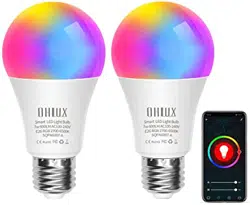
1- Download and install the App
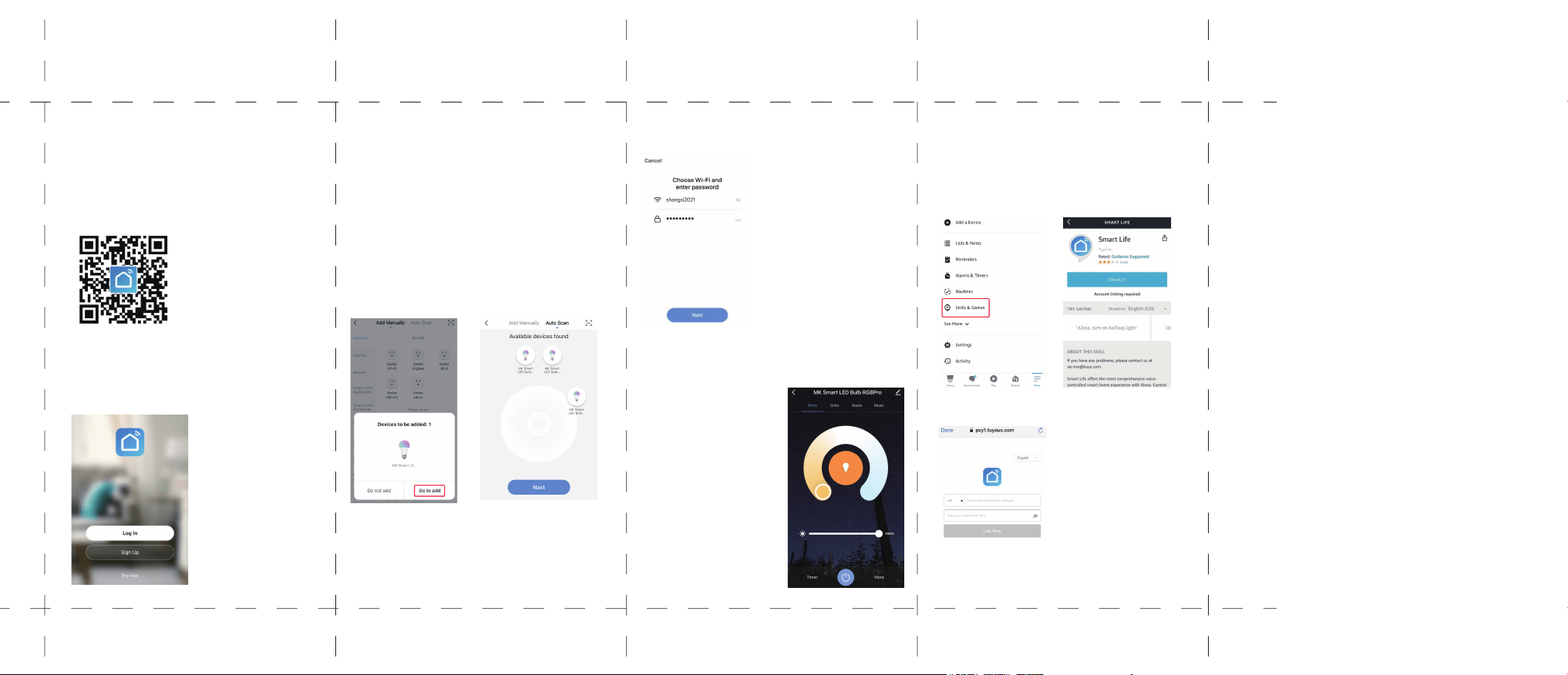
Install the App by Scanning the QR code or search "Smart Life" in
the App Store or Google Play.
User Manual
“Smart LED Bulb”
Note:
Alternatively, the "Tuya Smart"
App can also be used to
configure and control this smart
LED bulb. You can set up Tuya
Smart App in similar process to
“Smart Life” App.
2- Register and log in
Register and sign in the “Smart Life” App with your mobile phone
number or Email address.
Note: Please do remember this account and password. They will be
used again when paired to Amazon Alexa and Google Home
Assistant.
3- Preparations before pairing to the App
3.1-Install the smart LED bulb to the socket properly.
3.2-Connect your mobile device to the 2.4Ghz Wi-Fi and activate
the “Bluetooth” and “Location” function on your mobile device.
4- Connect to the “ Smart Life” App
4.1-Turn on the power switch, the smart LED bulb will flash quickly
and stay connection status for 3 minutes. (Please make sure that
you finish the pairing process within 3 minutes. If not, you need to
reset the bulb by turning the switch ON/OFF/ON/OFF/ON).
4.2-Open the Smart Life App and wait for a while, all the smart LED
bulb devices will be automatically searched and pushed by the App,
then click “go to add” to add the device.
Tips: If the smart LED bulb is not automatically searched by App,
please click on "+" at the top right corner of the "Home" section of
Smart Life App and choose “Add Manually” or "Auto Scan" function
to search the bulb manually.
4.3-Enter the 2.4Ghz Wi-Fi password and click “Next” button. Once
successfully paired, the smart LED bulb will change to steady light,
instead of flashing quickly.
Note:
-Make sure the “Bluetooth”
“Location” function are activated
during the pairing process.
-Once the smart LED bulb
connected to the “Smart Life” App,
you could control smart LED bulb
any time from any place.
-The smart LED bulb could be
paired to the App one by one or
multiple bulbs to pair to the App
together.
5- Control the device via App
Once the smart LED bulb has been successfully paired, its name will
appear in the list on the "Home" screen. Now you can control the
smart LED bulb via “ Smart Life” App.
E.g.
1. Dimming the brightness and
color temperature
2. Multi-color changing - RGB
version only
3. Sleep and Wake up schedule
4. Group control and family share
5. Music sync and more functions
6- Connect to the Amazon Alexa
(1) Download the Amazon Alexa App in the App Store or Google
Play.
(2) Sign in or register a new account.
(3) Pair the Alexa App to Amazon Echo device (follow the Amazon
Echo user manual).
(4) Log in your Alexa App, tap “Skills & Games” on the Alexa App
menu.
(5) Search for “Smart Life”, tap "Enable to Use" to enable the skill.
(6) Enter the “Smart Life” App account and password, then tap
“Link Now” to link your “Smart Life” account to enable the skill.
(7) Now you can control the smart LED bulb with Alexa App or voice
control like:
“Alexa, turn on the bedroom light”
“Alexa, set the living room light to blue”
“Alexa, dim the kitchen light”
7- Connect to the Google Home Assistant
(1) Download the Google Home App in the App Store or Google
Play
(2) Sign in or register a new account
(3) Pair the Google Home App to Google Home device( follow the
Google Home user manual)。
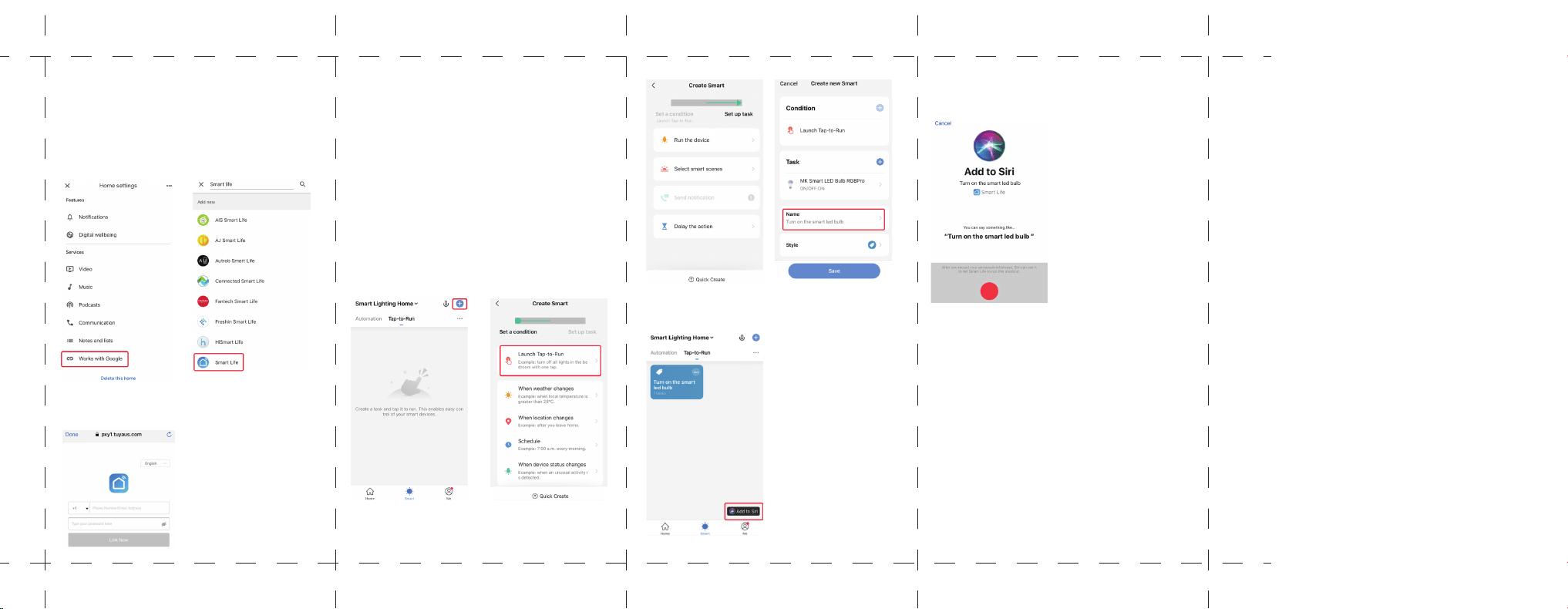
(4) Tap “Settings” on the home page and select “Works with
Google”.
(5) Search for “Smart Life” in the list.
8- Connect to the Siri Shortcuts (iOS 12.0 above)
You can control the “Tap-to-Run” scenarios created on Smart Life
with Siri shortcuts.
(1) Enter the "Smart" section of the Smart Life App and create a
new “Tap-to-Run” scenario, then rename it with a word or a
phrase.
(2) Set the actions that the “Tap-to-Run” scenario will have to
perform.
(6) In the new window, select your “Smart Life” account's region and
sign in, then tap "Link Now". After you assign rooms for devices,
your devices will be listed in the Home page.
(7) Now you can control the smart LED bulb with Google Home
app or voice control like:
“OK Google, turn on the bedroom light”
“OK Google, set the living room light to blue”
“OK Google, dim the kitchen light”
(3) Click on "Add to Siri" on the bottom right of "Smart" section and
select the scenario you want on the Siri shortcut page to add.
(4) Record your personalized phrase you want to use to activate
the scenario via Siri. Then Siri can use it to tell Smart Life to run
this shortcut. (eg "Hey Siri, light up the room").
If you have any questions about the product, please reach out
to our support team via email : [email protected]. We'll
reply to you within 24hours .
Tips: You can rename all the smart LED bulbs on “Smart Life” App,
like “bedroom bulb”, “kitchen light” or others. A simple name is
recommended for easier voice recognition with Alexa or Google
Home Assistant.