
Wireless Mouse User Manual
1. Product Overview
Thank you for choosing this wireless mouse! This product adopts an ergonomic design for
comfortable holding. It is equipped with stable wireless connection technology,
bringing you a smooth and accurate experience for office and daily use without
cumbersome cables. Meanwhile, it features low power consumption and long battery life,
making it an ideal partner for computers and laptops.
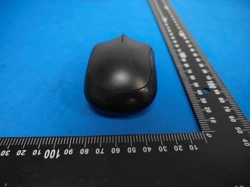
This manual is applicable to the black and pink versions of this wireless mouse. The
two versions are only different in appearance and color, with identical functions and
operations.
2. Product Specifications
表格
Item Specifications
Connection 2.4G wireless connection (USB receiver)
Number of Buttons 3 buttons (left button, right button, scroll wheel)
Resolution (DPI) Default 1000DPI, meeting daily office and web browsing needs
Operating
Frequency
2402-2479MHz
Transmission
Distance
About 10 meters (in an unobstructed environment)
Power Supply Powered by 2 AAA batteries
Battery Life
About 6–12 months (depending on usage frequency; longer battery
life in power-saving mode)
System Support
Windows 7/8/10/11, macOS, Linux and other mainstream operating
systems
Product Dimensions About 9.8×5.7×3.8 cm (L×W×H, ergonomic curved design)
3. Product Parts Description
1. Left / Right Button: Realize conventional operations such as clicking, selecting, confirming, and right-
click menu.
2. Scroll Wheel: Scroll up and down to quickly browse webpages and documents; press the scroll wheel
to realize special functions (such as auto-scroll in browsers and shortcut operations in some
software).
3. USB Wireless Receiver: Stored in the mouse battery compartment. Insert it into the computer’s USB
port for pairing and connection when in use.
4. Battery Compartment: Located at the bottom of the mouse, used for installing batteries and storing
the receiver.
5. Optical Sensor: The sensing area at the bottom of the mouse, realizing cursor movement through
optical positioning. Do not block it.
4. Installation and Connection Steps
Step 1: Install Batteries
1. Flip the mouse to the bottom and open the battery compartment cover.
2. Insert 2 AAA batteries according to the positive and negative marks inside the compartment.

3. Take out the USB wireless receiver from the storage slot in the battery compartment and close the
battery compartment cover.
Step 2: Connect to the Computer
1. Insert the taken-out USB receiver into an available USB port of the computer (for desktops, prefer to
insert into the front or rear USB 2.0/3.0 ports of the chassis; for laptops, directly insert into the
onboard USB port).
2. The computer will automatically recognize and install drivers (no manual download required, plug-
and-play for mainstream systems). Wait 3–5 seconds, and the mouse cursor can move normally,
completing the connection.
Step 3: First-Time Calibration
Place the mouse on a flat, non-reflective mouse pad or desktop. Gently move the mouse
to confirm smooth and non-freezing cursor movement before normal use.
5. Usage and Maintenance Instructions
1. Daily Use
No additional software installation is required. Plug and play, directly used for office work, web
browsing, media control and other scenarios.
1. Care and Cleaning
• Do not use the mouse on glass, mirror, plush and other surfaces to avoid affecting the positioning
accuracy of the optical sensor.
• When cleaning the mouse, wipe the surface with a clean soft cloth dipped in a small amount of
neutral cleaner. Do not directly rinse or soak the mouse in water to prevent water damage to the
circuit.
• Avoid dropping or squeezing the mouse to prevent internal parts damage; do not disassemble the
mouse by yourself, otherwise you will lose the warranty service.
1. Battery Replacement
• When the cursor freezes, buttons fail, or movement is insensitive, the battery may be low. Please
replace the batteries in time.
• When the mouse is not used for a long time, take out the batteries to prevent battery leakage from
corroding the product.
6. Common Problems and Solutions
表格
Problem
Phenomenon
Possible Cause
Solution
No response,
cursor does not
move
1. Power switch is not
turned on; 2. Incorrect
battery installation or
exhausted battery; 3. USB
receiver is not inserted
properly; 4. Computer USB
port malfunction
1. Check if the power switch at the bottom
of the mouse is set to "ON"; 2. Reinstall
the batteries or replace with new AAA
batteries; 3. Unplug the USB receiver and
reinsert it into the computer’s USB port;
4. Replace with another USB port of the
computer and try again
Cursor freezes
or moves
insensitively
1. Unsuitable usage
surface; 2. Optical sensor
is blocked by dust; 3.
Wireless signal is
1. Replace with a flat mouse pad or
desktop; 2. Gently wipe the optical sensor
at the bottom of the mouse with a cotton
swab; 3. Keep the mouse within 10 meters

Problem
Phenomenon
Possible Cause
Solution
interfered; 4. Low battery
power
of the receiver, away from signal
interference sources such as routers and
Bluetooth devices; 4. Replace with new AAA
batteries
Buttons fail /
Scroll wheel
does not respond
1. Dust or debris in button
gaps; 2. Mouse is in sleep
mode; 3. Low battery power
1. Clean dust in button gaps with a soft
brush; 2. Click any button to wake up the
mouse; 3. Replace with new batteries and
try again
Computer cannot
recognize the
USB receiver
1. Poor contact of USB
port; 2. Abnormal system
driver; 3. Receiver damage
1. Reinsert the receiver or replace the
USB port; 2. Restart the computer and
insert the receiver again; 3. If still
unrecognizable, contact after-sales
service for inspection and replacement
7. Safety and Precautions
1. This product is an electronic device. Do not use or store it in damp, high-temperature or dusty
environments, and keep it away from liquids and fire sources.
2. Do not let children touch this product and batteries alone to prevent accidental swallowing of
batteries or damage to the device.
3. Dispose of waste batteries at hazardous waste collection points. Do not discard them randomly to
avoid environmental pollution.
4. Do not use batteries incompatible with this product to avoid equipment damage due to inconsistent
voltage.
5. If the mouse has abnormal conditions such as smoke, peculiar smell or water ingress, take out the
batteries immediately, stop using it and contact after-sales service.
8. Warranty Statement
1. The following situations are not covered by the warranty: damage caused by accidental dropping,
water ingress, unauthorized disassembly or improper use; normal loss of accessories such as batteries
and USB receivers; damage caused by force majeure (such as fire, flood, lightning, etc.).
2. For after-sales support, please contact the customer service of the purchase channel and provide the
product purchase certificate for processing.

FCC Warnning:
This equipment has been tested and found to comply with the limits for a Class B digital device,
pursuant to part 15 of the FCC Rules. These limits are designed to provide
reasonable
protection against harmful interference in a residential installation. This equipment generates,
uses and can radiate radio
frequency
energy
and,
if
not
installed
and
used
in
accordance
with
the
instructions,
may cause
harmful
interference
to
radio
communications.
However,
there
is
no
guarantee
that interference
will
not
occur
in
a
particular
installation.
If
this
equipment
does
cause
harmful interference to radio or television reception, which can be
determined by turning the equipment off
and
on,
the
user
is
encouraged
to
try
to
correct
the interference
by
one
or
more
of
the following measures:
•
Reorient or relocate the receiving antenna.
•
Increase the separation between the equipment and receiver.
•
Connect the equipment into an outlet on a circuit different from that to which the receiver is
connected.
• Consult the dealer or an experienced radio/TV technician for help.
Caution:
Any
changes
or
modifications
to
this
device
not
explicitly
approved
by
manufacturer
could void your authority to operate this equipment.
This
device
complies
with
part
15
of
the
FCC
Rules.
Operation
is
subject
to
the
following
two
conditions:
(1)This
device
may
not
cause
harmful
interference,
and
(2)
this
device
must
accept
any
interference received, including interference that may cause undesired operation.
This
equipment
complies
with
FCC
radiation
exposure
limits
set
forth
for
an
uncontrolled
environment.
This
equipment
should
be
installed
and
operated
with
minimum
distance
0cm
between the radiator and your body.