2026
Connected Services
OWNER’S MANUAL
Love. It’s what makes Subaru, Subaru.
®
MSA5M2622A
Issued February 2026
Subaru of America, Inc.
One Subaru Drive
Camden, NJ 08103-9800
SUBARU CORPORATION
TOKYO, JAPAN

Foreword
Welcome to MySubaru
®
Connected Services . . . . . . . . . . . . . . . . 3
Introduction
The MySubaru In-Vehicle Experience . . . . . . . . . . . . . . . . . . . . . . 4
MySubaru Enrollment
How to Enroll . . . . . . . . . . . . . . . . . . . . . . . . . . . . . . . . . . . . . . . 6
MySubaru. . . . . . . . . . . . . . . . . . . . . . . . . . . . . . . . . . . . . . . . . . 6
MySubaru Features List. . . . . . . . . . . . . . . . . . . . . . . . . . . . . . . . 8
Getting Started is Easy
Access to MySubaru Features . . . . . . . . . . . . . . . . . . . . . . . . . . . 10
MySubaru
Making Ownership Easy . . . . . . . . . . . . . . . . . . . . . . . . . . . . . . . 11
Setting or Changing Your PIN . . . . . . . . . . . . . . . . . . . . . . . . . . . 12
MySubaru Features
Advanced Automatic Collision Notification (AACN) . . . . . . . . . . . . 13
SOS Emergency Service (SOS) . . . . . . . . . . . . . . . . . . . . . . . . . . 14
Enhanced Roadside Assistance* . . . . . . . . . . . . . . . . . . . . . . . . . 14
24-Hour Roadside Assistance . . . . . . . . . . . . . . . . . . . . . . . . . . . 16
Diagnostic Alerts . . . . . . . . . . . . . . . . . . . . . . . . . . . . . . . . . . . . . 16
Vehicle Health. . . . . . . . . . . . . . . . . . . . . . . . . . . . . . . . . . . . . . . 16
Maintenance Notifications . . . . . . . . . . . . . . . . . . . . . . . . . . . . . . 17
Service Appointment Scheduler . . . . . . . . . . . . . . . . . . . . . . . . . . 17
Stolen Vehicle Recovery . . . . . . . . . . . . . . . . . . . . . . . . . . . . . . . 19
Stolen Vehicle Immobilizer . . . . . . . . . . . . . . . . . . . . . . . . . . . . . . 20
Remote Vehicle Locator. . . . . . . . . . . . . . . . . . . . . . . . . . . . . . . . 20
MySubaru Over-The-Air Updates . . . . . . . . . . . . . . . . . . . . . . . . . 21
Remote Services. . . . . . . . . . . . . . . . . . . . . . . . . . . . . . . . . . . . . 22
Subaru Guardian Alerts . . . . . . . . . . . . . . . . . . . . . . . . . . . . . . . . 28
My Trips (If Equipped) . . . . . . . . . . . . . . . . . . . . . . . . . . . . . . . . . 31
Valet Mode (If Equipped) . . . . . . . . . . . . . . . . . . . . . . . . . . . . . . . 33
Table of Contents

Destination to Vehicle (If Equipped) . . . . . . . . . . . . . . . . . . . . . . . 35
MySubaru Concierge/Personal Assistant . . . . . . . . . . . . . . . . . . . 36
AT&T WiFi Hotspot
Stay Connected . . . . . . . . . . . . . . . . . . . . . . . . . . . . . . . . . . . . . 38
Automatic Emergency Stop Notification
Automatic Emergency Stop Notification (if equipped). . . . . . . . . . . 39
Index . . . . . . . . . . . . . . . . . . . . . . . . . . . . . . . . . . . . . . . . . . . . . . . 40
Troubleshooting. . . . . . . . . . . . . . . . . . . . . . . . . . . . . . . . . . . . . . 41
Communication Error Codes . . . . . . . . . . . . . . . . . . . . . . . . . . . 43
FAQs . . . . . . . . . . . . . . . . . . . . . . . . . . . . . . . . . . . . . . . . . . . . . . . 44
2
Welcome to MySubaru® Connected Services
For over 50 years, Subaru has been designing vehicles to help protect you and
your passengers. Building on our long history of engineering safe vehicles, we are
pleased to bring you MySubaru Connected Services, that provide the additional
security and peace of mind you’ve come to expect from Subaru.
MySubaru Connected Services allows you to stay connected to your Subaru
vehicle and receive important information to help keep you and your vehicle safe.
MySubaru Connected Services uses the nationwide 4G LTE cellular network
(where available). This technology is completely separate from your smartphone
device and uses automatic roaming, optimizes connections and prioritizes
emergency requests.
Housed inside your vehicle, MySubaru Connected Services uses voice-response
technology with the addition of a live assistance team for features such as
Advanced Automatic Collision Notification (AACN), SOS Emergency Assistance,
Enhanced Roadside Assistance and MySubaru Personal Assistant.
With MySubaru Connected Services features, you are able to:
• Receive automatic emergency assistance in the event of a collision
• Receive assistance in the event your vehicle is stolen
• Remotely access vehicle features
• Monitor the status of your vehicle’s health
In addition, MySubaru mobile app can keep you informed and up-to-date on your
vehicle’s status via email, text messaging or push notifications.
Use your MySubaru mobile app account to access MySubaru features and alerts.
In order to do this, you will need to complete the enrollment details and set your
communication preferences in your MySubaru mobile app. You can enroll via
MySubaru.com (Refer to “How to Enroll - page 6”). Enrollment might have
occurred at your Retailer, so be sure to look for a confirmation email with your
temporary password before creating a new account.
MySubaru mobile app also provides you access to a wealth of remote features
such as Remote Lock & Unlock, Remote Engine Start, Remote Vehicle Locator
and many more.
NOTE
MySubaru service is limited to the Continental U.S., Alaska, Hawaii, the District
of Columbia and Canada, and may not be available in all states.
For complete details applicable to your MySubaru subscription, please refer to
the MySubaru Service Agreement Terms and Conditions or see your Retailer for
details.
Foreword
3
The MySubaru In-Vehicle Experience
With the MySubaru system integrated into your vehicle, advanced safety and
security technology is just a button press away. The MySubaru experience
includes in-vehicle call center support, maintenance and diagnostic alerts as well
as remote services that keep you connected to your Subaru vehicle. This Owner’s
Manual will help to familiarize you with the features of MySubaru Connected
Services.
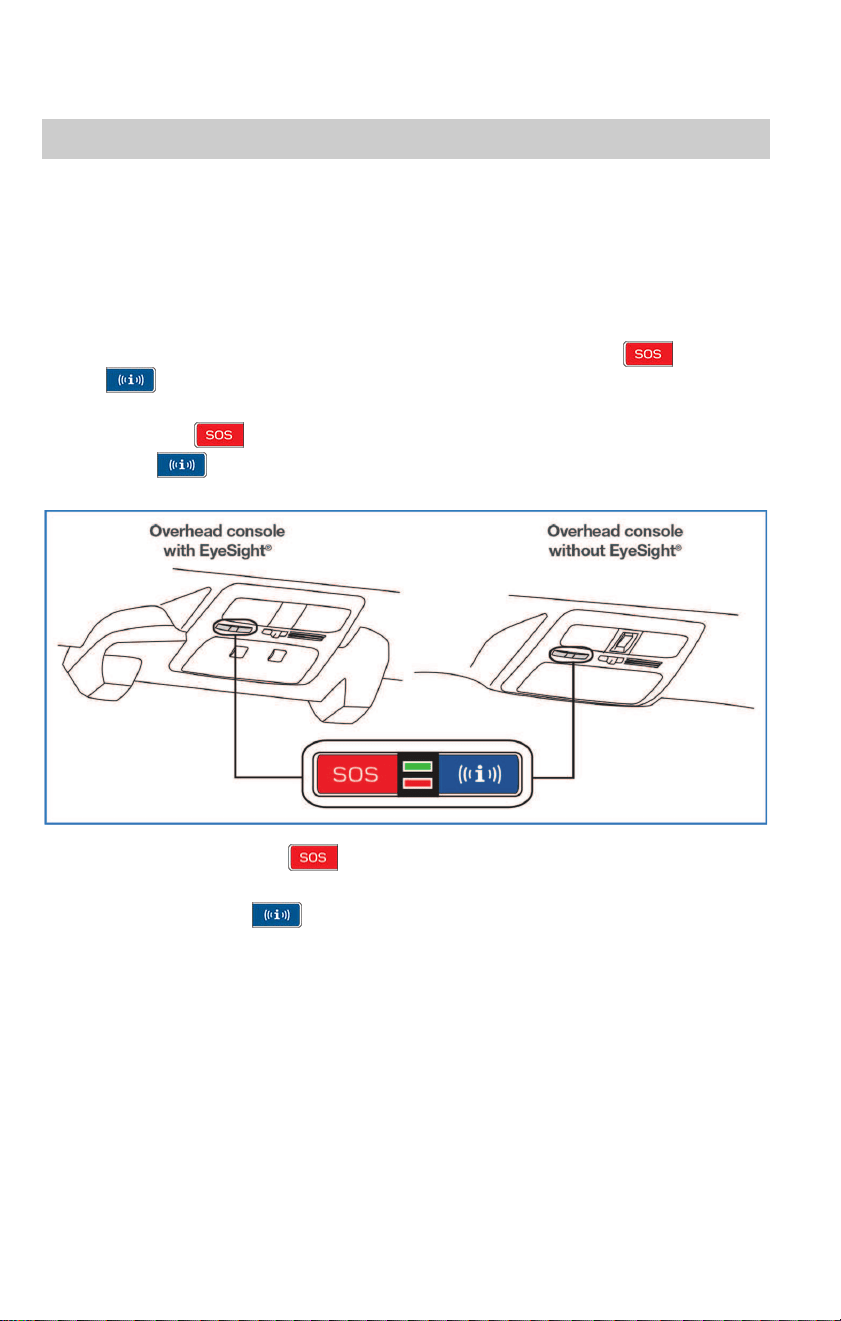
Located in the overhead console of your vehicle are the red SOS
and blue
button
. Both buttons link you to the MySubaru customer care that are there
to support you 24 hours a day, 7 days a week.
The SOS button
is for SOS Emergency Assistance.
The i-button
is for Enhanced Roadside Assistance or Concierge (if
subscribed).
• Press the SOS button
for SOS Emergency Assistance* (Refer to “SOS
Emergency Service” - page 14)
• Press the i-button
for Enhanced Roadside Assistance* or Concierge*
(if subscribed).* (Refer to “Enhanced Roadside Assistance” - page 14 or
“Concierge” - page 36)
• To cancel a SOS Emergency Assistance, Enhanced Roadside Assistance or
a Concierge call, press and hold the same button for approximately
2 seconds or select the “End Call” button displayed on the head unit
Introduction
4
NOTE
If you’re subscribed to MySubaru Personal Assistant, an option screen will
display on the head unit when the i-button
is pressed. From the option
screen you can select either Enhanced Roadside Assistance or Personal
Assistant Services. If you do not choose a service, then Roadside Assistance will
automatically be called in approximately 10 sec.
* In order to utilize these services, you must be an active MySubaru subscriber.
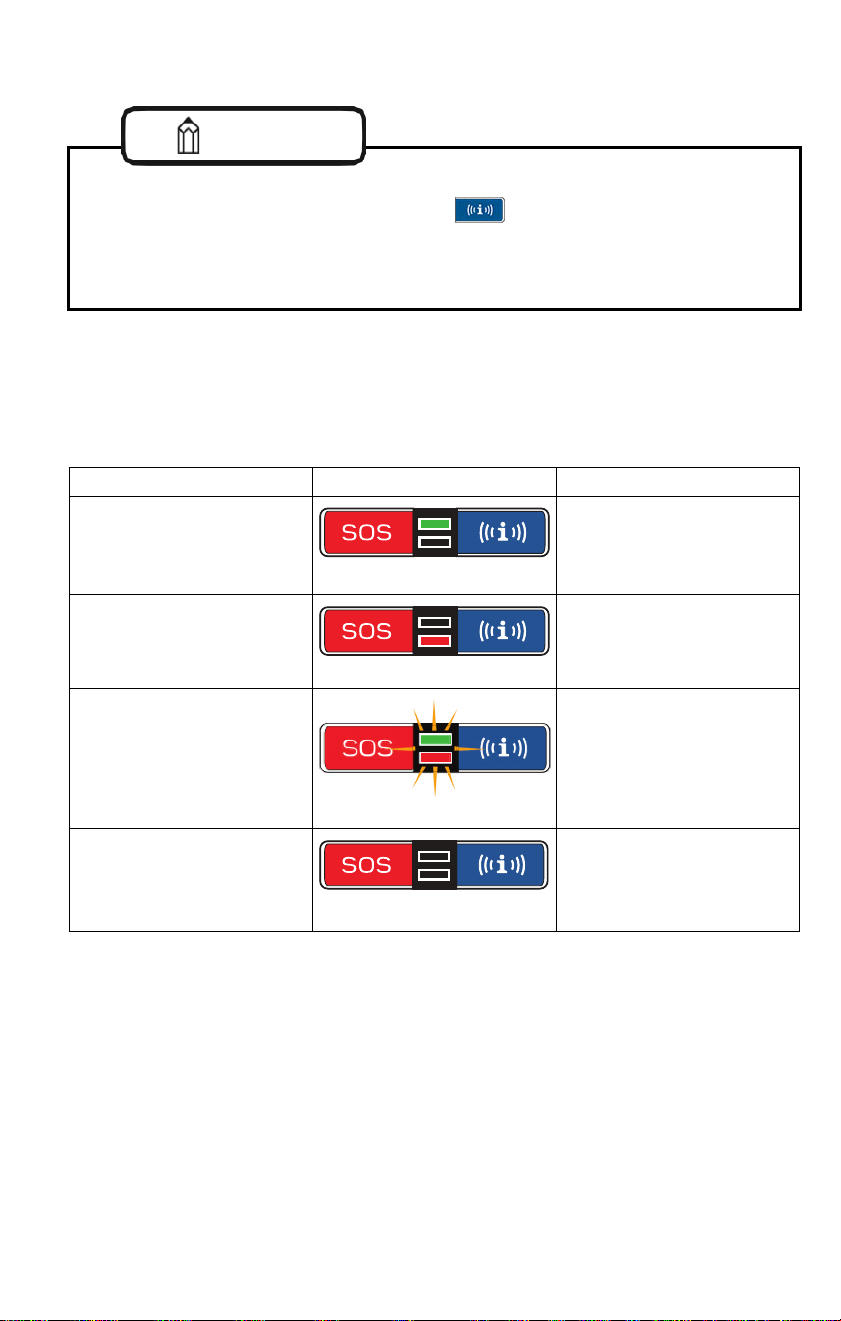
The overhead console also includes the LED status lights that indicate the
MySubaru system status. Below is a description of the different statuses that the
LED light(s) can indicate.
LED Status Situation
Solid Green
System is normal.
A subscription to the
MySubaru service has been
established*.
Solid Red
A system malfunction has
occurred. Refer to
Troubleshooting - page 41.
Flashing Green or Red
MySubaru service is
currently communicating
(e.g. Voice call, Stolen
Vehicle Recovery, Trip
Tracker, etc.).
No Light
A subscription to the
MySubaru service has not
been established. Refer to
page 41.
*This does not always reflect that the MySubaru service is available.
Introduction
5
How to Enroll
You can enroll in MySubaru Connected Services online at the MySubaru website
(MySubaru.com), the MySubaru mobile app, at your retailer or by calling a
MySubaru Customer Care Agent at 1-855-753-2495. MySubaru is the Subaru
owner app that allows you vehicle access to remote services, user preferences,
diagnostic alerts and other useful features enabled by your MySubaru Companion,
MySubaru Companion+, and MySubaru Navigator subscription.
To enroll in MySubaru, you first need to create or update your MySubaru account.
MySubaru is the owners portal for all things about your Subaru vehicle. To create
an account please visit MySubaru.com.
NOTE
Please have your Vehicle Identification Number (VIN) available, as you will need
it to complete enrollment. After the enrollment process, you will learn more about
the features in detail at MySubaru.com.
MySubaru
With MySubaru Connected Services you are given the freedom to choose a
package with the features that you want. To see the current plans and package
details please visit the MySubaru mobile app.
MySubaru Safety Plus - Choosing Safety Plus includes our call center
support features: Advanced Automatic Collision Notification, SOS
Emergency Service and Enhanced Roadside Assistance as well as
giving you more access to your vehicle’s health. Also included is the
new in-vehicle Service Appointment Scheduler, making it even easier
to schedule service at your preferred Subaru Retailer. Available for all 2025 model
year vehicles or older as well as the 2026 Subaru BRZ.
MySubaru Security Plus - With Security Plus you get all the benefits
of MySubaru Safety Plus and your vehicle is protected with features
like Stolen Vehicle Recovery Plus with Immobilizer and Security Alarm
Notifications. Stay connected to your vehicle with features like Remote
Engine Start with Climate Control, Destination to Vehicle and Vehicle
Alerts that include Boundary Alert, Speed Alert and Curfew Alert. Available for all
2025 model year vehicles or older as well as the 2026 Subaru BRZ.
MySubaru Enrollment
6
MySubaru Concierge - Concierge includes all the benefits of
MySubaru Safety Plus and Security Plus as well as providing
personalized call center support for locating and sending Destinations
to your in-vehicle navigation system (if equipped), along with assisting
in scheduling Service Appointments with your preferred Subaru
Retailer. Available for all 2025 model year vehicles or older as well as the
2026 Subaru BRZ.
MySubaru Companion - Choosing MySubaru Companion includes
our call center support features: Automatic Collision Notification, SOS
Emergency Assistance and Enhanced Roadside Assistance as well as
giving you more access to your vehicle’s health. Also included is the
in-vehicle Service Appointment Scheduler, making it even easier to
schedule service at your preferred Subaru Retailer. Available for 2026 vehicles or
newer.
MySubaru Companion+ - With MySubaru Companion+ you get all the
benefits of MySubaru Companion and your vehicle is equipped with
features like Valet Mode and MySubaru Personal Assistant (formerly
known as Concierge Service). Stay connected to your vehicle with
features like Climate Control, My Trips with Destination to Vehicle, and
Vehicle Alerts that include Boundary Alert, Speed Alert and Curfew Alert. Available
for 2026 vehicles or newer.
• MySubaru Personal Assistant (formerly known as Concierge Service)
included in MySubaru Companion+ provides personalized call center support
for locating and sending Destinations to your in-vehicle MySubaru Enrollment
navigation system (if equipped), along with assisting in scheduling Service
Appointments with your preferred Subaru Retailer and setting reservations at
your favorite hotels and restaurants.
MySubaru Navigator - With MySubaru Navigator you can enjoy real
time traffic updates as well as directions with the best route to your
destination.
AT&T WiFi Hotspot - Whether traveling to the store or across the
country, MySubaru now includes an in-vehicle AT&T WiFi Hotspot on
AT&T’s nationwide cellular network. Setting up the service is quick and
easy, you can connect your vehicle to an already existing AT&T
wireless account or choose from one of the simple pay-as-you go
plans. See page 38 for details on how to subscribe to the WiFi Hotspot.
SiriusXM with 360L - SiriusXM with 360L provides a personalized
radio experience by offering features such as “For You” which creates
personalized channel recommendations based on your listening habits.
Get started with SiriusXM with 360L with your four month free trial.
SXM
MySubaru Enrollment
7
NOTE
Depending on how your vehicle is equipped, some features might not be
available. Check with your Retailer or MySubaru to see what MySubaru features
are applicable to your vehicle.
NOTE
Because they require a connection to a cellular network, these features may not
work when near a weak signal area
MySubaru Features List
MySubaru Safety Plus
•
SOS Emergency Assistance
•
Vehicle Health Report
•
Enhanced Roadside Assistance
•
Service Appointment Scheduler
• Advanced Automatic Collision
Notification (AACN)
•
Remote Vehicle Condition Check
•
Maintenance Notifications
MySubaru Security Plus
• Remote Engine Start with
Climate Control
•
Remote Vehicle Locator
• Stolen Vehicle Recovery &
Immobilizer
•
Destination to Vehicle
•
Remote Lock & Unlock
•
Valet Mode
•
Remote Horn & Lights
• Subaru Guardian Alerts (Boundary,
Speed and Curfew)
• Vehicle Security Alarm
Notifications
MySubaru Concierge
• Destination to Vehicle
(Concierge Service)
•
See MySubaru for more details
MySubaru Enrollment
8
MySubaru Companion
•
SOS Emergency Assistance
•
Vehicle Health Report
•
Enhanced Roadside Assistance
•
Service Appointment Scheduler
•
Automatic Collision Notification
•
Vehicle Condition Check
•
Maintenance Notifications
• Stolen Vehicle Recovery &
Immobilizer
•
Remote Vehicle Locator
MySubaru Companion+
•
Remote Engine Start
•
Climate Control
• Remote Ventilated and Heated
Seat Control
•
Destination to Vehicle
•
Remote Lock & Unlock
•
Valet Mode
•
Remote Horn & Lights
•
Trip Logs and Driving Journals
• Vehicle Security Alarm
Notifications
• Subaru Guardian Alerts (Boundary,
Speed and Curfew)
•
MySubaru Personal Assistant
MySubaru Navigator
• Hybrid Cloud Navigation or
Subaru Live Traffic
•
See MySubaru for more details
NOTE
MySubaru Companion+ includes both Companion and Companion+ features.
NOTE
If your vehicle has not been turned on for more than 13 days, then the MySubaru
system will enter into a sleep mode to help preserve it’s battery. Please refer
page 41 (Troubleshooting) for more information.
MySubaru Enrollment
9
Access to MySubaru Features
The MySubaru mobile app is your portal to remote services, user preferences as
well as other convenient features enabled by your MySubaru subscription. All you
need to do is log on to the mobile app to access the following features:
• Remote Services
• Vehicle Health Report
• Maintenance Schedules
• Service History
• Service Campaigns and Recalls
• Warranty Information
• MySubaru Profile
• MySubaru PIN
• MySubaru Packages and Pricing
• MySubaru Subscriptions
• MySubaru Account Settings
• and much more...
MySubaru Mobile Application
You can download the MySubaru mobile app to your compatible smartphone from
the following sites:
• iPhone
®
- Apple
®
App store
• Android
®
- Google Play Store
After downloading the MySubaru mobile app to your smartphone, all you have to
do to get started is login with your MySubaru username and password for
authentication. Enable biometrics for a quick and easy login experience each time
you enter the app. You will be asked to create and store a PIN, upon setting up
your account. You will have the option to store your PIN so that you do not need to
enter it each time you send a remote command from the app, to your vehicle.
NOTE
If you have multiple MySubaru equipped vehicles, please make sure to select the
vehicle you want to access. The vehicle you have selected will be displayed at
the top of the mobile app.
NOTE
If you received a temporary password for your MySubaru account you will need
to complete your registration on the MySubaru.com website.
Getting Started is Easy
10
Making Ownership Easy
The connection between you and your vehicle has never been simpler and the
MySubaru mobile application is the best way to stay in touch with your Subaru
vehicle. From MySubaru you can access the following information and MySubaru
Connected Services:
• Remote Services
• Vehicle Health
• Usage Reports
• Appointment Scheduler
• Vehicle Maintenance Schedules
• Service History
• Support Resources
You can also use the MySubaru mobile app to manage:
• Basic account information
• Interests and activities
• Email and Mail communications
• Authorized Users
• Authorized Devices
• Preferred Retailer
• Your Subaru vehicles
• Alert settings
• Communication Preferences
• Personal Identification Number (PIN) Storage
• Auto-Login via Biometrics
• Billing Information
• MySubaru Subscriptions
• AT&T WiFi Hotspot Subscription
• SiriusXM with 360L Subscription
NOTE
You can store you MySubaru PIN during the MySubaru account onboarding
process.
MySubaru
11

Setting or Changing Your PIN
In order to protect your privacy and vehicle information, a secure MySubaru
Personal Identification Number (PIN) is required to use many of the MySubaru
features and the MySubaru mobile app.
• Set your MySubaru PIN during the MySubaru account creation process
• Select “Remember PIN” during the onboarding process so that your PIN is
stored and sent on your behalf to the vehicle.
• Change your MySubaru PIN at any time after enrollment by selecting
“My Profile”, “Security Settings”, then “Forgot PIN” option on the MySubaru
mobile app
MySubaru
12
Advanced Automatic Collision Notification (AACN)
Upon receiving the Advanced Automatic Collision Notification, a
MySubaru Customer Care Agent will attempt to establish in-vehicle
voice communication with the vehicle occupants and alert appropriate
emergency services. Your agent can respond promptly, 24/7/365 via
MySubaru to determine the nature of the emergency.
• If you are unable to answer, the agent will promptly inform emergency
services of your vehicle’s location.
• The agent will remain on the line until help arrives or until the vehicle’s battery
loses power.
NOTE
• Not all collisions require deployment of an SRS airbag. Please refer to your
vehicle Owner’s Manual for more details. If you are involved in a collision in
which the Advanced Automatic Collision Notification (AACN) is activated,
depending upon the nature of the collision and the level of accident forces
involved, airbag deployment may not always result.
• The MySubaru Connected Services system monitors vehicle data to detect a
possible safety concern even when airbags are not deployed or a collision has
not occurred. Aggressive driving maneuvers, sudden changes in terrain, and
loss of vehicle control can trigger the Advanced Automatic Collision Notification
feature.
• The Advanced Automatic Collision Notification feature requires adequate
cellular coverage and signal strength. This feature is only available in the
Continental U.S., Alaska, Hawaii, the District of Columbia and Canada.
NOTE
At any time after initiating a voice call you can adjust the volume of the call by
using the volume knob on your vehicle’s head unit.
*In order to utilize these services, you must be an active MySubaru subscriber and
your vehicle must be within range of a sufficient cellular signal.
MySubaru Features
13
SOS Emergency Service (SOS)
Your MySubaru Customer Care Agent can also assist you in the event
of an emergency other than the Advanced Automatic Collision
Notification. Press the red SOS button
on the overhead console
to promptly connect to your agent from anywhere in the Continental
U.S., Alaska, Hawaii and the District of Columbia.
• Press the red SOS button
• A MySubaru Customer Care Agent will attempt to establish communication
with you to ask about the nature of the emergency and then dispatch the
appropriate emergency assistance
• If you are unable to answer, the agent will let you know that emergency
assistance has been notified and is on its way
• The agent will remain on the line until help arrives or until the vehicle’s battery
loses power
• To cancel the SOS call, press and hold the red SOS button
for
approximately 2 seconds or press the “End Call” button on the head unit
display
NOTE
The SOS Emergency Assistance feature requires adequate cellular coverage
and signal strength. This feature is only available in the Continental U.S., Alaska,
Hawaii, the District of Columbia and Canada.
NOTE
At any time after initiating a voice call you can adjust the volume of the call by
using the volume knob on your vehicle’s head unit.
*In order to utilize these services, you must be an active MySubaru subscriber and
your vehicle must be within range of a sufficient cellular signal.
Enhanced Roadside Assistance*
Enhanced Roadside Assistance connects you directly with Subaru’s
Roadside Assistance provider. Should you need assistance, MySubaru
will know your exact GPS location coordinates and exactly where to
find you.
MySubaru Features
14
Roadside Assistance can help you with the following:
• Drained battery (if equipped)
• Jump starts (if equipped)
• Emergency lockout service
• Gasoline (up to 2 gallons)
• Flat tire change
• Minor fluid replacement
NOTE
Check your warranty for your Roadside Assistance coverage. Your retailer has
full coverage details.
How to use:
• Press the blue i-button
or use the Roadside Assistance soft button,
which is found by selecting the MySubaru icon on the head unit home screen
• A MySubaru Customer Care Agent for Roadside Assistance will attempt to
establish a voice communication with you to ask about the nature of the
situation and then dispatch the appropriate roadside assistance to the scene
• With MySubaru, the agent will be able to inform Roadside Assistance of your
exact location
• To cancel an Enhanced Roadside Assistance call, press and hold the blue
i-button
for approximately 2 seconds or press the “End Call” button on
the head unit display
NOTE
If you subscribed to MySubaru’s Companion+, an option screen will display on
the head unit when the i-button
is pressed. From the option screen you
can select either Enhanced Roadside Assistance or MySubaru Personal
Assistant (formerly known as Concierge Service). If you do not choose a service
then Roadside Assistance will automatically be called in approximately 10 sec.
NOTE
At any time after initiating a voice call you can adjust the volume of the call by
using the volume knob on your vehicle’s head unit.
*In order to utilize these services, you must be an active MySubaru subscriber and
your vehicle must be within range of a sufficient cellular signal.
MySubaru Features
15
24-Hour Roadside Assistance
Along with Enhanced Roadside Assistance, MySubaru provides
24-Hour Roadside Assistance from the MySubaru website or mobile
app. Getting help is as easy as calling from your phone or sending a
request through MySubaru. All the same services provided by
Enhanced Roadside Assistance are at your fingertips.
From the MySubaru mobile app:
• Navigate to the “Roadside Assistance” page from the Service menu
• From the “Roadside Assistance” page you can choose to call the toll free
number or select to submit an online request
• If you select to submit an online request you will be asked to fill out the
following information:
• Reason for assistance (locked out, tow, flat tire, etc.)
• Provide details about your needs
• Contact information (first / last name and callback number)
• Current location (if known)
• Preferred contact method (email, text message, or contact mobile number)
• Vehicle information
• Once you completed the online request, select the “Dispatch Help Now”
button to submit
• After you’ve submitted your request, you can track the progress of your
Roadside Assistance request from the Roadside Assistance submission
screen, which will display periodic updates
Diagnostic Alerts
MySubaru monitors critical vehicle systems. If a warning light
illuminates on the dashboard, you will receive an email, text or push
notification explaining the issue and how to help resolve it. With more
serious issues, the MySubaru Service Appointment Scheduler will
display on the head unit and assist you in scheduling an appointment at
your preferred Subaru Retailer.
Vehicle Health
Taking care of your vehicle and monitoring its health is easy and
convenient. The MySubaru mobile app can provide you important
vehicle health statuses so you can make better and more informed
decisions on the maintenance and care of your Subaru vehicle.
MySubaru Features
16
Maintenance Notifications
Maintenance Notifications help to keep your Subaru vehicle in proper
running condition. When your vehicle requires maintenance, you can
be notified via email, text, push notifications (based on your
communication preferences in the app), or even from your vehicle’s
head unit. This feature allows you to more easily maintain your vehicle,
while helping to ensure that your vehicle receives the proper care at the proper
time.
NOTE
Your vehicle may be equipped with an in-vehicle maintenance reminder. Once
subscribed, MySubaru will manage your vehicle’s maintenance notifications and
communicate to you via your preferred method. If needed, you can review and
select the in-vehicle maintenance reminder options from the vehicle settings
screen on your touch screen display.
NOTE
You can change your Communication Preferences at any time by choosing the
My Profile menu, then the Communication Preferences link on the MySubaru
mobile app.
Service Appointment Scheduler
Whether it’s time for regular maintenance or when your vehicle tells you
it’s time to see a certified Subaru Service Technician, setting an
appointment at your preferred Subaru Retailer for service is just a few
“clicks” away. With MySubaru Service Appointment Scheduler, you can
set an appointment from the MySubaru website, mobile app or the
vehicle’s head unit. Getting your Subaru vehicle to the Subaru professionals for
service is easy, no matter where you are. If you are away from your preferred
Retailer for service, you can always use Service Appointment Scheduler to locate
any of our certified Subaru Retailers near your location.
MySubaru Service Appointment Scheduler on your head unit is a convenient way
to set a service appointment. Simply select the MySubaru icon on the home
screen and choose “Make an Appointment” to get started:
• Schedule a new appointment or view any existing service appointments with
your preferred Retailer
MySubaru Features
17
• Choose the date you would like to schedule an appointment from the options
displayed
• Set a time frame for your appointment (AM or PM)
• Select an available time
• Confirm your appointment
Have a question for your Retailer or need directions? MySubaru Service
Appointment Scheduler has the following options to help:
• Locate a Retailer near your location
• Place a phone call to your Retailer (via Bluetooth)
• Get directions to your Retailer (Navigation System Only)
Subaru is there to help when your vehicle needs service. In the event that a
Maintenance interval, Diagnostic Alert or Recall campaign occurs, the MySubaru
Service Appointment Scheduler will assist you in making sure your vehicle gets the
attention it needs to stay healthy and on the road.
NOTE
Service Appointment Scheduler is not available for all Subaru retailers. See your
preferred retailer for details.
NOTE
Before using Service Appointment Scheduler for the first time, be sure to pair
your smartphone with the vehicle’s head unit, sync your contacts and allow
notifications. This will help set the vehicle’s internal clock to your location.
NOTE
Depending on how your vehicle is equipped, some features might not be
available. Check with your Retailer or MySubaru mobile app to see what features
are applicable to your vehicle.
NOTE
This feature will not work under the following conditions:
• GPS signal is not available
• Weak signal area
MySubaru Features
18
NOTE
The Service Appointment Scheduler pop-up can sometimes be easy to miss, so
be sure to check your unread notifications from time to time to stay up to date.
Stolen Vehicle Recovery
If your Subaru vehicle is ever stolen, you can get extra peace of mind
knowing that a MySubaru Customer Care Agent will work with local law
enforcement to help attempt to recover your vehicle. Once you have
filed a police report, a MySubaru Customer Care Agent will help
provide the authorities with relevant location information to assist in the
recovery of your vehicle.
• In order for this service to be activated, you must first file a police report and
then call 1-855-753-2495 to inform MySubaru of the theft of your vehicle.
• A MySubaru Customer Care Agent will ask you to verify your information and
confirm that a police report has been filed, including the case number.
• Once verified, a MySubaru Customer Care Agent will initiate a stolen vehicle
recovery signal that can pin-point the vehicle’s location as well as remotely
flash the vehicle’s lights to assist your local law enforcement department with
the recovery of your vehicle.
NOTE
For your own safety, you should NEVER locate your vehicle on your own if it has
been stolen. The Stolen Vehicle Recovery feature will allow a MySubaru
Customer Care Agent to work directly with law enforcement instead. Your local
law enforcement department will inform you of the vehicle’s disposition.
MySubaru Features
19
Stolen Vehicle Immobilizer
Included with Stolen Vehicle Recovery is Subaru’s Engine Immobilizer
technology. When activated, the next time the vehicle’s engine is turned
off, Subaru’s Immobilizer will restrict the vehicle from starting again,
allowing local law enforcement to locate and retrieve the vehicle.
NOTE
Stolen Vehicle Immobilizer is included as a part of Stolen Vehicle Recovery. This
feature can only be authorized by local authorities after Stolen Vehicle Recovery
has been activated.
Remote Vehicle Locator
You can quickly and easily find the specific location of your vehicle
using the Remote Vehicle Locator.
To use Remote Vehicle Locator:
• Log on to the MySubaru mobile app
• Select “Locate Vehicle”
• If you haven’t stored your PIN in your mobile app, you will need to enter it to
execute the request.
• The command will be sent to your vehicle
• Your vehicle’s location will then display on the map
By phone: Dial toll-free 1-855-753-2495 and follow the voice prompts.
NOTE
This feature will not work under the following conditions:
• If your vehicle has not been started for more than 13 days (page 41)
• GPS signal is not available
• Weak signal area
MySubaru Features
20
MySubaru Over-The-Air Updates
Prepared For The Road Ahead
MySubaru’s Over-The-Air Update ensures that your vehicle is
up-to-date by providing an easy and convenient updating process.
In order to make the process as simple as possible, Over-The-Air
Updates will only display when you turn your vehicle off and will update
while you’re away. This will minimize any interruptions to your MySubaru services,
so the next time you enter your vehicle the system is ready for the trip ahead.
How it works:
• Once an update is available, a notification will display on your in-vehicle
touchscreen display
• The notification will provide an approximate installation time for the update to
complete and important information about the installation process
• You can choose to start the update process by selecting “Install” or postpone
the update by choosing “Cancel” or “Remind Me Later”
NOTE
An update can be postponed up to two times. After the second reminder, the
system will automatically update the next time you turn off your vehicle.
WARNING
While the update installation is in progress, your MySubaru services will be
unavailable. This includes AACN, SOS Emergency Service, Roadside Assistance
and Concierge. As a result, Subaru recommends completing the update prior to
operating your vehicle.
• When the update process is complete, a completion screen will display on
your vehicle’s head unit and the green status light on the overheard console
will illuminate
WARNING
If “A MySubaru services update is in progress” screen displays repeatedly on
your vehicle’s head unit at every ignition, you should contact your Subaru retailer
to have your vehicle inspected. If the MySubaru System Update does not
complete, then your MySubaru services will be unavailable. This includes AACN,
SOS Emergency Service, Roadside Assistance and Concierge (if subscribed).
MySubaru Features
21
Remote Services
Climate Control (If Equipped)
Start your vehicle and set the climate control system temperature with
the push of a button. Choose your preferred heating or air conditioning
settings presets to help bring the interior temperature to a more
comfortable level before you enter the vehicle. MySubaru Climate
Control gives you the option to make sure your drive is convenient and
comfortable.
• Log on to the MySubaru mobile app
• Select Climate Presets
• Create your own preset by selecting the “+” icon in the My Presets section
• After you’ve selected the “+” icon to add a preset, select your settings for the
following options:
• Choose the engine runtime** (5 or 10 minutes)
• Set the climate control system temperature*
• Set air flow mode
• Fan speed (1–7)
• Air circulation
• Select a defroster option(s):
• Front defroster
• Rear defroster (if equipped with rear defroster can include side view
mirror heaters and windshield wiper deicer)
• Max
• Select driver or front passenger seat heaters or ventilated seats (if
equipped) and the preferred level:
• Low
• Medium
• High
• Select Rear Climate Zone (if equipped) and it will mirror the climate control
settings chosen
• Press the Start Engine button
• Set a time delay (if needed) and click “Next”
• Enter your MySubaru PIN (if you haven’t previously stored it)
NOTE
For MySubaru’s Remote Engine Start with Climate Control to
manage your vehicle’s heated and ventilated seats, a 3-Mode
seat switch must be equipped. Only one temperature setting
(heat or ventilated) can be active at one time on a seat.
MySubaru Features
22
A “Stop” button will display after the vehicle has started. If you choose to stop your
vehicle, press the “Stop” button, and enter your MySubaru PIN (if it isn’t already
stored) to send the command. The vehicle can also be stopped by entering the
vehicle, then pressing and holding the START/STOP button for more than
2 seconds.
*Depending on environmental conditions or air conditioner performance, the
interior temperature of the vehicle may not reach the desired setting.
**Remote Engine Start will only operate for a total runtime of 20 minutes before the
vehicle will need to be manually restarted from within the vehicle. (Example:
5 Minutes + 5 Minutes + 10 Minutes = 20 minute total runtime)
NOTE
This feature will not work under the following conditions:
• Ignition is ACC or ON
• Vehicle is moving
• Any vehicle door / engine hood / tailgate or trunk is ajar or unlocked
• If your vehicle has not been started for more than 13 days (page 41)
• Weak signal area
NOTE
Depending on how your vehicle is equipped, some features might not be
available. Your vehicle will need to be equipped with the following:
• Keyless Access with Push-Button Start
• Lineartronic
®
CVT
• Automatic Climate Control
Check with your Retailer or MySubaru to see what MySubaru features are
applicable to your vehicle.
WARNING
Do not remote start a vehicle in an enclosed environment (e.g., closed garage).
Prolonged operation of a motor vehicle in an enclosed environment can cause a
harmful build-up of carbon monoxide. Carbon monoxide is a colorless and
odorless gas that is dangerous, and potentially lethal, if inhaled.
MySubaru Features
23

Remote Engine Start with Climate Control (If Equipped)
Start your vehicle and set the climate control system temperature with
the push of a button from the MySubaru mobile app. Choose your
preferred heating or air conditioning settings to help bring the interior
temperature to a more comfortable level before you enter the vehicle. MySubaru
Remote Engine Start with Climate Control gives you the option to make sure your
drive is convenient and comfortable.
• Log on to the MySubaru mobile app
• Select Remote Engine Start with Climate Control and set your preferences:
• Set the climate control system temperature*
• Select Manual or Automatic climate setting. Automatic allows the system to
control Air Flow Mode, Fan Speed, and Air Circulation
• Choose the Engine Runtime** (5 or 10 Minutes)
• Select Rear Climate Zone (if equipped) and it will mirror the climate control
settings chosen
• Set Air Flow Mode
• Select the Front and/or Rear defroster
• Select driver or front passenger seat heater, and the heat level preferred,
Low / Medium / High.
• Air Flow Speed (1-7)
• Air Circulation
• Press the Start Engine button
• Set a time delay (if needed) and click “Next”
• Enter your MySubaru PIN (if you haven’t previously stored it)
An “Engine Stop” button will display, once your vehicle’s engine has successfully
started. If you choose to stop your vehicle, press the “Engine Stop” button and
enter your MySubaru PIN (if you haven’t previously stored it) to send the
command. If needed, the engine can also be stopped by pressing and holding the
Engine START/STOP button on the vehicle dashboard for more than 2 seconds.
*Depending on environmental conditions or air conditioner performance, the
interior temperature of the vehicle may not reach the desired setting.
**Remote Engine Start will only operate for a total runtime of 20 minutes before the
vehicle will need to be manually restarted from within the vehicle. (Example:
5 Minutes + 5 Minutes + 10 Minutes = 20 minute total runtime)
MySubaru Features
24
NOTE
This feature will not work under the following conditions:
• Ignition is ACC or ON
• Vehicle is moving
• Any vehicle door / engine hood / tailgate or trunk is ajar
• If your vehicle has not been started for more than 13 days (page 41)
• Weak signal area
• Keyless access function is disabled
NOTE
Depending on how your vehicle is equipped, some features might not be
available. Your vehicle will need to be equipped with the following for
Remote Engine Start:
• Keyless Access with Push-Button Start
• Lineartronic
®
CVT
Remote Engine Start with Climate Control:
• Automatic Climate Control
Check with your Retailer or MySubaru to see what MySubaru features are
applicable to your vehicle.
WARNING
Do not remote start a vehicle in an enclosed environment (e.g., closed garage).
Prolonged operation of a motor vehicle in an enclosed environment can cause a
harmful build-up of carbon monoxide. Carbon monoxide is a colorless and
odorless gas that is dangerous, and potentially lethal, if inhaled.
MySubaru Features
25
Remote Door Lock & Unlock
With the Remote Door Lock & Unlock feature, you can lock or unlock your vehicle
door from virtually anywhere via the MySubaru mobile app, or dialing
1-855-753-2495. In order to use this feature, a MySubaru Personal Identification
Number (PIN) is required. Store your PIN so that you do not need to re-enter it
each time you send a remote command to your vehicle
To Activate Remote Door Lock & Unlock from the MySubaru mobile app:
• Log on to the MySubaru mobile app
• Select “Remote Services”
• Select “Lock Doors” or “Unlock Doors”
• If you choose to “Unlock Doors” you can select to unlock:
• All Doors
• Just Driver Door
• Just Tailgate (if equipped)
• Enter your MySubaru PIN (if you haven’t previously stored it)
• The command will be sent to your vehicle and your door(s) will then be
unlocked or locked
NOTE
These features will not work under the following conditions:
• Remote Door Lock when Key is in the ignition*
• Remote Door Lock while Ignition is ACC or ON
• Remote Tailgate Unlock while Ignition is ACC or ON
• Vehicle is moving
• If your vehicle has not been started for more than 13 days (page 41)
• Weak signal area
NOTE
If any door or tailgate is not opened within 60 seconds after using the Remote
Door Unlock function, the doors will automatically re-lock. A series of notification
beeps will sound approximately 5 seconds before the door(s) automatically
re-lock.
* Depending on how your vehicle is equipped, some features might not be
available. Check with your Retailer or MySubaru to see what MySubaru features
are applicable to your vehicle.
MySubaru Features
26
Remote Horn & Lights
When you are unsure of where you parked your vehicle, you can
remotely activate your lights or horn and lights through the MySubaru
mobile app.
To use Remote Vehicle Locator:
• Log on to the MySubaru mobile app
• Select “Horn & Lights”
• Choose “Horn & Lights or just “Lights”
• Enter your MySubaru PIN (if you haven’t previously stored it)
• The command will be sent to your vehicle
• Your Lights or Horn & Lights will be activated
NOTE
This feature will not work under the following conditions:
• Ignition is ON
• Vehicle is moving
• If your vehicle has not been started for more than 13 days (page 41)
• Weak signal area
A “Stop” button will display, once your “Horn & Lights or just “Lights” command has
successfully started. To stop the service after it has begun, just press the “Stop”
button to send the command.
By phone: Dial toll-free 1-855-753-2495 and follow the voice prompts.
MySubaru Features
27

Subaru Guardian Alerts
You can always monitor the safety of your loved ones and your vehicle with
Subaru Guardian Alerts. Choose from Boundary Alert, Speed Alert and Curfew
Alert to reinforce responsible and safe driving habits while your loved ones are
behind the wheel.
Boundary Alert
Set geographic boundaries and be notified by email, text or push
notification when your vehicle has incorrectly entered or exited any
saved designated area.
Creating a Boundary Alert:
• Log on to the MySubaru mobile app
• Select “Set Driver Alerts”
• Select “Boundary Alerts”
• Then choose “Create a New Boundary Alert”
• Choose a center point location on the map and set a pin or enter an address
• Select “Boundary Type” (Exits Area or Enters Area)
• Select a shape to set the Boundary (circle or square)
•
Reshape the Boundary shape if necessary by selecting any point on the shape
• Click “Save” when you have completed your selections
• Set a name for the Boundary Alert
• Select “Time Until Alert” (30, 60, 90 or 120 seconds)
• Click “Continue” when complete
Activating a Boundary:
• Choose a saved Boundary Alert and select it. Swipe right and choose “Send
to Vehicle”. (Only one saved Boundary Alert can be active at a time)
• Enter your MySubaru PIN (if you haven’t previously stored it)
• The selected Boundary Alert will be sent to your vehicle.
• Your vehicle will then notify you if it enters or exits the designated area
Edit a Boundary Alert:
• Choose a saved Boundary Alert and swipe right, then choose “Edit Alert”
• Change any of the settings as desired
• Click “Next” when you have completed your selections
• Edit the Boundary Alert name and “Time Until Alert” if desired and select
“Save & Send”
• Enter your MySubaru PIN (if you haven’t previously stored it)
• The selected Boundary Alert will be sent to your vehicle
MySubaru Features
28

Speed Alert
Choose a speed limit for your vehicle and get notified by email, text or
push notification when your vehicle has exceeded the set speed limit.
Creating a Speed Alert:
• Log on to the MySubaru mobile app
• Select “Set Driver Alerts”
• Select “Speed Alerts”
• Select “Create a New Speed Alert”
• Decide the speed the vehicle should not exceed
• Select “Duration Until Alert” (30, 60, 90 or 120 seconds)
• Click “Next” when you have completed your selections
• Set a name for the Speed Alert
• Click “Save & Send” when you have completed
Activating a Speed Alert:
• Choose a saved Speed Alert and select it. Swipe right and choose “Send to
Vehicle”. (Only one saved Speed Alert can be active at a time)
• Enter your MySubaru PIN (if you haven’t previously stored it)
• The selected Speed Alert will be sent to your vehicle
• Your vehicle will then notify you when it exceeds the speed you’ve chosen
Edit a Speed Alert:
• Choose a saved Speed Alert and swipe right, then choose “Edit Alert”
• Change any of the settings as desired
• Click “Next” when you have completed your selections
• Edit the Speed Alert name if desired and select “Save & Send”
• Enter your MySubaru PIN (if you haven’t previously stored it)
• The selected Speed Alert will be sent to your vehicle
MySubaru Features
29

Curfew Alert
Decide on a time frame (12 hour maximum) that your vehicle should
not be in operation and be notified by email, text or push notification
when the ignition has been turned on during your designated time.
Every time the vehicle is turned on 15 minutes prior to the set curfew
time executing, the vehicle’s head unit will display a message letting the driver
know that the curfew time is approaching.
Creating a Curfew:
• Log on to the MySubaru mobile app
• Select “Set Driver Alerts”
• Select “Curfew Alerts”
• Select “Create a new Curfew Alert”
• Choose a day or days of the week
• Select a Start and End Time, including AM and PM
• Set a name for the Curfew Alert and set your vehicle’s Time Zone
• Click “Save & Send” when you have completed your selections
Activating a Curfew:
• Choose a saved Curfew Alert and select it. Swipe right and choose “Send to
Vehicle”. (Only one saved Curfew can be active at a time)
• Enter your MySubaru PIN (if you haven’t previously stored it)
• The selected Curfew Alert will be sent to your vehicle
• Your vehicle will then notify you when it is in operation during the time(s) set
Edit a Curfew Alert:
• Choose a saved Curfew Alert and swipe right, then choose “Edit Alert”
• Change any of the settings as desired
• Click “Next” when you have completed your selections
• Edit the Curfew Alert name and “Time Zone” if desired and select “Save &
Send”
• Enter your MySubaru PIN (if you haven’t previously stored it)
• The selected Curfew Alert will be sent to your vehicle
MySubaru Features
30
My Trips (If Equipped)
MySubaru My Trips is where your next adventure begins. Consider it you
experience command center where you can plan the next big road trip, track all the
interesting locales, as well as see vehicle information related to your latest trips.
Plan a Trip
Through the MySubaru mobile app you can search for destinations and
then send them to your vehicle’s navigation system (if equipped).
Looking for a department store? Enter a destination or just the type of
store you’re looking for and then choose from the results provided.
Then select to send it directly to your vehicle’s navigation system or add it to a Trip
which can include up to a maximum of five destinations.
• Enter a destination into the search area and choose any of the results
displayed
• Select “Send Destination to Vehicle” button or include it in a Trip by using the
“Add Another Destination” button
• A Trip can consist of a maximum of five destinations that can be sent to your
vehicle’s navigation system
NOTE
If your navigation system has an existing route when the destination is received,
the head unit will present the following options for you to choose:
• Add Waypoint - Add the new destination to the existing route
• Replace Route - Cancel the existing Route and begin navigating to the new
destination
• Cancel - Ignore the new destination and continue with the current route
Trip Tracker
Keep track of your all your adventures with MySubaru’s Trip Tracker. See and
store each stop and any point of interest you experienced while touring the world
around you. View the places you’ve been and the distances you’ve traveled for
each trip. Whether for business or onto your next excursion, Trip Tracker can
provide a new view on your travels.
Trip Logs
A snapshot of each trip you take, from the time you start your vehicle to
when you turn it off.
• Log on to the MySubaru mobile app
• Select “My Trips”
MySubaru Features
31

• On the “Trip Tracker” screen select “Start a New Trip”
• Select a trip end date. The end date can be up to 4 weeks from today
• Choose the “Start” button to initiate the feature
• Enter your MySubaru PIN (if you haven’t previously stored it)
• The Trip Logs activation command is sent to your vehicle
Once the service has begun and there are trips stored to your account, you can
select any individual trip to edit or update the contents.
• View the GPS locations from your trip:
• Name the GPS location
• Save the GPS location to your Favorites or add it to Saved Trips (multiple
destinations)
• Export the trip data as a CSV file to track your data on a spreadsheet
Driving Journal
Each trip only tells part of the story, organize multiple trips, and show
the full journey. Adding trips to a Driving Journal is easy:
• From the Trip Tracker main page, select “Driving Journals”
• Select “Create New Driving Journal”
• Choose a name for the Journal (30 characters maximum)
• Provide a description like “Camping in the Adirondacks” (500 characters
maximum)
• Select a Journal Category (Personal or Business)
• Press “Next: Select the Trip Logs”
• Then choose all of the trips you want to add
• Select the “Next: Confirm Driving Journal” button
• Then select “Save Driving Journal” to complete the process
You can add or remove any trips to a saved Driving Journal by:
• Choosing the Driving Journal you want to add or remove from
• Press the “Edit” button under the title
• Use the drop-down menu to select the trip or multiple trips
• Then press “Add/Remove and Save to Driving Journal” to update the Driving
Journal
MySubaru Features
32
Valet Mode (If Equipped)
Having an exciting night on the town, or attending an important event,
leaving your vehicle with a Valet service can provide more anxiety then
necessary. Your vehicle is important and using in-vehicle Valet Mode
services will help make sure that it isn’t being misused and can
alleviate some of that concern.
NOTE
In order to use Valet Mode services in your vehicle, a Valet Mode Passcode must
first be set on the in-vehicle touchscreen display.
Valet Mode Status
Valet Mode is a vehicle feature that is activated and deactivated on the in-vehicle
touchscreen display. Whether the feature is ON or OFF, the status is shown in
MySubaru. For more information about Valet Mode, please refer to your vehicle’s
owner’s manual.
NOTE
Activating Valet Mode will restrict the usage of certain MySubaru features and
services, such as Trip Logs and Vehicle Alerts (Curfew, Speed and Boundary
Alerts).
MySubaru Features
33
Valet Mode Passcode Reset
Remotely remove the Valet Mode Passcode from the in-vehicle touchscreen
display in the event that it is forgotten.
• Log in to the MySubaru mobile app
• Select “My Profile”
• Select “Security Settings”
• Choose the “Valet Passcode Reset” option
• Press “Get Started” and read and acknowledge the disclaimer
• Select “Continue”
• Enter your MySubaru PIN (if you haven’t previously stored it)
• The Valet Mode Passcode Reset command will be sent to your vehicle
NOTE
Valet Mode cannot be active when sending a Valet Mode Passcode Reset
command.
NOTE
Valet Mode Passcode Reset cannot be sent during an active Concierge call.
NOTE
Be sure to enter a new Valet Mode Passcode on your in-vehicle touchscreen
display before activating this feature again.
MySubaru Features
34
Destination to Vehicle (If Equipped)
Through the MySubaru mobile app you can search for destinations and
then send them to your vehicle’s navigation system. Looking for a
department store? Enter a destination or just the type of store you’re
looking for and then choose from the results provided. Once you have
decided on a Destination, you can select to have it directly sent to your
vehicle’s navigation system (if equipped) or add it to a Trip which can include up to
a maximum of five Destinations.
• Enter a Destination into the search area and choose any of the results
displayed to continue
• Once you have decided on a Destination, you can choose to send it to your
vehicle’s navigation system (if equipped) by selecting the “Send Destination
to Vehicle” button or include it in a Trip by using the “Add Destination to Trip”
button
• A Trip consists of a maximum of five Destinations that can be sent to your
vehicle’s navigation system:
• MySubaru Mobile App: On the MySubaru mobile app, after you have
chosen the initial Destination, a new “Add Another Destination” link
displays under the initial destination allowing you to add more locations to
your Trip
NOTE
If your navigation system has an existing route when the Destination is received,
the head unit will present the following options for you to choose:
• Add Waypoint - Add the new Destination to the existing route
• Replace Route - Cancel the existing Route and begin navigating to the new
Destination
• Cancel - Ignore the new Destination and continue with the current route
MySubaru Features
35
MySubaru Concierge/Personal Assistant
We’re Here to Help
MySubaru’s Personal Assistant, formerly known as MySubaru
Concierge Service, is your own personal call center. Need directions to
a hotel sent to your vehicle while you’re driving? Need to find a new
French restaurant for your anniversary? All you need to do is ask.
MySubaru Concierge service can also help schedule a service appointment at any
Subaru Retailer. MySubaru Concierge Call Center Agents are there to help at
anytime, 24 hours a day.
MySubaru Concierge Call Center Agents can help you with the following:
• Locate a Destination for you
• Send Destinations to your vehicle’s embedded navigation system (if
equipped)* (page 37)
• Book a reservation at a restaurant or hotel
• Schedule an appointment at any Subaru Retailer and more
How to use:
• Press the blue i-button
or the Concierge soft button which is found by
selecting the MySubaru icon from the head unit home screen
NOTE
If you subscribed to MySubaru’s Concierge services, an option screen will display
on the head unit when the i-button
is pressed. From the option screen you
can select either Enhanced Roadside Assistance or Concierge Services. If you
do not choose a service then Roadside Assistance will automatically be called in
approximately 10 sec.
• A MySubaru Customer Care Agent for Concierge will attempt to establish a
voice communication with you then provide assistance with your request
• To cancel a Concierge call, press and hold the blue i-button
for
approximately 2 seconds or press the “End Call” button on the head unit
display
NOTE
At any time after initiating a voice call you can adjust the volume of the call by
using the volume knob on your vehicle’s head unit.
MySubaru Features
36
Destination to Vehicle (Concierge Service)
Need assistance locating a Destination while on the road? A Concierge
Call Center Agent is able to help you search for any Destination and
send it to your vehicle’s navigation system (if equipped). With
MySubaru Concierge, locating a Destination is easy:
• Press the blue i-button
or the Concierge soft button which is found by
selecting the MySubaru icon from the head unit home screen
• A MySubaru Customer Care Agent for Concierge will attempt to establish a
voice communication with you, then provide assistance with your request
• Request a Destination or a Destination type to a Concierge Call Center
Agent. For example, if you were looking for a restaurant, you could say the
name or ask the Agent to search for Destinations by requesting restaurant
types like BBQ, Pizza, etc.
• Once you have decided on a Destination, you can ask the Agent to have your
choice directly sent to your vehicle’s navigation system. A MySubaru
Navigator subscription may be needed
• Once the Destination is accepted on your embedded navigation system, just
select “Go” from the main Navigation screen to begin your route
NOTE
If you subscribed to MySubaru’s Concierge services, an option screen will
display on the head unit when the i-button
is pressed. From the option
screen you can select either Enhanced Roadside Assistance or Concierge
Services. If you do not choose a service then Roadside Assistance will
automatically be called in approximately 10 sec.
NOTE
If your navigation system has an existing route when the Destination is received,
the head unit will present the following options for you to choose:
• Add Waypoint - Add the new Destination to the existing route
• Replace Route - Cancel the existing Route and begin navigating to the new
Destination
• Cancel - Ignore the new Destination and continue with the current route
NOTE
MySubaru Concierge service has full access to the customer owner manual in
order to help answer vehicle related questions and to help schedule service with
your preferred retailer.
MySubaru Features
37
Stay Connected
The in-vehicle WiFi Hotspot keeps you and your family connected
using AT&T’s 4G LTE nationwide cellular network. Whether watching
movies, playing games or even listening to music, your family won’t
miss a beat with MySubaru’s in-vehicle WiFi Hotspot.
Set up is quick and easy:
• Select “Settings” from the head unit Home screen
• Scroll down and select “WiFi Hotspot” to turn it on (if the WiFi Hotpot is
already on then proceed to the next step). When finished, click the “Back”
button in the top left corner of the screen
• Select WiFi Hotspot Settings to view or update the following settings:
• WiFi Network Name (SSID)
• SSID Broadcast (Network ON / OFF)
• Security Type (WPA / WPA2)
• Password
• Connected Devices (Maximum of 8 devices)
When finished click the “Back” button in the top left corner of the screen to return
to the last menu.
How to enroll:
• Connect your tablet, smartphone or laptop to the WiFi Hotspot network listed
in the settings menu and open your preferred web browser on the device
connected
• Once the WiFi Hotspot homepage loads, follow the on screen instructions to
create a new account or to add your vehicle to an already existing AT&T
Wireless account. You can also subscribe to the WiFi Hotspot from the
MySubaru mobile app
NOTE
Subaru strongly recommends that you reset the initial WiFi password on your
vehicle to a secure, personalized password.
WARNING
Do not operate or view mobile devices while driving. Distracted driving can result
in an accident, causing injury or death. The AT&T WiFi Hotspot is intended for
use by passengers in the vehicle.
AT&T WiFi Hotspot
38
Automatic Emergency Stop Notification
(if equipped)
MySubaru subscribed vehicles equipped with Advanced Adaptive
Cruise Control and the Emergency Stop Assist feature have the ability
to initiate a voice call in emergency situations where the driver is
unresponsive. Upon receiving an Automatic Emergency Stop
Notification, a MySubaru Customer Care Agent will attempt to establish
in-vehicle voice communication with the vehicle occupants and alert appropriate
emergency services. Your agent can respond promptly, 24/7/365 via MySubaru to
determine the nature of the emergency.
• If you are unable to answer, the agent will promptly inform emergency
services of your vehicle’s location.
• The agent will remain on the line until help arrives, the customer instructs the
agent to end the call, or until the vehicle’s battery loses power.
NOTE
• Automatic Emergency Stop Notification Services require an Active MySubaru
subscription.
• The Automatic Emergency Stop Notification feature requires adequate cellular
coverage and signal strength.
• For information about the Emergency Stop Assist feature, please see your
vehicle’s EyeSight owner’s manual.
• This feature is only available in the Continental U.S., Alaska, Hawaii, the
District of Columbia, and Canada.
Automatic Emergency Stop Notification
39

24-Hour Roadside Assistance . . . . .16
A
Access to MySubaru Features . . . .10
MySubaru Mobile Application . . . 10
Advanced Automatic Collision
Notification (AACN) . . . . . . . . . .13
Automatic Emergency Stop
Notification (if equipped) . . . . . . .39
D
Destination to Vehicle
(If Equipped) . . . . . . . . . . . . . .35
Diagnostic Alerts . . . . . . . . . . . . .16
E
Enhanced Roadside Assistance* . . .14
H
How to Enroll . . . . . . . . . . . . . . . .6
M
Maintenance Notifications . . . . . . .17
Making Ownership Easy . . . . . . . .11
MySubaru . . . . . . . . . . . . . . . . . .6
MySubaru Concierge/Personal
Assistant . . . . . . . . . . . . . . . . .36
Destination to Vehicle (Concierge
Service) . . . . . . . . . . . . . . . . . 37
We’re Here to Help . . . . . . . . . . 36
MySubaru Features List . . . . . . . . .8
MySubaru Over-The-Air Updates . . .21
Prepared For The Road Ahead . . 21
My Trips (If Equipped) . . . . . . . . . .31
Driving Journal . . . . . . . . . . . . 32
Plan a Trip . . . . . . . . . . . . . . . 31
Trip Logs . . . . . . . . . . . . . . . . 31
Trip Tracker . . . . . . . . . . . . . . 31
R
Remote Services . . . . . . . . . . . . .22
Climate Control (If Equipped) . . . 22
Remote Door Lock & Unlock . . . 26
Remote Engine Start with Climate
Control (If Equipped) . . . . . . . . . 24
Remote Horn & Lights . . . . . . . . 27
Remote Vehicle Locator . . . . . . . . .20
S
Service Appointment Scheduler . . . .17
Setting or Changing Your PIN . . . . .12
SOS Emergency Service (SOS) . . .14
Stay Connected . . . . . . . . . . . . . .38
Stolen Vehicle Immobilizer . . . . . . .20
Stolen Vehicle Recovery . . . . . . . .19
Subaru Guardian Alerts . . . . . . . . .28
Boundary Alert . . . . . . . . . . . . . 28
Curfew Alert . . . . . . . . . . . . . . 30
Speed Alert . . . . . . . . . . . . . . . 29
T
The MySubaru In-Vehicle
Experience . . . . . . . . . . . . . . . .4
V
Valet Mode (If Equipped) . . . . . . . .33
Valet Mode Passcode Reset . . . . 34
Valet Mode Status . . . . . . . . . . 33
Vehicle Health . . . . . . . . . . . . . . .16
W
Welcome to MySubaru
®
Connected
Services . . . . . . . . . . . . . . . . . .3
Index
40

If there is a problem with MySubaru, start by checking the table below.
Symptom Possible Cause Solution
The system is unable to
connect to MySubaru when
you press the SOS button or
i-button.
A subscription to the
MySubaru service has not
been established.
Sign up for a subscription to
the MySubaru service.
The telecommunications line
is experiencing higher than
normal call volume.
Terminate the call and try
again later.
The vehicle is in a location
where it is difficult to receive
cellular network signal.
If possible, move the vehicle
to an area where the signal
strength may be better and
communication will be
restored.
The call connection is
interrupted or the call
connection with a MySubaru
Customer Care Agent is
interrupted.
The telecommunications line
or location of the base
station could be out of signal
range.
This is not a malfunction. If
possible, move the vehicle
and try again.
Red Status light on the
overhead console is
illuminated.
A system malfunction has
occurred. (Short circuit or
disconnection of the
connector, etc.)
Contact your Subaru Retailer
for an inspection.
Status light does not
illuminate on the overhead
console.
A subscription to the
MySubaru service has not
been established.
Sign up for a subscription to
the MySubaru service.
Remote Engine Start doesn’t
execute.
The vehicle’s Security Alarm
has been activated.
Manually start and stop your
vehicle, then try again.
The vehicle has been
manually turned off while
Remote Engine Start was in
operation.
MySubaru Service
Appointment Scheduler does
not initiate when selected on
the head unit.
The vehicle’s internal clock
has not been set.
Pair your smartphone with
the head unit and sync your
contacts and allow
notifications, or use the
Vehicle Settings menu on
the head unit or Multi-
Function Display to set the
clock.
MySubaru services are
unavailable and head unit
repeatedly displays “A
MySubaru Services update
is in progress” screen at
every ignition.
MySubaru System Update
installation could not
complete.
Contact your Subaru Retailer
for an inspection.
Troubleshooting
41

Symptom Possible Cause Solution
Repeatedly receive
“MySubaru Services are
temporarily unavailable”
when sending a remote
command to your vehicle.
Your vehicle may not have
been turned on in more than
13 days and may have gone
into a sleep mode to help
preserve the battery.
Step 1:
Ensure your vehicle is safely
parked in an area with good
cell phone reception
Step 2:
Start your vehicle and allow
it to run for at least 5 minutes
Step 3:
Turn your vehicle off
Step 4:
Using the MySubaru mobile
app lock your doors
A Destination sent from the
MySubaru website or mobile
app does not display on the
head unit.
Remote Engine Start was
used to start the vehicle and
the user was not able to
accept the Destination on the
head unit before the
command completed and the
vehicle turned off.
Enter the vehicle before the
Remote Engine Start
command completes and
accept the Destination when
it displays on the head unit.
Troubleshooting
42

If a Communication Error message displays on the head unit screen, please use
the chart below for descriptions on possible causes.
Error Code Possible Cause Solution
101 The vehicle system’s internal clock
has not been set
Pair your smartphone with the
head unit and sync your contacts
and allow notifications or use
the Vehicle Settings menu on the
head unit or Multi-Function Display
to set the clock.
102 Unable to communicate with the
MySubaru service
If possible, move the vehicle to an
area where the signal strength may
be better and
communication will be restored.
A MySubaru Service
Appointment Scheduler notification
displayed and no selection was made
within the first 3 minutes
Choose the “Read Now” option
when the MySubaru Service
Appointment Scheduler notification
displays.
103 The MySubaru service is unavailable If possible, move the vehicle to an
area where the signal strength may
be better and
communication will be restored or
contact your Subaru Retailer for an
inspection.
104 A communication issue occurred at
the vehicle
Check the network signal strength
and attempt Service Appointment
Scheduler again later.
105 A communication issue occurred at
the MySubaru service
Please try Service Appointment
Scheduler again later.
Communication Error Codes
43
What is MySubaru?
MySubaru is your in-vehicle technology that provides hands-free
connectivity, entertainment, and the security you need to keep you
and your vehicle safe.
There are two ways to connect using your smartphone.
• The Subaru Multimedia System can be accessed via the
MySubaru mobile app.
• MySubaru Companion and MySubaru Companion+ features can
be accessed via MySubaru mobile app.
If subscribed, your vehicle can connect with a MySubaru Customer
Care Agent via the red SOS button or blue
i-button on your overhead console. SOS/i-button Connection with a
Customer Care Agent is not limited to any MySubaru subscription
plan.
What do the buttons on my overhead console do?
The MySubaru buttons:
•
Provide access to a MySubaru Customer Care Agent.
• Pressing the red SOS button connects users with a live
agent who can provide emergency assistance.
• Provide access to Subaru Roadside Assistance.
• Pressing the blue i-button connects you to Subaru Roadside
Assistance or Concierge Services (if subscribed).
Will MySubaru use my smartphone connection to provide me
emergency assistance?
MySubaru allows you to use both SOS Emergency Assistance,
Enhanced Roadside Assistance and Concierge functions (if
subscribed) without the use of your smartphone. However, all
MySubaru Remote Access features do require using your
smartphone to activate remote services.
FAQs
44
What is the difference between the MySubaru App and MySubaru
Connected Services subscription?
Downloading the MySubaru App allows you to bring content from
your smartphone into your vehicle, while keeping your hands on the
wheel and your eyes on the road.
With a MySubaru Connected Services subscription, you are given
the freedom to choose a package of the in-vehicle technology that
offers cloud services via your smartphone and cellular network data
plan. It provides hands-free connectivity and entertainment for your
next adventure.
The MySubaru App allows you access to remote services, user
preferences, diagnostic alerts and other great features enabled by
your MySubaru Connected Services subscription.
What are the MySubaru Companion and MySubaru Companion+
features?
MySubaru Companion provides features such as SOS Emergency
Assistance, Stolen Vehicle Recovery & Immobilizer, Enhanced
Roadside Assistance, and Automatic Collision Notification for your
peace of mind in case an emergency occurs when you are in your
vehicle.
MySubaru Companion+ features provide Subaru Guardian Alerts,
Valet Mode, Remote Door Lock & Unlock, Remote Engine Start and
more. MySubaru Companion+ also provides you with MySubaru
Personal Assistant for personalized call center support.
Depending on how your vehicle is equipped, some features might
not be available. Check with your Retailer or MySubaru to see what
MySubaru features are applicable to your vehicle.
How does Enhanced Roadside Assistance work?
Pressing the blue i-button enables your Enhanced Roadside
Assistance working in conjunction with your vehicle’s Subaru
Roadside Assistance coverage 24/7/365. No matter where you are,
your MySubaru Customer Care Agent will know your exact GPS
location and will be able to send help.
FAQs
45
What do I do if I forgot or want to update my PIN?
Change your MySubaru PIN at any time after enrollment by
selecting “My Profile” then the “Security Settings” option on the
MySubaru website or the mobile app
Don’t forget to check the box to save your PIN. After you do that,
you will not need to enter your PIN each time you send a remove
command to your vehicle.
How do I contact a MySubaru Customer Care Agent?
If you have any questions about MySubaru, please call a MySubaru
Customer Care Agent at
1-855-753-2495.
What smartphones are compatible with the MySubaru mobile app?
Please go to www.Subaru.com to check for the most current list of
supported devices.
How does Stolen Vehicle Recovery work with local law enforcement
to help recover my Subaru vehicle?
If your Subaru vehicle is stolen, you will need to first file a
police report with local law enforcement. The MySubaru
Customer Care Agent will need a police report number to help local
law enforcement find the location of your vehicle.
Once your vehicle has been returned, you will need to contact a
Customer Care Agent and request that Stolen Vehicle Recovery
and Stolen Vehicle Immobilizer (if applicable) be deactivated.
FAQs
46
How do I change my notifications email or phone number?
You can change your MySubaru Communication Preferences at any
time by choosing the My Profile menu, then the Communication
Preferences link on the MySubaru website (MySubaru.com) or from
the MySubaru Communication Preferences link in the My Profile
menu on the MySubaru mobile app.
What kind of warranty coverage does MySubaru have?
MySubaru equipment is covered under the 3-Year/36,000-Mile
Subaru Limited Warranty.
The information contained in this MySubaru manual was correct at the time of
printing. However, specifications and equipment can change without notice.
Subaru reserves the right to change product specifications and equipment at any
time without incurring obligations. Some vehicles are equipped with optional
equipment. Specifications apply to U.S. vehicles only. Please contact your Subaru
Retailer for current specifications.
Your SUBARU is equipped with one or more sensing or diagnostic modules
capable of performing services described in this manual that require the automatic
retrieval, recording, transmitting or storing of certain vehicle data. For further
information on those services, the types of data collected and the use of that data,
please refer to the MySubaru Services Agreement Terms and Conditions.
Open Source Software Information
Open source software for communication modules (DCMs) (OSS).
The license agreement and source code can be obtained from the following URL:
• Subaru Outback vehicles:
http://opensourceautomotive.com/dcm/subaru/dev/
• All other models: https://regulation.subaru.co.jp/oss/
FAQs
47

NOTES
48


2026
Connected Services
OWNER’S MANUAL
Love. It’s what makes Subaru, Subaru.
®
MSA5M2622A
Issued February 2026
Subaru of America, Inc.
One Subaru Drive
Camden, NJ 08103-9800
SUBARU CORPORATION
TOKYO, JAPAN