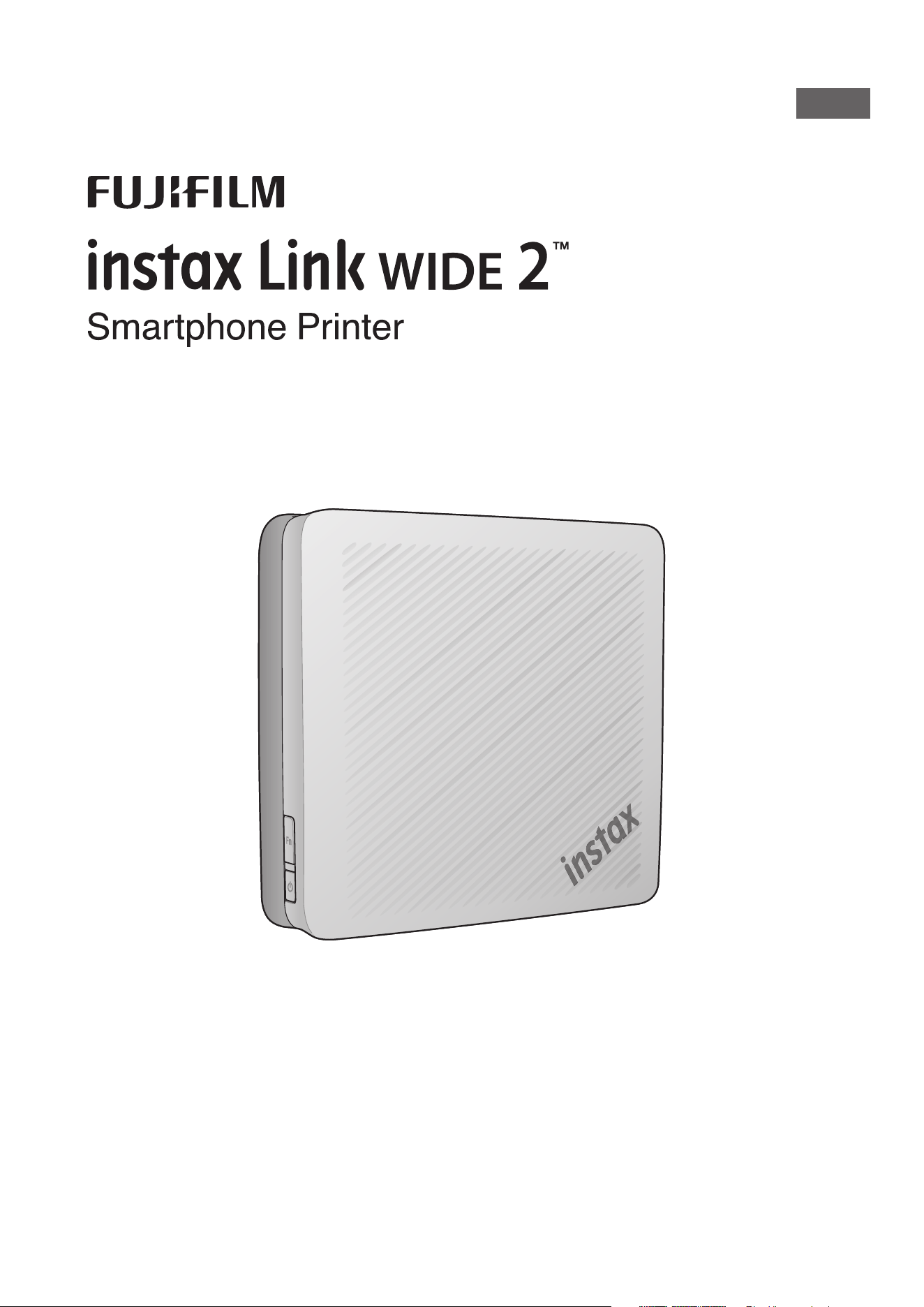
User's Guide (Full version)
NA_EN
model number: FI049W FI049-EN-NA-01
2
Table of Contents
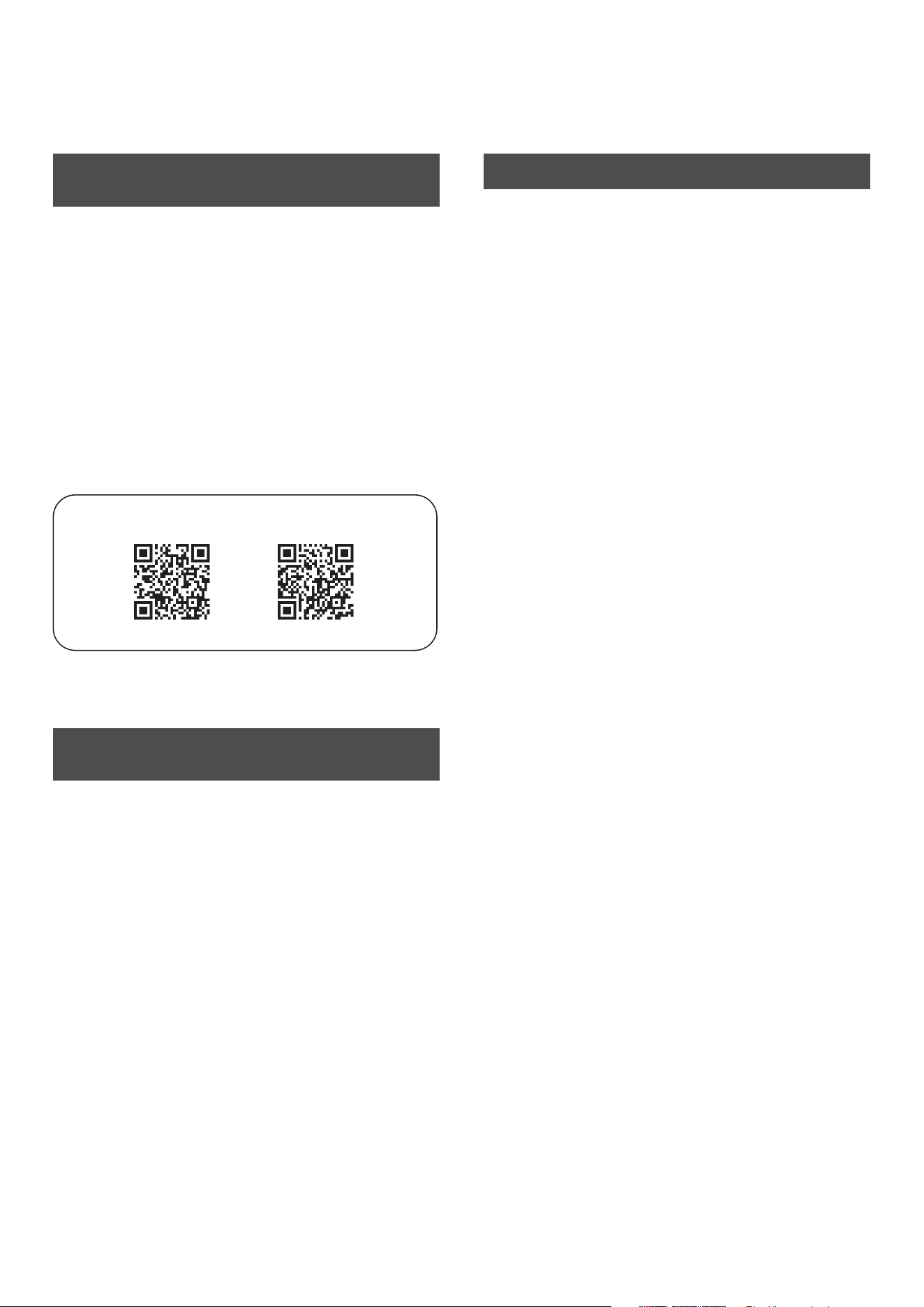
Scan the QR code below to download the instax Link
WIDE™ App ���������������������������������������������������������������������������������2
Note on handling the instax™ WIDE Instant Film
Cartridge (sold separately) ������������������������������������������������������2
Before Use ����������������������������������������������������������������������������������� 3
Part Names ����������������������������������������������������������������������������������4
Charging the Battery ����������������������������������������������������������������5
LED charging status indicator ��������������������������������������������������������5
Checking the Battery Level with the LED ������������������������������5
Inserting the instax™ WIDE Instant Film Cartridge (sold
separately) ����������������������������������������������������������������������������������6
Removing the instax™ WIDE Instant Film Cartridge ����������� 7
Turning the Printer on/off ��������������������������������������������������������7
Checking the Printer Status with the LED �����������������������������7
Pairing your Smartphone and the instax Link WIDE 2™
Smartphone Printer ������������������������������������������������������������������8
When Pairing for the First Time ������������������������������������������������������ 8
When the Printer and Smartphone are Already Paired ���������� 11
Print an Image from your Smartphone’s Camera Roll ������11
Enjoy Photo Mixer™ App Feature �����������������������������������������12
Important Notice for Photo Mixer™ �������������������������������������12
Reprinting an Image ���������������������������������������������������������������13
Specifications ���������������������������������������������������������������������������13
Troubleshooting ����������������������������������������������������������������������14
IMPORTANT SAFETY NOTICE �������������������������������������������������15
Printer Care ������������������������������������������������������������������������������������� 15
Power Supply Specification ��������������������������������������������������������� 16
Bluetooth® Devices: Cautions ������������������������������������������������������ 16
Scan the QR code below to download the
instax Link WIDE™ App
Please install the free instax Link WIDE™ App on your Smartphone
before using the printer.
After the downloading is complete, please pair your Smartphone
to the printer.
• If you are using an Android OS Smartphone, please search for
the instax Link WIDE™ App in the Google Play Store and install it.
* Requirements for Android OS Smartphones: Android Ver. 12.0
or higher with Google Play Store installed
• If you are using an iOS Smartphone, please search for the instax
Link WIDE™ App in the App Store and install it.
* Requirements for iOS Smartphones: iOS Ver. 17.0 or higher
• Depending on your Smartphone model, you may not be able to
use the instax Link WIDE™ App even if you have installed it and
your Smartphone meets the above requirements.
Access the instax Link WIDE™ App download site for the latest
information on system requirements�
Scan to download the instax Link WIDE™ App
iOS
Android OS
The text QR code itself is a registered trademark and wordmark of
Denso Wave Incorporated.
Note on handling the instax™ WIDE Instant
Film Cartridge (sold separately)
Do not open the Film Door until all 10 film sheets of the instax™
WIDE instant film cartridge (sold separately) have been used.
Opening the Film Door will expose any remaining, unused film
sheets, rendering the remainder of the film cartridge unusable.
3
Before Use
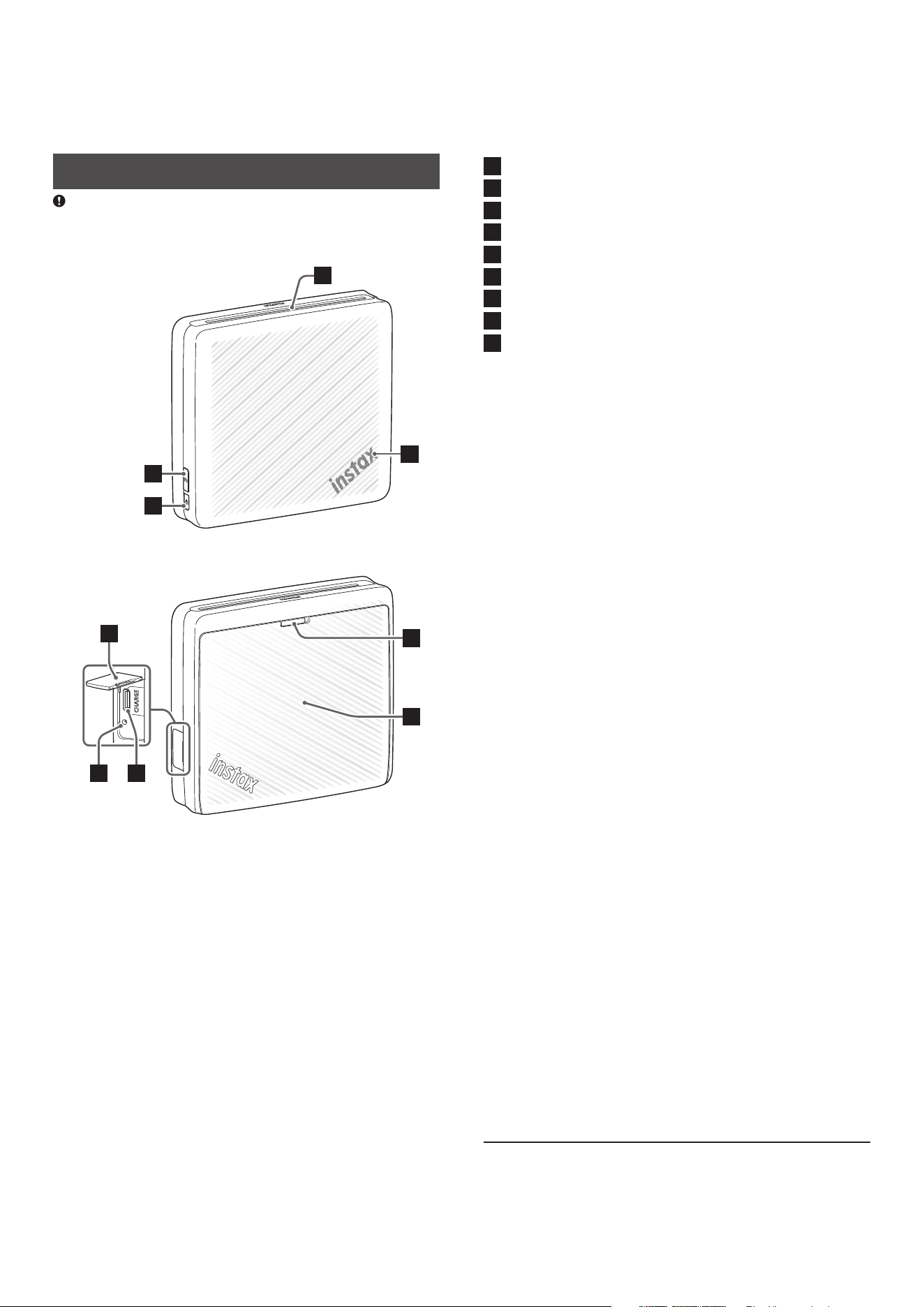
Before using the printer, check to make sure you have the
following included accessories:
Supplied Accessories
• USB Type-C cable
(BO44A34001)
(1)
The printer’s battery has not been fully charged at the factory.
Be sure to fully charge the battery before using the printer. The
free instax Link WIDE™ App will need to be downloaded (see
page 2) and paired (see page 8) with your Smartphone
prior to initial use.
The included USB Type-C cable should only be used for
charging the printer’s battery.
Read ‘IMPORTANT SAFETY NOTICE’ (Page 15) for safety
information.
4
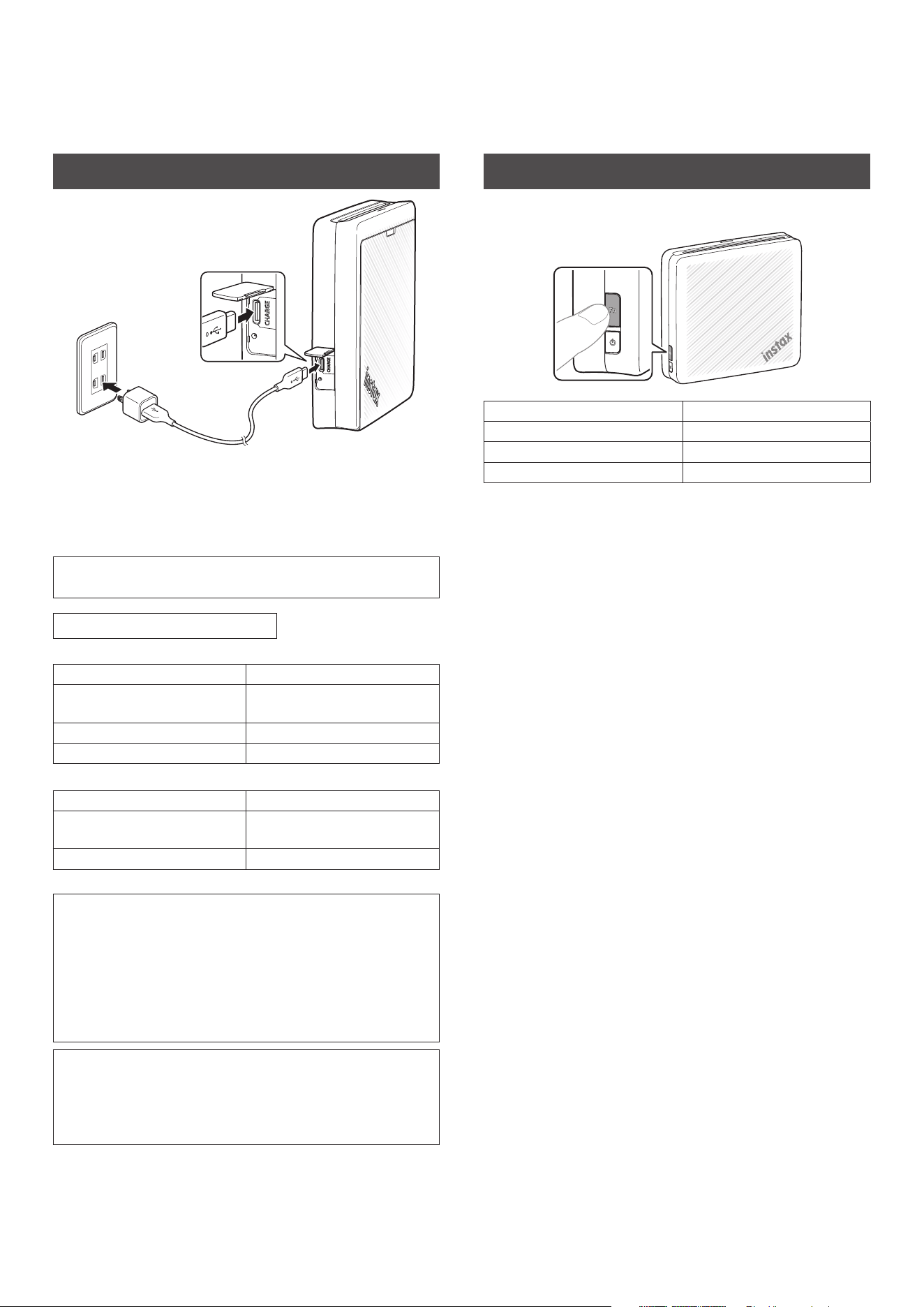
Part Names
Before using the printer for the first time, fully charge the
battery.
Front
1
2
4
3
Rear
5
6 7
8
9
1
Film Ejection Slot
2
Function Button
3
Power Button
4
LED
*1
5
USB Type-C Port Cover
6
Reset Button*2
7
USB Type-C Port
8
Film Door
*3
9
Film Door Lock
*1 For details on LED indication status, see pages 5 and 7.
*2 If the printer does not work properly, press the Reset Button to
reset the printer.
*3 Printer uses instax™ WIDE instant film only (film sold separately).
5
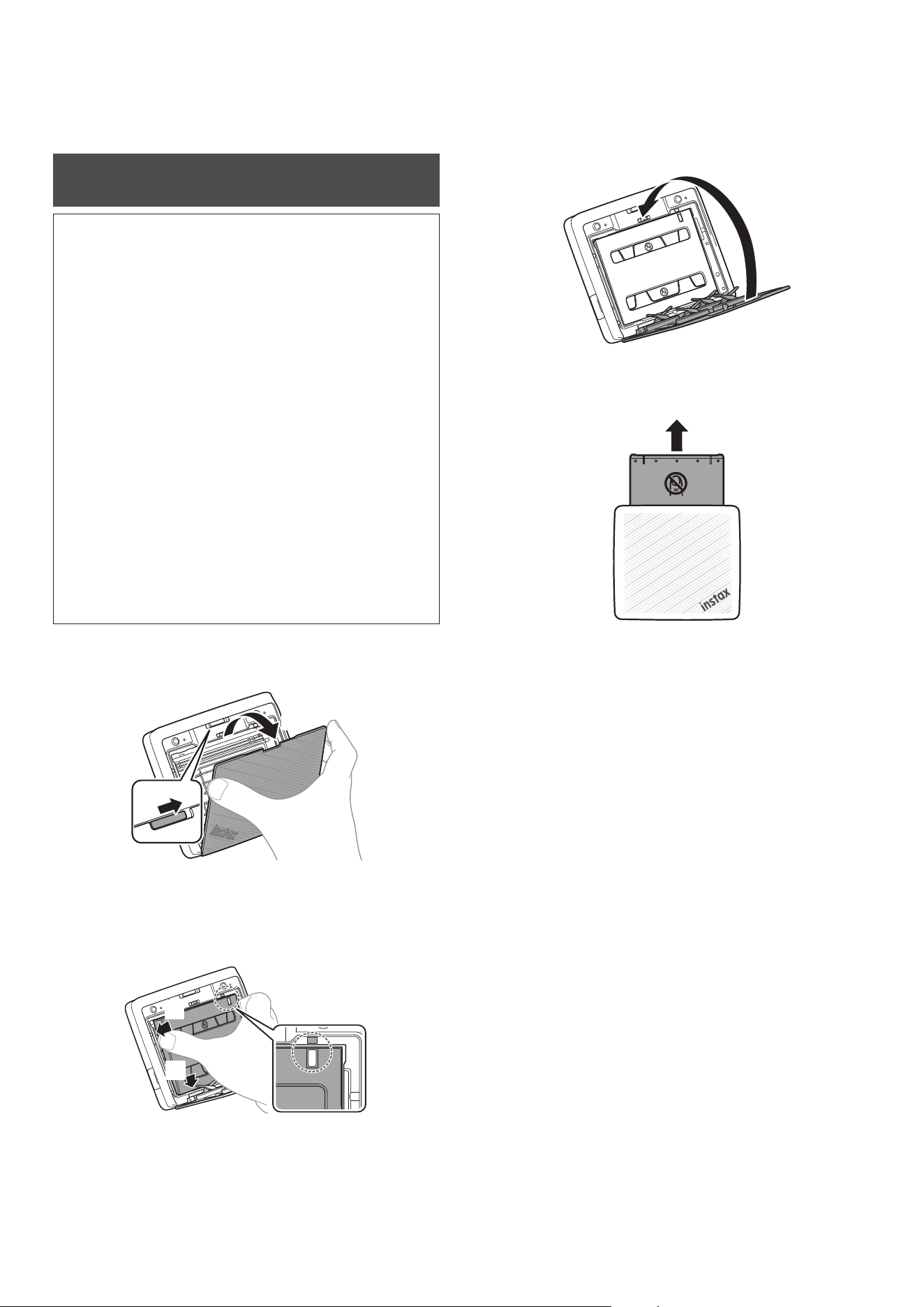
Charging the Battery
Charge the printer using the supplied USB Type-C cable in a USB
outlet, or attach the USB Type-C cable to a USB AC adapter
(adapter sold separately) and charge in an electric power outlet. A
USB AC adapter is not included with the instax Link WIDE 2™
printer (though it may have been supplied with your Smartphone).
• You can print an image while charging is in progress.
• Charging time is approximately 1.5 to 2 hours.
LED charging status indicator
When the printer is turned on
Indication Charging status
Printer device color LED (static /
flashing)
Not charging
Green LED (static) Charging complete
Green LED (flashing) Charging
When the printer is turned off
Indication Charging status
LED turned off Not charging / charging
complete
Green LED (flashing) Charging
Charging from a PC:
• Connect the printer and PC directly. Do not connect via a USB
hub or keyboard.
• If the PC goes into sleep mode while charging, charging is
discontinued. To continue charging, exit sleep mode and then
reconnect the USB Type-C cable.
• The battery may not be able to charge depending on the
specifications, settings, or conditions of the PC.
Notes
• The battery has not been fully charged at the factory. Be sure
to charge the battery before using the printer.
• For important information about the battery, see ‘Printer Care’.
(Page 15)
Checking the Battery Level with the LED
Pressing the Function Button while the printer is turned on can
check the battery level with the LED.
LED Battery level
Flashes green once Low battery level
Flashes green twice Middle battery level
Flashes green three times High battery level
You can also check the charging status with your Smartphone
when connected to the free instax Link WIDE™ App (Smartphone
download required).
6
Inserting the instax™ WIDE Instant Film
Cartridge (sold separately)
NOTE
Do not open the Film Door until all 10 film sheets of the
instax™ WIDE instant film cartridge (sold separately) have
been used� Opening the Film Door will expose any remaining,
unused film sheets, rendering the remainder of the film
cartridge unusable�
• When you load the film cartridge, never press the two
rectangular holes on the back of the film cartridge.
• Never use a film cartridge beyond its shelf life; otherwise, it
may damage the printer.
Use FUJIFILM instax™ WIDE instant film (sold separately) only.
The instax™ mini or instax™ SQUARE instant film cartridges are
not compatible with this printer.
Notes on the Film Cartridge
• Each FUJIFILM instax™ WIDE instant film cartridge contains
one black film protective cover and 10 film sheets.
• Do not remove the film cartridge from its inner bag until you
are ready to load it into the printer.
• The black film protective cover is ejected automatically when
the Film Door is closed.
For details, refer to the instructions and warnings on the
package of FUJIFILM instax™ WIDE instant film (sold separately).
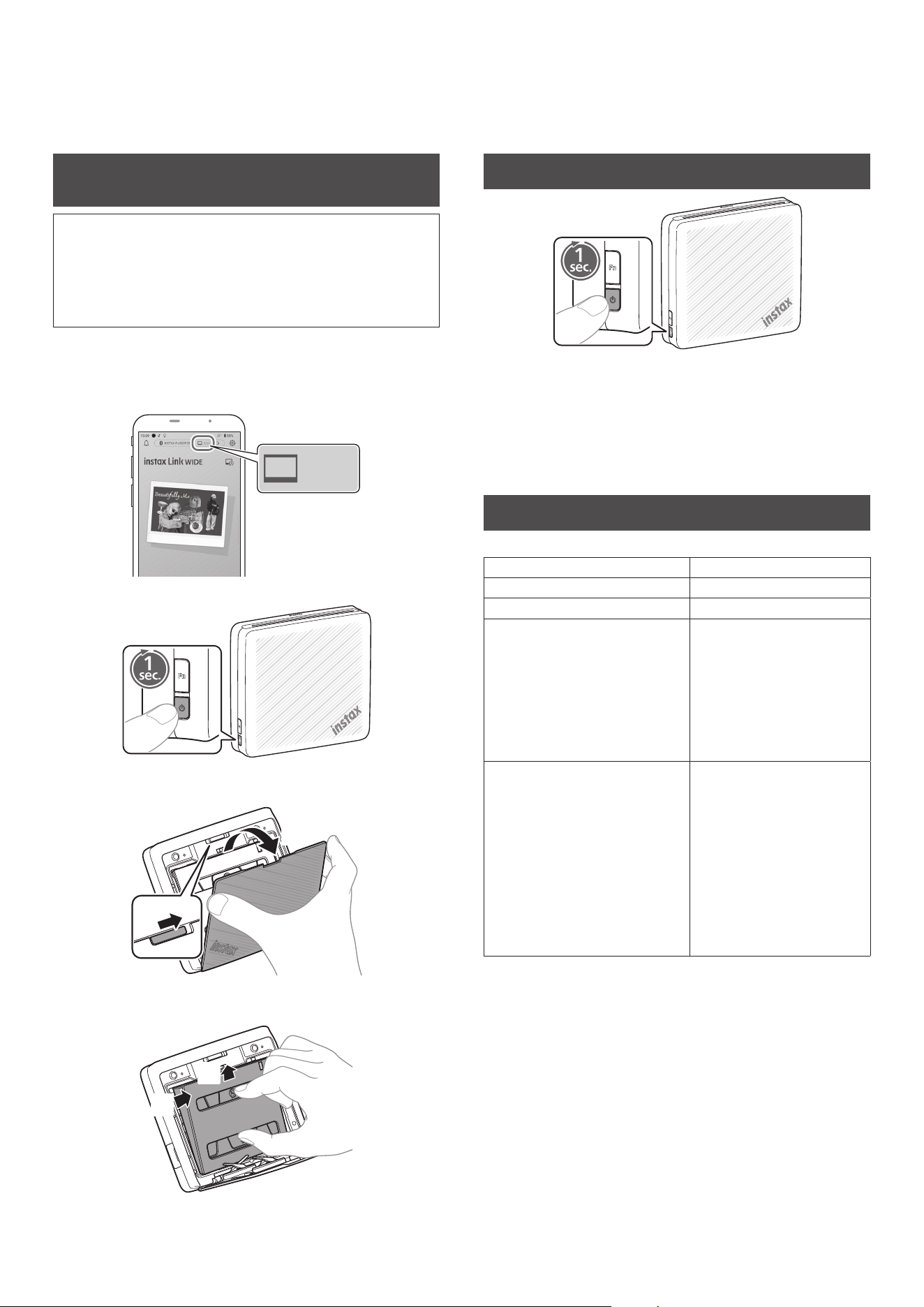
1
Slide & hold the Film Door Lock in place, then open
the Film Door�
2
1
2
Insert an instax™ WIDE instant film cartridge by
aligning the yellow marks on the film cartridge and
the printer body�
1
2
3
Close the Film Door�
4
Remove the black film protective cover that is
automatically ejected from the printer�
7
Removing the instax™ WIDE Instant Film
Cartridge
NOTE:
Do not open the Film Door until all 10 film sheets of the
instax™ WIDE instant film cartridge (sold separately) have
been used� Opening the Film Door will expose any remaining,
unused film sheets, rendering the remainder of the film
cartridge unusable�
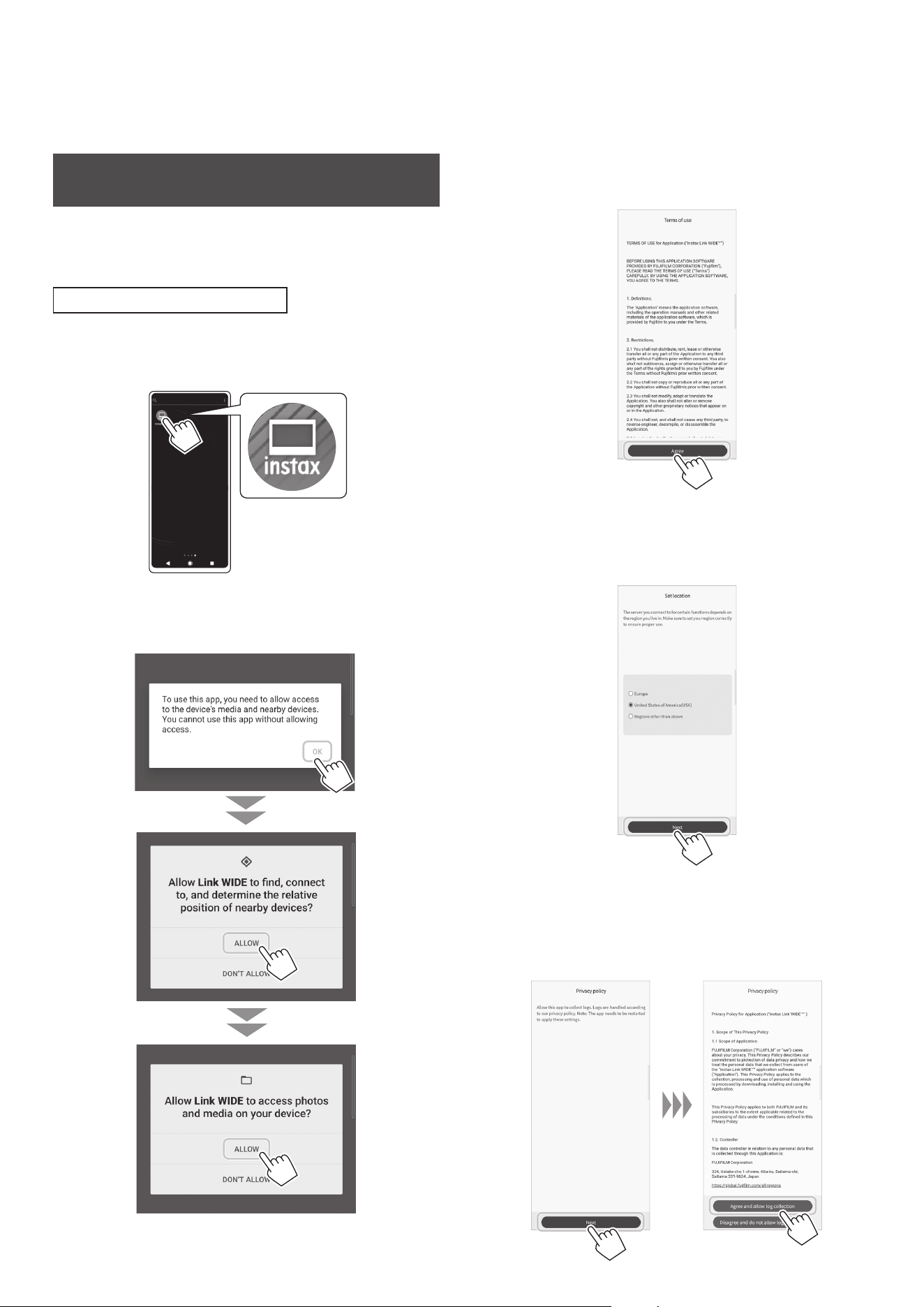
1
Check to see if you have film remaining� If the screen
of the App shows ‘0’, it is time to replace the film
cartridge�
2
Turn the printer off�
3
Slide & hold the Film Door Lock in place, then open
the Film Door�
2
1
4
Grasp the rectangular holes on the film cartridge
and remove the empty film cartridge�
1
2
Turning the Printer on/off
Press and hold the Power Button for approximately 1 second to
turn the printer on or off.
The LED lights up when the printer is turned on.
The printer turns off automatically when not in use for a certain
period of time (Auto turn-off function can be adjusted in the instax
Link WIDE™ App).
Checking the Printer Status with the LED
The LED light indicates the printer status.
LED light indicator Printer Status
Blue LED (flashing) Firmware is being updated
Light blue and pink LED (pulsing) Reprinting
Yellow LED (static - the printer will
turn off in 3-seconds)
• Cannot be charged
• Low battery
* If this continues even after
charging, there may be a
malfunction. In such cases,
contact the applicable
Fujifilm Customer Service/
Repair Center.
Yellow LED (flashing) • Film ejection error
occurred.
Please check to make sure
the Film Ejection Slot is not
jammed and the Film Door
is securely closed.
* If this continues to occur,
please contact the
applicable Fujifilm
Customer Service/Repair
Center.
8
Pairing your Smartphone and the instax Link
WIDE 2™ Smartphone Printer
With the functions of the instax Link WIDE™ App, you can edit your
favorite Smartphone images before printing by adding text,
enlarging images, and much more! Check out the following site:
https://instax.com/link_wide_2/
When Pairing for the First Time
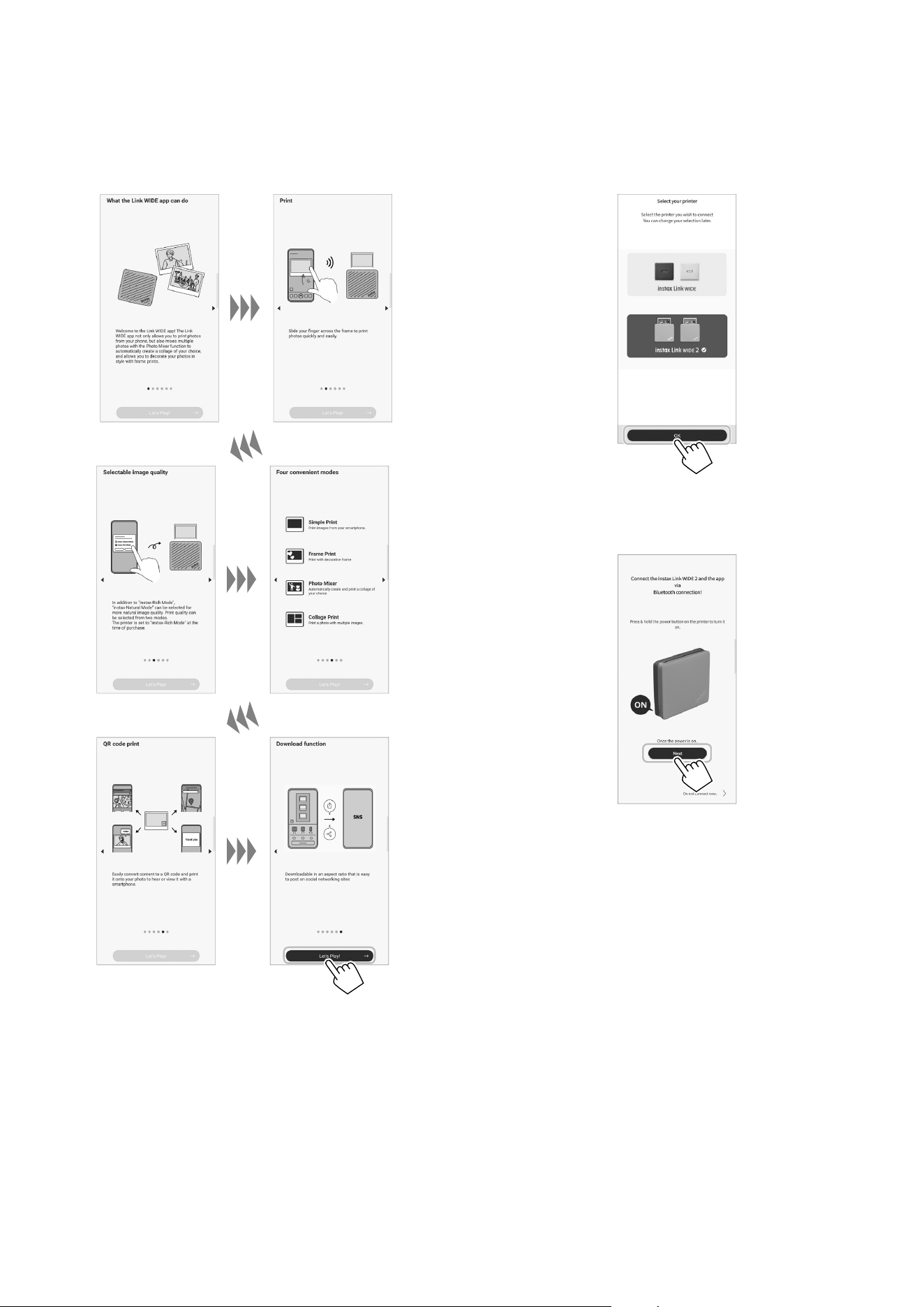
1
Start the downloaded instax Link WIDE™ App�
• If you have not already done so, download the instax Link
WIDE™ App (Page 2).
2
Click through the below pop-up windows to set up
the printer�
3
Read the Terms of Use, and tap [Agree]�
You must “agree” to the Terms of Use to complete the
pairing.
4
Select the usage area, and tap [Next]�
If you are using the printer in USA, select [United States of
America (USA)].
5
Tap [Next], read the privacy policy, and tap [Agree
and allow log collection]�
You must “Agree and allow log collection” to the Privacy
Policy to complete pairing.
9
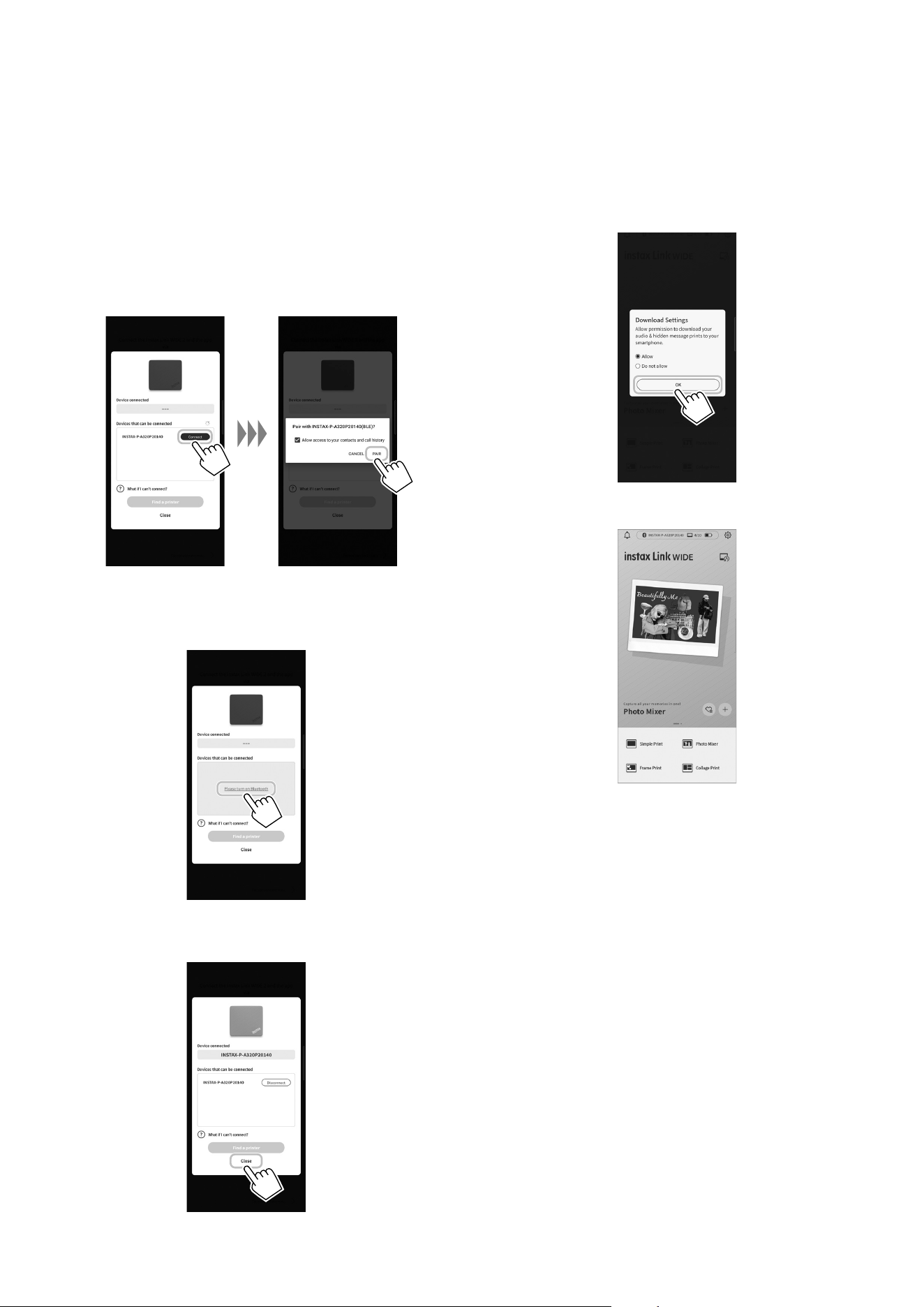
7
Select [instax Link WIDE 2™] on the “Select your
printer” screen, and tap [OK]�
8
When the following screen appears, turn the printer
on, and tap [Next]�
6
Quick instructions are displayed� Read the
instructions and tap [Let’s Play!]�
10
9
When the screen indicates that the printer is
detected, tap [Connect], then tap [PAIR]�
If multiple printers are detected, select the printer you
would like to pair from the list.
Locate the printer’s identifier (device name) on the bottom
of the printer.
Make sure the printer is on during this step. If not, turn the
printer on by pressing and holding the Power Button for 1
second.
Note
If your Bluetooth® settings are switched off, tap [Please turn
on Bluetooth] to turn the Bluetooth® settings on.
10
When your printer is paired, tap [Close]�
11
Decide whether to allow downloads of your audio &
hidden message prints to your smartphone and tap
[OK]�
When you allow this option, select [Allow].
The home screen will appear once the setup is complete.
11
When the Printer and Smartphone are Already
Paired
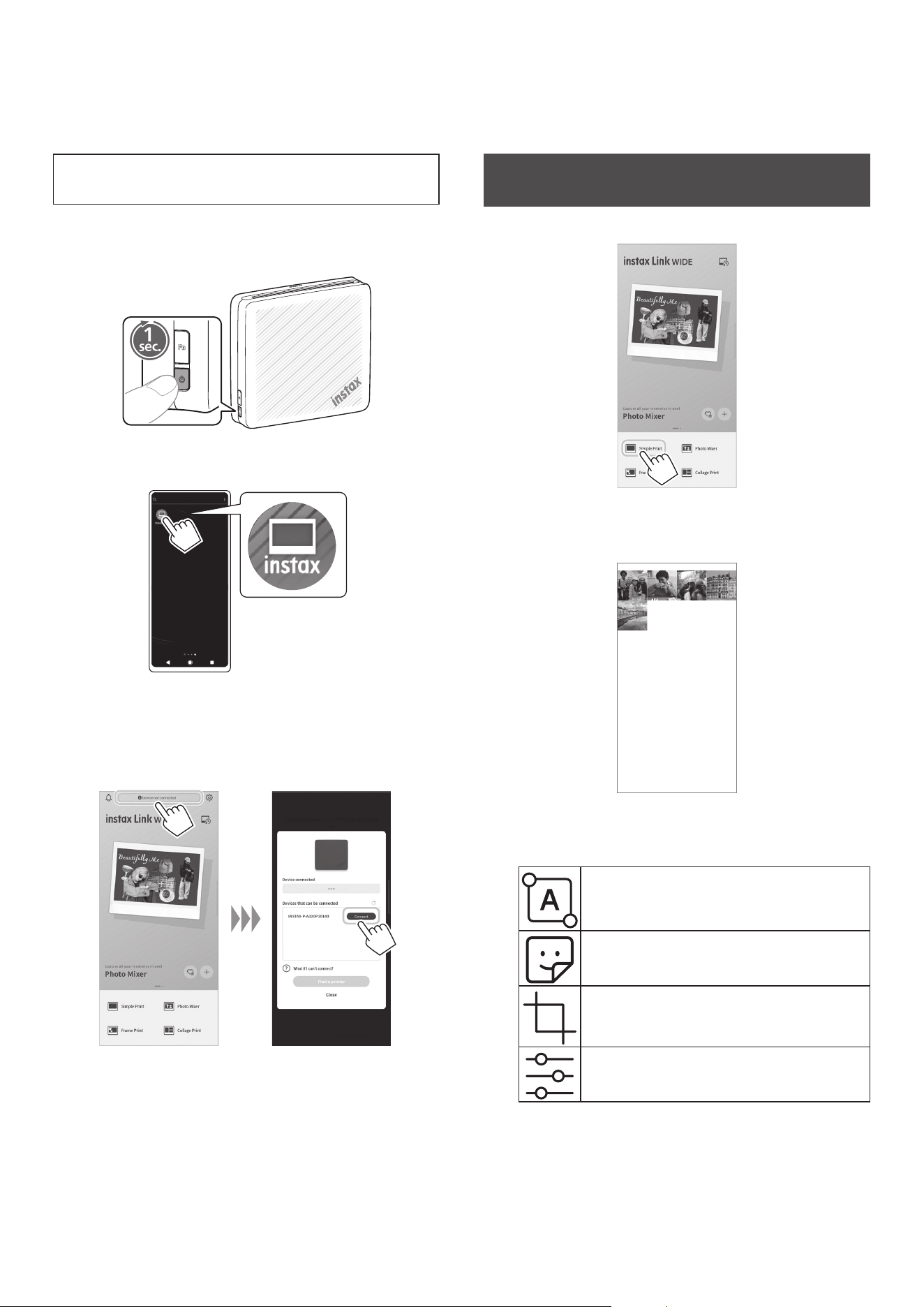
1
Press and hold the Power Button for approximately 1
second to turn the printer on�
The LED lights up.
2
Start the downloaded instax Link WIDE™ App�
3
Tap [Device not connected] located at the top of the
screen�
Select the printer you want to connect from the
Connectable printer(s) list, and tap [Connect].
Print an Image from your Smartphone’s
Camera Roll
1
Tap [Simple Print]�
2
Select an image from your Smartphone’s camera roll
that you wish to print�
2026/XX/XX
To edit your image
Click on the below editing options on the bottom of the
screen before printing.
Applies text to images.
Attaches stickers to images.
Zooms up/down or rotates images.
Adjusts the brightness of images.
12
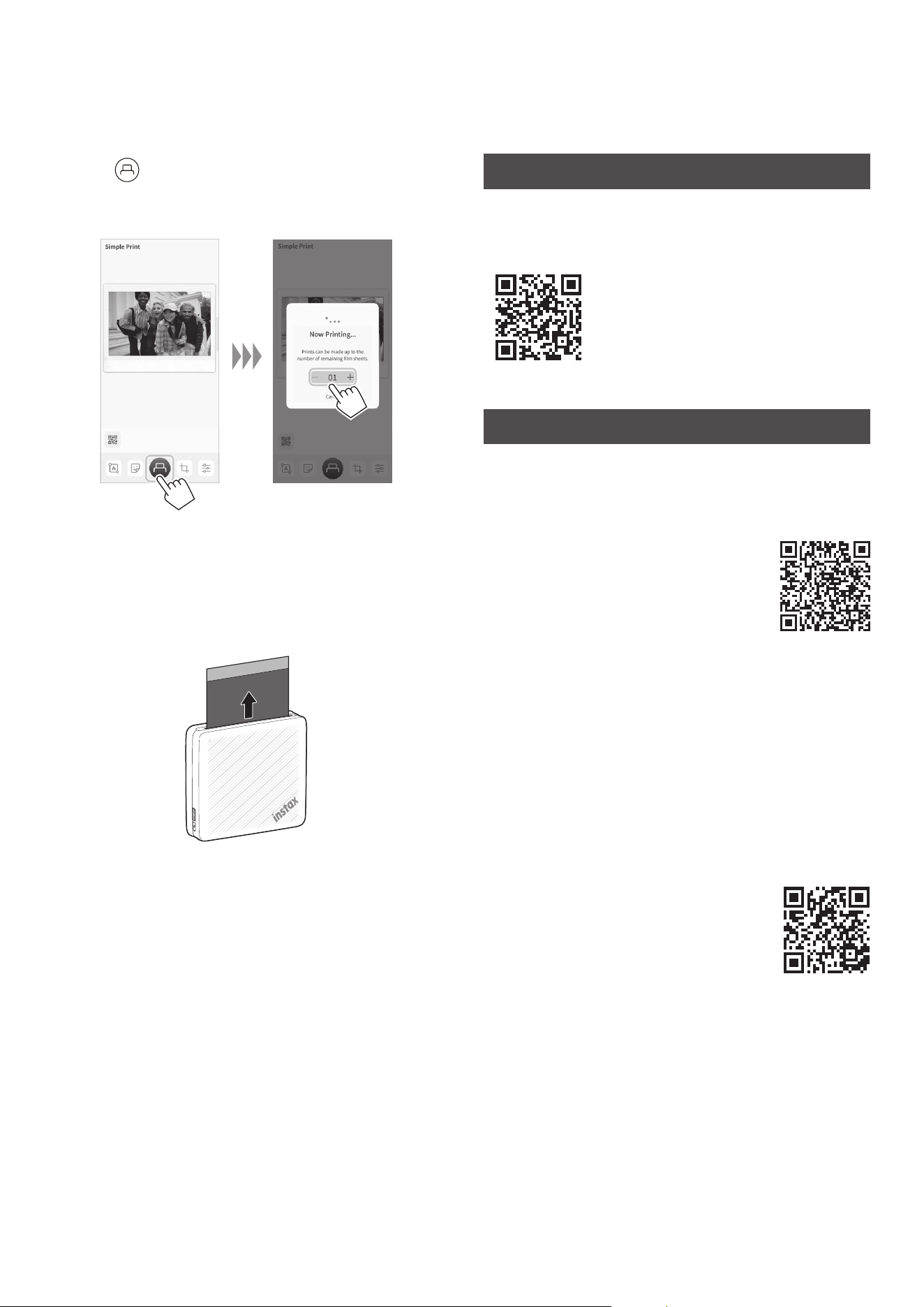
3
Tap to print your image�
After a slight transmission delay, the printer starts printing.
You can also select the number of images to print during
image transfer.
4
When the film has been fully ejected (the printer
stops making a sound), grasp the edge of the film,
then take it out�
Confirm the number of images remaining in your instax™
WIDE instant film cartridge on the instax Link WIDE™ App
screen.
Enjoy Photo Mixer™ App Feature
The instax Link WIDE™ App automatically creates and suggests
collage designs for you. Simply select a suggested layout that you
like best. Creating stylish collage prints is quick and effortless.
Visit the site below for more details.
URL: https://instax.com/link_wide_2/
Important Notice for Photo Mixer™
Photo Mixer™ may not work on certain smartphones. There are
also limitations on detectable subjects.
Please check the information at the site below.
iOS
Please use a compatible device with iOS 17 or
later installed.
iPhone 17 Pro / iPhone 17 / iPhone 16 Pro /
iPhone 16e / iPhone 15 Pro / iPhone 15 Plus /
iPhone 14 Pro / iPhone 14
URL: https://support.apple.com/guide/iphone/iphe3fa5df43/17.0/
ios/17.0
Android OS
Please use a compatible device with Android OS12 or later
installed.
Pixel 10 Pro / Pixel 10 / Pixel 9 / Pixel 8 Pro / Pixel 9 Pro XL /
Pixel 8a / Pixel 7 Pro / Galaxy S23 Ultra / Galaxy S22
* Some devices may not work even with the supported OS version
or later.
To check the latest information on compatible
smartphones and details about subject detection
limitations, scan the QR code below to access the
website.
URL: https://instax.com/link_wide_2/photomixer/
13
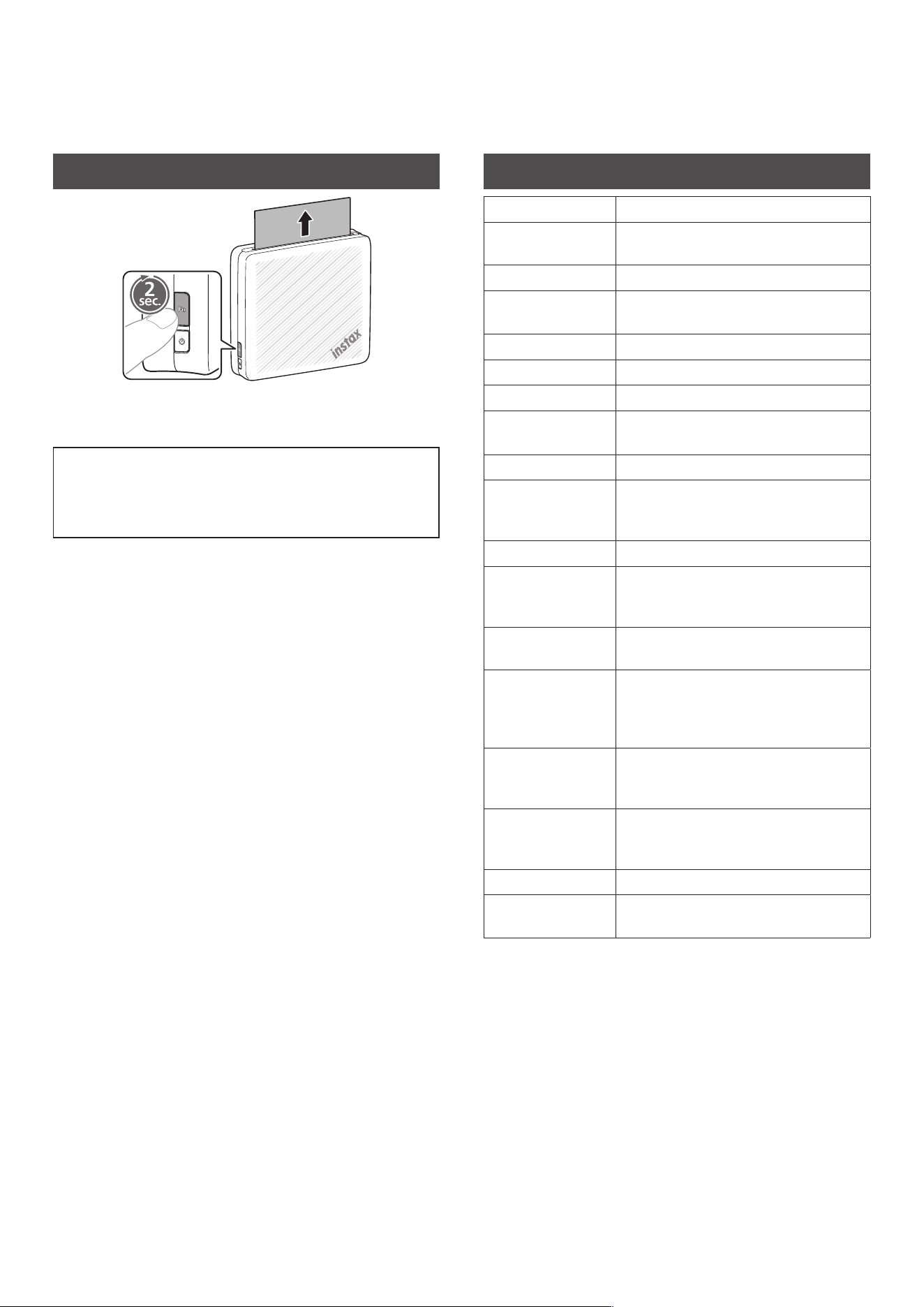
Reprinting an Image
Press and hold the Function Button for about 2 seconds to reprint
the last printed image.
Note
When you turn off the printer, you will not be able to reprint the
image you last printed after you turn the printer back on.
However, you will be able to print the image from the free instax
Link WIDE™ App.
Specifications
Recording method 3-color exposure with OLED
Film used FUJIFILM instax™ WIDE instant film (sold
separately)
Image size 2.44in. × 3.90in. / 62mm × 99mm
Exposure pixel
count
800 × 1260 dots
Exposure resolution 12.5dots/mm (318dpi, 80μm dot pitch)
Exposure gradation RGB gradation of 256 colors
Interface Bluetooth® Ver.5.1
Printable image
format
JPEG, PNG, HEIF, DNG
Printing time Approximately 14 sec.
Number of printed
images per charge
Approximately 100 (from full charge;
number of prints depends on the usage
conditions.)
Power supply Lithium ion battery (internal type)
Charging time Approximately 1.5 to 2.0 hours
(depending upon environment
temperature at time of charging)
Power consumption When printing: Approximately 3W
Power Off: Approximately 0.0W (0.3mW)
Auto power off
function
5 minutes / Off
* Deactivating the auto power off
function will increase the energy
consumption of the product.
Operating
environment
Temperature: +41°F to +104°F (+5°C to
+40°C)
Humidity: 20% to 80% (no condensation)
Dimensions 5.51in. × 5.05in. × 1.42in. (139.9mm ×
128.3mm × 36.0mm) excluding
projecting parts
Weight 0.79lbs (357g) (excluding film cartridge)
Supplied accessory USB Type-C cable (BO44A34001)
Length: 11.81in. (30cm)
* The above specifications are subject to change for
performance improvement.
14
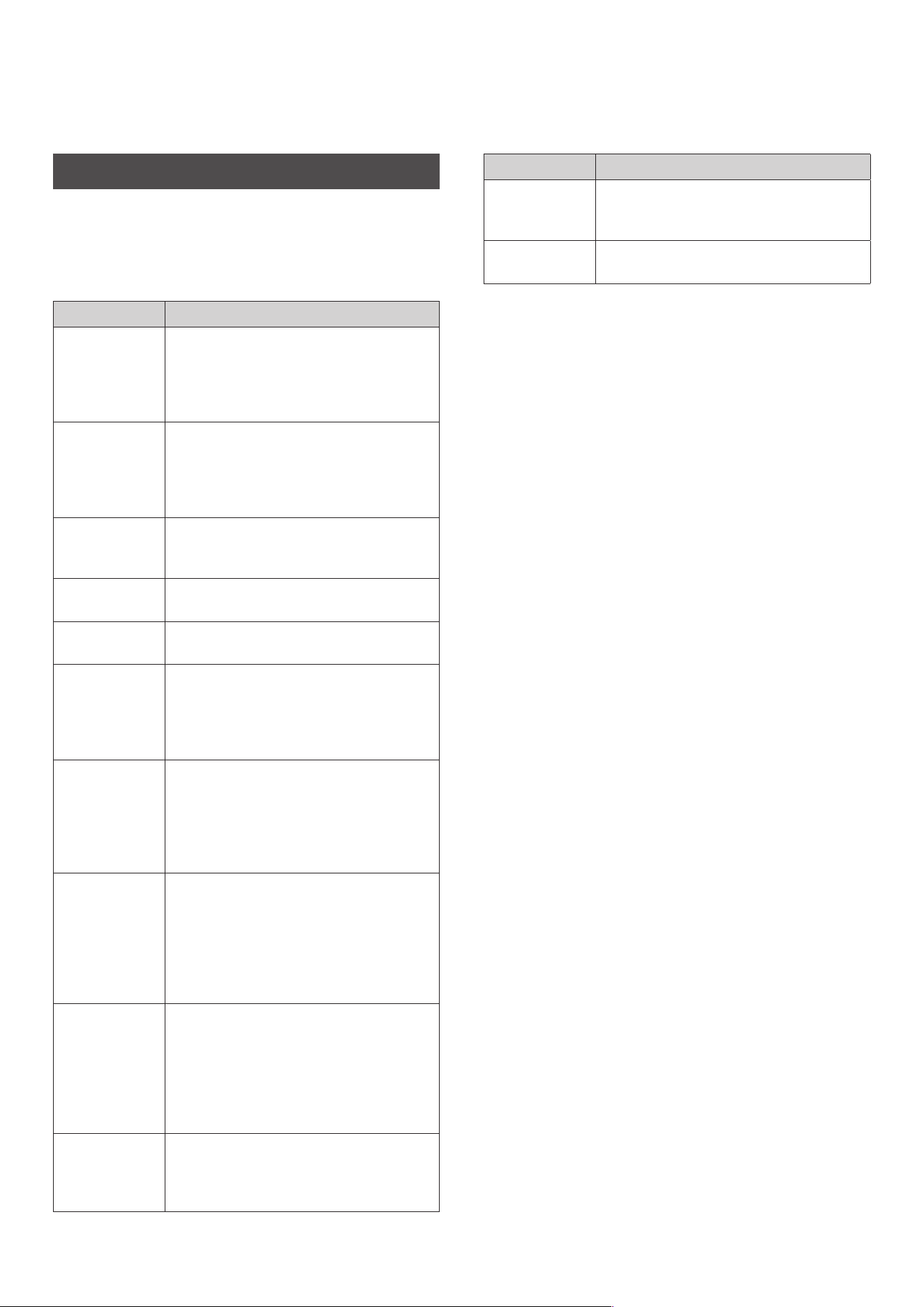
Troubleshooting
Please check the following items before considering a problem to
be a malfunction. If the problem persists even after taking action,
please contact the Fujifilm service center for repair in your country
or visit the website below.
FUJIFILM website: https://www.fujifilm.com/
If the following problem occurs...
Problem Possible causes and solutions
I cannot turn on
the printer.
The battery may not be charged. Please
charge the printer.
You may not have pressed the Power Button
long enough. Press and hold the Power
Button for approximately 1 second.
The battery
loses its charge
quickly.
If you use the printer in a very cold
environment, the battery will drain quickly.
Move the printer to a warmer environment
and allow it to adjust to room temperature
before printing.
The printer
turned off
during use.
The battery level may be low. Please charge
the printer.
Charging does
not start.
Make sure that the USB power adapter plug
is properly connected to the power outlet.
It takes too long
to charge.
At low temperatures, charging may take
longer.
Charging does
not start or
prematurely
stops.
Charge the battery in a temperature range of
41°F to 104°F (5°C to 40°C). If you cannot
charge the printer in this range, contact the
applicable Fujifilm Customer Service/Repair
Center.
The printer does
not work
properly.
There may be a temporary malfunction.
Please press the Reset Button. If it still does
not work properly, please contact our repair
service center for repair.
The battery may not be charged. Please
charge the printer.
The film
cartridge does
not load or does
not load
smoothly.
Please use FUJIFILM instax™ WIDE instant
film only (instax™ mini or instax™ SQUARE
instant film is not compatible with this
printer).
Align the yellow mark on the film cartridge
with the printer alignment mark (yellow) and
load it.
The photo does
not properly
eject.
The film cartridge may be misaligned due to
shock such as vibration or dropping. Please
load a new film cartridge.
If the film cartridge is jammed, turn the
printer off and turn it on again. If the
problem persists, remove the jammed film
and then load a new film cartridge.
Some or all of
the finished
prints are white.
Do not open the Film Door until the film is
used up. If the Film Door is opened with film
remaining, the film may be exposed and the
exposed area may become white.
Problem Possible causes and solutions
The print is
uneven.
Do not shake, bend, fold or hold the print
immediately after it is printed.
Do not obstruct the Film Ejection Slot.
I cannot reprint
images.
The stored image is deleted when the printer
is turned off.
15
IMPORTANT SAFETY NOTICE
This product has been designed with safety in mind, and to
provide safe operation when handled correctly and in accordance
with the instructions in this User’s Guide. It is important that both
the product and the instax™ WIDE instant film cartridge (sold
separately) are handled properly and used only to print photos as
instructed in this User’s Guide and in the instax™ WIDE instant film
cartridge (sold separately) instructions. For your ease and safety,
strictly follow the instructions in this User’s Guide.
WARNING
This symbol indicates danger, which could result in injury or
death� Follow the instructions indicated to avoid damage to the
printer or injury�
If one of the following cases occur, immediately unplug the
supplied USB Type-C cable, turn the printer off, refrain from
any further use of the printer and call the applicable Fujifilm
Customer Service Center:
• The printer becomes hot, emits smoke, has a burnt smell, or
otherwise seems abnormal.
• The printer is dropped into water, or foreign objects like water
or metal get inside the printer.
This device contains a battery� Do not subject it to heat, throw
it into an open fire, drop it or subject it to impact� Doing so
could cause the printer to explode�
Never get this product wet or handle it with wet hands� Doing
so may result in an electric shock�
Keep out of the reach of small children� This product could
cause injury in the hands of a child�
CAUTION
This symbol indicates a situation that may lead to injury or
physical damage if ignored or incorrectly handled�
Never attempt to take this product apart� You may be injured�
If the printer is not functioning correctly, to avoid injury do
not attempt to repair yourself�
If this product is dropped or damaged so that the inside is
showing, do not touch it� Contact the applicable Fujifilm
Customer Service Center�
Do not touch any parts within the inside of the Film Door� This
may cause injury�
Promptly unplug the USB Type-C cable once battery is fully
charged�
Do not cover or wrap the printer or the AC power adapter
(sold separately) in a cloth or blanket� This can cause heat to
build up and distort the casing or cause a fire�
The “CE” mark certifies that this product satisfies
the requirements of the EU (European Union)
regarding safety, public health, environment and
consumer protection. (“CE” is the abbreviation of
Conformité Européenne.)
Printer Care
■Handling the Printer
• CAUTION - Do not expose to excessive heat, including direct
sunlight, fire or similar heat sources during use, storage or
transportation. An explosion or leakage of flammable liquid or
gas could result. Also, ensure proper disposal in accordance with
the instructions below.
• CAUTION - Do not remove or attempt to remove the printer
lithium battery. Without limitation, do not expose or attempt to
expose the printer or the printer lithium battery to fire or a hot
oven. Do not attempt to damage, mechanically crush or cut the
printer lithium battery, as an explosion could result.
• CAUTION - Do not subject to extremely low air pressure at
high altitude. An explosion or the leakage of flammable liquid
or gas could result.
■Printer Care
1.
Do not open the Film Door until all 10 film sheets of the
instax™ WIDE instant film cartridge (sold separately) have
been used. Opening the Film Door will expose any
remaining, unused film sheets, rendering the remainder of
the film cartridge unusable.
2.
Your printer is a precision instrument. Do not get it wet or
drop it. Also, do not expose it to sand, dust or dirt.
3.
Do not use cleaning products or solvents such as those with
bleach or alcohol to remove dirt. Wipe with a damp cloth if
and as necessary.
4.
Keep the film chamber and printer interior clean to avoid
damaging the film.
5.
In hot weather, do not leave your printer in hot places such
as in a car or on the beach. Do not leave it in damp places or
places where weather exposure could result.
6.
Moth repellent gas such as naphthalene may affect your
printer and instant photos. Store your printer and instant
photos in a place where exposure to harmful cleaning or
other household elements will be avoided.
7.
Note that the temperature range within which your printer
can be used is 41°F to 104°F (5°C to 40°C).
8.
Take great care to ensure that your instant photos do not
violate copyright, image rights, privacy or other personal
rights and do not offend public decency. Actions that violate
the rights of others, that are contrary to public decency, or
that constitute a nuisance may be punishable by law or
otherwise legally actionable.
9.
This printer is for general household use. It is not suitable for
commercial photography and other applications where a
large number of prints are needed.
■Charging the Battery
The battery is not charged at shipment� Charge the battery
completely before use�
Charge the battery using the supplied USB Type-C cable and a
USB AC adapter (sold separately) from your Smartphone.
Charging times will increase at ambient temperatures below
50°F (10°C) or above 95°F (35°C). Do not attempt to charge the
battery in environments with temperatures above 104°F (40°C);
at temperatures below 41°F (5°C), the battery will not charge.
16
■Battery Life
At normal temperatures, the battery can be recharged about
300 times. A noticeable decrease in the length of time the
battery will hold a charge indicates that it has reached the end
of its service life.
■Caution: Handling the Battery
CAUTION - The battery and printer body may become warm
to the touch after extended use. This is normal.
■Required certification markings are located inside the
film chamber�
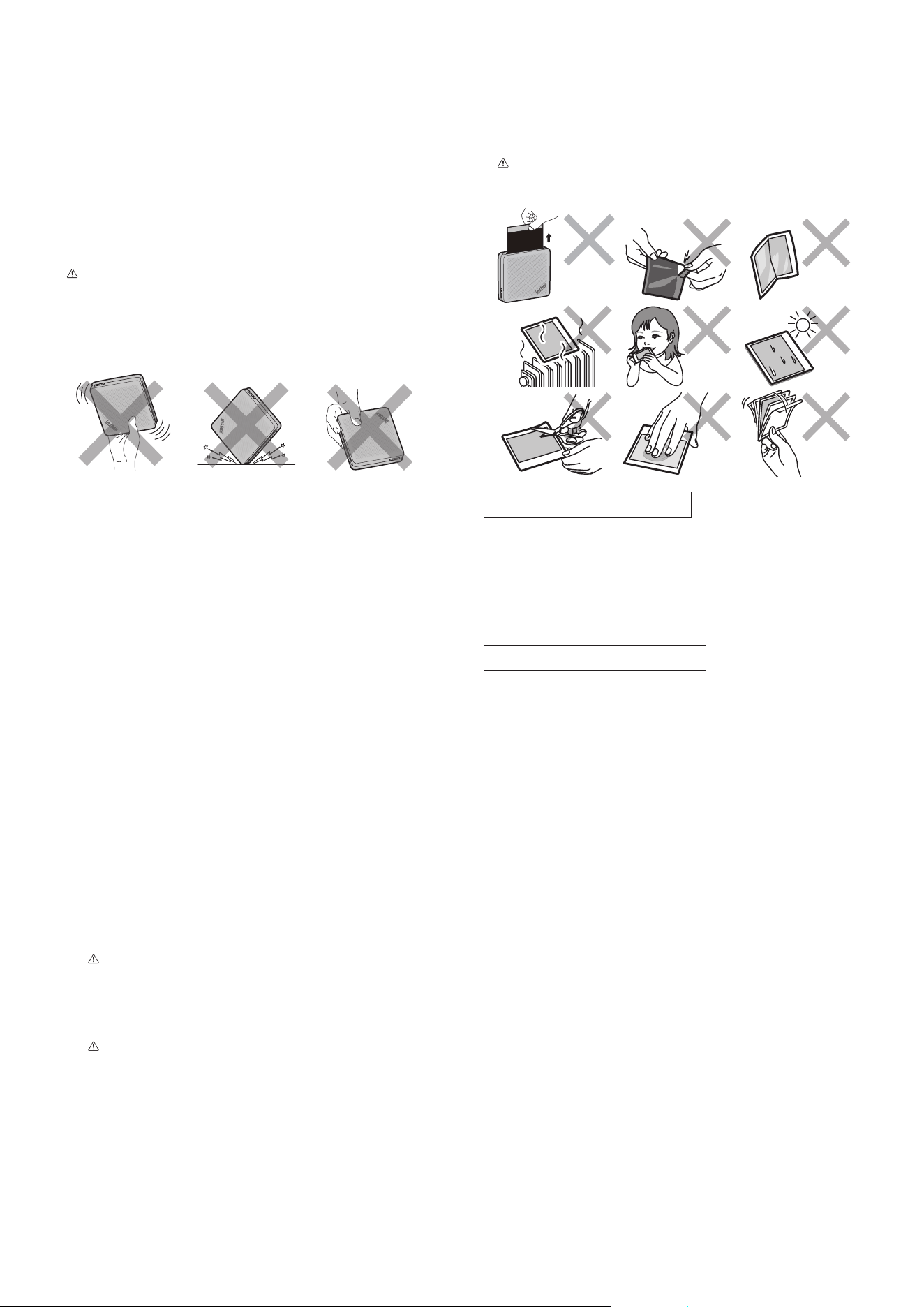
■Cautions During Printing
Do not shake the
printer while
printing.
Do not drop the
printer while
printing.
Do not cover the
Film Ejection Slot
while printing.
■instax™ WIDE Instant Film and Print Care
This printer uses instax™ WIDE instant film, sold separately. See
instructions on the packaging of the instax™ WIDE instant film
cartridge (sold separately).
1.
Keep the film in a cool place. Do not leave the film in a place
where the temperature is extremely high (e.g., in a closed
car) for many hours.
2.
Do not puncture, tear, or cut instax™ WIDE instant film. If film
becomes damaged, do not use.
3.
When you load a film cartridge, use the film as soon as
possible.
4.
If the film has been kept in a place where the temperature is
extremely high or low, bring it to room temperature before
loading film or starting to print photos.
5.
Be sure to use the film before the expiration or “Use Before”
date.
6.
Avoid airport checked luggage inspection and other strong
X-ray illumination. Such exposure may cause fogging and
otherwise affect your unused film. Carrying your printer and
film onto an aircraft in your carry-on luggage is
recommended. (Check with each airport for more
information.)
7.
Avoid exposing the developed instant photos to strong
light, and keep them in a cool, dry place.
8.
CAUTION - Do not puncture or cut this film as it contains a
small amount of caustic paste (high alkaline). Never let
children or animals put the film into their mouth. Also pay
attention so that the paste does not come into contact with
skin or clothes.
9.
CAUTION - If the paste inside the film comes into contact
with skin or clothes, immediately wash off with plenty of
water. If the paste comes into contact with the eyes or
mouth, immediately wash the area with plenty of water and
contact a doctor. Note that the alkaline inside the film
remains active for about 10 minutes after the photo has
been printed.
■ CAUTION - When Handling instax™ WIDE Instant Film
and Photos
See below for film activities to be avoided.
Power Supply Specification
■Power Consumption
Power Off: Approximately 0.0 W (0.3 mW)
■Auto Power Off Function
5 minutes / Off
* Deactivating the auto power off function will increase the
energy consumption of the product.
Bluetooth® Devices: Cautions
IMPORTANT: Read the following notices before using the
product’s built-in Bluetooth® transmitter�
■Use only as part of a Bluetooth® network�
Do not use in applications requiring a high degree of reliability,
for example in medical devices or other systems that may
directly or indirectly impact human life. When using the device
in computer and other systems that demand a greater degree of
reliability than Bluetooth® networks, be sure to take all
necessary precautions to ensure safety and prevent
malfunction. FUJIFILM Corporation and its affiliates do not
accept liability for damages resulting from unauthorized use.
■Use only in the country in which the device was
purchased�
This device conforms to regulations governing Bluetooth®
devices in the country in which it was purchased. Observe all
location regulations when using the device. FUJIFILM
Corporation and its affiliates do not accept liability for problems
arising from use in other jurisdictions.
■Wireless data may be intercepted by third parties�
FUJIFILM Corporation and its affiliates are not responsible for
intercepted transmissions, or for unintended image uses.
■Do not use the device in locations subject to magnetic
fields, static electricity, or radio interference�
Do not use the transmitter in the vicinity of microwave ovens or
in other locations subject to magnetic fields, static electricity, or
radio interference that may prevent reception of wireless
signals. Mutual interference may occur when the transmitter is
used in the vicinity of other wireless devices operating in the
2.4 GHz band.

17
■The Bluetooth® transmitter operates in the 2�4 GHz
band� The maximum radio-frequency power is 5�97mW�
■This device operates on the same frequency as
commercial, educational, and medical devices and
wireless transmitters�
It also operates on the same frequency as licensed transmitters
and special unlicensed low-voltage transmitters used in radio-
frequency identification tracking systems for assembly lines and
in other similar applications.
■To prevent interference with the above devices, observe
the following precautions�
Confirm that the radio-frequency identification transmitter is
not in operation before using this device. If you notice that this
device causes interference in low-voltage radio-frequency
identification tracing systems, contact a Fujifilm representative.
■The following may be punishable by law:
– Disassembly or modification of this device.
– Removal of device certification labels.
■For customers in the USA:
FCC ID : W2Z-03000018
FCC Statement
This device complies with part 15 of the FCC Rules. Operation is
subject to the following two conditions: (1) This device may not
cause harmful interference, and (2) this device must accept any
interference received, including interference that may cause
undesired operation.
For more information, access the website below.
https://instax.com/support/declaration/#smartphone_printers
CAUTION
This equipment has been tested and found to comply with the
limits for a Class B digital device, pursuant to Part 15 of the FCC
Rules. These limits are designed to provide reasonable protection
against harmful interference in a residential installation. This
equipment generates, uses, and can radiate radio frequency
energy and, if not installed and used in accordance with the
instructions, may cause harmful interference to radio
communications. However, there is no guarantee that
interference will not occur in a particular installation. If this
equipment does cause harmful interference to radio or
television, which can be determined by turning the equipment
off and on, the user is encouraged to try to correct the
interference by one or more of the following measures:
• Reorient or relocate the receiving antenna.
• Increase the separation between the equipment and receiver.
• Connect the equipment into an outlet on a circuit different
from that to which the receiver is connected.
• Consult the dealer or an experienced radio/TV technician for
help.
Changes or modifications not expressly approved by Fujifilm
responsible for compliance could void the user’s authority to
operate the equipment.
Notes on the Grant
To comply with Part 15 of the FCC Rules, this product must be
used with a Fujifilm-provided USB Type-C cable.
RF Exposure warning
This device meets the government’s requirements for exposure
to radio waves. This device is designed and manufactured not to
exceed the emission limits for exposure to radio frequency (RF)
energy set by the Federal Communications Commission of the
U.S. Government.
The exposure standard employs a unit of measurement known as
the Specific Absorption Rate, or SAR. The SAR limit set by the FCC
is 1.6 W/kg. Tests for SAR are conducted using standard operating
positions accepted by the FCC with the EUT transmitting at the
specified power level in different channels.
The FCC has granted an Equipment Authorization for this device
with all reported SAR levels evaluated as in compliance with the
FCC RF exposure guidelines. SAR information on this device is on
file with the FCC and can be found under the Display Grant
section of https://apps.fcc.gov/oetcf/eas/reports/GenericSearch.
cfm after searching on FCC ID: W2Z-03000018.

18
■For customers in Canada:
IC: 7736B-03000018
ISED statement:
This device complies with Innovation, Science and Economic
Development Canada’s licence-exempt RSS(s). Operation is
subject to the following two conditions:
1. This device may not cause interference, and
2. This device must accept any interference, including
interference that may cause undesired operation of the device.
CAN ICES (B)/NMB (B)
This device contains licence-exempt transmitter(s)/receiver(s)
that comply with Innovation, Science and Economic
Development Canada’s licence-exempt RSS(s). Operation is
subject to the following two conditions:
1. This device may not cause interference.
2. This device must accept any interference, including
interference that may cause undesired operation of the device.
Radio Frequency (RF) Exposure Information
The radiated output power of the Wireless Device is below the
Innovation, Science and Economic Development Canada (ISED)
radio frequency exposure limits. The Wireless Device should be
used in such a manner such that the potential for human contact
during normal operation is minimized.
This device has been evaluated for and shown compliant with
the ISED Specific Absorption Rate (“SAR”) limits when operated
in portable exposure conditions. (Antennas are greater than 0
mm from a person’s body).
Proper Disposal – US, Canada and Latin America
Disposal of Electric and Electronic Equipment in
Private Households
Disposal of used Electrical & Electronic Equipment
(Applicable in the European Union and other
European countries with separate collection
systems)
This symbol on the product, the full version of the User’s Guide,
Quick Start Guide, in the limited product warranty, and/or on its
packaging indicates that this product shall not be treated as
household waste.
Instead it should be taken to an applicable collection point for the
recycling of electrical and electronic equipment.
By ensuring this product is disposed of correctly, you will help
prevent potential negative consequences to the environment and
human health, which could otherwise be caused by inappropriate
waste handling of this product.
The recycling of materials may help to conserve natural resources.
For more detailed information about recycling of this product,
please contact your local city recycling office, your household
waste disposal service or the authorized FUJIFILM dealer from
which you purchased the product.
For proper disposal in the United States at product end-of-life,
please contact 1-800-800-3854 Option #1 INSTAX.
For proper disposal in Canada at product-end-of-life, please
contact 1-800-461-0416.
For proper disposal in Latin America at product end-of-life, please
contact your local FUJIFILM distributor or dealer for disposal
instructions.
19
Information for Fujifilm in the United States
FUJIFILM North America Corporation
200 Summit Lake Drive
Valhalla, New York 10595, USA
1-800-800-3854 Option #1 INSTAX
Information for Fujifilm in Canada
FUJIFILM Canada Inc.
600 Suffolk Court
Mississauga, Ontario L5R 4G4, Canada
1-800-461-0416
The Bluetooth® word mark and logos are registered trademarks
owned by the Bluetooth® SIG, Inc., and any use of such marks by
Fujifilm is under license.
Independent JPEG Group (IJG) Licenses
The software used in the instax Link WIDE 2™ Smartphone Printer
is based in part on the work of the Independent JPEG Group.
Third-party trademarks referenced herein are the property of their
respective owners and no endorsement or affiliation is claimed or
implied.
FUJIFILM, instax, instax Link WIDE, instax Link WIDE 2, and Photo
Mixer are registered trademarks or trademarks of FUJIFILM
Corporation and its affiliates.
© 2026 FUJIFILM Corporation. All rights reserved.
If you have any inquiries about this product, please contact a
FUJIFILM authorized dealer, or access the website below:
https://www.fujifilm.com/