
2
① The motor should not be operated continuously for more than 10 minutes or for more than
30% of the operating time within a certain period of time to prevent the motor from
overheating.
② When the headboard or footboard is raised, it is strictly forbidden to sit at the footboard,
ju
mp on the Mattress, or engage in strenuous exercise. Do not put all your weight on the
raised part.
③ During operation of the Mattress, please ensure that there are no people, pets, or other
it
ems in the closed area of the Mattress frame and the gaps in the mattress to avoid injury
or product damage. In case of any accident, please stop operation immediately.
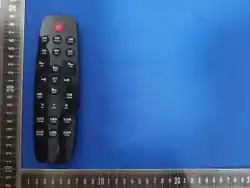
Remote control usage: When operating the remote control, press the buttons in sequence to
avoid pressing multiple buttons at the same time, which may cause damage to the motor due to
insufficient response.
FD Remote Pro 3 User Manual
Product Overview
This product is a high-end health sleep system that integrates adjustable firmness, height and
posture adjustment, and innovative water ripple massage. It dynamically optimizes support and
massage rhythm, and integrates vital sign monitoring, zoned heating, and sleep report analysis.
It aims to optimize your sleep quality through technology, bringing convenience and health to
your life.
Core functions: electric adjustment, firmness adjustment, vibration massage, water ripple
massage, vital sign monitoring, and heating temperature control.
Smart control: You can control the Mattress through various methods such as remote control,
Tuya APP, WeChat mini program and smart speaker.
Safety Precautions
To ensure your safety, please read the following guidelines carefully before use and always
adhere to them.
1.Electricity Safety
Power supply check: Before connecting the power supply, please confirm that the voltage
meets the product requirements and that the power cord and plug are intact.
Operational restrictions:

3
2.Personnel and Maintenance Safety
Children and pets: Keep the remote control out of reach of children. Children must use this
product under adult supervision.
Cleaning and Maintenance: Always unplug the power cord before cleaning or maintenance. Do
not use harsh chemicals (such as gasoline or diesel) to clean the Mattress. General dust can be
wiped off with a dry cotton cloth.
Non-professional disassembly: Non-professionals are strictly prohibited from disassembling
the structural components, motors, or control boxes of the Mattress to avoid causing
irreparable damage.
Installation and initialization
Unpacking Inspection: After opening the package, please first check the product for any bumps
or scratches, and check all accessories against the product accessory list to ensure they are
complete.
Assembly Requirements: Assembly requires at least two people. Do not pull or drag the
Mattress, and avoid using the Mattress legs as a single support point when flipping the Mattress.
Please strictly follow the diagrams or instruction videos in the instruction manual for assembly.
Power Connection and Debugging: After installation, install the control box in the designated
location and connect the motor cables and power supply. After powering on, use the remote
control to perform a preliminary check to ensure that all functions such as lifting, firmness
adjustment, and massage are operating normally.
Button Usage Instructions
After the device is powered on, the buttons next to the Mattress will light
up and vibrate, then turn off.
Press and hold the [+] button next to the Mattress to adjust the mattress
firmness,release to stop.
Press and hold the [-] button next to the Mattress to adjust the mattress
softness,release to stop.
Remote Control User Guide
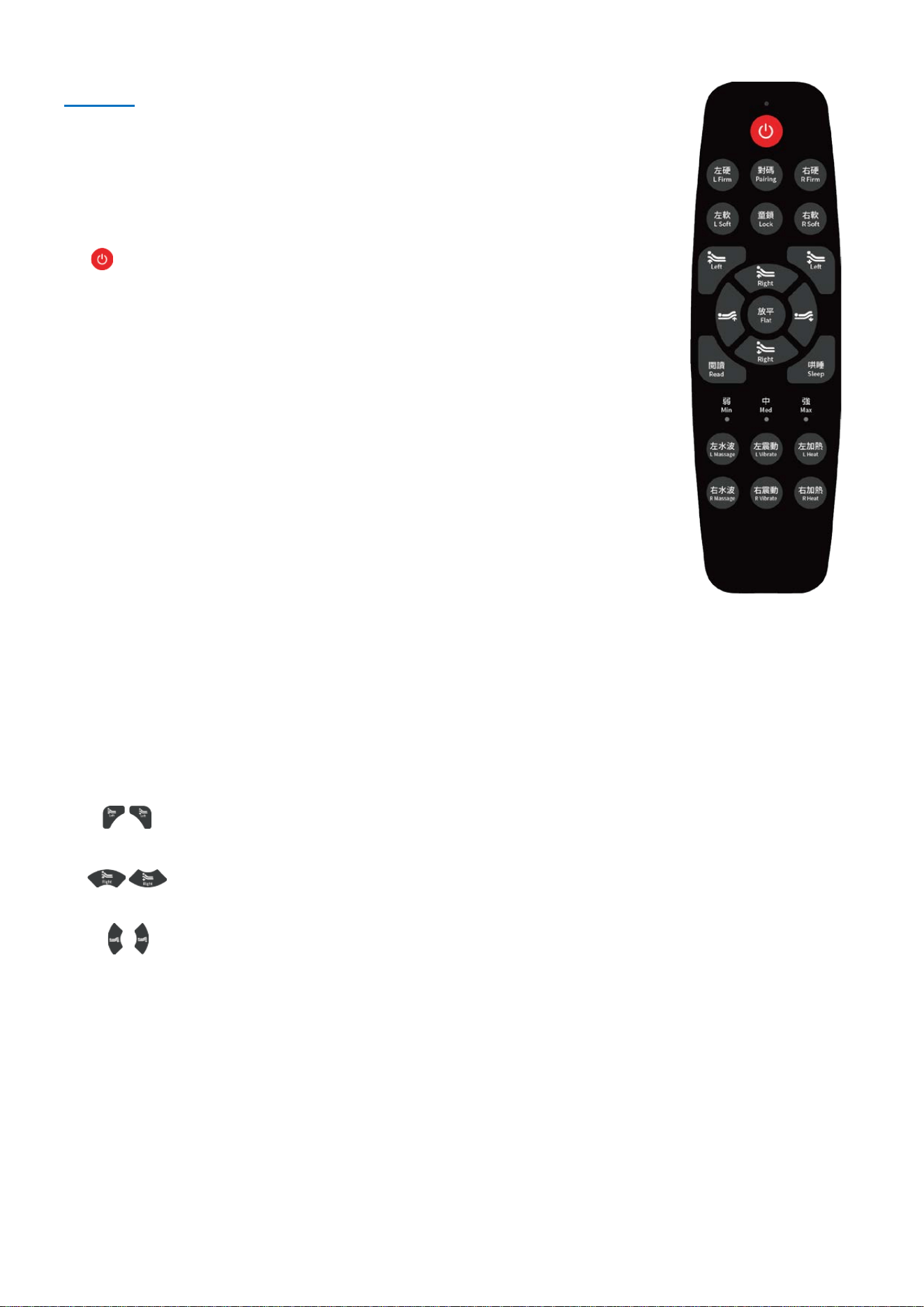
1.Pairing
Within 5 seconds of powering on the device, press and hold the [Pairing] button for 3-5 seconds
to pair. The indicator light will flash and then turn off, indicating successful pairing. After
successful pairing, you can use the remote control to adjust the device.
If pairing fails for more than 5 seconds, please restart your device and pair again.
Once paired, you can use the remote control to operate the device.
4
2.Usage
• L Soft: Short press to continue softening the left bed; short press again to stop. Long press
to soften the left bed; stop when released. The adjustment stops automatically when
adjusted to maximum softness.
• R Soft: Short press to continue softening the right bed; short press again to stop. Long
press to soften the right bed; stop when released. The adjustment stops automatically when
adjusted to maximum softness.
• : Press and hold to adjust the lef backrest upward or downward until it reaches
the highest or flat position.
• : Press and hold to adjust the right backrest upward or downward until it reaches
the highest or flat position.
• : Press and hold to adjust the feet rest upward or downward until it reaches the
highest or flat position.
• Flat Mode: Press to reset the electric adjustment to a fully flat state.
• Zero G /Read /Rise: Press to activate electric adjustment for "Zero Gravity Mode", "Reading
Mode", "Get Up Mode" .
• Sleep Mode: Press to activate "Sleep Mode", The full cycle lasts about 15 minutes. If
interrupted within the first 4 minutes, the device will initialize for about 30 seconds and
return the bed to a flat position.
• Device Initialization: After powering on, the device will automatically
initialize for approximately 30 seconds to 2 minutes, including electric
frame and firmness adjustment airbag initialization. Do not operate the
device during initialization.
• : One-Key Full Reset. Press to stop firmness adjustment, turn off
water wave, vibration, heating, and other functions, and reset the bed
frame, smart wake-up function remains active.
• Child Lock: Long-press to lock/unlock the remote control .
• L Firm: Short press to continue firming up the left bed; short press again
to stop. Long press to firm up the left bed; stop when released. The
adjustment stops automatically when adjusted to maximum firmness.
• R Firm: Short press to continue firming up the right bed; short press
again to stop. Long press to firm up the right bed; stop when released.
The adjustment stops automatically when adjusted to maximum
firmness.
5
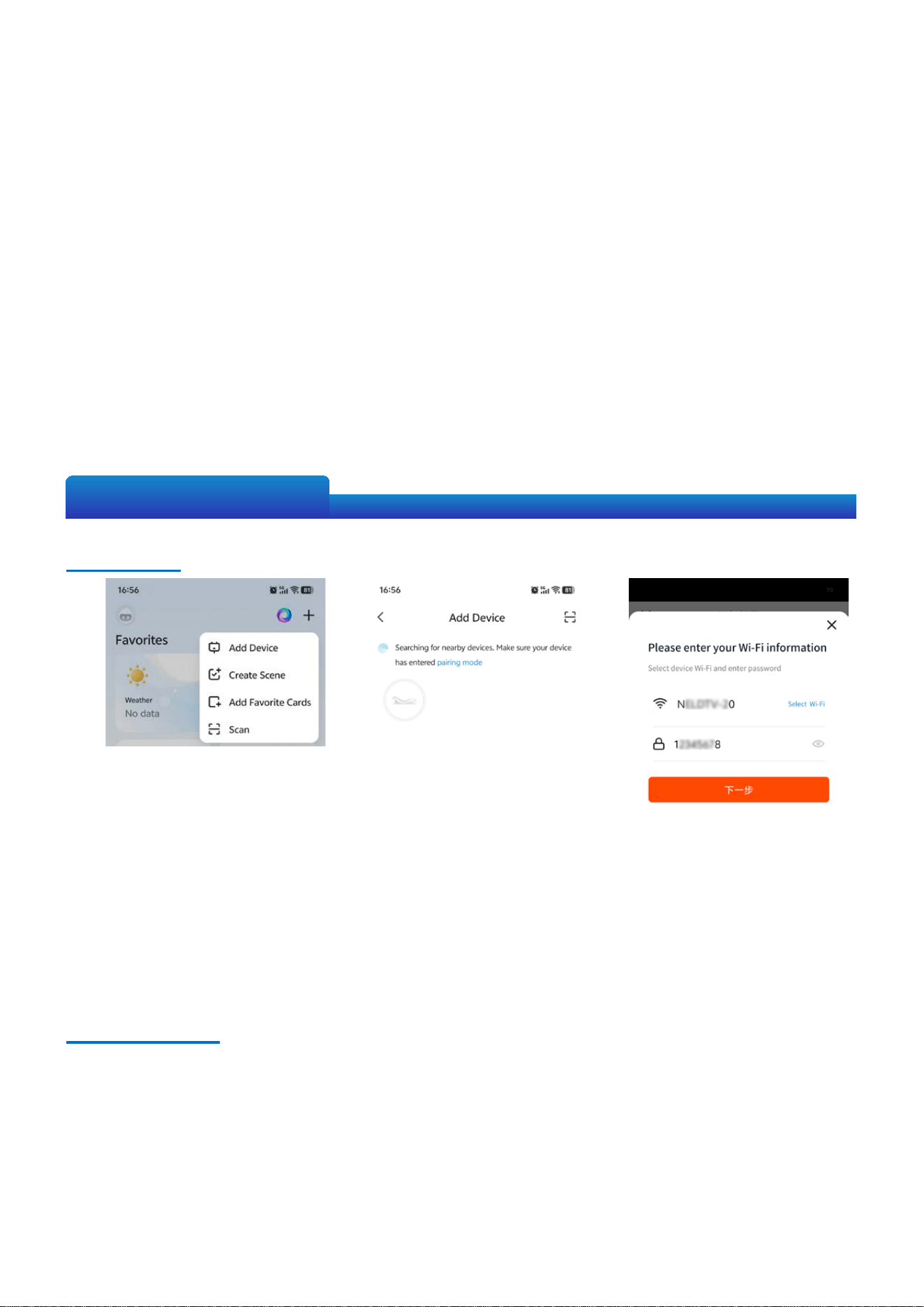
1.Add Device
① Search for "Tuya" in your app store to install the app.
Register/Log in to your Tuya account.
② Power on the device. Open the Tuya App, tap the "+" on the home screen to enter "Add
Device".
③ Tap on the detected "Smart Mattress" to configure Wi-Fi settings. Follow the prompts to
select your Wi-Fi network and enter the correct password, Tap "Next".
④ Once the device is successfully connected to the network, it will appear in the device list
under "Home".
Tuya App User Guide
2.Device Control
In the "Home" section, tap "Smart Mattress" to enter the control interface.
• Device Initialisation: After powering on, the device automatically initialises for
approximately 30 seconds to 2 minutes (including initialisation of the Mattress frame and
firmness adjustment airbags). Please do not operate the device during initialisation.
• One-Touch All Off: Press to stop firmness adjustment, turn off wave massage, vibration
massage, heating, etc., and reset the Mattress frame (Smart Wake-Up function is retained)
• L Massage/R Massage: Press briefly to activate water wave massage (default: 15 minutes,
low intensity). Continue pressing briefly to cycle through medium/high/low intensity. The
corresponding indicator light will illuminate. Long press to turn off water wave massage. All
three indicator lights will flash three times.
• L Vibrate/R Vibrate: Press briefly to activate left side/right side vibration massage (default:
15 minutes, low intensity). Continue pressing briefly to cycle through medium/high/low
intensity. The corresponding indicator light will illuminate. Long press to turn off vibration
massage. All three indicator lights will flash three times. (only available on PSL101-m*)
• L Heat/R Heat: Press briefly to activate heating (default: 2 hours, low intensity). Continue
pressing briefly to cycle through medium/high/low intensity. The corresponding indicator
light will illuminate. Long press to turn off heating. All three indicator lights will flash three
times. (only available on PSL101-r*)
6
d. Mode Switch: Nine preset modes are available. After selecting a mode, the Mattress
frame will automatically adjust to the corresponding position. Note:
• "One-Touch Flat" adjusts the Mattress to the initial flat position.
• "Soothing Sleep Mode" lasts about 15 minutes. Please note: if interrupted within
the first 4 minutes, the Mattress will initialise for about 30 seconds and return to
the flat position.
e. Auto Flatten Timer: When not in the "One-Touch Flat" mode, a timer can be set. The
Mattress will automatically return to the flat position at the set time.Smart Wake-Up:
At the set wake-up time (can be set for specific days Monday-Sunday), the Mattress
executes the "Wake-Up Assist" mode to gently wake the user.
f. Smart Wake-Up: At the set wake-up time (can be set for specific days Monday-
Sunday), the Mattress executes the "Wake-Up Assist" mode to gently wake the user.
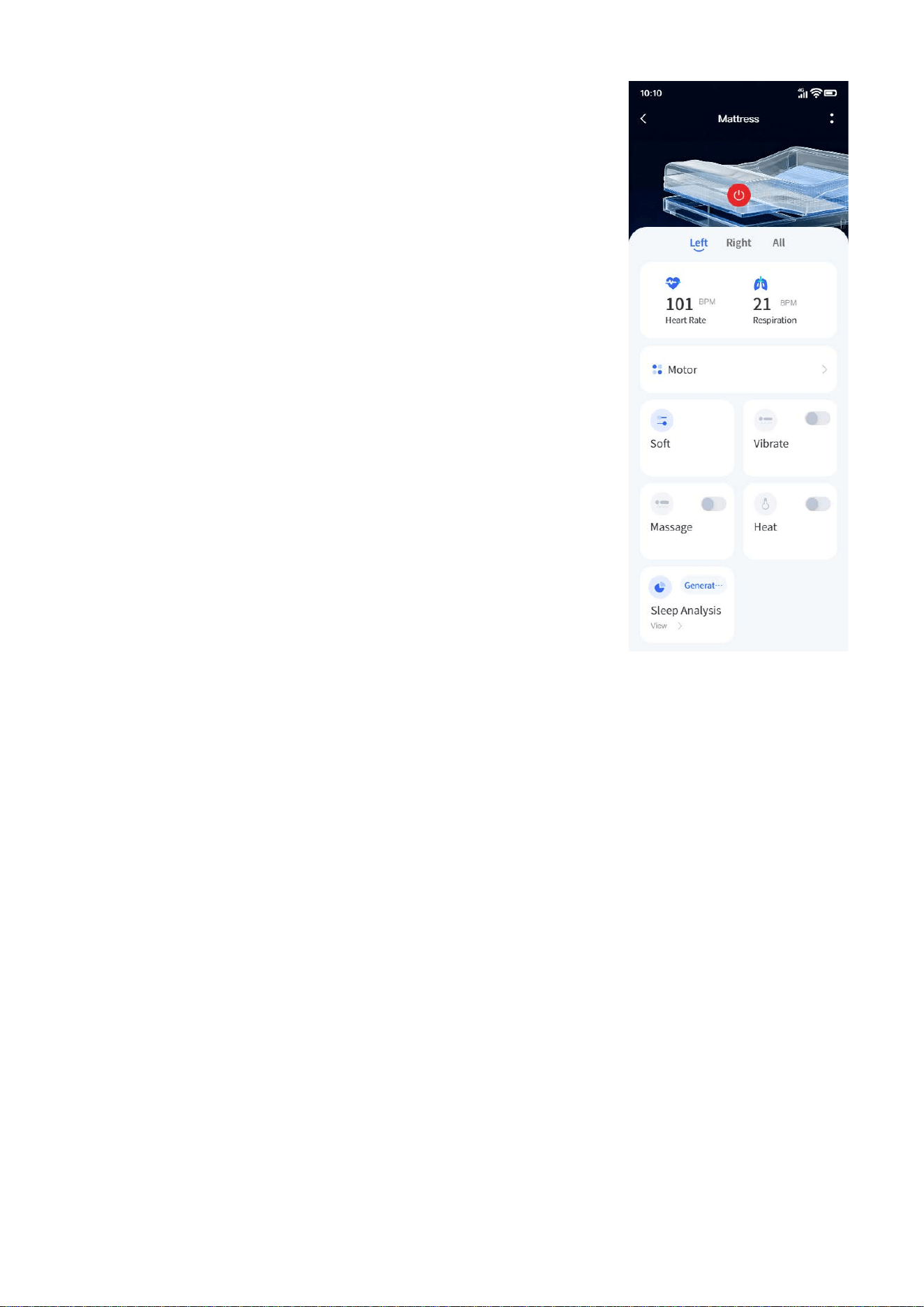
2.1 Left/Right Side Control
• Real-time Vital Signs: View real-time heart rate and breathing
data, please wait about 8 seconds for data to appear. (only
available on PSL101-v*)
• Motor Adjustment:
a. Back/Leg Rest Adjustment: Press and hold "+" to raise
the Mattress frame; press and hold "-" to lower the
Mattress frame.
b. 1Mode Switch: Nine preset modes are available. After
selecting a mode, the Mattress frame will automatically
adjust to the corresponding position. Note:
• "One-Touch Flat" adjusts the Mattress to the initial
flat position.
• "Soothing Sleep Mode" lasts about 15 minutes.
Please note: if interrupted within the first 4 minutes,
the Mattress will initialise for about 30 seconds and
return to the flat position.
c. Auto Flatten Timer: When not in the "One-Touch Flat"
mode, a timer can be set. The Mattress will
automatically return to the flat position at the set
time.Smart Wake-Up: At the set wake-up time (can be
set for specific days Monday-Sunday), the Mattress
executes the "Wake-Up Assist" mode to gently wake
the user.

7
g. Smart Snore Reduction: When enabled, the Mattress detects continuous snoring and
intelligently adjusts the headrest height to alleviate snoring. After successful
reduction, the Mattress frame automatically returns to flat. During the Smart Snore
Reduction execution, if the user's departure from the bed is detected, the Mattress
will automatically flatten in approximately 1 minute. (only available on PSL101-v*)
• Soft Adjustment: Tap to enter the adjustment page.
• Tap once on "Firmer" or "Softer" to start automatic adjustment; tap again to stop.
Press and hold for real-time adjustment, release to stop.
• Tap "Soft", "Medium", or "Hard" to adjust continuously to the preset firmness level.
• Vibration Massage: Turn on vibration massage. Default settings: Position "All", Intensity
"Medium", Duration "15 minutes". Tap to enter the next page to switch position, intensity,
• Massage: Turn on massage. Default settings: Mode "M1", Intensity "Medium", Duration "15
minutes". Tap to enter the next page to switch mode, intensity, and duration. Massage stops
after the timer ends.
• Heat : Turn on heating. Default settings: Intensity "Medium", Duration "2 hours". Tap to enter
the next page to switch intensity and duration. Heating stops after the timer ends. Note:
(only available on PSL101-r*)
• Heating and Anti-Allergy modes cannot be active simultaneously. Starting one
function will automatically turn off the other.
• Prolonged heating may cause low-temperature burns. Use with caution.
• Sleep Analysis: A sleep report is generated after nightly sleep exceeding 3 hours. The
following day, after waking, tap "Generate Report" to upload data from the Mattress to the
cloud. Tap the module to view sleep reports. You can switch between daily, weekly, and
monthly views, and switch between Mattresss if applicable. (only available on PSL101-v*)
8
3.Remove The Device
① From the Smart Mattress control screen, tap the ":" in the upper right corner to enter Device
Details.
② Scroll to the bottom of the page and tap "Remove Device".
Note: The first person to bind the device has the highest permissions. Others cannot scan and
add the device. The primary user can enter Device Details, tap "Share Device" to share it with
other Tuya accounts for adding.
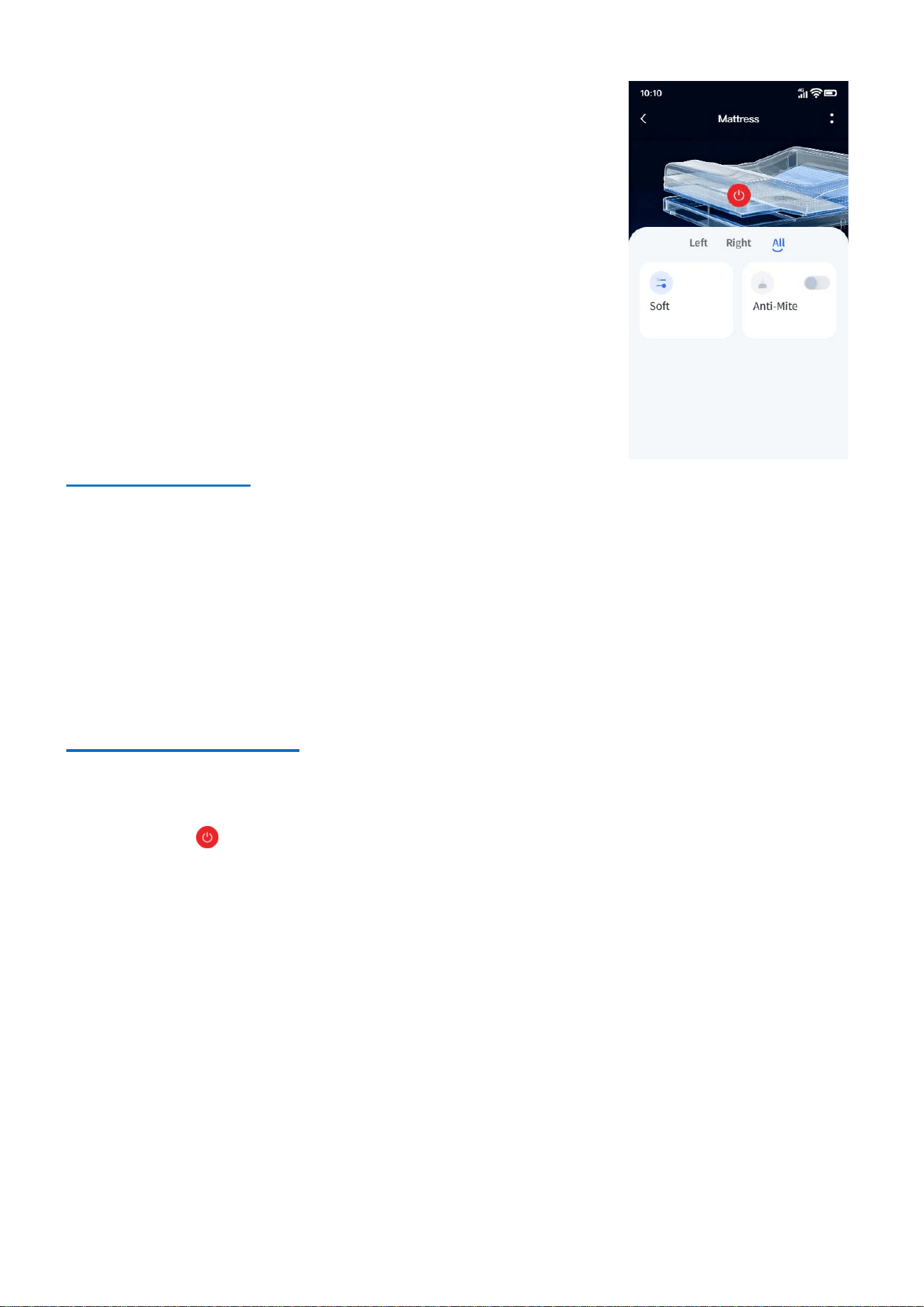
2.2 All Side Control
• Soft Adjustment: Tap to enter the adjustment page.
• Tap once on "Firmer" or "Softer" to start automatic
adjustment; tap again to stop. Press and hold for real-
time adjustment, release to stop.
• Tap "Soft", "Medium", or "Hard" to adjust
continuously to the preset firmness level.
• Anti-mite: When enabled, the Mattress heats for 30 minutes
for anti-allergy purposes. Heating and Anti-Allergy modes
cannot be active simultaneously. Starting one function will
automatically turn off the other.(only available on PSL101-r*)
4.Force Remove The Device
If the primary user is unavailable to remove the device, you can use the remote control to force
remove the Tuya-device. Follow these steps:
Press and hold for 3-5 seconds, Immediately after releasing it, press and hold the Flat
Button for another 3-5 seconds.
After the device is removed, it will be detectable in the Tuya App under the "Add Device"
function.

9
1.Add Device
① WeChat Search for the "国宝智能床垫" mini-program, or scan the mini-program QR code
provided.
② Enter the mini-program. In the "Control" section, tap "Add Device" to search for nearby
Bluetooth devices.
③ From the list of detected devices, tap your target device (Please stand near the device to
ensure it is detected).
④ You will enter the device binding interface. Tap "Add Device" to confirm.
Mini-Program User Guide
2.Device Control
The control method is the same as that of the Tuya App. Please refer to the Tuya App User
Guide in the previous chapter.
Sub-device Management: Manages the Mattress frame host. After connecting, you can view
the MAC address and firmware version. When a new firmware version is available, you can tap
"Firmware Upgrade" to update.
Note: This device contains two hosts. Version information for the main control host can be seen
in the device details. The sub-device host is managed in this section.
3.Remove The Device
① From the Smart Mattress control screen, tap the ":" in the upper right corner to enter Device
Details.
② Scroll to the bottom of the page and tap "Remove Device".
Note: The first person to bind the device has the highest permissions. Others cannot scan and
add the device. The primary user can enter Device Details, tap "Share Device" to share it with
other Tuya accounts for adding.
10
Troubleshooting
Warranty Policy: This product is covered by a warranty from the date of purchase . Please refer
to your warranty card or consult customer service for the specific warranty period. Please note
that the following situations are generally not covered under warranty:
①Unauthorized opening or alteration of the control box, motor, or remote control.
②Damage caused by human error or failure to use as instructed.
③Use in abnormal environments (such as extreme humidity or high temperature).
Service Support: If the problem persists after self-checking, or if the product requires repair,
please contact our after-sales service. Please provide the product model and purchase date so
we can provide you with faster service.
Friendly reminder: The contents of this manual will be updated with product firmware upgrades.
Please refer to the latest version of the manual or the instructions within the app for your
purchased product. Enjoy using our product!
After-sales service and warranty
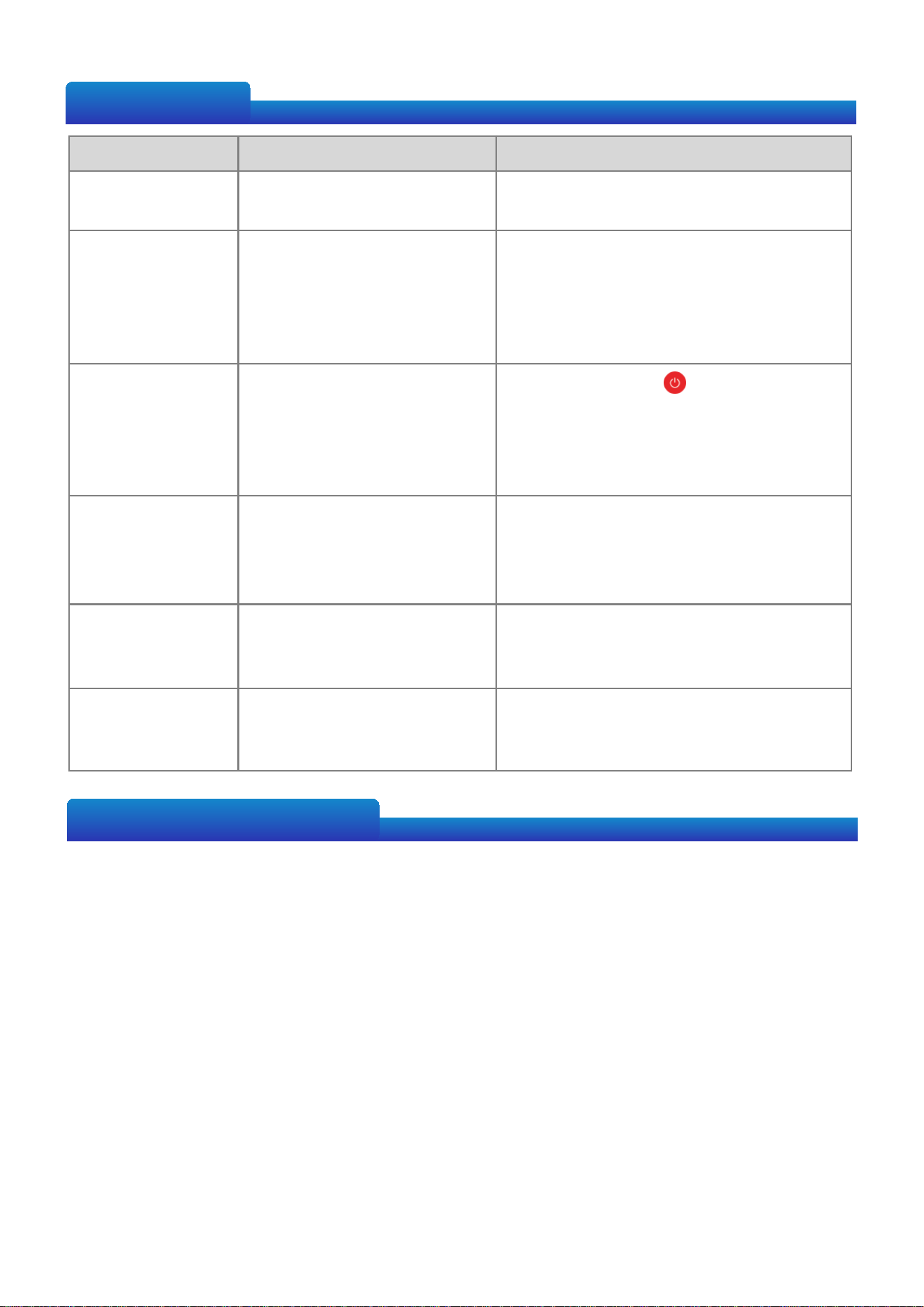
Fault phenomenon Possible reasons Solution
Remote control
malfunction
Battery depleted.
not paired with Mattress.
Replace the batteries.
re-pair the remote control.
The Mattress
cannot move.
Power is not connected.
power cord is loose.
Check that the power socket and plug
are properly plugged in.
Check the connections between the
power cord and the control box and
wall socket.
Tuya app cannot
scan the device
Device is already bound to
another account
Press and hold on the remote
control for 3-5 seconds , Immediately
after releasing it, press and hold the Flat
Button for 3-5 seconds to perform
forced device removal.
Tuya app cannot
connect the
Device
Weak Wi-Fi signal.
network configuration
failed.
Bring your phone close to the smart
Mattress.
Reconfigure the network after resetting
the device
There are
abnormal noises
during operation.
There is a foreign object
stuck between the Mattress
board and the frame.
Stop operation immediately, check and
remove any obstructions (such as sheets,
wires, etc.).
Functional
abnormality
Control box program error
Try disconnecting the power, waiting
one minute, and then reconnecting the
power to restart.

11
FCC
Warning
This device complies with Part 15 of the FCC Rules. Operation is subject to the following
two conditions:
(1) This device may not cause harmful interference, and (2) this device must accept any
interference received, including interference that may cause undesired operation.
NOTE 1: This equipment has been tested and found to comply with the limits for a Class
B digital device, pursuant to part 15 of the FCC Rules. These limits are designed to
provide reasonable protection against harmful interference in a residential installation.
This equipment generates, uses and can radiate radio frequency energy and, if not
installed and used in accordance with the instructions, may cause harmful interference
to radio communications. However, there is no guarantee that interference will not
occur in a particular installation. If this equipment does cause harmful interference to
radio or television reception, which can be determined by turning the equipment off
and on, the user is encouraged to try to correct the interference by one or more of the
following measures:
-Reorient or relocate the receiving antenna.
-Increase the separation between the equipment and receiver.
-Connect the equipment into an outlet on a circuit different from that to which the
receiver is connected.
-Consult the dealer or an experienced radio/TV technician for help.
NOTE 2: Any changes or modifications to this unit not expressly approved by the party
responsible for compliance could void the user's authority to operate the equipment.
The device has been evaluated to meet general RF exposure requirement. The device
can be used in portable exposure condition without restriction.

