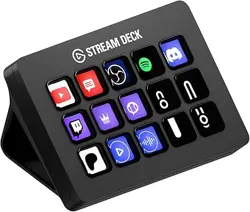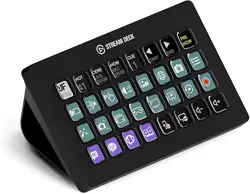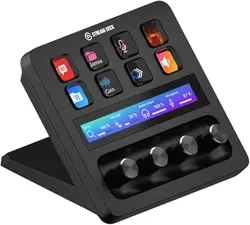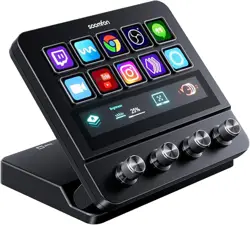
Specication
Packing List
Number of keys: 10
Number of knobs: 4
Voltage/Current: 5V/0.6A
Power consumption: 3.0W
Connection method: Wired
Inteace: USB-C
Backlight: LCD
Dimension: 137*123*110 mm
Operating systems: Windows 7 64bit or newer, macOS 10.15 or newer
FR: Liste de Paquetage | ES: Lista de Embalaje | IT: Lista imballaggio |
DE: Packliste | JP: 梱包内容
1
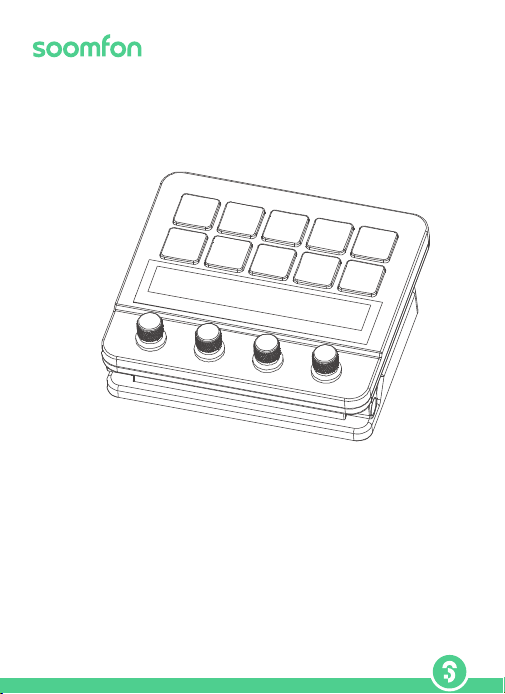
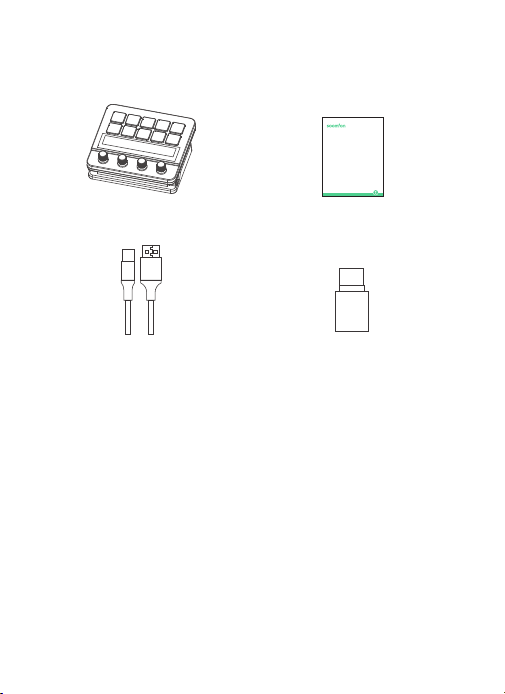
Stream Controller
1.5m USB 3.0
Type-A to Type-C Cable
Link Creative Life
Model :CN002
Stream Controller SE
QUICK START GUIDE
User Manual
Adapter
USB 3.0 Type-A to Type-C
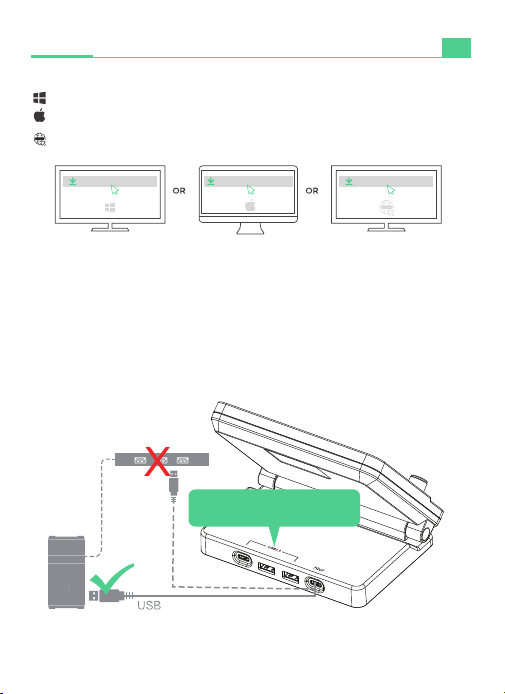
1. Download and install the Stream Controller software.
Windows users, please download: https://sm.key123.vip/win
macOS users, please download: https://sm.key123.vip/mac
Ocial website download address: https://soomfon.com/pages/suppo
EN
Quick Sta Guide
Note:
https://sm.key123.vip/win https://sm.key123.vip/mac
//soomfon.com/pages/support
2
a. After installing on a Mac system, go to Computer Settings ==》Privacy and
Security ==》Accessibility ==》Open Stream Controller
b. For the rst time, right-click ==》Open
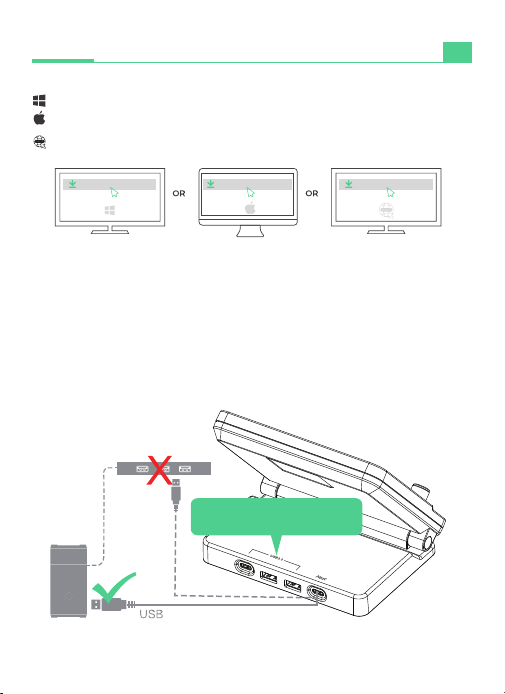
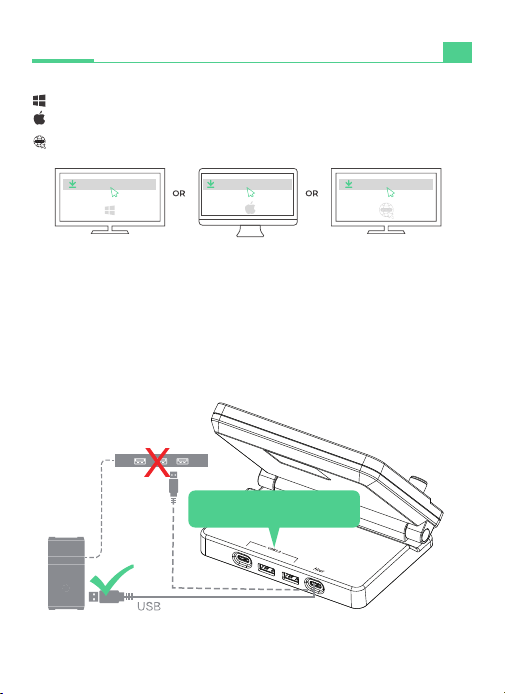
2. Connect the Stream Controller directly to a USB po on your PC or Mac and
then open the software.
* USB hub/docking is not recommended
USB 3.0: Data transmission only,
no charging suppo.
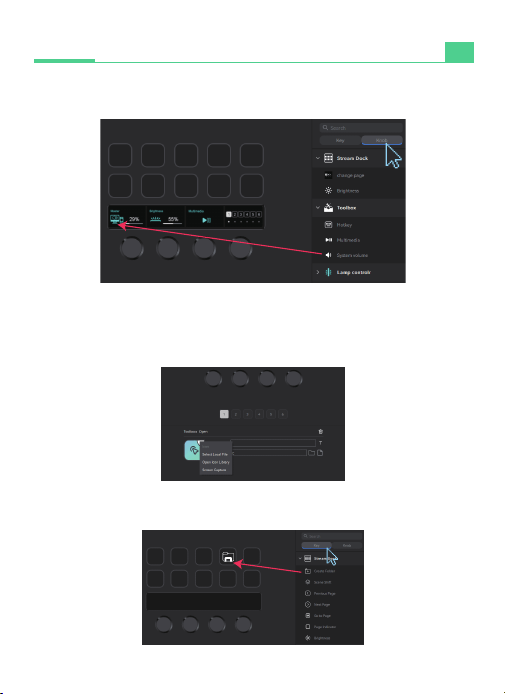
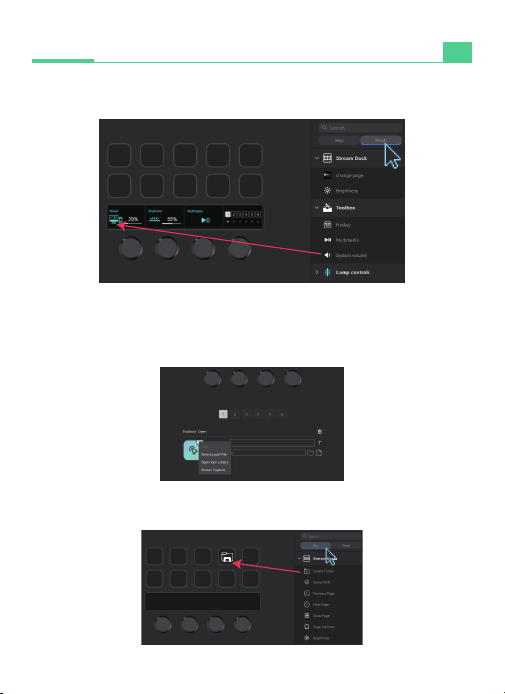
4. Customize the icon and personalize the button display as follows.
* For best results, please use a 126x126 pixel .jpg or .png le
5. Swipe the touchscreen left / right to navigate to dierent scenes.
3
Quick Sta Guide
EN
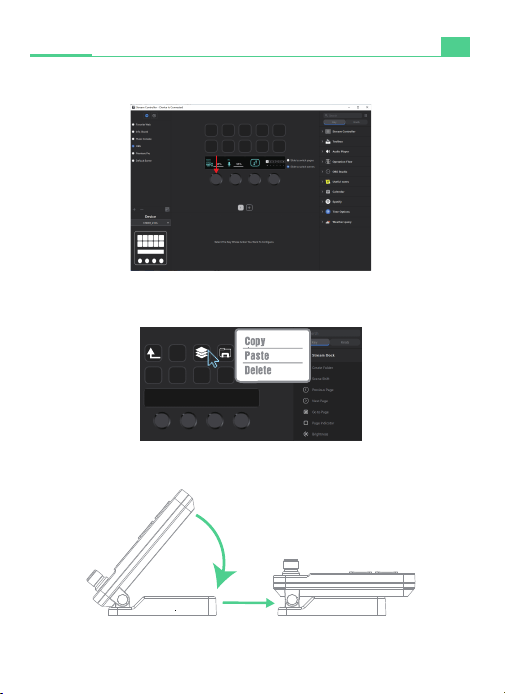
3. Sta the Stream Controller software and drag the desired operation icon from
the right panel to the button or knob on the left.
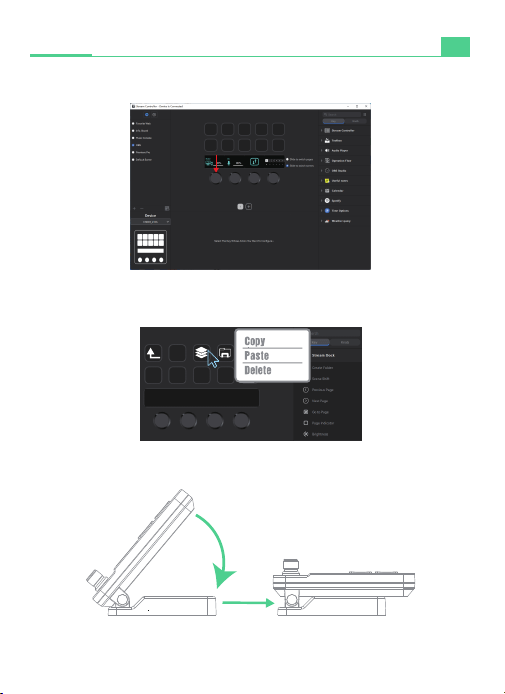
6. Tap the knob to peorm additional actions like muting audio or turning
on / o light.
7. Right-click the icon to copy, paste or delete the function.
8. The rotation is adjustable from 0~60 degrees.
EN
Quick Sta Guide
4
5
1. Laden Sie die Stream Controller-Software herunter und installieren Sie sie.
Windows-Benutzer laden bitte herunter: https://sm.key123.vip/win
macOS-Benutzer laden bitte herunter: https://sm.key123.vip/mac
Lösungen für einige Plugin Probleme: https://soomfon.com/pages/suppo
Hinweis:
https://sm.key123.vip/win https://sm.key123.vip/mac
//soomfon.com/pages/support
a. Nach der Installation auf einem Mac-System gehen Sie zu Computerein-
stellungen ==》Datenschutz und Sicherheit ==》Bedienungshilfen ==》
Stream Controller önen
b. Klicken Sie beim ersten Mal mit der rechten Maustaste auf ==》Önen
2. Schließen Sie den Stream Controller direkt an einen USB-Anschluss Ihres PCs
oder Macs an und önen Sie dann die Software.
* USB-Hub/Docking wird nicht empfohlen
Quick Start Guide
DE
USB 3.0: Data transmission only,
no charging suppo.
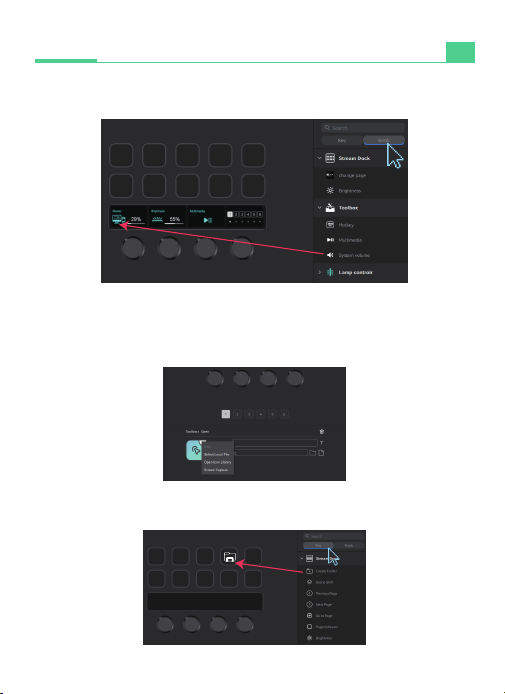
4. Sie können Symbole anpassen und die Tastenanzeige wie folgt
personalisieren.
* Für beste Ergebnisse verwenden Sie .jpg- oder .png-Dateien mit
126 x 126 Pixeln.
5. Wischen Sie auf dem Touchscreen nach links oder rechts, um die
Szenen zu wechseln.
6
Quick Start Guide
DE
3. Staen Sie die Stream Controller-Software und ziehen Sie das gewünschte
Funktionssymbol aus dem rechten Bereich auf die Schaltäche oder den Knopf
auf der linken Seite.
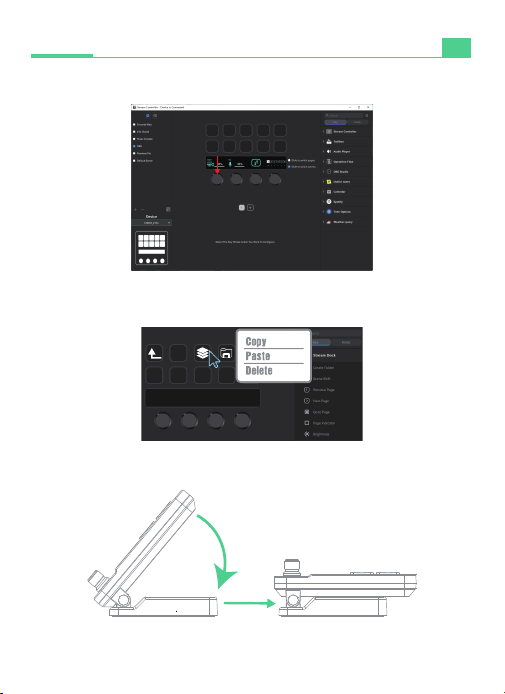
6. Drücken Sie den Knopf, um weitere Vorgänge auszuführen, z. B. die
Lautstärke stummzuschalten oder das Licht ein-/auszuschalten.
7. Klicken Sie mit der rechten Maustaste auf das Symbol, um die
Funktion zu kopieren, einzufügen oder zu löschen.
8. Der Stream Controller kann von 0 bis 60° eingestellt werden.
DE
Quick Sta Guide
7
8
1. Scarica e installa il software Stream Controller.
Gli utenti Windows devono scaricare: https://sm.key123.vip/win
Gli utenti MacOS devono scaricare: https://sm.key123.vip/mac
Soluzioni ad alcuni problemi relativi ai plug-in:
https://soomfon.com/pages/suppo
Nota:
https://sm.key123.vip/win https://sm.key123.vip/mac
//soomfon.com/pages/support
a. Dopo aver installato il sistema Mac, devi prima andare alle impostazioni del
computer ==》Privacy e sicurezza ==》Accessibilità ==》Apri Stream Controller
b. Per il primo utilizzo, devi fare clic con il pulsante destro del mouse ==》Apri
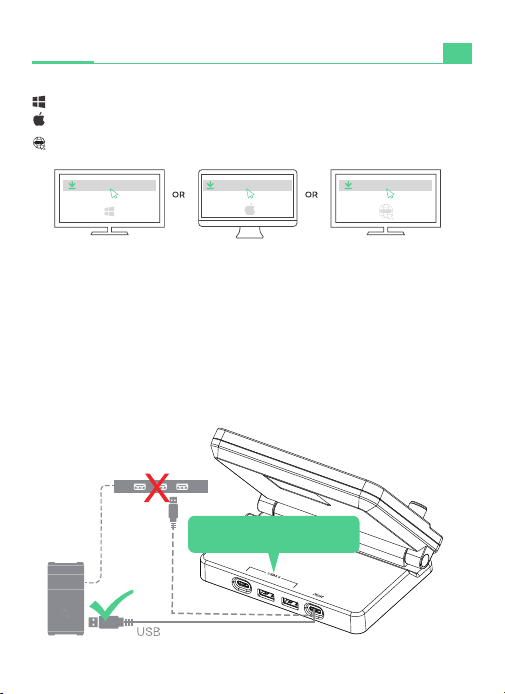
2. Collega lo Stream Controller direttamente a una poa USB del tuo PC o Mac
e quindi apri il software.
* L'hub/docking USB non è consigliato
Quick Start Guide
IT
USB 3.0: Data transmission only,
no charging suppo.
4. È possibile personalizzare le icone e personalizzare la visualizzazione dei
pulsanti come segue.
*Per ottenere risultati ottimali, utilizza le .jpg o .png da 126 x 126 pixel.
5. Scorrere verso sinistra o verso destra sul touchscreen per cambiare scena.
9
Quick Start Guide
IT
3. Avviare il software Stream Controller e trascinare l'icona della funzione desiderata
dal riquadro di destra al pulsante o alla manopola a sinistra.
6. Premere il pulsante per eseguire ulteriori operazioni, come ad esempio
disattivare il volume o accendere/spegnere la luce.
7. Fare clic con il tasto destro sull'icona per copiare, incollare o eliminare l
a funzione.
8. La Stream Controller può essere regolata da 0 a 60°.
IT
Quick Sta Guide
10
11
1. Descargue e instale el software Stream Controller.
Para usuarios de Windows, descargue: https://sm.key123.vip/win
Para usuarios de macOS, descarga: https://sm.key123.vip/mac
Dirección ocial de descarga: https://soomfon.com/pages/suppo
Notas:
https://sm.key123.vip/win https://sm.key123.vip/mac
//soomfon.com/pages/support
a. Después de instalar en el sistema Mac, es necesario hacer la conguración
del equipo == 》Privacidad y Seguridad == 》Accesibilidad == 》Activar Stream
Controller.
b. La primera vez que utilice Stream Controller deberá hacer clic con el botón
derecho del ratón == 》Abrir
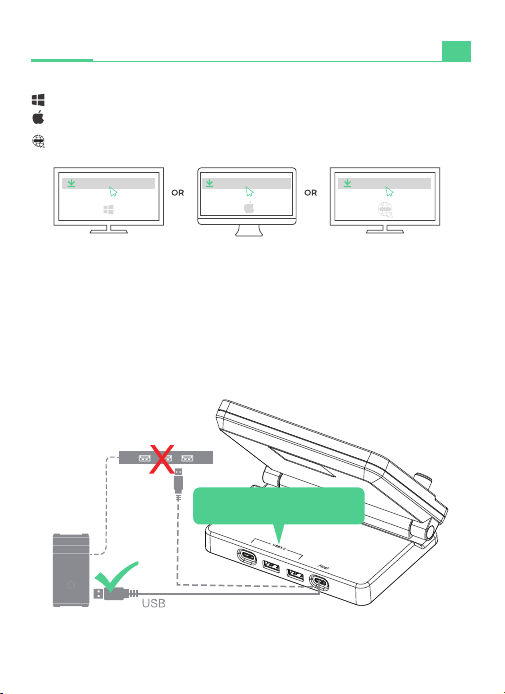
2. Conecte Stream Controller directamente a un pueo USB de su PC o Mac y
abra el software.
* No se recomienda el uso de un USB Hub/ Docking station.
Quick Start Guide
ES
USB 3.0: Data transmission only,
no charging suppo.
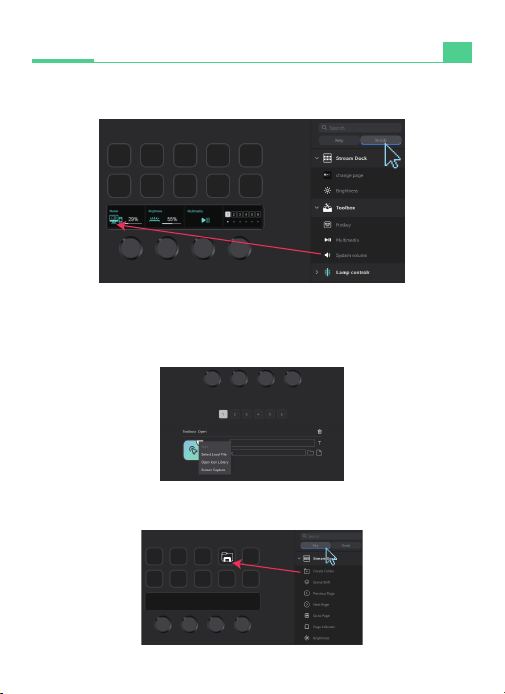
4. El icono puede personalizarse para personalizar la visualización del
botón de la siguiente manera.
*Para obtener mejores resultados, utilice 126x126 píxeles .jpg / .png
5. Deslice la pantalla táctil hacia la izquierda o hacia la derecha para
cambiar de escena.
12
Quick Start Guide
ES
3. Inicie la aplicación Stream Controller y arrastre el icono de la acción deseada
desde el panel derecho hasta el botón o mando de la izquierda.
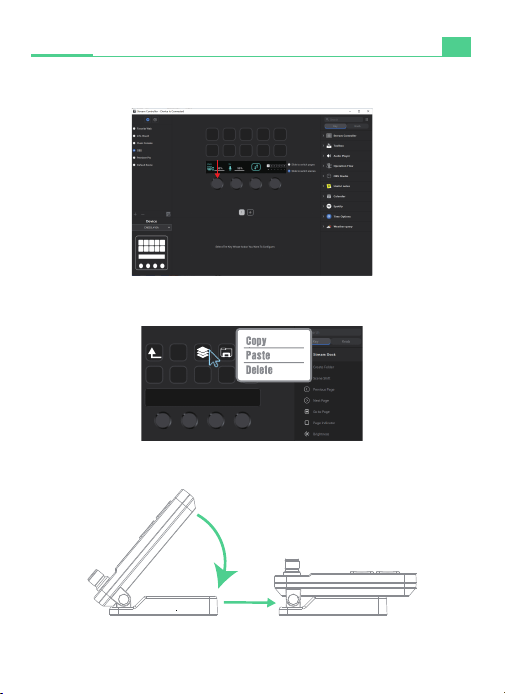
6. Presione la perilla para realizar más acciones, como silenciar el volumen
o encender/apagar el control de la luz.
7. La función puede copiarse, pegarse o borrarse haciendo clic con el
botón derecho del ratón sobre el icono.
8. El ángulo de rotación se puede ajustar entre 0 y 60°.
ES
Quick Sta Guide
13
14
1. Téléchargez et installez l'application Stream Controller.
Pour les utilisateurs de Windows, veuillez télécharger : https://sm.key123.vip/win
Pour les utilisateurs de macOS, veuillez télécharger : https://sm.key123.vip/mac
Adresse ocielle de téléchargement : https://soomfon.com/pages/suppo
Note:
https://sm.key123.vip/win https://sm.key123.vip/mac
//soomfon.com/pages/support
a. Après l'installation sur un système Mac, allez dans Paramètres de l'ordinateur
==》Condentialité et sécurité ==》Accessibilité ==》Open Stream Controller
b. Pour la première fois, cliquez avec le bouton droit de la souris ==》Ouve
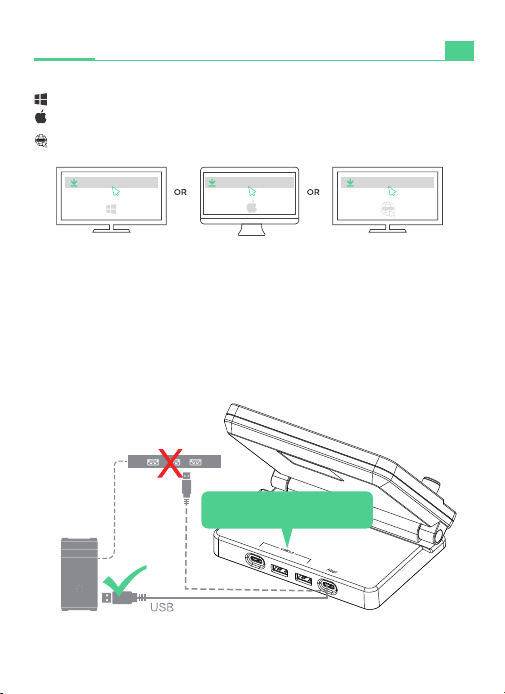
2. Connectez le Stream Controller directement à un po USB de votre PC ou
Mac, puis ouvrez le logiciel.
* Il n'est pas recommandé d'utiliser un USB Hub/ Docking station.
Quick Start Guide
FR
USB 3.0: Data transmission only,
no charging suppo.
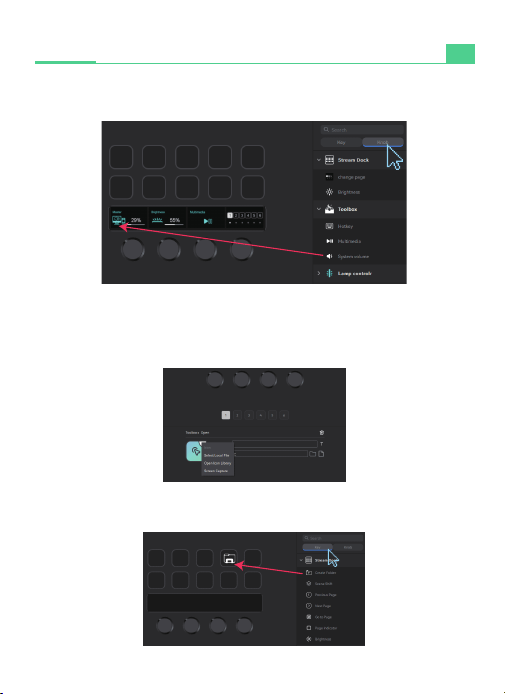
4. Vous pouvez personnaliser l'icône et personnaliser l'achage du
bouton comme suit.
* Pour de meilleurs résultats, veuillez utiliser un chier .jpg/ .png de
126x126 pixels.
5. Faites glisser l'écran tactile vers la gauche ou la droite pour changer
de scène.
15
Quick Start Guide
FR
3. Démarrez le logiciel Stream Controller et faites glisser l'icône de l'opération
souhaitée depuis le panneau de droite vers le bouton ou la molette de gauche.
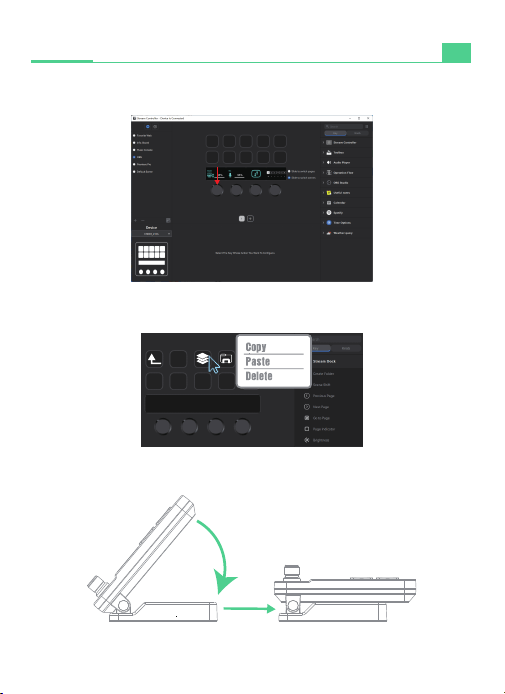
6. Appuyez sur le bouton pour eectuer d'autres actions, telles que couper
le volume ou allumer/éteindre la lumière.
7. Cliquez avec le bouton droit de la souris sur l'icône pour copier, coller
ou supprimer la fonction.
8. L'angle de rotation peut être réglé entre 0 et 60°.
FR
Quick Sta Guide
16
17
1. Stream Controllerアプリケーションをダウンロードしてインストールします。
Windows ダウンロードURL:https://sm.key123. vip/win
MacOSダウンロードURL:https://sm.key123. vip/mac
公式ウェブサイト ダウンロードURL:https://soomfon.com/pages/suppo
注意事項:
https://sm.key123.vip/win https://sm.key123.vip/mac
//soomfon.com/pages/support
a, MacシステムにStream Controllerをインストールした後、コンピュータの設
定を行う必要があります==》プライバシーとセキュリティ==》補助機能==》
Stream Controllerソフトウェアを開く
b, 初めて使用する場合、右クリック==》「開く 」をクリックしてください。
2. Stream Controller をPCまたはMacのUSBポートに直接接続し、ソフトウェア
を開きます。
* USBハブ/ドッキングステーションの使用は推奨しません。
Quick Start Guide
JP
USB 3.0: Data transmission only,
no charging suppo.
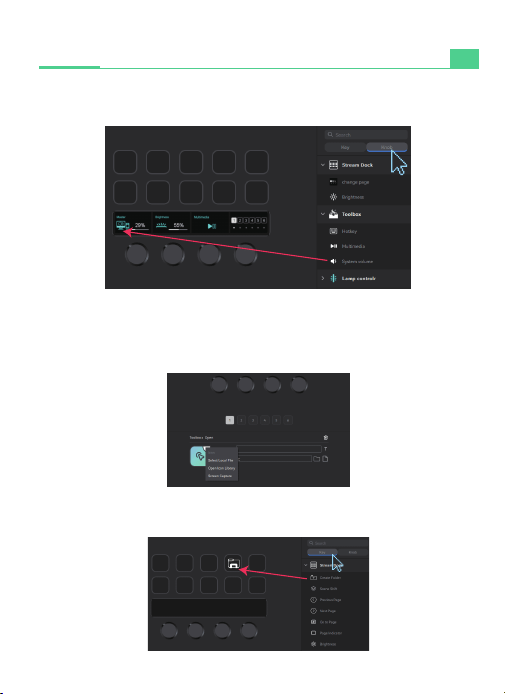
4. アイコンは以下のようにカスタマイズできます。
* 最適な効果を得るためには、126x126ピクセルを使用してください。
jpgまたは. pngファイル
5. タッチスクリーンを左右にスライドしてシーンを切り替えます。
18
Quick Start Guide
JP
3. Stream Controllerアプリケーションを起動し、右側のパネルから必要な操作アイ
コンを左側のボタンまたはノブにドラッグします。
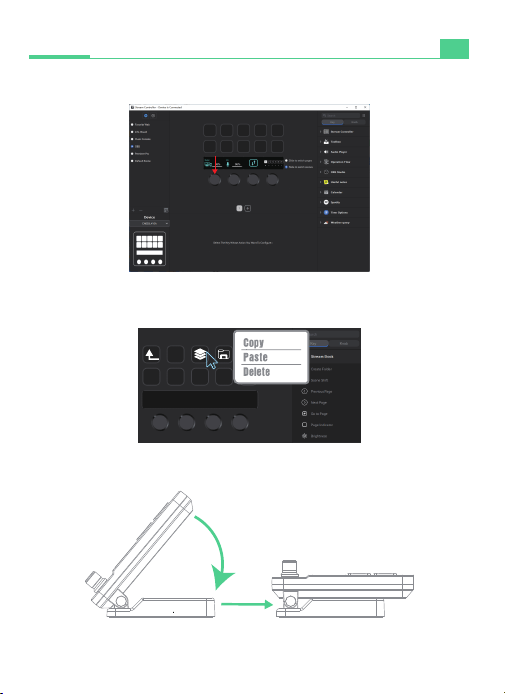
6. ノブを押すと、音量のミュートやライトのオン/オフなどの追加のアクシ
ョンが実行されます。
7. アイコンを右クリックして、機能をコピー、ペースト、または削除します。
8. 回転角度は0~60°の間で調整できます。
JP
Quick Sta Guide
19
24-Month
Warranty
24-monatige Garantie | Garantía de 24 meses | Garanzia di 24 mesi |
Garantie de 24 mois | 24ヶ月間製品保証
Lifetime
Technical Support
| Lebenslanger technischer Kundendienst
| Soporte técnico de por vida
| Assistenza tecnica per la durata del prodotto
| Support technique à vie
| 生涯テクニカルサポート保証
Warranty
Garantie | Garantía | Garanzia | Garantie | 製品保証について
This device complies with Part 15 of the FCC Rule. Operation is subject to the following two
conditions:
(1) This device may not cause harmful interference
(2) This device must accept any interference received, including interference that may cause
undesired
operation
could void the user's authority to operate the equipment.
FCC Compliance Statement
This symbol indicates that this product shall not be treated as household waste.
Instead it shall be handed over to the applicable collection point for the recycling of
electrical and electronic equipment.
www.soomfon.com
Contact info: [email protected]
Address:
Xfanic Group (HK) Limited
SUCCESS COURIER SL
CALLE RIO TORMES NUM.1,
PLANTA 1, DERECHA,
OFICINA 3, Fuenlabrada,
Madrid, 28947 Spain
Manuale utente
PAP 22
Raccolta carta
GOAL REACH CONSULTING LTD
OFFICE 10293 HARDMAN STREET 10TH
FLOOR. SPINNINGFIELDS, MANCHESTER,
UK M3 3HF
+44 2076494690