Storage Sharing Application Guide
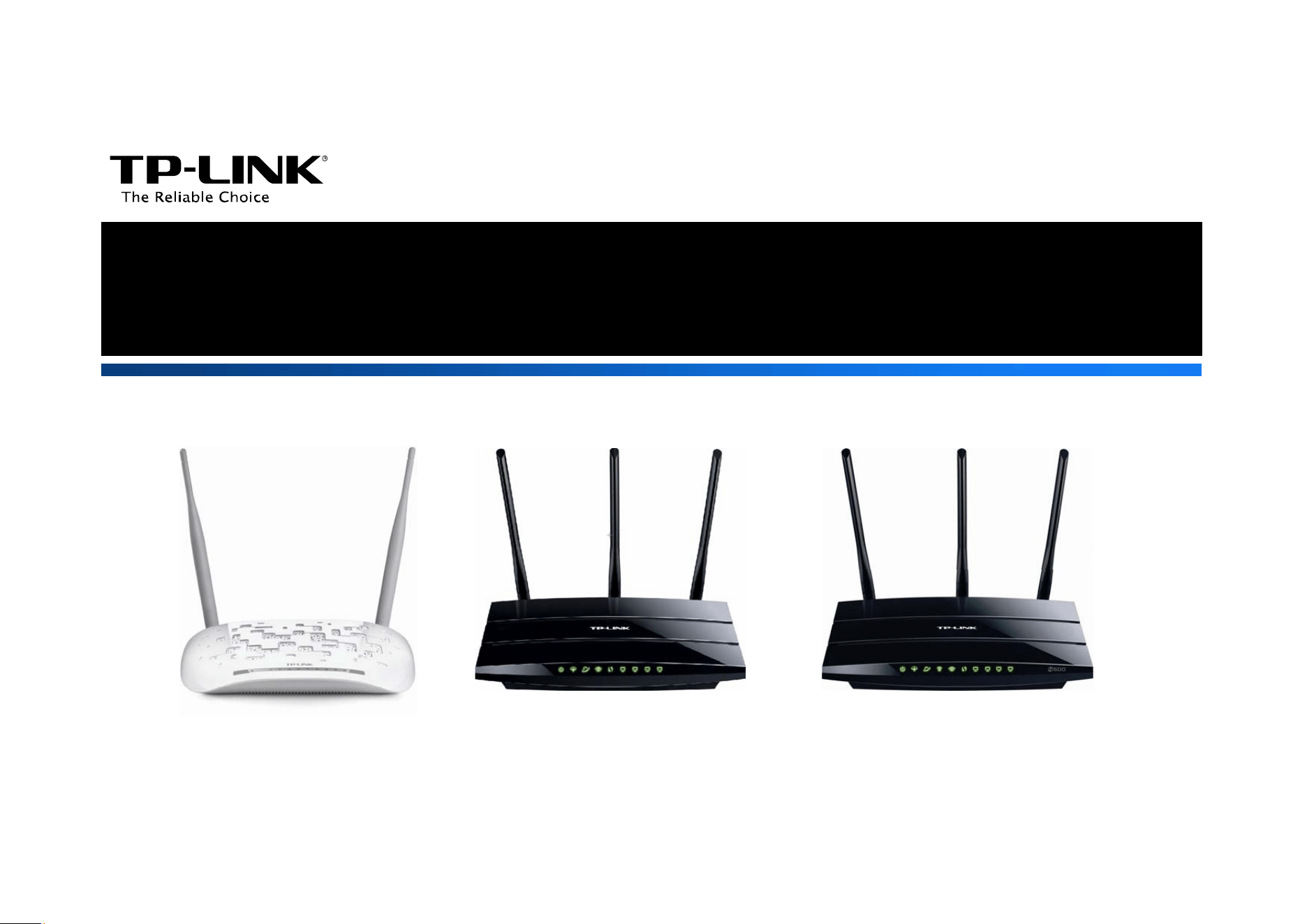
TD-W8968 TD-W8970 / TD-W8970B TD-W8980 / TD-W8980B
Rev: 1.0.1
1910010769

Contents
Overview ......................................................................................... 1
How to access shared folders.......................................................... 2
Extended Application ....................................................................... 5
How to create a user account ................................................................................... 5
How to add a shared folder ....................................................................................... 7
¾ Set Access Authorization...............................................................................11
¾ Anonymous Access...................................................................................... 13
Troubleshooting .............................................................................. 14
Overview
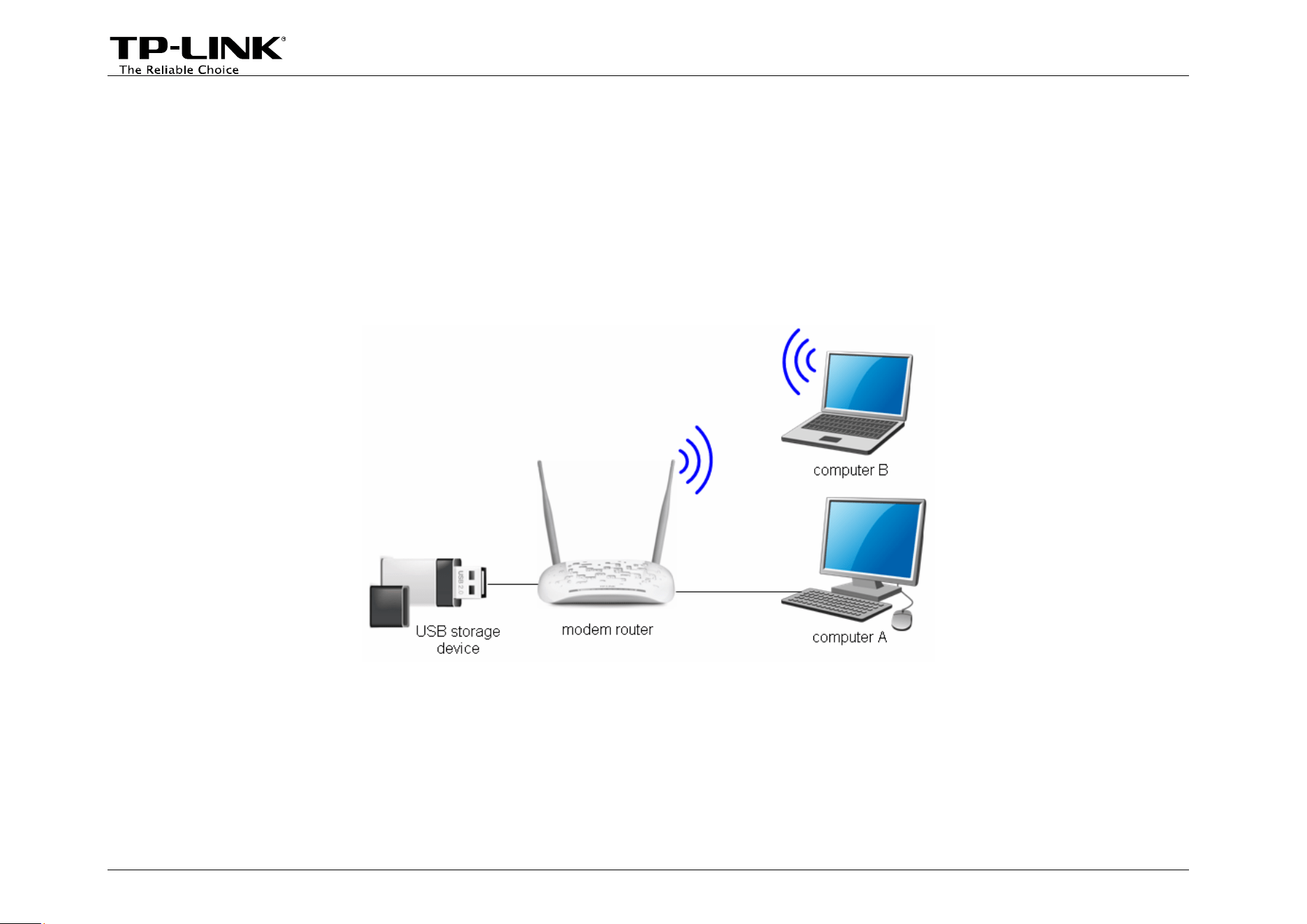
The storage sharing feature allows you to share a USB storage device that’s connected to the modem router, to
other wired or wireless users in the same network.
Typical Topology
Here in this guide, we take the configuration procedures of TD-W8968 for example.
Before setting up the Storage Sharing function, make sure you have the following devices:
9 Computer with Windows 2000/ XP/ Vista/ 7/ 8/ Mac OS X/ Linux
9 USB storage devices with USB 2.0/3.0 port
-1-
How to access shared folders
The modem router’s Storage Sharing function is enabled by default, when the storage device is plugged into its
USB port.
Please follow the steps to access the storage device.
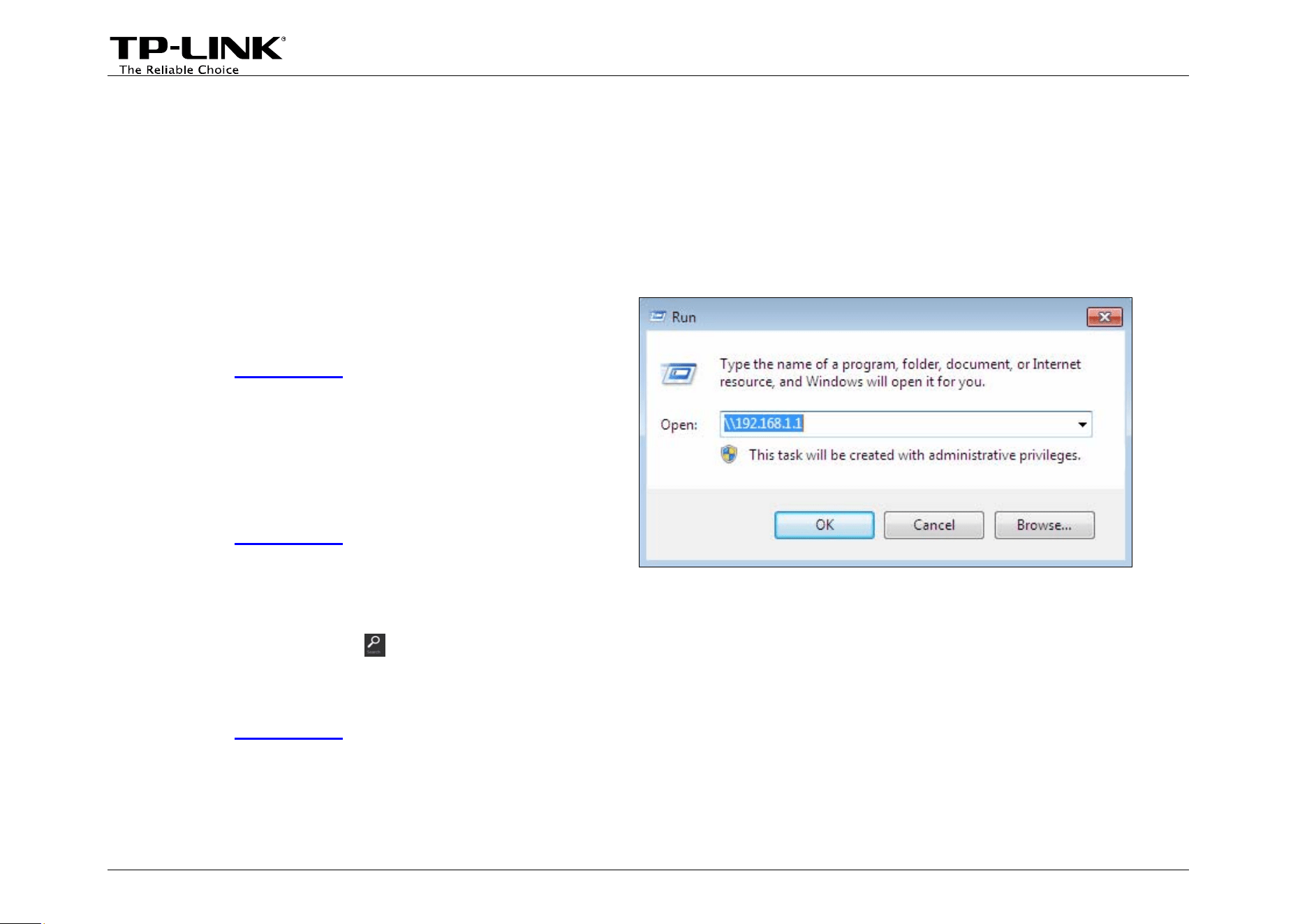
• For Windows Users:
Windows XP:
• Go to Start -> Run
• Input \\192.168.1.1 in the dialog box
• Click OK
Windows Vista/7:
• Go to Start
• Type “run” in the search box
• Open the run application
• Input \\192.168.1.1 in the dialog box
• Click OK
Windows 8:
• Move your mouse to the lower right corner and you
will see Search icon
in the Popups. Click it and
search run
• Open the run application
• Input \\192.168.1.1 in the dialog box
• Click OK
-2-
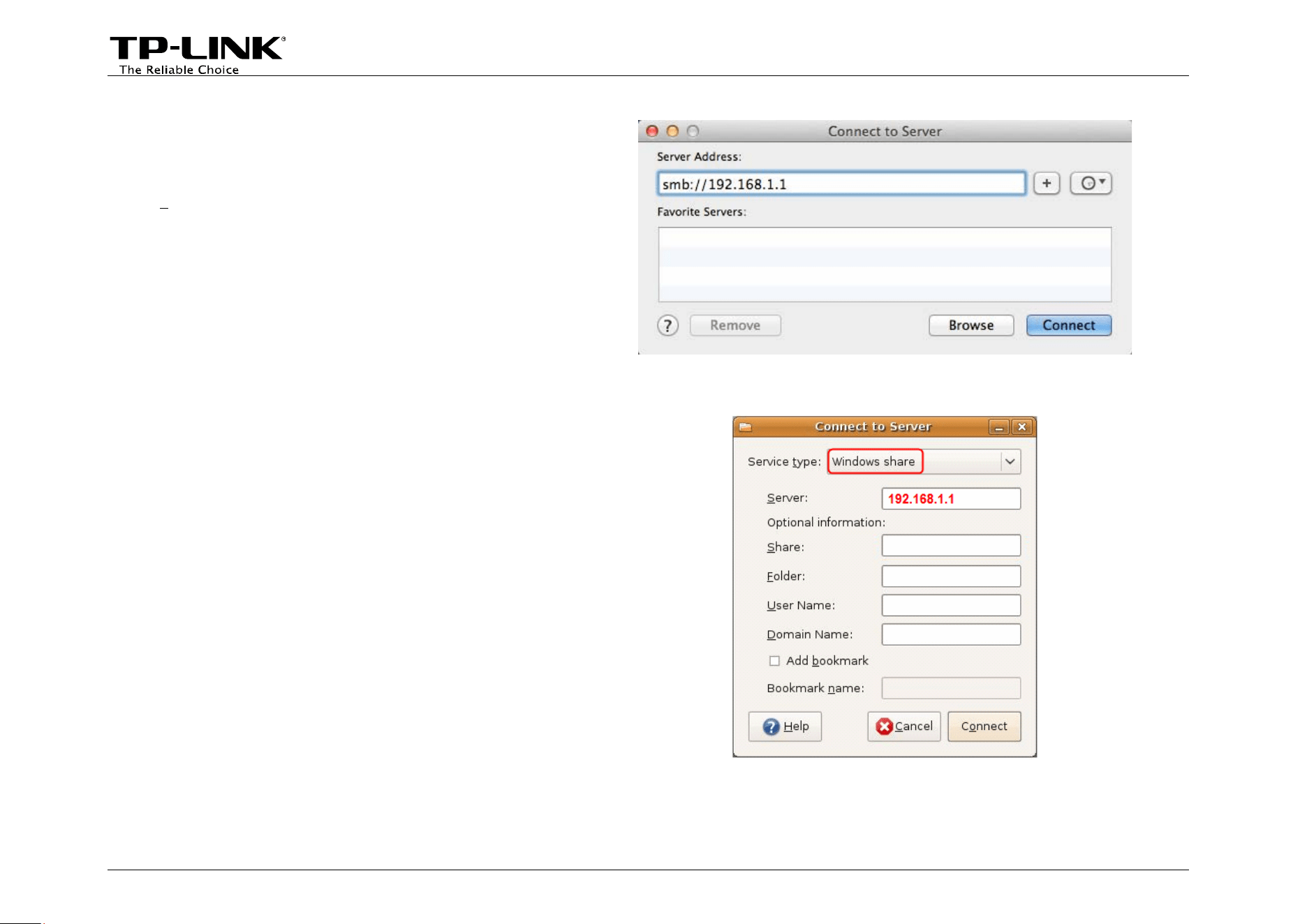
• For Mac OS X Users:
• On the top tray, go to Go -> Connect to Server
• Input Server Address smb://192.168.1.1
• Click Connect
• For Linux Users:
• On the top tray, go to Places -> Connect to
Server
• Choose Service type Windows share
• Input Server 192.168.1.1
• Click Connect
-3-

-4-
)
Note:
U(1) Some SB storage devices may require using the external power.
(2) To set up different accounts with their own access rights, please log
and set it on USB Settings -> Storage Sharing and USB Settings -> User
into to the web-based management page
Accounts.
Now you have accessed the storage device, and you can read, edit, copy and delete the files in the storage
device.
Extended Application
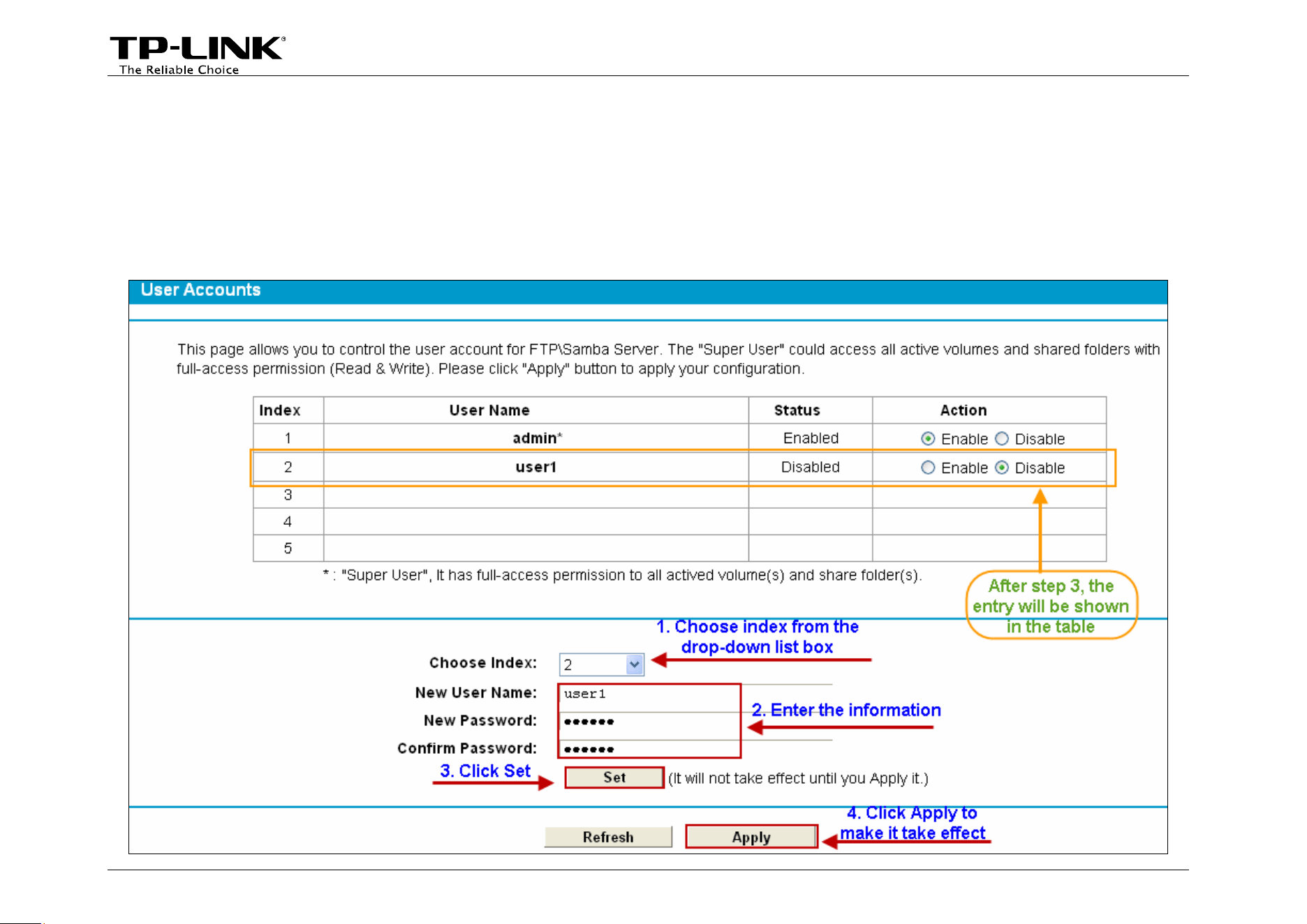
How to create a user account
Log onto the web-based management page, go to USB Settings ->User Accounts and follow the steps in the
figure below.
-5-

)
Note:
(1) The status of the new user is disabled by default. You need to click Enable in the Action column of user
account table to enable folders access.
(2) User name “admin*” is a “Super User” with full-access permission. Its action that could access all active
volumes and shared folders is enabled by default.
(3) The default user name/password of the Super User is admin/admin.
-6-
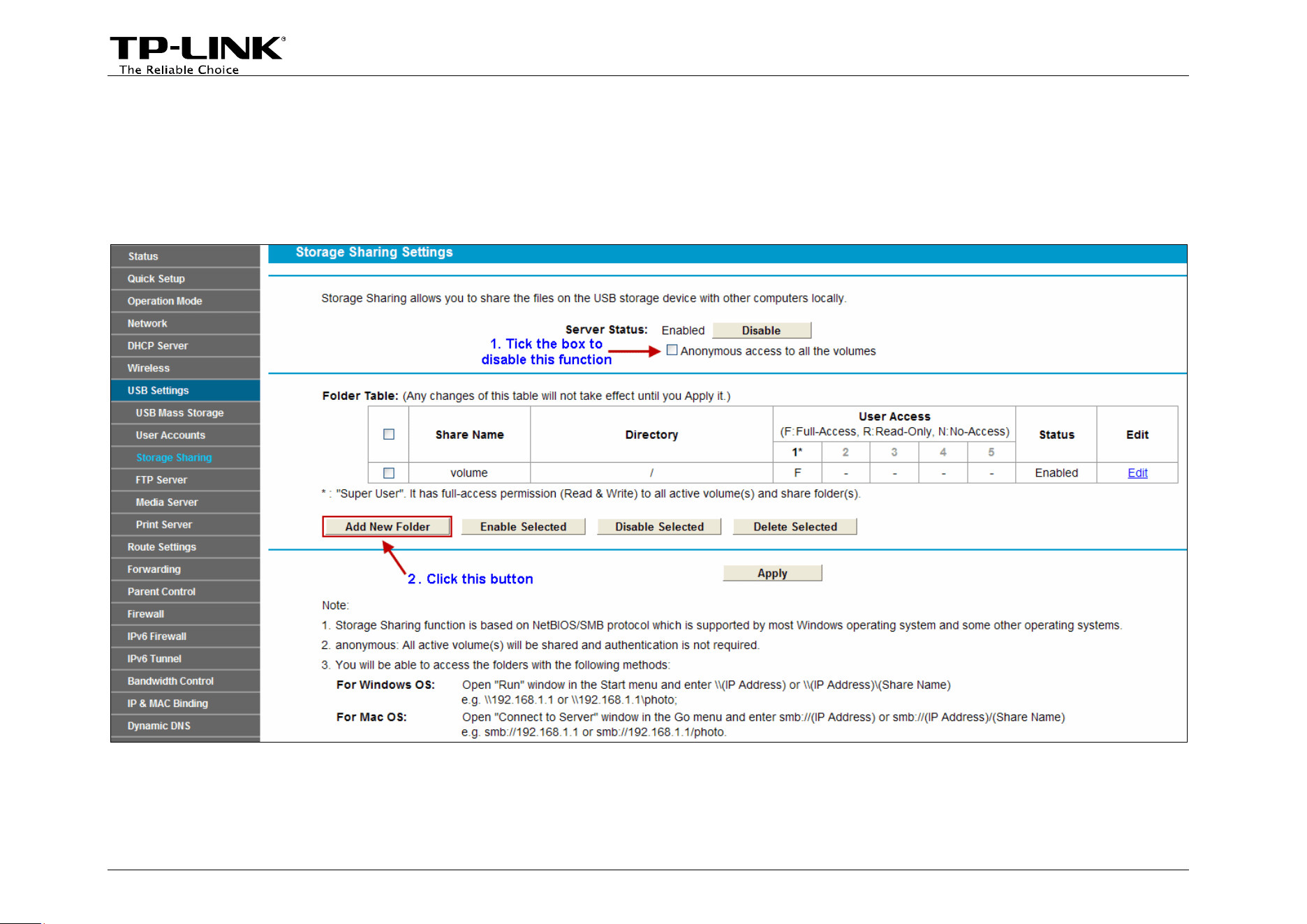
How to add a shared folder
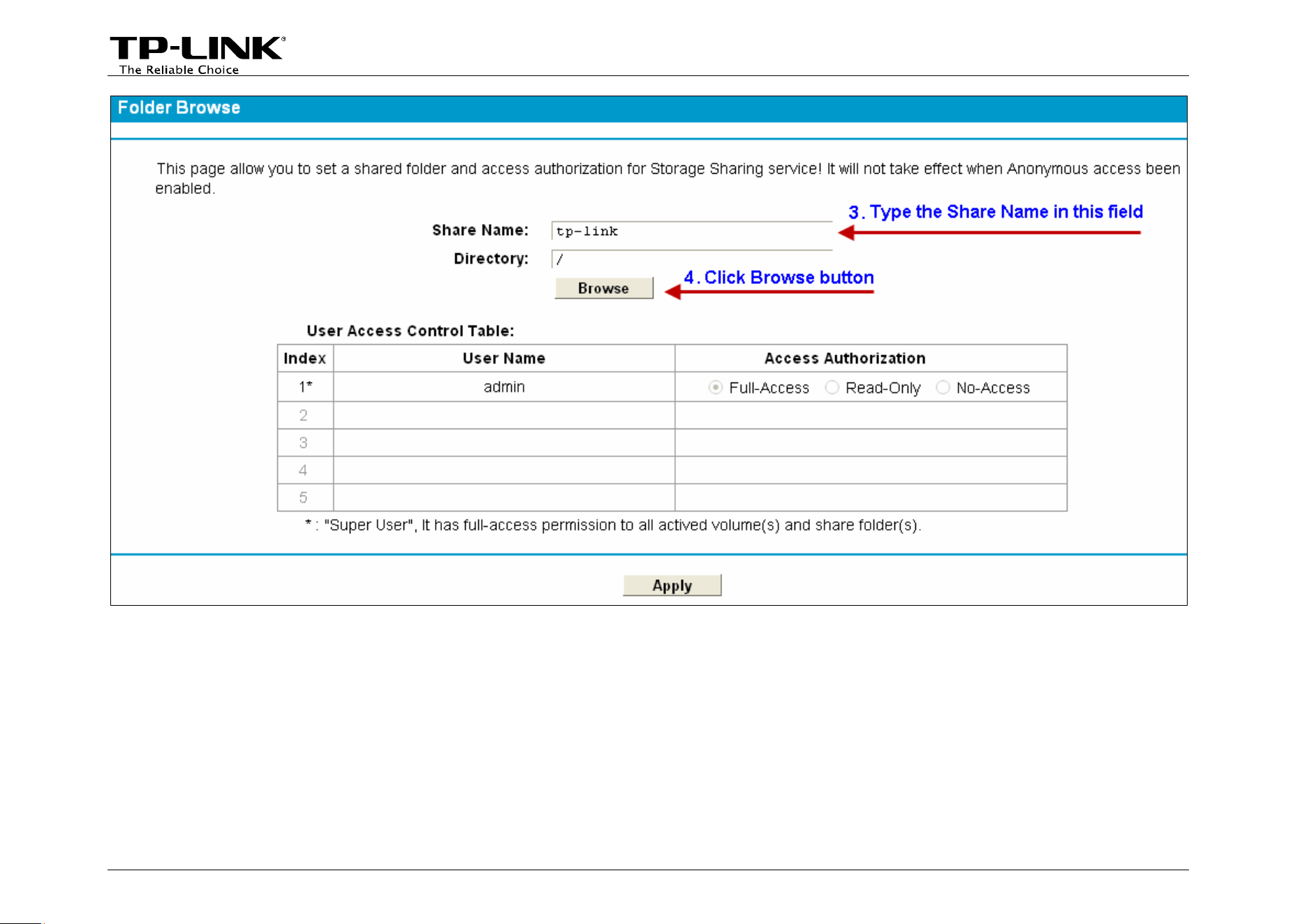
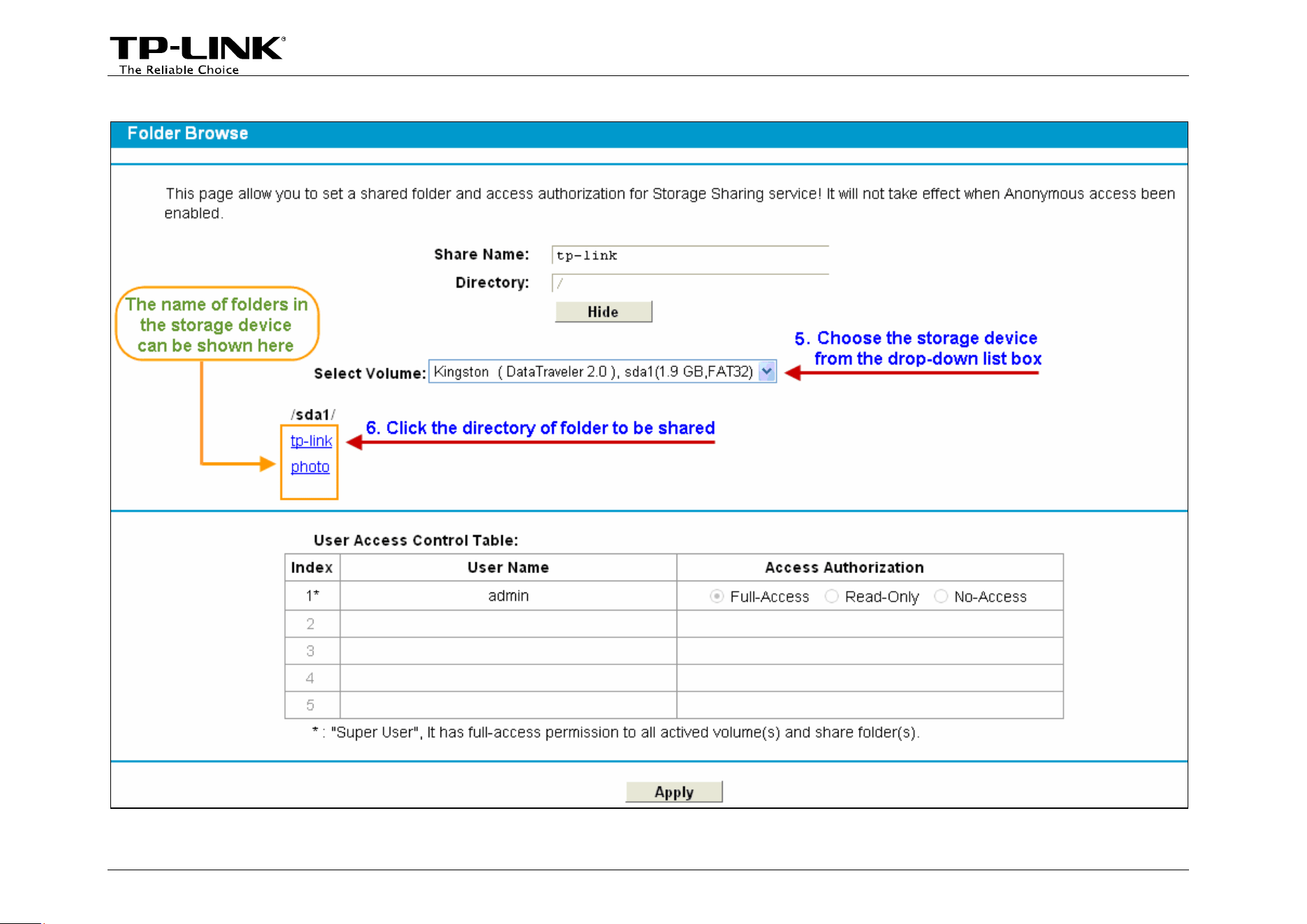
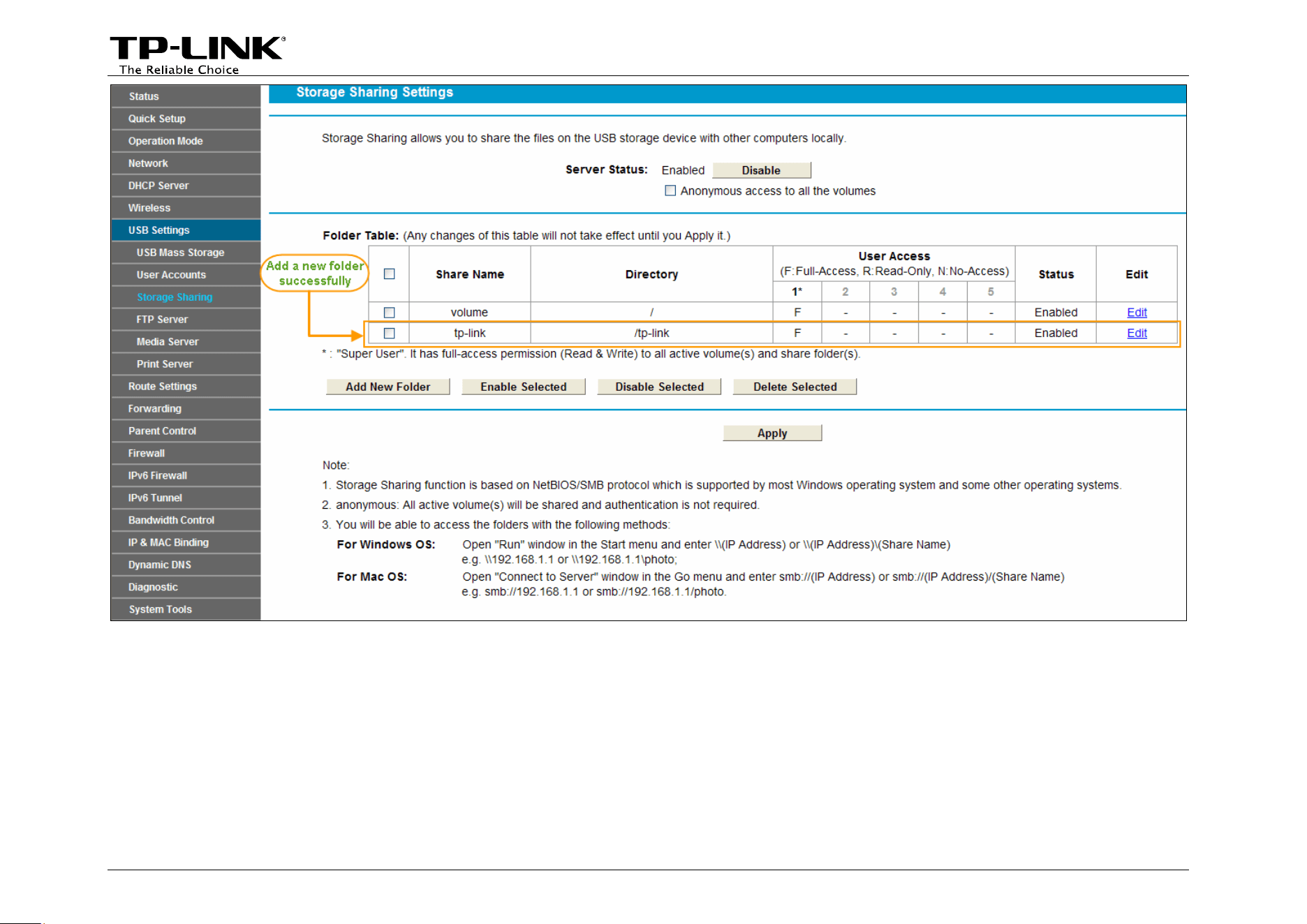
Log onto the web-based management page, go to USB Settings -> Storage Sharing and follow the steps in the
figures below.
-7-
-8-
-9-
-10-
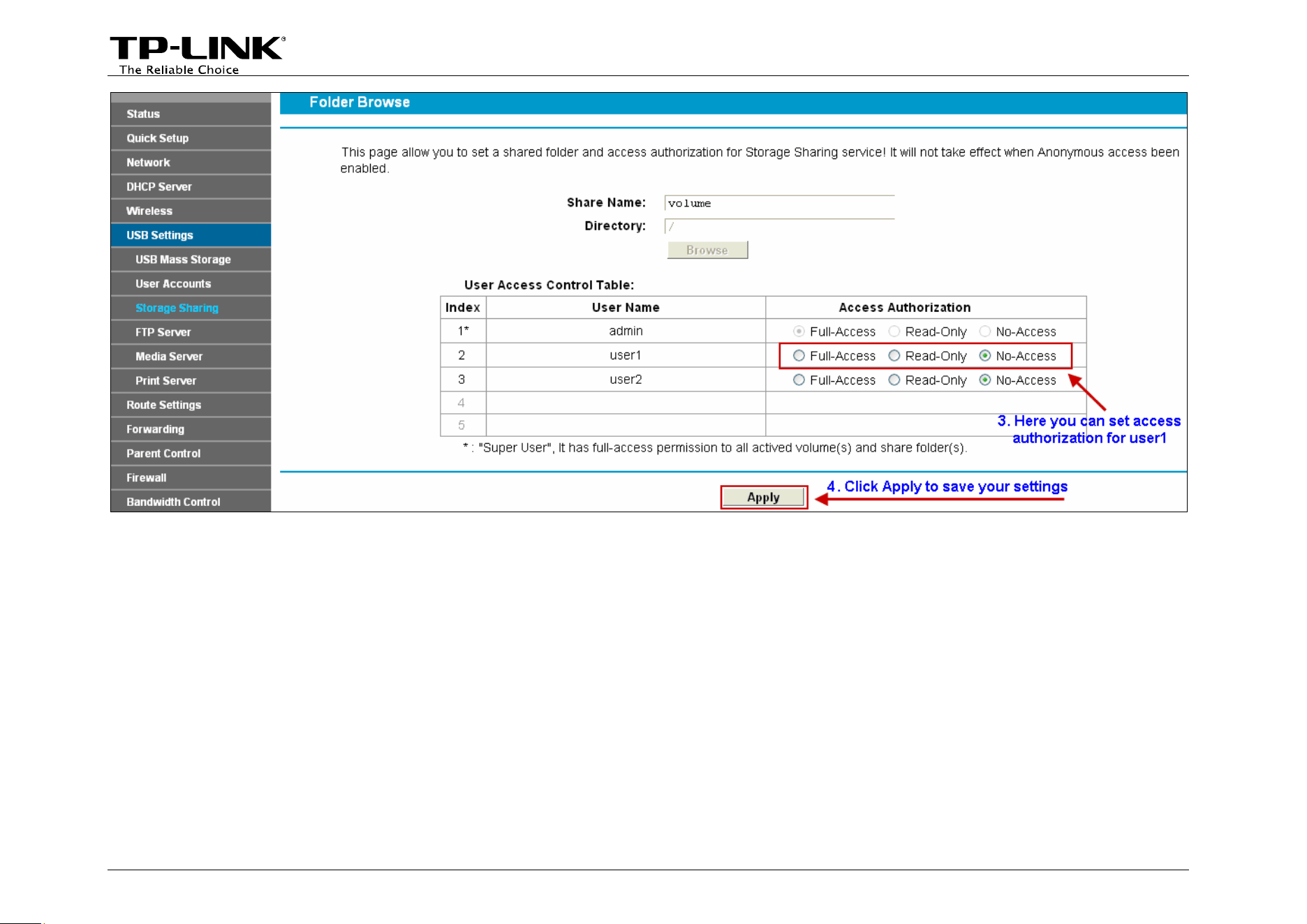
¾ Set Access Authorization
There are three access
authorization levels: full-access, read-only and no-access. The full-access user (i.e.
super user) has full-access permission to add, delete and modify files in the storage device. The read-only user
just has file-reading permission. And the no-access user is unable to access the storage device.
If you want to set access authorization for a user (eg. user1), please follow the steps illustrated in the figures
below.
-11-
-12-
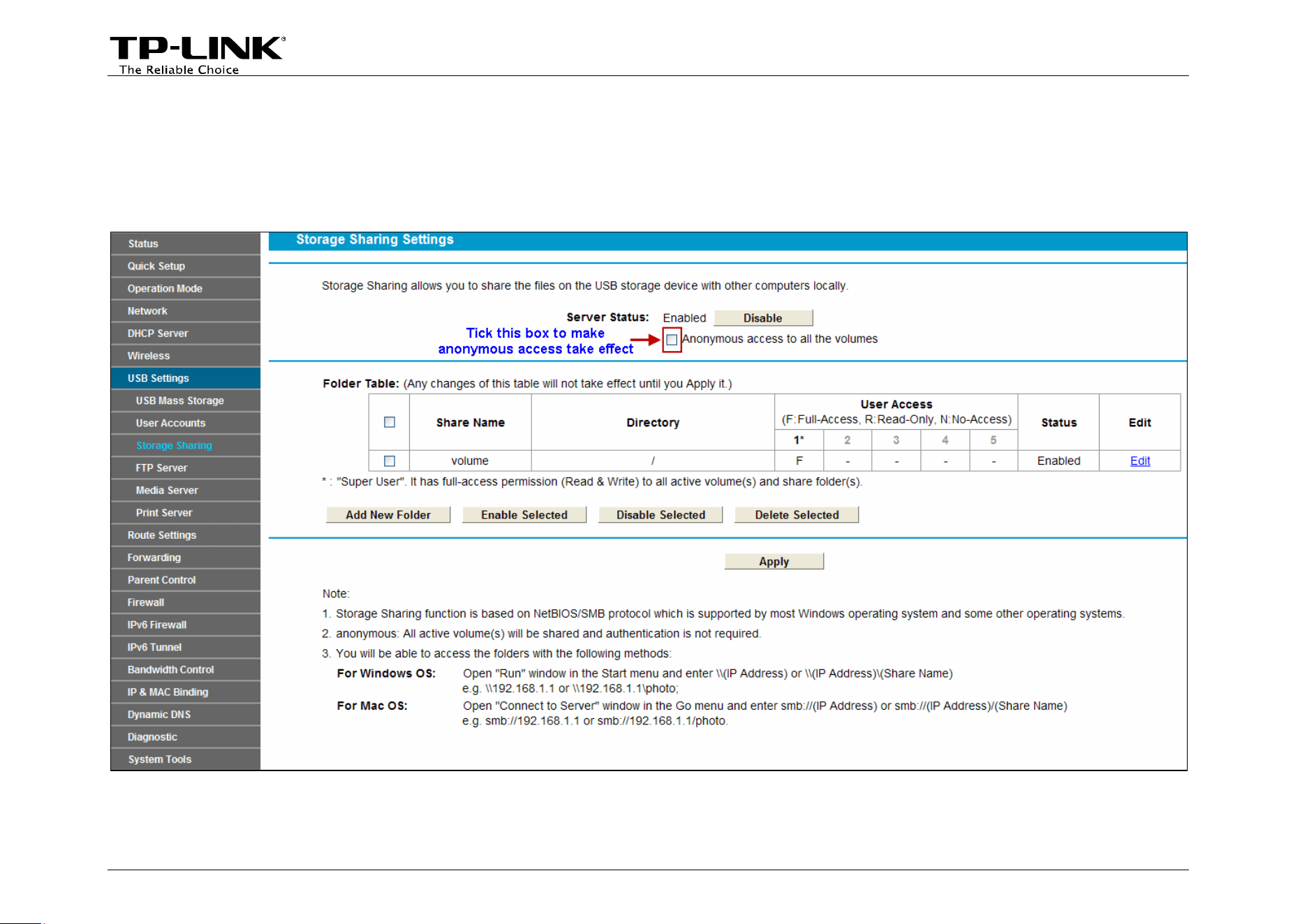
¾ Anonymous Access
If the shared files have no secrets for all users, then anonymous access can be enabled for convenience. After
the anonymous access is enabled, all the users will be able to access the storage device without a user name
and password.
-13-
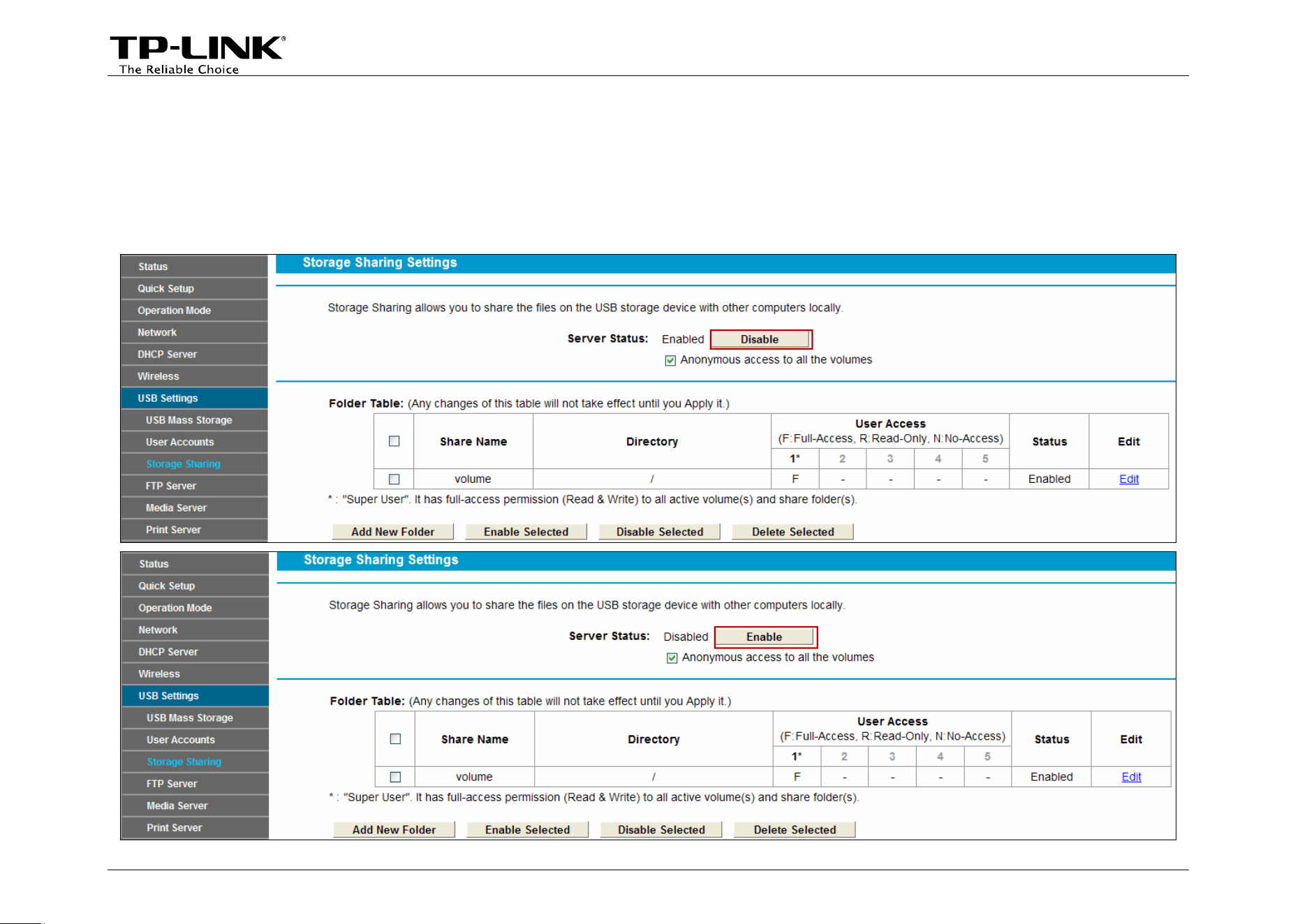
Troubleshooting
1. What can I do if I do not find the storage device on the web-based management page?
Go to USB Settings -> Storage Sharing. Please click Disable, and then click Enable.
-14-
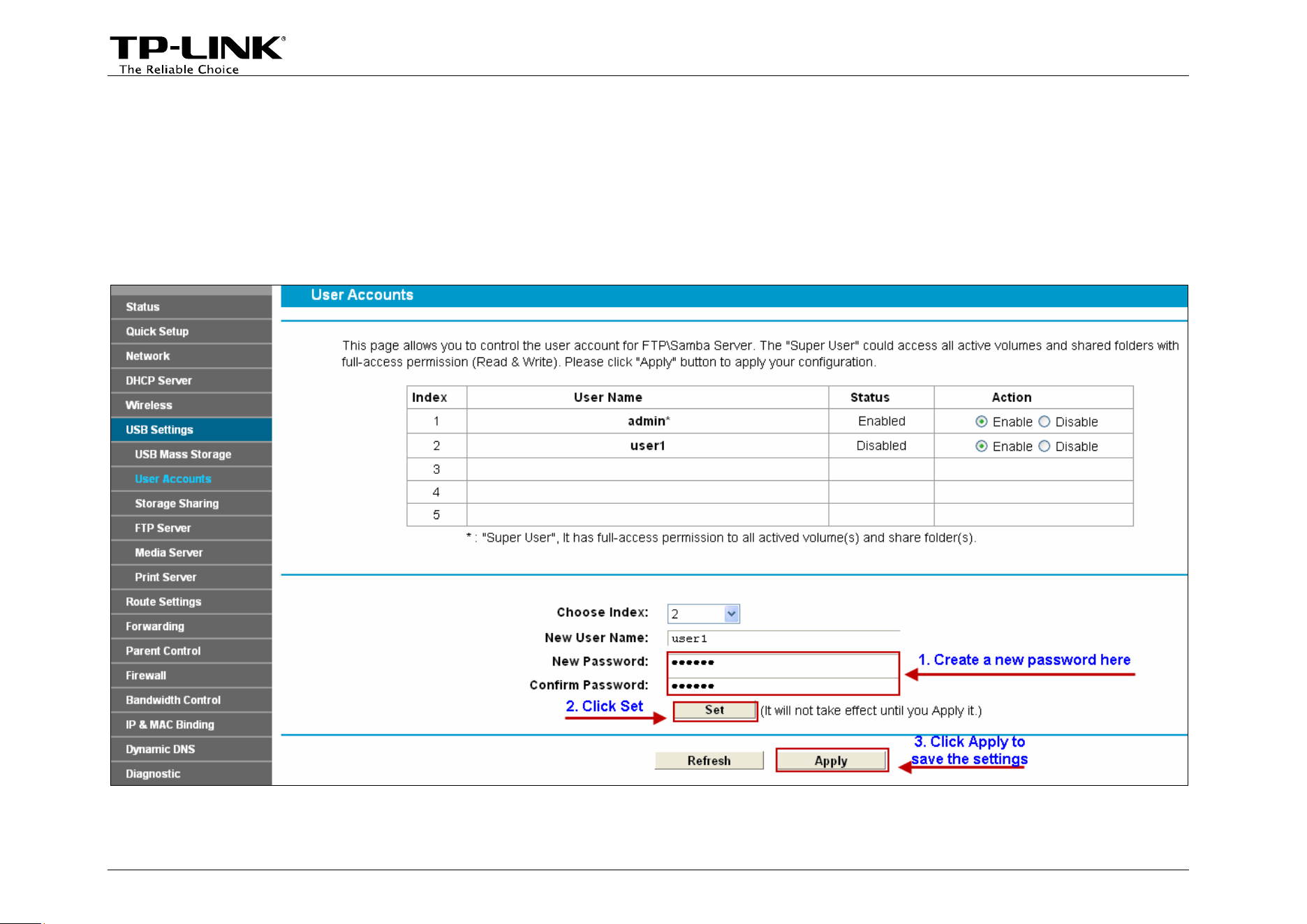
2. What can I do if I forget the password to access the storage device?
There are two ways to resolve this problem.
Method one:
Log onto the web-based management page, go to USB Settings ->User Accounts and follow the steps in
the figure below.
-15-
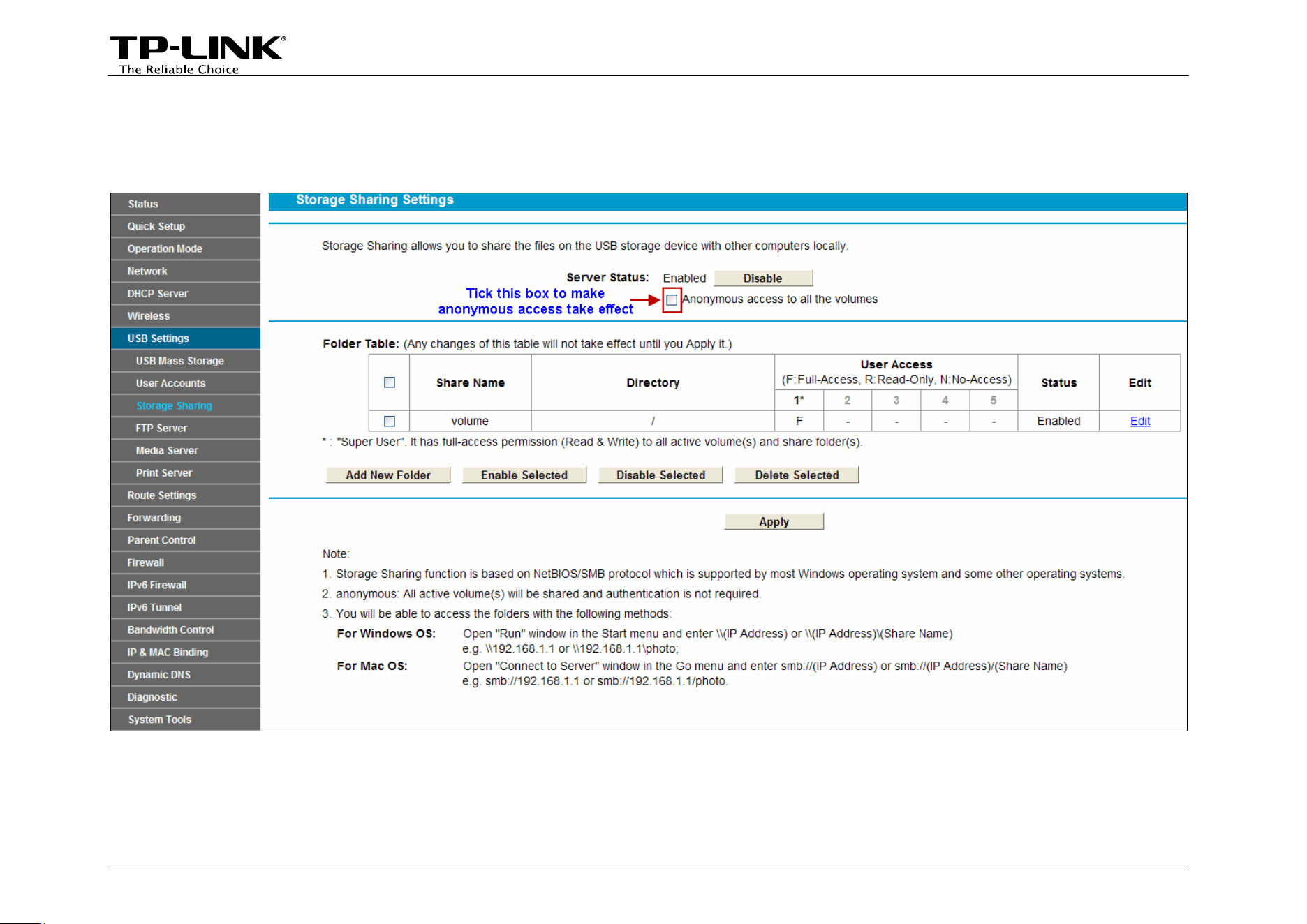
Method two:
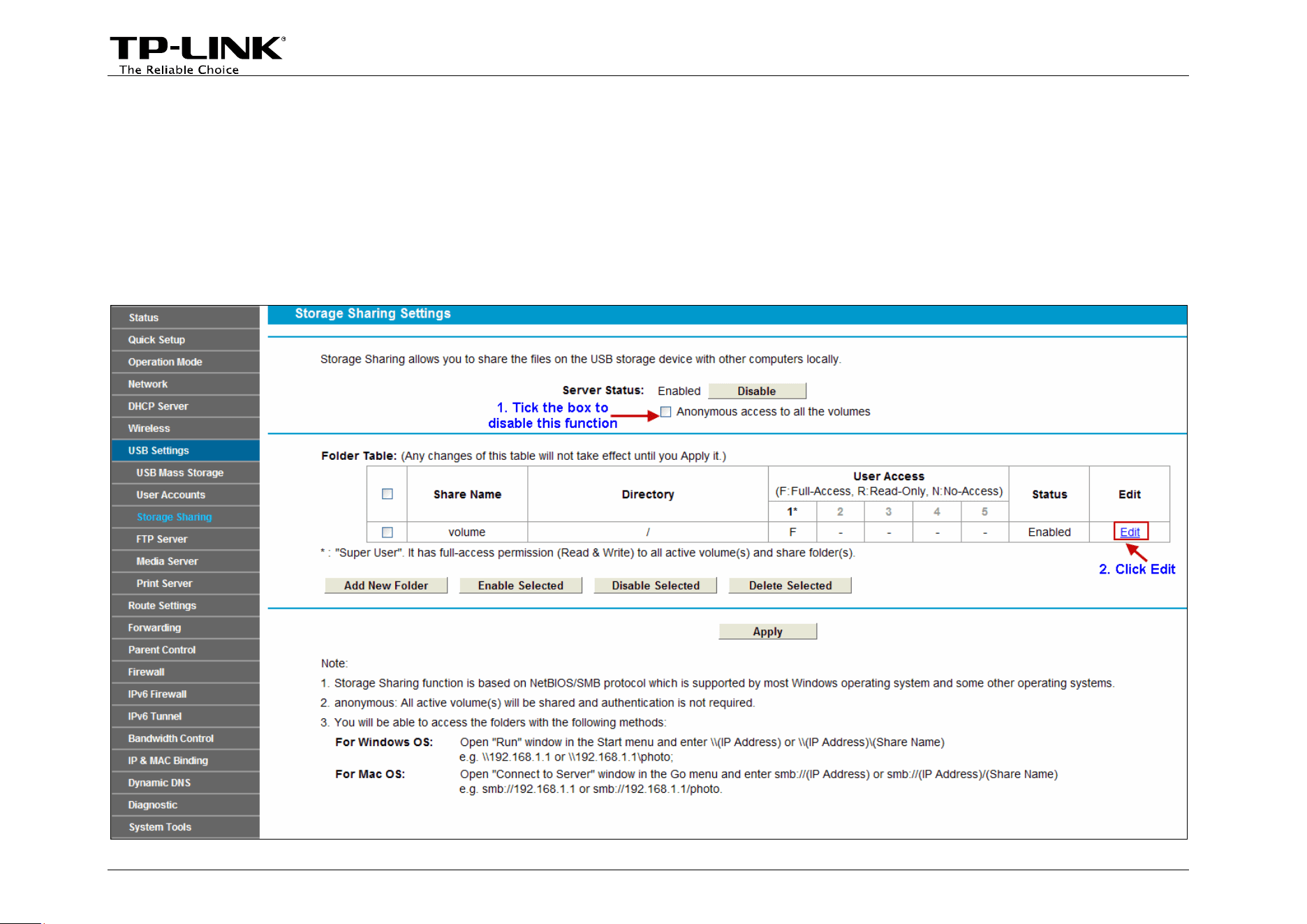
Log onto the web-based management page, go to USB Settings -> Storage Sharing, please tick the box
according to the note in the following figure.
-16-