1
Smartwatch User Manual
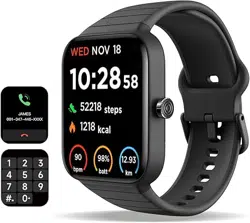
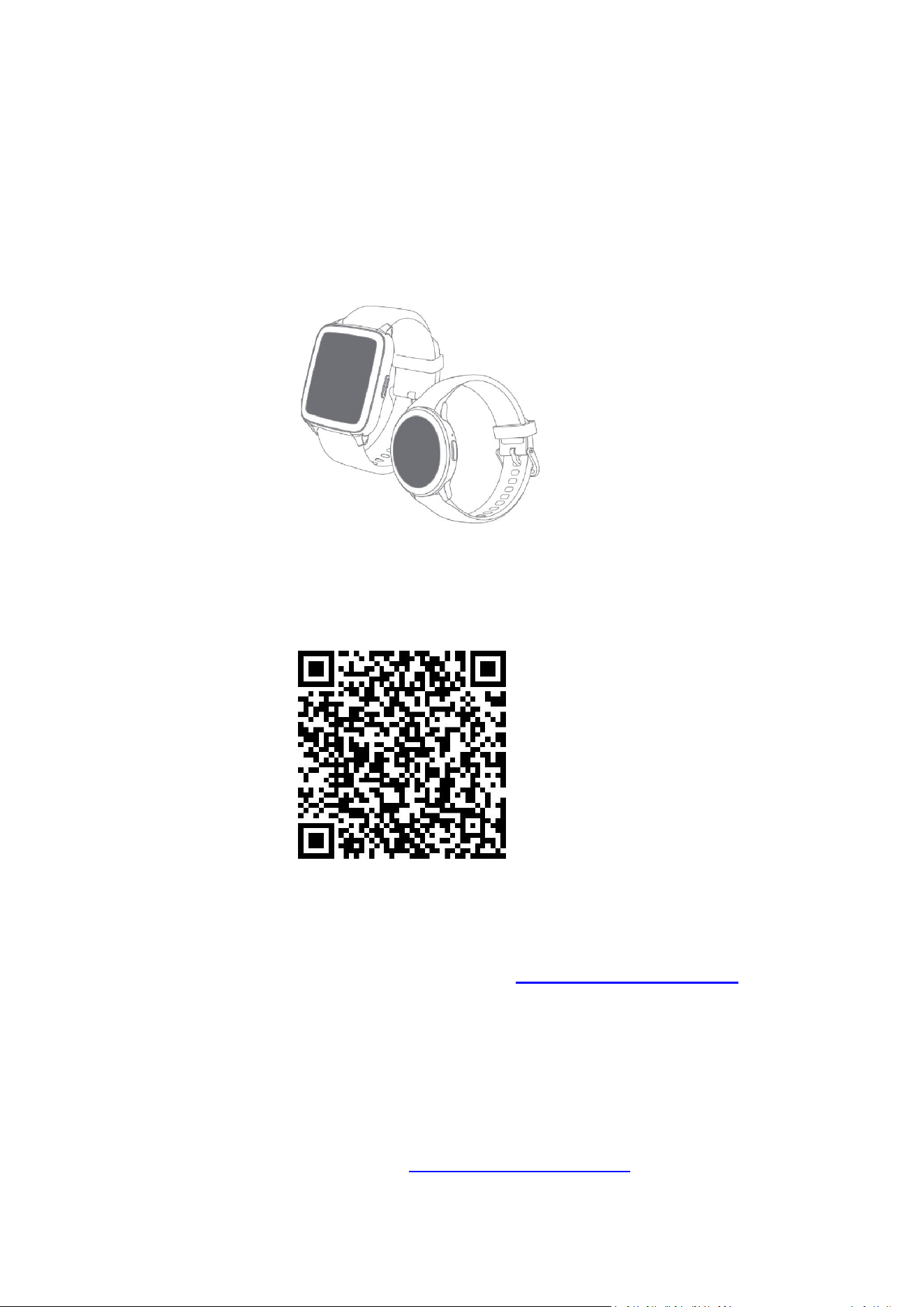
This manual is suitable for a variety of models. The content of the screenshots and
description in this manual are taken P72 series as an example. There maybe slight
differences from your watch.
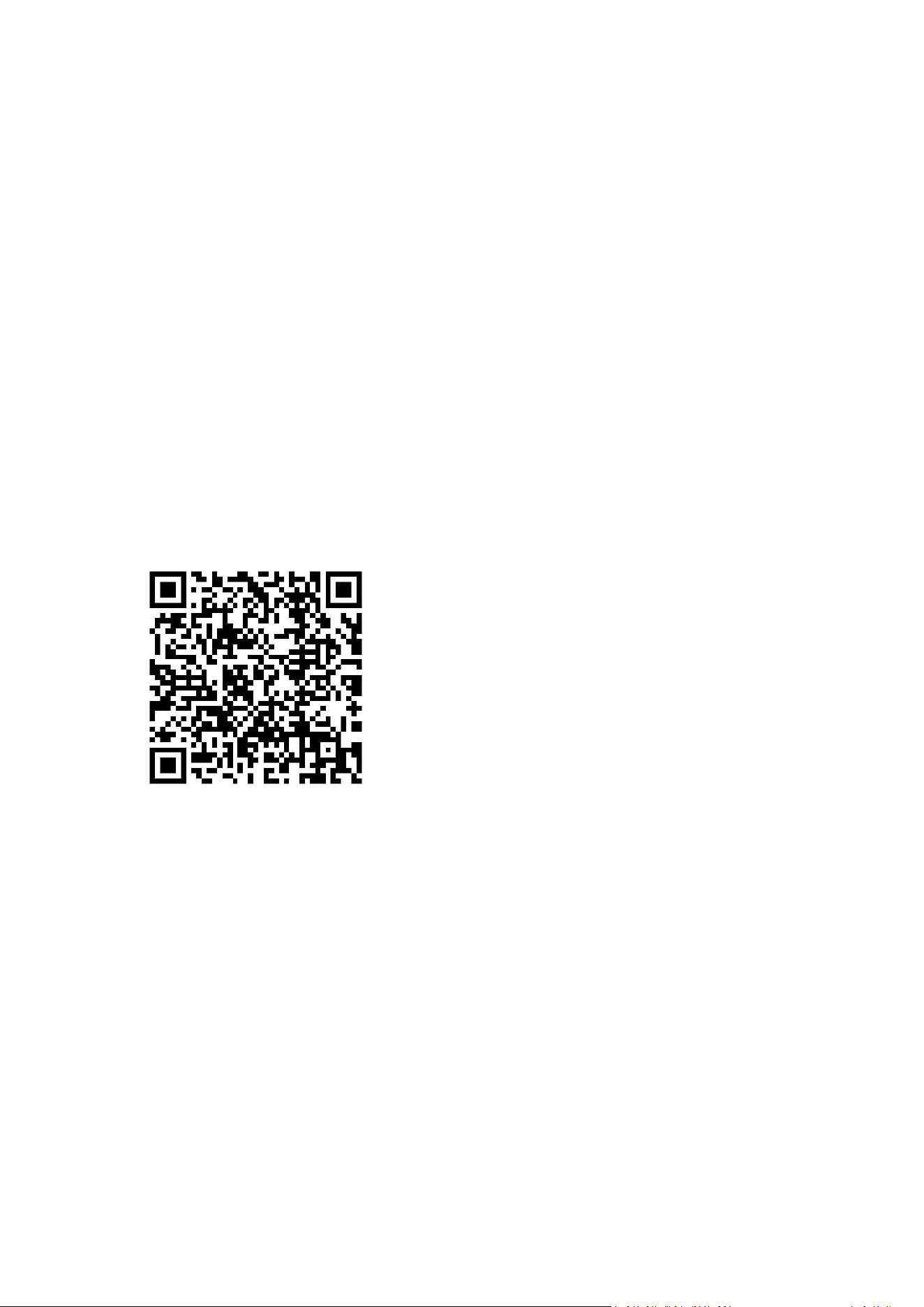
Please scan the QR code to watch tutorial videos on our YouTube channel.
Thank you for your cotinued patronage of our products. Please read the instruction
manual carefully before using this product. If you have any questions, please feel
free to contact us by email below. Email Address: quickassist@163.com
Warranty
We offer a 12-month warranty.
If any problems or something wrong with the item, please feel free to contact us. We
offer replacement, and refund service.

2
Contents
Smartwatch User Manual ................................................................................................................... 1
1. PDF User Manual ............................................................................................................................ 4
2. Initial setting ................................................................................................................................... 4
2.1.App download .......................................................................................................................4
2.2.Registration and login ...........................................................................................................5
2.3.Pairing ................................................................................................................................... 5
2.3.1. How to pair for the first time ....................................................................................5
2.3.2 Unbind Device ..........................................................................................................10
2.4 Charging and Wearing ........................................................................................................ 12
2.4.1.Charging ...................................................................................................................12
2.4.2.Wearing ....................................................................................................................12
3.Function Instruction .......................................................................................................................14
3.1. Side Button .........................................................................................................................14
(1)Long press .....................................................................................................................14
(2)Short press ....................................................................................................................14
3.2.Interface..............................................................................................................................14
3.3.Raise to wake...................................................................................................................... 16
3.4 Feature Menu ..................................................................................................................... 16
3.4.1 Dial ........................................................................................................................... 16
3.4.2 Contact Person.........................................................................................................16
3.4.3 Call Records ..............................................................................................................17
3.4.4 Voice Assistant .........................................................................................................17
3.4.5 Data ..........................................................................................................................18
3.4.6 Workout................................................................................................................... 18
3.4.7 Heart Rate ................................................................................................................18
3.4.8 Sleep ........................................................................................................................ 19
3.4.9 Blood Pressure .........................................................................................................20
3.4.10 Blood Oxygen .........................................................................................................20
3.4.11 Messages ............................................................................................................... 21
3.4.12 Weather ................................................................................................................. 21
3.4.13 Female ................................................................................................................... 21
3.4.14 Music ......................................................................................................................22
3.4.15 Breath Training .......................................................................................................22
3.4.16 Stopwatch.............................................................................................................. 23
3.4.17 Timer ......................................................................................................................23
3.4.18 Alarm Clock ............................................................................................................23
3.4.19 Business Card .........................................................................................................24
3.4.20 Set Time ................................................................................................................. 25
3.4.21 Find phone .............................................................................................................26
3.4.22 Settings .................................................................................................................. 26

3
3.5 APP Instruction ................................................................................................................... 28
3.5.1 Business card ........................................................................................................... 28
3.5.2 Push Notifications ....................................................................................................29
3.5.3 Alarms ...................................................................................................................... 30
3.5.4 Sedentary Reminder ................................................................................................30
3.5.5 Drink Water Reminder .............................................................................................31
3.5.6 Watch Face ...............................................................................................................31
3.5.7 Sports Push .............................................................................................................. 32
3.5.8 Weather Reports ......................................................................................................33
3.5.9 Raise to Wake.......................................................................................................... 34
3.5.10 Elevated Heart Rate Measurement .......................................................................34
3.5.11 Automatic Health Monitoring ............................................................................... 34
3.5.12 Find the Smartwatch............................................................................................. 34
3.5.13 Wrist Preference ....................................................................................................34
3.5.14 Time Format ...........................................................................................................34
3.5.15 Favorite Contacts ...................................................................................................34
3.5.16 Shake to Take a Photo ............................................................................................36
3.5.17 Hardware Version.................................................................................................. 36
3.5.18 Restore To Factory Data .........................................................................................36
3.5.19 Unit Prefer ............................................................................................................. 36
3.5.20 Women Health .......................................................................................................37
3.5.21 Apple Health .......................................................................................................... 38
4. FAQ ................................................................................................................................................ 40
4.1. I Can’t get the watch paired with my phone .....................................................................40
4.2. The smartwatch can not stay connected. ......................................................................... 40
4.3. I cannot receive incoming call notifications and message notifications .......................... 41
4.4. A message notification is displayed, but the content is not displayed. ............................42
4.5. Time is incorrect ................................................................................................................ 42
4.6 . Incorrect sleep record .......................................................................................................42
4.7 . Incorrect steps.................................................................................................................. 43
4.8. Incorrect heart rate............................................................................................................43
(1)Principle ........................................................................................................................43
(2)Possible causes .............................................................................................................43
(3)Resolution .....................................................................................................................43
4.9. Incorrect blood oxygen ......................................................................................................43
(1)Principle ........................................................................................................................43
(2)Possible causes .............................................................................................................43
(3)Resolution .....................................................................................................................44
4.10. Will not count steps .........................................................................................................44
4.11 Battery strains too fast ..................................................................................................... 44
4.12 I don’t want the sound to play on the watch. ..................................................................45
4.13 What if I receive a watch whose system language I don’t know..................................... 45
4.14 12-months warranty......................................................................................................... 46
5. Important safety instructions ....................................................................................................... 46
4
6. Battery warning .............................................................................................................................47
1. PDF User Manual
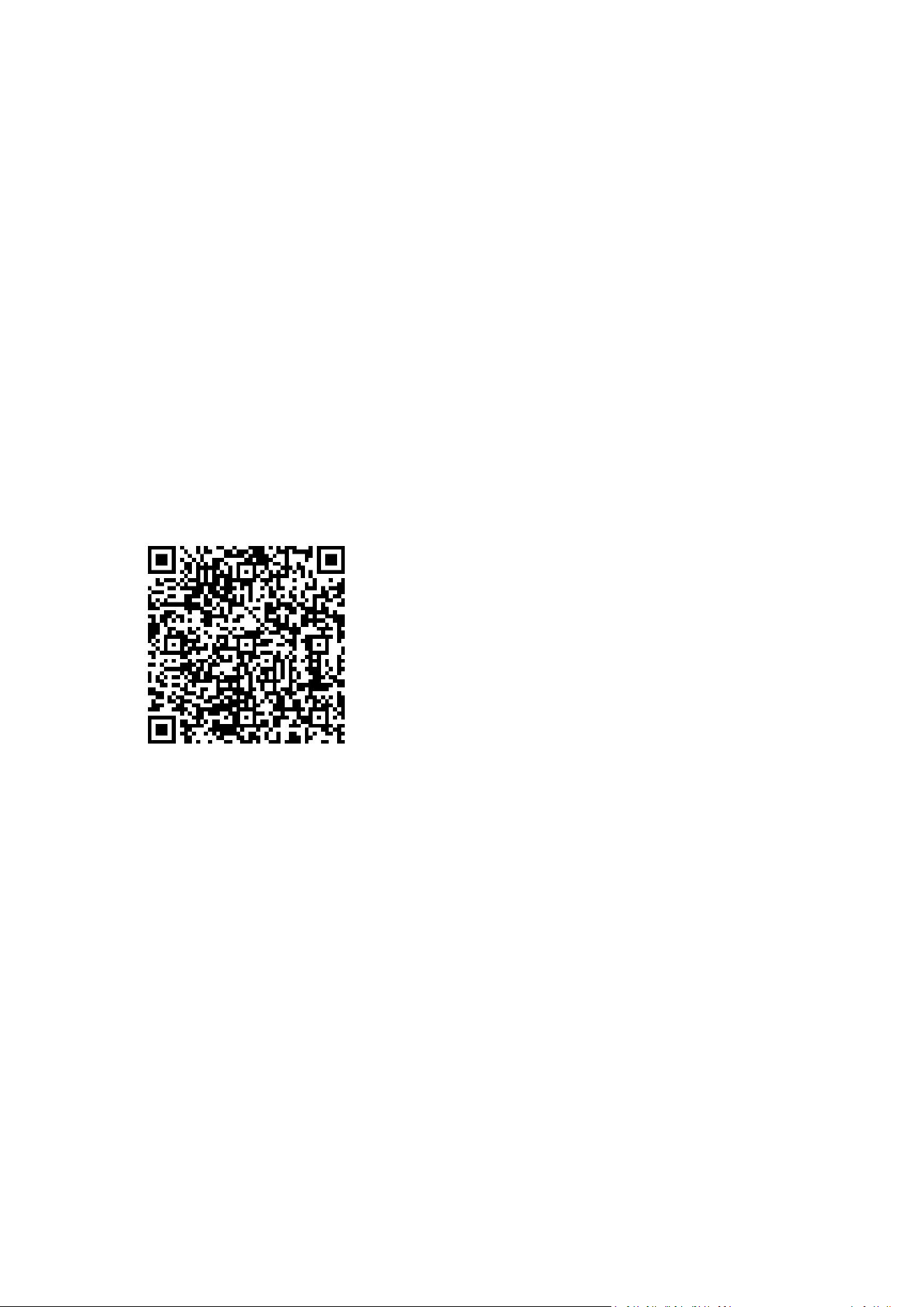
1. Scan the QR code to download a PDF user manual.
2. You may download the user manual from the following link:
https://drive.google.com/drive/folders/1mngX-8NNcYyjsehEOiu7elZpOGX3Ld2B
3. If you cannot download it, please email to
2. Initial setting
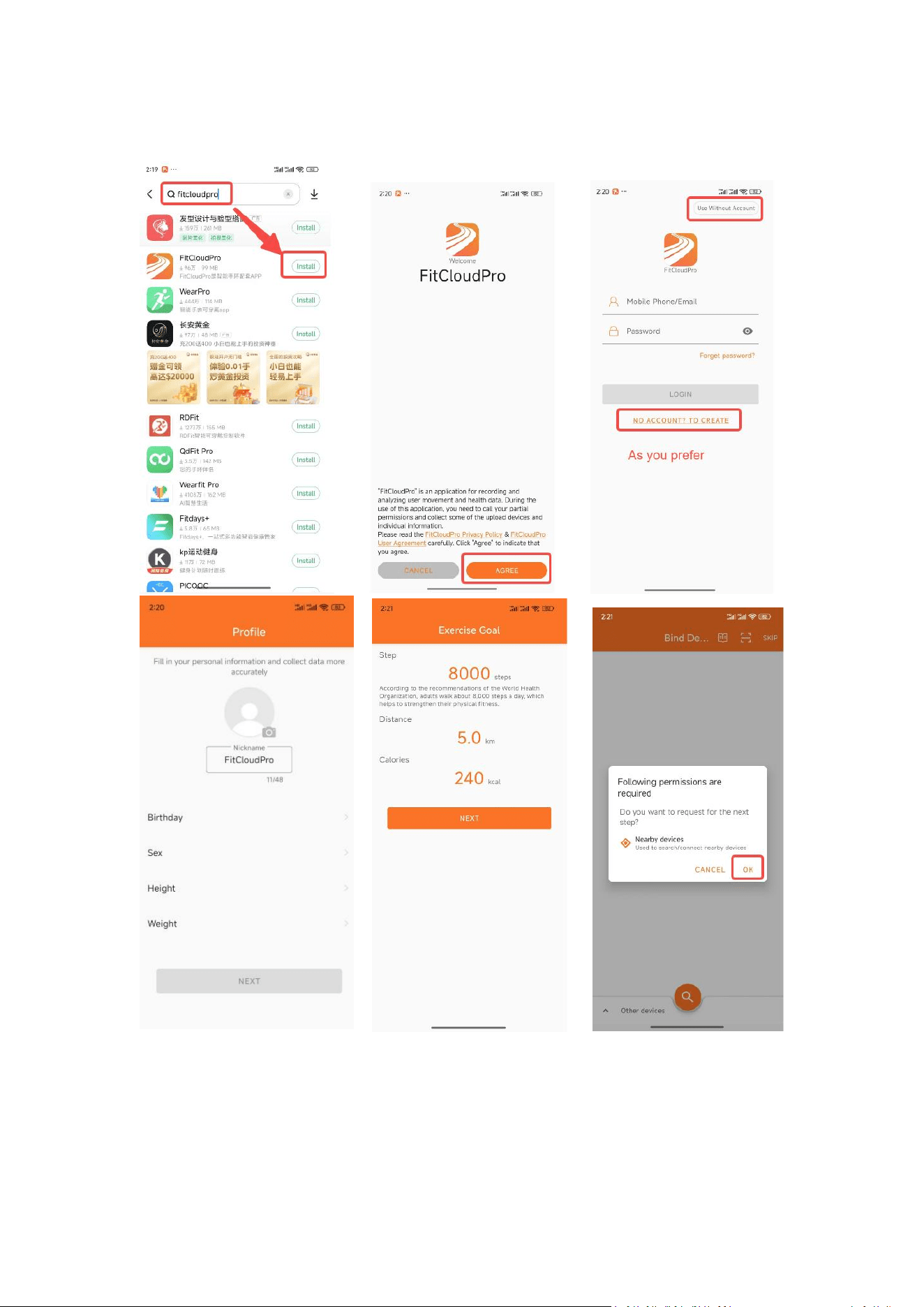
2.1.App download
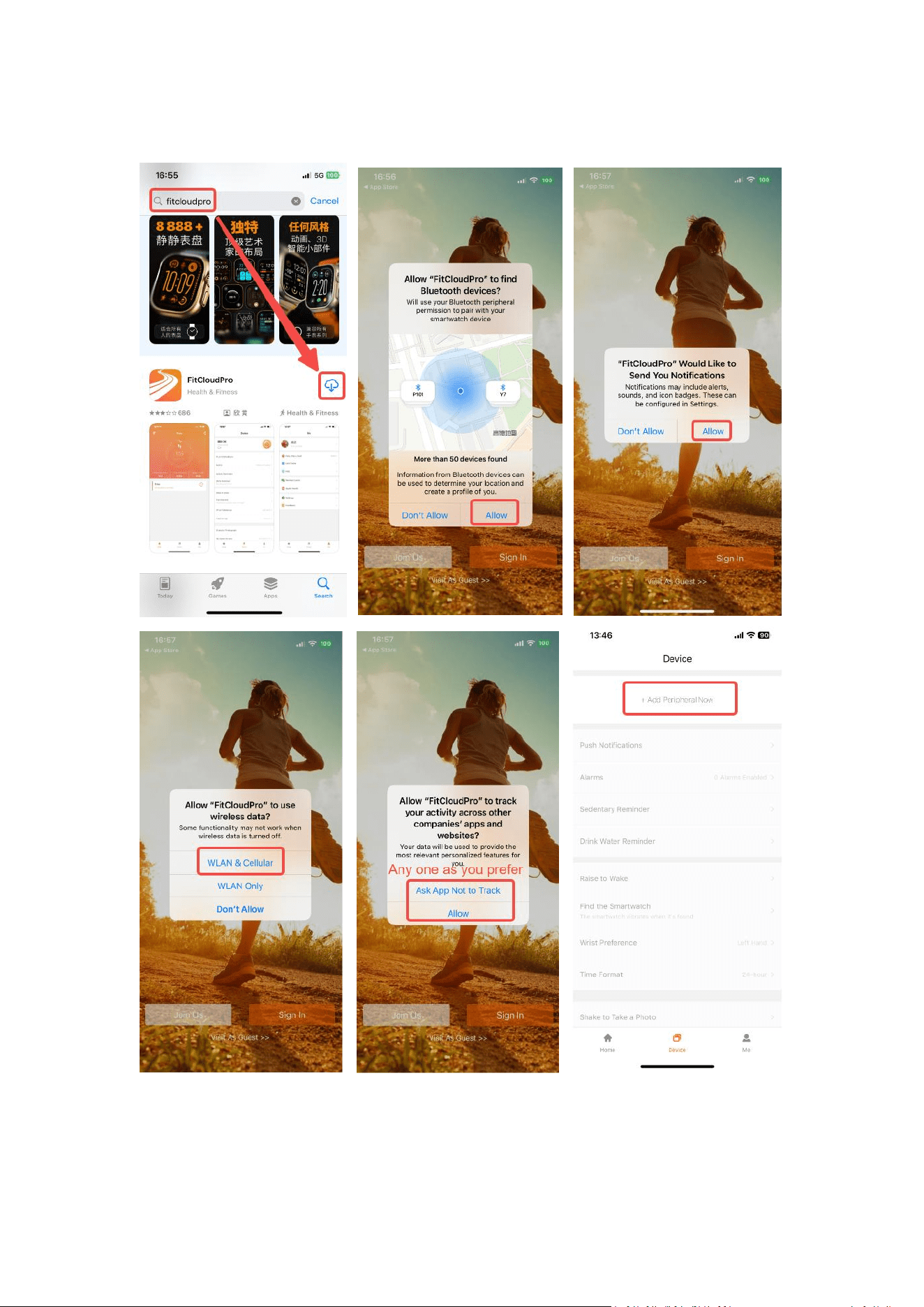
(1)Search “FitCloudPro” on Google Play or App store to download and install the APP.
Please Click all the “allow”s when you use the APP for the first time.
(2)This smartwatch is not compatible with iPad and PC.
(3)System compatibility: iOS 9.0 or later; Android 6.0 or later; Bluetooth 5.0 or later.
5
2.2.Registration and login
Create an account: Open FitCloudPro App >Join us > Enter your Email Address >Set
your password > Click “Enroll now” > Complete User Profile> Set your daily steps
goal > Complete.
Note:
Visitor Mode means it’s not necessary to create an account, but the data will not be
uploaded to the cloud end. If you change the smartphone, the data will not be
synced directly.
If you cannot see the “Enroll now” or “Sign In” option when you open the APP for
the first time, it is probably becasue your phone’s system characters are too large.
Please set it to smaller in your phone’ s setting.
2.3.Pairing
2.3.1. How to pair for the first time
Scan the QR code to watch tutorial video on YouTube.
>>> For IOS:
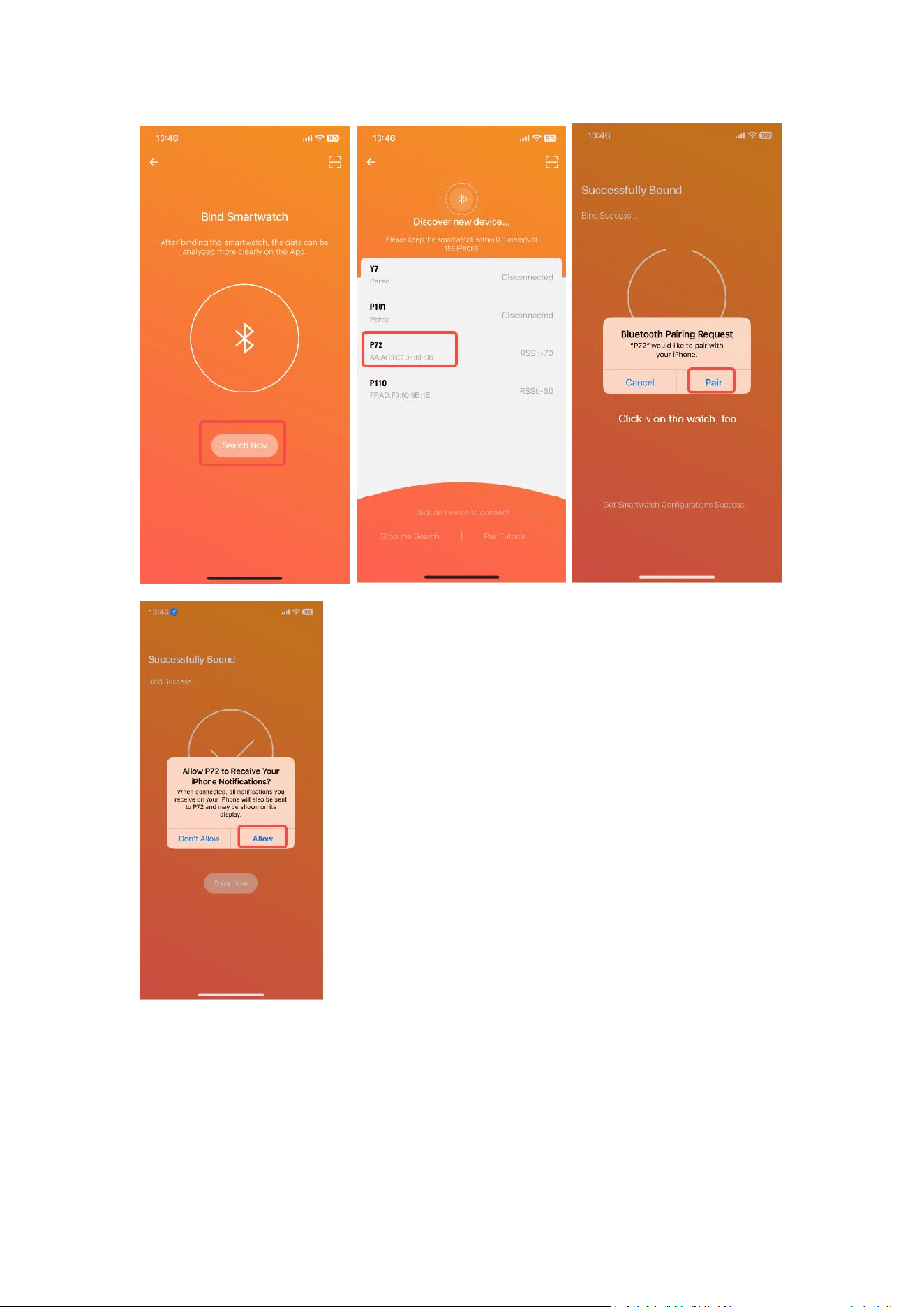
Please kindly ensure the Bluetooth is enabled on your phone. Open FitCloudPro
App > Device Page>”Add Peripheral Now” or “Bind Device” > Search Now > Click
your watch device named “P72”(for example) and wait for searching > Select "√
"on the watch > Click “Pair” and “Allow” on your phone > Click “Proceed to Authorize”
when location access window pops up > Allow While Using App > Enjoy Now.
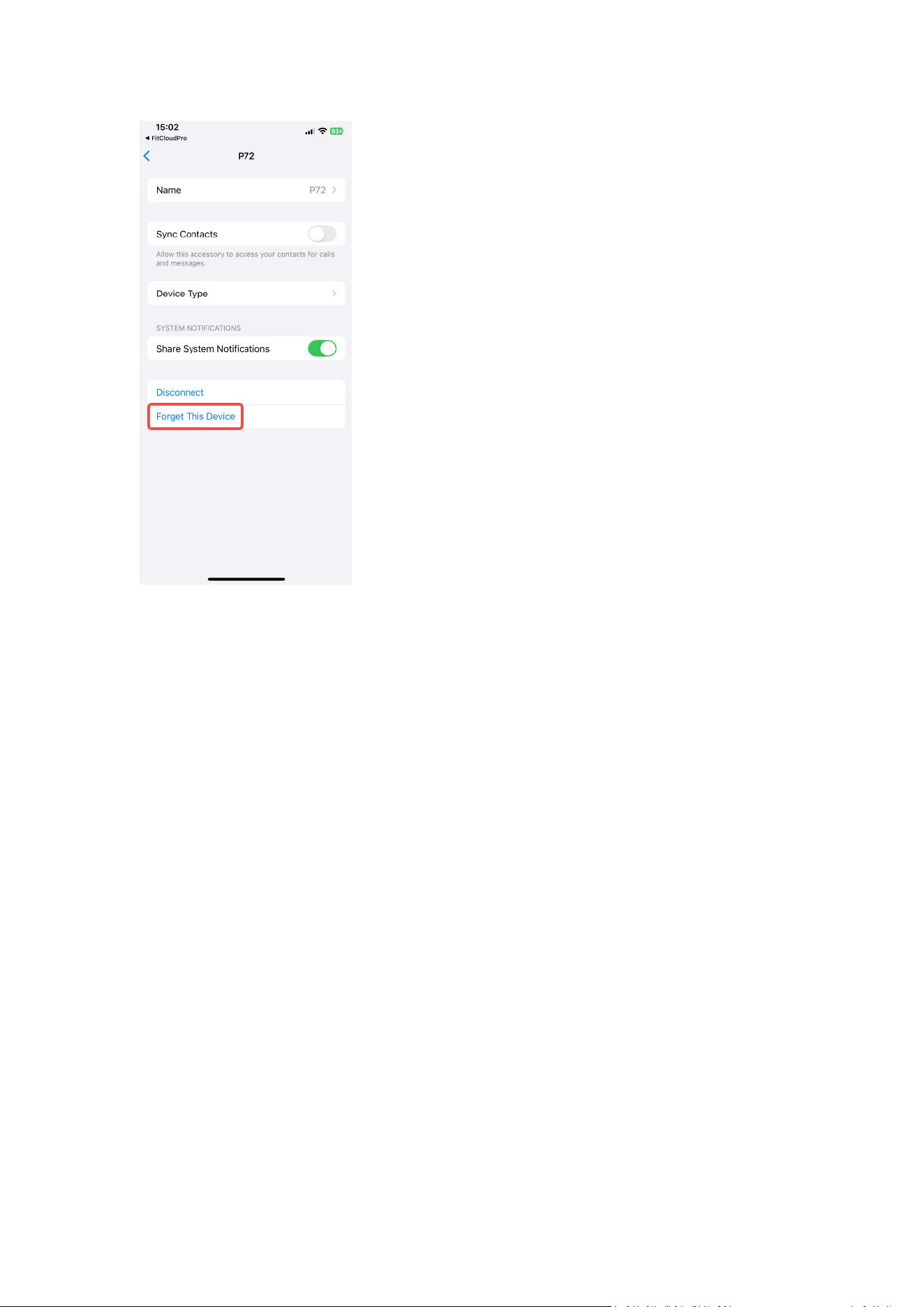
Your phone’s settings > Bluetooth > Click the “i” icon beside the watch > Enable
“Share System Notifications”
Warm Tips:
Please kindly click all of the “ Allow” access showing on your phone after pairing the
watch to make sure all features will work well during using the watch.
Please kindly make sure the watch keeps connected with your phone to receive
messages, incoming calls, Bluetooth call function and so on.
6
Some pictures are attached for your reference of how to pair the watch with your
phone for the first time.
7
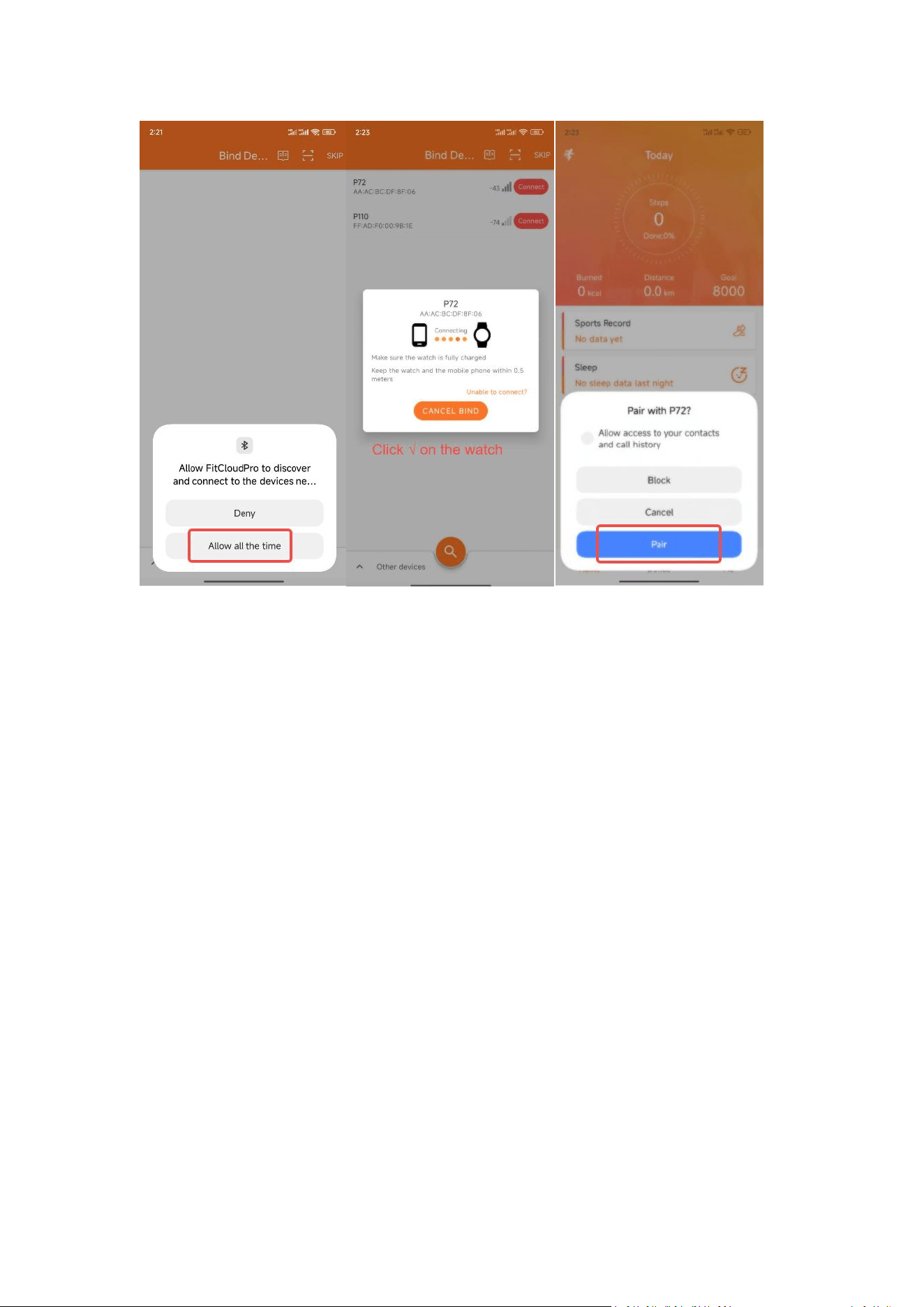
>>> For Android:
Please kindly ensure the Bluetooth is enabled on your phone.
Download FitCloudPro from Google play > FitCloudPro App > Bind Device > Connect
P72 (for example) > Click the √ on your watch > Allow the “Pair” on your phone.
8
Some pictures are attached for your reference of how to pair the watch with your
phone for the first time.
9
Tips:
Please DO NOT pair the watch via the system's Bluetooth at the first step of pairing,
it needs to pair to the watch via the FitCloudPro App.
10
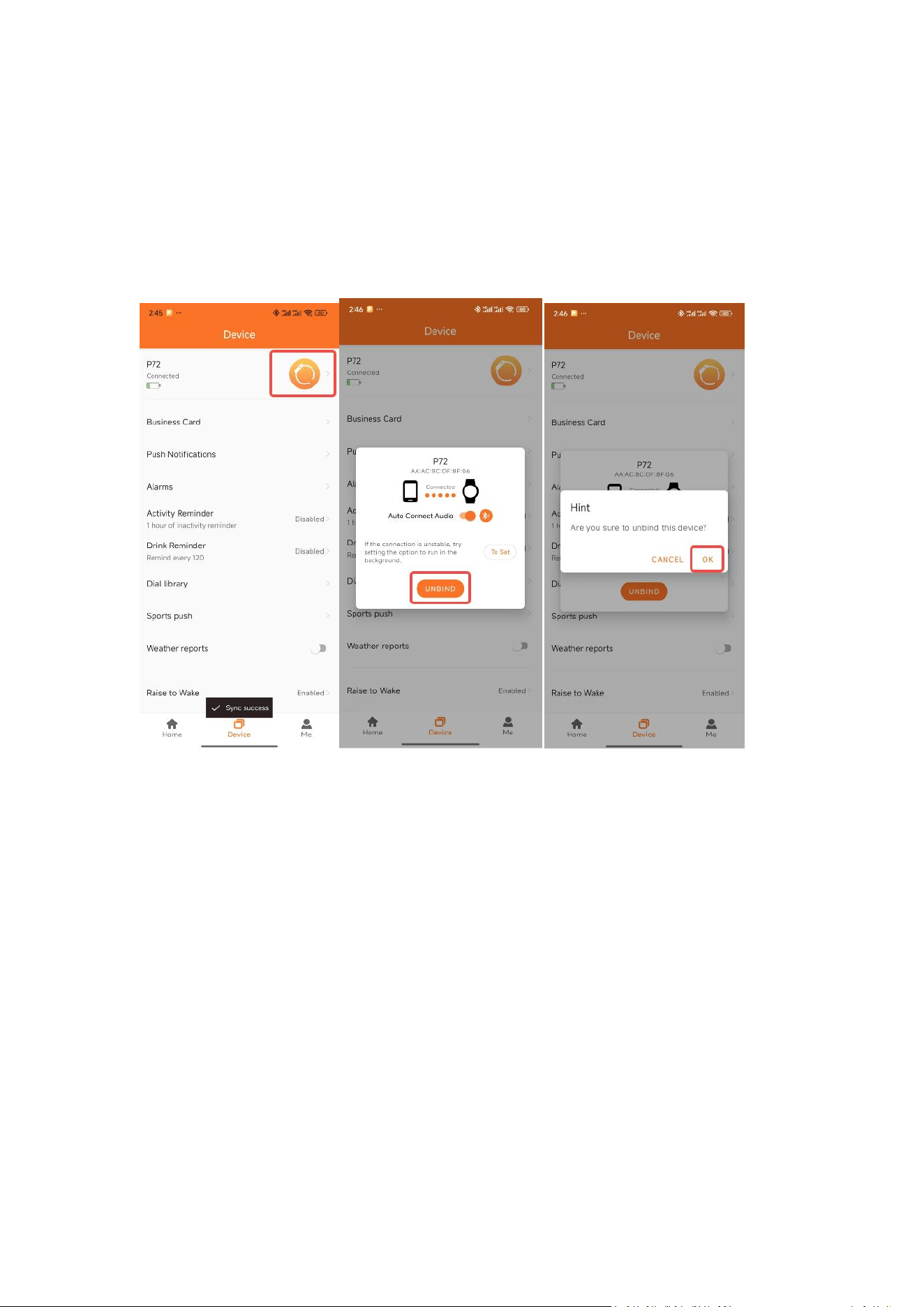
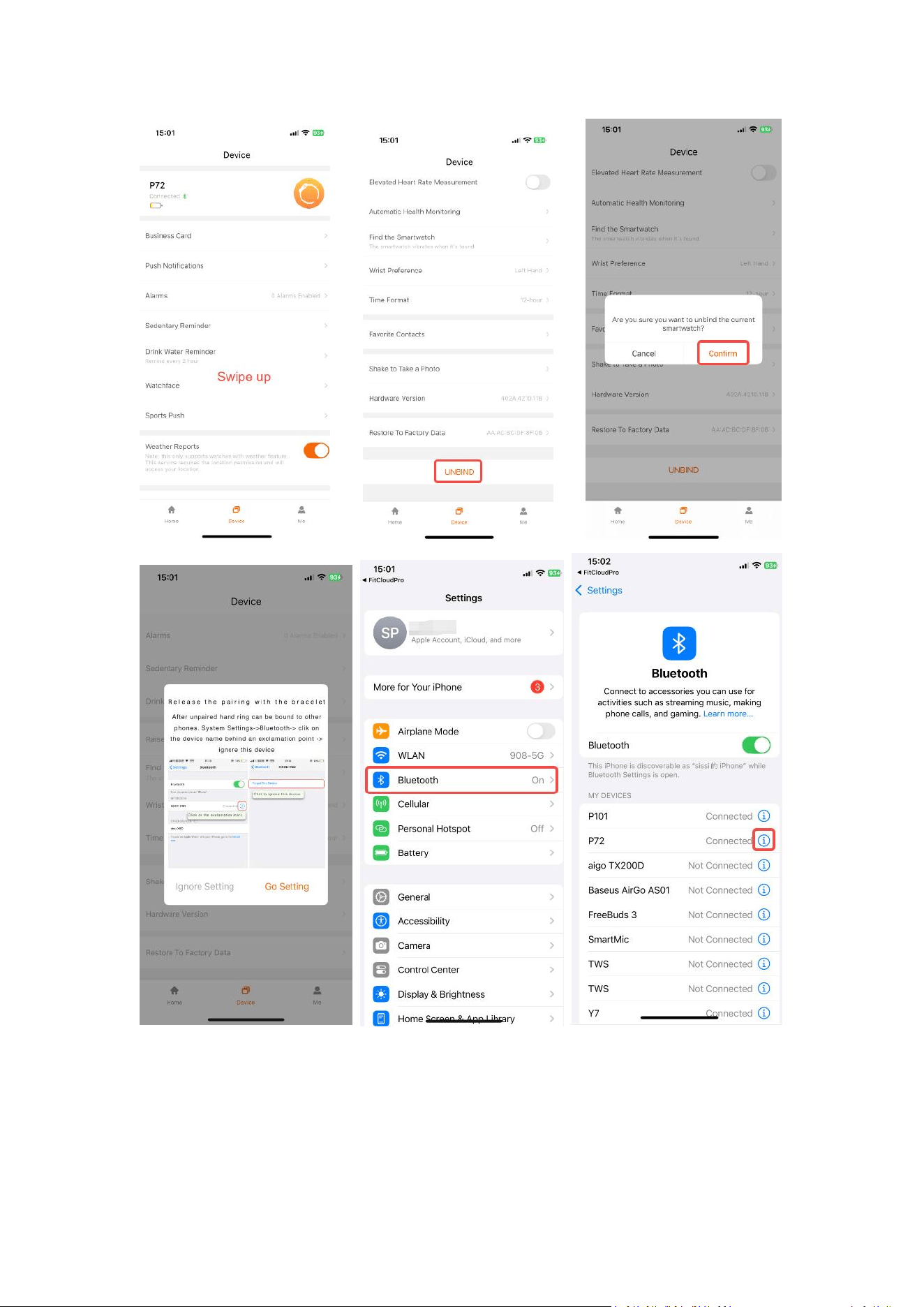
2.3.2 Unbind Device
Please unbind the watch if you would like to use another phone with the watch or
any other reasons.
The following pictures are for your reference.
For Android :
For IOS:
11
12
2.4 Charging and Wearing
2.4.1.Charging
Please fully charge the watch when using it for the first time.
(1)The watch's screen will not turn on immediately when starting to charge after it
runs out of power. Please patiently get it charged for more than 10 minutes when
the watch was exhausted.
(2)Please use a 5V-500mA adapter. Do not charge the watch with your laptop or
computer. Fast charging is not supported in all regions.
(3)The battery life may vary according to the settings, operation conditions, and
other factors. So the actual result may differ from the laboratory data. Typically use
for 5~7 days. 3 days usage with BT calling.
Typical usage scenario:
(1)Use the built-in watch faces and the default settings.
(2)Heart rate 24h monitoring is enabled;
(3)Sleep monitoring is enabled;
(4)50 pushed messages a day;
(5)Raise wrist to see watch time 100 times;
(6)Test blood-oxygen 2 times per day;
(7)Workout 2 times a week for 30 minutes at a time.
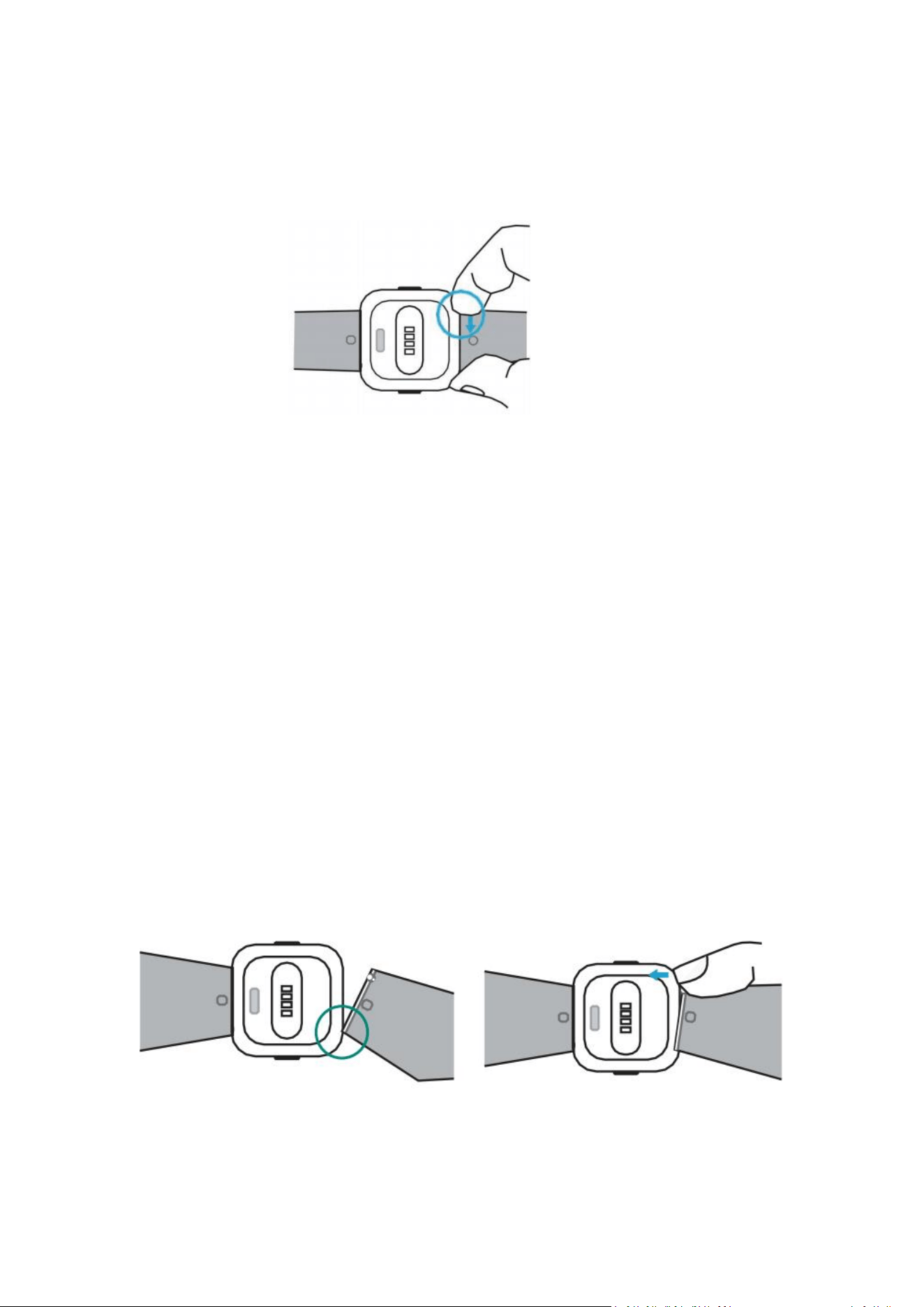
2.4.2.Wearing
13
(1)How to wear
1)Put the watch on your arm with the display facing up.
2)Thread the band through the buckle. Insert the stick into the small hole of the
band with a comfortable position on your wrist and fix it.
(2)How to take off
1)Pull the band out of the buckle.
2)Pull out the stick from the small hole.
TIPS:
Please take off the watch on a desk or somewhere soft in case of falling down or
being damaged.
(3)How to exchange
1)To remove the wristbands, turn over the watch and find the quick-release lever.
2)While pressing the quick-release lever inward, gently pull the wristband away from
the watch to release it.
3)Repeat on the other side.
(4)How to assembly
1)To reattach the wristbands, slide the pin (the side opposite the quick-release lever)
into the notch on the watch. Attach the wristband with the clasp to the top of the
watch.
2)While pressing the quick-release lever inward, slide the other end of the wristband
into place.
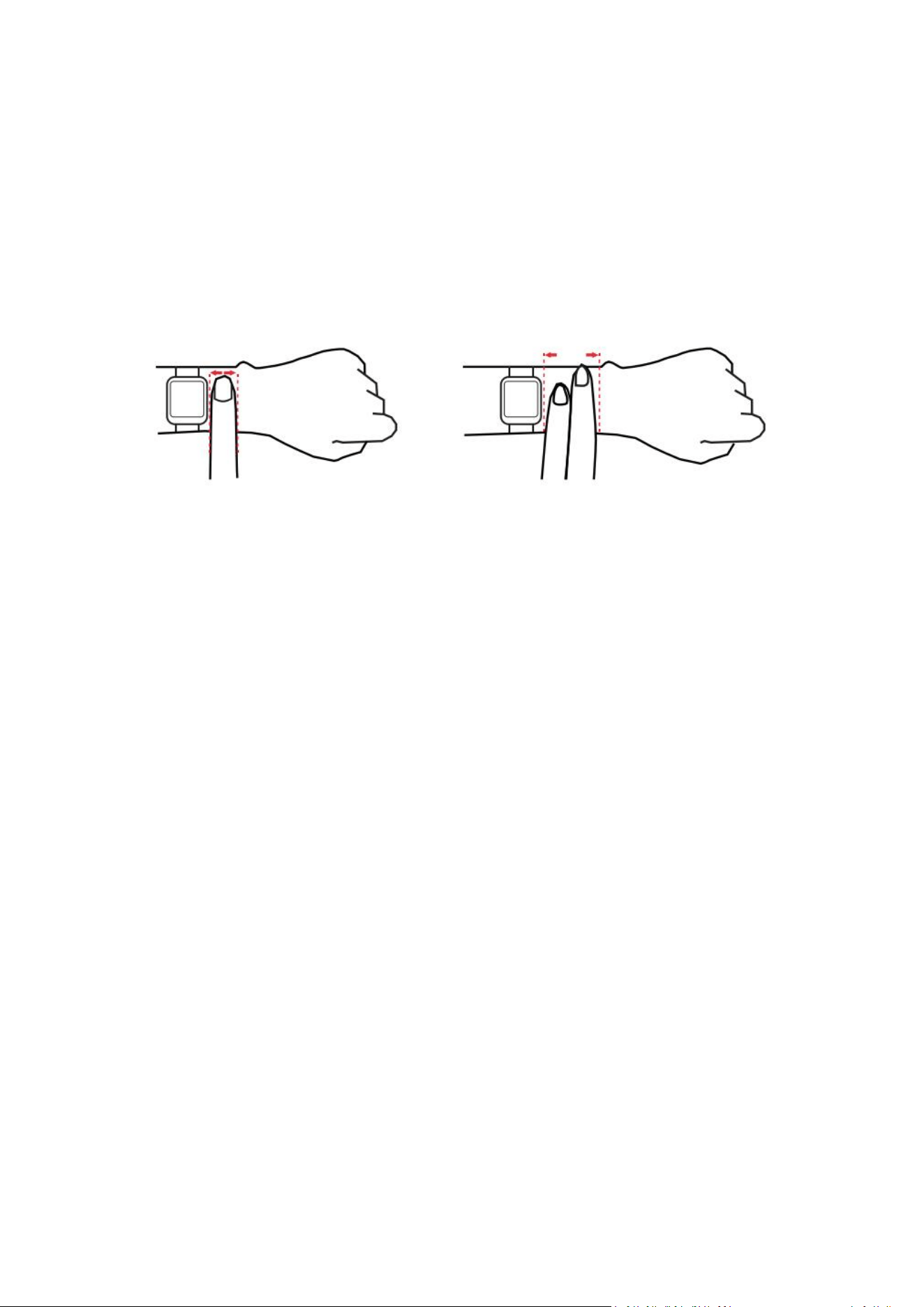
(5)For optimized heart rate tracking, keep these tips in mind:
14
1)Experiment with wearing the watch higher on your wrist during exercise. Because
the blood flow in your arm increases the farther up you go, moving the watch up a
couple of inches can improve the heart rate signal. Also, many exercises such as bike
riding or weight lifting require you to bend your wrist frequently, which is more likely
to interfere with the heart rate signal if the watch is lower on your wrist.
2) Do not wear your watch too tight. A tight band restricts blood flow, potentially
affecting the heart rate signal. This being said, the watch should also be slightly
tighter (snug but not constricting) during exercise than during all-day wearing.
3.Function Instruction
3.1. Side Button
(1)Long press
Long press 3 seconds can start up when the watch is power off.
Long press 3 seconds the watch will show Power off or Restart when
the watch is on.
(2)Short press
a.Short press can light up the screen when the watch is locked.
b.Short press can back to the Home screen/watch face page
at the non-Home screen pages.
c.Short press can display the “Continue/Stop” icon when doing
an exercise.
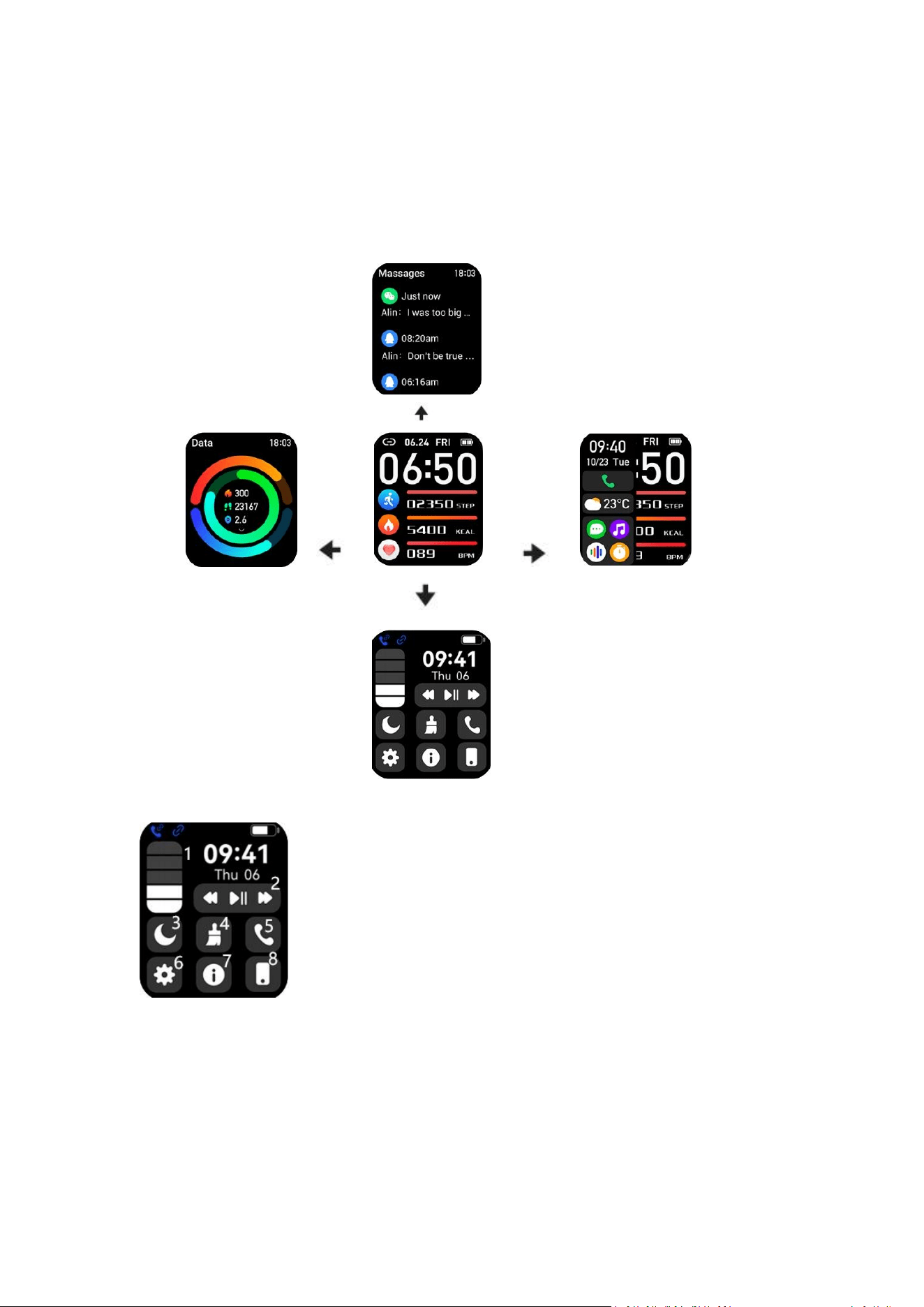
3.2.Interface
Home screen
Slide up:
Check the message/ Calling notifications.
Slide down:
Get into the quick settings and Control center.
Slide left:
check the Daily Activity record.
Slide right:
15
Quick access to 4 most recently used features.
The pictures are only for reference. The actual interface may be different for
different versions.
Control Center Instruction
1. Brightness adjustment
2. Music player control
3. DND mode
4. Menu style
5. Audio switch: Call Audio & Media Audio
6. Settings
7. System information
16
8. Find your phone
3.3.Raise to wake
FitCloudPro APP > Device > Raise to wake > Set the time when you need it to work.
3.4 Feature Menu
3.4.1 Dial
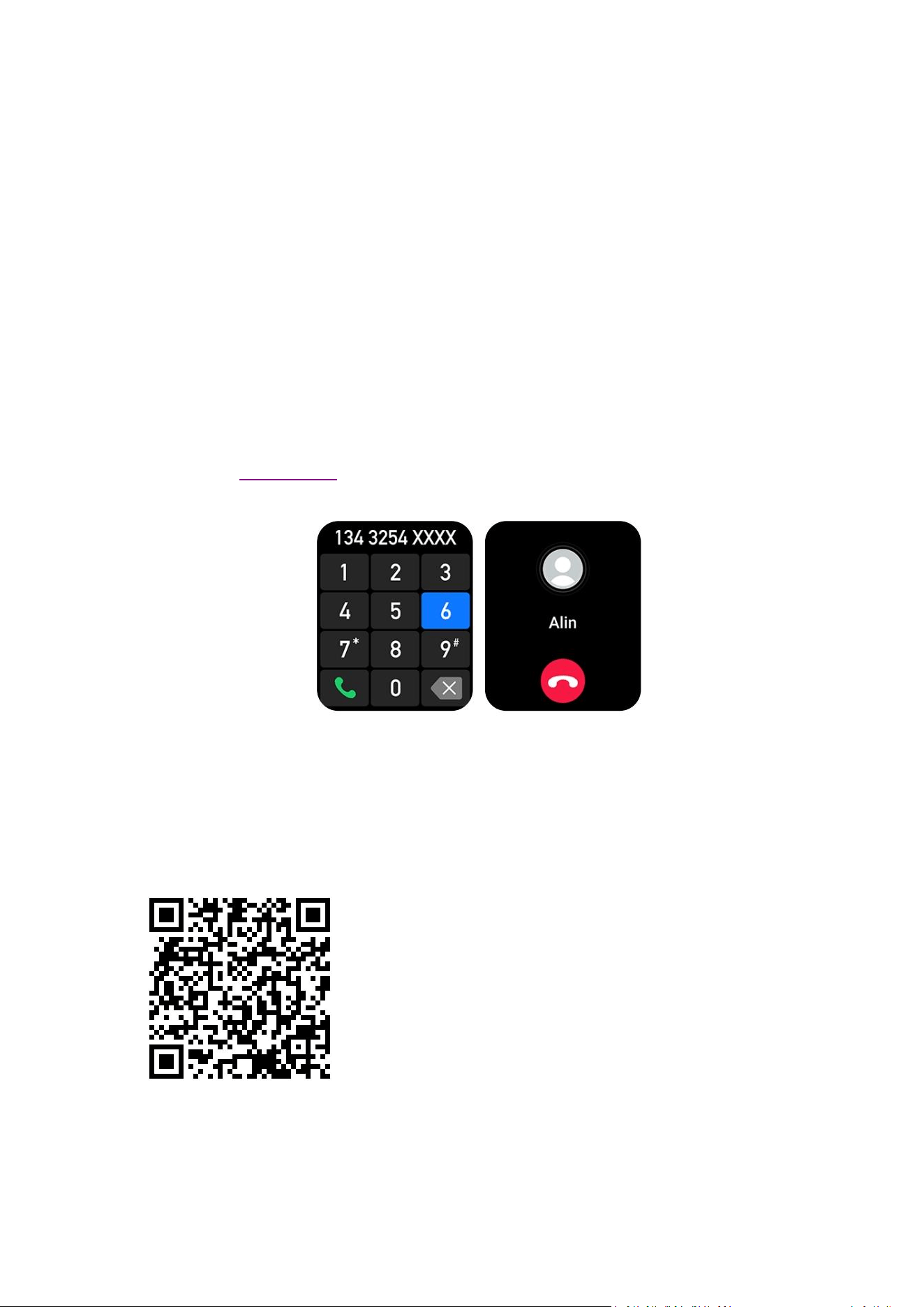
Press the side button and click “ Dial”. Then you can see the dial pad to make calls.
Note: The watch needs to be connected to your phone via FitCloudPro APP at first.
Please check Page 4: 2.3.1 above for instructions.
3.4.2 Contact Person
Scan the QR code to watch video guide.
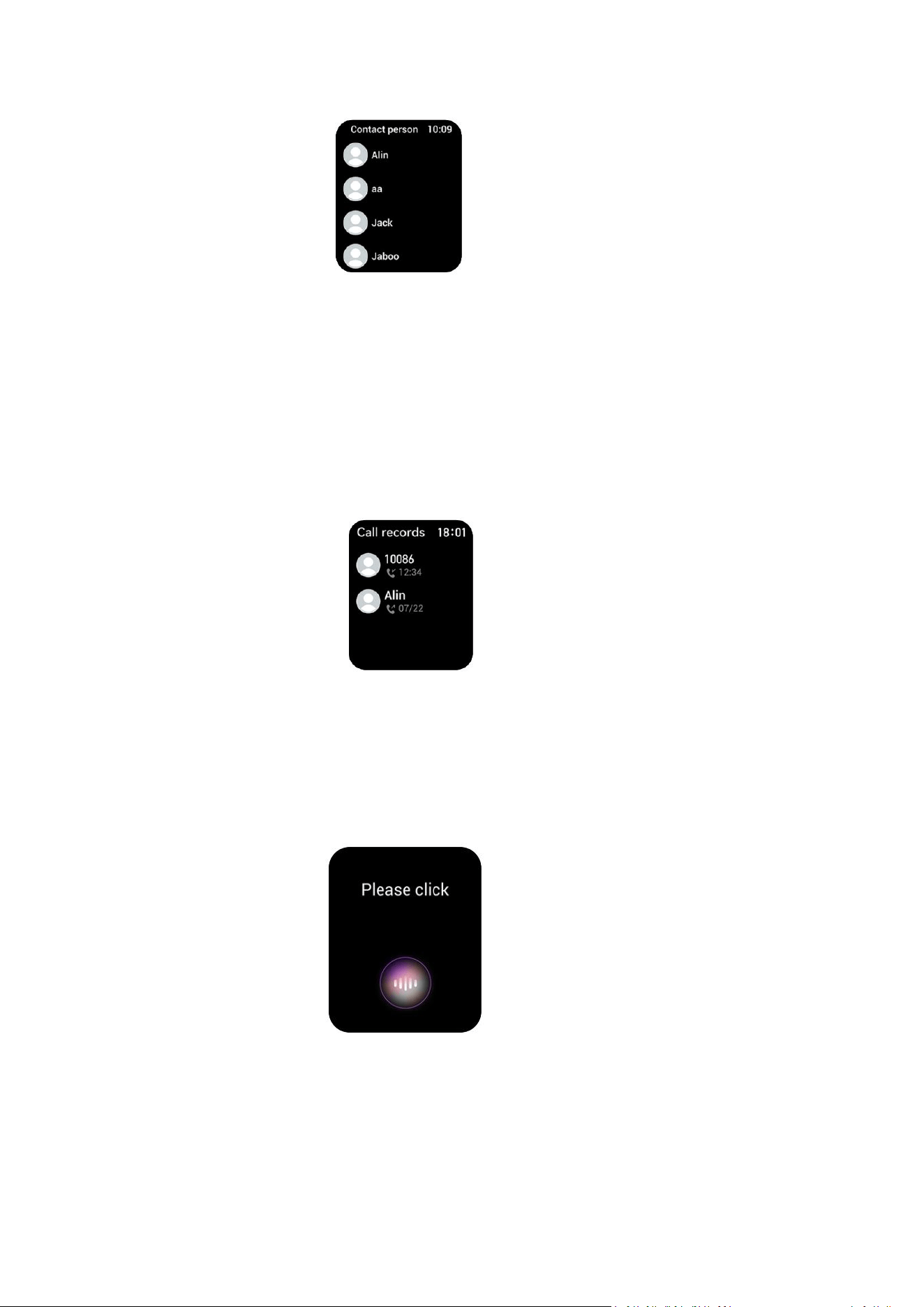
You will see the contacts you saved on the FitCloudPro APP.
FitCloudPro APP > Device > Favorite Contacts > Add > Allow full access to your
phone’s contacts > Choose the contacts you want to sync to the watch.
17
3.4.3 Call Records
It shows the calls you made recently.
3.4.4 Voice Assistant
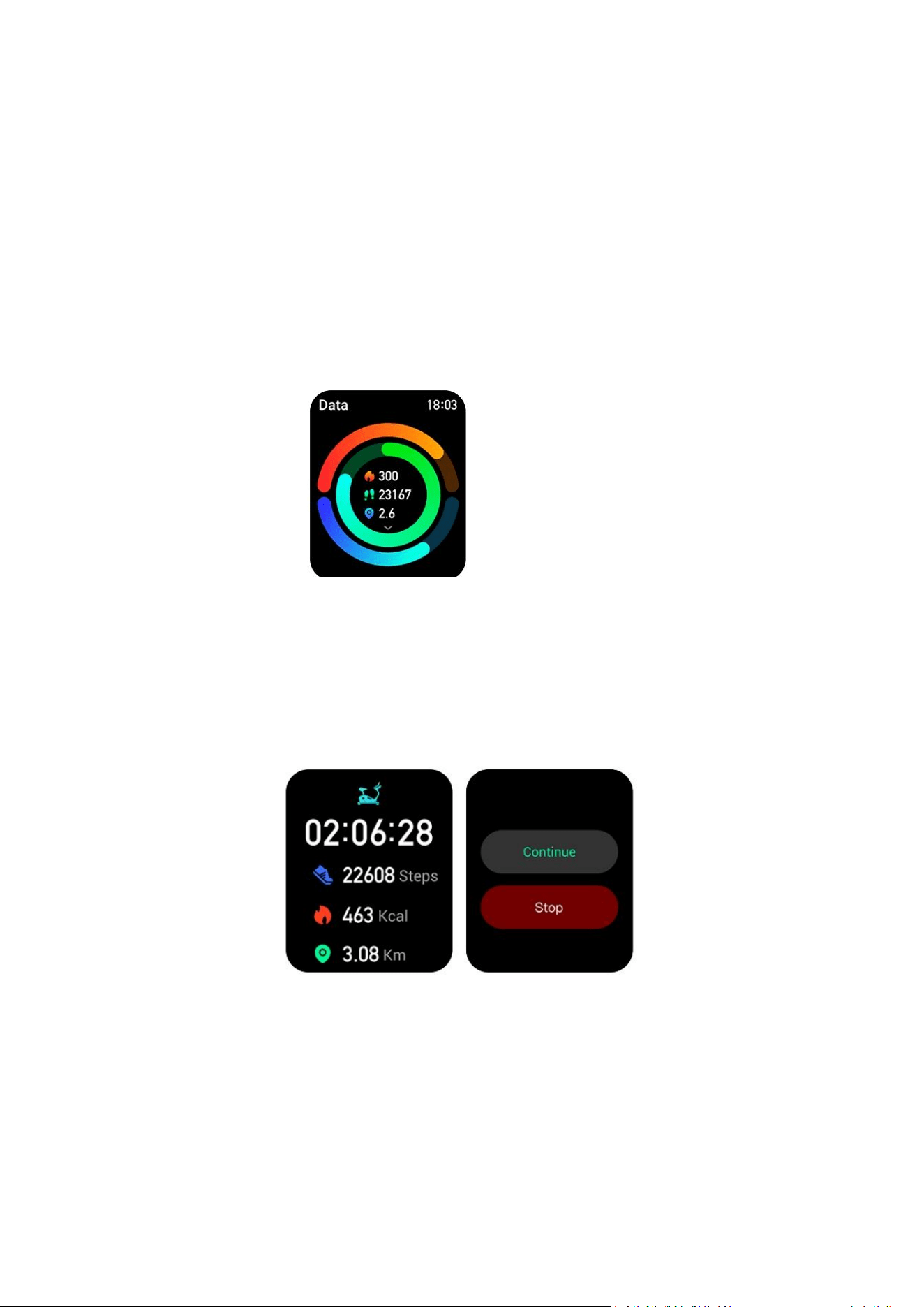
Press side button > Click “Voice Assistant” > Click to talk > Press the side button to
exit.
Note:
This function is to help you active the voice assistant on your phone.If your phone is
iOS, please active the “Siri” before using this function. And the language you speak
need to be recognized by Siri.
18
If your phone is Android, please active the voice assistant on your smartphone and
then use this function. Such as your phone is Samsung, please active the “Bixby” and
then talk with Bixby via the watch. And the language you speak to the watch need to
be recognized by your phone.
3.4.5 Data
Press the side button then click the ‘Data’ to check daily activity records.
Automatically record daily steps, calories, workout activities, and activity reminders.
Swipe up to see the last 7-day details.
3.4.6 Workout
Press the side button > Workout > Select a sport > Wait 3 seconds > Sports starts.
Swipe right or press the side button to pause or stop the exercising.
3.4.7 Heart Rate
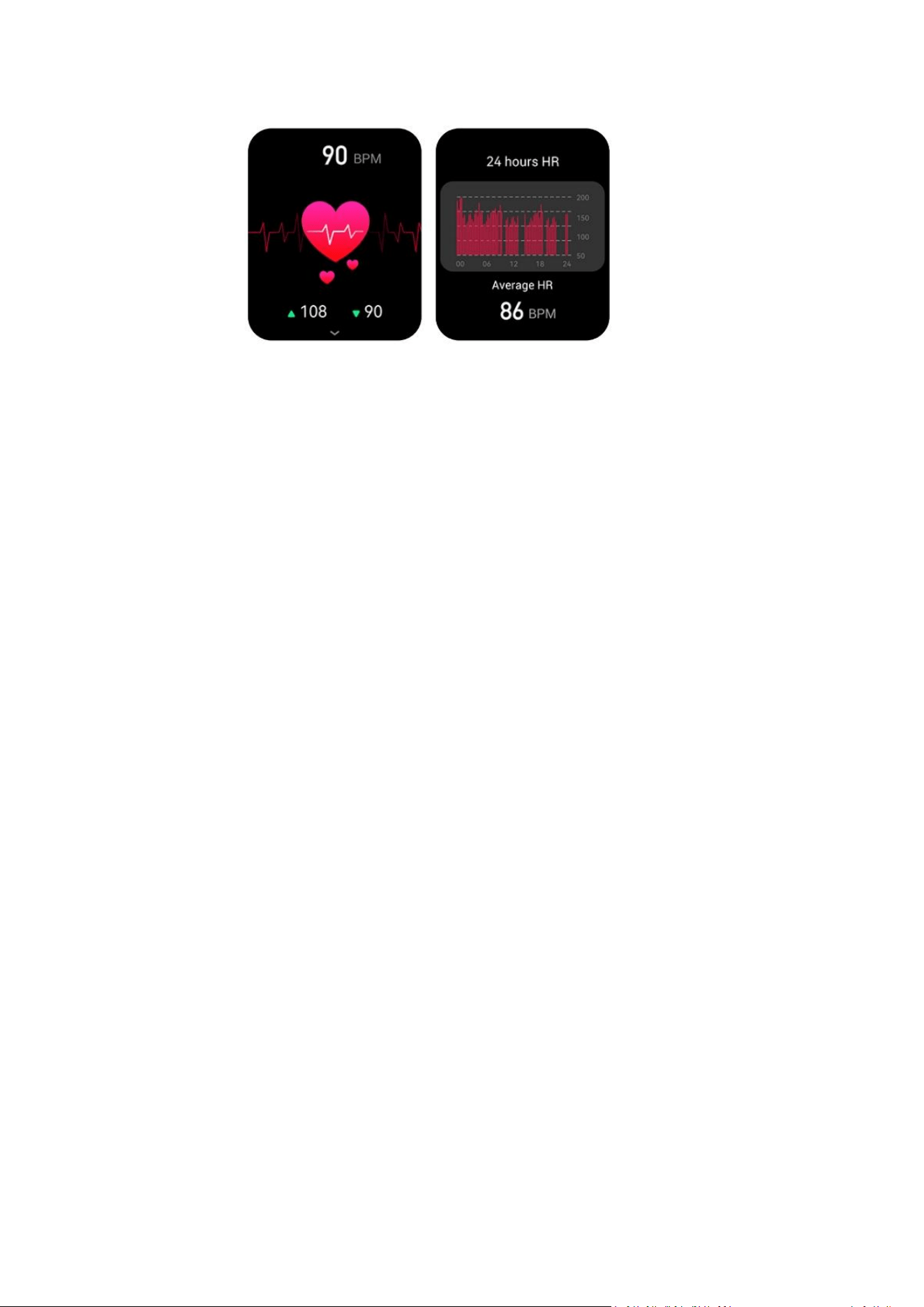
Measure heart rate manually on the smart watch
1) Wear the watch slightly tighter on your wrist > Turn on the watch and click the
side button > Heart Rate to measure your heart rate.
2) Swipe up to see the heart rate records of last 24 hours.
19
Principle of heart rate monitor
Blood will have strong absorption of green light. When the heartbeat occurs, blood
will flow through the part where the green light is located, and the blood will absorb
the green light, leading to the weakening of the reflected green light. In this way, the
intensity of the green light measured by the light sensor will be weakened, and a
heartbeat can be detected.
Tips:
Please kindly wear the watch one or two fingers distance from your wrist to ensure
measuring or monitoring heart rate more accurately
Note: Due to current technological limitations and different usage scenarios, the
Health data provided by all smartwatches on the market is for reference only. If you
require precise measurements for medical purposes, please consider purchasing a
professional medical-grade monitor.
3.4.8 Sleep
The watch supports automatically records your sleep conditions when you wear it all
night.
Sedentary feature and sleep are mutually exclusive.
If you'd like to track your sleep data during a nap, make sure to disable the sedentary
reminder while you rest.
Sleep Algorithm:
Sleep monitoring period: From 9:30 in the evening to 12:00 the next day.
The current sleep algorithm uses the G-sensor to determine the amplitude,
frequency, and duration of the user's movements, recording the user's sleep states
(deep sleep/light sleep/awake). It also updates the current sleep state by considering
the context of each state. The logic for exiting sleep judgment is similar to the
20
aforementioned logic, and if an awake state occurs after 8:30 in the morning, the
user will not re-enter sleep.
3.4.9 Blood Pressure
The smart watch supports blood pressure manually measurement on the watch.
Wear the watch on your wrist > Press side button > Swipe down to find Blood
Pressure.
Note: Due to current technological limitations and different usage scenarios, the
Health data provided by all smartwatches on the market is for reference only. If you
require precise measurements for medical purposes, please consider purchasing a
professional medical-grade monitor.
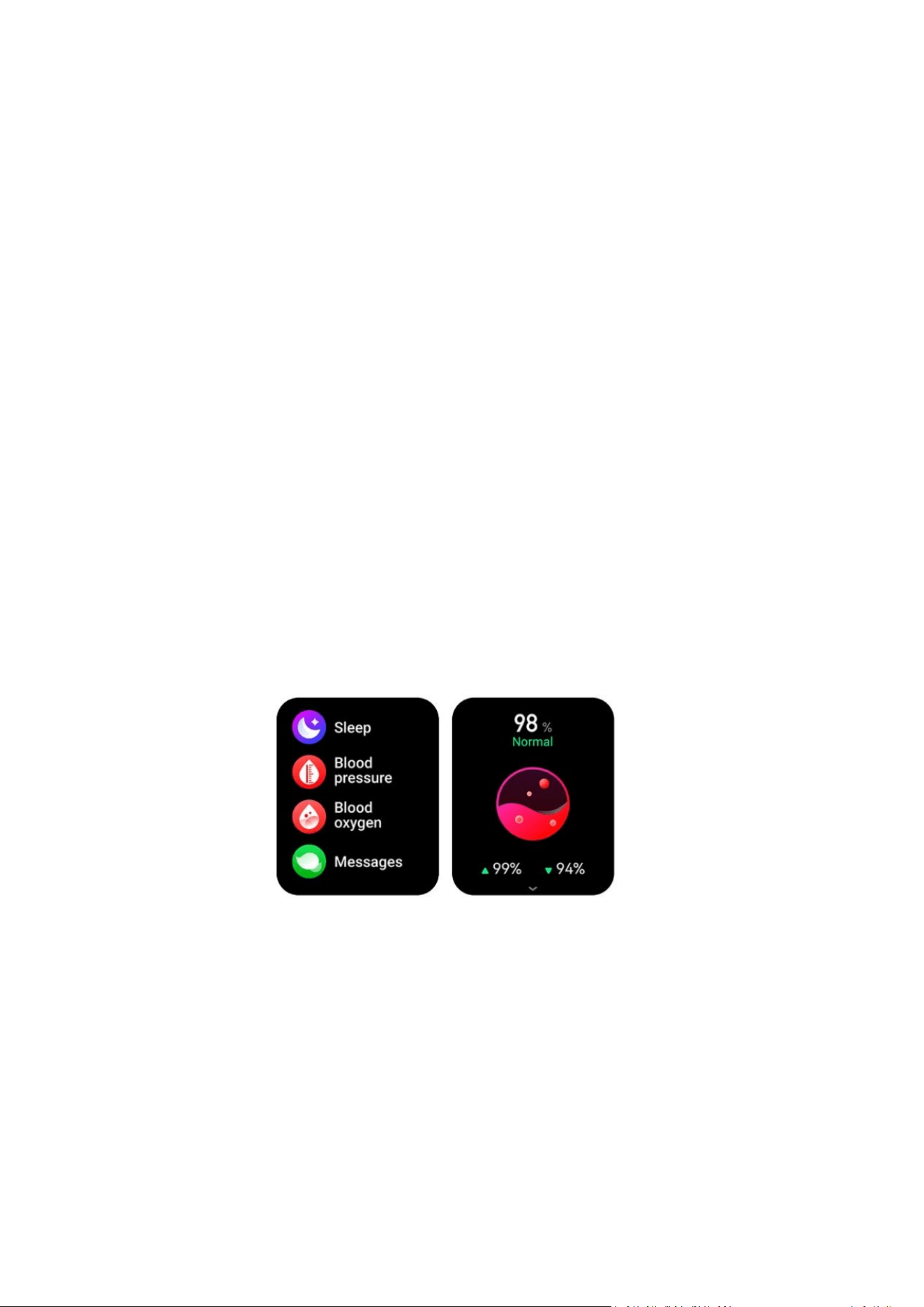
3.4.10 Blood Oxygen
The smartwatch supports blood oxygen manually measurement on the watch.
(1) To measure blood oxygen on the smart watch: Wear the watch slightly tighter >
Press side button > Blood Oxygen > SpO2 is measuring.
(2)Principle of blood oxygen measurement:
Since oxygenated hemoglobin and deoxygenated hemoglobin have different
absorbability to red and infrared (invisible) light, bleeding oxygen can be calculated
by detecting the reflectance intensity of red and infrared light.
Note: Due to current technological limitations and different usage scenarios, the
Health data provided by all smartwatches on the market is for reference only. If you
require precise measurements for medical purposes, please consider purchasing a
professional medical-grade monitor.
21
3.4.11 Messages
It shows the notifications that the watch receives.
Note: This function needs the watch to be connected via FitCloudPro APP. Please
check subsequent FAQ Page 35 4.3 for more detailed settings.
3.4.12 Weather
How can I see the weather information on the watch?
The weather information on the watch will be synchronized with Internet weather
when it is connected to the phone.
(1)Connect the watch to your phone via FitCloudPro (refer to Page 4: 2.3.1)
(2) Allow the location access of FitCloudPro APP in your phone’s setting.
IOS: Settings > Apps > FitCloudPro > Location > Always.
Android : Settings > Apps > FitCloudPro > Permissions > Location > While using the
app
(2) FitCloudPro APP > Device > Enable Weather Reports.
Note: It is normal that the weather details on your watch may be a little different
from what shows on your phone. Because the watch's weather data source is
different from what your phone uses.
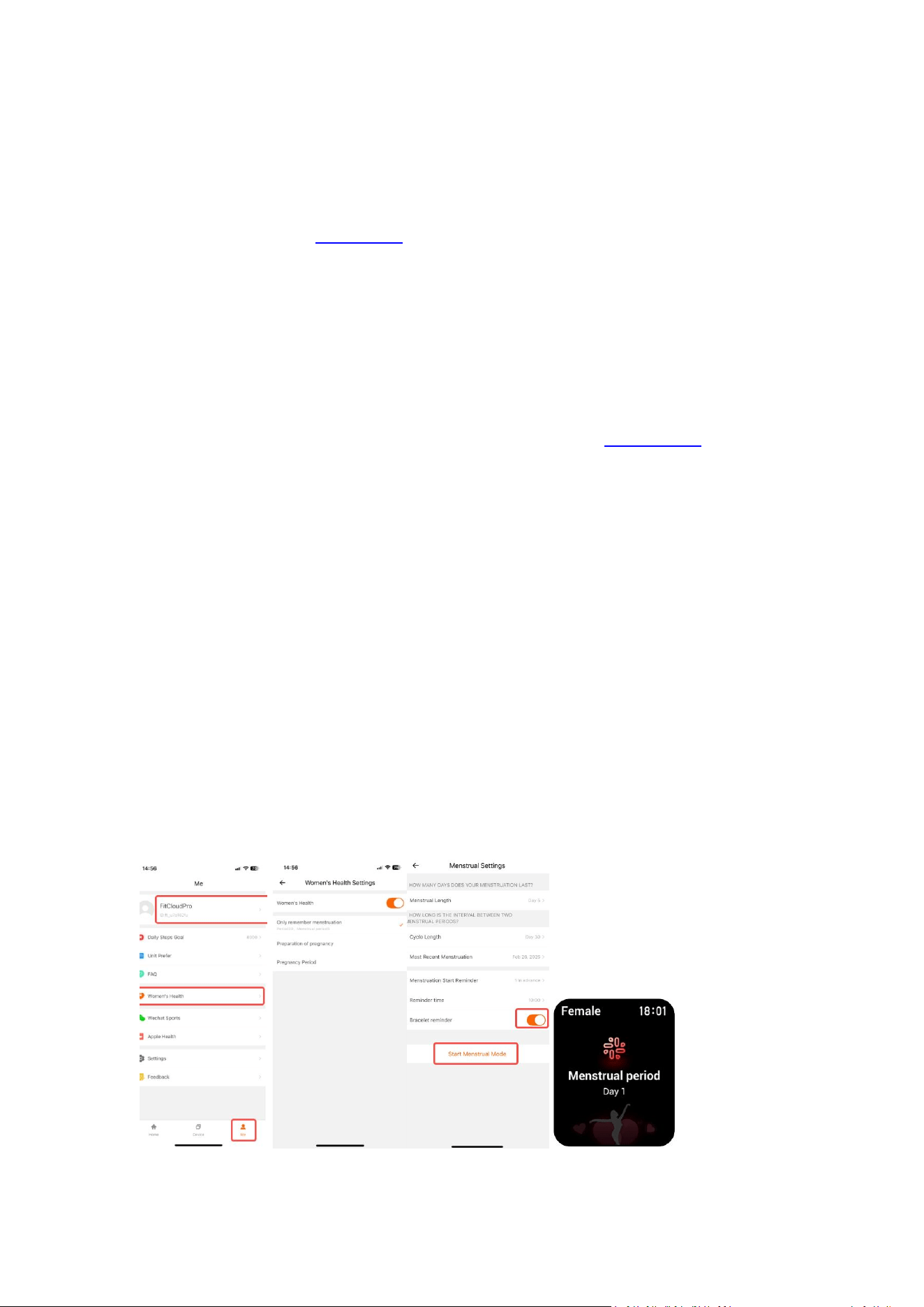
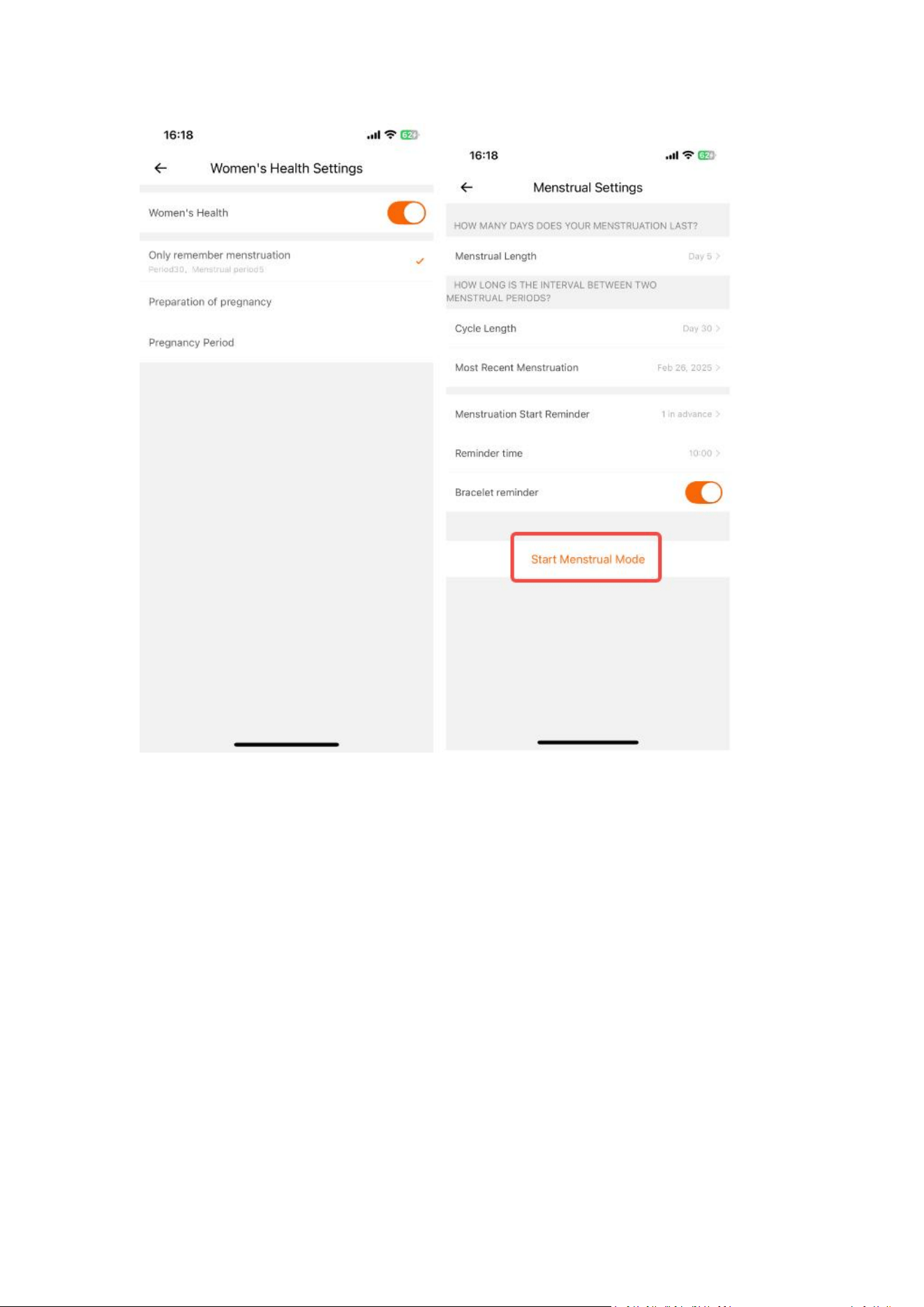
3.4.13 Female
Please enable women’s health on FitCloudPro App before using this function.
FitCloudPro APP > Me > Click your account > Gender to Female > Enable Women’s
Health > Allow Full Access > Then set your menstruation cycle > Enable Bracelet
Reminder > Start Menstrual Mode
22
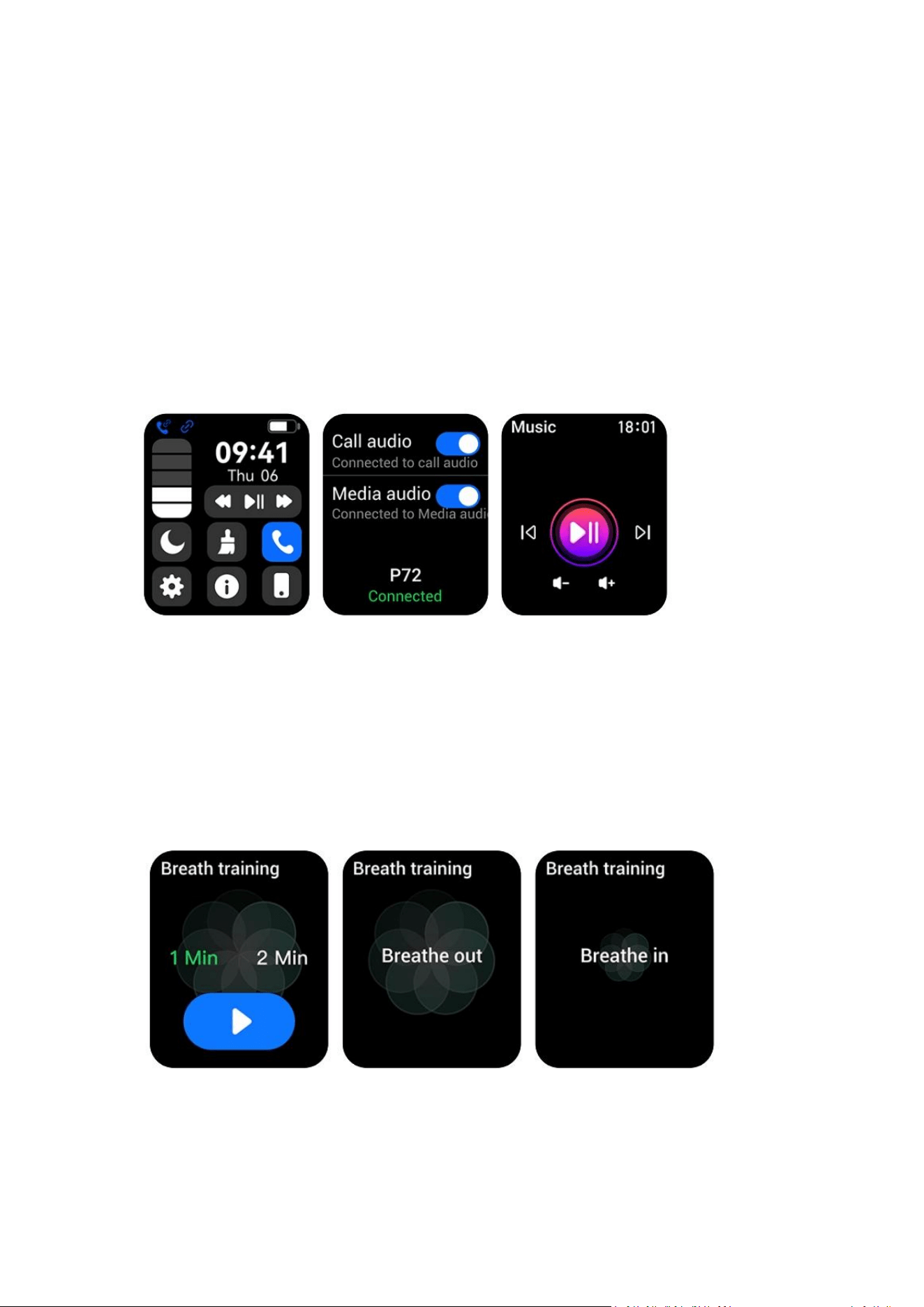
3.4.14 Music
To control the music:
(1)Connect the watch to your phone via FitCloudPro APP and open the music player
on your phone..
(2)Please press the side button on the smartwatch > Click on “Music” . You can play,
pause, volume up and down on the watch.
play music on the watch or not on the watch: Slide down the main page of the
watch > click the call icon > Turn on/off ‘Media Audio’.
Note: The watch is only compatible with music players. It can not control videos.
(such as it cannot control YouTube.)
3.4.15 Breath Training
Press the side button > Click“Breathe Training” > Select a time period > click to start
breathe training. Breathe training is an act of giving your attention to only one thing.
It is a way of becoming calm and relaxed. It is a good tool for prayer and meditation.
23
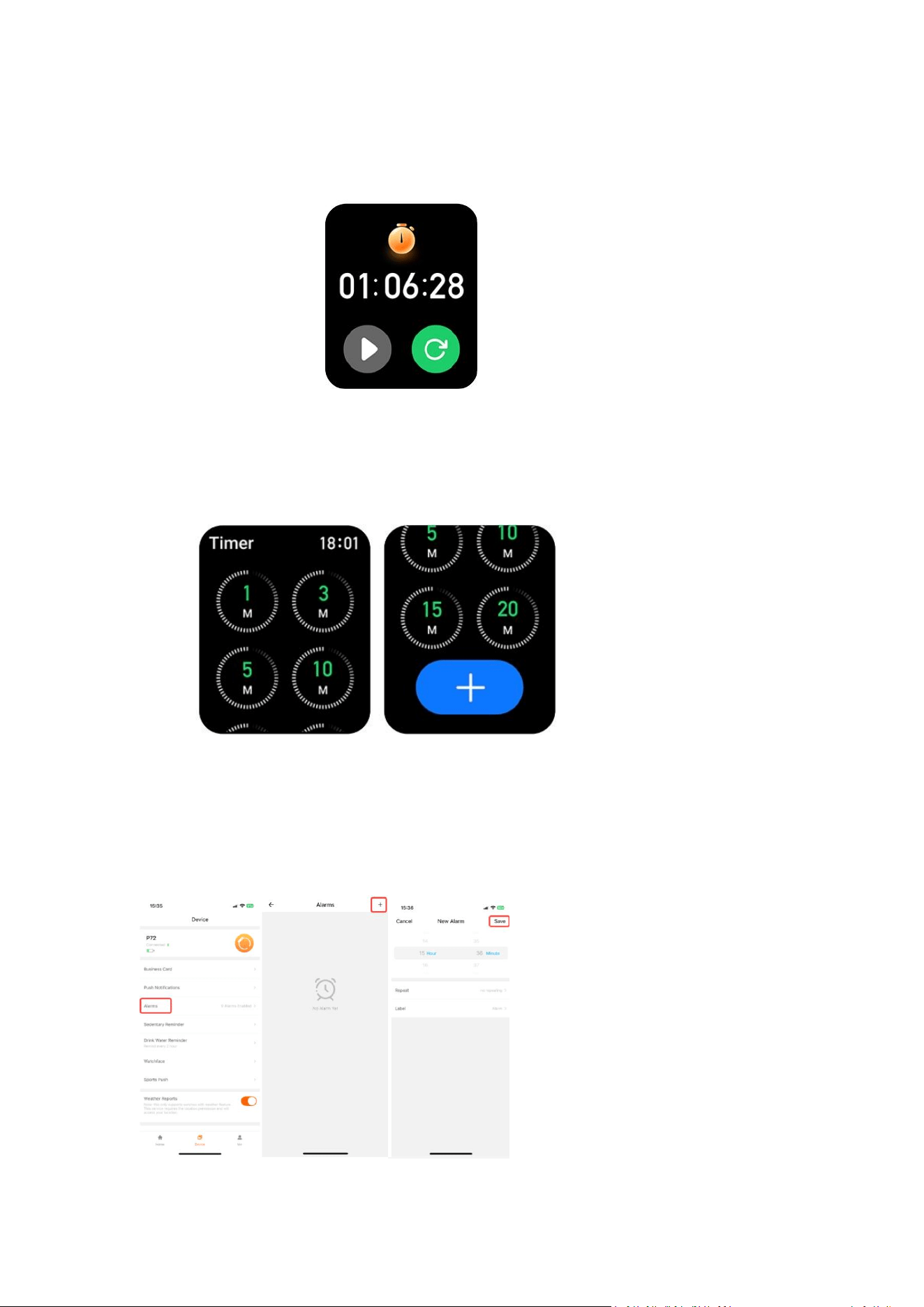
3.4.16 Stopwatch
Press side button > Stopwatch > Click to start
3.4.17 Timer
Press side button > Timer > Choose or set a time period you need to count down.
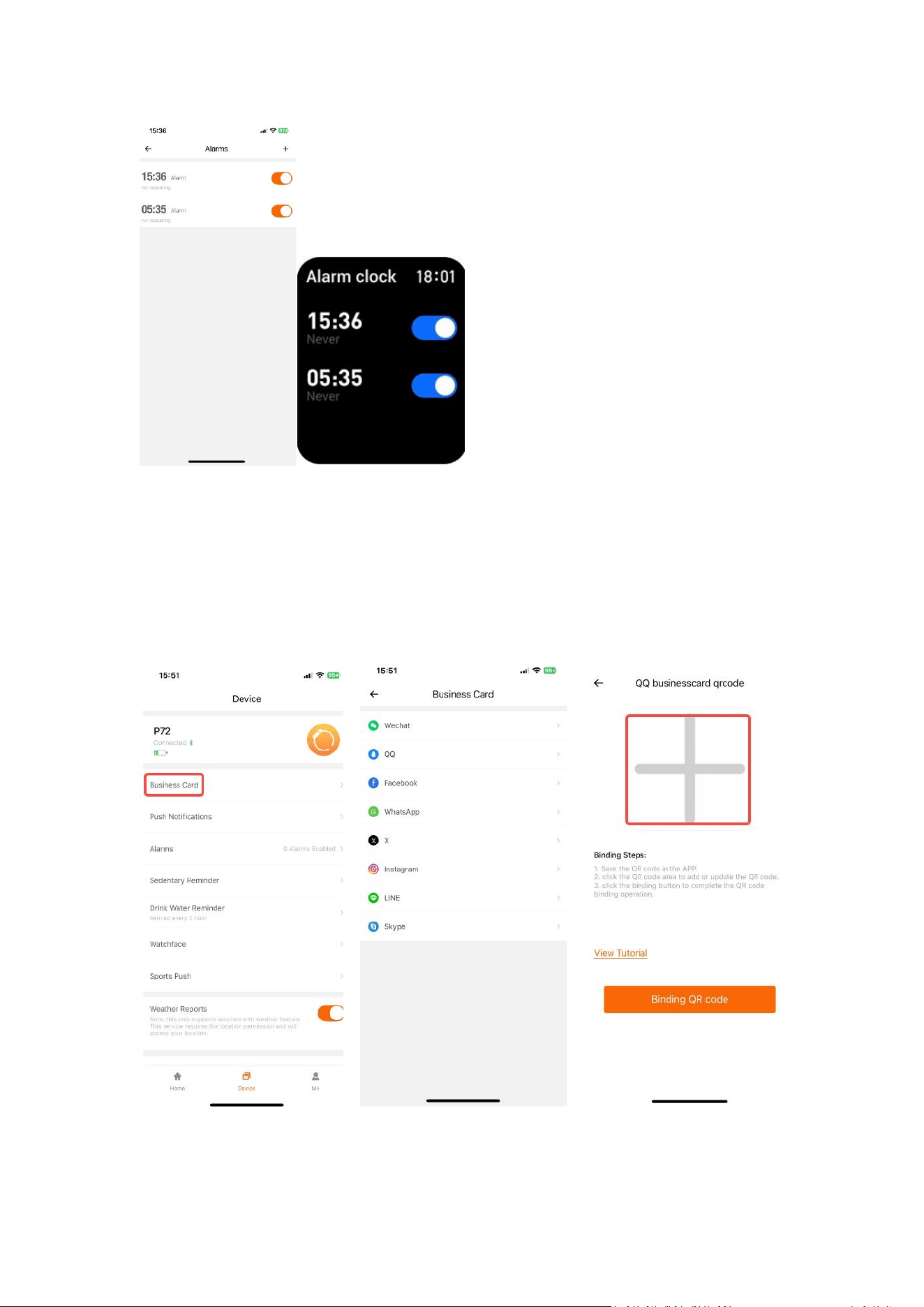
3.4.18 Alarm Clock
Create an alarm clock you need on the FitCloudPro APP and the watch will vibrate
when it goes to the time you set.
24
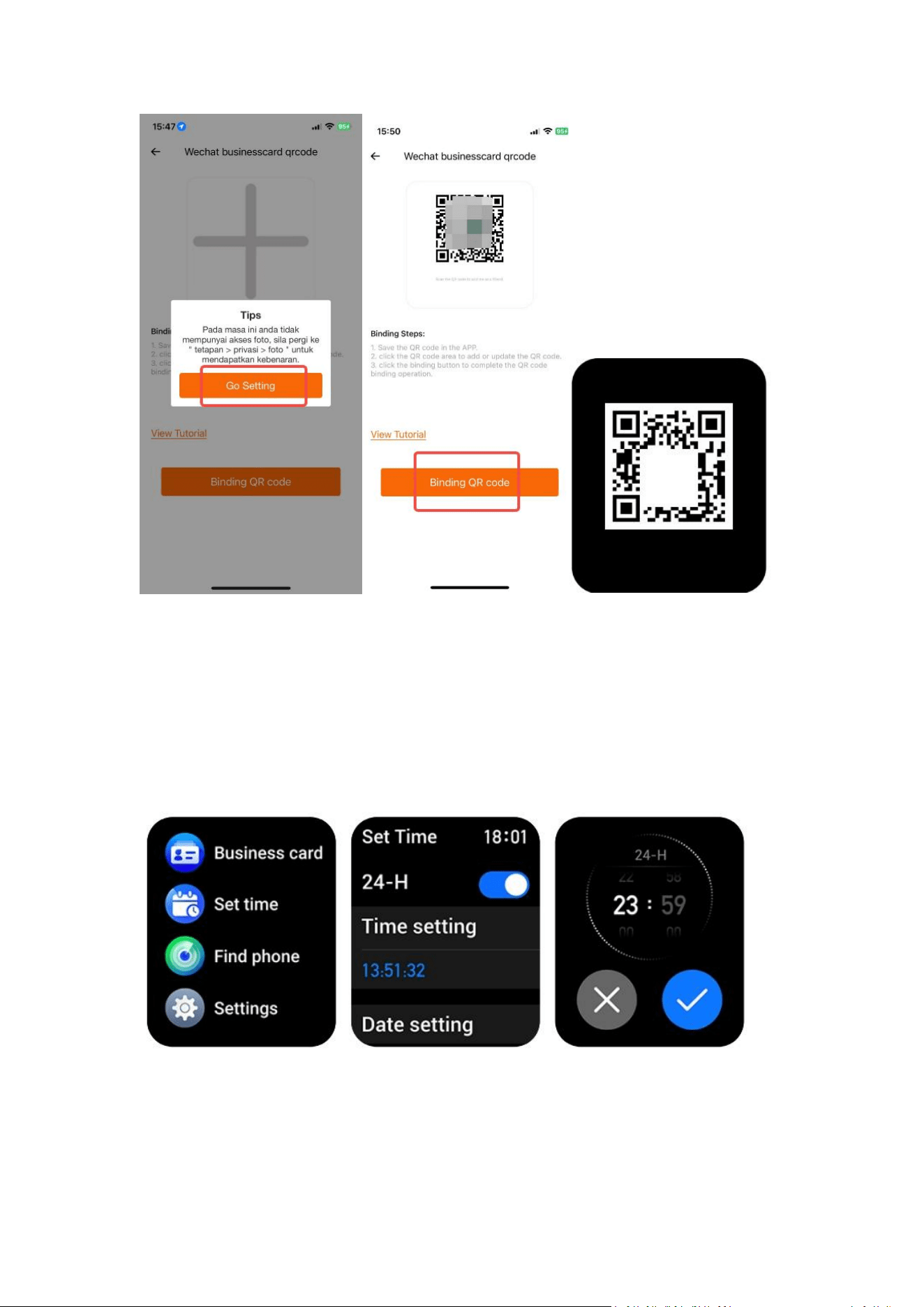
3.4.19 Business Card
You can add your QR codes for social medias to the watch. Others can scan the QR
codes on the watch to add you on Facebook, Whatsapp, etc.
25
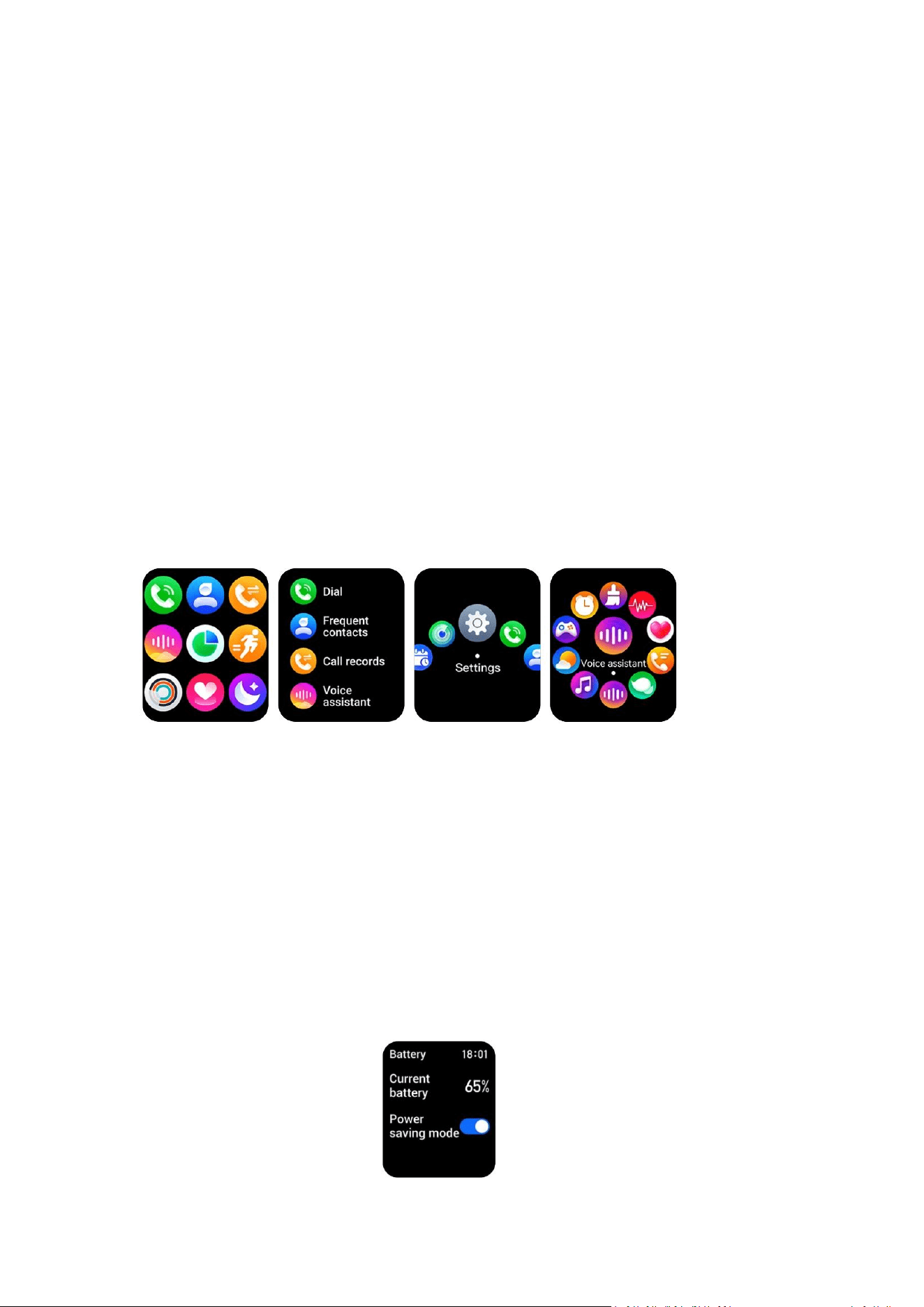
3.4.20 Set Time
You can set the time shown on the watch. Please kindly note that if the watch is
connected to your phone, the watch will sync with the time on your phone
automatically.
26
3.4.21 Find phone
(1)Connect the watch to the phone via FitCloudPro APP.
(2)Press the side button >click “Find Phone” > The phone will ring to notify you when
it’s within 5 meters distance around.
Find The Smartwatch:There is also a related feature on the app, it’s “Find the
smartwatch”.
Go to FitCloudPro> ‘Device‘> Find the Smartwatch
Tip:
If the phone’s DND mode is on, it is possible that the phone will not ring if you click
Find Phone on the watch.
3.4.22 Settings
3.4.22.1 Menu Style
You can set the menu style you like.
3.4.22.2 Screen display
You can set the Dial Switch, Brightness, Screen-on time and Raise to wake screen-on
time at this interface.
Note: Please enable Raise to Wake and set the time period on FitCloudPro APP
before setting the screen-on time for it.
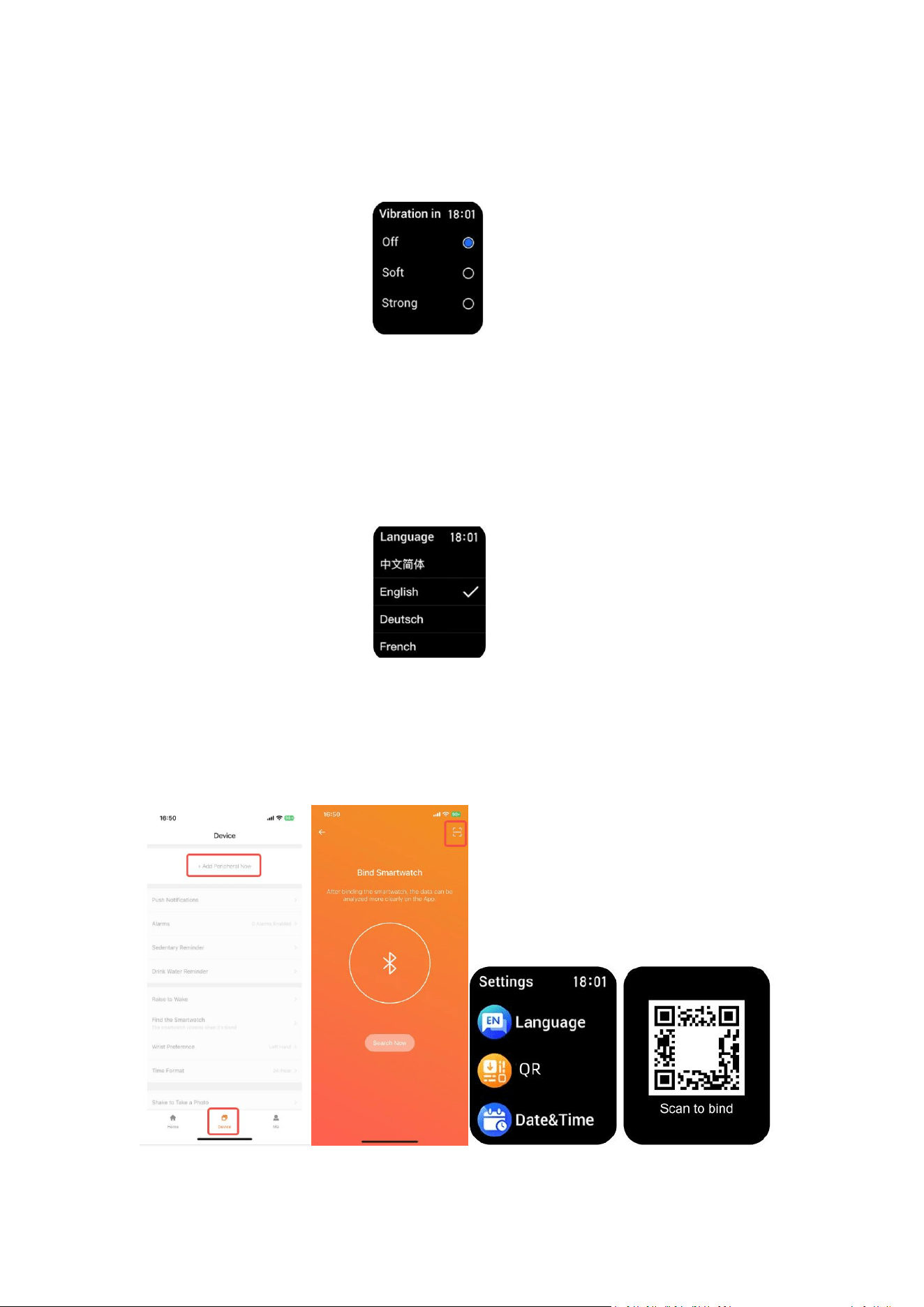
3.4.22.3 Battery
It shows you the battery information. And you can choose the power saving mode as
you need.
27
3.4.22.4 Vibration Intensity
You can set the vibration intensity to off, soft or strong as you prefer.
3.4.22.5 Language
You can set the system language of the watch as you prefer.
Note: The watch’s system language will sync with your phone’s system language
once they are connected.
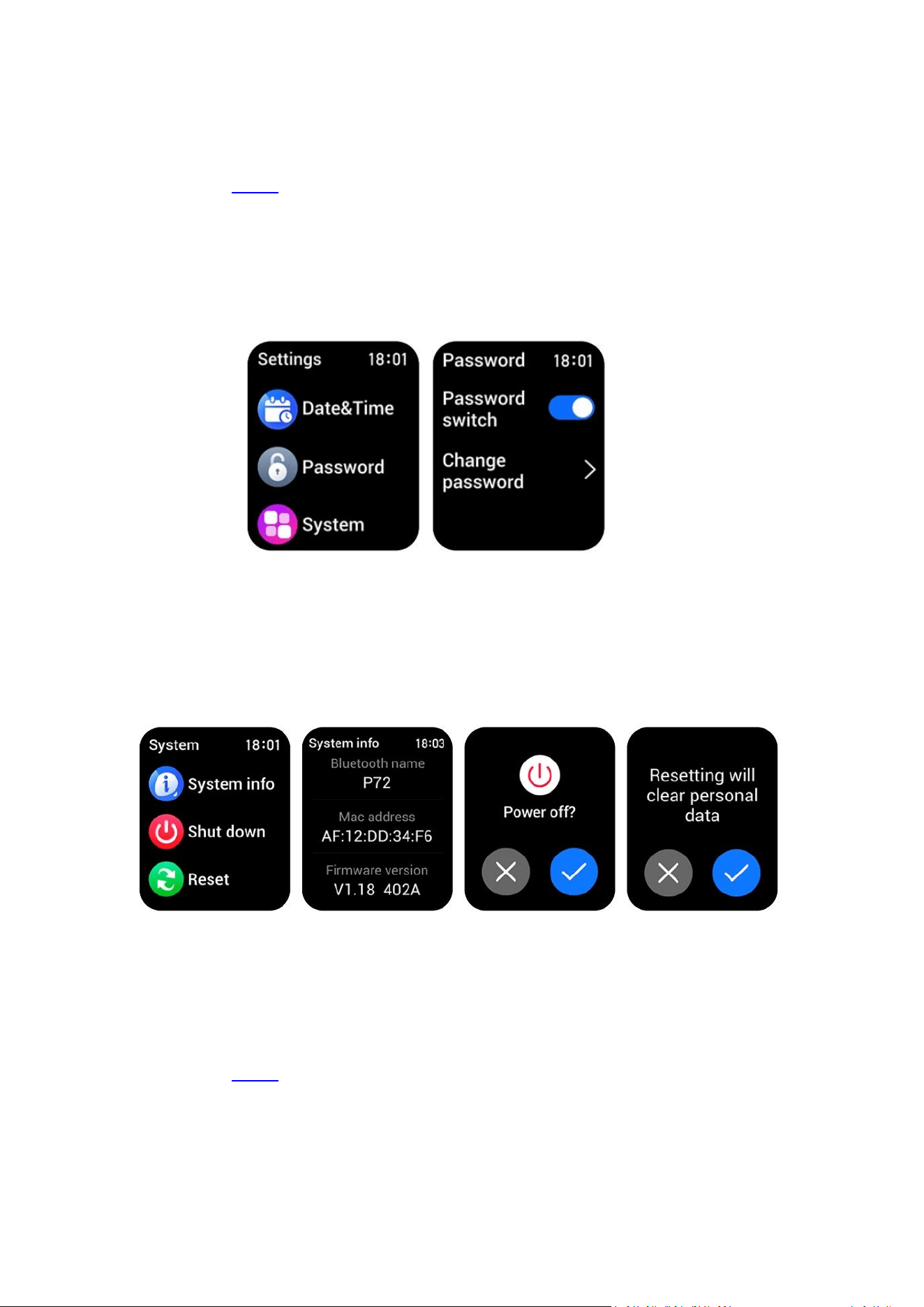
3.4.22.6 QR
You can scan this QR code to bind the watch on FitCloudPro APP.
28
3.4.22.7 Set time
It’s same as 3.4.20 Please check the instruction above.
3.4.22.8 Password
You can set or change your own password to use the smart watch.
3.4.22.9 System
It shows the system information of your watch. And you can shut down or reset the
watch.
3.5 APP Instruction
3.5.1 Business card
It’s same as 3.4.19 Business Card. Please check the instruction above.
29
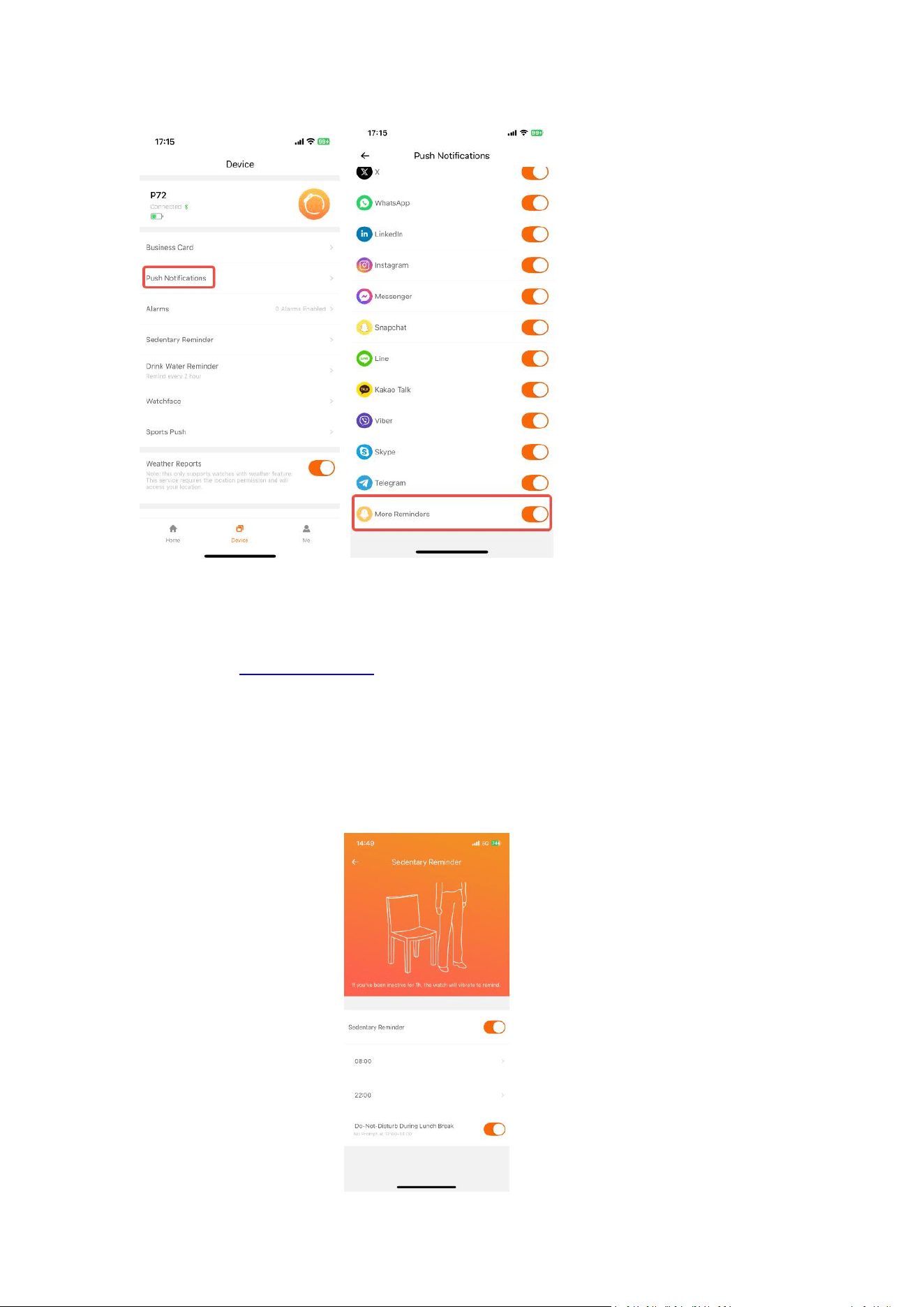
3.5.2 Push Notifications
Scan the QR code for video guide
The watch will show notifications and previews when new messages come in.
Enable the reminder for the Apps you want to see notifications on FitCloudPro. So
the watch can show notifications when new messages come in. If the App is not
shown in the list, please enable “More Reminder”.
Note:
Please make sure your phone's notification bar can receive notifications for these
Apps and show preview. Because the watch can only show what shows on your
phone's notfication bar. If your phone's notification bar cannot show the SMS
messages or other APPs notifications, neither can the watch.
IOS: Settings > Notifications > Show previews to Always
Settings > Notifications > Set “allow notifications” for the SMS messages and
other apps you want.
Settings > Bluetooth > Click the “i” icon beside the watch > Enable Share System
Notifications
Android: Settings > Notifications & status bar > App notifications > Lock screen >
Format > Show notification and content.
Settings > Notifications & status bar > App notifications > Enable the SMS
message and other apps you want to receive notifications.
31
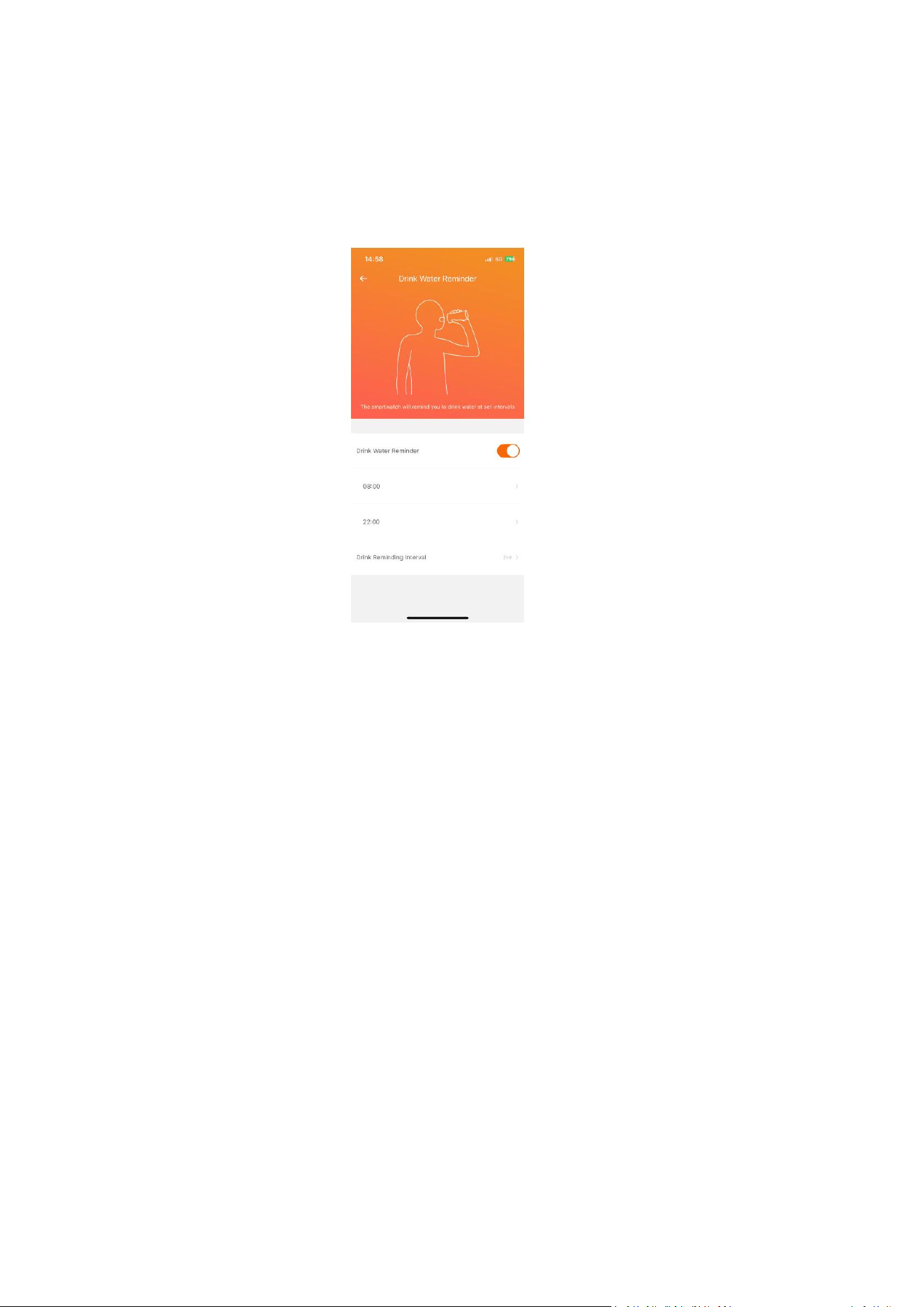
3.5.5 Drink Water Reminder
The smartwatch will remind you to drink water at set intervals.
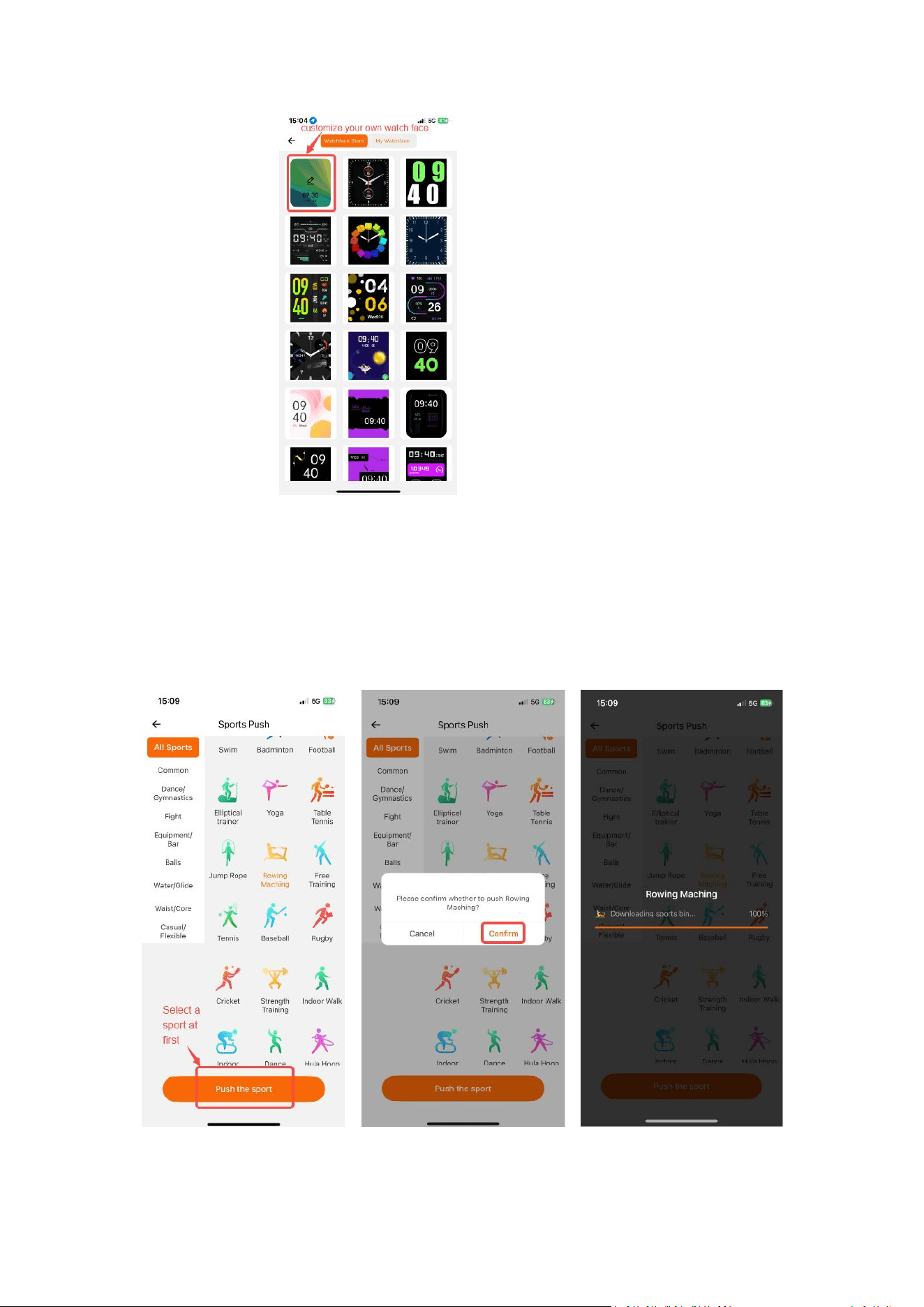
3.5.6 Watch Face
The watch supports changing or customizing your own watch face.
32
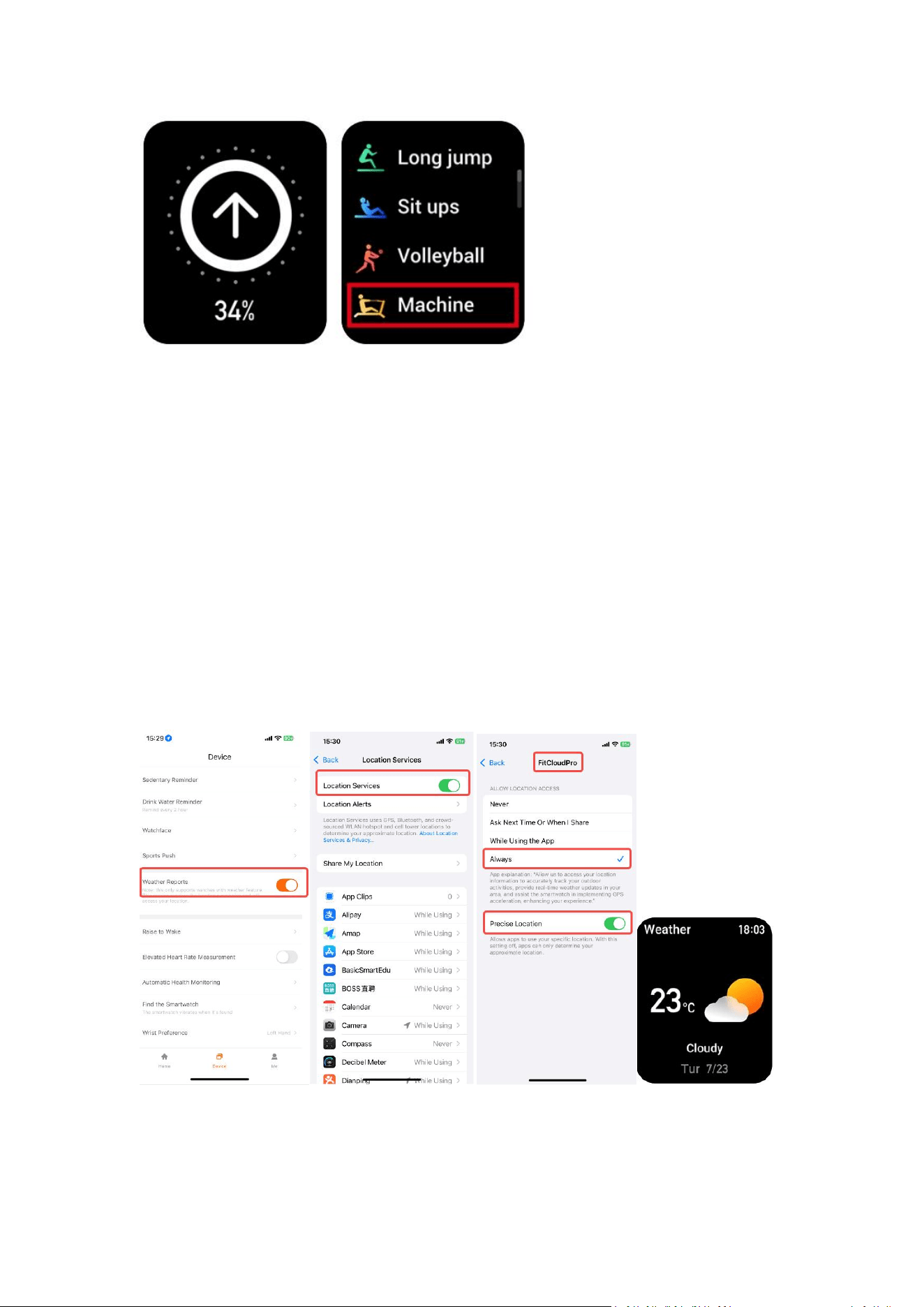
3.5.7 Sports Push
You can push the sport on the App to the workout interface on the watch.
Note: The watch can only show 21 kinds of sports. The last sport shown on the
watch will be the last one you pushed from the App.
33
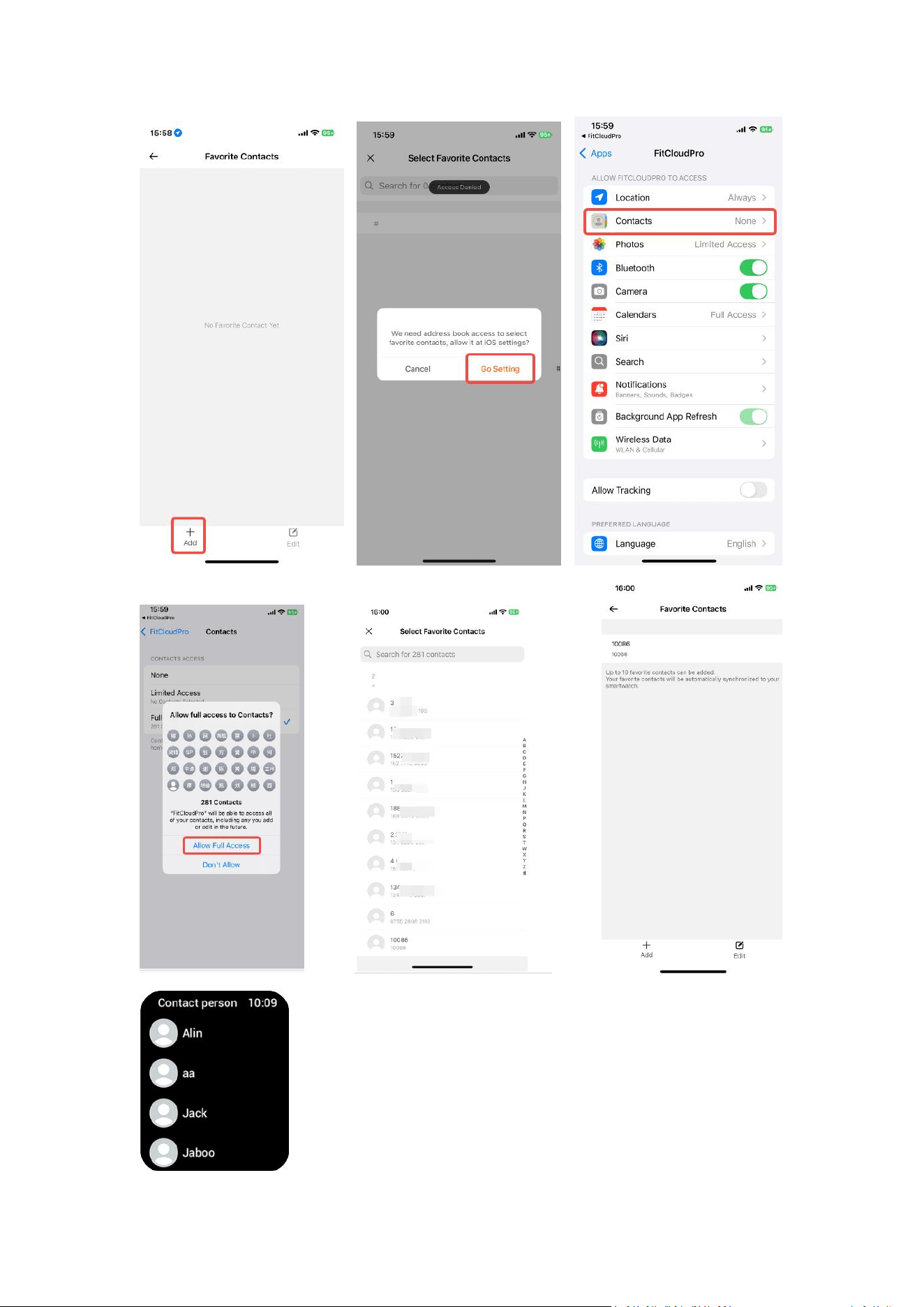
3.5.8 Weather Reports
You can see the weather information on the watch if you enable this function on the
FitCloudPro App.
Note: This function requires location permission on your phone. Please set as the
following:
IOS: Settings > Privacy&Security > Location Services > FitCloudPro > Always
Anroid: Settings > Privacy&Security > Location > FitCloudPro > Always allow
Note: If the location in the weather information in FitCloudPro app is correct, then it
is normal that the weather details on your watch may be a little different from what
shows on your phone. Because the watch's weather data source is different from
what your phone uses.

34
3.5.9 Raise to Wake
At the set time, the watch screen will turn on and show you the time when you raise
your waist.
3.5.10 Elevated Heart Rate Measurement
If the health monitoring doesn’t work or only sometimes works, please enable this function
3.5.11 Automatic Health Monitoring
The smart watch will measure your health data at intervals over the set period of
time.
3.5.12 Find the Smartwatch
The watch will ring to notify you if the watch is connected and with in 5 meters.
3.5.13 Wrist Preference
You may choose your wearing preference to left hand or right hand.
3.5.14 Time Format
You can select 12-hour or 24-hour time format as you prefer.
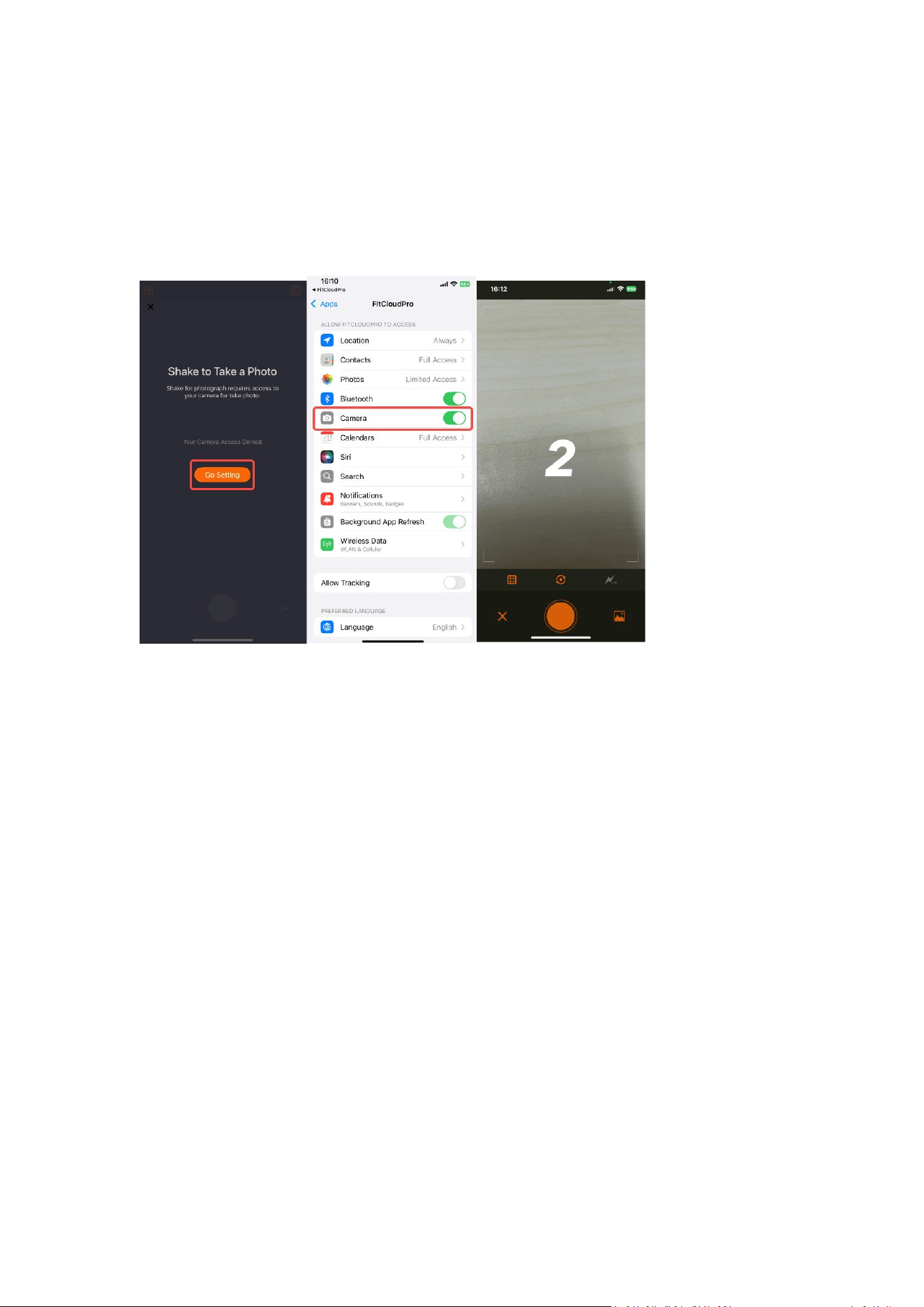
3.5.15 Favorite Contacts
You can add your frequent contacts on the App. Then it will show in the “ Contact
Person” on the watch.
35
36
3.5.16 Shake to Take a Photo
When you click “ Shake to Take a Photo” on the App and shake your watch, your
phone will count down 3 seconds and take a picture.
3.5.17 Hardware Version
The hardware version of your watch.
3.5.18 Restore To Factory Data
Reset the watch to factory data. All settings and data in the watch will be cleared.
3.5.19 Unit Prefer
FitCloudPro App > Me > Unit Prefer > Set your preferred length, weight and
temperature units.
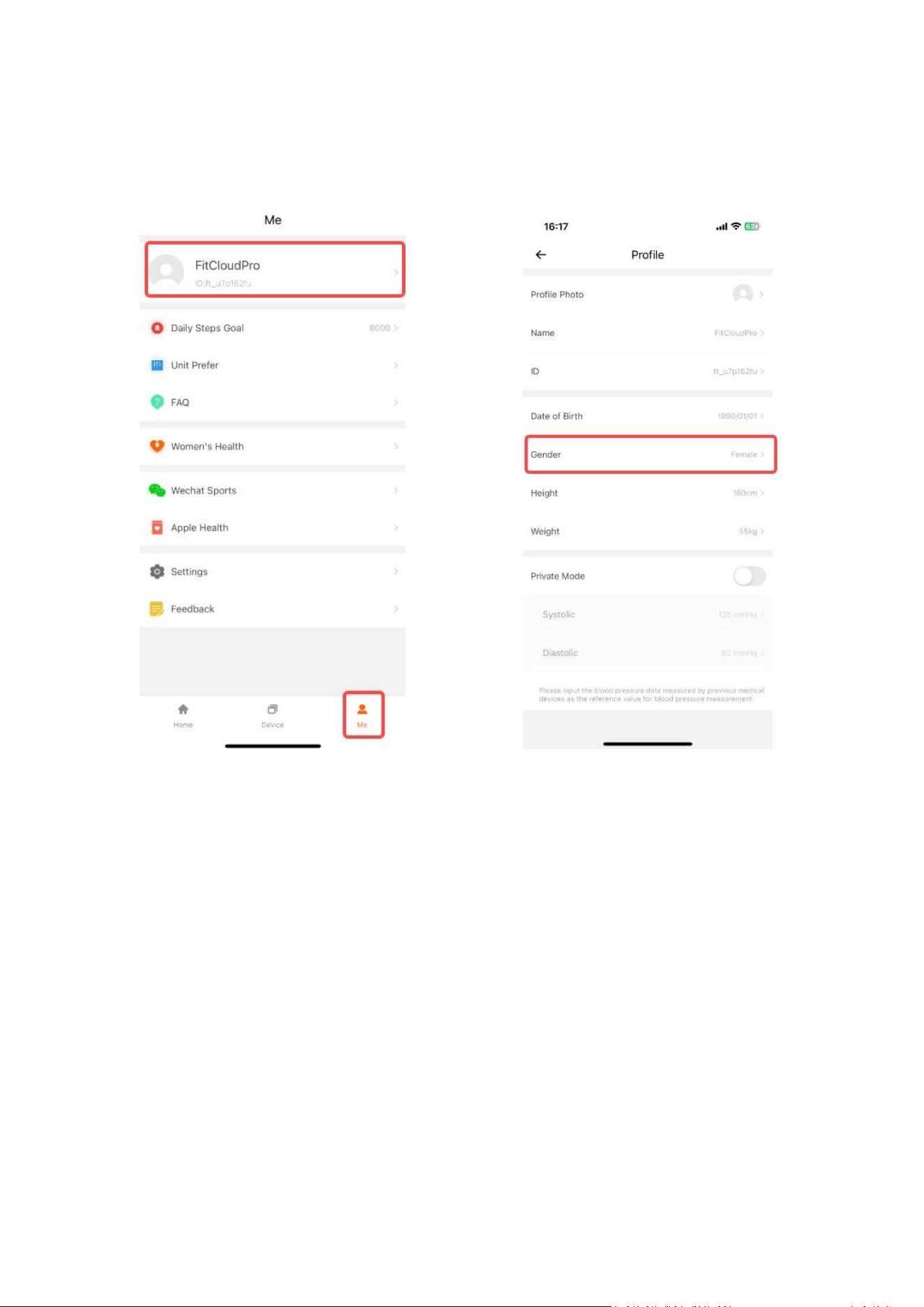
37
3.5.20 Women Health
To use this function, the gender in your profile should be female.
38
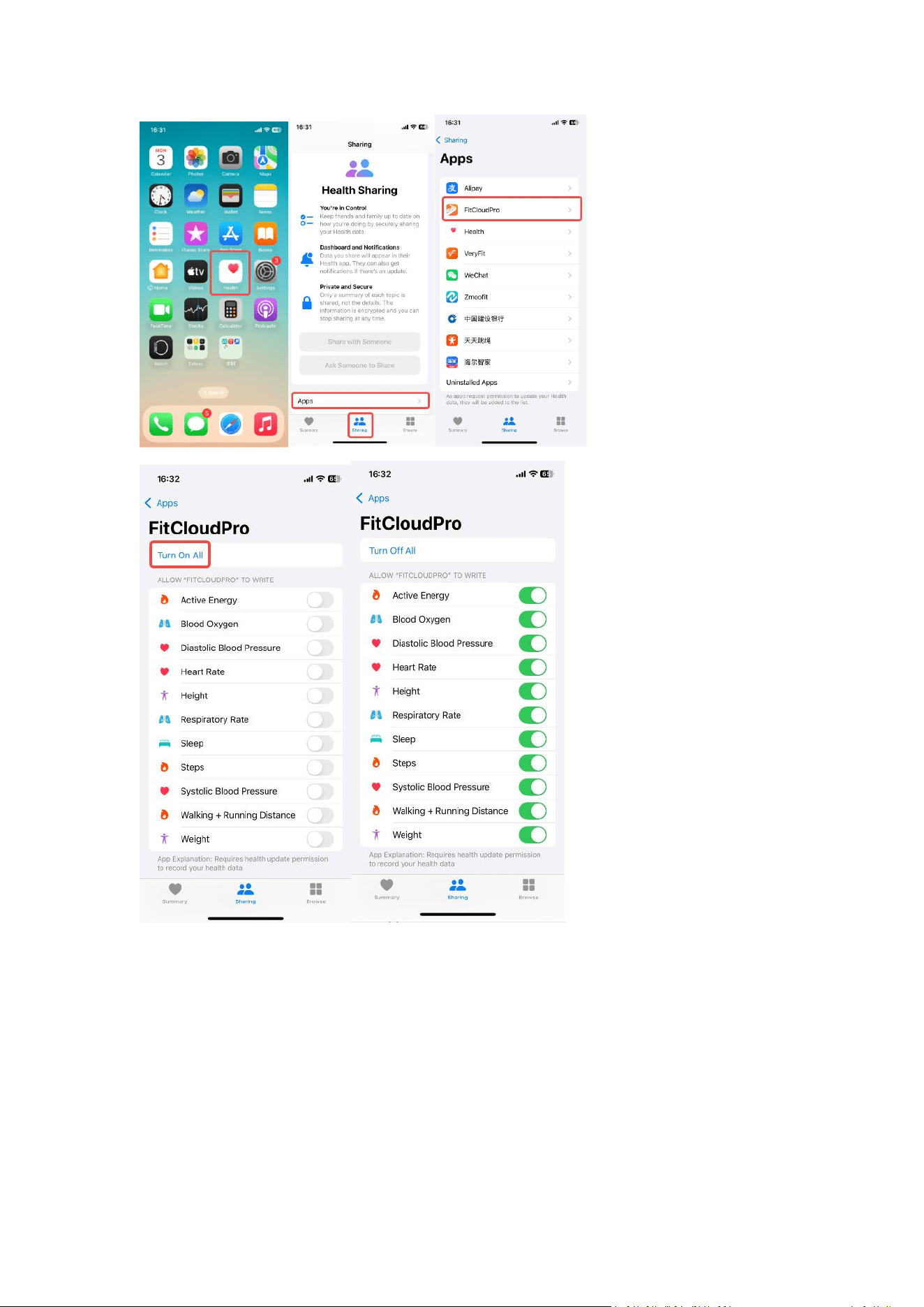
3.5.21 Apple Health
You can sync your FitCloudPro health data to your Apple Health.
39

40
4. FAQ
4.1. I Can’t get the watch paired with my phone
(1)Please kindly confirm that whether you have paired the watch via the system's
Bluetooth, not via our App? (In this case, the watch can not be paired successfully.
You need to ignore this device from the system's Bluetooth list. )
(2)Please kindly check whether your family has paired with this watch? (If Bluetooth
is occupied, it cannot connect properly. You need to unbind and reconnect. ) If the
above two conditions are excluded, follow these steps to connect:
(1)Restart your phone and the smartwatch.
(2)Make sure the FitCloudPro App have been allowed with the location access.
(3)FitCloudPro App > Devices > "Add Peripheral Now" or "Bind Device" > Select P72
to pair again. Please click all the allow and pair when pop-up windowns show up.
Also you can refer to Page 4: 2.3.1.
4.2. The smartwatch can not stay connected.
Samsung:
(1) Smart manager> App management> Auto run apps>Enable FitCloudPro
(2) Smart manager > Memory > Excluded Apps > Add apps > FitCloudPro
(3) Settings > Apps > FitCloudPro > Enable notifications & allow permissions to call
log, contacts, location, SMS, storage and telephone.
Other Android phones:
(1) Settings > Apps & permissions > Permission management > Auto start > Enable
FitCloudPro
(2) Settings > Battery > Background power assumption management > FitCloudPro >
Enable “ High background power usage”
(3) Click “multi-task key” to pop up recent tasks > Find FitCloudPro > Long press the
FitCloudPro > Click the “lock” icon.
IOS:
IOS doesn’t allow any apps to run at background. When you get back to the APP, it
will reconnect to your watch automatically in seconds.
Warm Tips for staying connected with APP:
a. The Bluetooth need to be enabled all the time is the precondition to stay
connected.
b. The watch need to stay connected with your phone to receive messages and
incoming calls within 5 meters via Bluetooth in an empty place after pairing and
binding with your phone. (The distance of more than 5 meters may cause Bluetooth
disconnection. It may cause Bluetooth disconnection if there are obstacles.)
41
c. The phone is protecting a better usage of the phone's battery, It needs to go to the
app to reconnect the watch manually once the watch was disconnected with your
phone exceed 2 hours.
d. You'd better click all of the "Allow" when register and login the FitCloudPro app at
the first time.
4.3. I cannot receive incoming call notifications and message notifications
Scan the QR cord for video guide.
(1)Please kindly active this function in FitCloudPro App: Open FitCloudPro App >
Device > Push Notifications > Enable All Reminder.
(2)Please kindly confirm whether the watch is connected to your smartphone. If it is
not, please refer to Page4: 2.3.1 to finish the paring.
(3)Please check whether the DND mode on your watch is "ON"? During the set time,
the watch will only receive but not remind of notifications.
(4)Please check whether your phone's notification bar can receive notifications for
calls and messages or not. The smartwatch will display what shows on your phone's
notification bar. If the phone's notification bar is unable to show notifications for
calls or messages, neither does the watch.
IOS:
Settings>Notifications>Set “allow notifications” for the text messages and other apps
you want.
Settings > Notifications > Show previews to Always
Android:
Settings>Notifications & status bar>App notifications > Lock screen > Format > Show
notification and content.
Settings>Notifications & status bar>App notifications>Enable the text message and
other apps you want to receive notifications.
Warm Tips:
For iOS system, it is necessary to share system notification:
Settings of your iPhone > Bluetooth > Choose “P72” (for example) > “i” > Enable
the “Share System notification”

42
4.4. A message notification is displayed, but the content is not displayed.
This smartwatch shows what is displayed in the notification bar of your smartphone.
If your phone doesn't show a preview, the watch won't show a preview neither. In
this case, please kindly enable the preview of message notification on your phone’s
setting.
IOS:
Settings > Notifications > Show previews to Always
Android:
Settings>Notifications & status bar>App notifications > Lock screen > Format > Show
notification and content.
4.5. Time is incorrect
Press side button > Set Time > Change the time and date.
Note: The time and date on the watch will sync with your phone’s time and date
once they are connected.
4.6 . Incorrect sleep record
While our smartwatch uses advanced sensors (like heart rate and movement
detection) to analyze your sleep patterns, it's important to note that no wearable
device can provide 100% medical-grade accuracy. Here's why:
1. Indirect Measurement
Unlike clinical sleep studies (which use brain wave monitoring), wearables track
sleep indirectly through body movements and heart rate variability. This means deep
sleep vs. light sleep phases may sometimes be estimated differently than you feel.
2. Individual Variability
Everyone moves differently during sleep—some people are naturally still during light
sleep, while others shift positions frequently even in deep sleep. This can
occasionally cause misclassification.
3. Device Placement
For best results, the watch should fit snugly (but comfortably) on your wrist. Loose
wear or wearing it higher/lower than recommended can affect sensor readings.

43
4.7 . Incorrect steps
We use the hand swing to calculate the number of steps, in order to reduce the error,
we set the threshold of the number of steps. Currently, only up to 20 consecutive
steps are counted as steps. If the steps are more than two seconds apart, the step
count restarts. For example, if you take 15 steps in a row, stop for three seconds,
and then take 15 steps in a row, our watch will count as zero steps. If you walk 20
steps in a row, stop for two seconds, and take 30 steps in a row, our watch will count
as 50 steps.
Please try to walk like 100 or 200 steps without stopping, and swing your arms as
normal. Will the step tracking do better now?
4.8. Incorrect heart rate
(1)Principle
The blood will have a strong absorption of green light, when the heartbeat occurs,
blood will flow through the part where the green light is, the blood will absorb the
green light, resulting in the reflection of the green light, so that the intensity of the
green light measured by the light will be weakened, and a heartbeat can be
detected.
(2)Possible causes
Dry skin, dark skin, too thin or too fat (affecting capillary density), excessive hair,
relative movement between the watch and the hand, too tight (pressing capillaries),
and too loose (reflected green light will be interfered with by ambient light).
(3)Resolution
Don't wear too tight also don't wear too loose. Thin people need to wear the watch
two to three fingers' width from the wrist.
4.9. Incorrect blood oxygen
(1)Principle
Since oxygenated hemoglobin and deoxygenated hemoglobin have different
absorbability to red and infrared (invisible) light, bleeding oxygen can be calculated
by detecting the reflectance intensity of red and infrared light.
(2)Possible causes
Dry skin, dark skin, too thin or too fat (affecting capillary density), excessive hair,
relative movement between the watch and the hand, too tight (pressing capillaries),
and too loose (reflected green light will be interfered with by ambient light).
44
(3)Resolution
Don't wear too tight and also don't wear too loose. Thin people need to wear the
watch two to three fingers' distance from the wrist.
4.10. Will not count steps
(1)Please restore the watch to factory settings : Press side button on the watch >
Settings > System > Reset.
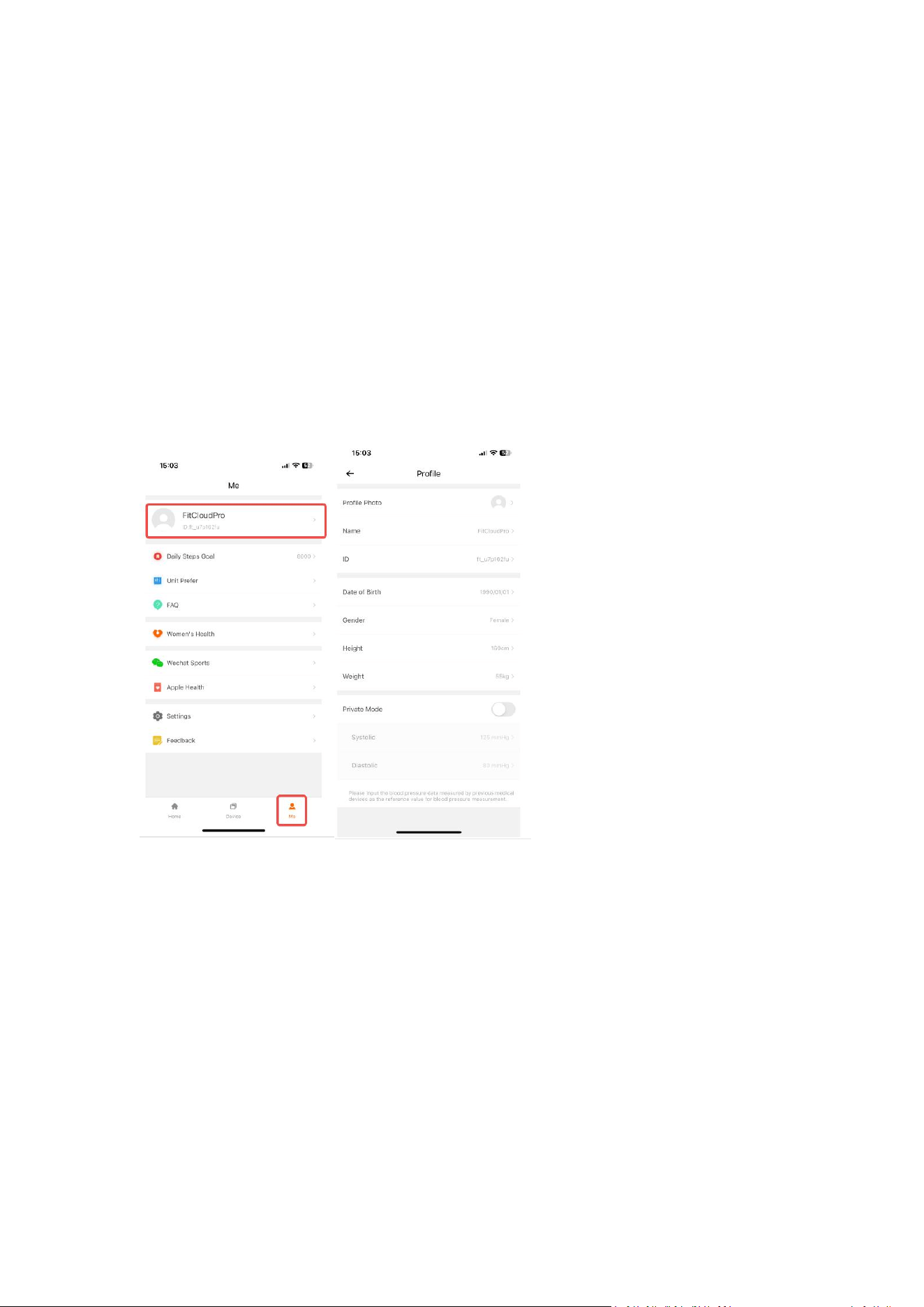
(2) Please ensure your personal info is correct because it is related to recording steps
closely. You can find it by these steps: FitCloudPro APP > Me > Click the portrait to
edit the information.
(3) Please wear the watch a little bit tighter on your wrist.
4.11 Battery strains too fast
We have tested the battery life many times in our laboratory. It could last 7 days on
the condition:
*Use the built-in watch face.brightness 60%
*Heart rate 24hs monitoring is enabled;
*Sleep monitoring is enabled;
*50 messages pushed a day;
*Raise wrist to check watch time 100 times;
*Measure blood-oxygen twice a day;
*Exercise for 30 minutes twice a week.
45
In fact, the battery life may vary according to the settings, operation conditions and
other factors. If you didn't use the watch a lot, but the battery drains too quickly, it is
possibly defective. In this case, please feel free to contact us for replacement.
Email: q[email protected]
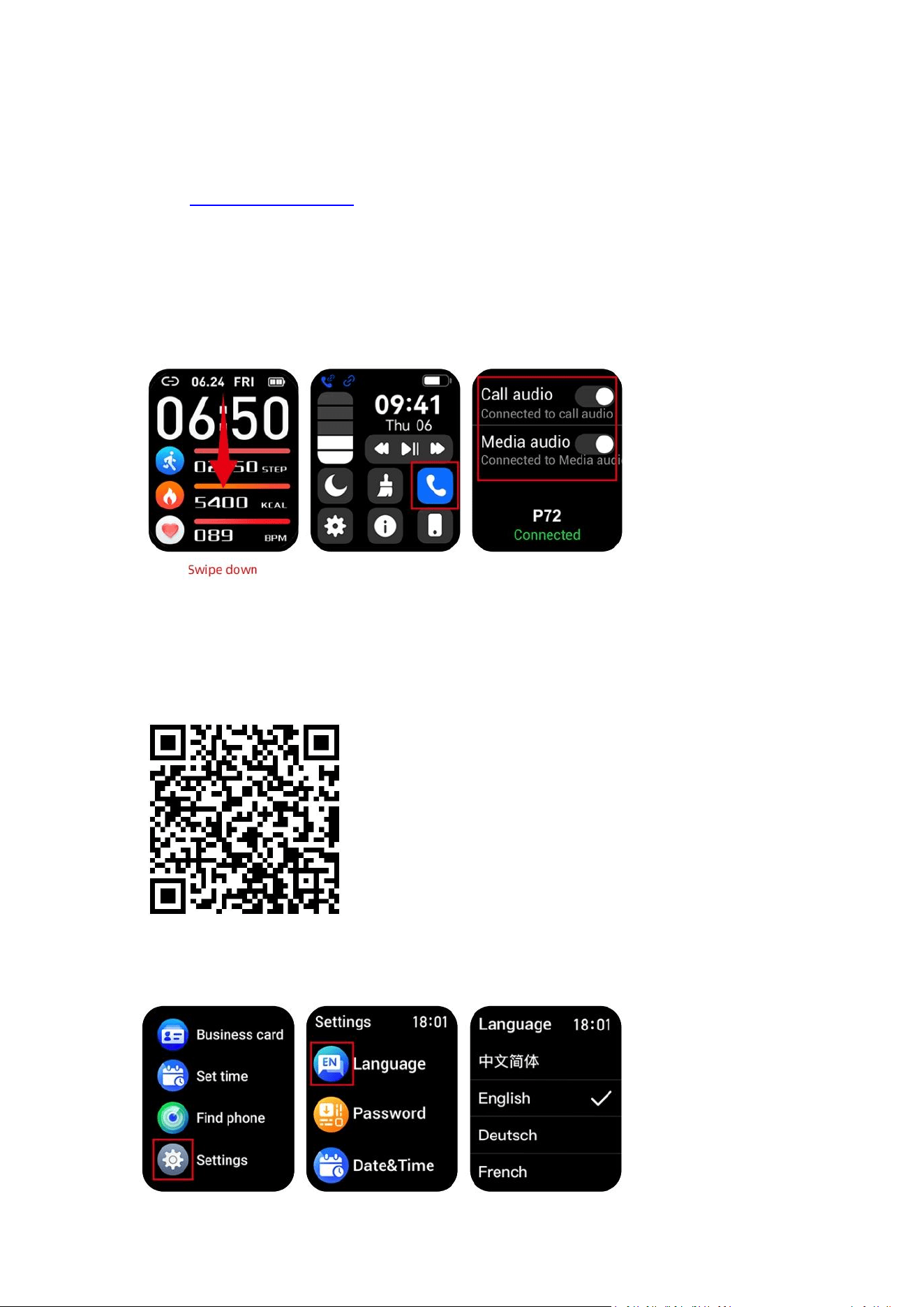
4.12 I don’t want the sound to play on the watch.
Swipe down on the home screen of the watch > Click the “phone” icon > Disable the
media audio or call audio as you need.
4.13 What if I receive a watch whose system language I don’t know.
Scan the QR code for video guide.
Press side button on the watch > Click the “gear” icon to get into the settings > Click
the “En” icon to change the system language.

46
4.14 12-months warranty
We strive to build our products with the highest attention detail and craftsmanship.
However, sometimes there are occurrences of defects, so we offer a 12-month
hassle-free warranty on all our devices as we continue to make amazing
products. Please contact us if you have any questions about our devices.
Email: q[email protected]
5. Important safety instructions
The device contains electrical equipment that may cause injury if not used properly.
For example, prolonged contact may contribute to skin allergies for some users. To
reduce irritation, please read the safety guidelines on the following pages to ensure
proper use and care.
(1)Do not expose your device to liquid, moisture, humidity or rain while charging; do
not charge your device when it is wet, as this may result in electrical shock and
injury.
(2)Keep your device clean and dry. Do not use abrasive cleaners to clean your device.
(3)Consult your doctor before use if you have any preexisting conditions that might
be affected by using this device.
(4)If your device feels hot or warm, or if it causes any skin irritation or other
discomforts, please discontinue using your device and consult your doctor.
(5)Do not expose your watch to extremely high or low temperatures.
(6)Do not leave your watch near open flames such as cooking stoves, candles, or
fireplaces.
(7)Always store the product out of the reach of children. The devices themselves or
the many small parts they contain may cause choking if ingested.
(8)Never try to abuse, crush, open, repair or disassemble this device. Doing so will
void the warranty and can result in a safety hazard.
(9)If any parts of your product require replacement for any reason, including normal
wear and tear or breakage, please contact us.
(10)Do not use your device in a sauna or steam room.
(11)Dispose of this device, the device ’s battery and its package in accordance with
local regulations.
(12)Do not check any notifications or any information on your device’s display while
driving or in other situations where distractions could cause injury or hazard.

47
6. Battery warning
A lithium-ion battery is used in this device. Failure to follow these guidelines can
shorten battery life and cause fire, chemical burns, electrolyte leaks, and injury.
(1)Do not disassemble, modify, remanufacture, drill or damage the device or battery.
(2)Do not remove or attempt to remove the battery. This cannot be replaced by the
user.
(3)Do not expose your device or battery to fire, explosion, or other danger.