
Contents
Unpacking ............................................................................. 4
Product Overview ................................................................. 5
Setup at the First time .......................................................... 6
Power On/O ........................................................................ 6
Charging Your Tablet ............................................................ 7
Connecting to the Internet .................................................. 7
Touching and Typing ............................................................ 8
Home Screen ......................................................................... 9
Screen Buttons .................................................................... 10
Using the Cameras .............................................................. 11
Tablet Updates .................................................................... 12
Google Play ......................................................................... 12
Force shutdown/reboot ..................................................... 12
Troubleshooting ................................................................. 13
Specication ....................................................................... 14
4
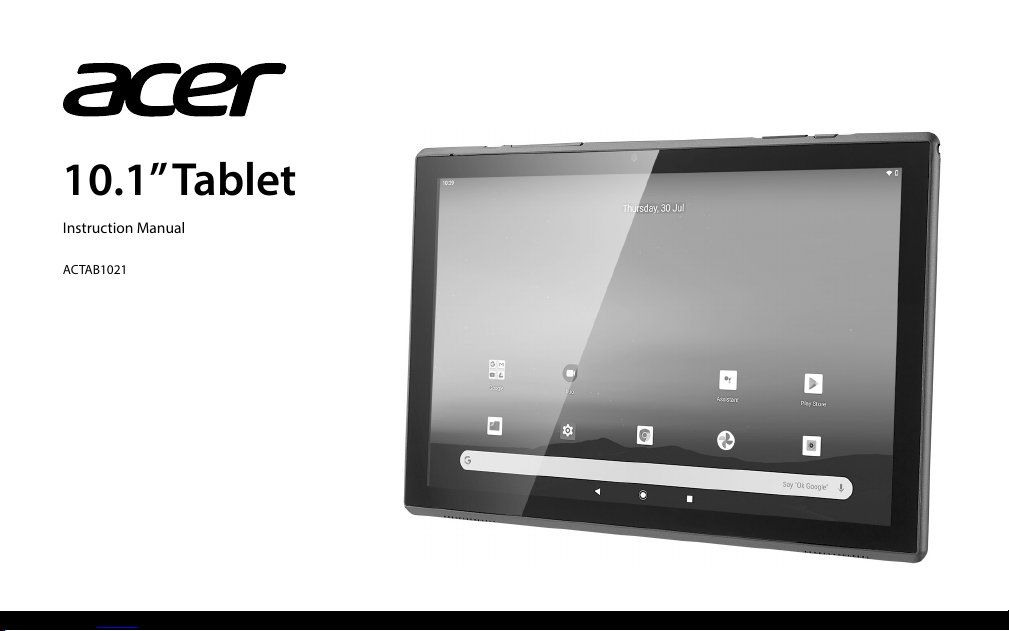
Thank you for purchasing your new
product.
We recommend that you spend some time reading
this instruction manual in order that you fully
understand all the operational features it oers. You
will also nd some hints and tips to help you resolve
any issues.
Read all the safety instructions carefully before
use and keep this instruction manual for future
reference.
Unpacking
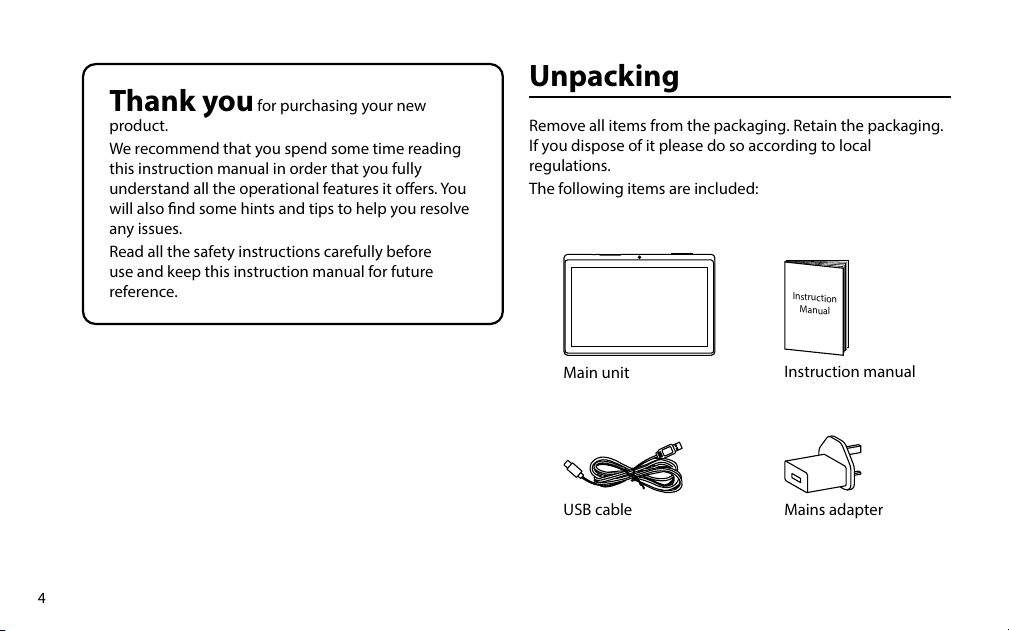
Remove all items from the packaging. Retain the packaging.
If you dispose of it please do so according to local
regulations.
The following items are included:
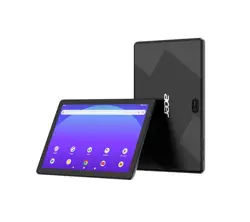
Main unit
Instruction manual
USB cable Mains adapter
Instruction
Manual
5
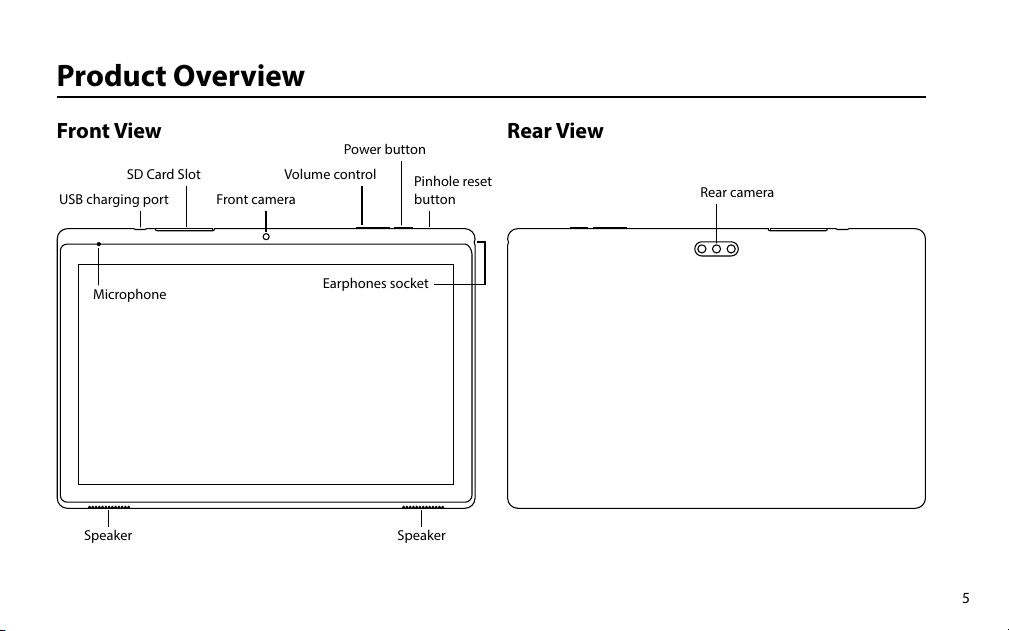
Front View
Product Overview
Rear View
SpeakerSpeaker
Microphone
Pinhole reset
button
SD Card Slot Volume control
Power button
Earphones socket
Front camera
Rear camera
USB charging port
6
Setup at the First time
1. Press and hold the Power button for 2-3 seconds.
2. Startup Wizard
3. The rst time you start up the tablet, the startup wizard
will help you set up:
- Language
- WiFi connection
- Date & time
- Your name
- Location service options
- 3rd party apps
We strongly recommend that you open a Google
Account (you need this to download new apps)
and we recommend that you answer yes to back
up your tablet to the Google Account. This will save
your les and settings in case you need to restore
your tablet to factory defaults at any point.
Power On/O
1. During standby mode, press the Power button to turn
on the tablet.
2. At the Start-up screen, swipe up from the bottom of the
screen to unlock.
3. Once you’ve arrived at the Home screen, you can begin
using the tablet.
4. Press the Power button to switch to standby mode.
If you are not using the tablet for a long time, you
can press and hold the Power button to shut it
down completely.
7
Connecting to the Internet
In order to connect to the internet, you will need the
following:
• A wireless router or an access point with a broadband
internet connection.
• The name of your network (SSID), as well as the password
or other credentials, if your network is secure.
The wireless router must support WiFi 802.11 a/b/g/n/ac
connections.
Go to SETTINGS > Network & internet > WiFi
Tap on WiFi to activate wireless connectivity. The tablet
will scan for available WiFi networks within range. Secured
networks will require a password. Once you have successfully
entered your information the tablet will remember your
settings.
Charging Your Tablet
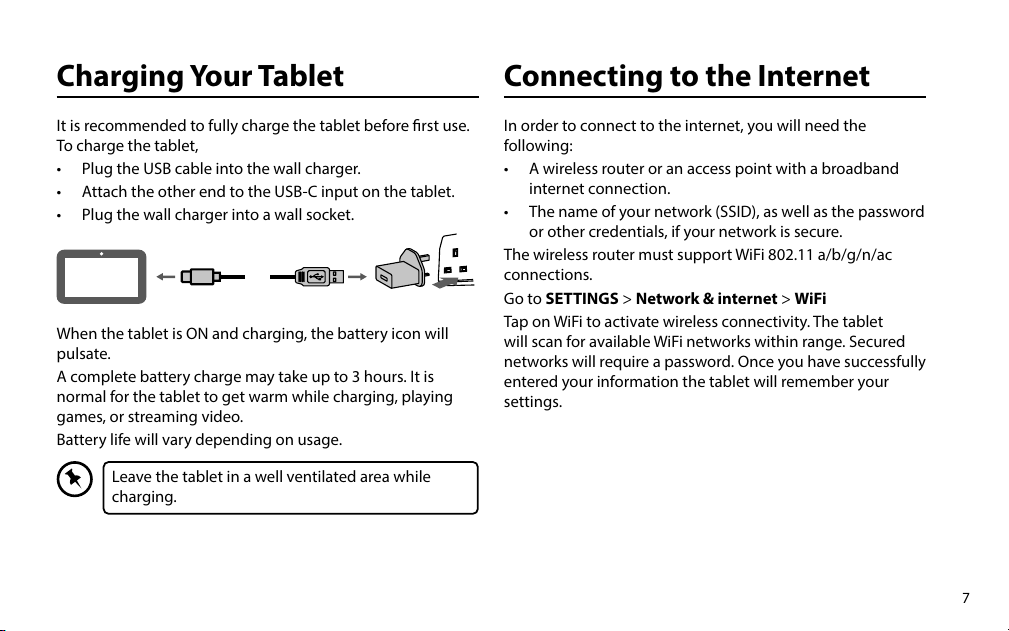
It is recommended to fully charge the tablet before rst use.
To charge the tablet,
• Plug the USB cable into the wall charger.
• Attach the other end to the USB-C input on the tablet.
• Plug the wall charger into a wall socket.
When the tablet is ON and charging, the battery icon will
pulsate.
A complete battery charge may take up to 3 hours. It is
normal for the tablet to get warm while charging, playing
games, or streaming video.
Battery life will vary depending on usage.
Leave the tablet in a well ventilated area while
charging.
8
Touching and Typing
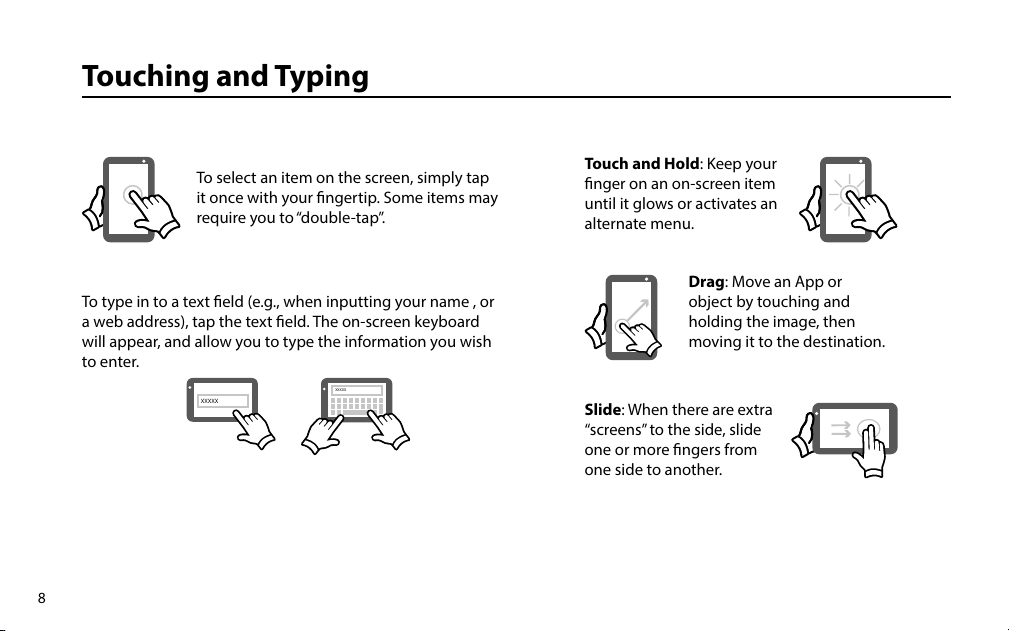
To select an item on the screen, simply tap
it once with your ngertip. Some items may
require you to “double-tap”.
To type in to a text eld (e.g., when inputting your name , or
a web address), tap the text eld. The on-screen keyboard
will appear, and allow you to type the information you wish
to enter.
Touch and Hold: Keep your
nger on an on-screen item
until it glows or activates an
alternate menu.
Drag: Move an App or
object by touching and
holding the image, then
moving it to the destination.
Slide: When there are extra
“screens” to the side, slide
one or more ngers from
one side to another.
XXXXX
XXXXX
9
Home screen
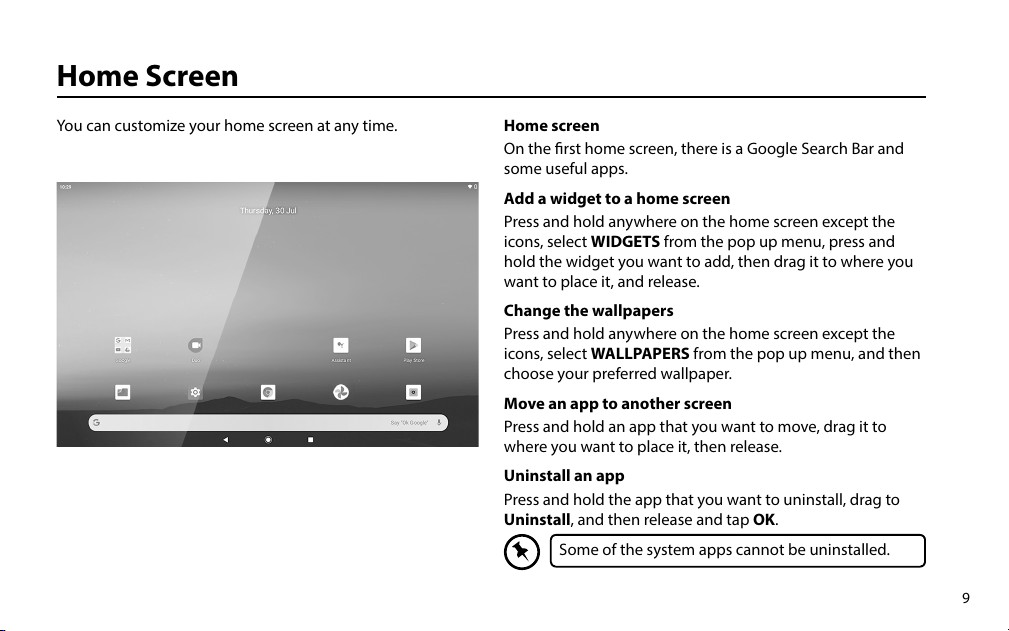
On the rst home screen, there is a Google Search Bar and
some useful apps.
Add a widget to a home screen
Press and hold anywhere on the home screen except the
icons, select WIDGETS from the pop up menu, press and
hold the widget you want to add, then drag it to where you
want to place it, and release.
Change the wallpapers
Press and hold anywhere on the home screen except the
icons, select WALLPAPERS from the pop up menu, and then
choose your preferred wallpaper.
Move an app to another screen
Press and hold an app that you want to move, drag it to
where you want to place it, then release.
Uninstall an app
Press and hold the app that you want to uninstall, drag to
Uninstall, and then release and tap OK.
You can customize your home screen at any time.
Some of the system apps cannot be uninstalled.
Home Screen
10
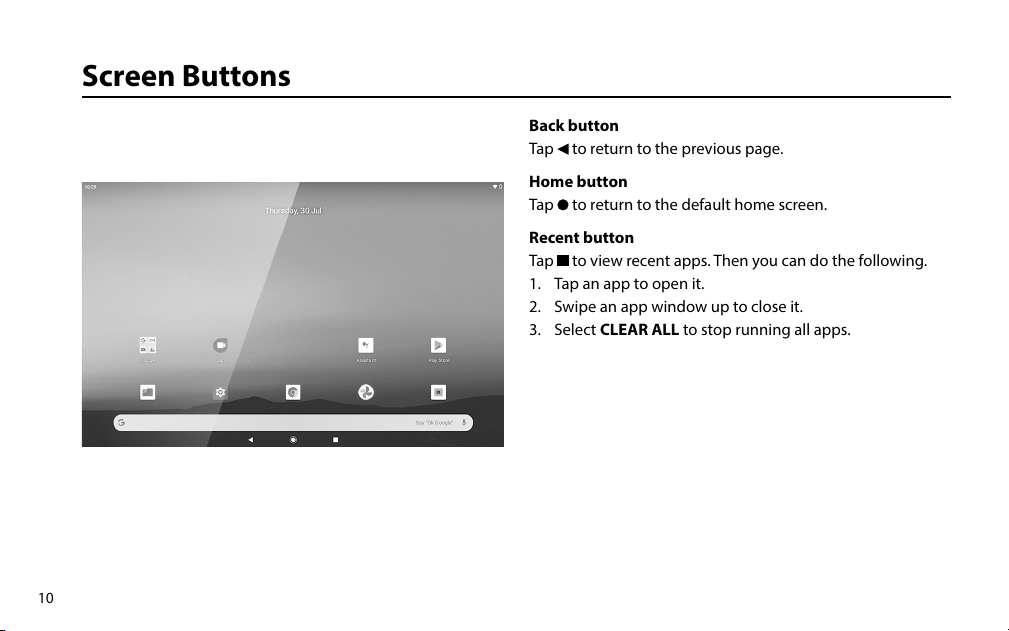
Back button
Tap
to return to the previous page.
Home button
Tap
to return to the default home screen.
Recent button
Tap
to view recent apps. Then you can do the following.
1. Tap an app to open it.
2. Swipe an app window up to close it.
3. Select CLEAR ALL to stop running all apps.
Screen Buttons
11
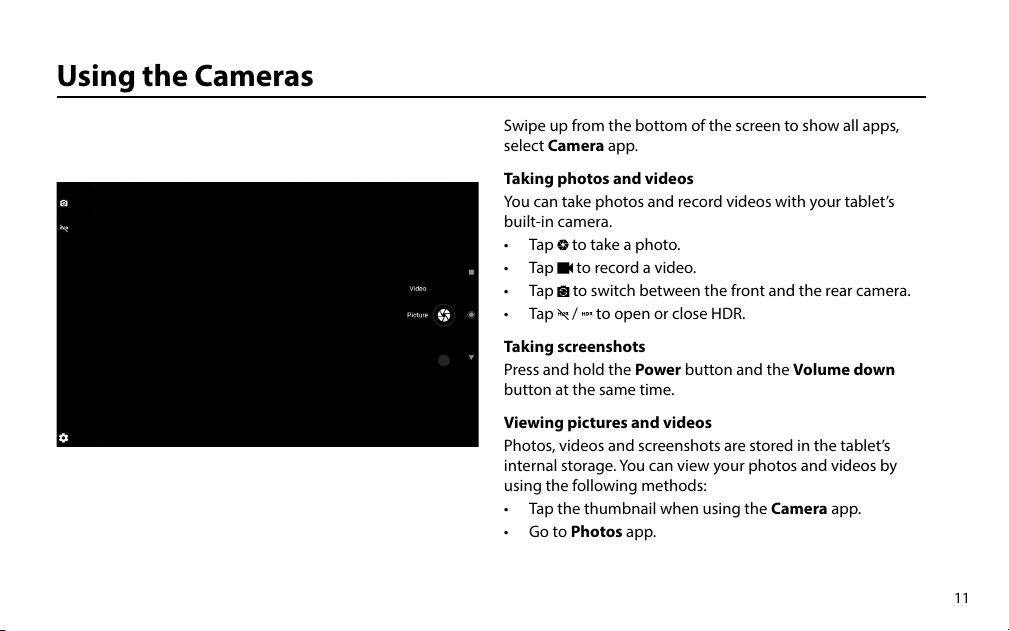
Swipe up from the bottom of the screen to show all apps,
select Camera app.
Taking photos and videos
You can take photos and record videos with your tablet’s
built-in camera.
• Tap
to take a photo.
• Tap
to record a video.
• Tap
to switch between the front and the rear camera.
• Tap
/ to open or close HDR.
Taking screenshots
Press and hold the Power button and the Volume down
button at the same time.
Viewing pictures and videos
Photos, videos and screenshots are stored in the tablet’s
internal storage. You can view your photos and videos by
using the following methods:
• Tap the thumbnail when using the Camera app.
• Go to Photos app.
Using the Cameras
12
Tablet Updates
To ensure the tablet runs smoothly it is recommended to
perform periodic system software updates, especially during
initial set up of the tablet. You may receive notications (on
the Lock screen) from time to time that software updates are
available.
Tap the notication to be directed to the update.
Alternatively, you can go to Settings > About Tablet >
Updater > Check for Updates
Google Play
The rst time you sign in on Google Play, updates will
automatically start downloading on to the tablet. The
download icon will appear in the status bar at the top left
of screen.
Installing a new application while multiple apps are
downloading will reduce tablet speed and performance.
After all downloads and updates have been installed, the
tablet will resume normal operating performance.
To view the progress of downloads working in the
background, swipe down from the top edge of the screen.
Force shutdown/reboot
There are 2 methods to force shutdown the tablet.
• Press and hold the Power button for about 10 seconds
until the tablet turns o.
• Use a toothpick to punch into the Pinhole reset button.
Then turn it on again in the normal way.
To perform an update, you must be connected to
WiFi.
13
Troubleshooting
If your tablet is frozen:
Press the Power button for at least 10 seconds or use the
hardware reset.
To use the Hardware reset, press the “pinhole reset” button
by using a sharp object such as a toothpick.
If your tablet doesn’t turn on:
Charge your tablet then switch on normally.
If this does not work, press the “pinhole reset” button by
using a sharp object such as a toothpick.
If your WiFi reception is poor:
• Make sure you are not far from the WiFi hotspot.
• Update the rmware of the tablet.
• Reset and redeine your connection parameters.
• Reset your wi setting, go to Settings > Advanced >
Reset options > Reset WifFi, mobile & Bluetooth >
Reset settings.
• Contact your WiFi connection provider.
If you want to extend the life of your battery:
Decrease the screen brightness and turn of the wireless
connections if not in use.
If your tablet is functioning too slowly:
Close all apps which are not currently being used.
If you want to restore your product (erase all your
settings or forgotten password) :
If your tablet is turned on:
1. Go to Settings > Advanced > Reset options >
Erase all data (factory reset) > Delete all data
2. This will erase all your les, settings and applications, so
make sure you have backed-up your data in your Google
Account.
3. When you restart your tablet it will open the Startup
wizard again, follow the onscreen instructions.
4. Access your Google Account to retrieve your backed-up
data in Google.
14
Specication
Model ACTAB1021
Processor
MediaTek™ MT8168B ARM Cortex-A53
Quad-Core Processor (@ 2.0GHz)
Operating System Android™ 10
Display
10.1” ( 1280 x 800) IPS G+G tempered
glass panel with 10 points multitouch
Audio Dual front speakers
Memory 3GB Low-Power LPDDR4
Battery capacity 6000mAh
Storage
32GB - Expendable by an additional
512GB with Micro SD card
Ports
TYPE C 2.0 / 3.5mm Audio Jack /
Micro SD Card slot
Camera Front 2M / Rear 5M
Connectivity Dual Band WIFI, Bluetooth 5.0
GPS YES
Microphone YES
Dimensions 242.5 x 164.5 x 9.5mm
Weight 490g
Declaration of Conformity (RED)
Hereby, DSG Retail Ltd. declares that the radio
equipment type [ACTAB1021] is in compliance with
Directive 2014/53/EU.
The full text of the EU declaration of conformity is
available at the following internet address:
https://www.teamknowhow.com/
Click on SEARCH and enter the model number.
15
Visit Partmaster.co.uk today for the easiest way to buy electrical
spares and accessories. With over 1 million spares and accessories
available we can deliver direct to your door the very next day. Visit
www.partmaster.co.uk or call 0344 800 3456 (UK customers only).
Calls charged at National Rate.
Notes for battery disposal
The batteries used with this product contain chemicals that
are harmful to the environment.
To preserve our environment, dispose of used batteries
according to your local laws or regulations. Do not dispose
of batteries with normal household waste.
For more information, please contact the local authority or your
retailer where you purchased the product.
The symbol on the product or its packaging indicates that
this product must not be disposed of with your other
household waste. Instead, it is your responsibility to
dispose of your waste equipment by handing it over to a
designated collection point for the recycling of waste
electrical and electronic equipment. The separate collection and
recycling of your waste equipment at the time of disposal will help
conserve natural resources and ensure that it is recycled in a manner
that protects human health and the environment.
For more information about where you can drop o your waste for
recycling, please contact your local authority, or where you purchased
your product.
The Bluetooth® word mark and logos are registered trademarks
owned by the BluetoothSIG, Inc. and any use of such marks by DSG
Retail Limited is under license. Other trademarks and trade names are
those of their respective owner.
Google, Android, Google Play and other marks are trademarks of
Google LLC.
The Acer trademark is licensed to DSG Retail Limited by Acer
Incorporated, a Taiwan R.O.C. company.
Currys.co.uk
All the support you need.
Whether it’s a tech emergency or
you need plain good advice, we’re
always on hand to help.
UK: 0344 5611234
IRE: 1 890 818 575

IB-ACTAB1021-200914V2