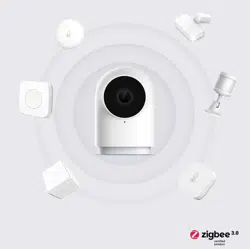



Camera Hub G2H User Manual
Camera Hub G2H使用說明書
Camera Hub G2H Bedienungsanleitung
Camera Hub G2H Manuel d’utilisation
Camera Hub G2H Manual de uso
Camera Hub G2H Manuale di istruzioni
Умная Камера G2H: Руководство по Эксплуатации
Camera Hub G2H取扱説明書
Camera Hub G2H 사용 설명서
· 01
· 10
· 16
· 25
· 33
· 41
· 49
· 57
· 64
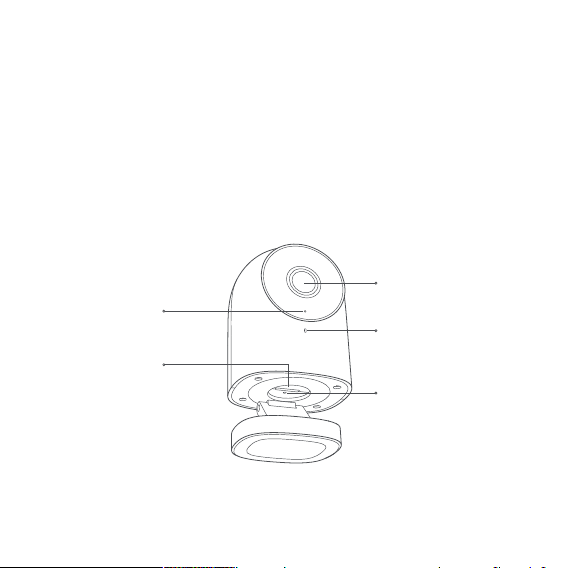
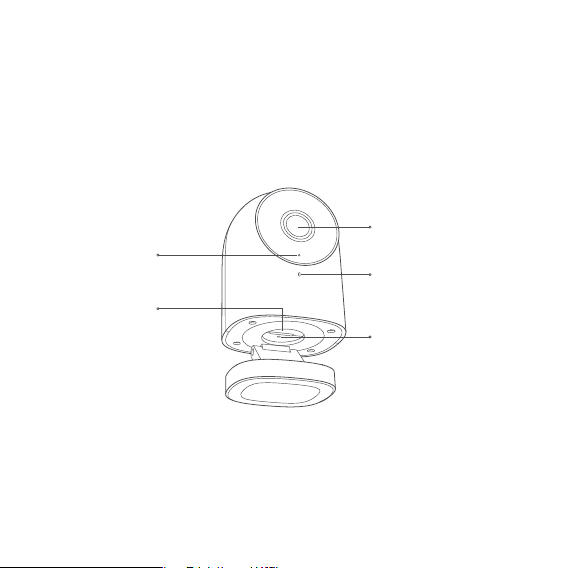
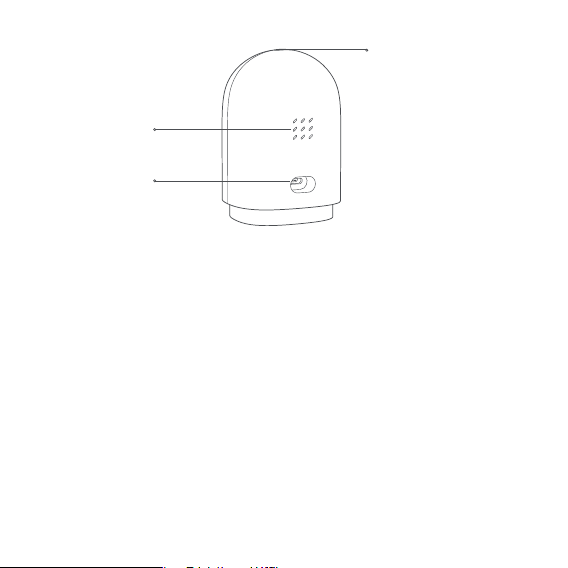
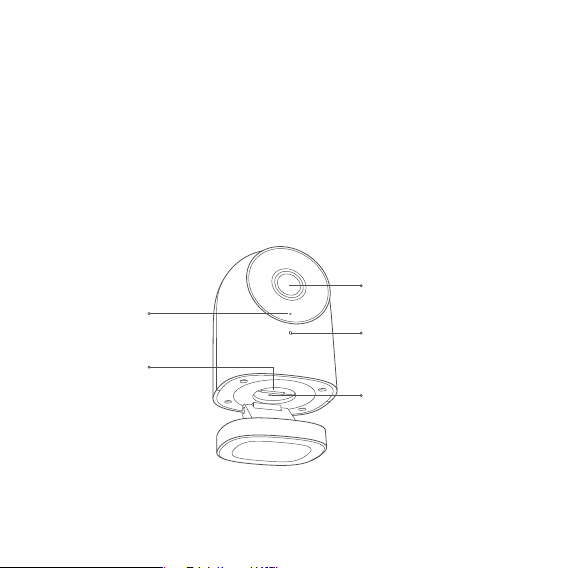
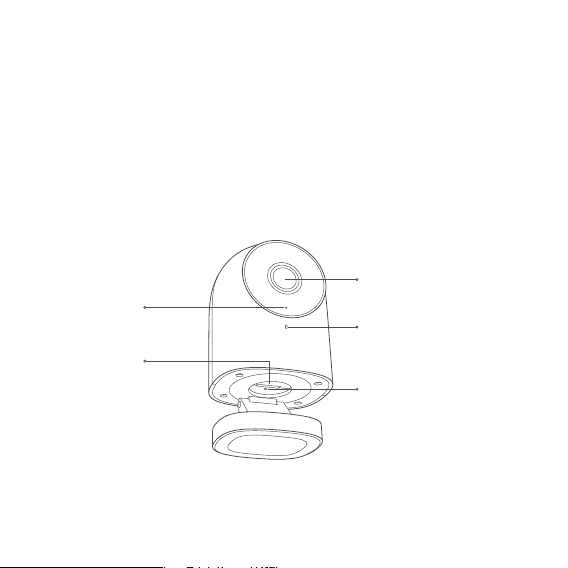
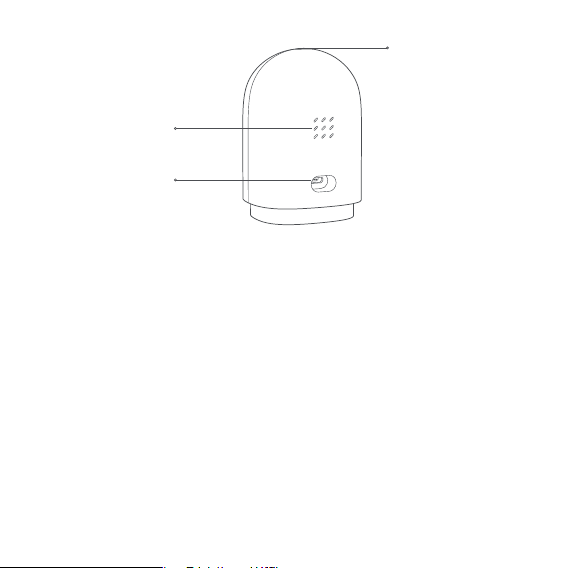
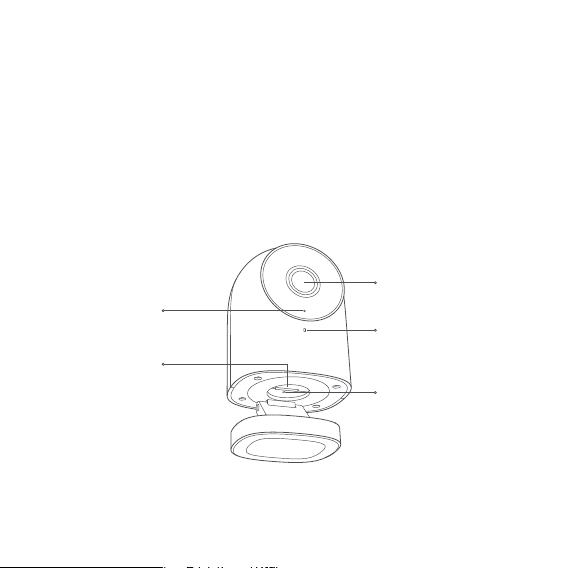
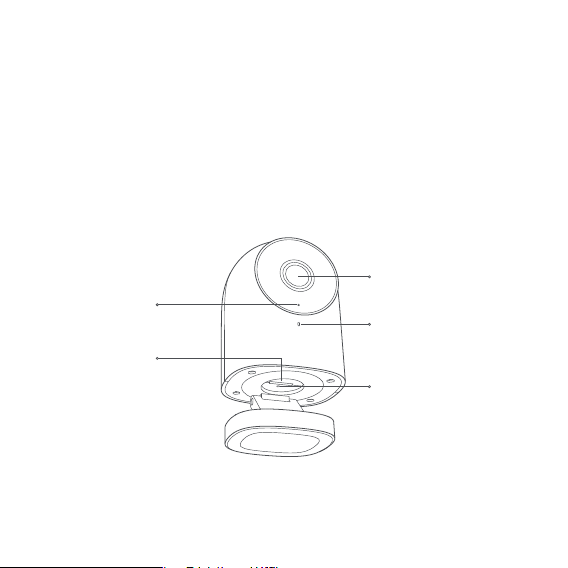
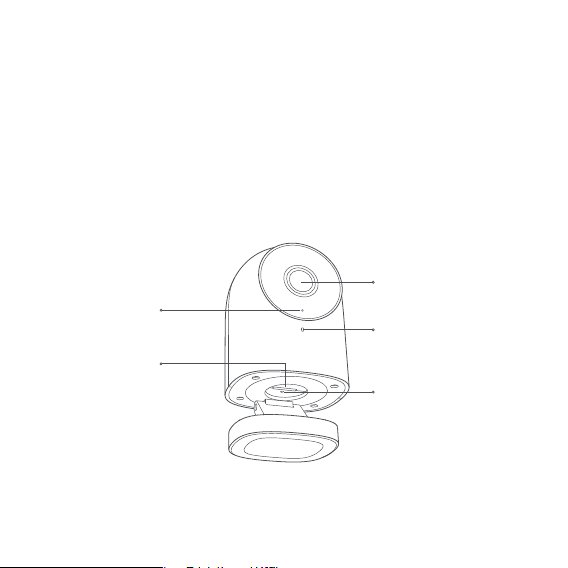
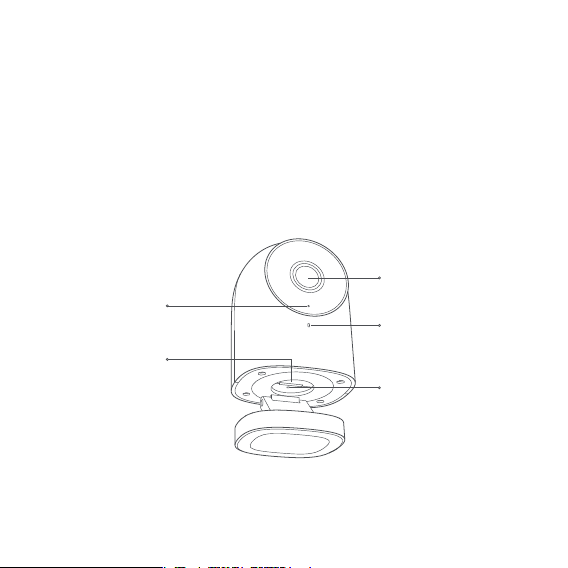
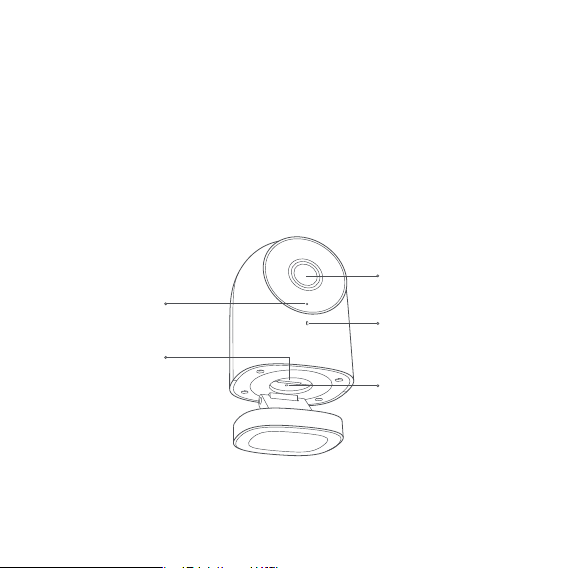
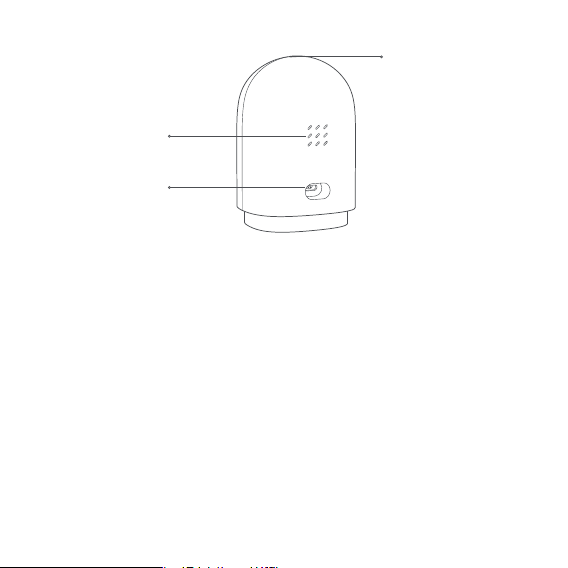
Indicator light
Micro SD card slot
Lens
Microphone
Reset button
Long press the button for 5s:
restore to factory settings
Product introduction
The Aqara Camera Hub G2H is an intelligent hardware product that integrates dual
functions of a camera and a hub. It has functions such as video intercom, motion
detection, sound detection, and Micro SD card recording. It can also be used as a Zigbee
hub in collaboration with other sensors, controllers and other child-devices to realize
functions such as home guard, data reporting and smart control. It also supports
HomeKit Secure Video. Activity detected by supported cameras is privately analyzed by
your home hub using device intelligence to determine if people, pets, or cars are
present.
01
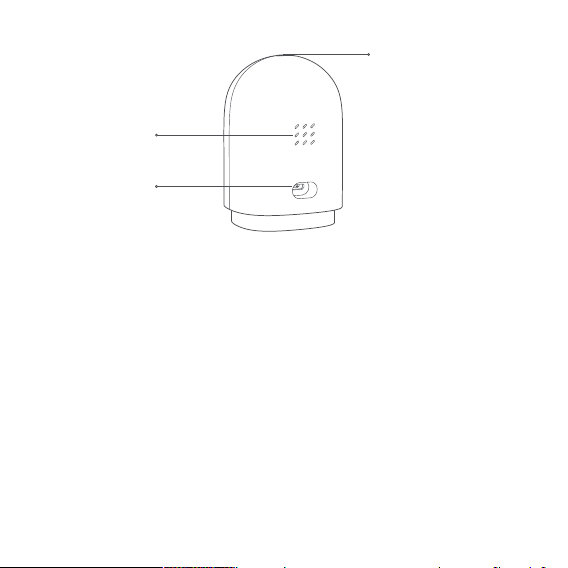
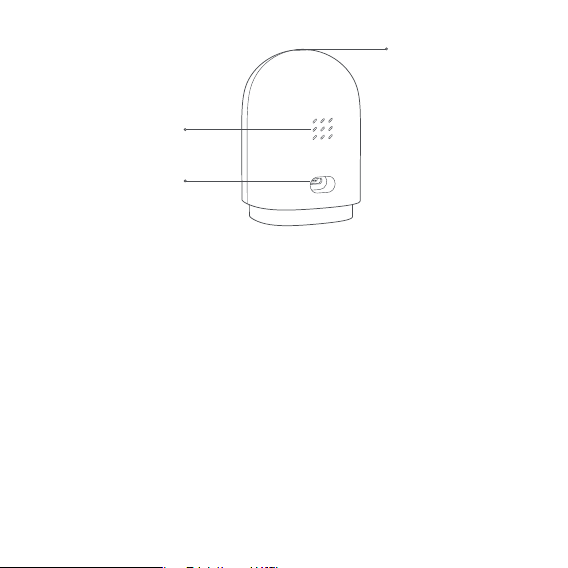
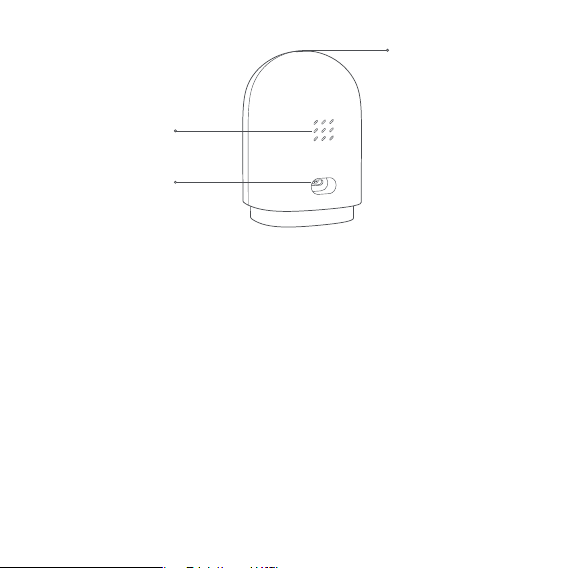
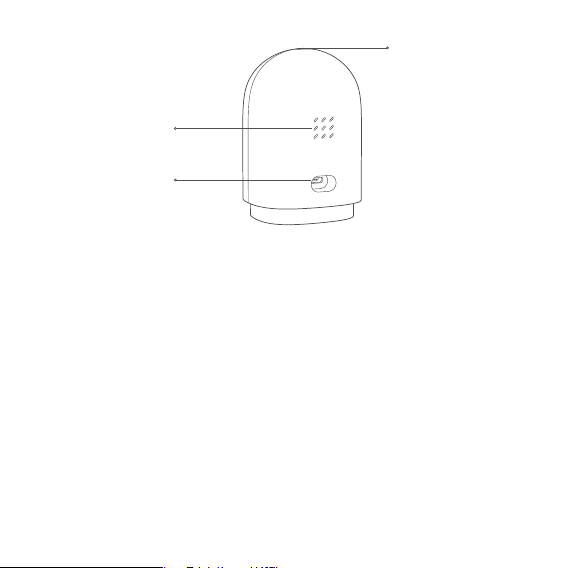
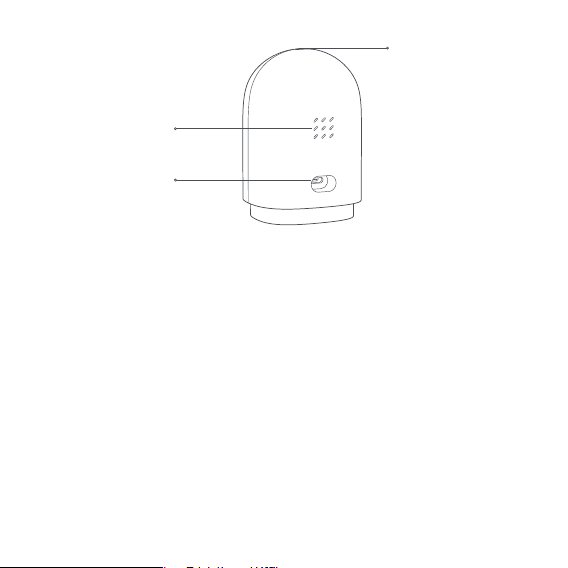
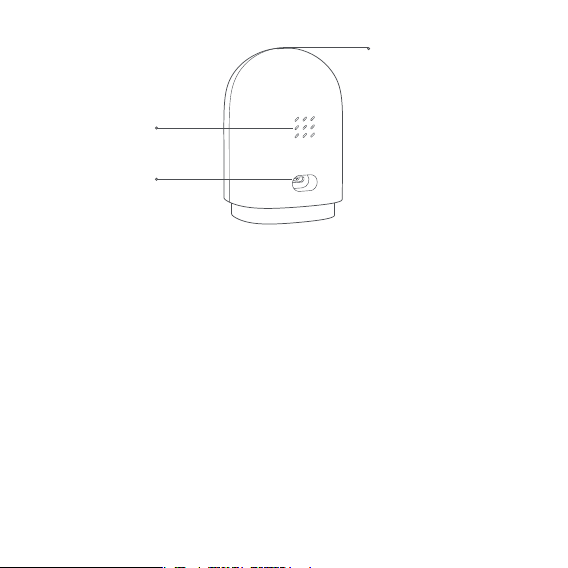
Speaker
Micro USB slot
Function button
Long press the button for 5s:
Leave a video message
Warnings
* This product is NOT a toy. Please keep children away from this product.
* This product is designed for indoor use only. Do NOT use in humid environments or
outdoors.
* Beware of moisture, do NOT spill water or other liquids onto the product.
* Do NOT place this product near a heat source. Do NOT place it in an enclosure unless
there is normal ventilation.
* Do NOT attempt to repair this product by yourself. All repairs should be performed by
an authorized professional.
* This product is only suitable for improving the convenience of your home life and
reminding you about the status of your devices.It should NOT be used as security
equipment for home, building, warehouse or any other places. If a user violates the
product use instructions, the manufacturer will NOT be liable for any risks and
property losses.
* The base of this product has been designed with strong magnetic properties, which
02
Quick Setup
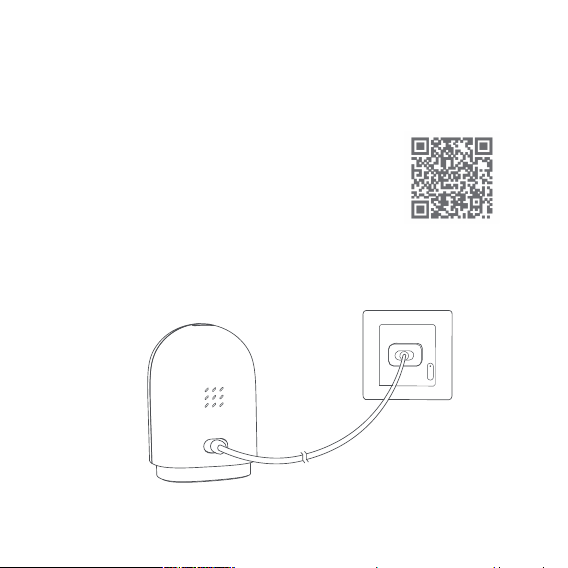
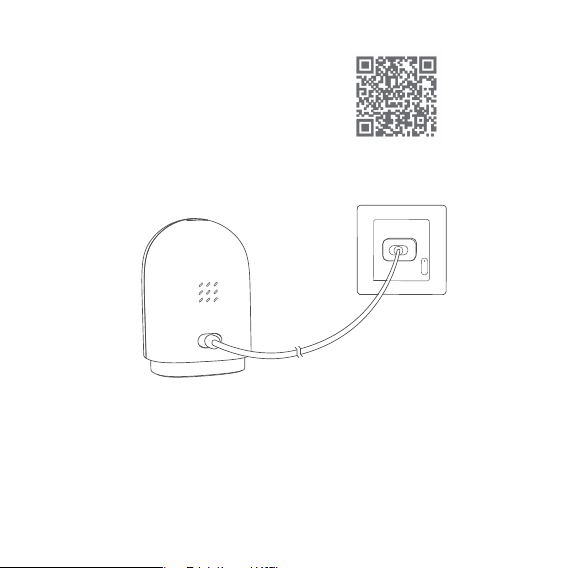
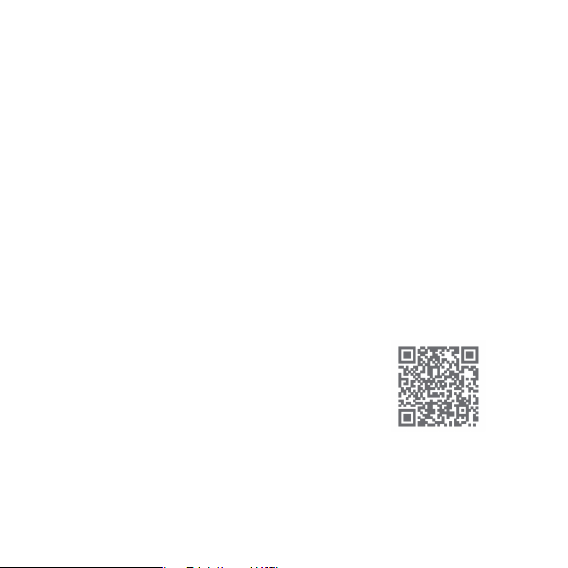
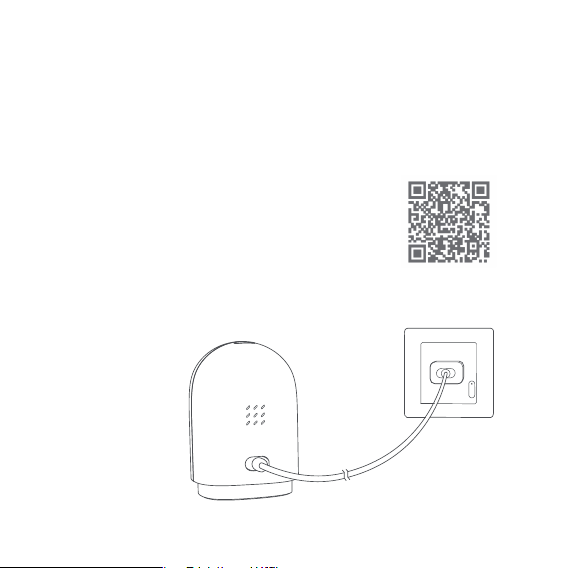
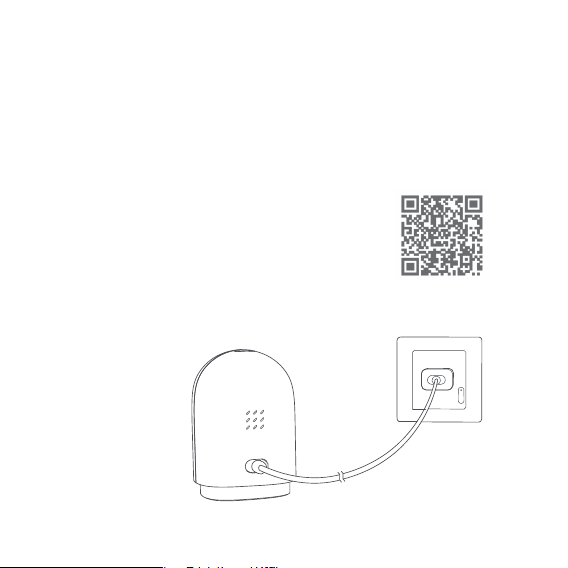
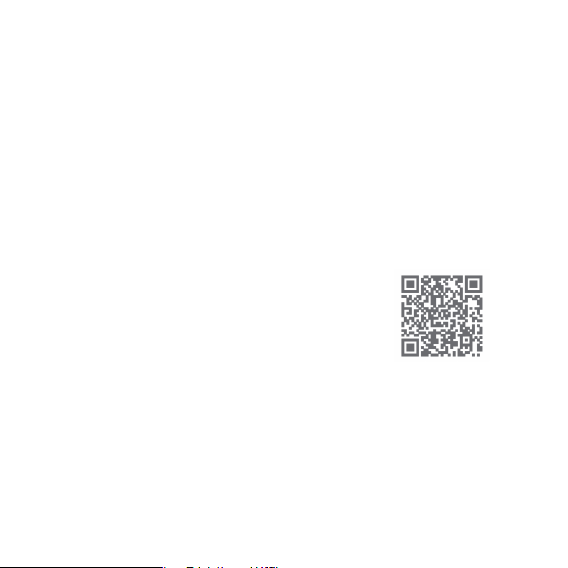
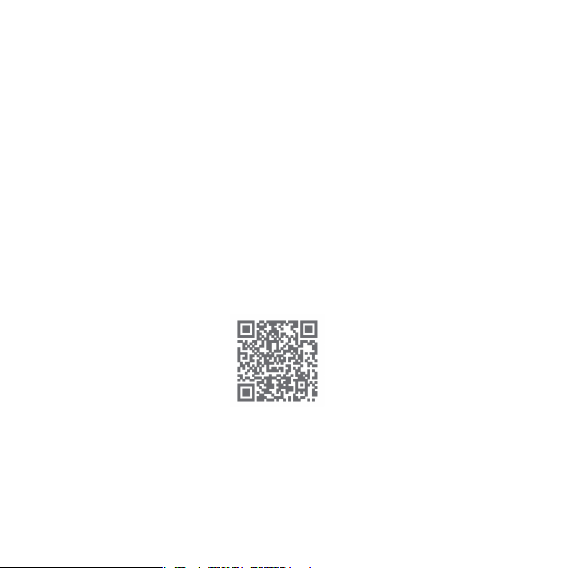
1. Download the App
Scan the QR code, or search for "Aqara Home" on the App Store,
or on Google Play. Download and install the Aqara Home app.
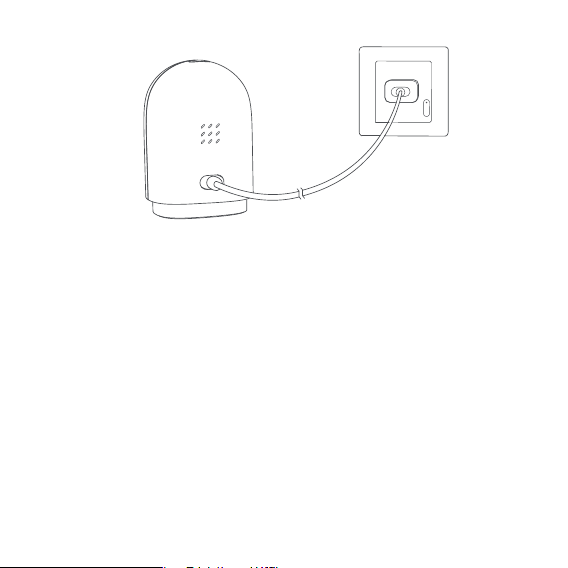
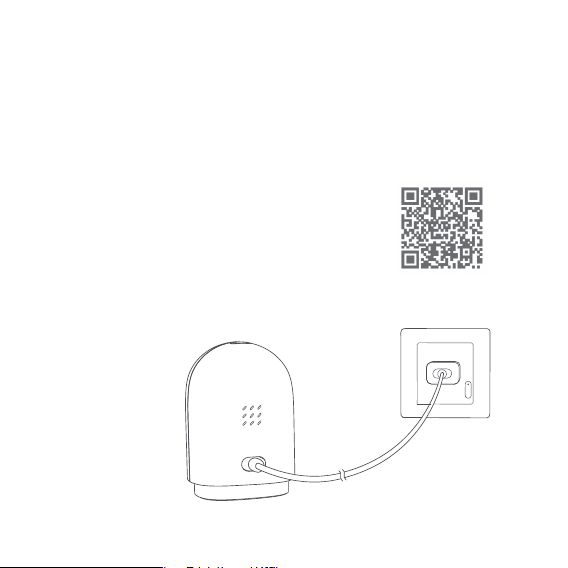
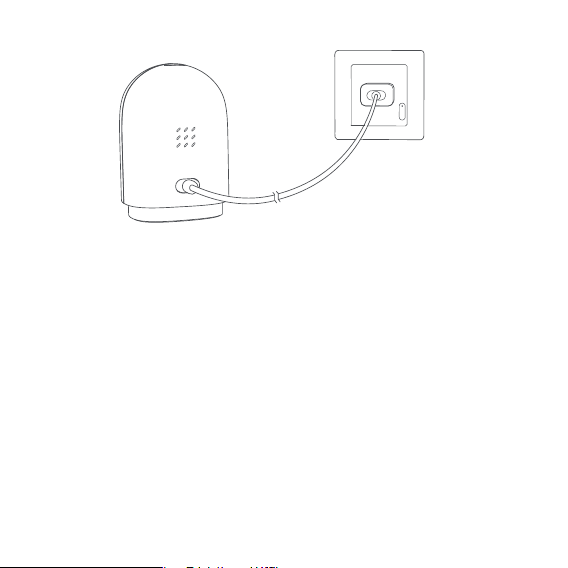
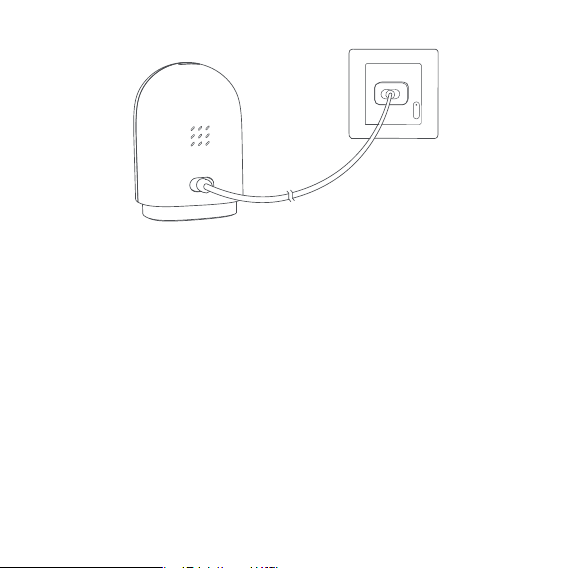
2. Power on and start up
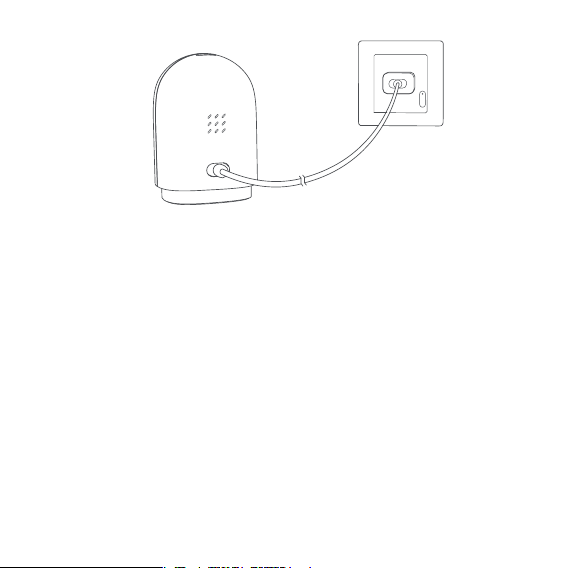
Find the power jack on the back of the product and connect the USB power cable.
Then power on the power adapter. Aer the camera starts up successfully, the red
indicator light of the camera will flash.
* If the red indicator light does not flash, please long press the reset button and try again.
03
can ensure that the product will not fall off when it is installed on the wall. In order to
prevent the product falling off and possibly causing personal injury, we recommend
that the installation height of the device should be less than 2 meters.

3. Add camera
Connect to Aqara Home
Open the Aqara Home app, and click “+” on the upper right corner of the homepage.
Select “Camera Hub G2H”, and operate it as the app prompts. Aer the device is
connected successfully, the blue indicator light will be steady on.
Connect to Apple HomeKit
Open Apple Home app, click “+” on the upper right corner, and then enter the “Add Accessory”
page. Scan or manually enter the HomeKit Setup Code at the bottom of the camera to bind the
camera to HomeKit.
If the device failed to be added, please check the following steps:
Failed to add to HomeKit guide:
* “Failed to add accessory”. Due to multiple adding failures, the error information of iOS cache cannot be
removed. Please restart the iOS device and reset the camera.
* “Accessory already added”. Aer restarting the iOS device and reset the camera, you can manually enter
the HomeKit setup code and add it again.
* Please make sure the camera is connected with the 2.4GHz Wi-Fi network.
* Wi-Fi name or password may not contain special characters or spaces. Please replace them with ordinary
characters and try again.
* Please make sure the phone is not less than 4 inches away. The camera can't scan the QR code under
back-lighting.
* Please check whether the router turns on the Wi-Fi connection watcher function, which causes the
network connection failures.
* Please check whether the router turns on the AP isolation function, which causes the phone cannot
search the camera within LAN.
* It is recommended not to connect it to a bridge network.
04

4. Add child-device
Aer the camera is added successfully, please open the Aqara Home app and add the
child-devices as the user manual shows.
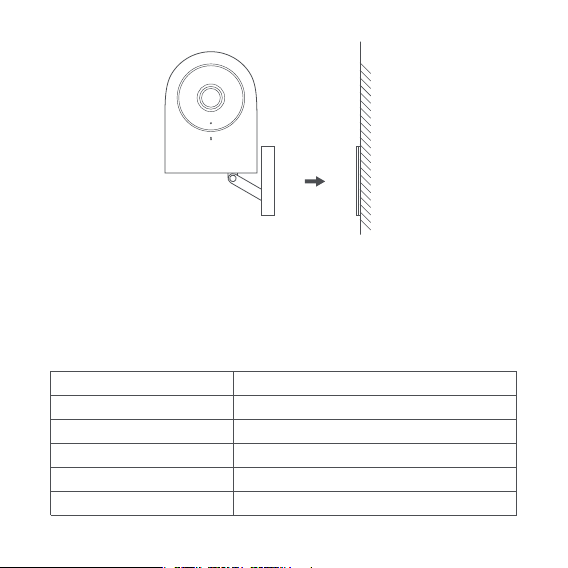
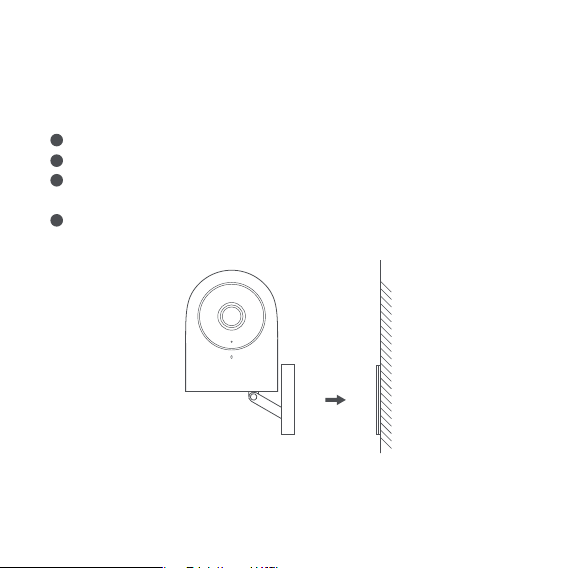
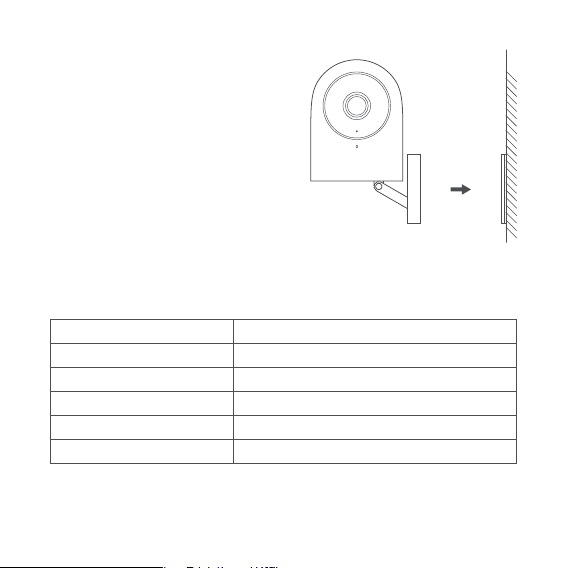
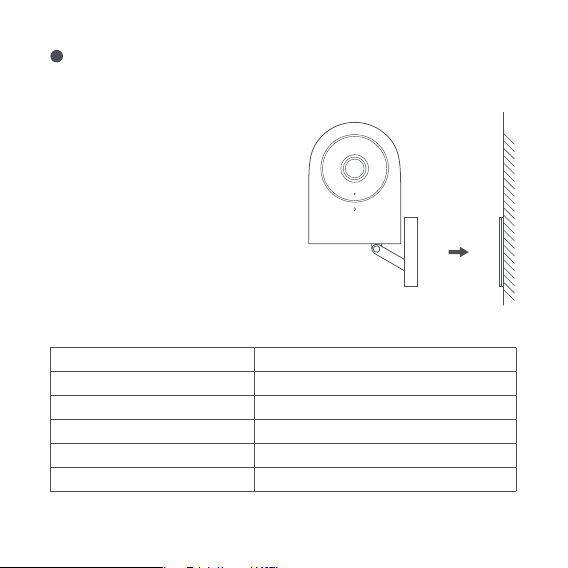
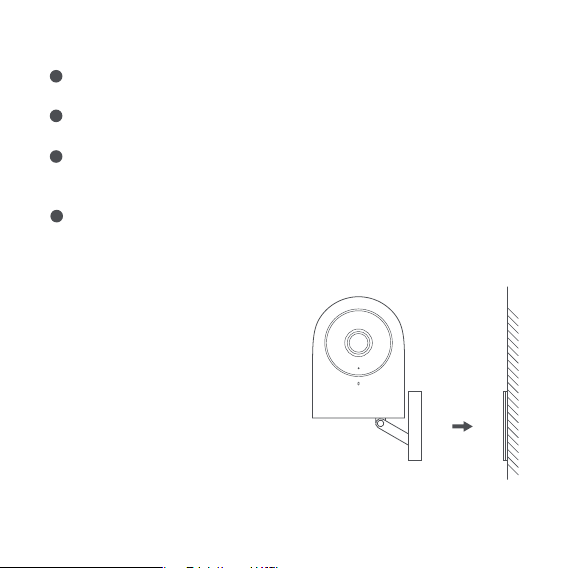
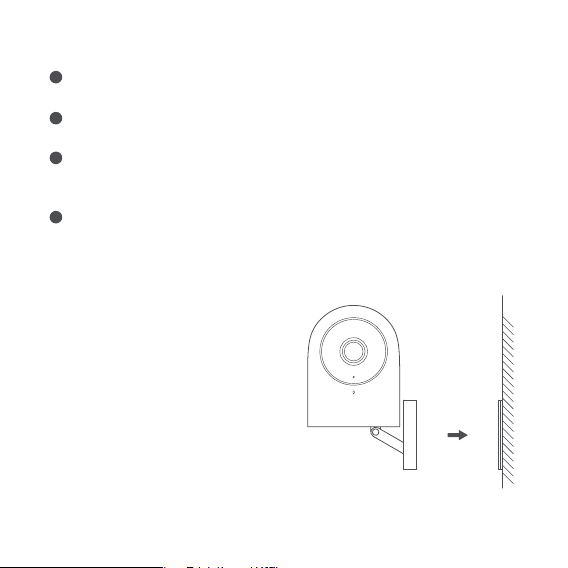
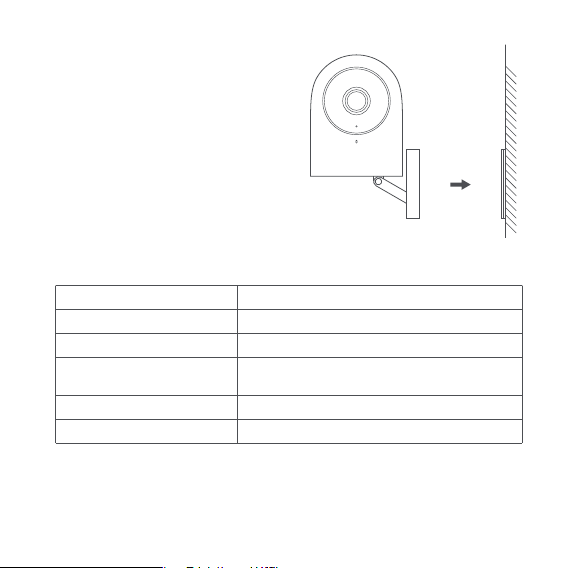
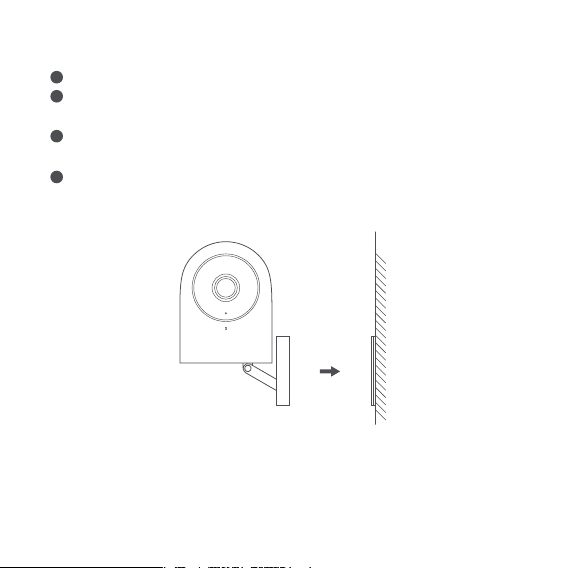
5. Product installation
Please make sure the camera is added successfully, and then install it onto the wall.
You can place the camera on the horizontal surface, such as desk, table, bookcase,
etc.
The base of the camera contains a magnet, which can be attached to a metal
surface, such as a refrigerator, iron door etc. Do not place it near the main unit of the
computer or hard disc.
You can use the 3M double-sided tape to attach the metal plate to a smooth, non-
metal surface, such as glass, tile, latex wall, etc. and then attach the magnetic
camera base to the metal plate.
05
* “Accessory not found”. Please wait for 3 minutes aer resetting the camera. You can manually enter the
HomeKit setup code and add it again.
* Use of the Works with Apple badge means that an accessory has been designed to work specifically with
the technology identified in the badge and has been certified by the developer to meet Apple
performance standards. Apple is not responsible for the operation of this device or its compliance with
safety and regulatory standards.
* A 10-day recording history from your Camera Hub G2H is securely stored in iCloud and available to view
in the Apple Home app on your iPhone, iPad, or Mac. You can add one camera to your 200GB plan or up
to five cameras to your 2TB plan at no additional cost. Camera recordings don’t count against your
iCloud storage limit.
* Communication between iPhone, iPad, Apple Watch, HomePod, or Mac and the HomeKit- enabled
Camera Hub G2H is secured by HomeKit technology.
1
2
3
4
Indicator Light Status
* Please make sure the installation position is within the coverage range of the Wi-Fi.
* Do not place it near strong electromagnetic interference sources.
* The product is only meant to be used indoors. Please do not use it in humid environment or outdoors.
* Please make sure there is no obstacle around the device.
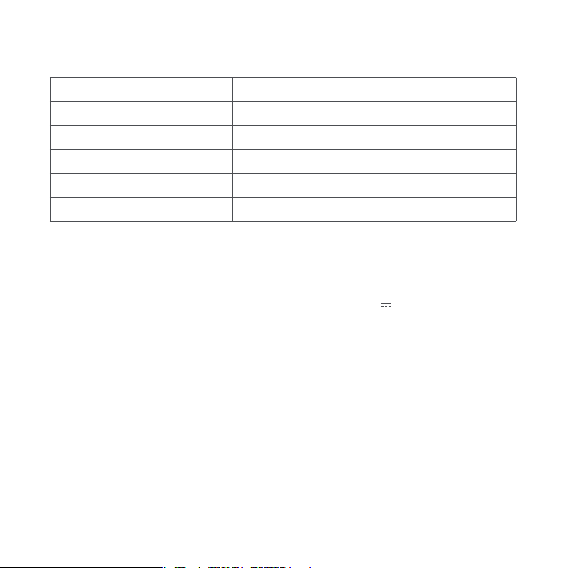
Indicator Light Status
Blue light is steady on
Blue light flashes
Red light is steady on
Red light flashes
Off
Status Description
Connected successfully / works normally
Connecting to network / network is abnormal
Starting up / Live streaming / recording
Waiting for connection
Sleep mode / the indicator light is off
06
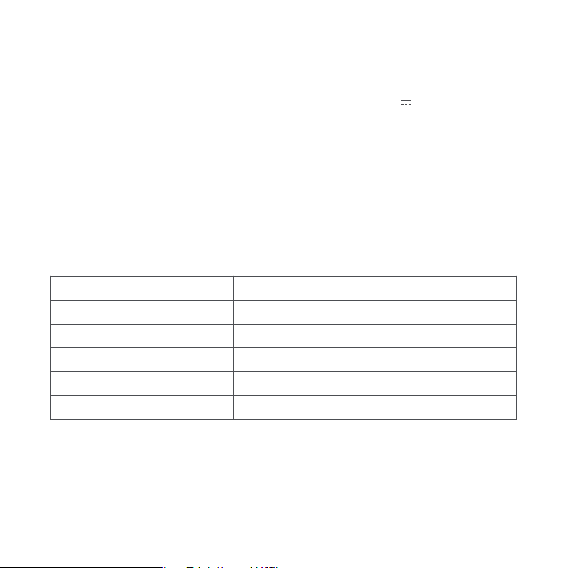
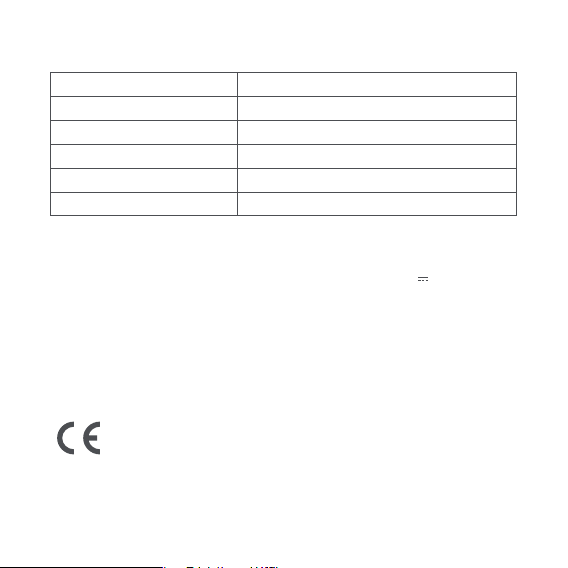
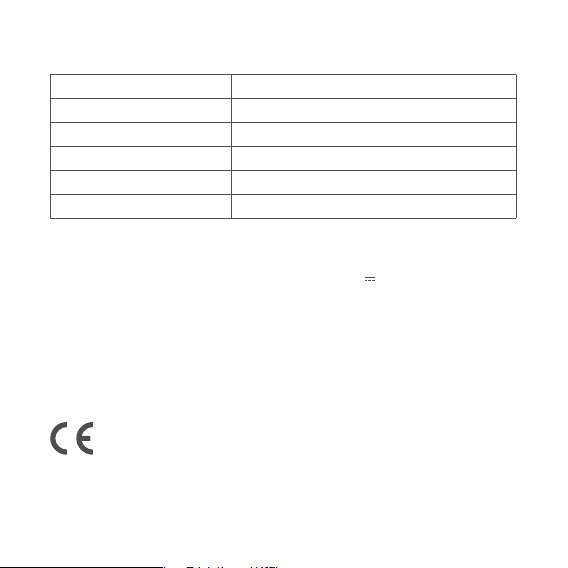
Basic Parameters
Model: CH-H01
Resolution: 1080p
Lens: 140° wide angle
Video Code: H.264
Input Power: 5V 1A
Power Consumption: 5W(MAX)
Wireless Protocol: Wi-Fi IEEE 802.11 b/g/n 2.4 GHz, Zigbee
Local Storage: Micro SD card (CLASS 4 or above is supported, up to 32GB storage)
Supported device: Android 4.0 or iOS13.2 and above
Operating Temperature: -10℃~40℃
07
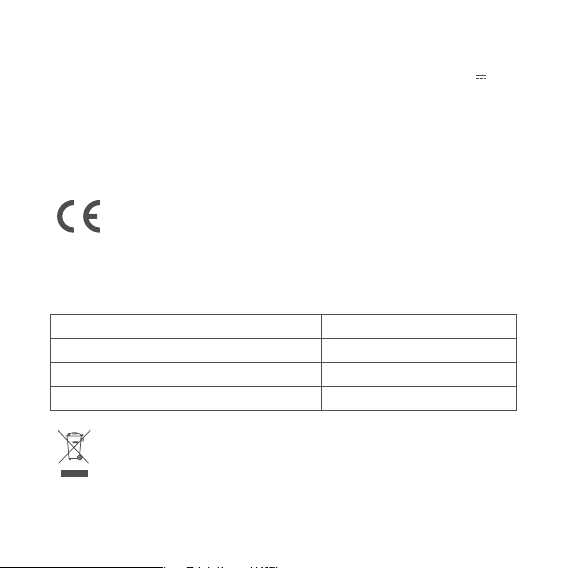
Hereby, [Lumi United Technology Co., Ltd] declares that the radio equipment
type [Camera Hub G2H, CH-H01] is in compliance with Directive 2014/53/EU.
The full text of the EU declaration of conformity is available at the following internet address:
https: //www.aqara.com/DoC
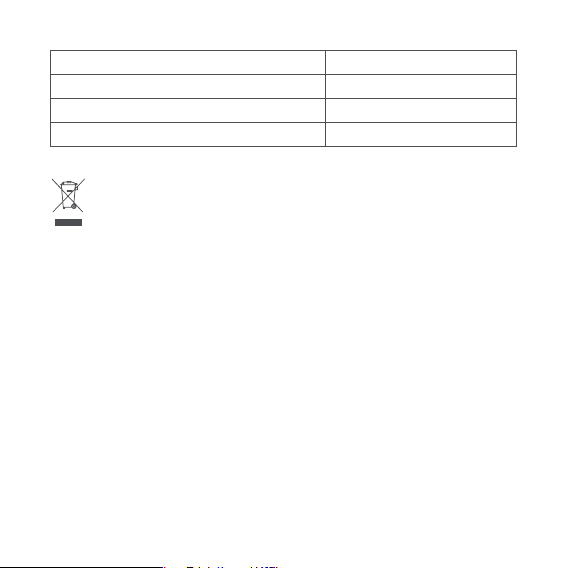
Wi-Fi Operation Frequency 2412-2472 MHz
≤ 20 dBm
2405-2480 MHz
≤ 13 dBm
Wi-Fi Maximum Output Power
Zigbee Operation Frequency
Zigbee Maximum Output Power
Under normal use of condition, this equipment should be kept a separation distance of
at least 20cm between the antenna and the body of the user.
08
All products bearing this symbol are waste electrical and electronic equipment
(WEEE as in directive 2012/19/EU) which should not be mixed with unsorted
household waste. Instead, you should protect human health and the environment
by handing over your waste equipment to a designated collection point for the recycling of
waste electrical and electronic equipment, Appointed by the government or local authori-
ties. Correct disposal and recycling will help prevent potential negative consequences to the
environment and human health. Please contact the installer or local authorities for more
information about the location as well as terms and conditions of such collection points.
FCC ID: 2AKIT-G2H
Federal Communications Commission (FCC) compliance statement:
1. This device complies with part 15 of the FCC Rules. Operation is subject to the following
two conditions: (1) This device may not cause harmful interference, and (2) this device must
accept any interference received, including interference that may cause undesired operation.
2. Changes or modifications not expressly approved by the party responsible for compliance
could void the user's authority to operate the equipment.
Note: This equipment has been tested and found to comply with the limits for a Class B
digital device, pursuant to part 15 of the FCC Rules. These limits are designed to provide
reasonable protection against harmful interference in a residential installation. This
equipment generates, uses and can radiate radio frequency energy and, if not installed and
used in accordance with the instructions, may cause harmful interference to radio communi-
cations. However, there is no guarantee that interference will not occur in a particular
installation. If this equipment does cause harmful interference to radio or television
reception, which can be determined by turning the equipment off and on, the user is encour-
aged to try to correct the interference by one or more of the following measures: -Reorient or
relocate the receiving antenna. -Increase the separation between the equipment and
receiver. -Connect the equipment into an outlet on a circuit different from that to which the

Online Customer Service: www.aqara.com/support
Manufacturer: Lumi United Technology Co., Ltd.
Address: 8th Floor, JinQi Wisdom Valley, No.1 Tangling Road, Liuxian Ave, Taoyuan
Residential District, Nanshan District, Shenzhen, China.
09
receiver is connected. -Consult the dealer or an experienced radio/TV technician for help.
RF Exposure statement:
This equipment complies with FCC radiation exposure limits set forth for an uncontrolled
environment. This equipment should be installed and operated with minimum distance of
20 cm between the radiator and your body. This transmitter must not be co-located or
operating in conjunction with any other antenna or transmitter.
IC: 22635-G2H
IC NOTICE TO CANADIAN USERS
This device contains license-exempt transmitter(s)/receiver(s) that comply with Innovation,
Science and Economic Development Canada’ s license-exempt RSS(s). Operation is subject
to the following two conditions:
(1) This device may not cause interference.
(2) This device must accept any interference, including interference that may cause
undesired operation of the device.
This Class B digital apparatus complies with Canadian ICES‐003.
This device complies with RSS‐247 of Industry Canada. Operation is subject to the
condition that this device does not cause harmful interference.
This equipment complies with IC radiation exposure limits set forth for an uncontrolled
environment. This equipment should be installed and operated with minimum distance of
20 cm between the radiator and your body. This transmitter must not be co-located or
operating in conjunction with any other antenna or transmitter.
指示燈
Micro SD卡槽
镜頭
麥克風拾音器
按鍵重置孔
長按5s: 恢復出厰設
產品簡介
Aqara Camera Hub G2H是一款集成攝像頭和網關雙重功能的智能硬件產品,具
有可視對講、移動偵測、聲音偵測、Micro SD卡錄像等功能,同時能作為Zigbee網
關協同其他傳感器、控制器等子設備聯動實現家庭看護、數據上報和智能控制的
功能,支持蘋果HomeKit平台連接,可通過蘋果“家庭”APP實現遠程控制。
10
喇叭放音區
Micro USB接口
功能按鍵
長按3s: 發起視頻留
* 本產品非玩具,請讓兒童遠離本產品。
* 本產品僅限室內使用,請勿在潮濕環境或室內使用。
* 注意防潮,請勿將水或液體潑灑在本產品上。
* 請勿將本產品置放於靠近熱源的地方。除非有正常的通風,否則不可放在密閉位置中。
* 請不要嘗試自行維修本產品,應由授權的專業人士進行此項工作。
* 本產品僅適用於提升家居生活娛樂性、便捷度,以及用於設備狀態提醒,如有用戶違反
產品使用說明及本注意事項,製造商對因此造成的任何風險和財產損失不承擔責任。
* 本產品僅適用於提升家居生活娛樂性、便捷度,以及用於設備狀態提醒,不應做為家
居、樓宇、倉庫或其他任何場所的安防設備使用。如有用戶違反產品使用說明及本注意
事項,將產品用於安防領域,製造商對因此造成的任何風險和財產損失不承擔責任。
* 本產品的磁吸底座經過嚴格設計有較強吸附能力,可保證附牆安裝時產品不會脫落,
為避免有其他重物施壓導致產品脫落而產生人身傷害,我們仍建議您將設備的安裝高
度限制在2米以下。
11
警告
1、下載用戶端
在應用商店中搜索“Aqara Home”或者掃描
以下二維碼下載“Aqara Home”app。
2、攝像機通電開機
找到產品背部的電源接口並將USB電源線插入,接通電源適配器。攝像機啟動完
成後,攝像機狀態指示燈紅燈閃爍。
3、添加攝像機如果設備添加失敗,請確認以下幾點:
* 請確保攝像機連接2.4GHz的Wi-Fi網絡;
* Wi-Fi名稱或密碼包含不支持的特殊字符,導致無法連接路由器,請修改成常用的字符後再試;
* 攝像機無法識別手機生成的二維碼,請確保手機屏幕不小於4.0寸,並確保攝像機不要逆光拍攝
二維碼;
* 如狀態燈指示燈非紅色閃爍,請嘗試長按重置按鍵。
12
快速設定

13
* 檢查路由器是否開啟Wi-Fi防蹭設置,導致攝像機無法正常聯網;
* 檢查路由器是否開啟AP隔離,導致手機在局域網內無法搜索到攝像機;
* 建議不要連接橋接網絡。
接入Aqara Home
打開Aqara Home app,點擊首頁右上角“+”,選擇Camera Hub G2H,並且依
照app指示進行操作。成功連接後,設備狀態指示燈將藍燈長亮。
接入Apple HomeKit
打開Apple“家庭”app,點擊右上角“+ ”,進入添加配件頁面,掃描或手動輸
入攝像機底部的HomeKit設置代碼(請妥善保存),將設備綁定至HomeKit。
常見的HomeKit添加失敗指引:
* 提示“無法添加配件”。由於反復多次添加失敗,導致iOS系統緩存的錯誤信息無法釋放,請重啟
iOS設備並重置攝像機後再試。
* 提示“配件已添加”。請重啟iOS設備並重置攝像機後,採用手動輸入HomeKit設置代碼方式重新
添加。
* 提示“未找到配件”。請重置攝像機後,等待3分鐘後,採用手動輸入HomeKit設置代碼方式重新
添加。
* 使用帶有Works with Apple的徽章,意味著該配件經過專門設計,可與徽章中所標識的技術配
合使用,並且已通過開發者認證,符合Apple性能標準,Apple不對此產品的操作或其符合的安
規標準負責。
* HomeKit安全視頻支持錄製長達10天的視頻並安全存儲在iCloud中,您可以在iPhone、iPad或
Mac上的Apple“家庭”App中查看。此外,您需要擁有200GB的iCloud 儲存方案來支持一個攝像
頭,2TB的儲存空間方案支持最多五個攝像頭。錄製視頻不會佔用您的iCloud存儲空間。
* 本產品與iPhone、iPad、Apple Watch、HomePod或Mac之間的通訊受HomeKit技術保護。
14
4、添加子設備
攝像機添加成功後,請打開Aqara Home app並參考子設備使用說明書進行添加
子設備的操作。
5、產品安裝
請確保攝像機成功添加後,再進行上牆安裝。
可以將攝像機擺放在寫字台,餐桌,書櫃,茶几等水平桌面使用。
攝像機底座為磁鐵底座,可以吸附在含有鐵物體表面,比如:冰箱,鐵門等。
切勿放置在電腦主機或者硬盤旁。
可用附件包中3M雙面膠將鐵塊粘貼在玻璃、瓷磚、乳膠牆面漆等光滑物體表
面,再將攝像機磁吸到鐵塊上。
1
2
3
4
* 攝像機放置位置確保在無線Wi-Fi信號覆蓋範圍內;
* 本產品僅限室內使用,請勿在潮濕環境或室外使用;
* 不要放置在強電磁干擾源附近;
* 確保設備周圍沒有近距離遮擋物。
基本參數
產品型號:CH-H01 視頻編碼:H.264
分 辨 率:1080p 電源輸入:5V 1A
鏡 頭:140°廣角 整機功耗:5W (Max)
無線連接:Wi-Fi IEEE 802.11 b/g/n 2.4GHz、Zigbee
本地存儲:Micro SD卡(支持CLASS4或以上產品,最大支持32GB)
支持設備:Android 4.0 或 iOS 13.0及以上版本設備
工作溫度:-10°C~+40°C(14°F~104°F)
指示燈狀態
藍燈常亮
藍燈閃爍
紅燈常亮
紅燈閃爍
熄滅
設備狀態
連接成功 / 正常使用
網絡連接中 / 網絡異常
開機過程 / 正在視頻直播 / 錄像
等待連接
休眠 / 已關閉指示燈顯示
15
狀態指示燈說明
服務網址: www.aqara.com/support
制 造 商: 深圳綠米聯創科技有限公司
地 址: 深圳市南山區桃源街道留仙大道塘嶺路1號金騏智谷大廈8樓
Indikator
Steckplatz für
Micro-SD-Karte
Objektiv
Mikrofon-Aufnahmeöffnung
Nachbohren-Taste
5s lang drücken, um die
Werkseinstellungen
wiederherzustellen
Produktbeschreibung
Aqara Camera Hub G2H ist ein intelligentes Hardware-Produkt, das die Doppelfunk-
tionen von Kamera und Hub integriert. Es verfügt über die Funktionen wie visuelle
Gegensprechanlage, Bewegungserkennung, Tonerkennung, Videoaufzeichnung auf
Micro SD-Karte usw. Gleichzeitig kann es als Zigbee-Hub verwendet werden, um mit
anderen Sensoren, Controllern und anderen Untergeräten zusammenzuarbeiten, um
die Funktionen der häuslichen Pflege, der Datenberichterstattung und der intelligenten
Steuerung zu realisieren. Es unterstützt die Anbindung der iPhone HomeKit-Plattform
und kann die Fernsteuerung durch iPhone Home APP realisieren.
16
17
Wiedergabebereich des
Lautsprechers
Micro USB-Schnittstelle
Funktionstaste
3s lange drücken, um eine
Videobotscha einzuleiten
Warnhinweise
* Dieses Produkt ist KEIN Spielzeug. Bewahren Sie das Produkt bitte außerhalb der
Reichweite von Kindern auf.
* Dieses Produkt ist ausschließlich für die Anwendung in Innenräumen bestimmt.
Verwenden Sie es NICHT in feuchten Umgebungen oder im Freien.
* Das Gerät darf nicht feucht werden; Wasser oder andere Flüssigkeiten dürfen KEINEN
Kontakt mit dem Produkt haben.
* Stellen Sie dieses Produkt NICHT nahe einer Heizquelle auf. Platzieren Sie das Gerät
ausschließlich Deutsch dann in einem Gehäuse, wenn für AUSREICHENDE Belüung
gesorgt wurde.
* Stellen Sie dieses Produkt NICHT nahe einer Heizquelle auf. Platzieren Sie das Gerät
ausschließlich Deutsch dann in einem Gehäuse, wenn für AUSREICHENDE Belüung
gesorgt wurde.
* Dieses Produkt eignet sich lediglich für die
Verbesserung von Unterhaltungsgeräten, es dient der Bequemlichkeit und verfügt
18
Schnelle Einrichtung
1. Herunterladen des Clients
Suchen Sie im App Store nach Aqara Home oder scannen Sie den
folgenden QR-Code, um die App Aqara Home herunterzuladen.
2. Einschalten der Kamera
Suchen Sie die Netzschnittstelle auf der Rückseite des Produkts und schließen Sie das
USB-Netzkabel an, um den Netzadapter anzuschließen. Nachdem die Kamera gestartet
wurde, blinkt das rote Licht der Kamerazustandsanzeige.
über eine Erinnerungsfunk- tion für die Geräte im Heim. Bei Zuwiderhandlung gegen
die Bedienungsleitung für das Produkt schließt der Hersteller jegliche Haung für
Risiken sowie für Eigentumsverluste aus.
* Dieses Produkt eignet sich lediglich für die Verbesserung von Unterhaltungsgeräten,
es dient der Bequemlichkeit und verfügt über eine Erinnerungsfunktion für die Geräte
im Heim. Es darf NICHT als Sicherheitsvorrichtung für eine Wohnung, ein Gebäude,
Lager oder andere Orte verwendet werden. Bei Zuwiderhandlung gegen die
Bedienungsleitung für das Produkt schließt der Hersteller jegliche Haung für Risiken
sowie für Eigentumsverluste aus.
* Die magnetische Basis dieses Produkts ist mit einer starken
Adsorptionskapazität ausgestattet, um sicherzustellen, dass das Produkt bei der
Motage an der Wand nicht abfällt. Um den Druck anderer schwerer Gegenstände zu
vermeiden, die zum Abfall des Produkts und zu Personenschäden führen, empfehlen
wir Ihnen weiterhin, die Einbauhöhe des Geräts auf weniger als 2 Meter zu begrenzen.
3. Hinzufügen der Kamera
Verbindung zu Aqara Home
Öffnen Sie die App Aqara Home, klicken Sie auf “+” in der oberen rechten Ecke der Homepage,
wählen Sie Camera Hub G2H und folgen Sie den Anweisungen der App. Nach einer
erfolgreichen Verbindung ist die Gerätestatusanzeige für lange Zeit blau. Falls das Hinzufügen
des Geräts fehlschlägt, bestätigen Sie die folgenden Punkte:
* Bitte stellen Sie sicher, dass die Kamera mit einem 2.4 GHz WLAN-Netzwerk verbunden ist;
* Der WLAN-Name oder das Kennwort enthält nicht unterstützte Sonderzeichen, wodurch eine
Verbindung mit dem Router nicht möglich ist. Bitte ändern Sie diese auf die üblichen Zeichen und
versuchen Sie es erneut.
* Die Kamera kann den vom Telefon erzeugten QR-Code nicht erkennen, bitte stellen Sie sicher, dass der
Bildschirm des Telefons nicht weniger als 4,0 Zoll groß ist, und stellen Sie sicher, dass die Kamera den
QR-Code nicht im Gegenlicht aufnimmt;
* Überprüfen Sie, ob der Router die -WLAN-Anti-Kleck-Einstellungen aktiviert, wodurch die Kamera nicht
19
* Wenn die Statusanzeige nicht rot blinkt, versuchen Sie, die Reset-Taste lange zu drücken.
ordnungsgemäß vernetzt werden kann;
* Überprüfen Sie, ob der Router die AP-Isolation aktiviert, so dass das Telefon die Kamera im LAN nicht
durchsuchen kann;
* Es wird nicht empfohlen, eine Verbindung zu überbrückten Netzwerken herzustellen.

20
Verbindung zu Apple HomeKit
Öffnen Sie die App Home, klicken Sie auf “+” in der oberen rechten Ecke, rufen Sie die Seite
Hinzufügen von Zubehör auf, scannen Sie oder geben Sie manuell den HomeKit-Einstel-
lungscode am unteren Rand der Kamera ein (bitte bewahren Sie ihn ordnungsgemäß auf),
und binden Sie das Gerät an HomeKit.
Allgemeine Richtlinien zum Hinzufügen von HomeKit-Ausfällen
* Eingabeaufforderung “Das Hinzufügen von Zubehör ist fehlgeschlagen”. Aufgrund wiederholter
Fehlschläge beim Hinzufügen kann die vom iOS-System zwischengespeicherte Fehlermeldung nicht
freigegeben werden. Bitte starten Sie das iOS-Gerät neu und setzen Sie die Kamera zurück, bevor Sie es
erneut versuchen.
* Eingabeaufforderung “Zubehör hinzugefügt”. Bitte starten Sie das iOS-Gerät neu und setzen Sie die
Kamera zurück und fügen Sie es erneut hinzu, indem Sie den HomeKi-Einstellungscode manuell
eingeben.
* Eingabeaufforderung “Zubehör nicht gefunden”. Bitte setzen Sie die Kamera zurück, warten Sie 3
Minuten und fügen Sie sie erneut durch manuelle Eingabe des HomeKit-Einstellungscodes hinzu.
* Die Verwendung eines Abzeichens mit Works with Apple bedeutet, dass das Zubehör speziell für die
Verwendung in Verbindung mit der im Mikrokapitel genannten Technologie entwickelt wurde, die
Entwicklerzertifizierung bestanden hat und den Leistungsstandards von Apple entspricht. Apple ist nicht
verantwortlich für den Betrieb dieses Produkts oder für die Einhaltung der Sicherheitsstandards.
* HomeKit Secure Video unterstützt die Aufnahme von Videos bis zu 10 Tagen und deren sichere
Speicherung in iCloud, die Sie auf Apples “Home”-Anwendung auf iPhone, iPad oder Mac ansehen
können. Darüber hinaus benötigen Sie ein iCloud-Speicherschema mit 200 GB, um eine Kamera zu
ordnungsgemäß vernetzt werden kann;
* Überprüfen Sie, ob der Router die AP-Isolation aktiviert, so dass das Telefon die Kamera im LAN nicht
durchsuchen kann;
* Es wird nicht empfohlen, eine Verbindung zu überbrückten Netzwerken herzustellen.
unterstützen, und ein 2-TB-Speicherschema, um bis zu fünf Kameras zu unterstützen. Das Aufzeichnen
von Video wird Ihren iCloud-Speicherplatz nicht in Anspruch nehmen.
* Die Kommunikation zwischen diesem Produkt und iPhone, iPad, Apple Watch, HomePod oder Mac ist
durch die HomeKit-Technologie geschützt.

21
Verbindung zu Apple HomeKit
Öffnen Sie die App Home, klicken Sie auf “+” in der oberen rechten Ecke, rufen Sie die Seite
Hinzufügen von Zubehör auf, scannen Sie oder geben Sie manuell den HomeKit-Einstel-
lungscode am unteren Rand der Kamera ein (bitte bewahren Sie ihn ordnungsgemäß auf),
und binden Sie das Gerät an HomeKit.
Allgemeine Richtlinien zum Hinzufügen von HomeKit-Ausfällen
* Eingabeaufforderung “Das Hinzufügen von Zubehör ist fehlgeschlagen”. Aufgrund wiederholter
Fehlschläge beim Hinzufügen kann die vom iOS-System zwischengespeicherte Fehlermeldung nicht
freigegeben werden. Bitte starten Sie das iOS-Gerät neu und setzen Sie die Kamera zurück, bevor Sie es
erneut versuchen.
* Eingabeaufforderung “Zubehör hinzugefügt”. Bitte starten Sie das iOS-Gerät neu und setzen Sie die
Kamera zurück und fügen Sie es erneut hinzu, indem Sie den HomeKi-Einstellungscode manuell
eingeben.
* Eingabeaufforderung “Zubehör nicht gefunden”. Bitte setzen Sie die Kamera zurück, warten Sie 3
Minuten und fügen Sie sie erneut durch manuelle Eingabe des HomeKit-Einstellungscodes hinzu.
* Die Verwendung eines Abzeichens mit Works with Apple bedeutet, dass das Zubehör speziell für die
Verwendung in Verbindung mit der im Mikrokapitel genannten Technologie entwickelt wurde, die
Entwicklerzertifizierung bestanden hat und den Leistungsstandards von Apple entspricht. Apple ist nicht
verantwortlich für den Betrieb dieses Produkts oder für die Einhaltung der Sicherheitsstandards.
* HomeKit Secure Video unterstützt die Aufnahme von Videos bis zu 10 Tagen und deren sichere
Speicherung in iCloud, die Sie auf Apples “Home”-Anwendung auf iPhone, iPad oder Mac ansehen
können. Darüber hinaus benötigen Sie ein iCloud-Speicherschema mit 200 GB, um eine Kamera zu
4. Hinzufügen von Untergeräten
Nachdem die Kamera erfolgreich hinzugefügt wurde, öffnen Sie bitte die App Aqara Home
und lesen Sie in der Bedienungsanleitung des Untergeräts nach, um das Untergerät
hinzuzufügen.
5. Produktinstallation
Bitte stellen Sie sicher, dass die Kamera erfolgreich hinzugefügt wurde, bevor Sie sie an der
Wand installieren.
Die Kameras können auf horizontalen Schreibtischen wie Schreibtischen, Esstischen,
Bücherregalen, Teetischen usw. angebracht werden.
Die Kamerabasis ist eine Magnetbasis, die auf der Oberfläche eisenhaltiger Gegenstände
wie Kühlschränke, Eisentore usw. adsorbiert werden kann. Platzieren Sie ihn nicht neben
dem Computer-Host oder der Festplatte.
Das doppelseitige Klebeband von 3M im Zubehörpaket kann verwendet werden, um den
Eisenblock auf die Oberfläche glatter Gegenstände wie Glas, Keramikfliesen, Latex-Wand
deckschicht usw. zu kleben und die Kamera dann magnetisch an den Eisenblock
anzuziehen.
1
2
3
4
unterstützen, und ein 2-TB-Speicherschema, um bis zu fünf Kameras zu unterstützen. Das Aufzeichnen
von Video wird Ihren iCloud-Speicherplatz nicht in Anspruch nehmen.
* Die Kommunikation zwischen diesem Produkt und iPhone, iPad, Apple Watch, HomePod oder Mac ist
durch die HomeKit-Technologie geschützt.
Beschreibung des Statusindikators
Status des Indikators
Das blaue Licht ist immer an
Das blaue Licht blinkt
Das rote Licht ist immer an
Das rote Licht blinkt
Auslöschen
Gerätestatus
Erfolgreiche Verbindung/Normale
Netzwerkverbindung/Netzwerkano
Startvorgang/Live-
Warten auf Verbindung
Ruhezustand, Indikatoranzeige
22
* Die Kamera wird so positioniert, dass sie sich
innerhalb der Reichweite von drahtlosen
WLAN-Signalen befindet;
* Stellen Sie sie nicht in der Nähe starker
elektromagnetischer Interferenzquellen auf;
* Dieses Produkt wird nur in Innenräumen
verwendet. Verwenden Sie es nicht in
feuchter Umgebung oder im Freien.
* Stellen Sie sicher, dass sich im Nahbereich
des Geräts keine Hindernisse befinden.
Grundlegende Parameter
23
Hiermit erklärt Lumi United Technology Co., Ltd., dass die Funkanlagen vom
Typ [Camera Hub G2H, CH-H01] die EU-Richtlinie 2014/53/EU erfüllen. Der
vollständige Wortlaut der EU-Konformitätserklärung ist unter der folgenden
Internetadresse abrufbar:
http://www.aqara.com/DoC/
Objektiv: 140° Weitwinkel
Leistungsaufnahme der gesamten Maschine: 5W (Max)
Drahtlose Verbindung: Wi-Fi IEEE 802.11 b/g/n 2.4GHz. Zigbee
Lokale Speicherung: MicroSD-Karte (unterstützt CLASS4 oder höher, bis zu 32 GB)
Unterstützte Geräte: Android 4.0 oder iOS 13.0 und höher
Betriebstemperatur: -10°C ~ +40°C(14°F~104°F)
Produktmodell: CH-H01
Videocodierung: H.264
Auflösung: 1080p
Stromaufnahme: 5V 1A
Wi-Fi Operation Frequenz 2412-2472 MHz
≤ 20 dBm
2405-2480 MHz
≤ 13 dBm
Wi-Fi Maximale Leistung
Frequenz der Zigbee-Operation
Maximale Ausgangsleistung von Zigbee
Service-URL: www.aqara.com/support
Hersteller: Lumi United Technology co., LTD.
Anschri: 8/F, Jinqi Wisdom Valley Building, No.1 Tangling Road, Liuxian Avenue,
Taoyuan Street, Nanshan District, Shenzhen
24
Alle mit diesem Symbol gekennzeichneten Produkte sind Elektroschrott und
Elektrogeräte (WEEE entsprechend EU-Richtlinie 2012/19/EU) und dürfen
nicht mit unsortiertem Haushaltsmüll vermischt werden. Schützen Sie
stattdessen Ihre Mitmenschen und die Umwelt, indem Sie Ihre zu entsorgenden Geräte
an eine dafür vorgesehene, von der Regierung oder einer lokalen Behörde eingerichtete
Sammelstelle zum Recycling von Elektroschrott und Elektrogeräten bringen. Eine
ordnungsgemäße Entsorgung und Recycling helfen, negative Auswirkungen auf die
Gesundheit von Umwelt und Menschen zu vermeiden. Bitte wenden Sie sich an den
Installateur oder an die Behörde vor Ort, um die Adressen und Nutzungsbedingungen
von Recyclingstellen zu erfahren.
Voyant
Cran pour carte
Micro SD
Lentille
Trou pick-up du microphone
Trou de réinitialisation de bouton
Appuyer pendant 5s: restaurer les
paramètres en usine
Présentation du produit
Aqara Camera Hub G2H est un produit matériel intelligent avec deux fonctions de
moniteur et de Hub, avec des fonctions d'interphone vidéo, de détection de mouvement,
de détection du son, d'enregistrement sur carte Micro SD, etc. En même temps, il peut
être utilisé comme un Hub Zigbee pour coopérer avec d'autres capteurs, contrôleurs et
autres sous-appareils afin de réaliser les fonctions de soins à domicile, de communica-
tion de données et de contrôle intelligent. Il prend en charge la connexion à la
plate-forme Apple HomeKit et peut être contrôlé à distance via l'APP "Home" d'Apple.
25
26
Zone de lecture à
haut parleur
interface Micro USB
Bouton fonctionel
Appuyer pendant 5s:
lancer un message vidéo
Avertissements
* Ce produit N'EST PAS un jouet Maintenez-le hors de portée des enfants.
* Cet appareil ne doit être utilisé qu'à l'intérieur. Ne l'utilisez PAS à l'extérieur ou dans
des environnements humides.
* Méfiez-vous de l'humidité, et n'éclaboussez pas l'appareil d'eau ni d'autres liquides.
* Ne placez PAS ce produit près d'une source de chaleur. Ne le mettez PAS dans un lieu
clos, à moins qu'il ne soit suffisamment ventilé.
* N'essayez PAS de réparer vous-même cet appareil. Toute réparation doit être
effectuée par un professionnel agréé.
* Ce produit n'est destiné qu'à un usage domestique de divertissement, de praticitéou
d'aide-mémoire. Si un utilisateur enfreint les instructions d'utilisation du produit, le
fabricant ne sera responsable d'AUCUN risque ni perte de biens.
* Ce produit n'est conçu que pour améliorer les divertissements et la praticité dans votre
vie à la maison, et pour vous rappeler le statut de l'appareil Il ne doit PAS être utilisé
comme équipement de sécurité domiciliaire, d'immeubles, d'entrepôts, etc. Si un
utilisateur enfreint les instructions d'utilisation du produit, le fabricant ne sera
Réglage rapide
1. Télécharger l’app
Rechercher «Aqara Home» dans l'App Store ou scanner le code
QR ci-dessous pour télécharger l'application «Aqara Home».
2. Alimenter le caméra et démarrer
Trouver l’interface d'alimentation à l'arrière du produit, puis brancher le câble d’alimentation
à clé USB pour connecter l’adaptateur d’alimentation. Après le terme du démarrage de la
caméra, le voyant d'état clignote en rouge.
* Si le voyant d'état ne clignote pas en rouge, appuyer sur le bouton de réinitialisation pendant longtemps.
27
responsable d'AUCUN risque ni perte de biens.
* la base d'aspiration magnétique de ce dispositif est strictement conçue pour avoir
une forte capacité d'adsorption afin d'assurer que le dispositif ne tombe pas lors du
montage au mur. Afin d' éviter les dommages corporels causés par la chute du produit
provoquée par d'autres pressions lourdes, nous vous recommandons toujours de
limiter la hauteur d'installation du présent dispositif à moins de 2 mètres.

28
3. Ajout de la caméra
Connecter à Aqara Home
Ouvrir l’App Aqara Home, cliquer sur le "+" dans le coin supérieur droit de la page d'accueil,
sélectionner la caméra Hub G2H, puis opérer selon les instructions de l’app. Après une
connexion réussie, le voyant d’état de l’appareil allume en bleu pendant longtemps. Si l’ajout
est raté, vérifier les points suivants:
Connecter à Apple HomeKit
Ouvrir l’app Home d’Apple, cliquer sur le "+" dans le coin supérieur droit, accéder à la page
d’ajout d’accessoires, scanner ou entrer manuellement le code de réglage HomeKit au fond
de la caméra (le bien conserver), puis lier l’appareil à HomeKit.
Guide commum pour l’ajout raté de HomeKit
* Mention «Échec en ajout d’accessoires». En raison de l'échec répété de l'ajout, les informations d'erreur
cachées en mémoire IOS ne peuvent pas être libérées, rédémarrer l’appareil IOS et réinitialiser la
caméra, puis réessayer.
* Assurer la connexion Wi-Fi à 2.4GHz de la caméra;
* La dénomination Wi-Fi ou le mot de passe contient des caractères spéciaux non applicables, ce qui rend
la mauvaise connexion au routeur. Modifier en caractères couramment utilisés et réessayer;
* La caméra ne peut pas reconnaître le code QR généré par le téléphone mobile. Assurer l’écran du
téléphone mobile plus de 4,0 pouces, éviter de scanner le code QR à contre-jour;
* Vérifier si le routeur est activé sur la protection de Wi-Fi, qui empêche la caméra de se connecter au
réseau;
* Vérifier si l'isolement AP est activé sur le routeur, qui entraîne la impossibilité de trouver la caméra dans
le réseau local par le téléphone mobile;
* Il est recommandé de ne pas se connecter au réseau à pont.

29
* Mention «Accessoires déjà ajoutés». rédémarrer l’appareil IOS et réinitialiser la caméra, entrer
manuellement le code de réglage HomeKit pour réessayer l’ajout.
* Mention «Aucun accessoire trouvé». initialiser la caméra,attendre pour 3 min, entrer manuellement le
code de réglage HomeKit pour réessayer l’ajout.
* L’utilisation d’un badge avec la mention Works with Apple signifie que l'accessoire est spécialement
conçu pour fonctionner avec la technologie induquée sur le badge, qui est certifié par le développeur,
répond aux normes de performance Apple. Apple n'est pas responsable du fonctionnement de ce
produit ni des normes de sécurité auxquelles il se conforme.
* HomeKit Secure Video peut enregistrer des vidéos pour 10 jours au maximum et les stocker en toute
sécurité dans iCloud, vous pouver les voir dans l'application Apple «Home» sur iPhone, iPad ou Mac. En
plus, vous avez besoin d’un plan de stockage iCloud de 200 GB pour supporter une caméra, ainsi qu’un
plan d’espace de 2TB pour supporter 5 caméras au maximum. L'enregistrement de vidéo ne prendra
pas votre espace de stockage iCloud.
* La communication entre ce produit et iPhone, iPad, Apple Watch, HomePod ou Mac est protégée par la
technologie HomeKit.
4. Ajouter des sub-devices
Après l’ajout de la caméra réussi, ouvrir l’app Aqara Home, ajouter les sub-debices selon le
manuel d’utilisation des ceux-ci.
5. Installation de produit
Après l’ajout de la caméra réussi, puis l’installer sur le mur.
La caméra peut être placée sur un bureau, une table à manger, une bibliothèque, une table
basse et d'autres tables plats.
Le siège de caméra est magnétique, qui peut être attiré sur la surface d'objets contenant
du fer, tels que un réfrigérateur et une porte en fer. Ne pas la placer à côté de l'hôte ou du
disque dur d’un ordinateur.
Utiliser les double face adhésives 3M dans l'emballage des accessoires pour coller le bloc
de fer sur la surface d'objets lisses tels que le verre, les carreaux, la peinture murale au latex,
etc., puis attirer magnétiquement la caméra sur le bloc de fer.
1
2
3
Description des voyants d’état
État des voyants
Le voyant bleu allumé toujours
Le voyant bleu clignote
Le voyant rouge allumé toujours
Le voyant rouge clignote
Éteint
État de l’appareil
Connexion réussie / fonction normal
Réseau en connexion/ réseau anormal
En démarrage/ vidéo en direct/
Attente de la connexion
Sommeil, affichage du voyant fermé
30
* Le placement de caméra sont dans la zone
couverte du signal Wi-Fi sans fil;
* Ne pas la placer à proximité de sources de fortes
interférences électromagnétiques;
* Ce produit peut seulement être utilisé dans
l’intérieur, ne pas l’utiliser dans un
environnement humide ou à l'extérieur;
* Assurer qu'il n'y a pas d'obstacles à courte
distance autour de l'appareil.
Utiliser les double face adhésives 3M dans l'emballage des accessoires pour coller le bloc
de fer sur la surface d'objets lisses tels que le verre, les carreaux, la peinture murale au latex,
etc., puis attirer magnétiquement la caméra sur le bloc de fer.
4
Paramètres de base
Modèle: CH-H01 Code vidéo: H.264 Résolution: 1080p Puissance: 5V 1A
Lentille du caméra: 140° à grand angle Consommation énergique de machine: 5W (Max)
Connexion sans fil: Wi-Fi IEEE 802.11 b/g/n 2.4GHz. Zigbee
Stockage local: Carte MicroSD (pour les produit de CLASS4 ou de plus, 32GB au maximum)
Appareils applicables: Appareils de Android 4.0 ou iOS 13.0 ou de plus
Température de fonctionnement: -10°C~+40°C(14°F~104°F)
31
Par la présente, Lumi United Technology Co., Ltd. déclare que l’équipement
radio type [Camera Hub G2H, CH-H01] est conforme à la directive
européenne 2014/53/EU. L’intégralité de la déclaration de conformité pour l’Union
européenne est disponible à l’adresse suivante :
https://www.aqara.com/DoC/
Tous les produits portant ce symbole sont des équipements électroniques et
de potentiels déchets électriques (WEEE dans la directive 2012/19/EU) qui ne
doivent pas être mélangés aux déchets ménagés non triés. Au lieu de cela, il
vous incombe de contribuer à la protection de l’environnement et de la santé humaine en
apportant l’équipement usagé à un point de collecte dédié à des fins de recyclage de
Fréquence de fonctionnement Wi - Fi 2412-2472 MHz
≤ 20 dBm
2405-2480 MHz
≤ 13 dBm
Wi - Fi Max Output Power
ZigBee Working Frequency
ZigBee Max Output Power

32
IC: 22635-G2H
L'émetteur/récepteur exempt de licence contenu dans le présent appareil est conforme
aux CNR d’Innovation, Sciences et Développement économique Canada applicables aux
appareils radio exempts de licence. L'exploitation est autorisée aux deux conditions
suivantes :
(1) L'appareil ne doit pas produire de brouillage;
(2) L'appareil doit accepter tout brouillage radioélectrique subi, même si le brouillage est
susceptible d'en compromettre le fonctionnement.
Cet appareil numérique de la Classe B conforme à la norme NMB‐003 du Canada.
Cet appareil est conforme à la norme RSS ‐ 247 d'Industrie Canada. Le fonctionnement
est soumis à la condition que cet appareil ne provoque pas d'interférences nuisibles.
Cet équipement est conforme aux limites d’exposition aux rayonnements de la IC établies
pour unenvironnement non contrôé. Cet équipement doit être installé et fonctionner à
au moins 20cm de distance d’un radiateur ou de votre corps.Cet émetteur ne doit pas être
co-localisé ou fonctionner en conjonction avec une autre antenne ou un autre émetteur.
l’équipement électronique, ce point de collecte étant agréé par le gouvernement ou les
autorités locales. Le recyclage et la destruction appropriées permettront d’éviter tout
impact potentiellement négatif sur l’environnement et la santé humaine. Contactez
l’installateur ou les autorités locales pour obtenir plus d’informations concernant
l’emplacement ainsi que les conditions d’utilisation de ce type de point de collecte.
Website de service: www.aqara.com/support
Fabricant: Lumi United Technology co., LTD.
Adresse: Étage 8, Immeuble Jinqizhigu, 1 Route Tangling, Avenue Liuxian , Rue
Taoyuan, District Nanshan, Shenzhen
Indicador
Ranura para
tarjeta micro SD
lente
Orificio de recogida del
micrófono
Botón de reinicio
Mantenga presionado 5s:
reestablecer la configuración
de fábrica
Descripción del producto
Aqara Camera Hub G2H es un producto de hardware inteligente que integra funciones
duales de monitor y Hub. Tiene funciones como videoportero, detección de movimiento,
detección de sonido y grabación de Tarjeta Micro SD. Al mismo tiempo, se puede utilizar
como Hub Zigbee para cooperar con otros subdispositivos como los sensores y
controladores para realizar las funciones de cuidado en el hogar, presentación de datos
y control inteligente. Es compatible con la conexión de la plataforma Apple HomeKit y se
puede controlar de forma remota a través de la aplicación Apple "Home". "
33
34
Área de reproducción
de altavoces
Interfaz micro USB
Botón de función
Mantenga presionado 3s:
iniciar mensaje de video
Advertencias
* Este producto NO es un juguete. Mantenga este producto fuera del alcance de los niños.
* Este producto ha sido diseñado únicamente para uso en interiores NO lo utilice en el
exterior ni en entornos húmedos.
* Evite la humedad y NO vierta agua ni otro líquidos sobre el producto.
* NO instale el producto cerca de una fuente de calor. NO lo instale en lugares confinados,
a menos que haya ventilación suficiente.
* NO intente reparar este producto usted mismo. Las reparaciones deben ser realizadas
por un profesional autorizado.
* Este producto ha sido diseñado para mejorar la vida en el hogar. Si el usuario no sigue las
instrucciones del producto, el fabricante NO se hace responsable de los daños o
pérdidas que puedan originarse en consecuencia.
* Este producto ha sido diseñado para mejorar la vida en el hogar. NO debe utilizarse como
un equipo de seguridad para el hogar, edificios, almacenes u otros lugares. Si el usuario
no sigue las instrucciones del producto, el fabricante NO se hace responsable de los
Configuración rápida
1. Descargar el cliente
Busque "Aqara Home" en la tienda de aplicaciones o escanee el
código QR a continuación para descargar la aplicación "Aqara Home".
2. Encender la cámara
Busque el conector de alimentación en la parte posterior del producto y conecte el cable de
alimentación USB al adaptador de alimentación. Después de que la cámara se inicia, el
indicador de estado de la cámara parpadea en rojo.
* Si el indicador de luz de estado no parpadea en rojo, intente mantener presionado el botón de reinicio.
35
daños o pérdidas que puedan originarse en consecuencia.
* La base magnética de este producto está estrictamente diseñada para tener una gran
capacidad de adsorción, lo que puede garantizar que el producto no se caiga durante
la instalación de la pared secundaria. Para evitar la presión de otros objetos pesados
que hacen que el producto se caiga y cause lesiones personales, le recomendamos
que la altura de instalación del equipo está limitada a menos de 2 metros

36
3. Agregar cámara
Acceder a Aqara Home
Abra la aplicación Aqara Home, haga clic en "+" en la esquina superior derecha de la página
de inicio, seleccione la Camera Hub G2H y siga las instrucciones de la aplicación. Después de
una conexión exitosa, el indicador de estado del dispositivo será azul sólido. Si el dispositivo
no se puede agregar, confirme los siguientes puntos:
Conéctese a Apple HomeKit
Abra la aplicación Apple "Home", haga clic en "+" en la esquina superior derecha,
ingrese a la página de agregar accesorios, escanee o ingrese manualmente el código de
configuración de HomeKit en la parte inferior de la cámara (guárdelo correctamente) y
vincule el dispositivo a HomeKit.
Pautas comunes de falla de agregar HomeKit
* Asegúrese de que la cámara esté conectada a la red Wi-Fi de 2.4GHz;
* El nombre o la contraseña de Wi-Fi contiene caracteres especiales no compatibles, lo que hace que sea
imposible conectarse al enrutador. Modifíquelo a los caracteres de uso común e intente nuevamente;
* La cámara no puede reconocer el código QR generado por el teléfono móvil, asegúrese de que la
pantalla del teléfono móvil no sea inferior a 4,0 pulgadas y asegúrese de que la cámara no dispare el
código QR a la luz de fondo;
* Compruebe si el enrutador está activado en la configuración de Wi-Fi antiarañazos, lo que hace que la
cámara no se pueda conectar a la red correctamente;
* Compruebe si el enrutador tiene el aislamiento AP activado, lo que hace que el teléfono móvil no pueda
buscar la cámara en la LAN;
* Se recomienda no conectarse a la red del puente.

37
* Mention «Échec en ajout d’accessoires». En raison de l'échec répété de l'ajout, les informations d'erreur
cachées en mémoire IOS ne peuvent pas être libérées, rédémarrer l’appareil IOS et réinitialiser la
caméra, puis réessayer.
* Mention «Accessoires déjà ajoutés». rédémarrer l’appareil IOS et réinitialiser la caméra, entrer
manuellement le code de réglage HomeKit pour réessayer l’ajout.
* Mention «Aucun accessoire trouvé». initialiser la caméra,attendre pour 3 min, entrer manuellement le
code de réglage HomeKit pour réessayer l’ajout.
* L’utilisation d’un badge avec la mention Works with Apple signifie que l'accessoire est spécialement
conçu pour fonctionner avec la technologie induquée sur le badge, qui est certifié par le développeur,
répond aux normes de performance Apple. Apple n'est pas responsable du fonctionnement de ce
produit ni des normes de sécurité auxquelles il se conforme.
* HomeKit Secure Video peut enregistrer des vidéos pour 10 jours au maximum et les stocker en toute
sécurité dans iCloud, vous pouver les voir dans l'application Apple «Home» sur iPhone, iPad ou Mac. En
plus, vous avez besoin d’un plan de stockage iCloud de 200 GB pour supporter une caméra, ainsi qu’un
plan d’espace de 2TB pour supporter 5 caméras au maximum. L'enregistrement de vidéo ne prendra
pas votre espace de stockage iCloud.
* La communication entre ce produit et iPhone, iPad, Apple Watch, HomePod ou Mac est protégée par la
technologie HomeKit.
4. Agregar dispositivos secundarios
Una vez que la cámara se haya agregado correctamente, abra la aplicación Aqara Home y
consulte el manual de instrucciones del sub-device para agregar subdispositivos.
5.Instalación del producto
Asegúrese de que la cámara se haya agregado correctamente antes de instalarla en
la pared.
La cámara se puede colocar en un escritorio, mesa de comedor, estantería, mesa de
centro y otros escritorios horizontales.
La base de la cámara es una base de imán, que puede adsorberse en la superficie de
objetos que contienen hierro, como refrigeradores y puertas de hierro. No lo coloque al lado del
host de la computadora o del disco duro.
Use el adhesivo de doble cara de 3M en la bolsa de accesorios para pegar el bloque de hierro en
la superficie de objetos lisos como vidrio, azulejos, pintura de látex, etc., y luego atraiga
magnéticamente la cámara al bloque de hierro.
38
* La cámara se coloca dentro del rango de
cobertura de la señal inalámbrica Wi-Fi
* No lo coloque cerca de fuertes fuentes de
interferencia electromagnética;
* Este producto está limitado al uso en interiores,
no lo use en ambientes húmedos o al aire libre;
* Asegúrese de que no haya obstrucciones a corta
distancia alrededor del dispositivo.
1
2
3
4
Descripción del indicador de estado
Estado del indicador
La luz azul siempre encendida
La luz azul parpadea
Luz roja siempre encendida
La luz roja parpadea
Apagado
Estado del dispositivo
Conexión exitosa / uso normal
Conectando la red/ Red anormal
Proceso de arranque / video en vivo / grabación
Esperando la conexión
Suspender, pantalla indicadora
Parámetros básicos
Modelo del producto: CH-H01 Codificación de video: H.264
Resolución: 1080p Entrada de fuente de alimentación: 5V 1A
Lente: gran angular 140 ° Consumo de energía de la máquina: 5W (Max)
Conexión inalámbrica: Wi-Fi IEEE 802.11 b/g/n 2.4GHz. Zigbee
Almacenamiento local: tarjeta Micro SD (compatible con CLASS4 o productos superiores,
soporte máximo de 32 GB)
Dispositivos compatibles: Android 4.0 o iOS 13.0 y dispositivos superiores
Temperatura de trabajo: -10 ° C ~ + 40 ° C(14°F~104°F)
39
Por la presente, Lumi United Technology Co., Ltd., declara que el equipo de
radio tipo [Camera Hub G2H, CH-H01] cumple con la Directiva 2014/53/EU.
Encontrará el texto completo de la Declaración de conformidad de la UE en esta
dirección de Internet
https://www.aqara.com/DoC/
40
URL de servicio: www.aqara.com/support
Fabricante: Lumi United Technology co., LTD.
Domicilio: Edificio 8, Edificio Jinqizhigu, No.1, Avenida Tangling, Avenida Liuxian,
Calle Taoyuan,Distrito Nanshan, Ciudad Shenzhen
Todos los productos que llevan este símbolo son residuos de aparatos
eléctricos y electrónicos (RAEE según la directiva 2012/19/EU) que no deben
mezclarse con residuos domésticos sin clasificar. En su lugar, debe proteger la
salud humana y el medio ambiente entregando sus equipos de desecho a un punto de
recogida para el reciclaje de residuos de equipos eléctricos y electrónicos, designado
por el gobierno o las autoridades locales. La eliminación y el reciclado correctos
ayudarán a evitar posibles consecuencias negativas para el medio ambiente y la salud
humana. Póngase en contacto con el instalador o las autoridades locales para obtener
más información sobre la ubicación, así como de los términos y condiciones de dichos
puntos de recogida.
Wi-Fi Frecuencia de funcionamiento 2412-2472 MHz
≤ 20 dBm
2405-2480 MHz
≤ 13 dBm
Wi-Fi Potencia máxima de salida
Zigbee Frecuencia de trabajo
Zigbee Potencia máxima
Spia
Slot per scheda
micro SD
Lente
Foro del microfono
Foro di ripristino del pulsante
Pressione lunga 5s: ripristina le
impostazioni di fabbrica
Introduzione Prodotto
L’Aqara Camera Hub G2H è un prodotto hardware intelligente che integra le funzionalità
di camera e di Hub. Può realizzare tante funzioni come video citofono, rilevamento
movimento, rilevamento suono, registrazione su scheda SD, ecc., mentre con l’associazi-
one ad altri sub dispositivo (sensori, controllore, ecc.), il Hub Zigbee può realizzare le
funzioni di assistenza domiciliare, caricamento dei dati, e controllo intelligente, ecc. Il
dispositivo supporta la connessione con piattaforma HomeKit (Apple), che può realizzare
il controllo remoto dall’app “Home” di Apple.
41
42
Area di riproduzione
degli altoparlanti
Interfaccia micro USB
Pulsante funzione
Pressione lunga 3 secondi:
avvia il messaggio video.
Avvertenze!
* Questo prodotto NON è un giocattolo. Tenere i bambini lontani da questo prodotto.
* Questo prodotto è stato pensato unicamente per essere usato all’interno. NON usare in
ambienti umidi o all’aperto.
* Attenzione all’umidità: non versare acqua o altri liquidi sul prodotto.
* Non mettere il prodotto vicino a una sorgente di calore. Non mettere in aree chiuse a
meno che non vi sia un livello di ventilazione normale.
* Non cercare di riparare il prodotto autonomamente. Tutti gli interventi di riparazione
dovrebbero essere eseguiti da professionisti autorizzati.
* Questo prodotto è adatto solo per migliorare l’intrattenimento, la comodità della vita in
casa oltre che per comunicarvi lo stato del dispositivo. Qualora un utente violi le
istruzioni d’uso del prodotto, il produttore NON sarà responsabile di eventuali rischi e
perdite di proprietà.
* Questo prodotto è adatto solo per migliorare l’intrattenimento, la comodità della vita
in casa oltre che per comunicarvi lo stato del dispositivo. NON dovrebbe essere usato
come strumentazione di sicurezza per la casa, edifici, magazzini o altri luoghi. Qualora
Configurazione rapida
1.Carica il terminale di cliente
Cerca "Aqara Home" nell'App Store o scansiona il codice
QR qui sotto per scaricare "Aqara Home". app.
2. Accendere la camera
Individua il connettore di alimentazione sul retro del prodotto, collega il cavo di alimentazione
USB e collega l'alimentatore. Dopo l'avvio della camera , la luce rossa dell'indicatore di stato
della camera lampeggia.
*Se la spia di stato non lampeggia in rosso, provare a tenere premuto il pulsante di reset.
43
un utente violi le istruzioni d’uso del prodotto, il produttore NON sarà responsabile di
eventuali rischi e perdite di proprietà.
* La base magnetica di presente prodotto è stata rigorosamente progettata con una
forte capacità di attacco, che può assicurare che il prodotto non cada dopo aver
installato sulla parete. Per evitare i danni alle persone dovuto alla caduta del prodotto
da altri oggetti pesanti, suggeriamo comunque di installare il dispositivo con l’altezza
inferiore di 2 metri.

44
3. Aggiungere la camera
Accesso alla Aqara Home
Aprire l'app home di aqara, fai clic su "+" nell'angolo in alto a destra della home page,
seleziona la Camera Hub G2H e segui le istruzioni dell'app. Dopo una connessione riuscita,
l'indicatore di stato del dispositivo rimarrà blu per molto tempo. Se l'aggiunta del dispositivo
non riesce, confermare quanto segue:
Accesso al Apple HomeKit
Apri l'app "Home" di Apple, fai clic su "+" nell'angolo in alto a destra per accedere alla
pagina Aggiungi accessori, scansiona o inserisci manualmente il codice di impostazione
del kit home nella parte inferiore della camera (salvalo correttamente) e collega il
dispositivo a l'HomeKit.
HomeKit comune aggiunge linee guida per i guasti.
* Assicurati che la camera sia connessa a una rete Wi-Fi a 2.4 GHz;
* Il nome o la password Wi Fi contiene caratteri speciali che non sono supportati. Di conseguenza, il router
non può essere collegato. Si prega di cambiarlo in un personaggio comune e riprovare;
* La camera non è in grado di riconoscere il codice QR generato dal telefono cellulare, assicurarsi che lo
schermo del telefono cellulare non sia inferiore a 4,0 pollici e che la camera non spari il codice QR contro
la luce;
* Controllare se il router attiva l'impostazione anti-sfregamento Wi Fi, in modo che la videocamera non
possa essere connessa normalmente alla rete;
* Controllare se il router ha l'isolamento AP abilitato, in modo che il telefono cellulare non possa cercare
la camera nella LAN;
* Non è consigliabile connettersi a una rete con bridge.

45
* Prompt "impossibile aggiungere raccordo". Le informazioni di errore della cache di sistema IOS non
possono essere rilasciate a causa di ripetuti errori di aggiunta. Riavvia il dispositivo IOS, ripristina la
camera e riprova.
* Richiedere "montaggio aggiunto". Dopo aver riavviato il dispositivo IOS e aver ripristinato la camera ,
inserire manualmente il codice di impostazione homeki per aggiungere di nuovo.
* Richiedere "adattamento non trovato.". Reimposta la camera , attendi 3 minuti, quindi inserisci
manualmente il codice di impostazione del kit di casa per aggiungerlo di nuovo.
* L'uso di un badge con Works with Apple significa che l'accessorio è stato specificamente progettato per
funzionare con la tecnologia identificata nel microstampo ed è stato certificato dallo sviluppatore per
soddisfare gli standard di prestazione Apple, e Apple non è responsabile del funzionamento di questo
prodotto o degli standard di sicurezza a cui è conforme.
* HomeKit Secure Video supporta la registrazione fino a 10 giorni di video e la memorizzazione sicura in
iCloud, che è possibile utilizzare in Visualizza nell'applicazione Apple Home su iPhone, iPad o Mac.
Inoltre, è necessario un piano di archiviazione iCloud da 200 GB per supportare una camera e un piano
di archiviazione da 2 TB. Supporta fino a cinque telecamere. La registrazione dei video non occuperà la
vostra memoria iCloud.
* La comunicazione tra questo prodotto e il tuo iPhone, iPad, Apple Watch, HomePod o Mac è protetta
dalla tecnologia HomeKit.
4. Aggiungere apparecchiature ausiliarie
Dopo aver aggiunto correttamente la videocamera, aprire l'app Aqara Home e
consultare il manuale operativo del dispositivo secondario per aggiungere il dispositivo
secondario.
46
* La camera deve essere posizionata all'interno della
copertura del segnale Wi Fi wireless;
* Non collocare vicino alla fonte di forti interferenze
elettromagnetiche;
* Questo prodotto è solo per uso interno, si prega di
non utilizzare in ambienti umidi o all'aperto;
* Assicurarsi che non ci siano ostruzioni ravvicinate
intorno al dispositivo.
5. Installazione del prodotto
Assicurarsi che la camera sia stata aggiunta con successo prima dell'installazione a
parete.
La camera può essere posizionata sulla scrivania, sul tavolo da pranzo, sulla libreria,
sul tavolo da tè e su un altro tavolo orizzontale.
La base della camera è una base magnetica, che può essere adsorbita sulla superficie
contenente oggetti di ferro, come frigorifero, porta di ferro, ecc. Non posizionarla
accanto all'host del computer o all'hard disk.
Il biadesivo 3M contenuto nella confezione degli accessori può essere utilizzato per
incollare il blocco di ferro sulla superficie liscia di vetro, piastrelle di ceramica, vernice
murale ad emulsione e altri oggetti, e quindi la camera può essere assorbita
magneticamente sul blocco di ferro.
1
2
3
4
Descrizione dell'indicatore di stato
Stato dell'indicatore
Luce blu sempre accesa
Luce blu lampeggiante
Luce rossa sempre accesa
Luce rossa lampeggiante
Luce è spenta
Stato dell'attrezzatura
Connessione riuscita / uso normale
La rete si sta connettendo / La rete è
Processo di avvio / live video /
Attendere per il collegamento
Il display del sonno e l'indicatore è stato spento
Parametri di base
Modello prodotto: CH-H01 Codifica video: H.264
Risoluzione: 1080p Potenza assorbita: 5V 1A
Lente: 140 ° grandangolo Assorbimento totale: 5 W (massimo)
Connesssione wireless: Wi-Fi IEEE 802.11 b/g/n 2.4GHz. Zigbee
Memoria locale: scheda MicroSD (supporta prodotti CLASS4 o superiori, supporto
massimo 32GB).
Dispositivi supportati: dispositivi Android 4.0 o iOS 13.0 e superiori.
Temperatura di lavoro: -10°C~+40°C(14°F~104°F)
47
Con la presente, Lumi United Technology Co., Ltd. dichiara che l’attrezzatura
radio di tipo [Camera Hub G2H, CH-H01] è conforme alla Direttiva
2014/53/UE. Il testo completo della dichiarazione di conformità UE è disponibile al
seguente indirizzo Internet:
https://www.aqara.com/DoC/
48
Sito del servizio: www.aqara.com/support
Produttore: Lumi United Technology co., LTD.
Indirizzo: Piano 8, Edificio Jinqi Zhigu, No.1 Via Tangling, Corso Liuxian, Taoyuan,
Distretto Nanshan , Shenzhen.
Tutti i prodotti contrassegnati da questo simbolo sono rifiuti di apparecchiature
elettriche ed elettroniche (RAEE in base alla direttiva 2012/19/UE) che non
devono essere smaltiti assieme a rifiuti domestici non differenziati. Al contrario,
è necessario proteggere l’ambiente e la salute umana consegnando i rifiuti a un punto di
raccolta autorizzato al riciclaggio di rifiuti di apparecchiature elettriche ed elettroniche,
predisposto dalla pubblica amministrazione o dalle autorità locali. Lo smaltimento e il
riciclaggio corretti aiutano a prevenire conseguenze potenzialmente negative
all’ambiente e alla salute umana. Contattare l'installatore o le autorità locali per ulteriori
informazioni sulla sede e per i termini e le condizioni di tali punti di raccolta.
Frequenza di funzionamento Wi-Fi 2412-2472 MHz
≤ 20 dBm
2405-2480 MHz
≤ 13 dBm
Potenza massima di uscita Wi-Fi
Frequenza di operazione Zigbee
Zigbee Potenza di produzione massima
Индикатор
Слот для Micro SD
Объектив
Отверстие микрофона
Отверстие кнопки
перезагрузки
Нажатие в течение 5 секунд
сбрасывает устройство к
заводским установкам
Краткое описание продукта
Умная Камера Aqara G2H - интеллектуальное устройство двойного назначения с
функциями камеры наблюдения и Хаба, с двусторонними видеосообщениями,
обнаружением движения и звука, записью на карту Micro SD и др. В то же время,
как Zigbee-Хаб, G2H имеет следующие функции:cвязь с другими устройствами,
такими как датчики и контроллеры, уход за домом, учёт энергопотребления и
интеллектуальное управление, поддержка платформы Apple HomeKit, а также
удалённое управление, которое также доступно через iOS-приложение "Дом".
49
50
Место динамика
Порт Micro-USB
Функциональная кнопка
Нажатие на 3 секунды
отправляет
видеосообщение
Внимание!
* Этот прибор - НЕ игрушка. Пожалуйста, не допускайте к нему детей.
* Данный прибор предназначен только для использования внутри помещений. Не
используйте его во влажных средах или на открытом воздухе.
* Оберегайте прибор от воздействия влаги, не допускайте попадания воды или
других жидкостей на устройство.
* Не размещайте прибор вблизи источников тепла. Не помещайте прибор в
закрытый корпус, если там нет нормальной вентиляции.
* Не пытайтесь отремонтировать прибор самостоятельно. Все ремонтные работы
должны выполняться авторизованным специалистом.
* Этот прибор предназначен только для повышения удобства, домашних
развлечений и напоминания о домашних событиях. Если пользователь нарушает
инструкции по использованию прибора, производитель не несет никакой
Быстрая настройка
1. Скачайте приложение
Найдите в магазине приложений Вашей
операционной системы приложение Aqara Home,
либо отсканируйте QR-код, чтобы скачать его.
51
ответственности за риски и повреждения имущества.
* Этот прибор не предназначен для использования в качестве охранного
оборудования для дома, здания, склада или любых других мест.
* Магнитная основа данного продукта имеет достаточную прижимную силу,
которой удалось добиться с помощью точных расчетов. Мы гарантируем, что
при настенной установке продукт крепко фиксируется. Чтобы избежать
давления веса прочих грузов, которое может привести к обрушению продукта и
повлечь вред, причинённый жизни или здоровью, мы рекомендуем Вам
ограничить монтажную высоту при установке 2 метрами.
2. Включите камеру
Подключите кабель блока питания к USB-порту на задней стороне корпуса
устройства, подключите блок питания в сеть. После включения камеры на ее корпусе
будет мигать красный индикатор состояния.
* В случае, если индикатор состояния не мигает красным цветом, попробуйте зажать кнопку
перезагрузки.
52
3. Добавьте устройство
Подключение к приложению Aqara Home
Откройте приложение Aqara Home, нажмите на «+» в верхнем правом углу гланой
страницы, выберите Умная Камера и следуйте инструкциям приложения. После
успешного подключения на корпусе устройства будет гореть синий индикатор.
Если не удается добавить устройство, убедитесь в следующем:
* Убедитесь в том, что имеющаяся Wi-Fi сеть работает на частоте 2.4 Ггц;
* Если имя или пароль Wi-Fi содержит неподдерживаемые специальные символы, камера не
сможет подключиться к роутеру. Замените их часто используемыми символами и попробуйте
еще раз;
* Если диагональ дисплея смартфона менее 4 дюймов, камера не сможет полностью распознать
QR-код для подключения к сети; убедитесь в том, что камера не снимает QR-код против света;
* Убедитесь в том, что роутер допускает подключение новых устройств и не блокирует новые
подключения;
* Если в роутере включена изоляция точки доступа, смартфон не сможет найти камеру в
локальной сети;
* Не рекомендуется подключать камеру к сетевому мосту.

53
Подключение к приложению Apple HomeKit
Откройте приложение Apple Home, нажмите на «+» в верхнем правом углу, войдите на
страницу добавления аксессуаров, отсканируйте или вручную введите код установки
HomeKit в нижней части камеры (сохраните его правильно) и подключите устройство
к HomeKit.
Рекомендации по часто встречаемым проблемам при подключении устройства к
HomeKit:
* При подсказке «Добавить аксессуары невозможно»: Сообщение об ошибке, кэшированное
системой iOS, не может быть выпущено из-за повторяющихся сбоев при повторных
добавлениях. Пожалуйста, перезапустите устройство iOS и перезагрузите камеру перед
повторной попыткой.
* При подсказке «Аксессуары уже добавлены». После перезапуска устройства iOS и перезагрузки
камеры добавьте его снова, вручную введя код установки HomeKit.
* При подсказке «Аксессуары не найдены». Пожалуйста, перезагрузите камеру, подождите 3
минуты и добавьте ее снова, вручную введя код установки HomeKit.
* Использование значка Works with Apple означает, что устройство было разработано
специально для работы с технологией, указанной на значке, и сертифицировано
разработчиком, как соответствующее техническим стандартам Apple. Apple не отвечает за
работу данного продукта или стандарты безопасности, которым он соответствует.
* Убедитесь в том, что роутер допускает подключение новых устройств и не блокирует новые
подключения;
* Если в роутере включена изоляция точки доступа, смартфон не сможет найти камеру в
локальной сети;
* Не рекомендуется подключать камеру к сетевому мосту.
* HomeKit Secure Video поддерживает запись видео продолжительностью до 10 дней и надежное
хранение его в iCloud, которое вы можете просмотреть в приложении Apple «Home» на iPhone,
iPad или Mac. Кроме того, для одной камеры необходим план хранения на 200 GB, а для пяти
потребуется 2TB. Запись видео не займет ваше место в iCloud.
* Связь между данным продуктом и iPhone, iPad, Apple Watch, HomePod или Mac защищена
технологией HomeKit.

54
5. Установка продукта
После успешного добавления устройства в сеть можно начать его установку
на стену.
Устройство можно также установить на письменный стол, обеденный стол,
книжный шкаф, журнальный столик или любую другую плоскую
горизонтальную поверхность.
Магнитное крепление в основании устройства позволяет установить его на
металлических поверхностях: холодильник, железная дверь и пр.
Недопускается установка на компьютерах или жёстких дисках.
Для установки на стеклянных, керамических или иных гладких поверхностях
можно использовать входящую в монтажный комплект двустороннюю
клейкую ленту для установки металлической пластины, на которую
устанавливается камера.
1
2
3
4
4. Добавьте дочерние устройства
После успешного добавления камеры, откройте приложение Aqara Home и
добавьте дочерние устройства в соответствии с Руководством по эксплуатации.
* HomeKit Secure Video поддерживает запись видео продолжительностью до 10 дней и надежное
хранение его в iCloud, которое вы можете просмотреть в приложении Apple «Home» на iPhone,
iPad или Mac. Кроме того, для одной камеры необходим план хранения на 200 GB, а для пяти
потребуется 2TB. Запись видео не займет ваше место в iCloud.
* Связь между данным продуктом и iPhone, iPad, Apple Watch, HomePod или Mac защищена
технологией HomeKit.
Расшифровка состояний индикатора
Состояние индикатора
Горит синий индикатор
Мигает синий индикатор
Горит красный индикатор
Мигает красный индикатор
Индикатор не горит
Состояние устройства
Нормальная работа / Подключение успешно
Идет подключение / Проблема с сетью
Устройство запускается / Идет прямая
трансляция / Идет запись
Ожидание подключения
Спящий режим / Индикатор выключен
55
* Место установки камеры должно находиться
в зоне действия Wi-Fi;
* Не следует размещать камеру вблизи
источников сильных электромагнитных помех;
* Продукт предназначен исключительно для
использования внутри помещений, не следует
использовать его в условиях повышенной
влажности или на улице;
* Возле места установки камеры не должно быть
ограничивающих обзор препятствий.

Основные характеристики
Модель: CH-H01 Кодировка видео: H.264
Разрешение: 1080P Питание: 5V 1A
Угол обзора: 140 градусов Энергопотребление: 5 Вт (Макс)
Беспроводное подключение: Wi-Fi IEE 802.11 B / G / N 2.4 ГГц Zigbee
Память: Micro SD-карта (поддержка класса 4 или выше, до 32 ГБ)
Совместимые устройства: устройства с ОС Android 4.0 или iOS 13.0 и выше
Рабочая температура: -10ºC ~ 40 ºC(14°F~104°F)
56
Онлайн-служба поддержки: www.aqara.com/support
Изготовитель: Lumi United Technology Co., Ltd.
Адрес: 8th Floor, JinQi Wisdom Valley, No.1 Tangling Road, Liuxian Ave, Taoyuan
Residential District, Nanshan District, Shenzhen, China.
Сделано в Китае
Данная продукция подходит только для неуправляемых ламп мощностью
более 3 Вт (по типу)
Правила и условия хранения и транспортировки: Оборудование должно быть
защищено от внешних воздйствий. Допустимая температура окружающего
воздуха -10ºC ~ 40 ºC(14°F~104°F) Информация о мерах при неисправности
оборудования В случае обнаружения неисправности оборудования:
отключите оборудование от электрической сети;
обратитесь в сервисный центр для получения консультации
* Оборудование не нуждается в периодическом обслуживании в течение
срока службы
57
ステータスランプ
Micro SDカードスロ
マ イク ピック アップ ホ ー ル
リ セット ボ タ ン
機 能 ボ タン
�秒長押すと、ビデオ伝言
を発起する
製品紹介
Aqara Camera Hub G�H は、モニターとHubの�つの機能を統合したスマート
ハードウェア製品です。ビデオインターコム、モーション検出、音声検出、Micro SD
カードの記録などの機能を備えています。Zigbee Hubとして使用して、他の感覚
と連 携することもできます。 センサー、コントローラー、その 他 のサブ デバ イスは、在
宅ケア、データレポート、インテリジェント制御の機能を実現するためにリンクされて
おり、Apple HomeKitプラットフォーム接続をサポートし、Apple "Home" APPを
介 し て リ モ ー ト 制 御 で き ま す 。 」
58
スピーカ
Micro USB端子
機 能 ボ タン
�秒長押すと、ビデオ伝言を発起
* 本製品は玩具ではありません。お子様の手の届かない場 所に保管してください。
* 本製品は屋内利用のみを意図しています。高湿の環境や 屋外では使用しないで
ください。
* 屋外では使用しないでください 湿気に注意してください。水やその他の液体が本
製品に触 れないようにしてください。
* 本製品を熱源の付近に配置しないでください。換気が行き 届いていない限り、本
製品をエンクロージャ内に配置しな いでください。
* いでくださいご自身で本製品の修理を試みないでください。全ての修理 は資格を
有する技術者が行う必要があります。
* 本製品は環境の改善、ご家庭の便利さ改善とお知らせの 目的のみに適していま
す。ユーザーが製品の使用指示に 違反する場合、製造元はいかなるリスクや物損
にも責任 を負うことはありません。
警告
59
� 、 クライアントを ダウンロ ードする
アプリケーションストアにAqara Homeを検索するかまたは下記QRコードをスキャナ
ーしてAqara Homeのアプリケーションをダウンロードする。
�、カメラ電源の接続・電源の起動
製品の背部の電源ソケットを見つかり、USBケーブルを電源アダプターに挿しこみ、電
源アダプターと接 続 する。カメラが O N にすると、カメラのステータスランプ が赤 色 の点
滅になる。
ファー スト設 置
* 本製品は環境の改善、ご家庭の便利さ改善とデバイス状態のお知らせの目的の
みに適しています。ご家庭、ビル、倉庫、その他いかなる場所のセキュリティ機器とし
て利用することはできません。ユーザーが製品の使用指示に違反する場合、製造
元はいかなるリスクや物損にも責任を負うことはありません。
* 本製品のマグネットベースは厳格に設計されており、強い吸着能力を持って、壁付
きの設置時に製品が脱落しないように保証します。他の重量物が加圧されて製品
が脱落することによる人身傷害を避けるために、設備の設置高さを�メートル以下
に制限することをお勧めします。
60
�、カメラを追加する
Aqara Homeにアクセスする
Aqara Home appを開き、トップページの右上の「+」をクリックし、Camera Hub
G�H を選択し、アプリの指示に従って操作してください。接続に成功すると、設備の
ステータスランプの青ランプが点灯する。設備の追加が失敗した場合、下記のいくつ
かの内容を確認してください;
*ステータスランプが赤色の点滅にならない場合、リセットボタンを長押ししてください。
* カメラは�.� GHzの無線ネットワークに接続していることを確保してください。
* 無線ネットワークの名称またはパスワードには特殊文字が含んでいるのをサポートせず、ルータに接
続できなくなるので、特殊文字を常用文字に修正してから再度試してください。
* カメラはスマートフォンで生成されたQRコードを認識できない。スマートフォンのパネルが�.�インチ
以上で、カメラを逆光にしてQRコードを撮影しないようにしてください。
* ルータを他人にアクセスポイント接続できないように設置しているかをチックしてください。設置して
いるとカメラが正常にネットを接続できなくなる可能性がある。
* ル ータが A P 隔 離を 開 けて い る か どうか を チェックしてくだ さ い 。ス マ ートフォン が ネットワークでカメラ
を捜索できなくなる可能性がある。
* ブリッジネットワークに接続しないことをご注意ください。

61
� 、サ ブ デ バ イ ス を 追 加 す る
カメラの追加に成功すると、Aqara Home APPを開き、サブデバイスの取扱説明書
を参考にして追加を行ってください。
Apple HomeKitにアクセスする
Apple Home を開き、右上の「+」をクリックして、アクセサリを追加するページに入り、
カメラ本体の下のHomeKit設定コード(適切に保存してください)をスキャンまたは
手動で入力し、HomeKitに機器をバインディングする。
HomeKitに追加するのによくあるトラブル
* 「アクセサリが追加できない」と提示する場合、複数回の追加が失敗したことにより、IOSシステムの
キャッシュされたエラー情報が解放されないと、IOSデバイスを再起動し、カメラをリセットしてください。
*「アクセサリが追加された」と提示する場合、IOSデバイスを再起動し、カメラをリセットした後、手動で
HomeKi 設定コードを入力してら改めて追加してください。
* 「アクセサリが見つからなかったら」と提示する場合、カメラをリセットし、� 分後に手動で HomeKit
設定コードを入力して改めて追加してください。
* Works with Apple という徽章をご利用されると、当該部品が専門的に設計され、徽章中に表示さ
れている技術と併用できる。且つ開発者の認証を取得し、Apple の性能基準に適合しており、Apple
は当該製品の操作やそれに該当する安全基準に責任を負わないことを示している。
* HomeKit 安全動画は �� 日間録画をサポートし、安全に iCloud に保存されている。iPhone、
iPad、または Mac の Apple「Home」アプリで確認できる。また、��� GB の iCloud ストレージスペー
スを持って � つのカメラをサポートする必要がある。� TB のストレージスペースは最大 � つのカメラ
をサポートできる。録画は iCloud のストレージスペースをかからない。
* 本製品は iPhone、iPad、Apple Watch、HomePod または Mac の間の通信は HomeKit 技術に
よって保護される。
62
1
2
3
4
�、製品の取り付け
カメラの追加に成功すると、壁に取り付けてください。
カメラをテーブル、食卓、本棚、サイドテーブルなどの水平のデスクに置いて使用す
ることができる。
カメラの台座は磁石台座で、冷蔵庫、鉄の扉などの鉄成分のあるもの表面に吸着
できる。但し、パソコンの本体やハードディスクの横に置かないでください。
付属品バックに入っている� M両面テープで鉄の塊をガラス、タイル、壁など表面
が滑らかな物体に貼り付けてから、カメラを鉄の塊に吸着すれば完了となる。
* カメラの設置位置は無線ネットワーク電波の到達範囲内であることを確保してください。
* 強い電磁干渉源の近くに設置しないでください。
* 本製品は室内のみ使用し、湿気の高い環境や屋外で使用しないでください。
* 設備の近くに遮蔽物がないことを確保してください。
ランプ の 状 態
青 いランプ が 点 灯
青 いランプ が 点 滅
赤 いランプ が 点 灯
赤 いランプ が 点 滅
ランプ が 消 えた
設備状態
連続成功/正常使用
ネットワーク連結中/ネットワーク異常
立ち上げ最中/ビデオライブ中/録画
連続待ち
スタンバイ状態/スーテタスランプ
63
スーテタスランプ の 説 明
パ ラメー タ
サービスサイトアドレス: www.aqara.com/support
製造メーカ: Lumi United Technology co., LTD.
住所:深圳市南山区桃源街道留仙大道塘岭路�号金骐智 谷 ビル �F
製品型番:CH-H�� エンコード形式: H.���
解像度:����p 電源アダプタ: �V �A
視野度:���°広角 消費電力: �W (Max)
無線接続:Wi-Fi IEEE ���.�� b/g/n �.�GHz. Zigbee
ローカルストレージ:MicroSDカード(CLASS�またはCLASS�以上の製品をサポー
トし、最大��GBとなる)
サポート設備:Android �.�またはiOS ��.�バージョン以上の設備をサポートする
工作温度:-��°C~+��°C(��°F~���°F)
64
지시등
Micro SD인터페이스
카메라
마이크소리접수구
초기화�기능�홈버튼
길게 5s간�누르기 : 초기화
기능�가동
제품소개
Aqara Camera Hub G2H는�감시�카메라와�허브�이중�기능을�가진�스마트�제품으로
화상, 모바일�감시, 음성�탐지, Micro SD 카드�녹화�등의�기능이�있다. 또한 Zigbee
허브로서�기타�센서, 컨트롤러�등�서브�디바이스와�함께�홈�안전�케어, 데이터�보고�및
스마트�컨트롤의�기능을 실현한다. 애플 HomeKit 플랫폼�연결을�지원하며, 애플 '홈'
APP을�통해�원격�제어가�가능한다.
65
스피커구
Micro USB인터페이스
기능�버튼
길게 3s간�누르기 : 영상�업로드
후�댓글달기�가능
경고
* 본�제품�은�장난감�이�아�닙�니�다.아이의�손�이�닿�지�않�는�곳�에�보관�해�주세요.
* 본�제품�은�실내�에서�만�사용�하려�고�합�니�다.고�습�한�환경�이나�실외�에서�사용
하지�마�세�요.
* 실외�에서�사용�하지�마시고�습�기�를�조심�하�세�요.물�과�다른�액체�가�본�제품�에�닿
지�않도록�하�세�요.
* 본�제품�을�열원�근처에�두�지�마�십시오.환기�가�아직�되�지�않�았�다�면�본�제품�을
케이스�안에�넣�지�마�십시오.
* 자체�적�으로�본�제품�의�수�리�를�시도�하지�마�세�요.모든�수�리�는�자격�있�는�기술자
가�해�야�한다.
* 본�제품�은�환경�개선�과�가정의�편의�성�개선�및�통지�목적�에�만�적�용�됩�니
다.사용자�가�제품�사용�지�시�를�위반�할�경우�제조�사�는�어떠한�위험�과�물품�손실�에
대해�서도�책임�을�지지�않�습�니�다.
66
* 본�제품�은�환경�개선�과�가정�편의�도와�설비�상�태�를�개선�하�는�데�에�만�적�용�된
알림�목적.가정, 빌딩, 창고�등�어떤�장소�에서�도�안전�설�비�를�사용�할�수
없다.사용자�가�제품�사용�지�시�를�위반�할�경우�제조�사�는�어떠한�위험�과�물품�손실
에�대해�서도�책임�을�지지�않�습�니�다.
* 본�제품의�자기흡인�베이스는�엄격한�설계를�거쳐�흡착력이�뛰어나기�때문에�벽에
부착�시�제품이�떨어지지�않도록�보호할�수�있으며, 기타�무거운�압력이�가해지면
제품�이탈로�인한�인명�피해가�발생하지�않도록�설치�높이를 2m 이하로�제한할�것을
권장합니다.
쾌속설정
1. 어플�플랫폼�다운받기
앱스토어에서 'Aqara Home'을�검색하거나�다음과�같은�큐알코드를�스캔하여 'Aqara
Home' 앱을�다운로드합니다.
2. 카메라�전원켜기
제품의�등에�있는�전원�커넥터를�찾아 USB 전원�코드를�삽입하고�전원�어댑터를
연결합니다.카메라�작동이�완료되면�카메라�상태를�표시하는�빨간�표시등이�깜박입니다
67
* 상태등 표시등이 빨간색으로 깜박이지 않으면 리셋 버튼을 길게 눌러 시도해 보십시오.
3. 카메라�추가하기
Aqara홈에�연결합니다.
Aqara Home 앱을�열고�첫�화면�오른쪽�상단�모서리에�있는 "+"를�클릭하여 Camera
Hub G2H를�선택하고�앱의�지시에�따라�조작합니다.성공적으로�연결되면�장치�상태
표시등이�파란색�램프를�길게�켭니다. 장치�추가에�실패하면�다음�중�몇�가지를
확인하십시오.
* 카메라가 2.4GHz Wi-Fi 네트워크에�연결되도록�하십시오;
* Wi-Fi 이름�또는�암호가�지원되지�않는�특수�문자로�인해 라우터에�연결이�안되는�경우에는�자주
사용하는�문자로�수정한�후�다시�시도하십시오;
* 카메라는�휴대폰에서�생성된�큐알코드를�인식하지�못하므로, 4.0인치보다�작은 화면을�가지고
카메라가�큐알코드를�역광�촬영하지�않도록�하십시오.
* 라우터가 Wi-Fi 도용방지�설정을�켰는지�확인하여 카메라가�정상적으로�네트워크에�연결되는�여부에
대해�점검해야�합니다.
* 라우터가 AP 격리를�시작했는지�검사하여�휴대폰이�와이파이�환경�속에서�카메라를�검색할�수�있는지

68
여부에�대해�확인해야�합니다.
* 교접�네트워크에�접속하지�말�것을�권장합니다.
Apple HomeKit연결하기
Apple "가정" 앱을�열고�오른쪽�상단�모서리 "+"를�클릭하여�추가�부품�페이지로
들어가�카메라�하단에�있는 HomeKit 설정�코드를�스캔하거나�수동으로�입력(잘�보관
하십시오)하여�연동합니다.
HomeKit 추가�실패에�관한�해결방안
* "부품을�추가할�수�없습니다."라는�메시지가�표시될�때.여러�번�반복적으로�추가하였음에도 ios
시스템이�보류�중이라는�오류�메시지가�제거되지�않을�경우 iOS 기기를�재가동하여�카메라를�리셋한
후�시도하십시오.
* "부품이�이미�추가되었습니다"라는�메시지가�표시될�때.ios 장비를�재가동하고�카메라를�리셋한�후
HomeKi 설정�코드를�수동으로�입력하는�방식으로�다시�추가하십시오.
* "부품을�찾지�못했습니다."라는�메시지가�표시될�때.카메라를�리셋한�후 3분�동안�기다린�후 HomeKit
설정�코드를�수동으로�입력하는�방식으로�다시�추가하십시오.
* Works with Apple이�부착된�배지를�사용한다는�것은�이�부품이�전문�설계를�거쳐�위젯에�표시된
기술과�맞춰�사용될�수�있다는�것을�의미할뿐만�아니라 개발자�인증을�통해 Apple 성능�기준에
부합되며 Apple은�해당�제품의�조작�또는�그에�적합한�안전규칙�표준에�책임을�지지�않습니다.
* HomeKit 보안�비디오는 10일간�녹화된�동영상을�지원하며 iCloud에�안전하게�저장되며 iPhone,
iPad 또는 Mac에�있는 Apple의 "가정" 앱에서�보실�수�있습니다.또한�고객께서는�하나의�카메라에
해당하는 200GB의 iCloud 저장�방안이�필요하며 2TB의�저장�공간�대안은�최대�다섯�개의�카메라를
지원합니다.비디오�녹화는�고객님의 iCloud 스토리지�공간을�차지하지�않습니다.
* 본�제품과 iPhone, iPad, Apple Watch, HomePod 또는 Mac 사이의�통신은 HomeKit 기술�보호를
받습니다.
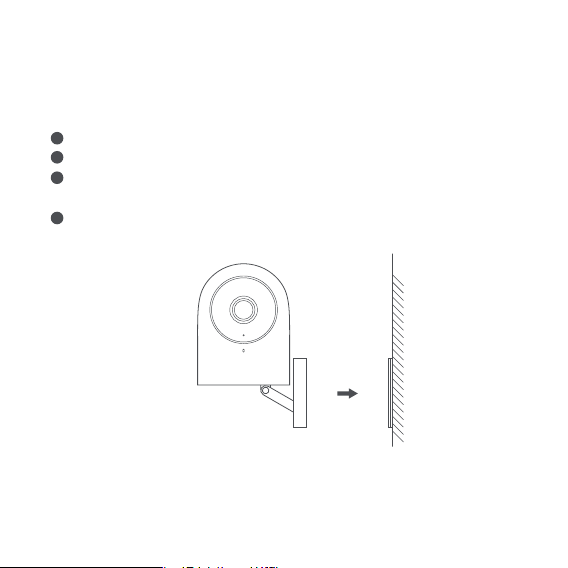
69
4. 서브설비�설치
카메라를�성공적으로�추가한�후 Aqara Home app을�열고�서브장비�사용�설명서를
참조하여�추가하십시오.
5. 제품�설치
카메라가�성공적으로�추가되었음을�확인한�후�벽을�올려�설치하십시오.
카메라를�책상, 식탁, 책장, 다기�등의�수평�테이블에�배치할�수�있습니다.
카메라�베이스는�자석�베이스로�냉장고, 철문�등�철물체를�함유한�표면에�흡착할
수�있습니다. 컴퓨터�본체나�하드�디스크�옆에�절대�두지�마십시오.
첨부된�파우치에서 3M 양면�접착제로�철�덩어리를�유리, 타일, 페인트�칠이�된
라텍스�벽면과�같은�매끄러운�물체�표면에�부착한�후�카메라를�철�덩어리에
부착시킵니다.
* 카메라는�무선 Wi-Fi 신호가�잡힐�수�있는�범위�내에�설치하도록�합니다.
* 강한�전자자기�간섭원�근처에�두지�마십시오.
* 이�제품은�실내에서만�사용�가능하며�습한�환경이나�실외�에서는�사용하지�마십시오.
* 장비�주변에�근거리�장애물이�없도록�합니다.
1
2
3
4
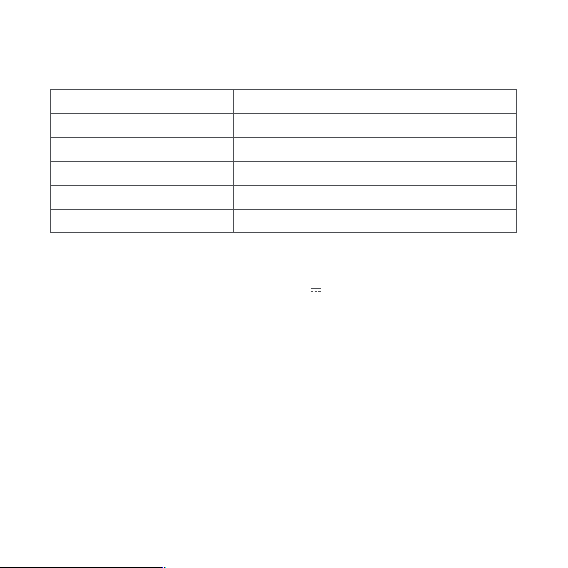
표시등�상태
파란불이�항상�켜져�있음
파란불이�깜박이고�있음
빨간�신호등이�항상�켜져�있음
빨간불이�깜박이고�있음
조명이�꺼짐
설비상태
연결�성공/정상�사용
네트워크�연결�중 /네트워크�이상
컴퓨터를�켜는�과정 / 동영상�생중계�중비디오
연결�대기�중
휴면, 표시등�꺼짐�표시
70
상태�표시조명에�대한�설명
기본데이터
무선�연결: Wi-Fi IEEE 802.11 b/g/n 2.4GHz. Zigbee
로컬�스토리지: MicroSD 카드(CLASS4 또는�그�이상의�제품�지원, 최대 32GB 지원)
지원�장치: Android 4.0 또는 iOS 13.0 및�그�이상의�버전의�장치
작업온도 : -10°C~+40°C
서비스�홈페이지: www.aqara.com/support
제 조 상: Lumi United Technology co., LTD.
주소:선전시�남산구�도원거리�유선대도당령로1번지�금괴지곡빌딩8층
제품�모델: CH-H01
비디오�코딩: H.264
해상도: 1080p
전원입력: 5V 1A
카메라: 140° 광각
전체�공률: 5W (Max)