P/N YRD256-MNL-0003 Rev G
1
Yale Assure Lock
®
®
SL
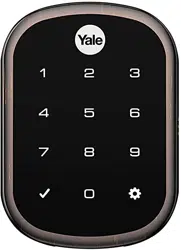
Key Free Touchscreen Deadbolt
Installation and Programming Instructions
(YRD2 6)5
This manual will walk you through all the required steps to add your new
Yale Assure Lock SL to your door.
• Remove existing deadbolt
• Double check door measurements
• Install your Assure Lock SL
• Program your Assure Lock SL
• Add your Assure Lock SL to your smart home system or Yale
Access app if purchased with Yale Smart Module or Yale Access
Upgrade Kit
Failure to follow these instructions could result in damage to the product, voiding the factory warranty and could lead to failure of the product to provide access.
Before you begin
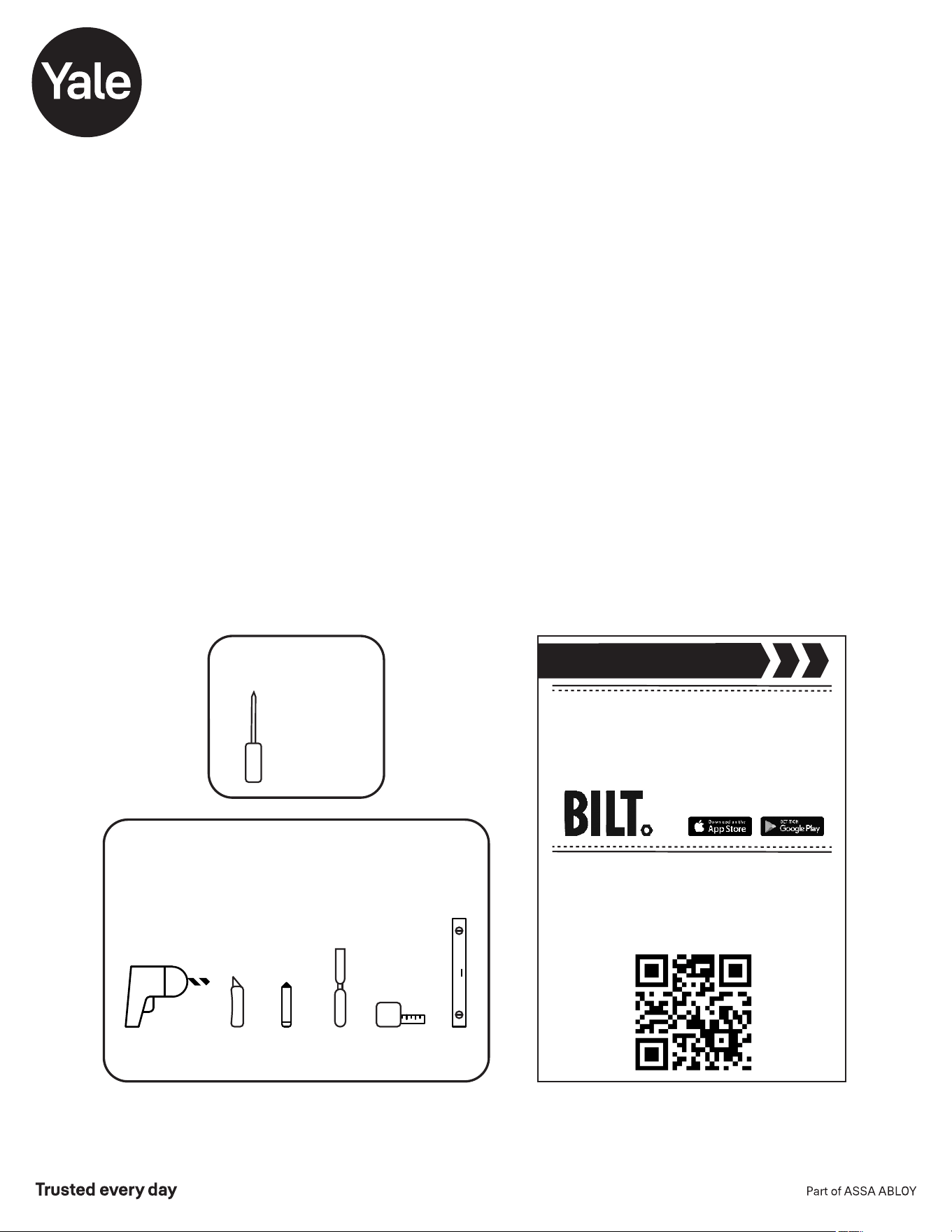
Using the app on your smart
phone, scan this QR for step-by
-step installation instructions & to
register your lock
DOWNLOAD
THE BILT APP
Tools Needed
Standard
Phillips Head
Screwdriver
Tools Needed For New
Doors Or Adjusting Existing Door
Utility
Knife
Drill
Wood
Mortise
Chisel
Pencil
Tape
Measure
Level
P/N YRD256-MNL-0003 Rev G
2
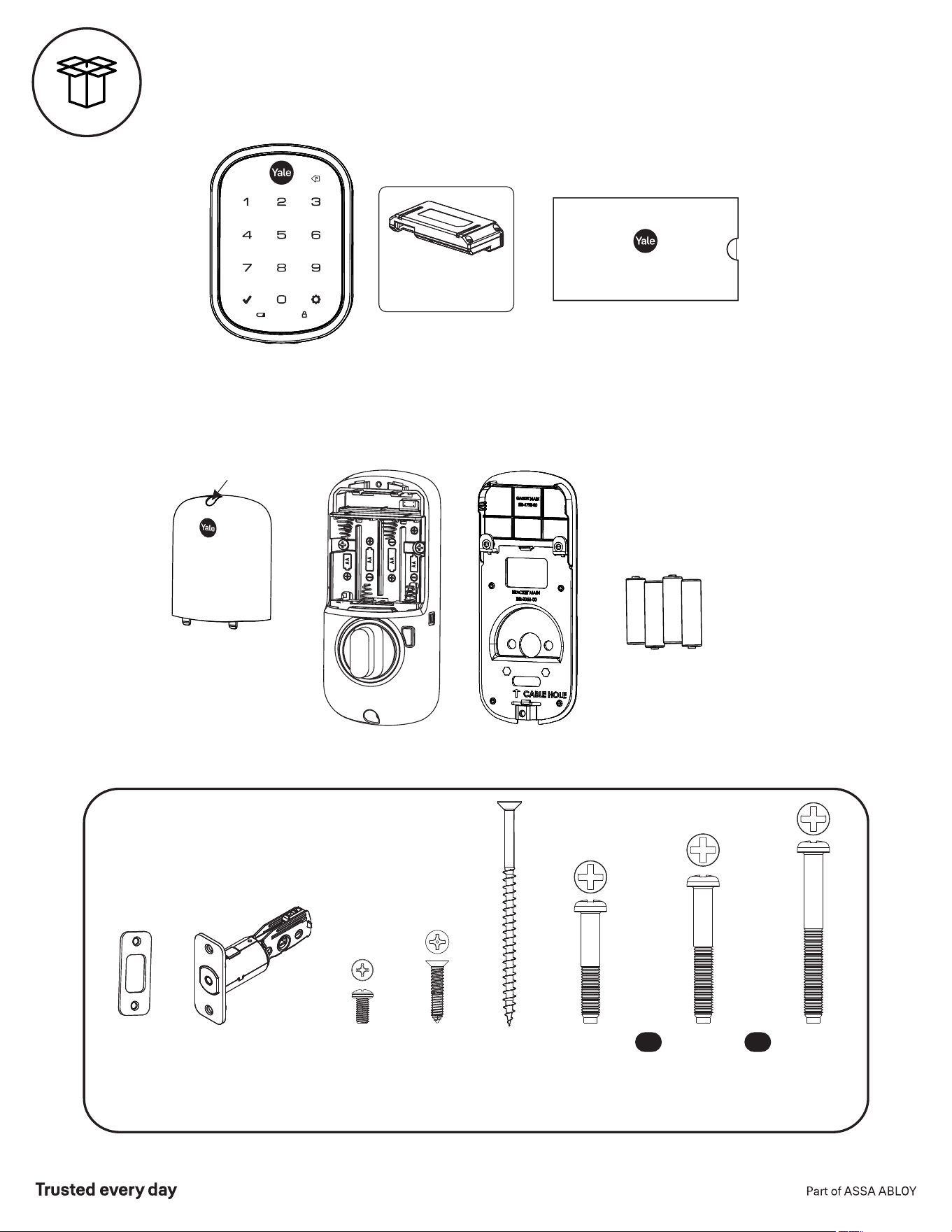
Key Free Touchscreen
Keypad
Installation Guide
and Door Template
Mounting Hardware
Strike Plate
Adjustable
Deadbolt
(AYRDB-DRIVE
Adjustable Drive-In Deadbolt
available for purchase)
OR OR
Screw Set D
Silver for
2 to 2-1/4"
Door Thickness
Screw Set C
Black
Standard for
1-3/4"
Door Thickness
Strike Plate
and
Deadbolt
Screws
Inside Lock
Screws
Optional
Security
Strike Plate
Screws
Let's Get Started
Screw Set B
Green
for
1-3/8"
Door Thickness
Yale Smart Module
(with select models)
What's In The Box
Loosen screw to
remove cover
4 AA Batteries
Battery Cover
Inside Lock
Mounting Plate
x2 x2 x2 x2 x2x4
P/N YRD256-MNL-0003 Rev G
3
Frame
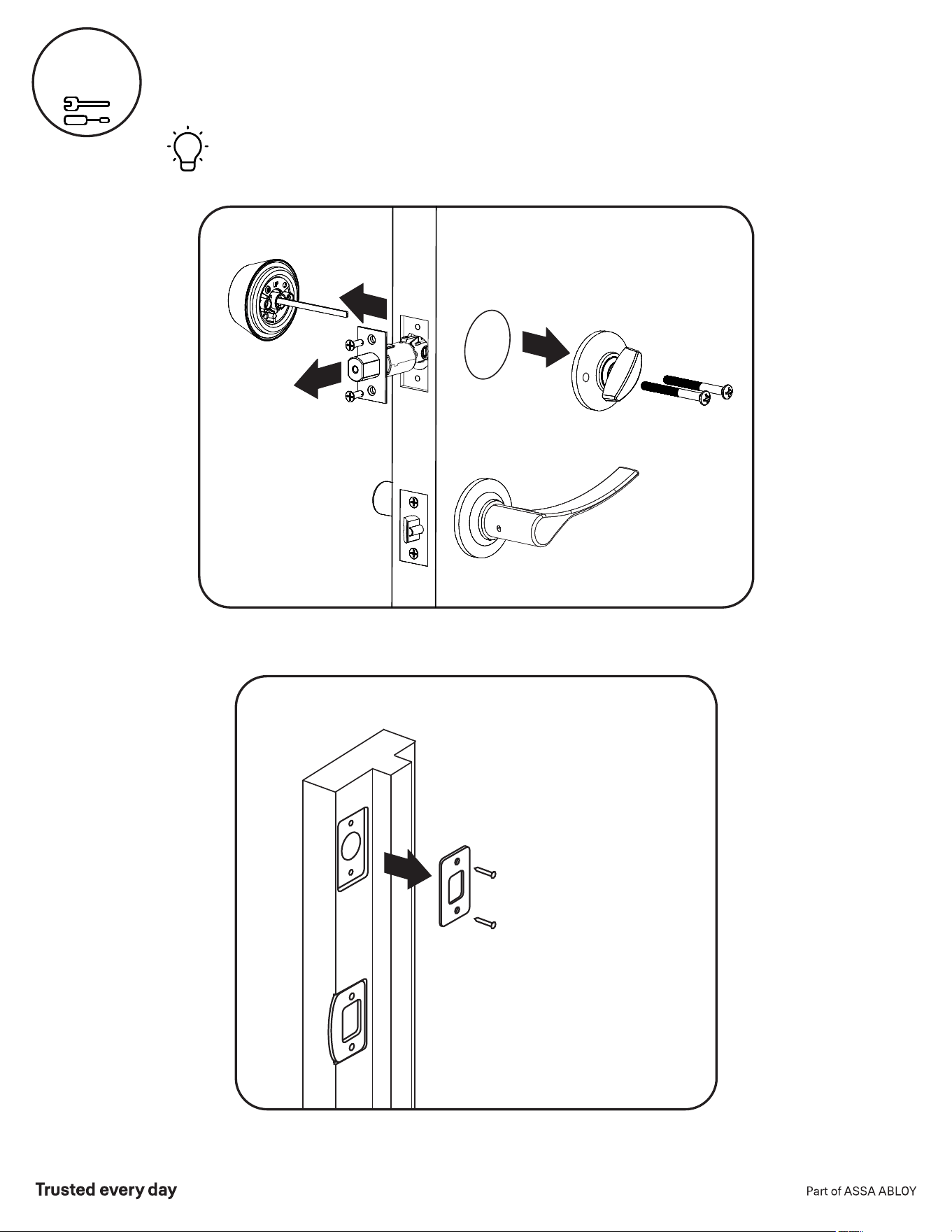
Remove Existing Deadbolt
Do not discard old lock hardware until Assure Lock has been successfully installed.
1
P/N YRD256-MNL-0003 Rev G
4
New Door Marking Template
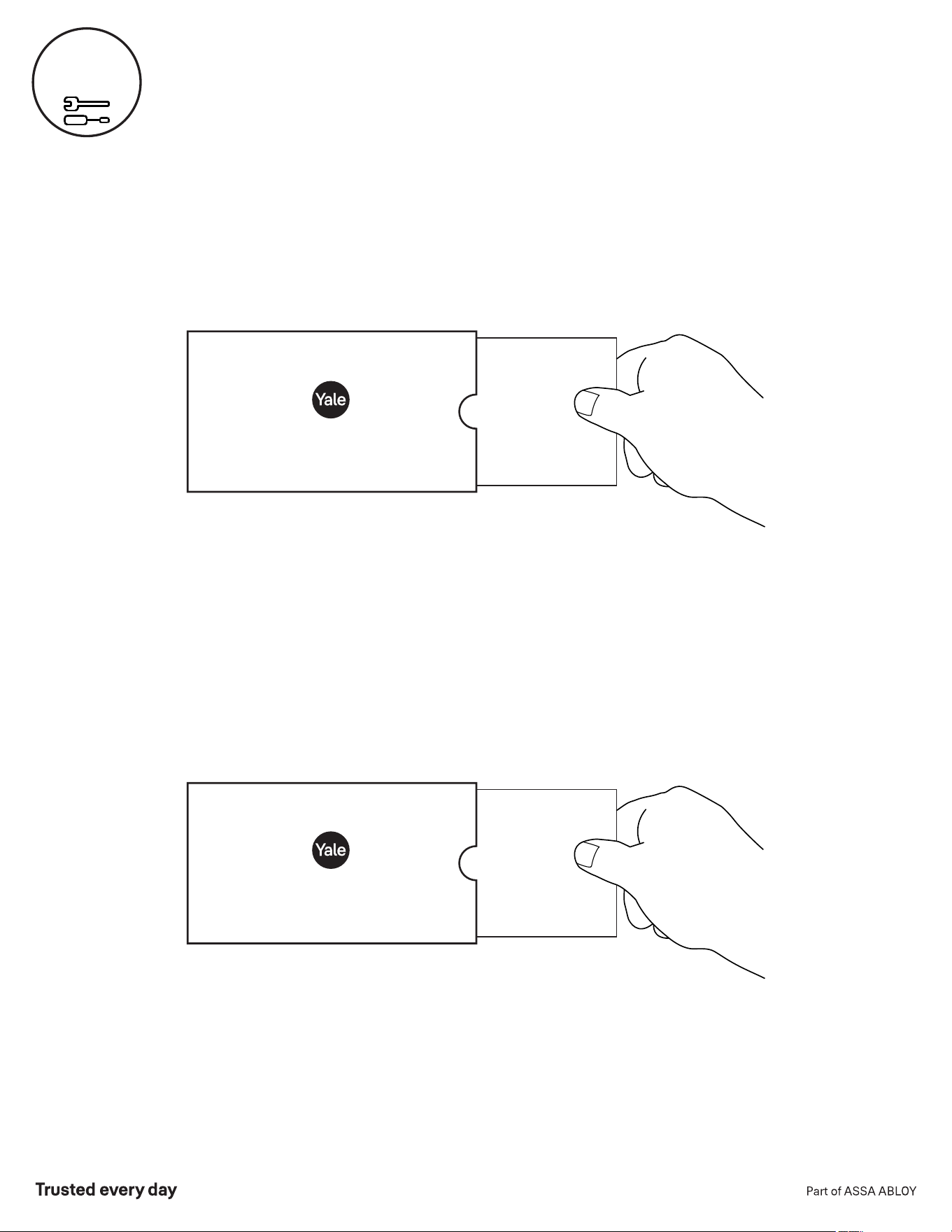
Door Checker
Use door checker from installation guide envelope to verify your door measurements and
make any needed adjustments.
With door checker, use template from installation guide envelope to prep a new door that
has not been predrilled for hardware.
Check
Your Door
Guide
New Door
Marking
Template
2
Check Door Measurements And
Make Adjustments If Needed
Let's Get Started
Let's Get Started
P/N YRD256-MNL-0003 Rev G
x2
For Deadbolt
Actual Size
*Deadbolt position is based on
backset. Choose position
appropriate for your door.
Reference Door Checker
measurements E and F.
AYRDB-DRIVE
Adjustable Drive-In Deadbolt
available for purchase
optional
optional
*2-3/8" Backset, default
*2-3/4" Backset, optional
Press
Pull
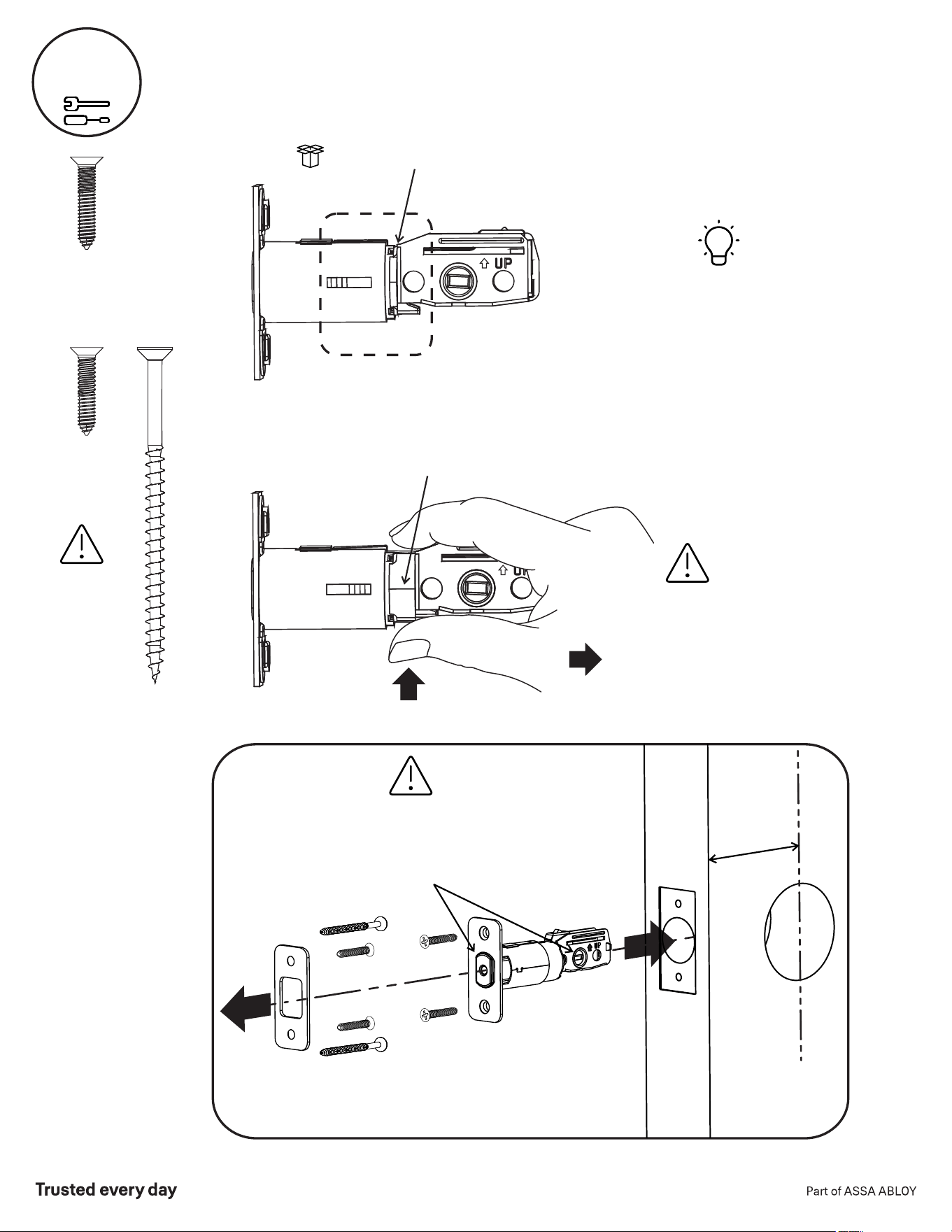
Bolt must be in retracted (unlocked)
position. Note horizontal orientation of
tailpiece slot and UP orientation of
deadbolt latch.
Backset
For Strike Plate
Actual Size
x2
Choose
standard strike
plate screws
or security
screws.
For Strike Plate, optional
Actual Size
Bolt must be in
retracted
(unlocked)
position.
x2
3
Install Deadbolt and Strike Plate
O
Pour la gâche
Taille réelle
5
P/N YRD256-MNL-0003 Rev G
6
Outside of Door
Inside of Door
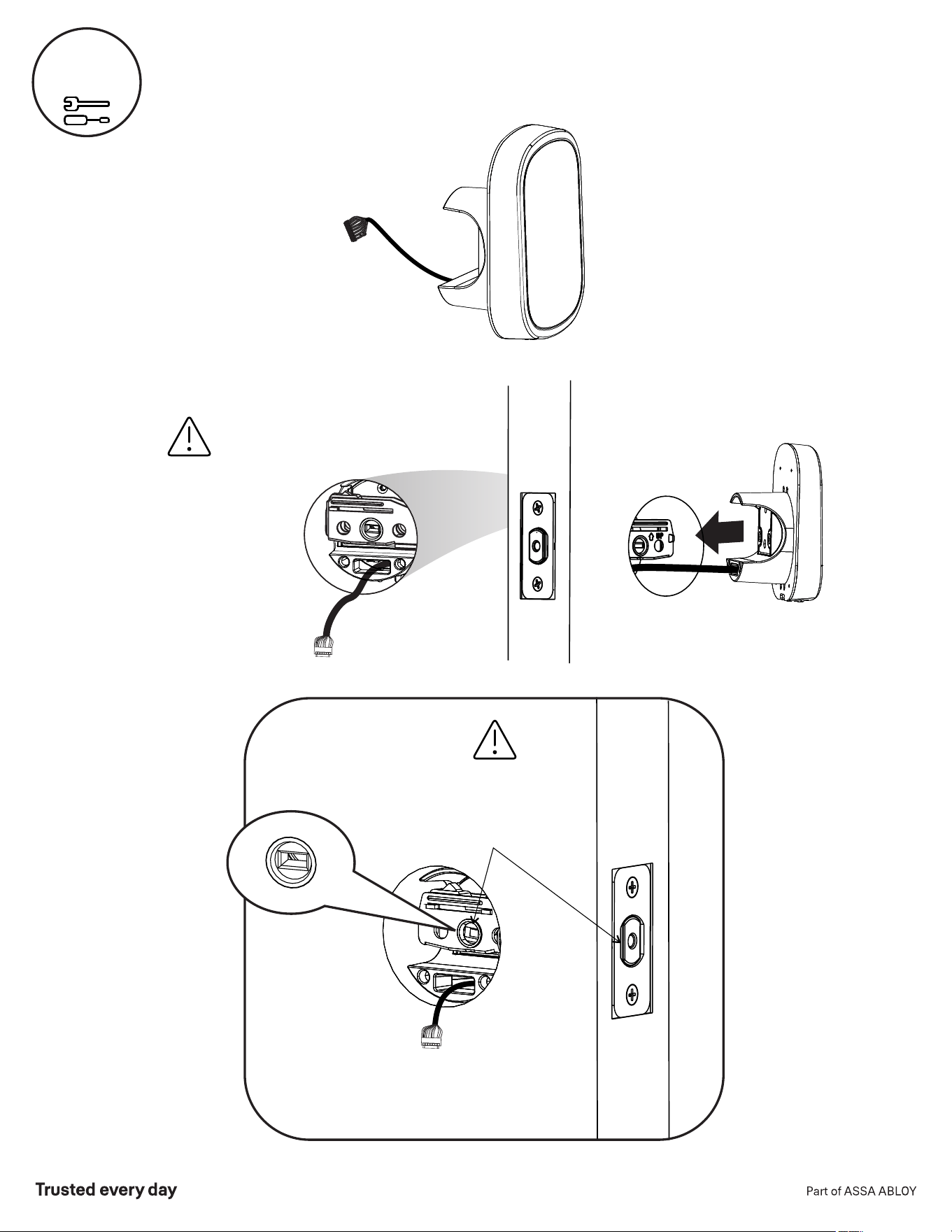
Bolt must be in retracted
(unlocked) position. Note
horizontal orientation of
tailpiece slot.
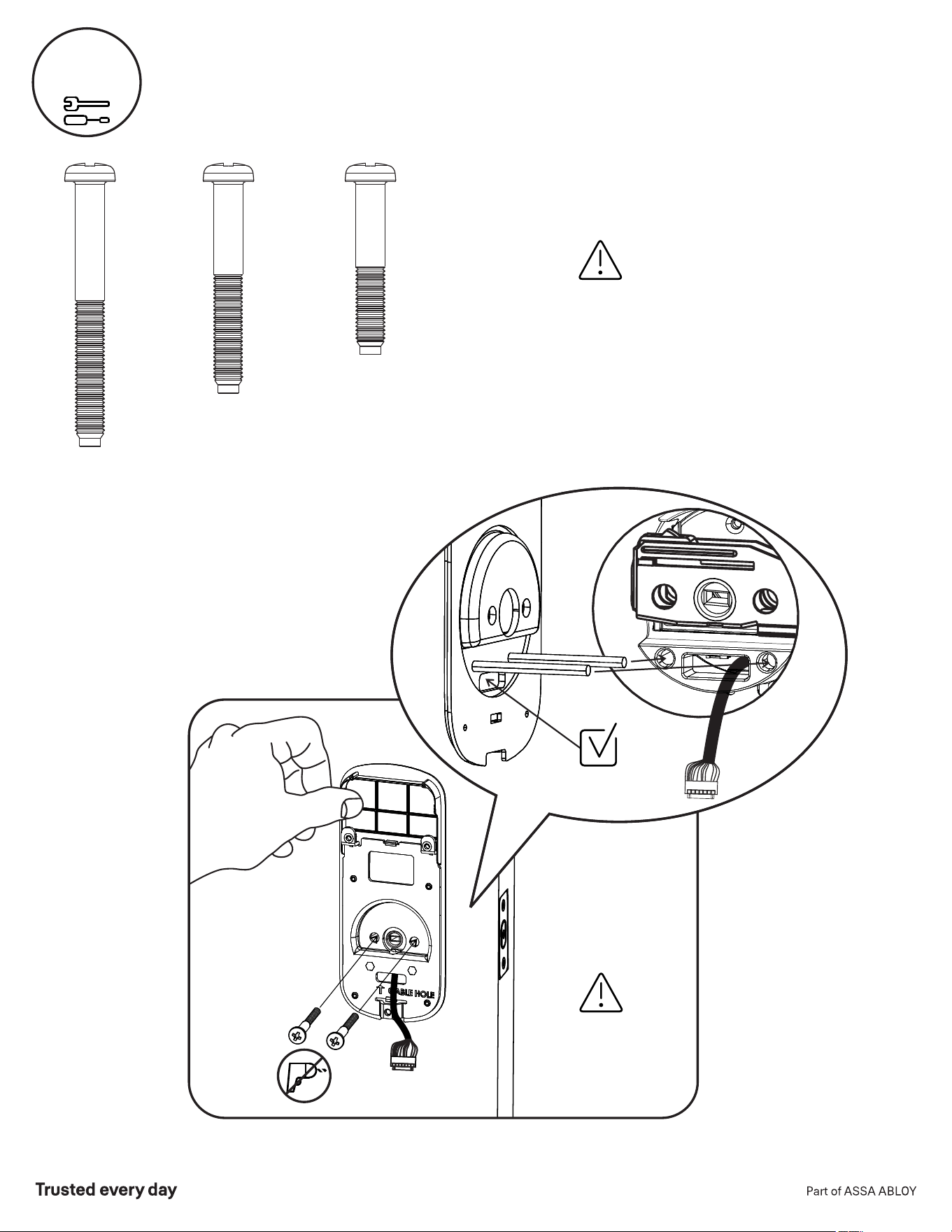
4
Install Touchscreen Keypad
Door face hole
must be at least
2-1/8".
If hole is too
small, a door lock
installation kit or
jig should be used
to increase hole
size.
P/N YRD256-MNL-0003 Rev G
7
Actual Size
Inside of Door
Make sure keypad
and mounting plate
are straight before
tightening screws.
x2
Screw Set D
Silver
for
2 to 2-1/4"
Door Thickness
x2
Screw Set C
Black
Standard for
1-3/4"
Door Thickness
Actual Size
Actual Size
Insert cable
through cable hole
Choose through bolt appropriate for
your door thickness. Verify appropriate
through bolt with the door checker.
Screw Set B
Green
for
1-3/8"
Door Thickness
x2
5
Install Inside Mounting Plate
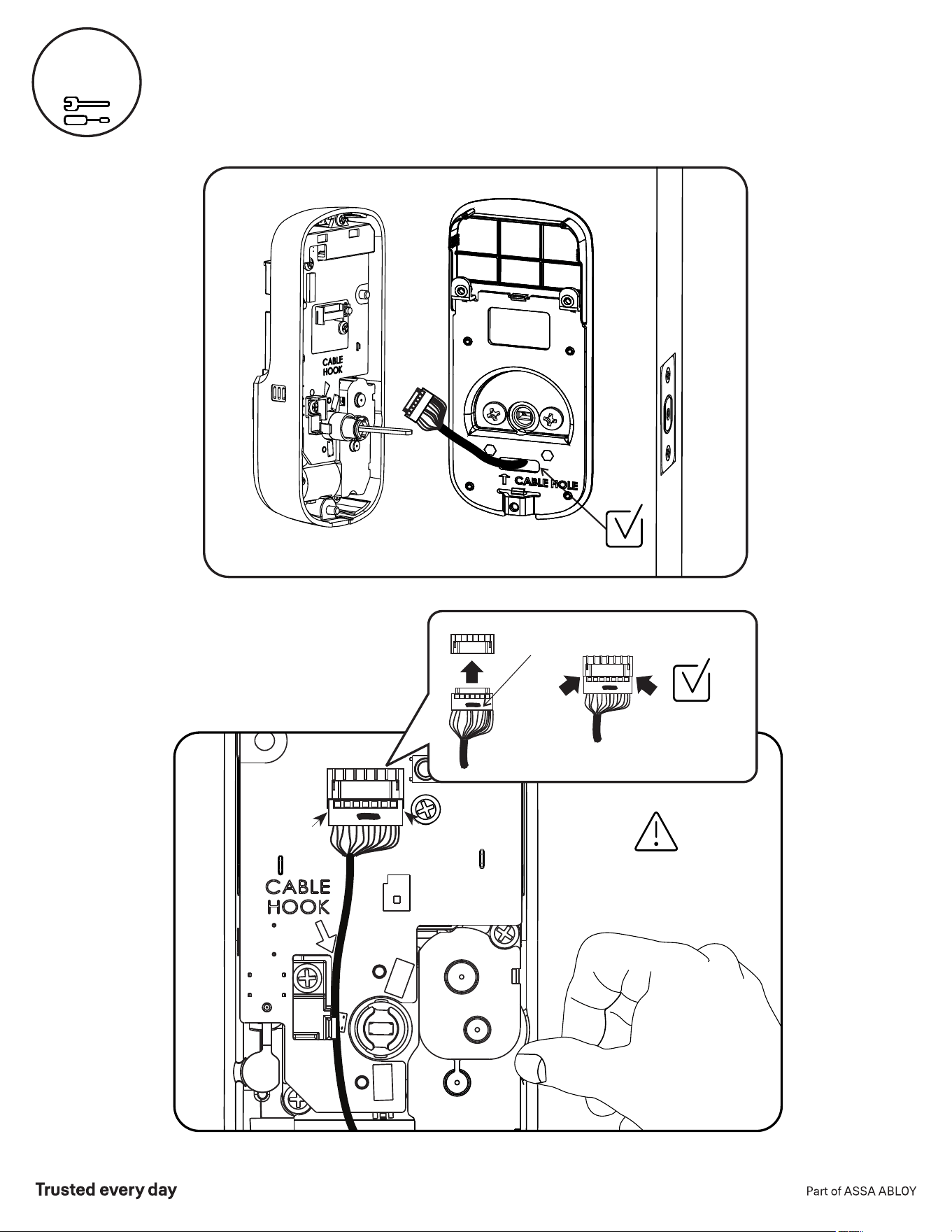
Inside of Door
Use cable hooks for
proper cable routing.
Do not pinch cable.
6
Attach Cable
This Side Up
mark
Make sure cable
is securely
attached
P/N YRD256-MNL-0003 Rev G
8
P/N YRD256-MNL-0003 Rev G
9
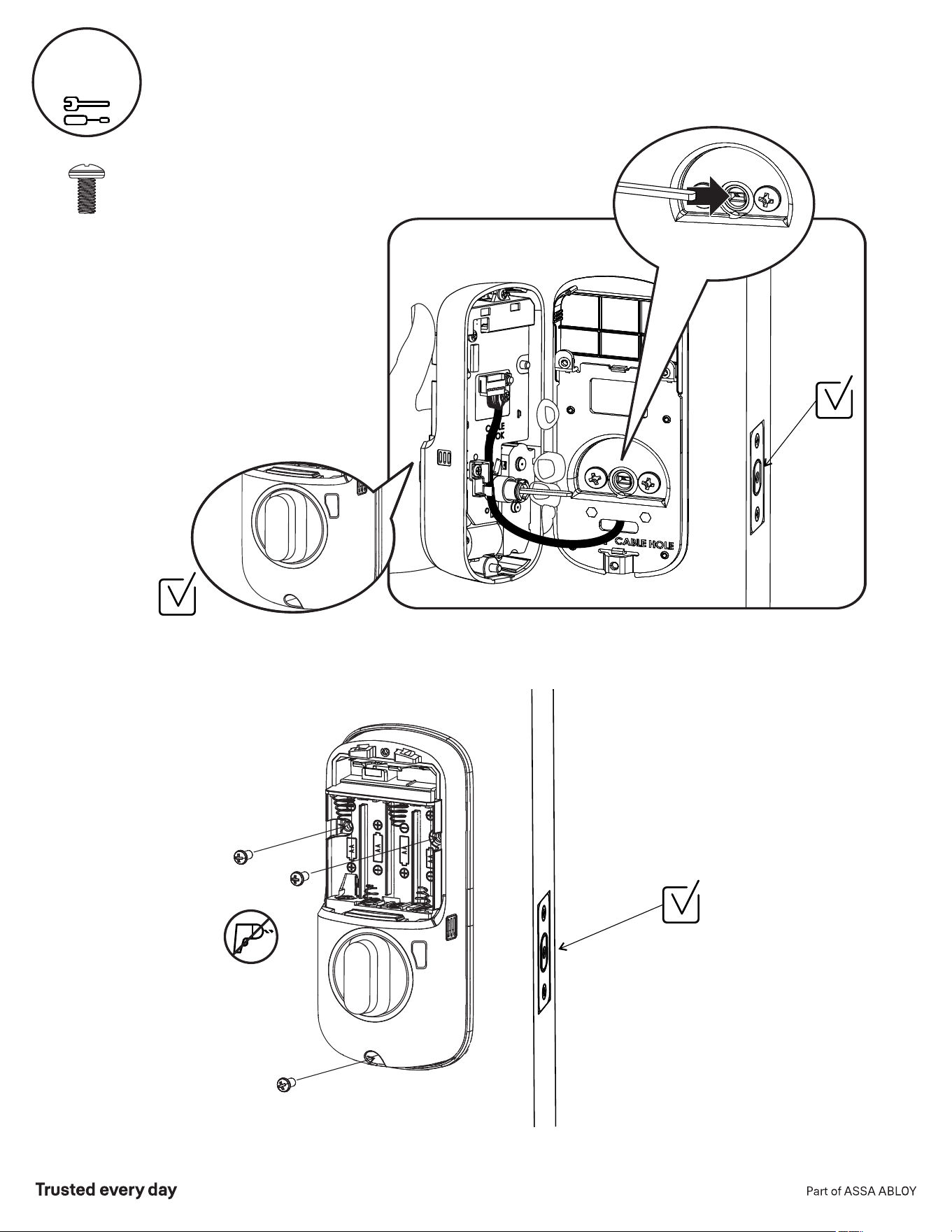
x3
Actual Size
Inside of Door
Make sure thumbturn
is vertical. If the thumbturn
does not move freely, refer to
“Hardware Troubleshooting.”
Horizontal
7
Install Inside Lock
P/N YRD256-MNL-0003 Rev G
10
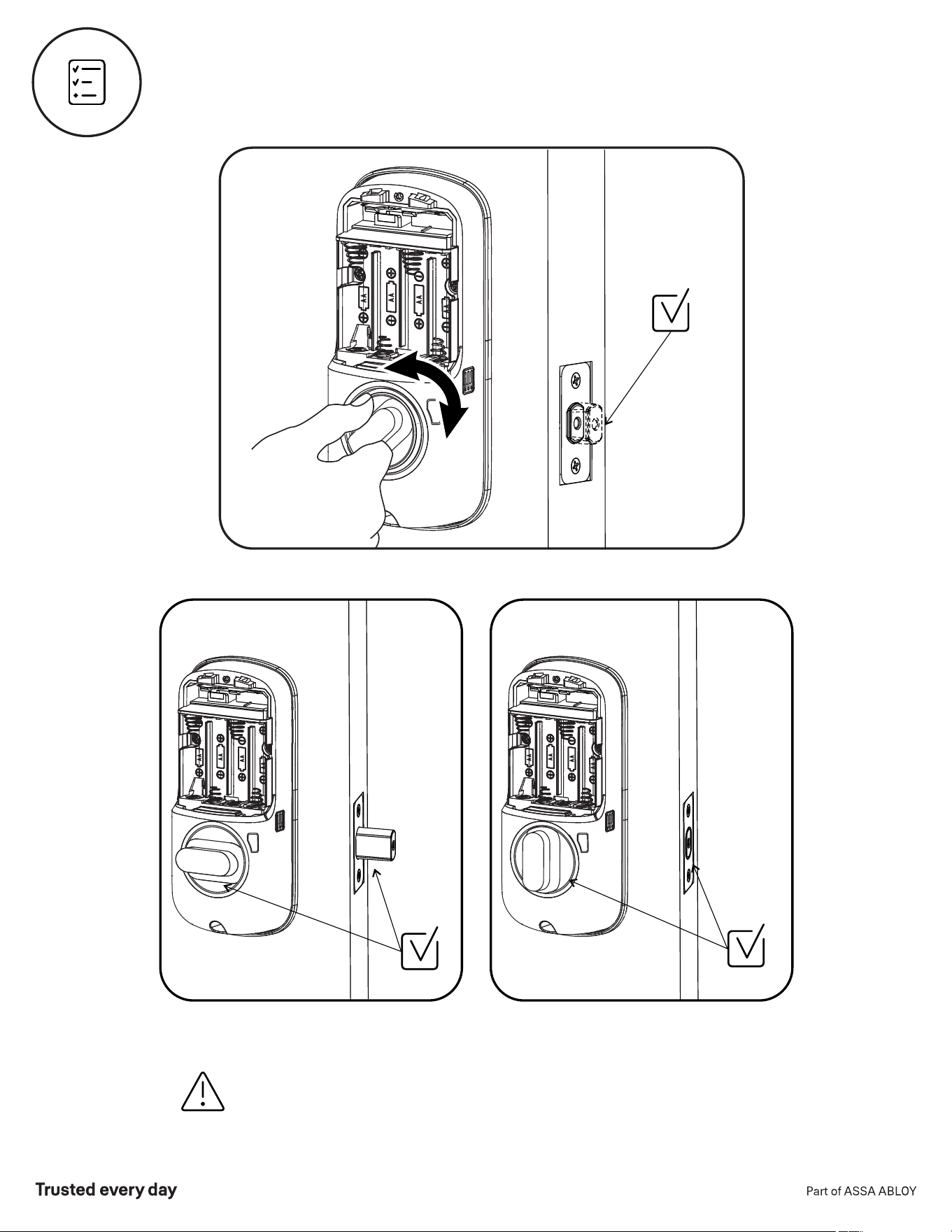
Inside of Door
If thumbturn operation fails, check the installation beginning with Step 3.
Test Mechanical Operation
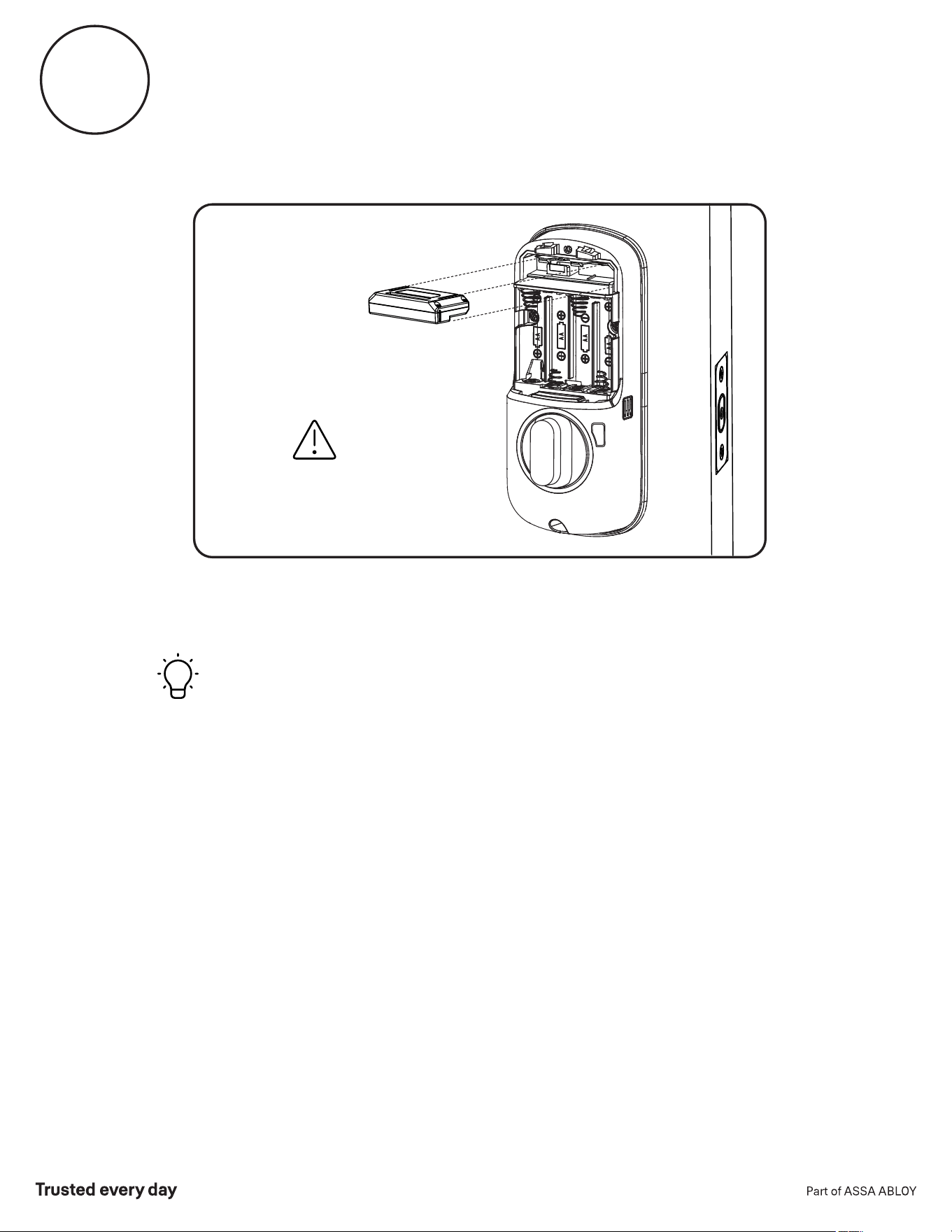
P/N YRD256-MNL-0003 Rev G
11
Batteries must not be installed
prior to inserting and/or removing
the Yale Smart module.
Inside of Door
For more information about Yale Smart modules and smart home
features visit: US.YaleHome.com/Smart
O
optional
Install Yale Smart Module
Included with select models
P/N YRD256-MNL-0003 Rev G
12
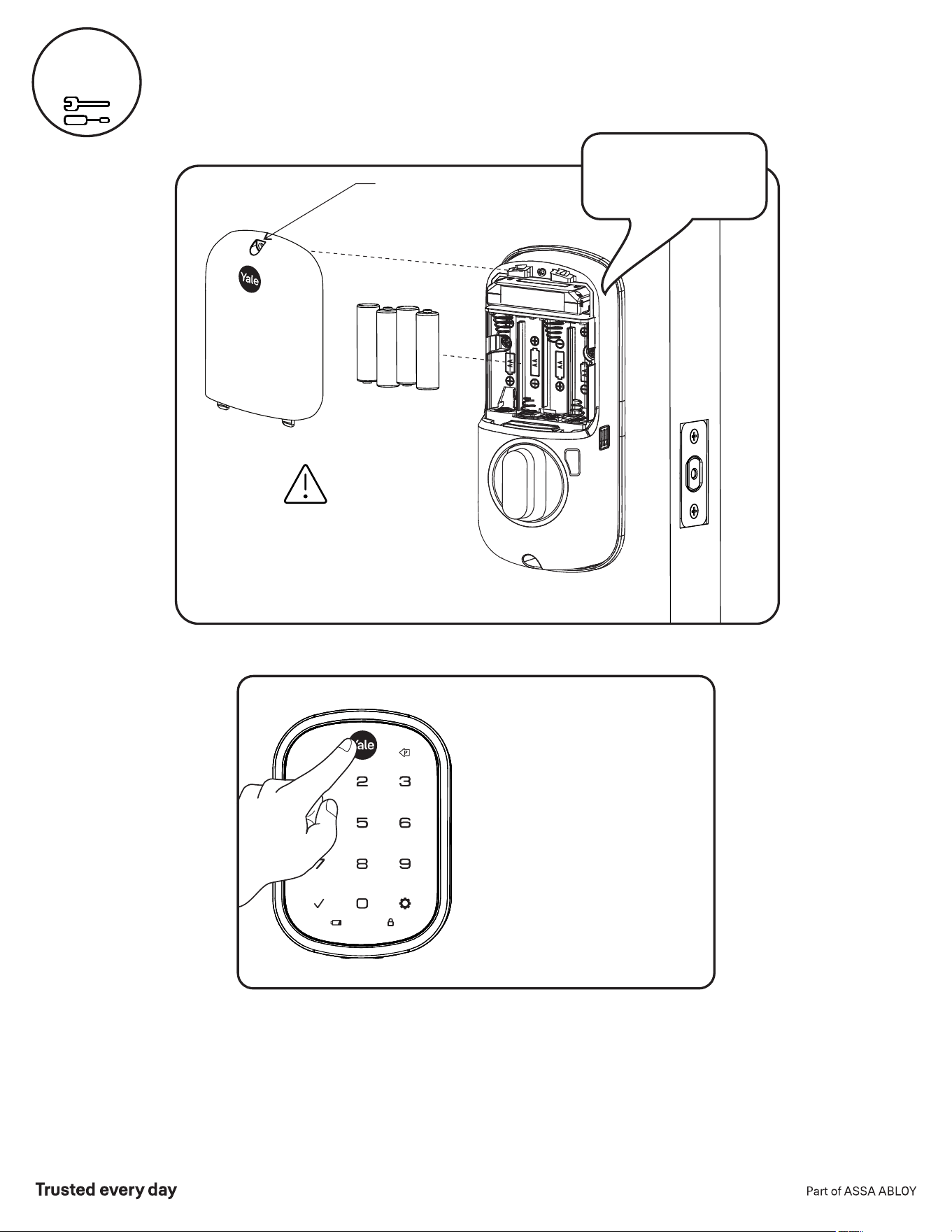
Congratulations, you've installed the Yale® Assure Lock® SL
Key Free Touchscreen Deadbolt ( )!YRD256
Using Your Lock instructions will help you customize your lock.
Inside of Door
Tighten screw
to replace cover
"Welcome to
Yale Real Living"
Bolt must be in retracted
(unlocked) position
before installing batteries.
Press the Yale logo to wake the
lock. You will be guided through
setup by audio instructions on
the lock.
Additional Entry Codes and
further programming can be
done through the Settings Menu.
Install Batteries and Cover
8
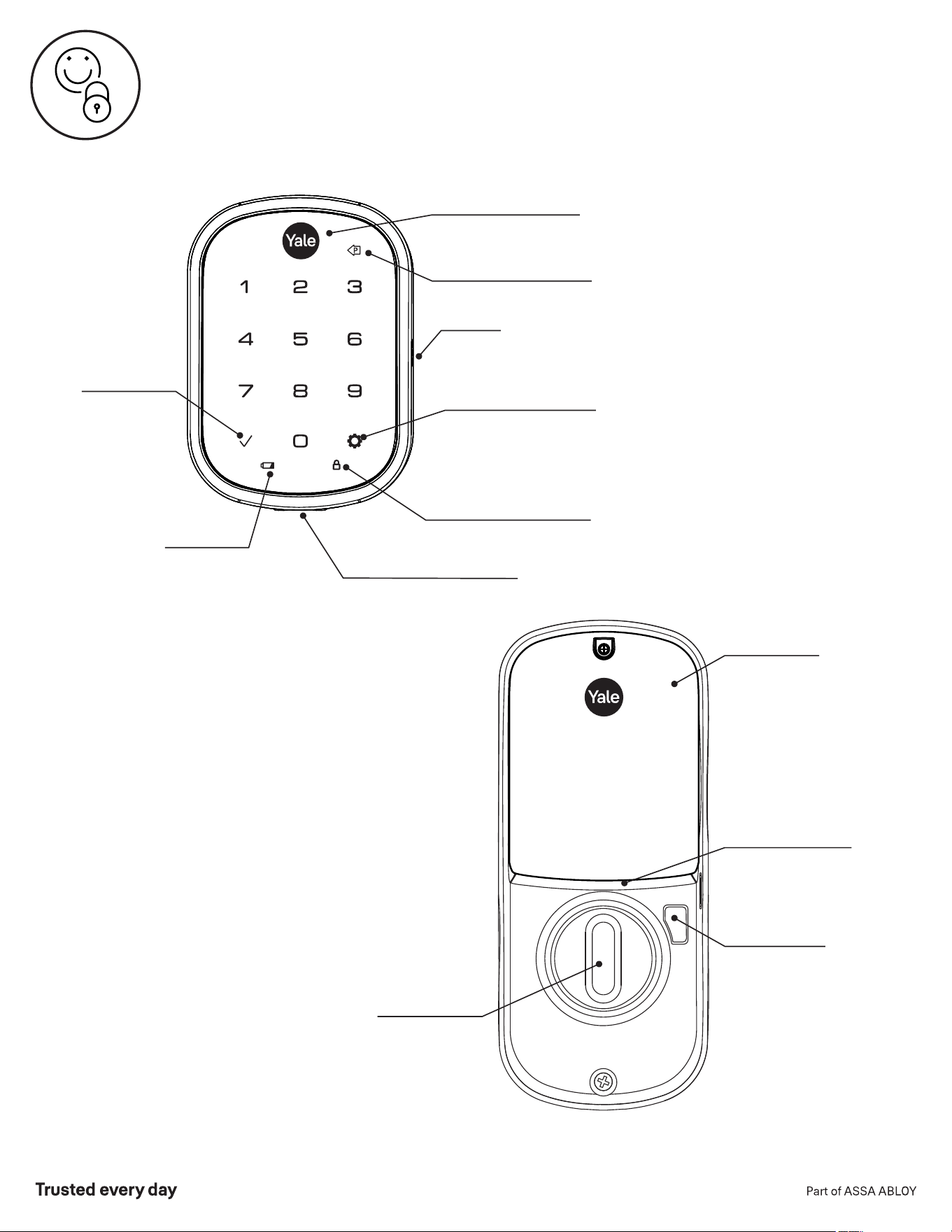
13
Speaker
Press to return to
previous Settings Menu
Low Battery
Indicator
All Code Lockout Mode
Indicator
Battery Back-up
Hold a 9V battery to the
terminals in case of dead
lock batteries
Touchscreen Keypad
Press to wake keypad
or lock door
Enter Master Entry
Code and press to
access Settings Menu
Press to enter
or unlock
Using Your Lock
Inside Lock
Thumbturn for
manual locking
and unlocking
Privacy Button
Battery Cover
Inside Notification
Light
P/N YRD256-MNL-0003 Rev G
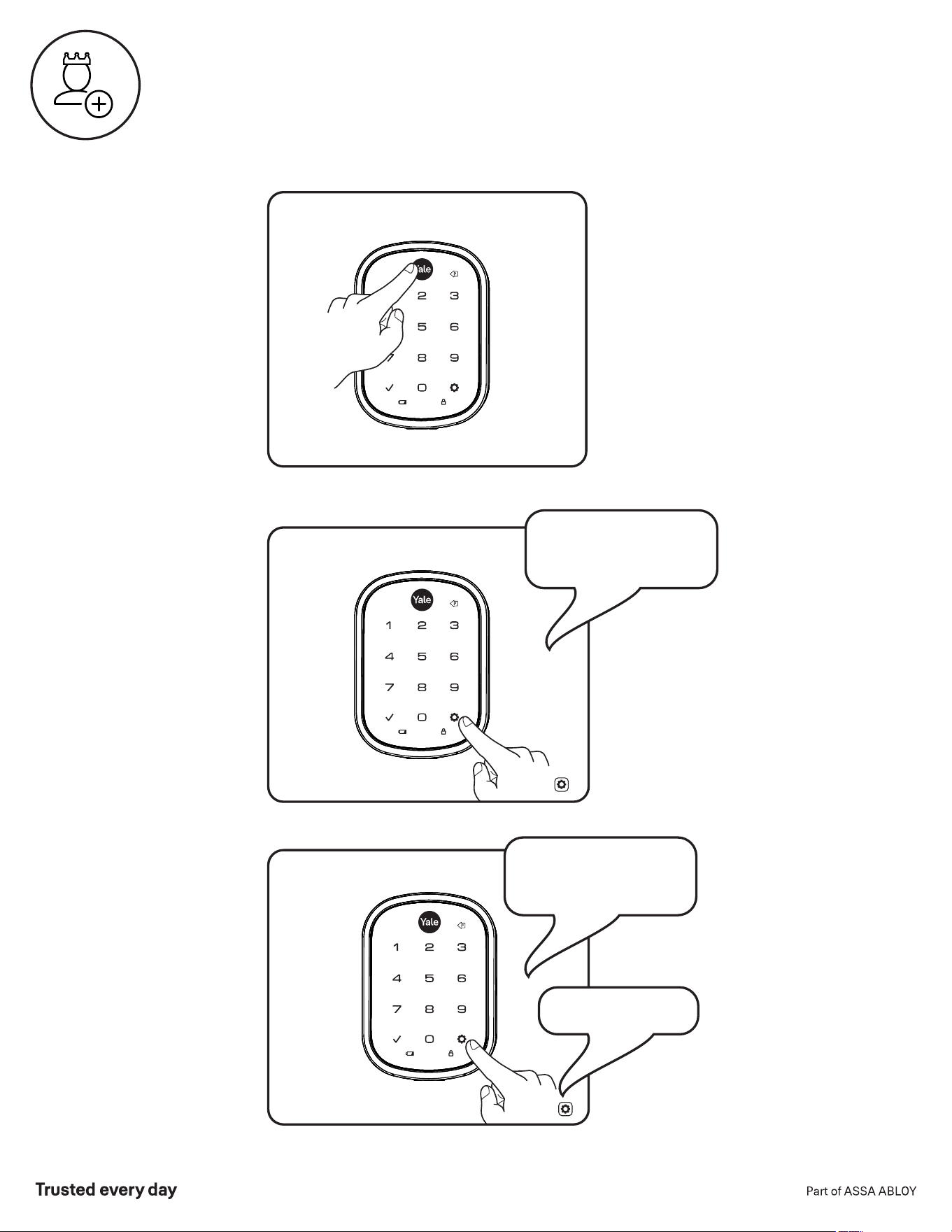
Enter 4-8
digit Master
Entry Code
The Master Entry Code is used to change the lock settings.
A security best practice is to set your Master Entry Code with 6 or more digits
and create a separate code that is used daily to lock and unlock the door.
Press
Press
Creating Master Entry Code
"Registered"
"Enter a 4 to 8 digit
PIN code followed by
the gear key."
"Register Master
Code. Press the gear
key to continue."
14
P/N YRD256-MNL-0003 Rev G
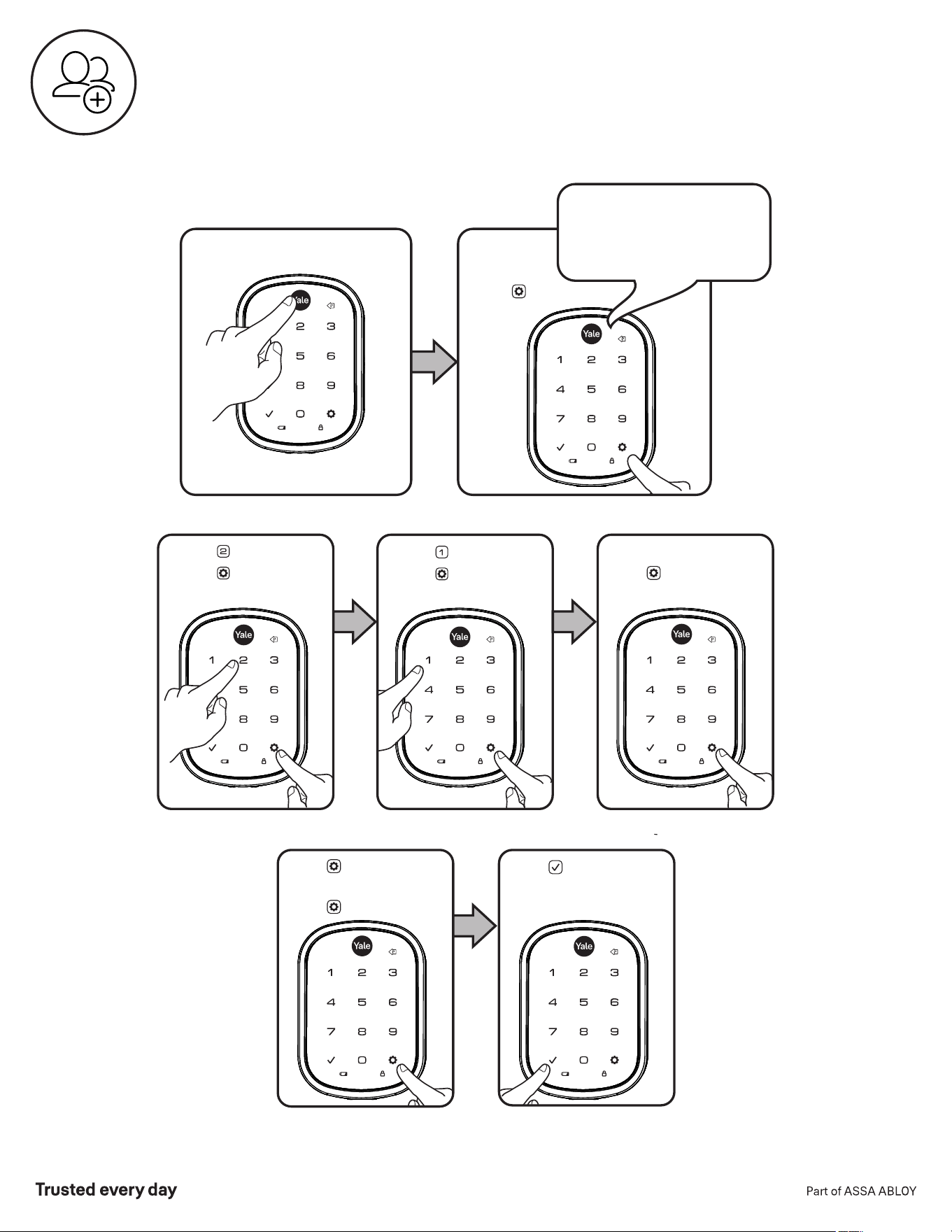
15
Press
Press
Press
Press
Master Entry Code must be created first.
*Max Entry codes = 250 with Smart Module; 25 without.
Press
(code flashes)
Creating Entry Codes
Enter Master
Entry Code
Press
Press
Adding more *Entry Codes:
Enter 4-8 digit Entry Code
Press
To end programming:
Press
"Menu mode, press the gear
key to continue."
Enter 4-8 digit Entry Code
P/N YRD256-MNL-0003 Rev G
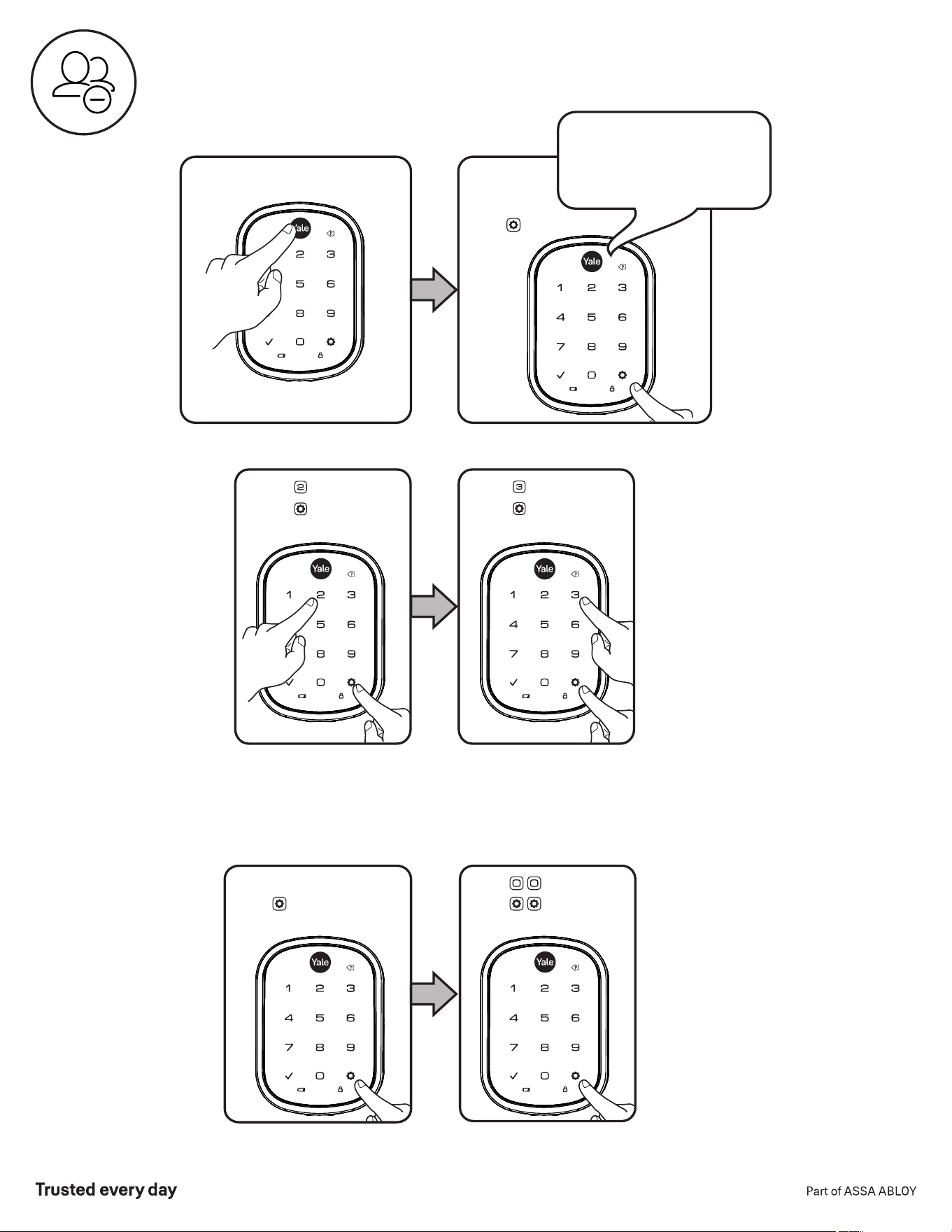
16
Press
Press
Press
Press
Deleting one Entry Code:
Enter 4-8 digit Entry Code
Press
To delete all Entry Codes
(Does not delete
Master Entry Code):
Press
Enter
To delete one Entry
Code, you must enter
the Entry Code you wish
to delete.
Enter Master
Entry Code
"Menu Mode,
enter number,
press the gear key
to continue."
Press
Deleting Entry Codes
P/N YRD256-MNL-0003 Rev G
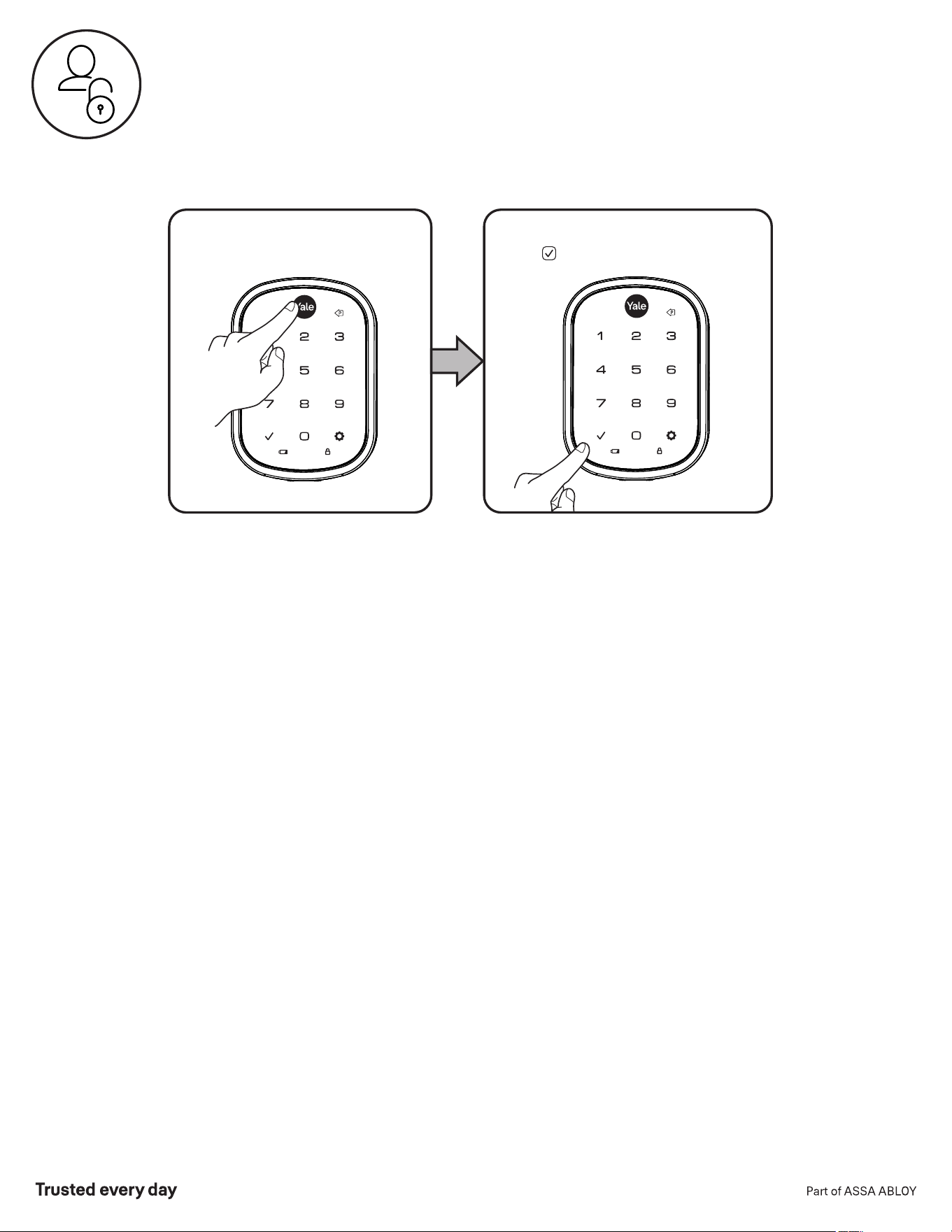
P/N YRD256-MNL-0003 Rev G
17
Enter Entry Code
Press
Unlocking Door with Entry Codes
P/N YRD256-MNL-0003 Rev G
18
Setting Definitions
*The Master Entry Code must be created prior to any other programming of the lock.
Creation
required*
Inside Indicator Light
Disabled (Off)
Master Entry Code
Auto Re-lock Disabled
Privacy Button
Disabled
The Master Entry Code is used for programming
and feature settings. It must be created prior to
programming the lock. The Master Entry Code will also
operate (unlock/lock) the lock.
After a successful code entry or manual unlock
with the key, the lock will automatically re-lock after
each unlock in an effort to keep your home secure.
This feature is optional, and can be turned off.
When enabled, the lock will automatically re-lock
after thirty (30) seconds.
Located on the inside lock. Shows active status
(Locked) of lock and can be enabled or disabled in
Advanced Lock Settings (Main Menu selection #3).
Privacy mode is disabled by default. When enabled,
activate Privacy mode by pressing the privacy button for
4 seconds to put the lock in do-not-disturb mode (all
Entry Codes are disabled).
Wrong Code
Entry Limit
5 Times
After five (5) unsuccessful attempts at entering a
valid Entry Code, the lock will shut down and not
allow operation for sixty (60) seconds.
Settings
Default Setting
Definition
One Touch Locking
Enabled
When the latch is retracted, activating the keypad
will extend the latch (during Auto Re-lock duration
or when Auto Re-lock is disabled). When One-Touch
Re-lock is not in use (disabled), any valid Entry Code
will re-lock the lock.
Volume
Enabled (Low)
The volume setting for Entry Code verification is set
to Low (2) by default; otherwise it can be set to
High (1) or Silent (3) for quiet areas.
Language English
Choosing English (1), Spanish (2) or French (3)
becomes the (default) setting for the lock voice
prompts.
All Code Lockout
Disabled
This feature is enabled by the Master Entry Code.
When enabled, it restricts all Entry Code access
(except Master). When attempting to enter a
code while the lock is in All Code Lockout, the RED
locked padlock will appear on the screen.
Shutdown Time 60 Seconds
The lock will shutdown (flashing RED) for sixty
(60) seconds and not allow operation after the
wrong code entry limit (5 attempts) has been met.
P/N YRD256-MNL-0003 Rev G
19
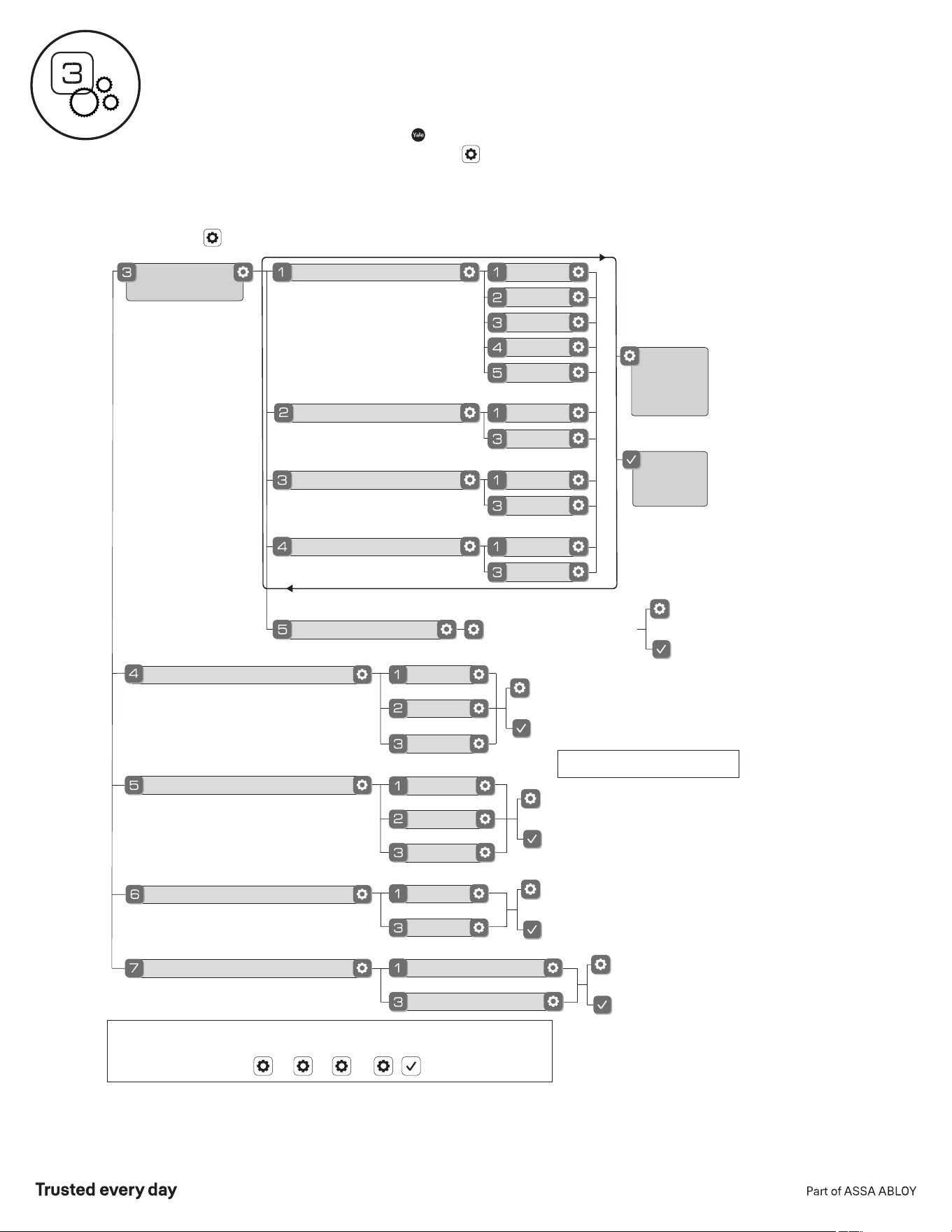
Customizing Lock Using Settings Menu
*Master Entry Code required
Join the Network
Enable
Disable
English
Spanish
French
Silent
Low
High
Exit the Network
Volume Setting
Language Setting
All Code Lockout
**Network Module Setting
Default settings in bold.
Privacy Button Setting
Enable
Disable
Handing the Lock
Preforms automatic
handing of the lock
Advanced
Lock Settings
Auto Re-lock
Disable
30 sec
Inside Indicator Light
One Touch Locking
Enable
Disable
Enable
60 sec
3 min
2 min
Disable
1. Press Yale logo to wake up lock .
2. Enter Master Entry Code* followed by icon.
Lock Response: "Welcome to the Settings Menu. Press each number to hear
available settings and then press the settings icon to enter."
3. Enter digit corresponding to the function to be performed followed by
the icon. Follow the voice commands.
*The Master Entry Code must be created prior to any other programming of the lock.
**Network Module Setting function appears only with Yale Smart module installed.
Here is an example of how to set Auto Lock to 30 seconds:
Master Entry Code , 3 , 1 , 2 ,
Exit
Settings
Menu
Remain
in
Settings
Menu
or
or
or
or
or
or
P/N YRD256-MNL-0003 Rev G
20
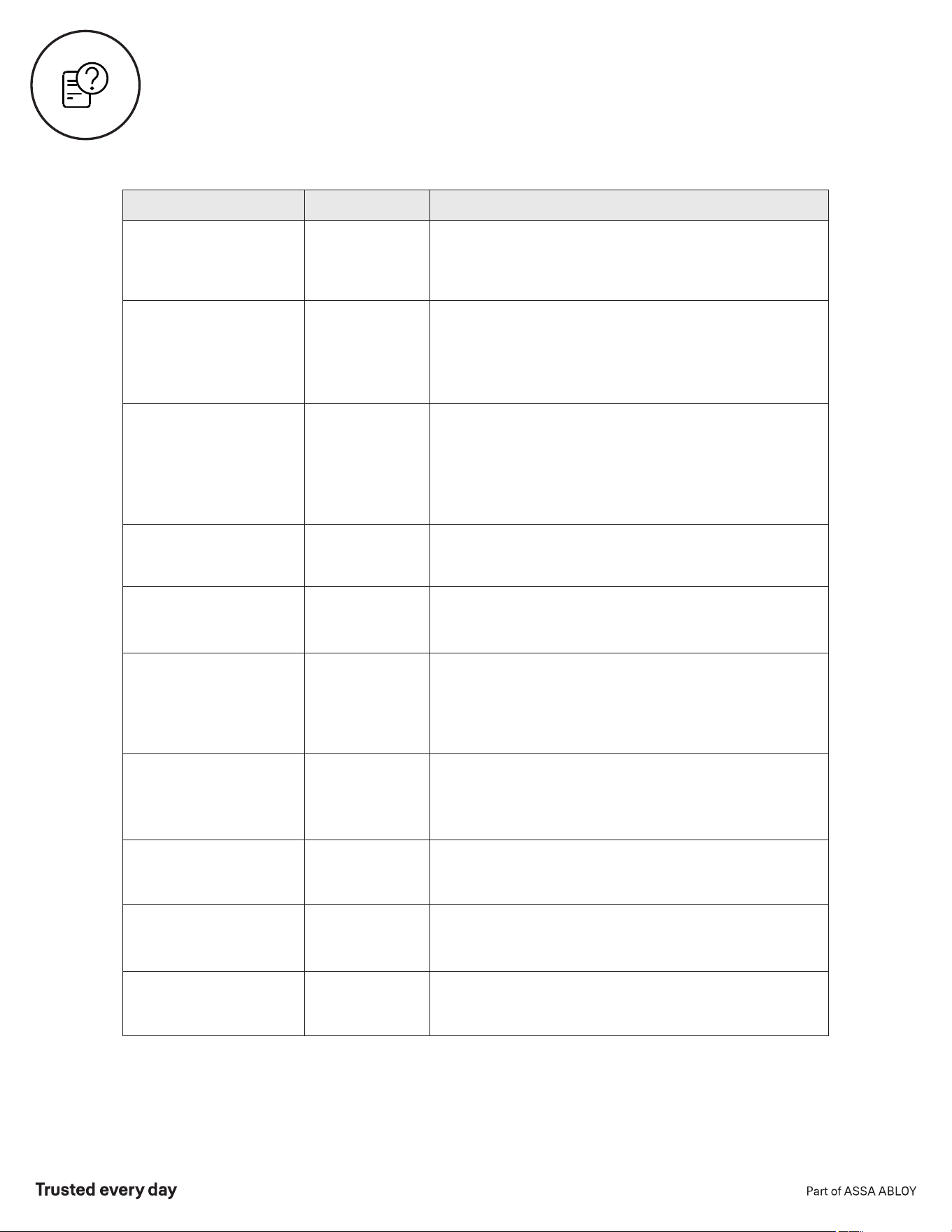
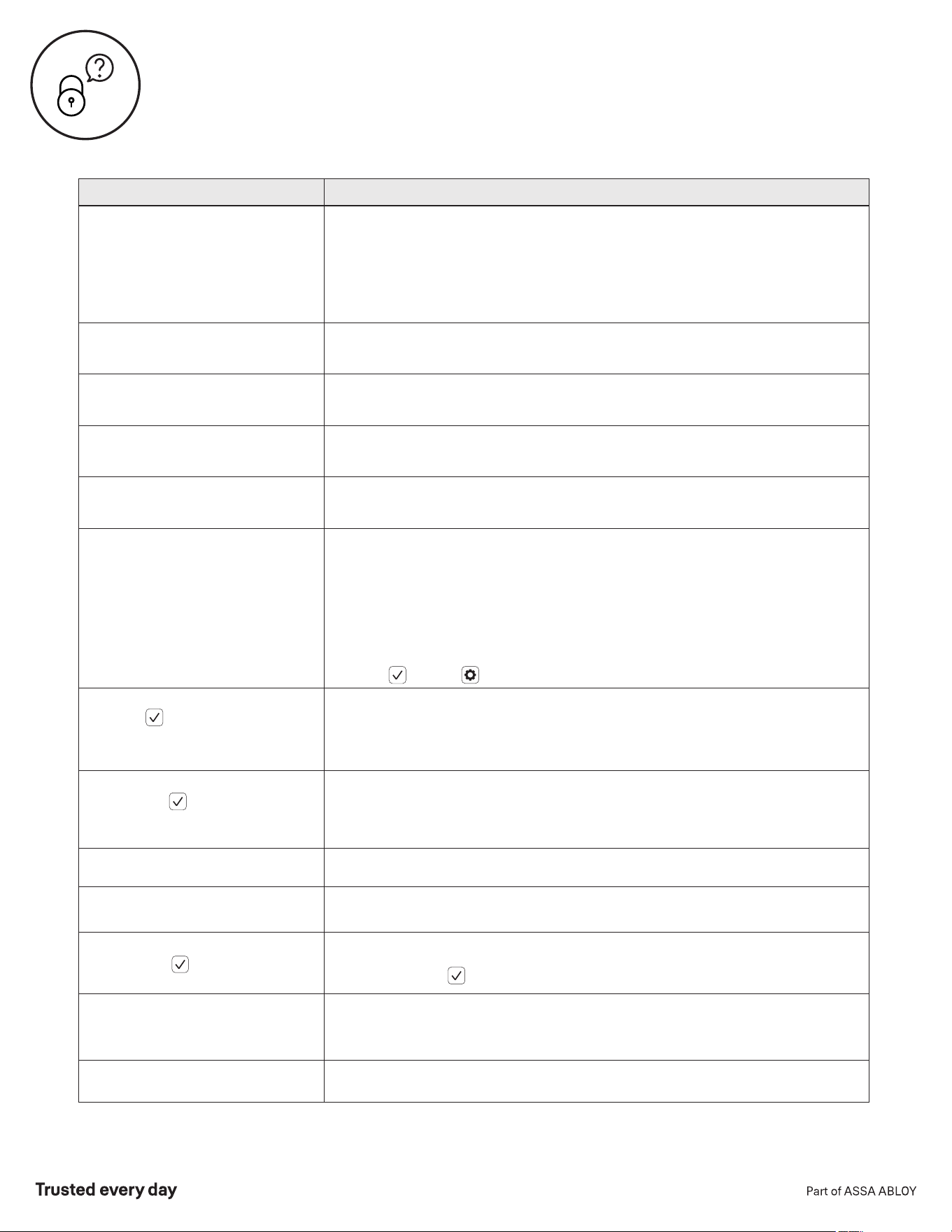
Troubleshooting
Symptom
Suggested Action
Lock does not respond –
door is open and accessible.
•
•
•
•
•
•
Lock chimes indicating code
acceptance, but door will not open.
•
•
Lock operates to allow access, but
will not automatically re-lock.
•
•
•
Entry Codes will not register.
•
•
•
•
•
Upon entering an Entry Code and
pressing key, the lock displays
"invalid code" error or lock times
out without responding.
•
Lock operates,
but makes no sound.
•
•
* When batteries are replaced, Smart Module locks have a real time clock that will be set through the User Interface.
It is recommended to verify correct date and time; particularly those locks operating under Daylight Savings Time.
Lock does not respond –
door is locked and inaccessible.
Lock is on for a while then shows
no reaction. Lights dim.
•
Apply a 9V battery to terminals below the keypad for backup power option.
Keypad becomes active when the Yale logo is pressed.
Verify contact with the logo.
If keypad numbers are visible, check they respond when pressed.
Check batteries are installed and oriented correctly (polarity) in battery case.
Replace batteries* if batteries are dead.
Check keypad cable is fully connected and not pinched.
Batteries may not have enough power. Replace batteries*.
•
Batteries do not have enough power. Replace batteries*.
Check for any foreign objects between door and frame.
Check that the cable is firmly connected to inside lock.
Check to see if Auto Re-lock is enabled.
Disable Auto Re-lock to lock the door (manually).
If low battery indicator is lit, change batteries*.
Entry Codes must consist of 4 to 8 digits.
The same Entry Code cannot be used for multiple users.
Entry Codes are set by the Master Entry Code, which is set first.
Contact the Master user.
Entry Codes must be entered within 5 seconds (while keypad is active) or
process will have to be restarted.
Check or gear cannot be part of the Entry Code.
All Code Lockout is enabled. Only the Master Entry Code can change All Code
Lockout. Contact the Master user.
•
Check to see if the lock is set to All Code Lockout. Setting/managing
All Code Lockout is done through Master Entry Code only.
Check to see if Volume is set to Silent (see Feature #4).
This is the alert to replace the batteries. Replace all four (4) batteries* with
new AA Alkaline batteries.
Upon entering an Entry Code and
pressing the key, red padlock
icon appears and there are different
tones.
Upon entering an Entry Code and
pressing the key, lock responds
"Wrong number of digits".
•
The digits entered were incorrect or incomplete. Re-enter the correct code
followed by the key.
•
Verify entered code is a valid, previously programmed, 4 to 8 digit code.
Lock responds "Low Battery"
Lock shows an X on keypad after
entering a code.
•
Bolt failed to fully retract. Refer to "Hardware Troubleshooting".
•
Entry Code has not been scheduled for use at time of day it is tried.
Try Entry Code again during scheduled time.
Deadbolt does not extend when
locking the door with keypad.
•
Lock was not handed properly. Rehand lock through Settings Menu.
P/N YRD256-MNL-0003 Rev G
21
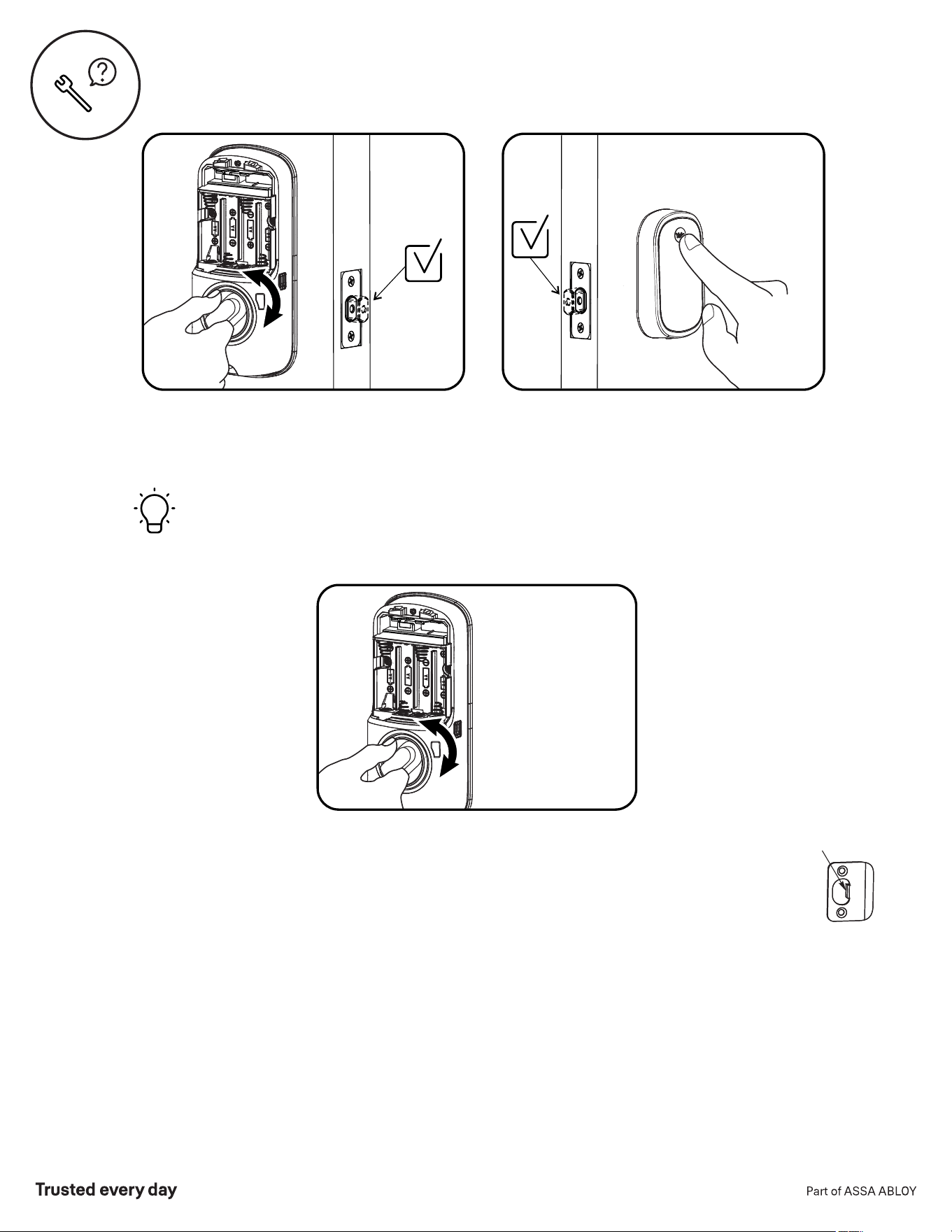
Helpful Tip:
Ensuring smooth deadbolt operation can enhance your battery life.
Thumbturn
with
door open
Keypad
with
door open
Thumbturn
with
door closed
Hardware Troubleshooting
If you feel resistance, ensure deadbolt strike plate aligns
with deadbolt. If deadbolt strike plate is out of alignment,
please attempt to adjust knob/ lever/ handleset strike
using steps below. The knob/ lever/ handleset latch
engagement into the strike is the main component used
for door alignment.
If deadbolt does not fully extend, consider increasing
depth of deadbolt strike pocket in frame.
To adjust Knob/Lever/Handleset strike plate:
1. Remove plate from door frame with a manual
screwdriver. (Using an electric driver may strip screw
heads or enlarge screw holes.)
2. Locate strike plate tab.
Bend the tab towards surface of strike.
Note: A small change may be all that is
required.
3. Reinstall strike plate using a manual screw
driver and test again.
4. If door cannot be adjusted sufficiently with strike tab,
both knob/lever/handleset latch and deadbolt latch
could require adjustment – we suggest you contact a
local locksmith for assistance.
For help with misalignments, watch our door alignment
video: US.YaleHome.com/en/support/yale-assure-lock-
faqs/electronic-lock-installation/
Tab
• If deadbolt does not extend or retract easily when testing thumbturn and keypad operation, revisit
installation steps. It is important that the bolt be in the retracted position during lock installation
and that installation procedure is followed carefully.
• Attempt rehanding using Settings Menu.
P/N YRD256-MNL-0003 Rev G
22
NOTE TO INSTALLER AND CONSUMER
While Yale® has included several features to prevent lockout (9-Volt battery jumper, low battery warnings),
it is still possible for a lockout situation to occur. Because this product does not have a mechanical
override (a key), Yale® recommends to use this product in an environment where there are additional entry
points into the dwelling.
FCC:
Class B Equipment
This equipment has been tested and found to comply with the limits for a Class B digital device, pursuant to Part 15 of the FCC Rules. These limits
are designed to provide reasonable protection against harmful interference in a residential installation. This equipment generates, uses, and can
radiate radio frequency energy and, if not installed and used in accordance with the instructions, may cause harmful interference to radio
communications. However, there is no guarantee that interference will not occur in a particular installation. If this equipment does cause harmful
Interference to radio or television reception, which can be determined by turning the equipment off and on, the user is encouraged to try to correct
the interference by one or more of the following measures:
Ÿ Reorient or relocate the receiving antenna.
Ÿ Increase the separation between the equipment and receiver.
Ÿ Connect the equipment into an outlet on a circuit different from that to which the receiver is connected.
Ÿ Consult the dealer or an experienced radio/TV technician for help.
Warning: Changes or modifications to this device, not expressly approved by Yale Home could void the user's authority to operate the equipment.
Industry Canada:
This Class A digital apparatus meets all requirements of the Canadian Interference Causing Equipment Regulations.
Cet appareillage numérique de la classe A répond à toutes les exigences de l'interférence canadienne causant des règlements d'équipement.
24/7 Product Support : 1-855-213-5841 • www.US.YaleHome.com
Yale® and Assure Lock® are registered trademarks of Yale Home. Other products' brand names may be trademarks or
registered trademarks of their respective owners and are mentioned for reference purposes only. © Copyright 2020.
All rights reserved. Reproduction in whole or in part without the express written permission of Yale Home is prohibited.
Yale Home
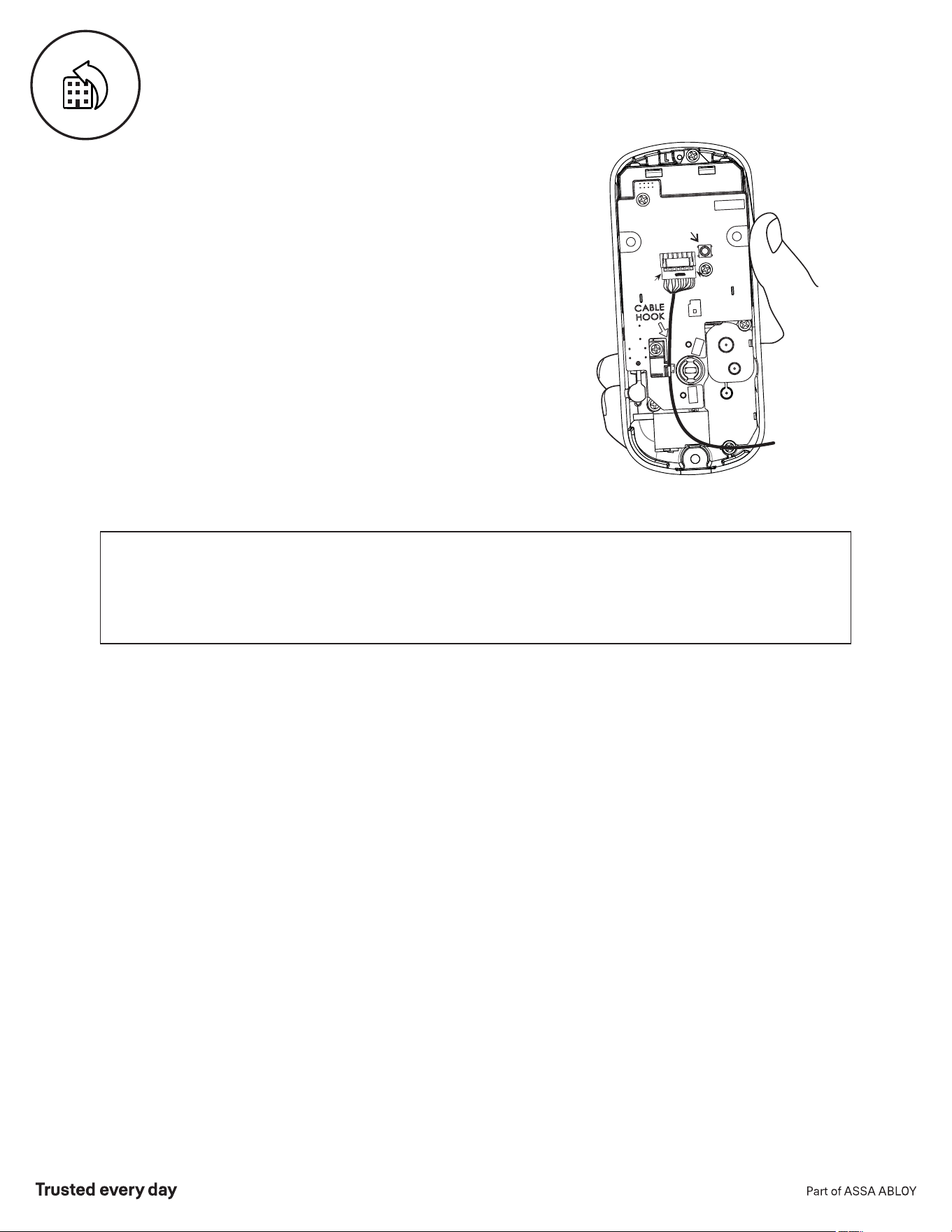
Resetting Lock to Factory Defaults
R
eset
Button
Inside Lock
When lock is reset to factory defaults all Entry Codes
(including the Master Entry Code*) are deleted and all
programming features are reset to original default
settings (see below).
1. Remove battery cover and batteries.
2. Remove inside lock to access reset button.
3. Reset button (see image at right) is located beside
cable adapter.
4. While pressing reset button reinstall batteries. Hold
reset button a minimum of 3 seconds then release.
5. Replace battery cover.
After reset, Master Entry Code creation is the only
option available and must be performed prior to any
other programming of the lock.
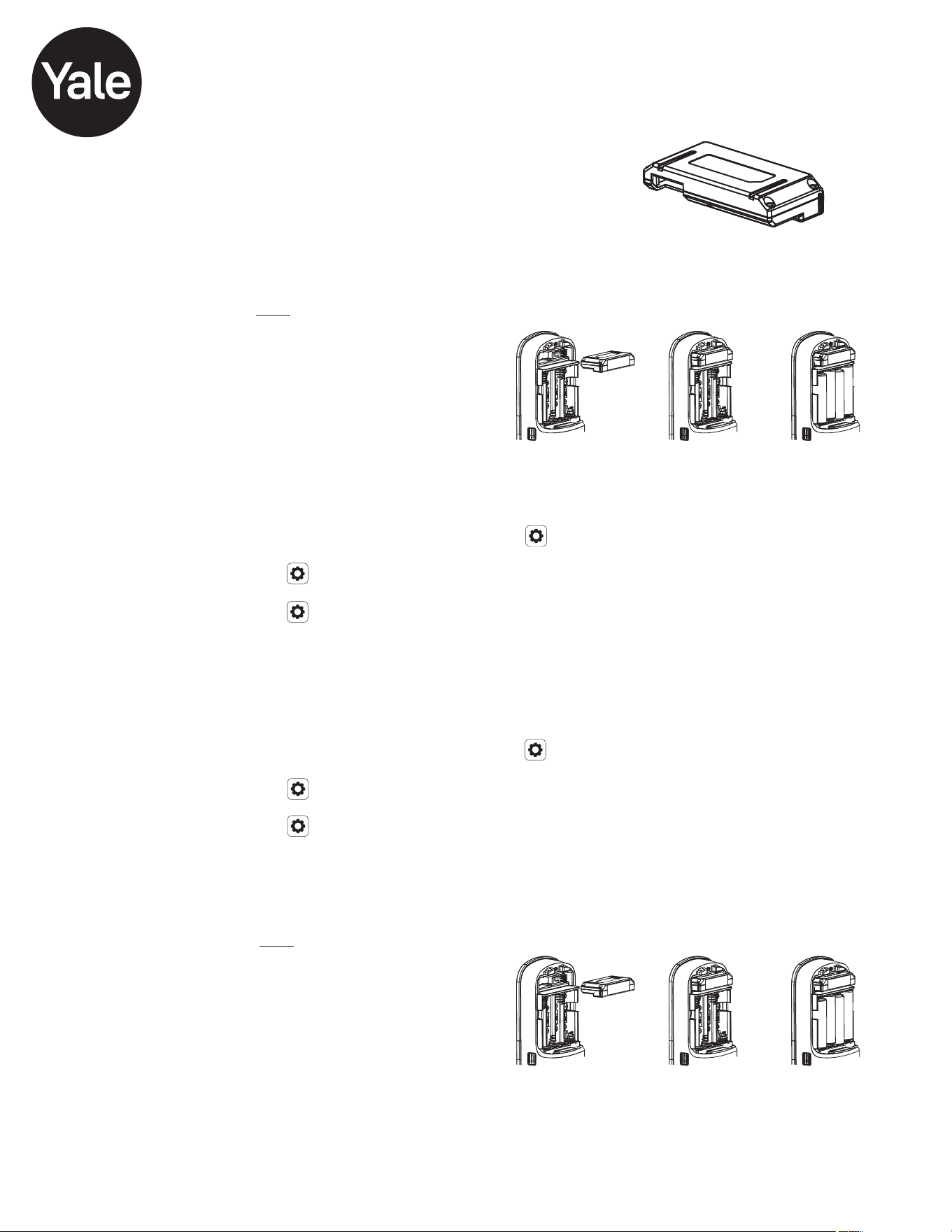
Yale® Z-Wave® Plus Smart Module
Installation Guide
Adding a Yale Z-Wave Plus Smart Module to your Assure Lock & Z-Wave System
1. On your lock keypad, enter your master entry code followed by the icon
2. Press the 7 key followed by the icon
3. Press the 3 key followed by the icon
4. Open the Z-Wave system's smart home or alarm app and follow the instructions for
removing a device
5. Remove the Yale Smart Module from the slot above the battery compartment
IMPORTANT: The batteries must be removed before removing the Yale Smart Module:
• Remove battery cover
• Remove batteries
• Insert or remove Yale Smart Module
• Reinstall batteries
• Reinstall battery cover
6. If you're adding a new Yale Smart Module, follow the instructions included with it
Removing a Yale Z-Wave Plus Smart Module from your Assure Lock & Z-Wave System
1. Install the Yale Smart Module into the slot above the battery compartment
IMPORTANT: The batteries must be removed before removing the Yale Smart Module:
• Remove battery cover
• Remove batteries
• Insert or remove Yale Smart Module
• Reinstall batteries
• Reinstall battery cover
2. Open the Z-Wave system's smart home or alarm app on your smartphone or tablet
3. Follow the in-app instructions for adding a new device
4. On your lock keypad, enter your master entry code followed by the icon
5. Press the 7 key followed by the icon
6. Press the 1 key followed by the icon
Please use this procedure only when network primary controller is
missing or otherwise inoperable.
P/N AYR202-ZW-INSTAL-FUL Rev F
Trusted every day
Part of ASSA ABLOY

P/N AYR202-ZW-INSTAL-FUL Rev F
Trusted every day
Part of ASSA ABLOY
WARNING: Changes or modifications to this device, not expressly approved by
Yale Home could void the user's authority to operate the equipment.
FCC:
Contain FCC ID: U4A-YRHCPZW0FM
Model: YRMZW2-US
This equipment has been tested and found to comply with the
limits for a Class B digital device, pursuant to Part 15 of the FCC
Rules. These limits are designed to provide reasonable protection
against harmful interference in a residential installation. This
equipment generates, uses, and can radiate radio frequency
energy and, if not installed and used in accordance with the
instructions, may cause harmful interference to radio
communications. However, there is no guarantee that
interference will not occur in a particular installation. If this
equipment does cause harmful Interference to radio or television
reception, which can be determined by turning the equipment off
and on, the user is encouraged to try to correct the interference
by one or more of the following measures:
Ÿ Reorient or relocate the receiving antenna.
Ÿ Increase the separation between the equipment and
receiver.
Ÿ Connect the equipment into an outlet on a circuit different
from that to which the receiver is connected.
Ÿ Consult the dealer or an experienced radio/TV technician for
help.
THIS DEVICE COMPLIES WITH PART 15 OF THE FCC RULES.
OPERATION IS SUBJECT TO THE FOLLOWING TWO
CONDITIONS.
(1) THIS DEVICE MAY NOT CAUSE HARMFUL INTERFERENCE,
AND (2) THIS DEVICE MUST ACCEPT ANY INTERFERENCE
RECEIVED, INCLUDING INTERFERENCE THAT MAY CAUSE
UNDESIRED OPERATION.
Industry Canada:
Contain IC: 6982A-YRHCPZW0FM
Model: YRMZW2-US
Section 7.1.2 of RSS-GEN Under Industry Canada regulations,
this radio transmitter may only operate using an antenna of a
type and maximum (or lesser) gain approved for the transmitter
by Industry Canada. To reduce potential radio interference to
other users, the antenna type and its gain should be so chosen
that the equivalent isotropically radiated power (e.i.r.p.) is not
more than that necessary for successful communication.
En vertu des règlements d'Industrie Canada, cet émetteur radio
ne peut fonctionner avec une antenne d'un type et un maximum
(ou moins) approuvés pour gagner de l'émetteur par Industrie
Canada. Pour réduire le risque d'interférence aux autres
utilisateurs, le type d'antenne et son gain doivent être choisies
de façon que la puissance isotrope rayonnée équivalente (PIRE)
ne dépasse pas ce qui est nécessaire pour une communication
réussie.
Section 7.1.3 of RSS-GEN This Device complies with Industry
Canada License-exempt RSS standard(s). Operation is subject
to the following two conditions: 1) this device may not cause
interference, and 2) this device must accept any interference,
including interference that may cause undesired operation of the
device.
Cet appareil est conforme avec Industrie Canada RSS standard
exemptes de licence(s). Son fonctionnement est soumis aux
deux conditions suivantes: 1) ce dispositif ne peut causer des
interférences, et 2) cet appareil doit accepter toute interférence,
y compris les interférences qui peuvent causer un mauvais
fonctionnement du dispositif.
This radio transmitter 6982A-YRHCPZW0FM has been approved
by Industry Canada to operate with the antenna types listed
below with the maximum permissible gain indicated. Antenna
types not included in this list, having a gain greater than the
maximum gain indicated for that type, are strictly prohibited for
use with this device.
Le présent émetteur radio 6982A-YRHCPZW0FM a été approuvé
par Industrie Canada pour fonctionner avec les types d'antenne
énumérés ci-dessous et ayant un gain admissible maximal. Les
types d'antenne non inclus dans cette liste, et dont le gain est
supérieur au gain maximal indiqué, sont strictement interdits
pour l'exploitation de l'émetteur.
CAN ICES-3B/NMB-3B
24/7 Tech Support : 1-855-492-0505 • www.US.YaleHome.com
Yale® is a registered trademark of Yale Home. Other products' brand names may be trademarks or registered trademarks
of their respective owners and are mentioned for reference purposes only. © Copyright 2020. All rights reserved.
Reproduction in whole or in part without the express written permission of Yale Home is prohibited.
This device is a security enabled Z-Wave Plus product that is able to use encrypted Z-Wave Plus messages to
communicate to other security enabled Z-Wave Plus products. This device must be used in conjunction with a
Security Enabled Z-Wave Controller in order to fully utilize all implemented functions. This product can be
operated in any Z-Wave network with other Z-Wave certified devices from other manufacturers. All non-battery
operated nodes within the network will act as repeaters regardless of vendor to increase reliability of the network.
Yale Home
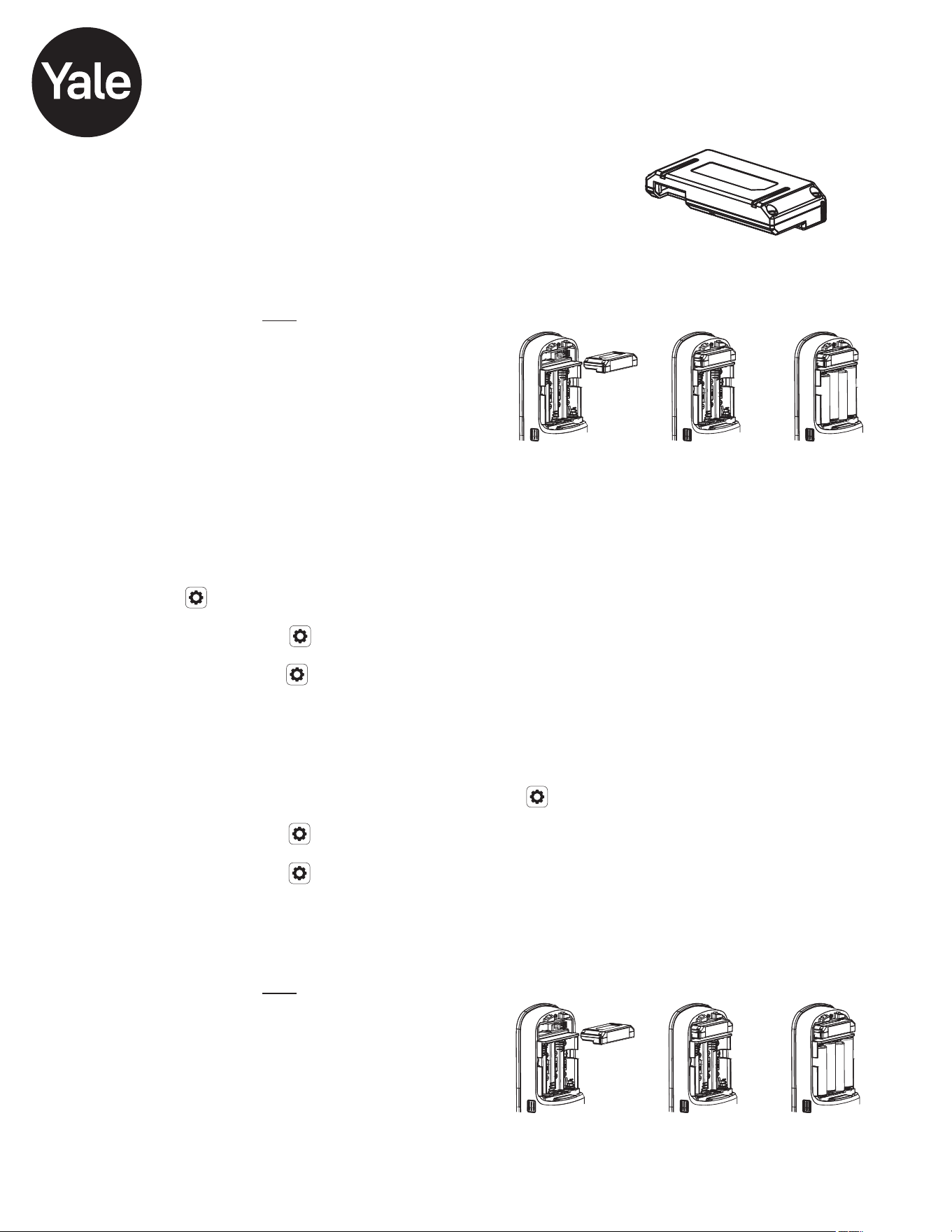
Yale® ZigBee® 3.0 Smart Module
Installation Guide
Adding a Yale ZigBee Smart Module to your Assure Lock & ZigBee System
1. On your lock keypad, enter your master entry code followed by the icon
2. Press the 7 key followed by the icon
3. Press the 3 key followed by the icon
4. Open the ZigBee system's smart home or alarm app and follow the instructions for
removing a device
5. Remove the Yale Smart Module from the slot above the battery compartment
IMPORTANT: The batteries must be removed before removing the Yale Smart Module:
• Remove battery cover
• Remove batteries
• Insert or remove Yale Smart Module
• Reinstall batteries
• Reinstall battery cover
6. If you're adding a new Yale Smart Module, follow the instructions included with it
1. Install the Yale Smart Module into the slot above the battery compartment
IMPORTANT: The batteries must be removed before removing the Yale Smart Module:
• Remove battery cover
• Remove batteries
• Insert or remove Yale Smart Module
• Reinstall batteries
• Reinstall battery cover
2. Open the ZigBee system's smart home or alarm app on your smartphone or tablet
3. Follow the in-app instructions for adding a new device
4. Scan the Install Code (at right) when instructed by the app
5. On your lock keypad, enter your master entry code
followed by the icon
6. Press the 7 key followed by the icon
7. Press the 1 key followed by the icon
Removing a Yale ZigBee Smart Module from your Assure Lock & ZigBee System
INSTALL CODE
Please use this procedure only when network primary controller is
missing or otherwise inoperable.
Trusted every day
Part of ASSA ABLOY
P/N AYR202-ZB-INSTAL-FUL Rev E

Trusted every day
Part of ASSA ABLOY
P/N AYR202-ZB-INSTAL-FUL Rev E
FCC:
FCC ID: U4A-YRHCPZB0FM
Model: YRMZB2
This equipment has been tested and found to comply with the
limits for a Class B digital device, pursuant to Part 15 of the FCC
Rules. These limits are designed to provide reasonable protection
against harmful interference in a residential installation. This
equipment generates, uses, and can radiate radio frequency
energy and, if not installed and used in accordance with the
instructions, may cause harmful interference to radio
communications. However, there is no guarantee that
interference will not occur in a particular installation. If this
equipment does cause harmful Interference to radio or television
reception, which can be determined by turning the equipment off
and on, the user is encouraged to try to correct the interference
by one or more of the following measures:
Ÿ Reorient or relocate the receiving antenna.
Ÿ Increase the separation between the equipment and
receiver.
Ÿ Connect the equipment into an outlet on a circuit different
from that to which the receiver is connected.
Ÿ Consult the dealer or an experienced radio/TV technician for
help.
This equipment complies with FCC radiation exposure limits set
forth for an uncontrolled environment. This equipment should be
installed and operated with minimum distance 20cm between
the radiator and your body. This transmitter must not be co-
located or operating in conjunction with any other antenna or
transmitter.
This device complies with Part 15 of the FCC rules. Operation is
subject to the following two conditions: (1) This device may not
cause harmful interference, and (2) this device must accept any
interference received, including interference that may cause
undesired operation. Any changes or modifications not expressly
approved by manufacturer could void the user’s authority to
operate the equipment.
IMPORTANT! Any changes or modifications not expressly
approved by the party responsible for compliance could void the
user’s authority to operate this equipment.
Industry Canada:
IC: 6982A-YRHCPZB0FM
Model: YRMZB2
This Device complies with Industry Canada License-exempt RSS
standard(s). Operation is subject to the following two conditions:
1) this device may not cause interference, and 2) this device
must accept any interference, including interference that may
cause undesired operation of the device.
Le présent appareil est conforme aux CNR d'Industrie Canada
applicables aux appareils radio exempts de licence.
L'exploitation est autorisée aux deux conditions suivantes: (1)
l'appareil ne doit pas produire de brouillage, et (2) l'utilisateur de
l'appareil doit accepter tout brouillage radioélectrique subi,
meme si le brouillage est susceptible d'en compromettre le
fonctionnement.
Important Note:
Radiation Exposure Statement:
This equipment complies with IC radiation exposure limits set
forth for an uncontrolled environment. This equipment should
be installed and operated with minimum distance 20cm
between the radiator and your body.
Note Importante: (Pour l’utilisation de dispositifs mobiles)
Declaration d’exposition aus radiations:
Cet équipement est conforme aux limites d´exposition aux
rayonnements IC établies pour un environnement non contrôlé.
Cet équipment doit être installé et utilisé avec un mimimum de
20 cm de distance entre la source de rayonnement et votre
corps.
IMPORTANT! Any changes or modifications not expressly
approved by the party responsible for compliance could void the
user’s authority to operate this equipment.
IMPORTANT! Tous les changements ou modifications pas
expressément approuvés par la partie responsable de la
conformité ont pu vider l’autorité de l’utilisateur pour actioner cet
équipment.
CAN ICES-3B/NMB-3B
This device is a security enabled Zigbee product that is able to use encrypted Zigbee messages to communicate
to other security enabled Zigbee products. This device must be used in conjunction with a Security Enabled
Zigbee Controller in order to fully utilize all implemented functions. This product can be operated in any Zigbee
network with other Zigbee certified devices from other manufacturers. All non-battery operated nodes within the
network will act as repeaters regardless of vendor to increase reliability of the network.
WARNING: Changes or modifications to this device, not expressly approved by
Yale Home could void the user's authority to operate the equipment.
24/7 Tech Support : 1-855-492-0505 • www.US.YaleHome.com
Yale® is a registered trademark of Yale Home. Other products' brand names may be trademarks or registered trademarks
of their respective owners and are mentioned for reference purposes only. © Copyright 2020. All rights reserved.
Reproduction in whole or in part without the express written permission of Yale Home is prohibited.
Yale Home
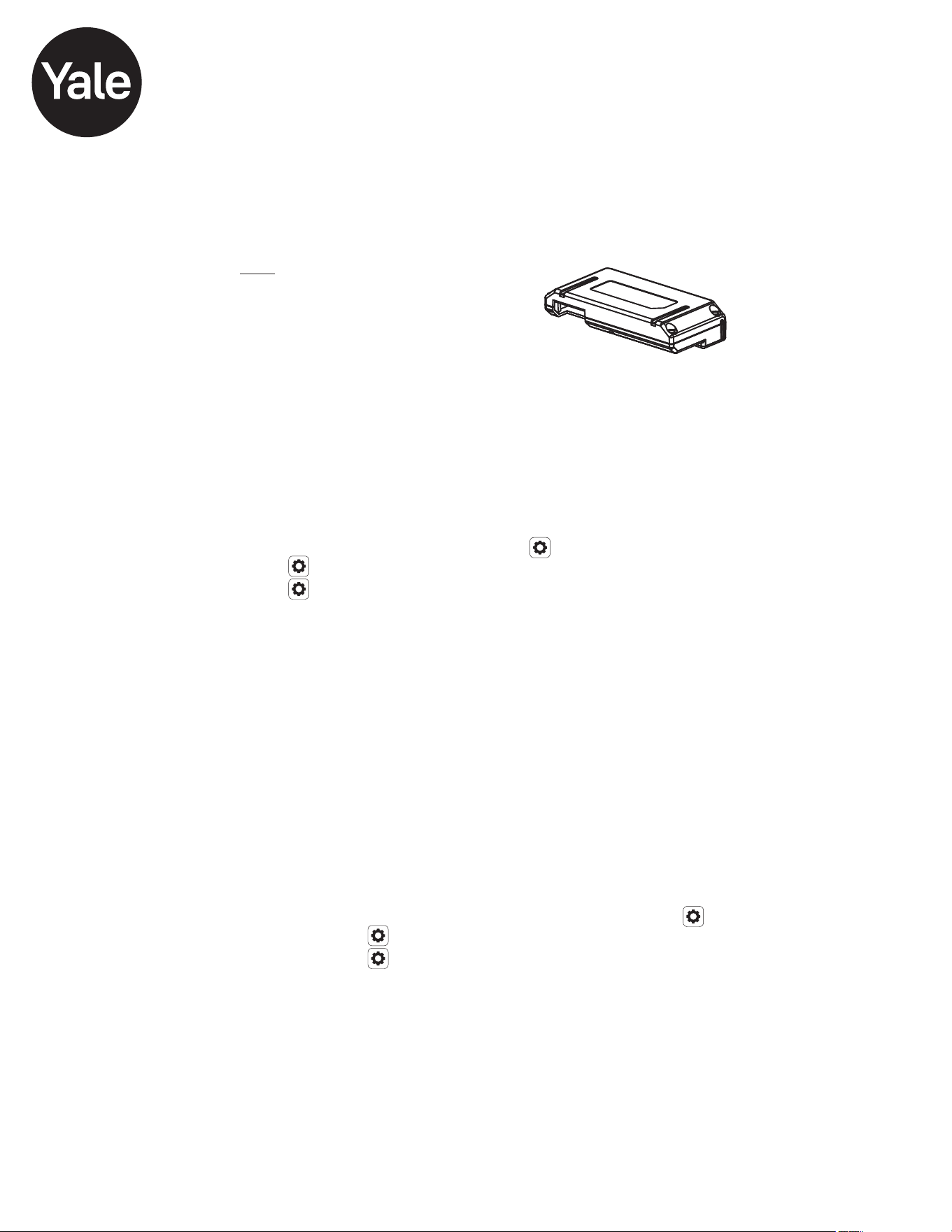
Yale® iM1 Network Module
Installation and Programming Instructions
Installing the Yale iM1 Network Module
IMPORTANT: the batteries must be removed prior to removing
and/or inserting the network module:
• Remove battery cover and batteries.
• Remove and/or insert Network Module.
• Reinstall batteries and battery cover.
Enrolling the iM1 Network Module:
The Yale iM1 Network Module must be used with a Yale Assure Lock or Yale nexTouch
Lock and cannot be used in conjunction with any other Yale Network Module.
To Enroll the Module:
• On your lock keypad, enter your Master Entry Code followed by the icon
• Press the 7 key followed by the key.
• Press the 1 key followed by the key.
1. After following steps for enrolling module, download the Yale Secure app from the App Store®.
2. Ensure Bluetooth® is enabled on your iPhone®, iPad® or iPod touch®, and that you're within a
foot of your Yale lock.
3. Open the Yale Secure app and agree to allow app to access your Home Data.
4. If you do not have a home already created, create a new home when prompted. Tap + to add a
new Yale Lock.
5. The App will search for your Yale lock. Be sure that you are within close proximity (less than
two feet or so). When "Yale Lock" appears, tap to add.
If lock does not appear, enter your Master Entry Code on lock keypad followed by the key,
• Press the 7 key followed by the key.
• Press the 1 key followed by the key.
6. Scan your Accessory Setup Code; shown below, or manually enter within the app.
Connecting the Yale Secure App with the Yale iM1 Network Module
Accessory Setup Code
Trusted every day
Part of ASSA ABLOY
P/N AYR202-iM1-INSTAL-FUL Rev F

Trusted every day
Part of ASSA ABLOY
P/N AYR202-iM1-INSTAL-FUL Rev F
Yale® and Assure Lock® are registered trademarks of Yale Home. nexTouch™ is a trademark of Yale Home. Other products’ brand names may be trademarks or registered trademarks of their respective owners
and are mentioned for reference purposes only. Copyright © 2020, Yale Home. All rights reserved. Reproduction in whole or in part without the express written permission of Yale Home is prohibited.
Apple®, iPhone®, iPad®, iPod touch® and Siri® are trademarks of Apple Inc., registered in the U.S. and other countries. HomeKit is a trademark of Apple Inc. Use of the Works with Apple HomeKit logo means
that an electronic accessory has been designed to connect specifically to iPod touch, iPhone or iPad, respectively, and has been certified by the developer to meet Apple performance standards. Apple is not
responsible for the operation of this device or its compliance with safety and regulatory standards. Use of the HomeKit logo means that an electronic accessory has been designed to connect specifically to iPod,
iPhone, or iPad, respectively, and has been certified by the developer to meet Apple performance standards. Apple is not responsible for the operation of this device or its compliance with safety and regulatory
standards. Please note that the use of this accessory with iPod, iPhone, or iPad may affect wireless performance.
FCC:
Class B Equipment
This equipment has been tested and found to comply with the
limits for a Class B digital device, pursuant to Part 15 of the
FCC Rules. These limits are designed to provide reasonable
protection against harmful interference in a residential
installation. This equipment generates, uses, and can radiate
radio frequency energy and, if not installed and used in
accordance with the instructions, may cause harmful
interference to radio communications. However, there is no
guarantee that interference will not occur in a particular
installation. If this equipment does cause harmful Interference
to radio or television reception, which can be determined by
turning the equipment off and on, the user is encouraged to try
to correct the interference by one or more of the following
measures:
Ÿ Reorient or relocate the receiving antenna.
Ÿ Increase the separation between the equipment and
receiver.
Ÿ Connect the equipment into an outlet on a circuit different
from that to which the receiver is connected.
Ÿ Consult the dealer or an experienced radio/TV technician
for help.
THIS DEVICE COMPLIES WITH PART 15 OF THE FCC RULES.
OPERATION IS SUBJECT TO THE FOLLOWING TWO
CONDITIONS. (1) THIS DEVICE MAY NOT CAUSE HARMFUL
INTERFERENCE, AND (2) THIS DEVICE MUST ACCEPT ANY
INTERFERENCE RECEIVED, INCLUDING INTERFERENCE
THAT MAY CAUSE UNDESIRED OPERATION.
This equipment complies with FCC radiation exposure limits
set forth for an uncontrolled environment. This equipment
should be installed and operated with minimum distance
20cm between the radiator & your body.
Industry Canada:
Section 7.1.2 of RSS-GEN Under Industry Canada regulations,
this radio transmitter may only operate using an antenna of a
type and maximum (or lesser) gain approved for the
transmitter by Industry Canada. To reduce potential radio
interference to other users, the antenna type and its gain
should be so chosen that the equivalent isotropically radiated
power (e.i.r.p.) is not more than that necessary for successful
communication.
En vertu des règlements d'Industrie Canada, cet émetteur
radio ne peut fonctionner avec une antenne d'un type et un
maximum (ou moins) approuvés pour gagner de l'émetteur
par Industrie Canada. Pour réduire le risque d'interférence aux
autres utilisateurs, le type d'antenne et son gain doivent être
choisies de façon que la puissance isotrope rayonnée
équivalente (PIRE) ne dépasse pas ce qui est nécessaire pour
une communication réussie.
Section 7.1.3 of RSS-GEN This Device complies with Industry
Canada License-exempt RSS standard(s). Operation is
subject to the following two conditions: 1) this device may not
cause interference, and 2) this device must accept any
interference, including interference that may cause undesired
operation of the device.
Cet appareil est conforme avec Industrie Canada RSS
standard exemptes de licence(s). Son fonctionnement est
soumis aux deux conditions suivantes: 1) ce dispositif ne peut
causer des interférences, et 2) cet appareil doit accepter toute
interférence, y compris les interférences qui peuvent causer
un mauvais fonctionnement du dispositif.
CAN ICES-3B/NMB-3B
24/7 Tech Support : 1-855-492-0505 • www.US.YaleHome.com
Yale Home
WARNING: Changes or modifications to this device, not expressly approved by
Yale Home could void the user's authority to operate the equipment.