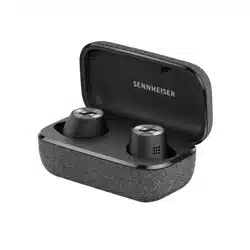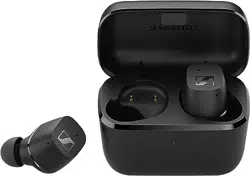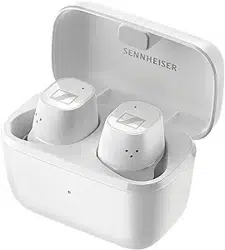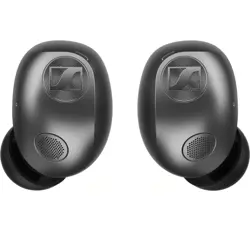
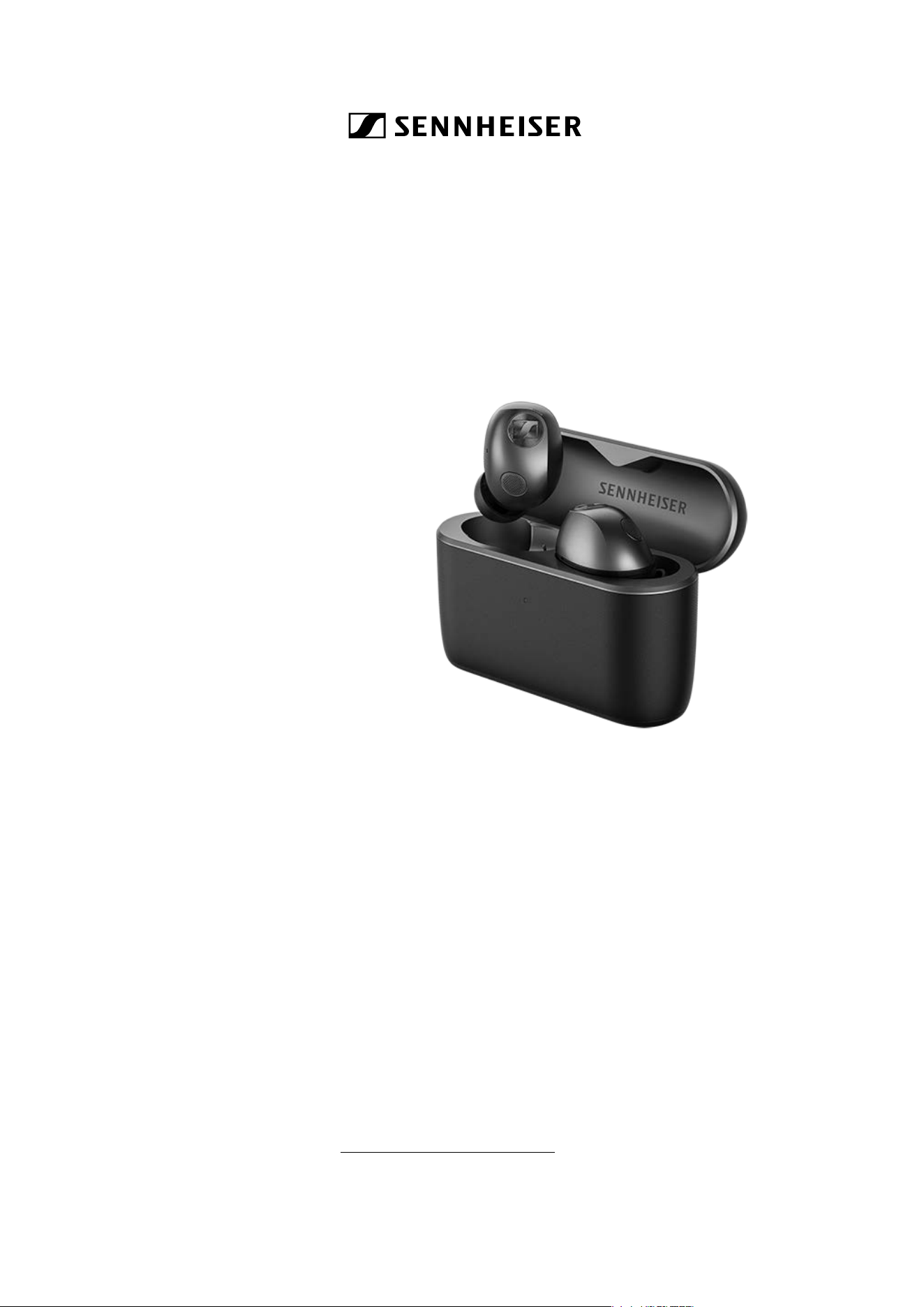
MOMENTUM True Wireless 5
True Wireless stereo earbuds
Model: MTW5, MTW5 R, MTW5 L, MTW5 C
Instruction manual
Use the search function, the navigation (left) or the following links:
Start
“Product overview”
“Getting started”
“Using the earbuds”
“FAQ/If a problem occurs...”
“Specifications”
Sonova Consumer Hearing GmbH
Im Heidkampe 9
30659 Hannover
Germany
www.sennheiser-hearing.com
Version: 08/26 A01
Important safety instructions
2 | MOMENTUM True Wireless 5
Important safety instructions
▷ Read this instruction manual carefully and completely before
using the product.
▷ Always include this instruction manual when passing the product
on to third parties.
▷ Do not use the product if it is obviously defective or makes loud,
unusual (whistling or beeping) noise.
▷ Only use the product in environments where Bluetooth® wireless
transmission is permitted.
Preventing damage to health and accidents
▷ Protect your hearing from high volume levels. Permanent
hearing damage may occur if earbuds are used at high
volume levels for long periods of time. Sennheiser ear-
buds sound exceptionally good at low and medium volume levels.
▷ Do not insert the earbuds too deep into your ears and never insert
them without ear tips. Always remove the earbuds slowly and
carefully from your ears.
▷ The product generates stronger permanent mag-
netic fields that could cause interference with car-
diac pacemakers, implanted defibrillators (ICDs)
and other implants. Always maintain a distance of at least 3.94"/
10 cm between the product component containing the magnet
(earbuds and charging case) and the cardiac pacemaker,
implanted defibrillator, or other implant.
▷ Keep the product, accessories and packaging parts out of reach
of children and pets to prevent accidents. Swallowing and chok-
ing hazard.
▷ Do not use the product in an environment that requires your spe-
cial attention (e.g. in traffic). Especially the product’s active noise
cancellation can make ambient sounds inaudible or drastically
change the perception of acoustic warning signals.
▷ Do not use external power supply that can deliver more than 20 V
or 60 W.
Preventing damage to the product and malfunctions
▷ Always keep the product dry and do not expose it to extreme tem-
peratures (hairdryer, heater, extended exposure to sunlight, etc.)
to avoid corrosion or deformation. The normal operating tempera-
ture is from 0°C to 40°C/32°F to 104 °F.
▷ Do not use if immersed into liquid.
▷ To avoid loud, unusual (whistling or beeping) noise and to ensure
proper noise cancellation, do not cover the microphone openings
of the active noise cancellation circuitry located on the outside of
the product.
▷ We recommend to use only attachments/accessories/spare
parts supplied or recommended by Sonova Consumer Hearing.
▷ Clean the product only with a soft, dry cloth. Product parts with
ingress protection (IP protection rating) can be cleaned with a
slightly damp cloth.
Important safety instructions
MOMENTUM True Wireless 5 | 3
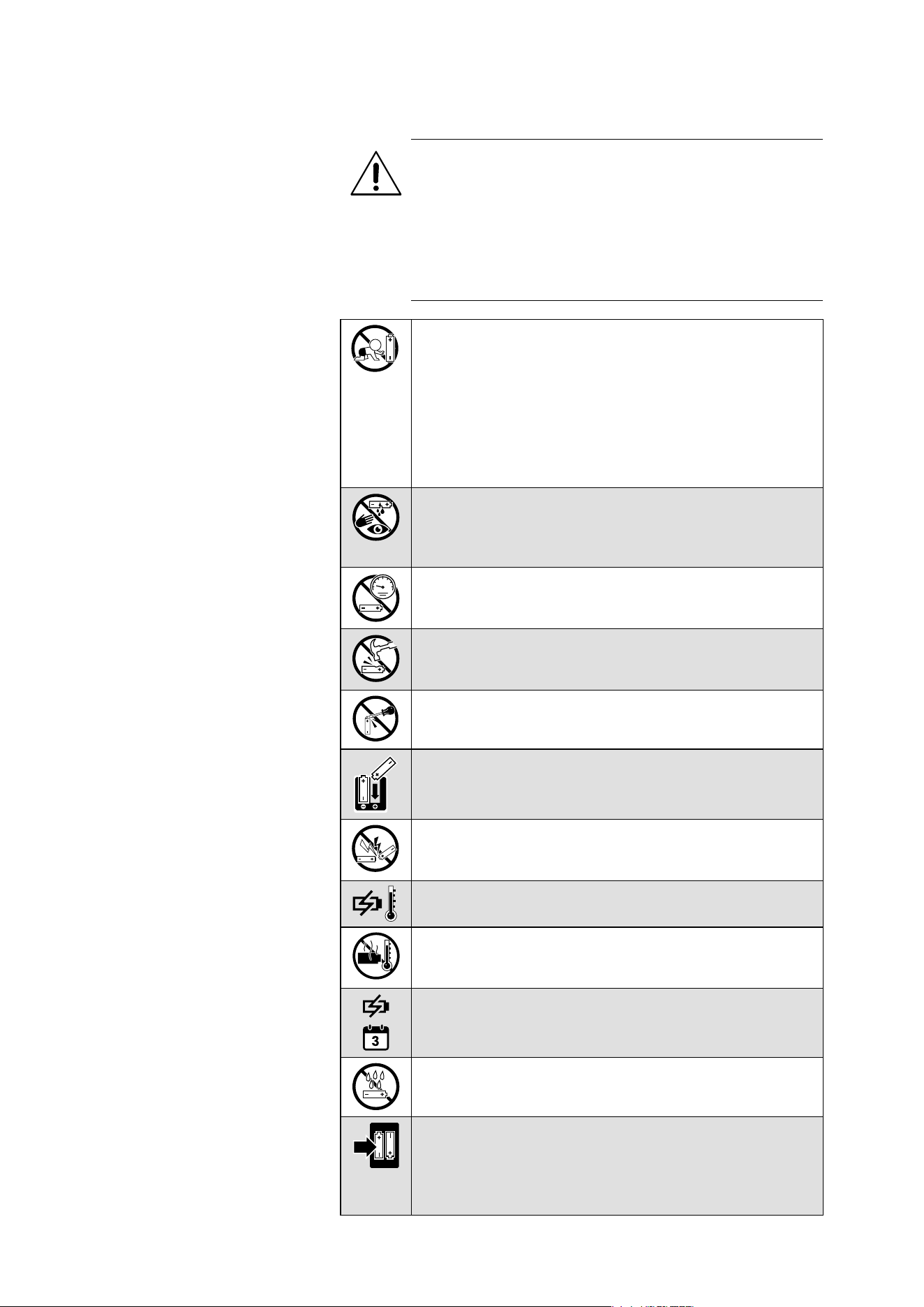
Safety instructions for Lithium rechargeable batteries
WARNING
If abused or misused, rechargeable batteries may leak. In
extreme cases, they may even present a risk of:
• explosion
• heat and fire development
• smoke and/or gas development
• damage to health and/or the environment
Keep away from children.
• Keep small cells and batteries which are considered
swallowable out of the reach of children.
• Swallowing may lead to burns, perforation of soft tis-
sue, and death. Severe burns can occur within 2 hours
of ingestion.
• In case of ingestion of a cell or battery, seek medical
assistance immediately.
In the event of a cell leaking, do not allow the liquid to
come into contact with the skin or eyes. In case of con-
tact, wash the affected area with copious amounts of
water and seek medical assistance immediately.
Leaving a battery in a low air pressure environment may
result in an explosion or the leakage of flammable liquid
or gas.
Mechanical deformation of a battery, including com-
pression, impact, cutting or puncture, may result in an
explosion.
Do not mutilate or dismantle.
Observe correct polarity.
Pack/store charged rechargeable batteries so that the
terminals cannot contact each other to avoid danger of
fire hazard.
Only charge rechargeable batteries at ambient tempera-
tures between 5°C and 35°C/41°F and 95°F.
Do not heat above 70°C/158°F, e.g. do not expose to
sunlight or throw into a fire, a hot oven or a high-tem-
perature environment.
When not using rechargeable batteries for extended
periods of time, charge them regularly (about every
three months).
Do not expose to moisture.
Sonova Consumer Hearing recommends using batteries
that are compatible with all technical specifications pro-
vided by Sonova and approved to local regulation(s).
Replacing with a non-compatible battery can defeat a
safeguard.
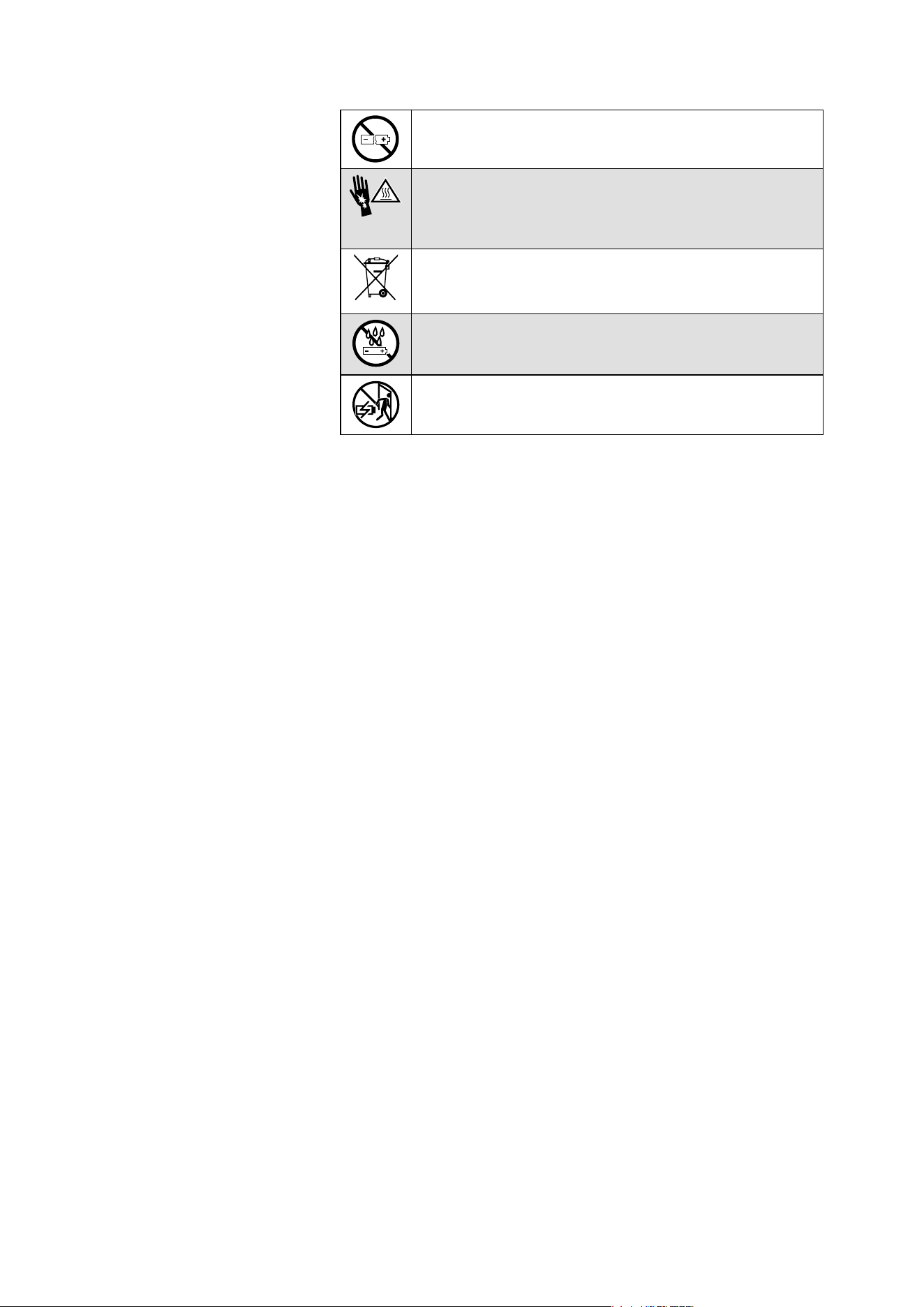
Important safety instructions
4 | MOMENTUM True Wireless 5
Notes on the ingress protection rating of the earbuds
The earbuds feature an IP54 ingress protection rating which means
they are protected from the ingress of water (protection class
according to International Protection Marking (IP code), IEC standard
60529, tested under laboratory conditions).
The earbuds can be used in the rain, for example. However, they are
not suitable for immersion in water or for wearing in the shower. In
case of permanent moisture/wetness, the ingress protection can be
reduced and the product can be damaged.
▷ Do not charge wet earbuds. Completely dry wet earbuds with a
dry cloth before charging them.
The charging case is not splash waterproof.
▷ Do not use if immersed into liquid.
▷ Always keep the charging case dry.
▷ Make sure that the charging socket is free from moisture and con-
tamination.
▷ Only use high-quality USB charging cables with USB-IF certifica-
tion.
If the charging case has become damp or wet:
▷ Dry the charging case completely with a dry cloth.
▷ Allow the charging case to dry at room temperature for at least
24 hours before using and charging it again.
▷ Do not continue to use the product if it is obviously defective.
Notes on data collection and processing and on firmware updates
This product stores individual settings such as the volume and the
Bluetooth addresses of paired devices. This data is required for the
operation of the product and is not transferred to Sonova Consumer
Hearing GmbH or companies commissioned by Sonova Consumer
Hearing GmbH and is not processed.
Using the “Sennheiser Smart Control Plus” app, you can update the
firmware of the product for free via an Internet connection. If the
device on which the app is installed is connected to the Internet, the
following data is automatically transferred to and processed by
Sonova Consumer Hearing servers in order to provide and transfer
Do not continue using defective or swollen rechargeable
batteries and dispose of them immediately.
Avoid prolonged skin contact with the product,
rechargeable battery, charger or charging cable when
connected to a power source. These components can
heat up during charging and cause skin irritation.
Ensure disposal of batteries at special collection points
or return them to your specialist dealer to facilitate recy-
cling.
Do not charge the product/rechargeable batteries in a
damp environment. Make sure that the charging socket
is free from moisture and contamination.
Do not leave the product/rechargeable batteries unat-
tended while charging.

Important safety instructions
MOMENTUM True Wireless 5 | 5
suitable firmware updates: hardware identifier, hardware revision
number, firmware version of the product, operating system type
(Android, iOS) and version, version of the app. The data is only used
for the purpose of providing and transferring the firmware updates
and is not stored permanently.
If you do not want this data to be transferred and processed, do not
connect to the Internet.
Intended use/Liability
These headphones have been designed as an accessory for Blue-
tooth compliant devices. They are intended for wireless audio com-
munication such as music playback and phone calls via Bluetooth
wireless technology.
It is considered improper use when the product is used for any appli-
cation not named in the corresponding product documentation.
Sonova Consumer Hearing GmbH does not accept liability for
damage arising from misuse or improper use of this product and its
attachments/accessories. Sonova Consumer Hearing GmbH is not
liable for damages to USB devices that are not consistent with the
USB specifications.
Sonova Consumer Hearing GmbH is not liable for damages resulting
from the loss of connection due to flat or overaged rechargeable bat-
teries or exceeding the Bluetooth transmission range.
Before putting into operation, please observe the respective coun-
try-specific regulations.
Package contents
6 | MOMENTUM True Wireless 5
Package contents
Online you can find:
• this detailed instruction manual and additional information
(www.sennheiser-hearing.com/download
)
• the Sennheiser Smart Control Plus app for configuring the ear-
buds and for additional functions
– Google® Play: click
– Apple® App Store®: click
• a list of accessories on the MOMENTUM True Wireless 5 product
page at
www.sennheiser-hearing.com/momentum-true-wireless-5
(to purchase online or contact your local Sonova Consumer Hear-
ing partner:
global.sennheiser-hearing.com/pages/support
)
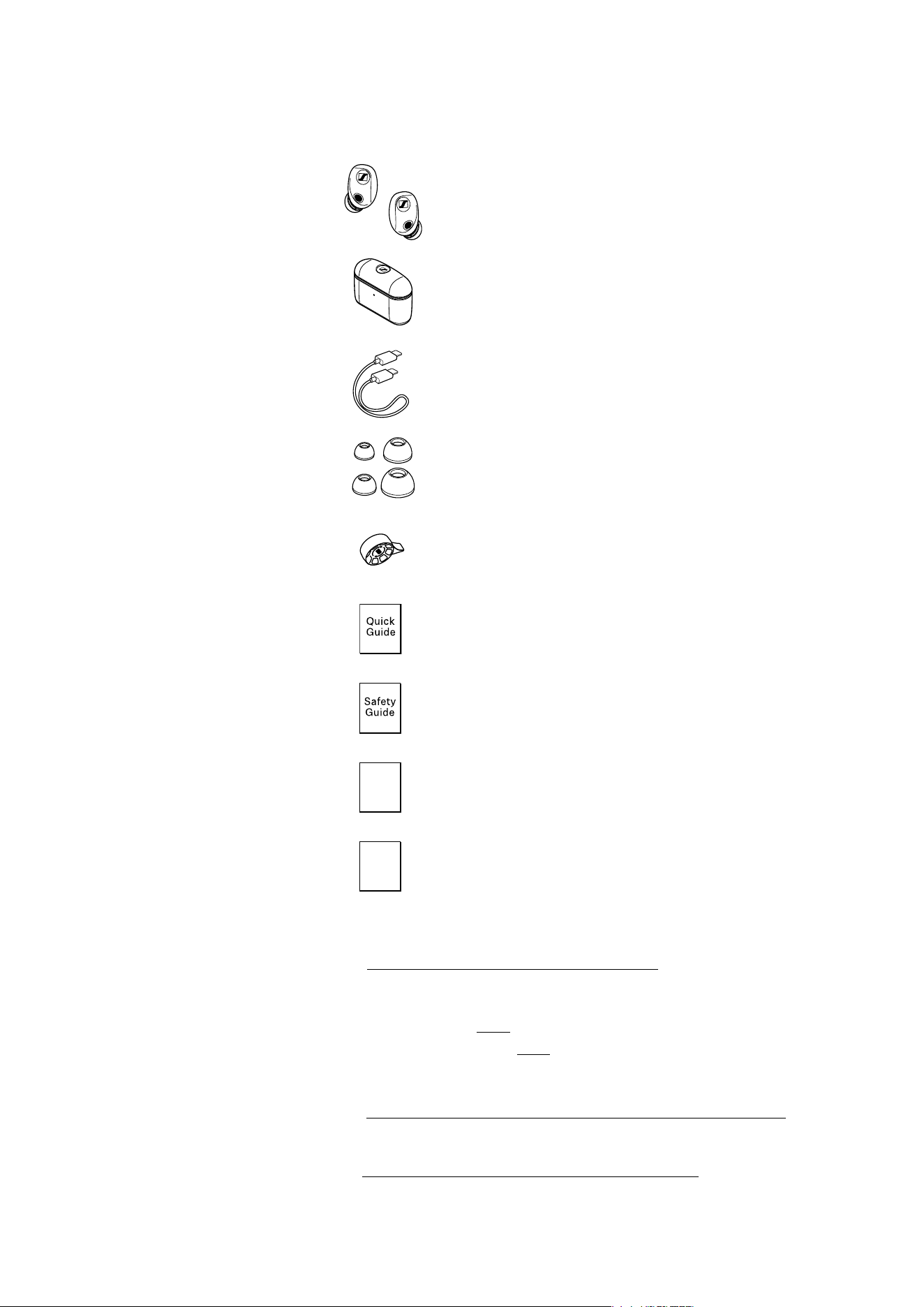
Earbud R for right ear (model: MTW5 R) and
earbud L for left ear (model: MTW5 L)
with replaceable rechargeable batteries
Charging case (model: MTW5 C) for the earbuds
with wireless charging function and replaceable
rechargeable battery
USB charging cable with 2x USB C connector,
approx. 0,4 m
Silicone ear tips (size XS, S, M (pre-mounted to the
earbuds) and L)
Battery replacement tool
Quick guide
Safety guide
Compliance sheet
Battery information sheet
Com-
pliance
Sheet
Battery
Informa
-
tion
Sheet
Product overview
MOMENTUM True Wireless 5 | 7
Product overview
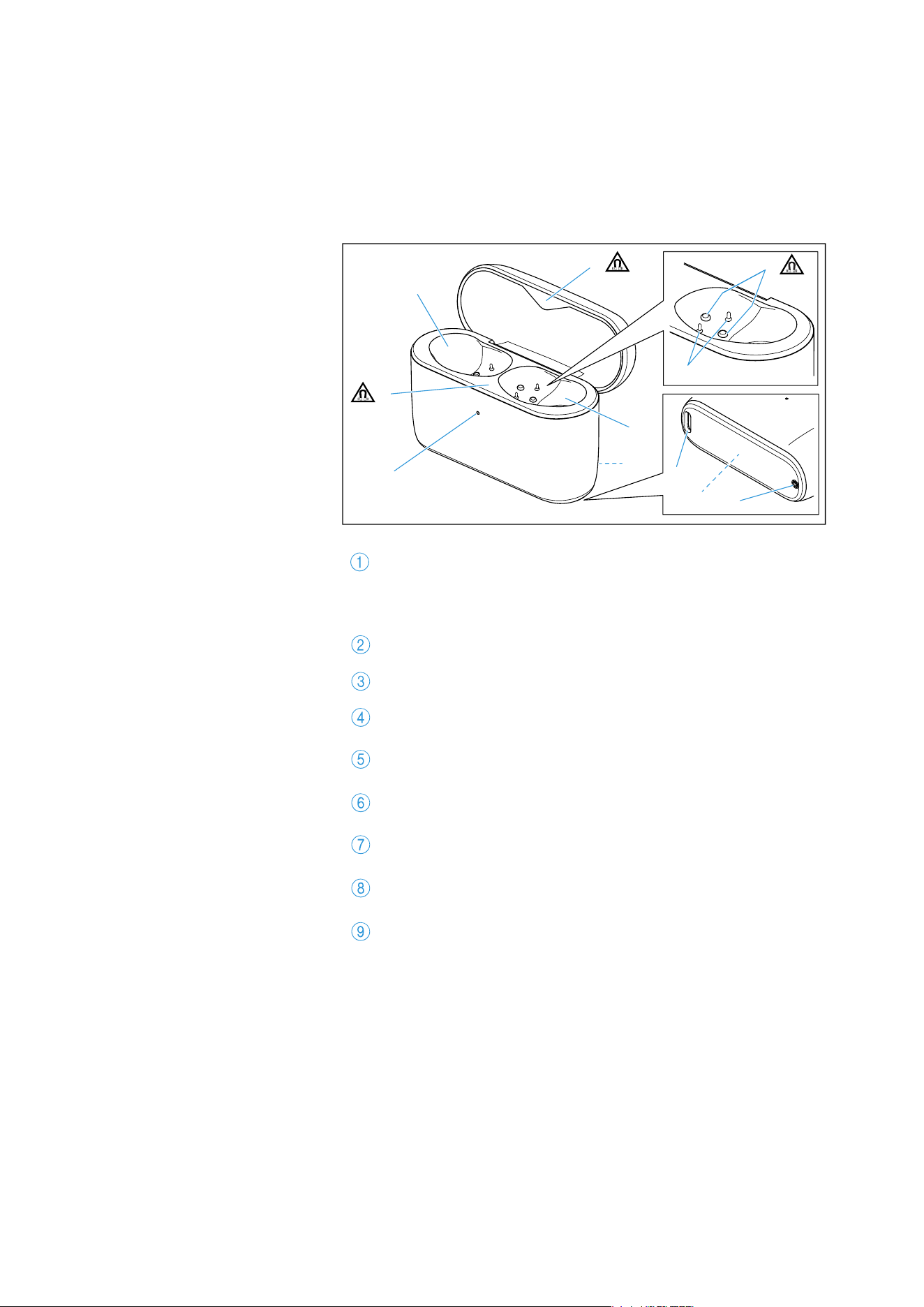
Charging case
Model: MTW5 C
LED display
indicates the charging process/charge status of the
rechargeable battery of the charging case or of the ear-
buds (when inserted into the charging case)
Magnetic holders
Charging compartment for the left earbud L
Charging compartment for the right earbud R
Contact area (on the backside)
for wireless charging of the rechargeable battery
Charging contacts
Input for USB C connector
for charging the rechargeable battery
Replaceable rechargeable battery (inside the battery com-
partment) for charging the earbuds on the go
Phillips screw
for opening the battery compartment
1
3
8
5
7
2
2
9
2
4
6
Product overview
8 | MOMENTUM True Wireless 5
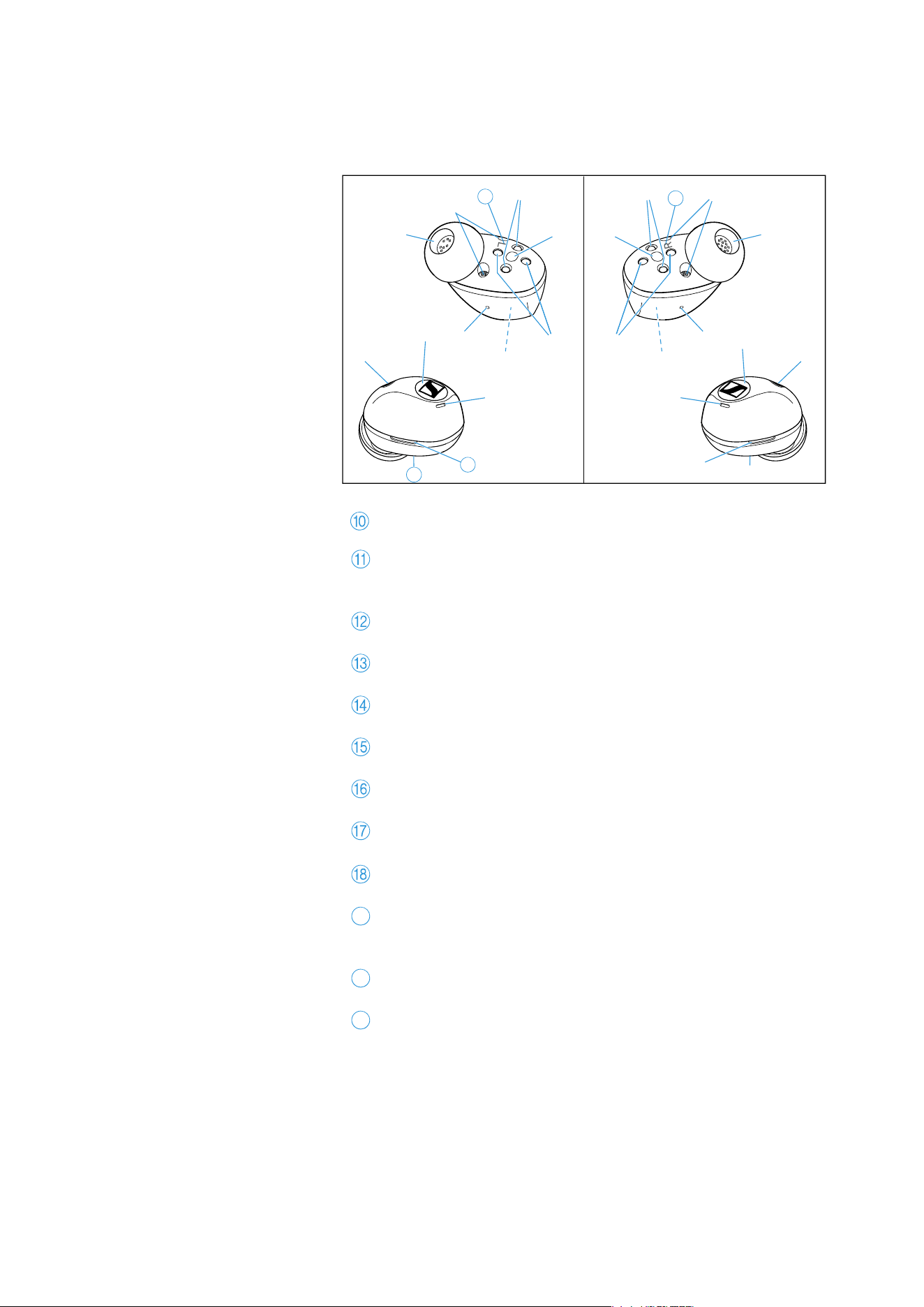
Earbuds
Model: MTW5 R and MTW5 L
Replaceable silicone ear tip
Captive screws
for opening the housing to replace the rechargeable bat-
teries
Charging contacts
Infra-red proximity sensor
Magnetic holders
Replaceable rechargeable battery (inside the housing)
Acoustical ventilation opening
Microphones for active noise cancellation, transparency
mode and for phone calls
Touch control panel
Slotted recess
for opening the housing to replace the rechargeable bat-
teries
Left earbud L
Right earbud R
MTW5 RMTW5 L
0
F
F
G
C
B
D
A
E
0
J
F
G
C
B
D
A
E
19
19
20
H
20
K
G
H
19
20
21
Product overview
MOMENTUM True Wireless 5 | 9
Overview of the LED display of the
charging case
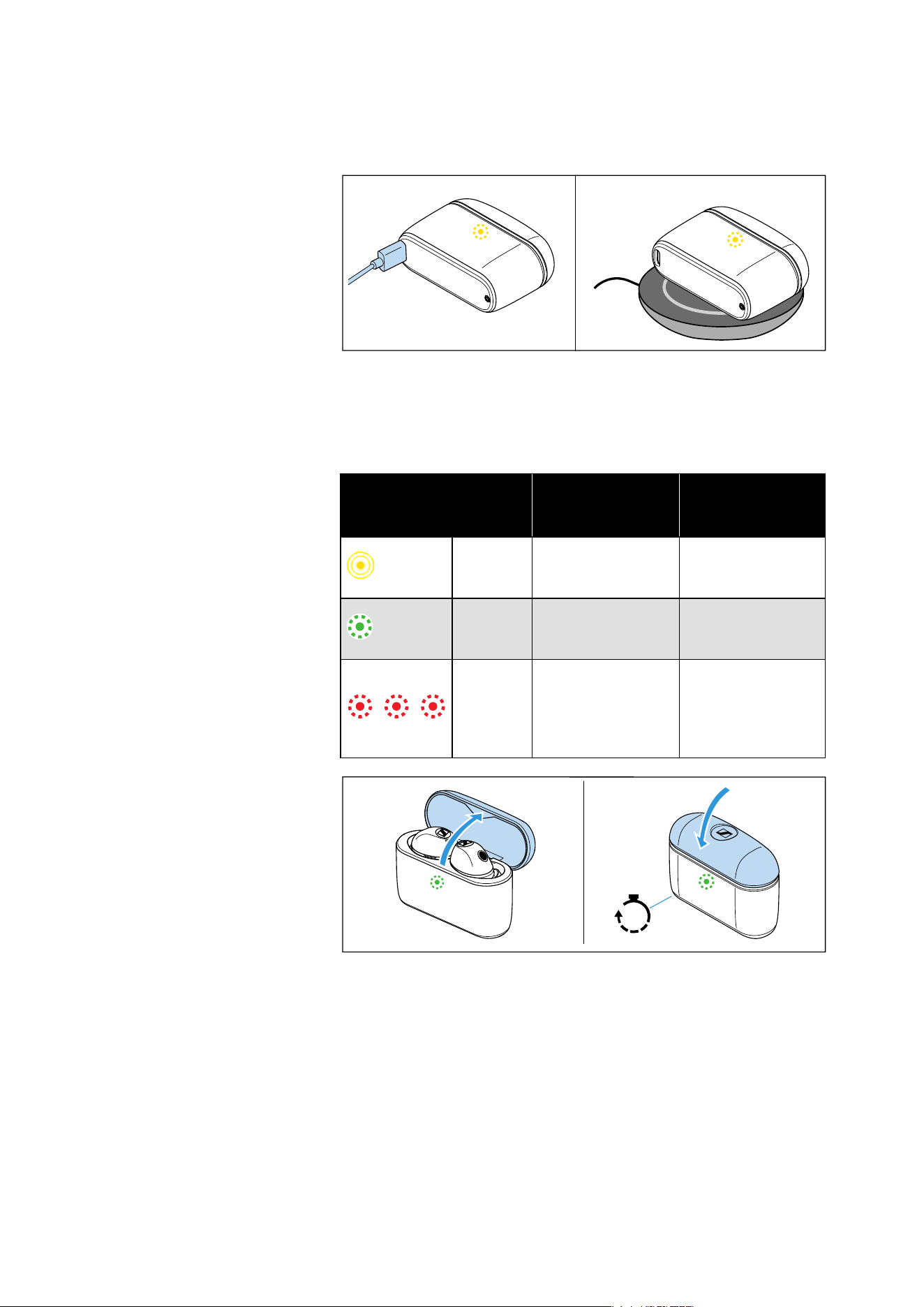
When a USB cable is connected or the charging case is placed on a
wireless charging dock, the LED of the charging case will stay on to
indicate the charging status.
When charging wirelessly, the LED switches off once the charging
case’s battery is fully charged.
If the charging case lid is open and no USB cable is connected or the
charging case is not placed on a wireless charging dock, the LED of
will display the battery charge status or the charging status of the
earbuds. When you close the lid of the charging case, the LED dis-
play goes off after 5 seconds.
LED
Charging case
WITH earbuds
inserted
Charging case
WITHOUT earbuds
inserted
pulses
yellow
Earbuds and
charging case are
being charged.
Charging case is
being charged.
lights up
green
Earbuds and
charging case are
fully charged.
Charging case is
fully charged.
flashes
red
At least one
earbud has a
charging error/
battery error (see
page 38).
Charging case has
a charging error/
battery error (see
page 38).
5s
Product overview
10 | MOMENTUM True Wireless 5
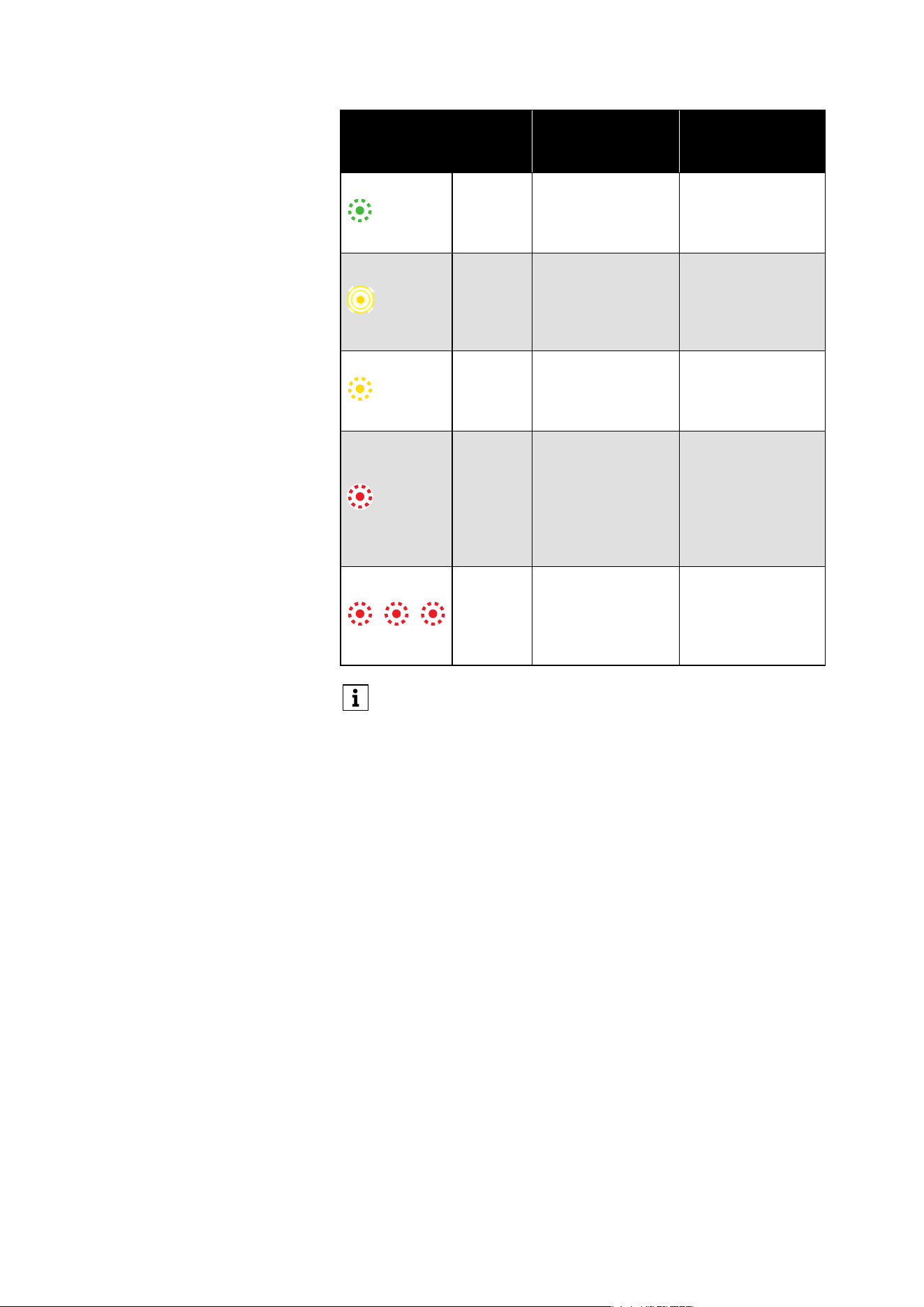
LED
Charging case
WITH earbuds
inserted
Charging case
WITHOUT earbuds
inserted
lights up
green
Earbuds are fully
charged, charging
case is more than
50% charged.
Charging case is
more than 50%
charged.
pulses
yellow
Earbuds are being
charged via the
rechargeable bat-
tery of the
charging case.
–
lights up
yellow
Earbuds are fully
charged, charging
case is less than
50% charged.
Charging case is
charged less than
50%.
lights up
red
Rechargeable bat-
teries of the ear-
buds and the
charging case are
almost empty. No
charging of the
earbuds possible.
Rechargeable bat-
tery of the
charging case is
almost empty.
flashes
red
At least one
earbud has a
charging error/
battery error (see
page 38).
Charging case has
a charging error/
battery error (see
page 38).
If the LED display does not light up:
• Clean the contacts on the earbuds and in the charging case
(see page 36).
• Make sure that the charging case rests on the wireless
charging dock (maximum distance 3 mm).
• Wait for at least 10 seconds. Some wireless charging docks
may have a slight delay before charging starts.
• Observe the installation instructions of the wireless
charging dock and make sure that no electromagnetic fields
or materials influence the charging station (see the instruc-
tion manual of the wireless charging dock).
• Charge both the earbuds and charging case until the LED
display lights up again (at least 30 minutes) (see page 15).
Getting started
MOMENTUM True Wireless 5 | 11
Getting started
1. Powering on the earbuds
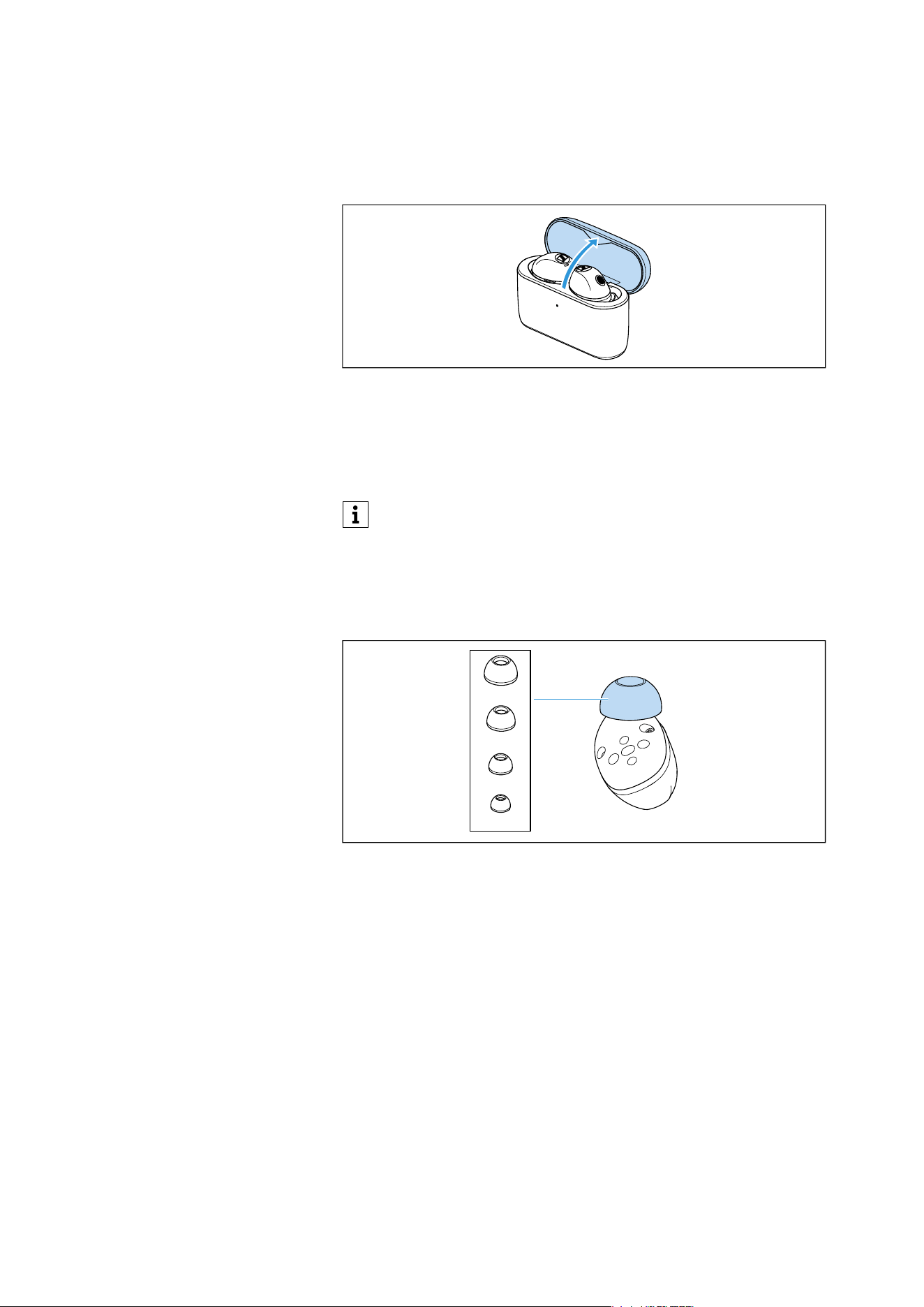
With the earbuds in the charging case, open the lid of the charging
case to power on the earbuds.
▷ Remove the MOMENTUM True Wireless 5 from its packaging.
▷ Open the charging case.
The earbuds and the charging case are now ready for use.
2. Selecting suitable ear tips for optimum fit of
the earbuds in the ears
The correct fit of the earbuds plays a significant role in determining
perceived sound quality, including bass performance, noise cancel-
lation effectiveness, voice clarity during phone calls, and secure
placement in the ears. To accommodate different ear shapes, ear
tips are available in multiple sizes.
You can choose between 4 different ear tips in size XS, S, M and L
(see page 18).
▷ Try out the different ear tip sizes to find the best fit, sound quality,
and the best wearing comfort.
We recommend charging the earbuds and the charging case
for a complete charging cycle without interruption before using
them for the first time (see page 15).
L
M
S
XS
Getting started
12 | MOMENTUM True Wireless 5
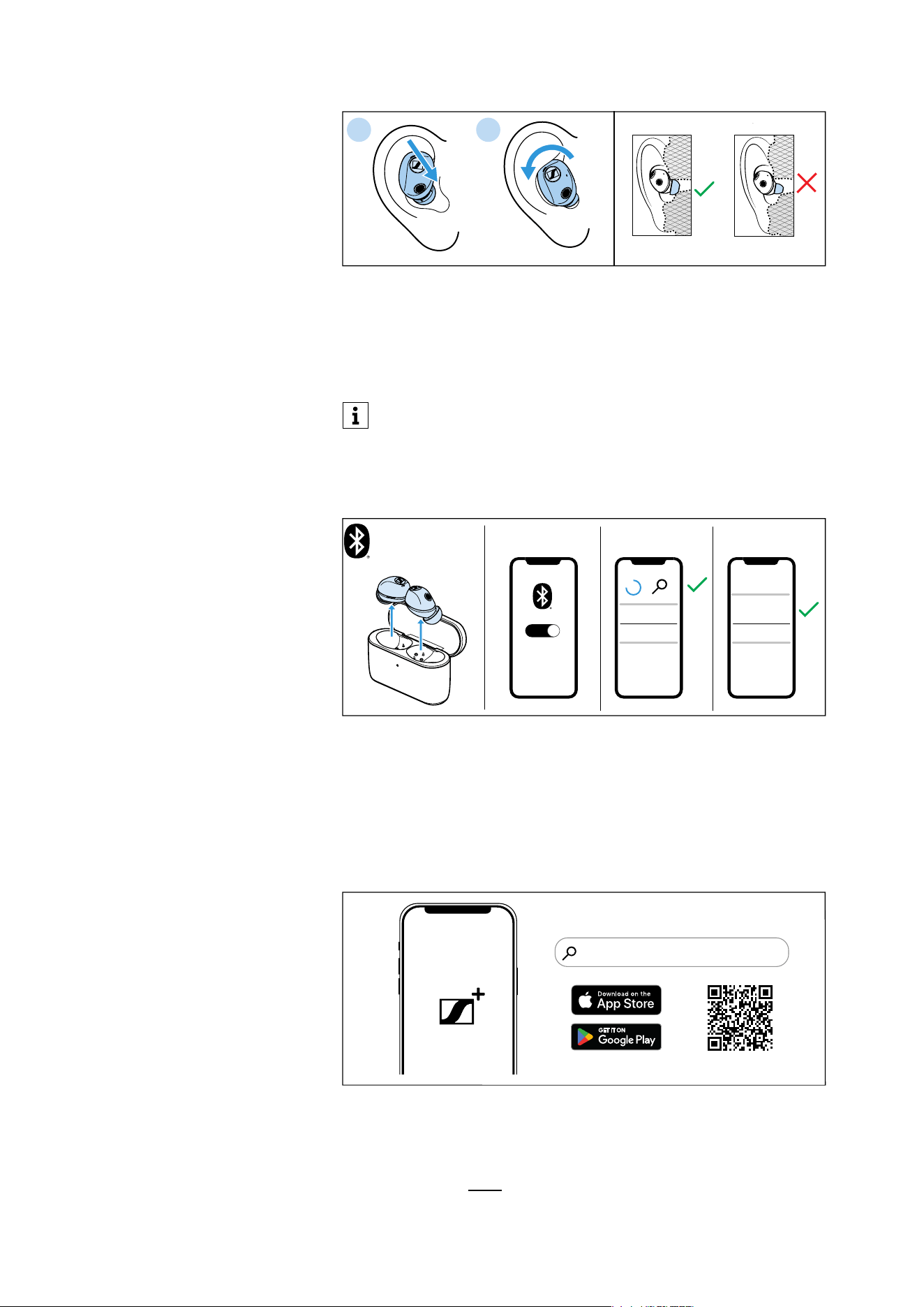
1. Wear the right earbud to your right ear and the left earbud to your
left ear.
2. Insert the earbuds at a slight angle into the ears and twist them
slightly into the ear canal so that they sit comfortably and snugly
in the ear canal and auricle (see page 18).
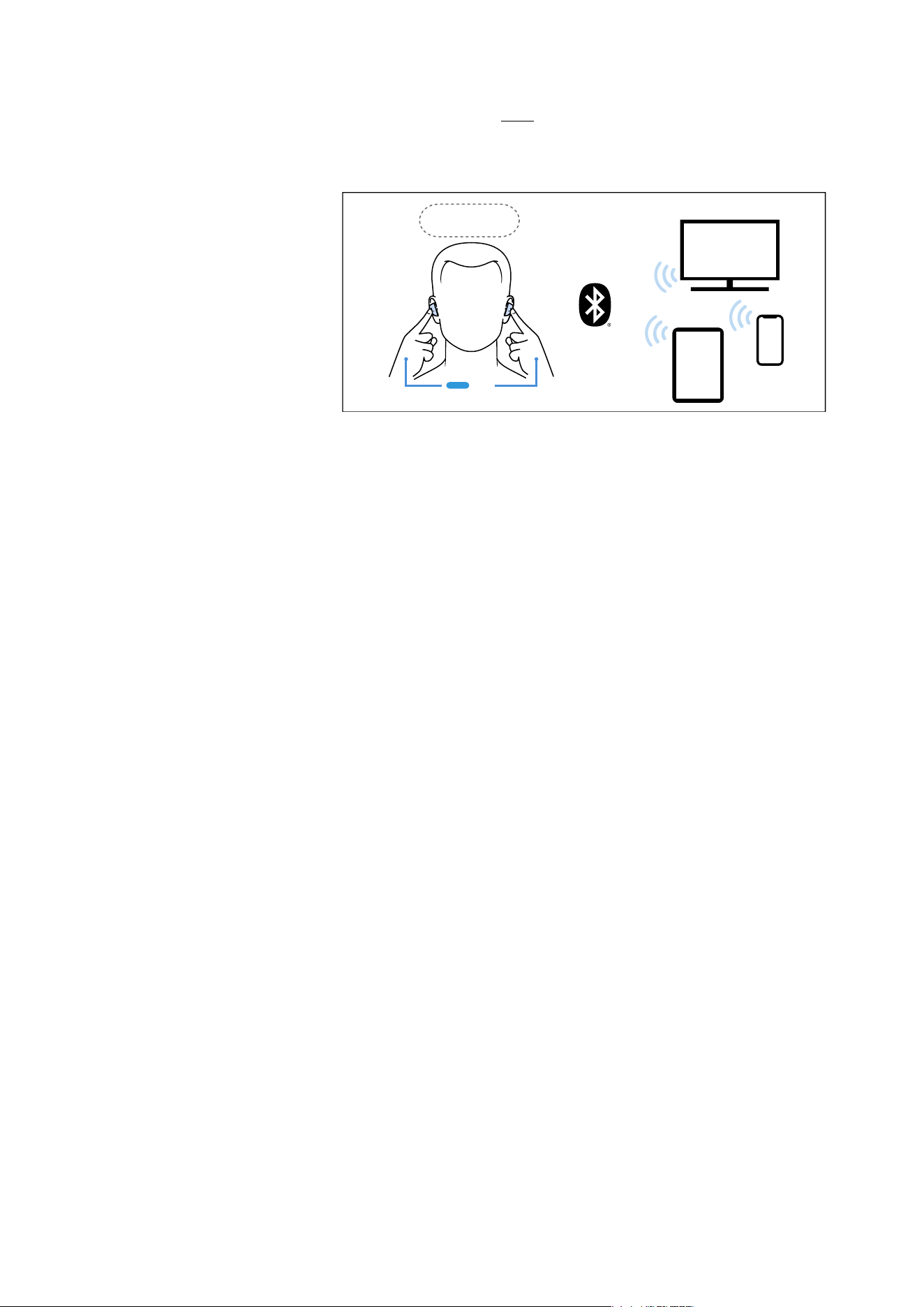
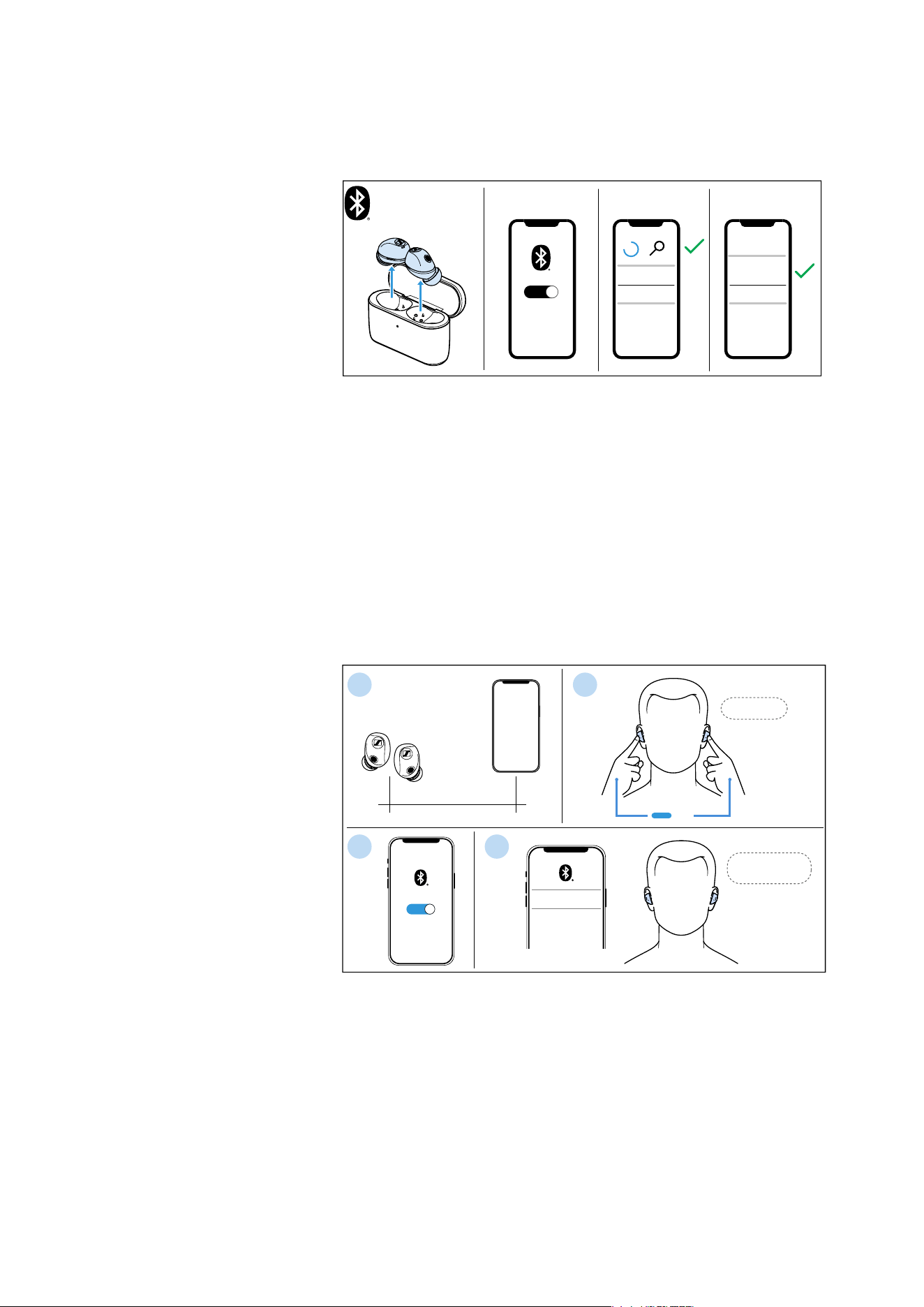
3. Connecting the earbuds to a Bluetooth device
When the earbuds are switched on for the first time after initial
charging, they will automatically enter Bluetooth pairing mode. If no
devices have been paired yet, pairing mode remains active until a
device is paired.
4. Installing the Smart Control Plus app on your
smartphone
The Sennheiser Smart Control Plus app provides access to all func-
tions and settings of the earbuds, including the ability to adjust the
sound to your personal preference using the equalizer, and more (see
page 23).
– Google Play: click
You can use the Fit Test function in the Smart Control Plus app
to test the fit of the earbuds in your ears and to select the right
size of the ear adapters.
1 2
MOMENTUM
TW 5
............
......
ON
L
R
Smart Control
Plus
“Sennheiser Smart Control Plus”
Getting started
MOMENTUM True Wireless 5 | 13
– Apple App Store: click
5. Connecting additional Bluetooth devices
▷ You can connect the earbuds to additional devices via Bluetooth
(see page 22).
The earbuds can save the connection profiles of up to six Bluetooth
devices. Audio playback is only possible from one device at a time.
In the Smart Control Plus app under “Connections”, you can view all
paired devices and manage their connections individually or enable
Bluetooth Multipoint. The Multipoint function is deactivated by
default (see page 21).
L
R
“Pairing“
3s

Using the earbuds
14 | MOMENTUM True Wireless 5
Using the earbuds
Information on first use, the rechargeable
batteries, and the charging process
Charging the product
You can use one of the following options to charge the earbuds and
charging case:
• the supplied USB cable
• a wireless charging dock (Qi-compatible, not included)
The earbuds must be inserted into the charging case for charging,
ensuring they are always safely stored and charged, even while on
the move.
We recommend charging the earbuds and the charging case for a
complete charging cycle without interruption before using them for
the first time.
When the charging case is connected to a USB cable connected to a
power source or when it is placed on a wireless charging dock, the
charging case will start charging. When the earbuds are inserted
into the charging case, they will start charging at the same time. The
LED display of the charging case indicates the charging status (see
page 9).
When the charge status of the earbuds drops to a critical level, a
voice prompt will ask you to recharge the earbuds (“Recharge head-
set”).
Charging time
A complete charging cycle of the charging case and the earbuds
takes about 1.5 hours. The quick charge function gives you an
approx. of 1 hour of playback time after 8 minutes of charging. The
charging time can vary depending on the power source used and the
ambient temperature.
Replacing rechargeable batteries
At the end of its operational lifetime, this product with its recharge-
able batteries must be disposed of separately from normal house-
hold waste. The rechargeable batteries can be replaced to extend
the products’ service life (see page 38). You can find more informa-
tion on battery disposal here: see page 48.
Using the earbuds
MOMENTUM True Wireless 5 | 15
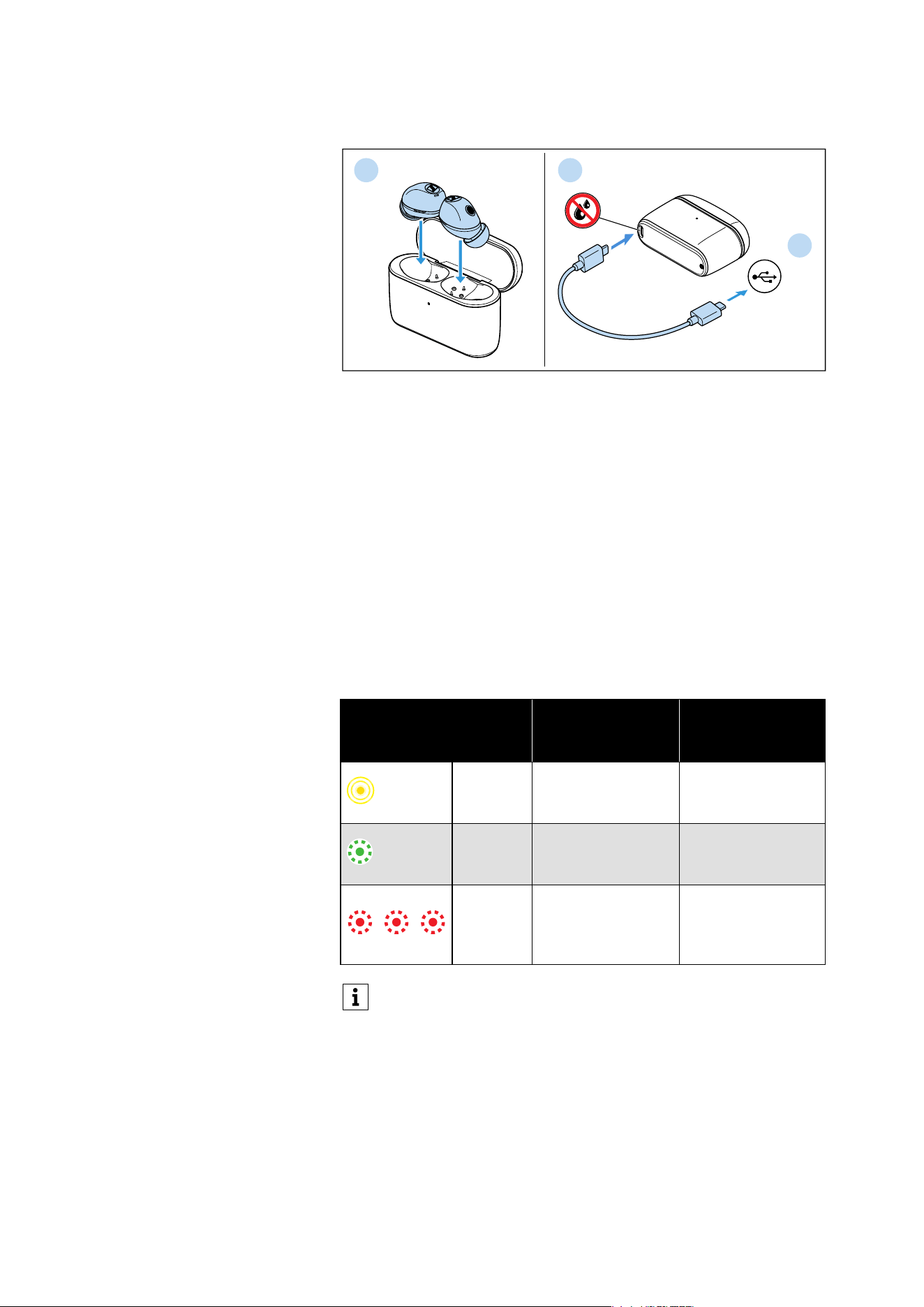
Charging via USB cable
1. Open the lid on the charging case and insert the left earbud into
the left charging compartment, then the right earbud into the
right charging compartment.
The earbuds will be magnetically pulled into the charging com-
partments.
2. Make sure that the charging socket is free from moisture and con-
tamination. Connect the USB C connector of the charging cable
to the USB socket of the charging case.
3. Connect the second USB C connector to a corresponding socket
of a USB power source (not included). Make sure that the USB
power source is connected to a power supply.
The earbuds and the charging case will start charging.
If no earbuds are inserted into the charging case, only the
charging case will be charged.
The LED display of the charging case indicates the charge status:
LED
Charging case
WITH earbuds
inserted
Charging case
WITHOUT earbuds
inserted
pulses
yellow
Earbuds and
charging case are
being charged.
Charging case is
being charged.
lights up
green
Earbuds and
charging case are
fully charged.
Charging case is
fully charged.
flashes
red
At least one ear-
bud has a charging
error/battery error
(see page 38).
Charging case has
a charging error/
battery error (see
page 38).
If the LED display does not light up:
• Clean the contacts on the earbuds and in the charging case
(see page 36).
• Clean the USB C socket of the charging case.
• Charge both the earbuds and charging case until the LED
display lights up again (at least 30 minutes).
• Replace the rechargeable batteries of the charging case
and/or the earbuds (see page 38).
L
R
1 2
3
USB C
USB C
Using the earbuds
16 | MOMENTUM True Wireless 5
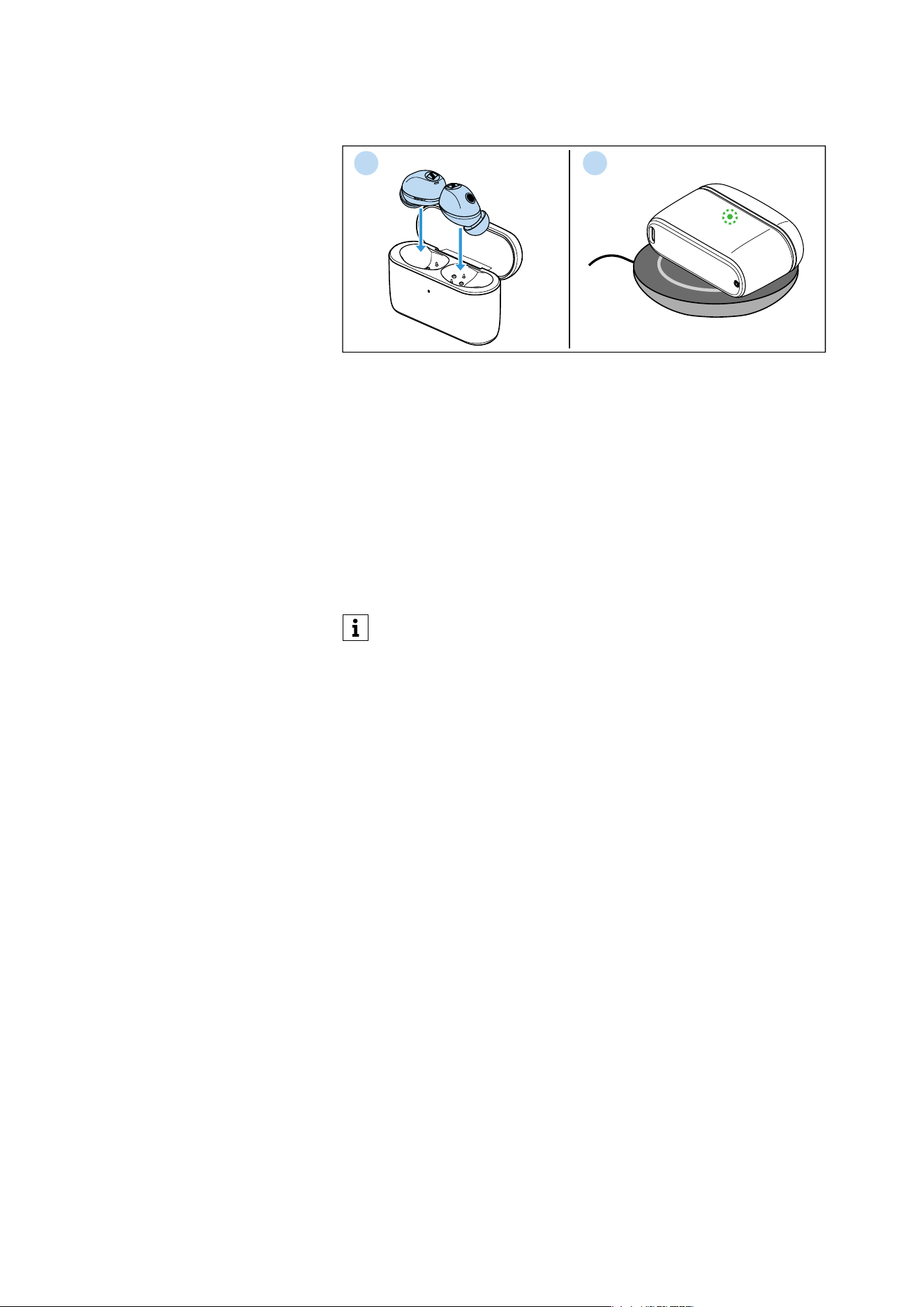
Charging via wireless charging dock
1. Open the lid on the charging case and insert the left earbud into
the left charging compartment, then the right earbud into the
right charging compartment.
The earbuds will be magnetically pulled into the charging com-
partments.
2. Place the bottom of the charging case centered on a wireless
charging dock (Qi-compatible, not included).
The earbuds and the charging case will start charging.
If no earbuds are inserted into the charging case, only the
charging case will charge.
The LED display of the charging case indicates the charge status
(see page 15).
Displaying the battery charge status
When the earbuds are connected to your Bluetooth device, the bat-
tery charge status can be displayed on the screen of your device
(depending on the device and operating system used).
The Smart Control Plus app also displays the charge status of the
earbuds and the charging case.
If the LED display does not light up:
• Clean the contacts on the earbuds and in the charging case
(see page 36).
• Make sure that the charging case rests on the wireless
charging dock (maximum distance 3 mm).
• Wait for at least 10 seconds. Some wireless charging docks
may have a slight delay before charging starts.
• Observe the installation instructions of the wireless
charging dock and make sure that no electromagnetic fields
or materials influence the charging station (see the instruc-
tion manual of the wireless charging dock).
• Charge both the earbuds and charging case until the LED
display lights up again (at least 30 minutes) (see page 15).
• Replace the rechargeable batteries of the charging case
and/or the earbuds (see page 38).
1 2
L
R
Using the earbuds
MOMENTUM True Wireless 5 | 17
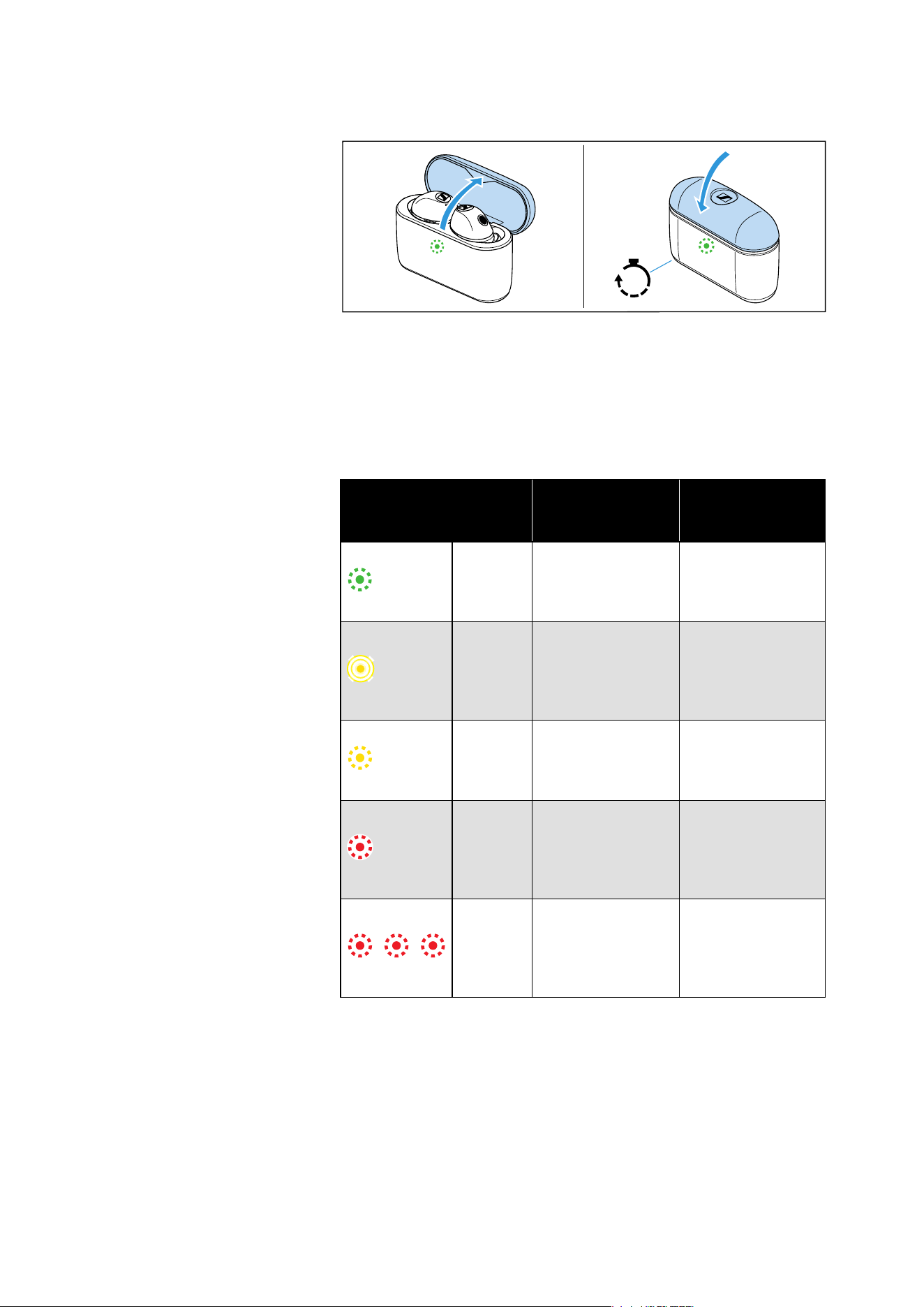
Displaying the battery charge status using the charging case
If no USB cable is connected to the charging case or the charging
case is not placed on a wireless charging dock:
▷ Open the lid of the charging case.
The LED display of the charging case indicates the battery charge
status.
When you close the lid of the charging case, the LED display goes off
after 5 seconds.
LED
Charging case
WITH earbuds
inserted
Charging case
WITHOUT earbuds
inserted
lights up
green
Earbuds are fully
charged, charging
case is more than
50% charged.
Charging case is
more than 50%
charged.
pulses
yellow
Earbuds are being
charged via the
rechargeable bat-
tery of the
charging case.
–
lights up
yellow
Earbuds are fully
charged, charging
case is less than
50% charged.
Charging case is
charged less than
50%.
lights up
red
Rechargeable bat-
teries of the ear-
buds and the
charging case are
almost empty.
Rechargeable bat-
tery of the
charging case is
almost empty.
flashes
red
At least one
earbud has a
charging error/
battery error (see
page 38).
Charging case has
a charging error/
battery error (see
page 38).
5s
Using the earbuds
18 | MOMENTUM True Wireless 5
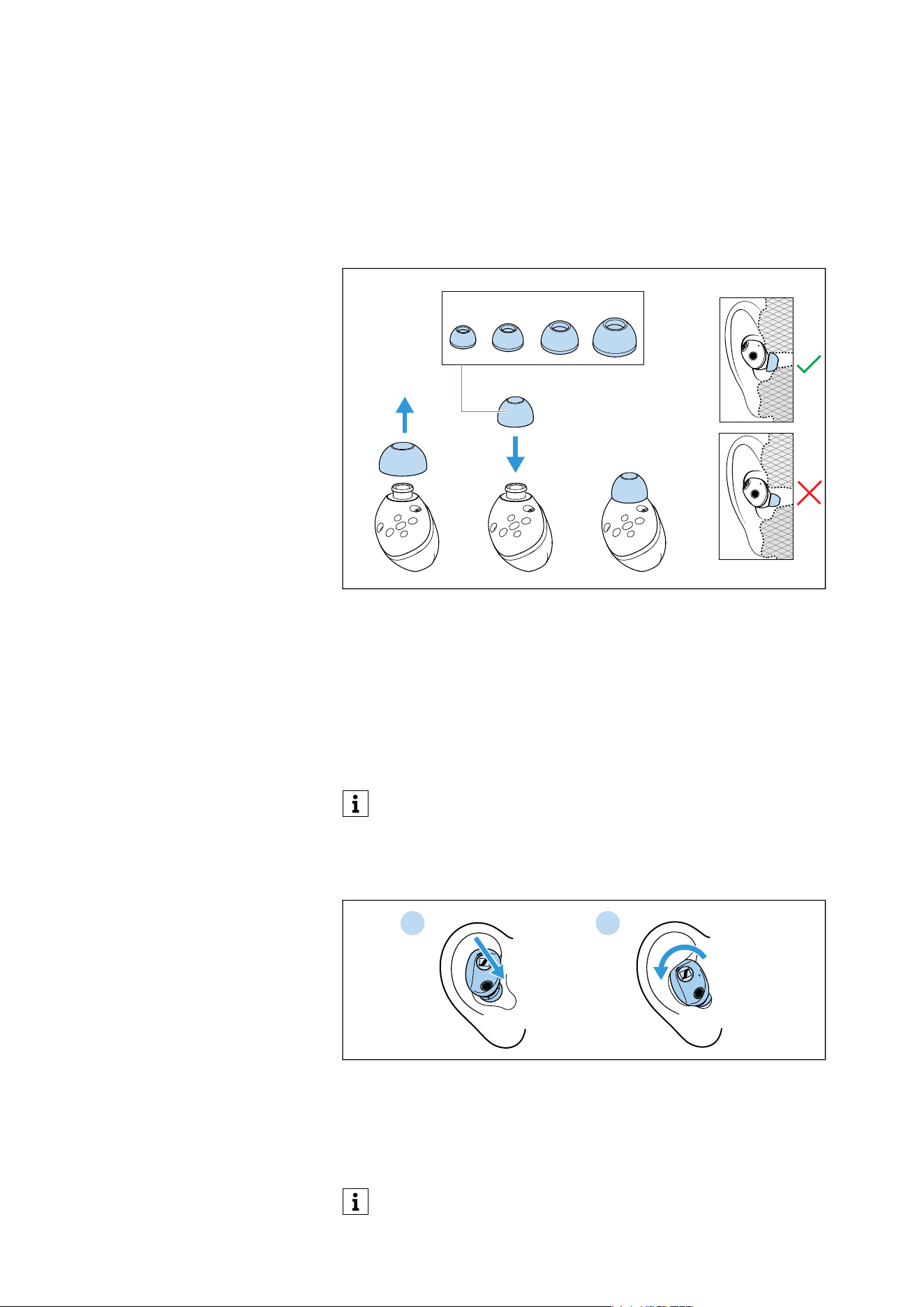
Selecting the right ear tips for an
optimum fit
For the best sound quality, bass performance, noise cancellation,
call clarity, and also a comfortable and secure fit, it is essential to
select suitable ear tips for a secure fit. Choose from the provided ear
tips, available in multiple sizes, to find a pair that works best for
you.
▷ Pull the ear tip away from the in-ear sound tunnel and off the ear-
bud.
▷ Attach the new ear tip to the sound tunnel until it locks in place.
▷ Test each ear tip size to find the best sound quality and wearing
comfort.
You can choose between four different ear tips in different sizes,
XS, S, M and L. The ear tips should fit snugly in the ear canal and
fully seal your ears.
Inserting the earbuds into the ears
▷ Wear the right earbud to your right ear and the left earbud to your
left ear.
▷ Insert the earbuds at a slight angle into the ears and twist them
slightly into the ear canal so that they sit comfortably and snugly
in the ear canal and auricle.
You can use the Fit Test function in the Smart Control Plus app
to test the fit of the earbuds in your ears.
LMSXS
Each earbud can be used independently. Placing one earbud in
the charging case during use may cause a brief interruption in
the other.
1 2
Using the earbuds
MOMENTUM True Wireless 5 | 19
Pairing the earbuds to a Bluetooth device
To connect wirelessly, the earbuds must first be paired with your
Bluetooth device via your device’s Bluetooth settings.
The earbuds automatically enter Bluetooth pairing mode the first
time you switch them on after initial charging. If no devices have
been paired yet, pairing mode remains active until a device is paired.
If the process differs from the steps described, refer to the instruc-
tion manual of your Bluetooth device.
Pairing the earbuds with other Bluetooth
devices
Follow the steps in this section only if you want to pair additional
Bluetooth devices after the initial pairing.
Conventional pairing
1. Take both earbuds out of the charging case and insert them into
your ears (see page 18). The distance between the earbuds and
the Bluetooth device should not exceed 40"/1 m.
2. Simultaneously touch and hold both the right and the left touch
control panels for 3 seconds until you hear the voice prompt
“Pairing” and a repeating melody.
The earbuds are in pairing mode.
3. Activate Bluetooth on your Bluetooth device.
MOMENTUM
TW 5
............
......
ON
L
R
“Pairing
successful“
“Pairing“
max. 1 m/40 inch
ON
MOMENTUM
TW 5
************
L
R
3s
1
3 4
2
Using the earbuds
20 | MOMENTUM True Wireless 5
4. Via the menu of your Bluetooth device, start the search for new
Bluetooth devices.
All active Bluetooth devices in the proximity of your device are
displayed.
From the list of found Bluetooth devices, select “MOMENTUM
TW 5”.
If pairing was successful, you will hear the voice prompt “Pairing
successful”.
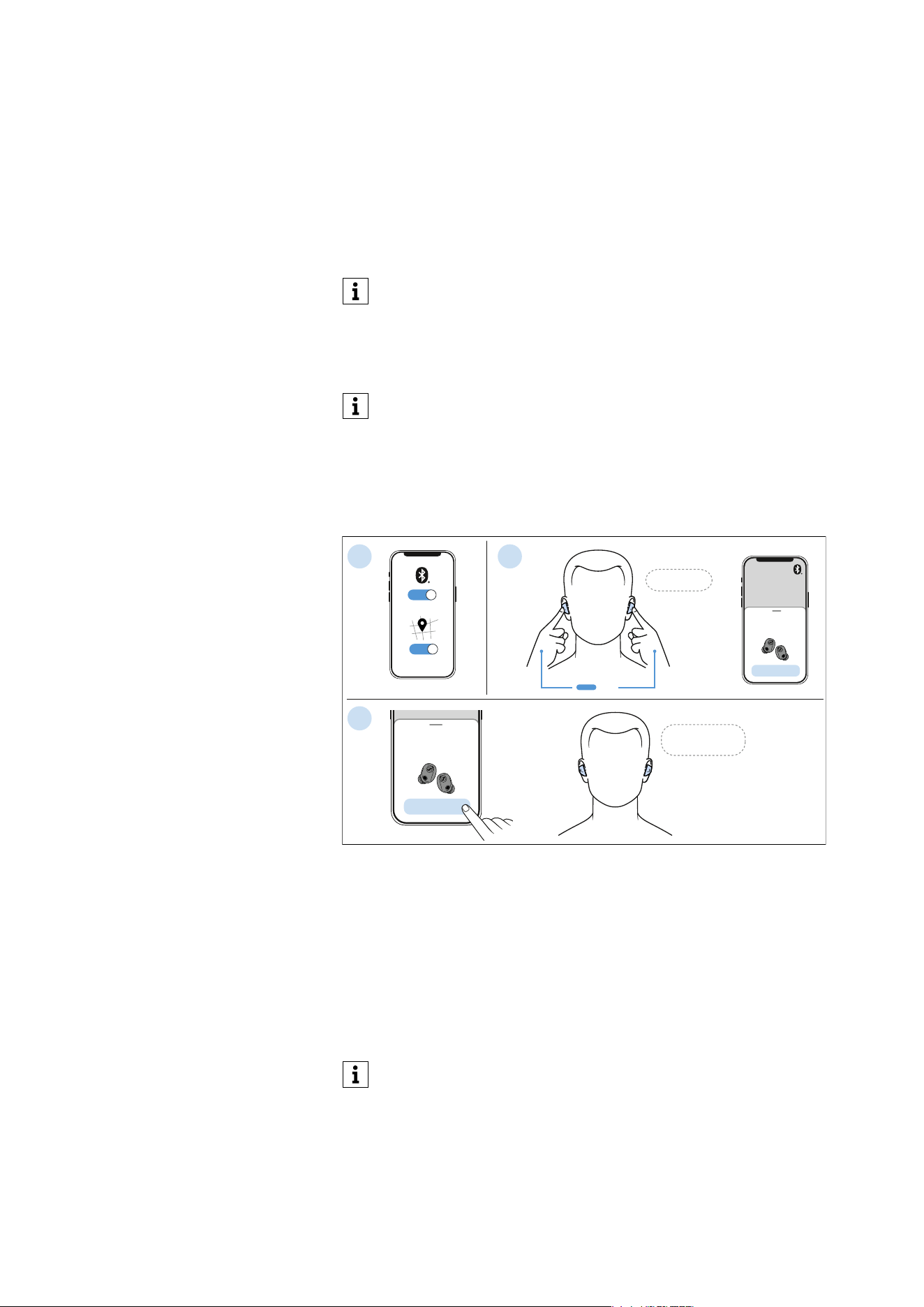
Google Fast Pair (from Android version 6.0 or higher)
If you have a Bluetooth Android device that supports Google Fast
Pair function, you can easily pair the earbuds with your device.
1. Activate Bluetooth and the location services on your Bluetooth
device.
2. Take both earbuds out of the charging case and insert them into
your ears. Simultaneously touch and hold both he right and the
left touch control panels for 3 seconds until you hear the voice
prompt “Pairing” and a repeating melody.
The earbuds are in pairing mode.
On your Bluetooth device, a notification appears prompting you to
pair the earbuds.
3. Confirm the establishment of the Bluetooth connection on your
device.
You will hear the voice prompt “Pairing successful”. A notification
will confirm the connection to the earbuds.
If no connection is established within 2 minutes, pairing mode
is canceled and the earbuds will switch to idle mode. If neces-
sary, repeat the steps described above.
If the earbuds are not paired with any Bluetooth device (the
pairing list is empty), pairing mode will remain active.
The Bluetooth device name of the earbuds can be changed via
the Smart Control Plus app (see page 23). Once changed, the
name is saved on the earbuds.
If no notification is displayed, check whether the notifications
for the Google Play Services app on your device is turned on.
ON
1
ON
“Pairing“
L
R
3s
2
MOMENTUM
TW 5
Connect
“Pairing
successful“
3
MOMENTUM
TW 5
Connect
Using the earbuds
MOMENTUM True Wireless 5 | 21
Information on the Bluetooth wireless
connection
The earbuds are Bluetooth 6.0 compliant.
Bluetooth Classic
If your audio source supports one of the following high-resolution
audio encoding methods, music is automatically played in high audio
quality: aptX™ Adaptive or AAC. Otherwise the earbuds will play your
music in normal audio quality (SBC). The audio coding in use is dis-
played via the Smart Control Plus app.
Once switched on, paired device will connect automatically via Blue-
tooth and is ready for use.
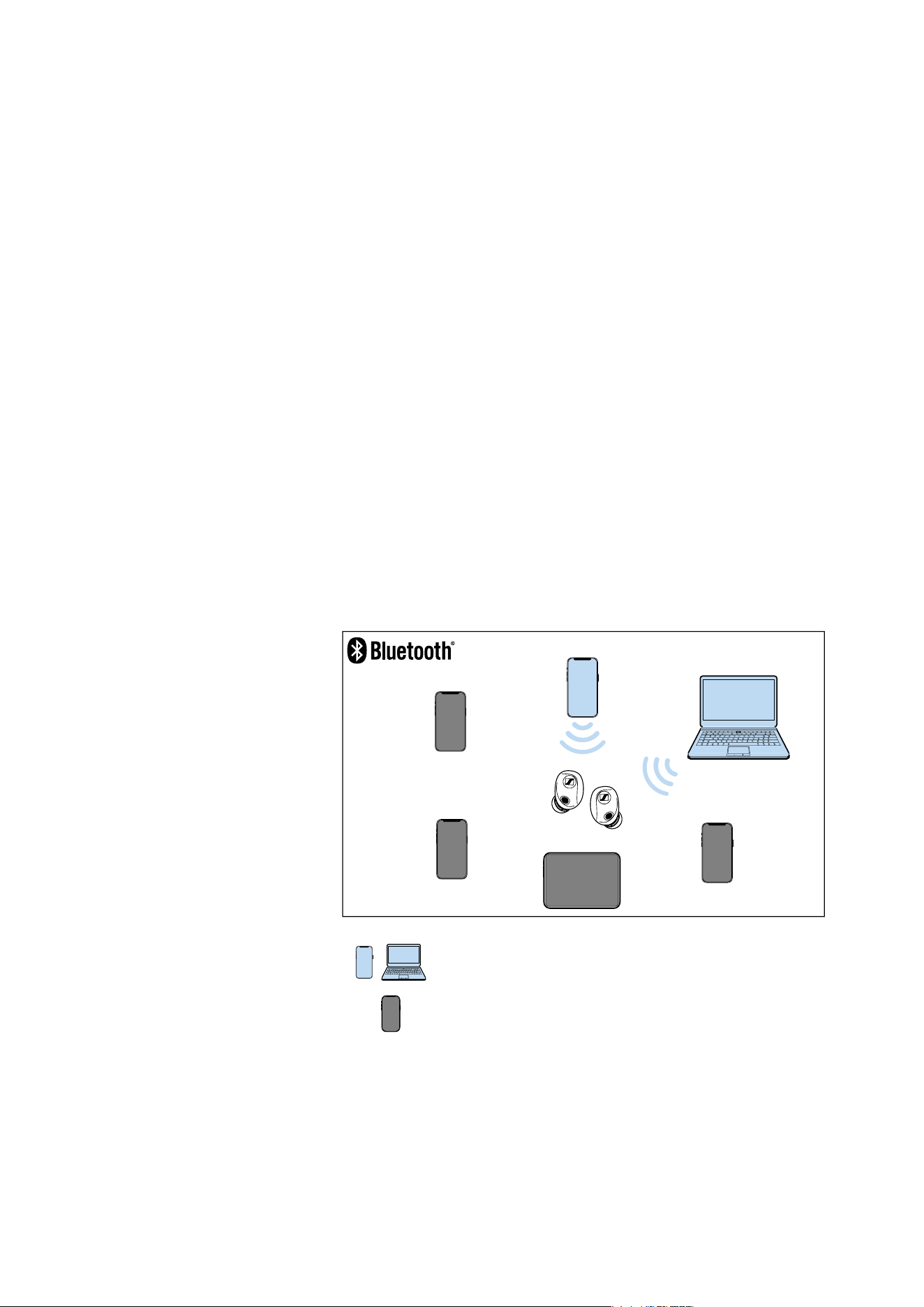
It is possible to activate the Bluetooth Multipoint function so the ear-
buds can be connected to more than one device at a time (see
page 22). When switched on, the earbuds will automatically try to
connect to the last two Bluetooth devices used. The earbuds can
save the connection profiles of up to six Bluetooth devices. Audio
playback is only possible from one device at a time.
If you pair the earbuds with a seventh Bluetooth device, the connec-
tion profile of the least used Bluetooth device will be overwritten. If
you want to connect to the Bluetooth device again later, you have to
pair the earbuds with the device again.
On the “Connections” tab on the Smart Control Plus app, you can
view the list of paired devices and selectively connect and discon-
nect devices (see page 21).
Switching connections between paired
Bluetooth devices
To connect to a specific paired Bluetooth device, go to the “Connec-
tion Management” tab in the Smart Control Plus app (see page 23).
▷ In the Smart Control Plus app, tap on “Connection Management”.
A list of available Bluetooth devices previously paired with the
earbuds will appear.
Paired and connected Bluetooth device
Paired Bluetooth device (currently not connected)
1
2
3
4
5
6

Using the earbuds
22 | MOMENTUM True Wireless 5
▷ From the list, select the paired device to which you want to con-
nect the earbuds to. Ensure that the desired device is switched on
and Bluetooth is activated.
The Bluetooth audio connection between the desired Bluetooth
device and the earbuds is established.
The device with Smart Control Plus installed remains connected
to the earbuds for app communication and its name will appear in
bold.
Disconnecting the earbuds from a
Bluetooth device
▷ On your Bluetooth device’s settings, disconnect the connection to
the earbuds.
You will hear the voice prompt “No connection”.
The earbuds are disconnected from the Bluetooth device and will
start searching for other paired devices. If no device is found, the
earbuds will switch to idle mode.
Activating Bluetooth Multipoint
To connect your earbuds to more than one Bluetooth device at a
time, turn on the Bluetooth Multipoint function. This is helpful if you
want to switch the connection between two Bluetooth devices
quickly, e.g. when switching from music playback on your smart-
phone to a video call on your PC.
▷ In the Smart Control Plus app, open the “Connection manage-
ment” section.
▷ Tap on the “Bluetooth Multipoint” slider to activate.
▷ Switch on the Bluetooth devices you want to connect to the ear-
buds. Pair them if necessary (see page 19).
If the earbuds are already paired previously, they will connect
automatically.
To deactivate Bluetooth Multipoint:
▷ Tap on the “Bluetooth Multipoint” slider in the app again.
▷ Restart the Bluetooth device you want to keep connected to the
earbuds (e.g. by switching it off and on again).
The earbuds will reconnect to the chosen device.
Once Bluetooth Multipoint is turned off, only one Bluetooth con-
nection can be active at a time.
You can also use the “Connection Management” tab to remove
previously paired devices without factory resetting the ear-
buds.
You can also use the “Connection Management” tab to connect
to a previously paired device without disconnecting from an
existing paired device or deleting the paired device’s informa-
tion (see page 21).
If you want to clear the earbuds’ Bluetooth pairing list, use the
Smart Control Plus app or reset the earbuds to factory settings
(see page 43).
Using the earbuds
MOMENTUM True Wireless 5 | 23
Installing the Smart Control Plus app
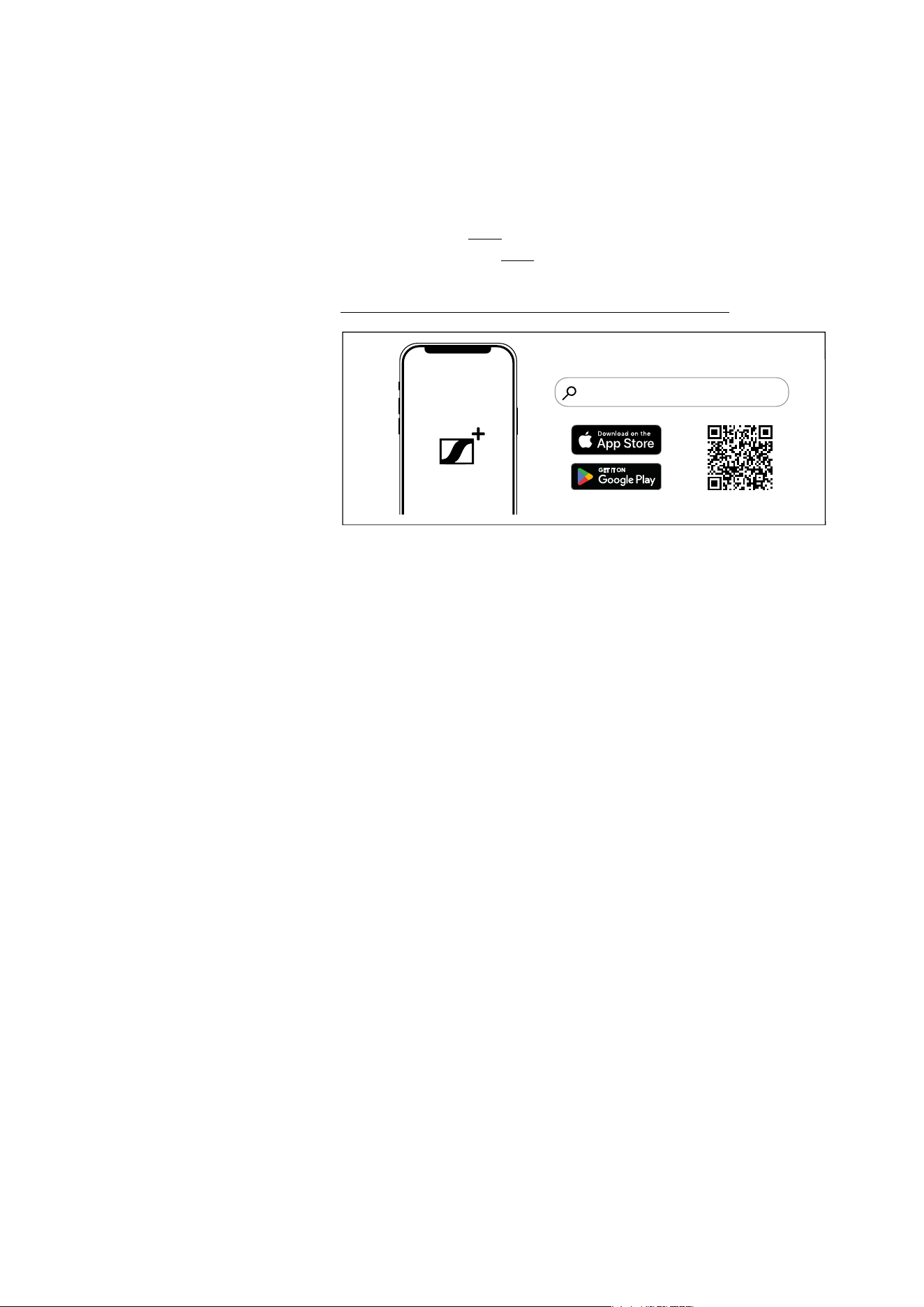
Download the free Sennheiser Smart Control Plus app to personalize
your earbud settings and unlock all available features.
▷ Download the app from the Apple App Store or Google Play and
install it on your smartphone.
– Google Play: click
– Apple App Store: click
Alternatively, you can scan the QR code or visit the link below:
www.sennheiser-hearing.com/smart-control-plus-app
▷ Connect your smartphone to the earbuds via Bluetooth (see
page 19).
▷ Start the Smart Control Plus app.
Follow the instructions in the app.
Smart Control
Plus
“Sennheiser Smart Control Plus”
Using the earbuds
24 | MOMENTUM True Wireless 5
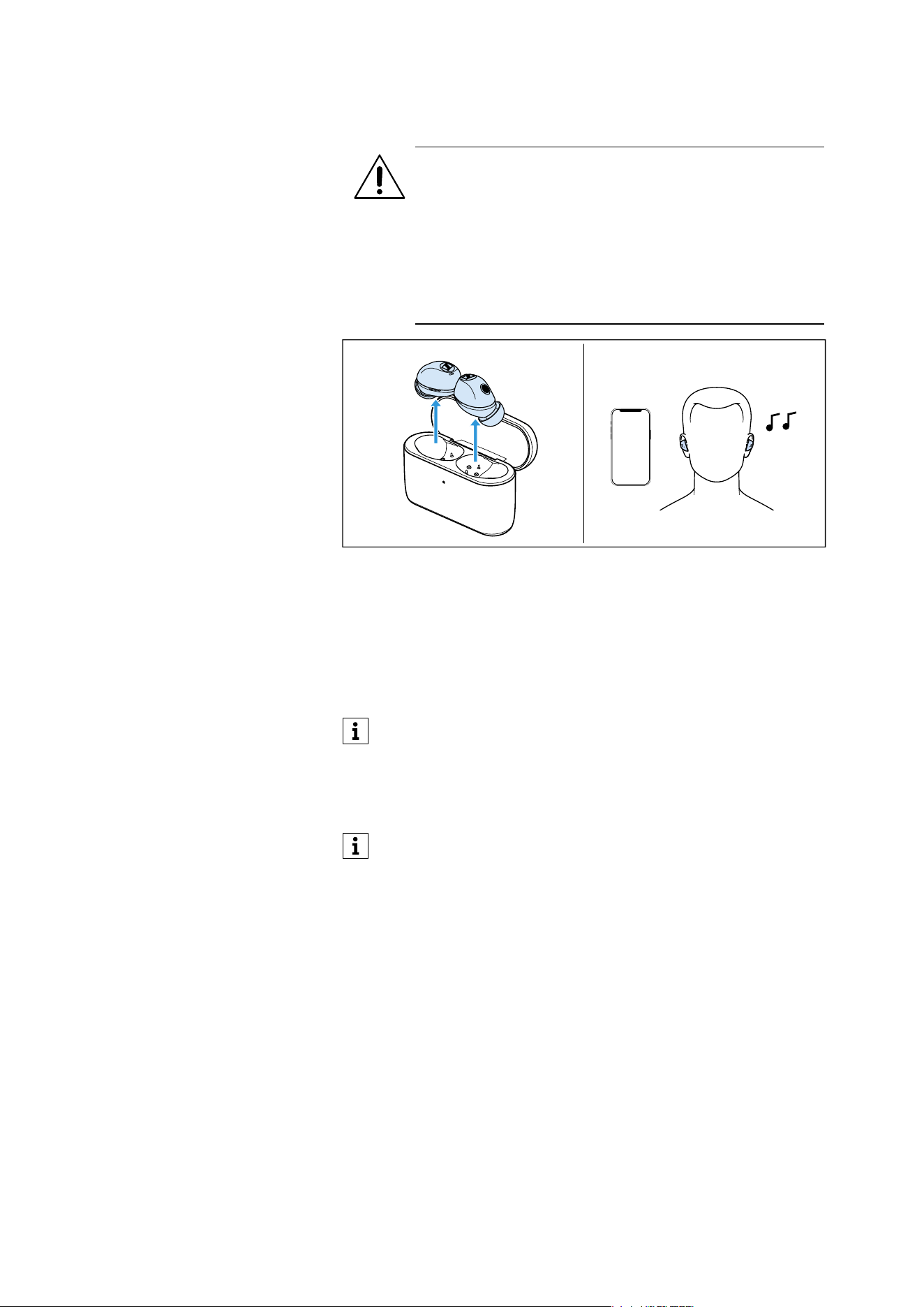
Switching the earbuds on
Opening the lid of the charging case will automatically switch on the
earbuds.
▷ Open the lid of the charging case and take out both earbuds.
▷ Insert the earbuds into your ears (see page 18).
If a paired Bluetooth device is within the transmission range, the
earbuds will automatically establish a connection, followed by a
tone prompt to indicate successful connection.
WARNING
Danger due to high volume levels!
Listening at high volume levels can lead to permanent
hearing defects.
▷ Before inserting the earbuds into your ears, adjust the
volume to a low level (see page 25).
▷ Do not continuously expose yourself to high volume
levels.
If you take the earbuds out of the charging case during an
incoming call, the call is automatically accepted and you can
use the earbuds directly to make calls.
The Auto Call function can be deactivated via the Smart Con-
trol Plus app (see page 28).
The earbuds will remain switched on even if no paired Blue-
tooth device is found within its transmission range. You can
change this setting via the Smart Control Plus app (see
page 23).
You can switch on the earbuds once it powers off by touching
the touch control panels 1x or by briefly inserting them into the
charging case.
L
R
Using the earbuds
MOMENTUM True Wireless 5 | 25
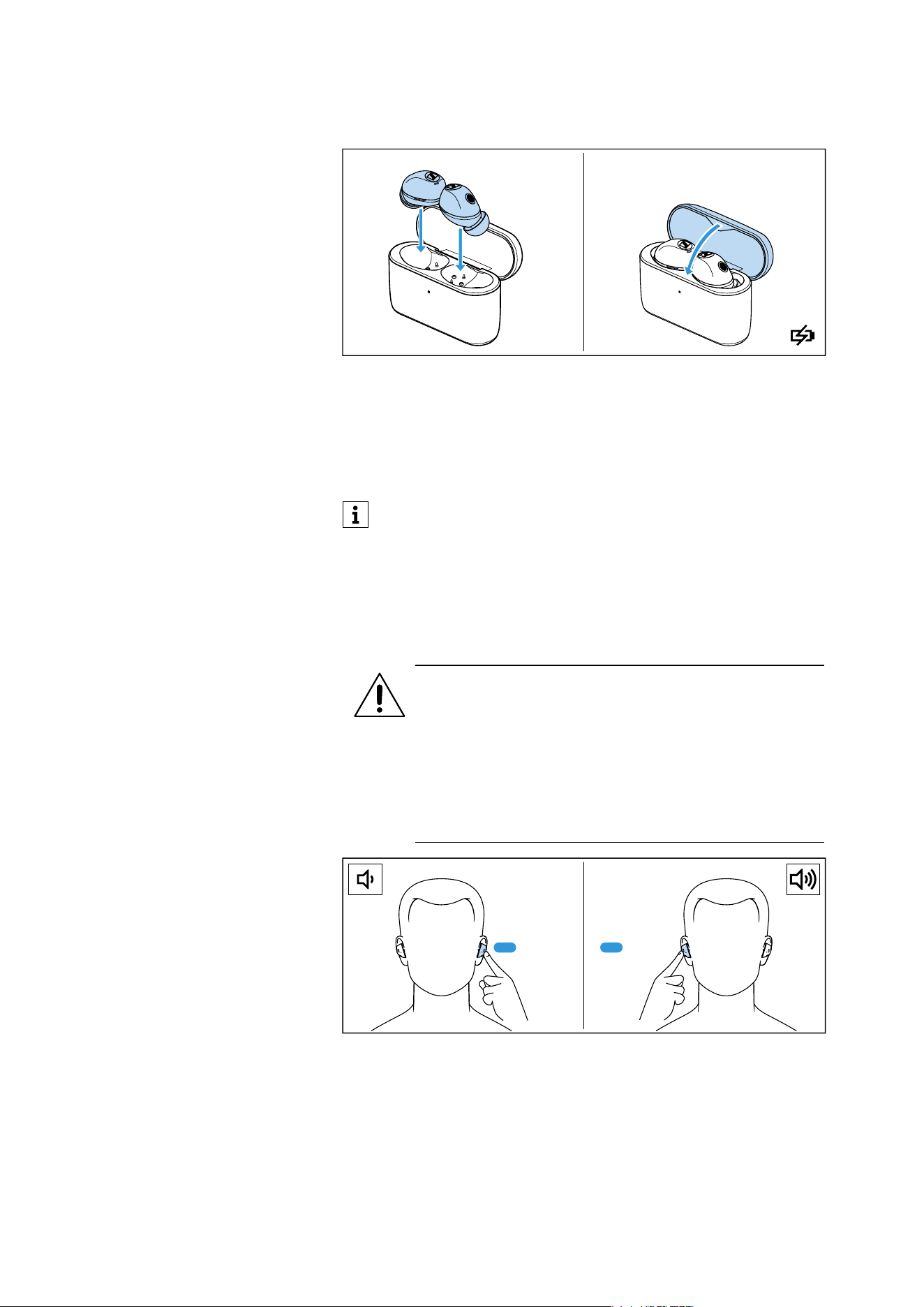
Switching the earbuds off
The earbuds do not need to be manually switched off.
▷ Insert the earbuds into the charging case and close the lid to
switch them off.
As soon as the earbuds are inserted into the charging case and
the lid of the charging case is closed, the earbuds will switch off
and start charging (see page 15).
Adjusting the volume
To reduce the volume:
▷ Touch and hold the touch control panel of the left earbud until the
volume decreases.
To increase the volume:
▷ Touch and hold the touch control panel of the right earbud until
the volume is increased.
When the maximum or minimum volume is reached, you will hear the
voice prompt “Volume max” or “Volume min”.
If you do not close the lid of the charging case, the earbuds will
start charging while the Bluetooth connection remains active.
In this case, the earbuds can be used immediately after remov-
ing them from the charging case without waiting for the Blue-
tooth connection to be established.
L
R
WARNING
Danger due to high volume levels!
Listening at high volume levels can lead to permanent
hearing defects.
▷ Adjust the volume to a low level before inserting the
earbuds or changing the audio source.
▷ Do not continuously expose yourself to high volume
levels.
Hold RHold L
Using the earbuds
26 | MOMENTUM True Wireless 5
If the earbuds volume seem too low even at maximum:
▷ Make sure the volume is set to maximum on both your earbuds
and Bluetooth device. Some Android smartphones have separate
volume controls for Bluetooth headsets and smartphone speak-
ers.
▷ Check whether your Bluetooth device has hearing protection or
limiter setting turned on. If these settings are turned on, the max-
imum volume available via Bluetooth is limited.
▷ Make sure the earbuds are properly seated in your ears. Use the
right ear tip size to ensure a snug fit and a proper seal in the ear
canal (see page 18).
▷ With the Sennheiser Smart Control app, perform an earbud fit
test that checks the correct seal of your earbuds.
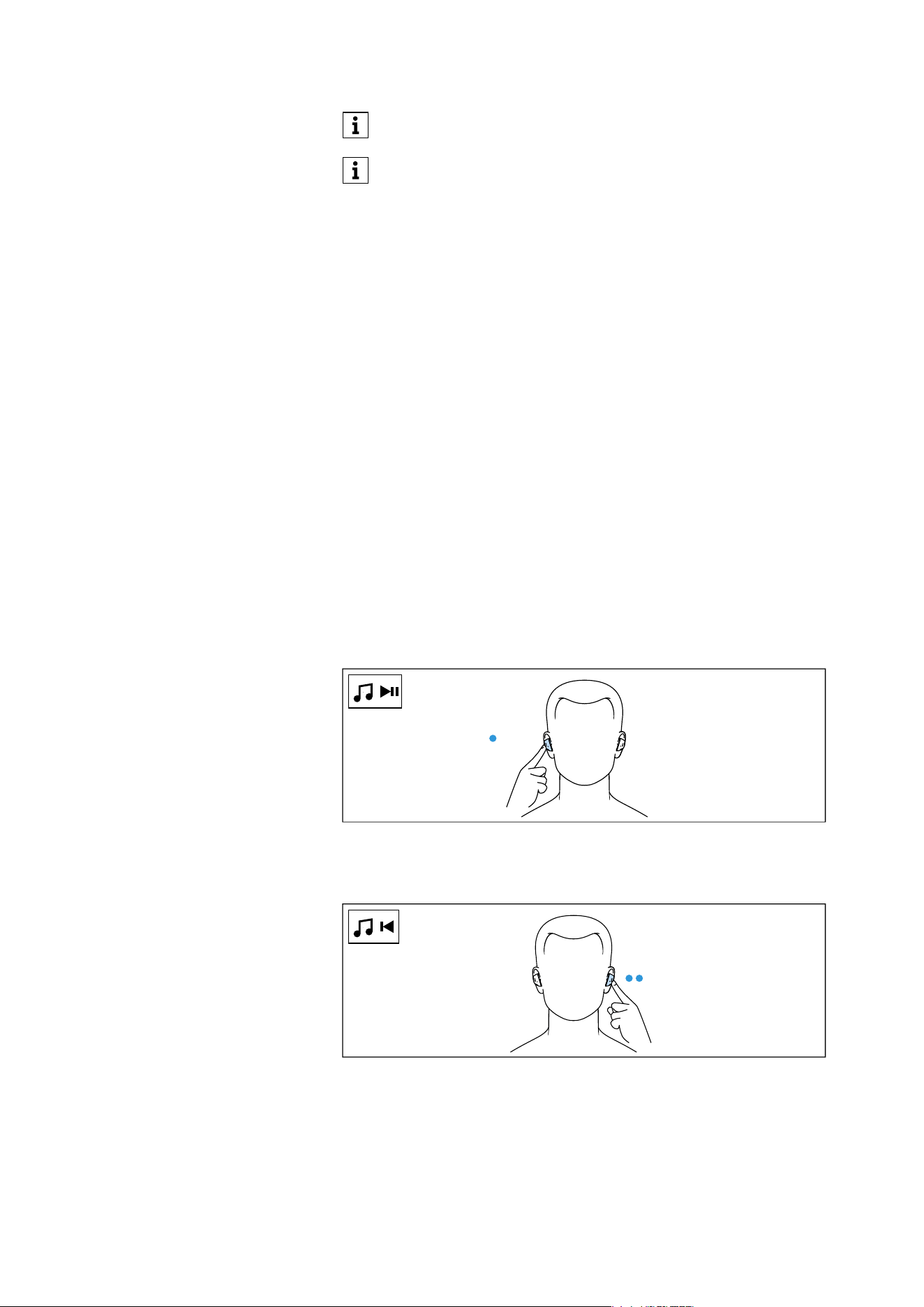
Controlling music playback
The music playback functions are only available when the earbuds
and the Bluetooth device are connected. Some smartphones or
music players may not support all functions.
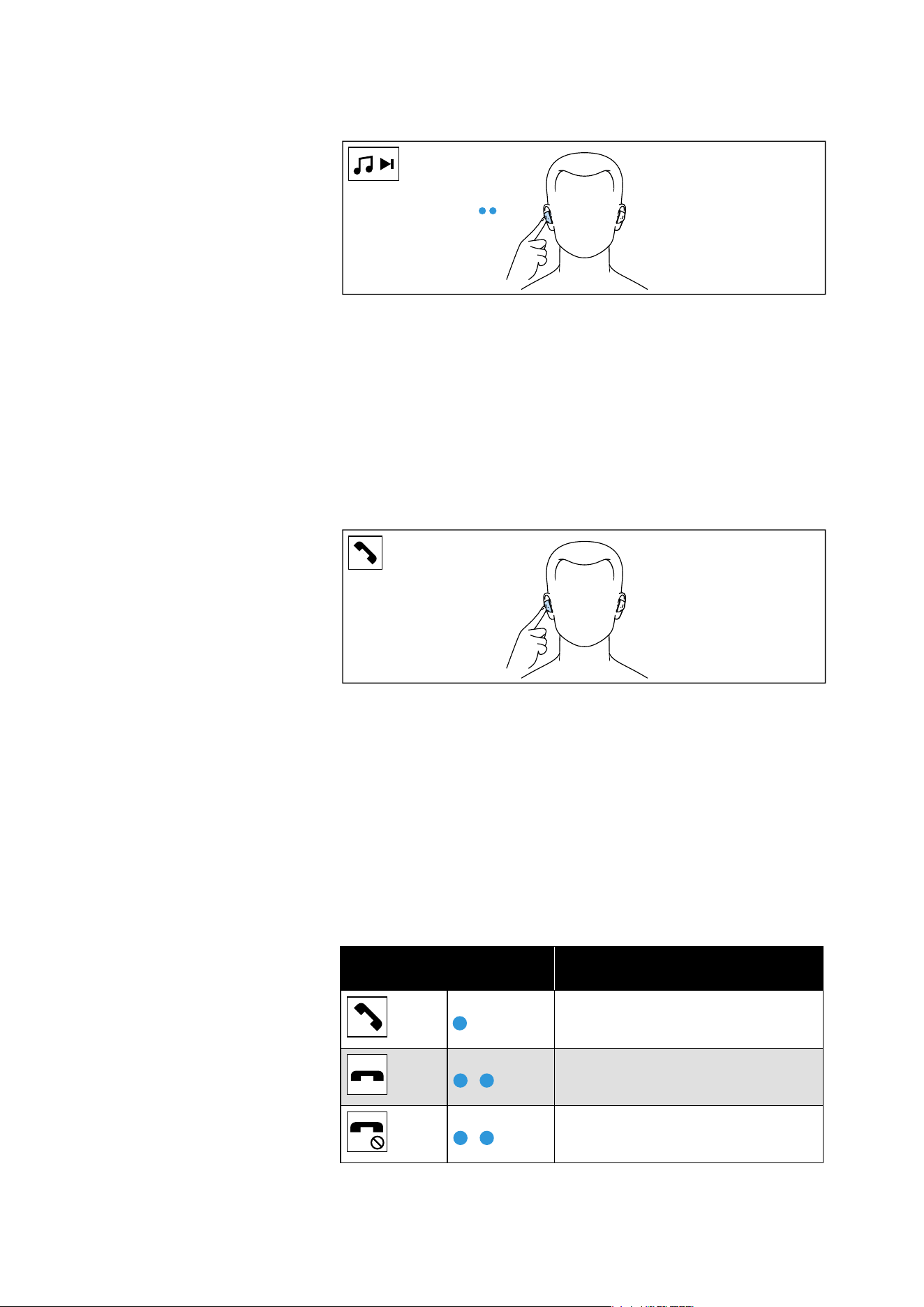
Playing/pausing music
▷ Tap the touch control panel of the right earbud 1x.
Playing the previous track
▷ Tap the touch control panel of the left earbud 2x.
You can also adjust the volume using the connected Bluetooth
device.
If you have activated the voice assistant (see page 32) and then
change the volume of the earbuds, the volume of the voice
assistant is adjusted accordingly and saved permanently.
1 x R
L
2 x
Using the earbuds
MOMENTUM True Wireless 5 | 27
Playing the next track
▷ Tap the touch control panel of the right earbud 2x.
Making calls using the earbuds
The call functions are only available when the earbuds and the Blue-
tooth device are connected. Some smartphones and telephony apps
(e.g. WhatsApp, MS Teams, WeChat) may not support all call control
functions.
During a call, you can use the right and/or left earbud to control the
call functions.
Making a call
▷ Dial the phone number.
If your Bluetooth device does not automatically transfer the call
to the earbuds, select “MOMENTUM TW 5” as the output device
on your device (see the instruction manual of your device if nec-
essary).
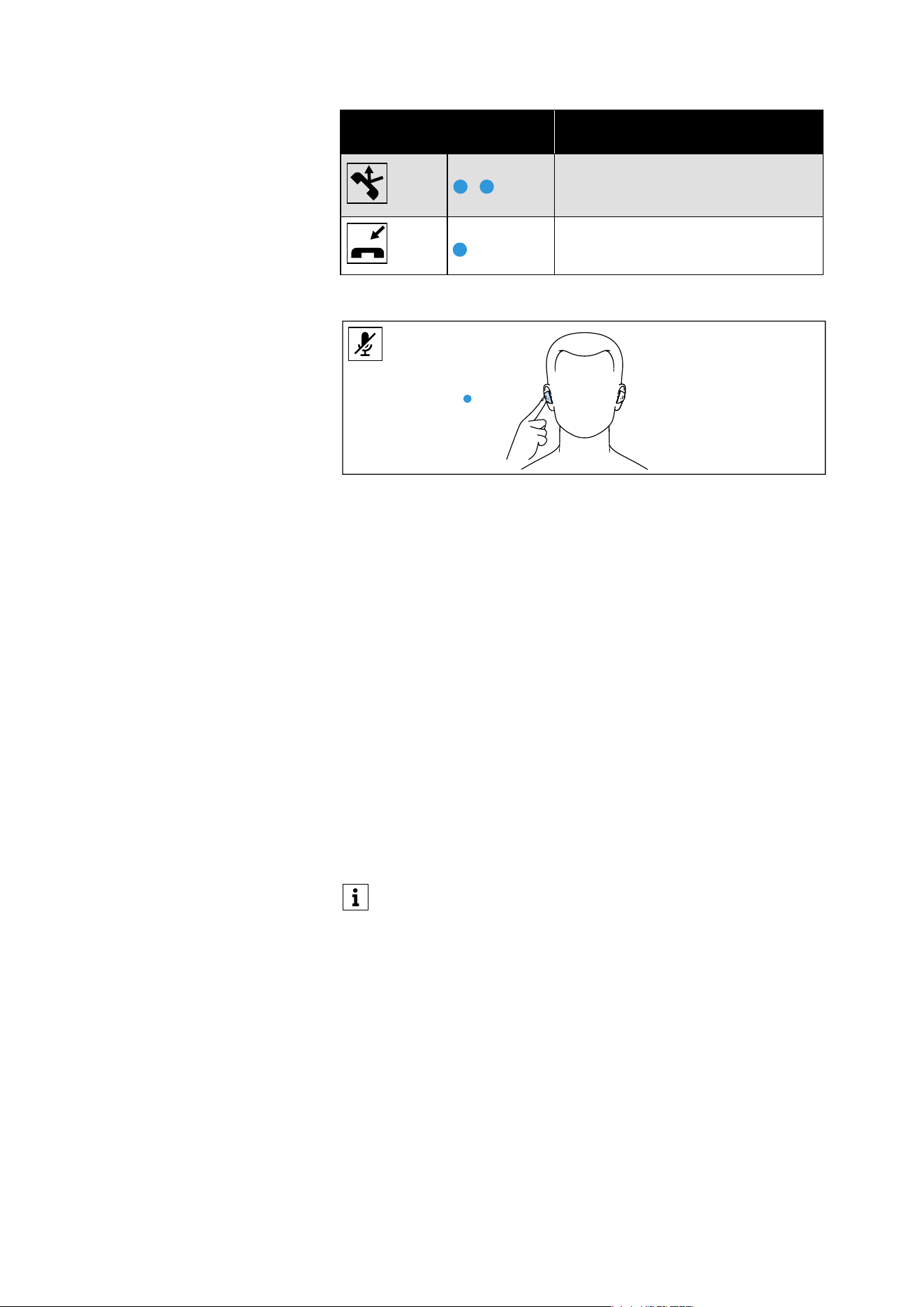
Accepting/rejecting/ending a call
If your earbuds are connected to a Bluetooth device and you receive
a call, you will hear your ringtone playing on the earbuds.
If music is playing when you receive a call, the music will pause until
the call is rejected or when the call ends.
2 x R
Right or left touch control
panel
Function
Tap 1x
Accepts a call
Tap 2x
Ends a call
Voice prompt “Call ended”
Tap 2x
Rejects a call
Voice prompt “Call rejected”
Using the earbuds
28 | MOMENTUM True Wireless 5
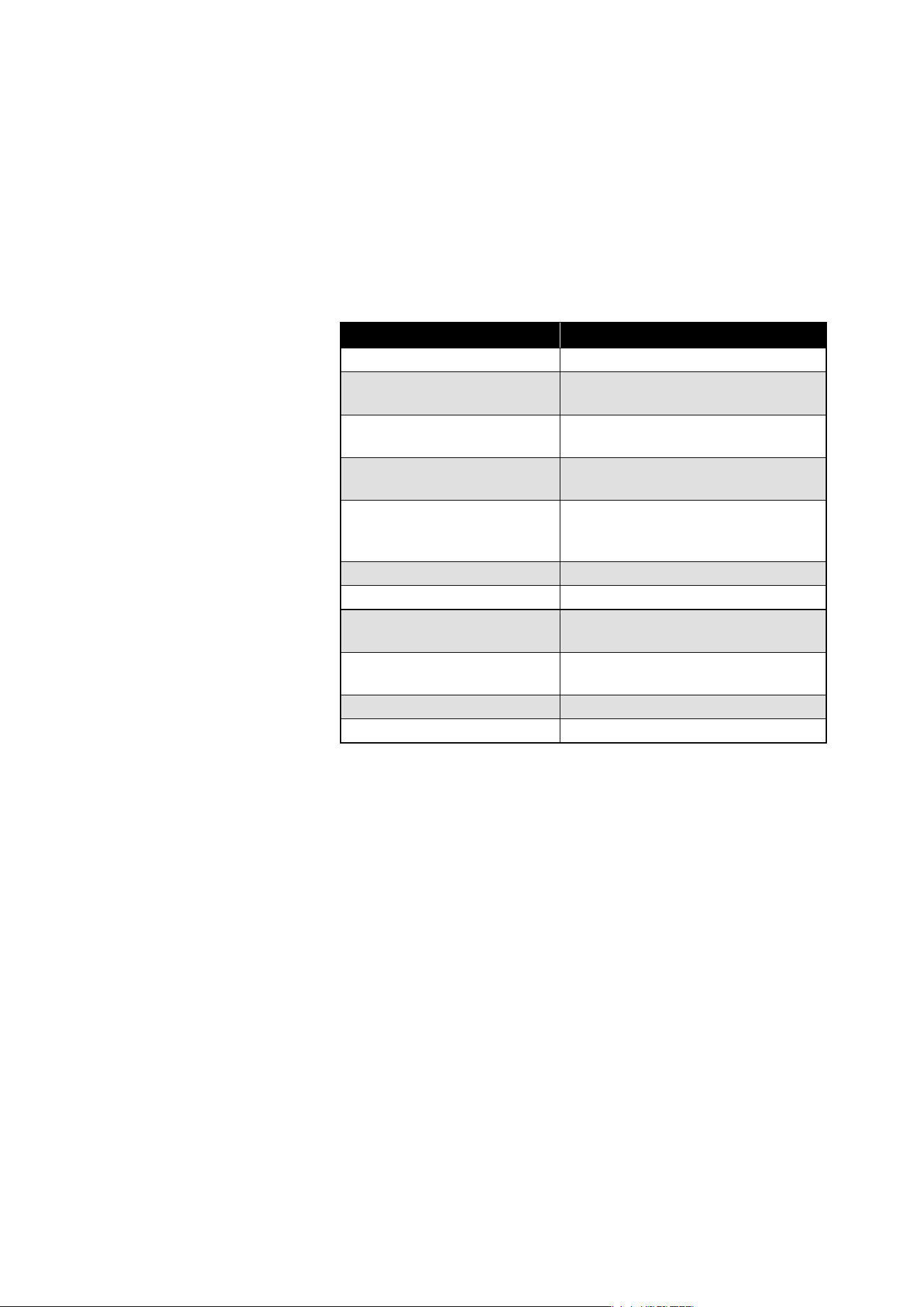
Muting the microphones
To mute the earbuds’ microphones during a call:
▷ Tap the touch control panel of the right or left earbud 1x.
You will hear the voice prompt “Mute on”.
The microphones are muted.
To activate the microphones again:
▷ Tap the touch control panel of the right or left earbud 1x.
You will hear the voice prompt “Mute off”.
The microphones are activated again.
Using the Auto Call function
If you take the paired earbuds out of the charging case during an
incoming call, the call is automatically accepted and you can use the
earbuds directly to answer the call.
You can activate (default setting) or deactivate this function via the
Smart Control Plus app. Note that both earbuds must be switched on
to adjust the settings for both earbuds (right and left).
Customizing the touch control functions
To customize the touch control functions, you will need the Smart
Control Plus app (see page 23).
The app offers the ability to customize earbuds' touch control func-
tions, select from predefined controls, or even to disable them
entirely. Some basic functions (e.g. call control) cannot be changed.
Tap 2x Rejects an incoming call and contin-
ues the active call
Voice prompt “Call rejected”
Tap 1x
Accepts an incoming call and ends
the active call
Right or left touch control
panel
Function
ON/OFF
1 x L/R
Each earbud can be used independently. Placing one earbud in
the charging case during use may cause a brief interruption in
the other.
Using the earbuds
MOMENTUM True Wireless 5 | 29
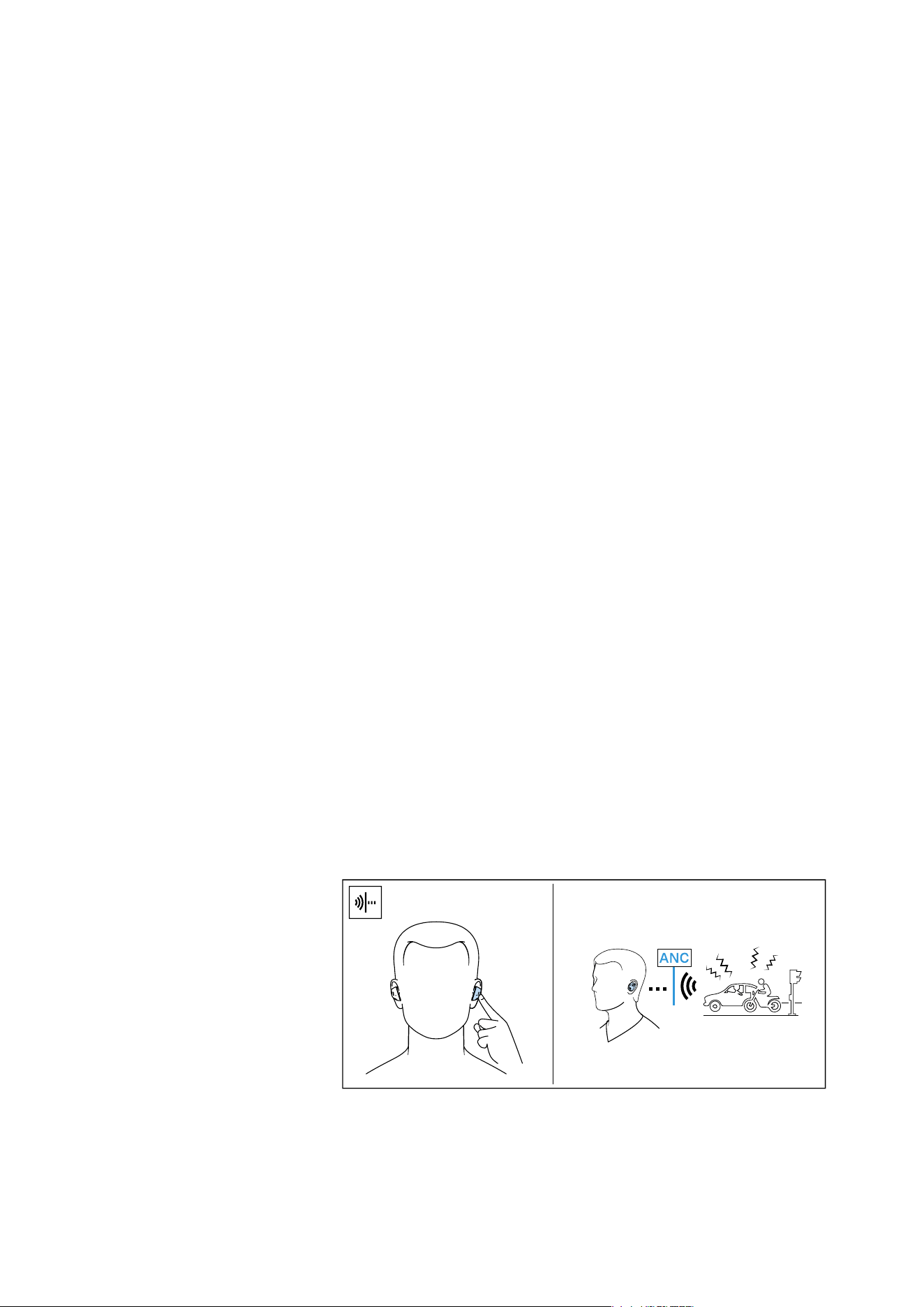
Overview of voice/tone prompts
The earbuds will play voice and tone prompts to indicate various
events and scenarios. If you tap the touch control panels on the ear-
buds, you will hear corresponding tone prompts as a feedback.
With the Smart Control Plus app, you can:
• change the language of the voice prompts
• choose voice or tone prompts
• deactivate status messages with a few exceptions (e.g. recharge-
able battery is empty)
adjust the volume of the voice and tone prompts
You will hear tone prompts when the earbuds:
• are powered off
• successfully connected to a device from the pairing list via
Bluetooth
• activates or deactivates active noise cancellation (ANC)
• receive a gesture via the touch control panels (increasing/
decreasing the volume, starting/pausing music playback,
accepting/holding/rejecting calls)
▷ receive an incoming call (user device’s ringtone)
Customizing voice/tone prompts
To set the voice or tone prompts, you require the Smart Control Plus
app (see page 23).
▷ You can choose between voice prompts and tone prompts, or
deactivate the status messages with a few exceptions (e.g.
rechargeable battery is empty). Note that both earbuds must be
switched on to adjust the settings for both earbuds (right and
left).
Voice prompt Meaning
“Pairing successful” Bluetooth pairing was successful.
“Pairing canceled” Bluetooth pairing mode was can-
celed.
“Pairing failed” Bluetooth pairing was not success-
ful.
“No connection” Earbuds are not connected via
Bluetooth.
“Recharge headset” Rechargeable battery is almost
empty. Recharge the rechargeable
battery.
“Call rejected” Incoming call rejected.
“Call ended” Call ended.
“Mute on” Muting of the microphones during
an active call.
“Mute off” Muting of the microphones is can-
celed.
“Volume min” Volume set to minimum.
“Volume max” Volume set to maximum.
Using the earbuds
30 | MOMENTUM True Wireless 5
Information on Active Noise Cancellation
The in-canal fit provides an effective passive isolation from ambient
noise.
The earbuds also offer active noise cancellation (ANC), which reduces
ambient sounds to a minimum while maintaining optimal sound quality.
You can also use the earbuds to create a quiet space in noisy envi-
ronments by activating ANC.
With the Smart Control Plus app, you can customize ANC settings to
suit your environment. Noise cancellation intensity is also adjusted
automatically based on your environment’s ambient noise in real
time.
Notes on active noise cancellation
• Low-frequency noise such as the humming of motors or the hiss-
ing of fans is particularly well suppressed.
• Speech or high-frequency noise is significantly reduced, but can
remain perceptible.
• Constant noise is suppressed, as well as transient noise, e.g. foot-
steps while walking.
• ANC can also adapt optimally to changing ambient sounds.
• If unusual (whistling or beeping) noise occurs, remove the ear-
buds from your ears and reinsert them. Make sure the earbuds are
properly seated in your ears and form a good seal with the ear
canal. If the problem still occurs, reset the earbuds (see page 42).
• To avoid loud, unusual (whistling or beeping) noise and to ensure
proper noise cancellation, do not cover the microphone openings
of the active noise cancellation circuitry located on the outside of
the earbuds.
• When ANC is activated, the overall battery life of the earbuds will
be reduced.
Activating/deactivating Active Noise
Cancellation
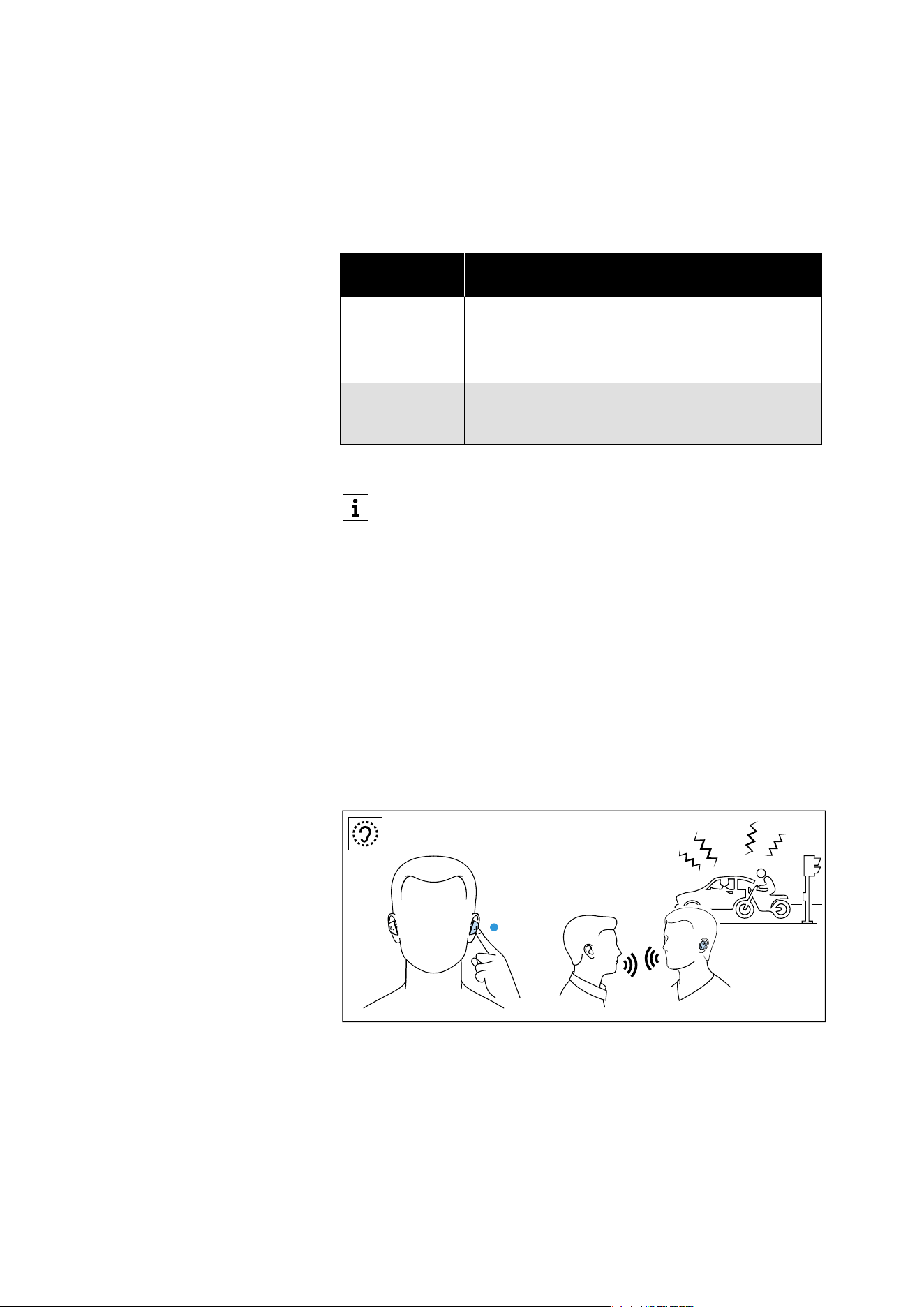
ANC is enabled by default. It can be activated or deactivated via the
Smart Control Plus app. This action can also be assigned to the touch
controls under the “Controls” tab in the Smart Control Plus app (see
page 21).
Once the action is assigned to an earbud, tap according to the con-
trol you have set in the app. to enable or disable ANC.
ON/OFF
Using the earbuds
MOMENTUM True Wireless 5 | 31
Active Noise Cancellation modes
To customize ANC settings, you require the Smart Control Plus app
(see page 23). The “Noise control” tab allows you to select between
ANC/Transparency/Off.
Each noise control effects produce a different result depending on
your choice, the sound environment, and conditions.
*default setting
Activating/deactivating transparency
mode
With transparency mode activated, you can hear ambient sounds or
communicate without removing the earbuds or pausing audio play-
back. This is useful in situations such as hearing the announcements
in the train or aircraft or to have short conversations.
In the Smart Control Plus app, you can adjust the intensity of trans-
parency mode with the “Transparency level” slider bar. This allows
you to control how much ambient noise reaches your ears. You can
also enable transparency during phone calls and adjust its intensity
using the dedicated slider bar.
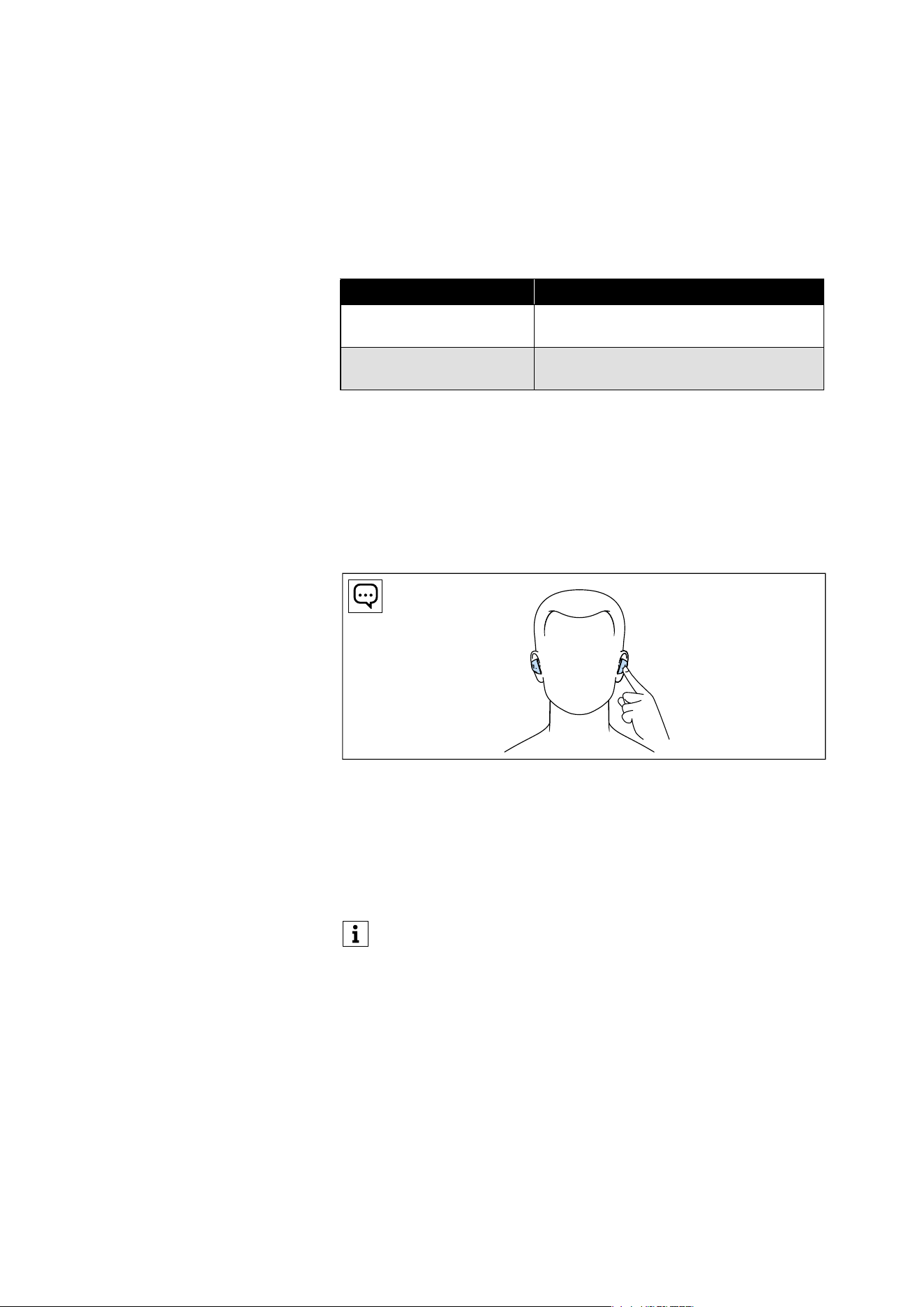
▷ Tap the touch control panel of the left earbud 1x.
Transparency mode is activated. You can hear ambient sounds
without removing the earbuds from your ears.
To deactivate transparency mode:
▷ Tap the touch control panel of the left earbud 1x.
Noise control
effects
Result
ANC* Reduction of low-frequency noise and back-
ground noise depending on the noise conditions:
– maximum reduction in a noisy environment
– minimum reduction in a quiet environment
Anti-wind Strong wind or movement noise is minimized,
while a small amount of ambient sounds remains
audible.
Anti-wind can be turned on or off via the Smart Control Plus
app, under the Noise control tab.
ON/OFF
1 x L
Using the earbuds
32 | MOMENTUM True Wireless 5
Adjusting the playback pause in
transparency mode
You can select how audio playback behaves when transparency
mode is activated. To adjust this setting, you require the Smart
Control Plus app (see page 23).
Select the desired setting in the “Noise control” tab of the Smart
Control Plus app:
*default setting
Using Voice Assistant
You can activate your paired device’s voice assistant in two ways.
Assign the function to one of the earbuds’ touch controls in the “Con-
trols” tab of the Smart Control Plus app (see page 23) or activate it
from your Bluetooth device.
To activate the voice assistant via touch control:
▷ Tap according to the control you have set in the app.
The available voice assistant of your paired device is activated (this
depends on the system used or app installed: Siri®, Google Assistant
or similar).
▷ Speak your request.
Using the Smart Pause function
The earbuds automatically detect whether they are being worn and
pause playback when removed. If the earbud is removed for more
than 2 minutes, audio playback will not resume automatically.
You can activate (default setting) or deactivate the function via the
Smart Control Plus app.
“Automatic Pause” Description
activated*
Audio playback (e.g. music) is muted
and you hear only ambient sounds.
deactivated
Audio playback (e.g. music) continues
and is mixed with ambient sounds.
If you have activated the voice assistant and then change the
volume of the earbuds (see page 25), the volume of the voice
assistant is adjusted accordingly and its settings saved in the
earbuds.

Using the earbuds
MOMENTUM True Wireless 5 | 33
Sound customization
Selecting EQ presets
To select a preferred EQ preset, you require the Smart Control Plus
app (see page 23).
▷ In the Smart Control Plus app, tap on the “My sound” tab and
select your desired presets under “Graphic EQ”. You can also turn
on “Bass boost” to further enhance the bass in your audio play-
back.
▷ The selected EQ preset will be stored in the earbuds and will be
in use even without the Smart Control Plus app, i.e. when you are
using a different Bluetooth device.
8-band Graphic EQ
To customize your own EQ preset, you require the Smart Control Plus
app (see page 23).
▷ In the Smart Control Plus app, tap on the “My sound” tab, then tap
on “Create new” button. Select “Create with band EQ” to start
customizing a new EQ preset.
▷ Tap and hold to adjust the gain (dB) of each band by either boost-
ing or cutting the band. Each band is related to frequencies either
focused on bass, mids, or highs.
▷ Once ready, rename the preset and save it. It will then be listed
under the available EQ presets.
Creating new EQ presets with Sound Check
Sound Check is a guided audio-tuning process that allows you to
create personal EQ presets tailored to your listening preferences.
Tap “Create new” and follow the step-by-step guide to create a new
EQ preset.
You will need music playing to start Sound Check. Listen to the
options presented and select the options that sounds best to you.
Once complete, your preset is saved and added to the list of available
EQ presets in the Smart Control Plus app.
Customizing with Sound Personalization
Sound Personalization uses an algorithm to create unique sound pro-
files that best fit your listening preferences. Tap “Create new” and
follow the step-by-step guide to create a new EQ preset.
You will need to put on the earbuds to start the Sound Personaliza-
tion process. Use the slider bar to adjust the settings. Once com-
plete, you can further fine-tune the results by dragging the blue dot
on screen. Once complete, your preset is saved and added to the list
of available EQ presets in the Smart Control Plus app.
Dolby Atmos
®
and Dolby Head Tracking
Activating Dolby Atmos
Dolby Atmos for headphones delivers an immersive and precise
audio experience. With the introduction of additional layers of
dimension, distance and realism, the technology ensures improved
accuracy and a true sense of spatial awareness.

Using the earbuds
34 | MOMENTUM True Wireless 5
You can activate or deactivate Dolby Atmos using the Smart Control
Plus app (see page 23). Once activated, Dolby Atmos will transform
the audio by using object-based audio technology to create a 3D
sound field around you. Not limited to just left and right channels,
Dolby Atmos is able to assign each sound element where voices,
instruments, and effects can move naturally around you in any direc-
tion, including above and below you. For the full effect, the audio
content played must also support Dolby Atmos.
Activating Dolby Head Tracking
Dolby Head Tracking is a complementing feature of Dolby Atmos.
When activated, the earbuds can detect and respond to head move-
ments in real time, while keeping the sound anchored to a fixed point
in front of you. When you start turning your head, the audio will stay
fixed in place rather than moving with you, creating a more realistic
and immersive spatial experience.
Setting audio modes priority
With the Smart Control Plus app (see page 23), you can manage the
audio mode settings of your earbuds according to your preferences.
▷ Start the Smart Control Plus app.
▷ Tap on the “Settings” symbol ( ).
▷ In the “Settings” section, tap on “Audio mode priority”.
▷ Select the required audio mode.
Robust Connection mode
Select this mode to prioritize a stable Bluetooth connection and
longer battery life while maintaining high sound quality. It is recom-
mended for everyday use, especially in busy wireless environments.
In Robust Connection mode, the use of the aptX™ Bluetooth codec is
deactivated and audio data is transmitted exclusively via SBC or
AAC. This reduces the transmission bandwidth of the earbuds and
increases the operating time of the battery.
Advanced Sound Quality modes
Activate one of these modes if you prioritize the audio codecs with
the highest quality. In this case, the Bluetooth transmission range
may be slightly reduced.
Hi-Res 24 bit/96 kHz A full bandwidth of sound is offered by the high resolution audio
mode via the aptX™ Adaptive Bluetooth codec. The audio data is
compressed and transmitted with a sampling frequency of 96 kHz
and a sampling depth of 24 bits.
This mode requires an audio source (player or Bluetooth device) that
supports aptX™ Adaptive and audio material in high resolution qual-
ity.
Lossless 16 bit/44.1 kHz The lossless audio mode offers maximum sound quality. The audio
data is transmitted uncompressed and bit-accurate in CD quality via
the Bluetooth codec aptX™ Lossless, with a sampling frequency of
44.1 kHz and a sampling depth of 16 bits.
For guidance on enabling Dolby Atmos on supported apps such
as Tidal and Apple Music, refer to the “Immersive audio” tab.
Using the earbuds
MOMENTUM True Wireless 5 | 35
A correspondingly high-resolution quality of the audio material to be
played back is required.
Battery protection mode
When the battery protection mode is activated, the rechargeable
batteries of the earbuds are charged in a controlled manner, up to a
charge level of approx. 80%. This prevents battery degradation and
extends the battery life over a long period of time with several charge
cycles. The maximum playback time of the earbuds is reduced
accordingly to approx. 80% of the standard playback time.
You can activate the battery protection mode via the Smart Control
Plus app (see page 23).
Storing or transporting the earbuds in the
charging case
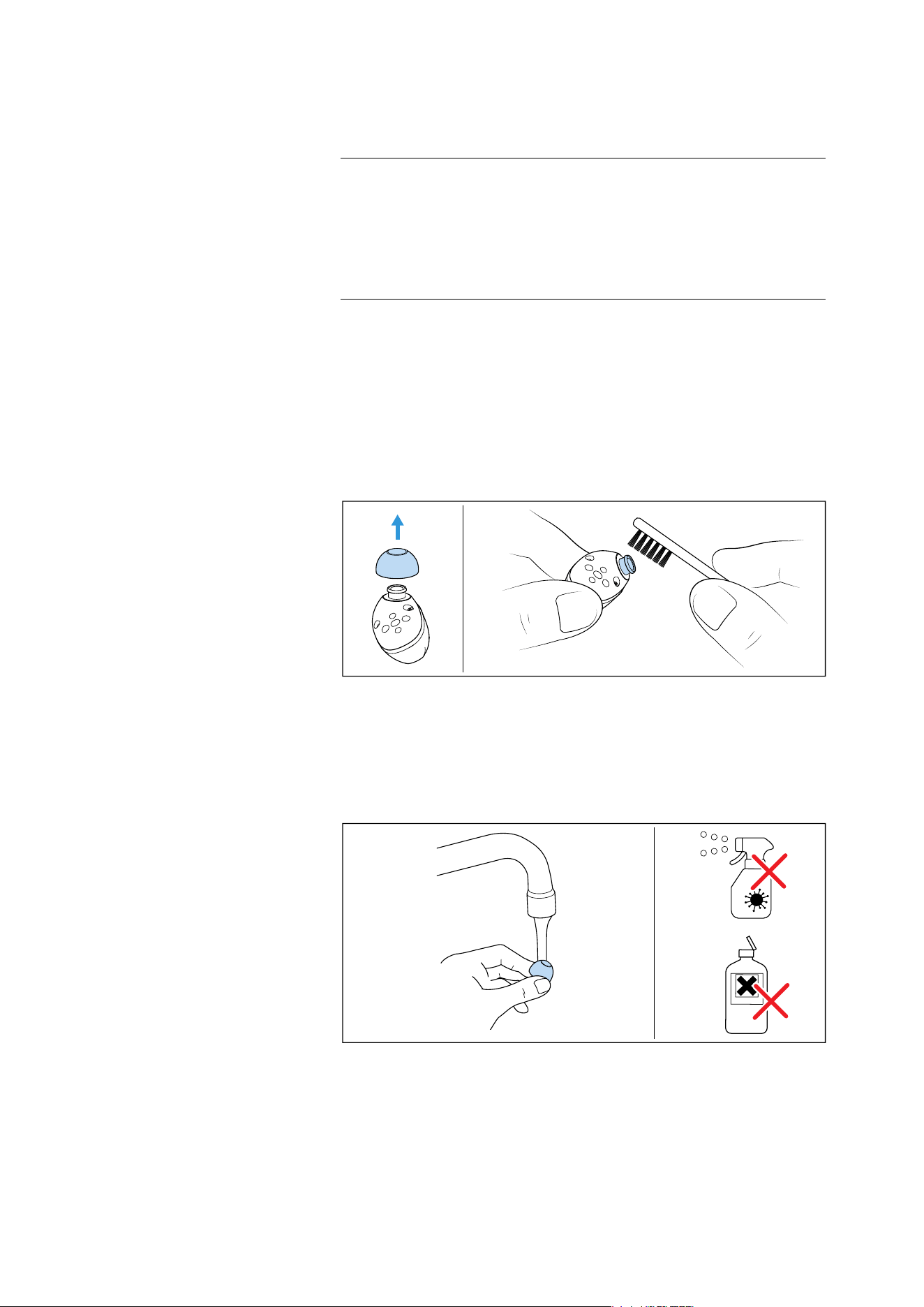
Store the earbuds in the charging case to prevent damage to the ear-
buds when not in use or during transport. Once placed in the
charging case, the earbuds will automatically start charging.
▷ Open the lid of the charging case and insert the left earbud into
the left charging compartment and the right earbud into the right
charging compartment.
The earbuds will be magnetically pulled into the charging com-
partments.
▷ Close the lid of the charging case.
ATTENTION
Moisture and dirt can damage the electronics of the charging case
and the earbuds!
If moisture and dirt get inside the charging case, this can impair its
function.
▷ Do not place the earbuds in the charging case when they are wet
or dirty.
L
R
Care and maintenance
36 | MOMENTUM True Wireless 5
Care and maintenance
Cleaning the earbuds and the charging
case
▷ Only clean the charging case with a soft, dry cloth.
▷ Clean the earbuds with a slightly damp cloth.
If you notice that the sound quality of the earbuds is deteriorating
due to clogging:
▷ Remove the ear tips from the earbuds.
▷ Using a dry, clean brush (e.g. toothbrush), lightly brush over the
in-ear sound tunnel openings to remove any dirt above the pro-
tective fabric. Avoid damaging the protective fabric within the in-
ear sound tunnels to prevent dirt or debris from entering the elec-
tronics.
▷ You can clean the silicone ear tips under lukewarm running water.
Let the ear tips dry at room temperature for at least 12 hours
before re-attaching them to the earbuds.
ATTENTION
Liquids can damage the electronics of the product!
Liquids entering the housing of the product can cause a short-circuit
and damage the electronics.
▷ Keep all liquids far away from the product.
▷ Do not use any solvents or cleansing agents.
ALCOHOL
Care and maintenance
MOMENTUM True Wireless 5 | 37
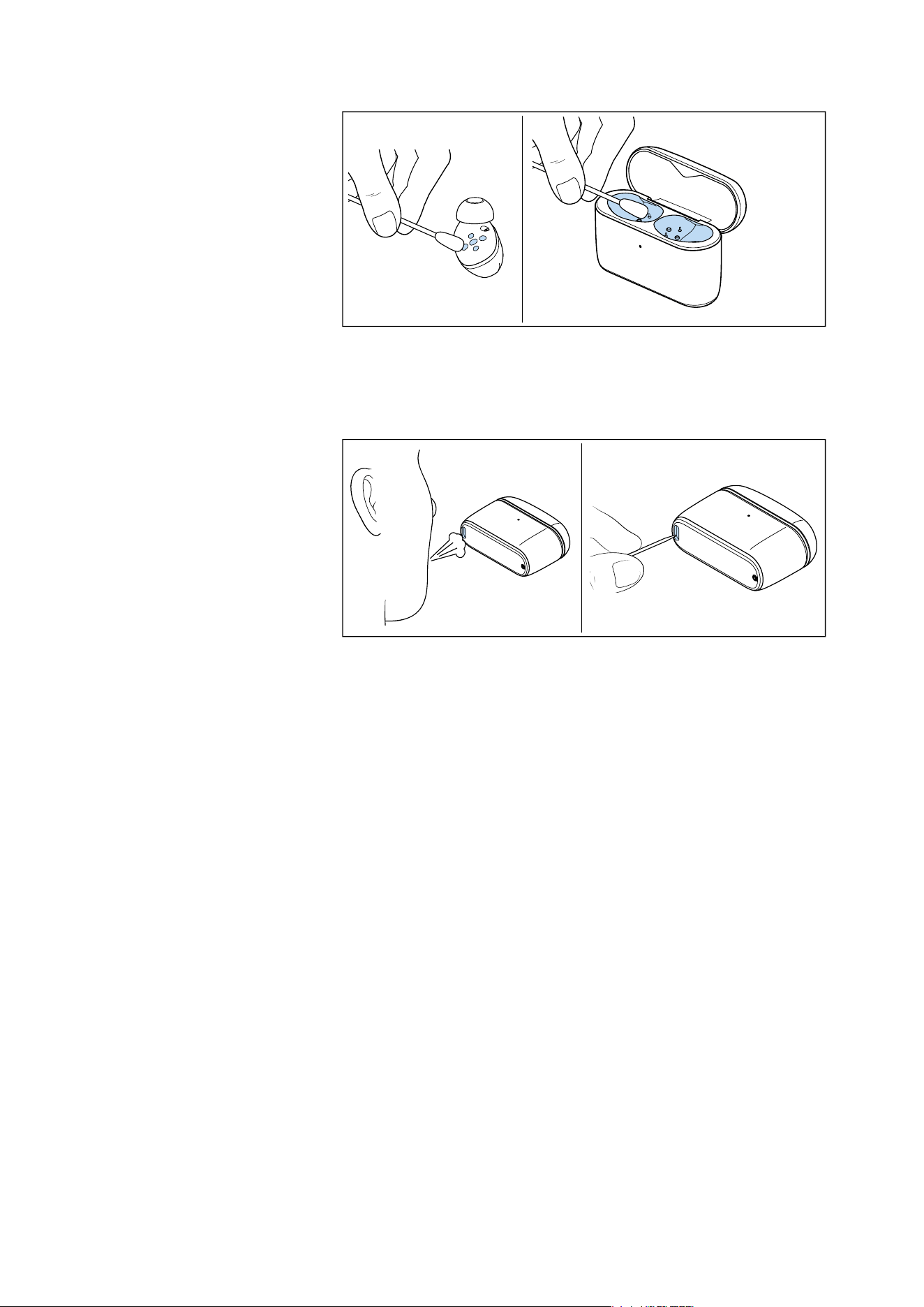
▷ Clean the charging contacts on the earbuds and in the charging
case from time to time, e.g. with a cotton swab.
To remove any dirt such as dust accumulation or lint from the USB
socket of the charging case:
▷ Blow into the USB socket or carefully brush a fine object (e.g. a
toothpick or the bristles of a toothbrush) through the opening of
the socket.
If the earbuds have gotten wet:
▷ Remove the ear tips and dry the earbuds and ear tips with a dry
cloth. If necessary, let the earbuds and ear tips dry at room tem-
perature for approx. 12 hours.
Care and maintenance
38 | MOMENTUM True Wireless 5
Replacing the ear tips
For hygiene reasons, it is recommended to replace the ear tips after
a period of time (see page 18). Spare ear tips can be found on the
MOMENTUM True Wireless 5 product page at
www.sennheiser-hearing.com/momentum-true-wireless-5
.
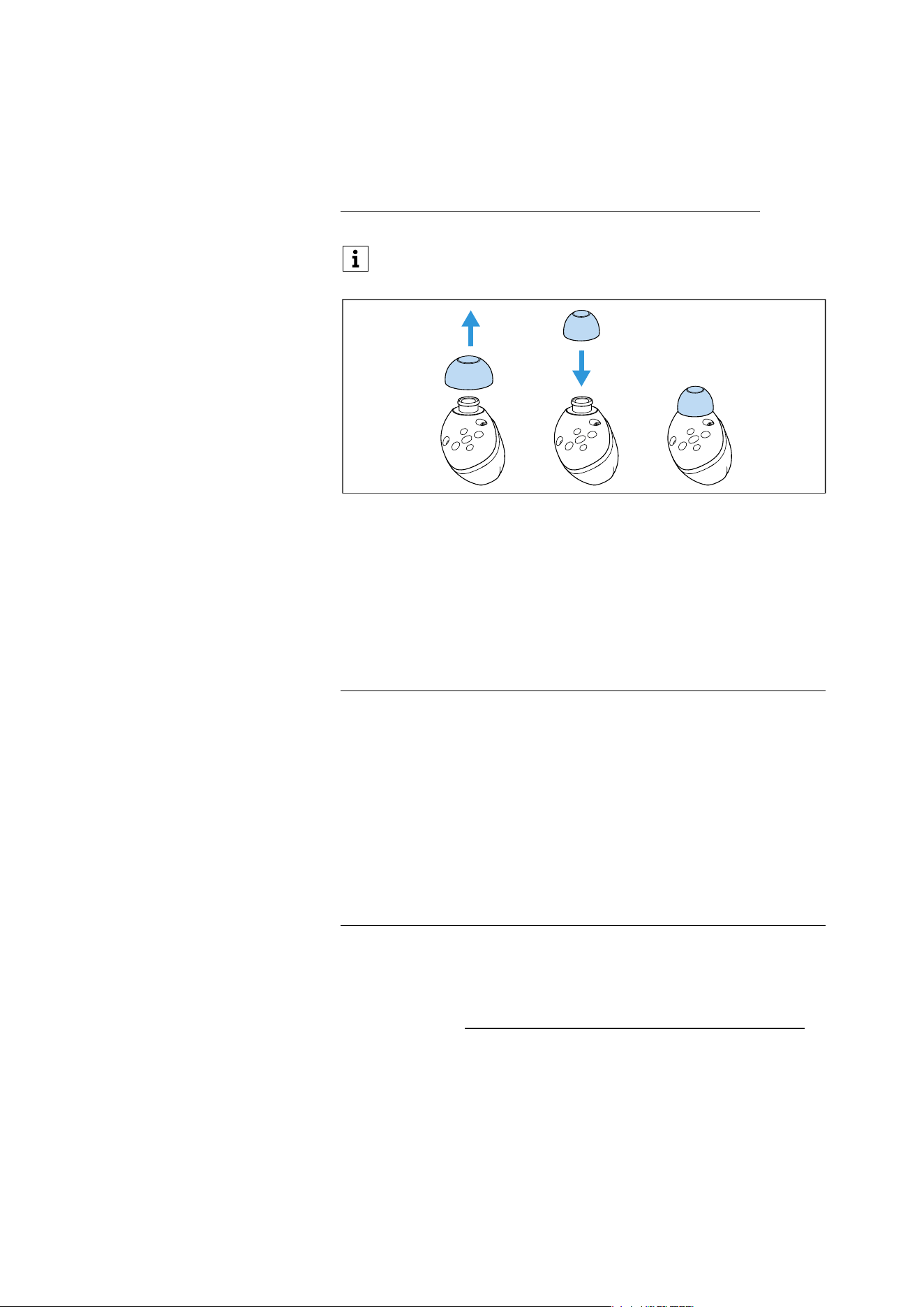
▷ Pull the ear tip away from the in-ear sound tunnel and off the ear-
bud.
▷ Attach the new ear tip to the sound tunnel until it locks in place.
Replacing the rechargeable batteries
To extend the service life of the product, the earbuds and the
charging case have rechargeable batteries that can be replaced.
The compatible Sennheiser batteries are BA 501 (Set of 2 earbud bat-
teries) and BA 502 (Charging case battery). They will be available in
the EU and further selected countries.
For online availability or to contact the Customer Service for further
information, visit global.sennheiser-hearing.com/pages/support.
You can use the Fit Test function in the Smart Control Plus app
to test the fit of the earbuds in your ears.
ATTENTION
Replacing with a non-compatible battery can defeat safeguard!
The use of non-compatible rechargeable third-party batteries can
lead to a limited operating time of the headphones or damage to the
product.
▷ Use rechargeable spare batteries supplied or recommended
Sennheiser.
▷ If you consider using batteries from third-party providers, you
need to ensure the batteries comply with all technical specifica-
tions as shown in the chapter “Specifications” and are approved
by local regulation(s).
Care and maintenance
MOMENTUM True Wireless 5 | 39
Replacing the rechargeable batteries of the earbuds
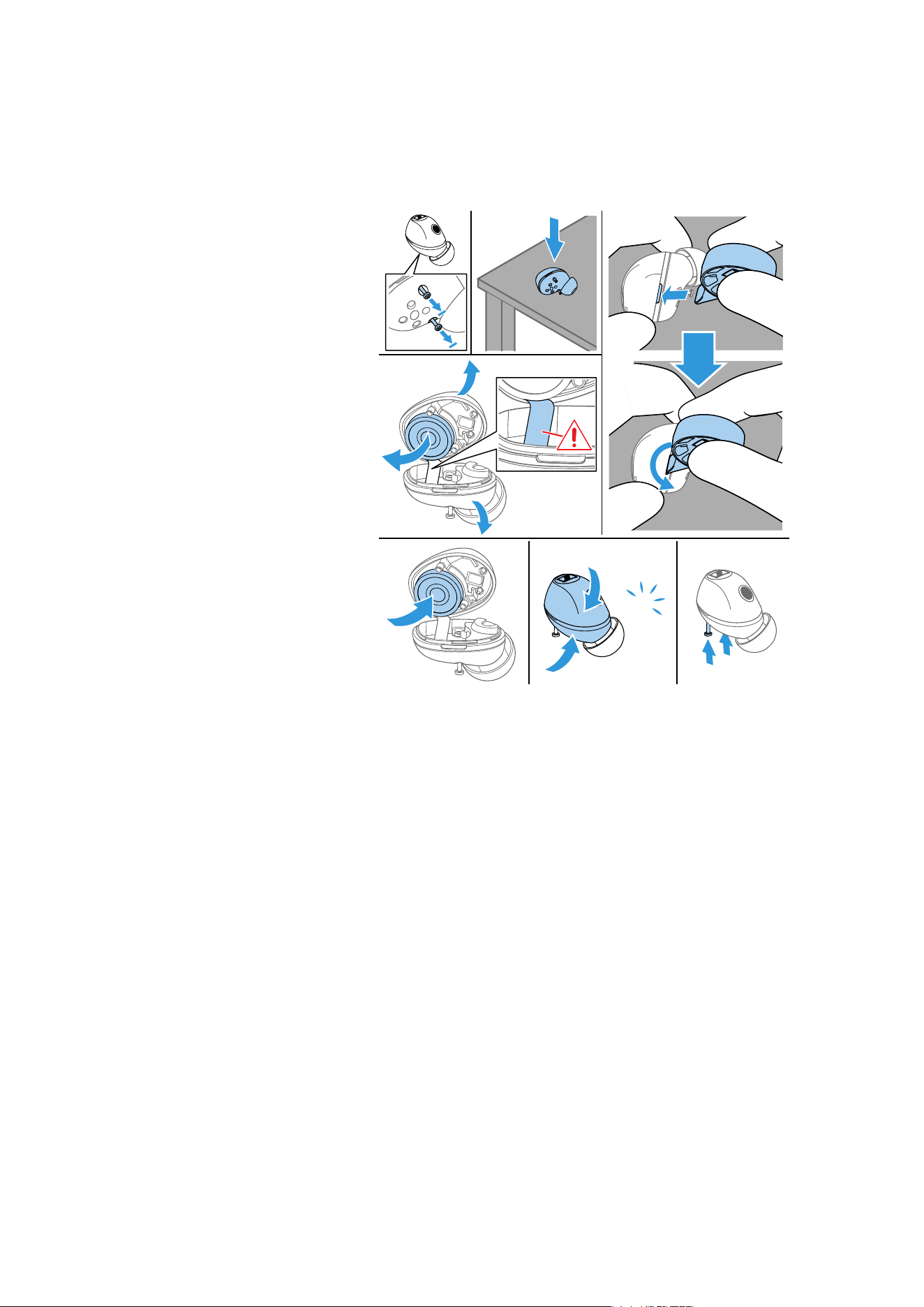
Tools required:
• Phillips screwdriver PH000 (not included)
• Special tool for opening the earbuds (included in delivery)
To remove the rechargeable battery:
1. Loosen the two captive Phillips head screws from the bottom of
the earbud. The captive screws are not removable.
2. Attention! Risk of damage to the earbud’s housing or the flexible
printed circuits. Do not use sharp or pointed objects to open the
housing. Open the housing carefully. Only touch and move the
parts that are required for the battery replacement.
Attention! Risk of damage to the speaker cable. Do not pull the
housing halves too far apart.
To open the housing of the earbud, place the supplied special tool
on the slotted recess (a) and twist it slightly (b). Lever the two
halves of the housing apart.
3. Remove the rechargeable battery by taking it out of the battery
holder.
To insert the new rechargeable battery:
4. Place the rechargeable battery into the battery holder. Pay atten-
tion to the polarity.
5. Attention! Risk of damage to the earbud’s flexible printed cir-
cuits or the speaker cable. Close the housing carefully. Do not
touch any sensitive electronic parts. Do not pinch the speaker
cable between the housing halves.
Close the housing of the earbud:
– Carefully and loosely place the two halves of the housing on top
of each other so that they are well aligned.
1
567
2
3a
43b
Click
Care and maintenance
40 | MOMENTUM True Wireless 5
– Make sure that you do not pinch the speaker cable between the
housing halves.
– Press the two halves of the housing together until they click into
place with an audible click sound.
6. Attach the housing halves by tightening the two Philips head
screws.
To test the function of the earbud with the new rechargeable battery:
▷ Insert the earbud into the charging case, but do not close the lid.
▷ Take the earbud out of the charging case.
▷ Check whether the Bluetooth connection and audio playback are
working.
▷ Repeat this test another two times.
▷ Repeat all the steps above with the second earbud.
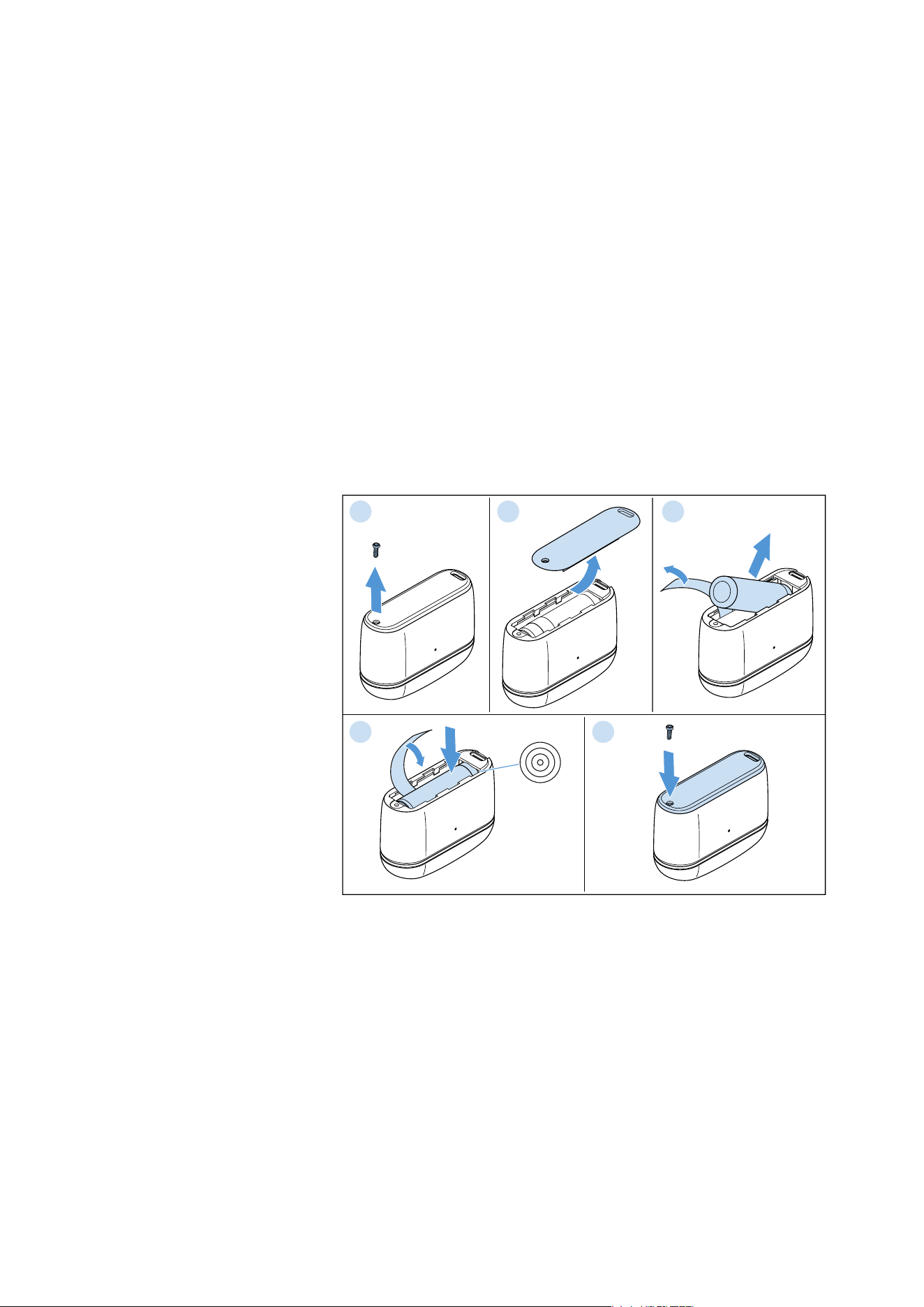
Replacing the rechargeable battery of the charging case
Tools required:
• Phillips screwdriver PH000 (not included)
To remove the rechargeable battery:
1. Remove the Phillips head screw from the bottom of the charging
case.
2. Slide the battery compartment cover open and lift off the cover.
3. Pull the battery release strip to release the rechargeable battery
and remove the battery from the battery compartment.
To insert the new rechargeable battery:
4. Place the rechargeable battery into the battery compartment. Pay
attention to the polarity and make sure to place the rechargeable
battery over the release strip.
5. Place the battery compartment cover on the battery compart-
ment and slide it closed. Attach the battery compartment cover
by tightening the Philips head screw.
1 2 3
4 5

Care and maintenance
MOMENTUM True Wireless 5 | 41
To test the function of the charging case with the new rechargeable
battery:
▷ Open and close the lid of the charging case to check the function-
ality of the LED display (see page 15).
▷ Repeat this test another two times.
Information on the replaceable
rechargeable battery
Sonova Consumer Hearing ensures and guarantees that the
rechargeable batteries perform at their optimum upon purchase of
the product. If, upon purchase or within the warranty period, you sus-
pect that a rechargeable battery is obviously defective or if a
charging error/battery error is displayed (see page 9), stop using the
product, disconnect it from the power supply system and contact
your Sonova Consumer Hearing partner. Your Sonova Consumer
Hearing partner will coordinate the repair/replacement with you.
Do not return a product with a defective battery to your dealer or
Sonova Consumer Hearing partner unless requested to do so. To find
a partner in your country, search at
global.sennheiser-hearing.com/pages/support
.
At the end of its operational lifetime, this product with its recharge-
able battery must be disposed of separately from normal household
waste. You can find more information here: see page 48.
Installing firmware updates
Firmware updates can be downloaded free of charge from the Inter-
net using the Sennheiser Smart Control Plus app.
▷ Make sure that the rechargeable batteries are fully charged
before updating (see page 15).
▷ Take the earbuds out of the charging case before updating and do
not reinsert them into the charging case during the update.
▷ Connect the earbuds to your smartphone and start the Smart
Control Plus app (see page 23).
The app provides information on available firmware updates and
guides you through the installation process.
▷ Avoid connecting or disconnecting the USB power supply during
the update process.
In the Smart Control Plus app, you can activate the battery pro-
tection mode for optimized charging and longer battery life
(see page 35).

FAQ/If a problem occurs...
42 | MOMENTUM True Wireless 5
FAQ/If a problem occurs...
If a problem has occurred, proceed in the following order until the
problem is solved and you can use the earbuds again:
1. Connect the earbuds to the Smart Control Plus app to install the
latest firmware (see page 41).
2. Reset the earbuds to the factory default settings (see page 43).
3. Check the list of frequently asked questions to see if there is a
solution to the problem (see page 42).
4. Contact your Sonova Consumer Hearing partner to solve the
problem (see page 42).
Current list of frequently asked questions (FAQ)
Visit the MOMENTUM True Wireless 5 product page at
www.sennheiser-hearing.com/momentum-true-wireless-5
There you will find a current list of frequently asked questions (FAQ)
and suggested solutions.
Your question has not been answered or the problem persists?
If a problem occurs that is not listed in the FAQ section or if the prob-
lem cannot be solved with the proposed solutions, please contact
your Sonova Consumer Hearing partner for assistance.
To find a partner in your country search at
global.sennheiser-hearing.com/pages/support
Leaving the Bluetooth transmission range
Wireless calling and audio streaming are only possible in the Blue-
tooth transmission range of your smartphone. The transmission
range largely depends on environmental conditions such as wall
thickness, wall composition etc. With a free line of sight, the trans-
mission range of most smartphones and Bluetooth devices is up to
10 meters.
If you move out of the Bluetooth range of your smartphone, audio will
start breaking up until the connection drops and you hear “No con-
nection”. Moving back into range immediately will automatically
restore the connection and you will hear “Connected”. If the connec-
tion does not restore automatically, tap the touch control panel of
either earbud 1x.
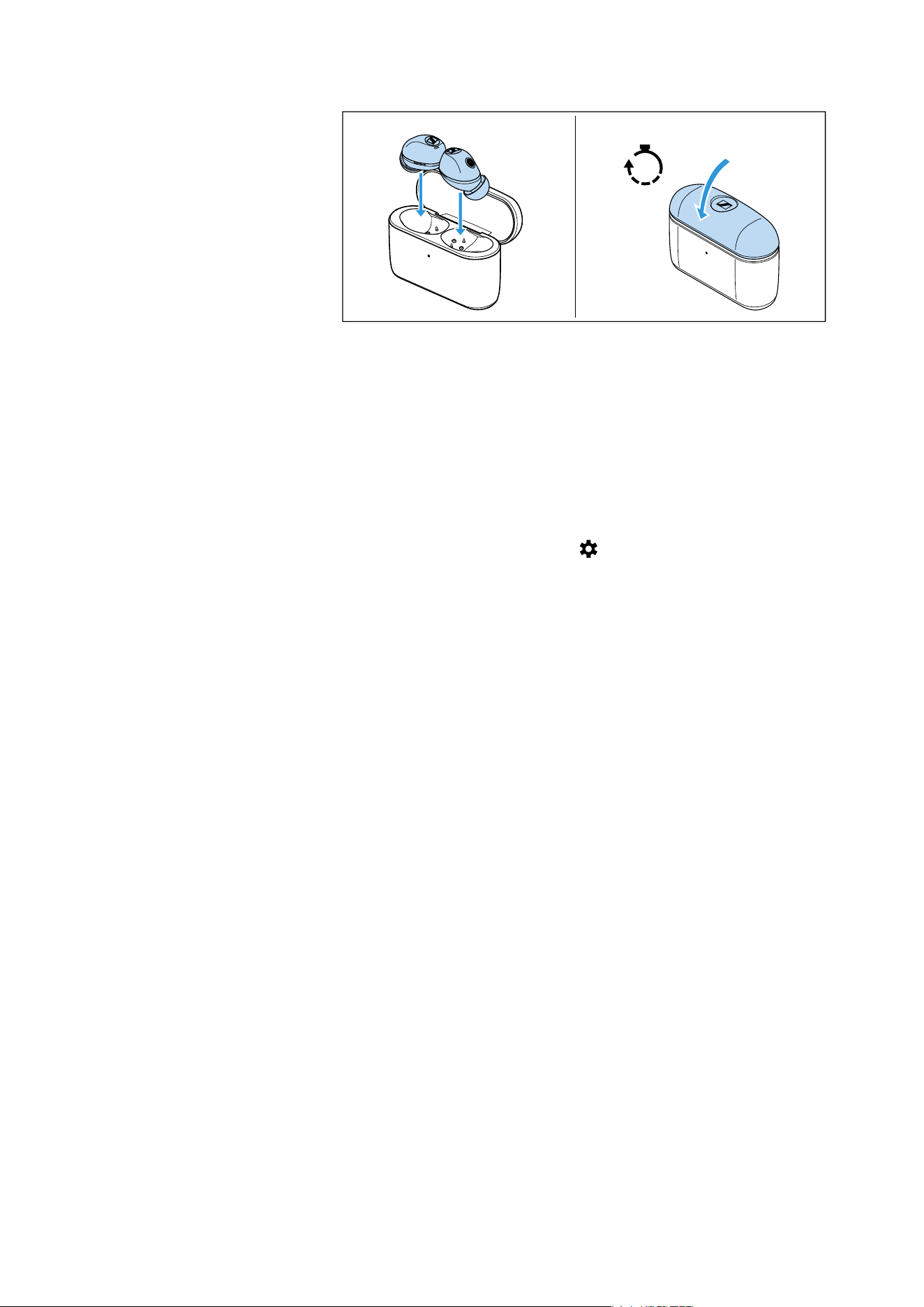
Resetting the earbuds
If the earbuds are not performing as expected, reset the earbuds.
Resetting the earbuds will not delete pairing settings.
Bluetooth transmission is also affected by the audio mode
selected. High Resolution Audio and Lossless Audio modes
may reduce connection stability.
FAQ/If a problem occurs...
MOMENTUM True Wireless 5 | 43
▷ Insert the earbuds into the charging case and close the lid.
The earbuds will restart automatically after 30 seconds.
Resetting the earbuds to the factory default settings
If the earbuds are not functioning as expected and a reset does not
help, restore the earbuds to factory default settings. Note that this
will delete all settings, including paired Bluetooth devices.
The easiest way to restore the earbuds to factory default settings is
via the Smart Control Plus app:
▷ Start the Smart Control Plus app.
▷ Tap on the “Settings” symbol ( ).
▷ In the “Settings” section, tap on “Factory Reset”.
▷ Follow the instructions in the app.
30s
L
R
Specifications
44 | MOMENTUM True Wireless 5
Specifications
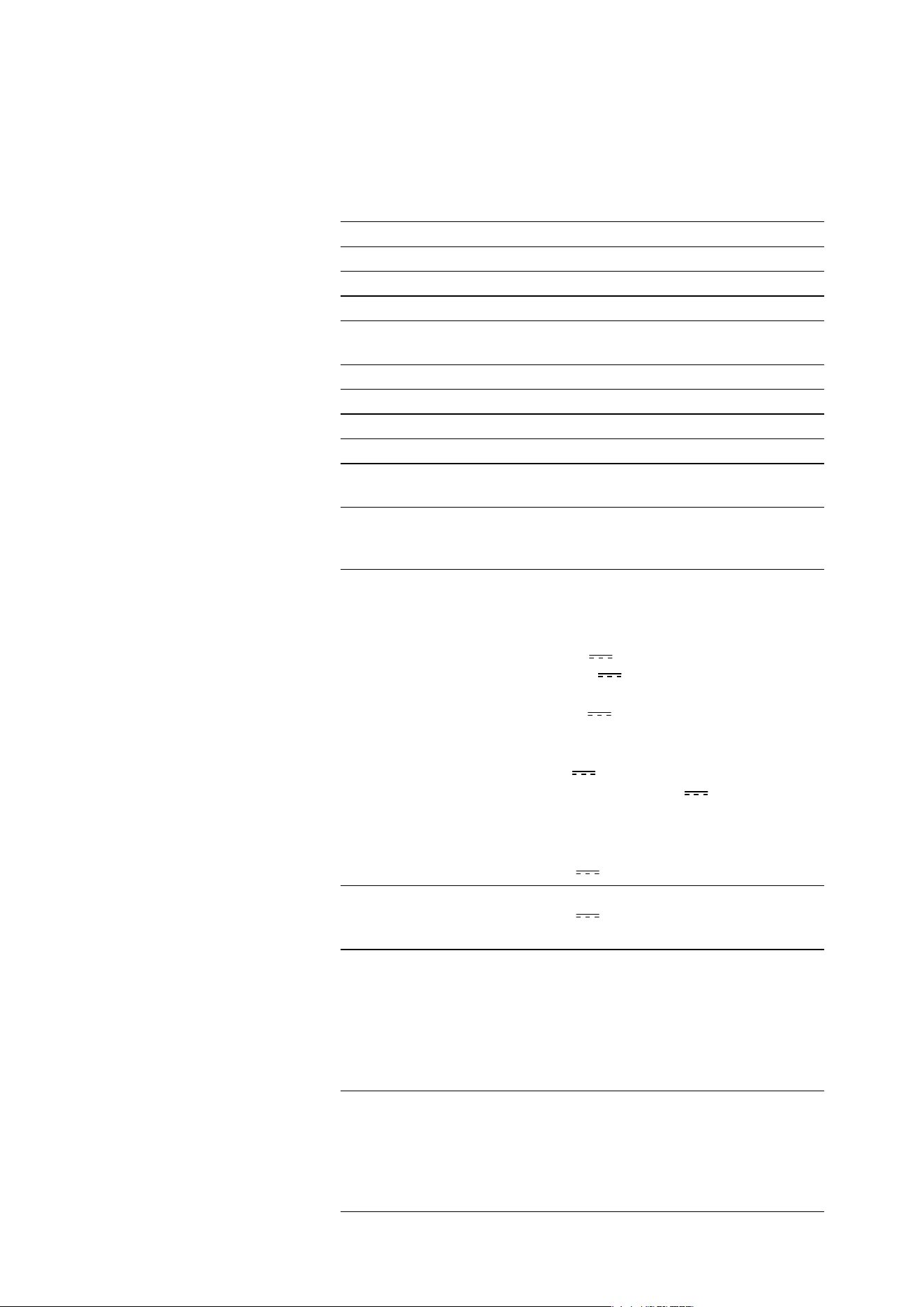
MOMENTUM True Wireless 5
Model: MTW5, MTW5 R, MTW5 L, MTW5 C
Wearing style True wireless stereo earphones
Ear coupling ear canal
Frequency response 5 Hz to 21 kHz
Transducer principle Dynamic
Transducer type/size TrueResponse™ dynamic, 7mm diam-
eter
Sound pressure level (SPL) 107 dB (1 kHz/1 mW)
Speaker THD < 0.08% (1 kHz/94 dB)
Active noise cancellation Hybrid Adaptive ANC technology
Microphone principle MEMS
Microphone frequency
response
Up to 16 kHz (super wideband tele-
phony mode)
Microphone pick-up pattern
(speech and ANC)
4 mics per earbud incl. bone con-
ducted mic , AI and beamforming for
de-noising
Power supply Lithium rechargeable
batteries, user-replaceable with
standard tools:
earbuds (R and L):
3.8 V , 72 mAh, 0.274 Wh or
3.85 V , 87 mAh, 0.335 Wh
charging case:
3.7 V , 760 mAh, 2.812 Wh
input:
earbuds (R and L):
5 V , max. 100 mA
charging case: 5 V , max. 1000 mA
output:
earbuds (R and L): none
charging case:
5 V , max. 100 mA x 2 (R and L)
Charging method via
charging case
USB charging via USB C socket:
5 V , 1000 mA max;
Qi wireless charging (Version 2.1)
Operating time 12 hrs with rechargeable battery of
the earbud (ANC deactivated)
6 hrs with rechargeable battery of the
earbud (ANC activated)
40 hrs with rechargeable battery of
the charging case
(test conditions: iPhone®, mid volume)
Charging time of recharge-
able batteries
approx. 1.5 hours for full charge
approx. 8 minutes for 1 hour of music
playback
(ambient temperatures < 15°C or
30 °C and Qi wireless charging
increase the charging time)
Specifications
MOMENTUM True Wireless 5 | 45
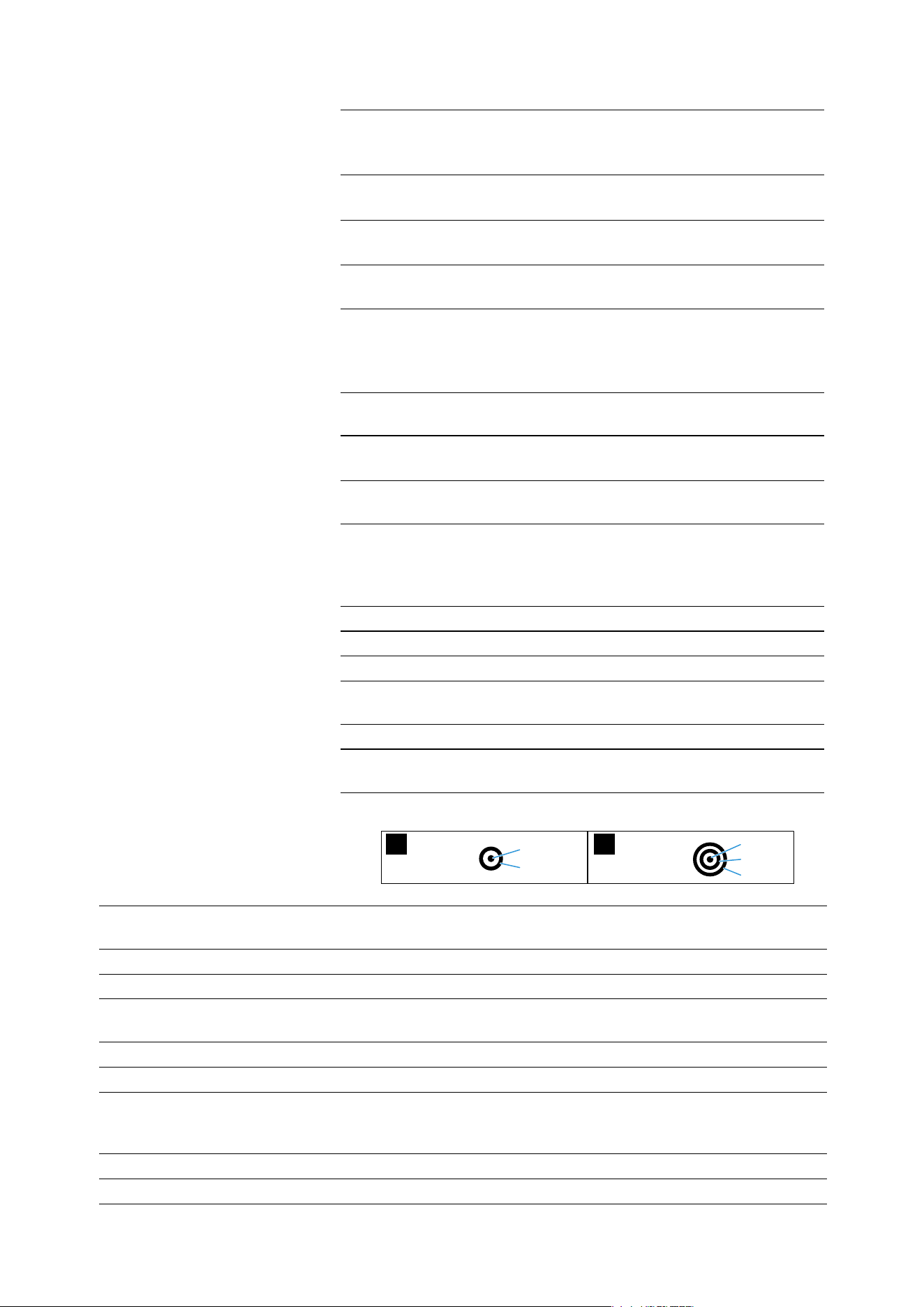
Bluetooth
Compatible batteries
Temperature range operation: 0 to +40°C
charging: +5 to +35°C
storage: –20 to +60 °C
Relative humidity operation: 25 to 75%, non condensing
storage: 10 to 90%
Magnetic field strength earbuds: 1.48 mT
charging case: 97 mT
Ingress protection of the
earbuds
IP54, dust and splash resistant (ear-
buds only)
Weight earbuds: approx. 7 g each
charging case: approx. 55 g
both earbuds and charging case:
approx. 69 g
App support Sennheiser Smart Control Plus for
iOS™ and Android™
Version Bluetooth 6.0 compliant, class 1,
10 mW (max)
Transmission frequency Classic BDR/EDR and BLE 1M:
2,402 MHz to 2,480 MHz
BLE 2M: 2,404 MHz to 2,478 MHz
(without 2,426 MHz)
Transmission modulation GFSK, π/4 DQPSK, 8DPSK
Supported profiles A2DP, AVRCP, HFP
Output power 10 mW (max)
Supported codecs SBC, AAC, aptX™, aptX™ Adaptive/
Lossless
Device name MOMENTUM TW 5
Number of active connec-
tions
2
2
1
A BA 501
1
3
2
B BA 502
BA 501
(Set of two earbud batteries)
BA 502
(Charging case battery)
Nominal voltage 3.8 V ⎓ 3.6-3.7 V ⎓
Minimum capacity 72 mAh 760 mAh
Discharge current 0.5 C (0 – 60 °C),
0.2 C (-20 – 0 °C)
1.0 C (-10 – 60 °C),
0.2 C (-20 – -10 °C)
Discharge cut-off voltage 3 V 3 V
Charging end voltage 4.3 V 4.2 V
Charging current (3.0 – full) 2.0 C (15 – 45 °C),
0.2 C (5 – 15 °C),
0.1 C (0 – 5 °C)
1.0 C (15 – 45 °C),
0.25 A (0 – 15 °C)
Charging current (<3.0 V) 0.1 C 0.1 C
Charge cut-off current 0.05 C 0.05 C

Specifications
46 | MOMENTUM True Wireless 5
Charge temperature range 0 to 45°C 0 to 45°C
Mechanical dimensions ø12.30mm x 6.20mm max. ø14.63mm ± 0.37mm x
46.65mm ± 0.5mm
Battery contacts
(see illustrations , )
1: positive pole,
2: negative pole
1: positive pole,
2: NTC thermistor,
3: negative pole
PCM - Protection Circuit Module — integrated
NTC — 10 K, B = 3435 K ±1 % (25-85 °C)
Housing flammability — Metal/UL94 V-1 or above
A
B

Manufacturer declarations
MOMENTUM True Wireless 5 | 47
Manufacturer declarations
Warranty
Sonova Consumer Hearing GmbH gives a warranty of 12 months on
this product. For the current warranty conditions, please visit our
website at www.sennheiser-hearing.com/warranty
or contact your
Sonova Consumer Hearing partner.
LIMITED AVAILABILITY OF REPLACEMENT PARTS AND REPAIR
SERVICES
Most Products are covered by a 2-year Limited Warranty. Please see
our full warranty terms and conditions here, which also include a list
of the Products the warranty applies to:
www.sennheiser-hearing.com/warranty-conditions
.
Beyond the terms of the Limited Warranty, Sonova Consumer Hear-
ing GmbH does not warrant or guarantee the availability of, and
hereby disclaims any implied, statutory or other warranty or guaran-
tee of availability of, any spare or replacement parts, repair services
or information necessary for the maintenance or repair of the Prod-
ucts offered for sale at www.sennheiser-hearing.com
by Sonova
Consumer Hearing GmbH.
We recommend to use original Sennheiser batteries. The compatible
Sennheiser batteries are BA 501 (Set of 2 earbud batteries) and
BA 502 (Charging case battery). They will be available in the EU and
further selected countries. For online availability or to contact the
Customer Service for further information, visit global.sennheiser-
hearing.com/pages/support. If you consider to use batteries from
third-party providers, you need to ensure that the batteries comply
with all technical specifications as shown in the chapter “Specifica-
tions” of the online manual and are approved to local regulation(s).
Important note: Sonova does not assume any warranty for malfunc-
tions or damages to the product caused by non-compatible or defec-
tive batteries from third-party providers. Replacing with a non-com-
patible battery can defeat safeguard.
In compliance with the following requirements
• General Product Safety Regulation (EU) 2023/988
• Compliant to Sound Pressure Limits according to country spe-
cific requirements
EU declaration of conformity
• Battery Regulation (EU) 2023/1542
• RoHS Directive (2011/65/EU)
Hereby, Sonova Consumer Hearing GmbH declares that the radio
equipment type MTW5 (MTW5 R, MTW5 L, MTW5 C) is in compli-
ance with the directive 2014/53/EU.
The full text of the EU declaration of conformity is available at the fol-
lowing Internet address: www.sennheiser-hearing.com/download
UK declaration of conformity
• RoHS Regulations (2012)
• Radio Equipment Regulations (2017)

Manufacturer declarations
48 | MOMENTUM True Wireless 5
Notes on disposal
• EU: WEEE Directive (2012/19/EU)
• EU: Battery Regulation (EU) 2023/1542
• UK: WEEE Regulations (2013)
• UK: Battery Regulations (2015)
The symbol of the crossed-out wheeled bin on the product, the bat-
tery/rechargeable battery (if applicable) and/or the packaging indi-
cates that these products must not be disposed of with normal
household waste, but must be disposed of separately at the end of
their operational lifetime. For packaging disposal, observe the legal
regulations on waste segregation applicable in your country.
Improper disposal of packaging materials can harm your health and
the environment.
The separate collection of waste electrical and electronic equipment,
batteries/rechargeable batteries (if applicable) and packagings is
used to promote the reuse and recycling and to prevent negative
effects on your health and the environment, e.g. caused by potentially
hazardous substances contained in these products. Recycle electrical
and electronic equipment and batteries/rechargeable batteries at the
end of their operational lifetime in order to make contained recyclable
materials usable and to avoid littering the environment.
If batteries/rechargeable batteries can be removed without damag-
ing them, you are obliged to dispose of them separately (for the safe
removal of batteries/rechargeable batteries, see the instruction
manual of the product). Handle lithium-containing batteries/
rechargeable batteries with special care, as they pose particular
risks, such as the risk of fire and/or the risk of ingestion in the case
of coin batteries. Reduce the generation of battery waste as much as
possible by using longer-life batteries or rechargeable batteries.
Further information on the recycling of these products can be
obtained from your municipal administration, from the municipal col-
lection points, or from your Sonova Consumer Hearing partner. You
can also return electrical or electronic equipment to distributors who
have a take-back obligation. Herewith you make an important contri-
bution to the protection of the environment and public health.
Trademarks
Apple, iPhone, the Apple logo and Siri are trademarks of Apple Inc.,
registered in the U.S. and other countries. App Store is a service
mark of Apple Inc. The trademark “iPhone” is used in Japan with a
license from Aiphone K.K.
Google Play and the Google Play logo are trademarks of Google LLC.
The Bluetooth® word mark and logos are registered trademarks
owned by Bluetooth SIG, Inc. Any use of such marks by Sonova Con-
sumer Hearing GmbH is under license.
Manufactured under license from Dolby laboratories. Dolby, Dolby
Atmos, Dolby Vision and the Double-D symbol are trademarks of
Dolby laboratories.
Qualcomm® aptX™ is a product of Qualcomm Technologies Interna-
tional, Ltd. Qualcomm is a trademark of Qualcomm Incorporated, reg-
istered in the United States and other countries, used with permission.
aptX™ is a trademark of Qualcomm Technologies International, Ltd.,
registered in the United States and other countries, used with per-
mission.

Manufacturer declarations
MOMENTUM True Wireless 5 | 49
The Qi logo is a trademark of the Wireless Power Consortium.
Sennheiser is a brand licensed by Sonova.
Other product and company names mentioned in the user documen-
tation may be the trademarks or registered trademarks of their
respective holders.

Manufacturer declarations
50 | MOMENTUM True Wireless 5