KEDRON
User Guide
McGrathLocks APP INSTALLATION REQUIRED
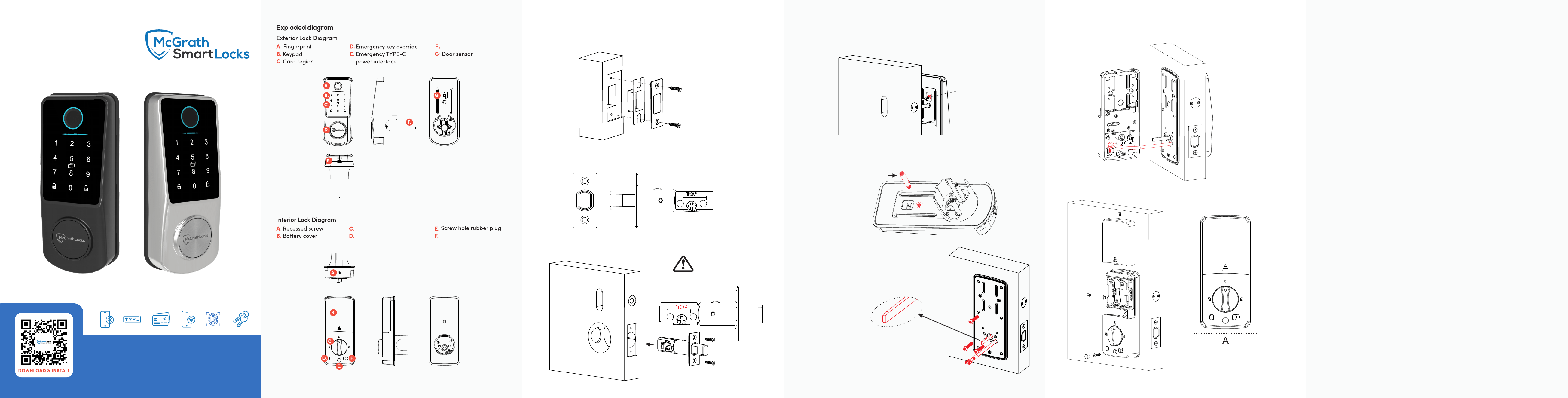
Cylinder tail
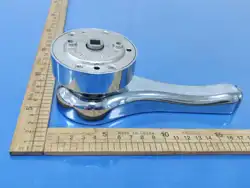
Knob
Lock/Unlock button
Privacy button
Mark Location of strike on the door frame, making certain that
the strike opening is aligned with latch bolt.
The deadbolt has two sizes available:
60mm(2-3/8 ) or 70mm(2-3/4 )" "
Secure the deadbolt in the door with the two wood screws supplied.
Ensure faceplate of the deadbolt is flush with the door edge.
Ensure the bolt is installed as below image
with TOP in upright position.
1. Install strike plate
2. Install deadbolt
General door’s installation diagram
A. Install the door sensor into the door
and feed the cable through the hole.
B. Connect the door sensor cable to
the exterior lock assembly
Exterior lock assembly
After you fasten the exterior lock, insert the key
to test the latch function. If the latch doesn’t
extend or retract smoothly, adjust the screws.
Before go to next step please confirm latch bolt is fully retracted.
3. Install door sensor (optional)
4. Option to install the top screw stud on the exterior lock plate for
enhanced security.
5. Install the exterior lock
A. Make sure the tail piece is vertical
Note
Door sensor
connector
This screw stud is optional
A
*
*
A. Before installation, make sure that
the dot icon on the knob points
to the position of the unlock symbol.
6. Connect the cable
7. Install the interior lock
Enable your smart phone to scan QR code to download
the APP. Also you can search ‘McGrath Locks ’ on APP
store or Google play to download the APP.
Engaging the privacy button disables
access from outside to everyone but
the admin and mechanical key.
Note
www.mcgrathsmartlocks.com.au
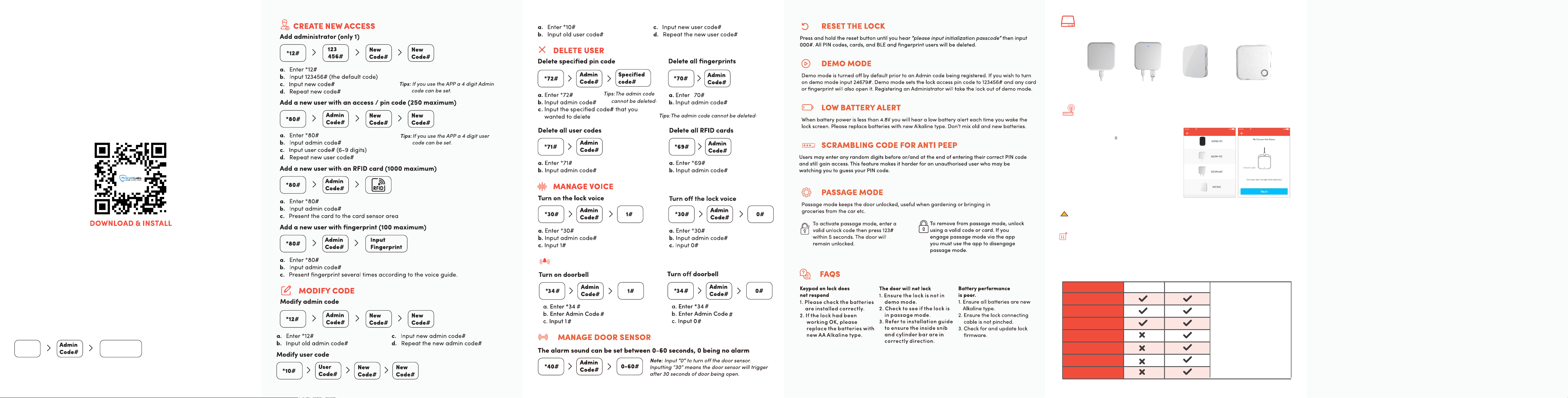
RECOMMENDED: LOCK SETUP WITH APP
It is highly recommended to set up the lock using the McGrathlocks
APP.
The app simplifies programming and provides an easier way to
manage your locks.
Manual set up via keypad only
Please follow the instructions below to manually program the
lock using the keypad.
You can add a BLE device after the lock is programmed
manually provided you know the admin code.
Add lock
via APP
*83#
The gateway is an accessory for the lock that connects it to the network. With a gateway
connected you can remotely manage the lock, such as opening the door or deleting a passcode.
AddGateway
中国电信 16:59
ChooseGatewayType
中国电信 16:59
Gateway Functions
The door lock can function
normally without a gateway.
However, to remotely modify
or delete pin codes, issue
fingerprints or cards, open
the door remotely and access
other features, a gateway is
required.
Without Gateway With Gateway
Assign random pin codes
Set permissions
Door Opening with App
Remotely modify and
delete pin codes
Open door remotely
GATEWAY FUNCTIONALITY
!
Gateway type
GATEWAY
ADD GATEWAY
G5(Wi-Fi)
Network:2.4G/5GWiFi
G4(4G)
Network: LTE (4G)
G2/(Wi-Fi)
Network: 2.4GWiFi
G3/G3P(PoE)
Network: RJ45
1. Open the McGrath Locks app and log in to
your administrator account.
2. Tap the menu icon ( ) in the top left corner of
the home screen.
3. Select ‘Gateway’ from the sidebar menu.
4. Tap the ‘+’ symbol in the top right corner.
5. Choose your gateway model from the list
provided.
6. Connect the gateway to power, while the light
is alternatively flashing red and blue, press
the ‘+’ symbol.
7. Select the network required, enter the Wi-Fi
password, enter the gateway name.
Notice: If the process times out, please disconnect from power and try again.
* Gateway coverage distance: 10 meters without obstruction.
Remote card issuance
Upload door records
log in real time
MANAGE DOORBELL
FCC Caution
Note: This equipment has been tested and found to comply with the limits for
a Class B digital device, pursuant to part 15 of the FCC Rules. These limits are
designed to provide reasonable protection against harmful interference in
a residential installation. This equipment generates, uses and can radiate
radio frequency energy and, if not installed and used in accordance with the
instructions, may cause harmful interference to radio communications.
However, there is no guarantee that interference will not occur in a particular
installation. If this equipment does cause harmful interference to radio or
television reception, which can be determined by turning the equipment off
and on, the user is encouraged to try to correct the interference by one or
more of the following measures:
—Reorient or relocate the receiving antenna.
—Increase the separation between the equipment and receiver.
—Connect the equipment into an outlet on a circuit different from that to
which the receiver is connected.
—Consult the dealer or an experienced radio/TV technician for help.
FCC Radiation Exposure Statement:
IMPORTANT NOTE
Any Changes or modifications not expressly approved by the party responsible
for compliance could void the user's authority to operate the equipment.
This device complies with part 15 of the FCC Rules. Operation is subject to the
following two conditions: (1) This device may not cause harmful interference,
and (2) this device must accept any interference received, including
interference that may cause undesired operation.
This equipment complies with FCC radiation exposure limits set forth for an
uncontrolled environment. This equipment should be installed and operated
with minimum distance 20cm between the radiator& your body.